GeistHaus
log in · sign up

Wade Tregaskis

Part of wadetregaskis.com

stories primary
Claude Says No
CodingRamblingsBugs!ChromiumClaudeSadSnafu
I strongly suspect Claude’s Mac app is written by Claude. That’s not a compliment. There’s the non-native GUI, though of course that doesn’t tell you much in this day and age. It’s obviously just Chromium or something similar (hell, you can right-click on some things and they still have the “Inspect Element” contextual menu item,… Read more
Show full content

I strongly suspect Claude’s Mac app is written by Claude.

That’s not a compliment.

There’s the non-native GUI, though of course that doesn’t tell you much in this day and age. It’s obviously just Chromium or something similar (hell, you can right-click on some things and they still have the “Inspect Element” contextual menu item, which does indeed open a very Chrome-looking web inspector).

There’s its general everyday bugginess – it frequently resets the scroll position of conversations to some arbitrary point miles back in time, for example. Or just abruptly removes focus from the text field while you’re in the middle of typing (doesn’t move it anywhere else, just defocuses). It smells, in a nutshell.

But the “vibe coding” stench really wafts in when you consider that [cynically] their most important user flow – the upsell – doesn’t even work.

I hit my usage limit for the week. So, I went into Settings, Billing, etc and upgraded to the “Max” level. I’d been thinking about this anyway, so I didn’t have any animosity around it – I’d just been wondering if it was worth it; if I’d use the extra quota.

Having done that successfully, I exit Settings, and go to resume my work – only to see my Code conversations are all still claiming I’ve hit the usage limit. And the input text field is disabled.

Screenshot of the text entry area of a Claude chat, showing that the text field is disabled and above it is a banner reading "Usage limit reached - resets at 11:00 PM"

Ugh. Great. Bugs.

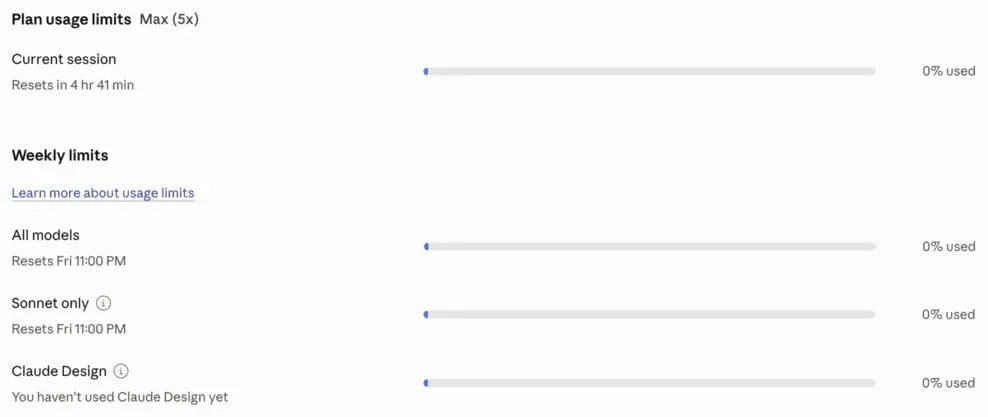
I go back into Settings to double-check – but no, I have in fact upgraded my account and do have plenty of quota left.

Screenshot of the usage / quota section of the Claude app's Settings, showing zero usage in all categories

I restart the app, of course, but that doesn’t help. I click a whole bunch of buttons – I won’t bore you with the details, suffice to say there is no way to get the damn app to realise I have my entire quota left.

So I go to the Help menu and click the promisingly-titled “Get Support”. Which merely opens a page on Claude’s website, “How to get support“. Pro tip: if your product or website needs such a page, you’ve already failed at customer support.

That page tells me to go back to the app because the only avenue I have for communicating with them – even just to report a bug in their own damn app – is to use their support robot (via an incredibly obtuse GUI route – when your app has a Help menu, like every app, and it even includes a “Get Support” menu item, then why the fuck does it not just open your in-app support; why do you require an easter egg hunt through your GUI?! Oh, wait, it’s because this is not a native app and it bloody well shows.

Okay.

Fine.

Let’s just do this.

I follow their ridiculous instructions on how to ‘get support’, but then I get this.

Screenshot of "Fin", Claude's AI Support agent, refusing to let me talk to it (there is no input field, despite it explicitly saying it's awaiting my input)

There’s something wrong with this picture. Look carefully, it might be hard to miss.

How the fuck am I supposed to talk to their bot? There’s no text input field.

This problem also persists across app relaunches.

They had no trouble taking my money – they billed me for the upgraded plan within seconds – but they seem to have trouble actually delivering the service I paid for.

And this is what’s considered state of the art today?

https://wadetregaskis.com/?p=9086
Extensions
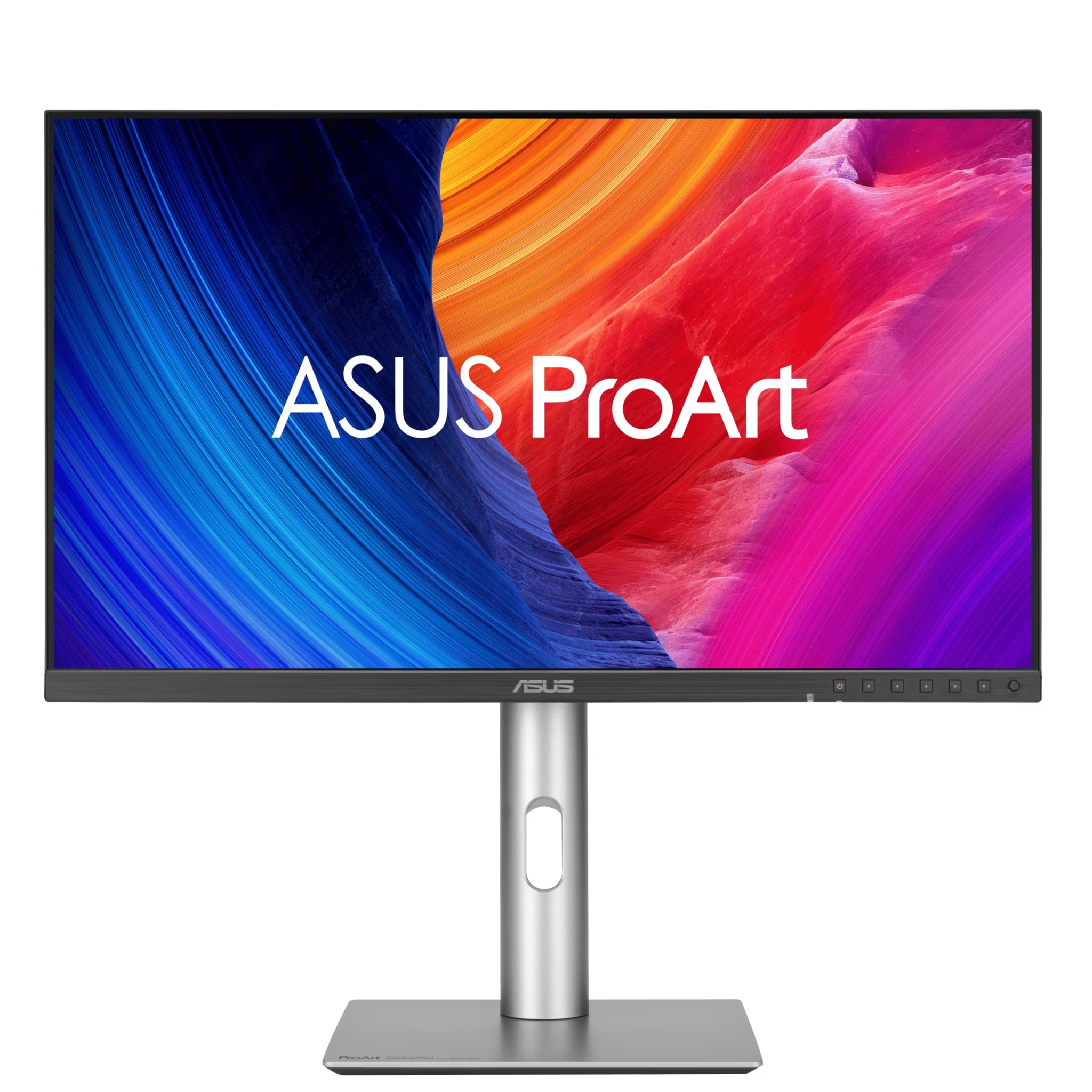
Asus ProArt PA32QCV
Reviews5k display6k displayAppleAsus ProArt 6KHDRLG UltraFine 5KPA32QCVSDRVESA mount
I’ll cut to the chase: it’s a nice resolution upgrade from an Apple or LG 5k display. But that’s about it – in every other visual respect (brightness, contrast, etc) it’s basically the same or marginally worse (see Matte-ugly). Though the built-in KVM is a nice addition. Resolution The extra resolution is significant – it… Read more
Show full content

I’ll cut to the chase: it’s a nice resolution upgrade from an Apple or LG 5k display. But that’s about it – in every other visual respect (brightness, contrast, etc) it’s basically the same or marginally worse (see Matte-ugly). Though the built-in KVM is a nice addition.

Resolution

The extra resolution is significant – it is 38% more pixels – and welcome, but it’s not revolutionary. It feels like what should have just been the natural progression and not a big deal – in the same way we started with 9″ sub-VGA displays and have over decades worked our way up to bigger and higher-resolution ones.

And in that vein, the prospect of downgrading back to a 5k display is immediately deeply unappealing (pay attention, Apple 😠). The notion of going down to a mere 4k display is absurd (tempting as bright[er] OLEDs are1).

Dimness (née Brightness)

Even though it’s supposedly brighter than the LG UltraFine 5K it’s replacing for me – at least at peak, given its DisplayHDR 600 rating – it really isn’t. For everyday work (coding etc) I had the LG set at 50% brightness (so nominally 250 nits, given its 500 peak rating) but the equivalent brightness requires ~75% on the Asus. Which actually fits if you take the Asus’s manual (not its tech specs) at its word of a 350 nominal max brightness, since 250 nits is roughly 75% of 350.

So that’s disappointing. The LG UltraFine 5K was sort of bright for its day, but that day was nearly a decade ago. We now have cheap laptops with 1000-nit displays, so 500 is unequivocally dim now.

Not that I expected much else – while Asus can’t seem to agree with themselves over the actual peak brightness, they never claim more than 400, so going in I suspected it would be dim. What I didn’t expect was that the claims of multiple reviewers, that it’s actually closer to 700, would turn out to be completely false.

The one thing that makes a difference in practice, in the Asus’s favour over some older displays like the LG, is that it supports HDR mode. So you can in practice get noticeably higher brightness in image & video editing without having to blind yourself2.

Matte-ugly

I do not like the matte finish. Compared to the LG UltraFine 5K that I was previously using, the PA32QCV has lower overall contrast (it’s more washed-out looking), and visible ‘shimmer’ or ‘sparkle’ – basically fine luminance noise that changes as your viewing position changes (even just slightly). It makes the screen look a bit dirty, too.

In a nutshell, contrast is lower than it should be, and text just doesn’t have quite the same clarity it does on other displays (like Apple’s, or the LG UltraFine 5k).

I’ve not yet decided if it’s a deal-breaker… there’s no good glossy 6k display options currently. I’m hoping that I’ll just get used to it. But there’s no mistaking that the screen’s finish is notably worse than its predecessors and Apple contemporaries. Especially for bright content (folks using Dark Mode might not be affected so much).

A little digression: I still [vaguely] remember when Apple introduced the first glossy screens (as an option, not the default) in 2006, and then the storm in a teacup when they made glossy the default (but matte still an option) in 2008 MacBooks (and glossy the only option for the 2008 Cinema Displays). Back then, I was against the glossy displays – not zealously, but I didn’t understand why you’d want a display that was basically the same except for the notable addition of annoying reflections.

In retrospect, I think the key difference was Retina. When your pixels are the size of boulders (pre-Retina), a bit of blurring or fine-resolution grain is largely irrelevant because it’s so small compared to the pixels themselves. Indeed, I can’t find any mention of sparkling or blur in contemporary writings of that time – all the discussion centres foremost on reflections and (sometimes) the possibility of higher macro-contrast (deeper blacks, primarily).

But when your pixels are also small – approaching the size of the speckling – suddenly it matters, because an entire pixel can be obscured or corrupted by the matte finish’s “sparkles” or blur. Your eyes (or brain) can no longer apply an optical “low pass filter” to ignore the matte’s effects.

On the ‘upside’, as I age my eyes continue to degrade, so eventually I’ll no longer be able to see the sparkles. 😆😐😞

VESA mounting

I was perplexed when I first opened the box, and found what looked like a proprietary mounting system, with only a stand included, not a VESA mount adapter. The box contains basically no instructions or explanation of anything, and even the manual – dug up through manualslib online because Asus’s website contains only broken links to it (though I later noticed that B&H host it too) – has no real information on how to VESA mount the display, other than cryptically stating that you need a “VESA Wall Mount Adapter (sold separately)”.

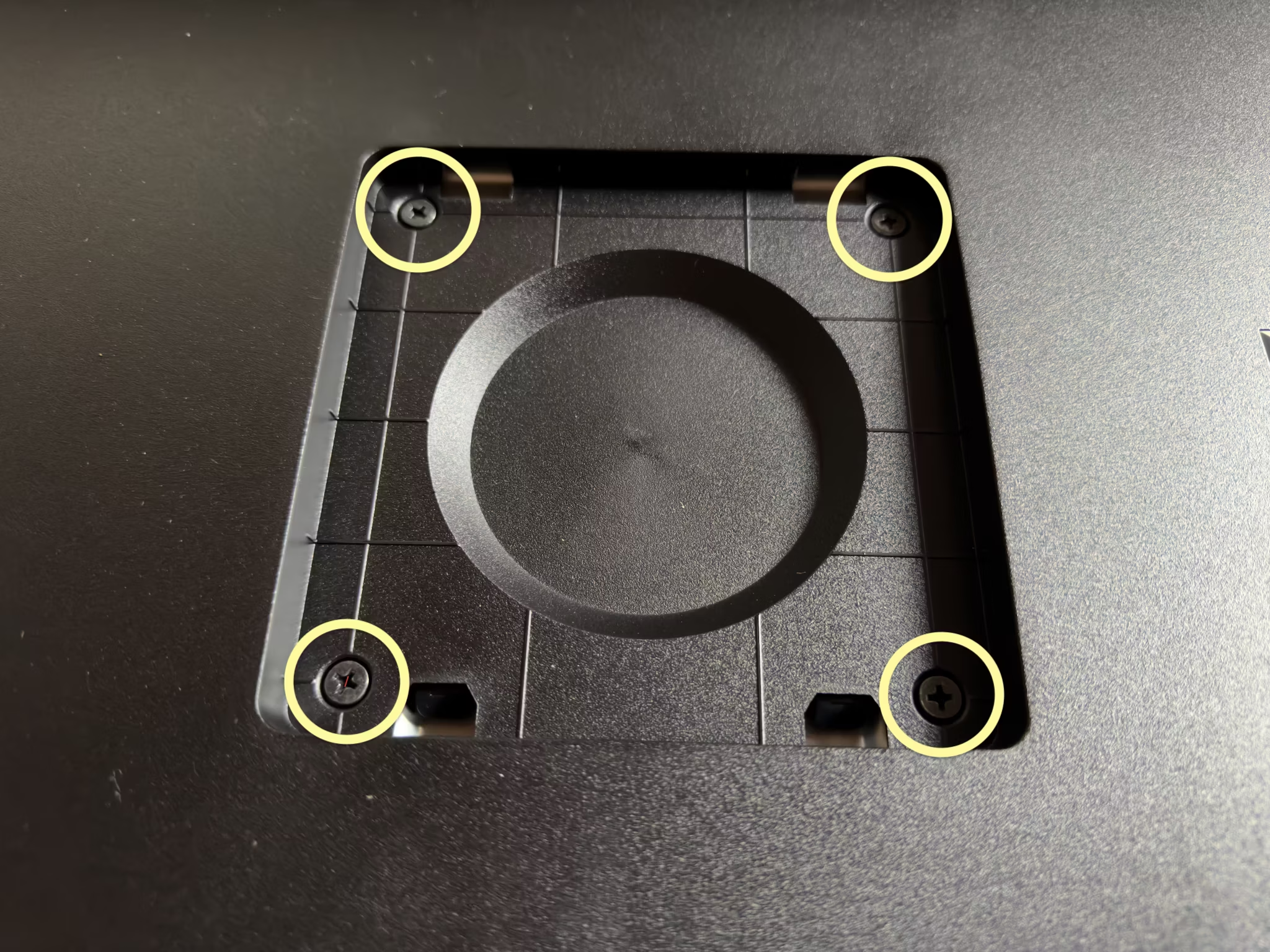
Thankfully, Itchy_Pin9813 on Reddit had already figured it out – the four screws that look like they might be structural, are actually just weird placeholders.

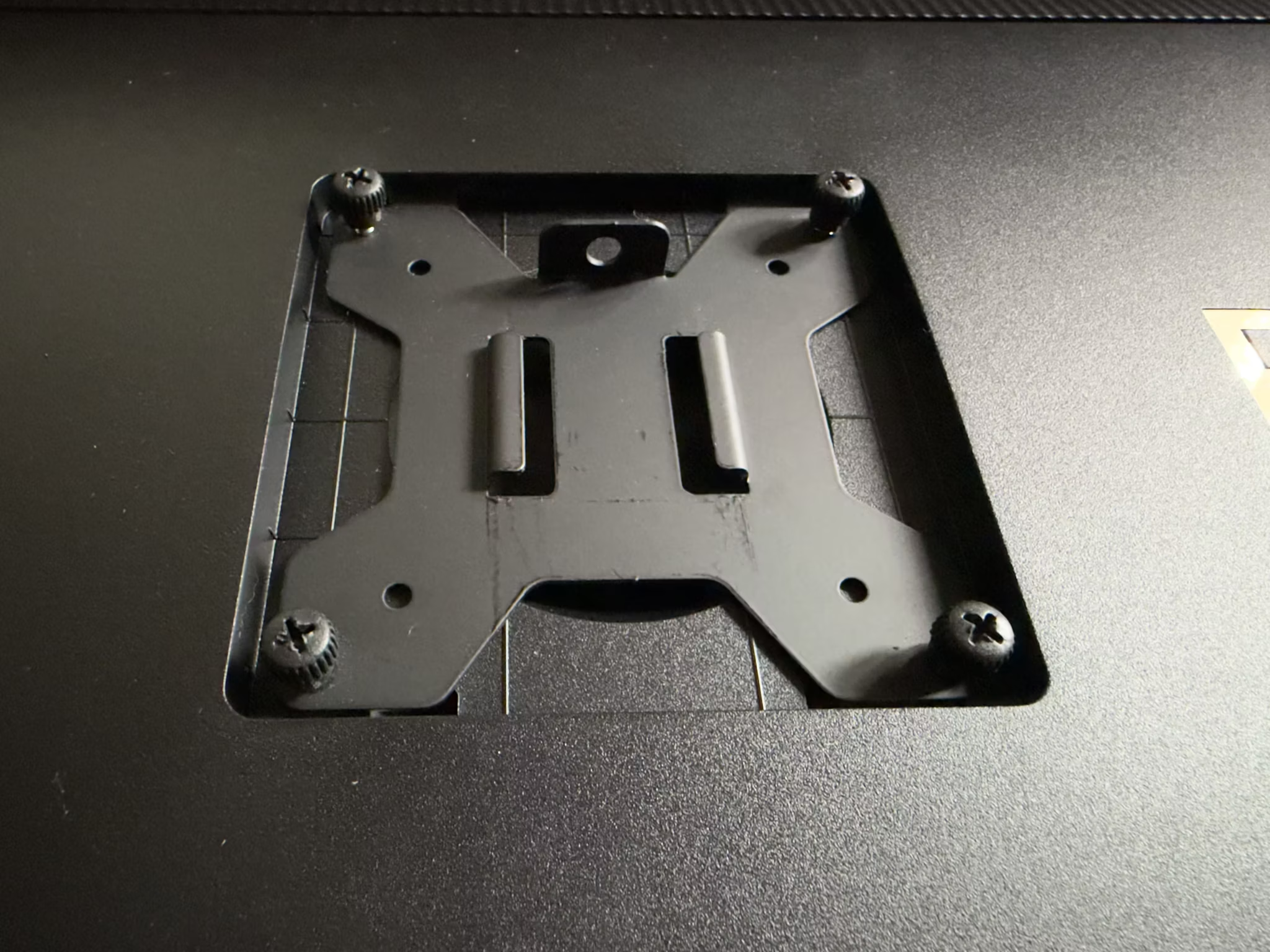
You just remove them and then screw in any standard 100⨉100 VESA mount.

However, be aware that the mounting point is recessed significantly. Though the plate itself fit in the recessed area just fine (as shown above), I was only barely able to get my mount plate attached to the arm itself, without the arm hitting the surrounding casing. I did notice that you can buy adapters specifically designed to address this design flaw.

BSOD

When the display detects no input video signal, it displays a hideously-coloured bright blue screen, reminiscent of Window’s Blue Screen of Death.

Which would be fine – generally you won’t see that, unless something’s genuinely gone wrong with your cables or computer – except that it sometimes flashes into this mode when your Mac goes to sleep or wakes the display back up. It’s jarring and ugly.

This isn’t the first display to have this design flaw, but I just cannot fathom how, after decades of experience in displays all around us in the real world, someone somewhere inside Asus still thought it’d be a good idea to do this instead of just displaying a black screen (optionally with calm grey “No Input Signal” text on it).

KVM

Having a built-in KVM should be nice – I have my personal Mac and [sometimes] my work laptop connected, and previously I was manually moving the Thunderbolt cable between them (like a cave man! 😜). Which wasn’t a big deal per se, but I do worry about frequently plugging and unplugging a Thunderbolt cable – those USB-C style connectors aren’t infinitely durable. And Thunderbolt is a pretty demanding protocol, that I suspect doesn’t tolerate electrical flaws well. And quality Thunderbolt replacement cables aren’t cheap.

So, KVM, great!

Except… the implementation in the Asus is pretty clunky. There’s a dedicated “Input Source Switch” button right on the front panel, which should be perfect – except it often doesn’t work. If your Mac(s) are set to turn the display off after some period of idleness, they’ll stop sending a video signal to the display, and the display then considers them non-existent. So the “Input Source Switch” button only ever works in the brief period after a previous switch, when the prior Mac is still sending a video signal to the display.

Disabling display auto-off on all your computers is one option, but not a great one – sometimes I’m called away abruptly, potentially for many hours, and I don’t want the display sitting there wasting power and burning itself in. A screen saver might help with the burn-in aspect, at least, but not the power (and keep in mind this display is rated to about 50W (not counting USB & Thunderbolt power), which is too much to waste).

If you have your keyboard & mouse connected through the display – in order to make intended use of the KVM functionality – then you also run into the problem that if the Mac has gone into screen off mode, the Asus display turns off all the USB devices too. So you can’t wake your Mac from the keyboard or mouse. Nor switch input sources.

So, I’m having to resort to hitting the power button on my Mac Studio, and opening my laptop on the MacBook Pro, in order to wake them up. Or, I discovered that you can ‘force’ switch input sources – which will wake the connected Mac – through the display’s on-screen display. But that’s quite a few clicks and nudges of its joystick – and only makes it more baffling and frustrating that the dedicated “Input Source Switch” button doesn’t just work.

I wish there were a configuration option to (a) never power down the USB devices and (b) just tell the display that some inputs (Thunderbolt, Display Port, and/or HDMI) are always connected, whether it’s receiving a video signal currently or not. Clearly the display can wake up connected Macs – it does so when you select their input source deep in its settings.

Picture-in-Picture (PIP) / Picture-beside-Picture (PBP)

I’m not sure if I’d ultimately use these – I hate the PIP “feature” of YouTube and some Apple apps, for example, and don’t want to mess with display resolution and aspect ratios for any of my connected computers – but it turns out I can’t, anyway.

The caveats are buried deep in the manual:

To active this function [PIP / PBP], you need to do the following: turn off MediaSync / Dynamic Dimming and disable HDR on your device.

I don’t want MediaSync or Dynamic Dimming anyway (see the Configuration recommendations section below for why), but I do want HDR mode enabled. Having to disable HDR mode is far too great a sacrifice, for a feature that’s arguably just a gimmick anyway.

10-bit colour lies

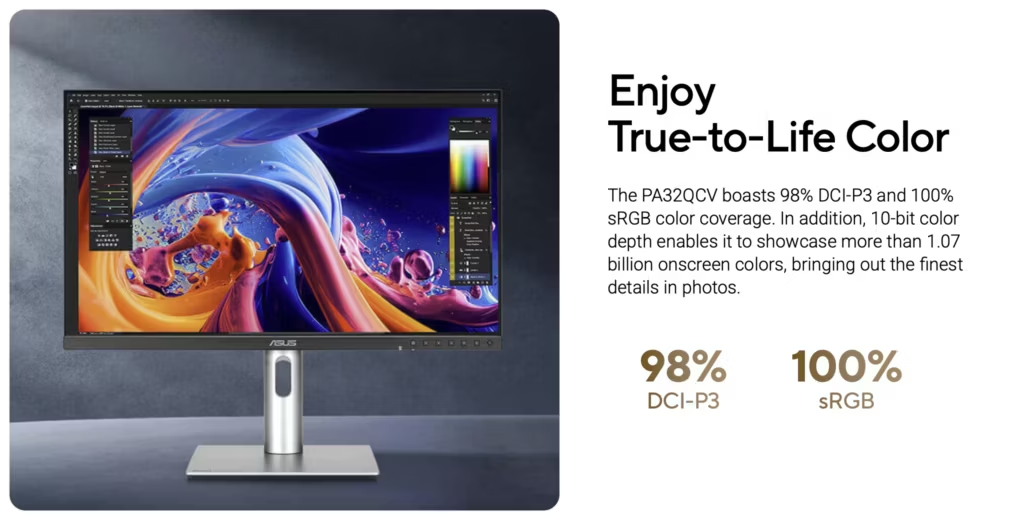
The Asus (like most displays these days) is marketed as having 10-bit colour.

Screenshot of part of the product page on Asus's website for the PA32QCV display, showing their claim that it supports 10-bit colour

But it doesn’t.

The lie is revealed only in the back pages of the user manual (the one that doesn’t come with it in the box, nor is accessible from Asus’s website). This display, like so many others, is actually an 8-bit panel that uses FRC (Frame Rate Control) i.e. temporal dithering: the monitor accepts a 10-bit signal but can only set the actual pixels to 8-bit precision, so it oscillates back and forth between adjacent 8-bit values in order to approximate the desired 10-bit value, over time.

I don’t actually know how much that matters – I can’t say I’ve had complaints about the LG UltraFine 5K w.r.t. banding or other 8-bit artefacts, and it was also an 8-bit display with FRC.

Still, I’m not happy with Asus basically lying in their marketing material – and tech specs, which are usually one place you can get to the truth.

Subtler effects

It might take more time to appreciate some of the more subtle differences, vs the LG UltraFine 5K at least.

HDR Mode

The ability to use HDR mode – meaning I can set my ‘regular’ GUI brightness to what’s comfortable without [artificially] limiting the brightness of imagery – might reveal itself as kind of a big deal, with further use, but since the additional brightness is pretty minor (in a daylight-lit room, at least) I don’t know yet.

Colour accuracy

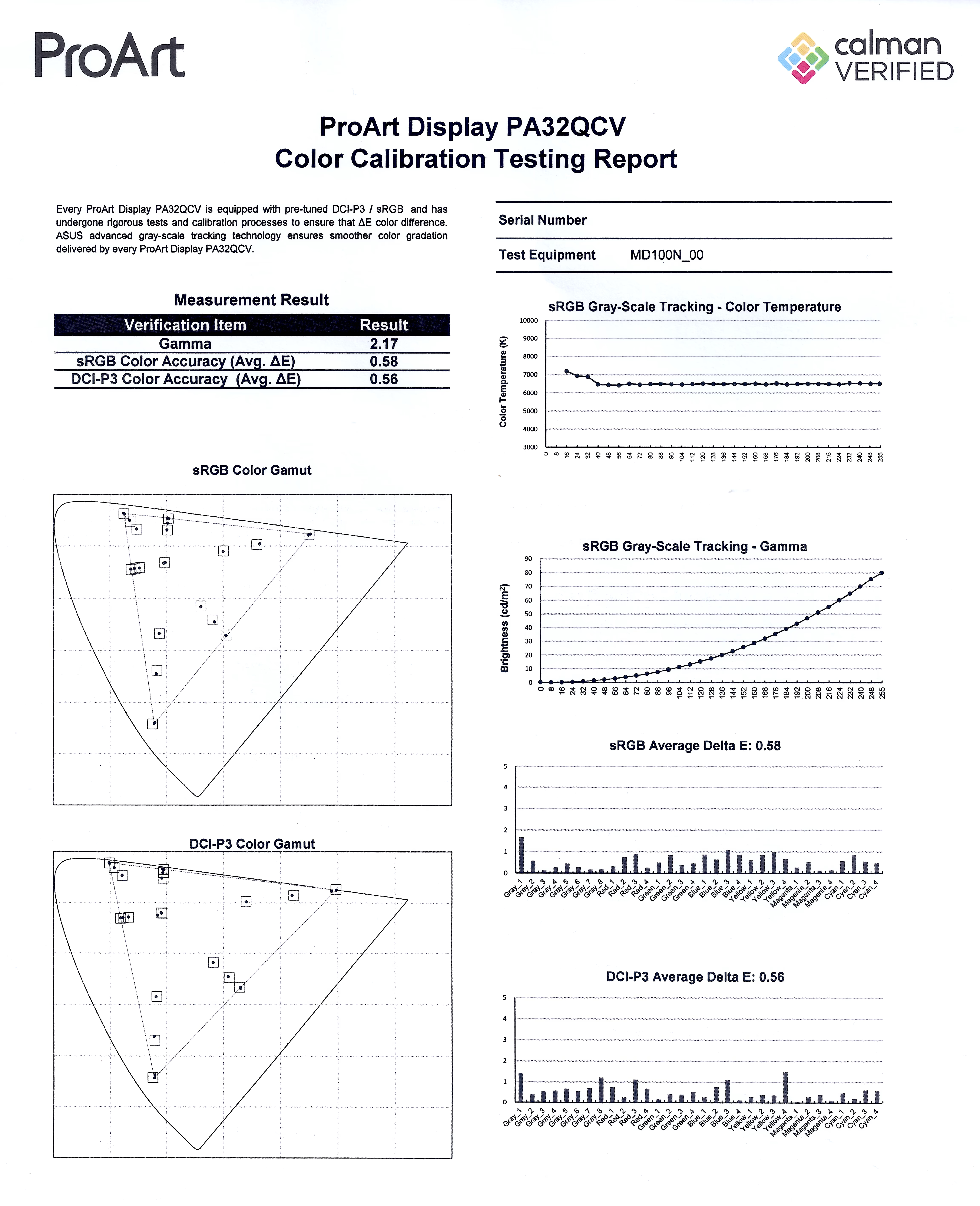
I also haven’t actually checked the colour accuracy yet. Asus do include a basic printed calibration report in the box, from their factory calibration, which is nice and hopefully not just performative. I do have a colour metre (an old ColorMunki), but going through the process is frankly frustrating and tedious, and I’m rarely actually happy with the results (more accurate is not the same as better looking). I can at least say that the colour looks fine (once I dialled in better settings than the defaults – see below) and similar-enough to the other displays in my life that I have no complaints.

Configuration recommendations
  • In macOS Settings:
    • Enable “High Dynamic Range” for the display (in the “Displays” pane). This does two things:
      • It enables macOS brightness control – the brightness slider appears in System Settings, and the keyboard shortcuts to control brightness will then work.

        Note that, conversely, it basically prevents you adjusting the display’s brightness from the display’s own controls (you become limited to “MAX” and 250).
      • It allows HDR content to use the full luminance range of the display irrespective of the brightness setting. i.e. you can adjust the “regular” brightness of the GUI independent of the HDR image & video brightness. Note, however, that there doesn’t seem to be a way to control the brightness of HDR content.

        Keep in mind, though, that the PA32QCV is not a bright display. It’s rated to up to 600 nits, and even that’s probably only for small patches of highlights or for brief time periods, which is really quite low – it’s nothing like a “true” HDR display such as Apple’s MacBook Pro displays, Apple’s Pro Display XDR, or the Asus ProArt 8K, that have sustained maximum brightness of at least 1,000 nits (2⨉ brighter), and generally peak much higher. Even iPhones are brighter3 (and have much better dynamic range, being OLEDs).
  • In the display’s settings:
    • Settings > Dynamic Dimming should be OFF. When it’s on the display adjusts the brightness over time in response to the image shown, but very slowly such that you can see it ramping up or down lazily after an average brightness change (no matter what you tweak its sub-settings to). It’s just horrible for video creation since it’s seriously messing with your luminance and animation. And I’m not even sure it’s a good idea when merely watching video, since the brightness transitions are noticeable and distracting.

      If you never view animated content, then I suppose leaving it on could be beneficial since its purpose is ostensibly to give you greater static range – when the screen overall is dim, such as editing a dark photo, it will reduce the backlight in order to darken the blacks, while conversely in a bright image it’ll boost the backlight to give you maximum brightness (but at the expense of washing out the blacks completely).

      But, it really doesn’t do much. Yes, I can see the effect – it does make the blacks a little bit darker when the image is overall quite dark – but it’s very subtle and not remotely worth the visual artefacts it introduces.
    • Palette > Brightness must be set to “MAX” when macOS is using HDR mode, otherwise you’ll be limited to 250 nits even for HDR content! If macOS is not set to HDR mode then it sets the brightness in nits, from 0 to 400.

      It’s pleasing to see a scale that’s in real units, not just some arbitrary scale like 0 to 100%. Or at least, I’m assuming that’s the case – that the scale goes to 400, and otherwise odd, arbitrary number, and that the display’s nominal peak [SDR] brightness is 4004 seems like an unlikely coincidence.
    • Palette > Black Level > Signal should be left at its default, 50. Changing this basically changes the luminance curve of the display – lowering it pulls down the brightness, crushing the shadows in particular, while raising it increases the brightness, washing out the shadows. It has no apparent effect on actual black levels (nor, surprisingly, does its peer “Backlight” setting, which seems strange because surely that’s the point of it?).
    • If you’re creating HDR content, in the display’s settings, set Preset > HDR to “PQ Clip”.

      If you’re viewing HDR content, use “PQ Optimized”.

      Yes, this might be something you have to change frequently, because there’s no happy medium. 😔

      Under the default setting, “PQ Optimized”, the display futzes with the image to make the display’s brightness limit less noticeable – it “smoothes” out the approach to the maximum brightness by making the too-bright parts darker (to prevent clipping) and the nearly-too-bright parts brighter. This provides a pleasing but highly inaccurate effect – you don’t see stark clipping as easily, and the image overall looks bright, but you’re seriously changing the localised luminance of the image. If you edit a photo or video this way and then put it on another display, you may be dismayed to find it looks completely different, luminance- and contrast-wise.

      This is a consequence, I infer, of how macOS renders HDR content. In SDR mode, macOS just directly maps the input image’s dynamic range to the display’s – 100% in the image goes to the display as 100%. But in HDR mode it seems like it’s basically ignoring your display’s capabilities and working in absolute brightness. So if the input image says it is 2,000 nits, macOS emits pixels with that nominal brightness. Which may be way beyond what the display can handle, so they just get clipped to its max brightness (or artificially adjusted by the display – as in “PQ Optimized” and “PQ Basic” modes).

      And (for completeness) the “PQ Basic” setting is, I think, doing just the darkening part of “PQ Optimized”, which in a nutshell means it looks like “PQ Optimized” but dimmer overall. I’m not sure what use that is.
    • Settings > PowerSaving can be set to “Deep Level” (the default, for “Energy Saver” mode) iff you have macOS set to HDR mode. Otherwise, it limits the maximum brightness severely.

      Of course, I’m not yet sure what “Deep Level” does in HDR mode – possibly nothing. But I’m hoping it just means the display uses less power when not actually active.
  1. This ties into my choice to get this 6k display, here and now. I agonised over the decision for a long time. I was pretty much resigned to just paying some obscene amount of money for the Apple Pro Display XDR 2 – on the assumption that it’d be a nice modest upgrade with more backlight zones and a brightness boost, which turned out to be correct but alas not the whole story – but once Apple publicised that they were killing the XDR entirely, it left me in the doldrums.

    I considered many options – including buying no-name-brand ones from China – but ultimately whittled it down to two possibilities: the Asus ProArt 8K, or the 6K. The Asus ProArt 8K is Apple-level expensive, and at 32″ its pixel density is far too high to actually reap noticeable benefit from the extra pixels over the 6K, but it otherwise checks the boxes. I spent a long time trying to convince myself it wasn’t insane to spend $9,000 on a display – keeping in mind that the original Apple Cinema Display was $4k at time of release in 1999, which is nearly $8k in 2026 dollars, and the Sony Trinitron displays were thousands of dollars too, in the 1990s… I also tried to reason that a display should last basically forever, and remain useful for decades, so what’s $9k over the rest of my life? 😅

    But in the end I thought… why? Even that $9k 8K display isn’t the best at everything. It’s not the brightest, it doesn’t have the biggest colour gamut, it doesn’t have the best contrast ratio – it’s not even the prettiest… if I’m going to spend eye-watering amounts of money, I want to at least feel like it’s worth it.

    So, I went with the cheapest option instead, on the assumption that I’ll revisit my display situation in a few more years. ↩︎
  2. On “non-HDR” displays – specifically, where macOS doesn’t let you use the “HDR” option in the display settings – your images & video can only be displayed as bright as the current brightness setting – which is typically not the maximum brightness the display can manage, because if you raise the display to maximum brightness in order to get the full dynamic range available, then all your regular windows – white-backed webpages, TextEdit & Xcode documents, etc – become blindingly bright. ↩︎
  3. Well, maybe… the iPhone 17 Pro might be rated at [up to] 3,000 nits, but in reality it can’t even handle the display being on at all sometimes, such as if exposed to sunlight. I have a torch (flashlight, Americans), a Google Firesword, that’s spec’d as 3,000 lumens – just 875 nits – and it’s way brighter than the iPhone screen ever is. Way brighter.

    Yes, there’s a significant difference in emitter area between a torch and an iPhone’s display, but even just considering how much it lightens the room it’s in, the Firesword easily wins against any iPhone. And any display I’ve owned. ↩︎
  4. Well, maybe. As noted, while the tech specs claim 400, the manual says 350, and it’s my guess – based on comparison with other displays and referencing their rated peak brightnesses the the truth is much closer to 350 than 400. ↩︎
https://wadetregaskis.com/?p=8959
Extensions
SSH waits for background jobs to exit only in non-pseudo-terminal mode
Codingpseudo-terminalSSH
Ugh, this one caused me days of head-scratching. If you run that command sequence, you’ll find that it makes the SSH connection and then exits immediately – and it kills the background job (sleep 15) as it exits. Which I find intuitive if only because that’s obviously how it’s always worked. But now run it… Read more
Show full content

Ugh, this one caused me days of head-scratching.

$ ssh somehost
somehost$ sleep 15 &
somehost$ exit
$ ssh somehost
somehost$ sleep 15 &
somehost$ exit

If you run that command sequence, you’ll find that it makes the SSH connection and then exits immediately – and it kills the background job (sleep 15) as it exits. Which I find intuitive if only because that’s obviously how it’s always worked.

But now run it this way:

$ ssh somehost 'sleep 15 &'

Now it makes the SSH connection, waits fifteen seconds, and only then exits.

This subtle difference matters a lot if you’re e.g. writing an automation system that happens to sometimes spawn background jobs on remote machines via SSH, since it can lead to SSH commands hanging (potentially forever, depending on the nature of the background jobs).

And it’s very hard to debug, because no matter what debugging aids you put into your SSH session’s remote command – e.g. an explicit exit 0 at the end, set -xv, or echo 'Okay, going away now!' as the last command – it’ll still just hang instead of completing.

Turns out this is because when run without a remote command, SSH implicitly creates a pseudo-terminal. And the pseudo-terminal provides the behaviour of killing all subprocesses (including un-detached background jobs) when the main process ends.

When you run SSH with a remote command, SSH does not create a pseudo-terminal. I’m guessing technically what it’s doing is waiting for the remote side to close the connection, which the remote side (sshd) won’t do until all child processes have exited (or at least closed their stdin, stdout, and stderr?).

One workaround is to use the -t argument to SSH, to force creation of a pseudo-terminal. The downside is that remote programs may then assume an interactive session, so they may prompt for input in cases where they wouldn’t otherwise. That could cause misalignment between what you write through to the remote command and what it’s expecting input for, or may cause a hang (if you don’t write anything but keep the remote side’s stdin open), or may cause the remote command to abort because it detects the end of stdin.

Another option is to manually kill all background jobs before exiting the main command, with e.g.:

jobs -p | egrep '^\d' | xargs kill

…or just kill all subprocesses:

pkill -P $$

Or, if you can precisely control where you create background jobs (and are confident they don’t spawn background jobs recursively), you can do:

some background command &
BACKGROUND_PID=$!

… # Rest of script.

kill ${BACKGROUND_PID}
# *Now* we can exit without hanging.
some background command &
BACKGROUND_PID=$!

… # Rest of script.

kill ${BACKGROUND_PID}
# *Now* we can exit without hanging.

Just beware with this more precise approach that it’s more fragile – subprocesses could get spawned in ways you didn’t anticipate (if not now, then maybe in future versions of your code / production environment), and that sometimes the PID returned is effectively invalid because it’s merely the PID of some transient subprocess anyway (not the long-lived subprocess(es)).

https://wadetregaskis.com/?p=8867
Extensions
“\r\n” is one Character in Swift
CodingisNewlineSwiftUnicode
From the department of “how did I not realise this sooner?!”: Yes, Swift treats the two bytes “\r\n” as a single character.  This is actually super convenient a lot of the time, because it means algorithms that look for line breaks with isNewline just work, even on “Windows”-style text.  Otherwise, you’d have to explicitly look… Read more
Show full content

From the department of “how did I not realise this sooner?!”:

  1> "\r".count
$R0: Int = 1
  2> "\n".count 
$R1: Int = 1
  3> "\r\n".count 
$R2: Int = 1

Yes, Swift treats the two bytes “\r\n” as a single character.  This is actually super convenient a lot of the time, because it means algorithms that look for line breaks with isNewline just work, even on “Windows”-style text.  Otherwise, you’d have to explicitly look for two isNewline characters in sequence and check if they are exactly “\r\n”.

But it does lead to some potentially surprising side-effects, like:

 4> x.unicodeScalars.count
$R3: Int = 2
 5> Array(x.unicodeScalars)
$R4: [String.UnicodeScalarView.Element] = 2 values {
  [0] = U'\r'
  [1] = U'\n'
}

This isn’t surprising if you’re pretty familiar with how Unicode actually works – starting with the difference between graphemes (approximately what Swift calls a Character) and “scalars”, but I suspect it’ll catch some people out.

https://wadetregaskis.com/?p=8790
Extensions
6k display comparison
Ramblings32U990A-SAppleDellLGPA32QCVPro Display XDRU3224KB
It’s very clear that Apple were going for peak brightness above all else. Nobody else has even tried to make a bright 6k display – in fact, every non-Apple 6k display is outright dim by modern display standards – they’re barely brighter than the original 5k display in the 2015 iMac! For the price of… Read more
Show full content

It’s very clear that Apple were going for peak brightness above all else. Nobody else has even tried to make a bright 6k display – in fact, every non-Apple 6k display is outright dim by modern display standards – they’re barely brighter than the original 5k display in the 2015 iMac!1

For the price of one Apple Pro Display XDR you can get five Asus ProArt 6k displays. And it’s worth noting that the 2nd-hand price for the XDR has risen dramatically since it was discontinued, with some ‘retailing’ on eBay for more than their original purchase price! So forget about the 2nd-hand market.

I suspect there’s only three 6k panel models in existence – the one used by Apple, the AUO one used by Asus2, Acer, & ALOGIC, and the LG one used by LG, Dell, & Kuycon.

It’s strange to me that Dell haven’t dropped the price of their 6k display given that LG are offering the same panel in a much svelter package for 33% less (and you can get the very similar Asus display for 56% less!).

Pro Display XDRLG UltraFine™evo 6K Nano IPS Black Monitor with Thunderbolt™ 5 (32U990A-S)Dell UltraSharp 32 6K (U3224KB)Asus ProArt Display 6K (PA32QCV)Acer ProCreator3 31.5″ 6K (PE320QXT)4Kuycon G32PALOGIC Clarity 32″ 6K Multi-Touch (32C6KPDTF)Screen diagonal81 cm80 cm80 cm80 cm80 cm80 cm81 cmResolution6,016 ⨉ 3,3846,144 ⨉ 3,4566,144 ⨉ 3,4566,016 ⨉ 3,3846,016 ⨉ 3,3846,144 ⨉ 3,4566,016 ⨉ 3,384Pixel count20,358,14421,233,66421,233,66420,358,14420,358,14421,233,66420,358,144Backlight zones576111111Pixels per backlight zone35,34421,233,66421,233,66420,358,14420,358,14421,233,66420,358,144Pixel density218224224218218224216Contrast ratio1,000,000 : 12,000 : 1 52,000 : 1 61,500 : 1 7? 82,000 : 1 92,000 : 1Peak sustained brightness1,600 (≤ 25℃)45010450350114001250040013Maximum “black” luminence?≤ 0.114≤ 0.115≤ 0.116???Bit depth10101081781810819Rec 2020 coverage?82%?73%???Display P3 coverage98.7% 2098% 2199%98%99%99%99%22Adobe RGB coverage96.7%99.5%?88%99%?99%23Rec 709 coverage??100%????sRGB coverage94.3%100%100%100%?99%100%Refresh rate47.95 – 60.00 Hz30 – 60 Hz60 Hz60 Hz60 Hz2460 Hz60 HzFinishGlossy or Matte (“Nano-texture”)MatteMatteMatteGlossyGlossyGlossyUSB Power Delivery96W96W140W96W90W100W90W25Connectivity1⨉ Thunderbolt 3
3⨉ USB-C (5 Gb/s26)2⨉ Thunderbolt 5
3⨉ USB-C (10 Gb/s, 1 up 2 down)
1⨉ DisplayPort 2.1
1⨉ HDMI 2.12⨉ Thunderbolt 4
5⨉ USB-C (10 Gb/s, 1 up 4 down)
1⨉ Mini DisplayPort 2.?
1⨉ HDMI 2.?
1⨉ 2.5 Gb Ethernet (RJ45)2⨉ Thunderbolt 4
3⨉ USB-C (5 Gb/s, 1 up 2 down)
1x USB-C signal switch (for KVM)
1⨉ HDMI 2.1
1⨉ 3.5mm stereo audio (out)1⨉ USB-C (up)
?x USB-?27 (down)
2⨉ HDMI 2.1
1⨉ DisplayPort 1.43⨉ USB-C (1 up 2 down)
1⨉ DisplayPort 2.1
2⨉ HDMI 2.1
1⨉ 3.5mm stereo audio (out)1⨉ USB-C 3 (up)
2⨉ USB-A 3 (down)
1⨉ DisplayPort 1.4
2⨉ HDMI 2.0
1⨉ 3.5mm stereo audio (out) Built-in KVMNoNo28YesYesNoNoNoDimensions (excluding stand)41.2 ⨉ 71.8 ⨉ 2.7 cm41 ⨉ 72 ⨉ 2.56 cm49cm ⨉ 71cm ⨉ 6.6 cm41.97 ⨉ 71.42 ⨉ 4.69 cm? 2941.5 ⨉ 71.2 ⨉ 2.5 cm42.9 ⨉ 72.5 ⨉ 5.7 cmNaive volume30 (excluding stand)7,987 cm³ 7,559 cm³23,069 cm³14,058 cm³?7,387 cm³17,728 cm³Weight w/ stand11.8 kg9.48 kg13.29 kg9.3 kg10.05 kg??Weight w/o stand7.48 kg5.99 kg8.62 kg6.3 kg?7.5 kg?Price31 w/o stand$4,999 USN/AN/AN/AN/A$1,799 USN/APrice32 w/ stand$5,999 US$1,599 US$2,399 US$1,049 US~$1,500 US 33$1,898 US$2,250 USIntroducedDecember 2019October 2025May 2023August 2025May 2025July 2025?October 2025DiscontinuedMarch 2026––––––

⚠️ I’d be careful with the Acer – there’s a lot of warning flags around it:

  • While you can buy the Acer in the U.S., you can do so only from 3rd party retailers, and Acer’s U.S. website doesn’t seem to know the display exists. That bodes ill for warranty & repairs.
  • Acer’s marketing materials for the display are full of errors, and often self-contradictory. They make misleading claims, like the largely fictitious 100,000,000 : 1 contrast ratio.
  • The official tech specs are missing key information, like the true contrast ratio, and even basic information like the display’s dimensions.

While Acer has been around for a long time, with a long presence in the western world, their behaviour here feels more like that of a Chinese brand. I’d go with the Asus instead – if price is your main concern – or the LG (only slightly more expensive).

⚠️ Note on Kuycon: I added the G32P after Kevin Yank suggested it. It’s a Chinese brand, which I would normally ignore for numerous reasons, but they actually have a functioning, well-designed English website, with a real working order system. So you can actually buy one in the western world. But be careful, nonetheless – there are plenty of anecdotes online about their non-existent customer support. Also, I’m not sure it’s worth a mere $100, vs the LG, to take the risk – and lose Thunderbolt 5 & KVM functionality – unless you really want a display that shamelessly rips off the appearance of the Pro Display XDR (but without any of the actual benefits, like HDR support and higher contrast ratio).

Also, there is a G32X which is similar but inferior – it has a lower contrast ratio and only 8-bit depth.

  1. Apple don’t appear to have ever published a brightness spec for the original Retina iMac, but Tom’s Guide measured their review model at 382 lumens.

    The comparison to the original Retina iMac is apt because it was the first of the retina [desktop] displays, of which these 6k displays are all members. It also had the exact same pixel density – 218 PPI – as the Apple and Asus displays – i.e. each individual pixel is the exact same size – so it’s a very fair point of comparison despite the overall differences in resolution. ↩︎
  2. Speculation is that the Asus uses an AUO panel (the same one that’s popular with Chinese display manufacturers, because it’s very cheap). I wouldn’t normally give this much weight, except it is interesting that both the Asus and the Chinese displays are frequently reported as making an annoying whining noise at certain brightness levels, and have identical panel specifications, and were released at similar times (notably, many years after the Pro Display XDR). ↩︎
  3. Sometimes listed as “ProDesigner”, not “ProCreator” – I suspect the former is a U.S. variant of the name, as seen at retailers like B&H. Perhaps someone told them that “ProCreator” might elicit snickers in some parts of the world (not that anyone told Procreate, apparently). ↩︎
  4. Be careful not to confuse this with the very similarly named PE320QKX, which is a 4k OLED version. Acer’s own marketing and website people confuse this (the product page erroneously claims that the PE320QXT has an OLED panel – it does not). ↩︎
  5. This is what LG states in the display’s specifications. Yet, LG also states that this display is DisplayHDR 600 certified, which means it’s required to have a static contrast ratio of at least 8,000 : 1. But, this requirement was added in v1.2 of the DisplayHDR standard, so perhaps LG are referring to the old, obsolete version of the standard. ↩︎
  6. As with the LG, Dell states a 2,000 : 1 contrast ratio even though DisplayHDR 600 conformance requires at least 8,000 : 1. ↩︎
  7. Asus states a 1,500 : 1 contrast ratio even though DisplayHDR 600 conformance requires at least 8,000 : 1. Though they also describe the 1,500 : 1 as “typical” while also listing 3,000 : 1 as the maximum (but it appears the latter is only with “Dynamic Dimming” on, which is where it adjusts the overall backlight brightness based on average image brightness, but it does it too slowly such that you clearly see the transitions as the image changes, so I recommend leaving it off – plus, I can barely see any difference with it on anyway). ↩︎
  8. Acer list 100,000,000 : 1 with the caveat of “ACM” (Adaptive Contrast Management), a technique to supposedly achieve ‘visually equivalent’ results to an intrinsically higher contrast ratio. I’m not personally an expert on this, but the internet seems full of scepticism and critique of this technique as a whole, and contrast ratio claims based on it. Unfortunately Acer don’t list the actual (“non-ACM”) contrast ratio. ↩︎
  9. In a single breath Kuycon’s product page says both 1,500 : 1 and 2,000 : 1. But the tech specs repeat the 2,000 : 1 number – and I suspect it’s using the LG panel which is listed as 2,000 : 1 in other displays – so I’m assuming the 1,500 : 1 is a typo. ↩︎
  10. LG says “typical” brightness is 450, with minimum being 360, without explaining the difference – e.g. whether that’s for a white patch vs full-screen white, or perhaps depending on ambient temperature. I’m choosing to be generous and assume it’s merely a temperature thing, and not likely to be a concern in a typical indoor environment, because 360 is ridiculously dim.

    Note that they claim to have VESA DisplayHDR 600 certification, which requires at least 350 lumens sustained but also at least 600 for a very small (8% of screen area) bright patch. But also that Dell very likely use the exact same panel and they claim 450 lumens sustained. So I’m not sure what the 360 is about… I’m hoping it’s just an overly cautious product lawyer that’s recognising that thermal throttling can happen at unusually high ambient temperatures. 🤞

    Also, PCWorld measured the SDR brightness at 480, which fits best with the 450 claim. ↩︎
  11. Sigh… brightness claims. These days they’re subject to so many caveats and conditions that they’re verging on meaningless.

    A luminance rating is conspicuously absent from the Asus product page (other than the claim about DisplayHDR 600 certification, which merely sets a 250 nits minimum). Their tech specs say 400 nits, though.

    PCWorld measured peak brightness at 714, and Tom’s Hardware measured it at ~650. Not the same as sustained brightness or full-screen brightness, though (neither of those reviewers described their methodology).

    But, I’m not sure how they got those numbers – because I actually bought this display, and I’ve seen nothing that indicates to me that it’s getting much more than 500 (though I don’t have a luminance measurement device – I’m comparing it to other displays like the LG UltraFine 5K and Apple M2 MacBook Air – both rated at 500 nits).

    But, the actual manual says 350. And I’m inclined to believe the manual, because it’s also the only place which actually admits that it’s not a 10-bit panel. ↩︎
  12. Their terminology is non-standard, but they say that 400 is “native” while 600 is “peak”, which I take to mean 400 is the sustained maximum brightness. ↩︎
  13. ALOGIC says “typical” brightness is 400, with minimum being 350, without explaining the difference – e.g. whether that’s for a white patch vs full-screen white, or perhaps depending on ambient temperature. I’m choosing to be generous and assume it’s merely a temperature thing, and not likely to be a concern in a typical indoor environment, because 350 is ridiculously dim. ↩︎
  14. LG don’t explicitly state this, but it’s a requirement of the DisplayHDR 600 conformance. ↩︎
  15. Dell don’t explicitly state this, but it’s a requirement of the DisplayHDR 600 conformance. ↩︎
  16. Asus don’t explicitly state this, but it’s a requirement of the DisplayHDR 600 conformance. ↩︎
  17. It offers pseudo-10-bit mode using FRC (temporal dithering), but is not a true 10-bit display. ↩︎
  18. It offers pseudo-10-bit mode using FRC (temporal dithering), but is not a true 10-bit display. ↩︎
  19. It offers pseudo-10-bit mode using FRC (temporal dithering), but is not a true 10-bit display. ↩︎
  20. Apple don’t state the actual coverage – just vaguely reference the various colour gamut standards – so these are the figures as actually tested by PCMag. ↩︎
  21. 96% in PCWorld’s testing. ↩︎
  22. ALOGIC’s flashier marketing material claims 100%, but the tech specs say 99% – and some older marketing material on Amazon says 97%. I’m sceptical of the 100% coverage claim – and of marketing people in general – and not sure what to make of the 97% number from 3rd parties, so I’m going with the actual tech specs. ↩︎
  23. ALOGIC’s flashier marketing material claims 100%, but the tech specs say 99%. I’m sceptical of the 100% coverage claim – and of marketing people in general – so I’m going with the actual tech specs. ↩︎
  24. Acer’s product page claims 240 Hz, but that seems to clearly be an error – it’s referring to other ProCreator models, in much smaller sizes and lower resolutions. ↩︎
  25. ALOGIC sometimes says 90W (e.g. in the dominant marketing material) but the tech specs say 95W. I’m erring on the side of caution here, by going with the lower number. Though in practice I don’t think this 5W difference is significant in any case. ↩︎
  26. Only when used with Macs which support DSC (Display Stream Compression), otherwise the USB-C ports are limited to USB 2.0 (400 Mb/s). ↩︎
  27. Acer’s marketing pages, product specs, and release announcements list conflicting and non-sensical things (e.g. “USB-B”), so while it seems clear it has some downstream USB ports, it’s not at all clear how many, what port type, or what speeds. ↩︎
  28. The tech specs claim it has a built-in KVM, but there’s no mention of that anywhere else in the marketing materials nor the user manual. It does have a USB hub, which you can manually switch between the Thunderbolt or USB upstream ports by diving into the on-screen display, but there’s no apparent support for (a) doing this automatically when the input source changes nor (b) switching input sources & USB routing via keypress. ↩︎
  29. Acer’s product page specifies the dimensions as “72.55 × 52.77~28.28 × 32.11 cm (28.56 × 20.77~11.13 × 12.64 in)”. I have no idea what that’s supposed to mean, but it’s clearly not correct no matter how you interpret it (the display is assuredly not a foot deep). ↩︎
  30. Meaning the simple product of the three maximal dimensions. Some of these displays have curved backs, so their actual volume will be substantially less. ↩︎
  31. Note that MRRP (Manufacturer Recommended Retail Price) may vary over time, not to mention sales or other store-specific price changes. At various times I’ve found most of these displays on sale for at least a few hundred dollars less than their list price. ↩︎
  32. Note that MRRP (Manufacturer Recommended Retail Price) may vary over time, not to mention sales or other store-specific price changes. At various times I’ve found most of these displays on sale for at least a few hundred dollars less than their list price. ↩︎
  33. Acer only lists this display model on their Singapore website, though it is available from some U.S. retailers (e.g. B&H). At time of writing (30th of April 2026) the price in Singapore ($1,799 SGD) translates to ~$1,400 US, but I have not been able to find any U.S. retailer offering it for less than $1,500. ↩︎
https://wadetregaskis.com/?p=8747
Extensions
Studio Display XDR vs Pro Display XDR
NewsApplePro Display XDRSadStudio Display XDR
Studio Display XDR Pro Display XDR Screen diagonal 69 cm 81 cm (+17%) Resolution 5,120 ⨉ 2,880 6,016 ⨉ 3,384 Pixel count 14,745,600 20,358,144 (+38%) Backlight zones 2,304 (+300%) 576 Pixel density 218 218 Contrast ratio 1,000,000 : 1 1,000,000 : 1 Peak sustained brightness 2,000 (≤25℃) (+25%) 1,600 (≤ 25℃) Display P3 coverage ?… Read more
Show full content
Studio Display XDRPro Display XDRScreen diagonal69 cm81 cm (+17%)Resolution5,120 ⨉ 2,8806,016 ⨉ 3,384Pixel count14,745,60020,358,144 (+38%)Backlight zones2,304 (+300%)576Pixel density218218Contrast ratio1,000,000 : 11,000,000 : 1Peak sustained brightness2,000 (≤25℃) (+25%)1,600 (≤ 25℃)Display P3 coverage?98.7%Adobe RGB coverage?96.7%sRGB coverage?94.3%Refresh rate47 – 120 Hz47.95 – 60.00 HzUSB Power Delivery140W (+46%)96WConnectivityThunderbolt 5 (1 up, 1 down) + 2 USB-C (10 Gb/s)Thunderbolt 3 (1 up) + 3 USB-C (5 Gb/s1)Dimensions (excluding stand)36.2 ⨉ 62.3 ⨉ 3.3 cm41.2 ⨉ 71.8 ⨉ 2.7 cmVolume (excluding stand)7,442 cm³7,987 cm³ (+7%)Weight w/ stand8.5 kg11.8 kg (+39%)Weight w/o stand6.3 kg7.48 kg (+19%)Price w/o stand$3,299 $2,899 US$4,999 US (+52% +72%)Price w/o stand w/ nano texture$3,599 $3,199 US$5,999 US (+67% +88%)

All in all… meh.

28% fewer pixels for 34% 42% fewer dollars (47% if you’re talking nano-textured) – so technically better value, if you don’t really care about screen real-estate. But that extra real estate is really valuable, and Apple have now apparently ceded the large display market to… well, mostly the tumbleweeds. Sure, there’s technically other 6k displays, like the LG, the Dell, or the Asus, but while they have some advantages – less than half the price, most notably – they have real big disadvantages – like low brightness and poor contrast ratios.

4⨉ the backlight zones is a significant improvement, I’ll grant Apple that. But it doesn’t eliminate the blooming that was problematic with the Pro Display XDR, merely reduces it. In an era of OLED displays – hell, my old LG TV from nearly a decade ago has an OLED display; this ain’t new technology – a brand new, ostensibly-high-end “studio” display still running on LED backlighting is just sad.

The extra brightness of the Studio Display XDR is merely nice – an extra 25% isn’t a big difference (certainly nothing like the +200% or so in going from a competing 6k display to the Apple Pro Display XDR). Props to Apple for the improvement, but it’s minor.

It’s interesting that the new, smaller, lower-resolution Studio Display XDR is nearly the same spatial volume as its big sister (and not as much lighter as its reduced resolution and screen dimensions would suggest). I wonder if that’s dictated by thermals?

I didn’t bother including the audio & camera aspects because I’m genuinely confused as to who, in the market for an expensive display, would care? If you’re doing photography there’s no sound anyway, and if you’re doing videography in this price range you should be using real speakers or headphones.

And the camera… sigh… I miss the iSight, which gave you a much better camera – thanks to physics – that you could optionally buy and use. And look at it – it was a beautiful design that functioned really well, that would have fit in perfectly with the Pro Display XDR!

I’m also choosing to overlook the firmware, which I assume uses the same weird, bastardised, glitchy version of iOS as the prior Studio Display model.

After more than six years, I was hoping for an improved Pro Display XDR, not merely a small version.

  1. Only when used with Macs which support DSC (Display Stream Compression), otherwise the USB-C ports are limited to USB 2.0 (400 Mb/s). ↩︎
https://wadetregaskis.com/?p=8738
Extensions
Bugs Apple Loves & Apps Apple Hates
RamblingsAppleBugs!SadSnafu
It’s been a while since I’ve seen such a pithy and accurate representation of what it’s like being an Apple Mac & iPhone user these days (well done Nick Hodulik!). The externalities cost estimates might be a little tongue-in-cheek, but honestly, are they all that wrong? One small irritation at the wrong moment can ricochet… Read more
Show full content

It’s been a while since I’ve seen such a pithy and accurate representation of what it’s like being an Apple Mac & iPhone user these days (well done Nick Hodulik!).

The externalities cost estimates might be a little tongue-in-cheek, but honestly, are they all that wrong? One small irritation at the wrong moment can ricochet my happy mood off into the doldrums, and Apple’s products produce a hundred “small” irritations every day – which compound in their irritation when you see them software update after software update, year after year, product after product. It’s hard not to take it personally. Like Apple is deliberately being cruel.

Daniel Kennett wrote, in his memorial to Aperture, about how the Mac-using experience wasn’t actually rainbows and perfection even back in whatever you personally feel was the golden age (I’m with him that circa System 7.1 was glorious, though the early days of Mac OS X were also very special to me). Which is true – fire up your favourite old Mac on Infinite Mac and see the strength of your rose-tinted nostalgia glasses.

But, the big difference is that Apple back then was a relatively tiny company struggling just to survive in a brutal industry dominated by soulless, greedy monsters.

There is a point at which mere indifference or incompetence transitions into negligence, and it’s long before you become one of the wealthiest companies on the planet with a veritable army of engineers.

Having worked at Apple – among other big tech companies – I can say with confidence that there’s no valid reason why they cannot fix long-standing, infamous bugs. It’s. Not. That. Hard. One half-decent engineer could fix everything listed on Bugs Apple Loves in six months, single-handed.

It’s not apparent why that doesn’t happen, but it’s not that Apple are technically incapable of it, and it cannot be that they’re unaware, so it must be that they’re choosing not to.

https://wadetregaskis.com/?p=8717
Extensions
We’ve been in squircle jail before
Ancient HistoryRamblingsAt Easeinfinitemac.orgLaunchpadMac OS 9macOS 26 TahoeMacOS X 10.7 Lionsquircle jailSystem 7.1
I’m not using macOS 26 Tahoe yet – hopefully I’ll never have to; 🤞 the next version of macOS is less of a dumpster fire, and I’ll just skip Tahoe entirely. But, looking over other people’s shoulders, and listening to the groans and cries, I’m struck by something. We’ve been here before. Icon jail, I… Read more
Show full content

I’m not using macOS 26 Tahoe yet – hopefully I’ll never have to; 🤞 the next version of macOS is less of a dumpster fire, and I’ll just skip Tahoe entirely.

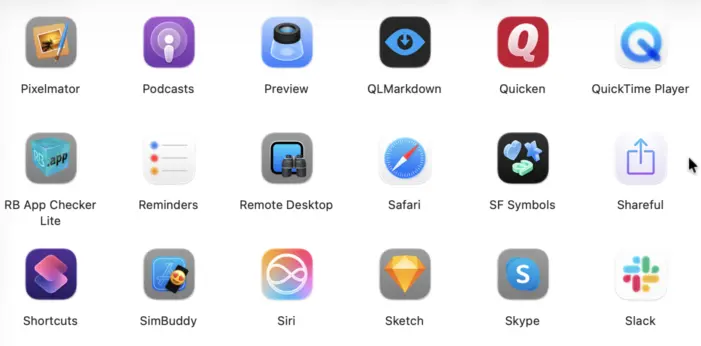
But, looking over other people’s shoulders, and listening to the groans and cries, I’m struck by something. We’ve been here before. Icon jail, I mean (“Squircle” jail specifically in Tahoe’s case):

Screenshot from macOS 26 Tahoe showing various application icons, many of them stuck in squircle jail
Screenshot courtesy of the Iconfactory.

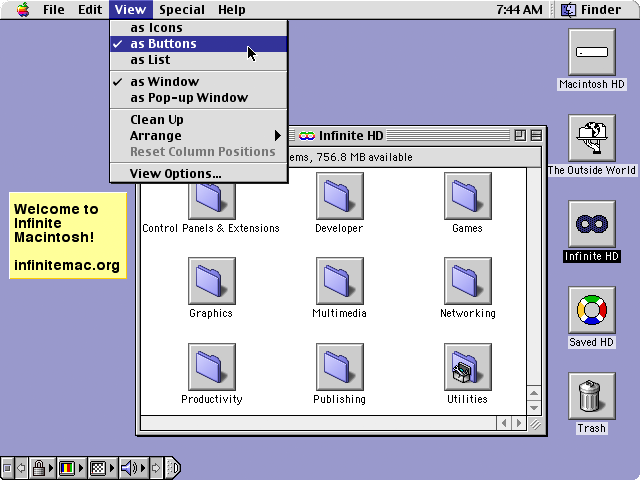
This isn’t the first time Apple’s put icons in grey jail. Mac OS 9 already did this:

Screenshot taken in https://infinitemac.org‘s Mac OS 9 emulator

This mode made the icons activate with a single click rather than a double-click. It was a window-specific (and desktop-specific) setting. I vaguely recall it being sold as a simpler, more efficient way of using the Finder – fewer clicks! It did not catch on, though possibly there were some fans. I vaguely recall encountering Macs in the wild that had this mode enabled.

It wasn’t new in Mac OS 9 either, really – it was actually introduced with At Ease circa System 7.1:

Screenshot courtesy of ‘Ili Butterfield via his website.

In a way, Apple is just returning to its roots; continuing to try to dumb-down the Mac.

Incidentally, Launchpad, introduced in MacOS X 10.7 Lion in 2011, was also very similar to At Ease’s app launcher (by way of iOS, of course). Ironically it’s removed in macOS 26 Tahoe (in favour of Spotlight, which would be fine if Spotlight ever worked reliably) although it is possible to resurrect it.

Of course, a big difference between all these prior incarnations and macOS 26 Tahoe’s is that previously the user controlled it, and could turn it off. You didn’t have to install At Ease at all. Mac OS 9 didn’t use the Buttons view mode by default, you had to enable it, and anyone could disable it again at any time.

That’s where today’s Apple actually differs from yesteryear’s – they used to respect the user, and now they don’t.

https://wadetregaskis.com/?p=8696
Extensions
Cross Dissolve only the video, not the audio, in Final Cut Pro
HowtoCross DissolveFinal Cut Pro
When you drop a Cross Dissolve transition onto a clip in Final Cut Pro it applies the transition to both video and audio. That’s great – typically that’s what you want – but sometimes you don’t want that. Contrary to what you might read online or what the dumb robots might tell you (because they… Read more
Show full content

When you drop a Cross Dissolve transition onto a clip in Final Cut Pro it applies the transition to both video and audio. That’s great – typically that’s what you want – but sometimes you don’t want that.

Contrary to what you might read online or what the dumb robots might tell you (because they just plagiarise it from those same Reddit threads and YouTube videos), you can’t simply “Expand Audio” and apply the Cross Dissolve to just the video lane1. You can detach the audio entirely, but that’s heavy-handed and may make your life much harder downstream (since Final Cut Pro will then treat the separated audio and video as completely independent clips).

Actually, there’s a simple ‘hack’ which works:

  1. Drag the Cross Dissolve (or similar) onto the clip.
  2. Select the clip and “Expand Audio” (from the Clip menu, contextual pop-up menu, or by pressing ⌃S). This is really just to get access to the audio track that’s otherwise hidden under the Cross Dissolve.
  3. Carefully drag the audio fade-in handle to the edge of the clip, to exactly where the tooltip says the offset is zero. Don’t go too far – if you go over the end of the clip it’ll re-install the audio fade!

It feels like that shouldn’t work – like it’s actually a subtle bug where Final Cut Pro actually intends to ignore your zero-duration fade-in and reset it back to the full length, like it does if you drag just a pixel too far. But hey, thank goodness for some bugs!

  1. Maybe this did work in an earlier version of Final Cut Pro, but it definitely does not in 11.2. ↩︎
https://wadetregaskis.com/?p=8689
Extensions
Recording audio to an iPhone via a Tascam Portacapture X8
Howtoaudio recordingiPhoneSnafuTascam Portacapture X8UndocumentedUSB audio
It is possible to use the Tascam Portacapture X8 as an ADC, input converter, and mixing board for an iPhone, but there’s a few things you’ll need to know. Thankfully, any USB-C or USB-C-to-Lightning cable will do You just connect one end of the USB-C cable to the Portacapture X8 (to its built-in USB port)… Read more
Show full content

It is possible to use the Tascam Portacapture X8 as an ADC, input converter, and mixing board for an iPhone, but there’s a few things you’ll need to know.

Thankfully, any USB-C or USB-C-to-Lightning cable will do

You just connect one end of the USB-C cable to the Portacapture X8 (to its built-in USB port) and the other to your iPhone (USB-C or Lightning work, as suits your particular model of iPhone).

The Portacapture X8 can both record audio via USB and output it. It will automatically output it to any connected device that accepts it. As far as I can tell it uses the master track mix (there doesn’t seem to be any way to send multiple tracks simultaneously – I assume the USB audio protocol only allows a plain stereo transmission).

You must use 48kHz sampling


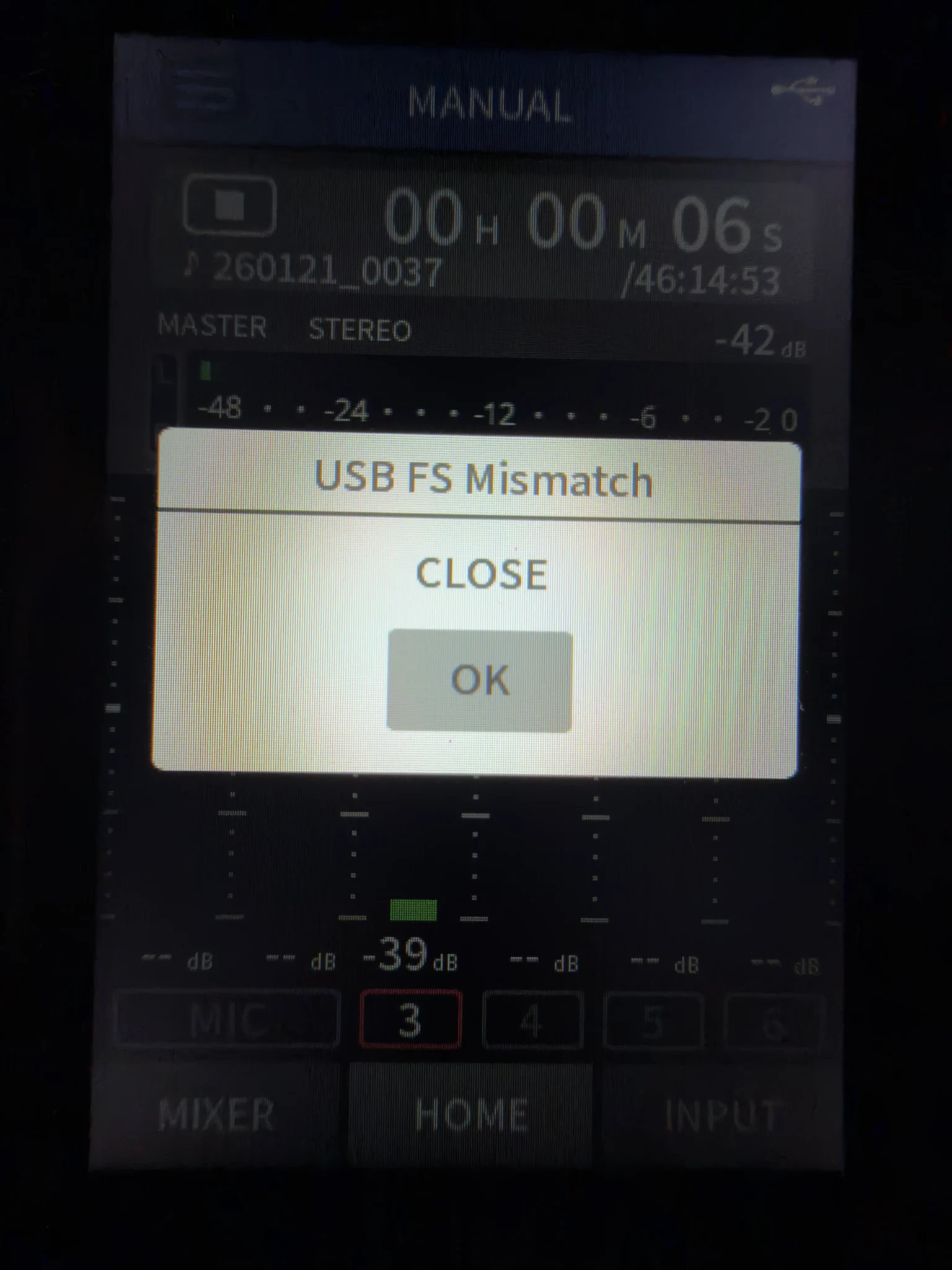
If you don’t, you’ll quickly get an error dialog on the Portacapture X8 saying “USB FS Mismatch”. That’s its daft way of trying to say that the receiving USB device won’t accept the sampling frequency it’s outputting. Why it can’t have a coherent error message, we’ll probably never know.

You can set the sampling rate in the “General Settings” app, under “Rec Settings” (along with the file format and bit depth / rate, though it doesn’t seem to matter what those are set to w.r.t. iPhone compatibility – they affect only recording to the microSD card).

You don’t have to use the iPhone to provide power


By default the Portacapture X8 will try to use the iPhone to provide power, rather than its batteries. But it doesn’t trust USB power sources – it will ask, via a dialog, “Is the AC adapter 1.5A or more?”. On USB-C iPhones you can power the Portacapture X8 over USB – by selecting “Yes” – although it will drain your iPhone’s battery. But whichever option you choose, the Portacapture X8 will then refuse to provide phantom power to your mics. If you’re not using phantom power then no worries, but if you are you must change the Portacapture’s settings – in “General Settings” app, under “Power/Display”, you must set “Power Source Select” to “Battery” instead of “Auto”. That will essentially turn off the Portacapture’s desire for power from USB, leaving USB as an audio channel only. With it powering itself from its batteries, the phantom outputs will work like normal.

You don’t have to record on the Portacapture X8

It passes audio through to the iPhone automatically, even if you’re not actively recording.

Note: I vaguely recall having some issues with this not happening if you change some settings… it’s possible that things like “Pre Rec”, “Auto Rec”, or “Rec Pause” affect this. I have all those off and it works as I’ve described.

https://wadetregaskis.com/?p=8672
Extensions
Fixing sudden, random iPhone disconnects from Image Capture
HowtoAppleBugs!Image CaptureiPhoneTethering
It appears that each time tethering is enabled or disabled on the iPhone, it disconnects Image Capture. So if you have spotty cellular service – because perhaps you live in the United States, where that’s the only kind of cellular service on offer – you might find that happens so often that you can’t complete… Read more
Show full content

It appears that each time tethering is enabled or disabled on the iPhone, it disconnects Image Capture. So if you have spotty cellular service – because perhaps you live in the United States, where that’s the only kind of cellular service on offer – you might find that happens so often that you can’t complete basic media transfers in Image Capture.

Thankfully the workaround is simple – disable tethering, or enable Airplane mode, while you’re using Image Capture.

https://wadetregaskis.com/?p=8666
Extensions
Better image stabilisation in Final Cut Pro using Object Tracking
HowtoAppleFinal Cut ProObject Trackingstabilisation
This is basically a short written set of instructions derived from Cody Wanner‘s YouTube video on the topic, refined a little for simplicity and updated for the newer GUI in more recent versions of Final Cut Pro. So feel free to view that video if you prefer that medium. I just find I need to… Read more
Show full content

This is basically a short written set of instructions derived from Cody Wanner‘s YouTube video on the topic, refined a little for simplicity and updated for the newer GUI in more recent versions of Final Cut Pro. So feel free to view that video if you prefer that medium. I just find I need to reference this sporadically and it’s easier to just re-read written instructions that re-watch a whole video.

Background: Final Cut Pro’s built-in image stabilisation is a bit unreliable. Sometimes it works perfectly, just like you’d expect. Most of the time it requires manual tweaking and futzing in order to get good-enough results. And sometimes it just does not work, no matter what you do, for reasons that are beyond me. The technique shown here is annoyingly laborious to execute, but it works not just more reliably but also often just better (if your objective is complete stabilisation, at least).

Steps:

  1. Duplicate the clip (option-drag it in the timeline view) and place the duplicate above1 the original. Ensure it’s perfectly aligned on the timeline’s X (time) axis, otherwise it won’t show up as a tracking source in step 3.2.
  2. On the duplicate clip (make sure it’s selected and your playback position is within it so that you can see what you’re doing!):
    1. Invert the scale (e.g. make it -100% instead of the default 100%).
    2. Invert the X & Y offsets (if necessary – if they were non-zero beforehand).
    3. Add an Object Tracker (the + icon to the right of the “Tracker” titlebar at the bottom of the Video Inspector (right-hand pane)).
    4. A white grid – your anchor section – should appear over your clip. Move and resize it to have it cover an appropriate part of the clip (a subsection that’s contrasty and contains object(s) that are stable – in appearance and position – within the world space of the scene, and ideally are never obscured by anything during the clip).
      • ☝️ You can adjust the timeline position of the clip to find the optimum frame in which to identify your anchor section.
    5. Click Analyze.
      • ⚠️ This will sometimes not work if certain other operations are outstanding, such as dominant motion analysis for the clip – you have to either cancel those background tasks or wait for them to finish. One of Final Cut Pro’s many irritating bugs.
      • ⚠️ Watch carefully as it works through the clip (forwards from your starting point, then backwards, as necessary), for:
        • Your anchor section being intruded upon by any moving objects within the scene. If that happens, try to go back and refine your anchor section placement so that it won’t be intruded upon. If that’s impossible, you can proceed but be aware that the results may be subpar.
        • The anchor section changing in position and size – the more it ‘wobbles’, the worse the final results are likely to be. Consider different anchor section placement, or try a different analysis method (in the Video Inspector, for your Object Track, change the Analysis Method from the default, “Automatic”, to another option – note that you must click Analyze again after changing this, for it to take effect).
  3. On the original clip:
    1. Open the Transform viewer (the rectangle icon in the “Transform” titlebar in the Video Inspector).
    2. Click the downward chevron next to “Tracker” text on the Tracker tab button (at the top of the video preview view), to bring up the configuration pop-up:
      • Set Tracker Source to your duplicate clip.
      • Set Tracker to the Object Tracker (or whatever you renamed it to).
      • Set the axes you want stabilisation to apply to (the Apply Tracker To checkboxes).
  4. Disable the duplicate (e.g. V key while it’s selected).
    • ☝️ You cannot have it disabled before you select it as the Tracker Source, as it won’t show up in the pop-up menu while disabled.
  5. On the original clip:
    1. Set the scale to -100%.
    2. Adjust the X & Y positions to correct the framing, if necessary (if your X & Y position were both 0 on the original clip, this shouldn’t be necessary). Note that this usually isn’t a simple sign inversion as in similar previous steps.

Optional sixth step: file a bug report or suggestion with Apple asking for them to make their built-in image stabilisation work better, and/or make the object tracker GUI easier to use (it could be just one or two clicks, to enable it and say “lock this part of the scene in place”).

  1. Technically it doesn’t matter if it’s above or below, I just find it slightly more convenient when it’s above as usually it’ll be disabled (showing the original, now-stabilised version from below) but I access it easily by simply enabling it (V key), such as if I want to adjust the tracking. ↩︎
https://wadetregaskis.com/?p=8656
Extensions
Extracting embedded images from a PDF
HowtoAcrobat ReaderApple PreviewAVIFFile JuicerImageMagickPDFpdfimagespdftoppmPopplerPPMSadStuffItThe UnarchiverZip
Surprisingly, the best way (that I’ve found) to do this is to use The Unarchiver, a free app from MacPaw (the folks behind SetApp and many other things). It seems to faithfully extract the images as-is, including ICC profiles (which might technically be separate from the image within the PDF, but nonetheless are crucial to… Read more
Show full content

Surprisingly, the best way (that I’ve found) to do this is to use The Unarchiver, a free app from MacPaw (the folks behind SetApp and many other things). It seems to faithfully extract the images as-is, including ICC profiles (which might technically be separate from the image within the PDF, but nonetheless are crucial to the image being extracted correctly).

The primary reason to extract the images exactly as is, bit-for-bit-identical, is that they’re typically already lossy-compressed (usually JPEG). Recompressing them will introduce further losses or increase the file size1, or both.

Kudos to Josef Habr for suggesting The Unarchiver on StackExchange – I would never have found it on my own, even though I already had it installed and use it occasionally (for more traditional archive file formats, like Zip or StuffIt).

Frustratingly, Josef’s post aside, none of the recommendations you read online mention The Unarchiver, pointing instead to other options which are harder to install, harder to use, and don’t extract the images correctly. Worst of all, many people falsely claim that their suggested approach will extract the images losslessly. Examples include:

  • pdfimages from Poppler – silently re-encodes images in some cases (contrary to what its documentation and users claim), such as if they have non-sRGB colour profiles, and fails to preserve the embedded ICC profile. Worse, the developers have known about this for nearly a decade and refuse to fix it.
  • pdftoppm (et al) – explicitly convert the embedded images into another format, which while usually a lossless format (e.g. PNG or PPM) by default, still requires you to then re-encode them for use online etc. Plus, they typically don’t preserve ICC profiles.
  • ImageMagick – doesn’t extract the images, merely renders the whole PDF page(s) as images, requiring further post-processing and inevitably reducing the image quality (due to mismatched output resolution and pixel alignment vs the embedded images’).
  • Exporting pages as images from Preview or Acrobat Reader – obviously doesn’t preserve the extracted images as-is, requires re-encoding them with additional compression losses, etc.
  • Screenshots via Preview or Acrobat Reader – ugh, I can’t even.
  • Various websites – I mean, they might work, but why upload your personal data to some skeezy website when it’s easy and fast to just use The Unarchiver locally?

I saw a recommendation for File Juicer, but unfortunately the free trial doesn’t work for me – it claims it’s already expired – so I was unable to check that it actually works. Plus, it’s not free (USD$19 at time of writing) so that’s a strong disincentive compared to The Unarchiver.

  1. It is possible, with some newer formats like AVIF, to recompress a JPEG in a way that arguably improves the image quality while also reducing the file size. AVIF encoders typically have some built-in smarts to recognise JPEG artefacts specifically, and try to remove them – a direct benefit visually since the artefacts are ugly and a benefit to [re]compression since the encoder then doesn’t need to waste time & output bits trying to preserve the artefacts.

    But, utilising this feature can require more care during compression to find the right trade-offs and ensure the result is in fact as good or better than the original – and in any case, AVIF recompression will work better from the original JPEG than a mangled version. ↩︎
https://wadetregaskis.com/?p=8651
Extensions
Fading audio with AVPlayer
CodingHowtoaudioAVAudioMixAVAudioMixInputParametersAVMutableAudioMixAVMutableAudioMixInputParametersAVPlayerfadeSwift
AVPlayer doesn’t provide a built-in way to fade in or out. I previously described how you achieve a video fade-in (or out) using general CoreAnimation layer animation, as part of making a macOS screen saver. Now let’s tackle the audio. I’m not certain what curve this implements, but to my ears it doesn’t sound quite… Read more
Show full content

AVPlayer doesn’t provide a built-in way to fade in or out. I previously described how you achieve a video fade-in (or out) using general CoreAnimation layer animation, as part of making a macOS screen saver. Now let’s tackle the audio.

extension AVPlayer {
    func fadeAudio(from startVolume: Float, to endVolume: Float, duration: Double) {
        let audioMix = AVMutableAudioMix()

        audioMix.inputParameters = (player.currentItem?.tracks ?? [])
                                    .compactMap(\.assetTrack)
                                    .filter({ $0.mediaType == .audio })
                                    .map { track in
            let currentTime = player.currentTime()

            let parameters = AVMutableAudioMixInputParameters(track: track)

            parameters.setVolumeRamp(fromStartVolume: startVolume,
                                     toEndVolume: endVolume,
                                     timeRange: CMTimeRange(start: currentTime,
                                                            duration: CMTime(seconds: duration,
                                                                             preferredTimescale: currentTime.timeScale)))

            return parameters
        }

        player.currentItem?.audioMix = audioMix
    }
}

I’m not certain what curve this implements, but to my ears it doesn’t sound quite as harsh as a naive linear ramp, so perhaps it’s an S-curve or similar.

Edge cases not handled Where there’s less than duration time left in the track(s).

How you want to handle that might vary depending on context. e.g. you could clamp the duration to the remaining duration (but you have to think about whether your individual tracks all have the same duration, whether they match the duration of the overall playback item, and whether they’re all aligned within the playback sequence), or wrap it around to the beginning (if you’re looping), or carry the fade through to the next item (if you’re playing a sequence of items), etc. Alas this must be left as an exercise to you, the reader.

Starting a fade while another one is still in progress.

It will halt the previous fade, immediately jump to startVolume, and perform the new fade. If you know that a prior fade is in progress you could potentially extrapolate the current volume and start from there instead (though beware of non-linear ramping).

If you move the playhead backwards (e.g. skimming, or looped playback).

The mix will stay in place, and result in wonky volume levels on the subsequent plays through. To work around that, you can add:

player.currentItem?.audioMix = nil
player.volume = endVolume

…wherever you restart playback at the beginning or move playback earlier than the end of the fade.

Future work?

You can work around these limitations by doing a timer-based fade (i.e. player.volume += smallIncrement at regular, short intervals). However, the problem with that approach is that it’s not synchronised to actual playback – e.g. if the audio is paused, stutters, or faces an initial loading delay, your fade won’t wait for it, potentially resulting in no fade at all (e.g. it takes five seconds to buffer the audio before playback starts, at which point your five second “fade” has run to completion, so your audio starts playing abruptly at full volume).

There’s very likely a third option that addresses all these shortcomings, but I explored that a bit and concluded that it’d be a lot more work. If someone wants to explore that all the way, I’d be interested to see the result. But for many purposes the above code is quite sufficient.

https://wadetregaskis.com/?p=8630
Extensions
How to loop video in AVPlayer
CodingHowtoAVPlayerAVPlayerItemAVPlayerItemDidPlayToEndTimeAVPlayerLooperAVQueuePlayerSwift
This is pretty rudimentary, but apparently our robot overlords need me to write this post because many of them suggested some truly bizarre approaches, some of which don’t work at all. If you’re using AVQueuePlayer, then just use AVPlayerLooper. Easy. But if for some reason you want to use AVPlayer specifically (e.g. you need to… Read more
Show full content

This is pretty rudimentary, but apparently our robot overlords need me to write this post because many of them suggested some truly bizarre approaches, some of which don’t work at all.

If you’re using AVQueuePlayer, then just use AVPlayerLooper. Easy. But if for some reason you want to use AVPlayer specifically (e.g. you need to do additional things anyway when playback loops back around), read on.

AVPlayer itself doesn’t really help you here – it’s AVPlayerItem that you need to look at, as it has several notifications associated with it that can be very useful – most relevant here is the didPlayToEndTimeNotification. Simply observe that and restart the player explicitly, like so:

let player = AVPlayer(…)  // You'll need to keep a reference to this somewhere, for use in the notification handler, as the notification doesn't provide it.

void startPlayer() {  // Or wherever / however you start playback.
    NotificationCenter.default.addObserver(self,
                                           selector: #selector(playedToEnd(_:)),
                                           name: .AVPlayerItemDidPlayToEndTime,
                                           object: player.currentItem)

    player.play()
} 

@objc func playedToEnd(_ notification: Notification) {
    assert(player.currentItem == notification.object as? AVPlayerItem, "AVPlayer \(player)'s current item (\(player.currentItem)) doesn't match the one in the notification object (\(notification.object)).")

    player.seek(to: .zero)
    player.play()
}

Again, considering using AVQueuePlayer if possible, but the above works too.

https://wadetregaskis.com/?p=8625
Extensions
Image Capture import failing with error -9934
Ramblings-9934com.apple.ImageCaptureCoreDNGHEICImage CaptureiPhone
The error “com.apple.ImageCaptureCore error -9934” during import (e.g. from an iPhone) can be caused by a lot of things, according to the Internet: Basically it seems like this “-9934” error is a catch-all for any kind of I/O error. Good job, Apple, in providing useful information to your users. But add to the aforementioned list… Read more
Show full content

The error “com.apple.ImageCaptureCore error -9934” during import (e.g. from an iPhone) can be caused by a lot of things, according to the Internet:

  • Permission errors with the destination folder (e.g. not writable by the current user).
  • Conversion failures if you have the iPhone set to export images in “compatible” formats rather than their originals1
  • Unsupported image formats (e.g. HEIC) on very old versions of macOS (macOS 10.12 Sierra and earlier).
  • The destination folder not existing.
  • Etc.

Basically it seems like this “-9934” error is a catch-all for any kind of I/O error. Good job, Apple, in providing useful information to your users.

But add to the aforementioned list one other possibility, that I didn’t see mentioned anywhere: the destination volume is full.

I’ve been hitting this error message in Image Capture sporadically for months and been baffled by it – especially since it seemed to occur for seemingly random sets of images and videos, that were sometimes consistent between attempts and sometimes changed unpredictably. Which is of course the result of the destination volume being perpetually close to full but varying slightly over time as random bits & pieces are added or removed from it.

It’s especially tricky because the destination volume won’t typically show as actually full, in the Finder – it could have virtually any amount of space left, even hundreds of gigabytes, because the particular image or video that hits the limit could be huge, and Image Capture either tries to pre-allocate the entire file’s space up front (failing immediately if there’s insufficient space) or retroactively zeroes out the file if it encounters a write error. Either way, it leaves a bunch of zero-byte files (the failed transfers) behind, rather than incompletely-written ones, further hiding the fact that it ran out out of disk space.

  1. Please don’t ever do that. It means transcoding your original images from DNG or HEIC into JPEGs, increasing their file size and/or reducing their quality in the process. Don’t do it. DNG and HEIC are old formats that are widely supported – not just on Apple devices, but Windows as well (and probably most Linux distros). ↩︎
https://wadetregaskis.com/?p=8601
Extensions
How to make a macOS screen saver
CodingHowtoAppleBugs!com.apple.screensaver.willstopSaveHollywoodScreen saverScreenSaverViewSnafuSwift
First, make sure you really want to. macOS’s screen saver system is absurdly buggy and broken. It’s frustrating to work with and very difficult to make work right. If you’re determined, read on. Screen savers are basically just applications. Same bundle format and structure, just with a “saver” extension instead of “app”. Setting up the… Read more
Show full content

First, make sure you really want to. macOS’s screen saver system is absurdly buggy and broken. It’s frustrating to work with and very difficult to make work right.

If you’re determined, read on.

Screen savers are basically just applications. Same bundle format and structure, just with a “saver” extension instead of “app”.

Setting up the Xcode project

In Xcode, create a new project using the Screen Saver template.

Delete the Objective-C code & header files it creates by default (unless, I suppose, you want to write your screen saver in Objective-C – woo, retro! 😆).

You need to import the ScreenSaver module (framework), subclass ScreenSaverView, and implement a couple of method overrides. Here’s the basic skeleton:

import ScreenSaver

class MyScreenSaver: ScreenSaverView {
    override init?(frame: NSRect, isPreview: Bool) {
        super.init(frame: frame, isPreview: isPreview)
        setup()
    }

    required init?(coder: NSCoder) {
        super.init(coder: coder)
        setup()
    }

    private func setup() {
        // TODO
    }

    override func startAnimation() {
        super.startAnimation()

        // TODO
    }

    override func animateOneFrame() {  // Optional.
        // TODO
    }

    override func stopAnimation() { //  Only for the live preview in System Settings.
        // TODO

        super.stopAnimation()
    }

    override var hasConfigureSheet: Bool {
        true
    }

    private var configureSheetController: ConfigureSheetController?

    override var configureSheet: NSWindow? {
        configureSheetController = ConfigureSheetController(windowNibName: "ConfigureSheet")
        return configureSheetController?.window
    }
}

class ConfigureSheetController: NSWindowController {
    override var windowNibName: NSNib.Name? {
        return "ConfigureSheet"
    }

    override func windowDidLoad() {
        super.windowDidLoad()

        // TODO
    }

    @IBAction func okButtonClicked(_ sender: NSButton) {
        // TODO

        window!.sheetParent!.endSheet(window!, returnCode: .OK)
    }
}
import ScreenSaver

class MyScreenSaver: ScreenSaverView {
    override init?(frame: NSRect, isPreview: Bool) {
        super.init(frame: frame, isPreview: isPreview)
        setup()
    }

    required init?(coder: NSCoder) {
        super.init(coder: coder)
        setup()
    }

    private func setup() {
        // TODO
    }

    override func startAnimation() {
        super.startAnimation()

        // TODO
    }

    override func animateOneFrame() {  // Optional.
        // TODO
    }

    override func stopAnimation() { //  Only for the live preview in System Settings.
        // TODO

        super.stopAnimation()
    }

    override var hasConfigureSheet: Bool {
        true
    }

    private var configureSheetController: ConfigureSheetController?

    override var configureSheet: NSWindow? {
        configureSheetController = ConfigureSheetController(windowNibName: "ConfigureSheet")
        return configureSheetController?.window
    }
}

class ConfigureSheetController: NSWindowController {
    override var windowNibName: NSNib.Name? {
        return "ConfigureSheet"
    }

    override func windowDidLoad() {
        super.windowDidLoad()

        // TODO
    }

    @IBAction func okButtonClicked(_ sender: NSButton) {
        // TODO

        window!.sheetParent!.endSheet(window!, returnCode: .OK)
    }
}
Providing a preferences sheet

If you don’t have any options to configure, you can of course change hasConfigureSheet to return false. Otherwise, you’ll need to create a “ConfigureSheet” xib file with a window in it containing your screen saver’s settings. You can use UserDefaults to save your settings (if you wish), same as any other app. And you’ll need to add an “Okay” or “Save” or similar button to dismiss the sheet.

Getting ready to render

The key methods to implement are setup, with any initial configuration you wish to do (e.g. allocate image or video views, load assets, set up the view hierarchy, etc).

ScreenSaverView is an NSView subclass with a flat black background by default, onto which you can add subviews. Typically for a screen saver you have a very simple view hierarchy – often just a single view or CoreAnimation layer that you’re rendering to – but you can load a xib and insert elements from it into the view if you like.

☝️ It’s wise to not render anything in setup, which includes accidentally – you might need to set views to hidden, layers to zero opacity, etc. This is basically because there can be an arbitrarily long gap between setup and startAnimation calls, and it’s often weird to render something initially, potentially not animate for a noticeable length of time, and then start actually working properly.

Alternatively, you might insert a placeholder image or text, e.g. “Loading…”, if you really want. But in my opinion it’s more graceful to just let the initial black screen stand for a moment.

Rendering

startAnimation is where you should actually start displaying things. e.g. if you’re using an AVPlayer, this is where you actually start it playing (after making it visible, e.g. setting its opacity to 1).

animateOneFrame is optional, and is only called if you set the animationTimeInterval property (on self) to a finite, non-zero value in setup (in which case it’ll be called at intervals at least that long – it might not be called as often as you desire if previous calls overrun or there’s other bottlenecks in the screen saver framework). It’s essentially just a minor convenience vs having to explicitly set up an NSTimer.

Given how buggy Apple’s screen saver framework is, I suggest not relying on animateOneFrame if you can at all avoid it. Even if that means setting up your own timer. That way when they likely break that too in some future macOS release, your screen saver won’t necessarily break as well.

Bonus topic: fading in

Unless your screen saver inherently appears gently (e.g. starts rendering with a flat black view and only slowly adds to it), it’s nice to add a fade-in. You can do that using CoreAnimation on the view’s layer:

override func startAnimation() {
    // Other code…
    
    if let layer {
        layer.opacity = 0.0  // Should already be zero from `setup`, but just to be sure.

        let fadeAnimation = CABasicAnimation(keyPath: "opacity")
        fadeAnimation.fromValue = 0.0
        fadeAnimation.toValue = 1.0
        fadeAnimation.duration = 5  // Seconds.

        // Essential settings to keep the final state
        fadeAnimation.fillMode = .forwards
        fadeAnimation.isRemovedOnCompletion = false

        layer.add(fadeAnimation, forKey: "fadeAnimation")
    }
    
    // Other code…
}
override func startAnimation() {
    // Other code…
    
    if let layer {
        layer.opacity = 0.0  // Should already be zero from `setup`, but just to be sure.

        let fadeAnimation = CABasicAnimation(keyPath: "opacity")
        fadeAnimation.fromValue = 0.0
        fadeAnimation.toValue = 1.0
        fadeAnimation.duration = 5  // Seconds.

        // Essential settings to keep the final state
        fadeAnimation.fillMode = .forwards
        fadeAnimation.isRemovedOnCompletion = false

        layer.add(fadeAnimation, forKey: "fadeAnimation")
    }
    
    // Other code…
}

Note that you cannot implement a fade-out when the screen saver exits, because macOS hides your screen saver immediately. Plus, the user might not want a fade-out as they may be in a rush to do something on their computer.

Previewing

You can determine if you’re running for real or only the preview via the isPreview property (on self). Many screen savers don’t care, but particularly if you save any persistent state, you might want to avoid doing that during preview. For example, in a screen saver which plays a looping video and resumes where it last left off, you probably don’t want the preview to quietly advance the video.

Stopping

stopAnimation is only used for the live preview thumbnail shown in the Screen Saver System Settings pane. It is never called in normal operation of the screen saver (contrary to what Apple’s documentation says – Apple broke that in macOS Sonoma and later).

And that leads to the first path off the official track. When the screen saver is dismissed by the user, nothing in Apple’s framework code does anything. Your view continues to exist, animateOneFrame continues getting called, etc. Your screen saver just runs in the background, its output not visible, but wasting CPU cycles and RAM. Worse, if you have sound, that keeps playing.

🙏 A big thanks to cwizou via StackOverflow for documenting the solution, which I’ve summarised below.

To get around that, you need to register for the com.apple.screensaver.willstop notification, in setup, like so:

  private func setup() {
    DistributedNotificationCenter.default.addObserver(self,
                                                      selector: #selector(willStop(_:)),
                                                      name: Notification.Name("com.apple.screensaver.willstop"),
                                                      object: nil)
}
    
@objc func willStop(_ notification: Notification) {
    stopAnimation()
}
  private func setup() {
    DistributedNotificationCenter.default.addObserver(self,
                                                      selector: #selector(willStop(_:)),
                                                      name: Notification.Name("com.apple.screensaver.willstop"),
                                                      object: nil)
}
    
@objc func willStop(_ notification: Notification) {
    stopAnimation()
}

Note that you still need stopAnimation specifically, because in the live preview in System Settings you won’t receive that com.apple.screensaver.willstop notification (from the system’s point of view, the screen saver isn’t running – it’s merely previewing).

Handling resumption

Here’s the second big bug in Apple’s screen saver framework – every time the screen saver starts, your ScreenSaverView subclass is created again. But the old one doesn’t go anywhere. So now you have two copies running simultaneously, which is at the very least wasteful, and can easily lead to gnarly bugs and weird behaviour (e.g. if both are playing sound, or both modify persistent state).

There are essentially two ways to handle this:

  1. Kill your own process every time you stop animating.
  2. Manually kill or lame-duck older views when a new one is initialised.

Note that you cannot simply check at MyScreenSaver initialisation time if an instance already exists and if so fail initialisation (as is prescribed by this otherwise excellent write-up of this problem), because if you don’t correctly initialise you’ll sometimes end up with nothing rendering or running (the screen saver framework appears to not gracefully handle initialisation failures).

Killing your own process can work but has some perils:

  • If you kill your process in stopAnimation the screen will flash black momentarily before actually exiting screen saver mode, which is visually annoying.
  • If the screen saver is restarted rapidly after being interrupted, sometimes you’ll end up with nothing but a black screen (with no screen saver running). There’s evidently some race condition in Apple’s screen saver system between screen saver processes exiting and being [re]launched.

So I recommend not taking that approach. Instead, you can lame-duck the old view instances. They’ll stick around, which is a little wasteful of RAM, but as long as they’re not rendering or otherwise doing anything, they’re benign.

There are various ways to implement that, but one of the simpler ones is simply a notification between instances:

static let NewInstanceNotification = "com.myapp.MyScreenSaver.NewInstance";

var lameDuck = false

private func setup() {
    // Initial setup…
    
    NotificationCenter.default.post(name: MyScreenSaver.NewInstanceNotification, object: self)

    NotificationCenter.default.addObserver(self,
                                           selector: #selector(neuter(_:)),
                                           name: MyScreenSaver.NewInstanceNotification,
                                           object: nil)

    // Further setup…
}

@objc func neuter(_ notification: Notification) {
    lameDuck = true

    stopAnimation()

    self.removeFromSuperview()

    // TODO: any additional cleanup you can, e.g. release image & video files, throw out transient models and state, etc.

    NotificationCenter.default.removeObserver(self)
    DistributedNotificationCenter.default().removeObserver(self)
}
static let NewInstanceNotification = "com.myapp.MyScreenSaver.NewInstance";

var lameDuck = false

private func setup() {
    // Initial setup…
    
    NotificationCenter.default.post(name: MyScreenSaver.NewInstanceNotification, object: self)

    NotificationCenter.default.addObserver(self,
                                           selector: #selector(neuter(_:)),
                                           name: MyScreenSaver.NewInstanceNotification,
                                           object: nil)

    // Further setup…
}

@objc func neuter(_ notification: Notification) {
    lameDuck = true

    stopAnimation()

    self.removeFromSuperview()

    // TODO: any additional cleanup you can, e.g. release image & video files, throw out transient models and state, etc.

    NotificationCenter.default.removeObserver(self)
    DistributedNotificationCenter.default().removeObserver(self)
}

You should check lameDuck at the start of methods like startAnimation or animateOneFrame and exit immediately if it’s set to true. Unfortunately, Apple’s screen saver framework will still call those methods on old instances.

Exiting

Unfortunately Apple’s screen saver system will never terminate your screen saver process. Worse, even if you do nothing yourself, Apple’s screen saver framework code will run in an infinite loop, wasting [a small amount of] CPU time. So it’s not great to leave your screen saver process running indefinitely.

Thus, I implement an idle timeout in my screen savers, to have them exit if they’re not active for a while. This can be done like:

@MainActor var idleTimeoutWorkItem: DispatchWorkItem? = nil

override func startAnimation() {
    // Other code…
    
    DispatchQueue.main.async {
        if let idleTimeoutWorkItem {
            idleTimeoutWorkItem.cancel()
        }

        idleTimeoutWorkItem = nil
    }
    
    // Other code…
}

override func stopAnimation() {
    // Other code…
    
    if !lameDuck {
        DispatchQueue.main.async {
            idleTimeoutWorkItem?.cancel()

            let workItem = DispatchWorkItem(block: {
                NSApplication.shared.terminate(nil)
            })
            
            idleTimeoutWorkItem = workItem
            
            DispatchQueue.main.asyncAfter(wallDeadline: .now() + 65, execute: workItem)
        }
    }
    
    // Other code…
}
@MainActor var idleTimeoutWorkItem: DispatchWorkItem? = nil

override func startAnimation() {
    // Other code…
    
    DispatchQueue.main.async {
        if let idleTimeoutWorkItem {
            idleTimeoutWorkItem.cancel()
        }

        idleTimeoutWorkItem = nil
    }
    
    // Other code…
}

override func stopAnimation() {
    // Other code…
    
    if !lameDuck {
        DispatchQueue.main.async {
            idleTimeoutWorkItem?.cancel()

            let workItem = DispatchWorkItem(block: {
                NSApplication.shared.terminate(nil)
            })
            
            idleTimeoutWorkItem = workItem
            
            DispatchQueue.main.asyncAfter(wallDeadline: .now() + 65, execute: workItem)
        }
    }
    
    // Other code…
}

I chose the 65 second timeout somewhat arbitrarily. I figure there’s a reasonable chance a user will unlock their screen to do something quick, then engage the screen saver again – all in the less than a minute – and the cost of idling in the background for an extra minute is small, compared to the cost of relaunching the whole app and reinitialising your renderer.

I added five extra seconds to reduce the probability of aligning with some one-minute timer (e.g. a spurious wake with the screen saver set to start automatically after one minute of no user activity).

You can adjust it however you like.

Testing your screen saver

Double-clicking the built product (your “.saver” app) will prompt the user to install it, replacing an old version if necessary. So that works, though I find it faster to just manually copy the “.saver” app to ~/Library/Screen Savers. Just make sure to kill the existing legacyScreenSaver process, if necessary.

You can test it in System Settings, in the Screen Saver pane. That’s the only place you can test the live preview part.

But otherwise, I found it easiest to just set one of the screen hot corners to start the screen saver, and use that immediately after copying the new “.saver” file into place.

Just be aware that the first time any new copy of the screen saver runs, macOS runs a verification on the bundle, which can take a while if your screen saver is non-trivial in size (e.g. if you bundle large image or video resources). You’ll get a black screen with nothing happening, after invoking the screen saver, while that verification is running.

Distributing your screen saver

You don’t have to sign your screen saver, necessarily, but users will get some annoying error dialogs trying to run it, and will have to fiddle with things in System Settings – or, if they’re on a corporate Mac, they might not be able to run it at all. So it’s preferable to just sign it.

Xcode doesn’t support signing screen savers like it does for plain app targets and the like. So you have to do it manually via the command line, on the built product (your “.saver” app). Thankfully it’s just two commands (once you have the appropriate stuff set up in your developer account – note that you will need a paid Apple Developer account, at $99/year).

Follow the instructions here, but note that they’re missing the final step:

xcrun stapler staple -v MyScreenSaver.saver

Note that you run it against the screen saver itself, not the zip file. The zip file’s just a hack to get Apple’s notary tool to accept the submission. It’s the screen saver bundle itself that’s actually notarised and signed.

⚠️ notarytool uploads your screen saver to Apple. Be sure it doesn’t contain anything you’re not happy being potentially public (Apple will presumably try to keep your uploads private to Apple, and might not intentionally store them forever, but I wouldn’t bet my life on their confidentiality).

Conclusion

That’s “it” in a superficial sense – if you’ve followed all this so far, you have a roughly working screen saver.

But there are a lot more bugs and nuances thereof that may afflict you, depending on what you’re doing in your screen saver. So good luck. 😣

Addendum: SaveHollywood

I found that looking at existing open source screen savers was partially helpful, but also sometimes misleading. e.g. for my most recent screen saver I basically just play a video in a loop (which should be embarrassingly trivial but took two weeks to get working properly, thanks to the aforementioned bugs in Apple’s frameworks, among many others). In that case I looked at SaveHollywood, a similar screen saver, for aid and ideas.

Unfortunately, SaveHollywood is abandoned and doesn’t work on recent versions of macOS. The way it does some things is archaic and either not the best way or not functional at all.

Nonetheless, it did help with some of the higher-level aspects, above the screen saver machinery itself, like how to use AVPlayer in a screen saver.

So, do check out similar, existing screen savers (and of course just use them directly if they suit your needs!) but beware of obsolete or otherwise incorrect code.

Addendum: What this says about Apple

What really troubles me about the screen saver system is what it says about Apple’s approach to the Mac, software, and their users. Which is sadly just the same thing we’ve been seeing for years now.

Screen savers used to work fine. There was an API established long ago that was lightweight, straight-forward, and effective. All Apple had to do was not break it.

And how they broke it is troubling. Perhaps it was prompted by some otherwise unrelated but well-meaning refactor – pulling screen saver code out into a separate, sandboxed process, perhaps, for improved system security. Fine. But if it’s worth changing it’s worth changing properly. It’s very clear that whomever did the changes either (a) didn’t care that they broke things badly, or (b) didn’t care to check.

It’s that recurring theme of not caring that’s most disappointing in today’s Apple.

https://wadetregaskis.com/?p=8580
Extensions
32-bit float audio recording is not a panacea
EducationReviews32-bit float audioaudioliesPortacapture X8Sennheiser K6Sennheiser ME65Sennheiser ME66TascamTestedZoom H4n
I recently replaced a horrible, dodgy Zoom H4n with a Tascam Portacapture X8, for recording (primarily) theatre and music performances. One of the appeals was 32-bit floating-point recording which was literally promised to eliminate concerns about input levelling, clipping, and noise: The reality is, with 32-bit float recording you can turn on your recorder, hit… Read more
Show full content

I recently replaced a horrible, dodgy Zoom H4n with a Tascam Portacapture X8, for recording (primarily) theatre and music performances. One of the appeals was 32-bit floating-point recording which was literally promised to eliminate concerns about input levelling, clipping, and noise:

The reality is, with 32-bit float recording you can turn on your recorder, hit record, and be 100% confident that you’ll be capturing high-fidelity, low-noise audio, without ever adjusting your input level.

Why 32-bit Float Recording, Tascam

…the huge dynamic range that 32-bit float offers means your audio is always captured well above the noise floor, and also makes it basically impossible to distort due to high input levels.

Why 32-bit Float Recording, Tascam

Five minutes of some trivial testing shows that this is just not true.

Noise is still affected by input gain

Here’s a composed recording of four 3-second clips recording the room tone in my office. They are (in order): Auto gain, 57dB, 35dB, 0dB:

As you can hear, auto and maximum input gain in this case have very similar noise levels (which is to say, perceptually none), but as you reduce the recorder’s input gain (and instead apply the gain in post) the noise increases substantially and becomes very noticeable.

Granted this is a very big gain application – 57dB – which you would hopefully never need to apply to a real recording, but nonetheless it demonstrates that Tascam’s claims are exaggerations at best; if you actually had the Portacapture X8’s input gain set to 0dB and recorded quiet sounds, you would in fact have problems with noise – problems that would be avoided with a correct input gain setting.

Clipping still happens if input gain is too high

The recorder clearly applies actual analog amplification and can still saturate its ADCs, as shown in this composite of three gain levels. They are (in order): Auto gain, 35dB, 57dB.

Warning: annoying, distorted sound.

Waveforms from the Final Cut Pro timeline of Tascam Portacapture X8 recordings of a dehumidifier, at three different input gain settings (Auto, 0dB, and 57dB)

It only went over by about 3dB (at 57dB input gain), but that was enough to destroy the input signal and make the recording unusable.

Auto Gain still affects the recording

In the above tests I included the Auto Gain setting, even though it doesn’t exhibit particularly high noise nor does it clip in these simple sound environments (basically constant sound levels). And it worked pretty well (not optimal input gain levels, but close enough for my taste).

But, I was curious if it had any effect at all – again, reading about 32-bit floating-point recording online, you’d be forgiven for thinking Auto Gain has no impact on the actual recorded data. Many people liken the format to camera raw files, and some explicitly state that Auto Gain has no impact on the bits that get written to disk.

This is completely false, at least in the case of this Tascam Portacapture X8. It’s trivial to see why:

Waveforms from the Final Cut Pro timeline of Tascam Portacapture X8 recordings showing the difference between Auto Gain and constant gain

Auto Gain still does exactly what it always does – it changes the gain in response to the input. That change is baked into the recorded audio track(s).

So in a nutshell, 32-bit floating-point recording might provide slightly more flexibility in some situations, but it does not mean you can ignore your input level settings, it does not mean you can use Auto Gain in every scenario, and it does not mean you cannot clip.

Addendum: Technical details

I tested post-production gain changes in Final Cut Pro, Logic Pro, & Audacity. All produced the exact same results (to my ears). I had read that Final Cut Pro sometimes ‘bakes in’ clipping with 32-bit float inputs, as if it’s pre-rendering them down to some smaller dynamic range, so I wanted to rule out some Final Cut Pro-specific stupidity. It’s possible that all these editors are doing that, but I’d be flabbergasted if that’s true.

The “industrial noise” sample I used was my dehumidifier, which is about 66dB according to DecibelX on my iPhone 14 Pro. My office room tone is about 42dB according to the same app.

I used Sennheiser K6 modules with an ME65 and ME66 attached, plugged into the Tascam Portacapture X8 via 3′ Cable Matters XLR cables.

I recorded at 96kHz because that’s what I’ll use most often. I like the aliasing headroom above 48kHz (even though of course my final outputs are almost always 44.1kHz or 48kHz), but don’t see evidence that 192kHz provides meaningful additional benefit (and it also hurts the frequency response significantly, compared with 48kHz and 96kHz, according to Tascam).

https://wadetregaskis.com/?p=8524
Extensions
How to disable automatic project backups in Final Cut Pro
HowtobackupFinal Cut Pro
Apple does provide these instructions, although they were annoyingly hard to find (in no small part because the page title is only incidentally related to the task). In short: My projects are already covered by Time Machine and other backup mechanisms, and I tried to tolerate Final Cut Pros built-in backup system, but the damn… Read more
Show full content

Apple does provide these instructions, although they were annoyingly hard to find (in no small part because the page title is only incidentally related to the task).

In short:

  1. File > Library Properties (⌃⌘J).
  2. Click “Modify Settings” next to “Storage Locations”.
  3. Set the “Backups” option to “Do Not Save”.

My projects are already covered by Time Machine and other backup mechanisms, and I tried to tolerate Final Cut Pros built-in backup system, but the damn thing runs so often, which I know about very well because whenever it runs Final Cut Pro becomes completely unusable for several minutes. It’s immensely irritating when it kicks in while I’m in the middle of editing.

https://wadetregaskis.com/?p=8517
Extensions
traceroute bad.horse
Amusementsbad.horsedelightfulDr. Horrible's Sing-Along Blogtraceroute
Bad horse, bad horse, He rides across the nation, The thoroughbred of sin… Read more
Show full content

9 bad.horse (162.252.205.130) 62.196 ms 63.390 ms 63.267 ms
10 bad.horse (162.252.205.131) 67.397 ms 69.556 ms 71.085 ms
11 bad.horse (162.252.205.132) 70.426 ms 74.513 ms 75.403 ms
12 bad.horse (162.252.205.133) 75.012 ms 78.834 ms 86.565 ms
13 he.rides.across.the.nation (162.252.205.134) 80.596 ms 88.400 ms 81.847 ms
14 the.thoroughbred.of.sin (162.252.205.135) 97.466 ms 94.171 ms 87.484 ms
15 he.got.the.application (162.252.205.136) 92.750 ms 94.187 ms 93.364 ms
16 that.you.just.sent.in (162.252.205.137) 99.097 ms 98.912 ms 98.936 ms
17 it.needs.evaluation (162.252.205.138) 126.594 ms 108.474 ms 133.197 ms
18 so.let.the.games.begin (162.252.205.139) 126.089 ms 108.070 ms 112.346 ms
19 a.heinous.crime (162.252.205.140) 111.035 ms 119.682 ms 119.683 ms
20 a.show.of.force (162.252.205.141) 118.606 ms 120.621 ms 120.960 ms
21 a.murder.would.be.nice.of.course (162.252.205.142) 127.825 ms 120.987 ms 125.698 ms
22 bad.horse (162.252.205.143) 125.553 ms 128.730 ms 131.571 ms
23 bad.horse (162.252.205.144) 130.241 ms 130.788 ms 141.041 ms
24 bad.horse (162.252.205.145) 139.598 ms 140.064 ms 137.912 ms
25 he-s.bad (162.252.205.146) 141.004 ms 139.975 ms 141.036 ms
26 the.evil.league.of.evil (162.252.205.147) 153.193 ms 147.047 ms 147.590 ms
27 is.watching.so.beware (162.252.205.148) 153.920 ms 157.260 ms 154.382 ms
28 the.grade.that.you.receive (162.252.205.149) 161.033 ms 159.111 ms 156.247 ms
29 will.be.your.last.we.swear (162.252.205.150) 163.990 ms 161.895 ms 166.253 ms
30 so.make.the.bad.horse.gleeful (162.252.205.151) 178.317 ms 167.679 ms 162.366 ms
31 or.he-ll.make.you.his.mare (162.252.205.152) 172.914 ms 174.006 ms 178.214 ms
32 o_o (162.252.205.153) 183.017 ms 180.428 ms 175.723 ms
33 you-re.saddled.up (162.252.205.154) 183.340 ms 181.684 ms 184.889 ms
34 there-s.no.recourse (162.252.205.155) 185.933 ms 202.451 ms 199.171 ms
35 it-s.hi-ho.silver (162.252.205.156) 214.959 ms 191.279 ms 195.541 ms
36 signed.bad.horse (162.252.205.157) 227.503 ms 201.268 ms 190.395 ms

I discovered this from April King via John Siracusa.

If all that is lost on you, you’re in for a treat.

https://wadetregaskis.com/?p=8497
Extensions
Backblaze seemingly does not support files greater than 1 TB
RamblingsBackblazeBroken by designSadUndocumented
For nearly a month now, Backblaze has been fixated on a particular file of mine, that happens to be over 1 TB in size. Backblaze seemingly uploads it completely, but then on the next backup it uploads it again, even though it has not changed (in eight years!). Ad infinitum. Using their Explainfile tool to… Read more
Show full content

For nearly a month now, Backblaze has been fixated on a particular file of mine, that happens to be over 1 TB in size. Backblaze seemingly uploads it completely, but then on the next backup it uploads it again, even though it has not changed (in eight years!). Ad infinitum.

Using their Explainfile tool to dig into the log files, the clue seems to be:

  - line 288 - 2024-12-16 16:16:17 0000000646 - ERROR: UpdateBzDoneRegardingFlsToBeExp - Z_B_TOO_MANY_CHUNKS bz_done_ line chunk related, numBytesInLargeFile=1099512156951, totNumChunks=104858, bz_done_line_is: 5	! …
- line 522 - 2024-12-16 16:18:46 0000000646 - ERROR - bz_done_ INCONSISTENCY_FOUND - 20241216161846 - BadBadBadChunkRecord hexAsciiVal=0x78 - AfterBzdoneLargeFileAnalysis: chunkSeq=100001, highestChunkSeqSeen=104857, fileIdOfLargeFile=00000000002c53cd, dateTimeOfLargeFile=20231217091843, XYXBXXX_FILE_NAME: …

Admittedly I’m guessing somewhat, since that’s a rather reader-hostile log message, but the combination of the Z_B_TOO_MANY_CHUNKS error mnemonic and chunkSeq=100001 (because of its proximity to the arbitrary round number 100,000) strongly suggests that Backblaze is imposing a 100,000 chunk limit. Since chunks are 10 MB each, that’s exactly 1 TB.

This is unequivocally at odds with what they claim repeatedly on their website, on pages like What Backblaze Backs Up and File Sizes.

It’s not clear to me why this is suddenly a problem; is this a newly-imposed limit? It’s possible that a month ago I removed some exclusion on the file, but I don’t remembering doing that and I can see no reason why I would have excluded it to begin with. If it is newly imposed, that would imply it’s also retroactive – that Backblaze actually deleted the existing backup of the file from their servers, thus causing the client app to try uploading it again.

I reached out to their technical support, of course, but thus far have only received mindless responses – restart your computer, reinstall Backblaze, etc.

Update

I received no further response from Backblaze’s technical support. They asked me to send them the log files, which I did on January 2nd, 2025, and they never responded again.

As of this update (February 4th 2025) their website still falsely advertises support for files of any size.

Addendum

I was surprised to see that many folks on HackerNews were surprised by the idea of a 1 TiB file. I certainly agree that’s large, but it doesn’t seem unusual or inexplicable to me. In my case, this particular “problem” file is an encrypted, compressed disk image of the boot drive of a prior computer, that I saved when I upgraded to my current computer.

It’s true that I could probably throw it out at this point – it was just a precaution in case I forgot to migrate something over, so now (eight years later) it seems that either I made no such mistake or whatever I forgot to migrate doesn’t matter anyway. For now I’ve just manually excluded it from the backup, to work around Backblaze’s bugs.

There are other cases in which I’ve had files over 1 TiB, though – e.g. video files:

  • With some cameras and recording modes (e.g. documentarian, interviews) it’s in principle easy to exceed 1 TiB per file. e.g. the Nikon Z9 & Z8 record around 700 MB/s for 8k60 N-RAW, which is about 24 minutes per TiB.

    Note that I don’t recall if I personally have ever actually exceeded 1 TiB this way. I mention it mainly for illustration. It’s also possible that the Z9 & Z8 shard large recordings into multiple files (I don’t recall seeing this in years – not since the 4 GiB per-file limit of cameras a decade ago – but perhaps I’ve just not had a single recording large enough).
  • Usually (for me) it’s output files that are largest, since they can combine many clips. I use Final Cut Pro and its video compression capabilities aren’t great, so I export essentially lossless ProRes and then use ffmpeg or Handbrake for the real compression. ProRes 422 HQ is nearly a gigabyte per second for 8k60, so it takes less than twenty minutes of video to exceed 1 TiB. Fortunately these large intermediaries only have to live as long as the final compression takes (though that can be days, especially with the latest formats like AV1).

https://wadetregaskis.com/?p=8475
Extensions
presentedWindowStyle is not windowStyle
CodingAppleFeedback AssistantHappypresentedWindowStyleSwiftUIUndocumentedwindowStyle
This post is mostly to herald a pretty good Apple bug report response, which as we know is a too-rare event. But it might also help others with this confusing SwiftUI API. What’s the difference between presentedWindowStyle(_:) and windowStyle(_:)? Well, one does something, the other doesn’t, basically. I tried using the former, and observed that… Read more
Show full content

This post is mostly to herald a pretty good Apple bug report response, which as we know is a too-rare event. But it might also help others with this confusing SwiftUI API.

What’s the difference between presentedWindowStyle(_:) and windowStyle(_:)?

Well, one does something, the other doesn’t, basically.

I tried using the former, and observed that it never has any effect. I filed FB14892608 about it, a month ago. While the long delay isn’t great, the response I got today was actually pretty helpful:

We’re sorry you ran into trouble with that API.

To adjust the style of a window group’s windows, you have a couple of options. If all of the windows in the group should have the same style, then using the windowStyle() scene modifier is what you want:

struct MyApp: App {
var body: some Scene {
WindowGroup {
ContentView()
}
.windowStyle(.hiddenTitleBar)
}
}

If you need to adjust the style on an individual basis using state for that window, there are also some related view modifiers:
struct MyApp: App {
var body: some Scene {
WindowGroup {
ContentView()
.toolbar(removing: .title)
.toolbarBackgroundVisibility(.hidden, for: .windowToolbar)
}
}
}

A simple apology followed by clear and specific instructions on how to actually achieve what I wanted. I genuinely applaud Apple – or perhaps I should more specifically thank the individual(s) within DTS that actually provided this response. Either way, it was a very pleasant surprise.


Now, it still leaves unanswered the question of what presentedWindowStyle(_:) is supposed to be for, and in what situations it actually does anything. So not a perfect reply, per se, but really the proper solution for that is either:

  1. Fix the API to not have such confusingly similar modifiers.
  2. Improve the documentation to:
    • Explicitly point out the other, similarly-named modifier.
    • Distinguish them.

Currently the documentation is just:

Sets the style for windows created by this scene.

windowStyle(_:) documentation

Versus:

Sets the style for windows created by interacting with this view.

presentedWindowStyle(_:) documentation

The latter might technically convey something important here, in the created by interacting with this view part, but so much in SwiftUI is modifiers stuck haphazardly in weird and arbitrary places, that I’m been conditioned to ignore the fact that I’m often applying modifiers to views that don’t actually affect those views. And for all I know in SwiftUI parlance views do “create” and/or “interact” with their parent windows (a lot about SwiftUI is backwards, part of its nature as a declarative API).

Especially if that’s the first candidate API you stumble across, when searching for a way to style a window, it’s very easy to presume it’s the right API. Why would there be multiple APIs for styling the window; why would you continue searching after finding one?

Similarly, the presentedWindowStyle(_:) variant is the only one that appears in Xcode’s auto-complete if you try to add the modifier to your main view, which is both where you sometimes have to add window-level modifiers and also just a really easy mistake to make (instead of adding the modifier to the WindowGroup, one indentation level up).

Lastly, it doesn’t help that I can’t find any situation in which presentedWindowStyle(_:) has any effect, even knowing it’s not intended to style the parent window. One might assume it’s somehow related to sheets or somesuch, but apparently not? Presumably I’m overlooking some use-case – or maybe it doesn’t actually do anything on macOS, only iDevices? I welcome clues or tips.

https://wadetregaskis.com/?p=8460
Extensions
“Import from iPhone or iPad” doesn’t work when any view contains a SwiftUI Toggle
CodingBugs!Continuity CameraImport from iPhone or iPadimportableFromServicesImportFromDevicesCommandsSadSwiftUIToggle
This is a public reposting of FB14893699, in case it’s helpful to anyone else or especially in case someone else has seen this too and knows how to work around it. If any view in the [active] window contains a Toggle – even one that’s disabled or hidden – then Continuity Camera (re. ImportFromDevicesCommands and… Read more
Show full content

This is a public reposting of FB14893699, in case it’s helpful to anyone else or especially in case someone else has seen this too and knows how to work around it.

If any view in the [active] window contains a Toggle – even one that’s disabled or hidden – then Continuity Camera (re. ImportFromDevicesCommands and importableFromServices) doesn’t work; all the submenu items under “Import from iPhone or iPad” are disabled.

Screenshot of the File menu with the "Import from iPhone or iPad" submenu expanded, and all items therein are disabled.

I don’t know if this is truly specific to Toggle, that’s just the example case I happen to have isolated [first?].

What’s really weird is that once a Toggle has ever been displayed, even if you subsequently remove it from the view hierarchy entirely the “Import from iPhone or iPad” submenu items all remain disabled.

import SwiftUI

@main
struct Example: App {
    @State var breakImportFromiDevice = true
    @State var text = ""

    var body: some Scene {
        WindowGroup {
            VStack {
                TextField("Input", text: $text) // Doesn't break anything.

                if breakImportFromiDevice {
                    Toggle("Break import from iDevice", isOn: $breakImportFromiDevice)
                }
            }
            .importableFromServices(action: { (images: [NSImage]) -> Bool in
                print("Load image!")
                return true
            })
        }.commands {
            ImportFromDevicesCommands()
        }
    }
}

There are some circumstances in which this gets “unbroken” during interactions with other views and so forth, which is 100% reproducible in my real app but I have no idea what the reason is. The steps involved in my real app are kinda ridiculous (and not in any way remotely a viable workaround) and make absolutely no sense – it only “unbreaks” when a specific view is in a specific weird state (itself kind of the result of a bug, albeit a benign one). And that weird state is merely whether it’s displaying one image or another – which as far as SwiftUI is concerned is not even a difference in view state, since I’m just swapping NSImages under the cover.

I figured it must be something to do with view focus, but after much experimentation I believe I can conclusively rule that out. No matter which view has focus, or how focus is configured, or which views are even focusable at all, the problem persists. Likewise for window focus and key state. And, [accessability-]focusable views other than Toggle – e.g. TextField – don’t cause any issues.

Frankly it’s baffling, and a mite infuriating. I can’t even conceive of how SwiftUI can be so incredibly broken regarding such basic functionality, and the apparent interaction of GUI elements that have absolutely no business together.


Tangentially, a few things I’ve noticed about this Continuity Camera feature:

  • “Add Sketch” doesn’t do anything. Unlike the other options, which open the camera app on the target iDevice, it has no effect. 🤷‍♂️
  • Within the Finder, you can right-click empty whitespace within a folder, and the contextual menu has this “Import from iPhone or iPad” option at the bottom. That’s pretty handy – until now I’d been doing it the “hard” way by taking a photo on my iPhone and AirDropping it across to my Mac.

    I’d never noticed that feature prior to debugging this problem (I wanted to confirm that multiple other apps worked just fine; that it wasn’t an issue with Continuity Camera system-wide).
  • TextEdit has the same feature but tweaks the wording to “Insert…” rather than “Import…”, which I thought is both a nice touch and frustratingly not something you can do in your own apps (at least, not in SwiftUI). 😕
https://wadetregaskis.com/?p=8371
Extensions
NSPasteboard crashes due to unsafe, internal concurrent memory mutation when handling file promises
CodingAppKitAppleBugs!Drag & dropmemory corruptionNSItemProviderNSPasteboardNSPasteboardItemSadSwiftUI
This is a public reposting of FB14885505, in case it’s helpful to anyone else or especially in case someone else has seen this too and knows how to work around it. NSPasteboard mutates itself simultaneously from the main thread and the global concurrent Dispatch pool, w.r.t. to its internal type cache. This is surprisingly trivial… Read more
Show full content

This is a public reposting of FB14885505, in case it’s helpful to anyone else or especially in case someone else has seen this too and knows how to work around it.

NSPasteboard mutates itself simultaneously from the main thread and the global concurrent Dispatch pool, w.r.t. to its internal type cache. This is surprisingly trivial to reproduce (sample code below) by just dropping, e.g. a file promise (such as by opening a PNG in Preview, revealing the thumbnails sidebar, and then dragging the thumbnail onto the sample project’s window).

import SwiftUI

struct ContentView: View {
    var body: some View {
        Rectangle().onDrop(of: NSImage.imageTypes, isTargeted: nil) { _ in
            let pb = NSPasteboard(name: .drag)

            _ = pb.pasteboardItems // Seems to be necessary for the crash.

            _ = NSImage.imageTypes // Not strictly necessary for the crash, but seems to make it more likely. 🤷‍♂️

            return true
        }
    }
}

Judging from the callstack that runs in the concurrent pool, this is specific to file promises (and that seems to match my experience – it only crashes for some test cases, all of which involve file promises being present in the drag pasteboard at the time of the drop).

Since this bug causes semi-random memory corruption, it manifests in a large number of ways – not all of which are all that helpful. But at least one case I’ve seen a few times is helpful, as it clearly shows the offending internal NSPasteboard code running concurrently with itself, e.g.:

Main queue / thread:
#0	0x00007ff80108dab5 in _platform_bzero$VARIANT$Haswell ()
#1	0x000000010df8774d in GuardMalloc_mallocInternal ()
#2	0x00007ff90792542f in stack_logging_lite_malloc ()
#3	0x00007ff800ea8733 in _malloc_zone_malloc_instrumented_or_legacy ()
#4	0x00007ff800f39a72 in _vasprintf ()
#5	0x00007ff800f16922 in asprintf ()
#6	0x00007ff80125655a in -[NSObject(NSObject) __dealloc_zombie] ()
#7	0x00007ff8020e039a in -[NSConcreteMapTable dealloc] ()
#8	0x00007ff804876983 in -[NSPasteboard _updateTypeCacheIfNeeded] ()
#9	0x00007ff8048763df in -[NSPasteboard _typesAtIndex:combinesItems:] ()
#10	0x00007ff804aad148 in NSCoreDragReceiveMessageProc ()
#11	0x00007ff807517b1a in CallReceiveMessageCollectionWithMessage ()
#12	0x00007ff8075124fa in DoMultipartDropMessage ()
#13	0x00007ff8075122ce in DoDropMessage ()
#14	0x00007ff8075159a9 in CoreDragMessageHandler ()
#15	0x00007ff8011d776b in __CFMessagePortPerform ()
#16	0x00007ff80113e5b7 in __CFRUNLOOP_IS_CALLING_OUT_TO_A_SOURCE1_PERFORM_FUNCTION__ ()
#17	0x00007ff80113e4ee in __CFRunLoopDoSource1 ()
#18	0x00007ff80113d166 in __CFRunLoopRun ()
#19	0x00007ff80113c112 in CFRunLoopRunSpecific ()
#20	0x00007ff80bb55a09 in RunCurrentEventLoopInMode ()
#21	0x00007ff80bb55646 in ReceiveNextEventCommon ()
#22	0x00007ff80bb55561 in _BlockUntilNextEventMatchingListInModeWithFilter ()
#23	0x00007ff8047acc61 in _DPSNextEvent ()
#24	0x00007ff8050c0dc0 in -[NSApplication(NSEventRouting) _nextEventMatchingEventMask:untilDate:inMode:dequeue:] ()
#25	0x00007ff80479e075 in -[NSApplication run] ()
#26	0x00007ff804771ff3 in NSApplicationMain ()
#27	0x00007ff90dc24557 in ___lldb_unnamed_symbol57096 ()
#28	0x00007ff90e31fe64 in ___lldb_unnamed_symbol104448 ()
#29	0x00007ff90e6e63ff in static SwiftUI.App.main() -> () ()
#30	0x000000010dfa5cce in static NSPasteboardItem_CrashApp.$main() ()
#31	0x000000010dfa5d69 in main at /Users/SadPanda/Documents/NSPasteboardItem Crash/NSPasteboardItem Crash/NSPasteboardItem_CrashApp.swift:11
#32	0x00007ff800cd5366 in start ()

Dispatch concurrent queue (default QoS):
#0	0x00007ff80111b45c in -[__NSSetM addObject:] ()
#1	0x00007ff80487692e in -[NSPasteboard _updateTypeCacheIfNeeded] ()
#2	0x00007ff8048763df in -[NSPasteboard _typesAtIndex:combinesItems:] ()
#3	0x00007ff804aa9597 in -[NSPasteboard _canRequestDataForType:index:usesPboardTypes:combinesItems:] ()
#4	0x00007ff804fdd161 in -[NSPasteboard _dataForType:index:usesPboardTypes:combinesItems:securityScoped:] ()
#5	0x00007ff804aa7c4b in -[NSPasteboardItem dataForType:] ()
#6	0x00007ff8055804af in -[NSFilePromiseReceiver receivePromisedFilesAtDestination:options:operationQueue:reader:] ()
#7	0x00007ff90e787b51 in ___lldb_unnamed_symbol131674 ()
#8	0x00007ff90e9bc340 in ___lldb_unnamed_symbol148147 ()
#9	0x00007ff8020d00ba in __NSBLOCKOPERATION_IS_CALLING_OUT_TO_A_BLOCK__ ()
#10	0x00007ff8020cffb8 in -[NSBlockOperation main] ()
#11	0x00007ff8020cff4b in __NSOPERATION_IS_INVOKING_MAIN__ ()
#12	0x00007ff8020cf1ec in -[NSOperation start] ()
#13	0x00007ff8020cef0d in __NSOPERATIONQUEUE_IS_STARTING_AN_OPERATION__ ()
#14	0x00007ff8020cedde in __NSOQSchedule_f ()
#15	0x000000010e68ce7d in _dispatch_block_async_invoke2 ()
#16	0x000000010e67ca7b in _dispatch_client_callout ()
#17	0x000000010e67fa09 in _dispatch_continuation_pop ()
#18	0x000000010e67eae8 in _dispatch_async_redirect_invoke ()
#19	0x000000010e6906a9 in _dispatch_root_queue_drain ()
#20	0x000000010e6911ba in _dispatch_worker_thread2 ()
#21	0x000000010dfb832f in _pthread_wqthread ()
#22	0x000000010dfbebeb in start_wqthread ()

There doesn’t appear to be any workaround (short of not supporting drops at all!).

The more complicated the drop handler the more likely it is to promptly crash upon drop – in my real code with a non-trivial handler, it’s virtually guaranteed to crash on the second drop containing a file promise, while in the vastly reduced sample code (above) it can take dozens of drops before it finally crashes outright.

I have not directly tested whether this NSPasteboard bug occurs in the absence of SwiftUI, so I don’t strictly know if the root cause is in AppKit or SwiftUI. However, since most SwiftUI apps don’t support drag-and-drop, but plenty of AppKit ones do and manage to not crash when given the exact same test cases, I do strongly suspect SwiftUI is causing this somehow.

☝️ You may wonder why I’m directly accessing the drag pasteboard rather than using the NSItemProviders provided by SwiftUI. It’s because that API is horribly broken – in many cases the provided NSItemProvider(s) are duds that contain no actual data. So I have to use the drag pasteboard directly in order to stand any chance of supporting drag & drop.

Also, the NSItemProvider-based API is harder to use and doesn’t support important aspects of drag-and-drop, like file promises (although, with NSPasteboard apparently corrupting itself when file promises are received, I guess none of Apple’s APIs do anymore 😔).


Follow-up (September 12th, 2024)

I actually received a response from Apple, from a real human (or at least a convincing AI). Ultimately their response didn’t help as it contained some mistakes, but I’m hopeful there’ll be more follow-up and a productive conclusion. And in the interim, they did assert a few things which are important to know, and are not otherwise documented by Apple:

  • SwiftUI’s onDrop(of:isTargeted:perform:) method makes no claims or promises as to what thread / queue it executes the closure on, and in fact according to the anonymous Apple engineer it never executes the closure on the main thread.

    Now, while that may be the intent, the reality of that is wrong – in my experience it always executes the closure on the main thread (which makes a lot of sense to me as drag-and-drop event handling in AppKit has always been on the main thread in practice).

    Nonetheless, Apple says one cannot rely on the current behaviour and should in fact assume it never executes on the main thread (though in practice that means you have to check, not assume, since if you blindly do something like DispatchQueue.main.sync { … } in your drop handler your code will deadlock, today).
  • NSPasteboard is not safe to use outside the main thread / queue.

    This isn’t documented anywhere public – not in NSPasteboard‘s documentation itself, nor the ancient Application Kit Framework Thread Safety documentation.

    I wouldn’t be surprised if it’s broadly true, as the AppKit APIs involving it always seemed main-thread centric anyway (all the handlers and delegate methods involving pasteboards are invoked on the main thread, in my experience). And it’s generally best to assume everything in AppKit is main-thread-only unless it’s explicitly documented otherwise.

    However, it’s important to note that Apple’s own code doesn’t follow this rule – e.g. NSFilePromiseReceiver, internally, uses NSPasteboard from the global concurrent queue.

Even though Apple’s initial response to this bug report hasn’t been all that fruitful, I do want to emphasise the fact that they did respond, which was a pleasant surprise and very much appreciated.

https://wadetregaskis.com/?p=8369
Extensions
Calling Swift Concurrency async code synchronously in Swift
CodingSadSnafuspherical chicken in a vacuumSwiftSwift ConcurrencyTaskwithoutActuallyEscaping
Sometimes you just need to shove a round peg into a square hole. Sometimes that genuinely is the best option (or perhaps more accurately: the least bad option). I find my hand is often forced by APIs I don’t control (most often Apple’s APIs). e.g. data source or delegate callbacks that are synchronous and require… Read more
Show full content

Sometimes you just need to shove a round peg into a square hole. Sometimes that genuinely is the best option (or perhaps more accurately: the least bad option).

I find my hand is often forced by APIs I don’t control (most often Apple’s APIs). e.g. data source or delegate callbacks that are synchronous1 and require you to return a value, but in order to obtain that value you have to run async code (perhaps because yet again that’s all you’re given by 3rd parties, or because that code makes sense to be async and is used happily as such in other places and you don’t want to have to duplicate it in perpetuity just to have a sync version).

If that asynchronosity is achieved through e.g. GCD or NSRunLoop or NSProcess or NSTask or NSThread or pthreads, it’s easy. There are numerous ways to synchronously wait on their tasks. In contrast, Swift Concurrency really doesn’t want you to do this. The language and standard library take an adamant idealogical position on this – one which is unfortunately impractical; a spherical chicken in a vacuum2.

Nonetheless, despite Swift’s best efforts to prevent me, I believe I’ve come up with a way to do this. It appears to work reliably, given fairly extensive testing. Nonetheless, I do not make any promises. Use at your own risk.

If you know of a better way, please do let me know (e.g. in the comments below).

import Dispatch

extension Task {
    /// Executes the given async closure synchronously, waiting for it to finish before returning.
    ///
    /// **Warning**: Do not call this from a thread used by Swift Concurrency (e.g. an actor, including global actors like MainActor) if the closure - or anything it calls transitively via `await` - might be bound to that same isolation context.  Doing so may result in deadlock.
    static func sync(_ code: sending () async throws(Failure) -> Success) throws(Failure) -> Success { // 1
        let semaphore = DispatchSemaphore(value: 0)

        nonisolated(unsafe) var result: Result<Success, Failure>? = nil // 2

        withoutActuallyEscaping(code) { // 3
            nonisolated(unsafe) let sendableCode = $0 // 4

            let coreTask = Task<Void, Never>.detached(priority: .userInitiated) { @Sendable () async -> Void in // 5
                do {
                    result = .success(try await sendableCode())
                } catch {
                    result = .failure(error as! Failure)
                }
            }

            Task<Void, Never>.detached(priority: .userInitiated) { // 6
                await coreTask.value
                semaphore.signal()
            }

            semaphore.wait()
        }

        return try result!.get() // 7
    }
}

Elaborating on some of the odder or less than self-explanatory aspects of this:

  1. The closure parameter must be sending otherwise this deadlocks if e.g. you call it from the main thread (even if the closure, and all its transitive async calls, are not isolated to the main thread). I don’t understand why this happens – it’s possibly explicable and working as intended, but I wonder if it’s simply a bug. Nobody has been able to explain why it happens.

    Note: in the initial version of this post I accidentally omitted this essential keyword. I apologise for the error, and hope it didn’t cause grief for anyone.
  2. Since there’s no sync way to retrieve the result of a Task, the result has to be passed out through a side-channel. The nonisolated(unsafe) is to silence the Swift 6 compiler’s erroneous error diagnostics about concurrent mutation of shared state.
  3. Task constructors only accept escaping closures, even though as they’re used here the closure never actually escapes. Fortunately the withoutActuallyEscaping escape hatch is available.
  4. code isn’t @Sendable – since it doesn’t actually have to be sent in the sense of executing concurrently – so trying to use it in the Task closure below, which is @Sendable, results in an erroneous compiler error (“Capture of 'code' with non-sendable type '() async throws(Failure) -> Success' in a @Sendable closure“). Assigning to a variable lets us apply nonisolated(unsafe) to disable the incorrect compiler diagnostic.
  5. Several key aspects happen on this line:
    • It’s important to use a detached task, in case we’re already running in an isolated context (e.g. the MainActor) as we’re going to block the current thread waiting on the task to finish, via the semaphore.
    • The task logically needs to be run at the current task’s priority (or higher) in order to ensure it does actually run (re. priority inversion problems), although I’m not sure that technically matters here since we’re blocking in a non-await way anyway. One could use Task.currentPriority here, but I’ve chosen to hard-code the highest priority (userInitiated) because it’s not great to block (in a non-await manner) on async code; although async code isn’t necessarily slow, I feel it’s wise to eliminate task prioritisation as a variable.
    • This closure must be explicitly marked as @Sendable as by default the compiler mistakenly infers it to be not @Sendable, even though all closure arguments to Task initialisers have to be @Sendable. The compiler diagnostics in this case are frustratingly obtuse and misleading (although the sad saving grace is that this is a relatively common problem, so once you hit it enough times you start to develop a spidey sense for it).
  6. This otherwise pointless second Task is critical to prevent withoutActuallyEscaping from crashing.

    withoutActuallyEscaping basically relies on reference-counting – it records the retain count of its primary argument going in (code in this case) and compares that to the retain count going out – if they disagree, it crashes. There’s no way to disable or directly work around this3.

    That’s a problem here because if we just signal the semaphore in the first task, right before exiting the task, we have a race – maybe the task will actually exit before the signal is acted on (semaphore.wait() returns and allows execution to exit the withoutActuallyEscaping block), but maybe it won’t. Since the task is retaining the closure, it must exit before we wake up from the semaphore and exit the withoutActuallyEscaping block, otherwise crash.

    The only way I found to ensure the problematic task has fully exited – after hours of experimenting, covering numerous methods – is to wait for it in a second task. Surprisingly, the second task – despite having a strong reference to the first task – seemingly doesn’t prevent the first task from being cleaned up. This makes me suspicious, but despite extensive testing I’m unable to get withoutActuallyEscaping to crash when using this workaround.
  7. There’s no practical way to avoid this forced unwrap, even though it’s impossible for it to fail unless something goes very wrong with Swift’s built-ins (like withoutActuallyEscaping and Task).

    If you don’t wish to use typed throws, you could unwrap it more gently and throw an error of your own type if it’s nil, but it’s extra work and a loss of type safety for something that realistically cannot happen.
  1. Specifically meaning “not run through Swift Concurrency, as async functions / closures”. Lots of APIs will execute the callback on the main thread, which is the most difficult case, but even those that execute on a user-specified GCD queue aren’t helpful here – at least, not until assumeIsolated actually works. ↩︎
  2. Incidentally, Wikipedia seems to think the canonical version of the joke is about spherical cows, but I’ve only ever heard it about chickens. Indeed the very first known instance of the joke used chickens, and all the pop-culture uses of it that I could find use chickens (most notably the ninth episode of The Big Bang Theory). ↩︎
  3. There’s no unsafeWithoutActuallyEscaping that forgoes the runtime checking, nor any environment variables or similar that influence it; the check is always included and cannot be disabled at runtime. Even when it’s unnecessary or – as in this case – outright erroneous.

    Nor is there a way to replicate withoutActuallyEscaping‘s core functionality of merely adding @escaping to the closure’s signature (e.g. via unsafeBitCast or similar) because it’s a special interaction with the compiler’s escape checker which is evaluated purely at compile-time (whether a closure is escaping or not is not actually encoded into the output binary nor memory representation of closures – the only time escapingness ever leaks into the binary is when you use withoutActuallyEscaping and the compiler inserts the special runtime assertion). ↩︎
https://wadetregaskis.com/?p=8351
Extensions