GeistHaus
log in · sign up

Vaidas Jablonskis

Part of jablonskis.org

stories primary
Running CoreOS in EC2 Autoscaling Group
Show full content

My life managing systems, especially distributed, has gone much easier since I started using more and more of CoreOS awesomeness.

CoreOS is a new Linux distribution that has been rearchitected to provide features needed to run modern infrastructure stacks.

The main features of CoreOS which I like are that it is very minimal, read-only and most importantly comes with etcd out of the box.

As it stands, CoreOS is not designed to run in EC2 auto scaling group. Mostly because to create an ASG launch configuration, you have to specify which AMI id to use for launching instances. CoreOS has its own update mechanism, similar to ChromeOS and is based on Omaha spec. CoreOS cluster can be auto-updated whenever there is a new release of the channel that you are running, while ASG will always start new instances using the AMI you originally specified. This could mean that new machines which are added to the cluster can take long time to catch up with the rest of the cluster in terms of CoreOS version. Also, worth noting that they may never be able to join the cluster, because of incompatible versions of etcd (not that this is the case right now, but it might be if AMI in ASG launch configuration is very old).

If you’re using EC2 ASG, you probably doing it via CloudFormation templates. CF is very convenient, but it has its limits. One of which you have to be very careful about is CF stack updates. Each resource has a different update policy. Most dangerous are the ones which require a resource replacement if some of its properties are to be updated. In our case, it is ImageId property of AWS::AutoScaling::LaunchConfiguration type. Currently there is no way to say: hey, don’t touch currently running instances, but when you launch new ones, make sure to use an updated ImageId.

What I do is I have automatic CoreOS updates disabled by default. You can do that via user-data using cloud-config:

#cloud-config

coreos:
  update:
    reboot-strategy: off

This means, that you will have to roll out CoreOS updates as part of the CloudFormation stack update. This works for small or mid-size clusters. However, there is a catch here. As I mentioned before, CoreOS comes with etcd and I am sure you use etcd if you have more than one CoreOS node. The problem with CF stack updates and EC2 ASG in general is that it will happily carry on killing and bringing nodes one by one by default. ASG has no idea about your cluster state. Your cluster can get into a broken state very quickly, due to lack of etcd quorum, ASG replaces instances too quickly.

At etcd cluster formation time, you can set etcd member remove delay timeout, by default it is quite high for our needs. It configures etcd with the minimum time in seconds that a machine has been observed to be unresponsive before it is removed from the cluster. What we need to do is to configure ASG to wait as long as twice the amount of time it takes for etcd to notice and remove dead nodes from the cluster.

ASG has an update policy for rolling updates. Let’s set PauseTime to PT10M and MinInstancesInService to N-1, N being a desired number of nodes in your CoreOS cluster.

Again, etcd can be configured via the same cloud-config configuration using EC2 user-data:

#cloud-config

coreos:
  update:
    reboot-strategy: off
  etcd:
    discovery: https://discovery.etcd.io/new  # <-- get a new token
    # some other etcd params
    # peer-addr etc
    cluster-remove-delay: 300

Please note, that you cannot change cluster-remove-delay parameter if your cluster is already formed.

However, I have noticed that sometimes etcd would get stuck and won’t re-elect a new leader. I have not had a chance to debug that in more detail, but I suspect that’s a bug in etcd. I am aware that etcd team is working hard at addressing these issues in version 0.5.0. One way of forcing re-election is by stoping etcd service on all CoreOS nodes and starting them again:

$ sudo systemcl stop etcd.service; sleep 5; sudo systemctl start etcd.service

I am sure that people have different ways of running CoreOS on EC2 and maybe in ASG. If you do, please share.

Running CoreOS in EC2 Autoscaling Group was originally published by Vaidas Jablonskis at Vaidas Jablonskis on October 22, 2014.

https://jablonskis.org/2014/running-coreos-in-ec2-autoscaling-group
HAProxy Logging to Syslog in JSON
Show full content

HAProxy is amazing piece of software. It is rock solid, extremely flexible and has been proven by many companies which depend on it.

I use haproxy as a load balancer and service discovery. It runs on each CoreOS node and proxies traffic through to healthy services running on CoreOS cluster inside docker containers. This post is not about how that works, but rather how to get haproxy log to syslog and in json.

HAProxy log contains a lot of useful information and can be very helpful when you’re trying to debug some issue with your applications. Say you’re pushing all your logs to ElasticSearch, so that they can be easily searchable from one place. I like when apps log in already structured format if possible, instead of relying on some central log pre-processor.

HAProxy has no native json log format support, but it allows you to define your own log format. In haproxy.cfg global defaults section define custom, json-like log-format, then in global haproxy.cfg section, tell it to log to /dev/log, see full example below:

global
  daemon
  maxconn 4096
  spread-checks 5
  log /dev/log local0

  defaults
    mode tcp
    log global
    option log-health-checks
    # make sure log-format is on a single line
    log-format {"type":"haproxy","timestamp":%Ts,"http_status":%ST,"http_request":"%r","remote_addr":"%ci","bytes_read":%B,"upstream_addr":"%si","backend_name":"%b","retries":%rc,"bytes_uploaded":%U,"upstream_response_time":"%Tr","upstream_connect_time":"%Tc","session_duration":"%Tt","termination_state":"%ts"}

A few things to note here is that haproxy does not allow you to define error log format, so error logs will be just in plain unstructured format.

Let me know if you’re interested how to get haproxy logs over the fence (outside docker container).

HAProxy Logging to Syslog in JSON was originally published by Vaidas Jablonskis at Vaidas Jablonskis on October 13, 2014.

https://jablonskis.org/2014/haproxy-logging-to-syslog-in-json
Systemd Journal Logging Inside Docker Container
Show full content

There are a lot of companies which are still discovering puppet, chef or saltstack. Sadly, there are ones which are yet to discover configuration management. While companies like Google have been running everything inside containers for over a decade.

I always try to keep up with ever changing technologies and best practices. I have been using docker for quite some time and recently have started to run production inside containers. This new approach opens up a lot of questions and challenges. I am going to share my experience and tricks about running services inside containers. This time I will touch on logging.

A known practice is to run single process containers, but sometimes you want to run multiple processes. For example, haproxy and confd. You want to ensure that if confd or haproxy dies, you want to make sure that something brings either of them up, in my case that something is systemd. I base my images off of fedora which comes with systemd and journal. I use systemd extensively in CoreOS as well, so it makes sense to use it inside containers where it is needed. As you know, systemd comes with journald. I love both systemd and journal, they solve so many problems, especially when it comes to docker logging, which I will talk about in my next blog post.

I have both haproxy and confd running inside a docker container as systemd services, which means that anthing they spit out to stdout/stderr is eaten by journal. In more traditional infrastructure, that is a priceless feature, but in container case this behavior can be undesirable, however it is very easy to to tell journal to forward its messages to console (/dev/console).

When building docker image with systemd, make sure to add a modified journald.conf file with ForwardToConsole=yes to /etc/systemd/journald.conf. Beware that journal will only forward messages to console if it sees that there is a TTY available, so you need to run docker container with docker run -t <...>.

Systemd Journal Logging Inside Docker Container was originally published by Vaidas Jablonskis at Vaidas Jablonskis on October 12, 2014.

https://jablonskis.org/2014/systemd-journal-logging-inside-docker-container
DevOps for Building Shippable Code
Show full content

The word DevOps has been out there for a while. Some believe it is just a buzz word, others - it’s a work culture and recruiters insist that it’s a job position, but let’s leave that to them. We shall try to eliminate silos between Operation and Developer teams and not to create another silo called ‘DevOps Engineer’. There is a lot of fuzz about this already, so let’s move on to some real practices on how we can work together to get our code out the door.

I work in Operations team, so this post is going to be more from an Ops perspective. First we should understand how important code shipping in general is. We all like to work on some cool things, try out new languages, configuration management frameworks and so on, but the most important mission of all is to be able to ship new code fast, reliably and later to maintain it.

In a more traditional organization developers write code, throw it over a fence to a QA team (if one exists) and mark the task as done. The QA team takes it over, writes some functional tests or most likely does some manual testing, if all okay - passes over to Operations team and marks the QA task as done. The Ops team picks it up and tries to work around some design decisions that’ve been made by the Dev team, just to ship the code to production. This process from writing code to having it running in production can take a very long time and sometimes fail.

There are lots of companies and sadly a lot of people who insist on the above culture and that’s why we do not work for or with them. There is no DevOps Bible or a defined list of rules what it actually is.

DevOps culture is very simple, you just need similar-minded people, otherwise - good luck. To get started, first start using the word ‘we’ when talking about Dev, Ops or both teams. There is no such thing as ‘it’s an Ops or Devs problem’, no - it is our problem. We’re all in the same boat, so let’s keep it on the water, not under. Another important fact is that DevOps can be anything as long as we all work together and get the our shit done in an efficient, fast and simple way.

Let’s talk about some practices that should help us work together. Most of us are used to working in our own silos, so it’s not unusual for Operations people not to be up to speed with development best practices and Developers team with Ops practices on running their software in an environment other than a single laptop. So let’s educate each other.

Communication. I cannot stress enough how important this is. A few tips how this could be improved:

  • Get Ops or Devs into your morning standups.
  • Listen to what each member has to say and try to help each other with the issues they are having.
  • Use same communication tools, be it IRC, Skype or something else and make sure everyone is easily accessible. Please, no email.

When designing your software architecture or infrastructure, make sure whoever is interested get involved. Consistency and knowledge sharing is the key here. So let’s talk about some tips that could help both teams to build and ship software faster.

Build service oriented infrastructure. Design and build simple, small and API-based services. Stop writing a bunch of random scripts and relying on cronjobs. There is nothing wrong with scripts and cronjobs, but we definitely can do better than that.

Think about nothing-shared infrastructures. It is so cheap to spin up hundreds of virtual instances nowadays from both operational and time perspective.

Snowflake hand-crafting is beautiful, but don’t apply it to servers. Use configuration management tools, like Salt, Puppet, Chef or Ansible and let them do the crafting. If you’re small, start with Salt or Ansible, especially if you’re a developer. Build your software with configuration management practices in mind - make it configurable. If you can use a plain-text config file, please do so instead of choosing some random database or some other binary format to store a port number on which your service listens on.  Build your software with one environment in mind - let CM tools deal with configuration differences between different environments.

Build your configuration management infrastructure, so that you do not repeat yourself. Write generic nginx, httpd, firewall, etc modules, that can be reused many times and have no dependencies on other modules. Separate your CM code from configuration data. Try to abstract your infrastructure by simply writing structured configuration data. Some tools like Salt or Ansible are designed to do that by default, others like Puppet or Chef allow you to do that as well.

Talk to Ops before jumping on ‘the-most-popular-programming-language-today’ wagon. See if whatever you’re about to invest a lot time in is actually simple to maintain and run.

Do yourselves a favour and use distribution package managers. If you’re Google or Canonical, then you might build your own packaging format, otherwise invest some time in learning DEB or RPM packaging, which is not that difficult. Try and use distro-provided packages first or bundle all the dependencies in a self-contained package. Build packages in a clean and reproducible environment, there are great tools like pbuilder for deb packages and Mock for RPM-type package building. If you’re lazy to learn how to package your software, use FPM. FPM is a great tool, but it has it’s downsides and uses.

Use distro-provided service managers, if you’re an Ubuntu shop, then use upstart, if Debian / Fedora and soon RHEL/CentOS - systemd. Systemd is absolutely brilliant.

Make your software log and make it log a lot. Do not log everything to error logs by default. Use a consistent place where your software writes logs to, either be it syslog or /var/log//logfile.log. Ship all of your logs to a central log server for processing and indexing, Logstash + ElasticSearch + Kibana are great tools for doing just that.

Build built-in poke-endpoints. If it’s an HTTP-based service, endpoints like below are always invaluable.

  • /version - returns a current running software version
  • /stats - some internal stats which could be queried by monitoring system
  • /debug - more verbose information, if enabled

Pick a metrics software. Graphite is a pretty popular one. Make your software/service send stats and other useful-to-graph information to Graphite for later storage and correlation.

Write README.md files and make sure they are checked in to your version control system together with code. README.md could just have some basic information like: * What’s the purpose of this service? * What does it actually do? Makes coffee or something more interesting? * What are the dependencies? * How to build it? * How to start / stop it? * What does it talk to? * Configuration files

Everyone in your company should be able to deploy your software as many times as they want and with minimal or zero risk. Etsy and Netflix has done it right. I recommend you to read their posts, watch some cool talks and make use of some of their great open source tools.

When it comes to deployment, again make sure Ops and Dev build that together. Whatever you build or chose an existing solutions - it needs to be simple, flexible and easy to extend. If you make use of OS packaging, configuration management and other tools what they are great for, then your deployments should be fairly straight forward.

There is so much more I could share with you, but I might leave it for a part 2, since this post turned out to be quite long.

By the way, if you got this far. We at TagMan are hiring. If you’re London-based and would like to work within our great DevOps team, get in touch.

DevOps for Building Shippable Code was originally published by Vaidas Jablonskis at Vaidas Jablonskis on July 16, 2013.

https://jablonskis.org/2013/devops-for-building-shippable-code
ElasticSearch and Logstash Tuning
Show full content

I was slightly familiar with elasticsearch and logstash before at a very minimum level. But just a couple of days ago I had a chance to play with both toys at a larger scale. I was given a box with elasticsearch, redis and logstash already running, it was actually barely alive, so overwhelmed, elasticsearch was constantly timing out and redis in-memory database was running out of allocated memory.

It was a pretty simple setup: around 10 logstash instances running on nginx load balancers pushing logs to a redis instance, logstash running on the same box  reading from redis and pushing into elasticsearch, also on the same machine. The only issue is that the amount of data is pretty big, around 350GB/day of compressed indexes in elasticsearch.

As usual, before trying to do random changes, I normally do a lot of reading just to understand how things work at a deeper level. I found out quite a lot about elasticsearch and especially its magic, which I think is really cool.

I will share some of my thoughts and details of how I optimized the elasticsearch as well as logstash setup I had.

As I mentioned, ES does a lot of magic under the bonnet and makes some assumptions and decisions for you, which makes ES horizontal scaling like a walk in a park compare to MySQL for example. But at the same time it cannot predict your ES usage intentions.

ES is written in Java and obviously runs inside a JVM. The most apparent JVM option is -Xmx. I set it to about 50% of the total physical memory, it happened to be a 64GB of RAM machine, so I set the ES_HEAP_SIZE size to 32GB. It’s important to understand, that it’s a Java application which stores indexes on a file system, which has a cache too and JVM actually likes that, so leaving at least 40% of total RAM available to the file system cache is a great idea.

Memory intensive Java application does not feel comfortable when its memory gets paged out, so to prevent this from happening, set the following option, which will also tell the JVM to lock the whole 32GB of memory at start time:

bootstrap.mlockall: true

ES by default assumes that you’re going to use it mostly for searching and querying, so it allocates 90% of its allocated total HEAP memory for searching, but my case was opposite - the goal is to index vast amounts of logs as quickly as possible, so I changed that to 50/50:

indices.memory.index_buffer_size: 50%

Another option to consider is the frequency of a translog flushes, by default translog is flushed for each shard of each index every 5k operations, which in my case was almost every second, so I changed that to every 50k operations:

index.translog.flush_threshold_ops: 50000

By default ES will split your indexes into 5 shards, it’s probably a good default, but it highly depends on how you plan to scale your ES cluster. In my case I have no plans to scale it to more than maybe two ES boxes in total, so I decided to use 3 shards per each index.

index.number_of_shards: 3

You can change a number of shards per existing index later on, if you choose to, but I’d highly discourage you from doing so, because ES would then need to re-index and to shuffle data around, which is a very expensive operation, but again, it depends on the amount of data you have and other criteria.

Next, another very important detail to understand about ES is thread pools. ES has multiple thread pools for each function: search, index, bulk, merge, etc. Most important in my case, are search and index thread pools. By default ES does not have a hard limit on the number of threads it would spawn to serve new requests, but problem is that hardware capacity is limited in reality.

I wish ES did a better job here, maybe implementing some sort of dynamically adaptive mechanism would be a good place to start? This is really something you would have to experiment with. In my situation, I am mostly interested in writes, so my configuration looks like this:

# Search thread pool
threadpool.search.type: fixed
threadpool.search.size: 20
threadpool.search.queue_size: 100

# Index thread pool
threadpool.index.type: fixed
threadpool.index.size: 60
threadpool.index.queue_size: 200

Logstash. Another brilliant application. As mentioned earlier, I use it to ship Nginx logs to Redis database, which acts like a buffer between logstash and ES. Logstash processes run on each Nginx box ship logs to Redis and on the other side of the Redis DB there is another logstash which pulls logs from Redis and pushes into ES. I discovered that this single logstash was a bottleneck too once I got ES tuned up.

Logstash by design is fairly simple, so it does not have a lot of options for tuning, though I did a couple changes to its default configuration.

First, gave it 2GB of RAM. Second increased a number of Redis input threads to 8, which made a huge difference, because previously there was a single thread trying to pull data at the same rate as other 10 logstash processes pushing in.

So there was my almost two days of playing with ES and logstash and trying to make it work better. I feel pretty confident that there are still lots that can be done to improve the performance of both logstash and elasticsearch.

ElasticSearch and Logstash Tuning was originally published by Vaidas Jablonskis at Vaidas Jablonskis on March 22, 2013.

https://jablonskis.org/2013/elasticsearch-and-logstash-tuning
Making Ubuntu a Better Place
Show full content

I will try to be open minded here as much as I can. I am a huge fan of rpm-based Linux distributions, such as Fedora and CentOS/RHEL. They are super clean, stable, predictable. Usability is great too.

I don’t care about care that Fedora comes with Gnome3 by default and some say that Gnome3 sucks is unstable and usability is terrible, but I like it. All I need from desktop environment is to be able to quickly launch my favourite applications, gnome-terminal, Google chrome, xchat and audacious without touching my mouse. Gnome3 does that extremely well.

But I am here to talk not about desktop environments. Let’s talk about running Ubuntu Linux on servers, either in the cloud, physical boxes or on your workstation as virtual machines.

I have to admit, I am not familiar with Ubuntu/Debian Linux distributions as much as I am with CentOS or Fedora. I have been running the latter two on servers for quite a few years and they are perfect.

So why Ubuntu Linux, if I love rpm-based distros and they’re so perfect? Well, things surrounding me and requirements change and that is a good thing. They say that sysadmins or operations people in general hate when stuff, which has been working for ages, change, but I love it.

If you don’t like something, change it and if you cannot change it, then change the way to think about it.

– Mary Engelbreit

In the very near future I will manage Ubuntu servers across the globe for a very cool startup in London, so I have started looking into Ubuntu more closely and with much more open mind than ever before. My first impression was “WTF? Who built this damn thing?”

Let me rant about Ubuntu disastrous parts, what’s wrong about it and how to fix it.

My journey started a week or so ago, first I span up an Ubuntu 12.04 Vagrant box and started looking into the operating system. What interest me is the kernel, packaging system, service management and other bits.

The out of the box kernel build didn’t seem that much different, compare to CentOS 6.3 for instance, so I am not worried about that for now.

The next thing which is important to me is packaging system. First there is a dozen different commands to do basic package management, like apt-get to install packages, apt-cache to search, dpkg to do other stuff and so on. Why cannot be there a simple tool installed by default? Why do I have to install some tools like aptitude just to make it more usable. The next disastrous element of packaging system is services being started automatically after a package is installed. Why in the hell would anyone want that? Please if anyone knows a good reason, tell me, but don’t waste your efforts by saying bullshit like “oh it’s really convenient, you don’t have to do it after blah blah”. That might be okay for noobs or people with Hemispatial Neglect syndrome.

More ranting about packaging. This thing is so annoying that I don’t even want to think about it. It is this all interactiveness during package installation. Come on, please stop making packages that suck and make my terminal pink or whatever is the colour of that stupid terminal-based prompt. What’s more funny is that if I  turn this interactiveness off, some packages fail to install. WTF Ubuntu?

Services. Cannonical did a great job for developing Upstart, a SysV init system replacement, but they forgot one simple thing - a tool which allows you simply do “ sshd off". Or in other words - easily enable/disabled services startup on boot. Instead what they did was "invented" a gazillion different ways to achieve that, but none of them is as simple as just a single command. But seems that Cannonical is planing to move to systemd in the future, so that's going to be solved hopefully.

Of course, there are many other minor things which makes Ubuntu a strange place to me, but that’s probably just a personal preference, so I will not go into details.

Ubuntu is the most popular Linux distribution after all and I think it deserves it. Cannonical marketing is pushing Ubuntu really hard out into the wild. There is a huge and growing user base and it’s growing. But most importantly, there is an LTS edition, for people who need to run the internet :-)

So think about it, are there any alternative to Ubuntu really (I am not talking about fat-rich corporations)? Fedora - it’s a great distribution, especially for developers, backed by a very successful company, but it lacks long term support. It comes out every half year and its lifespan is very short. CentOS - it’s great too, but there have been some issues with “cloning” RHEL 6.x major release, it took CentOS people quite a long time to do it also it’s based off of a commercial OS, which means one can never know when Redhat is going to close the tap. They already made some changes to the way rhel kernel is packaged and released as a source RPM, just to screw Oracle, but at the same time they screwed others too. There is Suse Linux which I do not know much about, seems that Germans are crazy about it so ask them.

What is left at the end is Ubuntu. Despite the fact that there a number of freakingly wrong things about it, I am going to use and give it more love. I am sure I can adapt pretty quickly and work around some annoyances.

Here are some tips for people who feel the same way how to “fix” some of the issues I talked above.

  • Prevent services from starting post package install. Create /usr/sbin/policy-rc.d file with content and make it executible.
# cat /usr/sbin/policy-rc.d
#!/bin/bash
exit 101
  • Disable interactive packages installation (if you know a way how to configure this without being prompted for a selection, let me know). Run the below command and select noninteractive and then critical, which means that it will only prompt you for the most life-critical input.
# dpkg-reconfigure debconf

If you know a tool which would allow me to enable/disable service startup on boot, also if you have some cool tips how to make Ubuntu more sysadmin-friendly, let us know in the comments below.

And finally, trolls and flame warriors, don’t waste your time on flame wars here, no one gives a shit about it.

Making Ubuntu a Better Place was originally published by Vaidas Jablonskis at Vaidas Jablonskis on January 31, 2013.

https://jablonskis.org/2013/making-ubuntu-a-better-place
Linux And Samsung Series 9 Laptop Fn Keys
Show full content

This is a follow up post to my previous post on pretty much the same topic. The main reason I am writing again is that there are still a lot of people confused how to get FN keys working properly and there is a reason for people to be confused, because I did not mention about how buggy Samsung’s firmware is - once you press a function key, it does not send a key release event back to the kernel, so we have to work around it.

I will try to get it right this time and will try my best to make the steps you need to make as clear as possible.

Let’s start with a little background information, so you know what’s going on under the hood. Everything starts with a key press, so on a key press your keyboard sends a signal and linux kernel picks it up and this signal is known as a scancode. The kernel has its own scancode to keycode mapping table, so it maps a certain scancode to a keycode. You can look into /usr/include/linux/input.h to see what your kernel uses for scancode to keycode mapping - it is called a keymap.

I am sure those of you who tried to get Fn keys working have seen or configured udev subsystem, so you might ask what role does udev play then? Well, udev does not do much in this situation, but what it does is actually pretty crucial, so we can plug almost any input device in and things will just work. So what udev does in this situation is it re-maps scancodes to keycodes based on various already pre-defined rules. The reason udev is important is there are so many vendors out there and we all know how cool is to reinvent the wheel, so do they. They just simply invent their own scancodes and this applies almost entirely only to non-usb input devices (internal laptop keyboard is a non-usb device), USB input devices have standard scancodes as far as I know (I might be incorrect on this one).

Right, so the story goes something like this so far: [input device] –> [kernel] –> [udev]. The next step is our X window system - Xorg. One may think that Xorg just simply uses libudev to capture devices’ events, but that would be wrong. Xorg talks to the kernel and input devices directly and uses its own key mapping tables, but by default it reads keymap table what is current in the kernel on its startup, which then can be changed in the userspace which will only be valid for that particular process of the Xorg server.

So just to summarize that - kernel has preconfigured keymap table and it is able to map most of the standard scancodes. The udev subsystem helps the kernel to re-map any unusual vendor-specific scancodes to keycodes in the kernel based on udev rules. On a startup Xorg reads the kernel keymap table. Xorg never changes keymap table in the kernel directly, because Xorg has its own keymap table which is called keysym table.

I hope the above gave you a little information so the below should be pretty easy to understand. I assume you already have the working kernel module compiled and loaded or the mainline kernel has the patches included for this laptop if not check my previous post.

I guess many of you skipped to this section right away :-). First you need to make a keymap table for specific Fn keys. If you want to know how to write udev rules and such, please google for it - there is definitely information on that.

  • write keymap file for specific Fn keys
# /lib/udev/keymaps/samsung-90x3a

0x96 kbdillumup         # Fn+F8 keyboard backlit up
0x97 kbdillumdown       # Fn+F7 keyboard backlit down
0xD5 wlan               # Fn+F12 wifi on/off
0xCE prog1              # Fn+F1 performance mode (?)
0x8D prog2              # Fn+F6 battery life extender

If you wonder how to read scancodes, then I can tell you - it is pretty simple. First make sure you are logged in as root to one of the consoles (CTRL-ALT-F2 or similar). Then run the following and you should see similar output (I assume your keyboard’s input device is input/event4, if not sure, then run /lib/udev/findkeyboards):

# /lib/udev/keymap -i input/event4
Press ESC to finish, or Control-C if this device is not your primary keyboard
scan code: 0xCE   key code: prog1
scan code: 0x89   key code: brightnessdown
scan code: 0x88   key code: brightnessup
scan code: 0x82   key code: switchvideomode
scan code: 0xF9   key code: f23
scan code: 0x8D   key code: prog2
scan code: 0x97   key code: kbdillumdown
scan code: 0x96   key code: kbdillumup
scan code: 0xA0   key code: mute
scan code: 0xAE   key code: volumedown
scan code: 0xB0   key code: volumeup
scan code: 0xD5   key code: wlan
scan code: 0x01   key code: esc
  • write key press release file
# /lib/udev/keymaps/force-release/samsung-90x3a

# forces key release
0xCE # Fn+F8 keyboard backlit up
0x8D # Fn+F7 keyboard backlit down
0x97 # Fn+F12 wifi on/off
0x96 # Fn+F1 performance mode (?)
0xD5 # Fn+F6 battery life extender

The next step is to make use of those files by writing some udev rules. * copy and paste the following rule below the other samsung related rules in that file

# /lib/udev/rules.d/95-keymap.rules

ENV{DMI_VENDOR}=="[sS][aA][mM][sS][uU][nN][gG]*", ATTR{[dmi/id]product_name}=="90X3A", RUN+="keymap $name samsung-90x3a"
  • another rule this time for forced key release
# /lib/udev/rules.d/95-keyboard-force-release.rules

ENV{DMI_VENDOR}=="[sS][aA][mM][sS][uU][nN][gG]*", ATTR{[dmi/id]product_name}=="90X3A", RUN+="keyboard-force-release.sh $devpath samsung-90x3a"
  • reload udev rules # udevadm control --reload-rules

Now you should have udev rules setup and the Fn keys should just magically work, well that be really cool, but unfortunately that’s not the case. At least some additional Fn keys work now, that is keyboard backlit control (Fn+F7 and Fn+F8). But we still have wifi on/off, battery life extender and Fn+F1 (I assume this is performance level switch from normal to silent and vice versa). You are welcome to write your own wrapper script or use the one I wrote. Place the script in your home directory like /home/username/bin/samctl.sh and make it executable:

#!/bin/bash

#
# author: vaidas jablonskis <jablonskis at gmail dot com>
#
# script which allows to control wifi on/of, battery life extender,
# performance level for samsung series 9 laptop
#

# these paths should be correct by default
# if not set the variables correctly
batt_life_ext="/sys/devices/platform/samsung/battery_life_extender"
perf_level="/sys/devices/platform/samsung/performance_level"

# wlan rfkill name tends to change, so just to be safe
rfkill="$(grep -l "samsung-wlan" /sys/devices/platform/samsung/rfkill/rfkill*/name)"
if [[ -f "$rfkill" ]]; then
wlan_state="$(echo "$rfkill" | sed 's/name$/state/')"
fi

# function which toggles battery life extender on/off
batt() {
	batt_life_ext_value="$(cat $batt_life_ext)"
	if [[ $batt_life_ext_value -eq 0 ]]; then
	 echo "1" > $batt_life_ext
	else
	 echo "0" > $batt_life_ext
	fi
}

# function which toggles performance level (normal or silent)
perf() {
	perf_level_value="$(cat $perf_level)"
	if [[ "$perf_level_value" == "silent" ]]; then
	 echo "normal" > $perf_level
	elif [[ "$perf_level_value" == "normal" ]]; then
	 echo "silent" > $perf_level
	fi
}

# function which toggles wifi on/off
wlan() {
	wlan_state_value="$(cat $wlan_state)"
	if [[ $wlan_state_value -eq 0 ]]; then
	 echo "1" > $wlan_state
	else
	 echo "0" > $wlan_state
	fi
}

case "$1" in
	batt)
		batt
		;;
	perf)
		perf
		;;
	wlan)
		wlan
		;;
	*)
		echo "Usage: $0 {batt|perf|wlan}"
		exit 1
esac

Now the trickiest part, well at least it was for me. The default permissions which are set to sysfs interface files which allow you to control various things are too strict, that is that only root can write to them, one could change their permissions to something 0666 or similar, so a regular user can write to them, but we are not going to do that. It is insecure and lame :-)

I thought of something else - why can we not use sudo to run the script as root? Sure, that should be straight forward. Add few lines to /etc/sudoers file and off we go. Sounds easy, but there is a catch here. If you bind a certain key to a “sudo script_name_cmd” for example this would not work, because sudo requires a tty, well at least this is a default requirement in Fedora and there is a very good reason behind this default. So the script needs to be run by a terminal which allocates a pseaudo-tty but then you run into another problem which is everytime you press an Fn key you will see a terminal pop up for a split of a second, which might be annoying.

So let’s setup our /etc/sudoers so that our specific commands can be run even if there is no tty allocated, replace username with your user name:

Cmnd_Alias SAMCTL = /home/username/bin/samctl.sh batt, \
		    /home/username/bin/samctl.sh perf, \
		    /home/username/bin/samctl.sh wlan
Defaults!SAMCTL !requiretty
username	ALL=(ALL)	NOPASSWD: SAMCTL

Now there is the last bit left which is to bind Fn keys to the commands. Whichever you prefer, either using gconftool-2 or using gnome3 GUI tool “Keyboard –> Shortcuts –> Custom Shortcuts”. Create three custom shortcuts, in the command line put the following:

# wifi on/off
sudo /home/username/samctl.sh wlan

# battery life extender
sudo /home/username/samctl.sh batt

# performance level
/home/username/bin/samctl.sh perf

And that should be it. You may need to restart your Xorg session, but it might not be necessary depending on how much copy+paste you did without actually reading what I wrote above. But if you have gotten that far and still reading this line, then good luck and post your issues in the comments section below, I will try to help you out.

Also, I promise to file a bug report to udev people, so the rules and keymap files will get included in the next release or so.

Linux And Samsung Series 9 Laptop Fn Keys was originally published by Vaidas Jablonskis at Vaidas Jablonskis on February 11, 2012.

https://jablonskis.org/2012/linux-and-samsung-series-laptop-9-fn-keys
Fedora 16 Linux on Samsung Series 9 (NP900X3A) Laptop
Show full content
Few words for a warm-up

Few months ago I bought myself a brand new and shiny ultrabook from Samsung. It obviously came pre-installed with Windows7. I quickly rushed to wipe the evil OS out, before I did an SSD clone, just in case I will ever need Windows7 on this laptop again.

Right, so it was time to install my favourite linux distribution - fedora! There was only fedora15 available back then, so I installed fedora15, which I am not going to talk about much, because few weeks later fedora16 was released, so I did a fresh install again.

Installation

I built a bootable USB stick with fedora16 netinstall image on it, started the installation and this is where the fun started.

UEFI and Grub2

I knew my laptop had an option for UEFI firmware support, so I turned this on, because UEFI is cool, right? Then I discovered that if one uses UEFI subsystem, fedora falls back to use grub-0.9x rather than grub2, there were some compatibility issues as far as I know, so I went for the legacy BIOS option, because I really wanted to have grub2 booting my OS.

MSDOS Instead of GPT

Another issue I ran into was that Anaconda (fedora/rhel/centos etc) GUI installer creates a GPT drive (I say drive because an SSD is not a disk) label by default, which means that either BIOS or UEFI has to be able to start a bootloader from a drive which has GPT partitition label. Obviously proper UEFI implementation supports GPT with no problem, but apparently both UEFI and BIOS implementation on this Samsung laptop are pretty bad and do not support GPT drive labels (I tried them both to start a bootloader, but unsuccessfully). Got it working? - please post a solution in the comments below.

I chose the BIOS option and the old MSDOS drive (I know disk sounds better here) label, which is kind of okay for me, I do not do anything too fancy with my partition layout anyway.

Partition alignment

This is pretty important step to do, usually anaconda does that for you, so just ensure it has. Jump into a console Ctrl+Alt+F3 or something (I cannot remember now off top of my head) and use parted align-check to check what anaconda has done with your partitions :-)

Successful Installation

The rest of the installation went really smoothly, there was a great improvement of the anaconda installed compare to the older Fedora versions. Right, install completed, rebooting the system and hope for the best - that everything works out of the box.

Post-install Fun

Like you probably experienced that yourself (otherwise it is very unlikely you’re reading this post) - not many things worked as expected.

Working Pieces
  • Multitouch Touchpad/Clickpad (had to change gnome3 settings to enable tapping etc)
  • Screen brightness/backlight - Fn+F2 / Fn+F3
  • Display switch - Fn+F4
  • Touchpad on/off toggle - Fn+F5
  • Sound VolUp/VolDown/Mute
Not working Pieces

These are the most obvious things:

  • keyboard backlit control - Fn+F7 / Fn+F8
  • wifi on/off toggle button - Fn+F12
  • Fn+F1 - not entirely sure what that does
  • battery life extender - Fn+F6
  • cpu fan was running pretty loud
  • short battery life - approx 3 hours
The Rest

The not working bits were pretty important to me and I wanted to get it fixed asap, especially the keyboard backlit, which is a pretty cool feature to have. The funny thing was, I could not control it. I figured that if one booted into Windows7 prior fedora install and left the keyboard backlit on then it stayed always on post the fedora install and vice versa. So in short - one had to boot into windows adjust the keyboard backlit and then boot back to linux - that’s pretty cool :-)

Right, that’s not what I wanted. So I dug a lot deeper.

Solutions and Fixes

This is the most fun part for me at least. I was pretty glad that things turned out to be this way. Unfortunately I am not a developer and cannot write a C code, but I can barely read it.

SSD and File System Tuning

Since this Samsung laptop has a tiny (in physical size) 128GiB SSD drive which is built from 20nm NAND flash, it deserves to be treated well by the kernel and the file system, both to get a better performance and expand its lifetime. Below there are few things I figured to be the best for my needs. I will not explain why I chose those options, there is a lot of material online which you can read about and see what suits you best.

  • change the drive I/O scheduler to deadline

edit GRUB_CMDLINE in /etc/default/grub (I assume you use grub2) and add the following option and then run grub2-mkconfig > /boot/grub2/grub.cfg: elevator=deadline

  • enable discard support on a filesystem and few other mount options

TRIM (discard) support is very important to maintain your SSD “healhty”. These are the mount option I chose to use on my ext4 filesystems: noatime,nodiratime,barrier=0,discard,data=writeback

Touchpad Delay

I forgot to mention, but I chose the Gnome3 aka gnome-shell desktop environment, which as you already know happens to be not very user friendly when it comes to customization and old good gnome2 menus and settings.

Anyway, my touchpad (or clickpad if you like) was working pretty well. The laptop features a pretty massive touchpad, so it is very easy to touch it while typing and it can get very frustrating, but there is an option gnome’s “Mouse and Touchpad” settings which allows you to disable the touchpad while typing, but this gets tricky - it will not allow you to specify the timeout of the delay, which is something ridiculous like 2 or 3 seconds.

Come on, seriously? Who wants to wait 2-3 seconds until you can use your touchpad after you typed something? Last time I poked into the source code that option was hardcoded - fair enough.

Not to worry, I have got a solution for that.

  • Untick the box in the “Mouse and Touchpad” settings which says “Disable touchpad while typing”
  • Write a simple script and place it in ~/bin/syndaemon.sh
# enables custom synaptics touchpad settings
# start this with gnome-session

# enable touchpad after last keyboard key press delay
delay="0.5s"

syndaemon -d -R -k -i $delay
  • Make it executable and add it to your session startup using gnome-session-properties

The script will start everytime your Gnome’s sessions starts and it will launch syndaemon (synaptics daemon). Feel free to poke around synclient too - it has some cool tweaks you can apply to your touchpad.

High CPU temp and Battery Life

This has something to do with a regression which was introduced with 3.0 or 3.1 linux kernel. I am not sure if I can call it a regression, because the option I am going to list below were disabled due to some buggy hardware (not necessarily Samsung laptops) AFAIK.

This laptop has Intel i5 dual core sandybridge CPU with integrated graphics chip, which is known as i915 in the linux kernel, so adding few options to the module during kernel boot time helps to solve high CPU temperature, noisy fan and obviously battery life issues.

So do what you did with the drive I/O scheduler, just add the following options to your kernel command line in /etc/default/grub and re-run grub2-mkconfig:

i915.i915_enable_rc6=1 i915.i915_enable_fbc=1 i915.lvds_downclock=1

I noticed I get some sort of latency sometimes, especially noticeable on my gnome-terminals, where it just won’t take any input and feels like it freezes for a second or so. I am not sure if this is related to the above options, but the last time I looked at it I didn’t see any syscalls or anything else which could cause this weird freeze-latency issue, so I suspect it is that.

If you experience similar symptoms please let me know. (I have not tried to dig deeper and investigate further).

Keyboard Backlit/Backlight

Well, this is probably the most annoying issue I have experienced with my laptop, but let me tell you that I have a solution for that. It is more like a workaround for now, but I am sure this will become a proper solution.

First of all, the laptop is pretty new model and pretty pricey, so getting hold of one is so easy I guess. We all know how much Samsung laptops suck on linux support - they don’t really care, they build hardware for the masses, not for us poor linux people.

This took me a while to find a solution for. I knew there was a module called samsung-laptop in the linux kernel which is maintained by Greg K-H. But this module was not being loaded for some reason and the reason was that the module checks the DMI product name etc against the hardcoded array of known laptops in the module. So by looking in the source code of the module one can see that there is not much code which could support keyboard backlit for this laptop, so even if you force the module to load you wouldn’t get success out of it.

Fortunately there is an awesome developer called Corentin Chary who decided to contribute to samsung-laptop module and wrote a number of patches for it. By looking at the conversation on kernel mailling-list these patches are being scheduled for 3.3 kernel release, which is like months away - who wants to wait that long?

So I decided to grab the patches and compile the module against my current running kernel. So this is briefly what I did (some common sense is always welcome):

  • clone Corentin’s samsung-laptop git repo - git://github.com/iksaif/samsung-laptop-dkms.git
  • install current kernel headers: kernel-devel and kernel-headers packages
  • obviously you will gcc and other development tools and libraries
  • if the module compiles okay, load it: insmod /path/to/compiled/module/samsung-laptop.ko
  • if it loads okay, copy it to /lib/modules/$(uname -r)/kernel/drivers/platform/x86/samsung-laptop.ko
  • run depmod -a, now the module will load on the system boot

This is not it, what the module does is just adds support for various things like keyboard backlight support, wifi toggle support (didn’t have time to make this work) and others in the kernel. But on a key press the kernel will scream that it does not know what you mean by pressing the keys.

So you need to map the keycodes in the kernel so it knows about them. The easiest way to do that is through the udev subsystem. Here is what you need to do (I got it all figured for you):

  • create a new udev keymaps file called /lib/udev/keymaps/samsung-90x3a with the below content:
0x96 kbdillumup # Fn+F8 - maps the scancode to a udev event
0x97 kbdillumdown # Fn+F7 - maps the scancode to a udev event
0xD5 wlan # Fn+F12 - this does not work
  • edit the keymap rules file - /lib/udev/rules.d/95-keymap.rules and add the following line next before the other samsung laptop related lines (search for ‘samsung’):
ENV{DMI_VENDOR}=="[sS][aA][mM][sS][uU][nN][gG]*", ATTR{[dmi/id]product_name}=="90X3A", RUN+="keymap $name samsung-90x3a"
  • load the newly created keymaps by running the following: /lib/udev/keymap input/event4 /lib/udev/keymaps/samsung-90x3a

This loads the keymaps, so udev can instruct the kernel too. You need to restart your X session so gnome-settings-daemon can digest the changes too. But in theory you should be able to control your keyboard backlit using Fn+F7/Fn+F8, if you cannot, reboot your OS just to double check that everything works as expected.

I will send feature requests and fixes to udev developers as well as Fedora people, so hopefully this gets added to the next release.

Others

There are other function keys which don’t work, but I suspect it is related to gnome-settings-daemon not being able to act upon certain key strokes.

Things to Poke

The new samsung-laptop module opens up a number of sysfs interfaces to control your laptop. These interfaces are accessible via:

# ls -1 /sys/devices/platform/samsung/
battery_life_extender
leds
modalias
performance_level
power
rfkill
subsystem
uevent
usb_charge

They are self-explanatory, so go ahead and play with that. You can write some scripts which control for example battery_life_extender or performance_level which get executed on a certain key stroke. Custom keyboard shortcuts can be set using Gnome keyboard GUI settings.

The is another interface to control screen brightness provided via i915 module which gives us a much wider range to control our screen brightness (poke inside):

/sys/class/backlight/intel_backlight/

This also can be controlled using a simple script which can then be executed using some keyboard shortcuts.

You could set acpi_backlight=vendor on kernel command line, so gnome-settings-daemon will use the intel_backlight interface to control the screen brightness, but don’t - that will break your brightness control with Corentin’s patched module. It would work if you used samsung-laptop module which is in the mainline linux kernel.

Final Words

I guess that’s it. Initially I thought I was going to write a short blog post on how to fix the keyboard backlit control, but look what came out of my head, way too much :-)

Hope this helps some people. Please post your experience with your ultrabooks and give me a shout if you get into trouble solving your issues.

Thanks, zooz

Fedora 16 Linux on Samsung Series 9 (NP900X3A) Laptop was originally published by Vaidas Jablonskis at Vaidas Jablonskis on December 23, 2011.
https://jablonskis.org/2011/fedora-16-linux-on-samsung-series-9-np900x3a
HOWTO Log Bash History to Syslog
Show full content

I will show you a very nice and non-intrusive way how to log bash history to a syslog. You may wonder what problem I was trying to solve? Right, the issue is that I want to log root users bash history from multiple servers to a central syslog box. I also want to preserve root users history on each server for convenience purposes.

But first let’s talk about my failed attempts to do so.

Failed attempts
  • Hacking bash source code. Really? We are talking about a server farm, who would like to maintain custom built bash packages, make sure that security fixes and bugs are also pushed to your custom bash sources etc etc? - No one! Unless you have nothing else to do.
  • Using trap. If you google for a solution you will come across this blog post. It sounds like a feasible idea until you actually try it. Using bash built-in trap command which allows you to basically catch users input and then pipe it to a logger command.

There are few problems taking this approach, first user input does not get logged on logout, second, if you press enter multiple times the previous command gets logged multiple times, third, how do you log shell’s PID?

  • Using script (typescript). Sounds like a good idea too, but first script logs input and output what happens in the terminal. What is wrong with that? Well try to tail the same file you’re logging to - you’ll see what I mean. :-)
Successful attempt

There is an updated trick below which logs to syslog as well as writes commands to .bash_history file so you do not lose your bash history.

PROMPT_COMMAND='history -a >(tee -a ~/.bash_history | logger -t "$USER[$$] $SSH_CONNECTION")'

Is that simple? - Yes, it is! You can put the command (not the whole line, but just the command) into /etc/sysconfig/bash-prompt-default and make it executable. This will log all users bash history system wide to a syslog. Or you can add it to ~/.bashrc file per user - it’s up to you. Surely, it’s possible to tell the logger to send messages to specific log facility and so on, but that’s out of the scope of this blog post. The way I do, I put that into /root/.bashrc, configure rsyslog to log to central log server, which then writes messages to a separate file. Please don’t say - “oh that’s easy to bypass, this is another failed attempt”. Yes it is easy to bypass, but that’s not the thing I am trying to achieve. At the end of the day root can bypass pretty much everything. This is a solution if you want to have some kind of audit trail what happens on your systems when you have multiple sys admins.

Your input is always welcome in the comments section below.

PS: Thanks to Steve Harris for an awesome brainstorming session which helped me to come up with this idea.

HOWTO Log Bash History to Syslog was originally published by Vaidas Jablonskis at Vaidas Jablonskis on November 11, 2011.

https://jablonskis.org/2011/howto-log-bash-history-to-syslog
Free DNS Hosting - What Happened?
Show full content

You may wonder why I am writing about yet another free DNS hosting service, after all there are quite a few of them out there already.

If you think so, then you’re probably right, there are at least 4 DNS services where you can host your own domain/zone for free, but there is always a catch. They either start charging you if you want to add more domains/zones or if your domain is a popular one and gets a lot of queries which need to be answered by their name servers. There are other limitations too, like you can only have a subdomain of their already preconfigured domain names. And if there are no usage limitations then is usability limitation - UI sucks too much (again, other people might find their UI usable).

I had a hard time finding one which is worth using it, but that’s probably me - I like minimalism.

Old Good Service

I remember there was one great service, which is long gone now. Those guys used to provide an awesome service for free, without any usage limitations as far as I remember, their UI was very simple, written in PHP and was fast too. Obviously there was no support at all - they clearly said that, but that’s fair enough.

New Good Service - the beginning

Please keep in mind that this post is not a marketing promotion of the service, it’s just a genuine and honest stuff I would like to share with you.

So I came up with an idea that I need to do something about it, I contacted my mate who is an incredible software developer. We had a chat on IRC and decided that we could totally build a system and let people use it for free with no limits.

We love what we do, I love linux systems, love open source and love FREE stuff, he is pretty much the same + he loves coding.

Obviously, we needed a bit of cash just to start with, so we just put a couple of hundreds of British pounds and bought some VPSes with a fair amount of allowed bandwidth per month. The next important bit of this project was to finish it - there are lots of people who are enthusiastic about stuff, they start it, but never finish it, but apparently we have finished our project in 3 months or so.

New Good Service - the present

And here we have it - EntryDNS. The service is nowhere perfect and has a few problems which are yet to be solved.

Let me talk a bit about what is currently supported and what’s coming. EntryDNS currently has 3 name servers - 2 in the UK and 1 in the US. We have limited funds at the moment, but we do hope people will help us out by donations. Since DNS is pretty light we do not need a huge funding to keep it going. Our aim is to have as many nodes as possible spread out across the globe, we are working on a design how we will achieve that technically and we are nearly there! :-)

EntryDNS supports major DNS resource records: A, AAAA, NS, CNAME, TXT, MX, SRV, if you think there is an important RR to be added - give us a shout (see below for contact details). Low TTL values are allowed too. Instant updates and so on.

We tried to make our UI as simple as possible. It may not be very user friendly, especially for people who know nothing or very little about DNS, but please let us know how we could improve that.

We are working on some unique features which will allow users to share their domains and subdomains with other users.

The Future

It all depends on you guys. If you believe in what we do and if you like free services supported by generous users then EntryDNS is not going anywhere. We may even open source our code and system’s design, so everyone will be able to add new features and support the platform. I, personally, enjoy being able to give something back to people.

Links and stuff

Free DNS Hosting - What Happened? was originally published by Vaidas Jablonskis at Vaidas Jablonskis on November 06, 2011.

https://jablonskis.org/2011/free-dns-hosting-what-happened
Starting Kickstart installation via GRUB
Show full content
Intro

How many of our managed servers have PXE boot capable NICs? Who really wants to move his ass and crawl to a data centre to manually build a server? Trust me - there are people who really enjoy doing that. But I do not, and whoever is reading this post does not either I guess.

Doing stuff

I will share with you a nice little trick which can be useful if you cannot boot off your servers of a PXE and start a kickstart installation. Please note I am going to be installing CentOS 6.0. You can start kickstart installation

Prerequisites
  • An actual server/workstation you want to rebuild
  • A pretty much any working Linux distribution on the server/workstation you’re rebuilding which you have root access to
  • A working network and DHCP server (you can use static IPs - requires additional kernel parameters)
  • A common sense (the most important part)
Download kernel and initrd images
# cd /boot
# wget http://mirror.centos.org/centos-6/6/os/x86_64/images/pxeboot/vmlinuz
# wget http://mirror.centos.org/centos-6/6/os/x86_64/images/pxeboot/initrd.img
Edit grub.conf
default=0
title CentOS Linux PXE install
        root (hd0,0)
        kernel /vmlinuz ks="http://repo.server.com/ks/server_kickstart_config.cfg" ksdevice=eth0 vnc
        initrd /initrd.img

Notice I pulled the kickstart config from a local web server, you can use either http, nfs etc. Make sure the above new entry in your grub.conf represents default=0 position number.

Save the config and restart the box. The installation will start a VNC server on your box which you can connect to. If you have access to DHCP server, then it’s easy to get the IP which was assigned to the box you’re rebuilding, otherwise you can tell the installation to connect to your client box.

Have fun :-)

Starting Kickstart installation via GRUB was originally published by Vaidas Jablonskis at Vaidas Jablonskis on October 26, 2011.

https://jablonskis.org/2011/starting-kickstart-installation-via-grub
Howto Rebuild CentOS 6.0 Linux Kernel
Show full content

Here is a quick step by step tutorial howto rebuild a CentOS 6 kernel (it may work with older CentOS). WARNING: never build RPMS as root!!!

I will be using a kernel version 2.6.32-71.29.1.el6 as an example. * Grab an SRPM from (http://mirror.centos.org/centos/6/updates/SRPMS/kernel-2.6.32-71.29.1.el6.src.rpm) * Install the rpm (as a regular user, this will install the source RPM into /home/$USER/rpmbuild/ directory): rpm -ivh kernel-2.6.32-71.29.1.el6.src.rpm

Now there are two ways of doing it:

##### 1. If you want to apply your own patches or modify the kernel in any other way:

  • Run the following command to unpack the kernel source and apply required patches etc: rpmbuild -bp /home/$USER/rpmbuild/SPECS/kernel.spec
  • Configure the kernel: cd /home/$USER/rpmbuild/BUILD/kernel-2.6.32-71.29.1.el6/linux-2.6.32-71.29.1.el6.x86_64/ && make menuconfig
  • After you have done all necessary changes to the kernel, it’s time to compile it and build SRPM and RPM: make -j<number of cores> rpm
  • Wait - it will take some time depending on what box the kernel is being built on
  • Your custom kernel is built and RPM is created in: /home/$USER/rpmbuild/RPMS/x86_64/kernel-2.6.32-1.x86_64.rpm
2. Use this method if you just want to edit kernel’s config and rebuild

it, for example you want ext4 filesystem support in the kernel: * Edit the config, for x86_64 the config is in /home/$USER/rpmbuild/SOURCES/config-generic-rhel * Rebuild the kernel: rpmbuild -ba /home/$USER/rpmbuild/SPECS/kernel.spec * Wait and enjoy your custom kernel

The new RPM will be placed into /home/$USER/rpmbuild/RPMS/x86_64/kernel-version.x86_64.rpm.

Howto Rebuild CentOS 6.0 Linux Kernel was originally published by Vaidas Jablonskis at Vaidas Jablonskis on September 25, 2011.

https://jablonskis.org/2011/howto-rebuild-centos-6-0-linux-kernel
Persistent iSCSI LUN Device Name
Show full content

I spent a bit of time figuring out how to get this achieved, so thought it is worth noting for the future reference. I will try to make this quick assuming you have knowledge about iSCSI software initiators in Linux.

Tested on CentOS 6.0 it may work on CentOS 5.0 and alternatives. Software used:

  • udev-147-2.29.el6.x86_64
  • iscsi-initiator-utils-6.2.0.872-10.el6.x86_64

Steps to make this work:

  • First add/create a file /etc/scsi_id.config (you may need to create a new file): options=--whitelisted --replace-whitespace
  • Connect your iSCSI target to the system (I assume you know how to do that)
  • Then you need to get an ID of the LUN (let’s say it is /dev/sdc for now):
/sbin/scsi_id --whitelisted --replace-whitespace /dev/sdc
UNIQUE_UUID_OF_A_BLOCK_DEVICE
  • Next, create udev rules file /etc/udev/rules.d/20-persistent-iscsi.rules:
KERNEL=="sd[a-z]", SUBSYSTEM=="block", PROGRAM="/sbin/scsi_id --whitelisted --replace-whitespace /dev/$name", RESULT=="UNIQUE_UUID_OF_A_BLOCK_DEVICE", NAME="iscsi/persistent-lun"
KERNEL=="sd[a-z][0-9]*", SUBSYSTEM=="block", PROGRAM="/sbin/scsi_id --whitelisted --replace-whitespace /dev/$name", RESULT=="UNIQUE_UUID_OF_A_BLOCK_DEVICE", NAME="iscsi/persistent-lun%n"

You can replace NAME="to_whatever_you_want", I just like to use /dev/iscsi/ location for iSCSI LUNs attached to the system.

  • Reload udev rules: udevadm control --reload-rules
  • Log the iSCSI LUN out and back in again, udev will assign the new device name for the LUN you specified.

I will not go through the basics of writing udev rules, but basically NAME=desired_device_name sets the name of the device and %n is a kernel number i.e. /dev/sda1 would be %n==1.

Persistent iSCSI LUN Device Name was originally published by Vaidas Jablonskis at Vaidas Jablonskis on August 21, 2011.

https://jablonskis.org/2011/persistent-iscsi-lun-device-name
Desperate for CentOS 6!
Show full content

If you are also very desperate for CentOS 6.0 as I am, you might find the below one-line script useful to check if any of the official CentOS mirrors has got 6.0 already synced.

This tiny script automates the process of going through the mirror sites and checking if 6.0 folder exists :-)

You will need curl, ncftp and obviously bash for the script to work. You can add it to cron, so it gets run every 4 hours or so and you can setup some sort of notification when CentOS 6.0 appears on one of the mirrors.

# so here it is, just copy and paste it to your terminal
for n in $(curl -s http://www.centos.org/modules/tinycontent/index.php?id=31 http://www.centos.org/modules/tinycontent/index.php?id=34 http://www.centos.org/modules/tinycontent/index.php?id=30 | egrep -o --color=never "ftp://([/.A-Za-z0-9-]+)"); do ncftpls -1 -t 1 $n | grep ^6 > /dev/null; if [[ $? -eq 0 ]]; then echo "Mirror $n has CentOS 6"; fi; done 2>/dev/null

I know some people will go mad at me probably for this idea, so I do not encourage you to run this script especially very often! :-)

I just thought I will write a quick blog post about this crazy idea :-)

Desperate for CentOS 6! was originally published by Vaidas Jablonskis at Vaidas Jablonskis on July 08, 2011.

https://jablonskis.org/2011/desperate-for-centos-6
Howto Setup an Asterisk PBX Server
Show full content
Introduction

Asterisk is software that turns an ordinary computer into a communications server. Asterisk powers IP PBX systems, VoIP gateways, conference servers and more.

This howto covers topics and issues installing, configuring and managing Asterisk server on Fedora Linux version 12 to 14. It is based on Asterisk 1.6.2.

Installation

I assume you are going to be using Asterisk and its components packages which Fedora supplies via yum ‘updates’ repository, which is enabled by default.

Required packages for a simple Asterisk installation. Is is always a good practice to install sound files for the most common codecs, so asterisk’s core does not have to convert the sound files on the fly - asterisk-sounds-core-en-<codec>

asterisk
asterisk-sounds-core-en
asterisk-sounds-core-en-alaw
asterisk-sounds-core-en-g722
asterisk-sounds-core-en-g729
asterisk-sounds-core-en-gsm
asterisk-sounds-core-en-ulaw
asterisk-sounds-core-en-wav
asterisk-voicemail # (if you need voicemail support)
iax # (if you need IAX protocol support)

Packages installation using yum install:

yum install asterisk asterisk-sounds-core-en asterisk-sounds-core-en-alaw \
  asterisk-sounds-core-en-g722 asterisk-sounds-core-en-g729 \
  asterisk-sounds-core-en-gsm asterisk-sounds-core-en-ulaw \
  asterisk-sounds-core-en-wav asterisk-voicemail iax

Turn on asterisk service to start on boot

chkconfig --level 345 asterisk on

Pre-configuration

First of all let’s start the Asterisk service just to make sure it starts without any errors: service asterisk start

Once the service is started and running you can connect to Asterisk by simply running asterisk -r - the -v option tells the verbosity level of the Asterisk’s core (it can be set via Asterisk’s command line), which is optional. You will get into the Asterisk’a command prompt:

# asterisk -r
Asterisk 1.6.2.16.1, Copyright (C) 1999 - 2010 Digium, Inc. and others.
Created by Mark Spencer
Asterisk comes with ABSOLUTELY NO WARRANTY; type 'core show warranty' for details.
This is free software, with components licensed under the GNU General Public
License version 2 and other licenses; you are welcome to redistribute it under
certain conditions. Type 'core show license' for details.
=========================================================================
Connected to Asterisk 1.6.2.16.1 currently running on zs (pid = 20283)
Verbosity is at least 10
hostname*CLI>

The main components are the following:

  • core - Asterisk’s core engine
  • dialplan - Asterisk’s logic which you will have to define
  • sip - The SIP protocol engine
  • iax2 - The IAX2 protocol engine
Configuration

#### Config files

The files are stored in /etc/asterisk directory. The main configuration files are:

  • sip.conf - This is where we’ll configure the SIP protocol
  • extensions.conf - A dialplan configuration file, this is where all the logic we define goes to
  • iax.conf - This is the IAX2 protocol configuration file
Backup existing files

Asterisk packaged installation comes with already populated config files, it has some good examples, but they are unrelated to what we are going to achieve, so it is a good idea to backup them using:

cd /etc/asterisk
mv sip.conf sip.conf.sample; touch sip.conf
mv iax.conf iax.conf.sample; touch iax.conf
mv extensions.conf extensions.conf.sample; touch extensions.conf
SIP Protocol

Since the SIP protocol is the most common one, I will cover its configuration in this howto. The sip.conf file contains channel and users (phones) configuration, login details etc. The main channel is [general] which is reserved for general/default SIP engine configuration. Many options can be set per channel or trunk channel. A new channel starts with [channel-name] and ends where the new channel starts.

The basic structure of the sip.conf file is:

;this is a comment
[general]
context=default ;if no destination is specified the call will go to the default context
allowoverlap=no
bindport=5060 ;port number to bind (default)
bindaddr=0.0.0.0 ;address to bind (all by default)
srvlookup=yes ;do DNS lookups
directmedia=no ;use indirect media (partially solves SIP over NAT issues)
bandwidth=low ;enable most common codecs
disallow=lpc10 ;makes your voice sound like a robot, so we disable this codec :-)

;SIP provider registration
;register = username:secret@sip.provider.tld

;simple configuration for user (extension) 1001
[1001]
type=friend ;type friend allows a user/phone to make and receive calls
host=dynamic ;host is needed when incoming calls comes in, Asterisk will take a note of phone's IP upon registration
secret=super_strong_secret
context=users ;the context for inbound and outbound calls in this case (because type is friend)
callerid="Name Lastname <1001>"
Dial Plan

The main Asterisk PBX logic is configured in extensions.conf file. This file again is separated by [sections]. The already reserved sections/contexts are [globals] and [general]. [globals] is usually empty, but can contain some options or it can be used for variable assignments. Let’s create a basic extensions.conf configuration file:

[globals]

[general]
autofallthrough=yes
static=yes

[default] ;create a default context, so if incoming caller did not specify an extension the call will end up in this context
exten => s,1,Verbose(1,Unrouted call handler) ;send a custom message in the log
exten => s,n,Dial(SIP/1001) ;call extension 1001 (remember, we configured 1001 channel in sip.conf)
exten => s,n,Hangup() ;and finally hang up once the call is finished, it is always a safe bet to do that

[users] ;create a users context, this is where configured users/phones will end up (remember? we placed user 1001 in 'users' context)
exten => 1001,1,Dial(SIP/1001)
exten => 1001,n,Hangup()

exten => 5000,1,Echo() ;create a simple echo test on ext 5000
exten => 5000,n,Hangup()

So now you should have the working configuration files for SIP channels and a simple dialplan. Let’s move on to the Asterisk basic management and control.

Asterisk and NAT

Probably the worst case is when an Asterisk PBX is behind one NAT and clients connecting to the PBX are behind another NAT and network. Asterisk can handle this situation pretty well if you tell it to. There few steps which need to be done in order to make Asterisk property translate SIP and RTP data over NAT:

Do port forwarding on the firewall which does NAT for the Asterisk server of the following ports: 5060/udp (SIP traffic), 10000-20000/udp (RTP traffic) - ports range can be changed on /etc/asterisk/rtp.conf file.

Add the following options to /etc/asterisk/sip.conf file:

[general]
externip=1.1.1.1
localnet=192.168.1.0/255.255.255.0
qualify=yes
canreinvite=no

externip=1.1.1.1 - set it to your external IP
localnet=192.168.1.0/255.255.255.0 - set it to your local subnet (more than one 'localnet' option can be used)
qualify=yes - set it to 'yes', so Asterisk will keep connections open over the NAT
canreinvite=no - set it to no, so Asterisk does not send re-invites (always stays in between the current call)
Management

Now we have configured basic components of the Asterisk PBX, but our PBX system is running off the sample configuration files, remember (we renamed the files after we have started the Asterisk service)? I believe you still have the terminal open with a connection to the service (asterisk -r). Asterisk control is pretty simple, I will list a few of the main commands just to get you started:

  • core set verbose 10 - increases/decreases verbosity level of the core (10 is the most verbose output)
  • core restart - restarts the Asterisk core, very rarely needed, unless you are changing core configuration
  • core show channels - displays active channels/calls and processed calls
  • sip set verbose 10 - increases/decreases verbosity level of the sip engine (10 is the most verbose output)
  • sip set debug on - sets debugging on of the sip engine
  • sip show users - shows configured users in sip.conf
  • sip reload - reloads the sip engine and rereads the sip.conf file
  • dialplan reload - reloads the dialplan enginer and rereads extensions.conf file
  • core show applications - shows all the applications which can be used in your dialplan
  • core show functions - shows all the functions which can be used while building a dialplan

There are many more commands, but I will not cover them all here obviously.

Final Words

By now you should have a basic fully working PBX system. What you need to do is to add more users/extensions, make sure you create a dial plan for them too and configure your phones/softphones and you can start making calls for free.

Final words

I do apologise if I made some mistakes or typos as I was writing everything out of my head, I did not have to test this actual setup. If you find any mistakes please let me know and I will correct that. Otherwise I hope it is going to be useful for somebody.

Howto Setup an Asterisk PBX Server was originally published by Vaidas Jablonskis at Vaidas Jablonskis on June 17, 2011.

https://jablonskis.org/2011/howto-setup-asterisk-pbx-server
Monitoring Multiple Clusters using Ganglia
Show full content

First of all, let me introduce roughly what Ganglia is. Ganglia is a scalable distributed monitoring system for high-performance computing systems such as clusters and Grids (taken from http://ganglia.sourceforge.net homepage). So basically it is for people who want to have an idea what their bunch of super-computers are doing as a whole (it monitors nodes as individuals too).

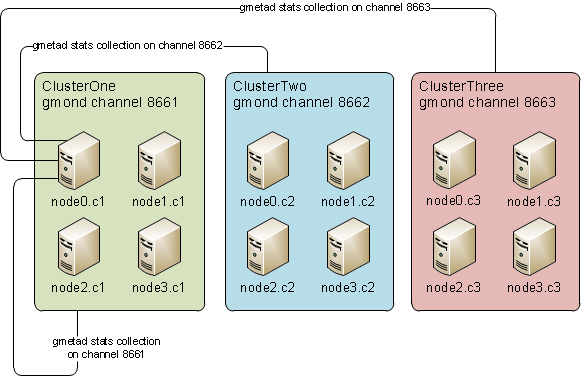
I have been using Ganglia to monitor clusters, but I had it installed on every master node of the clusters, so basically to check how let’s say ClusterX was doing I had to go onto master node’s Ganglia web interface and browse through it, which is not very practical. So I decided to move Ganglia web interface on to a single master node and have different clusters stats separately, but from within a single web interface.

I poked around for an easy way of doing that, but could not find any clear documentation (I know, my search skills do suck). I was also told on IRC #ganglia, that I needed separate gmond processes on the Ganglia master node for every single cluster I wanted to monitor separately, which kind of made sense, which I obviously tried to accomplish. So guess what? - It didn’t work (maybe because I have not read official Ganglia documentationm which is not very detailed anyway IMHO), so I got totally confused about the way Ganglia works and gathers data from various nodes.

I thought I will share with you how I got what I originally wanted to achieve.

Ganglia monitoring suite consists of three main parts: gmond, gmetad and web interface, usually called ganglia-web. Long story short:

  • gmond is a daemon which needs to sit on every single node which needs to be monitored, gather monitoring statistics, send as well as receive the stats to and from within the same multicast or unicast channel

  • gmetad - a collector deamon which needs to run on the actual Ganglia master node, normally it goes together with web interface.

  • ganglia-web - this component explains itself - it is a bunch of php scripts.

I will not explain how to install Ganglia or how to set up a web server to serve web UI etc - I believe it is very simple. Instead I will try to explain a bit more complex setup. Let’s start from visual stuff - an imaginary setup of one’s network of clusters:

[Ganglia Multiple Clusters

As you can see from the diagram above, let’s say we have three clusters on the same broadcast (same network), but instead of having three separate Ganglia web interfaces and gmetad collector daemons we can have one on node0.c1 node, which then can collect stats from three different unicast (in our case) channels.

So what components are needed on what server:

  • ganglia-gmond is needed on every single node
  • ganglia-gmetad and ganglia-web is needed on node0.c1 only (let’s say we want to dedicate node0.c1 as a Ganglia web interface and stats collector)

And here is the setup snippets of configuration files:

  • /etc/gmond.conf identical on ClusterOne nodes (node0, node1, node2, node3) - I will specify the part which is the most important:
# /etc/gmond.conf - on ClusterOne
cluster {
  name = "ClusterOne"
  owner = "unspecified"
  latlong = "unspecified"
  url = "unspecified"
}

udp_send_channel {
  mcast_join = 239.2.11.71
  port = 8661
  ttl = 1
}

udp_recv_channel {
  mcast_join = 239.2.11.71
  port = 8661
  bind = 239.2.11.71
}

tcp_accept_channel {
  port = 8661
}
  • /etc/gmond.conf identical on ClusterTwo nodes (node0, node1, node2, node3):
# /etc/gmond.conf - on ClusterTwo
cluster {
  name = "ClusterTwo"
  owner = "unspecified"
  latlong = "unspecified"
  url = "unspecified"
}

udp_send_channel {
  mcast_join = 239.2.11.71
  port = 8662
  ttl = 1
}

udp_recv_channel {
  mcast_join = 239.2.11.71
  port = 8662
  bind = 239.2.11.71
}

tcp_accept_channel {
  port = 8662
}
  • /etc/gmond.conf identical on ClusterThree nodes (node0, node1, node2, node3):
# /etc/gmond.conf - on ClusterThree
cluster {
  name = "ClusterThree"
  owner = "unspecified"
  latlong = "unspecified"
  url = "unspecified"
}

udp_send_channel {
  mcast_join = 239.2.11.71
  port = 8663
  ttl = 1
}

udp_recv_channel {
  mcast_join = 239.2.11.71
  port = 8663
  bind = 239.2.11.71
}

tcp_accept_channel {
  port = 8663
}
  • /etc/gmetad.conf - only exists on node0.c1 (again the most important part below):
# /etc/gmetad.conf on node0.c1
data_source "ClusterOne" 30 node0.c1:8661 node1.c1:8661
data_source "ClusterTwo" 30 node0.c2:8662 node1.c2:8662
data_source "ClusterThree" 30 node3.c2:8663 node1.c3:8663

Notice, I did not list all the nodes as data sources above for each cluster (imagine if you had like a thousand nodes per cluster :-) ), the reason why is it is not necessary. Imagine this as a three different pools, every one of them has its own virtual boundaries. So what happens is, the gmetad daemon accesses the configured data sources for data, say if one node dies the other one will still be able to provide stats to gmetad, because gmond nodes exchange stats within their configured UDP channels.

Now all you have to do is to configure your web server on node0.c1, start gmetad (default location for RRDs is /var/lib/ganglia/rrds) and start gmond services on all the clusters. You should have working monitoring system for your three clusters on a single node.

If I forgot to mention something or you found some mistakes or lies, please post it in comments, otherwise I hope it will be useful for some people.

Monitoring Multiple Clusters using Ganglia was originally published by Vaidas Jablonskis at Vaidas Jablonskis on May 19, 2011.

https://jablonskis.org/2011/monitoring-multiple-clusters-using-ganglia
Counting NEW Connections per Second on a Linux Firewall
Show full content

Thought I will write a tiny post about how to easily monitor NEW (or any other state) connections per second on a Linux firewall. The approach I have chosen seems to be really easy and simple one-liner.

Kernel modules and packages you are going to need:

  • ip_conntrack iptables kernel module loaded or compiled in to the kernel
  • conntrack-tools package installed
  • libnetfilter_conntrack package installed
  • pv (if not installed already) package installed

Depending on your distribution (I have tested it on Fedora 14 and Centos5.5 and 5.6), obviously Fedora has the above two packages in its repository, but for example Centos does not, so if you use Centos, you can get them from: http://centos.alt.ru/pub/conntrack-tools/0.9.15/RHEL/RPMS/. The pv package is available from Fedora repository, but Centos does not have it, so you might need to add epel repo or just get the RPM from epel repo online (most people have epel repo configured already).

Once you have got required module and libraries in place, then just simply run:

conntrack -E -e NEW | pv -l -i 1 -r > /dev/null

The self updating output should look similar like the one below:

[ 50/s ]

A little explanation of the command line above:

  • conntrack -E -e NEW - display a real-time event log with event-mask ‘NEW’
  • pv -l -i 1 -r - pv is a pipe viewer -l turns the line mode for counting lines instead of bytes, waits 1 second between updates (-i 1) and -r turns the rate counter on
  • > /dev/null - redirects the output from conntrack -E -e NEW to /dev/null at the end

I find it a very simple ‘one-liner’ which comes in handy sometimes when I want to quickly count the NEW connections per second my firewalls are dealing with.

If you know better or other ways of doing it, please post that in the comments section below.

Counting NEW Connections per Second on a Linux Firewall was originally published by Vaidas Jablonskis at Vaidas Jablonskis on May 06, 2011.

https://jablonskis.org/2011/counting-new-connections-per-second-linux
Howto to Build a Diskless Linux Cluster
Show full content
Intro

Recently I had some joy to build a diskless linux cluster for parallel regexing. So I decided to document it how I accomplished that using free and open source software. There is very little or very old documentation on how to build a diskless cluster using linux distributions.

This howto explains the setup of using a single compressed root file system image as a ramdisk for the slave nodes.

My setup/configuration

Since the cluster is going to be used for regexing of some useful data out of millions of small files, it is going to be very CPU and RAM intensive process. I am going to use the following hardware:

  • 10 x slave nodes: AMD CPUs - 24 cores, 32GiB of RAM
  • 1 x master node: AMD CPUs - 8 cores, 8GiB of RAM, RAID5 array of 8 SATAII disks
  • 1 x network switch

Software/packages required:

  • Centos Linux 5.6
  • nfs client/server
  • dhcpd
  • tftp-server
  • syslinux
  • xinetd
  • chroot

Additional software may be installed:

  • ntp
  • pssh (parallel SSH)

Networking and hostnames:

  • Subnet - 10.0.0.0/24
  • Gateway - 10.0.0.254
  • Master node hostname - m0.example.com (10.0.0.1)
  • Slave nodes hostnames - s{0..9}.example.com (10.0.0.10-10.0.0.19)
Prerequisites

I suppose you have all the servers connected to the network switch and a router which does routing or NAT at least for your master node to be able to download software needed (unless you have a local yum repo as I do). Also I believe you have some CentOS or RHEL based distributions administration skills and general common sense. :-)

Master node installation and config

The first step in building your diskless cluster is to install an OS on the master node in this case I am using CentOS5.6. The master node’s base installation is going to be used for slave nodes root filesystem image, so initially try to keep it as minimal as possible (obviously install the required packages for the purpose of your cluster).

The things master node is going to provide to slave nodes are:

  • dhcp server
  • pxe/tftp boot server
  • read-only /usr NFS export
  • NTP time server

Install ntp package, so both the master node and slave nodes will have it: yum install ntp

Build a root file system image

Once the OS is installed and most recent updates are applied we can start building a root file system image for the slave nodes. The process is pretty straight forward: create a file of 512MiB in size, create a file system on the loop file, mount it, copy and create required files/directories, edit configuration files, chroot into the new environment, create users, enable/disable services etc. Here is a basic script which can be used to do some of the mentions steps:

#!/bin/bash

# zooz <jablonskis@gmail.com>
# a script to create a basic compressed rootfs for diskless nodes

# set variables
# size in megabytes
rootfs_size="512"

# set mount point for the rootfs
mount_point="rootfs-loop"

# create a rootfs file
dd if=/dev/zero of=rootfs bs=1k count=$(($rootfs_size * 1024))

# create an ext3 file system
mkfs.ext3 -m0 -F -L root rootfs

# create a mount point
mkdir -p $mount_point

# mount the newly created file system
mount -t ext2 -o loop rootfs $mount_point

# cd into it and create required directory structure
cd $mount_point && mkdir -p bin boot dev etc home lib64 \
mnt proc root sbin sys usr/{bin,lib,lib64} var/{lib,log,run,tmp} \
var/lib/nfs tmp var/run/netreport var/lock/subsys

# copy required files into created directories
cp -ap /etc .
cp -ap /dev .
cp -ap /bin .
cp -ap /sbin .
cp -ap /lib .
cp -ap /lib64 .
cp -ap /var/lib/nfs var/lib
cp -ap /usr/bin/id usr/bin
cp -ap /root/.bashrc root/
cp -ap /root/.bash_profile root/
cp -ap /root/.bash_logout root/

# set required permissions
chown root:lock var/lock

# cd out of the mount point
cd ..

The above script creates a rootfs ext3 file with the directory structure and populates it with required binaries and libraries for the system to be able to boot off. You should have the rootfs mounted on /root/rootfs-loop. Now you can bind mount /usr and chroot to the environment:

# bind mount /usr
mount -o bind /usr rootfs-loop/usr

# chroot to the new environment
chroot rootfs-loop /bin/bash

Now you are in your new (node) environment. The following steps are necessary for the nodes to function properly:

  • _/etc/fstab _the contents of this file should look like below:
/dev/ram0               /              ext3    defaults        0 0
tmpfs                   /dev/shm       tmpfs   defaults        0 0
devpts                  /dev/pts       devpts  gid=5,mode=620  0 0
sysfs                   /sys           sysfs   defaults        0 0
proc                    /proc          proc    defaults        0 0
m0.example.com:/usr     /usr           nfs     ro        0 0
  • /etc/hosts:
127.0.0.1    localhost.localdomain localhost
::1        localhost6.localdomain6 localhost6

10.0.0.1 m0.example.com
10.0.0.10 s0.example.com
10.0.0.11 s1.example.com
10.0.0.12 s2.example.com
10.0.0.13 s3.example.com
10.0.0.14 s4.example.com
10.0.0.15 s5.example.com
10.0.0.16 s6.example.com
10.0.0.17 s7.example.com
10.0.0.18 s8.example.com
10.0.0.19 s9.example.com
  • /etc/sysconfig/network

Leave HOSTNAME unset - the slave nodes will get their hostnames from DHCP.

NETWORKING=yes
NETWORKING_IPV6=no
HOSTNAME=
  • /etc/sysconfig/network-scripts/ifcfg-eth0

Make sure HWADDR is unset, I will not explain why :-)

DEVICE=eth0
BOOTPROTO=dhcp
HWADDR=
ONBOOT=yes

It is always a good idea to have time synced up with the master node or some external NTP source, so we will enable NTP service and point it to sync up with the master node.

chkconfig ntpd on

Edit /etc/ntpd.conf file and set server option to m0.example.com (configuring NTPD is out of the scope of this post)

Some additional things you may consider doing: disable all unnecessary services, create users, add public ssh keys (to make nodes management a lot easier), configure remote syslog etc.

The next step is to exit chrooted environment, umount the image and compress it:

exit
umount rootfs-loop/usr
umount rootfs-loop
gzip -c rootfs | dd of=rootfs.gz

Now you have rootfs.gz root file system image.

Master node configuration

Right. Let’s configure the main services on the master node which are vital for the slave nodes. I assume you have the network interface configured with static IPs and host name set correctly to m0.example.com (or whatever naming you decided to use).

Now install the necessary software/packages:

yum install xinetd dhcp syslinux tftp-server

DHCP server configuration - /etc/dhcpd.conf_

Here is the very basic DHCP daemon config file:

ddns-update-style interim;
ignore client-updates;

subnet 10.0.0.0 netmask 255.255.255.0 {
	# supposedly your router has 10.0.0.254 address
	option routers		10.0.0.254;
	option subnet-mask	255.255.255.0;

	# address of the tftpboot server
	next-server 10.0.0.1;
	filename "pxelinux.0";
	default-lease-time 432000;
	max-lease-time 432000;
}

# fixed IP configuration for s0.example node
host s0.example.com {
	fixed-address 10.0.0.10;
	hardware ethernet AA:BB:CC:DD:EE:FF;
	option host-name "s0.example.com";
}

If you have more slave nodes creating host configuration for every single one can be painful, so I wrote a simple bash script to easy it up a bit. What you need is a file, let’s say host_ip_mac.txt, which contains:

s0.example.com    10.0.0.10    AA:BB:CC:DD:EE:FF
s1.example.com    10.0.0.11    AA:BB:CC:DD:EE:00
s2.example.com    10.0.0.12    AA:BB:CC:DD:EE:11
s4.example.com    10.0.0.13    AA:BB:CC:DD:EE:22

And then the below script, say named dhpd-conf-gen (make it executable of course):

#!/bin/bash

# takes three arguments from stdin and creates dhcpd
# config for each node
# hostname ip mac
# multiple lines can be passed on

while read -r hostname ip mac
 do
 echo "host $hostname {"
 echo -e "\tfixed-address $ip;"
 echo -e "\thardware ethernet $mac;"
 echo -e "\toption host-name \"$hostname\";"
 echo -e "}"
 echo
done

Run it and it will spit the config snippets for every node you listed in host_ip_mac.txt file and then just paste it into the dhcpd.conf file:

cat host_ip_mac.txt | ./dhcpd-conf-gen
host s0.example.com {
	fixed-address 10.0.0.10;
	hardware ethernet AA:BB:CC:DD:EE:FF;
	option host-name "s0.example.com";
}

...

Start the service and make sure it is set to start on boot:

service dhcpd start && chkconfig dhcpd on

tftp boot server configuration - /etc/xinetd.d/tftp
service tftp
{
        socket_type             = dgram
        protocol                = udp
        wait                    = yes
        user                    = root
        server                  = /usr/sbin/in.tftpd
        server_args             = -s /tftpboot -v
        disable                 = no
        per_source              = 11
        cps                     = 100 2
        flags                   = IPv4
}

Start the service and make sure it is set to start on boot:

service xinetd start && chkconfig xinetd on

PXE boot configuration

PXE boot loader and its configuration file as well as the linux kernel and rootfs.gz image will have to be copied under /tftpboot directory:

# create directories required for pxe bootloader
mkdir -p /tftpboot/{linux,pxelinux.cfg}

# copy pxe boot loader (comes with syslinux package)
cp /usr/lib/syslinux/pxelinux.0 /tftpboot/

# copy linux kernel so it can be passed onto nodes by a pxe bootloader
cp /boot/vmlinuz-$(uname -r) /tftpboot/linux

# copy linux root filesystem image
cp /root/rootfs.gz /tftpboot/linux

Create a PXE bootloader config file - /tftpboot/pxelinux.cfg/0A0000

# default is label 'linux'
# boots a linux kernel and mounts rootfs.gz as a root file system on a 512MiB ramdisk
default linux

label	linux
	kernel linux/vmlinuz
	append initrd=linux/rootfs.gz root=/dev/ram ramdisk_size=524288 rw ip=dhcp

The above config looks similar to the one we used to have in happy LILO days, remember? The append kernel line parameters pass the rootfs.gz image as a root file system, which is then mounted on /dev/ram0, 512MiB in size as read-write (there is no point to mount ro and then remount it rw).

0A0000 is 10.0.0.x converted into HEX, which means that the above config is valid for the nodes with 10.0.0.x IPs. For information about the way pxelinux finds its configuration files can be found here.

NFS server configuration

NFS server configuration on Linux and most Unix-like systems is very simple - in our case you will need /etc/exports below: /usr 10.0.0.0/24(ro,no_root_squash)

Start NFS services and make sure it is set to start on boot: service nfs start && chkconfig nfs on

Powering on slave nodes

Now once we’ve got everything (I believe) in place we can power on slave nodes. So fingers crossed and if you added a bit of your brain too while following this howto you should have a fully working cluster for high performance tasks (what tasks? - I will leave it for your imagination :-) ).

Cluster Management

If you’ve forgotten something or want to add more features or change the config files for your slave nodes, scroll back up and follow instructions how to mount the rootfs image and chroot to the new environment, then unmount it and compress it over to /tftpboot/linux/rootfs.gz.

Also if you screwed something on the slave nodes you can always power cycle them and they will be as fresh as new :-)

Slave nodes management and control can be done using an awesome tool written in Python called pssh.

Final words

This was my second public blog post, so please post your comments with your suggestions, questions and fixes and I will try to answer them all.

Enjoy! Hope it will be useful for some people and if it isn’t, then I will definitely benefit from this post some time in the future.

Howto to Build a Diskless Linux Cluster was originally published by Vaidas Jablonskis at Vaidas Jablonskis on April 27, 2011.

https://jablonskis.org/2011/howto-to-build-a-diskless-linux-cluster
Hello World!
Show full content

As everyone else, the very first step in programming and probably in blogging world is a Hello World thing, so I am going to do the same.

I am still getting used to the WordPress user-friendly interface and various tools available. So far so good and I like it :-)

Here is my Hello World in bash:

#!/bin/bash

printf "%s\n" 'Hello World!'

More posts to follow, hopefully some people will find it useful in one way or another.

Hello World! was originally published by Vaidas Jablonskis at Vaidas Jablonskis on April 26, 2011.

https://jablonskis.org/2011/helloworld