GeistHaus
log in · sign up

Vadim Makeev

Part of Vadim Makeev

Frontend developer in love with the Web, browsers, bicycles, and podcasting

stories primary
Web Standards. Daily web platform news
Show full content

This year the Web Standards podcast for the Russian-speaking community celebrated 10 years. You might’ve spotted the podcast in the State of JavaScript 2025 results and wondered what it’s doing there. For almost as long, we were publishing daily news on the web platform: browser releases, spec changes, useful articles, tools. Thousands of links over the years!

I always wanted to do something like this for the English-speaking community: one piece of news a day, every weekday, with a short summary and a cute cover. The kind of thing that would keep you informed even if you don’t have a lot of time to follow the news.

Well, the time has come. On September 9, 2025, I published the first news on Web Standards, a new project dedicated to daily web platform news in English. And yesterday, February 10, 2026, I hit a milestone: the 100th news 🎉

The Web Standards homepage with news cards showing cover images, dates, titles, and summaries. The archive link in the corner says 100. It took five months to reach 100 news.

What’s inside

Every news item is a link to an article, announcement, or release, paired with a short summary. I try to make it useful on its own: you should get the gist even if you don’t click through. I also create a cover image for each one to make it stand out in social feeds. It’s a small thing, but it helps attract attention in a busy timeline.

I try to cover all major browser releases, surveys, practical tutorials, and tools. Basically, if it matters for the web platform, it’ll probably show up. I implemented a system of tags and a quick search to help navigate the growing archive. The main page features five tags: HTML, CSS, JavaScript, accessibility, and browsers. Even though they’re called “news,” most of them stay relevant for many months or even years. A good tutorial on CSS grid doesn’t expire next week.

How it works

The site is built on Eleventy, because of course it is 😎

I prepare news in advance and mark them with a publication date and draft: true. The rest is handled by a GitHub Actions workflow that runs every weekday at 11:00 UTC. It checks if there’s a news item scheduled for today, removes the draft flag, commits, and pushes. The site rebuilds automatically. I don’t have to touch anything on the day of publication.

Social posting is still manual: I cross-post every news to Mastodon, Bluesky, and X. It gives me a chance to tweak the message for each platform, but honestly, I’m considering automating this part too.

What’s next

I’m thinking about starting an email list with a weekly digest. Not everyone reads RSS these days or wants to follow news on socials, and a short weekly email with five links feels like a nice format. If that sounds interesting to you, stay tuned.

In the meantime, you can subscribe to the RSS feed, browse the archive, or check out the source code if you’re curious about the setup. And if you know a good article or tool that deserves a mention, let me know!

Here’s to the next hundred ✨

https://pepelsbey.dev/articles/web-standards-news/
Native HTML light and dark color scheme switching
Show full content

It’s getting dark early in Berlin in the winter. It’s not even close to evening, but my OS and all apps have already switched to dark mode. Well, not all of them, unfortunately. And that’s the thing: dark mode has become a quality-of-life feature for many users, and I often try to avoid using apps or websites that haven’t implemented it, especially in the evening. They literally hurt my eyes!

When it comes to color scheme implementations, they range from rather useless ones that require a page reload to more sensible ones that query the prefers-color-scheme media feature and apply changes in CSS on the fly:

body {
	background-color: #ffffff;
	color: #000000;

	@media (prefers-color-scheme: dark) {
		background-color: #000000;
		color: #ffffff;
	}
}

⭐ I’ll be using native CSS nesting in all demos throughout this article. It works in all modern browsers and makes code a bit more compact, especially when it comes to media queries. But if you’re not familiar with CSS nesting, you can use this handy Lightning CSS playground to figure out how it looks without nesting.

This approach is already a good start. But it only covers the simplest case and doesn’t allow users to choose a different color scheme for this specific website. Just like light color schemes hurt my eyes in the evening, many people are not comfortable with dark schemes or with particular ones that aren’t good for them. So, it’s all about user choice.

Currently, there’s no way to directly override a user’s OS preference if you want to offer a scheme selector on your page. Fortunately, in the CSS Media Queries Level 5 spec, there’s a PreferenceManager interface that will solve this problem. Meanwhile, the most popular solution these days is to use JavaScript to set an attribute like <html data-scheme="dark"> reflecting the forced scheme and use it in CSS:

body {
	background-color: #ffffff;
	color: #000000;

	[data-scheme='dark'] & {
		background-color: #000000;
		color: #ffffff;
	}
}

This approach always seemed hacky to me. However, if you know HTML well enough, there are a few much more convenient native options available.

Setting color-scheme

If you ever fall into the dark scheme rabbit hole, the first thing you’ll learn is the color-scheme CSS property. It’s essential for setting the scene for everything else. Most importantly, it turns on the browser’s default dark scheme support. Which, unfortunately, browsers can’t enable by default for backward compatibility reasons.

:root {
	color-scheme: light dark;
}

The light dark value means that we’re choosing to support both light and dark schemes in our code. The property will be inherited down the document tree, and the browser will enable some default styling for built-in primitives when needed. Thank you, browser!

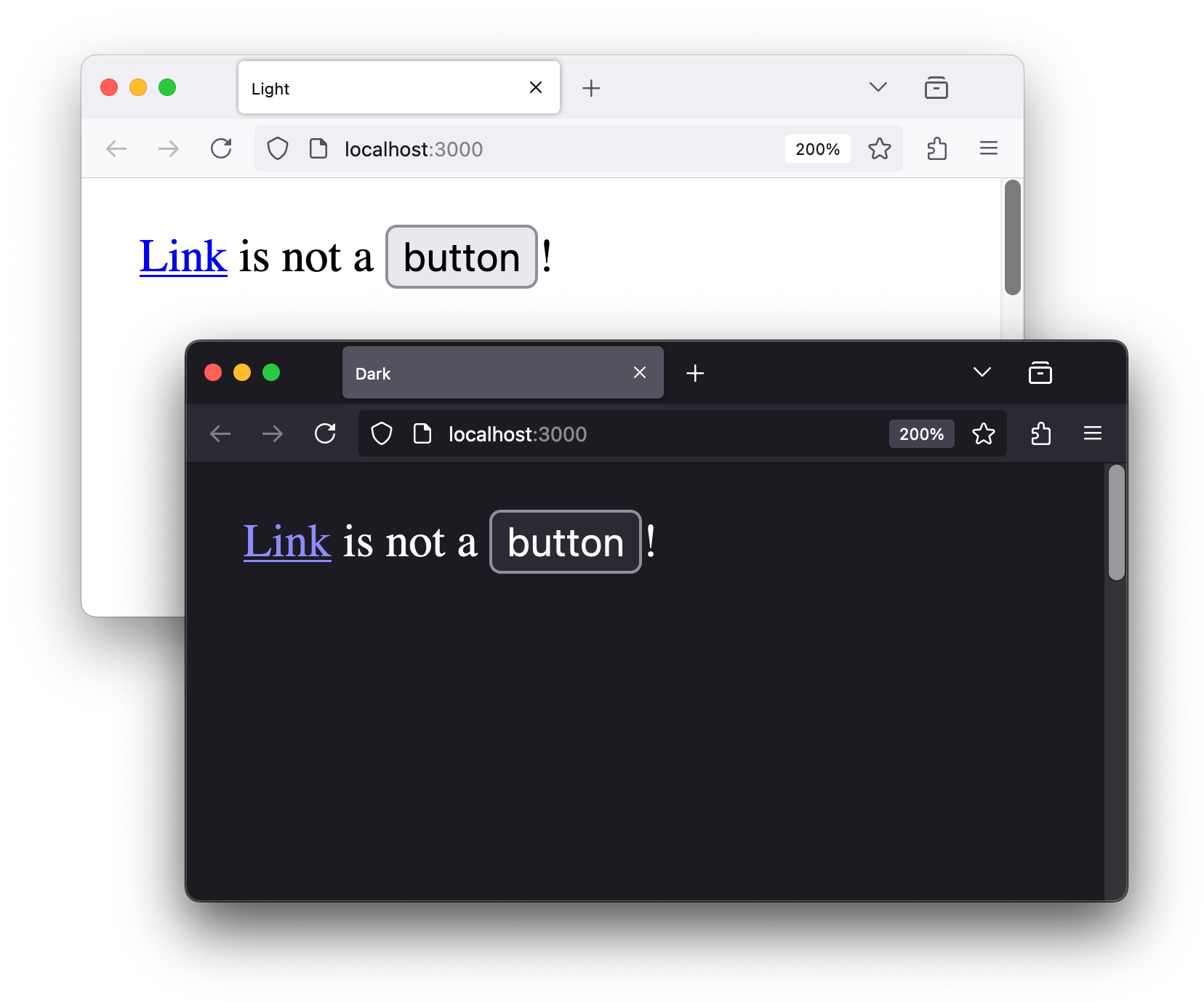
Two browser windows with the same page: one in the light scheme, the other in the dark scheme. The text on the page says: link is not a button! The link word is a link, the button word is a button. All page elements, including scrollbars, are perfectly aligned with the scheme.

Default browser dark styles enabled by the color-scheme: light dark property.

When switching your schemes, it’s important to switch the value of this property, too: set color-scheme: light on the root along with light styles and the other way around for the dark ones. Remember this, it’ll come in handy later.

And somewhere along these lines, you’ll probably read that you can also set this mode right in HTML using the <meta> element. Why would you do that? Oh well, who knows? Maybe you don’t use CSS or whatever. So silly, right?

<meta name="color-scheme" content="light dark">

It turns out that it’s not just a flag for the browser but a tool you can use to force color schemes using JavaScript! But only if you use the fairly new light-dark() CSS function.

Switching color-scheme

Remember the earlier example with media queries and ‌prefers-color-scheme?

body {
	background-color: #ffffff;
	color: #000000;

	@media (prefers-color-scheme: dark) {
		background-color: #000000;
		color: #ffffff;
	}
}

You can also express the same idea like this:

body {
	background-color: light-dark(#ffffff, #000000);
	color: light-dark(#000000, #ffffff);
}

⭐ By the way, I use --color-back and --color-text variables in my demos. It makes it easier to set colors even in a small demo, let alone a bigger project. But to make things easier to read, I chose to set colors directly in code samples.

Here’s the three-position switch I often use. Along with “light” and “dark” options that force a certain scheme, there’s also the “auto” option that gives the control over the color scheme back to the OS, selected by default.

<section aria-label="Color scheme switcher">
	<button aria-pressed="false" value="light">
		Light
	</button>
	<button aria-pressed="true" value="light dark">
		Auto
	</button>
	<button aria-pressed="false" value="dark">
		Dark
	</button>
</section>

And to make it all work, a simple script that takes the button’s value and sets it to the <meta name="color-scheme">:

const colorScheme = document.querySelector('meta[name=color-scheme]');
const switchButtons = document.querySelectorAll('button');

switchButtons.forEach(button => {
	button.addEventListener('click', () => {
		const currentButton = button;

		switchButtons.forEach(
			button => button.setAttribute(
				'aria-pressed', button === currentButton
			)
		);

		colorScheme.content = button.value;
	});
});

As you can see, once we set content="dark" the browser switches to the last value in the light-dark() function and the other way around with the light one. This HTML’s color-scheme turned out not so silly after all!

To make it work properly, you’ll need to decide where to store your global color-scheme value, so the script can force it. In this example, I chose to use the HTML one, so I removed the color-scheme property from CSS. But you can also keep it in CSS and force it via JavaScript like so:

<html style="color-scheme: dark">

⭐ For a good UX, you’ll also need a way to store user preference somewhere in localStorage, so the users won’t have to switch it next time they visit or when opening a new tab. I’m sure you can figure it out on your own!

One of the downsides of this approach is the browser support: the light-dark() CSS function has been available in all modern browsers since May 2024, which makes it “newly available” on the Baseline scale. It will become “widely available” only around November 2026 or 30 months later. You can transpile it for older browsers using Lightning CSS or PostCSS plugin, but make sure you check the output and test it in an older browser. It might be a bit tricky at times.

As for the other major downside, the light-dark() function accepts only colors for now. Trust me, I tried to use it with other values, and it didn’t work. So, what’s the problem? You might need to change not just colors but images or font properties that work better with the dark scheme.

In this case, there’s another HTML solution for you!

Linking a CSS scheme

You all know the most common way of linking CSS to a page: it’s a stylesheet linked from a file.

<link rel="stylesheet" href="index.css">

But did you know that you can also set the media attribute to conditionally load and apply CSS based on user preferences? Sure you can! But first, you’d need to split your files into light and dark styles:

<link
	rel="stylesheet"
	href="light.css"
	media="(prefers-color-scheme: light)"
>
<link
	rel="stylesheet"
	href="dark.css"
	media="(prefers-color-scheme: dark)"
>

It doesn’t look too convenient this way. A much better approach would be to split your styles into three parts! Yes, I’m serious. Hear me out!

  1. The main file, called index.css, will contain all your styles and use CSS variables for anything you need to change depending on a color scheme.
  2. The light.css file will contain only CSS variables with values set to everything that makes sense for the light scheme.
  3. The dark.css, you guessed it, will have everything dark.

Remember to set the appropriate color-scheme property values in each color scheme file to help the browser: color-scheme: light and color-scheme: dark, respectfully.

Interestingly enough, the file that doesn’t fit user preferences will still be loaded by the browser but with lower priority. I went into much greater detail about this in my other “Condi­tionally adaptive CSS” article if you’re curious.

So, this three-file CSS architecture now has all the inconveniences and no benefits compared to the previously discussed solution with media queries. What now? Don’t you worry, it was just the first step. Now, to the switching.

Switching CSS schemes

When you’re linking your much simpler single-file styles, there’s something else you’re implicitly setting: the media attribute. If it’s not explicitly set, it means that you want your styles to apply to all media types. So, it defaults to all:

<link rel="stylesheet" href="index.css" media="all">

There are techniques using media="print" for lazy-loading CSS, but since we’ve learned that the media attribute can take not only media types but complex media queries, you can negate it as not all and it won’t be applied to any media.

<link rel="stylesheet" href="index.css" media="not all">

But why would you need not to load your styles? Now you see where it’s going. We can use it to switch between color schemes and force user preferences.

Let’s take the same three-position switch from the previous example but change the auto button’s value to auto to better match what it does. Our JavaScript function becomes a bit bigger, but the idea stays the same. The only difference this time is that we’re changing the media attribute’s value:

const styleLight = document.querySelector('link[rel=stylesheet][media*=prefers-color-scheme][media*=light]');
const styleDark = document.querySelector('link[rel=stylesheet][media*=prefers-color-scheme][media*=dark]');

function switchScheme(scheme) {
	let lightMedia;
	let darkMedia;

	if (scheme === 'auto') {
		lightMedia = '(prefers-color-scheme: light)';
		darkMedia = '(prefers-color-scheme: dark)';
	} else {
		lightMedia = (scheme === 'light') ? 'all' : 'not all';
		darkMedia = (scheme === 'dark') ? 'all' : 'not all';
	}

	styleLight.media = lightMedia;
	styleDark.media = darkMedia;
}

In short, if we force the dark scheme, the dark.css gets media="all" instead of the prefers-color-scheme and the light.css one gets ‌media="not all", and the other way around for the light scheme. Once the user chooses the “auto” option, we stop forcing and restoring all previous prefers-color-scheme media values.

Given that scheme files containing only variables are relatively small, and browsers download all CSS files anyway (only the priority differs), the switching happens seamlessly. You can check this method in action on this website. And if you happen to use Safari or Vivaldi browsers, you might notice something else changing while you switch the schemes.

One more thing

There’s the theme_color key in the web manifest that sets the installed app’s chrome color. You can also set it via HTML and even use the media attribute to apply different theme colors depending on the color scheme:

<meta
	name="theme-color"
	content="#c1f07c"
	media="(prefers-color-scheme: light)"
>
<meta
	name="theme-color"
	content="#9874d3"
	media="(prefers-color-scheme: dark)"
>

I bet you saw that coming: you can also force the theme color while switching the color scheme using all and not all values via the same script. How cool is that?

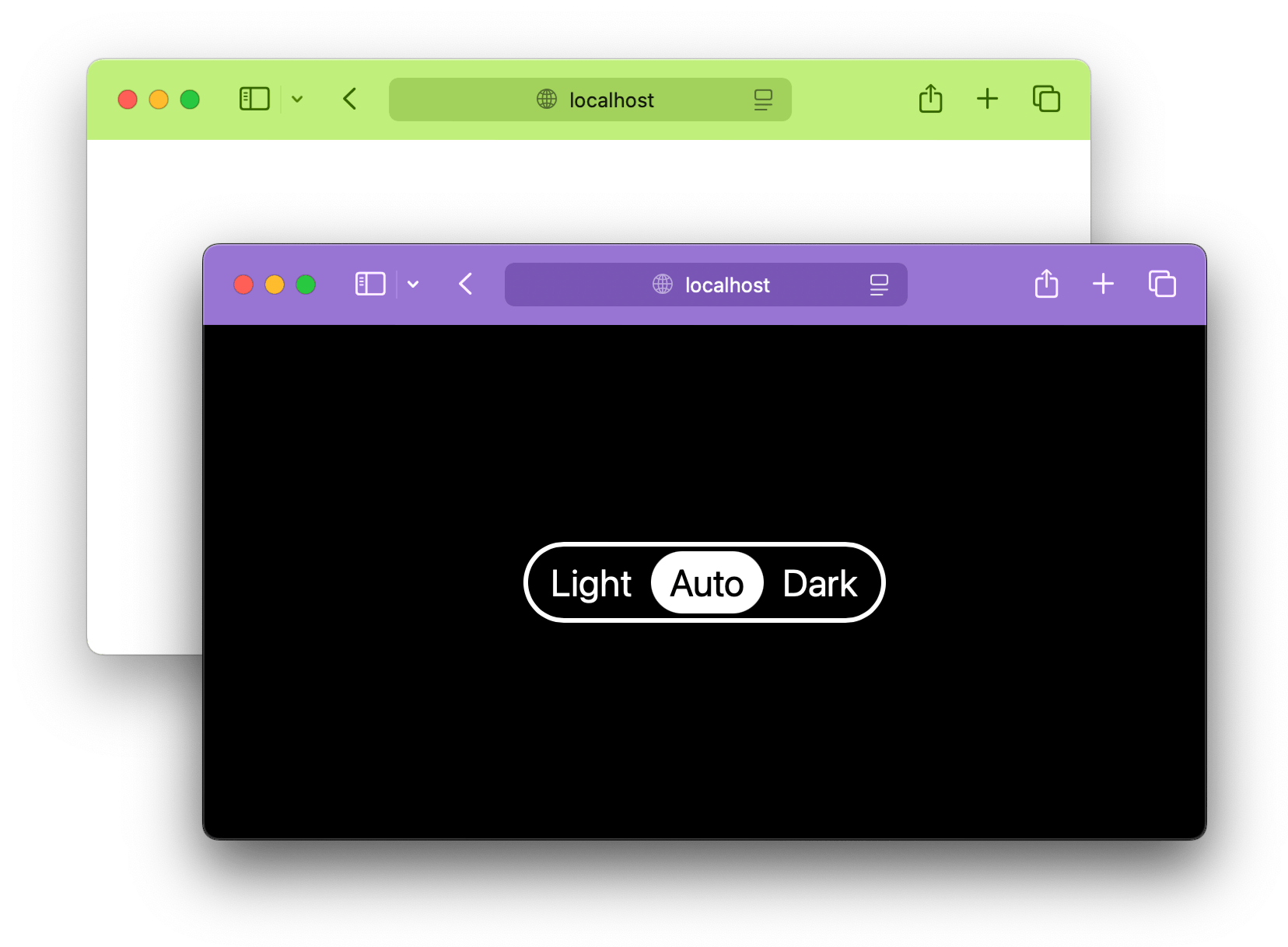
Two Safari windows: one in the light scheme, the other in the dark scheme. The light one has a lime top panel, the dark one has a violet top panel.

Different top panel colors using the theme-color meta element.
Homework

As all of us did, I learned most of what I know from other people’s posts and articles. I want to say a special thank you to Thomas Steiner for his early articles on color scheme switching: Prefers-color-scheme: Hello darkness, my old friend and Improved dark mode default styling with the color-scheme. Please also have a look at Darin Senneff’s Progressively-enhanced dark mode and Sara Joy’s Come to the light-dark() side articles for a different perspective on the matter. And let’s dream about a better future for color scheme switching while reading Bramus’ What if you had real control over light mode / dark mode on a per-site basis? article.


Initially published in the HTMHell advent calendar in December 2024. Thank you to Manuel Matuzovic, Saptak Sengupta, and Karl Stolley for proofreading and feedback.

https://pepelsbey.dev/articles/native-light-dark/
The road to HTMHell is paved with semantics
Show full content

HTML semantics is a nice idea, but does it really make a difference? There’s a huge gap between HTML spec’s good intentions and what browsers and screen readers are willing to implement. Writing semantic markup only because the good spec is a spec, and it is good, and it’s a spec is not the worst approach you can take, but it might lead you to HTMHell.

Simple days

Like most people involved in front-end, I started my journey into Web development with HTML. It was simple enough, close to a natural language, and easy to use: you type some tags, save a text file, and reload the browser to see the result. And it would almost never fail if I made a mistake!

Back then, I considered HTML a simple set of visual building blocks. It was too late for purely visual <font> elements (the CSS has replaced them), but the general idea stayed pretty much the same: if you wrap your text into <h1>, it becomes big and bold, if you have two <td> cells in a row, that’s your two-column layout. Easy! I learned tags to be able to achieve certain styles and behaviors. Remember <marquee>?

<marquee
	behavior="alternate"
	scrollamount="7"
></marquee>

That was just the beginning: soon, I needed calendars, popups, icons, etc. It turned out I had to code them myself! And so I did, mainly using divs, spans, and some CSS. Back in the mid-2000s, there weren’t any particular “logical” tags or functional widgets, only the ones you’d find on a typical text editor panel.

But at some point, a trend called “web standards” emerged: it suggested to stop using HTML as a set of visual blocks and start thinking about the meaning of the content and wrapping it into appropriate tags: <table> only for tabular data, not layout; <blockquote> only for quotes, not indentation, etc. The people bringing the web standards gospel were convincing enough, so I joined the movement.

Semantics

Following the trend, we started studying the HTML 4 spec to learn the proper meaning of all those tags we’ve already known and many new ones we’ve never heard about. Suddenly, we’ve discovered semantics in HTML, not just visual building blocks.

  • <b> and <i> weren’t cool anymore: the proper stress and emphasis could only be achieved with <strong> and <em>.
  • <ul> and <ol> weren’t only for bulleted/numbered lists in content anymore, but for all kinds of UI lists: menus, cards, icons.
  • <dl>, <dt>, <dd> were accidentally discovered in the spec and extensively used for all kinds of lists with titles.
  • <table> was banned from layout usage mainly because it wasn’t meant for that by the spec, but later, we also discovered rendering performance reasons.

Why? Because we started paying attention to the spec, and it was semantically correct to do so. Every decision we make would have to be checked to determine whether it’s semantic enough. And how would we do that? By reading the spec like it’s a holy book that gives you answers in challenging moments of your life. On top of that, there was the HTML Validator’s seal of approval.

W3C HTML 4.01 badge with a checkmark.

But then came the Cambrian explosion that changed everything: HTML 5.

A new hope

Just after the failed promise of XHTML, HTML 5 brought us new hope. Many new elements were added based on existing naming conventions to pave the cow paths. The new spec has challenged browsers for years ahead, from supporting the new parsing algorithm to default styles and accessibility mappings.

For the Web standards believers of the old spec, the new one was just a promised land:

There was even a logo for semantics in the HTML 5’s design!

Semantics logo with three horizontal angled lines pointing up.

Apart from extending the list of functional building blocks, the spec added several semantic elements that didn’t even come with any styling, just meaning. But not only that! Some old, purely visual elements were lucky enough not to be deprecated but redefined. For example, <b> and <i> became cool again, though no one could explain the use cases, apart from rather vague taxonomy and emphasis ones and… naming ships. You think I’m kidding? Check the spec!

<i>Boaty McBoatface</i>

Don’t get me wrong, I think HTML 5 significantly advanced the Web, but it has also detached us from reality even further. Especially the idea of an outline algorithm and multiple nested <h1> elements that would change the level based on nesting. It was never implemented by any browser but existed in the spec for a long, long time until finally removed in 2022.

<section>
	<h1>Please</h1>
	<section>
		<h1>Don’t use</h1>
		<section>
			<h1>This code!</h1>
		</section>
	</section>
</section>

⚠️ Please don’t use the code above. It’s wrong and harmful.

Personally, I’ve wasted too many hours arguing about the difference between <article> and <section> for purely theoretical reasons instead of focusing on good user experience.

Drunk on semantics

Although the spec would provide examples, it primarily focused on marking up content, not UI. Even examples themselves were often purely theoretical with a kind of usage that would be semantically correct, not always practically useful. There’s another whole story about the difference between the W3C and WHATWG spec versions, but the W3C’s examples were usually better.

I’ve seen a lot of weird stuff and did it myself, too. People would often look at the HTML spec as a dictionary, looking up a word in the list of elements for an idea they had in mind. Try to read the following examples through the eyes of a beginner, giving a shallow look at the spec. They totally make sense!

  • <menu> for wrapping the navigation menus.
  • <article> for the content of an article.
  • <input type="number"> for a phone number.
  • <button> for everything that looks like a button.

I haven’t seen the <slot> element used on a casino website to mark up a slot machine, but maybe only because I’m not into gambling. But the rest of the examples are real.

At the same time, a lot of people would read the spec carefully and use <footer>, <header>, <main>, and other semantic elements properly. But the reason for that won’t be any different: they would also aim for semantically correct markup only because the spec says so. And if it does, the smartest of us would think it should be good for users, search engines, etc. Right?

It turned out that the spec could be wrong, and semantically correct markup wouldn’t guarantee good practical results.

I don’t blame people who gave up on following the spec altogether and became cynical enough to use <i> for icons instead of naming damn ships. Fortunately, I didn’t go this way. I found another reason to keep caring about markup: user experience and accessibility.

Good intentions

Unlike many other languages, HTML is a user-facing one. It means that our decisions directly affect users.

Fortunately, it doesn’t matter how we format our markup, but our selection of elements matters a lot. So when I hear “this markup is semantic,” it often means that it’s correct according to the spec but not exactly good for actual users. Even though both can be true at the same time, the focus is in the wrong place.

It seems to me that we decided to trust the spec’s recommendations at some point without checking whether they were true. I firmly believe that the spec authors’ intentions are always good, and I know many smart people working on the HTML spec. But when it comes to implementation in browsers or screen readers, these intentions don’t always survive the reality.

There are usually three main obstacles:

  1. Product priorities: you probably know that already, but accessibility isn’t always a number one priority for various reasons, including complexity and the lack of people who know the area.
  2. Different points of view: for the same reason, automated testing won’t save you from accessibility issues, different user agents might have other points of view on certain platform features.
  3. Actual user experience: browsers call themselves “user agents” for a reason. When a specific platform feature or how developers use it hurts the users, browsers tend to intervene.

For example, the following list won’t be exposed as a list to VoiceOver in Safari only because you decided to disable default bullets and implement custom ones via CSS pseudo-elements.

<ul style="list-style: none">
	<li>Item</li>
	<li>Item</li>
</ul>

You can force the usual behavior by adding role="list" to every list you style, but how convenient is that? Not at all for you as a developer. But Safari has probably had some reasons, most likely to improve their users’ experience by ignoring all semantically correct lists we started using so much outside of content.

As for the screen readers, Steve Faulkner’s “Screen Readers support for text level HTML semantics” article might open your eyes to the actual value of those tags we’re so passionately arguing about.

No browsers expose <strong> or <em> element role semantics in the accessibility tree.

Again, you can force some semantics via ARIA roles, but should you? That’s an open question. The answer depends on the value you’re trying to bring your users.

Does it mean we should immediately stop using semantic elements if they don’t bear any value for the users? I don’t think so. But I stopped using a semantics argument when talking about good markup. Just like tabs and spaces, semicolons, or quotes, semantics is sometimes a stylistic preference.

There’s also a future-proofing argument that suggests using semantic markup with the hope that someday, browsers will start supporting all those elements they choose to ignore now. I wouldn’t rely on it too much and prefer to focus on what’s important right now.

I used to be among those people who’d judge the quality of a website based on the number of divs it’s built of. We’d say, “Nah, too many divs, it’s not semantic.” Now I know that what’s inside those divs matters the most. Enough landmarks, headings, links, and buttons would make it good, even if the divs/semantic elements ratio is 1000 to 10. We are divelopers, as Chris Coyier once said. Don’t be ashamed of this. Wear this name with pride.

Training wheels

Following the spec’s recommendations with semantic markup is still a good start, especially when you treat it as not just the list of available elements. I mostly agree with this idea often expressed by accessibility experts:

If you write semantic markup, it will be mostly accessible.

But to me, it sounds like a simple answer to a complex question. The HTML spec might be a good set of training wheels, but you’ll have to take them off at some point. Not everything can be solved by semantic markup. For example, you’ll need to learn ARIA to create any modern interactive UI. There’s just not enough semantic elements for everything!

Many simple answers are waiting for you in the spec or articles praising semantics as the only thing you need. Even more compromises are made in modern frameworks in the name of better developer experience. And they aren’t all wrong! But if you keep your focus on the user experience, on the actual quality of the user interface, you’ll be able to make the right decisions.

And you know what? It doesn’t matter if you agree with me on the value of semantics. I’m sure you’ll be fine. After all, you’ve just read a big rant on HTML.


Initially published in the HTMHell advent calendar in December 2023. Thank you to Manuel Matuzovic and Eric Eggert for proofreading and feedback.

https://pepelsbey.dev/articles/road-to-htmhell/
Uppercase copy and paste. The problem and a question­able trick
Show full content

The other day Thomas Steiner kindly decided to share my “Jumping HTML tags” article and got frustrated because after selecting and copying the title of the article he got this:

JUMPING HTML TAGS. ANOTHER REASON TO VALIDATE YOUR MARKUP

It wasn’t some rich text editor, just regular text input. I suppose Thomas didn’t want to shout at his readers and had to normalize the case before sharing it. Thank you, Thomas! 😊

But why would I type my titles in uppercase? First of all, this is how Mark Shakhov designed it, and I like it a lot. Second, I don’t actually type them like that: you can check the list of all articles where the case is normal. I use CSS to style it like this only on the article page:

.lead__title {
	margin: 0;
	line-height: 1.1;
	text-wrap: balance;
	text-transform: uppercase;
	font-weight: normal;
	font-family: var(--font-family-heading);
}

At first, it didn’t make any sense: I often copy titles of my newly published articles to share them on different platforms: Mastodon, Twitter, Telegram. So I tried to copy the title in Firefox, my browser of choice, and I got a pretty reasonable result:

Jumping HTML tags. Another reason to validate your markup

Then I did the same in Chrome and Safari and got the uppercase. There we go again 🙄

Update: Chrome changed the behavior to match Firefox’s in version 127, released on July 23rd, 2024, although it wasn’t mentioned in the release notes. But enough spoilers, keep reading.

The problem

As I mentioned in the article that caused it, Web standards are the main thing that holds the whole Web platform together. In our case, it’s the CSS Text Module spec, which says, plain and simple, about the text-transform property:

This property transforms text for styling purposes. It has no effect on the underlying content, and must not affect the content of a plain text copy & paste operation.

It means that Chrome and Safari are wrong. Whether you agree with this behavior or not, it’s against the spec. Unfortunately, I couldn’t find a relevant test in the WPT suite for the text-transform property. But it’s not just Firefox that goes against the crowd. Two other browsers with independent engines used to do the same: Internet Explorer and Opera 12 on Presto.

I’m late to the party here, it’s been discussed for years. There are browser bugs in Chrome and Safari that you can subscribe to or even better, vote for and post your use cases. And if you enjoy lengthy CSSWG discussions, grab yourself a drink and read this one started by Brian Kardell. And the classic “Copying content styled with text-transform” article by Adrian Roselly published in 2012, giving it the accessibility perspective.

I called the next part “The solution” at first, but honestly, it’s a questionable trick 🙃

A questionable trick

Apart from how it’s described in the spec and my opinion on what browser is correct (the one that’s not causing frustration), there’s a user perspective to consider. I don’t want readers of my blog to normalize the case or dig into the source code whenever they want to share my articles. I’d like the behavior described in the spec to be the default one for Chrome and Safari users. Damn, I want to be able to select the title of my article on my iPhone and get the actual title, not the shouty version of it.

That’s why I quickly put together a small script that hijacks the copy event and puts the source text in the clipboard. The event is only fired when the whole title or some part of it is selected. It works just fine via shortcuts, context menus, or select tooltips on touch devices.

document
	.querySelector('.lead__title')
	.addEventListener('copy', (event) => {
		event.clipboardData.setData(
			'text/plain',
			event.target.textContent
		);

		event.preventDefault();
	});

I was pleasantly surprised to see how easy it was to implement. But of course, it’s just a questionable trick with downsides. It’ll copy the whole title even if you select a single word. If you extend the selection beyond the title, it’ll copy just the title. I’m pretty sure there’s more, but fortunately, “Select All” or a significant selection extension stops the script from hijacking the event.

Would I recommend using this script? Only if you really need this and there’s no other way of working around the issue. Meanwhile, I hope this wave of interest will lead browsers and CSSWG to a better solution. It’s a tricky problem, and there’s the truth behind both arguments. We might need a new property to control this behavior, but I’d start by aligning with the spec.

https://pepelsbey.dev/articles/uppercase-copy-paste/
Jumping HTML tags. Another reason to validate your markup
Show full content
.frameworks { display: flex; column-gap: 0.8rem; } .frameworks__item { display: inline-flex; align-items: center; gap: 0.125rem; } .frameworks__item::before { content: ''; width: 2em; height: 2em; } .frameworks__item--react::before { background-image: url('images/frameworks.svg#react'); } .frameworks__item--angular::before { background-image: url('images/frameworks.svg#angular'); } .frameworks__item--svelte::before { background-image: url('images/frameworks.svg#svelte'); } .frameworks__item--preact::before { background-image: url('images/frameworks.svg#preact'); } .frameworks__item--vue::before { background-image: url('images/frameworks.svg#vue'); } .frameworks__item--lit::before { background-image: url('images/frameworks.svg#lit'); }

If you’re building for the Web, you’re most likely writing HTML. It could be JSX, Markdown, or even Dart in your code editor, but eventually, it gets compiled to some sort of markup. And the further away from the actual tags you get, the less idea you have of what gets there. For most developers, it’s just an artifact, like a binary file.

And this is fine, I guess 🤔 We use abstraction layers for solving complex problems. At least, that’s what they say. Don’t get me wrong, it often gets ugly: ask HTMHell for examples. Fortunately, in most cases, browsers are smart enough to handle our poor markup.

But sometimes browsers take our mistakes personally, and tags start jumping around 😳

Basic nesting

I’m sure most of the developers haven’t read the HTML spec. They might have stumbled upon it, but I get it: it’s not something you read for fun. But somehow, they more or less know how HTML works and some basic rules, including tags nesting. It’s like our native language: we’ve learned it by listening to our parents and perfected it by speaking.

For example, we all have learned that <ul> can only contain <li>. Because, you know, it’s an unordered list and a list item. And just like in a natural language, we can move things around, and it will still make sense. We can use paragraphs instead of list items, and it will still be fine: no bullets and some extra margins, but nothing too scary.

<!-- Source & DOM -->
<ul>
	<p></p>
</ul>

In this case, the source markup will be represented exactly the same in the DOM tree. But it feels wrong, right? It does, but I wouldn’t rely on this feeling too much. HTML is a programming language, after all. It’s wrong because the HTML spec says so:

The <ul>’s content model allows zero or more <li> elements and nothing else, apart from some scripting elements. But browsers don’t care about it, so why should we? There are many good reasons to align your markup with the spec, but let me give you the one that’s rarely mentioned.

Let’s turn the whole thing upside down and put the <ul> inside the <p>:

<!-- Source -->
<p>
	<ul></ul>
</p>

The <p>’s content model allows only phrasing content, and <ul> is flow content. But who cares? Browsers are still going to render a list inside a para… What the hell? 😬

<!-- DOM -->
<p></p>
<ul></ul>
<p></p>
What the hell?

Yes, our <ul> just tore the <p> apart by being a wrong element. And this is a common behavior among modern browsers, all according to the spec. I couldn’t find a specific place in the spec that says “tear the <p> apart, but keep <ul> intact” (the parsing section is pretty huge), but it should be in there one way or another since browsers agree on this behavior.

My favorite section is “Unexpected markup in tables”, which starts with:

Error handling in tables is, for historical reasons, especially strange.

And then tries to explain how browsers should handle the following markup:

<table><b><tr><td>aaa</td></tr>bbb</table>ccc

Look at the result, you’ll be fascinated. Now, this is something I’d read for fun! 😁

Jumping examples

But it’s not just paragraphs that hate you. The tables are pretty picky, too. They don’t like to host random elements inside. A <div> inside of the <table> will jump out of it, but the <table> will hold it together and won’t split, unlike the <p>.

<!-- Source -->
<table>
	<div>Jump!</div>
</table>

<!-- DOM -->
<div>Jump!</div>
<table>
</table>

But if you decide to nest table parts outside of the <table>, they’ll just disappear 🫥 No tags, no problems.

<!-- Source -->
<p>
	<td>I’m not here!</td>
</p>

<!-- DOM -->
<p>I’m not here!</p>

Nesting interactive elements into one another is a bad idea on its own, but sometimes it comes with special effects. If you nest buttons or links, the inner one will jump out of it.

<!-- Source -->
<button>
	Outer
	<button>Inner</button>
</button>

<!-- DOM -->
<button>Outer</button>
<button>Inner</button>

But if you nest a button inside a link or vice versa, nothing will happen. They don’t like to nest only the ones of their kind (some family issues, perhaps). But in this case, it obviously looks broken, right? We almost expect it to fail by common sense. Let’s look at something a bit more practical.

Product card

We all know this “product card” pattern: title, description, some picture, and the whole thing is a link. According to the spec, having this card wrapped in a link is fine. But once there’s a link somewhere in the description…

<!-- Source -->
<a href="">
	<article>
		<h2>Jumping HTML tags</h2>
		<p>
			Another reason to
			<a href="">validate</a>
			your markup.
		</p>
	</article>
</a>

It’s even hard to describe what happens here. Just look at the DOM 😳

<!-- DOM -->
<a href=""></a>
<article>
	<a href="">
		<h2>Jumping HTML tags</h2>
	</a>
	<p>
		<a href="">Another reason to </a>
		<a href="">validate</a>
		your markup.
	</p>
</article>

Another problem with this approach is that even if you avoid the nesting links, the whapper link’s content is not a good accessible description. On this website, I used the trick with an absolutely positioned pseudo-element. You can read more about it in Heydon Pickering’s “Cards” article.


Everything that we’ve just discussed was the plain markup. But I wonder what a DOM generated with JavaScript would look like. This would be useful to understand for all JS frameworks out there. Remember all those abstract layers? Yeah. But let’s start with the basics.

DOM via JS

There are two ways of generating DOM with JavaScript: setting the whole thing to innerHTML (or similar) or one element at a time via createElement() from DOM API. Let’s start with the first one:

document.body.innerHTML = `
	<p>
		<ul></ul>
	</p>
`;

Here we’re asking the browser to make sense of this string and build a DOM tree based on that. You might even call it declarative. In this case, we’ll get the same result as with the plain markup before: the <p> is torn apart again 🫠

<!-- DOM -->
<p></p>
<ul></ul>
<p></p>

But if we specifically ask the browser to create elements, combine them in a certain way, and then append them to the <body>:

const ul = document.createElement('ul');
const p = document.createElement('p');
p.appendChild(ul);
document.body.appendChild(p);

Then we’ll get exactly what we’ve asked for:

<!-- DOM -->
<p>
	<ul></ul>
</p>

It means that by using the DOM API, we can force the browser to render any nonsense markup we want. Let’s see what JS frameworks chose to do with this.

DOM via frameworks

As I mentioned initially, we often use abstraction layers to generate markup. Somewhere deep down the framework guts, the actual markup is produced. After some brief testing, I’ve found that all major frameworks could be split into three groups based on how they handle incorrect nesting:

  1. Care about mistakes and report errors.
  2. Just generate whatever you tell them to.
  3. Output the same DOM as browsers would.

I tested the p > ul example in a few major frameworks: React, Angular, Svelte, Vue, Preact, and Lit. It should give us a good idea of how things work across the board.

<!-- Source -->
<p>
	<ul></ul>
</p>
Care a lot

React Angular Svelte

First of all, why would they even care? One of the reasons is consistency between server-rendered and client-rendered markup. Yes, the framework will generate the same markup in both cases, but the server one will be transformed into DOM and “fixed” by the browser. The client one will be inserted into the DOM as is.

To ensure that the browser won’t mess with the markup, these frameworks report incorrect nesting when they see it. Well, some of it, more on that later. The error messages convey more or less the same idea: the nesting is wrong.

In React’s case, it’s clear and to the point:

Warning: validateDOMNesting(…): <ul> cannot appear as a descendant of <p>

They took care of this back in 2015 by categorizing all elements into spec-based groups (flow, phrasing, etc.) and mapping them with nesting rules. Today it looks a bit different, but the idea is more or less the same: they don’t care if the markup is “valid,” they only care if it’s going to be “fixed” by the browser.

Angular suggests that some tags weren’t closed properly, which is not the case, really. And the message sounds like it has no idea what’s going on:

Template parse errors: Unexpected closing tag “p”. It may happen when the tag has already been closed by another tag. For more info see https://www.w3.org/TR/html5/syntax.html

They even give you the link to an outdated spec that, fortunately, redirects to the Living Standard. But this “implied end tags” section won’t ever help you to understand the issue 😔

Svelte doesn’t help much either, but at least it sounds a bit more confident:

</p> attempted to close <p> that was already automatically closed by <ul>

There’s a special case here: Vue, when paired with some SSR engine like Nuxt, might also report “hydration mismatch” errors. Not the best error name, but at least it tries to warn you. But that’s not the case with the plain Vue.

Do what you tell them

Preact Vue

Well, they do. It probably simplifies the implementation since you don’t have to carry around all the rules from the spec and keep them up to date. You just need to createElement and append it somewhere. I guess they’re fine with the lack of consistency between server and client, but I’m not sure how big of a deal it is.

Like browsers

Lit

No errors, just the “fixed” DOM with the <p> torn apart. It most likely uses innerHTML under the hood at some point. The responsibility for the output is shifted to developers, but it’s easier to handle since it’s consistent with the browser’s behavior.

Not quite

Among the “care a lot” frameworks, React’s clear error messages and spec compatibility stand out. Both Angular and Svelte don’t consider the nested buttons example a mistake. But the problem is that none of them managed to handle the product card wrapped in a link example. Even React didn’t catch the wrong nesting and rendered the DOM as the source 😬


So, the winner is Lit, that’s not even trying to construct something different from what browsers would do. But I’m grateful to React for trying to be spec-compliant. With all that, what should we do?

Validate it

I know, after everything we’ve been through here, you might be thinking that it’s a mess. With different frameworks doing their own thing on top of that. But this kind of “behind-the-scenes controlled complexity” mess is holding everything together. How all browsers recover from our mistakes exactly the same way is fascinating.

Just like Alex Russell said in the recent The F-Word episode:

You can take some HTML, write it down on a back of a napkin, put it in your pocket, put it in the wash, grab it out of the dryer, uncrumple a little bit, type it back in with a bunch of typos and it will probably render something. And probably not something super different from what you meant.

This is one of the best foundations for the Web Platform we can dream of. But I’d still try to avoid wrong nesting in the first place. Remember the product card? There were four links in the resulting DOM instead of two. And one of them wrapping the header. Imagine how much harm it could do to the functionality and accessibility of the page.

Not just that! Apparently, misplaced HTML elements could cause performance issues 😭 There’s a good example in Harry Roberts’ “Get Your Head Straight” talk: one simple stray <input> could mess up <head> parsing and degrade page loading.

Fortunately, there are a few tools that can help you avoid this kind of mistakes.

W3C HTML validator

This is the closest thing to the spec you can get. Most of you probably know it as an online service at validator.w3.org, where you can input an address, upload a file, or paste the markup. I use this service to check something quickly. But it’s 2023, and we need a tool that constantly checks markup for us. You know, CI/CD and all that 🤓

The tool behind it is called Nu Html Checker or v.Nu, it’s open-source and written in Java. I don’t have Java installed on my system, so I could’ve used the official Docker image to run it locally. But instead, for my blog, I use a convenient and official npm package vnu-jar running all checks in GitHub Actions. Here’s the npm script I run for that:

java
	-jar node_modules/vnu-jar/build/dist/vnu.jar
	--filterfile .vnurc
	dist/**/*.html

Let’s unfold this command:

  1. The -jar option specifies the path to the installed tool.
  2. The --filterfile passes the list of errors I’d like to ignore.
  3. Then follows the list of files to check.

There are many more options in the documentation, but I’d like to focus on --filterfile a bit more. You know, the validator is not always correct: sometimes, you use features that aren’t in the spec yet, or you just know what you’re doing and want to ignore the warning.

The file is just a list of messages to ignore, one per line. But they’re also regular expressions, so you have some flexibility here. For example, here’s the list of messages I decided to ignore:

  • Attribute “media” not allowed on element “meta” at this point.
  • Attribute “fetchpriority” not allowed on element “img” at this point.
  • Possible misuse of “aria-label”.*

You can copy those messages from the tool’s output. But be careful, sometimes the exact messages don’t match, which is a known issue. In this case, you might want to use some wildcards to match it. For example, I used the inline <style> element in this article to add framework icons, and the validator considers this a mistake. With all due respect, your honor, I disagree 🧐 But I couldn’t match and filter out the following message:

Element “style” not allowed as child of element “body” in this context.

So I used this one instead, and it worked. Note the .* at the end:

Element “style” not allowed as child of element.*

As for the GitHub Actions workflow that runs this script, there’s nothing special in there. But if you’re interested, you can check it out. I’d also recommend checking out the Bootstrap’s script that runs the validation. It’s a bit more sophisticated and doesn’t break the tests if Java is missing.

HTML-validate

It’s an independent tool trying to be a bit more flexible than the validator. It can check not only full documents but also fragments of HTML. Because of that, it might be helpful for testing components. Unlike the W3C’s validator, it’s not trying to be 100% spec-compliant and might not catch some nuances. However, it managed to spot the product card’s mistake.

<a> element is not permitted as a descendant of <a> (element-permitted-content)

I didn’t have a chance to try it myself, but it seems like a good option if the official validator doesn’t fit your CI/CD workflow or you need to validate the markup of a component. You can read more about it in the documentation, check out the source code, and even try it online.

HTML Linters

Linters usually care about the code you’re writing, not the output. They might help you with your component’s markup, but how components work together is out of their scope. But every bit helps, right?

  • The validate-html-nesting library implements the same principle as React: to check nesting based on categories and content models of particular elements. There are ESLint and Babel plugins for JSX based on this tool. The downsides are the same: you won’t catch some more complex cases, like product card.
  • The HTMLHint doesn’t care about your nesting, but it might help you implement a specific code style and catch some common mistakes. The list of rules is not very long, but all of them are useful.
No, seriously

Whatever you’re doing on the Web, it’ll be standing on the shoulders of HTML. Keep your markup tidy. It will save you from surprises, and improve the user experience. These things will never go out of fashion 😉

https://pepelsbey.dev/articles/jumping-html-tags/
CSS lazy loading is kinda broken in Safari
Show full content

I know, it’s a strong statement. You might even call it clickbait. But hear me out! Remember this old trick that allowed us to load only critical CSS and defer the rest? Yes, the one that used media="print" to change the value to all in the onload event.

<link
	rel="stylesheet"
	href="critical.css"
>
<link
	rel="stylesheet"
	href="deferred.css"
	media="print"
	onload="this.media='all'"
>
<noscript>
	<link
		rel="stylesheet"
		href="deferred.css"
	>
</noscript>

It first caught my eye back in 2019 in The Simplest Way to Load CSS Asynchronously article by Scott Jehl. It was simple, elegant, and fail-proof: the <noscript> element would make sure that CSS is loaded even if JavaScript is disabled.

And it’s still used today, mainly to cut the cost of blocking resources and improve performance. I stumbled upon it again in the docs for the newly-released eleventy-plugin-bundle, a nice helper for Eleventy.

I looked at the example in the docs and suddenly realized that it won’t work in Safari. Why? Because of the behavior I talked about in the recent Conditionally adaptive CSS article.

Long story short, although Safari does load the CSS with non-matching media="print" at the low priority, it still might block the rendering until the very last CSS file is loaded. And this is exactly what this trick relies on: a quick rendering of the critical CSS, not blocked by the deferred styles.

Turns out, it’s a bit more complicated. Let’s take a look at the demo.

Lazy demo

Here’s the slightly modified demo from the previous article I used for testing:

<link
	rel="stylesheet"
	href="deferred.css"
	media="not all"
	onload="this.media='all'"
>

The markup is almost the same, but I replaced print value with not all, which is the opposite of the all per spec and makes much more sense here. There’s no real content on the page, it’s just a demo, after all. The critical.css contains the background color and size for the image that will come next:

body {
	background-color: #9073c9;
	background-size: 327px 280px;
}

And here comes the image, in the deferred.css:

body {
	background-image: url('data:image/png;base64,…');
}

Like in the previous article, I used over-bloated base64-encoded PNG as a background image to make styles heavier. To make things even more interesting, I launched the demo using slow-static-server.

This is how it loads in Chrome:

  1. The critical CSS is loaded instantly, and we see the background color.
  2. The deferred CSS loads for 23 seconds, and only then we see the background image.

In Safari, we can finally see what the title of this article is all about:

It takes 23 seconds to show anything at all. And we get background color and image at the same time, which makes lazy loading useless. Definitely broken, if you ask me. So, this is it, right? Well, it was until I got feedback from WebKit engineers: apparently, this behavior depends on the length of the content 🤔

Full body

You don’t really expect browsers to load CSS differently depending on the length of the content, do you? Well, it seems like this is exactly what’s happening in Safari. If the length of the page’s <body> is 200 characters or less, the deferred CSS will block the rendering.

Yes, I manually entered 200 zeroes, and the demo still worked the same, but when I entered one more, it suddenly got fixed. It’s funny that spaces don’t count, only characters. I’m sorry, but I had to try this: it takes only 34 🤡 emojis to make it work. Some Unicode magic, I guess.

The good news is that this behavior just got fixed in the PR to the WebKit engine the next day I published the first version of this article. We might see the updated behavior in Safari TP very soon! But the question remains…

What now?

I’d be careful with this lazy-loading technique. Fortunately, it works fine in Safari with regular websites, with content usually more than 200 characters. But I can imagine a SPA that would look like this:

<body>
	<div id="root"></div>
</body>

This content won’t pass the 200 characters threshold for regular CSS loading, and the critical CSS will be blocked. So what? I’ve seen deferred styles used for lazy-loading base64-encoded fonts and images, which is a bad idea in general and does more harm than good.

But <link> is not the only way to load CSS with media conditions. There’s also @import:

<link
	rel="stylesheet"
	href="dark.css"
	media="(prefers-color-scheme: dark)"
>

<style>
	@import url('dark.css') (prefers-color-scheme: dark);
</style>

Both of these are supposed to work the same way, but not a single browser prioritizes CSS loading for @import media conditions for now. But there’s an issue for Chromium not getting enough attention. You know what to do if you want to see this fixed: press the ⭐️

https://pepelsbey.dev/articles/lazy-loading-safari/
A CSS challenge: skewed highlight
Show full content

I often challenge myself to see if something is possible to implement in a sensible way or to play around with new Web platform features. I end up with a demo but rarely share it with anyone. Now that I have a blog, nothing stops me from doing it publicly! It sounds a bit creepy, but there you go.

Recently Sacha Greif challenged his followers with a tweet:

CSS challenge: I’m curious, can you do this kind of highlighter effect using only CSS, while adapting to text changes?

And a picture of some nice-looking headline with a highlight:

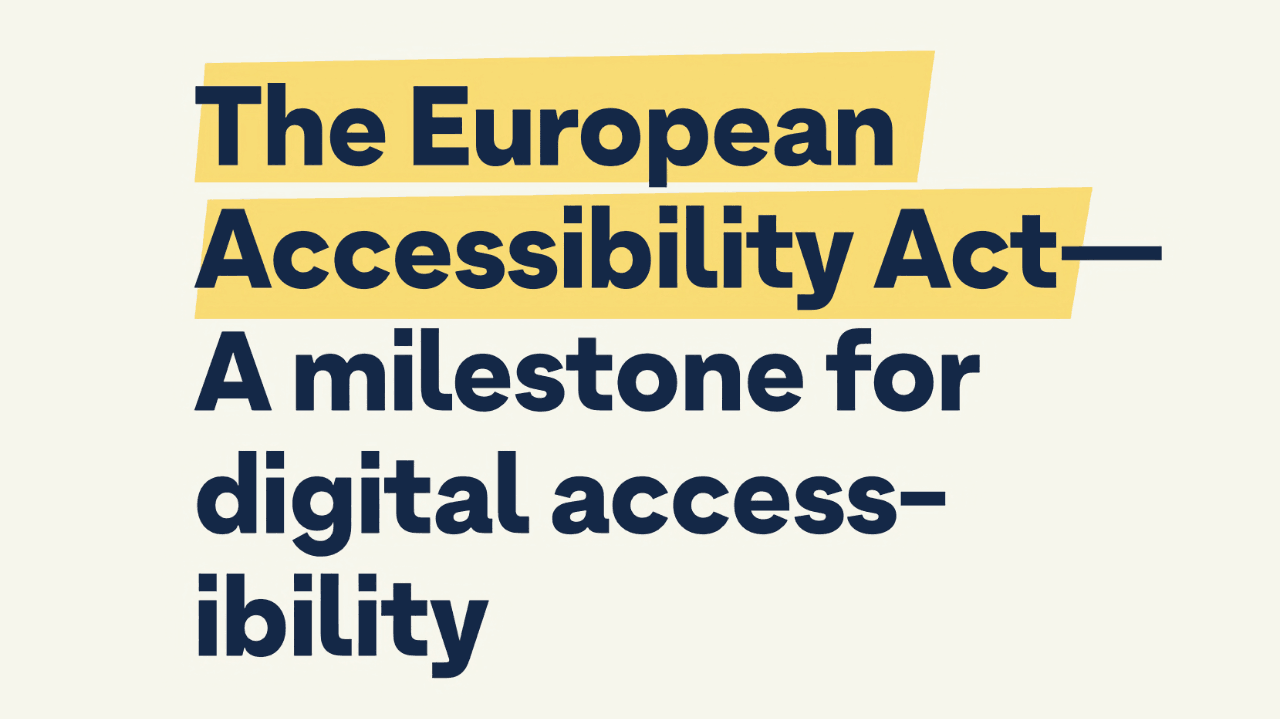
The multiline heading “The European Accessibility Act—A milestone for digital accessibility” with the first two lines highlighted with skewed yellow rectangles.

As you can see, this highlight is rather custom for this specific text, mainly because of the slight rotation. And though everything is possible when you’re drawing with CSS, I wanted to create something more or less practical.

So, I took the bait and started coding.

Grotesk font

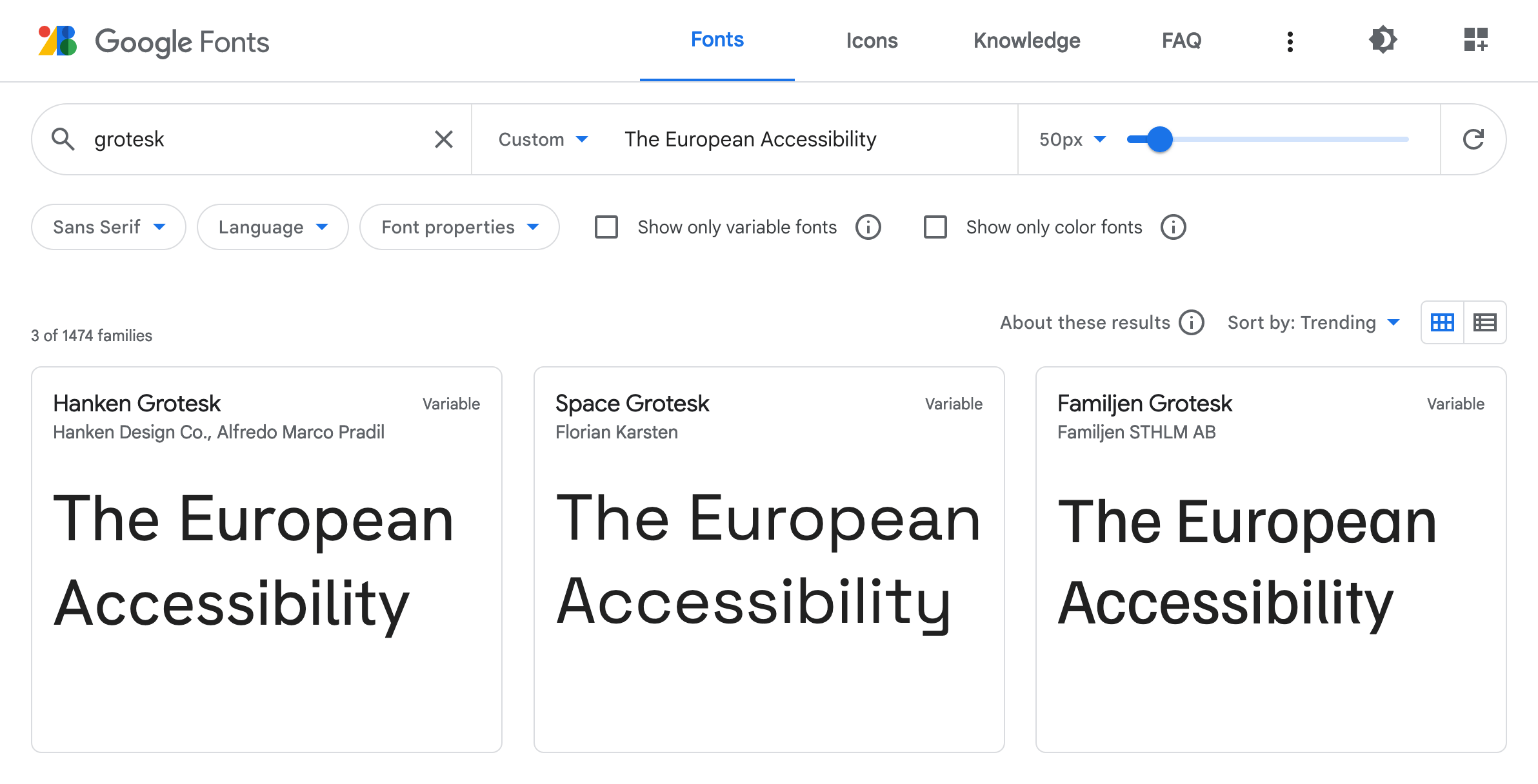
First, I needed to find a font used in the picture. Not the exact one, but something similar and available on Google Fonts. I used “The European Accessibility” as a sample and “grotesk” as a keyword. I got lucky as the first result Hanken Grotesk looked pretty close, especially with the bolder 900 weight.

Google Fonts main page with the “grotesk” as a search keyword and “The European Accessibility” as a sample.

I picked the colors from the picture, played with the line height, and got a good starting point. Be careful with viewport units for the font size, though. I used it here only for demo purposes. In real life, it would stop users from scaling the text, which is an accessibility concern.

body {
	margin: 0;
	display: grid;
	place-items: center;
	background-color: #f6f6ec;
	font-family: 'Hanken Grotesk', sans-serif;
}

h1 {
	max-width: 18ch;
	color: #142847;
	line-height: 1.1;
	font-size: 7.5vw;
}
<h1>
	The European Accessibility Act—<br>
	A milestone for digital accessibility
</h1>

For similarity’s sake, I also had to use <br> in combination with max-width: 18ch, though it’s usually not a good idea in real-life cases. But I think I managed to find a balance between practicality and the original text look.

Subsetting

To use Hanken Grotesk font in the demo, I took the usual HTML snippet from Google Fonts: two preconnects and the font stylesheet.

<link
	rel="preconnect"
	href="https://fonts.googleapis.com"
>
<link
	rel="preconnect"
	href="https://fonts.gstatic.com"
	crossorigin
>
<link
	rel="stylesheet"
	href="https://fonts.googleapis.com/css2?…"
>

But since it was just a single line of text, not the whole website, I added one more text GET parameter to the URL to deliver a custom font version containing only needed glyphs. 3 KB instead of 12 KB, not bad! You can also subset fonts with glyphhanger if you prefer to serve them yourself, as I do. But that would be too much for a simple demo.

text=aAbcdeEfghilmnoprstTuy%20%E2%80%94

This weird-looking value is the text of our headline, but with the letters sorted and duplicates removed. I also URL-encoded some symbols: %20 is the space, and %E2%80%94 is the em dash. You don’t need to sort or deduplicate the value for such a simple case, but why not.

Alright, enough with the text. Let’s see how I highlighted it.

Remarkable mark

The <mark> element is the obvious choice to highlight anything in a text. It even comes with built-in styles similar to what we have in the picture. But not that similar, so I replaced it with a nicer yellow. I also had to inherit the color from the header since it’s set explicitly to black in the browser styles.

mark {
	background-color: #f8db75;
	color: inherit;
}

It looked pretty close already, but the whole point of this challenge was the side angles.

Skewed background

Unfortunately, there’s no way to skew the background, so I had to construct it from multiple parts using gradients: left and right rectangles with a diagonal gradient and a part in between with just a fill.

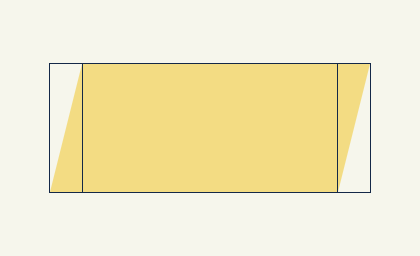
Yellow rectangle skewed to the right with contour overlay splitting it into three parts, from left to right. The first part is narrow and splits diagonally: the top left is transparent, and the bottom right is yellow. The second middle part is wide and entirely yellow. The third part is narrow and splits diagonally: the top left is yellow, and the bottom right is transparent.

Since the gradient replaces the background color, I set it to transparent. Then I passed three linear gradients separated by commas to the background-image property.

mark {
	background-color: transparent;
	background-image:
		linear-gradient(
			to bottom right,
			transparent 50%,
			#f8db75 50% 100%
		),
		linear-gradient(
			to right,
			#f8db75,
			#f8db75
		),
		linear-gradient(
			to top left,
			transparent 50%,
			#f8db75 50%
		)
	;
}
  1. The first goes to the bottom right, from transparent to yellow, with a 50% hard stop.
  2. The second goes to the right, but it could’ve been any direction since it’s just a yellow fill.
  3. The third goes to the top left, just like the first one but in the opposite direction.

The gradients with specific directions like to bottom right go precisely from one corner to another, no matter the element’s shape. This was very convenient because the skew could be adjusted by changing the rectangle’s width.

It was just a first step: by default, gradients overlap each other and repeat all over the place. To position them as on the scheme above, I needed to shape them with background-size and background-position and, of course, stop the repeating.

mark {
	background-size:
		0.25em 1em,
		calc(100% - 0.25em * 2 + 1px) 1em,
		0.25em 1em
	;
	background-position:
		left center,
		center,
		right center
	;
	background-repeat: no-repeat;
}

Like in the previous case, I used multiple values separated by commas. 0.25em is the width of the side rectangles, and 1em is the height. The width of the middle rectangle is the width of the whole element minus the width of the sides. I had to add 1px to the width to make the middle rectangle overlap the sides because, otherwise, at specific font sizes and page scaling, there would be a small gap in Chrome and Firefox.

Positioning background was fairly simple:

  1. Left side goes to the left and stays centered vertically.
  2. Middle part stays in the center: a single keyword means center center.
  3. Right side goes to the right and stays centered vertically, too.

Once the background was done, I did a minor refactoring and used a few custom properties to make the highlight easily adjustable. But first, let’s look at the result!

mark {
	--mark-color: #f8db75;
	--mark-skew: 0.25em;
	--mark-height: 1em;
	--mark-overlap: 0.3em;

	margin-inline: calc(var(--mark-overlap) * -1);
	padding-inline: var(--mark-overlap);

	background-color: transparent;
	background-image:
		linear-gradient(
			to bottom right,
			transparent 50%,
			var(--mark-color) 50%
		),
		linear-gradient(
			var(--mark-color),
			var(--mark-color)
		),
		linear-gradient(
			to top left,
			transparent 50%,
			var(--mark-color) 50%
		)
	;
	background-size:
		var(--mark-skew) var(--mark-height),
		calc(100% - var(--mark-skew) * 2 + 1px) var(--mark-height),
		var(--mark-skew) var(--mark-height)
	;
	background-position:
		left center,
		center,
		right center
	;
	background-repeat: no-repeat;
	color: inherit;
}

To make it closer to the picture, I extended the sides to slightly overlap the em dash. I added padding-inline for padding on the sides and margin-inline with the same value but negative to compensate for the padding.

It looked close at that point, apart from one tiny detail.

Decoration break

From the beginning, I assumed that the whole highlight is a single element that breaks into multiple lines or stays in a single line, depending on the text width. But in the picture, we have side angles on every line! Did it mean I had to use <mark> elements for every line? Fortunately, no.

There’s a way to control how the box breaks into multiple lines or, to be precise, how its decoration breaks. It’s conveniently called box-decoration-break, and the clone value did precisely what I needed.

mark {
	-webkit-box-decoration-break: clone;
	box-decoration-break: clone;
}

I had to use the -webkit- prefix for it to work in Chrome and Safari, but the result was just stunning: every line of the <mark> element was decorated like its own element.


As Roman Komarov once said (I hope I’m not making it up): if you see a challenge, don’t look at the implementations. Try to code it yourself and only then compare it. This way, you’ll learn more. I guess it’s too late with this article, but keep this idea in mind for the next challenge!

https://pepelsbey.dev/articles/skewed-highlight/
CSS and JavaScript as first-class citizens in Eleventy
Show full content

When I started to build my first website on Eleventy around 2019, I had to decide how to deal with the HTML, CSS, and JavaScript post-processing. By that time, I had gotten used to the convenience of the modular approach and automation. So it wasn’t an option to just copy files from src to dist. I needed them stitched, modified, and minified.

By then, I got over the preprocessors like Sass, so I needed some light post-processing for vanilla-flavored CSS and JS. I looked through the Eleventy starter projects but couldn’t find anything that would make sense. It was clear that early adopters of Eleventy were struggling with processing resources too.

I came up with a solution that worked for me for a few years, but I recently took the next step, finally making CSS and JS first-class citizens in Eleventy for me 😎

Vanilla all the way

The first solution I came up with was pretty straightforward. Before setting up any post-processing, I built a system that didn’t require any: I just linked index.css and index.js files to my HTML pages that, in turn, were importing other blocks/modules:

/* index.css */
@import 'blocks/page.css';
@import 'blocks/header.css';
@import 'blocks/content.css';

In the JS case, you also need to add type="module" to your <script> to make it work. Oh, and for some reason, browsers need a ./ prefix for relative ESM imports, but otherwise, it looks pretty much the same:

/* index.js */
import './modules/menu.js';
import './modules/video.js';
import './modules/podcast.js';

And you know what? It just worked right in the browser. Yes, it wasn’t ideal from the performance and compatibility perspectives, but that was good enough for local development. And it was super quick too. When modern bundlers argue which one’s faster, I often think that the fastest is the one that’s not running at all 😉

So when I was starting a project for local development via npm start, it was Eleventy running its server, watching for changes, and copying CSS and JS files when needed. It would never work for Sass or TypeScript, but I always try to pick the simplest tools for simple tasks.

As for the HTML, Eleventy has been taking care of it for me, generating markup from Markdown, Nunjucks, and data files. On top of that, using built-in addTransform, I added a minification processing with html-minifier-terser.

const htmlmin = require('html-minifier-terser');

config.addTransform('html-minify', (content, path) => {
	if (path && path.endsWith('.html')) {
		return htmlmin.minify(
			content, {
				collapseBooleanAttributes: true,
				collapseWhitespace: true,
				decodeEntities: true,
				includeAutoGeneratedTags: false,
				removeComments: true,
			}
		);
	}

	return content;
});

⚠️ This is a part of the bigger Eleventy config, see the docs.

And though I liked this approach a lot for local development, I needed some post-processing for CSS and JS to make the code production-ready.

Second pass

Running npm run build would give me a fully-functional website in the dist folder. I only needed to post-process some files before the deployment. As I always liked the Gulp for its simplicity, it was an obvious choice. I took PostCSS with some plugins for CSS and Rollup with Babel and Terser plugins for JS.

Here’s an example of a Gulp task for CSS. Don’t focus on the list of plugins just yet. We’ll have a closer look at them a bit later.

const styles = () => {
	return gulp.src('dist/styles/index.css')
		.pipe(postcss([
			require('postcss-import'),
			require('postcss-media-minmax'),
			require('autoprefixer'),
			require('postcss-csso'),
		]))
		.pipe(gulp.dest('dist'));
};

I enjoyed the whole system for a while because I didn’t have to build and support the Eleventy/Gulp coupling. But at the same time, the additional build step bothered me. I’ve been trying different approaches, from complicated npm scripts to the various Vite plugins for Eleventy, but they all didn’t make me happy.

Custom Handlers

But then I noticed something interesting in the Eleventy v1.0.0 changelog 😲

Custom File Extension Handlers: applications and plugins can now add their own template types and tie them to a file extension.

It didn’t exactly say, “now you can post-process your CSS and JS,” but later, I discovered an example in the documentation adding Sass support to Eleventy. That was precisely what I needed! Not the Sass, but built-in support for processing resources.

Unlike the previous approach, Eleventy takes care of all CSS and JS resources this time. Not only for a production build but also during development. The closer your development build to the production one, the sooner you can spot any problems. But it only works if build time and live reload are fast enough not to get in the way during development.

Every library got its quirks: different APIs, sync/async behavior, etc. So it took me some time to figure out how to make custom handlers work with the libraries I used to process CSS and JS. Like in the Gulp case, I chose PostCSS for CSS. For JS, I decided to try esbuild, known for extremely fast build time, since I needed it to work for both production and development.

Let’s dive into each custom handler to see how they work. I copied them from this website’s Eleventy config and simplified it a little.

CSS

Remember the file structure? We have src/styles/index.css file that’s importing other CSS files relative to its location. We need to combine them, process a bit, and output a single dist/styles/index.css file.

In the first step, I import all the packages I need to process my styles:

The PostCSS plugin ecosystem is quite extensive: you can build yourself the whole Sass or Stylus or use CSS from the future specs via postcss-preset-env pack of plugins, but I prefer to write CSS that’s already supported in browsers and post-process it for better compatibility.

By default, CSS files are not processed by Eleventy. To process them, we need to add CSS to the template formats list using the addTemplateFormats method:

config.addTemplateFormats('css');

Now Eleventy is ready to process our CSS files and output the result. Let’s configure this processing. Otherwise, it won’t be different from the passthrough copy. Using addExtension we specify what files we’re going to process, including output file extension and async function that will be called with each file’s content and path.

config.addExtension('css', {
	outputFileExtension: 'css',
	compile: async (content, path) => {
		// Processing
	}
});

But we don’t need to process every CSS file that Eleventy could find in the src folder. We need only the index.css one, the rest CSS files will be imported into this one. That’s exactly what we‘re going to do next: filter out every other file that’s not the index.css.

if (path !== './src/styles/index.css') {
	return;
}

Now we can finally start processing our index.css. And with the path passed into the outer function, we can ask PostCSS to figure out the relative location of the rest of the files. It won’t just work otherwise. I learned it the hard way 🥲

return async () => {
	let output = await postcss([
		postcssImport,
		postcssMediaMinmax,
		autoprefixer,
		postcssCsso,
	]).process(content, {
		from: path,
	});

	return output.css;
}

Our files will be stitched together, polyfilled, prefixed, and minified, just like we specified in the list of PostCSS plugins. The output will be passed to Eleventy, which will write it to the dist/styles/index.css.

The final result
const postcss = require('postcss');
const postcssImport = require('postcss-import');
const postcssMediaMinmax = require('postcss-media-minmax');
const autoprefixer = require('autoprefixer');
const postcssCsso = require('postcss-csso');

config.addTemplateFormats('css');

config.addExtension('css', {
	outputFileExtension: 'css',
	compile: async (content, path) => {
		if (path !== './src/styles/index.css') {
			return;
		}

		return async () => {
			let output = await postcss([
				postcssImport,
				postcssMediaMinmax,
				autoprefixer,
				postcssCsso,
			]).process(content, {
				from: path,
			});

			return output.css;
		}
	}
});
JavaScript

The same goes for JS files: we add template format, then process only src/scripts/index.js using esbuild with some simple options. This function will return the contents of all modules as a single file for Eleventy to output into the dist folder. Unfortunately, browserslist is not supported by esbuild, but it seems like the es2020 target is similar to what I have there.

return async () => {
	let output = await esbuild.build({
		target: 'es2020',
		entryPoints: [path],
		minify: true,
		bundle: true,
		write: false,
	});

	return output.outputFiles[0].text;
}
The final result
const esbuild = require('esbuild');

config.addTemplateFormats('js');

config.addExtension('js', {
	outputFileExtension: 'js',
	compile: async (content, path) => {
		if (path !== './src/scripts/index.js') {
			return;
		}

		return async () => {
			let output = await esbuild.build({
				target: 'es2020',
				entryPoints: [path],
				minify: true,
				bundle: true,
				write: false,
			});

			return output.outputFiles[0].text;
		}
	}
});

Not sure if I convinced you, but I’m planning to use this approach for all my future projects based on Eleventy. I might even update the existing ones to make them more maintainable. Though I’m pretty sure there are many other use cases or ways to do it. I’m curious to see what you might come up with! 🙃

https://pepelsbey.dev/articles/eleventy-css-js/
Condi­tionally adaptive CSS. Browser behavior that might improve your performance
Show full content

There’s a component structure behind every website or app these days, hundreds of small files. Though when it comes to delivering resources, we often serve just a single file for every resource type: styles, scripts, and even sprites for images. Everything gets squashed during the build process, including resources specific to certain resolutions or media conditions.

And resources aren’t equal! For example, CSS is a blocking resource, and there’s nothing for a browser to render until every last byte of every CSS file is loaded. Why? The last line of a CSS file could overwrite something that came just before that. That’s your “C” in the CSS, which stands for “cascade.”

We live in the era of responsive web design, and our websites are often ready to adapt to different viewports. Isn’t it wonderful? But why should users wait for irrelevant desktop styles when they load your site on mobile? 🤔

Hold that thought, we’ll get back to it. Now let’s have a look at one popular website.

GOV.UK

The main page of the GOV.UK website. The header says: Welcome to GOV.UK, the best place to find government services and information.

If you open GOV.UK website and peek into the DevTools Network panel, you’ll find four CSS files loaded, around 445 KB in total. The browser is supposed to wait for all of them to load before it can start rendering the page. That’s a lot of CSS, but I guess it’s all you’d ever need on this website.

  1. edefe0a8.css — 177.65 KB
  2. 9618e981.css — 5.90 KB
  3. 18950d6c.css — 201.04 KB
  4. 59083555.css — 60.93 KB

Apparently, only two are render-blocking, which makes the critical path around 67 KB shorter. What’s the trick? These two files are used only for printing and are linked with the proper media attributes.

<link rel="stylesheet" href="edefe0a8.css">
<link rel="stylesheet" href="9618e981.css" media="print">
<link rel="stylesheet" href="18950d6c.css">
<link rel="stylesheet" href="59083555.css" media="print">

Browsers are smart enough not to prioritize resources that aren’t relevant to the current media conditions. When you’re in media="screen" and about to render something on the screen there’s no point in waiting for styles with media="print", right?

They could’ve bundled all four files, hiding print styles inside @media print. But instead (intentionally or not) GOV.UK developers saved their users some time.

When I discovered this behavior, I immediately asked myself…

What if?

What if we’d take the CSS bundle we’ve just built out of dozens of files and split it back into multiple parts? But this time, based on conditions where these parts are applicable. For example, we could split it into four files:

  • Base: universal styles with fonts and colors
  • Mobile: styles only for narrow viewports
  • Tablet: styles only for medium viewports
  • Desktop: styles only for large viewports

This would look like this:

<link rel="stylesheet" href="base.css">
<link rel="stylesheet" href="mobile.css">
<link rel="stylesheet" href="tablet.css">
<link rel="stylesheet" href="desktop.css">

But this won’t be enough, as we need to specify media conditions with the same media attribute, using not just media types like print, but media features. Yes, you can do that! 🤯

Let’s say our tablet breakpoint starts at 768 px and ends at 1023 px. Everything below goes to mobile, and everything above goes to desktop.

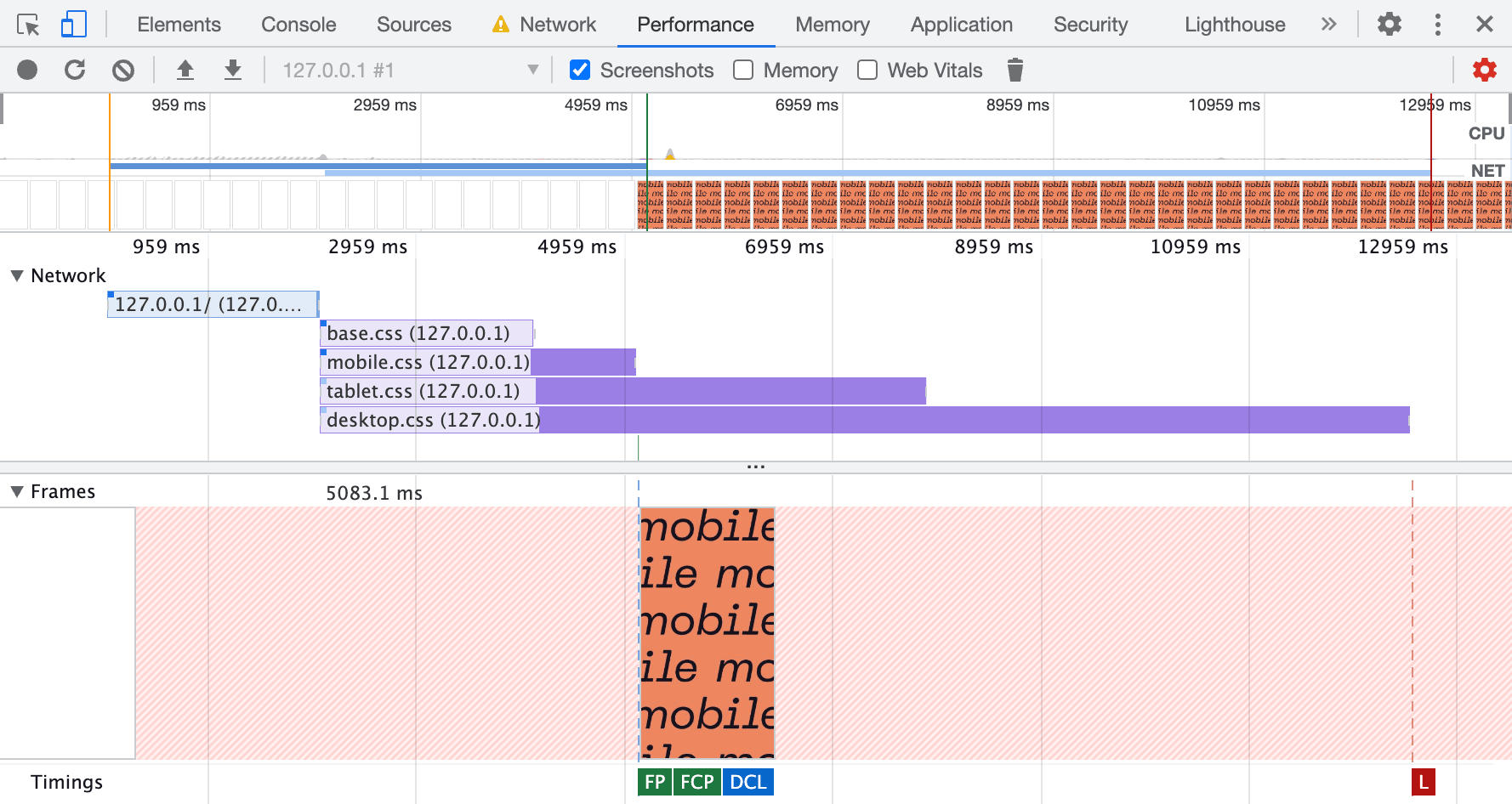
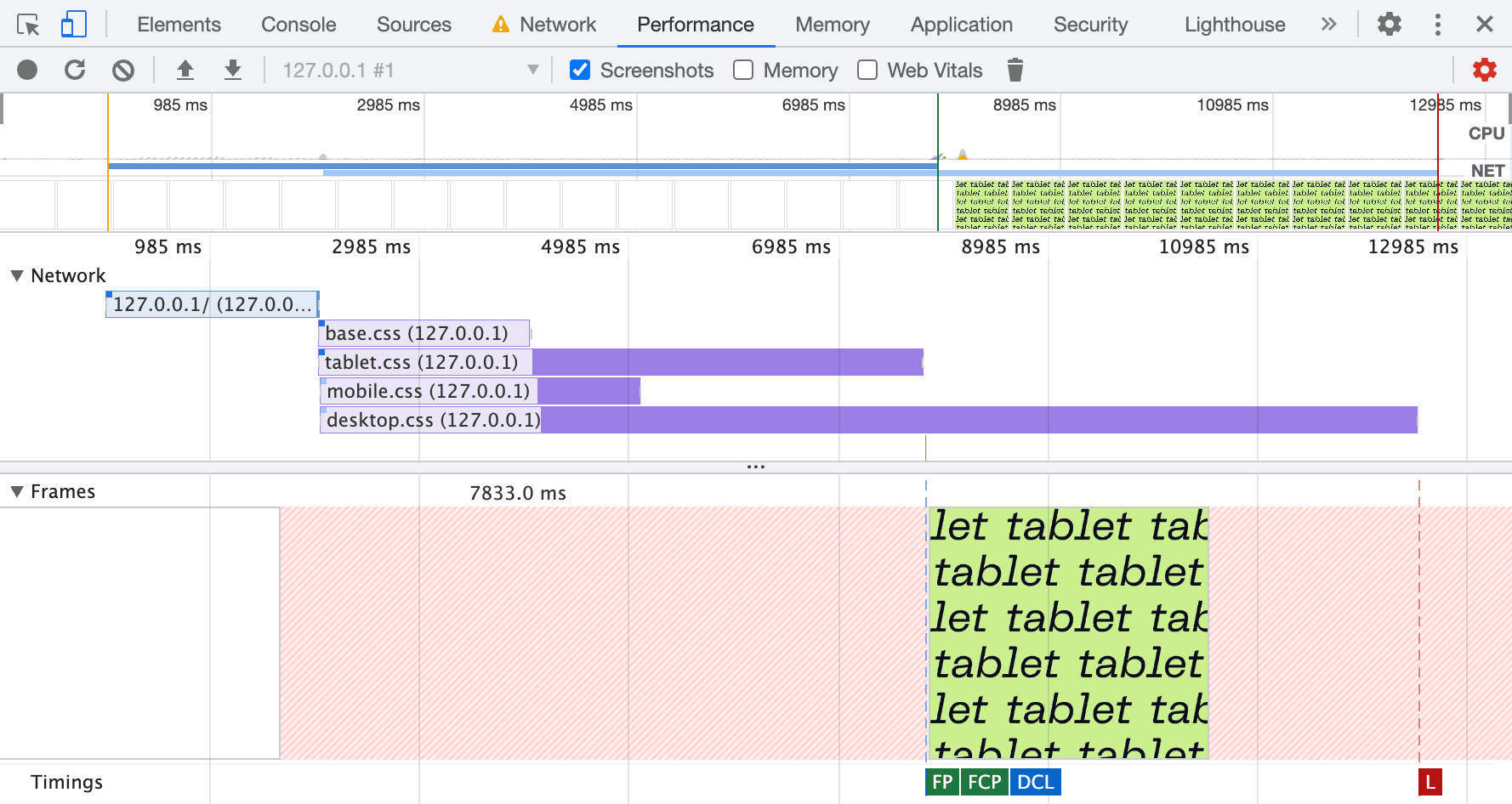
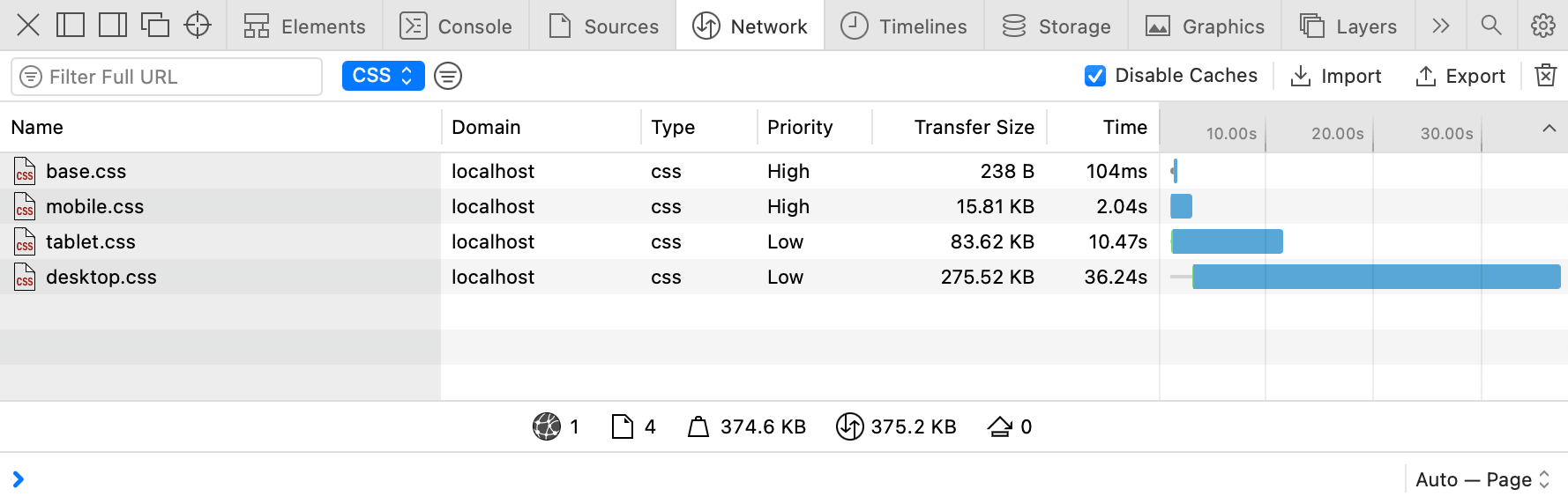
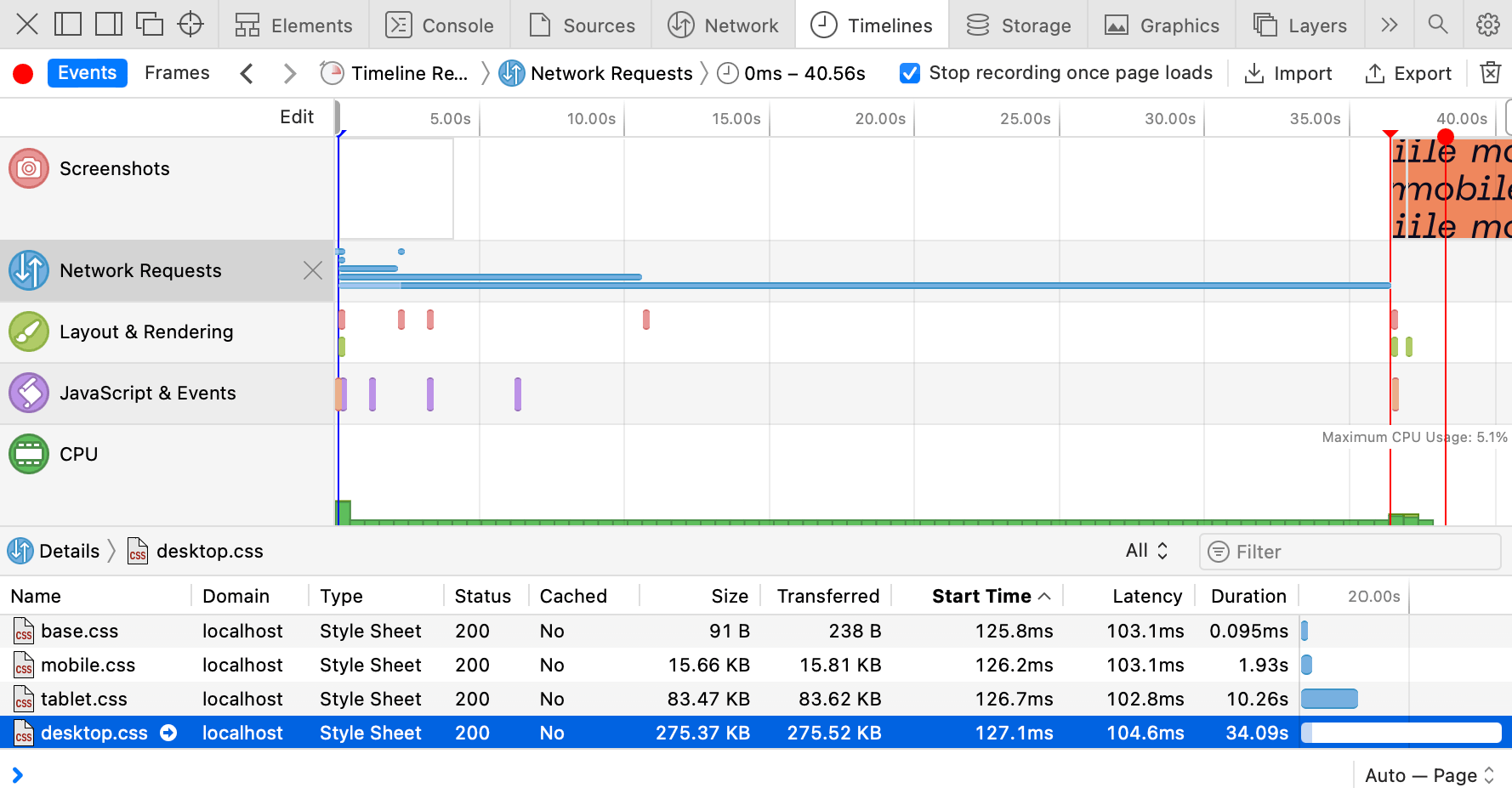
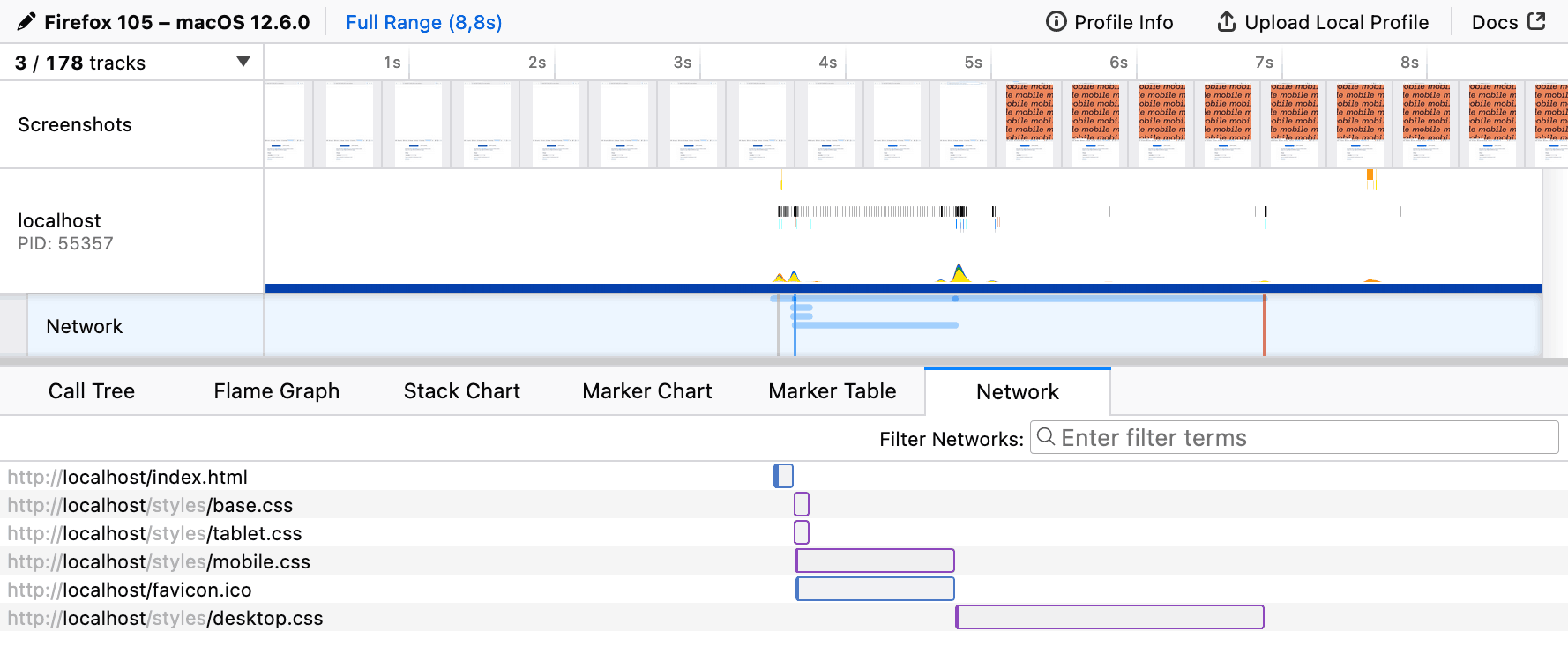
<link
	rel="stylesheet" href="base.css"
>
<link
	rel="stylesheet" href="mobile.css"
	media="(max-width: 767px)"
>
<link
	rel="stylesheet" href="tablet.css"
	media="(min-width: 768px) and (max-width: 1023px)"
>
<link
	rel="stylesheet" href="desktop.css"
	media="(min-width: 1024px)"
>

It would be much easier to write using the modern syntax, but I’d be careful for now: browsers are still catching up on the support, and loading CSS is rather critical.

  • (width < 768px)
  • (768px <= width < 1024px)
  • (width >= 1024px)

When I opened this demo in a browser, I expected it to load only relevant files, for example, only base.css and mobile.css on mobile. But all four files were loaded, and I was disappointed at first. Only later I realized that it works, but in a much more sensible way 😲

Demo

To fully understand how it works, I built a demo page with four CSS files that paint the page with different background colors on different viewport widths. These files also have different sizes, so spotting them in the Network panel would be easier.

The first base.css is quite small, only 91 bytes:

html, body {
	height: 100%;
}

body {
	margin: 0;
	background-position: center;
}

Then goes mobile.css, slightly bigger (16 KB), but only because I artificially made it so by inlining the bitmap “mobile” word with base64 as a background image.

body {
	background-color: #ef875d;
	background-image: url('data:image/png;base64,…');
	background-size: 511px 280px;
}

I made both tablet.css (83 KB) and desktop.css (275 KB) even larger with bigger images inlined. You can play with the demo by resizing the window to get the idea. It’s going to help us understand how browsers prioritize CSS loading.

Priorities

Another little detail in the Network panel made me realize what was going on: the Priority column. You might have to enable it by right-clicking the table heading and choosing it from the list of available columns.

Network panel in Chrome with the list of CSS files: base.css, desktop.css with “highest” priority, then mobile.css, tablet.css with “lowest” priority. CSS files aren’t equal either: desktop styles are more important than mobile ones.

It took a surprisingly long time for this page to load, almost 12 seconds. It’s because I disabled the cache and throttled the network to “Slow 3G”. I keep it enabled in my DevTools because it reminds me of real-world network performance 😐

You might’ve guessed where these priorities come from. All CSS files linked to the page are evaluated during HTML parsing:

  • The ones with media attribute relevant to the current conditions (or without one, which makes it media="all") get loaded with the highest priority.
  • The ones with media attribute irrelevant to the current conditions (like media="print" or (width >= 1024px) on mobile) are still loaded, but with the lowest priority.

In the first case, I used desktop viewport width. What will happen if I load the same page in the mobile viewport? You’ll get the same files loaded but with different priorities: base.css and mobile.css are the highest priority.

Network panel in Chrome with the list of CSS files: base.css, mobile.css with “highest” priority, then tablet.css, desktop.css with “lowest” priority. In smaller viewports, priorities change: mobile styles are more important than desktop ones.

But it’s not just loading priority, it also affects the moment when the browser decides that it got everything it needs to render the page. Let’s go to the Performance panel in Chrome DevTools and see the waterfall and all the relevant page rendering events.

Rendering

The Performance panel is relatively complex compared to the Network one. I’m not going to go into details here, but to analyze performance, it’s essential to read waterfalls and see when certain events happen, not just what files are loaded and how heavy they are. Let’s unpack the basics of what’s going on here 🤓

Performance panel in Chrome lists page resources in a waterfall. The page screenshot in a desktop viewport goes right after the desktop.css.

This page is loaded in a desktop viewport, and the first thing we see on the waterfall is the blue line: this is our HTML document requested by the browser. At the point where it’s loaded and parsed, we get four parallel requests for CSS files, all with different lengths. The order is the same as in the Network panel: base.css and desktop.css go first.

There’s a Frames panel below the waterfall showing when the browser paints something on the page. At the bottom of this panel, we have a group of flags marking some of the important events: FP (First Paint), FCP (First Contentful Paint), L (Load), DCL (DOMContentLoaded). In this case, everything happened at the same time, once desktop.css was loaded.

I used a desktop viewport to load this demo, so the browser had to wait for base.css and desktop.css to load before it could render anything (almost 12.5 seconds). And since desktop.css is rather large and CSS files are loaded in parallel, the browser had a chance to load them all. So it’s hard to tell whether it worked better than just a single file with all the styles.

Let’s load the same page in the mobile viewport, then.

Performance panel in Chrome lists page resources in a waterfall. The page screenshot in a mobile viewport goes right after the mobile.css.

Now it looks much more interesting! 😍 The order of CSS files is the same as we saw in the Network panel: base.css and mobile.css go first. But now it finally makes the difference: FP, FCP, and even DCL events happened right after the mobile.css was loaded. The whole rendering took only 5 seconds, compared to 12.5 seconds in the previous case.

The rest of the CSS files extend beyond the rendering events so that the page will be ready for any viewport changes. This is a rare event on mobile but often happens on desktop or tablets. Speaking of tablets, let’s see how it looks in a tablet viewport.

Performance in Chrome panel with the list of page resources in a waterfall. The screenshot of the page in a tablet viewport goes right after the tablet.css.

No surprises here: the page is ready to be rendered once tablet.css is loaded in 8 seconds, still faster than it would take for a single file with all the styles to load.


Like any other demo, this one shows the browser’s behavior in a specific case. I doubt that in your case desktop.css would be dozen times bigger than mobile.css and you’ll see a 7.5 seconds difference with the “Slow 3G” throttling. But at the same time, I can see the potential of this behavior, though it’s not widely known or used.

It will also require you to write your CSS in a way that isolates styles for different viewports. That’s another idea for an article, by the way. The same goes for tooling: it’s not quite there yet. The closes thing I could find are Media Query plugin for Webpack and Extract Media Query plugin for PostCSS.

Fortunately, there are some other simpler use cases apart from different viewports that we might start from. Oh, and there’s another catch, of course 🙄 But let’s talk about the use cases first.

Preferences

The list of media features you can use in Media Queries extends beyond just viewport width and height. You can adapt your website to the user’s needs and preferences: color scheme, pixel density, reduced motion, etc. But not only that! With this new behavior in mind, we can make sure that only relevant styles are render-blocking.

Color scheme

One of the most popular media features these days is prefers-color-scheme, which allows you to supply light and dark color schemes to match the user’s system preferences. In most cases, it’s used right in CSS as @media, but it can also be used to link relevant CSS files conditionally.

<link
	rel="stylesheet" href="light.css"
	media="(prefers-color-scheme: light)"
>
<link
	rel="stylesheet" href="dark.css"
	media="(prefers-color-scheme: dark)"
>

And just like we’ve learned before, browsers will load dark.css with the lowest priority in the case when the user prefers a light color scheme and vice versa. There’s a good article by Thomas Steiner diving deep into the dark mode, including a theme toggler that works with CSS files linked this way.

Pixel density

Sometimes we have to deal not with beautiful vector graphics, but with raster images too. In this case, we often have different files for different pixel densities, for example, icon.png and icon@2x.png.

a {
	display: block;
	width: 24px;
	height: 24px;
	background-image: url('icon.png');
}

@media (min-resolution: 2dppx) {
	a {
		background-image: url('icon@2x.png');
		background-size: 24px 24px;
	}
}

These six lines of CSS specifically targeting high-density screens are usually bundled into the same file loaded for users with low-density screens. Fortunately, browsers are smart enough not to load high-density graphics. You guessed it, we can do it even better: split them into a separate file and load it with the lowest priority.

<link
	rel="stylesheet" href="retina.css"
	media="(min-resolution: 2dppx)"
>

This file will be loaded and applied immediately if the user decides to drag the browser window to a high-density screen. But it won’t block the initial rendering on a low-density screen.

Reduced motion

Animations and smooth transitions could improve user experience, but for some people they can be a source of distraction or discomfort. The media feature prefers-reduced-motion allows you to wrap your heavy motion in @media to give users a choice. By the way, “reduce” doesn’t mean “disable”, it’s up to you to create a comfortable environment and not sacrifice clarity at the same time.

<link
	rel="stylesheet" href="animation.css"
	media="(prefers-reduced-motion: no-preference)"
>

Instead, you can put your motion-heavy styles into a separate file that will be loaded with the lowest priority when the user prefers reduced motion. The best way to achieve this would be to extract all the matching @media during the build process.

A catch

There’s always a catch, isn’t it? 🥲 In this case, it’s the browser support: unfortunately, my tests show that Safari doesn’t support this behavior. Even in GOV.UK’s case, it blocks initial rendering until all the print styles are fully loaded. Fortunately, it doesn’t brake anything, but still, it’s a missed opportunity for performance improvement.

Network panel in Safari with the list of CSS files: base.css, mobile.css with “highest” priority, then tablet.css, desktop.css with “lowest” priority.

Interestingly, Safari sets the same priorities as Chrome, but it doesn’t change the overall behavior. And if you look at the Timeline panel, it becomes obvious: the first paint for mobile viewport happened only when desktop.css was fully loaded.

Network panel in Safari with the list of CSS files: base.css, mobile.css with “highest” priority, then tablet.css, desktop.css with “lowest” priority.

I filed a bug report in WebKit a few months ago, asking for a behavior change. They closed it as a duplicate in favor to this one. Please have a look, and if you have some real-life use cases, don’t hesitate to share them in the comments. So far, I have gotten some attention from WebKit engineers, but no actions yet.

At this point, I’m very grateful to Firefox for supporting this behavior. Otherwise, it would be just a peculiar Chrome optimization that’s not worth relying on too much. Though it wasn’t easy to work with the Performance panel in Firefox, with the help of the Network panel’s throttling settings, I got a clear picture. In the mobile viewport, Firefox starts rendering before the desktop.css is fully loaded.

Performance panel in Firefox with the film strip and a list of resources: the mobile.css loading is aligned with the first paint.

And just to double-check that my readings are correct, I loaded the demo with a slow static server called slow-static-server 😬 and got the same results: Chrome and Firefox render the page in mobile viewport much earlier than Safari does.


I think this might be a good opportunity to optimize the initial page rendering performance. And maybe even improve the way you adapt your styles to different media conditions. But if you’re not ready to invest in this optimization just yet, I’d encourage you to at least try exploring user preferences. There’s a nice “Build user-adaptive interfaces with preference Media Queries” codelab by Adam Argyle that will help you get started.

https://pepelsbey.dev/articles/conditionally-adaptive/
SVG sprites: old-school, modern, unknown, and forgotten
Show full content

SVG sprites have been around for a while and are usually considered a default option for icons and some other vector graphics. I mean the ones that require inline SVG placeholders and could be styled via CSS. And while they’re giving us some unique features, they also have some drawbacks and aren’t the only available option. Let’s try to remember why we needed SVG sprites in the first place, then see what other less-known options are available and how they might be useful.

Why sprites

First of all, let’s all agree that sprites are a trick. You might call it a “technique” or a “tool”, but we mostly need it to work around some limitations. Back in the 8-bit game era, bitmap sprites were used to optimize memory performance: load all graphic resources into memory once and use them when needed.

In the early Web days, sprites were used similarly, but to optimize network performance (limit the number of requests) and also work around the way browsers load resources. Consider this example: one background image should be replaced with another once the user hovers/focuses the link.

a {
	background-image: url('link.svg');
}

a:hover,
a:focus {
	background-image: url('hover.svg');
}

You might’ve noticed a little flick, especially if you’re on a slow network. But if it seemed fine to you, have a look at the DevTools Network panel before and after hover/focus. Browsers don’t preload CSS resources that are not needed for the initial rendering. It means that there will be a network request that might take a while or might not happen at all if the user went offline.

Two DevTools Network panels. First, before the hover, there are two resources: index.html and link.svg. Second, after the hover, there’s one more: hover.svg.

In terms of limiting the number of requests using sprites, network performance is less relevant these days, but we still need some workaround to make sure that all resources are available for user interactions.

Old-school sprites

Let’s start with the old-school sprites or “true sprites”: we can stitch a bunch of pictures together in a single file, but show just one of them at a time through some viewport. Such sprites used to be mostly bitmaps back in the old days, but nothing’s stopping us from using vector graphics too.

In the previous case, both icons were separate files, containing nothing but the same icon filled with different colors. Let’s put them together in a single file this time, right next to each other.

Two contour icons in a row: cogwheel in black, cogwheel in purple.

<svg xmlns="http://www.w3.org/2000/svg" viewBox="0 0 48 24">
	<path fill="#0c0b1d" d="M19.43…"/>
	<path fill="#9874d3" d="M43.43…"/>
</svg>

Look at the d attributes of every <path> element, specifically on how they start: the number after the first M letter is the coordinate of the first point. As you can see, they’re far apart: M19 and M43. It means that icons in this sprite are drawn exactly where they need to be. I’m not suggesting that you’re supposed to read the rest of the curve (a handful of people could do that), but understanding where it starts might become useful later.

Background images

The easiest way to put a decorative image on a page is to use the background-image property. Seriously, you don’t always need to do complex things with your graphics, it’s usually more performant too. Let’s put our sprite in the background image and move its position to a certain coordinate to show the needed icon. There’s no need to set background-position to 0 0, but I like to keep defaults visible when they’re about to change.

a {
	background-image: url('sprite.svg');
	background-position: 0 0;
	background-size: cover;
}

a:hover,
a:focus {
	background-position: -200px 0;
}

Unlike bitmap sprites, vector ones are more flexible, since you can show icons of any size by scaling the background. But they come with some difficulties too: you have to calculate the background-size value based on the resulting icon’s size and sprite’s dimensions. For example, a 72 × 24 sprite for a 200 × 200 icon will have a background-size of 600 × 200. It’s simple math, but once the sprite is changed you might need to update the numbers.

But in the case of a same-sized icon sprite positioned in a single row, using just the cover value for background-size would be sufficient. And once the icon is scaled, we’ll have to use the resulting icon’s size to move the background. In our case, it would be 0 and −200px to switch between the icon’s states.

Content images too

Interestingly enough, you can use old-school sprites not only for background images but also for content images. I wouldn’t recommend using decorative images for icons because browsers might prioritize them too much during loading and your users will get “Save Image As…” and other irrelevant context menu items and behavior for your link. But for the sake of it, let’s try it 🤓

<a href="">
	<img
		src="sprite.svg"
		width="200" height="200"
		alt="Settings"
	>
</a>

Styling in this case looks quite similar to the previous example, but with object-fit and object-position properties instead. Unlike background-position, the default position here would be 50% 50%, so we’ll have to set it to 0 0 to make it work the same way.

a img {
	object-fit: cover;
	object-position: 0 0;
}

a:hover img,
a:focus img {
	object-position: -200px 0;
}

Using “true sprites” for bitmap images still makes some sense these days, but looking at the duplicated curves in the SVG sprite makes my heart hurt a little. It could be optimized with <use> elements and custom fills, but building such a sprite and sharing colors between CSS and SVG wouldn’t be easy 😔

That’s why we have a modern solution for SVG sprites.

Modern symbols

SVG became much more popular once developers realized that it’s not just another graphics format. You can change it via CSS, just like any other HTML element, but to make it work you have to put inline <svg> in your markup, which increases the size of your document or JS bundle. Fortunately, this method got improved by SVG symbols and became a standard solution for icons.

Inline SVG

If you just need to change your SVG icon’s color fill via CSS, you can put it in your markup and call it a day. Feel free to get rid of the xmlns attribute when your SVG is inlined, by the way. But don’t forget to add width and height attributes (otherwise your icon might take the whole page if your CSS will fail to load) and aria-hidden="true" to keep icons under the screen reader’s radar.

<a href="" aria-label="Settings">
	<svg
		viewBox="0 0 24 24"
		width="200" height="200"
		aria-hidden="true"
	>
		<path fill="currentcolor" d="M19.43…"/>
	</svg>
</a>

Such an icon would inherit the parent element’s text color because its <path>’s fill is set to currentcolor, some kind of a variable that carries, you guessed it, the current color. In this case, you don’t even have to style the actual SVG element.

a {
	color: #0c0b1d;
}

a:hover,
a:focus {
	color: #9874d3;
}

But inline icons are not ideal. You can often rely on the browser cache when it comes to your document’s resources: styles, scripts, graphics, etc. But the document itself is rarely cached, meaning that your inline icons will add substantial overhead to every load of every page. Even in the SPA case, keeping your icons out is better to reduce the JS bundle size.

External SVG

To make all the paths external to the document, we can put them together in a file organized in a special way. Let’s call it sprite.svg and throw in another icon just to make it look like a library. Instead of the <path> itself, we now have <use> element that gets the symbol from the library by ID.

<a href="" aria-label="Settings">
	<svg
		viewBox="0 0 24 24"
		width="200" height="200"
		aria-hidden="true"
	>
		<use href="sprite.svg#favorite"/>
	</svg>
</a>

Though we have to keep the inline SVG placeholder in the document, it drastically improves the footprint and allows browsers to cache the file. By the way, it’s time to get rid of the prefixed xlink:href, simple href has been more than enough for a while.

How does this sprite.svg look like? It contains our SVG icons wrapped in <symbol> elements with unique IDs, so we could request only the needed ones.

<svg xmlns="http://www.w3.org/2000/svg">
	<symbol id="settings" viewBox="0 0 24 24">
		<path fill="currentcolor" d="M19.43…"/>
	</symbol>
	<symbol id="favorite" viewBox="0 0 24 24">
		<path fill="currentcolor" d="M16.5…"/>
	</symbol>
</svg>

Let’s have a look at the beginning of our curves in the d attribute again. As you can see, they’re pretty close to each other: M19 and M16. That’s because it’s not a “true sprite”, but rather a library of SVG symbols where icons are stacked on top of each other.

Compared to old-school sprite, this symbol library is much easier to prepare: you don’t have to use a vector editor or recalculate paths, you just need to put icon files together and change <svg> tags to <symbol>.

The downside of it is that we can’t use such icons in background images or content images, only with inline SVG placeholders. But the upside makes it worth the trouble: we can control our icon’s color fill right from CSS.

This method is a built-in SVG feature useful for organizing complex vector documents. It also happens to be useful as a sprite-like workaround when combined with HTML and CSS. But there’s another rather unknown SVG feature that can be used similarly!

Unknown fragments

Let’s try one more time to use a “true” SVG sprite as a background image, with an anchor pointing to a specific icon in that sprite. Yes, the same thing that didn’t work previously. Wouldn’t it be nice to make it work? 🤔

a {
	background-image: url('sprite.svg#link');
}

a:hover,
a:focus {
	background-image: url('sprite.svg#hover');
}

You know what? It works! Not only for background images but for content images too. Though the SVG sprite needs to be organized differently. Let’s have a look and then unpack it.

<svg xmlns="http://www.w3.org/2000/svg">
	<view id="link" viewBox="0 0 24 24"/>
	<path
		transform="translate(0, 0)"
		fill="#0c0b1d"
		d="M19.43…"
	/>
	<view id="hover" viewBox="24 0 24 24"/>
	<path
		transform="translate(24, 0)"
		fill="#9874d3"
		d="M19.43…"
	/>
</svg>

Meet another SVG element called <view>, it defines a viewport with a unique ID. When you’re linking this sprite with such ID, it’s like you’re cropping into one of the predefined viewports to see just a certain fragment of the image. That’s why they called “fragment identifiers”.

The viewBox attribute here works the same way as for the <svg> element. The first two values define x and y viewport shifts, so the “viewport camera” in our case will make two moves to get each icon: 0 and 24. You can learn more about the viewBox attribute in Sara Soueidan’s article.

If you look at the d attribute’s starting points, they’re identical! But don’t let it fool you: there’s a transform attribute right next to it, that translates those icons to the right by 0 and 24. Yes, it’s a “true sprite” where icons are sitting next to each other. But compared to the old-school method, it’s much easier to use IDs instead of moving the background/object position.

Unfortunately, this solution is limited to background images and content images and there’s no way to change the icon’s color fill using external CSS like it was possible with inline SVG placeholders. Such a sprite won’t work with inline SVG either.

Alt syntax

While we’re at it, there’s another syntax that might be convenient in some cases. Previously, to make this “true sprite” work we had to mark it with <view> elements and unique IDs. But we can also tell what fragment of the sprite we need right in the URL, using svgView and viewBox parameters.

a {
	background-image:
		url('sprite.svg#svgView(viewBox(0, 0, 24, 24))');
}

a:hover,
a:focus {
	background-image:
		url('sprite.svg#svgView(viewBox(24, 0, 24, 24))');
}

This one will show the second icon on hover because of the 24 pixels shift. I know, it looks a bit ugly, but it’s going to work with any “true sprite”, even the old-school ones. And there’s no need for IDs or some extra markup, just make sure that all icons will have their place (naturally or via transform) and start moving your viewport!

<svg xmlns="http://www.w3.org/2000/svg">
	<path
		transform="translate(0, 0)"
		fill="#0c0b1d"
		d="M19.43…"
	/>
	<path
		transform="translate(24, 0)"
		fill="#9874d3"
		d="M19.43…"
	/>
</svg>

It’s yet another feature from the SVG specification that’s been forgotten for some reason. That’s a pity, because “Can I use” looks pretty good for fragment identifiers.

But there’s a catch 😅

A catch

For some reason, browsers treat URLs with fragment identifiers as different resources. Just like in the first naive demo: the first sprite.svg#link file will be loaded by default, and the second sprite.svg#hover will be loaded again on hover. As two different files! Even with the svgView() syntax. And it seems like it’s not just a request to the cache for the same file: if you throttle the network, you’ll see the delay. Only Safari takes the file from memory, but sometimes hover stucks.

I think it’s the perfect time to file some browser bugs. This is what we all have to do when we encounter a bug in a browser. Leave the place better than you found it, right?


Let’s see where we are with all these methods so far:

  • Moving old-school sprites in background/content images is probably not a good idea. Maybe for bitmap sprites only.
  • Symbols are great for styling but don’t work for background/content images.
  • Fragments are super convenient with sprites in background/content images, but there’s no easy way to style them and they’re buggy.

If only there was a method to combine all the symbols’ and fragments’ advantages…

You know, the way I said “if only” and the next chapter that’s coming up implies that there’s a solution for that. You got me! 🥸 There’s one: not ideal, but pretty close. And it’s not even new, it’s just forgotten.

Forgotten stacks

Before diving into yet another SVG spriting method, let’s answer the most important question: does CSS styling work? Yes, it does. That’s what we’re going to try first.

<a href="" aria-label="Settings">
	<svg aria-hidden="true" width="200" height="200">
		<use href="sprite.svg#settings"/>
	</svg>
</a>

Tell me if you’ve seen this one before: the inline SVG placeholder inherits the CSS styling and passes it into the sprite. But the real magic is happening behind the curtain and it’s called SVG stacks. One of the first mentions it got was Simurai’s “SVG Stacks” blog post from 2012 where they together with Erik Dahlström figured out a way to use good old :target pseudo-class for that.

Let’s pull the curtain and see what our sprite.svg is made of:

<svg xmlns="http://www.w3.org/2000/svg">
	<defs>
		<style>
			:root svg:not(:target) {
				display: none;
			}
		</style>
	</defs>
	<svg id="settings" viewBox="0 0 24 24">
		<path fill="currentcolor" d="M19.43…"/>
	</svg>
	<svg id="favorite" viewBox="0 0 24 24">
		<path fill="currentcolor" d="M16.5…"/>
	</svg>
</svg>

Just like <symbol>, our icons don’t get their place since they’re stacked on top of each other. Hence the name, I guess. But they’re not hidden by default, unlike <symbol>. That’s why we hide them with display: none but not all of them, only the ones that aren’t targeted by ID in the sprite’s URL.

As for the <svg> wrappers for each icon, they serve an important role in making all that beautiful auto-scaling thanks to the viewBox attribute. That’s also why there’s a complicated :root svg selector: it says “affect only nested <svg> elements”, which makes sense since there’s a parent one too.

But the most exciting part is that it also works for background images and content images.

a {
	background-image: url('sprite.svg#settings');
}

I’m sorry for your frustration if you’ve just tried to hover it. Unfortunately, it only works for placing images. This CSS styling inheritance thing doesn’t work because there’s no SVG placeholder. It’s just an image linked from the same file. But it gives us a choice: we can use the same sprite for all applications and when we need to change the icon’s color fill, we’ll make sure to use the SVG placeholder.

But if you really want this kind of sprite to work, it’s possible to create multiple instances of the same icon with different colors and IDs via <use> and change ID in CSS on hover. But this is a story for another article 😉

<svg xmlns="http://www.w3.org/2000/svg">
	<defs>
		<style>
			:root svg:not(:target) {
				display: none;
			}
		</style>
		<path id="settings" d="M19.43…"/>
	</defs>
	<svg id="settings-black" viewBox="0 0 24 24">
		<use fill="black" href="#settings"/>
	</svg>
	<svg id="settings-white" viewBox="0 0 24 24">
		<use fill="white" href="#settings"/>
	</svg>
</svg>

You might call this method a hack and this is probably fair. But it’s so basic that full browser compatibility for it goes back to 2015 or even earlier. Though I noticed behavior in Firefox that might require some fixing, but only for inline SVG placeholders.

Firefix

You see, in HTML and CSS everything is a rectangular block unless you specifically try to round it or clip it some other clever way. But in SVG everything gets a unique shape and hover behavior based exactly on its shape. For some reason, inline SVG placeholders with SVG symbol libraries keep the hover area rectangular too.

But only in the case of SVG stack and only in Firefox the icon’s hover area in HTML is based on the linked SVG element’s shape, which is not ideal: your cursor falls into the icon’s holes as you move it and the whole thing starts blinking. There’s a pretty simple solution that some icon systems (like Material Symbols) use anyway, but for a different reason.

We need to put some opaque rectangles in each icon to give it a desirable hover area. They could be circles too, but rectangles would be more universal. That would be pretty easy to automate based on the icon’s viewBox attribute, in case you’d like to build such a sprite based on a folder of icons.

<svg id="settings" viewBox="0 0 24 24">
	<rect width="24" height="24" fill-opacity="0"/>
	<path fill="currentcolor" d="M19.43…"/>
</svg>

I’ll make sure to file another issue in Firefox’s bug tracker.

One sprite to rule them all?

SVG stacks might finally help us not to clutter our markup with SVG placeholders (when we don’t need to style the icons from CSS) while keeping icons conveniently organized in a single file. You can now use the same sprite any way you want: for background images, for content images, or with SVG placeholders. This kind of flexibility will give you just enough complexity right when you need it.

Oh, and read the SVG spec, it’s full of treasures 😍

https://pepelsbey.dev/articles/svg-sprites/
A third breath
Show full content

On February 5th, 2008 I published a post called “A second breath” on my old blog. Unfortunately, it’s in Russian, so you might not have a chance to enjoy it. This post’s first comment suggested using jQuery to make rounded corners. And it wasn’t a joke 😳

Anyway, as you might’ve guessed by the title, it wasn’t my first attempt at blogging. It lasted for a while until I stopped posting in 2014. You know, too busy with social media, conferences, podcasting, and other stuff.

Eight years later I’m taking the third breath and starting another blog. Lucky for you, this time it’s in English. Lucky for me, I’m not promising to post daily as I did in 2008.

I’m not starting with just a promise, you can already read a few articles: new “6+5 ways to make a two-column layout” and old “When is a button not a button?” published in Smashing Magazine in 2019. But there’s more! I already have another article in the queue and a big list of ideas. Subscribe to RSS so you won’t miss them!

It’s been busy eight years, so now I have a few projects you might find interesting. And if you’re curious about who I am, you can find some answers too.

There are no comments this time, but you can always let me know what you think on Twitter. Enjoy! ✨

https://pepelsbey.dev/articles/a-third-breath/
6+5 ways to make a two-column layout: from pretty reasonable to com­pletely wrong
Show full content

Imagine you need to create a two-column layout. Yes, the simplest one: a column on the left, a column on the right, and some gap in-between. There’s an obvious modern solution for that:

.columns {
	display: grid;
	grid-template-columns: 1fr 1fr;
	gap: 20px;
}

Done! Sure, but what if we need to support some older browsers? Flexbox then. All right! And what about text flowing from one column to another? No problem, multi-columns. How about old email clients? Well, some of us still remember how to use table layouts.

You see, that’s the beauty of CSS: there are multiple solutions for almost every problem, so you can choose the one that fits your exact needs. But not just CSS, there are many HTML and SVG tricks that can help you in some cases. It’s like a natural language: the bigger your vocabulary is, the better you can express yourself.

There’s even an interview strategy based on that: you can ask talent to come up with multiple ways of solving the same simple task. And this is exactly where the idea of this article came from.

A friend of mine challenged me once with a task from the job interview: how many ways of making a two-column layout do you know? What a silly question, right? But it got me deeper than I thought. I couldn’t think of anything else for a while until I went through all the possible and impossible ideas in my head. It boiled down to 11 ways of making two columns with a gap.

But I’d like to call them 6+5 to split them into two groups:

  1. Six pretty reasonable ones, that make sense and could be used in a real production project (or used to).
  2. Five completely wrong ones, that have some quirks, look or behave weirdly, but still accomplish the task.

By the way, the results look the same in all modern browsers, even the five weird ones.

Setup and rules

To make it closer to reality, I decided to split the whole thing into two components:

  1. Columns: fixed layout with two columns and a gap.
  2. News: fluid cards that would fit the columns.

The idea is to have a columns component that could be filled with the real content, not just to draw two colored boxes next to each other.
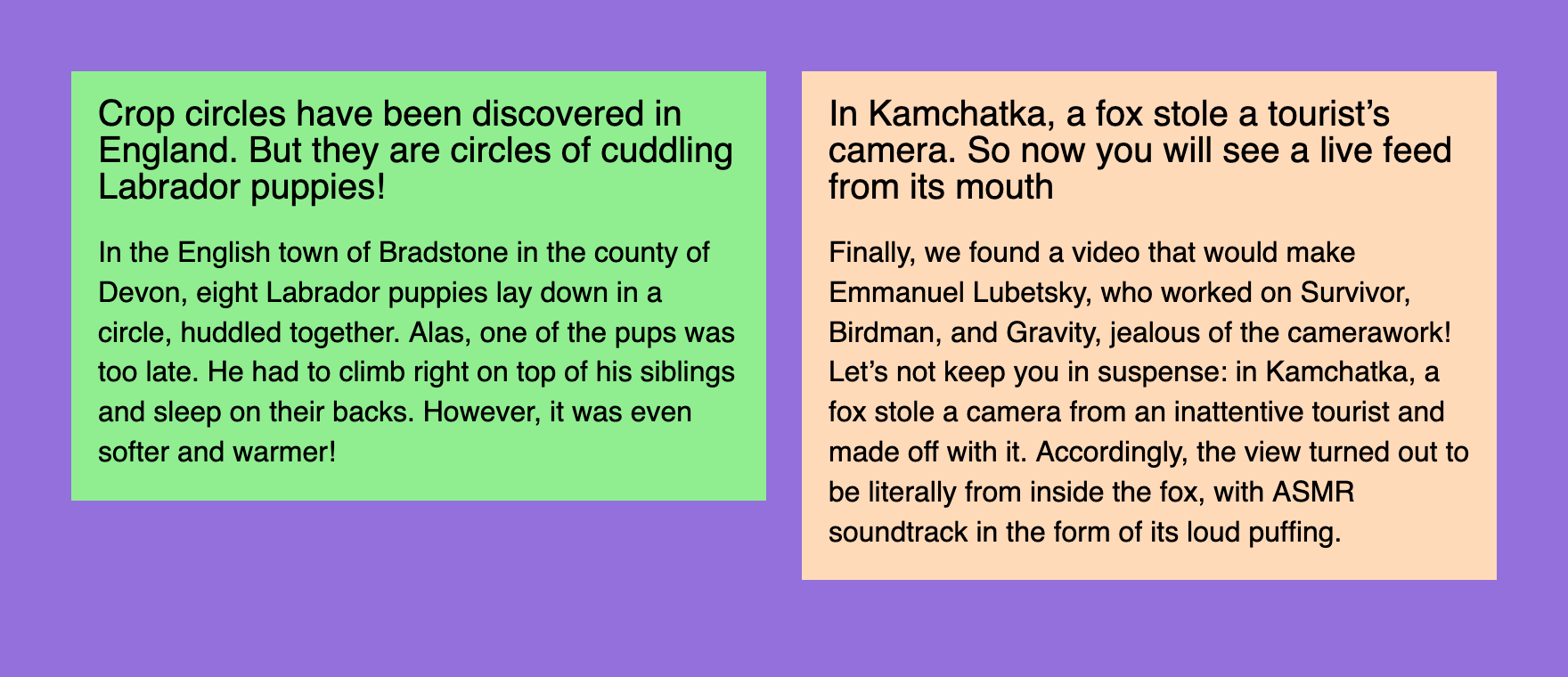
Green and peach news cards with a title and some text sitting in a row on a violet background with a gap between them. The look that we’re aiming for

The news component will always stay the same, we’re going to play with the columns component only. The first news will have a lightgreen background, the second one — the famous peachpuff.

Reasonable six

How would you sort the list of reasonable options? Well, probably not alphabetically. From the best to the worst? They’re all good at certain situations and have some unique advantages. So I decided to go with the historical order: I’ll start with the ones that I’ve learned first and finish with the modern ones.

Tables

⚙️ Demo: two columns and a gap with tables

Tables were the first layout tool available in browsers. And I used them to create my first webpage back in 2002. To make a table layout you need a parent wrapper <table>, some <tr> rows, and <td> cells for columns.

<table class="columns">
<tr>
	<td class="columns__item columns__item--first">
		<!-- Left -->
	</td>
	<td class="columns__item columns__item--second">
		<!-- Right -->
	</td>
</tr>
</table>

I’m going to use BEM notation for class names, just like I’d do in a real project. And we’re going to use pretty much the same column component structure for all demos, but in some cases, we won’t need first/second modifiers.

It’s worth noting that even though tables are listed in the “reasonable” group, they’re quite outdated and should be used only for… you know, tables and tabular data. You might have a reason to use them for email layouts, but I’m not even sure if they’re needed there anymore. And it’s a nightmare from the accessibility point of view, so let’s consider it a history lesson.

To make tables disappear and behave like a neutral column component we need to fix some things: border-collapse and padding properties to remove extra padding and vertical-align: top to align content to the top. Yes, tables used to be the easiest way to align things vertically.

.columns {
	border-collapse: collapse;
}

.columns__item {
	padding: 0;
	width: 50%;
	vertical-align: top;
}

To make a gap in 2002 I’d use another empty cell in the middle with some extra element to fix the width. Wild times! But today I’d prefer some padding instead: 10px from the left and 10px from the right, nothing too fancy.

.columns__item--first {
	padding-right: 10px;
}

.columns__item--second {
	padding-left: 10px;
}

You might think that using display: table on a <div> could be considered another way of making a two-column layout. But I think that tables are tables, doesn’t matter if this behavior comes from browser or author styles.

And here comes the news:

<article class="news">
	<h2 class="news__title">Title</h2>
	<p class="news__lead">Content</p>
</article>

Once we have both news in each table cell, the first “reasonable” layout is ready. Ten more to go!

Floats

⚙️ Demo: two columns and a gap with floats

The next layout technique I learned were floats. They were invented for a newspaper or magazine-like content layouts where text would “float” around pictures, quotes, or similar elements. I tried this first in Adobe PageMaker when laying out an actual newspaper and it was very nice to have floats available on the Web too.

Some clever people realized that if you’d get rid of text and float one box to the left and another to the right, that would make a layout! Though it’s important to make sure that floated elements won’t compete for space, otherwise they’d just start dropping down from the row.

In this case, we won’t need any special HTML elements to make it work, so let’s stick with abstract divs. It’s just a layout, after all.

<div class="columns">
	<div class="columns__item columns__item--first">
		<!-- Left -->
	</div>
	<div class="columns__item columns__item--second">
		<!-- Right -->
	</div>
</div>

Here comes the main catch with floats: they need to be “cleared”. If you have floating elements in your container, they will fall out of it and the container would collapse to zero height.

There are two main ways of clearing floats:

  1. Change some properties of the container.
  2. Put some fake content at the end of the container.

Let’s go with the first option. Back in float layouts days, we’d use overflow: hidden, which comes with the obvious drawback: content gets clipped. But today we can use a special display value:

.columns {
	display: flow-root;
}

I’d call it display: clear-floats instead, but that’s why I don’t have a chance to get into CSSWG.

Now we need to set up columns’ width and since they’re not glued together like table cells, it’s possible to set them apart with half of the width minus half of the gap. The magic of calc wasn’t available back then, just like border-radius, but it’s 2022, so:

.columns__item {
	width: calc(50% - 10px);
}

Let’s finally float them to different sides of the parent:

.columns__item--first {
	float: left;
}

.columns__item--second {
	float: right;
}

And there you have it! The second slightly more “reasonable” two-column option. Let’s try the next one!

Inline blocks

⚙️ Demo: two columns and a gap with inline blocks

Layouts based on inline blocks were popular around the same time as floats. But they were a little bit more finicky to deal with. We’ll use the same markup as with floats, but we won’t need any first/second modifiers.

First of all, we need to make inline blocks out of our columns to make the whole thing work. Since they are inline they’re happy to stay “in line”, but they’re also blocks and you can still set their width (unlike just inline elements). Let’s also align them to the top, not the default baseline.

.columns__item {
	display: inline-block;
	width: calc(50% - 10px);
	vertical-align: top;
}
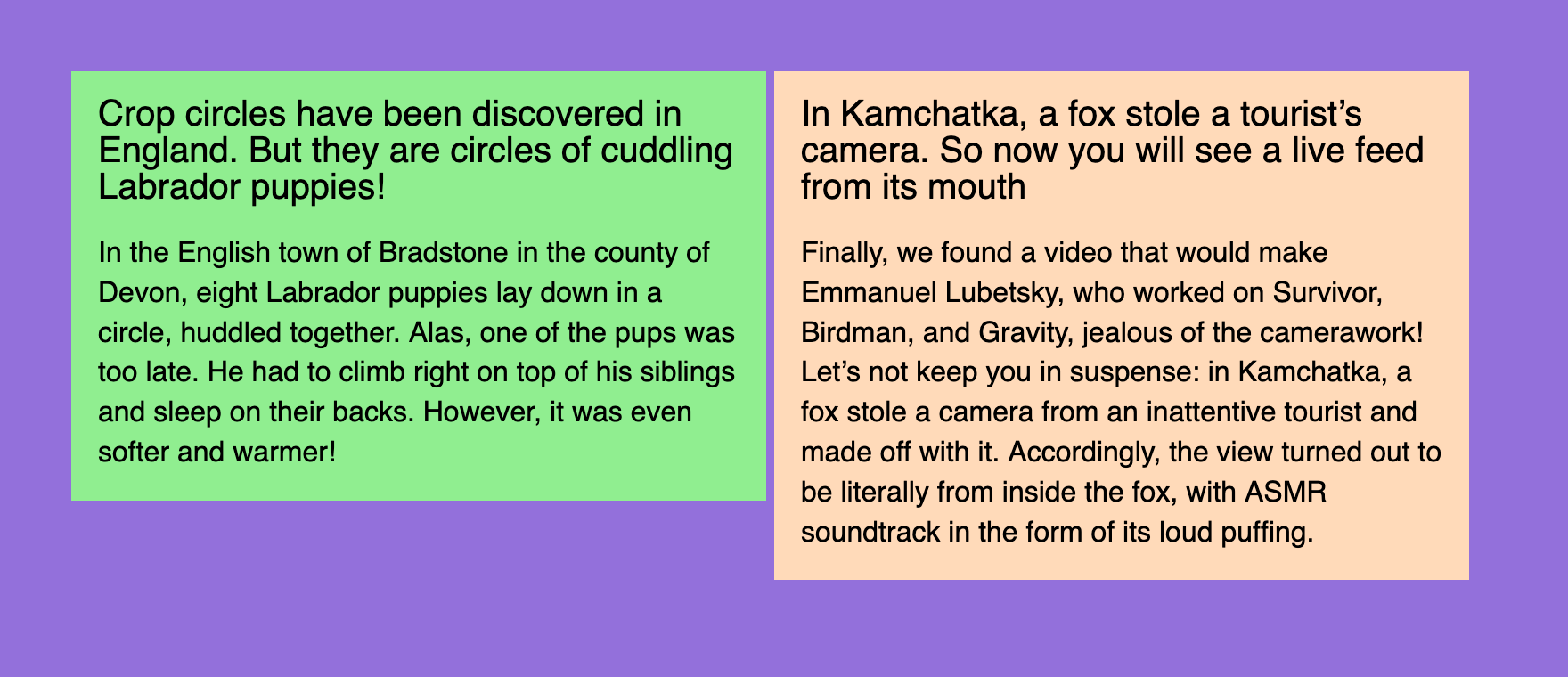
Green and peach news cards with a tiny gap between them. A gap that doesn’t look right

Now our news blocks are in “columns”, but the gap between them doesn’t look right. It looks like a typical white space. Well, because it is! All the nesting in our HTML is routinely squashed by the browser into a single white space since it’s an inline context.

There are two popular ways to get rid of it:

  1. Set the parent’s font size to zero.
  2. Remove all the spaces between the tags in markup.

The second way is rather fragile, so let’s go with the first one. And since font-size is an inherited property, let’s not forget to revert it for the content.

.columns {
	font-size: 0;
}

.columns__item {
	font-size: 16px;
}

Once we have both our columns sitting right next to each other, we can make the exact 20px gap between them. Since it’s the inline context, we can treat our parent element as a sentence, which makes nested columns words… do you see where it’s going? That’s right! The word-spacing property will do the trick.

.columns {
	word-spacing: 20px;
	font-size: 0;
}

.columns__item {
	word-spacing: normal;
	font-size: 16px;
}

Let’s not forget to reset it to normal for the nested elements, just like we did for the font-size.

That was the third way, the next three will finally start making sense, I promise.

Multi-columns

⚙️ Demo: two columns and a gap with multi-columns

It’s time for the first layout technique that was designed for layouts. Well, almost. Multi-columns can take any content and make it flow through the columns with some native gaps in-between. As seen in newspapers!

.columns {
	columns: 2 20px;
}

That’s it! I’m not a big fan of magic shorthand properties like flex, but I just couldn’t resist. Two columns and a 20px gap set in a single property! Isn’t it elegant? But there’s something wrong:
Green and peach news cards in a row, but the second card’s heading starts in the first column and the rest goes to the second. Broken TV effect

Since content is flowing from one column to another, some block parts are flowing too. It looks like a broken portal or an old TV, but there’s an easy fix: a polite avoid value for the brutal break-inside property.

.columns__item {
	break-inside: avoid;
}

That was quick! The fourth two-column layout. Let’s see if there’s anything even better than that.

Flexbox

⚙️ Demo: two columns and a gap with Flexbox

Here comes the most popular layout technique these days. It’s been around for a while, but back in the old days there used to be differences in browser implementations and just obvious bugs that made Flexbox tricky to use. But not anymore!

Now it’s as easy as:

.columns {
	display: flex;
	gap: 20px;
}

.columns__item {
	width: 50%;
}

But if you don’t have the luxury of supporting only recent browser versions, you’ll have to say goodbye to the gap property and use some extra code to make some space between columns. Push the columns to the sides and make sure their width is set with calc just like we did before.

.columns {
	display: flex;
	justify-content: space-between;
}

.columns__item {
	width: calc(50% - 10px);
}

Finally, something modern and usable, the fifth already! Flexbox is relevant today, unlike many techniques we’ve discussed. But these days I often reach for the next option.

Grid Layout

⚙️ Demo: two columns and a gap with Grid Layout

Seriously, Grid Layout makes so much sense in almost every layout situation, even for micro-layouts like putting an icon next to a word. Remember? This is what we’ve started from:

.columns {
	display: grid;
	grid-template-columns: 1fr 1fr;
	gap: 20px;
}

The beauty of it is that the whole layout is defined by the container. Sure, in some cases you’ll need to apply some properties to the nested elements, but it’s possible to achieve basic layouts using just the container’s properties. It’s especially useful for making your layouts responsive with Media Queries.

Also, because grid-gap and later just gap properties were part of the initial Grid Layout implementations, you don’t have to worry about browser compatibility so much, compared to gap in Flexbox.

That was way too simple the sixth way of making a two-column layout. Don’t worry, we have some pretty weird things coming up.

Weird five

There’s no historical order here. I just tried to list the options from the least weird to completely wrong. And what were the problems that made me split these methods into a special group?

First of all, they’re not always playing nice with the content flow. On the Web, we used a principle that the next content block would go right after the previous one, not on top of it. And once the previous block gets smaller or bigger, all the following blocks move up or down with it.

If you ever hand-coded an SVG file, you probably know what I’m talking about. Imagine if every block would be absolutely positioned at the top left corner of the document. That would make our job much more difficult. It’s totally fine for the SVG as an image format, but not acceptable for a content layout.

Other methods are making things too complicated with extra markup, misusing some CSS properties, making it work only in a single browser, or compromising the content accessibility. Still, let’s explore them one by one to learn something new, or at least have some fun.

Positioning

⚙️ Demo: two columns and a gap with positioning

Positioning is not the best layout technique because it breaks the content flow, one of the main principles of the Web. But it’s still a useful tool in some cases. Unlike shapes in SVG, we don’t have to position elements from the top left corner of the document every time: fortunately, there’s a way to nest positioning.

Let’s keep the parent component in the flow with position: relative. In this case, nested column positioning will start from the parent component, even though it will collapse to zero height just like with floats. Unfortunately, there’s no way to “clear” positioned elements.

.columns {
	position: relative;
}

.columns__item {
	position: absolute;
	top: 0;
	width: calc(50% - 10px);
}

Since absolutely positioned elements are in their parallel world, they tend to contain things in a funny way, so let’s limit their width with calc. And just like with floats, let’s push our columns to the sides so they won’t overlap.

.columns__item--first {
	left: 0;
}

.columns__item--second {
	right: 0;
}
Green and peach news cards in a row, but on a tomato background this time. The first dangerously red option

Hmm, there’s something different with this demo! Unlike previous purple demos, this one has a page background filled with tomato color. That’s because it looks slightly more dangerous to highlight the nature of this group.

So there you have it: the first weird way. Nothing too scary, right? Of course, we’re just warming up.

Writing mode

⚙️ Demo: two columns and a gap with writing mode

To understand how the next method works, let’s think about this very text: not the meaning of it, but the shape. I’m writing it in horizontal lines that go one after another from top to bottom. This behavior is common for many languages and controlled with the writing-mode property. In this case, its value is horizontal-tb, meaning “horizontal, top to bottom”.

But in some languages text could go in vertical columns, not horizontal rows. This gives us two other writing-mode values: vertical-rl and vertical-lr. The first part of the value is fairly simple, the second depends on the direction of the text: LTR or RTL. Anyway, new lines in this vertical mode go either to the left or to the right from the previous one.

Knowing that let’s try a silly thing: change the parent’s block writing mode to vertical, so the lines would become columns and start from the right.

.columns {
	writing-mode: vertical-lr;
}
Green and peach news cards in a row on a tomato background, but peach goes first, there’s no gap, and each card is rotated 90 degrees clockwise. You might have to tilt your head a bit

See, this already looks like a layout! But some things need to be fixed to make it usable. Just like in font-size: 0 case we need to restore the writing-mode for the columns to the previous state. And while we’re at it, let’s add width to our columns.

.columns__item {
	width: 390px;
	writing-mode: horizontal-tb;
}

Unfortunately, there’s no way for us to use the gap property outside of Flexbox or Grid Layout. So let’s use the good old trick: a column followed by another column will get the right margin.

.columns__item + .columns__item {
	margin-left: 20px;
}

I probably should’ve used .columns__item—first selector instead, but that would be way too easy. I’m trying to use as many tricks as possible here!

Hopefully, you can smell the same weird thing in both font-size: 0 and writing-mode: vertical-lr cases: they both fragile and misuse properties that weren’t meant for layout.

Still, the second weird two-column layout. Ready for another one? Let’s go!

SVG

⚙️ Demo: two columns and a gap with SVG

I already mentioned SVG as merely a graphics format that could be hand-coded, but doesn’t fit our layout needs. Sorry, but I lied to you. You weren’t ready for the truth at the beginning. But now you’ve been through a lot of weird stuff and are ready for anything.

Let’s start from CSS… and finish right away. This is the only styling we’re going to need.

.columns {
	display: block;
	width: 100%;
	height: 100%;
}

You can already see that this method is as friendly to content flow as absolute positioning (not at all). As for HTML, it’s not going to look pretty:

<svg class="columns">
	<foreignObject>
		<article class="news news--first">
			<h2 class="news__title">Title</h2>
			<p class="news__lead">Content</p>
		</article>
	</foreignObject>
	<foreignObject>
		<article class="news news--second">
			<h2 class="news__title">Title</h2>
			<p class="news__lead">Content</p>
		</article>
	</foreignObject>
</svg>

Well, it’s not exactly HTML, but rather SVG with some HTML inside. Still, inside of the HTML document. I don’t know if it’s legal, but it’s fully valid:

Document checking completed. No errors or warnings to show.

Usually, SVG won’t allow you to have some arbitrary HTML inside, apart from similarly named <a> and <script> SVG elements. But if you ask nicely using <foreignObject> it’ll be fine.

To make it work, we need to position these foreign agents… sorry, I mean foreign objects using presentational attributes. This is pretty common and quite handy in SVG since it’s merely a graphics format, remember? Instead of left/top we have x/y, the rest is pretty similar. But there’s no easy way to make right: 0 alternative, so we’ll have to position the right column from the left as well.

<foreignObject x="0" y="0" width="390" height="100%">
	<!-- Left -->
</foreignObject>
<foreignObject x="410" y="0" width="390" height="100%">
	<!-- Right -->
</foreignObject>

Unfortunately, there’s no way for SVG-wrapped content to influence the parent’s dimensions as HTML elements do. So we’ll have to set it ourselves: in our case, it takes the whole page’s height.

That’s the third weird two-column layout. Let’s explore a slightly more reasonable fourth one to prepare for the worst.

Element

⚙️ Demo: two columns and a gap with element

When setting up the rules, I mentioned that we’re trying to make something practical here, not just draw two boxes next to each other. But there is a way to take some real content and draw it as a background image. It’s not Canvas, it only works in Firefox, and you should never use it. Sounds exciting!

To make it work, let’s resize our columns to half of the parent width minus half of the gap, the usual thing. Then we clip them so they would become invisible and take them out of the flow with positioning. Sure, why not.

.columns__item {
	position: absolute;
	clip-path: inset(50%);
	width: calc(50% - 10px);
}
DevTool’s overlay box with the class name and dimensions over an invisible news card on a tomato background. Not display: none, but visually hidden

See, the columns are still there, but they’re invisible. Let’s put them back the way we need them! But the parent’s height is collapsed now without any content, let’s fix it with height: 100%. Relative positioning would keep those columns sizing and position relative to the parent block.

.columns {
	position: relative;
	height: 100%;
}

Now it’s time for some magic. Only for this demo we have IDs for each news in our markup: news-first and news-second. We can use those IDs to make these elements sources for background-image property with -moz-element function. Thanks to multiple background images, we can use just a single element for that. Positioning our elements: the first goes to left top, the second goes to right top. And we don’t need the repeating.

.columns {
	background-image:
		-moz-element(#news-first),
		-moz-element(#news-second);
	background-position:
		left top,
		right top;
	background-repeat: no-repeat;
}

The CSS syntax of VS Code thinks that something is wrong with IDs in the functions, but it works! Well, only in Firefox at the moment. And as I mentioned before, it’s not ready to be used in any production code. Though it’s not just made up, since it’s a part of CSS Images Module Level 4 draft.

Let’s hope this feature will be supported in all browsers at some point. It’s been around for a while only in Firefox. But once again, using it for laying out content is not a good idea in any case.

The fourth weird layout method wasn’t that bad compared to what’s coming next. I sincerely apologize in advance.

Frames

⚙️ Demo: two columns and a gap with frames

You might know what <iframe> is, but you probably haven’t used the <frame> element much. It serves a similar purpose by giving you a “window” to another document. The main difference between them is that <iframe> is a standalone element, but <frame> elements come in sets called <frameset>. And those framesets have some layout capabilities!

To make the layout that we’re aiming for, we’ll need three frames in a set: two for columns and one in the middle for the gap. The exact widths for our frames could be specified in the cols attribute. It doesn’t matter that the total width exceeds 100%, browsers won’t overflow the set, just like they do with tables.

<frameset cols="50%, 20, 50%" border="0">
	<frame frameborder="0" src="">
	<frame frameborder="0" src="">
	<frame frameborder="0" src="">
<frameset>

Unlike the <iframe> elements where “i” stands for “inline”, <frameset> is supposed to take the whole window. Not only that, it is supposed to replace the <body> element. It would be impossible to use such a layout technique on a page with other elements. No problem! We can wrap it in another inline frame.

Frames also require external documents to work, so you’d have to separate your <frameset> into columns.html and link it in <iframe> via src attribute. You’d also need to separate news into news-one.html and news-two.html files and link them via src attributes as well. Remember, I apologized for the method in advance!

But there’s another way we can make it work without external files and nested documents. Well, sort of. We can use data:uri and nest everything in a single document. But we should be careful with quotes, you’ll see why.

Let’s start with CSS for the <iframe>, nothing too fancy:

.columns {
	display: block;
	width: 100%;
	height: 100%;
	border: none;
}

And here comes the markup, the most exciting part. Instead of the URL of the file in src attribute, we have its content with the special data:text/html, prefix to let the browser know that it’s not a URL, but the “file” itself. The content starts with <!DOCTYPE html> to stay in standards mode, then follows the charset (just in case). I skipped the <title> element because I’m a bad person. Please don’t ever do it.

<iframe class="columns" src="data:text/html,
	<!DOCTYPE html>
	<meta charset='utf-8'>
	<frameset cols='50%,20,50%' border='0'>
		<frame frameborder='0' src='data:text/html,'>
		<frame frameborder='0' src='data:text/html,'>
		<frame frameborder='0' src='data:text/html,'>
	</frameset>
"></iframe>

Now we have three nested frames with empty files in src attributes. We’re going to keep the middle one empty because it’s just a gap. As for the other two, there will be our news documents. I usually have double quotes in my markup, but I had to switch to single ones in the nested document to make it work. On the next nesting level, I’ll just stop using them altogether.

So let’s get the actual content the same way we did with the <frameset>: barebones HTML document, some styles, and the news. Unfortunately, I couldn’t make the <link rel="stylesheet" href="news.css"> work, so I had to use inline styles. But I wouldn’t blame it for giving up in such a mess of a markup.

<iframe class="columns" src="data:text/html,
	<!DOCTYPE html>
	<meta charset='utf-8'>
	<frameset cols='50%, 20, 50%' border='0'>
		<frame frameborder='0' src='data:text/html,
			<!DOCTYPE html>
			<meta charset=utf-8>
			<style>
				/* News styles */
			</style>
			<article class=news>
				<h2 class=news__title>Title</h2>
				<p class=news__lead>Content</p>
			</article>
		'>
	</frameset>
"></iframe>

The same goes for the second news, the only difference is background color and content. And the thing that surprises me the most is that it works in Firefox, Chrome, and Safari, even though <frameset> and <frame> elements are deprecated for a long time.

The only problem I couldn’t solve is the <frameset> background color in Safari: for some reason, it’s white, though it’s transparent in other browsers. This behavior is not mentioned anywhere, even in HTML spec that describes <frame> and <frameset> behavior in detail for compatibility reasons.
Green and peach news cards in a row on a tomato background, but the gap and the space below them are filled with white. Safari ruined an otherwise perfectly viable layout option

That was the last weird two-column technique I came up with. Was it practical? Hell no! Did I have a lot of fun building it? Definitely.


I hope you’ve learned something new along the way. That’s the beauty of the Web platform: there are multiple ways of doing the same thing. And if you know all of them you’re practically unstoppable and ready to implement anything that life might challenge you with.

And if you liked this kind of thinking, you might enjoy the “How do I draw a line?” video, by Heydon Pickering.
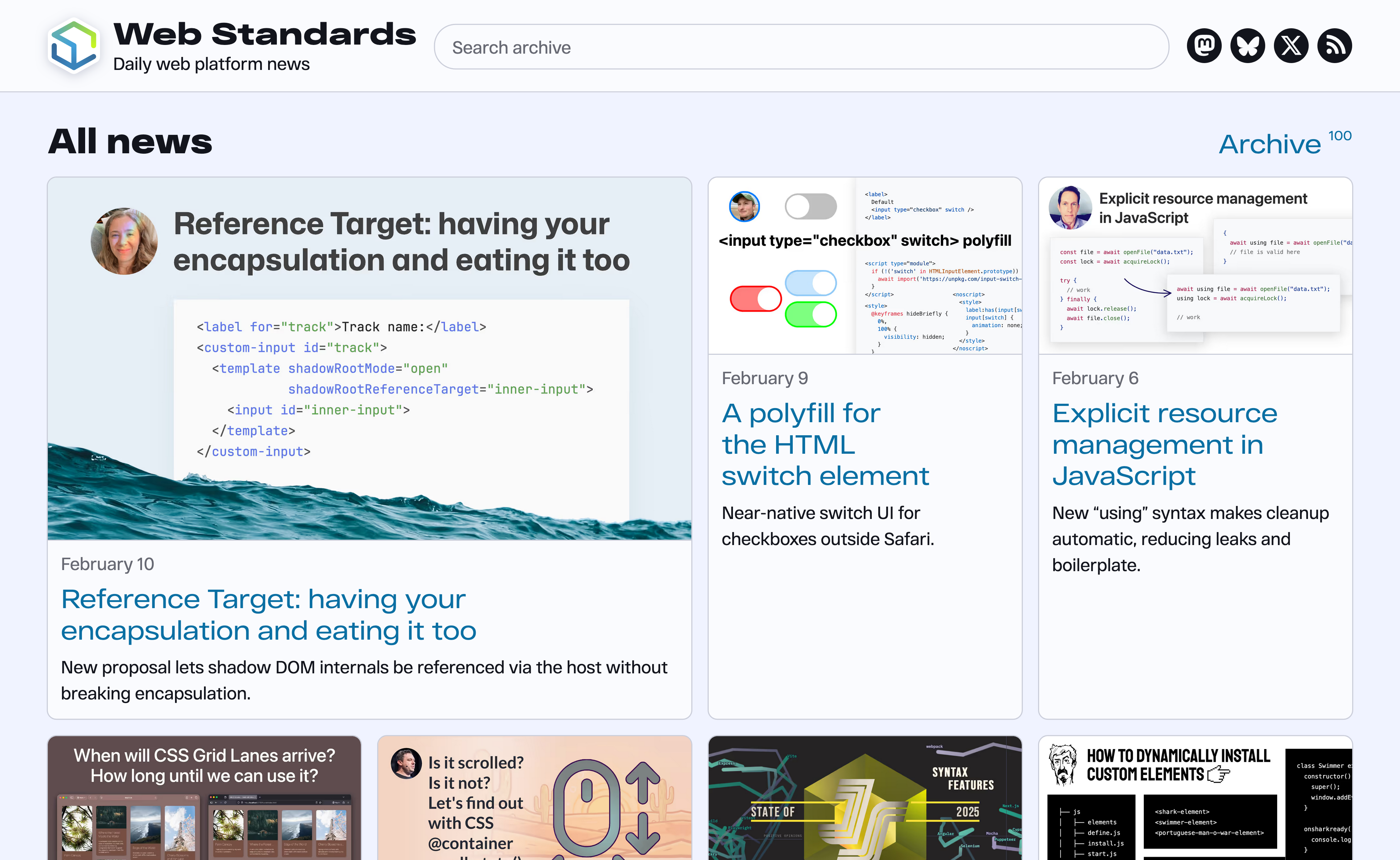
https://pepelsbey.dev/articles/two-columns/