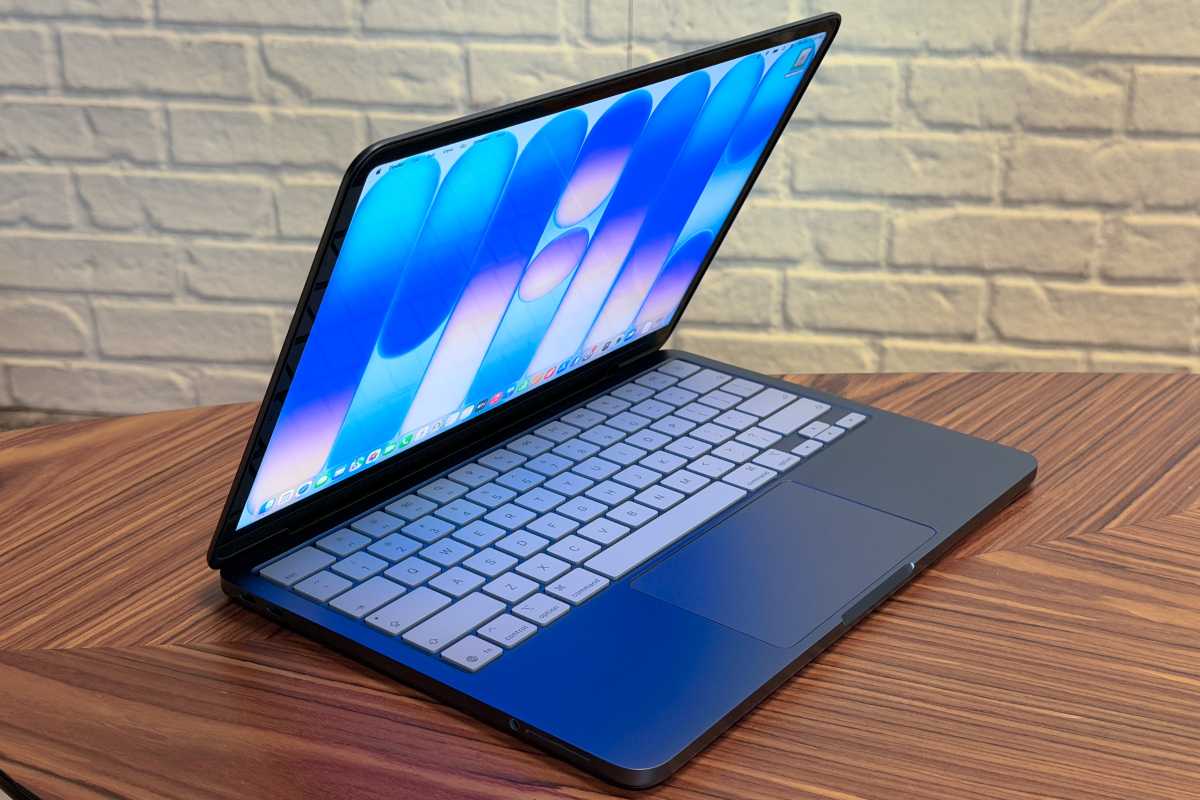
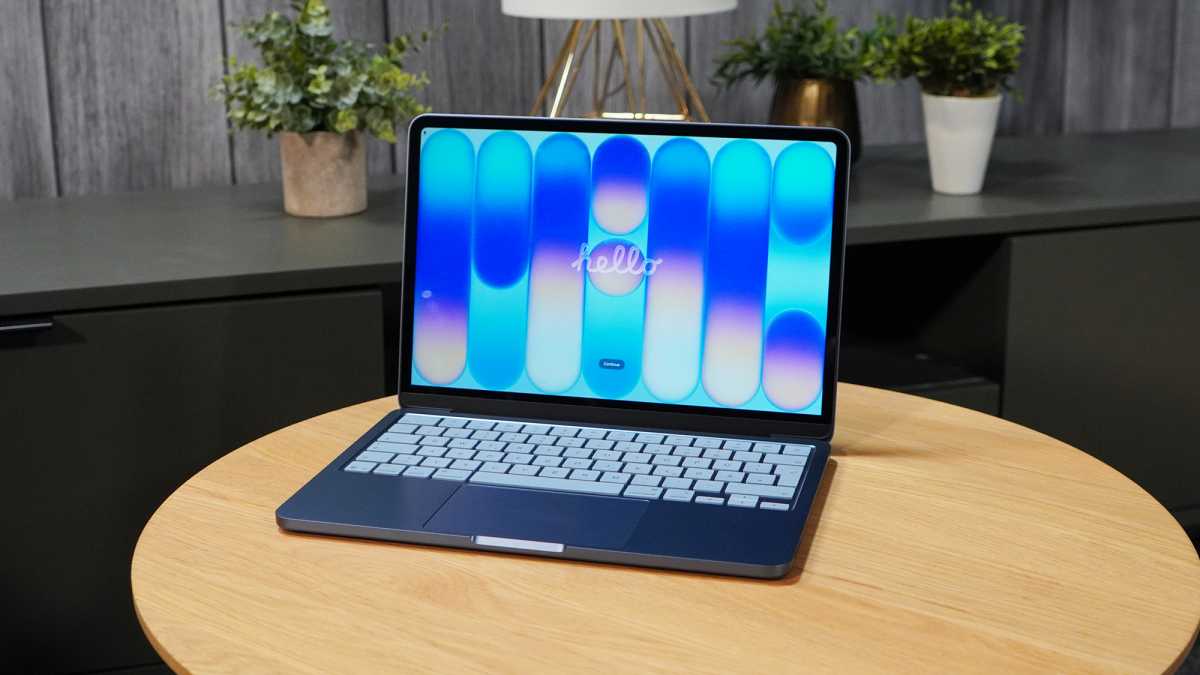
Whether you’re planning to buy a new Mac or you got one as a gift, your current Mac doesn’t need to end up in a closet. So what do you do with it? If you aren’t planning to give it to a lucky friend or family member, you can trade or sell it to help pay for that new Mac. Here’s how to get every last bit of value out of your old Mac.
Your Mac’s physical condition plays a key role in what you can get in return during a trade-in sale. If you have a Mac that you plan to keep for a while but know that you’re going to eventually trade or sell it when you upgrade, do what you can to take good care of it.
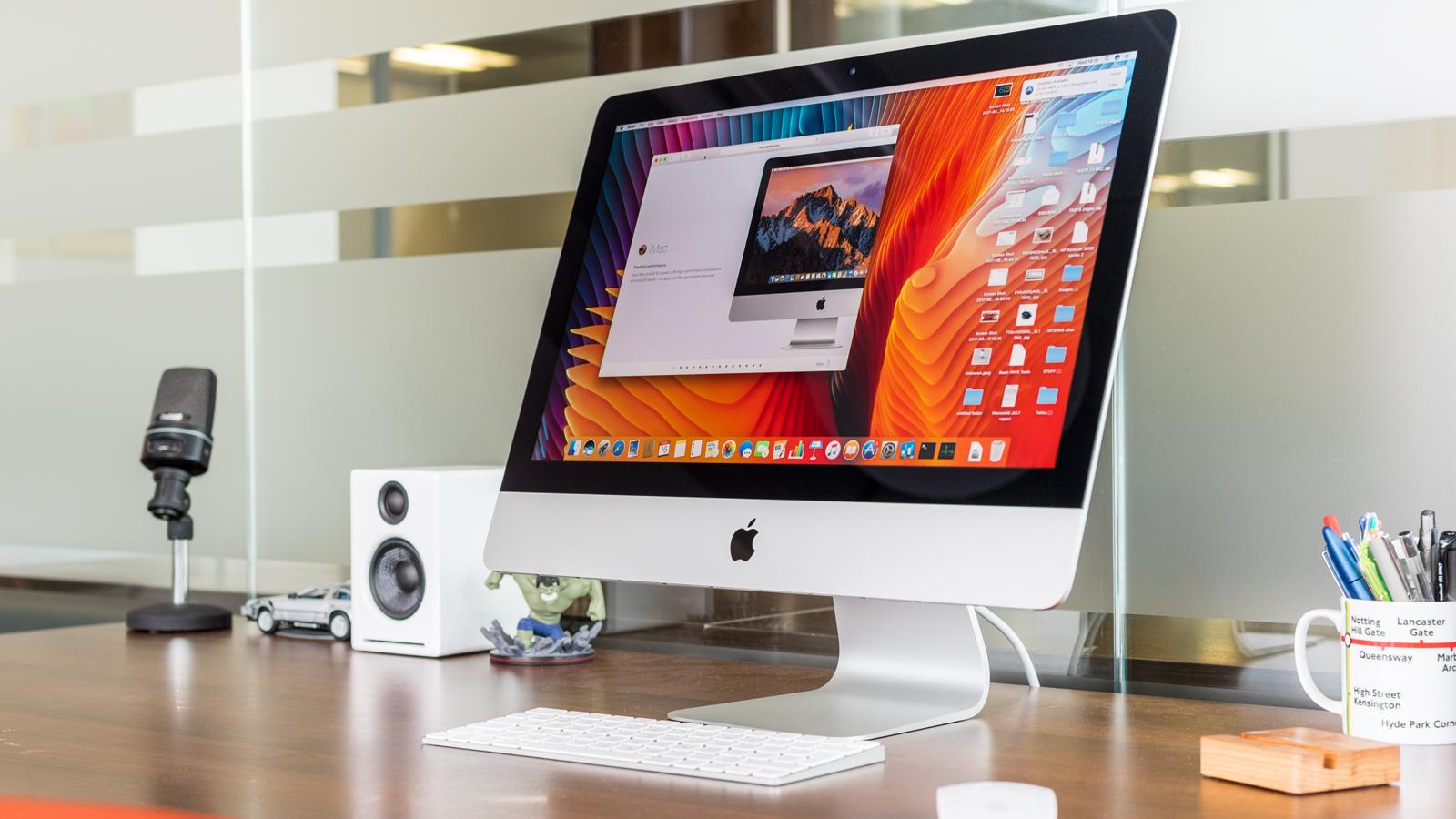
Desktop Macs like the Mac mini and iMac are easy to maintain since they won’t move from their location very much, if at all. Wipe off the dust that accumulates over time. Dust build-up can make your Mac work harder to keep itself cool, so regular dusting also makes sure your Mac runs efficiently. If you have an iMac, make sure your display remains pristine by cleaning your screen with a soft cloth every few weeks. Screen protectors are also available, but they require a great deal of patience and a good amount of skill to put on properly.
Laptop Macs are more prone to damage since they’re meant to be brought with you to work remotely. Use a good quality laptop bag, and always keep in mind that you’re using a pricey investment–we’ve all seen plenty of people at our local coffee shop handle their laptops carelessly. Don’t be that person. Speaking of coffee shops, try to keep beverages and food away from your MacBook in case a spill happens.
Be careful with how you use it. For example, if you’re connecting a USB device, try not to blindly plug it into a port. Feeling around the Mac’s port with a connector can scratch up the case, leaving an unsightly look of wear that can leave a bad impression on someone evaluating your computer.
Keep the original box (you don’t need the shipping box) and documentation. If you have the original cables and adapters, save those, too. People sometimes upgrade to faster chargers or longer cables, so keep the originals with the box. If you don’t have these items, that’s okay, you’ll still be able to trade or sell your Mac. But you’ll probably get more with them, especially if you sell it privately.
Wipe your data from the Mac: The steps
Save your data
When you’re ready to trade or sell your old Mac, make sure you back up the data that’s on it. If you haven’t backed up your Mac previously, we recommend getting an external storage device.
The easiest way to back up is Apple’s built-in Time Machine. Using Time Machine is ideal because you can use it to perform a data restore on your new Mac, which then pulls over all of your old settings, files, and apps, so your new Mac will be configured just like your old one. You can also use a third-party backup service or cloud storage like iCloud or Dropbox to save important files, such as your Documents folder, photos, and media files. You’ll be able to restore those files to your new Mac, but any apps will need to be downloaded from the App Store or the developer’s website. You’ll also need to redo your settings on your new Mac.
Deauthorize your Mac from your Apple ID
This is an important step. Apple tracks what devices you use, and if you don’t sign out, the new owner of your old Mac may not be able to set it up. To sign out, use your iPhone, iPad, or another Mac and go to your Apple ID account at appleid.apple.com, then log in with your username and password. Go to the Devices section of the webpage, where you’ll see a list of devices associated with your Apple ID. Click on the Mac you want to deauthorize, and a pop-up appears. Click the Remove from account button. A confirmation dialog will appear, and you’ll need to confirm that you want to perform this action.
Once that’s done, on the old Mac, make sure it is logged out of iCloud by checking System Preferences/System Settings. You’ll also want to make sure it is logged out of Messages, which you can check in the Messages app.
Foundry
Reset the NVRAM on Intel Macs
Intel Macs use NVRAM to quickly access certain settings. To reset the NVRAM, turn off your Mac. Then hold down the Option, Command, P, and R keys on the keyboard and power on the Mac. Keep holding down those keys as your Mac boots and then boots again. If you hear the boot sound a second time or you see the Apple logo appear, disappear, and then reappear, you can let go of the keys. This isn’t necessary on M-series Macs.
Erase the storage device and reinstall macOS
Make sure your data is saved and you’re connected to Wi-Fi before you proceed with erasing the storage and reinstalling macOS using macOS Recovery. Here’s how to start the process:
On an Intel Mac, hold down the Command+R keys while turning on the computer.
On an M-series Macs, press and hold down the power button while turning it on.
The macOS Recovery menu will appear. You can then use Disk Utility to wipe your Mac’s drive. (Apple has detailed instructions on how to do this for Intel and M-series Macs.) When Disk Utility is finished, quit the app, and then click on Reinstall macOS in the Recovery menu to install the operating system.
The macOS Recovery menu.
Apple
Sell your Mac
Okay, now that your old Mac is ready to go, you need to decide where you’re going to sell it. There are several third-party sites that you can go to, though you may not get as much as you could from selling directly to someone through eBay, Facebook Marketplace, or Craigslist. But selling to a reseller can be ideal if you want to avoid the hassle of dealing with other people. Here are some of the more popular buyback sites and what they offer.
Gazelle buys (and sells) MacBooks only–its website does not appear to allow you to sell them a desktop Mac. After letting them know the condition of your item, they provide a quote that’s good for 30 days and covers shipping. After receiving your Mac, they’ll examine it and may make you a new offer if the Mac doesn’t match the initial evaluation. If you turn down the new offer, you can get your Mac back, but you have to pay for shipping. They pay you with a check, through PayPal, or an Amazon gift card.
Swappa
Swappa is a marketplace where you sell directly to other people. To make sure transactions are secure, Swappa verifies listings, handles PayPal-only payments, and organizes shipping. The fees Swappa charges are included in the posted prices. If you’re hesitant about posting on eBay or Craigslist, Swappa is a good alternative.
Trade in your Mac
You may not get as much as you could by selling your Mac to a person or third-party service, but trade-ins are almost hassle-free and convenient. Trade-ins are also often available when a Mac isn’t in sellable but working condition. You usually get compensated with a gift card, store credit, or credit toward your purchase.
Apple
The trade-in process with Apple is quick and easy. Apple asks a few questions about your machine’s condition (you need to provide the serial number), and then the offer can be applied to a new purchase. Apple will contact you if it needs to revise its offer after inspecting your Mac.
Your trade-in value can be used toward the purchase of a new Mac on Apple.com.
Apple
Amazon
Amazon has a Trade-In program, but as of this writing, it does not seem to be open to Macs of any kind. You can submit iPads, iPhones, or other non-Apple devices, and they pay you with an Amazon gift card. It takes a while to process your trade-in, and you can get more at other sites, but if you shop at Amazon frequently, it’s an attractive service.
Best Buy
Best Buy has a trade-in program, but you’ll need to find your exact model before you can start the process. You get a Best Buy gift card.
Walmart
Walmart has a program in partnership with CExchange, but it’s only for Mac laptops. You get a Walmart eGift card.
Apple holds what has traditionally been referred to as its “Back to School” promotion every year – although it is now referred to by Apple as the “College Student Offer” or “Higher Education Offer” to avoid confusion, because it is only open to students in higher education, along with qualifying educational staff and teachers, rather than school-age children.
As part of the promotion, eligible students can qualify for an incentive when purchasing qualifying Apple products, which are already discounted through Apple’s Education Store. In recent years, these incentives have included free AirPods, a free Apple Pencil and other accessories.
Apple’s “Back to School” deal runs in various regions around the world during the summer break for universities and colleges. The promotion typically ends around a month after the first university semester or term begins in each country, so it will be starting in North America very soon.
Region2026 Start date2026 End Date2026 DealNorth AmericaMid-June (TBC) Mid-September (TBC)Expected: Free/discounted AirPods, Apple Pencil, Keyboards and MiceU.K. & Europe Mid-July (TBC)Mid-October (TBC)Expected: Free/discounted AirPods, Apple Pencil, Keyboards and MiceAustralia January 7, 2026March 11, 2026Confirmed: Free/discounted AirPods, Apple Pencil, Keyboards and Mice
Read on to find out everything you need to know about Apple’s Higher Education promotion this year, including when it is expected to begin in your region, what products and incentives may be included, who qualifies, and how to take advantage of the offer.
Apple’s “Back to school” deal: At a glance
What is Apple’s “Back to School” deal? The 2026 deal is expected to be free AirPods, Apple Pencil, and other accessories with purchases of qualifying Macs and iPads.
When is Apples “Back to School” deal? It is expected to run during June to September in North America, July to October in the U.K. and Europe.
Is this the only student saving from Apple? No, Apple offers a discount on Macs and iPads all year round to qualifying students.
Who qualifies? Verified students in higher education institutions – and their parents.
Who can get Apple’s “Back to School” give-away?
Current and newly accepted higher education students – and their parents
Apple
If you are enrolled at a higher education institution (post-K12 education, such as a university or college), or are the parent of a student who is enrolled, you qualify for Apple’s year-round education pricing as well as the “Back to School” promotion while it is running.
You will need to verify your eligibility before you can access the offer. Prior to May 2026, verifying student status in some countries – including the U.S. – only required an .edu email address and the name of a higher education institution. Apple has since tightened its verification requirements.
As a result, shoppers now need to verify their student status through UNiDAYS (as was already the case in the U.K.). Students are typically required to provide their name, date of birth, and school email address, then search for their institution and wait for their student status to be confirmed.
Apple’s education pricing is not available to parents buying for school-age children, but it is available to parents who are homeschooling their children.
When does Apple’s “Back to School” deal start?
U.S. & Canada: From mid June – end September 2026.
In North America, the “Back to School” deal is expected to run from mid-June through the end of September. Apple has not yet confirmed the official dates, but last year the promotion ran from June 17 to September 30 in the U.S. and Canada, so a mid-June launch is likely again this year.
Because the academic summer break begins and ends later in Europe, the promotion is expected to launch in the U.K. and across Europe in mid-July. In 2025, for example, the offer began on July 10 and ended on October 21.
The deal ran from January 7 to early March 11 this year in the Southern Hemisphere. Similar timings are expected in 2027.
What is Apple’s “Back to School” deal this year?
Free AirPods/Apple Pencil/keyboard/mouse were offered with qualifying purchases in the Australian promotion earlier in 2026.
The same giveaway is expected to launch later in 2026 in North America, the U.K., and Europe.
Foundry
During the Australian promotion, which ran from January 7 to March 11, 2026, Apple offered free or discounted accessories – including AirPods, AirPods Pro, Apple Pencil models, and Apple Keyboard, Mouse, or Trackpad products – with the purchase of qualifying Macs and iPads.
The following products were offered for free or discounted, earlier in 2026:
AirPods 4
AirPods Pro 3
Magic Mouse
Magic Trackpad
Magic Keyboard
Apple Pencil Pro
Magic Keyboard (for iPad Air/iPad Pro)
Apple also offered similar giveaways during its 2025 promotion, and, previously, Apple also included a discount for the AirPods Max.
However, this has not always been the company’s approach. From 2022 to 2024 in the U.S., U.K., and some other regions, Apple instead offered gift cards worth up to $150/£130, depending on the products purchased during the promotional period. While Apple could return to that format, it is not currently expected to do so.
As of May 2026, Apple has yet to officially confirm this year’s promotion in North America or Europe, but the company is widely expected to continue offering AirPods and the other accessories listed above as part of the deal.
Can students qualify for other savings at Apple?
Yes. Apple’s “Back to School” promotion is not the only education-related discount the company offers. Macs and iPads sold through Apple’s Education Store are discounted year-round, so qualifying students and educational institutions can save up to $100/£100 of a Mac or iPad at any time of the year.
The summertime Back to School promotion is offered in addition to these ongoing education discounts. We explain everything you need to know about qualifying for Apple’s education pricing – including how much you can save and how to shop through the Apple Education Store – in our Guide to shopping in the Apple Education Store.
In order to get Apple’s “Back to School” Deal you need to purchase a qualifying Mac or iPad from your local Apple Education Store during the promotional period.
You will need to verify your student status via UNiDAYS, as explained above.
Visit the Apple Education Store for your region using the links below:
Logging in from your university network may help simplify the verification process.
When you purchase a qualifying Mac or iPad, you will then be able to claim the promotional freebie or discounted accessory.
You can choose which of the giveaway product you want to receive when you make your order. In some cases the freebee comes with an additional cost, we include details of how much more you may need to pay in the tables below.
Which products qualify for Apple’s “Back to School” deal this year?
Apple’s Back To School deal in 2025.
Apple
Apple has yet to confirm which products will qualify for the the 2026 promotion in North America, the U.K. and Europe.
However, during the Australian promotion earlier in 2026, the following products qualified:
MacBook Air
MacBook Pro
iMac
iPad Pro
iPad Air
Will Apple include the MacBook Neo in the 2026 “Back to School” promotion?
Since the Australian promotion ended, Apple has launched the MacBook Neo, a new laptop aimed specifically at students.
As for whether Apple will offer free AirPods or other accessories with purchases of the MacBook Neo, we think that is unlikely.
While the new MacBook is clearly targeted at students, we do not expect Apple to include it in the promotion because of its already relatively low starting price.
Will Apple include the Mac mini in the 2026 “Back to School” promotion?
Apple has previously allowed the purchase of a Mac mini to qualify for the promotion, but not in 2025 or, so far, in 2026.
In recent times, the Mac mini has surged in popularity, especially among AI developers looking for a relatively inexpensive Apple Silicon machine capable of handling local AI workloads. This popularity, combined with ongoing global component shortages, has left Mac mini supply constrained as of May 2026, so we do not expect Apple to include it in the “Back to School” promotion.
Apple could also launch an updated Mac mini in the coming months, but even if it does, we still think it is unlikely to be included in the student deal.
Will Apple include the iPad A16 in the 2026 “Back to School” promotion?
Apple has previously allowed entry-level iPads to qualify for its Back to School promotion, but that was not the case in 2025 and, so far, it has not been the case in 2026 either.
With a new entry-level iPad expected later in 2026 – and the current iPad A16 lacking support for Apple Intelligence — our recommendation would be to choose an iPad Air instead.
Will Apple include the iPad mini in the 2026 “Back to School” promotion?
Apple has included the iPad mini in some Back to School promotions in the past. A new iPad mini is expected to launch in 2026 and that may affect Apple’s decision to include it in the deal.
Will Apple include the iPhone in the 2026 “Back to School” promotion?
Apple has never included the iPhone, Apple Watch, or any products other than selected Macs and iPads as qualifying purchases for its “Back to School” promotion.
The additional savings available through Apple’s “Back to School” promotion depend on both the product purchased and the promotional accessory being offered.
In previous promotions, students could save up to $199 by choosing a free Magic Keyboard, up to $179 by selecting AirPods 4 with Active Noise Cancellation, or up to $129 by choosing an Apple Pencil Pro.
If you select one of the more expensive accessories offered as part of the promotion, you typically need to pay the difference above the promotional discount amount. For example, in 2025, choosing AirPods Pro 3 required an additional payment of $70.
Below, you can see the kinds of savings Apple has offered in previous years. Once Apple confirms the 2026 promotion details for North America, the U.K., and Europe, we will update these tables accordingly
U.S. “Back to School” giveaway details: 2025
In summer 2025, U.S. students making the following purchases could either get free Mice, TrackPad, Keyboard, Apple Pencil, or AirPods 4, or get a discount on the price of the AirPods Pro 2 and Magic Keyboard cases for iPad. The terms and conditions of the deal are here: U.S.
BuyGetSavingAdditional spendMacBook Air or MacBook Pro AirPods 4 with ANC$179
AirPods Pro 2 $179$70 Magic Mouse $79 or $99
Magic TrackPad$129 or $149
Magic Keyboard $179 or $199 iMacAirPods 4$179
AirPods Pro 2 $179$70iPad Air or iPad ProApple Pencil Pro $119
AirPods 4$129
AirPods 4 with ANC$129$50 AirPods Pro 2 $129$120 Magic Keyboard for 11-inch iPad Air$119$130 Magic Keyboard for 13-inch iPad Air$119$180 Magic Keyboard for 11-inch iPad Pro$119$160 Magic Keyboard for 13-inch iPad Pro$119$210If you want AirPods Pro you have to pay a little more, but you are still getting $179 off.
U.K. “Back to School” giveaway details: 2025
U.K. students making the following purchases could either get free Mice, TrackPad, Keyboard, Apple Pencil, or AirPods 4, or get a discount on the price of the AirPods Pro 2 and Magic Keyboard cases for iPad. The terms and conditions of the deal are here: U.K.
BuyGetSavingAdditional spendMacBook Air or MacBook Pro AirPods 4 with ANC£179
AirPods Pro 2 £179£100 Magic Mouse £79 or £99
Magic TrackPad£29 or £149
Magic Keyboard $179 or $199 iMacAirPods 4£179
AirPods Pro 2 £179£100iPad Air or iPad ProApple Pencil Pro £119
AirPods 4£129
AirPods 4 with ANC£129£50 AirPods Pro 2 £129£100 Magic Keyboard for 11-inch iPad Air£119£130 Magic Keyboard for 13-inch iPad Air£119£180 Magic Keyboard for 11-inch iPad Pro£119£160 Magic Keyboard for 13-inch iPad Pro£119£210If you want AirPods Pro you have to pay a little more, but you are still getting £179 off.
Australian “Back to School” giveaway details: 2026
In summer 2026, Australian students making the following purchases can either get free Mice, TrackPad, Keyboard, Apple Pencil, or AirPods 4, or get a discount on the education price of the AirPods Pro 3 and Magic Keyboard cases for iPad. The terms and conditions of the Australian deal are here.
BuyGetSavingAdditional spendMacBook Air or MacBook Pro AirPods 4 with ANCA$299
AirPods Pro 3A$299A$130 Magic Mouse A$119 or A$149 Magic TrackPadA$179 or A$209
Magic Keyboard A$249 or A$279 iMacAirPods 4 (with ANC)A$299
AirPods Pro 3 A$299A$130iPad Air or iPad ProApple Pencil Pro $199
AirPods 4A$219
AirPods 4 with ANCA$219A$80 AirPods Pro 3A$219A$210 Magic Keyboard for 11-inch iPad AirA$199A$220 Magic Keyboard for 13-inch iPad AirA$199A$270 Magic Keyboard for 11-inch iPad ProA$199A$270 Magic Keyboard for 13-inch iPad ProA$199A$350If you want AirPods Pro you have to pay a little more, but you are still getting A$130 off.
Europe “Back to School” giveaway details: 2025
European students making the same purchases as those above could either get free Mice, TrackPad, Keyboard, Apple Pencil, or AirPods 4, or get a discount on the price of the AirPods Pro 2 and Magic Keyboard cases for iPad.
French details here. German details here. Spanish details here. Italian details here. Netherlands details here.
India “Back to School” giveaway details: 2025
The 2025 deal in India the Back to University was the same as in the U.S.: AirPods or Apple Pencil discounts.
Brazil and South Korea “Back to School” giveaway details: 2025
In Brazil and South Korea Apple gave away AirPods with Mac purchases and Apple Pencil with iPad purchases from January to March 13, 2024. The deal was the same in 2025.
Other ways to save money on a Mac or iPad
Even with the arrival or the MacBook Neo, a MacBook Air is still a good choice for students.
Foundry
If you don’t qualify for an education discount have a look at these round-ups of the best deals on a new Mac and iPad:
Apple released macOS 26.5 earlier this week, and it’s mostly filled with security updates, to go along with Maps’ Suggested Places and RCS end-to-end encryption. However, Apple added a new option for desktop Mac owners who think it’s too difficult to reach their Mac’s power button.
In the Energy section of System Settings for the Mac mini, iMac, and Mac Studio, there’s a new option labeled “Start up when power is connected.” According to an Apple support document, “Your Mac will now automatically turn on whenever you connect it to power, such as when plugging it into a power outlet or restoring power using an external power switch.”
Foundry
This new option is meant to address complaints about the Mac mini’s power button, which is located under the computer. You have to lift the computer slightly to access the button, which is awkward and a problem when the Mac mini is placed in a chassis or mounted in a specific way, as is somewhat common with the Mac mini due to its small size.
This option also allows users to use switches and other assistive accessories to control the power. Unsupported Macs will see the old option to “Start up automatically after a power failure.”
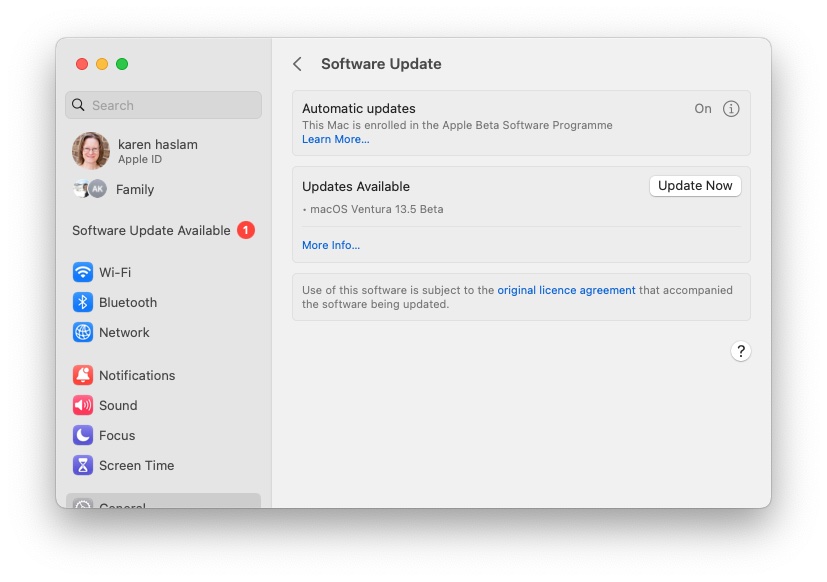
To install the macOS 26.5 update, go to System Settings > General > Software Update. The Mac will need to restart, and the installation takes several minutes.
On some Apple products, including the M4 iMac, MacBook Pro, and iPad Pro, a feature called nano-texture glass is available. This is something that was first introduced on Apple’s Pro Display XDR, before coming to other Apple products beginning with the long-discontinued 27-inch iMac. So, what is it, and should you spend hundreds more to have it adorn your screen?
What is nano-texture glass?
Glare is often a problem in brightly lit offices and homes, which can render the large, glossy displays little more than hugely elaborate mirrors. One option it to choose a display with a coating to give it a matte finish, but that is not without disadvantages.
Apple’s solution to the problem is nano-texture glass, which drastically reduces glare while avoiding the frostiness and washed-out colors that are often the compromise made when opting for a matte finish.
It’s all thanks to some clever design and a meticulous process that results in displays that can happily cope with bright light sources. The nano-texture glass surface is etched in such a way as to scatter the light that falls on it so that the image quality isn’t affected and the user experiences no glare and reflections.
How does nano-texture glass work?
One of the main causes of glare is light from lamps, windows, and other sources reflecting back at you due to the smooth surfaces of modern displays. Matte finishes combat this by having some kind of coating on the display that diffuses or breaks down the light due to its more angular surface. Sadly, this works both ways, so the light emanating from the display itself is also altered, resulting in the murkier results that usually accompany the technique.
Apple has taken things to the next level by foregoing a coating and instead physically altering the surface itself through tiny (nano) etchings. The pattern of the etchings means that light rays hitting the display are reflected off at a range of angles, eradicating most of the glare in the process.
The very clever part is that this somehow doesn’t seem to have much of an effect on the onscreen display. Of course, making all those microscopic etches in the glass is a precision job, which is why it costs more. For example, to get nano-texture glass on the iMac, you’ll need to get a higher-end model and pay an additional $200, while the cost for the M5 MacBook Pro is $150 and the M5 iPad Pro is $100 more than the standard glass (though it’s only available with 1TB or 2TB of storage). Add nano-texture glass to your Apple Studio Display and you’ll be paying an extra $300!
Apple
How can I clean nano-texture glass?
One of the quirks of Apple’s new Nano-texture glass display is that the company insists it should only be cleaned using a specific Apple cloth. One is included with every display, but we’re not entirely sure what magic ingredients make it such a special piece of fabric. in a scratch test performed by YourTube channel JerryRigEverything, scratches appeared with little effort on the nano-texture glass and began to file down “like a cheese grater on cheese” with less pressure than regular glass. He also found that regular cloths and paper towels performed well when cleaning the glass.
However, if you’ve just forked out a couple hundred bucks for a high-end display technology, it’s probably a good idea to follow Apple’s instructions and spend a little extra on a high-quality cloth.
How durable is nano-texture glass?
Nano-texture glass is as durable as standard glass. Since it doesn’t have a coating, there shouldn’t be any noticeable wear from regular use, however as noted by JerryRigEverything’s testing above, it does scratch easier than normal glass. His testing found that some objects that left no markings on regular glass created permanent marks on the nano-texture glass.
Which Apple devices have nano-texture glass options?
iPad Pro
The nano-texture glass is available with the 1TB and 2TB iPad Pro models, for an additional $100/£100 on the usual price.
The nano-texture glass is available with all MacBook Pro models, for an additional $150/£150 on the usual price. For some reason, adding nano glass is not an option when buying a MacBook Pro from Amazon.
The main reason for adding on the costly nano-texture glass feature is if you are struggling with glare—for example, if you use your iMac or Studio Display in a room with bright overhead lights or work outside on your iPad Pro. You will lose some contrast at certain angles, but if you’re consistently struggling to see your screen in bright light, or need to be absolutely confident that colors appear accurately, it will definitely be worth the money.
iPad Pro users will be interested in ano-texture glass as it offers a better tactile feel for artists and note-takers that leads to a superior writing and drawing experience by providing a subtle texture that mimics paper better than slippery glass.
Fingerprints and oil smudges on matte displays are also less noticeable compared to glossy displays.
A lot of Mac users don’t remember a time before Mac OS X (or macOS, or OS X, depending on the era), but before OS X arrived on the scene, the Mac ran on an entirely different operating system, the classic Mac OS, which was with us from the Mac’s launch in 1984 through the funeral Steve Jobs held for Mac OS 9 in 2002.
The original Mac OS evolved a lot across those 18 years. And perhaps its single most important update, System 7, arrived 35 years ago this month, in May of 1991.
It seems like a footnote now, but so much of what we take for granted on the Mac today was introduced in System 7. Take it from someone who was there–I wanted System 7 so badly, I downloaded a load of floppy disk images across my college computer network so I could install it. And I wasn’t disappointed by what I got. System 7 really did show the way to the future of the Mac.
Seven-year itch
As amazing as the original Mac operating system was, it was largely conceived of in the early 1980s and designed for extremely limited hardware. Even seven years after the first Mac shipped, it had only evolved in some limited ways. By the early 1990s, support for color displays had arrived, though the Mac was hardly what you’d call a colorful interface. Multitasking of a sort arrived, thanks to software called Switcher and later MultiFinder, but it was a severely constrained add-on.
Macs at the time had very little memory, which limited what they could do.
Foundry
And then came System 7.
Let’s start with multitasking. Early Macs had so little memory that it was a miracle they could run one program (plus the Finder), let alone more than one at a time. Some clever hacks let you run more than one app on some Macs with a lot of memory, but it wasn’t until System 7 that the Mac embraced the concept that you could run as many apps as would fit in your Mac’s RAM.
Apple added an Application menu to the menu bar, which indicated the currently open app, the forerunner of the modern macOS menu item that does the same thing. System 7 also introduced virtual memory, which allowed the system to use some disk space to save out memory and also dynamically allocate memory to the programs that really needed it.
I can’t underscore how much of a productivity boost this was. Before multitasking, copying data between multiple apps really was often an exercise of copying, saving, quitting, opening the next app, and pasting. If that seems archaic, let me assure you that you’re also imagining every step of that process happening at least ten times faster than it actually did.
System 7 was the first Mac operating system that supported multitasking. It had an application menu in the upper right corner of the Finder for switching apps.
Foundry
With more programs running, there were also more problems. Now you didn’t need to worry about a bug in one program, but in any of the programs you were running. Fortunately, System 7 also introduced the Force Quit command, activated by pressing Command-Option-Shift-Escape. (Today, we use the more modern Command-Option-Escape.) However, since the Mac wouldn’t get true memory protection until OS X arrived, Apple strongly encouraged you to immediately close all apps and reboot your Mac if you ever had to force quit an app.
Find it in Finder, finally
One of the jokes of the early Mac era was that the one thing the Finder app couldn’t do was find anything. While Spotlight was years away, System 7 did introduce a proper Find command, which let you search for files on your hard drive by name. This was an enormous productivity boost at the time, and charted a course that would eventually lead to Spotlight itself.
To this day, Finder windows in list view display folders with an indicator to the left that, when clicked, rotates and exposes the contents of that folder. That’s another System 7 innovation. We also still have the ability, introduced in System 7, to create an alias of a file in a different location.
In previous versions of Mac OS, copying a file was entirely modal. You had to sit and watch as the files were copied. In System 7, you could switch to other apps and continue to work while the copy concluded. macOS Tahoe introduced the ability to tag individual files with custom colors–or should I say reintroduced, since that feature was also part of System 7.
System 7’s Balloon Help could be both helpful and annoying.
Foundry
A trash can that sits there, full of stuff that you can fish out if need be, until you finally choose to empty it? System 7. And how about the ability to share some or all of your hard drive over the network, to other Macs? The fundamental concept of file sharing was also introduced in System 7, bringing an end to a bunch of very weird hacks that let Macs send files to one another over local networks.
AppleScript feels close to retirement these days, and actually didn’t premiere in System 7.0–it arrived a little later, in 7.1.1. But the infrastructure that works to this day to let apps communicate with one another, Apple Events, was introduced in System 7.
Basically, every Mac app has a Help menu at the very end of the menu bar; that was a System 7 innovation, along with a concept called Balloon Help, which was basically floating “tool tips” that could be turned off at a system level.
Finally, here’s a simple bit of Mac body language that so many of us have internalized, but just wasn’t there until 1991: If you drag a file on top of an app icon, that file opens in that app. Yep, something that simple wasn’t a part of the original Mac OS–it was a System 7 innovation.
What we left behind
It’s not all groundbreaking features, of course. A bunch of System 7 stuff died on the vine or gave way to very different ways of approaching computer interfaces in the years to come.
In the early days, the Apple menu was a place for a very specific, regimented set of menu items. Today, it’s similarly locked down. But in the System 7 era, the Apple Menu was literally just the contents of a folder, located inside the System Folder, called Apple Menu Items. You could put pretty much anything in there, and it would be easily accessible from the Apple Menu.
Similarly, the Mac’s original Control Panel was an app full of little tiles that let you do things like adjust the volume. Today’s System Settings app (and its OS X predecessor, System Preferences) is similarly a single app that offers every setting in a series of sub-sections. System 7 went the other way, exploding that original Control Panel into a folder that was full of individual Control Panel items that opened more or less like apps.
System 7 also introduced Extensions, which were the next generation of “INITs,” or software patches that loaded when you booted your Mac and modified the system in some way. I remember being really excited about Extensions, but they added enormous instability to the system. One of the first Extensions was Extensions Manager, which let you choose which Extensions to load in order to help troubleshoot which ones might be crashing your Mac. Eventually, an extremely popular program called Conflict Catcher would help users do the same.
Since the Apple Menu in System 7 was a folder, you could put items in it to customize the menu.
Foundry
Suffice it to say that Apple doesn’t put up with that level of hacking of the system anymore. And for good reason.
End of an era
System 7 was really amazing (web emulators are available for you to try System 7), but it was also a symptom of a growing disease that would plague 1990s Apple. The project was created by a software group nicknamed the Blue Meanies, a reference to the Beatles’ “Yellow Submarine.” They got that name because when Apple engineers were figuring out what features to build for the future of Mac OS, they wrote down more achievable jobs on blue index cards, and long-term goals on pink and red index cards.
The team in charge of implementing the near-term features on the blue cards became the Blue Meanies, and System 7 was the result. The long-term stuff was so far out there that ultimately, the Pink group got spun out of Apple into a next-gen operating system company called Taligent, a joint venture with IBM. It never shipped.
The Yellow stuff included some vital stuff, like protected memory and pre-emptive multitasking, that would eventually become a part of a project called Copland, which was destined to be Mac OS 8 up until the moment when it failed to ship and was literally broken up into parts, some of which shipped, most of which didn’t. The failure of Copland led, eventually, to Apple’s purchase of NeXT, and the arrival of both Steve Jobs and the future Mac OS X at Apple.
So yes, Classic Mac OS was showing its age. But System 7 helped breathe life into it, long enough for it to get to the point where it was worth replacing with something new. 35 years later, it’s clear that Mac users still owe a lot to the Blue Meanies.
Many Mac users want to turn their MacBook into a desktop-style workstation, using an external display, keyboard, and mouse with the lid closed – a setup often called clamshell mode.
Running a MacBook this way can make sense for several reasons, from supporting multiple external monitors on certain Apple-silicon models to freeing up desk space and improving ergonomics. Others may want their Mac to keep working with the lid closed while it downloads files, runs backups, plays music, or so you can keep your AI agents running.
The problem is that macOS is designed to put a MacBook to sleep as soon as you close the lid. Apple does support clamshell mode (or closed-display mode), which lets you use a MacBook like a desktop by connecting an external display, keyboard, and mouse while the lid is closed. However, this setup comes with strict requirements: clamshell mode won’t work without an external monitor, and it can introduce performance or thermal trade-offs. If those limitations don’t suit your needs, there are alternative approaches – including third-party apps and system settings – that can keep a Mac awake with the lid closed. Just ensure that if your Mac is running in clamshell mode you do not put it inside a bag or enclosed space as it is likely to get hot.
Why would you want to use a MacBook with the lid closed?
Using a MacBook with the lid closed.
Petter Ahrnstedt
There are several functional and technical reasons why you might choose to operate your MacBook with the lid closed.
Multi-Monitor Support: One common reason to use clamshell mode is to maximise external display support. For example, on some earlier base-model Apple Silicon MacBooks, including the M3 MacBook Air and certain 14-inch M3 MacBook Pro models, dual external display support is only available when the built-in display is closed. When running macOS Sonoma 14.6 or later, these systems can support up to two external displays – but only in clamshell mode because the internal display is disabled, freeing hardware resources to power a second external monitor.
Desk Organization and Ergonomics: Using a MacBook in clamshell mode allows you to move it out of the way to free up physical desk space, perhaps tucking the laptop into a vertical stand or a docking station, significantly reducing its footprint on your desk. This is particularly useful if you prefer using a full-sized mechanical keyboard and a dedicated mouse rather than the built-in laptop peripherals.
Uninterrupted Background Tasks: You may want to close the lid while the Mac is busy with long-running tasks, such as downloading large software updates, syncing a Time Machine backup, or playing music during a DJ set, or keeping AI agents running.
Normally, closing the lid puts the Mac to sleep, but specific settings or third-party apps like Amphetamine can keep the system active for these tasks.
Apple doesn’t officially support disabling sleep when the lid is closed without an external monitor and power source by default, but there are workarounds.
MacBooks are designed to enter a sleep state when the lid is closed primarily to manage power consumption and protect the hardware. This automatic transition helps preserve battery life and prevents the device from overheating while stored in a confined space like a backpack.
The reasons for this behavior include:
Power Management: Closing the lid triggers a standby mode that significantly reduces power usage. For instance, newer memory standards like LPCAMM2 can reduce standby power usage by up to 80% compared to older modules.
Hardware Protection: If a MacBook remains active while closed in a bag, it can overheat and become really hot because it is still processing tasks without adequate ventilation.
Automatic Updates: While asleep, macOS may occasionally wake the system to install updates or sync data, though this can sometimes lead to the device becoming unexpectedly warm if it doesn’t return to sleep properly.
What do I need to use a MacBook with the lid closed: Clamshell Mode
You’ll need an external monitor (or two), a mouse and keyboard to use a MacBook with the lid closed.
Foundry
To operate your MacBook with the lid closed, you must have specific external hardware connected and meet the following requirements:
Power Source: Apple’s recommended setup for using a MacBook in closed-display (clamshell) mode is to connect an external display, a power adapter, and an external keyboard and mouse or trackpad. While some newer MacBook models — particularly Apple Silicon systems — may continue to operate with the lid closed while running on battery power, this behaviour can vary depending on the Mac model, macOS version, and connected peripherals. For the most reliable and fully supported clamshell-mode experience, Apple recommends keeping the MacBook connected to power.
External Display: The Mac must be connected to an external monitor.
External Peripherals: You must have an external keyboard and mouse (wired or Bluetooth) to wake and control the computer.
Up-to-date software: Using a MacBook with the lid closed is a lot simpler than it used to be if you are using a newer Mac and a newer version of the Mac operating system. In fact, if you are experiencing issues using your Mac with the lid closed then it is likely that you could address this by updating your Mac to a recent version of macOS, assuming your Mac supports it (see our macOS compatibility checker). Newer versions of macOS have made this process much smoother, resolving many of the bugs that plagued older Intel-based MacBooks.
How to use a MacBook with the lid closed
Follow these steps to use your laptop as a desktop computer by connecting it to external peripherals while the built-in display is shut.
Connect a keyboard, monitor and mouse to your MacBook. If you are using a Bluetooth mouse and keyboard, make sure that Bluetooth is enabled and that the peripherals are paired with the Mac.
Turn on the laptop.
Wait for your macOS desktop to appear on the external monitor.
After your Mac notebook’s Desktop appears on the external display, close the computer’s lid.
Your external monitor may flash off for a moment, but it will then show your Desktop (if this doesn’t automatically happen you may need to wake your Mac by pressing a key on the external keyboard or moving the mouse).
You may find that your MacBook needs to be plugged in via the power adapter for the screen to appear on the external monitor, but ours didn’t.
But even with these settings, if you aren’t attached to an external monitor closing the lid will cause the Mac to sleep.
What if you don’t want to plug in an external display? Read on…
How to stop a MacBook from sleeping when the lid is closed
Suppose you don’t want your MacBook to sleep when you close the lid? Maybe it is busy downloading something and you don’t want it to stop, but you need to carry it somewhere. Or maybe you’ve left it downloading an update overnight or syncing your Time Machine backup, and you’d prefer not to see the backlit keyboard. In another scenario you might want to play music from the MacBook without having to have the lid open – something likely to appeal to a few DJs.
The problem is that your Mac will go to sleep when you close the lid if it’s not plugged in and connected to an external display.
To stop a MacBook from sleeping when the lid is closed – specifically when it is running on battery power and not connected to an external monitor – you generally need to use third-party software or advanced system commands. By default, macOS is designed to enter sleep mode in this state to preserve battery life and prevent overheating.
Option 1: Use a Third-Party App like Amphetamine
The most reliable way to achieve this is through free utilities designed to override macOS sleep settings.
As noted in our round up of the best free Mac apps, Amphetamine will keep your Mac awake. Featuring a menu bar-based interface, the app lets you temporarily override your Mac’s sleep schedule (even when your MacBook’s lid is closed) and even adds a few useful features like activating only when connected to specific Wi-Fi networks and keeping only certain drives awake.
We recommend: Amphetamine
Price When Reviewed:
Free
Best Prices Today:
Free at Mac App Store
To configure Amphetamine for this specific scenario, follow these steps:
Download and open Amphetamine (it’s on the Mac App Store).
Click the pill-shaped icon in your menu bar
Select Quick Settings.
In the Session Defaults section, uncheck the box for “Allow system sleep when display is closed”.
Start a new session using ” “Indefinitely” or “While File is Downloading” or “While App is Running”) to keep the Mac awake after closing the lid.
Your Mac may need to be plugged in while the download continues.
Alternatively, Caffeinated is a paid app available on the Mac App Store here for $3.99/£4.49, this app also overrides the Energy Saver settings to keep your Mac awake, preventing your Mac from going to sleep.
Option 2: Use a dongle
You can use a dummy display plug that tricks your MacBook into thinking it’s connected to an external display, thus putting your MacBook in clamshell mode and keeping it running.
If you prefer not to install third-party software, you can use the Terminal to disable sleep mode entirely.
Open Terminal.
Enter the following command: sudo pmset -a disablesleep 1
That should stop your Mac sleeping.
Please note that using this command will prevent the Mac from sleeping in all scenarios until you reverse it by entering: sudo pmset -a disablesleep 0
Option 4: Older macOS versions only
In macOS Monterey and older it was possible to stop the Mac sleeping with the lid shut. Unfortunately, later versions of macOS are designed to enter sleep mode in this state to preserve battery life and prevent overheating.
Open System Preferences.
Go to Battery (or Energy Saver).
Select “Prevent your Mac from automatically sleeping when the display is off.”
How to play music with your Mac’s lid closed
You can use the free Amphetamine app (mentioned above) to keep your Mac awake while the display is closed, here’s how:
Once installed on a Mac you will find a pill-shaped icon in the menu bar at the top of the screen. You can choose from options such as Start New Session While File is Downloading or While App is Running.
If you want to keep Music (or what app you are using) running with the lid closed, first, you need to have that app open. Then follow these steps:
Click on the Amphetamine icon in the menu bar.
Click on Quick Settings.
In the Session Defaults section, deselect “Allow system sleep when display is closed.”
Go back to the main menu and select While App is Running and pick Music or the app you are using. If your app is not open, it will not appear in the list. Only apps that are running appear.
You will now be able to shut your Mac’s lid and continue listening to Music.
Foundry
How to continue a download with a MacBook lid closed
Foundry
By default, macOS puts your MacBook to sleep when you close the lid. In sleep mode, most apps stop running, which means regular downloads in Safari, Chrome, Steam, or other apps will usually pause.
To keep downloads running with the lid closed, you need to prevent your Mac from fully sleeping.
Your best option is to use a third-party app, like Amphetamine. Follow the steps in the section above and start a session by selecting While File is Downloading or While App is Running (selecting your browser or download manager).
Another option is to enable “Wake for network access” in your macOS settings. However, while this feature allows your Mac to wake from sleep for certain background network activities, such as iCloud syncing, Time Machine backups, software updates, and remote access, it won’t maintain downloads in browsers of third-party apps once the Mac is sleeping.
In macOS Ventura and later
Open System Settings.
Go to Battery.
Click on Options.
Choose “Wake for network access”. If you want to take your Mac with you then select “Always”, rather than “Only on Power Adapter”.
Ensure your Mac can Wake for Network Access.
Foundry
With “Wake for network access” enabled the following may continue (but that isn’t guaranteed):
macOS updates
iCloud files and photos sync
Time Machine network backups
some Apple background services
With a utility such as Amphetamine preventing sleep the following downloads can continue:
One related problem you might come across if you are using your Mac with the lid closed is that when it comes to turning your Mac on it would seem that you have to open the lid to press the power switch… Luckily there is a workaround for that scenario that you might find useful.
If your setup means your MacBook is attached to a display you will be able to use it without having the display open – but what about when you need to turn it on? At that point, you will need to open the lid to press the Power button right? Not necessarily.
It’s easy to wake your MacBook from sleep without opening the lid. Just click or move the mouse or tap on the keyboard. But what if you want to start the Mac up without opening the lid to reveal the power button?
Can it be done? It can! (Sort of)
macOS Ventura and later
In older versions of macOS it was possible to set your Mac to switch on and off at certain times of the day. Unfortunately, this is no longer as simple to set up.
To schedule your Mac to turn on or off in macOS Ventura or later you need to use Terminal. Follow these steps:
Open Terminal.
enter one of the following pmset commands: pmset -g sched (See the current schedule). sudo pmset repeat wake M 8:00:00 (Schedule your Mac to wake at 8:00 a.m. every Monday.) sudo pmset repeat cancel (Cancel the current schedule.)
There is a setting in Monterey and older that lets you set your Mac to switch on at a particular time.
Open System Preferences.
Click Battery (or Energy Saver in older versions).
Click Schedule.
Now click beside Start Up or Wake and choose the days and times you want your Mac to start up. Note that the Mac will only turn on when it is plugged into power–you could just leave the Mac unplugged, and then when you want it to start up, simply plug it in.
Foundry
FAQ
1.
Can a MacBook run with the lid closed without an external monitor?
By default, a MacBook is designed to enter sleep mode as soon as the lid is closed to preserve battery life and prevent overheating. Apple does support a closed-display mode (aka clamshell mode), but with hardware requirements that typically include an external monitor. However, there is third-party software, such as Amphetamine, that will allow you to override the default sleep schedule, keeping the system active even when the lid is shut and no external display is present.
2.
Is it safe to stop a MacBook sleeping with the lid closed?
Yes, you can prevent your MacBook from sleeping with the lid closed, but whether it’s safe depends on how you do it and what you’re doing. The primary risk is overheating, as closing the lid can trap heat. However, there are safe, Apple-supported ways to use your MacBook with the lid closed, as well as workarounds that carry some risks.
3.
Why does my external monitor turn off when I close my MacBook?
Your MacBook’s external monitor turns off when you close the lid because macOS is designed to put the laptop to sleep by default as soon as the lid is shut. This is a power-saving feature.
4.
Can I use clamshell mode on battery power instead of plugging in the charger?
In some cases, yes. Certain newer MacBook models – particularly Apple Silicon models – may continue to operate in clamshell mode while running on battery power. However, Apple’s recommended and officially supported setup for closed-display includes connecting the MacBook to a power adapter.
Behaviour on battery power can vary depending on the Mac model, macOS version, and connected peripherals, so using external power is the most reliable configuration for clamshell mode.
5.
What’s the difference between sleep mode, clamshell mode, and preventing sleep on a MacBook?
The primary difference between these modes lies in how the MacBook manages its power, display, and background tasks when the lid is closed.
Sleep Mode: Sleep mode is the default state for a MacBook when the lid is closed. In this state, the system pauses most operations to conserve battery life.
Clamshell Mode: This mode allows you to use your MacBook as a desktop workstation while the lid is closed. This mode is officially supported by Apple but requires specific external hardware to function, including an external display, a power source, and external peripherals like a keyboard and mouse.
Preventing Sleep: In some cases you might want to keep a MacBook fully active even when the lid is closed, without necessarily meeting the strict hardware requirements of clamshell mode. Since macOS doesn’t support this you need a third-party app, or you could plug in a dongle that makes your Mac think you have a display plugged in.
The star, of course, was the MacBook Neo, which made a huge splash with its combination of affordability, performance, and quality that can’t be found in a PC laptop. It created hype that lasted several weeks, and for Mac enthusiasts like me, it was nice to revel in the idea that 42 years after it debuted, the Mac is still able to change conventional thinking. All the excitement raised expectations even higher for Mac releases for the rest of 2026.
But it was too good to last. Widespread industry supply constraints finally caught up with Apple, and now it looks like the Mac parade we thought was going to happen this year isn’t going to happen.
The AI effect
AI is “the thing” now in technology, and it’s so overwhelming that it’s at the root of the supply chain shortages. Chip components are being swallowed up by manufacturers for AI infrastructure. The demand is so high that suppliers can’t keep up, and chips of all kinds that should be destined for consumer products are suddenly very difficult and expensive to get.
Macs that are currently in Apple’s lineup are already affected. Apple is resorting to narrowing down the options customers once had when shopping for Macs. The entry-level $599 Mac mini is no longer available, replaced by the $799 model with 512GB, double the storage of the previous $599 model. Both the Mac mini and Mac Studio no longer have their highest RAM configurations (32GB, 128GB, respectively) available. If you order a MacBook Neo from Apple, you still have to wait a week or so, though stock for some color options on Amazon and other third-party retailers has improved to overnight delivery (for now).
The situation looks like it’s going to worsen before it improves. During Apple’s Q2 2026 earnings announcement, CEO Tim Cook said that for the upcoming June quarter, “The majority of our supply constraints will be on several Mac models, given the continued high levels of demand that we’re seeing, and we have less flexibility in the supply chain than we normally would.” Cook also cautioned that stock issues with the Mac mini and the Mac Studio “may take several months to reach supply-demand balance.” That implies that an M5 model isn’t coming anytime soon, and the same could happen to the iMac, as well.
The Mac mini has become so popular with AI enthusiasts that it’s basically sold out.
Foundry
Changing the schedule
More importantly the current crop of Macs, supply chain shortages appear to be seriously impacting Apple’s 2026 Mac roadmap. We thought that Apple would end 2026 with a bang by releasing its first touchscreen MacBook Pro, but Apple may very likely be forced to delay the new laptops until 2027.
The Mac Studio, which was expected to get an M5 upgrade during WWDC, is probably going to be pushed back to October, and it could be pushed back even further. Rumor has it that the M5 Ultra was going to make its debut in the Mac Studio, but this chip requires a ton of RAM. If it’s going to take Apple “several months” for its current Mac Studio supply to catch up, it doesn’t seem likely that it’ll be capable of creating enough supply for a brand-new M5 Max or M5 Ultra Mac Studio.
Updates to the Mac mini and iMac were also expected this year, but we haven’t heard any reports about their time on the schedule. While those Macs don’t need as much RAM as the Mac Studio, it doesn’t seem likely that their release is still on for 2026. Apple could limit the configurations so that those Macs are released this year; the iMac seems to have the best chance of actually being released, since it is usually sold in lower RAM configurations, and iMac unit sales aren’t as high as other Macs.
Out of Apple’s control
If it’s any consolation, the cause of any Mac delays isn’t Apple’s fault or the result of some unexplained decision, like when the company decided not to update the Mac mini from 2014 to 2018. While Apple is doing its best to address the issue, there’s only so much it can do.
These new Macs are going to be released eventually. It’s just that 2026 won’t have the Mac parade we were looking forward to.
WWDC (Worldwide Developers Conference) is Apple’s week-long annual developer event, where the company sets the agenda for the next twelve months with a preview of the changes coming to its various operating systems in the fall. While WWDC is primarily a technical conference for developers – for whom it is the most important date on Apple’s calendar – it is also a major consumer-facing showcase.
This year, WWDC will be an important opportunity for Apple to prove its competence in AI following its failure to deliver on the Siri and Apple Intelligence promises it made two years ago. In the meantime, competitors have already shipped mature assistants and on-device AI workflows. After years of delays, a new Siri with chatbot capabilities and more competitive performance is expected to be a major part of Apple’s 2027 software roadmap. Apple is also expected to introduce additional AI features and improve existing ones, potentially leveraging its multi-year partnership with Google and Gemini technology as a foundation for future Apple Intelligence capabilities.
The event begins with a keynote, during which Apple reveals the new features coming to the iPhone, iPad, Mac and more later in the year. This year, the WWDC keynote will take place on Monday, June 8, 2026, starting at 10am PT. During the presentation, Apple is expected to unveil major updates to its operating systems, including iOS, macOS, iPadOS, watchOS, tvOS and visionOS. Among the anticipated announcements are a significant overhaul of Siri, expanded use of AI across the system, and the potential launch of new Mac hardware.
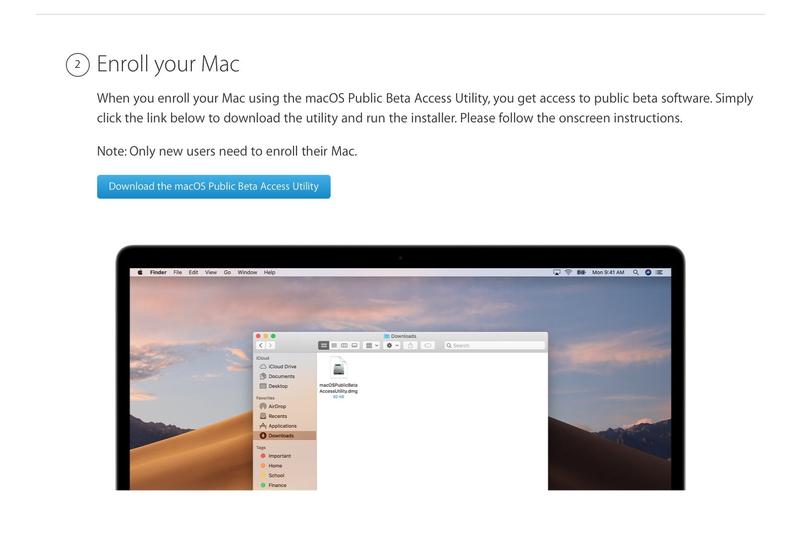
Following the keynote, developers will be able to install the first developer betas and begin the summer-long process of updating their apps and building new features ahead of the public release in the fall. A public beta will likely follow in July, giving users the chance to try out the upcoming features early. Learn about participating in Apple’s beta software program so you can test the new software as soon as the beta arrives. Eventually, the new software will be available for everyone to download in the fall (usually September for iOS/iPadOS/watchOS and either September or October for macOS. In this guide, we cover everything expected at WWDC 2026, along with details on how to watch the keynote wherever you are. If you want a first look at the features coming to Apple’s software – and insight into the company’s future direction – read on.
What to expect from WWDC 2026 at a glance
Apple’s WWDC keynote will begin at 10am PT on Monday, June 8, 2026.
The event will likely be streamed live on Apple’s website.
Expected announcements include iOS 27 and macOS 27 with a focus on stability, new AI-related features, major Siri updates, and potential Mac hardware updates.
WWDC 2026 Date: When is WWDC?
WWDC (Apple’s Worldwide Developers Conference) runs from June 8 to June 12, 2026
The WWDC Keynote starts at 10am PT on Monday June 8
Apple has announced the dates for WWDC 2026. As we predicted, the WWDC event will run from June 8 to 12. The keynote is likely to take place on Monday June 8.
WWDC 2026 keynote time: What time does WWDC start?
The keynote will start at the usual time of 10am in California. If you are wondering what time will the WWDC keynote start where you are, use this as a quick reference:
Singapore and China: 1 a.m. the next day (SGT/CST)
Japan: 2 a.m. the next day (JST)
Australia: 1 a.m. the next day (AWST), 2:30 a.m. the next day (ACST), 3 a.m. the next day (AEST)
New Zealand: 5 a.m. the next day (NZST)
How to watch WWDC 2026
You can watch the WWDC keynote live on your screen.
Foundry
Apple will livestream the WWDC 2026 keynote across multiple platforms, including its website, YouTube, the Apple TV app and the Apple Developer app. This means you’ll be able to watch the presentation on iPhone, iPad, Mac, Apple TV and even a Windows PC.
If you miss the event, the keynote will be available to watch on demand shortly after it ends.
Ahead of the event, we will embed Apple’s YouTube livestream at the top of this article so you can watch it easily. We will also be running a live blog, bringing you real-time updates along with our analysis and commentary.
Where to watch
Apple.com: Watch the keynote live on Apple’s website.
Apple TV App: Available on Apple TV, smart TVs, iPhone, iPad and Mac.
Other platforms: You can watch via recent versions of Chrome or Firefox (supporting MSE, H.264 and AAC) by visiting Apple’s website.
Apple Developer App and Website: Developers can watch the keynote as well as the Platforms State of the Union and all WWDC sessions that take place after the keynote.
Biggest WWDC rumors: At a glance
OS updates: The next generation of operating systems, including iOS 27 and macOS 27, are expected to focus on stability and battery life rather than redesigns.
Siri 2.0/Chatbot Evolution: Siri is expected to finally evolve into a full-fledged chatbot with on-screen awareness and personal context understanding.
Google Gemini Integration: Google’s Gemini models and cloud technology will help power future Apple Intelligence features.
Mac mini and Mac Studio updates: These two Macs, beloved of developers, are overdue an update.
What will Apple announce at WWDC 2026?
WWDC is primarily a software-focused event, and the main emphasis in 2026 will be the unveiling of Apple’s next-generation operating systems, including iOS 27, macOS 27, iPadOS 27, watchOS 27, visionOS 27 and other operating system updates. These updates are likely to reflect Apple’s reinvigorated push into AI.
While the conference centres on software, Apple has occasionally used WWDC to introduce new hardware. In 2026, the company could announce updated versions of the Mac mini and Mac Studio, although global RAM shortages could mean the wait extends beyond WWDC.
This year’s event is expected to be dominated by Apple’s push into artificial intelligence. In particular, attention will be on further developments in Apple Intelligence and a major overhaul of Siri.
Here’s what we expect Apple to reveal at this year’s event, from software and hardware to the possibility of entirely new products.
Siri & Apple Intelligence overhaul: Revamped and redesigned Siri
One of the central themes of WWDC 2026 is expected to be the completion of Apple’s Apple Intelligence roadmap, alongside a fundamental shift in Siri’s underlying architecture toward modern large language models (LLMs). The aim is to give Siri a much stronger understanding of natural language, broader world knowledge and more useful, context-aware responses – while maintaining Apple’s emphasis on user privacy.
Many of these features were originally planned for 2024 and 2025, but have since been pushed back into 2026. Following news earlier in 2026 of a multi-year collaboration between Apple and Google, Apple is now expected to use Google’s Gemini technology as a foundation for its next-generation AI systems, including the long-promised significantly upgraded Siri.
However, rather than relying directly on Google’s infrastructure, Apple is likely to deploy a customised version of these models, running either on-device or via its Private Cloud Compute system, in order to maintain its strict privacy standards.
The updated Siri is expected to be a cornerstone of Apple’s announcements. The next-generation assistant will likely feature a more conversational interface, deeper contextual awareness and significantly improved reliability, positioning it as a far more capable and integral part of the Apple ecosystem. Apple really needs to prove Siri’s AI capabilities at WWDC 2026.
Anticipated Siri capabilities include:
Chat-bot like capabilities: Rumors indicate a “modernized, conversational version of Siri”.
Updated interface: A totally new Siri interface is expected, which may include a dedicated Ask button.
On-Screen Awareness: The ability for Siri to understand and act upon what is currently visible on a user’s screen.
Personal Context: Siri will build a private, on-device “knowledge graph” using a user’s mail, messages, and history to provide personalized answers.
In-App Actions: Siri will have the ability to take actions across different apps in an expansion of “App Intents”.
Smart HomeIntegration: Apple is reportedly planning a major smart home strategy for 2026, where the new Siri will serve as a primary interface for new devices like smart displays and cameras.
Beyond Siri, Apple’s partnership with Google is expected to underpin its broader AI platform, Apple Intelligence. This could translate into smarter on-device features, deeper integration of AI across apps, and new developer APIs that allow third-party software to tap into Apple’s AI capabilities.
WWDC software updates: What’s coming to Apple’s operating systems?
Apple
iOS 27
The centerpiece of iOS 27 is expected to be the conversational version of Siri. Other new features include:
Folding iPhone: The introduction of software features specifically designed for Apple’s first folding iPhone. The software is expected to prioritize features tailored to the folding display, potentially drawing inspiration from iPadOS to ensure a seamless transition between the external cover and the larger internal screen.
AI powered features: Apple is likely to unveil more advanced generative AI capabilities. These may extend across its Pro apps, as well as system-wide tools in iOS 27 and beyond.
Health app: Apple promised an overhaul of the Health app for iOS 26. Instead smaller updates and improvments were rolled out. iOS 27 will surely deliver on Apple’s promise.
Performance & Stability: Reports indicate that instead of a massive overhaul, iOS 27 will focus heavily on bug fixes and system stability.
macOS
macOS 27 is expected to bring deep AI integration as well as performance improvements.
Performance & Stability: As with iOS 27, Apple is thought to be focused on speed and stability improvements for macOS 27.
AI & Siri integration: Siri/Apple Intelligence upgrades will impact macOS 27.
Interface unification: Apple may continue to unify its design language across platforms.
Dynamic Island: One of the new interface elements could be Dynamic Island-style functionality on Mac with a Notch.
No more Intel support: When Apple announced macOS 26 it said it would be the last macOS to support Intel. WWDC will mark the end of Intel Macs.
Touchscreen hints: With rumors that Apple will be launching a touchscreen MacBook later in 2026 or early 2027, we could see more touchscreen oriented features coming to macOS.
watchOS 27
Those Siri developments will no doubt feature heavily in the Apple Watch operating system. In addition we expect:
Health app overhaul: The Apple Watch is likely to benefit from Apple’s promised overhaul of the Health app, including a redesigned interface, a health coach, and more insights.
Readiness score: AI powered “readiness” score based on sleep quality, heart rate and other factors, similar to the Body Battery feature offered by Garmin.
iPadOS 27
Many of the iOS 27 updates—especially those related to Siri and AI—are expected to carry over to iPadOS 27. However, Apple is likely to introduce features that take advantage of the iPad’s larger display, while also focusing on creative and professional users. Expected improvements include:
Multitasking improvements: Further moves toward desktop-style workflows, with more flexible multi-app usage and better support for pro applications.
Better background processing: The ability to render projects and export video in the background, allowing users to continue working without interruption.
File management changes: Enhancements to the Files app, including better project organisation and improved support for external drives.
macOS inspired touch-screen features: With the arrival of the MacBook Neo, the iPad may not appear as compelling as a laptop replacement, but it will continue to appeal as a touch-first pro device. It also gives Apple an opportunity to refine touch interfaces that could reportedly make their way to the rumored Touchscreen MacBook in late 2026 or early 2027.
tvOS 27, HomePodOS 27, visionOS 27 and other platforms
Updates across Apple’s home and spatial computing platforms are also expected. These are also likely to be impacted by the Siri and AI enhancements coming in fall 2026.
New Apple TV hardware: The next Apple TV is said to have been delayed to accommodate the upcoming Siri improvements.
AI powered recommendations: The Apple TV app already shows which service content is available on, but it could become even more powerful with personalised, AI-driven recommendations.
HomeHubsoftware: Apple TV or HomePod devices could further evolve as the centre of the smart home, acting as a more capable and intelligent home hub.
Developer Tools and APIs
For developers, Apple typically introduces new versions of Xcode and updated Swift frameworks.
Updated APIs: APIs are likely to be updated to allow third-party apps to integrate more deeply with Apple’s identity and payment systems.
Metal Updates: Metal, a key technology for Mac game developers, enabling features like MetalFX Frame Interpolation, will likely see further expansion at WWDC.
Intel no longer manufactures the primary processors for Apple’s current product lineup, as Apple completed its transition to in-house “Apple silicon” back in 2023. Macs that feature Intel processors will not be able to run macOS 27 (there were only a few that could run macOS 26).
While Apple will no longer support Macs with Intel chips with the next version of macOS, there are reports that Apple and Intel have reached an agreement to work together, with Intel manufacturing some Apple-designed chips as a foundry partner.
WWDC hardware updates: Will Apple launch new hardware?
The 15-inch MacBook Air was introduced at WWDC 2023.
Apple
WWDC tends to be a software-focused event, so new hardware is never guaranteed. In addition, Apple has already completed a major spring launch cycle in March 2026, which included the MacBook Neo, iPhone 17e, M4 iPad Air, and M5 Pro/Max MacBook Pro models. However, there are still several hardware products that are rumored or expected to appear at the June 2026 event.
Expected Mac Updates
Based on current release cycles and expert analysis, several Mac models are due for an M5-series upgrade, however, global RAM shortages could impact on Apple’s ability to release these updates in June, so the launches could be pushed back to later in 2026.
Mac Studio: The professional desktop is expected to gain the M5 Max and M5 Ultra chip by June 2026.
Mac mini: The compact desktop is expected to benefit from a M5 and M5 Pro update.
iMac: The consumer-focused all-in-one is a candidate for an M5 chip refresh during the WWDC timeframe.
Other rumored products
Smart Glasses and Wearables: Reports from late 2025 suggested Apple might provide a “first glimpse of its smart glasses” soon. Given the developer focus of WWDC, a preview of the software platform for these glasses or a new AI-powered pendant is possible.
Home Automation: Apple is reportedly developing a new home hub and a doorbell camera featuring Face ID, which could be integrated into the broader HomeKit discussions at the conference.
HomePod/HomeHub: There are lots of rumors about different products, from a HomePod with a display to a screen with a robot arm.
Q&A
What is WWDC?
WWDC stands for the Worldwide Developers Conference and is dedicated to the third-party software and hardware developers that create apps and accessories for Apple’s platforms: iPhone, iPad, Mac, Apple TV, Apple Watch, HomePod and Vision Pro.
At the event Apple previews the software that will be coming to iPhones, Macs, iPads, Apple Watches, and so on, later in the year. A beta program starts after the event so that developers can start testing the new software, find out ways to use new features, and make sure it works with their apps.
Sometimes Apple launches new hardware at WWDC, but the key focus is always software.
What happens at WWDC?
The event typically begins with a high-profile keynote presentation that provides a “sneak peek” at the next versions of Apple’s software. Beyond the announcements, it is a week-long conference designed for the global developer community to learn about new technologies and APIs.
What time does WWDC start in the U.K.?
Apple’s 10am start in California translates to 6pm in the U.K.
How long is the WWDC keynote?
The WWDC Keynote is usually a long one because Apple has so much to cover. Recent examples include:
1 hour, 45 minutes in 2025
1 hour, 50 minutes in 2024
2 hours in 2023
We expect that 2026’s WWDC keynote will be a long one, especially with the major AI related announcements expected.
What happened at WWDC 2025
Watch the WWDC event as it happens here.
This event was particularly significant due to a massive visual overhaul and a change in how Apple names its software. It included:
The “Liquid Glass” Redesign: Apple introduced a new design language called Liquid Glass, which brought translucent, reflective, and glossy elements across all platforms . This aesthetic features curved “squircles,” glass-like layers that react to content beneath them, and a fully transparent menu bar in macOS.
Unified Version Numbering: Starting with the 2025 event, Apple synchronized the version numbers of all its operating systems to reflect the upcoming year. Consequently, the successors to iOS 18 and macOS 15 were named iOS 26 and macOS 26 Tahoe.
Apple Intelligence and Siri: While Apple continued to integrate AI features—such as AI-powered battery management and smarter Reminders—the long-awaited “New Siri” revamp faced further delays. Reports following the event indicated that the more conversational, context-aware version of Siri might not arrive until late 2026 or 2027.
Key Software Features included:
macOS 26 Tahoe: Introduced a significant overhaul to Spotlight, new mobile apps for the Mac (like Journal), and “Live Translation” for real-time communication in FaceTime and Messages.
iPadOS 26: Added “Mac-like” multitasking, allowing apps like Final Cut Pro to continue intensive processes in the background, and replaced the circular cursor with a desktop-style arrow . watchOS 26: Opened the Apple Watch Control Center to third-party widgets for the first time, allowing apps like Spotify or Strava to offer one-tap toggles
Who should watch WWDC
Apple’s Worldwide Developers Conference (WWDC) is a cornerstone event for anyone deeply embedded in the Apple ecosystem, ranging from professional software creators to casual device owners. While the week-long program is technically dense, the opening keynote is designed for a global audience.
WWDC is considered the second-biggest event on Apple’s calendar, surpassed only by the fall iPhone launch. It’s the event to watch if you want to get insight into Apple’s long-term strategic vision. If you own an iPhone, iPad, Mac, Apple Watch, or Apple TV, the WWDC keynote is highly relevant because it give you a sneak peek at the new software coming to your devices later in the year.
How to attend WWDC
Apple
WWDC is primarily a digital event with all registered Apple developers able to get online access to session videos, slides, and sample code throughout the week.
There is usually an in-person event at Apple Park though. If you want to attend WWDC and the keynote in person you have to enter a lottery and apply for a ticket to attend the keynote alongside other developers. There is a lot of competition for those tickets, which are randomly selected from those who apply and aren’t transferable. The good news is that tickets are free, at least.
To be in with a chance of attending, it is necessary to enter the lottery, for which you have to apply through Apple’s website. Eligibility is generally restricted to the following groups:
Current members of the Apple Developer Program or Apple Developer Enterprise Program.
Apple Entrepreneur Camp alumni.
Swift Student Challenge winners (who are often included in a separate selection process, with notifications typically sent in May).
The lottery for tickets allocated for 2025 started at the end of March and those interested had to apply by the beginning of April. The lucky applicants were notified of their success in getting a ticket at the beginning of April.
Apple invites developers to participate in a series of classes, workshops, and sessions to learn about the system-wide changes coming to the major software platforms in the coming year so they can update their apps. Some lucky developers even get to watch the event live in person.
Apple usually confirms the date for WWDC around the end of March when it allows developers to enter a lottery and apply for a ticket to attend the keynote. Those who qualify have until the beginning of April to apply for tickets. We explain how current Apple Developer Program members, Apple Developer Enterprise Program members and Swift Student Challenge winners are able to apply for free tickets below.
How much does WWDC cost to attend
The format of WWDC has shifted significantly in recent years. While it was once a paid event costing $1,599 with tickets that sold out instantly, the modern conference is primarily an online experience.
Even without a lottery win, all registered developers receive online access to session videos, sample code, and workshops throughout the week
When was WWDC last held
In recent years Apple has held WWDC in early June.
WWDC 2026: June 8-12
WWDC 2025: June 9-13
WWDC 2024: June 10-14
WWDC 2023: June 5-9
WWDC 2022: June 6-10
WWDC 2021: June 7-11
WWDC 2020: June 22-26
WWDC 2019: June 3-7
WWDC 2018: June 4-8
Apple has held a WWDC event every year since 1983. Over the past couple of decades WWDC has generally been held in June, with only one exception.
Like its counterparts on the other Apple devices, in September 2025 macOS got a brand new look along with a new name: macOS 26. Because Apple is aligning the names of all the operating systems this year, the new version of macOS is called macOS 26 rather than macOS 16. It also takes the name Tahoe, inspired by the lake, beaches, and the ski resorts of that area of California.
Along with a big redesign, macOS 26 brings new Continuity features to bring your iPad, iPhone, and Mac even closer together, a brand new Phone app, and more. Spotlight also gets its biggest ever update with the ability to action things like sending emails directly from Spotlight.
Those with compatible Macs have been able to install macOS Tahoe since it was released on September 15, 2025. If you haven’t yet, read on to find out how to do so, whether you can, and whether you should.
macOS Tahoe might have launched, but Apple is continuing development with new features being added every couple of months–the latest update being macOS 26.5. You can get a first look at the new upcoming features via Apple’s developer and public betas, which are available to download if you join the beta program (we explain how to do so below).
You will find all the things you need to know about macOS Tahoe and all its new features below, including which Macs are compatible with macOS 26 and the new features you can expect, including what’s been added since the September launch, and what’s coming in the next update. Stay tuned to this superguide for everything you need to know about macOS 26 Tahoe.
macOS 26 Tahoe: Summary
The new version of macOS, called macOS 26 Tahoe, was released on September 15 2025.
The latest version–macOS 26.5–arrived on May 11, 2026.
macOS 26 Tahoe is still being developed and you can access new features before they are launched via the Developer and Public Betas.
Tahoe runs on Macs released since 2019. macOS 26 Tahoe runs on all M-series Macs, but it runs on a small number of Intel-powered models. Apple has confirmed that macOS Tahoe will be the last macOS version to support Intel-powered Macs; from macOS 27 Intel Macs will not be supported.
With its new Liquid Glass interface, macOS 26 has its biggest design change since 2013.
New features in macOS Tahoe include more options for personalization, improvements to Spotlight and Shortcuts app, and the introduction of a Phone app on the Mac and all the associated features.
What is the latest version of macOS 26 Tahoe?
Latest version of macOS is macOS Tahoe 26.5 which arrived on May 11, 2026
Apple released the first version of macOS 26 Tahoe on September 15, 2025. The release coincided with the iOS 26 update. Since then the following updates to Tahoe have been issued by Apple:
macOS Tahoe 26.5 has now been released so Apple will start work on the next beta of macOS 26. Version 6.
On June 8, Apple will hold its WWDC event at which the company will reveal news about what’s coming in macOS 27 later in 2026. The macOS 26.6 update is unlikely to arrive before the WWDC Keynote.
With Apple already working on the next update to macOS, we are less likely to see new features for macOS 26. Future updates to macOS 26 are more likely to relate to bug fixes and security updates, unless Apple needs to release new features for compatibility with upcoming new products.
Apple runs a developer beta as well as a public beta so that upcoming new features can be tested. Both betas are free, though the developer beta requires a free registration as a developer. Apple issues updates to the betas fairly regularly. The public beta updates tend to come a day or two after the updated developer beta. If you are interested in trying out the beta, you can join Apple’s beta program. For help installing the macOS beta, see our guide to installing the macOS beta.
New features that have arrived in macOS 26 Tahoe since launch
Development continues even after the official macOS update is released, as Apple seeks to introduce new features that missed the initial introduction date.
Below you can see all the new macOS features that have arrived with each iteration of macOS 26 since it’s initial launch in September 2025.
New features in macOS 26.5
With macOS 26.5, Apple added a new option for desktop Mac owners who think it’s too difficult to reach their Mac’s power button.
A new option labeled “Start up when power is connected” now appears in the Energy section of System Settings for the Mac mini, iMac, and Mac Studio. An Apple support document explains that “Your Mac will now automatically turn on whenever you connect it to power, such as when plugging it into a power outlet or restoring power using an external power switch.” This should be helpful for those who find the on switch awkward to reach on the Mac mini.
Apple also included several features that are also in iOS 26.5 and iPadOS 26.5:
Maps now has Suggested Places and ads
Power control setting in Energy for Mac mini, Mac Studio, and iMac enables you to power off or restart your Mac using assistive accessories like switches
RCS end-to-en encryption
Bug fixes and security enhancement
New features in macOS 26.4.1
macOS 26.4 is specific to the M5 MacBook Air and the M5 Pro and M5 Max MacBook Pros released in March 2026.
It fixes an issue that can occur when using content filter extensions and connecting to a Wi-Fi network on those machines.
New features in macOS 26.4
Battery management feature: A manual battery charge limit for MacBooks. This is a feature previously exclusive to iPhones that allows users to cap their battery charge at 80 percent, 100 percent, or any five-percent increment in between to reduce long-term wear and tear.
Terminal warning: A new Terminal paste warning alerts users who paste in suspicious commands that scammers encourage pasting text into Terminal.
Apple Music “Playlist Playground”: A new feature that uses Apple Intelligence to generate or edit playlists based on text prompts or a selection of songs.
Writing Tools and Summaries: Continued integration of system-wide AI tools for proofreading and summarizing text.
Apple Podcasts update: A new video podcast experience that utilizes HTTP Live Streaming (HLS) to allow users to switch seamlessly between watching and listening to shows.
Apple Musicupdate: The interface for albums and playlists has been updated so that the background color dynamically matches the album artwork.
Freeform: The whiteboarding app has received a “Creator Studio” update, which includes new features and a refreshed app icon.
Advanced Fingerprinting Protection: macOS 26.4 includes critical security patches and expands on privacy features like Advanced Fingerprinting Protection.
Stolen Device Protection: This a feature, first seen on iPhone, is expected to be enabled by default starting with this release.
Eight new emoji: Ballet Dancer, Distorted Face, Fight Cloud, Hairy Creature (Bigfoot), Landslide, Orca, Treasure Chest, and Trombone
Rosetta 2 warnings: Support for the transition layer for Intel-based apps will end with macOS 27.
New features in macOS 26.3.1
External Display Support: macOS 26.3.1 adds support for the 2026 models of the Studio Display and Studio Display XDR.
If you’re planning on investing in a Studio Display, you’ll need to install this update, according to the release notes. It also includes security patches and bug fixes.
Apple
New features in macOS 26.3
This update continues the refinement of the major features introduced with the initial launch of macOS 26 Tahoe. In iOS 26.3 there were a number of EU-mandated changes. It is also optimized for the M5 Pro and M5 Max chips, which are due to launch. Read our iOS 26 guide for more information.
New features in macOS 26.2
macOS Tahoe 26.2, released in late 2025, introduced several specialized updates focusing on video conferencing enhancements, AI development tools, and hardware-specific performance boosts. While it was not considered a massive overhaul, it brought a few “genius” utility features that improved the daily user experience, particularly for those working in remote or low-light environments.
Edge Light: The most prominent consumer-facing feature in macOS 26.2 is Edge Light, a virtual ring light designed to improve webcam image quality. It places a bright white border around the display to mimic a selfie ring light, significantly improving visibility in dark rooms. It uses the Neural Engine to detect the user’s face for appropriate light adjustment and can even detect the cursor to hide the light when it might interfere with navigation. Users can adjust the intensity of the light and choose between warmer or cooler color temperatures. It requires an M-series Mac, but on M4 Macs and later, the feature can be set to enable automatically when low light is detected .
AI and Developer Enhancements: For developers and power users, macOS 26.2 introduced significant updates to machine learning frameworks and hardware clustering. Developers using the open-source MLX framework can now leverage the Neural Accelerator in the M5 chip. The update enhanced the ability to create AI clusters using the Mac Studio’s Thunderbolt 5 connectivity.
Security Updates: Critical patches for vulnerabilities, aligning with security fixes found in iPadOS 26.2.
Interface Polish: Continued refinement of the “Liquid Glass” UI, which introduced more translucency and visionOS-style effects across the system.
Performance: General “under-the-hood” changes to improve system stability and responsiveness .
New features in macOS 26.1
The macOS 26.1 update includes fixes for problems with games controllers and some other issues. There are a lot more changes coming to iPhones with iOS 26.1.
New features in macOS 26.1 include:
Liquid Glass: Ability to tone down Liquid Glass effect. Choose between clear and tinted look for increased opacity.
AutoMix support for Apple Music over AirPlay.
FaceTime audio improvements over low-bandwidth.
Regional Communication Safety and Web content filters for adult websites.
Icons: Changes to the Macintosh HD icon.
New TV app icon with Apple TV+ rebranded to Apple TV.
A new Results from Clipboard setting for Spotlight, where the user can turn on/off Spotlight’s ability to search and display clipboard items. Users can also set an expiration time for the clipboard and clear the Clipboard history. (Settings > Spotlight > Results from Clipboard.)
macOS Tahoe 26.1 has a new Spotlight setting for Clipboard management.
Foundry
macOS 26 Tahoe problems & fixes
YouTube / Apple
Some M3 Ultra Mac Studio users have reported that they are unable to install macOS Tahoe. It seems the problematic Mac Studios already had Sequoia 15.7 installed, and during the attempted installation, Tahoe would look for a driver, and when it failed to find it, it resulted in a failed installation.
The macOS 26.0.1 update addresses the initial bugs, including the Mac Studio installation bug.
macOS 26 Tahoe supported devices: Which Macs get macOS Tahoe
Requires M-series chip or Intel-based Mac computers with a T2 Security Chip
Apple Intelligence features require M1 or later
No Intel support from macOS 27 onwards
When Apple updates the operating system for its devices, it sometimes means that certain models are no longer supported. The good news is that Macs that ran macOS Sonoma will be able to run the new macOS. Apple states that the base requirement includes Macs with M-series chips and Intel-based Mac computers with a T2 security chip.
Here are Macs with Apple Silicon that will be able to run macOS Tahoe:
MacBook Air (M1/2020 and later)
MacBook Pro (M1/2020 and later)
iMac (M1/2021 and later)
Mac mini (M1/2020 and later)
Mac Studio (M1/2022 and later)
Mac Pro (M2/2023 and later)
There are four Intel-powered Macs able to run macOS Tahoe. These models won’t support Apple Intelligence features:
MacBook Pro (16‑inch, Intel/2019)
MacBook Pro (13‑inch, Intel/2020, Four Thunderbolt 3 ports)
iMac (Intel/mid 2020)
Mac Pro (Intel/2019)
Apple confirmed that this is the last version of macOS that will run on Intel Macs.
What were the biggest changes in macOS 26 Tahoe
macOS 26 Tahoe represents one of the most significant overhauls to Apple’s desktop operating system in over a decade. The update is characterized by a dramatic visual redesign, the introduction of core mobile apps to the Mac, and a complete rethinking of system-wide tools like Spotlight.
We’ll run through each new feature in detail below, including the Liquid Glass redesign, Spotlight overhaul, new apps, new iPhone features that are coming to the Mac and more…
macOS 26 Tahoe design: Liquid Glass and other interface changes
Apple
At WWDC in June, Apple showed off some enticing new features for macOS that will be coming later in 2025. A number of new features and interface enhancements were promised, but one of the biggest changes is coming to all of Apple’s products: a new design based on a graphical user interface that Apple is calling Liquid Glass.
Apple showed off the brand new look for macOS in the WWDC keynote. As with Apple’s other operating systems, macOS Tahoe uses Apple’s new Liquid Glass effect to create reflective, glossy elements around the interface. The Liquid Glass elements will change color to reflect the content beneath as you scroll and will dynamically react. Buttons appear more curved and less flat.
You’ll see the effect in the Dock, sidebars, toolbars, and elsewhere. The menu bar is fully transparent, and you can adjust the transparency of icons in the Dock, for example. If you don’t like the new transparent look or if it affects how well you can see items, there is a way to reduce it, and in some instances, turn it in off altogether. Read: How to reduce transparency in macOS Tahoe.
This is the first time in years that Apple has made significant changes to the visual style of macOS, and it certainly makes the OS appear more modern.
Apple says the design overhaul will elevate the key elements of macOS and enhance the macOS experience. The cleaner design is intended to help the user to focus on their content rather than other distractions, while elements like the translucent menu bar will make the screen feel larger.
Users will be able to choose to add third-party apps to the menu bar and even drag widgets and buttons from the Control Centre into the menu bar, thanks to a customizable layout, similar to iOS 18. Users will also be able to add controls for their favorite apps to the Control Centre. We have a guide to how to use Control Centre in macOS Tahoe where you can read about how to add controls, remove the ones you don’t want, and arrange them in a way that makes sense for you.
Apple is taking advantage of the Liquid Glass introduction to bring some new icon designs to the Mac as well to help give macOS a fresh look. Some of the icons look drastically different, for others the changes are more subtle. The ‘hard drive’ icon will now be replaced with one that looks more like an SSD, for example.
The new icons tend to take the form of ‘squircles’. The changes may make some third party icons less recognisable. Take a look at: 21 of the new macOS Tahoe icons with new designs for the Finder, Automator, Calendar and Contacts icons among others. You can change the icons if you want, read: How to change the icon of a macOS storage device.
The new Finder icon.
Apple
macOS will also gain a feature that arrived on the iPhone and iPad with iOS 18: tinted and dark app icons.
Users will be able to personalize their Mac in other ways, too, such as changing the color of folders and adding emoji or symbols to help them identify folders. Users can also pick personalised wallpapers and choose theme colors. If you want to change your folder color read: How to change folder color and add icons in Tahoe.
New dynamic screensavers will be included. One, based on the default macOS Tahoe wallpaper, depicts the landscapes of South Lake Tahoe in a stylized artistic manner, is available in both light and dark versions. See how it looks in Tahoe’s gorgeous new screen saver.
There are up to 15 other new screensavers with images of Tahoe at various time of the day, Himalayas, Goa, The Ganges and more.
macOS Tahoe Spotlight overhaul
Apple
Spotlight has always been much more than a search tool built into macOS, helping users find anything on their Macs, make calculations and conversions, and more. In macOS Tahoe, Spotlight will be able to do even more.
Spotlight’s design and functionality have been completely rethought for macOS 26, with changes that will help Mac users get things done faster.
Rather than being a single bar, on the right-hand side of the new Spotlight search box, you will find icons for things like apps, files, Shortcuts, Actions, and clipboard. Select one of these buttons, and Spotlight’s box expands to house relevant items in an easy-to-browse view. When you search for something, you’ll see relevant filters under your search terms – click one to quickly apply it.
Not only will Spotlight be the easiest way to find anything on your Mac, but in macOS 26, Spotlight will be contextually aware so it can make suggestions based on what you are doing. Search results will be listed based on their relevance to you, and it will be possible to use new filtering options for more specific search results.
Spotlight will also have the ability to perform actions that normally require you to be inside an app. For example, you will be able to create a calendar event, begin an audio recording, or play a podcast from within Spotlight. It will even let you fill out parameters for actions, such as typing out an email message and filling in the recipient and subject. You can essentially compose an email from inside Spotlight, without opening your email app.
This will be simplified further with Quick Keys, with which you will be able to type a short string of letters to launch an action, such as typing “sm” to start sending a message to a friend. An App Intents API will make it possible for third-party developers to add Spotlight shortcuts for their applications.
One of the most exciting new arrivals in Spotlight is Clipboard History, something we have wanted for years. Instead of being limited to pasting the last copied item, you will be able to view previous text and photos you’ve copied and re-insert them as needed. Why did it take Apple so long to offer this?
Apple
Tied to the new Spotlight is the new Apps app, which replaces Launchpad, which has been a feature of Macs for more than a decade and provides users with a Home page like view of all their apps. Instead Spotlight will be the means of finding apps. This will take some adjustment, especially if you were a Launchpad user. Learn more about Apps replacing Launchpad, and if you want to get Launchpad back we have a tutorial to show you how.
macOS 26 Tahoe: New and updated apps
There are also lots of updates coming to Apple apps that are included with iPads, iPhones, and Macs. Many of the changes are shared across all the new apps, but there are a number of Mac-specific updates coming.
Phone app
A Phone app on the Mac is the latest Continuity feature to come to macOS. Continuity is Apple’s name for the features that work seamlessly between Macs, iPad and iPhones, these include Handoff (which enables you to start a task on one device and switch to another to finish it), Universal Clipboard (which allows you to copy something on one device and paste it on another), and Universal Control (where you can use one mouse and keyboard to interface with more than one Mac), among other features.
With the new Phone app, users will be able to receive their calls and voicemail on the Mac. The Phone app is getting some new features of its own, including Call Screening, which is designed to help you avoid spam calls, and Hold Assist, which means you will never have to listen to hold music again.
With Call Screening, before a call is put through, an unknown caller will have to share their name and reason for calling, and you will then be provided with that information. With Hold Assist, when you join a queue to wait for a call operator and the hold music starts, you can choose to be called back.
YouTube / Apple
Live Activities
Another feature that demonstrates the interoperability between the iPhone and Mac is Live Activities.
In iOS 18, you can see a live update on your Lock Screen relating to things like a takeaway order. Live Activities show the process of a food delivery driver, for example. Now, that functionality is coming to the Mac.
It will be powered by the iPhone Mirroring function, and will take the form of an iPhone-style widget that you will see on the screen of your Mac.
Games app
The Games app is another one that is available across all three main operating system updates: iOS, iPadOS, and macOS. As with the iOS Games app, the Games app on the Mac will bring together all the games you have on your Mac (bought from the App Store, Apple Arcade and elsewhere), as well as your friends list, achievements, and leaderboards. Tabs will make it easy to find the games you and your friends are playing.
A new Game Overlay will make it easy to adjust settings for a particular game. You’ll also be able to chat with friends and ask them to play.
There is also a new Low Power Mode coming, which gamers will be able to turn on to maximise battery life when playing games.
And in related news, Metal 4 is coming, which will enable next-gen features for Mac game developers, such as MetalFX Frame Interpolation and MetalFX De-noising.
Apple
Shortcuts
Apple
The Shortcuts app is getting an overhaul in macOS Tahoe.
Shortcuts is a tool for automating tasks and repetitive actions. For those with more specific needs, there is also Automator on the Mac, but Shortcuts is simple to use and available on iPhone and iPad as well.
In Tahoe, Shortcuts will be able to run workflows based on factors like time of day, or in response to an email from a specific person arriving. This functionality was previously limited to the iPhone and iPad versions.
There are new intelligent actions available that can be used to create Smart Shortcuts. Apple Intelligence and ChatGPT can be used to enhance these Shortcuts. Apple says that “Users will see dedicated actions for features like summarizing text with Writing Tools or creating images with Image Playground.”
Live Translation
One of the most useful new features announced at WWDC is Live Translation. With Live Translation, you can text a friend who speaks a different language and have the translations appear in real time, or get instant translations during a phone call or FaceTime conference. Everyone gets their own translator.
You’ll be able to take advantage of Live Translation in the Phone app, Messages, and FaceTime on your Mac.
Apple
Journal
The Journal app, which arrived on iOS in 2023, is coming to the Mac (and iPad).
Reminders is getting some help from Apple Intelligence. Reminders will scan a website, note, email or other content, then decide the most relevant action items for you based on its findings. You’ll be able to use Apple Intelligence to automatically categorize your reminders into sections, making them easier to find
There are also changes coming to Safari, Messages, Photos, FaceTime, and Notes.
When your Mac starts acting up, you’ll probably run through some common troubleshooting procedures, such as restarting it, running Disk Utility, and perhaps performing a Safe Boot. Your repair repertoire should also include a couple of additional procedures that can occasionally eliminate otherwise inscrutable problems: zapping the NVRAM and resetting the SMC.
Can you reset NVRAM, PRAM, SMC on M-series Macs?
The procedures here apply to Intel-based Macs. M-Series Macs don’t have a procedure for zapping the NVRAM, and they don’t have an SMC.
On M-series Macs, the NVRAM is tested during the startup process, and if the system detects a need to reset, it will. There isn’t a key combination that you hold down while starting up the Mac. If you would like the system to inspect the NVRAM on an M-series Mac, shut it down completely, wait a few seconds, and then power up the Mac.
M-series Macs don’t have a System Management Controller (SMC). The functions the SMC handled are now handled by the M chip itself. Postings on Apple’s forums suggest shutting down an M-series Mac completely and leaving it off for 30 seconds to perform something like an SMC reset. After 30 seconds, power on the Mac.
If you are here because you have an Intel Mac and you are trying to address a problem that resetting PRAM, NVRAM, or SMC will help with, read on.
What is PRAM?
Back in the day, the standard list of quick fixes for random Mac ailments always included clearing the PRAM. The “P” in PRAM stands for “parameter” (“RAM” is random access memory), and it refers to a small amount of special, battery-backed memory in every Mac that stores information the computer needs before it loads the operating system. If the values in this memory got out of whack for one reason or another, your Mac might not start up correctly or might exhibit any of numerous odd behaviors afterward. You could press a key sequence at startup to reset (or “zap”) the PRAM, returning it to default, factory values.
What is NVRAM?
Modern Macs no longer use PRAM; they instead use something called NVRAM (“NV” for non-volatile). NVRAM serves approximately the same purpose as PRAM, but instead of storing a dozen or more pieces of information, it now contains just a few: your selected startup disk, speaker volume, screen resolution, time zone, and—if your Mac has crashed recently—details of the last kernel panic.
NVRAM corruption is fairly uncommon, but if your Mac seems to take forever to figure out the correct boot disc, starts up with the wrong screen resolution, or suffers from weird audio problems (like there’s no sound whatsoever or the menu bar’s volume control is grayed out), a reset of the NVRAM might help—it’s quick and harmless.
When should you reset NVRAM?
If you notice that your Mac settings continuously get thrown out of whack, it might be time to reset the NVRAM. For example, if you notice that your screen resolution or sound volume never stays at the setting you want, or the date and time are always wrong. If you notice annoying problems that don’t get fixed by adjusting your settings, or your settings never seem to take, try resetting the NVRAM.
Is it safe to reset the NVRAM?
When you reset the NVRAM, your Mac will revert to factory default settings. It’s safe in the sense that it does not harm the Mac, but you might think of it as “unsafe” in that any customization you’ve done to the system settings may be lost. You may have to go back and reinstate some of those settings.
To reset your NVRAM, you use exactly the same procedure you once used to reset PRAM.
Shut down your Mac.
Press the power button, and as soon as you power up the laptop, hold down Command-Option-P-R.
Keep holding down those keys for about 20 seconds. Then let go and allow your Mac to continue starting normally. If you have an older Mac that chimes at boot, hold down the keys until you hear a second startup chime.
Then check the Startup Disk, Display, and Date & Time panes of System Preferences to make sure they’re set the way you want them.
If you hold down Command-Option-P-R at startup and you see nothing but a gray screen that doesn’t change for several minutes—no Apple logo, no progress bar, no second startup chime—don’t panic. The most likely cause is that your Mac isn’t registering the key presses due to wonkiness with a USB device. Disconnect all USB devices (except your keyboard, if it’s a wired keyboard), hold the power button down until the Mac shuts off completely, and then press it again and immediately hold down Command-Option-P-R.
If that doesn’t work and you’re using an external Bluetooth keyboard, try plugging in a USB keyboard instead. If you’re able to reset the NVRAM successfully with the wired keyboard, you can disconnect it and go back to your normal Bluetooth keyboard.
Terminal
More advanced users can try using the Terminal to reset to NVRAM, though if you’ve reached this option the problem is likely bigger than resetting NVRAM. And as with all Terminal commands, the usual caveats apply: You’re messing with macOS’s bash shell and could do irrevocable damage with the wrong keystroke. But if you’d like to try, you can type the following command into a new Terminal window:
nvram -c
After running the command, restart your Mac so the changes can take effect.
What is SMC?
Yet another component of an Intel Mac’s hardware that stores crucial settings is the System Management Controller (SMC). This circuit deals with power management, temperature monitoring and fan control, status lights, keyboard backlights, and a few other components.
What should you rest the SMC?
If your SMC becomes confused, you could experience problems like excessive fan noise, slow performance even though Activity Monitor doesn’t show the CPU being overtaxed, apps that take forever to launch, batteries that don’t charge correctly, problems with sleep or wake, and so on. (You can see a longer list on this Apple support page.) As with zapping the NVRAM, resetting the SMC to factory defaults may resolve these problems.
Is it safe to reset the SMC?
It is safe to reset the SMC. You should check your Battery system preferences afterward to see if your customizations have been maintained.
How to reset the SMC
Apple says you shouldn’t reset the SMC without first trying other troubleshooting tasks, such as force-quitting problematic apps and restarting your Mac. However, Apple doesn’t mention any negative consequences of resetting the SMC, nor any way to determine for sure if the SMC is glitchy without resetting it and noticing that the problem went away. We’ve reset my Macs’ SMCs many times with no apparent ill effects, and on one occasion that did turn out to be the solution to a problem.
Before you can reset your SMC, you must shut down your Mac. After that, the procedure varies depending on the type of Mac you have.
Desktop Macs: Disconnect the power cord (either from the Mac or from the AC outlet). Wait 15 seconds and plug it back in. Then wait another 5 seconds and turn the Mac back on.
Laptops with the T2 chip: Shut down. Press and hold the power button for 10 seconds, then release it. After a few seconds, press the power button to turn on your Mac.
If this doesn’t reset the SMC, shut down. On the laptop keyboard, press and hold Control-Option-Shift (your Mac might turn on). Hold these keys for 7 seconds, then press and hold the power button. If your Mac is on, it will turn off while you hold down the keys for another 7 seconds. Then release the keys, wait a few seconds and turn on the laptop.
Laptops (no T2 chip) with non-removable batteries: Shut down and unplug your Mac. On the built-in keyboard, press and hold the Shift, Option, and Control keys on the left side and press the power button and hold all of these down for 10 seconds, then release the keys. Connect the power adapter and then turn the Mac on normally.
Laptops (no T2 chip) with removable batteries: Shut down your Mac. Disconnect the power cord and remove the battery. Press the power button, hold it for 5 seconds, and then let go. Put the battery back in, reconnect the power cord, and turn the Mac on normally.
Although neither of these procedures is a guaranteed cure, both of them can solve a number of odd problems, and are worth a few minutes of your time before hauling your Mac in to see the local Apple Genius.
Terminal
There is no Terminal command for resetting the SMC.
The Mac Studio, originally released in 2022, has become Apple’s premier desktop for professional users, effectively replacing the now-discontinued Mac Pro for the vast majority of workflows.
Designed for high-end workloads, the Mac Studio has emerged as a popular choice for serious AI and machine learning tasks. This is largely due to its high unified memory capacity and specialised silicon architecture, which address one of the primary bottlenecks in AI workloads: memory capacity and memory bandwidth.
If you are considering buying a Mac Studio, you may be wondering whether an update is imminent. The current lineup features M4 Max and M3 Ultra chips, introduced in March 2025. A new generation with M5 Max and M5 Ultra chips is widely expected in 2026. However, the launch timing remains uncertain. Some reports suggest a late-2026 release – possibly around October – although supply constraints affecting high-memory Apple silicon systems could influence availability and timing.
This article tracks the latest reports and rumours surrounding the next Mac Studio, including its potential release date, specifications, and pricing.
2026 Mac Studio: Release date
Possible release in October 2026
Apple has not yet officially announced a launch date for the Mac Studio with M5 Max and M5 Ultra chips, but current indications suggest the new models are now more likely to arrive in October 2026 rather than earlier in the year.
The delay appears to be tied to ongoing supply constraints in the global DRAM market. Surging demand for AI infrastructure – particularly from hyperscalers operating large-scale data centres – has placed significant pressure on high-capacity memory supply.
According to Bloomberg’s Mark Gurman, reporting in April, “supply chain snags” are affecting production of Apple’s next-generation professional Macs, potentially pushing the Mac Studio launch into October 2026.
These constraints are already affecting the current Mac Studio lineup. In March 2026, Apple removed the 512GB unified memory upgrade option for the M3 Ultra Mac Studio and increased the price of the 256GB option by $400, likely reflecting rising DRAM costs.
As of May 2026, the 2025 Mac Studio can only be configured with 36GB, 64GB or 96GB of unified memory, with the former 128GB and 256GB upgrade options no longer available. Availability has also been impacted, with delivery estimates ranging from six to 10 weeks depending on configuration.
Earlier reports had pointed to a significantly earlier launch window. In November 2025, Gurman reported that internal Apple release schedules targeted the first half of 2026 for the M5 Max and M5 Ultra Mac Studio models. Industry analysts also expected Apple to unveil the systems around WWDC in June 2026, following the precedent set by the M2 Max and M2 Ultra Mac Studio launch at WWDC 2023.
However, current supply-chain conditions now make a later 2026 launch appear more likely.
2026 Mac Studio: Processor
Expected to feature M5 Max and M5 Ultra chips
Apple
The Mac Studio currently ships with Apple’s M-series Max and Ultra chips. The 2025 Mac Studio launched with the expected M4 Max chip, but the highest-end configuration surprisingly used an M3 Ultra instead of a newer M4 Ultra. While the M3 Ultra is technically faster than the M4 Max, it is based on an older generation of Apple silicon, and Apple has not explained why an M4 Ultra was never released.
That situation is unlikely to repeat with the next generation. Reports suggest Apple has canceled development of the M4 Ultra entirely, meaning the upcoming Mac Studio will skip that chip generation.
Instead, the next Mac Studio is expected to feature:
M5 Max: Likely built on Apple’s new Fusion Architecture, first introduced in the 2026 MacBook Pro lineup. This architecture combines two 3nm dies into a unified system-on-a-chip (SoC), allowing more flexible core configurations and improved performance scaling.
M5 Ultra: Expected to remain Apple’s most powerful desktop silicon, potentially continuing Apple’s apparent two-year release cadence for Ultra-tier chips.
Bloomberg’s Mark Gurman claims that Apple plans to offer both the M5 Max and M5 Ultra in the next Mac Studio. MacRumors also reported in December 2025 that references to Mac Studio models powered by the M5 Max and M5 Ultra appeared in leaked Apple files.
As of March 2026, Apple has officially launched the M5 Max as part of its latest MacBook Pro lineup, while the M5 Ultra remains unreleased but widely expected to debut in a new Mac Studio later this year.
M5 Max specifications
CPU: The chip features an 18-core CPU, including 6 “super cores” (a rebranded version of Apple’s performance cores optimized for leading single-thread speeds) and 12 additional performance cores designed for multithreaded professional workloads.
GPU: The M5 Max is available with either a 32-core or 40-core GPU. Each GPU core now includes integrated Neural Accelerators, significantly improving AI and machine-learning workloads.
M5 Ultra specifications (projected)
Although Apple has not yet officially announced the specs for the M5 Ultra, it is expected to follow Apple’s established approach of combining two Max chips into a single processor.
Because an Ultra chip effectively links two Max dies together, the M5 Ultra could potentially deliver:
CPU: Up to a 36-cores.
GPU: Up to an 80-cores.
If those projections hold, the M5 Ultra would significantly outperform the current M3 Ultra, which still leads the M5 Max in graphics-heavy benchmarks due to its higher GPU core count.
The M5 Ultra is widely expected to reclaim Apple’s GPU performance lead while delivering substantial gains in CPU and AI performance, making it the centerpiece of the next Mac Studio.
2026 Mac Studio: Other specs
Bigger SSD expected as standard
Thomas Bergbold
The introduction of the M5 Max chip with the 2026 MacBook Pro offers some insight into what we might expect from the same generation of Mac Studio.
Increased memory bandwidth: The base M5 chip already delivers a 28 percent improvement in memory bandwidth over the M4, reaching 153GB/s. It is expected that the M5 Max and M5 Ultra variants in the Mac Studio will see proportional increases in their respective bandwidths. The high-end configuration is likely to support up to 128GB of unified memory with 614GB/s of memory bandwidth, enabling demanding workflows such as 3D rendering, large-scale video editing, and AI development.
Increased SSD speeds: Testing of the M5 Max architecture in other devices has revealed impressive disk speed results, as noted in our 16-inch MacBook Pro (M5 Max) review. Faster read/write speeds and improved performance with large files should be expected.
Connectivity: The platform supports Thunderbolt 5 (80–120Gbps bandwidth), Wi-Fi 7, and Bluetooth 6, enabled by Apple’s new N1 networking chip.
Anticipated improvements include:
RAM allocation: Base memory is likely to remain at 36GB for the M5 Max and 96GB for the M5 Ultra. The maximum capacity for the Ultra will likely remain at 256GB, although supply constraints could influence configurations.
Storage capacities: The M5 Max is expected to start at 1TB, up from 512GB. The M5 Ultra may start at 2TB, up from 1TB. Maximum storage capacities will likely remain at 8TB for the Max and 16TB for the Ultra.
2026 Mac Studio: Design & Ports
No changes expected
The Mac Studio was introduced in 2022. Apple is expected to stick with the same design, which is also reflected in the M4 Mac mini, as no reports have been made about the design.
Foundry
The Mac Studio’s compact yet thermally efficient design makes it particularly well suited to AI developers, creative professionals, and rack-based deployments.
By prioritising thermal efficiency, port accessibility, and a space-saving footprint, the Mac Studio addresses the practical demands of modern production environments, fitting easily into cramped studio spaces while delivering performance that rivals or exceeds much larger workstations.
Unlike many modern Apple devices that emphasise minimalism, the Mac Studio offers a plentiful selection of ports designed for complex professional workflows, reducing reliance on external dongles and adapters. Front-facing Thunderbolt and USB-C ports, alongside the SDXC card slot, provide convenient access for photographers, videographers, and developers who frequently swap storage media and peripherals.
The Mac Studio offers support for up to eight external displays enables extreme multitasking, while Thunderbolt 5 in newer models delivers up to 80Gbps bandwidth – or 120Gbps for video workloads – making the system particularly well suited to high-end production and AI workflows.
The chassis itself is built around a large cooling system, with a ring of air vents at the base allowing the machine to sustain demanding tasks such as AI inference, 3D rendering, and video production without the excessive fan noise common in traditional workstations, an advantage especially valued in sound-sensitive studio environments.
The port offerings are also expected to remain the same. The Mac Studio has:
M-series Max model: 2 front USB-C ports (supporting USB 3 at 10Gbps)
M-series Ultra model: 2 front Thunderbolt 5 ports
front SDXC Card slot
rear 3.5mm audio jack
4 rear Thunderbolt 5 ports
2 rear USB-A ports
HDMI port
10Gb ethernet port
2026 Mac Studio: Price
The Mac Studio currently starts at $1,999 / £2,099, but there are strong indications that Apple could raise prices when it updates its desktop lineup later this year due to supply chain pressures and rising component costs.
One sign that the Mac Studio’s price could increase is Apple’s recent move to raise the entry cost of its high-end Macs. In March 2026, Apple removed lower-capacity storage tiers from the MacBook Pro lineup, pushing the starting price of the M5 Max model to $3,599 because it now ships with a 2TB SSD by default.
If Apple follows the same strategy with the Mac Studio, it may raise the base price while simultaneously increasing the starting RAM and storage configurations to soften the perception of the price increase.
For example, if Apple increases the entry-level SSD from 512GB to 1TB – a likely change – the base price could rise by roughly $200 / £200, although the U.K. increase may be smaller to keep regional pricing more closely aligned.
Several broader factors could also contribute to higher prices:
RAM shortage and component costs: A global surge in demand for AI hardware has created significant pressure on memory supply, leading to higher RAM prices across the industry.
Supply chain constraints: During a 2026 earnings call, Apple CEO Tim Cook said the company is seeing “less flexibility in the supply chain than normal,” adding that wholesale memory pricing is “increasing significantly.”
For reference, the current 2025 Mac Studio base configurations are priced as follows on Apple’s website:
Historically, Apple has shown a willingness to raise starting prices when transitioning between generations. The Mac Pro, for example, increased from $5,999 to $6,999 when Apple Silicon replaced Intel processors.
However, Apple has also positioned the Mac Studio as a relatively affordable high-performance desktop for creative professionals. Since its introduction, the machine has started at $1,999, helping maintain a clear price gap below the $3,199-plus MacBook Pro lineup.
Should you buy a Mac Studio now or wait?
Whether you should buy a Mac Studio now depends on how urgently you need the performance versus whether you are willing to wait for the next generation of Apple silicon.
The Mac Studio was last updated in March 2025 with the introduction of the M4 Max and M3 Ultra chips. Since then, Apple has released the MacBook Pro with the M5 Max. According to our testing, the M5 Max now surpasses the M3 Ultra in CPU performance, although the M3 Ultra still maintains an advantage in certain graphics-intensive workloads thanks to its significantly higher GPU core count.
If you need a high-end workstation immediately, the Mac Studio remains Apple’s most powerful desktop Mac. However, availability has become increasingly limited due to ongoing component shortages. As of May 2026, delivery estimates for some configurations stretch to as long as 10 weeks, meaning orders placed now may not arrive until July 2026.
At the same time, an M5 refresh now appears increasingly likely for October 2026. The next-generation Mac Studio is expected to deliver a substantial performance improvement, particularly with the anticipated M5 Ultra chip, which could represent a significant leap over the current M3 Ultra.
As a result, buyers who can wait a few more months may be better off holding off for the next generation.
While some early 2026 reports pointed to a spring launch, ongoing supply-chain issues appear to have pushed the timeline back, with an October 2026 release for the Mac Studio with M5 Max and M5 Ultra chips now looking more likely.
2.
Will the M5 Mac Studio have an M5 Ultra chip?
Yes. Industry reports and expert predictions strongly suggest the new Mac Studio will feature an M5 Ultra chip.
3.
Will RAM shortages make the M5 Mac Studio more expensive?
The global RAM shortage has lead to increased costs for memory components. While it is difficult to predict exactly how this will impact the final retail price of future Mac Studio models, such as those featuring the M5 chip, the shortage has created significant upward pressure on production costs.
While Apple has a history of maintaining consistent pricing across product generations, the current supply chain environment presents unique challenges.
Rather than raise prices in relation to the RAM shortages, Apple may instead withdraw the entry-level model, as it has with the Mac mini.
4.
Could Apple redesign the Mac Studio chassis for the M5 generation?
It’s not expected that Apple will alter the external design of the Mac Studio. The current design has a number of benefits including:
A tall aluminium chassis allowing for a much larger cooling system than a Mac mini or MacBook Pro.
A small footprint that means multiple units can be deployed side-by-side on shelves or mounted in custom rack trays. This is attractive for AI labs, CI infrastructure, edge inference clusters, and build farms.
The front-facing I/O is also appreciated by those who need to attach high-speed external storage, networking, and accelerator peripherals.
5.
How well will the new Mac Studio handle AI workloads?
The new Mac Studio is expected to be one of the most capable desktop systems for local AI workloads, particularly with the upcoming M5 Ultra chip. Apple’s unified memory architecture allows the CPU and GPU to share a large pool of high-bandwidth memory, making the system especially effective for running large language models locally. Combined with faster GPU-based AI accelerators, improved memory bandwidth, quiet cooling, and support for up to 256GB of unified memory, the M5 Mac Studio could become one of the most powerful compact AI workstations available.
The Mac Studio is already widely regarded as a premier workstation for artificial intelligence, with recent developments further enhancing its suitability for complex AI clusters and high-performance machine learning workloads. In November 2025, Apple introduced enhancements to macOS Tahoe 26.2 specifically aimed at AI developers using Mac Studio systems. One of the most significant additions was support for creating AI clusters over Thunderbolt 5, simplifying deployment by eliminating the need for RDMA Ethernet cards or optical networking modules.
The Mac Studio’s hardware design is also particularly well suited to demanding AI workflows. Its compact yet thermally efficient chassis enables sustained high performance during tasks such as LLM inference, model training, and multimodal processing, while maintaining significantly quieter operation than traditional workstation or server hardware.
The ongoing memory shortage means even companies as large and powerful as Apple need to adapt. High allocations of RAM are becoming more and more difficult to offer, and it’s been noticed that several more configurations of the Mac Studio and Mac mini have dropped off the store.
As spotted this week by MacRumors, it’s no longer possible to buy the M3 Ultra Mac Studio from the U.S. Apple webstore with 256GB of RAM; you now have to settle for 96GB. Similarly, the M4 Pro Mac mini has lost its top 64GB option, while the M4 Mac mini can be bought with 16GB or 24GB of RAM, but not 32GB. In each case, the higher-RAM option has been removed completely rather than showing as unavailable or out of stock.
Macworld has confirmed that these changes apply to Apple’s U.K. webstore as well.
You can buy the M3 Ultra Mac Studio in any RAM configuration you like, as long as it’s 96GB.
Apple
Apple has been struggling to fulfil high-RAM orders before now. In March, most configurations were delayed by several weeks, and the company stopped accepting orders for some configurations. But at the time these showed up as “currently unavailable.” The situation now seems more permanent.
The memory shortage, caused by ballooning demand for AI server hardware, has made these tough times for manufacturers of consumer electronic devices. But Apple and its customers have suffered less than most. While Windows-based PC makers were forced to raise prices as they struggled to meet demand, Apple leveraged its greatest asset to stem the tide.
Thanks to its market dominance and preferential contracts with suppliers, it’s taken longer for Apple to be affected by the crisis than most rivals. And when things improve, the company will be among the first to benefit, as will its customers. But until then, you can expect these sorts of maneuvers to continue.
If you’re looking for the cheapest desktop Mac, you’ll have to spend a little more than last week. On Apple.com, you can no longer buy the M4 Mac mini with 256GB of storage. No, it’s not simply out of stock, nor does it have extended delivery times (as has been the case for a while). It’s just gone. It’s not an option on the Apple store any longer.
This is what the storage section of the configuration page looks like now:
Apple
Though Apple hasn’t increased the cost of the 512GB model (or other options and variations), this still effectively makes the Mac mini more expensive. You used to be able to get one for $599, and now you have to pay $799, even though you get double the storage. The MacBook Neo and iMac are now the only Macs that still have a 256GB option.
In Apple’s earnings call yesterday, Tim Cook said he was looking at “a range of options” to deal with the massive increase in memory costs. This is one tactic—Apple charges an incredible price premium for RAM and storage upgrades, asking customers to pay several times more than the going rate for these components. By effectively forcing consumers to buy an “upgraded” model, it can absorb the memory chip price increase while maintaining a high profit margin.
It’s not clear if that’s exactly what is happening here, or if Apple will use the same tactic on other products to raise the average selling price and profit margin of some products while not technically raising prices. Apple made this change to the Mac mini configurations without comment or announcement, so we can only guess as to the reason for the change.
Thinking of buying a Mac or MacBook for school, college or university? Choosing the right one in 2026 isn’t as simple as picking the cheapest model. Apple’s lineup now includes everything from the low-cost MacBook Neo to lightweight MacBooks, powerful Pro machines, and even desktop Macs—all with different strengths depending on your course, workload, and budget.
Whether you’re writing essays, coding, editing video, or just need a reliable laptop for lectures, the best choice depends on how you plan to use it. In this guide, we break down the best Mac for every type of student – from budget buyers to creative pros – compare the MacBook Air and MacBook Pro, and explore whether a desktop Mac might actually be a smarter option for some.
We’ll also help you choose based on your subject and budget, and show you how to save money. Students can take advantage of Apple’s Education Store discounts, but it’s worth checking resellers too, where you may find even better deals.
What is the best Mac for students?
We’ve picked out the best Macs for students right now, including the MacBook Neo, the latest MacBook Air and Pro models, and even desktop alternatives like the Mac mini. Here are our top recommendations based on price, performance and what most students actually need.
1. MacBook Air, 13-inch (M5, 2025) – Best MacBook for Most Students
Pros
Lightweight and portable
Silent fanless design
Strong all-around performance
Cons
Higher starting price
No active cooling
Less Pro-level features
Price When Reviewed:
From $1,099
Best Prices Today:
Retailer
Price
Check on Amazon
Price comparison from over 24,000 stores worldwide
Product
Price
Price comparison from Backmarket
The MacBook Air is the ideal laptop for most students, offering an excellent balance of portability, battery life, and performance. With the introduction of the M5 chip in early 2026, it further strengthens its position as a dependable everyday “workhorse” for academic and light creative use.
You might assume the MacBook Air is significantly less powerful than the MacBook Pro, but that’s not entirely the case. The entry-level MacBook Pro uses the same M5 chip, meaning day-to-day performance is very similar. The Pro does offer additional advantages, such as improved cooling, more ports and a higher-end display, which we’ll explore in more detail below.
Why the MacBook Air is a good choice for students
The MacBook Air’s biggest advantage is its lightweight, fanless design. It’s easy to carry between classes and operates completely silently – ideal for lectures, libraries, and study spaces. Combined with all-day battery life, it’s well-suited to students who spend long hours away from power outlets.
MacBook Air offers the following benefits:
Portability: The 13-inch model weighs under 3 pounds (1.24 kg), making it easy to carry all day.
Silent operation: The fanless design means no noise, even under moderate workloads.
Battery life: Up to 18 hours battery life means students can often leave the charger at home and the MacBook Air can last for the while working day.
Which students is the MacBook Air best for?
The MacBook Air is the mainstream choice for students who want a reliable, versatile laptop without the cost or weight of a Pro model. It’s ideal for:
General students: Writing, research, lectures, and productivity apps (Office, Google Workspace).
Mobile users: Those constantly moving between classes, libraries, and cafés.
Creative students: The 15-inch model is a good fit for light design, editing, or multitasking where Pro-level power isn’t required.
Budget-consciousbuyers: M5 starts at $1,099 ($999 education), while older models (M4) often offer excellent value on sale.
MacBook Air performance for student workloads
While the MacBook Pro is designed for sustained, high-end professional workloads, the MacBook Air delivers more than enough performance for the majority of students, including:
Everyday tasks: Smooth handling of web browsing (even with many tabs), document work, and streaming.
Creative work: The M5 chip adds improved graphics performance, including enhanced shader cores and ray tracing, making it capable of light video editing and 3D work.
MacBook Air specs
Processor (CPU/GPU): The M5 chip features a 10-core CPU and up to a 10-core GPU.
Memory (RAM): As of late 2024, Apple began shipping all models with a minimum of 16GB of RAM. For students looking at older or refurbished models, experts recommend a minimum of 16GB to ensure longevity and smooth multitasking.
13-inch or 15-inch Display: Liquid Retina display with 500 nits brightness and strong color accuracy – great for both study and creative use.
Storage (SSD): The base storage for the M5 model has doubled to 512GB. This is particularly beneficial for students who need to store large project files, though those on a budget can still find older 256GB models sufficient if paired with cloud storage.
MacBook Air tradeoffs
Choosing the Air over the MacBook Pro or the budget-friendly MacBook Neo involves several specific tradeoffs regarding sustained power, display technology, and port selection.
Performance and Thermal Management: The most significant technical tradeoff is the Air’s fanless design. While this makes the laptop completely silent, it limits performance during long, intensive tasks.
Refresh Rate: The Air is limited to a 60Hz refresh rate, missing the 120Hz ProMotion technology found on the Pro.
Brightness and HDR: It lacks the HDR capabilities and extreme brightness levels of the Liquid Retina XDR displays.
Audio: The 13-inch Air uses a four-speaker system, whereas the 15-inch Air and MacBook Pro models offer superior six-speaker systems with force-canceling woofers.
Connectivity and Ports: MacBook Air is designed for portability, which results in a more limited selection of physical ports compared to the Pro.
How much can students save on the 13-inch MacBook Air, M5?
MSRP: $1,099 / £1,099 / AU$1,799 / CA$1,499
Student: $999 / £999 / AU$1,639 / CA$1,359
Students save: $100 / £100 / AU$160 / CA$140
You’ll also see the best prices right now in the block above, which may be even better than Apple’s education pricing.
Price When Reviewed:
$599
Best Prices Today:
Retailer
Price
$596.5
View Deal
$599
View Deal
$599
View Deal
$599.99
View Deal
Price comparison from over 24,000 stores worldwide
Product
Price
Price comparison from Backmarket
The MacBook Neo is Apple’s most affordable laptop, launched in March 2026 to target the education market. While the MacBook Air remains the mainstream choice for students, the Neo is designed to compete directly with Chromebooks and low-cost Windows laptops – bringing the macOS experience to a much lower price point.
Why the MacBook Neo is a good choice for students
The MacBook Neo’s biggest advantage is value. It delivers a premium-feeling Mac experience at a significantly lower cost, making it especially appealing to students on a tight budget.
MacBook Neo offers the following benefits:
Affordability: Starts at $599 ($499 education), making it the most accessible Mac ever.
Performance: Powered by the A18 Pro chip, offering fast single-core performance for everyday tasks.
Build quality: All-aluminum design that feels closer to a MacBook Air than typical budget laptops.
Battery life: Up to 16 hours – enough for a full school day.
Display & camera: 13-inch Liquid Retina display (500 nits) and 1080p webcam for calls and classes.
Apple ecosystem: Seamless integration with iPhone features like iPhone Mirroring, Universal Clipboard, and iCloud.
Design: Available in multiple colors, including silver, indigo, blush, and citrus.
Which students is the MacBook Neo best for?
The MacBook Neo is ideal for students who want a reliable, well-built laptop for everyday use without paying for higher-end performance. It’s ideal for:
K–12 and first-time users: A great entry-level device for schoolwork and general productivity.
Budget-conscious college students: A strong option for those who want macOS at a lower price.
Casual creative learners: Suitable for beginners exploring tools like Adobe apps without heavy workloads.
Apple ecosystem users: Best for students who already use an iPhone or other Apple devices.
The MacBook Neo is best suited for students with simple, everyday computing needs. For more demanding workflows – such as advanced video editing, 3D work, or software development – the MacBook Air (M5) or MacBook Pro models remain better choices.
MacBook Neo performance for student workloads
The MacBook Neo is optimized for typical student use and handles everyday tasks with ease, including:
Everyday tasks: Smooth performance for web browsing, email, documents, and streaming.
Light creative work: Capable of basic photo and video editing (including 1080p and light 4K), though not designed for sustained professional workloads.
MacBook Neo specs
As a low-priced device so the specs are basic, but should be enough to handle the “day-to-day stuff” essential for schoolwork, such as writing papers, browsing, and streaming.
Processor: An A18 Pro or A19 Pro chip (depending on the specific model year), which provides excellent single-core performance for a smooth operating system feel.
Memory: 8GB of unified memory, which is the maximum available for this model.
Storage: Options for a 256GB or 512GB SSD.
Battery Life: Up to 16 hours of video playback, which comfortably covers a full school day.
MacBook Neo tradeoffs
To reach its lower price, the MacBook Neo makes several compromises compared to the Air and Pro models, so there are some trade-offs to consider:
Memory: 8GB RAM only, with no upgrade option.
Ports: Two USB-C ports, no Thunderbolt; one limited to USB 2.0 speeds.
Display limitations: Lacks P3 wide color and True Tone, making it less ideal for color-critical work.
Features: No MagSafe, no keyboard backlight, and no Touch ID on the base model.
External display support: Limited to a single external monitor.
How much can students save on the MacBook Neo?
MSRP: $599 / £599 / AU$899 / CA$799
Student: $499 / £499 / AU$749 / CA$679
Students save: $100 / £100 / AU$50 / CA$20
You’ll also see the best prices right now in the block above, which may be even better than Apple’s education pricing.
3. Apple 14-inch MacBook Pro (M5, 2025) – Best MacBook for Student Power Users
Pros
Exceptional sustained performance
Best-in-class display quality
Wide port selection
Cons
Expensive for most students
Heavier and less portable
Overkill for basic tasks
Price When Reviewed:
$1,599 (Discontinued)
Best Prices Today:
Retailer
Price
$1349
View Deal
$1599
View Deal
Price comparison from over 24,000 stores worldwide
Product
Price
Price comparison from Backmarket
While the MacBook Air is the best choice for most students, the MacBook Pro is designed for those who need sustained performance, a superior display, and more advanced features. It’s the top option for students working with demanding software or intensive workloads.
Why the MacBook Pro is a good choice for students
The MacBook Pro’s biggest advantage is sustained performance. With active cooling and more powerful chip options, it’s built to handle heavy workloads without slowing down.
Key benefits of the MacBook Pro include:
Performance: M5, M5 Pro, and M5 Max chips deliver exceptional power for intensive tasks.
Display: Liquid Retina XDR display with ProMotion (up to 120Hz) and up to 1,600 nits HDR brightness.
Battery life: Up to 24 hours—enough for a full day and late-night work sessions.
Ports: Includes HDMI, SDXC card slot, and MagSafe – no adapters needed for many tasks.
Cooling system: Active cooling allows sustained performance under heavy loads.
Camera & audio: 12MP Center Stage camera and high-quality six-speaker system for calls and media.
Which students is the MacBook Pro best for?
The MacBook Pro is ideal for students whose coursework or projects require high performance and professional-grade tools.
Creative majors: 4K video editing, advanced photo work, and 3D animation.
Computer science & engineering: Compiling large codebases, simulations, and development workflows.
Data science & research: Handling large datasets and compute-heavy tasks.
Advanced users: Students running intensive apps, multitasking heavily, or working on complex projects.
For most students needing Pro-level performance, the 14-inch M5 MacBook Pro offers the best balance of power and portability. Those in more demanding fields may benefit from M5 Pro or M5 Max configurations.
Performance for student workloads
The MacBook Pro is built to maintain high performance over long periods, making it ideal for demanding academic tasks.
Sustained performance: Active cooling prevents slowdowns during long rendering or compile sessions.
Advanced display: ProMotion (up to 120Hz) and higher brightness improve visual work and outdoor use.
Battery life: Up to 24 hours, covering full days plus extended study sessions.
Connectivity: Built-in HDMI and SDXC make it easy to connect displays or transfer files without dongles.
MacBook Pro specs
The current lineup is powered by the M5 family of chips, offering a wide range of performance options:
Processor options: M5: 10-core CPU/GPU for general and light creative tasks; M5 Pro: Up to 18-core CPU and 20-core GPU for advanced workloads; M5 Max: Up to 40-core GPU for extreme tasks like 3D, AI, and high-end production.
Memory: Starts at 16GB unified memory. Configurable up to 128GB for professional workflows.
Storage: Starts at 1TB (M5/M5 Pro). Up to 2TB and beyond on higher-end models.
Display: 14-inch or 16-inch Liquid Retina XDR. ProMotion up to 120Hz and up to 1,600 nits HDR brightness
Battery life: Up to 24 hours, among the longest in any laptop.
MacBook Pro trade-offs
While powerful, the MacBook Pro comes with a few downsides compared to the Air:
Price: Significantly more expensive than Air and Neo models.
Weight: Heavier and less portable, especially the 16-inch model.
Overkill for most students: Many users won’t need this level of performance.
Less silent: Active cooling means occasional fan noise under load.
How much can students save on the 14-inch MacBook Pro, M5?
MSRP: $1,699 / £1,699 / AU$2,699 / CA$2,399
Student: $1,599 / £1,599 / AU$2,539 / CA$2,259
Students save: $100 / £100 / AU$160 / CA$140
4. Apple Mac mini (M4, 2024) – Best Desktop Option for Students
Pros
Excellent performance for price
Most affordable Mac option
Supports multiple displays
Cons
Not portable at all
Requires separate accessories
Upgrade costs add up
Price When Reviewed:
$799
Best Prices Today:
Retailer
Price
$799
View Deal
$799
View Deal
$799
View Deal
Price comparison from over 24,000 stores worldwide
Product
Price
Price comparison from Backmarket
The Mac mini is a strong option for students who prioritize performance and value over portability. While laptops are the default for university life, the Mac mini offers a powerful, lower-cost entry into the macOS ecosystem for those who primarily work at a desk.
Students who need mobility for lectures can pair a Mac mini with an iPad or another device for note-taking, using the desktop as their main workstation at home.
Why the Mac mini is a good choice for students
The Mac mini’s biggest advantage is performance per pound (or dollar). It delivers desktop-class power at a much lower price than a MacBook, making it one of the best-value Macs available.
Key benefits of the Mac mini include:
Affordability: Starts at $799 ($699 education). There used to be a $599 model ($499 education) but Apple discontinued that in May 20206.
Performance: M4 and M4 Pro chips deliver strong desktop-level performance.
Compact design: Small 5×5-inch footprint fits easily on any desk.
Flexible setup: Works with a wide range of monitors and accessories.
High-end option: M4 Pro model offers powerful performance at a lower cost than MacBook Pro.
Multi-display support: Supports up to three external displays for multitasking.
Which students is the Mac mini best for?
The Mac mini is ideal for students who primarily work from a fixed location and want maximum performance for their budget.
Budget-conscious students: The most affordable way to get a modern Mac.
Students with existing peripherals: Best if you already own a monitor, keyboard, and mouse.
Creative and technical majors: M4 Pro model handles demanding apps at a lower cost than laptops.
Hybrid users: Students who use an iPad or laptop for notes but want a powerful desktop at home.
Performance for student workloads
The Mac mini is highly capable for both everyday and demanding academic tasks.
Everyday tasks: Fast performance for browsing, documents, and general schoolwork.
Advanced workloads: M4 Pro handles video editing, coding, and heavier multitasking.
Multitasking: Supports multiple displays, making it ideal for complex workflows.
Mac mini specs
The latest Mac mini models offer strong desktop performance in a compact form:
Processor options: M4: Excellent for general student use; M4 Pro: Higher performance for demanding creative and technical work. Memory: Starts at 16GB unified memory; up to 48GB on M4 Pro models (was 64GB, but Apple has discontinued that option due to component shortages). Storage: Starts at 512GB (Apple has discontinued 256GB SSD version). Ports & connectivity: Thunderbolt 4 (M4) or Thunderbolt 5 (M4 Pro), HDMI and front-facing USB-C ports Supports multiple external displays: Some models can support up to three displays at once.
Mac mini trade-offs
While powerful and affordable, the Mac mini has some important limitations:
Severe shortages: Currently there is a 3-4 week wait on the entry level model while higher speced Mac mini can take as much as 10 weeks to ship.
No built-in peripherals: Requires separate monitor, keyboard, and mouse.
No portability: Not suitable for lectures or working on the go.
Extra costs: Accessories and upgrades can increase total price.
Limited upgradeability: RAM and storage cannot be upgraded later.
No USB-A ports: Newer Mac mini models lack USB-A so you may require adapters for older accessories.
How much can students save on the Mac mini, M4?
Until May 2026 Apple sold a $599 / £599 entry level model with a 256GB SSD, however this has been discontinued, meaning that the entry-level model is now a 512GB SSD model for $799 / £799. The student price if $100/£100 off that price.
MSRP: $799 / £799 / AU$1,299 / CA$1,099 for the entry level model which has been discontinued)
Student: $699 / £699 / AU$1,149 / CA$969 for the entry level model which has been discontinued)
Students save: $100 / £100 / AU$150 / CA$130
Best MacBook by Student Type
You’ll be carrying your laptop around a lot, so weight is a factor to consider.
For most students, the 13-inch MacBook Air (M5) is the best overall choice, offering the ideal balance of portability, battery life, and performance.
If your budget is tight the MacBook Neo delivers the Mac experience at a significantly lower cost.
If you’re a creative student who wants more screen space – but doesn’t need full Pro power – the 15-inch MacBook Air is a strong middle ground.
The MacBook Pro is best reserved for students with demanding workloads like 4K video editing, software development, or 3D modelling.
Best for school, K-12 education – MacBook Neo
The MacBook Neo is Apple’s most affordable laptop. Despite using an A18 Pro chip, it delivers a full macOS experience for everyday schoolwork.
Why it’s a good fit for education:
Ideal for browsing, writing, and light media tasks.
Durable aluminum design in student-friendly colors.
Long battery life for full school days.
Best for University, higher education students – MacBook Air
The 13-inch MacBook Air (M5) is the best choice for most university students. It offers a strong mix of performance, portability, and battery life, making it suitable for a wide range of majors.
Why it’s a good fit for higher education:
Lightweight (under 3 lbs) and easy to carry.
Silent, fanless design for lectures and libraries.
All-day battery life.
Best for coding and engineering students – MacBook Pro
For students in computer science or engineering, performance and memory are key. Heavier workloads will benefit from the MacBook Pro.
Why it’s a good fit:
Fast performance for coding and compiling.
Higher RAM configurations available.
Pro models handle sustained workloads better.
Best for design and media Students – MacBook Pro
For students working in video editing, design, or 3D workflows, the MacBook Pro is the best choice due to its superior display and sustained performance.
Why it’s a good fit:
Liquid Retina XDR display with ProMotion (120Hz).
Better color accuracy and brightness.
Handles intensive creative workloads.
MacBook Air vs MacBook Pro vs MacBook Neo for students
How do the different types of MacBook compare?
Foundry
Choosing between the MacBook Air, MacBook Neo and MacBook Pro for students in 2026 depends primarily on your major and budget.
For the vast majority of students, the MacBook Air is the best choice due to its balance of portability and performance, while the MacBook Pro is reserved for those with demanding technical workloads.
If your budget is tight, the MacBook Neo is an affordable entry to macOS with performance that is good enough for common tasks. Alternatively you could purchase a previous generation MacBook Air, either refurbished, or if old stock is being sold off at a discount. See our MacBook Air deals roundup.
FeatureMacBook Air (M5)MacBook Pro (M5)MacBook NeoBest ForEveryday work, essays, streaming.Creative majors, video editing, 3D work, coding.Basic tasks & tight budgetsPortabilityUltra-light (under 3 lbs for 13-inch).Heavier; built for sustained power. 3.4 lbs (Heavier)Ultra-portableDisplay13 or 15-inch Liquid Retina. 2.7 lbs (Very light)14 or 16-inch HDR ProMotion.14.2-inch Liquid Retina XDRCoolingSilent, fanless design.Active fans for heavy workloads.Silent, fanless design.Battery lifeUp to 18 hoursUp to 24 hoursUp to 16 hoursStarting Price$1,099 ($999 Education)$1,599 ($1,499 Education)$599 ($499 Education)How the MacBook Air, MacBook Pro and MacBook Neo compare for students.
MacBook vs iPad for students
MacBook compared to an iPad with a keyboard attached.
Foundry
Choosing between a MacBook and an iPad depends on your course requirements and how you prefer to work. While the iPad has evolved into a versatile device that can replace a laptop for some students, the MacBook remains the stronger option for multitasking and full desktop software.
For students with more demanding workflows, the MacBook is generally the better long-term choice. It offers a full desktop operating system with broader software support and more advanced multitasking.
The iPad is a strong option for students who prioritize portability, note-taking, and creative input methods. It works especially well as a companion device or for specific types of learning.
Choose a MacBook if you need full desktop software, better multitasking, and long-term versatility.
Choose an iPad if you value portability, handwritten notes, and a more flexible, touch-first experience.
FeatureMacBookiPadBest ForHeavy writing, complex multitasking.Note-taking, drawing, media consumption.InputKeyboard and Trackpad.Touch, Apple Pencil, Detachable Keyboard.SoftwareFull desktop OS (macOS).Mobile-first OS (iPadOS).Battery lifeTypically 15-18+ hours.Approximately 10 hours.How the MacBook and iPad compare for students.
How to save money at Apple’s Education Store
Apple offers several ways for students and educators to save money on Macs and iPads, including year-round discounts and seasonal promotions. Taking advantage of these offers can significantly reduce the overall cost of a new device. We have a dedicated guide to How to shop at the Apple Education Store.
Year-Round Education Discounts at Apple’s Education Store
Apple provides consistent discounts for iPads and Macs through its Education Store, available to full-time higher education students and their parents, and educators.
Typical savings include:
Up to $200/£200 off MacBooks and iMacs
Up to $100/£100 off iPads
Click on the links below to go straight to Apple’s Education Store where you are.
In many regions, such as the UK, you must verify your student status through UNiDAYS before accessing the store. In the U.S., verification may be required during or after the purchase.
Seasonal “Back to School” Offers
The biggest savings typically come during Apple’s annual higher education promotion, often called the “Back to School” event as it falls in the summertime when students are preparing for college and university. Read more about the offer for Apple’s back to school shopping event this year.
This promotion adds free extras on top of education pricing, significantly increasing overall value.
What you can get:
Free AirPods or Apple Pencil
Sometimes gift cards (up to ~$150) instead of accessories
Occasional discounts on add-ons like keyboards or mice
You can save hundreds on a MacBook Air, MacBook Pro, iMac, Mac mini, Mac Studio and even a Mac Pro at Apple’s Education Store all year round.
Here’s how the Mac and MacBook MSRP compares to the student price:
ProductU.S.U.K.AustraliaCanadaMacBook Neo, A18 Pro, MSRP$599£599$899$799MacBook Neo, A18 Pro, Student discount$499£499$749$67913.6-inch MacBook Air, M5, MSRP$1,099£1,099$1,799$1,49913.6-inch MacBook Air, M5, Student discount$999£999$1,639$1,35915-inch MacBook Air, M5, MSRP$1,199£1,199$2,199$1,79915-inch MacBook Air, M5, Student discount$1,099£1,099$2,029$1,65914-inch MacBook Pro M5 MSRP$1,699£1,699$2,699$2,39914-inch MacBook Pro M5 Student discount$1,599£1,599$2,539$2,25914-inch MacBook Pro, M5 Pro MSRP$2,199£2,199$3,499$2,99914-inch MacBook Pro, M5 Pro Student discount$2,049£2,049$3,259$2,78916-inch MacBook Pro, M5 Pro MSRP$2,699£2,699$4,299$3,59916-inch MacBook Pro, M5 Pro Student discount$2,299£2,299$3,979$3,329iMac M4 MSRP$1,299£1,299$1,999$1,699iMac M4 Student discount$1,249£1,249$1,919$1,629Mac mini M4 MSRP$799£799$1,299$1,099Mac mini M4 Student discount$699£699$1,149$969Mac Studio M4 Max MSRP$1,999£2,099$3,499$2,699Mac Studio M4 Max Student discount$1,799£1,899$3,199$2,399
Apple’s discounted price for students compared to the usual price in the U.S., U.K., Canada and Australia.
Other ways students can buy a Mac for less
Simon Jary
Getting a student discount from Apple’s Education Store isn’t the only way to save money when buying a Mac. Here are some other ways to find a good deal:
Look out for reseller discounts
You can often find significant savings at Apple resellers and retailers like Amazon, sometimes with discounts of up to $500. Check regularly for deals, including:
Apple’s Refurbished Store offers ex-display, returned, and previous-generation Macs at reduced prices. These devices are fully tested and come with a one-year warranty, making them a reliable option.
Avoid Intel-based Macs: Macs used to use Intel Processors but over the past few years Apple has transitioning to its own silicon (M1, M2, M3, etc.). Only a small number of Intel Macs receive security updates, and that will not continue for long. This could mean needing to upgrade sooner than expected.
Don’t buy second-hand or used: While used Macs can be cheaper, they come with more risk. Unlike refurbished models, they may not be tested or come with a warranty. If you do consider buying second-hand, proceed with caution and buy from a trusted source.
Consider older models carefully: The biggest discounts are often on older Macs. While these can be good value, make sure you understand how they compare to newer models. Older devices may lack performance improvements, battery efficiency, and long-term software support. See: How long does Apple support Macs for.
FAQ
1.
Is a MacBook Neo good enough for students?
Yes. The MacBook Neo is considered an excellent choice for students with more than enough power for the average student. However, students in specialized fields like engineering, 4K video editing, or heavy software development may find the device limiting.
2.
Is a MacBook Air good enough for students?
The MacBook Air is the best laptop for most students due to its balance of portability, battery life, and performance. While the Air is “good enough” for the vast majority, a MacBook Pro is better for heavy workloads, connectivity and display tech.
3.
How much RAM do students need?
8GB should be sufficient, but we recommend 16GB.
4.
Is 256GB enough storage?
For most students, 256GB of storage is a functional minimum rather than an ideal long-term solution. It can work if you rely heavily on cloud storage, but many students will find it fills up quickly over time.
256GB is usually enough for basic academic tasks such as writing essays, web browsing, streaming, and light media use. However, modern operating systems and apps take up more space than ever, and storage can fill up faster than expected. Performance can also suffer as a drive nears capacity. A common rule of thumb is to buy at least twice the storage you think you’ll need to allow for growth and maintain performance.
For most students, 512GB is now the practical minimum if your budget allows. It provides more flexibility and longevity, especially as course materials and apps grow in size.
5.
What Apple Intelligence/AI features do Macs have for students?
Apple Intelligence brings a range of AI-powered tools to Macs designed to support academic work – from smarter note-taking to writing assistance and automation. These features are increasingly integrated into everyday apps like Notes, Messages, and Shortcuts.
Useful features include:
Smart transcription and scanning: Turn lectures and printed text into searchable notes.
In-line maths and handwriting refinement: Solve equations and improve handwritten notes.
Editing and summarisation: Refine essays and condense key information.
Live translation: Translate messages and add captions in calls.
Automation: Use Shortcuts to generate text or images automatically.
While these features can boost productivity, it is important to note that over-reliance on AI for writing could raise plagiarism or originality concerns if not used carefully.
Not all Apple devices support Apple Intelligence and some features are still less advanced than competing AI platforms.
How to choose the best MacBook for students
There is no “best MacBook for students” because everyone has different needs and choosing the best MacBook for a student depends on balancing academic requirements, portability, and budget. With the introduction of the MacBook Neo, Apple has significantly expanded its entry-level options, making the decision more complex than simply picking the most popular model.
When evaluating which model fits your needs, consider these primary components:
Portability vs. Screen Real Estate: The 13-inch models (Neo, Air, and Pro) weigh under 3 pounds, making them ideal for carrying between lectures. However, creative majors often benefit from the 15-inch Air or 16-inch Pro for more workspace.
Performance Needs: For general coursework (writing papers, browsing, streaming), the A18 Pro or M5 chips are more than sufficient. Students in engineering, data science, or high-end video editing should prioritize the MacBook Pro with M5 Pro or Max chips for sustained performance and better cooling.
Battery Life: This is critical for long days on campus. While the Neo offers up to 16 hours of video streaming, the M5 MacBook Air provides 18 hours, and the 14-inch MacBook Pro leads with up to 24 hours.
Connectivity: The MacBook Neo and Air feature silent, fanless designs but limited ports . The MacBook Pro includes HDMI and SDXC slots, which are useful for presentations and transferring media.
In conclusion, we recommend the following Macs depending on your use case:
Student TypeWhich ModelWhy?Budget-Conscious / K – 12MacBook NeoMost affordable Mac ever; starts at $499 for education.Everyday College UseMacBook Air (M5)Best balance of power, 18-hour battery, and portability.Creative & STEM MajorsMacBook Pro (M5/Pro)High-end displays (ProMotion) and power for heavy workloads.Budget Desktop SetupMac mini (M4)Best value if portability isn’t required; $699 with education discount.The best Mac for different types of student
Most monitors sit on a desk and don’t move any more than their stand or arm allows. We have a separate round up of the best monitors for Mac.
But sometimes a more portable solution makes sense when the MacBook’s own screen simply isn’t large enough. There are two main types of portable display: travel monitors that can be slipped into a backpack; or moveable monitors that can be carried from one room to another or quickly hidden from sight when not in use.
Here are our picks for the best portable displays to match with your Mac.
Price When Reviewed:
$239.95
Best Prices Today:
Retailer
Price
$239.95
View Deal
$239.95
View Deal
$239.95
View Deal
Plugable
$239.95
View Deal
Price comparison from over 24,000 stores worldwide
Product
Price
Price comparison from Backmarket
Size: 15.6-inch
Resolution: 2K (1920×1080 pixels) aka HD
sRGB Color Gamut: 45%
Brightness: Up to 300 nits
Connections: 3x USB-C
Webcam: No
Stand: Foldable
Weight: 1.85lb (840g)
Orientation: Landscape
This 15.6-inch Full HD IPS display doubles most laptops’ screen space and is simple to setup and connect, and then disconnect and lightweight enough to carry away when you’re done.
Weighing just 1.85lb (840g) with its cover/stand or 1.35lb (615g) without, it is barely noticeable alongside your laptop in your backpack or briefcase
On the back of the display is a detachable PU vinyl cover that can protect the screen in transit or storage and doubles up as a foldable stand that is easy to setup.–Simon Jary
Mobile Pixels Duex Float 2 Pro: Portable USB-C 16-inch QHD screen that stacks
Pros
QHD (2560×1600 pixels at 120Hz) display
Lightweight
Can attach to MacBook
Integrated folding travel cover and stand
65W pass-through charging
Cons
Not much larger than a laptop screen
Price When Reviewed:
$299.99
Best Prices Today:
Retailer
Price
Check on Amazon
Price comparison from over 24,000 stores worldwide
Product
Price
Price comparison from Backmarket
Float 2 Pro
Size: 16-inch (Pro)
Resolution: 2.5K (2560×1600 pixels) aka QHD
sRGB Color Gamut: 100%
Brightness: Up to 350 nits
Connections: USB-C & Mini HDMI
Webcam: No
Stand: Foldable
Weight: 2.9lb (1.3kg)
Orientation: Landscape
As its name suggests, this lightweight 16-inch QHD display ‘floats’ above your MacBook’s screen via a clever built-in stand that is simple to setup. This Stacked mode doubles your screen space—yet doesn’t feel like a second screen, just an extension. You can keep it physically attached to your laptop with the included magnets but this is an option rather than a necessity.
As well as Stacked (‘floating’) there are two other viewing modes: Free Standing (not floating and separate from your MacBook), and Presentation (the screen is flipped to share content with the person in front of you). The QHD (2.5K) screen sets it apart from many of the HD portable screens reviewed here.
There is a non-Pro version, the Mobile Pixels Duex Float 2, with a slightly smaller 15-6-inch HD screen.
Asus ZenScreen MB249C: Large but portable 24-inch HD screen
Pros
Large HD screen area
Sturdy built-in and foldable kickstand
Offers USB-C for easy single-cable connections
Good image quality
Cons
Too large for a backpack
Price When Reviewed:
$349
Best Prices Today:
Retailer
Price
$322.99
View Deal
$349
View Deal
$349
View Deal
$379.99
View Deal
Price comparison from over 24,000 stores worldwide
Product
Price
Price comparison from Backmarket
Size: 24-inch
Resolution: 2K (1920×1080 pixels) aka HD
sRGB Color Gamut: 100%
Brightness: Up to 250 nits
Panel type: IPS LCD
Connections: USB-C or HDMI to host
Webcam: No
Stand: Foldable
Weight: 6.2lb (2.8kg)
Orientation: Landscape
Portable monitors are usually associated with travel but, in reality, most never leave the home or office they’re shipped to. Many purchase portable monitors not for their portability but instead their versatility and ease of use—so it can be moved across a home or corporate office. At home, it could let you have two home office setups without having to purchase two monitors, or simply store the monitor out of sight in a cupboard when not in use. In an office, it could be carried to meetings if you need to lead a presentation or study a large spreadsheet. I’ve been on many a call, trying to keep on track on my MacBook as the presenter talks through a complex Excel doc. As large a portable monitor as possible is what you need in those situations—or a wide TV screen.
The Asus ZenScreen MB249C pairs a sizable 24-inch screen with several stand options including a kickstand/handle that makes it easy to tote around a house or corporate office. It provides excellent image quality for its intended purpose. It’s bright enough and scores well in contrast, color gamut, and color accuracy, all while avoiding notable problems or pitfalls.
The MB249C is a great choice for a second decent-sized monitor, too, as it offers multiple ways to mount and orient it alongside your primary monitor.–Matthew S. Smith
UPerfect Delta Max & Delta Mega: Stacked dual-screen monitors
Pros
Quality dual HD screens
Foldable
Flexible adjustments
Landscape or Portrait modes
Cons
Scant instructions
Delta Max’s touch functions are basic and sporadic
Price When Reviewed:
$649.99
Best Prices Today:
Retailer
Price
Check on Amazon
Price comparison from over 24,000 stores worldwide
Product
Price
Price comparison from Backmarket
Delta Mega
Size: 2x 23.8-inch
Resolution: 2x 2K (1920×1080 pixels) aka HD
sRGB Color Gamut: 100%
Brightness: Up to 300 nits
Panel type: IPS LCD
Connections: USB-C or HDMI to host
Webcam: No
Stand: Foldable
Weight: 11.2lb (5.1kg)
Orientation: Landscape or Portrait
The standard way of adding more than one external display is to have two external monitors side by side, creating a wide extended screen display. A vertically stacked monitor, such as two Delta models from UPerfect—the dual 23.8-inch Delta Mega and dual 18.5-inch Delta Max Touch—can be more ergonomic as the body doesn’t need to frequently turn left and right. The line of sight remains directly in front of the user, reducing frequent rotation of the neck.
Both Delta models with IPS screens look sleek in black aluminum, with a built-in stand folded flush to the outside of the lower screen. You can modify the angle of the stand to adjust the height and angle of the screens to suit your best working posture. The central hinge also allows for flexible adjustment of the two screens to a comfortable and ergonomic angle when used in either a stacked arrangement or folded back on itself to share meeting content with people facing you—say, so you looking at one screen and the clients on the other side of the meeting seeing the other.
These portable monitors are a great solution if you want a good-looking, well-built and super-adjustable portable extended dual screen that connects to your laptop for a more spacious screen experience. The flexibility to bend right back to offer front and back mirrored screens could be the solutions you are looking for in a adaptable dual-screen display.
Simon Jary
Delta Max Touch
Size: 2x 18.5-inch
Resolution: 2x 2K (1920×1080 pixels) aka HD
sRGB Color Gamut: 100%
Brightness: Up to 300 nits
Connections: USB-C or Mini-HDMI to host
Webcam: No
Stand: Foldable
Weight: 5.2lb (2.4kg)
Orientation: Landscape or Portrait
The screens of the Delta Max Touch, pictured above, are supposed to feature touch controls and while it’s definitely there the touch functionality is basic at best and awkward in use. Ignore the touch features and this model is a super-portable dual screen. It can also support connections from two computers: one for each screen. Read our full UPerfect Delta Max Touch review.
For our home-working setup we prefer the larger Delta Mega that is a little less portable by size but certainly easily carried short distances. When in use it creates a lot of HD screen space and, like the Delta Max, can easily be folded and stored out of sight when working from home, or commuted to an office or farther afield in a car. If you don’t need all that extra space the regular Delta Max without the average touch controls is a cheaper alternative.–Simon Jary
MSI Pro MP165 E6 Portable Monitor: Budget portable monitor
Pros
Includes kickstand, tripod, VESA mounts
Has two USB-C ports, both with Power Delivery
Super affordable
Cons
Modest color performance and accuracy
Limited menu and image quality options
Price When Reviewed:
$89.99
Best Prices Today:
Retailer
Price
Check on Amazon
Price comparison from over 24,000 stores worldwide
Product
Price
Price comparison from Backmarket
Size: 15.6-inch
Resolution: 2K (1920×1080 pixels) aka HD
sRGB Color Gamut: 47%
Brightness: Up to 250 nits
Panel type: IPS LCD
Connections: USB-C or HDMI to host
Webcam: No
Stand: Kickstand
Weight: 1.72lb (780g)
Orientation: Landscape
Budget portable monitors are a dime a dozen, and to be frank, many are interchangeable. That’s because most use the same IPS-LCD display panel technology, offer the same or similar ports, and are similar in size. The MSI Pro MP165 E6 also follows these trends but stands out with kickstand, 1/4-inch tripod and 75x75mm VESA mount options.
The MSI Pro MP165 E6 is a versatile option for shoppers who need a budget portable monitor that can be used with a VESA wall mount, a conventional monitor arm, or even a tripod.
Color gamut is where the MSI Pro MP165 E6 falls towards the bottom of the budget competition. It has a very limited color gamut that covers just 63 percent of sRGB and 47 percent of both DCI-P3 and AdobeRGB—compare that with the UPerfect Delta Max’s 100% or Delta Mega’s 97%. This is not a monitor for professional photo or video editing but, rather, a budget portable monitor for office productivity, digital signage, collaboration, and other tasks where color performance is less of a concern.–Matthew S. Smith
Mobile Pixels Trio 3 Pro: Screen extender for portability
Pros
Adds two 14-inch screens
Portable
High QHD resolution
Easy setup
Cons
Requires software installation
Price When Reviewed:
$499.99
Best Prices Today:
Retailer
Price
Check on Amazon
Price comparison from over 24,000 stores worldwide
Product
Price
Price comparison from Backmarket
Size: 2x 14-inch
Resolution: 2K (1920×1080 pixels) aka HD
sRGB Color Gamut: 100%
Color Gamut NTSC: 72%
Brightness: Up to 300 nits
Connections: USB-C to host
Webcam: No
Stand: Connected
Weight: 4.13lb (1.9kg)
Orientation: Landscape or Portrait
The Mobile Pixels Trio 3 Pro is a screen extender that your MacBook slots into and adds a 14-inch screen either side of the laptop’s own. It is compatible with 13-16-inch MacBooks, and connects via USB-C cables (included).
When folded up, the Trio 3 Pro measures 13.4 x 8.8 x 0.9 inches (34 x 22.4 x 2.3cm). In all its unfurled glory, it spans 40.3 inches (just over 1m) but can be pulled closer together if your available desk space doesn’t stretch that far.
It’s a design that will either excite you with its screen breadth or scare you with its wingspan. It looks cumbersome but is actually quite light and flexible. The Trio 3 Pro’s protective and subtly magnetic folio cover doubles up as an integrated stand that is reasonably firm.
Note that plain (non-Pro/Max) M1 and M2 Macs plus the new MacBook Neo are limited to connecting just a single monitor. To work with the Trio 3 Pro users of those Macs will need to download and install free software (rather like DisplayLink).
It’s QHD rather than 4K and so is not as sharp and clear as the MacBook’s own. But it’s fine for spreadsheets, browsers and other mainstream applications. It’s great for adding supplementary screen estate when you’re on a video call, or for presentations.
At $499, it isn’t cheap, but you are paying for portability and two decent screens. If what you need is a more lightweight and flexible solution that’s perfect for video conferencing, presentations or multiple application work, the Trio 3 Pro is a striking solution with some clever customizations. –Simon Jary
Arovia Splay: Ultra-portable, foldable monitor and projector
Pros
Foldable display
Converts into projector
Power bank function
Cons
High cost
Price When Reviewed:
$1,299.99
Best Prices Today:
Retailer
Price
Arovia
$1299.99
View Deal
$1499
View Deal
Price comparison from over 24,000 stores worldwide
Product
Price
Price comparison from Backmarket
Size: 24.5-inch Resolution: 2K (1920×1080 pixels) aka HD Brightness: Up to 760 nits Connections: HDMI to host Webcam: No Stand: Foldable Weight: 2.5lb (1.5kg) Orientation: Landscape
This clever display is actually an LED Pico projector that can transform into a fold-out 24.5-inch monitor via a collapsible shroud that surrounds the projector as it projects the image from your computer via the HDMI connection. The price is high but this portable all-environment, 2-in-1 screen might solve your display needs away from a standard desk setup.
Setup is easy and there’s a useful video available for teaching you all its tricks. When collapsed the whole thing fits into a small box a bit larger than an iPad mini or over-ear headphones case (see our photo above), albeit quite a fat one, at 9.5 x 9.5 x 3.5 inches. It weighs 2.5lbs (1.1kg), so combined with the foldability it’s more portable than traditional fixed and firmer monitors.
The 24.5-inch screen displays a native 1920 x 1080 resolution in a 16:9 aspect ratio, with a max brightness of 760 nits in display mode.
While the nanomaterial screen is flexible, it is taut and wrinkle-free. You adjust focus and brightness via controls on the top of the projector body. Comapred to a standard hard monitor it’s not as great for reading a lot of small text on the screen but its target function for viewing from distance.
The Splay is marketed at on-the-road presentations and trade shows, videos, but it would work as well for showing videos at home or on a camping trip when a laptop just isn’t large enough. The 44Wh battery should keep the screen bright for up to four hours and handily can triple-up as a power bank to top up your phone or laptop via USB-C. It has stereo speakers built-in, with volume controls on the projector.
For years, Adobe Creative Cloud has been an essential part of my workflow. While I’m always writing as a journalist, I’m also constantly editing photos and videos, and Photoshop, Premiere, Lightroom, and other apps have been essential to my work. But like many freelance creators, I started to wonder if paying such a high price for Adobe apps was really worth it.
Even before Apple Creator Studio became a reality, I had already decided to switch from Adobe to Apple and Pixelmator apps (which now belong to Apple). If you’re also wondering whether the switch is worth it, read on as I detail how this decision impacted my workflow and which suite is better.
Adobe made sense, until it didn’t
I’m not here to disparage Adobe apps. There’s a reason why Adobe dominates the industry when it comes to creativity apps. Creative Cloud offers powerful tools that work seamlessly with each other and are widely used in professional environments.
Few things are easier than starting to edit a photo in Lightroom and retouching it in Photoshop with just a few clicks. Plus, if you work in a team, at an agency, or in a corporate environment, Adobe is usually the standard. It’s hard to be the only one using different software when you need to collaborate with others.
But as a solo creator, I started to realize that I wasn’t actually using most of what I was paying for.
Adobe’s Creative Cloud apps are incredibly powerful, but are also very expensive.
Foundry
I’ve been an independent journalist for years, and I also work from home. And as a Mac user, I started to notice that Adobe apps aren’t really optimized to take advantage of all the newer features in Apple hardware and software. All of Adobe’s apps run natively on Apple silicon, of course, but Adobe doesn’t keep up with the latest advancements in hardware or software as Apple does.
And yet, I was locked into a subscription that kept getting more expensive and harder to cancel. Annual plans, cancellation fees, and constant subscription renewals created a sense that I was renting my tools indefinitely, whether I wanted them or not.
Pixelmator Pro replaced Photoshop more easily than expected
There’s no denying that Photoshop is the most powerful image editor on the market. There’s no denying that. But I also realized that I didn’t need all that power most days.
My main use for Photoshop was to create artwork and crop images for my articles, or make templates for social media posts. I’m not a novice user, but I also didn’t really need all of Photoshop’s advanced tools.
Pixelmator Pro is a worthy alternative to Photoshop.
Foundry
I gave other apps such as Affinity Photo a try and ended up choosing Pixelmator Pro as my new image editor. At the time, Apple hadn’t yet acquired the app, and it was only available for Mac, which wasn’t a problem since I prefer working on my Mac anyway.
With Pixelmator Pro, you can work with multiple layers, add shapes, text, and masks, remove backgrounds, adjust colors, apply effects, and more. But one of my favorite features is Super Resolution, which uses AI to restore low-resolution images.
Pixelmator Pro doesn’t have as many tools as Photoshop, but it gets the job done and covers everything I need for retouching, compositing, cropping, and easy exporting to the web and social media. The interface is much cleaner and easier to use than Photoshop’s, which is great for beginners.
And Pixelmator Pro is a great Mac app. It’s built with the latest technologies and runs extremely smoothly on Apple silicon Macs. It became clear to me that I no longer needed Photoshop in my life. It started to feel like overkill.
Photomator is the perfect Lightroom alternative
In order to dump Adobe, I also needed a replacement for Lightroom. Since I was already using Pixelmator Pro, Photomator felt like the best and most natural choice. From the same developers as Pixelmator Pro and now also owned by Apple, Photomator is the perfect app for batch editing photos.
Photomator is an underrated tool for touching up photos.
Foundry
It has all the essential tools for editing photos with color and texture correction, LUT support, automatic subject and background selection, and compatibility with multiple RAW formats. It’s also super easy to use and integrates with the iCloud Photos library, which is a huge plus for me.
Like Pixelmator Pro, Photomator also has some interesting AI-based features, such as Super Resolution, Smart Deband to remove color banding artifacts, Denoise to remove camera noise, and Repair to remove imperfections or entire objects from a photo.
I also find that Photomator runs noticeably faster and smoother on my Mac than Lightroom. Plus, Photomator is available on iPhone and iPad, so I can edit photos right from my phone or retouch them with Apple Pencil on my iPad.
Final Cut Pro is a real upgrade over Premiere
When it comes to video editing, both Final Cut Pro and Premiere Pro offer advanced tools and are widely used in the industry. But for me, Final Cut is much easier to use.
Despite having professional tools for color grading, LUTs, transitions, and effects, Apple designed Final Cut Pro with an interface that makes it look like iMovie. Even if you’ve never edited a video before, you’ll learn how to use it in no time.
Final Cut Pro is superior in many ways to Premiere.
Foundry
Of course, if you’re coming from Adobe Premiere, there’s definitely a learning curve. You have to relearn the interface, menus, keyboard shortcuts, and adjust your workflow. But once you do, you’ll master Final Cut and enjoy some excellent new tools.
My favorite thing about Final Cut Pro over Premiere is the magnetic timeline. You can easily drag and drop videos, images, and audio files onto the timeline to rearrange them as you like, while Premiere is still track-based and much more complex to compose your videos.
Once again, performance is also a key aspect of Final Cut Pro. It runs infinitely better than Adobe Premiere on macOS, and rendering time is also much faster. This really helps speed up my workflow.
How the iPad fits
I switched from Adobe to Apple because I’m more of a Mac person. Still, I have an iPad Pro that helps me work on the go.
Both Apple Creator Studio and Adobe Creative Cloud offer versions of their apps for the iPad, but there are a few things to keep in mind. iPad apps, whether from Apple or Adobe, lack some of the features found in their desktop versions.
With my Adobe subscription, I had access to iPad versions of Photoshop, Lightroom, and even Premiere. They were far from being desktop apps, but still quite useful when my Mac wasn’t around.
Apple Creator Studio is just a few months old and already has some excellent features for the price.
Apple
When it comes to Creator Studio, you’ll find both Final Cut Pro and Pixelmator Pro on the iPad. However, while I love Final Cut Pro on the Mac, the iPad version still feels too basic. The mobile version of Premiere offers more tools (such as using AI to enhance audio) and is even available on the iPhone. I miss that, and it feels like a missed opportunity for Apple.
Pixelmator Pro on iPad has pretty much the same tools available on the Mac, but with some limitations. You can’t open files with a huge number of layers, for example. Meanwhile, Photomator for iPad is also an excellent app, but here’s the thing: It’s not part of Creator Studio, which means you have to buy it separately ($119 or $30/year). Even worse, buying the Mac version doesn’t give you access to the iPad version, so you essentially need to buy it twice.
So if you want to focus on creating on the iPad, Adobe is probably still be the best option. As I previously wrote here on Macworld, Apple hasn’t fully figured out Pro apps for the iPad yet.
The price difference is a no-brainer
Adobe Creative Cloud is powerful, but it’s expensive, especially if you need more than one app. Even the Photography plan with Photoshop and Lightroom adds up over time, and the full Creative Cloud subscription can feel heavy if you’re working independently.
Apple, on the other hand, has a much more appealing deal with Creator Studio. For $12.99 per month or $129 per year, you get access to Final Cut Pro, Pixelmator Pro, Logic Pro, and many other apps. The only downside is that Photomator is not included in the bundle (a lifetime license costs $119).
Adobe, on the other hand, charges $19.99 per month for its Photography plan with only two apps. If you want the full suite, it will cost you $69.99 per month if you commit to a full year or $104.99 on a per-month basis, and canceling incurs hefty fees. For independent creators, the price difference matters a lot—especially when you consider that two months is more than a full year of Creator Studio.
Foundry
Why I don’t regret switching
When I first switched over to Creator Studio, I was afraid of losing important features by ditching Adobe apps. But in reality, Apple apps offer pretty much everything I need and are much more affordable. Final Cut Pro feels faster and more enjoyable to use on a Mac. Pixelmator Pro and Photomator cover everything I need for images without overwhelming me with features I’ll never touch.
Are Adobe apps more advanced in many areas? Absolutely. But for an independent creator working primarily within the Apple ecosystem, they’re not always necessary. I can still do my job, and I no longer pay a fortune for tools I wasn’t fully using.
If that’s the case for you (especially if you have a Mac), you should definitely give switching from Adobe to Apple apps a try.
Over the decades, the evolution of computers has been easy to follow: They’ve become steadily more powerful to keep pace with the need for more advanced applications. We’ve seen computers equipped with faster processors, more storage, and, most of all, more RAM. This trend has accelerated even further recently, with companies pushing on-device AI capabilities into their devices, and Apple is no exception.
However, the increasing demand for RAM is having another effect on the market. While once plentiful and affordable, RAM is more expensive than ever, and it’s becoming harder to get, even at exorbitant prices. But instead of dealing with constraints by upping prices, Apple is showing the industry how its years-long effort to control every component inside its devices has given it a unique advantage over every other PC maker, clearly evidenced by the recent launch of the MacBook Neo.
The importance of RAM in today’s world
First, let’s take a closer look at why RAM or memory is so important. Essentially, RAM is a type of short-term memory with ultra-fast speeds, much faster than SSDs. When you open an app on your phone or laptop, it’s stored in RAM to ensure that the processor can handle it more quickly as you continue to use it.
That’s why, generally speaking, having more RAM means your devices can run faster, enabling more apps and tasks to operate at the same time without slowing down.
As such, RAM has also become extremely important for artificial intelligence. Since RAM is much faster than internal storage, devices also store AI parameters in RAM for quicker access. In other words, the more and faster the RAM, the greater the device’s ability to handle AI tasks locally.
That’s why AI companies have been buying up as much DDR5 RAM, the same that’s used in Apple devices, as they can for their servers. It’s also why we’ve seen consumer desktops and laptops gaining more RAM in recent years, including Apple, which only recently increased the base RAM for Macs to 16GB and the iPhone and iPad to 8GB.
The AI boom has put more pressure on chips to increase RAM limits.
Apple
More RAM isn’t a viable option anymore
For years, the strategy of adding more hardware resources to handle software demands was a simple solution to complexity. But as modern workloads have become increasingly memory-intensive in recent years, suppliers have been unable to keep up with demand. As a result, RAM has become much more expensive, and PC makers have been forced to shift their strategy.
The situation became so dire that Apple had to discontinue the highest-end Mac Studio with 512GB of RAM, while other versions with higher amounts of RAM are also facing significant shortages. And it’s hard not to conclude that the timing of the Mac Pro’s discontinuation wasn’t tied to the RAM crisis as well. The RAM crunch has also been affecting the 16GB Mac mini, which is currently sold out at the Apple Store and unavailable at Amazon. Higher-end models with more memory are severely constrained as well.
This situation would (and has) put tech companies in a bind. They need better hardware to meet the growing demand for AI tasks, but there simply isn’t any more RAM on the market. Fortunately for Apple, it had already found the solution years before.
Apple chips were made for a RAM-scarce world
In theory, there’s no way to simply replace RAM with something else. However, Apple has found the next best thing: a way to optimize both its hardware and software to run smoothly even on devices with the bare minimum of RAM.
When Apple introduced the first Mac with the M1 chip, it wasn’t a mere swap from Intel to its own chips, but also a radical change to how its computers work. That’s because Apple silicon chips are classified as a system on a chip, which means key components, including the CPU, GPU, Neural Engine, SSD, and even the RAM, are all on the same pool, sharing the same resources. And that makes a big difference in everyday use.
The M-series chips have a complete package right on the chip.
Apple
Thanks to the SoC’s unified memory, all components can quickly access the same data without having to copy it between different modules. This drastically reduces latency and improves performance when running resource-intensive tasks without needing loads of additional memory. At the same time, Apple leverages its hardware and software integration to further optimize memory usage. For instance, macOS features a very aggressive memory compression system that significantly reduces the amount of RAM used by inactive apps running in the background.
The chips also utilize something called “memory swapping.” Admittedly, this isn’t a term Apple invented, but nowhere else is it used so seamlessly thanks to the way Apple silicon chips are designed. If your Mac runs out of RAM, the system can temporarily store memory data directly on the SSD.
Because both the RAM and the SSD are connected to the same SoC, data transfer is nearly instantaneous, allowing the computer to run smoothly even when you’re using all available RAM. When it comes to AI, the built-in Neural Engine also helps macOS process machine learning parameters and tasks, freeing up RAM. Essentially, this makes a Mac with 8GB of RAM feel like it has twice that.
While pro users will still need more, which Apple happily sells, the MacBook Neo proves once and for all that for everyday users, 8GB of unified memory delivers much more than the same 8GB of RAM in a traditional PC laptop.
The ‘RAM tax’ is already here
The timing couldn’t be better. In March, Apple introduced its most affordable laptop ever, the $599 MacBook Neo, while the rest of the industry struggles to stay afloat due to the RAM crisis.
Microsoft recently announced significant price increases for the Surface lineup, with some flagship models now costing $500 more than they did at launch due to increased costs for memory and other components. For instance, the 13-inch Surface Laptop now starts at $1,149 with 256GB of storage and 16GB of RAM. That’s $50 more expensive than the base 13-inch MacBook Air model with similar specs. Unlike the MacBook Neo, Microsoft doesn’t even offer an option with 8GB of RAM.
The MacBook Neo arrive at a time when PC makers are raising prices.
Foundry
Meta also recently raised the prices of its Quest headsets by up to $100. The company likewise blamed the “global surge in the price of critical components.”
Apple isn’t immune to price increases for components, of course. The M5 MacBook Air, which was introduced last month, is in fact more expensive than the M4 model, starting at $1,099 with 512GB of storage rather than $999 with 256GB of storage. Still, it’s unlikely Apple has any plans to change the MacBook Neo’s starting price of $599 anytime soon.
That, of course, is because Apple has established that an entry-level Mac can run just fine with only 8GB of RAM thanks to its system-on-chip architecture. And even in the higher-end models, Apple silicon chips are so efficient that Apple is under less pressure to keep raising baseline RAM—and prices—as aggressively as competitors.
Even with just 8GB of RAM, the MacBook Neo performs better than PC laptops with twice the memory.
Eugen Wegmann
Efficiency will become a growing priority
As expected, Apple’s competitors finally seem to be catching on. Last month, Microsoft pledged to improve the quality of Windows with a series of improvements that will make Windows faster and more reliable by scaling back AI and freeing up RAM for other parts of the system, which should definitely improve performance on less powerful devices. Whether by coincidence or not, the announcement came about a week after Apple unveiled the MacBook Neo.
Apple isn’t reacting to this shift. It’s already there. Not because Apple devices don’t benefit from more RAM, they absolutely do, but because they rely less on memory specs to deliver a consistent experience. It’s no longer just about how much RAM a device ships with, but how well it uses every gigabyte.
Apple might not have designed the M1 chip with a RAM shortage in mind, but all this technology is now proving more useful than ever. This gives Apple a significant advantage over its competitors, who are unable to achieve the same level of integration with separate parts.
We love Macs, but they aren’t cheap. Even with the arrival of lower-cost options like the MacBook Neo, buying a new Mac that meets your requirements can be expensive. Luckily there are cost-effective options, if you don’t mind buying a used Mac.
Not all used Macs are equal though. If budget is tight you might be tempted by a bargain on eBay, Facebook Marketplace, or similar platforms. The price might look attractive, but buying a used Mac can introduce risks around security, longevity, and hardware reliability.
Luckily there is a safe way to get a used Mac for less. You can buy a Mac that has been refurbished.
In this article we’ll discuss what a refurbished Mac is, how to know whether it’s safe to buy a refurbished Mac, what protections you have if you buy a refurbished Mac, how much money you can save, and how old is too old when choosing a refurbished Mac.
Buy refurbished if you…Don’t buy refurbished if you… Have a limited budget Are a power user needing cutting-edge performance Are a student or casual userWant the latest specs Are upgrading from a very old MacNeed maximum reliability Are a first-time Mac buyer looking to try macOS at the lowest costNeeds a custom configuration Want to be eco-consciousPlan to keep the Mac for many years
What is a refurbished Mac (and how is it different from used)?
Unlike used or second-hand items, which are often sold as-is without testing, refurbished products are pre-owned items that have been professionally inspected, tested, and, if necessary, repaired and restored to full working condition.
In the case of Macs, the refurbisher ensures the Mac or MacBook functions as intended – sometimes replacing parts or carrying out repairs – before it is resold.
Because of this process, you can expect refurbished Macs to work properly, and they should come with a returns policy in case any issues arise.
What do you actually gain by buying a refurbished Mac?
Buying a refurbished Mac is a practical way to acquire a high-quality computer at a significantly lower price point than a brand-new model.
The key advantages to buying a refurbished Mac, over a secondhand, used Mac, are:
Rigorous Testing: Official refurbished units undergo a stringent process that includes full functional testing, thorough cleaning, and inspection to meet the same standards as new products.
Warranty and Support: Many refurbishers, including Apple, will sell refurbished Macs with a one-year limited warranty, up to 90 days of technical support, and (in the case of Apple) eligibility for AppleCare.
Like-New Condition: Devices are visually indistinguishable from new models and come repackaged in a brand-new box with all original accessories and cables.
Reliability: Unlike buying a standard secondhand or used Mac from a private seller, a certified refurbished machine is guaranteed to be in full working order, with any previous faults rectified by professional engineers.
Every refurbished Mac sold by Apple has been tested and repaired if necessary.
Apple
Why buy a refurbished Mac from Apple
Apple
Apple’s Refurbished Store is a section of its website where you can buy refurbished Macs and MacBooks, along with other products like iPhones, iPads, Apple Watches, HomePods, and Apple TV.
Buying a refurbished Mac from Apple’s Certified Refurbished Store is a smart way to save money while still getting a device that’s virtually indistinguishable from a brand-new model. Here are some of the reasons why you should shop at Apple’s Certified Refurbished store:
Stringent checks: Unlike buying second-hand from a private seller, Apple puts every device through a rigorous refurbishment process. This includes full functional testing, thorough cleaning, and detailed inspection to ensure it meets the same performance standards as new products. Apple states that every Certified Refurbished product undergoes comprehensive testing to meet the same functional standards as new devices, meaning it should feel “like new.”
Recent and current models: The Macs available may be from a previous year or part of the current lineup.
Fault free returns: They could be ex-demonstration units, or devices returned by customers within Apple’s standard 14-day return window. In some cases, a Mac may have been returned due to a fault—but any issues are fixed by Apple engineers before resale.
According to Apple, each Mac:
Will be thoroughly cleaned and inspected
Includes Apple’s standard one-year limited warranty
Includes up to 90 days of complimentary technical support
Comes with all accessories, cables, and operating systems
Is packaged in a brand-new white box
Is dispatched with free shipping and returns
Can be purchased via financing options
And can be delivered next day
The key point is that Macs from Apple’s Refurbished Store are not noticeably different from new ones – they’re tested, certified, and restored to a like-new condition.
We’d advise that you are a little more cautious if it isn’t Apple selling the refurbished Mac, and we recommend that you don’t buy a very old Mac, even if it has been refurbished.
These Apple Resellers and Refurbishment specialists who will also sell you a secondhand Mac that has been thoroughly checked over:
Here are eight reasons why choosing a refurbished model could be a good option:
Refurbished Macs are as good as new – Buying from Apple’s Refurbished Store isn’t the same as typical secondhand. Any faults are identified and fixed by Apple, so these Macs should be just as reliable as new ones bought from an Apple Authorized Reseller or Apple’s online store.
They’re nearly new – Most have only been briefly used, often returned within 14 days or used as display models. They’re unlikely to have seen heavy or intensive use.
They pass rigorous checks – Every refurbished Mac undergoes full functional testing, genuine Apple part replacement if needed, and a thorough clean—often with more checks than brand-new models.
Save on current models – You can buy current-generation Macs for less than their brand-new price by shopping in Apple’s Refurbished Store.
You can get more for your money – Refurbished options let you choose higher-spec or more powerful models (like Pro chips) for the same budget as entry-level new devices.
Greater choice of models – Unlike standard retail stores, the Refurbished Store offers Macs from recent months or years, giving you more variety at lower prices.
Warranty and support included – You get a one-year warranty, 90 days of tech support, and the option to extend coverage with AppleCare for extra peace of mind.
Extra buying benefits – Free delivery and returns, financing options, trade in credit, fast shipping or store pickup, and the reassurance of buying directly from Apple without dealing with previous owners.
8 reasons not to buy a refurbished Mac
As you can see there are plenty of good reasons to buy a refurbished Mac. Are there any disadvantages?
While refurbished Macs offer significant savings, there are several drawbacks to consider, ranging from limited availability to potential hardware obsolescence. Here are some of the disadvantages to look out for:
Older models – Buying refurbished often means you won’t get the very latest technology. While current-generation Macs do appear on Apple’s Refurbished Store, they usually show up a few months after launch.
Limited availability – You may not find the exact model, specs, or color you want. Stock depends on returns and trade-ins, so availability is unpredictable and can change quickly.
Inconsistent stock – What’s available one day might be gone the next. You may need to check back regularly, and even then, there’s no guarantee your preferred configuration will appear.
Varying refurbishment standards – Apple has strict testing processes, but third-party sellers may not. Buying outside Apple can mean fewer checks or older machines that aren’t great value.
Discounts aren’t always best – Refurbished prices from Apple aren’t always the lowest available. However, cheaper deals elsewhere can come with added risk.
The Intel trap – Many refurbished Macs, especially from marketplaces like Amazon, use older Intel processors. These lack Apple Silicon performance and will lose software support sooner.
New models may offer better value – When Apple updates a Mac, it often improves specs like storage or RAM. A refurbished older model might offer significantly less for a similar price.
New Macs can also be discounted – Retailers sometimes offer deals on new or recently discontinued Macs, so it’s worth comparing refurbished prices with new offers before buying. Have a look at our frequently updated best Mac deals picks for MacBook Air, MacBook Pro, iMac and Mac mini.
Where do refurbished Macs come from?
IDG
Refurbished Macs are sourced from several different channels, ranging from customer returns to manufacturing surpluses. The origin of a specific unit often depends on whether you are purchasing directly from Apple or through a third-party reseller.
Units sold through the Apple Certified Refurbished Store typically originate from the following sources:
Customer Returns: Apple allows customers to return products within 14 days for a refund. These units are often in near-perfect condition but cannot be resold as “new” once the box has been opened.
Defective Units: Some Macs are returned due to a specific technical fault. These units are sent to Apple engineers who rectify the issue before the device is cleared for resale.
Ex-Demonstration Models: Units used in Apple teaching programs or as floor models in retail stores are also reconditioned for the refurbished market.
Manufacturing Surplus: In some cases, what appears to be a refurbished deal is actually a surplus of new product. For instance, as noted in Save a whopping $1,300 on this M3 Max MacBook Pro blowout deal, some deeply discounted units sold by retailers like Woot “aren’t refurbished but rather are likely the result of a manufacturing surplus of product from Apple.”
How much cheaper are refurbished Macs?
The primary benefit of choosing a refurbished Mac is the cost savings, which typically range around 15% off the original retail price for recent models, though discounts can be much higher for older generations.
Because Macs command high retail prices, this percentage often translates into significant discounts ranging from a few hundred to several hundred dollars or pounds.
Typical Savings by Model
The exact amount you save depends on the specific model, its configuration (such as RAM and storage), and its age. Deals on the Apple Refurbished Store have included:
MacBook Pro: Savings of up to $590 in the U.S. and up to £750 in the U.K.
MacBook Air: Savings of up to $170 in the U.S.
iMac: Savings of up to $290 in the U.S. and up to £260 in the U.K.
Mac Studio: Significant discounts are available, with some models seeing price cuts of up to $600.
Specific high-end configurations can offer even deeper discounts.
Factors Influencing Price
Generation: While it is possible to find current-generation models on the refurbished store, they typically do not appear until at least six months after their initial launch.
Retailer: Other third-party resellers such as Amazon, Back Market, or Best Buy may offer even lower prices for refurbished Macs than Apple. However, Apple’s own refurbished units include a full one-year warranty and genuine Apple part replacements.
Processor Type: Older Intel-based Macs are often sold at very low prices (e.g., a 2018 MacBook Pro for $300/£300), but these are not recommended as they are nearing the end of their software support lifecycle.
What are the risks of buying used vs refurbished
Buying a used Mac from an individual seller on a site like eBay can seem like a bargain, but it often comes with technical and security risks.
There’s an important distinction between used and refurbished. A refurbished Mac has been professionally inspected, tested, and repaired if needed – and is usually sold with a warranty and returns policy. By contrast, used or second-hand devices sold by individuals are typically offered “as-is,” with little to no protection if something goes wrong.
Here’s why buying used can be risky:
Uncertain History: A used Mac may have hidden faults, wear and tear, or performance issues that aren’t immediately obvious – and could be the reason it’s being sold.
No guarantee or returns: Private sellers often don’t offer returns or warranties, so you may be stuck with a faulty device.
Activation Lock issues: If the previous owner hasn’t removed the device from their Apple ID, you could be locked out and unable to use the Mac.
In contrast, refurbished Macs offer far more peace of mind, thanks to professional checks, verified functionality, and buyer protections.
8 reasons not to buy a used, secondhand Mac
If your Mac looks like this it has Intel inside.
Foundry
Here are eight reasons why it’s a bad idea to buy a secondhand Mac, and why you should consider refurbished or new instead:
Older Macs can be insecure – Apple only supports the latest and two previous macOS versions. If a Mac can’t run a recent system like macOS Sonoma or later, it won’t receive security updates, leaving your data at risk. See How long does Apple support Macs to find out if the Mac is protected with security updates.
Support is ending for older hardware – Even relatively recent Intel Macs are being phased out, with Apple expected to drop full support for them soon, limiting their lifespan.
Repairs can be difficult and expensive – Apple classifies Macs as “Vintage” after seven years and “Obsolete” after ten. At that point, parts are hard to find or unavailable, making repairs costly or impossible.
Limited software compatibility – Older Macs may not support the latest macOS features, and third-party apps may stop updating, increasing the risk of bugs and security vulnerabilities.
Performance will lag behind – Even once-powerful Macs can struggle with modern tasks. Upgrading components is often limited or not worth the cost compared to buying a newer model.
Reliability issues are more likely – Ageing hardware can lead to crashes, slowdowns, and unexpected shutdowns, making daily use frustrating.
Intel models are outdated – Apple Silicon Macs (M1 and later) are significantly faster and more efficient. Intel Macs are becoming obsolete and will be harder to resell.
Better alternatives exist – Instead of buying used, you can get affordable new or refurbished Macs with warranties, support, and better long-term value.
Here’s something that my editor pointed out to me the other day: The last time Apple held a Mac-specific event was in October 2023. At first, I was like, nah, that’s not right. But when I checked, it turns out that Apple hasn’t made any Mac announcements at a keynote since that Scary Fast event. At most, a recap of recent Mac releases was briefly mentioned, and that’s it.
As a Mac guy, I accepted that the Mac became a lower priority for Apple, for a good reason: The iPhone is so prominent, it just has to be that way. And the Mac is into its fourth decade as a platform. It’s mature, it’s stable, it will always be here. It kind of takes care of itself.
But, again, I’m a Mac guy, so I’d like to see Mac marketing events for the general public again. It doesn’t have to be every year, but we should not go nearly three years without one. And no, the Apple Experience event for the MacBook Neo doesn’t count. That was an invite-only event. There was no presentation to the general public, except for a press release and YouTube videos. And if there’s any Mac release in the last two years that called for a keynote, it’s the Neo.
If you’re rolling your eyes, exasperated at what you think is a trivial request, I can see that. But you probably never watched Steve Jobs introduce the first Mac, or you never watched the introduction of the first iMac. These are iconic keynotes not just for the products they unveiled, but because they did more than introduce new computers to buy. Mac events, even the Scary Fast event from 2023, are a love letter to die-hard users. (Side note: Who was the last presenter at that event? New CEO John Ternus.)
The Scary Fast October 2023 event was a Mac showcase–the last one Apple has done.
Apple
For a lot of us, the Mac has nostalgic value. The Mac says something about how we prefer to work, how we get things done. The Mac has a greater sense of community than any other Apple product, including the iPhone. A Mac event that celebrates that community and its users reminds everyone that the Mac is where it all started, and it’s the basis of everything that has come since.
Just take a look at the reaction to the MacBook Neo. The amazement about the combination of price and quality has led to an infusion of excitement in the Mac community. But more importantly, it has led to those curious about the Mac to reach out, and what they are finding is a community that is happy to engage, willing to teach, and enthusiastic about sharing.
Apple’s new CEO just so happens to be a Mac guy. I, like many others, am very optimistic about John Ternus’ ability to lead Apple. His decisions over the next few years, more so than any other time in recent history, are critical to Apple. We’re in a time in technology where companies need to move in certain directions to thrive, much less stay relevant.
While Ternus has a lot of hard work ahead of him, reviving Mac presentation events is low-hanging fruit that would accomplish a lot. It would convey that the Mac is a top priority with Apple, and it would reinforce the bonds that make the Mac community. If the MacBook Neo tells us anything, that community is growing. Nurture that growth with Mac showcases.
Every year, Apple updates the Mac operating system. The current version of macOS is macOS 26, and Apple runs a beta program, which means developers and registered public testers can try out new features before they are released to the general public later in the year.
The beta process doesn’t stop with the full release of macOS in the fall. After macOS 26 Tahoe arrived on Macs in September 2025, development continued with new features rolled out every couple of months.
In this article, we’ll explain what you need to do to get your hands on a copy of the new beta of macOS 26, how to install it, and what you should bear in mind if you want to avoid problems. (If you would prefer to use the latest official release of macOS, here’s how to update macOS on your Mac.)
Update April 27, 2026: Apple released macOS 26.5 public beta 4.
macOS beta: Latest version
The most recent version of the macOS 26 Tahoe developer beta is version 26.5 beta 4. It was released on April 27, 2026.
Following WWDC 2025 on June 9, the macOS 26 developer beta is now available to download for those signed up to the program. The “macOS 26” name is part of a coherent annual naming system along with iOS 26 and iPadOS 26.
Foundry
macOS beta: Next beta update
New betas tend to arrive every one to two weeks, and more frequently as the full release data approaches.
The beta testing program will continue to run after the new macOS 26 software launches in September or October 2025, with Apple continuing to roll out new features.
How to get the macOS beta
To get the developer version of the macOS 26 beta, you need to be running macOS Sequoia and be registered for Apple’s developer program, either having paid $99/£79 to enroll in Apple’s Developer program (here) or with a free developer account (follow the instructions below for how to register for that).
Alternatively, if it’s the public beta you are after, you just need to sign up for the Public Beta program on Apple’s beta webpage, sign the NDA, and enroll your Mac. Details of how to do that are below.
As long as you are a registered developer or enrolled in the public beta program, when the relevant macOS Beta becomes available, it will also show up on your Mac.
Before you download the beta, a few warnings:
We strongly advise that if you aren’t a developer, you don’t download the developer beta.
We also strongly recommend that you back up your Mac before you upgrade to the macOS beta.
We recommend that you do not run the macOS beta on your primary Mac; ideally, run it in a separate volume. This should minimize any risks to you.
How to get a free Apple developer account
If you just want a free Apple Developer account so you can access the beta, you can get this via Xcode or the Apple Developer app in iOS. Here’s how to do it via the Apple Developer app on an iPhone:
If you wish to actually publish applications to the App Store or receive support, you’ll need to pay $99/£79 per year for a paid account. You can compare the free and paid accounts here.
How to register for the macOS public beta
The macOS public beta is accessible to anyone with a valid Apple ID.
Follow the on-screen prompts to complete the registration process.
Enrol the Mac you wish to run the beta on via this Apple page.
How to download macOS beta
Open Software Updates on your Mac. (System Settings > General > Software Updates.)
You should see two options: Automatic Updates and Beta Updates. Click on the (i) beside Beta Updates.
You can now turn on Beta Updates (if they weren’t already on).
Choose the beta you want to download: public or developer.
If your account is tied to a different Apple ID than your usual one, you can change that here.
Click Done.
Now your Mac will check for updates and eventually show the latest macOS Beta as an upgrade. Click on Upgrade Now.
Foundry
Do I need the macOS Beta Access Utility?
Only if you are running macOS Ventura 13.3 or earlier.
Apple changed the way it delivers betas in Ventura 13.4. If you aren’t yet running that version of macOS you will need to download the macOS Developer Beta Access Utility or macOS Public Beta Access Utility in order to download betas.
If you were already running an earlier macOS Public Beta you’ll find the new macOS beta as an upgrade via Software Update. Just click on Upgrade Now. You may have to update to the latest version of your current beta before you can do so, if not follow the steps below to get the beta access utility.
If you are enrolled in the Developer Program, go to Apple’s beta download page. Click on Install Profile to download the new macOS Developer Beta Access Utility to your Mac.
Go to Downloads on your Mac and click on the macOS Beta Access Utility to open it.
Double-click on the dmg file and the installer will run.
Once the new macOS beta is installed Software Update will check to see if there are any updates. Click Update and the latest version will download.
You’ll see a prompt to install the latest macOS beta, click on Continue.
Agree to the Ts&Cs (more on them below).
Click Install.
Once you are running the beta, the updates will come through to your Mac automatically; you just need to click to install.
You will receive a notification when the next update to the beta is available.
Updates will be available via Software Update (in System Settings/System Preferences)
FAQ
1.
Who can run the macOS beta?
Anyone can run the macOS beta, but to do so, you do need to register for either the developer beta, the pubic beta, or both.
Apple offers both developer and public beta programs for macOS, enabling all interested users to test pre-release versions of the operating system. While both betas provide early access to new features, they cater to different user profiles based on technical expertise and risk tolerance. Beta software tends to be buggy so the more stable public beta version may be preferable, but even that will not be bug-free.
In the past, the developer beta was only available to developers who had paid to join Apple’s Developer Program (which costs $99/£79). However, for a couple of years now, Apple has opened up the developer beta to registered developers with free developer accounts. We explain how to get a free developer account below.
Since 2023, the Developer Beta has been available to anyone who registers as a developer, even if they aren’t a paid-up member of Apple’s Developer Program. As a result, people with a basic free developer account can download the new macOS developer beta (we show you how to register below).
Whether you should download the developer beta if you aren’t a developer is another question. We don’t recommend you install the developer beta if you aren’t a developer. Instead, our recommendation is to use the public beta (the first version of which usually arrives in July).
There are a few differences between the public and developer betas. The public beta is not the same as the beta that is released through the developer program. The public beta typically launches after the developer beta has undergone initial testing and refinement
Developers get updates to their beta first, and possibly more frequently. But you should keep in mind that betas are by nature not stable, and because the public beta comes after the developer beta it could be a little safer to install.
The most significant difference is probably the motive of the testers: Developers usually have the aim of ensuring their apps work when the updated macOS is released to the general public, while public beta testers are essentially helping Apple detect bugs and offering feedback on the features. Because of this, developers may get to test new features not available in the public beta.
If you want to get the public beta the first thing you need to do, if you haven’t already, is join Apple’s beta programs read this for more information: How to become an Apple beta tester.
3.
Is the macOS beta stable?
By its nature, a beta has the potential to be unstable. Therefore, it’s not advised that you install it on a Mac that you rely on. If you have a second Mac that isn’t mission-critical, then install it there. We strongly recommend that you don’t risk all by putting the macOS beta on your primary macOS, especially not in the early days of the beta development.
If you don’t have a second Mac, there are a couple of ways you could run macOS beta on your Mac without running the risk of losing data or finding your Mac stops working:
If the stability of the beta worries you, then you are probably better off waiting until the final version is out, or at least waiting until testing has been happening for a few months before getting the beta.
4.
How to prepare your Mac for the beta
Update your software: We recommend you have the latest full version of macOS installed, although Apple says that the macOS Developer Beta Access Utility requires macOS 10.8 or later.
Make space: We’d recommend at least 15GB of available space because the macOS betas tend to be very large. If you end up requiring more space, read: How to free up space on Mac. Note that we always recommend that you have at least 10% space free on your Mac at any time, so if you don’t have that, expect problems!
Should you come across an error or a bug, you should use the Feedback Assistant app to provide feedback to Apple. Launch the app and follow the appropriate steps, selecting the area about which you’re providing feedback and then any specific sub-area. Then describe your issue in a single sentence, before providing a more detailed description, including any specific steps that reproduce the issue. You’ll also be able to attach other files.
You’ll also have to give permission for the Feedback Assistant app to collect diagnostic information from your Mac.
It won’t always be obvious whether something is a bug or just not as easy to use as you might have hoped. Either way, if your feedback is that something appears to work in an illogical way, Apple will want to know that.
If you are having trouble with a third-party app, you can let Apple know by reporting it through the 3rd-party Application Compatibility category in the Feedback Assistant. However, we’d suggest that you also provide feedback to the app’s developer, who will no doubt be grateful.
6.
Will I be able to update from macOS beta to the final version?
Beta users will be able to install the final build of the OS on release day without needing to reformat or reinstall.
7.
Can I talk about the beta publicly?
According to Apple and the license agreement all beta testers must agree to, the beta is “Apple confidential information”. By accepting those terms, you agree not to discuss your use of the software with anyone who isn’t also in the Beta Software Program. That means you can’t “blog, post screenshots, tweet, or publicly post information about the public beta software.”
However, you can discuss any information that Apple has publicly disclosed; the company says that information is no longer considered confidential.
8.
How to downgrade from the macOS beta
You can always revert to an earlier version of macOS, though depending on how you back up, it’s not necessarily a painless process.
Start by making sure the data on your drive is backed up, then erase the drive and install the latest public version of macOS. When you first start up your Mac, you can use the Migration Assistant to import your data from the backup. Here’s a more detailed tutorial on downgrading from the macOS beta and we also have a tutorial on downgrading to an older version of the Mac OS.
macOS Sonoma beta timeline
To get an idea of what to expect for the macOS 26 beta timeline, here’s how the macOS Sequoia beta rolled out in 2024.
The first version of the macOS 15 Sequoia developer beta arrived after the WWDC keynote on June 10, 2024.
Beta 2 arrived on June 24.
The first public beta of Sequoia arrived on July 15, 2024.
Developer beta 4 was released on July 23. The second public beta also arrived on July 23, 2024.
Developer beta 5 arrived on August 5 followed by the third public beta.
Apple released the macOS Sequoia 15 developer beta 6 on August 12. The fourth public beta of Sequoia arrived on August 13, 2024.
Developer beta 7 and the fifth public beta of Sequoia were released on August 20.
On August 28, Apple released the macOS Sequoia 15 beta 8 and the sixth public beta of Sequoia. The release candidate of Sequoia arrived on September 9. The full version of Sequoia arrived on compatible Macs on September 16.
There were actually two versions of the developer beta running concurrently. The macOS Sequoia 15.1 beta included Apple Intelligence features that are only available on M-series Macs (a iOS 18.1 beta was also in development separately with Apple Intelligence features for compatible iPhones).
Apple started work on the macOS Sequoia 15.1 Beta on July 29.
macOS Sequoia 15.1 Beta 2 arrived on August 12.
macOS Sequoia 15.1 Beta 3 was released to developers on August 28.
Initially, this beta was only for developers, but Apple released a macOS Sequoia 15.1 pubic beta on September 19, 2024, following the release of Sequoia to the general public. Eventually, the macOS Sequoia 15.1 release candidate was released on October 21, and a second release candidate 2 was released on October 24. The final version of macOS Sequoia 15.1 arrived on compatible Macs on October 28.
After the macOS Sequoia full release, the beta continued:
macOS Sequoia 15.1 beta – arrived September 19, 2024
macOS Sequoia 15.2 beta- arrived October 23, 2024. Including a second set of Apple Intelligence features. The official release of 15.2 was on December 11.
macOS Sequoia 15.3 beta – arrived December 16, 2024. Including the ability to create Gemoji. Release Candidate available on January 2.
macOS Sequoia 15.4 beta – arrived on February 19, 2025. Included Mail updates and Proximity Pairing with the iPhone. Release Candidate available on March 28.
macOS Sequoia 15.5 beta – arrived April 2, 2025. Apple released the Sequoia 15.5 beta 1 to developers. Out May 12, 2024.
Apple makes great computers, but aside from the MacBook Neo and Mac mini (which both start at $599/£599), they’re not cheap. Even if you are happy to pay the entry price for a new iMac or MacBook Pro, you may’ll be painfully aware that each step up in the technical features—more RAM, larger storage, etc—adds a few hundred extra dollars or pounds. But can you justify the extra spend?
It’s not only Apple that sells refurbished Macs though. There are other places you can buy used Macs that have been refurbished—but not all refurbished Macs are as good as the ones Apple sells, so you should beware of the pitfalls. Luckily we will be running through the things to look out for, choose, or avoid, in this article, so you can be confident you will get the best refurbished Mac or MacBook for your needs.
We’ll also explain what the Apple Certified Refurbished Store is, what price you can expect to pay for a refurbished Mac or MacBook, and other ways and trusted places to buy a cheap Mac. We also highlight some of the best refurbished Mac deals available right now.
The Apple Certified Refurbished Store is a dedicated section of Apple’s official website where the company sells pre-owned products that have been restored to a “like-new” condition. These items typically include Macs, iPads, iPhones, Apple Watches, and various accessories that were returned by customers or used as demonstration models.
You can find Macs from the past few years all with money off Apple’s usual price.
Apple Certified Refurbished Macs are usually around 15% to 30% cheaper than buying brand new. You can save between 15–20% on recent models, and sometimes find deeper discounts available on older, discontinued configurations.
Apple isn’t the only company to resell second-hand, refurbished Macs. You could also pick up a refurbished and reconditioned Mac from resellers listed below:
Buying refurbished, even if it’s not from Apple, should mean that the Mac has been inspected by an authorized Apple technician and, if necessary, faulty parts replaced (but we advise that you check this). Buying the same Mac second-hand for less might look attractive, but it’s not guaranteed to work. It’s worth paying a little extra for a refurbished model for peace of mind. It’s like buying a car from a garage rather than someone on Gumtree.
Just be aware that you don’t have to buy a refurbished Mac to get a good discount. Amazon, for example, often discounts brand new, previous-generation Mac models, so you could buy a fairly new model at a discount. The difference is that while Apple could be selling a model that had been returned due to a fault (which has been repaired), the other reseller could be selling an identical Mac that’s never been used.
If you want to find a deal, check out our articles about the best iMac deals, best Mac mini deals, the best MacBook Pro deals, and the best MacBook Air deals to look for the best discounts on new Macs and MacBooks. Make sure that the model that you find on Apple’s Refurbished Store isn’t being sold as new by someone else.
Best deals on the Apple Refurbished Store
These deals change frequently so may not be still on offer when you are reading this but the links will send you to the right place to look for what you need.
Again, it’s worth comparing whether other retailers are offering better prices for the same models when buying new. Amazon and other stockists often have good discounts on new Macs. To find the best prices have a look at our deals round-ups:
How much cheaper are refurbished Macs and MacBooks?
The price for reconditioned Macs on Apple’s Refurbished Store changes frequently, but is typically 15 percent less than the original price, as you can see from the prices quoted above. With Macs commanding a high retail price, this can be quite a significant difference.
Keep in mind that stock is limited on refurbished models from Apple, and you’re unlikely to find every style of Mac at all times. Other Mac resellers might offer even lower prices than the Apple Refurbished Store, so it’s worth shopping around—particularly during sales events like Black Friday.
What if I have a problem with a refurbished Mac?
If you buy from Apple you are in good hands. Apple states: “All Refurbished Mac models include full functional testing, genuine Apple part replacements (if necessary), a thorough cleaning, the original Operating System or a more recent version, a brand new box with all accessories and cables.”
More importantly, a reconditioned Mac or MacBook from Apple comes with a one-year warranty (extendable to three years with AppleCare protection). You also get the same sales and return procedure with Apple as you would with any new model, so you can return a Mac bought from the Refurbished Store within 14 days if you’re not happy with it. (But note you’ll have to post it back, as Apple will not accept returns to a physical Apple Store on refurbished products).
Not that we think you will need to return your Mac. We have plenty of experience buying from Apple’s Refurbished Store and have yet to pick up a Mac from the Refurbished Store and find it wanting.
The old-style MacBook Air is beautiful but, running on an Intel processor, is too old to still be supported by Apple’s security updates.
Apple
Which older Macs are still worth buying? What’s the oldest Mac I should buy?
Any Mac with an Apple M-series Silicon processor (M1, M4, etc) is still a viable computer. The higher the number, the faster the processor is broadly correct, but later Macs also often have higher specs in terms of memory (RAM) or storage, plus faster or more able ports and webcams.
If your needs are basic productivity tasks—web browsing, Word etc—even the M1 Macs are very capable computers, but you might notice a difference when comparing it to an M3, for instance.
M1 and M2 Macs also are limited to supporting just a single external display, but you can get round this limitation by following our workarounds for connecting more than one monitor to your M1/M2 Mac. M1/M2 Pro/Max Macs support two external displays.
Differences between M1, M2, M3, M4 and M5 Macs
Apple now makes its own processors, known as Apple silicon, in a series titled with an M. The first Apple chip found in Macs was the M1, and by 2026 Apple started releasing M5 Macs.
Each new generation will be faster than the previous, plus offer improved features as listed below. Note that Pro, Max and Ultra versions of each chip (e.g. M2 Pro, M4 Max, etc) will be faster and more capable still.
Differences between M1 and M2 Macs
The M2 is around 10-18% faster than the M1 in terms of performance. It also offers faster charging. The M2 MacBooks have a better webcam (1080p vs 720p) than the M1, and include the MagSafe 3 power connector.
Differences between M2 and M3 Macs
The M3 is around 15-20% faster than the M2. The base M3 MacBook supports two external displays with the laptop lid closed (clamshell mode), where the M2 supports only one.
Differences between M3 and M4 Macs
The M4 is around 20-25% faster than the M3. The base M4 MacBook supports two external displays with the lid open, whereas the M3 Air required the lid to be closed (clamshell mode) for dual-monitor setups. The M4 MacBooks include a superior 12MP Center Stage camera, compared to the 1080p FaceTime cameras of the M3 line.
Differences between M4 and M5 Macs
The M5 is around 15-30% faster than the M4, and new SSDs in M5 models offer 2x faster read/write speeds. The M5 series of Macs features Thunderbolt 5 (across all Pro and Max models) compared to Thunderbolt 4. M5 Macs utilize Apple’s N1 chip that upgrades wireless standards to Wi-Fi 7 and Bluetooth 6.0 (up from 6E and 5.3 on the M4).
Should you buy an Intel Mac?
We don’t recommend you buy Macs older than the M1, as their Intel processors are not supported after macOS 26 Tahoe. Macs older than seven years may not run a version of macOS that Apple supports with security updates. Even if the Mac you buy now is supported by Apple it may only be the case for a year or so. See: How long does Apple support Macs and MacBooks?
Apple rarely confirms event dates far in advance, and there’s no guarantee an event will take place within its usual window. That leaves Apple fans – and anyone considering a new Apple device – wondering when the next Apple event will happen and what might be announced.
Based on Apple’s long-established schedule, recent announcements, and reliable industry rumours, we can make informed estimates about when the next keynote is likely and which products could headline it. Read on for a closer look at all of the events Apple is expected to hold in 2026, and what could launch.
When is Apple’s next event?
The next Apple event is the WWDC keynote, starting at 10am PT on Monday June 8.
Apple’s next major scheduled event will be the keynote presentation at the Worldwide Developers Conference (WWDC26), which will take place on June 8, 2026.
Apple is likely to broadcast the event live so that fans can watch Apple executives reveal details of the new features and changes coming to macOS, iOS and other operating systems later in 2026. We also expect the company to provide an update on its AI strategy. While WWDC is primarily a software-focused event, Apple may also unveil some new hardware products.
Usually the WWDC Keynote is hosted by Apple CEO Tim Cook, but with Cook shifting to the role of Chairman and current Apple’s SVP of Hardware Engineering, John Ternus, stepping into the CEO role from September, it is likely we will see more of Ternus at WWDC.
Apple event calendar 2026
TimescaleEvent themeDatesProductsMarch Special Experience2-4 MarchLaunched: iPhone 17e, MacBooks Neo, Pro & Air, iPad AirJuneWWDCJune 8Expected: iOS, macOS, other software, Mac updates, AI newsSeptember[iPhone event]TBCExpected: iPhone 18, new Apple WatchOctober or November[Late fall event]TBCPossible: Macs and iPads?
Apple has already held one “event” in 2026, although not in the traditional sense. On March 4, the company invited select media to hands-on “experiences” in multiple locations. In the run-up to that date, Apple also launched several products via press release, including the iPhone 17e, M4 iPad Air, and MacBook Pro M5 Pro and M5 Max, M5 MacBook Air and the MacBook Neo.
The next confirmed event is WWDC, which begins on June 8. This developer-focused conference opens with a keynote where Apple outlines upcoming changes to its operating systems – and occasionally introduces new hardware.
A second, late-fall event in October or November is possible, though less certain and typically focused on Macs or iPads.
Here’s when the 2026 Apple events might take place.
Foundry
FAQ
1.
What will Apple announce at the next event?
WWDC is Apple’s big developer event at which it reveals plans for the operating systems that run on Apple hardware.
At WWDC 2026 we expect Apple to unveil details of the iOS 27, iPadOS 27, a new macOS, updates to watchOS, tvOS, HomePod software, and an update to Apple’s realityOS.
Apple sometimes announces new hardware at WWDC, usually the high end models targeted at power users, so we could see new Macs.
This could include a new Mac Pro (the current model still utilizing the older M2 Ultra chip). The Mac Studio and Mac mini could also get an update.
2.
What time does the next Apple event start in U.S., U.K and other global time zones
Apple keynotes usually start at 10 am PT. That translates to the following times in the countries where most of our readers live:
U.S.: 10 am PDT, 11 am MDT, 12 pm CDT, 1 pm EDT
Canada: as above, plus 2 pm ADT
U.K.: 6 pm BST
Europe: 7 pm CEST, 8 pm EEST
India: 10:30 pm IST
Australia: next day — 1 am AWST, 2:30 am ACST, 3 am AEST
New Zealand: next day — 5 am NZST
Timings can be slightly different if Apple holds the event during the period of a couple of weeks when the clocks have changed in the U.S. but not elsewhere (in 2026 the clocks will change in the U.S. on March 8 and November 1, while in the U.K. they change on March 29 and October 25).
Sometimes Apple holds events at different times, for example, in October 2023 the event was held in late afternoon in San Francisco, which meant it was midnight in the U.K.
If Apple doesn’t hold an event and instead just issues a press release that usually happens around 8 am PT, 11 am ET and 4 pm U.K. time.
3.
How long do Apple events usually last?
Apple keynotes usually last between one and two hours and feature CEO Tim Cook along with various other Apple executives. WWDC and the September event tend to be longer keynotes; the spring and late-fall events can be slightly shorter.
The September 2024 event was 1 hour 38 minutes.
4.
How often does Apple hold events?
There can be as many as four Apple events in a year:
Spring Event
WWDC in June
iPhone Event in September
Late Fall Event in October
This event calendar is by no means set in stone, though, with the spring and October events being less regular. Some years, Apple doesn’t hold a spring event at all. In 2025 Apple only held two events preferring instead to announce new products via press release.
5.
Does Apple take part in other events?
Apple doesn’t participate in big industry-wide events such as CES, IFA or E3. Instead Apple invites the press and industry professionals to Apple Park to hear all about its latest products and services. Apple calls these ‘events’ and it streams them live online to millions of viewers.
6.
Does Apple ever announce products without an event?
Apple frequently announces products without a keynote event, often opting for press releases or multi-day announcement windows. In recent years, the company has increasingly reserved its large-scale media events for major flagship launches, such as the primary iPhone lineup in September, while using press releases for iterative updates or “chip bumps” that may not warrant a full hour-long presentation.
7.
How to watch an Apple event
Apple events are typically broadcast across several digital platforms, allowing viewers to tune in from almost any device. While the company previously restricted access to its own hardware or the Safari browser, these barriers have been removed in recent years.
You can access live Apple presentations through the following official channels:
YouTube: This is often considered the easiest way to watch. Apple streams its keynotes live on its official YouTube channel, which can be accessed via any web browser or the YouTube app on smartphones, tablets, and smart TVs .
Apple.com: The company hosts a dedicated “Events” page on its official website. For the best experience on a PC, it is recommended to use Microsoft Edge on Windows 10 or later .
Apple TV App: The stream is available within the Apple TV app on iPhone, iPad, Mac, and Apple TV hardware. Keynotes are usually listed in the app’s lineup a day or two before the event begins .
Apple Podcasts: Apple also showcases its events through the Podcasts app on Apple devices, where you can watch the video presentation
You may also like to rune in to our Live Blog which will provide minute-by-minute text updates and analysis as products are announced.
Following the end of the event, detailed breakdowns will also be available on the Macworld Podcast, which can be found on Spotify, Soundcloud, and Apple Podcasts.
When is WWDC 2026, and what will Apple announce?
Foundry
When is the WWDC keynote?
WWDC will open with a keynote on Monday June 8.
WWDC will then run throughout the second week of June, from Monday, June 8 to Friday, June 12.
What Apple could launch at WWDC
WWDC is Apple’s big developer event at which it reveals plans for the operating systems that run on Apple hardware.
In June 2026 we expect Apple to unveil details of the iOS 27, iPadOS 27, a new macOS, updates to watchOS, tvOS, HomePod software, and an update to Apple’s realityOS.
Apple sometimes announces new hardware at WWDC, usually the high end models targeted at power users, so we could see new Macs.
This could include a new Mac Pro (the current model still utilizing the generations-old M2 Ultra chip). The Mac Studio and Mac mini could also get an update.
Following the keynote on the Monday, developer events and sessions will run throughout the week. You can read more about WWDC date, times and everything you need to know in a separate article.
When is the iPhone 18 event and what will launch?
Apple
When is the iPhone event?
Apple’s iPhone launch event has become a regular fixture in September (aside from 2020 event when it was delayed until October – and the early January launches).
In recent years the event has been held on September 9, so we could see Apple make the unveiling in the week of September 7 in 2026, with the event perhaps taking place on September 8 or 9.
What will Apple launch at the September 2026 event?
We can be pretty confident that the iPhone 18 series will launch in late 2026, although there may be some changes to the line up: we may see the iPhone 18 Pro, Pro Max launch in September but the iPhone 18 may be held back until the spring of 2027. There are also rumors of a folding iPhone – aka iPhone Fold launching in September.
Alongside the new iPhone 18 Pro we may see new Apple Watches. In 2026 the Apple Watch Series 12 should get a chip update, since the Series 11 is using the same chip as the Series 10 did. The Apple Watch Ultra 4 is said to be getting a fingerprint scanner.
The last time Apple held a late fall event was October 30, 2023, and before that October 18, 2021. So a late fall event isn’t unprecedented, but it is uncommon. Right now there is no way of knowing if Apple will hold a late fall event in 2026, or indeed, if it ever will again. Usually this event is to launch consumer Macs, but in recent years Apple hasn’t felt the need to hold an event to do that. Nearer the time we will know if there are big things planned that might warrant an event.
What will Apple launch at the late fall 2026 event?
Mac or iPad launches are most likely for an event in this time frame, but Apple hasn’t seen the need to hold an event to launch Macs since the Scary Fast event in 2023 when Apple introduced the M3, M3 Pro and M3 Max in the MacBook Pro. As for iPads, the last time Apple featured an iPad launch at an event was in May 2024, so slightly more recent than Macs, but the new iPads could arrive at the spring event in 2026 meaning there would be no iPad news in the pipeline by the fall.
So far in 2026 Apple has held an ‘experience’, which rather than being an event in the traditional sense, was a chance for journalists to get a look at products Apple had launched in the days prior, including MacBook Neo and iPhons 17e.
In 2025 Apple only held two events. The first was its Worldwide Developers Conference (WWDC) on June 9, at which it introduced the new features coming in the next version of its operating systems, and the second was the huge September 9 Apple Event where it launched new Apple Watches, new AirPods Pro and the new iPhones for 2025.
Apple doesn’t have to hold an event to launch new products though. Prior to WWDC, Apple launched a new iPhone 16e via press release on February 19, a new iPad and iPad Air via press release on March 4, and a new MacBook Air and Mac Studio on March 5.
Apple then went on to launch a new M5 MacBook Pro and M5 iPad Pro in October. No event was held to mark these launches.
In 2024, Apple held three events: one on Tuesday, May 7, at which it launched new iPads, a keynote to kick off WWDC on June 10, and an event on September 9 at which Apple unveiled the new iPhone 16, Apple Watch Series 10 and the AirPods 4. In October 2024 there was no event, but Apple did announce new products (iMac, Mac mini and MacBook Pro) via press release.
In 2023 there were three events: WWDC in June, an iPhone event in September, and Apple’s second fall event on October 30 (or after midnight on October 31 if you weren’t in the U.S.).
In 2022 Apple held three events: a spring event on March 8, WWDC on June 6, and the iPhone 14 launch on September 7. In other years Apple has held four events though.
Foundry
When were Apple’s past events?
Spring Apple events have been held on the following dates:
2026: ‘Experience’ Wednesday March 4
2025: No event
2024: Tuesday May 7
2023: No event
2022: Tuesday March 8
2021: Tuesday April 20
2020: No event
2019: Monday March 25
2018: Tuesday March 27
2017: No event
2016: Monday March 21
2015: Monday March 9
2014: No event
2013: No event
2012: Wednesday March 7
WWDC events have fallen on the following dates:
WWDC 2025: June 9 (9-13)
WWDC 2024: June 10 (10-14)
WWDC 2023: June 5 (5-9)
WWDC 2022: June 6 (6-10)
WWDC 2021: June 7 (7-11)
WWDC 2020: June 22 (22-26)
WWDC 2019: June 3 (3-7)
WWDC 2018: June 4 (4-8)
WWDC 2017: June 5 (5-9)
Here are the past few Apple September event dates:
2025: Tuesday, September 9
2024: Monday, September 9
2023: Tuesday, September 12
2022: Wednesday, September 7
2021: Tuesday, September 14
2020: Tuesday, September 15
2019: Tuesday, September 10
2018: Wednesday, September 12
2017: Tuesday, September 12
In the past, Apple has held a second fall event on the following dates:
2025: No event
2024: No event
2023: Monday, October 30
2022: No event
2021: Monday, October 18
2020: Tuesday, October 13 and Tuesday, November 10
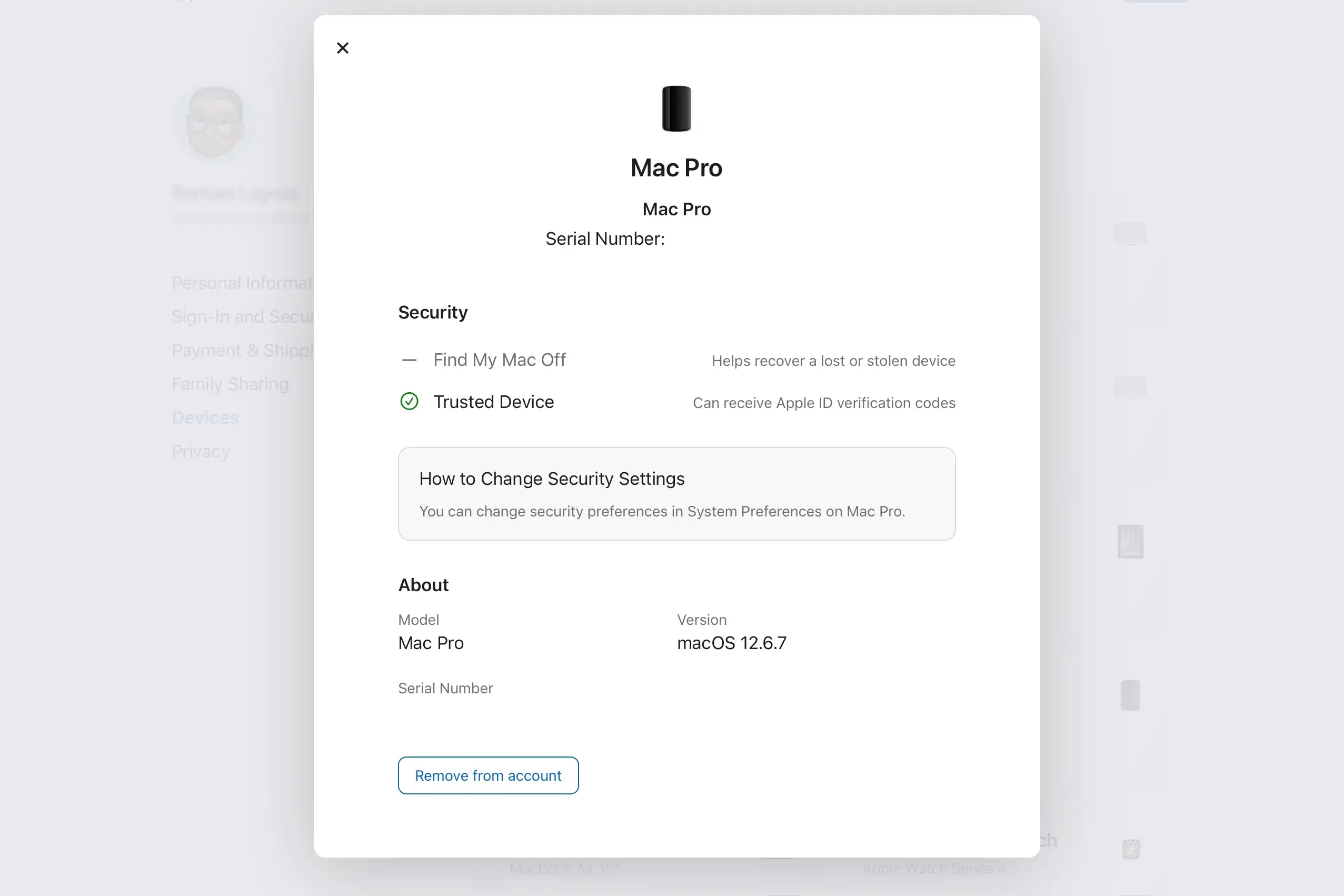
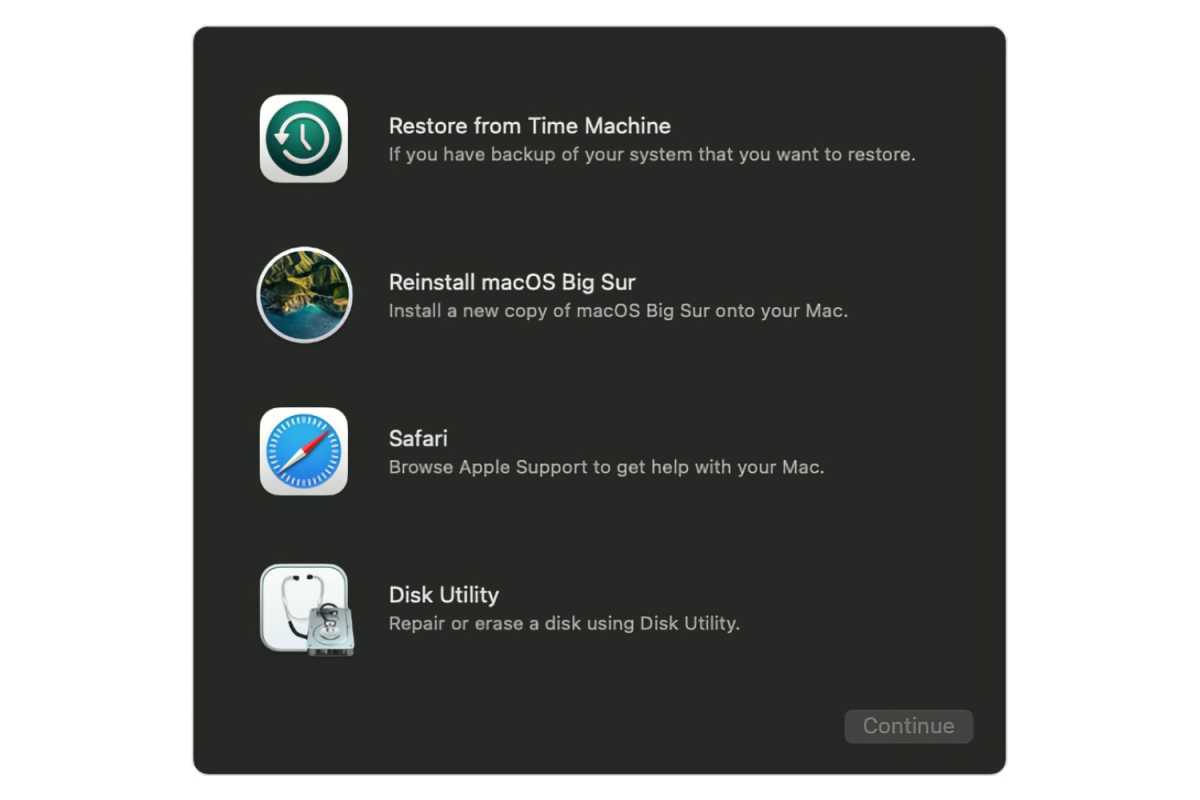



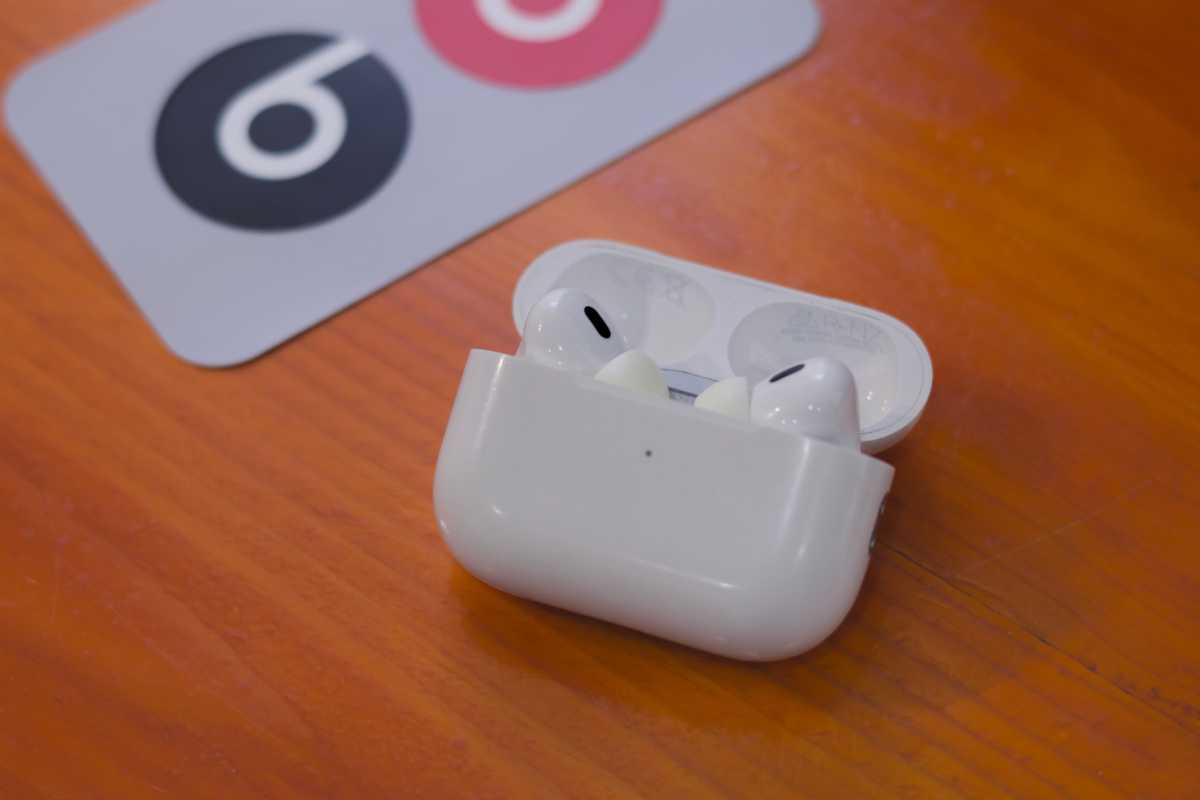
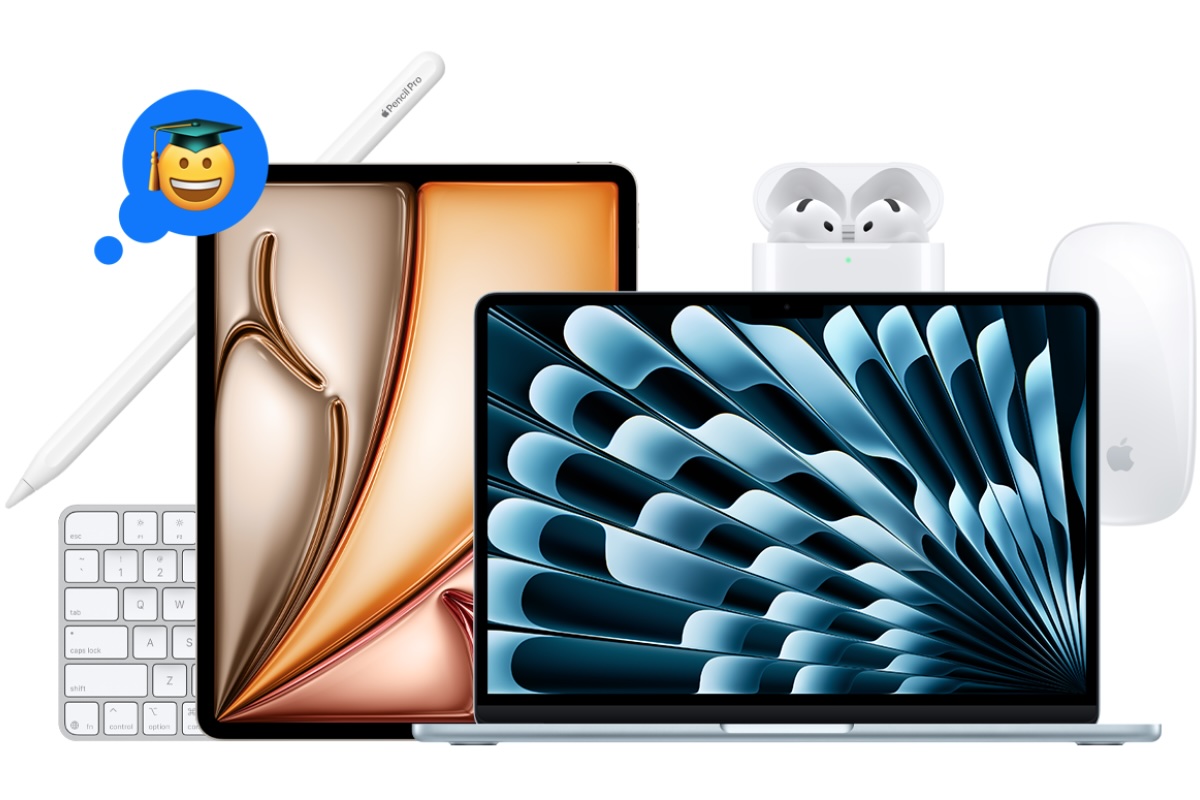
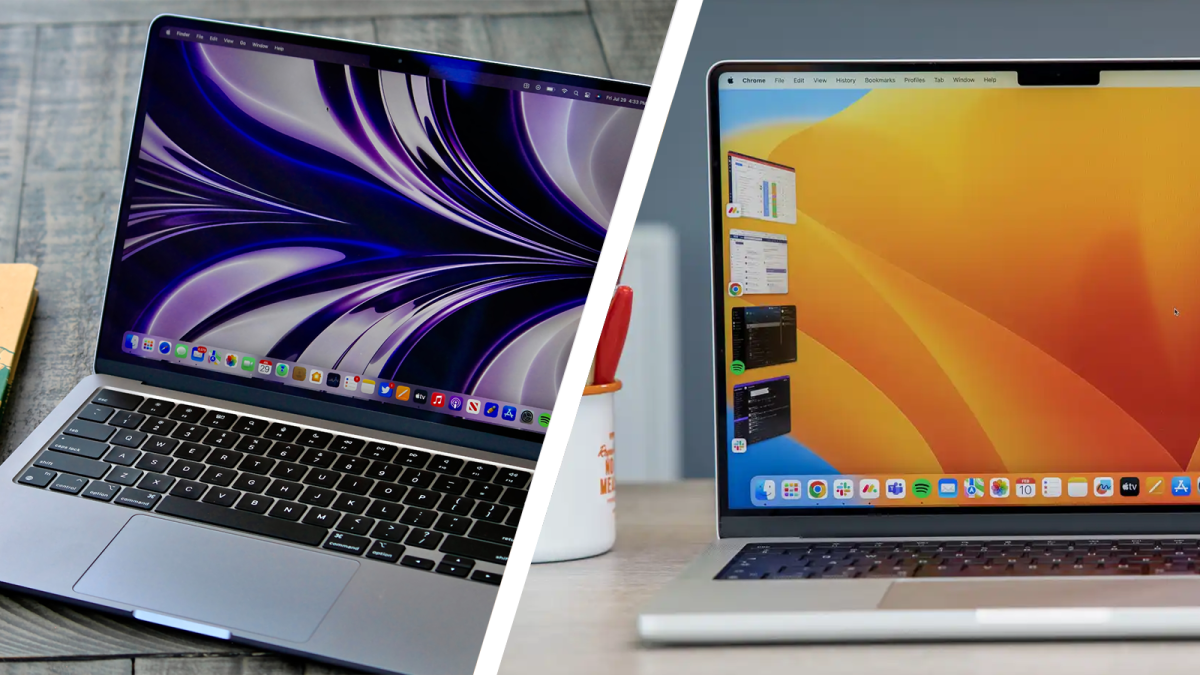

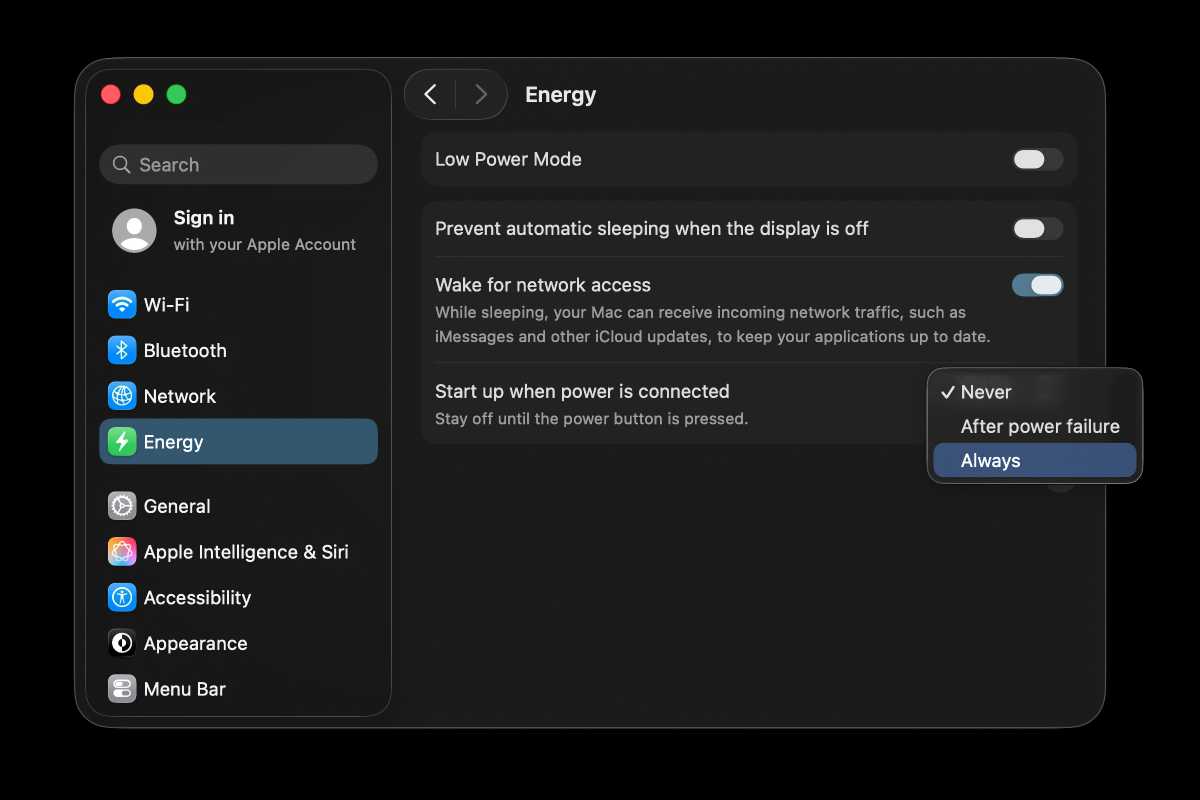


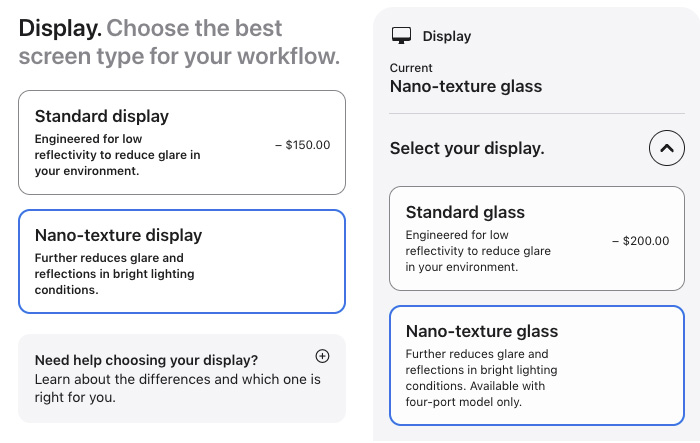

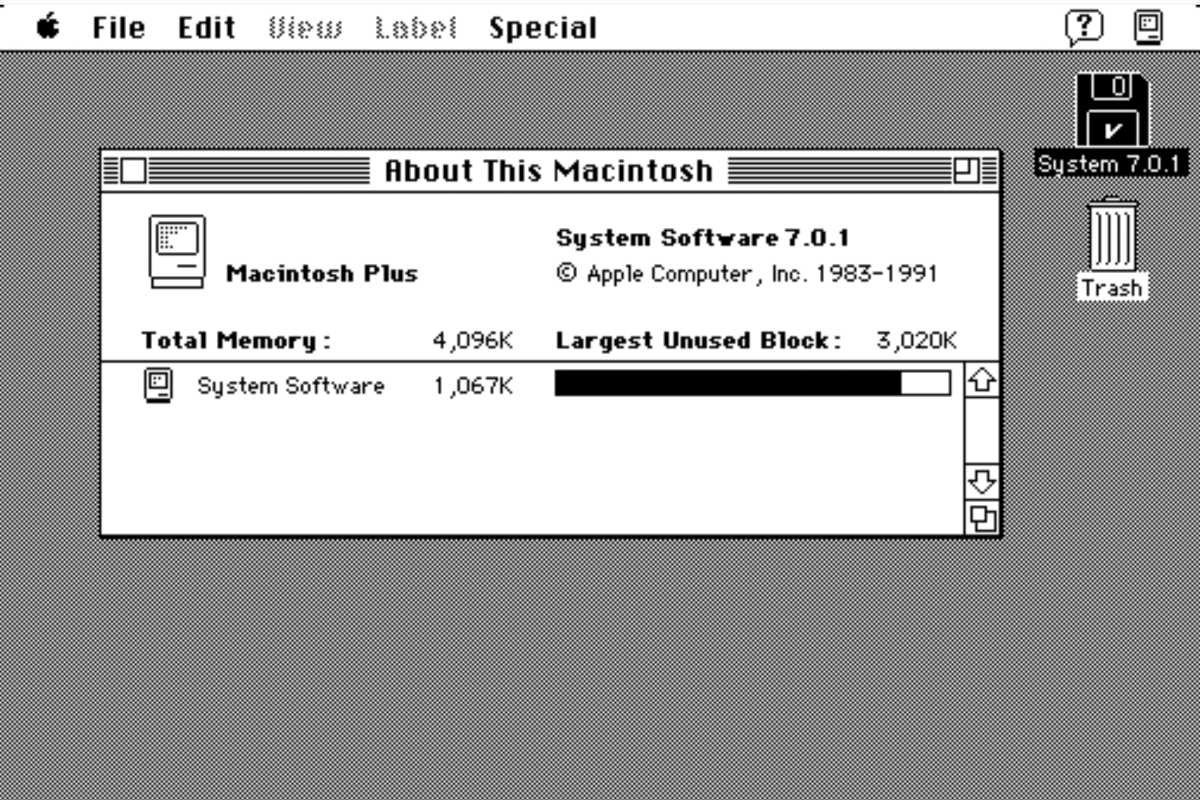
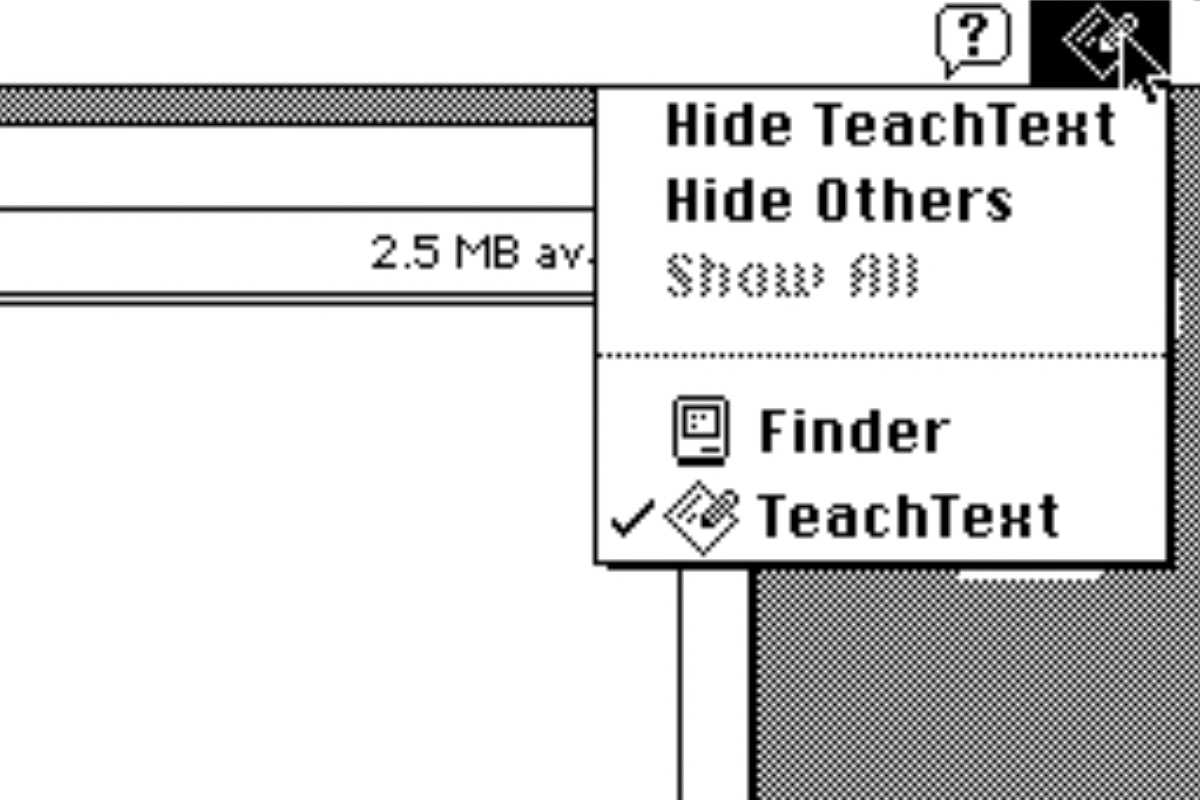
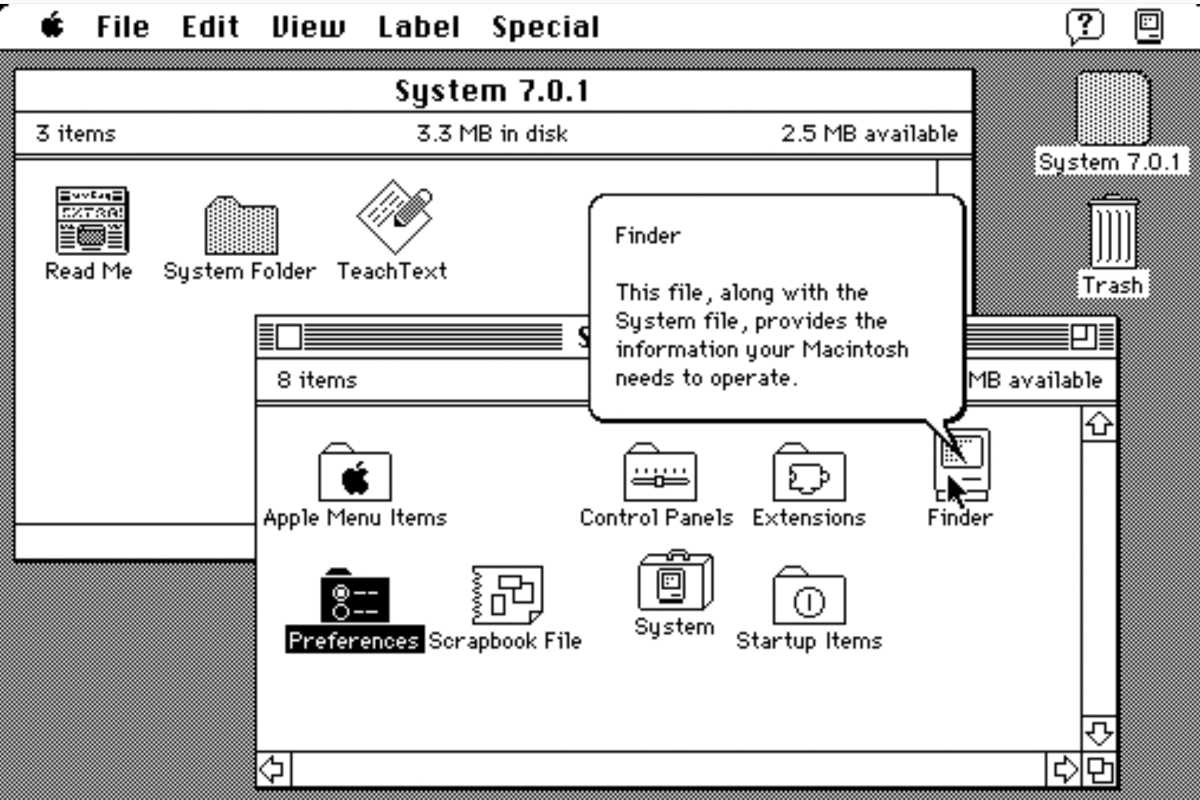
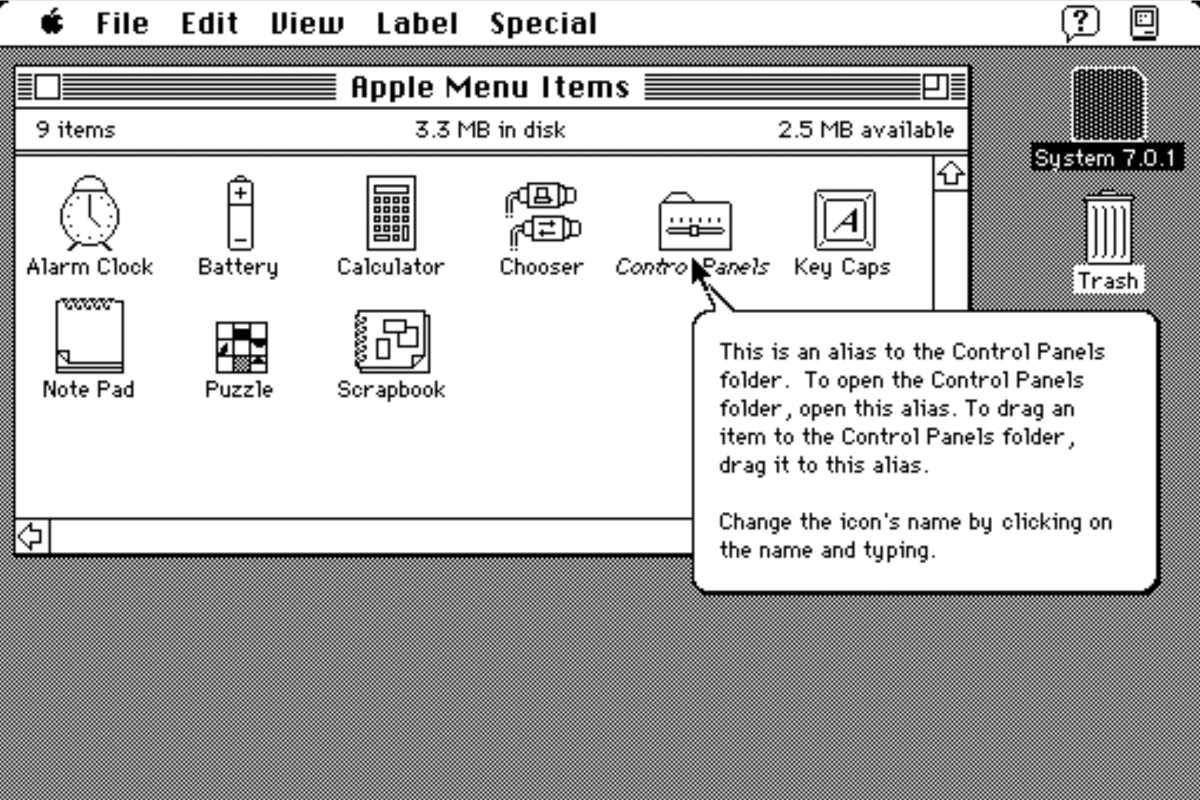

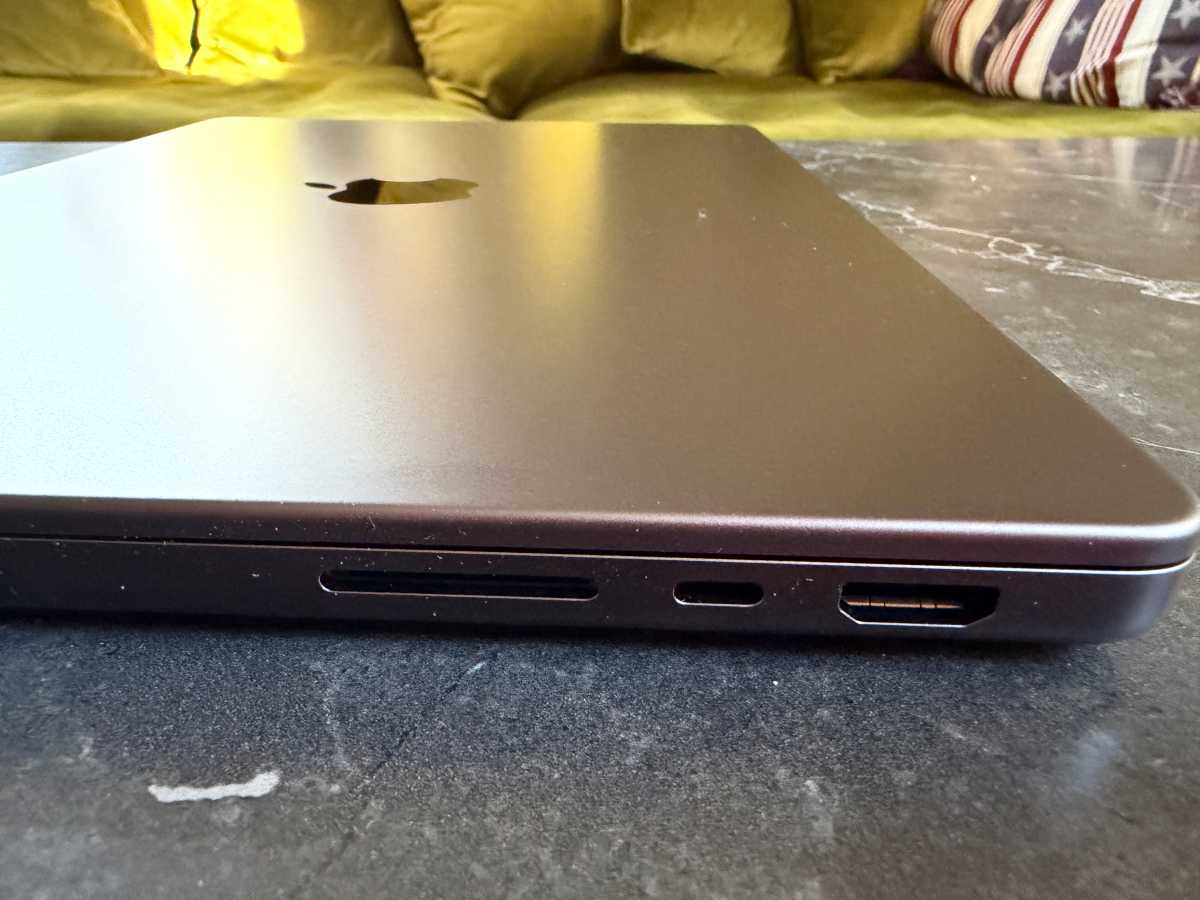
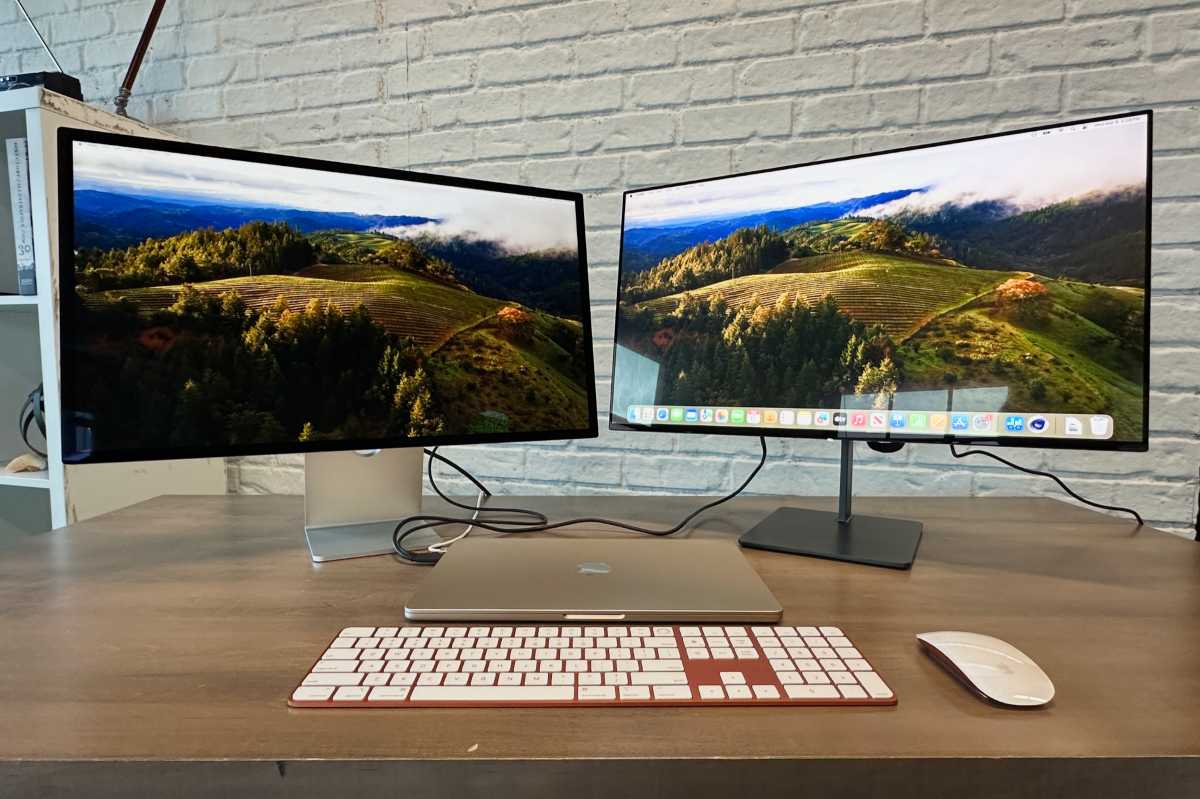
 Price When Reviewed:
Free
Best Prices Today:
Price When Reviewed:
Free
Best Prices Today:
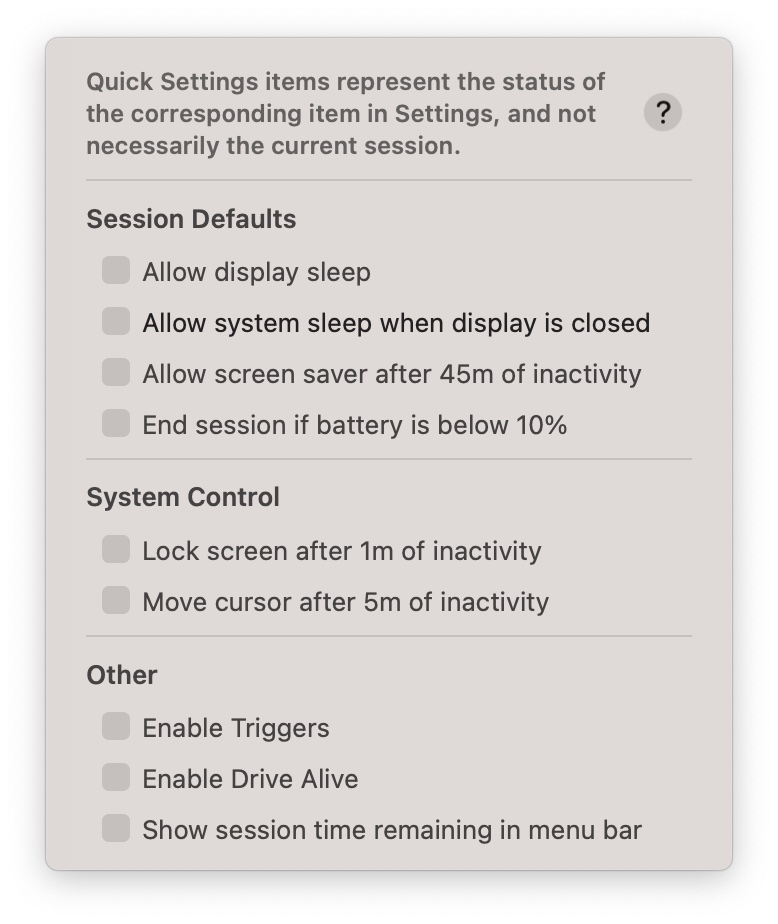
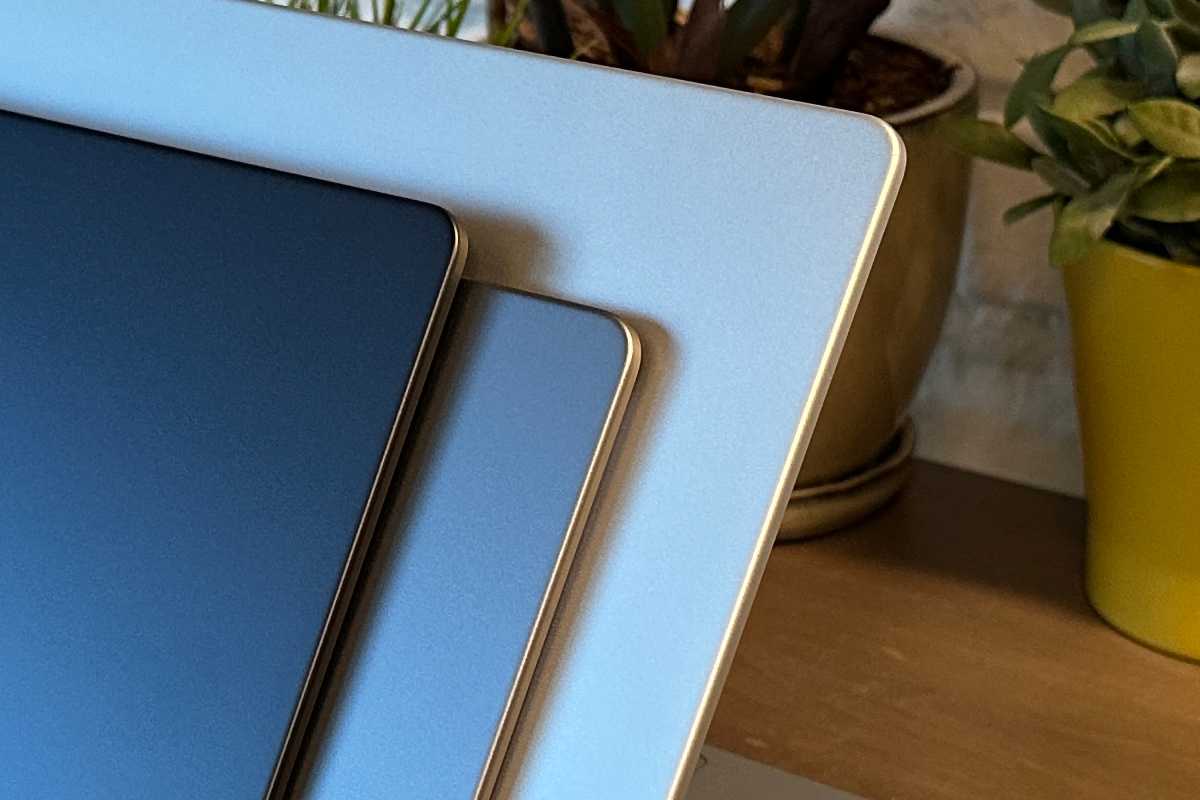
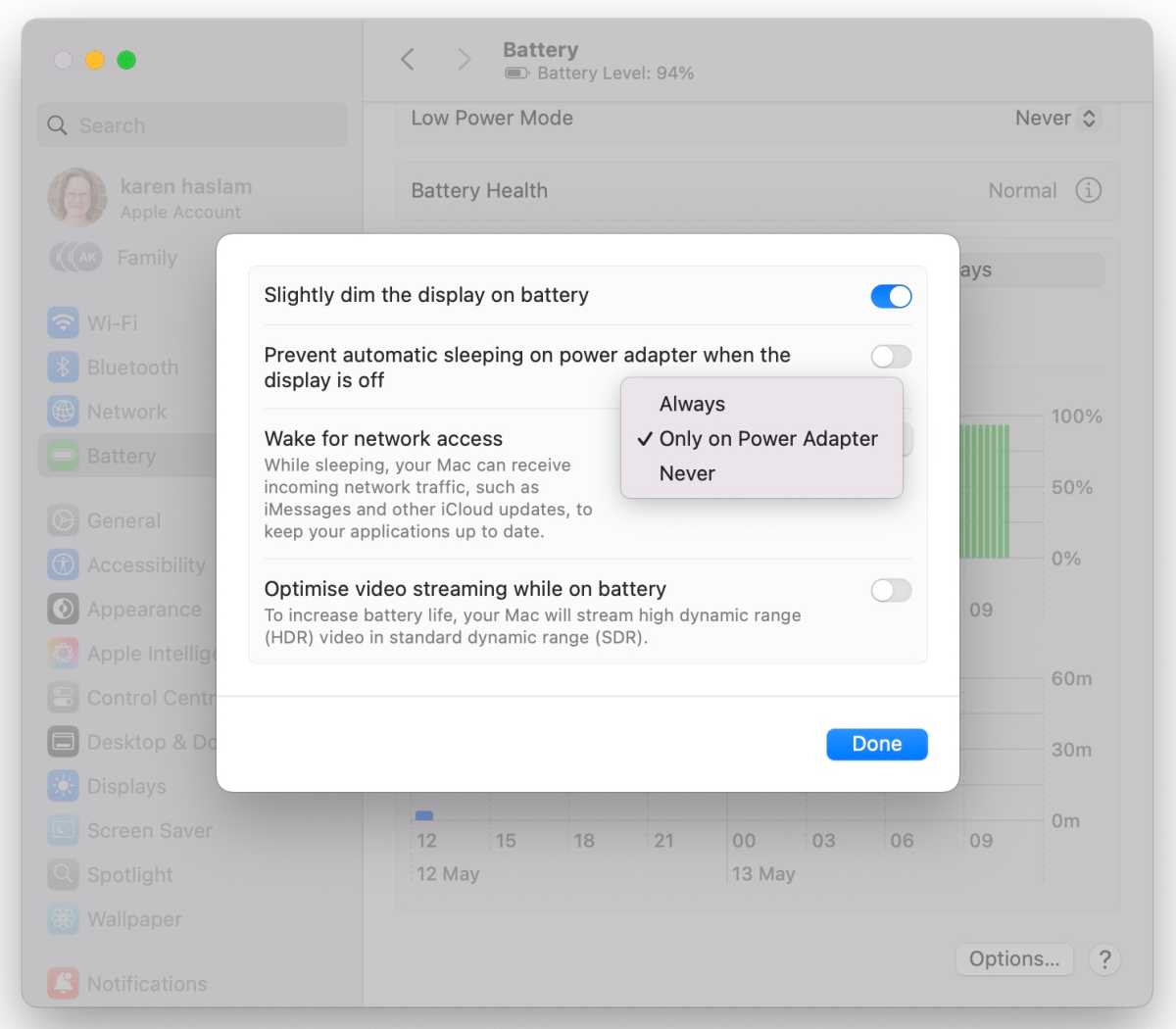
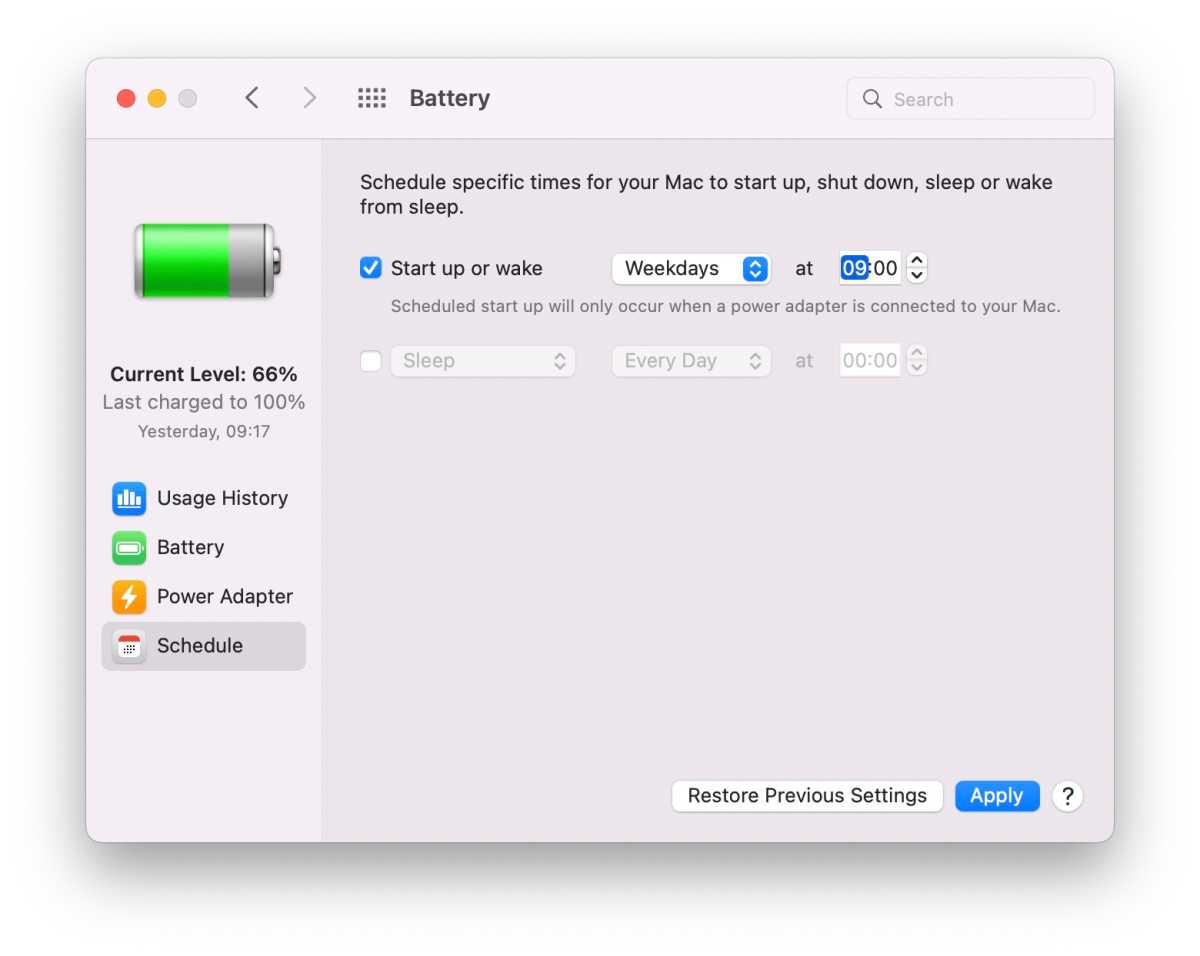

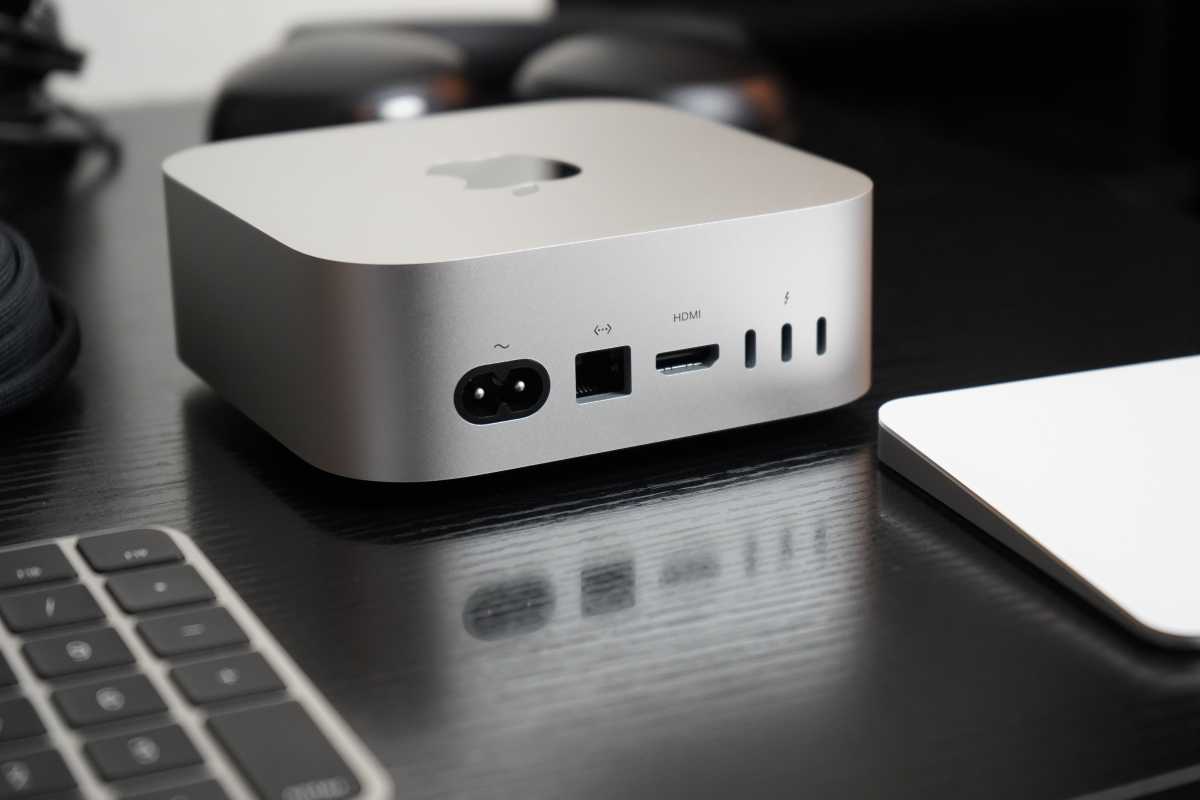


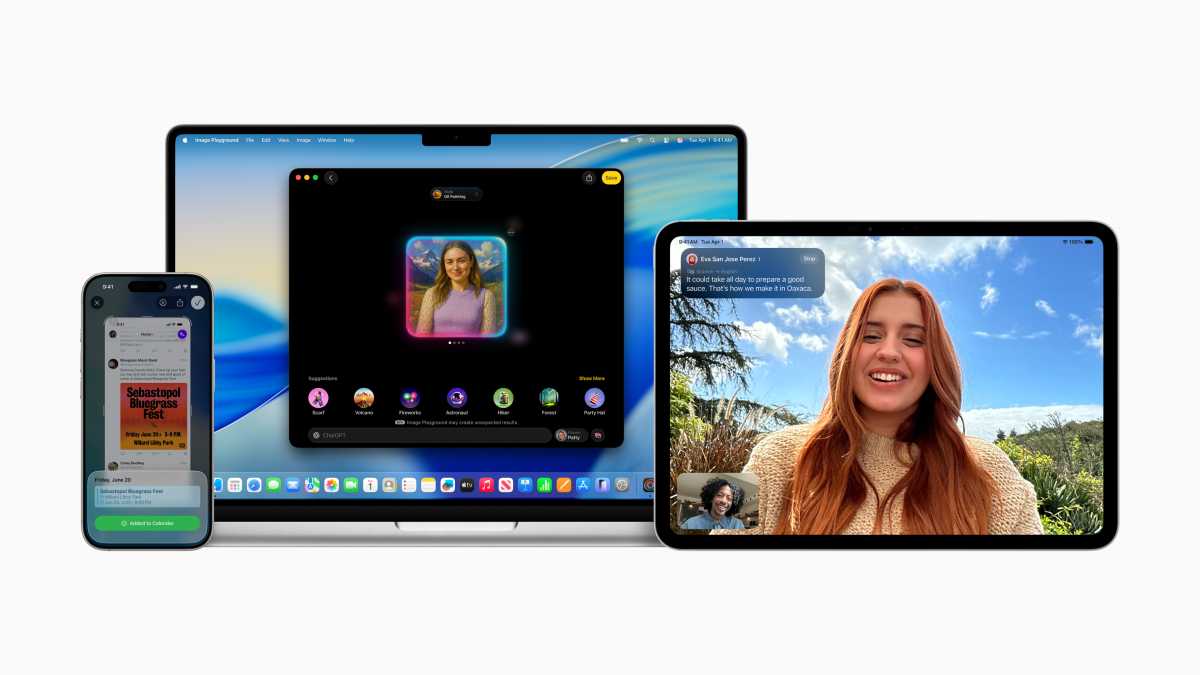
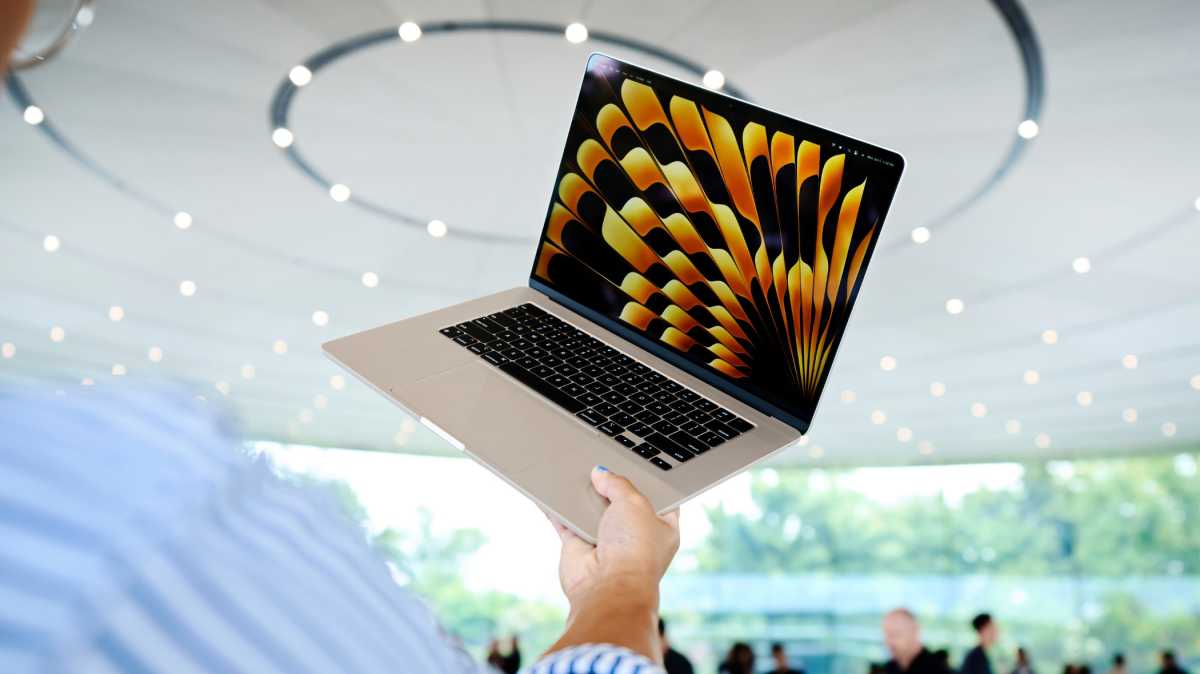


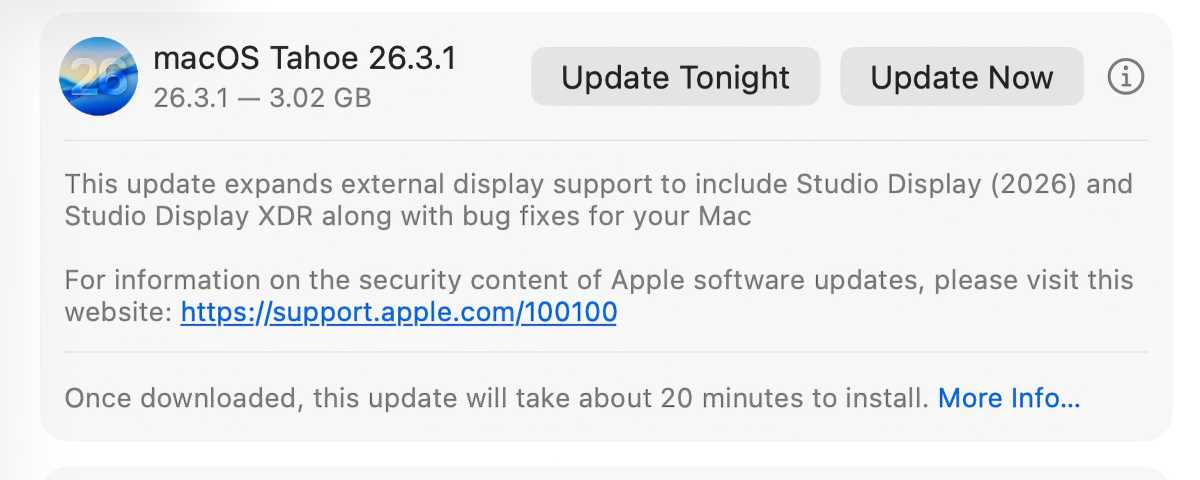

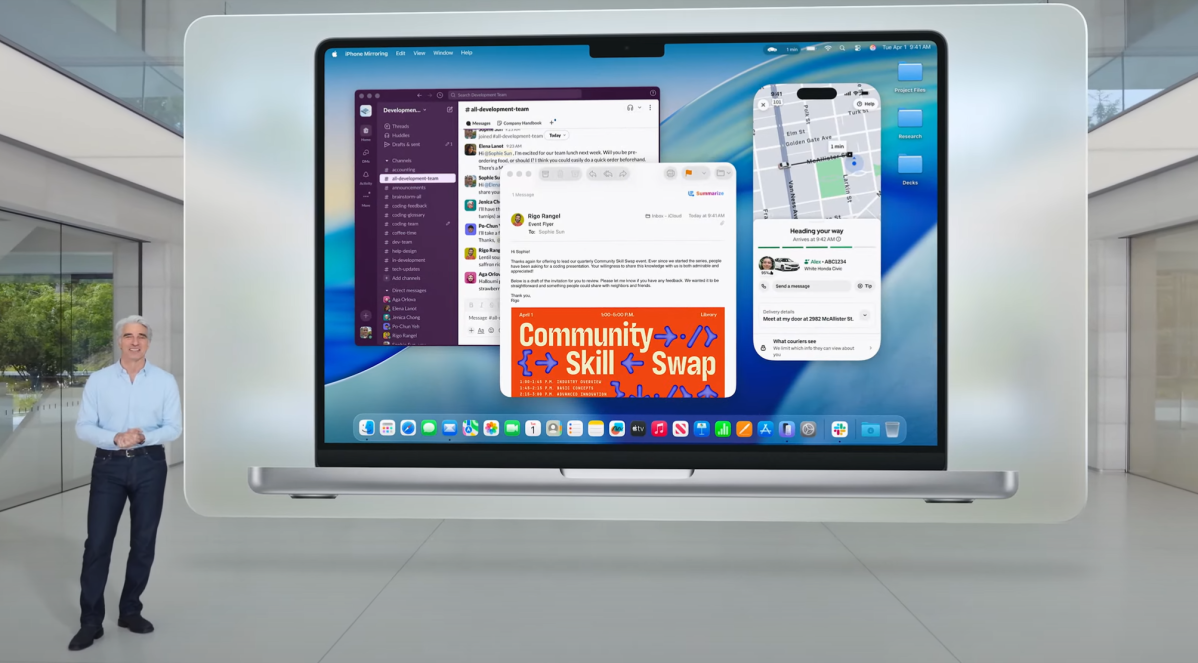
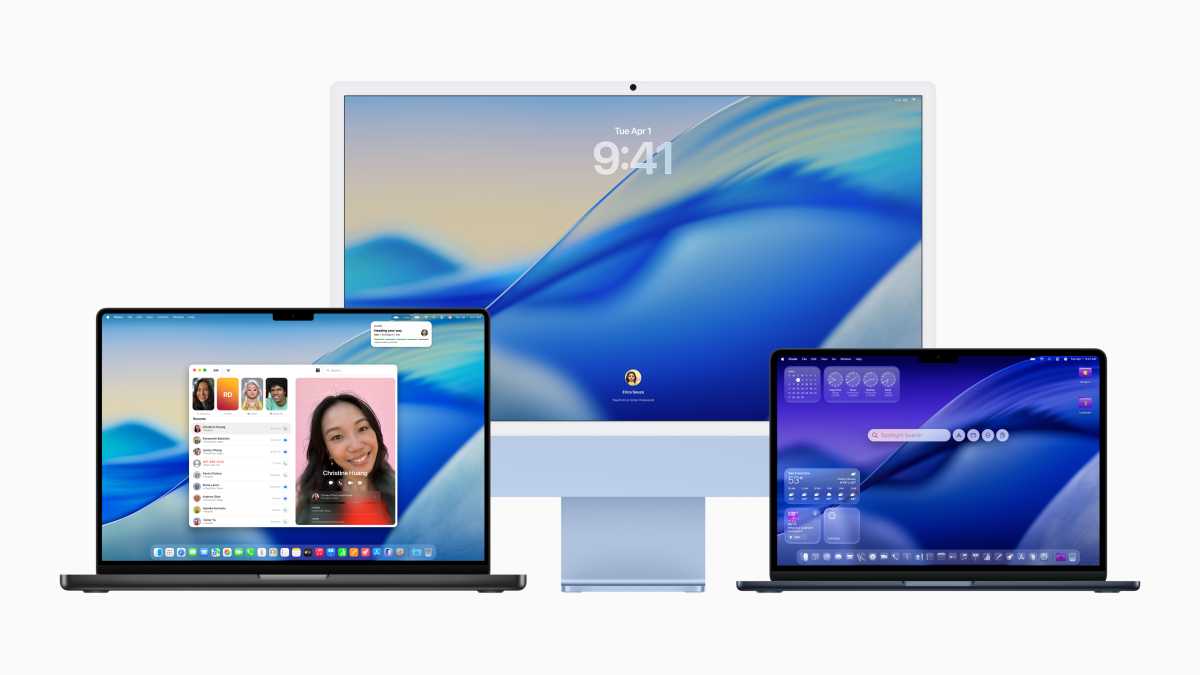
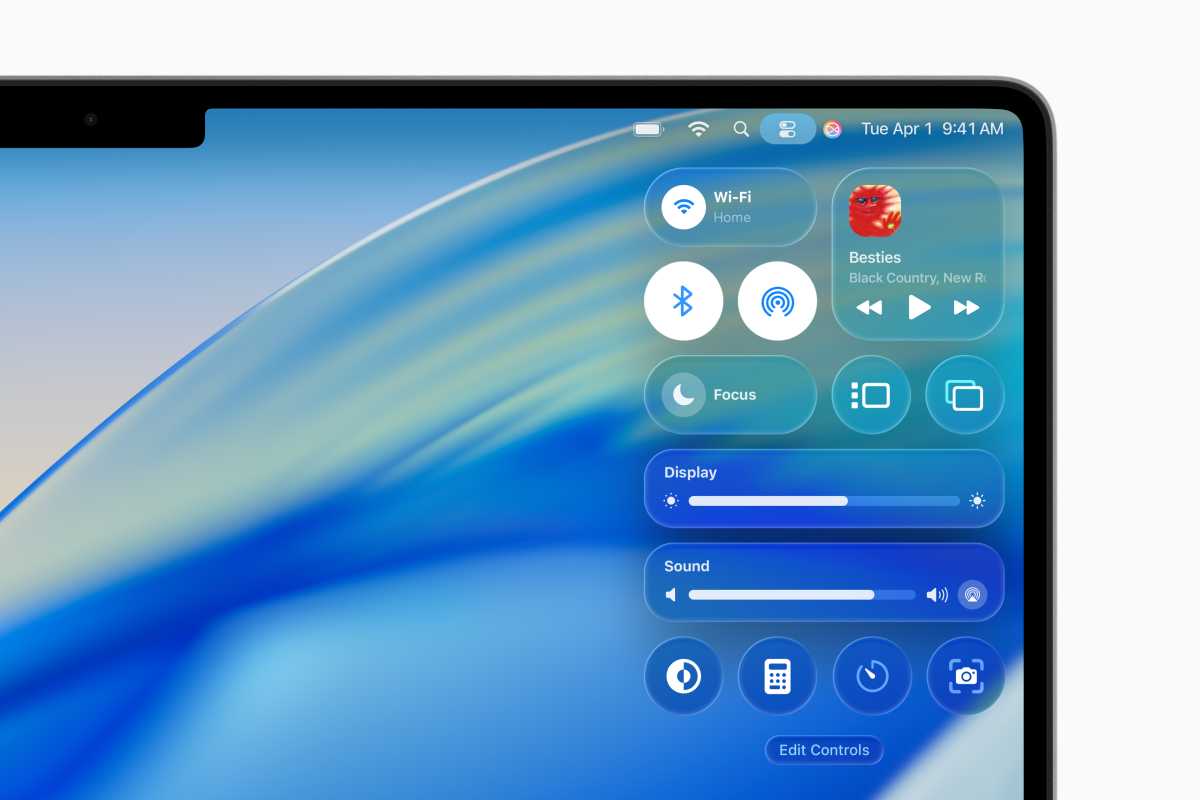

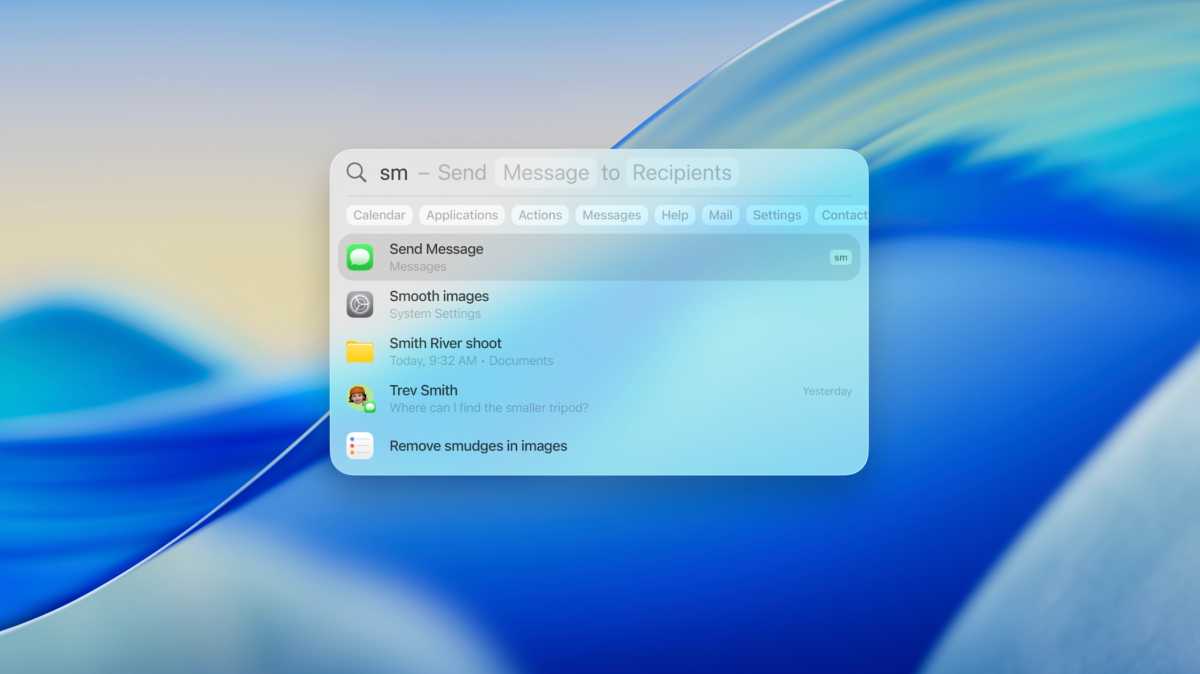
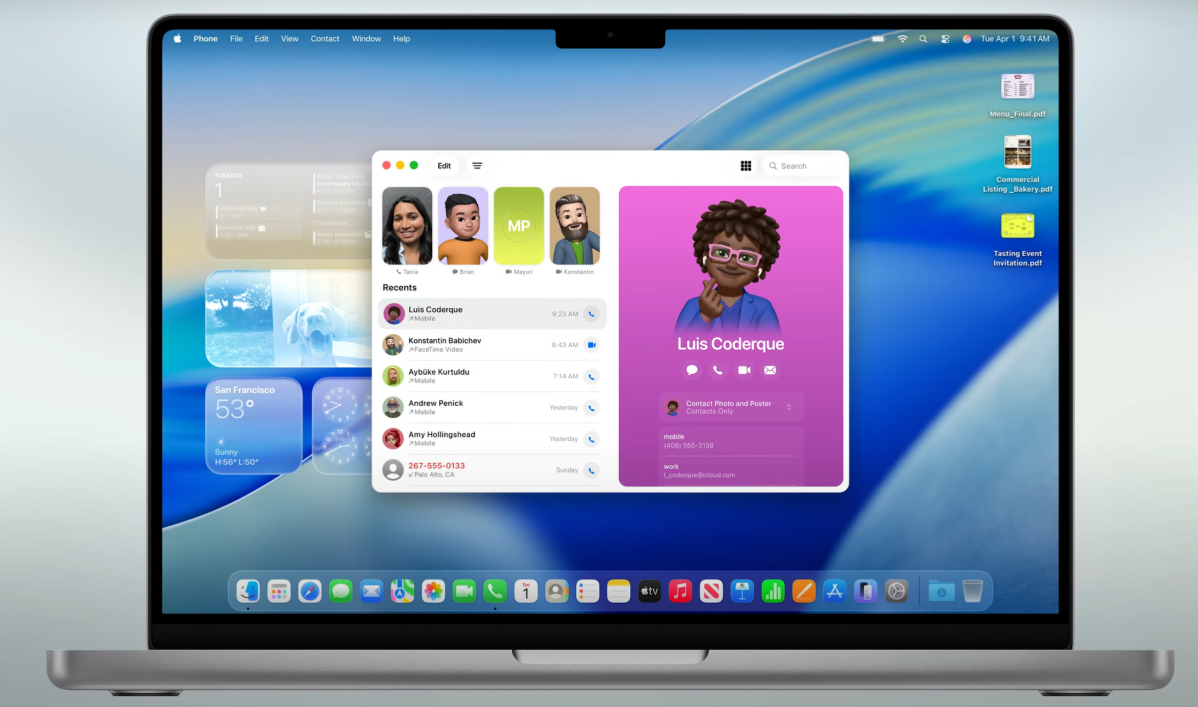

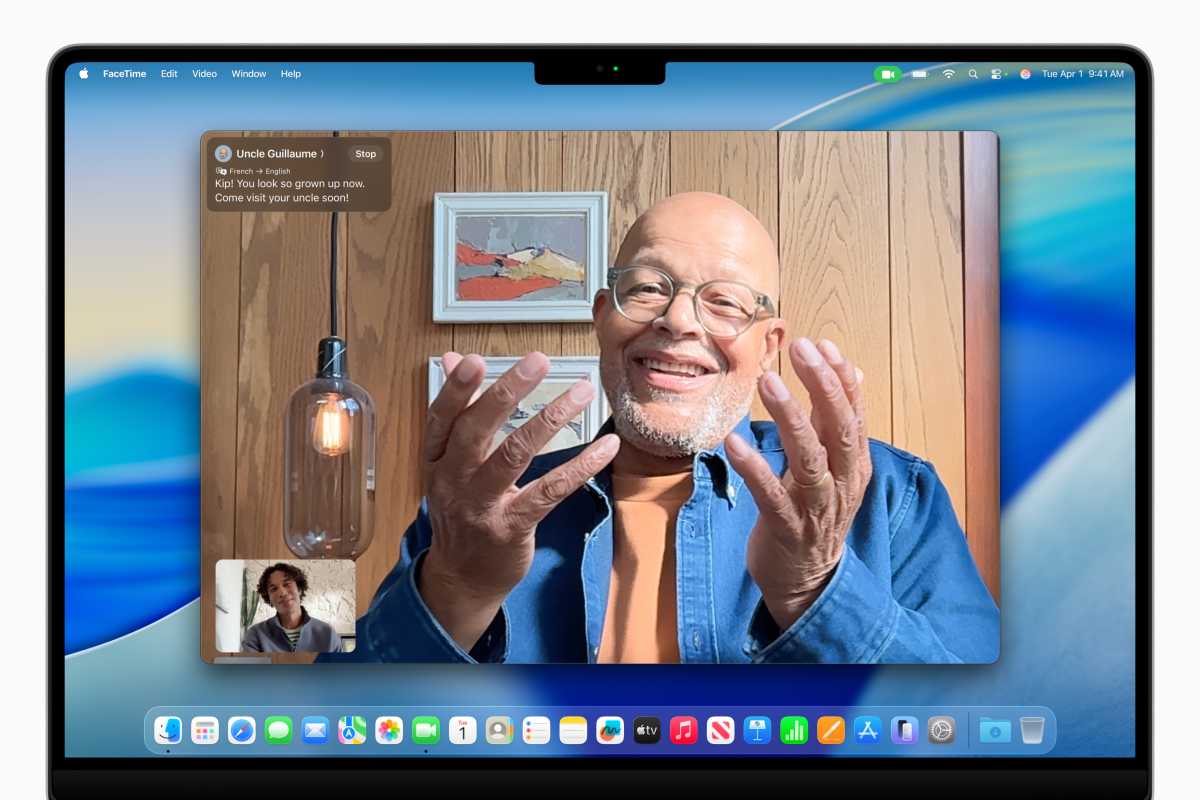



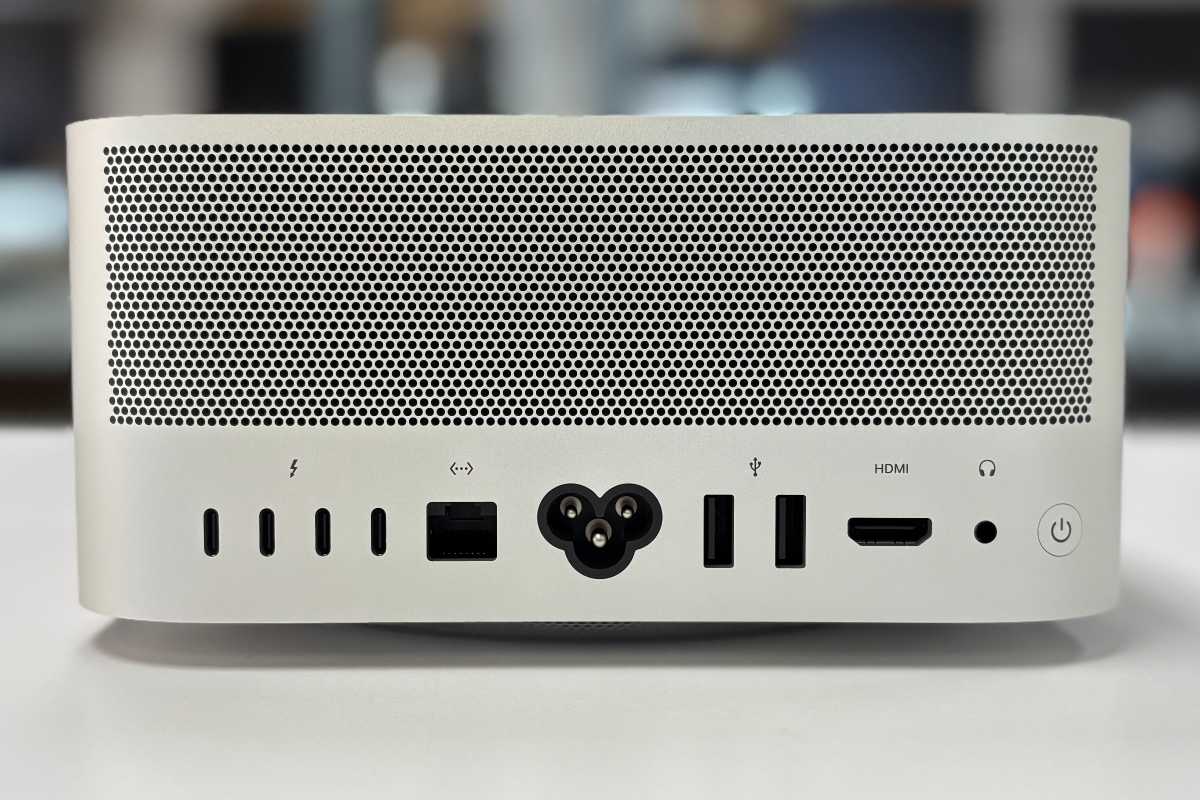

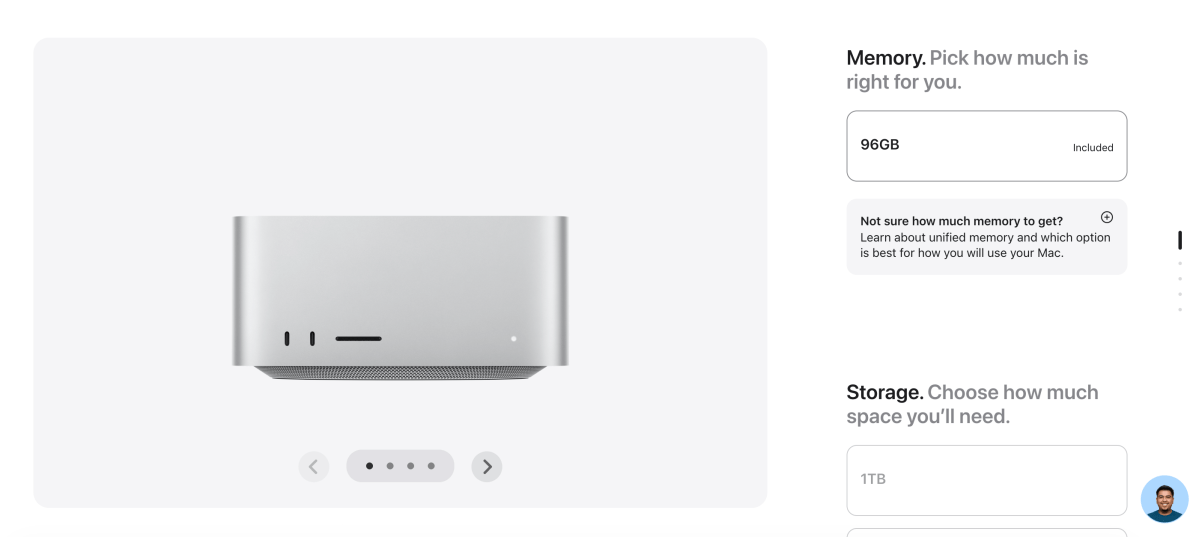

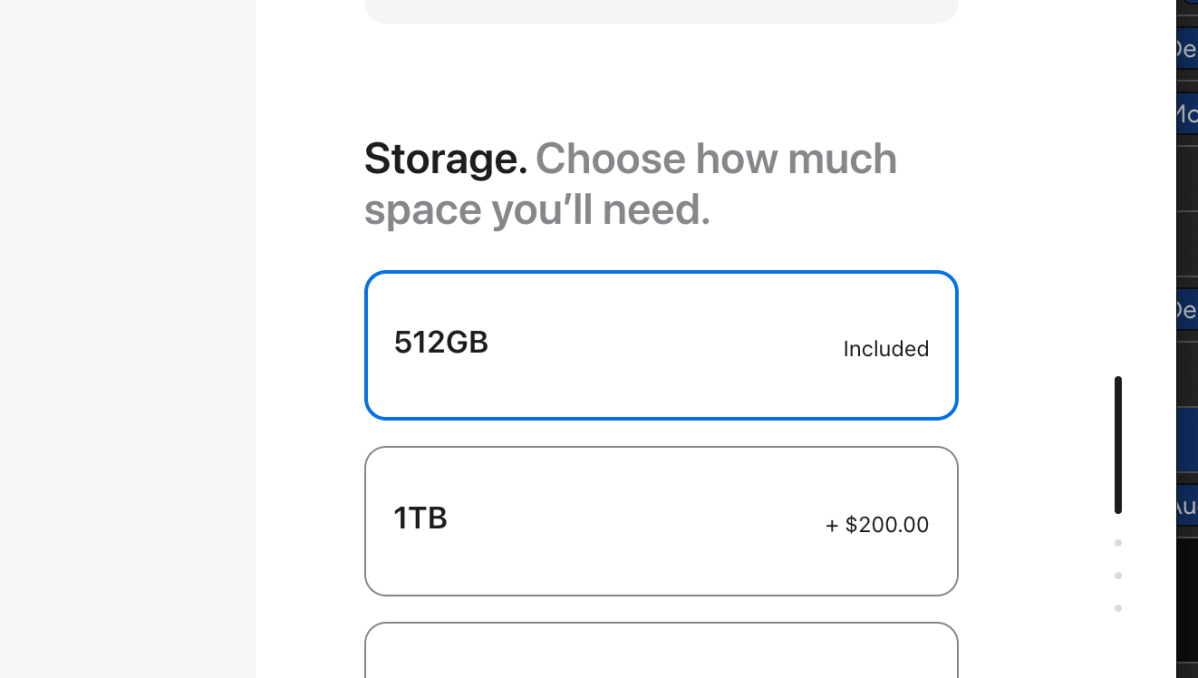


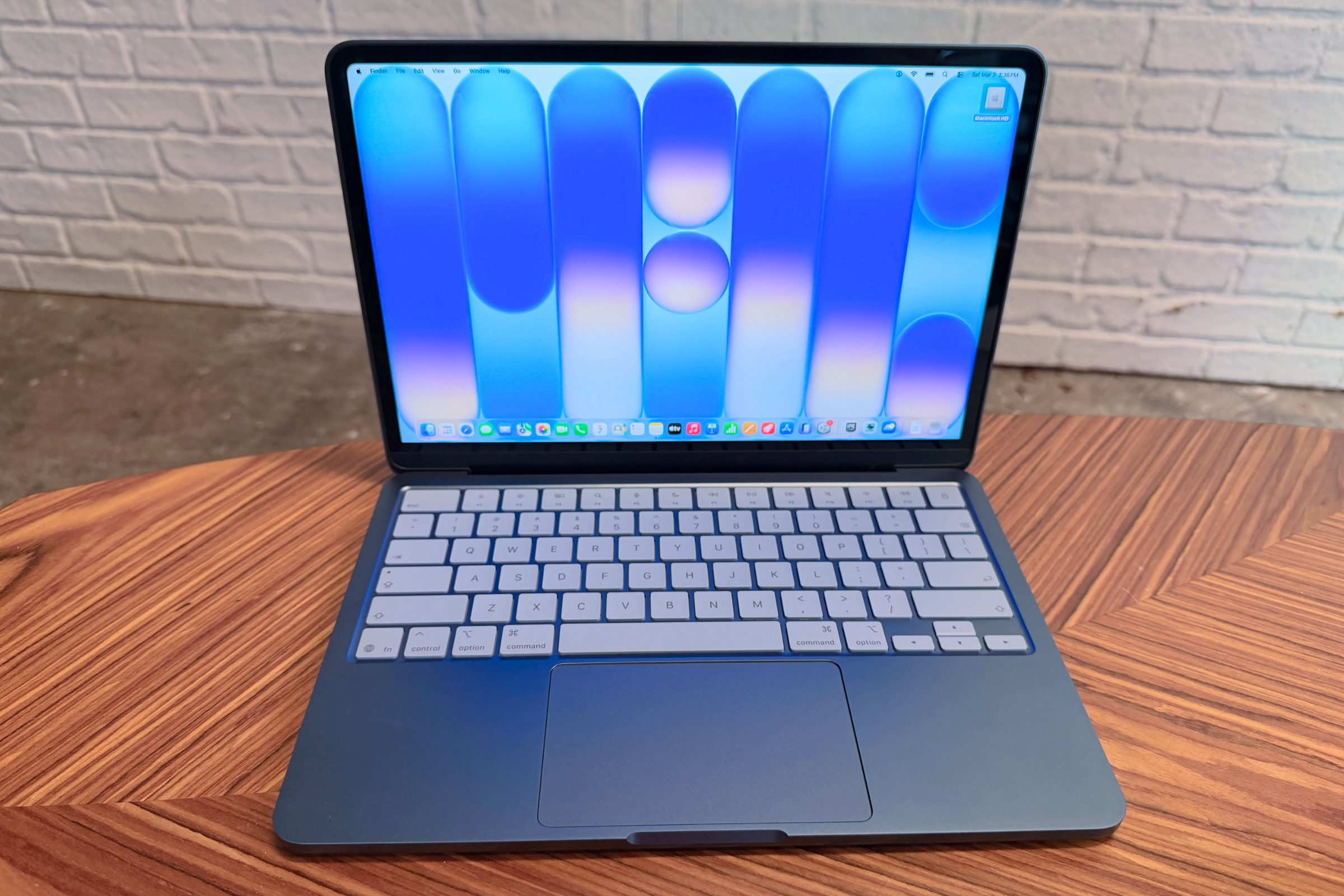
 $596.5
 $599
$599
 $599
$599
 $599.99

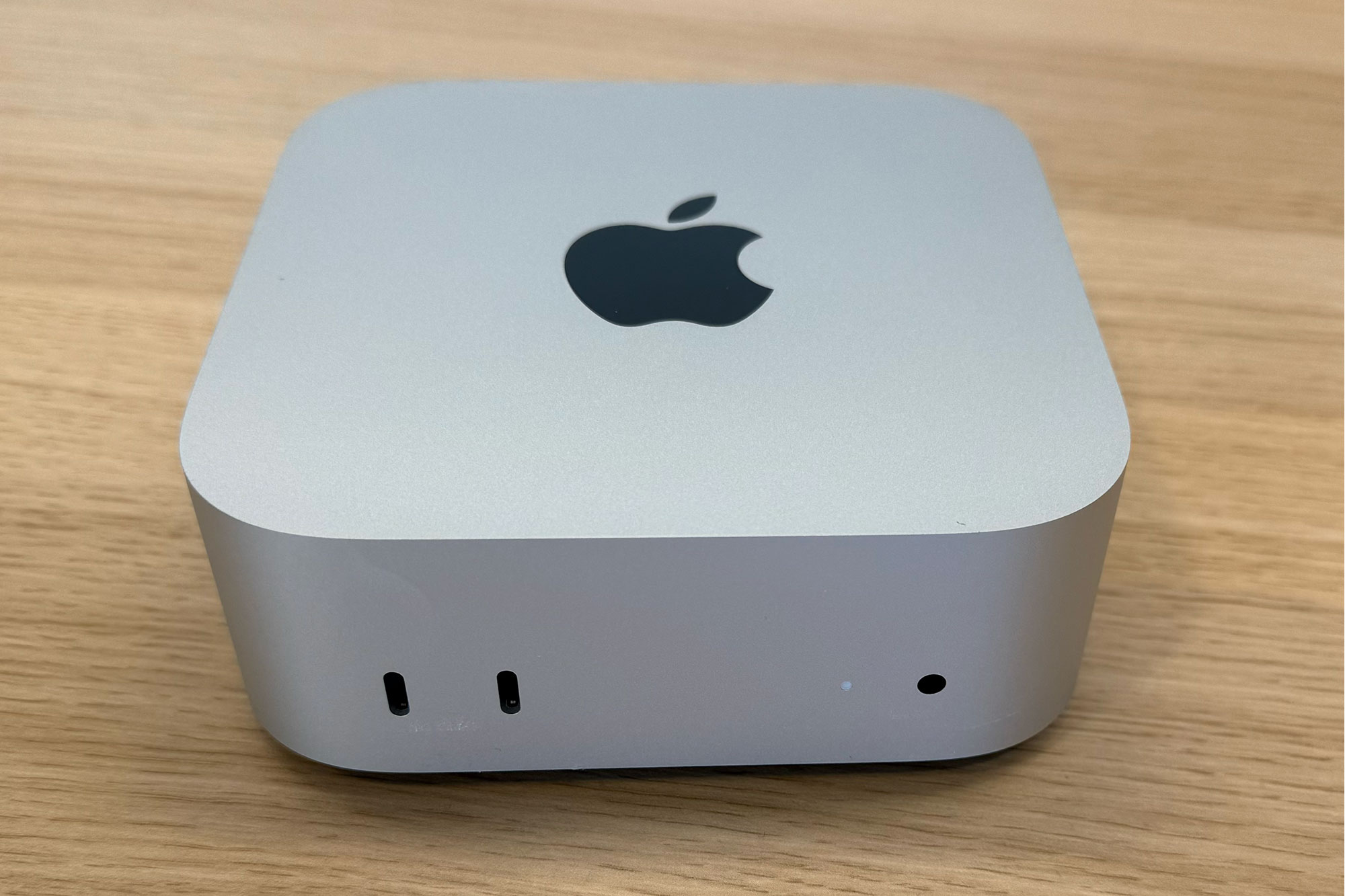
 $799
$799


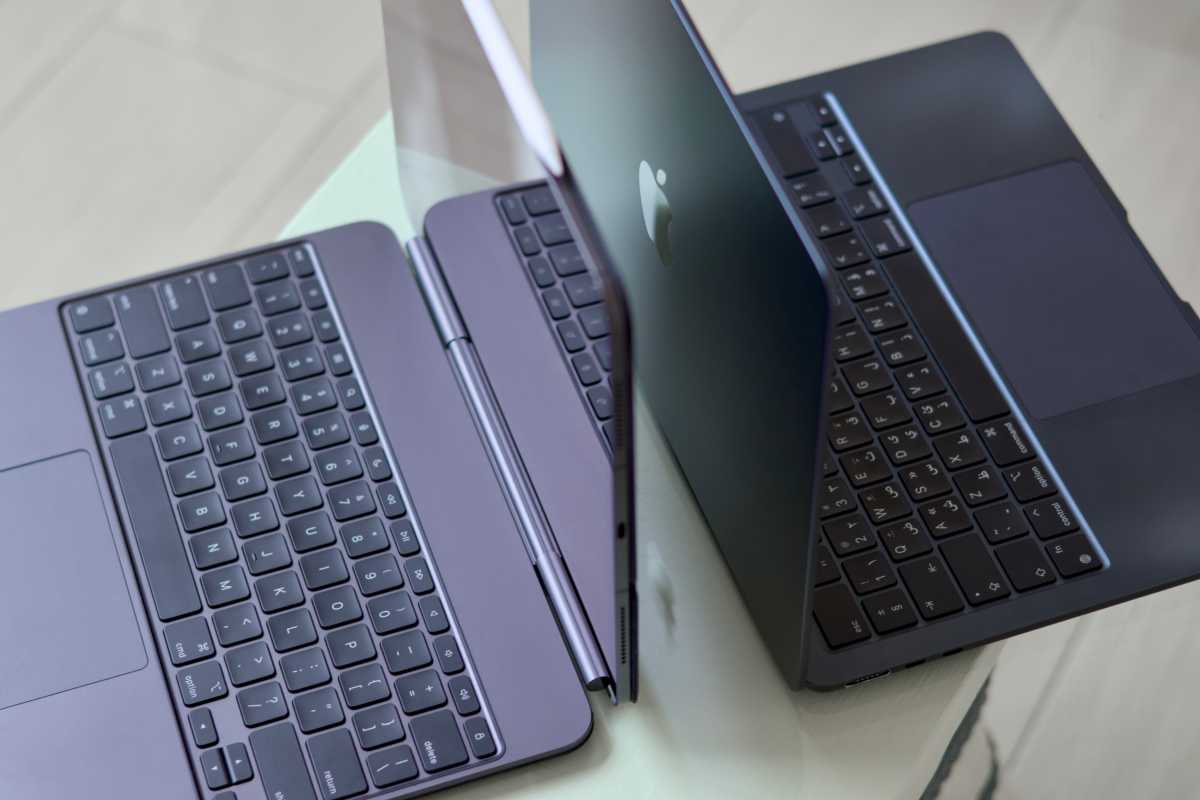
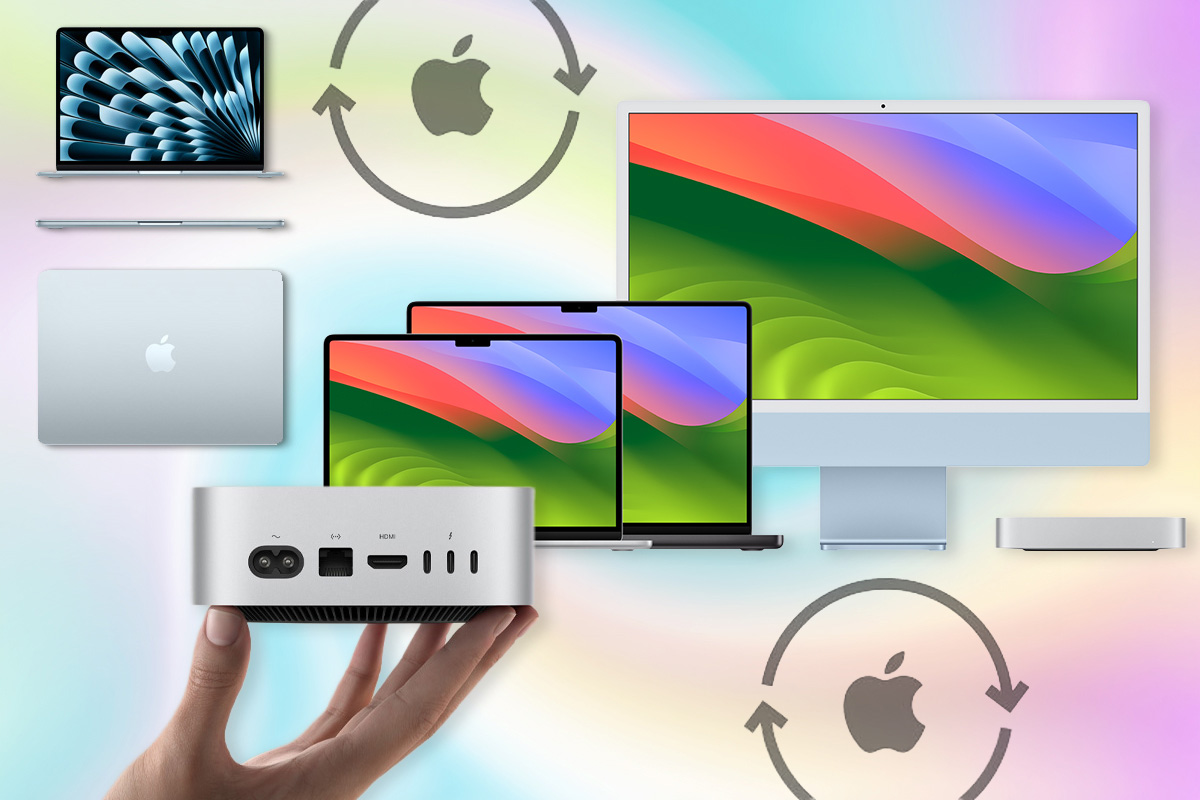

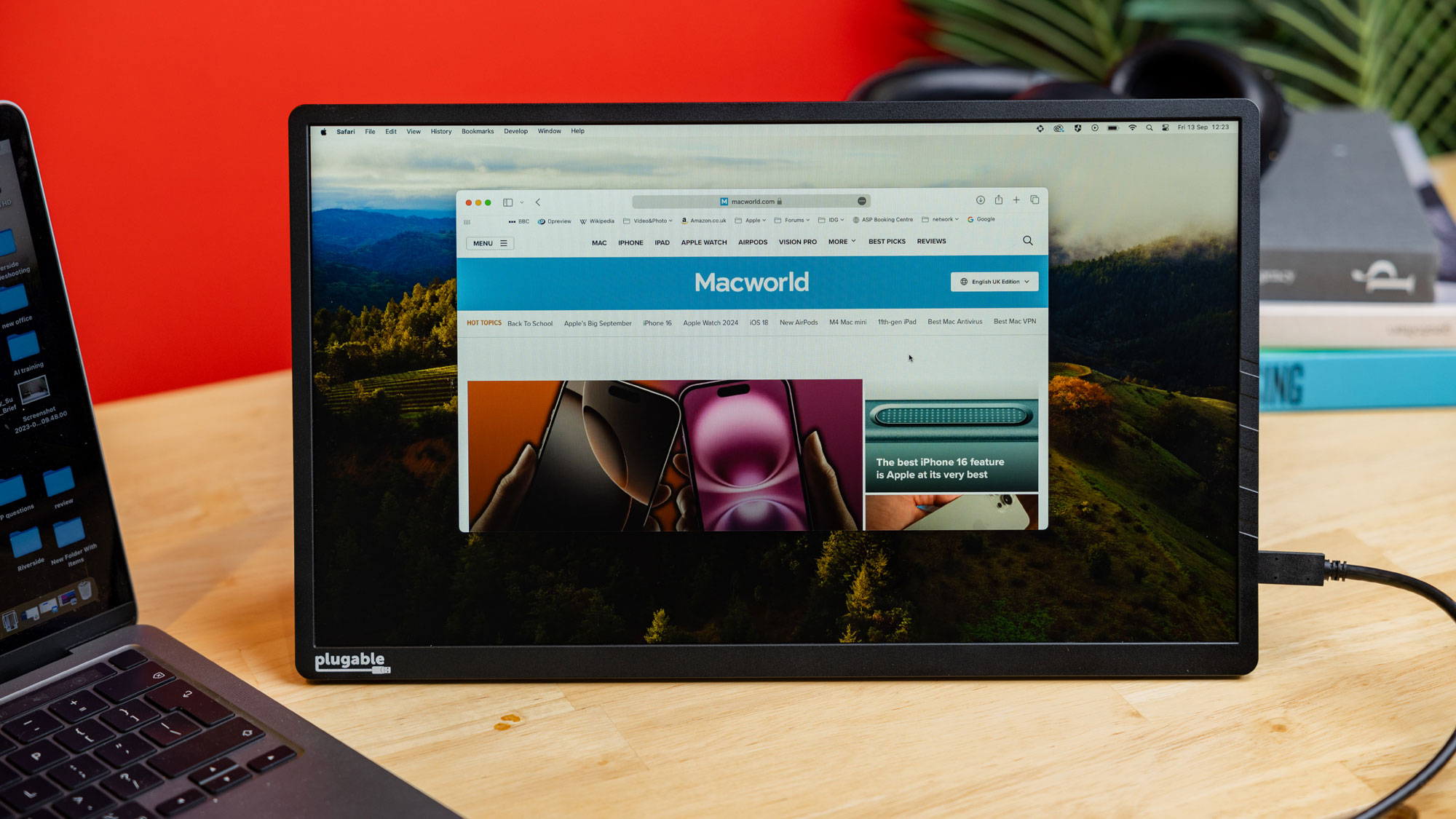
 $239.95
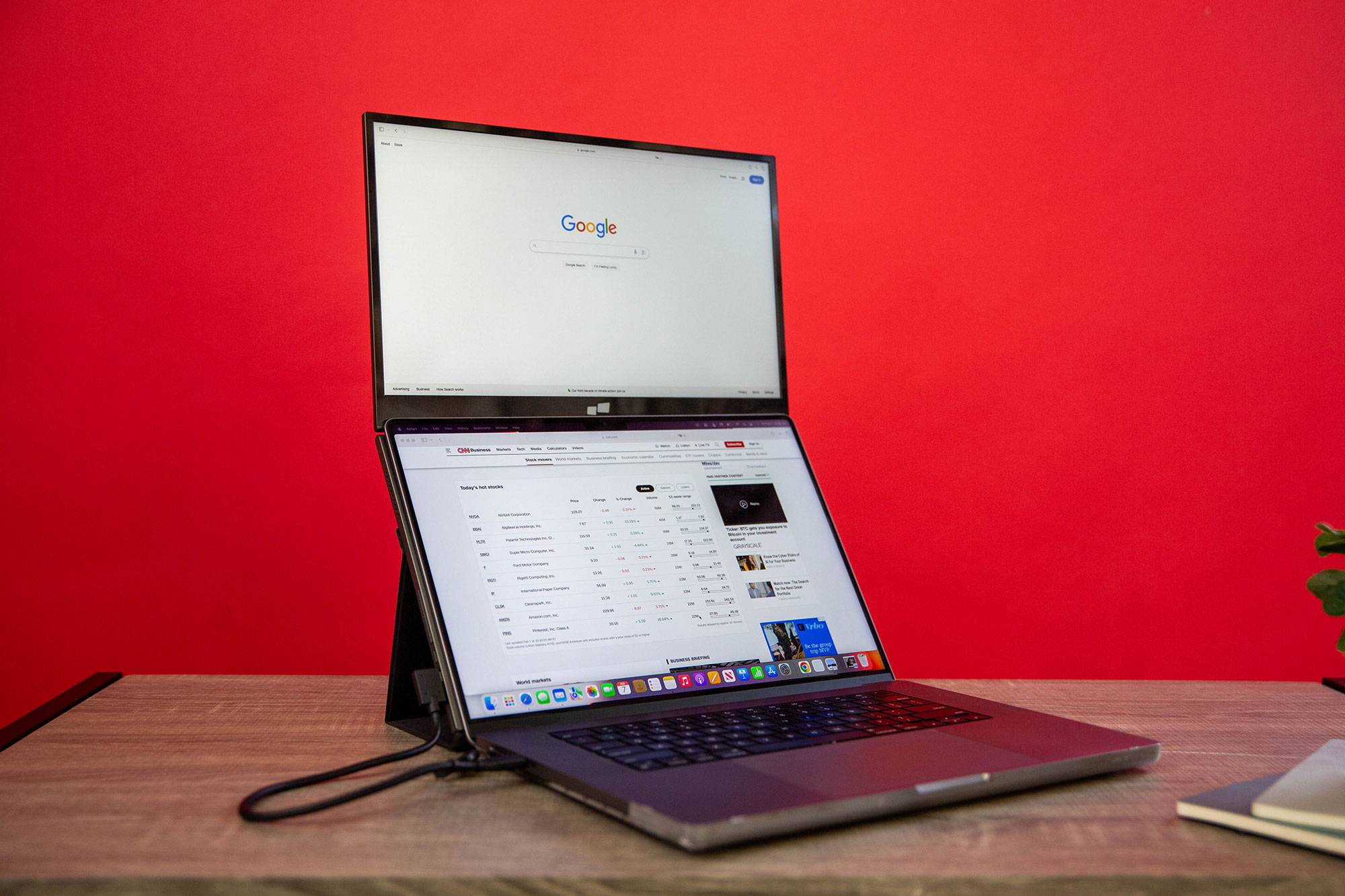
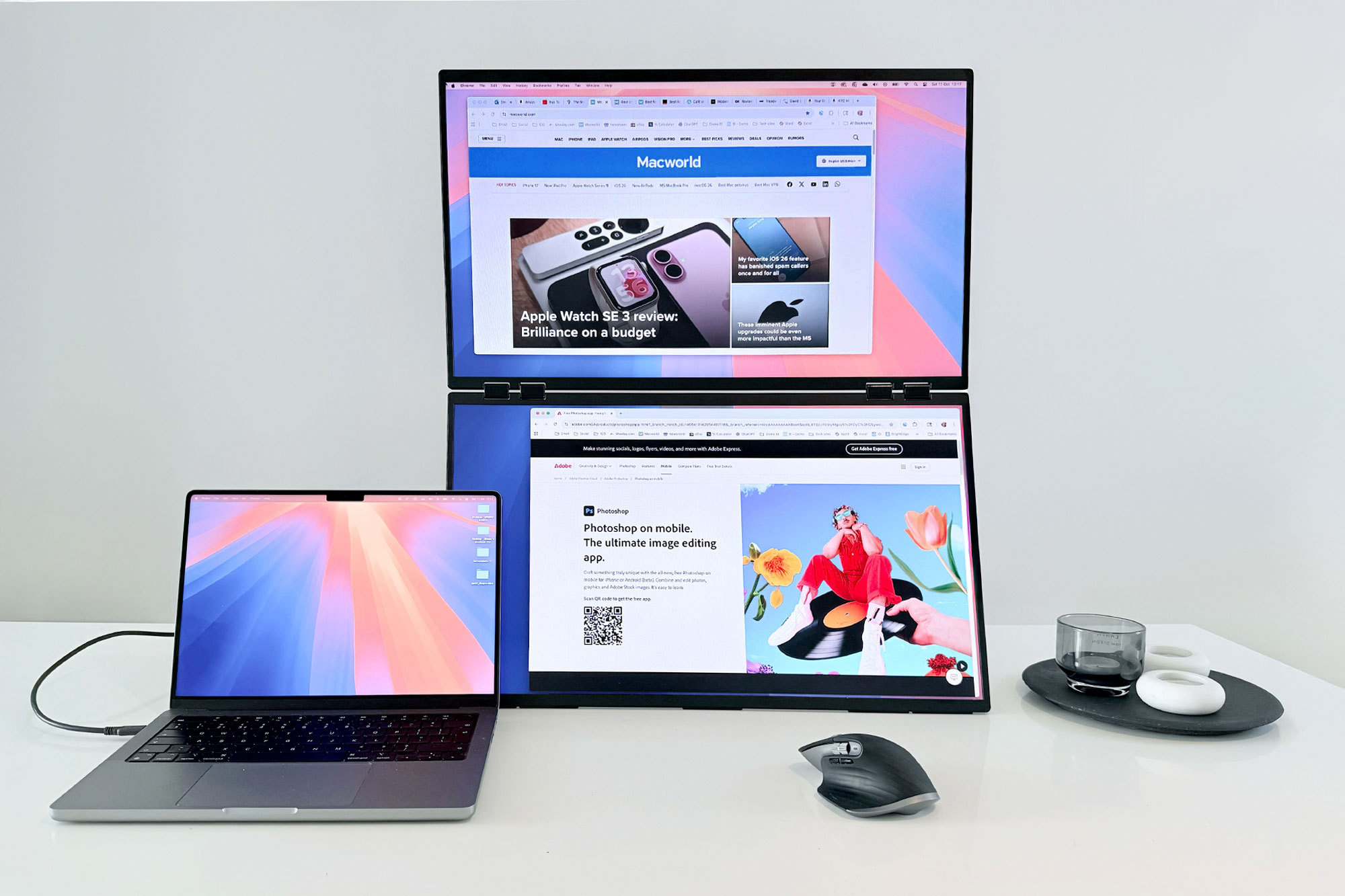

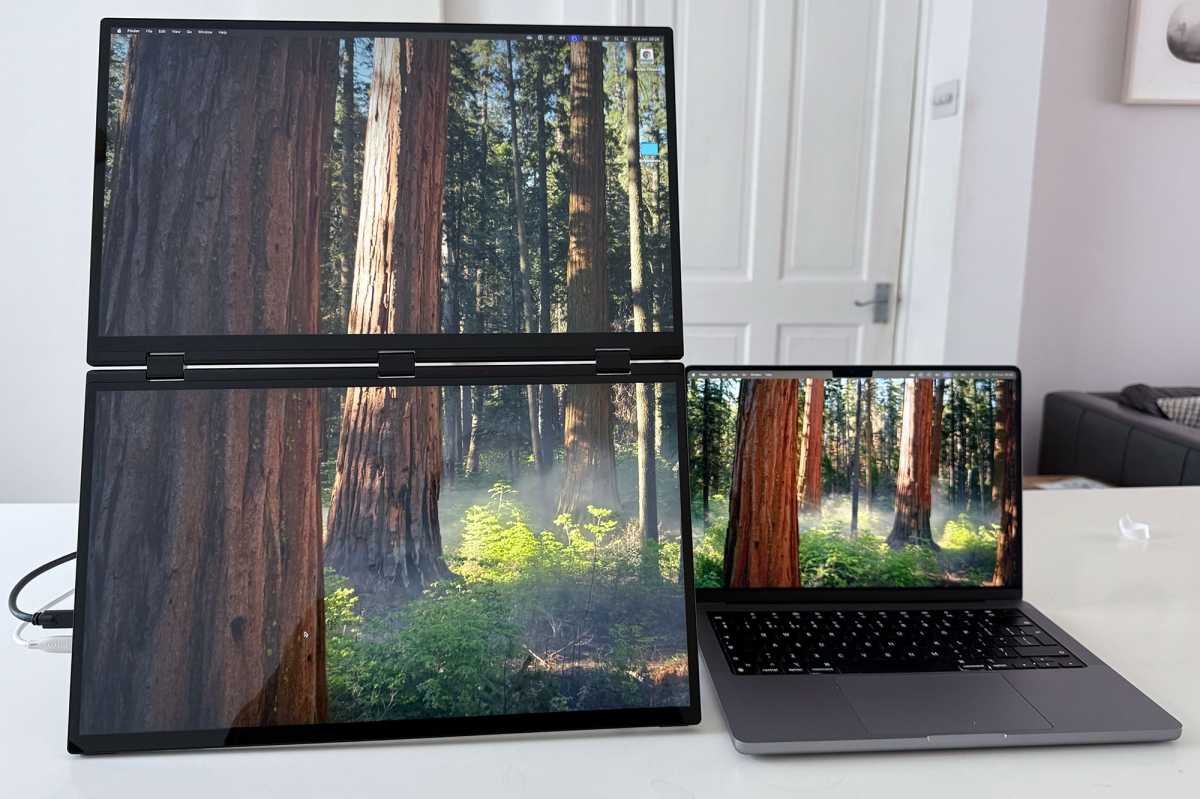
 $1499
$1499