Like a good responsible citizen I downloaded the app when it first became available in the Autumn. I set it to have contact tracing on and in the app the green glowing logo looked just fine! It told me “Your app is active and scanning” – Jolly good! It was only when a contact mentioned... Continue Reading →
Show full content
Like a good responsible citizen I downloaded the app when it first became available in the Autumn. I set it to have contact tracing on and in the app the green glowing logo looked just fine! It told me “Your app is active and scanning” – Jolly good!
It was only when a contact mentioned they had a “match” that I began to realise the app had never been working properly. When I asked them what they meant by “match”, it turned out they didn’t mean a notification from the app itself telling them they had had a contact requiring isolation. Their app itself hadn’t told them anything.
By “match” they meant they had gone into the underlying technology on their iPhone and checked their “exposure log”. Basically the NHS app builds on Apple/Google phone technologies to collect all the bluetooth contacts you make with nearby phones and logs the strength (inferred distance) and length of contact. Then at some point the log of these contacts on your phone is checked against reference logs, if one of those contacts has had a positive COVID-19 test, the app works out if it is significant to send you an isolation notification, if it’s insignificant though it will still show as a match on the underlying platform. It will also tell you if none of your contacts have had a positive test. See: What does the number of keys and number of matches within Exposure Notifications settings on my phone mean? · COVID-19 app support for more on keys.
In my case though the exposure log history was completely empty. If you go to the main phone settings you will find a setting near Battery/Emergency SOS called “Exposure Notifications”,
selecting this will take you to a screen where you can select “Exposure Logging Status”, having done this you can click on “Exposure Checks”; now you will be asked for your password.
When I entered my password I was then presented with the text “Your exposure log has not been checked in the past 14 days”…. This was the message that alerted me to the fact, something wasn’t right, basically my phone has been recording te contact keys but never doing the bit to check as to whether any of those contacts has subsequently tested positive.
IF YOU SEE THE ABOVE – YOUR APP PROBABLY ISN’T WORKING!!!!
After deleting and re-installing the app, I was then presented by the app with a message saying I couldn’t use the app as it was either a restricted business phone or another app was using the exposure log. Toggling the notification exposure in the main phone settings resolved this.
After all that and a wait of a few minutes I went back into the main phone settings and through to “Exposure Checks” and a check file had appeared and I could see that my cumulative matches today are 0 (which isn’t surprising as I haven’t been out of the house).
So basically I’ve had this flaky app. sitting on my phone which could have had the potential to limit cases for several months. If I’d have been less dozy and checked earlier I could have fixed this. As it is it’s worrying how many equally dim but good compliant citizens have their apps scanning away unaware nothing is happening under the hood.
If you see “Matched Key Count” turn to >0, it means someone who has tested positive has exchanged a token with your phone but not at a strength / time length sufficient to consider a contact for isolation – unless you also get a notification from the app itself.
Update 12/Feb/2021: I’ve been asked how to do this on Android and twitter answered thanks to the lovely tech guru @holly Brockwell, in recent versions of Android OSs apparently this has been tucked away under Exposure notifications > three dots > exposure checks. Not easy to find but look for those three vertical dots!
And for those that have asked:
Yes Bluetooth was on
Yes the iOS OS was the latest version
The problem was fixed solely by deleting, reinstalling app and toggling notification to off and then back to on
During the COVID-19 situation I have been doing some consultancy for schools and colleges looking for a bit of help to support the sudden change to remote schooling and teaching. The range of IT infrastructure varies widely and it’s certainly pushed me out of my comfort zone exploring vendors and solutions I’ve not explored before.... Continue Reading →
Show full content
During the COVID-19 situation I have been doing some consultancy for schools and colleges looking for a bit of help to support the sudden change to remote schooling and teaching. The range of IT infrastructure varies widely and it’s certainly pushed me out of my comfort zone exploring vendors and solutions I’ve not explored before.
In a large further education or community college there is usually already a reasonable degree of server infrastructure in use (Exchange, Sharepoint) and often some cloud-based applications (typically Microsoft 365). The IT teams in such institutions are typically small and multi-skilled often driven by a single system administrator who does most roles from architecture, software patches, crawling under desks to change cables and providing support to reset student or teacher logins.
Recently I was asked to advise a regional college regarding a few niggles they’d had implementing remote and blended learning around their use of Microsoft Teams but also their Learning Management System (LMS) Moodle. Whilst they always had the applications and framework to deliver curriculum content remotely in practice most lesson plans and delivery were created on local machines and personal drives and the use of Moodle limit to some homework setting. Suddenly, they saw a 1750% increase in network traffic associated with delivering content (including video) or communication technologies. The IT team realised a need not only to expand their server capacity but also introduce load balancing technology to ensure high-availability and alleviate bottlenecks, particularly on their SharePoint and Moodle servers.
A hardware load balancer – another black box for your datacentre!
Having worked in the past almost exclusively with NetScaler (now branded Citrix ADC) by virtue of being in Citrix ecosystems I couldn’t help feel that NetScaler, whilst a very flexible and sophisticated product, wasn’t quite the right one; it felt somewhat expensive but also overkill compared to the relative simplicity of their other infrastructure. I reached out to the UK EUC community in June for suggestions of options to evaluate and Tim Harrison (Systems Analyst at Derbyshire Police Force) suggested that Kemp Technologies may well suit their use case.
Kemp certainly are not a Unicorn, privately owned and founded in 2000, they’ve grown steadily to 100k+ customers and weathered the 2008 downturn focussing on core load balancing technologies. Their product range is very focused on one core product LoadMaster; essentially a virtualised / software-defined Load Balancer, which can be supplied Cloud Native or installed on a physical appliance (you buy a hardware box to plug in on premises.). So they are a solid vendor unlikely to disappear in a VC fuelled puff of smoke.
My experiences with NetScaler have primarily been with very large enterprises who often have a dedicated expert on Application Delivery Controllers but for many organisations and even very large ones whose primary business is not digital, IT teams can be incredibly small. In the case of the community college I was working with, 17000 student and staff users are supported by a IT team of 4. There are many businesses such as local government/councils, offices, housing associations or call centres etc where a small IT team support a fairly standard range of office applications and platforms (Microsoft 365, Google GSuite, Web Servers) alongside a few key industry specific apps/platforms e.g. in this case the LMS Moodle. Whilst NetScaler, undoubtedly gives you all the Bells and Whistles that also comes with not only a hefty price tag but also a high learning curve. Kemp on the other hand have focused on a more limited but core feature set that should fulfil the needs of a large subset of the market.
More important than a pure technology feature set, what Kemp offers is rather different in terms of overall “product”. By product I mean what is the experience of the sys admin who has to evaluate/choose and subsequently install, configure and maintain a Load Balancer. Basically, you don’t have to know very much about Load Balancing to get up and running and their website is very focused around using the product. The website itself is surprisingly low on sales/marketing and high on how-to-information.
For the specific college use case, there was clear information on the support for Microsoft applications plus specific information on Moodle and other educational platforms such as EduPoint ( a Student Information System(SIS)). Even if you are unfamiliar with Moodle, it is quite interesting to look at the general format of Kemp’s application specific support; on the Moodle page there’s a Deployment Guide plus a Moodle Template (more of those later). The Deployment Guide covers everything a Sys Admin is likely to need to know to get started and acts as a reference guide. The template is a ready-to-go configuration file for LoadMaster, based on their and customers’ experiences with the specific application. For the IT team in the college scenario this is unbelievably helpful, rather than wade through the vast array of defaults and try to tune themselves, application by application the IT manager can load in an optimised configuration likely to work out-of-the-box and with the option to tweak and create their own custom templates long-term. There’s a huge list of applications supported via a templates on this page covering most products from major vendors VMware, Citrix, Microsoft, SAP, Oracle and so on, plus a large number of sector specific key apps like Moodle such as Epic and Cerner etc. for healthcare.
For the multi-tasking sys admin it’s a pretty easy product to evaluate with sizing guides and tools and a useful feature matrix comparative to Citrix and F5 products. There’s also a nice solid clutch of case studies giving you a feel for the type of customers using their products. Those from the educational sector, with specifics on network throughput, alternatives considered/replaced and the IT system descriptions proved particularly useful for the team I was working with in evaluating what their needs and challenges may be and prompted considering other options/decisions (e.g. Cloud choice) associated with a sudden move to remote and blended learning. Small details from customers were really useful for setting expectations/targets e.g. the Education First case study contains details on latency around downloading student materials and points in the Clark University overview aided planning a strategy of High Availability and Redundancy around load balancer usage. Whilst the Moodle platform and Teams infrastructure has long been deployed in this particular college, it was not heavily used and essentially an asynchronous non-critical resource, now in these COVID-19 times outages or problems could lead to lost teaching and education which is simply unacceptable.
Of course as a vendor site one has to take it all in that context but there is genuine substance and data to form questions around and a decent Enterprise grade Support Knowledge Base where you can get a good grasp of the product and vendor. External customer reviews and ratings are pretty high but also give a good measure of the rough edges/limitations – overall consensus is it’s reliable, easy to use and economical for most users, although the UI/IX is felt to be a bit clunky and annoys some users.
Overall, Tim’s suggestion has been extremely helpful to myself and the college IT team in hardening the likely demands and requirements for the upcoming school year and whatever this strange year has yet to throw at education!
Disclosure: Having contact Kemp regarding my clients educational use case I did take part as a paid panelist on a discussion around changing application deployment architectures and how COVID-19 is raising the agenda for high-availability and application delivery performance (so kids don’t miss out on remote schooling or servers clog up when classes start at 9am). The recording is available, see “Unlocking the Modern Application Experience”.
The COVID-19 situation has seen a lot of new users to UC products. Whilst “civilian” users often rate products on consumer features e.g. how many video users you can see, is it free, how easy is it to use. Those in enterprise as ever continue to need to evaluate the overall quality of the vendors... Continue Reading →
Show full content
Many nice things (mostly cheese) come from the Netherlands – PDF data privacy documents are not one of them!
The COVID-19 situation has seen a lot of new users to UC products. Whilst “civilian” users often rate products on consumer features e.g. how many video users you can see, is it free, how easy is it to use. Those in enterprise as ever continue to need to evaluate the overall quality of the vendors development process (bug history/track record, testing regime, stability) but also the fundamental security and data compliance architectures.
For those with high value IP/government data, there are usually audit requirements which scrutiny of the geographical routing of data, what data is stored and who can access it. With a rush to online learning many higher education schools/universities rushed to certain low cost offerings and are now experience complications – whilst it’s probably fine for a lecturer in medieval poetry or business marketing to teach students and have a staff meeting on some systems, for Tier1 universities involved in government and industrial research many simply will not meet the auditing and regulatory requirements of such collaborations. Many (particularly free/cheap ones) systems route data via other countries with varying degrees of encryption and collect data about meetings. Such data may be available internally to the companies that make them and in turn those companies can be compelled to make available to government agencies where they operate. With increasing tension within mega-industries and national governments arising for resources due diligence and audit for those in finance, healthcare, research and government often means ensuring the need to proactively protect strategic information. In many cases the geography passed through is the USA, generally regarded a friendly power, however with PPE supply conflicts between many countries, tension over state intervention in the airline/aerospace sectors and the lucrative dash in virology research for a vaccine many are having to scrutinise their data control rigorously.
Likewise some countries don’t like the idea of their data passing through a foreign country accessible to that government and as such block use of the control plane and in webinar scenarios invitees from universities countries such as China may be unable to register and attend. Likewise products that insist on calendar access to put webinars in diaries are often blocked by corporate networks or savvy individuals and as such your invites may be forgotten.
It is usually very hard for consumers to access decent comparisons or information on the data control in these applications. Infosec experts do rather well providing this information that there is little in-depth community data available and enterprises who invest in specialist knowledge to evaluate the products they have no vested interest in sharing.
A large number of users are appearing with fairly high data security/protection needs – local solicitors, family doctors’ practices, K12/high schools and what’s probably ok for your dad to use to play online bingo with his mates from the pub really isn’t going to cut it.
EUC guru Bas van Kaam, produced a very useful consumer overview cheatsheet fairly recently which is a must read. Arising from some discussions around this though I was directed by Brian Timp to the most amazing consumer guide to data security on these products which is a must read in my opinion for sophisticated users to evaluate if the various solutions on the market…. There is however one tiny issue – it is in Dutch (a language that acquired all the vowels Poland and Hungary didn’t want!) and published as a .pdf (as ever a PIA proprietary Adobe format to translate to other formats or process through a language translator) with a massive table and complicated footnotes.
The source – the guide is written and hosted by the Dutch Data Protection Agency – “Autoriteit Persoonsgegevens” (https://autoriteitpersoonsgegevens.nl) – their remit is covered (in English, here and here). Wikipedia’s overview of organisation shows that the nearest equivalent in the UK is probably the Information Commissioner’s Office (ICO) however the UK organisation is far more focused on data regulation and how the individual can seek redress. The Dutch organisation’s model of providing high-quality data to citizens, to aid better choices, seems to offer practical advice at a level needed for commercial/organisational compliance.
The Challenge
This document could not have been designed to be harder to turn into English, despite numerous attempts I pretty much failed! As of 2nd June 2020 the current version of the review is available in .pdf format, here.
However, I eventually figured a way to get enough out (with a lot of help from Rene Bigler) that I can read the overview. You can do this from the original source too:
Put the .pdf through google translate
Print off the original Dutch .pdf, this will at least mean everything is in the right place
It is worth knowing that United States of America (USA) translates as Verenigde Staten van Amerika (VS) in the table – even translating this from 2->3 chars threw the formatting in translators off.
I had partial success with Adobe Acrobat converting the document to word .doc format but there were some issues. Opening the .pdf in Microsoft word result in a worse .doc that using Adobe with many chunks of the table mis-formatted. Once in word, DeepL proved a good Dutch->English translator. Google translate although it accepts simple pdf docs, only managed some bits of the table and even then not very well.
The Quick Dirty Solution for English Speakers
In the end I _manually_ spent several hours reconstructing the Dutch document – shown here. Disclaimer: this is done as a best effort and may contain errors; all the evaluation was performed and is credited to the Dutch Data Protection Agency. I really dislike republishing original source data and would normally post a link to the original with instructions on how to convert yourself. The information is as per the Dutch original on a fixed date (May 2nd 2020, published 2nd June 2020) and as such may well be out of date in the future. I’ve included my hacked translation below.
Comparing data privacy alongside user features and user reviews
Products covered by Bas van Kaam’s cheatsheet: Teams (Microsoft), Google Hangouts, Amazon Chime, WebEx, Zoom, GoToMeeting, Slack
Products covered by the Dutch AP: Discord, FaceTime, Hangouts (Google), Hangouts Meets (Google), Jitsi, Messenger (Facebook), Signal, Skype, Talk (Nextcloud), Teams (Microsoft), Whatsapp, WebEx, Zoom; [note: GoToMeeting/GoToWebinar a popular enterprise option is not included]
Other products in this space: Bluejeans
Other sites you may want to look at if evaluating UC products include:
sourceforge.net – a good product tick sheet where you can easily compare different products, the differences where products have gaps relative to others can be very good for focusing the mind on your own use cases
Video Call Privacy Choices – as hacked into English
With COVID-19 many parents and educators have faced challenges with providing laptops or devices for students to use to access online resources and lessons. Even wealthier parents, well-resourced have faced challenges with scenarios such as 3 children all needing a device and both parents perhaps working remotely; with so much demand lead times on laptops... Continue Reading →
Show full content
With COVID-19 many parents and educators have faced challenges with providing laptops or devices for students to use to access online resources and lessons. Even wealthier parents, well-resourced have faced challenges with scenarios such as 3 children all needing a device and both parents perhaps working remotely; with so much demand lead times on laptops have been long so even the best resourced parents have struggled to buy extra laptops or similar, with lower cost clam shell devices targeted at education such as Chromebooks often in short supply. At the other end of the wealth divide educators have been struggling to provide resources to the most disadvantaged families, budgets to provide laptops or WiFi to students on pupil premium and free school meal schemes generally were never designed to cope with such demand. There is a government scheme in the UK that will guarantee laptop and WiFi provision for the most disadvantaged although the lead times mean some orders may not reach students until June and although quite generous the scheme doesn’t cover many.
Many community groups have collected old laptops and reformatted them to help particularly disadvantaged students but others have been forced to be more creative leveraging the fact that the majority of education software is designed to be accessed by a browser; this in general can take away the issue of security on issuing a laptop and maintaining anti-virus etc on an end-point. Products such as Microsoft 365 (was O365) and Google GSuite (google docs, sheets (excel like)) are now cloud based and browser accessible.
The type of customers I often work with, tend to do large numbers of end-points and security – banking, retail, call centres – they tend to be economical as well as security focused so browser based access is often leveraged. When customer has 250k+ end users if they use a £50 alternative to a £500 – the savings become enormous and these type of customers rarely buy every user even a cheap laptop. If fact, it is getting rarer to see corporate laptops at truly large scale in many sectors – so many costs in maintaining and supporting those end points.
For many office/business uses, as for education, you often only need something capable of running a browser with a screen, although a real keyboard and mouse of course make it a lot easier. Second hand or cheap keyboards/mouse are often a lot easier to get hold of or get folks to donate than laptops.
So, at these times of make do and mend – here’s a list of cheap / repurposed devices that might be suitable for basic home working or education.
1) Most smart phones and tablets kind of have some sort of access but experience isn’t great without a proper keyboard – Apple recently (Mar/Apr 2020) released support for keyboard/mouse ability to https://support.apple.com/en-us/HT211009 with some schools already owning small stocks of iPads this may be an option to loan out to students in need. It should be noted that particularly old Android devices are often out of support for security fixes (older than 3 years there is a high chance of this) and as such donations particularly to the elderly or children with safeguarding considerations should be thought about very carefully and using such devices for online banking/shopping/email could be very risky. Consumer magazine Which! have covered this issue in more depth. (At the time of writing May 2020 –Android Versions 7.0 and older are out of support).
2) Playstation; many homes no longer have a home PC but often have a gaming console and headsets. These invariably also include a browser and adding a keyboard/mouse is fairly easy, see https://www.lifewire.com/add-keyboard-mouse-to-ps4-4163492
3) Similarly an Xbox can be repurposed: https://www.maketecheasier.com/connect-keyboard-mouse-xbox-one/ a side effect of repurposing a gaming unit is that they usually have rather good collaboration (“chat”) facilities, so group working is possible – one teacher I spoke to is pretty sure the homework she’s setting on MathsWatch is being done like this as certain groups of friends are consistently all getting the same wrong answers!
4) The Android based Amazon Firestick a c. $40 device – designed to enable Netflix/YouTube access on modern TV’s comes with the Silk browser but other popular options such as Google Chrome, Firefox or Opera can be added; and a keyboard/mouse can be added see here or here.
5) Low cost – out-of-the-box thin client: you give out a box and plug keyboard mouse and telly in. In fact these are used a lot in military as really hard to break and can be destroyed for security as required, you might not want to send IT support into Syria etc so jiffy bag support consists of destroy and post out replacement vs bother fixing. This type of model though does require some sort of VM to connect to run on VDI/Cloud infrastructure. The entry level is often based around devices based on Raspberry Pi https://www.techrepublic.com/article/full-windows-10-on-a-raspberry-pi-thin-client-heres-how-it-compares-with-a-desktop/
6) Raspberry Pi (a single board computer solution) – many students have already given these and many schools have a reasonable number that are used in computer classes. Many call centres and the NHS have turned to these as a cost-effective solution. See: https://www.raspberrypi.org/blog/working-from-home-with-your-raspberry-pi/ much cheaper to replace and less resalable than laptops. Again, for a full business, desktop experience something like a VDI/Cloud VM server system would be desirable, although these devices are capable of running a browser standalone which for many educational users may well be enough, there are plenty of browser options for the Raspberry Pi although the built in Chromium may well be the best choice to align with Google Classroom and the Chromebook ecosystem. There are also plenty of resellers packaging these up with keyboard/mouse etc. The official Pi variety is the “Raspberry Pi 4 Desktop Kit“, currently £97 (2GB) at PiMoroni or £115 (4GB) at The Pi Hut.
Update 02/Nov/2020 – Raspberry Pi have released the “Raspberry Pi 400” which may be an option, BBC review article of the product – here. Wired have some performance metrics vs Chromebooks etc. Essentially a home computer along the lines of the 1980’s Spectrum or Acorn Electron form factor (a computer in a keyboard), in practice you need the kit with mouse/cables for around £95, product page – here. The default Raspberry OS is a flavour of Linux but the device itself can take other genres of Linux. On the plus side it’s a robust, easy to store, kid friendly piece of kit but the requirement to source a monitor or repurpose a family TV don’t make it (in my opinion) a game-changer price of simplicity wise above some of the various options already available.
Update 02/Nov/2020 – Users reporting on twitter that even in-browser Microsoft Teams and Google Hangouts/Meet both did not run on Pi’s which blocked their use for home-schooling. It would be important to verify your schools preferred video conferencing option does work (most schools in UK will not allow Zoom).
7) Repurposing old laptops as “Chromebooks”; with many educational organisations adopting Google’s Chromebook ecosystem and Google Classroom. Whilst Google’s own roll Chromium OS is only available on official Chromebooks, the open source Chromium OS that google own Chromium OS is built upon is released by many for repurposing even very old laptops. Popular options include the free home SKU of CloudReady from Neverware, the nice thing about CloudReady is that on many laptops you can create a bootable USB drive an run it off that (there are plenty of guides and articles about doing this), this has advantages if you don’t want to wipe the original laptop and for security if you are allowing BYOD as you don’t have to worry about screen grabbers etc on the original laptop (if users simply installed a VPN or similar on an old laptop there can be serious security concerns).
Update(21/Jun/2020): @BrianLinuxing recommended some of the large recycling resellers such as https://www.tier1online.com/. Basically bit organisations sell pretty good corporate equipment off (they don’t want to maintain 17 types of laptop so often very good high-end equipment is upgraded), these recyclers check, warranty and resell most of the equipment and dispose legally of the rest/broken bits. With laptops starting at under £200, tower PC for less and 19″ monitors under £50 and keyboards, mice etc you can get a lot more than a Chromebook at the same price and with a Windows OS. Brian himself is a fan of repurposing laptops with a lightweight Linux OS such as a flavour of Ubuntu e.g. Xubuntu.
8) IGEL pocket, particularly for business / office applications this may well be an option to improve BYOD security. Basically, a USB stick running a thin client OS that uses the device hardware by booting off the USB rather than running the installed OS and avoiding whatever viruses, screen grabbers and malware are also lurking on that OS. Again, some sort of Cloud/VDI solution is often involved – although it’s possible to use the Linux based IGEL OS as a standalone device. IGEL OS is supplied with a web browser (Firefox) which may be sufficient particularly for educational usage. There’s is a really good webinar from Bromium explaining the threat model of allowing BYOD (including rogue employees) and why you might want to use something like the pocket; alternative approaches; weaknesses in traditional RDP/VPN clients – see the webinar demo at around 16:20 in.
The general consensus seems to be that to even use a laptop you also need a desk or a kitchen table, space and quiet, a household willing to repurpose the telly / gaming unit and motivation which in some home environments is very difficult to achieve at the moment.
It should be noted that a Cloud/VDI solution in these times might actually mean remoting into idle workstations / PCs in empty offices and it may be work exploring technologies such as Citrix RemotePC, low cost SMB market TeamViewer, AMD Remote Workstation and Microsoft RDP.
GCSEs are the standard qualification usually taken at 16 by UK students, historically the age at which you could leave school. Often there are two levels of exam available – Higher and Foundation Level, with higher achieving students on the Higher track I volunteer in a school with GCSE maths students on the Foundation level.... Continue Reading →
Show full content
While classrooms are empty should the curriculum be rewritten to equip children better for pandemics in the future?
GCSEs are the standard qualification usually taken at 16 by UK students, historically the age at which you could leave school. Often there are two levels of exam available – Higher and Foundation Level, with higher achieving students on the Higher track I volunteer in a school with GCSE maths students on the Foundation level.
A lot of the information from the press and government press briefings and datasets is conflicting or very detailed/scientific and in the future we may want to consider if changes to core educational syllabuses should be made to raise the level of public health information, give kids the skills to evaluate the information and also practical skills that could have solved problems of education going remote or online. Also pandemics are interesting and now relevant, so perhaps we might want to dial down the ubiquitous Tudors, Romeo and Juliet or Alkali Flame Tests.
Many developing countries especially in Africa have a strong history of educating kids to be their community health ambassadors so perhaps we should look to their success in managing Ebola and HIV with extremely limited resources via Public Health Education?
So some ideas for the exam boards! Feel free to suggest those I’ve missed! (Some of these may well be on some syllabuses but perhaps bump their importance. I’ve tried to include a footnote with a reference for those homeschooling at the moment to explore further
Art:
Using a Veikk tablet – a useful tool for two way live lessons[1]
Graphics – design a clear public information poster[2]
Business Studies:
Which businesses do well and which badly in a global pandemic, and why?[3]
Fake news and fact checking websites (Snopes, Channel 4 etc)[16]
Compare the views of Teaching Unions[17], Medical Professional Bodies[18], Government[19] and Children’s Commissioner[20] in the decision to reopen schools
Looking for more ideas for topics to supplement current curriculae? Chatterpack have an #edutwitter sources list of resources of educational materials for the COVID-19 situation covering 1) older self-isolators 2) Special needs educators 3) Schools and parents homeschooling; these lists have links to numerous online education resources including recorded videos.
[6]https://www.bbc.co.uk/programmes/m000hvbr Radio 4: How can you put a price on a human life? Anita Anand meets the people whose job it is to make such calculations and asks if their decisions are fair and morally justifiable.
Graphics Encoding and CompressionMarketingUncategorizedCitrixeditingGPUgraphicsrecording videotranscodingvideoWindows
For demos, promotional videos, user support calls and assessing graphical performance.... Updated 26/05/2020 to add info on Green Screens, lighting, headsets and a few more products plus some specific hints for teachers looking to record lessons How to Record Graphics? There are lots of scenarios where it is useful to record graphics: To make a... Continue Reading →
Show full content
For demos, promotional videos, user support calls and assessing graphical performance....
Updated 26/05/2020 to add info on Green Screens, lighting, headsets and a few more products plus some specific hints for teachers looking to record lessons
Rob Beekmans recording a video using his DIY Lightboard – details below
How to Record Graphics?
There are lots of scenarios where it is useful to record graphics:
To make a support call – a quick video can save a tonne of words and confusion
To assess performance and quality
To make instructional videos to demonstrate configurations and set-up steps
To make promotional videos just showing off the pretty responsive graphics
With the advice from colleagues in the VFX, Cloud/VDI and CAD/AEC/CAE industries we’ve put together a few suggestions including many for the budget conscious of solutions you might want to explore. The products are listed in absolutely no meaningful order with no implied rating. It’s a product space with a lot of competition and many of the products recommended were new to especially me. However, in a space with 1000s of products some personal recommendation helped me limit my search.
Pricing and Licensing
There are many free products available as well as free trials. Typically, these come with no support and often limitations such as 30-days once only trial or watermarks added to the end results. Licensing can also depend on whether you are an individual, education business, student or commercial business. You must ensure that you are using an appropriately licensed product when producing content.
Justifying the use of videos and the cost of software to your boss
If you are thinking about making videos and spending money on software to do so. It’s worth a good long think about whether it adds value to your product. While researching this article I found an excellent blog in favour of using video content that has some interesting links to statistics that may help argue your case to use video.
Software Recording Products
These are great for set-up videos and demos. You install a piece of software that captures your screen and then can edit it, some recording products include quite sophisticated editing suites and even libraries of copyright free music/graphics etc. However, you should be aware that the load from the recording software can affect the actual performance/image quality seen because it uses CPU/GPU resource that would normally be available to the application.
Powerpoint includes the functionality to publish your presentations as a video. This can be a great free way to ensure your presentations are interpreted correctly along with what you want to “say”. There’s plenty of information on the Microsoft Support Site. The output can be standalone videos that don’t require PowerPoint itself to be installed so are suitable for viewing on mobile smartphones or tablets. It’s very likely you may want to use PowerPoint to record transition slides for sections of another video.
Camtasia from TechSmith – around £230 one off, with annual maintenance options ontop for upgrades.
SnagIt from TechSmith. Camtasia’s little sibling, fewer features but low cost (£46 one time purchase). A simple and popular choice for many.
Adobe Creative Cloud. Adobe’s products are at the high-end in terms of enterprise features, easy of use and price. Although not the cheapest option, if you are doing significant video work they are widely regarded to offer excellent value and their users love the products. Sophisticated recording and editorial products including Adobe Premiere Pro. Subscriptions available for all apps or a select few. Typically for a small/medium business for commercial use rates are around £60 pcm for the whole suite or £25 for a single app. Personal options are slightly cheaper but not significantly.
OBS Studio. Open Broadcaster software, an open source and free option for recording. Popular and easy to use with active community for self-support. Windows, MacOS and Linux versions available.
FRAPS. $37 for perpetual usage. Benchmarking software that offers a windowed overlay to monitor and record frame rates, resource usage and similar. Also offers screen capture and video recording so can be useful for showing performance data and comparative benchmarking.
For Apple Mac: QuickTime Screen Recorder. Nice and simple built-in offering with Apple OSs. Basic recording and editing (trimming/cutting) included.
Screencast-o-matic. Free basic recording with watermarks; watermark free editing and hosting available $1.65-$4 a month
ActivePresenter from Atomi, a vendor focused on eLearning uses. Commercial versions $200-400 but there’s a free personal use version. Used by a lot of very large enterprise organisations. Includes editing suite and tools particularly focused on making nice demos and tutorials.
TinyTake; A free version is available for personal use and prices range from $30 to $100 for the highest SKU annual business options. Includes hosting and YouTube integration. Interestingly, commercial licensing is available on a weekly basis at under $10, so this might be suitable for short-term projects.
For MAC users: ScreenFlow by Telestream for screen recording / editing. Some iPhone integrations; options for a perpetual license range around $130-$230. Options available include graphics and transition libraries.
Skype 4 Business Recording Manager; free build in facility that allows you to record meetings and turn them into video you can edit later. Most unified communication software (Jabber, Zoom, Google Hangouts etc) has such a facility as do webinar/meeting tools such as Webex, GoTomeeting etc.
Hardware recording avoids the problems of software recording where the software you are trying to record a video of uses a lot of CPU/GPU itself so affects the recorded results e.g. gaming, 3D CAD software, VFX / CGI or high-res video. Frequently used for benchmarking and test in the graphics industry there are a lot of low-cost options owing to its popularity with gamers wanting to record and share their experience with zero impact on performance.
Typically, a secondary device (“black-box”) is inserted somewhere into the system with its own resources. Hauppauge and Black Magic are vendors to consider in this space.
Citrix HDX performance team wrote a very good guide for choosing hardware recording devices for cloud/VDI and in-depth set-up instructions. Although now a bit dated such that the models used are not current the basic explanation and guide still holds for newer models of the products mentioned and is still a must read if considering hardware recording.
Recording via your GPU
Recording the screen directly from the GPU is an efficient way of recording which avoids the overhead issues of software video capture; as such it has proved highly popular with gamers
AMD ReLive, if you are using an AMD Radeon or Radeon Pro GPU, you have Radeon ReLive built into the driver software. It’s a very flexible and low overhead option for capturing high quality screen footage in formats that can be edited with any other software that you choose.
NVIDIA ShadowPlay part of the GEForce product range of consumer graphics products, targeted at gamers who want to share their exploits.
Video Editing
Many of these products also include some recording facility, although editing is their primary focus.
Apple Mac users may also want to look at Apple Final Cut Pro X. There’s a 90 free trial and it costs around £300.
Lightworks from EditShare. Free and popular with a paid for Pro version (£14.99 a month, £99 annual, £249 perpetual). Not to be confused with Lightworks Design in the UK, a key component and consultancy supplier in 3D rendering for VFX/CAD.
Filmora; $13-£60 pcm for various business licences, $40-100 per year for personal use.
VEGAS Movie Studio 16 (previously Sony Vegas Movie Studio, Sony sold the software in 2014); with three SKUs ranging from £70-100 (currently on discount at around 30% of list prices) a choice many recommended.
Sony Creative Software Catalyst Edit. Many recommended Sony Movie Studio (a product that doesn’t actually exist any more and they probably meant Vegas, see above). Sony do have some high-end production suites focused on film, VFX and high-resolution cases from Sony cameras. Some functionality including transcoding available free but the commercial versions that are really useful are $140-$200 per year with monthly options also available.
Magix. A great website which allows you to filter products by tasks and also by level of experience; a vast range of products with a lot of feature variation to research. Prices for their Magix Movie Edit Pro range from £60-110 on initial offer (I’ve seen a few list retail prices go up to over £300). This is one of the products the HDX team at Citrix were fond of when I worked there. Their site also covers other products such as VEGUS.
Pinnacle Studio. Another past favourite of the HDX team. A low cost supported solution with simple to understand SKUs and features with prices ranging from around £55 to £100.
Cyberlink PowerDirector 365. Perpetual licenses range £60-£100 depending on options but monthly subscription also available which may suit shorter projects. Probably not the simplest option but includes functionality for 360 video and collage editing. An additional AI plugin is available that can turn your videos into Van Gogh / Monet like masterpieces.
BlackMagicDesign – Da Vinci Resolve 16. Popular with VFX/Design types and including hand trackers, color grading and good time remapping for slowdowns. A Free version and a collaborative paid for fully featured professional studio version $299 .
Transcoding
If looking to transfer your videos from one format to another you may need to investigate transcoders. A few to investigate:
Handbrake; when I started looking into making videos I focussed on the recording and editing and hadn’t even thought of transcoding (turning video from one format to another). Big thanks to CAD Claire for correcting the omission! Handbrake is an open source and free solution available for Windows, Mac and Linux.
When I first started writing this article a few recommended smallvideosoft.com, who distributed their range of freeware “Freez” products to enable porting videos to other formats including 3GP and 3G2 (see more on gotchas in the next section). However, the domain name is up for sale and not sure what happened – I’ve included this as a caveat on the risks of choosing freeware or open source unsupported options. The software seems to still be on tucows though.
EasiestSoft offer a range of video and audio format converters for Windows; to convert formats including 3GP, 3G2, AMV, ASF, AVI, DAT, DivX, DV, F4V, FLV, H264, M1V, M2T, M2TS, M2P, M2V, M4V, MKV, MOD, MOV, MP2V, MP4, MPE, MPG, MPEG, MPV, MPV2, MTS, MTV, NSV, OGG, OGM, OGV, QT, RM, RMVB, SWF, TOD, TP, TRP, TS, VOB, VP6, WEBM, WM, WMV.
There are a lot of free tools in this space and whilst investigating options came across a fair few that didn’t pass my worm/virus checker on download. SECURITY WARNING: Format conversion tools are notorious for being targeted by the bad guys so do be careful when sourcing and downloading.
Hardware
Green Screens
A Green Screen is basically a piece of green cloth that is used as a background which can be replaced by a video or image, many common UC products such as Go To Meeting, Teams and Zoom include this feature. It is a common technique in films for many years (often Blue was used). Green is used as it’s not a common colour to wear and is very different to skin tones.
Although often done for fun there are significant professional and business as to why you may want to use a Green Screen. Prior to the Corona virus webinars by work from home companies never featured shots of people’s living rooms, laundry or bookshelves; the rise in civilian Zoom usage and TV companies trying to make do has normalised this but really it makes no sense. Your employees’ random varied homes and decor are not a consistent brand look, it also risks infringing on their privacy (pictures of kids etc) and can raise issues if their choice of literature features “Mein Kampf” or similar with your customers. Additionally, especially if recording webinars and publishing them or broadcasting/streaming you may well encounter copyright issues with art, books, products in their home. A Green screen can hide all this.
Personally I chose a Green Screen Kit that came with a Green screen but also a plain black and a plain white one; this can be useful for taking passport photos too or just a neutral background to hide your home, a plain white “wall”.
Things to consider:
Size – a lot of Green Screen kits are full size photographic studio ones – so be careful to find one small enough for a home environment – I chose a fairly cheap £42.99 kit (3×1.6m) off Amazon but there are 1000s online to choose from. I might have chosen smaller with hindsight as it does get in the way a bit.
Portability – a carrying bag and robustness are features to look at and check amazon or similar reviews if you are planning to use out and about or at multiple locations
Don’t wear green
The green screen can leave artifacts especially if wearing patterns so consider assessing video quality and no artefacts with what you plan to wear. A plain white screen with a physical company pop up logo may work.
On a budget you can buy a few yards/metres of Green Screen fabric on amazon for pocket-money.
Lighting
Consider getting a ring light or other decent lighting – ring lights are a trick popular with beauty instagrammers – they basically tend to have a few tones to warm or cool and even your skin tone and are great at removing a chin or two or help hide any bags under your eyes. Many come with a mobile stand so you may want to look at those if likely to record on your phone.
SAD therapy lights can be very effective for lighting recordings as the light usually both natural and diffuse avoiding hard reflections on glasses. If you do wear glasses putting the light to one side can minimise unwanted reflects too (you may also want to avoid green frames too if ever planning to use a green screen).
Headsets
For anyone working from home or doing webinars, recording audio. A decent headset is a must. At the top end noise-cancelling headphones are common amongst those recording and editing especially if mixing and adding a lot of audio. For normal office or webinar use, personally I’ve always had a good experience with entry level lightweight Sennheiser sets. Gaming headsets can be surprisingly good if often a little bulky for many uses. Features to consider include: robustness / weight if you travel a lot; wireless / wired – it’s usually the wire near the laptop socket which fails and many like to be able to walk around whilst on conference calls or even doing presentations as a stand-up presenter weather girl style. Wireless charging stations and headphone stands/carry cases may be something to look at. Make sure you choose a connector type suitable to your needs or else you may need adaptors, many brands come in USB, Jack or even double Jack varieties.
Microphones
If you want to avoid wearing a headset then a standalone microphone might suit. You should aim to record somewhere nice and quiet and may need some sound lab insulation (the odd duvet) to absorb echos. You also will want to avoid speakers to avoid feedback so for interactive webinars headsets tend to be the way to go.
Sound lab techniques
Hard surfaces in the home can cause sound waves to bounce of walls and affect the quality of recorded audio. Making yourself a tent out of duvets/sleeping bags (out of shot of the camera) can actually significantly improve home recordings.
Drawing / Signature Tablets
It can be particularly useful to be able to write on the presentation/webinar and do whiteboard presentations or brainstorming. This is particularly true for teachers in subjects such as maths where typing and preparing symbols is just a real pain! Many modern devices come with styllus like functionality or screens which you can write on e.g. Microsoft surface and many Apple devices. For those with legacy PCs or low end laptops without such functionality a drawing tablet such as a Veikk can be useful – generally the bigger the better and a similar size to your own screen helps – however after a bit of practice a Veikk s640 at £20-25 (normal price – at the moment in high demand and they aren’t worth £40 if that’s all you can find go for a £40 with a better specification) entry level Veikk s640 is perfectly useful for annotating presentations, whiteboarding. Products like bitpaper.io are popular in the online tutor market for one-to-one and small group teaching especially if the child/children have access to similar stylus functionality. Stylus functionality also can help with the marking and annotation of scanned or photographed homework.
Lightboards
Recently it’s become quite popular to use a “Lightboard” vs a Whiteboard, essentially a piece of glass behind which the presenter stands and rather than turn their back to the camera – writes on the glass in coloured pen which shows up brightly.
For those looking for a challenge though, many through economy or because they can choose to DIY build, there are plenty of examples on YouTube such as this one, and projects such as “How to make a Lightboard for less than $100”.
For those wanting written instructions though I’d recommend reading Rob Beekmans’ blog detailing how he built his own Lightboard.
Once you have your lightboard working, you record your video writing as normal and then use the recording tool (built-in functionality with most) or an editor to flip the image 180 degrees (mirror image) so the writing is the write way round. This does mean if you want company logos in the background you will need to use a mirrored-image of the logos and use something like Teams Greenscreen. It also means you have a teeny issue if you have your kids’ or mum’s names tattooed across your arms or neck (see kids… tattoos can be a problem in the workplace!), there are usually ways to reverse the entire video though in editting or via an intermediate application.
Gotchas – Playing your videos on YouTube, GoToMeeting, Webex, Zoom, Mobile etc
Is the video experience good for the user? There’s nothing more annoying on mobile than an unwanted or irrelevant video consuming your data, videos that shudder or display badly create a bad first impression and a video can slow your web pages so that users abandon them. So be selective and make sure you QA the experience not just on PCs or laptops but mobile devices. I’ve written before about tools from google to help check your content loads nicely as well as form factor considerations (the size and dimensions of your device screen).
There are dedicated video formats for mobile devices including 3GP and 3G2, targeted at the older 3G standard. Consider if your users may be on older devices or in areas with awful mobile coverage. You may consider converting your videos to mobile optimised formats, see transcoders above.
Whilst hardware capture and some software can record very high resolutions it’s worth remembering that most end up compressed anyway for use YouTube or viewing over the internet. You may want to consider if you might as well record in a compressed format or whether you need a very high-resolution master (many people don’t).
Playing videos within a WebEx, GoToMeeting e.g. within a PowerPoint presentation can look great on your screen but terrible to the remote viewer. If doing a webinar be aware, sometimes presenters send out a link during their presentations to YouTube etc to work around this.
To make a video to raise a support ticket
If you are experiencing a software issue the easiest way is to take screenshots if you can (some bugs prevent this) and record a short video on a mobile phone camera. It’s also essential you follow the VDI / protocol vendor advice for capturing logs, so that they know what configuration this happened under. In Cloud and VDI many issues are nothing to do with the GPU or VDI solution but network issues or graphic protocol misconfiguration so that’s a key factor to check.
Making your first video – tips for novices
One way to help you assemble your footage that can also give your video a corporate and identifiable brand, is to use corporate branded PowerPoint templates to help map out the video. It can help to set up slides as an introduction and then insert slides in between video segments and at the end with contact information. You can then capture your PowerPoint slides as video. Then using whatever video editing software you have chosen; you can insert those slides, slow them down, cut them short – cut back and forth between your captured video and slides explaining what’s going on; add a voice-over.
To evergreen or not? Evergreen content is material you can reuse long term as it is designed not to date and can be easily recycled e.g. a magazine article “Top 10 holiday packing tips” versus a one that has a context of time “Top 10 new holiday products for 2018”. Do you want your material to be generically reusable or do you want to make it clear by dating it or similar that it is old when someone sees it two years later?
Scripts / Teleprompters
If recording a lesson, marketing video or tutorial it can be a good idea to have a script prepared. This may be as basic as cue cards stuck to the wall or your power point up on a device so you know what’s coming. Many use a tablet or mobile phone teleprompter app if following a script there are plenty available for iPad/iPhone or Android.
Staying Legal: COPYRIGHT and similar
When working with video, you should always be very mindful of the copyright terms and conditions of any material you are capturing. Especially when handling any content which you haven’t made yourself; for example a movie trailer – that you may be showing running on a VM or GPU. If you are demonstrating software running content you need to sure that you are appropriately licensed to show that content publicly. You also need to be sure you are licensed to show the software product in action, many VDI and application vendors include clauses that state their software can’t be used or recorded in benchmarks against competitors. Also, if you want to add music to your video you can’t just add your Spotify list to the video track; your company becomes responsible for the redistribution and public performance of any copyrighted material, infringement of which can result in fines, lawsuits or worse. Always contact the appropriate legal expert in your company for guidance if you want or need to include music in your video presentations. Many (particularly the paid for) products that can record and edit videos include or have add-ons that provide access to libraries of copyright free material.
Choosing video making software – questions to ask yourself
How often will be using the software and how much is your hourly rate for your labour? Whilst there are plenty of free and very low-cost options, if you plan to do a significant amount of work would the time saved by some features of more expensive packages save you time?
How will you get trained up on this software?
Whilst I found most products I tried I could do something, I compromised a bit on intent versus results as I didn’t know how to do a few things. To really get the most out of these products you need to look at the level of self-tutorial, community forum support, formal training and documentation available. Choosing a popular mainstream product might be wise if you want to recruit people with skills or train up others.
How many people will be using this software?
If you go for a more expensive option and buy a single license or maybe two or get tied into a per user cloud model, how are you going to cover tasks for vacations or avoid having a single expert (and point of failure)?
How will the costs scale long term?
Think about numbers of users, training costs, data storage costs, migration costs if you ever needed to change product. Once you’ve produced videos how are you going to maintain and manage them, who is going to respond to comments on YouTube?
How much will re-licensing cost?
Some products offer very attractive first purchase offers because of course they’d like your business – once you have lots of your content tied up with their product changing product becomes harder so do research renewal costs.
Do you need long term availability and support?
Imagine you tie all your content up in a cloud or product and it disappears or is discontinued. What do you do if a software bug blocks a vital product or content. Whilst there are very many freeware options do consider how you can retrieve your data and who will be responsible if it all goes wrong – yes! Allocate someone with explicit responsibility!
Mobile app availability. If you are planning on doing on-location out-and-about video blogs you may wish to consider a product that offers a mobile app and in particular mobile editing functionality; whilst live streaming is fun, if your material is representing your business you may well need the functionality to cut out bloopers or being face-bombed by a random stranger.
Learn from children and gamers! Work experience students and interns
Snapchat, Apps, Instagram, vBloggers and WhatsApp mean the younger generations are incredibly technically and graphically knowledge. Growing up on bunny selfies, I found that some of the most interesting advice I received came from colleagues’/friends’ teenage kids, who were often making far more sophisticated videos than some of the senior marketing managers I spoke to!
I can really see the value in marketing organisations offering internships to younger folks to build up their video content.
Recording their performance and adventures is very popular amongst gamers and there are plenty of gurus in this area too!
Other users’ reviews
There are plenty of review websites where you can read users’ opinions of the various products mentioned. I found plenty of forums, review sites and blogs.
Steam User Forums; Steam is a digital distribution platform developed by Valve Corporation, which offers digital rights management, multiplayer gaming, video streaming and social networking services. The community is full of gamers and digital artists who like to record their work so it’s a good place to ask questions.
Complying with data security and safeguarding standards
If you are going to record videos containing confidential commercial IP, are in a regulated industry or personal data is involved you must ensure you store videos and any associated chatlog/minute records or attendee lists in a way that complies with your industry’s/sectors GDPR and similar regulations. A secure corporate shared drive or private cloud may be appropriate and you should consider a proper written policy and allocating a dedicated data controller. This is particularly important for teachers recording live lessons where children are involved and you may want to consider editing videos to remove identifiable interactions before publishing them.
Specific Advice/Pointers for Teachers
A few things to consider:
Choice of broadcast media, use of Zoom is banned in many parts of the UK and by many regulated education providers – enterprise alternatives include Microsoft Teams, Google Hangouts, Amazon Chime and Go To Meeting/Webinar. Please do not use a product to do live lessons or similar without explicit guidance from senior managmeent and a clear understanding of their written safeguarding processes around such products.
If you are looking to make recorded lessons with no interaction do you really need to? There are already numerous websites stocked with tutorial type videos online in most subjects. If you do want to make bespoke content these sites may well inspire. Chatterpack have an #edutwitter sources list of resources of educational materials for the COVID-19 situation covering 1) older self-isolators 2) Special needs educators 3) Schools and parents homeschooling; these lists have links to numerous online education resources including recorded videos.
There are a number of free (and paid for) interactive online lessons from homeschooling community. If unfamiliar with live online lessons you might want to join a lesson or two from groups such as “FREE Live Lessons 11+ KS2 KS3 GCSE home school and home education” or check out their recordings including use of a Veikk like device.
Consider the use of Green Screens if you aren’t keen on sharing too much personal information with the kids or parents.
Final thought: Making videos is not managing videos!
Content dates, especially videos. Once a video is on YouTube it collects views that help its google ranking, this means older content is very prominent via search engines. Whilst search rankings can be a very strong tool for attracting customers you may end up highlighting your past rather than your current message. How are you going to manage?:
responding to enquiries and comments made on videos especially old ones
redirect folks from older material to newer material
storing and indexing your increasing volume of material
optimise your video for SEO (search engine optimisation) – there are lots of tips on how to do that in articles such as this one or this one, on how google ranks video
Of course, this is just a collection of some of the products and factors so many helpful members of the CAD, Cloud and VFX communities suggested. I have now tried a few of the suggestions but I’m a novice user and it’s worth asking around your own industry for expertise and experience.
Over the years a LOT of people contributed to this and I’m sorry if I haven’t mentioned you where I should have attributed credit (shout and I’ll sort it).
Now, WHAT HAVE WE MISSED?
Why we wrote this article
A long while ago I inquired about advice to choose video editing software and the best ways to record VDI / CAD / VFX Graphics and my original post on LinkedIn collected a large number of excellent suggestions. At the time I was wanting to teach myself how to record cloud/vdi graphics but also present them in my own training videos/video how-to-guides or demos. Over the last couple of years this has been on the back-burner as a project bouncing ideas off Adam Glick (@glixelcorp) a former colleague from VFX company foundry.com, who now is a technical marketing manager on AMD’s cloud/VDI and sharing GPU technologies and CAD/3D developer/Technical Marketing Manager Claire Pollard(@thetuftii) now of Imagen (was ModMyPi and ITI) .
Given a lot of people are suddenly working at home and not just IT folks but university and high school teachers I felt it was a useful time to share this community thing we’ve been working on.
This is something independent of our work lives / affiliations so is vendor agnostic/whole of market just stuff us or friends have recommended, used or tried. It’s a bit off a mess with a mixture of USA/UK pricings depending on who looked them up and has been gathered over time so there may be the odd out of date suggestions and prices may change – but we thought at this time better to throw it out there and ask the community for ideas and corrections! Please comment and help!
Disclaimers: It may be necessary to create accounts or register to download various of the tools and demos collected here. All third-party tools and download locations are not officially endorsed by any company nor this blog and should be sourced, downloaded and used at the user’s discretion. Prices are only indicative of the public information at the time of writing and do not cover all options or discounts for educational, government users. Products and pricing evolve so readers should do their own research.
There’s a nice article on CNET with updates on proposed US legislation which would require basic security standards for any IoT devices that the federal government uses. Note, this does not propose to cover consumers or the general market simply mandate standards that suppliers and manufacturers would have to meet if they want to sell... Continue Reading →
Show full content
There’s a nice article on CNET with updates on proposed US legislation which would require basic security standards for any IoT devices that the federal government uses. Note, this does not propose to cover consumers or the general market simply mandate standards that suppliers and manufacturers would have to meet if they want to sell to the USA government. Apparently it is likely to borrow heavily from California’s SB 327 legislation.
The Californian legislation has nice specific elements such as mandating that device makers have to include specific security features such as removing default passwords and requiring users to generate their own passwords before allowing device access. However, this is functionality so basic for security that you appreciate how vulnerable the domestic market currently is to attacks at the moment.
Has Silicon Valley hacked our souls? This week I was a little depressed to read a corporate marketing blog from Citrix in which an employee highlighted the need for a security product via a personal anecdote of how he’d left a previous employer for a competitor and had stolen a lot of customer data by... Continue Reading →
Back in 2012 when I joined Citrix ( I left in 2015), the culture of personal responsibility was particularly strong in the EUC ecosystem with culture in larger organisation defined and clarified from the top down. I loved the message. Citrix’s then CEO spread the message far and wide on personal integrity encouraging the industry to “whenever you observe a violation, no matter what it is, you shine a light on it and ask everyone to do that if they see a violation, and hold everyone accountable to it, including your manager and your colleagues”.
The contrast seems so strong. I’m sure employees have been stealing company data since the pyramids were built (somebody probably fiddled the tax on that Frankincense given to Jesus) but I don’t think people would have admitted to it on a google-able forum for all potential employers to see. Nor, would a security product be associating itself with that sort of behaviour, the security industry folk tend to take integrity rather seriously. It read a bit to me like being asked to buy a used car from a self-confessed car thief.
The wider picture
But this isn’t really about Citrix, that’s just a data point; to me it feels like there has been a shift across the entire industry from collective responsibility towards the company and fellow workers to an Orwellian Animal Farm start-up culture of survival of the fittest where the character to take risks or break the rules is valued. A culture where a self-confessed data thief truly does have nothing to fear from revealing their past.
The culture of many start-ups is to burn through their capital whilst desperately seeking a buyer stupid enough to overpay for what is little more than a flaky prototype and some marketing (the Unicorn). The employees in these firms are young and easily convinced, everyone has a story of their mate’s mate who got shares and got to buy a nice house. It’s very easy for the strong in such start-ups to dominate, in a Lord of the Flies like dystopian rush to get ahead where the weak bookish Piggys get trampled.
Younger staff are immersed in a culture of work hard, play hard knowing it may all end tomorrow; rushing from work to trendy bars and networking events. It’s very different from the days when you joined a large tech firm and they spent weeks if not months training to fit in and expanding your skill set and although the products could be dull you believed the company would be there in 20 years in some form. Folks spent their spare time on hobbies or even going to night school or doing correspondence courses to advance at work, whilst slowly saving for a deposit for a house that eventually you knew you could do. Folks documented their code because being replaceable was the only way to move up, folks knew if they didn’t do things properly they’d be still there in 2 years and have to re-do it.
And I don’t think it’s just me that’s noticed, a whole crop of business books are appearing, such as this excellent list. Observing how people are behaving like lab rats and how entire companies sole culture is to drive up the share price. Dan Lyon’s book, Disrupted: My Misadventure in the Start-Up Bubble, published in 2016 was one of the earliest and best of the genre; although it can’t be entirely unbiased, his observations resonate and may one yearn for the days of a 3 week Toyota Way induction course.
What is a soft product launch? Wikipedia has a definition of a soft product launch – here; which says: “A soft launch is the release of a website, hotel, or other Product (business) or service to a limited audience. Soft-launching is a method for gathering data on a product’s usage and acceptance in the marketplace,... Continue Reading →
Show full content
What is a soft product launch?
Wikipedia has a definition of a soft product launch – here; which says: “A soft launch is the release of a website, hotel, or other Product (business) or service to a limited audience. Soft-launching is a method for gathering data on a product’s usage and acceptance in the marketplace, before making it generally available as a hard launch or grand opening. Companies may choose a soft launch to test the viability of a product or to fine-tune a product before implementing a larger marketing effort.”
Note this says – “limited audience”, “gathering data”, “test the viability”, “fine-tune” etc…. later on elaborated on “a small release being made to a limited group of individuals for beta testing.
Often soft launches take the form of “unsupported features” or “early access programs”. In my experience though I have seen a lot of something which I’m going to call “squidgy launches”.
What is a “squidgy” launch?
A squidgy launch is something where the product is released to the whole audience and market but a lot of the information and marketing around it is held back for a grand announcement at a big corporate event or to tie in with a product or financial announcement. The product surreptitiously appears as a new version on an Akamai or similar download site, available for the mass user base to download. This is typically because there isn’t a high-profile announcement opportunity and/or the product can’t be delayed until there is one because of financial constraints (revenue recognition, customer commitment), other product dependencies (i.e. it _has_ to be released in this release to allow another product to release, there’s no other release vehicle before the big show or because of a commitment to certain customers or sales).
Soft launches can be really useful
As a Product Manager, soft launches can be incredibly useful in many ways:
Quality control
Testing the viability
Getting quality feedback from selected customers
But I’m not a fan of “Squidgy” launches
These are technically full product releases, of the technical bits, but missing a lot of the overall _product_ whether that’s doc, feedback mechanisms and marketing explaining the positioning of the feature/product.
There is now this thing called the INTERNET…. if you haven’t heard of it…. It’s a mechanism by which your customers and partners can communicate directly with each other, cutting you out of the conversation. It also gives all those folk interested in your product a mechanism to broadcast whatever message they think is suitable about your product and a way of filling any “voids”.
Typically, a product will have a large number of independent consultants, partners, bloggers, channel partners and analysts with a significant interest in your product, keen to blog, tweet and communicate about it as soon as possible. These folk often have a strong vested interest in filling any information voids left by a launch to establish themselves as the de-facto expert in the field on _your_ product, to answer their customer inquiries when those customers get wind of a new release and to pick up traffic from google searches to their own company and personal websites and blogs, from searches like “is new product version xxx compatible with product yyy”, “should I upgrade to product version ddd.fff”.
It’s not unusual for a product manager/solution architect to get an email enquiry about something not well-documented/obscure and subsequently see the reply repackaged by an internet expert on their own blog! The illusion is convincing but the only real expertise is a knowledge of who to ask alongside cut-n-paste. This also means that potential traffic, leads and customer conversations are diverted away from your own website.
Additionally, once the sales, marketing departments have negotiated a “squidgy” launch it can have the effect of refocusing deadlines and efforts on the “real”, “hard” launch. So much of the material is not actually available even internally let alone publicly when the product actually becomes available.
From an article I published on LinkedIn: https://www.linkedin.com/pulse/freelancers-couriering-laptops-safely-why-separating-client-berry/ Sending Laptops by courier. As a freelancer in the UK, I’m increasingly finding clients prefer to issue me with a laptop they have configured, dedicated to just their work, which means I’m always having to triple check if I have the right laptops with me and I’ve got... Continue Reading →
Sending Laptops by courier. As a freelancer in the UK, I’m increasingly finding clients prefer to issue me with a laptop they have configured, dedicated to just their work, which means I’m always having to triple check if I have the right laptops with me and I’ve got to buy a new laptop bag as the current one has split as a result of optimistically cramming three in it when probably designed for one – oops!
BUT it also means I’m frequently sending/collecting laptops to/from base by motorcycle courier (some don’t trust postal couriers) or FedEx/DHL etc. This process puts some legal obligations on the sender, sometimes me and sometimes the company/organisation and there are a few things to be aware of.
Insurance
Usually for me the client pays and if they are underinsured it is their problem but occasionally it’s my responsibility. Things that I would be aware of and clear up with the client / contractor in writing include:
· Insurance value; often this is the customs value of the hardware at present day value – this is what you will get if it falls of the back of a lorry; are you underinsured?
· Insurance liability – unless you specifically arrange it most shipping contracts do not cover indirect loss e.g. if that laptop has your customer database on it and it falls into a competitor’s hands the courier is only on the hook for the hardware costs.
If the client expects you to ship and reclaim, it is probably wise to get written instruction from them on the exact details of the shipping conditions they desire.
Hazardous Labelling
Laptops usually contain Lithium Ion batteries. Although a rare occurrence, they do occasionally spontaneously combust and for the couriers’ staff protection – legally have to be labelled as hazardous and often declared as such in advance on the paperwork (I’ve had some clients not realise that technically a laptop is hazardous). Here’s a frightening CCTV recording from an office in Letchworth, UK where a laptop set fire to a plastics factory.
The best scenario is that you ship hardware around in its original box. Unfortunately, it’s fairly common for the original box to have long since gone to the big recycling centre in the Sky (probably Peterborough). To work around this, I have luckily found a local company who gets through a lot of laptops and when I need a box I just ask them – figuring the hazard labels for a similar laptop should suffice.
The main DHL “Guide to Shipping Dangerous Goods” web pages are a super source of information. The include a summary of shipper’s responsibilities with this key phrase:
· The shipper is responsible for declaring, packaging and labelling Dangerous Goods. DHL Express will accept Dangerous Goods but with certain restrictions for the different products & services offered and only under certain conditions.
This is where it gets a bit grey for me and I could do with investigating further, often a client will submit the paperwork and my role is putting it in a box and handing it to a courier who turns up at the door. I generally don’t get instructions from the client so it’s a bit vague to me if I’m the shipper or the person filling in the courier forms.
Hazardous Labelling in the UK is changing Dec 2018
Many of the big couriers are very clued up (vs your dodgy bloke in a van like outfit) and luckily I generally only deal with them. DHL have a very good website covering shipping regulation including hazard labelling for Lithium Ion batteries, see here.
The DHL site notes this:
· As of January 1, 2018 new rules have been introduced for packages containing lithium batteries that are packed and shipped as individual items (loose/bulk), in accordance with Section IA, IB and II of packing instruction 965 or 968.
· The Class 9 Miscellaneous Dangerous Goods hazard label can still be used, as part of the transitional period, until the end of December 2018 for packages containing lithium batteries prepared in accordance with Section I, IA or IB of the lithium battery packing instructions.
Having investigated – those second hand laptop boxes often seem to have a Class 9 label so using the original box may not suffice. Another one I will have to think about. Thankfully most major couriers have a dangerous goods helpline (often called the Restricted Commodities Group).
There is plenty advice and opportunity to buy the correct hazard labels online. A google on “lithium ion battery warning label” should suffice. Typically laptops fall under the “contained within” regulation UN3481 (FedEx have some good info) .
Basically if in doubt – ask whoever is arranging the courier to specify the exact contents of the shipment and ask the Courier for appropriate labelling.
International Shipping
It gets even more complicated particularly if the insured value doesn’t match the tax man’s opinion and the laptop gets impounded, but a good courier can talk you through the options. Including anything else in the shipment can also cause impoundment, as a dear friend found when he decided to ship a spare pair of underpants and tube of toothpaste to save on hand-luggage… keep your hardware shipment processes separate from your knicker supply is all the advice I can offer! The rules on shipping Lithium batteries are even more stringent if air freight is involved.
VAT on components such as GPUs
Because of the fields I work in occasionally I handle/test GPUs mostly shipped from abroad. The VAT custom rules are pretty strict and if a card ends up in a retail use or as a sales demo enabler the higher rates are payable; if a card is shipped for R&D or marketing purposes e.g. to a blogger who isn’t going to buy just to write about a lower rate applies. This can cause all sorts of confusion and issues if a card ends up being repurposed and nobody is clear who is on the hook for the VAT. As a freelancer, check the paperwork and make sure the designated use is correct and VAT paid (preferably by someone else) and keep yourself away from tax evasion.
Other best practices when sending freelancers laptops
Some clients are quite good at sensible dos/don’t and you may want to consider
· Stickers with your company logo identify the hardware and likely whose data is on it making your staff/contractors targets for opportunist overheard conversations or thefts. If a corporate laptop gets left on a train it is instantly identifiable to a dishonest person as to whose data is on it.
· Labelling machines with their network names renders hiding them on untrusted networks a bit pointless
· Some clients ship lockable laptop bags – some branded / some unbranded (see above on logo stickers), I’m particularly keen on the unbranded lockable rucksacks when travelling on the London tube/subway.
· I’d estimate that 80% of my clients have moved to locked down encrypted hard disks, so even if the laptop goes walkies it’s not possible to extract data from the hard disk. If the laptop might have sensitive customer or client data on it is probably the best option. Usually on boot you’ll have to type in a password to access the encrypted disk and then the OS will boot and you use your normal windows password to access the OS.
· Freelancers probably should consider including a section in their contracts regarding laptop failure and return to base/for repair processes. Contractor laptops seem to be less reliable than most, or are the hardware equivalent of a 1987 Mini Metro (I guess like rental cars they’ve borne the brunt of travel and numerous drivers) and there are a lot of questions you need to know the second a client’s hardware fails – how do you carry on working, how do you get a replacement/repair, do you get paid if can’t work etc


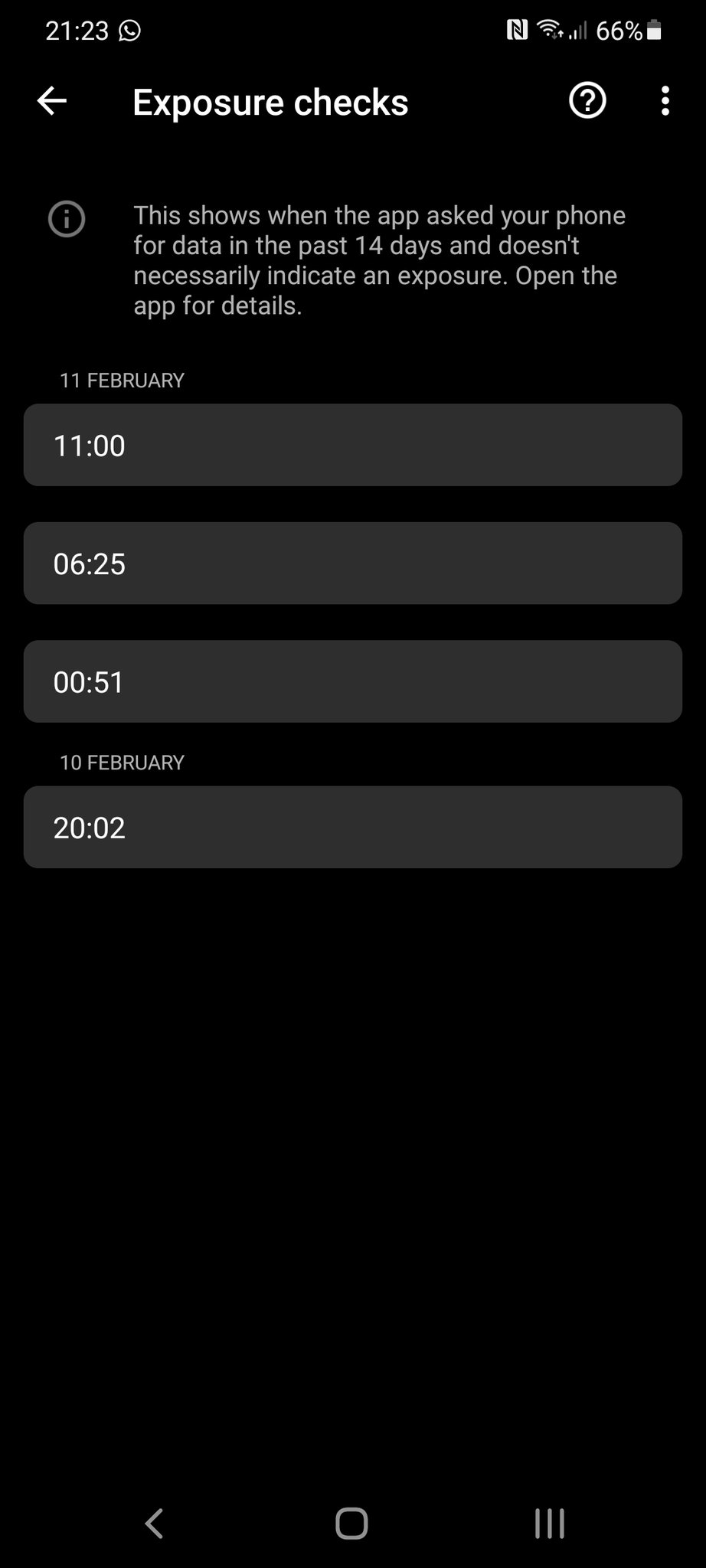


 With COVID-19 many parents and educators have faced challenges with providing laptops or devices for students to use to access online resources and lessons. Even wealthier parents, well-resourced have faced challenges with scenarios such as 3 children all needing a device and both parents perhaps working remotely; with so much demand lead times on laptops have been long so even the best resourced parents have struggled to buy extra laptops or similar, with lower cost clam shell devices targeted at education such as Chromebooks often in short supply. At the other end of the wealth divide educators have been struggling to provide resources to the most disadvantaged families, budgets to provide laptops or WiFi to students on pupil premium and free school meal schemes generally were never designed to cope with such demand. There is a

 Has Silicon Valley hacked our souls?

 What is a soft product launch?