GeistHaus
log in · sign up

WadeGrimridge

Part of grimridge.net

Wade's personal site.

stories primary
Solving Compaction with Lobotomy
A method to let LLMs manage their own context that works surprisingly well.
Show full content
Nakoshi Susumu from Homunculus
are you lobotomymaxxing, anon?

Download: Pi extension

Last year, I was experimenting with letting a model lobotomize itself - a tool that let it delete whatever it wanted from its own output. The models I had access to then weren't good at tool calling. I couldn't get it to work consistently and reliably, so I gave up.

Today, I work on a sizeable codebase, so the model has to read a bunch of huge files just to get a few lines of info. Sometimes, it runs commands that blow up with 1000s of lines of irrelevant output. None of the current context management solutions work. I've been using and extending Pi as of late, so I decided to give this another shot.

The lobotomizer lets the model drop the input or output of any tool call. grep commands that weren't narrow enough, write calls, image reads, bash calls with huge Python snippets, etc. can all be removed. It can also replace it with a reason why instead of dropping.

It works astonishingly well. I can stay on the same session for much longer now. When a tool call blows up, the model cleans it up immediately. When files it read earlier are no longer needed, it lobotomizes itself to free up the context. It's so satisfying seeing the context window % go the other way. Long-horizon tasks are much more viable.

Don't compact or handoff, lobotomize instead.

https://grimridge.net/blog/solving-compaction-with-lobotomy/
Fixing Linux Kernel Bugs with LLMs
How I fixed an annoying audio bug on my laptop using LLMs.
Show full content

My Kaby Lake-R laptop had an annoying problem. On Linux, in performance mode, the audio crackled. A lot. Here's the story of how I debugged the problem, and vibe coded a kernel patch to fix it.

I had recently switched to Fedora from Arch, so it wasn't a distro misconfiguration. I tried changing PipeWire's (and pipewire-pulse's) sample rate and quantum values according to the Arch Wiki, that didn't work. Nothing out of the ordinary in pw-top or PipeWire logs. Tried intel_pstate=disable too, and all the usual suspects.

I found many forum posts about this - none of them had found a fix, except one. snappy91 found that the issue vanishes when he disabled SOF drivers and set intel_idle.max_cstate=1. So it wasn't PipeWire, it was either the audio driver stack or a CPU power-management quirk.

Ruling out the audio driver stack

I didn't want to nuke C-states, that's insane! So I investigated the driver stack first, hoping that was the problem. lsmod did report that all the modules snappy91 told to disable were loaded. But were they being used?

I ran lspci -k | grep -A3 -i audio,

00:1f.3 Audio device: Intel Corporation Sunrise Point-LP HD Audio (rev 21)
	Subsystem: ASUSTeK Computer Inc. Device 1a00
	Kernel driver in use: snd_hda_intel
	Kernel modules: snd_soc_avs, snd_sof_pci_intel_skl, snd_hda_intel

which told me only snd_hda_intel was being used. The SOF docs go into more detail if you're interested. The docs also tell us how to force the legacy driver: options snd-intel-dspcfg dsp_driver=1. Just to be sure, I set CONFIG_SND_SOC=n in my custom kernel to compile it out - as expected, it didn't fix it.

That leaves us with C-states. Reluctantly, I disabled them - and it worked! But that's not a practical solution. Now what?

Interrupt galore

I removed the kernel parameter and got back to debugging. Among other things, I checked /proc/interrupts. It shows us what interrupts (IRQs) we're getting, from where, how many, and which core is handling them. I turned off performance mode, fired up watch -d -n 1 'rg hda /proc/interrupts' and started playback. A few IRQs at the start, then nothing. No crackling either.

I switched to performance mode, and watched the IRQs come in. Sometimes reaching 100 IRQs a second. The crackling happened exactly when the number was going up.

GPT helped me with a /sys/kernel/tracing run and we found out that in performance mode, when the time came to handle audio, the CPU was often sleeping.

Pinpointing the culprit

/proc/interrupts doesn't show us which particular interrupt cause we're getting from the driver. So I asked GPT to include some debug logs in dmesg. While writing the patch, it also noticed a no_period_wakeup flag. I asked it to log whether a stream was using it or not. I compiled it, booted into it and started playback.

hda-intel: open PCM c0p3p -> stream idx=7
hda-intel: trigger START c0p3p idx=7 buf=245760 period=8192 npw_runtime=1 npw_hw=1 SD_CTL=0x1c SD_STS=0x00
hda-intel: IRQ INTSTS=0x80000080
hda-intel: IRQ stream idx=7 dir=0 SD_STS=0x28 pos=222944

npw_runtime=1 and npw_hw=1 both confirm that no_period_wakeup was on (I later tried forcing it off, but it didn't fix the problem). The last two lines were spammed exactly when the crackling occurred. GPT decoded the SD_STS=0x28 as 0x20 (SD_STS_FIFO_READY) + 0x08 (SD_INT_FIFO_ERR).

I ran sudo bash -c 'exec 3>/dev/cpu_dma_latency; echo -n 0 >&3; sleep infinity' to effectively kill C-states and as expected, the interrupts stopped. /dev/cpu_dma_latency is part of the PM QoS (Power Management Quality Of Service) system of the kernel. By writing a value to it and keeping the file descriptor open, you force the CPU to be ready within x µs, in this case 0.

I kept bumping the number up. 45 was the limit, the crackling returned at 46. The kernel parses it as hex and not decimal. 0x45 = 69 µs; crackling at 70 µs. Nice!

drivers/idle/intel_idle.c's skl_cstates[] tells us that for my CPU (Kaby Lake-R/Skylake), C3's exit latency is 70 µs. Lines up perfectly.

After adding some more debug logs to rule out ALSA underruns and other causes, only one possible explanation remained: something's wrong with the PCU.

What was happening

In modern CPUs, the kernel doesn't directly control P-states and C-states. It sends hints to the PCU (Power Control Unit). PCU makes the final decision. The HDA (audio) controller lives in the PCH (Platform Controller Hub), also called "uncore" - as opposed to CPU "core". Together, they're called "package". PCU is responsible for the whole package.

My theory is that when maximum performance is requested, the PCU does deliver, but decides to be more aggressive with C-states to save power. Trading latency for efficiency. Not a bad idea, except when latency is actually critical, like during audio playback.

Debugging confirmed that the ALSA buffer wasn't underrunning. The HDA's internal FIFO buffer was starving every now and then, due to the PCU allowing deeper package C-states when it shouldn't have. That's the only plausible explanation for why we were getting SD_INT_FIFO_ERR during crackling. If anyone reading this has more info about this, please let me know!

The Fix

The rest was rather straightforward. It's common in audio drivers to use PM QoS and request a certain level of latency. That's what we're gonna do, but our fix will be more efficient. Way more.

First, we'll scope the PM QoS request to only the core that's handling the HDA IRQ. As obvious as this sounds, I didn't see any other audio driver do this - and audio drivers typically do use similar PM QoS requests. This alone saves so much power.

Second, we'll add a CPUFreq policy change notifier. We'll only add the request when the CPU governor is performance when stream starts, and dynamically add/remove it if it changes during the stream. Since it doesn't happen on any other mode, this lets the PCU do whatever it want with C-states in other modes, saving a lot of power.

GPT wrote both for me. And it worked perfectly first try. I made it iterate on the patches once for further polish. Here they are:

I'll probably play with the first patch to implement perf/power hacks in other subsystems. Very fun!

Getting nerd-sniped more often

LLMs let me do things that simply weren't worth the time and effort before. I could've done all this on my own, sure. I've written kernel patches to fix bugs before LLMs, even though I didn't really know C or kernel internals (I still don't!). The difference is, I can afford to get nerd-sniped into a rabbit hole like this every day. It takes hours of my time, not weeks. I get to choose the abstraction level I'm operating at.

I left out a lot in this blog post, but I learnt so much more. I learnt how audio playback is handled at different layers. I tried a bunch of solutions. This would've taken me a few weeks. (And yes, the title is slightly misleading - the bug is in the firmware.)

Note: I used Codex CLI with GPT-5.1 - regular, not the Codex model - in only low and medium reasoning modes.

https://grimridge.net/blog/llm-linux-kernel/
qaac x64 in Linux
A guide to set up qaac 64-bit in Linux using Wine.
Show full content

Apple's AAC implementation is my most favourite codec. The official encoder is available only on macOS, but there's a Windows port, qaac (more of a wrapper, really). Andrew has a fantastic guide on how to set up qaac in Linux using Wine. However, it's the 32-bit version, and the iTunes version he uses is over 8 years old. The process is also not as straightforward as it could be.

I've (almost) automated the process with a bash script. This guide assumes you're using Arch Linux. If you're on another distro, you might have to manually set-up a 64-bit Wine prefix. Rest remains the same.

The script needs the following packages: sudo pacman -S wine-staging winetricks 7zip (or just wine). Adapt to your distro.

Download the script from this GitHub gist.

Before you run it, we need one more thing. It's real quick. Go here, paste this in: https://apps.microsoft.com/detail/9pktq5699m62. Find the entry that's like AppleInc.iCloud*x64*.appx, it'll be near the top. Make sure it says x64 and ends with .appx. Right click, copy link address, open the script, and paste it in ITUNES_URL="", inside the quotes.

You're all set. Run the script with bash /path/to/script. It'll download and set everything up automatically. Might take a minute or two depending on your internet speed. If everything goes well, you'll see this at the end:

qaac 2.85, CoreAudioToolbox 7.10.9.0
libsoxconvolver 0.1.0
libsoxr-0.1.3
libsndfile-1.2.2
libFLAC 1.5.0
wavpackdll 5.8.0

Choose yes when it asks you for clean-up, and add the alias to your shell config. You're good to go! If you want to update any of the libraries in the future, simply update the URLs at the top of the script.

Note: CBR mode introduces glitches with CoreAudioToolbox 7.9.8.x and higher. There's no point in using CBR mode, but if you do need it, you'll need the 7.9.7.x version. You'll find it an ancient version of iTunes from 2012.

For usage details, check out the qaac wiki.

You're most likely looking for Apple Music's AAC settings. Use this: qaac -V 127 -q 2 <input> -o <output.m4a>.

https://grimridge.net/blog/qaac-linux/
Setting up mDNS and custom .local domains
A guide to set up mDNS and publish custom .local domains, with optional SSL.
Show full content

Ever wanted domains like jellyfin.local or vaultwarden.local for your self-hosted services? With Multicast DNS (mDNS), you can do so without exposing your services to the internet, or using custom DNS servers. No need to edit hosts file, either!

This guide assumes you're using NetworkManager and systemd-resolved.

If you've not yet set-up systemd-resolved: add your preferred DNS servers to /etc/systemd/resolved.conf, and run

sudo rm /etc/resolv.conf
sudo ln -sf ../run/systemd/resolve/stub-resolv.conf /etc/resolv.conf
sudo systemctl enable --now systemd-resolved.service

systemd-resolved has with its own mDNS service, so we need to disable it before we proceed. In /etc/systemd/resolved.conf, add:

Domains=~local
MulticastDNS=no
LLMNR=no

Run sudo systemctl restart systemd-resolved.service. The Domains=~local line tells it to not use upstream DNS servers to resolve .local domains.

Next, we configure Avahi. Avahi will be our mDNS responder. Let's make sure everything we need is installed.

sudo pacman -S avahi nss-mdns bind

In /etc/nsswitch.conf, there'll be a line that starts with hosts: mymachine. After mymachine, add the following:

mdns_minimal [NOTFOUND=return]

It should look something like hosts: mymachines mdns_minimal [NOTFOUND=return] resolve [!UNAVAIL=return] .... This addition instructs the system to use nss-mdns for .local lookups.

Run sudo systemctl enable --now avahi-daemon.

We need to tell NetworkManager that we're using mDNS on a network interface. Run nmcli connection, find your network interface. Copy the UUID. Now run nmcli connection modify <uuid> connection.mdns yes.

Run host -t SOA local. If everything went good, you should see a Host local not found: 3(NXDOMAIN) error. Run ping $(uname -n).local, and you should see your machine's local IP responding. Congrats!

If you're having problems, check the output of journalctl -fu avahi-daemon -e. The Arch Wiki entries I've linked has some helpful troubleshooting info. Make sure your firewall isn't blocking the LAN subnet.

Now you can access your machine using .local instead of the LAN IP.

Next up, custom domains. To check, run avahi-publish -a test.local -R <your-lan-ip>. On another terminal, run ping test.local, and it should be resolving to . You can Ctrl+C the avahi-publish process.

Add the following systemd service template to /etc/systemd/system/avahi-publish@.service (make sure to set your LAN IP):

[Unit]
Description=Avahi publisher for %I.local
Wants=avahi-daemon.service
After=network-online.target avahi-daemon.service

[Service]
Type=simple
ExecStart=/usr/bin/avahi-publish -a %I.local -R <your-lan-ip>

DynamicUser=true
NoNewPrivileges=true
PrivateDevices=true
ProtectSystem=strict
ProtectHome=true
SystemCallFilter=@system-service
CapabilityBoundingSet=
AmbientCapabilities=

[Install]
WantedBy=multi-user.target

If you want a jellyfin.local domain, just run sudo systemctl enable --now avahi-publish@jellyfin, and it'll be taken care of! You can create as many as you want.

Now to actually make them resolve to the correct service, we'll need a reverse proxy. Caddy is my choice for this particular usecase.

sudo pacman -S caddy

Create /etc/caddy/conf.d/local.conf:

http://jellyfin.local {
    reverse_proxy localhost:8096
}

You can add as many as you want. If you want self-signed SSL, remove the http:// prefix and add tls internal inside the curly braces. Make sure your firewall is configured appropriately.

Run sudo systemctl enable --now caddy. If it's already running, you can do sudo systemctl reload caddy to reload the configuration.

Voila! Now every device on your LAN that supports mDNS (all Apple devices do!) can connect to your .local domains.

https://grimridge.net/blog/mdns-custom-domains/
Audio 101: Issue Three
Exploring waveform and spectral analysis.
Show full content

Hello! It's been too long since issue two, so let's jump straight into it. The lossless file you're listening to might actually be a lossy file in disguise (Juice WRLD's entire catalogue is lossy!). The remaster you're listening to is probably worse than the original too.

Today we'll learn about spectrograms and waveforms. By the end of this thread, you'll be able to read both these graphs. You'll be able to identify bad masters and differentiate lossy audio from lossless audio. Strap in, this issue is very dense.

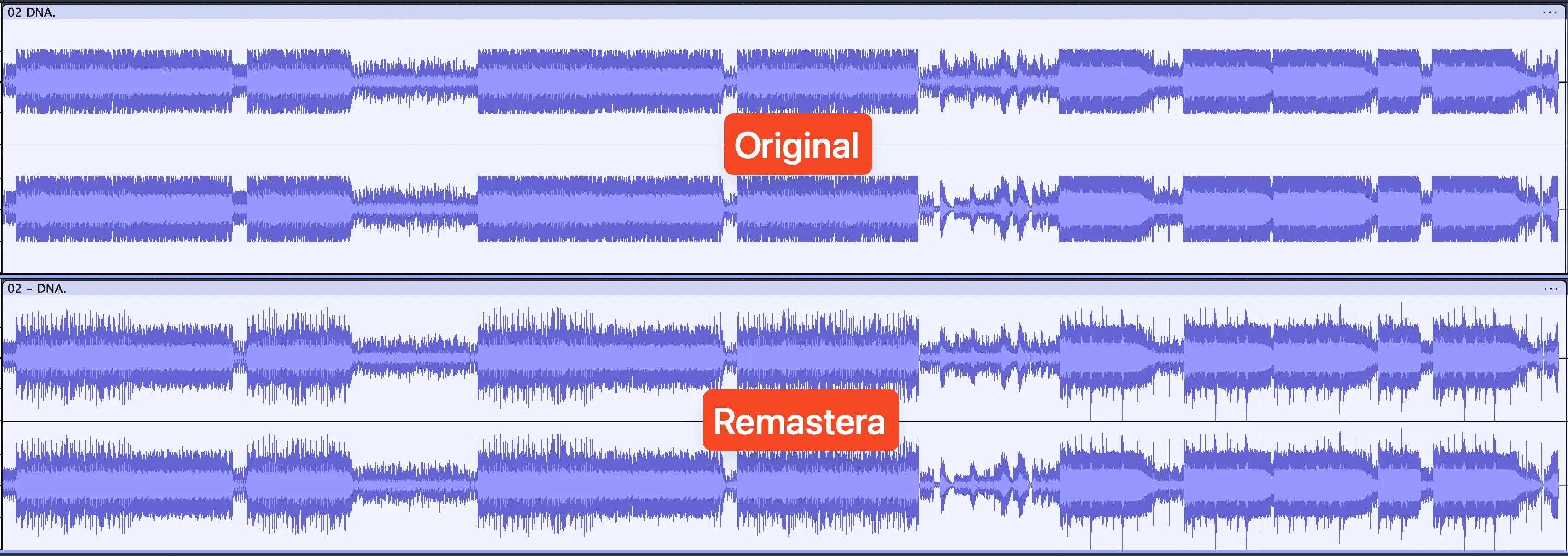
Waveforms represent loudness over time. x-axis is time, y-axis is loudness. Longer the lines, louder the volume. It's very useful for analysing dynamic range and clipping. Top one is left channel, bottom is right. I'm using Audacity for these waveforms.

Waveform

If you’re trying to compare dynamic range, I recommend normalizing both tracks to the same volume (I use -14 LUFS). You can do this in Audacity with Effect -> Volume and Compression -> Loudness Normalization.

Notice how the lines in the Remastera version are far more dynamic. You can see a sharp cutoff in the original, this is an indicator of heavy compressors and limiters. The chunkier it looks, the stuffier it sounds.

Remastera comparison

I also suggest turning on "Show Clipping in Waveform" option in Audacity's View menu, it'll show clips as red lines. When the line exceeds the boundaries (i.e. it's too loud) it becomes noise. This is called clipping.

Clipping in waveform

You can use waveforms to compare originals to their remasters. Once you start doing this, you’ll realize how bad remasters are - ruined dynamic range and clips everywhere. If the original is bad, like in the showcased example, Remastera has your back.

Spectrograms add one more data point to this graph. It not only shows loudness over time, it shows which frequency is loud when. It has three axes: x-axis is time, y-axis is frequency, z-axis is the colour itself. Brighter the colour, louder the sound.

Spectral

I use Sox to generate spectrals. The commands I use:

Full length:

sox input.flac -n remix 1 spectrogram -x 3000 -y 513 -z 120 -w Kaiser -o spectral.png

Specific timeframe (2 seconds from 0:30):

sox input.flac -n remix 1 spectrogram -X 500 -y 1025 -z 120 -w Kaiser -S 0:30 -d 0:02 -o spectral_zoomed.png

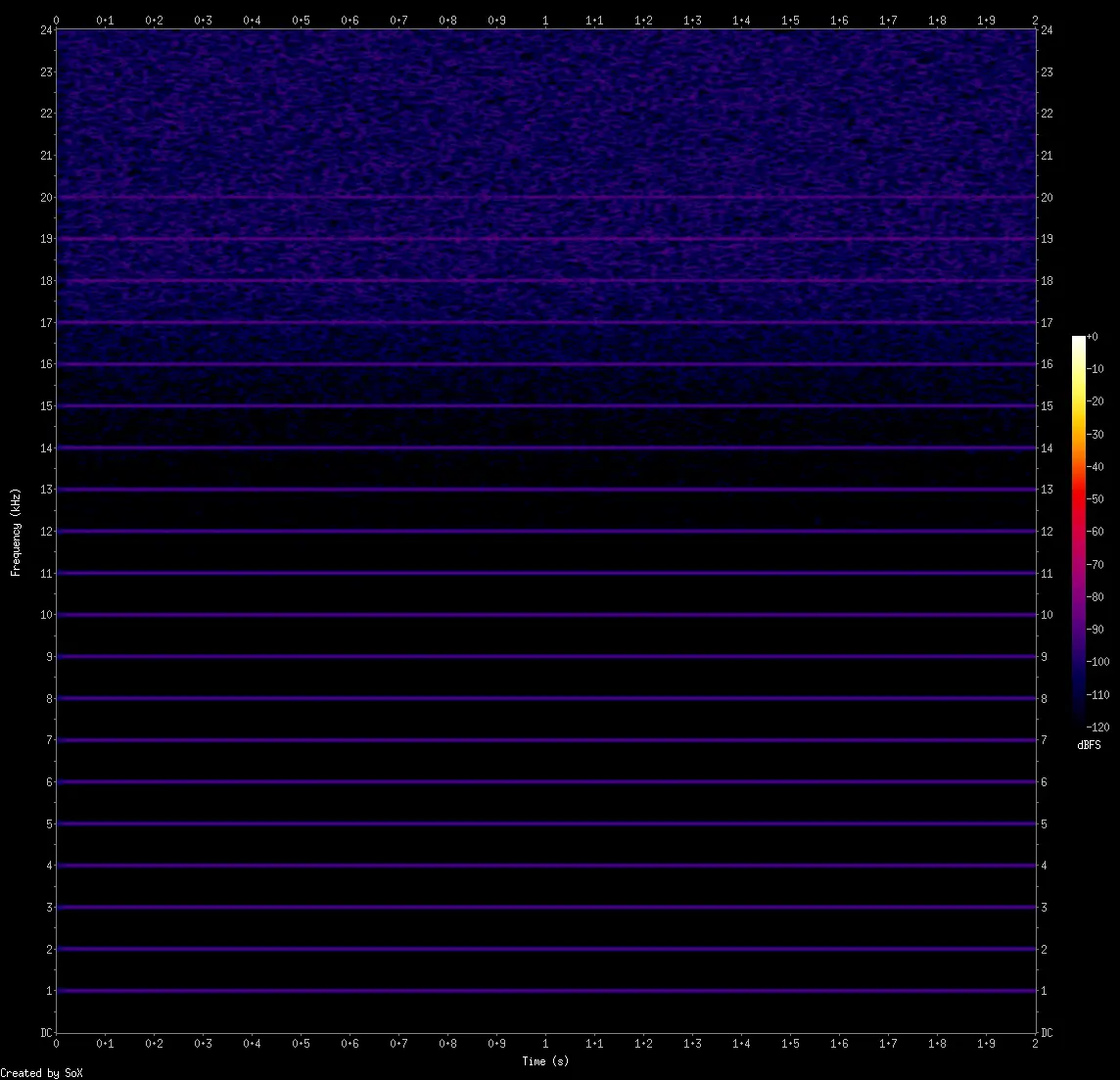
Look at this simple spectrogram. The audio is a simple sine wave (-90 dBFS) recurring every 1 kHz. With a waveform, we wouldn't be able to tell the frequencies at which the sine waves occur.

Info dump time. Artists don’t always put out their tracks in lossless formats. I’m not talking about recording equipment or dithering algorithms. They straight up export in MP3 and release it sometimes. We call these lossy masters. Juice WRLD is a famous example.

When you download a lossless audio file, you can never be sure it's actually lossless. It might actually be MP3s or other lossy codecs converted to a FLAC/WAV file. They're more common than you think.

What's worse is a lossy file converted to another lossy file. YouTube MP3 downloaders for example. YouTube doesn't provide MP3 files, it's almost always Opus - a lossy codec. These websites convert Opus to MP3 (lossy to lossy conversion), causing much greater data loss.

With spectral analysis, you’ll be able to identify these files. Lossy masters, fake lossless files and lossy to lossy encodes. There's a reason this hasn't been automated - it can get very tricky. I'll explain the basics here.

In the previous issue, I went into detail on how our hearing drops rapidly above 16 kHz, and how lossy codecs take advantage of this. The following two characteristics are direct results of that fact. Let's get back to the pretty images!

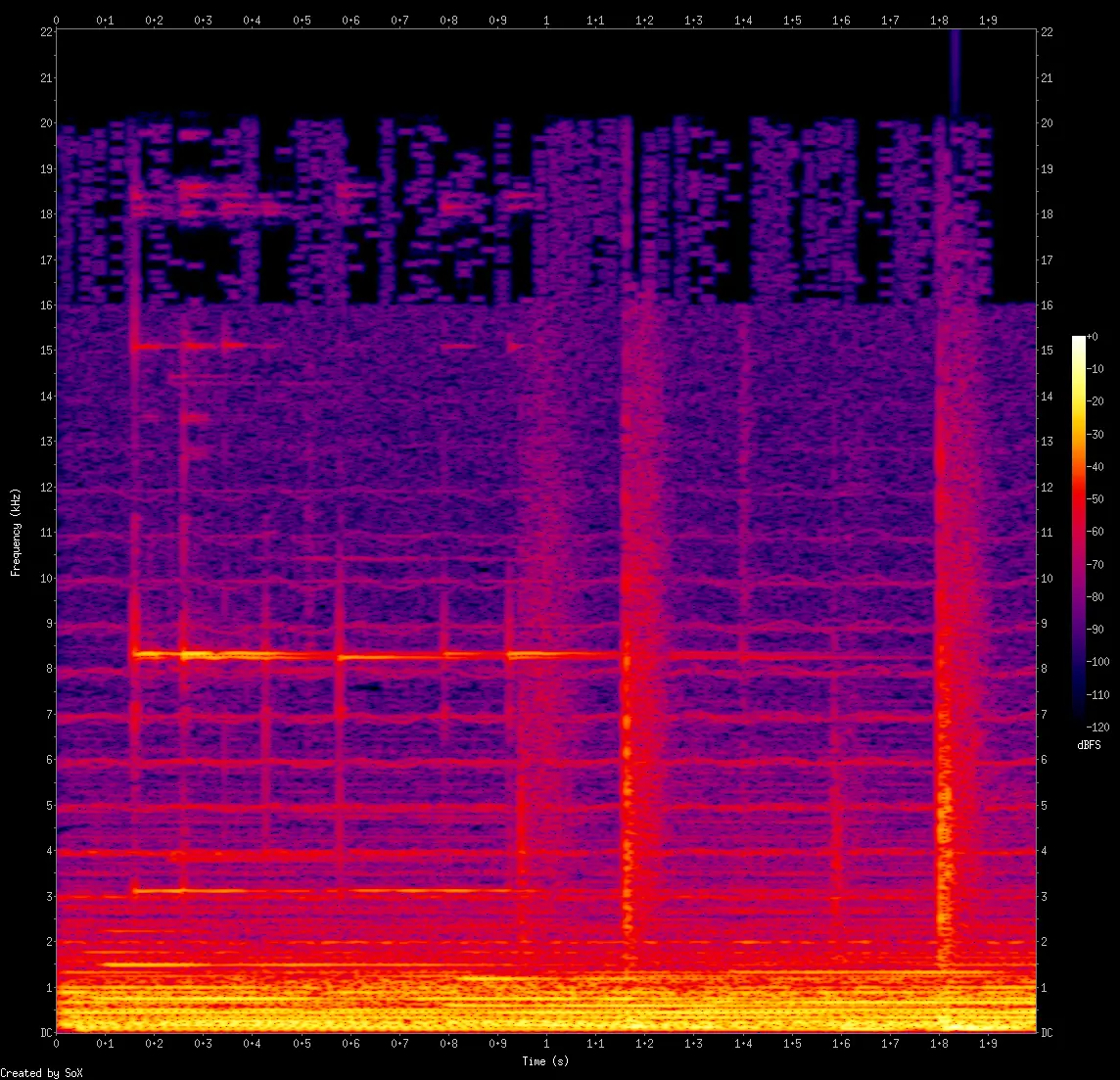
Lowpass filters are cutoffs in the spectral, typically between 16-20 kHz. Cutoffs don't automatically imply that the file is lossy, though. This spectral is Great Gig In The Sky by Pink Floyd (1983 CD). It has a cutoff at 20 kHz, but it's not been through a lossy encoder.

Lowpass filter spectral

So this doesn't mean that files that have no data above a certain frequency range are lossy. Classical music has almost no data beyond 10 kHz. It's highly dependent on the genre and instruments.

Shelves are like cutoffs but not as abrupt. This is a V0 MP3 of the lossless file shown above.

Blocks (or clumps) are more subtle but if you find them, it's a guarantee that the file has been through a lossy encoder. Only lossy encoders make these blocks (but not all lossy encoders do). If only few regions contain blocks, those particular samples are lossy.

Here's an example containing all the above. Cutoff at 20 kHz, shelf at 16 kHz, with blocks (those rectangular clumps) above the shelf. This is a 320kbps MP3.

Identifying lossy to lossy encodes is... complicated. If you find signs of MP3 cutoffs or shelves in a, say, Opus file, it's highly likely that the Opus was made from MP3. Or if you find cutoff patterns of 192kbps MP3 in a 320kbps MP3 file.

Other than specific cases like these, it's nearly impossible. Modern codecs are getting so good, it's hard to tell. There are patterns though. I can’t list them all here, but you will find them as you deal with spectrals more.

For example, Opus files are always 24 kHz and they have noise-shaped dither reaching all the way to 14 kHz. These combined are dead giveaways. Every codec will have a weakness. A characteristic. The more you deal with them, the better you get at identifying them.

That’s it for this issue. Until next time. Cheers!

https://grimridge.net/blog/audio-101-issue-three/
Tune Your IEMs
10x audio quality in 5 minutes, for free.
Show full content

Here’s how you can tune your $20 IEM to sound like a $200 IEM in 5 minutes, for free, without any prior knowledge:

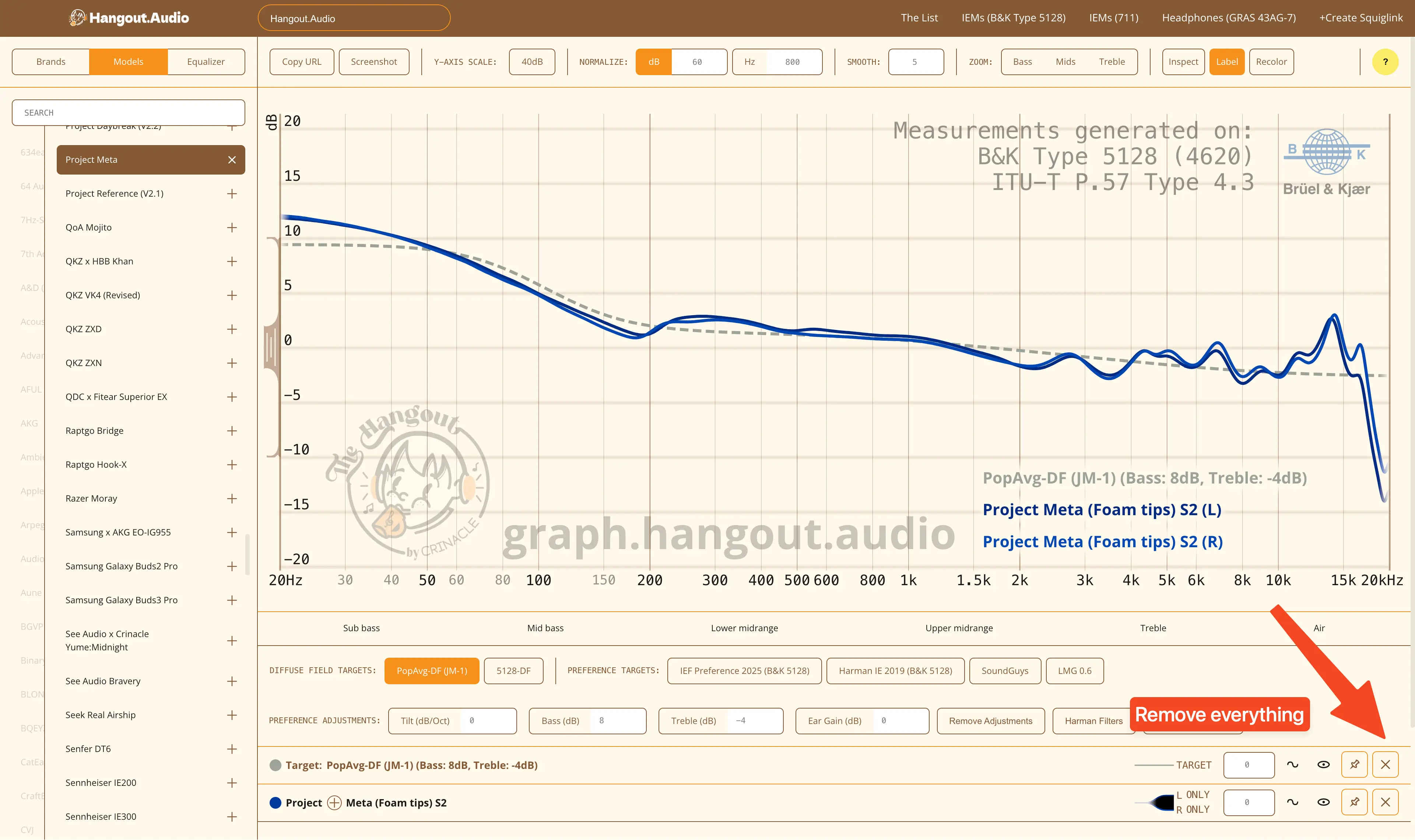
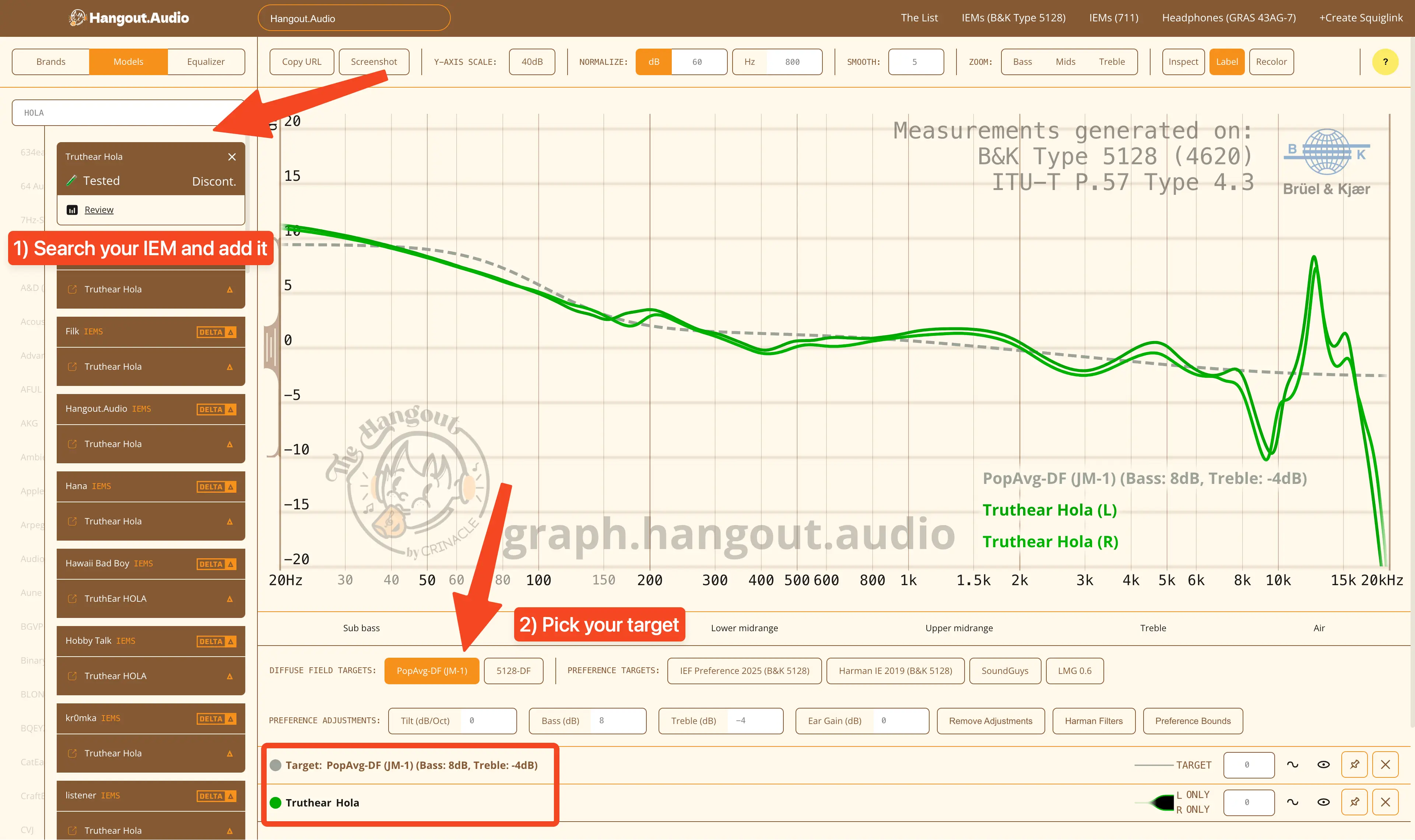
Go to Hangout Audio and search for your IEM. If it’s not there, use Squig.link. Hangout uses a superior measurement system (5128) that’s several times better.

Remove everything loaded by default.

Search for your IEM on the left and add it. Pick your target. If you’re unsure, I recommend the PopAvg-DF (JM-1) target. Make sure only your IEM and target are on the list.

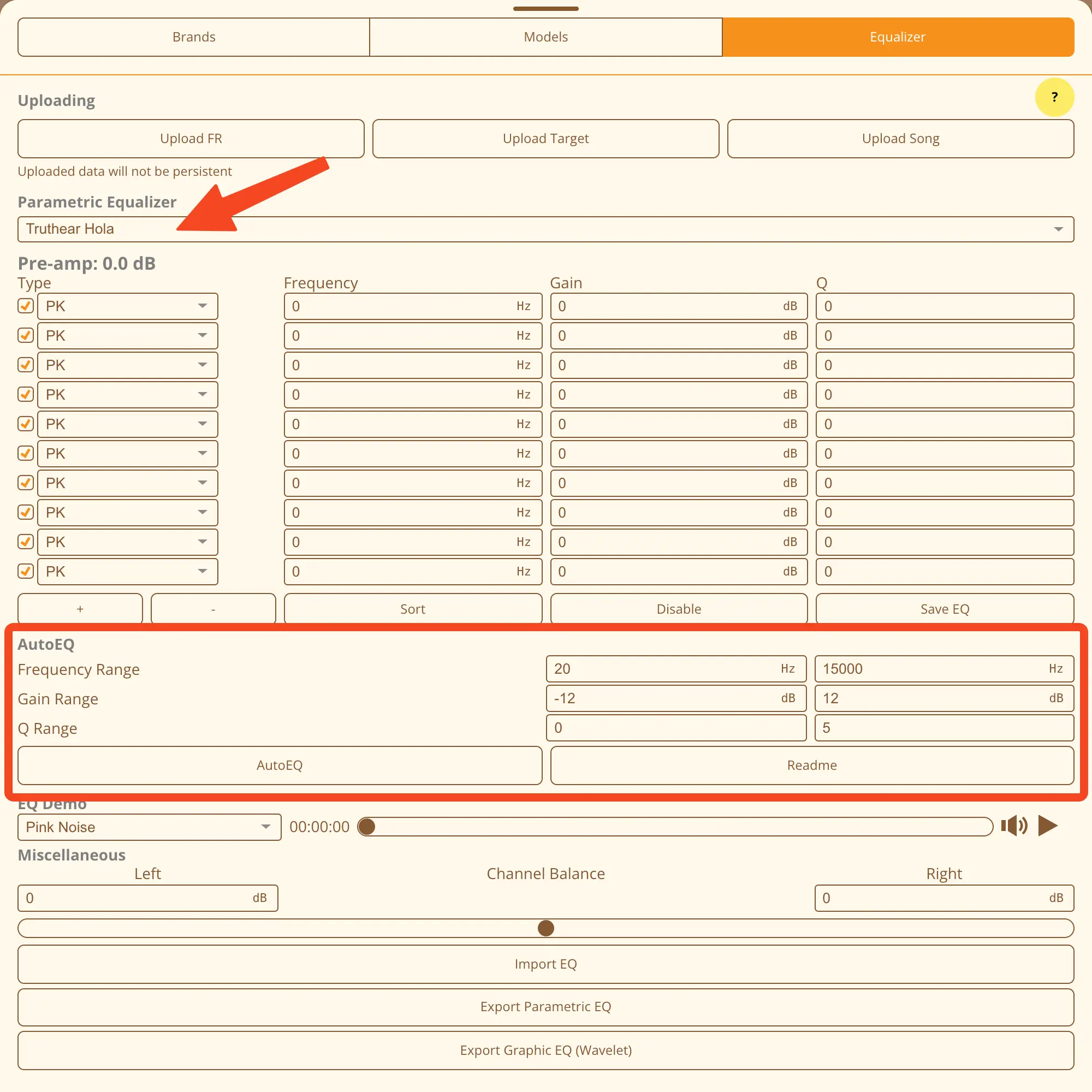
Go to the Equalizer tab. Select your IEM in the Parametric Equalizer menu.

If you’re on Hangout, only change the Q Range to 0 and 5. If you’re on Squiglink, only change Frequency Range to 100 and 6000. Leave the rest as is.

Click the AutoEQ button. It will generate an EQ profile for you. Once it’s done, verify the graph and click Export Parametric EQ/Graphic EQ in the Equalizer tab.

Parametric EQ is superior to graphic EQ. If you can, use the former. Use these apps to apply the profiles:

Windows: EqualizerAPO with or without Peace GUI Android: Poweramp Equalizer (separate app), Wavelet (only graphic EQ) MacOS: AUNBandEq with AU Lab and BlackHole or Soundflower. Paid: eqMac, SoundSource. Linux: PulseEffects / EasyEffects iOS: System wide EQs aren’t possible. Depends on audio player apps.

If you want to make your IEM sound like another IEM, remove the target and add another IEM. Make sure the IEM you own is the one selected in the Equalizer tab. Rest is same.

Happy EQ-ing!

https://grimridge.net/blog/tune-iems/
Audio 101: Issue Two
Understanding lossy audio and transparency.
Show full content

Welcome back to Audio 101! We explore the audio world in simple words here, while shooting down myths. Last time, we looked at codecs, uncompressed lossless, and compressed lossless. I hope you're all cleared up on those topics. Today, we'll learn about bitrates, human hearing, lossy audio, and transparency. Lossy audio is one of the most controversial topics in the audio world, full of misinformation.

Bitrate is the amount of data used to store one second of audio. Kilobits are the units used most commonly. A bit holds one binary value: 0 or 1. A kilobit is 1000 bits. In an audio file, if we allocate 320 kilobits of data per second of audio, that's 320kbps (kilobits per second) bitrate audio. A 16-bit, 44.1 kHz FLAC file would have 1,411 kbps.

Now that that's out of the way, lossy audio. What even is lossy audio?

Lossy audio, or lossy codecs to be precise, are optimized for human hearing. As we've all read in school, the human hearing range is from 20 Hz to 20 kHz. This is not the full picture.

Our hearing starts rapidly declining after 15 kHz. We start out with good hearing as kids. As we age, it gets worse. I bet most of you reading this can't hear above 17 kHz. Your audio gear and the environment you're in do play a part, but it's not as massive a difference as you'd think. You can test your hearing (and your audio setup) at this site.

You can hear some sounds better than others. Some sounds are simpler, some more complex. That's what lossy codecs optimize for. They calculate which parts you're least likely to hear and dump them. Lossless codecs store everything, regardless of human hearing constraints.

In lossy compression, we have a concept called transparency. Transparency is the threshold/point at which lossy audio becomes indistinguishable from lossless audio. Everyone has different hearing, different setups, etc., so when we say transparent, we mean for 99.9%.

You can verify if typical lossy audio is transparent to you by taking a double-blind ABX test. You must do 20 rounds per song and get a score of >90% to pass an ABX test. You can take a quick test at this site.

From this point on, when I talk about lossy audio, assume that I mean transparent lossy audio. Also assume that I'm talking about quality purely from a listening context. Unless I explicitly state otherwise.

Lossy codecs include MP3, AAC, Vorbis, Opus, etc. Each codec differs in which parts it decides to keep and which to dump. Some codecs reach transparency at lower bitrates than others. In other words, unlike lossless codecs, some lossy codecs are better than others. It's a competition!

Let's bust some myths.

"You can hear more instruments in lossless audio." Myth. Lossy encoders don't "remove" instruments.

"Lossy audio sounds obviously distorted." Myth. "Lossless audio is clearly better." Myth. "Lossless audio sounds way cleaner". Myth.

Modern codecs are highly efficient. The differences are extremely subtle. To tell the difference, you have to study how different codecs compress different sounds. You have to study how compression artefacts sound. Most don't have the hearing or the high-end setups needed.

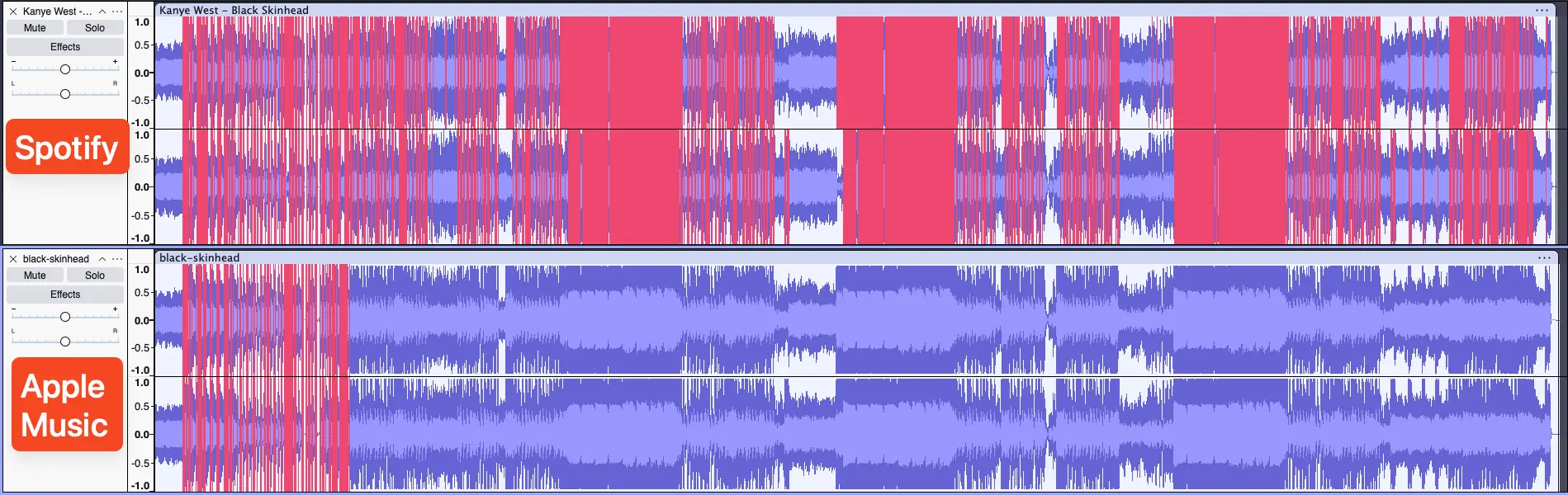
A good teacher gives good homework, and I'm not me without bashing Apple Music every now and then. Go listen to the first 10 seconds Black Skinhead on Apple Music, in your hi-res lossless 48-bit 192 kHz ALAC quality or whatever. Compare it to Spotify or YouTube Music. You don't even need premium for Spotify or YTM, the quality they offer for free is fine. Do it right now.

What's that? AM sounds worse? The drums are distorted to hell and back? Shocked? "There's no way Apple Music's lossless quality sounds worse than Spotify's 160kbps Vorbis!" Oh, but it can. Because lossy audio doesn't matter as much as you've been made to believe. (Also, the real reason is Apple Music is the worst DSP when it comes to picking masters.)

Two to three decades ago, lossy codecs weren't good at deciding what to keep and what to dump. This is where all the "lossy bad, lossless good" arguments and myths come from. It used to be true. There were stricter bandwidth constraints too, so bitrates were typically low. They struggled even at high bitrates. Lossy codecs have gotten way better since then.

One more factor that contributes to this problem is that converting a lossy file to another lossy file degrades quality, unlike lossless files. We call this generational loss. BUT, there are some codecs that don't have this problem anymore for inter-codec conversions. That is, if you take a lossy AAC file and convert it to another lossy AAC file, there's no perceivable loss in quality.

An audiophile conducted an experiment back in 2013. He converted the same file over and over 100 times to check for quality loss. Apple's AAC implementation and Nero's AAC implementation were both proven to have near-zero perceivable difference from the source file, after 100 passes.

This means, generational loss is not something to worry about if you're using AAC. It sounded almost exactly the same to audiophiles with a proper setup, after 100 passes, in 2013. It's definitely not distinguishable after a single pass to me and you, especially with encoders we have today. We'll look at spectrals later in this post.

Wait, Apple AAC and Nero AAC? There are two AAC implementations? Yes. Lossy codecs can have multiple implementations. For example, there are 9 different implementations of AAC (Apple's being the best), and that's not even getting into different object types. All you need to know is that implementations can vary a lot for the same codec. Newer versions of the same implementations are better.

Following along so far? We have pictures down below!

Most modern codecs reach transparency at 192kbps to 256kbps. This includes MP3, Vorbis, AAC, etc. Opus, the "new" kid on the block, needs much less. It's one of the most efficient codecs we have. YouTube uses Opus at ~140kbps for its videos. But what do I mean by ~140kbps? Is it not fixed?

We have three modes for bitrates: CBR (constant bitrate), VBR (variable), and ABR (average). With CBR, the bitrate remains constant throughout the file. No matter how simple or how complex the sound is, if you tell it to encode in 320kbps, it will. With VBR, you set a target quality, and the bitrate will vary throughout the file to achieve that quality. Bitrate goes down when the audio is simple, goes up when it is complex. ABR is a mix of both. It's inferior and largely irrelevant, so I won't get into it. Most encoders don't use it. VBR is the most efficient.

Spotify offers 320kbps OGG Vorbis (enable "very high" in audio quality settings), Apple Music offers 256kbps AAC, YouTube Music offers 256kbps AAC and Opus ~140kbps (enable "always high" in audio quality settings).

That's enough text. Boring. Let's look at some pictures!

The song I'm choosing today is The Great Gig in the Sky by Pink Floyd (specifically the 1983 Japan Black Triangle CD master). It's an audiophile favourite. We're going to look at spectrograms (spectrals for short). What are they? It's a big topic, one that I'll cover in a future issue. But for now, all you need to know is that they're a way to visualize the audio data. Black is silence. The brighter the colour, the louder the sound in that region.
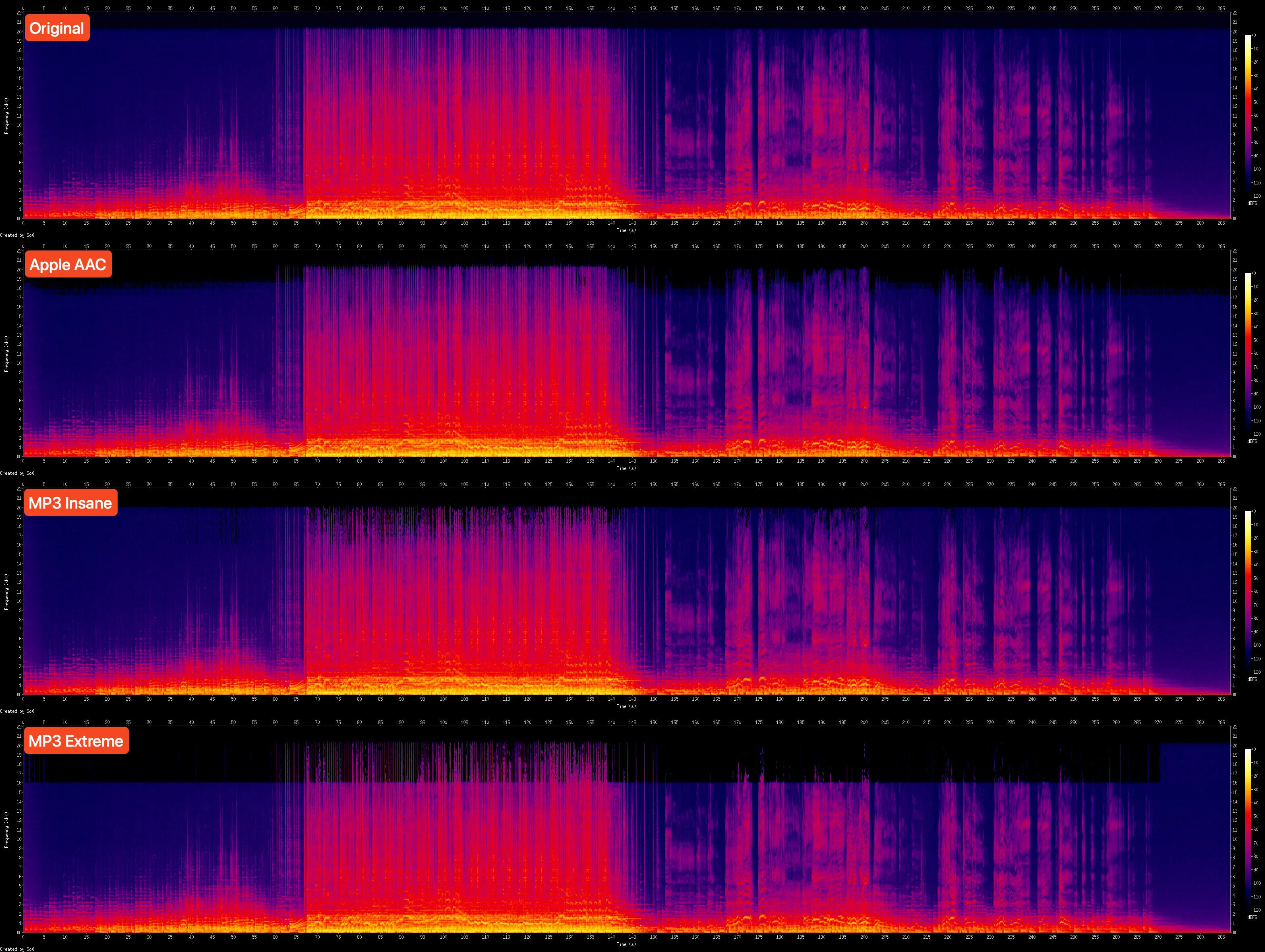
Spectrogram comparison for FLAC vs AAC vs MP3.

Zoom in and check the upper regions of each spectral. See how Apple's AAC encoder optimizes it. Compare LAME MP3's 320kbps CBR (--preset insane) to ~256kbps VBR mode (--preset extreme). Keep in mind that your hearing drops rapidly past 16 kHz; it needs to be really loud beyond that point for you to even barely hear.

MP3 has a clear cutoff at 16 kHz. It only retains the loudest data beyond that point. You can see it's not perfect, but it won't matter to most of our population. Apple AAC handles it way better than LAME MP3 (insane preset), all while using lower bitrates. But both are indistinguishable to most.

Opus spectrals:
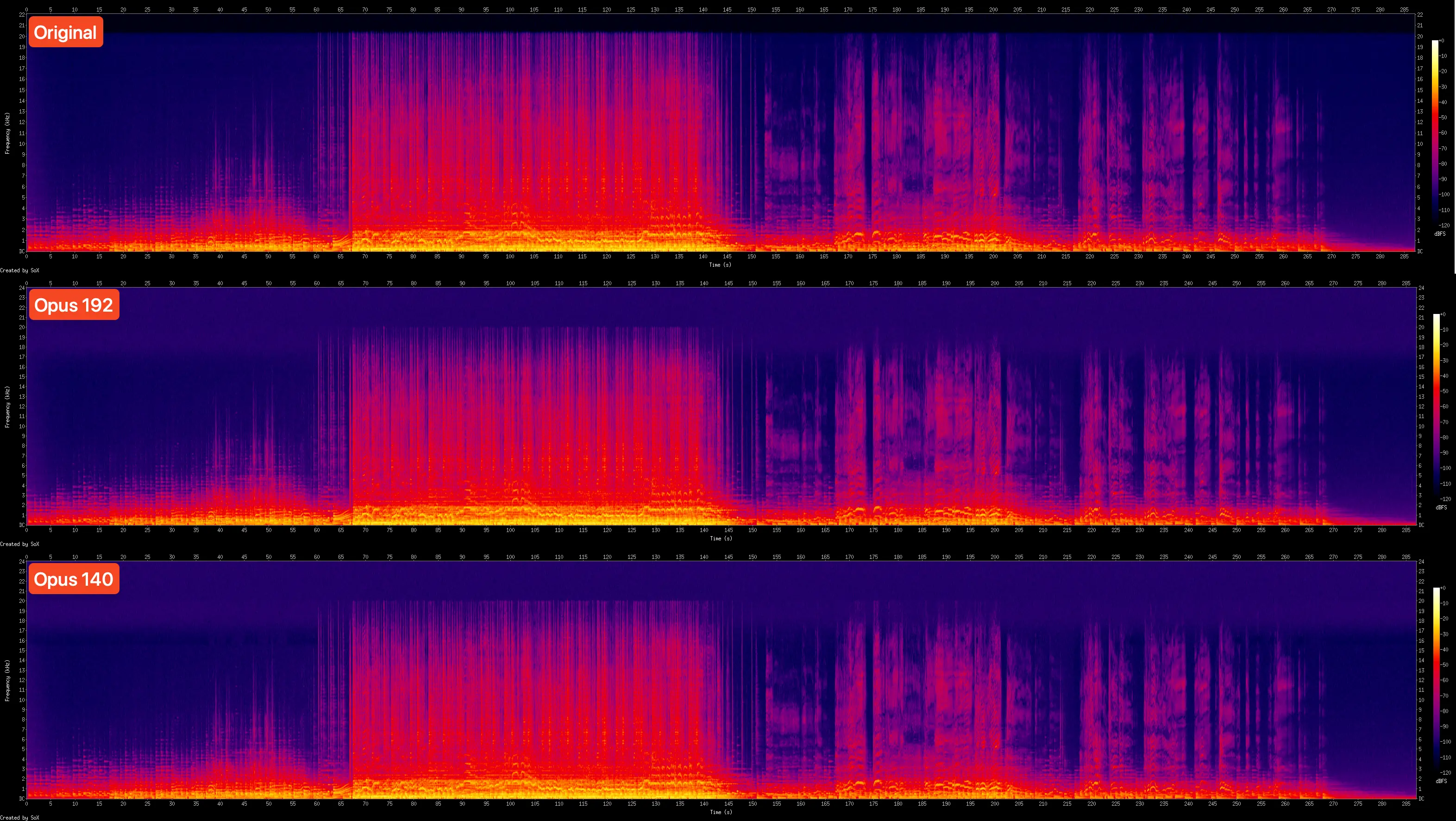
Spectrogram comparison for FLAC vs Opus.

Opus resamples everything to 48 kHz, that's why you see the y-axis extended to 24 kHz. Opus is clearly far more efficient than Apple AAC. So why do I not use it for my delimited music uploads? Raw efficiency is not the only aspect. Compatibility, computational cost, generational loss, they're all important factors.

Bluetooth supports AAC. Anything you play over Bluetooth will always get transcoded (converted) to its codec, regardless of the source codec being the same. AAC has no perceivable generational loss, so that's a major win.

Before you come at me, yes, Spotify's OGG Vorbis gets transcoded as well. There is generational loss, but it's not perceivable.

Here's a spectrogram comparison of a song ripped from Spotify (OGG Vorbis 320kbps) vs. the same song transcoded to Apple AAC at 256kbps. That's the bitrate at which AAC caps out for Bluetooth.
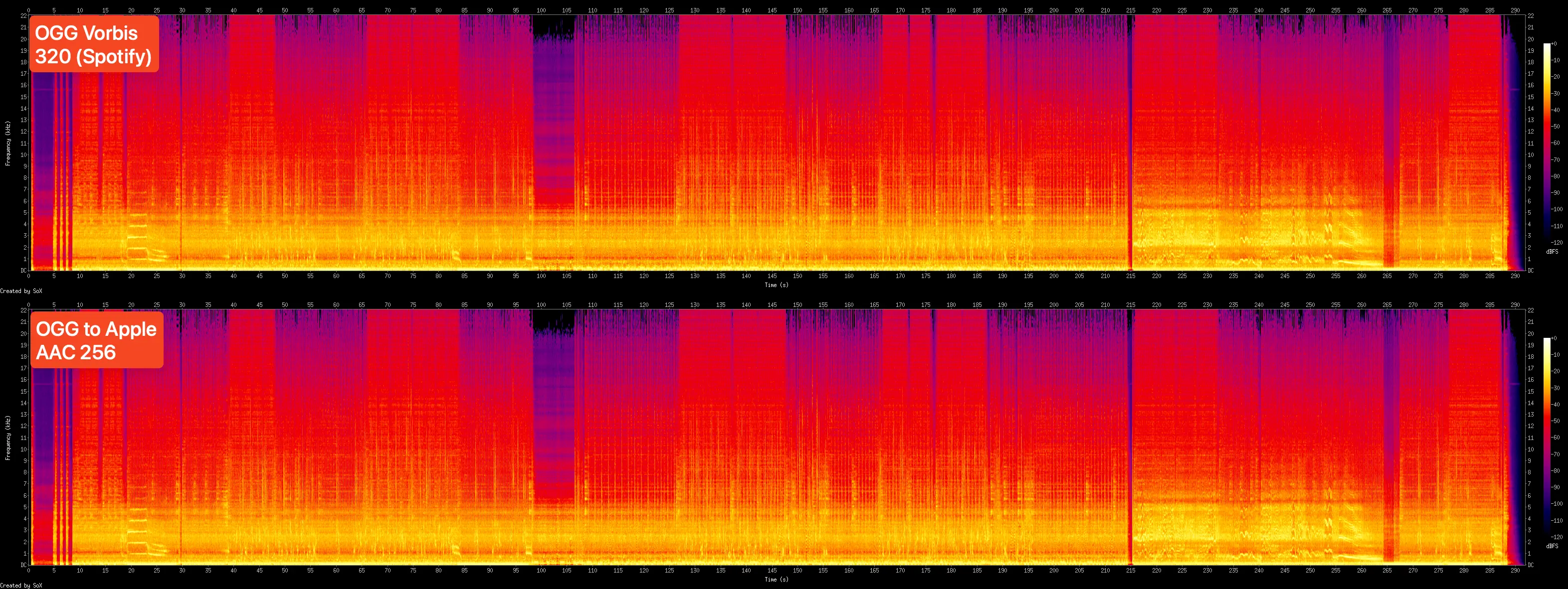
Spectrogram comparison for Spotify OGG transcoded to AAC.

If you use ANY Bluetooth audio device, never engage in lossless vs lossy arguments because your gear is stupid. It doesn't matter even if it supports LDAC; it's not stable, and there will be transfer loss. Oh, and, all Apple Airpods models only support 256kbps AAC. "I can clearly hear the difference between lossless and lossy on my Airpods Pro!" You cannot.

When I took questions for this post, Unghost asked me, "If internet speeds are getting faster and storage is getting cheaper, why do we still need lossy audio?" Excellent question.

For storage and archival, you should always use lossless formats. I talked about this in the previous issue. As for the network aspect, think about latency. As I said earlier, FLAC files have a bitrate of 1,411 kbps or more. If I'm streaming this, it will be at least 4 times slower than a 256kbps AAC or a 320 OGG Vorbis stream.

Internet might be cheap for us, but imagine the bandwidth and load that streaming services have to bear. At least 4 times what they're handling currently. That is not cheap. On-device cache will be bigger, too. I can store 5 albums in lossy formats instead of 1 album in lossless format (again, for listening/streaming and not for archival).

Why should they, or you, bother with lossless audio and all the problems that come with it, when lossy audio is indistinguishable for 99.9% of users? It's cheaper and efficient, all while sounding the same. I've already talked about hi-res lossless (>44.1 kHz) audio introducing noise at the upper frequencies. 24-bit audio is completely useless for listening, too. Check my profile's highlights if you're curious.

If you're an outlier who can pass a double-blind ABX test, you shouldn't be using a streaming service in the first place. You have the hearing (and clearly, expensive audio gear) to appreciate the better masters that CDs tend to have. Heck, you probably remaster your favourite albums yourself.

So, which one is better, lossless or lossy? Considering only audio-quality and leaving out every other factor, then yes, lossless is obviously better. The real questions come up when you consider all the other factors.

Is your hearing that good? Do you have expensive, high-end hardware? Do you have a pristine, clinical environment? Are you always listening to music in that environment? Do you know what to look out for to differentiate lossless and lossy audio? Have you proven to yourself that you can, by passing a 20-round ABX test with >90% scores?

Lossy audio is way more than good enough for you. If you can't tell the difference, what does it matter? If you need me to tell you which one is better, what does it matter? At the end of the day, if you're loving the music and can't tell the difference, it doesn't matter.

To summarize all of this: your hearing is not as good as you think. Lossy codecs take advantage of this fact and optimize for it. Opus is the most efficient codec, Apple AAC is the best overall. You don't have skin in the game if you have Bluetooth. Airpods only support 256kbps AAC, and for good reason. Lossy audio has many practical benefits over lossless audio. If you can pass a double-blind ABX test for lossless vs lossy codecs, you shouldn't be using streaming services.

TLDR: Stick to Spotify.

Until next time! Cheers! <3

https://grimridge.net/blog/audio-101-issue-two/
Audio 101: Issue One
A mild introduction into the audio world.
Show full content

This is my new series, where I explain audio technicalities in simple terms. Only facts, no snake oil.

In this first issue, I'll break down codecs, uncompressed lossless, and compressed lossless.

Let's start with codecs. What are they?

A codec is a way to digitally store audio (and video, but this is Audio 101). Different codecs store audio in different ways. Some are better or more efficient than others.

A format is a container that stores these codecs. Think of codecs as your lunch and the format as your lunch box. You've seen my uploads have a .m4a file extension, but they're AAC files. M4A (audio-only MPEG-4) is the format (lunch box), AAC is the codec (lunch). The terms are often interchanged. Clear?

Before we dive in, two more terms: encode and decode. Encoding is packing, and decoding is unpacking. Different codecs come with different encoders and decoders.

Audio codecs can be classified into two categories: lossless codecs and lossy codecs.

This time, we'll cover only lossless codecs. As the name suggests, these codecs store every bit of information as it is. Nothing is thrown out. Within lossless codecs, there are two sub-categories: uncompressed lossless and compressed lossless.

You all know ZIP files, right? You take a huge file, and you compress it to save space. No data is lost, it's just packed more efficiently. When you decompress it, you get exactly what went in. No data loss. Game repacks are an excellent example.

Compressed lossless codecs are like ZIP files. They store every bit of information, but in an efficient manner. In uncompressed lossless codecs, even silence takes up the same space (or bits) as sound.

WAV, AIFF, etc., are uncompressed lossless codecs (look up linear pulse-code modulation). FLAC, ALAC, APE, etc., are compressed lossless codecs.

Yes, this means WAV and FLAC have the exact same information, bit for bit. FLAC just stores it efficiently. If you're storing your music in WAV, convert them to FLAC. You're just wasting storage space with WAV!

Since lossless codecs store every bit of information, you can convert from one lossless codec to another with zero data loss. WAV to FLAC to AIFF to ALAC to APE back to WAV. It's still the exact same information. Nothing is lost.

If they're the same thing, then why do uncompressed lossless codecs even exist? Why aren't they all FLAC?

Remember the game repack example? Ever tried to install one? It takes a long time. Compression comes at the cost of speed. For listening, this doesn't matter in most cases. FLACs are decompressed fast enough that you don't notice a thing. But when working with audio, like producing or editing, it's not fast enough. Even milliseconds matter. Uncompressed lossless will be processed in real-time with zero delays.

Compressed lossless is better for storage as it takes up less space. Uncompressed lossless is better when you're working with the audio, as there's no processing delay for unpacking it. It's already unpacked. Remember, both have the exact same audio data in them, nothing is lost. You can still use compressed for editing and uncompressed for storage, it's just not ideal.

Any time you're working with audio (producing/mixing/mastering/editing/whatever), you must always use lossless formats. Imagine you have a photo and a friend good at editing photos. You send it to him over WhatsApp (not as a document), he edits it, and sends it back to you (also not as a document). Each time the photo goes back and forth, it gets worse. If you both had sent it as documents, the photo would remain crisp no matter how many times you sent it back and forth. Makes sense, right? The idea is the same with lossless audio.

Your music collection must also be gathered and stored (but not necessarily listened to) in lossless formats. Why? Preservation. Preserve every bit of data there is.

Quick recap. Codecs are ways to digitally store audio. Formats are containers for codecs. The terms are sometimes interchanged. Encoding is packing, decoding is unpacking. Lossless codecs store all audio data as-is. Compressed lossless is efficiently packed lossless.

See you in the next one!

https://grimridge.net/blog/audio-101-issue-one/
Apple Music Has Terrible Audio Quality
Don't fall for the marketing stunt that is lossless audio.
Show full content

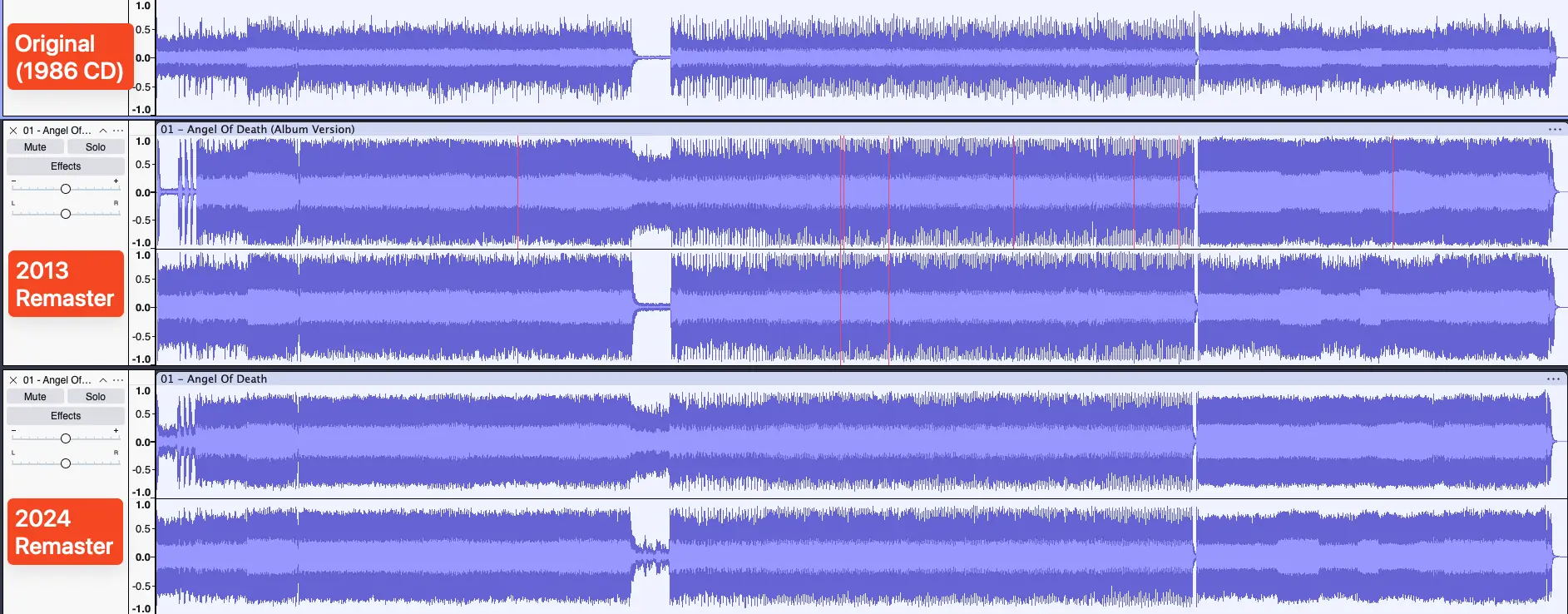
The first song we're using for comparison is Angel of Death by Slayer. I noticed an immediate difference between Apple Music and Spotify. YT Music had the same version as Spotify.

Reign In Blood comparison.

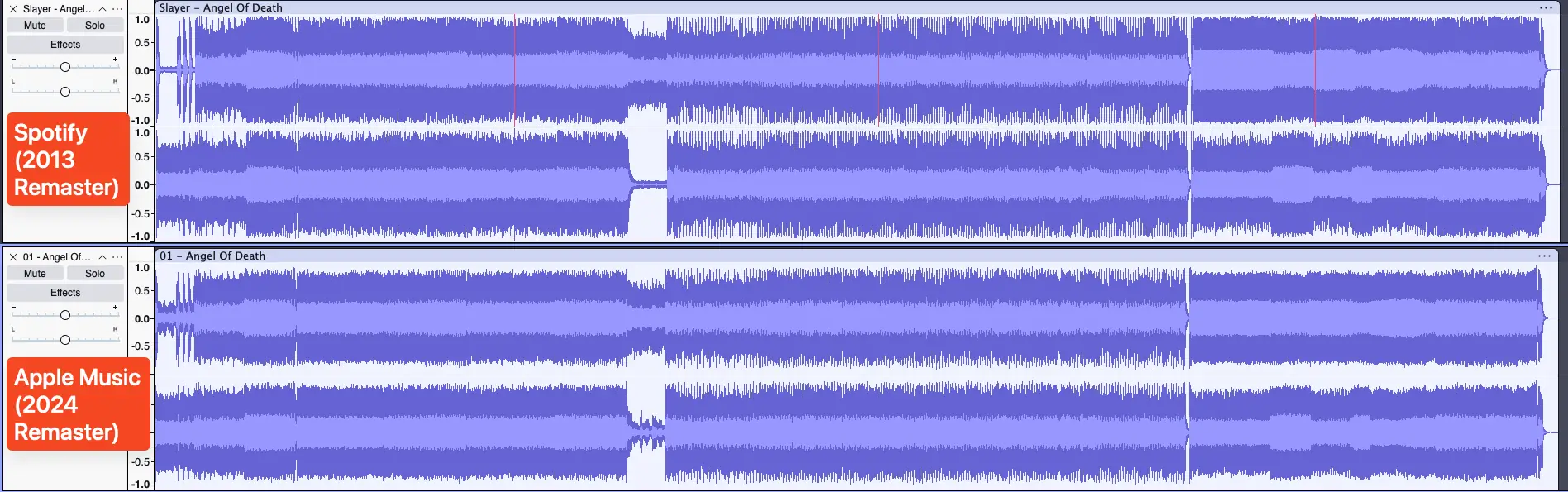
I ripped it directly from Apple Music and Spotify myself. Let's take a look at their waveforms.

Reign In Blood, DSP comparison.

It turns out, Apple Music has the (latest) 2024 remaster. Spotify has the 2013 remaster. I happen to have a copy of the original CD release of this album, and the 2013 remaster is much closer than the 2024 one. The 2024 version is closer to a new mix than a remaster, it sounds completely different. 2013 is just louder and more clipped than the CD. Apple Music is bad here.

Next, Black Skinhead by Kanye. I remastered Yeezus for myself a couple of days back. I used the iTunes master specifically. I shouldn't have.

Yeezus, DSP comparison.

Yeezus has a unique master for iTunes. This master is a "Mastered for iTunes" or "Apple Digital Master". From the waveforms, it's clear that the Spotify version has way more clipping than Apple Music. Even after gain-matching, Apple Music's waveform looked better. There was slightly more dynamic range.

But Apple Music sounds horrible. There's distortion everywhere. It's a mess. Even though Spotify has way more clipping, it still sounds several times better. It's not even close. At least with Angel of Death, it sounded different and was bordering the subjectivity threshold. This was objectively worse.

I also noticed that Spotify offers more masters than Apple Music. Take Pink Floyd. Some of their albums have 50+ masters. Apple Music offers only the latest. Take The Beatles. Spotify offers more masters. Spotify makes it clear which master you're listening to. Apple Music offers fewer options, the different masters are harder to find, and they don't make it clear which one is which. It's very ambiguous. A trend you'll notice with albums before the 2000s is that remasters are worse than the original.

Lossless audio doesn't matter for listening. The audio industry peddles this snake oil for money.

Apple Music's biggest selling point is its audio quality. But the truth is that out of all DSPs, Apple Music is objectively the worst. Every DSP I've ripped from over the years have used the same master. Apple, trying to differentiate itself, ends up being worse. Lossless doesn't matter when the actual content is worse.

As nerdy as I am about audio, I'm always pragmatic about it. My criticism of Apple Music isn't about codecs, bitrate or sample rate. Those things don't matter much as most people think. It's about the music itself. It's just bad, man. And it isn't just a problem with old music. Yeezus came out in 2013! There are people out there who think Yeezus was bad because they've only listened to the distorted mess AM/iTunes offers.

I'm not asking you to rip CDs or buy vinyls (and for the record, vinyls are overrated). I'm simply hoping this convinces you to switch to Spotify/YTM/Tidal/literally anything other than Apple Music.

https://grimridge.net/blog/apple-music/
Hosting Radio Spaces on X (and Other Sites)
Bring back radio!
Show full content

Ever wanted to host a radio space on X? Or play music on Google Meet for your friends?

Here's how to share your system audio directly to websites and apps using a virtual mic. Get creative with usecases.

This can't be done on mobile, you need a computer and a Chromium-based browser. Chrome, Edge, Brave, etc.

Install Violentmonkey extension. Install my Raw Mic Input userscript. This will disable all audio processing on the mic input, like noise cancellation. Useful when you're using the mic to talk, not to play music.

Next, you need an audio loopback driver. The audio that's playing on your computer will be routed into a virtual mic. Any app that accesses this mic will directly get the audio that's playing. Think of it like a pipe that connects your speaker to your computer again, as input.

macOS users: Install BlackHole. Instructions in the GitHub page. You need the 2ch driver. Set up multi-output device. Open System Settings, go to Sound, select the new multi-output device as output and BlackHole as input.

Windows users: Install VB-CABLE. I don't have Windows, so I can't tell you the specifics. You need to set input audio device to the VB-Cable mic, and output to both VB-Cable and your default audio output. Use Google, figure it out. It's very simple. There should be guides on YouTube, too.

Linux users: v4l2loopback. Figure out multi-output.

That's it. Anything you play on your computer now will be the mic input. Go to X, host a space, play songs, have fun.

https://grimridge.net/blog/xitter-space-jams/