GeistHaus
log in · sign up

NicJ.net

Part of feedburner.com

Home to Nic Jansma, a software developer at Akamai building high-performance websites, apps and open-source tools.

stories
Beaconing In Practice: fetchLater()
Tech

Table of Contents Introduction fetchLater API Why Deferred Fetches Evolution from Pending Beacon What I Got Wrong Last Time fetchLater Experiments Methodology Reliability of XMLHttpRequest vs. sendBeacon() vs. fetchLater Beacon in Event Handlers onload pagehide or visibilitychange onload or pagehide or visibilitychange Conclusion Reliability of fetchLater() using activateAfter Follow-Ups How We’re Going to Use it […]

The post Beaconing In Practice: fetchLater() first appeared on NicJ.net.

Show full content
Table of Contents
  1. Introduction
  2. fetchLater API
  3. Why Deferred Fetches
  4. Evolution from Pending Beacon
  5. What I Got Wrong Last Time
  6. fetchLater Experiments
    1. Methodology
    2. Reliability of XMLHttpRequest vs. sendBeacon() vs. fetchLater Beacon in Event Handlers
      1. onload
      2. pagehide or visibilitychange
      3. onload or pagehide or visibilitychange
      4. Conclusion
    3. Reliability of fetchLater() using activateAfter
  7. Follow-Ups
  8. How We’re Going to Use it
  9. TL;DR

Introduction

This is a follow-up to the post Beaconing in Practice: An Update on Reliability and the Pending Beacon API, which itself is a follow-up to an article titled Beaconing In Practice. These articles cover all aspects of sending telemetry from your web app to a back-end server for analysis (aka "beaconing").

In the past year, the Pending Beacon API has evolved like a Pokémon and is now called the fetchLater() API. I think the new API shape is more ergonomic, more reliable, and a good step forward.

In this article, I will review the updated API and see how it stacks up to its predecessor, the Pending Beacon API, as well as the standard way of beaconing on the web via XMLHttpRequest (XHR) and sendBeacon(). Some of the content of this article will look similar to the last one, with some additional content for how the API has evolved, and newer findings from experimentation.

A summary of where we left off last time:

  • The Pending Beacon API was showing great promise, giving developers better ergonomics for sending data, and a more reliable way to send beacons at the end of the page lifetime
  • There were a few scenarios that Pending Beacon seemed less reliable than using sendBeacon():
    • During onload Pending Beacon (with timeout:0) was about 1.2% less reliable than sendBeacon()
    • During pagehide and visibilitychange Pending Beacon (with timeout:0), on Mobile, was about 17.9% less reliable than sendBeacon()
    • After reviewing my methodology with Chrome engineers, they pointed out I had forgotten to use .sendNow() in scenarios that it should be used; details on that suggestion below.
  • Pending Beacon requests were hard to debug due to the beacons not showing up in Chrome Developer Tools.
    • Since the API is now fetch()-based, this has been resolved and they now show up. Great!

fetchLater() API

The fetchLater() API is an evolution of the Pending Beacon API (based on feedback from the community and the other browser vendors), and it aims to allow developers to send a "deferred" fetch().

Why would you want to defer your fetches? A primary use-case is for beaconing data from a web app for analysis/analytics purposes. Deferred fetches can be useful when exfiltrating telemetry, i.e. when that beacon contains a payload that is not required for building the webpage or presenting anything to the visitor.

The goal of fetchLater() is to provide an API to developers where they can "queue" data to be sent at a later date — either after a timeout, or, at the point the page is about to be unloaded.

This helps developers avoid having to explicitly send beacons themselves in events like pagehide or visibilitychange (which don’t always fire reliably).

The API looks similar to a regular fetch(), which developers should be familiar with.

Here’s an example of using the fetchLater() API to send a beacon when the page is being unloaded (or a maximum of 60 seconds after "now"):

// queue a beacon for the unloading or +60s
fetchLater(beaconUrl, {
  activateAfter: 60000
});

The API is still being discussed, and is actively evolving based on community and browser vendor feedback.

If you want to experiment with fetchLater() in Chrome today, you can register for an Origin Trial for Chrome 121-126.

Why Deferred Fetches?

One of the challenges highlighted in the Beaconing In Practice article is how to reliably send data once it’s been gathered in a web app.

Developers frequently use events such as beforeunload/unload or pagehide/visibilitychange as a trigger for beaconing their data, but these events are not reliably fired on all platforms. If the events don’t fire, the beacons don’t get sent.

For example, if you want to gather all of your data and only send it once as the page is unloading, registering for all 4 of those events will only give you ~82.9% reliability in ensuring the data arrives at your server, even when using the sendBeacon() API.

So, wouldn’t it be lovely if developers had a more reliable way of "queuing" data to be sent, and have the browser automagically send it once the page starts to unload? That’s where fetchLater() comes in.

The fetchLater() API gives developers a way to build a "deferred" beacon. That deferred beacon will then be sent at the timeout, or, as the page is unloading. It can also be aborted before then, if desired. As a result, developers no longer need to listen to the beforeunload/unload/pagehide/visibilitychange events to send data.

Ideally, fetchLater() will be a mechanism that can replace usage of sendBeacon() in browsers that support it, giving more reliable delivery of beacon data and better developer ergonomics (by not having to listen for, and send data during, unload-ish events).

Evolution from Pending Beacon

fetchLater() evolved from the Pending Beacon API, based on feedback from other browser vendors and the web performance community.

Pending Beacon was a brand new API that allowed you to configure a few timeouts, send/update the payload, and force the beacon out immediately:

var pb = new window.PendingGetBeacon(beaconUrl, {
    timeout: 0,
    backgroundTimeout: -1
});
pb.setData(1);
pb.sendNow();
// or
pb.deactivate();

Rather than creating an entirely new PendingGetBeacon() interface, fetchLater() is merely a mirror of fetch() with one additional optional parameter (activateAfter). The deferred fetch can still be aborted (via an AbortController) like a normal fetch().

fetchLater(beaconUrl, {
    activateAfter: 0
});

// can't be updated, but you can use an AbortController to create a new one
// no need for .sendNow()
// can be deactivated with an AbortController

One other difference with PendingBeacon was that it had a backgroundTimeout option, which would send a beacon after the specified number of milliseconds when the page entered the next hidden visibility state (or was abandoned):

var pb = new window.PendingGetBeacon(beaconUrl, {
    backgroundTimeout: 1000
});

This behavior is not available in fetchLater(), though you could replicate it manually:

fetchLater(beaconUrl);

document.addEventListener("visibilitychange", () => {
  if (document.hidden) {
    setTimeout(function() {
      if (document.hidden) {
        fetchLater(beaconUrl);
      }
    }, 1000);
  }
});

This feels more straightforward to use, and avoids one of the traps I fell into when experimenting with Pending Beacon last time (see next section).

What I Got Wrong Last Time

When I was experimenting with Pending Beacon last year, there were two big issues I found with regards to reliability:

  • During onload Pending Beacon (with timeout:0) was about 1.2% less reliable than sendBeacon()
  • During pagehide and visibilitychange Pending Beacon (with timeout:0), on Mobile, was about 17.9% less reliable than sendBeacon()

Both of these scenarios utilized Pending Beacon with a { timeout: 0 } option, meaning I was asking the browser to send the beacon right away.

Here’s example code for what it looked like:

new window.PendingGetBeacon(beaconUrl, {
    timeout: 0,
    backgroundTimeout: -1
});

What I missed, however, was that the Pending Beacon interface had a method .sendNow() that would tell the browser to actually send it immediately.

Here’s what I should have done:

let b = new window.PendingGetBeacon(beaconUrl, {
    timeout: 0,
    backgroundTimeout: -1
});
b.sendNow(); // <-- forgot to do this last time

In talking with the Chrome engineers, we think that excluding the .sendNow() may have caused the drop in reliability — timeout: 0 alone wasn’t enough to force the beacon to send right away.

This was especially important in the page-is-unloading scenario (in pagehide and visibilitychange listeners) as not forcing with .sendNow() meant the browser didn’t prioritize sending the payload prior to exiting the page/app.

fetchLater() Experiments

Given those goals, I was curious to see how reliable fetchLater() would be compared to existing APIs like XMLHttpRequest (XHRs) or the sendBeacon() API. I performed several experiments comparing how reliably data arrived after using one of those APIs in different scenarios.

Let’s explore these questions:

  1. Can we swap fetchLater() in for usage of XHR and/or sendBeacon() in unload event handlers?
  2. How reliable is using only fetchLater()‘s activateAfter, rather than listening to event handlers?

Where possible, I will also mention how fetchLater() compares with the previous API shape (Pending Beacon).

Methodology

Over the course of 3 months, on a site that I control (with approx 2.5 million samples), I ran an experiment gathering data from browsers using the following three APIs:

An A/B/C experiment was run distributing the test across those APIs, which all sent a small GET request (~100 bytes) back to the same domain / origin.

For all of the data below, I am only looking at Chrome and Chrome Mobile v121-126 (per the User-Agent string) with support for window.fetchLater(), to ensure a level playing field. The data in Beaconing In Practice looks at reliability across all User-Agents, but the experiments below will focus solely on browsers supporting the fetchLater() API.

(It appears Edge, Opera and Samsung Internet Browser participate in Origin Trials and are sending data as well. I excluded those UAs to keep the results consistent)

Reliability of XMLHttpRequest vs. sendBeacon() vs. fetchLater() in Event Handlers

The first question I wanted to know was: Can fetchLater() be easily swapped into existing analytics libraries (like boomerang.js) to replace sendBeacon() and XMLHttpRequest (XHR) usage, and retain the same (or better) reliability (beacon received rate)?

In boomerang for example, we listen to beforeunload and pagehide to send our final "unload" beacon. Can we just use fetchLater() with { activateAfter: 0 } in those events instead?

For this experiment, I segmented visitors into 3 equally-distributed A/B/C groups (given fetchLater() support):

  • A: Force fetchLater() (with { activateAfter: 0 } so it was sent immediately)
  • B: Force navigator.sendBeacon()
  • C: Force XMLHttpRequest

Each group then attempted to send 6 beacons per page load:

  1. Immediately in the <head> of the HTML
  2. In the page onload event
  3. In the page beforeunload event
  4. In the page unload event
  5. In the page pagehide event
  6. In the page visibilitychange event (for hidden)

By seeing how often each of those beacons arrived, we can consider the reliability of each API, during different page lifecycle events. I’m only including results for page loads where the first step (sending data immediately in the <head>) occurred.

Let’s break the experimental data down by event first:

onload

The onload event is probably the most common event for an analytics library to fire a beacon. Marketing and performance analytics tools will often send their main payload at that point in time.

Here’s example code you could use to send data at onload:

function sendTheBeacon() {
    // XHR
    var xhr = new XMLHttpRequest();
    xhr.open('GET', beaconUrl, true);
    xhr.send();

    // sendBeacon
    navigator.sendBeacon(beaconUrl);

    // fetchLater
    fetchLater(beaconUrl, { activateAfter: 0 }); 
}

window.addEventListener("load", sendTheBeacon, false);

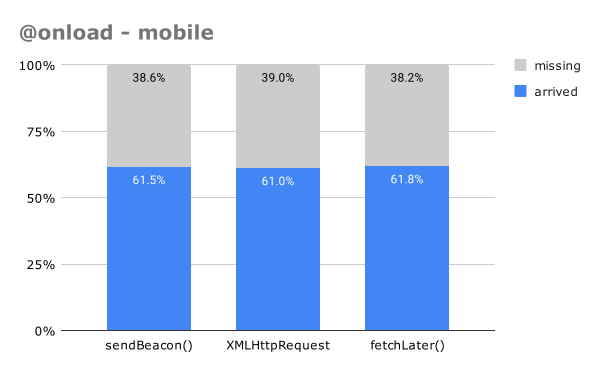
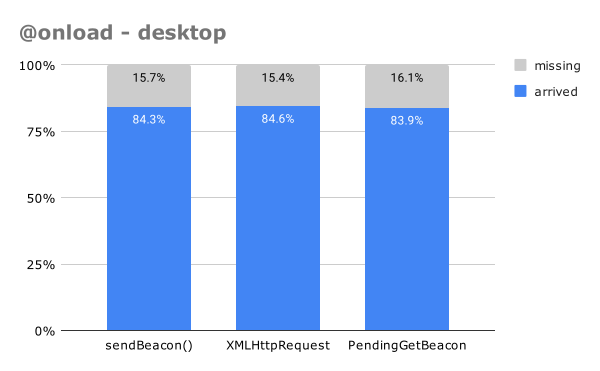
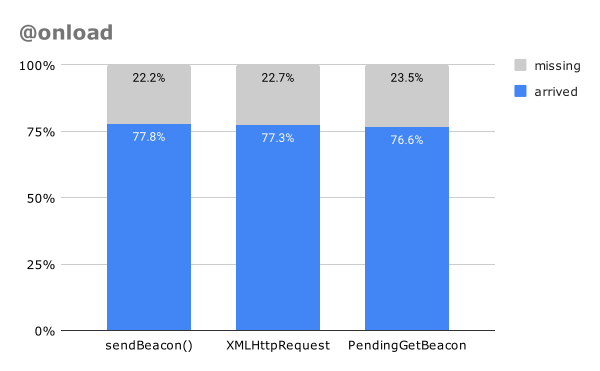
Based on our experimentation, when firing a beacon just at the onload event, fetchLater() appears to be slightly more reliable than sendBeacon() and XHR:
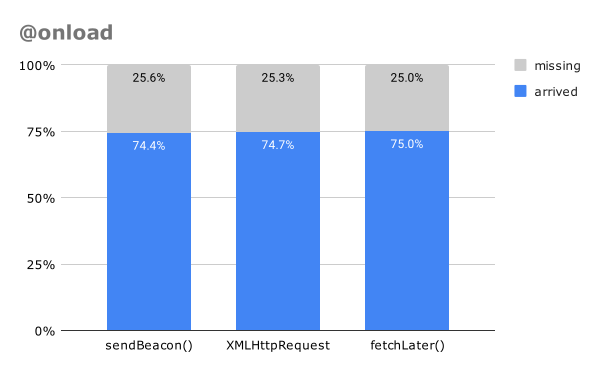
reliability at onload

The numbers are very close though, with approximately a half-million samples in each bucket, there is less than a 1% difference between the three APIs.

This result is different than the Pending Beacon experimentation last year, which showed Pending Beacons coming in less reliably than sendBeacon() — likely due to not using .sendNow() in that experiment.

Broken down by Desktop and Mobile:
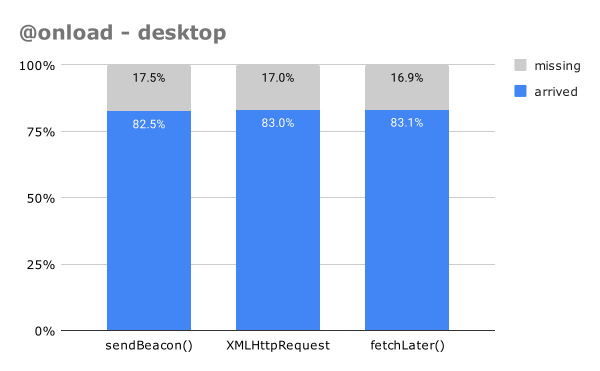
reliability at onload - desktop

reliability at onload - mobile

The results are ordered the same across desktop and mobile — all within less than 1 percent reliability difference of each other.

Note: that the above results are for only measuring a beacon sent immediately during the page’s onload event, without accounting for any abandons that happen prior to onload. That is why these numbers are so low — if a user abandoned the page prior to the onload event, they would not be counted in the above chart. See the additional breakdowns below for how these numbers change if you use the suggested abandonment strategy of listening to onload, pagehide and visibilitychange.

Great news that fetchLater() seems to be just as reliable (if not more) than sendBeacon() and XHRs during the onload event!

pagehide or visibilitychange

If the intent is to measure events that occur in the page beyond the onload event, i.e. additional performance or reliability metrics (such as Core Web Vitals or JavaScript errors), tools can send a beacon during one of the page’s unload events, such as beforeunload, unload, pagehide or visibilitychange.

Our recommended strategy is to listen to just pagehide and visibilitychange (for hidden), and not listen to the beforeunload or unload events (which are less reliable and can break BFCache navigations).

Example code:

window.addEventListener("pagehide", sendTheBeacon, false);
window.addEventListener("visibilitychange", function() {
    if (document.visibilityState === 'hidden') {
        sendTheBeacon();
    }
}, false);

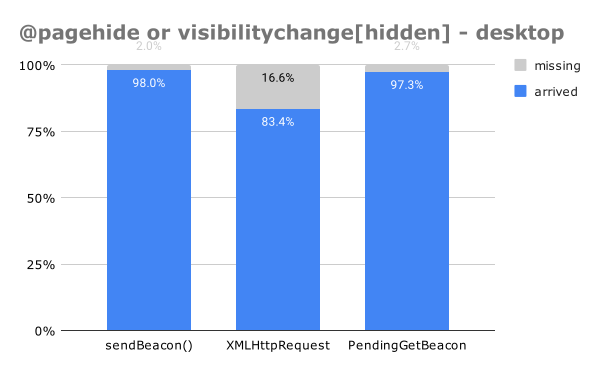
So let’s look at the result of sending a beacon immediately during a pagehide or visibilitychange event (if a beacon was received for either event):
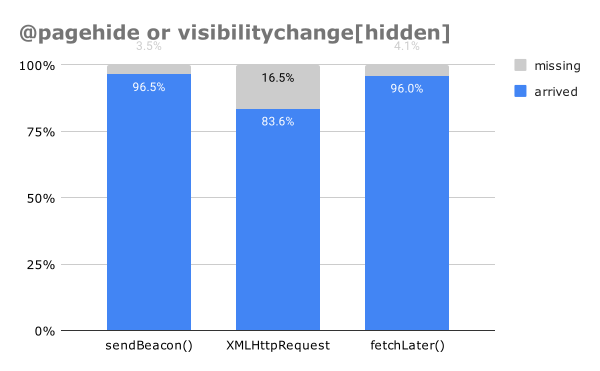
reliability at pagehide or visibilitychange

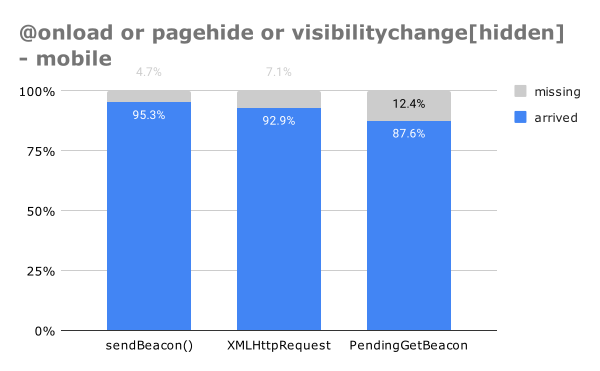
Here we see that sendBeacon() has a slight edge over fetchLater() — about 0.5% more reliable.

XHR trails much farther behind at only 83.% reliable. This is because XHRs can be aborted as the page is abandoned, or the user navigates away.

Let’s break it down by platform:
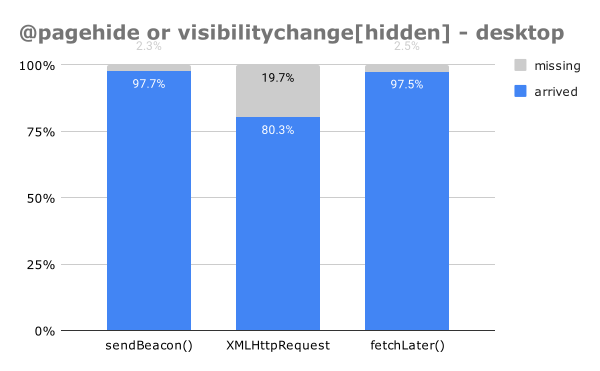
reliability at pagehide or visibilitychange - desktop

fetchLater() is nearly identical to sendBeacon() reliability on Desktop, with XHR trailing behind.

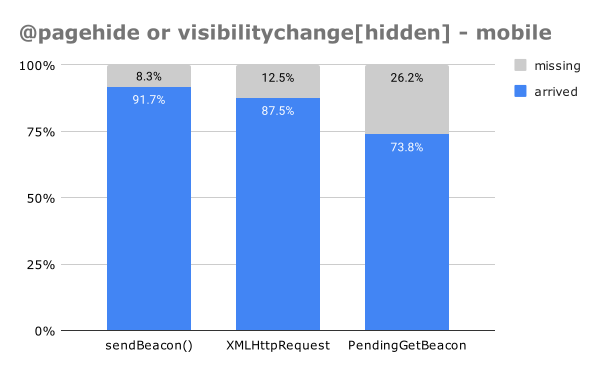
On Mobile:
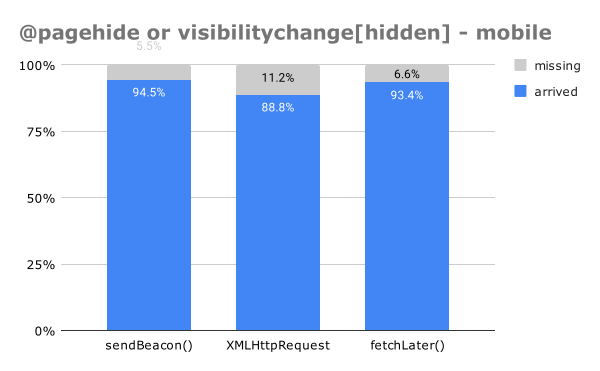
reliability at pagehide or visibilitychange - mobile

fetchLater() trails a bit further behind sendBeacon() (1.1% less reliable).

I was hoping these pagehide and visibilitychange[hidden] numbers would mirror what we saw for onload, where fetchLater() would be slightly better than sendBeacon even. However, sendBeacon() appears to have a slight edge in reliability, most notably on mobile platforms when the page is unloading.

I will follow-up with the Chrome team to determine if there’s anything that could be contributing to this.

onload or pagehide or visibilitychange

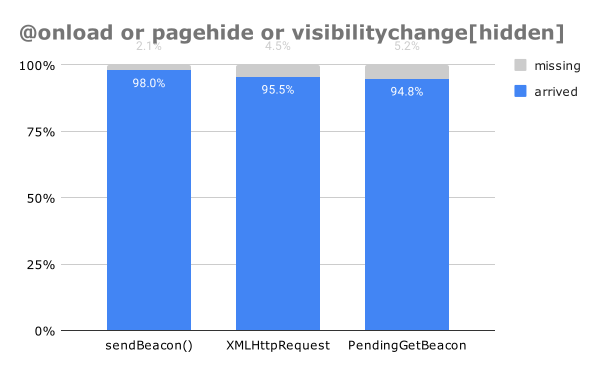
Finally, let’s combine the above three events per the suggested abandonment strategy, and see how reliable each API is if we’re listening for all 3 events (and sending data once in any of them).

Of course, this increases the reliability of receiving beacons to the maximum possible, with sendBeacon() and fetchLater() able to get a beacon to the server over 98% of the time:
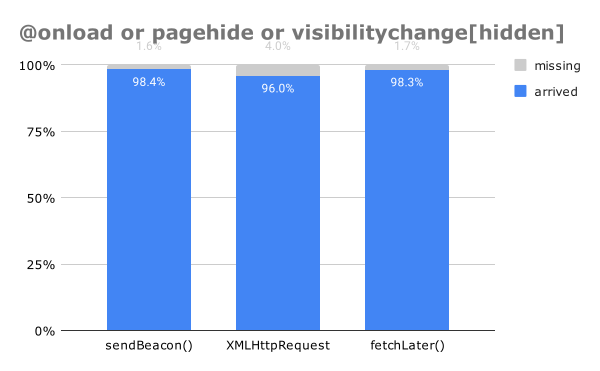
reliability at onload or pagehide or visibilitychange

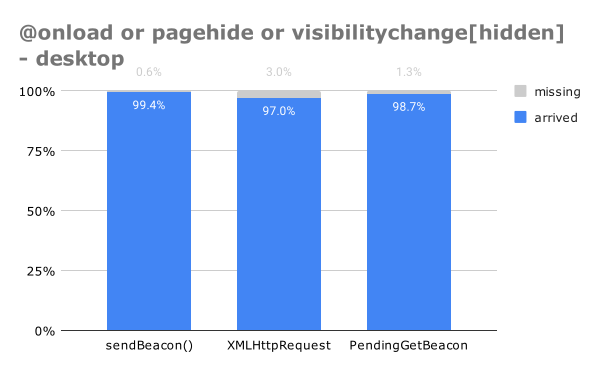
Broken down by Desktop vs. Mobile, we see that Desktop is has an extremely high rate of receiving beacons, 99% ore more:
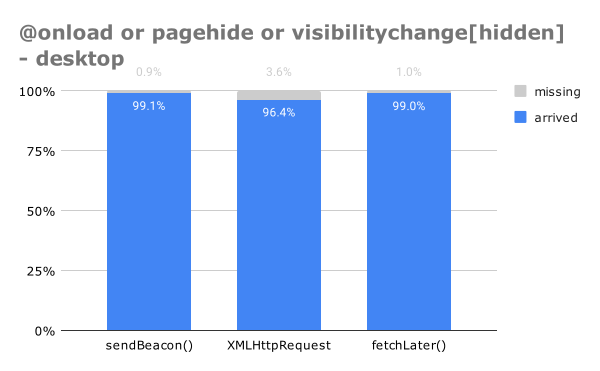
reliability at onload or pagehide or visibilitychange - desktop

While Mobile shows a bit less reliably results, but still over 97% for sendBeacon() and fetchLater():
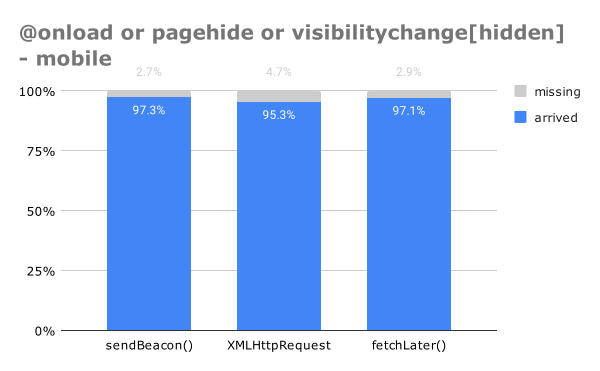
reliability at onload or pagehide or visibilitychange - mobile

Conclusion

From experimenting with using fetchLater() in event handlers, it seems to me that fetchLater() is nearly identical to sendBeacon() in reliability (and both are improvements over XHR).

If sending data during onload, fetchLater() is slightly more reliable than sendBeacon().

If sending data during pagehide or visibilitychange[hidden], sendBeacon() is slightly more reliable than fetchLater() (more pronounced on mobile). It’s probably worthwhile to look into this a bit further why.

NOTE: I measured the reliability of sending beacons during beforeunload and unload as well, but since those events are deprecated / not-recommended / unreliable / break BFCache events, I’ll skip those results in this post.

Reliability of fetchLater() using activateAfter

Here’s an interesting experiment: Let’s say you want to send a beacon to your analytics service, but you don’t have a strong opinion on when that data should be sent.

You don’t necessarily want to send it at startup, as that network request could conflict with the page’s important assets.

As long as it’s sent by the time the page is unloading, that’s good enough!

One naive way you could do this is just use a setTimeout(, n) and call sendBeacon() much later, after the page has fully loaded:

window.addEventListener("load", function() {
    setTimeout(function() {
        navigator.sendBeacon(beaconUrl);
    }, 1000);
}, false);

If you didn’t take into account an abandonment strategy, and you tried different values of N milliseconds, your reliability rate might look like this:
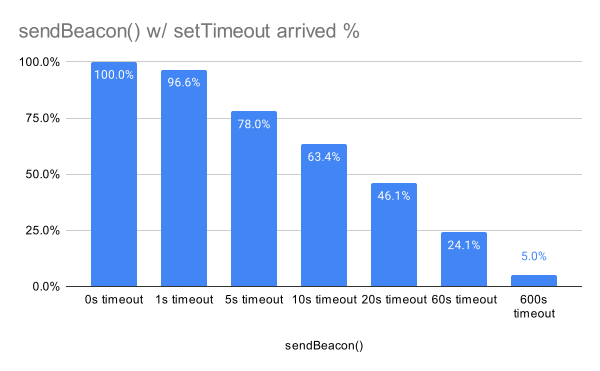
sendBeacon() after setTimeout of N seconds

i.e. waiting 1 second after Page Load you’d only see 96.6% of beacons, while waiting for 60 seconds (and hoping they stick around on your page for 60 seconds) results in only 24.1% of beacons arriving (on this example site).

Of course, you wouldn’t do this in real-life: you’d listen for pagehide and visibilitychange, but this shows a worst-case example.

Here’s where fetchLater() comes in: you can actually use it blindly like this, and have much more positive results! Just specify a { activateAfter: n } value for your preferred delay:

fetchLater(beaconUrl, { activateAfter: 1000 });

The fetchLater() results in doing this are pretty impressive:
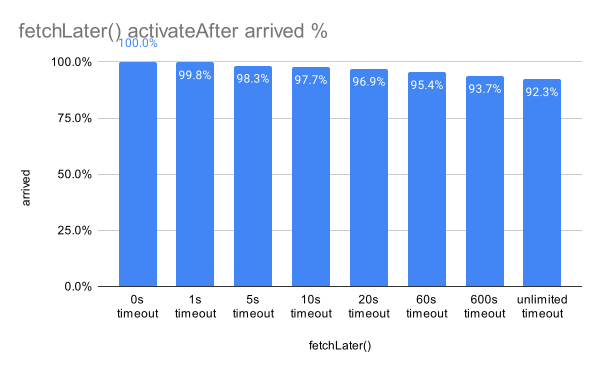
fetchLater() after activateAfter of N seconds

Using a value of 1 second only results in 0.2% of beacons being lost, while a value of 600 seconds still gives you 93.7% of all beacons.

Setting activateAfter to a nearly-unlimited value (say 999999999999999), i.e. you’re asking fetchLater() to do all the heavy-lifting to send a beacon whenever the page is abandoned, we still see those beacons arrive 92.3% of the time.

While that isn’t 100% of the time, it’s a lot better and more ergonomic than having to listen to onload, pagehide, visibilitychange, etc.

Our previous experimentation showed that if you want to "hold" your data for unload, listening to all 4 unload-ish events (beforeunload, unload, pagehide, visibilitychange), sending a beacon in those events only resulted in ~82.9% reliability! So fetchLater() is 9.4% (in real terms) more reliable here.

And in the meantime, the draft fetchLater() could be aborted and replaced with additional data up until the page unloads (at which point you could let the "last" values go out, or even replace it again with any at-unload data you want to update).

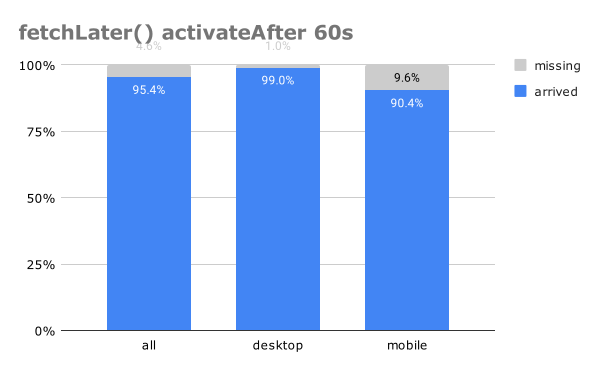
This reliability varies by platform. If we zoom into using { activateAfter: 60000 } (60s), we can see that Desktop (99.0%) is a lot more reliable than Mobile (90.4%):
fetchLater() 60s

Regardless, fetchLater() offers some unique benefits for sending data.

Follow-Ups

As last time, I want to be open in saying that:

  • Some of my methodology may be flawed.
    • Last time I wasn’t using .sendNow() with Pending Beacon, and that affected the reliability in page-unloading scenarios.
    • Luckily, fetchLater() reduces the complexity a bit, and we now see reliability as-good-as or even better-than sendBeacon() most of the time
  • These results were captured in a A/B/C test on one of my personal websites.
    • Your results will vary!
    • I also have noticed that over time the numbers for all results shift slightly. My A/B/C experimentation was happening simultaneously though, so shouldn’t be affected by changes in time.
  • I’m open to review and criticism or feedback on other things to check.

Given that, there is one follow-up for fetchLater() that I would like to review:

  • Why is fetchLater() in pagehide and visibilitychange[hidden] slightly less reliable than sendBeacon()?
    • I only saw ~0.2% less beacons, but I was hoping it would be equal or better!

How We’re Going to Use it

Given the cool possibilities of fetchLater(), how do I envision taking advantage of it?

For boomerang.js (our RUM measurment tool we use at Akamai mPulse), we have a few different types of beacons we send:

  • Our load beacon at the onload event. This contains all of the performance information from the page.
  • An unload beacon at pagehide and beforeunload. This lets us know how long the user was reading the page.
  • Some websites have enabled an early beacon that gets sent immediately at page initialization, so we avoid any data loss from page abandonment (the user leaves before onload and when event handlers aren’t reliable). If the main beacon doesn’t come in, the early beacon data is used.
  • error beacons contain information about any JavaScript errors that occur during user interactions after the main beacon was sent.
  • spa beacons for Single Page App Soft Navigations.
  • (… and a few more obscure ones)

fetchLater() can help us get data more reliably in a few of these scenarios!

  • early beacons may no longer be necessary: we can queue up a fetchLater() with the same data, and abort it if we reach onload and send our regular data. This will reduce the amount of beacons we send (and that we have to keep in memory in our infrastructure).
  • error beacons could be sent less often: right now our customers often choose to send batches of error beacons every 1 to 5 seconds, to ensure they arrive reliably. We could batch new errors into a fetchLater() beacon that only get sent after 60 seconds, trusting the browser to deliver it (and appending new errors if they occur in the meantime).
  • It would take a bit of engineering to make such a drastic change to our library, but fetchLater() could allow us to combine our load and unload beacons into a single beacon that just gets sent as the page is unloading. (the downside of this is that data may not be as "real time" into our dashboards as it is today, which shows beacons withing 5-10 seconds of the Page Load happening).

We’re hoping to experiment with some of these ideas soon!

TL;DR
  • Last time I experimented with Pending Beacon, I had concerns with ergonomics (lack of Developer Tools Support) and reliability (less beacons arriving than sendBeacon()). Both of these are resolved!
  • I’m really excited for the fetchLater() API. It’s giving developers better ergonomics for sending data, and a more reliable way to send beacons at the end of the page lifetime.
  • The new fetchLater() API is in active development and going through a feedback and Origin Trial cycle.
  • I would suggest analytics libraries seriously consider utilizing the API if available (after the Origin Trial concludes).

Thanks for reading and your support! Please contact me with any feedback, questions, etc.

The post Beaconing In Practice: fetchLater() first appeared on NicJ.net.
https://nicj.net/?p=2891
Extensions
Beaconing in Practice: An Update on Reliability and the Pending Beacon API
Tech

Table of Contents Introduction Pending Beacon API Why Pending Beacons? Pending Beacon Experiments Methodology Reliability of XMLHttpRequest vs. sendBeacon() vs. Pending Beacon in Event Handlers onload pagehide or visibilitychange onload or pagehide or visibilitychange Conclusion Reliability of Pending Beacon "now" vs "backgroundTimeout" Reliability of Pending Beacon "backgroundTimeout" once vs. sendBeacon() in Event Handlers Misc Findings […]

The post Beaconing in Practice: An Update on Reliability and the Pending Beacon API first appeared on NicJ.net.

Show full content
Table of Contents
  1. Introduction
  2. Pending Beacon API
  3. Why Pending Beacons?
  4. Pending Beacon Experiments
    1. Methodology
    2. Reliability of XMLHttpRequest vs. sendBeacon() vs. Pending Beacon in Event Handlers
      1. onload
      2. pagehide or visibilitychange
      3. onload or pagehide or visibilitychange
      4. Conclusion
    3. Reliability of Pending Beacon "now" vs "backgroundTimeout"
    4. Reliability of Pending Beacon "backgroundTimeout" once vs. sendBeacon() in Event Handlers
  5. Misc Findings
  6. Follow-Ups
  7. TL;DR

Introduction

A few years ago, I wrote an article titled Beaconing In Practice that covered all of the aspects of sending telemetry from your web app to a back-end server for analysis (aka "beaconing").

While the contents of that article are still relatively fresh and accurate, there are two new aspects of beaconing that I would like to cover in this post:

  • The new Pending Beacon API
  • The measured reliability of using XMLHttpRequest (XHR) vs. sendBeacon() vs. Pending Beacon for sending data

Pending Beacon API

The Pending Beacon API is an exciting new proposal from Google Chrome engineers.

The goal is to provide an API for developers where they can "queue" data to be sent when a page is being unloaded (by the browser, automatically), rather than requiring developers to explicitly send beacons themselves in events like pagehide or visibilitychange (which don’t always fire reliably).

It is meant to be similar to the navigator.sendBeacon() API, with a simple calling style.

Here’s an example of using the Pending Beacon API to send a beacon when the page is being hidden/unloaded (or a maximum of 60 seconds after "now"):

// queue a beacon for the unloading or +60s
var beacon = new window.PendingGetBeacon(
    beaconUrl,
    {
        timeout: 60000, 
        backgroundTimeout: 0 
    });

(note the above API shape is outdated and the Pending Beacon API will utilize fetch() in future versions)

The API is still being discussed, and is actively evolving based on community and browser vendor feedback.

If you want to experiment with the Pending Beacon in Chrome today, you can register for an Origin Trial for Chrome 107-115. Though, again, note that the current API shape (with the window.PendingGetBeacon and window.PendingPostBeacon interfaces) is evolving towards being an option of fetch() instead.

Why Pending Beacons?

One of the challenges highlighted in the Beaconing In Practice article is how to reliably send data once it’s been gathered in a web app.

Developers frequently use events such as beforeunload/unload or pagehide/visibilitychange as a trigger for beaconing their data, but these events are not reliably fired on all platforms. If the events don’t fire, the beacons don’t get sent.

For example, if you want to gather all of your data and only send it once as the page is unloading, registering for all 4 of those events will only give you ~82.9% reliability in ensuring the data arrives at your server, even when using the sendBeacon() API.

So, wouldn’t it be lovely if developers had a more reliable way of "queuing" data to be sent, and have the browser automagically send it once the page starts to unload? That’s where the Pending Beacon API comes in.

The Pending Beacon API gives developers a way to build a "pending" beacon. That pending beacon can then be mutated over time, or later discarded. The browser will then handle sending it (in its latest state) when the page is being hidden or unloading, so developers no longer need to listen to the beforeunload/unload/pagehide/visibilitychange events.

Ideally, Pending Beacon will be a mechanism that can replace usage of sendBeacon() in browsers that support it, giving more reliable delivery of beacon data and better developer ergonomics (by not having to listen for, and send data during, unload-ish events).

Pending Beacon Experiments

Given those goals, I was curious to see how reliable Pending Beacon would be compared to existing APIs like XMLHttpRequest (XHRs) or the sendBeacon() API. I performed three experiments comparing how reliably data arrived after using one of those APIs in different scenarios.

Let’s explore three questions:

  1. Can we swap PendingBeacon in for usage of XHR and/or sendBeacon() in unload event handlers?
  2. How reliable is asking PendingBeacon to send data "now" vs with a backgroundTimeout?
  3. How reliable is queuing PendingBeacon data to be sent at page unload vs. listening to event handlers and using sendBeacon() in them?

Methodology

Over the course of a month, on a site that I control (with approx 2M page views), I ran an experiment gathering data from browsers using the following three APIs:

All of these APIs sent a small GET request back to the same domain / origin.

For all of the data below, I am only looking at Chrome and Chrome Mobile v107-115 (per the User-Agent string) with support for window.PendingGetBeacon, to ensure a level playing field. The data in Beaconing In Practice looks at reliability across all User-Agents, but the experiments below will focus solely on browsers supporting the Pending Beacon API.

Note that all of these tests were done with the PendingGetBeacon interface, before the current proposal to have this be a fetch() option. I’m unsure how the most recent proposal will affect these results, but I will re-do the test once that fetch() update is available.

Reliability of XMLHttpRequest vs. sendBeacon() vs. Pending Beacon in Event Handlers

The first question I wanted to know was: Can Pending Beacon be easily swapped into existing analytics libraries (like boomerang.js) to replace sendBeacon() and XMLHttpRequest (XHR) usage, and retain the same (or better) reliability (beacon received rate)?

In boomerang for example, we listen to beforeunload and pagehide to send our final "unload" beacon. Can we just use Pending Beacon instead?

For this experiment, I segmented visitors into 3 equally-distributed A/B/C groups (given Pending Beacon API support):

  • A: Force PendingGetBeacon (with { timeout: 0, backgroundTimeout: -1 } so it was sent immediately)
  • B: Force navigator.sendBeacon()
  • C: Force XMLHttpRequest

Each group then attempted to send 6 beacons per page load:

  1. Immediately in the <head> of the HTML
  2. In the page onload event
  3. In the page beforeunload event
  4. In the page unload event
  5. In the page pagehide event
  6. In the page visibilitychange event (for hidden)

By seeing how often each of those beacons arrived, we can consider the reliability of each API, during different page lifecycle events. I’m only showing data for page loads where the first step (sending data immediately in the <head>) occurred.

Let’s break the experimental data down by event first:

onload

The onload event is probably the most common event for an analytics library to fire a beacon. Marketing and performance analytics tools will often send their main payload at that point in time.

Based on our experimentation, when firing a beacon just at the onload event, sendBeacon() seems slightly more reliable than XHR, which is slightly more reliable than PendingGetBeacon.

reliability at onload

sendBeacon() being more reliable than XHR is expected — the whole point of sendBeacon() is to allow the browser to send data asynchronously of the page, in case it unloads after the beacon is queued up.

However, I’m surprised that PendingGetBeacon appears to be the least reliable (by about 1% less than XHR), at least from my experiments.

Broken down by Desktop and Mobile:

reliability at onload - desktop

reliability at onload - mobile

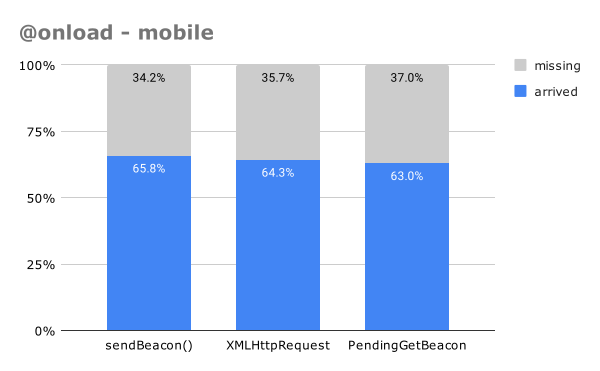
Desktop is able to deliver beacons more reliably across all 3 APIs than mobile. On mobile, PendingGetBeacon is about 2.8% less reliable than sendBeacon().

Note: that the above results are for only measuring a beacon sent immediately during the page’s onload event, without accounting for any abandons that happen prior to onload. That is why these numbers are so low — if a user abandoned the page prior to the onload event, they would not be counted in the above chart. See the additional breakdowns below for how these numbers change if you use the suggested abandonment strategy of listening to onload, pagehide and visibilitychange.

I was hoping the Pending Beacon API would be at-least-or-better reliable than sendBeacon(), so I think there’s something to investigate here.

pagehide or visibilitychange

If the intent is to measure events that occur in the page beyond the onload event, i.e. additional performance or reliability metrics (such as Core Web Vitals or JavaScript errors), tools can send a beacon during one of the page’s unload events, such as beforeunload, unload, pagehide or visibilitychange.

Our recommended strategy is to listen to just pagehide and visibilitychange (for hidden), and not listen to the beforeunload or unload events (which are less reliable and can break BFCache navigations).

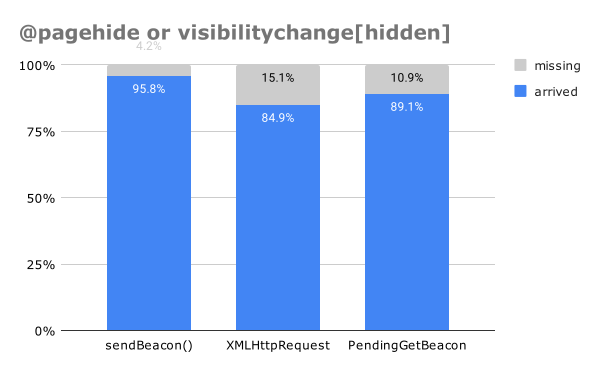
So let’s look at the result of sending a beacon immediately during a pagehide or visibilitychange event (if a beacon was received for either event):

reliability at pagehide or visibilitychange

This is showing that sendBeacon() is still reigning supreme for reliability (95.8%), with PendingGetBeacon slightly behind (89.1%) and XHR trailing that (84.9%).

However, when we break it down by Desktop:

reliability at pagehide or visibilitychange - desktop

PendingGetBeacon is nearly as reliable as sendBeacon(), with XHR trailing behind, while on Mobile:

reliability at pagehide or visibilitychange - mobile

There appears to be a huge drop-off in reliability for PendingGetBeacon on Mobile vs. Desktop.

Possibly a bug with Pending Beacon in Chrome’s initial implementation here? This data would give me pause in swapping to Pending Beacon right now.

onload or pagehide or visibilitychange

Finally, let’s combine the above three events per the suggested abandonment strategy, and see how reliable each API is if we’re listening for all 3 events (and sending data once in any of them).

Of course, this increases the reliability of receiving beacons to the maximum possible, with sendBeacon() able to get a beacon to the server 98% of the time:

reliability at onload or pagehide or visibilitychange

Broken down by Desktop vs. Mobile, we see that Desktop is has an extremely high rate of receiving beacons:

reliability at onload or pagehide or visibilitychange - desktop

While Mobile continues to show a possible issue with PendingGetBeacon vs. sendBeacon() (a 7.7% drop-off)!

reliability at onload or pagehide or visibilitychange - mobile

Conclusion

From this experiment at least, it appears sendBeacon() continues to be the most reliable way of sending beacon data.

If sending data during onload, sendBeacon() is slightly more reliable than PendingGetBeacon.

However, there appears to be a bug with PendingGetBeacon during a page-unloading scenario like pagehide or visibilitychange, particularly on Mobile. If the Chrome engineers can figure out a way to increase the reliability there, I would expect the Pending Beacon API to be equivalent to using sendBeacon() (which is our preferred mechanism today).

NOTE: I measured the reliability of sending beacons during beforeunload and unload as well, but since those events are deprecated / not-recommended / unreliable / break BFCache events, I’ll skip those results in this post.

Reliability of Pending Beacon "now" vs "backgroundTimeout"

The next experiment I ran was to determine if the backgroundTimeout functionality of the Pending Beacon API was reliable to use.

Here’s the description of the parameter (which has changed slightly with the fetch()-based proposal, but I would guess would operate similarly):

  • backgroundTimeout: A mutable Number property specifying a timeout in milliseconds whether the timer starts after the page enters the next hidden visibility state. If setting the value >= 0, after the timeout expires, the beacon will be queued for sending by the browser, regardless of whether or not the page has been discarded yet. If the value < 0, it is equivalent to no timeout and the beacon will only be sent by the browser on page discarded or on page evicted from BFCache. The timeout will be reset if the page enters visible state again before the timeout expires. Note that the beacon is not guaranteed to be sent at exactly this many milliseconds after hidden, because the browser has freedom to bundle/batch multiple beacons, and the browser might send out earlier than specified value (see Privacy Considerations). Defaults to -1.

In other words, ask the browser to send a beacon after backgroundTimeout milliseconds of being hidden.

This can be very useful as an alternative to listening to the pagehide / visibilitychange events for beaconing your "last" bits of data. If you regularly update your Pending Beacon, you may not need to listen to those event at all.

But can we trust the browser to still send our Pending Beacon, after we’ve queued it up?

For this experiment, I segmented visitors into 2 equally-distributed A/B groups (given Pending Beacon API support):

  • A: Force PendingGetBeacon to send a beacon now (with { timeout: 0, backgroundTimeout: -1 }
  • B: Force PendingGetBeacon to send a beacon after 60s or when the page is hidden (with { timeout: 60000, backgroundTimeout: 0 }

We are considering doing something similar to group B for boomerang.js, i.e. send all beacons within 60 seconds of the page load (so the data is still "real-time fresh" in dashboards), and asking the browser to send the data immediately if the user navigates away or closes the browser before then.

Let’s look at the results of using PendingGetBeacon to send a beacon "now" vs. "when the page is hidden/unloads":

pendingbeacon now vs 60s/unload

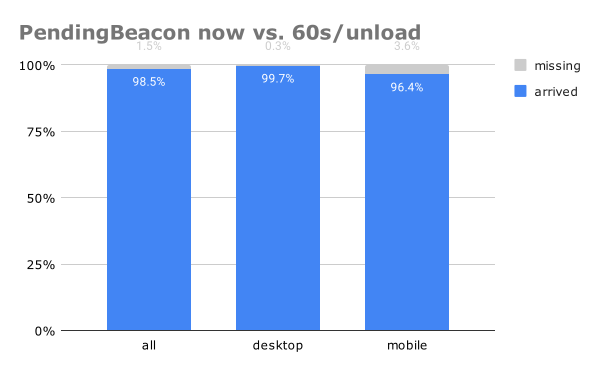
Given a baseline of 100% meaning we received a "now" PendingGetBeacon, we’re seeing the 60s timeout + @hidden beacon about 98.5% of the time across Desktop and Mobile.

Desktop is slightly more reliable (99.7%) vs. Mobile (96.4%).

I think this is a great result, confirming the value-add of PendingGetBeacon. Instead of having to add event listeners for pagehide visibilitychange and a 60s setTimeout(), the browser delivered the beacon very reliably on its own!

Remember, listening to all 4 unload-ish events (beforeunload, unload, pagehide, visibilitychange) and sending a beacon in those events only resulted in ~82.9% reliability!

And in the meantime, the pending beacon could be manipulated to add/remove additional data up until the page unloads.

Reliability of Pending Beacon "backgroundTimeout" once vs. sendBeacon() in Event Handlers

Given that the last experiment showed that Pending Beacon with backgroundTimeout was very reliable in sending beacons at page unload, what is the difference between using PendingGetBeacon with backgroundTimeout: 0 vs. listening for pagehide and visibilitychange and sending a beacon with sendBeacon()?

pendingbeacon vs sendBeacon for unload

Great news! Not only is the PendingGetBeacon more ergonomic (not having to listen for pagehide and visibilitychange events), it’s more reliably sending data when the page is unloading.

One interesting result I see here, is that the PendingGetBeacon reliability with backgroundTimeout: 0 was more reliable than listening to pagehide and visibilitychange and using PendingGetBeacon (now) in those events directly. This is likely due to the fact that pagehide and visibilitychange aren’t 100% reliable in the first place, but I would hope for it to be as-close-to sendBeacon() reliable as possible.

Misc Findings
  • There’s currently no way to debug Pending Beacon in Chrome Developer Tools — outgoing beacons are not visible in the Network tab. This makes it very hard to debug or verify that the feature is working. When debugging issues with boomerang.js I am constantly reviewing the outgoing beacon, so not having visibility into Dev Tools would be a huge hinderance. There’s an Github issue tracking this.
  • While reviewing the data, I found some Samsung Internet browser data in the data-set, indicating that it supported window.PendingGetBeacon.
    • However, I only received data for XMLHttpRequest and sendBeacon() beacons.
    • Does this mean Samsung Internet browser (which is Chromium-based) is registering window.PendingGetBeacon but not fully implementing the beacon sending? I will need to investigate more.

Follow-Ups

First, I want to say that my experiments and conclusions probably have some flaws. I’ve reviewed and re-reviewed my methodology and queries several times, but I am a human (I think!) and make mistakes. I’m hoping others can review this data.

Given that, some follow-ups I plan on doing based on the above findings:

  • Re-do this analysis once the interface is changed to be Fetch-based
  • Review the reliability data with the Chrome engineers to see if we should file bugs for any of the drops in reliability vs. sendBeacon(), in particular:
    • During onload Pending Beacon (with timeout:0) is about 1.2% less reliable than sendBeacon()
    • During pagehide and visibilitychange Pending Beacon (with timeout:0), on Mobile, is about 17.9% less reliable than sendBeacon()
  • Review why the Samsung Internet browser is registering the window.PendingGetBeacon interface but not sending any beacons (was there an error I wasn’t catching?)

TL;DR
  • I’m really excited for the Pending Beacon API. I think it’s going to developers better ergonomics for sending data, and a more reliable way to send beacons at the end of the page lifetime
  • The new Pending Beacon API is in active development and going through a feedback and Origin Trial cycle
  • There may be some small reliability issues vs. sendBeacon() that should be investigated before widespread adoption
  • The navigator.sendBeacon API still seems to be the most reliable mechanism for sending beacons, if you’re queuing up data to be sent in pagehide or visibilitychange events

The post Beaconing in Practice: An Update on Reliability and the Pending Beacon API first appeared on NicJ.net.

https://nicj.net/?p=2865
Extensions
Modern Metrics
Tech

At performance.now() 2022, I gave a talk titled "Modern Metrics (2022)". Here’s the description: What is a “modern” metric anyway? An exploration on how to measure and evaluate popular (and experimental) web performance metrics, and how they affect user happiness and business goals. We’ll talk about how data can be biased, and how best to […]

The post Modern Metrics first appeared on NicJ.net.

Show full content

At performance.now() 2022, I gave a talk titled "Modern Metrics (2022)".

Modern Metrics (2022)

Here’s the description:

What is a “modern” metric anyway? An exploration on how to measure and evaluate popular (and experimental) web performance metrics, and how they affect user happiness and business goals.

We’ll talk about how data can be biased, and how best to interpret performance data given those biases. We’ll look at a broad set of RUM data we’ve captured to see how the Core Web Vitals correlate (or not) to other performance and business metrics. Finally, we’ll share a new way that others can research modern metrics and RUM data.

At the conference, we also announced a new project called the RUM Archive. Inspired by other projects like archive.org and httparchive.org, we want to make RUM data available for public research. We’re regularly exporting aggregated RUM data from Akamai mPulse to start!

RUM Archive

I’ll blog more about the RUM Archive later!

You can watch the presentation on YouTube or catch the slides.

The post Modern Metrics first appeared on NicJ.net.

https://nicj.net/?p=2854
Extensions
JS Self-Profiling API In Practice
Tech

Table of Contents The JS Self-Profiling API What is Sampled Profiling? Downsides to Sampled Profiling API Document Policy API Shape Sample Interval Buffer Who to Profile When to Profile Specific Operations User Interactions Page Load Overhead Anatomy of a Profile Beaconing Size Compression Analyzing Profiles Individual Profiles Bulk Profile Analysis Gotchas Minified JavaScript Named Functions […]

The post JS Self-Profiling API In Practice first appeared on NicJ.net.

Show full content
Table of Contents

The JS Self-Profiling API

The JavaScript Self-Profiling API allows you to take performance profiles of your JavaScript web application in the real world from real customers on real devices. In other words, you’re no longer limited to only profiling your application on your personal machines (locally) from browser developer tools! Profiling your application is a great way to get insight into its performance. A profile will help you see what is running over time (its "stack"), and can identify "hot spots" in your code.

You may be familiar with profiling JavaScript if you’ve ever used a browser’s developer tools. For example, in Chrome’s Developer Tools in the Performance tab, you can record a profile. This profile provides (among other things) a view of what’s running in the application over time.

browser developer tools

In fact, this API actually reminds me a bit more of the simplicity of the old JavaScript Profiler tab, which is still available in Chrome, but hidden in favor of the new Performance tab.

Chrome's Developer Tools' old JavaScript Profiler tab

The JS Self-Profiling API is a new API, currently only available in Chrome versions 94+ (on Desktop and Android). It provides a sampling profiler that you can enable, from JavaScript, for any of your visitors.

The API is a currently a WICG draft, and is being evaluated by browsers before possibly being adopted by a W3C Working Group such as the Web Performance WG.

What is Sampled Profiling?

There are two common types of performance profilers in use today:

  1. Instrumented (or "structured" or "tracing") Profilers, in which an application is invasively instrumented (modified) to add hooks at every function entry and exit, so the exact time spent in each function is known
  2. Sampled Profilers, which temporarily pause execution of the application at a fixed frequency to note ("sample") what is running on the call stack at that time

The JS Self-Profiling API starts a sampled profiler in the browser. This is the same profiler that records traces in browser developer tools.

The "sampling" part of the profiler means that the browser is basically taking a snapshot at regular intervals, checking what’s currently running on the stack. This is a lightweight way of tracing an application’s performance, as long as the sampling interval isn’t too frequent. Each regularly-spaced sampling interrupt quickly inspects the running stack and notes it for later. Over time, these sampled stacks can give you a indication of what was commonly running during the trace, though sometimes samples can also mislead (see Downsides below).

Consider a diagram of the function stacks running in an application over time. A sampling profiler will attempt to inspect the currently-running stack at regular intervals (the vertical red lines), and report on what it sees:

sampled profiler stacks

The other common method of profiling an application, often called a instrumented or tracing or structured profiler, relies on invasively modifying the application so that the profiler knows exactly when every function is called, begins and ends. This invasive measurement has a lot of overhead, and can slow down the application being measured. However, it provides an exact measurement of the relative time being spent in every function, as well as exact function call-counts. Due to the overhead that comes from invasively hooking every function entry and exit, the app will be slowed down (spending time in instrumentation).

Instrumented profiling has a time and place, but it’s generally not performed in the "real world" on your visitors — as it will slow down their experience. This is why sampled profiling is more popular on the web, as it has a smaller performance impact on the application being sampled.

With this API, you can choose the sampling frequency. In my testing, Chrome currently doesn’t let you sample any more frequently than once every 16ms (Windows) or 10ms (Mac / Android).

If you want to learn more about the different types of profiling, I highly recommend viewing Ilya Grigorik’s Structural and Sampling JavaScript Profiling
in Google Chrome
slides from 2012. It goes into further details about when to use the two types of profilers and how they complement each other.

Note: further in this document I may use the term "traces" to describe the data from a Sampled Profiler, not from a Tracing Profiler.

Downsides to Sampled Profiling

Unlike Instrumented Profilers that trace each function’s entry and exit (which increases the measurement overhead significantly), Sampled Profilers simply poll the stack at regular intervals to determine what’s running.

This type of lightweight profiling is great for reducing overhead, but it can lead to some situations where the data it captures is misleading at best, or wrong at worst.

Let’s look at the previous call stack and the 8 samples it took, pretending the samples were 10ms apart:

sampled profiler stacks

Since the Sampled Profiler doesn’t know any better, it guesses that any hit during its regular sampling interval was running for that entire interval, i.e. 10ms.

If a Sampled Profiler was examining that stack at those regular intervals (the vertical red lines), it would report the overall time spent in these stacks as:

  • A->B->C: 1 hit (10ms)
  • A->B: 2 hits (20ms)
  • A: 1 hit (10ms)
  • D: 2 hits (20ms)
  • idle: 2 (20ms)

While this is a decent representation of what was running over those 80ms, it’s not entirely accurate:

  • A->B->C is over-reported by 6ms
  • A->B is over-reported by 12ms
  • A is under-reported by 8ms
  • D is over-reported by 8ms
  • D->D->D is missing and under-reported by 4ms
  • idle is under-reported by 15ms

This mis-reporting can get worse in a few canonical cases. Most application stacks won’t be this simple, so it’s unlikely you’ll see this happen exactly as-is in the real world, but it’s useful to understand.

First, consider a case where your sampled profiler is taking samples every 10ms, and your application has a task that executes for 2ms approximately every 16ms. Will the Sampled Profiler even notice it was running?

sampled profiler stacks - bad case

Maybe, or maybe not — depends on when the sampling happens, and the frequency/runtime of the function. In this case, the function is executing for 12.5% of the runtime, but may get un-reported.

Taken to the extreme, this same function may have the exact same interval frequency as the profiler, but only execute for that 1ms that was being sampled:

sampled profiler stacks - bad case

In this case, the function may be only running for 12.5% of the runtime, but may get reported as running 100% of the time.

To the other extreme, you could have a function which runs at 10ms intervals but only for 8ms:

sampled profiler stacks - bad case

Depending on when the Sampling Profiler hits, it may not get reported at all, even though it’s executing for 80% of the time.

All of these are "canonically bad" examples, but you could see how some types of program behavior may get mis-represented by a Sampled Profiler. Something to keep in mind as you’re looking at traces!

API

Document Policy

In order to allow the JavaScript Self-Profiling API to be called, there needs to be a Document Policy on the HTML page, called js-profiling. This is usually configured via a HTTP response header called Document-Policy, or via a <iframe policy=""> attribute.

A simple example of enabling the API would be this HTTP response header (for the HTML page):

Document-Policy: js-profiling

Once enabled, any JavaScript on the page can start profiling, including third-party scripts!

API Shape

The JS Self-Profiling API exposes a new Profiler object (in browsers that support it).

Creating the object starts the Sampled Profiler, and you can later call .stop() on the object to stop profiling and get the trace back (via a Promise).

if (typeof window.Profiler === "function") {
  var profiler = new Profiler({ sampleInterval: 10, maxBufferSize: 10000 });

  // do work
  profiler.stop().then(function(trace) {
    sendProfile(trace);
  });
}

Or if you’re into whole await thing:

if (typeof window.Profiler === "function") {
  const profiler = new Profiler({ sampleInterval: 10, maxBufferSize: 10000 });

  // do work
  var trace = await profiler.stop();
  sendProfile(trace);
}

The two main options you can set when starting a profile are:

  • sampleInterval is the application’s desired sample interval (in milliseconds)
    • Once started, the true sampling rate is accessible via profiler.sampleInterval
  • maxBufferSize is the desired sample buffer size limit, measured in number of samples

There is usually a measurable delay to starting a new Profiler(), as the browser needs to prepare its profiler infrastructure.

In my testing, I’ve found that new profiles usually take 1-2ms to start (e.g. before new Profiler() returns) on both desktop and mobile.

Sample Interval

The sampleInterval you specify (in milliseconds) determines how frequently the browser wakes up to take samples of the JavaScript call stack.

Ideally, you would want to choose a small enough interval that gives you data as accurately as possible without there being measurement overhead.

The draft spec suggests you need to simply specify a value greater than or equal to zero (though I’m not sure what zero would mean), though the User Agent may choose the rate that it ultimately samples at.

In practice, in Chrome 96+, I’ve found the following minimum sampling rates supported:

  • Windows Desktop: 16ms
  • Mac/Linux Desktop, Android: 10ms

Meaning, if you specify sampleInterval: 1, you will only get a sampling rate of 16ms on Windows.

You can verify the sampling rate that was chosen by the User Agent by inspecting the .sampleInterval of any started trace:

const profiler = new Profiler({ sampleInterval: 1, maxBufferSize: 10000 });
console.log(profiler.sampleInterval);

In addition, it appears in Chrome that the chosen actual sample interval is rounded up to the next multiple of the minimum, so 16ms (Windows) or 10ms (Mac/Android).

For example, if you choose a sampleInterval of between 91-99ms on Android, you’ll get 100ms instead.

Buffer

The other knob you control when starting a trace is the maxBufferSize. This is the maximum number of samples the Profiler will take before stopping on its own.

For example, if you specify a sampleInterval: 100 and a maxBufferSize: 10, you will get 10 samples of 100ms each, so 1s of data.

If the buffer fills, the samplebufferfull event fires and no more samples are taken.

if (typeof window.Profiler === "function")
{
  const profiler = new Profiler({ sampleInterval: 10, maxBufferSize: 10000 });

  function collectAndSendProfile() {
    if (profiler.stopped) return;

    sendProfile(await profiler.stop());
  }

  profiler.addEventListener('samplebufferfull', collectAndSendProfile);

  // do work, or listen for some other event, then:
  // collectAndSendProfile();
}

Who to Profile

Should you enable a Sampled Profiler for all of your visitors? Probably not. While the observed overhead appears to be small, it’s best not to burden all visitors with sampling and collecting this data.

Ideally, you would probably sample your Sampled Profiler activations as well.

You could consider turning it on for 10% or 1% or 0.1% of your visitors, for example.

The main reasons you wouldn’t want to enable this for all visitors are:

  • While minimal, enabling sampling has some associated cost, so you probably don’t want to slow down all visitors
  • The amount of data produced by a sampled profiler trace is significant, and your probably don’t want your servers to have to deal with this data from every visitor
  • As of 2021-12, the only browser that supports this API is Chrome, so your profiles will be biased towards that browser, as well as the above downsides

Enabling the profiler for a sample of specific page loads, or a sample of specific visitors seems ideal.

When to Profile

Now that you’ve determined that this current page or visitor should be profiled, when should you turn it on?

There are a lot ways you can utilize profiling during a session: specific events, user interactions, the entire page load itself, and more.

Specific Operations

Your app probably has a few complex operations that it regularly executes for visitors.

Instrumenting these operations (on a sampled basis) may be useful in the cases where you don’t know how the code is flowing and performing in the real world. It could also be useful if you’re calling into third-party scripts where you don’t fully understand their cost.

You could simply start the Profiler at the beginning of the operation and stop it once complete.

The trace data you capture won’t necessarily be limited to just the code you’re profiling, but that can also help you understand if your operations are competing with any other code.

function loadExpensiveThirdParty() {
  const profiler = new Profiler({ sampleInterval: 10, maxBufferSize: 1000 });

  loadThirdParty(async function onThirdPartyComplete() {
      var trace = await profiler.stop();
      sendProfile(trace);
  });
}

User Interactions

User interactions are great to profile from time to time, especially if metrics like First Input Delay are important to you.

There are a couple approaches you could take regarding when to start the profiler when measuring user interactions:

  • Have one always running. When a user interacts, trim the profile to a short amount of time before and after the events
    • If you’re using EventTiming and have an active Profiler, you could measure from the event’s startTime to processingEnd to understand what was running before, during and as a result of the event
  • Turn on a Profiler once the mouse starts moving, or moving towards a known click-able target
  • Turn on a Profiler once there’s an event like mousedown where you expect the user to follow through with their interaction

If you wish to wait for a user interaction to start a profiler, note that creating a new Profiler() has a measurable cost (1-2ms) in many cases.

Here’s an example of having a long-running Profiler available for when there are user interactions, via EventTiming:

// start a profiler to be monitoring all times
let profiler = new Profiler({ sampleInterval: interval, maxBufferSize: 10000 });

// when there are impactful EventTiming events like 'click', filter to those samples and start a new Profiler
const observer = new PerformanceObserver(function(list) {
    const perfEntries = list.getEntries().forEach(entry => {
        if (profiler && !profiler.stopped && entry.name === 'click') {
            profiler.stop().then(function(trace) {
                const filteredSamples = trace.samples.filter(function(sample) {
                    return sample.timestamp >= entry.startTime && sample.timestamp <= entry.processingEnd;
                });

                // do something with the filteredSamples and the event

                // start a new profiler
                profiler = new Profiler({ sampleInterval: interval, maxBufferSize: 10000 });
            });
        }
    });
})
.observe({type: 'event', buffered: true});

Page Load

If you want to profile the entire Page Load process, it’s best to start the Profiler via an inline <script> tag before any other Scripts in the <head> of your document.

You could then wait for the page’s onload event, plus a delay, before processing/sending the trace.

You may also want to listen to the pagehide or visibilitychange events to determine if the visitor abandons the page before it fully loads, and send the profile then. Note there are challenges when sending from unload events.

If you’re measuring other important aspects, metrics and events of the Page Load process, like Long Tasks or EventTiming events, having a Sampled Profiler trace to understand what was running during those events can be very enlightening.

Overhead

Any time you enable a profiler, the browser will be doing extra work to capture the performance data. Luckily a Sampled Profiler is a bit cheaper to do than an Instrumented Profiler, but what is its cost in the real-world?

Facebook, one of the primary drivers of this API, has reported that initial data suggests enabling profiling slows load time by <1% (p=0.05).

In my own experimentation on one of my websites, there was no noticeable difference in Page Load times between sessions with profiling enabled and those without.

This is great news, though I would love to see more experimentation and evaluation of the performance impacts of this API. If you’ve used the JS Self-Profiling API, please share your experimentation results!

Anatomy of a Profile

The profile trace object returned from the Profiler.stop() Promise callback is described in the spec’s appendix, and contains four main sections:

  • frames contains an array of frames, i.e. individual functions that could be part of a stack
    • You may see DOM functions (such as set innerHTML) or even Profiler (for work the Sampled Profiler is doing) here
    • If a frame is missing a name it’s likely JavaScript executing in the root of a <script> tag or external JavaScript file, see this note for a workaround
  • resources contains an array of all of the resources that contained functions that have a frame in the trace
    • The page itself is often (always?) the first in the array, with any other external JavaScript files or pages following
  • samples are the actual profiler samples, with a corresponding timestamp for when the sample occurred and a stackId pointing at the stack executing at that time
    • If there is no stackId, nothing was executing at that time
  • stacks contains an array of frames that were running on the top of the stack
    • Each stack may have an optional parentId, which maps into the next node of the tree for the function that called it (and so forth)

This format is unique to the JS Self-Profiling API, and cannot be used directly in any other tool (at the moment).

Here’s a full example:

{
  "frames": [
    { "name": "Profiler" }, // the Profiler itself
    { "column": 0, "line": 100, "name": "", "resourceId": 0 }, // un-named function in root HTML page
    { "name": "set innerHTML" }, // DOM function
    { "column": 10, "line": 10, "name": "A", "resourceId": 1 } // A() in app.js
    { "column": 20, "line": 20, "name": "B", "resourceId": 1 } // B() in app.js
  ],
  "resources": [
    "https://example.com/page",
    "https://example.com/app.js",
  ],
  "samples": [
      { "stackId": 0, "timestamp": 161.99500000476837 }, // Profiler
      { "stackId": 2, "timestamp": 182.43499994277954 }, // app.js:A()
      { "timestamp": 197.43499994277954 }, // nothing running
      { "timestamp": 213.32999992370605 }, // nothing running
      { "stackId": 3, "timestamp": 228.59999990463257 }, // app.js:A()->B()
  ],
  "stacks": [
    { "frameId": 0 }, // Profiler
    { "frameId": 2 }, // set innerHTML
    { "frameId": 3 }, // A()
    { "frameId": 4, "parentId": 2 } // A()->B()
  ]
}

To figure out what was running over time, you look at the samples array, each entry containing a timestamp of when the sample occurred.

For example:

"samples": [
  ...
  { "stackId": 3, "timestamp": 228.59999990463257 }, // app.js:A()->B()
  ...
]

If that sample does not contain a stackId, nothing was executing.

If that sample contains a stackId, you look it up in the stacks: [] array by the index (3 in the above):

"stacks": [
  ...
  2: { "frameId": 3 }, // A()
  3: { "frameId": 4, "parentId": 2 } // A()->B()
]

We see that stackId: 3 is frameId: 4 with a parentId: 2.

If you follow the parentId chain recursively, you can see the full stack. In this case, there are only two frames in this stack:

frameId:4
frameId:3

From those frameIds, look into the frames: [] array to map them to functions:

"frames": [
...
  3: { "column": 10, "line": 10, "name": "A", "resourceId": 1 } // A() in app.js
  4: { "column": 20, "line": 20, "name": "B", "resourceId": 1 } // B() in app.js
],

So the stack for the sample at 228.59999990463257 above is:

B()
A()

Meaning, A() called B().

Beaconing

Once a Sampled Profile trace is stopped, what should you do with the data? You probably want to exfiltrate the data somehow.

Depending on the size of the trace, you could either process it locally first (in the browser), or just send it raw to your back-end servers for further analysis.

If you will be sending the trace elsewhere for processing, you will probably want to gather supporting evidence with it to make the trace more actionable.

For example, you could gather alongside the trace:

  • Performance metrics, such as Page Load Time or any of the Core Web Vitals
    • These can help you understand if the Sampled Profile trace is measuring a user experience that was "good" vs. "bad"
  • Supporting performance events, such as Long Tasks or EventTiming events
    • These can help you understand what was happening during "bad" events by correlating samples with events such as Long Tasks
  • User Experience characteristics, such as User Agent / Device information, page dimensions, etc
    • These can help you slice-and-dice your data, and help narrow down your search if you come across patterns of "bad" experiences

Sampled Profiles are most helpful when you can understand the circumstances under which they were taken, so make sure you have enough information to know whether the trace is a "good" user experience or a "bad" one.

Size

Depending on the frequency (sampleInterval) and duration (or maxBufferSize) of your profiles, the resulting trace data can be 10s or 100s of KB! Simply taking the JSON.stringify() representation of the data may not be the best choice if you intend on uploading the raw trace to your server.

In a sample of ~50,000 profiles captured from my website, where I was profiling from the start of the page through 5 seconds after Page Load, the traces averaged about 25 KB in size. The median page load time on this site is about 2 seconds, so these traces captured about 7 seconds of data. These traces are essentially the JSON.stringify() output of the trace data.

The good news is 25 KB is reasonable where you could just take the simplest approach and upload it directly to a server for processing.

Compression

You also have a few other options for reducing the size of this data before you upload, if you’re willing to trade some CPU time.

One option is the Compression Stream API, which gives you the ability to get a gzip-compressed stream of data from your string input. It should be available (in Chrome) whenever the JS Self-Profiling API is available. One downside is that it is (currently) async-only, so you will need to wait for a callback with the compressed bytes, before you can upload your compressed profile data.

If you expect to send this data via the application/x-www-form-urlencoded encoding, be aware that URL-encoding JSON.stringify() strings results in a much larger string. For example, a 25 KB JSON object from JSON.stringify() grows to about 36 KB if application/x-www-form-urlencoded encoded.

To avoid this bloat, you could alternatively consider something like JSURL. JSURL is an interesting library that looks similar to JSON, but encodes a bit smaller for URL-encoded data (like application/x-www-form-urlencoded data).

Besides these generic compression methods that can be applied to any string data, someone smart could probably come up with a domain-specific compression scheme for this data if they desired! Please!

Analyzing Profiles

Once you’ve started capturing these profiles from your visitors and have been beaconing them to your servers, now what?

Assuming you’re sending the full trace data (and not doing profile analysis in the browser before beaconing), you have a lot of data to work with.

Let’s split the discussion between looking at individual profiles (for debugging) and in bulk (aggregate analysis).

Individual Profiles

As far as I’m aware, there aren’t any openly-available ways of visualizing this trace data in any of the common browser developer tools.

While the JS Self-Profiling API Readme mentions that Mozilla's perf.html visualization tool for Firefox profiles or Chrome's trace-viewer (chrome://tracing) UI could be trivially adapted to visualize the data produced by this profiling API., I do not believe this had been done yet.

Ideally, someone could either update one of the existing visualization tools, or write a converter to change the JS Self-Profiling API format into one of the existing formats. I have seen a comment from a developer that the Specto visualization tool may be able to display this data soon, which would be great!

Until then, I don’t think it’s very feasible to review individual traces "by hand".

With the knowledge of the trace format and just a little bit of code, you could easily post-process these traces to pick out interesting aspects of the traces. Which brings us to…

Bulk Profile Analysis

Given a large number of sampled profiles, what insights could you gain from them?

This is an inherently challenging problem. Given a sample of visitors with tracing enabled, and each trace containing KB or MB of trace data, knowing how to effectively use that data to narrow down performance problems is no easy feat.

The infrastructure required to do this type of bulk analysis is not insignificant, though it really boils down to post-processing the traces and aggregating those insights in ways that make sense.

As a starting point, there are at least a few ways of distilling sampled profile traces down into smaller data points. By aggregating this type of information for each trace, you may be able to spot patterns, such as which hot functions are more often seen in slower scenarios.

For example, given a single sampled profile trace, you may be able to extract its:

  • Top N function(s) (by exclusive time)
  • Top N function(s) (by inclusive time)
  • Top N file(s)

If you captured other supporting information alongside the profile, such as Long Tasks or EventTiming events, you could provide more context to why those events were slow as well!

Aggregating this information into a traditional analytics engine, and you may be able to gain insight into which code to focus on.

Gotchas

Of course, no API is perfect, and there are a few ways this API can be confusing, misleading, or hard to use.

Here are a few gotchas I’ve encountered.

Minified JavaScript

If your application contains minified JavaScript, the Sampled Profiles will report the minified function names.

If you will be processing profiles on your server, you may want to un-minify them via the Source Map artifacts from the build.

Named Functions

One issue that I came across while testing this API on personal websites was that I was finding a lot of work triggered by "un-named" functions:

{
  "frames": [
    ...
    { "column": 0, "line": 10, "name": "", "resourceId": 0 }, // un-named function in root HTML page
    { "column": 0, "line": 52, "name": "", "resourceId": 0 }, // another un-named function in root HTML page
    ...
  ],

These frames were coming from the page itself (resourceId: 0), i.e. inline <script> tags.

They’re hard to map back to the original function in the HTML, since the page’s HTML may differ by URL or by visitor.

One thing that helped me group these frames better was to change the inline <script>‘s JavaScript so that they run from named anonymous functions.

e.g. instead of:

<script>
// start some work
</script>

Simply wrap it in a named IIFE (Immediately Invoked Function Expression):

<script>
(function initializeThirdPartyInHTML() {
  // start some work
})();
</script>

Then the frames array provides better context:

{
  "frames": [
    ...
    { "column": 0, "line": 10, "name": "initializeThirdPartyInHtml", "resourceId": 0 }, // now with 100% more name!
    { "column": 0, "line": 52, "name": "doOtherWorkInHtml", "resourceId": 0 },
    ...
  ],

Cross-Origin Scripts

When the API was first being developed and experimented with, it came with a requirement that the page being profiled have cross-origin isolation (COI) via COOP and COEP. If any third-party script did not enable COOP/COEP, then the API could not be used.

This requirement unfortunately made the API nearly useless for any site that includes third-party content, as forcing those third-parties into COOP/COEP compliance is tricky at best.

Thankfully, after some discussion, the implementation in Chrome was updated, and the COI requirement was dropped.

However, there are still major challenges when you utilize third-party scripts. In order to not leak private information from third-party scripts, they are treated as opaque unless they opt-in to CORS. This is primarily to ensure their call stacks aren’t unintentionally leaked, which may include private information. Any cross-origin JavaScript that is in a call-stack will have its entire frame removed unless it has a CORS header.

This is analogous to the protections that cross-origin scripts have in JavaScript error events, where detailed information (line/column number) is only available if the script is same-origin or CORS-enabled.

When applied to Sampled Profiles, this has some strange side-effects.

For any cross-origin script (that is not opt-in to CORS) that has a frame in a sample, its entire frame will be removed, without any indication that this has been done. As a result, this means that some of the stacks may be misleading or confusing.

Consider a case where your same-origin JavaScript calls into one or more cross-origin function:

sampled profiler with cross-origin content

Guess what the profiler will report?

  • sameOriginFunction() 20ms

Even though the two functions crossOriginFunctionA() and crossOriginFunctionB() accounted for a most of the runtime, the JS Self-Profiling API will remove those frames entirely from the report, and limit its reporting to sameOriginFunction().

It’s even stranger if those cross-origin functions call back into same-origin functions. Consider a third-party utility library like jQuery that might do this?

sampled profiler with cross-origin content

The profiler will report:

  • sameOriginFunction() 10ms
  • sameOriginFunction() -> sameOriginCallback() 10ms

In other words, it pretends the cross-origin functions don’t even exist. This could make debugging these types of stacks very confusing!

To ensure your third-party scripts are CORS-enabled, you need to do two things:

  1. The origin serving the third-party JavaScript needs to have the Access-Control-Allow-Origin HTTP response header set
  2. The embedding HTML page needs to set <script src="..." crossorigin="anonymous"></script>

Once these have been set, the third-party JavaScript will be treated the same as any same-origin content and its frame/function/line/column numbers available.

Sending from Unload Events

One challenge with using the JS Self-Profiling API is that to get the trace data, you need to rely on a Promise (callback) from .stop().

As a result, you really can’t use this function in page unload handlers like beforeunload or unload, where promises and callbacks may not get the chance to fire before the DOM is destroyed.

So if you want to use the JS Self-Profiling API, you won’t be able to wait until the page is being unloaded to send your profiles. If you want to profile a session for a long time, you would need to consider breaking up the profiles into multiple pieces and beacon at a regular interval to ensure you received most (but probably not the final) trace.

This is unfortunate for one scenario, which is page loads that are delayed due to a third-party resource or other heavy site execution. I would expect many consumers of this API to trace from the beginning of the page to the load event. But if the visitor leaves the page before it fully loads (say due to a delayed third-party resource), the unload event will fire before the load event, and there will be no opportunity to get the callback from the Profiler.stop().

I’ve filed an issue to see if there are any better ways of addressing unload scenarios.

Non-JavaScript Browser Work

One of the issues with the current profiler is that non-JavaScript execution isn’t represented in profiles.

As a result, top-level User Agent work like HTML Parsing, CSS Style and Layout Calculation, and Painting will appear as "empty" samples.

Other activity like JavaScript garbage collection (GC) will also be "empty" in samples.

There is a proposal for the User Agent to add optional "markers" for specific samples, if it wants the profiler to know about non-JavaScript work:

enum ProfilerMarker { "script", "gc", "style", "layout", "paint", "other" };

...
"samples" : [
  { "timestamp" : 100, "stackId": 2, "marker": "script" },
  { "timestamp" : 110, "stackId": 2, "marker": "gc" },
  { "timestamp" : 120, "stackId": 3, "marker": "layout" },
  { "timestamp" : 130, "stackId": 2, "marker": "script" },
  { "timestamp" : 140, "stackId": 2, "marker": "script" },
}
...

This is still just a proposal, but if implemented it will provide a lot more context of what the browser is doing in profiles.

Conclusion

The JS Self-Profiling API is still under heavy development, experimentation and testing. There are open issues in the Github repository where work is being tracked, and I would encourage anyone utilizing the API to post feedback there.

We’ve heard feedback from Facebook and Microsoft and others that the API has been useful in identifying and fixing performance issues from customers.

Looking forward to hearing others giving the API a try and their results!

The post JS Self-Profiling API In Practice first appeared on NicJ.net.

https://nicj.net/?p=2838
Extensions
Beaconing In Practice
Tech

Table of Contents Introduction What are Beacons? Beaconing Stages Sending Data at Startup Gathering Data through the Page Load Incrementally Gathering Telemetry throughout a Page’s Lifetime Gathering Data up to the End of the Page "Whenever" How Many Beacons? A Single Beacon Multiple Beacons Mechanisms Image XMLHttpRequest sendBeacon() Fetch API Fallback Strategies Payload Limits URL […]

The post Beaconing In Practice first appeared on NicJ.net.

Show full content

Table of Contents

Introduction

Lighthouse modified via vecteezy.com

  • Step 1: Gather the data!
  • Step 2: ???
  • Step 3: Profit!

Let’s say you have a website, and you want to find out how long it takes your visitors to see the Largest Contentful Paint on your homepage.

Or, let’s say you want to track how frequently your visitors are clicking a button during the Checkout process.

Or, let’s say you want to use the new Measure Memory API to track JavaScript memory usage over time, because you’re concerned that your Single Page App might have a leak.

Or, let’s say your work on a performance analytics library that automatically captures performance metrics all throughout the Page Load and beyond.

For each of those scenarios, you may end up using one of the many exciting JavaScript APIs or libraries to capture, query, track or observe key metrics.

That’s the easy part!

The hard part is making sure your back-end actually receives that data in a reliable way. If your telemetry hasn’t been received, the experience never happened! What’s worse, you may not even know that you don’t know it happened!

So, I’d argue that Step 2 is just as important as Step 1:

  • Step 1: Gather the data!
  • Step 2: Beacon the data!
  • Step 3: Profit!

This article will look at several strategies for reliably exfiltrating telemetry — aka beaconing. We will cover when and how to send beacons, and gotchas you should watch out for.

This article was written by one of the authors of Boomerang, an open-source RUM performance monitoring library that sends a lot of beacons (1 billion+ a day!). We were taking a look at how and when we send beacons to make sure we’re sending them as optimally as possible, especially to make sure we’re not missing beacons due to listening to the wrong (or too many) events. See our findings in the TL;DR section!

Beacons

Each of the scenarios above cover different ways that websites can collect telemetry. What is telemetry? Wikipedia says:

Telemetry is the in situ collection of measurements or other data at remote points and their automatic transmission to receiving equipment (telecommunication) for monitoring

Any sort of measurement, whether it’s for performance, marketing or just curiosity, is telemetry data. We generally collect telemetry to improve our websites, our services and our visitor’s experiences.

Your website may have its own internal telemetry that tracks application health, or you may rely on third-party marketing or performance analytics libraries to collect data for you automatically.

An essential part of collecting telemetry is making sure that it is reliably sent (exfiltrated) so you can actually use it (in bulk).

In analytics terms, we often call sending telemetry beaconing, and the HTTPS payload that carries the data the beacon.

Beaconing Stages

Every time you collect some data, you should have a strategy for when you’re going to get that data out of the browser.

This sounds simple, but depending on the type of data you’re tracking, when you send it matters just as much as collecting it.

Let’s look at some common scenarios:

Sending Data at Startup

Sometimes, you just want to log that a thing happened. For example, you can log when a Page Load occurred and maybe include a few extra bits of details, like the URL that was loaded or characteristics of the browser.

As long as you’re not waiting on anything else, in this case, it makes sense to beacon immediately after the analytics code has loaded.

Many marketing analytics scripts, such as Google or Adobe Analytics fall into this bucket. As soon as their JavaScript libraries are loaded, they may immediately send a beacon noting that "this Page Load happened" with supporting details about the Page Load’s dimensions.

// pseudo code
function onStartup() {
    // gather the data
    sendBeacon();
}

Good for:

  • Quick marketing-level analytics
  • Highly reliable

Bad for:

  • Collecting any Page Load performance data
  • Measuring anything that happens after the page has loaded (e.g. user interactions or post-Load content)

Gathering Data through the Page Load

Some websites use Real User Monitoring (RUM) to track the performance of each Page Load. Since you’re waiting for the Page Load to finish, you can’t immediately send a beacon when the JavaScript starts up. Generally, you’ll need to wait for at least the Page Load (onload) event, and possibly longer if you have a Single Page App.

To do so, you would normally register for an onload handler, then send your data immediately after the onload event has finished.

Performance analytics libraries such as boomerang.js or SpeedCurve’s LUX will wait until the Page Load (or SPA Page Load) events before beaconing their data.

// pseudo code
function onStartup() {
    window.addEventListener('load', function(event) {
        // you may want to capture more data now, such as the total Page Load time
        gatherMoreData();

        sendBeacon();
    });

    // you could collect some details now, such as the page URL
    gatherSomeData();
}

Note: You may want to delay your beacon until slightly after onload to ensure your analytics tool doesn’t cause a lot of work at the same time other onload handlers are executing:

// pseudo code
function onStartup() {
    window.addEventListener('load', function(event) {
        // wait a little bit until Page Load activity dies down
        setTimeout(function() {
            // you may want to capture more data now, such as the total Page Load time
            gatherMoreData();

            sendBeacon();
        }, 500);
    });

    // you could collect some details now, such as the page URL
    gatherSomeData();

    // ALSO!  Have an unload strategy
}

Good for:

  • Gathering performance analytics

Bad for:

  • Measuring anything that happens after the page has loaded (e.g. user interactions or post-Load content)
  • Waiting only for the Page Load event means you will miss data from any user that abandons the page prior to Page Load
  • Make sure you have an unload strategy to capture abandons.

Incrementally Gathering Telemetry throughout a Page’s Lifetime

After the page has loaded, there may be user interactions or other periodic changes to the page that you want to track.

For example, you may want to measure how many times a button is clicked, or how long it takes for that button click to result in a UI change.

This type of on-the-fly data collection can often be exfiltrated immediately, especially if you’re tracking events in real-time:

// pseudo code
myButton.addEventListener('click', function(event) {
    sendBeacon();
});

You could also consider batching these types of events and sending the data periodically. This may save a bit of CPU and network activity:

// pseudo code
var dataBuffer = [];
myButton.addEventListener('click', function(event) {
    dataBuffer.push(...);
});

// send every 10 seconds if there's new data
setInterval(function() {
    if (dataBuffer.length) {
        sendBeacon(dataBuffer);
        dataBuffer = [];
    }
}, 10000);

Good for:

  • Real time event tracking

Bad for:

  • If you’re batching data, you should have an unload strategy to ensure it goes out before the user leaves

Gathering Data up to the End of the Page

Some types of metrics are continuous, happening or updating throughout the page’s lifecycle. You don’t necessarily want to send a beacon for every update to those metrics — you just want to know the "final" result.

One simple example of this is when measuring Page View Duration, i.e. how long the user spent reading or viewing the page. Sure, you could send a beacon every minute ("they’ve been viewing for [n] minutes!"), but it’s a lot more efficient to just send the final value ("they were here for 5 minutes!") once, when the user is navigating away.

If you’re interested in Google’s Core Web Vitals metrics, you should probably track Cumulative Layout Shift (CLS) beyond just the Page Load event. If Layout Shifts happen post-page-load, those also affect the user experience. CLS is a score that incrementally updates with each Layout Shift, so you shouldn’t necessarily beacon on each Layout Shift — you just want the final CLS value, after the user leaves the page.

Another example would be for the Measure Memory API, which lets you track memory usage over time. If your Single Page App is alive for 3 hours (over many interactions), you may only want to send one final beacon with how the memory behaved over that lifetime.

For these cases, your best bet is to listen for a page lifecycle indicator like the pagehide event, and send data as the user is navigating away. The specific events you want to listen for are a little complex, so read up on unload strategies later.

// pseudo code
var clsScore = 0;

// don't listen for just pagehide!  see unload strategies section
window.addEventListener('pagehide', function(event) {
    sendBeacon();
});

// Listen for each Layout Shift
var po = new PerformanceObserver(function(list) {
  var entries = list.getEntries();
  for (var i = 0; i < entries.length; i++) {
    if (!entries[i].hadRecentInput) {
      clsScore += entries[i].value;
    }
  }
});

po.observe({type: 'layout-shift', buffered: true});

Good for:

  • Continuous metrics that are updated over time, and you only want the final value

Bad for:

  • Real time metrics — these will be delayed until the user actually navigates away
  • Reliability — you will lose some of this data just because unload events aren’t as reliable, so have an unload strategy

"Whenever"

Sometimes you may want track metrics or events, but you don’t necessarily need to send the data immediately (because it doesn’t need to be Real Time data). In fact, it may be advantageous to delay sending until another beacon has to go out. For example, as a later beacon is flushed, you can tack on additional data as needed.

In this case, you may want to:

  • Send data on the next outgoing beacon, if any
  • Send batched data periodically, if desired
  • Send any un-sent data at the end of the page

To do this, you would use a combination of the strategies above — using queuing/batching and unload beacons.

Good for:

  • Minimizing beacon counts

Bad for:

  • Real-time metrics
  • Reliability — you will lose some of this data just because unload events aren’t as reliable, so have an unload strategy

How Many Beacons?

Depending on the data you’re collecting, and how you’re considering exfiltrating it, you may have the choice to send a single beacon, or multiple beacons. Each has its own advantages and disadvantages, from the client’s (browser’s) perspective, as well as the server’s.

A Single Beacon

A single beacon is the simplest way to send your data. Collect all of your data, and when you’re done, send out a single beacon and stop processing. This is frequently how marketing and performance analytics beacons are implemented, when sending the results of a single Page Load.

Good for:

  • Less processing (CPU) time in the client
  • Less network egress bytes (less protocol overhead of a single network request vs. multiple requests)
  • Easier on the back-end — all data relating to the user experience is in one beacon payload, so the server doesn’t have to stitch it back together later

Bad for:

  • Real-time metrics, unless you’re sending the beacon early in the Page Load cycle (immediately or at onload).
  • Capturing data after the beacon has been sent

Multiple Beacons

If you’re collecting data at multiple stages throughout the page lifecycle, or due to user interactions, you may want to send that data on multiple beacons.

The main downside to multiple beacons is that it costs more from several perspectives: more JavaScript CPU time building the beacons, more network overhead sending the beacons, more server CPU time processing the beacons.

In addition, depending on how the back-end server infrastructure is setup, you may want to "link" or "stitch" those beacons together. For example, let’s say you’re interested in tracking the Load Time of a Page, as well as the final Cumulative Layout Shift Score. You may send a beacon out at the onload event with the Load Time, but wait until the unload event to send the final CLS Score.

Later, when you’re analyzing the data, you may want to group or compare Page Load times with their final CLS Scores. To do that, you would need to link the beacons together through some sort of GUID, and probably spend time on the back-end joining those beacons together (at your database layer).

An alternative strategy, once the Page Load beacon arrives, is holding it in memory until the final CLS Score arrives, before "stitching" it together on the back-end and sending to the database as a "combined" beacon with all of the data of that Page Load Experience. Doing this would result in additional server complexity, memory usage, and probably less reliability. You’d also need to figure out what happens if one of the partial beacons never arrives (data gets lost in-transit all the time, and sometimes events like unload never fire).

If you’ll never be looking at or comparing the data from those multiple beacons, these concerns may not matter. But if you’re doing more advanced analytics where joining data from multiple beacons would be common, you should weigh the pros and cons of multiple beacons as part of your strategy.

Good for:

  • Real-time capturing/reporting of events, events don’t "wait" for a later beacon to be sent
  • Capturing data beyond a single event, throughout a Page Load lifecycle

Bad for:

  • Generally more processing time on the client (preparing the beacon)
  • Generally more network usage (HTTP protocol overhead, repeated dimensions or IDs to stitch to other beacons)
  • Generally more processing on the server (multiple incoming requests)
  • Harder to keep context of the same user experience together — multiple beacons may need to be "joined" for querying or held in-memory until they all arrive

Mechanisms

Once you’ve figured out when you’d like to send your beacon(s), and how many you’ll send, you need to convince the browser to send it. There’s at least 4 common APIs to send beacons: Image, XMLHttpRequest, sendBeacon() and Fetch API.

Image

The simplest method of beaconing data is by using a HTML Image, commonly called a "pixel". This is generally done via a HTTP GET request by creating a hidden DOM Image, setting its Image.url, and including your beacon data in the query string.

Often, the server will respond with a 204 No Content or a simple/transparent 1×1 pixel image.

var img = new Image();
img.src = 'https://site.com/beacon/?a=1&b=2';

You can’t include any data in the "body" of the Image, as you only have the URL (query string) to work with. This limits you to how much actual data can be sent, depending on both the browser and server configuration.

From the browser’s point of view, most modern browsers support URL lengths of at least 64 KB:

  • Chrome: ~ 100 KB
  • Firefox (3.x): >= 5 MB
  • Firefox (recent): ~ 100 KB
  • Safari 4, 5: >= 5 MB
  • Safari 13: ~ 64 KB
  • Mobile Safari 13: ~ 64 KB
  • Internet Explorer 6, 7: 2083 bytes
  • Internet Explorer 8, 9, 10, 11: >= 5 MB
  • Edge (EdgeHTML 20-44): >= 5 MB
  • Edge (Chromium 79+): ~ 100 KB
  • Opera (Presto <= 12): >= 5 MB
  • Opera (Chromium): ~ 100 KB

Notably small exceptions are Internet Explorer 6 and 7 (… does anyone still care?).

One thing to keep in mind is that serializing data onto the URL is usually inefficient. Strings need to be URI-encoded, which bloats the size of characters due to "percent encoding". Especially if you’re trying to tack on raw JSON, like this:

{"abc":123,"def":"ghi"}

It gets expanded on the URL by 69% to:

%7B%22abc%22:123,%22def%22:%22ghi%22%7D

You may be able to minimize this type of bloat by using compression or things like JSURL.

The browser’s URL limits are just part of the story. Most web servers also have their own max request URL size:

  • Apache: Defaults to 8190 bytes and can be increased via the LimitRequestLine directive
  • TomCat has a default limit of 8 KB, and can be increased up to 64 KB via maxHttpHeaderSize
  • Jetty has a default limit of 8 KB, and can be increased via requestHeaderSize
  • CDNs will have their own URL length limits, which are usually not configurable. Akamai, CloudFront and Fastly all seem to have limits around 8KB.
  • Users may have proxies installed that have their own limits

At the end of the day, it’s safest to limit Image beacon URLs to under 2,000 bytes, if you care about Internet Explorer 6 and 7. If not, you can probably go up to 8,190 bytes unless you’ve specifically configured and tested all of the parts of your CDN and server infrastructure.

I’m not specifically aware of any user proxies with URL limits, but my guess is there are some out there that may have limits around the same sizes (of 2 or 8 KB), so even if your server infrastructure supports longer request URLs, some users may not be able to send requests that long.

Image Beacon Pros:

  • Simplest API
  • Least amount of overhead
  • Largest browser support
  • Will not be rejected or delayed by CORS

Image Beacon Cons:

  • Does not support HTTP POST
  • Does not support any payload other than the URL
  • Does not support more than ~2 KB of data, depending on the browser
  • Not as reliable as sendBeacon()

XMLHttpRequest

Once the XMLHttpRequest (XHR) API was added to browsers, it created a way for developers to use the API to send raw data to any URL, instead of pretending we were fetching Images from everywhere.

XHRs are a lot more flexible than Image beacons. They can use any HTTP method, including POST. They can also include a body payload (of any Content-Type), so we can avoid the URL length concerns of Image beacons.

To avoid the CORS performance penalty of a OPTIONS Pre-Flight, you should make sure your XHR beacon is a simple request: only GET/POST/HEAD, no fancy headers, and a Content-Type of either:

  • application/x-www-form-urlencoded
  • multipart/form-data
  • text/plain

Make sure to review the fallback strategies in case XMLHttpRequest isn’t available, or if it fails.

XHR allows you to send data synchronously or asynchronously. There’s really no reason to send synchronous XHRs these days. Some websites used to send synchronous XHRs on unload to make sure the beacon data was sent prior to the browser closing the page. These days, you should use sendBeacon() instead for even more reliability and better performance.

Here’s an example of using XHR to send a beacon with multiple key-value pairs:

// data to send
var data = {
    a: 1,
    b: 2
};

// open a POST
var xhr = new XMLHttpRequest();
xhr.open('POST', 'https://site.com/beacon/');
xhr.setRequestHeader('Content-type', 'application/x-www-form-urlencoded');

// prepare to send our data as FORM encoded
var params = [];
for (var name in data) {
    if (data.hasOwnProperty(name)) {
        params.push(encodeURIComponent(name) + '=' + encodeURIComponent(data[name]));
    }
}

var paramsJoined = params.join('&');

// send!
xhr.send(paramsJoined);

XMLHttpRequest Beacon Pros:

  • Simple API
  • Supports HTTP POST and other methods
  • Supports a payload in the body of any content type
  • Supports any size payload (up to server limits)

XMLHttpRequest Beacon Cons:

  • May require consideration around CORS to avoid Pre-Flights
  • Not as reliable as sendBeacon()

sendBeacon

The navigator.sendBeacon(url, payload) API provides a mechanism to asynchronously send beacon data more performantly and reliably than using XMLHttpRequest or Image. When using the sendBeacon() API, even if the page is about to unload, the browser will make a best effort attempt to send the data. The request is always a HTTP POST.

sendBeacon() was built for telemetry, analytics and beaconing, and we should use it if available! According to caniuse.com, over 95% of browser marketshare supports sendBeacon() today (the end of 2020).

The API is fairly simple to use on its own, but has a few gotcha’s and limits.

First, the return value of navigator.sendBeacon() should be checked. If it returned true, you’ve successfully handed data off to the browser and you’re good to go! Note this doesn’t mean the data arrived at the server — you’ll never be able to see the server’s response to the beacon with the sendBeacon() API.

The sendBeacon() API will return false if the UA could not queue the request. This generally happens if the payload size has tripped over certain beacon limits that the browser has set for the page. Here’s what the Beacon API spec says about these limits:

The user agent imposes limits on the amount of data that can be sent via this API: this helps ensure that such requests are delivered successfully and with minimal impact on other user and browser activity. If the amount of data to be queued exceeds the user agent limit, this method returns false; a return value of true implies the browser has queued the data for transfer. However, since the actual data transfer happens asynchronously, this method does not provide any information whether the data transfer has succeeded or not.

In practice today, the following limits are observed:

  • Firefox does not appear to impose any limits
  • Chromium-based browsers and Safari have:
    • A payload size limit: this is defined in the Fetch API spec as 64 KB
    • An outstanding-beacon payload limit: if there are other navigator.sendBeacon() requests in progress (from any script), and the sum of their payload sizes is over 64 KB, the limit is breached
  • In Chrome versions earlier than 66, if the total size of previous calls to sendBeacon() was over 64 KB, subsequent calls would fail

Besides these limits, the URL itself could also contain data, and would adhere to the same URL limits seen in the Image beacon section.

If the navigator.sendBeacon() returns false, it means the browser will not be sending the beacon. If so, it’s best to fallback to XMLHttpRequest or Image beacons.

This sample code will check that sendBeacon() exists and works, and if not, fallback to XHR/Image beacons:

function sendData(payload) {
    if (window &&
        window.navigator &&
        typeof window.navigator.sendBeacon === "function" &&
        typeof window.Blob === "function") {

        var blobData = new window.Blob([payload], {
            type: "application/x-www-form-urlencoded"
        });

        try {
            if (window.navigator.sendBeacon('https://site.com/beacon/', blobData)) {
                // sendBeacon was successful!
                return;
            }
        } catch (e) {
            // fallback below
        }
    }

    // Fallback to XHR or Image
    sendXhrOrImageBeacon();
}

Note there are only 3 CORS safelisted Content-Types you can send:

  • application/x-www-form-urlencoded
  • multipart/form-data
  • text/plain

Any other content type will result in a CORS pre-flight for cross-origin requests, which isn’t desired for a beacon that you’re trying to get out reliably. So if you’re wanting to send application/json content to another domain, you may consider encoding it as just text/plain.

sendBeacon Pros:

  • Simple API, but beware of fallbacks
  • Most reliable
  • Should not be rejected or delayed by CORS (using the correct Content-Types)
  • Supports any size payload, though the browser may reject larger sizes (stick to under 64 KB)

sendBeacon Cons:

  • Calling it does not guarantee the API will "accept" the call — you may need to fallback to other metrics
  • Only supports HTTP POST
  • Supports only some Content Types to avoid CORS pre-flight

Fetch API

Similar to using an XMLHttpRequest, the modern fetch() API could be used to send beacons. If you’re already using Fetch in your app, you could use that interchangeably with XMLHttpRequest as a fallback.

In addition, there’s a recent Fetch API option called keepalive: true. This option is likely what sendBeacon() is using under the hoods in most browsers.

This is supported by Chrome 66+, Safari 11+, and is being considered by Firefox.

There are some caveats and limitations around using keepalive so I’d encourage you to review that issue if you’re using the Fetch API.

At this point, I’d suggest using sendBeacon() over the Fetch API.

Fallback Strategies

Not every beaconing method is available in every browser. You’ll want to try to fallback to older methods if sendBeacon() isn’t available:

Generally, use:

  1. sendBeacon() if available (for reliability) and if it returns true
  2. XMLHttpRequest (or Fetch API) if you need to use HTTP POST or have a body payload or if the data is > 2 KB
  3. Image otherwise

Payload

What does your data look like? How big is it?

Ideally, you should minimize the outgoing request size as much as possible to avoid overtaxing your visitor’s network. To do this, you could consider various forms of data minification or compression.

Limits

It would be wise to first look at your expected minimum, median and maximum payload size. This may dictate what kind of beacon you can send, i.e. Image vs XMLHttpRequest vs sendBeacon(), and whether any sort of minification/compression is needed.

Briefly:

  • If your data is under 2 KB, you can use any type of beacon, and probably don’t need to compress it
  • If your data is under 8 KB, you can use any type of beacon, but won’t support IE 6 or 7
  • If your data is under 64 KB, you can use sendBeacon() or XMLHttpRequest, and you may want to consider compressing it
  • If your data is over 64 KB, you can only use XMLHttpRequest, and you may want to consider compressing it

Payload via URL (Query String)

The simplest beacons can include all of their data in the Query String of a URL, i.e.:

https://mysite.com/beacon/?a=1&b=2...

As we saw with the Image beacon section, in practice this is limited to a total URL length of 2 KB (if you support IE 6/7) or 8 KB (unless your server infrastructure supports more).

One complication is that characters outside of the range below will need to be URI-encoded by encodeURIComponent:

A-Z a-z 0-9 - _ . ! ~ * ' ( )

Depending on your data, this could bloat the size of your URL significantly! You may want to consider JSURL or another compression technique to help offset this if you’re sticking to a URL payload.

Payload via Request Body

For XMLHttpRequest and sendBeacon calls, you’ll often specify the bulk of your data in the payload of the beacon (instead of the URL).

Common ways of encoding your beacon data include:

  • multipart/form-data via FormData, which is pretty inefficient for sending multiple small key-value pairs due to the "boundary" and Content-Disposition overhead:

    ------WebKitFormBoundaryeZAm2izbsZ6UAnS8
    Content-Disposition: form-data; name="a"
    
    1
    ------WebKitFormBoundaryeZAm2izbsZ6UAnS8
    Content-Disposition: form-data; name="b"
    
    2
    ------WebKitFormBoundaryeZAm2izbsZ6UAnS8--
  • application/x-www-form-urlencoded (via UrlSearchParams), which suffers from the same percentage encoding bloat as URLs if you have many non-alpha-numeric characters.
  • text/plain with whatever text content you want, if your server knows how to parse it

Any other content type may trigger a CORS pre-flight for cross-origin requests in XMLHttpRequest and sendBeacon.

Compression

You may want to consider reducing the size of your URL or Body payloads, if possible. There are always trade-offs in doing so, as minification/compression generally use CPU (JavaScript) to reduce outgoing byte sizes.

Some common techniques include:

  • Using a data-specific compression technique to reduce or minify data. We have some examples for data compression in Boomerang for ResourceTiming and UserTiming.
  • URL and application/x-www-form-urlencoded body payloads can benefit from being minified by JSURL, which swaps out characters that must be encoded for URL-safe characters.
  • The Compression Streams API could be used to compress large payloads for browsers that support it

Reliability

As described above, there are many different stages of the page lifecycle that you can send data. Often, you’ll want to send data during one of the lifecycle events like onload or unload.

Browsers give us a lot of lifecycle events to listen to, and depending on which of these events you use, you may be more-or-less likely to receive data if you send a beacon then.

Let’s look at some examples, and find a strategy for when to send our beacons, so we can have the best reliability of the data reaching our servers.

Methodology

I recently ran a study on one of my websites, collecting data over a week from a large set (millions+) of Page Loads.

For each of these visitors, I sent multiple beacons: as soon as the page started up, at onload, during unload and several other events.

The goal was to see how reliable beaconing is at each of those events, and to see what combination of events would be the most reliable way to receive beacons.

The percentages below reflect how frequently a beacon arrived if sent during that event, as compared to the "startup" beacon that was sent as soon as the page’s <head> was parsed.

This test was done on a single site so results from other sites will differ.

Page Load (onload) Event

Besides sending a beacon as soon as the page starts up, the most frequent opportunity to send data is the window load event (aka onload).

onload event

When sending data just at onload, beacons arrive only 86.4% of the time (on this site).

This of course varies by browser:

onload event - by browser

A large percentage of those "missing" beacons are due to page abandons, i.e. when the visitor leaves before the onload event has fired.

This abandon rate will vary by site, but for this particular site, nearly 14% of visits would not be tracked if you only listened to onload.

Thus, if your data requires waiting until the onload event, you should also listen to page lifecycle "unload" events, to get the opportunity to send a beacon if the user is leaving the page. See avoiding abandons below.

Delayed Page Load (onload) Event

Sometimes, you may not want to send data immediately at the onload event. It could make sense to wait a little bit.

You could consider waiting a pre-defined amount of time, say 1 or 5 or 10 seconds after onload before sending the beacon.

Alternatively, if you have page components that are delay-loaded until the onload event, you may want to wait until they load to measure them.

Any amount of time you’re waiting beyond the Page Load will decrease beacon rates, unless you’re also listening to unload events (see below).

For example, artificially adding a delay after onload before sending the beacon resulted in a clear drop-off of reliability:

Waiting N seconds after onload to send a beacon

Again, these rates are if you only listen to the onload (and send a beacon N seconds after that) — you’d ideally pair this with avoiding abandons below to make sure you send a beacon if the visitor leaves first.

Unload Events

There are several events that are all related to the page "unloading", such as visibilitychange, pagehide, beforeunload, and unload. They are all used for specific purposes, and not all browsers support each event.

unload and beforeunload are two events that are fired as the page is being unloaded:

  • beforeunload happens first, and gives JavaScript the opportunity to cancel the unload
  • unload happens next, and there is no turning back

While the unload and beforeunload events have been with us since the beginning of the web, they’re not the most reliable events to use for beaconing:

onload event

The unload event is significantly more reliable than the beforeunload event. This discrepancy is primarily due to browser differences:

unload event - by browser
beforeunload event - by browser

Notably, on Safari Mobile, beforeunload is not fired at all (while unload is).

pagehide and visibilitychange are more "modern" events:

  • visibilitychange can happen when a user switches to another tab (so the current tab is not unloading yet). This may not be the time you want to send a beacon, as a change to hidden doesn’t preclude the page coming back to visible later — the user hasn’t navigated away, just gone away (possibly) temporarily. But it’s possibly the last opportunity you’ll have to send data, so it’s a good time to send a beacon if you can.
  • pagehide was introduced as a more reliable "this page is going away" event than the original unload events, which have some caveats and scenarios where they aren’t expected to fire.

Here’s how often beacons sent during those events arrived:

onload event

As seen above, we find pagehide (the modern version of unload) to be slightly more reliable than unload (74.8% vs. 72.2%). visibilitychange (hidden) alone doesn’t send beacons as often, but if combined with pagehide events, we’re up to 82.3% reliability which is superior to the combined 73.4% of beforeunload|unload.

By browser:

pagehide event - by browser
visibilitychange event - by browser

Not coincidentally, listening for these two events pagehide and visibilitychange to save state or to send a beacon is the recommendation from Ilya Grigorik from back in 2015. This is still a great recommendation. However, if you’re sending only a single beacon (and not just saving state), I recommend considering the trade-offs of attempting to beacon earlier in the process.

Below are all of the unload-style events in a single chart. If for some reason you want to listen to all of these events, you gain the most reliability (82.94%):

onload event

Listening to all events gives you 0.64% more reliability (82.94%) than just pagehide/visibilitychange (at 82.3%).

However, there is a major downside to registering for the unload handler: it breaks BFCache in Chrome , Safari and Firefox! BFCache is a browser performance optimization that’s been available in Firefox and Safari for a while, and was recently added to Chrome 86+. The beforeunload handler also breaks BFCache in Firefox.

Depending on your site (or if you’re a third-party analytics provider), you should consider the trade-off of more beacons vs. breaking BFCache when deciding which events to listen for.

Note: Not all browsers support pagehide or visibilitychange, so you’ll want to detect support for those and if not, fallback to listening for unload and beforeunload as well.

Wrapping this all together, here’s my recommendation for listening for unload-style events to get the most reliability:

// pseudo-code

// prefer pagehide to unload events
if ('onpagehide' in self) {
    addEventListener('pagehide', sendBeacon, { capture: true} );
} else {
    // only register beforeunload/unload in browsers that don't support
    // pagehide to avoid breaking bfcache
    addEventListener('unload', sendBeacon, { capture: true} );
    addEventListener('beforeunload', sendBeacon, { capture: true} );
}

// visibilitychange may be your last opportunity to beacon,
// though the user could come back later
addEventListener('visibilitychange', function() {
    if (document.visibilityState === 'hidden') {
        sendBeacon();
    }
}, { capture: true} );

Avoiding Abandons

If your primary beaconing event is the Page Load (onload) event, but you want to also respond to users abandoning the page before the page reaches onload, you’ll want to combine listening for both onload and Unload events.

When the page is abandoned prematurely, the page may not have all of the data you track for "full" navigations. However, there are often useful things you’ll still want to track, such as:

  • That the Page Load happened at all
  • Characteristics of the page, user, browser
  • What "phase" of the Page Load they reached

Combining onload plus the two recommended Unload events pagehide and visibilitychange (hidden) gives you the best possible opportunity for tracking the Page Load:

Avoiding Abandons

By listening to those three events, we see beacons arriving 92.6% of the time.

This rate:

  • Decreases by just 0.6% to 92.0% if you don’t listen for visibilitychange (if you don’t want to beacon if the user might come back after a tab switch)
  • Increases by just 0.2% to 92.8% if you listen for beforeunload (which would break BFCache in Firefox)
  • Does not increase in any meaningful way if you also listened for unload (which breaks BFCache anyway).

By browser:

Avoiding Abandons

Notably Safari and Safari Mobile seem less reliably for measuring, likely due to not firing the pagehide and visibilitychange events as often.

So if your primary use case is just sending out one beacon by the onload (or Unload) event:

// pseudo-code

// prefer pagehide to unload event
if ('onpagehide' in self) {
    addEventListener('pagehide', sendBeacon, { capture: true} );
} else {
    // only register beforeunload/unload in browsers that don't support
    // pagehide to avoid breaking bfcache
    addEventListener('unload', sendBeacon, { capture: true} );
    addEventListener('beforeunload', sendBeacon, { capture: true} );
}

// visibilitychange may be your last opportunity to beacon,
// though the user could come back later
addEventListener('visibilitychange', function() {
    if (document.visibilityState === 'hidden') {
        sendBeacon();
    }
}, { capture: true} );

// send data at load!
addEventListener('load', sendBeacon, { capture: true} );

// track if we've sent this beacon or not
var sentBeacon = false;
function sendBeacon() {
    if (sentBeacon) {
        return;
    }

    // 1. call navigator.sendBeacon or XHR or Image
    // 2. cleanup after yourself, e.g. handlers

    sentBeacon = true;
}

One Beacon Trade-offs

Many analytics scripts prefer to send a single beacon. Taking boomerang as an example, we measure the performance of the user experience up to the Page Load (onload) event, and attempt to send our performance beacon immediately afterwards.

There are some continuous performance metrics, such as Cumulative Layout Shift (CLS) where it may be desirable to continue measuring the metric throughout the page’s lifetime, right up to the unloading of the page. Doing so would track the "full page" CLS score, instead of just the CLS score snapshotted at the onload event.

There’s an inherent trade-off when trying to decide to send a beacon immediately (at onload) instead of waiting until the unload event. Sending earlier is better for reliability, sending later is better for measuring "more" of the user experience.

Through this study we were able to quantify what this trade-off is (at least for the study’s website):

So the "cost" of sending a single beacon at Unload instead of Page Load is about 10% of beacons don’t arrive. Depending on your priorities, that decrease in beacons may be worth measuring for "longer" before you send your data?

One important thing to remember when some beacons don’t arrive is that their characteristics may not be evenly distributed. In other words, those 10% of beacons may be more frequently "good" experiences, or "bad" experiences, or a particular class of devices or browsers. Those missing beacons aren’t a representative sample of the entire class of visitors, and could be hiding some real issues!

Bringing it back to Ilya’s advice about saving app state via the unloading events: this is still suitable if you’re saving app state or sending multiple beacons, but I’d suggest considering the reliability drop-off of not sending the beacon earlier, depending on the data you’re measuring.

Advanced Techniques

If your goal is to capture as many user experiences as possible, there are a few more things you can try.

Persisting Beacon Data in Local Storage

If your goal is to send a single beacon, and you want to wait as long as possible to send it, you may want to only register for Unload events.

Since not beaconing earlier has a trade-off of being less reliable, you could consider temporarily storing your upcoming beacon data into localStorage until you send it.

If your Unload events fire properly and you’re able to send a beacon, great! You can remove that data from localStorage too.

However, if your application starts up and finds orphan beacon data from a previous Page Load, you could send it on that page instead.

This works best if you’re concerned about losing data for users navigating across your site — obviously if a user navigates away to another website, you may never get the opportunity to send data again (unless they come back later).

Service Workers

You could also consider using a ServiceWorkers as a "network buffer" for your beacon data.

If you’re goal is to send a single beacon but want to wait until as late as possible, you can reduce some of the reliability trade-offs by "sending" the data to a ServiceWorker for the domain, and letting it transmit at its leisure.

You could have a communications channel with your ServiceWorker where you keep updating its beacon data throughout the page’s lifetime, and rely on the ServiceWorker to send when it detects the user is no longer on the page

The reason this works is often a ServiceWorker will persist beyond the page’s lifetime, even if the user navigates to another domain entirely. This won’t work if the browser is closed (or crashes), but ServiceWorkers often live a little beyond the page unload.

Using a ServiceWorker would be best suited for first-party beacons (i.e. capturing data on your own site) — most third-party analytics tools would have a hard time convincing a domain to install a ServiceWorker just to improve their beacon reliability.

Misc

Cleanup

After you’ve successfully sent your data, it’s a good opportunity to consider cleaning up after yourself if you don’t anticipate any additional work.

For example, you could:

  • Remove any event listeners, such as click handlers or unload events
  • Discard any shared state (local variables)

You may not need to do this if you’re sending a beacon as the result of an unload event firing, but if you’re sending data earlier in the Page Load process, make sure you JavaScript won’t continue doing work even though it’ll never send a beacon again.

During Prerender or when Hidden?

You should consider whether it makes sense for you to send a beacon if the user hasn’t seen the page yet.

The most likely scenario is when the page is loaded completely hidden. This can happen when a user opens a link into a new (background) tab, or loads a page and tabs/switches away before it loads.

Is this experience something you want to track? Does the experience matter if the user never saw the page? If you do want to send a beacon, do you send it at onload or wait until the page becomes visible first? These are all questions you should consider when capturing telemetry.

In Boomerang for example, we still measure those "Always Hidden" user experiences (where the user never sees the page before onload), and send a beacon right away. However, the beacon is also tagged with a special parameter, so the back-end (like mPulse) can "bucket" those user experiences so they can be excluded (or reviewed independently) from regular Page Loads.

There used to be some user agents that would also implement a "prerender" mode, but that was abandoned a few years ago. There’s a new privacy-focused prerender proposal that may come back at some point that you should consider similar to the "hidden" case above.

The Future

Because of the limitations we mentioned in this article around the trade-offs for a "one beacon" approach versus its reliability, there have been recent discussions around using something like the Reporting API as a better "beacon data queuing mechanism" that would reliably send your beacon data when the user leaves the page.

You can see a presentation from Yoav Weiss from this year’s 2020 W3C WebPerf TPAC event.

This could enable better capturing of continuous metrics (like CLS) via a single beacon sent just at the end of the Page Load in a reliable way.

Hoping the discussion continues!

TL;DR Summary

There are many reason why and when you may want to send beacons, but here are some high level tips:

  • Use navigator.sendBeacon() when possible, but listen to its return codes and fallback to XMLHttpRequest or Image beacons when needed
  • Send your beacon(s) as early as possible to ensure as many can reach your endpoints
  • If you’re waiting for a specific event to send your beacon, like Page Load, make sure you also have an abandonment strategy
  • There are several browser events that happen near the unloading of a page — listen to pagehide and visibilitychange (hidden) (and not unload or beforeunload which can break BFCache)
  • Be aware of your content and look for ways of minimizing payload size via compression or other means if it makes sense

Finally, we started this research by looking into our own beaconing strategy in Boomerang. We’ve found a few key changes we should make:

  • We currently listen for the unload and beforeunload events to try to make sure we capture all abandons/unloads. This is not only unnecessary (it does not meaningfully increase reliability rate), it also breaks BFCache in nearly all modern browsers
  • We do not currently listen for visibilitychange (hidden) to send our beacon, and we should consider it as it would increase our reliability (by 0.6% points)
  • Boomerang generally sends its Page Load beacon right at onload if possible, as we were concerned with losing measurements if we waited later. This study found we’d miss around 10% of all Page Loads if we only sent our beacon during Unload instead. This may be a tradeoff some RUM customers want, so we can add that as an option.

The post Beaconing In Practice first appeared on NicJ.net.

https://nicj.net/?p=2745
Extensions
Cumulative Layout Shift in the Real World
Tech

Table of Contents Introduction Across the Web By Industry By Page Group Desktop vs. Mobile vs. Bounce Rate vs. Session Length vs. Page Load Time vs. Rage Clicks What’s Next? Introduction This is a companion post to Cumulative Layout Shift in Practice, which goes over what Cumulative Layout Shift (CLS) is, how it can be […]

The post Cumulative Layout Shift in the Real World first appeared on NicJ.net.

Show full content
Table of Contents

Introduction

This is a companion post to Cumulative Layout Shift in Practice, which goes over what Cumulative Layout Shift (CLS) is, how it can be measured in lab (synthetic) and real-world (RUM) environments, and why it matters.

This article will review real world Cumulative Layout Shift data, taken by analyzing billions of individual page load experiences collected via Akamai mPulse’s RUM performance analytics. It is written from the point of view of an author of Boomerang and an employee working on mPulse, which measures CLS via the Boomerang JavaScript RUM library.

Real World Data

What do Cumulative Layout Shift scores look like in the real world?

The boomerang.js JavaScript RUM library has support for capturing Cumulative Layout Shift in version 1.700.0+. Boomerang measures CLS up to the Page Load or SPA Page Load event, as well as for each SPA Soft Navigation.

Akamai’s mPulse RUM product uses boomerang.js to gather performance metrics for Akamai’s customers.

As part of their Core Web Vitals, Google recommends a CLS score under 0.1 for a Good experience, and under 0.25 for Needs Improvement. Anything above 0.25 falls under the Poor category. They explain how they came up with these thresholds in a blog post with more details.

Google's Suggested CLS Values

Across the Web

Let’s take a look at a sample of the Cumulative Layout Shift distribution over all mPulse websites. This histogram reflects hundreds of millions of page load experiences captured over a week in September 2020:

CLS all Akamai mPulse websites

We see what looks like a logarithmic distribution with higher occurrences of CLS near 0.00 and a long tail out towards 2.0+. Note all CLS values over 2.0 are limited to 2.0 for these graphs.

Some interesting findings from this dataset:

  • 7.5% of page loads have CLS scores of 0.00 to 0.01 (the most common bucket)
  • 50% of page loads have CLS under 0.10 (the median)
  • 75% of page loads have CLS under 0.28 (what Google recommends to measure at)
  • 90% of page loads have CLS under 0.63
  • 95% of page loads have CLS under 0.93
  • 99% of page loads have CLS under 1.60
  • 0.5% of page loads have CLS over 2.00

There also seems to be a strange spike around 1.00 — I wonder if there’s a common scenario or type of website that shifts all visible content once? I hope to investigate this more later.

The 75th percentile (which Google recommends measuring at) shows a CLS score of 0.28 for these websites — just outside of the Needs Improvement range (0.1 to 0.25), and in to the Poor bucket (0.25 and higher). Luckily the median experience is at 0.10, right at the edge of the threshold for Good experiences (according to Google).

Note that all of the data you see in the chart above (and sections below) will be biased towards the websites mPulse measures, which skews more towards North America and European websites, across retail, financial and other sectors. It is not a representative sample of all websites.

This data may also be biased towards the higher-traffic websites that mPulse measures (it is not normalized by traffic rates).

By Industry

Let’s break down Cumulative Layout Shift by industry.

For these charts, we’re taking a sample of at least 5 websites for each industry, split by the top-level categories of Retail, News and Travel:

CLS Retail
CLS News
CLS Travel

These three graphs highlight how different industries (and for that matter, different websites) may have different page styles, and as a result, different user experiences.

These sample Retail websites show a relatively smooth logarithmic decrease from 0.00 towards 2.00. The 75th percentile user experience is 0.23 — in the Needs Improvement bucket, but better than the other sectors.

These sample News websites look similar to Retail, but also have a few spikes of data around 0.10 (and a smaller one at 1.00). The 75th percentile user experience is at 0.29, and it appears these experiences shift more towards the Poor bucket than Retail.

These sample Travel websites show a much different distribution, with spikes at a lot of different score buckets. These sites have a 75th percentile CLS score of 0.41, which is worse than the other two industries. In fact, this is the only sector with a median (0.29) in the Poor category.

(Obviously, the exact websites that go into each of these samples will have a dramatic effect on the shape of the graphs, but we tried to use similarly sized and traffic’d websites so one particular website doesn’t overly skew the data.)

By Page Group

A Page Group, for a specific website, is a set of pages with a common design or layout. Common Page Groups might be called Home, Product Page, Product List, Cart, etc. for a Retail website.

Each Page Group may be constructed differently, with varying content. While we can’t really compare Page Groups across different websites, it can be interesting to see how dramatically Cumulative Layout Shift scores may differ by Page Group on a single website.

For this example Retail website, we can see CLS scores for two unique Page Groups. The first Page Group shows a majority of Good experiences, while the second Page Group has mainly Poor experiences:

Example CLS Distribution - Page Group 1

Example CLS Distribution - Page Group 2

When looking at CLS for a website, or your website, make sure you understand all of the experiences going into the reported value, and that you have enough data to be able to target and reduce the largest factors of that score.

Desktop vs. Mobile

Breaking down CLS from all mPulse websites by device type shows slightly different curves:

CLS Desktop

CLS Mobile

Desktop CLS scores are skewed more towards 0.00 and logarithmically decrease towards 2.0+, while mobile CLS scores still have a spike around 0.00 but have additional peaks around 0.01 and drop off more slowly towards 1.00.

There’s also a noticeable spike for mobile CLS around 1.0, which we don’t see as pronounced in desktop. Maybe there is a subset of mobile pages or ads or widgets that shift all content at once?

The 75th percentile CLS for mobile (0.39) is notably worse than for desktop (0.23), and are in different ranking buckets (Poor vs. Needs Improvement). Mobile websites are often built differently than desktop layouts, but it’s a shame mobile users see such an increase in layout shifts. Shifting content can be frustrating and cause users to loose their place or mis-click on the wrong content, and those frustrations can be amplified on smaller screens.

vs. Bounce Rate

How does Cumulative Layout Shift affect Bounce Rate?

Bounce Rate is a measure of whether your visitors bounce (leave) after visiting a single page. Any user that visits two or more pages is considered a non-Bounce.

Since the first page will help decide whether the user navigates elsewhere, let’s take a look at Landing Page Cumulative Layout Shift vs. that user’s Bounce Rate (whether they left the site after the first page or not).

The theory is that if a user has a high Cumulative Layout Shift (i.e. negative experience) on the first page, they may be more likely to bounce.

Here’s one example Retail website. CLS (from 0.0 to 2.0 max) is on the X axis, Bounce Rate (as a percentage of users who bounced after one page at that CLS) on the Y axis. The size of the circle is the relative number of data points for that bucket:

Landing Page CLS vs. Bounce Rate Retail 1

We can see correlation (ρ=0.74) between Cumulative Layout Shift and Bounce Rate. There are obviously outliers, but the Poor (> 0.25) CLS scores generally increase Bounce Rate as the CLS increases.

Here’s a second retail website, which seems to show a similar correlation (ρ=0.83) to Bounce Rate:

Landing Page CLS vs. Bounce Rate Retail 2

Let’s look at a different sector of websites. Here’s a News website that shows less of a correlation (ρ=0.53):

Landing Page CLS vs. Bounce Rate News

(note the Y scale has changed)

The lowest CLS scores (Good experiences) show a relatively low Bounce Rate. As soon as the CLS goes out of the range of Good (0.1) towards Needs Improvement (0.25) and beyond, Bounce Rate stays relatively the same.

For this site, why doesn’t the Bounce Rate change much as the CLS increases? Honestly, I’m not sure, though if I had time I could dig into the data. It’s possible the lowest-CLS experiences are pages that entice the user to stay more.

For the retail websites, obviously CLS is just one measure of the user experience, and we just see a correlation with Bounce Rate. Improving CLS alone may not improve bounce rates. It’s probable that some of the lower-bouncing pages have lower CLS because of how they’re designed. Or, those lower-CLS pages are crafted “landing pages” that try to get the visitor to go to more pages on the site.

It’s also possible other factors like ad-blockers are affecting things here — maybe an ad-free non-shifting user experience keeps visitors longer? It would take a bit more research into the specific sites to understand this better.

vs. Session Length

Similar to Bounce Rate, Session Length is a measure of how many pages a visitor accesses over a specific period of time (e.g. 30 minutes).

Here’s the same retailer’s Session Length vs. Landing Page CLS. Like how Bounce Rate increased with CLS, let’s look to see if the Session Length decreases with higher CLS scores:

Landing Page CLS vs. Session Length Retail 1

As expected, the higher the Landing Page Cumulative Layout Shift, the fewer number of pages those visitors go to.

As we saw before with the same News website, lower CLS values seem to give a slightly higher Session Length (e.g. more pages were visited) for Good experiences, but the drop in Session Length isn’t as pronounced for higher CLS scores (the difference between ~1.5 and ~2.0 pages per Session).

Landing Page CLS vs. Session Length Retail 1

Also note this graph is just comparing the Landing Page CLS score — i.e. their first experience on the site — not the subsequent CLS scores from additional pages.

This data just shows a correlation, not causation. When looking at data like this, try to consider what is causing the shifts in the first place. Was it ads? Social widgets? Removing the content that causes the shifts will help multiple aspects of performance, including network activity, runtime tasks, layout shifts, and more.

vs. Page Load Time

Does Cumulative Layout Shift correlate with Page Load times?

Using Boomerang, we can collect Page Load times (for regular and Single Page Apps) as well as the Cumulative Layout Shift score (at the time of the load).

Here’s a plot of hundreds of millions of CLS score buckets versus the median Page Load times:

CLS vs. Page Load Time

There appears to be strong correlation (ρ=0.84) for Cumulative Layout Shift increasing with increased Page Load time.

Intuitively, I would expect this to be the case — the more content that is added to a page (which increases its Load Time), the more likely that content will cause layout shifts.

Again, this is just showing a correlation. Some layout shifts may be caused by simple layout inefficiencies or bugs. Other layout shifts may be directly caused by third-party content, which is also increasing Page Load time.

vs. Rage Clicks

Does Cumulative Layout Shift correlate with Rage Clicks?

Using Boomerang, we can collect Rage Clicks, which are a measure of how commonly a visitor clicks the same area repeatedly. One of the cases where this may happen is when a website stops reacting to user input, and the user repeats the same clicks in the same region.

Here’s a plot of hundreds of millions of CLS score buckets versus average Rage Clicks per page:

CLS vs. Page Load Time

We again see a decent correlation (ρ=0.77) between Cumulative Layout Shifts and Rage Clicks.

There is a strange spike of Rage Clicks around CLS values of ~0.10, and I haven’t had a chance to investigate why. That could be an over-representation of some website that has a lot of CLS values around 0.10 and higher Rage Click occurrences. Or it could be a common design pattern or widget/ad that is causing issues! Something to dig into in the future.

Rage Clicks can frustrate your users, and cause them to bounce. Even if you’re not measuring Rage Clicks directly, your CLS scores may give a hint toward how often it happens. It’s intuitive that the worst CLS scores (over 1.0) have a strong correlation with users (mis)clicking, if content is shifting around a lot.

What’s Next

Cumulative Layout Shift is still a relatively new metric for websites to measure. At mPulse, we capture billions of performance metrics a day, and there are still are a lot of aspects of CLS that we haven’t dug into yet. Over time, I hope to share more insights and graphs around CLS (and other performance metrics) in this post or others.

Being a relatively new metric, there is still a lot of opportunity to understand how closely CLS reflects the user experience. From the above data, we see correlations with business and performance metrics, but on its own, CLS scores may just be a side effect of how the rest of the site is built and the third party components or ads you include. If you’re interested in improving your own CLS score, you really need to dig into your own data and use developer tools to find and fix the shifts.

If you want to learn more about CLS in general, you can read the companion post Cumulative Layout Shift in Practice.

If you have any interesting insights into your own CLS data, please share below!

The post Cumulative Layout Shift in the Real World first appeared on NicJ.net.

https://nicj.net/?p=2655
Extensions
Cumulative Layout Shift in Practice
Tech

Table of Contents Introduction What is Cumulative Layout Shift? Why is it important? Definition When Does it End? Single Page Apps (SPAs) IFRAMEs How to Improve It How to Measure It RUM Example Code Attribution Fallbacks Browser Support Gotchas Open-Source / Free RUM Commercial RUM Synthetic Free Synthetic Developer Tools Commercial Synthetic Monitoring Tools RUM […]

The post Cumulative Layout Shift in Practice first appeared on NicJ.net.

Show full content
Table of Contents

Introduction

Cumulative Layout Shift (CLS) is a user experience metric that measures how unstable content is for your visitors. Layout shifts occur when page content moves after being presented to the user. These unexpected shifts can lead to a frustrating visual and user experience, such as misplaced clicks or rendered content being scrolled out of view.

Trying to read or interact with a page that has a high CLS can be a frustrating experience! A common example of layout shifts occurs when reading an article on a mobile device, and you see your content jumping up or down as ads are dynamically inserted when you scroll:

Layout Shifts while reading content

Cumulative Layout Shift is a measure of how much content shifts on a page, and is one of Google’s Core Web Vitals metrics, so there has been a lot of attention on it lately. It will soon be used as a signal in Google’s Search Engine Optimization (SEO) rankings, meaning lower CLS scores may give higher search rankings.

As of September 2020, Cumulative Layout Shift is part of a draft specification of the Web Platform Incubator Community Group (WICG), and not yet a part of the W3C Standards track. It is only supported in Blink-based browsers (Chrome, Opera, Edge) at the moment.

This article will review what Cumulative Layout Shift is, how it can be measured in lab (synthetic) and real-world (RUM) environments, and why it matters. A companion post dives into what CLS looks like in the real world by looking at mPulse RUM data.

This article is written from the point of view of an author of Boomerang and an employee working on Akamai’s mPulse RUM product, which measures CLS via the Boomerang JavaScript RUM library.

What is Cumulative Layout Shift?

Cumulative Layout Shift is a score that starts at 0.0 (for no unexpected shifts) and grows incrementally for each unexpected layout shift that happens on the page.

The score is unitless and unbound — theoretically, you could see CLS scores over 1.0 or 10.0 or 100.0 on highly shifting pages. In the real world, 99.5% of CLS scores are under 2.0.

As part of their Core Web Vitals, Google recommends a CLS score under 0.10 for a Good experience, and under 0.25 for Needs Improvement. Anything above 0.25 falls under the Poor category. They explain how they came up with these thresholds in a blog post with more details.

Google's Suggested CLS Values

Note that Google’s recommended CLS value of 0.10 is for the 75th percentile of your users on both mobile and desktop.

For this blog post, we will generally use Google’s recommended thresholds above when talking about Good, Needs Improvement, or Poor categories.

Importantly, just like any performance metric, Cumulative Layout Shift is a distribution of values across your entire site. While individual synthetic tests (like WebPagetest or Lighthouse) may only measure a single (or few) test runs, when looking at your CLS scores from the wild in RUM data, you may have thousands or millions of individual data points. CLS will be different for different page types, visitors, devices, and screens.

Let’s say, through some sort of aggregate data (like mPulse RUM or CrUX), you know that your site has a Cumulative Layout Shift score of 0.31 at the 75th percentile.

Here’s what that distribution could look like:

Example CLS Distribution

The frequency distribution above shows real data (via mPulse) for a retail website over a single day, comprising of 7+ million user experiences. Note that while the 75th percentile is 0.31 (Poor), the median (50th percentile) is 0.16 (Needs Improvement).

The distribution is not normal, and shows that there are a few “groups” of common CLS scores, i.e. around 0.00, 0.10, 0.17 and 1.00. It’s possible those humps represent different subsets of the data, such as different device types or page groups.

For example, let’s breakdown the data into Desktop vs. Mobile:

Example CLS Distribution - Desktop

Example CLS Distribution - Mobile

As you can see, your experience varies by the type of device that you’re on.

Desktop users have a lot of CLS scores between 0.0 and 0.4, with a small bump around 1.0.

Mobile users have some experiences around 0.0, a spike at 0.06-0.10, then a fairly even distribution all the way to 1.0.

Of course, different parts of a website may be constructed differently, with varying content. Reviewing CLS scores for two unique page groups shows a Good experience for the first type of page, and a lot of Poor experiences for the second type of page:

Example CLS Distribution - Page Group 1

Example CLS Distribution - Page Group 2

All of this is to say, when looking at CLS for a website, make sure you understand all of the experiences going into the reported value, and that you have enough data to be able to target and reduce the largest factors of that score.

Why is it important?

Why does Cumulative Layout Shift matter?

CLS is one measurement of the user experience. There are many ways your website can frustrate or delight your users, and CLS is a measurement that may highlight some of those negative experiences.

A bad (high) CLS score may indicate that users are seeing content shift and flow around as they’re trying to interact with your site, which can be frustrating. Users who get frustrated may leave your site, and never come back!

Some of those frustrating experiences may be:

  • Reading an article and having the content jump down below the viewport, causing the visitor to lose their place (see demo at the start of this article)
  • Mis-clicking or clicking the wrong button:
Mis-click demo

See the data below in the real-world data section for how Cumulative Layout Shift correlates with other performance and business metrics, such as Bounce Rate, Session Length, Rage Clicks and more.

In some ways, Cumulative Layout Shift is more of a user experience / web design metric than a web performance metric. It measures what the user sees, not how long something takes.

It’s good for the websites to move away from just measuring network- and DOM-based metrics and towards measuring more of the overall user experience. We need to understand what delights and frustrates our users.

Finally, Google is putting their weight behind the metric and will be using it as a signal in Google’s Search Engine Optimization (SEO) rankings. Search ranking have a direct impact on visitors, and a lot of attention has been going into CLS as a result.

Definition

The Cumulative Layout Shift score is a sum of the impact of each unexpected layout shift that happens to a user over a period of time.

Multiple Layout Shifts

Only shifts of visible content from within in the viewport matter. Content that moves below the fold (or currently scrolled viewport) does not degrade the user experience.

As a visitor loads and interacts with a site, they may encounter these layout shifts. The sum of the “scores” of each individual layout shift results in the Cumulative Layout Shift score.

To calculate the score from an individual layout shift, we need to look at two components of that shift: its impact fraction and distance fraction.

The impact fraction measures how much of the viewport changed from one frame (moment) to the next.

CLS - Impact Fraction

In the above screenshot, the green frame shows the portion of the viewport changing from the previous frame.

The distance fraction measures the greatest distance moved by any of those unstable elements, as a portion of the viewport’s size.

CLS - Distance Fraction

In the above screenshot, the blue arrow shows the distance fraction (from the new Ads/Widgets coming in).

Multiplied together, you get a single layout shift score:

layout shift score = impact fraction * distance fraction

Each layout shift is then accumulated into the Cumulative Layout Shift score over time.

Both HTML Elements (such as images, videos, etc.) as well as text nodes may be affected by layout shifts. Under discussion is whether some types of hidden elements (such as visibility:hidden) would be considered.

For further details, the web.dev article on CLS has a great explanation on how CLS is calculated as well.

When does it End?

The point at which individual layout shifts stop being added to the Cumulative Layout Shift score may differ depending on what you or your tool is measuring.

Tools may measure up to one of the following events:

  • When the browser’s onload event fires
  • For Single Page Apps (SPAs), when all SPA content is loaded
  • For the life of the page (even after the user interacts with the page)

When does CLS end?

If your main concern is just the Page Load experience, you can accumulate layout shifts into the Cumulative Layout Shift score until the browser’s onload event fires (or a similar event for Single Page Apps).

These onload (and SPA “load”) events are measuring until a pre-defined and consistent phase of the page load. Once that phase has been reached (e.g. most/all content is loaded), the Cumulative Layout Shift score accumulated from the start of the navigation through that event is finalized.

This type of “load-limited” Cumulative Layout Shift is often what pure synthetic tools such as Lighthouse or WebPagetest measure, in the absence of any user interactions on the page. RUM tools, such as Boomerang.js also generally send their beacon right after the load events, so will stop their CLS measurements there.

Alternatively, CLS can be measured beyond just the “load” event, continually accumulating as the user interacts on the page. Layout shifts that happen after the result of scrolling (e.g. dynamic ad loads) can be especially frustrating users. It’s worthwhile measuring the page’s entire lifetime CLS if you can. You would generally accumulate layout shifts until something like the visibilitychange event (when the page goes hidden or unloads).

As a result, these “page lifetime” CLS scores will likely be higher than “load-limited” CLS scores. See the RUM vs. Synthetic section for more details on why different tools may report a different CLS.

If your page is a Single Page App (SPA), it’s probably best to “restart” the Cumulative Layout Shift score each time an in-page (“Soft”) SPA navigation starts. This way the score will reflect each view change and will not just keep growing indefinitely as users interacts with the page over time. More details in the SPA section.

Single Page Apps (SPAs)

Measuring the user experience in a Single Page App (SPA) is a unique challenge. SPAs rewrite and may completely change the DOM and visuals as the user navigates throughout a website.

For example, when Boomerang is on a SPA website with SPA monitoring enabled, it takes additional steps to measure the page’s performance and user experience:

  • Instead of waiting for just the onload event to gather performance data, it waits for the dynamic visual content to be fetched. This is called a “SPA Hard Navigation“.
  • Boomerang monitors for state and view changes from the SPA framework as the user clicks around, and tracks the resources fetched as part of a “SPA Soft Navigation”

Both types of SPA navigations can shift content around on the page, potentially causing unexpected layout shifts. The definition of Cumulative Layout Shift actually excludes content changes right after direct user input such as clicks (since those types of changes to the view are intentional and expected by the user), but additional dynamic content (ads, widgets) after the initial shifts may be unexpected and frustrating.

Since the onload event in SPAs doesn’t matter as much, it’s worthwhile to keep accumulating the Cumulative Layout Score beyond just onload. For example, Boomerang in SPA mode measures CLS up to the end of the SPA Hard Navigation (when all dynamic content has loaded), when it sends its beacon.

After the SPA Hard Navigation, it’s also useful to know about the user experience during subsequent Soft Navigations. Resetting the CLS value for each Soft Navigation lets you understand how each individual view change affects the user experience.

CLS with SPA Navigations

Not all measurement tools will be able to split out CLS by Soft Navigation. For example, the Chrome User Experience (CrUX) data measures all layout shifts until the page goes hidden (or unloads), which means the Hard navigation and all Soft navigations are combined and Cumulative Layout Shift is just the sum of all of those experiences.

IFRAMEs

The Layout Instability spec mentions that:

The cumulative layout shift (CLS) score is the sum of every layout shift value that is reported inside a top-level browsing context, plus a fraction (the subframe weighting factor) of each layout shift value that is reported inside any descendant browsing context.

and

The subframe weighting factor for a layout shift value in a child browsing context is the fraction of the top-level viewport that is occupied by the viewport of the child browsing context.

In other words, shifts in IFRAMEs should affect the top-level document’s CLS score.

This seems logical, right? IFRAMEs that are in the viewport also have the chance to shift visible content. End-users don’t necessarily know which content is in a frame versus the top-level page, so IFRAME layout shifts should be able to affect the top-level document’s Cumulative Layout Shift Score.

CLS In IFRAMEs

In the above image, let’s pretend the content in the blue box is in an <iframe> taking approximately 50% of the viewport. If an Annoying Ad pops it, it may cause a Layout Shift with a value of 0.10 within the IFRAME itself. That layout shift could theoretically affect its’ parent’s Cumulative Layout Shift as well. Since the IFRAME is 50% of the viewport of its parent, the parent’s Cumulative Layout Shift core would increase by 0.05.

Here’s the complication:

  • While the Layout Instability spec proposes this behavior, as of October 2020, IFRAME layout shifts do not affect the Cumulative Layout Shift scores in most current synthetic and RUM tools
  • Chrome Lighthouse (in browser Developer Tools, as well as powering PageSpeed Insights and WebPagetest’s CLS scores) does not currently track Layout Shifts in frames.
    • While Lighthouse reports a CLS of 0.0 for shifts from IFRAMEs, it will still suggest Avoid large layout shifts for any shifts in those frames (bug tracking this), which can be confusing:
CLS in IFRAMEs in Dev Tools
  • All current RUM tools only track Layout Shifts in the top-level page, not accounting for any shifts from IFRAMEs
    • If they wanted to do this, they would need to crawl for all IFRAMEs and register PerformanceObservers for those
    • It’s hard to do this for dynamically added or removed IFRAMEs
    • This cannot be done for any cross-origin IFRAMEs due to frame restrictions
    • Here’s an issue discussing this discrepancy
  • On the other hand, Google’s Chrome User Experience (CrUX) report does factor in IFRAME layout shifts for CLS

As a result, if you have content shifting in IFRAMEs today, those might (or might-not) not be affecting your top-level Cumulative Layout Shift scores, depending on what data you’re looking at.

In the future, if Lighthouse and other synthetic tools are updated to include layout shifts from IFRAMEs, it is likely they will always differ from RUM CLS which cannot easily (or at all) get layout shifts from IFRAMEs.

We should strive to keep RUM CLS as close as possible to synthetic CLS, so I’ve filed an issue to try to get the same IFRAME details in RUM easily.

How to Improve It

This article won’t dive too deeply into how to improve a site’s CLS score, as there is already a lot of great content from other sources, such as Google’s Optimize Cumulative Layout Shift article on web.dev.

However, it’s important to take time to understand and investigate why your CLS score is the way it is before you try to fix or improve anything.

The first step of improving any performance metric is making sure you understand precisely how that metric is being measured. Whether you’re looking at synthetic or RUM data, make sure you understand how it’s being calculated and how much data the CLS value represents.

For example, make sure you know how much of the page’s lifetime layout shifts are being measured for, as it varies by tool.

If you’re looking at a CLS score from a synthetic test like Lighthouse or WebPagetest, you can probably get a trace, or breakdown, of the content that contributed to that score. From there, you can look for opportunities to improve.

CLS in Lighthouse

Remember, synthetic developer tools often just measure a single test case on your developer machine, and may not be representative of what your users are seeing across devices, browsers, screens and locations! Synthetic monitoring tools are useful for getting repeatable measurements from a lab-like environment, but won’t be representative of your real visitors.

If you have RUM data, see if you can break down CLS by Page Group, Mobile/Desktop, and other dimensions to see which segments of your visitors are having the worst experiences.

CLS in RUM

Intuitively, Cumulative Layout Shift scores may differ significantly for each page group (e.g. different types of pages such as Home, Product, or List pages) of a site.

Tim Vereecke confirms this is what he found for his site:

RUM Data Tweet

RUM data can also contain attribution that has details about which elements moved for each layout shift.

Once you’ve narrowed down the largest scenarios and population segments that are contributing to your CLS, you can use a local debugger or synthetic testing tools to try to reproduce the layout shifts.

From there, at a high-level, layout shifts occur when content is inserted above or at where the current viewport is.

Many times, this can be caused by:

  • Scroll bars needing to be added by additional content (which can reduce the width of the page, which can shift content to the left or down)
  • CSS animations
    • Use transform properties instead
  • Image sliders
    • Make sure you’re using transforms instead of changing dimension / placement properties
  • Ads
    • If possible, define dimensions ahead of time
  • Images without dimensions
  • Content that only gets included or initialized after the user scrolls to it
    • Add placeholders with the correct dimensions
  • Fonts
    • Unstyled fonts being drawn before the final font (which may have slightly different dimensions) can lead to layout shifts
    • font-display: swap in conjunction with a good matching font fallback can help

More details on the above fixes are on Google’s Optimize Cumulative Layout Shift page.

Taking a video as you load and interact with a page can highlight specific cases where CLS increases, and Chrome Developer Tools has an option to see which regions shifted in real-time.

One note is that a lot of today’s modern performance best practices may potentially have a negative effect on CLS, such as lazy-loading CSS, images, fonts, etc. When those components are loaded asynchronously, it’s possible for them to introduce layout shifts as they need to be drawn with the proper dimensions.

In other cases, websites that are tuning for performance may be exposing themselves to more layout shifts unintentionally. Besides lazy-loading, fast-loading sites optimize for a quick first-paint, to get something on-screen for the visitor’s eyes. As additional content comes in, it may be shifting the page around significantly, even though the user may think it’s possible for them to start interacting with the site.

That’s why it can be important to keep an eye on CLS every time major performance changes are being considered. There are always trade-offs between delivering content quickly and delivering it too quickly, where it will need to be shuffled around before the page has reached its final form.

How to Measure It

CLS can be measured synthetically (in the lab) or for real users (via RUM). Lab measurements may only capture layout shifts from a single or repeated Page Load experience, while RUM measurements will be more reflective of what real users see as they experience and interact with a site.

RUM

Cumulative Layout Shift can be measured via the browser’s Layout Instability API. This experimental API reports individual layout-shift entries to any registered PerformanceObserver on the page.

Each layout-shift entry represents an occurrence where an element in the viewport changes its starting position between two frames. An element simply changing its size or being added to the DOM for the first time won’t necessarily trigger a layout shift, if it doesn’t affect other visible DOM elements in the viewport.

Not all layout shifts are necessarily bad. For instance, if a user is interacting with the page, such as clicking a button in a Single Page App, they may be expecting the viewport to change. Each layout-shift event has a hadRecentInput flag that tells whether there was input within the last 500ms of the shift. If so, that layout shift can probably be excluded from the Cumulative Layout Shift score.

Inputs that trigger hadRecentInput are mousedown, keydown, and pointerdown. Simple mousemove and pointermove events and scrolls are not counted.

How long should layout shifts be added to the Cumulative Layout Shift score? That depends on how much of the user experience you’re trying to measure.

See When does it End? for more details.

Example Code

There are many open-source libraries that capture CLS today, such as Boomerang or the web-vitals library.

See the open-source RUM section for more examples.

If you want to experiment with the raw layout shifts via the Layout Instability API, the first thing is to create a PerformanceObserver:

var clsScore = 0;

try {
  var po = new PerformanceObserver(function(list) {
    var entries = list.getEntries();
    for (var i = 0; i < entries.length; i++) {
      if (!entries[i].hadRecentInput) {
        clsScore += entries[i].value;
      }
    }
  });

  po.observe({type: 'layout-shift', buffered: true});
} catch (e) {
  // not supported
}

buffered:true is used to gather any layout-shifts that occurred before the PerformanceObserver was initialized. This is especially useful for scripts, libraries, or third-party analytics that load asynchronously on the page.

Each callback to the above PerformanceObserver will have a list of entries, via list.getEntries().

Each entry is a LayoutShift object:

LayoutShift Object

Here are its attributes:

  • duration will always be 0
  • entryType will always be layout-shift
  • hadRecentInput is whether there was user input in the last 500ms
  • lastInputTime is the time of the most recent input
  • name should be layout-shift (though Chrome appears to currently put the empty string "")
  • sources is a sampling of attribution for what caused the layout shift (see attribution below)
  • startTime is the high resolution timestamp when the shift occurred
  • value is the layout shift contribution (see definition above)

If you’re just interested in calculating the Cumulative Layout Score, you can add the value of each layout-shift as long as it doesn’t have hadRecentInput set.

For more details on the shifts, you could capture the sources to see top contributors.

There are a few edge-cases to be aware of, so it’s best to look at one of the example libraries for details.

If you want to browse the web and watch CLS entries as they happen live, you can try this simple script for Tampermonkey, or the Web Vitals Chrome Extension.

Attribution

So, your site has a CLS score of 0.3. Great!? Now what?

You probably want to know why. Besides the raw value that each layout-shift generates, it has a sources attribute that can give an indication of the top elements that shifted.

The sources attribute of the layout-shift entry is sampling of up to five DOM elements whose layout shifts most substantially contributed to the layout shift value:

LayoutShift Object

Note sources are the elements that shifted, not necessarily the element(s) that caused the shift. For example, an element that is inserted above the current viewport could cause elements within the viewport to shift (and contribute to the CLS score), though the inserted element itself may not be in the sources list.

Attribution via sources is only available in Chrome 84+.

Fallbacks

Unfortunately, it would be challenging to measure Layout Shifts without the Layout Instability API, which today is only supported in Blink-based browsers.

Theoretically, a polyfill might be able to calculate the placement and dimensions of every element within the viewport every frame and how they change… seems like that would be rather inefficient to do in JavaScript.

Maybe someone will prove me wrong!

For now, it’s best to capture CLS via browsers that support the Layout Instability API and use other spot checks to make sure other browsers have similar layout behavior.

Browser Support

CanIUse.com tracks browser support for the Layout Instability API.

As of 2020-10, only Blink-based browsers support it, which is about 69% of global market share:

  • Chrome 77+
  • Opera
  • Edge 80+ (based on Chromium — no support in EdgeHTML)

Note that Chrome has done a great job documenting any changes they’ve made to the Layout Instability API or CLS measurement.

Based on recent feedback to the Layout Instability GitHub Issues Page it seems that Mozilla engineers are reviewing the specification (but have not yet shown a public commitment to implementing it).

Gotchas

When measuring and reporting on Cumulative Layout Shift, there are a lot of gotchas and caveats to understand:

  • Layout Shifts are affected by the viewport and size of the viewport. Only content that is within the viewport is visible. Shifts that happen below the fold will have no effect on Cumulative Layout Shift:
CLS in boomerang.js
  • Layout Shifts may happen more frequently on mobile vs. desktop due to responsive layouts that are more vertical, with a lot of dynamically added content from scrolling. When analyzing CLS data, investigate Desktop and Mobile layouts separately.
  • The point at which you “stop” accumulating layout shifts into the Cumulative Layout Shift score matters, and different measurement tools may stop at different points. See the When does it End? section for more details.
  • There are bugs (with developer tools) and inconsistencies (between synthetic and RUM) with measuring layout shifts happening in IFRAMEs.
  • There are some known canonical cases that might provide high CLS values but still present a good user experience. For example, some types of image carousels (not using transform) might cause a large shift every time the image changes.
  • CLS can’t distinguish elements that don’t paint any content (but have non-zero fixed size), see this discussion.
  • Anytime there’s a new performance metric, there will be places it breaks down or doesn’t work well. It’s useful to browse (and possibly subscribe) to the Layout Instability’s Issue Page if you’re interested in this metric.

Open-Source / Free RUM

Cumulative Layout Shift is already supported in many popular open-source JavaScript libraries:

boomerang.js

boomerang.js is an open-source performance monitoring JavaScript library. (I am one of its authors).

It has support for Cumulative Layout Shift, which was added as part of the Continuity plugin in version 1.700.0.

CLS is measured up to the point the beacon is sent. For traditional apps, this is right after the onload event. For Single Page Apps (SPAs), CLS is measured up to the SPA Hard beacon is sent, which can include dynamically loaded content. CLS is also measured for each SPA Soft navigation.

CLS in boomerang.js perfume.js

perfume.js is an open-source web performance monitoring JavaScript library that reports field data back to your favorite analytics tool.

Perfume added support for Cumulative Layout Shift in version 4.8.0.

Perfume is measured up to two points: when First Input Delay happens (as cls), and when the page’s lifecycle state changes to hidden (as clsFinal).

CLS in perfume.js web-vitals from Google

Google’s official web-vitals open-source JavaScript library measures all of Google’s Web Vitals metrics, in a way that accurately matches how they’re measured by Chrome and reported to other Google tools.

web-vitals can measure CLS throughout the page load process, and will also report CLS as the page is being unloaded or backgrounded.

CLS in Web Vitals CrUX

The Chrome User Experience (CrUX) Report provides real-user monitoring (RUM) data for Chrome users as they navigate across the web.

Its data is available via PageSpeed Insights and in raw form via the Public Google Big Query Project. It’s data is also used in Google Search Console’s Core Web Vitals report.

If you’re interested in setting up a CrUX report for your own domain, you can follow this guide.

CrUX always reports on the last 28 days of data.

CLS in CrUX

Commercial RUM

Commercial Real User Monitoring (RUM) providers measure the experiences of real-world page loads. They can aggregate millions (or billions) of page loads into dashboards where you can slice and dice the data.

Akamai mPulse

Akamai mPulse (which I work on) has added full support for Cumulative Layout Shift (and other Web Vitals):

CLS in mPulse SpeedCurve’s LUX

SpeedCurve‘s LUX RUM tool has full support for Web Vitals, including CLS:

CLS in SpeedCurve New Relic Browser

New Relic Browser is New Relic’s RUM monitoring, and has added support for Cumulative Layout Shift in Browser Agent v1177.

RequestMetrics

RequestMetrics provides website performance monitoring and has support for Web Vitals:

CLS in RequestMetrics

Synthetic

Synthetic tests are run in a lab-like environment or on developer machines. In general, synthetic tests allow for repeated testing of a URL in a consistent environment.

Synthetic developer tools take traces of individual page loads, and are fantastic for diving into and fixing CLS scores.

Synthetic monitoring tools help measure and monitor a URL (or set of URLs) over time, to ensure performance metrics don’t regress.

Free Synthetic Developer Tools

The following free synthetic developer tools can help you dive into individual URLs to understand what is causing layout shifts and how to fix them.

Chrome Developer Tools and Lighthouse

Chrome Developer Tools (and the Lighthouse browser extension/CLI) provide a wealth of information about Cumulative Layout Shift and the individual layout shifts that go into the score.

Within the Chrome Developer Tools, you have access to Lighthouse performance audits. Head to the Lighthouse tab, and run a Performance Audit:

CLS in Chrome Developer Tools

In addition to the top-level Cumulative Layout Shift score, you can get a breakdown of the contributing layout shifts:

CLS in Chrome Developer Tools - Contributions

(Note there’s a bug where IFRAME shifts aren’t accounted for in the score but are shown in the breakdown)

If you click on View Original Trace in the Audit, it will automatically open the Performance tab:

CLS in Chrome Developer Tools - Performance Tab

Within the Performance tab, there is now a new Experience row in the timeline that highlights individual layout shifts and their details:

CLS in Chrome Developer Tools - Experience Row

Outside of taking a trace, you can browse while getting visual indicators that layout shifts are happening.

To do this, open the Rendering option in More Tools:

CLS in Chrome Developer Tools - Rendering Options

Then enable Layout Shift Regions:

CLS in Chrome Developer Tools - Layout Shift Regions

And when you browse, you’ll see light-blue highlights of content that had layout shifts:

CLS in Chrome Developer Tools - Highlights

All of these tools can be used to help find, fix, and verify layout shifts.

PageSpeed Insights

PageSpeed Insights is a free tool from Google. It analyzes the content of a web page, then generates suggestions to make that page faster.

Behind the scenes, it runs Lighthouse as the analysis engine, so you’ll get similar results.

CLS in PageSpeed Insights WebPagetest

WebPagetest.org, the gold standard in free synthetic performance testing, has a Web Vitals section that calculates CLS (for Chrome browser tests).

CLS in WebPagetest layoutstability.rocks

layoutstability.rocks provides a simple form where you can enter a URL to get the CLS of a page:

CLS in LayoutStability.rocks Web Vitals Chrome Extension

The Web Vitals Chrome Extension shows a page’s Largest Contentful Paint (LCP) in the extension bar, plus a popup with LCP, First Input Delay (FID) and Cumulative Layout Shift.

CLS Web Vitals Chrome extension

Commercial Synthetic Monitoring Tools

There are several commercial synthetic performance monitoring solutions that help measure Cumulative Layout Shift over time. Here is a sample of some of the best:

SpeedCurve

SpeedCurve has full support for Web Vitals, including CLS:

CLS in SpeedCurve Calibre

Calibre is a synthetic performance monitoring product, and has full support for Web Vitals, including CLS.

CLS in Calibre Rigor

Rigor offers synthetic performance monitoring and supports Web Vitals.

DareBoost

DareBoost is a synthetic performance monitoring and website analysis product, and has recently added support for CLS.

CLS in Dareboost

Why does CLS differ between Synthetic and RUM?

(or even between tools?)

CLS scores reported by synthetic tests (such as Lighthouse, WebPagetest or PageSpeed Insights) may be different than CLS scores coming from real-world (RUM) data. RUM libraries (such as boomerang.js or web-vitals.js) may also report different CLS scores than browser data (such as from the Chrome User Experience (CrUX) report).

Here are some reasons why:

  • Each tool may measure layout shifts until a different “end” point
    • See the When does it End? section for more details
    • This is especially important for Single Page Apps. For example, the Chrome User Experience (CrUX) data measures until the visibility state changes (i.e. when the page goes hidden or unloads), while other RUM tools (like Boomerang) more frequently measure just up to the Page Load event, and each individual in-page Soft Navigation separately
  • A single testcase (run) of a synthetic tool (e.g. one Lighthouse run) may report dramatically different results than real-world aggregated data (e.g. RUM or CrUX)
  • Aggregated data may be reflective of a specific date or period in time, while other tools may focus on other date ranges. For example:
    • CrUX always shows the last 28 days
    • mPulse RUM can report any period from last 5 minutes to up to 18 months ago
  • Google generally recommends measuring CLS at the 75th percentile across mobile and desktop devices. Make sure your tool has the capability of measuring different percentiles (and not just averages or only the median)
  • Some tools throw out, or limit CLS scores over a certain value. For example:
  • While today, layout shifts are not counted from IFRAMEs, the spec and synthetic tools suggest they should affect CLS. RUM tools may not be able to easily get layout shifts from IFRAMEs, causing RUM to under-report versus synthetic.

Real World Data

What do Cumulative Layout Shift scores look like in the real world?

I’ve written a companion post to this titled Cumulative Layout Shift in the Real World, which dives into CLS data by looking at data from Akamai mPulse’s RUM.

Head there for insights into how Cumulative Layout Shift scores correlate with business metrics, bounce rates, load times, rage clicks, and more!

What’s Next?

Cumulative Layout Shift is a relatively new metric, and it is still evolving. You can see some of the discussions happening in its GitHub issue tracker as well as through discussions in the Web Performance Working Group.

While it is only supported in Chromium-based browsers today, we hope that it is being considered for other engines as we’ve seen that the metric can provide a good measurement of user experience and correlates with other business metrics.

However, there is still a lot of work to be done to better understand where it’s working, when it doesn’t work, and how we should improve its usefulness over time. As more sites start paying attention to CLS, we will probably learn about its good and bad uses.

Will it be included as part of Google’s Core Vitals metrics next year? We’ll see! They’ve indicated that they’ll evaluate and evolve the primary metrics each year as they gather feedback.

References Thanks

A few words of thanks…

Thanks to the Boomerang development team (funded by Akamai as part of mPulse), and other mPulse and Akamai employees, and specifically Avinash Shenoy for his work adding CLS support to Boomerang.

The Google engineering team has put a lot of thought and research into Web Vitals, the Layout Shift API and Cumulative Layout Shift scores. Kudos to them for driving for a new performance metric that helps reflect the user experience.

Updates
  • 2020-10-21: Updated the IFRAMEs section to note that CrUX does factor in IFRAME layout shifts into their CLS scores

The post Cumulative Layout Shift in Practice first appeared on NicJ.net.

https://nicj.net/?p=2538
Extensions
Check Yourself Before You Wreck Yourself: Auditing and Improving the Performance of Boomerang
Tech

At FOSDEM 2020, I talked about our recent Boomerang Performance Audit and the improvements we’ve made since: Here’s the description: Boomerang is an open-source Real User Monitoring (RUM) JavaScript library used by thousands of websites to measure their visitor’s experiences. The developers behind Boomerang take pride in building a reliable and performant third-party library that […]

The post Check Yourself Before You Wreck Yourself: Auditing and Improving the Performance of Boomerang first appeared on NicJ.net.

Show full content

At FOSDEM 2020, I talked about our recent Boomerang Performance Audit and the improvements we’ve made since:

Check Yourself Before You Wreck Yourself: Auditing and Improving the Performance of Boomerang on YouTube

Here’s the description:


Boomerang is an open-source Real User Monitoring (RUM) JavaScript library used by thousands of websites to measure their visitor’s experiences. The developers behind Boomerang take pride in building a reliable and performant third-party library that everyone can use without being concerned about its measurements affecting their site. We recently performed and shared an audit of Boomerang’s performance, to help communicate its “cost of doing business”, and in doing so we found several areas of code that we wanted to improve. We’ll discuss how we performed the audit, some of the improvements we’ve made, how we’re testing and validating our changes, and the real-time telemetry we capture for our library to ensure we’re having as little of an impact as possible on the sites we’re included on.

Boomerang is an open-source Real User Monitoring (RUM) JavaScript library used by thousands of websites to measure their visitor’s experiences.

Boomerang runs on billions of page loads a day, either via the open-source library or as part of Akamai’s mPulse RUM service. The developers behind Boomerang take pride in building a reliable and performant third-party library that everyone can use without being concerned about its measurements affecting their site.

Recently, we performed and shared an audit of Boomerang’s performance, to help communicate the “cost of doing business” of including Boomerang on a page while it takes its measurements. In doing the audit, we found several areas of code that we wanted to improve and have been making continuous improvements ever since. We’ve taken ideas and contributions from the OSS community, and have built a Performance Lab that helps “lock in” our improvements by continuously measuring the metrics that are important to us.

We’ll discuss how we performed the audit, some of the improvements we’ve made, how we’re testing and validating our changes, and the real-time telemetry we capture on our library to ensure we’re having as little of an impact as possible on the sites we’re included on.

You can watch the presentation on YouTube or catch the slides.

The post Check Yourself Before You Wreck Yourself: Auditing and Improving the Performance of Boomerang first appeared on NicJ.net.

https://nicj.net/?p=2511
Extensions
Boomerang Performance Update
Tech

Table Of Contents Introduction Boomerang Loader Snippet Improvements ResourceTiming Compression Optimization Debug Messages Minification Cookie Size Cookie Access MD5 plugin SPA plugin Brotli Performance Test Suite Next Boomerang is an open-source JavaScript library that measures the page load experience of real users, commonly called RUM (Real User Measurement). Boomerang is used by thousands of websites […]

The post Boomerang Performance Update first appeared on NicJ.net.

Show full content
Table Of Contents
  1. Introduction
  2. Boomerang Loader Snippet Improvements
  3. ResourceTiming Compression Optimization
  4. Debug Messages
  5. Minification
  6. Cookie Size
  7. Cookie Access
  8. MD5 plugin
  9. SPA plugin
  10. Brotli
  11. Performance Test Suite
  12. Next

Boomerang is an open-source JavaScript library that measures the page load experience of real users, commonly called RUM (Real User Measurement).

Boomerang is used by thousands of websites large and small, either via the open-source library or as part of Akamai’s mPulse RUM service. With Boomerang running on billions of page loads a day, the developers behind Boomerang take pride in building a reliable and performant third-party library that everyone can use without being concerned about its measurements affecting their site.

Two years ago, we performed an audit of Boomerang’s performance, to help communicate the “cost” of including Boomerang on a page as a third-party script. In doing the audit, we found several areas of code that we wanted to improve, and have been working steadily to make it better for our customers.

This article highlights some of the improvements we’ve made in the last two years, and what we still want to work on next!

Boomerang Loader Snippet Improvements

We recommended loading Boomerang via our custom loader snippet. The snippet ensures Boomerang loads asynchronously and non-blocking, so it won’t affect the Page Load time. Version 10 (v10) of this snippet utilizes an IFRAME to host Boomerang, which gets it out of the critical path.

When we reviewed the performance impact of the snippet we found that on modern devices and browsers the snippet itself should take less than 10ms of CPU, but on older or slower devices it could take 20-40ms.

A significant portion of this CPU cost was creating a dynamic IFRAME and document.write()‘ing into it.

Last year, our team developed an updated version of the loader snippet we call Version 12 (v12), which utilizes Preload on modern browsers (instead of an IFRAME) to load Boomerang asynchronously. This avoids the majority of the CPU cost we saw when profiling the snippet.

As long as your browser supports Preload, the new loader snippet should have negligible CPU cost:

Device OS Browser Snippet v10 (ms) Snippet v12 (ms) Method PC Desktop Win 10 Chrome 73 7 1 Preload PC Desktop Win 10 Firefox 66 3 3 IFRAME PC Desktop Win 10 IE 10 12 12 IFRAME PC Desktop Win 10 IE 11 14 14 IFRAME PC Desktop Win 10 Edge 44 8 1 Preload MacBook Pro (2017) macOS High Sierra Safari 12 3 1 Preload Galaxy S4 Android 4 Chrome 56 37 1 Preload Galaxy S8 Android 8 Chrome 73 9 1 Preload Galaxy S10 Android 9 Chrome 73 7 1 Preload iPhone 4 iOS 7 Safari 7 19 19 IFRAME iPhone 5s iOS 11 Safari 11 9 9 IFRAME iPhone 5s iOS 12 Safari 12 9 1 Preload

Browsers which don’t support Preload (such as IE and Firefox) will still use the IFRAME fallback, but it should still take minimal time to execute.

In addition, the new loader snippet is CSP-compliant, and brings some SEO improvements (i.e. creating an IFRAME in the <head> can confuse some web crawlers).

You can review the difference between the two versions here.

ResourceTiming Compression Optimization

Boomerang can collect ResourceTiming data for all of the resources on the page. We compress the data to reduce its size, but we found this was one of the most expensive things we did.

Boomerang's ResourceTiming Compression in CPU Profiles

On some sites — especially those with hundreds of resources — our ResourceTiming compression could take 20-100ms or more. Most of the cost is in our optimizeTrie() function. Let’s take a look at what it does.

Say you have a list of ResourceTiming entries, i.e. resources fetched from a website:

http://site.com/
http://site.com/assets/js/main.js
http://site.com/assets/js/lib.js
http://site.com/assets/css/screen.css

We convert this list of URLs into an optimized Trie, a data structure that compresses common prefixes (i.e. http://site.com/ for all URLs above):

{"http://site.com/": {
    "|": "[data]",
    "assets/": {
        "js/": {
            "main.js": "[data]",
            "lib.js": "[data]"
        },
        "css/screen.css": "[data]"
    }
}

Originally, we were compressing a perfectly-optimized Trie — we would evaluate every character of every URL to find if there are other URLs that share the same prefix. This character iteration would create call stacks N deep, where N is the longest URL on the page. This is pretty costly to execute as you can imagine!

We switched this Trie optimization to instead split each URL at every "/" instead of every character. This leads to a slightly less optimized Trie (meaning, a few bytes larger), but it’s significantly faster. Call stacks are now only as deep as the number of slashes in the URL.

These optimizations are most significant on large sites (i.e. 100+ URLs): on sites where the ResourceTiming optimization was taking > 100ms (on desktop CPUs), changing to splitting at "/" reduced CPU time to ~25ms at only a 4% growth in data.

On less complex sites that used to take 25-35ms to compress this data, changing our algorithm reduced CPU time to just ~10ms at only 2-3% data growth.

Collecting ResourceTiming is still one of the more expensive operations that Boomerang does, but its costs are much less noticeable!

You can review our change here.

Debug Messages

Our community noticed that even in the production builds of Boomerang, the BOOMR.debug() debug messages were included in the minified JavaScript, even though they would never be echo’d to the console.

Stripping these messages from the build saw immediate size improvements:

  • Original size (minified): 205,769 bytes
  • BOOMR.debug() and related messages removed: 196,125 bytes (-5%)

Gzipped:

  • Original size (minified, gzipped): 60,133 bytes
  • BOOMR.debug() and related messages removed (minified, gzipped): 57,123 bytes (-6%)

Removing dead code is always a win!

You can review our change here.

Minification

For production builds, we used UglifyJS-2 to minify Boomerang.

Minification is incredibly powerful — in our case, our “debug” builds are over 800 KB, and are reduced to 191 KB on minification:

  • Boomerang with all comments and debug code: 820,130 bytes
  • Boomerang minified: 196,125 bytes (76% savings)

When Boomerang was first created, it used the YUI Compressor for minification. We switched to UglifyJS-2 in 2015 as it offered the best minification rate at the time.

UgifyJS-3 is now out, so we wanted to investigate if it (or any other tool) offered better minification in 2019.

After some experimentation, we changed from UglifyJS-2 to UglifyJS-3, while also enabling the ie8:true option for compatibility and compress.keep_fnames option to improve Boomerang Error reporting.

After all of these changes, Boomerang is 2,074 bytes larger uncompressed (because of ie8 and keep_fnames), though 723 bytes smaller once gzipped. Had we not enabled those compatibility options, Uglify-3 would’ve been 2,596 bytes smaller than Uglify-2. We decided the compatibility changes were worth it.

You can review this change here.

Our team also looked at the Closure compiler, and we estimate it would give us additional savings:

  • UglifyJS-3: 47 KB brotli, 55 KB gzip
  • Closure: 42 KB brotli, 47 KB gzip

Unfortunately, there are some optimizations in the Closure compiler that complain about parts of the Boomerang source code. Boomerang today can collect performance metrics on IE6+, and switching to Closure might reduce our support for older browsers.

Cookie Size

mPulse uses a first-party cookie RT to track mPulse sessions between pages, and for tracking Page Load time on browsers that don’t support NavigationTiming.

Here’s an example of what the cookie might look like in a modern browser. Our cookie consists of name-value pairs (~322 bytes):

dm=virtualglobetrotting.com
si=9563ee29-e809-4844-88df-d4e84697f475
ss=1537818004420
sl=1
tt=7556
obo=0
sh=1537818012102%3D1%3A0%3A7556
bcn=%2F%2F17d98a5a.akstat.io%2F
ld=1537818012103
nu=https%3A%2F%2Fvirtualglobetrotting.com%maps%2F
cl=1537818015199
r=https%3A%2F%2Fvirtualglobetrotting.com%2F
ul=1537818015211

We reviewed everything that we were storing in the cookie, and found a few areas for improvement.

The two biggest contributors to its size are the "nu" and "r" values, which are the URL of the next page the user is navigating to, and the referring page, respectively. This means the cookie will be at least as long as those two URLs.

We decided that we didn’t need to store the full URL in the cookie: we could use a hash instead, and compare the hashes on the next page. This can save a lot of bytes on longer-URL sites.

We were also able to reduce the size of all of the timestamps in the cookie by switching to Base36 encoding, and offsetting each timestamp by the start time ("ss"). We also removed some unused debugging data ("sh").

Example cookie after all of the above changes (~189 bytes, 41% smaller):

dm=virtualglobetrotting.com
si=9563ee29-e809-4844-88df-d4e84697f475
ss=jmgp4udg
sl=1
tt=5tw
obo=0
bcn=%2F%2F17d98a5a.akstat.io%2F
ld=5xf
nu=13f91b339af573feb2ad5f66c9d65fc7
cl=8bf
ul=8br
z=1

You can review our change here.

Cookie Access

As part of the 2017 Boomerang Performance Audit we found that Boomerang was reading/writing the Cookie multiple times during the page load, and the relevant functions were showing up frequently in CPU profiles:

Boomerang Cookie Access

Upon review, we found that Boomerang was reading the RT cookie up to 21 times during a page load and setting it a further 8 times. This seemed… excessive. Cookie accesses may show up on CPU profiles because it can be accessing the disk to persist the data.

Through an audit of these reads/writes and some optimizations, we’ve been able to reduce this down to 2 reads and 4 writes, which is the minimal number we think are required to be reliable.

You can review our change here.

MD5 plugin

This improvement comes from our new Boomerang developer Tsvetan Stoychev. In his words:

“About 2 months ago we received a ticket in our GitHub repository about an issue developers experienced when they tried to build a Boomerang bundle that does not contain the Boomerang MD5 plugin. It was nothing critical but I started working on a small fix to make sure the issue doesn’t happen again in newer versions of Boomerang.

While working on the fix, I managed to understand the bigger picture and the use cases where we used the MD5 plugin. I saw an opportunity to replace MD5 implementation with an algorithm that doesn’t generate hashes as strong as MD5 but would still work in our use case.

The goal was to reduce the Boomerang bundle size and to keep things backward-compatible. I asked around in a group of professionals who do programming for IoT devices and received some good ideas about lightweight algorithms that could save a lot of bytes.

I looked at 2 candidates: CRC32 and FNV-1. The winner was a slightly modified version of FNV-1 and in terms of bytes it was 0.33 KB (uncompressed) compared to MD5, which was 8.17 KB (uncompressed). I also experimented with CRC32 but the JavaScript implementation was 2.55 KB (uncompressed) because the CRC32 source code contains a string of a CRC table that adds quite a few bytes. As a matter of fact, there is a way to use a smaller version that is 0.56 KB (uncompressed) where the CRC table is generated on the fly, but I found this version was adding more complexity and had a performance penalty when the CRC table was generated.

Let’s look at the data I gathered during my research where I compare performance, bytes and chances for collisions:

# Collisions Size (uncompressed) Hash Length Hashes / Sec MD5 0 8.17 KB 32 35,397 CRC32 8 2.55 KB 9-10 253,680 FNV-1 (original) 3 0.33 KB 9-10 180,056 FNV-1 (modified) 0 0.34 KB 6-8 113,532
  • Collision testing was performed on 500,000 unique URLs.
  • Performance benchmark was performed with the help of jsPerf

FNV-1 modifications:

  • In order to achieve better entropy for the FNV-1 algorithm, we concatenate the length of our input string with the end of the original FNV-1 generated hash.
  • The FNV-1 output is actually a number that we convert to base 36 in the modified version in order to make the number’s string representation shorter.

Below is the final result in case you would like to test the modified version of FNV-1:

var fnv = function(string) {
    string = encodeURIComponent(string);
    var hval = 0x811c9dc5;
    for (var i = 0; i < string.length; i++) {
        hval = hval ^ string.charCodeAt(i);
        hval += (hval << 1) + (hval << 4) + (hval << 7) + (hval << 8) + (hval << 24);
    }
    var hash = (hval >>> 0).toString() + string.length;
    return parseInt(hash).toString(36);
}

You can review our change here.

SPA Plugin

This improvement comes from our Boomerang developer Nigel Heron, who’s been working on a large refactor (and simplification) of our Single Page App monitoring code. In his words:

“Boomerang had 4 SPA plugins: Angular, Ember, Backbone and History. The first 3 are SPA framework specific and hook into special functions in their respective frameworks to detect route changes (eg. Angular’s $routeChangeStart).

The History plugin could be used in 2 ways, either by hooking into the React Router framework’s history object or by hooking into the browser’s window.history object for use by any other framework that calls the window History API before issuing route changes.

As SPA frameworks have evolved over the years, calling into the History API before route changes has become standard. We determined that the timings observed by hooking History API calls vs hooking into framework specific events was negligible.

We modified the History plugin to remove React specific code and removed the 3 framework specific plugins from Boomerang.

This has simplified Boomerang’s SPA logic, simplified the configuration of Boomerang on SPA sites and as a bonus, has dropped the size of Boomerang!

unminified minified gzip before 796 KB 202 KB 57.27 KB after 779 KB 200 KB 57.07 KB

You can review our change here.

Brotli

This is a fix that could be applied to any third-party library, but when we ran our audit two years ago, we had not yet enabled Brotli compression for boomerang.js delivery when using mPulse.

mPulse’s boomerang.js is delivered via the Akamai CDN, and we were able to utilize Akamai’s Resource Optimizer to automatically enable Brotli compression for our origin-gzip-compressed JavaScript URLs, with minimal effort. We should have done this sooner!

The over-the-wire byte savings of Brotli vs gzip are pretty significant. Taking the most recent build of Boomerang with all plugins enabled:

  • gzip: 54,803 bytes
  • brotli: 48,663 bytes (11.2% savings)

Brotli is now enabled for all boomerang.js downloads for mPulse customers.

(Over-the-wire byte size does not reduce the parse/compile/initialization time of Boomerang, and we’re still looking for additional ways of making Boomerang and its plugins smaller and more efficient)

Performance Test Suite

After spending so much time improving the above issues, it would be a shame if we were working on unrelated changes and accidentally regressed our improvements!

To assist us in this, we built a lightweight performance test suite into the Boomerang build infrastructure that can be executed on-demand and the results can be compared to previous runs.

We built the performance tests on top of our existing End-to-End (E2E) tests, which are basic HTML pages we use to test Boomerang in various scenarios. Today we have over 550+ E2E tests that run on every build.

The new Boomerang Performance Tests utilize a similar test infrastructure and also track metrics built into the debug builds of Boomerang, such as the scenario’s CPU time or how many times the cookie was set.

Example results of running one Boomerang Test scenario:

> grunt perf

{
  "00-basic": {
    "00-empty": {
      "page_load_time": 30,
      "boomerang_javascript_time": 29.5,
      "total_javascript_time": 43,
      "mark_startup_called": 1,
      "mark_check_doc_domain_called": 4,
  ...
}

If we re-run the same test later after making changes, we can directly compare the results:

> grunt perf:compare

Running "perf-compare" task
Results comparison to baseline:
00-basic.00-empty.page_load_time  :  30 -6 (-20%)

We still need to be attentive to our changes and to run these test automatically to “hold the line”.

We also need to try to be mindful and put in instrumentation (metrics) when we’re making fixes to make sure we have something to track over time.

You can review our change here.

Next

With all of the above improvements, where are we at?

We’ve:

  • Reduced the overhead and increased the compatibility of the Loader Snippet
  • Reduced the CPU cost of gathering ResourceTiming data
  • Reduced the size of Boomerang by stripping debug messages, applying smarter minification, and enabling Brotli
  • Reduced the size of and overhead of cookies for Session tracking
  • Reduced the size of Boomerang and complexity of hashing URLs by switching to FNV, and by simplifying our SPA plugins
  • Created a Performance Test Suite to track our improvements over time

All of these changes had to be balanced against the other work we do to improve the library itself. We still have a large list of other performance-related items we hope to tackle in 2020.

One of the main areas we continue to focus on is Boomerang’s size. As more features, reliability and compatibility fixes get added, Boomerang continues to increase in size. While we’ve done a lot of work to keep it under 50 KB (over the wire), we know there is more we can do.

One thing we’re looking into for our mPulse customers is to deliver builds of Boomerang with the minimal features necessary for that application’s configuration. For example, if Single Page App support is not needed, all of the related SPA plugins can be omitted. We’re exploring ways of quickly switching between different builds of Boomerang for mPulse customers, while still having a high browser cache hit rate and yet allowing customers to change their configuration and see it “live” within 5 minutes.

Note that open-source users of Boomerang can always build a custom build with only the plugins they care about. Depending on the features needed, open-source builds can be under 30 KB with the majority of the plugins included.

Thanks

Boomerang is built by the developers at Akamai and the broader performance community on Github. Many people have a hand in building and improving Boomerang, including the changes mentioned above by: Nigel Heron, Nic Jansma, Andreas Marschke, Avinash Shenoy, Tsvetan Stoychev, Philip Tellis, Tim Vereecke, Aleksey Zemlyanskiy, and all of the other open-source contributors.

The post Boomerang Performance Update first appeared on NicJ.net.

https://nicj.net/?p=2471
Extensions
Side Effects of Boomerang’s JavaScript Error Tracking
Tech

Table Of Contents Introduction What is Boomerang Doing Fixing Script Error Workarounds for Third Parties that Aren’t Sending ACAO Disabling Wrapping Side Effects of Wrapping Overhead Console Logs Browser CPU Profiling Chrome Lighthouse and Page Speed Insights WebPagetest Summary Introduction TL;DR: If you don’t have time to read this article, head down to the summary. […]

The post Side Effects of Boomerang’s JavaScript Error Tracking first appeared on NicJ.net.

Show full content
Table Of Contents
  1. Introduction
  2. What is Boomerang Doing
  3. Fixing Script Error
  4. Workarounds for Third Parties that Aren’t Sending ACAO
  5. Disabling Wrapping
  6. Side Effects of Wrapping
    1. Overhead
    2. Console Logs
    3. Browser CPU Profiling
    4. Chrome Lighthouse and Page Speed Insights
    5. WebPagetest
  7. Summary

Introduction

TL;DR: If you don’t have time to read this article, head down to the summary. If you’re specifically interested in how Boomerang may affect Chrome Lighthouse, Page Speed Insights or WebPagetest, check those sections.

Boomerang is an open-source JavaScript library that measures the page load time experienced by real users, commonly called RUM (Real User Measurement). Boomerang is easily integrated into personal projects, enterprise websites, and also powers Akamai’s mPulse RUM monitoring. Boomerang optionally includes a JavaScript Error Tracking plugin, which monitors the page for JavaScript errors and includes those error messages on the beacon.

When JavaScript Error Tracking is enabled for Boomerang, it can provide real-time telemetry (analytics) on the health of your application. However, due to the way Boomerang gathers important details about each error (e.g. the full message and stack), it might be incorrectly blamed for causing errors, or as the culprit for high CPU usage.

This unintentional side-effect can be apparent in tools like browser developer tools’ consoles, WebPagetest, Chrome Lighthouse and other benchmarks that report on JavaScript CPU usage. For example, Lighthouse may blame Boomerang under Reduce JavaScript Execution Time due to how Boomerang "wraps" functions to gather better error details. This unfortunately "blames" Boomerang for more work than it is actually causing.

Let’s explore why, and how you can ensure those tools report on the correct source of errors and JavaScript CPU usage.

This article is applicable to both the open-source Boomerang as well as the Boomerang used with Akamai mPulse. Where appropriate, differences will be mentioned.

What is Boomerang Doing?

Once enabled, the Boomerang Errors plugin configures itself to listen for errors on the page. It first hooks into the Browser’s onerror event, which the browser fires whenever there is a JavaScript error on the page.

Unfortunately, the onerror event has a major limitation: if an error originates in a cross-origin (third-party) library, the message reported by onerror will simply be "Script error.".

As an example, let’s say your site at mysite.com loads a JavaScript library from the CDN //othercdn.com/library.js as well as jQuery (from //code.jquery.com):

<html>
    <head>
        <script src="//othercdn.com/library.js"></script>
        <script src="//code.jquery.com/jquery-3.3.1.min.js"></script>
    </head>
    ...

Once library.js is loaded, it performs some initialization. Let’s pretend it does something like the following:

// library.js
function init() {
    setTimeout(function myCallback() {
        if (jQuery("abc")) {
            ...
        }
    }, 100);
}

In this scenario, let’s pretend jQuery has not yet loaded fast enough before the setTimeout() runs, so attempting to call jQuery() in this init() function would fail. An exception will be thrown, something similar to "jQuery is not defined".

You would see this message in your developer tools console:

ReferenceError: jQuery is not defined

Here’s an example of what Chrome’s Developer Tools looks like:

Chrome Developer Tools's Console message

Unfortunately, because the library is cross-origin, anything listening for onerror (e.g. Boomerang) merely gets the message "Script error.":

// in Boomerang or the site itself
window.addEventListener("error", function(errEvent) {
    console.log("onerror called:", errEvent);
    var message = errEvent.message; // Script error.
    var stack = errEvent.error; // null, would normally contain error.stack
});

Here’s what the errEvent object looks like in Chrome’s Developer Tools in the above scenario:

onerror event data

The message (message: "Script error.") and stack (error: null) have been obscured by the browser to protect against potentially sensitive information in the error message coming from the cross-origin JavaScript.

The "Script Error." string is given instead of the real error message and does not contain any useful information about what caused the error. In addition, there is no stack associated with the message, so it’s impossible to know where or why the error occurred.

Note that if you have Developer Tools open when an error occurs, you can see the full error message and stack in the Console. However, JavaScript libraries that have registered for onerror only get redacted information ("Script error."). This is because there aren’t any security or privacy concerns for a developer looking at their own machine’s information.

Fixing Script Error

As the owner of mysite.com, you can "give access" to the full error information (message and stack) by including the library.js with the Access-Control-Allow-Origin HTTP response header and a crossorigin="anonymous" HTML attribute. Unfortunately, it requires both mysite.com and othercdn.com to opt-in to sharing the full message and stack.

To ensure a cross-origin script shares full error details with onerror listeners, you’ll need to do two things:

  1. Add crossorigin="anonymous" to the <script> tag

  2. Add the Access-Control-Allow-Origin (ACAO) header to the JavaScript file’s response.

    • The Access-Control-Allow-Origin header is part of the Cross Origin Resource Sharing (CORS) standard.
    • The ACAO header must be set in the JavaScript’s HTTP response headers.
    • An example header that sets ACAO for all calling origins would be: Access-Control-Allow-Origin: *

If both conditions are true, cross-origin JavaScript files will report errors to onerror listeners with the correct error message and full stack.

The biggest challenge to getting this working in practice is that (1) is within the site’s control while (2) can only be configured by the owner of the JavaScript. If you’re loading JavaScript from a third-party, you will need to encourage them to add the ACAO header if it’s not already set. The good news is that many CDNs and third-parties set the ACAO header already.

Unfortunately, not all third-party libraries (or the site itself) will be able, or willing, to opt-into this full error information. If not, the error message is stuck at just "Script error.".

Unless…

Workarounds for Third Parties that Aren’t Sending ACAO

However, there is a workaround for third-party domains that don’t set Access-Control-Allow-Origin.

If the page’s JavaScript (or a library like Boomerang) opts to, it can "wrap" all calls to the third-party script in a try/catch block. If an exception is thrown, the catch (e) { ... } still gets access to the full error message and stack, even from cross-origin scripts.

For example:

try {
    // calls a cross-origin script that doesn't have ACAO
    initLibrary();
} catch (e) {
    // report on error with e.message and e.stack
}

It may not be practical to wrap every invocation of cross-origin functions. Boomerang includes some helper functions making wrapping easier.

In addition, Boomerang will also provide some assistance for wrapping events and callbacks initiated by third-party scripts, so the site doesn’t have to do this on its own. Boomerang "wraps" top-level JavaScript functions, forwarding all original calls and callbacks to its own wrapping function instead. This is done on setTimeout(), setInterval(), addEventListener(), and similar functions so any callbacks from those functions "originate" in the page and are wrapped.

This sounds complicated, but let’s see how Boomerang can do this, and how it can benefit error reporting.


First, Boomerang will wrap top-level functions that register callbacks, like setTimeout(), setInterval(), addEventListener():

var origSetTimeout = window.setTimeout;
window.setTimeout = function wrappedFunction() {
    try {
        origSetTimeout.apply(this, arguments);
    } catch (e) {
        // An exception happened!
        // Boomerang gets the full message and stack
    }
}

(Note the actual wrapping is a bit more complicated, see the Boomerang Errors.js plugin for more details).

Why does this help? If any exception happens within the callback, the wrapped function’s try/catch is at the top of the stack, so it gets the full error message! This include the original error message (instead of "Script error."), and the full stack.

Putting this wrapping in place can help reduce occurrences of "Script error." from third-party scripts within a page, if those scripts can’t otherwise be opted-in via ACAO and the crossorigin="anonymous" attribute.

Disabling Wrapping

Wrapping is currently enabled by default when enabling JavaScript Error Tracking in Boomerang. You can have Errors.js opt-out of wrapping by setting the following configuration options to false (for open-source Boomerang):

BOOMR.init({
    Errors: {
        monitorTimeout: false, // disable setTimeout and setInterval wrapping
        monitorEvents: false   // disable addEventListener and removeEventListener wrapping
    }
})

For users of Akamai mPulse, wrapping can be disabled by including the following JavaScript snippet on the page prior to Boomerang being loaded:

window.BOOMR_config = window.BOOMR_config || {};
window.BOOMR_config.Errors = window.BOOMR_config.Errors || {};
window.BOOMR_config.Errors.monitorTimeout = false; // disable setTimeout and setInterval wrapping
window.BOOMR_config.Errors.monitorEvents = false; // disable addEventListener and removeEventListener wrapping

Or via the following Configuration Override in Luna:

{
    "Errors": {
        "monitorTimeout": false,
        "monitorEvents": false
    }
}

You may also enable or disable JavaScript Error Tracking entirely within the Akamai mPulse app configuration.

Side Effects of Wrapping

While doing this wrapping to get additional error details for cross-origin scripts sounds ideal, there are some notable downsides to be aware of, as Boomerang being at the "bottom" of the stack may now confuse several well-intentioned tools.

Here are some of the side-effects:

Overhead

Since Boomerang has replaced top-level function such as setTimeout() with its own wrapper function, there will be non-zero overhead when those functions are called and Boomerang’s code forwards the arguments to the native functions.

The good news is the wrapped function is minimal and efficient, and generally won’t appear in profiling traces. In a experiment of calling setTimeout() (after being wrapped) 10,000 times, a modern (2017 Macbook Pro) laptop’s JavaScript profile shows only 4.3ms of sampled profile hits in the wrapped function (BOOMR_plugins_errors_wrapped_function), so 0.43 micro-seconds of overhead:

Chrome Developer Tools's Console message

Console Logs

Once Boomerang’s JavaScript Error Tracking with wrapping is enabled, errors that are triggered by other libraries that have been wrapped will now look like they come from Boomerang instead, as Boomerang is now on the bottom of the call stack.

For example, the above error where jQuery() was undefined may look like this before Boomerang has wrapped setTimeout():

Uncaught ReferenceError: jQuery is not defined at myCallback @ library.js
setTimeout (async)
init @ library.js

Browser Developer Tools report the "cause" of JavaScript errors as the last non-async callback. In this case, it will report library.js in the right side of Chrome Developer Tools’ Console:

Chrome Developer Tools's Console message

After Boomerang wraps setTimeout(), the error’s message says the same, but the stack has an additional function from Boomerang at the bottom:

Uncaught ReferenceError: jQuery is not defined at myCallback @ library.js
BOOMR_plugins_errors_wrap @ boomerang.js
setTimeout (async)
init @ library.js

Because BOOMR_plugins_errors_wrap is now the last non-async function, Chrome Developer Tools’ Console now lists boomerang.js as the cause (the file on the right side):

Chrome Developer Tools's Console message after wrapping

Boomerang’s Errors.js JavaScript Error Tracking plugin automatically looks for its own functions on the stack of error messages and will try to exclude its own wrapped functions when it reports on errors. Tools that visualize error messages, such as Akamai’s mPulse, may also be able to "de-prioritize" Boomerang on the stack, so the true culprit is correctly reported:

Akamai mPulse Boomerang in stack

To be clear: Boomerang is not causing these errors, developer tools are just confused because of the wrapping.

You can confirm that Boomerang is not the cause of the errors by disabling wrapping.

Browser CPU Profiling

Once Boomerang’s JavaScript Error Tracking with wrapping is enabled, browser developer tools such as Chrome’s Performance and Profiler tabs may be confused about JavaScript CPU attribution. In other words, they may think Boomerang is the cause of more work than it is.

In addition, because Boomerang’s wrapped functions are now at the bottom of the stack, reports such as By Domain might get attributed to Boomerang’s domain (or the root site), instead of third-party libraries.

Let’s look at a slightly different example of a third-party library doing work. In this case, let’s busy-loop for 5 seconds to show exaggerated work from a library:

// library.js
function init() {
    setTimeout(function myCallback() {
        var startTime = Date.now();
        while (Date.now() - startTime < 5000) {
            // NOP
        }
    }, 100);
}

Without wrapping, Chrome’s JavaScript Profiler shows the myCallback() function doing ~5 seconds of busy work:

Chrome Developer Tools's Profiler

The myCallback() function above is also at the "bottom of the stack".

When Boomerang wraps the top-level setTimeout() and its callbacks, we see the function BOOMR_plugins_errors_wrap show up as the top cause of CPU usage:

Chrome Developer Tools's Profiler after wrapping

However, once expanded, we see the real cause of CPU usage (as evidence by Self Time) as the original myCallback() function:

Chrome Developer Tools's Profiler after wrapping expanded

This is also apparent in Chrome’s Performance tab. Here we see the un-wrapped function show at the top of the charts:

Chrome Developer Tools's Profiler after wrapping

And when Grouped By Domain, the library (//othercdn.com) shows up at the top as well:

Chrome Developer Tools's Profiler after wrapping

However, once Boomerang wrapping has happened, we see Boomerang getting attributed to all of the work in both views:

Chrome Developer Tools's Profiler after wrapping

Chrome Developer Tools's Profiler after wrapping

Once you dive into the stack, you can see the original function is causing nearly all of the Self Time:

Chrome Developer Tools's Profiler after wrapping

Due to wrapping, Boomerang’s error wrapping functions are being included in the Total Time.

You can confirm that Boomerang is not the cause of the work by disabling wrapping temporarily.


Chrome Lighthouse and Page Speed Insights

Once Boomerang’s JavaScript Error Tracking with wrapping is enabled, Chrome Lighthouse may be confused about JavaScript CPU attribution, due to the same reasons as above.

Lighthouse comes in multiple flavors, but the two most commonly used are as a Chrome browser extension and as part of Page Speed Insights. Both use Chrome under the hood to analyze the performance impact of various components of the page, including JavaScript libraries.

When Boomerang’s wrapping is enabled, the wrapping functions often get incorrectly blamed for work being done in other libraries or the root page itself.

Using the same exaggerated expensive function:

// library.js
function init() {
    setTimeout(function myCallback() {
        var startTime = Date.now();
        while (Date.now() - startTime < 5000) {
            // NOP
        }
    }, 100);
}

With Boomerang Error wrapping enabled, when run through Lighthouse’s Chrome extension, we see Lighthouse reporting Boomerang taking 20,111ms (simulated 4x CPUs slowdown):

Chrome Lighthouse

Once Boomerang’s wrapping was turned off, the attribution was corrected to show the library.js as the real cause of work (20,011 ms) with Boomerang’s CPU usage only at 116ms (simulated 4x CPU slowdown):

Chrome Lighthouse Without Wrapping

We have opened an issue with Lighthouse to see if the attribution can be better explained.

You can disable wrapping on your local development machine to verify the changes. When using Lighthouse through Page Speed Insights, you may need to disable Boomerang JavaScript Error Tracking entirely via your BOOMR.init() call (open-source Boomerang) or application configuration (Akamai mPulse).

WebPagetest

Once Boomerang’s JavaScript Error Tracking with wrapping is enabled, WebPagetest may be confused about JavaScript CPU attribution, due to the same reasons as above.

When Boomerang’s wrapping is enabled, the wrapping functions often get incorrectly blamed for work being done in other libraries or the root page itself.

Using the same exaggerated expensive function:

// library-5s.js
function init() {
    setTimeout(function myCallback() {
        var startTime = Date.now();
        while (Date.now() - startTime < 5000) {
            // NOP
        }
    }, 100);
}

When run through WebPagetest, we see library-5s.js heavy on the execution for around 5 seconds (according to the pink JS Execution line in the waterfall).

WebPagetest without Wrapping

When Boomerang Error wrapping is turned on, we see WebPagetest now blames all of that work on boomerang.js instead of library-5s.js, even though the later is doing the majority of the work:

WebPagetest with Wrapping

You can disable wrapping on your local development machine to verify the changes. When using WebPagetest, you may need to disable Boomerang JavaScript Error Tracking entirely via your BOOMR.init() call (open-source Boomerang) or application configuration (Akamai mPulse), or using WebPagetest’s options to disable monitorEvents.

Summary

Boomerang’s Error Tracking plugin is a great way to get telemetry on application health. In order to gather better error messages, Boomerang may wrap top-level functions such as setTimeout(), setInterval() and addEventListener().

Once this happens, developer tools and performance audits such as Chrome Lighthouse, Page Speed Insights or WebPagetest may get confused about the "cause" of JavaScript activity. As a result, it may look like Boomerang is causing errors when the true reason for the error is another library or the page itself. In addition, performance audits may assign more "work" to Boomerang than is accurate, as the work is really happening inside a library or the page itself (that Boomerang had wrapped).

If the wrapping is causing confusion or concern, you can disable wrapping entirely through the Errors plugin.

The post Side Effects of Boomerang’s JavaScript Error Tracking first appeared on NicJ.net.

https://nicj.net/?p=2432
Extensions
3rdParty.io
Tech

3rdParty.io is a new tool I’ve released to evangelize best-practices for third-party scripts and libraries: 3rdParty.io is a YSlow-like developer tool that’s designed to run best-practice checklists on third-party scripts and libraries. While YSlow and other great synthetic testing tools (such as Chrome’s Lighthouse) perform audits on entire websites, 3rdParty.io focuses on individual third-party JavaScript […]

The post 3rdParty.io first appeared on NicJ.net.

Show full content

3rdParty.io is a new tool I’ve released to evangelize best-practices for third-party scripts and libraries:

3rdParty.io

3rdParty.io is a YSlow-like developer tool that’s designed to run best-practice checklists on third-party scripts and libraries. While YSlow and other great synthetic testing tools (such as Chrome’s Lighthouse) perform audits on entire websites, 3rdParty.io focuses on individual third-party JavaScript files, validating that they won’t slow down your site or cause compatibility or security concerns.

What exactly is a third party? Any JavaScript script, library, widget, snippet, tag, ad, analytics, CSS, font, or resource that you include in your site that comes from somewhere else.

Third-party scripts have the ability to break your site, cause performance problems, leave you vulnerable, and cost you money.

There are many great providers of third-party scripts out there who are following best practices to ensure that their content is secure and performant. However, not every third-party has followed best practices, and these mistakes can wreak havoc on your site.

3rdParty.io’s goals are to monitor popular third-party scripts, promote best practices, and to ensure that content providers can feel comfortable including third-party scripts and libraries in their site without worry.

There’s an existing library of third-parties that are being constantly validated (with many more being included soon).  You can click on any of them to get a breakdown of what they’re doing right, and how they can improve:

3rdParty.io mPulse

Each check (there are about 60 today) can be expanded to get details of why the check is important, and how it can be fixed:

3rdParty.io TAO check

You can run any third-party JavaScript library through the site via the home page.  Simply paste the JavaScript URL into the Check! bar:

3rdParty.io On Demand

Once you hit Check!, we will run an automated checkup within a few moments:

3rdParty.io On Demand Results

It’s still a work-in-progress, with a lot still to be done: adding more checks, making it more reliable, loading more third-parties into the database.  I would love your feedback!

Please check out the tool at 3rdParty.io!

The post 3rdParty.io first appeared on NicJ.net.

https://nicj.net/?p=2385
Extensions
When Third Parties Stop Being Polite… and Start Getting Real
Tech

At Fluent 2018, Charlie Vazac and I gave a talk titled When Third Parties Stop Being Polite… and Start Getting Real. Here’s the abstract: Would you give the Amazon Prime delivery robot the key to your house, just because it stops by to deliver delicious packages every day? Even if you would, do you still […]

The post When Third Parties Stop Being Polite… and Start Getting Real first appeared on NicJ.net.

Show full content

When Third Parties Stop Being Polite... and Start Getting Real

At Fluent 2018, Charlie Vazac and I gave a talk titled When Third Parties Stop Being Polite… and Start Getting Real. Here’s the abstract:

Would you give the Amazon Prime delivery robot the key to your house, just because it stops by to deliver delicious packages every day? Even if you would, do you still have 100% confidence that it wouldn’t accidentally drag in some mud, let the neighbor in, steal your things, or burn your house down? Worst-case scenarios such as these are what you should be planning for when deciding whether or not to include third-party libraries and services on your website. While most libraries have good intentions, by including them on your site, you have given them complete control over the kingdom. Once on your site, they can provide all of the great services you want—or they can destroy everything you’ve worked so hard to build.It’s prudent to be cautious: we’ve all heard stories about how third-party libraries have caused slowdowns, broken websites, and even led to downtime. But how do you evaluate the actual costs and potential risks of a third-party library so you can balance that against the service it provides? Every library requires nonzero overhead to provide the service it claims. In many cases, the overhead is minimal and justified, but we should quantify it to understand the real cost. In addition, libraries need to be carefully crafted so they can avoid causing additional pain when the stars don’t align and things go wrong.

Nic Jansma and Charles Vazac perform an honest audit of several popular third-party libraries to understand their true cost to your site, exploring loading patterns, SPOF avoidance, JavaScript parsing, long tasks, runtime overhead, polyfill headaches, security and privacy concerns, and more. From how the library is loaded, to the moment it phones home, you’ll see how third-parties can affect the host page and discover best practices you can follow to ensure they do the least potential harm.

With all of the great performance tools available to developers today, we’ve gained a lot of insight into just how much third-party libraries are impacting our websites. Nic and Charles detail tools to help you decide if a library’s risks and unseen costs are worth it. While you may not have the time to perform a deep dive into every third-party library you want to include on your site, you’ll leave with a checklist of the most important best practices third-parties should be following for you to have confidence in them.

You can watch the presentation on YouTube or catch the slides.

The post When Third Parties Stop Being Polite… and Start Getting Real first appeared on NicJ.net.

https://nicj.net/?p=2405
Extensions
ResourceTiming Visibility: Third-Party Scripts, Ads and Page Weight
Tech

Table Of Contents Introduction How to gather ResourceTiming data How cross-origins play a role 3.1 Cross-Origin Resources 3.2 Cross-Origin Frames Why does this matter? 4.1 Third-Party Scripts 4.2 Ads 4.3 Page Weight Real-world data Workarounds Summary 1. Introduction ResourceTiming is a specification developed by the W3C Web Performance working group, with the goal of exposing […]

The post ResourceTiming Visibility: Third-Party Scripts, Ads and Page Weight first appeared on NicJ.net.

Show full content
Table Of Contents
  1. Introduction
  2. How to gather ResourceTiming data
  3. How cross-origins play a role
    3.1 Cross-Origin Resources
    3.2 Cross-Origin Frames
  4. Why does this matter?
    4.1 Third-Party Scripts
    4.2 Ads
    4.3 Page Weight
  5. Real-world data
  6. Workarounds
  7. Summary

1. Introduction

ResourceTiming is a specification developed by the W3C Web Performance working group, with the goal of exposing accurate performance metrics about all of the resources downloaded during the entire user experience, such as images, CSS and JavaScript.

For a detailed background on ResourceTiming, you can see my post on ResourceTiming in Practice.

One important caveat when working with ResourceTiming data is that in most cases, it will not give you the full picture of all of the resources fetched during a page load.

Why is that? Four reasons:

  1. Assets served from a different domain — known as cross-origin resources — have restrictions applied to them (on timing and size data), for privacy and security reasons, unless they have the Timing-Allow-Origin HTTP response header
  2. Each <iframe> on the page keeps track of the resources that it fetched, and the frame.performance API that exposes the ResourceTiming data is blocked in a cross-origin <iframe>
  3. Some asset types (e.g. <video> tags) may be affected by browser bugs where they don’t generate ResourceTiming entries
  4. If the number of resources loaded in a frame exceeds 150, and the page hasn’t called performance.setResourceTimingBufferSize() to increase the buffer size, ResourceTiming data will be limited to the first 150 resources

The combination of these restrictions — some in our control, some out of our control — leads to an unfortunate caveat when analyzing ResourceTiming data: In the wild, you will rarely be able to access the full picture of everything that was fetched on the page.

Given these blind-spots, you may have a harder time answering these important questions:

  • Are there any third-party JavaScript libraries that are significantly affecting my visitor’s page load experience?
  • How many resources are being fetched by my advertisements?
  • What is my Page Weight?

We’ll explore what ResourceTiming Visibility means for your page, and how you can work around these limitations. We will also sample ResourceTiming Visibility data across the web by looking at the Alexa Top 1000, to see how frequently resources get hidden from our view.

But first, some background:

2. How to gather ResourceTiming Data

ResourceTiming is a straightforward API to use: window.performance.getEntriesByType("resource") returns a list of all resources fetched in the current frame:

var resources = window.performance.getEntriesByType("resource");

/* eg:
[
    {
        name: "https://www.foo.com/foo.png",
        entryType: "resource",
        startTime: 566.357000003336,
        duration: 4.275999992387369,
        initiatorType: "img",
        redirectEnd: 0,
        redirectStart: 0,
        fetchStart: 566.357000003336,
        domainLookupStart: 566.357000003336,
        domainLookupEnd: 566.357000003336,
        connectStart: 566.357000003336,
        secureConnectionStart: 0,
        connectEnd: 566.357000003336,
        requestStart: 568.4959999925923,
        responseStart: 569.4220000004862,
        responseEnd: 570.6329999957234,
        transferSize: 10000,
        encodedBodySize: 10000,
        decodedBodySize: 10000,
    }, ...
]
*/

There is a bit of complexity added when you have frames on the site, e.g. from third-party content such as social widgets or advertising.

Since each <iframe> has its own buffer of ResourceTiming entries, you will need to crawl all of the frames on the page (and sub-frames, etc), and join their entries to the main window’s.

This gist shows a naive way of doing this. For a version that deals with all of the complexities of the crawl, such as adjusting resources in each frame to the correct startTime, you should check out Boomerang’s restiming.js plugin.

3. How cross-origins play a role

The main challenge with ResourceTiming data is that cross-origin resources and cross-origin frames will affect the data you have access to.

3.1 Cross-Origin Resources

For each window / frame on your page, a resource will either be considered “same-origin” or “cross-origin”:

  • same-origin resources share the same protocol, hostname and port of the page
  • cross-origin resources have a different protocol, hostname (or subdomain) or port from the page

ResourceTiming data includes all same-origin and cross-origin resources, but there are restrictions applied to cross-origin resources specifically:

  • Detailed timing information will always be 0:
    • redirectStart
    • redirectEnd
    • domainLookupStart
    • domainLookupEnd
    • connectStart
    • connectEnd
    • requestStart
    • responseStart
    • secureConnectionStart
    • That leaves you with just startTime and responseEnd containing timestamps
  • Size information will always be 0:
    • transferSize
    • encodedBodySize
    • decodedBodySize

For cross-origin assets that you control, i.e. images on your own CDN, you can add a special HTTP response header to force the browser to expose this information:

Timing-Allow-Origin: *

Unfortunately, for most websites, you will not be in control of all of third-party (and cross-origin) assets being served to your visitors. Some third party domains have been adding the Timing-Allow-Origin header to their responses, but not all — current usage is around 13%.

3.2 Cross-Origin Frames

In addition, every <iframe> you have on your page will have its own list of ResourceTiming entries. You will be able to crawl any same-origin and anonymous frames to gather their ResourceTiming entries, but cross-origin frames block access to the the contentWindow (and thus the frame.performance) object — so any resources fetched in cross-origin frames will be invisible.

Note that adding Timing-Allow-Origin to a cross-origin <iframe> (HTML) response will give you full access to the ResourceTiming data for that HTML response, but will not allow you to access frame.performance, so all of the <iframe>‘s ResourceTimings remain unreachable.

To recap:

ResourceTiming Visibility Diagram

4. Why does this matter?

Why does this all matter?

When you, a developer, are looking at a browser’s networking panel (such as Chrome’s Network tab), you have full visibility into all of the page’s resources:

Chrome Network Panel

Unfortunately, if you were to use the ResourceTiming API at the same time, you may only be getting a subset of that data.

ResourceTiming isn’t giving you the full picture.

Without the same visibility into the resources being fetched on a page as a developer has using browser developer tools, if we are just looking at ResourceTiming data, we may be misleading ourselves about what is really happening in the wild.

Let’s look at a couple scenarios:

4.1 Third-Party Scripts

ResourceTiming has given us fantastic insight into the resources that our visitors are fetching when visiting our websites. One of the key benefits of ResourceTiming is that it can help you understand what third-party libraries are doing on your page when you’re not looking.

Third-party libraries cover the spectrum of:

  • JavaScript libraries like jQuery, Modernizr, Angular, and marketing/performance analytics libraries
  • CSS libraries such as Bootstrap, animate.css and normalize.css
  • Social widgets like the Facebook, Twitter and Google+ icons
  • Fonts like FontAwesome, Google Fonts
  • Ads (see next section)

Each of the above categories bring in different resources. A JavaScript library may come alone, or it may fetch more resources and send a beacon. A CSS library may trigger downloads of images or fonts. Social widgets will often create frames on the page that load even more scripts, images and CSS. Ads may bring in 100 megabytes of video just because.

All of these third-party resources can be loaded in a multitude of ways as well. Some of may be embedded (bundled) directly into your site; some may be loaded from a CDN (such as cdnjs.com); some libraries may be loaded directly from a service (such a Google Fonts or Akamai mPulse).

The true cost of each library is hard to judge, but ResourceTiming can give us some insight into the content being loaded.

It’s also important to remember that just because a third-party library behaves one way on your development machine (when you have Developer Tools open) doesn’t mean that it’s not going to behave differently for other users, on different networks, with different cookies set, when it detects your Developer Tools aren’t open. It’s always good to keep an eye on the cost of your third-party libraries in the wild, making sure they are behaving as you expect.

So how can we use ResourceTiming data to understand third-party library behavior?

  • We can get detailed timing information: how long does it take to DNS resolve, TCP connect, wait for the first byte and take to download third-party libraries. All of this information can help you judge the cost of a third-party library, especially if it is for a render-blocking critical resource like non-async JavaScripts, CSS or Fonts.
  • We can understand the weight (byte cost) of the third party, and the dependencies it brings in, by looking at the transferSize. We can also see if it’s properly compressed by comparing encodedBodySize to decodedBodySize.

In order to get the detailed timing information and weight of third-party libraries, they need to be either served same-domain (bundled with your other assets), or with a Timing-Allow-Origin HTTP response header. Otherwise, all you get is the overall duration (without DNS, TCP, request and response times), and no size information.

Take the below screenshot as an example. In it, there are third-party (cross-origin) images on vgtstatic.com that have Timing-Allow-Origin set, so we get a detailed breakdown of the how long they took. We can determine Blocking, DNS, TCP, SSL, Request and Response phases of the requests. We see that many of these resources were Blocked (the grey phase) due to connection limits to *.vgtstatic.com. Once TCP (green) was established, the Request (yellow) was quick and the Response (purple) was nearly instant:

ResourceTiming Waterfall with Cross-Origin Resources

Contrast all of this information to a cross-origin request to http://www.google-analytics.com/collect. This resources does not have Timing-Allow-Origin set, so we only see its total Duration (deep blue). For some reason this beacon took 648 milliseconds, and it is impossible for us to know why. Was it delayed (Blocked) by other requests to the same domain? Did google-analytics.com take a long time to first byte? Was it a huge download? Did it redirect from http:// to https://?

Since the URL is cross-origin without Timing-Allow-Origin, we also do not have any byte information about it, so we don’t know how big the response was, or if it was compressed.

The great news is that many of the common third-party domains on the internet are setting the Timing-Allow-Origin header, so you can get full details:

> GET /analytics.js HTTP/1.1
> Host: www.google-analytics.com
>
< HTTP/1.1 200 OK
< Strict-Transport-Security: max-age=10886400; includeSubDomains; preload
< Timing-Allow-Origin: *
< ...

However, there are still some very common scripts that show up without Timing-Allow-Origin (in the Alexa Top 1000), even when they’re setting TAO on other assets:

  • https://connect.facebook.net/en_US/fbevents.js (200 sites)
  • https://sb.scorecardresearch.com/beacon.js (133 sites)
  • https://d31qbv1cthcecs.cloudfront.net/atrk.js (104 sites)
  • https://www.google-analytics.com/plugins/ua/linkid.js (54 sites)

Also remember that any third-party library that loads a cross-origin frame will be effectively hiding all of its cost from ResourceTiming. See the next section for more details.

4.2 Ads

Ads are a special type of third-party that requires some additional attention.

Most advertising on the internet loads rich media such as images or videos. Most often, you’ll include an ad platform on your website by putting a small JavaScript snippet somewhere on your page, like the example below:

<script async src="//pagead2.googlesyndication.com/pagead/js/adsbygoogle.js"></script>
<ins class="adsbygoogle" style="display:block;width: 120px; height: 600px" data-ad-client="ca-pub-123"></ins>
<script>(adsbygoogle = window.adsbygoogle || []).push({});</script>

Looks innocent enough right?

Once the ad platform’s JavaScript is on your page, it’s going to bootstrap itself and try to fetch the media it wants to display to your visitors. Here’s the general lifecycle of an ad platform:

  • The platform is loaded by a single JavaScript file
  • Once that JavaScript loads, it will often load another library or load a “configuration file” that tells the library where to get the media for the ad
  • Many ad platforms then create an <iframe> on your page to load a HTML file from an advertisor
  • That <iframe> is often in control of a separate third-party advertisor, which can (and will) load whatever content it wants, including additional JavaScript files (for tracking viewing habits), media and CSS.

In the end, the original JavaScript ad library (e.g. adsbygoogle.js at 25 KB) might be responsible for loading a total of 250 KB of content, or more — a 10x increase.

How much of this content is visible from ResourceTiming? It all depends on a few things:

  1. How much content is loaded within your page’s top level window and has Timing-Allow-Origin set?
  2. How much content is loaded within same-origin (anonymous) frames and has Timing-Allow-Origin set?
  3. How much content is loaded from a cross-origin frame?

Let’s take a look at one example Google AdSense ad:

  • In the screenshot below, the green content was loaded into the top-level window. Thankfully, most of Google AdSense’s resources have Timing-Allow-Origin set, so we have complete visibility into how long they took and how many bytes were transferred. These 3 resources accounted for about 26 KB of data.
  • If we crawl into accessible same-origin frames, we’re able to find another 4 resources that accounted for 115 KB of data. Only one of these was missing Timing-Allow-Origin.
  • AdSense then loaded the advertiser’s content in a cross-origin frame. We’re unable to look at any of the resources in the cross-origin frame. There were 11 resources that accounted for 98 KB of data (40.8% of the total)

Google Ads layout

Most advertising platforms’s ads are loaded into cross-origin frames so they are less likely to affect the page itself. Unfortunately, as you’ve seen, this means it’s also easy for advertisers to unintentionally hide their true cost to ResourceTiming.

4.3 Page Weight

Another challenge is that it makes it really hard to measure Page Weight. Page Weight measures the total cost, in bytes, of loading a page and all of its resources.

Remember that the byte fields of ResourceTiming (transferSize, decodedBodySize and encodedBodySize) are hidden if the resource is cross-origin. In addition, any resources fetched from a cross-origin frame will be completely invisible to ResourceTiming.

So in order for ResourceTiming to expose the accurate Page Weight of a page, you need to ensure the following:

  • All of your resources are fetched from the same origin as the page
    • Unless: If any resources are fetched from other origins, they must have Timing-Allow-Origin
  • You must not have any cross-origin frames
    • Unless: If you are in control of the cross-origin frame’s HTML (or you can convince third-parties to add a snippet to their HTML), you might be able to “bubble up” ResourceTiming data from cross-origin frames

Anything less than the above, and you’re not seeing the full Page Weight.

5. Real World data

How many of your resources are fully visible to ResourceTiming? How many are visible, but don’t contain the detailed timing and size information due to cross-origin restrictions? How many are completely hidden from your view?

There’s been previous research and HTTP Archive stats on Timing-Allow-Origin usage, and I wanted to expand on that research by also seeing how significantly the cross-origin <iframe> issue affects visibility.

To test this, I’ve built a small testing tool that runs Chrome headless (via puppetteer).

The tool loads the Alexa Top 1000 websites, monitoring all resources fetched in the page by the Chrome native networking APIs. It then executes a crawl of the ResourceTiming data, going into all of the frames it has access to, and compares what the browser fetched versus what is visible to ResourceTiming.

Resources are put into three visibility buckets:

  • Full: Same-origin resources, or cross-origin resources that have Timing-Allow-Origin set. These have all of the timing and size fields available.
  • Restricted: Cross-origin resources without Timing-Allow-Origin set. These only have startTime and responseEnd, and no size fields (so can’t be used for Page Weight calculations).
  • Missing: Any resource loaded in a cross-origin <iframe>. Completely invisible to ResourceTiming.
Overall

Across the Alexa Top 1000 sites, only 22.3% of resources have Full visibility from ResourceTiming.

A whopping 31.7% of resources are Missing from ResourceTiming, and the other 46% are Restricted, showing no detailed timing or size information:

ResourceTiming Visibility - Overall by Request Count
Overall ResourceTiming Visibilty by Request Count

If you’re interested in measuring overall byte count for Page Weight, even more data is missing from ResourceTiming. Over 50% of all bytes transferred when loading the Alexa Top 1000 were Missing from ResourceTiming. In order to calculate Page Weight, you need Full Visibility, so if you used ResourceTiming to calculate Page Weight, you would only be (on average) including 18% of the actual bytes:

ResourceTiming Visibility - Overall by Byte Count
Overall ResourceTiming Visibilty by Byte Count

By Site

Obviously each site is different, and due to how a site is structured, each site will have a differing degrees of Visibility. You can see that Alexa Top 1000 websites vary across the Visibility spectrum:

ResourceTiming Visibility Missing Percentage by Site

There are some sites with 100% Full Visibility. They’re serving nearly all of the content from their primary domain, or, have Timing-Allow-Origin on all resources, and don’t contain any cross-origin frames. For example, a lot of simple landing pages such as search engines are like this:

  • google.com
  • sogou.com
  • telegram.org

Other sites have little or no Missing resources but are primarily Restricted Visibility. This often happens when you serve your homepage on one domain and all static assets on a secondary domain (CDN) without Timing-Allow-Origin:

  • stackexchange.com
  • chess.com
  • ask.fm
  • steamcommunity.com

Finally, there are some sites with over 50% Missing resources. After reviewing these sites, it appears the majority of this is due to advertising being loaded from cross-origin frames:

  • weather.com
  • time.com
  • wsj.com
By Content

It’s interesting how Visibility commonly differs by the type of content. For example, CSS and Fonts have a good chance of being Full or at least Restricted Visibility, while Tracking Pixels and Videos are often being loaded in cross-origin frames so are completely Missing.

Breaking down the requests by type, we can see that different types of content are available at different rates:

ResourceTiming Visibility by Type

Let’s look at a couple of these types.

HTML Content

For the purposes of this analysis, HTML resources have an initiatorType of iframe or were a URL ending in .htm*. Note that the page itself is not being reported in this data.

From the previous chart, HTML content is:

  • 20% Full Visibility
  • 25% Restricted
  • 53% Missing

Remember that all top-level frames will show up in ResourceTiming, either as Full (same-origin) or Restricted (cross-origin without TAO). Thus, HTML content that is being reported as Missing must be an <iframe> loaded within a cross-origin <iframe>.

For example, https://pagead2.googlesyndication.com/pagead/s/cookie_push.html is often Missing because it’s loaded within container.html (a cross-origin frame):

<iframe src="https://tpc.googlesyndication.com/safeframe/1-0-17/html/container.html">
    <html>
        <iframe src="https://pagead2.googlesyndication.com/pagead/s/cookie_push.html">
    </html>
</iframe>

Here are the top 5 HTML URLs seen across the Alexa Top 1000 that are Missing in ResourceTiming data:

URL Count https://staticxx.facebook.com/connect/xd_arbiter/r/Ms1VZf1Vg1J.js?version=42 221 https://pagead2.googlesyndication.com/pagead/s/cookie_push.html 195 https://static.eu.criteo.net/empty.html 106 https://platform.twitter.com/jot.html 83 https://tpc.googlesyndication.com/sodar/6uQTKQJz.html 62

All of these appear to be <iframes> injected for cross-frame communication.

Video Content

Video content is:

  • 2% Full Visibility (0.8% by byte count)
  • 22% Restricted (1.9% by byte count)
  • 75% Missing (97.3% by byte count)

Missing video content appears to be pretty site-specific — there aren’t many shared video URLs across sites (which isn’t too surprising).

What is surprising is how often straight <video> tags don’t often show up in ResourceTiming data. From my experimentation, this appears to be because of when ResourceTiming data surfaces for <video> content.

In the testing tool, I capture ResourceTiming data at the onload event — the point which the page appears ready. In Chrome, Video content can start playing before onload, and it won’t delay the onload event while it loads the full video. So the user might be seeing the first frames of the video, but not the entire content of the video by the onload event.

However, it looks like the ResourceTiming entry isn’t added until after the full video — which may be several megabytes — has been loaded from the network.

So unfortunately Video content is especially vulnerable to being Missing, simply because it hasn’t loaded all frames by the onload event (if that’s when you’re capturing all of the ResourceTiming data).

Also note that some browsers will (currently) never add ResourceTiming entries for <video> tags.

Most Missing Content

Across the Alexa Top 1000, there are some URLs that are frequently being loaded in cross-origin frames.

The top URLs appear to be a mixture of JavaScript, IFRAMEs used for cross-frame communication, and images:

URL Count Total Bytes tpc.googlesyndication.com/pagead/js/r20180312/r20110914/client/ext/m_window_focus_non_hydra.js 291 350946 staticxx.facebook.com/connect/xd_arbiter/r/Ms1VZf1Vg1J.js?version=42 221 3178502 tpc.googlesyndication.com/pagead/js/r20180312/r20110914/activeview/osd_listener.js 219 5789703 tpc.googlesyndication.com/pagead/js/r20180312/r20110914/abg.js 215 4850400 pagead2.googlesyndication.com/pagead/s/cookie_push.html 195 144690 tpc.googlesyndication.com/safeframe/1-0-17/js/ext.js 178 1036316 pagead2.googlesyndication.com/bg/lSvH2GMDHdWiQ5txKk8DBwe8KHVpOosizyQXSe1BYYE.js 178 886084 tpc.googlesyndication.com/pagead/js/r20180312/r20110914/client/ext/m_js_controller.js 163 2114273 googleads.g.doubleclick.net/pagead/id 146 8246 www.google-analytics.com/analytics.js 126 1860568 static.eu.criteo.net/empty.html 106 22684 static.criteo.net/flash/icon/nai_small.png 106 139814 static.criteo.net/flash/icon/nai_big.png 106 234154 platform.twitter.com/jot.html 83 6895 Most Restricted Origins

We can group Restricted requests by domain to see opportunities where getting a third-party to add the Timing-Allow-Origin header would have the most impact:

Domain Count Total Bytes images-eu.ssl-images-amazon.com 714 13204306 www.facebook.com 653 31286 www.google-analytics.com 609 757088 www.google.com 487 3487547 connect.facebook.net 437 6353078 images-na.ssl-images-amazon.com 436 8001256 tags.tiqcdn.com 402 3070430 sb.scorecardresearch.com 365 140232 www.googletagmanager.com 264 7684613 i.ebayimg.com 260 5489475 http2.mlstatic.com 253 3434650 ib.adnxs.com 243 1313041 cdn.doubleverify.com 239 4950712 mc.yandex.ru 235 2108922

Some of these domains are a bit surprising because the companies behind them have been leaders in adding Timing-Allow-Origin to their third-party content such as Google Analytics and the Facebook Like tag. Looking at some of the most popular URLs, it’s clear that they forgot to / haven’t added TAO to a few popular resources that are often loaded cross-origin:

  • https://www.google.com/textinputassistant/tia.png
  • https://www.google-analytics.com/plugins/ua/linkid.js
  • https://www.google-analytics.com/collect
  • https://images-eu.ssl-images-amazon.com/images/G/01/ape/sf/desktop/xyz.html
  • https://www.facebook.com/fr/b.php

Let’s hope Timing-Allow-Origin usage continues to increase!

Buffer Sizes

By default, each frame will only collect up to 150 resources in the PerformanceTimeline. Once full, no new entries will be added.

How often do sites change the default ResourceTiming buffer size for the main frame?

Buffer Size Number of Sites 150 854 200 2 250 2 300 15 400 5 500 5 1000 6 1500 1 100000 3 1000000 1

85.4% of sites don’t touch the default ResourceTiming buffer size. Many sites double it (to 300), and 1% pick numbers over 1000.

There are four sites that are even setting it over 10,000:

  • messenger.com: 100,000
  • fbcdn.net: 100,000
  • facebook.com: 100,000
  • lenovo.com: 1,000,000

(this isn’t recommended unless you’re actively clearing the buffer)

Should you increase the default buffer size? Obviously the need to do so varies by site.

In our crawl of the Alexa Top 1000, we find that 14.5% of sites exceed 150 resources in the main frame, while only 15% of those sites had called setResourceTimingBufferSize() to ensure all resources were captured.

6. Workarounds

Given the restrictions we have on cross-origin resources and frames, what can we do to increase the visibility of requests on our pages?

6.1 Timing-Allow-Origin

To move Restricted Visibility resources to Full Visibility, you need to ensure all cross-origin resources have the Timing-Allow-Origin header.

This should be straightforward for any content you provide (e.g. on a CDN), but it may take convincing third-parties to also add this HTTP response header.

Most people specify * as the allowed origin list, so any domain can read the timing data. All third party scripts should be doing this!

Timing-Allow-Origin: *
6.2 Ensuring a Proper ResourceTiming Buffer Size

By default, each frame will only collect up to 150 resources in the PerformanceTimeline. Once full, no new entries will be added.

Obviously this limitation will affect any site that loads more than 150 resources in the main frame (or over 150 resources in a <iframe>).

You can change the default buffer size by calling setRessourceTimingBufferSize():

(function(w){
  if (!w ||
    !("performance" in w) ||
    !w.performance ||
    !w.performance.setResourceTimingBufferSize) {
    return;
  }

  w.performance.setResourceTimingBufferSize(500);
})(window);

Alternatively, you can use a PerformanceObserver (in each frame) to ensure you’re not affected by the limit.

6.3 Bubbling ResourceTiming

It’s possible to “leak” ResourceTiming to parent frames by using window.postMessage() to talk between cross-origin frames.

Here’s some sample code that listens for new ResourceTiming entries coming in via a PerformanceObserver, then “bubbles” up the message to its parent frame. The top-level frame can then use these bubbled ResourceTiming entries and merge them with its own list from itself and same-origin frames.

The challenge is obviously convincing all of your third-party / cross-origin frames to use the same bubbling code.

We are considering adding support for this to Boomerang.

6.4 Synthetic Monitoring

In the absence of having perfect Visibility via the above two methods, it makes sense to supplement your Real User Monitoring analytics with synthetic monitoring as well, which will have access to 100% of the resources.

You could also use synthetic tools to understand the average percentage of Missing resources, and use this to mentally adjust any RUM ResourceTiming data.

7. Summary

ResourceTiming is a fantastic API that has given us insight into previously invisible data. With ResourceTiming, we can get a good sense of how long critical resources are taking on real page loads and beyond.

Unfortunately, due to security and privacy restrictions, ResourceTiming data is limited or missing in many real-world site configurations. This makes it really hard to track your third party libraries and ads, or gather an accurate Page Weight,

My hope is that we get more third-party services to add Timing-Allow-Origin to all of the resources being commonly fetched. It’s not clear if there’s anything we can do to get more visibility into cross-origin frames, other than convincing them to always “bubble up” their resources.

For more information on how this data was gathered, you can look at the resourcetiming-visibility Github repo.

I’ve also put the raw data into a BigQuery dataset: wolverine-digital:resourcetiming_visibility.

Thanks to Charlie Vazac and the Boomerang team for feedback on this article.

The post ResourceTiming Visibility: Third-Party Scripts, Ads and Page Weight first appeared on NicJ.net.

http://nicj.net/?p=2192
Extensions
An Audit of Boomerang’s Performance
Tech

Table Of Contents Introduction Methodology Audit Boomerang Lifecycle Loader Snippet mPulse CDN boomerang.js size boomerang.js Parse Time boomerang.js init() config.json (mPulse) Work at onload The Beacon Work beyond onload Work at Unload TL;DR Summary Why did we write this article? 1. Introduction Boomerang is an open-source JavaScript library that measures the page load experience of […]

The post An Audit of Boomerang’s Performance first appeared on NicJ.net.

Show full content
Table Of Contents
  1. Introduction
  2. Methodology
  3. Audit
    1. Boomerang Lifecycle
    2. Loader Snippet
    3. mPulse CDN
    4. boomerang.js size
    5. boomerang.js Parse Time
    6. boomerang.js init()
    7. config.json (mPulse)
    8. Work at onload
    9. The Beacon
    10. Work beyond onload
    11. Work at Unload
  4. TL;DR Summary
  5. Why did we write this article?

1. Introduction

Boomerang is an open-source JavaScript library that measures the page load experience of real users, commonly called RUM (Real User Measurement).

Boomerang’s mission is to measure all aspects of the user’s experience, while not affecting the load time of the page or causing a degraded user experience in any noticeable way (avoiding the Observer Effect). It can be loaded in an asynchronous way that will not delay the page load even if boomerang.js is unavailable.

This post will perform an honest audit of the entire “cost” of Boomerang on a page that it is measuring. We will review every aspect of Boomerang’s lifecycle, starting with the loader snippet through sending a beacon, and beyond. At each phase, we will try to quantify any overhead (JavaScript, network, etc) it causes. The goal is to be open and transparent about the work Boomerang has to do when measuring the user’s experience.

While it is impossible for Boomerang to cause zero overhead, Boomerang strives to be as minimal and lightweight as possible. If we find any inefficiencies along the way, we will investigate alternatives to improve the library.

You can skip down to the TL;DR at the end of this article if you just want an executive summary.

Update 2019-12: We’ve made some performance improvements since this article was originally written. You can read about them here and some sections have been updated to note the changes.

boomerang.js

Boomerang is an open-source library that is maintained by the developers at Akamai.

mPulse, the Real User Monitoring product from Akamai, utilizes a customized version of Boomerang for its performance measurements. The differences between the open-source boomerang.js and mPulse’s boomerang.js are mostly in the form of additional plugins mPulse uses to fetch a domain’s configuration and features.

While this audit will be focused on mPulse’s boomerang.js, most of the conclusions we draw can be applied to the open-source boomerang.js as well.

2. Methodology

This audit will be done on mPulse boomerang.js version 1.532.0.

While Boomerang captures performance data for all browsers going back to IE 6 and onward, this audit will primarily be looking at modern browsers: Chrome, Edge, Safari and Firefox. Modern browsers provide superior profiling and debugging tools, and theoretically provide the best performance.

Modern browsers also feature performance APIs such as NavigationTiming, ResourceTiming and PerformanceObserver. Boomerang will utilize these APIs, if available, and it is important to understand the processing required to use them.

Where possible, we will share any performance data we can in older browsers and on slower devices, to help compare best- and worst-case scenarios.

mPulse uses a customized version of the open-source Boomerang project. Specifically, it contains four extra mPulse-specific plugins. The plugins enabled in mPulse’s boomerang.js v1.532.0 are:

  • config-override.js (mPulse-only)
  • page-params.js (mPulse-only)
  • iframe-delay.js
  • auto-xhr.js
  • spa.js
  • angular.js
  • backbone.js
  • ember.js
  • history.js
  • rt.js
  • cross-domain.js (mPulse-only)
  • bw.js
  • navtiming.js
  • restiming.js
  • mobile.js
  • memory.js
  • cache-reload.js
  • md5.js
  • compression.js
  • errors.js
  • third-party-analytics.js
  • usertiming-compression.js
  • usertiming.js
  • mq.js
  • logn.js (mPulse-only)

For more information on any of these plugins, you can read the Boomerang API documentation.

3. Audit

With that, let’s get a brief overview of how Boomerang operates!

3.1 Boomerang Lifecycle

From the moment Boomerang is loaded on a website to when it sends a performance data beacon, the following is a diagram and overview of Boomerang’s lifecycle (as seen by Chrome Developer Tools’ Timeline):

Boomerang Lifecycle

  1. The Boomerang Loader Snippet is placed into the host page. This snippet loads boomerang.js in an asynchronous, non-blocking manner.
  2. The browser fetches boomerang.js from the remote host. In the case of mPulse’s boomerang.js, this is from the Akamai CDN.
  3. Once boomerang.js arrives on the page, the browser must parse and execute the JavaScript.
  4. On startup, Boomerang initializes itself and any bundled plugins.
  5. mPulse’s boomerang.js then fetches config.json from the Akamai CDN.
  6. At some point the page will have loaded. Boomerang will wait until after all of the load event callbacks are complete, then it will gather all of the performance data it can.
  7. Boomerang will ask all of the enabled plugins to add whatever data they want to the beacon.
  8. Once all of the plugins have completed their work, Boomerang will build the beacon and will send it out the most reliable way it can.

Each of these stages may cause work in the browser:

  • JavaScript parsing time
  • JavaScript executing time
  • Network overhead

The rest of this article will break down each of the above phases and we will dive into the ways Boomerang requires JavaScript or network overhead.

3.2 Loader Snippet

(Update 2019-12: The Loader Snippet has been rewritten for modern browsers, see this update for details.)

We recommend loading boomerang.js using the non-blocking script loader pattern. This methodology, developed by Philip Tellis and others, ensures that no matter how long it takes boomerang.js to load, it will not affect the page’s onload event. We recommend mPulse customers use this pattern to load boomerang.js whenever possible; open-source users of boomerang.js can use the same snippet, pointing at boomerang.js hosted on their own CDN.

The non-blocking script loader pattern is currently 47 lines of code and around 890 bytes. Essentially, an <iframe> is injected into the page, and once that IFRAME’s onload event fires, a <script> node is added to the IFRAME to load boomerang.js. Boomerang is then loaded in the IFRAME, but can access the parent window’s DOM to gather performance data when needed.

For proof that the non-blocking script loader pattern does not affect page load, you can look at this test case and these WebPagetest results:

WebPagetest results of a delayed script

In the example above, we’re using the non-blocking script loader pattern, and the JavaScript is being delayed by 5 seconds. WebPagetest shows that the page still loaded in just 0.323s (the blue vertical line) while the delayed JavaScript request took 5.344s to complete.

You can review the current version of the mPulse Loader Snippet if you’d like.

Common Ways of Loading JavaScript

Why not just add a <script> tag to load boomerang.js directly into the page’s DOM? Unfortunately, all of the common ways of adding <script> tags to a page will block the onload if the script loads slowly. These include:

  • <script> tags embedded in the HTML from the server
  • <script> tags added at runtime by JavaScript
  • <script> tags with async or defer

Notably, async and defer remove the <script> tag from the critical path, but will still block the page’s onload event from firing until the script has been loaded.

Boomerang strives to not affect the host page’s performance timings, so we don’t want to affect when onload fires.

Examples of each of the common methods above follow:

<script> tags embedded in the HTML from the server

The oldest way of including JavaScript in a page — directly via a <script src="..."> tag, will definitely block the onload event.

In this WebPagetest result, we see that the 5-second JavaScript delay causes the page’s load time (blue vertical line) to be 5.295 seconds:

WebPagetest loading SCRIPT tag embedded in HTML

Other events such as domInteractive and domContentLoaded are also delayed.

<script> tags added at runtime by JavaScript

Many third-party scripts suggest adding their JavaScript to your page via a snippet similar to this:

<script>
var newScript = document.createElement('script');
var otherScript = document.getElementsByTagName('script')[0];
newScript.async = 1;
newScript.src = "...";
otherScript.parentNode.insertBefore(newScript, otherScript);
</script>

This script creates a <script> node on the fly, then inserts it into the document adjacent to the first <script> node on the page.

Unfortunately, while this helps ensure the domInteractive and domContentLoaded events aren’t delayed by the 5-second JavaScript, the onload event is still delayed. See the WebPagetest result for more details:

WebPagetest loading SCRIPT tag embedded in HTML

<script> tags with async or defer

<script> async and defer attributes change how scripts are loaded. For both, while the browser will not block document parsing, the onload event will still be blocked until the JavaScript has been loaded.

See this WebPagetest result for an example. domInteractive and domContentLoaded events aren’t delayed, but the onload event still takes 5.329s to fire:

WebPagetest loading SCRIPT tag embedded in HTML

Loader Snippet Overhead

Now that we’ve looked why you shouldn’t use any of the standard methods of loading JavaScript to load Boomerang, let’s see how the non-blocking script loader snippet works and what it costs.

The work being done in the snippet is pretty minimal, but this code needs to be run in a <script> tag in the host page, so it will be executed in the critical path of the page.

For most modern browsers and devices, the amount of work caused by the snippet should not noticeably affect the page’s load time. When profiling the snippet, you should see it take only about 2-15 milliseconds of CPU (with an exception for Edge documented below). This amount of JavaScript CPU time should be undetectable on most webpages.

Here’s a breakdown of the CPU time of the non-blocking loader snippet profiled from various devices:

Device OS Browser Loader Snippet CPU time (ms) PC Desktop Win 10 Chrome 62 7 PC Desktop Win 10 Firefox 57 2 PC Desktop Win 10 IE 10 12 PC Desktop Win 10 IE 11 46 PC Desktop Win 10 Edge 41 66 MacBook Pro (2017) macOS High Sierra Safari 11 2 Galaxy S4 Android 4 Chrome 56 37 Galaxy S8 Android 7 Chrome 63 9 iPhone 4 iOS 7 Safari 7 19 iPhone 5s iOS 11 Safari 11 9 Kindle Fire 7 (2016) Fire OS 5 Silk 33

(Update 2019-12: The Loader Snippet has been rewritten for modern browsers, and the overhead has been reduced. See this update for details.)

We can see that most modern devices / browsers will execute the non-blocking loader snippet in under 10ms. For some reason, recent versions of IE / Edge on a fast Desktop still seem to take up to 66ms to execute the snippet — we’ve filed a bug against the Edge issue tracker.

On older (slower) devices, the loader snippet takes between 20-40ms to execute.

Let’s take a look at profiles for Chrome and Edge on the PC Desktop.

Chrome Loader Snippet Profile

Here’s an example Chrome 62 (Windows 10) profile of the loader snippet in action.

In this example, the IFRAME doesn’t load anything itself, so we’re just profiling the wrapper loader snippet code:

Chrome Profile

In general, we find that Chrome spends:

  • <1ms parsing the loader snippet
  • ~5-10ms executing the script and creating the IFRAME
Edge Loader Snippet Profile

Here’s an example Edge 41 (Windows 10) profile of the loader snippet:

Edge Profile

We can see that the loader snippet is more expensive in Edge (and IE 11) than any other platform or browser, taking up to 50ms to execute the loader snippet.

In experimenting with the snippet and looking at the profiling, it seems the majority of this time is caused by the document.open()/write()/close() sequence. When removed, the rest of the snippet takes a mere 2-5ms.

We have filed a bug against the Edge team to investigate. We have also filed a bug against ourselves to see if we can update the document in a way that doesn’t cause so much work in Edge.

Getting the Loader Snippet out of the Critical Path

If the overhead of the loader snippet is of a concern, you can also defer loading boomerang.js until after the onload event has fired. We don’t recommend loading boomerang.js that late, if possible — the later it loads, the higher the possibility you will “lose” traffic because boomerang.js doesn’t load before the user navigates away.

We have example code for how to do this in the Boomerang API docs.

Future Loader Snippet Work

We are currently experimenting with other ways of loading Boomerang in an asynchronous, non-blocking manner that does not require the creation of an anonymous IFRAME.

You can follow the progress of this research on the Boomerang Issues page.

Update 2019-12: The Loader Snippet has been rewritten to improve performance in modern browsers. See this update for details.

3.3 mPulse CDN

Now that we’ve convinced the browser to load boomerang.js from the network, how is it actually fetched?

Loading boomerang.js from a CDN is highly recommended. The faster Boomerang arrives on the page, the higher chance it has to actually measure the experience. Boomerang can arrive late on the page and still capture all of the performance metrics it needs (due to the NavigationTiming API), but there are downsides to it arriving later:

  • The longer it takes Boomerang to load, the less likely it’ll arrive on the page before the user navigates away (missing beacons)
  • If the browser does not support NavigationTiming, and if Boomerang loads after the onload event, (and if the loader snippet doesn’t also save the onload timestamp), the Page Load time may not be accurate
  • If you’re using some of the Boomerang plugins such as Errors (JavaScript Error Tracking) that capture data throughout the page’s lifecycle, they will not capture the data until Boomerang is on the page

For all of these reasons, we encourage the Boomerang Loader Snippet to be as early as possible in the <head> of the document and for boomerang.js to be served from a performant CDN.

boomerang.js via the Akamai mPulse CDN

For mPulse customers, boomerang.js is fetched via the Akamai CDN which provides lightning-quick responses from the closest location around the world.

According to our RUM data, the boomerang.js package loads from the Akamai CDN to visitors’ browsers in about 191ms, and is cached by the browser for 50% of page loads.

Note that because of the non-blocking loader snippet, even if Boomerang loads slowly (or not at all), it should have zero effect on the page’s load time.

The URL will generally look something like this:

https://c.go-mpulse.net/boomerang/API-KEY
https://s.go-mpulse.net/boomerang/API-KEY

Fetching boomerang.js from the above location will result in HTTP response headers similar to the following:

Cache-Control: max-age=604800, s-maxage=604800, stale-while-revalidate=60, stale-if-error=3600
Connection: keep-alive
Content-Encoding: gzip
Content-Type: application/javascript;charset=UTF-8
Date: [date]
Expires: [date + 7 days]
Timing-Allow-Origin: *
Transfer-Encoding: chunked
Vary: Accept-Encoding

(Note: these domains are not currently HTTP/2 enabled. However, HTTP/2 doesn’t provide a lot of benefit for a third-party service unless it needs to load multiple resources in parallel. In the case of Boomerang, boomerang.js, config.json and the beacon are all independent requests that will never overlap)

The headers that affect performance are Cache-Control, Content-Encoding and Timing-Allow-Origin:

Cache-Control
Cache-Control: max-age=604800, s-maxage=604800, stale-while-revalidate=60, stale-if-error=3600

The Cache-Control header tells the browser to cache boomerang.js for up to 7 days. This helps ensure that subsequent visits to the same site do not need to re-fetch boomerang.js from the network.

For our mPulse customers, when the boomerang version is updated, using a 7-day cache header means it may take up to 7 days for clients to get the new boomerang.js version. We think that a 7-day update time is a smart trade-off for cache-hit-rate vs. upgrade delay.

For open-source Boomerang users, we recommend using a versioned URL with a long expiry (e.g. years).

Using these headers, we generally see about 50% of page loads have boomerang.js in the cache.

Content-Encoding
Content-Encoding: gzip

Content-Encoding means boomerang.js is encoded via gzip, reducing its size over the wire. This reduces the transfer cost of boomerang.js to about 28% of its original size.

The Akamai mPulse CDN also supports Brotli (br) encoding. This reduces the transfer cost of boomerang.js to about 25% of its original size.

Timing-Allow-Origin
Timing-Allow-Origin: *

The Timing-Allow-Origin header is part of the ResourceTiming spec. If not set, cross-origin resources will only expose the startTime and responseEnd timestamps to ResourceTiming.

We add Timing-Allow-Origin to the HTTP response headers on the Akamai CDN so our customers can review the load times of boomerang.js from their visitors.

3.4 boomerang.js size

Update 2019-12: Boomerang’s size has been reduced from a few improvements. See this update for details.

boomerang.js generally comes packaged with multiple plugins. See above for the plugins used in mPulse’s Boomerang.

The combined source input file size (with debug comments, etc) of boomerang.js and the plugins is 630,372 bytes. We currently use UglifyJS2 for minification, which reduces the file size down to 164,057 bytes. Via the Akamai CDN, this file is then gzip compressed to 47,640 bytes, which is what the browser must transfer over the wire.

We are investigating whether other minifiers might shave some extra bytes off. It looks like UglifyJS3 could reduce the minified file size down to about 160,490 bytes (saving 3,567 bytes), though this only saves ~500 bytes after gzip compression. We used YUI Compressor in the past, and have tested other minifiers such as Closure, but UglifyJS has provided the best and most reliable minification for our needs.

As compared to the top 100 most popular third-party scripts, the minified / gzipped Boomerang package is in the 80th percentile for size. For reference, Boomerang is smaller than many popular bundled libraries such as AngularJS (111 kB), Ember.js (111 kB), Knockout (58 kB), React (42 kB), D3 (81 kB), moment.js (59 kB), jQuery UI (64 kB), etc.

That being said, we’d like to find ways to reduce its size even further. Some options we’re considering:

  • Enabling Brotli compression at the CDN. This would reduce the package size to about 41,000 bytes over the wire. (implemented in 2019)
  • Only sending plugins to browsers that support the specific API. For example, not sending the ResourceTiming plugin to browsers that don’t support it.
  • For mPulse customers, having different builds of Boomerang with different features enabled. For customers wanting a smaller package, that are willing to give up support for things like JavaScript Error Tracking, they could use a customized build that is smaller.

For open-source users of Boomerang, you have the ability to build Boomerang precisely for your needs by editing plugins.json. See the documentation for details.

3.5 boomerang.js Parse Time

Once the browser has fetched the boomerang.js payload from the network, it will need to parse (compile) the JavaScript before it can execute it.

It’s a little complicated to reliably measure how long the browser takes to parse the JavaScript. Thankfully there has been some great work from people like Carlos Bueno, Daniel Espeset and Nolan Lawson, which can give us a good cross-browser approximation of parse/compile that matches up well to what browser profiling in developer tools shows us.

Across our devices, here’s the amount of time browsers are spending parsing boomerang.js:

Device OS Browser Parse time (ms) PC Desktop Win 10 Chrome 62 11 PC Desktop Win 10 Firefox 57 6 PC Desktop Win 10 IE 10 7 PC Desktop Win 10 IE 11 6 PC Desktop Win 10 Edge 41 6 MacBook Pro (2017) macOS High Sierra Safari 11 6 Galaxy S4 Android 4 Chrome 56 47 Galaxy S8 Android 7 Chrome 63 13 iPhone 4 iOS 7 Safari 7 42 iPhone 5s iOS 11 Safari 11 12 Kindle Fire 7 (2016) Fire OS 5 Silk 41

In our sample of modern devices, we see less than 15 milliseconds parsing the boomerang.js JavaScript. Older (lower powered) devices such as the Galaxy S4 and Kindle Fire 7 may take up to 42 milliseconds to parse the JavaScript.

To measure the parse time, we’ve created a test suite that injects the boomerang.js source text into a <script> node on the fly, with random characters appended (to avoid the browser’s cache). This is based on the idea from Nolan Lawson, and matches pretty well to what is seen in Chrome Developer tools:

Chrome boomerang.js JavaScript Parse

Possible Improvements

There’s not a lot we can do to improve the browser’s parse time, and different browsers may do more work during parsing than others.

The primary way for us to reduce parse time is to reduce the overall complexity of the boomerang.js package. Some of the changes we’re considering (which will especially help the slower devices) were discussed in the previous section on boomerang.js’ size.

3.6 boomerang.js init()

After the browser parses the boomerang.js JavaScript, it should execute the bootstrapping code in the boomerang.js package. Boomerang tries to do as little work as possible at this point — it wants to get off the critical path quickly, and defer as much work as it can to after the onload event.

When loaded, the boomerang.js package will do the following:

  • Create the global BOOMR object
  • Create all embedded BOOMR.plugins.* plugin objects
  • Initialize the BOOMR object, which:
    • Registers event handlers for important events such as pageshow, load, beforeunload, etc
    • Looks at all of the plugins underneath BOOMR.plugins.* and runs .init() on all of them

In general, the Boomerang core and each plugin takes a small amount of processing to initialize their data structures and to setup any events that they will later take action on (i.e. gather data at onload).

Below is the measured cost of Boomerang initialization and all of the plugins’ init():

Device OS Browser init() (ms) PC Desktop Win 10 Chrome 62 10 PC Desktop Win 10 Firefox 57 7 PC Desktop Win 10 IE 10 6 PC Desktop Win 10 IE 11 8 PC Desktop Win 10 Edge 41 11 MacBook Pro (2017) macOS High Sierra Safari 11 3 Galaxy S4 Android 4 Chrome 56 12 Galaxy S8 Android 7 Chrome 63 8 iPhone 4 iOS 7 Safari 7 10 iPhone 5s iOS 11 Safari 11 8 Kindle Fire 7 (2016) Fire OS 5 Silk 15

Most modern devices are able to do this initialization in under 10 milliseconds. Older devices may take 10-20 milliseconds.

Here’s a sample Chrome Developer Tools visual of the entire initialization process:

Chrome boomerang.js Initialization

In the above trace, the initialization takes about 13 milliseconds. Broken down:

  • General script execution: 3ms
  • Creating the BOOMR object: 1.5ms
  • Creating all of the plugins: 2ms
  • Initializing BOOMR, registering event handlers, etc: 7.5ms
  • Initializing plugins: 2ms
Possible Improvements

In looking at various Chrome and Edge traces of the creation/initialization process, we’ve found a few inefficiencies in our code.

Since initialization is done in the critical path to page load, we want to try to minimize the amount of work done here. If possible, we should delay work to after the onload event, before we’re about to send the beacon.

In addition, the script currently executes all code sequentially. We can considering breaking up this solid block of code into several chunks, executed on a setTimeout(..., 0). This will help reduce the possibility of a Long Task (which can lead to UI delays and visitor frustration). The plugin creation and initialization is all done sequentially right now, and each could probably be executed after a short delay to allow for any other work that needs to run.

We’ve identified the following areas of improvement:

Bootstrapping Summary

So where are we at so far?

  1. The Boomerang Loader Snippet has executed, told the browser to fetch boomerang.js in an asynchronous, non-blocking way.
  2. boomerang.js was fetched from the CDN
  3. The browser has parsed the boomerang.js package
  4. The BOOMR object and all of the plugins are created and initialized

On modern devices, this will take around 10-40ms. On slower devices, this could take 60ms or more.

What’s next? If you’re fetching Boomerang as part of mPulse, Boomerang will initiate a config.json request to load the domain’s configuration. Users of the open-source Boomerang won’t have this step.

3.7 config.json (mPulse)

For mPulse, once boomerang.js has loaded, it fetches a configuration file from the mPulse servers. The URL looks something like:

https://c.go-mpulse.net/boomerang/config.json?...

This file is fetched via a XMLHttpRequest from the mPulse servers (on the Akamai CDN). Browser are pros at sending XHRs – you should not see any work being done to send the XHR.

Since this fetch is a XMLHttpRequest, it is asynchronous and should not block any other part of the page load. config.json might arrive before, or after, onload.

The size of the config.json response will vary by app. A minimal config.json will be around 660 bytes (430 bytes gzipped). Large configurations may be upward of 10 kB (2 kB gzipped). config.json contains information about the domain, an Anti-Cross-Site-Request-Forgery token, page groups, dimensions and more.

On the Akamai CDN, we see a median download time of config.json of 240ms. Again, this is an asynchronous XHR, so it should not block any work in the browser, but config.json is required before a beacon can be sent (due to the Anti-CSRF token), so it’s important that it’s fetched as soon as possible. This takes a bit longer to download than boomerang.js because it cannot be cached at the CDN.

config.json is served with the following HTTP response headers:

Cache-Control: private, max-age=300, stale-while-revalidate=60, stale-if-error=120
Timing-Allow-Origin: *
Content-Encoding: gzip

Note that the Cache-Control header specifies config.json should only be cached by the browser for 5 minutes. This allows our customers to change their domain’s configuration and see the results within 5 minutes.

Once config.json is returned, the browser must parse the JSON. While the time it takes depends on the size of config.json, we were not able to convince any browser to take more than 1 millisecond parsing even the largest config.json response.

Chrome config.json parsing

After the JSON is parsed, Boomerang sends the configuration to each of the plugins again (calling BOOMR.plugins.X.init() a second time). This is required as many plugins are disabled by default, and config.json turns features such as ResourceTiming, SPA instrumentation and others on, if enabled.

Device OS Browser config.json init() (ms) PC Desktop Win 10 Chrome 62 5 PC Desktop Win 10 Firefox 57 7 PC Desktop Win 10 IE 10 5 PC Desktop Win 10 IE 11 5 PC Desktop Win 10 Edge 41 5 MacBook Pro (2017) macOS High Sierra Safari 11 3 Galaxy S4 Android 4 Chrome 56 45 Galaxy S8 Android 7 Chrome 63 10 iPhone 4 iOS 7 Safari 7 30 iPhone 5s iOS 11 Safari 11 10 Kindle Fire 7 (2016) Fire OS 5 Silk 20

Modern devices spend less than 10 milliseconds parsing the config.json response and re-initializing plugins with the data.

Chrome config.json

Possible Improvements

The same investigations we’ll be doing for the first init() case apply here as well:

3.8 Work at onload

Update 2019-12: Boomerang’s work at onload has been reduced in several cases. See this update for details.

By default, for traditional apps, Boomerang will wait until the onload event fires to gather, compress and send performance data about the user’s page load experience via a beacon.

For Single Page Apps, Boomerangs waits until the later of the onload event, or until all critical-path network activity (such as JavaScripts) has loaded. See the Boomerang documentation for more details on how Boomerang measures Single Page Apps.

Once the onload event (or SPA load event) has triggered, Boomerang will queue a setImmediate() or setTimeout(..., 0) call before it continues with data collection. This ensures that the Boomerang onload callback is instantaneous, and that it doesn’t affect the page’s “load time” — which is measured until all of the load event handlers are complete. Since Boomerang’s load event handler is just a setImmediate, it should not affect the loadEventEnd timestamp.

The setImmediate() queues work for the next period after all of the current tasks have completed. Thus, immediately after the rest of the onload handlers have finished, Boomerang will continue with gathering, compressing and beaconing the performance data.

At this point, Boomerang notifies any plugins that are listening for the onload event that it has happened. Each plugin is responsible for gathering, compressing and putting its data onto the Boomerang beacon. Boomerang plugins that add data at onload include:

  • RT adds general page load timestamps (overall page load time and other timers)
  • NavigationTiming gathers all of the NavigationTiming timestamps
  • ResourceTiming adds information about each downloaded resource via ResourceTiming
  • Memory adds statistics about the DOM
  • etc

Some plugins require more work than others, and different pages will be more expensive to process than others. We will sample the work being done during onload on 3 types of pages:

Profiling onload on a Blank Page

This is a page with only the minimal HTML required to load Boomerang. On it, there are 3 resources and the total onload processing time is about 15ms:

Chrome loading a blank page

The majority of the time is spent in 3 plugins: PageParams, RT and ResourceTiming:

  • PageParams handles domain configuration such as page group definitions. The amount of work this plugin does depends on the complexity of the domain configuration.
  • RT captures and calculates all of the timers on the page
  • ResourceTiming compresses all of the resources on the page, and is usually the most “expensive” plugin due to the compression.
Profiling onload on a Blog

This is loading the nicj.net home page. Currently, there are 24 resources and the onload processing time is about 25ms:

Chrome loading a blog

The profile looks largely the same the empty page, with more time being spent in ResourceTiming compressing the resources. The increase of 10ms can be directly attributed to the additional resources.

Profiling a Galaxy S4 (one of the slower devices we’ve been looking at) doesn’t look too differently, taking only 28ms:

Chrome Galaxy S4 loading a blog

Profiling onload on a Retail Home Page

This is a load of the home page of a popular retail website. On it, there were 161 resources and onload processing time took 37ms:

Chrome loading a retail home page

Again, the profile looks largely the same as the previous two pages. On this page, 25ms is spent compressing the resources.

On the Galaxy S4, we can see that work collecting the performance data (primarily, ResourceTiming data) has increased to about 310ms due to the slower processing power:

Chrome Galaxy S4 loading a blank page

We will investigate ways of reducing this work on mobile devices.

Possible Improvements

While the work done for the beacon is outside of the critical path of the page load, we’ve still identified a few areas of improvement:

3.9 The Beacon

After all of the plugins add their data to the beacon, Boomerang will prepare a beacon and send it to the specified cloud server.

Boomerang will send a beacon in one of 3 ways, depending on the beacon size and browser support:

In general, the size of the beacon varies based on:

  • What type of beacon it is (onload, error, unload)
  • What version of Boomerang
  • What plugins / features are enabled (especially whether ResourceTiming is enabled)
  • What the construction of the page is
  • What browser

Here are some sample beacon sizes with 1.532.0, Chrome 63, all plugins enabled:

  • Blank page:
    • Page Load beacon: 1,876 bytes
    • Unload beacon: 1,389 bytes
  • Blog:
    • Page Load beacon: 3,814-4,230 bytes
    • Unload beacon: 1,390 bytes
  • Retail:
    • Page Load beacon: 8,816-12,812 bytes
    • Unload beacon: 1,660 bytes

For the blog and retail site, here’s an approximate breakdown of the beacon’s data by type or plugin:

  • Required information (domain, start time, beacon type, etc): 2.7%
  • Session information: 0.6%
  • Page Dimensions: 0.7%
  • Timers: 2%
  • ResourceTiming: 85%
  • NavigationTiming: 5%
  • Memory: 1.7%
  • Misc: 2.3%

As you can see, the ResourceTiming plugin dominates the beacon size. This is even after the compression reduces it down to less than 15% of the original size.

Boomerang still has to do a little bit of JavaScript work to create the beacon. Once all of the plugins have registered the data they want to send, Boomerang must then prepare the beacon payload for use in the IMG/XHR/sendBeacon beacon:

Chrome loading a blank page

Once the payload has been prepared, Boomerang queues the IMG, XMLHttpRequest or navigator.sendBeacon call.

Browsers are pros at loading images, sending XHRs and beacons: sending the beacon data should barely register on CPU profiles (56 microseconds in the above example). All of the methods of sending the beacon are asynchronous and will not affect the browser’s main thread or user experience.

The beacon itself is delivered quickly to the Akamai mPulse CDN. We immediately return a 0-byte image/gif in a 204 No Content response before processing any beacon data, so the browser immediately gets the response and moves on.

3.10 Work Beyond onload

Besides capturing performance data about the page load process, some plugins may also be active beyond onload. For example:

  • The Errors plugin optionally monitors for JavaScript errors after page load and will send beacons for batches of errors when found
  • The Continuity plugin optionally monitors for user interactions after page load an will send beacons to report on these experiences

Each of these plugins will have its own performance characteristics. We will profile them in a future article.

3.11 Work at Unload

In order to aid in monitoring Session Duration (how long someone was looking at a page), Boomerang will also attempt to send an unload beacon when the page is being navigated away from (or the browser is closed).

Boomerang listens to the beforeunload, pagehide and unload events, and will send a minimal beacon (with the rt.quit= parameter to designate it’s an unload beacon).

Note that not all of these events fire reliably on mobile browsers, and we see only about 30% of page loads send a successful unload beacon.

Here’s a Chrome Developer Tools profile of one unload beacon:

Chrome loading a blank page

In this example, we’re spending about 10ms at beforeunload before sending the beacon.

Possible Improvements

In profiling a few examples of unload beacon, we’ve found some areas of improvement:

4. TL;DR Summary

So at the end of the day, what does Boomerang “cost”?

  • During the page load critical path (loader snippet, boomerang.js parse, creation and initialization), Boomerang will require approximately 10-40ms CPU time for modern devices and 60ms for lower-end devices
  • Outside of the critical path, Boomerang may require 10-40ms CPU to gather and beacon performance data for modern devices and upwards of 300ms for lower-end devices
  • Loading boomerang.js and its plugins will generally take less than 200ms to download (in a non-blocking way) and transfer around 50kB
  • The mPulse beacon will vary by site, but may be between 2-20 kB or more, depending on the enabled features

We’ve identified several areas for improvement. They’re being tracked in the Boomerang Github Issues page.

If you’re concerned about the overhead of Boomerang, you have some options:

  1. If you can’t have Boomerang executing on the critical path to onload, you can delay the loader snippet to execute after the onload event.
  2. Disable or remove plugins
    • For mPulse customers, you should disable any features that you’re not using
    • For open-source users of Boomerang, you can remove plugins you’re not using by modifying the plugins.json prior to build.

5. Why did we write this article?

We wanted to gain a deeper understanding of how much impact Boomerang has on the host page, and to identify any areas we can improve on. Reviewing all aspects of Boomerang’s lifecycle helps put the overhead into perspective, so we can identify areas to focus on.

We’d love to see this kind of analysis from other third-party scripts. Details like these can help websites understand the cost/benefit analysis of adding a third-party script to their site.

Thanks

I’d like to thanks to everyone who has worked on Boomerang and who has helped with gathering data for this article: Philip Tellis, Charles Vazac, Nigel Heron, Andreas Marschke, Paul Calvano, Yoav Weiss, Simon Hearne, Ron Pierce and all of the open-source contributors.

The post An Audit of Boomerang’s Performance first appeared on NicJ.net.

http://nicj.net/?p=2093
Extensions
Reliably Measuring Responsiveness in the Wild
Tech

At Fluent 2017, Shubhie Panicker and I talked Reliably Measuring Responsiveness in the Wild. Here’s the abstract: Responsiveness to user interaction is crucial for users of web apps, and businesses need to be able to measure responsiveness so they can be confident that their users are happy. Unfortunately, users are regularly bogged down by frustrations […]

The post Reliably Measuring Responsiveness in the Wild first appeared on NicJ.net.

Show full content

Slides

At Fluent 2017, Shubhie Panicker and I talked Reliably Measuring Responsiveness in the Wild. Here’s the abstract:

Responsiveness to user interaction is crucial for users of web apps, and businesses need to be able to measure responsiveness so they can be confident that their users are happy. Unfortunately, users are regularly bogged down by frustrations such as a delayed “time to interactive” during page load, high or variable input latency on critical interaction events (tap, click, scroll, etc.), and janky animations or scrolling. These negative experiences turn away visitors, affecting the bottom line. Sites that include third-party content (ads, social plugins, etc.) are frequently the worst offenders.

The culprit behind all these responsiveness issues are “long tasks,” which monopolize the UI thread for extended periods and block other critical tasks from executing. Developers lack the necessary APIs and tools to measure and gain insight into such problems in the wild and are essentially flying blind trying to figure out what the main offenders are. While developers are able to measure some aspects of responsiveness, it’s often not in a reliable, performant, or “good citizen” way, and it’s near impossible to correctly identify the perpetrators.

Shubhie Panicker and Nic Jansma share new web performance APIs that enable developers to reliably measure responsiveness and correctly identify first- and third-party culprits for bad experiences. Shubhie and Nic dive into real-user measurement (RUM) web performance APIs they have developed: standardized web platform APIs such as Long Tasks as well as JavaScript APIs that build atop platform APIs, such as Time To Interactive. Shubhie and Nic then compare these measurements to business metrics using real-world data and demonstrate how web developers can detect issues and reliably measure responsiveness in the wild—both at page load and postload—and thwart the culprits, showing you how to gather the data you need to hold your third-party scripts accountable.

You can watch the presentation on YouTube.

The post Reliably Measuring Responsiveness in the Wild first appeared on NicJ.net.

http://nicj.net/?p=2086
Extensions
Measuring Real User Performance in the Browser
Tech

Philip Tellis and I gave a tutorial on Measuring Real User Performance in the Browser at Velocity New York 2016. Slides can be found at Slideshare: In the tutorial, we cover everything you need to know about measuring your visitors’ experience (also known as Real User Monitoring, or RUM): History of Real User Measurement Browser Performance […]

The post Measuring Real User Performance in the Browser first appeared on NicJ.net.

Show full content

Philip Tellis and I gave a tutorial on Measuring Real User Performance in the Browser at Velocity New York 2016. Slides can be found at Slideshare:

measuring-real-user-performance-in-the-browser

In the tutorial, we cover everything you need to know about measuring your visitors’ experience (also known as Real User Monitoring, or RUM):

  • History of Real User Measurement
  • Browser Performance APIs
  • Visual Experience
  • Beaconing
  • Single Page Apps
  • Continuity
  • Nixing Noise

The 3-hour tutorial video is also available on YouTube.

The post Measuring Real User Performance in the Browser first appeared on NicJ.net.

http://nicj.net/?p=1949
Extensions
AMP: Does it Really Make Your Site Faster?
Tech

Nigel Heron and I gave a talk about Accelerated Mobile Pages (AMP) at Velocity New York 2016.  We have slides available on Slideshare: In this talk, we dig into AMP to determine whether or not it gives your visitors a better page load experience.  We cover: What is AMP? Why should AMP pages be faster? How do we measure the real […]

The post AMP: Does it Really Make Your Site Faster? first appeared on NicJ.net.

Show full content

Nigel Heron and I gave a talk about Accelerated Mobile Pages (AMP) at Velocity New York 2016.  We have slides available on Slideshare:

amp-does-it-really-make-your-site-faster

In this talk, we dig into AMP to determine whether or not it gives your visitors a better page load experience.  We cover:

  • What is AMP?
  • Why should AMP pages be faster?
  • How do we measure the real user experience for AMP pages?
  • A demo of how to use AMP analytics
  • Real-world performance data from AMP visitors
  • Real-world engagement / conversion data from AMP visitors

The talk is also available on YouTube.

The post AMP: Does it Really Make Your Site Faster? first appeared on NicJ.net.

http://nicj.net/?p=1945
Extensions
Measuring Continuity
Tech

Your site’s page load performance is important (and there are tools like Boomerang to measure it), but how good is your visitor’s experience as they continue to interact with your site after it has loaded? At Velocity 2016, Philip Tellis and I talked about how you can measure their experience (and emotion!) in Measuring Continuity: […]

The post Measuring Continuity first appeared on NicJ.net.

Show full content

Your site’s page load performance is important (and there are tools like Boomerang to measure it), but how good is your visitor’s experience as they continue to interact with your site after it has loaded?

At Velocity 2016, Philip Tellis and I talked about how you can measure their experience (and emotion!) in Measuring Continuity:

Measuring Continuity

We cover how to capture a variety of user experience metrics such as:

  • Browser developer tools’ Timeline metrics such as FPS, CPU, network and heap usage
  • Interactions like user input, page visibility and device orientation
  • Complexity metrics including document size, node counts and mutations
  • User experience metrics like jank, responsiveness and reliability
  • Tracking emotion with rage clicks, dead clicks and missed clicks

Code samples for the talk are also available, and you can watch it on on YouTube.

The post Measuring Continuity first appeared on NicJ.net.

http://nicj.net/?p=1912
Extensions
Particle Photon/Electron Remote Temperature and Humidity Logger
Tech

After how much fun I had building a cheap and simple Spark Core Water Sensor for my sump-pump, I’m now using a Photon (which is half of the price of the Spark Core) for remote temperature and humidity logging for my kegerator (keezer).  For just $24, you can have a remote sensor logging data to Adafruit.io, […]

The post Particle Photon/Electron Remote Temperature and Humidity Logger first appeared on NicJ.net.

Show full content

case

After how much fun I had building a cheap and simple Spark Core Water Sensor for my sump-pump, I’m now using a Photon (which is half of the price of the Spark Core) for remote temperature and humidity logging for my kegerator (keezer).  For just $24, you can have a remote sensor logging data to Adafruit.io, ThingSpeak, Amazon DynamoDB or any HTTP endpoint.

You can see how the whole project on Github.

The post Particle Photon/Electron Remote Temperature and Humidity Logger first appeared on NicJ.net.

http://nicj.net/?p=1884
Extensions
Compressing UserTiming
Tech

UserTiming is a modern browser performance API that gives developers the ability the mark important events (timestamps) and measure durations (timestamp deltas) in their web apps. For an in-depth overview of how UserTiming works, you can see my article UserTiming in Practice or read Steve Souders’ excellent post with several examples for how to use […]

The post Compressing UserTiming first appeared on NicJ.net.

Show full content

UserTiming is a modern browser performance API that gives developers the ability the mark important events (timestamps) and measure durations (timestamp deltas) in their web apps. For an in-depth overview of how UserTiming works, you can see my article UserTiming in Practice or read Steve Souders’ excellent post with several examples for how to use UserTiming to measure your app.

UserTiming is very simple to use. Let’s do a brief review. If you want to mark an important event, just call window.performance.mark(markName):

// log the beginning of our task
performance.mark("start");

You can call .mark() as many times as you want, with whatever markName you want. You can repeat the same markName as well.

The data is stored in the PerformanceTimeline. You query the PerformanceTimeline via methods like performance.getEntriesByName(markName):

// get the data back
var entry = performance.getEntriesByName("start");
// -> {"name": "start", "entryType": "mark", "startTime": 1, "duration": 0}

Pretty simple right? Again, see Steve’s article for some great use cases.

So let’s imagine you’re sold on using UserTiming. You start instrumenting you website, placing marks and measures throughout the life-cycle of your app. Now what?

The data isn’t useful unless you’re looking at it. On your own machine, you can query the PerformanceTimeline and see marks and measures in the browser developer tools. There are also third party services that give you a view of your UserTiming data.

What if you want to gather the data yourself? What if you’re interested in trending different marks or measures in your own analytics tools?

The easy approach is to simply fetch all of the marks and measures via performance.getEntriesByType(), stringify the JSON, and XHR it back to your stats engine.

But how big is that data?

Let’s look at some example data — this was captured from a website I was browsing:

{"duration":0,"entryType":"mark","name":"mark_perceived_load","startTime":1675.636999996641},
{"duration":0,"entryType":"mark","name":"mark_before_flex_bottom","startTime":1772.8529999985767},
{"duration":0,"entryType":"mark","name":"mark_after_flex_bottom","startTime":1986.944999996922},
{"duration":0,"entryType":"mark","name":"mark_js_load","startTime":2079.4459999997343},
{"duration":0,"entryType":"mark","name":"mark_before_deferred_js","startTime":2152.8769999968063},
{"duration":0,"entryType":"mark","name":"mark_after_deferred_js","startTime":2181.611999996676},
{"duration":0,"entryType":"mark","name":"mark_site_init","startTime":2289.4089999972493}]

That’s 657 bytes for just 7 marks. What if you want to log dozens, hundreds, or even thousands of important events on your page? What if you have a Single Page App, where the user can generate many events over the lifetime of their session?

Clearly, we can do better. The signal : noise ratio of stringified JSON isn’t that good. As a performance-conscientious developer, we should strive to minimize our visitor’s upstream bandwidth usage when sending our analytics packets.

Let’s see what we can do.

The Goal

Our goal is to reduce the size of an array of marks and measures down to a data structure that’s as small as possible so that we’re only left with a minimal payload that can be quickly beacon’d to a server for aggregate analysis.

For a similar domain-specific compression technique for ResourceTiming data, please see my post on Compressing ResourceTiming. The techniques we will discuss for UserTiming will build on some of the same things we can do for ResourceTiming data.

An additional goal is that we’re going to stick with techniques where the resulting compressed data doesn’t expand from URL encoding if used in a query-string parameter. This makes it easy to just tack on the data to an existing analytics or Real-User-Monitoring (RUM) beacon.

The Approach

There are two main areas of our data-structure that we can compress. Let’s take a single measure as an example:

{  
    "name":      "measureName",
    "entryType": "measure",
    "startTime": 2289.4089999972493,
    "duration":  100.12314141 
}

What data is important here? Each mark and measure has 4 attributes:

  1. Its name
  2. Whether it’s a mark or a measure
  3. Its start time
  4. Its duration (for marks, this is 0)

I’m going to suggest we can break these down into two main areas: The object and its payload. The object is simply the mark or measure’s name. The payload is its start time, and if its a measure, it’s duration. A duration implies that the object is a measure, so we don’t need to track that attribute independently.

Essentially, we can break up our UserTiming data into a key-value pair. Grouping by the mark or measure name let’s us play some interesting games, so the name will be the key. The value (payload) will be the list of start times and durations for each mark or measure name.

First, we’ll compress the payload (all of the timestamps and durations). Then, we can compress the list of objects.

So, let’s start out by compressing the timestamps!

Compressing the Timestamps

The first thing we want to compress for each mark or measure are its timestamps.

To begin with, startTime and duration are in millisecond resolution, with microseconds in the fraction. Most people probably don’t need microsecond resolution, and it adds a ton of byte size to the payload. A startTime of 2289.4089999972493 can probably be compressed down to just 2,289 milliseconds without sacrificing much accuracy.

So let’s say we have 3 marks to begin with:

{"duration":0,"entryType":"mark","name":"mark1","startTime":100},
{"duration":0,"entryType":"mark","name":"mark1","startTime":150},
{"duration":0,"entryType":"mark","name":"mark1","startTime":500}

Grouping by mark name, we can reduce this structure to an array of start times for each mark:

{ "mark1": [100, 150, 500] }

One of the truths of UserTiming is that when you fetch the entries via performance.getEntries(), they are in sorted order.

Let’s use this to our advantage, by offsetting each timestamp by the one in front of it. For example, the 150 timestamp is only 50ms away from the 100 timestamp before it, so its value can be instead set to 50. 500 is 350ms away from 150, so it gets set to 350. We end up with smaller integers this way, which will make compression easier later:

{ "mark1": [100, 50, 350] }

How can we compress the numbers further? Remember, one goal is to make the resulting data transmit easier on a URL (query string), so we mostly want to use the ASCII alpha-numeric set of characters.

One really easy way of reducing the number of bytes taken by a number in JavaScript is using Base-36 encoding. In other words, 0=0, 10=a, 35=z. Even better, JavaScript has this built-in to Integer.toString(36):

(35).toString(36)          == "z" (saves 1 character)
(99999999999).toString(36) == "19xtf1tr" (saves 3 characters)

Once we Base-36 encode all of our offset timestamps, we’re left with a smaller number of characters:

{ "mark1": ["2s", "1e", "9q"] }

Now that we have these timestamps offsets in Base-36, we can combine (join) them into a single string so they’re easily transmitted. We should avoid using the comma character (,), as it is one of the reserved characters of the URI spec (RFC 3986), so it will be escaped to %2C.

The list of non-URI-encoded characters is pretty small:

[0-9a-zA-Z] $ - _ . + ! * ' ( )

The period (.) looks a lot like a comma, so let’s go with that. Applying a simple Array.join("."), we get:

{ "mark1": "2s.1e.9q" }

So we’re really starting to reduce the byte size of these timestamps. But wait, there’s more we can do!

Let’s say we have some timestamps that came in at a semi-regular interval:

{"duration":0,"entryType":"mark","name":"mark1","startTime":100},
{"duration":0,"entryType":"mark","name":"mark1","startTime":200},
{"duration":0,"entryType":"mark","name":"mark1","startTime":300}

Compressed down, we get:

{ "mark1": "2s.2s.2s" }

Why should we repeat ourselves?

Let’s use one of the other non-URI-encoded characters, the asterisk (*), to note when a timestamp offset repeats itself:

  • A single * means it repeated twice
  • *[n] means it repeated n times.

So the above timestamps can be compressed further to:

{ "mark1": "2s*3" }

Obviously, this compression depends on the application’s characteristics, but periodic marks can be seen in the wild.

Durations

What about measures? Measures have the additional data component of a duration. For marks these are always 0 (you’re just logging a point in time), but durations are another millisecond attribute.

We can adapt our previous string to include durations, if available. We can even mix marks and measures of the same name and not get confused later.

Let’s use this data set as an example. One mark and two measures (sharing the same name):

{"duration":0,"entryType":"mark","name":"foo","startTime":100},
{"duration":100,"entryType":"measure","name":"foo","startTime":150},
{"duration":200,"entryType":"measure","name":"foo","startTime":500}

Instead of an array of Base36-encoded offset timestamps, we need to include a duration, if available. Picking another non-URI-encoded character, the under-bar (_), we can easily “tack” this information on to the end of each startTime.

For example, with a startTime of 150 (1e in Base-36) and a duration of 100 (2s in Base-36), we get a simple string of 1e_2s.

Combining the above marks and measures, we get:

{ "foo": "2s.1e_2s.9q_5k" }

Later, when we’re decoding this, we haven’t lost track of the fact that there are both marks and measures intermixed here, since only measures have durations.

Going back to our original example:

[{"duration":0,"entryType":"mark","name":"mark1","startTime":100},
{"duration":0,"entryType":"mark","name":"mark1","startTime":150},
{"duration":0,"entryType":"mark","name":"mark1","startTime":500}]

Let’s compare that JSON string to how we’ve compressed it (still in JSON form, which isn’t very URI-friendly):

{"mark1":"2s.1e.9q"}

198 bytes originally versus 21 bytes with just the above techniques, or about 10% of the original size.

Not bad so far.

Compressing the Array

Most sites won’t have just a single mark or measure name that they want to transmit. Most sites using UserTiming will have many different mark/measure names and values.

We’ve compressed the actual timestamps to a pretty small (URI-friendly) value, but what happens when we need to transmit an array of different marks/measures and their respective timestamps?

Let’s pretend there are 3 marks and 3 measures on the page, each with one timestamp. After applying timestamp compression, we’re left with:

{
    "mark1": "2s",
    "mark2": "5k",
    "mark3": "8c",
    "measure1": "2s_2s",
    "measure2": "5k_5k",
    "measure3": "8c_8c"
}

There are several ways we can compress this data to a format suitable for URL transmission. Let’s explore.

Using an Array

Remember, JSON is not URI friendly, mostly due to curly braces ({ }), quotes (") and colons (:) having to be escaped.

Even in a minified JSON form:

{"mark1":"2s","mark2":"5k","mark3":"8c","measure1
":"2s_2s","measure2":"5k_5k","measure3":"8c_8c"}
(98 bytes)

This is what it looks like after URI encoding:

%7B%22mark1%22%3A%222s%22%2C%22mark2%22%3A%225k%2
2%2C%22mark3%22%3A%228c%22%2C%22measure1%22%3A%22
2s_2s%22%2C%22measure2%22%3A%225k_5k%22%2C%22meas
ure3%22%3A%228c_8c%22%7D
(174 bytes)

Gah! That’s almost 77% overhead.

Since we have a list of known keys (names) and values, we could instead change this object into an “array” where we’re not using { } " : characters to delimit things.

Let’s use another URI-friendly character, the tilde (~), to separate each. Here’s what the format could look like:

[name1]~[timestamp1]~[name2]~[timestamp2]~[...]

Using our data:

mark1~2s~mark2~5k~mark3~8c~measure1~2s_2s~measure
2~5k_5k~measure3~8c_8c~
(73 bytes)

Note that this depends on your names not including a tilde, or, you can pre-escape tildes in names to %7E.

Using an Optimized Trie

That’s one way of compressing the data. In some cases, we can do better, especially if your names look similar.

One great technique we used in compressing ResourceTiming data is an optimized Trie. Essentially, you can compress strings anytime one is a prefix of another.

In our example above, mark1, mark2 and mark3 are perfect candidates, since they all have a stem of "mark". In optimized Trie form, our above data would look something closer to:

{
    "mark": {
        "1": "2s",
        "2": "5k",
        "3": "8c"
    },
    "measure": {
        "1": "2s_2s",
        "2": "5k_5k",
        "3": "8c_8c"
    }
}

Minified, this is 13% smaller than the original non-Trie data:

{"mark":{"1":"2s","2":"5k","3":"8c"},"measure":{"
1":"2s_2s","2":"5k_5k","3":"8c_8c"}}
(86 bytes)

However, this is not as easily compressible into a tilde-separated array, since it’s no longer a flat data structure.

There’s actually a great way to compress this JSON data for URL-transmission, called JSURL. Basically, the JSURL replaces all non-URI-friendly characters with a better URI-friendly representation. Here’s what the above JSON looks like regular URI-encoded:

%7B%22mark%22%3A%7B%221%22%3A%222s%22%2C%222%22%3
A%225k%22%2C%223%22%3A%228c%22%7D%2C%22measure%22
%3A%7B%22%0A1%22%3A%222s_2s%22%2C%222%22%3A%225k_
5k%22%2C%223%22%3A%228c_8c%22%7D%7D
(185 bytes)

Versus JSURL encoded:

~(m~(ark~(1~'2s~2~'5k~3~'8c)~easure~(1~'2s_2s~2~'
5k_5k~3~'8c_8c)))
(67 bytes)

This JSURL encoding of an optimized Trie reduces the bytes size by 10% versus a tilde-separated array.

Using a Map

Finally, if you know what your mark / measure names will be ahead of time, you may not need to transmit the actual names at all. If the set of your names is finite, and could maintain a map of name : index pairs, and only have to transmit the indexed value for each name.

Using the 3 marks and measures from before:

{
    "mark1": "2s",
    "mark2": "5k",
    "mark3": "8c",
    "measure1": "2s_2s",
    "measure2": "5k_5k",
    "measure3": "8c_8c"
}

What if we simply mapped these names to numbers 0-5:

{
    "mark1": 0,
    "mark2": 1,
    "mark3": 2,
    "measure1": 3,
    "measure2": 4,
    "measure3": 5
}

Since we no longer have to compress names via a Trie, we can go back to an optimized array. And since the size of the index is relatively small (values 0-35 fit into a single character), we can save some room by not having a dedicated character (~) that separates each index and value (timestamps).

Taking the above example, we can have each name fit into a string in this format:

[index1][timestamp1]~[index2][timestamp2]~[...]

Using our data:

02s~15k~28c~32s_2s~45k_5k~58c_8c
(32 bytes)

This structure is less than half the size of the optimized Trie (JSURL encoded).

If you have over 36 mapped name : index pairs, we can still accommodate them in this structure. Remember, at value 36 (the 37th value from 0), (36).toString(36) == 10, taking two characters. We can’t just use an index of two characters, since our assumption above is that the index is only a single character.

One way of dealing with this is by adding a special encoding if the index is over a certain value. We’ll optimize the structure to assume you’re only going to use 36 values, but, if you have over 36, we can accommodate that as well. For example, let’s use one of the final non-URI-encoded characters we have left over, the dash (-):

If the first character of an item in the array is:

  • 0-z (index values 0 – 35), that is the index value
  • -, the next two characters are the index (plus 36)

Thus, the value 0 is encoded as 0, 35 is encoded as z, 36 is encoded as -00, and 1331 is encoded as -zz. This gives us a total of 1331 mapped values we can use, all using a single or 3 characters.

So, given compressed values of:

{
    "mark1": "2s",
    "mark2": "5k",
    "mark3": "8c"
}

And a mapping of:

{
    "mark1": 36,
    "mark2": 37,
    "mark3": 1331
}

You could compress this as:

-002s~-015k~-zz8c

We now have 3 different ways of compressing our array of marks and measures.

We can even swap between them, depending on which compresses the best each time we gather UserTiming data.

Test Cases

So how do these techniques apply to some real-world (and concocted) data?

I navigated around the Alexa Top 50 (by traffic) websites, to see who’s using UserTiming (not many). I gathered any examples I could, and created some of my own test cases as well. With this, I currently have a corpus of 20 real and fake UserTiming examples.

Let’s first compare JSON.stringify() of our UserTiming data versus the culmination of all of the techniques above:

+------------------------------+
¦ Test    ¦ JSON ¦ UTC ¦ UTC % ¦
+---------+------+-----+-------¦
¦ 01.json ¦ 415  ¦ 66  ¦ 16%   ¦
+---------+------+-----+-------¦
¦ 02.json ¦ 196  ¦ 11  ¦ 6%    ¦
+---------+------+-----+-------¦
¦ 03.json ¦ 521  ¦ 18  ¦ 3%    ¦
+---------+------+-----+-------¦
¦ 04.json ¦ 217  ¦ 36  ¦ 17%   ¦
+---------+------+-----+-------¦
¦ 05.json ¦ 364  ¦ 66  ¦ 18%   ¦
+---------+------+-----+-------¦
¦ 06.json ¦ 334  ¦ 43  ¦ 13%   ¦
+---------+------+-----+-------¦
¦ 07.json ¦ 460  ¦ 43  ¦ 9%    ¦
+---------+------+-----+-------¦
¦ 08.json ¦ 91   ¦ 20  ¦ 22%   ¦
+---------+------+-----+-------¦
¦ 09.json ¦ 749  ¦ 63  ¦ 8%    ¦
+---------+------+-----+-------¦
¦ 10.json ¦ 103  ¦ 32  ¦ 31%   ¦
+---------+------+-----+-------¦
¦ 11.json ¦ 231  ¦ 20  ¦ 9%    ¦
+---------+------+-----+-------¦
¦ 12.json ¦ 232  ¦ 19  ¦ 8%    ¦
+---------+------+-----+-------¦
¦ 13.json ¦ 172  ¦ 34  ¦ 20%   ¦
+---------+------+-----+-------¦
¦ 14.json ¦ 658  ¦ 145 ¦ 22%   ¦
+---------+------+-----+-------¦
¦ 15.json ¦ 89   ¦ 48  ¦ 54%   ¦
+---------+------+-----+-------¦
¦ 16.json ¦ 415  ¦ 33  ¦ 8%    ¦
+---------+------+-----+-------¦
¦ 17.json ¦ 196  ¦ 18  ¦ 9%    ¦
+---------+------+-----+-------¦
¦ 18.json ¦ 196  ¦ 8   ¦ 4%    ¦
+---------+------+-----+-------¦
¦ 19.json ¦ 228  ¦ 50  ¦ 22%   ¦
+---------+------+-----+-------¦
¦ 20.json ¦ 651  ¦ 38  ¦ 6%    ¦
+---------+------+-----+-------¦
¦ Total   ¦ 6518 ¦ 811 ¦ 12%   ¦
+------------------------------+

Key:
* JSON      = JSON.stringify(UserTiming).length (bytes)
* UTC       = Applying UserTimingCompression (bytes)
* UTC %     = UTC bytes / JSON bytes

Pretty good, right? On average, we shrink the data down to about 12% of its original size.

In addition, the resulting data is now URL-friendly.

UserTiming-Compression.js

usertiming-compression.js (and its companion, usertiming-decompression.js) are open-source JavaScript modules (UserTimingCompression and UserTimingDecompression) that apply all of the techniques above.

They are available on Github at github.com/nicjansma/usertiming-compression.js.

These scripts are meant to provide an easy, drop-in way of compressing your UserTiming data. They compress UserTiming via one of the methods listed above, depending on which way compresses best.

If you have intimate knowledge of your UserTiming marks, measures and how they’re organized, you could probably construct an even more optimized data structure for capturing and transmitting your UserTiming data. You could also trim the scripts to only use the compression technique that works best for you.

Versus Gzip / Deflate

Wait, why did we go through all of this mumbo-jumbo when there are already great ways of compression data? Why not just gzip the stringified JSON?

That’s one approach. One challenge is there isn’t native support for gzip in JavaScript. Thankfully, you can use one of the excellent open-source libraries like pako.

Let’s compare the UserTimingCompression techniques to gzipping the raw UserTiming JSON:

+----------------------------------------------------+
¦ Test    ¦ JSON ¦ UTC ¦ UTC % ¦ JSON.gz ¦ JSON.gz % ¦
+---------+------+-----+-------+---------+-----------¦
¦ 01.json ¦ 415  ¦ 66  ¦ 16%   ¦ 114     ¦ 27%       ¦
+---------+------+-----+-------+---------+-----------¦
¦ 02.json ¦ 196  ¦ 11  ¦ 6%    ¦ 74      ¦ 38%       ¦
+---------+------+-----+-------+---------+-----------¦
¦ 03.json ¦ 521  ¦ 18  ¦ 3%    ¦ 79      ¦ 15%       ¦
+---------+------+-----+-------+---------+-----------¦
¦ 04.json ¦ 217  ¦ 36  ¦ 17%   ¦ 92      ¦ 42%       ¦
+---------+------+-----+-------+---------+-----------¦
¦ 05.json ¦ 364  ¦ 66  ¦ 18%   ¦ 102     ¦ 28%       ¦
+---------+------+-----+-------+---------+-----------¦
¦ 06.json ¦ 334  ¦ 43  ¦ 13%   ¦ 96      ¦ 29%       ¦
+---------+------+-----+-------+---------+-----------¦
¦ 07.json ¦ 460  ¦ 43  ¦ 9%    ¦ 158     ¦ 34%       ¦
+---------+------+-----+-------+---------+-----------¦
¦ 08.json ¦ 91   ¦ 20  ¦ 22%   ¦ 88      ¦ 97%       ¦
+---------+------+-----+-------+---------+-----------¦
¦ 09.json ¦ 749  ¦ 63  ¦ 8%    ¦ 195     ¦ 26%       ¦
+---------+------+-----+-------+---------+-----------¦
¦ 10.json ¦ 103  ¦ 32  ¦ 31%   ¦ 102     ¦ 99%       ¦
+---------+------+-----+-------+---------+-----------¦
¦ 11.json ¦ 231  ¦ 20  ¦ 9%    ¦ 120     ¦ 52%       ¦
+---------+------+-----+-------+---------+-----------¦
¦ 12.json ¦ 232  ¦ 19  ¦ 8%    ¦ 123     ¦ 53%       ¦
+---------+------+-----+-------+---------+-----------¦
¦ 13.json ¦ 172  ¦ 34  ¦ 20%   ¦ 112     ¦ 65%       ¦
+---------+------+-----+-------+---------+-----------¦
¦ 14.json ¦ 658  ¦ 145 ¦ 22%   ¦ 217     ¦ 33%       ¦
+---------+------+-----+-------+---------+-----------¦
¦ 15.json ¦ 89   ¦ 48  ¦ 54%   ¦ 91      ¦ 102%      ¦
+---------+------+-----+-------+---------+-----------¦
¦ 16.json ¦ 415  ¦ 33  ¦ 8%    ¦ 114     ¦ 27%       ¦
+---------+------+-----+-------+---------+-----------¦
¦ 17.json ¦ 196  ¦ 18  ¦ 9%    ¦ 81      ¦ 41%       ¦
+---------+------+-----+-------+---------+-----------¦
¦ 18.json ¦ 196  ¦ 8   ¦ 4%    ¦ 74      ¦ 38%       ¦
+---------+------+-----+-------+---------+-----------¦
¦ 19.json ¦ 228  ¦ 50  ¦ 22%   ¦ 103     ¦ 45%       ¦
+---------+------+-----+-------+---------+-----------¦
¦ 20.json ¦ 651  ¦ 38  ¦ 6%    ¦ 115     ¦ 18%       ¦
+---------+------+-----+-------+---------+-----------¦
¦ Total   ¦ 6518 ¦ 811 ¦ 12%   ¦ 2250    ¦ 35%       ¦
+----------------------------------------------------+

Key:
* JSON      = JSON.stringify(UserTiming).length (bytes)
* UTC       = Applying UserTimingCompression (bytes)
* UTC %     = UTC bytes / JSON bytes
* JSON.gz   = gzip(JSON.stringify(UserTiming)).length
* JSON.gz % = JSON.gz bytes / JSON bytes

As you can see, gzip does a pretty good job of compressing raw JSON (stringified) – on average, reducing the size of to 35% of the original. However, UserTimingCompression does a much better job, reducing to 12% of overall size.

What if instead of gzipping the UserTiming JSON, we gzip the minified timestamp map? For example, instead of:

[{"duration":0,"entryType":"mark","name":"mark1","startTime":100},
{"duration":0,"entryType":"mark","name":"mark1","startTime":150},
{"duration":0,"entryType":"mark","name":"mark1","startTime":500}]

What if we gzipped the output of compressing the timestamps?

{"mark1":"2s.1e.9q"}

Here are the results:

+-----------------------------------+
¦ Test    ¦ UTC ¦ UTC.gz ¦ UTC.gz % ¦
+---------+-----+--------+----------¦
¦ 01.json ¦ 66  ¦ 62     ¦ 94%      ¦
+---------+-----+--------+----------¦
¦ 02.json ¦ 11  ¦ 24     ¦ 218%     ¦
+---------+-----+--------+----------¦
¦ 03.json ¦ 18  ¦ 28     ¦ 156%     ¦
+---------+-----+--------+----------¦
¦ 04.json ¦ 36  ¦ 46     ¦ 128%     ¦
+---------+-----+--------+----------¦
¦ 05.json ¦ 66  ¦ 58     ¦ 88%      ¦
+---------+-----+--------+----------¦
¦ 06.json ¦ 43  ¦ 43     ¦ 100%     ¦
+---------+-----+--------+----------¦
¦ 07.json ¦ 43  ¦ 60     ¦ 140%     ¦
+---------+-----+--------+----------¦
¦ 08.json ¦ 20  ¦ 33     ¦ 165%     ¦
+---------+-----+--------+----------¦
¦ 09.json ¦ 63  ¦ 76     ¦ 121%     ¦
+---------+-----+--------+----------¦
¦ 10.json ¦ 32  ¦ 45     ¦ 141%     ¦
+---------+-----+--------+----------¦
¦ 11.json ¦ 20  ¦ 37     ¦ 185%     ¦
+---------+-----+--------+----------¦
¦ 12.json ¦ 19  ¦ 35     ¦ 184%     ¦
+---------+-----+--------+----------¦
¦ 13.json ¦ 34  ¦ 40     ¦ 118%     ¦
+---------+-----+--------+----------¦
¦ 14.json ¦ 145 ¦ 112    ¦ 77%      ¦
+---------+-----+--------+----------¦
¦ 15.json ¦ 48  ¦ 45     ¦ 94%      ¦
+---------+-----+--------+----------¦
¦ 16.json ¦ 33  ¦ 50     ¦ 152%     ¦
+---------+-----+--------+----------¦
¦ 17.json ¦ 18  ¦ 37     ¦ 206%     ¦
+---------+-----+--------+----------¦
¦ 18.json ¦ 8   ¦ 23     ¦ 288%     ¦
+---------+-----+--------+----------¦
¦ 19.json ¦ 50  ¦ 53     ¦ 106%     ¦
+---------+-----+--------+----------¦
¦ 20.json ¦ 38  ¦ 51     ¦ 134%     ¦
+---------+-----+--------+----------¦
¦ Total   ¦ 811 ¦ 958    ¦ 118%     ¦
+-----------------------------------+

Key:
* UTC     = Applying full UserTimingCompression (bytes)
* TS.gz   = gzip(UTC timestamp compression).length
* TS.gz % = TS.gz bytes / UTC bytes

Even with pre-applying the timestamp compression and gzipping the result, gzip doesn’t beat the full UserTimingCompression techniques. Here, in general, gzip is 18% larger than UserTimingCompression. There are a few cases where gzip is better, notably in test cases with a lot of repeating strings.

Additionally, applying gzip requires your app include a JavaScript gzip library, like pako — whose deflate code is currently around 26.3 KB minified. usertiming-compression.js is much smaller, at only 3.9 KB minified.

Finally, if you’re using gzip compression, you can’t just stick the gzip data into a Query String, as URL encoding will increase its size tremendously.

If you’re already using gzip to compress data, it’s a decent choice, but applying some domain-specific knowledge about our data-structures give us better compression in most cases.

Versus MessagePack

MessagePack is another interesting choice for compressing data. In fact, its motto is “It’s like JSON. but fast and small.“. I like MessagePack and use it for other projects. MessagePack is an efficient binary serialization format that takes JSON input and distills it down to a minimal form. It works with any JSON data structure, and is very portable.

How does MessagePack compare to the UserTiming compression techniques?

MessagePack only compresses the original UserTiming JSON to 72% of its original size. Great for a general compression library, but not nearly as good as UserTimingCompression can do. Notably, this is because MessagePack is retaining the JSON strings (e.g. startTime, duration, etc) for each UserTiming object:

+--------------------------------------------------------+
¦         ¦ JSON ¦ UTC ¦ UTC % ¦ JSON.pack ¦ JSON.pack % ¦
+---------+------+-----+-------+-----------+-------------¦
¦ Total   ¦ 6518 ¦ 811 ¦ 12%   ¦ 4718      ¦ 72%         ¦
+--------------------------------------------------------+

Key:
* UTC         = Applying UserTimingCompression (bytes)
* UTC %       = UTC bytes / JSON bytes
* JSON.pack   = MsgPack(JSON.stringify(UserTiming)).length
* JSON.pack % = TS.pack bytes / UTC bytes

What if we just MessagePack the compressed timestamps? (e.g. {"mark1":"2s.1e.9q", ...})

+---------------------------------------+
¦ Test    ¦ UTC ¦ TS.pack  ¦ TS.pack %  ¦
+---------+-----+----------+------------¦
¦ 01.json ¦ 66  ¦ 73       ¦ 111%       ¦
+---------+-----+----------+------------¦
¦ 02.json ¦ 11  ¦ 12       ¦ 109%       ¦
+---------+-----+----------+------------¦
¦ 03.json ¦ 18  ¦ 19       ¦ 106%       ¦
+---------+-----+----------+------------¦
¦ 04.json ¦ 36  ¦ 43       ¦ 119%       ¦
+---------+-----+----------+------------¦
¦ 05.json ¦ 66  ¦ 76       ¦ 115%       ¦
+---------+-----+----------+------------¦
¦ 06.json ¦ 43  ¦ 44       ¦ 102%       ¦
+---------+-----+----------+------------¦
¦ 07.json ¦ 43  ¦ 43       ¦ 100%       ¦
+---------+-----+----------+------------¦
¦ 08.json ¦ 20  ¦ 21       ¦ 105%       ¦
+---------+-----+----------+------------¦
¦ 09.json ¦ 63  ¦ 63       ¦ 100%       ¦
+---------+-----+----------+------------¦
¦ 10.json ¦ 32  ¦ 33       ¦ 103%       ¦
+---------+-----+----------+------------¦
¦ 11.json ¦ 20  ¦ 21       ¦ 105%       ¦
+---------+-----+----------+------------¦
¦ 12.json ¦ 19  ¦ 20       ¦ 105%       ¦
+---------+-----+----------+------------¦
¦ 13.json ¦ 34  ¦ 33       ¦ 97%        ¦
+---------+-----+----------+------------¦
¦ 14.json ¦ 145 ¦ 171      ¦ 118%       ¦
+---------+-----+----------+------------¦
¦ 15.json ¦ 48  ¦ 31       ¦ 65%        ¦
+---------+-----+----------+------------¦
¦ 16.json ¦ 33  ¦ 40       ¦ 121%       ¦
+---------+-----+----------+------------¦
¦ 17.json ¦ 18  ¦ 21       ¦ 117%       ¦
+---------+-----+----------+------------¦
¦ 18.json ¦ 8   ¦ 11       ¦ 138%       ¦
+---------+-----+----------+------------¦
¦ 19.json ¦ 50  ¦ 52       ¦ 104%       ¦
+---------+-----+----------+------------¦
¦ 20.json ¦ 38  ¦ 40       ¦ 105%       ¦
+---------+-----+----------+------------¦
¦ Total   ¦ 811 ¦ 867      ¦ 107%       ¦
+---------------------------------------+

Key:
* UTC       = Applying full UserTimingCompression (bytes)
* TS.pack   = MsgPack(UTC timestamp compression).length
* TS.pack % = TS.pack bytes / UTC bytes

For our 20 test cases, MessagePack is about 7% larger than the UserTiming compression techniques.

Like using a JavaScript module for gzip, the most popular MessagePack JavaScript modules are pretty hefty, at 29.2 KB, 36.9 KB, and 104 KB. Compare this to only 3.9 KB minified for usertiming-compression.js.

Basically, if you have good domain-specific knowledge of your data-structures, you can often compress better than a general-case minimizer like gzip or MessagePack.

Conclusion

It’s fun taking a data-structure you want to work with and compressing it down as much as possible.

UserTiming is a great (and under-utilized) browser API that I hope to see get adopted more. If you’re already using UserTiming, you might have already solved the issue of how to capture, transmit and store these datapoints. If not, I hope these techniques and tools will help you on your way towards using the API.

Do you have ideas for how to compress this data down even further? Let me know!

usertiming-compression.js (and usertiming-decompression.js) are available on Github.

Resources

The post Compressing UserTiming first appeared on NicJ.net.

http://nicj.net/?p=1861
Extensions
Forensic Tools for In-Depth Performance Investigations
Tech

Another talk Philip Tellis and I gave at Velocity New York 2015 was about the forensic tools we use for investigating performance issues.  Check it out on Slideshare: In this talk, we cover a variety of tools such as WebPagetest, tcpdump, Wireshark, Cloudshark, browser developer tools, Chrome tracing, netlog, Fiddler, RUM, TamperMonkey, NodeJS, virtualization, Event Tracing for […]

The post Forensic Tools for In-Depth Performance Investigations first appeared on NicJ.net.

Show full content

Another talk Philip Tellis and I gave at Velocity New York 2015 was about the forensic tools we use for investigating performance issues.  Check it out on Slideshare:

forensic-tools-for-in-depth-performance-investigations

In this talk, we cover a variety of tools such as WebPagetest, tcpdump, Wireshark, Cloudshark, browser developer tools, Chrome tracing, netlog, Fiddler, RUM, TamperMonkey, NodeJS, virtualization, Event Tracing for Windows (ETW), xperf and more while diving into real issues we’ve had to investigate in the past.

The talk is also available on YouTube.

The post Forensic Tools for In-Depth Performance Investigations first appeared on NicJ.net.

http://nicj.net/?p=1851
Extensions
Measuring the Performance of Single Page Applications
Tech

Philip Tellis and I recently gave this talk at Velocity New York 2015.  Check out the slides on Slideshare: In the talk, we discuss the three main challenges of measuring the performance of SPAs, and how we’ve been able to build SPA performance monitoring into Boomerang. The talk is also available on YouTube.

The post Measuring the Performance of Single Page Applications first appeared on NicJ.net.

Show full content

Philip Tellis and I recently gave this talk at Velocity New York 2015.  Check out the slides on Slideshare:

measuring-the-performance-of-single-page-applications

In the talk, we discuss the three main challenges of measuring the performance of SPAs, and how we’ve been able to build SPA performance monitoring into Boomerang.

The talk is also available on YouTube.

The post Measuring the Performance of Single Page Applications first appeared on NicJ.net.

http://nicj.net/?p=1844
Extensions
UserTiming in Practice
Tech

Last updated: May 2021 Table Of Contents Introduction How was it done before? 2.1. What’s Wrong With This? Marks and Measures 3.1. How to Use 3.2. Example Usage 3.3. Standard Mark Names 3.4. UserTiming Level 3 3.5. Arbitrary Timestamps 3.6. Arbitrary Metadata Benefits Developer Tools Use Cases Compressing Availability Using NavigationTiming Data Conclusion Updates Introduction […]

The post UserTiming in Practice first appeared on NicJ.net.

Show full content

Last updated: May 2021

Table Of Contents
  1. Introduction
  2. How was it done before?
    2.1. What’s Wrong With This?
  3. Marks and Measures
    3.1. How to Use
    3.2. Example Usage
    3.3. Standard Mark Names
    3.4. UserTiming Level 3
    3.5. Arbitrary Timestamps
    3.6. Arbitrary Metadata
  4. Benefits
  5. Developer Tools
  6. Use Cases
  7. Compressing
  8. Availability
  9. Using NavigationTiming Data
  10. Conclusion
  11. Updates

Introduction

UserTiming is a specification developed by the W3C Web Performance working group, with the goal of giving the developer a standardized interface to log timestamps ("marks") and durations ("measures").

UserTiming utilizes the PerformanceTimeline that we saw in ResourceTiming, but all of the UserTiming events are put there by the you the developer (or the third-party scripts you’ve included in the page).

UserTiming Level 1 and Level 2 are both a Recommendation, which means that browser vendors are encouraged to implement it. Level 3 adds additional features and is in development.

As of May 2021, 96.6% of the world-wide browser market-share support UserTiming.

How was it done before?

Prior to UserTiming, developers have been keeping track of performance metrics, such as logging timestamps and event durations by using simple JavaScript:

var start = new Date().getTime();
// do stuff
var now = new Date().getTime();
var duration = now - start;

What’s wrong with this?

Well, nothing really, but… we can do better.

First, as discussed previously, Date().getTime() is not reliable and DOMHighResTimestamps should be used instead (e.g. performance.now()).

Second, by logging your performance metrics into the standard interface of UserTiming, browser developer tools and third-party analytics services will be able to read and understand your performance metrics.

Marks and Measures

Developers generally use two core ideas to profile their code. First, they keep track of timestamps for when events happen. They may log these timestamps (e.g. via Date().getTime()) into JavaScript variables to be used later.

Second, developers often keep track of durations of events. This is often done by taking the difference of two timestamps.

Timestamps and durations correspond to "marks" and "measures" in UserTiming terms. A mark is a timestamp, in DOMHighResTimeStamp format. A measure is a duration, the difference between two marks, also measured in milliseconds.

How to use

Creating a mark or measure is done via the window.performance interface:

partial interface Performance {
    void mark(DOMString markName);

    void clearMarks(optional  DOMString markName);

    void measure(DOMString measureName, optional DOMString startMark,
        optional DOMString endMark);

    void clearMeasures(optional DOMString measureName);
};

interface PerformanceEntry {
  readonly attribute DOMString name;
  readonly attribute DOMString entryType;
  readonly attribute DOMHighResTimeStamp startTime;
  readonly attribute DOMHighResTimeStamp duration;
};

interface PerformanceMark : PerformanceEntry { };

interface PerformanceMeasure : PerformanceEntry { };

A mark (PerformanceMark) is an example of a PerformanceEntry, with no additional attributes:

  • name is the mark’s name
  • entryType is "mark"
  • startTime is the time the mark was created
  • duration is always 0

A measure (PerformanceMeasure) is also an example of a PerformanceEntry, with no additional attributes:

  • name is the measure’s name
  • entryType is "measure"
  • startTime is the startTime of the start mark
  • duration is the difference between the startTime of the start and end mark

Example Usage

Let’s start by logging a couple marks (timestamps):

// mark
performance.mark("start"); 
// -> {"name": "start", "entryType": "mark", "startTime": 1, "duration": 0}

performance.mark("end"); 
// -> {"name": "end", "entryType": "mark", "startTime": 2, "duration": 0}

performance.mark("another"); 
// -> {"name": "another", "entryType": "mark", "startTime": 3, "duration": 0}
performance.mark("another"); 
// -> {"name": "another", "entryType": "mark", "startTime": 4, "duration": 0}
performance.mark("another"); 
// -> {"name": "another", "entryType": "mark", "startTime": 5, "duration": 0}

Later, you may want to compare two marks (start vs. end) to create a measure (called diff), such as:

performance.measure("diff", "start", "end");
// -> {"name": "diff", "entryType": "measure", "startTime": 1, "duration": 1}

Note that measure() always calculates the difference by taking the latest timestamp that was seen for a mark. So if you did a measure against the another marks in the example above, it will take the timestamp of the third call to mark("another"):

performance.measure("diffOfAnother", "start", "another");
// -> {"name": "diffOfAnother", "entryType": "measure", "startTime": 1, "duration": 4}

There are many ways to create a measure:

  • If you call measure(name), the startTime is assumed to be window.performance.timing.navigationStart and the endTime is assumed to be now.
  • If you call measure(name, startMarkName), the startTime is assumed to be startTime of the given mark’s name and the endTime is assumed to be now.
  • If you call measure(name, startMarkName, endMarkName), the startTime is assumed to be startTime of the given start mark’s name and the endTime is assumed to be the startTime of the given end mark’s name.

Some examples of using measure():

// log the beginning of our task (assuming now is '1')
performance.mark("start");
// -> {"name": "start", "entryType": "mark", "startTime": 1, "duration": 0}

// do work (assuming now is '2')
performance.mark("start2");
// -> {"name": "start2", "entryType": "mark", "startTime": 2, "duration": 0}

// measure from navigationStart to now (assuming now is '3')
performance.measure("time to get to this point");
// -> {"name": "time to get to this point", "entryType": "measure", "startTime": 0, "duration": 3}

// measure from "now" to the "start" mark (assuming now is '4')
performance.measure("time to do stuff", "start");
// -> {"name": "time to do stuff", "entryType": "measure", "startTime": 1, "duration": 3}

// measure from "start2" to the "start" mark
performance.measure("time from start to start2", "start", "start2");
// -> {"name": "time from start to start2", "entryType": "measure", "startTime": 1, "duration": 1}

Once a mark or measure has been created, you can query for all marks, all measures, or specific marks/measures via the PerformanceTimeline. Here’s a review of the PerformanceTimeline methods:

window.performance.getEntries();
window.performance.getEntriesByType(type);
window.performance.getEntriesByName(name, type);
  • getEntries(): Gets all entries in the timeline
  • getEntriesByType(type): Gets all entries of the specified type (eg resource, mark, measure)
  • getEntriesByName(name, type): Gets all entries with the specified name (eg URL or mark name). type is optional, and will filter the list to that type.

Here’s an example of using the PerformanceTimeline to fetch a mark:

// performance.getEntriesByType("mark");
[
    {
        "duration":0,
        "startTime":1
        "entryType":"mark",
        "name":"start"
    },
    {
        "duration":0,
        "startTime":2,
        "entryType":"mark",
        "name":"start2"
    },
    ...
]

// performance.getEntriesByName("time from start to start2", "measure");
[
    {
        "duration":1,
        "startTime":1,
        "entryType":"measure",
        "name":"time from start to start2"
    }
]

You also have the ability to clear (remove) marks and measures from the buffer:

// clears all marks
performance.clearMarks();

// clears the named marks
performance.clearMarks("my-mark");

// clears all measures
performance.clearMeasures();

// clears the named measures
performance.clearMeasures("my-measure");

You can also skip the buffer and listen for marks or measures via a PerformanceObserver:

if (typeof window.PerformanceObserver === "function") {
  var userTimings = [];

  var observer = new PerformanceObserver(function(entries) {
    Array.prototype.push.apply(userTimings, entries.getEntries());
  });

  observer.observe({entryTypes: ['mark', 'measure']});
}

Standard Mark Names

There are a couple of mark names that were at one point suggested by the W3C specification to have special meanings:

  • mark_fully_loaded: The time when the page is considered fully loaded as marked by the developer in their application
  • mark_fully_visible: The time when the page is considered completely visible to an end-user as marked by the developer in their application
  • mark_above_the_fold: The time when all of the content in the visible viewport has been presented to the end-user as marked by the developer in their application
  • mark_time_to_user_action: The time of the first user interaction with the page during or after a navigation, such as scroll or click, as marked by the developer in their application

By using these standardized names, other third-party tools could have theoretically picked up on your meanings and treated them specially (for example, by overlaying them on your waterfall).

These names were removed from the Level 2 of the spec. You can still use those names if you choose, but I’m not aware of any tools that treat them specially.

Obviously, you can use these mark names (or anything else) for anything you want, and don’t have to stick by the recommended meanings.

UserTiming3

Level 3 of the specification is still under development, but has some additional features that may be useful:

  • Ability to execute marks and measures across arbitrary timestamps
  • Support for reporting arbitrary metadata along with marks and measures

Not all browsers support Level 3. As of May 2021, the only browser that does is Chrome.

Arbitrary Timestamps

With UserTiming Level 3, you can now specify a startTime (for marks), and a start and/or end time and/or duration for measures.

For marks, this gives you finer control over the exact timestamp, instead of taking "now" as the "start" timestamp. For example, you could save a time associated with an event (via performance.now()), and you may not be sure you want to log that event as a mark until later. Later, if you create a mark for it, you can give the timestamp you had stored away:

// do something -- not sure you want to mark yet?
var weShouldMark = false;
var startTime = performance.now();
doSomeWork();

// do other things
weShouldMark = doOtherThings();

// decide you wanted to mark that start
if (weShouldMark) {
  performance.mark("work-started", {
    startTime: startTime
  });
}

For measures, you can now specify an arbitrary start, end or duration:

// specifying a start and end
performance.measure("my-custom-measure", {
  start: startTime,
  end: performance.now()
});

// specifying a duration (need to specify start or end as well)
performance.measure("my-custom-measure", {
  start: startTime,
  duration: 100 // ms
});

Arbitrary Metadata / detail

Both marks and measures now allow you to specify a detail option, which is an object that will be stored alongside the mark/measure for later retrieval. For example, if you have any metadata you want saved as part of the mark/measure, you can store it and get it later:

performance.mark("my-mark", {
  detail: {
    page: "this-page",
    component: "that-component"
  },
});

performance.getEntriesByName("my-mark")[0];
// {
//   name: "my-mark",
//   startTime: 12345,
//   duration: 0,
//   detail: { page: "this-page", component: "that-component"}
// }

Benefits

So why would you use UserTiming over just Date().getTime() or performance.now()?

First, it uses the PerformanceTimeline, so marks and measures are in the PerformanceTimeline along with other events

Second, it uses DOMHighResTimestamp instead of Date so the timestamps have sub-millisecond resolution, and are monotonically non-decreasing (so aren’t affected by the client’s clock).

Developer Tools

UserTiming marks and measures are currently available in the Chrome, Internet Explorer Developer Tools.

For Chrome, they are in Performance traces under Timings:

UserTiming in Chrome Dev Tools

For IE, they are called User marks and are shown as upside-down red triangles below:

UserTiming in IE F12 Dev Tools

They are not yet shown in Firefox or Safari.

Use Cases

How could you use UserTiming? Here are some ideas:

  • Any place that you’re already logging timestamps or calculating durations could be switched to UserTiming
  • Easy way to add profiling events to your application
  • Note important scenario durations in your Performance Timeline
  • Measure important durations for analytics

Compressing

If you’re adding UserTiming instrumentation to your page, you probably also want to consume it. One way is to grab everything, package it up, and send it back to your own server for analysis.

In my UserTiming Compression article, I go over a couple ways of how to do this. Versus just sending the UserTiming JSON, usertiming-compression.js can reduce the byte size down to just 10-15% of the original.

Availability

UserTiming is available in most modern browsers. According to caniuse.com 96.6% of world-wide browser market share supports ResourceTiming, as of May 2021. This includes Internet Explorer 10+, Firefox 38+, Chrome 25+, Opera 15+, Safari 11+ and Android Browser 4.4+.

CanIUse - UserTiming

If you want to use UserTiming for everything, there are polyfills available that work 100% reliably in all browsers.

I have one such polyfill, UserTiming.js, available on Github.

DIY / Open Source / Commercial

If you want to use UserTiming, you could easily compress and beacon the data to your back-end for processing.

WebPageTest sends UserTiming to Google Analytics, Boomerang and Akamai mPulse:

WebPageTest UserTiming

Akamai mPulse collects UserTiming information for any Custom Timers you specify (I work at Akamai, on mPulse and Boomerang):

Akamai mPulse

Conclusion

UserTiming is a great interface to log your performance metrics into a standardized interface. As more services and browsers support UserTiming, you will be able to see your data in more and more places.

That wraps up our talk about how to monitor and measure the performance of your web apps. Hope you enjoyed it.

Other articles in this series:

More resources:

Updates
  • 2015-12-01: Added Compressing section
  • 2021-05:
    • Updated caniuse.com market share
    • Added example usage via PerformanceObserver
    • Added details about Level 3 usage (arbitrary timestamps and details)
    • Added a Table of Contents
    • Updated Standard Mark Names section about deprecation

The post UserTiming in Practice first appeared on NicJ.net.

http://nicj.net/?p=1790
Extensions
ResourceTiming in Practice
Tech

Last updated: May 2021 Table Of Contents Introduction How was it done before? How to use 3.1 Interlude: PerformanceTimeline 3.2 ResourceTiming 3.3 Initiator Types 3.4 What Resources are Included 3.5 Crawling IFRAMEs 3.6 Cached Resources 3.7 304 Not Modified 3.8 The ResourceTiming Buffer 3.9 Timing-Allow-Origin 3.10 Blocking Time 3.11 Content Sizes 3.12 Service Workers 3.13 […]

The post ResourceTiming in Practice first appeared on NicJ.net.

Show full content

Last updated: May 2021

Table Of Contents
  1. Introduction
  2. How was it done before?
  3. How to use
    3.1 Interlude: PerformanceTimeline
    3.2 ResourceTiming
    3.3 Initiator Types
    3.4 What Resources are Included
    3.5 Crawling IFRAMEs
    3.6 Cached Resources
    3.7 304 Not Modified
    3.8 The ResourceTiming Buffer
    3.9 Timing-Allow-Origin
    3.10 Blocking Time
    3.11 Content Sizes
    3.12 Service Workers
    3.13 Compressing ResourceTiming Data
    3.14 PerformanceObserver
  4. Use Cases
    4.1 DIY and Open-Source
    4.2 Commercial Solutions
  5. Availability
  6. Tips
  7. Browser Bugs
  8. Conclusion
  9. Updates

1. Introduction

ResourceTiming is a specification developed by the W3C Web Performance working group, with the goal of exposing accurate performance metrics about all of the resources downloaded during the page load experience, such as images, CSS and JavaScript.

ResourceTiming builds on top of the concepts of NavigationTiming and provides many of the same measurements, such as the timings of each resource’s DNS, TCP, request and response phases, along with the final "loaded" timestamp.

ResourceTiming takes its inspiration from resource Waterfalls. If you’ve ever looked at the Networking tab in Internet Explorer, Chrome or Firefox developer tools, you’ve seen a Waterfall before. A Waterfall shows all of the resources fetched from the network in a timeline, so you can quickly visualize any issues. Here’s an example from the Chrome Developer Tools:

ResourceTiming inspiration

ResourceTiming (Level 1) is a Candidate Recommendation, which means it has been shipped in major browsers. ResourceTiming (Level 2) is a Working Draft and adds additional features like content sizes and new attributes. It is still a work-in-progress, but many browsers already support it.

As of May 2021, 96.7% of the world-wide browser market-share supports ResourceTiming.

How was it done before?

Prior to ResourceTiming, you could measure the time it took to download resources on your page by hooking into the associated element’s onload event, such as for Images.

Take this example code:

var start = new Date().getTime();
var image1 = new Image();

image1.onload = function() {
    var now = new Date().getTime();
    var latency = now - start;
    alert("End to end resource fetch: " + latency);
};
image1.src = 'http://foo.com/image.png';

With the code above, the image is inserted into the DOM when the script runs, at which point it sets the start variable to the current time. The image’s onload event calculates how long it took for the resource to be fetched.

While this is one method for measuring the download time of an image, it’s not very practical.

First of all, it only measures the end-to-end download time, plus any overhead required for the browser to fire the onload callback. For images, this could also include the time it takes to parse and render the image. You cannot get a breakdown of DNS, TCP, SSL, request or response times with this method.

Another issue is with the use of Date.getTime(), which has some major drawbacks. See our discussion on DOMHighResTimeStamp in the NavigationTiming discussion for more details.

Most importantly, to use this method you have to construct your entire web app dynamically, at runtime. Dynamically adding all of the elements that would trigger resource fetches in <script> tags is not practical, nor performant. You would have to insert all <img>, <link rel="stylesheet">, and <script> tags to instrument everything. Doing this via JavaScript is not performant, and the browser cannot pre-fetch resources that would have otherwise been in the HTML.

Finally, it’s impossible to measure all resources that are fetched by the browser using this method. For example, it’s not possible to hook into stylesheets or fonts defined via @import or @font-face statements.

ResourceTiming addresses all of these problems.

How to use

ResourceTiming data is available via several methods on the window.performance interface:

window.performance.getEntries();
window.performance.getEntriesByType(type);
window.performance.getEntriesByName(name, type);

Each of these functions returns a list of PerformanceEntrys. getEntries() will return a list of all entries in the PerformanceTimeline (see below), while if you use getEntriesByType("resource") or getEntriesByName("foo", "resource"), you can limit your query to just entries of the type PerformanceResourceTiming, which inherits from PerformanceEntry.

That may sound confusing, but when you look at the array of ResourceTiming objects, they’ll simply have a combination of the attributes below. Here’s the WebIDL (definition) of a PerformanceEntry:

interface PerformanceEntry {
    readonly attribute DOMString name;
    readonly attribute DOMString entryType;

    readonly attribute DOMHighResTimeStamp startTime;
    readonly attribute DOMHighResTimeStamp duration;
};

Each PerformanceResourceTiming is a PerformanceEntry, so has the above attributes, as well as the attributes below:

[Exposed=(Window,Worker)]
interface PerformanceResourceTiming : PerformanceEntry {
    readonly attribute DOMString           initiatorType;
    readonly attribute DOMString           nextHopProtocol;
    readonly attribute DOMHighResTimeStamp workerStart;
    readonly attribute DOMHighResTimeStamp redirectStart;
    readonly attribute DOMHighResTimeStamp redirectEnd;
    readonly attribute DOMHighResTimeStamp fetchStart;
    readonly attribute DOMHighResTimeStamp domainLookupStart;
    readonly attribute DOMHighResTimeStamp domainLookupEnd;
    readonly attribute DOMHighResTimeStamp connectStart;
    readonly attribute DOMHighResTimeStamp connectEnd;
    readonly attribute DOMHighResTimeStamp secureConnectionStart;
    readonly attribute DOMHighResTimeStamp requestStart;
    readonly attribute DOMHighResTimeStamp responseStart;
    readonly attribute DOMHighResTimeStamp responseEnd;
    readonly attribute unsigned long long  transferSize;
    readonly attribute unsigned long long  encodedBodySize;
    readonly attribute unsigned long long  decodedBodySize;
    serializer = {inherit, attribute};
};

Interlude: PerformanceTimeline

The PerformanceTimeline is a critical part of ResourceTiming, and one interface that you can use to fetch ResourceTiming data, as well as other performance information, such as UserTiming data. See also the section on the PerformanceObserver for another way of consuming ResourceTiming data.

The methods getEntries(), getEntriesByType() and getEntriesByName() that you saw above are the primary interfaces of the PerformanceTimeline. The idea is to expose all browser performance information via a standard interface.

All browsers that support ResourceTiming (or UserTiming) will also support the PerformanceTimeline.

Here are the primary methods:

  • getEntries(): Gets all entries in the timeline
  • getEntriesByType(type): Gets all entries of the specified type (eg resource, mark, measure)
  • getEntriesByName(name, type): Gets all entries with the specified name (eg URL or mark name). type is optional, and will filter the list to that type.

We’ll use the PerformanceTimeline to fetch ResourceTiming data (and UserTiming data).

Back to ResourceTiming

ResourceTiming takes its inspiration from the NavigationTiming timeline.

Here are the phases a single resource would go through during the fetch process:

ResourceTiming timeline

To fetch all of the resources on a page, you simply call one of the PerformanceTimeline methods:

var resources = window.performance.getEntriesByType("resource");

/* eg:
[
    {
        name: "https://www.foo.com/foo.png",

        entryType: "resource",

        startTime: 566.357000003336,
        duration: 4.275999992387369,

        initiatorType: "img",
        nextHopProtocol: "h2",

        workerStart: 300.0,
        redirectEnd: 0,
        redirectStart: 0,
        fetchStart: 566.357000003336,
        domainLookupStart: 566.357000003336,
        domainLookupEnd: 566.357000003336,
        connectStart: 566.357000003336,
        secureConnectionStart: 0,
        connectEnd: 566.357000003336,
        requestStart: 568.4959999925923,
        responseStart: 569.4220000004862,
        responseEnd: 570.6329999957234,

        transferSize: 1000,
        encodedBodySize: 1000,
        decodedBodySize: 1000,
    }, ...
]
*/

Please note that all of the timestamps are DOMHighResTimeStamps, so they are relative to window.performance.timing.navigationStart or window.performance.timeOrigin. Thus a value of 500 means 500 milliseconds after the page load started.

Here is a description of all of the ResourceTiming attributes:

  • name is the fully-resolved URL of the attribute (relative URLs in your HTML will be expanded to include the full protocol, domain name and path)
  • entryType will always be "resource" for ResourceTiming entries
  • startTime is the time the resource started being fetched (e.g. offset from the performance.timeOrigin)
  • duration is the overall time required to fetch the resource
  • initiatorType is the localName of the element that initiated the fetch of the resource (see details below)
  • nextHopProtocol: ALPN Protocol ID such as http/0.9 http/1.0 http/1.1 h2 hq spdy/3 (ResourceTiming Level 2)
  • workerStart is the time immediately before the active Service Worker received the fetch event, if a ServiceWorker is installed
  • redirectStart and redirectEnd encompass the time it took to fetch any previous resources that redirected to the final one listed. If either timestamp is 0, there were no redirects, or one of the redirects wasn’t from the same origin as this resource.
  • fetchStart is the time this specific resource started being fetched, not including redirects
  • domainLookupStart and domainLookupEnd are the timestamps for DNS lookups
  • connectStart and connectEnd are timestamps for the TCP connection
  • secureConnectionStart is the start timestamp of the SSL handshake, if any. If the connection was over HTTP, or if the browser doesn’t support this timestamp (eg. Internet Explorer), it will be 0.
  • requestStart is the timestamp that the browser started to request the resource from the remote server
  • responseStart and responseEnd are the timestamps for the start of the response and when it finished downloading
  • transferSize: Bytes transferred for the HTTP response header and content body (ResourceTiming Level 2)
  • decodedBodySize: Size of the body after removing any applied content-codings (ResourceTiming Level 2)
  • encodedBodySize: Size of the body after prior to removing any applied content-codings (ResourceTiming Level 2)

duration includes the time it took to fetch all redirected resources (if any) as well as the final resource. To track the overall time it took to fetch just the final resource, you may want to use (responseEndfetchStart).

ResourceTiming does not (yet) include attributes that expose the HTTP status code of the resource (for privacy concerns).

Initiator Types

initiatorType is the localName of the element that fetched the resource — in other words, the name of the associated HTML element.

The most common values seen for this attribute are:

  • img
  • link
  • script
  • css: url(), @import
  • xmlhttprequest
  • iframe (known as subdocument in some versions of IE)
  • body
  • input
  • frame
  • object
  • image
  • beacon
  • fetch
  • video
  • audio
  • source
  • track
  • embed
  • eventsource
  • navigation
  • other
  • use

It’s important to note the initiatorType is not a "Content Type". It is the element that triggered the fetch, not the type of content fetched.

As an example, some of the above values can be confusing at first glance. For example, A .css file may have an initiatorType of "link" or "css" because it can either be fetched via a <link> tag or via an @import in a CSS file. While an initiatorType of "css" might actually be a foo.jpg image, because CSS fetched an image.

The iframe initiator type is for <IFRAME>s on the page, and the duration will be how long it took to load that frame’s HTML (e.g. how long it took for responseEnd of the HTML). It will not include the time it took for the <IFRAME> itself to fire its onload event, so resources fetched within the <IFRAME> will not be represented in an iframe‘s duration. (Example test case)

Here’s a list of common HTML elements and JavaScript APIs and what initiatorType they should map to:

  • <img src="...">: img
  • <img srcset="...">: img
  • <link rel="stylesheet" href="...">: link
  • <link rel="prefetch" href="...">: link
  • <link rel="preload" href="...">: link
  • <link rel="prerender" href="...">: link
  • <link rel="manfiest" href="...">: link
  • <script src="...">: script
  • CSS @font-face { src: url(...) }: css
  • CSS background: url(...): css
  • CSS @import url(...): css
  • CSS cursor: url(...): css
  • CSS list-style-image: url(...): css
  • <body background=''>: body
  • <input src=''>: input
  • XMLHttpRequest.open(...): xmlhttprequest
  • <iframe src="...">: iframe
  • <frame src="...">: frame
  • <object>: object
  • <svg><image xlink:href="...">: image
  • <svg><use>: use
  • navigator.sendBeacon(...): beacon
  • fetch(...): fetch
  • <video src="...">: video
  • <video poster="...">: video
  • <video><source src="..."></video>: source
  • <audio src="...">: audio
  • <audio><source src="..."></audio>: source
  • <picture><source srcset="..."></picture>: source
  • <picture><img src="..."></picture>: img
  • <picture><img srcsec="..."></picture>: img
  • <track src="...">: track
  • <embed src="...">: embed
  • favicon.ico: link
  • EventSource: eventsource

Not all browsers correctly report the initiatorType for the above resources. See this web-platform-tests test case for details.

What Resources are Included

All of the resources that your browser fetches to construct the page should be listed in the ResourceTiming data. This includes, but is not limited to images, scripts, css, fonts, videos, IFRAMEs and XHRs.

Some browsers (eg. Internet Explorer) may include other non-fetched resources, such as about:blank and javascript: URLs in the ResourceTiming data. This is likely a bug and may be fixed in upcoming versions, but you may want to filter out non-http: and https: protocols.

Additionally, some browser extensions may trigger downloads and thus you may see some of those downloads in your ResourceTiming data as well.

Not all resources will be fetched successfully. There might have been a networking error, due to a DNS, TCP or SSL/TLS negotiation failure. Or, the server might return a 4xx or 5xx response. How this information is surfaced in ResourceTiming depends on the browser:

  • DNS failure (cross-origin)
    • Chrome <= 78: No ResourceTiming entry
    • Chrome >= 79: domainLookupStart through responseStart are 0. responseEnd and duration are non-zero.
    • Internet Explorer: domainLookupStart through responseStart are 0. responseEnd and duration are non-zero.
    • Edge: domainLookupStart through responseStart are 0. responseEnd and duration are non-zero.
    • Firefox: domainLookupStart through responseStart are 0. duration is 0 in some cases. responseEnd is non-zero.
    • Safari: No ResourceTiming entry
  • TCP failure (cross-origin)
    • Chrome <= 78: No ResourceTiming entry
    • Chrome >= 79: domainLookupStart through responseStart are 0. responseEnd and duration are non-zero.
    • Internet Explorer: domainLookupStart through responseStart are 0. responseEnd and duration are non-zero.
    • Edge: domainLookupStart through responseStart are 0. responseEnd and duration are non-zero.
    • Firefox: domainLookupStart through responseStart and duration are 0. responseEnd is non-zero.
    • Safari: No ResourceTiming entry
  • SSL failure (cross-origin)
    • Chrome <= 78: No ResourceTiming entry
    • Chrome >= 79: domainLookupStart through responseStart are 0. responseEnd and duration are non-zero.
    • Internet Explorer: domainLookupStart through responseStart are 0. responseEnd and duration are non-zero.
    • Edge: domainLookupStart through responseStart are 0. responseEnd and duration are non-zero.
    • Firefox: domainLookupStart through responseStart and duration are 0. responseEnd is non-zero.
    • Safari: No ResourceTiming entry
  • 4xx/5xx response (same-origin)
    • Chrome <= 78: No ResourceTiming entry
    • Chrome >= 79: All timestamps are non-zero.
    • Internet Explorer: All timestamps are non-zero.
    • Edge: All timestamps are non-zero.
    • Firefox: All timestamps are non-zero.
    • Safari <= 12: No ResourceTiming entry.
    • Safari >= 13: All timestamps are non-zero.
  • 4xx/5xx response (cross-origin)
    • Chrome <= 78: No ResourceTiming entry
    • Chrome >= 79: All timestamps are non-zero.
    • Internet Explorer: startTime, fetchStart, responseEnd and duration are non-zero.
    • Edge: startTime, fetchStart, responseEnd and duration are non-zero.
    • Firefox: startTime, fetchStart, responseEnd and duration are non-zero.
    • Safari <= 12: No ResourceTiming entry.
    • Safari >= 13: All timestamps are non-zero.

The working group is attempting to get these behaviors more consistent across browsers. You can read this post for further details as well as inconsistencies found. See the browser bugs section for relevant bugs.

Note that the root page (your HTML) is not included in ResourceTiming. You can get all of that data from NavigationTiming.

An additional set of resources that may also be missing from ResourceTiming are resources fetched by cross-origin stylesheets fetched with no-cors policy.

There are a few additional reasons why a resource might not be in the ResourceTiming data. See the Crawling IFRAMEs and Timing-Allow-Origin sections for more details, or read the ResourceTiming Visibility post for an in-depth look.

Crawling IFRAMEs

There are two important caveats when working with ResourceTiming data:

  1. Each <IFRAME> on the page will only report on its own resources, so you must look at every frame’s performance.getEntriesByType("resource")
  2. You cannot access frame.performance.getEntriesByType() in a cross-origin frame

If you want to capture all of the resources that were fetched for a page load, you need to crawl all of the frames on the page (and sub-frames, etc), and join their entries to the main window’s.

This gist shows a naive way of crawling all frames. For a version that deals with all of the complexities of the crawl, such as adjusting resources in each frame to the correct startTime, you should check out Boomerang’s restiming.js plugin.

However, even if you attempt to crawl all frames on the page, many pages include third-party scripts, libraries, ads, and other content that loads within cross-origin frames. We have no way of accessing the ResourceTiming data from these frames. Over 30% of resources in the Alexa Top 1000 are completely invisible to ResourceTiming because they’re loaded in a cross-origin frame.

Please see my in-depth post on ResourceTiming Visibility for details on how this might affect you, and suggested workarounds.

Cached Resources

Cached resources will show up in ResourceTiming right along side resources that were fetched from the network.

For browsers that do not support ResourceTiming Level 2 with the content size attributes, there’s no direct indicator for the resource that it was served from the cache. In practice, resources with a very short duration (say under 30 milliseconds) are likely to have been served from the browser’s cache. They might take a few milliseconds due to disk latencies.

Browsers that support ResourceTiming Level 2 expose the content size attributes, which gives us a lot more information about the cache state of each resource. We can look at transferSize to determine cache hits.

Here is example code to determine cache hit status:

function isCacheHit() {
  // if we transferred bytes, it must not be a cache hit
  // (will return false for 304 Not Modified)
  if (transferSize > 0) return false;

  // if the body size is non-zero, it must mean this is a
  // ResourceTiming2 browser, this was same-origin or TAO,
  // and transferSize was 0, so it was in the cache
  if (decodedBodySize > 0) return true;

  // fall back to duration checking (non-RT2 or cross-origin)
  return duration < 30;
}

This algorithm isn’t perfect, but probably covers 99% of cases.

Note that conditional validations that return a 304 Not Modifed would be considered a cache miss with the above algorithm.

304 Not Modified

Conditionally fetched resources (with an If-Modified-Since or Etag header) might return a 304 Not Modified response.

In this case, the tranferSize might be small because it just reflects the 304 Not Modified response and no content body. transferSize might be less than the encodedBodySize in this case.

encodedBodySize and decodedBodySize should be the body size of the previously-cached resource.

(there is a Chrome 65 browser bug that might result in the encodedBodySize and decodedBodySize being 0)

Here is example code to detect 304s:

function is304() {
  if (encodedBodySize > 0 &&
      tranferSize > 0 &&
      tranferSize < encodedBodySize) {
    return true;
  }

  // unknown
  return null;
}

The ResourceTiming Buffer

There is a ResourceTiming buffer (per document / IFRAME) that stops filling after its limit is reached. By default, all modern browsers (except Internet Explorer / Edge) currently set this limit to 150 entries (per frame). Internet Explorer 10+ and Edge default to 500 entries (per frame). Some browsers may have also updated their default to 250 entries per frame.

The reasoning behind limiting the number of entries is to ensure that, for the vast majority of websites that are not consuming ResourceTiming entries, the browser’s memory isn’t consumed indefinitely holding on to a lot of this information. In addition, for sites that periodically fetch new resources (such as XHR polling), we would’t want the ResourceTiming buffer to grow unbound.

Thus, if you will be consuming ResourceTiming data, you need to have awareness of the buffer. If your site only downloads a handful of resources for each page load (< 100), and does nothing afterwards, you probably won’t hit the limit.

However, if your site downloads over a hundred resources, or you want to be able to monitor for resources fetched on an ongoing basis, you can do one of three things.

First, you can listen for the onresourcetimingbufferfull event which gets fired on the document when the buffer is full. You can then use setResourceTimingBufferSize(n) or clearResourceTimings() to resize or clear the buffer.

As an example, to keep the buffer size at 150 yet continue tracking resources after the first 150 resources were added, you could do something like this;

if ("performance" in window) {
  function onBufferFull() {
    var latestEntries = performance.getEntriesByType("resource");
    performance.clearResourceTimings();

    // analyze or beacon latestEntries, etc
  }

  performance.onresourcetimingbufferfull = performance.onwebkitresourcetimingbufferfull = onBufferFull;
}

Note onresourcetimingbufferfull is not currently supported in Internet Explorer (10, 11 or Edge).

If your site is on the verge of 150 resources, and you don’t want to manage the buffer, you could also just safely increase the buffer size to something reasonable in your HTML header:

<html><head>
<script>
if ("performance" in window 
    && window.performance 
    && window.performance.setResourceTimingBufferSize) {
    performance.setResourceTimingBufferSize(300);
}
</script>
...
</head>...

(you should do this for any <iframe> that might load more than 150 resources too)

Don’t just setResourceTimingBufferSize(99999999) as this could grow your visitors’s browser’s memory unnecessarily.

Finally, you can also use a PerformanceObserver to manage your own "buffer" of ResourceTiming data.

Note: Some browsers are starting up update the default limit of 150 resources to 250 resources instead.

Timing-Allow-Origin

A cross-origin resource is any resource that doesn’t originate from the same domain as the page. For example, if your visitor is on http://foo.com/ and you’ve fetched resources from http://cdn.foo.com or http://mycdn.com, those resources will both be considered cross-origin.

By default, cross-origin resources only expose timestamps for the following attributes:

  • startTime (will equal fetchStart)
  • fetchStart
  • responseEnd
  • duration

This is to protect your privacy (so an attacker can’t load random URLs to see where you’ve been).

This means that all of the following attributes will be 0 for cross-origin resources:

  • redirectStart
  • redirectEnd
  • domainLookupStart
  • domainLookupEnd
  • connectStart
  • connectEnd
  • secureConnectionStart
  • requestStart
  • responseStart

In addition, all size information will be 0 for cross-origin resources:

  • transferSize
  • encodedBodySize
  • decodedBodySize

In addition, cross-origin resources that redirected will have a startTime that only reflects the final resource — startTime will equal fetchStart instead of redirectStart. This means the time of any redirect(s) will be hidden from ResourceTiming.

Luckily, if you control the domains you’re fetching other resources from, you can overwrite this default precaution by sending a Timing-Allow-Origin HTTP response header:

Timing-Allow-Origin = "Timing-Allow-Origin" ":" origin-list-or-null | "*"

In practice, most people that send the Timing-Allow-Origin HTTP header just send a wildcard origin:

Timing-Allow-Origin: *

So if you’re serving any of your content from another domain name, i.e. from a CDN, it is strongly recommended that you set the Timing-Allow-Origin header for those responses.

Thankfully, third-party libraries for widgets, ads, analytics, etc are starting to set the header on their content. Only about 13% currently do, but this is growing (according to the HTTP Archive). Notably, Google, Facebook, Disqus, and mPulse send this header for their scripts.

Blocking Time

Browsers will only open a limited number of connections to each unique origin (protocol/server name/port) when downloading resources.

If there are more resources than the # of connections, the later resources will be "blocking", waiting for their turn to download.

Blocking time is generally seen as "missing periods" (non-zero durations) that occur between connectEnd and requestStart (when waiting on a Keep-Alive TCP connection to reuse), or between fetchStart and domainLookupStart (when waiting on things like the browser’s cache).

The duration attribute includes Blocking time. So in general, you may not want to use duration if you’re only interested in actual network timings.

Unfortunately, duration, startTime and responseEnd are the only attributes you get with cross-origin resources, so you can’t easily subtract out Blocking time from cross-origin resources.

To calculate Blocking time, you would do something like this:

var blockingTime = 0;
if (res.connectEnd && res.connectEnd === res.fetchStart) {
    blockingTime = res.requestStart - res.connectEnd;
} else if (res.domainLookupStart) {
    blockingTime = res.domainLookupStart - res.fetchStart;
}

Content Sizes

Beginning with ResourceTiming 2, content sizes are included for all same-origin or Timing-Allow-Origin resources:

  • transferSize: Bytes transferred for HTTP response header and content body
  • decodedBodySize: Size of the body after removing any applied content-codings
  • encodedBodySize: Size of the body after prior to removing any applied content-codings

Some notes:

  • If transferSize is 0, and timestamps like responseStart are filled in, the resource was served from the cache
  • If transferSize is 0, but timestamps like responseStart are also 0, the resource was cross-origin, so you should look at the cached state algorithm to determine its cache state
  • transferSize might be less than encodedBodySize in cases where a conditional validation occurred (e.g. 304 Not Modified). In this case, transferSize would be the size of the 304 headers, while encodedBodySize would be the size of the cached response body from the previous request.
  • If encodedBodySize and decodedBodySize are non-0 and differ, the content was compressed (e.g. gzip or Brotli)
  • encodedBodySize might be 0 in some cases (e.g. HTTP 204 (No Content) or 3XX responses)
  • See the ServiceWorker section for details when a ServiceWorker is involved

ServiceWorkers

If you are using ServiceWorkers in your app, you can get information about the time the ServiceWorker activated (fetch was fired) for each resource via the workerStart attribute.

The difference between workerStart and fetchStart is the processing time of the ServiceWorker:

var workerProcessingTime = 0;
if (res.workerStart && res.fetchStart) {
    workerProcessingTime = res.fetchStart - res.workerStart;
}

When a ServiceWorker is active for a resource, the size attributes of transferSize, encodedBodySize and decodedBodySize are under-specified, inconsistent between browsers, and will often be exactly 0 even when bytes are transferred. There is an open NavigationTiming issue tracking this. In addition, the timing attributes may be under-specified in some cases, with a separate issue tracking that.

Compressing ResourceTiming Data

The HTTP Archive tells us there are about 100 HTTP resources on average, per page, with an average URL length of 85 bytes.

On average, each resource is ~ 500 bytes when JSON.stringify()‘d.

That means you could expect around 45 KB of ResourceTiming data per page load on the "average" site.

If you’re considering beaconing ResourceTiming data back to your own servers for analysis, you may want to consider compressing it first.

There’s a couple things you can do to compress the data, and I’ve written about these methods already. I’ve shared an open-source script that can compress ResourceTiming data that looks like this:

{
    "responseEnd":323.1100000002698,
    "responseStart":300.5000000000000,
    "requestStart":252.68599999981234,
    "secureConnectionStart":0,
    "connectEnd":0,
    "connectStart":0,
    "domainLookupEnd":0,
    "domainLookupStart":0,
    "fetchStart":252.68599999981234,
    "redirectEnd":0,
    "redirectStart":0,
    "duration":71.42400000045745,
    "startTime":252.68599999981234,
    "entryType":"resource",
    "initiatorType":"script",
    "name":"http://foo.com/js/foo.js"
}

To something much smaller, like this (which contains 3 resources):

{
    "http://": {
        "foo.com/": {
            "js/foo.js": "370,1z,1c",
            "css/foo.css": "48c,5k,14"
        },
        "moo.com/moo.gif": "312,34,56"
    }
}

Overall, we can compresses ResourceTiming data down to about 15% of its original size.

Example code to do this compression is available on github.

See also the discussion on payload sizes in my Beaconing In Practice article.

PerformanceObserver

Instead of using performance.getEntriesByType("resource") to fetch all of the current resources from the ResourceTiming buffer, you could instead use a PerformanceObserver to get notified about all fetches.

Example usage:

if (typeof window.PerformanceObserver === "function") {
  var resourceTimings = [];

  var observer = new PerformanceObserver(function(entries) {
    Array.prototype.push.apply(resourceTimings, entries.getEntries());
  });

  observer.observe({entryTypes: ['resource']});
}

The benefits of using a PerformanceObserver are:

  • You have stricter control over buffering old entries (if you want to buffer at all)
  • If there are multiple scripts or libraries on the page trying to manage the ResourceTiming buffer (by setting its size or clearing it), the PerformanceObserver won’t be affected by it.

However, there are two major challenges with using a PerformanceObserver for ResourceTiming:

  • You’ll need to register the PerformanceObserver before everything else on the page, ideally via an inline-<script> tag in your page’s <head>. Otherwise, requests that fire before the PerformanceObserver initializes won’t be delivered to the callback. There is some work being done to add a buffered: true option, but it is not yet implemented in browsers. In the meantime, you could call observer.observe() and then immediately call performance.getEntriesByType("resource") to get the current buffer.
  • Since each frame on the page maintains its own buffer of ResoruceTiming entries, and its own PerformanceObserver list, you will need to register a PerformanceObserver in all frames on the page, including child frames, grandchild frames, etc. This results in a race condition, where you need to either monitor the page for all <iframe>s being created an immediately hook a PerformanceObserver in their window, or, you’ll have to crawl all of the frames later and get performance.getEntriesByType("resource") anyways. There are some thoughts about adding a bubbles: true flag to make this easier.

Use Cases

Now that ResourceTiming data is available in the browser in an accurate and reliable manner, there are a lot of things you can do with the information. Here are some ideas:

  • Send all ResourceTimings to your backend analytics
  • Raise an analytics event if any resource takes over X seconds to download (and trend this data)
  • Watch specific resources (eg third-party ads or analytics) and complain if they are slow
  • Monitor the overall health of your DNS infrastructure by beaconing DNS resolve time per-domain
  • Look for production resource errors (eg 4xx/5xx) in browsers that add errors to the buffer it (IE/Firefox)
  • Use ResourceTiming to determine your site’s "visual complete" metric by looking at timings of all above-the-fold images

The possibilities are nearly endless. Please leave a comment with how you’re using ResourceTiming data.

DIY and Open-Source

Here are several interesting DIY / open-source solutions that utilize ResourceTiming data:

Andy Davies’ Waterfall.js shows a waterfall of any page’s resources via a bookmarklet: github.com/andydavies/waterfall

Andy Davies' Waterfall.js

Mark Zeman’s Heatmap bookmarklet / Chrome extension gives a heatmap of when images loaded on your page: github.com/zeman/perfmap

Mark Zeman's Heatmap bookmarklet and extension

Nurun’s Performance Bookmarklet breaks down your resources and creates a waterfall and some interesting charts: github.com/nurun/performance-bookmarklet

Nurun's Performance Bookmarklet

Boomerang (which I work on) also captures ResourceTiming data and beacons it back to your backend analytics server: github.com/lognormal/boomerang

Commercial Solutions

If you don’t want to build or manage a DIY / Open-Source solution to gather ResourceTiming data, there are many great commercial services available.

Disclaimer: I work at Akamai, on mPulse and Boomerang

Akamai mPulse captures 100% of your site’s traffic and gives you Waterfalls for each visit:

Akamai mPulse Resource Timing

New Relic Browser:

New Relic Browser

App Dynamics Web EUEM:

App Dynamics Web EUEM

Dynatrace UEM

Dynatrace UEM

Availability

ResourceTiming is available in most modern browsers. According to caniuse.com, 96.7% of world-wide browser market share supports ResourceTiming (as of May 2021). This includes Internet Explorer 10+, Edge, Firefox 36+, Chrome 25+, Opera 15+, Safari 11 and Android Browser 4.4+.

CanIUse - ResourceTiming - April 2018

There are no polyfills available for ResourceTiming, as the data is just simply not available if the browser doesn’t expose it.

Tips

Here are some additional (and re-iterated) tips for using ResourceTiming data:

  • For many sites, most of your content will not be same-origin, so ensure all of your CDNs and third-party libraries send the Timing-Allow-Origin HTTP response header.
  • Each IFRAME will have its own ResourceTiming data, and those resources won’t be included in the parent FRAME/document. You’ll need to traverse the document frames to get all resources. See github.com/nicjansma/resourcetiming-compression.js.
  • Resources loaded from cross-origin frames will not be visible
  • ResourceTiming data does not ((yet)[https://github.com/w3c/resource-timing/issues/90]) include the HTTP response code for privacy concerns.
  • If you’re going to be managing the ResourceTiming buffer, make sure no other scripts are managing it as well (eg third-party analytics scripts). Otherwise, you may have two listeners for onresourcetimingbufferfull stomping on each other.
  • The duration attribute includes Blocking time (when a resource is blocked behind other resources on the same socket).
  • about:blank and javascript: URLs may be in the ResourceTiming data for some browsers, and you may want to filter them out.
  • Browser extensions may show up in ResourceTiming data, if they initiate downloads. We’ve seen Skype and other extensions show up.

ResourceTiming Browser Bugs

Browsers aren’t perfect, and unfortunately there some outstanding browser bugs around ResourceTiming data. Here are some of the known ones (some of which may have been fixed the time you read this):

Sidebar – it’s great that browser vendors are tracking these issues publicly.

Conclusion

ResourceTiming exposes accurate performance metrics for all of the resources fetched on your page. You can use this data for a variety of scenarios, from investigating the performance of your third-party libraries to taking specific actions when resources aren’t performing according to your performance goals.

Next up: Using UserTiming data to expose custom metrics for your JavaScript apps in a standardized way.

Other articles in this series:

More resources:

Updates
  • 2016-01-03: Updated Firefox’s 404 and DNS behavior via Aaron Peters
  • 2018-04:
    • Updated the PerformanceResourceTiming interface for ResourceTiming (Level 2) and descriptions of ResourceTiming 2 attributes
    • Updated an incorrect statement about initiatorType='iframe'. Previously this document stated that the duration would include the time it took for the <IFRAME> to download static embedded resources. This is not correct. duration only includes the time it takes to download the <IFRAME> HTML bytes (through responseEnd of the HTML, so it does not include the onload duration of the <IFRAME>).
    • Updated list of attributes that are 0 for cross-origin resources (to include size attributes)
    • Added a note with examples on how to crawl frames
    • Added a note on ResourceTiming Visibility and how cross-origin frames affect ResourceTiming
    • Removed some notes about older versions of Chrome
    • Added section on Content Sizes
    • Updated the Cached Resources section to add an algorithm for ResourceTiming2 data
    • Updated initiatorType list as well as added a map of common elements to what initiatorType they would be
    • Added a note about ResourceTiming missing resources fetched by cross-origin stylesheets fetched with no-cors policy
    • Added note about startTime missing when there are redirects with no Timing-Allow-Origin
    • Added a section for 304 Not Modified responses
    • Added a section on PerformanceObserver
    • Updated the ServiceWorker section
    • Added a section on Browser Bugs
    • Updated caniuse.com market share
  • 2018-06:
    • Updated note that IE/Edge have a default buffer size of 500 entries
    • Added note about change to increase recommended buffer size of 150 to 250
  • 2019-01
  • 2021-05
    • Updated Content Sizes and ServiceWorker sections for how the former is affected by the later
    • Updated caniuse.com market share
    • Added some additional known browser bugs

The post ResourceTiming in Practice first appeared on NicJ.net.

http://nicj.net/?p=1728
Extensions
NavigationTiming in Practice
Tech

Last updated: May 2021 Table Of Contents Introduction How was it done before? 2.1. What’s Wrong With This? Interlude: DOMHighResTimestamp 3.1. Why Not the Date Object? Accessing NavigationTiming Data 4.1. NavigationTiming Timeline 4.2. Example Data 4.3. How to Use 4.4. NavigationTiming2 4.5. Service Workers Using NavigationTiming Data 5.1 DIY 5.2 Open-Source 5.3 Commercial Solutions Availability […]

The post NavigationTiming in Practice first appeared on NicJ.net.

Show full content

Last updated: May 2021

Table Of Contents
  1. Introduction
  2. How was it done before?
    2.1. What’s Wrong With This?
  3. Interlude: DOMHighResTimestamp
    3.1. Why Not the Date Object?
  4. Accessing NavigationTiming Data
    4.1. NavigationTiming Timeline
    4.2. Example Data
    4.3. How to Use
    4.4. NavigationTiming2
    4.5. Service Workers
  5. Using NavigationTiming Data
    5.1 DIY
    5.2 Open-Source
    5.3 Commercial Solutions
  6. Availability
  7. Tips
  8. Browser Bugs
  9. Conclusion
  10. Updates

Introduction

NavigationTiming is a specification developed by the W3C Web Performance working group, with the goal of exposing accurate performance metrics that describe your visitor’s page load experience (via JavaScript).

NavigationTiming (Level 1) is currently a Recommendation, which means that browser vendors are encouraged to implement it, and it has been shipped in all major browsers.

NavigationTiming (Level 2) is a Working Draft and adds additional features like content sizes and other new data. It is still a work-in-progress, but many browsers already support it.

As of May 2021, 97.9% of the world-wide browser market-share supports NavigationTiming (Level 1).

Let’s take a deep-dive into NavigationTiming!

How it was done before?

NavigationTiming exposes performance metrics to JavaScript that were never available in older browsers, such as your page’s network timings and breakdown. Prior to NavigationTiming, you could not measure your page’s DNS, TCP, request or response times because all of those phases occurred before your application (JavaScript) started up, and the browser did not expose them.

Before NavigationTiming was available, you could still estimate some performance metrics, such as how long it took for your page’s static resources to download. To do this, you can hook into the browser’s onload event, which is fired once all of the static resources on your page (such as JavaScript, CSS, IMGs and IFRAMES) have been downloaded.

Here’s sample (though not very accurate) code:

<html><head><script>
var start = new Date().getTime();

function onLoad {
  var pageLoadTime = (new Date().getTime()) - start;
}

body.addEventListener('load', onLoad, false);
</script></head></html>

What’s wrong with this?

First, it only measures the time from when the JavaScript runs to when the last static resource is downloaded.

If that’s all you’re interested in measuring, that’s fine, but there’s a large part of the user’s experience that you’ll be blind to.

Let’s review the main phases that the browser goes through when fetching your HTML:

  1. DNS resolve: Look up the domain name to find what IP address to connect to
  2. TCP connect: Connect to your server on port 80 (HTTP) or 443 (HTTPS) via TCP
  3. Request: Send a HTTP request, with headers and cookies
  4. Response: Wait for the server to start sending the content (back-end time)

It’s only after Phase 4 (Response) is complete that your HTML is parsed and your JavaScript can run.

Phase 1-4 timings will vary depending on the network. One visitor might fetch your content in 100 ms while it might take another user, on a slower connection, 5,000 ms before they see your content. That delay translates into a painful user-experience.

Thus if you’re only monitoring your application from JavaScript in the <HEAD> to the onload (as in the snippet above), you are blind to a large part of the overall experience.

So the primitive approach above has several downsides:

  • It only measures the time from when the JavaScript runs to when the last static resource is downloaded
  • It misses the initial DNS lookup, TCP connection and HTTP request phases
  • Date().getTime() is not reliable

Interlude – DOMHighResTimeStamp

What about #3? Why is Date.getTime() (or Date.now() or +(new Date)) not reliable?

Let’s talk about another modern browser feature, DOMHighResTimeStamp, aka performance.now().

DOMHighResTimeStamp is a new data type for performance interfaces. In JavaScript, it’s typed as a regular number primitive, but anything that exposes a DOMHighResTimeStamp is following several conventions.

Notably, DOMHighResTimeStamp is a monotonically non-decreasing timestamp with an epoch of performance.timeOrigin and sub-millisecond resolution. It is used by several W3C webperf performance specs, and can always be queried via window.performance.now();

Why not just use the Date object?

DOMHighResTimeStamp helps solve three shortcomings of Date. Let’s break its definition down:

  • monotonically non-decreasing means that every time you fetch a DOMHighResTimeStamp, its’ value will always be at least the same as when you accessed it last. It will never decrease.
  • timestamp with an epoch of performance.timeOrigin means it’s value is a timestamp, whose basis (start) is window.performance.timeOrigin. Thus a DOMHighResTimeStamp of 10 means it’s 10 milliseconds after time time given by performance.timeOrigin
  • sub-millisecond resolution means the value has the resolution of at least a millisecond. In practice, DOMHighResTimeStamps will be a number with the milliseconds as whole-numbers and fractions of a millisecond represented after the decimal. For example, 1.5 means 1500 microseconds, while 100.123 means 100 milliseconds and 123 microseconds.

Each of these points addresses a shortcoming of the Date object. First and foremost, monotonically non-decreasing fixes a subtle issue with the Date object that you may not know exists. The problem is that Date simply exposes the value of your end-user’s clock, according to the operating system. While the majority of the time this is OK, the system clock can be influenced by outside events, even in the middle of when your app is running.

For example, when the user changes their clock, or an atomic clock service adjusts it, or daylight-savings kicks in, the system clock may jump forward, or even go backwards!

So imagine you’re performance-profiling your application by keeping track of the start and end timestamps of some event via the Date object. You track the start time… and then your end-users atomic clock kicks in and adjusts the time forward an hour… and now, from JavaScript Date‘s point of view, it seems like your application just took an hour to do a simple task.

This can even lead to problems when doing statistical analysis of your performance data. Imagine if your monitoring tool is taking the mean value of operational times and one of your users’ clocks jumped forward 10 years. That outlier, while "true" from the point of view of Date, will skew the rest of your data significantly.

DOMHighResTimeStamp addresses this issue by guaranteeing it is monotonically non-decreasing. Every time you access performance.now(), you are guaranteed it will be at least equal to, if not greater than, the last time you accessed it.

You should’t mix Date timestamps (which are Unix epoch based, so you get sample times like 1430700428519) with DOMHighResTimeStamps. If the user’s clock changes, and you mix both Date and DOMHighResTimeStamps, the former could be wildly different from the later.

To help enforce this, DOMHighResTimeStamp is not Unix epoch based. Instead, its epoch is window.performance.timeOrigin (more details of which are below). Since it has sub-millisecond resolution, this means that the values that you get from it are the number of milliseconds since the page load started. As a benefit, this makes them easier to read than Date timestamps, since they’re relatively small and you don’t need to do (now - startTime) math to know when something started running.

DOMHighResTimeStamp is available in most modern browsers, including Internet Explorer 10+, Edge, Firefox 15+, Chrome 20+, Safari 8+ and Android 4.4+. If you want to be able to always get timestamps via window.performance.now(), you can use a polyfill. Note these polyfills will be millisecond-resolution timestamps with a epoch of "something" in unsupported browsers, since monotonically non-decreasing can’t be guaranteed and sub-millisecond isn’t available unless the browser supports it.

As a summary:

Date DOMHighResTimeStamp Accessed via Date().getTime() performance.now() Resolution millisecond sub-millisecond Start Unix epoch performance.timeOrigin Monotonically Non-decreasing No Yes Affected by user’s clock Yes No Example 1420147524606 3392.275999998674

Accessing NavigationTiming Data

So, how do you access NavigationTiming data?

The simplest (and now deprecated) method is that all of the performance metrics from NavigationTiming are available underneath the window.performance DOM object. See the NavigationTiming2 section for a more modern way of accessing this data.

NavigationTiming’s metrics are primarily available underneath window.performance.navigation and window.performance.timing. The former provides performance characteristics (such as the type of navigation, or the number of redirects taken to get to the current page) while the latter exposes performance metrics (timestamps).

Here’s the WebIDL (definition) of the Level 1 interfaces (see the NavigationTiming2 section below for details on accessing the new data)

window.performance.navigation:

interface PerformanceNavigation {
  const unsigned short TYPE_NAVIGATE = 0;
  const unsigned short TYPE_RELOAD = 1;
  const unsigned short TYPE_BACK_FORWARD = 2;
  const unsigned short TYPE_RESERVED = 255;
  readonly attribute unsigned short type;
  readonly attribute unsigned short redirectCount;
};

window.performance.timing:

interface PerformanceTiming {
    readonly attribute unsigned long long navigationStart;
    readonly attribute unsigned long long unloadEventStart;
    readonly attribute unsigned long long unloadEventEnd;
    readonly attribute unsigned long long redirectStart;
    readonly attribute unsigned long long redirectEnd;
    readonly attribute unsigned long long fetchStart;
    readonly attribute unsigned long long domainLookupStart;
    readonly attribute unsigned long long domainLookupEnd;
    readonly attribute unsigned long long connectStart;
    readonly attribute unsigned long long connectEnd;
    readonly attribute unsigned long long secureConnectionStart;
    readonly attribute unsigned long long requestStart;
    readonly attribute unsigned long long responseStart;
    readonly attribute unsigned long long responseEnd;
    readonly attribute unsigned long long domLoading;
    readonly attribute unsigned long long domInteractive;
    readonly attribute unsigned long long domContentLoadedEventStart;
    readonly attribute unsigned long long domContentLoadedEventEnd;
    readonly attribute unsigned long long domComplete;
    readonly attribute unsigned long long loadEventStart;
    readonly attribute unsigned long long loadEventEnd;
};

The NavigationTiming Timeline

Each of the timestamps above corresponds with events in the timeline below:

NavigationTiming timeline

Note that each of the timestamps are Unix epoch-based, instead of being performance.timeOrigin-based like DOMHighResTimeStamps. This has been addressed in NavigationTiming2.

The entire process starts at timing.navigationStart (which should be the same as performance.timeOrigin). This is when your end-user started the navigation. They might have clicked on a link, or hit reload in your browser. The navigation.type property tells you what type of page-load it was: a regular navigation (link- or bookmark- click) (TYPE_NAVIGATE = 0), a reload (TYPE_RELOAD = 1), or a back-forward navigation (TYPE_BACK_FORWARD = 2). Each of these types of navigations will have different performance characteristics.

Around this time, the browser will also start to unload the previous page. If the previous page is the same origin (domain) as the current page, the timestamps of that document’s onunload event (start and end) will be filled in as timing.unloadEventStart and timing.unloadEventEnd. If the previous page was on another origin (or there was no previous page), these timestamps will be 0.

Next, in some cases, your site may go through one or more HTTP redirects before it reaches the final destination. navigation.redirectCount gives you an important insight into how many hops it took for your visitor to reach your page. 301 and 302 redirects each take time, so for performance reasons you should reduce the number of redirects to reach your content to 0 or 1. Unfortunately, due to security concerns, you do not have access to the actual URLs that redirected to this page, and it is entirely possibly that a third-party site (not under your control) initiated the redirect. The difference between timing.redirectStart and timing.redirectEnd encompasses all of the redirects. If these values are 0, it means that either there were no redirects, or at least one of the redirects was from a different origin.

fetchStart is the next timestamp, and indicates the timestamp for the start of the fetch of the current page. If there were no redirects when loading the current page, this value should equal navigationStart. Otherwise, it should equal redirectEnd.

Next, the browser goes through the networking phases required to fetch HTML over HTTP. First the domain is resolved (domainLookupStart and domainLookupEnd), then a TCP connection is initiated (connectStart and connectEnd). Once connected, a HTTP request (with headers and cookies) is sent (requestStart). Once data starts coming back from the server, responseStart is filled, and is ended when the last byte from the server is read at responseEnd.

Note that the only phase without an end timestamp is requestEnd, as the browser does not have insight into when the server received the response.

Any of the above phases (DNS, TCP, request or response) might not take any time, such as when DNS was already resolved, a TCP connection is re-used or when content is served from disk. In this case, the timestamps should not be 0, but should reflect the timestamp that the phase started and ended, even if the duration is 0. For example, if fetchStart is at 1000 and a TCP connection is reused, domainLookupStart, domainLookupEnd, connectStart and connectEnd should all be 1000 as well.

secureConnectionStart is an optional timestamp that is only filled in if it the page was loaded over a secure connection. In that case, it represents the time that the SSL/TLS handshake started.

After responseStart, there are several timestamps that represent phases of the DOM’s lifecycle. These are domLoading, domInteractive, domContentLoadedEventStart, domContentLoadedEventEnd and domComplete.

domLoading, domInteractive and domComplete correspond to when the Document’s readyState are set to the corresponding loading, interactive and complete states.

domContentLoadedEventStart and domContentLoadedEventEnd correspond to when the DOMContentLoaded event fires on the document and when it has completed running.

Finally, once the body’s onload event fires, loadEventStart is filled in. Once all of the onload handlers are complete, loadEventEnd is filled in. Note this means if you’re querying window.performance.timing from within the onload event, loadEventEnd will be 0. You could work around this by querying the timestamps from a setTimeout(..., 10) fired from within the onload event, as in the code example below.

Note: There is a bug in some browsers where they are reporting 0 for some timestamps. This is a bug, as all same-origin timestamps should be filled in, but if you’re consuming this data, you may have to adjust for this.

Browser vendors are also free to ad their own additional timestamps to window.performance.timing. Here is the only currently known vendor-prefixed timestamp available:

  • msFirstPaint – Internet Explorer 9+ only, this event corresponds to when the first paint occurred within the document. It makes no guarantee about what content was painted — in fact, the paint could be just the "white out" prior to other content being displayed. Do not rely on this event to determine when the user started seeing actual content.

Example data

Here’s sample data from a page load:

// window.performance.navigation
redirectCount: 0
type: 0

// window.performance.timing
navigationStart: 1432762408327,
unloadEventEnd: 0,
unloadEventStart: 0,
redirectStart: 0,
redirectEnd: 0,
fetchStart: 1432762408648,
connectEnd: 1432762408886,
secureConnectionStart: 1432762408777,
connectStart: 1432762408688,
domainLookupStart: 1432762408660,
domainLookupEnd: 1432762408688,
requestStart: 1432762408886,
responseStart: 1432762409141,
responseEnd: 1432762409229,
domComplete: 1432762411136,
domLoading: 1432762409147,
domInteractive: 1432762410129,
domContentLoadedEventStart: 1432762410164,
domContentLoadedEventEnd: 1432762410263,
loadEventEnd: 1432762411140,
loadEventStart: 1432762411136

How to Use

All of the metrics exposed on the window.performance interface are available to your application via JavaScript. Here’s example code for gathering durations of the different phases of the main page load experience:

function onLoad() {
  if ('performance' in window && 'timing' in window.performance) {
    // gather after all other onload handlers have fired
    setTimeout(function() {
      var t = window.performance.timing;
      var ntData = {
        redirect: t.redirectEnd - t.redirectStart,
        dns: t.domainLookupEnd - t.domainLookupStart,
        connect: t.connectEnd - t.connectStart,
        ssl: t.secureConnectionStart ? (t.connectEnd - secureConnectionStart) : 0,
        request: t.responseStart - t.requestStart,
        response: t.responseEnd - t.responseStart,
        dom: t.loadEventStart - t.responseEnd,
        total: t.loadEventEnd - t.navigationStart
      };
    }, 0);
  }
}

NavigationTiming2

Currently a Working Draft, NavigationTiming (Level 2) builds on top of NavigationTiming:

  • Now based on Resource Timing Level 2
  • Support for the Performance Timeline and via a PerformanceObserver
  • Support for High Resolution Time
  • Adds the next hop protocol
  • Adds transfer and content sizes
  • Adds ServerTiming
  • Add ServiceWorker information

The Level 1 interface, window.performance.timing, will not been changed for Level 2. Level 2 features are not being added to that interface, primarily because the timestamps under window.performance.timing are not DOMHighResTimeStamp timestamps (such as 100.123), but Unix-epoch timestamps (e.g. 1420147524606).

Instead, there’s a new navigation type available from the PerformanceTimeline that contains all of the Level 2 data.

Here’s an example of how to get the new NavigationTiming data:

if ('performance' in window &&
    window.performance &&
    typeof window.performance.getEntriesByType === 'function') {
    var ntData = window.performance.getEntriesByType("navigation")[0];
}

Example data:

 {
    "name": "https://website.com/",
    "entryType": "navigation",
    "startTime": 0,
    "duration": 1568.5999999986961,
    "initiatorType": "navigation",
    "nextHopProtocol": "h2",
    "workerStart": 0,
    "redirectStart": 0,
    "redirectEnd": 0,
    "fetchStart": 3.600000054575503,
    "domainLookupStart": 3.600000054575503,
    "domainLookupEnd": 3.600000054575503,
    "connectStart": 3.600000054575503,
    "connectEnd": 3.600000054575503,
    "secureConnectionStart": 0,
    "requestStart": 9.700000053271651,
    "responseStart": 188.50000004749745,
    "responseEnd": 194.2999999737367,
    "transferSize": 7534,
    "encodedBodySize": 7287,
    "decodedBodySize": 32989,
    "serverTiming": [],
    "unloadEventStart": 194.90000000223517,
    "unloadEventEnd": 195.10000001173466,
    "domInteractive": 423.9999999990687,
    "domContentLoadedEventStart": 423.9999999990687,
    "domContentLoadedEventEnd": 520.9000000031665,
    "domComplete": 1562.900000018999,
    "loadEventStart": 1562.900000018999,
    "loadEventEnd": 1568.5999999986961,
    "type": "navigate",
    "redirectCount": 0
}

As you can see, all of the fields from NavigationTiming Level 1 are there (except domLoading which was removed), but they’re all DOMHighResTimeStamp timestamps now.

In addition, there are new Level 2 fields:

  • nextHopProtocol: ALPN Protocol ID such as http/0.9 http/1.0 http/1.1 h2 hq spdy/3 (ResourceTiming Level 2)
  • workerStart is the time immediately before the active Service Worker received the fetch event, if a ServiceWorker is installed
  • transferSize: Bytes transferred for the HTTP response header and content body
  • decodedBodySize: Size of the body after removing any applied content-codings
  • encodedBodySize: Size of the body after prior to removing any applied content-codings
  • serverTiming: ServerTiming data

Service Workers

While NavigationTiming2 added a timestamp for workerStart, if you have a Service Worker active for your domain, there are some caveats to be aware of:

Using NavigationTiming Data

With access to all of this performance data, you are free to do with it whatever you want. You could analyze it on the client, notifying you when there are problems. You could send 100% of the data to your back-end analytics server for later analysis. Or, you could hook the data into a DIY or commercial RUM solution that does this for you automatically.

Let’s explore all of these options:

DIY

There are many DIY / Open Source solutions out there that gather and analyze data exposed by NavigationTiming.

Here are some DIY ideas for what you can do with NavigationTiming:

  • Gather the performance.timing metrics on your own and alert you if they are over a certain threshold (warning: this could be noisy)
  • Gather the performance.timing metrics on your own and XHR every page-load’s metrics to your backend for analysis
  • Watch for any pages that resulted in one or more redirects via performance.navigation.redirectCount
  • Determine what percent of users go back-and-forth on your site via performance.navigation.type
  • Accurately monitor your app’s bootstrap time that runs in the body’s onload event via (loadEventEnd - loadEventStart)
  • Monitor the performance of your DNS servers
  • Measure DOM event timestamps without adding event listeners

Open-Source

There are some great projects out there that consume NavigationTiming information.

Boomerang, an open-source library developed by Philip Tellis, had a method for tracking performance metrics before NavigationTiming was supported in modern browsers. Today, it incorporates NavigationTiming data if available. It does all of the hard work of gathering various performance metrics, and lets you beacon (send) the data to a server of your choosing. (I am a contributor to the project).

To compliment Boomerang, there are a couple open-source servers that receive Boomerang data, such as Boomcatch and BoomerangExpress. In both cases, you’ll still be left to analyze the data on your own:

BoomerangExpress

To view NavigationTiming data for any site you visit, you can use this kaaes bookmarklet:

kaaes bookmarklet

SiteSpeed.io helps you track your site’s performance metrics and scores (such as PageSpeed and YSlow):

SiteSpeed.io

Finally, if you’re already using Piwik, there’s a plugin that gathers NavigationTiming data from your visitors:

"generation time" = responseEnd - requestStart

Piwik

Commercial Solutions

If you don’t want to build or manage a DIY / Open-Source solution to gather RUM metrics, there are many great commercial services available.

Disclaimer: I work at Akamai, on mPulse and Boomerang

Akamai mPulse, which gathers 100% of your visitor’s performance data:

Akamai mPulse

Google Analytics Site Speed:

Google Analytics Site Speed

New Relic Browser:

New Relic Browser

NeuStar WPM:

NeuStar WPM

SpeedCurve:

SpeedCurve

There may be others as well — please leave a comment if you have experience using another service.

Availability

NavigationTiming is available in all modern browsers. According to caniuse.com 97.9% of world-wide browser market share supports NavigationTiming, as of May 2021. This includes Internet Explore 9+, Edge, Firefox 7+, Chrome 6+, Opera 15+, Android Browser 4+, Mac Safari 8+ and iOS Safari 9+.

CanIUse NavigationTiming

Tips

Some final tips to re-iterate if you want to use NavigationTiming data:

  • Use fetchStart instead of navigationStart, unless you’re interested in redirects, browser tab initialization time, etc.
  • loadEventEnd will be 0 until after the body’s onload event has finished (so you can’t measure it in the load event itself).
  • We don’t have an accurate way to measure the "request time", as requestEnd is invisible to us (the server sees it).
  • secureConnectionStart isn’t available in Internet Explorer, and will be 0 in other browsers unless on a HTTPS link.
  • If your site is the home-page for a user, you may see some 0 timestamps. Timestamps up through the responseEnd event may be 0 duration because some browsers speculatively pre-fetch home pages (and don’t report the correct timings).
  • If you’re going to be beaconing data to your back-end for analysis, if possible, send the data immediately after the body’s onload event versus waiting for onbeforeunload. onbeforeunload isn’t 100% reliable, and may not fire in some browsers (such as iOS Safari).
  • Single-Page Apps: You’ll need a different solution for "soft" or "in-page" navigations (Boomerang has SPA support).

Browser Bugs

NavigationTiming data may not be perfect, and in some cases, incorrect due to browser bugs. Make sure to validate your data before you use it.

We’ve seen the following problems in the wild:

  • Safari 8/9: requestStart and responseStart might be less than navigationStart and fetchStart
  • Safari 8/9 and Chrome (as recent as 56): requestStart and responseStart might be less than fetchStart, connect* and domainLookup*
  • Chrome (as recent as 56): requestStart is equal to navigationStart but less than fetchStart, connect* and domainLookup*
  • Firefox: Reporting 0 for timestamps that should always be filled in, such as domainLookup*, connect* and requestStart.
  • Chrome: Some timestamps are double what they should be (e.g. if "now" is 1524102861420, we see timestamps around 3048205722840, year 2066)
  • Chrome: When the page has redirects, the responseStart is less than redirectEnd and fetchStart
  • Firefox: The NavigationTiming of the iframe (window.frames[0].performance.timing) does not include redirect counts or redirect times, and many other timestamps are 0

If you’re analyzing NavigationTiming data, you should ensure that all timestamps increment according to the timeline. If not, you should probably question all of the timestamps and discard.

Some known bug reports:

Conclusion

NavigationTiming exposes valuable and accurate performance metrics in modern browsers. If you’re interested in measuring and monitoring the performance of your web app, NavigationTiming data is the first place you should look.

Next up: Interested in capturing the same network timings for all of the sub-resources on your page, such as images, JavaScript, and CSS? ResourceTiming is what you want.

Other articles in this series:

More resources:

Updates
  • 2018-04:
    • Updated caniuse.com market share
    • Updated NavigationTiming2 information, usage, fields
    • Added more browser bugs that we’ve found
  • 2021-05:
    • Updated caniuse.com market share
    • Added a Service Workers section
    • Replaced usage of performance.timing.navigationStart as a time origin with performance.timeOrigin
    • Minor grammar updates
    • Added a Table of Contents

The post NavigationTiming in Practice first appeared on NicJ.net.

http://nicj.net/?p=1680
Extensions
Measuring the Performance of Your Web Apps
Tech

You know that performance matters, right? Just a few seconds slower and your site could be turning away thousands (or millions) of visitors. Don’t take my word for it: there are plenty of case studies, articles, findings, presentations, charts and more showing just how important it is to make your site load quickly. Google is […]

The post Measuring the Performance of Your Web Apps first appeared on NicJ.net.

Show full content

You know that performance matters, right?

Just a few seconds slower and your site could be turning away thousands (or millions) of visitors. Don’t take my word for it: there are plenty of case studies, articles, findings, presentations, charts and more showing just how important it is to make your site load quickly. Google is even starting to shame-label slow sites. You don’t want to be that guy.

So how do you monitor and measure the performance of your web apps?

The performance of any system can be measured from several different points of view. Let’s take a brief look at three of the most common performance viewpoints for a web app: from the eyes of the developer, the server and the end-user.

This is the beginning of a series of articles that will expand upon the content given during my talk "Make it Fast: Using Modern Brower APIs to Monitor and Improve the Performance of your Web Applications" at CodeMash 2015.

Developer

The developer’s machine is the first line of defense in ensuring your web application is performing as intended. While developing your app, you are probably building, testing and addressing performance issues as you see them.

In addition to simply using your app, there are many tools you can use to measure how it’s performing. Some of my favorites are:

While ensuring everything is performing well on your development machine (which probably has tons of RAM, CPU and a quick connection to your servers) is a good first step, you also need to make sure your app is playing well with other services on your network, such as your web server, database, etc.

Server

Monitoring the server(s) that run your infrastructure (such as web, database, and other back-end services) is critical for a performance monitoring strategy. Many resources and tools have been developed to help engineers monitor what their servers are doing. Performance monitoring at the server level is critical for reliability (ensuring your core services are running) and scalability (ensuring your infrastructure is performing at the level you want).

From each of your servers’ points of view, there are several components that you can monitor to have visibility into how your infrastructure is performing. Some common monitoring and measuring tools are:

By putting these tools together, you can get a pretty good sense of how your overall infrastructure is performing.

End-user

So you’ve developed your app, deployed it to production, and have been monitoring your infrastructure closely to ensure all of your servers are performing smoothly.

Everything should be golden, right? Your end-users are having a fantastical experience and every one of them just loves visiting your site.

… clearly, that’s probably not the case. The majority of your end-users don’t surf the web on $3,000 development machines, using the latest cutting-edge browser on a low-latency link from your datacenter. A lot of your users are probably on a low-end tablet, on a cell network, 2,000 miles away from your datacenter.

The experience you’ve curated while developing your web app on your high-end development machine will probably be the best experience possible. All of your visitors will likely experience something worse, from not-a-noticeable-difference down to can’t-stand-how-slow-it-is-and-will-never-come-back.

Measuring performance from the server and the developer’s perspective is not the full story. In the end, the only thing that really matters is what your visitor sees, and the experience they have.

Just a few years ago, the web development community didn’t have a lot of tools available to monitor the performance from their end-users’ perspectives. Sure, you could capture simple JavaScript timestamps within your code:

var startTime = Date.now();
// do stuff
var elaspedTime = Date.now() - startTime;

You could spread this code throughout your app and listen for browser events such as onload, but simple timestamps don’t give a lot of visibility into the performance of your end-users.

In addition, since this style of timestamp/profiling is just JavaScript, you have zero visibility into the browser’s networking performance and what happened before the browser parsed your HTML and JavaScript.

W3C Webperf Working Group

To solve these issues, in 2010 the W3C (a standards body in charge of developing web standards such as HTML5, CSS, etc.) formed a new working group with the mission of giving developers the ability to assess and understand the performance characteristics of their web apps.

The W3C webperf working group is an organization whose members include Microsoft, Google, Mozilla, Opera, Facebook, Netflix, SOASTA and more. The working group collaboratively develops standards with the following goals:

  • Expose information that was not previously available
  • Give developers the tools they need to make their applications more efficient

  • Little to no overhead
  • Easy to understand APIs

Since it’s inception, the working group has published a number of standards, many of which are available in modern browsers today. Some of these standards are:

The post Measuring the Performance of Your Web Apps first appeared on NicJ.net.

http://nicj.net/?p=1621
Extensions
Compressing ResourceTiming
Tech

At SOASTA, we’re building tools and services to help our customers understand and improve the performance of their websites. Our mPulse product utilizes Real User Monitoring to capture data about page-load performance. For browser-side data collection, mPulse uses Boomerang, which beacons every single page-load experience back to our real time analytics engine. Boomerang utilizes NavigationTiming […]

The post Compressing ResourceTiming first appeared on NicJ.net.

Show full content

At SOASTA, we’re building tools and services to help our customers understand and improve the performance of their websites. Our mPulse product utilizes Real User Monitoring to capture data about page-load performance.

For browser-side data collection, mPulse uses Boomerang, which beacons every single page-load experience back to our real time analytics engine. Boomerang utilizes NavigationTiming when possible to relay accurate performance metrics about the page load, such as the timings of DNS, TCP, SSL and the HTTP response.

ResourceTiming is another important feature in modern browsers that gives JavaScript access to performance metrics about the page’s components fetched from the network, such as CSS, JavaScript and images. mPulse will soon be releasing a new feature that lets our customers view the complete waterfall of every visitor’s session, which can be a tremendous help in debugging performance issues.

The challenge with ResourceTiming is that it offers a lot of data if you want to beacon it all back to a server. For each resource, there’s data on:

  • URL
  • Initiating element (eg IMG)
  • Start time
  • Duration
  • Plus 11 other timestamps

Here’s an example of performance.getEntriesByType('resource') of a single resource:

{"responseEnd":2436.426999978721,"responseStart":2435.966999968514,
"requestStart":2435.7460000319406,"secureConnectionStart":0,
"connectEnd":2434.203000040725,"connectStart":2434.203000040725,
"domainLookupEnd":2434.203000040725,"domainLookupStart":2434.203000040725,
"fetchStart":2434.203000040725,"redirectEnd":0,"redirectStart":0,
"initiatorType":"internal","duration":2.2239999379962683,
"startTime":2434.203000040725,"entryType":"resource","name":"http://nicj.net/"}

JSON.stringify()‘d, that’s 469 bytes for this one resource.  Multiple that by each resource on your page, and you can quickly see that gathering and beaconing all of this data back to a server will take a lot of bandwidth and storage if you’re tracking this for every single visitor to your site. The HTTP Archive tells us that the average page is composed of 99 HTTP resources, with an average URL length of 85 bytes.

So for a rough estimate you could expect around 45 KB of ResourceTiming data per page load.

The Goal

We wanted to find a way to compress this data before we JSON serialize it and beacon it back to our server.

Philip Tellis, the author of Boomerang, and I have come up with several compression techniques that can reduce the above data to about 15% of it’s original size.

Techniques

Let’s start out with a single resouce, as you get back from window.performance.getEntriesByType("resource"):

{  
  "responseEnd":323.1100000002698,
  "responseStart":300.5000000000000,
  "requestStart":252.68599999981234,
  "secureConnectionStart":0,
  "connectEnd":0,
  "connectStart":0,
  "domainLookupEnd":0,
  "domainLookupStart":0,
  "fetchStart":252.68599999981234,
  "redirectEnd":0,
  "redirectStart":0,
  "duration":71.42400000045745,
  "startTime":252.68599999981234,
  "entryType":"resource",
  "initiatorType":"script",
  "name":"http://foo.com/js/foo.js"
}
Step 1: Drop some attributes

We don’t need:

  • entryType will always be resource
  • duration can always be calculated as responseEnd - startTime.
  • fetchStart will always be startTime (with no redirects) or redirectEnd (with redirects)
{  
  "responseEnd":323.1100000002698,
  "responseStart":300.5000000000000,
  "requestStart":252.68599999981234,
  "secureConnectionStart":0,
  "connectEnd":0,
  "connectStart":0,
  "domainLookupEnd":0,
  "domainLookupStart":0,
  "redirectEnd":0,
  "redirectStart":0,
  "startTime":252.68599999981234,
  "initiatorType":"script",
  "name":"http://foo.com/js/foo.js"
}
Step 2: Change into a fixed-size array

Since we know all of the attributes ahead of time, we can change the object into a fixed-sized array. We’ll create a new object where each key is the URL, and its value is a fixed-sized array. We’ll take care of duplicate URLs later:

{ "name": [initiatorType, startTime, redirectStart, redirectEnd,
   domainLookupStart, domainLookupEnd, connectStart, secureConnectionStart, 
   connectEnd, requestStart, responseStart, responseEnd] }

With our data:

{ "http://foo.com/foo.js": ["script", 252.68599999981234, 0, 0
   0, 0, 0, 0, 
   0, 252.68599999981234, 300.5000000000000, 323.1100000002698] }
Step 3: Drop microsecond timings

For our purposes, we don’t need sub-milliscond accuracy, so we can round all timings to the nearest millisecond:

{ "http://foo.com/foo.js": ["script", 252, 0, 0, 0, 0, 0, 0, 0, 252, 300, 323] }
Step 4: Trie

We can now use an optimized Trie to compress the URLs. A Trie is an optimized tree structure where associative array keys are compressed.

Mark Holland and Mike McCall discussed this technique at Velocity this year.

Here’s an example with multiple resources:

{
    "http://": {
        "foo.com/": {
            "js/foo.js": ["script", 252, 0, 0, 0, 0, 0, 0, 0, 252, 300, 323]
            "css/foo.css": ["css", 300, 0, 0, 0, 0, 0, 0, 0, 305, 340, 500]
        },
        "other.com/other.css": [...]
    }
}
Step 5: Offset from startTime

If we offset all of the timestamps from startTime (which they should always be larger than), they may use fewer characters:

{
    "http://": {
        "foo.com/": {
            "js/foo.js": ["script", 252, 0, 0, 0, 0, 0, 0, 0, 0, 48, 71],
            "css/foo.css": ["script", 300, 0, 0, 0, 0, 0, 5, 40, 200]
        },
        "other.com/other.css": [...]
    }
}
Step 6: Reverse the timestamps and drop any trailing 0s

The only two required timestamps in ResourceTiming are startTime and responseEnd. Other timestamps may be zero due to being a Cross-Origin resource, or a timestamp that was “zero” because it didn’t take any time offset from startTime, such as domainLookupStart if DNS was already resolved.

If we re-order the timestamps so that, after startTime, we put them in reverse order, we’re more likely to have the “zero” timestamps at the end of the array.

{ "name": [initiatorType, startTime, responseEnd, responseStart,
   requestStart, connectEnd, secureConnectionStart, connectStart,
   domainLookupEnd, domainLookupStart, redirectEnd, redirectStart] }
{
    "http://": {
        "foo.com/": {
            "js/foo.js": ["script", 252, 71, 48, 0, 0, 0, 0, 0, 0, 0, 0, 0]
            "css/foo.css": ["script", 300, 200, 40, 5, 0, 0, 0, 0, 0, 0, 0, 0]
        }
    }
}

Once we have all of the zero timestamps towards the end of the array, we can drop any repeating trailing zeros. When reading later, missing array values can be interpreted as zero.

{
    "http://": {
        "foo.com/": {
            "js/foo.js": ["script", 252, 71, 48]
            "css/foo.css": ["css", 300, 200, 40]
        }
    }
}
Step 7: Convert initiatorType into a lookup

Using a numeric lookup instead of a string will save some bytes for initiatorType:

var INITIATOR_TYPES = {
    "other": 0,
    "img": 1,
    "link": 2,
    "script": 3,
    "css": 4,
    "xmlhttprequest": 5
};
{
    "http://": {
        "foo.com/": {
            "js/foo.js": [3, 252, 71, 48]
            "css/foo.css": [4, 300, 200, 40]
        }
    }
}
Step 8: Use Base36 for numbers

Base 36 is convenient because it can result in smaller byte-size than Base-10 and has built-in browser support in JavaScript toString(36):

{
    "http://": {
        "foo.com/": {
            "js/foo.js": [3, "70", "1z", "1c"]
            "css/foo.css": [4, "8c", "5k", "14"]
        }
    }
}
Step 9: Compact the array into a string

A JSON string representation of an array (separated by commas) saves a few bytes during serialization. We’ll designate the first byte as the initiatorType:

{
    "http://": {
        "foo.com/": {
            "js/foo.js": "370,1z,1c",
            "css/foo.css": "48c,5k,14"
        }
    }
}
Step 10: Multiple hits

Finally, if there are multiple hits to the same resource, the keys (URLs) in the Trie will conflict with each other.

Let’s fix this by concatenating multiple hits to the same URL via a special character such as pipe | (see foo.js below):

{
    "http://": {
        "foo.com/": {
            "js/foo.js": "370,1z,1c|390,1,2",
            "css/foo.css": "48c,5k,14"
        }
    }
}
Step 11: Gzip or MsgPack

Applying gzip compression or MsgPack can give additional savings during transport and storage.

Results

Overall, the above techniques compress raw JSON.stringify(performance.getEntriesByType('resource')) to about 15% of its original size.

Taking a few sample pages:

  • Search engine home page
    • Raw: 1,000 bytes
    • Compressed: 172 bytes
  • Questions and answers page:
    • Raw: 5,453 bytes
    • Compressed: 789 bytes
  • News home page
    • Raw: 32,480 bytes
    • Compressed: 4,949 bytes
How-To

These compression techniques have been added to the latest version of Boomerang.

I’ve also released a small library that does the compression as well as de-compression of the optimized result: resourcetiming-compression.js.

This article also appears on soasta.com.

The post Compressing ResourceTiming first appeared on NicJ.net.

http://nicj.net/?p=1570
Extensions
Sails.js Intro
Tech

Last night at GrNodeDev I gave a small presentation on Sails.js, an awesome Node.js web framework built on top of Express. Slides are available on Slideshare and Github:

The post Sails.js Intro first appeared on NicJ.net.

Show full content

Last night at GrNodeDev I gave a small presentation on Sails.js, an awesome Node.js web framework built on top of Express.

Slides are available on Slideshare and Github:

Sails.js Intro Slides

The post Sails.js Intro first appeared on NicJ.net.

http://nicj.net/?p=1551
Extensions
Spark Core Water Sensor
Tech

I’ve been playing around with a Spark Core, which is a small, cheap ($39) Wifi-enabled Arduino-compatible device.  As a software guy, I don’t do much with hardware, but the Spark Core makes it really easy to get going. Anyways, I was able to hook up a Grove Water Sensor to it, and have it mounted […]

The post Spark Core Water Sensor first appeared on NicJ.net.

Show full content

Spark Core Water Sensor

I’ve been playing around with a Spark Core, which is a small, cheap ($39) Wifi-enabled Arduino-compatible device.  As a software guy, I don’t do much with hardware, but the Spark Core makes it really easy to get going.

Anyways, I was able to hook up a Grove Water Sensor to it, and have it mounted near my sump pump.  If the pump would ever go out, the device will send me a text message (via Twilio) to alert me.

The whole setup is pretty simple, and I’ve put all the relevant firmware and software up on Github in case anyone else is interested in doing something similar.  Total hardware cost was $42, and just $1/month for Twilio.

The post Spark Core Water Sensor first appeared on NicJ.net.

http://nicj.net/?p=1535
Extensions
Appcelerator Titanium Intro (2014)
Tech

I was part of a panel during last night’s GrDevNight discussing cross-platform mobile development.  Afterwards, I gave a short presentation on Appcelerator:

The post Appcelerator Titanium Intro (2014) first appeared on NicJ.net.
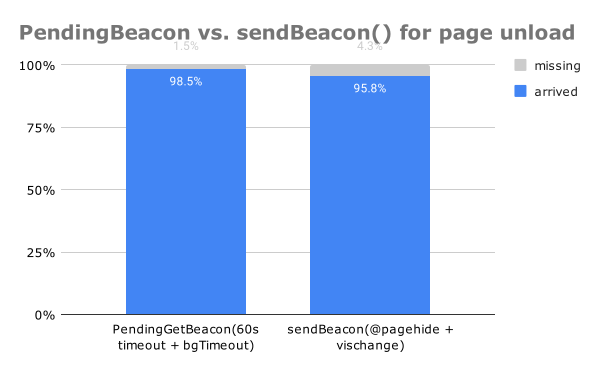
Show full content

I was part of a panel during last night’s GrDevNight discussing cross-platform mobile development.  Afterwards, I gave a short presentation on Appcelerator:

Appcelerator Titanium Intro

The post Appcelerator Titanium Intro (2014) first appeared on NicJ.net.

http://nicj.net/?p=1530
Extensions
The Happy Path: Migration Strategies for Node.js
Tech

Today Brian Anderson, Jason Sich and I gave a presentation at GLSEC 2014 titled The Happy Path: Migration Strategies for Node.js. It is available on Slideshare: The presentation and code examples are also available on Github.

The post The Happy Path: Migration Strategies for Node.js first appeared on NicJ.net.

Show full content

Today Brian Anderson, Jason Sich and I gave a presentation at GLSEC 2014 titled The Happy Path: Migration Strategies for Node.js.

It is available on Slideshare:

The Happy Path: Migration Strageies for Node.js

The presentation and code examples are also available on Github.

The post The Happy Path: Migration Strategies for Node.js first appeared on NicJ.net.
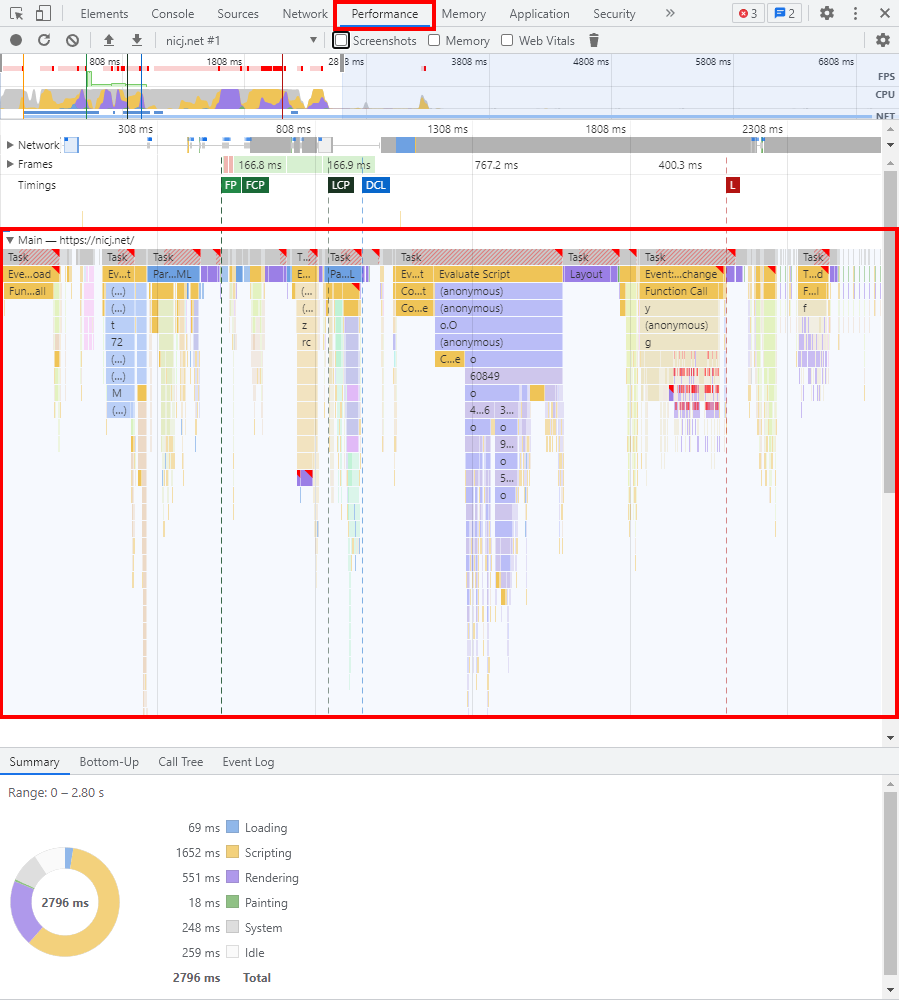
http://nicj.net/?p=1517
Extensions
adblock-detector.js
Tech

I run advertising on several of my websites, mostly through Google AdSense. My sites are free communities that don’t otherwise sell products, so advertising is the main way I cover operational expenses. AdSense has been a great partner over the years and the ads they serve aren’t too obtrusive. However, I realize that many people […]

The post adblock-detector.js first appeared on NicJ.net.
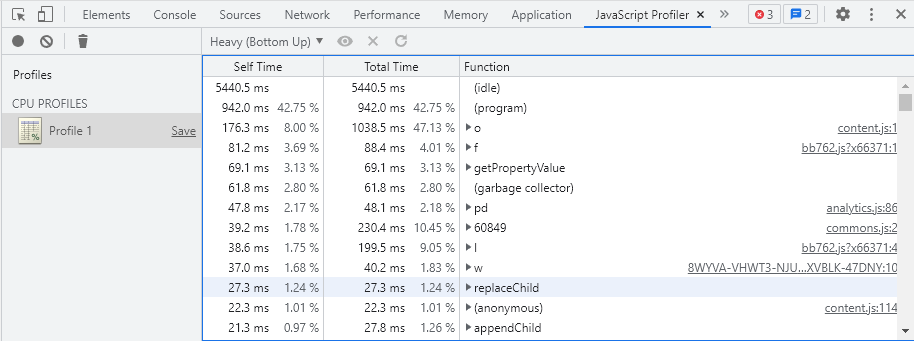
Show full content

I run advertising on several of my websites, mostly through Google AdSense. My sites are free communities that don’t otherwise sell products, so advertising is the main way I cover operational expenses. AdSense has been a great partner over the years and the ads they serve aren’t too obtrusive.

However, I realize that many people see all advertising as annoying, and some run ad-blockers in their browser to filter out ads. AdBlock Plus and others are becoming more popular every year.

Since advertising is such an important part of my business, I wanted to try to quantify what percentage of ads were being hidden by my visitor’s ad-blockers. I did a bit of testing to determine how to detect if my ads were being blocked, then ran an experiment on two of my sites. The first site, with a travel focus, saw approximately 9.4% of ads being blocked by visitors. The second site, with a gaming focus, had over 26% of ads blocked.  The industry average is around 23%.

While the ad-block rates are fairly high, I’m honestly not upset or surprised by the results. Generally, people that have an ad-blocker installed won’t be the kind of audience that is likely to click on an ad. In fact, I often run an ad-blocker myself. However, knowing which visitors have blocked the ads gives me an important metric to track in my analytics. It also offers me the opportunity to give one last plea to the visitor by subtly asking them to support the site via donations if they visit often.

What I don’t want to do is annoy any visitors that are using ad-blockers with my plea, but I do think there’s an opportunity, if you’re respectful with your request, to gently suggest to the visitor an alternate method of supporting the site. Below are screenshots of what sarna.net looks like if you visit with an ad-blocker installed.

sarna-ad-blocker-full

Zoomed in, you can see I provide the visitor alternate means of supporting the site, as well as a way to disable the message for 100 days if they find it annoying:

sarna-ad-blocker-zoomed

Since this prompt is text-only and a muted color, I feel that it is an unobtrusive, respectful way of reaching out to the visitor.  So far, I haven’t had any complaints about the new prompt — and I’ve had a few donations as well.  A very small percentage click on the “hide this message…” link.

The logic to detect ad-blocking is fairly straightforward, though there are a few caveats when detecting cross-browser.  Other sites might find it useful, so I’ve packaged it up into a new module called adblock-detector.js.  I’ve only tested it in a limited environment (IE, Chrome and Firefox with AdBlock Plus), so I’m looking for help from others that can test other browsers, browser versions, ad-blockers and ad publishers.

You can use adblock-detector.js to collect metrics on your ad-block rate, or to appeal to your visitors as I’m doing.  I provide examples for both in the repository.

Please use the knowledge gained for good (eg. analytics, subtle prompts), not evil (eg. more ads).

If you want a fully-baked solution, I would also recommend PageFair, which can help you track your ad-block rate, and more.

adblock-detector.js is free, open-source, and available on Github

The post adblock-detector.js first appeared on NicJ.net.
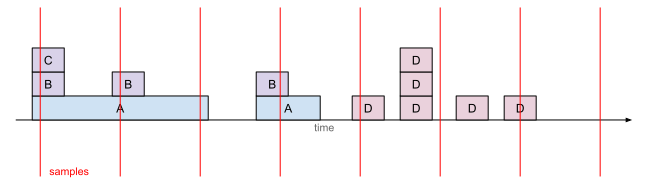
http://nicj.net/?p=1478
Extensions
Using Phing for Fun and Profit
Tech

I gave a small presentation on using Phing as a PHP build system for GrPhpDev on 2014-02-11. It’s available on SlideShare: The presentation and examples are also available on Github.

The post Using Phing for Fun and Profit first appeared on NicJ.net.
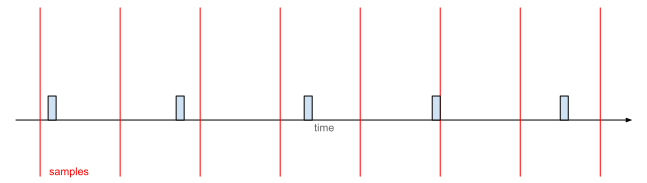
Show full content

I gave a small presentation on using Phing as a PHP build system for GrPhpDev on 2014-02-11. It’s available on SlideShare:

Using Phing for Fun and Profit

The presentation and examples are also available on Github.

The post Using Phing for Fun and Profit first appeared on NicJ.net.
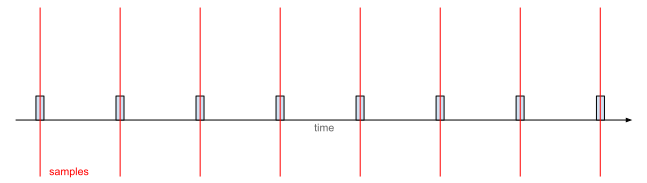
http://nicj.net/?p=1465
Extensions
ChecksumVerifier – A Windows Command-Line Tool to Verify the Integrity of your Files
Tech

Several years ago I wrote a small tool called ChecksumVerifier. It maintains a database of files and their checksums, and helps you verify that the files have not changed. I use it on my external hard drive backups to validate that the files are not being corrupted due to bitrot or other disk corruption.  At […]

The post ChecksumVerifier – A Windows Command-Line Tool to Verify the Integrity of your Files first appeared on NicJ.net.
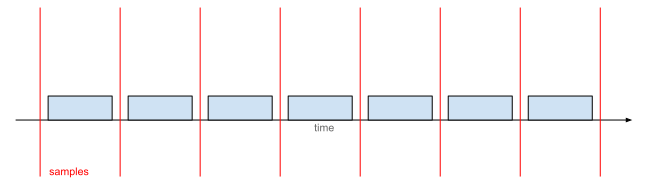
Show full content

Several years ago I wrote a small tool called ChecksumVerifier. It maintains a database of files and their checksums, and helps you verify that the files have not changed. I use it on my external hard drive backups to validate that the files are not being corrupted due to bitrot or other disk corruption.  At the time I created it, there were several other simple and commercial Windows apps that would do the same thing, but nothing was free and command-line based.  I’ve been meaning to clean it up so I could open-source it, which I finally had the time to do last weekend.

A checksum is a small sequence of 20-200 characters (depending on the specific algorithm used) that is calculated by reading the input file and applying a mathematical algorithm to its contents. Even a file as large as 1TB will only have a small 20-200 character checksum, so checksums are an efficient way of saving the file’s state without saving it’s entire contents. ChecksumVerifier uses the MD5, SHA-1, SHA-256 and SHA-512 algorithms, which are generally collision resistant enough for validating the integrity of file contents.

One example usage of ChecksumVerifier is to verify the integrity of external hard drive backups. After saving files to an external disk, you can run ChecksumVerifier -update to calculate the checksums of all of the files on the external disk. At a later date, if you want to validate that the files on the disk have not been added, removed or changed, you can run ChecksumVerifier -verify and it will re-calculate all of the disks’ checksums and compare them to the original database to see if any files have been changed in any way.

ChecksumVerifier is pretty flexible and has several command line options:

Usage: ChecksumVerifier.exe [-update | -verify] -db [xml file] [options]

actions:
     -update:                Update checksum database
     -verify:                Verify checksum database

required:
     -db [xml file]          XML database file

options:
     -match [match]          Files to match (glob pattern such as * or *.jpg or ??.foo) (default: *)
     -exclude [match]        Files to exclude (glob pattern such as * or *.jpg or ??.foo) (default: empty)
     -basePath [path]        Base path for matching (default: current directory)
     -r, -recurse            Recurse (directories only, default: off)

path storage options:
     -relativePath           Relative path (default)
     -fullPath               Full path
     -fullPathNodrive        Full path - no drive letter

checksum options:
     -md5                    MD5 (default)
     -sha1                   SHA-1
     -sha256                 SHA-2 256 bits
     -sha512                 SHA-2 512 bits

-verify options:
     -ignoreMissing          Ignore missing files (default: off)
     -showNew                Show new files (default: off)
     -ignoreChecksum         Don't calculate checksum (default: off)

-update options:
     -removeMissing          Remove missing files (default: off)
     -ignoreNew              Don't add new files (default: off)
     -pretend                Show what would happen - don't write out XML (default: off)

ChecksumVerifier is free, open-source and available on github.

The post ChecksumVerifier – A Windows Command-Line Tool to Verify the Integrity of your Files first appeared on NicJ.net.
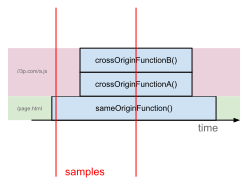
http://nicj.net/?p=1445
Extensions
Minifig Collector v11.0
Tech

My original Minifig Collector app (which was the first Android app I ever created), which has seen over 150,000 installs, just got a major facelift and some new features version 11.0.  It now has a more modern-looking UI, can import/export your figures to Brickset, and let’s you finger-swipe back and forth. Check it out! Screenshots:

The post Minifig Collector v11.0 first appeared on NicJ.net.
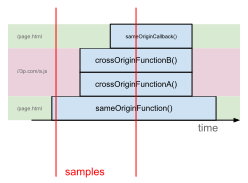
Show full content

My original Minifig Collector app (which was the first Android app I ever created), which has seen over 150,000 installs, just got a major facelift and some new features version 11.0.  It now has a more modern-looking UI, can import/export your figures to Brickset, and let’s you finger-swipe back and forth. Check it out!

Screenshots:

main list browse brickset

The post Minifig Collector v11.0 first appeared on NicJ.net.

http://nicj.net/?p=1402
Extensions
Unofficial LEGO® Minifigure Catalog v2.0
Tech

Over the past few weeks I’ve been working on a new version 2.0 of the Unofficial LEGO® Minifigure Catalog app. We’ve just released the version 2.0 to the Apple iTunes and Google Play App stores. Version 2.0 introduces tablet support along with a complete visual facelift. In addition, there are several performance improvements that make […]

The post Unofficial LEGO® Minifigure Catalog v2.0 first appeared on NicJ.net.
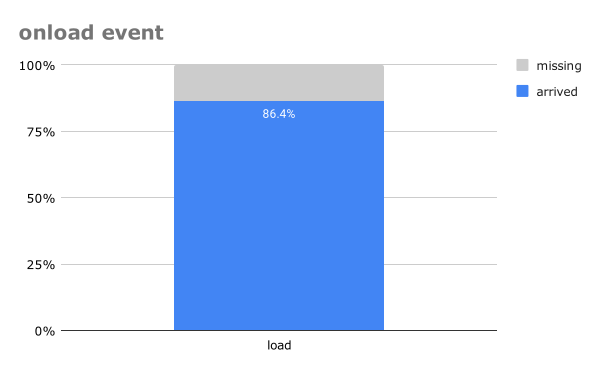
Show full content

Over the past few weeks I’ve been working on a new version 2.0 of the Unofficial LEGO® Minifigure Catalog app. We’ve just released the version 2.0 to the Apple iTunes and Google Play App stores.

Version 2.0 introduces tablet support along with a complete visual facelift. In addition, there are several performance improvements that make the app much faster when browsing, and I’ve added the ability to browse minifigures, sets and heads by name (in addition to by year and theme).

all-3

Check it out!

Note: LEGO® is a trademark of the LEGO Group of companies which does not sponsor, authorize or endorse this app.

The post Unofficial LEGO® Minifigure Catalog v2.0 first appeared on NicJ.net.
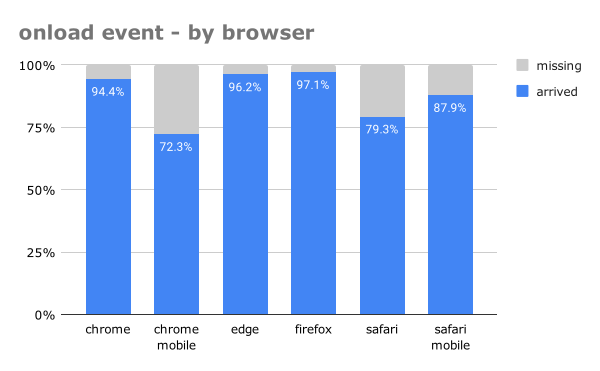
http://nicj.net/?p=1382
Extensions
SaltThePass mobile app now available on iTunes, Google Play and Amazon
Tech

A few months ago I released SaltThePass.com, which is a password generator that will help you generate unique, secure passwords for all of the websites you visit based on a single Master Password that you remember. I’ve been working on a mobile / offline iOS and Android app that gives you all of the features of the saltthepass.com […]

The post SaltThePass mobile app now available on iTunes, Google Play and Amazon first appeared on NicJ.net.
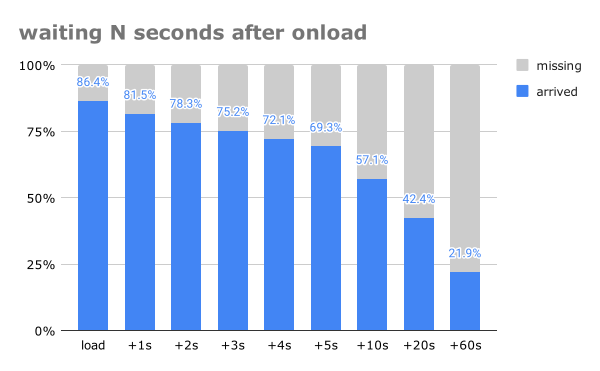
Show full content

A few months ago I released SaltThePass.com, which is a password generator that will help you generate unique, secure passwords for all of the websites you visit based on a single Master Password that you remember.

I’ve been working on a mobile / offline iOS and Android app that gives you all of the features of the saltthepass.com website.  The apps are now in the Apple iTunes App Store, Google Play App Store and the Amazon Appstore.

Let me know if you use them!
iPad, iPhone and Android apps available

The post SaltThePass mobile app now available on iTunes, Google Play and Amazon first appeared on NicJ.net.
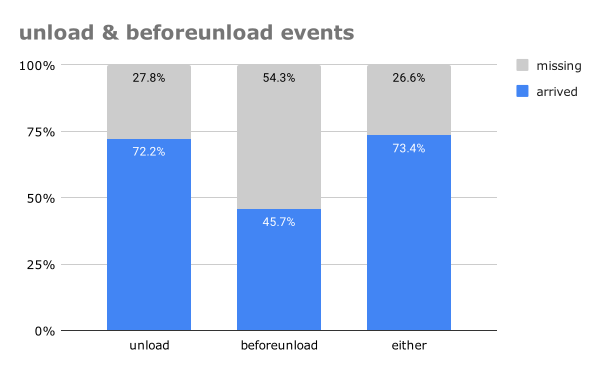
http://nicj.net/?p=1366
Extensions
How to deal with a WordPress wp-comments-post.php SPAM attack
Tech

This morning I woke up to several website monitoring alarms going off.  My websites were becoming intermittently unavailable due to extremely high server load (>190).  It appears nicj.net had been under a WordPress comment-SPAM attack from thousands of IP addresses overnight.  After a few hours of investigation, configuration changes and cleanup, I think I’ve resolved […]

The post How to deal with a WordPress wp-comments-post.php SPAM attack first appeared on NicJ.net.
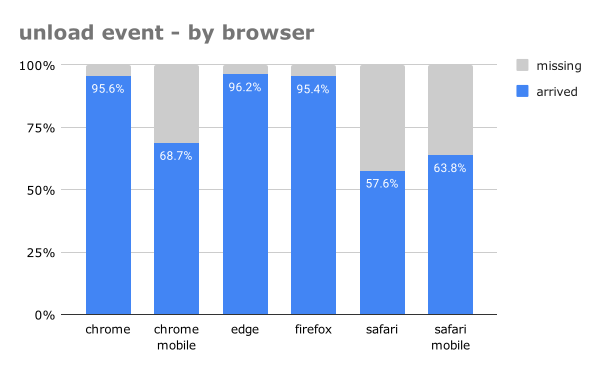
Show full content

This morning I woke up to several website monitoring alarms going off.  My websites were becoming intermittently unavailable due to extremely high server load (>190).  It appears nicj.net had been under a WordPress comment-SPAM attack from thousands of IP addresses overnight.  After a few hours of investigation, configuration changes and cleanup, I think I’ve resolved the issue.  I’m still under attack, but the changes I’ve made have removed all of the comment SPAM and have reduced the server load back to normal.

Below is a chronicle of how I investigated the problem, how I cleaned up the SPAM, and how I’m preventing it from happening again.

Investigation

The first thing I do when website monitoring alarms are going off (I use Pingdom and Cacti) is to log into the server and check its load.  Load is an indicator of how busy your server is.  Anything greater than the number of CPUs on your server is cause for alarm.  My load is usually around 2.0 — when I logged in, it was 196:

[nicjansma@server3 ~]$ uptime
06:09:48 up 104 days, 11:25,  1 user,  load average: 196.32, 167.75, 156.40

Next, I checked top and found that mysqld was likely the cause of the high load because it was using 200-1000% of the CPU:

top - 06:16:45 up 104 days, 11:32, 2 users, load average: 97.69, 162.31, 161.74
Tasks: 597 total, 1 running, 596 sleeping, 0 stopped, 0 zombie
Cpu(s): 3.8%us, 19.1%sy, 0.0%ni, 10.7%id, 66.2%wa, 0.0%hi, 0.1%si, 0.0%st
Mem: 12186928k total, 12069408k used, 117520k free, 5868k buffers
Swap: 4194296k total, 2691868k used, 1502428k free, 3894808k cached

PID   USER  PR NI VIRT RES  SHR  S %CPU  %MEM TIME+ COMMAND
24846 mysql 20 0 26.6g 6.0g 2.6g S 260.6 51.8 18285:17 mysqld

Using SHOW PROCESSLIST in MySQL (via phpMyAdmin), I saw about 100 processes working on the wp_comments table in the nicj.net WordPress database.

I was already starting to guess that I was under some sort of WordPress comment SPAM attack, so I checked out my Apache access_log and found nearly 800,000 POSTS to wp-comments-post.php since yesterday.  They all look a bit like this:

[nicjansma@server3 ~]$ grep POST access_log
36.248.44.7 - - [09/May/2013:06:07:29 -0700] "POST /wp-comments-post.php HTTP/1.1" 302 20 "http://nicj.net/2009/04/01/" "Mozilla/4.0 (compatible; MSIE 6.0; Windows NT 5.1; SV1;)"

What’s worse, the SPAMs were coming from over 3,000 unique IP addresses.  Essentially, it was a distributed denial of service (DDoS) attack:

[nicjansma@server3 ~]$ grep POST access_log | awk '{print $1}' | sort | uniq -c | wc -l
3105

NicJ.net was getting hundreds of thousands of POSTS to wp-comments-post.php, which was causing Apache and MySQL to do a whole lot of work checking them against Akismet for SPAM and saving in the WordPress database.  I logged into the WordPress Admin interface, which verified the problem as well:

There are 809,345 comments in your spam queue right now.

Yikes!

Stopping the Attack

First things first, if you’re under an attack like this, the quickest thing you can do to stop the attack is by disabling comments on your WordPress site.  There are a few ways of doing this.

One way is to go into Settings > Discussion > and un-check Allow people to post comments on new articles.

The second way is to rename wp-comments-post.php, which is what spammers use directly to add comments to your blog.  I renamed my file wp-comments-post.php.bak temporarily, so I could change it back later.  In addition, I created a 0-byte placeholder file called wp-comments-post.php so the POSTS will look to the spammers like they succeeded, but the 0-byte file takes up less server resources than a 404 page:

[nicjansma@server3 ~]$ mv wp-comments-post.php wp-comments-post.php.bak && touch wp-comments-post.php

Either of these methods should stop the SPAM attack immediately.  5 minutes after I did this, my server load was back down to ~2.0.

Now that the spammers are essentially POSTing data to your blank wp-comments-post.php file, new comments shouldn’t be appearing in your blog.  While this will reduce the overhead of the SPAM attack, they are still consuming your bandwidth and web server connections with their POSTs.  To stop the spammers from even sending a single packet to your webserver, you can create a small script that automatically drops packets from IPs that are posting several times to wp-comments-post.php.  This is easily done via a simple script like my Autoban Website Spammers via the Apache Access log post.  Change THRESHOLD to something small like 10, and SEARCHTERM to wp-comments-post.php and you will be automatically dropping packets from IPs that try to post more than 10 comments a day.

Cleaning up the Mess

At this point, I still had 800,000+ SPAMs in my WordPress moderation queue.  I feel bad for Akismet, they actually classified them all!

I tried removing the SPAM comments by going to Comments > Spam > Empty Spam, but I think it was too much for Apache to handle and it crashed.  Time to remove them from MySQL instead!

Via phpMyAdmin, I found that not only were there 800,000+ SPAMs in the database, the wp_comments table was over 3.6 GB and the wp_commentmeta was at 8.1 GB!

Here’s how to clean out the wp_comments table from any comments marked as SPAM:

DELETE FROM wp_comments WHERE comment_approved = 'spam';

OPTIMIZE TABLE wp_comments

In addition to the wp_comments table, the wp_commentmeta table has metadata about all of the comments. You can safely remove any comment metadata for comments that are no longer there:

DELETE FROM wp_commentmeta WHERE comment_id NOT IN (SELECT comment_id FROM wp_comments)

OPTIMIZE TABLE wp_commentmeta

For me, this removed 800,000+ rows of wp_comments (bringing it down from 3.6 GB to just 207 KB) and 2,395,512 rows of wp_commentmeta (bringing it down from 8.1 GB to just 136 KB).

Preventing Future Attacks

There are a few preventative measures you can take to stop SPAM attacks like these.

NOTE: Remember to rename your wp-comments-post.php.bak (or turn Comments back on) after you’re happy with the prevention techniques you’re using.

  1. Disable Comments on your blog entirely (Settings > Discussion > Allow people to post comments on new articles.) (probably not desirable for most people)
  2. Turn off Comments for older posts (spammers seem to target older posts that rank higher in search results). Here’s a way to disable comments automatically after 30 days.
  3. Rename wp-comments-post.php to something else, such as my-comments-post.php. Comment spammers often just assume your code is at the wp-comments-post.php URL and won’t check your site’s HTML to verify this is the case. If you rename wp-comments-post.php and change all occurrences of that URL in your theme, your site should continue to work while the spammers hit a bogus URL. You can follow this renaming guide for more details.
  4. Enable a Captcha for your comments so automated bots are less likely to be able to SPAM your blog. I’ve had great success with Are You A Human.
  5. The Autoban Website Spammers via the Apache Access log post describes my method for automatically dropping packets from bad citizen IP addresses.

After all of these changes, my server load is back to normal and I’m not getting any new SPAM comments.  The DDoS is still hitting my server, but their IP addresses are slowly getting packets dropped via my script every 10 minutes.

Hopefully these steps can help others out there.  Good luck! Fighting spammers is a never-ending battle!

The post How to deal with a WordPress wp-comments-post.php SPAM attack first appeared on NicJ.net.
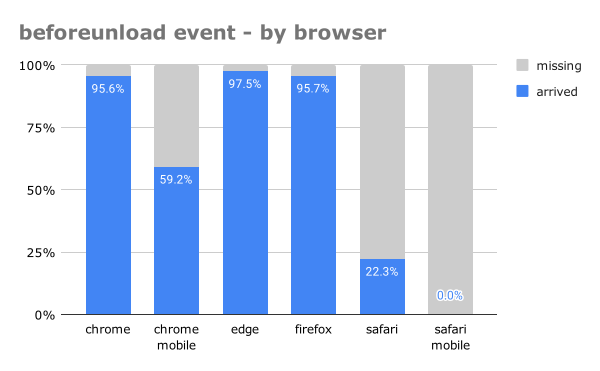
http://nicj.net/?p=1328
Extensions
2012 Minifigures Available
Tech

Thanks to Christoph‘s hard work taking photos of all 529 minifigures released in 2012, the 2012 minifigs are now available for purchase in the Unofficial Minifigure Catalog app. To purchase the update, first update the database to the latest version (Settings > Database) and then go to Settings > Collections and look for the purchase button.

The post 2012 Minifigures Available first appeared on NicJ.net.
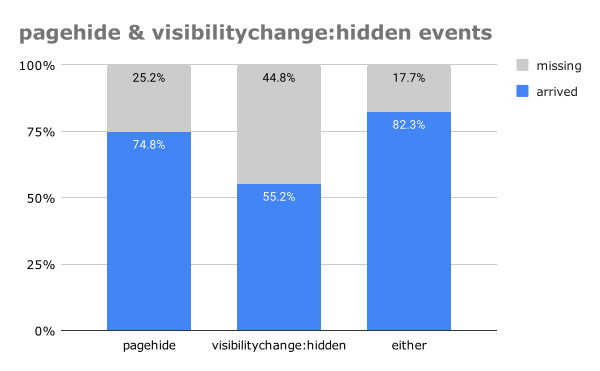
Show full content

Thanks to Christoph‘s hard work taking photos of all 529 minifigures released in 2012, the 2012 minifigs are now available for purchase in the Unofficial Minifigure Catalog app.

To purchase the update, first update the database to the latest version (Settings > Database) and then go to Settings > Collections and look for the purchase button.

The post 2012 Minifigures Available first appeared on NicJ.net.
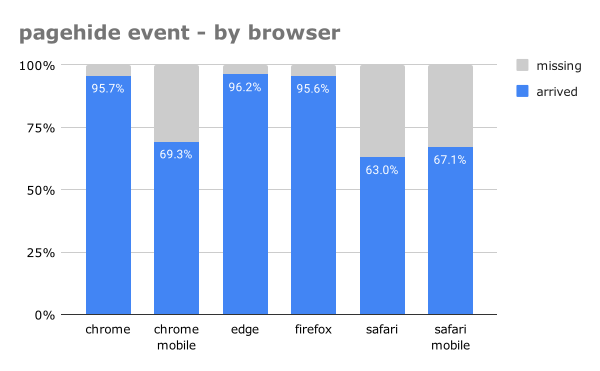
http://nicj.net/?p=1321
Extensions
UserTiming.js
Tech

UserTiming is one of the W3C specs that I helped design while working at Microsoft through the W3C WebPerf working group.  It helps developers measure the performance of their web applications by giving them access to high precision timestamps. It also provides a standardized API that analytics scripts and developer tools can use to display […]

The post UserTiming.js first appeared on NicJ.net.
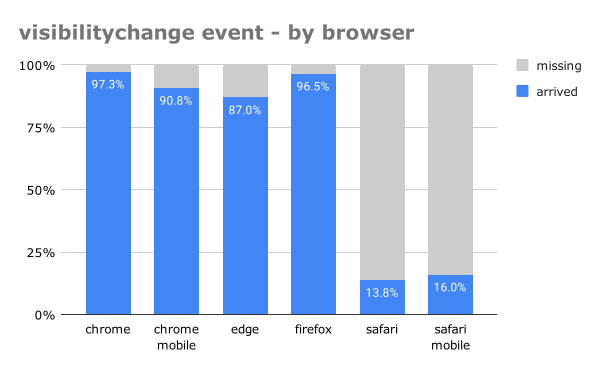
Show full content

UserTiming is one of the W3C specs that I helped design while working at Microsoft through the W3C WebPerf working group.  It helps developers measure the performance of their web applications by giving them access to high precision timestamps. It also provides a standardized API that analytics scripts and developer tools can use to display performance metrics.

UserTiming is natively supported in IE 10 and prefixed in Chrome 25+.  I wanted to use the interface for a few of my projects so I created a small polyfill to help patch other browsers that don’t support it natively. Luckily, a JavaScript version of UserTiming can be implemented and be 100% API functional — you just lose some precision and performance vs. native browser support.

So here it is: UserTiming.js

README:

UserTiming.js is a polyfill that adds UserTiming support to browsers that do not natively support it.

UserTiming is accessed via the PerformanceTimeline, and requires window.performance.now() support, so UserTiming.js adds a limited version of these interfaces if the browser does not support them (which is likely the case if the browser does not natively support UserTiming).

As of 2013-04-15, UserTiming is natively supported by the following browsers:

  • IE 10+
  • Chrome 25+ (prefixed)

UserTiming.js has been verified to add UserTiming support to the following browsers:

  • IE 6-9
  • Firefox 3.6+ (previous versions not tested)
  • Safari 4.0.5+ (previous versions not tested)
  • Opera 10.50+ (previous versions not tested)

UserTiming.js will detect native implementations of UserTiming, window.performance.now() and the PerformanceTimeline and will not make any changes if those interfaces already exist.  When a prefixed version is found, it is copied over to the unprefixed name.

UserTiming.js can be found on GitHub and as the npm usertiming module.

The post UserTiming.js first appeared on NicJ.net.
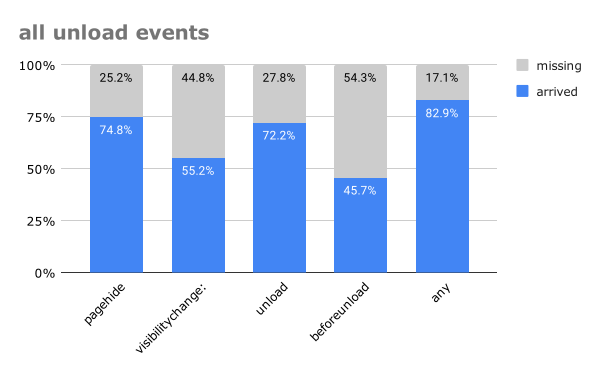
http://nicj.net/?p=1314
Extensions
breakup.js
Tech

It’s not you, it’s me. A few months ago I released a small JavaScript micro-framework: breakup.js Serially enumerating over a collection (such as using async.forEachSeries()in Node.js or jQuery.each() in the browser) can lead to performance and responsiveness issues if processing or looping through the collection takes too long. In some browsers, enumerating over a large […]

The post breakup.js first appeared on NicJ.net.
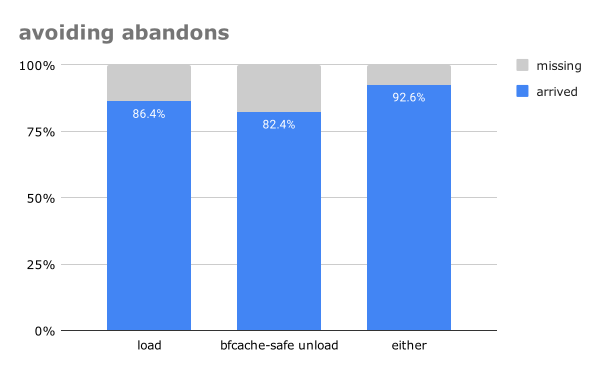
Show full content

It’s not you, it’s me.

A few months ago I released a small JavaScript micro-framework: breakup.js

Serially enumerating over a collection (such as using async.forEachSeries()in Node.js or jQuery.each() in the browser) can lead to performance and responsiveness issues if processing or looping through the collection takes too long. In some browsers, enumerating over a large number of elements (or doing a lot of work on each element) may cause the browser to become unresponsive, and possibly prompt the user to stop running the script.

breakup.js helps solve this problem by breaking up the enumeration into time-based chunks, and yielding to the environment if a threshold of time has passed before continuing.  This will help avoid a Long Running Script dialog in browsers as they are given a chance to update their UI.  It is meant to be a simple, drop-in replacement for async.forEachSeries().  It also provides breakup.each() as a replacement for jQuery.each() (though the developer may have to modify code-flow to deal with the asynchronous nature of breakup.js).

breakup.js does this by keeping track of how much time the enumeration has taken after processing each item.  If the enumeration time has passed a threshold (the default is 50ms, but this can be customized), the enumeration will yield before resuming.  Yielding can be done immediately in environments that support it (such as process.nextTick() in Node.js and setImmediate() in modern browsers), and will fallback to a setTimeout(..., 4) in older browsers.  This yield will allow the environment to do any UI and other processing work it wants to do.  In browsers, this will help reduce the chance of a Long Running Script dialog.

breakup.js is primarily meant to be used in a browser environment, as Node.js code is already asynchronously driven. You won’t see a Long Running Script dialog in Node.js. However, you’re welcome to use the breakup Node.js module if you want have more control over how much  time your enumerations take.  For example, if you have thousands of items to enumerate and you want to process them lazily, you could set the threshold to 100ms with a 10000ms wait time and specify the forceYield parameter, so other work is prioritized.

Check it out on Github or via npm.

The post breakup.js first appeared on NicJ.net.
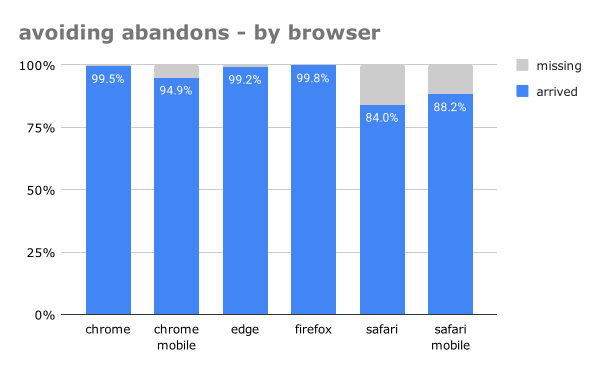
http://nicj.net/?p=1300
Extensions
SaltThePass.com
Tech

As many geeks do, I have a collection of about 30-odd domain names that I’ve purchased over the past few years for awesome-at-the-time ideas that I just never found the time to work on. Last month, I resolved stop collecting these domains and instead make some visible progress on them, one at a time. SaltThePass […]

The post SaltThePass.com first appeared on NicJ.net.
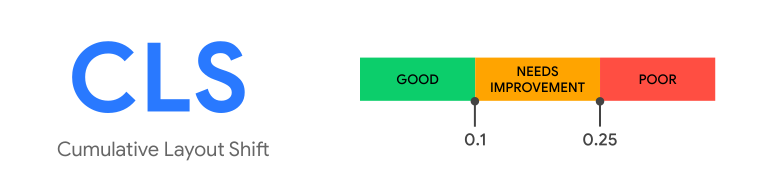
Show full content

As many geeks do, I have a collection of about 30-odd domain names that I’ve purchased over the past few years for awesome-at-the-time ideas that I just never found the time to work on.

Last month, I resolved stop collecting these domains and instead make some visible progress on them, one at a time.

SaltThePass is my first project.  Do you have an account on LinkedIn, Evernote, or Yahoo?  All of these sites had password breaches in the last year that compromised their user’s logins and passwords.  One big problem people face today is managing all of the passwords they use for all of the sites that they visit.  People often re-use the same password on many sites because it would be impossible to remember hundreds of different passwords.  Unfortunately, this means that if a single site is hacked and your password is revealed, the attacker may have access to your account on all of the other sites you visit.

To help solve this problem, I created SaltThePass.com.  Salt The Pass is a password generator that will help you generate unique, secure passwords for all of the websites you visit based on a single Master Password that you remember.  You don’t need to install any additional software, and you can access your passwords from anywhere you have internet access.

Check it out at https://saltthepass.com and let me know what you think!

The post SaltThePass.com first appeared on NicJ.net.
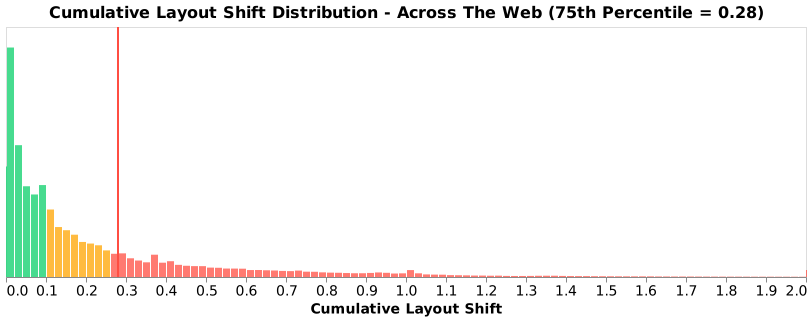
http://nicj.net/?p=1290
Extensions
Using Modern Browser APIs to Improve the Performance of Your Web Applications
Tech

Last night I gave a short presentation on Using Modern Browser APIs to Improve the Performance of Your Web Applications at GrWebDev. It’s available on SlideShare: Two other presentations I gave late last year are available here as well: Debugging IE Performance issues with Xperf, ETW and NavigationTiming Appcelerator Titanium Intro

The post Using Modern Browser APIs to Improve the Performance of Your Web Applications first appeared on NicJ.net.
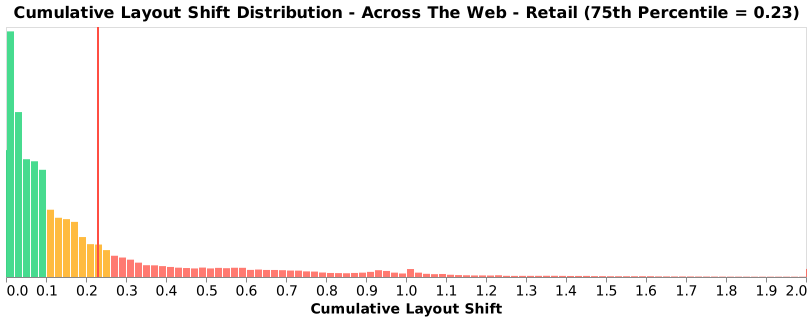
Show full content

Last night I gave a short presentation on Using Modern Browser APIs to Improve the Performance of Your Web Applications at GrWebDev.

It’s available on SlideShare:

Usinng Modern Browser APIs SlideShare deck

Two other presentations I gave late last year are available here as well:

The post Using Modern Browser APIs to Improve the Performance of Your Web Applications first appeared on NicJ.net.
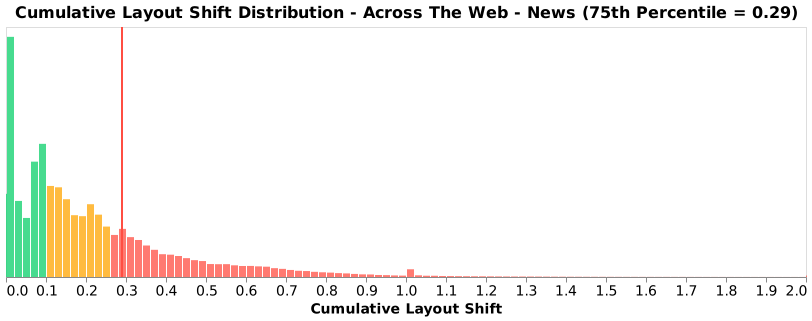
http://nicj.net/?p=1282
Extensions
Switch your HTPC back to Media Center after logging out of Remote Desktop
Tech

I have a Windows 7 Media Center PC hooked up to the TV in our living room.  It’s paired to a 4-stream Ceton CableCard adapter and is great for watching both TV and movies. Sometimes I need to Remote Desktop (RDP) into the machine to install updates or make other changes.  During this, and after logging out, […]
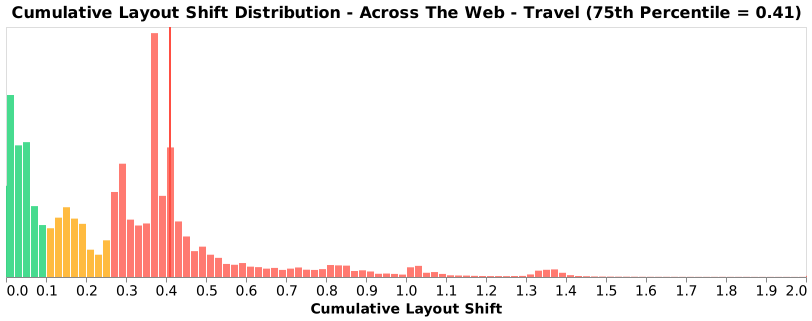
The post Switch your HTPC back to Media Center after logging out of Remote Desktop first appeared on NicJ.net.
Show full content

I have a Windows 7 Media Center PC hooked up to the TV in our living room.  It’s paired to a 4-stream Ceton CableCard adapter and is great for watching both TV and movies.

Sometimes I need to Remote Desktop (RDP) into the machine to install updates or make other changes.  During this, and after logging out, the Media Center PC is left at the login-screen on the TV.  So the next time I sit down to watch TV, I have to find the wireless keyboard and enter my password to log back in.

Since this can get annoying, I’ve created a small script on the desktop that automatically switches the console session (what’s shown on the TV) back to the primary user and re-starts Media Center.  This way, the next person that uses the TV doesn’t have to log back in.  When I’m done in the RDP session, I simply start the batch script and it logs me out of RDP and logs the TV back in.

Here’s the simple script:

call %windir%\system32\tscon.exe 1 /dest:console
start "Media Center" /max %windir%\ehome\ehshell.exe
exit /b 1

The post Switch your HTPC back to Media Center after logging out of Remote Desktop first appeared on NicJ.net.
http://nicj.net/?p=1263
Extensions
PngOutBatch: Optimize your PNGs by running PngOut multiple times
Tech

PngOut is a command-line tool that can losslessly reduce the file size of your PNGs. In many cases, it can reduce the size of a PNG by 10-15%. I’ve even seen some cases where it was able to reduce the file size by over 50%. There are several other PNG compression utilties out there, such […]

The post PngOutBatch: Optimize your PNGs by running PngOut multiple times first appeared on NicJ.net.
Show full content

PngOut is a command-line tool that can losslessly reduce the file size of your PNGs. In many cases, it can reduce the size of a PNG by 10-15%. I’ve even seen some cases where it was able to reduce the file size by over 50%.

There are several other PNG compression utilties out there, such as pngcrush and AdvanceCOMP, but I’ve found PngOut to be the best optimizer most of the time.

There’s an excellent tutorial on PngOut for first-timers.  Running PngOut is pretty easy, simply run it once agaist your PNG:

PngOut.exe [image.png]

However, to get the best optimization of your images, you can run PngOut multiple times with different block sizes (eg, /b1024) and randomized initial tables (/r).

There’s a commercial program, PngOutWin that can run through all of the block sizes using multiple CPU cores, but I wanted something free that I could run from the command line.

To aid in this, I created a simple DOS batch script that runs PngOut through 9 different block sizes (from 0 to 8192), with each block size run multiple times with random initial tables.

While the first iteration of PngOut does all of the heavy lifting, I’ve sometimes found that using the different block sizes can eek out a few extra bytes (sometimes 100-bytes or more than the initial pass).  You may not care about optimizing your PNG to the absolute last byte possible, but I try to run any new PNGs ready for production in my websites and mobile apps through this batch script before they’re committed to the wild.

Running PngOutBatch is as easy as running PngOut:

PngOutBatch.cmd [image.png] [number of iterations per block size - defaults to 5]

PngOutBatch will show progress as it reduces the file size.  Here’s a sample compressing the PNG logo from libpng.org:

Blocksize: 0
Iteration #1: Saved 2529 bytes
Iteration #2: No savings
Iteration #3: No savings
Iteration #4: No savings
Iteration #5: No savings
Blocksize: 128
Iteration #1: Saved 606 bytes
Iteration #2: Saved 10 bytes
Iteration #3: No savings
Iteration #4: Saved 2 bytes
Iteration #5: No savings
Blocksize: 192
Iteration #1: No savings
Iteration #2: No savings
Iteration #3: No savings
Iteration #4: No savings
Iteration #5: No savings
Blocksize: 256
Iteration #1: Saved 1 bytes
Iteration #2: No savings
Iteration #3: Saved 5 bytes
Iteration #4: Saved 11 bytes
Iteration #5: No savings
Blocksize: 512
Iteration #1: No savings
Iteration #2: No savings
Iteration #3: No savings
Iteration #4: No savings
Iteration #5: No savings
Blocksize: 1024
Iteration #1: No savings
Iteration #2: No savings
Iteration #3: No savings
Iteration #4: No savings
Iteration #5: No savings
Blocksize: 2048
Iteration #1: No savings
Iteration #2: No savings
Iteration #3: No savings
Iteration #4: No savings
Iteration #5: No savings
Blocksize: 4096
Iteration #1: No savings
Iteration #2: No savings
Iteration #3: No savings
Iteration #4: No savings
Iteration #5: No savings
Blocksize: 8192
Iteration #1: No savings
Iteration #2: No savings
Iteration #3: No savings
Iteration #4: No savings
Iteration #5: No savings
D:\temp\test.png: SUCCESS: 17260 bytes originally, 14096 bytes final: 3164 bytes saved

The first block size (0) reduced the file by 2529 bytes, then the 128-byte block size further reduced it by 606, 10 then 2 bytes. The 192-byte block size didn’t help, but a 256-byte block size reduced the file size by 1, 5 then 11 more bytes.  Larger block sizes didn’t help, but at the end of the day we reduced the PNG by 3164 bytes (18%), and 635 bytes (25% more) than if we had only run it once.

The PngOutBatch.cmd script is hosted at Gist.Github if you want to use it or contribute changes.

The post PngOutBatch: Optimize your PNGs by running PngOut multiple times first appeared on NicJ.net.
http://nicj.net/?p=1254
Extensions
DIY Cloud Backup using Amazon EC2 and EBS
Tech

I’ve created a small set of scripts that allows you to use Amazon Web Services to backup files to your own personal “cloud”. It’s available at GitHub for you to download or fork. Features Uses rsync over ssh to securely backup your Windows machines to Amazon’s EC2 (Elastic Compute Cloud) cloud, with persistent storage provided […]

The post DIY Cloud Backup using Amazon EC2 and EBS first appeared on NicJ.net.
Show full content

I’ve created a small set of scripts that allows you to use Amazon Web Services to backup files to your own personal “cloud”. It’s available at GitHub for you to download or fork.

Features
  • Uses rsync over ssh to securely backup your Windows machines to Amazon’s EC2 (Elastic Compute Cloud) cloud, with persistent storage provided by Amazon EBS (Elastic Block Store)
  • Rsync efficiently mirrors your data to the cloud by only transmitting changed deltas, not entire files
  • An Amazon EC2 instance is used as a temporary server inside Amazon’s data center to backup your files, and it is only running while you are actively performing the rsync
  • An Amazon EBS volume holds your backup and is only attached during the rsync, though you could attach it to any other EC2 instance later for data retrieval, or snapshot it to S3 for point-in-time backup
Introduction

There are several online backup services available, from Mozy to Carbonite to Dropbox. They all provide various levels of backup services for little or no cost. They usually require you to run one of their apps on your machine, which backs up your files periodically to their “cloud” of storage.

While these services may suffice for the majority of people, you may wish to take a little more control of your backup process. For example, you are trusting their client app to do the right thing, and for your files to be stored securely in their data centers. They may also put limits on the rate they upload your backups, change their cost, or even go out of business.

On the other hand, one of the simplest tools to backup files is a program called rsync, which has been around for a long time. It efficiently transfers files over a network, and can be used to only transfer the parts of a file that have changed since the last sync. Rsync can be run on Linux or Windows machines through Cygwin. It can be run over SSH, so backups are performed with encryption. The problem is you need a Linux rsync server somewhere as the remote backup destination.

Instead of relying on one of the commercial backup services, I wanted to create a DIY backup “cloud” that I had complete control of. This script uses Amazon Web Services, a service from Amazon that offers on-demand compute instances (EC2) and storage volumes (EBS). It uses the amazingly simple, reliable and efficient rsync protocol to back up your documents quickly to Amazon’s data centers, only using an EC2 instance for the duration of the rsync. Your backups are stored on EBS volumes in Amazon’s data center, and you have complete control over them. By using this DIY method of backup, you get complete control of your backup experience. No upload rate-limiting, no client program constantly running on your computer. You can even do things like encrypt the volume you’re backing up to. NOTE: As of 2014-05-21, EBS volumes can be encrypted automatically.

The only service you’re paying for is Amazon EC2 and EBS, which is pretty cheap, and not likely to disappear any time soon. For example, my monthly EC2 costs for perfoming a weekly backup are less than a dollar, and EBS costs at this time are as cheap as $0.10/GB/mo.

These scripts are provided to give you a simple way to backup your files via rsync to Amazon’s infrastructure, and can be easily adapted to your needs.

How It Works

This script is a simple DOS batch script that can be run to launch an EC2 instance, perform the rsync, stop the instance, and check on the status of your instances.

After you’ve created your personal backup “cloud” (see Amazon Cloud Setup), and have the Required Tools, you simply run the amazon-cloud-backup.cmd -start to startup a new EC2 instance. Internally, this uses the Amazon API Developer Tools to start the instance via ec2-run-instances. There’s a custom bootscript for the instance, amazon-cloud-backup.bootscript.sh that works well with the Amazon Linux AMIs to enable root access to the machine over SSH (they initially only offer the user ec2-user SSH access). We need root access to perform the mount of the volume.

After the instance is started, the script attaches your personal EBS volume to the device. Its remote address is queried viaec2-describe-instances and SSH is used to mount the EBS volume to a backup point (eg, /backup). Once this is completed, your remote EC2 instance and EBS volume are ready for you to rsync.

To start the rsync, you simply need to run amazon-cloud-backup.cmd -rsync [options]. Rsync is started over SSH, and your files are backed up to the remote volume.

Once the backup is complete, you can stop the EC2 instance at any time by running amazon-cloud-backup.cmd -stop, or get the status of the instance by running amazon-cloud-backup.cmd -status. You can also check on the free space on the volume by running amazon-cloud-backup.cmd -volumestatus.

There are a couple things you will need to configure to set this all up. First you need to sign up for Amazon Web Services and generate the appropriate keys and certificates. Then you need a few helper programs on your machine, for example rsync.exe and ssh.exe. Finally, you need to set a few settings in amazon-cloud-backup.cmd so the backup is tailored to your keys and requirements.

Amazon “Cloud” Setup

To use this script, you need to have an Amazon Web Services account. You can sign up for one at https://aws.amazon.com/. Once you have an Amazon Web Services account, you will also need to sign up for Amazon EC2.

Once you have access to EC2, you will need to do the following.

  1. Create a X.509 Certificate so we can enable API access to the Amazon Web Service API. You can get this in your Security Credentials page. Click on the X.509 Certificates tab, then Create a new Certificate. Download both the X.509 Private Key and Certificate files (pk-xyz.pem and cert-xyz.pem).
  2. Determine which Amazon Region you want to work out of. See their Reference page for details. For example, I’m in the Pacific Northwest so I chose us-west-2 (Oregon) as the Region.
  3. Create an EC2 Key Pair so you can log into your EC2 instance via SSH. You can do this in the AWS Management Console. Click on Create a Key Pair, name it (for example, “amazon-cloud-backup-rsync”) and download the .pem file.
  4. Create an EBS Volume in the AWS Management Console. Click on Volumes and then Create Volume. You can create whatever size volume you want, though you should note that you will pay monthly charges for the volume size, not the size of your backed up files.
  5. Determine which EC2 AMI (Amazon Machine Image) you want to use. I’m using the Amazon Linux AMI: EBS Backed 32-bit image. This is a Linux image provided and maintained by Amazon. You’ll need to pick the appropriate AMI ID for your region. If you do not use one of the Amazon-provided AMIs, you may need to modify amazon-cloud-backup.bootscript.sh for the backup to work.
  6. Create a new EC2 Security Group that allows SSH access. In the AWS Management Console, under EC2, open the Security Groups pane. Select Create Security Group and name it “ssh” or something similar. Once added, edit its Inbound rules to allow port 22 from all sources “0.0.0.0/0”. If you know what your remote IP address is ahead of time, you could limit the source to that IP.
  7. Launch an EC2 instance with the “ssh” Security Group. After you launch the instance, you can use the Attach Volume button in theVolumes pane to attach your new volume as /dev/sdb.
  8. Log-in to your EC2 instance using ssh (see Required Toolsbelow) and fdisk the volume and create a filesystem. For example:
    ssh -i my-rsync-key.pem ec2-user@ec2-1-2-3-4.us-west-1.compute.amazonaws.com
    [ec2-user] sudo fdisk /dev/sdb
    ...
    [ec2-user] sudo mkfs.ext4 /dev/sdb1
  9. Your Amazon personal “Cloud” is now setup.

Many of the choices you’ve made in this section will need to be set as configuration options in the amazon-cloud-backup.cmd script.

Required Tools

You will need a couple tools on your Windows machine to perform the rsync backup and query the Amazon Web Services API.

  1. First, you’ll need a few binaries (rsync.exe, ssh.exe) on your system to facilitate the ssh/rsync transfer. Cygwin can be used to accomplish this. You can easily install Cygwin from http://www.cygwin.com/. After installing, pluck a couple files from the bin/folder and put them into this directory. The binaries you need are:
    rsync.exe
    ssh.exe
    sleep.exe

    You may also need a couple libraries to ensure those binaries run:

    cygcrypto-0.9.8.dll
    cyggcc_s-1.dll
    cygiconv-2.dll
    cygintl-8.dll
    cygpopt-0.dll
    cygspp-0.dll
    cygwin1.dll
    cygz.dll
  2. You will need the Amazon API Developer Tools, downloaded from http://aws.amazon.com/developertools/. Place them in a sub-directory called amazon-tools\
Script Configuration

Now you simply have to configure amazon-cloud-backup.cmd.

Most of the settings can be left at their defaults, but you will likely need to change the locations and name of your X.509 Certificate and EC2 Key Pair.

Usage

Once you’ve done the steps in Amazon “Cloud” Setup, Required Tools and Script Configuration, you just need to run the amazon-cloud-backup.cmd script.

These simple steps will launch your EC2 instance, perform the rsync, and then stop the instance.

amazon-cloud-backup.cmd -launch
amazon-cloud-backup.cmd -rsync
amazon-cloud-backup.cmd -stop

After -stop, your EC2 instance will stop and the EBS volume will be un-attached.

Source

The source code is available at GitHub. Feel free to send pull requests for improvements!

The post DIY Cloud Backup using Amazon EC2 and EBS first appeared on NicJ.net.
http://nicj.net/?p=1183
Extensions
Windows command-line regular expression renaming tool: RenameRegex
Tech

Every once in a while, I need to rename a bunch of files.  Instead of hand-typing all of the new names, sometimes a nice regular expression would get the job done a lot faster.  While there are a couple Windows GUI regular expression file renamers, I enjoy doing as much as I can from the […]

The post Windows command-line regular expression renaming tool: RenameRegex first appeared on NicJ.net.

Show full content

Every once in a while, I need to rename a bunch of files.  Instead of hand-typing all of the new names, sometimes a nice regular expression would get the job done a lot faster.  While there are a couple Windows GUI regular expression file renamers, I enjoy doing as much as I can from the command-line.

Since .NET exposes an easy to use library for regular expressions, I created a small C# command-line app that can rename files via any regular expression.

Usage:

RR.exe file-match search replace [/p]
  /p: pretend (show what will be renamed)

You can use .NET regular expressions for the search and replacement strings, including substitutions (for example, "$1" is the 1st capture group in the search term).

Examples:

Simple rename without a regular expression:

RR.exe * .ext1 .ext2

Renaming with a replacement of all "-" characters to "_":

RR.exe * "-" "_"

Remove all numbers from the file names:

RR.exe * "[0-9]+" ""

Rename files in the pattern of "123_xyz.txt" to "xyz_123.txt":

RR.exe *.txt "([0-9]+)_([a-z]+)" "$2_$1"

Download

You can download RenameRegex (RR.exe) from here.  The full source of RenameRegex is also available at GitHub if you want to fork or modify it. If you make changes, let me know!

The post Windows command-line regular expression renaming tool: RenameRegex first appeared on NicJ.net.
http://nicj.net/?p=1175
Extensions
Auto-ban website spammers via the Apache access_log
Tech

During the past few months, several of my websites have been the target of some sort of SPAM attack.  After my getting alerted that my servers were under high load (from Cacti), I found that a small number of IP addresses were loading and re-loading or POSTing to the same pages over and over again.  […]

The post Auto-ban website spammers via the Apache access_log first appeared on NicJ.net.
Show full content

During the past few months, several of my websites have been the target of some sort of SPAM attack.  After my getting alerted that my servers were under high load (from Cacti), I found that a small number of IP addresses were loading and re-loading or POSTing to the same pages over and over again.  In one of the attacks, they were simply reloading a page several times a second from multiple IP addresses.  In another attack, they were POSTing several megabytes of data to a form (which spent time validating the input), several times a second. I’m not sure of their motives – my guess is that they’re either trying to game search rankings (the POSTings) or someone with an improperly configured robot.

Since I didn’t have anything in-place to automatically drop requests from these rogue SPAMmers, the servers were coming under increasing load and causing real visitor’s page loads to slow down.

After looking at the server’s Apache’s access_log, I was able to narrow down the IPs causing the issue.  With their IP, I simply created a few iptables rules to drop all packets from their IP addresses. Within a few seconds, the load on the server returned to normal.

I didn’t want to play catch-up the next time this happened, so I created a small script to automatically parse my server’s access_logs and auto-ban any IP address that appears to be doing inappropriate things.

The script is pretty simple.  It uses tail to look at the last $LINESTOSEARCH lines of the access_log, grabs all of the IPs via awk, sorts and counts them via uniq, then looks to see if any of these IPs had loaded more than $THRESHOLD pages.  If so, it does a quick query of iptables to see if the IP is already banned.  If not, it adds a single INPUT rule to DROP packets from that IP.

Here’s the code:

#!/bin/bash

#
# Config
#

# if more than the threshold, the IP will be banned
THRESHOLD=100

# search this many recent lines of the access log
LINESTOSEARCH=50000

# term to search for
SEARCHTERM=POST

# logfile to search
LOGFILE=/var/log/httpd/access_log

# email to alert upon banning
ALERTEMAIL=foo@foo.com

#
# Get the last n lines of the access_log, and search for the term.  Sort and count by IP, outputting the IP if it's
# larger than the threshold.
#
for ip in `tail -n $LINESTOSEARCH $LOGFILE | grep "$SEARCHTERM" | awk "{print \\$1}" | sort | uniq -c | sort -rn | head -20 | awk "{if (\\$1 > $THRESHOLD) print \\$2}"`
do
    # Look in iptables to see if this IP is already banned
    if ! iptables -L INPUT -n | grep -q $ip
    then
        # Ban the IP
        iptables -A INPUT -s $ip -j DROP
        
        # Notify the alert email
        iptables -L -n | mail -s "Apache access_log banned '$SEARCHTERM': $ip" $ALERTEMAIL
    fi
done

You can put this in your crontab, so it runs every X minutes. The script will probably need root access to use iptables.

I have the script in /etc/cron.10minutes and a crontab entry to run all files in that directory every 10 minutes: /etc/crontab:
0,10,20,30,40,50 * * * * root run-parts /etc/cron.10minutes

Warning: Ensure that the $SEARCHTERM you use will not match a wide set of pages that at web crawler (for example, Google) would see. In my case, I set SEARCHTERM=POST, because I know that Google will not be posting to my website as all of the forms are excluded from crawling via robots.txt.

The full code is also available at Gist.GitHub if you want to fork or modify it. It’s a rather simplistic, brute-force approach to banning rogue IPs, but it has worked for my needs. You could easily update the script to be a bit smarter. If you do, let me know!

The post Auto-ban website spammers via the Apache access_log first appeared on NicJ.net.
http://nicj.net/?p=1143
Extensions