GeistHaus
log in · sign up

Barbarian Meets Coding RSS Feed

Part of feedburner.com

Treatises, articles, tutorials and thoughts on JavaScript, Software and Web Development, User Experience, Philosophy and Life.

stories
Useful CLI Utilities
A collection of useful CLI utilities and tools for the command line
Show full content

A collection of useful CLI utilities and tools for the command line.

ImageMagick

ImageMagick is a powerful command-line tool for creating, editing, composing, and converting bitmap images. It can read and write images in a variety of formats (over 200) including PNG, JPEG, GIF, WebP, HEIC, SVG, PDF, DPX, EXR and TIFF.

Installation

Install it via the package manager of your choice:

# macOS
brew install imagemagick

# Ubuntu/Debian
sudo apt-get install imagemagick
Usage

ImageMagick comes with several command-line tools:

  • convert: Convert between image formats and perform operations
  • mogrify: Similar to convert but overwrites the original images
  • identify: Display information about an image
  • composite: Composite one image onto another
  • montage: Create a composite image from multiple images

Some common uses:

# Resize an image to 50% of its original size
convert image.jpg -resize 50% image_resized.jpg

# Convert between formats
convert image.jpg image.png

# Add a border
convert image.jpg -border 20x20 bordered_image.jpg

# Create a thumbnail
convert image.jpg -thumbnail 100x100 thumbnail.jpg

# Compress an image (quality ranges from 1-100)
convert image.jpg -quality 75 compressed_image.jpg

# Batch process multiple images
mogrify -resize 800x600 *.jpg

# Convert all JPEGs to PNG format
mogrify -format png *.jpg

# Apply a blur effect to all images
mogrify -blur 0x5 *.jpg

# Rotate all images 90 degrees clockwise
mogrify -rotate 90 *.jpg

# Add watermark to all images
mogrify -draw "text 10,20 'Copyright'" *.jpg

# Auto-adjust images (improve contrast, brightness)
mogrify -auto-level *.jpg
https://www.barbarianmeetscoding.com/notes/useful-cli-utilities/
Extensions
Learn Go by Building a Command Line Todo App
Learn the Go programming language by building a test-driven command line todo application
Show full content
The Go programming language logo

Go (or Golang) has been gaining significant popularity as a language for building fast, reliable, and efficient software. In this tutorial, we’ll learn Go by building a practical command line to-do application using test-driven development. By the end, you’ll have a solid understanding of Go’s syntax, tooling, and what makes it special compared to other languages like JavaScript.

Here’s a sneak peek of how you’ll interact with the todo app we’re building:

$ todo add "Learn how to exit Vim"
Added: Learn how to exit Vim

$ todo add "Train my cat to fetch coffee"
Added: Train my cat to fetch coffee

$ todo add "Figure out why my code works"
Added: Figure out why my code works

$ todo list
Todo List:
1. [ ] Learn how to exit Vim
2. [ ] Train my cat to fetch coffee
3. [ ] Figure out why my code works

$ todo complete 1
Marked item as completed

$ todo list
Todo List:
1. [✓] Learn how to exit Vim
2. [ ] Train my cat to fetch coffee
3. [ ] Figure out why my code works

$ todo -i
# Interactive mode activated...

Our CLI todo app will use a command-based interface (add, list, complete) that feels more natural and intuitive, while also supporting an interactive mode for managing todos through a simple prompt. Throughout the process of building this app, we’ll explore Go’s type system, error handling, file I/O, and command-line parsing—all the essentials for writing real-world Go applications.

Why Learn Go?

Go was designed at Google to address the challenges of large-scale software development. It offers:

  • Fast compilation and execution
  • Built-in concurrency
  • Strong static typing with simplicity
  • Excellent standard library
  • Great tooling out of the box
  • Cross-platform compatibility
  • Small binary sizes

Whether you’re building microservices, CLI tools, or backend services, Go provides an excellent balance of performance, simplicity, and developer productivity.

Setting Up Your Go Environment

Before we start, let’s set up our Go development environment:

Download and install Go

If you’re using macOS, you can install Go with Homebrew:

brew install go

For other platforms refer to golang.org.

Verify your installation

You can check if Go is installed correctly by running:

go version
# Which should output something like...
# go version go1.22.5 darwin/arm64
Set up your workspace
mkdir -p ~/go-todo-app
cd ~/go-todo-app
Creating a Go Module

Go modules provide dependency management and versioning in Go. Let’s create a module for our todo app:

go mod init github.com/yourusername/todo
# e.g. go mod init github.com/vintharas/todo

This creates a go.mod file that tracks your dependencies. Let’s examine it:

module github.com/yourusername/todo

go 1.21

As you add more dependencies, they will be listed in this file.

Project Structure

Go projects benefit from a well-organized structure that follows community conventions. Let’s set up a standardized project layout that will help keep our code organized as it grows:

todo/
├── cmd/               # Contains executable applications
│   └── todo/          # Our main CLI application
│       └── main.go    # Entry point with CLI parsing and user interaction
├── internal/          # Private application code that won't be imported by other projects
│   └── todo/          # Core domain logic for the todo list
│       ├── todo.go    # Todo list data structures and business logic
│       └── todo_test.go # Tests for our todo functionality
├── go.mod             # Module definition and dependency tracking
└── README.md          # Project documentation

This structure follows Go’s best practices and offers several benefits:

  • cmd/: Contains the entry points for executables. Each subdirectory is a separate executable, making it easy to build multiple related tools (like a command-line app, a server version, etc.) while sharing common code.

  • internal/: Designates code that’s private to our application. Go enforces that packages under “internal” cannot be imported by code outside the parent of the internal directory, providing encapsulation by design.

  • Separation of concerns: By keeping our executable code (cmd) separate from our business logic (internal), we create a cleaner architecture that’s easier to test and maintain. Our domain logic doesn’t need to know about CLI flags or user interaction.

  • Domain-driven directories: We organize by feature/domain (todo), not by technical layers (like “models” or “handlers”), making the codebase more navigable as it grows.

Let’s create these directories:

mkdir -p cmd/todo
mkdir -p internal/todo

As the project grows, we might add more directories like:

  • pkg/ for code that could be reused by external applications
  • api/ for API definitions (OpenAPI/Swagger specs, protocol buffers)
  • configs/ for configuration file templates or default configs
  • docs/ for detailed documentation and user guides
Test-Driven Development in Go

Go has a built-in testing framework in its standard library. Let’s start by writing our first test for the todo item model.

Create internal/todo/todo_test.go:

package todo

import (
 "testing"
)

func TestNewItem(t *testing.T) {
 item := NewItem("Learn Go")

 if item.Text != "Learn Go" {
  t.Errorf("Expected text to be 'Learn Go', got '%s'", item.Text)
 }

 if item.Done {
  t.Error("New item should not be marked as done")
 }
}

Running this test will fail because we haven’t implemented anything yet:

go test ./internal/todo
# github.com/vintharas/go-todo/internal/todo [github.com/vintharas/go-todo/internal/todo.test]
# internal/todo/todo_test.go:8:10: undefined: NewItem
# FAIL    github.com/vintharas/go-todo/internal/todo [build failed]
# FAIL

Now, let’s implement the code to make this test pass. Red. Green. Refactor!

Create internal/todo/todo.go:

package todo

// Item represents a todo item with text and completion status
type Item struct {
 Text string
 Done bool
}

// NewItem creates a new todo item with the specified text
func NewItem(text string) Item {
 return Item{
  Text: text,
  Done: false,
 }
}

Run the test again:

go test ./internal/todo
# ok      github.com/vintharas/go-todo/internal/todo      0.189s

Great! The test should now pass.

Understanding Go Basics: Code Walkthrough

Let’s take a step back and understand the Go language concepts we’ve introduced so far. This will help build a solid foundation as we continue developing our todo app.

Analyzing the Test File

Let’s analyze our test file line by line:

package todo          // 1. Package declarion

import (              // 2. Imports
 "testing"
)

func TestNewItem(t *testing.T) {  // 3. Test function
 item := NewItem("Learn Go")      // 4. Variable declaration and initialization

 if item.Text != "Learn Go" {     // 5. Conditional statement
  t.Errorf("Expected text to be 'Learn Go', got '%s'", item.Text)  // 6. Formatted error
 }

 if item.Done {
  t.Error("New item should not be marked as done") // 7. Error
 }
}

Every Go file starts with a package declaration (1). Files in the same directory typically belong to the same package. Packages are Go’s way of organizing and reusing code.

The import (2) statement brings in other packages that our code depends on. Here we’re importing the built-in testing package, which provides the framework for writing tests. You can use pkg.go.dev to discover new packages and read package documentation (like for the testing package).

In Go, test functions (3) must start with the word Test followed by a capitalized name. The function takes a single parameter of type *testing.T, which provides methods for reporting test failures. This is the way one interacts with the go testing framework.

The := syntax (4) is a shorthand for declaring and initializing variables. Go infers the type from the right-hand side. Here we’re calling our yet-to-be-implemented NewItem function. An equivalent alternative would be:

// short-hand variable declaration and initialization
item := NewItem("Learn Go")      // 4. Variable declaration and initialization
// "long-ass" variable declaration and initialization
var item Item = NewItem("Learn Go")

Conditional Statement (5) in go are very similar to other languages. It may look hard on the eye to see conditional statements inside a test, but this is a standard practice when writing tests in go using the standard testing library. Alternatives like testify provide a testing experience more similar to what one is accustomed in languages like JavaScript.

The testing library provides the Errorf (6) and Error (7) functions to fail a test with a formatted string or a simple string that describes what the problem is.

Go’s Testing Framework

Go’s approach to testing is straightforward:

  • Tests are regular Go functions with a specific naming pattern (Test followed by a capitalized name)
  • Test files are named with a _test.go suffix
  • The testing package provides tools for writing tests, including methods to report failures
  • Run tests with the go test command

When we run go test ./internal/todo, Go:

  1. Finds all test functions in files ending with _test.go in the specified package
  2. Runs each test function in a separate goroutine (Go’s lightweight thread)
  3. Reports any failures and a summary of results

You can also run all tests within a package by running go test ./... from the root of your project.

Learn more about testing in Go in the official documentation.

Analyzing the Implementation File

Now let’s look at our implementation:

// Package todo provides a simple todo list implementation  1. Package comments
package todo                 // 2. Package declaration

// Item represents a todo item with text and completion status  // 3. Struct comments
type Item struct {            // 4. A struct definition
 Text string                  // 5. Field definitions
 Done bool
}

// NewItem creates a new todo item with the specified text // 6. Function comment
func NewItem(text string) Item {  // 7. Function definition.
 return Item{                 // 8. Struct initialization
  Text: text,                 // 9. Fields initialization
  Done: false,
 }
}

Go encourages documentation comments before declarations (1) (3) (6). These comments can be processed by the go doc command to provide help about your package:

$ go doc -all ./internal/todo
package todo // import "github.com/vintharas/go-todo/internal/todo"

Package todo provides a simple todo list implementation

TYPES

type Item struct {
        Text string
        Done bool
}
    Item represents a todo item with text and completion status

func NewItem(text string) Item
    NewItem creates a new todo item with the specified text

And they can be turned into a web-based documentation using the godoc tool. Try the following:

# Install godoc tool
$ go install golang.org/x/tools/cmd/godoc@latest
# Run godoc server
$ godoc -http=:6060
# Navigate to http://localhost:6060/pkg/github.com/vintharas/go-todo/internal/todo/
# to see a web-based documentation for your package.

We use the same package declaration (2) as we did in the test file. This allows the test to access whatever types and functions are defined within the package.

A struct (4) is Go’s way of defining a composite data type. It’s similar to an object or class in JavaScript, but without methods directly attached. A struct is composed of a series of fields (5) of different data types. Notice how the name of the struct is capitalized. This is Go’s way of specifying that a given something is exported and available outside of its package.

Functions in Go are defined with the func keyword (7). This function takes a string parameter and returns a Item. The body of the function shows how we can create a new instance of the Item struct (8) by providing values for each of the struct fields.

Structs vs. JavaScript Objects

It is easier to understand the role of structs if we compare them to JavaScript objects and classes. Go’s structs serve a similar purpose to objects in JavaScript, but with key differences:

  1. Static Typing: Unlike JavaScript objects where you can add properties at runtime, Go structs have a fixed structure defined at compile time.
// JavaScript
const obj = {}
obj.newProperty = 'added at runtime' // Works fine
// Go
item := Item{}
item.NewProperty = "added at runtime" // Compilation error
  1. Methods: In JavaScript, methods are defined directly on objects. In Go, methods are defined separately with a receiver parameter.
// JavaScript
const obj = {
  doSomething() {
    console.log('Doing something')
  },
}
// Go
type MyType struct {
  // fields
}

func (m MyType) DoSomething() {
  fmt.Println("Doing something")
}
  1. Constructor Pattern: JavaScript uses functions or classes with constructor for object creation. Go commonly uses “constructor-like” functions that return initialized structs.
// JavaScript
class Item {
  constructor(text) {
    this.text = text
    this.done = false
  }
}
// Go - our NewItem function follows this pattern
func NewItem(text string) Item {
  return Item{
    Text: text,
    Done: false,
  }
}

This separation of data (structs) and behavior (functions) is a key aspect of Go’s approach to programming, emphasizing simplicity and clarity. It is a key component of Go’s design philosophy that favors composition over inheritance (composing structs with each other instead of having class hierarchies).

Building the Todo List

Let’s expand our functionality to manage a list of todo items. First, we’ll write tests:

Add to todo_test.go:

func TestAddItem(t *testing.T) {
 list := NewList()
 list.Add("Buy milk")

 if len(list.Items) != 1 {
  t.Errorf("Expected 1 item in list, got %d", len(list.Items))
 }

 if list.Items[0].Text != "Buy milk" {
  t.Errorf("Expected text to be 'Buy milk', got '%s'", list.Items[0].Text)
 }
}

func TestCompleteItem(t *testing.T) {
 list := NewList()
 list.Add("Write code")

 err := list.Complete(0)
 if err != nil {
  t.Errorf("Unexpected error: %v", err)
 }

 if !list.Items[0].Done {
  t.Error("Expected item to be marked as done")
 }

 // Test completing an item that doesn't exist
 err = list.Complete(1)
 if err == nil {
  t.Error("Expected error when completing non-existent item")
 }
}

Now, let’s implement the List type in todo.go:

package todo

import (
 "errors"
 "fmt"
)

// Item represents a todo item with text and completion status
type Item struct {
 Text string
 Done bool
}

// NewItem creates a new todo item with the specified text
func NewItem(text string) Item {
 return Item{
  Text: text,
  Done: false,
 }
}

// List represents a collection of todo items
type List struct {
 Items []Item
}

// NewList creates a new, empty todo list
func NewList() *List {
 return &List{
  Items: []Item{},
 }
}

// Add adds a new item to the list
func (l *List) Add(text string) {
 item := NewItem(text)
 l.Items = append(l.Items, item)
}

// Complete marks the item at the specified index as done
func (l *List) Complete(index int) error {
 if index < 0 || index >= len(l.Items) {
  return errors.New("item index out of range")
 }

 l.Items[index].Done = true
 return nil
}

// String returns a formatted string representation of the list
func (l *List) String() string {
 if len(l.Items) == 0 {
  return "No items in the todo list"
 }

 result := "Todo List:\n"
 for i, item := range l.Items {
  status := " "
  if item.Done {
   status = "✓"
  }
  result += fmt.Sprintf("%d. [%s] %s\n", i+1, status, item.Text)
 }

 return result
}

Run the tests to make sure everything passes:

go test ./internal/todo
Understanding Go Collections and Methods

In this section, we’ve introduced several new Go concepts. Let’s explore them in detail.

Slices vs. Arrays in Go

In our List struct, we used a slice of Item structures:

type List struct {
 Items []Item
}

In Go, there are two collection types for storing sequences of elements:

  1. Arrays: Fixed-length sequences with a length that’s part of their type.
var fixedSizeArray [5]int  // An array of 5 integers
  1. Slices: Dynamic-length views into arrays.
var dynamicSlice []int     // A slice of integers (can grow)

While JavaScript only has dynamic arrays, Go distinguishes between fixed-size arrays and dynamic slices. Slices are much more commonly used in Go because of their flexibility:

// JavaScript
const array = []
array.push(1, 2, 3) // Can grow dynamically
// Go
slice := []int{}
slice = append(slice, 1, 2, 3) // Grows dynamically using append
The append Function

In our Add method, we used the append function:

func (l *List) Add(text string) {
 item := NewItem(text)
 l.Items = append(l.Items, item)
}

Unlike JavaScript, where arrays have methods, Go uses functions that operate on data:

// JavaScript
array.push(newItem) // Method call on array object
// Go
slice = append(slice, newItem) // Function call with slice as argument

The append function creates a new slice with the additional elements and returns it. This is why we need to assign the result back to l.Items. If the underlying array has enough capacity, append will use it; otherwise, it will allocate a new, larger array.

The len Function

In the Complete method, we used the len function to check the bounds:

if index < 0 || index >= len(l.Items) {
 return errors.New("item index out of range")
}

Again, Go uses a function rather than a property:

// JavaScript
if (index < 0 || index >= array.length) {
  /* ... */
}
// Go
if index < 0 || index >= len(slice) { /* ... */ }
Methods with Receivers

Go doesn’t have classes, but you can define methods that operate on specific types using receivers:

// Add adds a new item to the list
func (l *List) Add(text string) {
 item := NewItem(text)
 l.Items = append(l.Items, item)
}

The (l *List) part is called a receiver. It specifies that this function is a method on the List type. The * indicates a pointer receiver, meaning we can modify the List.

In JavaScript, methods are properties of objects that contain functions:

// JavaScript
class List {
  add(text) {
    const item = new Item(text)
    this.items.push(item)
  }
}
// Go
type List struct {
  Items []Item
}

func (l *List) Add(text string) {
  item := NewItem(text)
  l.Items = append(l.Items, item)
}
Pointers and References

Notice that our NewList function returns a *List (a pointer to a List), not a List directly:

func NewList() *List {
 return &List{
  Items: []Item{},
 }
}
  • The & operator creates a pointer to a value
  • The * in *List indicates a pointer to a List
What if we returned List instead of *List?

If we changed our function to return a List value instead of a pointer:

func NewList() List {  // No * here
 return List{          // No & here
  Items: []Item{},
 }
}

This would have significant implications:

  1. Copy Semantics: Go would make a copy of the List when returning it and when passing it to functions. Any modifications would affect only the copy, not the original.

  2. Method Receivers: Our methods with pointer receivers like func (l *List) Add(text string) wouldn’t work with value types without a pointer conversion.

  3. Performance: For larger structs, copying the entire value can be less efficient than passing a pointer.

Let’s see this with a simple example:

// With value semantics
func main() {
  list := NewList()         // Returns a List (no pointer)
  modifyList(list)          // Passes a copy of list
  fmt.Println(list.Items)   // Still empty []
}

func modifyList(l List) {   // Takes a copy of List
  l.Items = append(l.Items, Item{Text: "Task", Done: false})
  // Modification only affects the copy
}
// With pointer semantics (what we're using)
func main() {
  list := NewList()         // Returns a *List (pointer)
  modifyList(list)          // Passes the pointer
  fmt.Println(list.Items)   // Contains ["Task"]
}

func modifyList(l *List) {  // Takes a pointer to List
  l.Items = append(l.Items, Item{Text: "Task", Done: false})
  // Modification affects the original
}

This is different from JavaScript, which passes objects by reference implicitly. In Go, you explicitly work with pointers when you want to modify a value passed to a function. This explicitness is part of Go’s philosophy - making it clear when a function might modify its arguments.

for-range Loop

In the String method, we used a for-range loop:

for i, item := range l.Items {
 status := " "
 if item.Done {
  status = "✓"
 }
 result += fmt.Sprintf("%d. [%s] %s\n", i+1, status, item.Text)
}

This is similar to JavaScript’s for...of and array methods with a twist:

// JavaScript equivalent
l.items.forEach((item, i) => {
  const status = item.done ? '✓' : ' '
  result += `${i + 1}. [${status}] ${item.text}\n`
})

The Go for-range loop gives you both the index and value in each iteration. If you don’t need the index, you can use _ to ignore it:

for _, item := range l.Items {
 // use item but not its index
}
Error Handling

Go handles errors by returning them as values, rather than using exceptions:

func (l *List) Complete(index int) error {
 if index < 0 || index >= len(l.Items) {
  return errors.New("item index out of range")
 }

 l.Items[index].Done = true
 return nil
}

This is very different from JavaScript:

// JavaScript
complete(index) {
  if (index < 0 || index >= this.items.length) {
    throw new Error("Item index out of range");
  }
  this.items[index].done = true;
}
// Go
func (l *List) Complete(index int) error {
  if index < 0 || index >= len(l.Items) {
    return errors.New("item index out of range")
  }
  l.Items[index].Done = true
  return nil
}

Go’s approach to error handling has both fans and critics, but it makes error handling explicit and encourages developers to deal with errors when they occur. Error handling and Go is a great article that lays out Go’s error handling philosophy.

Implementing Persistence

A todo app isn’t very useful if it loses all your todos when you close it. Let’s add simple file-based persistence using JSON.

First, the tests in todo_test.go:

func TestSaveAndLoad(t *testing.T) {
 // Create a temporary file for testing
 tmpfile, err := os.CreateTemp("", "todo-test")
 if err != nil {
  t.Fatalf("Could not create temp file: %v", err)
 }
 // Tear down
 defer os.Remove(tmpfile.Name())

 // Create and save a list
 list := NewList()
 list.Add("Task 1")
 list.Add("Task 2")
 list.Complete(0)

 if err := list.Save(tmpfile.Name()); err != nil {
  t.Fatalf("Failed to save list: %v", err)
 }

 // Load the list from the file
 loadedList := NewList()
 if err := loadedList.Load(tmpfile.Name()); err != nil {
  t.Fatalf("Failed to load list: %v", err)
 }

 // Verify the loaded list matches the original
 if len(loadedList.Items) != 2 {
  t.Errorf("Expected 2 items, got %d", len(loadedList.Items))
 }

 if !loadedList.Items[0].Done {
  t.Error("Expected first item to be completed")
 }

 if loadedList.Items[0].Text != "Task 1" {
  t.Errorf("Expected text 'Task 1', got '%s'", loadedList.Items[0].Text)
 }
}

Now, add the persistence functions to todo.go:

import (
 "encoding/json"  // new import for encoding/decoding json
 "errors"
 "fmt"
 "os"             // new import for reading and writing files
)

// Save writes the todo list to a file in JSON format
func (l *List) Save(filename string) error {
 data, err := json.Marshal(l)
 if err != nil {
  return err
 }

 return os.WriteFile(filename, data, 0644)
}

// Load reads a todo list from a file
func (l *List) Load(filename string) error {
 data, err := os.ReadFile(filename)
 if err != nil {
  return err
 }

 return json.Unmarshal(data, l)
}

Don’t forget to add the missing imports at the top of the file.

Understanding Persistence in Go

Let’s pause to understand the key Go concepts we’ve learned in this section.

Setup and Teardown in Go Tests

In traditional testing frameworks like Jest (JavaScript), Mocha, or JUnit, you typically have specialized methods for test setup and teardown:

// JavaScript with Jest
beforeEach(() => {
  // setup code
})

afterEach(() => {
  // teardown code
})

test('something', () => {
  // test code
})

Go takes a simpler, more direct approach. In our test, we used:

func TestSaveAndLoad(t *testing.T) {
 // Create a temporary file for testing
 tmpfile, err := os.CreateTemp("", "todo-test")
 if err != nil {
  t.Fatalf("Could not create temp file: %v", err)
 }
 // Tear down
 defer os.Remove(tmpfile.Name())

 // Test logic...
}

Two key aspects of Go’s approach:

  1. The defer Statement: The defer statement schedules a function call to be executed just before the function returns. This ensures cleanup happens even if the test fails or panics.

  2. Self-Contained Tests: Each test is self-contained with its own setup and teardown. There’s no shared state between tests unless you explicitly create it.

This approach is simple but powerful. It makes each test function fully self-contained and easy to understand without needing to look at setup/teardown code elsewhere. If one still wants to reuse setup and tear down code for a number of tests one can follow this approach.

Working with JSON in Go

Our persistence implementation uses Go’s encoding/json package:

import "encoding/json"

// Serializing to JSON
data, err := json.Marshal(l)

// Deserializing from JSON
err := json.Unmarshal(data, l)

Key points about JSON handling in Go:

  1. Structs and JSON: Go automatically maps struct fields to JSON properties. By default, it uses the capitalized field names.

  2. Struct Field Tags: Go has a unique feature called “struct tags” - metadata attached to struct fields as string literals:

type Item struct {
  Text string `json:"text" validate:"required" db:"item_text"`
  Done bool   `json:"done" default:"false"`
}

Field tags allow us to decorate struct fields with metadata to achieve a variety of purposes:

  • Format: The syntax is a backtick-enclosed (“) string with space-separated key:"value" pairs
  • Usage: Different libraries look for specific keys in these tags
  • Common Tags:
    • json:"name" - Controls how the field appears in JSON (used by the encoding/json package)
    • db:"column" - Maps to database column names (used by database libraries)
    • validate:"rule" - Defines validation rules (used by validation libraries)
    • form:"field" - Maps to form field names (used by web frameworks)

In our todo app, we could use tags to:

  • Make JSON field names lowercase: json:"text" instead of "Text"
  • Omit empty fields: json:"done,omitempty"
  • Skip fields from serialization: json:"-"

For example:

type Item struct {
  Text string `json:"text"`      // Lowercase in JSON
  Done bool   `json:"done"`      // Lowercase in JSON
  Notes string `json:",omitempty"` // Skip if empty
  ID int      `json:"-"`         // Never include in JSON
}
  1. Error Handling: Both Marshal and Unmarshal return errors if something goes wrong, following Go’s explicit error handling pattern.
File I/O in Go

We used Go’s os package for file operations:

import "os"

// Writing to a file
err := os.WriteFile(filename, data, 0644)

// Reading from a file
data, err := os.ReadFile(filename)

Notable aspects:

  1. Simple API: Go provides straightforward functions for common file operations. WriteFile and ReadFile handle opening, writing/reading, and closing files.

  2. File Permissions: The 0644 in WriteFile is a Unix-style file permission (read/write for owner, read-only for others).

  3. Error Handling: Like all Go I/O operations, these functions return errors that you must check.

  4. File Testing: For tests, we used os.CreateTemp("", "todo-test") to create a temporary file that gets automatically cleaned up.

Building the CLI Interface

Let’s build our command-line interface incrementally, starting with a basic structure and adding features one by one. This approach will make it easier to understand how everything fits together.

Step 1: A Simple CLI

First, let’s create a simple version that just loads and displays todos. Create cmd/todo/main.go:

package main

import (
 "fmt"
 "os"

 "github.com/yourusername/todo/internal/todo"
)

const (
 todoFile = "todos.json"
)

func main() {
 // Load existing todos
 todoList := todo.NewList()
 if _, err := os.Stat(todoFile); err == nil {
  if err := todoList.Load(todoFile); err != nil {
   fmt.Fprintln(os.Stderr, "Error loading todos:", err)
   os.Exit(1)
  }
 }

 // For now, just print the todo list
 fmt.Println(todoList)
}

func saveTodos(list *todo.List) {
 if err := list.Save(todoFile); err != nil {
  fmt.Fprintln(os.Stderr, "Error saving todos:", err)
  os.Exit(1)
 }
}

This code sets up our basic structure. It imports the necessary packages, loads any existing todos from a file, and defines a helper function for saving todos.

At this point, our app isn’t very useful — it just loads and prints the todo list. Let’s build and test it:

go build -o todo ./cmd/todo
./todo

You should see “No items in the todo list” if you haven’t created any todos yet.

Step 2: Adding the ‘add’ Command

Now let’s implement the ability to add new todo items by parsing command-line arguments:

package main

import (
 "fmt"
 "os"
 "strings"

 "github.com/yourusername/todo/internal/todo"
)

const (
 todoFile = "todos.json"
)

func main() {
 // Load existing todos
 todoList := todo.NewList()
 if _, err := os.Stat(todoFile); err == nil {
  if err := todoList.Load(todoFile); err != nil {
   fmt.Fprintln(os.Stderr, "Error loading todos:", err)
   os.Exit(1)
  }
 }

 // Process command line arguments
 args := os.Args[1:] // Skip the program name

 if len(args) == 0 {
  // Default action: print the todo list
  fmt.Println(todoList)
  return
 }

 // Get the command
 command := args[0]

 if command == "add" {
  if len(args) < 2 {
   fmt.Println("Error: missing todo text")
   os.Exit(1)
  }

  // Join all remaining arguments as the todo text
  text := strings.Join(args[1:], " ")
  todoList.Add(text)
  saveTodos(todoList)
  fmt.Println("Added:", text)
 } else {
  fmt.Printf("Unknown command: %s\n", command)
  fmt.Println("Available commands: add")
  os.Exit(1)
 }
}

The key additions are:

  1. We parse os.Args[1:] to get the command-line arguments (skipping the program name).
  2. We check if the first argument is “add” and process it accordingly.
  3. We use strings.Join to combine all remaining arguments as the todo text.

Let’s rebuild and test:

go build -o todo ./cmd/todo
./todo add "Learn Go fundamentals"
./todo
Step 3: Adding the ‘list’ Command

Let’s add an explicit “list” command using a switch statement for better command handling:

// Replace the if-else command handling with:
switch command {
case "add":
 if len(args) < 2 {
  fmt.Println("Error: missing todo text")
  os.Exit(1)
 }
 text := strings.Join(args[1:], " ")
 todoList.Add(text)
 saveTodos(todoList)
 fmt.Println("Added:", text)

case "list":
 fmt.Println(todoList)

default:
 fmt.Printf("Unknown command: %s\n", command)
 fmt.Println("Available commands: add, list")
 os.Exit(1)
}

Now users can explicitly list their todos with todo list.

Step 4: Adding the ‘complete’ Command

Let’s add the ability to mark todo items as complete:

import (
 "fmt"
 "os"
 "strconv"  // Add this import
 "strings"

 "github.com/yourusername/todo/internal/todo"
)

// ...

// Add this case to the switch statement
case "complete":
 if len(args) < 2 {
  fmt.Println("Error: missing item number")
  os.Exit(1)
 }

 num, err := strconv.Atoi(args[1])
 if err != nil {
  fmt.Println("Error: invalid item number:", args[1])
  os.Exit(1)
 }

 if err := todoList.Complete(num - 1); err != nil {
  fmt.Fprintln(os.Stderr, "Error completing todo:", err)
  os.Exit(1)
 }

 saveTodos(todoList)
 fmt.Println("Marked item as completed")

Here, we’re using the strconv.Atoi function to convert a string to an integer. This allows users to specify which item to mark as complete.

Notice we’re subtracting 1 from the user-provided number because lists are displayed to users 1-based (starting from 1), but our array is 0-based (starting from 0).

Step 5: Adding Interactive Mode

Finally, let’s add an interactive mode that allows users to manage their todos through a prompt:

import (
 "bufio"    // Add this import
 "flag"     // Add this import
 "fmt"
 "os"
 "strconv"
 "strings"

 "github.com/yourusername/todo/internal/todo"
)

func main() {
 // Define flags
 interactiveFlag := flag.Bool("i", false, "Run in interactive mode")

 // Parse flags but keep access to non-flag arguments
 flag.Parse()
 args := flag.Args()

 // Load existing todos
 todoList := todo.NewList()
 if _, err := os.Stat(todoFile); err == nil {
  if err := todoList.Load(todoFile); err != nil {
   fmt.Fprintln(os.Stderr, "Error loading todos:", err)
   os.Exit(1)
  }
 }

 // Handle interactive mode flag
 if *interactiveFlag {
  runInteractive(todoList)
  return
 }

 // Handle subcommands (existing code)
 // ...
}

func runInteractive(list *todo.List) {
 scanner := bufio.NewScanner(os.Stdin)

 for {
  fmt.Println("\n" + list.String())
  fmt.Println("\nCommands:")
  fmt.Println("  add <text>    - Add a new todo")
  fmt.Println("  complete <n>  - Mark item n as completed")
  fmt.Println("  quit          - Exit the program")
  fmt.Print("\n> ")

  if !scanner.Scan() {
   break
  }

  input := scanner.Text()
  parts := strings.SplitN(input, " ", 2)
  cmd := parts[0]

  switch cmd {
  case "add":
   if len(parts) < 2 {
    fmt.Println("Error: missing todo text")
    continue
   }
   list.Add(parts[1])
   saveTodos(list)
   fmt.Println("Added:", parts[1])

  case "complete":
   if len(parts) < 2 {
    fmt.Println("Error: missing item number")
    continue
   }
   num, err := strconv.Atoi(parts[1])
   if err != nil {
    fmt.Println("Error: invalid item number")
    continue
   }
   if err := list.Complete(num - 1); err != nil {
    fmt.Println("Error:", err)
    continue
   }
   saveTodos(list)
   fmt.Println("Marked item as completed")

  case "quit", "exit":
   return

  default:
   fmt.Println("Unknown command:", cmd)
  }
 }
}

The interactive mode uses the bufio.Scanner to read user input line by line. We present a menu of commands, read the user’s choice, and execute the corresponding action.

Step 6: Adding Help Functionality

A well-designed CLI should provide help information to guide users. Let’s implement both a help command and a -h flag:

import (
 "bufio"
 "flag"
 "fmt"
 "os"
 "strconv"
 "strings"

 "github.com/yourusername/todo/internal/todo"
)

func main() {
 // Define flags
 interactiveFlag := flag.Bool("i", false, "Run in interactive mode")
 helpFlag := flag.Bool("h", false, "Show help information")

 // Parse flags but keep access to non-flag arguments
 flag.Parse()
 args := flag.Args()

 // Show help if the -h flag is provided
 if *helpFlag {
  printHelp()
  return
 }

 // Load existing todos
 todoList := todo.NewList()
 if _, err := os.Stat(todoFile); err == nil {
  if err := todoList.Load(todoFile); err != nil {
   fmt.Fprintln(os.Stderr, "Error loading todos:", err)
   os.Exit(1)
  }
 }

 // Handle interactive mode flag
 if *interactiveFlag {
  runInteractive(todoList)
  return
 }

 // Handle subcommands
 if len(args) == 0 {
  // Default action when no command is provided
  fmt.Println(todoList)
  return
 }

 // Get the subcommand
 command := args[0]

 switch command {
 case "add":
  // ... existing add command code ...

 case "list":
  fmt.Println(todoList)

 case "complete":
  // ... existing complete command code ...

 case "help":
  printHelp()

 default:
  fmt.Printf("Unknown command: %s\n", command)
  fmt.Println("Run 'todo help' or 'todo -h' for usage information")
  os.Exit(1)
 }
}

func printHelp() {
 helpText := `
Todo - A simple command line todo manager

Usage:
  todo [command] [arguments]
  todo [flags]

Commands:
  add <text>     Add a new todo item
  list           List all todo items
  complete <n>   Mark item n as completed
  help           Show this help message

Flags:
  -h             Show this help message
  -i             Run in interactive mode

Examples:
  todo add "Learn Go testing"
  todo list
  todo complete 2
  todo -i
`
 fmt.Println(helpText)
}

With these changes, users can get help by typing either todo help or todo -h. We’ve also improved the error message for unknown commands to guide users toward the help system.

Also, let’s update the interactive mode to include help:

func runInteractive(list *todo.List) {
 // ... existing code ...

 switch cmd {
 // ... existing cases ...

 case "help":
  fmt.Println("\nAvailable commands:")
  fmt.Println("  add <text>    - Add a new todo")
  fmt.Println("  list          - List all todos")
  fmt.Println("  complete <n>  - Mark item n as completed")
  fmt.Println("  help          - Show this help message")
  fmt.Println("  quit          - Exit the program")

 // ... other cases ...
 }
}

This makes our CLI much more user-friendly, especially for first-time users who aren’t sure what commands are available.

Understanding Go’s Command-Line Packages

Go provides three main ways to work with command-line interfaces:

  1. os.Args: A simple slice of strings containing all command-line arguments, with the program name at index 0.

  2. flag Package: A more sophisticated package for parsing command-line flags with various types (bool, string, int, etc.) and automatic help generation.

  3. Subcommand Pattern: What we’ve implemented manually - a command followed by its specific arguments (like git commit or docker run).

These approaches can be combined, as we’ve done here — using the flag package for flags like -i and -h, while manually parsing positional arguments for commands like add and complete.

For simple CLIs like ours, this approach works well. For more complex applications, third-party packages like cobra or urfave/cli provide more advanced command-line functionality, including automatic help generation, command aliasing, and nested subcommands.

Building and Running the App

Now we can build and run our todo app:

go build -o todo ./cmd/todo

This creates an executable called todo. To make it available system-wide, you have several options:

Option 1: Move the binary to your PATH
# On macOS/Linux
mv todo /usr/local/bin/

# On Windows, you might add the executable to a directory in your PATH
Option 2: Using go install

The go install command is a more elegant way to install Go applications. It builds and installs the binary directly into your Go bin directory (which should be in your PATH):

# From your project directory
go install ./cmd/todo

# Or from anywhere, if you've pushed your code to GitHub
go install github.com/vintharas/go-todo/cmd/todo@latest

The @latest tag tells Go to use the latest version. You can also specify a specific version or commit hash.

Using go install has several advantages:

  • It handles the PATH for you (as long as $GOPATH/bin or $HOME/go/bin is in your PATH)
  • It makes it easy for others to install your tool
  • It’s the standard way to distribute Go command-line tools

Make sure your Go bin directory is in your PATH:

# Check if Go bin is in your PATH
echo $PATH | grep -q "$(go env GOPATH)/bin" && echo "Already in PATH" || echo "Not in PATH"

# Add it to your PATH if needed (add this to your .bashrc, .zshrc, etc.)
export PATH="$PATH:$(go env GOPATH)/bin"

Now you can run it from anywhere:

# Add a todo
todo add "Learn more Go"

# List all todos
todo list

# Mark a todo as completed
todo complete 1

# Show help information
todo help
# or
todo -h

# Run in interactive mode
todo -i

The command-based interface makes our CLI more intuitive and follows the conventions of popular command-line tools like Git and Docker.

What Makes Go Special?

Now that we’ve built a functional todo app, let’s explore what makes Go unique and powerful:

Mental Models for Understanding Go
  1. Simplicity by Design: Go was designed to be simple and easy to learn. It has a small set of language features and avoids complex abstractions.

  2. Static Typing with Inference: Go gives you the safety of static typing without excessive verbosity, thanks to type inference.

  3. Composition over Inheritance: Go uses interfaces and composition instead of inheritance, leading to more flexible and maintainable code.

  4. Value Semantics: Go emphasizes passing values rather than references, which can make reasoning about code easier. By default, everything in Go is passed by value (meaning it’s copied), including structs. When you want reference behavior, you explicitly use pointers, making it clear when a function might modify its arguments. This differs significantly from JavaScript, where objects are always passed by reference.

  5. Concurrency as a First-Class Concept: Go’s goroutines and channels make concurrent programming safer and more accessible.

  6. Pragmatic Error Handling: Go uses explicit error checking rather than exceptions, which can lead to more robust code.

Go vs. JavaScript

Let’s compare Go with JavaScript to highlight some key differences:

Feature Go JavaScript Type System Static, strong Dynamic, weak (TypeScript brings static typing) Compilation Compiled to native code Interpreted or JIT compiled Concurrency Built-in with goroutines & channels Asynchronous with callbacks, promises, async/await Error Handling Explicit with multiple return values Exception-based Memory Management Garbage collected Garbage collected Standard Library Rich and consistent Minimal (relies on npm ecosystem) Tooling Built-in formatting, testing, profiling Requires external tools (ESLint, Jest, etc.) Performance Generally faster Generally slower Ecosystem Smaller but high-quality Vast but varying quality Understanding Go’s Composition over Inheritance

Go takes a different approach to code reuse than many object-oriented languages. Where JavaScript uses class inheritance, Go uses composition and interfaces:

Inheritance in JavaScript
// JavaScript inheritance
class Animal {
  constructor(name) {
    this.name = name
  }

  speak() {
    console.log(`${this.name} makes a noise.`)
  }
}

class Dog extends Animal {
  speak() {
    console.log(`${this.name} barks!`)
  }
}

const dog = new Dog('Rex')
dog.speak() // Rex barks!

JavaScript follows a classical inheritance model where Dog is an Animal and inherits its properties and methods.

Composition in Go

Go doesn’t have inheritance. Instead, it uses several composition techniques:

  1. Embedding structs:
// Go composition via embedding
type Animal struct {
    Name string
}

func (a Animal) Speak() {
    fmt.Printf("%s makes a noise.\n", a.Name)
}

type Dog struct {
    Animal               // Embedding Animal struct
    BreedName string
}

func (d Dog) Speak() {
    fmt.Printf("%s barks!\n", d.Name)
}

func main() {
    dog := Dog{Animal: Animal{Name: "Rex"}}
    dog.Speak()          // Rex barks!
    dog.Animal.Speak()   // Rex makes a noise.
}
  1. Interface composition:
// Interface composition
type Speaker interface {
    Speak()
}

type Eater interface {
    Eat(food string)
}

// Combine interfaces through composition
type Animal interface {
    Speaker
    Eater
}
  1. Has-a relationships using struct fields:
type Engine struct {
    Horsepower int
}

func (e Engine) Start() {
    fmt.Println("Engine started")
}

type Car struct {
    Engine Engine    // Has-a relationship
    Model string
}

func main() {
    car := Car{
        Engine: Engine{Horsepower: 300},
        Model: "Sedan",
    }
    car.Engine.Start()
}

In our todo app, we used composition by keeping our data structures simple and combining them as needed. For example, a List has Items rather than inheriting from some shared collection type.

Understanding Go’s Concurrency Model

Go’s approach to concurrency is one of its most distinctive features, especially when compared to JavaScript:

JavaScript Concurrency

JavaScript uses an event loop with callbacks, promises, and async/await:

// JavaScript asynchronous programming
function fetchData() {
  return new Promise((resolve) => {
    setTimeout(() => resolve('Data loaded'), 2000)
  })
}

async function main() {
  console.log('Starting...')
  const result = await fetchData()
  console.log(result)
  console.log('Done!')
}

main()
// Logs:
// Starting...
// (2 seconds later)
// Data loaded
// Done!

JavaScript’s model is inherently single-threaded with non-blocking I/O. When multiple things need to happen at once, you use asynchronous callbacks or promises that execute when an operation completes.

Go Concurrency

Go uses goroutines (lightweight threads) and channels for communication:

// Go concurrency with goroutines and channels
func fetchData(ch chan string) {
    time.Sleep(2 * time.Second)
    ch <- "Data loaded"  // Send data to channel
}

func main() {
    fmt.Println("Starting...")

    ch := make(chan string)
    go fetchData(ch)     // Start a goroutine

    result := <-ch       // Receive from channel (blocks until data arrives)
    fmt.Println(result)
    fmt.Println("Done!")
}
// Prints:
// Starting...
// (2 seconds later)
// Data loaded
// Done!

Key differences:

  1. Goroutines vs. Async/Await:

    • Goroutines are managed by the Go runtime and can run in parallel across multiple CPU cores
    • JavaScript’s async/await still executes on a single thread (with exceptions for Web Workers)
  2. Channels vs. Promises:

    • Go channels provide synchronization and allow data to be passed between goroutines
    • Promises represent a future value and don’t directly facilitate two-way communication
  3. Scalability:

    • Go can run thousands or even millions of goroutines concurrently
    • JavaScript is limited by its single-threaded nature, even with async operations

While we didn’t use concurrency in our todo app, it’s one of Go’s strengths for building high-performance network services, web servers, and distributed systems.

Understanding Go’s Value Semantics

One of Go’s distinctive features is its approach to value semantics. Let’s explore this concept more deeply as it’s a key difference from JavaScript:

In Go, everything is passed by value by default - meaning a copy is made:

func modifyValue(num int) {
    num = 10                // Modifies the copy, not the original
}

func main() {
    x := 5
    modifyValue(x)
    fmt.Println(x)          // Still prints 5, not 10
}

This applies to structs too:

func modifyItem(item Item) {
    item.Text = "Modified"  // Only modifies the copy
}

func main() {
    item := NewItem("Original")
    modifyItem(item)
    fmt.Println(item.Text)  // Still prints "Original"
}

When you want to modify the original value, you explicitly use pointers:

func modifyItem(item *Item) {
    item.Text = "Modified"  // Modifies the original
}

func main() {
    item := NewItem("Original")
    modifyItem(&item)       // Pass a pointer using &
    fmt.Println(item.Text)  // Now prints "Modified"
}

In our todo app, this is why our NewList function returns a pointer (*List) and our Add and Complete methods use pointer receivers (func (l *List)). This explicit approach makes it clear when a function might modify its arguments.

This differs significantly from JavaScript, where objects are always passed by reference:

// JavaScript
function modifyObject(obj) {
  obj.property = 'Modified' // Modifies the original
}

const object = { property: 'Original' }
modifyObject(object)
console.log(object.property) // Prints "Modified"

Go’s approach has several advantages:

  • Makes code more predictable and easier to reason about
  • Helps prevent unintended side effects
  • Provides performance optimizations for small values
  • Makes concurrency safer by encouraging data isolation
Extending the Todo App

Now that you understand the basics of Go, consider extending the todo app with these features:

  1. Add due dates to todo items
  2. Implement categories or tags for todo items
  3. Add the ability to delete todos
  4. Implement searching and filtering
  5. Add priority levels
  6. Create recurring todos
Conclusion

In this tutorial, we’ve learned Go by building a practical command-line todo application. We’ve seen how Go’s simplicity, strong typing, and excellent standard library make it easy to build robust and efficient applications.

Go’s approach to software development emphasizes clarity, simplicity, and practicality. By focusing on these principles, Go enables developers to build software that is both maintainable and performant.

Whether you’re building microservices, CLIs, or backend systems, Go offers a compelling combination of developer productivity and runtime efficiency that makes it worth considering for your next project.

Now that you have the basics down, continue exploring Go’s rich ecosystem and powerful features to build even more sophisticated applications!

More Resources Official Resources Books Interactive Learning CLI Development
  • Cobra - A library for creating powerful modern CLI applications
  • Viper - Complete configuration solution (pairs well with Cobra)
  • urfave/cli - A simple, fast, and fun package for building command line apps
Blogs and Tutorials Community Advanced Topics

https://www.barbarianmeetscoding.com/blog/learn-go-by-building-a-todo-cli-app
Extensions
AI Engineering
Notes on AI Engineering
Show full content

A collection of notes on AI engineering and related topics. Includes tools and resources for AI engineering.

Introduction to AI Engineering

AI Engineering is an emerging discipline focused on building, deploying, and maintaining AI systems at scale. Unlike traditional machine learning approaches, modern AI engineering primarily leverages pre-trained foundation models rather than training custom models from scratch.

What is AI Engineering?

AI Engineering bridges the gap between research-oriented AI development and production-ready systems. It involves:

  • Adapting and fine-tuning pre-trained foundation models for specific use cases
  • Engineering effective prompts and interactions with AI models
  • Building applications and systems that integrate with foundation models
  • Ensuring reliability, scalability, and security in AI-powered applications
  • Creating seamless user experiences around AI capabilities
Core Components
  1. Foundation Model Utilization: Leveraging large pre-trained models (LLMs, diffusion models) rather than training from scratch
  2. Prompt Engineering: Designing effective prompts to achieve desired outcomes from foundation models
  3. Retrieval Augmented Generation (RAG): Enhancing model outputs with relevant external information
  4. AI Integration: Connecting foundation models with existing software, APIs, and data sources
  5. Responsible AI: Ensuring ethical use, safety guardrails, and mitigating bias in AI applications
Current Trends
  • Fine-tuning foundation models on domain-specific data
  • Building AI agents with specialized capabilities
  • Developing tools that simplify AI integration into workflows
  • Creating multi-modal applications that combine text, image, and other data types
ResourcesToolsArticles
https://www.barbarianmeetscoding.com/notes/ai-engineering/
Extensions
Lua annotations
Lua annotations
Show full content

LuaCATS (Lua Comment And Type System) provides a structured way to annotate Lua code with type information and documentation, similar to how TypeScript or JSDoc works for JavaScript. Below is a comprehensive cheatsheet that covers the key annotations and their usage in LuaCATS.

Basic Syntax

LuaCATS annotations are prefixed with --- similar to a lua comment but with one extra dash:

-- This is a lua comment
---This is an annotation

You can take advantage of markdown syntax inside an annotation to provide formatting. For a full of supported markdown syntax refer to the documentation.

Type Annotations
  • @type: Specifies the type of a variable or a return type.

    -- @type string
    local name = "John"
    
    -- @type number
    local age = 25
  • @param: Specifies the type and name of a function parameter.

    -- @param name string
    -- @param age number
    function greet(name, age)
      print("Hello " .. name .. ", you are " .. age .. " years old.")
    end
  • @return: Specifies the return type of a function.

    -- @return number
    function add(a, b)
      return a + b
    end
  • @field: Annotates fields in a table.

    -- @field name string
    -- @field age number
    local person = {
      name = "Alice",
      age = 30
    }
Composite Types
  • @type Array: Represents an array of a specific type.

    -- @type number[]
    local numbers = {1, 2, 3, 4, 5}
  • @type Table: Represents a table with specific key-value types.

    -- @type table<string, number>
    local ages = {Alice = 30, Bob = 25}
  • @type Union: Represents a union of multiple types.

    -- @type string|number
    local id = "12345"
  • @type Function: Represents a function type.

    -- @type fun(a: number, b: number): number
    local function add(a, b)
      return a + b
    end
Object-Oriented Annotations
  • @class: Defines a class-like structure.

    -- @class Person
    -- @field name string
    -- @field age number
    local Person = {}
  • @constructor: Marks a function as a constructor.

    -- @constructor
    -- @param name string
    -- @param age number
    function Person.new(name, age)
      local self = setmetatable({}, Person)
      self.name = name
      self.age = age
      return self
    end
  • @method: Annotates a method in a class.

    -- @method greet
    -- @return string
    function Person:greet()
      return "Hello, my name is " .. self.name
    end
Advanced Annotations
  • @alias: Defines an alias for a type.

    -- @alias Name string
    -- @alias Age number
    -- @type table<Name, Age>
    local people = {John = 25, Jane = 22}
  • @vararg: Specifies that a function takes a variable number of arguments.

    -- @vararg number
    function sum(...)
      local total = 0
      for _, v in ipairs({...}) do
        total = total + v
      end
      return total
    end
  • @deprecated: Marks a function or variable as deprecated.

    -- @deprecated
    -- This function is deprecated, use `newFunction` instead.
    function oldFunction()
      -- ...
    end
  • @see: Provides a reference to related documentation or functions.

    -- @see newFunction
    function oldFunction()
      -- ...
    end
Miscellaneous Annotations
  • @generic: Defines a generic type.

    -- @generic T
    -- @param x T
    -- @return T
    function identity(x)
      return x
    end
  • @overload: Specifies an overload for a function.

    -- @overload fun(a: number, b: number): number
    -- @overload fun(a: string, b: string): string
    function concat(a, b)
      return a .. b
    end
  • @tuple: Represents a tuple type.

    -- @type fun(): (string, number)
    function getNameAndAge()
      return "Alice", 30
    end
  • @nodiscard: Indicates that the result of a function should not be discarded.

    -- @nodiscard
    -- This function’s result should not be ignored.
    function importantResult()
      return 42
    end

This cheatsheet covers the most common annotations used in LuaCATS, but there may be more specific annotations or usage patterns depending on your project’s needs or the specific LuaCATS implementation you are working with.

Referring to symbols

You can refer to other symbols in markdown descriptions using markdown links. Hovering (:h hover) the described value will show a hyperlink that, when followed (K), will take you to where the symbol is defined:

---@alias MyCustomType integer

---Calculate a value using [my custom type](lua://MyCustomType)
function calculate(x) end
Resources
https://www.barbarianmeetscoding.com/notes/lua/annotations/
Extensions
The Pragmatic Programmer
The pragmatic programmer is a classic book about software engineering. It contains timeless advice on how to be a better programmer.
Show full content
The pragmatic programmer sentence on top of a carpentry workbench as a way to think of programming like a craft

Hi! This article is part of my personal notebook where I collect notes of interesting thoughts and ideas while I am learning new technologies. You are welcome to use it for your own learning!

The Pragmatic Programmer: Your Journey to Mastery is a super classic programming book written by Andrew Hunt and David Thomas, originally published in 1999. The book is a seminal text in computer science literature and has gained substantial acclaim for its practical, real-world advice about programming. It is a must-read for any software developer.

I first read the book about 10 years ago as I was starting my career in software engineering and found it super inspiring and useful for the most part, but also a bit dated in some areas and examples. So when I learned about the 20th anniversary edition, which revises the original content and adds new topics reflecting changes in the industry over the past two decades I thought it was the perfect opportunity to read it again. And this time, take some notes.

The pragmatic programmer book cover

The Pragmatic programmer isn’t focused on teaching any specific programming language, but instead provides general guidance on software development. The authors present concepts as a series of tips, with topics ranging from personal responsibility and career development to architectural techniques for keeping your code flexible and easy to adapt and reuse. The text is supplemented with anecdotes and case studies, making the material engaging and easier to understand and apply in practice.

The core thesis of the book is that programming is a craft, and that the best programmers - the pragmatic programmers - are those who:

  • are constantly learning and improving their skills
  • think beyond the immediate problem at hand, placing it in its larger context
  • take responsibility for their work and the quality of their code
  • find it easy to adapt to change
  • understand that everything in software development is a trade-off, and that sometimes good is good enough
  • are able to communicate effectively
  • employ a pragmatic methodology to their work
  • have mastered the tools of their craft

I’ll add some useful concepts from the book below as I read it and will complete with additional notes and commentary based on my own experience:

https://www.barbarianmeetscoding.com/notes/books/pragmatic-programmer/
Extensions
Tracer bullets
The concept of tracer bullets is a useful mental model for building software in a uncertain world.
Show full content
The pragmatic programmer sentence on top of a carpentry workbench as a way to think of programming like a craft

Hi! This article is part of my personal notebook where I collect notes of interesting thoughts and ideas while I am learning new technologies. You are welcome to use it for your own learning!

Tracer bullets are a really useful and evocative metaphor in the context of writing software when we’re given a set of vague requirements because our customers don’t know or can’t express what they really need or want.

Tracer bullets are loaded at intervals alongside regular ammunition. When they’re fired, their phosphorus ignites and leaves a pyrotechnic trail from the gun to whatever they hit. If the tracers are hitting the target, then so are the regular bullets. Soldiers use these tracer rounds to refine their aim: it’s pragmatic, real-time feedback under actual conditions.

That same principle applies to projects, particularly when you’re building something that hasn’t been built before. We use the term tracer bullet development to visually illustrate the need for immediate feedback under actual conditions with a moving goal.

Like the gunners, you’re trying to hit a target in the dark. Because your users have never seen a system like this before, their requirements may be vague.

The Pragmatic Programmer - Tracer bullets

When faced with uncertainty one classic approach is to specify the system to death to make sure that you’re building the right thing.

An alternative is to use the equivalent of tracer bullets in software development: You select one of the areas with the biggest risk or doubts and you build it end to end. That is, rather than building a perfect single UI component, you build a slice of the system that represents and end to end feature across all layers.

It doesn’t have to be perfect, but because it is functional we can share it with customers and other stakeholders like UX or PMs to find out how close to the target (the desired system) we are. With their feedback we can incorporate improvements to get closer to the target and continue developing other features incrementally following the same approach.

Some advantages of tracer bullet development are:

  • Users and other stakeholders can experiment with a working feature early and provide feedback.
  • Developers build a scaffolding to work in. This is a natural way to parallelize work when working with a team. Part of the team can work on establishing the skeleton of a feature and the rest of the team can polish it.
  • You have a better feel for progress.
  • Removes uncertainty and fear of the unknown
  • Tackles the hardest problems first
Tracer bullets vs Prototyping

They are related concepts but different:

  • Prototyping is about exploring a specific aspect of a system. The main purpose is learning. After you’ve learned from the prototype you’ll throw away the code and rewrite the system using the lessons learned from the prototype.
  • Tracer bullets are about building a slice of the system end to end to remove uncertainty and gather feedback. It’s production quality code albeit a lean version of it.

The distinction is important enough to warrant repeating. Prototyping generates disposable code. Tracer code is lean but complete, and forms part of the skeleton of the final system. Think of prototyping as the reconnaissance and intelligence gathering that takes place before a single tracer bullet is fired.

The Pragmatic Programmer - Tracer code vs prototyping

Additional Resources
https://www.barbarianmeetscoding.com/notes/books/pragmatic-programmer/tracer-bullets/
Extensions
Programming Neovim
Learn how to program neovim and customize it to you heart's content
Show full content

Hi! This article is part of my personal notebook where I collect notes of interesting thoughts and ideas while I am learning new technologies. You are welcome to use it for your own learning!

Neovim is a fork of vim which aims at doing a major refactoring of the codebase with a focus on modern development workflows and making vim more extensible. (Check the Neovim documentation which describes Neovim’s vision.)

The notes below describe how you can program Neovim - the text editor itself - and customize it to your heart’s content from changing basic configuration, to custom key mappings, and how to create your own plugins. For additional notes on neovim see:

Table of Contents Get started programming Neovim

Although Neovim supports vimscript, the original scripting language used to program Vim, one of the biggest innovations brought forward by the Neovim team is the adoption of Lua as the core scripting language for Neovim. This design decision has started a renaissance of plugin development for Neovim and has brought lots of energy and vibrance into the Neovim community.

A handful of great resources to have in handy before you start your journey programming Neovim are:

The simplest way to get started programming Neovim with lua is to use the :lua ex-command. Type

TODO

Neovim lua apis
  1. Vim api
  2. Nvim api
  3. Lua api

The Nvim API is written in C for use in remote plugins and GUIs. It lives under the vim.api namespace. May of its functions start with nvim as in nvim_create_namespace and will often appear in the Neovim documentation without the namespace. So make sure to remember to call any nvim_ function including the namespace vim.api.nvim_create_namespace. For more information refer to :h api.

Setting up a great Neovim development environment

TODO

Options

TODO

Keymaps

TODO

Additional resources
https://www.barbarianmeetscoding.com/notes/neovim-programming/
Extensions
Machine Learning
Machine learning is a field of study within Artificial Intelligence devoted to understanding and developing programs that learn to perform tasks using data.
Show full content
A robot bear learning the mysteries of life

Hi! This article is part of my personal notebook where I collect notes of interesting thoughts and ideas while I am learning new technologies. You are welcome to use it for your own learning!

What is machine learning?

Machine Learning is a field within Artificial Intelligence that focuses on understanding and building methods that learn and can use that learning to perform tasks (like been able to label images, recommend your favorite songs, write an article, draw a piece of art or compose some music).

By learn we mean that a machine learning program can process lots of data and build a model of understanding from that data so that we can then use that knowledge to perform useful tasks. This concept is easier to grasp with an example and in contrast to traditional programming.

In traditional programming (or ruled based programming) we write a program that encodes a set of rules to perform a task, for instance, we might write a program for an activity tracker that based on your speed records whether you’re walking or jogging:

function labelActivity(speed:number) {
  if (speed < 5) return 'walking'
  if (speed < 10) return 'jogging'
  if (speed < 20) return 'running'
  // etc...
}

In this context provided some input (speed) and some business logic (written by ourselves as programming rules) we get some desired output (whether the person is walking, running or cycling).

In traditional programming, given an input and rules we get a result:

                  ------------
input ------>     |   rules  |   ------> output ???
                  ------------

In machine learning, instead of us providing the rules, we provide the machine learning algorithm with lots of data that it can use to derive the rules of the system itself. Once it learns these rules, in the form of a Machine Learning model, it can make predictions about new data. In the case of a motion tracker one could provide the machine learning algorithm with a training set of sensor data labelled as belonging to different activities (what we call supervised learning).

In machine learning, given lots of inputs and outputs (a training set) we
derive the rules of the system (as an ML model) which we can then apply to
novel inputs.


Phase 1) Training: learn the rules of the system
                               ---------------
training set input ------>     |   rules???  |   ------> training set output
                               ---------------


Phase 2) Inference: apply the learned rules to make decisions

                        --------------------
novel input ------>     |   learned rules  |   ------> output ???
                        --------------------

Given the above, Machine learning is specially useful at solving problems that are too complex to reduce to a set of rules that could be programmed by a human.

Types of machine learning systems
  • Supervised learning: Supervised learning consists in training models with labelled data so that these model can infer the rules of a system and apply those rules to make predictions for new data. The two most common use cases for supervised learning are regression and classification.
    • Regression models predict numeric data like a weather model that predicts the amount of rain.
    • Classification models predict the likelihood of something belonging to a category (of a known set of categories). If there are two categories we call the model binary (e.g. rain or no rain), otherwise we have a multi-class model (rain, hail, snow, etc).
  • Unsupervised learning: Unsupervised learning consists on training models with unlabelled data in a manner that allows models to identify meaningful patterns in the data that can be used to make predictions. A common unsupervised learning technique is clustering, which groups similar data into natural groupings (or clusters).
  • Reinforcement learning: Models that use reinforcement learning are trained by getting rewards or penalties based on actions performed within an environment. Through this process of learning, the model derives a policy to maximize the rewards and minimize the penalties. Reinforcement learning is used to train robots to perform tasks like walking inside a room or programs like AlphaGo to learn Go.
Supervised learning

Supervised learning tasks are well-defined which makes it a great machine learning technique with many practical applications like identifying spam or predicting the weather.

The foundation of any supervised learning model is data. Data can come in many shapes and forms from text, to numbers, tables, pixels, audio or video. We typically store related data in datasets: images of cats, dogs, articles of clothing, weather information, domain pricing, etc.

In Machine Learning parlance, dataset are made up of individual examples that contain features and labels:

  • An example is a single sample or singular entity in dataset
  • A feature is a characteristic or value of that example the model will use to predict a label
  • A label is the result what we want the model to predict

A dataset itself is characterized by its size and diversity. Size indicates how big the dataset is, how many examples it has. Diversity indicates the range those examples cover in relation to the entire problem space. A good training dataset is both large (has may examples) and diverse (of may different types) in a way that it becomes representative of the problem space as a whole.

// more

Resources
https://www.barbarianmeetscoding.com/notes/machine-learning/
Extensions
Identity Management
Identity management is a family of technologies, protocols and policies to ensure that the right users have appropriate access to technology resources.
Show full content
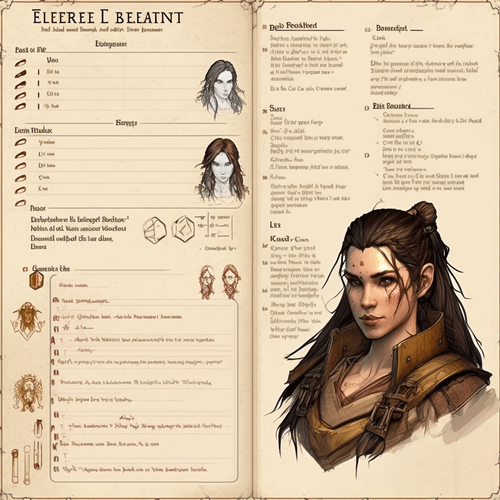
A rpg character sheet with an image of a human female warrior and a collection of skills and attributes

Identity management is a family of technologies, protocols and policies to manage and control access to resources like computer systems, applications and data. It involves the administration of user identities, authentication and authorization.

The main goal of identity management is to ensure that only authorized users have access to sensitive data and resources, while preventing unauthorized access and data breaches. This involves managing user accounts, passwords, permissions, and other access controls.

Glossary
  • Identity: Digital representation of a user’s identity which includes attributes such as name, email, username, password, and other personal or sensitive data. In addition to basic user information, identity management systems may also include additional user attributes such as roles, permissions, and group memberships (these are also referred to as claims)
  • Identifier: Unique piece of data that is used to uniquely identify a digital entity, such as a user, device, application, or service. e.g. a user may be assigned a unique identifier, such as a username or email address used to authenticate and authorize access to resources and services.
  • Authentication: Verifying the identity of a user who is trying to access a system, service, or application. A user can authenticate through a combination of factors such as passwords, biometric data, devices or security tokens.
  • Authorization: Determining what resources a user is authorized to access and what actions they are authorized to perform.
  • Identity federation: Linking different identity systems and providing a seamless experience to users across multiple systems and applications.
  • Single sign-on (SSO): The ability to allow users to log in (authenticate) once and access multiple applications or services without having to authenticate each time.
  • Claim: A statement or piece of information about an entity (such as a user or an application) that is being authenticated. A claim is typically a piece of information that the entity asserts about itself or that is asserted about the entity by a trusted authority (e.g. a name, email, role, etc).
  • OAuth 2.0: Authorization protocol that allows users to grant third-party applications limited access to their resources on another website or application without sharing their credentials. It provides a secure and standardized way for users to authorize access to their resources to another party. As a practical example, using OAuth you can give a photo printing app access to view your photos in Google Photos (but not edit or delete them).
  • OpenID Connect (OIDC): Protocol that provides a standardized way for users to authenticate and get access to web applications. It is an extension of the OAuth 2.0 protocol, which is used for granting third-party access to web resources without sharing user credentials.
  • JSON Web Token (JWT): JSON Web Token (or JWT) is a compact way of representing claims to be transferred between two parties in the shape of JSON objects, base64 encoded and cryptographically signed.
JSON Web Token (JWT)

JSON Web Token (or JWT) is a compact way of representing claims to be transferred between two parties.

A JWT is composed of three parts: a header, a payload, and a signature. The header identifies the algorithm used to sign the token, the payload contains the claims or information being transmitted, and the signature is used to verify the integrity of the token.

A sample JWT can look like this:

eyJhbGciOiJIUzI1NiIsInR5cCI6IkpXVCJ9.eyJzdWIiOiIxMjM0NTY3ODkwIiwibmFtZSI6IkpvaG4gRG9lIiwiaWF0IjoxNTE2MjM5MDIyfQ.SflKxwRJSMeKKF2QT4fwpMeJf36POk6yJV_adQssw5c

where each part of the JWT is base64 URL encoded and separated by a dot.

// header
eyJhbGciOiJIUzI1NiIsInR5cCI6IkpXVCJ9.
// payload
eyJzdWIiOiIxMjM0NTY3ODkwIiwibmFtZSI6IkpvaG4gRG9lIiwiaWF0IjoxNTE2MjM5MDIyfQ.
// signature
SflKxwRJSMeKKF2QT4fwpMeJf36POk6yJV_adQssw5c

When decoded the JWT reveals the header and payloads to be a JSON object:

// header (algorithm and token type)
{
  "alg": "HS256",
  "typ": "JWT"
}
// payload (claims)
{
  "sub": "1234567890",
  "name": "John Doe",
  "iat": 1516239022
}
// signature
SflKxwRJSMeKKF2QT4fwpMeJf36POk6yJV_adQssw5c

Because the information within a JWT is digitally signed, it can be verified by the recipient to ensure that the message has not been tampered with and that the sender is who they say they are.

The JWT standard is often used for authentication and authorization purposes in web applications and APIs (in protocols like OAuth2 or OIDC). When a user logs in to an application, the server creates a JWT containing the user’s identity information and sends it to the client. The client can then include the JWT in subsequent requests to the server, allowing the server to verify the user’s identity and grant access to protected resources.

JWTs are widely used because they are lightweight, easy to use, and can be transmitted over any network protocol. They are also highly extensible and can be used to transmit any type of information, making them a versatile solution for many types of applications.

OAuth 2.0

OAuth 2.0 is an authorization protocol that allows users to grant third-party applications limited access to their resources on another website or application without sharing their credentials. It provides a secure and standardized way for users to authorize access to their resources to another party.

Granting permissions to a series of resources using OAuth 2.0 follows these rough steps:

  1. The user first grants permission to the third-party application to access their resources on a particular website or application
  2. The user is redirected to the authorization server, where they can approve or deny the request for access
  3. Once the user approves the request, the authorization server issues an access token to the third-party application, which can then use that token to access the user’s resources.

The access token is often encoded as a JWT (JSON web token) and contains a series of claims that represent access to a given resource (in the from of scopes). The token is usually time-limited and can be revoked by the user or the authorization server at any time.

OAuth 2.0 is widely used by social media sites, such as Facebook, Twitter, and Google, to allow users to sign in to third-party applications using their social media credentials. It is also used by APIs to allow access to protected resources.

OpenID Connect (OIDC)

OpenID Connect (commonly referred to as OIDC), is a protocol that provides a standardized way for users to authenticate and get access to web applications. It is an extension of the OAuth 2.0 protocol, which is used for granting third-party access to web resources without sharing user credentials.

OIDC adds an authentication layer on top of OAuth 2.0, providing a framework for user authentication and identity verification. It allows users to log in to a web application using their existing identity provider credentials (such as Google, Facebook, Twitter, GitHub or Microsoft), without having to create a separate username and password for that application.

The OIDC protocol uses JSON Web Tokens (JWTs) to encode and transmit identity information between the identity provider and the application in the form of identity tokens. This enables the application to verify the identity of the user and retrieve additional user information such as name, email, and profile picture (fields commonly known as claims).

Like other JWT, the id token contains a header, a payload and a signature. The id token payload contains a number of claims that

Discovery

The OIDC configuration for a authorization server (also known as OIDC provider) is public and published under:

https://{authorization-server-domain}/.well-known/openid-configuration

The configuration itself is a JSON document that can look like this:

{
  // URL https scheme with no query or fragment component that 
  // the OP (OIDC Provider) asserts as its Issuer Identifier
   "issuer":"https://dev-50h8ivwoimbp1mma.us.auth0.com/",
   "authorization_endpoint":"https://dev-50h8ivwoimbp1mma.us.auth0.com/authorize",
   "token_endpoint":"https://dev-50h8ivwoimbp1mma.us.auth0.com/oauth/token",
   "device_authorization_endpoint":"https://dev-50h8ivwoimbp1mma.us.auth0.com/oauth/device/code",
   "userinfo_endpoint":"https://dev-50h8ivwoimbp1mma.us.auth0.com/userinfo",
   "mfa_challenge_endpoint":"https://dev-50h8ivwoimbp1mma.us.auth0.com/mfa/challenge",
   "jwks_uri":"https://dev-50h8ivwoimbp1mma.us.auth0.com/.well-known/jwks.json",
   "registration_endpoint":"https://dev-50h8ivwoimbp1mma.us.auth0.com/oidc/register",
   "revocation_endpoint":"https://dev-50h8ivwoimbp1mma.us.auth0.com/oauth/revoke",
   "scopes_supported":[
      "openid",
      "profile",
      "offline_access",
      "name",
      "given_name",
      "family_name",
      "nickname",
      "email",
      "email_verified",
      "picture",
      "created_at",
      "identities",
      "phone",
      "address"
   ],
   "response_types_supported":[
      "code",
      "token",
      "id_token",
      "code token",
      "code id_token",
      "token id_token",
      "code token id_token"
   ],
   "code_challenge_methods_supported":[
      "S256",
      "plain"
   ],
   "response_modes_supported":[
      "query",
      "fragment",
      "form_post"
   ],
   "subject_types_supported":[
      "public"
   ],
   "id_token_signing_alg_values_supported":[
      "HS256",
      "RS256"
   ],
   "token_endpoint_auth_methods_supported":[
      "client_secret_basic",
      "client_secret_post"
   ],
   "claims_supported":[
      "aud",
      "auth_time",
      "created_at",
      "email",
      "email_verified",
      "exp",
      "family_name",
      "given_name",
      "iat",
      "identities",
      "iss",
      "name",
      "nickname",
      "phone_number",
      "picture",
      "sub"
   ],
   "request_uri_parameter_supported":false,
   "request_parameter_supported":false
}

Interesting articles related to OIDC discovery:

For more information about refer to the OIDC discovery documentation.

Resources
https://www.barbarianmeetscoding.com/notes/identity/
Extensions
LazyVim - A beautiful neovim config for the lazy
LazyVim is a lightweight Neovim configuration that offers the sweet spot between a flexible configuration and a premade neovim distribution.
Show full content
The LazyVim launcher in neovim with a bunch of useful options

LazyVim is a lightweight Neovim configuration that offers the sweet spot between a flexible configuration and a premade neovim distribution. LazyVim gives you a solid IDE development experience but also a flexible way to extend it and configure it to match your own needs.

The following sections describe in detail how I'm using LazyVim, useful features I use in my development workflow and how I've customize it to suit my needs. This article will be updated often as I learn more about LazyVim and get comfy with all the new fancy neovim plugins it comes with.

Table of Contents

Getting started

The LazyVim documentation is a great way to get started with LazyVim:

If you enjoy a good video, @elijahmanor has a great introduction to LazyVim:

For the impatient reader, the TL;DR is that once installed LazyVim comes with:

  • A initial configuration in you .config/nvim/lua folder
    • A config folder with:
      • A lazy.lua file that boostraps LazyVim
      • A keymaps.lua file where you can add you custom key mappings
      • An autocmd.lua file where you can add your custom auto commands
      • An options.lua file where you can setup your custom neovim options
    • A plugins folder where you can add new plugins or configure the built-in ones. Any file that you add under this directory will be loaded when you open Neovim. A suggestion is to create a file per plugin you want to add and configure. The folder starts with a single file example.lua which contains a number of example configurations you can use.
  • A bare .config/local/init.lua file that loads the config folder
  • A number of plugins that get installed in you neovim data directory (referred in neovim’s documentation as $XDG_DATA_HOME) which on unix systems is under ~/local/shared/nvim.
Launcher

Two things I find really useful with the launcher are:

  • c to jump directly into your neovim config
  • s to restore the previous session
Lazy.nvim

Under the hood, LazyVim relies on the lazy.nvim plugin manager to manage all plugins. It is useful to take some time to get a basic of understanding about what is lazy.nvim and how it works.

lazy.nvim is a modern neovim plugin manager with built-in UI and the ability of loading plugins and Lua modules lazily i.e. when they are needed. For plugins you can configure whether they are loaded based on events, commands, filetypes or key mappings. Modules are loaded when they are required.

In general, when using lazy.nvim plugins will be lazy-loaded when one of the following is true:

  • The plugin only exists as a dependency in your spec
  • It has an event, cmd, ft or keys key
  • config.defaults.lazy == true
Configuring plugins in lazy.nvim

The way in which lazy.nvim achieves laziness is by using declarative specs to configure plugins. Rather than actively requiring a plugin and configuring via a call to a setup function as it has become a de facto standard, lazy.nvim requires a fully declarative configuration (or spec).

For example, instead of installing telescope.nvim like when using packer or other plugin managers:

-- install plugin
use {
  'nvim-telescope/telescope.nvim', tag = '0.1.1',
-- or                            , branch = '0.1.x',
  requires = { {'nvim-lua/plenary.nvim'} }
}
-- setup plugin
require('telescope').setup{
  defaults = {
    -- default configs
  },
  pickers = {
    -- Default configuration for builtin pickers goes here:
  },
  extensions = {
    -- Your extension configuration goes here:
  }
}
-- Setup mappings
local builtin = require('telescope.builtin')
vim.keymap.set('n', '<leader>ff', builtin.find_files, {})
vim.keymap.set('n', '<leader>fb', builtin.buffers, {})

You write a declarative spec in the form of a Lua table:

{
  "nvim-telescope/telescope.nvim",
  cmd = "Telescope",
  version = '0.1.1', -- telescope did only one release, so use HEAD for now
  keys = {
    { "<leader>fb", "<cmd>Telescope buffers<cr>", desc = "Buffers" },
    { "<leader>ff", "<cmd>Telescope find_files<cr>", desc = "Find Files" },
  },
  opts = {
    -- this is the same opts one passes to the setup() function
    defaults = {
      -- default configs
    },
    pickers = {},
    extensions = {},
  },
}

When you load neovim, the telescope plugin won’t be immediately loaded. But as soon as you type any of the keys defined in the lazy.nvim spec, telescope will be loaded and executed.

Lazy.nvim UI

A really convenient feature of lazy.nvim is its UI. Type <leader>l and you get access to a simple, yet very comprehensive UI where you can install, update, debug, profile, uninstall and see the latest feature of your favorite plugins. (Tip: Type ? inside the lazy.nvim UI to get help about how to use it)

The lazy.nvim UI showing a collection of plugins, some of which need to be updated

Other lazy.nvim features
  • Fast startup times thanks to automatic caching and bytecode compilation of Lua modules
  • Automatically install missing plugins before starting up Neovim, allowing you to start using it right away
  • Async execution for improved performance
  • No need to manually compile plugins
  • Generates helptags of the headings in README.md files for plugins that don’t have vimdocs
  • Dev options and patterns for using local plugins
  • Profiling tools to optimize performance
  • Lockfile lazy-lock.json to keep track of installed plugins
  • Automatically check for updates
  • Commit, branch, tag, version, and full Semver support
  • Statusline component to see the number of pending updates
  • Automatically lazy-loads colorschemes
Installation

To install lazy.nvim outside of LazyVim take a look at the docs.

Learning key mappings

Getting started with LazyVim (as a newcomer to neovim or as a seasoned vim user) can be quite the learning curve with all the plugins and built-in mappings. Luckily for us, LazyVim comes with a couple of plugins that make it really easy to discover new mappings for how to interact with different features: which-key and telescope.

which-key is a neovim plugin that displays a popup with possible key bindings for the command that you have started typing. So if you aren’t quite sure about a given mapping, you can start by typing the <leader> key and then see the popup with suggestions for new keys you can type:

A which key popup showing different commands you can type

But if you have no idea what to type, you can try your luck by using the :Telescope keymaps picker, also available through <leader>sk for “Search Keys”. Let’s say that we want to learn whether there are any mappings for closing notifications. So we open the telescope picker and type notification which will show the <leader>un mapping to “delete all notifications”.

Finally, you can always take a look at the LazyVim documentation (which has lots of relevant mappings).

Interacting with notifications

Notifications can be a bit annoying at times, specially when they hide source code. You can type <leader>un to delete all notifications.

Lazyvim core plugins

TBD

Custom configurations Mappings

There are some mappings that I can’t just quite live without after years and years of using vim and neovim. Lucky for me, LazyVim provides a config/keymaps.lua where one can place their custom mappings:

-- Keymaps are automatically loaded on the VeryLazy event
-- Default keymaps that are always set: https://github.com/LazyVim/LazyVim/blob/main/lua/lazyvim/config/keymaps.lua
-- Add any additional keymaps here
-- exit insert mode with jk
vim.keymap.set("i", "jk", "<ESC>", { noremap = true, silent = true, desc = "<ESC>" })

-- Perusing code faster with K and J
vim.keymap.set({ "n", "v" }, "K", "5k", { noremap = true, desc = "Up faster" })
vim.keymap.set({ "n", "v" }, "J", "5j", { noremap = true, desc = "Down faster" })

-- Remap K and J
vim.keymap.set({ "n", "v" }, "<leader>k", "K", { noremap = true, desc = "Keyword" })
vim.keymap.set({ "n", "v" }, "<leader>j", "J", { noremap = true, desc = "Join lines" })

-- C-P classic
vim.keymap.set("n", "<C-P>", "<leader>ff")

-- Save file
vim.keymap.set("n", "<leader>w", "<cmd>w<cr>", { noremap = true, desc = "Save window" })

-- Unmap mappings used by tmux plugin
-- TODO(vintharas): There's likely a better way to do this.
vim.keymap.del("n", "<C-h>")
vim.keymap.del("n", "<C-j>")
vim.keymap.del("n", "<C-k>")
vim.keymap.del("n", "<C-l>")
vim.keymap.set("n", "<C-h>", "<cmd>TmuxNavigateLeft<cr>")
vim.keymap.set("n", "<C-j>", "<cmd>TmuxNavigateDown<cr>")
vim.keymap.set("n", "<C-k>", "<cmd>TmuxNavigateUp<cr>")
vim.keymap.set("n", "<C-l>", "<cmd>TmuxNavigateRight<cr>")
Custom nvim-cmp configs

In addition to these mappings I customize nvim-cmp so that I can autocomplete on <TAB>, both for triggering completion but also for selecting items (or jumping between fields of a snippet). The way that one configures nvim-cmp and other plugins within the LazyVim distribution is a bit exoteric for me:

-- nvim-cmp configs
return {
  -- customize nvim-cmp configs
  -- Use <tab> for completion and snippets (supertab)
  -- first: disable default <tab> and <s-tab> behavior in LuaSnip
  {
    "L3MON4D3/LuaSnip",
    keys = function()
      return {}
    end,
  },
  -- then: setup supertab in cmp
  {
    "hrsh7th/nvim-cmp",
    dependencies = {
      "hrsh7th/cmp-emoji",
    },
    ---@param opts cmp.ConfigSchema
    opts = function(_, opts)
      local has_words_before = function()
        unpack = unpack or table.unpack
        local line, col = unpack(vim.api.nvim_win_get_cursor(0))
        return col ~= 0 and vim.api.nvim_buf_get_lines(0, line - 1, line, true)[1]:sub(col, col):match("%s") == nil
      end

      local luasnip = require("luasnip")
      local cmp = require("cmp")

      -- This is reaaaally not easy to setup :D
      opts.mapping = vim.tbl_extend("force", opts.mapping, {
        ["<Tab>"] = cmp.mapping(function(fallback)
          -- If it's a snippet then jump between fields
          if luasnip.expand_or_jumpable() then
            luasnip.expand_or_jump()
          -- otherwise if the completion pop is visible then complete
          elseif cmp.visible() then
            cmp.confirm({ select = false })
          -- if the popup is not visible then open the popup
          elseif has_words_before() then
            cmp.complete()
          -- otherwise fallback
          else
            fallback()
          end
        end, { "i", "s" }),
        ["<S-Tab>"] = cmp.mapping(function(fallback)
          if cmp.visible() then
            cmp.select_prev_item()
          elseif luasnip.jumpable(-1) then
            luasnip.jump(-1)
          else
            fallback()
          end
        end, { "i", "s" }),
      })
    end,
  },
}
Custom telescope configs

I customize telescope so that I can enable the fzf sorter and have some mappings I’ve grown accustomed to from using fzf in an early incarnation:

return {
  {
    "nvim-telescope/telescope.nvim",
    -- install fzf native
    dependencies = {
      "nvim-telescope/telescope-fzf-native.nvim",
      build = "make",
      config = function()
        require("telescope").load_extension("fzf")
      end,
    },
    keys = {
      -- change a keymap
      { "<C-p>", "<cmd>Telescope find_files<CR>", desc = "Find Files" },
      -- add a keymap to browse plugin files
      {
        "<leader>fp",
        function()
          require("telescope.builtin").find_files({ cwd = require("lazy.core.config").options.root })
        end,
        desc = "Find Plugin File",
      },
      -- This is using b because it used to be fzf's :Buffers
      {
        "<leader>b",
        "<cmd>Telescope oldfiles<cr>",
        desc = "Recent",
      },
    },
  },
}
Additional plugins

So far I’ve been installing these additional plugins:

-- Highlight YAML front matter
vim.api.nvim_set_var("vim_markdown_frontmatter ", 1)

return {
  -- tmux vim
  { "christoomey/vim-tmux-navigator" },

  -- markdown support
  { "godlygeek/tabular" }, -- required by vim-markdown
  { "plasticboy/vim-markdown" },
}
Additional configuration tips

The LazyVim docs have a number of tips and recipes with additional information about how to use and enhance your LazyVim and neovim experience. Some of my favorite:

  • Moving around files
    • LazyVim uses bufferline to arrange buffers in tab-like looking manner and provide some nice visual cues about whether files are active and/or have been modified in some way. In addition to UI changes, bufferline also adds a number of mappings to quickly jump between buffers. You can use H and L to jump to open buffers that appear in the buffer line, H to jump to the left ones and L to jump to the ones on the right.
    • Use telescope to jump between other files:
      • If you want to fuzzy search over open buffers, use <leader>,
      • To fuzzy search over any file, use <leader><space>
  • Operations with buffers
    • <leader>bb to switch to other buffer
    • <leader>bd to delete buffers you no longer need
    • <leader>bp to toggle pinning a buffer
    • <leader>bP to delete non pinned buffers
  • Jump to definition in file
    • Use <leader>ss to Go to symbol which opens a fuzzy search for all symbols in the file using telescope
    • <C-o>, <C-i> and gd to navigate the code
Extras

Lazyvim comes with a number of extras that you can opt into through the :LazyExtras command.

In addition to the above, support for diverse programming languages is now handled via lang extras also controlled via the :LazyExtras command.

Markdown

You can install support for markdown in LazyVim as an extra via :LazyExtras like with many other languages. It provides a number of useful features both for authoring and reading markdown files. It currently relies on the mardownlint-cli2 library for linting which requires a configuration that can be provided as a .markdownlint.yaml file following this schema.

Copilot

Installing copilot with lazyvim is truly a breeze. Enable it via the :LazyExtras command and you’re set. The next time you open neovim you’ll be prompted to sign in into your copilot account.

You may want to update your copilot configuration adding a copilot.lua file in your config/plugins folder:

-- ~/.config/nvim/lua/plugins/copilot.lua
-- copilot configuration
return {
  "zbirenbaum/copilot.lua",
  opts = {
    -- These are disabled in the default configuration.
    suggestion = { enabled = true },
    panel = { enabled = true },
  },
}
-- For additional configurations for the copilot panel, suggestions, filetypes supported, etc
-- see https://github.com/zbirenbaum/copilot.lua

Lazyvim copilot’s support comes from two plugins:

And it adds a copilot icon to lualine which tells you when copilot is available and running (alternatively you can run the :Copilot command).

For additional configurations for the copilot panel, suggestions, filetypes supported, etc, take a look at the zbirenbaum/copilot.lua docs.

Full neovim config

For more information you can find my full neovim lazyvim config on GitHub.

https://www.barbarianmeetscoding.com/notes/neovim-lazyvim/
Extensions
Building Habits
A collection of notes about building habits
Show full content

Hi! This article is part of my personal notebook where I collect notes of interesting thoughts and ideas while I am learning new technologies. You are welcome to use it for your own learning!

Now that I’m getting out of the hardest part of parenting with our second kid I’ve started re-reading Atomic Habits in an effort to regain some of the loss ground and get started kicking some ass. This article is going to be a summary and synthesis of the most important points of this and other books about habits.

A beautiful morning

Building habits
  • Habits are the compound interest of self improvement
  • Changes that seem small and unimportant at first will compound into remarkable results over a long time span. Ice doesn’t melt when you increase temperature one degree from -10°C to -9°C, or one degree more, or another one, but all this effort compounds so that when you get 1°C all change happens at once. Likewise with small habits all your effort isn’t wasted. Small actions done consistently over time will produce remarkable results.
  • Start with your identity
  • Every habit can be broken down into four steps
    • Cue: what triggers the habit (a place, an object, etc)
    • Craving: what you want to do (go for a run, eat a cookie, etc)
    • Action: actual doing what you want to do
    • Reward: a rewarding feeling after doing the action
  • If you want to build a habit you need to pay attention to all these 4 steps following the 4 laws of behavior change:
    • Cue: Make it obvious
    • Craving: Make it attractive
    • Action: Make it easy
    • Reward: Make it satisfying
  • Likewise to break a undesired habit you can reverse the 4 laws of behavior change:
    • Cue: Make it invisible
    • Craving: Make it unattractive
    • Action: Make it hard
    • Reward: Make it unsatisfying
Resources
https://www.barbarianmeetscoding.com/notes/habits/
Extensions
Neovim Diagnostics
Notes about Neovim diagnostics framework
Show full content

Hi! This article is part of my personal notebook where I collect notes of interesting thoughts and ideas while I am learning new technologies. You are welcome to use it for your own learning!

If you're looking for more in-depth articles about Vim, check out the Exploring Vim series.

In its journey to provide a superb developer experience Neovim has extended the Vim concept of the quickfix list with an improved, modern version called diagnostics (term I suspect comes from the world of LSPs). Neovim diagnostics are however independent from LSPs, they are a framework for displaying errors and warnings from any external tools (linters, LSPs, etc) or on demand with user defined errors and/or warnings.

Table of ContentsGetting Started

Anything that reports diagnostics to Neovim is referred to as a diagnostic producer. In order to hook a producer of diagnostics into neovim’s diagnostics one needs to:

-- 1. Create a namespace that identifies the producer:
local ns_id = vim.api.nvim_create_namespace("My diagnostics producer")

-- 2. (Optionally) configure options for the diagnostic namespace:
vim.diagnostic.config(options, namespace)

-- 3. Generate diagnostics (this would happen based on whichever business logic
--    generates these diagnostics)

-- 4. Set the diagnostics for the buffer:
vim.diagnostic.set()

In the simplest example of creating and showing a diagnostic we could follow these steps omitting the namespace configuration:

-- 1. Create a namespace
my_namespace_id = vim.api.nvim_create_namespace("my namespace")
-- 2. Create a diagnostic
diagnostic = {
  lnum = 0,                   -- line number
  col = 0,                    -- column
  message = "hello world!",
}
-- 3. Sets (and shows) the diagnostic for my namespace in the current buffer
-- (buffer number: 0)
vim.diagnostic.set(my_namespace_id, 0, { diagnostic })
Diagnostic Message

The diagnostic itself, the error or warning one wants to have appear in neovim is a lua table that has a number of fields to describe the message. Some of the most interesting are:

  • lnum: Starting line number (required)
  • col: Starting column (required)
  • message: Message (required)
  • bufnr: Buffer number
  • severity: Severity of the diagnostic - Error, Warning, Info or Hint (:h vim.diagnostic serverity)
  • end_lnum: Ending line number
  • end_col: Ending column

See :h diagnostic-structure for additional fields.

Showing Diagnostics

You can show diagnostics to the user using the vim.diagnostic.show() method.

The display of diagnostics is normally managed through the use of handlers. A handler is a table with a “show” and (optionally) a “hide” methods:

show = function(namespace, bufnr, diagnostics, opts)
hide = function(namespace, bufnr)

Handlers can be added by creating a new key in vim.diagnostic.handlers and configured using the vim.diagnostic.config() method:

-- This example comes from :h diagnostic-handlers
-- It's good practice to namespace custom handlers to avoid collisions
vim.diagnostic.handlers["my/notify"] = {
  show = function(namespace, bufnr, diagnostics, opts)
    -- The opts table passed to a handler contains the handler configuration
    -- that a user can configure via vim.diagnostic.config.
    -- In our example, the opts table has a "log_level" option
    local level = opts["my/notify"].log_level

    local name = vim.diagnostic.get_namespace(namespace).name
    local msg = string.format("%d diagnostics in buffer %d from %s",
                              #diagnostics,
                              bufnr,
                              name)

    -- The call to vim.notify notifies the user of diagnostics
    -- which is similar to `:echo "hello diagnostic"`. This doesn't 
    -- show a diagnostic. So there's no need to implement hide.
    vim.notify(msg, level)
  end,
}

-- Users can configure the handler
vim.diagnostic.config({
  ["my/notify"] = {
    -- This table here are the *opts* parameter sent to the handler
    log_level = vim.log.levels.INFO
  }
})

Neovim provides a number of handlers by default: “virtual_text”, “signs” and “underline”. These and any other handler can be overriden:

-- Create a custom namespace. This will aggregate signs from all other
-- namespaces and only show the one with the highest severity on a
-- given line
local ns = vim.api.nvim_create_namespace("my_namespace")

-- Get a reference to the original signs handler
local orig_signs_handler = vim.diagnostic.handlers.signs

-- Override the built-in signs handler
vim.diagnostic.handlers.signs = {
  show = function(_, bufnr, _, opts)
    -- Get all diagnostics from the whole buffer rather than just the
    -- diagnostics passed to the handler
    local diagnostics = vim.diagnostic.get(bufnr)

    -- Find the "worst" diagnostic per line
    local max_severity_per_line = {}
    for _, d in pairs(diagnostics) do
      local m = max_severity_per_line[d.lnum]
      if not m or d.severity < m.severity then
        max_severity_per_line[d.lnum] = d
      end
    end

    -- Pass the filtered diagnostics (with our custom namespace) to
    -- the original handler
    local filtered_diagnostics = vim.tbl_values(max_severity_per_line)
    -- This will result in showing diagnostics for real
    orig_signs_handler.show(ns, bufnr, filtered_diagnostics, opts)
  end,
  hide = function(_, bufnr)
    orig_signs_handler.hide(ns, bufnr)
  end,
}
Diagnostic Highlights

The highlights defined for diagnotics begin with Diagnostic followed by the type of highlight and severity. For example:

  • DiagnosticSignError
  • DiagnosticUnderlineWarn

You can access these highlights via the :highlight ex command:

# show highlight
:highlight DiagnosticError
# clear highlight
:highlight clear DiagnosticError
# set highlight (see :h highlight-args for actual
# key-value pairs that are available)
:highlight DiagnosticError {key}={arg} ...
:hi DiagnosticError guifg=#db4b4b
Diagnostic Severity

Represents the severity of the diagnostic and can have any of these values:

  • vim.diagnostic.severity.ERROR
  • vim.diagnostic.severity.WARN
  • vim.diagnostic.severity.INFO
  • vim.diagnostic.severity.HINT

Many functions in the diagnostic API that require a severity to be specified will accept it either as a specific severity or as a range:

-- Single value
vim.diagnostic.get(0, { severity = vim.diagnostic.severity.WARN })

-- Range (specify min, max or both)
vim.diagnostic.get(0, { severity = { min = vim.diagnostic.severity.WARN } })

The latter form allows users to specify a range of severities.

For more info refer to :h vim.diagnostic.severity.

Diagnostic signs

Neovim diagnostics defines signs for each type of diagnostic serverity. The default text for each sign is the first letter of the severity name: E, W, I, H.

Signs can be customized using the :sign ex-command:

sign define DiagnosticSignError text=E texthl=DiagnosticSignError linehl= numhl=

When the severity-sort option is set the priority of each sign depends on the severity of the diagnostic (otherwise all signs have the same priority).

Diagnostic Events

Diagnostic events can be used to configure autocommands:

  • DiagnosticChanged: diagnostics have changed
vim.api.nvim_create_autocmd('DiagnosticChanged', {
  callback = function(args)
    local diagnostics = args.data.diagnostics
    -- print diagnostics as a message
    vim.pretty_print(diagnostics)
  end,
})
API

The vim.diagnostic api lives under the vim.diagnostic namespace. So all methods before should be prepended with vim.diagnostic e.g. vim.diagnostic.config.

Config
  • config(opts, namespace): Config diagnostics globally or for a given namespace

Diagnostics config can be provided globally, per namespace or for a single call to vim.diagnostic.show(). Each of these has more priority than the last.

The opts table contains the following properties:

  • underline: (defaults to true) Use underline for diagnostics. Alternative provide a specific severity to underline.
  • signs: (defaults to true) Use signs for diagnostics. Alternative specify severity or priority.
  • virtual_text: (default true) Use virtual text for diagnostics. There’s lots of config options for how the virtual text looks like, take a look at :h vim.diagnostic.config for more info.
  • float: Options for floating windows. See :h vim.diagnostic.open_float().
  • update_in_insert: (default false) Update diagnostics in Insert mode (if false, diagnostics are updated on InsertLeave)
  • severity_sort: (default false) Sort diagnostics by severity. This affects the order in which signs and virtual text are displayed. When true, higher severities are displayed before lower severities. You can reverse the priority with reverse.
-- The `virtual_text` config allows you to define a `format` function that
-- takes a diagnostic as input and returns a string. The return value is the
-- text used to display the diagnostic.

function(diagnostic)
 if diagnostic.severity == vim.diagnostic.severity.ERROR then
   return string.format("E: %s", diagnostic.message)
 end
 return diagnostic.message
end

You can call vim.diagnostic.config() to get the current global config, or vim.diagnostic.config(nil, my_namespace) to get the config for a given namespace.

Enable and Disable
  • disable(bufnr, namespace): disable diagnostics globally, in a current buffer (0) or a given buffer, and optionally for a given namespace.
  • enable(bufnr, namespace): like above but enable
Quickfix Integration
  • fromqflist(list): convert a list of quickfix items to a list of diagnostics. The list can be retrieved using getqflist() or getloclist().
Get diagnostics
  • get(bufnr, {namespace, lnum, severity}): Get current diagnostics
  • get_next(opts): Get next diagnostic closes to cursor
  • get_next_pos(opts): Get position of the next diagnostic in the current buffer (row, col).
  • get_prev(opts): Get previous diagnostic closest to the cursor.
  • get_prev_pos(opts): Get position of the previous diagnostic (row, col).
  • goto_next(opts): Move to the next diagnostic. Where some interesting properties in the opts table are:
    • namespace
    • cursor_position as (row, col) tuple
    • wrap whether to wrap around file
    • severity
    • float open float after moving
    • win_id window id
  • goto_prev(opts): Like above but move to previous diagnostic.
Interact with diagnostics
  • hide(namespace, bufrn): hide currently displayed diagnostic
Utilities to produce diagnostics
  • match(str, pat, groups, severity_map, defaults): parse a diagnostic from a string. This is something that you could use to integrate third party linters or other diagnostic producing tools
-- this example comes from :h vim.diagnostics.match.
-- You can appreciate how it uses a pattern regex to
-- extract all the portions needed to create a
-- diagnostic
local s = "WARNING filename:27:3: Variable 'foo' does not exist"
local pattern = "^(%w+) %w+:(%d+):(%d+): (.+)$"
local groups = { "severity", "lnum", "col", "message" }
vim.diagnostic.match(s, pattern, groups, { WARNING = vim.diagnostic.WARN })
Get metadata
  • diagnostic.get_namespace(): Get namespace metadata
  • diagnostic.get_namespaces(): Get current diagnostics namespaces.
https://www.barbarianmeetscoding.com/notes/neovim/diagnostics/
Extensions
Creative Coding
A collection of notes about creative coding and procedural generation
Show full content

Hi! This article is part of my personal notebook where I collect notes of interesting thoughts and ideas while I am learning new technologies. You are welcome to use it for your own learning!

What is creative coding?

Although all coding is a creative endeavor, the term of creative coding normally refers to using code to create art. From wikipedia:

Creative coding is a type of computer programming in which the goal is to create something expressive instead of something functional.

Creative Coding in Wikipedia

An environment for sketching creative coding with Canvas Sketch

Canvas Sketch is a collection of tools, modules and resources for generative art in JavaScript and the browser.* It was created by Matt DesLauriers and provides a mini development environment for doing generative art.

Once you’ve gathered all requirements you can go ahead and install Canvas Sketch from npm (the node.js package manager):

npm install -g canvas-sketch-cli

Once installed run:

canvas-sketch --help
# canvas-sketch -h

To access the Canvas Sketch CLI help and check whether it was installed properly.

Now you can create new sketches using the CLI:

# Creates a new sketch file called my-first-sketch.js
# and starts an http-server with live reload. That is,
# it reloads the browser every time you save your sketch
# JavaScript file
canvas-sketch my-first-sketch.js --new

This command creates a new sketch file called my-first-sketch.js with some boilerplate code:

const canvasSketch = require("canvas-sketch");

const settings = {
  dimensions: [2048, 2048],
};

const sketch = () => {
  return ({ context, width, height }) => {
    context.fillStyle = "white";
    context.fillRect(0, 0, width, height);
  };
};

canvasSketch(sketch, settings);

And starts a live development environment for creative coding. With this development environment you can work on your sketch and see any changes you do immediately reflected in the browser. Once you’re happy with the art that you generate, you can save it as a PNG file using CMD+S (or CTRL+S on Windows and Linux).

For more information take a look at the canvas sketch docs.

Additional libraries

The canvas-sketch-util library is a companion to Canvas Sketch that comes with a number of utility functions and helpers for doing generative art in JavaScript, Canvas and WebGL. For example:

const random = require('canvas-sketch-util/random');

console.log(random.value());
// some random number between 0 (inclusive) and 1 (exclusive)

// Create a seeded random generator
const seeded = random.createRandom(25);

console.log(seeded.range(25, 50));
// some deterministic random number

console.log(seeded.shuffle([ 'a', 'b', 'c' ]));
// deterministically shuffles a copy of the array

You can install with npm:

npm install canvas-sketch-util
Useful CLI arguments
# Run dev environment for existing sketch
canvas-sketch my-first-sketch.js

# Run dev environment and open sketch in the browser
canvas-sketch my-first-sketch.js --open

# By default when saving art (CTRL+S, CMD+S) the generated PNG
# file is saved in the Downloads folder. You can select where to
# store the saved files using the --output flag
canvas-sketch my-sketch-dark.js --output=output/dark

# You can also saved videos from your art. This is specially
# relevant if your art includes animations.
# Save to MP4 file
canvas-sketch animation.js --output=tmp --stream
# Or alternatively as a GIF file
canvas-sketch animation.js --output=tmp --stream=gif
Useful Settings

Canvas sketch offers a myriad of settings to configure your canvas, some of them are:

  • dimensions: Allows to specify the canvas dimensions as width, height or popular print formats like A4, A2, etc.
  • pixelsPerInch: Specify the pixel density of the canvas. e.g. when printing we would want to have a higher pixel denstiy 300.
  • orientation: Allows to define the orientation of the canvas portrait (default), or landscape.

For more available settings take a look at the docs.

Tip: Resolution independent Sketches

When using canvas it is common to paint using drawing primitives in pixels. If we hardcode the number of pixels we use and we later want to have the drawing live in a bigger canvas we’ll be sad to find out that the generated art doesn’t scale. In order to create are that works at any resolution we need to draw using relative units to the total height and width of the canvas:

const sketch = () => {
  return ({ context, width, height }) => {
    context.fillStyle = "white";
    context.fillRect(0, 0, width, height);

    context.lineWidth = width * 0.01; // 1% of the width of the canvas
    const w = width * 0.2;   // 20% of the width of the canvas
    const h = height * 0.2;  // 20% of th height of the canvas
    const x = width * 0.1;   // 10% of the width of the canvas
    const y = height * 0.1;  // 10%...

    context.beginPath();
    context.rect(x, y, w, h);
    context.stroke();
  };
};
Exporting Artwork

Once you’ve started a dev environment with Canvas Sketch you can save your art work using CTLR+S or CMD+S. By default any image that you save will be store in your downloads folder. You can configure this by using the --output flag when initializing your canvas sketch dev environment:

canvas-sketch my-sketch-dark.js --output=output/dark

For exporting videos you’ll need to install ffmpeg:

npm install @ffmpeg-installer/ffmpeg --global

Once installed you can use the --stream flag to enable exporting animations in your artwork. For example:

canvas-sketch animation.js --output=tmp --stream

When your artwork is running as a sketch, you can press CTRL+SHIFT+S or CMD+SHIFT+S to start the recording and use the same key combination to stop the recording.

For more detailed information about exporting artwork with canvas-sketch take a look at the documentation.

Tip: Improved types

To get improved type annotations you may consider installing this additional package: canvas-sketch-types

Resources
https://www.barbarianmeetscoding.com/notes/creative-coding/
Extensions
AI and Machine Learning for Coders
A collection of notes about AI And Machine Learning for Coders
Show full content

Hi! This article is part of my personal notebook where I collect notes of interesting thoughts and ideas while I am learning new technologies. You are welcome to use it for your own learning!

AI and Machine Learning for Coders is a book by Laurence Moroney about how to get started doing practical AI and Machine learning from creating and training machine learning models to deploying them and using them in real world applications. What follows are my notes as I learn about ML from the book and other sources, synthesize the most important ideas and mental models, and practice with exercises.

What is Machine Learning?

Machine Learning is a field within Artificial Intelligence that focuses on understanding and building methods that learn and can use that learning to perform tasks (like been able to label images, recommend your favorite songs, write an article, draw a piece of art or compose some music). By learn we mean that a machine learning program can process lots of data and build a model of understanding from that data so that we can then use that knowledge to perform useful tasks. This concept is easier to grasp with an example and in contrast to traditional programming.

In traditional programming (or ruled based programming) we write a program that encodes a set of rules to perform a task, for instance, we might write a program for an activity tracker that based on your speed records whether you’re walking or jogging:

function labelActivity(speed:number) {
  if (speed < 5) return 'walking'
  if (speed < 10) return 'jogging'
  if (speed < 20) return 'running'
  // etc...
}

In this context provided some input (speed) and some business logic (written by ourselves as programming rules) we get some desired output (whether the person is walking, running or cycling).

In traditional programming, given an input and rules we get a result:

                  ------------
input ------>     |   rules  |   ------> output ???
                  ------------

In machine learning, instead of us providing the rules, we provide the machine learning algorithm with lots of data that it can use to derive the rules of the system itself. Once it learns these rules, in the form of a Machine Learning model, it can make predictions about new data. In the case of a motion tracker one could provide the machine learning algorithm with a training set of sensor data labelled as belonging to different activities (what we call supervised learning).

In machine learning, given lots of inputs and outputs (a training set) we
derive the rules of the system (as an ML model) which we can then apply to
novel inputs.


Phase 1) Training: learn the rules of the system
                               ---------------
training set input ------>     |   rules???  |   ------> training set output
                               ---------------


Phase 2) Inference: apply the learned rules to make decisions

                        --------------------
novel input ------>     |   learned rules  |   ------> output ???
                        --------------------

Given the above, Machine learning is specially useful at solving problems that are too complex to reduce to a set of rules that could be programmed by a human.

Supervised learning?

In the example above we discussed an approach to Machine Learning called supervised learning (where the data provided to the machine learning algorithm contains a set of desired outputs for a given set of inputs). There are more types of machine learning approaches which are useful in different scenarios.

Getting Started

A great way to get started with ML is using Google Colab notebooks which allow you to create and train ML models without having to install anything and from the comfort of a web browser. When you go to colab.research.google.com you’ll be welcomed by a introduction to Colab in the form of a notebook that explains what Colab is and how to use it. If you have 3 minutes this is a great intro:

Here are links with colab notebooks that describe exercises within the book, highlight the most important concepts and are heavily commented:

Concepts

This is a collection on concepts that will help you build a mental model and foundation to learning Machine learning.

  • Machine Learning: Field of machine learning that focuses on making programs that can learn by themselves from looking at data and use that knowledge to perform useful tasks (like labeling images, making recommendations, writing articles, composing music or art).
  • Supervised learning: Approach to machine learning where we provide the machine learning algorithm with a training set that provides a series of example inputs and their desired outputs. The goal of this learning approach is to derive a general rule that maps inputs to outputs.
  • Unsupervised learning: Approach to machine learning where we provide the machine learning algorithm with unlabelled data. The learning algorithm must find its own structure in the data provided (like grouping or clustering).
  • Reinforced learning: Approach to machine learning where a program interacts with a dynamic environment to perform a given goal. As the program navigates through this dynamic problem space it is provided feedback in the form of rewards that guide its training.
  • Training a model: In machine learning the first step in creating a program to solve a given problem consists in training a model. Training a model consists in exposing a machine learning algorithm to lots of data so that it can learn from that data and derive a view of the world it can use to solve that problem.
  • Inference: In machine learning, the second step in creating a program to solve a given problem is to use a trained ML model to infer or make predictions when provided with novel data to produce actionable results.
  • Overfitting: In the context of training a ML model, overfitting occurs when the trained model models the trained data too closely and as a result it can provide very accurate results for the trained data but not for novel data.
Resources
https://www.barbarianmeetscoding.com/notes/book-notes/ai-and-machine-learning-for-coders/
Extensions
WebGPU
WebGPU is the next generation Web API for GPU graphics and compute
Show full content

Hi! This article is part of my personal notebook where I collect notes of interesting thoughts and ideas while I am learning new technologies. You are welcome to use it for your own learning!

WebGPU is a next generation web API that brings the power of modern GPUs to web applications. It is the successor of WebGL, designed from the ground up to give web developers access to modern GPU functionality and enrich their web applications with GPU rendering and compute.

As the next generation WebGL, WebGPU provides:

  • Modern GPU functionality to the web
  • Compute as a first-class citizen
  • Better rendering performance

If you’re interested in learning more about the background of WebGPU and why WebGPU exists instead of WebGL 3.0, take a look at the WebGPU explainer.

Table of ContentsWebGPU in a nutshell

The WebGPU spec has this really great summary about how the WebGPU API works that mentions most of its components and how they relate to each other. Take a read and refer back to it now and then as you learn new concepts:

Graphics Processing Units, or GPUs for short, have been essential in enabling rich rendering and computational applications in personal computing. WebGPU is an API that exposes the capabilities of GPU hardware for the Web. The API is designed from the ground up to efficiently map to (post-2014) native GPU APIs. WebGPU is not related to WebGL and does not explicitly target OpenGL ES.

WebGPU sees physical GPU hardware as GPUAdapters. It provides a connection to an adapter via GPUDevice, which manages resources, and the device’s GPUQueues, which execute commands. GPUDevice may have its own memory with high-speed access to the processing units. GPUBuffer and GPUTexture are the physical resources backed by GPU memory. GPUCommandBuffer and GPURenderBundle are containers for user-recorded commands. GPUShaderModule contains shader code. The other resources, such as GPUSampler or GPUBindGroup, configure the way physical resources are used by the GPU.

GPUs execute commands encoded in GPUCommandBuffers by feeding data through a pipeline, which is a mix of fixed-function and programmable stages. Programmable stages execute shaders, which are special programs designed to run on GPU hardware. Most of the state of a pipeline is defined by a GPURenderPipeline or a GPUComputePipeline object. The state not included in these pipeline objects is set during encoding with commands, such as beginRenderPass or setBlendConstant.

WebGPU Spec. Introduction
Get started with WebGPUEnabling WebGPU in your browser

At the time of this writing WebGPU is an origin trial. It can be enabled on Google Chrome for a specific origin using an origin trial token, or in Google Chrome Canary using the #enable-unsafe-webgpu under chrome://flags (you can type chrome::flags on the Chrome address bar where you’d type a URL).

Initialize WebGPU API

Initializing the WebGPU API follows the same process regardless of whether you want to use the WebGPU API for rendering or compute.

First we verify whether the WebGPU API is supported via navigator.gpu:

if (!navigator.gpu) {
    throw new Error('WebGPU is not supported on this browser.');
}
// Here you might want to use a fallback or disable the feature that uses GPU
Requesting an adapter

A WebGPU adapter represents physical GPU hardware. It is an object that identifies a particular WebGPU implementation on the system (a hardware implementation on an integrated or discrete GPU, or a fallback software implementation):

const adapter = navigator.gpu.requestAdapter();

Two different GPUAdapter objects on the same page could refer to the same or different implementations. When we call requestAdapter we can provide a series of options that affect which specific implementation is provided.

// Request a low power adapter
const lowPowerAdapter = navigator.gpu.requestAdapter({powerPreference: 'low-power'});

// Force fallback adapter (that would be a software based adapter)
const fallbackAdapter = navigator.gpu.requestAdapter({forceFallbackAdapter: true});

Calling requestAdapter returns a GPUAdapter object that contains information about the features and limits supported in the adapter.

Requesting a device

A WebGPU device represents a logical connection to a WebGPU adapter. It abstracts away the underlying implementation and encapsulates a single connection so that someone that owns a device can act as if they are the only user of the adapter. A device is the owner of all WebGPU objects created from it which can be freed when the device is lost or destroyed. When interacting with the WebGPU API, all interactions happen through a WebGPU device or objects created from it. There can be multiple WebGPU devices co-existing within the same web application.

// Notice how adapter.requestDevice returns a promise. It is an async operation
const device = await adapter.requestDevice();

Now that we have a device we’re ready to start interacting with the GPU either by rendering something or performing some compute work.

Accessing a Device Queue

A WebGPU queue allows us to send work to the GPU. You can get access to the device queue as follows:

const queue = device.queue;

You send commands to the queue using the queue.submit method and it also provides convenience methods to update textures writeBuffer or buffers writeTexture. We’ll see how to do that in a bit.

Rendering with WebGPU

Rendering in WebGPU can be summarized in these steps:

  1. Initialize the WebGPU API: Check whether WebGPU is supported via navigator.gpu. Request GPUAdapter, GPUDevice and GPUQueue.
  2. Setup the rendering destination: Create a <canvas> and initialize a GPUCanvasContext
  3. Initialize resources: Create you GPURenderPipeline with the required GPUShaderModules
  4. Render: Request animation frame to do a render pass. The render pass consists in a series of commands defined by your GPUCommandEncoder and GPURenderPassEncoder that are submitted to the GPUQueue
  5. Clean-up resources

We’re going to follow these steps to draw a triangle using the most minimal graphics pipeline I can think of (drawing a triangle is the hello world of 3D graphics). From there we’ll go adding different elements to illustrate how different WebGPU features work.

The code example can be found in StackBlizt.

Setup the rendering destination (also known as frame backing in graphics jargon)

Note that you only need a canvas if you’re rendering something. If you are using WebGPU for compute, you don’t need to interact with the canvas at all.

Canvas context creation and WebGPU device initialization are decoupled in WebGPU. That means that we can connect multiple devices with multiple canvases. This makes device switches easy after recovering from a device loss.

The result of the D3 rendering needs to be drawn somewhere. In the web drawing normally happens inside an <canvas> element. With the advent of WebGPU the HTMLCanvasElement has a new type of context designed to render graphics with WebGPU: GPUCanvasContext. If you’ve used canvas before to draw 2D primitives the API to initialize the context is very similar.

To create a GPUCanvasContext you do the following:

const context = canvas.getContext('webgpu');

In order to interact with the canvas, a web application gets a GPUTexture from the GPUCanvasContext and writes to it. To configure the textures provided by the context we configure the context with a set of options defined in a GPUCanvasConfiguration object. In its simplest form we can use a canvas configuration using the gpu preferred format:

  // This configures the context and invalidates any previous textures
  context.configure({
    device,
    // GPUTextureFormat returned by getCurrentTexture()
    format: navigator.gpu.getPreferredCanvasFormat(),
    // GPUCanvasAlphaMode that defaults to "opaque". Determines the effect that alpha values will have on the content
    // of textures returned by getCurrentTexture when read, displayed or used as an image source.
    alphaMode: 'opaque',
  });

Or we can provide a more specific configuration:

const canvasConfig: GPUCanvasConfiguration = {
    device: this.device,
    // GPUTextureFormat returned by getCurrentTexture()
    format: 'bgra8unorm',
    // GPUTextureUsageFlags. Defines the usage that textures returned by getCurrentTexture() will have.
    // RENDER_ATTACHMENT is the default value.
    // RENDER_ATTACHMENT means that the texture can be used as a color or
    //   depth/stencil attachment in a render pass.
    // COPY_SRC means that the texture can be used as the source of a copy
    //   operation. (Examples: as the source argument of a copyTextureToTexture() or
    //   copyTextureToBuffer() call.)
    //
    // More info: https://www.w3.org/TR/webgpu/#dom-gputextureusage-render_attachment
    usage: GPUTextureUsage.RENDER_ATTACHMENT | GPUTextureUsage.COPY_SRC,
    // GPUCanvasAlphaMode that defaults to "opaque". Determines the effect that alpha values will have on the content
    // of textures returned by getCurrentTexture when read, displayed or used as an image source.
    alphaMode: 'opaque'
};

// This configures the context and invalidates any previous textures
context.configure(canvasConfig);

Once we’ve configured our context we can obtain a GPUTexture using getCurrentTexture and its [GPUTextureView][]:

const texture = context.getCurrentTexture();
const textureView = texture.createView();

These textures are the ones our WebGPU rendering system will write to in order to render graphics in our <canvas> element. We’ll see how these textures become the output of our graphics pipeline when we configure our render pass later on (hold this in your mind with the codeword “ketchup” which rhymes with “texture”).

We can use the default current texture and also add additional textures for depth testing, shadows (stencils) or other attachments. Here there’s a possible example for creating an additional depth texture:

// This is just for illustrative purposes. Not yet part of the triangle example
// because we don't need it yet.

// GPUTextureDescriptor contains a number of options to configure the creation of a GPUTexture
// https://www.w3.org/TR/webgpu/#texture-creation
const depthTextureDesc: GPUTextureDescriptor = {
    // GPUExtent3D. Size of the texture
    size: [canvas.width, canvas.height, 1],
    // GPUTextureDimension. It can be: "1d", "2d" or "3d"
    dimension: '2d',
    // GPUTextureFormat. The texture format
    // https://www.w3.org/TR/webgpu/#texture-formats
    format: 'depth24plus-stencil8',
    // GPUTextureUsageFlags. Determines the allowed usages for the texture.
    // - GPUTextureUsage.COPY_SRC means that this texture can be used as the
    //   source of a copy operation e.g. when using copyTextureToTexture or
    //   copyTextureToBuffer
    // - RENDER_ATTACHMENT means that the texture can be used as a color or
    //   depth/stencil attachment in a render pass e.g. as a
    //   GPURenderPassColorAttachment.view or GPURenderPassDepthStencilAttachment.view.)
    usage: GPUTextureUsage.RENDER_ATTACHMENT | GPUTextureUsage.COPY_SRC
    // GPUCanvasAlphaMode that defaults to "opaque". Determines the effect that alpha values will have on the content
    // of textures returned by getCurrentTexture when read, displayed or used as an image source.
    alphaMode: 'opaque'
};

depthTexture = device.createTexture(depthTextureDesc);
depthTextureView = depthTexture.createView();

Ok, so this describes the final output of our rendering pipeline. You might be wondering, yo, Jaime, why do you start with the end? It doesn’t make sense!? I know bear with me. I start with the end because it relates to the <canvas> element which is likely the thing you’re the most familiar with if you haven’t looked at WebGPU before.

Let’s define the input and the rendering pipeline itself next.

Initialize resourcesGraphics pipeline

Before you can draw anything using WebGPU you need to define a graphics pipeline. A graphics pipeline is a collection of steps that transforms data into an actual 3D graphic. It describes the work to be performed on the GPU, as a sequence of stages, some of which are programmable. In WebGPU, a pipeline is created before scheduling a draw or dispatch command for execution.

A draw command uses a GPURenderPipeline to run a multi-stage process with two programmable stages among other fixed-function stages:

  1. A vertex shader stage maps input attributes for a single vertex into output attributes for the vertex.
  2. Fixed-function stages map vertices into graphic primitives (such as triangles) which are then rasterized to produce fragments.
  3. A fragment shader stage processes each fragment, possibly producing a fragment output.
  4. Fixed-function stages consume a fragment output, possibly updating external state such as color attachments and depth and stencil buffers.

In WebGPU the full specification of the pipeline is as follows:

In WebGPU the graphics pipeline is represented by a GPURenderPipeline object which can be defined in a declarative fashion:

// A GPURenderPipeline is a kind of pipeline that controls the vertex and
// fragment shader stages, and can be used in GPURenderPassEncoder as well as
// GPURenderBundleEncoder.
// https://www.w3.org/TR/webgpu/#render-pipeline
const pipeline = device.createRenderPipeline({
  // A GPUPipelineLayout defines the mapping between resources of all
  // GPUBindGroup objects set up during command encoding in setBindGroup(), and
  // the shaders of the pipeline set by GPURenderCommandsMixin.setPipeline or
  // GPUComputePassEncoder.setPipeline.
  //
  // We can actively specify the layout or we can use AutoLayout that infers the
  // layour of our graphics pipeline from the resources it uses and the APIs of
  // the code executed in our vertex and fragment shaders.
  layout: 'auto',
  // GPUVertexState defines the vertex shader stage in the pipeline
  vertex: {
      // We'll see the vertex shader module in the next section
      // It encapsulates our vertex shader code
      module: vertexShaderModule,
      // Remember that the function in WGSL was called 'main'
      // That's the entry point to the vertex shader
      entryPoint: 'main',
  },
  // GPUFragmentState defines the fragment shader stage in the pipeline
  fragment: {
      // We'll see the fragment shader module in the next section
      // It encapsulates our fargment shader code
    module: fragmentModuleShader,
    // again remember that the function in the fragment shader was called 'main'
    entryPoint: 'main',
    // GPUColorTargetState
    targets: [{
      format: navigator.gpu.getPreferredCanvasFormat(),
    }]
  },
  // GPUPrimitiveState controls the primitive assembly stage of the pipeline
  primitive: {
    topology: 'triangle-list'
  },
});
Shaders

In computer graphics a shader is a computer program that is designed to run on some stage of the graphics processor, in this case within the rendering pipeline, to calculate how to transform the input data (of vertices and fragments) into something that can be seen in the screen, actual shapes with colors, lighting and shades.

In WebGPU you create your shaders using the WGSL language (WebGPU Shading Language). A simple rendering pipeline will have one vertex shader that computes the vertices positions and renders them in a 3D space and a fragment shader that calculates the color, depth, stencil, lighting, etc of each fragment (A fragment can be seen as an entity that contributes to the final value of a pixel, a fragment of a pixel). The vertex shader will output a mesh and the fragment shader will fit it with color.

A vertex shader could look like this:

@vertex
fn main(@builtin(vertex_index) VertexIndex : u32) -> @builtin(position) vec4<f32> {
  var pos = array<vec2<f32>, 3>(
    vec2<f32>(0.0, 0.5),
    vec2<f32>(-0.5, -0.5),
    vec2<f32>(0.5, -0.5)
  );

  return vec4<f32>(pos[VertexIndex], 0.0, 1.0);
}

A fragment shader could look like this:

@fragment
fn main() -> @location(0) vec4<f32> {
  return vec4<f32>(1.0, 1.0, 0.0, 1.0);
}

Now let’s look at them with heavily commented code that explains each bit:

// Hello from WGSL!!

// @vertex
// This attribute tells us that this function is an entry point of a vertex shader.
// This function will be called for each vertex that we send to the pipeline.
@vertex
//
// input: @builtin(vertex_index)
// It takes as input a 'vertex_index' built-in value (built-in means that it is owned by the render pipeline, 
// it's control information generated by the WebGPU system, as opposed to user defined)
// The 'vertex_index' represents the index of the current vertex within the current API-level draw command.
// https://www.w3.org/TR/WGSL/#built-in-values-vertex_index
//
// output: @builtin(position)
// It returns as output the 'position' built-in value
// The 'position' built-in value describes the position of the current vertex, using homogeneous coordinates. 
// After homogeneous normalization (where each of the x, y, and z components are divided by the w component), 
// the position is in the WebGPU normalized device coordinate space.
// https://www.w3.org/TR/WGSL/#built-in-values-position
// 
// Since we're returning this position, the next stages in the render pipeline are going to be using this 
// vertex position from now on.
//
fn main(@builtin(vertex_index) VertexIndex : u32) -> @builtin(position) vec4<f32> {

  // So here we're using this hardcoded array of vertices
  // that represent the vertices in a triangle:
  //
  //              C
  //             /\
  //            /  \
  //           /____\
  //          B      A
  //
  // The coordinates used within a vertex buffer are NDC (normalized
  // device coordinates) coordinates. They (x,y) values from (-1, 1)
  // and z values from (0,1). In NDC coordinates the Y axis go upwards,
  // and the X axis goes to the right, the Z axis goes towards us.
  //
  // You can find more about the coordinate systems used in WebGPU
  // in the spec: https://www.w3.org/TR/webgpu/#coordinate-systems
  var pos = array<vec2<f32>, 3>(
    vec2<f32>(0.0, 0.5),
    vec2<f32>(-0.5, -0.5),
    vec2<f32>(0.5, -0.5)
  );

  // And we're grabbing each one of them by index. Since we'll be calling the
  // render pipeline using a number of vertices of 3 (search for
  // renderPass.draw) this function will be called three times for each of the
  // vertices and will return:
  //
  // (0.0, 0.5, 0.0, 1.0)
  // (-0.5, -0.5, 0.0, 1.0)
  // (0.5, -0.5, 0.0, 1.0)
  return vec4<f32>(pos[VertexIndex], 0.0, 1.0);
}

A fragment shader could look like this:

// This @fragment decorator tells us that this function is an entry point for a
// fragment shader.
// This function will be called for each fragment processed by the pipeline.
@fragment
// @location
// The location attribute specifies a part of the user-defined IO of an entry point.
// In this case, the output of this fragment shader is going to go a user-defined location 0
// This location index normally maps to a binding defined in the pipeline BindGroup, but in this
// example we're using a ('auto') default layout. Which means that the bindings are automatically
// generated by inferring them from the pipeline itself.
// Anyhow, I think this binding ends up in the texture view for the current texture in the <canvas>
// element
fn main() -> @location(0) vec4<f32> {

  // Here we can see that for any input we always return the same vector
  // which represents a solid yellow color in RGBA
  return vec4<f32>(1.0, 1.0, 0.0, 1.0);
} 

The shader object that is part of the WebGPU pipeline is a GPUShaderModule. Again you create it using your GPUDevice:

const shaderModule = device.createShaderModule({
   // This code here is your shader code in WGSL that we saw above
   code: myShaderCodeInWGSL
});

Following our example we’d have a vertex shader and fragment shader modules:

const vertexShaderModule = device.createShaderModule({
  code: vertexShaderWGSL
});

const fragmentShaderModule = device.createShaderModule({
  code: fragmentShaderWGSL
});
Render

Now that we have defined a graphics pipeline we can send commands to it (to do the actual rendering) using a GPUCommandEncoder. A command encoder lets you encode all the draw commands that you intend to execute on the graphics pipeline in groups of render pass encoders. Once you have finished creating your commands, you receive a GPUCommandBuffer that contains your commands encoded.

You can then submit this command buffer to your device queue so that it can then be sent asynchronously through the graphics pipeline and as a result render in the original <canvas> element.


// Create a GPUCommandEncoder
const commandEncoder = device.createCommandEncoder();

// Create a GPURenderPassEncoder to encode  your drawing commands
// beingRenderPass takes a GPURenderPassDescriptor
const passEncoder = commandEncoder.beginRenderPass({
  colorAttachments: [{
    view: this.colorTextureView,
    clearValue: { r: 0, g: 0, b: 0, a: 1 },
    loadOp: 'clear',
    storeOp: 'store'
  }],
  depthStencilAttachment: {
    view: this.depthTextureView,
    depthClearValue: 1,
    depthLoadOp: 'clear',
    depthStoreOp: 'store',
    stencilClearValue: 0,
    stencilLoadOp: 'clear',
    stencilStoreOp: 'store'
  }
});
// set the graphics pipeline
passEncoder.setPipeline(pipeline);
// draw three vertices (for a triangle)
// The same vertices that are defined in our vertex shader
passEncoder.draw(3);
// Ends render pass
passEncoder.endPass();

// Finish encoding commands
const commandBuffer = commandEncoder.finish()

// Send commands
queue.submit([commandBuffer]);

In a more involved application one would encapsulate the drawing in a function render and schedule it using requestAnimationFrame:

function render() {

  // Send draw commands to the GPU
  encodeCommands();

  // Request next frame and render again
  requestAnimationFrame(render);
}

requestAnimationFrame(render)

For a full interactive code sample of this simple WebGPU rendering pipeline go forth to StackBlitz. There’s also another example with a triangle with multipe colors that shows how the fragment shader interpolates the color between vertices.

Graphics pipeline using buffers

In our previous example we created a rendering pipeline to draw a triangle using WebGPU. Since both the vertices and the colors of our triangle where hardcoded inside the vertex shaders we’ll always show the exact same triangle until the end of time. As you can imagine this has quite a limited practical application, in a real world application one would like to be able to draw any number of triangles in any number of colors. In order to achieve this flexibility, we need to enhance our graphics pipeline to provide the information (triangle vertices and colors) as an input to the rendering process so that it can be processed in the vertex and fragment shaders. The interface WebGPU gives us to achieve this are GPUBuffers.

In the next section we’ll generalize our rendering pipeline to be able to provide vertices and colors through the use of buffers. You can follow along using this interactive code sample of a graphics pipeline using buffers in StackBlitz.

Vertex and index buffers

A Buffer is an array of data. In computer graphics a buffer normally contains vertices (like the ones that compose a mesh), colors, indices, etc. For example, when rendering a triangle you will need one or more buffers of vertex related data (also known as VBOs or Vertex Buffer Objects) and, optionally, one buffer of the indices that correspond to each triangle vertex you intend to draw (IBO or Index Buffer Object).

// Position vertex buffer data
// It corresponds to the vertices of a triangle
//
//              C
//             /\
//            /  \
//           /____\
//          B      A
const positions = new Float32Array([
    // Vertex A
    1.0, -1.0, 0.0,
    // Vertex B
    -1.0, -1.0, 0.0,
    // Vertex C
    0.0, 1.0, 0.0
]);

// Color vertex buffer data
// These represent RGB colors
const colors = new Float32Array([
    1.0, 0.0, 0.0, // Red 
    0.0, 1.0, 0.0, // Green
    0.0, 0.0, 1.0  // Blue
]);

If you take a closer look at this example above, you’ll see that we aren’t using vanilla JavaScript arrays to represent the data, instead we use typed arrays. Typed arrays are array-like objects that provide a mechanism for reading and writing raw binary data in memory buffers. Since the type of the data in these arrays is known ahead of time, the JavaScript engines can perform additional optimizations so using these arrays is exceptionally fast.

At this point we still haven’t created our actual WebGPU buffers, so let’s do that next. The WebGPU API provides a special GPUBuffer object to represent a block of memory that can be used in GPU operations:

// The device.createBuffer takes a GPUBufferDescriptor that describes the buffer we want to create
// https://www.w3.org/TR/webgpu/#GPUBufferDescriptor
const positionBuffer = device.createBuffer({
    size: positions.byteLength,
    // GPUBufferUsageFlags. Determine how the GPUBuffer may be used after its creation
    // https://www.w3.org/TR/webgpu/#typedefdef-gpubufferusageflags
    usage: GPUBufferUsage.VERTEX,
    // Whether the buffer is mapped at creation (and so can be written by the CPU)
    mappedAtCreation: true
});

A web application can write to a GPUBuffer and then release it so that it can be read by the GPU, or viceversa. The WebGPU Api comes with a locking mechanism that makes sure that either the CPU or the GPU have access to a buffer at any given moment. The process by which the CPU gets hold of a GPUBuffer is called mapping. The process by which the CPU releases its hold of a GPUBuffer is called unmapping. Since the positionBuffer was mappedAtCreation we can write our positions data to it and then unmap it so the GPU can read it in the future:

// Write to buffer
positionBuffer.getMappedRange().set(positions);

// Unmap it so that the GPU has access to it
positionBuffer.unmap();

We can do the same for the other two buffers:

const colorBuffer = device.createBuffer({
    size: colors.byteLength,
    usage: GPUBufferUsage.VERTEX,
    mappedAtCreation: true
});
colorBuffer.getMappedRange().set(colors);

const indexBuffer = device.createBuffer({
    size: colors.byteLength,
    usage: GPUBufferUsage.INDEX,
    mappedAtCreation: true
});
indexBuffer.getMappedRange().set(indices);

Alternatively the GPUQueue provides a really handy method to write data into a buffer called writeBuffer.

A graphics pipeline with buffers

In addition to creating the GPUBuffers we need to update the configuration of our rendering pipeline to describe how the shaders can get access to this data. If you take a closer look at the updated pipeline below you’ll see that we have updated the vertex stage of the pipeline with a buffers field. Within this field we specify all the buffers we’ll use in our pipeline and how those buffer expose the data inside our vertex shader. For a given buffer:

  • We can specify the arrayStride to determine the amount of data in the buffer that corresponds to each vertex. It describes the number of bytes between elements in the buffer array.
  • We can specify the stepMode to determine whether each element in the buffer array represents per-vertex data or per-instance data.
  • We can specify how exactly the data appears to the vertex shader by providing a collection of attributes [GPUVertexAttribute][]. The attributes allow us to slice the data in each element of the array and expose it to the vertex buffer at a given shaderLocation (which can be referenced inside the vertex shader code using @location attributes - e.g. if one defines a [GPUVertexAttribute][] which a shaderLocation: 0 that array information is made available to the vertex shader at @location(0))
Vertices vs Instances

In the paragraph above we mentioned the terms per-vertex or per-instance data but we never defined what exactly instances are and how they relate to vertices. In graphics programming one normally uses vertices to represent 3D objects of a given type like for example a blade of grass, and instances to provide additional information for each separate instance of a blade of grass that makes it different a unique. So were you to render a field of grass, you would use the same vertices but a multitude of instances with slightl different attributes (length, inclination, location, etc). So depending on whether you are using a buffer to provide vertex data or instance data you’ll want to configure it to have a stepMode of either ‘vertex’ or ‘instance’.

// A GPURenderPipeline is a kind of pipeline that controls the vertex and
// fragment shader stages, and can be used in GPURenderPassEncoder as well as
// GPURenderBundleEncoder.
// https://www.w3.org/TR/webgpu/#render-pipeline
const pipeline = device.createRenderPipeline({
  // A GPUPipelineLayout defines the mapping between resources of all
  // GPUBindGroup objects set up during command encoding in setBindGroup(), and
  // the shaders of the pipeline set by GPURenderCommandsMixin.setPipeline or
  // GPUComputePassEncoder.setPipeline.
  layout: device.createPipelineLayout({ 
    bindGroupLayouts: [] 
  }),
  // GPUVertexState defines the vertex shader stage in the pipeline
  vertex: {
      module: vertexShaderModule,
      // Remember that the function in WGSL was called 'main'
      // That's the entry point to the vertex shader
      entryPoint: 'main',
      // A collection of GPUVertexBufferLayout
      buffers: [
      // The position buffer
      {
        // GPUVertexAttribute
        attributes: [{
          shaderLocation: 0, // @location(0)
          offset: 0,
          format: 'float32x3'
        }],
        arrayStride: 4 * 3, // sizeof(float) * 3
        stepMode: 'vertex'
      }, 
      // The colors buffer
      {
        // GPUVertexAttribute
        attributes: [{
          shaderLocation: 1, // @location(1)
          offset: 0,
          format: 'float32x3'
        }],
        arrayStride: 4 * 3, // sizeof(float) * 3
        stepMode: 'vertex'
        },
      ],
  },
  // GPUFragmentState defines the fragment shader stage in the pipeline
  fragment: {
    module: fragmentModuleShader,
    // again remember that the function in the fragment shader was called 'main'
    entryPoint: 'main',
    // GPUColorTargetState
    targets: [{
      format: navigator.gpu.getPreferredCanvasFormat(),
    }]
  },
  // GPUPrimitiveState controls the primitive assembly stage of the pipeline
  primitive: {
    topology: 'triangle-list'
  },
});
Shaders that consume buffers

Now that we have set up our buffers, we need to update our shaders so that they can make use of these buffers.

A vertex shader could look like this:

struct VSOut {
    @builtin(position) Position: vec4<f32>,
    @location(0) color: vec3<f32>,
};

@vertex
fn main(@location(0) inPos: vec3<f32>,
        @location(1) inColor: vec3<f32>) -> VSOut {
    var vsOut: VSOut;
    vsOut.Position = vec4<f32>(inPos, 1.0);
    vsOut.color = inColor;
    return vsOut;
}

A fragment shader could look like this:

@fragment
fn main(@location(0) inColor: vec3<f32>) -> @location(0) vec4<f32> {
    return vec4<f32>(inColor, 1.0);
}

Now let’s look at them with heavily commented code that explains each bit:

// A shader stage input is a datum provided to the shader stage from upstream
// in the pipeline. Each datum is either a built-in input value, or a user-defined
// input.
// 
// A shader stage output is a datum the shader provides for further processing
// downstream in the pipeline. Each datum is either a built-in output value, or a
// user-defined output.

// In this example the output of this shader is going to be this structure
struct VSOut {
    // One of the outputs is a built-in
    // https://www.w3.org/TR/WGSL/#builtin-inputs-outputs
    // A built-in output value is used by the shader to convey control
    // information to later processing steps in the pipeline.
    //
    // The buil-in position as an output provides the output position of the
    // current vertex, using homogeneous coordinates. After homogeneous
    // normalization (where each of the x, y, and z components are divided by the
    // w component), the position is in the WebGPU normalized device coordinate
    // space.
    @builtin(position) Position: vec4<f32>,
    // The other is going to be a user-defined output in location 0
    @location(0) color: vec3<f32>,
};

// This decorator declares this as a vertex shader
@vertex
// The input for this shader is user-defined
// We can see this by the use of the @location IO Attribute
// https://www.w3.org/TR/WGSL/#io-attributes
// @location defines a IO location
// These locations are going to match to the shader buffers
// we'll later define in our rendering pipeline
fn main(@location(0) inPos: vec3<f32>,
        @location(1) inColor: vec3<f32>) -> VSOut {

    var vsOut: VSOut;
    vsOut.Position = vec4<f32>(inPos, 1.0);
    vsOut.color = inColor;
    return vsOut;
}

A fragment shader could look like this:

// This decorator declares this function as a fragment shader
@fragment
fn main(@location(0) inColor: vec3<f32>) -> @location(0) vec4<f32> {
    return vec4<f32>(inColor, 1.0);
}

The shader object that is part of the WebGPU pipeline is a GPUShaderModule. Again you create it using your GPUDevice:

const shaderModule = device.createShaderModule({
   // This code here is your shader code in WGSL that we saw above
   code: myShaderCodeInWGSL
});

Following our example we’d have a vertex shader and fragment shader modules:

const vertexShaderModule = device.createShaderModule({
  code: vertexShaderWGSL
});

const fragmentShaderModule = device.createShaderModule({
  code: fragmentShaderWGSL
});
Rendering with Buffers

Once we’ve setup our rendering pipeline and our shaders we can update our rendering code so that we make use of the newly defined buffers. Just before drawing we call setVertexBuffer to tell WebGPU which specific GPUBuffers to use to get the data it requires as specified in the rendering pipeline configuration and the vertex shader code:

// Create a GPUCommandEncoder
const commandEncoder = device.createCommandEncoder();

// Create a GPURenderPassEncoder to encode  your drawing commands
// beingRenderPass takes a GPURenderPassDescriptor
const passEncoder = commandEncoder.beginRenderPass({
  colorAttachments: [{
    view: this.colorTextureView,
    clearValue: { r: 0, g: 0, b: 0, a: 1 },
    loadOp: 'clear',
    storeOp: 'store'
  }],
});
passEncoder.setPipeline(pipeline);
// Send information to the vertex buffer @location(0)
passEncoder.setVertexBuffer(0, positionBuffer);
// Send information to the vertex buffer @location(1)
passEncoder.setVertexBuffer(1, colorBuffer);
// Draw 3 vertices
passEncoder.draw(3);
passEncoder.endPass();

// Finish encoding commands
const commandBuffer = commandEncoder.finish()

// Send commands
queue.submit([commandBuffer]);
Compute with WebGPU

Coming soon… In the meantine take a look at this brilliant article by @DasSurma: WebGPU: All the cores, none of the canvas.

Error Handling and Debugging
// When for some reason the WebGPU fails, this will give you some hints
function subscribeToErrors(device: GPUDevice) {
  let wasCaptured = false;
  device.addEventListener('uncapturederror', (event) => {
    // Re-surface the error, because adding an event listener may silence console logs.
    // only log error once (seems like the GPU keeps calling this event handler ad infinitum)
    if (!wasCaptured) {
      wasCaptured = true;
      console.error(
        'A WebGPU error was not captured:',
        event.error.constructor.name,
        event.error.message,
        event.error
      );
    }
  });
}
Experimenting with WebGPUTypeScript

If you’re using TypeScript to experiment with WebGPU you can find the types for this api in the @webgpu/types npm package.

Experiments and ExamplesResourcesQuick Glossary

The following sections contain definitions for common terms in 3D graphics and WebGPU.

WebGPU

May of these are taken from the WebGPU explainer:

  • Adapter: Object that identifies a particular WebGPU implementation on the system (e.g. a hardware accelerated implementation on an integrated or discrete GPU, or software implementation).
  • Device: Object that represents a logical connection to a WebGPU adapter. It is called a “device” because it abstracts away the underlying implementation (e.g. video card) and encapsulates a single connection: code that owns a device can act as if it is the only user of the adapter. As part of this encapsulation, a device is the root owner of all WebGPU objects created from it (textures, etc.), which can be (internally) freed whenever the device is lost or destroyed.
  • Queue: Object that lets you enqueue commands to be executed by the GPU.
  • Canvas: HTML canvas element that can be used to either write the output of a WebGPU rendering pipeline or input for external textures (like images).
  • Context: When one interacts with an HTML canvas to render something within the canvas one needs to create a context first. This context can be a ‘2d’ , ‘webgl’ or ‘webgpu’ context. The ‘2d’ canvas rendering context gives you access to a complete set of apis to render 2D graphics in the web. The ‘webgl’ and ‘webgpu’ contexts are used by the WebGL and WebGPI apis respectively.
  • Shader: A computer program that runs inside the GPU
  • Uniform buffer
  • WebGPU Coordinate Systems
From Wikipedia

Wikipedia has some quite nice articles on 3D graphics that oftentimes give you a good high level introduction 3D graphics in a technology agnostic fashion.

From OpenGL

OpenGL is the predecessor of WebGPU and any modern GPU apis. There’s a lot of terminology that although may not translate 100% over to WebGPU can still be really useful to understand WebGPU concepts.

  • Even though some of this terms don’t map 100% with WebGPU you’ll see these terms used very commonly when referring to rendering computer graphics in WebGPU
  • Texture (OpenGL): An OpenGL Object that contains one or more images with the same image format. A texture can be used in two ways: it can be the source of a texture access from a Shader, or it can be used as a render target.
  • FrameBuffer (OpenGL): A collection of buffers that can be used as the destination for rendering in OpenGL. OpenGL has two kinds of frame buffers, the default one provided by the OpenGL context and user-created frame buffers called FBOs or FrameBuffer Objects. The buffers for default framebuffers often represent a window or display device, wheres the user-created represent images from either textures or RenderBuffers.
  • Default FrameBuffer: Framebuffer that is created along with the OpenGL Context. Like Framebuffer Objects, the default framebuffer is a series of images. Unlike FBOs, one of these images usually represents what you actually see on some part of your screen. The default framebuffer contains up to 4 color buffers, named GL_FRONT_LEFT, GL_BACK_LEFT, GL_FRONT_RIGHT, and GL_BACK_RIGHT. It can have a depth buffer (GL_DEPTH) used for depth testing, and a stencing buffer (GL_STENCIL) used for doing stencil tests. A default framebuffer can be multisampled.
  • FrameBuffer Objects: OpenGL Objects that allow for the creation of user-defined Framebuffers. Using FBOs one can render to non-default Framebuffer locations, and thus render without disturbing the main screen. FrameBuffer objects are a collection of attachments. The default framebuffer has buffer names like GL_FRONT, GL_BACK, GL_AUXi, GL_ACCUM, and so forth. FBOs do not use these. Instead, FBOs have a different set of images names and each represents an attachment point, a location in the FBO where an image can be attached. FBOs have the following attachment points: GL_COLOR_ATTACHMENTi (there’s multiple therefore the i), GL_DEPTH_ATTACHMENT, GL_STENCIL_ATTACHMENT, GL_DEPTH_STENCIL_ATTACHMENT.
  • Depth buffer: A depth buffer is a buffer used to represent the depth of objects in a 3D space. It is required for doing depth testing. Depth testing is a per-sample processing operation performed after the fragment shader where the fragment output depth is tested against the depth of the sample being written to. If the test fails the fragment is discarded. If the test passes, the depth buffer is written to with the new output.
  • Stencil buffer: A stencil buffer is a buffer used to limit the area of rendering in a 3D space. It is required for doing stencil testing and behaves in a similar fashion to depth testing. It can also be used for other effects like applying shadows.
  • RenderBuffer: OpenGL Objects that contain images. They are created and used specifically with Framebuffer Objects. They are optimized for use as render targets, while Textures may not be, and are the logical choice when you do not need to sample from the produced image. If you need to resample use Textures instead. Renderbuffer objects also natively accommodate Multisampling (MSAA).
  • Shader: User-defined program designed to run on some stage of a graphics processor. Shaders provide the code for certain programmable stages of the rendering pipeline. They can also be used in a slightly more limited form for general, on-GPU computation.
  • Tessellation: Vertex Processing stage in the OpenGL rendering pipeline where patches of vertex data are subdivided into smaller Primitives.
  • Rendering pipeline: Sequence of steps that OpenGL takes when rendering objects. Some of the stages in the rendering pipeline are programmable via the creation of shaders. The rendering pipeline has these general steps:
    • Vertex Processing:
      • Each vertex retrieved from the vertex arrays (as defined by the VAO) is acted upon by a Vertex Shader. Each vertex in the stream is processed in turn into an output vertex.
      • Optional primitive tessellation stages.
      • Optional Geometry Shader primitive processing. The output is a sequence of primitives.
    • Vertex Post-Processing,
      • The outputs of the last stage are adjusted or shipped to different locations.
      • Transform Feedback happens here.
      • Primitive Assembly
      • Primitive Clipping, the perspective divide, and the viewport transform to window space.
    • Scan conversion and primitive parameter interpolation, which generates a number of Fragments.
      • A Fragment Shader processes each fragment. Each fragment generates a number of outputs.
    • Per-Sample_Processing, including but not limited to:
      • Scissor Test
      • Stencil Test
      • Depth Test
      • Blending
      • Logical Operation
      • Write Mask
  • Vertex shader: The programmable shader stage in the rendering pipeline that handles the processing of individual vertices. Vertex shaders are fed Vertex Attribute data, as specified from a vertex array object by a drawing command. A vertex shader receives a single vertex from the vertex stream and generates a single vertex to the output vertex stream. There must be a 1:1 mapping from input vertices to output vertices. Vertex shaders typically perform transformations to post-projection space, for consumption by the Vertex Post-Processing stage.
  • Fragment shader: The programmable Shader stage that will process a Fragment generated by the Rasterization into a set of colors and a single depth value. The fragment shader is the OpenGL pipeline stage after a primitive is rasterized. For each sample of the pixels covered by a primitive, a “fragment” is generated. Each fragment has a Window Space position, a few other values, and it contains all of the interpolated per-vertex output values from the last Vertex Processing stage. The output of a fragment shader is a depth value, a possible stencil value (unmodified by the fragment shader), and zero or more color values to be potentially written to the buffers in the current framebuffers. Fragment shaders take a single fragment as input and produce a single fragment as output.
https://www.barbarianmeetscoding.com/notes/webgpu/
Extensions
Three.js
Three.js is the de facto standard JavaScript library for doing 3D graphics on the web
Show full content

Hi! This article is part of my personal notes where I write personal notes while I am learning new technologies. You are welcome to use it for your own learning!

Over the past few weeks I’ve been exploring the world of 3D graphics in the web. As part of such an exploration I’ve travelled the lands of WebGL and WebGPU and discovered three.js (amongst many other treasures). What follow is a bunch of notes and experiments with three.js many of which will be reminiscent of the great three.js docs.

Getting Started

To get started open your favorite tinkering editor (codepen, stackblitz, jsfiddle, etc) and import the three.js library (if you don’t have a favorite you can use this starter in StackBlitz). Or you can just create an empty HTML file and add a script tag:

<script src="https://cdnjs.cloudflare.com/ajax/libs/three.js/0.145.0/three.min.js"></script>

To be able to display anything within three.js, one needs at least three elements: a scene, a camera and a renderer, so that we can render a scene with the camera.

// 1. Create scene
const scene = new THREE.Scene();

// 2. Create a camera of type PerspectiveCamera
const camera = new THREE.PerspectiveCamera(
  /* FOV - Field of view */ 75,
  /* Aspect Ratio */ window.innerWidth / window.innerHeight,
  /* Near clipping plane */ 0.1,
  /* Far clipping plane */ 1000 );

// 3. Create a WebGL renderer
const renderer = new THREE.WebGLRenderer();
// We set the size at which we want to render the 3D visualization
// in our app. For performance intensive app we can select smaller
// sizes or tell the renderer to use a lower resolution.
renderer.setSize( window.innerWidth, window.innerHeight );

// 4. Add renderer dom element to the DOM
// this is a <canvas> element we'll use to render our graphics
// Since we're using webGL the canvas will be a 'webgl' canvas
document.body.appendChild( renderer.domElement );

The camera we have created is a PerspectiveCamera, it is a camera designed to mimic the way the human eyes see. It is the most common projection used to render a 3D scene. The parameters used to create a perspective camera are the field of view, the aspect ratio, the near and far clipping planes which together define the camera viewing fustrum.

A camera view fustrum

Drawing a Cube

We can create a cube by following these steps:

  1. Define a geometry for the cube: Using BoxGeometry that contains all our cubes vertices and faces
  2. Define a material to color the cube: For example, using MeshBasicMaterial
  3. Creating a Mesh that applies the material to the geometry
// 1. Define Geometry
// The BoxGeometry lets us define rectangular cuboids of a given (width, height, depth)
const geometry = new THREE.BoxGeometry( 1, 1, 1 );

// 2. Define the material to color the cube
// The MeshBasicMaterial lets us draw geometries in a simple shaded (flat or wireframe) way
// that is not affected by light
const material = new THREE.MeshBasicMaterial( { color: 0xff00ff } );

// 3. Create a mesh to apply material to geometry
const cube = new THREE.Mesh( geometry, material );

Once the cube has been created we can add it to our scene:

// We we call scene.add() the new element will be added in position (0,0,0)
scene.add( cube );

// To avoid that our camera is within the object we move it a bit in the z axes
camera.position.z = 5;

But we can’t see it yet because we aren’t rendering our scene. In order to render out scene we need to create a render loop:

function render() {
  requestAnimationFrame(animate);
  renderer.render(scene, camera);
}

render();

This takes advantage of the requestAnimationFrame API to render the cube every time the screen is refreshed normally at 60 fps.

Animating a Cube

We can update our render loop function to animate the cube by changing its rotation coordinates:

function render() {
  requestAnimationFrame(animate);

  // Updating the rotation coordinates on every frame we can make
  // the cube rotate. Refer to https://threejs.org/docs/?q=Mesh#api/en/core/Object3D
  // for the most common APIs to interact with objects.
  cube.rotation.x += 0.01;
  cube.rotation.y += 0.01;

  renderer.render(scene, camera);
}

And thus we have a rotating cube:

Drawing Lines

We can also draw lines following a similar process, combining the right geometry and material like so:

// 1. Define Geometry
// The BufferGeomtry lets us a mesh, line or point geometry in a lot more detail
const geometry = new THREE.BufferGeometry().setFromPoints([
 new THREE.Vector3( - 10, 0, 0 ),
 new THREE.Vector3( 0, 10, 0 ),
 new THREE.Vector3( 10, 0, 0 ),
]);

// 2. Define the material to color the lines
// The LineBasicMaterial lets us draw wire-frame geometries in a way they
// aren't affected by light
const material = new THREE.LineBasicMaterial( { color: 0x0000ff } );

// 3. Create a line to apply material to geometry
// A Line is a 3D object used to render continous lines in three.js
const line = new THREE.Line( geometry, material );

In the example above we used a BufferGeometry which is a representation of mesh, line, or point geometry that includes vertex positions, face indices, normals, colors, UVs, and custom attributes within buffers, reducing the cost of passing all this data to the GPU.

Adding some Lighting

So far we’ve seen only unlit shapes. We can include lighting in our 3D composition by using different three.js materials. So far we’ve only seen the basic materials which aren’t affected by light, but there are a number of materials that do support lighting like the MeshLambertMaterial. Let’s light a sphere:

// 1. Define Geometry
// With less segments we have a less perfect sphere but it is easier to see
// how it rotates
const geometry = new THREE.SphereGeometry( 
/* radius */ 15,
/* widthSegments */ 16,
/* heightSegments */ 16 );

// 2. Define material
const material = new THREE.MeshLambertMaterial( { color: 0x00ffee } );

// 3. Create a Mesh to apply the material to the geometry
const sphere = new THREE.Mesh( geometry, material );

scene.add( sphere );

// Make sure we can see the sphere and aren't inside of it
camera.position.z = 50

At this point were we to render the sphere as it is we wouldn’t see a thing. There’s no light in our scene so there’s no light to reflect and thus our sphere is in complete darkness in the vastness of the void. So we add a lighting source:

// Create a point light: A light that gets emitted from a single point in all directions.
const pointLight = new THREE.PointLight(0xffffff)

// Set its position
pointLight.position.x = 50
pointLight.position.y = 50
pointLight.position.z = 100

// Add to the scene
scene.add(pointLight)

And now we can see Neptune rotating away:

You might notice there’s a wireframe that represents the segments that compose the sphere. I just added that as an additional sphere with a MeshLamberMaterial constructed with the wireframe option enabled: {wireframe: true}.

const wireframe = new THREE.Mesh(
  new THREE.SphereGeometry(15, 16, 16),
  new THREE.MeshLambertMaterial({
    // a little darker so it's visible
    color: 0x00eeaa,
    // this renders the wirefame
    wireframe: true,
  })
)
scene.add(wireframe)
Resources
https://www.barbarianmeetscoding.com/notes/three-js/
Extensions
Barbarian Meets Coding Notebook
This is where I keep all my notes about interesting topics I'm learning about. Welcome to my digital garden.
Show full content
A beautiful green leatherbound book open with lots of handwritten notes and sketches. A pen on top of a page. The book rests on a wooden desk beside a window with a plant. It's a very sunny day and there's a lot of light coming from the window.

Welcome to the bestial, humongous, savage and super-duper-cool barbarian meets coding notebook. This is where I will keep most of my programming notes from now on. Feel at home!

Book notes

A collection of notes of technical and non fiction book I’ve been reading.

Crafting Interpreters

A collection of notes about Crafting Interpreters

Procedural Generation in Games

A collection of notes about Procedural Generation in Games

The Pragmatic Programmer

The pragmatic programmer is a classic book about software engineering. It contains timeless advice on how to be a better programmer.

AI and Machine LearningMachine Learning

Machine learning is a field of study within Artificial Intelligence devoted to understanding and developing programs that learn to perform tasks using data.

AI and Machine Learning for Coders

A collection of notes about AI And Machine Learning for Coders

AI Engineering

A collection of notes about AI Engineering

Web DevelopmentHTTP

The HTTP protocol is one of the underlying technologies that make the internet possible.

Progressive Web Apps (PWAs)

Notes about progressive web apps

Accelerated Mobile Pages (AMP)

Accelerated Mobile Pages or AMP are a set of web technologies aimed at providing super fast mobile web experiences out of the box.

Web Performance

Notes about web performance

Networking

Notes about browser networking

Structured data

Structured data is a standardized format for providing information about web content

HTML5 and Web APIsHTML5 Semantic Elements

A collection of notes about HTML5 semantic elements

HTML5 form inputs

A collection of notes about HTML5 form inputs

AJAX and XMLHttpRequest

A collection of notes about AJAX and XMLHttpRequest

Geolocation

A collection of notes about the HTML5 geolocation API

Web Sockets

The web sockets API allows to establish *socket* connections between a browser and a server.

HTML5 audio and video

HTML5 provides the audio and video elements that allow you to embed audio and video in your website.

Web Components

Web components are reusable native web components

Customizing Web scrollbars

Notes on customizing web scrollbars

Web Development in JavaScriptWeb GraphicsThree.js

Three.js is the de facto standard JavaScript library for doing 3D graphics on the web

WebGPU

WebGPU is the next generation Web API for GPU graphics and compute

APIsREST

REST is a software architectural patterns for implementing APIs following the architecture of the web

Distributed systemsIdentity management

Identity management is a family of technologies, protocols and policies to ensure that the right users have appropriate access to technology resources.

Backend Web FrameworksASP.NET MVC

ASP.NET MVC is a web application framework by Microsoft that implements the MVC patern

node.js

Node.js is a JavaScript framework that runs on Google's V8 JavaScript engine and lets you build scalable network applications using JavaScript on the back-end.

Programming LanguagesJavaScript ES6 - ES2015

A collection of notes about ES6

TypeScript

TypeScript is a superset of JavaScript that adds type annotations and, thus, static typing on top of JavaScript.

Lisp

A collection of notes about the Lisp programming language

Lua

Lua is a lightweight, high-level, multi-paradigm programming language with a minimalistic and easy to learn syntax.

Go

Go is a systems programming language with great developer ergonomics.

CoffeeScript

CoffeeScript is a beautiful programming language that transpiles to JavaScript and focuses on brevity and readability.

Elm

Elm is a functional programming language used to build web applications which transpiles to JavaScript.

DesignToolsCLI, OS, etcUseful CLI utilities

A collection of useful CLI utilities and tools for the command line

Powershell

A collection of notes about powershell

tldr

A collection of notes about tldr

Tmux

Exploring Tmux the terminal multiplexer that helps you be more productive by giving you a vim-like experience when managing your terminals

Unix Basics

A collection of notes about unix

Zsh

On setting up a nice terminal environment with zsh an oh-my-zsh

Source ControlText Editors and IDEsVim

A collection of notes about using and setting up Vim the mighty text editor that lets you edit text at the speed of thought.

Vim plugins

Use these plugins to enhance your editing experience with vim and make it behave like a moder IDE.

Neovim

Upgrading your vim workflow and skills to use Neovim and all its new features.

Programming Neovim

Use these plugins to enhance your editing experience with neovim and make it behave like a modern IDE.

Neovim Plugins

Use these plugins to enhance your editing experience with neovim and make it behave like a modern IDE.

LazyVim

LazyVim is a lightweight Neovim configuration that offers the sweet spot between a flexible configuration and a premade neovim distribution.

MiscComputer ScienceGame DevelopmentTestingMobile DevelopmentCross Platform Mobile DevelopmentDataPhilosophyScienceHealthThoughts and IdeasParentingCertificationsMicrosoft Certification 70-480: Programming in HTML5 with JavaScript and CSS3 Study Guide

Study guide for the 70-480 Microsoft certification exam

Microsoft Certification 70-487: Azure and Web Services Study Guide

Study guide for the 70-487 Microsoft certification exam

https://www.barbarianmeetscoding.com/notes/
Extensions