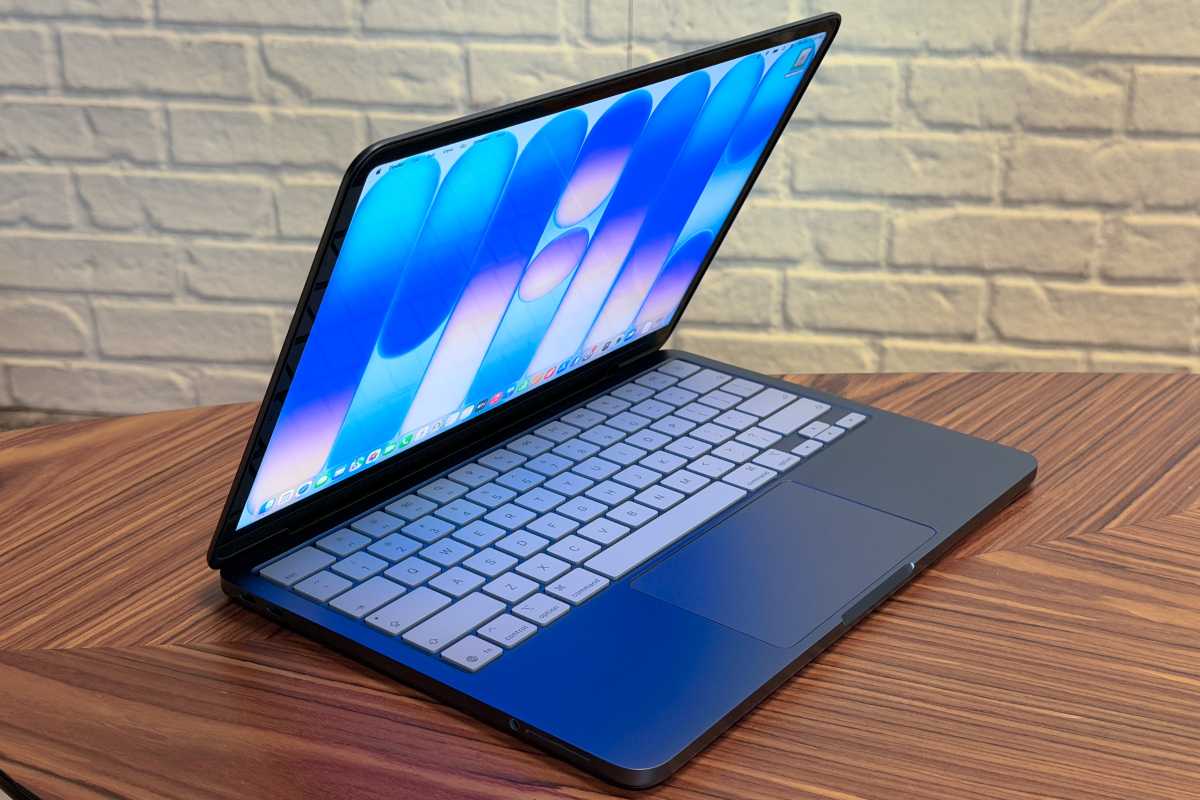
If you’ve ever wanted an early look at new versions of Apple’s operating systems before they officially launch – and maybe even help shape them in the process – Apple’s beta program is worth considering. It offers early access to headline features, interface redesigns, and new tools months before release.
The initiative isn’t limited to developers. Public beta testers can also try upcoming software updates before launch, helping Apple identify bugs and test new features before the operating systems are released to everyone. There are two beta tracks available: the Developer Beta, which offers the earliest access but carries the greatest risk, and the Public Beta, which is generally more stable and aimed at enthusiasts and general users.
Both beta programs are free to access and a paid developer account is no longer required. However, installing beta software should always be approached with caution. Betas can cause crashes, data loss, app compatibility issues, excessive battery drain, and other problems. For that reason, we recommend avoiding installation on a primary device and making a full backup beforehand in case you need to revert to the current public release.
Apple typically unveils the next generation of operating system updates for iPhone, Mac, iPad and Apple Watch at its Worldwide Developers Conference (WWDC) in June, with developer betas arriving shortly afterward and public betas following later in the summer, usually around the beginning of July. With WWDC scheduled for June 8, it will soon be possible to start testing the beta versions of iOS 27 and macOS 27.
In this article, we explain how to join Apple’s beta programs and install the latest test software – and help you decide whether running beta software is worth the risk.
What is Apple’s beta program?
Apple
Apple’s beta program is a voluntary initiative that allows users to test pre-release versions of operating systems and software before they are officially launched to the public. Its primary purpose is to help Apple identify bugs, performance issues, and usability concerns through feedback submitted via the built-in Feedback Assistant app. By participating, testers help improve the stability and quality of upcoming software releases.
The beta process does not end with the major September launch. Apple continues developing “point releases” – such as iOS 26.1 or 26.2 – throughout the year to introduce features that were not ready for the initial release. The company typically issues official software updates roughly every six weeks during an operating system’s lifecycle.
Smaller updates focused on bug fixes and security patches, such as iOS 26.3.1, are often developed and released more quickly. In urgent cases, these updates may bypass the standard beta cycle entirely and roll out directly to users.
Developer Beta vs Public Beta: What’s the difference?
Apple offers two beta tracks across platforms including iOS, iPadOS, macOS, watchOS, tvOS, and visionOS:
Developer Beta: Designed for software developers, this beta version allows early testing of app compatibility with upcoming system changes. Developer betas are released first, typically immediately after Apple’s WWDC keynote. Early access enables developers to prepare their apps for launch and integrate new technologies such as the Game Porting Toolkit 2 and AI-related frameworks.
Public Beta: Aimed at enthusiasts and early adopters, the public beta is usually released days or weeks after the developer beta, often around early July. It is generally more stable, as it includes fixes for major issues identified during the initial developer testing phase. Public beta users can try major updates and new features months before their official release.
FeatureDeveloper BetaPublic BetaRelease timing pre-launchThe first version is released immediately after Apple’s WWDC keynote in June. Apple then rolls out updates every one to two weeks, with releases becoming more frequent as launch approaches.The first public beta usually arrives in early July. Updates typically follow a day or two after the corresponding developer beta release.StabilityGenerally less stable, with more bugs, unfinished features, and performance issues. Early developer builds are primarily intended for testing.Usually more stable because it benefits from fixes identified during the developer beta phase, though bugs and occasional instability can still occur.Feature parityIncludes all features, including experimental APIs, developer tools, and frameworks. Some features may never reach the public beta.Typically includes the same major consumer-facing features, although some developer-focused tools or unfinished features may be delayed or excluded. Target audienceSoftware developers and advanced users testing app compatibility, APIs, and new frameworks ahead of release.Enthusiasts, early adopters, and general users interested in previewing upcoming features before the official launch.Are developer betas worth it?Worthwhile for developers or advanced testers who need immediate access for app development and compatibility testing.A better option for most people who want early access to new features with fewer bugs and a more reliable experience.
Is it safe to install Apple’s beta?
Installing beta software carries risks because it is unfinished by design and intended for testing. Bugs, performance issues, excessive battery drain, overheating, and even the possibility of “bricking” a device are all potential problems.
While anyone can sign up for Apple’s beta program, these pre-release versions are generally not recommended for primary devices or mission-critical data. For most users, the safest option is to wait for the official fall release, when the software is more polished, stable, and fully supported.
The Developer Beta is typically the least stable version, as it is released first and aimed primarily at app developers testing compatibility with new features and APIs.
The Public Beta is usually more reliable because it includes fixes identified during the earlier developer testing phase. However, it is still unfinished software and may contain significant bugs. For users eager to try new features early, the Public Beta is generally the safer choice, though anyone relying on their device for work, study, or everyday reliability is still better off waiting for the final public release.
Common issues reported with beta software include:
Battery drain and overheating: Early beta versions can significantly reduce battery life and cause devices to run hotter than usual during everyday use.
Performance issues: Users may experience lag, slowdowns, freezes, or general system instability.
App crashes: Third-party apps may not work properly or could crash frequently due to compatibility problems.
Bricked devices: A beta update can render a device unusable.
Data loss: Software bugs may corrupt files or force users to perform a factory reset, potentially erasing data.
Connectivity problems: Wi-Fi, Bluetooth, AirDrop, and syncing services can behave unpredictably or stop working altogether.
Higher hardware demands: Older devices may struggle with the performance requirements of unfinished, unoptimized software.
Security risks: Beta software can introduce new vulnerabilities or complicate the delivery of security updates.
Also note that Apple does not provide the same level of support for pre-release software as it does for public releases, which can increase security and stability risks.
How to join Apple’s beta program
It is simple to register and then set your device to accept beta updates.
Foundry
Joining Apple’s beta program is a relatively straightforward process, though the steps differ slightly depending on whether you want to enroll in the Public Beta or the Developer Beta.
How to join Apple’s Public Beta Program
The public beta is accessible to anyone with a valid Apple ID.
Sign in with your Apple ID and agree to the terms and conditions.
Select the operating system you want to test – such as iOS, iPadOS, or macOS – and follow the prompts to enroll your device.
Enable Updates:
On iPhone/iPad: Go to Settings > General > Software Update > Beta Updates and select the Public Beta.
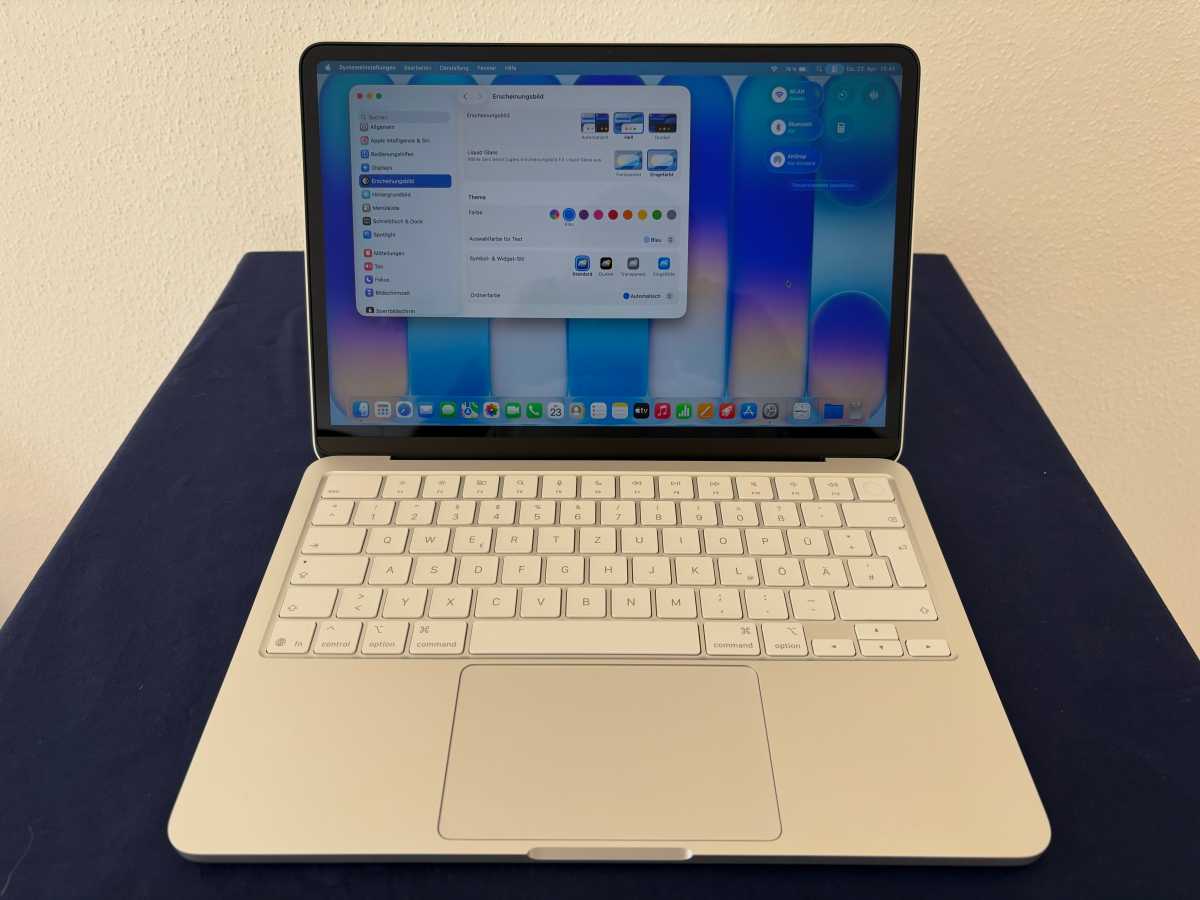
On Mac: Go to System Settings > General > Software Update. Click the information (i) icon next to Beta Updates and choose the Public Beta.
How to join Apple’s Developer Beta Program
Apple now allows anyone with a free developer account to access developer beta builds.
To get a free developer account download the Apple Developer app from the App Store. Tap on Account, select Sign In, and use your standard Apple ID.
Follow the on-screen prompts within the app or on the Apple Developer website to complete the free registration process.
Once registered, enable developer beta updates through your device settings:
On iPhone or iPad: Go to Settings > General > Software Update > Beta Updates and select the Developer Beta.
On Mac: Go to System Settings > General > Software Update, click the information (i) icon next to Beta Updates, and choose the Developer Beta.
Is Apple’s beta program free?
Joining Apple’s beta program is free. While access to the developer beta was previously restricted to those paying a $99/£79 annual fee to join the Apple Developer Program, Apple opened access in 2023 to anyone with a free Apple developer account.
Do you get paid for being an Apple beta tester?
No. This is strictly a voluntary pursuit.
What to do before you install a beta
Before you begin, backup!
Foundry
If you decide to install a beta, it is important to take precautions to protect your data and ensure you can return to a stable version if necessary.
We advise that you:
Use a secondary device: Avoid installing beta software on your primary iPhone, iPad, or work computer. If possible, use an older or spare device instead.
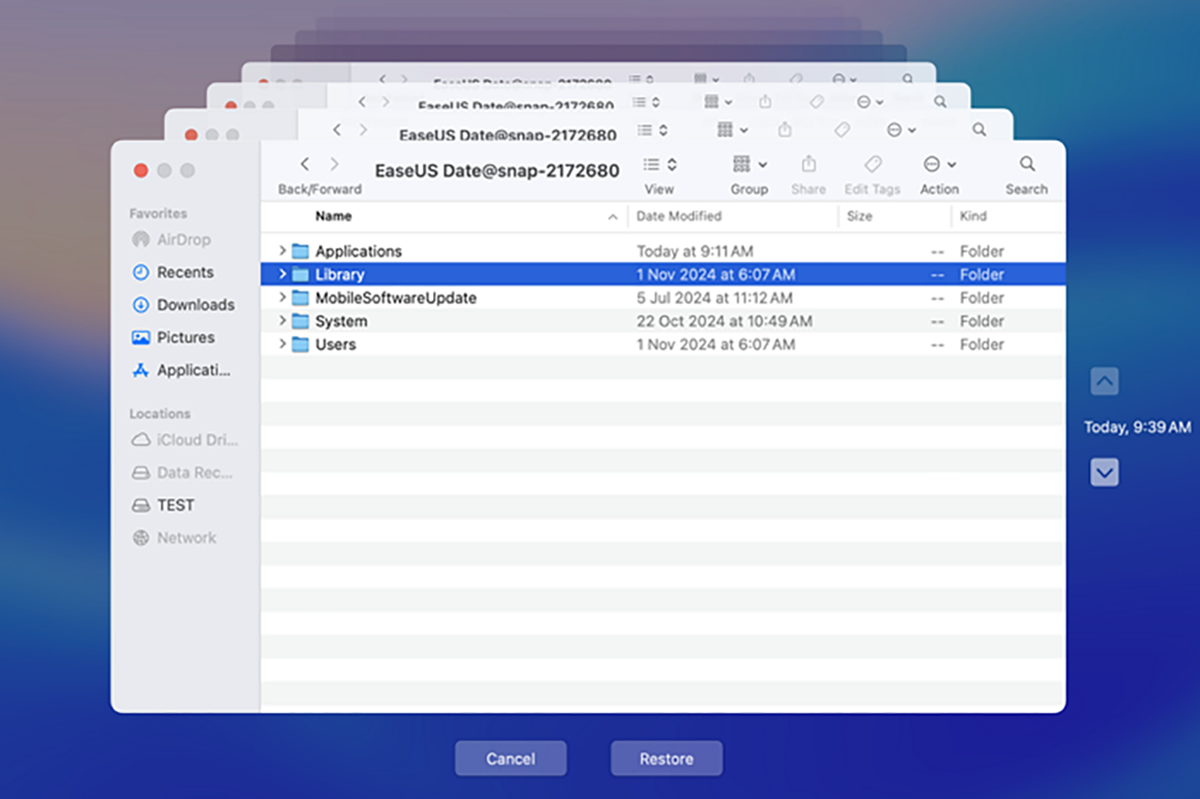
Create a full backup: Back up your device before installing the beta so you can restore your data if something goes wrong. Mac users should use Time Machine, while iPhone and iPad users should create an archived backup on a computer.
Consider a separate installation on Mac: Installing the beta on a separate volume, partition, or external SSD allows you to test the software without affecting your main system or files.
Check available storage: Ensure you have at least 15GB of free space, as beta installers can be large and insufficient storage may cause installation failures.
Backups are especially important because downgrading from a beta often requires completely erasing the drive. Mac users should note that restoring from a Time Machine backup created on a newer beta version of macOS may reinstall that same version rather than reverting to the older OS.
What do Apple beta testers have to do?
Test that your apps work on the upcoming Apple software.
Foundry
Apple beta testers are volunteers who help Apple refine its software before public release. Their primary role is to use pre-release software in everyday scenarios and report any issues they encounter.
Beta testers help Apple identify bugs, improve performance and stability, evaluate new features, and refine the overall user experience before the software’s official release.
Key responsibilities include:
Reporting bugs: Testers use the Feedback Assistant app to submit detailed reports about glitches, crashes, and other “behavioral anomalies” that may not surface during internal testing.
Providing user interface feedback: Testers share insights about confusing design choices, interface inconsistencies, or usability issues.
Testing app compatibility: Testers check whether third-party apps function properly on the new operating system and report compatibility problems.
Submitting diagnostics: Feedback Assistant may collect app crashes and error logs, screenshots, and diagnostic data to help Apple engineers reproduce and resolve issues.
Evaluating performance and stability: Testers monitor system responsiveness, battery life, and reliability across different beta versions.
Reviewing new features: Public beta participants help Apple understand how new features perform in real-world use and how users respond to them.
Testing hardware compatibility: Beta software is often tested across different Mac, iPhone, and iPad models to ensure compatibility with current and upcoming hardware hardware features.
Confidentiality
Participants in the Apple Beta Software Program are bound by a non-disclosure agreement (NDA), which prohibits testers from sharing information about pre-release software with anyone outside the program.
Users must agree to the NDA before accessing beta software. Under the agreement, testers are generally prohibited from publicly discussing the software, posting screenshots, or demonstrating unreleased features.
How to install the beta
Karen Kahn / Foundry
If you want to run the developer or public beta on your device, we have in-depth guides: How to get the macOS beta and How to get the iOS beta for more advice and details of the latest beta version. Here are some at-a-glance instructions.
To install the iOS or iPadOS beta:
Back up your device to ensure your data is safe.
Open the Settings app and navigate to General > Software Update.
Tap on Beta Updates (this may take a few moments to appear after registration).
Select either the iOS Public Beta or iOS Developer Beta.
Return to the main Software Update screen and follow the prompts to download and install the update.
To install the macOS beta:
Back up your Mac.
Go to System Settings > General > Software Update.
Click the (i) info button next to Beta Updates.
Choose the desired beta version (e.g., macOS Tahoe Public Beta) and click Done.
The beta should then appear as an available upgrade; click Upgrade Now to begin the process.
To install the watchOS beta:
Open the Watch app on your paired iPhone.
Select General > Software Update.
Tap Beta Updates and select the watchOS Developer Beta or watchOS Public Beta.
To install the HomePod beta:
Open the Home app on your iPhone.
Go to Home Settings > Software Update.
Select HomePod Beta Updates.
Choose the HomePod mini or HomePod (2nd generation) you want to install the beta on.
How to uninstall the beta
The process for uninstalling beta software depends on your device and whether the final version of the software has already been released.
Once Apple releases the final version of the software, leaving the beta program is relatively simple. You can stop receiving beta updates by disabling them in your settings, and the next available public release will install automatically when it becomes available. For more information, visit Apple’s Unenroll page.
Before the final release, however, reverting to a stable version often requires wiping the device and performing a clean installation of the latest public version of the operating system. Unless your data has been backed up in a compatible format, you may lose any data created while using the beta.
In general, removing a beta is more complicated than installing one, especially if you want to downgrade to an older stable version, which may require a full device reset.
For iPhone and iPad users, the method varies based on your current goal:
To stop receiving future beta updates: If you want to stay on your current version but receive only official public updates moving forward, go to Settings > General > Software Update > Beta Updates and select Off.
To revert to a stable version (Before the final release): If you are running a beta (like the iOS 27 beta) and want to go back to the previous stable version (like iOS 26), you must completely wipe your device and reinstall the official software.
To switch to the final version (After release): Once the official version of the software is launched, you can simply turn off “Beta Updates” in your settings. Your device will then prompt you to install the official non-beta update when it becomes available.
For Mac users, removing a macOS beta, follows a similar logic to iOS but involves different system tools:
Leave the Beta Program: Navigate to System Settings > General > Software Update and click the “i” next to Beta updates to turn them off.
Wipe and Reinstall: To immediately revert to a previous version, you must erase your Mac. You can use the Erase All Content and Settings option in System Settings, then use macOS Recovery to reinstall the stable OS.
Restore Data: After reinstalling the stable OS, you can use Migration Assistant to import your data from a backup made before you installed the beta.
One of the best things you can get these days to ensure your phone survives the day is a power bank. Tiny, compact, and full of power, this Baseus Picogo MagSafe portable charger is nearly 45 percent off right now, bringing the price down to under $40 at Amazon. The price on the page ($42.49) isn’t quite that low, but you’ll get an extra 5 percent off applied at checkout. And some accounts will be able to apply an extra 10 percent code (MEX907A5PD2D) as well.
But whether it’s $40 or $38, you’re getting a fantastic power bank at a fantastic price. It’s so tiny and light, and you’ll barely feel it attached to the back of your phone. The 10,000mAh capacity means you get to recharge your phone about twice over. With 15W max Qi wireless charging, your phone will be back in working order in no time. If you want an even faster charging session, there’s a USB-C port that can deliver 27W of power, but you’ll need to carry a cable with you. We really loved how fast our phones recharged while using this PicoGo model when we reviewed it, giving it a 4-star rating.
Grab this 10,000mAh Baseus Picogo for $30 off while this deal’s still live, and never worry about how much charge your iPhone has left again.
The ultra-thin iPhone Air definitely caught everyone’s attention when it was unveiled last September. It’s the thinnest iPhone ever made, and it gave us a clear glimpse into the future of smartphones. When the new iPhones hit shelves on September 19, everyone was talking about the iPhone Air.
Months later, the reality is that very few people seem to have chosen the iPhone Air over its siblings. People who own it sing its praises, it’s one of the few iPhones to get a no-strings discount, and its design has been hailed as one of Apple’s best. So why hasn’t it been as successful as the other models?
Perception vs perspective
There’s no denying that the iPhone Air is a truly impressive device. Although my daily driver is an iPhone 17 Pro Max, I’ve had the chance to spend some time with the iPhone Air on a few occasions (most recently at an Apple event), and every time I hold it in my hands, I’m amazed by how thin and light it is.
We’re talking about a phone that’s just 5.64 millimeters thick and weighs only 165 grams. By comparison, the 17 Pro Max is 3 millimeters thicker and weighs 233 grams. It’s impossible not to feel the difference.
The design of the iPhone Air is undeniably impressive.
Foundry
The Air is also stunning. The combination of its ultra-slim design and shiny titanium frame screams luxury. Yet, sales of the iPhone Air are far from being a huge success.
Apple itself doesn’t provide details on sales figures for each iPhone model. But during a call with investors last month, both Apple CEO Tim Cook and Apple CFO Kevan Parekh revealed that the iPhone 17 lineup is the most popular in history.
A Chinese leaker known as “Digital Chat Station” recently shared a report providing some insight into iPhone Air sales, and the numbers aren’t encouraging. According to the report, Apple has been struggling to surpass the 1 million mark for iPhone Air units shipped. So far, the company has reportedly sold around 700,000 units of its thinnest iPhone yet, a shockingly low number for a company that moves some 250 million handsets each year.
Dreams vs reality
I’ve always dreamed of an ultra-thin phone. To me, a phone of the future would be a device with an edge-to-edge display that’s thinner than the iPhone 6. The iPhone Air is, in a way, the closest Apple has ever gotten to that vision.
Many people I know want the same thing: thinner, lighter phones. After all, as smartphones have become more powerful, they’ve also become larger, thicker, and heavier. But the overall failure of the iPhone Air has posed a question: Do people prioritize design over functionality, or the other way around?
Once again, the iPhone Air is impressive. But once you actually start spending time with it, you realize its limitations.
The iPhone Air’s single camera is one of its biggest hurdles.
Britta O’Boyle / Foundry
Because it’s so thin, Apple was only able to fit a single rear camera on the iPhone Air. You can’t take ultra-wide or long-range zoom photos with it. That’s not a problem for people who are not into taking photos, but chances are you’ll eventually miss having extra angles for your shots.
The battery is also an issue. After all, there’s no way to fit a huge battery inside an ultra-thin phone. Although Apple claims that the iPhone Air lasts a full day on a single charge, the reality is that this only applies when you’re using your phone for basic tasks. People who work more intensively with their phones end up having to recharge the iPhone Air twice a day.
Also, there are a few other minor limitations, such as the Air having a mono speaker and lacking the vapor chamber found in the iPhone 17 Pro models, which allows the phone to run cooler for longer.
Given the poor sales of the iPhone Air and other thin phones, such as the Galaxy Edge, it seems that people still prefer functionality over design, or at least a balance between the two. Buyers aren’t willing to give up features for a fancy form factor in 2026.
Want vs need
These limitations aren’t a problem for everyone. There are people who really just want a smartphone to do basic things like send messages or browse the web. For those people, an iPhone Air works just fine.
But things get tricky when you start comparing the iPhone Air to the rest of the lineup. Despite all its hardware limitations, the Air starts at $999. That’s only $100 less than the iPhone 17 Pro, which has two extra cameras and a much larger battery.
The iPhone Air’s design makes it significantly more expensive than the base iPhone 17.
Eugen Wegmann
Or, if you’re looking for something a bit more affordable, you can get the base iPhone 17 for just $799. For that price, you’re getting a phone with a 120Hz display, two rear cameras, and longer battery life. Plus, the iPhone 17 weighs just 12 grams more than the iPhone Air.
This makes the iPhone Air seem out of place in the lineup. It’s priced similarly to a Pro model, but offers fewer features than the base iPhone.
Giving up certain features is to be expected when you’re buying an entry-level phone like the iPhone 17e, which also has a single rear camera but costs $599 (and still has a larger battery than the iPhone Air). But with the Air, you’re essentially paying more just to get a thinner phone.
When you weigh the price against everything you’ll be missing out on, the iPhone Air becomes hard to justify.
Is there a future for the iPhone Air?
While the iPhone Air represents the future of smartphone design, the future of the iPhone Air itself is now unclear. If the latest reports are accurate, Apple may be rethinking the Air strategy, and it’s easy to see why.
For years, people said they wanted thinner, lighter phones. Apple delivered exactly that. But in doing so, it also exposed an uncomfortable truth: thinness alone isn’t enough anymore.
The fate of the iPhone Air is uncertain due to its underwhelming sales.
Eugen Wegmann
Many people now rely on smartphones as more than just communication tools, so compromising on things such as battery life or camera quality is simply out of the question. The iPhone Air asks users to prioritize form over function. And while that sounds appealing in theory, it’s a much harder sell in practice, especially at this price point.
Could Apple fix this in the future? Maybe. More advanced technologies could help Apple fit a larger battery or better cameras into its ultra-thin iPhone, or the company could simply make the Air slightly thicker so that it can pack more technology inside.
The iPhone Air is the dream phone. It’s the kind of device that gets people excited, that reminds us of how far technology has come. But when it comes time to actually spend $999, most people wake up from that dream and choose something more practical.
The Macalope has an idea for a new reality TV series: “AI Makeover”. No, it’s not using AI to give our nation’s millions of ugly teenagers much-needed makeovers. It is instead a panel of PR experts advising AI companies how to repair their reputations as garbage companies that product garbage products and turn everything they touch into garbage.
You’d think they’d be doing this themselves, employing crack teams of PR hotshots to make nice with the public and try to represent themselves as just humble purveyors of the kind of technology people want to buy but, as the Musk v. Altman trial clearly shows, they are not.
Almost nobody in this saga seems worth trusting. Some of the most powerful people in tech seem temperamentally incapable of dealing with each other honestly. And if that’s true, it raises a bigger question: Why are they in control of a trillion-dollar industry that’s set to upend people’s lives?
This is exactly what the Macalope has been saying. The problem with AI is not a technological one. It’s a perfectly fine technology when used in the right contexts. No, the problem is that it’s run by people who are trying to will it into a new gold rush so badly that they’re fighting over the gold before anyone’s even made a profit.
Or maybe the infighting is because it’s becoming a real question as to whether or not anyone really wants this stuff. Just look at the headlines.
Seven in 10 Americans oppose constructing data centers for artificial intelligence in their local area, including nearly half, 48%, who are strongly opposed. Barely a quarter favor these projects, with 7% strongly in favor.
In response to this, Ben Thompson suggests (subscription link) AI companies just pay locals in order to offset the costs associated.
It’s at least a better solution than just trying to jam them in, but just allow the Macalope to suggest that if an AI company rolls up to your town hall meeting and says it’ll pay you to put in a data center and you go for it despite all the warning signs, you’d better be darn sure to get the money up front. Just ask Wisconsinites if they’re happy with how the state’s deal with Foxconn went. Answer: It went so badly that they jumped at the chance to have Microsoft put a data center in the empty Foxconn facility, even though we just established that everyone hates data centers.
It’s like nobody ever saw the monorail episode of “The Simpsons”.
If you’d like to receive regular news and updates to your inbox, sign up for our newsletters, including The Macalope and Apple Breakfast, David Price’s weekly, bite-sized roundup of all the latest Apple news and rumors.
Foundry
But the Macalope isn’t sure these are the kinds of people you should do business with. Remember, these are people who have already stolen copyrighted content and when confronted with this fact whine “But if we can’t steal it, we can’t make AI!”
Um… yeah.
“If you don’t let us crush the blood and bones of your children into a slurry in our vast rendering facilities that will be housed in your hometowns and, yes, may run off into your drinking water, how are we going to make Kinderslop, the human nutrition product of the future?!”
Maybe don’t! How about that?!
Getting paid to have a data center in your town might sound kind of like a good deal, but Elon Musk is sadly emblematic of the kinds of people who run AI companies. Do we really need to go back and review the number of things he’s promised over the years that he has not delivered on? The Macalope has never been told he has a word limit on this column but he suspects that would be a way to find out. Again, if Musk wants to pay you to put a data center in your town, make him hand you the money in cash, up front and then get into a car and be driving away at top speed before you sign the deal electronically.
Okay, the Macalope has been hard on AI executives, but he has some good news for them. If you’re an AI exec and you’re worried about that Gallup poll and the potential negative effects of future Gallup polls on your business, it may not be an issue for much longer.
One emerging approach uses AI-generated agents to create “simulated” responses that are designed to simulate how individuals and populations might answer survey questions.
Just… wow.
This sadly on-brand for Gallup which recently said it would stop one particular kind of polling after 88 years, most likely because one person in particular didn’t like the results it was getting.
Certainly, nothing could go wrong in a poll on AI created using AI-simulated responses because it’s not like AI has ever taken drastic action if it felt threatened!
[Anthropic] also acknowledged the AI model was capable of “extreme actions” if it thought its “self-preservation” was threatened.
So weird that AI has an image problem. Just inexplicable.
This brings the Macalope (finally) to an Apple-related point. For more than a year, people have been lambasting the company for making AI promises it didn’t deliver on, and, sure, it shouldn’t make promises it can’t keep. But maybe not delivering more AI into our lives is more of a feature than a bug.
USB-C and its Thunderbolt variant are the most up-to-date standards of the USB connector. They allow data-transfer speeds of up to 80Gbps, can fast-charge devices up to 240W, and conveniently fit in a port either way up—which means that you can wave bye-bye to the age-old USB guessing game of “Which way does it go in?”.
USB-C is no one-trick pony—handling data transfer, video output and power input. You’ll find faster variants of USB-C (called Thunderbolt 3, 4 or 5) on Macs. Each version of Thunderbolt is backwards compatible with USB-C so the adapters reviewed here will all work with modern Macs—from the MacBooks Neo, Air and Pro, through to the desktop iMac, Mac mini and Studio. USB-C’s 5-10Gbps speeds will limit some of Thunderbolt’s more impressive 40 to 80Gbps potential but for most people even 5Gbps is fast enough. If super-fast data transfer is one of your requirements, a number of hubs reviewed below do use Thunderbolt or 40Gbps USB4. Find out more in our Thunderbolt 5 vs Thunderbolt 4 vs Thunderbolt 3 comparison and also our chart at the end showing all the ports of Apple’s recent Macs.
Apple
In general, an “adapter” works with a single port (such as USB-A or Ethernet) while a “hub” gives you multiple ports. If you require even more, then look for a “docking station” or “dock“. Docks usually come with their own power supply, while hubs require a separate USB-C charger if you need a power source. If you’re after a full desktop setup for your MacBook, look out for our recommendations for the best USB-C and Thunderbolt docking stations for MacBooks.
Apple sells its own range of USB-C adapters to HDMI, VGA and more, but they are overpriced and underpowered compared to the premium USB-C hubs and adapters we have reviewed here. We haven’t included the many much cheaper but lower-quality versions you can find online as we recommend only from trusted and tested makers.
Look for each hub’s video capability for connecting to external displays. Most support only one monitor, but some offer two—note that more than two usually requires an extra software install.
Passthrough power will likely also be of interest to MacBook users. 60W Power Delivery (PD) will work even for the 16-inch MacBook Pro (just), but more watts equals a faster charge.
Note that the ports on the MacBook Neo are USB-C and only one of them is properly data-ready at 10Gbps, with the other just for charging. Read more on how the MacBook Neo’s USB-C ports are different. As it has just one data port, a USB-C hub becomes a must for expanding the Neo’s potential—read our roundup of the best MacBook Neo accessories.
Below the list of our favorite USB hubs and adapters, we describe the types of ports you might require from a hub and what to look for in each.
This 9-in-1 hub is bristling with top-end ports and—with an unrivaled 125W of laptop passthrough power—is a great match for larger laptops.
A seven-inch cable connects the hub to your MacBook at 10Gbps and a possible 125W passthrough charging when the hub is connected to a powerful enough USB-C charger—that’s the highest passthrough charging we’ve seen in a USB-C hub. Total power output from the hub to laptop and devices is 140W.
There’s one dedicated 10Gbps USB-C data port, HDMI 2.0 port with 4K 60Hz support, and both SD and MicroSD card readers at fast UHS-II media-transfer speeds. If you need to attach legacy devices there are two USB-A ports, also at 10Gbps. One of these can drive 7.5W of power to the connected device. There’s also a much slower 480Mbps USB 2.0 port that good for a memory stick or mouse/keyboard.
With its extra USB-A port and faster SD card readers, the 9-in-1 Plugable USB-C Hub beats our long-time USB-C hub champ, the Anker 555 8-in-1 USB-C Hub, reviewed below. If you prefer DisplayPort to HDMI the Anker 565 should be considered even with its slower card readers.
Plugable has recently released an even more capable version, the 10-port USBC-10IN1E, reviewed below. that is very similar to the 9-port hub but with 2.5Gb Ethernet and support for a single external display at up to 8K/30Hz, with the option of 4K/144Hz. Choose this model if you need the more pro-level ports, but it’s still a 10Gbps hub. Keep reading if you need a 40Gbps hub.
Price When Reviewed:
$249.95
Best Prices Today:
Retailer
Price
Check on Amazon
Price comparison from over 24,000 stores worldwide
Product
Price
Price comparison from Backmarket
9 Ports: 4x Thunderbolt 5, 2x USB-C, 3x USB-A
Monitors: Up to 4x 6K/60Hz (M5 Max); 2x 6K/60Hz (M4/M5, M1/M2/M3 Pro/Max)
Passthrough power: 90W
USB-C speed to Mac: 80Gbps
Thunderbolt is USB-C on steroids, and Thunderbolt 5 is the latest, fastest and most capable version. Only the most recent top-level Macs have Thunderbolt 5 but it’s backwards compatible all the way back to USB-C so even the MacBook Neo can use it although only at its own 10Gbps bandwidth. Thunderbolt 3 and 4 Macs will be pegged back to 40Gbps, but the CalDigit Element 5 Hub is easily the fastest hub we’ve tested.
Measuring just 4.5 x 2.75 x 1 inches (114 x 70 x 25mm) and weighing a mere 7oz (200g) this hub is dwarfed by the Thunderbolt docking stations but is still a match for them if you add a few inexpensive adapters such as an Ethernet adapter or card reader, for example.
It can connect up to dual 6K or 8K/60Hz extended displays on Macs with dual display support over its single Thunderbolt connection. On M5 Pro the Element 5 Hub can support up to three extended displays and on M5 Max it can support up to four extended displays.
More of a mini dock than a hub and priced much higher than the more standard USB-C hubs reviewed here, it’s the ultimate hub but may be overkill for your requirements.m
The Anker 555 USB-C 8-in-1 Hub is compact and powerful, offering greater specs than some of the other leading options on this list. It’s one of two similar USB-C hubs from the company, and we start with the best-value option.
The 555 offers two USB-C ports—one that supports 85W USB-C Power Delivery, while another supports data transfers up to 10Gbps. You also get speedy 10Gbps transfer rates through two additional USB-A ports, where many rivals max out at 5Gbps.
The Anker 555 is special as it offers an HDMI port that supports 4K 60Hz resolutions, where most are limited to 4K 30Hz. For 4K 60Hz resolution, your device must support DP 1.4. This includes MacBook Neo, MacBook Air (from 2020), and MacBook Pro (from 2018) and iPad Pro (from 2018).
Also included are SD and MicroSD card reader slots. These are rated at UHS-I (104MBps) so not the fastest. If you transfer a lot of data via SD cards, look for a hub with faster UHS-II (312MBps).
The Gigabit Ethernet port is great for those times when Wi-Fi just won’t do.
It’s also incredibly light at just under 4.5oz (130g) and compact so you can take it anywhere. At $49.99 / £79.99 it’s hard to deny this hub’s value for money. In our experience, it does get warm with use but Anker says this is normal.
Anker
The higher-end $69.99 / £89.99 Anker 565 USB-C Hub, shown above, is as fast at 10Gbps plus offers eleven ports instead of the 555’s mere eight, and is equally lightweight at 4.8oz (136g). The extra ports are one USB-A and an audio jack, which isn’t a remarkable boost—but it does include a top-end DisplayPort 1.4 video connection as well as HDMI so offers greater video flexibility. If the inclusion of a native DisplayPort is important to you, then the 565 is a better solution (read our full Anker 565 11-in-1 USB-C Hub review) than maybe even the Plugable 9-in-1 reviewed above.
Uniquely round and magnetic with a coiled USB-C cable, the Satechi OntheGo 7-in-1 calls itself a “Multiport Adapter” but it’s really a hub, boasting seven ports, alongside its integrated 10Gbps USB-C cable. None of the ports are at the very top-end pro level but they are capable enough for most users and with a 2.55-inch (6.5cm) diameter and weighing 2.4oz (68g) it is easily pocketable.
It will clamp to the back of an iPhone—iPhone 15 or later to take advantage of the USB-C—or any surface using the included magnetic 3M Adhesive Ring.
Ugreen 4-in-1 USB 3.0 Hub – Best budget hub for multiple USB-A ports
Pros
Inexpensive
Four 5Gbps USB-A ports
10W device charger
Two cable length options
Cons
Limited to USB-A ports
No passthrough charge to host
Price When Reviewed:
$15.99
Best Prices Today:
Retailer
Price
$9.98
View Deal
$14.99
View Deal
Price comparison from over 24,000 stores worldwide
Product
Price
Price comparison from Backmarket
5 Ports: 1x USB-C, 4x USB-A
USB-C speed to Mac: 5Gbps
If all you need from an adapter is the ability to connect a bunch of legacy USB-A devices to your MacBook, this simple adapter should do the trick.
The Ugreen USB-C 4-port hub is a slim and inexpensive adapter that allows you to add four full-size USB 3.0 ports that can handle data transfer at up to 5Gbps. It has recently been upgraded to feature a further USB-C port that can supply a 10W charge for connected devices, but not the host computer. While all four ports can be used simultaneously, a maximum of two hard drives can be connected at one time.
It looks the part with most modern MacBooks, and is an easy way to connect memory sticks, a printer or other older devices that don’t come with USB-C. It is available with either a short 0.5-foot or 2-foot integrated cable.
Anker USB-C to USB-A Adapter – Best simple USB-C to USB-A adapter
Pros
Simple USB-A adapter
Small
2-pack
Cons
Just the one port
Price When Reviewed:
$15.99
Best Prices Today:
Retailer
Price
$8.98
View Deal
Price comparison from over 24,000 stores worldwide
Product
Price
Price comparison from Backmarket
1 Port: 1x USB-C to USB-A
USB-C speed to Mac: 5Gbps
There’s a misconception that USB-C is an inconvenience for people with a bunch of devices still reliant on legacy USB-A, hence the existence of little adapters like this one from Anker. Products like this are there to help us bridge the gap.
This cute little adapter is simply to allow you to plug in one standard USB-A device or cable at a time, great for using a USB stick, for example. Just don’t misplace it—it’s tiny. If you do lose it, don’t worry as this is sold in a two-pack!
EZQuest USB 4 Dual Display 8-in-1 Hub (Pro Series) – Best native USB-C hub for dual Mac screens
Pros
Two 4K monitors at 60Hz
No extra software required
8x USB-C ports, inc 3x USB4
Cons
Passthrough power only 77W
Price When Reviewed:
$149.99
Best Prices Today:
Retailer
Price
$119.99
View Deal
$119.99
View Deal
EZQuest
$149.99
View Deal
Price comparison from over 24,000 stores worldwide
Product
Price
Price comparison from Backmarket
There are many USB-C hubs with more than one HDMI port but most are restricted to Mirrored Mode (where all external screens show the same image as on the MacBook) or in only partially Extended Mode (where the external displays show a different image to the MacBook but are the same themselves). That’s a Mac limitation only, not the fault of the hubs themselves, which work fine for Windows. Blame Apple.
The EZQuest 8-in-1 Hub is built on Intel’s JHL8140 USB4 chipset that makes a hub-based two-display setup a plug-and-play solution for Mac users. You can connect an 8K monitor at 30Hz or two 4K displays at 60Hz—with no need to install third-party software.
The Satechi Pro Hub Max Adapter, reviewed below, can also support two displays natively but uses two of the MacBook’s Thunderbolt ports to achieve this. The EZQuest is the only single USB-C connection to do this without DisplayLink.
One non-data USB-C port supplies up to 100W to the hub, which distributes it as 77W to the connected laptop and 23W shared between the ports. Other hubs reviewed here offer greater passthrough to your MacBook but 77W should be enough to keep even the MacBook Pro humming while you work.
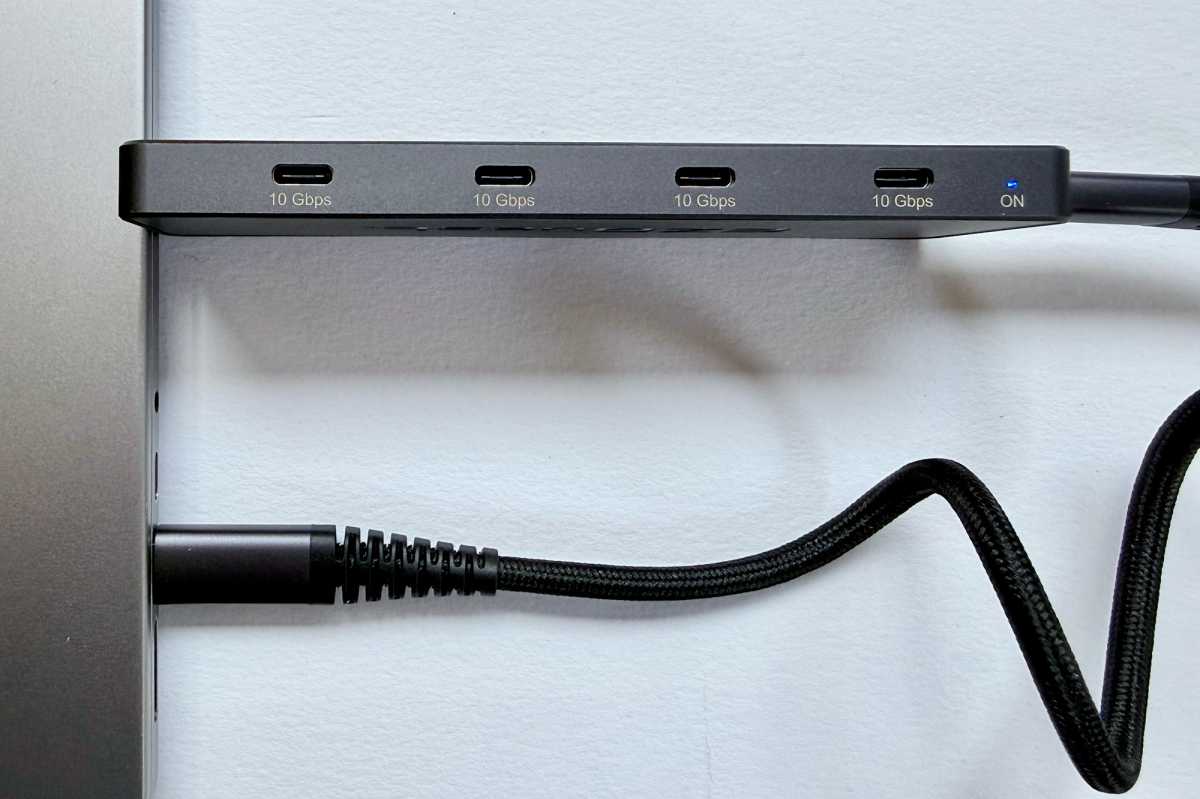
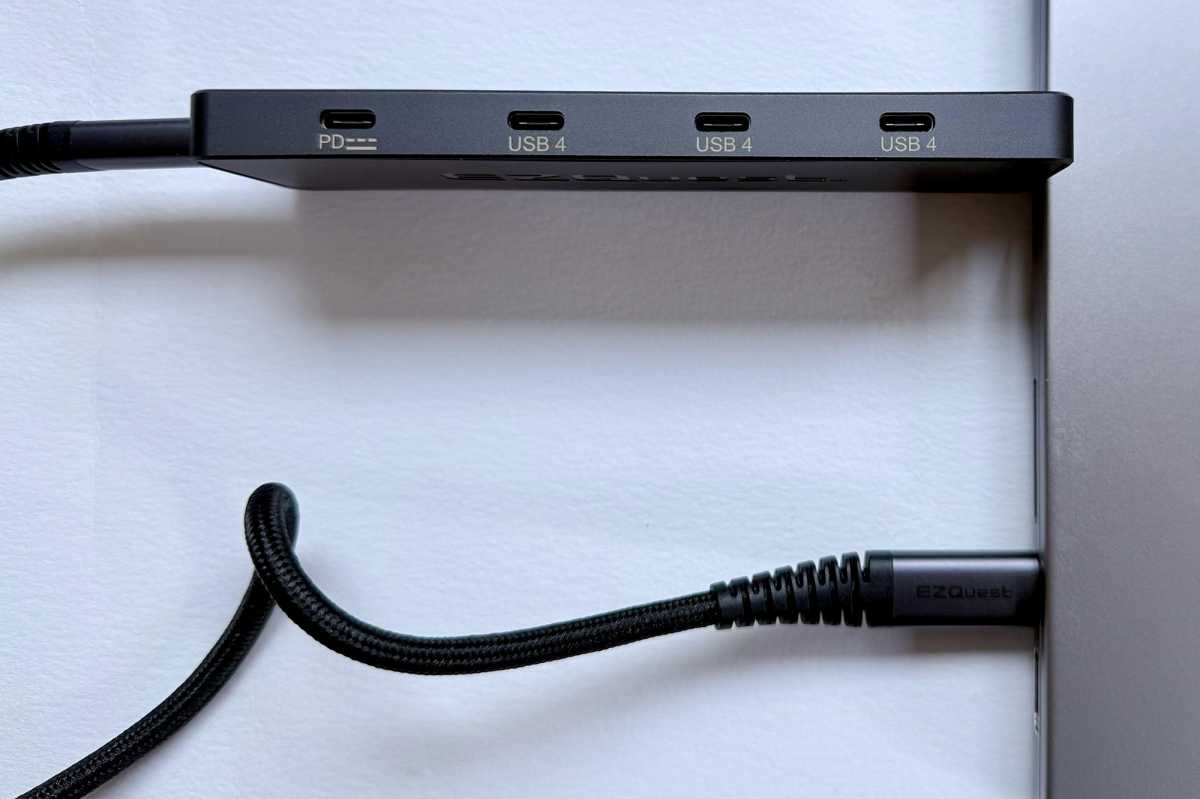
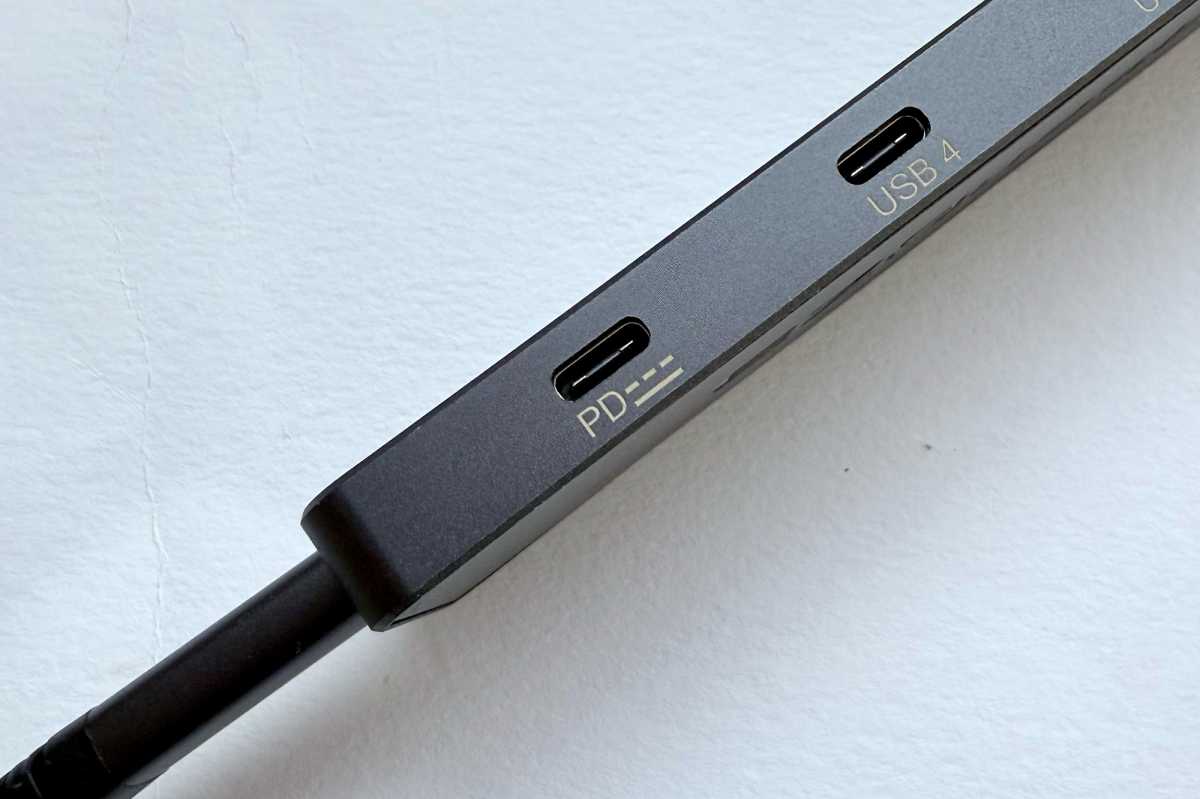
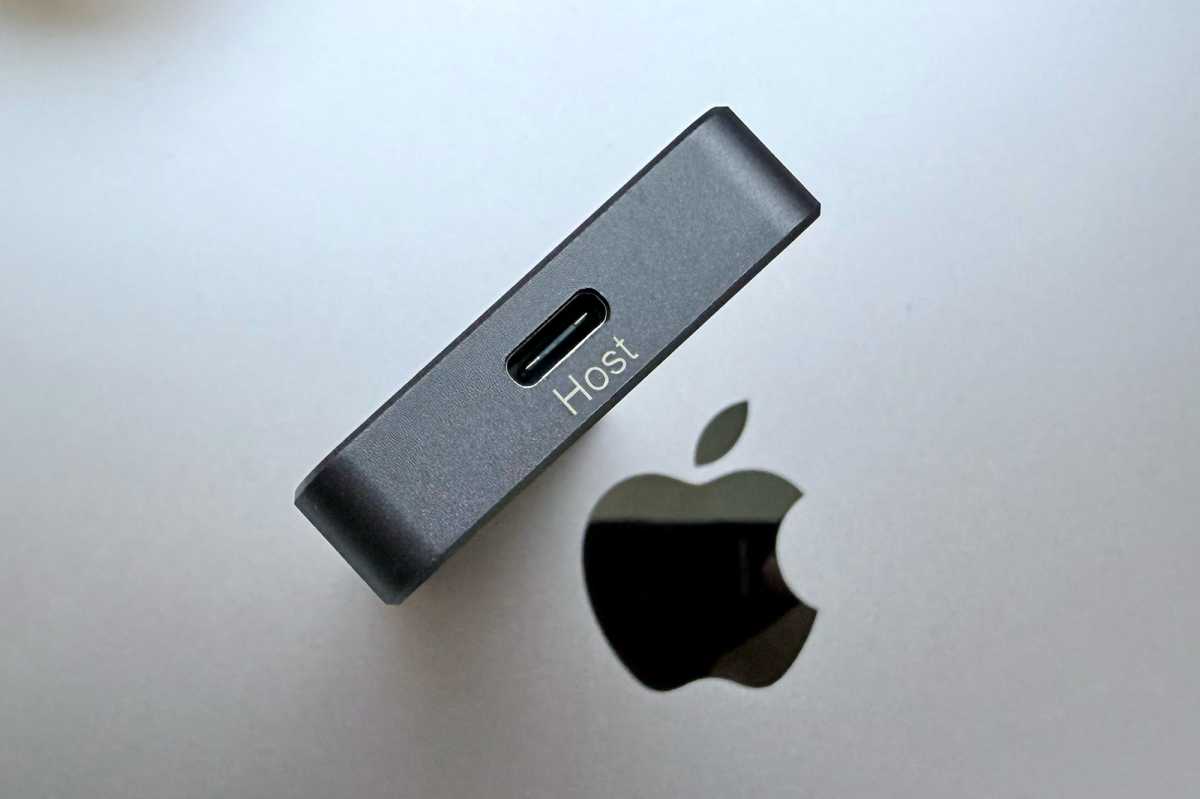
Even using two of the USB4 ports for displays, the hub has five more 10Gbps data ports spare to connect other devices. That’s the same as you get from EZQuest’s Slim Gen 2 Hub Adapter 6-in-1 (5x 10Gbps USB-C and one PD), which is reviewed below. If you require just one 4K/60Hz display and a bunch of fast USB-C ports this $79 hub might be all you need, but if two displays is in your dreams, go for the 8-in-1.
Base-level M1 and M2 Macs plus the MacBook Neo are sadly hampered by a single-screen limitation. The EZQuest 8-in-1 Hub can’t help these users, who will need to install special DisplayLink or InstantView drivers to support more than one external display; see the Plugable HDMI Adapters reviewed below.
Plugable USB-C Quad 4K HDMI Adapter – Best DisplayLink USB-C hub for up to 4 Mac screens
Pros
Four 4K monitors at 60Hz
100W passthrough charging
Works with even M1/M2 MacBooks
Cons
No other ports
Price When Reviewed:
$124.95
Best Prices Today:
Retailer
Price
$179.95
View Deal
$179.95
View Deal
$179.95
View Deal
$179.95
View Deal
Price comparison from over 24,000 stores worldwide
Product
Price
Price comparison from Backmarket
5 Ports: 4x HDMI, 1x USB-C passthrough charging
Monitors: Up to 4x 4K/60Hz using DisplayLink software
Passthrough power: 100W
USB-C speed to Mac: 5Gbps
Using DisplayLink software—a simple download—the Plugable USB-C Quad 4K HDMI Adapter (USBC-7400H) can support four 4K external displays, all showing a different image to the MacBook and each other—so full Extended Mode, and even on lowly M1/M2 Macs. It also features 100W passthrough USB-C charging. See below this list of hub recommendations for a graphic showing the differences between Mirrored and Extended Modes on the Mac.
Plugable
If you need only two external displays in full Extended Mode, the $89.95 / £109.95 Plugable USB-C Dual HDMI Adapter (USBC-6950M) shown above features two HDMI ports but no passthrough charging.
Satechi Pro Hub Slim Adapter – Best 40Gbps USB4 hub for Mac
Pros
USB4
40Gbps data transfer
7 ports inc 4K/60Hz display HDMI
Cons
Uses two MacBook ports
No device charging from USB-A and USB-C ports
UHS-I card readers
Price When Reviewed:
$79.99
Best Prices Today:
Retailer
Price
$79.99
View Deal
Satechi
$79.99
View Deal
Price comparison from over 24,000 stores worldwide
Product
Price
Price comparison from Backmarket
Monitors: 1x 6K/60Hz via USB4 and 1x 4K/60Hz via HDMI
Passthrough power: 100W
USB-C speed to Mac: 40Gbps
All of the portable USB-C hubs reviewed here are compatible with the Mac’s Thunderbolt 3, 4 and 5 ports, but most feature slower USB-C connections (5Gbps or 10Gbps) compared to Thunderbolt (40Gbps for TB3 and TB4, and 80Gbps with TB5).
The $79.99 Pro Hub Slim, available in either Silver, Space Gray or Midnight, requires a MacBook with two adjacent Thunderbolt ports on one side, but offers 40Gbps bandwidth via its USB4 port. You can connect a 6K/60Hz display using this port, plus a 4K/60Hz display using the HDMI port.
That same port allows for 96W of passthrough charging, and there’s a separate 10Gbps USB-C port plus two 10Gbps USB-A and UHS-I card readers.
Plugable 5-in-1 USB-C Hub – Best budget 40Gbps USB-C hub for Mac
Pros
40Gbps data transfer
6K display at 60Hz via USB-C
5 ports inc Ethernet
Affordable
Cons
Uses two MacBook ports
Price When Reviewed:
$32.95
Best Prices Today:
Retailer
Price
$29.95
View Deal
$29.95
View Deal
$32.95
View Deal
Price comparison from over 24,000 stores worldwide
Product
Price
Price comparison from Backmarket
While not certified as either USB4 or Thunderbolt 4, this compact and very portable 5-in-1 USB-C hub (AMS-5IN1E) offers 40Gbps data-transfer via its USB-C port, and is designed for the 14-inch and 16-inch MacBook Pros introduced after 2021, or MacBook Airs introduced after 2022. A smart cutout keeps access to those MacBooks’ MagSafe charger port.
The inclusion of the 40Gbps USB-C port is useful as the hub uses the two Thunderbolt or USB4 ports in its flush side connection to the MacBook. But, in return, it gives you two 5Gbps USB-A ports (4.5W charging) and Gigabit Ethernet. The audio jack port is also covered but replicated on the hub.
The 40Gbps USB-C port can be used to connect a display up to 6K at 60Hz, or offer passthrough charging at up to 100W.
This is the pro-level version of the 9-port Plugable USBC-9IN1E that we awarded Best Overall USB-C Hub to; see review above. It has the same 10Gbps data-transfer speed and impressive 125W passthrough MacBook charging, but with faster Ethernet (2.5GbE vs 1GbE) and support for either an 8K/30Hz or 4K/144Hz display.
Unless you need multiple external displays or 40Gbps bandwidth, this hub should offer everything you need for a pro setup in a portable form.
The 8K display support is great and the 144Hz 4K refresh rate option will please video professionals and gamers alike.
2.5Gb Ethernet will help future-proof your system, unless you are looking to 10GbE.
This USB-C hub has four USB-C ports but no USB-A. If you no longer have need for old-time USB-A by buying this hub you won’t be wasting money on a port you don’t require. If you have USB-A peripherals, such as an older memory stick, then you should look for a hub with a Type-A USB port.
Three of the USB-C ports offer fast 10Gbps data transfer, and one at 5Gbps. A fifth USB-C port is for attaching a power source, most likely a USB-C wall charger. If the charger is rated at 100W, all that power can be distributed via the hub, including up to 85W PD to the host laptop or tablet. However, aside from the pass-through PD port, none of the USB ports can output power to connected devices.
The EZQuest USB-C Slim Gen 2 Hub Adapter 6-in-1, reviewed here lower down, has four 10Gbps USB-C ports, each with 7.5W device charging, plus two more for 4K/60Hz monitor support and 80W passthrough charging, but it lacks the Ethernet and card reader.
And the SD card reader is also top-notch at 312MBps, compared to some that are UHS-I at 104MBps.
Despite the 8K in its name, the HDMI 2.1 port can support only as high a resolution as an external 4K display at 60Hz refresh rate, as well as display options of 2K/144Hz and 1080p/240Hz. Apple display limitations mean that its potential 8K/30Hz display support is limited to Windows machines.
It’s at the high end for price but you get high-end, premium and future-proof ports for your money.
It is available in Apple MacBook-matching Space Gray, Silver, and Midnight colors.
Price When Reviewed:
$39.95
Best Prices Today:
Retailer
Price
$25.46
View Deal
$29.95
View Deal
$39.95
View Deal
$44.99
View Deal
$49.39
View Deal
Price comparison from over 24,000 stores worldwide
View more prices
Product
Price
Price comparison from Backmarket
1 Port: 5Gb Ethernet USB-C speed to Mac: 5Gbps
For even faster speeds when connected to a supporting network, this one-function adapter adds an inexpensive route to 5Gbps Ethernet. It’s simple yet effective if you need more ports, you’ll pay more for such fast network speeds.
It’s backwards compatible with 1Gb and 2.5Gb networks, so is more future proof than a 2.5Gb adapter if you are always after the fastest data transfers.
The cable is short at 4.7 inches (12cm) but you shouldn’t need any longer for a network adapter.
If you want fast Ethernet but more ports, check out some of the Satechi hubs also reviewed here. Plugable also offers a USB-C to 2.5GbE Adapter, listed lower down this list.
EZQuest USB-C Slim Gen 2 Hub Adapter 6-in-1 – Best hub for most 10Gbps USB-C ports
Pros
Six USB-C ports
4x 10Gbps
4K at 60Hz
80W passthrough
Price When Reviewed:
$79.99
Best Prices Today:
Retailer
Price
$69.99
View Deal
$69.99
View Deal
Price comparison from over 24,000 stores worldwide
Product
Price
Price comparison from Backmarket
6 Ports: 6x USB-C
Monitors: 1x 4K/60Hz via USB-C
Passthrough power: 80W
USB-C speed to Mac: 10Gbps
This USB-C hub loves USB-C so much that it boasts only that type of port, of which there are six—seven if you count the connector that links to the laptop.
Four of these are rated at 10Gbps for data transfer, which is about as fast as you can get before you have to switch up to 40Gbps Thunderbolt as 20GBps USB-C hubs are rare.
Another can link up to an external display up to 4K in resolution and at a action-screen-friendly 60Hz refresh rate. You can either connect direct to a USB-C monitor, or use a USB-C to either DisplayPort or HDMI adapter.
The sixth USB-C port can handle 100W of PD 3.0 power input, 80W of which is reserved for the MacBook if it needs that much. Each of the 10Gbps ports can deliver 7.5W, up to a maximum 15W across all four at the same time.
Satechi 4-In-1 USB-C Hub With 2.5 Gigabit Ethernet
Pros
3x USB-C ports (10Gbps)
2.5G Ethernet
Cons
No passthrough charging
Price When Reviewed:
$44.99
Best Prices Today:
Retailer
Price
Check on Amazon
Price comparison from over 24,000 stores worldwide
Product
Price
Price comparison from Backmarket
4 Ports: 2.5Gb Ethernet, 3x USB-C
USB-C speed to Mac: 10Gbps
There are hubs with more ports but this 4-in-1 USB-C hub offers three fast 10Gbps USB-C ports and very fast 2.5Gb Ethernet.
The Satechi USB-C Multiport Adapter 8K With Ethernet V3, reviewed above, boasts more functionality but at twice the price and with standard 1Gb Ethernet. The Satechi 4-port USB-C Hub, reviewed below, offers an extra USB-C port but none at 10Gbps, and no 2.5Gb Ethernet.
This hub could be in your sweet spot if you need a bunch of fast USB ports and faster Ethernet. There’s no passthrough charging, so you’ll need a spare Thunderbolt port on your MacBook for power.
Plugable 6-port or 10-port USB-C Chargers – Best hubs for multiple USB-C charging ports
Pros
6x or 10x 100W USB-C ports
Priority charging
Cons
No USB-A (if you need it)
Maximum 100W total power
Price When Reviewed:
$79.95
Best Prices Today:
Retailer
Price
$67.96
View Deal
$79.95
View Deal
$79.95
View Deal
$79.95
View Deal
$79.95
View Deal
Price comparison from over 24,000 stores worldwide
View more prices
Product
Price
Price comparison from Backmarket
6 or 10 Ports: 6x or 10x USB-C charging ports
Passthrough power: 100W
USB-C speed to Mac: n/a
This multi-port hub is not for data transfer but is the best for charging multiple USB-C devices up to 100W utilizing clever priority-charging technology that distributes power across all connected devices—prioritized in the order you choose from left to right. As devices reach full charge, the now greater available power is reallocated down the line.
The $79.99 Plugable PS-6CC and $119.99 Plugable PS-10CC can neatly and efficiently charge up to 6 or 10 hungry devices at the same time and at an optimum power distribution without you having to resort to multiple chargers and a desk full of indistinguishable snaking cables.
Satechi 4-Port USB-C Hub with PD – Best budget hub for multiple USB-C ports
Pros
4x USB-C ports
10Gbps
Compact
Cons
Passthrough power only 75W
Price When Reviewed:
$39.99
Best Prices Today:
Retailer
Price
$39.99
View Deal
Satechi
$39.99
View Deal
$39.99
View Deal
Price comparison from over 24,000 stores worldwide
Product
Price
Price comparison from Backmarket
4 Ports: 4x USB-C
Passthrough power: 75W
USB-C speed to Mac: 10Gbps
Sick of hubs that still think USB-A is a thing? If what you want is more USB-C ports, the Satechi 4-Port USB-C Hub With Power Delivery has plenty for you. Each port is USB-C 3.2 Gen 2 so 10Gbps, which has recently been upgraded from 5Gbps. Also upgraded is the PD Power Delivery via the USB-C ports for passthrough charging.
You can save a few bucks by buying the 5Gbps non-PD version but this new model is superior and well worth the few extra dollars.
Startech.com 7-Port USB-C Hub – Best hub for multiple USB-A and -C ports
Pros
7 fast USB ports
65W power supply included
Cons
Only 2x USB-C ports
No passthrough charging to laptop
Price When Reviewed:
$124.99
Best Prices Today:
Retailer
Price
$122.14
View Deal
Startech.com
$124.99
View Deal
$129.52
View Deal
Price comparison from over 24,000 stores worldwide
Product
Price
Price comparison from Backmarket
7 Ports: 2x USB-C, 5x USB-A
USB-C speed to Mac: 10Gbps
If it’s just USB ports you need to add, then you find more than enough on Startech.com’s 7-Port USB-C Hub, although we’d have preferred more USB-C ports, which here are outnumbered by legacy USB-A.
There are five USB-A ports, all rated at a speedy 10Gbps, with one offering 12W of device-charging power. One of the two 10Gbps USB-C ports can also charge connected devices at 12W. The other USB ports each offer a small charge of 4.5W.
Even 12W is not powerful enough to fast charge an iPhone but it’s enough to keep most connected devices powered up.
The hub is self-powered via its 65W power supply.
Hyperdrive Dual 4K HDMI 10-in-1 USB-C Hub – Best dual-4K InstantView hub for M1/M2/M3 Macs
Pros
10 ports
100W PD
4K 60Hz display via HDMI
Supports two displays on M1/M2/M3/Neo MacBook
Cons
UHS-I card readers
Price When Reviewed:
$199.99
Best Prices Today:
Retailer
Price
$149
View Deal
$159.99
View Deal
Hyper
$199.99
View Deal
Price comparison from over 24,000 stores worldwide
Product
Price
Price comparison from Backmarket
Monitors: 1x 4K/60Hz and 1x 4K/30Hz using DisplayLink software
Passthrough power: 100W
USB-C speed to Mac: 5Gbps
This hub has enough different ports to call itself a docking station. It has two HDMI ports, two USB-C ports (one PD and one 5Gbps), SD/microSD/SD readers (UHS-I), two 5Gbps USB-A ports, a 3.5mm audio combo jack for headphones, and Gigabit Ethernet.
It doesn’t have its own power supply but offers passthrough PD charging at a more than healthy 100W.
It’s a great set of ports, but that’s not it’s biggest plus for users of Apple’s plain M1/M2/M3/Neo-based MacBooks, which don’t support more than one external display. The plain M3 MacBooks can connect two displays but only if the MacBook’s lid remains closed. The smarter M4/M5 and M1/M2/M3/M4/M5 Pro and Max chips do support multiple displays.
If that is a problem for you there is a hardware solution in the Hyperdrive Dual 4K HDMI 10-in-1 USB-C Hub, which lets non-Pro/Max Macs connect two external displays. There is some light software installation involved for M1/M2/M3 users, and you need to allow InstantView access to your Privacy settings in System Preferences. There are alternative solutions for adding two or more monitors to an M1, M2, M3 MacBook.
One HDMI port allows for 4K at 60Hz, and the other 4K at 30Hz. If you want two or more 4K screens at 60Hz and are willing to do without the extra USB ports and so on, look at the Plugable Quad and Dual 4K HMDI adapters reviewed earlier in this article. These are cheaper and offer superior display specs.
Plugable USB-C to 2.5Gb Ethernet Adapter – Best simple, budget adapter for 2.5GbE
Pros
2.5G Ethernet
100W passthrough
Price When Reviewed:
£29.95
Best Prices Today:
Retailer
Price
$29.95
View Deal
$29.95
View Deal
$29.95
View Deal
$34.77
View Deal
$44.99
View Deal
Price comparison from over 24,000 stores worldwide
View more prices
Product
Price
Price comparison from Backmarket
1 Port: 1x USB-C, 2.5Gb Ethernet
Passthrough power: 100W
USB-C speed to Mac: 5Gbps
If all you need is a USB-C adapter that will add super-fast Ethernet to your computer, the Plugable USB-C to 2.5Gb Ethernet Adapter offers 2.5x network speeds compared to standard Gigabit Ethernet on supporting networks. A side USB-C port offers 100W passthrough charging to the laptop.
Plugable USB-C to HDMI Multiport Adapter – Budget alternative to Apple AV Multiport Adapter
Pros
Inexpensive AV adapter
4K display via HDMI
Passthrough PD
Cons
4K display at 30Hz
Price When Reviewed:
$29.95
Best Prices Today:
Retailer
Price
$39.95
View Deal
$39.95
View Deal
$39.95
View Deal
$39.95
View Deal
Price comparison from over 24,000 stores worldwide
Product
Price
Price comparison from Backmarket
3 Ports: 1x USB-C, 1x USB-A, 1x HDMI
Monitors: 1x 4K/30Hz avia HDMI
Passthrough power: 100W
USB-C speed to Mac: 5Gbps
Apple got a lot of flack when moving to USB-C because it meant that many of its users had to buy one or more adapters to replicate the ports they were used to, and needed.
It wasn’t so much that we needed adapters, but more to do with the price Apple was charging for its simple USB-C hubs and adapters.
Plugable has a much cheaper alternative, at about a third of the price. And it looks pretty identical.
Aside from the price, the one drawback shared with the Apple version is that the HDMI connection can connect a 4K external display at 30Hz rather than the full 60Hz, which may put off gamers. But otherwise, this is a great alternative at a fraction of the price, and can charge at 60W.
Satechi Stand & Hub Mac Mini M4 – Best USB-C hub for M4 Mac mini
Pros
SSD enclosure option
Three USB-A ports and SD card slot at the front
Housing for NVMe SSD
Eases access to the mini’s power button
Cons
No device charging
Price When Reviewed:
$99.99
Best Prices Today:
Retailer
Price
Check on Amazon
Price comparison from over 24,000 stores worldwide
Product
Price
Price comparison from Backmarket
4 Ports: 3x USB-A, SD Card Reader
USB-C speed to Mac: 10Gbps
We tend to think of hubs for laptops, such as Apple’s MacBooks, which lack more than one or two USB-C ports and so require a dock to add further devices. The Mac Mini and Mac Studio, you’d think, have an army of ports in comparison to Apple’s laptops.
Apple’s latest M4 Mac mini does at least add a couple of USB-C ports and an audio jack at the front—sadly lacking for its earlier M1 and M2 Mac mini models, see below—but it doesn’t have any legacy USB-A ports or card readers.
The Satechi Stand & Hub for the M4 Mac mini adds three USB-A ports—two at 10Gbps and one at 480Mbps—at the front, plus an SD card reader. Inside the Hub is an enclosure that enables you to add an NVMe SSD at up to 4TB NVMe storage—so adding more hidden storage at prices much cheaper than offered by Apple at purchase.
It fits neatly under the mini and, in our tests, didn’t suffer the same Wi-Fi problems as its M1/M2 sibling, although it has three fewer ports.
Before Apple miniaturized the Mac mini even further in 2024, the 2018-2023 Mac mini models boasted two Thunderbolt 3 / USB4 (fast USB-C) ports, two old-school USB-A ports, HDMI 2.0, Gigabit Ethernet, and 3.5mm headphone jack. That sounds like a lot, but Apple accessory specialist Satechi believes the Mini needs maxing.
Satechi’s Type-C Aluminum Stand & Hub for Mac Mini expands these capabilities with seven ports: including a USB-C data port, three USB-A ports, micro/SD card readers, and another 3.5mm headphone jack port. (Note that you can’t charge devices connected to the USB ports, as they are there for syncing and data transfer only.)
The crucial point is that these points are front-facing, and not tucked around the back with the unwieldy and unsightly power supply. It also lifts the Mini off the desk, and its built-in air vents help regulate temperature and encourage airflow.
There is a superior model, the 10Gbps Satechi Stand & Hub For Mac Mini / Studio With NVMe SSD Enclosure, which includes an integrated slot where you can insert an SSD card to add affordable fast storage, accessible when connected to your Mac mini or Mac Studio. Read our Satechi Stand & Hub With SSD Enclosure review.
Both of the Satechi M1/M2 Mac mini Stand Hubs, however, can have a negative impact on the mini’s Wi-Fi signal strength, so it’s recommended to use the wired Ethernet option instead.
HyperDrive 6-in-1 USB-C Hub for 24in iMac – Best hub for iMac
Pros
6 ports
USB-C (10Gbps)
2x USB-A (10Gbps, 7.5W)
4K 60Hz display via HDMI
Color matches your iMac
Cons
UHS-I card reader
24in iMac only
Price When Reviewed:
$79.99
Best Prices Today:
Retailer
Price
$33.97
View Deal
$34.15
View Deal
Hyper
$79.99
View Deal
Price comparison from over 24,000 stores worldwide
Product
Price
Price comparison from Backmarket
You might not think a desktop Mac needs a hub, but the 24in iMac is quite lacking, having either just two Thunderbolt ports on the entry-level model or two Thunderbolt and two USB-C at the top-end. These ports are also all hidden away at the back, which can mean snaking cables all over your desk.
Five of the ports on this hub that clamps to the underside of the iMac are front-facing ports for easy access to memory cards, USB storage, or storage cards. There are two USB-C ports and one USB-A port (all rated at a speedy 10GBps). The USB-A port can charge a phone at 7.5W.
The UHS-I (104MBps) SD and microSD card readers aren’t the fastest but should suffice. Such memory cards are an affordable way of adding portable storage, and will also delight camera users.
At the rear of the hub is an HDMI port that can support an external 4K display at 60Hz.
Hyper also sells a 5-in-1 iMac USB Hub with two USB-C (5Gbps) and three USB-A (5Gbps and one that charges at 7.5W).
Quite brilliantly, the hubs can color-match with your 24in iMac, with 7 iMac color faceplates included.
Plugable USB-C 6-In-1 Mounted Hub for 24in iMac – USB-C hub for iMac
Pros
6 ports
USB-C (10Gbps)
1x USB-A (10Gbps, 4.5W)
2x USB-A (480Mbps)
Cons
UHS-I card reader
24in iMac only
Price When Reviewed:
$63.95
Best Prices Today:
Retailer
Price
Check
Price comparison from over 24,000 stores worldwide
Product
Price
Price comparison from Backmarket
While not as colorful as the HyperDrive 6-in-1 USB-C Hub, this USB-C hub for the 24-inch iMac offers a set of basic ports slung under the iMac screen at a slightly lower price.
It brings four USB ports within easy arm’s reach, so you don’t need to fiddle around at the back of the computer.
It lacks the HyperDrive’s HDMI port but gains an extra USB-A port, although at a slow 480Mbps and with little charging power.
SanDisk Extreme Pro SD Card USB-C Reader – Best USB-C SD Card adapter
Pros
Simple UHS-II SD card reader
Inexpensive
Cons
Requires adapter for microSD cards
Price When Reviewed:
$37.90
Best Prices Today:
Retailer
Price
Check
Price comparison from over 24,000 stores worldwide
Product
Price
Price comparison from Backmarket
1 Port: SD Card Reader
USB-C speed to Mac: 5Gbps
If you’re a digital professional or just a photography enthusiast, chances are you might be slightly peeved that the new MacBook Pro you held out for doesn’t have an SD card slot.
SanDisk is here to save the day. This neat SD card reader is USB-C compatible and will allow Thunderbolt 3 speed transfers of all your high-resolution photos and videos.
SD cards are also a very inexpensive way to add portable storage to your laptop, from 32GB up to 1TB.
Cable Matters USB-C to VGA Adapter – Best USB-C to VGA Adapter
Pros
VGA and HDMI ports
Cons
4K display at 30Hz
Price When Reviewed:
$20.99
Best Prices Today:
Retailer
Price
$16.19
View Deal
$27.75
View Deal
Price comparison from over 24,000 stores worldwide
Product
Price
Price comparison from Backmarket
2 Ports: HDMI, VGA
Monitors: 1x 4K/30Hz via HDMI and 1x HD/60Hz via VGA
USB-C speed to Mac: 10Gbps
This simple adapter makes a USB-C port into a VGA port for older displays and projectors, and also can handle two external displays.
VGA was once the most popular video connector but is seen less these days, being overtaken by DVI, HDMI, DisplayPort and direct USB-C.
It supports HD at 60Hz resolutions via VGA, and 4K at 30Hz through its HDMI port. It isn’t compatible with supporting two displays on an M1/M2/Neo MacBook.
Cable Matters USB-C to DVI Adapter – Best USB-C to DVI Adapter
Pros
DVI port
Cons
HD display only
Price When Reviewed:
$19.99
Best Prices Today:
Retailer
Price
$42.22
View Deal
Price comparison from over 24,000 stores worldwide
Product
Price
Price comparison from Backmarket
1 Port: DVI
Monitors: 1x HD/60Hz via DVI
USB-C speed to Mac: 5Gbps
If you need to connect to a DVI (Digital Visual Interface) display or projector, this adapter does the trick.
It can support resolutions up to 1,920-x-1,080 at 60Hz.
Apple Thunderbolt 3 (USB-C) to Thunderbolt 2 Adapter
Pros
Thunderbolt 2 adapter
Price When Reviewed:
$49
Best Prices Today:
Retailer
Price
$44.99
View Deal
$49
View Deal
$53.99
View Deal
Price comparison from over 24,000 stores worldwide
Product
Price
Price comparison from Backmarket
1 Port: Thunderbolt 2
USB-C speed to Mac: 20Gbps
This adapter is designed to help owners of really quite old Macs smoothly transition to using USB-C. You may well have devices such as hard drives and external displays that use Thunderbolt 2 connections. This little gadget lets you keep using them with your MacBook or new MacBook Pro.
It also allows new Thunderbolt 3, 4 and 5 devices to connect to a Mac with Thunderbolt 2 ports–but to take advantage of it this way round Apple advises you need to be running macOS Sierra or above.
Which extra ports do you need in a hub
Many MacBook users connect their laptop to one or more external displays for greater screen space. You can connect to monitors using USB-C (via adapters to non-USB-C monitors) or better a dedicated video port, such as HDMI or DisplayPort. Check the hub specs to see which displays they support: some are limited to HD displays, others support 4K (also known as UHD) displays. The refresh rate is also important. 4K at 30Hz is fine for most productivity and browsing tasks, but watching video or playing games demands higher refresh rates of at least 60Hz.
You may need some legacy non-reversible USB-A ports, and most adapters and hubs have at least one for your non-USB-C memory sticks and drives. Look for at least USB 3.0, which has a speedy bandwidth of 5Gbps compared to the lamentably sluggish USB 2.0’s 480Mbps.
To fast-charge an iPhone, you need a minimum of 18W and it has to be USB-C, so look for extra USB-C slots with charging power, which are more capable than USB-A.
Other ports to look for in a hub include Ethernet for faster wired Internet access (without the flakiness of Wi-Fi). You can choose from standard Gigabit Ethernet (1000Mbps) or 2.5Gb and even 5Gb and 10Gb Ethernet (2500-10000Mbps), although the faster Ethernet requires the whole network to support that speed.
An SD or microSD card reader is perfect for adding inexpensive portable storage to your system. Card readers come at different speeds: UHS-I at 104MBps, and UHS-II at 312MBps; although some are slower at 60MBps.
Look for hubs that offer passthrough charging, so you can charge your laptop even though you are using up one of the laptop’s USB-C ports for the hub itself. Most don’t ship with a charger, so you’ll need to add your own, and remember that it needs to be a 100W charger to give 85W and above charging if offered by the hub. Lower wattage chargers are fine but will limit the hub’s charging potential. Couple your hub with one of the best Mac USB-C chargers. See how much power your MacBook needs in our advice below the list of recommended hubs and adapters.
You can also buy USB-C adapters for the many older display standards out there, such as VGA and DVI. We’ve picked the best for you below.
Many hubs and docks aren’t compatible with Apple’s SuperDrive CD/DVD drive. We’ve found few dock makers that offers compatibility with the SuperDrive, the Caldigit Thunderbolt Element Hub and OWC Thunderbolt Dock being two that do.
Which ports does each Mac have?
Here are the onboard ports on all of Apple’s current and recent Macs:
MacBook Neo: 2x USB-C (one for 10Gbps data and one for charging), 3.5mm headphone jack
Mac mini M4: 3x Thunderbolt 4, 2x USB-C (10Gbps), HDMI, Gigabit Ethernet, 3.5mm headphone jack
Mac mini M4 Pro: 3x Thunderbolt 5, 2x USB-C (10Gbps), HDMI, Gigabit Ethernet, 3.5mm headphone jack
Mac Studio M4 Pro: 4x Thunderbolt 5, 2x USB-C (10Gbps), 2x USB-A (5Gbps), HDMI, 10Gb Ethernet, SDXC Card Reader (312MBps), 3.5mm headphone jack
Mac Studio M3 Ultra: 6x Thunderbolt 5, 2x USB-A (5Gbps), HDMI, 10Gb Ethernet, SDXC Card Reader (312MBps), 3.5mm headphone jack
Mirrored or Extended Modes for Mac displays
When you attach more than one external display to a Mac you can choose between various setups. Most hubs with more than one video port—usually HDMI—can mirror your MacBook’s screen, but most can at best handle showing a different screen to the Mac but not different to each other when attempting Extended Mode.
For full extended Mode, where each of the screens shows a different image and you treat each as an extension to your workspace—moving your cursor and windows easily between the displays—you will likely need a hub or dock that supports free third-party DisplayLink software, which is easy to download and install. Included above are reviews of the Plugable Dual and Quad HDMI adapters, both of which work with DisplayLink. DisplayLink enables multiple screens even with plain M1 and M2 MacBooks that are technically limited to just one external display.
If you need even more ports than you’ll find on a hub, check our reviews of the best DisplayLink docks.
Baseus
How much power does each MacBook require for smooth running
Check the Power Delivery (PD) charging power each hub or adapter offers connected laptops or iPads.
The MacBook Neo charges at 20W.
The 13in MacBook Air charges at 30W.
The 13in and 14in MacBook Pro and 15in MacBook Air charge at 67W.
The higher-end 14in and 16in MacBook Pro require at least 96W. The 16-inch MacBook Pro prefers 140W.
You can certainly use a charger at lower power, but remember that it will power up slower than when using a higher-wattage charger, and if too low your laptop might run out of juice altogether when maxed out on power-hungry apps and devices.
Most of the products tested here work with non-Apple USB-C laptops too, but you can read Tech Advisor’s more general roundup of the best USB-C hubs.
Also, read our roundups of recommended USB accessories:
PDFs are basically unavoidable at this point — contracts, invoices, forms, resumes, reports, receipts, you name it. What’s less unavoidable is paying a monthly fee every time you need to edit one. PDF Reader Pro cuts out the subscription cycle with a lifetime license that gives you the tools to edit, convert, annotate, organize, and sign PDFs in one place for $39.99 (MSRP $79.99).
PDF Reader Pro can edit text and images directly in a document, insert or replace content, and use bookmarks, search, and night mode to make long reading sessions easier. Markup tools let you highlight, strike out, underline, and comment right on the page.
The app also lets you rearrange pages, merge or split files, rotate, crop, or delete pages, and batch add watermarks, headers, and footers. A batch compressor and encryptor help shrink and protect groups of files at once, and password protection keeps sensitive documents locked down.
For more advanced work, there are tools to create fillable forms with text fields, buttons, radio buttons, and combo boxes. OCR support lets you extract text and turn scanned pages into editable, searchable PDFs, which cuts down on manual typing. You can fill and sign forms, use redaction to permanently block sensitive text, and apply a digital signature that verifies identity and intent.
Apple is still wrapping up development of iOS 26, but is already hard at work on the next major iPhone operating system release: iOS 27.
With an unveiling coming in early June at WWDC, we’ve already heard a few rumors about what the next OS will have in store for our iPhones when it is released in September 2026.
iOS 27 could be one of Apple’s most important iPhone updates. The leaks and rumors suggest that Apple will be focused on performance and stability improvements, rather than new features. Siri is said to be getting a huge overhaul, with a new chatbot-like interface. Apple is also expanding its Apple Intelligence features, according to reports. The Camera app is also said to be getting new customization abilities.
Plans change of course, and you shouldn’t consider anything to be set in stone until Apple makes a formal announcement. Here’s what we think we know so far.
What’s coming in iOS 27: At a Glance
Performance and stability improvements
New Apple Intelligence features
New chatbot-style Siri based on Gemini technology
Camera app customization with new Advanced mode and widgets
Read on for more detail about these changes and what else to expect.
iOS 27 release date: When will iOS 27 be released?
First developer beta: June 8, 2026
First public beta: July 2026
Final version: September 2026
Apple is expected to unveil iOS 27 during its WWDC keynote on June 8, 2026, where it will showcase the update’s headline features. As usual, the software will then go through several months of testing before its full public release in the fall.
Apple typically launches new versions of iOS in September, often around the second week – making Monday, September 14 a likely release date based on past patterns.
If you want to try iOS 27 early, Apple will make beta versions available shortly after the keynote. The first developer beta is set to arrive on June 8, followed by a public beta in early July.
While installing a beta lets you test new features ahead of release, its worth noting that pre-release software can be unstable. Bugs, performance issues, and app incompatibility are common, as Apple uses the beta period to identify and fix problems before the final version launches.
iOS 27 compatibility: Which iPhones will get iOS 27?
iPhone 11 may not be supported by iOS 27.
Roman Loyola/IDG
May drop support for iPhone 11, 11 Pro & Max, and iPhone SE 2020
Leaker ‘Instant (Momentary) Digital’, who has a decent track record for leaking credible information, has indicated via a Weibo post that the iPhone 11, iPhone 11 Pro and 11 Pro Max (launched in 2019) and the iPhone SE 2 (launched in 2020) will not be able to run iOS 27. As we explain in our guide to how long Apple supports iPhones, Apple does tend to drop devices from new OS releases after about seven years, so their omission isn’t really surprising.
Plus, with iPhone 11 Pro and 11 Max having been relegated to the Vintage iPhone list by Apple, it is inevitable that they will not be supported by iOS 27.
That leaves us with a compatibility list that looks like this:
The iPhone 15 and older will not be able to take advantage of any Apple Intelligence features, as is currently the case.
iOS 27 performance: Stability improvements
Bloomberg’s Mark Gurman reports that Apple intends to treat iOS 27 similarly to Mac OS X Snow Leopard, prioritising performance and stability over a long list of new features.
Mac OS X Snow Leopard (10.6) followed the more feature-heavy Leopard (10.5) update, and focused on refining the system – removing unnecessary complexity, fixing bugs, and improving overall efficiency. While it didn’t introduce as many headline features, it became a popular version of macOS thanks to its speed and reliability.
If iOS 27 is going to follow a similar path as Snow Leopard, users can expect some new features, but a greater emphasis on optimisation, performance, and stability, with effort spent on cleaning up the code and improving performance.
Siri in iOS 27: How Siri will improve in iOS 27?
Apple
Apple appears to have abandoned plans to deliver its long-promised Siri overhaul as part of iOS 26, and is instead reportedly targeting a bigger Siri overhaul for iOS 27.
According to reports, Siri will evolve into a full-fledged AI chatbot with a redesigned interface that more closely resembles ChatGPT or a messaging app. Users will reportedly be able to interact with Siri through a new Ask interface, reference previous conversations, and continue ongoing chats. Siri is also expected to integrate much more deeply with Apple’s own apps and services.
The revamped assistant is said to be built on a new foundation model reportedly based on Google’s Gemini technology, with Apple adding its own enhancements, privacy protections, and safeguards on top.
Siri should also appear as a standalone app, with a chat history that auto-deletes conversations more than 30 days old.
Apple is also expected to significantly expand Siri’s smart home capabilities. Rumored features include AI-powered vision recognition that would allow devices to identify users and understand what they are doing while maintaining privacy protections. These kinds of capabilities are expected to play a major role in future Apple products such as smart home cameras and smart glasses.
The Siri interface itself may also see a dramatic redesign. Reports suggest Siri’s activation animation will center around the Dynamic Island. Invoking Siri with the side button or wake phrase would trigger a large pill-shaped animation around the Dynamic Island, while swiping down from the top center of the display could open a new Search or Ask interface with both text and voice input options.
When Siri returns results, users may be able to swipe down to expand responses into a persistent chat interface similar to iMessage. Apple is also rumored to be developing a standalone Siri app where users can revisit, search through, and continue previous conversations.
While the focus of iOS 27 may be on performance, efficiency, and reliability rather than new features, there is reportedly one major exception: Apple Intelligence will get major updates.
We don’t have much information about what specific AI advancements Apple is working on or how it will be used throughout the OS and Apple’s apps, yet. But Gurman reports iOS 27 will be heavy on new AI features.
In April 2026, some back-end code relating to Visual Intelligence suggested Apple is working on Apple Intelligence features like reading nutrition lables, adding phone numbers and addresses to contacts, adding physical tickets and passes to Wallet, and auto-generating names for tab groups in Safari.
Bloomberg’s Mark Gurman claimed Apple is planning a trio of new AI-powered image editing tools. Extend, Enhance, and Reframe will join the existing Clean Up feature in a new “Apple Intelligence Tools” section within the Photos app.
In a May report, Gurman wrote that Writing Tools will get an AI-related update to be more capable, including checking grammar, and will be more easily discoverable in the operating system. He also indicates that there may be a “Write with Siri” button and a “Help Me Write” option.
AI-powered Shortcuts will be able to be created using plain language for the first time, too. You’ll just describe what you want the Shortcut to do, and your iPhone or iPad will create the automation for you.
You’ll reportedly be able to fully customize the Camera app interface in iOS 27. According to a report from Mark Gurman of Bloomberg, users will be able to switch to a new Advanced mode or build their own layout using customizable widgets. These widgets will be organized into categories such as Basic, Manual, and Settings, allowing users to tailor the camera interface to their preferences.
Potential widgets could include controls for depth of field, timers, photo styles, and exposure adjustments. The Camera app is also rumored to gain a new Siri mode – similar to existing modes like Slo-mo or Panorama – that would provide quick access to Visual Intelligence features.
Other new features coming in iOS 27
Satellite connectivity: It might be possible to use a Satellite connection to navigate Apple Maps and send photos via Messages. This could be made possible by Apple’s next-generation modem technology coming to future iPhones.
AI Vision Recognition: iOS 27 is expected to introduce AI vision features that allow devices to recognize users and their activities while maintaining privacy, which will be critical for upcoming smart home products.
Personalized Intelligence: Siri is expected to use on-device data from mail, messages, and web history to build a private profile, allowing it to provide answers specific to the user.
Wallet Enhancements: A new “Create a Pass” feature is tipped for the Wallet app.
iOS 27 interface changes: Folding phone specific features
We’ve heard of the imminent release of a folding iPhone for more than five years now, but it looks it could actually happen in 2026. The iPhone Fold, or iPhone Ultra, as some are calling it, is expected to be an ultra-premium device with a sky-high price tag—some rumors say as much as $2,400.
Naturally, an iPhone that has a 5.5-inch screen on the outside but then opens to reveal a 7.8-inch display on the inside is going to need some specific iOS changes to make use of it. Not only will the operating system itself need an overhaul to deal with this screen-switching and new aspect ratios, but all of Apple’s built-in apps will need to take advantage of the iPhone Fold’s unique geometry.
We haven’t gotten any rumors about how iOS 27 will adapt to the folding phone, and Apple is unlikely to unveil any new features until the phone arrives in September, but we’ll be looking for clues at WWDC.
Whether you’re planning to buy a new Mac or you got one as a gift, your current Mac doesn’t need to end up in a closet. So what do you do with it? If you aren’t planning to give it to a lucky friend or family member, you can trade or sell it to help pay for that new Mac. Here’s how to get every last bit of value out of your old Mac.
Your Mac’s physical condition plays a key role in what you can get in return during a trade-in sale. If you have a Mac that you plan to keep for a while but know that you’re going to eventually trade or sell it when you upgrade, do what you can to take good care of it.
Desktop Macs like the Mac mini and iMac are easy to maintain since they won’t move from their location very much, if at all. Wipe off the dust that accumulates over time. Dust build-up can make your Mac work harder to keep itself cool, so regular dusting also makes sure your Mac runs efficiently. If you have an iMac, make sure your display remains pristine by cleaning your screen with a soft cloth every few weeks. Screen protectors are also available, but they require a great deal of patience and a good amount of skill to put on properly.
Laptop Macs are more prone to damage since they’re meant to be brought with you to work remotely. Use a good quality laptop bag, and always keep in mind that you’re using a pricey investment–we’ve all seen plenty of people at our local coffee shop handle their laptops carelessly. Don’t be that person. Speaking of coffee shops, try to keep beverages and food away from your MacBook in case a spill happens.
Be careful with how you use it. For example, if you’re connecting a USB device, try not to blindly plug it into a port. Feeling around the Mac’s port with a connector can scratch up the case, leaving an unsightly look of wear that can leave a bad impression on someone evaluating your computer.
Keep the original box (you don’t need the shipping box) and documentation. If you have the original cables and adapters, save those, too. People sometimes upgrade to faster chargers or longer cables, so keep the originals with the box. If you don’t have these items, that’s okay, you’ll still be able to trade or sell your Mac. But you’ll probably get more with them, especially if you sell it privately.
Wipe your data from the Mac: The steps
Save your data
When you’re ready to trade or sell your old Mac, make sure you back up the data that’s on it. If you haven’t backed up your Mac previously, we recommend getting an external storage device.
The easiest way to back up is Apple’s built-in Time Machine. Using Time Machine is ideal because you can use it to perform a data restore on your new Mac, which then pulls over all of your old settings, files, and apps, so your new Mac will be configured just like your old one. You can also use a third-party backup service or cloud storage like iCloud or Dropbox to save important files, such as your Documents folder, photos, and media files. You’ll be able to restore those files to your new Mac, but any apps will need to be downloaded from the App Store or the developer’s website. You’ll also need to redo your settings on your new Mac.
Deauthorize your Mac from your Apple ID
This is an important step. Apple tracks what devices you use, and if you don’t sign out, the new owner of your old Mac may not be able to set it up. To sign out, use your iPhone, iPad, or another Mac and go to your Apple ID account at appleid.apple.com, then log in with your username and password. Go to the Devices section of the webpage, where you’ll see a list of devices associated with your Apple ID. Click on the Mac you want to deauthorize, and a pop-up appears. Click the Remove from account button. A confirmation dialog will appear, and you’ll need to confirm that you want to perform this action.
Once that’s done, on the old Mac, make sure it is logged out of iCloud by checking System Preferences/System Settings. You’ll also want to make sure it is logged out of Messages, which you can check in the Messages app.
Foundry
Reset the NVRAM on Intel Macs
Intel Macs use NVRAM to quickly access certain settings. To reset the NVRAM, turn off your Mac. Then hold down the Option, Command, P, and R keys on the keyboard and power on the Mac. Keep holding down those keys as your Mac boots and then boots again. If you hear the boot sound a second time or you see the Apple logo appear, disappear, and then reappear, you can let go of the keys. This isn’t necessary on M-series Macs.
Erase the storage device and reinstall macOS
Make sure your data is saved and you’re connected to Wi-Fi before you proceed with erasing the storage and reinstalling macOS using macOS Recovery. Here’s how to start the process:
On an Intel Mac, hold down the Command+R keys while turning on the computer.
On an M-series Macs, press and hold down the power button while turning it on.
The macOS Recovery menu will appear. You can then use Disk Utility to wipe your Mac’s drive. (Apple has detailed instructions on how to do this for Intel and M-series Macs.) When Disk Utility is finished, quit the app, and then click on Reinstall macOS in the Recovery menu to install the operating system.
The macOS Recovery menu.
Apple
Sell your Mac
Okay, now that your old Mac is ready to go, you need to decide where you’re going to sell it. There are several third-party sites that you can go to, though you may not get as much as you could from selling directly to someone through eBay, Facebook Marketplace, or Craigslist. But selling to a reseller can be ideal if you want to avoid the hassle of dealing with other people. Here are some of the more popular buyback sites and what they offer.
Gazelle buys (and sells) MacBooks only–its website does not appear to allow you to sell them a desktop Mac. After letting them know the condition of your item, they provide a quote that’s good for 30 days and covers shipping. After receiving your Mac, they’ll examine it and may make you a new offer if the Mac doesn’t match the initial evaluation. If you turn down the new offer, you can get your Mac back, but you have to pay for shipping. They pay you with a check, through PayPal, or an Amazon gift card.
Swappa
Swappa is a marketplace where you sell directly to other people. To make sure transactions are secure, Swappa verifies listings, handles PayPal-only payments, and organizes shipping. The fees Swappa charges are included in the posted prices. If you’re hesitant about posting on eBay or Craigslist, Swappa is a good alternative.
Trade in your Mac
You may not get as much as you could by selling your Mac to a person or third-party service, but trade-ins are almost hassle-free and convenient. Trade-ins are also often available when a Mac isn’t in sellable but working condition. You usually get compensated with a gift card, store credit, or credit toward your purchase.
Apple
The trade-in process with Apple is quick and easy. Apple asks a few questions about your machine’s condition (you need to provide the serial number), and then the offer can be applied to a new purchase. Apple will contact you if it needs to revise its offer after inspecting your Mac.
Your trade-in value can be used toward the purchase of a new Mac on Apple.com.
Apple
Amazon
Amazon has a Trade-In program, but as of this writing, it does not seem to be open to Macs of any kind. You can submit iPads, iPhones, or other non-Apple devices, and they pay you with an Amazon gift card. It takes a while to process your trade-in, and you can get more at other sites, but if you shop at Amazon frequently, it’s an attractive service.
Best Buy
Best Buy has a trade-in program, but you’ll need to find your exact model before you can start the process. You get a Best Buy gift card.
Walmart
Walmart has a program in partnership with CExchange, but it’s only for Mac laptops. You get a Walmart eGift card.
Apple’s expanded use of AI in iOS and iPadOS 27 will include writing tools that can check your grammar, custom shortcut creation using natural language, and AI-generated wallpapers, according to a report from Mark Gurman at Bloomberg.
The tools are part of an expanded use of AI throughout iOS, iPadOS, and macOS, including an all-new conversational Siri powered by an entirely new language model.
Apple wants to make Writing Tools, now two years old, more discoverable. There may be a “Write with Siri” button at the top of the keyboard, and a “Help Me Write” option if you invoke Siri while the cursor is in a text field. Among the new features will be a grammar checker, similar in function to Grammarly, that will display original and suggested text in a translucent menu that slides up from the bottom of the screen.
For some time now, Apple has been working on AI-powered Shortcut creation, and it is apparently ready to be included in the OS. Instead of creating scripts in the Shortcuts app to make your own shortcut, you’ll be able to use natural language to describe what you want your shortcut to do.
Finally, the report says we can expect a new option in the wallpaper picker that allows users to generate one using the Image Playground app, which is also expected to get a major overhaul with improved image generation capabilities. Google has promoted a similar feature in its Pixel phones since 2023.
For more on what we expect Apple to announce at WWDC, check out our iOS 27 guide.
Apple just sent out its media invitations to the WWDC 26 keynote, which takes place at 10 a.m. Pacific Time on June 8. The media will gather at Apple Park to watch the same video that Apple streams on Apple TV, the Apple website, and YouTube, with introductions by Apple execs like Tim Cook and incoming CEO John Ternus.
In addition to the invitations to the media, Apple has published the schedule of events for WWDC. It begins, as always, with the keynote presentation followed by the Platforms State of the Union, with additional developer sessions and group labs and such following all week long. Developers can find the schedule for those on the developer site, but don’t look for details on unannounced features there just yet. Apple fills in the schedule for those later.
The invitation features the Swift logo glowing brightly on a dark background. It’s not unusual for Apple to feature Swift at a developer event, and there are always big updates for Swift users at WWDC, but this placement is especially prominent. Apple may have big things in store for Swift this year.
Apple events are usually accompanied by a tagline, usually some play on words that gives a clue about an expected new feature to be announced. “Coming Bright Up” is the tagline this time, and our best guess about its meaning is the same as when the WWDC 26 date and logo were first announced with brightly glowing text: Siri is expected to get a major overhaul with a new interface to match, and a key part of that interface will be a glowing dynamic island when Siri is in use.
The brightly glowing interface convention may be used for other Apple Intelligence features as well—iOS 27 is expected to get improved AI for visual intelligence, writing tools, photo editing, and more.
Apple announced a new promotion this week that seems too good to be true: Sign up for a new Apple Card and get a pair of AirPods Pro 3 for free. That sounds great (no pun intended), but take a closer look at the fine print, and it’s not nearly as generous as it seems.
To start, notice that you don’t actually get AirPods Pro 3 free. You have to buy them, and then you eventually get reimbursed by Apple. It says as much right in the big banner at the top of the Apple Card signup page.
For a limited time, earn back the cost of AirPods Pro 3, up to $250 total Bonus Daily Cash. Get a new Apple Card and buy AirPods Pro 3 at Apple by June 15. Starting July 1, each month you make 10+ purchases you’ll earn $25 Bonus Daily Cash, through April 30, 2027.*
Apple
Oh, what’s that? An asterisk? Let’s just scroll down to the fine print and find out what that asterisk is all about…
Obviously, this is a promotion to get new applicants, so it doesn’t apply to anyone who already has an Apple Card. If you’re new to Apple Card, you have to apply for a new Apple Card, be approved, and then use that Apple Card to buy AirPods Pro 3 directly from Apple by June 15. You will then earn $250 in “bonus Daily Cash” equal to the cost of your AirPods Pro 3, minus sales tax and any other fees (you’re on the hook for that). Also, the AirPods need to be new, so you can’t buy a refurbished set, or different AirPods, or buy in bulk.
You can, however, use the various purchase options tied to Apple Card, including paying in installments, and a trade-in offer won’t affect your eligibility.
Daily Cash is one of Apple’s signature features, where the cashback you earn is deposited into a virtual Apple Cash card or the Apple Card’s high-yield savings account each day as your purchases clear. Most Apple Pay purchases give you 2-3 percent cash back.
So the cost of the AirPods Pro 3 you purchase will be reimbursed to you as a one-time Daily Cash bonus? No problem, you’ll just pay them off right away and avoid the interest, right? Sorry, it’s paid to you at the rate of $25 per month over 10 months, from July 1, 2026, through April 30, 2027.
What’s more, you have to use your Apple Card to make at least 10 purchases each month (of at least $0.01). If you use the Apple Card Family feature to add family members to your account with other family members, their purchases will not count toward the 10 you need to make. You’ll also need to watch out for multiple purchases from a single vendor that get bundled into a single purchase. The App Store does this: make several in-app purchases within one or two days, and your card will usually be billed only once. Those bundle purchases only count as a single transaction for this.
The $25 of bonus daily cash is earned and deposited in your account after your 10th purchase each month. The fine print does not say what happens if you make fewer than 10 purchases in a month, but it would appear that you simply don’t get your $25 that month, but you can resume getting the $25 bonus in future months by making 10 or more purchases. You’ll just run out of time to get your full $250 back before the promotion ends.
In short, you don’t actually get a free pair of AirPods Pro 3. You have to buy them first, and then you need to make a lot of purchases with your new Apple Card every month for almost a year to get paid back the purchase price.
As is always the case with credit cards, nothing is actually free; the bank will extract the value of whatever you think you’re getting for free one way or the other.
Apple Card is a perfectly reasonable cashback credit card with no fees, especially if you buy a lot of Apple stuff. If you were going to get an Apple Card anyway and you know you are going to use it about three times a week for the next year, and you can pay off those AirPods Pro 3 before you start racking up monthly interest, then there’s no reason not to take advantage of this offer. But the stipulations and conditions on this promotion should probably not convince anyone to get Apple Card that wasn’t already going to do it anyway.
Sure, there are new AirTags available, but the older model is just as reliable for tracking stuff. So why pay $99 for a four-pack when you can get a pack of 1st-gen AirTags for $57? But wait, today only returning Woot customers can use the SAVETWENTY coupon code at checkout to get an extra 20 percent off the pricea nd bring them down to less than $46. Even better, new customers can get 30 percent off until the end of today for a final price of $39.90, a ridiculous price that we might not ever see again.
AirTags are such useful tools to have at your disposal, allowing you to keep track of keys, wallets, luggage, pets, and so on. Just pop open the Find My app, and you’ll immediately know where to find your things. Picture this — it’s early morning, you overslept, you’re juggling your laptop bag, phone, jacket, trying to get your shoes on, and you cannot find your keys. Instead of wasting even more time, you can open the app and make the AirTag ring so you can find them in a blink.
If you lose them out of Bluetooth range, the AirTags can ping off other iOS devices, so you always know where your luggage is. Whatever way you’re going to use these tiny little things, they’ll be useful to have. So hurry up and get some AirTags at a price so low we’ll probably never see it again.
Apple’s newest iPad Air has only been on shelves for about two months, but you can already save a bundle on one: Instead of shelling out $599 for the 11-inch model with 128GB of storage, it can be yours today for $520 at Amazon, a savings of $79 and the best price we’ve seen for this tablet.
This is an excellent tablet, packing plenty of speed and processing power. Equipped with an M4 chip and 12GB of RAM, this 11-inch tablet can tackle everything you want to do. From streaming content to gaming to using photo editing apps, you can use this app for everything and anything you want. It’s even a great tool to use when participating in online meetings because that 12MP front camera with Center Stage will keep the focus on you. Oh, and the Liquid Retina display will look gorgeous in any lighting situation, delivering vibrant colors and great contrast.
The tablet is ready for all the Apple Intelligence upgrades coming this fall and will handle any tasks you need to get done. Plus, you can add an Apple Pencil or Magic Keyboard to boost your productivity even further.
Don’t miss out on the chance to save $80 on an impressively fast tablet that’s at its best discount yet.
With Apple’s long-awaited Siri revamp set to finally launch as part of iOS 27 this summer, a new report has revealed one of the main issues which has caused the delay, and how the company will spin this into a competitive advantage.
In the latest edition of his Power On newsletter, Bloomberg reporter Mark Gurman claims that Apple’s focus on user privacy has held back its ability to develop industry-leading AI tech. He cites the company’s self-imposed “more restrictive approach to collecting, analyzing, and using customer information to train models and improve features” as a major factor in its failure to catch up with rivals.
“Rather than broadly tapping into real user data, it often relies on techniques such as synthetic data generation,” Gurman explains. “Apple argues that consumers shouldn’t need to give up their personal data to get top-notch AI features. [But] in practice, this hasn’t always worked out.”
The result, as well as a slower development cycle, has been an Apple AI platform whose features are shallower and less functional than those of rival companies such as OpenAI, Google, and Anthropic. The company has attempted to solve both problems by patching AI tech made by other companies into its products, principally Google Gemini and ChatGPT, which comes with its own issues. Namely, can other companies be trusted to safeguard user data as carefully as Apple?
Apple doesn’t prioritise privacy out of the goodness of its heart. It understands many of its users distrust the way their data is harvested and sold by software companies, and the way their activity online is tracked and used for personalised advertising. Apple identified an underserved demographic (privacy-conscious users) and created a unique selling point for itself. Working with companies that don’t have the same philosophy risks tarnishing Apple’s pro-privacy reputation.
According to Gurman, the revamped Siri (which we already understand will exist as a standalone app for the first time) will attempt to maintain its privacy credentials by offering a unique feature: it will automatically delete the history of interactions with the user, much as Messages can be set to delete messages after 30 days or a year. Some other AI chatbots allow the user to delete chat history or temporarily work in an untracked incognito mode, but Apple will reportedly make this the default.
“Apple’s position is that such protections should be built into the system itself,” he explains, “rather than treated as an optional setting users have to manually enable.”
Like the company’s other pro-privacy policies, this could come at a price. Chatbots use chat histories as a source of context about the user and a shortcut to quicker and more knowledgeable responses to queries. Siri may therefore struggle to keep up with rivals, even in its revamped iOS 27 form–but as Gurman notes, it will be able to point to the system’s superior privacy options as both excuse and compensation for any shortfalls in performance.
The revamped version of Siri is expected to be announced as part of iOS 27 at WWDC this coming June. For all the latest news and rumors, bookmark our regularly updated iOS 27 superguide.
Apple holds what has traditionally been referred to as its “Back to School” promotion every year – although it is now referred to by Apple as the “College Student Offer” or “Higher Education Offer” to avoid confusion, because it is only open to students in higher education, along with qualifying educational staff and teachers, rather than school-age children.
As part of the promotion, eligible students can qualify for an incentive when purchasing qualifying Apple products, which are already discounted through Apple’s Education Store. In recent years, these incentives have included free AirPods, a free Apple Pencil and other accessories.
Apple’s “Back to School” deal runs in various regions around the world during the summer break for universities and colleges. The promotion typically ends around a month after the first university semester or term begins in each country, so it will be starting in North America very soon.
Region2026 Start date2026 End Date2026 DealNorth AmericaMid-June (TBC) Mid-September (TBC)Expected: Free/discounted AirPods, Apple Pencil, Keyboards and MiceU.K. & Europe Mid-July (TBC)Mid-October (TBC)Expected: Free/discounted AirPods, Apple Pencil, Keyboards and MiceAustralia January 7, 2026March 11, 2026Confirmed: Free/discounted AirPods, Apple Pencil, Keyboards and Mice
Read on to find out everything you need to know about Apple’s Higher Education promotion this year, including when it is expected to begin in your region, what products and incentives may be included, who qualifies, and how to take advantage of the offer.
Apple’s “Back to school” deal: At a glance
What is Apple’s “Back to School” deal? The 2026 deal is expected to be free AirPods, Apple Pencil, and other accessories with purchases of qualifying Macs and iPads.
When is Apples “Back to School” deal? It is expected to run during June to September in North America, July to October in the U.K. and Europe.
Is this the only student saving from Apple? No, Apple offers a discount on Macs and iPads all year round to qualifying students.
Who qualifies? Verified students in higher education institutions – and their parents.
Who can get Apple’s “Back to School” give-away?
Current and newly accepted higher education students – and their parents
Apple
If you are enrolled at a higher education institution (post-K12 education, such as a university or college), or are the parent of a student who is enrolled, you qualify for Apple’s year-round education pricing as well as the “Back to School” promotion while it is running.
You will need to verify your eligibility before you can access the offer. Prior to May 2026, verifying student status in some countries – including the U.S. – only required an .edu email address and the name of a higher education institution. Apple has since tightened its verification requirements.
As a result, shoppers now need to verify their student status through UNiDAYS (as was already the case in the U.K.). Students are typically required to provide their name, date of birth, and school email address, then search for their institution and wait for their student status to be confirmed.
Apple’s education pricing is not available to parents buying for school-age children, but it is available to parents who are homeschooling their children.
When does Apple’s “Back to School” deal start?
U.S. & Canada: From mid June – end September 2026.
In North America, the “Back to School” deal is expected to run from mid-June through the end of September. Apple has not yet confirmed the official dates, but last year the promotion ran from June 17 to September 30 in the U.S. and Canada, so a mid-June launch is likely again this year.
Because the academic summer break begins and ends later in Europe, the promotion is expected to launch in the U.K. and across Europe in mid-July. In 2025, for example, the offer began on July 10 and ended on October 21.
The deal ran from January 7 to early March 11 this year in the Southern Hemisphere. Similar timings are expected in 2027.
What is Apple’s “Back to School” deal this year?
Free AirPods/Apple Pencil/keyboard/mouse were offered with qualifying purchases in the Australian promotion earlier in 2026.
The same giveaway is expected to launch later in 2026 in North America, the U.K., and Europe.
Foundry
During the Australian promotion, which ran from January 7 to March 11, 2026, Apple offered free or discounted accessories – including AirPods, AirPods Pro, Apple Pencil models, and Apple Keyboard, Mouse, or Trackpad products – with the purchase of qualifying Macs and iPads.
The following products were offered for free or discounted, earlier in 2026:
AirPods 4
AirPods Pro 3
Magic Mouse
Magic Trackpad
Magic Keyboard
Apple Pencil Pro
Magic Keyboard (for iPad Air/iPad Pro)
Apple also offered similar giveaways during its 2025 promotion, and, previously, Apple also included a discount for the AirPods Max.
However, this has not always been the company’s approach. From 2022 to 2024 in the U.S., U.K., and some other regions, Apple instead offered gift cards worth up to $150/£130, depending on the products purchased during the promotional period. While Apple could return to that format, it is not currently expected to do so.
As of May 2026, Apple has yet to officially confirm this year’s promotion in North America or Europe, but the company is widely expected to continue offering AirPods and the other accessories listed above as part of the deal.
Can students qualify for other savings at Apple?
Yes. Apple’s “Back to School” promotion is not the only education-related discount the company offers. Macs and iPads sold through Apple’s Education Store are discounted year-round, so qualifying students and educational institutions can save up to $100/£100 of a Mac or iPad at any time of the year.
The summertime Back to School promotion is offered in addition to these ongoing education discounts. We explain everything you need to know about qualifying for Apple’s education pricing – including how much you can save and how to shop through the Apple Education Store – in our Guide to shopping in the Apple Education Store.
In order to get Apple’s “Back to School” Deal you need to purchase a qualifying Mac or iPad from your local Apple Education Store during the promotional period.
You will need to verify your student status via UNiDAYS, as explained above.
Visit the Apple Education Store for your region using the links below:
Logging in from your university network may help simplify the verification process.
When you purchase a qualifying Mac or iPad, you will then be able to claim the promotional freebie or discounted accessory.
You can choose which of the giveaway product you want to receive when you make your order. In some cases the freebee comes with an additional cost, we include details of how much more you may need to pay in the tables below.
Which products qualify for Apple’s “Back to School” deal this year?
Apple’s Back To School deal in 2025.
Apple
Apple has yet to confirm which products will qualify for the the 2026 promotion in North America, the U.K. and Europe.
However, during the Australian promotion earlier in 2026, the following products qualified:
MacBook Air
MacBook Pro
iMac
iPad Pro
iPad Air
Will Apple include the MacBook Neo in the 2026 “Back to School” promotion?
Since the Australian promotion ended, Apple has launched the MacBook Neo, a new laptop aimed specifically at students.
As for whether Apple will offer free AirPods or other accessories with purchases of the MacBook Neo, we think that is unlikely.
While the new MacBook is clearly targeted at students, we do not expect Apple to include it in the promotion because of its already relatively low starting price.
Will Apple include the Mac mini in the 2026 “Back to School” promotion?
Apple has previously allowed the purchase of a Mac mini to qualify for the promotion, but not in 2025 or, so far, in 2026.
In recent times, the Mac mini has surged in popularity, especially among AI developers looking for a relatively inexpensive Apple Silicon machine capable of handling local AI workloads. This popularity, combined with ongoing global component shortages, has left Mac mini supply constrained as of May 2026, so we do not expect Apple to include it in the “Back to School” promotion.
Apple could also launch an updated Mac mini in the coming months, but even if it does, we still think it is unlikely to be included in the student deal.
Will Apple include the iPad A16 in the 2026 “Back to School” promotion?
Apple has previously allowed entry-level iPads to qualify for its Back to School promotion, but that was not the case in 2025 and, so far, it has not been the case in 2026 either.
With a new entry-level iPad expected later in 2026 – and the current iPad A16 lacking support for Apple Intelligence — our recommendation would be to choose an iPad Air instead.
Will Apple include the iPad mini in the 2026 “Back to School” promotion?
Apple has included the iPad mini in some Back to School promotions in the past. A new iPad mini is expected to launch in 2026 and that may affect Apple’s decision to include it in the deal.
Will Apple include the iPhone in the 2026 “Back to School” promotion?
Apple has never included the iPhone, Apple Watch, or any products other than selected Macs and iPads as qualifying purchases for its “Back to School” promotion.
The additional savings available through Apple’s “Back to School” promotion depend on both the product purchased and the promotional accessory being offered.
In previous promotions, students could save up to $199 by choosing a free Magic Keyboard, up to $179 by selecting AirPods 4 with Active Noise Cancellation, or up to $129 by choosing an Apple Pencil Pro.
If you select one of the more expensive accessories offered as part of the promotion, you typically need to pay the difference above the promotional discount amount. For example, in 2025, choosing AirPods Pro 3 required an additional payment of $70.
Below, you can see the kinds of savings Apple has offered in previous years. Once Apple confirms the 2026 promotion details for North America, the U.K., and Europe, we will update these tables accordingly
U.S. “Back to School” giveaway details: 2025
In summer 2025, U.S. students making the following purchases could either get free Mice, TrackPad, Keyboard, Apple Pencil, or AirPods 4, or get a discount on the price of the AirPods Pro 2 and Magic Keyboard cases for iPad. The terms and conditions of the deal are here: U.S.
BuyGetSavingAdditional spendMacBook Air or MacBook Pro AirPods 4 with ANC$179
AirPods Pro 2 $179$70 Magic Mouse $79 or $99
Magic TrackPad$129 or $149
Magic Keyboard $179 or $199 iMacAirPods 4$179
AirPods Pro 2 $179$70iPad Air or iPad ProApple Pencil Pro $119
AirPods 4$129
AirPods 4 with ANC$129$50 AirPods Pro 2 $129$120 Magic Keyboard for 11-inch iPad Air$119$130 Magic Keyboard for 13-inch iPad Air$119$180 Magic Keyboard for 11-inch iPad Pro$119$160 Magic Keyboard for 13-inch iPad Pro$119$210If you want AirPods Pro you have to pay a little more, but you are still getting $179 off.
U.K. “Back to School” giveaway details: 2025
U.K. students making the following purchases could either get free Mice, TrackPad, Keyboard, Apple Pencil, or AirPods 4, or get a discount on the price of the AirPods Pro 2 and Magic Keyboard cases for iPad. The terms and conditions of the deal are here: U.K.
BuyGetSavingAdditional spendMacBook Air or MacBook Pro AirPods 4 with ANC£179
AirPods Pro 2 £179£100 Magic Mouse £79 or £99
Magic TrackPad£29 or £149
Magic Keyboard $179 or $199 iMacAirPods 4£179
AirPods Pro 2 £179£100iPad Air or iPad ProApple Pencil Pro £119
AirPods 4£129
AirPods 4 with ANC£129£50 AirPods Pro 2 £129£100 Magic Keyboard for 11-inch iPad Air£119£130 Magic Keyboard for 13-inch iPad Air£119£180 Magic Keyboard for 11-inch iPad Pro£119£160 Magic Keyboard for 13-inch iPad Pro£119£210If you want AirPods Pro you have to pay a little more, but you are still getting £179 off.
Australian “Back to School” giveaway details: 2026
In summer 2026, Australian students making the following purchases can either get free Mice, TrackPad, Keyboard, Apple Pencil, or AirPods 4, or get a discount on the education price of the AirPods Pro 3 and Magic Keyboard cases for iPad. The terms and conditions of the Australian deal are here.
BuyGetSavingAdditional spendMacBook Air or MacBook Pro AirPods 4 with ANCA$299
AirPods Pro 3A$299A$130 Magic Mouse A$119 or A$149 Magic TrackPadA$179 or A$209
Magic Keyboard A$249 or A$279 iMacAirPods 4 (with ANC)A$299
AirPods Pro 3 A$299A$130iPad Air or iPad ProApple Pencil Pro $199
AirPods 4A$219
AirPods 4 with ANCA$219A$80 AirPods Pro 3A$219A$210 Magic Keyboard for 11-inch iPad AirA$199A$220 Magic Keyboard for 13-inch iPad AirA$199A$270 Magic Keyboard for 11-inch iPad ProA$199A$270 Magic Keyboard for 13-inch iPad ProA$199A$350If you want AirPods Pro you have to pay a little more, but you are still getting A$130 off.
Europe “Back to School” giveaway details: 2025
European students making the same purchases as those above could either get free Mice, TrackPad, Keyboard, Apple Pencil, or AirPods 4, or get a discount on the price of the AirPods Pro 2 and Magic Keyboard cases for iPad.
French details here. German details here. Spanish details here. Italian details here. Netherlands details here.
India “Back to School” giveaway details: 2025
The 2025 deal in India the Back to University was the same as in the U.S.: AirPods or Apple Pencil discounts.
Brazil and South Korea “Back to School” giveaway details: 2025
In Brazil and South Korea Apple gave away AirPods with Mac purchases and Apple Pencil with iPad purchases from January to March 13, 2024. The deal was the same in 2025.
Other ways to save money on a Mac or iPad
Even with the arrival or the MacBook Neo, a MacBook Air is still a good choice for students.
Foundry
If you don’t qualify for an education discount have a look at these round-ups of the best deals on a new Mac and iPad:
Apple, for all its stagecraft and marketing savvy, often seems to get the best PR when it’s not in the spotlight. Attention brings criticism, and the afterglow of an Apple event, tech columnists and TikTok trolls alike line up to dunk on the iPhone Air’s plateau, say, or the Mac Pro’s wheels. But watch the vibe change when another company takes its turn on the stage.
The critics and memers gave the MacBook Neo a comparatively easy ride when it turned up at the start of March. But last week, a week in which Apple made no announcements about the product and implemented no special marketing efforts, was perhaps its best yet, thanks to Google and Microsoft’s clumsy efforts to take it down. We’re not owned, they both insisted, while slowly shrinking and turning into a corncob.
Google started things off by unveiling the Googlebook, a Gemini-pushing device which my colleague on PC World astutely calls the world’s first anti-personal computer. The software philosophy behind the Googlebook is AI-first, but its design and hardware approach are clearly Neo-second: an obvious attempt to recapture the lightning which Apple bottled so successfully a couple of months ago.
We don’t yet know any tech specs, and Google promises something “premium” to sit above the Chromebook. But such terms are relative, and we should remember that Chromebooks can be had for less than $200. Given the new device’s role as an AI delivery system and Android emulator, it seems unlikely that Acer, Dell, and the rest will cram it with top-tier componentry. Expect something sleek, lightweight, but affordable; $599 has a nice ring to it.
While Google was flattering Apple with imitation, Microsoft was performatively insisting that the MacBook Neo isn’t a big deal at all. Hilariously, the company went to the trouble of commissioning a super-serious and definitely unbiased whitepaper on the subject. It turns out that we were all sadly mistaken, and the Neo isn’t an excellent budget laptop after all. Much better, our researchers explain, to plump for (checks notes) laptops which are way more expensive, made of plastic, stuffed with bloatware, or all of the above.
I could spend a whole column talking about the silliness of the whitepaper–indeed, I strongly recommend that you read Roman Loyola’s polite demolition of its claims–but the real problem is not so much that the study is wrong. It’s that Microsoft thought commissioning and publishing the study would help. If you have to commission whitepapers to tell people not to buy your rival’s laptops, you’ve already lost. And paying researchers to prove something isn’t a big deal, rather shows that you think it is.
But perhaps all this foolishness shouldn’t have come as a surprise. The MacBook Neo has done a good job of selling itself to budget laptop buyers, but it’s done a far better job of getting under the skin of rival tech companies. Right from the start, comparisons showed that the machine was performing better at a role traditionally filled by Windows machines, and PC makers have been panicking ever since.
The funniest part is that the industry can’t decide whether the Neo is good, and therefore worth copying, or bad, and therefore not a threat. Sometimes you’ll find a PC maker unable to decide between these two mutually exclusive positions. Shortly after the Neo launch, Asus CEO S.Y. Hsu admitted it was “a shock to the entire industry” and that the whole PC ecosystem had been talking about how to compete with it. But a few sentences later, he was insisting that, actually, the Neo is just a content consumption device that won’t have much of an impact. You can’t have it both ways, I’m afraid.
Ultimately, the response of PC makers (and PC operating system makers) to the launch of the MacBook Neo reflects a difference in philosophy at the most fundamental level. Apple’s rivals find it fascinating. They don’t quite understand how it works or how it has achieved what it has, which is why no other company has been able to replicate the Apple formula. But they can’t stop watching. And again and again, they find themselves unable to resist the temptation of making Apple the subject of their own marketing.
Apple, on the other hand, spends its time focusing on itself. It’s aware of other companies and their products, and of course, like all tech companies, it uses the developments and innovations of others to spur on its own work. It acquires other companies and hires their staff. But it views rival products as a starting point: something to surpass, not to imitate. And that’s why the company makes products that are worth imitating, and which customers want to buy without the influence of silly whitepapers.
Foundry
Welcome to our weekly Apple Breakfast column, which includes all the Apple news you missed last week in a handy bite-sized roundup. We call it Apple Breakfast because we think it goes great with a Monday morning cup of coffee or tea, but it’s cool if you want to give it a read during lunch or dinner hours too.
Trending: Top stories
Good news: Google didn’t copy Liquid Glass. Bad news: It did something even worse.
And with that, we’re done for this week’s Apple Breakfast. If you’d like to get regular roundups, sign up for our newsletters, including our new email from The Macalope–an irreverent, humorous take on the latest news and rumors from a half-man, half-mythical Mac beast. You can also follow us on Facebook, Threads, Bluesky, or X for discussion of breaking Apple news stories. See you next Monday, and stay Appley.
There’s a point where “good enough” free productivity apps start becoming annoying. Formatting breaks. Excel files possessed. PowerPoint presentations suddenly look different on someone else’s computer.
This Microsoft Office Home & Business 2019 for Mac deal can help restore order to your digital life. It’s on sale for a one-time $29.97 payment (reg. $229), which gets you lifetime access to Word, Excel, PowerPoint, Outlook, OneNote, and Teams Classic on one Mac device.
Instead of adding another subscription to the monthly pile, you pay once and keep using the apps you already know. No recurring fees. No “your subscription has expired” jump scare six months from now.
This version was redesigned specifically for Mac users, too, with Retina display optimization, full-screen support, and smoother macOS integration. So it still feels modern despite being Office 2019.
It’s also ideal for people who regularly work with Microsoft file formats for school, remote work, business, freelancing, or side projects. Because while free alternatives exist, they don’t usually work as well as the real deal.
TL;DR: This Grade A+ refurb HP EliteBook 840 G8 gives you a business-class laptop with 16GB RAM, a 512GB SSD, Wi-Fi 6, and Windows 11 Pro for just $359.99 (reg. $899.98).
This Premium Grade A refurbished EliteBook is $359.99 (reg. $899.98), and it’s one of those purchases that feel less like bargain hunting and more like knowing a shopping hack.
The 14-inch Full HD display looks sharp, and the backlit keyboard plus 15.75-hour battery life make this a genuinely good remote-work or travel laptop. It also includes Windows 11 Pro, Wi-Fi 6, Bluetooth 5.0, USB-C connectivity, and Intel Iris Xe graphics.
A Grade A+ refurbished rating means near-mint condition, and is the highest quality of refurbished electronics.
For people who care more about performance-per-dollar than chasing the newest shiny thing, this is a smart pickup.
Down from $448.99, you can now get lifetime access to Windows 11 Pro and Microsoft Office for $135.
Last year, Microsoft ended support for Windows 10 and raised the price for Microsoft 365 to $99.99 per year. If you want a smart way to secure your computer and get out of constant subscription fees, right now, you can get Microsoft Office 2024 and Windows 11 Pro for life on sale for $134.97.
This bundle gives you two lifetime licenses, one for Microsoft Office and one for Windows 11 Pro. The Office license works for Mac or PC and includes
Word
Excel
PowerPoint
Outlook
OneNote
These are recently updated versions of the same core apps you get from Microsoft 365, complete with the new AI integrations for data analysis and content creation. PowerPoint even has new ways to record presentations.
Windows 11 Pro does a lot more than reintroduce security updates to your machine. You’ll also get access to a refined interface with snap layout, along with new security tools like BitLocker device encryption, Hyper-V, and TPM 2.0.
Both of these licenses last for life without any recurring costs, so while they may be more expensive than a single month of Microsoft 365, they cost a lot less than you’d end up paying in the long run.
This compact 10Gbps 8-port hub boasts USB4 for unmatched dual-display support with no extra software installation required.
Price When Reviewed
This value will show the geolocated pricing text for product undefined
Best Pricing Today
Price When Reviewed
$149.99
Best Prices Today: EZQuest USB 4 Dual Display 8-in-1 Hub (Pro Series)
Retailer
Price
$119.99
View Deal
$119.99
View Deal
EZQuest
$149.99
View Deal
Price comparison from over 24,000 stores worldwide
Product
Price
Price comparison from Backmarket
This lightweight, compact hub bristles with USB-C ports and uses the latest Intel tech to offer dual-display support without the need for DisplayLink or any other third-party software install.
The alternative for users seeking dual-display support on Mac without software dependency is usually a Thunderbolt dock, which cost over twice the price of this portable hub.
No-nonsense USB-C
To properly expand your pro Mac system you need ports—a lot of ports, and there simply aren’t enough of them on any Mac.
The Mac Studio has 12 top-end ports, the Mac mini 8, and MacBook Pro 6. At the other end of the Mac scale, the MacBook Neo has just two and one of them is for charging only.
You can add more ports by connecting your Mac to a hub or docking station. A hub usually has just one or two types of port (usually USB), while a dock should be packed with all sorts—the iVanky FusionDock Ultra has 26 ports including USB, Thunderbolt, card readers, 10Gb Ethernet, audio and video ports.
USB-C is such a strong connection because it can handle just about everything, if its ports are up to scratch. Too many hubs look like they have a lot to offer but fall down on weak charging power output and slow data transfer.
The EZQuest USB 4 Dual Display 8-in-1 Hub (Pro Series) cares not a jot for card readers, networking or audio ports. Instead, it has nearly every edge covered in Type-C connectors. These can be used to connect up to two 4K monitors or multiple devices and adapters—so can easily (at a cost) be turned into fast Ethernet or portable storage connections as you wish.
Simon Jary
Specs in full
10Gbps USB-C to host (77W to laptop)
4x USB-C (10Gbps, 7.5W)
1x USB-C (100W passthrough)
3x USB4 (10Gbps, 15W)
Seven Type-C ports offer a lot of expansion to a MacBook with just two or three Thunderbolt ports. The MacBook Neo has just the one operational USB-C port for data—connect the EZQuest 8-in-1 Hub, and your system is immediately and massively upgraded.
The MacBook Air has two Thunderbolt 4 ports, and the MacBook Pro three Thunderbolt 4 or 5, depending on the model.
On the desktop side: the iMac has two or four Thunderbolt ports, the Mac mini has two USB-C and three Thunderbolt, and the Mac Studio has six USB-C/Thunderbolt available.
Six sounds a lot but Studio users are professionals who are likely to demand further expansion possibilities.
Simon Jary
USB4 beats USB-C for display support
These use the same Type-C connector but have different abilities.
USB4 is more functional and can support bandwidths of up to 40Gbps, but is also found at 10Gbps and 20Gbps. The implementation here is limited to 10Gbps, which is the same speed as the connection between the hub and the computer. There would be little point having 40Gbps ports if the data is then throttled between the hub and the host.
When designing this product, EZQuest prioritized dual-display performance and 8K single-display capability over full 40Gbps data throughput, with the goal to deliver pro display functionality at a competitive price point.
The benefit of USB4 in this hub is its ability to pass video data from the computer to one or two displays connected to the hub. Many variants of USB-C don’t support video streams.
Each of the three USB4 ports can handle up to an 8K display at a 30Hz refresh rate, although only one at a time. A more likely scenario is for the hub to be linked to 4K screens at 60Hz. Many hubs include an HDMI port for this purpose, but EZQuest’s solution is USB4 that supports a DisplayLink connection but using a Type-C cable.
We’ve tested the best USB-C hubs, and the EZQuest 8-in-1 Pro Hub is the only non-40Gbps unit to support two displays without needing an extra software installation.
If your model of Mac supports it, this hub can connect two 4K/60Hz displays using two of the three USB4 ports. Only the MacBook Neo and MacBooks based on the older base M1 and M2 chips are limited to one display—to get around that limitation you do need to use a special DisplayLink dock.
Using the hub, direct connections are possible using USB-C but monitors without that connection will require USB-C to HDMI or DisplayPort adapters. Make sure you connect using a video-capable USB-C cable: we’ve rounded up the best USB-C cables for you to choose from.
Simon Jary
Power outputs
There are six USB-C ports, with one being the upstream connection to the computer and one linking with a charger to passthrough power to the laptop and devices.
The hub can take in 100W of power and then offers up to 77W for the connected MacBook and 23W to be shared among the devices plugged into the hub’s ports. Each of the four downstream USB-C ports has the potential to output 7.5W of power, and each of the three USB4 ports support 15W, but the maximum port output is a shared 23W.
External SSD drives, for example, require only a minimal 1W when idle but high-performance NVMe drives might demand up to 11W during heavy read/write. 23W therefore should be ample to keep a couple of SSDs operating at full pelt.
77W to the laptop is light compared to some other hubs, such as Plugable’s 10-in-1 USB-C Hub (USBC-10IN1E) that supports 140W in and 125W to the connected laptop. That hub is, however, more limited to device charging with their USB-C ports pegged back at 7.5W compared the EZQuest hub’s 15W USB4 ports. It’s also a one-display solution via HDMI.
77W is enough to keep any MacBook charged unless it’s running at full processing capacity. More power means faster charging.
23W is not enough to charge a second MacBook and 15W is not at the level to fast-charge an iPhone or iPad. For such charging requirements, we recommend you use a direct USB-C charger. If connecting the hub to a MacBook we recommend a 100W charger, although an Air or Neo would be fine with 65W or even 45W at a push.
That said, an iPhone or iPad will certainly charge at 15W, just mot as quickly as it would with more power coming in.
Simon Jary
Design
A docking station with its own power supply can be cumbersome. The EZQuest 8-in-1 Hub is much more portable, although you’ll need to bring your own wall charger.
It is a little smaller than a standard USB-C hub, measuring 5.5 x 1.7 x 0.4 inches (140 x 43 x 11mm). At 2.36 oz (67g) it’s incredibly light.
The ports are clearly labelled, which is a help when they are all exactly the same shape!
The hub comes with a chunky 20-inch (50cm) detachable USB4 cable.
Hub rivals
An alternative would be the $75 Plugable 10-in-1 USB-C Hub (USBC-10IN1E) that puts 10 pro ports on a longer hub body with built-in cable, including more powerful 125W passthrough charging. This is more of a hub/dock mix with specialist ports, including a fast 2.5Gb Ethernet port, dedicated HDMI port and card readers.
The EZQuest Hub’s USB4 ports are more capable in terms of video, with the support for dual monitors, lacking from the Plugable’s single HDMI port—although that hub can reach a 144Hz refresh rate if the connected Mac has at least an M3, Pro or Max chip.
While the 8-in-1 Hub lacks card readers and Ethernet, you can add adapters to the ports that will enable this, although these will of course cost you extra.
You can buy Thunderbolt hubs that support software-free dual-display support—for example the CalDigit Thunderbolt 5 Element Hub, but at $249 it costs an extra $100 on the EZQuest. Drop to Thunderbolt 4, and the $179 CalDigit Thunderbolt 4 Element Hub is closer in price and boasts three downstream TB4 ports and four USB-A. Its 60W power to the laptop is even less than the EZQuest hub, though, and we think four USB-A is overkill these days in the world of USB-C.
The EZQuest USB 4 Dual Display 8-in-1 Hub (Pro Series) is priced at $149.99. That looks pricey for a hub but remember it offers a single 8K or driverless dual 4K monitor support that is lacking at anything near this price and portability.
If you want the very top-end of the port business you must go full-in with a docking station, but these are rarely portable and often costs hundreds.
Should you buy the EZQuest USB 4 Dual Display 8-in-1 Hub (Pro Series)?
With eight 10Gbps USB-C ports offering software-free dual-display video and passthrough charging, this super-portable hub is focused on connection flexibility rather than being a half-dock that decides for you what it thinks is the best solution.
TL;DR: The BlockChance™ Bitcoin Ticket Miner is a compact, silent solo-mining device with a touchscreen display, Wi-Fi support, and 1,000 KH/s hashing power for $59.99 with free shipping.
There’s something undeniably funny—and also kind of amazing—about the idea that a tiny gadget sitting on your desk could technically mine an entire Bitcoin block. But that’s the idea behind the BlockChance™ Bitcoin Ticket Miner.
Right now, it’s available for $59.99 (reg. $149.99) with free shipping, giving Bitcoin fans, hobbyists, tinkerers, and crypto-curious people a way to participate in solo-mining.
Instead of mining tiny fractions of Bitcoin through massive mining pools, BlockChance works more like a probability game. It continuously submits solo-mining “tickets” for a chance to land a full Bitcoin block reward.
If one of your goals is to feel a little more on top of everything — your work, your personal projects, your side hustles — Microsoft Project 2021 Professional is a tool that will definitely make a huge difference.
And because this lifetime license is only $14.97 (MSRP $249.99), it’s an easy upgrade for anyone looking to be more productive without investing in something complicated or expensive.
One of the standout features is its ability to generate clean, visual timelines. If you’ve ever struggled to explain a project’s scope in an email, this alone is worth the download.
Built-in reporting tools also help you spot bottlenecks, compare scenarios, and adjust your workload before things get overwhelming. You can even sync with Project Online or Project Server if your workplace uses them.
Wired CarPlay works fine until you’re juggling a phone, a charger, and a cable every time you get in the car. This compact adapter plugs into your car’s USB port and converts your factory wired CarPlay into a fully wireless setup, and it’s on sale for $34.99 right now (reg. $59.99).
Setup is a one-time thing. Pair once via Bluetooth, and the adapter auto-reconnects in under three seconds every time you start the car. No app required, no reconfiguring, nothing. Navigation, music, calls, voice assistants, and all your factory controls, including the touchscreen, steering wheel buttons, rotary knobs, and voice commands, work exactly as they did before.
The dual-band setup runs on both 2.4GHz and 5GHz Wi-Fi, which keeps the connection stable and fast rather than dropping out on longer drives. At just 1.2 inches across with a flush-fit profile, it sits smaller than most adapters and doesn’t stick out awkwardly from the dash. Built-in overheat, surge, and short-circuit protection mean it handles real driving conditions without issues.
The Mini Wireless CarPlay Adapter works with iPhone 6 or later and more than 1,000 vehicle models, and you can pick one up now for only $35.
Mini Wireless CarPlay/Android Auto AdapterSee Deal
If you ever go to a local supermarket or convenience store to buy an Apple gift card, you may think twice after reading a new report from New Hampshire Public Radio. The state of New Hampshire in the U.S. appears to be the center of a global criminal operation that involves stolen Apple gift cards, huge quantities of Apple hardware bought with those cards, and sales of the gear to gray-market importers who then sell the devices overseas.
The N.H. operation started with the theft of Apple gift cards in retail outlets. The cards were carefully opened so the PIN and other vital statistics could be recorded, but otherwise looked unused. Then the cards are repackaged and placed back in the stores. When the card was activated with a balance, the organization was notified, took the money from the card, and then used it to buy Apple products, such as iPhones and MacBooks.
The Apple products were bought in New Hampshire because the state doesn’t charge sales tax, which allowed the organization to make the most of the stolen money. The products were then shipped to a warehouse in New Hampshire, where the devices were repackaged and sold to gray-market importers in China, Dubai, or South America, who then turned around and sold the devices to individuals or other outlets.
According to the report, police in New Hampshire partnered with the U.S. Department of Homeland Security to crack down on the operation that was run by Chinese nationals and involved hundreds of millions of dollars. In one bust, a New Hampshire warehouse housed 4,000 iPhones, estimated to be valued at $8 to $9 million. Nearly 20 people have been charged, with charges including wire fraud, stealing gift cards, and receiving stolen property. The report also states that Apple fully cooperated in the investigation, though it did not comment on NHPR’s article.
NHPR’s report is compelling, explaining in detail how the scam works, the process of laundering the purchases, some of the problems that have arisen in court, and how one person was murdered during a robbery of a warehouse. I encourage you to give it a read.
How to protect yourself from gift card scams
In 2024, the Federal Trade Commission reported that losses from gift and prepaid card scams totaled over $212 million, and the number of scams continues to rise. The FTC has a website that explains how gift card scams work, the common types of scams, and what to do if you think you’ve been scammed.
Apple
There are also several things you can do to protect yourself. It’s convenient to buy a gift card from a retail store, but if you can avoid it, you minimize your risk. Many stores allow you to buy gift cards online, which requires you to send an email address for the recipient, and the store sends a redemption code that the recipient can use when making a purchase. Don’t buy from online auctions, since the cards could be stolen. Buy directly when you can–Apple sells gift cards online.
But sometimes you can’t avoid buying a gift card from a store. If you need to, there are a few things you can do to minimize your risk. The FTC recommends the following:
Stick to stores you know and trust. Avoid buying from online auction sites because the gift cards may be fake or stolen.
Inspect the gift card before you buy it. Make sure the protective stickers are on the card and that it doesn’t look like someone tampered with them. Also check that the PIN number on the back isn’t showing. Pick a different gift card if you spot a problem and show the tampered card to a cashier or manager.
Always keep a copy of the gift card and store receipt. Take a picture of the gift card and store receipt with your phone. The number on the gift card and store receipt will help you file a report with the gift card company if you lose the gift card or if you need to report fraud.
If you’re in the market for a laptop upgrade, you’ll want to get as much RAM and storage as you can without destroying your budget. Today’s deal does just that, bringing the price of an M5 MacBook Pro with 32GB of RAM and 1TB of storage to just $1,799 at Amazon, a massive $300 savings.
This $300 discount is the best we’ve seen for this particular MacBook configuration. And what more could you ask for? This laptop features the powerful M5 chip boosted by 32GB of unified memory on board. This combo will breeze through any of the tasks you have to complete, whether you’re merely sending emails, coding, or editing complex videos. This MacBook also offers maximum connectivity with Thunderbolt 5 ports, an HDMI port, an SDXC card slot, as well as reliable MagSafe 3 charging, along with a headphone jack.
When it comes to storage space, you’ll have plenty of room for all those files you need to keep because this configuration also includes a 1TB SSD that offers both quick transfer times and boot times. With a 14.2-inch Liquid Retina XDR display, you’ll love streaming content in your downtime, while also taking advantage of fantastic color accuracy when editing images and brilliant HDR for videos.
Don’t miss out on this impressive discount for one of Apple’s best laptop configurations and get the M5 MacBook Pro for $1,799.
With WWDC less than a month away, Apple has officially released iOS 26.5 to all iPhone users, and while it isn’t a major update, it introduces many long-awaited tweaks and improvements, as well as new options for customizing the look of your iPhone or iPad.
One of the most notable additions in iOS 26.5 is support for end-to-end encrypted RCS messaging in the Messages app. While it’s still technically labeled as a beta feature and limited to supported carriers, it’s the first step toward iPhone users being able to chat securely with their Android friends.
Apple had previously tested encrypted RCS during the iOS 26.4 beta cycle, but the feature didn’t make it into the general release. Now, it’s officially rolling out to users.
iOS 26.5 brings encryption to RCS messages for the first time.
Foundry
RCS already brings iMessage-like improvements such as better media quality, typing indicators, and read receipts when messaging Android users. With end-to-end encryption, Apple is closing one of the biggest privacy gaps between iPhone and cross-platform conversations.
That said, availability will vary depending on carrier support, so not everyone will see it right away. However, all three major carriers (Verizon, AT&T, and T-Mobile) are already beta-testing it, so it shouldn’t be long. You can enable encrypted RCS messages by going to Settings > Apps > Messages > RCS Messaging.
Pride Luminance wallpaper
As part of its annual Pride collection, Apple is introducing a new “Pride Luminance” wallpaper in iOS 26.5. There’s nothing new about that—Apple has released a new wallpaper to celebrate Pride Month for years—but this year’s design takes it to a new level.
Pride Luminance isn’t just a static background. The wallpaper dynamically refracts colors as you move or unlock your iPhone, creating a subtle animated effect.
Apple’s Pride Luminance wallpaper is as customizable as it is gorgeous.
Foundry
More interestingly, it’s highly customizable. Users can create their own version of the wallpaper by choosing from up to 12 different colors, making it one of the most flexible system wallpapers Apple has ever made.
Not only that, but Apple Watch users will also find a new Pride Luminance watch face in watchOS 26.5 that perfectly matches the new wallpaper.
Apple Maps gets Suggested Places (and ads)
iOS 26.5 paves the way for ads in Apple’s Maps app.
Foundry
iOS 26.5 also introduces a new “Suggested Places” feature in Apple Maps. This section shows recommendations based on what’s trending nearby, along with your recent searches. On the surface, it’s a discovery feature designed to help users find new restaurants, shops, and points of interest.
But it also marks something more significant: the introduction of ads in Apple Maps.
Businesses can now pay to have their locations promoted in search results, meaning some of the suggestions you see may be sponsored. According to the company, privacy remains a top priority. Ads won’t be linked to users, and advertisers won’t be able to target specific groups of users, Apple promises.
Apple hasn’t made a big deal about this in its release notes, but it represents a notable shift for the platform.
Easier accessory pairing via USB-C
Pairing your Magic accessories with an iPhone or iPad is a little easier in iOS 26.5.
Foundry
Another small but very practical improvement is a new way to pair Apple accessories such as the Magic Mouse and Magic Keyboard.
With iOS 26.5, you can simply connect these devices to your iPhone or iPad using a USB-C cable, and they’ll automatically pair. After that, you can disconnect the cable, and they continue working wirelessly over Bluetooth.
It’s a simple change, but one that removes friction, especially for users who rely on these accessories with multiple devices.
Improvements for switching from iPhone to Android
Following the introduction of a new tool that makes it easier to transfer data from an iPhone to an Android device with iOS 26.3, Apple is now giving users a little more choice.
With iOS 26.5, the iPhone-to-Android transfer process now lets users choose which message attachments they want to keep for more control over what gets moved, instead of forcing a full transfer of all media.
EU-exclusive features continue to expand
As expected, iOS 26.5 includes additional region-specific changes for the European Union.
With this update, users can mirror not only notifications but also Live Activities to non-Apple devices. iOS 26.5 also extends the same AirPods quick-pairing experience to third-party accessories.
Unfortunately, since this is a requirement under EU law, these features aren’t available to iPhone users in the rest of the world.
App marketplaces are coming to Brazil
Users in Brazil will soon be able to access third-party app marketplaces.
Foundry
Following similar changes in the EU and Japan, iOS 26.5 lays the groundwork for alternative app marketplaces in Brazil.
While the feature isn’t live for users yet, the update includes the necessary system support for third-party app distribution outside the App Store. That means iPhone users in Brazil will soon be able to download apps from alternative app stores, another international change driven by local regulatory changes.
Update your iPhone right now
In addition to these features, iOS 26.5 also includes bug fixes, performance improvements, and security updates. That’s why it’s always important to keep your devices updated with the latest software.
That said, this is likely the last iOS 26 update ahead of WWDC 2026, where Apple is expected to give a sneak peek at what’s coming in iOS 27.
You can install iOS 26.5 by going to Settings > General > Software Update. The update is available for iPhone 11 and later.
The Era 100 SL provides a good alternative to Apple’s HomePod at a competitive price. The compact speaker packs a powerful punch, with a clear, detailed sound, and its AirPlay support ensures that it works well with Apple devices, as well as AirPlay speakers from other manufacturers.
Price When Reviewed
This value will show the geolocated pricing text for product undefined
Best Pricing Today
Price When Reviewed
$189
Best Prices Today: Sonos Era 100 SL
Retailer
Price
$189
View Deal
$189
View Deal
$189
View Deal
Price comparison from over 24,000 stores worldwide
Product
Price
Price comparison from Backmarket
The Sonos Era 100 SL is a compact wireless smart speaker designed to deliver premium sound quality at a more affordable price point. Built as a simplified version of the original Era 100, it removes voice assistant and microphone features while retaining the same powerful audio performance, sleek design, and wireless connectivity options.
The lower price tag of the Era 100 SL is intended to attract new users who may not have owned any Sonos speakers before. However, it can also be used in conjunction with other Sonos products, such as its soundbars and subwoofers, providing an affordable upgrade path for Sonos fans who may want to expand their existing multi-room or home cinema set-up.
One of the biggest drawbacks of the Sonos Era 100 SL is that its USB-C port cannot be used for direct audio input from devices like laptops, phones, or tablets, meaning users who want a wired connection must purchase a separate Sonos adaptor – an inconvenience that mainly affects people who prefer wired audio setups or want to connect non-wireless devices easily.
What’s different in the Era 100 SL vs Era 100
The original Sonos Era 100 was launched a couple of years ago, with a £249/$249 price tag that pitched it right up against Apple’s HomePod. The Era 100 is still available, but Sonos has just launched a new model called the Era 100 SL that aims to provide a “more accessible” – i.e. cheaper – option at just $189/£169.
As the name suggests, the Era 100 SL is very similar to the earlier Era 100 (which remains on sale, now at a reduced price of $219.00/£199). Available in black or white, the two speakers are virtually identical, with the Era 100 SL standing 183mm high, 120mm wide and 131mm deep. The Era 100 SL is fractionally lighter, though, as it omits the microphone and voice control features of the Era 100, which reduces the weight of the speaker by a few grams to 1.95kg.
The Era 100 SL also has the same internal set-up as its predecessor, with a pair of tweeters handling the higher frequencies, while a single woofer looks after the mid-range and bass. Each of the drivers has its own amplifier, although Sonos doesn’t provide specific details for the amplifier output.
FeatureOriginal Era 100Era 100 SLPrice$249 / £249 at launch, now reduced to $219 / £199$189 / £169 Voice Assistant / MicrophonesYesNoWeightSlightly heavier1.95kgTarget AudiencePremium smart speaker buyersBudget-conscious buyers / Apple users
What features does the Era 100 SL offer?
Sonos Era 100 SL Port.
Like all Sonos speakers, the Era 100 SL is primarily designed for wireless audio, supporting Bluetooth and dual-band wi-fi on the 2.4GHz and 5GHz bands. And, as always, it supports AirPlay 2 for Apple devices, allowing it to work alongside Apple’s HomePods and other AirPlay speakers as part of a multi-room audio system. The Era 100 SL doesn’t support Dolby Atmos or spatial audio, but it is possible to pair two Era 100 SL speakers together to create a stereo system, or use them with a soundbar as part of a surround-sound system for your TV.
Wired connections are more limited, though. There is a USB-C port on the back of the speaker, but this can’t be used to provide a wired connection from a USB-C port on your Mac or mobile devices. If you want to use a wired connection then you’ll have to buy a separate adaptor from Sonos, which costs $19.00/£19.00 for a basic adaptor with a 3.5mm audio connector, or $39.00 for a ‘combo’ adaptor that includes both a 3.5mm connector and an Ethernet interface for a wired network (although the 3.5mm and Ethernet cables are not included).Our only other complaint is that the power connector is recessed into the base of the speaker, which means that you have to use the special ‘angled power cable’ provided by Sonos and can’t simply use a standard power cable if you misplace the Sonos cable.
How does it sound?
Unsurprisingly, the Era 100 SL sounds very similar to its predecessor, providing very good sound quality for such a compact speaker. Despite the compact design, it works a treat with the atmospheric electronics of Madonna’s Frozen, creating a relaxed, spacious soundstage for the song’s ambient sounds. There’s a smooth tone to the opening strings, and the Era 100 SL picks out all the little details in the track, such as the jangling percussion and the gentle electronic chimes.
It’s got some muscle too, allowing the drums to crack like a whip as they kick us into the chorus, and the bass drum anchors the sound, while Madonna’s multi-tracked vocal floats gently above it all. That power really comes in handy for the raucous rock/dance mash-up of Sturgill Simpson’s Sing Along, and I’m worried about upsetting the neighbours even with the speaker cruising along at just 60% of maximum volume.
There’s a big, echoing sound to the fuzzy guitar riffs, while the electronic keyboards fizz along with infectious energy and, again, there’s a weighty sound from the bass drum that holds the whole song together. Admittedly, the bass drop at the end of the song could be a little firmer, but bass output is always a weakness with compact speakers such as this, and the Era 100 SL provides good sound quality for a speaker in this price range.
Should you buy the Sonos Era 100 SL?
If you simply want a Bluetooth speaker for use with mobile devices, then there are certainly cheaper options available that can match the sound quality of the Era 100 SL. But, for Apple users, it’s the AirPlay support that stands out, allowing the Era 100 SL to quickly and easily work with all your Apple devices and apps, as well as working with other AirPlay speakers as part of a multi-room audio system.
The MacBook Neo has certainly created a lot of attention for Apple and the Mac. But if you’re on the outside (a.k.a. a dedicated Windows PC user) looking in, you probably shrugged it all off as the usual Apple hype.
But Microsoft seems to be convinced that the hype is real, because it recently “commissioned” a report by Signal65 to convince everyone that Windows PCs are the better value. Presented as a serious whitepaper, “Windows 11 PCs Compared to MacBook Neo” takes the MacBook Neo and compares it to four different Windows laptops, and explains the “total value each system brings to the table.”
Two of the laptops in Sigal65’s report, the Lenovo Yoga 7i and the HP OmniBook X Flip, are priced at $1,199 and $949, respectively. “The Yoga 7i occupies a category the MacBook Neo does not compete in,” says the report, which also concludes that the Yoga’s and OmniBook’s actual market is the same as the MacBook Air. It’s not clear why they’re even in the study, so let’s move on.
The other two PC laptops are the HP OmniBook 5 and the Lenovo IdeaPad Slim 3x, $599 and $449, respectively, according to the study (though we couldn’t find the IdeaPad for that price). Both laptops are 16-inch models, and the large form factors play a role in their ability to outperform the 13-inch MacBook Neo. For example, the report touts the battery advantage these PC laptops have over the Neo, but the report fails to mention that the OmniBook 5’s 60 watt-hour battery and the IdeaPad Slim’s 52 watt-hour battery are much larger than the Neo’s 36.5-watt-hour battery. If anything, it’s a relief that those bigger batteries offer longer life.
The MacBook Neo’s all aluminum case is actually a turn-off for many PC users.
Foundry
Of course, Signal65’s benchmarks show the PC laptops outperforming the MacBook Neo in most of its tests. And it also points out how they offer better specs: more ports, more storage, and more robust external display support. Advantage to the PCs in these aspects. As for the contention that the 16GB of RAM in these PCs is better than the Neo’s 8GB, PCWorld rightfully points out that “extra memory may not give as much of a performance boost as you’d hope in Windows 11.”
When it comes to the display, our sister site, PCWorld, said the IdeaPad Slim 3X’s display “is the weakest part of the experience,” and that “in real life, it feels not just unusually dim, but also dull.” As for the LED display on the OmniBook 5, PCWorld reported that “the contrast ratio is limited and darker scenes in movies and games can look washed out. Brightness is mediocre; it’s enough in many situations, but a sunlit window can begin to overwhelm the display. Outdoor use is largely out of the question.” So, bigger isn’t necessarily better.
And there’s one major aspect that the report doesn’t cover at all, and that’s the build quality of these laptops. The OmniBook 5 case is completely made of plastic, while the IdeaPad Slim 3X offers a combination of aluminum and plastic. (PC users love plastic, apparently.) Meanwhile, the MacBook Neo offers an all-aluminum case in four fun colors and a top-notch display that looks as good or better than displays in more expensive laptops.
Would you be willing to sacrifice a little bit of processing speed for a display that’s a pleasure to use and construction that’s equally beautiful and durable? Apple understands that a lot of people would. Microsoft, meanwhile, wants you to read a whole paper on why it doesn’t matter.
The ‘platform advantage’
Then there’s the “platform advantage” offered by Copilot+ and Windows 11. Which, I guess, is because Windows is the dominant operating system in business. Windows certainly has an advantage with “bloatware, ads, and other grossness” (those are the words of PCWorld). In their review of the IdeaPad Slim 3X, PCWorld found that the laptop’s “software is a bit obnoxious out of the box, as it tends to be on consumer Lenovo laptops. For example, McAfee antivirus pops up and encourages you to buy a subscription.” That’s a “platform advantage” I can live without.
If you’re concerned about Apple’s absence in the AI space, just look at the criticism of Microsoft Copilot. Apple has time to catch up.
Microsoft
As for Copilot, PCWorld recently called it “the new Internet Explorer,” which isn’t a compliment, in case you’re too young to remember Internet Explorer. Another PCWorld article opines that “Copilot just seems like a garbage buffet of artificial stupidity, licensing issues, and design decisions that don’t put users first.” Yikes. I mean, what do you expect from something Microsoft says is intended solely for “entertainment purposes”?
The report also describes the “value” that Microsoft offers to college students, which includes a free year of Microsoft 365 Premium. That sounds like a good deal, until you realize that Apple includes its own iWork apps on every Mac for free. Also, many colleges and universities already offer free access to Office 365, regardless of whether you’re using Windows or a Mac. Plus, there’s Google Workspace, Libre Office, or some other online office suite. Overall, the value of Office 365 isn’t really a benefit.
The laptops also include free year-long access to Xbox Game Pass Ultimate, but after that, you need to pay $23 per month to keep it. Students can also get a free Xbox Design Lab Wireless Controller. Okay, I’ll admit Apple can’t compete with PC’s dominance in games, and PCs have an advantage here. But try gaming on one of these laptops, I’ll wait.
But let’s not be too harsh on Microsoft; after all, as PCWorld puts it, “The $600 MacBook Neo is Microsoft’s nightmare,” and it needed to do something to respond to the MacBook Neo hype. But if you need to publish a dubious whitepaper to convince people that your laptops aren’t terrible, well, you might have a bigger problem.
Using rechargeable batteries makes a lot of sense. We are happy to do this with our high-tech gadgets—laptop, phone, wireless keyboard and so on—but a lot of other consumer electronics rely on old-school alkaline cylindrical batteries, usually AA or AAA.
Items such as LED flashlights, blood pressure monitors, wireless gaming controllers and children’s toys typically eat through standard batteries.
When your standard batteries are done you should be taking them to be properly recycled to prevent their toxic chemicals from leaking into landfills and water sources.
It makes better environmental and financial sense to buy rechargeable batteries that you can refill when they run out rather than having to dispose of them and go out to buy some more. Those batteries are mostly of the Nickel-Metal Hydride (NiMH) variety that allows for recharging unlike cheapo alkaline. The problem is that they require a special dock for charging.
USB-C BATTERIES
Swap your old batteries for these USB-C rechargeables
BUY HERE
(function () {
document.querySelector("#sticky-promo-block a").addEventListener("click", function(e) {
const debug = document.location.host.search(/lndo.site|go-vip.net/) !== -1;
const text = this.closest("#sticky-promo-block").querySelector("p.promo-title").textContent;
const data = {
event: "stickyConversionUnitClick",
eventCategory: "Sticky Conversion",
eventAction: "Click",
eventLabel: text
};
if(debug)console.log("Sticky Conversion CLick - pushing to dataLayer: ", data);
dataLayer.push(data);
return true;
});
})();
On the left, my old-school battery recharging dock. On the right, batteries that simply recharge via USB-C.
Simon Jary
For a long time, I’ve owned an Energizer battery charger, a dedicated dock that you insert the compatible rechargeable batteries into when they need refilling. This isn’t difficult but the bulky dock needs a decent amount of space to be stored, and it’s usually hidden behind a bunch of other everyday utilities.
These older NiMH rechargeable batteries quickly lose their charge while sitting in a drawer. Superior Lithium-Ion batteries have a lower self-discharge and hold a strong and consistent voltage while in use.
I have now taken my box of NiMH rechargeable batteries to be recycled as I’ve started using high-performance Lithium-Ion batteries that can be recharged via USB-C—so there’s no need for a bulky charging dock. Each battery has a built-in USB-C port and a smart LED battery-life indicator that lets you know when the power is topped up and ready to go.
The brand of eco-friendly rechargeable battery I use is Statik, which sells USB-C rechargeable Lithium-Ion AA and AAA batteries in packs of 4 ($25.99), 8 ($42.99), or 12 ($55.99) at its online store.
Depending on your USB power source, AAA batteries should fully charge in under one hour, and AA batteries in under two hours.
Statik
Statik includes a 4-to-1 charging splitter cable so you can plug up to four batteries directly into a standard USB wall adapter, power bank or even laptop—just like charging your phone. Note that you need to use a USB-A to USB-C cable rather than USB-C to USB-C due to technical details I won’t bore you with here.
Each Statik AA High-Density Lithium-Ion battery has a capacity of 2,800mWh, with the smaller AAA at a lower 850mAh. They should be good for over 1,200 charging cycles, saving you and the planet thousands of disposables.
One of the best ways to charge your Apple gadgets at home and on the road is, hands-down, this Anker Prime 3-in-1 charging station. Even better, you can get it for 30 percent off today, bringing the price down to its lowest yet — $105.
This fold-up charger features three parts. First, there’s the larger magnetic pad where you can place your phone. It’s angled just right to allow you to still check out your notifications or scroll social media while it’s charging. Then, there’s the dedicated Apple Watch charger that allows you to “hang” the watch on it. And just beneath it, you’ll find the AirPods charger pad.
Built for speed, this Anker device uses advanced Qi2.2 technology, which means it can deliver up to 25W of wireless charging, quickly recharging an iPhone 17 Pro from 0 to 50 percent battery in under half an hour. The charging station comes with a 45W USB-C charger and a 5ft cable, so you’ll be able to plug this in wherever you go. And the best part is that the whole device folds on itself, so it’s uber easy to pack and carry with you on vacation, for instance.
Don’t miss out on the chance to get this compact 3-in-1 Anker Prime charging station while it’s still on sale for $105.
Good news, everyone: Google hasn’t copied Apple’s Liquid Glass interface design after all, despite hinting at this in promotional materials. All the Android users who pushed back so vehemently will doubtless be pleased, although it’s debatable whether the thing it actually announced is much better. Instead of copying Apple’s surface aesthetic, Google has copied its unhealthy obsession with system-wide AI.
This year, the company has revealed, Android will transition “from an operating system into an intelligence system.” Its Gemini AI tech will be integrated at all levels: automating tasks across apps, offering autofill suggestions, converting natural speech to more polished text, and acting as a gatekeeper for web browsing. Whenever you turn on an Android device with the new OS, you’ll be confronted by a pushy AI assistant offering to do everything for you.
Google calls this setup Gemini Intelligence, which feels a bit on the nose. I’m not sure why it didn’t go the whole hog and call it Gapple Gintelligence. But a lack of originality is par for the course from Apple’s rivals. Google is just being unoriginal in an unexpected way.
Gemini Intelligence is coming to Android phones later this year.
Google
To be clear, I wouldn’t for a second accuse Google of copying Apple’s AI technology. Apple came late to the AI party and still hasn’t caught up, whether because of wise patience or just a frustrating lack of R&D success. Right now, Gemini is objectively better than Apple Intelligence. What Google is copying–and where it’s making a strategic error, in my view–is Apple’s structural and presentational approach to AI. Which is to say, shoving it down users’ throats at every opportunity.
Some users, I suspect, will find this approach alienating: Most people simply do not love AI as universally and uncritically as C-suite tech executives. As things stand, the (admittedly significant) proportion of Android users who are fascinated by AI can seek out the relevant apps and services and play with them to their hearts’ content, but the skeptics are left in peace. Integrating Gemini at the system level forces it upon everyone’s attention and feels like a company pushing its own agenda rather than helping users with theirs. Speaking as an iPhone and HomePod owner, I can certainly confirm that an overeager AI assistant is deeply off-putting.
Get ready for AI all over your Android devices.
Credit: Google
Considering the matter from a societal rather than individual perspective, broad AI integration is worrying because, as a colleague neatly phrased it, this reduces the intentionality of using the technology. Instead of hitting a roadblock, struggling for a moment to get past it, deciding to use AI, and then doing so, we are rushed from the first to the last stage. It reduces the friction in the process, and in this case friction is good because it encourages the user to consider whether AI is the right tool and whether they could accomplish the task themselves. Not to mention priming them to watch out for hallucinations (which may be particularly important with Gemini Intelligence’s unproven agents).
This isn’t exactly a startling insight, but it’s entirely absent from Google’s (and Apple’s) pronouncements on the topic, so here we go: AI is kind of bad for us. It diminishes critical thinking, spreads misinformation, puts people out of work, creates revenge porn, harms the environment, fills social media and art sites with boring slop, and pushes up the price of tech hardware. I’m not going to say we all should stop using AI, because that genie is out of the bottle. But at the very least, we should use it thoughtfully, with respect for what it costs and awareness of its limitations. Not just because that’s the first option on our phone screens.
So no, I’m not impressed by Gemini Intelligence. But at least Android won’t have those horrible transparency effects. Chin up, everyone.
The Mac mini appeals to both budget-conscious consumers and creative professionals. More recently, it has also become a highly popular platform for AI development and local model execution, thanks to its unique combination of high-bandwidth unified memory, impressive power efficiency, and compact form factor – perfect for scalable stacks of computing power.
Its recent surge in popularity has been driven largely by the exceptional performance-to-price ratio of Apple silicon. Unfortunately, growing demand from AI developers, combined with ongoing component shortages, has led to extremely limited Mac mini availability, and as of mid May 2026, wait times are stretching into months. As a result, finding one in stock at a reasonable price can be difficult – although we have found Mac mini models available to buy in the U.K.
There is another reason why those looking to purchase a Mac mini should consider waiting: Apple is widely expected to refresh the Mac mini with M5 series chips in the near future. If you can afford to wait, that would be our recommendation.
However, if you need a Mac mini sooner and manage to find one available, we can help you decide whether it’s worth buying, what a fair price would be, and whether you’d still be better off waiting for the next generation.
Buy now if:
You need a desktop Mac immediately
Retail discounts are strong
You want best-value Apple desktop
Wait if:
New Apple Silicon generation is expected soon
You want longer lifespan from your purchase
Bottom line:
The M4 Mac mini is still an excellent purchase, but the expected M5 refresh makes waiting sensible if urgency is low.
Whether now is a good time to buy a Mac mini depends largely on how urgently you need one. The current M4 and M4 Pro Mac mini (reviewed here) are excellent machines with outstanding performance, efficiency, and value for money, but they are becoming increasingly difficult to find in stock. At the same time, expectations are growing that Apple is preparing to refresh the lineup with M5 and M5 Pro models.
Apple last updated the Mac mini in October 2024, introducing the M4 generation alongside the desktop’s first major redesign in 14 years, reducing the chassis to an ultra-compact 5-by-5-inch form factor. Historically, Apple has refreshed the Mac mini on an approximately two-year cycle, which puts the current lineup close to the expected window for an update.
Rumors initially suggested the next Mac mini could arrive in the first half of 2026, potentially at Apple’s Worldwide Developers Conference (WWDC) in June. However, severe shortages affecting the current M4 models may complicate Apple’s timeline. As mentioned above, demand from AI developers and memory supply constraints have created unusually long wait times for some configurations. As a result, the M5 Mac mini may not arrive until later in 2026 – and some reports now suggest it could even slip into 2027.
If you can find an M4 Mac mini at a reasonable price and need a machine immediately, it is still an easy recommendation. However, if you can afford to wait, it may be worth holding off to see what Apple announces next.
When is the next Mac mini expected?
The next Mac mini is widely expected to launch sometime in 2026. Earlier rumors suggested Apple was targeting the first half of the year, with WWDC in June seen as the most likely announcement window.
Several factors support the idea that a refresh is approaching. As mentioned, M4 Mac mini inventory has become increasingly limited, with some higher-end configurations facing shipping delays of several weeks. Historically, declining inventory levels at Apple and third-party retailers have preceded a hardware refresh as existing stock is cleared ahead of a new release.
That said, the same factors driving those shortages may also delay the next-generation Mac mini launch. The strong AI-related demand and memory supply issues have put unusual pressure on Mac mini availability, particularly for higher-memory models favored by AI developers. Because of this, while an M5 Mac mini still appears likely for 2026, there is growing speculation that Apple’s schedule could slip into late 2026 or even 2027.
How much should you pay for Mac mini?
The Mac mini is occasionally discounted by third-party retailers. If you can find one on sale – particularly higher-memory configurations or remaining 256GB M4 models – it may still be a worthwhile purchase even with an M5 refresh on the horizon.
In the U.S. Amazon has previously dropped the price of the $599 Mac mini to $469 (in July 2025), while the $799 model has previously dropped to $669 (November 2025).
We have also seen Amazon U.K. drop the price of the Mac mini from £799 to £689.99 (in October 2025). While the £599 model had seen a price drop to £499 in November 2025.
However, at the moment there is little to no stock in the U.S. and, where stock is available, delivery times are long.
We can’t find a Mac mini available in the U.S. Amazon only has old refurbished models in stock currently.
In the U.K. we have seen the £799 Mac mini on Amazon U.K. and KRCS. Amazon even has it available for next-day delivery. So if you are U.K. based and need to buy one we recommend doing so before stock runs out. Due to the shortages the price is not being discounted by Amazon. KRCS has a discount but the wait is weeks.
Excellent value: The Mac mini remains one of the most versatile and cost-effective ways to enter the macOS ecosystem. Although Apple removed the previous entry-level configuration – raising the starting price from $599 to $799 – the Mac mini still delivers excellent performance per dollar. That balance of price, power, and efficiency is one of the main reasons for the desktop’s growing popularity. It also offers access to professional-grade performance for significantly less cash than a similarly specced MacBook Pro.
Long software support window: Even if Apple introduces an M5 Mac mini in the near future, the current M4 generation is still expected to receive many years of macOS updates and security support. Buyers should still get a long usable lifespan out of today’s models.
Compact desktop footprint: The Mac mini’s ultra-compact 5-inch square design makes it one of the most space-efficient desktop computers available. It fits easily under monitors, in small offices, or in minimalist workstation setups. Its compact form factor also makes it particularly attractive for server racks, home labs, and multi-machine deployments.
Retail discounts and refurbished deals: Despite already offering strong value at full price, the Mac mini is occasionally discounted by third-party retailers. If you can find a Mac mini deal – particularly higher-memory configurations or remaining 256GB M4 models – it may still be a worthwhile purchase even with an M5 refresh on the horizon. The Apple Refurbished Store can offer even better value, assuming stock is available. In the past, we have seen the M4 Mac mini discounted by around $100/£100, while M4 Pro models have dropped by approximately $200/£210. If deals like these reappear, they are likely worth considering.
What are the biggest reasons not to buy Mac mini?
One big reason not to buy one: you can’t.
Foundry
Upcoming M5 models: The strongest reason to wait is the expected arrival of Mac mini models powered by Apple’s M5 and M5 Pro chips. While the current M4 generation is already extremely popular for local AI workloads and development, the M5 is expected to deliver further gains in AI performance, efficiency, and memory handling, as it has with the MacBook Pro.
Supply shortages: Availability remains a major issue. Buyers may face wait times of three to four weeks for entry-level models, while higher-spec configurations can take considerably longer – in some cases up to 10 weeks to ship. Limited stock also makes it harder to find discounts or preferred configurations.
What should you avoid when buying a Mac mini?
Intel: Avoid Intel-powered Mac mini models – when shopping for a refurbished Mac mini, prioritize models with Apple Silicon (M-series chips).
Low RAM: We advise avoiding 8GB RAM models if possible, as newer generations now start with 16GB as the base standard.
Check status: Additionally, ensure the device is not classified as “Vintage” or “Obsolete,” as Apple typically stops providing parts for repairs after seven to ten years.
Is Mac mini right for you?
Is the Mac mini the best choice for you? There are a number of trade-offs to consider.
FeatureConsiderationPortabilityNot portable; requires separate monitor, keyboard, and mouse.ConnectivityLacks USB-A ports; may require adapters for older accessories. The M4 Pro Mac mini features three Thunderbolt 5 ports, while the standard M4 model uses Thunderbolt 4. UpgradabilityRAM and storage are soldered and cannot be upgraded after purchase.
Which Mac mini to buy
Choosing the right Mac mini depends heavily on your performance needs and budget, especially following recent changes to Apple’s lineup. While the M4 and M4 Pro models remain the current generation, a global component shortage has significantly impacted availability and pricing.
In May 2026, Apple effectively increased the starting price of the Mac mini by discontinuing the entry-level 256GB storage configuration. As of May 2026, that model is no longer available to buy, although in time it may be available as a refurbished option.
With the 256GB Mac mini out of the equation, which Mac mini should you choose?
For General Use and Students: The M4 Mac mini is the best-value option for home offices, schoolwork, and everyday tasks. It features a 10-core CPU and 10-core GPU, providing excellent performance for its price. Students can still access an education discount, bringing the starting price down to $699.
For Creative Professionals: The M4 Pro Mac mini is recommended for demanding workloads like video editing, 3D rendering, and coding . It offers a 12-core CPU, a 16-core GPU, and supports Thunderbolt 5, which provides significantly higher bandwidth for professional peripherals.
For AI Development: The Mac mini has become a popular platform for local AI execution due to its unified memory and power efficiency . For these tasks, experts recommend configuring the machine with at least 24GB of RAM, as memory cannot be upgraded after purchase.
ChipSSDRAMStarting priceBest ForMac mini M4256GB16GBWas: $599/£599DiscontinuedMac mini M4512GB, 1TB, 2TB16GB, 24GBFrom: $799/£799Students, photographers, designers, creators, home office workers, Intel Mac upgradersMac mini M4 Pro512GB, 1TB, 2TB, 4TB, 8TB24GB, 48GB, From: $1,399/£1,399Best for AI users, developers and power users,
Mac mini vs Mac Studio: Which should you buy?
The Mac Studio is an even more powerful option.
Thomas Bergbold
The choice between the Mac mini and the Mac Studio largely comes down to whether you prioritize value or maximum performance.
The Mac mini offers some of the best value in Apple’s desktop lineup. Even the standard M4 model delivers impressive performance for everyday computing, creative work, software development, and local AI tasks, while the M4 Pro configuration provides power for more demanding workloads.
The Mac Studio is designed for users who need workstation-class performance. Following the discontinuation of the Mac Pro, it is now effectively Apple’s most powerful desktop. Starting at $1,999/£1,999 for the M4 Max configuration, the Mac Studio also represents the most affordable way to get a Max-series Apple Silicon chip. It is well suited to professional video production, large AI models, 3D rendering, and other heavily multi-threaded or GPU-intensive workflows.
For most users, the Mac mini is a better value purchase. However, if your workloads demand high performance, more memory and a more powerful GPU, the Mac Studio is the better choice.
Mac mini vs MacBook Neo: Which is better value?
Thomas Armbrüster
Before the introduction of the MacBook Neo, the Mac mini was Apple’s least expensive Mac. That is no longer the case – particularly now Apple has removed the entry-level $599/£599 Mac mini configuration from the lineup.
The MacBook Neo is now Apple’s most affordable Mac, starting at $599/£599. It is designed as an entry-level Mac and is powered by the A18 Pro chip originally used for the iPhone 16 Pro. The focus is on portability, battery life, and affordability rather than performance.
The Mac mini, by contrast, remains Apple’s best-value desktop Mac for users who already own a monitor, keyboard, and mouse. Thanks to its M4 and M4 Pro chips, active cooling system, and greater performance, it is better suited to demanding workloads such as coding, creative applications, multitasking, and local AI development.
Should you buy a refurbished Mac mini?
Buying a refurbished Mac mini is a practical and cost-effective way to acquire a high-quality computer at a significantly lower price point than a brand-new model. While it offers substantial savings, the decision depends on your budget, performance needs, and where you choose to shop.
Savings typically range from 15% to 30% off the original retail price.
Benefits of buying refurbished include:
Rigorous Testing: Official refurbished units undergo full functional testing, thorough cleaning, and inspection to meet the same standards as new products.
Warranty and Support: Apple includes a one-year limited warranty, 90 days of technical support, and eligibility for AppleCare.
Like-New Condition: Devices are visually indistinguishable from new models and come repackaged in a new box with all original accessories
However, there are drawbacks:
While refurbished models are reliable, there are several factors to consider before purchasing:
Limited Availability: Stock depends on returns and trade-ins, meaning you may not find the exact configuration, RAM, or storage you want.
The Intel Trap: Many third-party marketplaces sell older Intel-based Mac minis. These lack the performance of Apple Silicon (M1, M2, M3, M4) and will lose software support much sooner.
Inconsistent Standards: While Apple has strict testing, third-party sellers may have varying refurbishment standards and shorter warranties
Where to buy a refurbished Mac mini
The best place to shop for refurbished Macs is Apple’s Certified Refurbished Store where earlier in 2026 we saw the M4 Mac mini discounted by around $90/£90, while the M4 Pro model has also seen price cuts. However, as of mid May 2026, Apple has no refurbished Mac mini in stock.
On the other hand, we would avoid buying refurbished from Amazon. As of May 2026, Amazon U.S. has only 2020 refurbished Mac mini on sale which we don’t recommend buying. We’ve also seen used listings for the discontinued 256GB model, but due to scarcity these are even higher than the original price.
Formatting an SD card on a Mac can feel like permanent data loss—but in many cases, your files are still recoverable. Whether you accidentally formatted the card during a camera setup, encountered a file system error that forced a format, or simply erased the card to reuse it, understanding your recovery options is critical.
This 2026 guide draws on EaseUS’s years of hands-on Mac SD card recovery experience and testing across all modern macOS versions.
Method 1. Recover data from a formatted SD card on a Mac with software
Best for: Most users, highest recovery success rate
Difficulty: Easy
Success rate: High when data is not overwritten
Specialized data recovery tools are the gold standard for recovering data from formatted SD cards on Mac. EaseUS Data Recovery Wizard for Mac can help you find lost data from the SD cards with a single click.
It can bypass the missing file system index and scan the card sector by sector to identify and rebuild lost files, such as photos, videos, and documents. Unlike macOS built-in tools, it specializes in external storage such as SD cards and supports all common formats, including ExFAT, FAT32, the default for SD cards used with cameras and mobile devices.
Step 1. Select the SD Card
Open the EaseUS Data Recovery Wizard. Select “SD Card” and click “Search for lost data” after selecting the original location of your lost data.
EaseUS
Step 2. Choose scanned files
After the scan, click “Type” and expand the folder you want. Click on the file type you lost.
EaseUS
Step 3. Preview and recover data from a formatted SD card
Double-click to preview your lost data, select the appropriate version, and click “Recover” to save it to a different secure location on your Mac.
EaseUS
Method 2. Restore from a Backup (Time Machine / Cloud)
Best for: Users with active backups
Difficulty: Very easy (built-in Mac tools)
Success rate: High if the backup is complete and up-to-date
Time Machine is Mac’s built-in backup tool that automatically saves copies of files from connected drives, including SD cards, if you enabled backups for them. To restore data from Time Machine on Mac:
Step 1. Connect your Time Machine backup drive to your Mac.
Step 2. Open the folder where your SD card files were stored.
Step 3. Launch Time Machine from the menu bar by clicking the clock icon or via Spotlight.
Step 4. Use the timeline on the right side of the screen to navigate to a backup date prior to when you formatted the SD card.
Step 5. Select the files or entire folder you want to restore, then click “Restore.” The files will be saved back to their original location.
EaseUS
Finder on Mac has a built-in search feature that lets you find files in any folder on your Mac. It is helpful when you want to retrieve vanishing desktop files orshow hidden files on a Mac.
Step 1. Open the Finder and click the Search icon in the upper right corner.
Step 2. Enter the name of the file. The finder will begin searching automatically.
Step 3. If you do not know the name of the missing Excel file, you can instruct Finder to display all Excel files stored on your Mac by typing “.xls” or “.”xlsx” and picking the Microsoft Excel Workbook under Kinds.
Method 3. Use macOS Terminal
Best for: Advanced users with technical experience
Difficulty: High
Success rate: Low–moderate
Mac’s Terminal includes tools like diskutil and dd that can attempt basic recovery, but they are not designed for formatted SD cards and have critical drawbacks.
Unlike professional software, they offer no file preview, no selective recovery, and a high risk of overwriting data if you enter commands incorrectly.
Step 1. Open Terminal (Applications > Utilities > Terminal).
Step 2. Type diskutil list to identify your SD card (look for its size, e.g., “64GB”) and note its identifier (e.g., /dev/disk2).
Step 3. Use diskutil repairDisk /dev/disk2 to repair minor file system errors (this may restore visibility to some files).
For raw recovery, use tools like PhotoRec (open-source, run via Terminal) to scan the card.
Why can formatted SD card data still be recovered
Many Mac users assume formatting erases all data instantly, but that’s not how modern storage works. When you format an SD card on your Mac, the system performs a “quick format” by default, which is designed for speed rather than secure erasure.
Instead, it only removes the file system index. Think of this as tearing out the table of contents from a book – the pages are still there, but you can’t find them without the index. However, it leaves the underlying data fully intact until new files are written over the old sectors.
This is why recovery remains possible. First, you stopped using the SD card immediately after formatting. Every time you take a photo, save a file, or even transfer data to the card, you risk overwriting existing data. Second, no new files were written to the card post-format.
Even a small new file can overwrite critical sectors of a large video or RAW photo. Third, the format was a “quick format” rather than a secure erase. macOS offers a “secure format” option in Disk Utility that overwrites data multiple times, making recovery nearly impossible, but most users perform quick formats by accident.
Recover data from a formatted SD card FAQs
1.
Can I recover files after formatting an SD card on a Mac for free?
Yes, but with limitations. Free tools like PhotoRec can recover small amounts of data, but they lack a graphical interface and preview features. Some paid tools like EaseUS offer 2GB of free recovery, which is enough for photos and small documents.
2.
How long does SD card recovery take?
Quick scan: 2–5 minutes (scans only file tables; not useful for formatted cards).
Deep scan: 30 minutes to 4 hours (depends on card size – 128GB cards take 1–2 hours, 256GB+ take longer).
Recovery time: 10-30 minutes (depends on number and size of files).
3.
Is formatted SD card recovery safe?
Yes, if you use read-only recovery tools and avoid writing new data to the card. Professional software only reads the card’s sectors; it never modifies or deletes data. The only risk comes from user error.
Final Thoughts
Recovering data from a formatted SD card on a Mac is not only possible. It’s often successful if handled correctly. The key takeaways are simple: stop using the card immediately, prioritize professional recovery software for the highest success rate, and always back up your data to avoid future loss.
With WWDC just weeks away, the rumors about macOS 27 are starting to fly. On June 8, Apple will officially reveal the follow-up to macOS 27 Tahoe, followed by a months-long beta cycle, and the official release of the new operating system in the fall.
As for what to expect, since the development is all in-house at Apple, leaks aren’t as prevalent as hardware, so a lot of the features are seen for the first time at the WWDC keynote. However, we’ve heard about big changes to how Siri is implemented, along with tweaks to the Liquid Glass UI that was released with macOS Tahoe.
We can also draw some conclusions based on Apple’s hardware plans. For example, Apple is rumored to release its first touchscreen MacBook Pro during the macOS 27 cycle, so it’s possible that macOS 27 could bring major interface changes related to the new machine. Leading up to WWDC, stay tuned to this page as we track all the latest macOS 27 rumors.
What’s coming in macOS 27: At a Glance
Liquid Glass UI refinements
Touchscreen features
New Apple Intelligence features
New chatbot-style Siri based on Gemini technology
M-series Mac support only
Security updates and bug fixes
macOS 27 release date: When will macOS 27 be available?
First developer beta: June 8, 2026
First public beta: July 2026
Final version: September 2026
Apple will debut macOS 27 at WWDC26. Apple’s Keynote presentation will be on June 8, 2026, and it will highlight the key features. Apple also holds a “Platforms State of the Union” session that goes into greater detail on the features and how they are implemented, but the session is for developers, so it’s quite technical.
Apple will release a developer beta at WWDC, followed by a public beta in July. The beta cycle includes several iterations as Apple refines the software. Here’s how you can participate in the beta program.
Apple is usually ready to release the official version of macOS in the fall. In recent years, Apple has released macOS at the same time as iOS. The iOS release has been happening during the second week of September, so Monday, September 14, is our guess as to when macOS 27 becomes available to everyone.
However, Apple has occasionally released macOS at a different time than iOS, delaying it for a few weeks. Here is a history of release dates for macOS:
macOS 26 Tahoe: September 15, 2025
macOS 15 Sequoia: September 16, 2024
macOS 14 Sonoma: September 26, 2023
macOS 13 Ventura: October 25, 2022
macOS 12 Monterey: October 25, 2021
macOS 11 Big Sur: November 19, 2020
macOS 10.15 Catalina: October 7, 2019
macOS 10.14 Mojave: September 24, 2018
macOS 10.13 High Sierra: September 25, 2017
macOS 10.12 Sierra: September 20, 2016
macOS 27 compatibility: Which Macs will get macOS 27?
macOS 27 ends support for Intel Macs
With the release of macOS 26 Tahoe last year, Apple announced that it would be the last version that supports Macs with Intel processors. That means when macOS 27 is released, you’ll need a Mac with an M1 processor or later to install it.
The MacBook Neo and other Macs in Apple’s current lineup will all be compatible with macOS 27.
Foundry
OnlyM-series Macs will be able to run macOS 27. The list of supported Macs is expected to look like this:
MacBook Neo (A18 Pro/2026 and later)
MacBook Air (M1/2020 and later)
MacBook Pro (M1/2020 and later)
iMac (M1/2021 and later)
Mac mini (M1/2020 and later)
Mac Studio (M1/2022 and later)
Mac Pro (M2/2023 and later)
Users should also take note that macOS 27 will be released about six years after the first M1 Macs were released in November 2020. Apple’s macOS support cycle usually runs about seven years; after that, Apple starts the deprecation process that eventually leads to the end of support for the device. Apple has not stated if macOS 27 will be the last or next-to-last version of macOS that M1 Macs can support, but it’s possible that the first Apple silicon Macs could get cut off next year.
macOS 27 performance: Stability improvements
Main focus on stability
macOS and the rest of the OS 26 releases last year introduced some of the biggest changes that Apple has made to its operating systems in recent history. Since it was such a big release, it follows that the xOS 27 releases this June won’t include a ton of feature changes.
According to Bloomberg’s Mark Gurman, Apple “is focused on improving the software’s quality and underlying performance… Engineering teams are now combing through Apple’s operating systems, hunting for bloat to cut, bugs to eliminate, and any opportunity to meaningfully boost performance and overall quality.”
In this case, Apple seems to be taking a cue from its release of Mac OS X Snow Leopard in 2009, which focused on stability and performance following 2007’s Mac OS X Leopard.
macOS 27 Apple Intelligence: Will Siri finally get an upgrade?
Siri app
Chatbot upgrades
Google Gemini foundational model
The main spotlight at WWDC26 is expected to revolve around upgrades to Siri. Along with the original Apple Intelligence-based features we haven’t gotten yet, namely contextual awareness and app intents, reports have said that Apple plans a further “AI reboot” of Siri, which includes a new interface, a chatbot, a standalone app, and the technical implementation of Google Gemini as the foundational model. Details are somewhat light, but expect a major overhaul of Apple’s digital assistant. Learn more about the new Siri features.
However, the reports we’ve read about the new Siri almost always reference it as part of iOS 27, as Siri is primarily marketed as an iPhone feature. That doesn’t mean it won’t be a major component of macOS 27—it certainly will be—but the reports here reference iOS 27 rather than macOS 27.
Siri will undergo an “AI reboot.”
Foundry
It’s in Apple’s best interest–given that Siri is already delayed–to update Siri on macOS 27 with the same features as iOS 27. That hasn’t always happened—for example, in 2019, Apple finally updated Siri in Mac OS 10.15 so that it can set alarms and timers, something Siri on iPhone has done from its start in 2011—but in recent years, Siri has received feature parity across iPhones, iPads, and Macs.
Along with the new Siri, reports claim that iOS 27 will have a lot of new Apple Intelligence features, and while many of those features are iPhone specific, there are several that are likely to make their way into macOS 27. Some Apple Intelligence features that could be in macOS 27 include:
macOS 27 UI: Liquid Glass tweaks and touchscreen elements
Liquid Glass refinements
Touchscreen MacBook Pro preparation
Dynamic Island
With macOS 26, Apple introduced a major revamp of the macOS interface, based on Liquid Glass. It’s not going anywhere, but Apple will use macOS 27 to make refinements. Gurman reported that macOS 27 will address “transparency quirks” and other design issues. The changes will “make Liquid Glass look the way Apple’s design team intended it to from the start,” according to the report.
Dynamic Island on the Mac will more closely mirror that on the iPhone.
Foundry
Additionally, Apple is expected to release a touchscreen MacBook Pro sometime during the macOS 27 cycle, which will include UI elements for touch. Gurman said in a report that macOS 27 will offer a “refreshed, dynamic user interface that can shift between being optimized for touch or point-and-click input.” A new menu will appear with touch controls when the user touches the screen, and menu items will expand to make touching them easier. Gurman also said that these new laptops will have a Dynamic Island similar to the one on the iPhone. It will not have Face ID, however.
It’s unclear whether macOS 27 will feature visible interface changes to accommodate the new touchscreen MacBook or if the interface will contain hidden elements that adjust for touch input.
macOS 27 name: Which California landmark will macOS 27 get?
With macOS, Apple gives it a name that refers to an association in California. It’s a tradition that started in 2013 with OS X 10.9 Mavericks (referring to the surf break in the Half Moon Bay area). Here is a list of the names since then:
10.9 Mavericks
10.10 Yosemite
10.11 El Capitan
macOS 10.12 Sierra
macOS 10.13 High Sierra
macOS 10.14 Mojave
macOS 10.15 Catalina
macOS 11 Big Sur
macOS 12 Monterey
macOS 13 Ventura
macOS 14 Sonoma
macOS 15 Sequoia
macOS 26 Tahoe
Three years ago, a list of names that Apple had trademarked was posted to X. Here is that list of (then) trademarked named that have not yet been used:
Condor
Diablo
Farallon
Grizzly
Mammoth
Miramar
Pacific
Redwood
Redtail
Rincon
Shasta
Skyline
Tiburon
It’s not clear if the trademark has expired on any of these names. However, it’s worth noting that the name “Big Sur” had expired before Apple decided to use it for macOS 11.
Even dedicated Apple fans usually end up needing a Windows PC at some point in life. Maybe it’s the office laptop. Maybe there’s one desktop at home handling spreadsheets, schoolwork, taxes, 3D printing projects, or all the random software that somehow still only exists on Windows.
Right now, Microsoft Windows 11 Pro is available for just $9.97 (reg. $199) through May 18, which is an upgrade that can immediately improve daily use.
The biggest difference is how much cleaner and smoother everything feels. Snap Layouts make multitasking less chaotic, virtual desktops help organize work and personal projects.
Then there’s Copilot, Microsoft’s built-in AI assistant. It can summarize webpages, answer questions, help brainstorm ideas, generate writing prompts, and even assist with coding tasks directly inside Windows.
And because this is the Pro version, you also get access to professional-grade features like Hyper-V virtualization and Azure AD support.

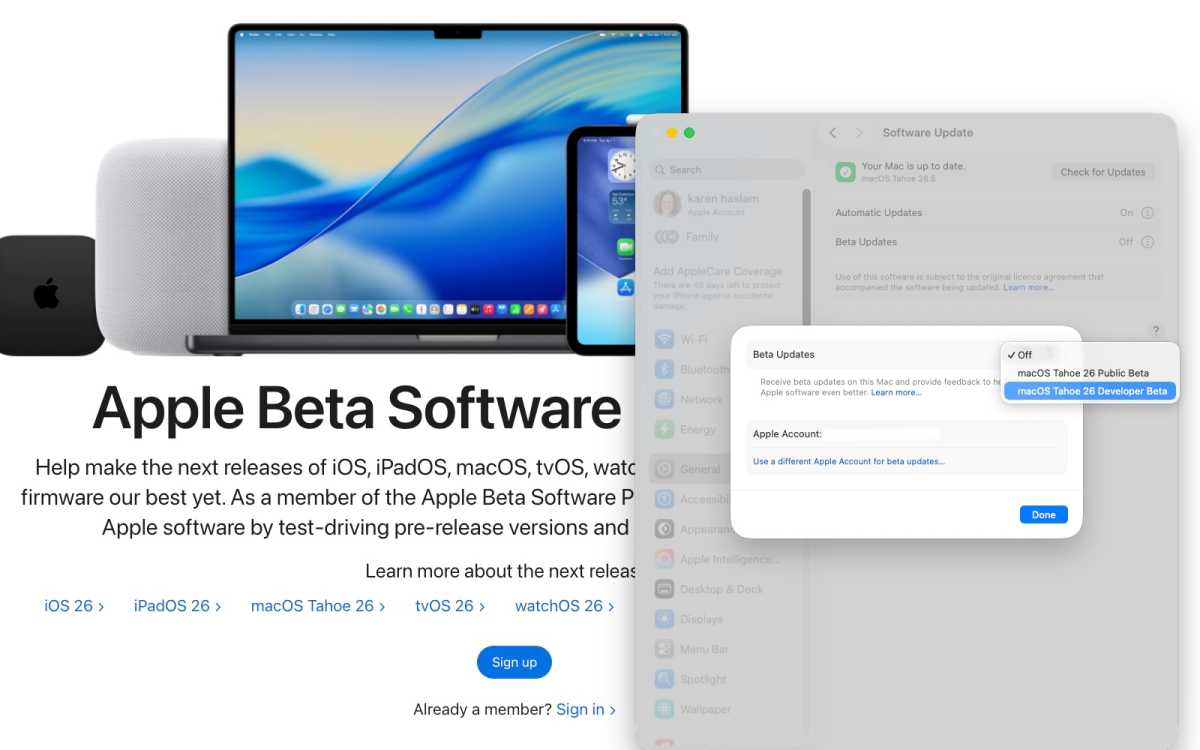
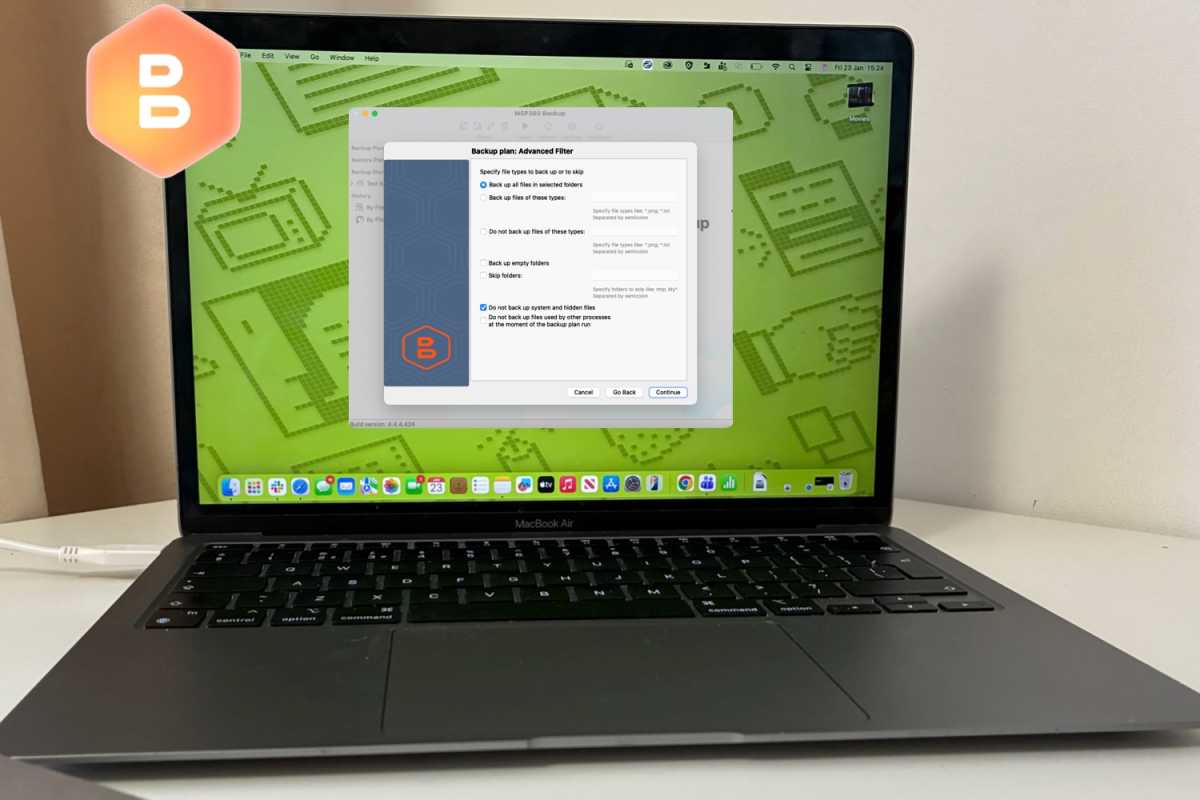
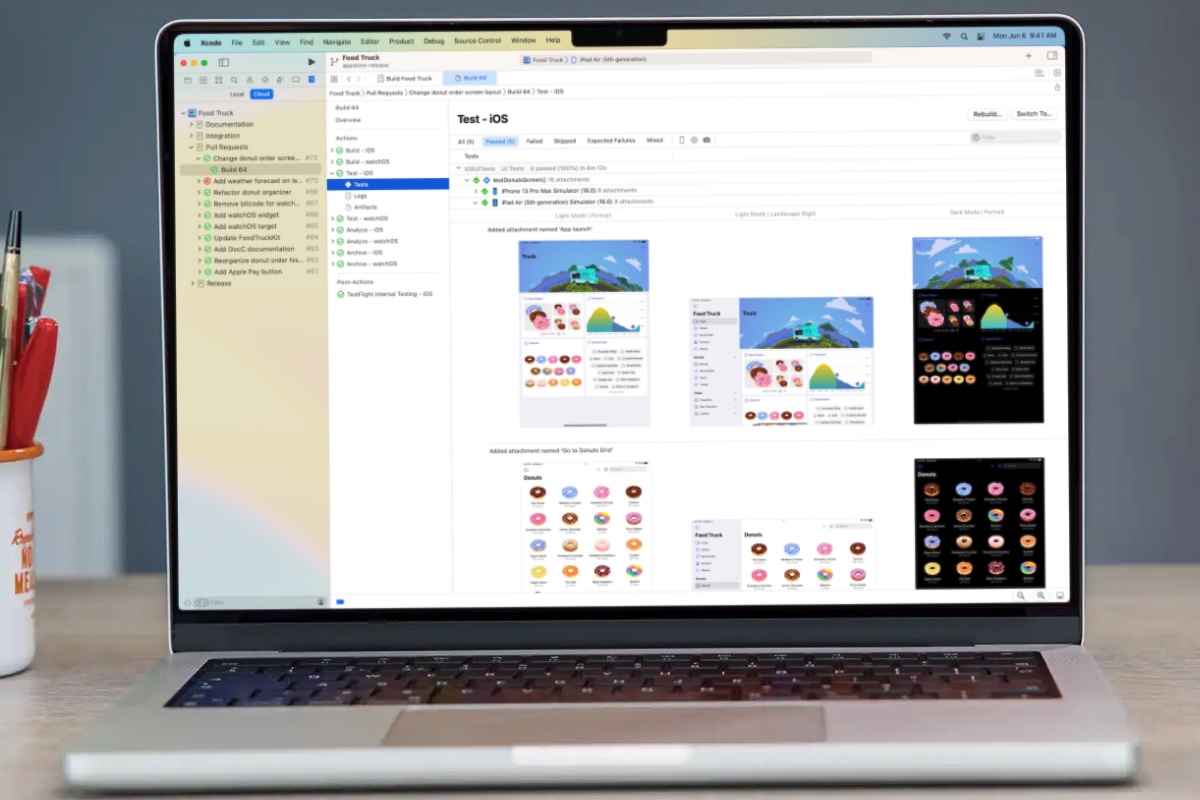
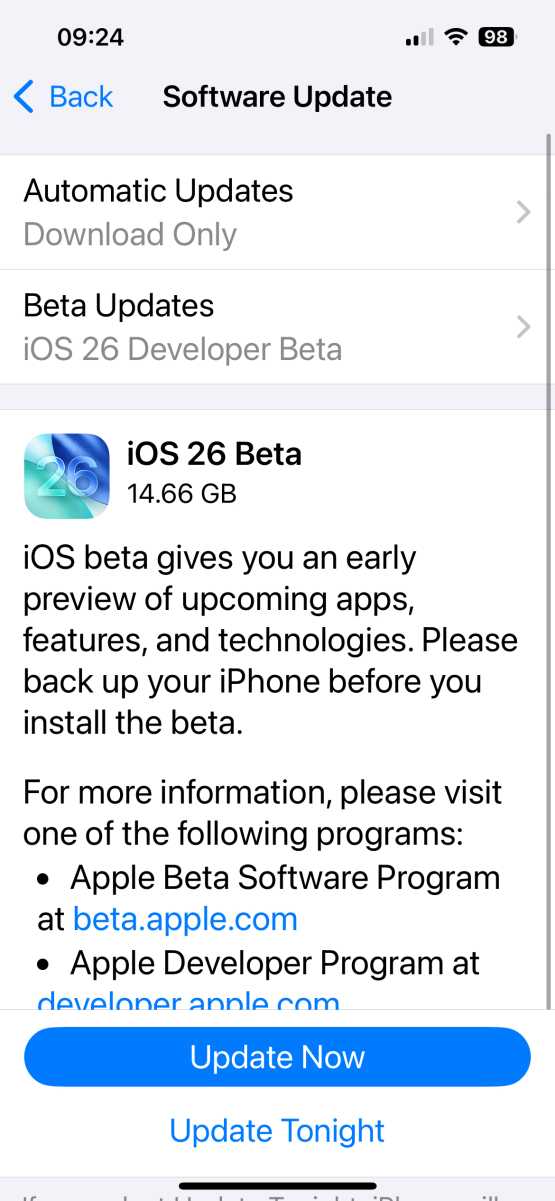


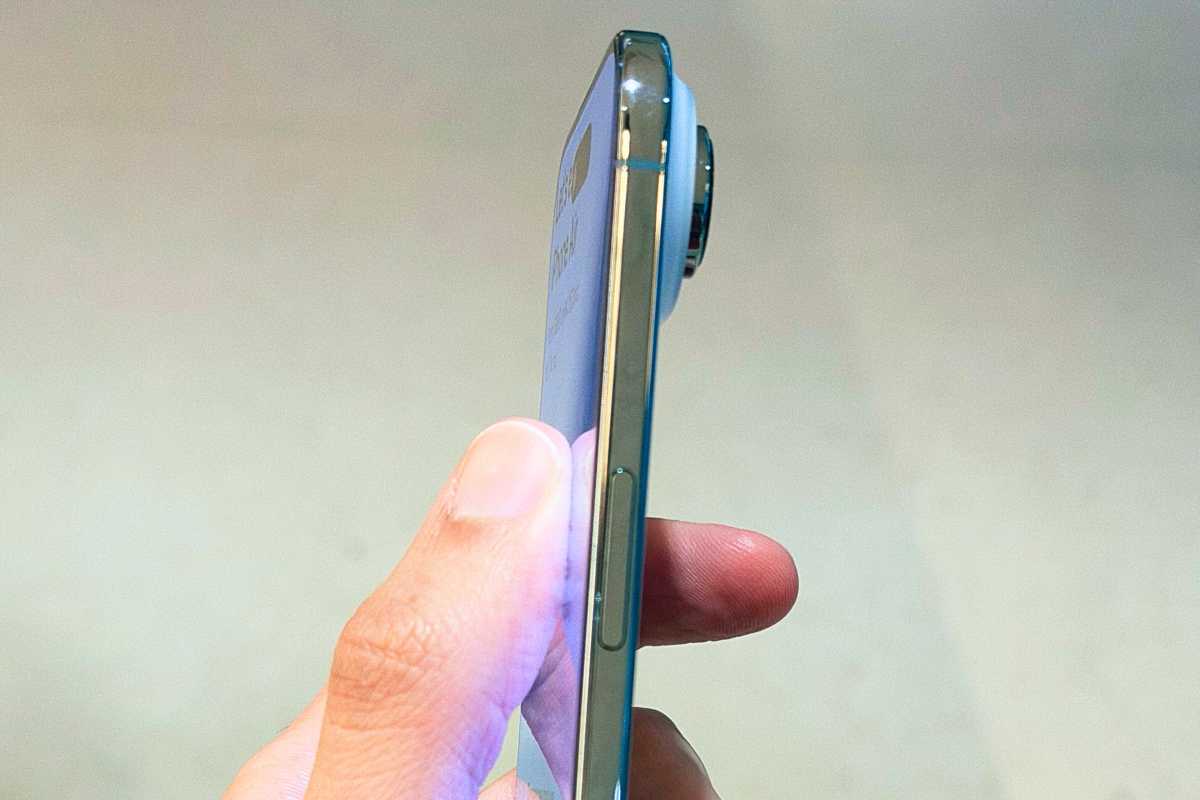
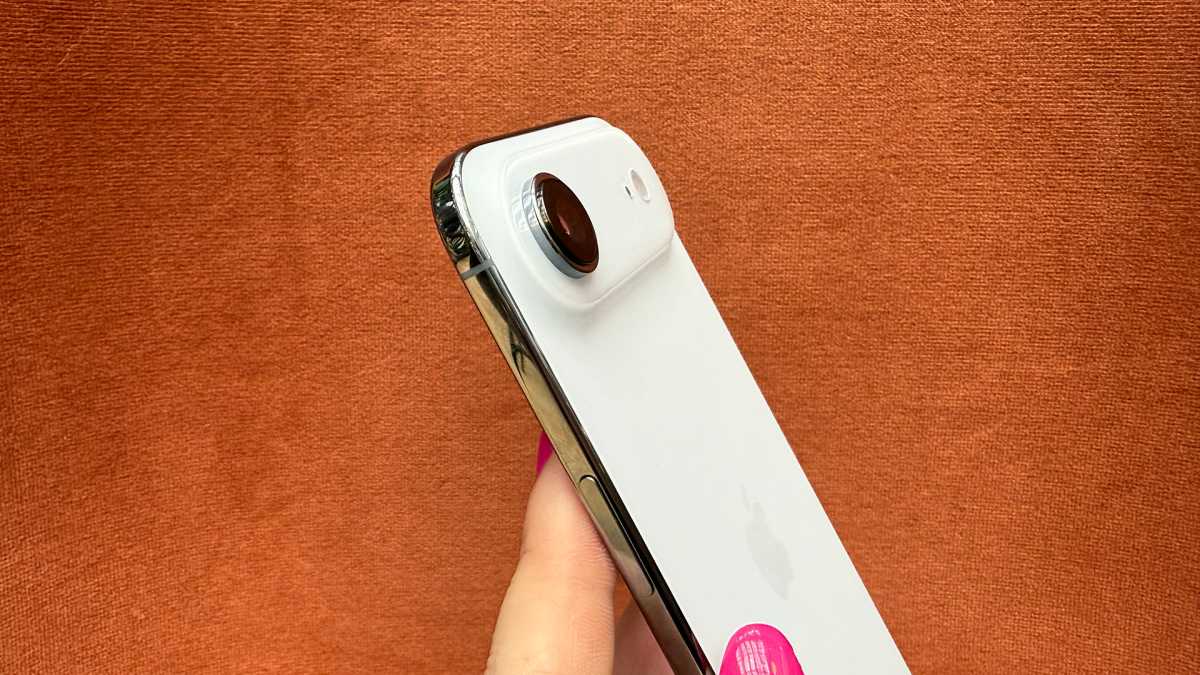
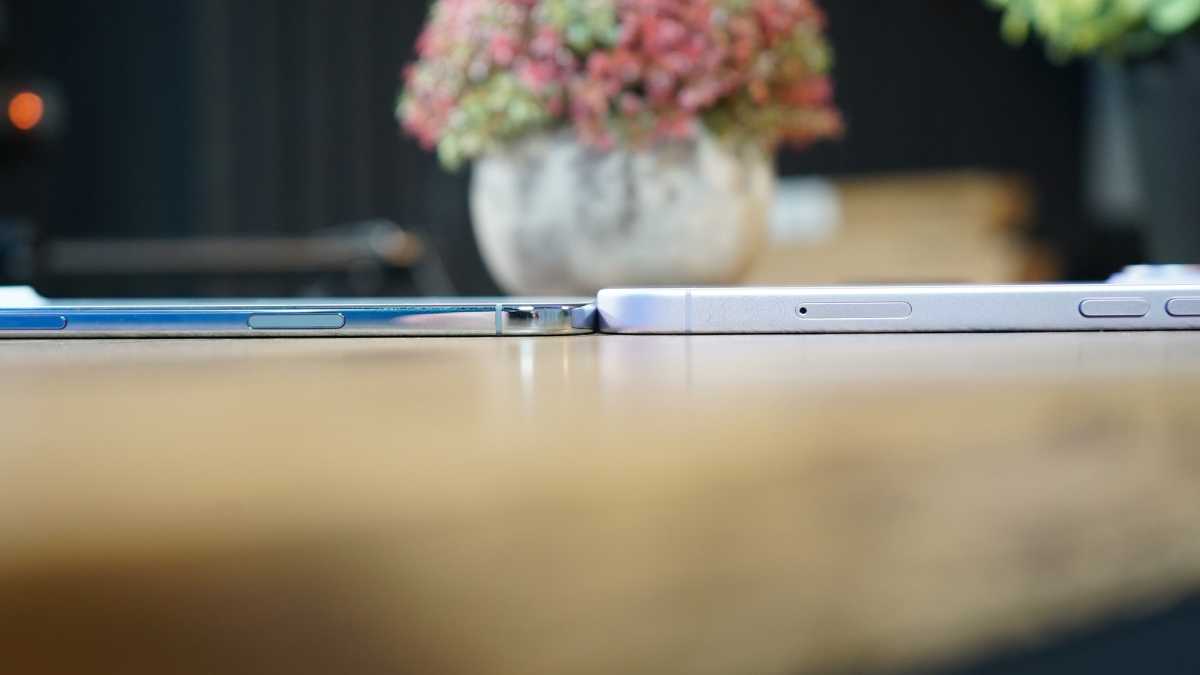
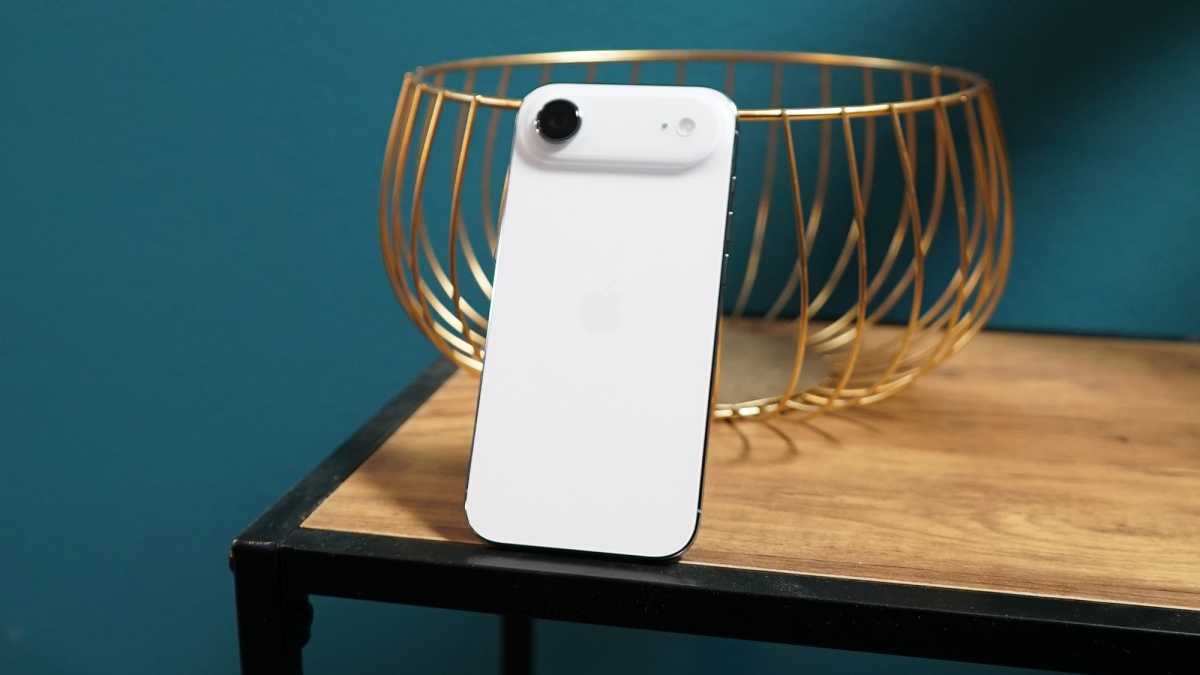


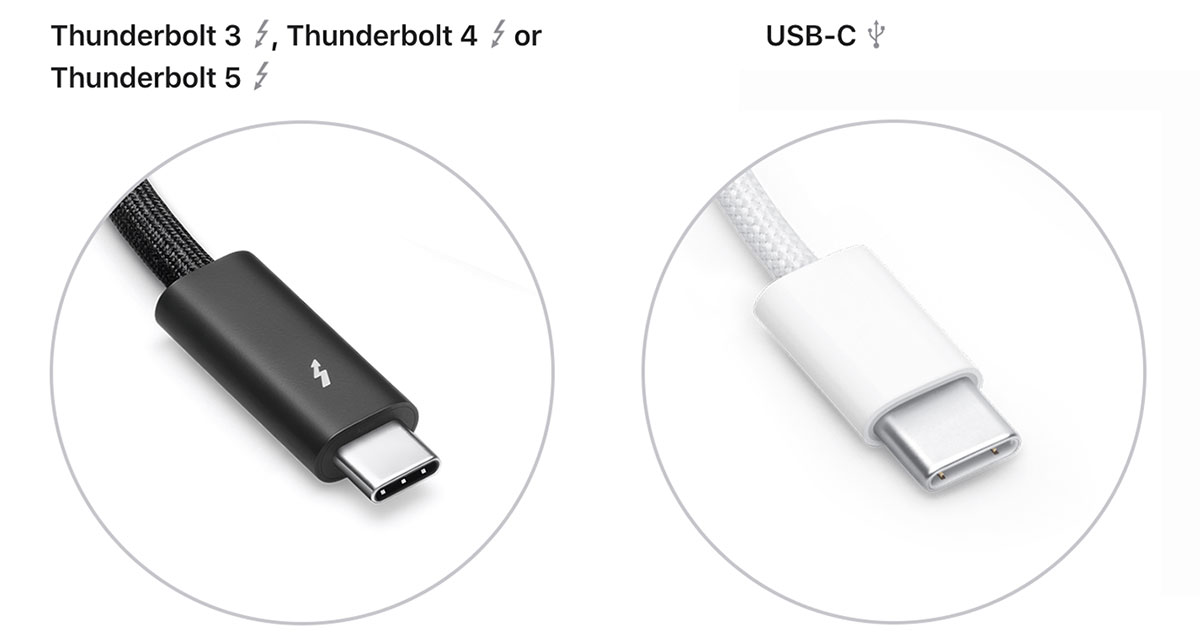
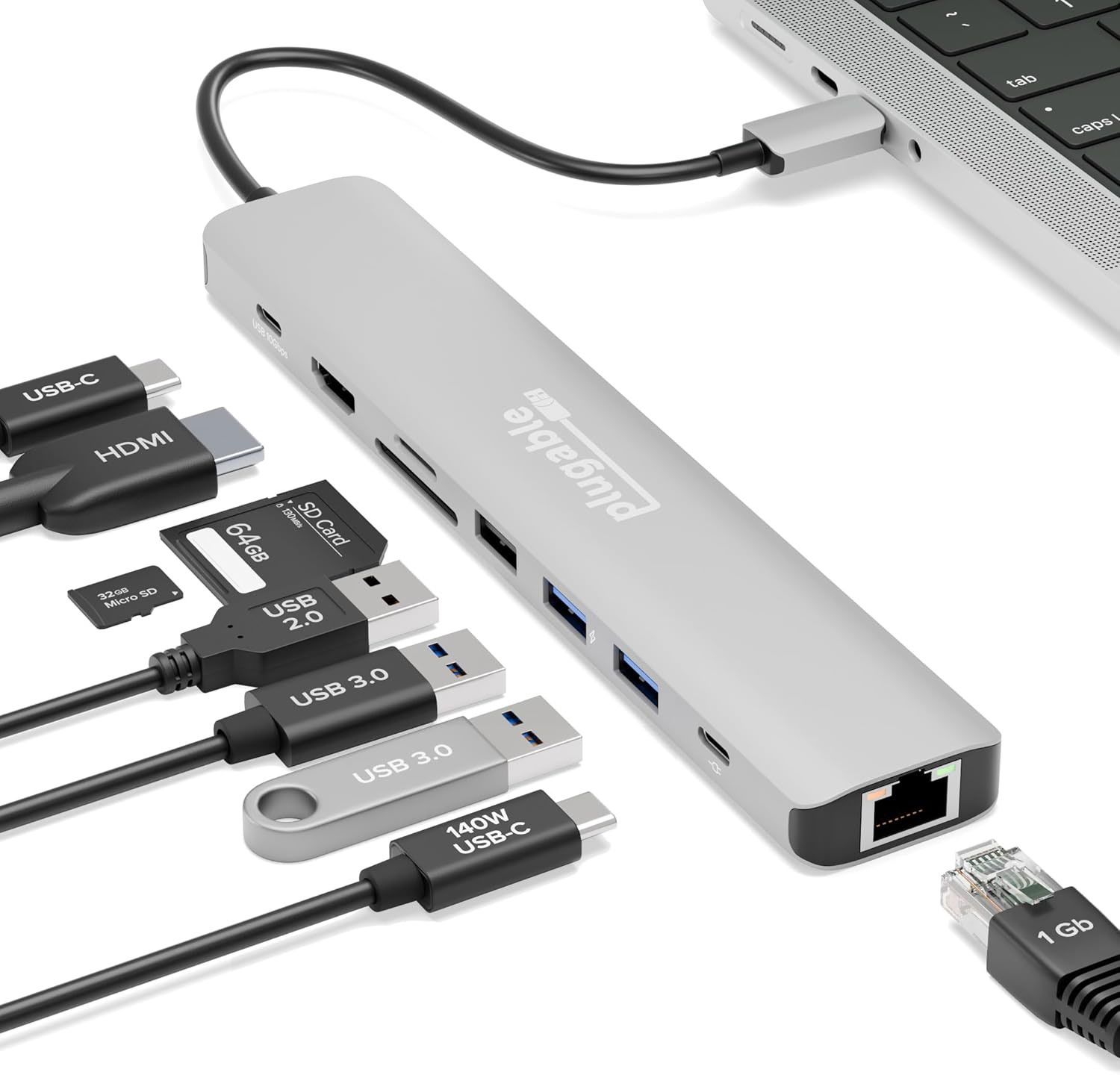
 $49.95
 $49.95
 $49.95
 $49.95
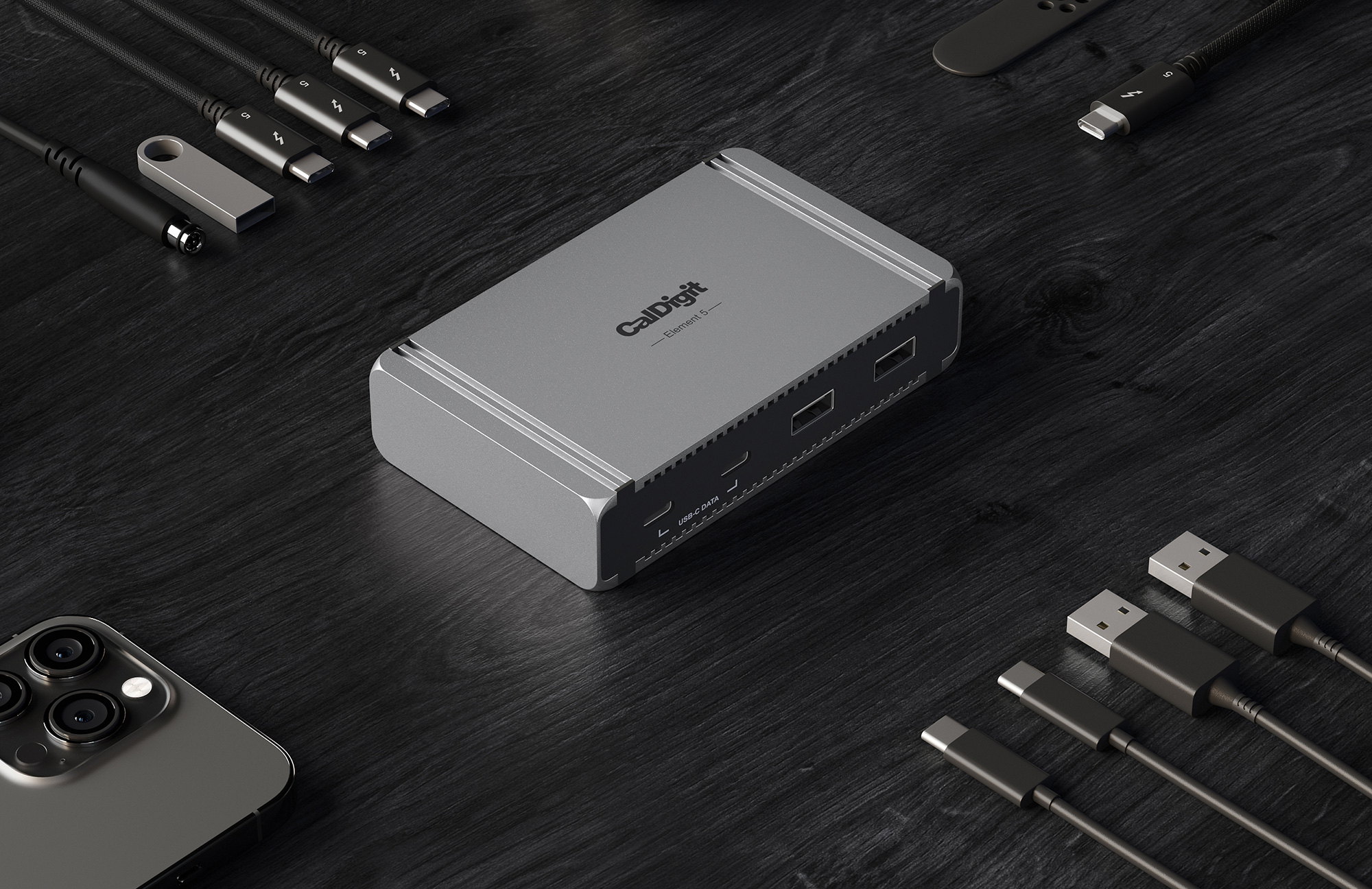
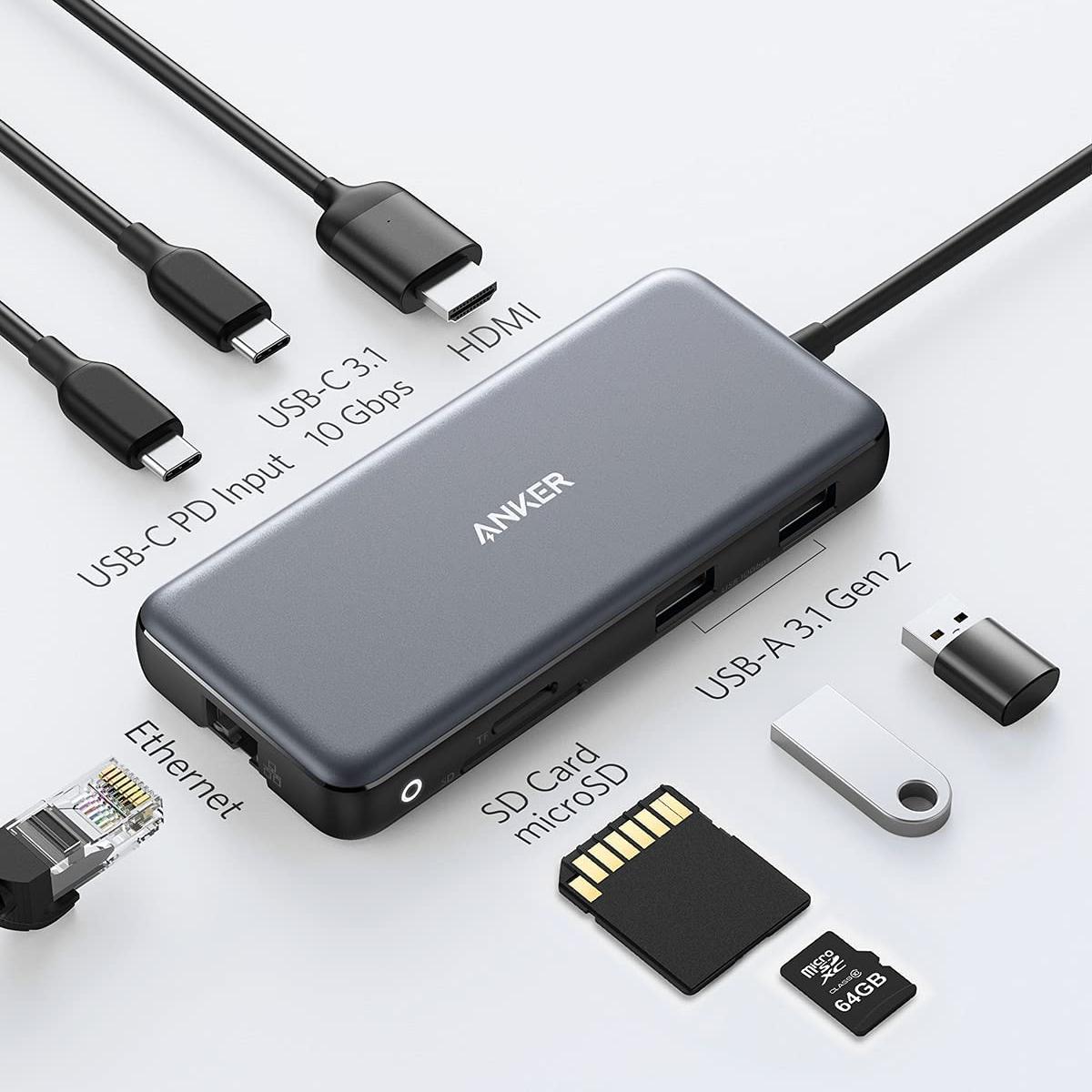
 $35.99
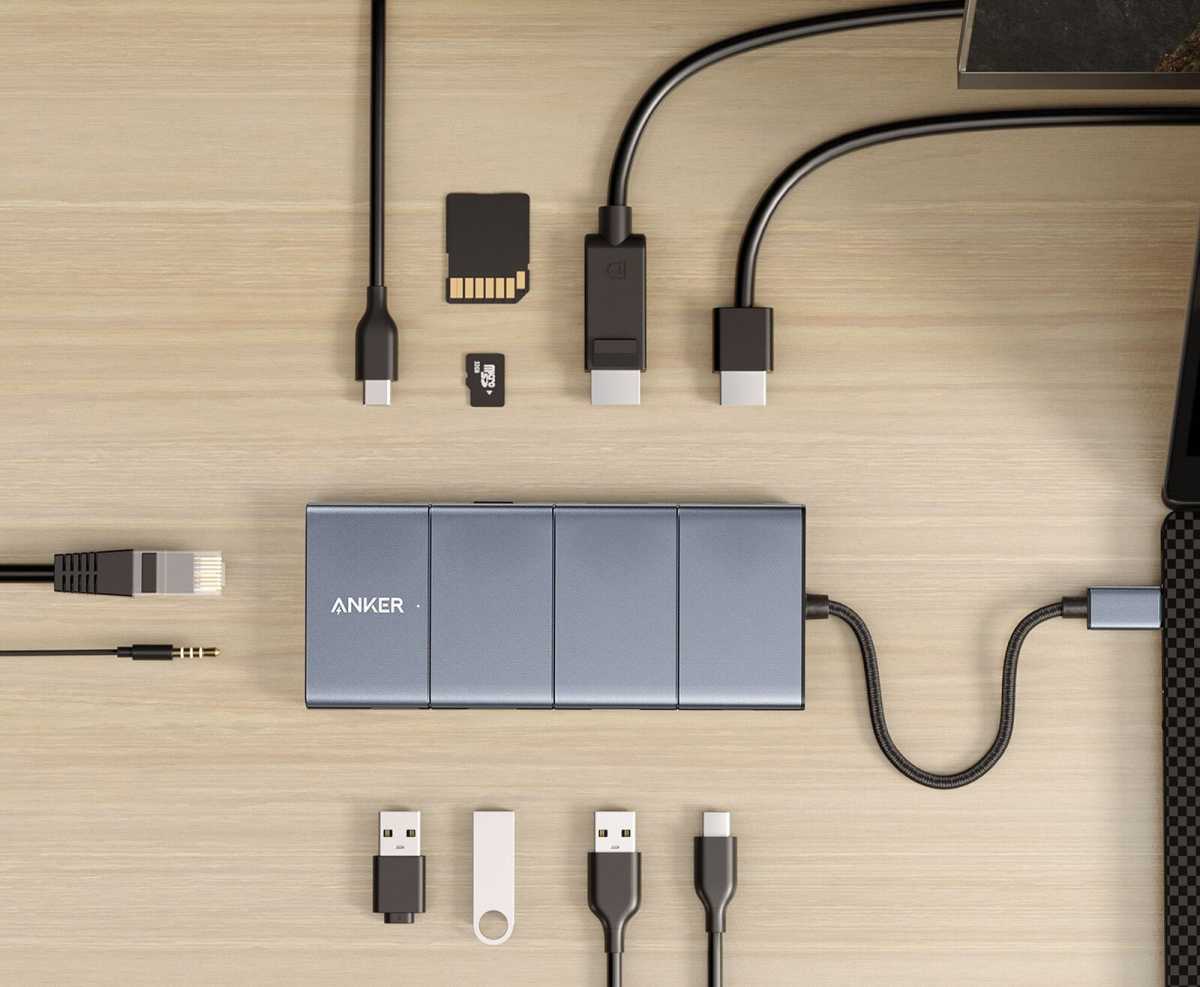
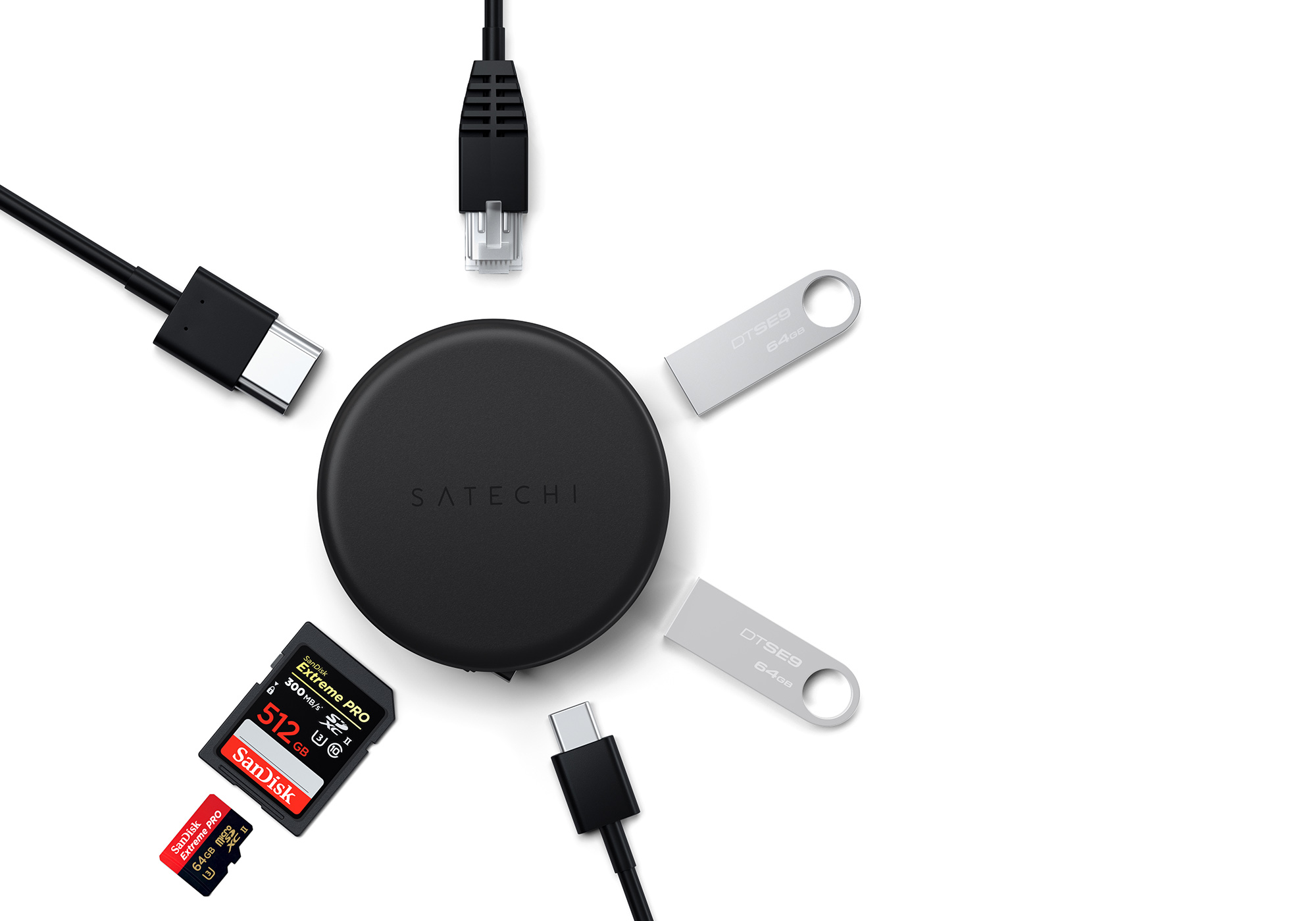
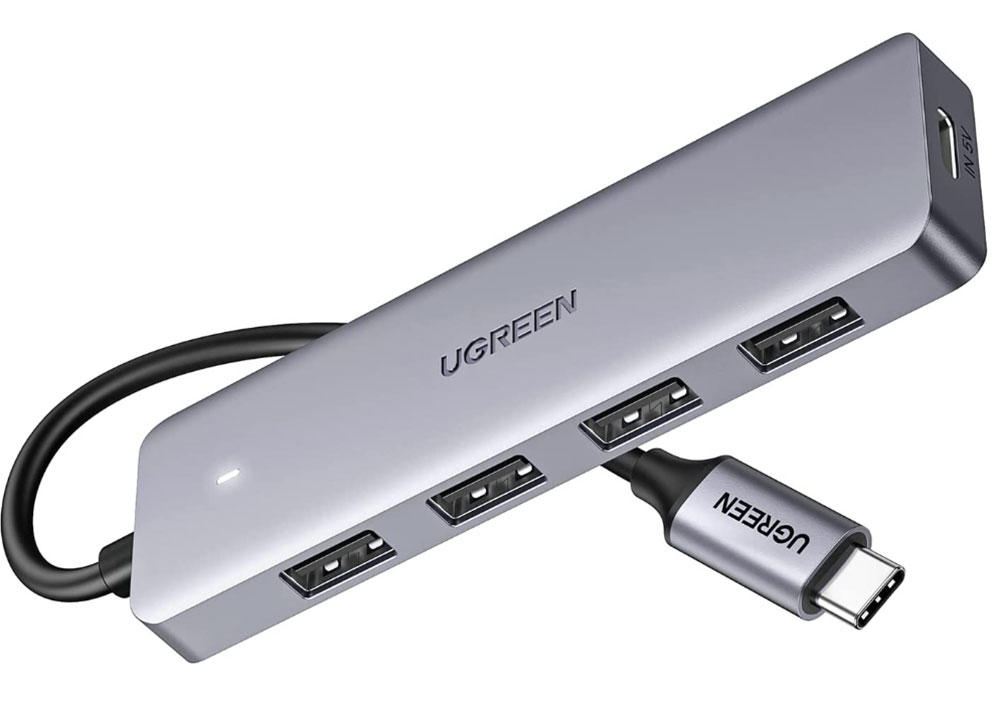
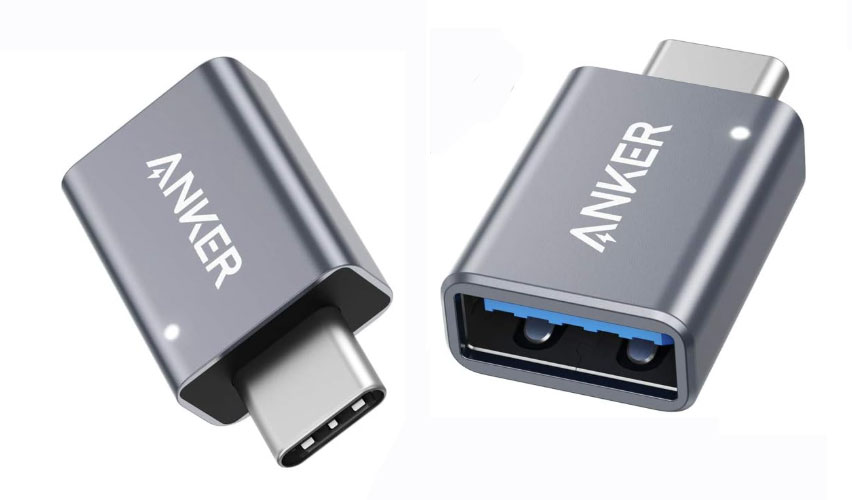
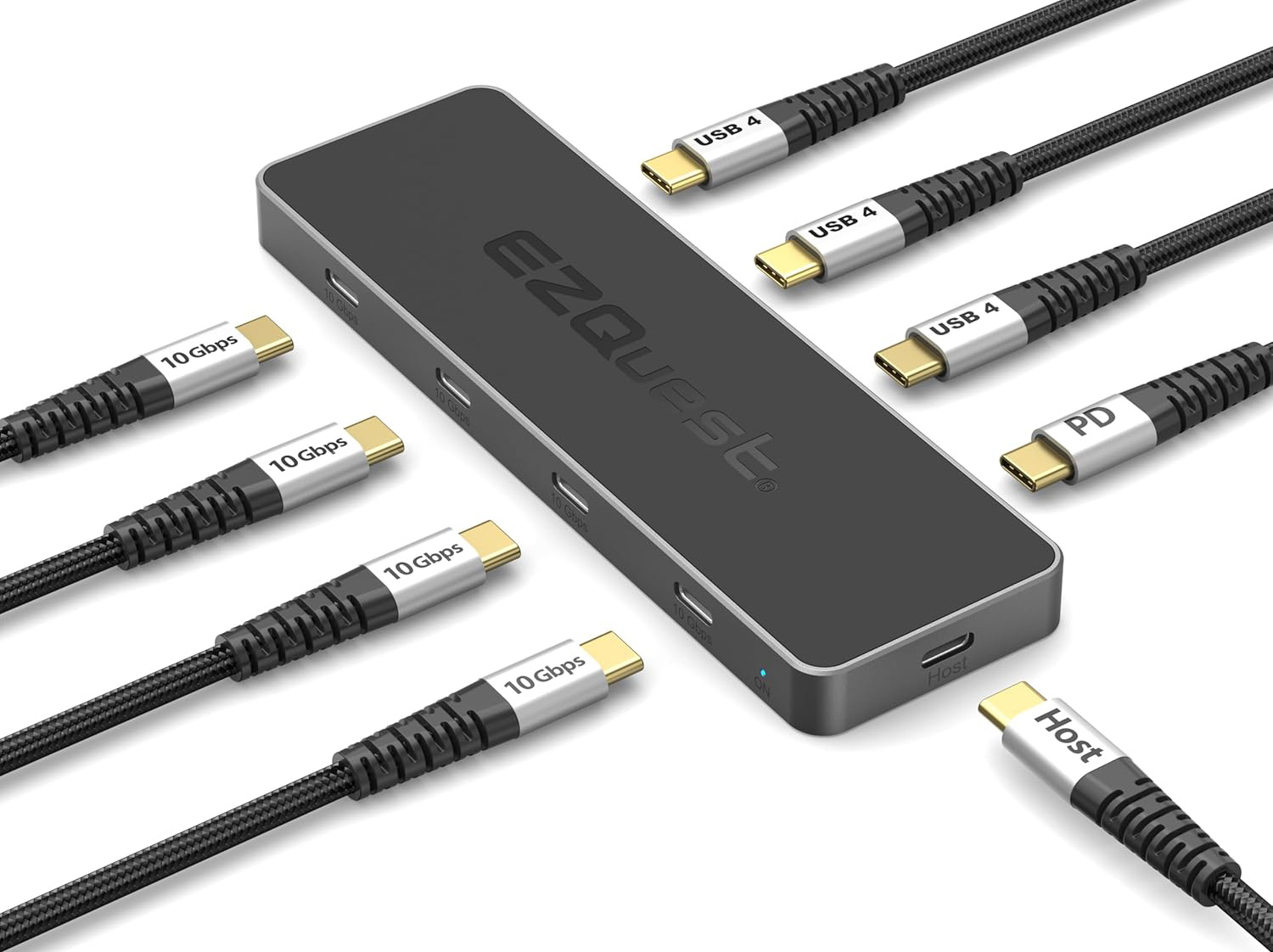
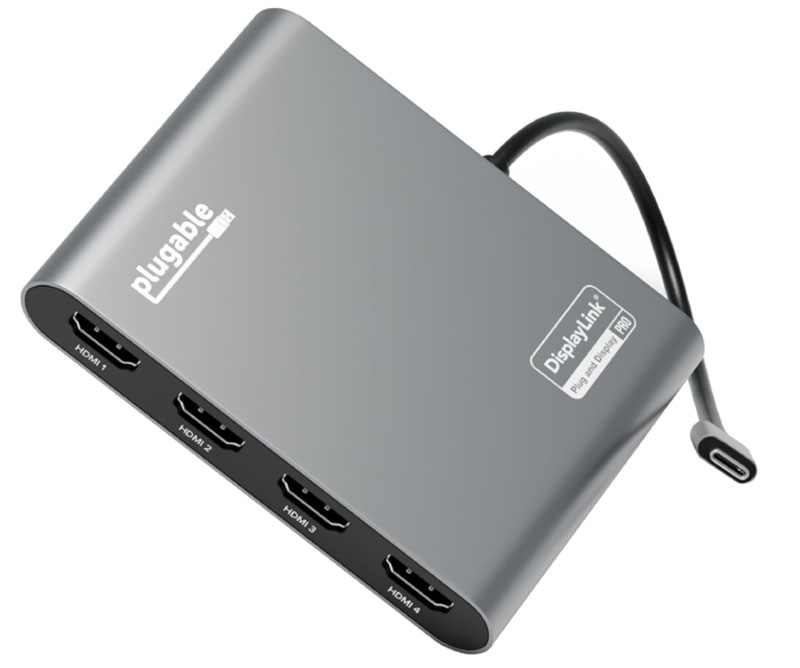
 $179.95
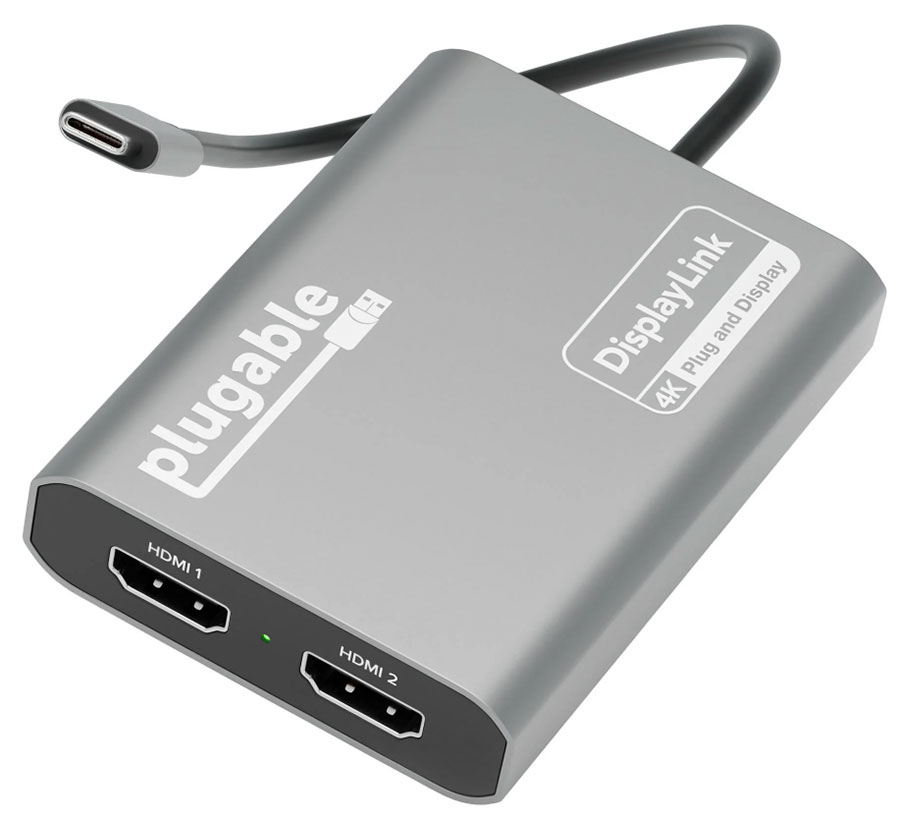
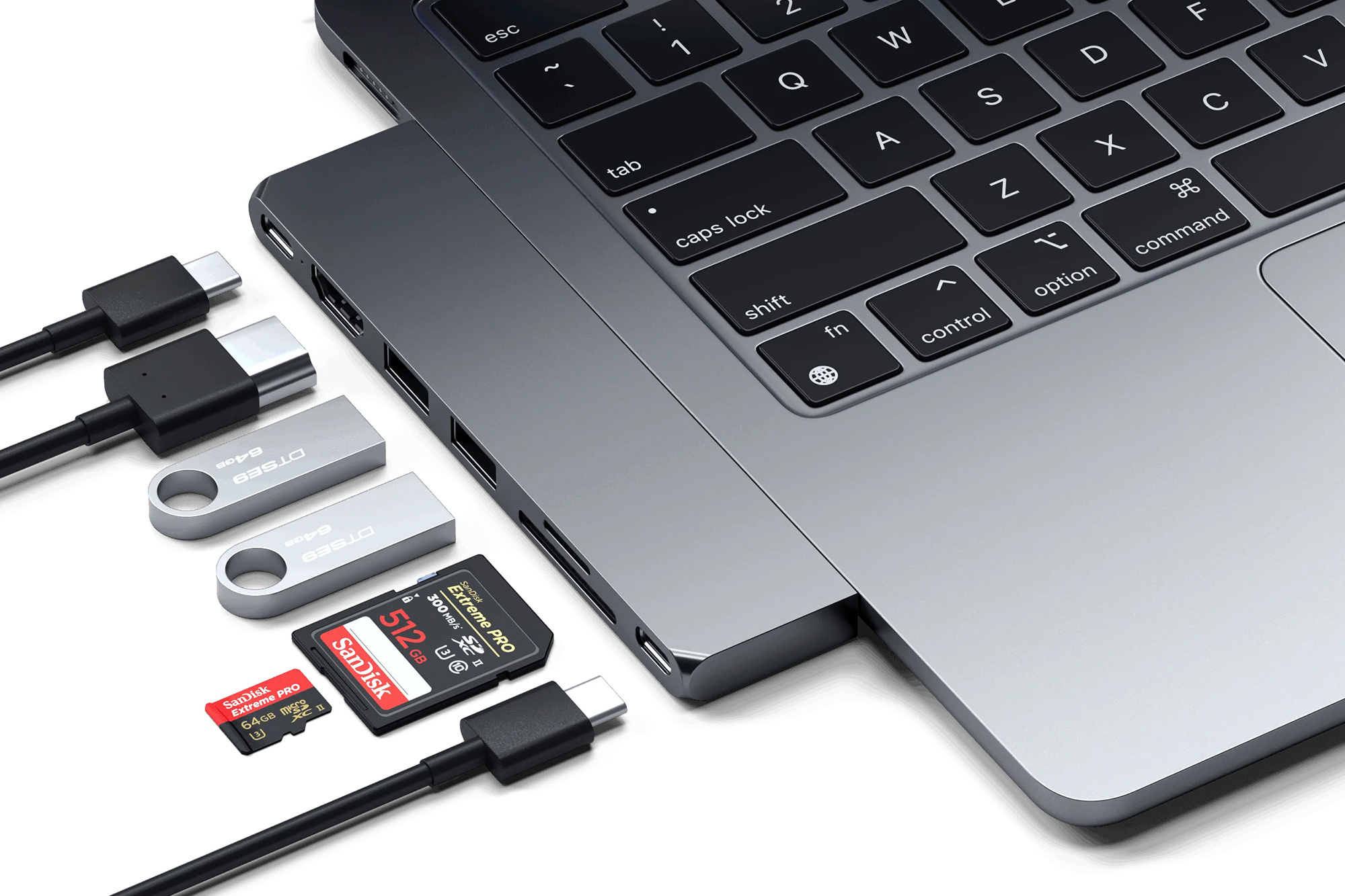
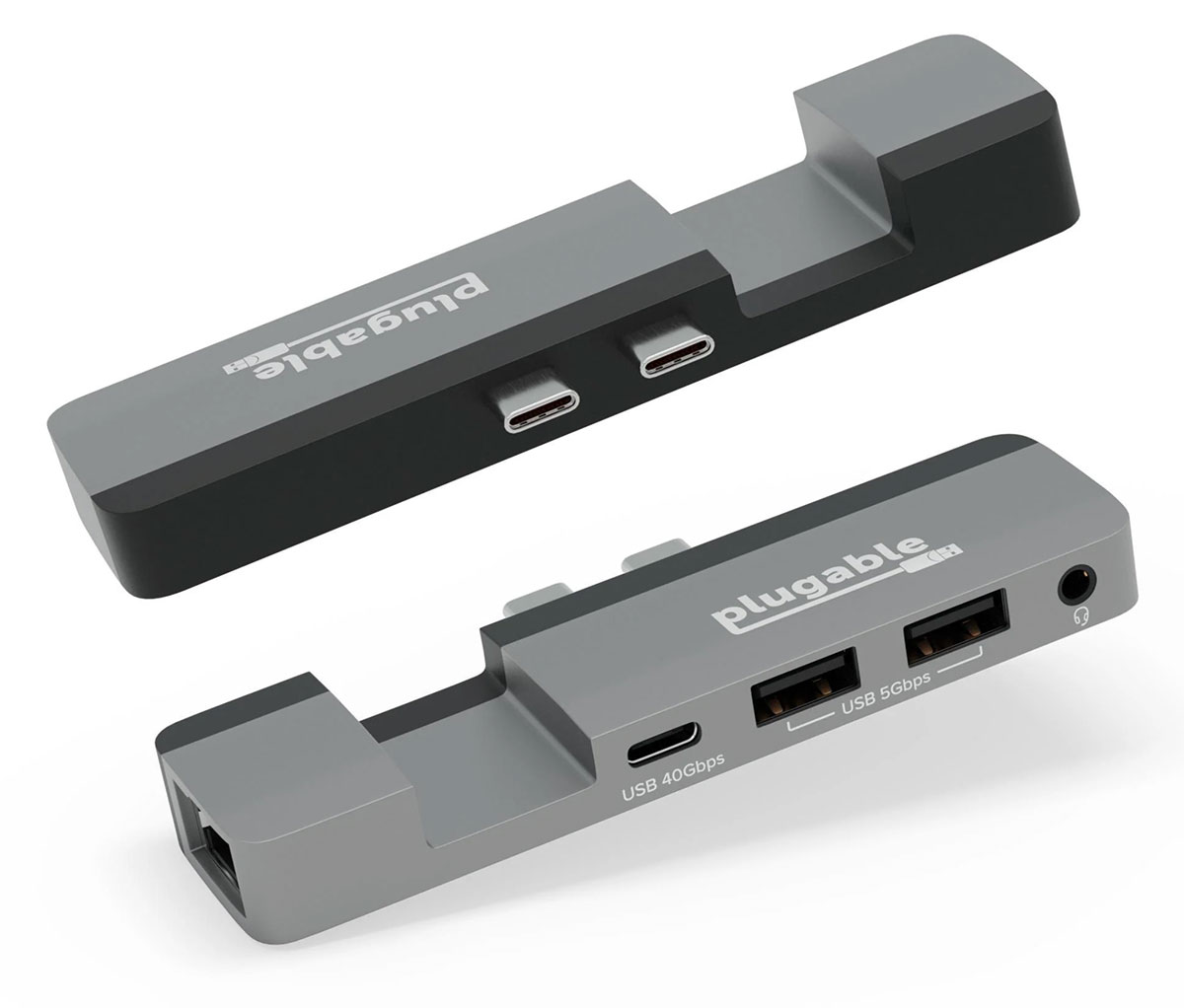
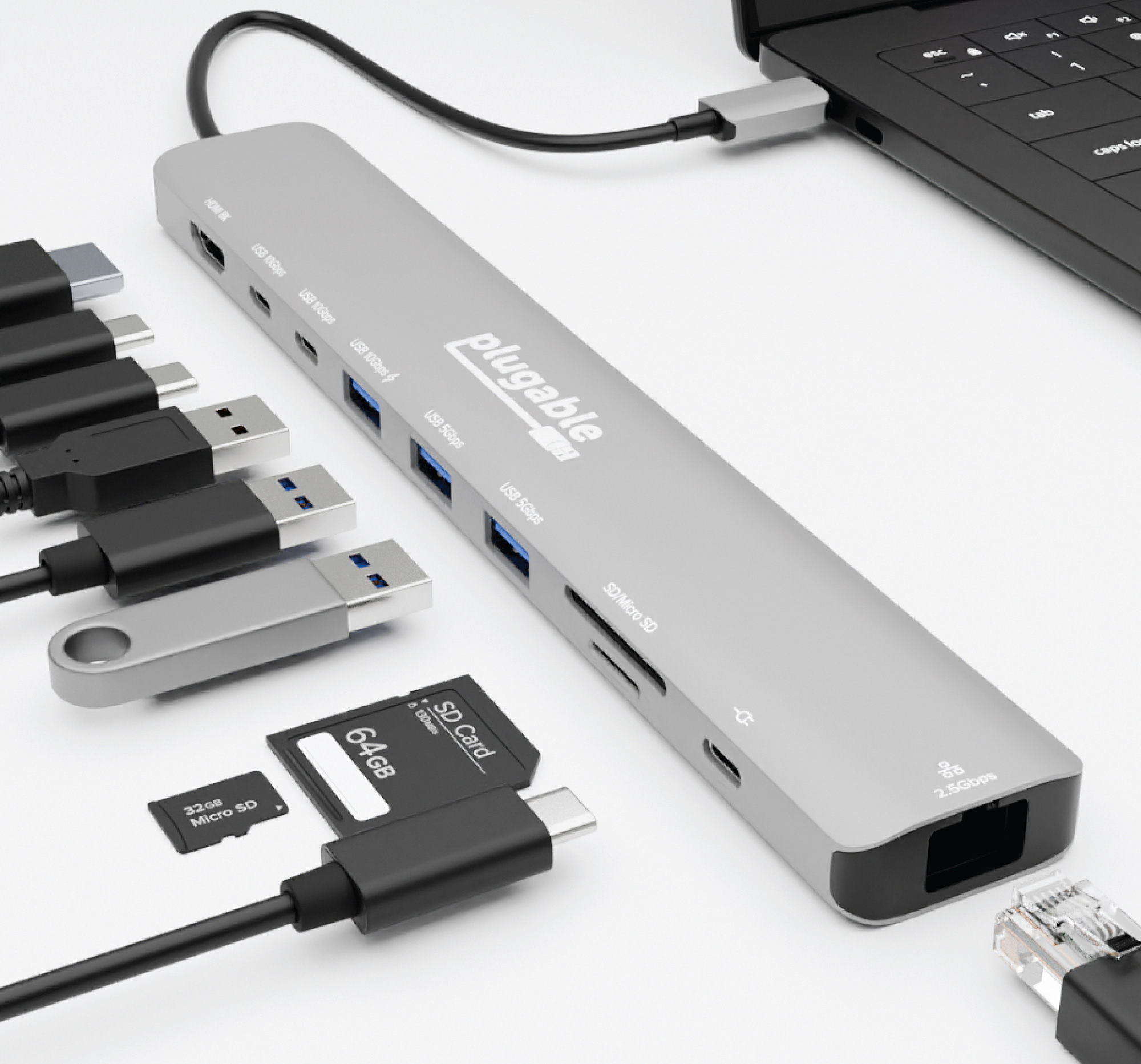
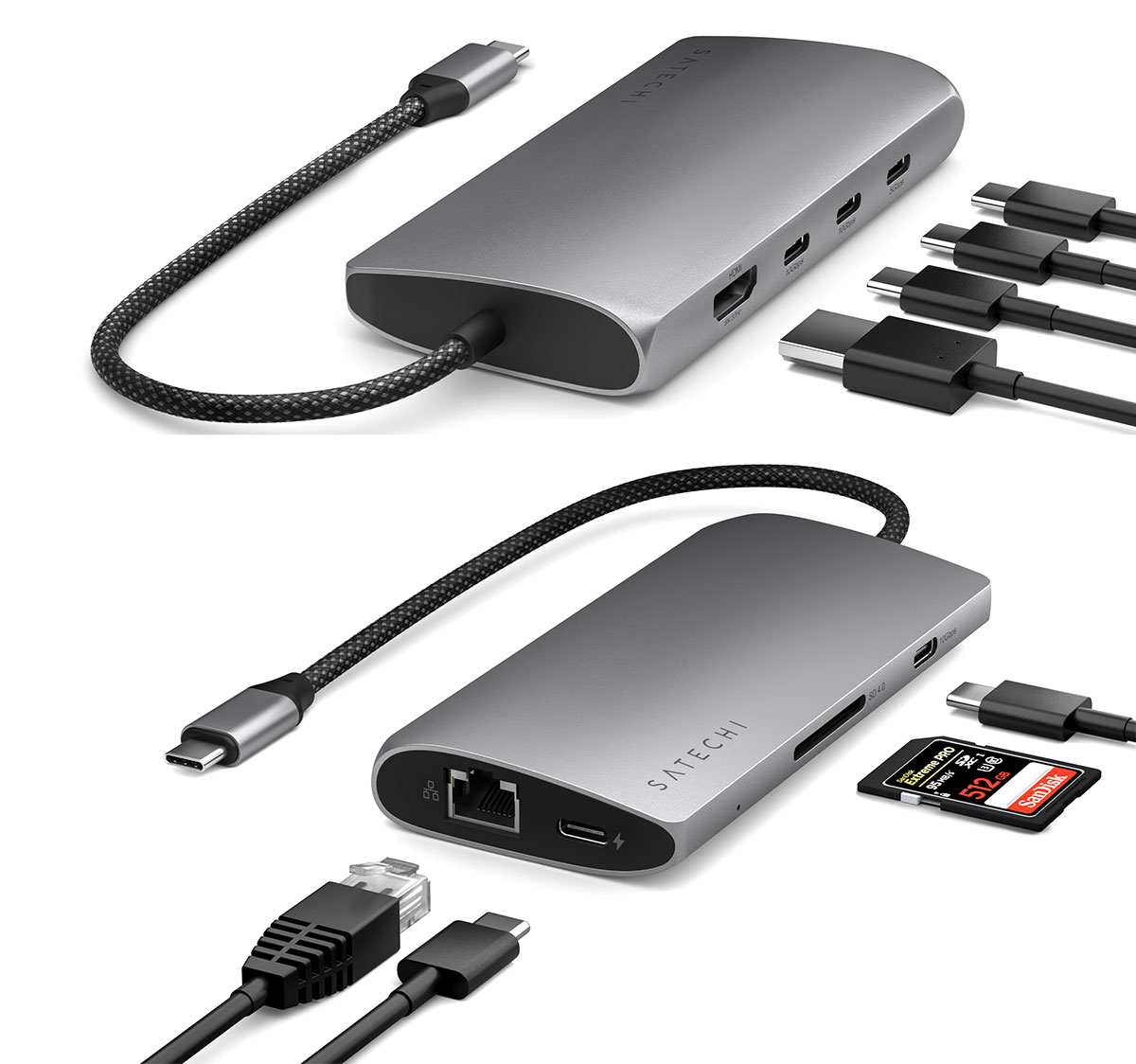

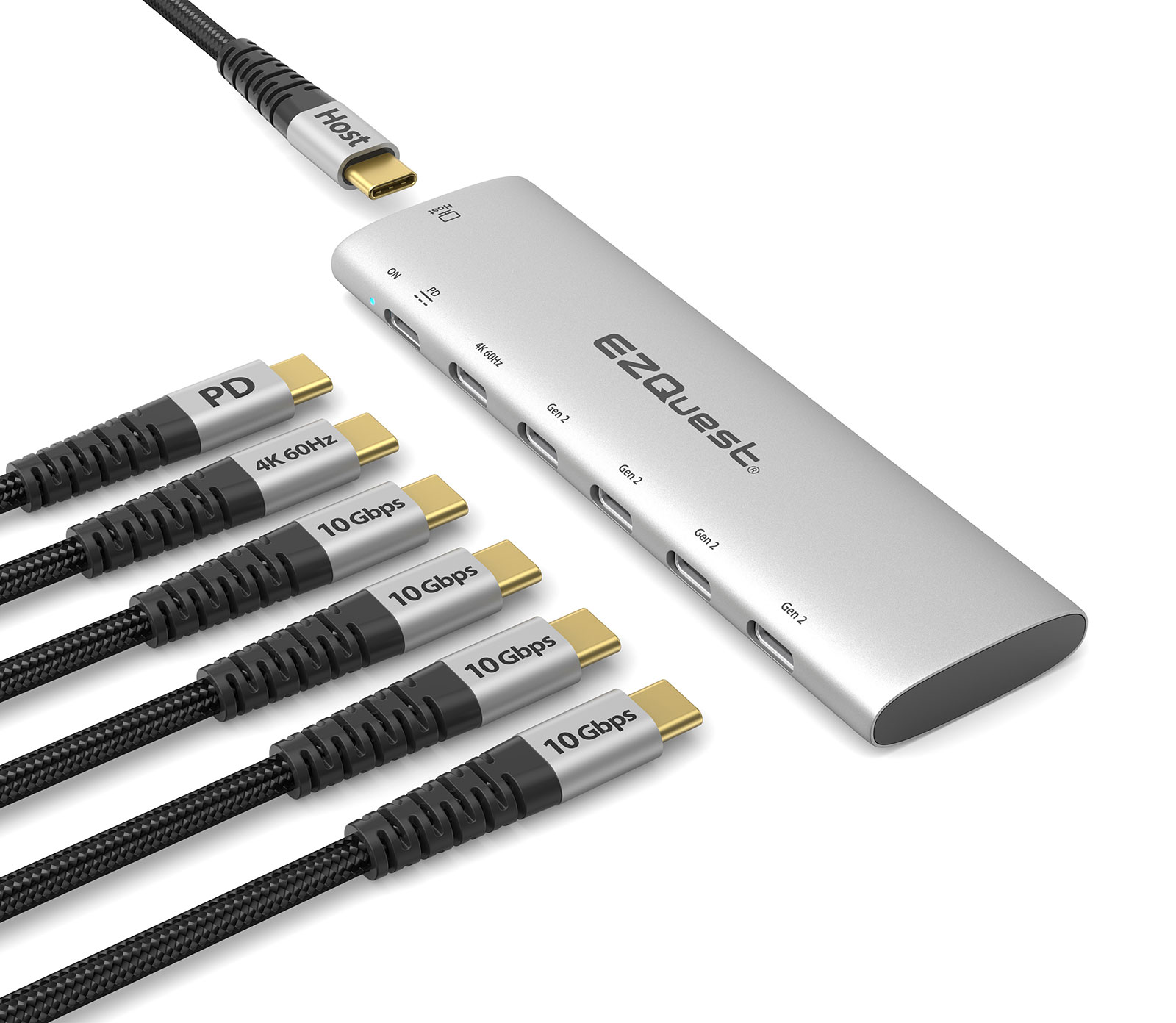
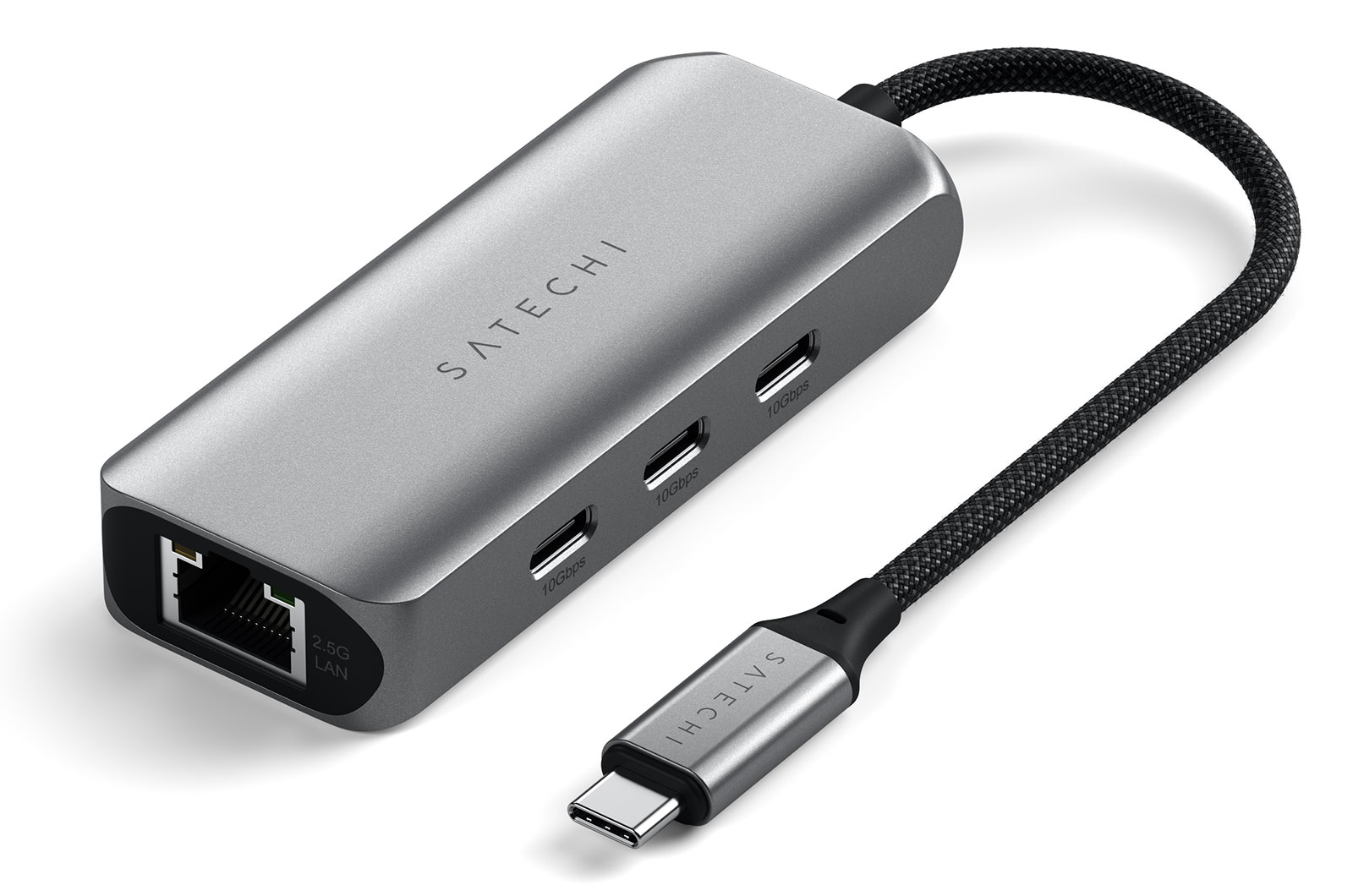
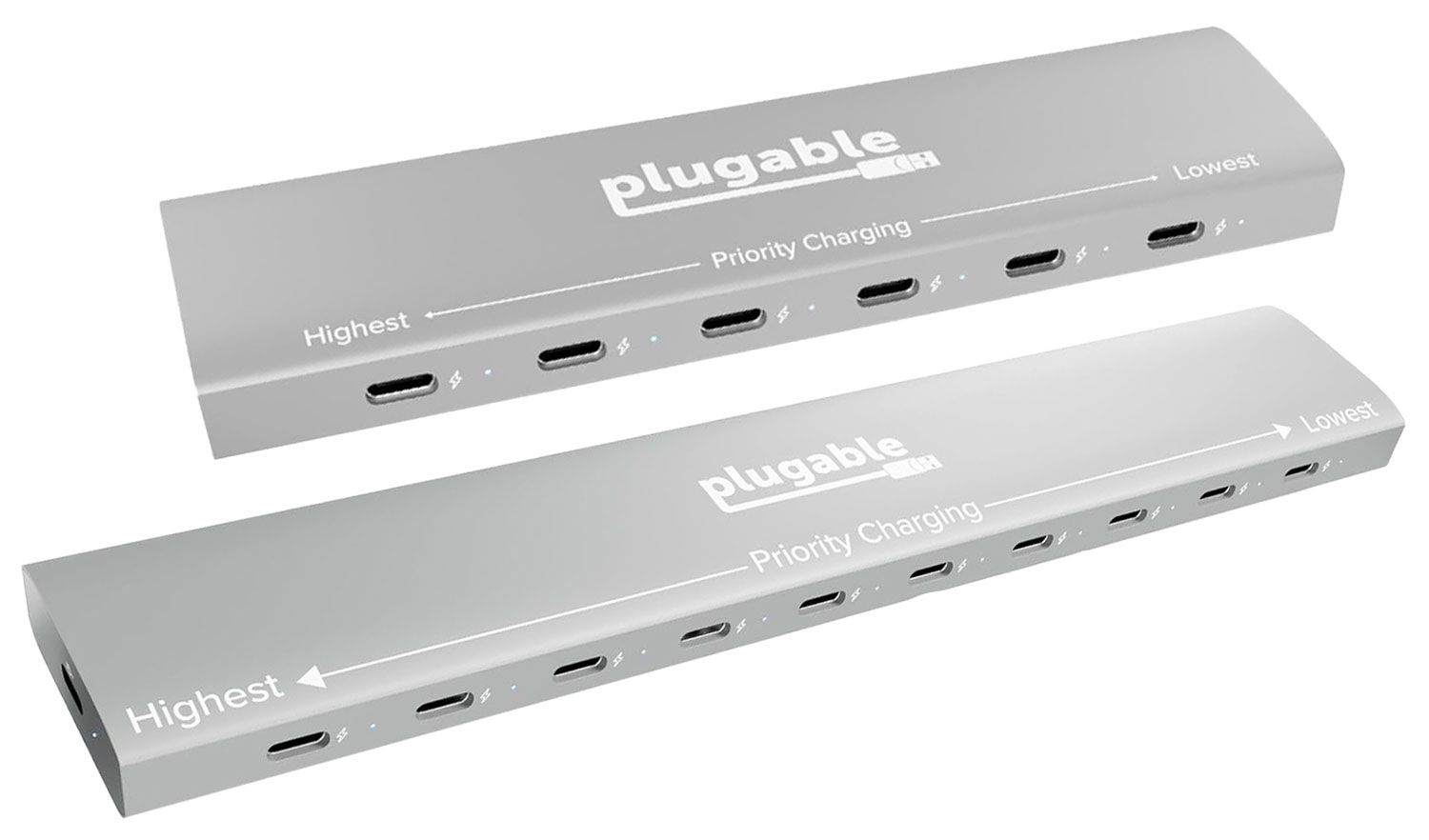
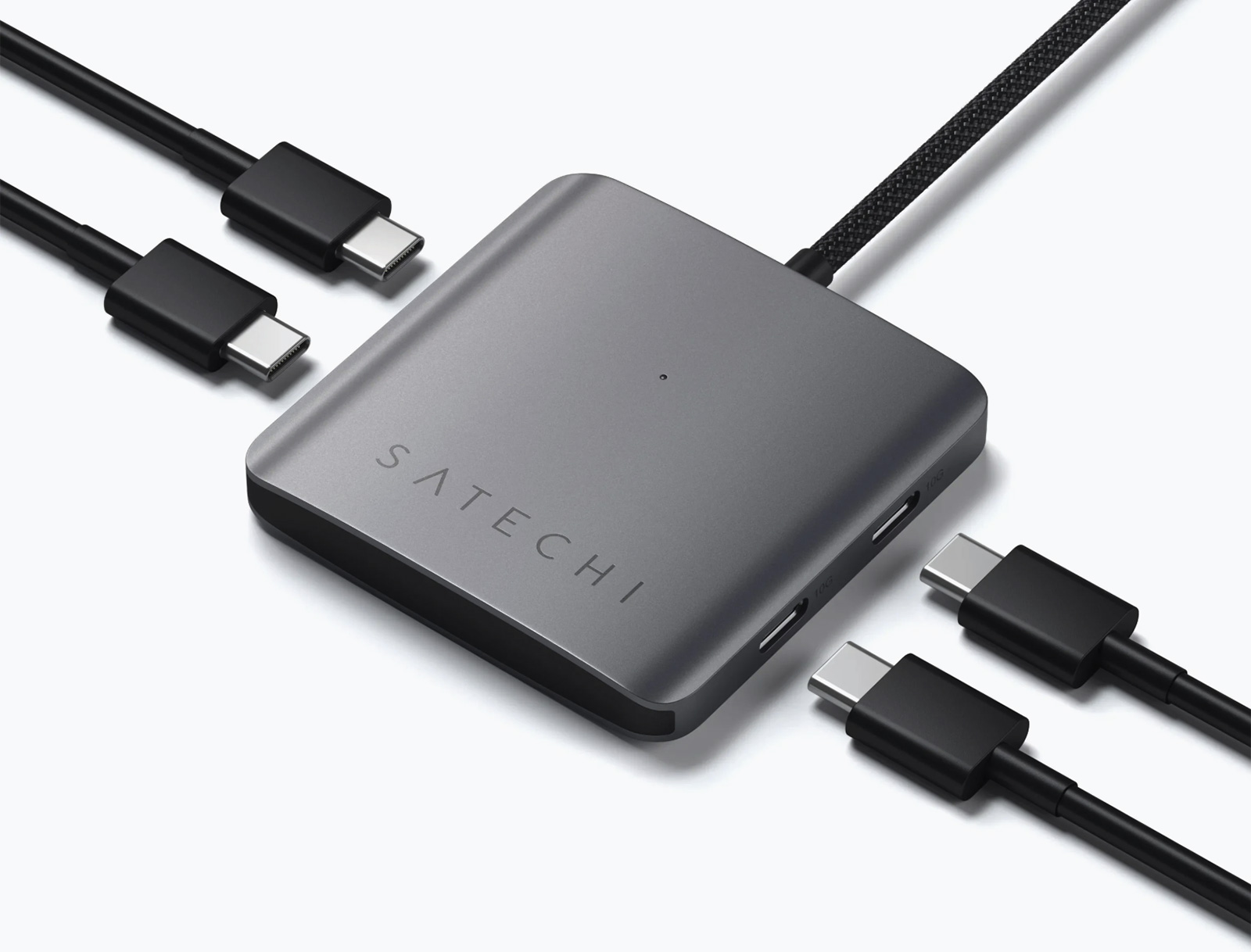
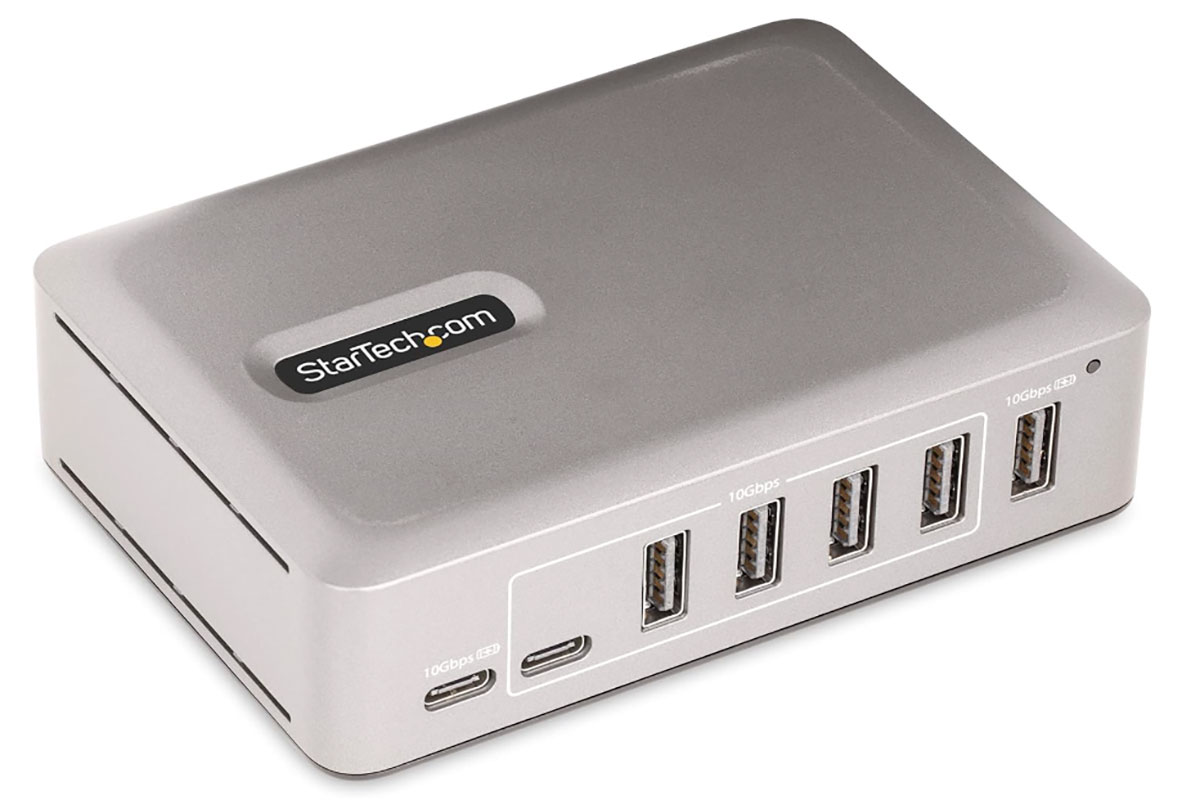
 $129.52
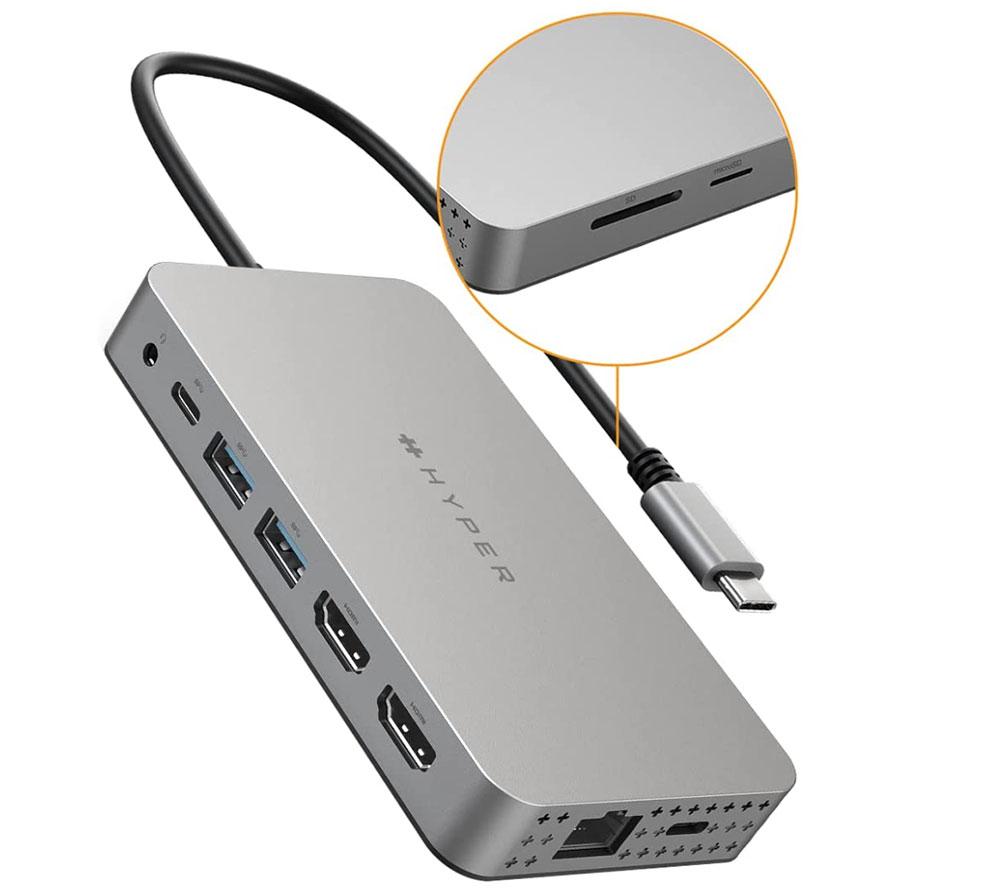
 $159.99
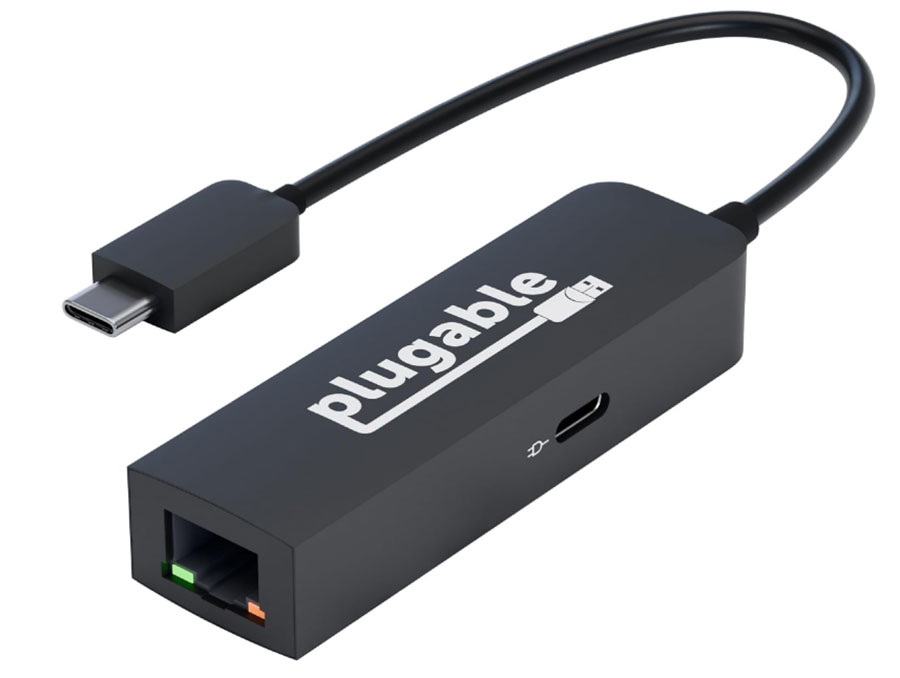
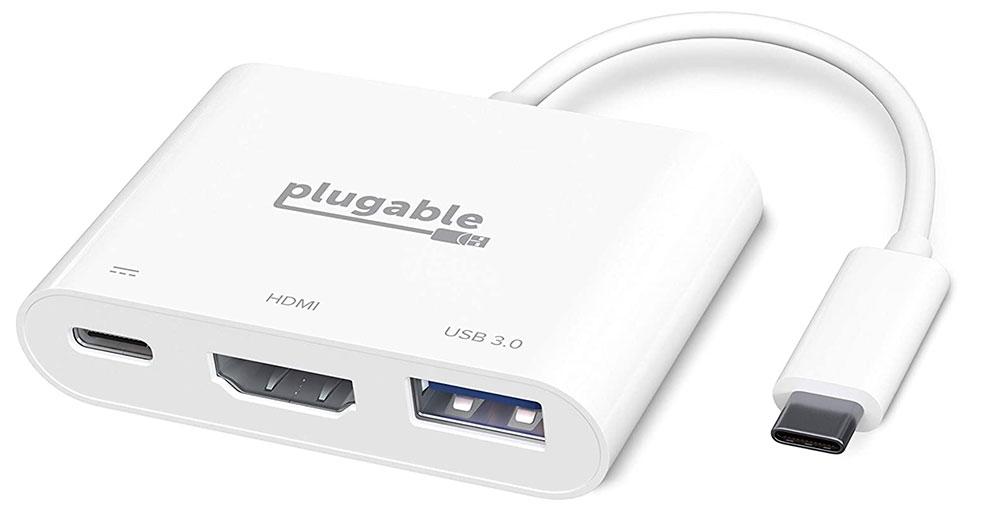
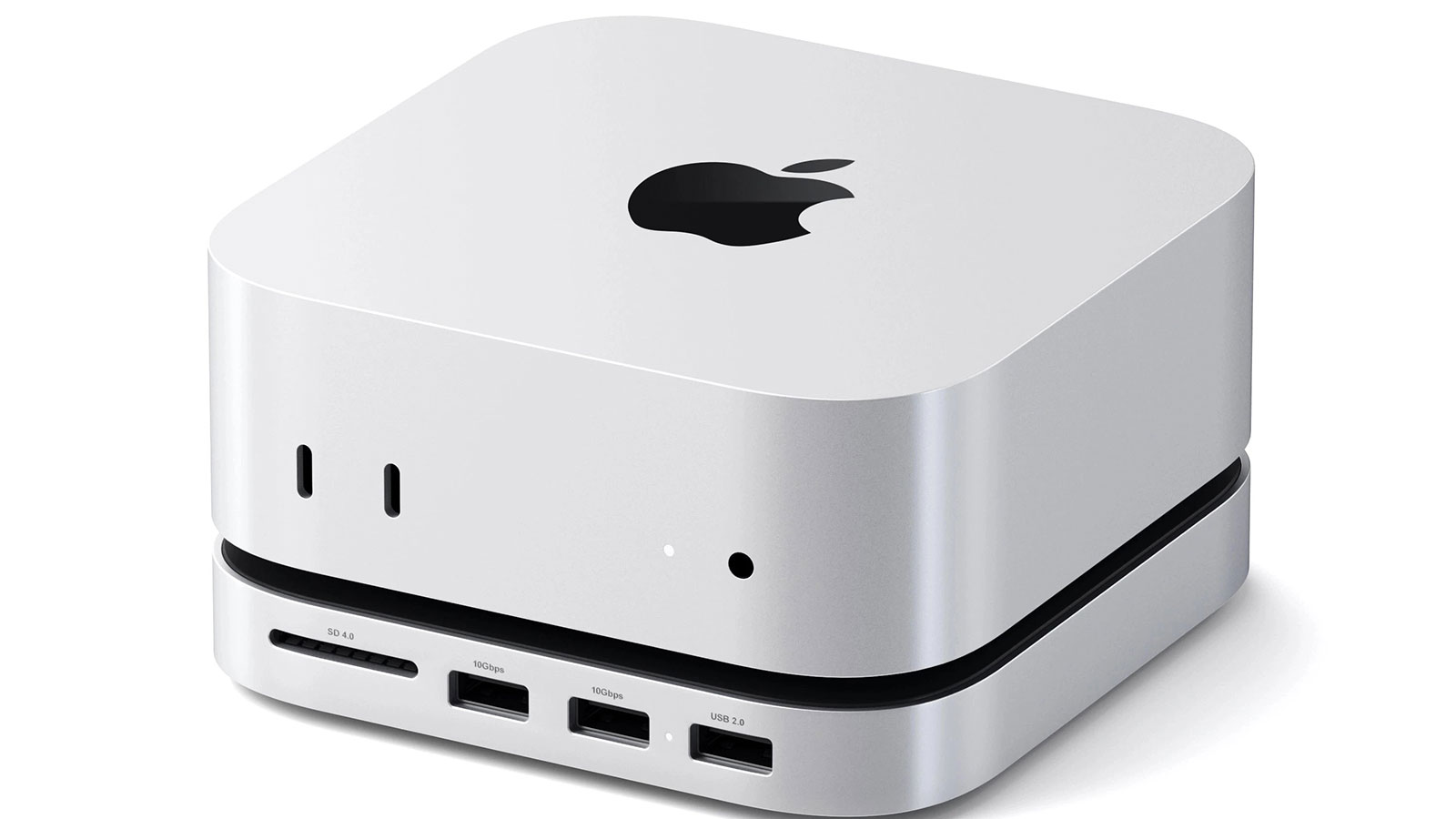
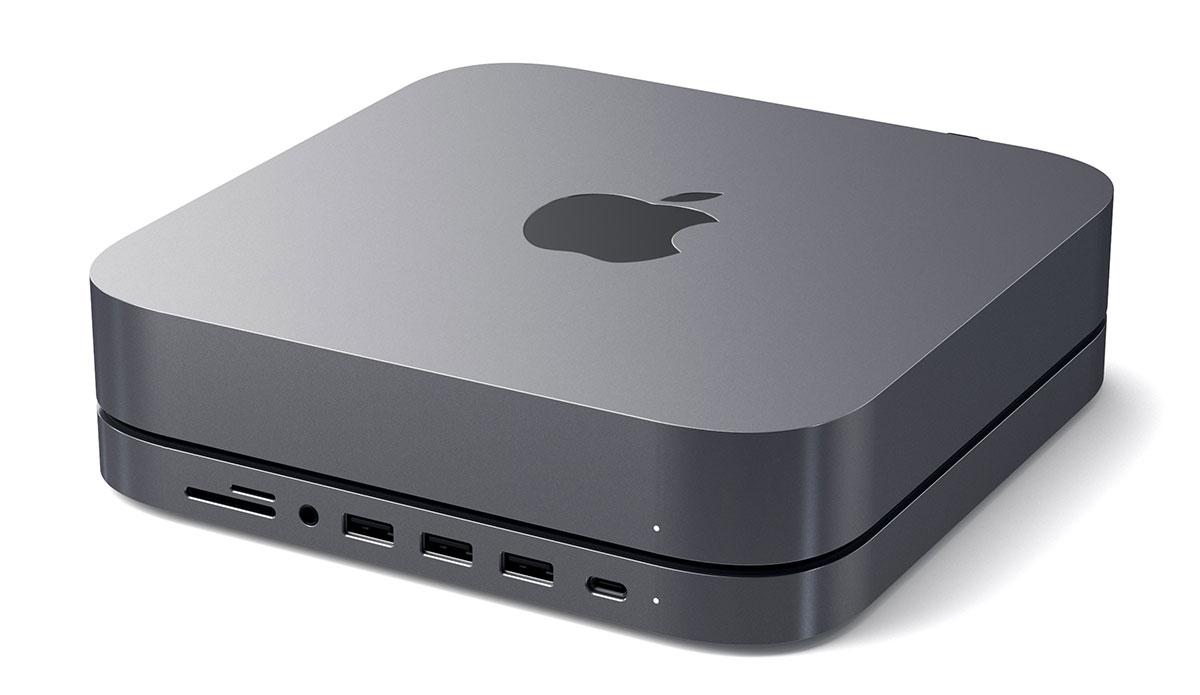
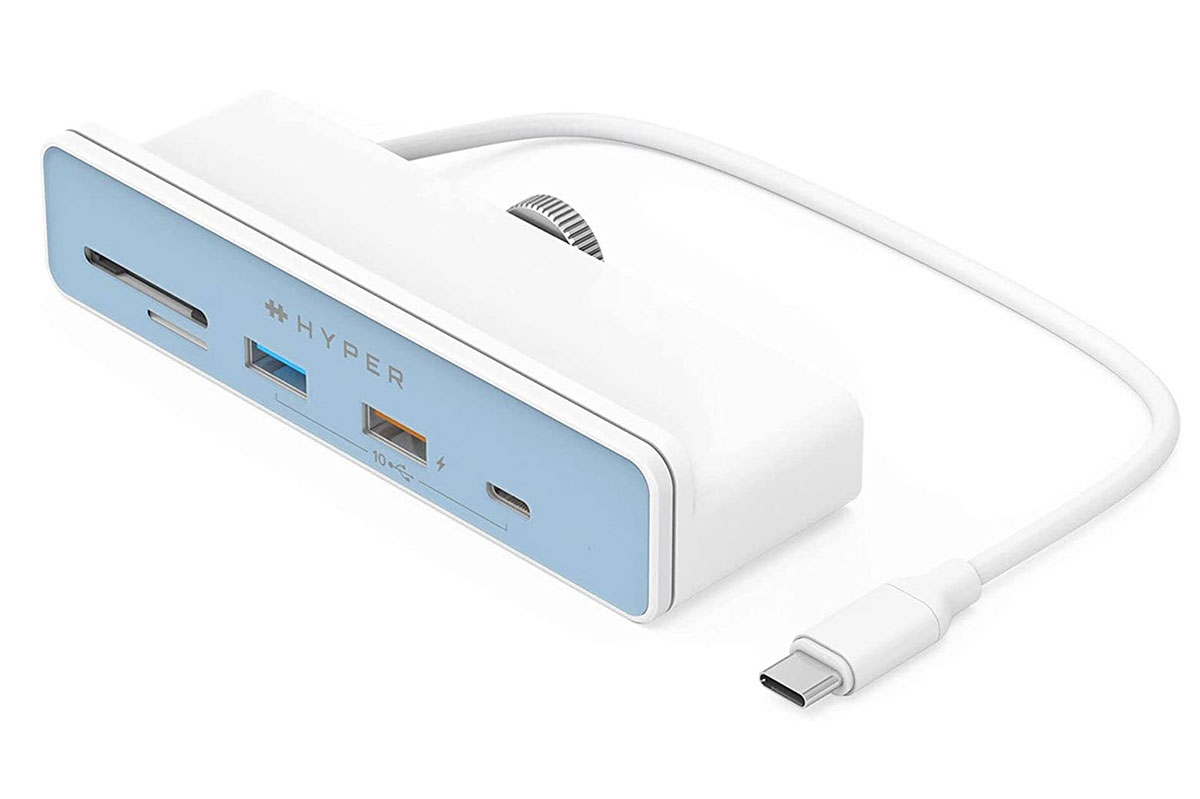
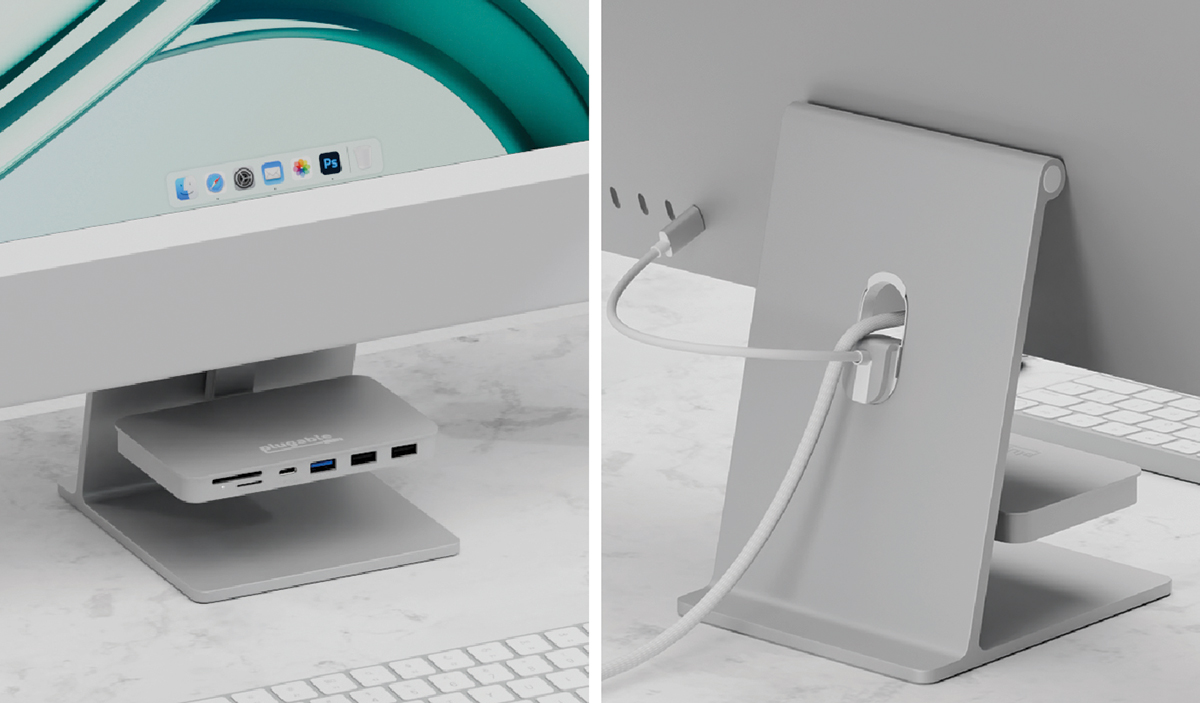
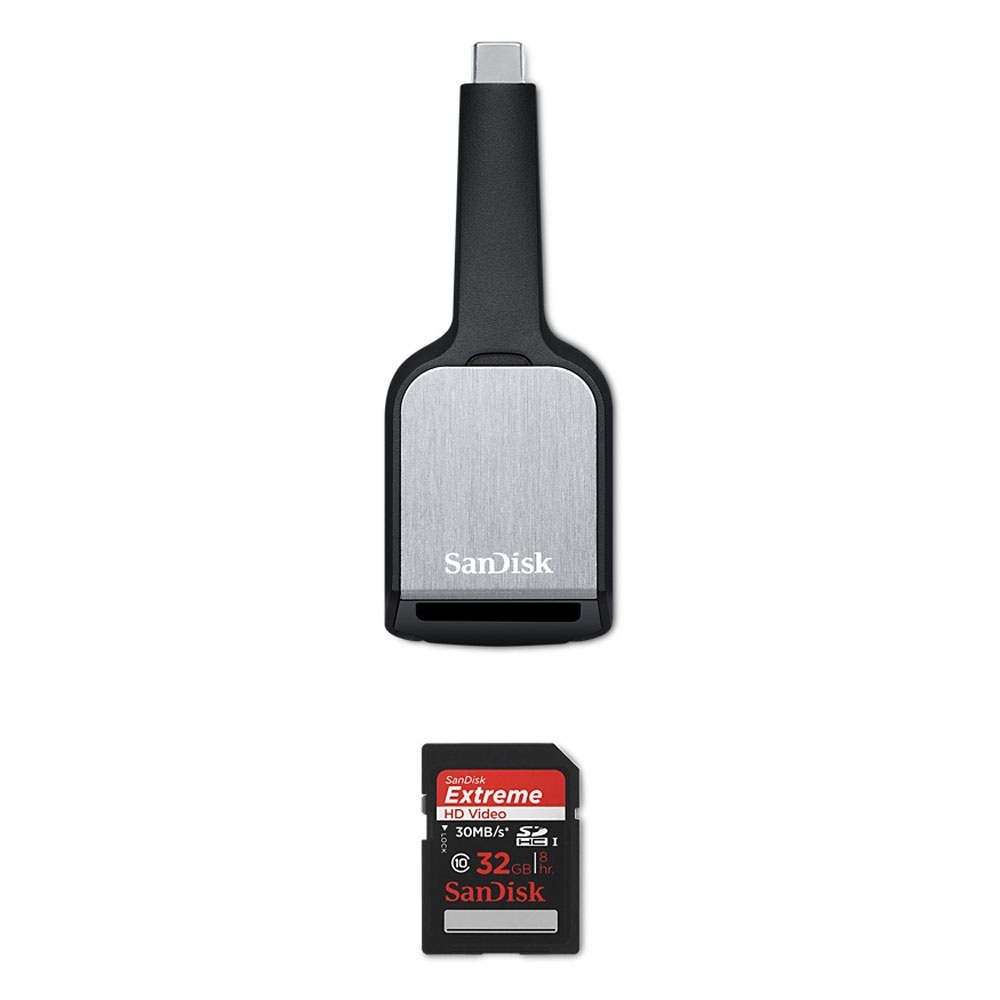
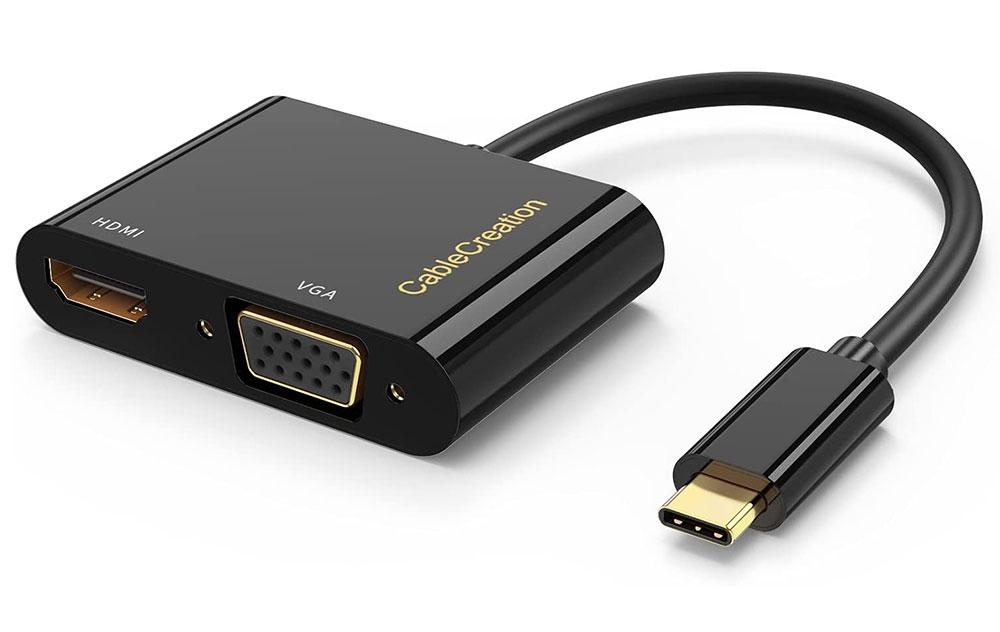
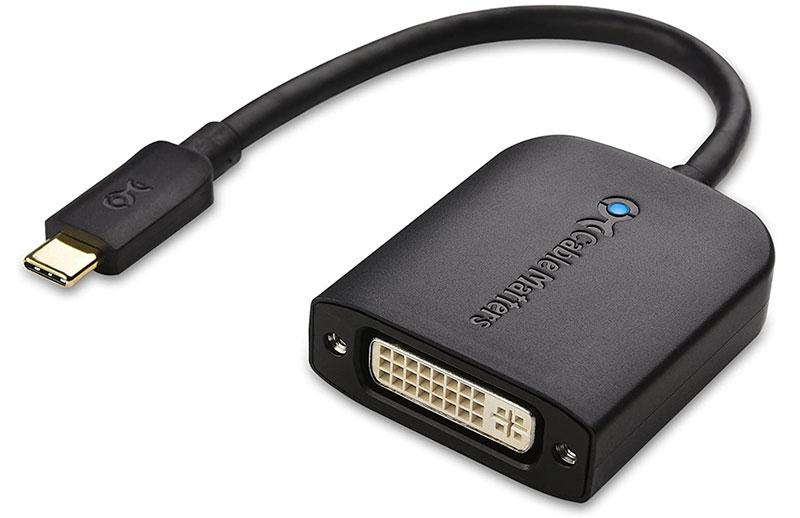
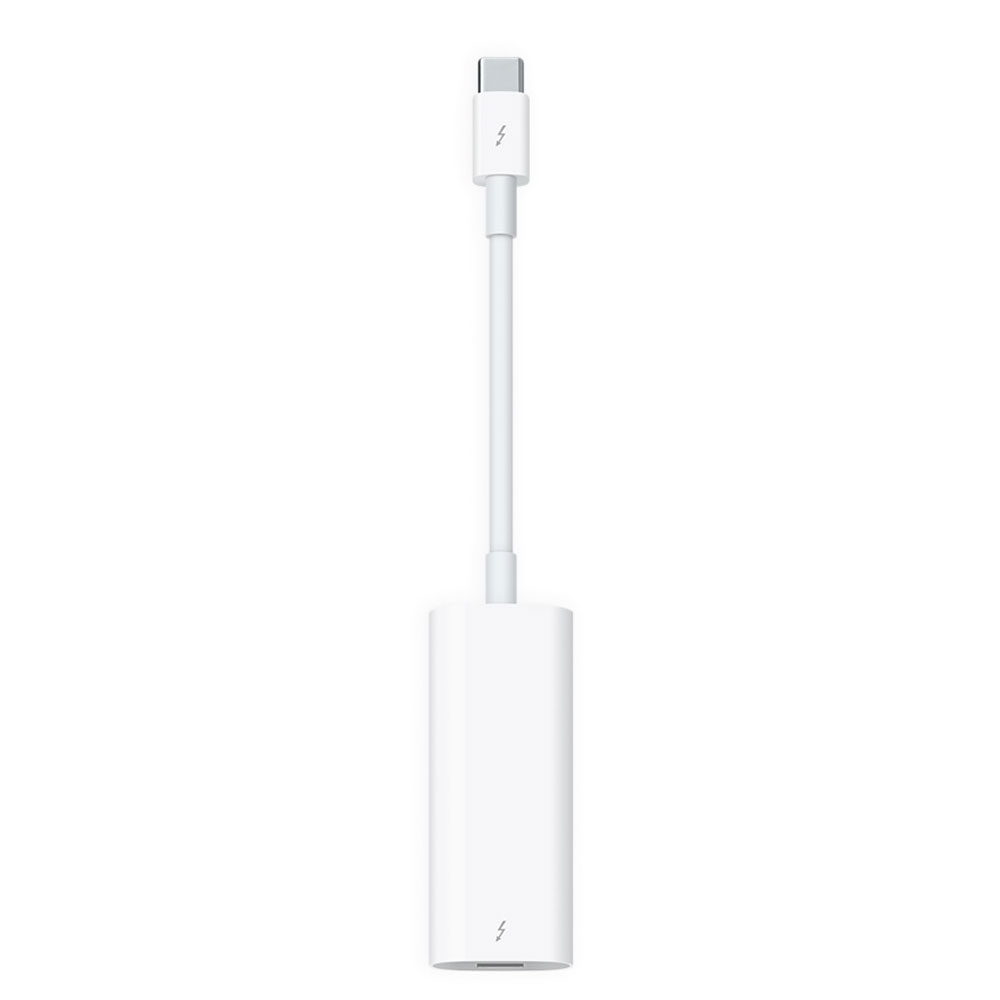
 $49
$49
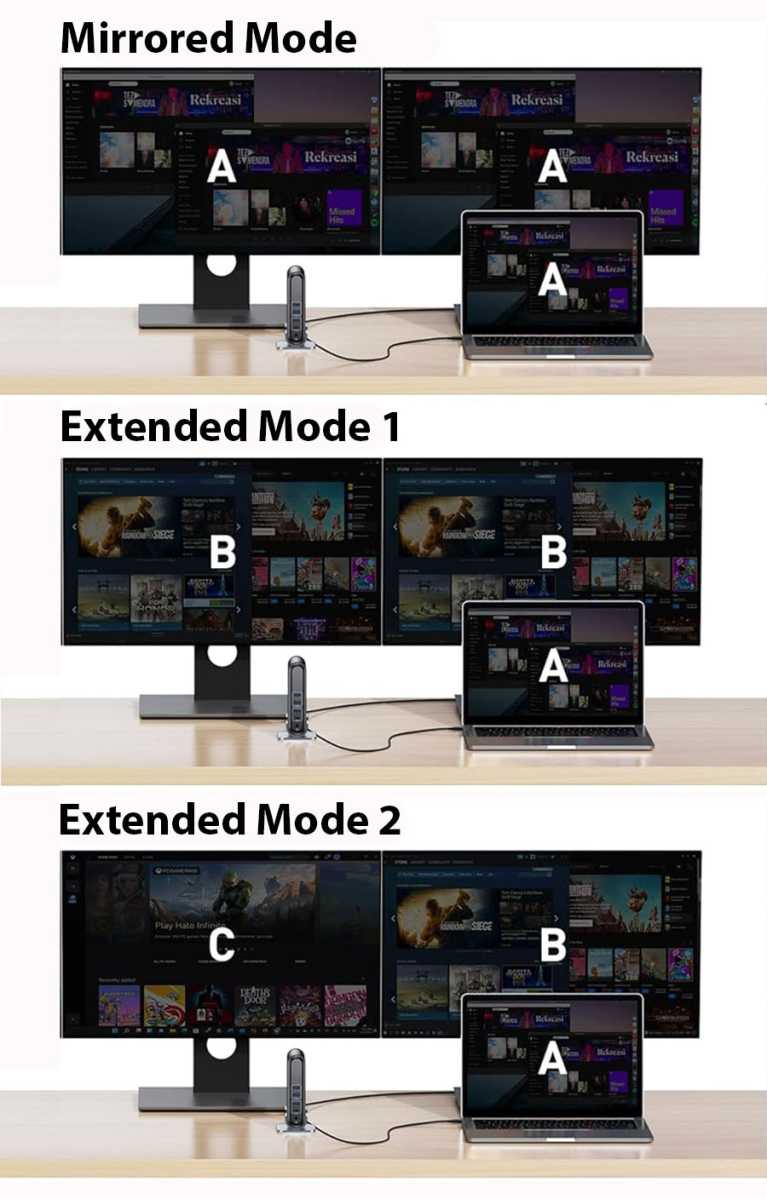



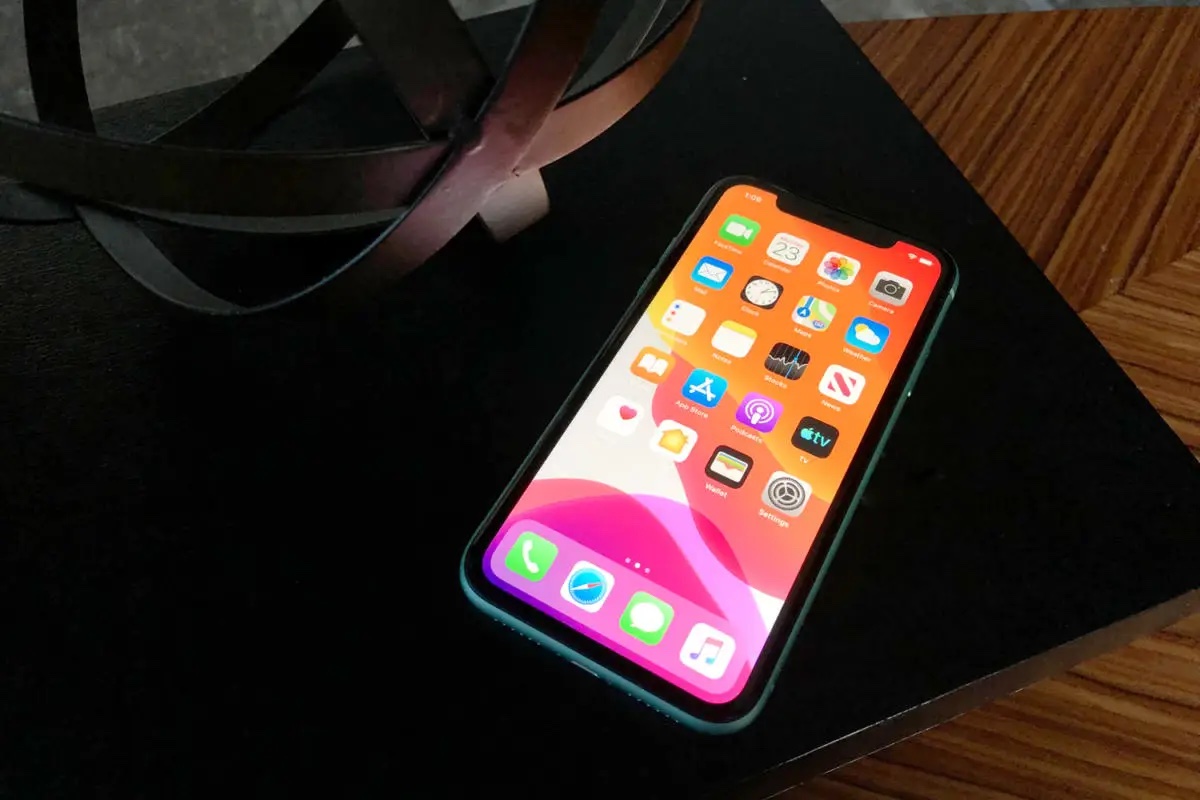
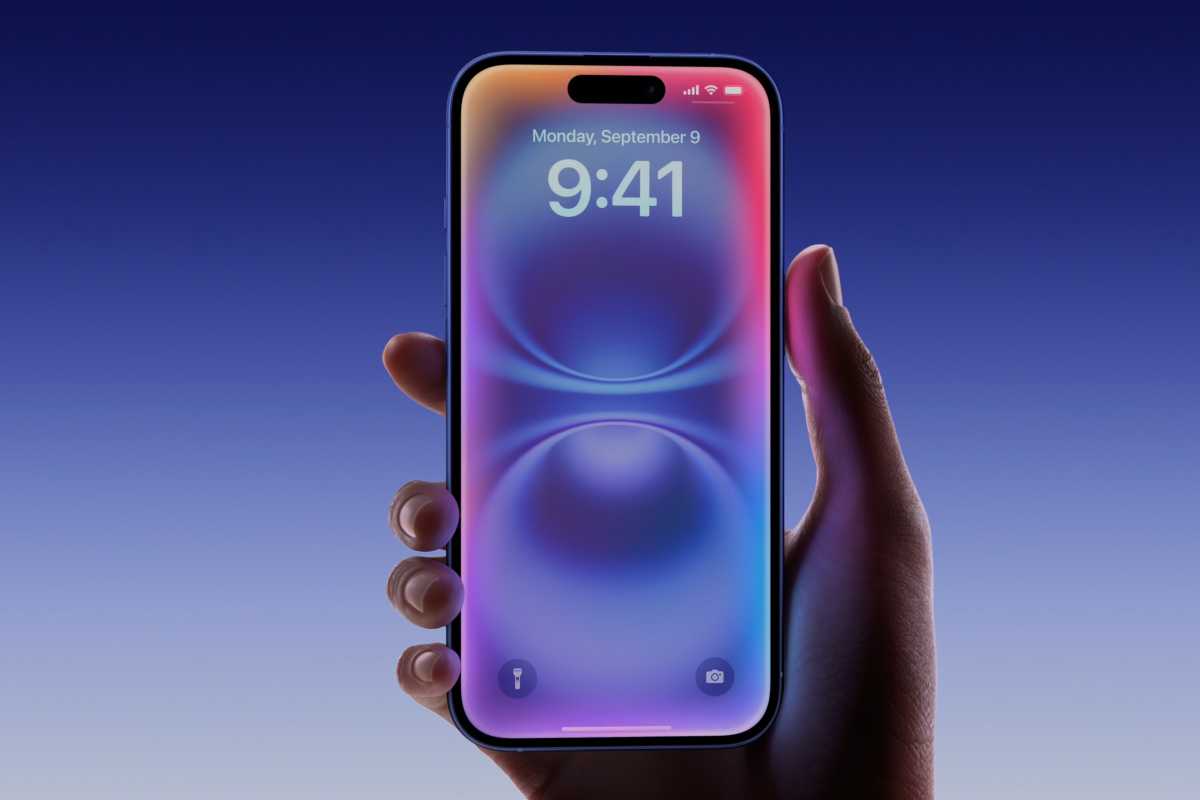

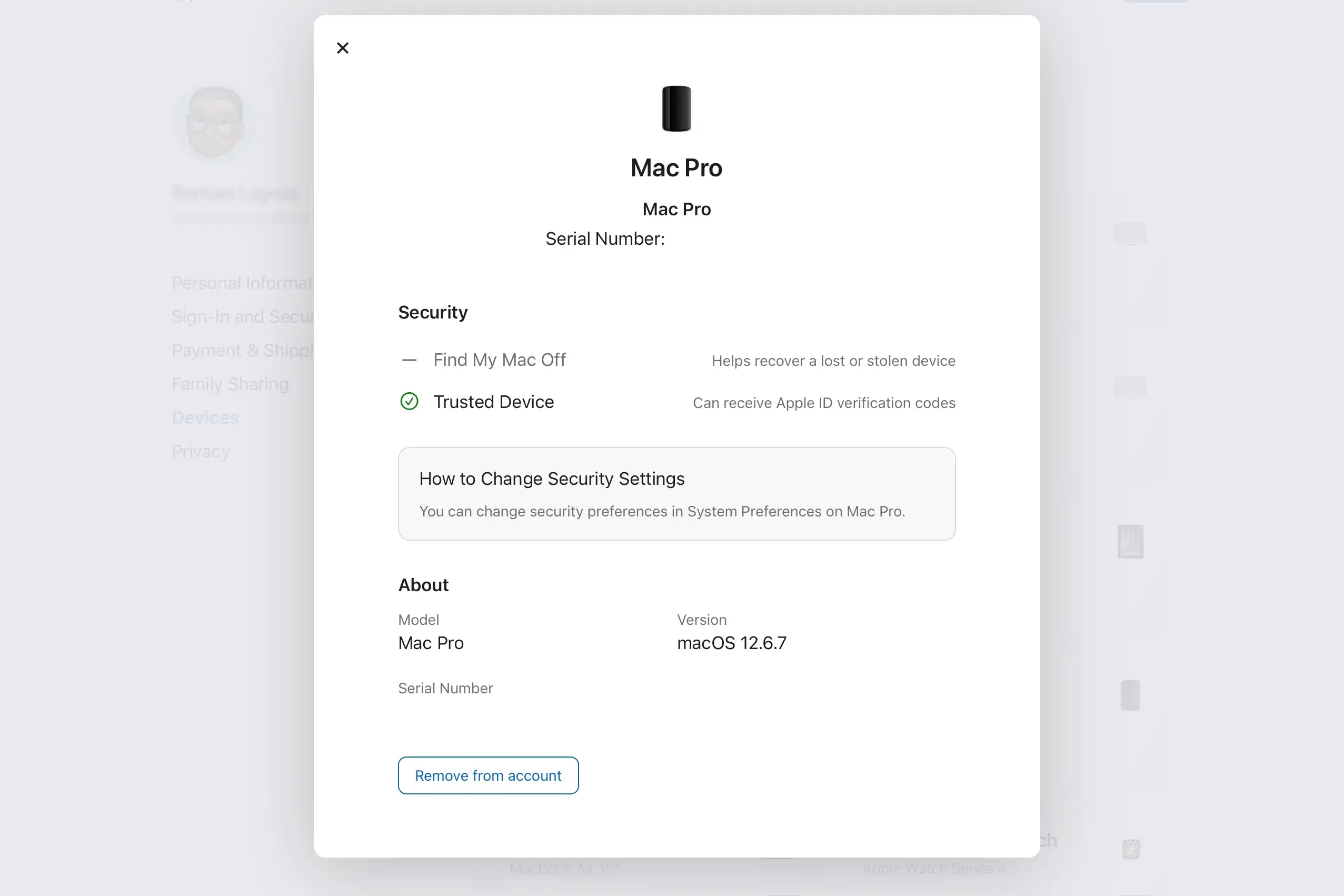
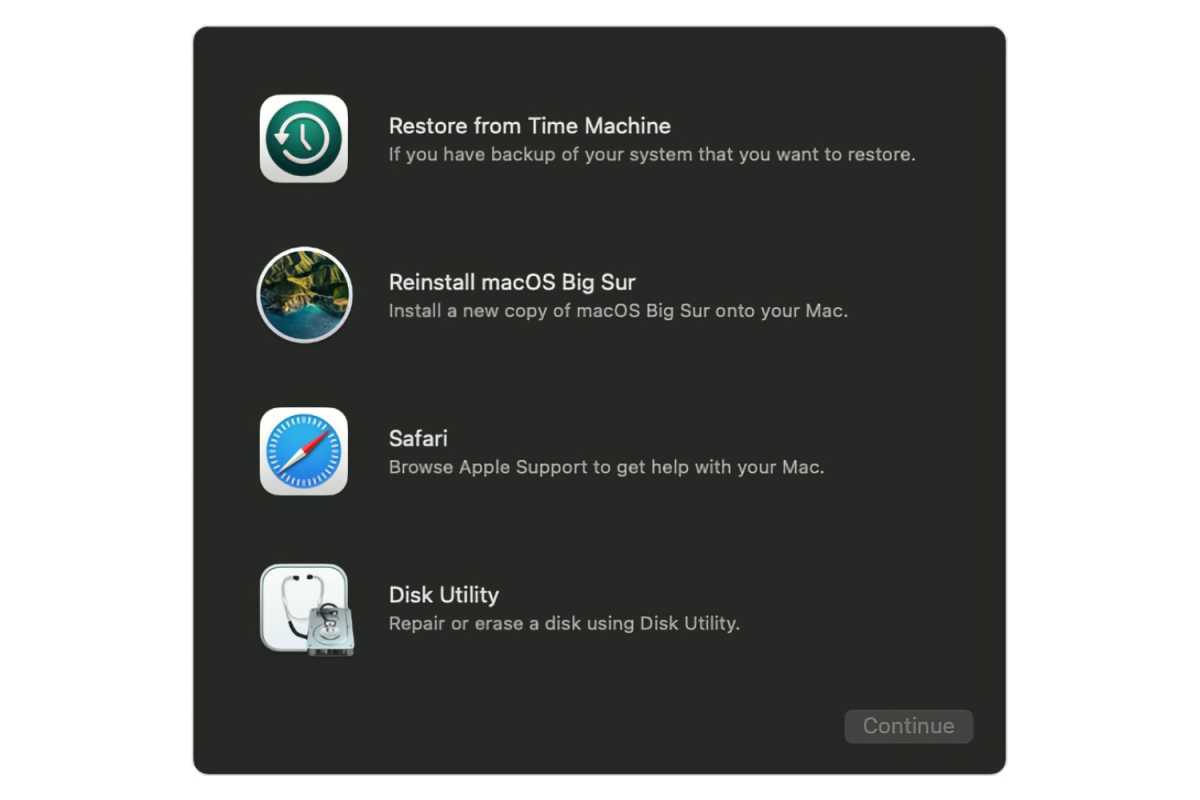






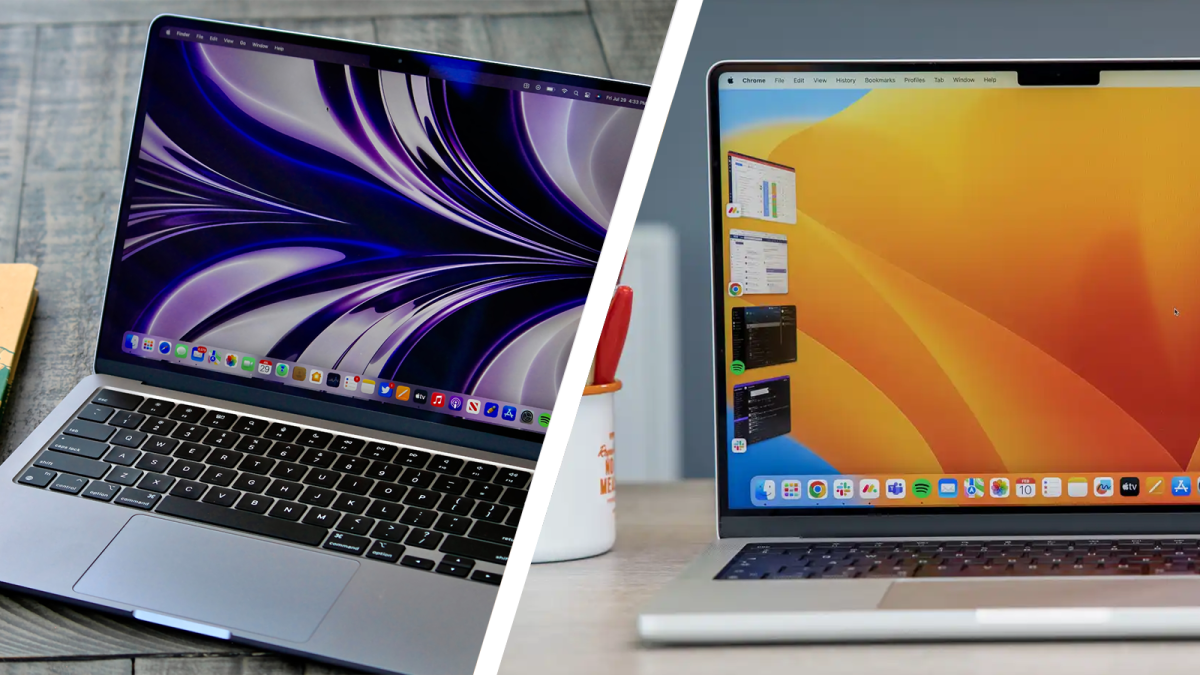




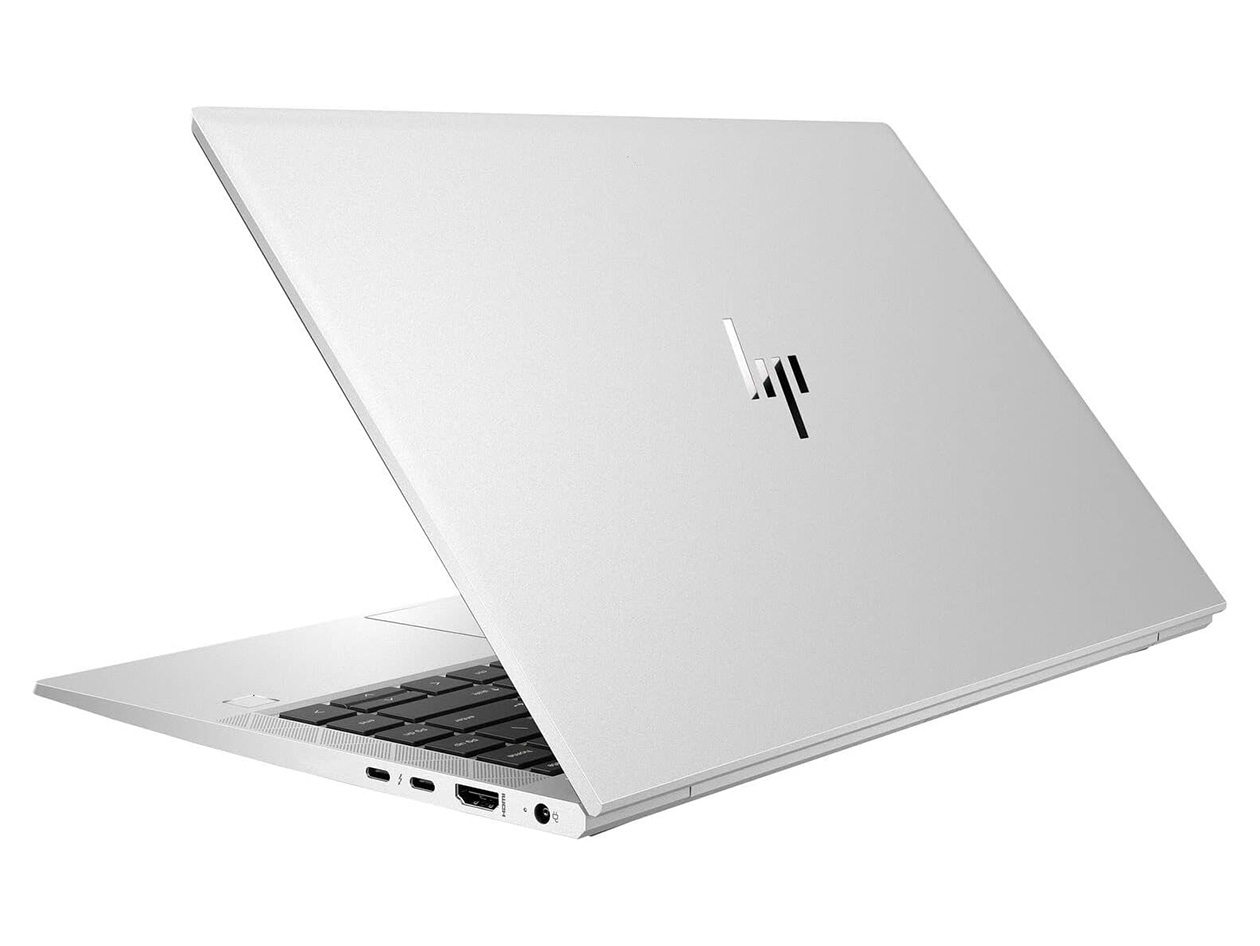



 At a glanceExpert's Rating
Pros
At a glanceExpert's Rating
Pros