GeistHaus
log in · sign up

https://feeds.feedburner.com/DanylkoWeb

rss
10 posts
Polling state
Status active
Last polled May 18, 2026 22:10 UTC
Next poll May 20, 2026 01:12 UTC
Poll interval 86400s
Last-Modified Mon, 18 May 2026 21:41:16 GMT

Posts

Stir Trek 2025

By Jonathan "JD" Danylko

Stir Trek happened last week and is one of the best conferences in the MidWest so let's review the event

Large number of people at Stir Trek 2025

Past Reviews

Considered as one of the best conferences in the MidWest, Stir Trek was on Friday, May 2nd and gave the tech community an absolutely fantastic experience, as always!

What is Stir Trek?

Stir Trek is a one-day conference held at the AMC Dine-In Easton Town Center 30 in Columbus, Ohio every year at the beginning of May and focuses on multiple sessions during the day.

What makes this conference different from others? At the end of the day when sessions finish, attendees are treated to a blockbuster movie. This year...THUNDERBOLTS!

(Personal) Agenda

The conference started early and provided breakfast for all attendees ranging from donuts, fruit, and, of course, coffee.

Breakfast being served at Stir Trek 2025

After grabbing some breakfast and meeting some old (and new) friends, the sessions kicked off at 8:30a.

8:30a - Intro to OpenTelemetry for Developers

AL Rodriguez / @programmerAL / Slides / GitHub
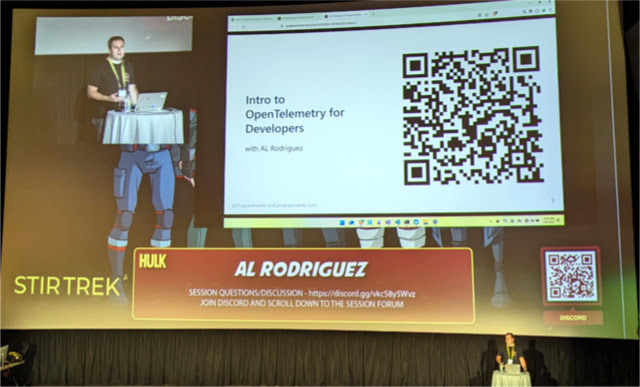
AL Rodriguez with his session on OpenTelemetry

One of the technologies I wanted to dig into further this year is OpenTelemetry (OTel) for integrating into Tuxboard for analytics. How convenient that it was the first session of the day.

OpenTelemetry is meant to gaze into a system's specific function and identify whether it's working as expected or not.

Mr. Rodriguez opened with what OpenTelemetry is, how observability plays into it, and how it's different from creating logs.

He proceeded to explain how Azure Application Insights SDK allows out-of-the-box OpenTelemetry like HTTP Requests and Requests Per Second (RPS) and all of the specifics of OpenTelemetry including the following:

  • Tracing - Lifetime of requests throughout the system using Spans
  • Metrics - Counters, CPU Usage/Memory, Requests per Second, etc.

Overall, I liked the presentation/code ratio. He presented fundamentals of OTel while showing code to demonstrate a working example. 

9:30a - Building Asynchronous UIs Without the Hassle

Dev Agrawal / @devagrawal09 / Website / Video (from Codemash 2025)

Dev Agrawal with his session on Building Asynchronous UIs Without the Hassle

In case you missed Dev's presentation at Codemash, this was another chance to see it.

Dev's message was "asynchronous state is complex," but using Suspense with React made it easier to work with in the long run.

While I'm not a React developer, I was enticed by the JavaScript and UI aspect of the talk. Throughout the presentation, Dev gave demonstrations of an asynchronous application and user interface (UI) issues as a user.

Dev approaches his presentation by walking the audience through certain UI issues and applies code techniques to properly use asynchronous methods while providing loading messages for the user.

Dev presented a good understanding of how to resolve asynchronous issues by using Suspense with loading messages and how to avoid race conditions.

Again, even though I'm not a React developer, I found the talk very interesting with ways to provide user feedback using asynchronous UI methods and best practices.

10:30a - Asynchronous JavaScript: Livin' On A Prayer

Bob Fornal / @rfornal / Github / Website
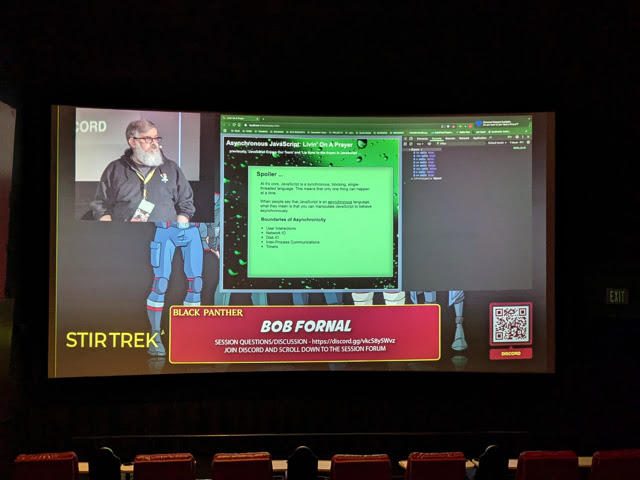
Bob Fornal with his session on Asynchronous JavaScript

Keeping with the JavaScript and asynchronous topic, I decided to attend Mr. Fornal's talk.

His talk was code-heavy and provided a number of examples and explained each one in detail so beginners and even seasoned developers could understand what was happening.

One topic I thought was interesting was how he explained how setTimeout was strictly synchronous. Again, he had examples to demonstrate it.

I'm hoping there is a video of his talk because there was a lot of helpful techniques and tips for JavaScript developers.

11:30a - Aspireify: Building and Deploying with .NET Aspire on Azure

Jeffrey T. Fritz / @csharpfritz / Video / Website
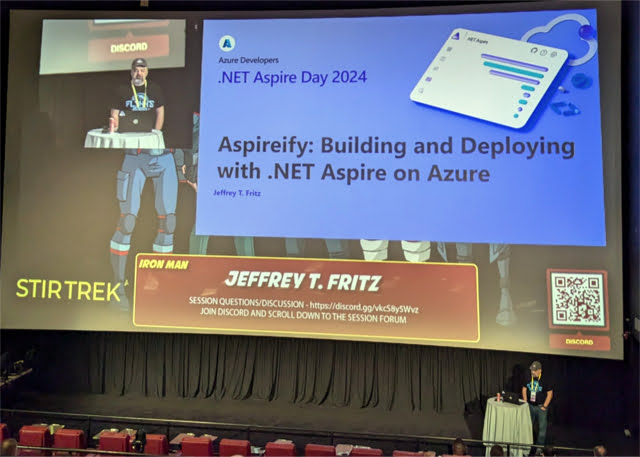
Jeffrey T. Fritz with his session on Aspireify

Mr. Fritz doesn't disappoint when presenting whether it's a presentation, coding on his Twitch channel, or on a podcast. His Blazor and Aspire content is spot on and I urge you to check it out.

For his presentation, he mentions his website called Aspireify.net. Not only was it created with .NET Aspire, it's considered a learning resource for how to build websites using Aspire.

The first part of his talk was explaining techniques he used to build Aspireify.net like using Redis cache, Azure blob storage, and Azure queues. The best part about Aspire is the amount of abstraction to quickly create websites.

Jeff gave some great tips and techniques for running Aspire websites.

  • Use extension methods to provide a clean Program.cs
  • Consider using const to avoid magic strings
  • Schedule a time to clean up containers left over from building and testing

His tour of the site through code and the dashboard was a great introduction into how Aspire works. The Resources running is one of the best features of Aspire.

The second part of his talk was the deploying of code to Azure using the following commands:

  • azd init
  • azd pipeline config
  • azd up

Even though these are simple commands, there's some additional configuration required to make certain assumptions when it comes to builds and using containers.

The session was well-balanced between code and presentation. Great presentation, Jeff.

12:15p - Lunch

The amount of "bento boxes" for everyone was astounding: Turkey, Ham, or Roast Beef sandwiches with chips and a cookie.

If you were looking for a drink, there were large coolers containing cans of Coke, Diet Coke, Sprite, and bottles of water available at any time.

With everyone in line and grabbing their favorite sandwich, everyone had a duration of 30-45min to eat and move on to their next session.

1:00p - The Immutable Laws of Software and Life: Code Accordingly

Cory House / @housecor / Slides

Cory House with his session on Immutable Laws and how to Code Accordingly

I initially saw Cory House speak at Codemash and have enjoyed his presentations ever since.

His talk mentions (almost) all of the technology laws learned over the years. Some of these laws include:

  • Shipley's Six Dimensions; can also be boiled down to the Iron Triangle (Good, Fast, Cheap)
    • Brevity of code
    • Featurefulness
    • Speed of execution
    • Time spent coding
    • Robustness
    • Flexibility
  • Conway's Law - Organizations are constrained to produce designs which copies the communication structures of the organizations; Emphasizes the need to break down silos
  • Hick's Law - The more stimuli (or choices) users face, the longer it will take them to make a decision
  • The Fairbairn Threshold - The point at which the effort of looking up or keeping track of the definition is outweighed by the effort of rederiving it or inlining it

Of course, there were more laws during the session.

One of Cory's strengths in presenting is his ability to relax and interact with the audience.

THIS is what makes his talks interesting and entertaining.

2:00p - Everything You Wanted to Know About Containers But Were Afraid To Ask

Daniel Mikusa / @dmikusa / Website / Github / Slides
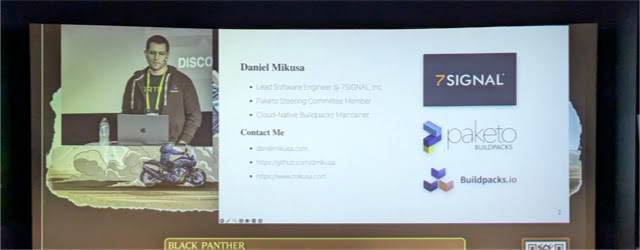
Daniel Mikusa with his session on Everything containers, but were afraid to ask

Dan's session gave everyone a glimpse into what containers are, what they can do, and how to use them effectively.

As mentioned in his talk, containers are everywhere and used for development (and deployment) purposes. However, there are pros and cons to using containers.

Pros

  • Cheap/Fast
  • Easy way to package code
  • Ubiquitous and battle-tested
  • Strong tooling and Libraries
  • Standardized
  • Efficient distribution protocol

Cons

  • Weaker isolation
  • Container Security Config
  • CPU shares are challenging
  • Noisy Neighbors

He explained how containers use layers, image hashes, volume mounts, and configuration files.

I liked his approach to discussing the technology and terminology and then showing configurations/setup for the containers.

Daniel's presentation was solid and gave everyone a better understanding of containers.

3:00p - Hot New HTML Features

Alex Riviere / Website / Slides / Github
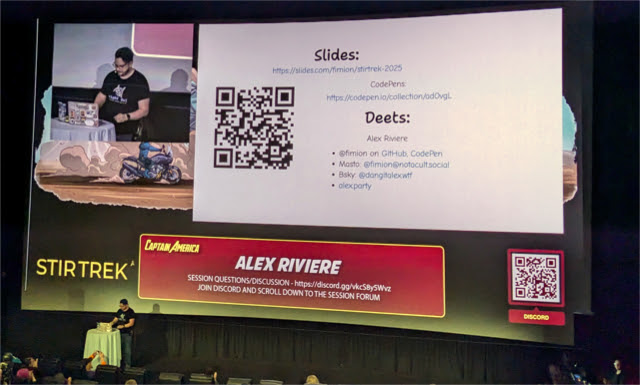
Alex Riviere with his session on Hot New HTML Features

HTML has been forging ahead with a number of features and I'm guessing there are a lot of web developers who haven't seen (or used) all 103 features.

In Alex's session, he covers seven of the most important enhancements to the HTML language over the past 10 years. The list includes:

  • <detail>/<summary> Elements
  • <dialog> Element
  • The inert attribute (which I'm still wondering what the point is of this) :-)
  • Popover API
  • Attributes and attr()
  • Declarative Shadowdom
  • Updates to <select> elements

While he could've talk about all 103 HTML features, this "magnificent seven" was probably the most important features to showcase.

Of the seven mentioned, I didn't know about the inert attribute or the updates to the <select> tag (which I'm happy about).

Alex's enthusiasm and entertaining personality made this talk worth attending.

4:00p - HTMX: What's the big deal with the little framework?

Eric Potter / @pottereric / Website / Github
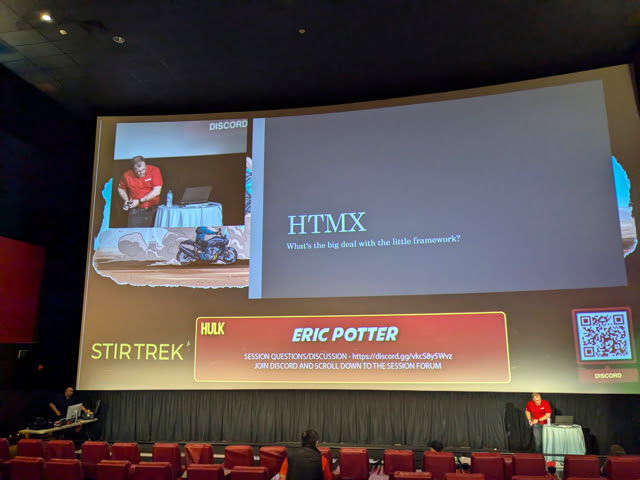
Eric Potter with his session on HTMX

Ever since the first of the year, I've been hearing of a small JavaScript library called HTMX and wanted to understand a bit more of what it was.

Since I've been building out my open-source project called Tuxboard, I've been making various calls to the server to retrieve "Islands of HTML" using an Islands Architecture for the widgets.

After seeing what Eric presented during his session, HTMX seems like a likely candidate to encapsulate these types of calls and removing unnecessary JavaScript code. The declarative and unobtrusive approach to HTMX is very enticing and aligns with my "declarative-first" approach with Tuxboard as well.

The approach may be something to consider for a future Tuxboard post, but as an alternative, I would also like to try Damian Edwards' Razor Slices.

Eric's session gave a great introduction into what HTMX was and how to use it with plenty of code samples.

Great session!

5:00p - Movie Trailers / Feature Movie (THUNDERBOLTS!)

After all of the sessions, AMC had tables of popcorn all set for everyone to watch the Thunderbolts!

LOVED the movie and stayed until the ending credits which set up another Summer blockbuster.

Conclusion

I feel Stir Trek was another big success this year! I saw a lot of old and new friends and co-workers (Kyle, Sadukie, Mark, Greg, Matt, Hugo, David). It was a blast.

The one drawback to Stir Trek this year was the audio problems. During the first session, there was a reverb of some kind where it sounded like 3 people were talking at once and was hard to focus on the session's content. In the main room, the reverb was horrible, but in the alternative theaters, there was no reverb so I stuck to the secondary theaters.

Eventually, the issue was resolved thanks to the AMC staff. I understand it was a hiccup and these things happen. :-)

Every year, Stir Trek feels like going back to school. Each session lets out and everyone is scurrying to their next "class" while saying 'Hi' to everyone as they pass "in the hallways." hehehe

With that said, a huge thank you to the organizers of Stir Trek! You guys rock putting all of this together every year and making it a success!

Also, a big thank you to AMC Easton theaters and staff for accommodating everyone making this a successful conference this year (again).

Can't wait until next year when we get Avengers: Doomsday! It'll be big!

What was your favorite session? Did you stay for the movie? And do you know why there was an asterisk in the title? Post your comments below and let's discuss.

Jonathan "JD" Danylko is an author, web architect, and entrepreneur who's been programming for over 30 years. He's developed websites for small, medium, and Fortune 500 companies since 1996.

He currently works at Insight Enterprises as an Architect.

When asked what he likes to do in his spare time, he replies, "I like to write and I like to code. I also like to write about code."

8db843a9-0bd0-4b14-863b-c941b468cadc
How to Restrict Pages using Middleware and PageFilters

By Jonathan "JD" Danylko

Today's quick tip demonstrates how to limit users to a small number of pages

Door with keys in the lock

Restricting pages to a user on a website can be tricky. There are times when users are only allowed to view a select number of pages.

While this is easily implemented through MS Identity using the [Authorize] attribute on most pages, how could this concept apply to anonymous users?

The most relevant question is why would someone need this?

  • Website launches - Creating a landing page as a way to gather emails to notify users when the new site launches; Restrict access to only the landing page and a thank you page after submitting an email.
  • Maintenance - During maintenance periods, users aren't able to access other pages. They only see the maintenance page.

Luckily, there's a couple of ways to accomplish this and it's been available since ASP.NET Core 2.0. 

Restrict Users With IAsyncPageFilter

One way to accomplish this is with the IAsyncPageFilter class.

Razor Page Filters are implemented with the IPageFilter and IAsyncPageFilter interfaces and they run before and after the Razor Page Handler. They work similar to ActionFilters, but in addition to working on a single page, it can also apply to a larger scale of pages.

In the example below, a list of pages are contained in an array at the top of the class allowing only the Index and About page available to anyone accessing the site. If a user tries to access any other page (or even a page that doesn't exist), they're returned to the Index page.

\Filters\PageAccessFilter.cs

public class PageAccessFilter : IAsyncPageFilter
{
    private readonly string[] _allowedPages = ["/Index", "/About"];

    public async Task OnPageHandlerExecutionAsync(PageHandlerExecutingContext context, 
PageHandlerExecutionDelegate next)     {         if (!_allowedPages.Any(p => context.ActionDescriptor.RelativePath.Contains(p)))         {             context.HttpContext.Response.Redirect("/Index");             return;         }
        await next();     }
    public Task OnPageHandlerSelectionAsync(PageHandlerSelectedContext context) => Task.CompletedTask; }

In the Program.cs file, add the PageAccessFilter filter through the AddRazorPages() method.

builder.Services.AddRazorPages(options =>
{
    options.Conventions.ConfigureFilter(new PageAccessFilter());
});

While this can be used for either a page or an entire website, another alternative is to implement a Middleware component.

Restrict Users with Middleware

The Middleware version is similar and can be used in a more global manner as opposed to the PageFilter approach. The Middleware approach is a bit more enticing since it's encountered earlier in the pipeline process.

Keep in mind, a Middleware's order of operation is extremely important when adding Middleware components.

Here is the PageAccessMiddleware component

\Middleware\PageAccessMiddleware.cs

public class PageAccessMiddleware(ILogger<PageAccessMiddleware> logger, RequestDelegate next)
{
    private readonly string[] _allowedPages = ["/Index", "/About"];

    public async Task InvokeAsync(HttpContext context)     {         if (!_allowedPages.Any(p => context.Request.Path.HasValue && context.Request.Path.Value.Contains(p)))         {             context.Response.Redirect("/Index");             return;         }
        await next(context);     } }

In the Program.cs, use the UseMiddleware<PageAccessMiddleware>() method at the top of the method.

app.UseMiddleware<PageAccessMiddleware>();

Let's clean it up a bit by creating a Middleware extension method.

public static class PageAccessMiddlewareExtensions
{
    public static IApplicationBuilder UsePageAccessMiddleware(this IApplicationBuilder builder) => 
        builder.UseMiddleware<PageAccessMiddleware>();
}

Finally, replace the UseMiddleware() method with the new extension method.

app.UsePageAccessMiddleware();

Once updated, running the example displays the main page and allow access to the About page. If trying to access the Privacy page, it redirects the user to the Index page.

For additional points, instead of hard-coding an array of pages, they could easily be passed into the Middleware component.

Conclusion

In this short post, we covered a way to restrict users to a collection of pages.

Since HttpContext.Request is available in both versions, other possibilities to implement could include:

  • Limiting pages based on a directory
  • Storing a list of allowable pages in a database
  • Using a configuration file to enable/disable a website (i.e. maintenance purposes)

If a website has to "go down" temporarily or force users to one or more pages, PageFilters or Middleware is a simple, quick, and efficient solution.

How do you restrict users from other pages? What could be added to make the component better? Post your comments below and let's discuss.

Jonathan "JD" Danylko is an author, web architect, and entrepreneur who's been programming for over 30 years. He's developed websites for small, medium, and Fortune 500 companies since 1996.

He currently works at Insight Enterprises as an Architect.

When asked what he likes to do in his spare time, he replies, "I like to write and I like to code. I also like to write about code."

41e89d40-e130-4c4d-8aba-b228d257bf75
Tuxboard 1.9.2 Released

By Jonathan "JD" Danylko

With the latest release, Tuxboard is now updated to use "generic" dashboards with custom user identifiers

Two images of the same object

With the continued success of Tuxboard, I am happy to announce version 1.9.2 is now available. While the version is a minor update, it provides customized user data types for dashboards.

One problem while using Tuxboard on various projects is the inflexible schema of the Dashboard table. The goal of the Dashboard table is to provide a mapping of a dashboard to a user. The Dashboard table contains the following fields:

  • DashboardID - Unique Identifier (GUID)
  • SelectedTab - integer (future use; TBD)
  • UserID - <custom identifier of your user>

When Tuxboard was initially developed, the UserID was defaulted to a GUID type modeled after MS Identity. Microsoft Identity's flexible security framework even received it's own Azure security area called Entra. By default, Microsoft Identity uses a GUID for the User's ID.

After integrating Tuxboard into a select number of legacy projects (and receiving feedback), there were times when the UserID had to be either a GUID or an integer and, with Tuxboard, there was only one option.

So how do you allow a library to use a custom data type throughout the entire library and still have the library function as expected?

The Approach

As mentioned previously, the Dashboard table is the only table using a custom data type (UserID). Everything else in Tuxboard is strictly library-specific. Once we have a DashboardID, we can get everything else required for a dashboard to work as expected.

How can you customize a field to be multiple types?

After dissecting the problem, the answer was to use the Microsoft Identity approach since it handles the problem quite efficiently.

Using Generics

Microsoft Identity uses generics throughout their framework and the library can adapt to any data type whether it's a GUID, string, or integer. Why not incorporate the same pattern into Tuxboard?

Again, the only affected table is the Dashboard table and requires a couple changes to the following classes in the code.

Updating a Project

These types of changes were intended to be minimal as Tuxboard continues to move forward.

With this release, a discussion on Github is available to review these decisions even further.

To update a project, update the version of Tuxboard to 1.9.2 through NuGet. As an example of updating a project, we'll use one of the Tuxboard.Examples (12-Creating-Widgets). If interested in seeing all of the changes made to the example, check the branch merge.

In the Program.cs file, change the following:

  • Change TuxDbContext concrete classes and ITuxDbContext interfaces to include the generic type of your choice (i.e. either TuxDbContext<int> / ITuxDbContext<int>)
  • Change DashboardService and IDashboardService to a generic type (i.e. DashboardService<Guid> / IDashboardService<Guid>)

In the Index.cshtml.cs page,

  • Change the IDashboardService to IDashboardService<int> (or IDashboardService<Guid>)
  • Change Dashboard to Dashboard<int> (or Guid)
  • In the GetIdentity() method, it returns a Guid. If using an integer, change the method as necessary.

Update the following ViewComponents:

  • In the TuxbarViewComponent (\Pages\Shared\Components\Tuxbar),
    • Change the Dashboard parameter to a generic (Dashboard<Guid>/<int>) in the .cs file.
    • Change the model in the View from Dashboard to Dashboard<Guid>/<int>
  • Perform the same update for the TuxboardTemplateViewComponent (\Pages\Shared\Components\TuxboardTemplate)

If everything was updated correctly, perform a migration to see the changes:

  1. Open the Package Manager Console (View > Other Windows... > Package Manager Console)
  2. Confirm you have the 12-Creating-Widgets project selected in the Default Project Dropdown in the Package Manager Console.
  3. If a migration doesn't exist, create one by typing
    add-migration Initial -Context TuxboardRoleDbContext -OutputDir Data\Migrations\TuxboardContext
  4. Update the database by applying the migration by typing
    update-database -Context TuxboardRoleDbContext
  5. Open the Dashboard table to confirm the UserID is the same data type as the C# type.

This should complete the process of upgrading to a generic dashboard.

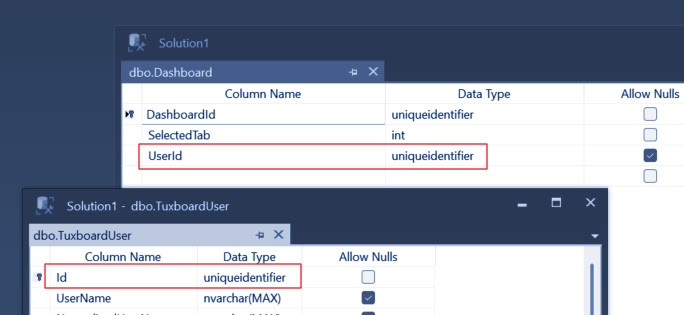
Once the database is updated, the UserID data type should match in both the Identity's User table and Dashboard table.

Screenshot of Tuxboard table changes

As a general rule of thumb, whatever the UserID's data type is in Identity, the UserID in the Dashboard table should be defined as the same data type.

Conclusion

With the update of 1.9.2, I'll continue to add new features to Tuxboard and respond to feedback to make it a better dashboard toolkit for ASP.NET Core users.

Tuxboard Resources

Full examples located at Tuxboard.Examples.

Were there issues with the update? How are you using Tuxboard? Post your comments below and let's discuss.

Jonathan "JD" Danylko is an author, web architect, and entrepreneur who's been programming for over 30 years. He's developed websites for small, medium, and Fortune 500 companies since 1996.

He currently works at Insight Enterprises as an Architect.

When asked what he likes to do in his spare time, he replies, "I like to write and I like to code. I also like to write about code."

12bed73d-fb7a-4cb3-a84e-71710978f09f
Harnessing .NET and C# for Better SEO: How It Can Boost Your Website Rankings

By Jonathan "JD" Danylko

With the latest .NET and C#, it's now easier to apply technical SEO to a website, provide quality content, and analyze search traffic

Chalkboard with the text C# Advent surrounded by Christmas gifts

Notice: This post is part of the Eighth Annual C# Advent Calendar for 2024. Check the C# Advent for more than 50 other great articles about C# created by the community. Thanks a lot to Matt Groves (@mgroves) for putting this together again! Great job, Matt!

Recently, I was asked to present on the topic of SEO to a C# user's group (and thank you Sam Nasir for the opportunity). While ASP.NET has been (and always will be) my bread and butter, I feel using SEO on websites should be a secondary skill if developers are always building websites.

So, in preparing for the presentation, I wanted to integrate as much ASP.NET, C#, and SEO as possible. During the presentation, I mentioned several SEO and .NET techniques used in helping a public website gain more visibility through search engine/website best practices.

Source: YouTube

In this post, we'll focus specifically on technical SEO which optimizes a website through server-side techniques to optimize its ranking and positioning in search engines and briefly touch on the 'M' word (marketing). In this case, by using C# and .NET. 

I briefly touched on certain topics in the presentation, but feel like they fell short because, of course, developers like to see code. This post is meant to go a bit deeper by providing a couple coding examples (mainly C# tips). The topics focus on the following:

  • Keyword Density
  • Minifying HTML
  • Keyword Research

Now, let's see how C# can boost your website's SEO.

Keyword Density

With the latest release of .NET 9.0, I was excited to see the CountBy/AggregateBy methods included.

Why?

Search engines analyze content and provide the best choice based on the topic's relevancy. One way search engines identify relevancy is to examine the number of keywords in a web page and how they relate to a topic.

The new CountBy and AggregateBy methods return the count of elements in a list grouped by a key. In SEO terms, it allows us to identify the most prevalent keywords in a particular string or array.

If given some text, we can identify the most frequent words used in the post. Let's look at a simple example.

KeywordResults = TextToAnalyze
    .Split([' ', '.', ','], StringSplitOptions.RemoveEmptyEntries)
    .Select(e=> e.ToLowerInvariant())
    .Where(e=> !_stopWords.Contains(e))
    .CountBy(e => e)
    .OrderByDescending(e => e.Value)
    .Where(e=> e.Value >= 2)
    .ToList();

Before counting the words, the text is split delimited by spaces, periods, and commas. Once the list is split, each word is converted to lowercase.

Next, all filler words are removed so the CountBy method focuses on only topical words meaning something. The _stopWords list contains words to be ignored and meant to be removed.

private string[] _stopWords =
[
    "a", "an", "on", "of", "or", "as", "i", "in", "is", "to",
    "the", "and", "for", "with", "not", "by", "was", "it"
];

The CountBy method is called to count all words and their frequency. The result produces a Dictionary<string,int> where the Key is the word and the Value is the number of times it's used in the text.

Once the words are counted, the list is sorted by the Value in descending order and only where there are two or more occurrences.

Of course, additional punctuation and stop words can be added for more accurate results.

For the best results, use one or two keywords for every 200 words or 2-4% of the text should contain targeted keywords.

Based on the Google Patent regarding links, this fundamental concept can be expanded further to achieve better search results with context chunking. In the patent, Google looks at the link, and then examines the words to the left AND right of the link to determine the context and value of the link.

As mentioned in the video above, search engines look at a number of factors when it comes to links. It's best to provide as much information as possible so search engines can serve relevant pages to drive traffic to a site...specifically to YOUR website.

Minifying HTML

The performance of a website is extremely important and is one of the factors in determining a website's ranking in search engines.

As mentioned in "ASP.NET 8 Best Practices," next to security, performance is one of the most important parts of a successful website.

While GZip compression is another technology to implement, the ability to minify your HTML shrinks the payload even further. In earlier versions of .NET, this concept was achieved through ActionFilters for MVC.

With the Middleware pipeline, we can take advantage of updating a webpage by minifying it on the return trip to the client/browser.

If we look at the Index.cshtml page without minifying the HTML, we can see it's at 3.6K.

Screenshot of developer tools displaying the size of the HTML document

With a Middleware approach, we can use Regular Expressions (aka black voodoo magic) to remove the spaces, carriage returns, and linefeeds from the HTML.

Middleware\MinifyHtmlMiddleware.cs

using System.Text.RegularExpressions;

namespace SEOWithCSharp.Middleware;

public class MinifyHtmlMiddleware(RequestDelegate next, ILoggerFactory loggerFactory)
{
    public async Task InvokeAsync(HttpContext context)
    {
        var stream = context.Response.Body;
        try
        {
            using var buffer = new MemoryStream();

            context.Response.Body = buffer;

           await next(context);

           var isHtml = context.Response.ContentType?.ToLower().Contains("text/html");
            if (!isHtml.GetValueOrDefault())
            {
                return;
            }

           context.Response.Body = stream;

           buffer.Seek(0, SeekOrigin.Begin);

           var content = await new StreamReader(buffer).ReadToEndAsync();
            if (context.Response.StatusCode == 200 && isHtml.GetValueOrDefault())
            {
                content = Regex.Replace(
                        content,
                        @"(?<=\s)\s+(?![^<>]*</pre>)",
                        string.Empty, RegexOptions.Compiled)
                    .Replace("\r", string.Empty)
                    .Replace("\n", string.Empty);
            }

           await context.Response.WriteAsync(content);
        }
        finally
        {
            context.Response.Body = stream;
        }
    }
}

Middleware\MinifyHtmlExtensions.cs

namespace SEOWithCSharp.Middleware;

public static class MinifyHtmlExtensions
{
    public static IApplicationBuilder UseMinifyHtml(
        this IApplicationBuilder builder) =>
        builder.UseMiddleware<MinifyHtmlMiddleware>();
}

To use the Middleware, add this line to the Program.cs file.

app.UseMinifyHtml();

If we load the webpage now, we can see the results of our efforts.

Screenshot of developer tools displaying the size of the document after minifying the HTML

The webpage is minified to a low 3K, a difference of 16%.  

Of course, everyone's mileage may vary. If returning a heavy HTML webpage, the benefits should be apparent.

While most webpages achieve a 6-16% decrease in file size by minifying HTML (which in turn, increases overall performance), most developers feel content with leaving GZip compression in place without minifying.

Personally, I feel using both GZip compression AND minifying HTML would pack more of a punch for a website's performance.

Sidenote: With .NET 9.0, I ran into one issue with the new app.MapStaticAssets() endpoint extension method. With the new approach of bundling/minifying assets on-the-fly, it caused issues which requires additional time for discovery to determine what's happening behind the scenes. I've tried to dynamically build/create/bundle images in the past by dynamically resized images, but takes too long when requesting a page full of images. It's best to create a process for optimizing client-side assets using a Task Runner at build time. With that said, I reverted back to the app.UseStaticFiles() and the HTML minifies as expected.

Keyword Research

How do you know what to write about on a technical blog?

As Wayne Gretzky said, "Skate to where the puck is going to be, not where it has been." For example, since .NET 9.0 was recently released, it makes sense to write about all of the latest features since developers want to know about how to use it.

.NET has a large ecosystem and can seem overwhelming...so what's a popular topic to write about?

There are four ways to identify what keywords are popular:

  1. Use a third-party dedicated to SEO (Ahrefs.com, SEMRushMajesticSEO, etc.). For additional tools, search for "SEO tools."
  2. Use Google Keyword Planner for volume, popularity, and average ad cost.
  3. Go old school with a search bar's Autosuggest/"People also search for" at the bottom of a search page. Usually, these are the most popular search terms people are typing into search engines.
  4. Use C# to analyze and data mine keywords.

"How can we use C# to do keyword research?"

There is a reasonably-priced service called DataForSEO.com which provides a REST API for keyword data, search engine result pages, and content analysis just to name a few of the services.

As a way to test drive the services, I was given $1 (yes, one dollar) for the playground and I've yet to use it all.

Once you sign up and receive your API key, these services are a simple C# call to perform SEO-related services. If you need an example of what APIs are available, they have an API Playground as well. The playground also creates a JSON result so you can easily create a quick C# model hierarchy using the Visual Studio 2022's "Paste JSON as classes" feature.

Conclusion

These techniques are but a few of the ways to incorporate modern website techniques by utilizing their C# skills to boost website performance, gain more visibility to their site, and write more relevant content for readers.

  1. Identify primary keywords to be used in a blog post (using Keyword Research)
  2. Write a post containing those keywords and sprinkle them throughout the article to provide relevancy and context to the search engines (using Keyword Density)
  3. Apply Technical SEO concepts to the site making it faster (like MinifyHtmlMiddleware)

Web developers should have a general understanding of basic marketing (yes, I said the 'M' word) of a website by applying Technical SEO techniques at the very least.

Check out the Github repository below.

Did you find this post interesting? Want more Technical SEO content with C#? Post your comments below and let's discuss.

Jonathan "JD" Danylko is an author, web architect, and entrepreneur who's been programming for over 30 years. He's developed websites for small, medium, and Fortune 500 companies since 1996.

He currently works at Insight Enterprises as an Architect.

When asked what he likes to do in his spare time, he replies, "I like to write and I like to code. I also like to write about code."
d5528d57-9e51-4956-8b59-42b8b1712093
Creating Custom Tuxboard Widgets

By Jonathan "JD" Danylko

In today's post, we cover the process of building and adding new widgets to Tuxboard

Collection of cans on an assembly line

What's Next?

Full examples located at Tuxboard.Examples.

In the last post, we discussed how a user could view available widgets based on their roles in the application.

While widgets are a fundamental part of Tuxboard, this series of posts never mentioned how to create a widget.

Since widgets are a big thing with Tuxboard, there's a lot to cover. For this initial post, we'll break this into multiples posts to make it easier to digest.

In this post, we'll go over the process of creating a new Tuxboard widget.

Overview

To review the goals of Tuxboard,  

  1. Easy Integration - Simple enhancement to applications
  2. Declarative first, Programmatic second - The concept of modifying Tuxboard using HTML, CSS, and JavaScript/TypeScript was more enticing than modifying code, then compiling. However, the option of writing code is available.
  3. Extensibility - Providing simple hooks at the programmatic and database level to speed up custom development requirements.

These three goals are always at the top of the list for easy dashboard development, but today, we focus on the "Extensibility" and "Easy Integration" part of Tuxboard.

Once a Tuxboard dashboard is running for users, the ability to create additional widgets was essential.

Since developers need a way to keep up with the latest news, we'll add a Stack Overflow Blog RSS feed widget.

Type of Widgets

There are two types of widgets in Tuxboard: Standard and Static.

  1. Standard - Widgets with a heading allowing users to interact with the widget's information/settings
  2. Static - Widget meant to display information with no interaction

The posts in series focused primarily on standard widgets. Static widgets are simply a box displaying information with no interaction or actions.

We'll get into static widgets in a later post.

Setup

We're using the source code from the last project (11-Creating-Default-Widgets / repository). Follow the steps under the "Getting Started" heading.

Once finished, we'll continue with the next section.

Creating the RSS Widget

When building a new widget, only two places are required to update: The Components folder and the database.

  • ViewComponents folder - The folder (Pages\Shared\Components\) is the widget name containing the body of the widget.
  • Widget / WidgetDefault / WidgetDefaultOption tables - These tables are what drives the adding of widgets to a dashboard

Let's break down each one and examine what's required to add the Stack Overflow Blog RSS Widget (Man, that's a mouthful...I'll just call it RSS Widget from now on).

Step 1: Creating the RSS [View]Component Folder

In Tuxboard, the term widget and ViewComponent are interchangeable. If you understand ViewComponents, then you already understand a widget in Tuxboard.

ViewComponents are absolutely essential in creating these "islands of HTML." As mentioned in the past, there are a lot of benefits to using ViewComponents

To add the RSS Widget, create a folder called "Rss" under the Pages/Shared/Components folder and add the following files into the "Rss" folder.

Pages/Shared/Components/Rss/RssViewComponent.cs

using Microsoft.AspNetCore.Mvc;
using Tuxboard.Core.Domain.Entities;

namespace CreatingWidgets.Pages.Shared.Components.Rss;

[ViewComponent(Name = "rss")]
public class RssViewComponent : ViewComponent
{
    public IViewComponentResult Invoke(WidgetPlacement placement)
    {
        var rssFeed = new Uri("https://stackoverflow.blog/feed");

       var feed = new FeedReader(rssFeed).Get();

       var widgetModel = new RssWidgetModel { Placement = placement, Feed = feed };

       return View(widgetModel);
    }
}

Pages/Shared/Components/Rss/Default.cshtml

@model RssWidgetModel

<h6>@Model.Feed.Title.Text</h6>
<ul class="list-unstyled">
    @foreach (var feedItem in Model.Feed.Items.Take(Model.Limit))
    {
        <li>
            <p>
                <a href="@feedItem.Links.First().Uri.ToString()"
                   class="fw-bold">
                    @feedItem.Title.Text
                </a><br />
                @feedItem.Summary.Text
            </p>
        </li>
    }
</ul>

Pages/Shared/Components/Rss/FeedReader.cs

using System.ServiceModel.Syndication;
using System.Xml;

namespace CreatingWidgets.Pages.Shared.Components.Rss;

public class FeedReader
{
    private readonly Uri _rssFeed;

   public FeedReader(Uri rssFeed)
    {
        _rssFeed = rssFeed;
    }

   public SyndicationFeed Get()
    {
        using (var reader = XmlReader.Create(_rssFeed.AbsoluteUri))
        {
            var feed = SyndicationFeed.Load(reader);
            reader.Close();

            return feed;
        }
    }
}

Pages/Shared/Components/Rss/RssWidgetModel.cs

using System.ServiceModel.Syndication;
using Tuxboard.Core.Infrastructure.Models;

namespace CreatingWidgets.Pages.Shared.Components.Rss;

public class RssWidgetModel : WidgetModel
{
    public SyndicationFeed Feed { get; set; } = null!;
    public int Limit { get; set; } = 10;
}

One of the first steps is creating the RssViewComponent which accepts an instance of a WidgetPlacement object.

For convenience, we create a FeedReader class so we can immediately consume the Stack Overflow RSS feed.

The RssWidgetModel passes the data onto the view (default.cshtml). If you notice, we're allowing only 10 articles to display in the widget.

Once passed in, the data is rendered with links and a summary of each post.

Step 2: Adding the Widget Record

With the RSS widget created, we can now focus on adding the record to the Tuxboard tables.

The widget structure consists of the following tables:

  • Widgets - Contains the primary header for all widgets throughout Tuxboard
  • WidgetDefault - Using the WidgetID, contains all of the settings for the Widget
  • WidgetDefaultOptions - (optional) If a widget setting includes a dropdown, the options are defined as records here

When a user adds a widget to their dashboard, these records are transformed from a Widget record into a WidgetPlacement record with corresponding default settings.

Using SSMS (SQL Server Management Studio), we can use SQL to insert a new record into the Widget table.

INSERT INTO Widget
SELECT
    newid() as WidgetId,
    'rss' as Name,
    'StackOverflow Blog RSS Feed' as Title,
    'Latest News from Stack Overflow''s Blog' as Description,
    '' as ImageUrl,
    'Programming' as GroupName,
    0 as Permission,
    1 as Moveable,
    1 as CanDelete,
    1 as UseSetting,
    1 as UseTemplate

Here's a breakdown of the inserted record:

  • WidgetID - Auto-generated Identifier using the newid() function
  • Name - The name of the widget used to identify the ViewComponent used. The name should match the ViewComponent attribute's name exactly ([ViewComponent(name="rss")])
  • Title - The title of the widget
  • Description - The description of the widget
  • ImageUrl - The image representing the widget; can be empty for no image since it's specifically for client-side icons.
  • GroupName - Widget group's name when organizing your widgets.
  • Permission - Defaulted to 0; future enhancement
  • Moveable - Is the widget moveable on the dashboard? 1 for true, 0 for false.
  • CanDelete - Can a user delete the widget? 1 for true, 0 for false.
  • UseSetting - Does the widget contain settings? 1 for true, 0 for false. We'll get to this at a later time.
  • UseTemplate - Does the widget need a template?
    If 1, this creates the widget structure/border around the widget using the WidgetTemplate ViewComponent, then inserts the widget's body into the template (Standard widgets)
    If 0, the widget will render without the widget heading/borders in the WidgetTemplate ViewComponent (Static widgets)

Next is the WidgetDefault table. Each widget should contain at least one setting, usually a widget title.

Here's the SQL statement to add a Title setting to our RSS widget.

INSERT INTO WidgetDefault
SELECT
    newid() as WidgetDefaultId,
    '<EnterYourWidgetIdHere>' as WidgetId,
    'widgettitle' as SettingName,
    'Title' as SettingTitle,
    0 as SettingType,
    'Latest News from Stack Overflow' as DefaultValue,
    1 as SettingIndex

Again, let's break down each field to understand what's happening.

  • WidgetDefaultID - Auto-generated Identifier using the newid() function
  • WidgetID - This is the WidgetID from the widget header. Place the newly WidgetID from above here to associate the setting with the widget.
  • SettingName - What is the programming name of the setting? This is unique name for each widget's setting.
  • SettingTitle - The title of the setting. This will be used later when displaying widget settings (i.e. "Title:")
  • SettingType - The type of input for this widget setting. The default value is 0 for text input.
  • DefaultValue - The default value for this setting. Since this is the title, the default value is "Latest News from Stack Overflow."
  • SettingIndex - The index of the setting in a list. This is important when displaying a list of settings for a user.

To confirm these records are connected properly, run this SQL statement.

SELECT
    w.Name,
    w.Title,
    w.Description,
    wd.SettingTitle,
    wd.DefaultValue
FROM Widget w
JOIN WidgetDefault wd on wd.WidgetId=w.WidgetId
WHERE w.WidgetId='<YourWidgetIdHere>'

The SQL statement above is definitely reusable for validating settings for a widget.

Screenshot of SQL Server results for display widgets with their settings

If everything looks good, users can add the latest widget to their dashboard.

Troubleshooting

While that's everything required to add a widget, there could be some problems. Let's look at some common issues (I know there's only one, but more will be added as they're asked).

  • If the widget isn't appearing in the "Add Widget Dialog"
    • It may be missing from the Widget table. Review this post to insert the widget and widget settings.
    • They may not have permissions to add the widget to their dashboard. Review the previous post under the section titled "Updating the Database" to insert your new widget for all users.
Viewing the Results

With our RSS widget now in place, users can add the widget to see the latest news from Stack Overflow.

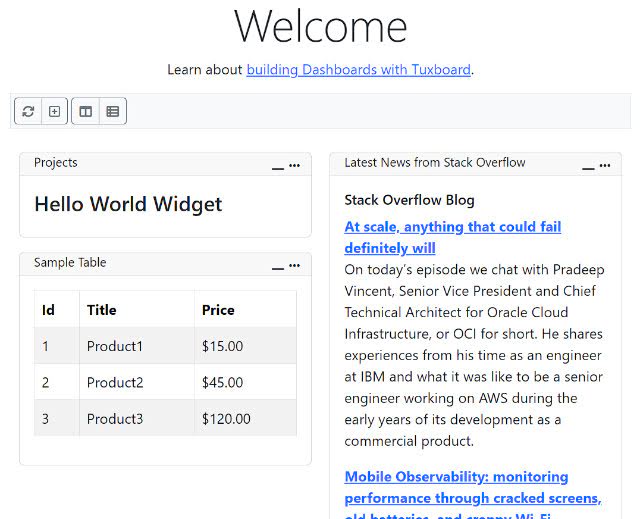
Screenshot of the Latest News from Stack Overflow Widget

Conclusion

In this post, we created a simple widget for users to view the latest news from Stack Overflow through an RSS feed.

The best part of this post is we'll continue to build and extend this example to show other features of Tuxboard like widget settings and how to defer rendering.

The repository for this post is the 12-Creating-Widgets at Tuxboard.Examples.

What's Next?

Full examples located at Tuxboard.Examples.

Jonathan "JD" Danylko is an author, web architect, and entrepreneur who's been programming for over 30 years. He's developed websites for small, medium, and Fortune 500 companies since 1996.

He currently works at Insight Enterprises as an Architect.

When asked what he likes to do in his spare time, he replies, "I like to write and I like to code. I also like to write about code."
05024387-8708-4b96-8962-9723d2fac08a
Creating Default Widgets using Roles

By Jonathan "JD" Danylko

In today's post, we'll continue to use Identity to create widgets for specific roles

Hundreds of Nuts

What's Next?

Full examples located at Tuxboard.Examples.

In the last post, we created default dashboards for specific roles. When a new user is added, default dashboards make the onboarding easier for a user.

One feature of Tuxboard is the ability to deliver role-specific widgets. Role-based widgets can be administrative, standard, or simple informative.

In today's post, we'll demonstrate how to leverage those roles in delivering role-specific widgets to users. The widgets are filtered on the server and delivered to the user through the Add Widgets dialog. The good news for backend developers is no client-side code is necessary to update.

The process is similar to the previous post of creating default dashboards, but at a widget level.

Getting Started

The project we'll be working with is located at Tuxboard.Examples called 11-Default-Widgets.

Again, we need to setup the project so we can see how it runs and then follow along of how the project was built.

To get started with the finished project,

  1. Right-click on the package.json file and Restore Packages so the client-side JavaScript/TypeScript will work as expected.
  2. Open the appsettings.json file and update the connection string.
  3. Open the Package Manager Console (View > Other Windows... > Package Manager Console)
  4. Confirm you have the 11-Default-Widgets project selected in the Default Project Dropdown in the Package Manager Console.
  5. Since we already have a migration in place, type update-database -Context TuxboardRoleDbContext

After updating the database, users and their roles are the only things missing to complete this demonstration.

As mentioned in the post before under the "Configuring the Database" section, register your users and assign each one a role before moving forward.

Creating the WidgetRole Entity

The WidgetRole entity is meant to be an associative (or junction) table. The entity is defined as follows:

public class WidgetRole
{
    public virtual Guid WidgetId { get; set; }
    public virtual Guid RoleId { get; set; }

    public virtual Widget Widget { get; set; } = default!;     public virtual TuxboardRole Role { get; set; } = default!; }

Once we have the entity, we need to add our WidgetRole to the TuxboardRoleDbContext.

First, we need a WidgetRoleConfiguration in our Data\Configuration directory.

public class WidgetRoleConfiguration: IEntityTypeConfiguration<WidgetRole>
{
    public void Configure(EntityTypeBuilder<WidgetRole> builder)
    {
        builder.ToTable(nameof(WidgetRole));

        builder.HasKey(r => new { r.WidgetId, r.RoleId });     } }
Quick Tip

We define the table with a nameof(WidgetRole). The nameof() function creates a string version of our class. It produces the same as builder.ToTable("WidgetRole"), but is more type-safe without "magic strings."

Next, we need to add a DbSet to the TuxboardRoleDbContext. First, through the interface (changes in bold).

public interface ITuxboardRoleDbContext: ITuxDbContext
{
    DbSet<RoleDefaultDashboard> RoleDefaultDashboards { get; set; }
    DbSet<WidgetRole> WidgetRoles { get; set; }
.
.

Then, we add the DbSet<WidgetRole> to our concrete class TuxboardRoleDbContext.

public class TuxboardRoleDbContext : TuxDbContext, ITuxboardRoleDbContext
{
    public TuxboardRoleDbContext(DbContextOptions<TuxDbContext> options, IOptions<TuxboardConfig> config)
        : base(options, config)
    {
    }

    public DbSet<RoleDefaultDashboard> RoleDefaultDashboards { get; set; }

   public DbSet<WidgetRole> WidgetRoles { get; set; } .
.    

In the OnModelCreating, don't forget to add the WidgetRoleConfiguration().

modelBuilder.ApplyConfiguration(new WidgetRoleConfiguration());
Creating the Service

Since we have the WidgetRole table, our focus is now the service and how to pull the widgets based on a role.

The interface is meant to be as simple as the RoleDashboardService from before.

public interface IWidgetRoleService
{
    Task<List<Widget>> GetWidgetsByRoleAsync(TuxboardUser user);
    Task<List<Widget>> GetDefaultWidgetsAsync();
}

The GetWidgetsByRoleAsync() retrieves the widgets based on a user's role, but what about the GetDefaultWidgetsAsync()? This concept is similar to how a user logs in and is given either a role-specific dashboard or a default dashboard. If they're a registered user, they should receive a dashboard.

The same concept applies to widgets. If they are a registered user, but don't have a role, they should receive a collection of widgets to add to their dashboard.

public class WidgetRoleService : IWidgetRoleService
{
    private readonly ITuxboardRoleDbContext _context;
    private readonly UserManager<TuxboardUser> _userManager;
    private readonly RoleManager<TuxboardRole> _roleManager;

    public WidgetRoleService(ITuxboardRoleDbContext context,         UserManager<TuxboardUser> userManager,         RoleManager<TuxboardRole> roleManager)     {         _context = context;         _userManager = userManager;         _roleManager = roleManager;     }
    public async Task<List<Widget>> GetWidgetsByRoleAsync(TuxboardUser user)     {         // Give them something at least.         var result = await GetDefaultWidgetsAsync();
        var roleName = await GetRoles(user);         if (string.IsNullOrEmpty(roleName))         {             return result;         }
        var role = await _roleManager.FindByNameAsync(roleName);         if (role == null)             return result;
        return await _context.WidgetRoles             .Include(e=> e.Widget)             .Where(e => e.RoleId == role.Id)             .Select(r=> r.Widget)             .ToListAsync();     }
    public async Task<List<Widget>> GetDefaultWidgetsAsync() =>         // Set up your own GroupName like "Standard" or something.         await _context.Widgets             .Where(e => e.GroupName == "Example")              .ToListAsync();
    private async Task<string> GetRoles(TuxboardUser user)     {         // *COULD* have more than one role; we just want the first one.         var roles = await _userManager.GetRolesAsync(user);         return (roles.Count == 1             ? roles.FirstOrDefault()             : string.Empty)!;     } }

The GetWidgetsByRoleAsync() takes a TuxboardUser and immediately retrieves the default widgets for unregistered users or users without a role. In this case, widgets in the GroupName called "Example" are the default widgets presented to the user.

If they're a registered user and have a role, then the user is presented with a list of role-specific widgets in the dialog.

With the list of role-specific widgets, we can move up a level to the Add Widgets dialog in our Index page.

Dependency Injecting the WidgetRoleService

Before we head over to the Index page, we need to add our new service to our Middleware in the Program.cs.

builder.Services.AddTransient<IWidgetRoleService, WidgetRoleService>();

Once we update our Program.cs, we can move on to the Index page.

Updating the Add Widget Dialog

In the Index page, we need to inject our WidgetRoleService through the constructor (changes in bold).

public class IndexModel : PageModel
{
    private readonly ILogger<IndexModel> _logger;
    private readonly IDashboardService _service;
    private readonly IRoleDashboardService _roleDashboardService;
    private readonly IWidgetRoleService _widgetRoleService;
    private readonly UserManager<TuxboardUser> _userManager;
    private readonly TuxboardConfig _config;

    public Dashboard Dashboard { get; set; } = null!;     public bool HasDashboard => Dashboard != null;
    public IndexModel(         ILogger<IndexModel> logger,         IDashboardService service,         IRoleDashboardService roleDashboardService,         IWidgetRoleService widgetRoleService,         UserManager<TuxboardUser> userManager,         IOptions<TuxboardConfig> options)     {         _logger = logger;         _service = service;         _roleDashboardService = roleDashboardService;         _widgetRoleService = widgetRoleService;         _userManager = userManager;         _config = options.Value;     }
.
.

Once we're able to inject the service into the Index page, the OnPostAddWidgetsDialog() method is easier to implement.

public async Task<IActionResult> OnPostAddWidgetsDialog()
{
    List<WidgetDto> widgets = new();

    var id = GetIdentity();     if (id != Guid.Empty)     {         var user = await GetTuxboardUser(id);         widgets.AddRange(             (await _widgetRoleService.GetWidgetsByRoleAsync(user))             .Select(r => r.ToDto())             .ToList()         );     }     else     {         widgets.AddRange(             (await _widgetRoleService.GetDefaultWidgetsAsync())             .Select(r => r.ToDto())             .ToList()         );     }
   return ViewComponent("addwidgetdialog", new AddWidgetModel { Widgets = widgets }); }

Let's walk through the method.

We initialize the list of widgets to return to the Add Widgets Dialog as empty (for now).

The GetIdentity() retrieves the current user logged in.

Since we're retrieving the user in multiple places throughout the code, it made sense to create a new method to grab a TuxboardUser.

private async Task<TuxboardUser> GetTuxboardUser(Guid id) 
    => (await _userManager.FindByIdAsync(id.ToString()))!;

If the user is logged in, get the widgets by the user's role. If they aren't logged in, return a list of default widgets. Whether logged in or not, we receive a list of widgets and convert them into DTOs (Data Transfer Objects) for our Add Widget Dialog.

The good news is we simply modified the way a user retrieves widgets based on their roles. Once we have the widget DTOs, we pass them on to the AddWidgetDialogViewComponent to render and send the view back to the client.

Updating the Database

The best way to present widgets to users is to take a hard look at the roles and identify which widgets are meant for privileged users and standard users.

If all users are meant to have any widget, insert all of the widgets and roles through SQL.

INSERT INTO WidgetRole
SELECT
    w.WidgetId,
    tr.Id as RoleId
FROM Widget w
join TuxboardRole tr on 1=1

The SQL above will add all widgets to every role.

Once all WidgetRoles are entered into the table, double-check the table by using the following SQL statement.

SELECT
   tr.Name,
   w.Name,
   w.Title,
   w.GroupName
FROM WidgetRole wr
join Widget w on w.WidgetId=wr.WidgetId
join TuxboardRole tr on tr.Id=wr.RoleId
Role Name Title GroupName Basic helloworld Hello World Example Admin table Sample Table General Admin generalinfo General Info General Admin helloworld Hello World Example

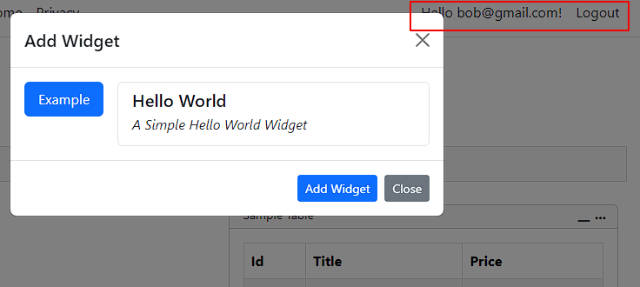
The SQL results are meant to show an easy view of the roles and their associated widgets. In this example, basic users are only able to add a Hello World widget, but administrators are able to add all widgets.

Viewing The Results

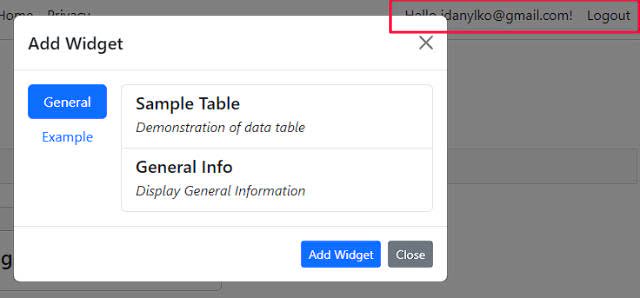
When we run the application and log in as an administrator and use the Add Widget dialog, we can see the following results.

Screenshot of the Add Widget dialog for an administrator

However, if we log in as a basic user and want to add a widget to the dashboard, our widget list is limited.

Screenshot of the Add Widget dialog for the user Bob

Providing specific widgets based on a user's role demonstrates Tuxboard's unique approach to dashboards.

Conclusion

While we focused on role-based widgets and default dashboards, the goal of these two past posts were meant to show the flexibility of Tuxboard and how to expand on it's ability to adapt to other concepts, but still keep the dashboard robust and maintainable.

The original concept was to introduce subscriber plans to Tuxboard for the initial design. The Plan and WidgetPlan table along with the DashboardDefault's PlanID field was created for inspiring developer/entrepreneurs to integrate a consumer-based dashboard into a product. They were originally intended for subscriber plans. This was touched on in the last post (under "Configuring the Database").

Based on these two posts, we were able to demonstrate how Tuxboard uses a role-based approach as easily as a subscriber plan approach.

What's Next?

Full examples located at Tuxboard.Examples.

Jonathan "JD" Danylko is an author, web architect, and entrepreneur who's been programming for over 30 years. He's developed websites for small, medium, and Fortune 500 companies since 1996.

He currently works at Insight Enterprises as an Architect.

When asked what he likes to do in his spare time, he replies, "I like to write and I like to code. I also like to write about code."

5ee86de3-0cf7-4495-9101-3406609ffbfc
Creating Default Dashboards using Roles

By Jonathan "JD" Danylko

Today, we demonstrate how to create default dashboards in Tuxboard based on a user's role

Two actors in a role at a bar

What's Next?

Full examples located at Tuxboard.Examples.

In the last post, we demonstrated how to create user-specific dashboards for any user signing in and providing standard widgets for every user.

However, what if you have different user permissions? If we include administrative widgets in a standard user's dashboard, we may have some problems down the road.

In today's post, we'll look at how to create default dashboards for different roles using Microsoft Identity. While this technique is focusing on Microsoft Identity, it can easily be modified to work with other security frameworks like Microsoft Entra.

The example we'll review is in the 10-Default-Dashboards folder. The 10-Default-Dashboards project has already gone through all of these steps. All that's required to run is the initial setup and migrations.

Getting Started

As always, there is a repository available of everything we'll cover in this post at Tuxboard.Examples.

At first, we'll setup the project so we can see how it runs and then follow along of how the project was built.

To get started with the finished project,

  1. Right-click on the package.json file and Restore Packages so the client-side JavaScript/TypeScript will work as expected.
  2. Open the appsettings.json file and update the connection string.
  3. Open the Package Manager Console (View > Other Windows... > Package Manager Console)
  4. Confirm you have the 10-Default-Dashboards project selected in the Default Project Dropdown in the Package Manager Console.
  5. Since we already have a migration in place, type update-database -Context TuxboardRoleDbContext

After updating the database, users and their roles are the only things missing to complete this demonstration.

If you'd like to fast-forward to creating the users and roles, jump down to the "Configuring the Database" section to successfully run the project.

With that said, we can now review the project to understand how to create default dashboards in our own projects.

Understanding Default Dashboards

Default dashboards are meant to give a specific dashboard and/or collection of widgets to different types of users. If a user logged into a website and were given a blank screen, it wouldn't be a very good experience for the user, would it?

Since we only have a single widget/default dashboard available, we may want to add a dashboard for new users with a tutorial widget or a Getting Started widget. If they're an administrator, they would want to see a statistics widget on how many users logged in for the day, what notifications happened since the last log in, or even a to-do list.

In the database, the tables to focus on are the DefaultDashboard and Layout tables.

The DefaultDashboard table provides a LayoutID and PlanID. Originally, the Tuxboard schema was meant for subscription plans (DefaultDashboard table) and widgets available based on a plan (WidgetPlan table). Since we're using roles with Identity, we won't be using the PlanID field in the DefaultDashboard table or the WidgetPlan table.

The Layout table is what's important. If there is a null in the TabID, it's a Default Dashboard layout of some kind. Every time a user logs in, they're given a TabID for their dashboard and a layout is assigned to the tab. Basically, an empty TabID means it doesn't belong to a user.

After running the update-database command, two default dashboard records are added and two layout records are added.

The last piece we need for this project is the Roles <-> DefaultDashboard relationship which we'll get into in a bit.

Adding Identity Models

Once we copied everything over from the user-specific dashboards project to create our new project, we're ready to use Microsoft Identity immediately.

Unfortunately, there is an issue with our schema: the DefaultDashboard table uses a GUID and the Roles table in the Identity schema uses a string by default so we need to adjust our Identity models to match what we need.

public class TuxboardUser : IdentityUser<Guid>
public class TuxboardUserClaim : IdentityUserClaim<Guid>
public class TuxboardUserLogin : IdentityUserLogin<Guid>
public class TuxboardUserRole : IdentityUserRole<Guid>
public class TuxboardUserToken : IdentityUserToken<Guid>
public class TuxboardUserStore : UserStore<TuxboardUser, TuxboardRole, TuxboardRoleDbContext, Guid,
    TuxboardUserClaim, TuxboardUserRole, TuxboardUserLogin, TuxboardUserToken, TuxboardRoleClaim>

public class TuxboardRole : IdentityRole<Guid> public class TuxboardRoleClaim : IdentityRoleClaim<Guid> public class TuxboardRoleStore : RoleStore<TuxboardRole, TuxboardRoleDbContext,      Guid, TuxboardUserRole, TuxboardRoleClaim>

These models were created based on the Identity post on learn.microsoft.com called Identity Model Customization. Based on the above class signatures, we need a TuxboardRoleDbContext.

public interface ITuxboardRoleDbContext : ITuxDbContext
{
    DbSet<RoleDefaultDashboard> RoleDefaultDashboards { get; set; }

    // Identity     DbSet<TuxboardUserClaim> TuxboardUserClaims { get; set; }     DbSet<TuxboardUserRole> TuxboardUserRoles { get; set; }     DbSet<TuxboardUserLogin> TuxboardUserLogins { get; set; }     DbSet<TuxboardUserToken> TuxboardUserTokens { get; set; }     DbSet<TuxboardUser> TuxboardUsers { get; set; }     DbSet<TuxboardRole> TuxboardRoles { get; set; }     DbSet<TuxboardRoleClaim> TuxboardRoleClaims { get; set; } }
public class TuxboardRoleDbContext : TuxDbContext, ITuxboardRoleDbContext {     public TuxboardRoleDbContext(DbContextOptions<TuxDbContext> options, IOptions<TuxboardConfig> config)         : base(options, config)     {     }
    public DbSet<RoleDefaultDashboard> RoleDefaultDashboards { get; set; }

   // Identity     public DbSet<TuxboardUserClaim> TuxboardUserClaims { get; set; }     public DbSet<TuxboardUserRole> TuxboardUserRoles { get; set; }     public DbSet<TuxboardUserToken> TuxboardUserTokens { get; set; }     public DbSet<TuxboardUserLogin> TuxboardUserLogins { get; set; }     public DbSet<TuxboardUser> TuxboardUsers { get; set; }     public DbSet<TuxboardRole> TuxboardRoles { get; set; }     public DbSet<TuxboardRoleClaim> TuxboardRoleClaims { get; set; }
    protected override void OnModelCreating(ModelBuilder modelBuilder)     {         base.OnModelCreating(modelBuilder);
        modelBuilder.ApplyConfiguration(new RoleDefaultDashboardConfiguration());         modelBuilder.ApplyConfiguration(new DashboardLayoutConfiguration());         modelBuilder.ApplyConfiguration(new DashboardLayoutRowConfiguration());         modelBuilder.ApplyConfiguration(new DashboardDefaultConfiguration());         modelBuilder.ApplyConfiguration(new DashboardDefaultWidgetConfiguration());
        // Identity         modelBuilder.ApplyConfiguration(new TuxboardRoleConfiguration());         modelBuilder.ApplyConfiguration(new TuxboardRoleClaimConfiguration());         modelBuilder.ApplyConfiguration(new TuxboardUserConfiguration());         modelBuilder.ApplyConfiguration(new TuxboardUserClaimConfiguration());         modelBuilder.ApplyConfiguration(new TuxboardUserLoginConfiguration());         modelBuilder.ApplyConfiguration(new TuxboardUserRoleConfiguration());         modelBuilder.ApplyConfiguration(new TuxboardUserTokenConfiguration());     } }

Even though the TuxboardRoleDbContext is small, there is a lot to unpack here along with some interesting insights.

Multiple DbContexts into One

In regards to Entity Framework DbContexts, it's recommended to minimize the number of DbContext's used in an application. As a matter of fact, if you can get away with one DbContext, it's for the best. It also makes it easier to track entity state changes.

Since we already have a TuxDbContext, how could we "attach" Identity models to the existing DbContext?

Simple. Add the DbSets and Configurations for each Identity models in the inherited DbContext.

One of the shockers (for me anyways) was the ability to attach Identity models to an existing DbContext and have it work as expected instead of having one DbContext for TuxDbContext and one for Identity.

Inheriting Aggregates Configurations

The configurations was another shock as to the power of Entity Framework Core.

For the standard Tuxboard configurations above, we are simply adding additional records to each table. While we already had Tuxboard configurations in the base TuxDbContext class, we're adding more configurations for additional Layout and LayoutRow records.

When we did a migration of the new TuxboardRoleDbContext, all configurations were combined into one making the records inserted as one batch.

For example, the DashboardLayoutConfiguration class above consists of the following code.

public class DashboardLayoutConfiguration: IEntityTypeConfiguration<Layout>
{
    public void Configure(EntityTypeBuilder<Layout> builder)
    {
        builder.HasData(new List<Layout>
        {
            new()
            {
                LayoutId = new Guid("239C89ED-3310-40D8-9104-237659415392"),
                TabId = null,
                LayoutIndex = 1
            }
        });
    }
}

However, when the migration finished, the code consisted of the following code.

migrationBuilder.InsertData(
    schema: "dbo",
    table: "Layout",
    columns: new[] { "LayoutId", "LayoutIndex", "TabId" },
    values: new object[,]
    {
        { new Guid("239c89ed-3310-40d8-9104-237659415392"), 1, null },
        { new Guid("5267da05-afe4-4753-9cee-d5d32c2b068e"), 1, null }
    });

It used the .HasData() method from both the TuxDbContext and TuxboardRoleDbContext

Creating the Junction/Association Table

While integrating Identity into the existing TuxDbContext was a happy experience, we need to focus on our target: associating a role to a default dashboard.

For those who were paying attention, there was a DbSet called RoleDefaultDashboards in our new TuxboardRoleDbContext. This is our junction table and the model is based on the following code.

public class RoleDefaultDashboard
{
    public virtual Guid DefaultDashboardId { get; set; }
    public virtual Guid RoleId { get; set; }

    public virtual DashboardDefault DefaultDashboard  { get; set; } = default!;     public virtual TuxboardRole Role { get; set; } = default!; }

The RoleDefaultDashboardConfiguration class consists of the code below.

public class RoleDefaultDashboardConfiguration: IEntityTypeConfiguration<RoleDefaultDashboard>
{
    public void Configure(EntityTypeBuilder<RoleDefaultDashboard> builder)
    {
        builder.HasKey(r => new { r.DefaultDashboardId, r.RoleId });
 
        builder.HasData(new List<RoleDefaultDashboard>
        {
            new()
            {
                RoleId = new Guid("7E69EB1F-07C0-46A1-B4E8-86F56386C250"), // Admin
                DefaultDashboardId = new Guid("0D96A18E-90B8-4A9F-9DF1-126653D68FE6") // Admin Dashboard
            },
            new()
            {
                RoleId = new Guid("31C3DF95-FDC6-4FB5-82AB-0436EA93C1B1"), // Basic
                DefaultDashboardId = new Guid("1623F469-D9F0-400C-8A4C-B4366233F485") // Basic dashboard
            }
        });
    }
}

One thing missing is how we load our dashboard based on a user's role...which brings us to our RoleDashboardService.

public interface IRoleDashboardService
{
    Task<DashboardDefault> GetDashboardTemplateByRoleAsync(TuxboardUser user);
    Task<bool> DashboardExistsForAsync(Guid userId);
}

public class RoleDashboardService : IRoleDashboardService {     private readonly ITuxboardRoleDbContext _context;     private readonly UserManager<TuxboardUser> _userManager;     private readonly RoleManager<TuxboardRole> _roleManager;
    public RoleDashboardService(ITuxboardRoleDbContext context,         UserManager<TuxboardUser> userManager,         RoleManager<TuxboardRole> roleManager)     {         _context = context;         _userManager = userManager;         _roleManager = roleManager;     }
    public async Task<bool> DashboardExistsForAsync(Guid userId)     {         return await _context.DashboardExistsForAsync(userId);     }
    public async Task<DashboardDefault> GetDashboardTemplateByRoleAsync(TuxboardUser user)     {         DashboardDefault defaultDashboard = null!;
        var roleName = await GetRoles(user);         if (string.IsNullOrEmpty(roleName))         {             defaultDashboard = await _context.GetDashboardTemplateForAsync();         }
        var role = await _roleManager.FindByNameAsync(roleName);         if (role == null)             return defaultDashboard ?? await _context.GetDashboardTemplateForAsync();
        var roleDashboard = await _context.RoleDefaultDashboards             .FirstOrDefaultAsync(e => e.RoleId == role.Id);         if (roleDashboard != null)         {             defaultDashboard =                 (await _context.GetDashboardDefaultAsync(roleDashboard.DefaultDashboardId))                 ?? null!;         }
        return defaultDashboard ?? await _context.GetDashboardTemplateForAsync();     }
    private async Task<string> GetRoles(TuxboardUser user)     {         // *COULD* have more than one role; we just want the first one.         var roles = await _userManager.GetRolesAsync(user);         return (roles.Count == 1             ? roles.FirstOrDefault()             : string.Empty)!;     } }

The GetDashboardTemplateByRoleAsync() method is what performs the heavy lifting for our service.

First, we check to see if the user is associated with any roles from Identity. If they don't have a role associated to them, we load the default dashboard.

Next, we located the role name. If we don't return a role, again, we load the default dashboard.

We, then, check to see if there is an existing dashboard associated with a role. If not, once again, we load the default dashboard. If there is a default dashboard assigned to a role, return it.

The concept behind this method is to always return a default dashboard.

Calling the RoleDashboardService

With our newly created RoleDashboardService created, we can add it to our Index.cshtml.cs file (changes in bold).

public class IndexModel : PageModel
{
    private readonly ILogger<IndexModel> _logger;
    private readonly IDashboardService _service;
    private readonly IRoleDashboardService _roleDashboardService;
    private readonly UserManager<TuxboardUser> _userManager;
    private readonly TuxboardConfig _config;
 
    public Dashboard Dashboard { get; set; } = null!;
    public bool HasDashboard => Dashboard != null;
 
    public IndexModel(
        ILogger<IndexModel> logger,
        IDashboardService service,
        IRoleDashboardService roleDashboardService,
        UserManager<TuxboardUser> userManager,
        IOptions<TuxboardConfig> options)
    {
        _logger = logger;
        _service = service;
        _roleDashboardService = roleDashboardService;
        _userManager = userManager;
        _config = options.Value;
    }
 
    public async Task OnGet()
    {
        var id = GetIdentity();
        if (id != Guid.Empty)
        {
            Dashboard = await _service.DashboardExistsForAsync(id)
                ? await _service.GetDashboardForAsync(_config, id)
                : await GetDashboardByRole(id);
        }
    }
 
    private async Task<Dashboard> GetDashboardByRole(Guid id)
    {
        var user = await _userManager.FindByIdAsync(id.ToString());
 
        // If we can't find the user, load the default dashboard.
        if (user == null) 
            return await _service.GetDashboardAsync(_config);
 
        var template = await _roleDashboardService.GetDashboardTemplateByRoleAsync(user);
        await _service.CreateDashboardFromAsync(template, id);
 
        return await _service.GetDashboardForAsync(_config, id);
    }
.
.

While our OnGet() contains a bit more code, our new service makes it easier to use.

If we have a user id and a dashboard exists for a user, assign the dashboard to the Dashboard property. If not, see if we can get a dashboard by a specific role.

The GetDashboardByRole method takes in a GUID (user.ID) and tries to locate the user. If it can't find it, return a default dashboard through the GetDashboardAsync(_config) method.

If we made it this far, we attempt to get a DefaultDashboard template by role. As mentioned previously, we ALWAYS return a DefaultDashboard since the next line uses the template to build a new dashboard for the user.

Finally, we return the users new dashboard.

Updating _LoginPartial.cshtml

Since we changed the Identity models, we have to update the _LoginPartial.cshtml as well.

Change this:

@inject SignInManager<IdentityUser> SignInManager
@inject UserManager<IdentityUser> UserManager

to this:

@inject SignInManager<TuxboardUser> SignInManager
@inject UserManager<TuxboardUser> UserManager

With everything in place, we can now look at the tables and how to set this up.

Configuring the Database

As mentioned above, the Tuxboard database was originally meant for software products using the Plan and WidgetPlan tables. Example subscription plans would be similar to the following:

PlanID Title 1 Platinum 2 Gold 3 Silver 4 Bronze

or

PlanID Title 1 Free 2 Premium 3 Professional 4 Enterprise

The product can contain any number of marketing tiers or levels for different experience levels of users.

When a user signs up, they select a Plan based on their needs. The PlanID is attached to a default dashboard which is set up ahead of time.

If you've jumped down to here from the top, we need a way to attach these roles to the users.

The problem with a roles approach is identifying the role of a user when they register. How do we know a user's role when they get to their dashboard? There needs to be a source of truth for the roles (and I leave that to the administrators of the system).

When a user registers on a website, they can tell you what subscription plan they want which is why the Plan table is a better for consumers.

For right now, we'll proceed with updating the database by showing you where to hit to make this work as expected.

Creating the Records

For this process, we need to create two users with passwords.

  1. Open SQL Server Management Studio (SSMS) and locate the 10-Default-Dashboards database. The database should already be created based on the "update-database" command performed at the beginning of the post.
  2. Open a new Query Window
  3. Type SELECT * FROM TuxboardRole There should be two records: Basic and Admin. Remember these two IDs for our UserRole table below.
  4. Type SELECT * FROM RoleDefaultDashboards There should also be two records in there: one for Basic and one for Admin.
  5. In Visual Studio, run the application and create two users.
  6. In SSMS, type SELECT * FROM TuxboardUser to show the two users.
  7. To relate each user to a basic role, type the following and press F5 to execute it:
    INSERT INTO TuxboardUserRole
    SELECT
    '<userid-from-tuxboarduser>' as UserId,
    '31C3DF95-FDC6-4FB5-82AB-0436EA93C1B1' as RoleId -- Basic Role
  8. For admin users, type in the following and press F5 to execute:
    INSERT INTO TuxboardUserRole
    SELECT
      '<userid-from-tuxboarduser>' as UserId,
      '7E69EB1F-07C0-46A1-B4E8-86F56386C250' as RoleId -- Admin Role

When you run the application and an administrator logs in, they'll be presented with an Administrative dashboard and a widget in the first column. When a regular user logs in, they'll see a standard dashboard with a widget in the right column.

Again, when a user logs in, they require a role to receive a dashboard. If they don't have a role assigned to them, they'll receive the default dashboard.

Conclusion

In this post, we assigned roles to default dashboards allowing users who login can see their own dashboard with custom widgets specific to their role.

We'll look at a better way to create these default dashboards in a future post.

What's Next?

Full examples located at Tuxboard.Examples.

Jonathan "JD" Danylko is an author, web architect, and entrepreneur who's been programming for over 30 years. He's developed websites for small, medium, and Fortune 500 companies since 1996.

He currently works at Insight Enterprises as an Architect.

When asked what he likes to do in his spare time, he replies, "I like to write and I like to code. I also like to write about code."

bf38ae6d-fb13-4ed8-b8d7-e71efddc5924
Creating User-Specific Dashboards

By Jonathan "JD" Danylko

As a final post for this entire series, we'll look at creating dashboards for individual users

Collection of people using their smartphones

What's Next?

Full examples located at Tuxboard.Examples.

In the last post, we demonstrated how to use the widget toolbar with capabilities to remove and minimize a widget.

While all of the features we covered in past examples are great, it's only a single dashboard allowing multiple people to add and remove widgets. In real-life, there would be no reason to even create a dashboard like this because multiple users could manipulate that one dashboard causing absolute chaos with "cats and dogs living together...mass hysteria!"

The purpose for building these simple dashboards was to provide examples so fellow developers could see it in action locally.

In today's post, we'll build on what we previously created and give users their own personal dashboard when they log on.

With everything we've done so far, it wouldn't be efficient to type everything in again. The good news is everything is already built for us and we can easily transition our dashboard to a user-based dashboard project.

Let's get started.

Creating the Project

To start, we need to create an ASP.NET Core Web App (Razor Page) by clicking New > Project in Visual Studio.

Screenshot of Create Project in Visual Studio 2022

After clicking Next, enter the specifics of the project.

Screenshot of Configure Project in Visual Studio 2022

For this example, we'll select the "Individual Accounts" option for the AuthenticationType on the "Additional Information" screen.

Screenshot of Additional Information for Project in Visual Studio 2022

Click Create.

The boilerplate gives us a project template which uses MS Identity for logging individuals into the system. The whole reason to use MS Identity is to associate an ID with a user. We could even replace MS Identity with another authentication/authorization library like Azure Entra authentication. The User ID for Tuxboard is a GUID.

If we look at the project, we can see the folder structure contains the Identity Data\Migrations folder with an ApplicationDbContext. Pretty standard.

Next, change the appsettings.json to point to a localhost instance of SQL Server as shown below. Replace "<DatabaseNameHere>" with your database name.

{
  "ConnectionStrings": {
    "DefaultConnection": "Data Source=localhost;Initial Catalog=<DatabaseNameHere>;Integrated Security=True;MultipleActiveResultSets=True;TrustServerCertificate=True"
  },
  "Logging": {
    "LogLevel": {
      "Default": "Information",
      "Microsoft.AspNetCore": "Warning"
    }
  },
  "AllowedHosts": "*"
}

Once we have the appsettings.json updated, we can update the database through the Package Manager Console (View > Other Windows... > Package Manager Console).

Update-Database -Context ApplicationDbContext

After hitting enter, our Identity tables should exist in SQL Server.

Adding Tuxboard

Once we have our Identity tables in place, we can add Tuxboard through NuGet to create those tables.

Add Tuxboard to the project through NuGet (Tools > NuGet Package Manager > Manage NuGet Packages for Solution...). The package is called Tuxboard.Core and the version as of now is 1.6.5.

Once Tuxboard is included, we need to add a migration and update the database, but first, we need to update our appsettings.json to include Tuxboard settings. Add the following to the appsettings.json file.

.
.
"TuxboardConfig": {   "ConnectionString": "Data Source=localhost;Initial Catalog=<DatabaseNameHere>;Integrated Security=True;MultipleActiveResultSets=True;TrustServerCertificate=True",   "Schema": "dbo" },

After updating the settings, now we can add the migration and update the database. To add the migrations, type the following into the Package Manager Console.

add-migration Initial -Context TuxDbContext -OutputDir Data\Migrations\TuxboardContext

The migrations for Tuxboard were placed in it's own directory below the Data\Migrations folder using the -OutputDir parameter.

Once the migration finishes, we can update the database.

Update-Database -Context TuxDbContext

If the connection string in the appsettings.json is the same as the DefaultConnection, the tables will be added to the database. Based on the appsettings.json, the update-database command will use the TuxboardConfig:ConnectionString to create the schema.

After the tables are created, we can move on to the transitioning code over to the project.

Creating the Dashboard (or not)

At this point, we have two options: we can create a dashboard from scratch or reuse one of our previous examples and copy the code over.

If building a dashboard from scratch, begin building your dashboard adding the features you want and jump down to the next section for code changes for users.

This section will explain all of the moving pieces to copy from one project to another to confirm the dashboard works as expected.

For this project, we'll use the same files from the 08-Widget-Toolbar project since it's a culmination of everything we've worked on so far.

  1. Copy the following files/folders over:
    1. wwwroot/scss (CSS folder)
    2. wwwroot/src (TS/JS folder)
    3. wwwroot/tsconfig.json (file)
    4. /Dto (C# folder)
    5. /Extensions (C# folder)
    6. /Helpers (C# folder)
    7. /Models (C# folder)
    8. /Pages/Shared/Components (C# folder)
  2. Copy /gulpfile.js and /package.json to the root of your project
    1. Right-click on the package.json file and Restore Packages to make sure the gulpfile.js will run during the build process.
  3. For all of the C# folders above, change to the project's namespace instead of 08-Widget-Toolbar.
  4. In the Pages/_viewImports.cshtml, confirm TagHelpers are registered based on your project name.

    @addTagHelper *, <your-project-name-here>
  5. In the Program.cs, add your tuxboard configuration and DbContext

    // Tuxboard Configuration
    var appConfig = new TuxboardConfig();
    builder.Configuration
        .GetSection(nameof(TuxboardConfig))
        .Bind(appConfig);
    
    // Tuxboard DbContext builder.Services.AddDbContext<TuxDbContext>(options => {     options.UseSqlServer(appConfig.ConnectionString,         x => x.MigrationsAssembly("09-User-Dashboard")); });
  6. Also in the Program.cs, add the dependency injection as well

    // For Dependency Injection
    builder.Services.AddTransient<IDashboardService, DashboardService>();
    builder.Services.AddTransient<ITuxDbContext, TuxDbContext>();
  7. Update the Index.cshtml and Index.cshtml.cs file with code from the 08-Widget-Toolbar project.
  8. Update the _Layout.cshtml to include Bootstrap and FontAwesome CSS and JavaScript files.

    <link rel="stylesheet" href="~/lib/bootstrap/css/bootstrap.min.css" />
    <link rel="stylesheet" href="~/lib/fontawesome/css/all.min.css" />
    .
    .
    <script src="~/lib/bootstrap/js/bootstrap.bundle.min.js"></script>
    <script src="~/js/dashboard.min.js"></script>


After all of these changes are copied over from the previous project, running the project will present us with the generic dashboard.

Now that we have a dashboard and MS Identity both in one project, we need to connect the two.

    Getting Personal[-ized]

    The great part about using Identity (or Entra) is the ability to know who a user is when they sign in. To tie everything together, we need a way to identify the user and retrieve their dashboard.

    First, in the Index.cshtml.cs file, we create the GetIdentity() method to retrieve the user ID.

    private Guid GetIdentity()
    {
        var claim = User?.FindFirst(ClaimTypes.NameIdentifier);
        return claim != null 
            ? new Guid(claim.Value) 
            : Guid.Empty;
    }
    

    The GetIdentity() method will be used exclusively throughout each each method.

    If a user is logged in, we locate the ID by finding the NameIdentifier claim and returning it's value.

    If there isn't a logged in user, we simply return an empty Guid.

    With this simple method in place, we can now identify the user and retrieve their personal dashboard.

    The OnGet() method in the Index.cshtml.cs becomes extremely simple now.

    public async Task OnGet()
    {
        var id = GetIdentity();
        if (id != Guid.Empty)
        {
            Dashboard = await _service.GetDashboardForAsync(_config, id);
        }
    }
    

    If we don't know who the user is, don't retrieve a dashboard and dashboard will be null.

    Throughout all of the Index dashboard code, we can now replace:

    var dashboard = await _service.GetDashboardAsync(_config);
    

    with this.

    var id = GetIdentity();
    var dashboard = await _service.GetDashboardForAsync(_config, id);
    

    Essentially, all we're doing In the Index.cshtml.cs file is replacing all GetDashboardAsync(_config) with GetDashboardForAsync(_config, id).

    Now, for every user who logs in, they'll have their own dashboard.

    You Get a Dashboard, You Get a Dashboard...

    Throughout these examples, we make a call to retrieve a dashboard.

    At first, we were using GetDashboardAsync() and for those who aren't asynchronous yet, there is also a synchronous call called GetDashboard().

    Now we're switching gears and using GetDashboardForAsync() (and GetDashboardFor() for synchronous calls).

    Here's the process when a GetDashboardXxxx() method is called.

    If GetDashboardAsync() or GetDashboard() is called, these aren't user-specific and it will load a dashboard from the database where the user is null. If there isn't a dashboard in the database at the time, it will create a brand new one with defaults (which we'll get to in a future post).

    If GetDashboardForAsync() or GetDashboardFor() is called with a user ID, the same thing will occur: it will create a brand new dashboard if one doesn't exist and assign a user ID to it. If there is an existing dashboard for this user, it'll load it.

    Basically, every GetDashboardXxxx() call will always return a dashboard.

    With that said, I return you to your regularly scheduled (dashboard) programming...

    Displaying the Dashboard

    When a user isn't logged in, we shouldn't display a dashboard. Without a dashboard's data, we'll break some of our ViewComponents.

    The two ViewComponents we need to update are the Tuxbar and the Tuxboard Template.

    Remember in our code how the Dashboard property is set to null at the top of our index.cshtml.cs?

    public Dashboard Dashboard { get; set; } = null!;
    

    Let's add another property called HasDashboard.

    public bool HasDashboard => Dashboard != null;
    

    This provides an easy way to identify whether a user has a dashboard or not. If they are logged in, they should have a dashboard (based on our previous section).

    In the Index.cshtml, we can use this new property to add a heading for users not logged in.

    <h3 class="text-center" condition="!Model.HasDashboard">Register or login to view your dashboard.</h3> 
    

    But what about our ViewComponents? What if there isn't a dashboard model for our Tuxbar or TuxboardTemplate ViewComponent?

    We can't really apply a condition TagHelper inside another TagHelper (a drawback in my eyes), but we can examine the model passed into each ViewComponent. Let's look at the TuxboardTemplateViewComponent first.

    [ViewComponent(Name = "tuxboardtemplate")]
    public class TuxboardTemplateViewComponent : ViewComponent
    {
        public IViewComponentResult Invoke(Dashboard model)
        {
            return model == null
                ? Content(string.Empty)
                : View(model);
        }
    }
    

    Since we pass the Dashboard property into the ViewComponent, we can determine whether a user is logged in or not.

    If they aren't logged in (model is null), no content is returned. If they are, they'll see their dashboard.

    Oh...and they'll see their Tuxbar if they're using one. We'll need to apply the same logic to our Tuxbar ViewComponent so it has the same return result.

    [ViewComponent(Name = "tuxbar")]
    public class TuxbarViewComponent : ViewComponent
    {
        public IViewComponentResult Invoke(Dashboard model)
        {
            return model == null 
                ? Content(string.Empty) 
                : View(model);
        }
    }
    

    The empty content is also a way to visually show if something is wrong if a dashboard model isn't passed into the ViewComponent.

    The Final Result

    With everything in place, we can now register users and each user can have their own dashboard.

    Screenshot of Loading a user dashboard on login

    Conclusion

    All of these core examples in the past have led us up to this moment where users can create their own dashboards. While some of these features/examples are bells and whistles, a majority of these example provide a collection of fundamental stepping stones into how users are empowered to create their own workspaces and examine data in various ways. They want to personalize their dashboard based on how they work.

    Today's post covered how to create those user-specific dashboards giving users the freedom to experiment with their layouts.

    Everything from this point forward will be considered extras, features, and supporting posts to expand and enhance Tuxboard dashboards even further.

    What's Next?

    Full examples located at Tuxboard.Examples.

    Jonathan "JD" Danylko is an author, web architect, and entrepreneur who's been programming for over 30 years. He's developed websites for small, medium, and Fortune 500 companies since 1996.

    He currently works at Insight Enterprises as an Architect.

    When asked what he likes to do in his spare time, he replies, "I like to write and I like to code. I also like to write about code."

    8bc176ea-a1aa-4934-ba65-af9775684ad7
    Using Widget Toolbars (or Deleting Widgets)

    By Jonathan "JD" Danylko

    In today's post, we look at two ways to enhance widgets on your dashboard

    Tools placed specifically on a table in a neat order

    What's Next?

    Full examples located at Tuxboard.Examples.

    In the last post, we demonstrated how to add widgets to a dashboard with a new Add Widget dialog.

    While adding widgets is considered a fundamental feature of a dashboard, we currently need a way to remove a widget from the dashboard and there's a couple of ways we can do this.

    1. Add an 'X' to each widget header allowing a user to immediately remove the widget.
    2. Create an ellipsis to provide a dropdown with multiple options including a remove option.

    In this post, we'll cover both ways to remove a widget.

    What is a Widget Toolbar?

    A widget toolbar is a collection of buttons in the header of each widget. Each widget can have it's own functions depending on the type of widget.

    For now, we'll focus on placing a button in the widget toolbar to remove a widget from the dashboard.

    While creating dialogs is a bit intimidating, creating widget toolbars is a bit easier. We don't have a lot of moving parts, but it's an easier implementation.

    Approach 1: Deleting a Widget

    The first approach is adding a new button in the widget header to delete a widget.

    Let's focus on the HTML first.

    Adjusting the Widget Template (HTML)

    Our first task is to update the widget template ViewComponent located in the Pages/Shared/Components/WidgetTemplate folder.

    Since every widget contains headers, adding buttons to the WidgetTemplate will apply to all widgets.

    If we look at the Default.cshtml file, our current WidgetTemplate looks like this.

    <!-- Widgets -->
    <div condition="Model.UseTemplate" class="card mb-3"
         data-id="@Model.WidgetPlacementId" draggable="true">
    
        <div class="card-header d-flex">         <small>@Model.GetSettingValueByName("widgettitle")</small>     </div>
        <div class="card-body">         @await Component.InvokeAsync(Model.Widget.Name, Model)     </div> </div>

    For our purpose, the div.card-header is our primary focus.

    Using FontAwesome again, we'll use the xmark icon inside the button and use flexbox for our layout.

    .
    .
    <div class="card-header d-flex">     <small>@Model.GetSettingValueByName("widgettitle")</small>     <div class="widget-toolbar d-flex ms-auto">         <button type="button" class="btn btn-sm remove-widget p-0">             <i class="fa-solid fa-xmark"></i>         </button>     </div> </div>
    .

    Our widget toolbar now contains a delete button.

    Screenshot of widget with a delete button

    Attaching a Delete Event (TS/JS)

    The delete event is easy enough to implement and will reside in the tuxboard.ts file.

    wwwroot/src/tuxboard/tuxboard.ts

    attachWidgetToolbarEvents = () => {
        this.dashboard.querySelectorAll(defaultWidgetRemoveWidgetSelector)
            .forEach((item: HTMLButtonElement, index: number) => {
                item.addEventListener('click', (ev: Event) => this.removeWidget(ev))
            });
    }
    
    removeWidget = (ev: Event) => {     ev.preventDefault();     const target = ev.target as HTMLElement;     const widget = getClosestByClass(target, noPeriod(defaultWidgetSelector)) as HTMLDivElement;     const widgetId = widget.getAttribute(dataIdAttribute);     this.service.removeWidget(widgetId)         .then(response => {             if (response.ok) {                 widget.remove();             }             return response;         }); }

    Our new attachWidgetToolbarEvents() method looks for the .remove-widget class and attaches a click event pointing to the removeWidget() method. The attachWidgetToolbarEvents() method is necessary in the initialize() method and the updateDashboard() method.

    The getClosestByClass and noPeriod JavaScript functions are necessary to identify what widget we're in by examining the parent's class (CSS, not C#). These two functions are located in the common.ts file.

    export function noPeriod(id: string) { return id.startsWith(".") ? id.replace(".", "") : id }
    
    export function getClosestByClass(element: HTMLElement, classToSearch: string) {     while (element) {         if (element.classList.contains(classToSearch)) {             return element;         }         element = element.parentElement;     } }

    The removeWidget() method walks up the DOM tree by looking for a div element with a class of the defaultWidgetSelector (which is .card) and returns the widget id. We call our service method (removeWidget) and receive a response back. If the response we receive is ok, we remove the widget...but only if it's been Ok'd by the server.

    Updating the Tuxboard Service (TS/JS)

    Next, we implement the removeWidget() method in our tuxboardService.ts.

    private tuxRemoveWidgetUrl: string = "?handler=RemoveWidget";
    .
    .
    public removeWidget = (widgetId:string) => {
        var postData = {         WidgetId: widgetId     };
        const request = new Request(this.tuxRemoveWidgetUrl,         {             method: "post",             body: JSON.stringify(postData),             headers: {                 'Content-Type': 'application/json',                 'RequestVerificationToken': this.getToken(),             }         });
        return fetch(request) }

    Our service receives a widget id and prepares the request to send to the server. Once everything is created, we make the API call and perform a single fetch.

    The fetch doesn't have our additional pipeline of methods because we only want to know whether the server returns an Ok (200) or a NotFound (404). If it is Ok, then we can remove the widget.

    Removing the Widget (C#)

    In the Index.cshtml.cs C# file, our TypeScript/JavaScript method calls the OnPostRemoveWidgetAsync() method and performs the delete.

    public async Task<IActionResult> OnPostRemoveWidgetAsync([FromBody] RemoveWidgetRequest request)
    {
        var dashboard = await _service.GetDashboardAsync(_config);
    
        // Use this as a way to identify a widget placement IN A DASHBOARD.     var placement = dashboard.GetCurrentTab().GetWidgetPlacements()         .FirstOrDefault(e => e.WidgetPlacementId == request.WidgetId);
        if (placement == null)         return new NotFoundResult();
        await _service.RemoveWidgetAsync(placement.WidgetPlacementId);
        return new OkResult(); }

    The RemoveWidgetAsync() method near the bottom takes in a WidgetPlacementId which is a Guid.

    Why do we need to get the dashboard at the beginning? Why not simply call the RemoveWidgetAsync() method and be done with it?

    When receiving a WidgetPlacementId from a JavaScript call, we need to validate it's a widget on the specific dashboard. This provides a security safeguard as opposed to someone simply passing in a random WidgetPlacementId and immediately delete it. While we aren't retrieving user-specific dashboards (yet!), this technique will benefit us in the long run in regards to security.

    With everything in place, we can now remove widgets at any time.

    Animation of removing a widget from a dashboard

    The downside to this approach is the immediate deletion of a widget without confirmation. We'll get to that in a bit.

    Approach 2: Widget Options

    The second approach places an ellipsis on a button which provides a dropdown list of items.

    There are two reasons to create a widget header dropdown button:

    1. While I can immediately think of three buttons to place on a widget's toolbar, a dropdown gives a widget header some breathing room. We don't want to crowd the widget's header with too many buttons.
    2. With approach 1, the user only needs to click the 'X' once with no confirmation and the widget is gone. Even though it's one click, widgets don't contain any settings (yet!) and we can re-add a deleted widget. With a dropdown menu, it gives a user two chances, or two clicks, to confirm whether they wish to delete a widget or not.

    In addition to creating the widget options dropdown, we can reuse a majority of the code and simply add a dropdown control to the widget's header.

    Adding the Dropdown (HTML)

    The good news is there is a minimal amount of work to add the dropdown button.

    In the WidgetTemplate's Default.cshtml file, we'll comment out our first approach and add the HTML for the second approach.

    <!-- Widgets -->
    <div condition="Model.UseTemplate" class="card mb-3@(Model.Collapsed ? " collapsed" : string.Empty)"
         data-id="@Model.WidgetPlacementId" draggable="true">
    
        <div class="card-header d-flex">         <small>@Model.GetSettingValueByName("widgettitle")</small>         <div class="widget-toolbar d-flex ms-auto">             @*             <!-- Approach 1 -->             <button type="button" class="btn btn-sm remove-widget p-0" title="Remove Widget">             <i class="fa-solid fa-xmark"></i>             </button>             *@             <!-- Approach 2 -->             <div class="dropdown">                 <button class="btn btn-sm px-1 p-0 dropdown-toggle" role="button" data-bs-toggle="dropdown"                         type="button" aria-expanded="false" title="Widget Options">                     <i class="fa-solid fa-ellipsis"></i>                 </button>                 <ul class="dropdown-menu dropdown-menu-end">                     <li><button class="dropdown-item remove-widget btn btn-sm" type="button"><small>Remove</small></button></li>                 </ul>             </div>         </div>     </div>

       <div class="card-body">         @await Component.InvokeAsync(Model.Widget.Name, Model)     </div>
    </div>

    There are a couple of things to notice in the div.dropdown-menu.

    1. We're using FontAwesome again with an ellipsis to identify it's a menu.
    2. Instead of links (<a href="">), buttons are used for selecting the menu items. For some transparent foreshadowing, Approach 1 used a button to delete a widget.
    3. The 'X' button used a class called '.remove-widget'.  To achieve the same effect as Approach 1, the same class can be applied to the 'Remove' button.

    The only thing left is to add the events for the dropdown toggle through TypeScript/JavaScript.

    Manually Triggering the Dropdown (TS/JS)

    The last place to visit is the tuxboard.ts file to update the attachWidgetToolbarEvents() (changes in bold).

    /* Widget Toolbar Events */
    
    attachWidgetToolbarEvents = () => {
        this.dashboard.querySelectorAll(defaultWidgetRemoveWidgetSelector)         .forEach((item: HTMLButtonElement) => {             item.addEventListener('click', (ev: Event) => this.removeWidget(ev))         });
       // Grab all dropdown-toggles from inside a widget's header and build them.     document.querySelectorAll(defaultDropdownInWidgetHeaderSelector)         .forEach((item: HTMLButtonElement) => {         item.addEventListener('click', () => bootstrap.Dropdown.getOrCreateInstance(item).toggle());     }); }

    Funny as it sounds, the defaultWidgetRemoveWidgetSelector assignment of the click event stays the same. Remember, we applied the class to the button of the dropdown menu item. So the functionality of clicking the menu item will perform as expected as before.

    The list of dropdown selectors exist in the common.ts file. The defaultDropdownInWidgetHeaderSelector defines itself as `${defaultWidgetHeaderSelector} ${defaultWidgetDropdownSelector}` which translates to '.card-header .dropdown-toggle'. We only want to focus on the dropdowns inside a card header as opposed to other dropdowns on the page if they exist.

    Click events are assigned and, when clicked, performs a static method called getOrCreateInstance() and immediately issues a toggle() triggering the dropdown.

    Once compiled, we can see the remove widget in action.

    Animation of removing a widget using a dropdown menu

    Since now we know how to add buttons to the widget toolbar, let's add one more.

    Bonus: Minimize/Restore

    The purpose of a minimize/restore button is to shrink or enlarge a widget to save space on a dashboard. We can place the button right before the ellipsis as a toggle between the two states. 

    However, we do need to save the state of each widget which requires another service. In turn, the widget template requires further modifications.

    Adding the Buttons (HTML)

    For our minimize/restore buttons to work, we need to add a button for the initial rendering of the widget (changes in bold).

    <!-- Widgets -->
    <div condition="Model.UseTemplate" class="card mb-3"
         data-id="@Model.WidgetPlacementId" draggable="true">
    
        <div class="card-header d-flex">         <small>@Model.GetSettingValueByName("widgettitle")</small>         <div class="widget-toolbar d-flex ms-auto">             <button condition="!Model.Collapsed" type="button"                      class="btn btn-sm widget-state p-0" title="Minimize Widget">                 <i class="fa-solid fa-window-minimize"></i>             </button>             <button condition="Model.Collapsed" type="button"                      class="btn btn-sm widget-state p-0" title="Restore Widget">                 <i class="fa-regular fa-window-maximize"></i>             </button>             @*            <!-- Approach 1 -->
    .
    .

    Pay attention to the condition attribute on both buttons.

    Each widget has a Collapsed boolean property where true means it's minimized and false is restored.

    The collapsed property allows us to present the proper widget setting on initial rendering. Once the buttons are rendered, we need to add our events to change and save the state of each widget.

    Saving a Widget's State (C#)

    When saving the widget's state, we can create a quick method called OnPostSetWidgetStateAsync() to save our collapsed state.

    Pages/Index.cshtml.cs

    public async Task<IActionResult> OnPostSetWidgetStateAsync([FromBody] WidgetStateRequest request)
    {
        var widget = await _service.UpdateCollapsedAsync(request.WidgetPlacementId, request.Collapsed);
        return widget != null 
            ? new OkResult() 
            : new NotFoundResult();
    }
    

    If it was successfully saved, we return an Ok (200). If not, return a NotFound (404).

    Adding the Service (TS/JS)

    Our method call in the tuxboardservice.ts file is nothing out of the ordinary and calls our new SetWidgetState post.

    private tuxSetWidgetStateUrl: string = "?handler=SetWidgetState";
    .
    .
    public setWidgetState = (widgetPlacementId: string, collapsed: boolean) => {
        var postData = {         WidgetPlacementId: widgetPlacementId,         Collapsed: collapsed     };

       const request = new Request(this.tuxSetWidgetStateUrl,         {             method: "post",             body: JSON.stringify(postData),             headers: {                 'Content-Type': 'application/json',                 'RequestVerificationToken': this.getToken(),             }         });
        return fetch(request) }

    Our setWidgetState method uses the same concept as our delete widget from above. If we receive an Ok (200), we proceed to minimize or restore the widget.

    With that said, let's look at the implementation of minimizing/restoring a widget in the tuxboard.ts file.

    Implementing Minimize/Restore (TS/JS)

    In tuxboard.ts, we need to attach our events to the widget state (defaultWidgetStateSelector) in our attachWidgetToolbarEvents() (changes in bold).

    /* Widget Toolbar Events */
    
    attachWidgetToolbarEvents = () => {
        this.dashboard.querySelectorAll(defaultWidgetRemoveWidgetSelector)         .forEach((item: HTMLButtonElement) => {             item.addEventListener('click', (ev: Event) => this.removeWidget(ev))         });
    // Grab all dropdown-toggles from inside a widget's header and build them.     document.querySelectorAll(defaultDropdownInWidgetHeaderSelector)         .forEach((item: HTMLButtonElement) => {             item.addEventListener('click', () => bootstrap.Dropdown.getOrCreateInstance(item).toggle());         });
    // Grab all mimimize/maximize buttons and assign onClicks     document.querySelectorAll(defaultWidgetStateSelector)         .forEach((item: HTMLButtonElement) => {             item.addEventListener('click', (ev: Event) => { this.setWidgetState(ev) });         }); }

    Our setWidgetState() method handles the saving of our widget passing the data over to the Tuxboard service. 

    setWidgetState = (ev: Event) => {
        const target = ev.target as HTMLButtonElement;
        const widget = getClosestByClass(target, noPeriod(defaultWidgetSelector)) as HTMLDivElement;
        const widgetState = this.getWidgetState(widget);
        widgetState.collapsed = !widgetState.collapsed;
        this.service.setWidgetState(widgetState.id, widgetState.collapsed)
            .then(response => {
                if (response.ok) {
                    this.updateWidgetState(widgetState.id, widgetState.collapsed);
                }
                return response;
            });
    } 
    

    If we receive an Ok from the response, we proceed to update the widget state by setting the proper attributes to either minimized or restored through the updateWidgetState().

    updateWidgetState = (id: string, collapsed: boolean) => {
        const widget = this.getWidget(id);
        const widgetStateButton = widget.querySelector(defaultWidgetStateSelector) as HTMLButtonElement;
        const i = widgetStateButton.querySelector('i');
        if (collapsed) {
            widget.classList.add(collapsedToggleSelector);
            widgetStateButton.setAttribute('title', 'Restore');
            i.setAttribute('class', 'fa-regular fa-window-maximize');
        } else {
            widget.classList.remove(collapsedToggleSelector);
            widgetStateButton.setAttribute('title', 'Minimize');
            i.setAttribute('class', 'fa-solid fa-window-minimize');
        }
    }
    

    We locate the widget in the dashboard and retrieve it's state button and the icon(s) represented by the 'i' tag.

    If the widget collapses, we add a collapsedToggleSelector class to the widget, change the title of the button (for UX purposes), and use FontAwesome's classes to change the button from a minimize to restore and vice-versa.

    Smooth Minimizing/Restoring using CSS

    One nice touch of minimizing and restoring a widget's state is the animating of the widget's state.

    We can use CSS to perform these transitions in our tuxboard.scss file.

    wwwroot/scss/tuxboard.scss

    .card-body {
        display: grid;
        grid-template-rows: 1fr;
        transition: grid-template-rows .3s ease-in-out, opacity .1s, padding .1s;
        opacity: 1;
    }
    
    .card.collapsed > .card-body {     grid-template-rows: 0fr;     opacity: 0;     padding: 0;     transition: grid-template-rows .3s ease-in-out, opacity .1s, padding .1s; }
    .card-body > div {     overflow: hidden; }

    With our standard card body, we change it to a grid which makes everything in the body as a template row. This allows our content to expand as necessary without pixel units. The fr stands for 1 Fractional Unit. If we set the fractional unit to 0, it shrinks. If it's set to 1, it displays the entire row.

    The transition acts on changes to the grid-template-rows, opacity, and padding changes with duration settings. Once we change any of these properties, it performs the transition.

    To make all of this work, the last line pointing to a div tag hides the content in the card body. In our widget template, we require a div to wrap around the content.

    Pages/Shared/Components/WidgetTemplate/Default.cshtml

    .
    .
    <div class="card-body">     <div>         @await Component.InvokeAsync(Model.Widget.Name, Model)     </div> </div>

    This technique was taken from Chris Coyer's post titled Things CSS Could Still Use Heading Into 2023. The ability to show/hide items using fractional units makes transitions easier to work with.

    The Final Result

    With everything in place, we can see how our minimize/restore button works on a particular widget.

    Minimizing and restoring a widget

    Conclusion

    We covered a lot of material in this post by adding two types of toolbars to a widget: immediate buttons for quick actions and a dropdown menu for additional functionality specific to widgets.

    Here are a couple guidelines I've used in past dashboards:

    • Too many toolbar buttons on a widget may overwhelm the user. Keep the widget's toolbar to a maximum of three buttons.
    • The buttons on a widget's toolbar should be quick, one-click functionality not impeding the user's experience (non-destructive or cosmetic). For example, the minimize/restore button would be considered a quick-access, essential, and commonly-used button.
    • For more detailed or destructive widget functions, the dropdown menu would create a better experience for users. The remove widget option would be considered a destructive or manipulative button to place in a dropdown since it can't be clicked accidentally.
    • If you have too many options in a widget's dropdown, identify which items are absolutely critical to the widget. Could the item be moved out to a dialog? Also ask whether the item could be moved to a higher-level, possibly the Tuxbar for global widget functionality or settings.

    The following is a list of widget functions I've included in dashboards over the years.

    • Remove
    • Refresh
    • Duplicate
    • Properties/Settings

    While some of these functions are considered essential, again, we don't want to overwhelm the user with too many options.

    What's Next?

    Full examples located at Tuxboard.Examples.

    Jonathan "JD" Danylko is an author, web architect, and entrepreneur who's been programming for over 30 years. He's developed websites for small, medium, and Fortune 500 companies since 1996.

    He currently works at Insight Enterprises as an Architect.

    When asked what he likes to do in his spare time, he replies, "I like to write and I like to code. I also like to write about code."

    37b7f031-11cb-4f91-aeb3-1b5cef589b52
    Adding Widgets with a Tuxboard Dialog

    By Jonathan "JD" Danylko

    Tuxboard requires a way to add multiple widgets to a dashboard. In this post, we'll create an AddWidgetDialog for just such a purpose

    Collection of Legos

    What's Next?

    Full examples located at Tuxboard.Examples.

    One of the best features of a dashboard is to personalize it by adding widgets.

    In this post, we'll borrow techniques from past posts and implement a new Add Widget dialog similar to how we created the Simple Layout dialog and the Advanced Layout dialog.

    Creating the Boilerplate Dialog

    The add widget dialog isn't any different from the other dialogs. We simply create the standard boilerplate HTML in our Tuxboard main page (which in this case is the Index.cshtml). 

    Pages/index.cshtml

    .
    .
    <!-- Add Widget --> <div class="modal fade" id="add-widget-dialog" tabindex="-1" role="dialog">     <div class="modal-dialog" role="document">         <div class="modal-content">             <div class="modal-header">                 <h5 class="modal-title">Add Widget</h5>                 <button type="button" class="btn-close" data-bs-dismiss="modal" aria-label="Close"></button>             </div>             <div class="modal-body">                 <div class="h-100 justify-content-center text-center">                     <i class="fas fa-spinner fa-spin fa-2x"></i>                 </div>             </div>             <div class="modal-footer">                 <button type="button" class="btn btn-sm btn-primary add-widget">Add Widget</button>                 <button type="button" class="btn btn-sm btn-secondary" data-bs-dismiss="modal">Close</button>             </div>         </div>     </div> </div>

    For the add widget dialog, we'll aptly name it "add-widget-dialog". Don't forget to create the constant name in the common.ts so we can refer to it.

    wwwroot/src/tuxboard/common.ts

    export const defaultAddWidgetDialogSelector = "#add-widget-dialog";
    

    Once we have a way to identify the dialog, we can begin building the main body of the dialog using a ViewComponent.

    Building the AddWidgetDialog ViewComponent

    To create the body of our Add Widget dialog, the widgets need to have some sort of organization; we can't just throw down a large amount of widgets and expect the user to wade through every single one of them.

    One of the fields in the Widget table is GroupName. This field is used to segment the widgets into common themes.

    To display the widgets, we'll use a basic JavaScript Bootstrap Tabs interface. We'll place the group names on the left with a list of widgets in that group on the right.

    Pages/Shared/Components/AddWidgetDialog/Default.cshtml

    @model Add_Widgets.Pages.Shared.Components.AdvancedLayoutDialog.AddWidgetModel
    @{
        var groups = Model.Widgets.GroupBy(e => e.GroupName);
        var groupList = groups.Select(i => i.Key);
    }
    <div class="d-flex align-items-start">
        <div class="nav flex-column nav-pills me-3" id="v-pills-tab" role="tablist" aria-orientation="vertical">
            @foreach (var groupName in groupList)
            {
                var normalizedGroupName = groupName.Replace(" ", "_").ToLower();
                <button class="nav-link @(groupName == Model.Widgets.First().GroupName ? "active" : "")"
                        id="v-pills-@(normalizedGroupName)-tab" data-bs-toggle="pill"
                        data-bs-target="#v-pills-@(normalizedGroupName)" type="button" role="tab"
                        aria-controls="v-pills-@(normalizedGroupName)" aria-selected="true">
                    @groupName
                </button>
            }
        </div>
        <div class="tab-content flex-fill" id="v-pills-tabContent">
            @foreach (var groupName in groupList)
            {
                var normalizedGroupName = groupName.Replace(" ", "_").ToLower();
                <div class="tab-pane fade@(groupName == Model.Widgets.First().GroupName ? " show active" : "")"
                     id="v-pills-@(normalizedGroupName)" role="tabpanel" aria-labelledby="v-pills-@(normalizedGroupName)-tab" tabindex="0">
     
                    <ul class="list-group">
                        @foreach (var widget in Model.Widgets.Where(e => e.GroupName == groupName))
                        {
                            <li class="list-group-item list-group-item-action" data-id="@widget.WidgetId.ToString()">
                                <div class="d-flex w-100">
                                    <h5 class="mb-1">@widget.Title</h5>
                                </div>
                                <p class="mb-1 fst-italic">@widget.Description</p>
                            </li>
                        }
                    </ul>
     
                </div>
            }
        </div>
    </div>
    

    Pages/Shared/Components/AddWidgetDialog/AddWidgetModel.cs

    public class AddWidgetModel
    {
        public List<WidgetDto> Widgets { get; set; } = new();
    }
    

    Pages/Shared/Components/AddWidgetDialog/AddWidgetViewComponent.cs

    [ViewComponent(Name = "addwidgetdialog")]
    public class AddWidgetDialogViewComponent : ViewComponent
    {
        public IViewComponentResult Invoke(AddWidgetModel model)
        {
            return View(model);
        }
    }

    With our ViewComponent created, we can go back to our Index.cshtml.cs and return the body of the dialog.

    Pages/index.cshtml.cs

    .
    .

    /* Add Widget Dialog */
    public async Task<IActionResult> OnPostAddWidgetsDialog() {     var widgets = (await _service.GetWidgetsAsync())         .Select(r=> r.ToDto())         .ToList();
        return ViewComponent("addwidgetdialog", new AddWidgetModel { Widgets = widgets }); }

    We retrieve all of the widgets available, build our DTO (Data Transfer Objects) to pass them on to the AddWidgetDialog ViewComponent, and pass the result back to our JavaScript.

    Building the AddWidgetDialog class in TypeScript

    Our AddWidgetDialog class is very similar to other dialogs and require only a couple events to implement the functionality.

    • When a user clicks on a widget item, it removes a .active CSS class from all other widget items (LI tags) and assigns it what they selected.
    • Clicking the Add Widget button performs a post to a service and immediately adds the widget to the dashboard.

    As expected, the class is small, but definitely an easy dialog to implement.

    wwwroot/src/tuxboard/dialog/addWidget/AddWidgetDialog.ts

    export class AddWidgetDialog extends BaseDialog {
    
        allowRefresh: boolean = false;
        constructor(selector: string, private tuxboard: Tuxboard) {         super(selector);         this.initialize();     }
        initialize = () => {         this.getDom().addEventListener('shown.bs.modal',             () => this.loadDialog());     }
        getService = () => this.tuxboard.getService();
        public getAddWidgetButton = () => this.getDom().querySelector(defaultAddButtonSelector) as HTMLButtonElement;     public getWidgetItems = () => this.getDom().querySelectorAll(defaultWidgetListItemSelector);
        private loadDialog = () => {         this.getService().getAddWidgetDialog()             .then((data: string) => {                 this.getDom().querySelector('.modal-body').innerHTML = data;                 this.attachEvents();             });     }
        public getSelected = () => this.getDom().querySelector("li" + defaultWidgetSelectionSelector);     public getSelectedId = () => this.getSelected().getAttribute(dataIdAttribute);
        public clearSelected = () => {         Array.from(this.getWidgetItems()).forEach((item: HTMLLIElement) => {             item.classList.remove(noPeriod(defaultWidgetSelectionSelector));         })     }
        public attachEvents = () => {         const items = this.getWidgetItems();         Array.from(items).forEach((item: HTMLLIElement) => {             item.removeEventListener('click', () => { this.listItemOnClick(item); });             item.addEventListener('click', () => { this.listItemOnClick(item); });         })
           const addButton = this.getAddWidgetButton();         addButton?.removeEventListener("click", this.addWidgetToLayout, false);         addButton?.addEventListener("click", this.addWidgetToLayout, false);     }
        public listItemOnClick = (item: HTMLLIElement) => {         this.clearSelected();         item.classList.add(noPeriod(defaultWidgetSelectionSelector));     }
        private addWidgetToLayout = (ev: Event) => {         ev.preventDefault();         ev.stopImmediatePropagation();         this.getService().addWidget(this.getSelectedId())             .then( () => {                 this.allowRefresh = true;                 this.hideDialog();             })     } }

    The loadDialog() method gets the service (TuxboardService.ts), performs a post to get the AddWidgetDialog body, and assigns the result of the ViewComponent to the ".modal-body" of our Bootstrap dialog.

    Once we have the dialog loaded, we need to attach the events to our DOM elements, mainly all of the widgets and the Add Widget button (located in the attachEvents() method).

    Our addWidgetToLayout() method occurs when clicking the "Add Widget" button. We stop any additional click events from happening and call the addWidget service. When it returns, we set the allowRefresh property to true and hide the dialog.

    We'll continue discussing this flow below in the Tuxbar's AddWidget button.

    Creating the Services

    We now have an AddWidgetDialog class, but no services.

    If we look at the class, we need two services: one to retrieve the body of the dialog and one to add our selected widget.

    wwwroot/src/tuxboard/services/tuxboardService.ts

    .
    .
    private tuxAddWidgetDialogUrl: string = "?handler=AddWidgetsDialog"; .
    .
    public getAddWidgetDialog = () => {
        const request = new Request(this.tuxAddWidgetDialogUrl,         {             method: "post",             headers: {                 'Content-Type': 'application/json',                 'RequestVerificationToken': this.getToken(),             }         });
        return fetch(request)         .then(this.validateResponse)         .then(this.readResponseAsText)         .catch(this.logError); }

    The getAddWidgetDialog() method doesn't need anything at this point. Make the call and return the code.

    Since we're here, we might as well create the AddWidget() service for actually adding the widget to the dashboard.

    wwwroot/src/tuxboard/services/tuxboardService.ts

    .
    .
    private tuxAddWidgetUrl: string = "?handler=AddWidget"; .
    .
    public addWidget = (widgetId: string) => {
        var postData = {         WidgetId: widgetId     };
        const request = new Request(this.tuxAddWidgetUrl,         {             method: "post",             body: JSON.stringify(postData),             headers: {                 'Content-Type': 'application/json',                 'RequestVerificationToken': this.getToken(),             }         });
        return fetch(request)         .then(this.validateResponse)         .then(this.readResponseAsText)         .catch(this.logError); }

    The WidgetId we pass into the service is the data-id associated with the list item of the widget from the HTML. Refer to the TypeScript methods getSelected() and getSelectedId().

    We simply pass in the widget id they selected and send it back to the server for processing.

    Pages/index.cshtml.cs

    .
    .
    public async Task<IActionResult> OnPostAddWidgetAsync([FromBody] AddWidgetRequest request) {     var dashboard = await _service.GetDashboardAsync(_config);
        var baseWidget = await _service.GetWidgetAsync(request.WidgetId);
        var layoutRow = dashboard.GetFirstLayoutRow();     if (layoutRow != null)     {         var placement = layoutRow.CreateFromWidget(baseWidget);         // placement object can be set to any other layout row chosen;         // default is first layout row, first column.         await _service.AddWidgetPlacementAsync(placement);     }
        return new OkResult(); }

    Once we have our base widget, we get the first layout row, create a WidgetPlacement object for that layout row, and save it.

    In this code example, when we add a widget, Tuxboard places it in the first column of the first layout row. For more flexibility, widgets can be added to any layout row using a LayoutRow instance.

    Editor's Note: In this AddWidget post method, we return an OkResult() and not a rendered "tuxboardtemplate". Why not? It's a matter of preference and this was a quick example. On one hand, we're returning an OkResult() and then performing a refresh. On the other hand, we're returning a ViewComponent("tuxboardtemplate",model) and attaching events to DOM model results. The former technique requires an additional API request. While I thought about this and decided to go with the lazy (first) approach of calling the refresh() method, it may be a better approach to return the ViewComponent instead of the OkResult() for performance reasons.

    Adding the Tuxbar Button

    Our Tuxbar button will have a simple plus symbol on it for adding widgets (changes in bold).

    Pages/Shared/Components/Tuxbar/Default.cshtml

    <div class="tuxbar btn-toolbar border border-1 bg-light p-1 mb-3 justify-content-between" role="toolbar" aria-label="Tuxbar for Tuxboard">
        <form>
            <div class="btn-group btn-group-sm">
                <button type="button" id="refresh-button" title="Refresh" class="btn btn-outline-secondary">
                    <i class="fa fa-arrows-rotate"></i>
                </button>
                <button type="button" id="add-widget-button" title="Add Widget" class="btn btn-outline-secondary">
                    <i class="fa-regular fa-square-plus"></i>
                </button>
            </div>
            <div class="btn-group btn-group-sm">
                <button type="button" id="layout-button" title="Change Layout (simple)" class="btn btn-outline-secondary">
                    <i class="fa fa-table-columns"></i>
                </button>
                <button type="button" id="advanced-layout-button" title="Change Layout (advanced)" class="btn btn-outline-secondary">
                    <i class="fa fa-table-list"></i>
                </button>
            </div>
            <div class="btn-group btn-group-sm mx-2">
                <span id="tuxbar-status"></span>
            </div>
        </form>
        <div class="input-group mx-3">
            <span id="tuxbar-spinner" hidden><i class="fa-solid fa-sync fa-spin"></i></span>
        </div>
    </div>
    

    Again, add a string constant in the common.ts to identify the add-widget-button.

    export const defaultAddWidgetButton = "#add-widget-button";
    

    The AddWidgetButton class ties everything together by attaching a click event to the button, creating the AddWidgetDialog instance, and refreshing the dashboard.

    wwwroot/src/tuxboard/tuxbar/AddWidgetButton.ts

    export class AddWidgetButton extends TuxbarButton {
    
        constructor(tb: Tuxbar, sel: string) {
            super(tb, sel);
            const element = this.getDom();         element?.removeEventListener("click", this.onClick, false);         element?.addEventListener("click", this.onClick, false);     }
        onClick = (ev: MouseEvent) => {
            const dialog = new AddWidgetDialog(             defaultAddWidgetDialogSelector,             this.tuxBar.getTuxboard());
            if (dialog) {             dialog.getDom().removeEventListener("hide.bs.modal", () => this.refresh(dialog), false);             dialog.getDom().addEventListener("hide.bs.modal", () => this.refresh(dialog), false);             dialog.showDialog();         }     };
        refresh = (dialog: AddWidgetDialog) => {         if (dialog.allowRefresh) {             this.tuxBar.getTuxboard().refresh();         }     };
        getDom = () => this.tuxBar.getDom().querySelector(this.selector); }

    When we hide the dialog, we check the allowRefresh property. If true, we refresh the dashboard. As mentioned above in the Editor's Note, we could've returned a full tuxboardtemplate ViewComponent/HTML and set it through the .innerHTML property.

    Finally, we add the button to the Tuxbar (changes in bold).

    wwwroot/src/tuxboard/tuxbar/Tuxbar.ts

    .
    .
    public initialize = () => {     this.controls.push(new RefreshButton(this, defaultTuxbarRefreshButton));     this.controls.push(new AddWidgetButton(this, defaultAddWidgetButton));     this.controls.push(new SimpleLayoutButton(this, defaultSimpleLayoutButton));     this.controls.push(new AdvancedLayoutButton(this, defaultAdvancedLayoutButton));     this.controls.push(new TuxbarMessage(this, defaultTuxbarMessageSelector));     this.controls.push(new TuxbarSpinner(this, defaultTuxbarSpinnerSelector)); }

    Once we have our buttons on the toolbar, we can see how the dialog works.

    Animation of the Add Widget dialog

    Conclusion

    In this post, we created a fundamental Add Widget dialog so users can add any widget to their dashboard.

    This fundamental dialog will become extremely helpful in future posts while demonstrating a number of features to expand on this technique.

    What's Next?

    Full examples located at Tuxboard.Examples.

    Jonathan "JD" Danylko is an author, web architect, and entrepreneur who's been programming for over 30 years. He's developed websites for small, medium, and Fortune 500 companies since 1996.

    He currently works at Insight Enterprises as an Architect.

    When asked what he likes to do in his spare time, he replies, "I like to write and I like to code. I also like to write about code."

    ac1994bd-b59c-426f-b0ff-ea4dbf517dc9