GeistHaus
log in · sign up

https://feeds.feedburner.com/CGerardGallant

atom
25 posts
Polling state
Status active
Last polled May 19, 2026 00:05 UTC
Next poll May 20, 2026 01:13 UTC
Poll interval 86400s
Last-Modified Sat, 16 May 2026 16:28:25 GMT

Posts

ConFoo 2026 in Review
ConFooMontrealSlackspeaking
Show full content
A short article talking about my experience applying to speak at ConFoo, attending the conference, and being given an opportunity to speak after all. ConFoo is one of Canada’s biggest developer conferences drawing in over 100 speakers from around the world. The speakers converge in Montreal to share their knowledge by giving close to 200 talks over the course of three days.
Gare Centrale (Central Station) next to the conference hotel in Montreal
Every year I submit proposals to speak at ConFoo and I’ve been fortunate because I've been selected 5 times over the past 6 years. I don’t take being selected for granted because there are so many talented speakers vying for a spot. This year there were 964 talks proposed which appears to be a new record.

Unfortunately, I wasn’t selected to give a talk this year but an opportunity arose allowing me to go as an attendee. To save money, I decided to drive up which gave me the opportunity to visit with my dad for a couple days before the conference. My dad lives in Toronto which is about five and a half hours from Montreal. That’s not bad considering I live in Moncton. A trip to see him from Moncton is usually between a 15 and 17-hour drive depending on traffic and if you stop for a break.

In the lead-up to the conference, I was digging into Slack so I decided to turn some of that information into a talk just in case another talk is needed. At the very least, I figured I could present it to a local developer user group.

The conference kicked off on Wednesday, February 25th and the number of attendees this year seemed higher. After Covid, people were a reluctant to start attending in-person conferences again so it’s nice to see ConFoo bouncing back.

This was my first time being at ConFoo as an attendee and that made it a bit different. I was still able to reconnect with some speakers that I hadn’t seen since last year but it was less stressful because I didn’t have my next talk in the back of my mind.

As it would turn out, word came on day 2 of the conference that one of the speakers couldn’t make it because he just became a dad. The organizer asked the speakers if someone would like to replace him so I spoke to the organizer to see if he’d want me to give the replacement talk and he gave me the ok.

I spent the evening rehearsing in my hotel room and then, on Friday, I gave my Slack talk. In return for giving the talk, I received one of this year’s fancy speaker badges as shown in the following image:
As always, it was a really good conference! I learned a lot and got to meet some new people.

I’ve already started work on talk ideas for ConFoo 2027 which will be the 25th anniversary of the conference. If you have the opportunity to attend, I highly recommend it. Not just because of the high-quality talks but also because of the networking opportunities with attendees and speakers.
tag:blogger.com,1999:blog-5258244231997226159.post-726727916452210516
Extensions
The State of WebAssembly - 2025 and 2026
Show full content
The State of WebAssembly – 2025 and 2026. For the sixth year in a row, I've had the privilege of writing an article on the state of WebAssembly. In this article, I start off by reviewing the WebAssembly developments during 2025 and then I try to predict what I think will happen in 2026. For the sixth year in a row, I've had the privilege of writing an article on the state of WebAssembly (Wasm).

In this article, I start off by reviewing the WebAssembly developments during 2025. Things like Safari rounding out browser support for Exception Handling with exnref and JavaScript String Builtins, the progression of Wasm features including the recently announced WebAssembly 3.0 specification milestone, and what's happening outside the browser in areas like debugging and WASI.

The second part of the article gives some insights into what's possible for 2026.

As we saw with WebAssembly 3.0 being announced, developer tooling improvements, Wasm support from most of the top 25 programming languages, and adoption in a wide variety of areas, WebAssembly has matured to the point where it's not longer an experiment. It's ready for production.

The article can be found here: The State of WebAssembly - 2025 and 2026
tag:blogger.com,1999:blog-5258244231997226159.post-1701019721294442678
Extensions
Presenting at ConFoo 2025
ConFooElectricSQLlibjxllocal-firstMontrealPGLiteSQLitewasmWebAssembly
Show full content
With 191 presentations chosen out of 895 proposals, being accepted to speak at ConFoo is not something I take for granted. This year, my first talk was "Local-First Web Development With the Help of WebAssembly" where I walked the attendees through how SQLite and PGLite compare and work in the browser. My second demo extended the PGLite database to showcase ElectricSQL's approach to synchronizing your data with a server in a local-first architecture. My second talk, "Using WebAssembly in a Web Component as a Polyfill", explored using WebAssembly as a polyfill to extend a feature that might not be in all browsers yet. I showed the attendees how to compile the libjxl library to WebAssembly and I used the module in a web component to decode and render a JPEG XL image. With 191 presentations chosen out of 895 proposals, being accepted to speak at ConFoo is not something I take for granted. I invest a lot of time into getting the code ready for the demos, preparing slides, and practicing to ensure each talk goes as smoothly as possible while providing the latest cutting-edge information to attendees.

This year, my first talk was "Local-First Web Development With the Help of WebAssembly" where I first walked the attendees through how SQLite and PGLite compare and work in the browser. These products enable web developers to interact with their data in a familiar way by being able to run SQL statements against the database. My second demo extended the PGLite database to showcase ElectricSQL's approach to synchronizing your data with a server in a local-first architecture.

My second talk, "Using WebAssembly in a Web Component as a Polyfill", explored using WebAssembly as a polyfill to extend a feature that might not be in all browsers yet. For this talk, I showed the audience how to go about compiling a library to WebAssembly, in this case libjxl, and then making use of the module in a web component to decode and render a JPEG XL image.

Because my second talk was before lunch on the second day of the conference, no more practicing was needed so I was able to take it easy for the rest of the conference. That evening, I decided to do some sightseeing. Not knowing Montreal very well, I did a quick online search and found that some people recommended checking out the Saint-Laurent area so I jumped on the subway and then did some exploring.

The following are some of the pictures I took that evening. The left image is from inside the Lionel-Groulx Metro station, the middle image is the Place des Arts building when looking at it from the Saint-Laurent Metro station, and the right image is from my walk down Saint-Catherine Street near the Place des Arts building.
In 2022, I met a couple guys at ConFoo who were from Fredericton, a city that’s close to where I live. We stayed in contact and would joke about how we had to go all the way to Montreal to meet fellow developers from near us.

This year, the guy who used to lead the developer user group in my city posted on Facebook that he was at the Montreal Canadiens game. I gave his post a like and thought it was neat that he was in Montreal at the same time as me. Much to my surprise, the next morning when I was grabbing breakfast at ConFoo, I heard my name! It turns out that he was in town for ConFoo and we got to hang out a bit.

At the end of each conference, there's a time for lighting talks by anyone who would like to present. If you're ever at ConFoo, I recommend it. This year, one of the volunteers gave a presentation talking about Postgres and he kept flipping to a slide promoting an upcoming conference... in Montreal... in May. It was quite humorous and I was glad he was able to join the group of us later that evening for supper. The conference he was talking about is PGConf if you're interested. I mentioned to my friends that speaking, especially at ConFoo, is a high. Weeks of work go into preparing and practicing my talks. Then, as the time draws near to give the talk, the nerves hit. Thankfully, the internet stays up, the demos work, and all the practicing pays off as the talk goes well. As soon as the first talk is over, the mind shifts to the next talk I need to give and I practice more to ensure I'm as ready as possible for the next one. In between the stress and nerves leading up to the talk, and then the relief that the talk went well, there's the networking and meeting of friends from previous years and the making of new friends. It's a rollercoaster of emotions but, as soon as it's over, I can't wait to do it all over again.

Speaking of wanting to do it all over again, if you have a conference and want someone to speak about WebAssembly, something WebAssembly related, or building a Slack bot, I'm your guy. If you'd like to reach out, you can find me on LinkedIn: linkedin.com/in/gerard-gallant

If there's interest, I'd also like to put together a pre-conference workshop related to WebAssembly at ConFoo next year. If you'd be interested in attending and, if there's anything in particular that you'd like to learn, please fill out the following form: https://forms.gle/GSkU923A1k8fdYCG8
tag:blogger.com,1999:blog-5258244231997226159.post-4482959030659781508
Extensions
The State of WebAssembly - 2024 and 2025
garbage collectionHyperlightMemory64NISTUno PlatformWASIwasmwasm-gcWebAssemblyWebAssembly System Interface
Show full content
The State of WebAssembly – 2024 and 2025. For the fifth year in a row, I've had the privilege of writing an article on the state of WebAssembly. In this article, I start off by reviewing the WebAssembly developments during 2024 like Safari rounding out browser support for a number of features including Garbage Collection, newly available features like JavaScript String Builtins and Memory64, WASI 0.2 (formerly called Preview 2) being released, Uno Platform performance improvements, Hyperlight being open-sourced, and even a NIST report on how wasm can help improve security. Then I try to predict where I think things will go in 2025. For the fifth year in a row, I've had the privilege of writing an article on the state of WebAssembly.

In this article, I start off by reviewing the WebAssembly developments during 2024 like Safari rounding out browser support for a number of features including Garbage Collection, newly available features like JavaScript String Builtins and Memory64, WASI 0.2 (formerly called Preview 2) being released, Uno Platform performance improvements, Hyperlight being open-sourced, and even a NIST report on how wasm can help improve security. Then I try to predict where I think things will go in 2025.

Every year we see many WebAssembly-related improvements and 2024 was no exception. It's easy to get caught up waiting on the next amazing feature but the reality is that wasm and WASI are already very capable as we can see from the increased adoption.

The article can be found here: The State of WebAssembly - 2024 and 2025
tag:blogger.com,1999:blog-5258244231997226159.post-1151981537192283488
Extensions
7 Tips for Achieving Your Goals
achievegoalhabitresolutiontips
Show full content
January is typically seen by a lot of people as a chance for a new beginning. It’s unfortunate that a lot of people fail to achieve their resolutions and quickly fall back into their old habits. Of those who achieve their goals, are there things they do that can help the rest of us out? January is often seen as a chance for a new beginning. It’s a new year so we hit the gym hoping to get that beach body we’ve always wanted. Perhaps we decide to take some courses to advance our career. Maybe the resolution is living a healthier lifestyle or dropping something that we see as a bad habit.

As I started writing this article, I remembered a goal I set for myself a few years ago where I wanted to take part in the Paris Marathon. I posted the goal on my office wall with a picture of the Arc de triomphe de l’Étoile in Paris and I was doing a lot of running to get ready for it. Unfortunately, I lost focus and stopped practicing.
The Arc de triomphe de l’Étoile in Paris
Whatever the goal, it’s unfortunate that a lot of people fail to achieve their resolutions and quickly fall back into their old habits.

Of those who achieve their goals, are there things they do that can help the rest of us out?

In the following article, I present you with 7 tips to help you realize your goals.

tag:blogger.com,1999:blog-5258244231997226159.post-6729732478044418503
Extensions
The State of WebAssembly: 2023-2024
.NETcomponent modelgarbage collectionSIMDtail callsWASIwasmwasm-gcWebAssemblyWebAssembly System Interface
Show full content
The State of WebAssembly – 2023 and 2024. For the fourth year in a row, I've had the privilege of writing an article on the state of WebAssembly. In this article, I start off by reviewing the WebAssembly developments during 2023 around Garbage Collection, Tail Calls, fixed-width SIMD, multiple memories, improvements in .NET, and work happening with the WebAssembly System Interface (WASI) and the Component Model. Then I try to predict where I think things will go in 2024. For the fourth year in a row, I've had the privilege of writing an article on the state of WebAssembly.

In this article, I start off by reviewing the WebAssembly developments during 2023 around Garbage Collection, Tail Calls, fixed-width SIMD, multiple memories, improvements in .NET, and work happening with the WebAssembly System Interface (WASI) and the Component Model. Then I try to predict where I think things will go in 2024.

A lot happened last year and 2024 is already shaping up to be an exciting year! It feels like WebAssembly's use is about to take off both as normal WebAssembly modules and as WebAssembly components with WASI.

The article can be found here: The State of WebAssembly: 2023-2024
tag:blogger.com,1999:blog-5258244231997226159.post-2653760977719614517
Extensions
Dovico Timesheet: Year in Review and Plans for 2024
20232024DovicoDovico Timesheetplansreview
Show full content
As the current calendar year draws to a close and a new one is about to begin, this is often a good time to take a moment to reflect on the past and plan for the future. With that in mind, we wrote an article to review what happened with Dovico Timesheet over the past year as well as our plans for 2024. As the current calendar year draws to a close and a new one is about to begin, this is often a good time to take a moment to reflect on the past and plan for the future.

With that in mind, we wrote the following article to review what happened with Dovico Timesheet over the past year as well as our plans for 2024: Dovico Timesheet: Year in Review and Plans for 2024
tag:blogger.com,1999:blog-5258244231997226159.post-1534719631916877633
Extensions
Dovico Timesheet - Quick Assign
assignDovicoDovico TimesheetemployeesprojectsQuick Assigntask templatesunassign
Show full content
We're pleased to announce that a new Quick Assign view has been created for Dovico Timesheet that allows you to assign or unassign employees across projects quickly! We're pleased to announce that a new Quick Assign view has been created for Dovico Timesheet that allows you to assign or unassign employees across projects quickly!

The new Quick Assign view is made possible thanks to a feature we released earlier this year, where tasks can now remain linked to a task template.

The following article walks you through how the new view works: Dovico Timesheet Quick Assign
tag:blogger.com,1999:blog-5258244231997226159.post-7260759800877770342
Extensions
Dovico Timesheet - Allowing tasks to be kept linked to a task template
DovicoDovico Timesheetprojectstask templatestasks
Show full content
We just released a feature for Dovico Timesheet where a task can be kept linked to a task template. This new feature allows you to easily adjust the properties of the task template and have those changes applied to all tasks that are linked to it. Today, I'm pleased to announce that the company that I work for, Dovico Software, just released a feature for our Dovico Timesheet product allowing tasks to be kept linked to a task template.

Because a project can have multiple tasks created from the same task template, it can be time consuming, tedious, and error prone to manually make adjustments to each task especially if you need to make adjustments across projects.

This new feature allows you to easily adjust the properties of the task template itself and have those changes applied to all tasks that are linked to it.

For more information on how this feature works, the following article gives a detailed overview: The ability to have a task linked to a task template
tag:blogger.com,1999:blog-5258244231997226159.post-6220225527455194464
Extensions
Safari 16.4 and WebAssembly Fixed-Width SIMD from C#
.NETahead-of-time compileAOTBlazorC#SafariSIMDUno PlatformwasmWebAssembly
Show full content
This week, Safari 16.4 was released and with it came support for WebAssembly's fixed-width SIMD feature! With this update, all modern browsers now support this feature.

As shown in the following image, WebAssembly fixed-width SIMD allows code to take advantage of hardware instructions on the device to speed up certain computations by running them in parallel.

A visual representation comparing data being processed
one element at a time with normal arithmetic (Single
Instruction, Single Data)
versus four at a time, in
this case, with SIMD


The Uno Platform allows you to write an application that works on multiple systems including in the browser thanks to WebAssembly. The Uno Platform uses .NET and the ability to target WebAssembly fixed-width SIMD was added in .NET 7.0.

I wrote the following article that walks you through creating an Uno Platform application and how to work with vectors to leverage SIMD. The article also explains how to compile your application ahead-of-time (AOT) with SIMD support: https://platform.uno/blog/safari-16-4-support-for-webassembly-fixed-width-simd-how-to-use-it-with-c/


Leveraging WebAssembly fixed-width SIMD in Blazor WebAssembly
Because the Uno Platform is using .NET, with a few slight modifications the same code can also be used in Blazor WebAssembly as well.

With both platforms, to take advantage of WebAssembly's fixed-width SIMD support, you need to AOT compile the application but there are a couple differences between how it's done with the Uno Platform versus Blazor.

For Blazor, you'll need to edit your project file and include the following tags in a PropertyGroup tag:
  • <RunAOTCompilation>true</RunAOTCompilation>
  • <WasmEnableSIMD>true</WasmEnableSIMD>

With the Uno Platform, simply adding Uno's version of the previous tags is enough to trigger the AOT process depending on if your build configuration matches that of the PropertyGroup you added them to (Release mode for example). However, with Blazor, AOT is only triggered when you publish the project.

Also with Blazor, the AOT option on the Publish dialog is on and you can't uncheck it. With Uno you need to make sure you don't check it by accident because doing so will cause an error to be thrown that can only be fixed by deleting a tag from the publish profile file.

A Blazor WebAssembly version of the code can be found here: https://github.com/cggallant/blog_post_code/tree/master/2023-March-BlazorSIMD


Demos
If you'd like to see it in action, the following links are demos built form the code in the article. Note that because these are AOT compiled, they are bigger so they may take a few seconds to download and display especially if you're on an older device or on a slower network.
tag:blogger.com,1999:blog-5258244231997226159.post-8311199978188301393
Extensions
ConFoo 2023 in Review
ConFooDockerDovicoHotel BonaventureMontrealSlackUno Platform
Show full content
My experience at ConFoo 2023 On Tuesday, February 21st, I started my journey to Montreal to speak at the ConFoo developer conference for my third time.

Usually, when I travel to the big cities, I try to use public transportation to get to and from the airport. The city I live in isn't very big but I decided to give our transportation system a try anyway.

Unfortunately, for me to get to the airport using this approach, I needed to take two city buses and then a coach bus. It's doable but it takes time and the coach bus only goes to the airport twice a day so the timing didn't allow me to use this approach when I returned.

One highlight of my trip to the airport, however, was a pheasant that graced me with his presence.
The conference was held at the Hotel Bonaventure where we were greeted by over 700 attendees and over 150 sessions in 3 days! Being in Montreal, it was fitting that some of the sessions were also available in French.


The past two times that I spoke at this conference, I only spoke for one session each time. This year, I gave two presentations.

My first presentation was given on the second day of the conference. For this session, I talked about how we're using Docker at Dovico to prototype views, try out different UI frameworks, and help speed up the development of Timesheet. (source: https://www.flickr.com/photos/confoo/52734935208)
The second presentation that I gave was on the final day of the conference. This time, I walked the audience though creating a Slack bot from start to finish by building a simple hot desk booking system! (source: https://www.flickr.com/photos/confoo/52733940852)
My slides, notes, and links to the code from my talks can be found in the following GitHub repository: https://github.com/cggallant/confoo-2023
As my new friend, Andres Pineda, so correctly articulated in one of his sessions, there's more to a developer conference than just taking in the talks. There's also a networking component to these conferences. When I saw him at the opening party for the speakers, I recognized him but couldn't figure out where from. Later I realized that I had seen him talk online as part of UnoConf and he's one of the contributors to the open-source Uno Platform. We have something in common because I've been privileged to work with Uno and write them several articles for their blog. We were able to connect during the conference.

Speaking of the Uno Platform, while I was in Montreal, I had the opportunity to meet Matthew Mattei in person for lunch. I work with him when writing articles for their blog. I wasn't expecting it but I do appreciate that the Uno Platform sent me home with some swag: Over the course of the conference, I was fortunate to meet some great people and to take in a number of really good sessions. My only regret is not being able to take in all of the sessions because there are usually 8 other sessions happening at the same time as the session that you're in.

On Saturday, February 25th, I made the journey from the hotel back to the Montreal airport. I thought this was a neat idea as I was walking through the airport to my gate: It was a great conference and I already miss it. I hope to be able to attend next year's conference and I recommend ConFoo to everyone.

A huge shout out to Yann Larrivée for putting on another amazing event!


As a side note, if you happen to be putting on a developer conference, or know of one that's looking for speakers, let me know because I'd like to speak more. I've started setting up a Sessionize profile but you can also reach me on Twitter or on LinkedIn.

tag:blogger.com,1999:blog-5258244231997226159.post-5273789883819142303
Extensions
The State of WebAssembly - 2022 and 2023
JavaScriptState of WebAssemblywasmWebAssembly
Show full content
The State of WebAssembly – 2022 and 2023. For the third year in a row, I've had the privilege of writing an article on the state of WebAssembly. In this article, I started by revisiting developments during 2022 to see if any of my predictions came true and if there were any surprises. Then I tried to predict where I think things will go in 2023. For the third year in a row, I've had the privilege of writing an article on the state of WebAssembly. In this article, I started by revisiting developments during 2022 to see if any of my predictions came true and if there were any surprises. Then I tried to predict where I think things will go in 2023.

2022 didn't really feel like it had a lot of movement as far as features being released go. However, it did feel like there were a lot of things coming into place for what's to come. I think 2023 is going to be really exciting for WebAssembly and even for JavaScript.

The article can be found here: The State of WebAssembly - 2022 and 2023
tag:blogger.com,1999:blog-5258244231997226159.post-8204464891152951946
Extensions
The State of WebAssembly - 2021 and 2022
State of WebAssemblyWebAssembly
Show full content
The State of WebAssembly – 2021 and 2022. In this article, I show you the current state of WebAssembly by looking at the big events of 2021 and then try to predict where I think things are going in 2022. As one year comes to an end and a new one begins, it serves as a good opportunity to take a moment and reflect on what happened over the past year and, at the same time, try to predict what may happen in the new year.

For the second year in a row, I've had the privilege of writing an article on the state of WebAssembly. In the article, I talk about some of the big events of 2021 around WebAssembly and then I tell you what some of my expectations for 2022 are.

The article can be found here: The State of WebAssembly - 2021 and 2022
tag:blogger.com,1999:blog-5258244231997226159.post-5887443014629488137
Extensions
Uno Platform WebAssembly applications and Azure Static Web Apps
AzureGitHubrepositorystatic web appUno PlatformWebAssembly
Show full content
This week, the Azure Static Web Apps service came out of preview. I was honored with the opportunity to create an article that shows you how to create an Azure Static Web App and link it to a GitHub repository containing an Uno Platform WebAssembly application. This week there was an announcement that the Azure Static Web Apps service came out of preview.

As the name implies, Azure Static Web Apps give you a way to host static web apps and it comes with many features including global distribution of your content and free SSL certificates to name a couple.

Static web apps are applications where all the work happens in the browser and the app is decoupled from server-side code. Because an Uno Platform WebAssembly application is all client-side, it's a static web app and can take advantage of the Azure Static Web Apps service.

I was honored with the opportunity to create an article that expands on some documentation that the Uno Platform already had on Azure Static Web Apps. In the article, I walk you through creating a GitHub repository, creating an Azure Static Web App, and then linking the two together. Then you create an Uno Platform WebAssembly application, check it into your repository, and see the Azure Static Web App automatically detect the change and deploy your new code.

The article can be found here: "Hosting Uno Platform WebAssembly apps on Azure Static Web Apps"
tag:blogger.com,1999:blog-5258244231997226159.post-8334853630797958467
Extensions
From ConFoo to deploying web applications with Docker
.NET CoreConFooDockerEmscriptenIISimageLinux containersWASIWebAssemblyWindows containers
Show full content
The story of how discovering Docker helped me create the demos for my ConFoo 2021 presentation about the WebAssembly System Interface (WASI). Then the continued learning about Windows containers resulting in my latest Uno Platform article about Deploying C# web applications with Docker. In 2020, ConFoo opened a call for papers for their February 2021 conference. I submitted several proposals and was pleased to find out in January 2021 that one of them had been accepted.

The talk was going to be about the WebAssembly System Interface (WASI). I knew what I wanted to talk about but I wanted a couple demos that were more real-world than the typical 'hello world' style. I had an idea for the applications I wanted to write but, to write them, I needed to compile some C libraries. Unfortunately, I was having some difficulties getting things set up on Windows.

My first thought for a workaround was to set up a Linux virtual machine but I was curious if there was another way. One thought that crossed my mind was, can Docker help here?

Docker
I had seen Docker demonstrated at a couple user group events but I hadn't used it myself so I needed to get up to speed quickly. Thankfully, I found the following YouTube video that not only explained the Docker theory but also walked through several examples that I was able to follow along with: https://www.youtube.com/watch?v=3c-iBn73dDE

After watching the video, I started looking though the images on Docker Hub and discovered that there's a Docker image for the Emscripten SDK. This is useful to me for a couple of reasons:
     
  • I prefer to have Emscripten use the versions of the tools it installed rather than a different version on my machine just in case the changes impact things when compiling a module. Being in a container, all the tools Emscripten needs are in the container with it allowing me to adjust the tools on my machine as needed.
  • I often switch between versions of Emscripten to test different things. Having an image for each version I need makes things a lot easier. Sometimes I've had to uninstall a version of Emscripten before being able to install the next one. Now, I just need to pull and run the image with the version I need.

In the end, I created a Docker image derived from an Emscripten image and was able to build the demos I wanted for my ConFoo talk.

A few days before the ConFoo conference started, I was talking with the Uno Platform team about Docker. I thought Docker might be useful for C# developers for one-click deployment because I saw on Docker Hub that there was an image with IIS (Internet Information Services).

An article about Docker
After the conference was over, I started looking into Docker from a C# perspective. Unfortunately, every time I tried to build a Windows Docker image, I'd get errors. I spent a number of evenings reading about Windows containers and trying different things but kept spinning my wheels.

I learned a lot about Windows containers in the process but I felt a little dumb when I ran across an article that explained my problem. It turns out that you can't create Linux and Windows containers at the same time. You need to switch Docker Desktop to use one or the other and I was trying to create a Windows container while configured for Linux.

Today, I'm pleased to announce that my latest article "Deploying C# Web Applications with Docker" has been published on the Uno Platform's blog. The article walks you through building an image with IIS and .NET Core, publishing it to a private registry, pulling the image, and running the container.
tag:blogger.com,1999:blog-5258244231997226159.post-4799648932479424867
Extensions
The State of WebAssembly - 2020 and 2021
State of WebAssemblyWebAssembly
Show full content
The State of WebAssembly – 2020 and 2021. In this article, I show you the current state of WebAssembly by looking at the big events of 2020 and then try to predict where I think things are going in 2021. With the start of a new year, it's common to reflect on what happened over the past year and plan for the upcoming year.

In this article, I'll give you a quick overview of what WebAssembly and WASI are. Then I'll look at the state of WebAssembly in 2020 and tell you where I see things going this year.

The article can be found here: The State of WebAssembly - 2020 and 2021
tag:blogger.com,1999:blog-5258244231997226159.post-7426198388229524531
Extensions
WebAssembly threads arriving on Android devices
AndroidchromeCOEPCOOPCross-Origin-Embedder-PolicyCross-Origin-Opener-PolicycrossoriginphoneSharedArrayBuffertabletthread
Show full content
WebAssembly threads arrive on Android devices! Chrome for Android (version 88) was released with the SharedArrayBuffer enabled which means you can now use WebAssembly threads on your Android phones and tablets! This week, Chrome for Android (version 88) was released and will become available on Google Play over the next few weeks. With this release, the SharedArrayBuffer has been re-enabled which means you'll be able to use WebAssembly threads on your Android phones and tablets!


To enable the SharedArrayBuffer, you need to specify the Cross-Origin-Opener-Policy (COOP) and Cross-Origin-Embedder-Policy (COEP) response headers. Because of the COEP response header, if you include resources from another domain that you trust, you'll need to include the crossorigin attribute with those links.

In July, I wrote an article that walks you through returning the response headers, using the crossorigin attribute, and using WebAssembly threads to convert a user-supplied image to greyscale. You can find my article here: https://cggallant.blogspot.com/2020/07/webassembly-threads-in-firefox.html

Although the article talks about Firefox because it was the first browser to require the new response headers, the content of the article applies to Chrome for Android too.

The response headers will be needed for use with Chrome desktop in the near future (version 91). Safari will require them as well so it's a good idea to update your server response headers with these values if you currently use, or plan to use, the SharedArrayBuffer.
tag:blogger.com,1999:blog-5258244231997226159.post-7485343534095705423
Extensions
ConFoo Online 2021
C#ConFooWASIwasmWebAssemblyWebAssembly System Interface
Show full content
I am very pleased to announce that I'll be speaking at ConFoo Online 2021! To flow with the conference theme, I titled my talk "Joining forces to free WebAssembly from the browser". I am very pleased to announce that I'll be speaking at ConFoo Online 2021!

As a fan of Star Wars, the organizer decided that this year's conference theme will be "a new hope" because of COVID-19 and the feeling that the world needs hope that things will improve. To flow with this theme, I titled my talk "Joining forces to free WebAssembly from the browser".

In this talk you'll learn about the WebAssembly System Interface proposal (WASI) that defines a standard for using WebAssembly outside the browser in a secure way. You'll see several examples including interacting with a WebAssembly module from your C# code and at the command line.

The conference will be virtual this year and will take place from February 22nd to 26th. You can find the full list of sessions here: https://confoo.ca/en/yul2021/sessions

Hope to see you there.
tag:blogger.com,1999:blog-5258244231997226159.post-3285522780746304621
Extensions
Blazor WebAssembly and the Dovico Time Entry Status app
@inject@refBECanvasBlazorC#CanvasDefaultRequestHeadersDovicoHttpClientOnAfterRenderAsyncOnInitializedAsyncWebAssembly
Show full content
This article will walk you through the steps to recreate Dovico Software's Time Entry Status app using Blazor WebAssembly. This article covers
  • Creating a Blazor WebAssembly application
  • Responding to events from the controls on your web page
  • Calling the Dovico Timesheet API
  • Drawing on an HTML canvas element from C#

Recently, a customer contacted the company I work for looking for the Time Entry Status app that we used to offer on our website. It was a small Java app that I wrote in 2011 to accompany Dovico's new Timesheet API that I was creating at the time.

As shown in the following screen shot, the app gives you a bird's eye view of the selected employee's time over the past 30 days. Red indicates there's rejected time, black is time that hasn't been submitted, yellow is time that's awaiting approval, and blue is time that has been approved. If there's no triangle then there's no time entered for that day.


(click to view the image full size)
The app is very useful if you want to quickly verify that your employees submitted their time before you run your reports or generate your invoices. It's also helpful for employees who want to quickly check to make sure that all of their time is in and has been submitted.

Over the past few weeks, I've been digging into WebAssembly from a C# perspective for an article that I'm writing. Although I've been following a number of WebAssembly related C# technologies like mono, the Uno Platform, and Blazor, I felt that I'd get more out of my learning by building something.

Fortunately, Dovico recently gave me some spare time to research into anything that interested me, so I decided to use that time to dig into Blazor by rewriting this application. In the process, a few adjustments were made to the timeline to modernize its look a bit as shown in the following image.
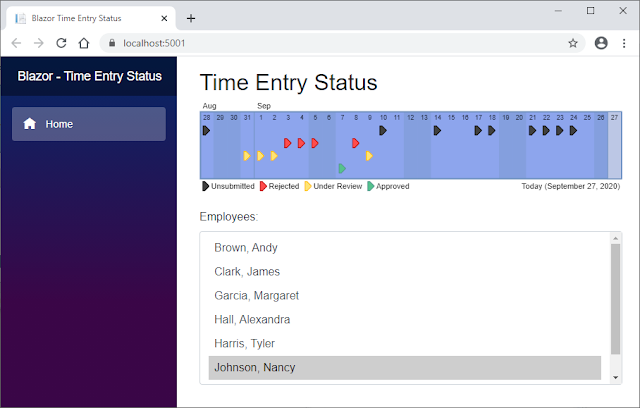

(click to view the image full size)
This article will walk you through the steps to re-create the Time Entry Status app using Blazor WebAssembly.

The Time Entry Status view will consist of two main elements as shown in the following image. The timeline will be drawn using an HTML Canvas element via the Blazor.Extensions.Canvas nuget package. The list of employees will use an HTML Select element.


(click to view the image full size)
As shown below, the following are the steps for building this application:
  1. Create a Blazor WebAssembly project
  2. Install and configure the Blazor.Extensions.Canvas nuget package that will make interacting with a canvas element easier from C#
  3. Create the models for Dovico Timesheet's data
  4. Build the Time Entry Status view

(click to view the image full size)

As the following image shows, your first step is to create a Blazor WebAssembly project.


1. Create a Blazor WebAssembly project
This article will be using Visual Studio 2019 to build the application, but Visual Studio Code can also be used. If you’d prefer to use Visual Studio Code, the following web page walks you through the steps to create a Blazor WebAssembly project using that IDE: https://docs.microsoft.com/en-us/learn/modules/build-blazor-webassembly-visual-studio-code/

Open Visual Studio 2019 and choose Create a new project
  • Under C#, choose Blazor App and click Next.
  • Give the project a name. I called mine BlazorTimeEntryStatus but you can use a different name if you'd like. Click Create.
  • At this point, you'll be presented with a second dialog as shown in the following image. Select Blazor WebAssembly App and then click Create.


The application you're about to build will be pulling its information from a Dovico Timesheet demo database via the Dovico Timesheet API. Signing up for a demo database is free and is good for 30 days. To sign up, click the Try for free button at the top of the Dovico website: https://www.dovico.com/

The Dovico Timesheet API expects every call to include an Authorization header in the following format: WRAP access_token="client=ConsumerSecret&user_token=DataAccessToken"
The Consumer secret and Data access token values can be found in the Company view (Setup menu) of Dovico Timesheet in the API tab.

WARNING: The data access token found in the Company view is a system-wide access token with full access to all data and that might not be what you want depending on your use for the API. Each employee also has a data access token that restricts data to only what their security settings allow. The employee data access token of the logged in user can be found by moving your mouse over your name in the top-right corner of Dovico Timesheet and choosing Settings from the drop-down menu.
The Dovico Timesheet API was designed when a lot of applications were still using XML and, as a result, the data is returned in XML format by default. To change the response to JSON, you'll need to include an Accept header with the value application/json. For more information about the Dovico Timesheet API, the documentation can be found at the following website: https://www.dovico.com/developer/API_doc/

Rather than have your code specify the Authorization and Accept headers every time you send a request to the API, you'll modify the HttpClient object in the Program.cs file, to specify the headers in the DefaultRequestHeaders property. Once set, every HTTP request your application makes will include the request headers automatically.

WARNING: Your Blazor WebAssembly code might be written in C# but it will be downloaded and run in the browser. You shouldn't include anything in your codebase that you don't want someone outside your organization seeing. Also, even though your code will be using the HttpClient class, under the hood it will be using the browser's Fetch API and it's very easy to inspect HTTP requests from a browser using the browser's built-in developer tools. I'll write articles in the future that dig into securing the HTTP requests but for now the following website has some tips: https://docs.microsoft.com/en-us/aspnet/core/blazor/security/webassembly/?view=aspnetcore-3.1
Open the Program.cs file and adjust the Main function to now have the code shown in the following code snippet. Note that the AccessToken string shown in the following snippet will need to be adjusted to match the values from your demo database as the ones shown here might be expired depending on when you read this article.

public static async Task Main(string[] args)
{ var builder = WebAssemblyHostBuilder.CreateDefault(args);
builder.RootComponents.Add<app>("app");

HttpClient Http = new HttpClient
{ BaseAddress = new Uri(builder.HostEnvironment.BaseAddress) };

// Set the default request headers for all HTTP calls
string AccessToken =
    "access_token=\"client=a09af4b31071467dbd1730cd19a6b162.145303&user_token=3aa1215e1e2b447bb8458d7997d0a011.145303\"";
Http.DefaultRequestHeaders.Authorization = new AuthenticationHeaderValue("WRAP",
    AccessToken);
Http.DefaultRequestHeaders.Accept.Clear();
Http.DefaultRequestHeaders.Accept.Add(
    new MediaTypeWithQualityHeaderValue("application/json"));

// Add the HttpClient to the services collection
builder.Services.AddScoped(sp => Http);

await builder.Build().RunAsync(); }
You will also need to include the following using statement at the beginning of the Program.cs file: using System.Net.Http.Headers;

With the project created and the default HTTP request headers specified, your next step as shown in the following image, is to install and configure the Blazor.Extensions.Canvas nuget package. This package will make interacting with an HTML Canvas element easier from C#.


2. The Blazor.Extensions.Canvas nuget package
The timeline portion of the view, as shown in the following image, will be drawn using an HTML canvas element and will be adjusted from C# by using the Blazor.Extensions.Canvas nuget package. More information about this package can be found by visiting the following web page: https://www.nuget.org/packages/Blazor.Extensions.Canvas/1.0.0


To install the package, click on the Tools, NuGet Package Manager, Package Manager Console menu item and then run the following command: Install-Package Blazor.Extensions.Canvas -Version 1.0.0
Open your _Imports.razor file and add the following using statement after the other using statements: @using Blazor.Extensions.Canvas
In your Solution Explorer, expand the wwwroot folder, and then open the index.html file. Add the following script tag just before the </head> tag: <script src="_content/Blazor.Extensions.Canvas/blazor.extensions.canvas.js"></script>

With the Blazor.Extensions.Canvas nuget package installed and configured your next step, as shown in the following image, is to define the models for Dovico Timesheet's data.


3. Create the models for Dovico Timesheet's data
When the view is first displayed, it will call the Dovico Timesheet API for the list of employees. If you use an individual employee's data access token for the call, the employee might not have permission to the Employees endpoint. If the request for employees fails with an Unauthorized status code, the view will then call the Employees/Me endpoint for the logged in employee's basic information.

The response data returned from both endpoints will be similar, but the Employees/Me response data will only hold the employee's ID, first name, and last name. The PrevPageURI, NextPageURI, and WorkDays properties won't be present in the Employees/Me response data.

The WorkDays value is used by the view to give a slightly darker background on the timeline for the days that the employee isn't scheduled to work. The Employee model will set the WorkDays default value to indicate that Saturday and Sunday are non-working days in the event the API call does not return the WorkDays property.

In the Solution Explorer, right-click on your project and choose Add, New Folder from the context menu. Give the folder the name Models.

Right-click on the Models folder and choose Add, Class... from the context menu. Give the class the name Employee.

In your new Employee.cs file, replace the generated Employee class with the code from the following snippet:

public class EmployeeResponse
{ public List<Employee> Employees { get; set; }

// NOTE: An Employees/Me/ call will not include the following properties in its response
public string PrevPageURI { get; set; }
public string NextPageURI { get; set; } }

public class Employee
{ // If the logged in user doesn't have permission to call Employees/, you'll call
// Employees/Me/ instead. Unfortunately, that call doesn't return a WorkDays value so you
// need to make sure the _WorkDaysArray is populated with a default value.
public Employee() { SetWorkDays(_WorkDays); }

public string ID { get; set; }
public string FirstName { get; set; }
public string LastName { get; set; }

// Indicates which days the employee works (can be different for each employee). The dot
// indicates a non-working day.
protected string _WorkDays = ".MTWTF.";
public string WorkDays
{ get { return _WorkDays; }
set { SetWorkDays(value); } }

protected List<bool> _WorkDaysArray = new List<bool>();
protected void SetWorkDays(string WorkDays)
{ // Remember the original string
_WorkDays = WorkDays;

// Create the WorkDays array. Each day that is not a dot is a workday.
_WorkDaysArray.Clear();
foreach (char Day in WorkDays) { _WorkDaysArray.Add((Day != '.')); } }

// DayOfWeek is a zero-based value starting with Sunday
public bool IsWorkingDay(DayOfWeek Day) { return _WorkDaysArray[(int)Day]; } }
The Time Entry Status view will present the employees to the user in an HTML Select element. When the user selects an employee, that employee's time information will be requested from the Dovico Timesheet API to render the timeline.

Your next step is to create the models for the time entry information that you'll need from the API.

The API will return the time entry's date as a string in the format yyyy-MM-dd. To make working with the data easier, your model will convert the string into a DateTime object.

Right-click on your Models folder again and choose Add, Class... from the context menu. Give the class the name TimeEntry.

In your TimeEntry.cs file, replace the generated TimeEntry class with the code from the following snippet:

public class TimeEntryResponse
{ public List<TimeEntry> TimeEntries { get; set; }

public string PrevPageURI { get; set; }
public string NextPageURI { get; set; } }

public class TimeEntry
{ public string ID { get; set; }
public Sheet Sheet { get; set; }

protected string _DateString = "";
public string Date
{ get { return _DateString; }
set { SetDate(value); } }

// Needed so that you can sort and compare based on the date value
protected DateTime _Date = DateTime.MinValue;
public DateTime TheDate { get { return _Date; } }

protected void SetDate(string Date)
{ // Remember the original string
_DateString = Date;

_Date = DateTime.ParseExact(Date, "yyyy-MM-dd", CultureInfo.InvariantCulture); } }

public class Sheet
{ public string ID { get; set; }
public string Status { get; set; } }
You need to include the following using statement at the beginning of the TimeEntry.cs file because of the use of the CultureInfo class when parsing the date: using System.Globalization;

With the models now created, you're ready to build the Time Entry Status view itself which is your next step as shown in the following image.


4. Build the Time Entry Status view
Rather than creating a new page for the Time Entry Status view, you'll modify the generated Index.razor file.

Blazor uses razor pages which are a combination of razor markup, HTML and C# code. More information about razor pages can be found on the following web page: https://docs.microsoft.com/en-us/aspnet/core/mvc/views/razor?view=aspnetcore-3.1

In the Solution Explorer, expand the Pages folder, and open the Index.razor file. Delete everything from the file after the @Page declaration.

The first thing that you need to add to the page are the using statements for the models that you just built as well as the Blazor.Extensions.Canvas objects.

In a razor page, the using statement is prefixed with an @ character and the semicolon at the end of the statement is optional. Add the following code to your Index.razor file after the @Page declaration:

@using BlazorTimeEntryStatus.Models;
@using Blazor.Extensions;
@using Blazor.Extensions.Canvas.Canvas2D;
@using Blazor.Extensions.Canvas.Model;
NOTE: If you used a different name for your project, the namespace for the Models in the previous snippet will need to be adjusted to match your namespace.
In your Program.cs file, the HttpClient object was added as a dependency. To access the object in the view, you need to inject the service by using the @inject directive. Add the code in the following snippet after your @using statements in your Index.razor file: @inject HttpClient Http;
Next, you'll include an H2 element to give the view the title Time Entry Status.

After the H2 element, you'll create a Div element to hold the timeline which is an HTML Canvas element represented by the BECanvas object (Blazor.Extensions.Canvas). You'll include an @ref="_canvasReference" attribute as part of the BECanvas element so that, when the HTML element is created, your code's _canvasReference variable will be given a reference to the BECanvas element so that you can interact with it.

Add the code in the following snippet after your @inject directive in your Index.razor file:

<h2>Time Entry Status</h2>

<div class="form-group"> <BECanvas Width="600" Height="129" @ref="_canvasReference"></BECanvas> </div>
You'll now add the Select element that will hold the list of employees. The select element will be given an @onchange attribute that will call your code's OnChangeEmployeeList event handler whenever the user selects an employee.

Because the view will be sending a request to a web service for the list of employees, there's a chance that the results won't be available when the view is ready to render. You'll use an @if statement to make sure you have data before trying to loop through the list of employees to populate the select element.

Once the data has been retrieved, Blazor will automatically run your code because the @if statement will indicate that there's data. At that point, your code will use an @foreach loop to iterate over the employee data adding an Option element for each employee.

The Timesheet API uses pagination so it's possible that there will be multiple pages of employees. If there are additional pages of data, the NextPageURI property will hold a value that isn't 'N/A'. If a page other than the first page is requested, the PrevPageURI property will hold a value that isn't 'N/A'. These properties might also be null if the Employees/Me endpoint was used because the logged in user doesn't have security access to the Employees endpoint.

Rather than display buttons that may never be needed, their HTML will be surrounded by an @if statement so that the buttons are only rendered if needed.

An @onclick attribute will be defined for each button that will call your code if the user clicks the button.

Add the code in the following snippet, after the div for your BECanvas element, in your Index.razor file:

<div class="form-group"> <label for="employeeList">Employees:</label>
<select id="employeeList" class="form-control" size="6"
    @onchange="OnChangeEmployeeList"> @if (EmployeeResponse != null)
{ @foreach (Employee employee in EmployeeResponse.Employees)
{ <option class="p-2" value="@employee.ID">@employee.LastName, @employee.FirstName</option> } } </select>

<div class="p-2 d-flex justify-content-center"> @if (IsThereAPreviousPage())
{ <input type="button" class="btn btn-primary m-2" value="< Previous Employees"
    @onclick="OnClickPreviousPage" /> }

@if (IsThereANextPage())
{ <input type="button" class="btn btn-primary m-2" value="Next Employees >"
    @onclick="OnClickNextPage" /> } </div> </div>

That's all there is for the view's HTML. Your next step is to write the code for the view by including an @code section.

The @code section
The code in a razor file is included within an @code { } block. The @code block for this view will start off with some constants and variables for use by the rest of the code.

Add the contents of the following code snippet at the end of your Index.razor file:

@code { const string _RootUri = "https://api.dovico.com/";
const string API_VERSION = "7";
const string API_DATE_FORMAT = "yyyy-MM-dd";
const string URI_NOT_AVAILABLE = "N/A";

const int TIMELINE_HEIGHT = 95; // The blue part of the timeline
const int TIMELINE_BORDER_WIDTH = 2;
const int DAY_QUARTER_HEIGHT = 18; // 4 rows with a bit of vertical padding between each
const int DATE_RANGE_DAYS = 30;

const string TIMELINE_BACKGROUND_COLOR = "rgb(141, 165, 237)";
const string TIMELINE_BORDER_COLOR = "rgb(112, 146, 190)";
const string NON_WORKING_DAY_BACKGROUND_COLOR = "rgba(112, 146, 190, 0.3)";
const string TODAY_BACKGROUND_COLOR = "rgb(188, 199, 229)";
const string TEXT_COLOR = "black";
const string PROCESSING_TEXT_BACKGROUND_COLOR = "rgba(0, 0, 0, 0.5)";
const string PROCESSING_TEXT_COLOR = "white";

const string STATUS_COLOR_REJECTED_BORDER = "rgb(178, 0, 0)";
const string STATUS_COLOR_REJECTED_FILL = "rgb(255, 76, 76)";
const string STATUS_COLOR_UNSUBMITTED_FILL = "rgb(64, 64, 64)";
const string STATUS_COLOR_UNSUBMITTED_BORDER = "rgb(0, 0, 0)";
const string STATUS_COLOR_UNDER_REVIEW_FILL = "rgb(255, 227, 117)";
const string STATUS_COLOR_UNDER_REVIEW_BORDER = "rgb(255, 183, 0)";
const string STATUS_COLOR_APPROVED_FILL = "rgb(85, 193, 141)";
const string STATUS_COLOR_APPROVED_BORDER = "rgb(85, 147, 141)";

const string FONTINFO_ARIAL_9 = "9px arial";
const string FONTINFO_ARIAL_11 = "11px arial";
const string FONTINFO_ARIAL_26_BOLD = "bold 26px arial";

// Dates with the time portion zeroed out
DateTime _StartDate = DateTime.Now.Date.AddDays(-DATE_RANGE_DAYS);
DateTime _EndDate = DateTime.Now.Date;

// Calculated in the OnAfterRenderAsync method
double _TextHeightArial9 = 0.0;
double _TextHeightArial11 = 0.0;
double _TextHeightArial26Bold = 0.0;

// Canvas drawing references
Canvas2DContext _context = null;
BECanvasComponent _canvasReference;

// Will hold the data received from the API
EmployeeResponse EmployeeResponse = null;
List<TimeEntry> _TimeEntries = new List<TimeEntry>();

bool _IndicateProcessing = false; }

With your global variables, objects, and constants defined, your next step is to define the OnInitializedAsync method.

The OnInitializedAsync method
The OnInitializedAsync method is one of Blazor's life cycle methods that's called after the component has been initialized. The canvas element won't be available at this point, but you can make requests to the Dovico Timesheet API at this point. The following web page has more information about Blazor's life cycle methods: https://docs.microsoft.com/en-us/aspnet/core/blazor/components/lifecycle?view=aspnetcore-3.1

You'll use the OnInitializedAsync method to call the LoadEmployeesAsync helper method, that you'll define in a moment, asking it to request the list of employees from the Dovico Timesheet API. If the call fails with an Unauthorized status code, your code will call the LoadEmployeesAsync method again but asking it to call the API's Employees/Me endpoint instead.

Add the OnInitializedAsync method in the following snippet at the end of your Index.razor file but before the @code's closing curly brace:

protected override async Task OnInitializedAsync()
{ HttpResponseMessage response = await LoadEmployeesAsync(_RootUri +
    "Employees/?version=" + API_VERSION);

if (!response.IsSuccessStatusCode &&
    response.StatusCode == System.Net.HttpStatusCode.Unauthorized)
{ await LoadEmployeesAsync(_RootUri + "Employees/Me/?version=" + API_VERSION); } }

The next method you need to define is the LoadEmployeesAsync method.

The LoadEmployeesAsync method
The LoadEmployeesAsync method first sets the EmployeeResponse object to null so that the view's employees element is cleared. It then flags that processing is happening by setting the _IndicateProcessing global variable to true. Then, it calls the DrawTimelineAsync method to draw the timeline with the processing text overlaid.

If the LoadEmployeesAsync method is called by the OnInitializedAsync, the canvas won't be ready yet so the call to DrawTimelineAsync won't actually draw anything. The canvas will only become available to your code in the OnAfterRenderAsync method that you'll see shortly. The canvas will likely be ready if this method is called when the user clicks on the previous or next page button.

Because the processing flag (_IndicateProcessing) is set to true, if the OnAfterRenderAsync method is called while this method is still processing, it will also call the DrawTimelineAsync method which will show the processing text at that point.

After calling the DrawTimelineAsync method to indicate processing, this method will then request the data from the API endpoint specified in the uri parameter. If the HTTP response indicates success, the JSON string is parsed and placed in the EmployeeResponse object which will cause the view's employee list to be populated automatically by Blazor because the object is no longer null.

Finally, this method ends by flagging that processing is no longer occurring and then returns the HttpResponseMessage object to the calling method so that it can check to see if the API call was successful and what the status code was.

Add the code in the following snippet to the end of your Index.razor file but before the @code's closing curly brace:

protected async Task<HttpResponseMessage> LoadEmployeesAsync(string uri)
{ EmployeeResponse = null;

// Flag that the view is processing and draw the timeline. Don't await DrawTimelineAsync.
// Request the list of employees while the timeline refreshes and shows the processing
// indicator.
_IndicateProcessing = true;
DrawTimelineAsync(null);

// Load the requested page of employees. If the call was successful then parse the JSON.
HttpResponseMessage response = await Http.GetAsync(uri);
if (response.IsSuccessStatusCode)
{ EmployeeResponse =
    await response.Content.ReadFromJsonAsync<EmployeeResponse>(); }

// Now that you have the list of employees, turn off the processing flag. Again, don't wait
// for the draw to finish.
_IndicateProcessing = false;
DrawTimelineAsync(null);

return response; }

The next methods that you need to define are for your previous and next page buttons.

The paging methods
The first paging methods needed are IsThereAPrevousPage and IsThereANextPage. These methods are used by the @if statement in the HTML to determine if the previous or next buttons should be rendered. If the EmployeeResponse object's PrevPageURI property is null or 'N/A' then the previous page button won't be displayed. Likewise, if the NextPageURI property is null or 'N/A' then the next page button won't be displayed.

The next two paging methods that you need to define are the OnClickPreviousPage and OnClickNextPage event handlers. These methods are called when the previous or next button, respectively, is clicked on. When the button is clicked, the method will pass the PreviousPageURI or NextPageURI value to the LoadEmployeesAsync method to have that page of employee data pulled from the Dovico Timesheet API.

Add the code in the following snippet before the @code's closing curly brace at the end of your Index.razor file:

protected bool IsThereAPreviousPage()
{ return (EmployeeResponse != null && EmployeeResponse.PrevPageURI != null
    && EmployeeResponse.PrevPageURI != URI_NOT_AVAILABLE); }
protected bool IsThereANextPage()
{ return (EmployeeResponse != null && EmployeeResponse.NextPageURI != null
    && EmployeeResponse.NextPageURI != URI_NOT_AVAILABLE); }

protected async Task OnClickPreviousPage(MouseEventArgs args)
{ await LoadEmployeesAsync(EmployeeResponse.PrevPageURI); }
protected async Task OnClickNextPage(MouseEventArgs args)
{ await LoadEmployeesAsync(EmployeeResponse.NextPageURI); }

The next method you need to define is the OnChangeEmployeeList method.

The OnChangeEmployeeList method
The OnChangeEmployeeList method is called when the user clicks on an employee in the employee list. Your method will indicate that the view is processing so that the timeline displays the processing text. Then it will call the LoadTimeEntriesAsync method passing in a URI requesting the selected employee's time entries over the past 30 days.

The list of time entries will be returned by the API grouped by unapproved time and then approved time. Your method will sort the received list of time entries by date instead.

The method will then indicate that processing is over and will call the DrawTimelineAsync method passing in the employee object that belongs to the selected employee. This will cause the timeline to draw the selected employee's time entry statuses.

Add the code in the following snippet to the end of your Index.razor file before the @code's closing curly brace:

protected async Task OnChangeEmployeeList(ChangeEventArgs e)
{ // Flag that the view is processing and draw the timeline. Don't await DrawTimelineAsync.
// Request the list of time entries while the timeline refreshes and shows the processing
// indicator.
_IndicateProcessing = true;
DrawTimelineAsync(null);

string EmployeeID = e.Value.ToString();

// Clear the list of time entries just in case there are some from another employee. Load in
// the selected employee's time for the date range.
_TimeEntries.Clear();
await LoadTimeEntriesAsync(_RootUri + "TimeEntries/Employee/" + EmployeeID +
    "/?version=" + API_VERSION + "&daterange=" +
    _StartDate.ToString(API_DATE_FORMAT) + "%20" +
    _EndDate.ToString(API_DATE_FORMAT));

// Sort the time entries by date. They were returned grouped by unapproved and then
// approved.
_TimeEntries.Sort((a, b) => a.TheDate.CompareTo(b.TheDate));

// Turn off the processing flag
_IndicateProcessing = false;

// Find the employee object belonging to the selected employee id. Redraw the timeline
// with the employee's time.
Employee Employee = EmployeeResponse.Employees.Find(item => item.ID == EmployeeID);
await DrawTimelineAsync(Employee); }

The next method to define is the LoadTimeEntriesAsync method.

The LoadTimeEntriesAsync method
The LoadTimeEntriesAsync method requests the time entries from the Dovico Timesheet API that are within the date range specified. If time entries are returned, they will be added to the _TimeEntries global variable.

Because time entry data is returned from the Dovico Timesheet API using pagination, it's possible that there are multiple pages of time that need to be requested. If there's a next page of time data available, this method will call itself again passing in the NextPageURI to pull the next page of data.

Add the code in the following snippet to the end of your Index.razor file before the @code's closing curly brace:

protected async Task LoadTimeEntriesAsync(string uri)
{ // If time entries were returned, add them to the list.
TimeEntryResponse response = await Http.GetFromJsonAsync<TimeEntryResponse>(uri);
if (response.TimeEntries.Count > 0) { _TimeEntries.AddRange(response.TimeEntries); }

// If there's a next page of time entries, call this method again passing in the NextPageURI
if (response.NextPageURI != URI_NOT_AVAILABLE)
{ await LoadTimeEntriesAsync(response.NextPageURI); } }

The next method to define is the OnAfterRenderAsync method.

The OnAfterRenderAsync method
The OnAfterRenderAsync method is another Blazor lifecycle method that you need to implement because the HTML Canvas element only becomes available to your code at this point.

This method gets called when the page initially renders but also when a selection is changed in the employee list and when the canvas is drawn. The code in this method only needs to run once so you'll check the FirstRender parameter to see if it's true.

This method will get the Canvas element's 2D context, calculate some font heights, and will then draw the initial timeline.

I'm not going to go into detail about the drawing calls used for a canvas element in this article but, if you're interested, the following web page has an excellent tutorial: http://diveintohtml5.info/canvas.html

NOTE: The tutorial interacts with the canvas context directly whereas, here, the Blazor.Extensions.Canvas objects are wrapping those calls. From what I can tell, here, all the methods are named the same but with the word Async on the end.
Add the code in the following snippet before the @code's closing curly brace at the end of your Index.razor file:

protected override async Task OnAfterRenderAsync(bool FirstRender)
{ // This method gets run multiple times but the following code only needs to run once
if (FirstRender)
{ // Get the 2D context from the canvas
_context = await _canvasReference.CreateCanvas2DAsync();

// Rather than calculating these values every time the DrawTimelineAsync method is
// called, cache the values
_TextHeightArial9 = await GetTextHeightAsync(FONTINFO_ARIAL_9);
_TextHeightArial11 = await GetTextHeightAsync(FONTINFO_ARIAL_11);
_TextHeightArial26Bold = await GetTextHeightAsync(FONTINFO_ARIAL_26_BOLD);

// Straddle the pixels to prevent blurry horizontal and vertical lines
// (http://diveintohtml5.info/canvas.html).
await _context.TranslateAsync(0.5, 0.5);

// There's no employee selected at this point. Just draw the timeline itself.
await DrawTimelineAsync(null); } }

The next method to define is the DrawTimelineAsync method.

The DrawTimelineAsync method
The DrawTimelineAsync method is responsible for drawing the timeline if the canvas' 2D context has been obtained. If the context hasn't yet been obtained, there's no way to draw the canvas so the method exits.

The method starts off by making some calculations like where the top of the blue background will start to give room for the month's abbreviation above the timeline. It will determine how wide each day can be based on the width of the canvas and the 31 days of time that will be displayed.

One thing to note is that, although your code is written in C#, the Canvas element is an HTML element on the web page and your C# code is running in the mono runtime. The mono runtime is compiled to WebAssembly and running side-by-side with the JavaScript of the web page but there's a penalty for switching contexts. Depending on how many calls you make, and depending on the browser, this may be noticeable.

When dealing with the canvas, one thing you can do is batch your calls by first calling the context's BeginBatchAsync method and then the EndBatchAsync method when you've finished specifying all the calls. I've noticed that the MeasureTextAsync method doesn't work when you use the BeginBatchAsync and EndBatchAsync methods but you can still use the methods to batch some of the calls where the MeasureTextAsync method isn't used.

Another thing to be aware of is that the mono runtime and your code are running in the same thread as the UI. It's good practice to make all methods asynchronous if they do processing so that your web page doesn't become unresponsive.

Add the code in the following snippet before the @code's closing curly brace at the end of your Index.razor file:

protected async Task DrawTimelineAsync(Employee Employee)
{ // Exit if the Canvas isn't available
if (_context == null) { return; }

// Returned as long but it impacts the DayCellWidth calculation if left as a long
double CanvasHeight = _canvasReference.Height;
double CanvasWidth = _canvasReference.Width;

// Give a bit of space before the top of the timeline for the month abbreviation(s)
double TimelineTop = (_TextHeightArial11 + 5);

// Day (cell) calculations (Date Range is 30 days before today's date which is 31 days in
// total so add 1 to the days)
double DayCellWidth = ((CanvasWidth - TIMELINE_BORDER_WIDTH) /
    (DATE_RANGE_DAYS + 1));
double HalfDayCellWidth = (DayCellWidth / 2);
double DayTop = (TimelineTop + DAY_QUARTER_HEIGHT);

// Clear the previous drawing. Need to start at -0.5 because of the call to TranslateAsync
// in the OnAfterRenderAsync method to straddle the pixels so that a 1 pixel line is actually
// 1 pixel wide.
await _context.ClearRectAsync(-0.5, -0.5, CanvasWidth, CanvasHeight);

// Fill the timeline's background with the blue
await _context.SetFillStyleAsync(TIMELINE_BACKGROUND_COLOR);
await _context.FillRectAsync(0, TimelineTop, CanvasWidth, TIMELINE_HEIGHT);

// Draw the border
await _context.BeginPathAsync(); // Clears previous lines that were drawn
await _context.SetLineWidthAsync(TIMELINE_BORDER_WIDTH);
await _context.SetStrokeStyleAsync(TIMELINE_BORDER_COLOR);
await _context.StrokeRectAsync(1, TimelineTop,
    (CanvasWidth - TIMELINE_BORDER_WIDTH - 1), TIMELINE_HEIGHT);

// Set the stroke to a width of 1 for the rest of the lines
await _context.SetLineWidthAsync(1);

int CurrentDayIndex = 0;
double MonthRightX = 0.0;
double X = 0.0;
double Y = 0.0;

DateTime LoopDate = _StartDate;
while (LoopDate <= _EndDate)
{ // Draw the current month's abbreviation above the timeline if this is the first time
// through the loop.
if (CurrentDayIndex == 0)
{ MonthRightX = await DrawMonthAbbreviationAsync((X + 4), (TimelineTop - 5),
    LoopDate); }

// If the current day is the first day of the month and this is not the first time through the
// loop...(if this is the first time through the loop, the month abbreviation was already
// drawn above)
if (LoopDate.Day == 1 && CurrentDayIndex > 0)
{ // Draw a vertical line separating the previous month from the new one
await _context.BeginPathAsync();
await _context.SetStrokeStyleAsync(TIMELINE_BORDER_COLOR);
await _context.MoveToAsync(X, TimelineTop);
await _context.LineToAsync(X, (TimelineTop + TIMELINE_HEIGHT));
await _context.StrokeAsync();

// Determine the X position of the text. If the position will overlap an existing
// abbreviation then adjust the X position to accommodate the previous abbreviation.
double MonthX = (X + 4);
if ((X + 4) <= (MonthRightX + 4)) { MonthX = (MonthRightX + 4); }

// Draw the current month's abbreviation
MonthRightX = await DrawMonthAbbreviationAsync(MonthX, (TimelineTop - 5),
    LoopDate); }

// If this is the last date of the loop...
if (LoopDate == _EndDate)
{ // Draw the background differently to signal this is the current date
await _context.SetStrokeStyleAsync(TIMELINE_BORDER_COLOR);
await _context.SetFillStyleAsync(TODAY_BACKGROUND_COLOR);
await _context.FillRectAsync(X, TimelineTop, DayCellWidth, TIMELINE_HEIGHT);
await _context.StrokeRectAsync(X, TimelineTop, DayCellWidth, TIMELINE_HEIGHT); }
else // Haven't yet reached today's date...
{ // If this is a non-working day, draw the background for a non-working day
await DrawNonWorkingDayBackgroundAsync(X, TimelineTop, DayCellWidth,
    TIMELINE_HEIGHT, LoopDate, Employee); }

// Draw the day of the month (e.g. 1, 2, ...30, 31) just below the top border
Y = (TimelineTop + TIMELINE_BORDER_WIDTH + _TextHeightArial9 + 2);
await DrawDayOfMonthAsync((X + HalfDayCellWidth), Y, LoopDate);

// If an employee is selected...
if (Employee != null)
{ // Draw the Status indicators (indicates if there are Rejected, Unsubmitted, Under
// Review, or Approved time entries for the current date)
await DrawStatusesAsync(X, DayTop, DayCellWidth, LoopDate); }

// Increment the current index and date for the next loop
LoopDate = LoopDate.AddDays(1);
CurrentDayIndex++;

// Determine the X position for the next day's data
X = (CurrentDayIndex * DayCellWidth); }

// Draw the legend under the timeline (+ 2 so there's a bit of padding between the bottom
// of the timeline and top of the triangles)
Y = (TimelineTop + TIMELINE_HEIGHT + 2);
await DrawLegendAsync(4, Y);

// Draw Today's date (e.g. 'Today (July 15, 2020)') below the timeline
await DrawTodayStringAsync((X - TIMELINE_BORDER_WIDTH), (Y + _TextHeightArial11),
    _EndDate);

// Draw the 'Processing...' text if the view flagged that it's processing
await DrawProcessingAsync(CanvasWidth, CanvasHeight); }

The next method to define is the GetTextHeightAsync method.

The GetTextHeightAsync method
At the moment, the canvas method MeasureTextAsync only returns a Width value with the rest of the properties set to zero. As a result, the GetTextHeightAsync method has been created to return the approximate height of the text based on the font information specified. Measuring the width of an M character returns a width that is close to the height of the text.

Add the code in the following snippet to the end of your Index.razor file before the @code's closing curly brace:

protected async Task<double> GetTextHeightAsync(string FontInfo)
{ await _context.SetFontAsync(FontInfo);
TextMetrics Metrics = await _context.MeasureTextAsync("M");
return Metrics.Width; }

The next method to define is the DrawNonWorkingDayBackgroundAsync method.

The DrawNonWorkingDayBackgroundAsync method
The DrawNonWorkingDayBackgroundAsync method draws a slightly darker background on days that are non-working days for the selected employee. If there isn't an employee selected, the default non-working days are Saturday and Sunday.

Add the code in the following snippet, before the @code's closing curly brace, at the end of your Index.razor file:

protected async Task DrawNonWorkingDayBackgroundAsync(double X, double Y,
    double Width, double Height, DateTime LoopDate, Employee Employee)
{ bool IsNonWorkingDay = false;

// If no employee is selected...
if (Employee == null)
{ // Saturday and Sunday are the default non-working days
IsNonWorkingDay = (LoopDate.DayOfWeek == DayOfWeek.Saturday ||
    LoopDate.DayOfWeek == DayOfWeek.Sunday); }
else // There is an employee selected...
{ // Check to see if this day is a non-working day for the selected employee
IsNonWorkingDay = !Employee.IsWorkingDay(LoopDate.DayOfWeek); }

// If this is a non-working day...
if (IsNonWorkingDay)
{ await _context.SetFillStyleAsync(NON_WORKING_DAY_BACKGROUND_COLOR);
await _context.FillRectAsync(X, Y, Width, Height); } }

The next methods to define are the DrawMonthAbbreviationAsync, DrawDayOfMonthAsync, DrawTodayStringAsync and methods.

The date text drawing methods
The first method is the DrawMonthAbbreviationAsync method that draws the month's abbreviation (Sep for September for example) at the location specified. The method also returns the right edge of the text that was drawn so that the timeline doesn't draw over the previous abbreviation if the month changes early on the timeline.

The second method is the DrawDayOfMonthAsync method that draws the date's day of the month value (28, 29, 30 for example) along the top of the timeline.

The third method is the DrawTodayStringAsync method that draws the current date under the timeline at the right edge of the canvas to indicate the last date displayed on the timeline.

Add the code in the following snippet, before the @code's closing curly brace, at the end of your Index.razor file:

protected async Task<double> DrawMonthAbbreviationAsync(double X, double Y,
    DateTime LoopDate)
{ string Text = LoopDate.ToString("MMM");
double Width = await DrawTextAsync(X, Y, Text, FONTINFO_ARIAL_11);

return (X + Width); }

protected async Task DrawDayOfMonthAsync(double X, double Y, DateTime LoopDate)
{ // Text is horizontally centered in the day's column
string Text = LoopDate.Day.ToString(); // The numeric day value (e.g. 1, 2, ... 30, 31)
await DrawTextAsync(X, Y, Text, FONTINFO_ARIAL_9, TEXT_COLOR, TextAlign.Center); }

protected async Task DrawTodayStringAsync(double X, double Y, DateTime Today)
{ // Text is right aligned on the X
string Text = Today.ToString("'Today ('MMMM d, yyyy')'");
await DrawTextAsync(X, Y, Text, FONTINFO_ARIAL_11, TEXT_COLOR, TextAlign.Right,
    TextBaseline.Middle); }

The next method to define is the DrawStatusesAsync method.

The DrawStatusesAsync method
The DrawStatusesAsync method first loops through the selected employee's time to see if there's time at the current date on the timeline and if the time's status is rejected, unsubmitted, under review, or approved. If a time entry was found for each status, the loop will exit.

Following the loop, if time was found for a status, the DrawTriangleAsync method is called to draw a triangle indicating the status.

Add the code in the following snippet to the end of your Index.razor file before the @code's closing curly brace:

protected async Task DrawStatusesAsync(double X, double Y, double DayCellWidth,
    DateTime LoopDate)
{ bool DayHasRejectedTime = false;
bool DayHasUnsubmittedTime = false;
bool DayHasUnderReviewTime = false;
bool DayHasApprovedTime = false;
string Status = ""

foreach (TimeEntry Time in _TimeEntries)
{ // Exit the loop if it has passed the date needed
if (Time.TheDate > LoopDate) { break; }

// If the current item matches the date needed then...
if (Time.TheDate == LoopDate)
{ Status = Time.Sheet.Status;
if (Status == "R") { DayHasRejectedTime = true; }
else if (Status == "N") { DayHasUnsubmittedTime = true; }
else if (Status == "U") { DayHasUnderReviewTime = true; }
else if (Status == "A") { DayHasApprovedTime = true; }

// If all four statuses have been found, exit the loop
if (DayHasRejectedTime && DayHasUnsubmittedTime && DayHasUnderReviewTime
    && DayHasApprovedTime) { break; } } }

int Quarter = 0;
if (DayHasUnsubmittedTime)
{ await DrawTriangleAsync(X, (Y + (Quarter * DAY_QUARTER_HEIGHT)), DayCellWidth,
    STATUS_COLOR_UNSUBMITTED_FILL, STATUS_COLOR_UNSUBMITTED_BORDER); }

if (DayHasRejectedTime)
{ Quarter = 1;
await DrawTriangleAsync(X, (Y + (Quarter * DAY_QUARTER_HEIGHT)), DayCellWidth,
    STATUS_COLOR_REJECTED_FILL, STATUS_COLOR_REJECTED_BORDER); }

if (DayHasUnderReviewTime)
{ Quarter = 2;
await DrawTriangleAsync(X, (Y + (Quarter * DAY_QUARTER_HEIGHT)), DayCellWidth,
    STATUS_COLOR_UNDER_REVIEW_FILL,
    STATUS_COLOR_UNDER_REVIEW_BORDER); }

if (DayHasApprovedTime)
{ Quarter = 3;
await DrawTriangleAsync(X, (Y + (Quarter * DAY_QUARTER_HEIGHT)), DayCellWidth,
    STATUS_COLOR_APPROVED_FILL, STATUS_COLOR_APPROVED_BORDER); } }

The next method to define is the DrawTriangleAsync method.

The DrawTriangleAsync method
The DrawTriangleAsync method draws a triangle at the specified location using the colors provided.

Add the code in the following snippet to the end of your Index.razor file but before the @code's closing curly brace:

protected async Task DrawTriangleAsync(double X, double Y, double DayCellWidth,
    string FillColor, string BorderColor)
{ // The triangle is 10 pixels wide and 14 pixels tall
double XStart = (X + ((DayCellWidth - 10) / 2));
double YStart = (Y + ((DAY_QUARTER_HEIGHT - 14) / 2));

// Set the line and fill colors
await _context.SetFillStyleAsync(FillColor);
await _context.SetStrokeStyleAsync(BorderColor);

// Plot the triangle's outline
await _context.BeginPathAsync();
await _context.MoveToAsync(XStart, YStart);
await _context.LineToAsync((XStart + 3), YStart);
await _context.LineToAsync((XStart + 9), (YStart + 6));
await _context.LineToAsync((XStart + 9), (YStart + 7));
await _context.LineToAsync((XStart + 3), (YStart + 13));
await _context.LineToAsync(XStart, (YStart + 13));
await _context.LineToAsync(XStart, YStart);

// Fill the triangle and then draw the outline
await _context.FillAsync();
await _context.StrokeAsync(); }

The next method to define is the DrawLegendAsync method.

The DrawLegendAsync method
The DrawLegendAsync method draws a legend under the timeline, starting at the left edge of the canvas, to indicate which time entry status each triangle color represents.

Add the code in the following snippet before the @code's closing curly brace at the end of your Index.razor file:

protected async Task DrawLegendAsync(double X, double Y)
{ double TextY = (Y + _TextHeightArial11);

// Unsubmitted
await DrawTriangleAsync(X, Y, 10, STATUS_COLOR_UNSUBMITTED_FILL,
    STATUS_COLOR_UNSUBMITTED_BORDER);
double TextWidth = await DrawTextAsync((X + 12), TextY, "Unsubmitted",
    FONTINFO_ARIAL_11, Baseline: TextBaseline.Middle);

// Rejected
X += (12 + TextWidth + 8);
await DrawTriangleAsync(X, Y, 10, STATUS_COLOR_REJECTED_FILL,
    STATUS_COLOR_REJECTED_BORDER);
TextWidth = await DrawTextAsync((X + 12), TextY, "Rejected", FONTINFO_ARIAL_11,
    Baseline: TextBaseline.Middle);

// Under Review
X += (12 + TextWidth + 8);
await DrawTriangleAsync(X, Y, 10, STATUS_COLOR_UNDER_REVIEW_FILL,
    STATUS_COLOR_UNDER_REVIEW_BORDER);
TextWidth = await DrawTextAsync((X + 12), TextY, "Under Review", FONTINFO_ARIAL_11,
    Baseline: TextBaseline.Middle);

// Approved
X += (12 + TextWidth + 8);
await DrawTriangleAsync(X, Y, 10, STATUS_COLOR_APPROVED_FILL,
    STATUS_COLOR_APPROVED_BORDER);
await DrawTextAsync((X + 12), TextY, "Approved", FONTINFO_ARIAL_11,
    Baseline: TextBaseline.Middle); }

The next method you need to define is the DrawProcessingAsync method.

The DrawProcessingAsync method
If the view indicates that there's processing occurring, the DrawProcessingAsync method draws an opaque layer over the canvas and then draws the text "Processing... One moment please." horizontally and vertically centered on the canvas.

Add the code in the following snippet before the @code's closing curly brace at the end of your Index.razor file:

protected async Task DrawProcessingAsync(double Width, double Height)
{ // If the view is processing then...
if (_IndicateProcessing)
{ // Draw an opaque background over the timeline
await _context.SetFillStyleAsync(PROCESSING_TEXT_BACKGROUND_COLOR);
await _context.FillRectAsync(0, 0, Width, Height);

// Text is horizontally and vertically centered in the space given
await DrawTextAsync((Width / 2), ((Height - _TextHeightArial26Bold) / 2),
    "Processing... One moment please.", FONTINFO_ARIAL_26_BOLD,
    PROCESSING_TEXT_COLOR, TextAlign.Center, TextBaseline.Top); } }

The final method to define is the DrawTextAsync method.

The DrawTextAsync method
The DrawTextAsync method draws the text at the location specified and accepts several optional parameters for controlling the text color and alignment. The method also returns the width of the text that was drawn in the event the calling method needs that information.

Add the code in the following snippet before the @code's closing curly brace at the end of your Index.razor file:

protected async Task<double> DrawTextAsync(double X, double Y, string Text,
    string FontInfo = FONTINFO_ARIAL_9, string TextColor = TEXT_COLOR,
    TextAlign Align = TextAlign.Left, TextBaseline Baseline = TextBaseline.Alphabetic)
{ await _context.SetFontAsync(FontInfo);
TextMetrics Metrics = await _context.MeasureTextAsync(Text);

await _context.SetFillStyleAsync(TextColor);
await _context.SetTextAlignAsync(Align);
await _context.SetTextBaselineAsync(Baseline);
await _context.FillTextAsync(Text, X, Y);

return Metrics.Width; }

That's it for the Time Entry Status view itself.

The next section is optional and will walk you through adjusting a few things with the Blazor application to customize it. If you wish to skip the customizations, you can jump ahead to the Viewing the results section.

Customizing the application
When you create a Blazor WebAssembly application, the template adds three views to show you some of what's possible. You just reworked the Home (Index) view but the other two views, Counter and Fetch data, aren't needed.

The following are the steps to remove the Counter and Fetch data views:
  • In the Solution Explorer
    • Expand the Pages folder and delete the following files:
      • Counter.razor
      • FetchData.razor
    • Expand the wwwroot folder
      • Delete the weather.json file that's in the sample-data folder
      • Delete the sample-data folder
    • Expand the Shared folder and open the NavMenu.razor file
      • At the top of the page, there's an a tag. Change the text from BlazorTimeEntryStatus to Blazor - Time Entry Status
      • Delete the li tags for the Counter and Fetch data items shown in the following snippet:

        <li class="nav-item px-3"> <navlink class="nav-link" href="counter"> <span aria-hidden="true" class="oi oi-plus"></span> Counter </navlink> </li>
        <li class="nav-item px-3"> <navlink class="nav-link" href="fetchdata"> <span aria-hidden="true" class="oi oi-list-rich"></span> Fetch data </navlink> </li>

To remove the About bar at the top of the Time Entry Status view:
  • In the Solution Explorer, expand the Shared folder
    • Delete the SurveyPrompt.razor file
  • Open the MainLayout.razor file and delete the following lines of markup that are within the <div class="main"> div:

    <div class="top-row px-4"> <a class="ml-md-auto" href="http://blazor.net" target="_blank">About</a> </div>


With the customizations to the Blazor WebAssembly application complete, it's time to view the results.

Viewing the results
As shown in the following image, if you run the application, you'll see the Time Entry Status view with your C# code running in a browser via WebAssembly!

Clicking on an employee in the list should show you the statuses of any time that has been entered for that employee in the previous 30 days. Note that the list of employees and statuses will differ if you're connected to a different Dovico Timesheet database.


(click to view the image full size)

Before I end this article, I want to point out some security considerations that apply not only to Blazor WebAssembly applications but also web applications in general.

Security considerations
Because you're writing code with C#, it's easy to forget that the code isn't running on a server when you build a Blazor WebAssembly application. All of your code is downloaded and executed in the browser by the mono runtime. You shouldn't include anything in your codebase that you don't want others to see.

Also, even though you may use code like the HttpClient class, under the hood, Blazor is actually using the browser's Fetch API to make the HTTP calls. It's really easy to inspect HTTP requests from a web page. For example, the following screenshot is showing the network tab of the Chrome browser's developer tools when the employee, Nancy Johnson, is selected. As you can see in the bottom-right corner, the request headers are visible:


Summary
In this article you learned the following:
  • A Blazor WebAssembly application allows C# code to run in the browser via the mono runtime which is compiled to WebAssembly.
  • Blazor uses razor pages which are a combination of razor markup, HTML and C# code. All code in the razor file is included within an @code{} block.
  • The @inject directive is used to inject a service into your page.
  • The @ref attribute is used to give your C# code a reference to an HTML element.
  • The HttpClient object's DefaultRequestHeaders object can be given header values that all subsequent HTTP requests will use.
  • The Blazor.Extensions.Canvas nuget package allows your C# code to interact with an HTML Canvas element more naturally.
  • Blazor has a number of life cycle methods including OnInitializedAsync and OnAfterRenderAsync. A canvas element is not available until the OnAfterRenderAsync method.
  • You shouldn't include anything in your codebase that you don't want anyone outside your organization seeing. You also need to be careful not to include sensitive information in your HTTP requests because they can be easily inspected in the browser.


Source Code

The source code for this article can be found in the following github repository: https://github.com/cggallant/blog_post_code/tree/master/2020-October-BlazorTimeEntryStatus

Additional Material on WebAssembly

Like what you read and are interested in learning more about WebAssembly?
  • Check out my book "WebAssembly in Action"

    The book introduces the WebAssembly stack and walks you through the process of writing and running browser-based applications. It also covers dynamic linking multiple modules at runtime, using web workers to prefetch a module, threading, using WebAssembly modules in Node.js, working with the WebAssembly text format, debugging, and more.

    The first chapter is free to read and, if you'd like to buy the book, it's 40% off with the following code: ggallantbl
  • Using WebAssembly modules in C#

    While there were a lot of exciting things being worked on with the WebAssembly System Interface (WASI) at the time of my book's writing, unfortunately, it wasn't until after the book went to production that an early preview of the Wasmtime runtime was announced for .NET Core.

    I wrote this article to show you how your C# code can load and use a WebAssembly module via the Wasmtime runtime for .NET. The article also covers how to create custom model validation with ASP.NET Core MVC.
  • WebAssembly threads in Firefox

    My book shows you how to use WebAssembly threads but, at the time of its writing, they were only available in Firefox behind a flag. They're no longer behind a flag but Firefox has added a requirement: To enable the SharedArrayBuffer, you need to include two response headers.

    Although the headers are only required by Firefox desktop at the time of this article's writing, this will soon change as Chrome for Android will require the headers when version 88 is released in January 2021. Chrome desktop is expected to require the headers by March 2021.

    This article walks you through returning the response headers and using WebAssembly threads to convert a user-supplied image to greyscale.
  • Using the import statement with an Emscripten-generated WebAssembly module in Vue.js

    Over the 2019 Christmas break, I helped a developer find a way to import an Emscripten-generated WebAssembly module into Vue.js. This article details the solutions found.


Disclaimer: I was not paid to write this article but but I do work for Dovico Software. I also receive royalties on the sale of the book "WebAssembly in Action".
tag:blogger.com,1999:blog-5258244231997226159.post-8642462671454240176
Extensions
WebAssembly in Action is Manning's Deal of the Day
ManningManning PublicationsWebAssemblyWebAssembly in Action
Show full content
"WebAssembly in Action" is 50% off today (August 29th, 2020) as part of Manning’s Deal of the Day.

Use code dotd082920au at https://bit.ly/2ECq0zt
tag:blogger.com,1999:blog-5258244231997226159.post-3090153443301014641
Extensions
Using WebAssembly modules in C#
.NET CoreASP.NETC#C++EmscriptenWasmtimeWebAssembly
Show full content
An article showing you how your C# code can load and use a WebAssembly module via the Wasmtime runtime for .NET. It also covers how to create custom model validation with ASP.NET Core MVC. In my book "WebAssembly in Action", I showed you how to use an Emscripten-generated WebAssembly module in the browser and on the server in Node.js.

I briefly talked about the WebAssembly System Interface (WASI) whose aim is to create a standard approach to running WebAssembly modules outside the browser in a safe way.

There were a lot of exciting things being worked on with WASI at the time but, unfortunately, it wasn't until after the book went to production that an early preview of the Wasmtime runtime was announced for .NET Core.

Today I'm pleased to announce that I wrote an article to show you how your C# code can load and use a WebAssembly module via the Wasmtime runtime for .NET. It also covers how to create custom model validation with ASP.NET Core MVC. https://platform.uno/blog/using-webassembly-modules-in-c/


Additional Material on WebAssembly

Like what you read and are interested in learning more about WebAssembly?
  • Check out my book "WebAssembly in Action"

    The book introduces the WebAssembly stack and walks you through the process of writing and running browser-based applications. It also covers dynamic linking multiple modules at runtime, using web workers to prefetch a module, threading, using WebAssembly modules in Node.js, working with the WebAssembly text format, debugging, and more.

    The first chapter is free to read and, if you'd like to buy the book, it's 40% off with the following code: ggallantbl
  • Blazor WebAssembly and the Dovico Time Entry Status app

    As I was digging into WebAssembly from a C# perspective for an article that I was preparing to write, I decided to use some research time that my company gave me to dig into Blazor WebAssembly by rewriting a small Java application that I built in 2011.

    This article walks you through creating the Dovico Time Entry Status app using Blazor WebAssembly.
  • WebAssembly threads in Firefox

    My book shows you how to use WebAssembly threads but, at the time of its writing, they were only available in Firefox behind a flag. They're no longer behind a flag but Firefox has added a requirement: To enable the SharedArrayBuffer, you need to include two response headers.

    Although the headers are only required by Firefox desktop at the time of this article's writing, this will soon change as Chrome for Android will require the headers when version 88 is released in January 2021. Chrome desktop is expected to require the headers by March 2021.

    This article walks you through returning the response headers and using WebAssembly threads to convert a user-supplied image to greyscale.
  • Using the import statement with an Emscripten-generated WebAssembly module in Vue.js

    Over the 2019 Christmas break, I helped a developer find a way to import an Emscripten-generated WebAssembly module into Vue.js. This article details the solutions found.
tag:blogger.com,1999:blog-5258244231997226159.post-8787017322051673640
Extensions
The "WebAssembly in Action" GitHub Repository
EmscriptenGitHubWebAssembly
Show full content

Last week, I created a GitHub repository for the original code from my book "WebAssembly in Action".

One of the tools used in the book is the Emscripten toolkit and, when the book went to print, the version used by the book was 1.38.45. Because the toolkit it constantly being improved, some of the items shown in the book need to be adjusted if you want to use a more recent version of Emscripten.

I updated the liveBook version of my book with comments explaining the workarounds when things needed to be adjusted but it didn't feel like enough.

Over the past week, whenever I could find a spare moment, I updated the original code to work with the latest version of Emscripten. Today I'm pleased to announce that the GitHub repository now has an updated-code folder with the book's code adjusted to work with Emscripten 2.0.0!

If you're interested, the GitHub repository for "WebAssembly in Action" can be found here: https://github.com/cggallant/WebAssembly-in-Action
tag:blogger.com,1999:blog-5258244231997226159.post-2030959435400146484
Extensions
WebAssembly threads in Firefox
COEPCOOPCross-Origin-Embedder-PolicyCross-Origin-Opener-PolicycrossoriginEmscriptenFirefoxperformancePythonrequire-corpsame-originSharedArrayBufferthreadwasmWeb WorkersWebAssembly
Show full content
This article walks you through returning the response headers needed to enable the SharedArrayBuffer in Firefox. It also shows you how to use WebAssembly threads to convert a user-supplied image to greyscale. This article covers
  • Returning the response headers needed to enable the SharedArrayBuffer in Firefox
  • Accessing and modifying the pixel information from an image file directly in your web page
  • Creating a WebAssembly module that uses pthreads (POSIX threads)

WebAssembly modules leverage several browser features in order to support pthreads: The SharedArrayBuffer, web workers, and Atomics.

The SharedArrayBuffer is similar to the ArrayBuffer that WebAssembly modules normally use but this buffer allows multiple threads to share the same block of memory. Each thread runs in its own web worker and Atomics are used to synchronize data between the threads in a safe way.

I won't cover Atomics in this article so, if you'd like to learn more, you can visit the following web page: https://developer.mozilla.org/en-US/docs/Web/JavaScript/Reference/Global_Objects/Atomics

In January 2018, the Spectre/Meltdown vulnerabilities forced browser makers to disable support for the SharedArrayBuffer. Since then, browser makers have been working on ways to prevent the exploit. By October 2018, Chrome was able to re-enable it for desktop versions of its browser by using site isolation.

Firefox chose a different approach to prevent the exploit. Rather than site isolation, they only allow access to the SharedArrayBuffer if two response headers are provided. This new approach went live with Firefox 79 that was released on July 28th, 2020.

NOTE: At the time of this article's writing, the response header approach isn't needed by Chrome, or Chromium-based browsers like Edge, because the desktop versions use site isolation. According to the following article, Chrome will require the response headers shown in this article in the near future too: https://groups.google.com/a/chromium.org/forum/#!topic/blink-dev/_0MEXs6TJhg
In this article you're going to learn how to enable the SharedArrayBuffer in Firefox so that you can use pthreads in a WebAssembly module. You'll learn how to load an image file from the device and access the pixel information so that you can adjust the image in the browser. Finally, you'll see how pthreads can be used to speed up the processing.

Suppose you have a web service that lets your users upload an image to your server and download a modified version with various filters now applied. The web page works fine but is a little slow if the images are large because of all the data being uploaded and then downloaded once the modifications are complete. Using all that bandwidth also costs your customers money so you'd like to move the processing from the server to the device.

Rather than jumping in with both feet, you decide that it would be best to create a prototype in order to compare the speed of using JavaScript directly, using a WebAssembly module but without using pthreads, and then using a WebAssembly module with pthreads.

To keep things simple for this test, the image will be converted to grayscale and then the web page will display each image along with how long it took to modify them as shown in the following image:


(click to view the image full size)
As shown below, the steps for building this web page are:
  1. Modify your web server to return the necessary response headers to enable the SharedArrayBuffer in Firefox
  2. Create the web page and add the ability to load an image file from your user's device
  3. Adjust the image using JavaScript for a comparison to the WebAssembly versions
  4. Create a WebAssembly module that modifies the image without using threads and with threads to see the difference between the two

(click to view the image full size)
As the following image shows, your first step towards building this web page is to modify your web server.


1. Modify the web server
In order to enable the SharedArrayBuffer in Firefox, you need to specify two response headers:
  • Cross-Origin-Opener-Policy (COOP) with the value same-origin. This prevents documents from other origins being loaded into the same browsing context. The following web page has more information on this header and the possible values: https://developer.mozilla.org/en-US/docs/Web/HTTP/Headers/Cross-Origin-Opener-Policy
  • Cross-Origin-Embedder-Policy (COEP) with the value require-corp. This prevents the loading of any cross-origin resources that don't explicitly grant permission using COOP above or Cross-Origin Resource Sharing (CORS). For more information on this header and the possible values, you can visit this web page: https://developer.mozilla.org/en-US/docs/Web/HTTP/Headers/Cross-Origin-Embedder-Policy

    When you use the require-corp value and try to load a document from a cross-origin location, like a CSS file from a CDN for example, that location will need to support CORS. If you trust that location, you also need to mark that file as loadable by including the crossorigin attribute. You'll see the crossorigin attribute used later in this article.

NOTE: If you're using 'localhost' as your hostname (http://localhost:8080/ for example), Firefox will enable the SharedArrayBuffer if you specify the COOP and COEP response headers. If you use any other hostname, Firefox will only enable the SharedArrayBuffer if you use HTTPS with a valid certificate.
For this article, I'm going to use Python as the web server but you can use any web server you're comfortable with.

Create a frontend folder for the web page files that you'll create in this article.

If you choose to use your own web server, feel free to skip to the end of this section and continue on with section "2. Create the web page" once you've adjusted your web server to return the response headers with the required values.

You will need to modify the wasm-server.py file that was created in the "Extending Python's Simple HTTP Server" article. If you didn't follow along with that article, the files can be found here:
Place the wasm-server.py file in the frontend folder and then open it with your favorite editor.

In the end_headers method, there's a comment showing the syntax necessary if you wanted to include a CORS header. This is where you'll add the COOP and COEP headers.

Delete the two comments above the SimpleHTTPServer.SimpleHTTPRequestHandler.end_headers(self) line of code and replace them with the following:
self.send_header("Cross-Origin-Opener-Policy", "same-origin")
self.send_header("Cross-Origin-Embedder-Policy", "require-corp")
Your class should now look like the following code snippet:
class WasmHandler(SimpleHTTPRequestHandler): def end_headers(self): self.send_header("Cross-Origin-Opener-Policy", "same-origin")
self.send_header("Cross-Origin-Embedder-Policy", "require-corp")
SimpleHTTPRequestHandler.end_headers(self)
Save the wasm-server.py file.

As shown in the following image, your next step is to build the HTML file that will allow a user to open an image file. The HTML file will have four canvas tags with one to show the original image and three to show the grayscale images along with how long the different approaches take to complete.


(click to view the image full size)
2. Create the web page
Most of the HTML for the web page is boilerplate code so I'll only point out key items and will present the full file at the end of this section.

You'll be using the Bootstrap web development framework because it offers a professional-looking web page which is faster than styling everything manually. The files needed for Bootstrap will loaded from a CDN rather than having to download the libraries.

Because you'll be linking to files from a CDN, they're not coming from the same origin as your web page and will be blocked by default because you specified the require-corp value for the COEP header. You can include the crossorigin attribute in the links for the CDN files in order to allow them to be downloaded. As an example, the following JavaScript link specifies the crossorigin attribute because it's hosted on a Google server:
<script src="https://ajax.googleapis.com/ajax/libs/jquery/3.3.1/jquery.min.js" crossorigin></script>
WARNING: You only want to include the crossorigin attribute for files that you know are safe because you are not in control of the server that they're coming from.
As shown in the following code snippet, the body tag will be given an onload attribute so that the function you specify, initializePage in this case, will be called when the page first loads. You'll use this function to wire up an event handler so that you can respond when the user selects a file.
<body onload="initializePage()">
For the file upload control, you'll use the input tag with the type file. Rather than the standard file upload control with a browse button and label indicating which file was selected, as shown below, you'll wrap the control in a label styled as a button and hide the input control.

Note that hiding the input control, wrapping it in a label, and styling the label as a button is optional. The file upload will work just fine if you don't make any changes to the input control so long as the input control is of type file.

You'll also include the accept attribute for the input tag to ensure only image files are selected. The upload button's code is shown in the following snippet:
<label class="btn btn-primary btn-file"> Upload <input id="fileUpload" type="file" accept="image/*" style="display:none;" /> </label>
Your web page will have four canvas tags. The canvas tag allows you to draw 2D or 3D graphics on your web page and can even be used for animations. For this article, you'll use it to display the selected image on the first canvas and then the modified images on the other three canvasses. If you'd like to learn more about the canvas tag, you can visit the following web page: https://developer.mozilla.org/en-US/docs/Web/HTML/Element/canvas

Finally, the HTML for the web page will end with two JavaScript file links. The first JavaScript file, pthreads.js, you'll create in a moment. The other JavaScript file will be created by Emscripten at the same time as it creates the WebAssembly module. That file handles loading in the WebAssembly module for you, has a number of helper functions to make working with the module easier, and supports various features that might have been enabled when the module was compiled.

Create a file called pthreads.html, copy the following HTML into it, and then save the file:
<html> <head> <title>Pthreads in Firefox</title>
<meta charset="utf-8"></meta>
<meta content="width=device-width, initial-scale=1" name="viewport"></meta>
<link rel="stylesheet" href="https://maxcdn.bootstrapcdn.com/bootstrap/4.1.0/css/bootstrap.min.css" crossorigin></link>
<script src="https://ajax.googleapis.com/ajax/libs/jquery/3.3.1/jquery.min.js" crossorigin></script>
<script src="https://cdnjs.cloudflare.com/ajax/libs/popper.js/1.14.0/umd/popper.min.js" crossorigin></script>
<script src="https://maxcdn.bootstrapcdn.com/bootstrap/4.1.0/js/bootstrap.min.js" crossorigin></script> </head>
<body onload="initializePage()"> <div class="d-flex flex-column"> <!-- File upload button -->
<div class="p-2"> <label class="btn btn-primary btn-file"> Upload <input id="fileUpload" type="file" accept="image/*" style="display:none;" /> </label> </div>

<div class="d-flex flex-wrap"> <!-- Original image -->
<div class="p-2 canvasContainer"> <canvas id="originalCanvas" class="border rounded" width="250" height="250"></canvas>
<div class="font-weight-bold">Original</div>
<div class="font-weight-light" id="originalImageDimensions"></div> </div>

<!-- The modified versions of the image -->
<div class="p-2 canvasContainer"> <canvas id="nonThreadedJSCanvas" class="border rounded" width="250" height="250"></canvas>
<div class="font-weight-bold">JS - Non-Threaded</div>
<div class="font-weight-light" id="nonThreadedJSCanvasDuration"></div> </div>

<div class="p-2 canvasContainer"> <canvas id="nonThreadedWasmCanvas" class="border rounded" width="250" height="250"></canvas>
<div class="font-weight-bold">Wasm - Non-Threaded</div>
<div class="font-weight-light" id="nonThreadedWasmCanvasDuration"></div> </div>

<div class="p-2 canvasContainer"> <canvas id="threadedWasmCanvas" class="border rounded" width="250" height="250"></canvas>
<div class="font-weight-bold">Wasm - Threaded</div>
<div class="font-weight-light" id="threadedWasmCanvasDuration"></div> </div> </div> </div>

<script src="js/pthreads.js"></script>
<script src="js/emscripten_pthread.js"></script> </body> </html>
Now that you've created the web page, you need to write the JavaScript that responds to the user choosing a file.

Create the JavaScript to load an image from your user's device
In your frontend folder, create a js folder.

In the js folder, create a file called pthreads.js and open it with your favorite editor.

The first thing you need to do is create the initializePage function that will be called when your web page loads. In this function, you'll attach to the file input control's change event so that when the user chooses a file, your processImageFile function will be called. Add the following code snippet to your pthreads.js file:
function initializePage() { $("#fileUpload").on("change", processImageFile); }
Next you need to define the processImageFile function. You'll create a FileReader object to read in the selected file as a data URL. Once the file's contents have been loaded, you'll pass the data URL that was generated to the renderOriginalImage function. Add the contents of the following code snippet to your pthreads.js file after the initializePage function:
function processImageFile(e) { const reader = new FileReader();
reader.onload = e => { renderOriginalImage(e.target.result); }
reader.readAsDataURL(e.currentTarget.files[0]); }
The next function that you're going to create is renderOriginalImage. This function will first determine the scale needed to draw the user-selected image onto the canvas so that fits within the 250x250 pixel dimensions. It will then call the renderImage function to display the image on the canvas and then it'll display the dimensions of the image below the canvas.

Because the image is being drawn to the canvas at 250x250 pixels, you'll create a temporary canvas object in order to draw the image at its full size. You'll pull the pixel data from the temporary canvas and pass that off to be adjusted and displayed on the other canvasses.

The full version of the renderOriginalImage function will be shown in a moment but first, the aspects of the function's code will be explained.

As shown in the following snippet, the first step to drawing the image onto the canvas is to create an instance of an Image object and have it load the data URL by setting the src property. You then respond to the onload event:
function renderOriginalImage(url) { const originalImage = new Image();
originalImage.onload = () => { // you'll draw to the canvas here }
originalImage.src = url; }
Within the onload event, you'll first determine the scale needed for the image so that if fits within the canvas. If the scale is greater than 1.0 then the user-selected image is smaller than the canvas and you'll leave the scale at 1 so that it gets drawn at its original size.

Next, you'll place the details about the image size, and scale to draw it, into an object that you'll name sizeDetails. You'll pass the original canvas, image, and size details to the renderImage function to have the image drawn to the original canvas.

Finally, you'll display the dimensions of the image below the canvas as shown in the following snippet:


const width = originalImage.width;
const height = originalImage.height;
const originalCanvas = $("#originalCanvas")[0];
let scale = Math.min(originalCanvas.width / width, originalCanvas.height / height);

// If the image is smaller than the canvas, draw at its original size
if (scale > 1.0) { scale = 1; }

// Render the image to the canvas
const sizeDetails = { width: width, height: height, scale: scale };
renderImage(originalCanvas, originalImage, sizeDetails);

// Display the dimensions
$("#originalImageDimensions").text(`Dimensions: ${width} x ${height}`);


Your next step is to create a temporary canvas to draw the original image on at its full size as shown in the following snippet:


const $canvas = $("<canvas />");
$canvas.prop({ width: width, height: height });
const canvasContext = $canvas[0].getContext("2d");
canvasContext.drawImage(originalImage, 0, 0, width, height);


The final portion of code within the onload event of the Image instance is shown in the following code snippet. The code will grab the pixel data from the temporary canvas using the context's getImageData function and will pass that off to the adjustImageJS and adjustImageWasm functions to modify and display the results.

One thing to note about the following code snippet is that the adjustImageJS and adjustImageWasm functions are asynchronous and will finish at some point after the onload event completes. The functions are asynchronous so that the JavaScript code isn't blocking the browser while the modifications are being made. All three functions will execute at the same time and the canvasses that are ready will be drawn when the data is received rather than in the sequence that the functions were called. The browser will also remain responsive to user input.

If you did want to wait for the functions to complete before exiting the onload event, you can pass the result of each function to a variable (for example: const promise1 = functionCall();). Using this approach will allow each function to execute concurrently and then you can await the variables (for example: await promise1;). The following web page has more information on the async and await keywords if you'd like to learn more: https://developer.mozilla.org/en-US/docs/Learn/JavaScript/Asynchronous/Async_await
...

const originalImageData = canvasContext.getImageData(0, 0, width, height);
adjustImageJS(originalImageData, sizeDetails, "nonThreadedJSCanvas");
adjustImageWasm(originalImageData, sizeDetails, "nonThreadedWasmCanvas");
adjustImageWasm(originalImageData, sizeDetails, "threadedWasmCanvas");

...
The full renderOriginalImage function is shown below. Add it after the processImageFile function in your pthreads.js file:
function renderOriginalImage(url) { const originalImage = new Image();
originalImage.onload = () => { const width = originalImage.width;
const height = originalImage.height;
const originalCanvas = $("#originalCanvas")[0];
let scale = Math.min(originalCanvas.width / width, originalCanvas.height / height);

// If the image is smaller than the canvas, draw at its original size
if (scale > 1.0) { scale = 1; }

// Render the image to the canvas
const sizeDetails = { width: width, height: height, scale: scale };
renderImage(originalCanvas, originalImage, sizeDetails);

// Display the dimensions
$("#originalImageDimensions").text(`Dimensions: ${width} x ${height}`);

// Create a temporary canvas and draw the image at its full size.
const $canvas = $("<canvas />");
$canvas.prop({ width: width, height: height });
const canvasContext = $canvas[0].getContext("2d");
canvasContext.drawImage(originalImage, 0, 0, width, height);

// Grab the image data from the temporary canvas, have the data modified by the
// JavaScript code and WebAssembly module, and then render the modified
// images. Note that adjustImageJS and adjustImageWasm are async.
const originalImageData = canvasContext.getImageData(0, 0, width, height);
adjustImageJS(originalImageData, sizeDetails, "nonThreadedJSCanvas");
adjustImageWasm(originalImageData, sizeDetails, "nonThreadedWasmCanvas");
adjustImageWasm(originalImageData, sizeDetails, "threadedWasmCanvas"); }
originalImage.src = url; }
After the renderOriginalImage function, you'll need to create the renderImage function. The function receives a canvas to draw onto, the image source to draw, and the details about the image size and scale.

The function starts out by clearing the canvas of anything that might already be there if this isn't the first time the user selected an image. Next, the scale of the canvas is adjusted to the scale specified in the sizeDetails object. The image is then drawn to the canvas.

Before the function exits, it resets the scale of the canvas back to its original values by calling the setTransform function on the context.

Add the renderImage function, shown in the following snippet, after your renderOriginalImage function:
function renderImage(canvas, imageSource, sizeDetails) { const context = canvas.getContext("2d");
context.clearRect(0, 0, 250, 250);
context.scale(sizeDetails.scale, sizeDetails.scale);
context.drawImage(imageSource, 0, 0, sizeDetails.width, sizeDetails.height);
context.setTransform(1, 0, 0, 1, 0, 0); }
Now that you're able to display the image that the user selects, the next step is shown in the following image where you'll adjust the image data and display the results using only JavaScript. This will give you a comparison to see what the difference is between the JavaScript approach and the two WebAssembly approaches.


(click to view the image full size)
3. Adjusting the image using JavaScript
The renderOriginalImage function that you created calls the adjustImageJS function to have the user's selected image adjusted using JavaScript. In the adjustImageJS function, you'll create a copy of the original image data using the a Uint8ClampedArray which ensures each value is an integer in the range of 0 to 255. If a value is not an integer, it's rounded to the nearest integer. More information on this array can be found here if you're interested: https://developer.mozilla.org/en-US/docs/Web/JavaScript/Reference/Global_Objects/Uint8ClampedArray

Once you have a copy of the image data, you'll pass that off to the adjustPixels function telling it to loop from the first pixel to the last. The function will adjust the pixels in the Uint8ClampedArray instance that you pass in.

Before and after the adjustPixels call, you'll grab the current date and time to determine how long the function takes to execute.

Finally, you'll call the renderModifiedImage function to have the modified pixels rendered on the desired canvas.

Add the adjustImageJS function shown in the following code snippet after the renderOriginalImage function in your pthreads.js file:
async function adjustImageJS(imageData, sizeDetails, destinationCanvasId) { // Get a copy of the imageData and the number of bytes it contains.
const imageDataBytes = Uint8ClampedArray.from(imageData.data);
const bufferSize = imageDataBytes.byteLength;

// Adjust the pixels using JavaScript and get the duration
const Start = new Date();
adjustPixels(imageDataBytes, 0, bufferSize);
const duration = (new Date() - Start);
console.log(`JavaScript version took ${duration} milliseconds to execute.`);

// Have the modified image displayed
renderModifiedImage(destinationCanvasId, imageDataBytes, sizeDetails, duration); }
Each pixel in the image data has four bytes (one for each color and the alpha channel). The adjustPixels function will loop from the first index specified to one less than the last index specified and will step through the data in increments of four. Each time through the loop, the adjustColors function is called to adjust the colors at that index.

Add the adjustPixels function, that's shown in the following snippet, after the adjustImageJS function in your pthreads.js file:
function adjustPixels(imageData, startIndex, stopIndex) { // Loop through every fourth byte because adjustColors operates on 4
// bytes at a time (RGBA data)
for (let index = startIndex; index < stopIndex; index += 4) { adjustColors(imageData, index); } }
The adjustColors function grabs the Red, Green, and Blue values and averages them out. Then it applies the calculated color to the Red, Green, and Blue values to create the grey. The alpha channel isn't adjusted.

Add the adjustColors function, from the following code snippet, after the adjustPixels function in your pthreads.js file.
function adjustColors(imageData, index) { // Average out the colors
const newColor = ((imageData[index] + imageData[index + 1] +
    imageData[index + 2]) / 3);

// Set each channel's value to the new value to make the grey
imageData[index] = newColor; // Red
imageData[index + 1] = newColor; // Green
imageData[index + 2] = newColor; // Blue
// no need to adjust the Alpha channel value }
Now, to have the modified image data rendered to a canvas, you'll create the renderModifiedImage function.

You'll want the modified image displayed to the target canvas at the scale needed so that it fits within the canvas. To do this, you'll need to create a temporary canvas at the original image size and then get the image data from that canvas. You then overwrite the image data with the modified data and put that new image data back into the temporary canvas to have it drawn.

Next, you'll call the renderImage function passing in the destination canvas that the image will be drawn to, the temporary canvas as the image source, and the size details of the image.

Lastly, the function will display how long the calling code took to execute the modifications.

Add the renderModifiedImage function, shown in the following snippet, after the adjustColors function in your pthreads.js file:
function renderModifiedImage(canvasId, byteArray, sizeDetails, duration) { // Create a temporary canvas that's the size of the image that was modified
const $canvas = $("<canvas />");
$canvas.prop({ width: sizeDetails.width, height: sizeDetails.height });
const canvas = $canvas[0];
const canvasContext = canvas.getContext("2d");

// Get the image data of the temporary canvas and update it with the modified
// pixel data.
const modifiedImageData = canvasContext.getImageData(0, 0,
    sizeDetails.width, sizeDetails.height);
modifiedImageData.data.set(byteArray);
canvasContext.putImageData(modifiedImageData, 0, 0);

// Have the temporary canvas drawn onto the destination canvas
const destinationCanvas = $(`#${canvasId}`)[0];
renderImage(destinationCanvas, canvas, sizeDetails);

// Indicate how long the code took to run
$(`#${canvasId}Duration`).text(`${duration} milliseconds`); }
Now that you have the code that adjusts the original image using JavaScript, the last bit of JavaScript code that you need to create is the adjustImageWasm function. This function will pass the original image data to the WebAssembly module, have the module modify the image, and then retrieve the modified data from the module to be displayed on the desired canvas.

The full version of the adjustImageWasm function will be shown in a moment. I'll explain the sections of the function's code first.

The first thing the function needs to do is allocate a portion of the module's memory to hold the image data. Then you copy the image data to that location in the module's memory as shown in the following snippet:
async function adjustImageWasm(imageData, sizeDetails, destinationCanvasId) { const bufferSize = imageData.data.byteLength;
const imageDataPointer = Module._CreateBuffer(bufferSize);
Module.HEAPU8.set(imageData.data,
    (imageDataPointer / Module.HEAPU8.BYTES_PER_ELEMENT));

... }
The next step is to call the desired function based on the destinationCanvasId parameter that's passed to the function as shown in the following snippet:
async function adjustImageWasm(imageData, sizeDetails, destinationCanvasId) { ...

// Call the module's non-threaded function
if (destinationCanvasId === "nonThreadedWasmCanvas") { Module._AdjustImageWithoutUsingThreads(imageDataPointer, bufferSize); }
else { // Call the module's threaded function Module._AdjustImageUsingThreads(imageDataPointer, bufferSize); }

... }
The code copies the modified image data from the module's memory and then tells the module that it can release the memory that was allocated for the image data as shown in the following snippet:
async function adjustImageWasm(imageData, sizeDetails, destinationCanvasId) { ...

// Copy the modified bytes from the module's memory (1st line gets a
// view of a section of the HEAPU8's buffer. 2nd line makes a copy of the
// bytes because we're about to free that part of the module's memory)
const byteView = new Uint8Array(Module.HEAPU8.buffer, imageDataPointer, bufferSize);
const byteCopy = new Uint8Array(byteView); // copies when given a typed array

// Release the memory that was allocated for the image data
Module._FreeBuffer(imageDataPointer);

... }
Finally, the renderModifiedImage function is called to display the results of the modification to the appropriate canvas.

The following code snippet shows the whole adjustImageWasm function that you need to place after the renderModifiedImage function in your pthreads.js file:
async function adjustImageWasm(imageData, sizeDetails, destinationCanvasId) { // Get the number of bytes in the ImageData's Uint8ClampedArray and
// then reserve space in the module's memory for the image data.
// Copy the data in.
const bufferSize = imageData.data.byteLength;
const imageDataPointer = Module._CreateBuffer(bufferSize);
Module.HEAPU8.set(imageData.data,
    (imageDataPointer / Module.HEAPU8.BYTES_PER_ELEMENT));

// Call the module's non-threaded function
if (destinationCanvasId === "nonThreadedWasmCanvas") { Module._AdjustImageWithoutUsingThreads(imageDataPointer, bufferSize); }
else { // Call the module's threaded function Module._AdjustImageUsingThreads(imageDataPointer, bufferSize); }

// Copy the modified bytes from the module's memory (1st line gets a
// view of a section of the HEAPU8's buffer. 2nd line makes a copy of
// the bytes because we're about to free that part of the module's memory)
const byteView = new Uint8Array(Module.HEAPU8.buffer, imageDataPointer, bufferSize);
const byteCopy = new Uint8Array(byteView); // make a copy

// Release the memory that was allocated for the image data
Module._FreeBuffer(imageDataPointer);

// Have the modified image displayed
renderModifiedImage(destinationCanvasId, byteCopy, sizeDetails, Module._GetDuration()); }
Save the pthreads.js file.

With the web page now created, your next step as shown in the following image, is to create the WebAssembly module.


(click to view the image full size)
4. Create the WebAssembly module
To create the WebAssembly module, you're going to write some C++ code and compile it to WebAssembly using Emscripten.

Create a source folder that's at the same level as your frontend folder.

In the source folder create a file called pthreads.cpp and then open it with your editor.

You'll start the pthreads.cpp file with the headers needed for the uint8_t data type (cstdio), the std::chrono library (chrono) to help track how long the image manipulation takes, pthread.h for pthread support, and emscripten.h for Emscripten support. You'll also add an extern "C" block around the code so that the compiler doesn't adjust the function names.

Add the code in the following snippet to your pthreads.cpp file.
#include <cstdio> // for uint8_t (emcc also needs C++11: -std=c++11)
#include <chrono>
#include <pthread.h>
#include <emscripten.h>

#ifdef __cplusplus
extern "C" { // So that the C++ compiler doesn't adjust your function names
#endif

// All of your C++ code will go here

#ifdef __cplusplus
}
#endif
Add the following global variable within the extern "C" block in your pthreads.cpp file. The variable will be set once execution completes and will be returned when the GetDuration function is called.
double execution_duration = 0.0;
After the execution_duration global variable, and within the extern "C" block of your pthreads.cpp file, add the functions in the following code snippet that will allocate space in the module's memory and free that memory respectively:
EMSCRIPTEN_KEEPALIVE
uint8_t* CreateBuffer(int size)
{ return new uint8_t[size]; }

EMSCRIPTEN_KEEPALIVE
void FreeBuffer(uint8_t* buffer)
{ delete[] buffer; }
After the FreeBuffer function, and within the extern "C" block of your pthreads.cpp file, add the following function that will tell the caller how long it took for the code to execute:
EMSCRIPTEN_KEEPALIVE
double GetDuration()
{ return execution_duration; }
Aside from slight syntax differences, the following two functions are the same as the JavaScript versions you created earlier. The AdjustColors function adjusts the colors for a specific index and the AdjustPixels function loops through a range of indexes calling AdjustColors for every fourth index.

Add the code in the following snippet to your pthreads.cpp file after the GetDuration function and within the extern "C" block:
void AdjustColors(uint8_t* image_data, int index)
{ // Average out the colors
int new_color = ((image_data[index] + image_data[index + 1] +
    image_data[index + 2]) / 3);

// Set each channel's value to the new value to make the grey
image_data[index] = new_color; // Red
image_data[index + 1] = new_color; // Green
image_data[index + 2] = new_color; // Blue
// no need to adjust the Alpha channel value }

void AdjustPixels(uint8_t* image_data, int start_index, int stop_index)
{ // Loop through every fourth byte because AdjustColors operates on 4
// bytes at a time (RGBA data)
for (int index = start_index; index < stop_index; index += 4)
{ AdjustColors(image_data, index); } }
The next function that you'll create is the AdjustImageWithoutUsingThreads function. This function will grab the current time, call the AdjustPixels function telling it to modify all the pixels in the image, and then it will grab the current time again in order to calculate the execution's duration. The duration is then placed in the execution_duration global variable.

Add the code in the following snippet to your pthreads.cpp file after the AdjustPixels function and within the extern "C" block:
EMSCRIPTEN_KEEPALIVE
void AdjustImageWithoutUsingThreads(uint8_t* image_data, int image_data_size)
{ // Not using 'clock_t start = clock()' because that returns the CPU clock
// which includes how much CPU time each thread uses too. We want
// to know the wall clock time that has passed.
std::chrono::high_resolution_clock::time_point duration_start =
    std::chrono::high_resolution_clock::now();

AdjustPixels(image_data, 0, image_data_size);

std::chrono::high_resolution_clock::time_point duration_end =
    std::chrono::high_resolution_clock::now();
std::chrono::duration<double std::milli> duration =
    (duration_end - duration_start);

// Convert the value into a normal double
execution_duration = duration.count();

printf("AdjustImageWithoutUsingThreads took %f milliseconds to execute.\n",
    duration.count()); }
Your next step is to define an object (thread_args) that you'll use to pass information to the threads that you create. This will hold a pointer to the image data, the index for where to start adjusting the image, and an index for where to stop.

Following the definition of the thread_args object, you'll create the thread function itself (thread_func). The thread_func function will call the AdjustPixels function passing it the values it receives from the thread_args parameter value.

After your AdjustImageWithoutUsingThreads function, and within the extern "C" block, add the code in the following snippet to your pthreads.cpp file:
struct thread_args
{ uint8_t* image_data;
int start_index;
int stop_index; };

void* thread_func(void* arg)
{ struct thread_args* args = (struct thread_args*)arg;
AdjustPixels(args->image_data, args->start_index, args->stop_index);

return arg; }
The final function that you're going to create is the AdjustImageUsingThreads function. For the threading in this function, you'll create four pthreads because there are four bytes per pixel (RGBA). You can use any number of threads so long as you divide up the chunks so that each grouping keeps that in mind.

At the beginning of this article it was mentioned that WebAssembly pthreads make use of existing browser features. Each pthread will run in a web worker. Something to be aware of is that web workers have overhead and take some time to start up. It's not usually noticeable if you only have a couple of web workers but the startup time becomes noticeable as the number of threads increase.

As you'll see in a moment, when you compile this code, you'll tell Emscripten how many threads you want. When the WebAssembly module is being instantiated, all of the threads that you asked for are spun up and placed into a thread pool for use when you're ready for them.

You'll want to be as precise as possible with how many threads you request because it wastes device resources if some are spun up and never used. Also, depending on how many threads you request, you may notice a short delay before your module is ready to be interacted with.

My recommendation is that you test to see what you feel is the right balance between startup time and processing power.

The full version of the AdjustImageUsingThreads function will be shown in a moment.

As shown in the following snippet, the AdjustImageUsingThreads starts off the same as the AdjustImageWithoutUsingThreads function:
EMSCRIPTEN_KEEPALIVE
void AdjustImageUsingThreads(uint8_t* image_data, int image_data_size)
{ std::chrono::high_resolution_clock::time_point duration_start =
    std::chrono::high_resolution_clock::now();

... }
Next, you'll declare a few variables:
  • The first variable is an array of pthread_t that will hold the thread ids of each thread that's created.
  • The second variable is an array of thread_args that will tell each thread function which grouping of indexes to modify.
  • The third variable holds the number of bytes that each thread is to modify.

The next step after declaring the variables is to create a loop that will set the values for the thread_args array at that index. Then the loop will create the thread. At the end of the loop, the next loop's start index is the index where the current loop stopped.

The following snippet shows the variable declaration and thread creation loop:
EMSCRIPTEN_KEEPALIVE
void AdjustImageUsingThreads(uint8_t* image_data, int image_data_size)
{ ...

pthread_t thread_ids[4];
struct thread_args args[4];
int grouping_size = (image_data_size / 4);
int start_index = 0;

// Spin up each thread...
for (int i = 0; i < 4; i++)
{ args[i].image_data = image_data;
args[i].start_index = start_index;
args[i].stop_index = (start_index + grouping_size);

if (pthread_create(&thread_ids[i], NULL, thread_func, &args[i]))
{ perror("Thread create failed");
return; }

// thread_func will stop 1 less than the stop_index value so that's the
// next start index
start_index = args[i].stop_index; }

... }
Next, the function will loop again but this time to wait for each of the threads to finish as shown in the following snippet:
EMSCRIPTEN_KEEPALIVE
void AdjustImageUsingThreads(uint8_t* image_data, int image_data_size)
{ ...

for (int j = 0; j < 4; j++)
{ pthread_join(thread_ids[j], NULL); }

... }
The function finishes off the same as the AdjustImageWithoutUsingThreads function does by calculating how long it takes the code to execute.

The full code for the AdjustImageUsingThreads function is shown in the following code snippet. Add the following code after the thread_func function, and within the extern "C" code block of your pthreads.cpp file:
EMSCRIPTEN_KEEPALIVE
void AdjustImageUsingThreads(uint8_t* image_data, int image_data_size)
{ std::chrono::high_resolution_clock::time_point duration_start =
    std::chrono::high_resolution_clock::now();

// There are 4 bytes per pixel so make sure the threads are working on
// the data in multiples of 4
pthread_t thread_ids[4];
struct thread_args args[4];
int grouping_size = (image_data_size / 4);
int start_index = 0;

// Spin up each thread...
for (int i = 0; i < 4; i++)
{ args[i].image_data = image_data;
args[i].start_index = start_index;
args[i].stop_index = (start_index + grouping_size);

if (pthread_create(&thread_ids[i], NULL, thread_func, &args[i]))
{ perror("Thread create failed");
return; }

// thread_func will stop 1 less than the stop_index value so that's the
// next start index
start_index = args[i].stop_index; }

// Wait for each of the threads to finish...
for (int j = 0; j < 4; j++)
{ pthread_join(thread_ids[j], NULL); }

std::chrono::high_resolution_clock::time_point duration_end =
    std::chrono::high_resolution_clock::now();
std::chrono::duration<double std::milli> duration =
    (duration_end - duration_start);

// Convert the value into a normal double
execution_duration = duration.count();

printf("AdjustImageUsingThreads took %f milliseconds to execute.\n", duration.count()); }
Save the pthreads.cpp file.

With the C++ file created, your next step is to compile it into a WebAssembly module.

Compiling the code into a WebAssembly module
The Emscripten version used for this article was 1.39.20. If you don't already have Emscripten installed on your machine, you can download it from the following web page by clicking on the green Code button and then clicking Download ZIP: https://github.com/emscripten-core/emscripten

The installation instructions for Emscripten can be found here: https://emscripten.org/docs/getting_started/downloads.html

Some of the C++ features used in the code you just wrote, like the uint8_t data type, require a minimum of C++11. By default, Emscripten's front-end compiler uses C++98 but this can be changed by specifying the -std=c++11 command line flag.

Memory growth is slow but you need to allow the memory to grow (-s ALLOW_MEMORY_GROWTH=1 command line flag) because you don't know what image sizes your users will try to upload. What you can do though is try to pick a large enough initial memory size that seems reasonable and, if the user's file exceeds that, then let the memory grow. Perhaps display a warning to the user if the file is larger than the initial memory size because you'll know how many bytes the file has before you ask the module to allocate the memory for it.

To specify an initial amount of memory, as bytes, you'll use the -s INITIAL_MEMORY flag. By default, this value is 16 MB (16,777,216 bytes). For this module, you'll set the initial memory to 64 MB (67,108,864 bytes).

To enable pthread support you need to specify the -s USE_PTHREADS=1 flag. You also want to use 4 pthreads so you need to tell Emscripten that by using the -s PTHREAD_POOL_SIZE=4 flag.

There are various levels of optimization that are available. You'll use the -O3 level (O is not a number, it's a capital o).

The last item that you'll specify is what type of output you want and where you'd like it to be created by using the -o flag. You'll have Emscripten create its JavaScript code and the WebAssembly module in your fontend\js folder.

To compile your pthreads.cpp file into a WebAssembly module, open a command prompt, navigate to your source folder, and then run the following command (note that the line wraps here but it should be all one line at the command prompt):
emcc pthreads.cpp -std=c++11 -s TOTAL_MEMORY=67108864
    -s ALLOW_MEMORY_GROWTH=1 -s USE_PTHREADS=1 -s PTHREAD_POOL_SIZE=4
    -O3 -o ..\frontend\js\emscripten_pthread.js
You'll likely see a warning about the use of the ALLOW_MEMORY_GROWTH flag but there shouldn't be any errors and you should now have three new files in your frontend\js folder:
  • emscripten_pthread.js
  • emscripten_pthread.wasm
  • emscripten_pthread.worker.js

Now that your web page and WebAssembly module are created, it's time to test the web page to see the results.

Viewing the results
If you're using the Python web server extension that you modified earlier, open a command prompt, navigate to your frontend folder, and then run the following command:
python wasm-server.py
Open Firefox 79 or higher and type http://localhost:8080/pthreads.html into the address box to see your web page:


(click to view the image full size)
Click the Upload button to launch a File Upload window similar to the following image. Select an image and press the Open button.


As shown in the following image, the web page will display the original image, the modified images, and the execution duration for each method used.


(click to view the image full size)
Based on these results, you can see that the WebAssembly non-threaded version is twice as fast as its JavaScript counterpart. The WebAssembly threaded version is five times faster than the JavaScript version.

Summary
As you learned in this article, as of Firefox 79, it's now possible to use WebAssembly pthreads so long as you specify the Cross-Origin-Opener-Policy (COOP) response header with the value same-origin and the Cross-Origin-Embedder-Policy (COEP) response header with the value require-corp.

Because of the COEP response header's require-corp value, if you want to include resources from another server that you trust, you need to include the crossorigin attribute.

Although, at the time of this article's writing, Chrome and Chromium-based browsers like Edge didn't require the COOP and COEP response headers in order to enable the SharedArrayBuffer, they will require it in the near future.

WebAssembly will create a web worker for each thread you request. The web workers are created when the module is instantiated and, if you request a lot of threads, the startup time for your module may become noticeable.


Source Code

The source code for this article can be found in the following github repository: https://github.com/cggallant/blog_post_code/tree/master/2020%20-%20July%20-%20WebAssembly%20threads%20in%20Firefox

Additional Material on WebAssembly

Like what you read and are interested in learning more about WebAssembly?
  • Check out my book "WebAssembly in Action"

    The book introduces the WebAssembly stack and walks you through the process of writing and running browser-based applications. It also covers dynamic linking multiple modules at runtime, using web workers to prefetch a module, threading, using WebAssembly modules in Node.js, working with the WebAssembly text format, debugging, and more.

    The first chapter is free to read and, if you'd like to buy the book, it's 40% off with the following code: ggallantbl
  • Blazor WebAssembly and the Dovico Time Entry Status app

    As I was digging into WebAssembly from a C# perspective for an article that I was preparing to write, I decided to use some research time that my company gave me to dig into Blazor WebAssembly by rewriting a small Java application that I built in 2011.

    This article walks you through creating the Dovico Time Entry Status app using Blazor WebAssembly.
  • Using WebAssembly modules in C#

    While there were a lot of exciting things being worked on with the WebAssembly System Interface (WASI) at the time of my book's writing, unfortunately, it wasn't until after the book went to production that an early preview of the Wasmtime runtime was announced for .NET Core.

    I wrote this article to show you how your C# code can load and use a WebAssembly module via the Wasmtime runtime for .NET. The article also covers how to create custom model validation with ASP.NET Core MVC.
  • Using the import statement with an Emscripten-generated WebAssembly module in Vue.js

    Over the 2019 Christmas break, I helped a developer find a way to import an Emscripten-generated WebAssembly module into Vue.js. This article details the solutions found.


Disclaimer: I was not paid to write this article but I am paid royalties on the sale of the book "WebAssembly in Action".
tag:blogger.com,1999:blog-5258244231997226159.post-5808692067072333752
Extensions
Extending Python’s Simple HTTP Server
application/wasmhttp.serverPythonSimpleHTTPServerwasmweb serverWebAssembly
Show full content
This article shows you how to extend Python's Simple HTTP Server. It's also a precursor to my next article "WebAssembly threads in Firefox" because that article will need two response headers returned which isn't possible when using Python's web server. Over the past few days, I started putting together some notes for an article about an upcoming WebAssembly feature in the Firefox browser. The trick with the feature is that, in order to enable it, the web server needs to return certain headers.

Because the article I'm going to write will be a continuation of a topic from my book, "WebAssembly in Action", I thought it would be best to continue to use Python as the local web server.

As it turns out, running Python's web server from the command line doesn't give an option to include response headers. Fortunately, it's not hard to extend the web server which you'll learn how to do in this article.

As a bonus, there's another advantage to extending Python's local web server. WebAssembly files (.wasm) need to be served with the 'application/wasm' Media Type but Python didn't have that value specified in versions older than 3.7.5. By extending the web server, you can include the Media Type without needing to modify any of Python's files which simplifies getting up and running with WebAssembly.

The Python code that you'll need to write is slightly different between the 2.x and 3.x versions of Python so the first thing you need to do is determine which version you have on your machine.


Python's version
To check which version of Python you have installed, open a console window and run the following command:
python --version
You should see the version displayed similar to the following image:


(click to view the image full size)
If you have Python 3.x installed, skip the following section and go to the "Extending Python 3's web server" section.


Extending Python 2's web server
The first thing that you need to do is create a file for the python code and name it wasm-server.py

Open the file in the IDE of your choice and then add the following import statements:
import SimpleHTTPServer
import SocketServer
Next, define a subclass of the SimpleHTTPServer.SimpleHTTPRequestHandler and override the end_handlers method. We won't return any additional headers in this article but this method allows you to return additional response headers like CORS (Cross-Origin Resource Sharing) for example. End the method by calling the base class so that it will run its code too. Add the following code to your wasm-server.py file after the import statements:
class WasmHandler(SimpleHTTPServer.SimpleHTTPRequestHandler): def end_headers(self): # Include additional response headers here. CORS for example:
#self.send_header('Access-Control-Allow-Origin', '*')
SimpleHTTPServer.SimpleHTTPRequestHandler.end_headers(self)
Insert a couple of line feeds after the end_headers method and then add the following Media Type for WebAssembly files:
WasmHandler.extensions_map['.wasm'] = 'application/wasm'
You're now going to add some code that will start up the web server. Python files can be loaded by other files (modules) or run directly. You'll be running it directly but, if it were to be loaded by another module, you wouldn't want to start up the web server in that case because the calling module will likely handle that. To check if the module is being run directly, you check the __name__ variable to see if it holds the string "__main__" which is set by the Python interpreter when run directly.

Following the WasmHandler.extensions_map line of code, add a couple of line feeds and then the following code to start up the web server when the module is run directly:
if __name__ == '__main__': PORT = 8080
httpd = SocketServer.TCPServer(("", PORT), WasmHandler)
print("Listening on port {}. Press Ctrl+C to stop.".format(PORT))
httpd.serve_forever()
Save the wasm-server.py file.

The following section will show the steps needed to extend Python's web server if you're using version 3.x. Skip the following section if you completed the previous section "Extending Python 2's web server".


Extending Python 3's web server
The first thing that you need to do is create a file for the python code and name it wasm-server.py

Open the file in the IDE of your choice and then add the following import statements:
import sys
import socketserver
from http.server import SimpleHTTPRequestHandler
Next, define a subclass of the SimpleHTTPRequestHandler and override the end_handlers method. We won't return any additional headers in this article but this method allows you to return additional response headers like CORS (Cross-Origin Resource Sharing) for example. End the method by calling the base class so that it will run its code too. Add the following code to your wasm-server.py file after the import statements:
class WasmHandler(SimpleHTTPRequestHandler): def end_headers(self): # Include additional response headers here. CORS for example:
#self.send_header('Access-Control-Allow-Origin', '*')
SimpleHTTPRequestHandler.end_headers(self)
In Python 3.7.5, the WebAssembly Media Type was added but it didn't exist before that version. Insert a couple of line feeds after the end_headers method and then add the following code that checks to see if the version of Python is less than 3.7.5. If so, include the Media Type for WebAssembly files:
if sys.version_info < (3, 7, 5): WasmHandler.extensions_map['.wasm'] = 'application/wasm'
You're now going to add some code that will start up the web server. Python files can be loaded by other files (modules) or run directly. You'll be running it directly but, if it were to be loaded by another module, you wouldn't want to start up the web server in that case because the calling module will likely handle that. To check if the module is being run directly, you check the __name__ variable to see if it holds the string "__main__" which is set by the Python interpreter when run directly.

Following the WasmHandler.extensions_map line of code, add a couple of line feeds and then the following code to start up the web server when the module is run directly:
if __name__ == '__main__': PORT = 8080
with socketserver.TCPServer(("", PORT), WasmHandler) as httpd: print("Listening on port {}. Press Ctrl+C to stop.".format(PORT))
httpd.serve_forever()
Save the wasm-server.py file.

Now that you have your wasm-server.py file created, it's time to test it.


Running the extended web server
You can test your extended web server by opening a console window and executing the following command:
python wasm-server.py
You should see output similar to the following displayed:


(click to view the image full size)
If you place an HTML file in that folder called test.html, for example, you could open your browser, type the following into the address bar and Python's simple HTTP server will serve it:
http://localhost:8080/test.html

Summary
In this article you learned how to extend Python's Simple HTTP Server so that you can return additional response headers if need be.

You also learned how to include the WebAssembly Media Type, application/wasm, if the version of Python in use is doesn't include it.

As of version 3.7.5, Python includes the necessary WebAssembly Media Type.


Source Code

The source code for this article can be found in the following github repository: https://github.com/cggallant/blog_post_code/tree/master/2020%20-%20July%20-%20Extending%20Python%E2%80%99s%20Simple%20HTTP%20Server

Additional Material on WebAssembly

Like what you read and are interested in learning more about WebAssembly?
  • Check out my book "WebAssembly in Action"

    The book introduces the WebAssembly stack and walks you through the process of writing and running browser-based applications. It also covers dynamic linking multiple modules at runtime, using web workers to prefetch a module, threading, using WebAssembly modules in Node.js, working with the WebAssembly text format, debugging, and more.

    The first chapter is free to read and, if you'd like to buy the book, it's 40% off with the following code: ggallantbl
  • Blazor WebAssembly and the Dovico Time Entry Status app

    As I was digging into WebAssembly from a C# perspective for an article that I was preparing to write, I decided to use some research time that my company gave me to dig into Blazor WebAssembly by rewriting a small Java application that I built in 2011.

    This article walks you through creating the Dovico Time Entry Status app using Blazor WebAssembly.
  • Using WebAssembly modules in C#

    While there were a lot of exciting things being worked on with the WebAssembly System Interface (WASI) at the time of my book's writing, unfortunately, it wasn't until after the book went to production that an early preview of the Wasmtime runtime was announced for .NET Core.

    I wrote this article to show you how your C# code can load and use a WebAssembly module via the Wasmtime runtime for .NET. The article also covers how to create custom model validation with ASP.NET Core MVC.
  • WebAssembly threads in Firefox

    My book shows you how to use WebAssembly threads but, at the time of its writing, they were only available in Firefox behind a flag. They're no longer behind a flag but Firefox has added a requirement: To enable the SharedArrayBuffer, you need to include two response headers.

    Although the headers are only required by Firefox desktop at the time of this article's writing, this will soon change as Chrome for Android will require the headers when version 88 is released in January 2021. Chrome desktop is expected to require the headers by March 2021.

    This article walks you through returning the response headers and using WebAssembly threads to convert a user-supplied image to greyscale.
  • Using the import statement with an Emscripten-generated WebAssembly module in Vue.js

    Over the 2019 Christmas break, I helped a developer find a way to import an Emscripten-generated WebAssembly module into Vue.js. This article details the solutions found.


Disclaimer: I was not paid to write this article but I am paid royalties on the sale of the book "WebAssembly in Action" which I mentioned in this article.
tag:blogger.com,1999:blog-5258244231997226159.post-271826710391453719
Extensions
Presenting a WebAssembly Overview at ConFoo.ca
ConFooFirefoxGoogle EarthManning PublicationsMontrealUno PlatformUnoConfWebAssembly
Show full content
This was my first time attending a ConFoo.ca Developer conference. I also had the pleasure of being one of the speakers at this year's event so I thought I'd write about my experience.


ConFoo.ca Montreal celebrated its 18th anniversary this year with nearly 840 attendees! The following are some photos that I took while people were still arriving for the first day's keynote:


(click to view the image full size)
The conference brought speakers from around the world who presented 156 talks over three days! I was honored to be included among them by giving a WebAssembly Overview presentation.

I've written a book on WebAssembly so I know the subject matter quite well. I've also given public presentations a number of times at work and at local user groups but those audiences are smaller. This is a big conference and I was given one of the bigger rooms so I was a little nervous.

While I was traveling to the conference, and while I was there, a couple WebAssembly announcements were made about Firefox and Google Earth.

WebAssembly Announcements
The first announcement was from Mozilla. They've been working on porting their C and C++ code to Rust but there's a lot of code in Firefox so this will take time.

What they decided to do is leverage WebAssembly within Firefox itself by using RLBox. They started by sandboxing their font library and plan to sandbox other components in the future. For more details, you can visit the following site: https://www.zdnet.com/article/firefox-for-mac-and-linux-to-get-a-new-security-sandbox-system/

The announcement from Google Earth was that their WebAssembly version has come out of beta for the desktop version of Firefox, Edge, and Opera. More details on this announcement can be found here: https://9to5google.com/2020/02/26/google-earth-firefox-edge/

I updated my presentation with the latest WebAssembly news and spent every spare moment I could find going over my notes and slides. I even skipped lunch on the final day of the conference to give my presentation one more run though.

My turn
It was convenient being the first presenter in the room after lunch because it gave me time to set up my computer and adjust my slides.

The projector was pointing a bit too high and the titles on my slides were being cut off at the top so I had to bump the titles down on every slide. In hindsight, I should have just nudged the projector forward a tiny bit but my nerves got the best of me and I didn't see the simpler option.

There are a few things that I would change with my presentation but, overall, it went well. There were a decent number of attendees and some good questions afterwards.


I had been in contact with members of The Uno Platform for a while now. When I found out that I was going to be a speaker at ConFoo in Montreal, we arranged a meeting to say hello because their head office is in Montreal too.

The Uno Platform meeting

At the end of the first day's sessions, I rushed down the road to The Uno Platform's head office where I had a chance to sit down and chat with their CEO Francois Tanguay and CTO Jerome Laban where we talked about...you guessed it...WebAssembly!

They're very nice guys who are very passionate about C#, XMAL, and WebAssembly. If you want to do cross platform C# and XAML that targets iOS, Android, desktop, and the web, I recommend checking out The Uno Platform.

They're having a conference August 26-27, 2020 in Montreal called UnoConf. I copied the following from their website:

UnoConf is a gathering point for the complete Uno community – engineering team, influencers, code contributors as well as those wishing to learn more about the Platform.

UnoConf 2020 brings a full day conference followed by a full day hands on workshop lead by Uno Platform core team. By August WinUI 3.0 will be in market and you'll get a front seat in learning how to build cross-platform solutions and how to migrate your existing applications with it.
Summary
My visit to Montreal went very quick. It feels like it was just yesterday that I was getting on a plane for Montreal and now I'm writing about my experience on a plane heading home.

I want to send out a special thank you to Manning Publications for providing some free e-books for me to give way as well as a special discount code.

I also want to thank Yann Larrivée for giving me this opportunity to speak. He worked really hard and did an amazing job to put on a very professional conference.

ConFoo brought in speakers from around the world who are indeed world-class. If you can find a way to get to Montreal next February 24-26, 2021, I highly recommend attending this conference.
tag:blogger.com,1999:blog-5258244231997226159.post-6279176644163593450
Extensions