GeistHaus
log in · sign up

https://crawlingrobotfortress.blogspot.com/feeds/posts/default

atom
17 posts
Polling state
Status active
Last polled May 19, 2026 01:27 UTC
Next poll May 20, 2026 02:45 UTC
Poll interval 86400s
ETag W/"ed24bb81bb10e2def14a4525abc113acb5a886a93b512a9611dd5f12ef849246"
Last-Modified Fri, 27 Feb 2026 00:13:31 GMT

Posts

untitled
Show full content


Our department asked for an image for a post on this manuscript.

tag:blogger.com,1999:blog-4940687843460320436.post-8965297545026188379
Extensions
Semigraphics, ANSI, unicode, and an Arduino LCD-screen terminal
Show full content
(github repo is here)

vidlink

I've been playing with retro-styled interfaces terminal lately. The unicode box and block drawing characters are wonderful for this, especially "symbols for legacy computing" . These include characters from classic computers of the twentieth century, and the block-diagonal teletext characters.

These can be combined with ANSI escape codes for styled and colored text. Which all led me to ask: How hard would it be to support these features on an Arduino terminal display? This question led me down a rabbit-hole of vt100 terminal emulators on the Arduino. 


Getting a basic Arduino terminal monitor is straigtforward, if building upon a graphics library that supports text rendering. Bodmer has a nice demo for the Arduino using the Adagruit GFX graphics libraries , and Philippe Lucidarme has a short-and-sweet demo for the Seeduino (video) . Both of these use the ILI9341 touch-screen display, which is commonly available as an Arduino shield.

However, getting good performance with the Arduino is hard. Scrolling requires re-drawing large areas, and is slow. One work-around is to use the ILI9341's built-in vertical scrolling feature. Among the most feature-complete is Nick Matantsev's TinTTY VT100 emulator for Arduino+ILI9341 . This includes fast vertical scrolling and a touchscreen keyboard. Nick cites as inspiration this VT100 emulator for the ILI9340 screen with Arduino , by Martin K. Schröder. Bodmer's vertical-scrolling terminal for Arduino+ILI9341 notes that performance can be improved further by optimizing the graphics drivers to write directly to the 8-bit PORTB/C/D registers on the Arduino Uno.

In the broader universe of DIY terminals, Fabrizio Di Vittorio has a full-featured graphics library for the ESP32 , which includes an ANSI/VT terminal. James Moxham has explored Arduino terminals with a wide variety of LCD and LED displays . Scargill's tech blog has a VT-100-esque vertical terminal using a ILI9340 display for the ESP8266 (video) . Matthew Sarnoff also has this beautiful VT100 implementation using an oscilliscope as a display . I was especially charmed by ht-deko's implementation of ANSI color and style codes for the STM32F103, which builds upon the work of cbm80amiga .

Can we get an Arduino terminal that supports enough semigraphics charactes? Let's implement a virtual terminal monitor for the Arduino Uno and the ILI9341 LCD display with the following objectives:

  1. Fast enough to be a reasonable output device
  2. Support ANSI escape codes for color and style
  3. Interpret incoming data as utf-8 encoded unicode
  4. Support the box, block, and legacy computing chracters
  5. Optimize the drawing commands
  6. Squeeze as much unicode onto the Arduino as possible

...Yes! (sorry for the poor photo quality, digital camera interacts poorly with the screen's narrow view angle; contrast is better in person). This more hours than I'd like to admit, most of which was consumed in preparing a new bitmap font and a custom, compact compressed format for it to fit on the AtMega328.

Montage5

Version 0.2 includes additional unicode characters, including Armenian, Georgian, and Katakana/Hiragana. There was an aborted, incomplete attempt to support devanagari (prefix diacritics would require a bit of extra code to handle). Supported unicode characters are given in v0.2/test_terminal/v0p2supported.txt

Get the sketch

You can download the Arduino sketch from Github at ILI9341TTY: A USB serial TTY for the Arduino Uno with ILI9341 LCD screen shield.

How to test it

Download the sketch and upload it onto the Arduino Uno with an Adafruit-style ILI9341 LCD shield.

Python:

BAUDRATE = MYBAUDRATE
ARDUINO_PORT_FILE_NAME = "/dev/MYARDUINOSERIALPORT"

import serial
arduino = serial.Serial(port=ARDUINO_PORT_FILE_NAME, baudrate=BAUDRATE, timeout=.1)
time.sleep(3)

def print_arduino(s=''):
        arduino.write(s.encode('utf-8'))

reset = '\x1bc'
print_arduino(reset+'Hello world!')

Bash:

> stty -F /dev/MYARDUINOSERIALPORT MYBAUDRATE cr3 ff1 nl1 bs1
> # (wait for arduino to reset)
> echo -e "\x1bcHello World!" >> /dev/MYARDUINOSERIALPORT

(The flags cr3 ff1 nl1 bs1 will be explained later)

Copy the output of a command with unbuffer

> # (Apt install `expect` to get the `unbuffer` command.) 
> unbuffer ls -w1 --color=auto | tee /dev/MYARDUINOSERIALPORT

Send keystrokes with screen or picocom

> screen /dev/MYARDUINOSERIALPORT MYBAUDRATE

This will open a blank window. Try typing to see if text shows up on the Arduino. To exit, press Ctrl-A and release, then press k to kill the screen session, then press y to confirm. Screen sends Carriage Return (CR; \r ) instead of Line Feed (LF; \n aka newline). There's no way to change this , but if you install picocom it will play nicely with newlines:

picocom /dev/MYARDUINOSERIALPORT --baud YOURBAUDRATE --omap crcrlf --echo
# (press Control+a Control+x to exit)
How mirror terminal output on the Arduino TTY

First, configure the serial device

> stty -F /dev/MYARDUINOSERIALPORT BAUDRATE ixon cr3 ff1 nl1 bs1

You can the output from a command to the Arduino TTY by redirecting standard output :

ls --color=yes > /dev/MYARDUINOSERIALPORT

We can also use tee to echo the output back to the curent terminal. The echoed output will appear on the main computer immediately, but the command will wait until serial data is finished drawing on the Arduino before exiting.

ls --color=yes | tee /dev/MYARDUINOSERIALPORT

Some commands behave differently when piped through tee , however. The command unbuffer (apt install expect) can trick them into behaving normally:

unbuffer ls --color=yes | tee /dev/MYARDUINOSERIALPORT

You can list the settings of a tty device using stty :

stty -F /dev/MYARDUINOSERIALPORT -a

stty can set the number rows and columns on a tty, but this won't work:

> stty -F /dev/MYARDUINOSERIALPORT MYBAUDRATE rows 20 cols 53
> stty -F /dev/MYARDUINOSERIALPORT -a
speed MYBAUDRATE baud; rows 0; columns 0; ...

What does work is setting the rows and columns on the current virtual terminal in linux. Note that this size will be reset by any window resize events:

stty cols 53 rows 20

Note how the output of ls is correctly wrapped after applying this command:

# (before applying stty cols 53 rows 20)
> unbuffer ls --color=yes | tee /dev/MYARDUINOSERIALPORT
prepare_fonts  self_contained_Uno9341TFT_TTY_horizontal_v14  test_terminal  writeup
> stty cols 53 rows 20
> unbuffer ls --color=yes | tee /dev/MYARDUINOSERIALPORT
prepare_fonts
self_contained_Uno9341TFT_TTY_horizontal_v14
test_terminal
writeup

You can pipe all output from the shell to the screen by starting a new instance of bash and using tee to send a copy of stdout to the Arduino:

> stty -F /dev/MYARDUINOSERIALPORT MYBAUDRATE ixon cr3 ff1 nl1 bs1
> stty cols 53 rows 20
> bash | tee /dev/MYARDUINOSERIALPORT
> # (all output will now be copied to the Arduino TTY )
Dealing with serial buffer overflow

If bytes arrive faster than the Arduino can react, the serial buffer will overflow. This leads to dropped bytes. To address this, one can

  1. Lower the baud rate
  2. Increase the serial buffer size [ 1 , 2 , 3 ]
  3. Ensure that the host machine limits the rate at which it sends data
  4. Implement software control flow , which sends XOFF (19) to pause and XON (17) to resume. These can be enabled on linux by providing the `ixon` argument to stty when configuring the serial connection. (Edit: this may not work for USB serial devices)
  5. Ask the host machine to add a small delay after some commands

At the moment, the only guaranteed solution is (1) or (3). Increasing the buffer size (2) can help with transient loads, but still requires the host application to carefully limit its overall data-rate. Software control flow appears to not work on Linux with USB serial, although there may be hacks that work for specific hardware. The additional delays added by (5) are generally too small to make a difference.

Increasing the serial buffer size

Find the file HardwareSerial.cpp in your Arduino installation ( find / -name HardwareSerial.cpp 2>/dev/null ), and open it for editing. You might need sudo depending on how Arduino was installed.

> vi /usr/share/arduino/hardware/arduino/cores/arduino/HardwareSerial.cpp

Find this section (lines 58-62 for me):

#if (RAMEND < 1000)
  #define SERIAL_BUFFER_SIZE 16
#else
  #define SERIAL_BUFFER_SIZE 64
#endif

Change the second #define SERIAL_BUFFER_SIZE 64 to something large, perhaps #define SERIAL_BUFFER_SIZE 256 .

#if (RAMEND < 1000)
  #define SERIAL_BUFFER_SIZE 16
#else
  #define SERIAL_BUFFER_SIZE 256
#endif
Software control flow (probably won't work)

Ostensibly, it should be possible to request that the kernel use software control flow. In this mode, the Arduino should be able to send the byte XOFF (19) to pause transmission, and XON (17) to resume it. It is enabled by the flag ixon in stty:

> stty -f /dev/MYARDUINOSERIALPORT MUBAUDRATE ixon

HOWEVER , it seems like the XON/XOFF software flow control does not work . Google suggests that this is a common, hard-to-fix, issue [ 1 , 2 , 3 , 4 , 5 ]. "The short version is that there is no such thing as "flow control" in any USB-serial adapter based on USB-serial."

Requesting delays

stty allows you to request that the host add a small delay after certain commands

> man stty
# (output abridged..)
Output settings:
   bsN  backspace delay style, N in [0..1]
   crN  carriage return delay style, N in [0..3]
   ffN  form feed delay style, N in [0..1]
   nlN  newline delay style, N in [0..1]

These modes relate to flags in the c_oflag register of the termio struct in linux (more documentation here ).

# For delays following a newline:
NL0 No delay for NLs
NL1 Delay further output after newline for 100 milliseconds

# For delays following a carriage return:
CR0 No delay for CRs
CR1 Delay after CRs depending on current column position
CR2 Delay 100 milliseconds after sending CRs
CR3 Delay 150 milliseconds after sending CRs

# For delays following a backspace character:
BS0 No delay for BSs
BS1 Delay 50 milliseconds after sending BSs

# Delays for form-feeds
FF0 No delay for FFs
FF1 Delay 2 seconds after sending FFs

To add the maximum delay after positioning commands, run

stty -F /dev/MYARDUINOSERIALPORT BAUDRATE ixon cr3 ff1 nl1 bs1
Notes
  • Unicode : Codepoints are decoding from incoming UTF-8 serial data. These are sent to a routine that finds the corresponding unicode block for eah code point. The first 128 code-points "Basic Latin" are mapped to ASCII. Otherwise, a custom subroutine for the given block is called to handle rendering.

  • Fonts : We provide a texture containing 512 basic glyphs, each 5 pixels wide and 11 pixels tall. Glyph indecies corresponding to 128-bit ASCII are kept the same. Other indecies are filled with various glyphs in no particular order. These are "base glyphs" that may be futher modified / transformed to render a particular unicode code point.

  • Soft fonts : The unicode blocks "Box Drawing", "Block Drawing" and "Legacy Computing Characters" are handled as a "soft font". These are implemented as custom subroutines that draw each character, rather than bitmapped fonts (although some do use bitmap data to help with drawing).

  • Font mapping : There are way too many characters in unicode. However, most of these consist of pre-composed variants of Latin characters, with various modifications. Many characters are identical across different alphabets. Others can be drawn as e.g. reflected versions of basic latin characters. For alphabetic blocks beyons "basic latin", we associate each unicode point with (1) a "base glyph" index and (2) a number indicating a transformation/modification to be performed, if any.

  • Colors : We use a state-machine to parse ANSI CSI escape codes for color. 8-bit RRRBBGGG foreground/background colors are stored in the global state registers fg and bg .

  • Blink : We support a single blink speed (ANSI "fast blink" and "slow blin" are treated the same). Blink is implemented by retaining two bit vectors, one which tracks whether a given row/column should be blinking, and another that tracks whether it is currently highlighted. While the arduino is not receiving serial data, it runs a background loop to toggle the highlight on blinking locations. Highlight is implemented using fast xor-paint. This allows the same drawing code to set/unset the highligt. Both the "blink" and "highlight" bit-vectors are scrolled when the screen scrolls.

  • Italic, Bold, Blackletter, and combinations thereof : There isn't enough room to store separate fonts, so we implement these in software as transformations. "Italic" applies a slant by shifting the bottom half of the character left one pixel. "Bold" applies a bit-convolution to thicken the lines (while avoiding merging vertical strokes). Blackletter is replaced with a "very bold" effect.

  • Box drawing unicode block : These characters are rendered by combinding basic subcomponents. For example, a bold box-drawing character is rendered by stamping a thin-line box-drawing character over top of a double-line box drawing character.

  • Combining diacritics : These are, frankly, a nightmare. But, an attempt has been made to implement them. No further comment.

  • Scrolling : I like the horizontal display, but there is no way to scroll it quickly on the ILI9341. To work around this, the "scroll" routine scrolls 8 lines at a time.

Faster rendering

The Adafruit drivers aren't optimized for speed. We stripped them down to the bare essentials needed to get text onto the screen. Here are a few suggestions, if you're writing your own:

  • Specialize the driver for your particular Arduino platform and screen. Strip away unrelated code.
  • What raw I/O operations is the driver actually doing? Are they all necessary? Check out the ILI9341 and AtMega328 datasheets. Expand all macros until you can see the raw writes to the Arduino's 8-bit IO ports. On the Arduino Uno, these are PORTB, PORTC, and PORTD.
  • See if you can sacrifice accuracy for speed.
  • See if some common special cases can be handled quicker using an optimized sequence of commands.

Notes specific to the ILI9341 shield on the Uno

  • For the Uno, The ILI9341 shield uses PORTB and PORTD to send data, and PORTC to control the serial clock.
  • The ILI9341 shield uses an 8-bit parallel interface. Color data is 16-bit. Every pixel sent requires writing the high then low byte. The values of PORTB and PORTD must be changed twice to send a single pixel. This is expensive.
  • Instead, send only colors for which the HIGH and LOW bytes are the same . This allows you to set PORTB and PORTD once, then clock PORTC rapidly to fill in pixel data with a single color. Restricting to colors with the same HIGH and LOW bytes gives a 256 color pallet, with color channels packed as RRRBBGGG.
  • The interface requires changing bits on both PORTB and PORTD. If you're not using any other pins on these ports, it's OK to write to all pins on both ports. Although the serial line is technically using bits 0 and 1 of PORTD, these bits will be ignore as long as the USART serial interface is enabled. To prepare to send a 256-color byte b , one can simply write PORTB=PORTD=b; (assuming all pins are set to output mode, of course). This is by far fastest way to get color data from the Arduino onto the ILI9341.
  • Loop iteration costs are nontrivial when flood-filling pixels. See if you can unroll loops to reduce these .
Future work?
  • Switch to vertical oritentation to get fast scrolling
  • Write a proxy program on the host side to get XON/XOFF software flow control working properly
  • Switch the unicode mapping tables to a sparse format (binary search through a sorted list)
  • Stress test with more demanding programs (e.g. text editors) to detect bugs and improve compatability, performance.

Happy hacking!

tag:blogger.com,1999:blog-4940687843460320436.post-4660515889724308709
Extensions
Terminal color waterfall
ANSIblock drawingdistractionsPythonterminaltrippy
Show full content

Some days you just need... 


If you have Python3 installed...

  • pip3 install --user scipy numpy sty
  • copy and save the code below to a file named ./colors
  • chmod +x ./colors
  • optionally move colors to a directory on your $PATH, or add its containing directory to $PATH
  • when you need to clear your mind, run colors.

This is designed to work in the terminal, even if you haven't started an X server. It uses only the core subset of ANSI color codes and only those characters that are mapped in (almost) all terminals. Sampling is biased toward a tertiary color pallet.

#!/usr/bin/env python3

import os,sys
from pylab import *
from numpy import *
from sty   import *
columns, rows = os.get_terminal_size(0)

'''
Approximate RGB values of linux terminal color codes. 
The first 8 colors are background colors and are slightly darker.
The next 8 colors are foreground colors and are slightly brighter. 
'''
rgb = array([[0,0,0],[1,0,0],[0,1,0],[1,1,0],[0,0,1],[1,0,1],[0,1,1],[1,1,1]])
rgb = concatenate([rgb*0.9,rgb*0.8+0.2])

'''
There are 8 background and 16 foreground colors supported on the linux terminal.
Construct all possible combinations with shading characters ░ and ▒. 
There are more foreground than background colors, so draw pure colors with █ 
(drawing with a blank space could only use the 8 background colors). 
'''
colors = {tuple(rgb[j]):bg(0)+fg(j)+'█' for j in range(16)}
for i in range(8):
    for j in range(16):
        if i!=j:
            colors[tuple((rgb[i]  +rgb[j])/2)] = bg(i)+fg(j)+'▒'
            colors[tuple((rgb[i]*2+rgb[j])/3)] = bg(i)+fg(j)+'░'

'''
Use one-dimensional drift-diffusion to sample a color waterfall. 
- Define color similarity using a radial-basis kernel. 
- Adjust transition probabilities so the 
  stationary distribution of the Markov chain is uniform.
- Defie a prior to concetrate colors away from grays and extreme values.
'''
cc = array([*colors.keys()])
D  = sum((cc[None,:,:]-cc[:,None,:])**2,axis=2)
P  = exp(-D*4)
P  = P/sum(P,axis=1)[:,None]
for i in range(100):
    P = P/sum(P,axis=0)
    P = P/sum(P,axis=1)[:,None]
P = log(P)
prior = -(norm(cc-0.5,axis=1)-0.57)**2*100
NCOLORS = len(cc)
i = 0
previous_line = int32(linspace(0,NCOLORS-1,columns))

try:
    while True:
        line = ''
        next_line = []
        for c in range(columns):
            p = exp(
                P[previous_line[(c-1+columns)%columns]]+
                P[previous_line[(c+1)%columns]]+
                P[previous_line[c]]+
                prior)
            p = p/sum(p)
            i = np.random.choice(arange(NCOLORS),p=p)
            line += colors[tuple(cc[i])]
            next_line.append(i)
        previous_line = int32(next_line)
        print('\n'+line,end='',flush=True)
finally:
    print(rs.all)
    sys.exit(0)
tag:blogger.com,1999:blog-4940687843460320436.post-9157781370615248246
Extensions
Plot the price of bitcoin directly on the command line
bitcoincommand linehackskrakenPythonsemigraphicsteletextunicode
Show full content

Here's a python script to plot the price of cryptocurrencies directly on the command line. 

This a single python script, which depends on the requests, pandas, and numpy packages. It uses the Symbols for Legacy Computing unicode block for plotting directly inside the terminal emulator. Most terminals based on the Gnome terminal support these characters.

I make no apologies for the garish color scheme, which is based on what I imagine people in the 1980s imagined the future would look like. You can edit the ANSI color codes in the source to suit.

This pulls price data from the Kraken exchange, but it is not affiliated with Kraken in any way. It's intended as a minimal demo of interfacing with Kraken's REST API, as well as a demonstration of the possibilities of semigraphics characters in modern terminal emulators.


To changes colors, styles, defaults, etc, edit the python source code. This is provided as a self-contained demonstration of calling Kraken's REST API and plotting using unicode characters in the command line. The expectation is that users will modify/incorporate parts of this into their own script.

tag:blogger.com,1999:blog-4940687843460320436.post-61551768990335921
Extensions
Ray's Maze, after all these years
Show full content

In 1986, Silicon Beach Software released World Builder, software for creating adventure games with a text interface and accompanying black-and-white graphics.

Four years later, Ray Dunakin released "Ray's Maze", a World Builder-based puzzle game that was both addictive and immersive, despite (or perhaps because of?) the primitive graphics. Ray would go on to release two sequals in the same universe, "Another Fine Mess" (1992) and "A Mess O’ Trouble" (1994).

The games found me via mail-order shareware floppy disks circa 1998. I played them for hours, days, months on end. I never beat a single one. They can be downloaded, but are hard to play without a classic macintosh. "A Mess O’ Trouble" has been ported to run on modern macs.

Now, decades later, I have managed to beat one of these games: "Another Fine Mess" (with the exception of one puzzle). 

... On "Ray's Maze" I can't figure out how to kill the lava monster or what the balloon is for.

... On "A Mess O’ Trouble", I payed for the latest mac port, which includes an invaluable book of hints and maps. I remember playing through nearly all of it, but I can't remember how it ends or whether I ultimately finished it.

The community of players has all-but vanished, but to me these games are still better than many modern releases.

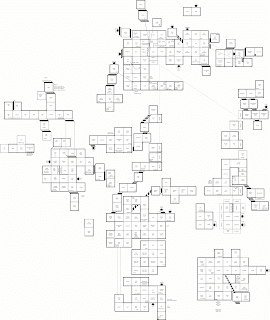
If anyone else is our there, still playing, thirty years later, I've drawn up a map of the parts of Ray's maze that I've been able to access. Perhaps we may yet learn how it ends.


tag:blogger.com,1999:blog-4940687843460320436.post-425186873398123382
Extensions
Inverse of a 3×3 block matrix
Show full content


Recall the formula for the inverse of a 2×2 block matrix:

$$ \begin{aligned} \begin{bmatrix} A&B\\ C&D \end{bmatrix}^{-1} &= \begin{bmatrix} A^{-1}+A^{-1}BS^{-1}CA^{-1}&-A^{-1}BS^{-1}\\ -S^{-1}CA^{-1}&S^{-1} \end{bmatrix} \\ S &= D - C A^{-1} B \end{aligned} $$

Now consider a 3×3 block matrix

$$ \begin{aligned} X &= \begin{bmatrix} E&F&G\\ H&J&K\\ L&M&N \end{bmatrix} \end{aligned} $$

Apply the 2×2 block inverse formula, plugging in: $\tilde A=E$, $\tilde B=\begin{bmatrix}F&G\end{bmatrix}$, $\tilde C=\begin{bmatrix}H\\L\end{bmatrix}$, and $\tilde D=\begin{bmatrix}J&K\\M&N\end{bmatrix}$:

$$ \begin{aligned} X^{-1} &= \begin{bmatrix} E&\begin{bmatrix}F&G\end{bmatrix}\\ \begin{bmatrix}H\\L\end{bmatrix}&\begin{bmatrix}J&K\\M&N\end{bmatrix} \end{bmatrix}^{-1} \\&= \begin{bmatrix} E^{-1}+E^{-1}\begin{bmatrix}F&G\end{bmatrix}Z^{-1}\begin{bmatrix}H\\L\end{bmatrix}E^{-1}&-E^{-1}\begin{bmatrix}F&G\end{bmatrix}Z^{-1}\\ -Z^{-1}\begin{bmatrix}H\\L\end{bmatrix}E^{-1}&Z^{-1} \end{bmatrix} \\ Z &= \begin{bmatrix}J&K\\M&N\end{bmatrix} - \begin{bmatrix}H\\L\end{bmatrix} E^{-1} \begin{bmatrix}F&G\end{bmatrix} \end{aligned} $$

The factor $Z$, in turn, is another 2×2 block matrix.

$$ \begin{aligned} Z &= \begin{bmatrix}J&K\\M&N\end{bmatrix} - \begin{bmatrix}H\\L\end{bmatrix} E^{-1} \begin{bmatrix}F&G\end{bmatrix} \\ &= \begin{bmatrix}J&K\\M&N\end{bmatrix} - \begin{bmatrix} HE^{-1}F & HE^{-1}G \\ LE^{-1}F & LE^{-1}G \end{bmatrix} \\ &= \begin{bmatrix} J-HE^{-1}F & K-HE^{-1}G \\ M-LE^{-1}F & N-LE^{-1}G \end{bmatrix} \end{aligned} $$

Again apply again the 2×2 block inverse formula to get $Z^{-1}$, defining:

$$ \begin{aligned} A &= J-HE^{-1}F \\ B &= K-HE^{-1}G \\ C &= M-LE^{-1}F \\ D &= N-LE^{-1}G \end{aligned} $$$$ \begin{aligned} Z^{-1} &= \begin{bmatrix} A&B\\ C&D \end{bmatrix}^{-1} = \begin{bmatrix} A^{-1}+A^{-1}BS^{-1}CA^{-1}&-A^{-1}BS^{-1}\\ -S^{-1}CA^{-1}&S^{-1} \end{bmatrix} \\ S &= D - C A^{-1} B \end{aligned} $$

Further expanding the forumula for $X^{-1}$ in terms of this is tedious and somewhat unsatisfying. Define

$$ \begin{aligned} U &= G - FA^{-1}B \\ V &= L-CA^{-1}H \end{aligned} $$

then expand and simplify:

$$ \begin{aligned} E^{-1}&+E^{-1}\begin{bmatrix}F&G\end{bmatrix}Z^{-1}\begin{bmatrix}H\\L\end{bmatrix}E^{-1} \\&= E^{-1}\left\{I+ \begin{bmatrix}F&G\end{bmatrix} \begin{bmatrix}A^{-1}+A^{-1}BS^{-1}CA^{-1}&-A^{-1}BS^{-1}\\-S^{-1}CA^{-1}&S^{-1}\end{bmatrix} \begin{bmatrix}H\\L\end{bmatrix}E^{-1} \right\} \\&= E^{-1}\left\{I+ \begin{bmatrix}F&G\end{bmatrix} \begin{bmatrix}[A^{-1}+A^{-1}BS^{-1}CA^{-1}]H-A^{-1}BS^{-1}L\\-S^{-1}CA^{-1}H + S^{-1}L\end{bmatrix} E^{-1} \right\} \\&= E^{-1}\left\{I +\left\{ F\left[(A^{-1}+A^{-1}BS^{-1}CA^{-1})H-A^{-1}BS^{-1}L\right] +G\left[-S^{-1}CA^{-1}H + S^{-1}L\right] \right\}E^{-1} \right\} \\&= E^{-1}\left\{I + \left\{ FA^{-1}\left[H+BS^{-1}(CA^{-1}H-L)\right] -GS^{-1}[CA^{-1}H-L] \right\} E^{-1} \right\} \\&= E^{-1}\left\{I+\left\{FA^{-1}H+\left[FA^{-1}B-G\right]S^{-1}[CA^{-1}H-L]\right\}E^{-1}\right\} \\&= E^{-1}+E^{-1}\left\{FA^{-1}H+US^{-1}V\right\}E^{-1} \\ \\ -&E^{-1}\begin{bmatrix}F&G\end{bmatrix}Z^{-1} \\&= -E^{-1} \begin{bmatrix}F&G\end{bmatrix} \begin{bmatrix}A^{-1}+A^{-1}BS^{-1}CA^{-1}&-A^{-1}BS^{-1}\\-S^{-1}CA^{-1}&S^{-1}\end{bmatrix} \\&= -E^{-1}\begin{bmatrix} FA^{-1}+FA^{-1}BS^{-1}CA^{-1}-GS^{-1}CA^{-1} & -FA^{-1}BS^{-1}+GS^{-1} \end{bmatrix} \\&= \begin{bmatrix} -E^{-1}\left\{ F+(FA^{-1}B-G)S^{-1}C \right\} A^{-1} & E^{-1}[FA^{-1}B-G]S^{-1} \end{bmatrix} \\&= \begin{bmatrix} -E^{-1}\left[ F-US^{-1}C \right] A^{-1} & -E^{-1}US^{-1} \end{bmatrix} \\ \\ -&Z^{-1}\begin{bmatrix}H\\L\end{bmatrix}E^{-1} \\&=-\begin{bmatrix}A^{-1}+A^{-1}BS^{-1}CA^{-1}&-A^{-1}BS^{-1}\\-S^{-1}CA^{-1}&S^{-1}\end{bmatrix} \begin{bmatrix}H\\L\end{bmatrix}E^{-1} \\&= \begin{bmatrix} -A^{-1}H-A^{-1}BS^{-1}CA^{-1}H + A^{-1}BS^{-1}L \\ S^{-1}CA^{-1}H -S^{-1}L \end{bmatrix}E^{-1} \\&= \begin{bmatrix} -A^{-1}[H+BS^{-1}(CA^{-1}H-L)]E^{-1} \\ S^{-1}(CA^{-1}H-L)E^{-1} \end{bmatrix} \\&= \begin{bmatrix} -A^{-1}[H-BS^{-1}V]E^{-1} \\ -S^{-1}VE^{-1} \end{bmatrix} \end{aligned} $$

This gives the expanded formula:

$$ \begin{aligned} &X^{-1}= \\& \begin{bmatrix} E^{-1}+E^{-1}\left[FA^{-1}H+US^{-1}V\right]E^{-1} & -E^{-1}\left[F-US^{-1}C\right]A^{-1} & -E^{-1}US^{-1} \\ -A^{-1}[H-BS^{-1}V]E^{-1} & A^{-1}+A^{-1}BS^{-1}CA^{-1} & -A^{-1}BS^{-1} \\ -S^{-1}VE^{-1} & -S^{-1}CA^{-1} & S^{-1} \end{bmatrix} \end{aligned} $$
tag:blogger.com,1999:blog-4940687843460320436.post-7158461183778962816
Extensions
Random noise textures on the GPU in WebGL
algorithmsfeedbackGaussiangraphicshacksJavaScriptlinearnoiseprocedural generationrandom numbersrandomnessrenderingrngshaderssimulationtexturesvisualizationWebGL
Show full content

Procedural rendering routines often need pseudorandom numbers. For graphics rendering, we usually prefer correct-ish and fast code over properly "correct" code. My approach to random number generation is usually to intermittently seed a weak pseudo-random number generator, like a linear-feedback shift register, from a stronger source like Javascript's Math.random(). 

On the GPU, things are not so simple: we want a pseudorandom algorithm that is fast, local, and parallel. For compatibility, we should also have this RNG use an 8-bit RGBA texture for its internal state. Bitops are a bit tricky in WebGL shaders (though not impossible), so we'll use a linear congruential generator.


The linear congruential generator is quite simple: it applies a linear transformation $ax+c$, then takes the remainder modulo some constant $m$. 

$$x_{n+1} = (a x_n + c) \operatorname{mod} m$$

Usually, we do this with integers, and $m$ is some prime number. While its possible to interpret the RGBA texture values as storing a byte [0,255] mapped to [0,1], running a weak RNG for each color channel is unsatisfactory. At best, the RNG has a period of 256, since the state stored between updates is effectively a single 8-bit unsigned integer for each color channel. 

Rather than try to interpret the RGBA vec4 as a 32-bit integer, I opted to mix state between adjacent pixels. This turns each channel in the texture into a giant RNG with as much state as you have pixels. I can't make any claims that this is optimal or correct, only that the results are fast and look nice. 

Initialize this texture with random values. Set the texture sampling to nearest-neighbor with periodic boundary conditions  (and no mipmaps, if it matters). In some instances, you may need to manually implement periodic boundary conditions for non power-of-two sized textures.

Here's the main code. It sums up pixels in the local neighborhood, multiplies them by some random float, then stores them back in the texture modulo 1.0 (that's modulo 256 if we're thinking of the color data as unsigned integers). I forget how I chose the constant for the linear recurrence, but it was almost surely a variant of the "try random things, smash the keyboard, and see what works" algorithm.

void main() {
    vec2 scale = 1./vec2(W,H);
    vec4 c0 = texture2D(data,(XY+vec2( 0, 0))*scale);
    vec4 c1 = texture2D(data,(XY+vec2( 0, 1))*scale);
    vec4 c2 = texture2D(data,(XY+vec2( 1, 0))*scale);
    vec4 c3 = texture2D(data,(XY+vec2(-1, 0))*scale);
    vec4 c4 = texture2D(data,(XY+vec2( 0,-1))*scale);
    vec3 color = mod((c0+c1+c2+c3+c4).rgb
        *8.8857658763167322,1.0);
    gl_FragColor = vec4(color,1.);
}

This gives you a uniform RNG for each color channel in the texture to play with. If you want Gaussian distributed data, you can use the Box-Muller transform to convert the (R,G) and (B,A) channels in a pair of Gaussian random numbers each.  

This random noise shader is up as an example on the webgpgpu repository. Click on the image below to view an example of Gaussian color noise: 


tag:blogger.com,1999:blog-4940687843460320436.post-7637294256851321211
Extensions
WebGL shader rules for rendering dendriform growth
Show full content

I've been playing around with cellular automata for procedural generation in WebGL. Here's an algorithm for rendering dendriform growth. I was aiming for rivers, but it came out like neurons.

[view in browser]

It's built atop a diffusion-limited aggregation cellular automata. Algorithm sketch: 

  • Each cell looks at the 4 nearest neighbors on the grid. We also check the 4 corners ("far" neighbors) to avoid creating loops.
  • Random numbers are provided by a separate noise texture
  • State is stored in the channels of an RGBA texture. Each [0,1] channel maps to a [0,255] byte value
  • The texture is seeded with at least one "active" pixel (existing water/lake/cell body). The seed is set to active (green=1.0)
  • Green channel runs a a diffusion limited aggregation: 
    • If exactly one nearby pixel is active, then we have a 5% of becoming active. 
    • Avoid creating loops: don't activate a pixel if more than one "far" neighbor is already active.
    • Because pixels act in parallel and at random, sometimes two pixels turn on in the same iteration, creating a loop. Detect and remove these after-the-fact, if they happen. 
  • Keep track of distance from the "seed" region in blue channel
    • Seeds are initialized with blue channel = 255
    • Newly activated cells get blue-1
    • This counts down to zero, at which point expansion stops
  • The texture is also initialized with various water sources / "synapses" scattered about it
    • This is stored in the alpha channel
    • If an active cell hits a source, it becomes a "river"
    • If a cell is active, and an adjacent cell is a "river", and is also further away from the source (check distance in blue channel), then this cell also becomes a "river"
  • A separate shader checks which cells are rivers, and generates tile ID values which are then passed to a tile shader.

 Here's the the shader that does the work:

void main() {
    vec2 dx = vec2(1.0/game_size.x,0.0);
    vec2 dy = vec2(0.0,1.0/game_size.y);
    vec2  p = gl_FragCoord.xy/game_size;
    // Get neighborhood
    vec4 s00 = texture2D(game_state,p-dy-dx);
    vec4 s01 = texture2D(game_state,p-dy);
    vec4 s02 = texture2D(game_state,p-dy+dx);
    vec4 s10 = texture2D(game_state,p-dx);
    vec4 s11 = texture2D(game_state,p);
    vec4 s12 = texture2D(game_state,p+dx);
    vec4 s20 = texture2D(game_state,p+dy-dx);
    vec4 s21 = texture2D(game_state,p+dy);
    vec4 s22 = texture2D(game_state,p+dy+dx);
    // Get noise
    vec4 n = texture2D(noise,p);
    // Cells persist
    bool cell = s11.g==1.0;
    // How many  adjacent?
    int near = int(s01.g+s10.g+s12.g+s21.g);
    int far  = int(s00.g+s02.g+s20.g+s22.g);
    // Cells randomly added only if they would not clash
    float next;
    if (cell) next = 1.0;
    else if (near==1&&far<2) {
        next = float(n.g<0.05);
    }
    // Cull overcrowding
    if (cell&&s11.b>0.0&&near+far>=7&&n.b<0.05) next=0.0;
    // If newly-created cell
    // Take max of immediate neighbors minus one
    float distance = (next>0.5&&!cell)? max(max(s01.b,s10.b),max(s12.b,s21.b))+1.0/256.0 : s11.b;
    // if a cell nearby is river, and is further away, become river
    if (cell && s01.a>0.0 && s01.b>distance) s11.a = s01.a;
    if (cell && s10.a>0.0 && s10.b>distance) s11.a = s10.a;
    if (cell && s21.a>0.0 && s21.b>distance) s11.a = s21.a;
    if (cell && s12.a>0.0 && s12.b>distance) s11.a = s12.a;
    gl_FragColor = vec4(0.0,next,distance,s11.a);
}
rr


https://michaelerule.github.io/webgpgpu/games/lesson_12_dendrites_variant_3.html

tag:blogger.com,1999:blog-4940687843460320436.post-1790506839660588481
Extensions
Pixel-art-style Conway's game-of-life using a tile shader in WebGL
blinkylightscodecolorsgame of lifegamesgpgpugraphicshacksJavaScriptlifepixel artpixelsrenderingretrotrippyWebGL
Show full content

Implementation of Conway's game of life cellular automata with a retro-style shader. Added as example on webgpgpu Github.


[view in browser]
[smaller version for mobile]
Sketch of WebGL implementation:
  • Underlying cellular automata runs Conway's game of life
  • States as game tiles: new cells: small blue; live cells: blue; died: skulls
  • Life diffuses out coloring nearby areas
  • A single RGBA texture stores the game state. We render to/from this texture as a framebuffer.
  • Each color channel in [0,1] can be mapped to a [0,255] byte value
  • The green channel stores the game of life state
  • The blue channel stores the diffusing field
  • The red channel outputs a tile ID value that is passed to a tile shader to render the game


 The core of the code is implemented in this shader:

void main() {
    vec2 dx = vec2(1.0/game_size.x,0.0);
    vec2 dy = vec2(0.0,1.0/game_size.y);
    vec2  p = gl_FragCoord.xy/game_size;
    // Get neighborhood
    vec4 s00 = texture2D(game_state,p-dy-dx);
    vec4 s01 = texture2D(game_state,p-dy);
    vec4 s02 = texture2D(game_state,p-dy+dx);
    vec4 s10 = texture2D(game_state,p-dx);
    vec4 s11 = texture2D(game_state,p);
    vec4 s12 = texture2D(game_state,p+dx);
    vec4 s20 = texture2D(game_state,p+dy-dx);
    vec4 s21 = texture2D(game_state,p+dy);
    vec4 s22 = texture2D(game_state,p+dy+dx);
    // Current cell and neighborhood cell density count
    float cell = s11.g;
    float near = s00.g+s01.g+s02.g+s10.g+s12.g+s20.g+s21.g+s22.g;
    float next = (cell>0.5&&near>1.5&&near<3.5||near>2.5&&near<3.5)?1.0:0.0;
    // Diffusing state: average neighborhood with decay; add density if live
    float diffuse = (s01.b+s10.b+s11.b+s12.b+s21.b)*0.2;
    diffuse = max(diffuse*0.95,next);
    // Tile ID: 
    int id = 
        (cell>0.5&&next>0.5)? MATURE :
        (cell>0.5&&next<0.5)? DIED :
        (cell<0.5&&next>0.5)? NEWBORN :
        SHADES + int((1.0-diffuse)*16.0)+1;
    gl_FragColor = vec4(float(id)/256.0,next,diffuse,0.0);
}

tag:blogger.com,1999:blog-4940687843460320436.post-4699627690263203965
Extensions
Retro-styled forest-fire cellular automata in WebGL
cellular automatacodedemosforest firegamesgpgpugraphicshackpixel artrenderingretinal wavesretroshaderstrippyWebGL
Show full content

Added as example on webgpgpu Github.
This is a cellular automata analogue of the model that we used for developmental retinal waves in this paper
[view in browser]
Key rules
  • Vegetation "grows" occasionally (flip a coin to increment amount of trees)
  • Fires have a small chance of starting spontaneously
  • Intensity of ignited fires decay down to zero, at which point they leave ash
  • Fires spread to adjacent cells with a probability that depends on their intensity
  • Probability of a cell igniting given a fire is related to how much vegetation there is

Sketch of WebGL implementation:
  • A single RGBA texture stores the game state
  • Each color channel in [0,1] can be mapped to a [0,255] byte value
  • A "noise" texture creates pseudorandom numbers
  • The green channel stores the level of vegetation (BURNT,NONE,GRASS,SCRUB,TREE)
  • The blue channel stores the intensity of the fire
  • The red channel outputs a tile ID value that is passed to a tile shader to render the game


 The core of the code is implemented in this shader:
void main() {
    vec2 dx = vec2(1.0/game_size.x,0.0);
    vec2 dy = vec2(0.0,1.0/game_size.y);
    vec2  p = gl_FragCoord.xy/game_size;
    // Get neighborhood
    vec4 s01 = texture2D(game_state,p-dy);
    vec4 s10 = texture2D(game_state,p-dx);
    vec4 s11 = texture2D(game_state,p);
    vec4 s12 = texture2D(game_state,p+dx);
    vec4 s21 = texture2D(game_state,p+dy);
    // Get noise
    vec4 n = texture2D(noise,p);
    // Trees emerge with some probablity
    float tree = s11.g + float(n.r<4.0/256.0)*0.1;
    // Fire burns out
    float fire = s11.b-1.0/18.0;
    // Fire spreads if there are trees to burn
    float PrFire = s01.b+s10.b+s12.b+s21.b;
    PrFire = PrFire*0.5+0.0005;
    float u = n.g+n.b/256.0;
    if (u<(PrFire*(tree-0.1))) {fire=9.0/10.0;}
    if (fire>0.0) tree=0.0;
    // Tile IDs for each state
    int id = (fire>0.0)? ONFIRE+int(fire*9.0): 
        (tree>0.7)? TREE : 
        (tree>0.4)? SCRUB : 
        (tree>0.3)? GRASS :  
        (tree>0.0)? NONE : 
        BURNT;
    gl_FragColor = vec4(float(id)/255.0,tree,fire,0.0);
}
tag:blogger.com,1999:blog-4940687843460320436.post-4628607920971444311
Extensions
Algorithms for rendering quasicrystal tilings
graphicsmathnotesPythonquasicrystaltrippy
Show full content


Quasicrystals are aperiodic spatial tilings, and 2D quasicrystals have been used for centuries in Islamic art. I find these patterns beautiful, and I think more people should know how to render them.

You can render 2D quasicrystals as a sum of plane waves. They can also be constructed using aperiodic tilings (e.g. 4-fold Ammann-Beenker tiles and 5-fold Penrose Tiles), and there are fractal constructions that recursively subdivide a set of tiles using a smaller set of the same tiles (e.g. 5- and 7-fold tilings). Many more constructions can be found on the Tilings Encyclopedia

This post focuses on the "cut and project" construction, which is easy to implement in code. The routines shown here can be found in this iPython notebook on Github.

The cut-and-project construction

The simplest way to render crisp, geometric quasicrystals is the "cut and project" construction. This views the quasicrystal as a two-dimensional projection of a planar slice through a N-dimensional hyper-lattice. Let's implement this algorithm. 

A (hyper) lattice

First, we need to define the idea of a hyperlattice. This is a N-dimensional generalization of a cubic crystal lattice. It tiles ND space using ND hypercubes. We can represent the center of each hypercube (hypercell? hyperpixel?) as a N-D vector of integers
$$
\mathbf q_0 = [ x_1, ... x_N ],\,\,x_i\in\mathbb Z
$$
The associated N-cube, then, includes all points on a unit hypercube $\left[-\tfrac 1 2, \tfrac 1 2\right]^N$ offset to location $\mathbf q_0$:
$$
\mathbf q = \left[-\tfrac 1 2, \tfrac 1 2\right]^N + \mathbf q_0
$$

An irrational projection onto a 2D plane

To construct the quasicrystal, we cut through this ND lattice with a 2D plane. To get a aperiodic slice, this plane must not align with any periodic direction in the hyperlattice. 

A good choice is to project each direction of the hyperlattice onto an evenly-spaced set of basis directions, centered at the origin. We define a 2D $(s,t)$ plane $\mathcal P$ in terms of two N-D basis vectors, $\mathbf u, \mathbf v \in \mathbb R^N$.

$$
\begin{aligned}
\mathbf p &= \mathbf u \cdot s + \mathbf v \cdot t,\,\,s,t\in\mathbb R
\\
\mathbf u &= [ \cos(\theta_0), \dots , \cos(\theta_{N-1}) ]
\\
\mathbf v &= [ \sin(\theta_0), \dots , \sin(\theta_{N-1}) ]
\\
\theta_i &= \frac {\pi\cdot i}{N}
\end{aligned}
$$

To render the quasicrystal, cut the N-D lattice along this plane, and project the exposed surface of this cut isometrically onto the 2D (s,t) plane $\mathcal P$. I've searched for an elegant algorithm for this to no avail. It seems like there should be some generalization of e.g. Bresenham's line algorithm to finding the hypercubes (hyperpixels?) associated with the cut. But, inelegant solutions work: it suffices to find the set of N-cubes in the ND lattice that intersect this plane.

$$
\mathcal Q = \left\{ \mathbf q_0 \bigm| \mathcal P \cap \mathbf q\ne \varnothing \right\}
$$


 Algorithm 1: brute-force (wrong, but easy)

An easy to code (but terrible) way to find points in $\mathcal Q$ is by a brute-force search: Check lots of points in the s,t plane, and quantize them to the nearest vertex $\mathbf q_0$ of the hyper-lattice:
$$
\mathcal Q = \left\{ \mathbf q_0 \bigm| \exists (s,t)\in\mathbb R^2 \text{ s.t. } \left \lfloor \mathbf u s + \mathbf v t \right \rceil =  \mathbf q_0 \right\},
$$
where $\lfloor\cdot\rceil$ denotes rounding to the nearest integer vector. This is massively inefficient: many $(s,t)$ points map to the same lattice point $\mathbf q$, and it will miss points if the grid resolution is too coarse. But, for small renderings and run-once code, it does the job. Here it is Python3 code:

 1
 2
 3
 4
 5
 6
 7
 8
 9
10
11
12
13
14
15
16
17
18
19
20
21
22
23
24
25
26
27
28
from scipy.spatial.distance import squareform, pdist
from pylab import *
from numpy import * 

N = 4                      # Dimension of crystal
θ = linspace(0,pi,N+1)[1:] # Arrange basis vectors evenly on [0,π)
A = array([cos(θ),sin(θ)]) # Convert from complex notation

L  = 501  # Number of grid points to search over
dx = 5    # Size of square portion of plane to check

# Generate the search grid
x  = linspace(-dx,dx,L)
xy = array(meshgrid(x,x)).reshape(2,L*L)

# Collapse all grid points to the nearest hyper-cell 
p  = unique(np.round(A.T@xy),axis=1)

def plotpoints(p):
    u  = pinv(A).T@p
    D  = squareform(pdist(p.T))
    e  = {tuple(sorted(e)) for e in zip(*where(abs(D-1)<1e-6))}
    xy = concatenate([[u[:,a],u[:,b],[NaN,NaN]] for a,b in e])
    plot(*xy.T,lw=0.5,color='k')
    axis("equal")
    axis("off")
    
plotpoints(p)

Figure 1: rendered output of a rhobic tiling for the N=4 quasicrystal, computed by brute-force search of the cut-and-project approach.

Testing for intersections

A better way is to start with a point that you know touches the plane. Then, "grow" the crystal from this point by checking if adjacent sites on the lattice also intersect the cutting plane. The plane defined above always intersects the N-cube at $\mathbf q=[0,..,0]$, so this is a good place to start.

This mathematics stack exchange question gives two ways to check for cube-plane intersection. They include (a) using linear programming, and (b) checking directly based on a geometric solution. Both are slower than I'd like, and I suspect there is an even faster/more elegant solution out there. 

Algorithm 2: test with linear programming

As per this answer, we can check for plane-cube intersection using Linear Programming (LP). Mirko Stojiljković's "Hands-On Linear Programming: Optimization With Python" is a good, accessible introduction to linear programming in Python. 

The code below searches for N-cubes intersecting the cutting plane iteratively. It includes optimizations, like memoizing the intersection tests, and exploiting the N-fold symmetry to recycle previous test results.

 1
 2
 3
 4
 5
 6
 7
 8
 9
10
11
12
13
14
15
16
17
18
19
20
21
22
23
24
25
26
27
28
29
30
31
32
33
34
35
36
37
38
39
40
41
42
43
44
45
46
from scipy.optimize import linprog

# Number of search iterations
Ndepth = 10 

# Directions in which to search
D = int32(concatenate([eye(N),-eye(N)])) 

# Matrix to rotate a lattice point π/N in 2D plane
S = zeros((N,N))
S[ -1,0 ] = -1
S[:-1,1:] = eye(N-1)

# Matrix encoding LHS of linear inequalities for LP
Aub = concatenate([ A.T,-A.T])

# Use linear programming to see if plane
# intersects hypercube ±0.5 of p
def check_lp(q):
    return linprog(c=[1,1],A_ub=Aub,
        b_ub=concatenate([.5+q,.5-q]),
        method="revised simplex",
        options={"tol":1e-9}).success

# Cache results to save time (memoization)
cache = {}
def checkcrystal_lp(q):
    # Convert test point to immutable tuple for cache key
    k = tuple(int32(q)) 
    if not k in cache:
        # Recompute intersection test if not in cache
        # Use symmetry: reduce all tests to points in 1st sector
        h = angle([1,1j]@A@q)
        cache[k]=check_lp(q) if 0<=h<=(pi/N*1.1) else checkcrystal_lp(S@q)
    return cache[k]

# Start with a seed point at zero and build outwards
Q,allQ = {(0,)*N},set() 

# Iteratively search in each direction to add points
for i in range(Ndepth):
    Q = {tuple(q) for p in Q for q in D+p if checkcrystal_lp(q)}-allQ
    allQ |= Q

figure(figsize=(10,10))
plotpoints(array(list(allQ)).T)

Figure 2: Rhombic quasicrystal tiling for N=4, computed via iterative search. Linear programming (algorithm 2) was used in this case, but other tests for plane-hypercube intersection work similarly (see  algorithms 3 and 4).
Algorithm 3: testing using a geometric solution

This answer outlines another way to test for plane-cube intersection. It involves projecting the problem onto a space where the 2D plane collapses to a point at the origin, and checking whether the shadow of the N-cube in this subspace contains this origin point. 

There are a few ways to do this. For example, you could calculate the convex hull of the N-2 projection, and test if it contains the origin. The code below uses another approach: It checks whether any of the N-2 sub-facets of the projected N-cube contains the origin, stopping early if it finds one.

 1
 2
 3
 4
 5
 6
 7
 8
 9
10
11
12
13
14
15
16
17
18
19
20
21
22
23
24
25
26
27
28
29
30
31
32
33
34
35
36
37
38
39
40
41
42
43
44
45
46
47
48
49
50
51
52
53
54
55
56
57
58
59
60
61
62
63
64
65
66
67
68
from scipy.linalg import null_space
from itertools import product, combinations

# Null space: collapses cutting plane to point at origin
C = null_space(A).T

# All vertices of an N-cube
O = array([*product(*([0,1],)*N)])-0.5

# All vertices of a 2-cube (used to generate N-2 sub-facets)
F = array([*product(*([0,1],)*2)])

# A single corner ("origin" vertex) of an N-2 cube
# plus N-2 vectors defining the other points on the N-2 cube
# Used to test if sub-facet contains the origin
i = [0]+[*2**arange(N-2)]
G = array([*product(*([0,1],)*(N-2))])[i,:]

# All possible pairs of dimension for generating
# all possible N-2 sub-facets of the N-cube
I = [*combinations(range(N),2)]

# Given a list of N-cube vertices, construct a list
# of all N-2-cube sub-facets.
subfacets = []
for ij in I:
    # For every pair of directions, and for every 2-cube
    # in each pair of directions... Generate all possible
    # N-2-cube sub-facets.
    v0 = F@eye(N)[ij,:]
    v1 = G@eye(N)[[*{*range(N)}-{*ij}]]
    subfacets.extend(v0[:,None,:]+v1[None,:,:])
vxid = int32(subfacets)@2**arange(N,dtype='i')

# Check if a sub-facet contains the origin
def subfacet_contains(v):
    p0 = v[0]
    vk = v[1:,:]-p0
    q  = -np.linalg.solve(vk@vk.T,vk@p0)
    return all(q>=0) and all(q<=1)

# Check if N-2 projection of N-cube contains the origin
# (thereby checking for plane-cube intersection)
def in_plane(q):
    # Generate list of all N-2 dimensional sub-facets
    # of unit N-cube centered at q
    p  = (q+O).T
    sf = (C@p)[:,vxid].transpose(1,2,0)
    for v in sf:
        if subfacet_contains(v): return True
    return False

cache = {}
def checkcrystal2(p):
    k = tuple(int32(p))
    if not k in cache:
        h = angle([1,1j]@A@p)
        s = in_plane(p) if 0<=h<=(pi/N*1.1) else checkcrystal2(S@p)
        cache[k]=s
    return cache[k]

Q,allQ = {(0,)*N},set() 
for i in range(Ndepth):
    Q = {tuple(q) for p in Q for q in D+p if checkcrystal2(q)}-allQ
    allQ |= Q

figure(figsize=(10,10))
plotpoints(array(list(allQ)).T)

Algorithm 4: Intersection of $n$ half-planes in $\mathcal O [ n\log(n)]$
This algorithm is harder to code, but gives fast performance that scales favorably as the dimension of the crystal grows. To understand the geometry, let's return to the brute-force algorithm. 
In the image on the below, we've chosen a random color for each cell in an $N=5$ hyperlattice. We've iterated over the points in the cutting plane, and colored them according to which cell they reside in. This is easy to compute: we simply use the defined basis $A$ to project each point on the plane into $N$ dimensions, then round the coordinates to the nearest integer
The image on the right was rendered by taking $N$ planar square-waves, and summing them together modulo 2. This illustrates the close connection between the quasicrystal as a sum of $N$ plane waves, and the quasicrystal as a diagonal slices through an $N$-dimensional hyperlattice.
Theses plane waves cut the plane into strips. Regions where $N$ strips overlap in the plane correspond to cells in the hyperlattice that intersect the cutting plane. Thus, we can reduce the test for plane-hypercube intersection to a test for whether the $N$ strips, oriented in different directions, and offset based on the position of the hypercube, have a nonempty intersection. 

To do this, first, transform the problem into a set of $2N$ linear inequality constraints. Each constraint defines a half-plane. The plane intersects the hypercube if the intersection of these half-planes is nonempty. So far, this is identical to the linear programming approach of Algorithm 2.
There are fast algorithms for testing whether the intersection of $n$ half-planes is nonempty. This approach by Preparata and Muller does it in $n\log(n)$. These notes by Dave Mount explain the geometry underlying these algorithms. 
The approach is: 
  • First, identify any vertical bounding lines. These demarcate spans of the $x$ axis of the plane. Their intersection $x\in[x_0,x_1]$ defines the bounds for a search procedure (below). (We can always choose an orientation such that one of the crystal axes is vertical.)
  • Split the remaining lines into those that bound the half-plane from below, and those that bound the half plane from above, where "below" and "above" are defined in terms of the $y$ coordinate of the plane.
  • These two groups of lines define and upper and lower feasibility regions, which are convex. The boundary of these regions can be interpreted as curves $y_l(x)$ and $y_u(x)$
  • Test if the the intersection between the upper/lower feasibility regions is nonempty by finding the minimum of $y(x) = y_l(x)-y_u(x)$ on $x\in[x_0,x_1]$
  • If any $\exists x\in[x_0,x_1]\text{ s.t. } y(x)<0 $, then the plane intersects the hypercube.
  • This can be checked via binary search, looking for the point where $t(s)$ changes sign, and stopping early if any point satisfying all the constraints is found.
Figure 4: Illustration of $\mathcal O(n \log(n))$ test for plane-hypercube intersection. The intersection problem is reduces to testing whether the intersection of $N$ strips in the plane is nonempty. The problem is simplified by letting one of these strips be vertical, restricting the search region to a portion of the $x$ axis. Each remaining strip is expressed as the intersection between an upper-bounding and lower-bounding half-plane. The intersection of all upper-bounding half-planes (black) forms an upper bounding curve (blue). Similarly for the lower bound (orange). If there is any $x$ such that lower-upper is negative, then the intersection is nonempty. This can be checked via binary search.

This intersection test can be used with the iterative search routines shown for Algorithms 2 and 3. There is a demonstration in this iPython notebook. The Python3 source code for the binary search is below.
 1
 2
 3
 4
 5
 6
 7
 8
 9
10
11
12
13
14
15
16
17
18
19
20
21
22
23
24
25
26
27
28
29
30
31
32
33
34
35
36
37
38
39
40
def check_pm(p,eps=1e-3,maxiter=1000):
    p = int32(p)
    # Get slopes and spacing of boundary lines
    # This assumes you've set things up so that θ[-1]=π
    m = 1/tan(θ[:-1])
    d = 1/sin(θ[:-1])
    # Evaluate upper/lower bounds
    lp,up = p[:-1]-0.5, p[:-1]+0.5
    def feasibility_surface(p,x):
        u,l = x*m+up*d, x*m+lp*d
        y   = np.max(l)-np.min(u)
        dy  = m[np.argmax(l)]-m[np.argmin(u)]
        return y,dy
    # Initial bounds and feasability checks
    # If either bound satisfies, success
    # If better point not in bounds, fail
    x0,x1  = p[-1]-0.5, p[-1]+0.5
    y0,dy0 = feasibility_surface(p,x0)
    y1,dy1 = feasibility_surface(p,x1)
    if y0 < 0 or y1 < 0: return True
    if dy0>=0 or dy1<=0: return False
    for i in range(maxiter):
        # Guess min by following slope at bounds
        xm = (y1-y0-dy1*x1+dy0*x0)/(dy0-dy1)
        assert xm>=x0-eps
        assert xm<=x1+eps
        # Midpoint works? still feasible? 
        ym,dym = feasibility_surface(p,xm)
        if ym<0:   return True
        if dym==0: return False
        # Binary search: move inward if not done
        if dym<0:
            # If better point not in bounds, fail
            if dym>=0 or abs(x0-xm)<eps: return False
            x0,y0,dy0 = xm,ym,dym
        else:
            if dym<=0 or abs(x1-xm)<eps: return False
            x1,y1,dy1 = xm,ym,dym
    # Should have returned succes/fail before getting here
    raise RuntimeError("Maximum iterations exceeded: p=%s"%p)


  Create 

These approaches generate (a subset of) the vertices of a quasicrystaline tiling. The routines shown here can be found in this iPython notebook on Github (edit: the $\mathcal O(n\log(n))$ algorithm is here). You can connect these points to render a rhombic tiling, or calculate mosaic-like Voronoi cells. For the most part, I just render the tilings and then color them manually. The tiles can be subdivided, or used as a structure to support detailed elaborations. Make something beautiful (:


tag:blogger.com,1999:blog-4940687843460320436.post-1986534577839758715
Extensions
Inverting the "Simple Sabotage Field Manual"
Show full content

In 1944, the US Office of Strategic Services published an internal document: the "Simple Sabotage Field Manual". 

In addition to specific techniques for breaking machines, it included suggestions for how to cripple an organization. 

All of the suggestions are things that already happen spontaneously, because organizing large numbers of people reliably and safely is hard.

Rather than re-state the "sabotage" tips, I thought I'd invert each one to create guidelines for positive change in an organization:

  • Always share your competencies and knowledge freely and liberally.
  • Expedite when it is safe to do so, and whenever failing to do so would lead to something worse.
  • Rules that don't serve a purpose can be changed, or broken in emergencies (but this must be done with extreme thought, caution, and community support, see Chesterton's fence).
  • No speeches. Be brief and clear, and say nothing without purpose.
  • No committees, but if you must, never more than four persons.
  • Stay on mission. Do not re-open closed (or no longer relevant) matters.
  • With regards to language: be liberal in what you accept and conservative in what you give out; if the words communicated understanding, spend no time revising them.
  • Leadership requires action; Take thoughtful and calculated risks (hedging if appropriate). Beware inertia and cowardice in the name of caution.
  • Prioritize important jobs first, and assign them to the most competent and efficient.
  • Avoid perfectionism, be pragmatic.
  • Allocate promotions and responsibilities according to ability (but be kind and take care of all).
  • Conferences are a waste of time, if you already know what you need to do.
  • Minimize admin bottlenecks, but If a process really needs N persons to sign off, build in redundancy: ensure that at least 2N persons are trained and authorized to do so.
  • Be diligent and serious in your work.
  • Avoid distractions, minimize interruptions from co-wokers and avoid breaking up the workday.
  • Learn how to build and maintain good tools, and how to do good work with bad tools.
tag:blogger.com,1999:blog-4940687843460320436.post-6951865378012759721
Extensions
Wildcard selectors in uBlock Origin
Show full content

The extension uBlock Origin for Chrome and Firefox allows users to block offensive elements on websites.

It works by matching the name of elements on a page against a block list, but some websites randomize element IDs, making this tricky. One can block elements with parts of their ID randomized in uBlock, but it is not automatic. First:

  • Have uBlock Origin installed
  • Identify element to block
  • Right click and select "block element"
  • uBblock will highlight the element, and a white box should appear in the lower right corner of the browser.

If the website is randomly-generating IDs, you won't be able to block the element with a fixed rule. You might see something like this:

##[randomly generated string]_[some predictable unique tag]

or

##[some predictable unique tag]_[randomly generated string]

Now, you might think that these could be blocked by "##*_[some predictable unique tag]" or "##[some predictable unique tag]_*", but uBlock does not use regular wildcard syntax. Instead, it uses CSS selector syntax, which is idiosyncratic. For example, this Reddit post suggests transforming the desired wildcard selector

###leaderboard_ad-*.block_article_ad.leaderboard_ad.etc

Into a rule expressed in terms of a CSS selector

##.block_article_ad.leaderboard_ad.etc[id^="leaderboard_ad-"]

This (1) Specifies the parts of the rule that are fixed, downstream of the wildcard, and (2) adds a string-matching query that finds elements whose ID starts with "leaderboard_ad-" (that's what "^=" means).

This post corroborates this approach, suggesting a generic format if the offending element has an ID starting with a predictable string:

www.annoyingwebsite.com##div[id^="start_of_div_name_before__randomnumber"]

This works, provided you can uniquely match the element based on a prefix. What if the unique identifier is a suffix? Referring back to CSS selector synatx, we find that ^= means "begins with" and $= means "ends with". So the wildcard rule for an element that randomizes the end of a div's ID would be:

www.annoyingwebsite.com##div[id$="_end_of_div_name_after_random_number"]

tag:blogger.com,1999:blog-4940687843460320436.post-5745615409318722725
Extensions
Box Drawing Characters + Marching Squares = Marching Boxes?
box drawinggraphicsJavaScriptpixel artprocedural generationretroshadersWebGL
Show full content

I couldn't figure out the name of this to search for it online, and it wasn't mentioned on Wikipedia's marching squares page, so… here's to reinventing wheels ( :

Sebastian Blomfield's "Lord of the Manor" game inspired me to explore retro-game engine coding. So far, I've got a basic tile-shader that renders tiled 2D game environments (e.g. game of life, forest fire simulation). Next up: what if I want to draw maps where the adjacent tiles of e.g. walls are continuous?

Box-drawing characters are a nice way to generate rectilinear paths in a tile-based game environment. By checking whether the tiles above/below/left/right are also walls, we can select one of 16 box drawing symbols to create continuous walls:

Note that this extends the usual unicode box-drawing characters with five additional tiles: one for an isolated (disconnected) wall, and four for "dead ends". These suffice for rendering square hallways, e.g:


With some tweaks to the tiles, we can coax box-drawing tiles to generate more curved and diagonal paths:

See here for an example page that renders dendriform growth using the above tile sets (refresh to get a new randomly-selected tile set).

Marching squares is another nice algorithm for rounding off corners on a map (e.g.). This doesn't quite work out-of-the-box for our tile shader, however, since marching squares accepts the values for the corners of each tile, and I want it to operate on the tile values directly. It also uses 16 tiles:

So! box-drawing is good for lines, and marching squares is good for borders/contours. Can we combine these and get a best-of-both-worlds approach? One that renders tiles based on their current value and the values of their neighbors?

Yes. I'm not sure what its name is, so I'm calling it "marching boxes" for now. Marching-boxes extends the box-drawing tiles with 31 tiles (below). These provide versions of the corner, T-junction, and cross-junction tiles that account for the possibility of nearby filled-in regions. The resulting tiles can render contours around filled-in regions as well as sharp lines.

Including background and foreground tiles, marching boxes uses 48 tiles.

This could be nice for any pattern that has a mixture of lines and enclosed regions, like a dungeon connected by hallways, or a water system that includes both lakes and rivers.

Click here to view a WebGL demo of marching-boxes tile rendering

tag:blogger.com,1999:blog-4940687843460320436.post-1040428491853711883
Extensions
More LED layouts for hand crafting
ArduinoCharlieplexingcraftingElectronicsLED displaysLEDs
Show full content

LED multiplexing layouts for hand-crafting outlined LED grid layouts using a diagonal section of a Charlieplexed grid of LEDs. This post presents some additional layouts designed for e-textiles (e.g. embroidery, bead-weaving).

The main idea of these layouts is that they should consist of a regular, repeating lattice of N driving lines, such that each pair of lines cross exactly twice. One LED is placed at each crossing (one forward and one backwards, in terms of polarity, for each pair).

Grid arrangements

The diagonal nature of the diagonal-multiplexing grid does not lend itself easily to conventional row/column display designs. Previously, we distorted the diagonal grid to create a square layout. This is tricky to solder correctly. One can achieve the same effect by skipping every-other position in the diagonal grid. Then, repeat the whole diagonal-multiplex pattern again, this time with the polarity of the LEDs reversed.

Here is an example where 9 control lines drive a 4×18 LED matrix. Below, the red/blue halves of the LEDs denote polarity (not color, these would be single-color LEDs). The polarity of the rightmost half of LEDs should be flipped. This approach works if the number of control lines is odd.


The two repeated patterns can also be sewn together in parallel. In this case, building a 9×8 grid.

Linear arrangements

In two special cases, its possible to lay out a straight line of LEDs. One pattern drives 6 LEDs on 3 lines, and another drives 20 LEDs on five lines. These designs intended for LED embroidery projects.

3 lines control 6 LEDs. (The polarity of the rightmost half of LEDs should be flipped.)

5 lines control 20 LEDs. (The polarity of the rightmost half of LEDs should be flipped.)


These could also be wrapped to form a circle.
 

RGB tiles

These RGB tiles were designed to work with 6-pin RGB LED modules, which expose both the anodes and cathode of each individual color channel. It is possible to design a single "tile" sewable PCB that will work with both layouts below. The idea is that this could enable a tile or "scale" pattern on e-textiles.

9 lines control 72 LEDs, creating 24 RGB tiles arranged in a 4×6 grid. Every three rows of the diagonal-Charlieplexing grid are grouped to produce one set of RGB tiles.

This pattern can be generalized to any number of control lines that is both odd and divisible by 3. E.g. 9, 15, and 21 control lines produce 4×6, 7×10, and 10×14 grids, respectively. (I think.. double check these.)

13 lines control 156 LEDs, creating 52 RGB tiles arranged in a 4×13 grid. Each row is grouped in alternating patterns of 2 and 1 LEDs, which are then groups by row into groups of 2+1=3.


This pattern can be generalized to any number of control lines $N$ such that $N$ is odd and $N-1$ is divisible by 3. E.g. 7, 13, and 19 control lines produce 2×7, 4×13, and 6×19 grids, respectively. (I think.. double check these.)


RGB Matrices

Other ways of grouping the LEDs into (R,G,B) triplets support ordinary rectangular RGB LED matrix layouts. N*3+1 control lines can be grouped to support a N×N*3+1 matrix of common-anode or common-cathode RGB LEDs:

For example, 13 control lines can support four groups of three (R,G,B) triples in 13 rows

Or 16 control lines can support a 5x16 matrix:

Notes

All of these designs assume tri-state drivers (positive, negative, and high-impedance (off)) that can source fairly large currents (e.g. ~40 mA). This is typical of the AtMega and AtTiny AVR chips powering most flavors of Arduino.

For large e-textile designs, the resistance of the conductive thread might be an issue. It may be necessary to use multiple threads in parallel, or to selecting a high conductance thread. Adjusting the layout so that no LEDs are too distant from the driver might also help. Crude software balancing of brightness via PWM may also be possible, but difficult on larger displays. Take care not to let driving lines short at points where they cross.

When driving displays that mix LEDs of different forward voltages: If more than one LED is lit at a time, then the red/green/blue LEDs must be scanned separately. Unless individual current-limiting resistors are provided for each LED, the forward voltage of the red LEDs must not be less than half the forward voltage of the blue LEDs.

There's a good argument that manually creating LED meshes is not a good use of time, and that one should use e.g. NeoPixels instead. These patterns, however, have the obsessive repetition and tedious assembly of knitting, and may appeal to some people. 

I have not had the opportunity to mass-produce the sewable LED boards that would be needed to complete these projects.

tag:blogger.com,1999:blog-4940687843460320436.post-1962184524638915563
Extensions
Microcontroller firmware for Charlieplexed LED displays
ArduinoCharlieplexingcraftingElectronicsfirmwareLED displaysLEDs
Show full content

Previous posts illustrated hardware building Charlieplexed displays (1 2 3 4). However, building the display hardware is only half the work: one also needs a display driver.

This post covers strategies for writing firmware to drive Charlieplexed LED displays. I'll be working with the Arduino Uno, which uses the AtMega328 microcontroller. These strategies are general, but the hardware-specific optimizations will need to be adapted if using a different microcontroller.

This post walks through the basics of bringing up custom display driver code for a new LED display, including:
  1. Testing the display after soldering
  2. Row/column scanning for brighter Charlieplexed displays
  3. Display memory buffers
  4. Getting good performance by optimizing IO operations and the display memory format
  5. Scanning the display using timer interrupts
  6. Double buffering to improve animations  
It also briefly outlines some extensions that may be of interest
  1. Achieving graded brightness values
  2. How to mix LEDs of different colors (different forward voltages) in one grid
  3. Cheating on current limits to get brighter displays
Finally, there are some (hopefully) useful notes in the appendix
  1. LED resistor calculations for Charlieplexed LED displays
  2. Timer interrupts on the AtMega328 with the Arduino platform, in detail. 
0. Build the display
I've constructed my LED display out of discrete 3 mm LEDs, placed on cardboard from a cereal box using a template. The 'diagonal Charlieplexing' layout is, I think, the easiest for hand-crafting, since it gets the maximum number of LEDs using the smallest amount of wire and microcontroller IO pins. This particular build is a larger multi-color version of the Fibonacci spiral layout, and the construction steps are similar.

The basic steps are:
  1. Prepare a template for the LED layout, and attach this to some thin but stiff cardboard
  2. Perforate the cardboard for the component leads, and place components
  3. Connect and solder the components
Depending on how you attach the components, it may or may not be easier to do steps (2) and (3) concurrently.

Make a cardboard PCB Attach components Connect and solder
p.s.: It took me about a month to finish the hardware, a little bit each day. Like knitting.

1. Test the display one light at a time   The first thing to do is to verify that all LEDs work.
Before starting, ensure that all control lines have appropriate current-limiting resistors to avoid damaging the LEDs (it is frustrating to burn out a LED matrix before even getting started).

I'm working on a 306-light project that uses 18 control lines (the maximum number that one can use on the Arduino Uno while still leaving the serial pins free). I've arranged the display in a circular pattern, but these code examples will assume an ordinary rectangular layout for simplicity.

The Arduino sketch below will light-up each LED in a Charlieplexed display in sequence. Follow the steps in the top comment to adapt it to your project.

/**
 *  - Build Charlieplexed display hardware
 *  - Hook up all lines with appropriate current-limiting resistors
 *  - Set the constant NPINS to the number of lines
 *  - Place the Arduino pin numbers used in the `pinmap` array
 *  - Upload this sketch and confirm that all lights work
 */

#define NPINS 18
const int pinmap[NPINS] = {
  2,3,4,5,6,7,8,9,10,11,12,13,14,15,16,17
};

void setup() {
  // put your setup code here, to run once:
}

void loop() {
  // put your main code here, to run repeatedly:

  for (int j=0; j<NPINS; j++)
  for (int i=0; i<NPINS; i++)
  {
    if (i==j) continue;
    int anode   = pinmap[i];
    int cathode = pinmap[j];
    // Turn everything off
    for (int line=0; line<NPINS; line++)
      pinMode(pinmap[line],INPUT);
    // Turn on one anode-cathode pair
    digitalWrite(cathode,LOW );
    digitalWrite(anode  ,HIGH);
    pinMode(anode  ,OUTPUT);
    pinMode(cathode,OUTPUT);
    delay(1);
  }
}


Before turning on the next light, we first set all pins to INPUT mode, with pull-up resistors disabled. This avoids triggering any LEDs accidentally as we switch the other pins.

For full source code see sketch Example 1.

Dead pixels
For home-made displays, I usually have a few LEDs that are burnt out or installed backwards. Testing the display will reveal such 'dead pixels', and now is good time to replace or re-solder them.

In Charlieplexed displays, attempting to light a dead pixel will cause current to flow in unexpected ways, spuriously lighting up the wrong LEDs. Sometime it is impractical to replace broken LEDs. For now, it suffices to note the anode and cathode pin numbers of any dead pixels. We can explicitly avoid turning them on in the display driving code late to avoid this issue.
Note: Watch out for quality control in bulk discrete LEDs. I usually find some where the anode/cathode labels are reversed, or where the LED isn't embedded properly in the plastic housing. (Mechanical stability is especially important for home-made projects, since movement during use or soldering can break the connection between the LED chip and its leads.) I often check each LED before soldering.
  2. Row/column scanning 
Lighting LEDs individually works for small projects, but not for large ones. As the number of lights increases, the fraction of time that each light spends on decreases, making the display dim. There also isn't enough time to scan a large number of lights without introducing noticeable flicker.

The solution is to scan an entire row or column of the matrix at once. One can drive multiple LEDs simultaneously by (e.g.) turning on one anode and multiple cathodes (but take care not to over-current the microcontroller IO pins). Appendix 1 (at the end of this post) gives notes for setting resistor values, but the usual series resistance for lighting a single LED is a good upper bound.


Single-light scanning
  • Good: If only a sparse subset of the LEDs are on at a given time, this can lead to a brighter and more uniform display.
  • Bad: The display will be dim if there are many LEDs to scan, and this approach fails if a large number LEDs need to be lit.
Row/Column scanning
  • Good: Reduces the amount of CPU time needed to scan the display. Reduces flicker and increases brightness for large displays.
  • Bad: Current-limiting resistors set a fixed current per row or column. This means that the brightness depends on the number of LEDs being lit per row/column, which can lead to non-uniform brightness if not compensated in software. Handling displays that mix LEDs with different forward voltages is also more complicated.
Here is an Arduino sketch to test common-anode row/column scanning of a Charlieplexed display. (Set NPINS to the number of LED control lines in your project, and define the Arduino pin number for each line in the pinmap variable.)

/**
 *  - Set up the electronic circuit, with appropriate series resistors
 *    to protect the LEDs *and* *microcontroller* if something goes wrong.
 *  - For common-anode row/column scanning:
 *    - Set all pins to INPUT mode to avoid spuriously lighting LEDs
 *    - Set the anode pin to HIGH and all others to LOW
 *    - Switch to OUTPUT mode the anode, and any cathods from this row
 *      that you wish to light up.
 */

#define NPINS 18
const int pinmap[NPINS] = {
  10,6,18,15,12,4,5,8,7,16,17,19,14,9,11,13,3,2
};

void setup() {
  // put your setup code here, to run once:
}

void loop() {
  // put your main code here, to run repeatedly:
  for (int i=0; i<NPINS; i++)
  {
    int anode = pinmap[i];

    // Turn eveything off
    for (int line=0; line<NPINS; line++)
      pinMode(pinmap[line],INPUT);

    // Set cathodes to LOW and anode to HIGH
    for (int line=0; line<NPINS; line++)
      digitalWrite(pinmap[line],LOW );
    digitalWrite(anode,HIGH);

    // Turn on Anode, and any cathodes we want to light-up
    pinMode(anode,OUTPUT);
    for (int line=0; line<NPINS; line++)
      pinMode(pinmap[line],OUTPUT);

    delayMicroseconds(200);
  }
}


For full source code see sketch Example 2.

3. Display buffers   At this point we're ready to start coding a display driver. The first step is to add a display memory buffer so that other drawing routines can turn pixels on and off.

We'll do this by storing one bit for each directed pair of LED control lines. We'll pack this display memory into an array of 32-bit integers, so that if the LED between line $i$ and $j$ is on, then the $j^{\mathrm{th}}$ bit of the $i^{\mathrm{th}}$ column will be 1 (and 0 otherwise). This background on bitwise manipulations in integers might be useful.

Bit-packed representations save memory, and speed up IO operations, both important on microcontrollers with limited RAM and slow clocks. Since I have 18 control lines, I use a 32-bit unsigned integer (uint32_t or unsigned long on the Arduino). If you have fewer control lines, you can use a smaller unsigned integer type.

In the sketch below, we've modified the row/column scanning example
  • We add an array of unsigned integers, which store the bits of our display buffer
  • We explicitly clear the buffer in the setup() part of the sketch
  • We draw a test pattern into the buffer
  • In the row-column scanning loop, we now check the display buffer to see which lights to turn on for each row.
The code:
/**
 *  This sketch extends Example 2, row-column scanning,
 *  to read data from a display buffer.
 */

#define NPINS 18
const int pinmap[NPINS] = {
  10,6,18,15,12,4,5,8,7,16,17,19,14,9,11,13,3,2
};

uint32_t display_buffer[NPINS];

void setup() {
  // Initialize the display memory
  for (int line=0; line<NPINS; line++)
    display_buffer[line]=0;

  // Draw a test pattern
  for (int i=0; i<NPINS; i++)
    for (int j=0; j<NPINS; j++)
      if (i!=j && ((i>>2)&1)==((j>>2)&1))
        display_buffer[i] |= 1<<j;
  }

void loop() {
  // scan based on the information in the buffer
  for (int i=0; i<NPINS; i++)
  {
    // Turn eveything off
    for (int line=0; line<NPINS; line++)
      pinMode(pinmap[line],INPUT);

    // Set cathodes to LOW and anode to HIGH
    int anode = pinmap[i];
    for (int line=0; line<NPINS; line++)
      digitalWrite(pinmap[line],LOW );
    digitalWrite(anode,HIGH);

    // Turn on Anode, and any cathodes we want to light-up
    pinMode(anode,OUTPUT);
    for (int line=0; line<NPINS; line++)
      if (display_buffer[i]>>line&1)
        pinMode(pinmap[line],OUTPUT);

    delayMicroseconds(200);
  }
}

For full source code see sketch Example 3.
  4. Tight loops: optimize it   So far, we've been setting the states of the IO pins individually. This is a bit slow, so let's optimize things. On most microcontrollers IO lines are grouped into "ports", each of which contains 8 IO pins. One can set the state of all 8 pins simultaneously by writing an 8-bit integer to the port. I'm using an AtMega328 board, which has three ports (B, C, and D). Quoting the Arduino tutorial on port manipulation, each port is controlled by three registers:
  • The DDR register sets whether pins are in input or output mode (1 means OUTPUT, 0 means INPUT)
  • The PORT register controls whether pins are high or low, in output mode, and controls whether the internal pull-up resistor is active in output mode (1 means HIGH, 0 means LOW)
  • The PIN register is used to read input (we won't use this)
On this project, I'm using Arduino pins 2-17. We need to refer to the Arduino pin mapping to identify which ports these correspond to.
  • Pins 2-7 correspond to PORTD 2-7
  • Pins 8-13 correspond to PORTB 0-5
  • Pins 14-19 correspond to PORTC 0-5
  Subroutines for fast IO
First, write some helper functions to set all of the PORT or PIN states for these pins at once, based on a single bit-packed representation of the IO state. This encapsulates the translation from a bit-packed representation of the LED-control line states into a sequence of PORT or DDR register writes, simplifies the display driver design.

// Set the PORT (HIGH/LOW) status of all LED control lines
inline void PORT_LED(uint32_t states) {
  PORTD = (PORTD & 0b11) | ((states & 0b111111)<<2);
  states >>= 6;
  PORTB = states & 0b111111;
  states >>= 6;
  PORTC = states & 0b111111;
}

// Set the DDR (INPUT/OUTPUT) status of all LED control lines
inline void DDR_LED(uint32_t states) {
  DDRD = (DDRD & 0b11) | ((states & 0b111111)<<2);
  states >>= 6;
  DDRB = states & 0b111111;
  states >>= 6;
  DDRC = states & 0b111111;
}
Note: The inline in these function declarations tells the compiler to insert their instructions directly in any calling function, eliminating function-call overhead (although the compiler is free to ignore this).
Note: When we write to port D, we first read and copy the value of the first two bits. These are the port states for Arduino pins 0 and 1. Since I'm not using these pins for the display, I need to leave their values unchanged. In your project, you'll need to do this for any pins sharing a port with the LED lines, if those pins are being used for other functions.
  Preparing display data for faster IO
Now, we need to prepare bit-packed IO states to send to these subroutines. Mapping from LED control lines to pins takes time, so we don't want to do this inside the display scanning loop. One solution is to ensure that your LED control lines are hooked up in a sensible way to the underlying ports, but this isn't always possible.

A more flexible solution is to store the display_buffer memory in a format that is convenient for scanning the display, and handle the pin-to-line mapping when we read/write pixels from the display buffer.

The advantage of this approach is that Charlieplexing layouts can be a bit weird in terms of how pixels map to control lines. By handling this is wrapper functions that read/write display memory, we can hide all this messiness and expose a clean interface in terms of pixel coordinates.

// Write a 1-bit pixel to display memory
void setPixel(int i, int j, int value) {
  // (add code to convert pixel to display coordinates here)
  if (value)
    display_buffer[pinmap[i]] |=  ((uint32_t)1)<<pinmap[j];
  else
    display_buffer[pinmap[i]] &=~(((uint32_t)1)<<pinmap[j]);
}

// Read a 1-bit pixel from display memory
int getPixel(int i, int j) {
  // (add code to convert pixel to display coordinates here)
  return (display_buffer[pinmap[i]]>>pinmap[j])&1;
}

The code to scan the display is now relatively simple:

for (int i=0; i<NPINS; i++)
{
  // Turn eveything off
  DDR_LED(0);
  // Set cathodes to LOW and anode to HIGH
  uint32_t anode_mask = ((uint32_t)1)<<i;
  PORT_LED(anode_mask);
  // Turn on those LEDs which are on
  DDR_LED(anode_mask | display_buffer[i]);    
  delayMicroseconds(200);
}

For full source code see sketch Example 4.
  5. Timer interrupts for multi-tasking   For uniform brightness and to avoid flicker, we need to scan through the rows of the display at regular intervals. But, if our main loop is dedicated to the display driver, we can't really handle much computation for actually showing things on the display!

The solution is to move the display scanning code into a timer interrupt routine that is called at regular intervals. There is a good introduction to timer interrupts for the Arduino on Adafruit, and Appendix 2 goes into more detail. For this example we'll use the AtMega's Timer 2 for scanning the display. (This works provided we do not also use the Tone library, which needs Timer 2 for other purposes.)

To trigger the timer interrupt routine, we need to set up Timer 2 and enable the Timer 2 overflow interrupt. I've wrapped this and the display-buffer initializer code in a new function setup_display(), which is called when the device starts.

void setup_diplay() {
  // Initialize the display memory
  for (int line=0; line<NPINS; line++)
    display_buffer[line]=0;

  // Set up Timer2 interrupts
  // Timer/counter 2 control register A
  // Set to 0 do disable PWM and output-compare functions
  TCCR2A = 0;
  // Timer/counter 2 control register B
  // The first 3 bits control the prescaler
  // (i.e. clock divisor for timer tics)
  // 0:off     4:64
  // 1:1       5:128
  // 2:8       6:256
  // 3:32      7:1024
  //
  TCCR2A = 3;
  // Enable the Timer 2 overflow interrupt
  // Timer/Counter2 Interrupt Mask Register
  TIMSK2 = 1;
}


We then place our display scanning code inside the Timer 2 overflow interrupt signal handler:

// Interrupt handler for scanning the display
volatile int scan_line = 0;
SIGNAL(TIMER2_OVF_vect) {
  // Reset timer; 
  // We want to update 18 rows at 400 Hz
  // I used the following python code to calculate
  // the reset value, using a prescaler of 32.
  //
  // >>> CLOCKRATE = 16e6 # 16 MHz system clock
  // >>> NLINES    = 18   # 18 LED control lines
  // >>> RATE      = 400  # Hz; Display scan rate
  // >>> PRESCALE  = 32   # Timer prescaler
  // >>> TIMERMAX  = 256  # 256 if 8-bit, 65536 if 16-bit timer  
  // >>> trigger_every = (CLOCKRATE/PRESCALE)/(NLINES*RATE)
  // >>> reset_to      = int(TIMERMAX-trigger_every+0.5)
  // >>> print('Reset the 8-bit timer to %d'%reset_to)
  TCNT2 = 187;
  // Scan one row of the display
  DDR_LED(0);
  uint32_t anode_mask = ((uint32_t)1)<<scan_line;
  PORT_LED(anode_mask);
  DDR_LED(anode_mask | display_buffer[scan_line]);    
  scan_line++;
  if (scan_line>=NPINS) scan_line=0;
}

To get finer control over the scanning rate, one can manually reset the timer in the overflow signal handler. Here, I set it to 187, which means the timer will overflow (i.e. reach 256) again in 256-187=69 timer tics. (The other way to do this is to use an output-compare interrupt with the 'compare to counter' mode.)

With the display-driving code out of the way, one can now add interesting rendering code in the main program loop. As a first test, I've set it to randomly change pixel values:

void loop() {
  // The main loop is now free for implementing program logic
  // For example we can randomly flip some LEDs
  setPixel(random(NPINS),random(NPINS),random(2));
}

For full source code see sketch Example 5.
  6. Double buffering for better animations   Updating pixels one at a time can cause artifacts when drawing a new frame to the display. For cleaner animations, one can use double buffering to draw the frames off-screen first, then show them all at once.

Without double buffering With double buffering
We define two copies of the display buffer (buffer1 and buffer), as well as two pointers, one for drawing and one for scanning the display. We alternate which pointer points to which buffer to achieve double-buffering.


uint32_t buffer1[NPINS];
uint32_t buffer2[NPINS];
uint32_t *display_buffer;
uint32_t *drawing_buffer;

// FLip display and drawing buffers
void flipBuffers() {
  uint32_t *temp = display_buffer;
  display_buffer = drawing_buffer;
  drawing_buffer = temp;
}

The setPixel and getPixel (section 4) routines are modified to use to accept a buffer pointer as a parameter.

// Write a 1-bit pixel to display memory
void setPixel(uint32_t *buff,int i, int j, int value) {
  // (add code to convert pixel to display coordinates here)
  if (value)
    buff[pinmap[i]] |=  ((uint32_t)1)<<pinmap[j];
  else
    buff[pinmap[i]] &=~(((uint32_t)1)<<pinmap[j]);
}

// Read a 1-bit pixel from display memory
int getPixel(uint32_t *buff,int i, int j) {
  // (add code to convert pixel to display coordinates here)
  return (buff[pinmap[i]]>>pinmap[j])&1;
}

In the initialization code, we assign the underlying buffers to the display/drawing pointers, and clear both display memories:

// Start with buffer 1 for display
// and buffer 2 for drawing.
display_buffer = &buffer1[0];
drawing_buffer = &buffer2[0];

// Clear the display memory
for (int line=0; line<NPINS; line++)
  buffer1[line]=buffer2[line]=0;


This lets us prepare the next frame off-screen, and show it all at once. For full source code see sketch Example 6.
Note: I'm still using the Charlieplexing grid coordinates for i and j, rather than screen coordinates. For this reason we skip the i==j slots, since these would correspond to the anode and cathode being the same pin. In your own project, you would use i and j in display coordinates, and add code in setPixel and getPixel to map these to Charlieplexing-grid coordinates.
Note: One can also synchronize the buffer-flips with the display driver. This avoids updating the display halfway through the scan. However, there really isn't a natural place to flip the buffers in the 'diagonal multiplexing' layout approach I'm using here, so I omit this.
Additional extensions The code so far illustrates the bare essentials for a working display driver which supports one bit per pixel, runs in the background, and supports double buffering.

This is enough for most projects, but there are a couple more fun things to try. These include supporting multiple brightness levels per pixel, supporting a color display, and increasing the display brightness by calculating resistors based on average total current limits rather than peak instantaneous limits.
  Extension 1: Multiple brightness levels (more than 1-bit per pixel)
If you have CPU cycles to spare, then one can vary the brightness of pixels via PWM. This is a tricky, however, since for $N$ control lines we're already
effectively PWM-ing each LED with a duty cycle of $1/N$. In my experience it is difficult to get more than 3 distinct brightness levels.

The way to do this is to scan through the display multiple times. The brightest LEDs will be lit during all scans, but we'll skip intermediate-brightness LEDs during some of the scans. For this example, I've implement 2-bit color, which supports four states: "off", and then three brightness levels. Human brightness perception is nonlinear, so I double the amount of time each light is on for each brightness increment.

I scan the display three times:
  • Scan 1: Duration 10 timer ticks
  • Scan 2: Duration 10 timer ticks
  • Scan 3: Duration 20 timer ticks
And implement 3 distinct brightness values like so:
  • Pixel value 0, i.e. 0b00: Always off.
  • Pixel value 1, i.e. 0b01: On during scan 1 for 10 cycles.
  • Pixel value 2, i.e. 0b10: On during scans 1 and 2, for a total of 20 cycles.
  • Pixel value 3, i.e. 0b11: On during all scans, for a total of 40 cycles.
An example sketch is given in Extension 1.
  Extension 2: Driving multiple LED colors in the same grid
If you mix LEDs with different forward voltages (e.g. red, green, and blue), it can be hard to balance the current to each color channel using fixed resistors. In this case, different LED colors may end up with different apparent brightnesses.

The solution to this is to separate each color into its own "virtual row", and then scan each color separately. This prevents lower-voltage LEDs from stealing current from higher-voltage ones. You can also adjust the time between interrupts for each color separately to balance the brightness of different color channels.

Scan colors separately Pixel location → color Nice.
An example sketch is given in Extension 2. This approach is also used in the "zoom in" sketch shown at the end of this post. These examples were optimized for the weird spiral layout of my project, which split the lines into "high" (blue and white LEDs) and "low" (red and green LEDs) voltage to simplify color scanning. More generally you might need to manually specify bit-masks for each color, with one entry per pixel.
  Extension 3: Cheating on current limits for brighter displays
So far, we've been strict about not exceeding the 40 mA current limit for our microcontroller pins, and the 100 mA peak instantaneous current for our LEDs (see Appendix 1). Can we relax this to achieve a brighter display?

I was hesitant to include this section because it involves doing technically unsafe things. You don't want to exceed the microcontroller specifications for a professional system, but as long as you're willing to risk destroying a hobby project, why not push things a bit.

If only one LED were lit per row, then we could allocate the full 40 mA current budget to this single LED. So, for sparse displays, it might be safe to reduce the current-limiting resistors a bit. If you enforce that no more than $K$ LEDs are ever lit from the same row, the safe current-limiting series resistor value is:
$$R_{\text{ch}} = \frac K {K+1} \frac {V_{\text{supply}} - V_{\text{LED}}} {I_{\text{pin}}}.$$

Strict current limits Average current Visible in diffuse daylight
What if we were to re-interpret the 40 mA/pin current limit as an average current draw? This should be ok if the main thing limiting the current is heat dissipation.

That said, we still need to keep the total current draw below 200 mA for the arduino. For projects with 6 or more contorl lines, you need to set the maximum average current per pin to $200/N_{\text{pins}}$ mA (this is $200/18\approx11$ mA for my project).

Each pin needs to source $I_{\text{peak}}$ of current as anodes $1/N$ of the time, for an average current draw of $I_{\text{peak}}/N$. This current needs to go somewhere, which means that all pins are also sinking $I_{\text{peak}}/N$ of current, on average. This suggests that we can (transiently) source up to $$I_{\text{peak}} = \tfrac{N}{2} \cdot I_{\text{pin}}$$
of current. For 18 control lines and a 11 mA average current, this means we can (briefly) source up to 100 mA per pin. In this scenario, the average current per LED will be
$$I_{\text{peak}} = \tfrac{1}{2} \cdot I_{\text{pin}}$$
or 5.5 mA in this case. One can configure the current-limiting resistors for these new limits to increase display brightness:
$$R_{\text{ch}} = \frac 2 {N+1} \frac {V_{\text{supply}} - V_{\text{LED}}} {I_{\text{pin}}}.$$
For 2 V LEDs on a 5 V power supply, with 18 control lines and a 11 mA average current draw limit, this gives series resistors of 28 ohms.
White and blue LEDs can have a forward voltage up to ~4 V (but check the datasheet for your specific components), giving at resistor value of just 9.4 ohms. This is so low that I often omit resistors entirely. But beware, this could (in theory) brick the microcontroller! Also, If your display driver crashes without series resistors, it can send continuous current to a single LED and burn it out. However, I find that higher voltage LEDs can survive this, and I've never seen actual damage to the microcontorller with these higher current draws. Under no circumstances should you try this with red or yellow LEDs on a 5V system, as these can burn out if there is a software glitch.

  Happy hacking (:
At this point, we have constructed a LED display and verified that the hardware works. We've written a display driver that uses row (or column) scanning, runs in the background using timer interrupts, and supports double-buffering.

The final thing you might want to do is modify the setPixel and getPixel routine to accept display coordinates and translate these in to coordinates on the Charlieplexing grid. This code depends on the particular layout of your project, so I don't include it here.

This is enough to start doing something nontrivial with the display. I'll end the main tutorial here, but provide some additional notes and a couple extensions at the end of this post. Here are some ideas, to get things started:
  • Implement text rendering to show messages on the display
  • Render psychedelic animations
  • Code up a Game of Life
  • Add support for serial communication to drive the display from a computer
If you'd like, please link to your own blinkylights projects in the comments. Stay safe, stay well, and remain indoors. Best,

-M


Appendices   Appendix 1: Current-limiting resistors
LEDs have two current ratings. The number we usually care about is the maximum continuous current, which is usually ~5-40 mA for discrete LEDs. When scanning multiplexed or charlieplexed arrays, however, we briefly turn LEDs on in sequence. In this case LEDs can handle slightly more current, and the peak instantaneous forward current is the number we need to use. This is usually given in the LED datasheet, and is often ~50-100 mA.

One can use this higher peak current limit to achieve a brighter display. I advise against this while prototyping, however: If the display driving code stalls, it could deliver excessive current and burn out the LED. This is especially the case with high-brightness red LEDs.

For Charlieplexing, however, LED peak current is not the limiting factor. Assuming we are using no additional hardware, the current limits for IO pins on the microcontroller itself are the limiting factor. The maximum safe current per pin on the Arduino is 40mA. When we drive multiple LEDs at a time, one should ensure that the total current does not exceed this.

Assume that all LEDs being driven have the same forward voltage $V_\text{LED}$. We can then calculate the total series resistance as if this were a single LED with forward voltage V drawing 40mA of current. We use the Equation V=IR. In this case we have Vpower = 5V. We set the current-limiting resistor based on the difference between the supply voltage and the LED voltage. We want to find R such that
$$ V_{\text{supply}} - V_{LED} = I_{\text{LED}} R,\qquad\text{i.e.}\qquad
R = \frac {V_{\text{supply}} - V_{LED}} {I_{\text{LED}}} $$
For a 5V supply current on the Arduino, a 40mA current, and a LED with a forward voltage of 2V, we get
$$ \frac {5V-2V} {40\,\mathrm{mA}} = 75\,\mathrm{\Omega}$$
Now, the fun part. This gives the total series resistance, not the value of each resistor. Since we're using the same control lines for the anodes and the cathods, we need to distribute this 70 ohm resistance over multiple resistors. One part of the resistance will come from the resistor on the anode. The remaining part will come from the network of resistors on the cathodes.

Resistors in parallel have decreased resistance. So, for the network of cathods, we need to divide our resistor value by the number of cathodes currently active. In the example project, I light up at most 9 LEDs at a time, so I would calculate this as 9 cathodes. We need to solve for a resistor $x$ such that
$$x + \tfrac 1 9 x = 70\,\mathrm{\Omega}$$
which, in this case, solves to:
$$x = \frac 9 {9+1} \times 70\,\mathrm{\Omega} = 63\,\mathrm{\Omega}$$

In summary, the following equations give resistor values for different LED driving scenarios:

For a single LED with sustained current rating $I_{\text{cont.}}$:
$$R_{\text{cont.}} = \frac {V_{\text{supply}} - V_{\text{LED}}} {I_{\text{cont.}}} $$
For single LED, briefly pulsed with peak current rating $I_{\text{peak}}$:
$$R_{\text{peak}} = \frac {V_{\text{supply}} - V_{\text{LED}}} {I_{\text{peak}}} $$
For driving $N$ LEDs simulataneously in charlieplexing from a pin with maximum current of $I_{pin}$:
$$R_{\text{ch}} = \frac N {N+1} \frac {V_{\text{supply}} - V_{\text{LED}}} {I_{\text{pin}}}.$$
To be absolutely safe when experimenting with a charlieplexing layout, set $R$ to the minumum of $R_{\text{ch}}$ and $R_{\text{cont.}}/2$. Once the display driver code is debugged and working reliably, once can relax these constraints.
  Appendix 2: AtMega328 timer interrupts
This section is surveys different ways to use display-driver timer interrupts on the Arduino. The AtMega (datasheet) has three timers available for generating timer interrupts. On the Arduino, these timers are used for the following functions:
  • Timer0: for the Arduino functions delay(), millis() and micros().
  • Timer1: for the Servo library
  • Timer2: for the Tone library
  • All three timers are used for the PWM pins on the Arduino
Each timer counts upwards, from 0 up to to 255 for 8-bit timers (Timers 0 and 2), and up to 6555 for 16-bit timers (Timer 1). AVR chips support several different ways to trigger interrupts based on these timers. For further reading, there are many good introductions to AVR timer interrupts online (e.g. Adafruit, Oscar Liang, RobotFreak, Amanda Ghassaei, or Ankit Negi). I also found Nick Gammon's and Pramoth Thangaval's overviews of AVR interrupts helpful.

We need to scan the rows/columns the display at a suitably high rate to avoid a visible flicker. The typical "flicker fusion" frequency for humans is about 60 Hz in the fovea, but higher for some people and in the peripheral vision. A target a refresh frequency of about 200 Hz works well. For a display with $N$ rows/columns, one must scan the rows at $N\cdot200$ Hz. (For this project, I have 18 control lines so I need to scan the rows of the display at 3.6 kHz, or about every 280 microseconds, ideally.)

To control the scanning/refresh rate, we need to be able to specify the intervals between timer interrupts. There are a few ways to change the frequency of timer interrupts on AVRs.
  1. One can change the system clock rate: This is possible if working with bare AVR chips.
  2. One can change the timer prescaler: This is the multiple of the clock rate at which the timer "tics". E.g. a timer with a prescaler of 32 increments by one every 32 clock cycles.
  3. One can change the value of an "output compare" register, which sets when then next interrupt will trigger. This quite flexible, as it allows timer interrupts to be triggered in non-power-of-two multiples of the timer tic rate, e.g. every 33 tics.
Option (1) is unavailable on the Arduino, since the system clock is fixed. We also can't change timer pre-scalers (2) without disrupting other Arduino libraries, and using approach (3) to reset the timer at a certain value would also be disruptive.

All is not lost. It would be rare to use both the Servo and Tone libraries on a LED display project. This means that Timers 1 and 2 will usually be available. Smaller displays can also be run of Timer 1 without changing its configuration.

Timer interrupts as used by the Arduino environment on AtMega328-based boards
Let's look in detail how the various timers and associated interrupts are used by the Arduino library in the default configuration. The header file avr/interrupt.h defines the interrupts available on AVR microcontrollers. On the AtMega328 chips, we have the following timer interrupts:
Timer 0
  • TIMER0_OVF_vect Timer 0 Overflow is used for the millisecond clock in Arduino. On a 16 MHz Arduino Uno, this counter increments every 4 μs, and overflows every 1.024 ms.
  • TIMER0_COMPA_vect and TIMER0_COMPB_vect Timer 0 Compare Match A and B are both available, and can be used to register an interrupt routine triggered every every 1.024 ms on a 16 MHz system. This is sufficient to update a display with 16 rows/columns at 60 Hz, but only 5 rows/columns at 200 Hz.
Timer 1
  • TIMER1_COMPA_vect Timer 1 Compare Match A is unavailable if using the Servo library, which sets Timer 1 to increment every 2 MHz (0.5 μs) on a 16 MHz system. This is a 16-bit counter which overflows every 65,536 tics, approximately every 32.8 ms.
  • TIMER1_COMPB_vect and TIMER1_OVF_vect Timer 1 Compare Match B and Timer 1 Overflow are available, but set to trigger every 32.8 ms if using the Servo library. This is too slow for driving a LED display.
Timer 2:
  • TIMER2_COMPA_vect Timer 2 Compare Match A; This is unavailable if using the Tone library. When playing a tone, the Tone library may reset the value of Timer 2 after a certain value that depends on the tone frequency.
  • TIMER2_COMPB_vect and TIMER2_OVF_vect Timer/Counter2 Compare Match B and Timer/Counter2 Overflow are available, but the frequency at which these interrupts trigger depends on the tone being played by the Tone library, and might not trigger at all during tones. This makes it unsuitable for scanning a LED display.
In summary, we have the following options:
  • Strict compatibility with the Servo and Tone libraries leaves us with the ~1 kHz system Timer 1 output-compare interrupts A and B, which is sufficient for driving smaller displays.
  • If only using one of the Servo or Tone libraries, once can use Timer 2 and Timer 1 (respectively) for display updates. This is by far the easiest approach, provided you do not need to use these libraries.
  Hacking Timer 1
Here is a hack to get ~4 kHz interrupts on the ~1 kHz Timer 1 without disrupting any Arduino timer functionality. This is compatible with the timer configuration for both the Servo and the Tone libraries (although things may break if you run out of CPU cycles to handle all interrupts promptly).

Use both output compare interrupts A and B with a phase offset of 64 tics. In the initialization code, set OCR0A to trigger on tic 0 and OCR0B to trigger on tic 64:


// Enable Timer 0 output-compare interrupts A and B
OCR0A = 0;
OCR0B = 64;
TIMSK0 |= 6; 

Move the display scanning code to its own subroutine e.g scan_display(). Call this subroutine from both the output-compare A and B interrupt handlers:

SIGNAL(TIMER0_COMPA_vect) {
  OCR0A += 128;
  scan_display();
}
SIGNAL(TIMER0_COMPB_vect) {
  OCR0B += 128;
  scan_display();
} 

Last but not least: change the output-compare register values in the interrupt handlers (e.g. OCR0A += 128). This causes each interrupt to be triggered every 128 tics rather than 256 tics.

Since we have two interrupts that trigger twice, this gives us 4 evenly-spaced interrupts during the Timer 1 cycle. For the default configuration on a 16 MHz AtMega*8-based board, this gives us a scan rate of 4.096 kHz. If you don't need a 4 kHz scan rate, you can just use one output-compare interrupt to achieve a 2 kHz rate with this trick.

When I tried to push this even further, for example trying OCR0A += 64 or OCR0A += 32, I ran into issues with flickering in the display. I'm not sure why; it might be related to the large (18) number of control lines that I'm using. You might want to experiment with this and let me know how it goes!

tag:blogger.com,1999:blog-4940687843460320436.post-907019521717903892
Extensions
Visualizing z-transforms in the the complex plane
3f1bodecomplexcourse notesfrequencygraphicsmagnitudenotesnyquistphaseplottingrenderingtransfer functionvisualizationz-transform
Show full content

These notes (pdf) , along with the script plotting_helper.py , are available as an ipython notebook on Github .

Polar and rectangular coordinates

Recall the rectangular $z=x+ iy$ and polar $z=r e^{i\theta}$ forms of a complex number.

Coloring the points in the complex plane

The two maps below are colored representations of the magnitude (left) and phase (right) in polar coordinates. Observe that the phase rotates $2\pi$ around zero. To connect this to the analysis of poles and zeros in our z-domain transfer function, we can think of these maps as coloring the identity map. For example, it could be a z-domain transfer function of the form: $$ U(z) = z $$ This map has has one zero (at zero), and one pole (at infinity).

The way that phase behaves near 0 and $\infty$ in the identity map resembles the behavior of phase around zeros and poles in more complicated s-domain and z-domain transfer functions. In the identity map, going around the origin counterclockwise adds $2\pi$ to the phase. This is equivalent to encircling infinity clockwise . In a transfer function, each zero (pole) can be viewed as a shifted (for poles: and inverted) version of the identity map.

This allows us to determine the # of poles - # zeros by taking a closed contour integral in the complex plane, which can help us assess the stability of a sytem. For example, in continuous time we need there to be no poles in the right half plane. In discrete time, we need to check that there are no poles outside the unit circle.

This follows from Cauchy's argument principle and is important intution for understanding the Nyquist stability criterion in both the continuous (s-domain) and discrete (z-domain). However, we do not need to go through the proof of the argument principle to understand it intuitively.

Maps in the complex plane

By coloring points in the complex plane, we can visualize functions from $\mathbb C\to\mathbb C$

A shift by 1 (zero at -1)

Note that the $2\pi$ phase rotation around the zero, located at -1

Squaring (two zeros at zero)

Note that the phase rotation doubles, and is now $4\pi$ rather than $2\pi$ around zero.

Inverting (pole at 0)

Note that the phase rotation has reversed.

Let's make an unstable conjugate pair z-domain transfer function $$ U(z) = \frac 1 {(1 + \alpha e^{i\pi/4} z^{-1})(1 + \alpha e^{-i\pi/4} z^{-1})},\,\, \alpha < 1 $$ Phase rotation vanishes around regions that contain equal # zeros and poles Poles and zeros cancelling inside unit circle: Bode and Nyquist plots Phase and magnitude together

We can plot the output of a function as a shaded color, where the hue represents the phase and the brightness the absolute magnitude. (We'll use this in a bit to visualize transormation in the complex plan in a single plot)

Just for fun: Fractals as iterated polynomial maps

Just for fun: the iterated map $z_n = z_n^2 + c$ can generate Julia set fractals. Here's an example for $c = -0.81 + 0.05i$, iterated 7 times.

Approximate conversions from Laplace to Z domain Forward $$ z = e^{sT} \approx 1 + sT \Rightarrow sT \approx z-1 $$ Backward $$ 1/z = e^{-sT} \approx 1 - sT \Rightarrow sT \approx \frac{z-1}{z} $$ Tustin/Bilinear $$ z = \frac {e^{\tfrac 1 2 sT}}{e^{-\tfrac 1 2 sT}} \approx \frac {1 + \tfrac 1 2 sT} {1 - \tfrac 1 2 sT} \Rightarrow sT \approx 2\frac {z-1}{z + 1} $$ Applying each of these transformations in the complex plane... Applied to a Laplace domain transfer function w. two conjugate pair poles
  • All transfomations introduce some error
  • Forward Euler can be unstable
  • Backward Euler
    • Maps the point at $\infty$ to 0
    • Preserves stability
    • Can distort frequences and phase response
  • Tustin transformation
    • Maps the point at $\infty$ to -1
    • Preserves stability
    • Can distort frequences and phase responses
  • Transforming poles and zeros
    • Poorly approximates the linear time-invariant frequency response
Comparing frequency domain responses

Note that, even through the system attained via forward Euler is unstable, it still appears to have a reasonable frequency response. This is because we cannot tell whether the poles are inside or outside the unit circle from the frequency response alone, and highlights the importance of checking the stability before interpreting freqeuency reponse plots.

( In these plots, we use an arbitrary (normalized) frequency, and set the sampling rate of the discrete system to be twice this unit frequency (T=0.5) )

Extra example 1 $$ \frac{10^{-4} z^3}{(z-1)(1.15z^2-2.05z+1)} $$ Extra example 2 $$ \frac 1 {z^2(z-1)} $$
tag:blogger.com,1999:blog-4940687843460320436.post-1454455293394422658
Extensions