GeistHaus
log in · sign up

https://paramdeo.com/feed/blog.xml

atom
30 posts
Polling state
Status active
Last polled May 19, 2026 11:09 UTC
Next poll May 20, 2026 07:44 UTC
Poll interval 86400s
ETag W/"95afeeb9109495c8bda00a786aa31ac4-ssl-df"

Posts

Testing an Imperative Loop versus Higher Order Functions in JavaScript
notes
I decided to make a little micro benchmark testing common higher-order array methods against a basic iterative for loop.
Show full content

Modern JavaScript offers a lovely suite of useful array methods that can loop over arrays in elegant and functional ways. Of course, they usually come with overhead since they’re either an abstraction on the built-in iterator methods, or they create an in-memory copy of the array to do operations.

I decided to make a little micro benchmark testing common higher-order array methods against a basic iterative for loop.

TL;DR the for loop wins, but the results illustrate just how much faster it is.

Setup

Since this test is using Node, making use of argv allowed for arguments to be passed via the command line as an array:

import { argv } from "node:process"

let [_, __, _size, _fill] = argv

From the Node.js documentation, the process.argv property returns an array containing the command-line arguments passed when the Node.js process was launched.

The first two arguments passed in by argv are the path of the Node.js executable, and the path of the current file being run, hence I used _ and __ to deconstruct them into variables that won’t be used.

The size (_size) of the array and the contents of each element (_fill) are what will be used to run the micro benchmarks.

I measured the performance using a simple function that sums all the array elements, and used the following methods for testing:

  • Array.reduce method
  • Array.map method
  • Array.forEach method
  • for..of loop
  • for loop
Instrumenting

I chose to use performance.now rather than console.time to measure the execution time of each function. In my view performance.now is more modern and the output can be stored in a variable which is preferable for doing calculations.

Whenever performance.now is called, it returns a timestamp as a float. I stored two timestamps (start and end), and then subtracted the difference to measure how long the operation took to execute:

let start = performance.now()
/* Some Operation */
let end = performance.now()

Since start and end are within the function scope, the measurement structure can be used across all the methods being tested. To achieve this in a DRY manner, I created an elapsedTime function that does the calculation and also truncates the output to a readable integer value in milliseconds:

function elapsedTime(method, start, end) {
  console.log(`${method} --> ${Math.trunc(end - start)} ms`)
}
Creating Tests

The first test function is Array.reduce and including the instrumentation code above, it looks like:

function sumReduce(size, fill) {
  let array = Array(size).fill(fill)
  let start = performance.now()
  let result = array.reduce((acc, cur) => (cur += acc))
  let end = performance.now()
  elapsedTime(reduce, start, end)
  // console.log(result)
}

The code for the Array.map method:

function sumMap(size, fill) {
  let array = Array(size).fill(fill)
  let start = performance.now()
  let result = 0
  array.map((element) => (result += element))
  let end = performance.now()
  elapsedTime(reduce, start, end)
  // console.log(result)
}

The code for the Array.forEach method:

function sumForEach(size, fill) {
  let array = Array(size).fill(fill)
  let start = performance.now()
  let result = 0
  array.forEach((element) => (result += element))
  let end = performance.now()
  elapsedTime(forEach, start, end)
  // console.log(result)
}

The code for a slightly lower-level for..of loop:

function sumForOf(size, fill) {
  let array = Array(size).fill(fill)
  let start = performance.now()
  let result = 0
  for (let element of array) {
    result += element
  }
  let end = performance.now()
  elapsedTime(forOf, start, end)
  // console.log(result)
}

And finally the good old for loop:

function sumForLoop(size, fill) {
  let array = Array(size).fill(fill)
  let start = performance.now()
  let result = 0
  for (let i = 0; i < size; i++) {
    result += array[i]
  }
  let end = performance.now()
  elapsedTime(forLoop, start, end)
  // console.log(result)
}

The console.log in each was to check if all the tests actually produce the same output.

The last thing I did was to create a function to automatically run the tests. Here’s the code:

function runTests(_size, _fill) {
  console.log(`${Number(_size).toLocaleString()} Elements of Value ${_fill}`)
  sumReduce(Number(_size), Number(_fill))
  sumMap(Number(_size), Number(_fill))
  sumForEach(Number(_size), Number(_fill))
  sumForOf(Number(_size), Number(_fill))
  sumForLoop(Number(_size), Number(_fill))
  console.log("\n----------\n")
}

The function runTests will accept the _size and _fill from the command line (via argv) and pass them to each testing function.

Since Node’s command line arguments are technically strings, they need to be converted to a number via Number(_size) and Number(_fill) respectively.

You’ll notice Number(_size).toLocaleString() is interpolated. The toLocaleString method ensures the array’s size is more readable. If the number is 25000000 then it’ll be shown as 25,000,000 as an example.

The final code for the entire file looks like:

import { argv } from "node:process"

let [_, __, _size, _fill] = argv

let reduce = "Array.reduce"
let map = "Array.map"
let forEach = "Array.forEach"
let forOf = "for..of"
let forLoop = "for"

function elapsedTime(method, start, end) {
  console.log(`${method} --> ${Math.trunc(end - start)} ms`)
}

function sumReduce(size, fill) {
  let array = Array(size).fill(fill)
  let start = performance.now()
  let result = array.reduce((acc, cur) => (cur += acc))
  let end = performance.now()
  elapsedTime(reduce, start, end)
  // console.log(result)
}

function sumMap(size, fill) {
  let array = Array(size).fill(fill)
  let start = performance.now()
  let result = 0
  array.map((element) => (result += element))
  let end = performance.now()
  elapsedTime(map, start, end)
  // console.log(result)
}

function sumForEach(size, fill) {
  let array = Array(size).fill(fill)
  let start = performance.now()
  let result = 0
  array.forEach((element) => (result += element))
  let end = performance.now()
  elapsedTime(forEach, start, end)
  // console.log(result)
}

function sumForOf(size, fill) {
  let array = Array(size).fill(fill)
  let start = performance.now()
  let result = 0
  for (let element of array) {
    result += element
  }
  let end = performance.now()
  elapsedTime(forOf, start, end)
  // console.log(result)
}

function sumForLoop(size, fill) {
  let array = Array(size).fill(fill)
  let start = performance.now()
  let result = 0
  for (let i = 0; i < size; i++) {
    result += array[i]
  }
  let end = performance.now()
  elapsedTime(forLoop, start, end)
  // console.log(result)
}

function runTests(_size, _fill) {
  console.log(`${Number(_size).toLocaleString()} Elements of Value ${_fill}`)
  sumReduce(Number(_size), Number(_fill))
  sumMap(Number(_size), Number(_fill))
  sumForEach(Number(_size), Number(_fill))
  sumForOf(Number(_size), Number(_fill))
  sumForLoop(Number(_size), Number(_fill))
  console.log("\n----------\n")
}

runTests(_size, _fill)

Where runTests(_size, _fill) accepts the CLI arguments and passes them to the tests.

Running Tests

To run against custom data, the command is node index.js 5000 50, where 5000 is the size of the array and 50 is the integer value of each element.

However, to make the tests more automated, I created a test command in package.json that includes a warmup run for the garbage collector and then runs the tests against a few different array sizes. The command is:

echo \"Warmup\" && node index.js 50000 50 && clear && node index.js 1000000 100 && node index.js 10000000 250 && node index.js 12345678 1337 && node index.js 25000000 500

Which runs the tests against following data:

  • 1,000,000 Elements of Value 100
  • 10,000,000 Elements of Value 250
  • 12,345,678 Elements of Value 1337
  • 25,000,000 Elements of Value 500

Trying to test array sizes above 25 million elements sends the CPU usage above 90%, causing the CodeSandbox MicroVM to hang.

Here’s an example of test output from within CodeSandbox:

1,000,000 Elements of Value 100
Array.reduce --> 9 ms
Array.map --> 13 ms
Array.forEach --> 8 ms
For..of --> 20 ms
For --> 2 ms

----------

10,000,000 Elements of Value 250
Array.reduce --> 98 ms
Array.map --> 277 ms
Array.forEach --> 107 ms
For..of --> 151 ms
For --> 16 ms

----------

12,345,678 Elements of Value 1337
Array.reduce --> 142 ms
Array.map --> 1177 ms
Array.forEach --> 215 ms
For..of --> 222 ms
For --> 25 ms

----------

25,000,000 Elements of Value 500
Array.reduce --> 280 ms
Array.map --> 2613 ms
Array.forEach --> 453 ms
For..of --> 359 ms
For --> 41 ms
Charting Tests

Below are the comparisons in charts of the different methods and array sizes tested:

1,000,000 Elements of Value 100 10,000,000 Elements of Value 250 12,345,678 Elements of Value 1337 25,000,000 Elements of Value 500

As expected, the for loop is more performant than the competitors by a large margin (usually 8x-10x across all sample sizes). It’s of course a micro benchmark and running an operation on an array of 25 million elements isn’t something found in the real world.

While it’s easier (and more intuitive in my opinion) to use modern array methods like reduce and map, it’s also a good idea if you have the time to go back and refactor your code to be a bit more imperative and lower-level where possible, and then test real-world performance using tools such as Chrome’s V8 Profiler, etc.

Links Chart.defaults.font.family = "'Red Hat Text', sans-serif"; Chart.defaults.font.size = 14; Chart.defaults.font.weight = 'bold'; const ctx_chart1m = document.getElementById('chart1m'); const ctx_chart10m = document.getElementById('chart10m'); const ctx_chart12m = document.getElementById('chart12m'); const ctx_chart25m = document.getElementById('chart25m'); let chart1m = new Chart(ctx_chart1m, { type: 'bar', data: { labels: ['reduce', 'map', 'forEach', 'for..of', 'for'], datasets: [{ label: 'Runtime (ms)', data: [9, 13, 8, 20, 2], borderWidth: 0, backgroundColor: '#001427' }] }, options: { indexAxis: 'y', scales: { x: { beginAtZero: true } } } }); let chart10m = new Chart(ctx_chart10m, { type: 'bar', data: { labels: ['reduce', 'map', 'forEach', 'for..of', 'for'], datasets: [{ label: 'Runtime (ms)', data: [98, 277, 107, 151, 16], borderWidth: 0, backgroundColor: '#001427' }] }, options: { indexAxis: 'y', scales: { x: { beginAtZero: true } } } }); let chart12m = new Chart(ctx_chart12m, { type: 'bar', data: { labels: ['reduce', 'map', 'forEach', 'for..of', 'for'], datasets: [{ label: 'Runtime (ms)', data: [142, 1177, 215, 222, 25], borderWidth: 0, backgroundColor: '#001427' }] }, options: { indexAxis: 'y', scales: { x: { beginAtZero: true } } } }); let chart25m = new Chart(ctx_chart25m, { type: 'bar', data: { labels: ['reduce', 'map', 'forEach', 'for..of', 'for'], datasets: [{ label: 'Runtime (ms)', data: [280, 2613, 453, 359, 41], borderWidth: 0, backgroundColor: '#001427' }] }, options: { indexAxis: 'y', scales: { x: { beginAtZero: true } } } });
https://paramdeo.com/blog/testing-imperative-loops-versus-higher-order-functions-in-javascript
Rebuilding StatusCodes
notes
Refactoring StatusCodes.org using Hono, a modern web framework built for the edge.
Show full content

The old implementation of StatusCodes was written in a hurry. To say the least, it was written in JavaScript (not TypeScript), had very clunky logic to read the URL, and opted to manipulate strings (within an array) in order to return a result. Feast your eyes on some deprecated code:

async function handleRequest(request) {
  const requestURL = new URL(request.url);

  // Isolate & sanitize the path
  const requestPath = requestURL.pathname.substring(1);

  const httpStatuses = [
    "100 Continue",
    "101 Switching Protocols",
    "102 Processing",
    "200 OK",
    "201 Created",
    "202 Accepted",
    "203 Non-authoritative Information",
    "204 No Content",
    "205 Reset Content",
    "206 Partial Content",
    "207 Multi-Status",
    "208 Already Reported",
    "226 IM Used",
    "300 Multiple Choices",
    "301 Moved Permanently",
    "302 Found",
    "303 See Other",
    "304 Not Modified",
    "305 Use Proxy",
    "307 Temporary Redirect",
    "308 Permanent Redirect",
    "400 Bad Request",
    "401 Unauthorized",
    "402 Payment Required",
    "403 Forbidden",
    "404 Not Found",
    "405 Method Not Allowed",
    "406 Not Acceptable",
    "407 Proxy Authentication Required",
    "408 Request Timeout",
    "409 Conflict",
    "410 Gone",
    "411 Length Required",
    "412 Precondition Failed",
    "413 Payload Too Large",
    "414 Request-URI Too Long",
    "415 Unsupported Media Type",
    "416 Requested Range Not Satisfiable",
    "417 Expectation Failed",
    "418 I'm a teapot",
    "421 Misdirected Request",
    "422 Unprocessable Entity",
    "423 Locked",
    "424 Failed Dependency",
    "426 Upgrade Required",
    "428 Precondition Required",
    "429 Too Many Requests",
    "431 Request Header Fields Too Large",
    "444 Connection Closed Without Response",
    "451 Unavailable For Legal Reasons",
    "499 Client Closed Request",
    "500 Internal Server Error",
    "501 Not Implemented",
    "502 Bad Gateway",
    "503 Service Unavailable",
    "504 Gateway Timeout",
    "505 HTTP Version Not Supported",
    "506 Variant Also Negotiates",
    "507 Insufficient Storage",
    "508 Loop Detected",
    "510 Not Extended",
    "511 Network Authentication Required",
    "599 Network Connect Timeout Error"
]

  // Filter array using the startsWith() method to find a matching HTTP Status Code
  const foundStatus = httpStatuses.filter(httpStatus => httpStatus.startsWith(requestPath));
  
  // Check if the pathname matches the validity of an HTTP Status Code
  if (requestPath.length === 3 && foundStatus.length > 0) {
    
    // Plaintext message for visual confirmation
    return new Response(`HTTP ${foundStatus}`,{
        
        // Return the actual three-digit matching HTTP Status Code
        status: `${requestPath}`,
    });
  } else if (requestPath.length === 0) {

    // Forward naked domain requests to info page
    return Response.redirect(`https://statuscodes.org/about`, 301);
  }
  else {
    // A plaintext error message, technically an Error 200 but here we are...
    return new Response("Unsupported HTTP Status Code");
}
}
addEventListener("fetch", async event => {
  event.respondWith(handleRequest(event.request))
})

Ouch! I decided to refactor it using Hono, a modern web framework built for the edge that has excellent TypeScript support, uses Web Standard APIs, and can deploy to Cloudflare Workers (among many other providers) out-of-the-box, lending itself to being an elegant and standardized choice.

Installing Hono

Intalling Hono is simple, a project can be bootstrapped with the following command:

npm create hono@latest my-app

You’ll be prompted for the runtime template, in this case I chose Cloudflare Workers:

? Which template do you want to use? » - Use arrow-keys. Return to submit.
    aws-lambda
    bun
    cloudflare-pages
>   cloudflare-workers
    deno
    fastly
    lagon
    nextjs
    nodejs

The dependencies aren’t installed just yet, so running npm i in the project folder will fix that.

The src/index.ts file will have some boilerplate code such as the Hono module import, an instance of Hono assigned to the app variable, and a default return for the root path:

import { Hono } from 'hono'

const app = new Hono()

app.get('/', (c) => c.text('Hello Hono!'))

export default app

The above is enough to get started, the command npm run dev will fire up the Wrangler dev server on localhost:8787

Bootstrapping Data

The first thing to do was to place the list of HTTP status codes into a separate file, so I stored them in an array (of tuples) which ensured it was safely typed and easily importable into the index.ts entrypoint:

// src/statusCodes.ts

export const statusCodes: Array<[number, string]> = [
  [ 100, "Continue" ],
  [ 101, "Switching Protocols" ],
  [ 102, "Processing" ],
  [ 200, "OK" ],
  [ 201, "Created" ],
  [ 202, "Accepted" ],
  [ 203, "Non-authoritative Information" ],
  [ 204, "No Content" ],
  [ 205, "Reset Content" ],
  [ 206, "Partial Content" ],
  [ 207, "Multi-Status" ],
  [ 208, "Already Reported" ],
  [ 226, "IM Used" ],
  [ 300, "Multiple Choices" ],
  [ 301, "Moved Permanently" ],
  [ 302, "Found" ],
  [ 303, "See Other" ],
  [ 304, "Not Modified" ],
  [ 305, "Use Proxy" ],
  [ 307, "Temporary Redirect" ],
  [ 308, "Permanent Redirect" ],
  [ 400, "Bad Request" ],
  [ 401, "Unauthorized" ],
  [ 402, "Payment Required" ],
  [ 403, "Forbidden" ],
  [ 404, "Not Found" ],
  [ 405, "Method Not Allowed" ],
  [ 406, "Not Acceptable" ],
  [ 407, "Proxy Authentication Required" ],
  [ 408, "Request Timeout" ],
  [ 409, "Conflict" ],
  [ 410, "Gone" ],
  [ 411, "Length Required" ],
  [ 412, "Precondition Failed" ],
  [ 413, "Payload Too Large" ],
  [ 414, "Request-URI Too Long" ],
  [ 415, "Unsupported Media Type" ],
  [ 416, "Requested Range Not Satisfiable" ],
  [ 417, "Expectation Failed" ],
  [ 418, "I'm a teapot" ],
  [ 421, "Misdirected Request" ],
  [ 422, "Unprocessable Entity" ],
  [ 423, "Locked" ],
  [ 424, "Failed Dependency" ],
  [ 426, "Upgrade Required" ],
  [ 428, "Precondition Required" ],
  [ 429, "Too Many Requests" ],
  [ 431, "Request Header Fields Too Large" ],
  [ 444, "Connection Closed Without Response" ],
  [ 451, "Unavailable For Legal Reasons" ],
  [ 499, "Client Closed Request" ],
  [ 500, "Internal Server Error" ],
  [ 501, "Not Implemented" ],
  [ 502, "Bad Gateway" ],
  [ 503, "Service Unavailable" ],
  [ 504, "Gateway Timeout" ],
  [ 505, "HTTP Version Not Supported" ],
  [ 506, "Variant Also Negotiates" ],
  [ 507, "Insufficient Storage" ],
  [ 508, "Loop Detected" ],
  [ 510, "Not Extended" ],
  [ 511, "Network Authentication Required" ],
  [ 599, "Network Connect Timeout Error" ]
]

It was then imported into the index.ts file:

import { statusCodes } from './statusCodes'
Adding Logic

The key to this entire project is the actual status code, so being able to lookup the code quickly and accurately is important. An array isn’t an ideal data structure to achieve this, therefore using a Map is better since the keys can be numbers, and lookups are very performant:

const allCodes: Map<number, string> = new Map(statusCodes)

TypeScript will infer the type from the Map keyword, but I like explicitly setting the type as a Map of tuples just to be thorough.

Hono offers an extensive but simple API when responding to GET requests from the Context object. The structure should be idiomatic and easy to understand, but you can read more about it in the docs: hono.dev/api/context#set-get

app.get('/:code', (c) => {
  /*
  ...
  */
})

Hono ingests the code URL parameter as a string, but I needed to parse this as an integer to be able to lookup the Map keys (which themselves are numbers):

let statusCode: number | any = parseInt(c.req.param('code'))

I used a number | any type union because TypeScript shows an error when returning just a number type in the Response object due to overloads. There’s most likely a proper a fix for this but laziness took over so here we are.

The actual logic then involves looking up the (parsed) URL parameter to see if a corresponding Map key exists, returning the value of that key as the actual HTTP response code, and also interpolating both the key and value as a text/plain response to be as helpful as possible:

if (allCodes.has(statusCode)) {
    c.header('Content-Type', 'text/plain')
    return c.text(`${statusCode} ${allCodes.get(statusCode)}`, statusCode)
  }
  return c.redirect('https://about.statuscodes.org', 302)

c.header is simply Hono’s method for adding headers to the Context object, which handles Request and Response. While I added statusCode to the return statement for brevity, it could also have been set via c.status(statusCode)

If the Map key doesn’t exist, then the URL parameter isn’t a valid status code, so regardless of the query the result should be a 302 redirect to the project’s about page:

return c.redirect('https://about.statuscodes.org', 302)

Similarly, any requests to the naked domain should result in a 301 permanent redirect to the project’s about page:

app.get('/', (c) => c.redirect('https://about.statuscodes.org', 301))

In both cases, Hono’s simplicity allows for creating an inline redirect using the c.redirect() Context method (with the 302 or 301 redirect codes passed as parameters).

Deploying Solution

The final Cloudflare Worker code looked like this:

// src/index.ts

import { Hono } from 'hono'

import { statusCodes } from './statusCodes'

const app = new Hono({ strict: false })

app.get('/:code', (c) => {
  const allCodes: Map<number, string> = new Map(statusCodes)
  // the URL param is a string, but the Map key is a number
  let statusCode: number | any = parseInt(c.req.param('code'))
  if (allCodes.has(statusCode)) {
    c.header('Content-Type', 'text/plain')
    return c.text(`${statusCode} ${allCodes.get(statusCode)}`, statusCode)
  }
  // 302 redirect since incorrect paths will be arbitrary
  return c.redirect('https://about.statuscodes.org', 302)
})

// 301 redirect for SEO when hitting the naked domain
app.get('/', (c) => c.redirect('https://about.statuscodes.org', 301))

export default app

Deploying was as simple as running npm run deploy and you can find the live project over at statuscodes.org

As I mentioned before, Hono is extremely performant and even more so when paired with Cloudflare’s edge network. Response times are generally below 2ms worldwide: check-host.net/check-ping?host=https://statuscodes.org/200

Links
https://paramdeo.com/blog/rebuilding-statuscodes
Inner Source
notes
Inner Source is a software development strategy in which companies adopt an open source approach and culture to collaborate more effectively.
Show full content

I came across a GitHub webinar on the secret to writing high-quality code more efficiently.

They spoke about Inner Source, which was new to me, but in a nutshell, and according to this great GitLab page on Inner Source, it can be defined as thus:

InnerSource is a software development strategy in which companies adopt an open source approach and culture to collaborate more effectively.

InnerSource is a growing trend found in high-performing development and engineering teams that adopt open source processes in order to work and collaborate more effectively. When teams use InnerSource, they develop proprietary software and open up the work internally between teams so that everyone — from developers to product managers — can contribute to the source code.”

Benefits

The benefits of adopting open source development and collaboration workflows within an enterprise or across internal codebases are:

  • High-quality code With unit tests, code coverage, and continuous integration, teams improvcode quality earlier in the lifecycle.
  • Comprehensive documentation Code is better documented, both in comments and less formallin discussions, leading to a single source of truth and increased transparency and shareknowledge.
  • Effective code reuse Code and architecture are discoverable and available across teams anthe organization.
  • Strong collaboration Code reviews have less friction, communication becomes stronger, ancontributions increase in number.
  • Healthy culture Silos are broken down, so developer job satisfaction improves, leading tbetter retainment and recruitment.

For example, if teams want to make a change to an open source project, they don’t need to gain approval. Instead, they contribute the change and let the system test its functionality and validity. In practice, teams fork from the codebase, make modifications, and create a merge request which the other developer can verify it, ask questions, and test it.

This same workflow can be adapted within a small developer team or larger enterprise to remove friction between teams and staff, for all the reasons listed above.

Links
https://paramdeo.com/blog/inner-source
Correlated Hardware Failures
notes
Operational considerations for failure scenarios involving matching hardware.
Show full content

I was reading a blog post from Speculative Branches that touched on cloud computing topics relating to vertical vs horizontal scaling, performance, and pricing.

One of the more interesting points raised was the concept of correlated hardware failures, which is something I didn’t realize existed via supply chains when operating at distributed scale.

From the article:

Hard drives (and now SSDs) have been known to occasionally have correlated failures: if you see one disk fail, you are a lot more likely to see a second failure before getting back up if your disks are from the same manufacturing batch. Services like Backblaze overcome this by using many different models of disks from multiple manufacturers.

Further:

If you are using a hosting provider which rents pre-built servers, it is prudent to rent two different types of servers in each of your primary and backup datacenters. This should avoid almost every failure mode present in modern systems.

I never considered this before, and it would then make sense to try to cater for differences across providers such as:

function chooseWisely(provider) {
  switch (provider){
    case 'digitalocean':
      return [
        'Intel vs. AMD CPUs (hardware may be different)',
        'Different Datacenter Regions (supply chain may differentiate hardware)',
        'Different Datacenter Same Region (newer datacenters may have different hardware)',
      ]
    case 'aws':
      return [
        'Different EC2 Types (hardware may vary for compute/memory optimized instances, etc.)',
        'Different Regions (supply chain may differentiate hardware)',
      ]
    case 'generic-dedicated':
      return [
        'Different Dedicated Server Setup (CPU families, SSD vs. NVME, etc.)',
        'Different Networking Loations (IPMI subnets, ASN numbers, etc.)'
      ]
    case 'generic-vps':
      return [
        'Validating Hypervisor Differences (checking the VM cores, neighbors, etc.)',
        'Different Datacenter Locations (supply chain may differentiate hardware)'
      ]
    default:
      return [
        'Using Different Cloud Providers Entirely (at least for non-meshed services)'
      ]
  }
}

One thing that the blog post made very clear was the level of redundancy and reproducibility offered by cloud providers themselves, which usually offsets edge-cases involving correlated hardware failures:

[…] your cloud provider has so much experience building servers that you don’t even see most failures, and for the other failures, you can get back up and running really quickly by renting a new machine in their nearly-limitless pool of compute. It is their job to make sure that you don’t experience downtime, and while they don’t always do it perfectly, they are pretty good at it.

Learning about this concept (even if cloud providers control for it) is really useful when it comes to thinking about the many ways that otherwise distributed systems can centrally fail.

Links
https://paramdeo.com/blog/correlated-hardware-failures
Avoiding Null in TypeScript
notes
Using stricter typing avoids using null values in TypeScript code.
Show full content

I was looking at a great talk on Functional TypeScript by Thiago Temple in which he goes over a use-case (and general reason) for not using null whenever possible, but instead enforcing stricter type-checking to cater for empty return types in a homogenous manner.

A value of null can have any number of meanings, including but not limited to:

  • Value not found
  • An error has occurred
  • Unpredicted case
  • Value not required
  • Value is falsy

null therefore hides contextual meaning whenever it’s used. Consider the following function:

function findUserById(id: string): User | null {
  // ...
}

If null is returned, then it could mean either of the following:

  • the User could not be found
  • an Error has occurred

Since null doesn’t provide clarity, creating an Option type that unions a generic Some type and None type can help to give meaning to the output:

type Option<T> = Some<T> | None

type Some<T> = {
  kind: "someOption"
  value: T
}

type None = {
  kind: "noneOption"
}

With these types crated, the findUserById function’s output will indicate that either one of two options are present in the response; a clear value (of type Some) or no value (of type None):

function findUserById(id: string): Option<User> {
  // ...
}

Because of the kind property is shared between the two types, it can be inspected and used for conditional logic:

const user = findUserById;

if (user.kind === "someOption") {
  user.value;
  // ...
}
Links
https://paramdeo.com/blog/avoiding-null-in-typescript
Enabling SSH Login Notifications using Ntfy
guides
Send SSH login notification messages using an HTTP request to a predetermined pub-sub URL.
Show full content

Ntfy is a simple notification service that allows sending notifications via a simple HTTP request.

Sending notifications is done by making a request to a unique URL that represents a topical namespace. Here’s a simple example from the ntfy.sh homepage:

curl -d "Backup successful 😀" ntfy.sh/mytopic 

The ntfy.sh website mentions that the topic name is essentially a password, so it’s important to pick a name that’s not easily guessed.

I usually use a short name (e.g. notifications) followed by a unique UUIDv4 string, which results in a topic name that looks like this:

ntfy.sh/notifications-8b8d0ca2-3e9d-444a-8169-480042125f6a

Since the app will truncate the string, the extra length that’s appended doesn’t affect readability in the least.

SSH Notifications

To enable notifications for SSH logins, the system-wide profile will need to be edited:

sudo nano /etc/profile

And the following snippet added to the end of the file:

if [ -n "$SSH_CLIENT" ]; then

NTFY="${USER}@$(hostname -f) from $(echo $SSH_CLIENT|awk '{print $1}')"

curl -s -H "Title: SSH Login" -d "$NTFY" ntfy.sh/notifications-8b8d0ca2-3e9d-444a-8169-480042125f6a > /dev/null

fi

Where notifications-8b8d0ca2-3e9d-444a-8169-480042125f6a is the Ntfy topic.

I found the awk logic from a blog post on email alerts for SSH logins, which I repurposed for use with Ntfy.

One additional change I made from the original code snippet was sending the output to /dev/null which prevents users from seeing the verbose output when they themselves login.

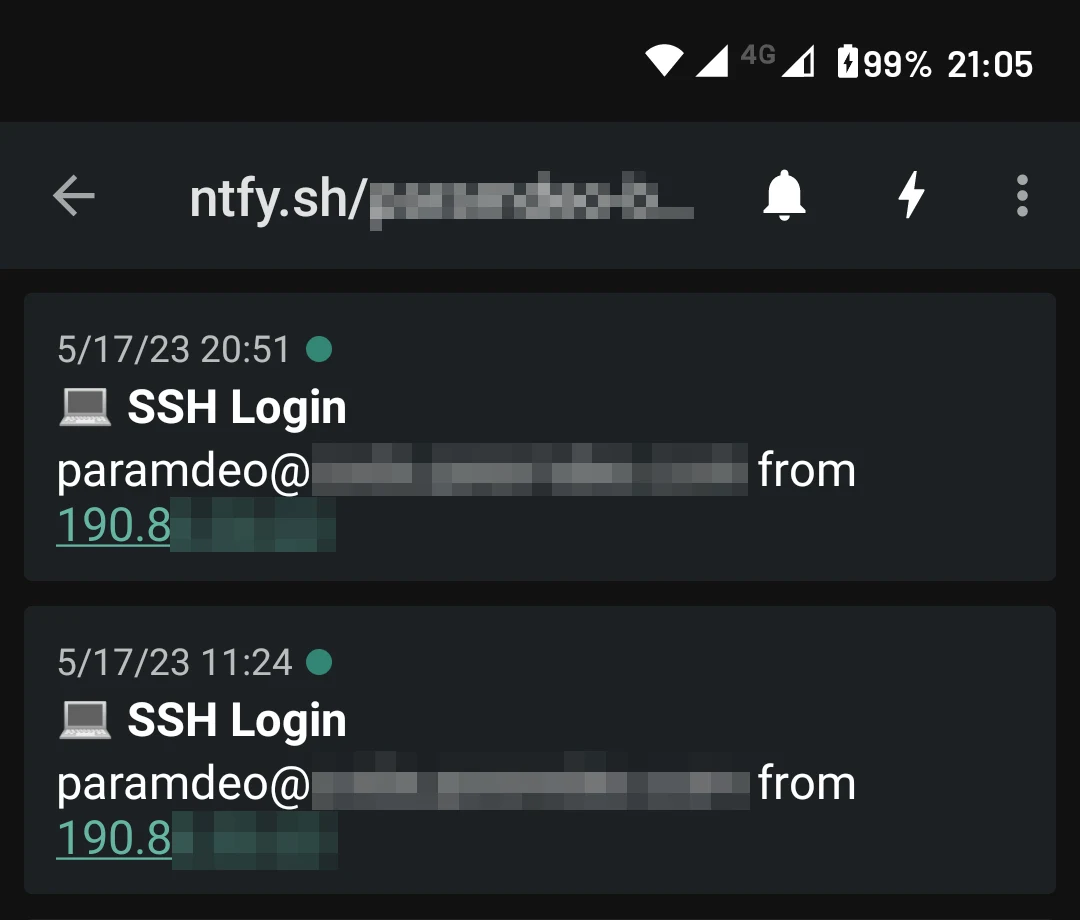
Below is an example of how a login notification looks in the Ntfy app:

This type of system requires less moving parts than using sendmail for example, and push notifications are practically instant.

Links
https://paramdeo.com/blog/enabling-ssh-login-notifications-using-ntfy
Restricting Netlify’s Default Subdomain for Security and SEO
guides
It's undesirable for anyone to access the contents of a Netlify site via its default subdomain.
Show full content

By default, there’s no way to remove the default subdomain that Netlify provides when creating a site. While it’s possible to rename it, the default subdomain cannot be removed as the namespace is used for unique deploy URLs and other use cases within Netlify that require a site-specific label.

This behavior can be a dynamic problem for some users. The primary domain that points to a site hosted on Netlify is often protected or optimized through DNS proxies such as Cloudflare. Being able to access the site via the default subdomain defeats much of the benefits of this proxying (especially for sites using Netlify’s free tier where bandwidth is limited).

Secondly, if the content on a site is required to be behind a zero-trust Secure Access Service Edge (SASE) perimeter such as Cloudflare Teams, then simply being able to bypass that domain-level protection poses a security risk.

In either case, it’s not ideal for anyone to be able to access the site’s content via its default subdomain. To workaround this problem, it’s possible to include a redirect that will reroute any traffic sent to the default subdomain to the primary domain instead.

Creating the Redirect Rule

Netlify offers a few ways to implement redirects. For simplicity though, deploying a _redirects file is the most straightforward approach. The syntax for redirecting the default subdomain to the primary domain is as follows:

https://paramdeo.netlify.app/* https://paramdeo.com/:splat 301!

The 301 HTTP status code is used to make search engines aware of the Permanent Redirect and deduplicate any content previously crawled on the default subdomain.

While not strictly necessary, the :splat directive will pattern-match and transfer any URL paths over to the primary domain. This is also good for SEO edge cases, and it doesn’t hurt to include it either way.

Tackling the Deploy URL Threat Model

Since unique deploy URLs are prefixed with the deploy ID, and there’s no wildcard pattern in the redirect syntax just yet, the redirect rule will not affect viewing of unique deploy URLs. For example, the following will still be accessible:

https://8a6a090b328a01b326c93d9d--paramdeo.netlify.app

This is usually an acceptable outcome: any guessing or navigating to the default subdomain will redirect to the primary domain, and deploy URLs can still be viewed as necessary since the chances of the deploy URL being known are minimal.

But what about sites that are required to only be accessed via authentication and authorization? This could include a private message board, an intranet site, or a personal knowledge base (second brain).

I came across a quirk in Netlify that effectively makes the deploy preview URLs unable to be viewed, without affecting the deploy process itself, or the primary domain.

There are a few things I noticed. First, a deploy ID is usually 24 characters in length, for example:

62d60df247c2c2252ac15247

Deploy IDs are always prefixed to the default subdomain with two dashes -- as a delimiter:

62d60df247c2c2252ac15247--paramdeo.netlify.app

Here’s where it gets interesting.

According to RFC 1035 there are restrictions on the length of subdomain labels. Below is a verbatim snippet from the RFC entry:

[...] labels must follow the rules for ARPANET host names.  They must start with a letter, end with a letter or digit, and have as interior characters only letters, digits, and hyphen.  There are also some restrictions on the length.  Labels must be 63 characters or less.

Subdomains therefore have a limit of 63 characters in order to be RFC compliant. You can go ahead and try to add a 64 character subdomain into any DNS provider. In Cloudflare for example, you’d run into the following error:

DNS Validation Error (Code: 1004) DNS name is invalid.

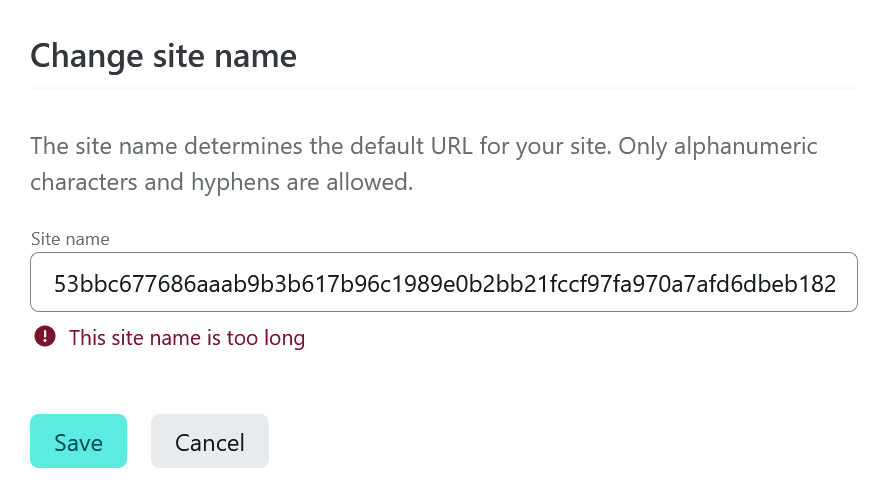
Reduce the subdomain length to 63 characters and it will be instantly valid. While that error message is specific to Cloudflare, Netlify also uses similar validation for their default subdomains:

And here’s where the workaround comes into play.

The complete URL for a unique deploy will have the deploy ID prepended to the default subdomain — behavior that’s not completely unknown — thereby breaking the deploy URL’s RFC compliance. Navigating to such a URL will simply not resolve.

For the deploy URL be valid, the default subdomain needs to be at most 37 characters long, and the total deploy URL will be 63 characters in length; RFC compliant and therefore viewable:

# Doesn't resolve over HTTP

https://62d60df247c2c2252ac15247--86091c086f35c1dea6a43da526a1d09b36c7e2d147efe2b132acb022f7bfb06.netlify.app

# Resolves over HTTP

https://62d60df247c2c2252ac15247--86091c086f35c1dea6a43da226a1d09b36c7e.netlify.app

This can therefore be exploited in the following way:

  1. Ensure the _redirects syntax covers the default subdomain ⟶ primary domain redirect
  2. Change the default subdomain name to a string that’s 63 characters in length

Resulting deploy URLs will be inaccessible, and navigating to the default subdomain itself will result in a redirect to the primary domain.

It’s important to note that this is ONLY applicable to edge-cases where access via the primary domain requires authorization, and access to the default subdomain and deploy URLs is undesirable.

One last thing: this kind of workaround breaks the preview and collaboration aspects of Netlify, and so local previewing and building (with the Netlify CLI used for deploying the build directory) would be the assumed workflow — in such aforementioned cases as private message boards, intranet sites, personal knowledge bases, etc.

Links
https://paramdeo.com/blog/restricting-netlifys-default-subdomain-for-security-and-seo
Collapsing Bootstrap’s Dropdown Navigation Automatically in SvelteKit
guides
Automatically closing Bootstrap's mobile navigation menu if left in an opened state after page navigation.
Show full content

When using SvelteKit paired with the Bootstrap framework, it’s normal to for my default __layout to look something like this:

<script>
  import Header from "$lib/header.svelte";
  import Footer from "$lib/footer.svelte";
</script>

<Header/>

<slot></slot>

<Footer/>

In the above markup, the <Header/> component contains HTML for the navigation menu. SvelteKit by default hydrates pages by fetching the content between the <slot> tags, enabling instant navigation and a great user experience.

But because of this hydration, the <Header/> component is never reinstantiated when a new page is navigated to, and what I’ve found is that Bootstrap’s mobile navigation menu is left in an opened state after page navigation occurs.

A few classes and attributes are mutated when the navigation toggle is clicked, namely the menu toggler button and the dropdown menu element:

<!-- Navbar in an opened state -->
<button class="navbar-toggler border-0" aria-expanded="true"></button>
<div class="navbar-collapse text-right collapse show"></div>

<!-- Navbar in a closed state -->
<button class="navbar-toggler border-0 collapsed" aria-expanded="false"></button>
<div class="navbar-collapse text-right collapse"></div>

If the navigation menu is left in an opened state after a new page is loaded, then:

  • the collapsed class will be absent on the menu toggler button’s class list
  • the show class will be present on the dropdown menu element’s class list

The result of this menu being left in an opened state is not ideal and is problematic in terms of user experience — definitely a bug. Since fixing this behavior requires reading from the browser’s document variable, Svelte offers a way to run code after a page has been rendered using the onMount feature. This allows the DOM to be safely traversed when client-side events need to be triggered, and is a the perfect way to run a check on the navigation menu upon each page load.

Creating the Close Function

Firstly, I created the reusable logic and placed it in an endpoint under $lib so that it can be be easily imported:

// nav.js

export function AutoCloseNav() {
  const toggler = document.getElementById("navbarToggler");
  const dropdown = document.getElementById("navbarNavDropdown");

  if (dropdown.classList.contains("show")) {
    dropdown.classList.toggle("show");
    toggler.classList.toggle("collapsed");
    toggler.setAttribute("aria-expanded", false);
   };
}

The above code reads the dropdown menu element’s class list and removes the show class if present, thereby hiding the menu and returning it to the default closed state.

The above code also reads the menu toggler button’s class list. If the collapsed class is not present in the list then the function simply toggles it, returning it to the default closed state. For accessibility purposes, it also sets the aria-expanded attribute to false when closing the menu.

It’s important to note that by default in Bootstrap, the menu toggler button does NOT have an id attribute. I’ve manually added id="navbarToggler" to the <button> element in order to utilize the document.getElementById() method.

Executing the Close Function on Page Load

On each Svelte route (page) the function is imported from the nav.js endpoint and is invoked in onMount once the DOM has been hydrated:

<script>
  import { onMount } from 'svelte';
  import { AutoCloseNav } from "$lib/nav";

  onMount(() => {
    AutoCloseNav();
  });
</script>

Since this happens within the context of the Svelte’s routing, there isn’t any visible delay. Thus, Bootstrap’s non-hydrated menu state can be updated from the hydrated page content directly.

Full disclosure: there’s probably other (and more elegant) ways to achieve this, for example using Bootstrap’s native Collapse methods, or perhaps via Svelte’s hooks.js endpoint.

At the end of the day this method worked for me and fixed the problem so that I could move on. If you discover or know of a better approach, feel free to let me know in the comments!

Links
https://paramdeo.com/blog/collapsing-bootstrap-navigation-automatically-in-sveltekit
Validating UUIDs with Regular Expressions in JavaScript
guides
A simple way to validate the format of 36 character v4 UUIDs in JavaScript using a Regular Expression.
Show full content

Since the Crypto API is now standard in all browser engines, generating a UUID is as simple as invoking the crypto.randomUUID() method in order to return a 36 character v4 UUID using a cryptographically secure random number generator:

let uuid = crypto.randomUUID();
console.log(uuid); // "abc861e3-9ac3-4f82-ab72-9926ca4716e4"

However, there isn’t a corresponding method to validate a UUID’s format out of the box. Since error checking is always desirable when working with situations where UUIDs are present, a simple Regular Expression pattern can be used to achieve this.

Creating the Regular Expression

Using a regular expression literal, we can gradually include the patterns that will match the character set and length of a UUID. First, we can create the expression by including the lowercase alphabet:

let regex = /[a-z]/;

Then, we add numbers:

let regex = /[a-z,0-9]/;

Next we have to include the dash - delimiter that’s found multiple times in the UUID sequence:

let regex = /[a-z,0-9,-]/;

We can then include the length parameter. This is in the format {a,b} where a is the minimum length and b the maximum length; hence the pattern is forced to match a 36-character long string:

let regex = /[a-z,0-9,-]{36,36}/;

While this covers the contents and length of the pattern, the actual start and end have to be defined before the pattern can be matched.

The caret assertion ^ matches the beginning of input, while the dollar sign assertion $ matches the end of input:

let regex = /^[a-z,0-9,-]{36,36}$/;
Testing the Regular Expression

While a validation method isn’t available using crypto, there is a test method that will compare a string of text against a regular expression literal, returning a Boolean.

We can therefore generate a UUID and test it’s validity using the expression we’ve just made:

let uuid = crypto.randomUUID();

let regex = /^[a-z,0-9,-]{36,36}$/;

console.log(regex.test(uuid)); // true

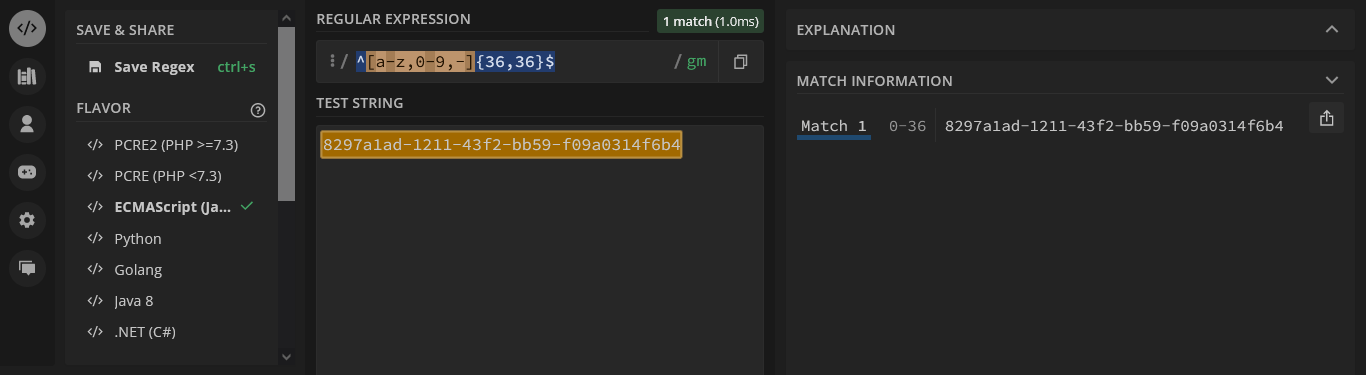
You can also test it in an online RegExp tool such as regex101.com, the result of which looks like this:

I hope you found this information helpful, as working with UUIDs comes in handy when dealing with use cases such as user authentication/authorization, unique URLs, etc.

Links
https://paramdeo.com/blog/validating-uuids-with-regular-expressions-in-javascript
Making a Weekly Habit Calendar with Bootstrap and JavaScript
guides
Creating a mobile-friendly weekly habit calendar that can be easily deployed and referenced as needed.
Show full content

I think one of the most important parts of ensuring that good habits become second nature is being able to schedule them in an organized manner — reducing cognitive load and making it easier to execute those habits on a recurring basis.

Recently I’ve created a simple webpage that acts as a weekly calendar of recurring habits, that I’m able to customize, deploy (using Netlify), and view on my mobile phone on any given day. In this blog post I’ll go over the steps and scaffolding needed to quickly create such a calendar.

If you’re impatient, there’s a Demo Repository that contains the HTML that you can immediately use.

Creating the Layout

There are many popular CSS frameworks for prototyping layouts in a few minutes. For this project I chose to use Bootstrap. The provided boilerplate on the Bootstrap website is all that’s needed, since we’ll be using Bootstrap via CDN

Below is a trimmed down version that just includes the CSS:

<!doctype html>
<html lang="en">
  <head>
    <meta charset="utf-8">
    <meta name="viewport" content="width=device-width, initial-scale=1">
    <link href="https://cdn.jsdelivr.net/npm/bootstrap@5.1.3/dist/css/bootstrap.min.css" rel="stylesheet" integrity="sha384-1BmE4kWBq78iYhFldvKuhfTAU6auU8tT94WrHftjDbrCEXSU1oBoqyl2QvZ6jIW3" crossorigin="anonymous">
    <title>Weekly Schedule</title>
  </head>
  <body>

  </body>
</html>

I won’t go into using Bootstrap itself, but any Bootstrap layout basically observes the following logical hierarchy as a best-practice:

<container>
  <row>
    <column>
    </column>
  </row>
<container>

Of course, Bootstrap isn’t that semantic out of the box; instead opting for CSS utility classes to achieve its structure.

Since we’ll be creating a weekly calendar, the goal is to have seven columns that will align differently based on device viewport (e.g., single-column on mobile) within a single row, encapsulated in a single container resulting a clean, neat layout.

Below is an example of the markup to be placed within the boilerplate’s <body> tags:

<div class="container-fluid">
  <div class="row p-3">

    <div class="col-lg-3 p-3">
      <p class="fs-4">Sunday</p>
      <div class="card" id="sunday">
        <div class="card-header fw-light text-uppercase small">Morning</div>
        <ul class="list-group list-group-flush">
          <li class="list-group-item">Morning Habit One</li>
          <li class="list-group-item">Morning Habit Two</li>
        </ul>
        <div class="card-header fw-light text-uppercase small">Evening</div>
        <ul class="list-group list-group-flush">
          <li class="list-group-item">Evening Habit One</li>
        </ul>
      </div>
    </div>

    <div class="col-lg-3 p-3">
      <p class="fs-4">Monday</p>
      <div class="card" id="monday">
        <div class="card-header fw-light text-uppercase small">Morning</div>
        <ul class="list-group list-group-flush">
          <li class="list-group-item">Morning Habit One</li>
        </ul>
        <div class="card-header fw-light text-uppercase small">Evening</div>
        <ul class="list-group list-group-flush">
          <li class="list-group-item">Evening Habit One</li>
        </ul>
      </div>
    </div>

    <div class="col-lg-3 p-3">
      <p class="fs-4">Tuesday</p>
      <div class="card" id="tuesday">
        <div class="card-header fw-light text-uppercase small">Morning</div>
        <ul class="list-group list-group-flush">
          <li class="list-group-item">Morning Habit One</li>
        </ul>
        <div class="card-header fw-light text-uppercase small">Evening</div>
        <ul class="list-group list-group-flush">
          <li class="list-group-item">Evening Habit One</li>
        </ul>
      </div>
    </div>

    <div class="col-lg-3 p-3">
      <p class="fs-4">Wednesday</p>
      <div class="card" id="wednesday">
        <div class="card-header fw-light text-uppercase small">Morning</div>
        <ul class="list-group list-group-flush">
          <li class="list-group-item">Morning Habit One</li>
        </ul>
        <div class="card-header fw-light text-uppercase small">Evening</div>
        <ul class="list-group list-group-flush">
          <li class="list-group-item">Evening Habit One</li>
          <li class="list-group-item">Evening Habit Two</li>
        </ul>
      </div>
    </div>

    <div class="col-lg-3 p-3">
      <p class="fs-4">Thursday</p>
      <div class="card" id="thursday">
        <div class="card-header fw-light text-uppercase small">Morning</div>
        <ul class="list-group list-group-flush">
          <li class="list-group-item">Morning Habit One</li>
        </ul>
        <div class="card-header fw-light text-uppercase small">Evening</div>
        <ul class="list-group list-group-flush">
          <li class="list-group-item">Evening Habit One</li>
        </ul>
      </div>
    </div>

    <div class="col-lg-3 p-3">
      <p class="fs-4">Friday</p>
      <div class="card" id="friday">
        <div class="card-header fw-light text-uppercase small">Morning</div>
        <ul class="list-group list-group-flush">
          <li class="list-group-item">Morning Habit One</li>
        </ul>
        <div class="card-header fw-light text-uppercase small">Evening</div>
        <ul class="list-group list-group-flush">
          <li class="list-group-item">Evening Habit One</li>
        </ul>
      </div>
    </div>

    <div class="col-lg-3 p-3">
      <p class="fs-4">Saturday</p>
      <div class="card" id="saturday">
        <div class="card-header fw-light text-uppercase small">Morning</div>
        <ul class="list-group list-group-flush">
          <li class="list-group-item">Morning Habit One</li>
          <li class="list-group-item">Morning Habit Two</li>
        </ul>
        <div class="card-header fw-light text-uppercase small">Evening</div>
        <ul class="list-group list-group-flush">
          <li class="list-group-item">Evening Habit One</li>
        </ul>
      </div>
    </div>

  </div>
</div>

A few notes on the above Bootstrap classes:

  • container-fluid is used for a container with more full-width viewport spacing out of the box
  • row p-3 sets the overall row padding using Bootstrap’s spacing utility classes on the sole row that is being used
  • col-lg-3 p-3 sets the overall column padding, and matches Bootstrap’s breakpoint for large screens to display four (4) columns on desktop, and single-column on smaller screen sizes
  • class="card" uses Bootstrap’s card element with accompanying list group structure

Also important to note is that we’ve added an id to each card element corresponding to the day of the week (e.g. id="wednesday"). This is done to enable some JavaScript tweaks whenevre the day’s card will need to be referenced.

Highlighting the Current Day

It would be nice if the current day could be highlighted. At least this was my thought process after creating the layout — since I would be accessing this almost exclusively from my phone — thus being able to automatically scroll and have the current day of the week visually indicated would be a plus.

The JavaScript to do this is trivial, so let’s go over the steps. First, I created an array to store the days of the week (that match each id that was created in the HTML markup):

const daysOfWeek = ["sunday","monday","tuesday","wednesday","thursday","friday","saturday"];

Next, I used the standardized JavaScript Date() constructor and getDay() method to assign a value that matches the current day.

In the below expression, the variable d is assigned the value of the current date, as generated by calling the Date() constructor with the new operator:

const d = new Date();

Next, the getDay() method can be called on the recently created object d that contains today’s date. When this is done, getDay() will return an integer from 0 - 6 that matches the numerical value of whatever day of the week it is:

daysOfWeek[d.getDay()];
// daysOfWeek[1] if it's Monday

Then, the variable day is assigned the value of whatever index of the array daysOfWeek is when using the index number that’s returned by getDay():

let day = daysOfWeek[d.getDay()];
/*
d.getDay() === 1 if it's Monday
day === 'monday'' if it's Monday
*/

daysOfWeek[1] will be monday, daysOfWeek[3] will be wednesday and so on, matching the current day. More importantly, the variable day now matches the id value that each card element possesses.

Now that we a variable that holds the value of the current day, we find and manipulate the corresponding HTML element as needed:

let dayCard = document.getElementById(day);
// dayCard === '<div class="card" id="monday">' if it's Monday

In the above expression, the variable dayCard is assigned the value of the HTML card element whose id matches the current day.

We can then add some handy Bootstrap classes to make the day stand out, such as a red border:

dayCard.classList.add("border-danger","border-2");
// dayCard === <div class="card border-danger border-2" id="monday">

Further, we can make the title of the curent day stand out as well:

let dayTitle = dayCard.previousElementSibling;
// dayTitle === '<p class="fs-4">Monday</p>' if it's Monday

dayTitle.classList.add("fw-bold","text-danger");
// dayTitle === '<p class="fs-4 fw-bold text-danger">Monday</p>'

In the above snippet, previousElementSibling gets the previous element in the same tree level (the sibling), i.e. the previous <p> element that contains the day’s title. This element’s value is assigned to dayTitle, and then the necessary classes are simply added.

Finally, it would be extremely handy on a mobile device if the page can automatically scroll to the current day. While this isn’t necessarily useful on desktop screens, as I mentioned earlier I primarily use this weekly habit calendar on my phone.

This is easily done using the scrollIntoView() web API:

dayTitle.scrollIntoView();

Putting it all together, the complete markup is as follows:

<script>
  const daysOfWeek = ["sunday","monday","tuesday","wednesday","thursday","friday","saturday"];

  const d = new Date();
  let day = daysOfWeek[d.getDay()];

  let dayCard = document.getElementById(day);
  dayCard.classList.add("border-danger","border-2");

  let dayTitle = dayCard.previousElementSibling;
  dayTitle.classList.add("fw-bold","text-danger");

  dayTitle.scrollIntoView();
</script>

It’s important to place this script tag and content below the closing Bootstrap container div tag; since the HTML will need to be rendered before each day’s id can be targeted using JavaScript.

At this point, simply entering details into each list group item and viewing the webpage will show a neat calendar already populated, that can be deployed to any static host such as Netlify, Amazon S3, Vercel, etc.

You can check out a Live Demo at the following URL: weekly-habit-calendar.netlify.app

Links
https://paramdeo.com/blog/making-a-weekly-habit-calendar-with-bootstrap-and-javascript