Debian started signing their repository packages way back in 2007 with the release of Debian 4.0. Yet somehow we have gone backwards when it comes to validation of downloaded software in recent years.
Show full content
Debian started signing their repository packages way back in 2007 with the release of Debian 4.0. Yet somehow we have gone backwards when it comes to validation of downloaded software in recent years.
Most software these days, whether they be package managers for programming languages or container tools that download images, don’t validate the cryptographic integrity of downloads. Downloading over TLS alone is insufficient to protect you against supply chain attacks. Someone who can manage to break into the download server will be able to add a backdoor to the binary. Xubuntu servers got compromised recently and was found serving malware.
In many cases, the download might be happening from a nearby mirror or a CDN. While the upstream project might have good security practices for securing their servers, the same could not be said of the mirror operators.
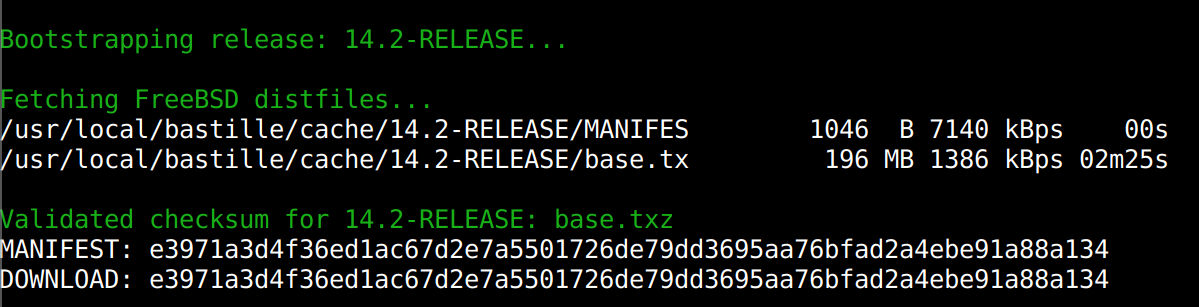
In some cases, tools produce misleading output. Here in the screenshot below, bastille (a jail manager for FreeBSD) claims that it has validated the checksum. The validation is done by downloading a MANIFEST text file from the same directory as the software and comparing the checksum of the binary with the contents of the text file.
While it will protect you against corrupted downloads, it will not save you from a malicious binary. Although it technically does validate the checksum, my personal expectation is that the tool would have had verified the GPG signature of the binary.
In the absolute worst case, some tools download software over unencrypted HTTP without any cryptographic signature verification whatsoever.
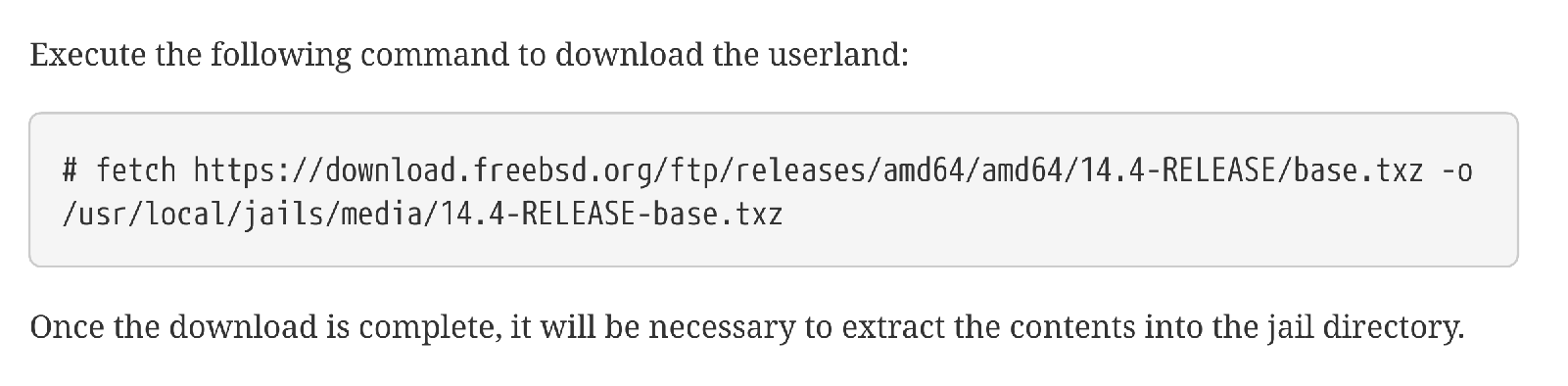
Developers also need to be trained to verify downloads before use. The following is a screenshot from the FreeBSD handbook for setting up a jail. The documentation needs to be updated to encourage people to verify the downloads like how OpenWrt does
Unfortunately i don’t believe verification of the base.txz file might be possible now since as far as i can see, FreeBSD does not provide any signed checksum for this file.
Mitigation Strategies
If like me, you too are concerned about this, you can manually build your container images. For Linux, you can use the debootstrap package which has a --force-check-gpg option to enforce GPG verification.
For FreeBSD jails, a workaround is to download the FreeBSD iso file, verify it using the signed checksums and extract the usr/bin/freebsd-dist/base.txz file from the ISO.
The distribution-gpg-keys repo, which contains the public keys of popular Linux distros and applications, have been packaged for a lot of the major Linux distributions, makes verification of the GPG signature easier.
My current home server, a Raspberry Pi4 with 4GiB RAM is running out of memory and i wondered whether i could convert my existing desktop PC into a home server. The Pi4 with a SSD connected over USB consumes only 7.1W at idle and 9.9W at load. Before i replace the Pi with the desktop, i wanted to check if it could achieve low power consumption at idle.
Show full content
My current home server, a Raspberry Pi4 with 4GiB RAM is running out of memory and i wondered whether i could convert my existing desktop PC into a home server. The Pi4 with a SSD connected over USB consumes only 7.1W at idle and 9.9W at load. Before i replace the Pi with the desktop, i wanted to check if it could achieve low power consumption at idle.
Desktop specs
AMD Ryzen 2600
32GiB RAM
PRIME X470-PRO
RX 7700 XT
Super flower LEADEX III GOLD 850W SF-850F15HG
AX200 WiFi
2 SATA SSDs, 1 HDD, 1 NVMe disk
Power measurement was done using a cheap power meter at the power plug. The PC was measured to be idling at 65W.
Power reduction steps
LEDS
Turning off the RGB LEDs saved 7.6 watts
LED
Power saving (W)
Case fans
5
GPU
1.8
Motherboard
0.8
Since the Motherboard does not have an ARGB LED controller, the case fan LEDS are being driven by a Blue Pill board running USB CDC stack(so that the colours can be controlled from Linux). This board along with the large number of LEDS on the two fans explains the 5 Watts.
USB gadgets
After unplugging all the USB gadgets, including keyboard, mouse, speakers and a lamp, the power consumption is reduced by 2.2 Watts.
Fans
Turning off most of the fans and reducing the CPU fan speed to the lowest value possible saves 1.8W.
Reducing RAM clock
There are three RAM sticks, two of 8GiB and one of 16GiB. RAM was set to run at 3200 MHz, by reducing it down to 2133 MHz and a lower voltage, we can save 4.3W.
CPU Undervolt
CPU undervolt makes no difference in idle power, but under load(stress -c 12), an undervolt of 50mV saves 10W.
PCI ASPM
Enabling ASPM L1 saves 8W but reduces NVMe disk read performance from 1.33 GiB/s to 1.28 GiB/s. It also causes the kernel to complain about PCIe correctable errors.
after which nvtop reports an idle power of 7W, down from 20W in auto mode. Disconnecting the HDMI cable saves another 2 Watts.
If instead, the GPU is removed, power consumption will drop by 9 Watts. The Asus motherboard can boot into Linux even without a GPU attached.
HDD
By putting the HDD into sleep, About 3-5 Watts can be saved.
Final result
After completing the above steps, idle power reduced down to 27.6W from the initial 65W. However this remains relatively high for a home server that is supposed to be idle most of the time, especially compared to the approximate 10W seen in mini PCs.
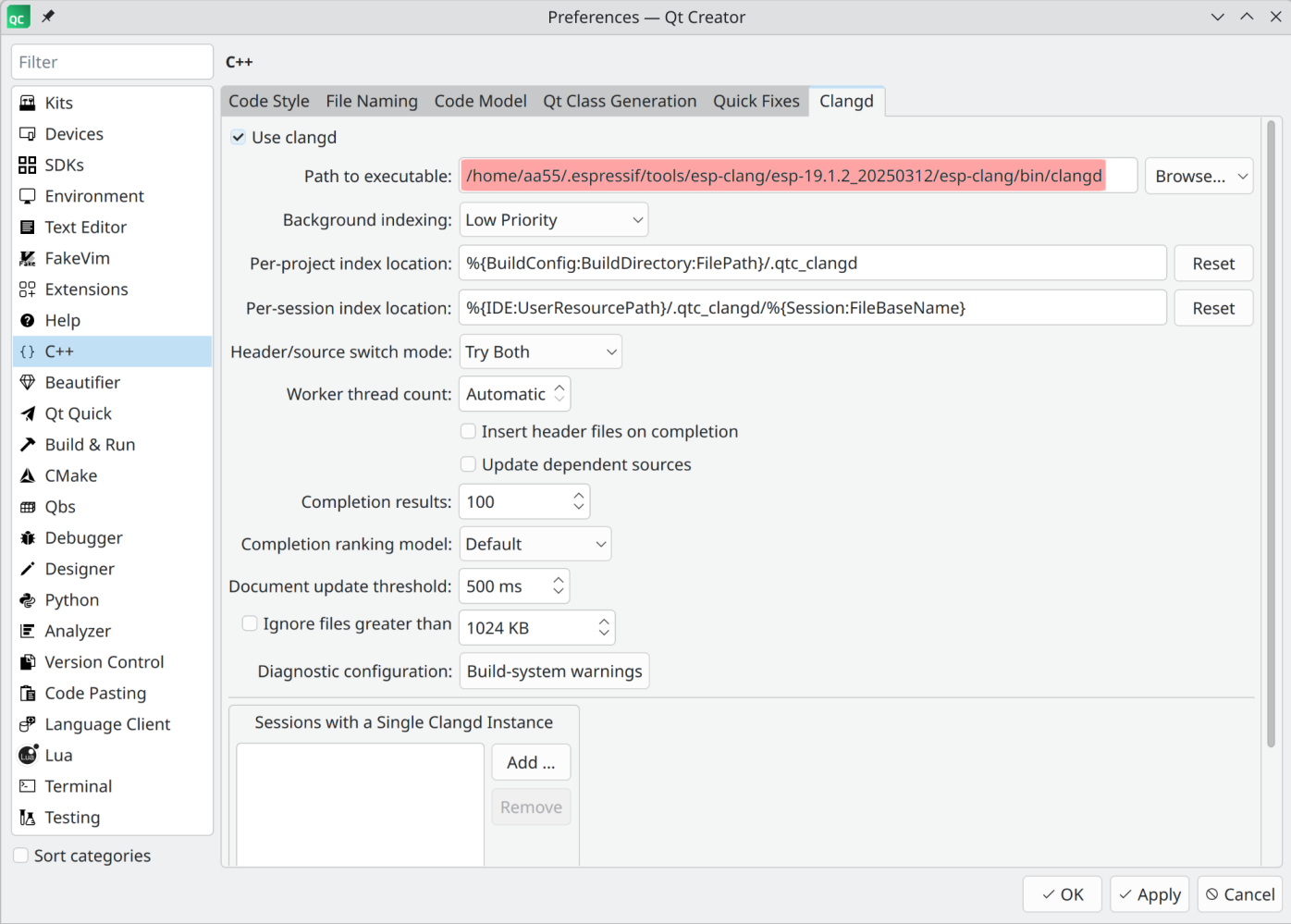
This will print the path, which should look something like /home/aa55/.espressif/tools/esp-clang/esp-19.1.2_20250312/esp-clang/bin/clangd
Step 2: Configuring QtCreator
We will use Espressif’s clangd language server only while developing for ESP32, for rest of the C/C++ projects we will use the clang binaries provided by the OS distribution. To achieve this, we will clone the current settings directory and make the required modifications in this new cloned directory. While developing ESP32 projects, we will instruct QtCreator to use this directory.
Here we evaluate the execution performance and code size of various hashing algorithms on a STM32F767 Cortex M7 processor.
Show full content
Here we evaluate the execution performance and code size of various hashing algorithms on a STM32F767 Cortex M7 processor.
Test setup
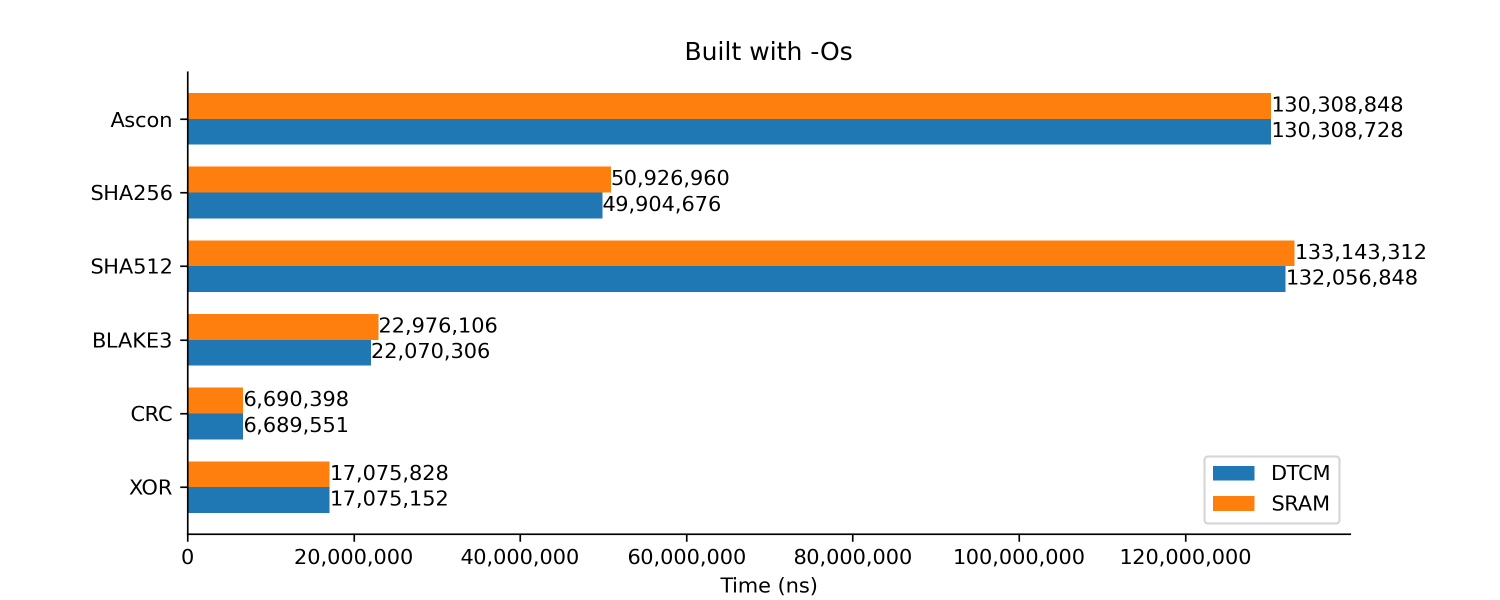
The tests are run on a NUCLEO-F767 board which has a STM32F767 Cortex M7 processor. This processor has 512 KiB of RAM, of which 128KiB is Data Tightly Coupled Memory(DTCM)1. The DTCM is directly connected to the core and should provide faster memory access compared to the rest of the 384KiB of SRAM. Therefore all the tests are run twice, once with the data in DTCM and then in ordinary SRAM. The tests are done with an input buffer size of 120KiB.
The firmware was generated using ST’s CubeMX code generator tool. The tests run on bare metal without any RTOS. The code was compiled with GCC 14.2.1 from Debian repository. The timing is measured using the CYCCNT counter, which increments with each CPU clock cycle, enabling precise measurement of the execution time for the hash algorithm.
Algorithms tested
Ascon
SHA256 and SHA512 from MbedTLS
BLAKE3
CRC32 using the hardware CRC in the microcontroller
XOR of all bytes in the buffer
Results
Built with -Os
The armv7m variant of Ascon is used and the code is built with -Os
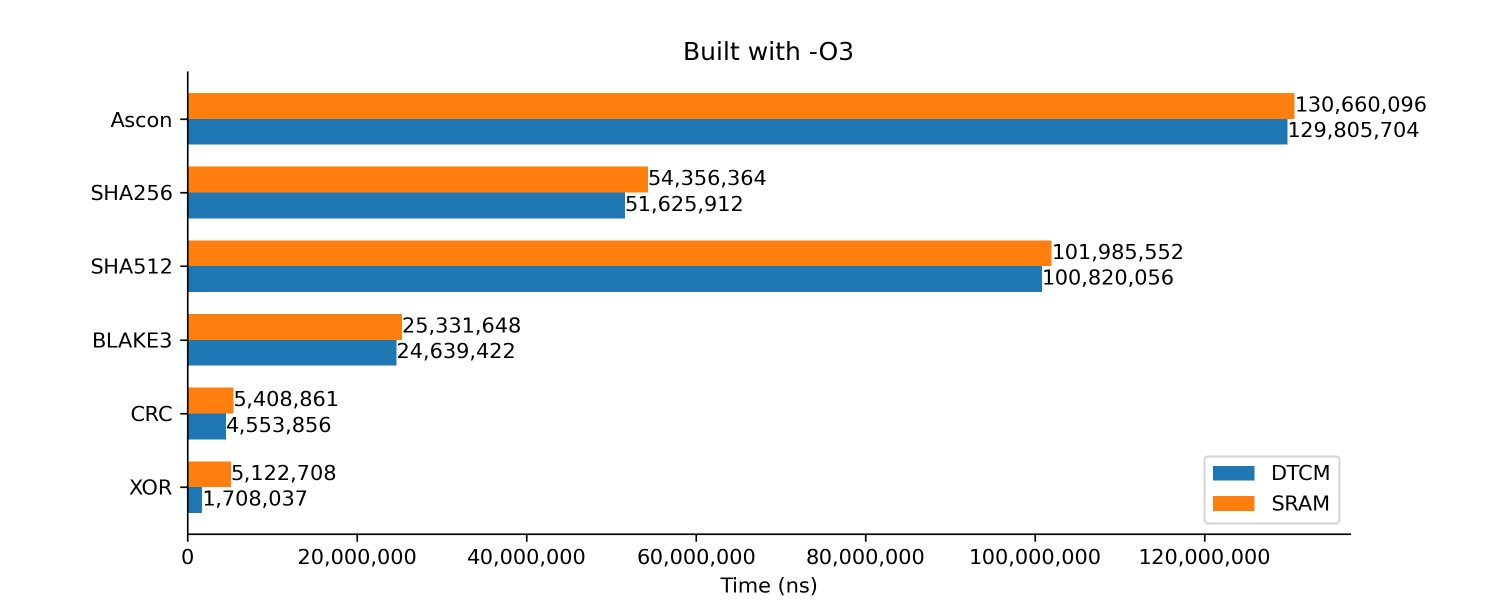
From the results above, we can see that the DTCM RAM barely makes any difference in performance. BLAKE3 is the most impressive of all with performance close to that of the hardware CRC. As you will soon see, it gets even closer in the upcoming tests.
XOR is signifcantly slower than CRC probably because the data was processed serially, one byte at a time.
// XOR calculation
uint32_t xor = 0;
for (size_t i = 0; i < length; i++) {
    xor ^= buffer[i];
}

// CRC calculation by ST CubeMX driver
for (i = 0U; i < (BufferLength / 4U); i++)
{
    hcrc->Instance->DR = ((uint32_t)pBuffer[4U * i] << 24U) | \
                        ((uint32_t)pBuffer[(4U * i) + 1U] << 16U) | \
                        ((uint32_t)pBuffer[(4U * i) + 2U] << 8U)  | \
                        (uint32_t)pBuffer[(4U * i) + 3U];
}
Built with -O3
This test is similar to above, but with optimization flag set to level 3
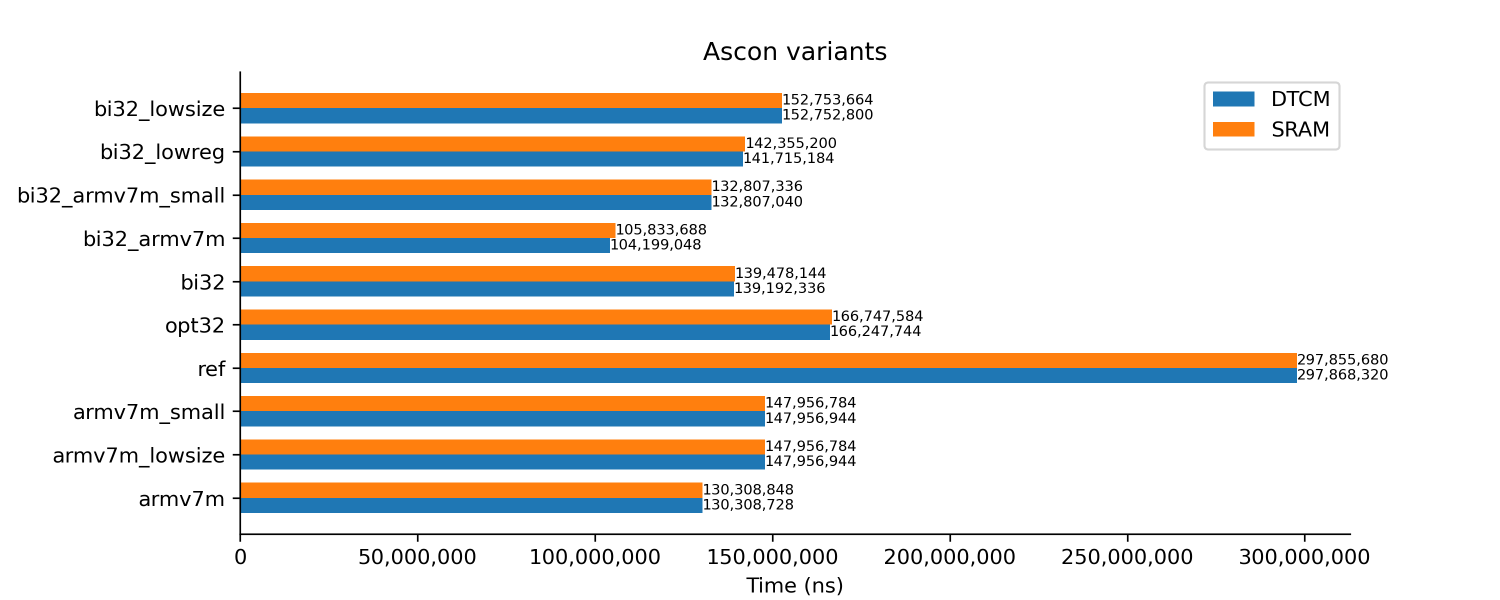
Ascon variants
Here we test the different variants of Ascon. Code is compiled with -Os for all the tests.
Prefetch and caching
We test the effects of enabling the following
Adaptive realtime accelerator (ART)
CPU Instruction cache
CPU Data cache
The armv7m_small variant of Ascon is used and the code is built with -Os. The buffer is stored in DTCM RAM.
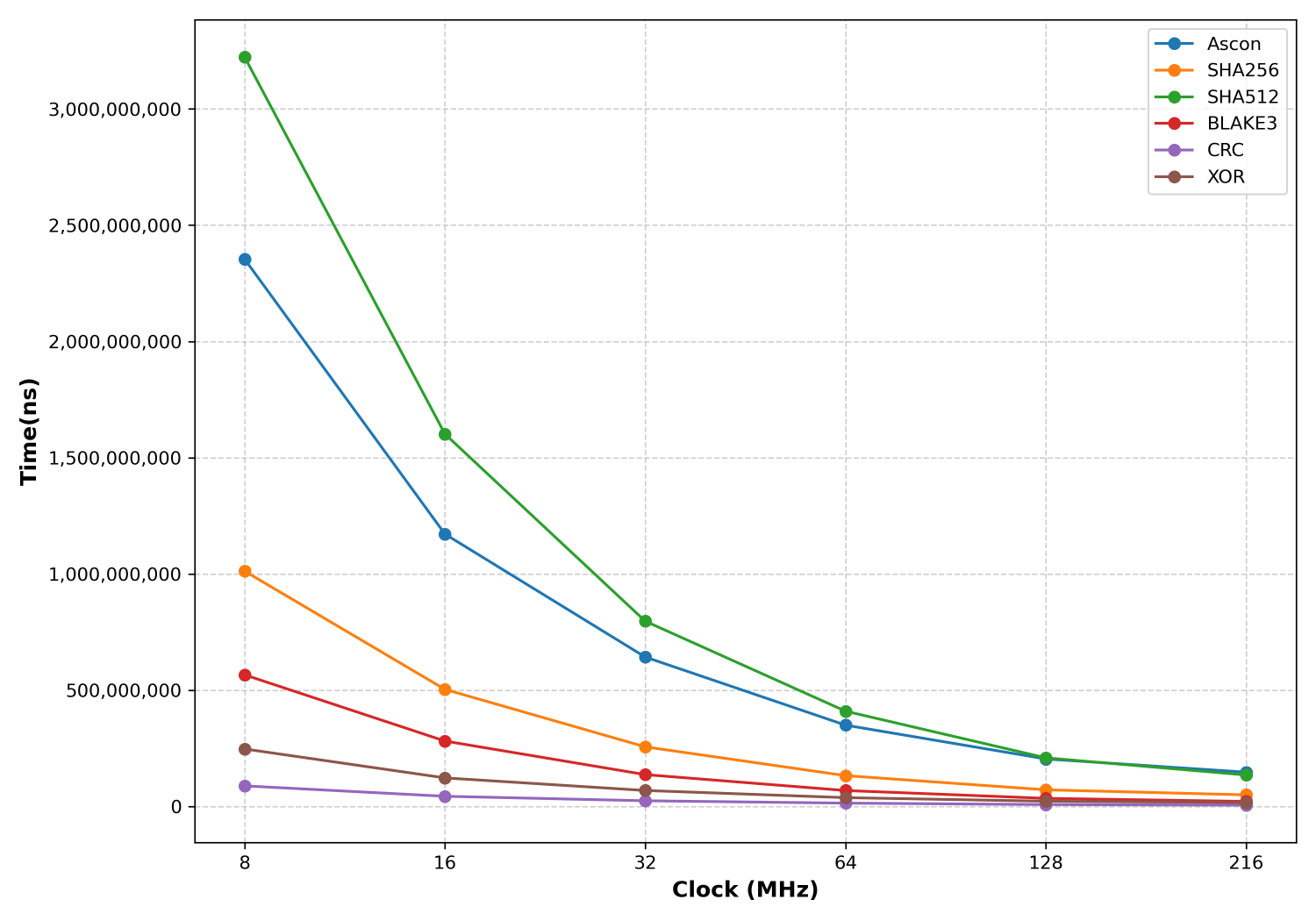
Clock speeds
We measure the time taken across different CPU clock speeds (HCLK). The armv7m_small variant of Ascon is used and the code is built with -Os. The buffer is stored in DTCM RAM.
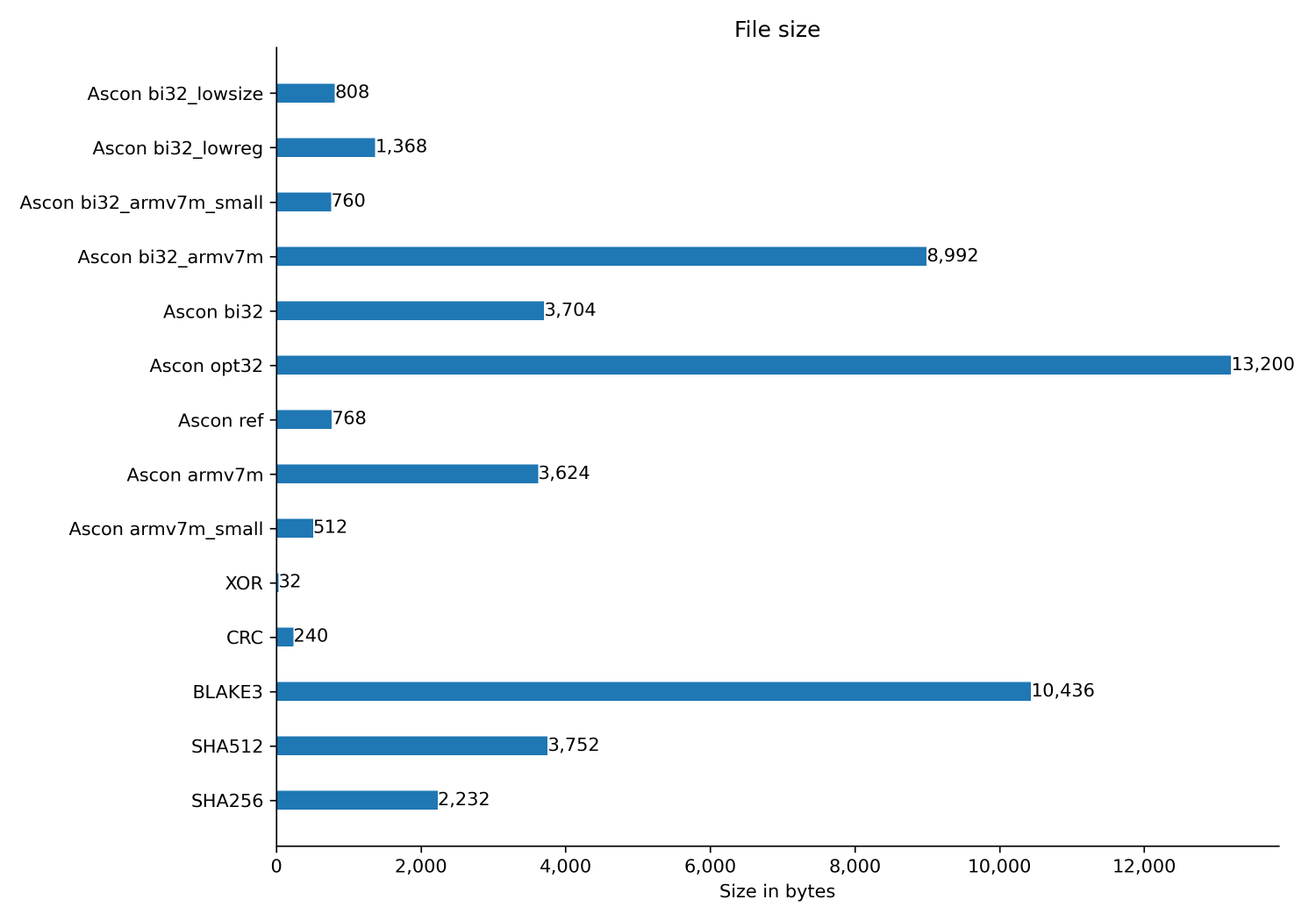
Flash size
Here we measure the binary size of the various algorithms. The code is compiled with -Os and -flto
While my Operating System is installed on a SSD, i install games like Factorio on my HDD. When running on a hard disk, Factorio takes a long time to startup and show the main menu. A significant percentage of that time is spent on IO, reading the game assets from the slow hard disk.
Show full content
While my Operating System is installed on a SSD, i install games like Factorio on my HDD. When running on a hard disk, Factorio takes a long time to startup and show the main menu. A significant percentage of that time is spent on IO, reading the game assets from the slow hard disk.
To improve this, we could implement a script that will run at system bootup which will cache all the game assets to RAM. The Factorio game directory is only 4.5 GiB in size and therefore would easily fit in my PC’s 32 GiB RAM.
Results
Before the optimization, the game took 113 seconds to startup1. After the optimization, the game only took 30 seconds. The script takes 230 seconds to run, much higher than the time taken for the game to load probably because the game only loads parts of the files whereas the script always loads the entire file contents into RAM.
Steps
We need to first get the list of all files read by the game at startup. This can be done with the help of inotify. Install the inotify tools packages:
sudo apt install inotify-tools
This package provides the inotifywait program which can print out the name of file when its accessed by any process in the system. Find out the path to the directory where the game is downloaded and then run the following command.
A custom format is set with --format='%w%f %e'. This is necessary because inotifywait will print the names of both files and directories and we are only interested in files. The %e will print ACCESS,ISDIR for directory and ACCESS for files. We will later use grep to remove the directory names from the list.
Run the above command on a terminal and launch the game. Wait for the game to startup and show the main menu and then exit the game and finally terminate the above command with CTRL-C. The list of files would then be stored in ~/trace.log
This file contains a list of both files and directories. We can filter out directories by running the following:
We first use grep to remove directory names and then we remove the ACCESS string from the end using rev and cut.
We now have the list of files in preload.list. what we need to do next is to load the file contents into RAM at system bootup. For this we need a one liner script which needs to be saved to ~/.local/share/preload_factorio.sh
#!/bin/bash
while read i; do cat "$i" > /dev/null;done < ~/.local/share/preload.list
Create a systemd service file in ~/.config/systemd/user/factorio_preload.service to run this script upon login.
If you are new to Linux, backups are the first thing you need to setup. Speaking from experience, it is only a matter of time before you run a wrong command and completely wipe all your data. Make sure your backups are stored on another machine since a common mistake most people(beginners and experts alike) make is to accidentally run a command on the wrong hard disk. You should also validate your backups from time to time. Unvalidated backups are the same as no backups.
As of now BorgBackup is simply the best backup tool for Linux. It can compress and de-duplicate your data which lets you backup your data every day without your backup server running out of disk space. Borg can encrypt your data on the client side so your cloud provider will never be able to read your files.
Do not backup to a cifs mount, there is a known bug that will lead to data corruption. Always use SSH for backup.
Make use of the BORG_PASSCOMMAND environment variable to not have to type in your password every time you need to access the borg repository.
If you want to avoid temporary files from being backed up, you have two options:
Use the --exclude-from FILE and list out each and every directory to be excluded in this file
Use the --exclude-caches option. This will exclude every directory with a CACHEDIR.TAG file. You can place this inside the directory you want to be excluded. Some tools like ccache and cargo will place a CACHEDIR.TAG file inside their cache directory.
Care must be taken while backing up files from software like virtual machines, containers or databases. All of these should be shutdown before starting the backup process. If your backup takes a long time and you cannot have the server be down for so long, you should probably look into btrfs snapshots.
Borg is best combined with borgmatic. With borgmatic you can avoid having to write a script to backup, check, prune and compact the repository. With the help of apprise tool, borgmatic can be setup to send you a notification if any backup operation fails.
If you have disk encryption enabled you need to backup your LUKS header. Refer to Fedora docs or Arch Wiki
Automatic software updates
Backups and security have a lot in common, by the time you realize you needed it, its too late.
unattended-upgrades package will automatically install security updates on Debian (and debian derivatives like Ubuntu). While it is rare for a Debian security update to break the system, it can still happen. On a critical production server you should not have auto updates installed, instead you should subscribe to the Debian security advisory, test out new updated packages and then manually push out the updates to production server. If you do not have such a process in place, it is better off to enable auto updates.
After installing the unattended-upgrades package, activate auto updates by running
sudo dpkg-reconfigure unattended-upgrades
If you are running a server you will need to modify the /etc/apt/apt.conf.d/50unattended-upgrades file to enable auto reboot after a security update. Modify the following three lines as per your requirement:
If you have many Debian servers or containers, it might make sense to cache your apt downloads with apt-cacher-ng. With this, your apt downloads will now work at the speed of your LAN/server rather than your internet/Debian mirror speed.
Setup is easy, install the apt-cacher-ng package on your server and point all your clients to use it by creating a config file in /etc/apt/apt.conf.d/ by running:
Note: If you encounter a The following signatures were invalid: BADSIG 648ACFD622F3D138 Debian Archive Automatic Signing Key error on the client, you will need to apply the workaround in this comment
For some third party repositories you might want to bypass the proxy. You can achieve this by adding the following line to your proxy config files.
Acquire::HTTP::Proxy::example.com "DIRECT";
Avoid having to use sudo on every command
You can get a root shell with sudo -i and can avoid having to prepend sudo on every command
Syntax highlighting text files
Install the bat package and use batcat instead of cat to syntax highlight text files. Another option is the python3-pygments package and running pygmentize -g FILE
Add colors to log files
Use ccze to add colors to your log files
ccze -A < /var/log/dpkg.log
Run command when file contents changes
The entr program can be used to run a command when a file changes
echo test.py | entr python3 test.py
Now when you save the python file on your text editor, entr will run the python script
Put your computer to sleep and auto wakeup on timer
rtcwake can be used to put your computer to sleep and wakeup on a set time. This requires your computer to have a RTC (which even 15 year old computers would have but not SBCs like the raspberry pi). This is particularly of interest to home servers where this command can be used to shutdown the server to save power at night or when you are not at home.
rtcwake -m mem -s 60
The above command will put your computer to sleep and wakeup after 60 seconds.
Monitoring thermals
Install the lm-sensors package and run sensors-detect to detect the hardware. You can then monitor your system with sensors command. Run watch -d sensors to keep running the command every 2s. The -d parameter will highlight any changes.
Note that while reading the CPU and GPU information is safe, some BIOS are buggy and just repeatedly reading the temperature alone might trigger bugs in the BIOS. On my Asus motherboard, sensors command sometimes makes the fans to stop responding to temperature changes or even invert the fan speed control (spinning at full speed on low temperatures and spinning at lower speed when temperature increases)
Set your AMD GPU to low power mode.
Unless you are gaming or need your GPU for computation, putting your GPU to low power mode will prevent it from heating up on load and spinning up the GPU fans. You will need to create a systemd init service that runs the following command:
The -t parameter is to force it to use the terminal and not to pop open a GUI window.
Find and remove duplicate files
fdupes -dN mydir
This command will remove all duplicate files in the mydir directory
Protect your computer from random untrusted USB devices
With USBGuard you can restrict what USB devices can be connected to your computer.
Show data transfer progress
Add pv to your pipe to see progress and data transfer rate.
pv src.tar | zstdmt > src.tar.zst
You can also have multiple instances of pv by using the cursor and name options
tar c mydir | pv -cN 'pre zstd' | zstdmt | pv -cN 'post zstd' > test.tar.zst
pv can also rate limit data transfer with the -L option
Get notifications on your phone
apprise can be used to send messages to a large list of providers. For instance, add this to the on_error hook of borgmatic and get notified when backup fails.
The binwalk tool can extract files from any binary file. This is particularly useful on firmware binary files.
Detect file corruption
Use hashdeep tool to calculate a checksum file and then use it to ensure files have not been modified.
Create the checksum file by running
hashdeep -r Downloads/ > checksum
and now verify integrity by running.
hashdeep -ak checksum -r Downloads/
Download more RAM
Install the zram-tools package and it will setup swap on a zram compressed ram disk. When needed the kernel will compress memory contents and swap out to zram. This approach is effective because in most cases memory contents can be easily compressed. The time required to compress and decompress memory would be lower than reaching out to the hard drive.
Once installed you can see how much of the zram is being used by running the zramctl command.
NAME       ALGORITHM DISKSIZE  DATA COMPR TOTAL STREAMS MOUNTPOINT
/dev/zram0 lz4          15.6G  4.6G  1.1G  1.3G      12 [SWAP]
Here 15.6 GiB of RAM was allotted for zram. Presently 4.6 GiB of RAM was compressed down into 1.1GiB before being stored in zram.
Benchmarking applications
To accurately benchmark an application that reads files from the hard disk, the cache memory needs to be cleared before the program is executed. Run echo 3 > /proc/sys/vm/drop_caches to drop kernel cache memory.
Find which package provides a file
With the apt-file package you can find out which package provides a file. After installation, run apt-file update once and it is ready for use.
If you need to share files with Windows or MacOS users, compress them with zip. For everything else use zstd. You will get compression close to gzip but at fraction of the time. zstd package provides the multi threaded zstdmt command which will use all your CPU cores for compression.
Faster checksum with b3sum and xxh
b3sum is a much faster alternative to SHA256. On a raspberry PI 4, b3sum can be more than 8 times faster than SHA256. Similarly xxhash can be used instead of CRC32.
Managing your Linux system on a browser
Manage your Linux machine via a web browser with Cockpit. Install the cockpit package and head over to http://localhost:9090/.
Run virtual machines
You can run virtual machines with libvirt. First make sure hardware virtualization is enabled by installing the cpu-checker package and running kvm-ok command. It should show the following output, if not check your BIOS manual on how to enable it.
$ /usr/sbin/kvm-ok
INFO: /dev/kvm exists
KVM acceleration can be used
Install libvirt-daemon-system and the GUI virt-manager package. Add your user account to the libvirt group or you may get authentication errors.
usermod -a -G libvirt USERNAME
Launch the “Virtual Machine Manager” application to run your VM. This application can also remotely connect over SSH to other machines and manage virtual machines running on it. You can run VMs using this even on a raspberry PI, provided you have enough memory.
The guestfs-tools package provides a lot of useful tools like virt-customize, virt-sparsify and virt-sysprep. Make sure your VM is shutdown before running these tools.
The systemd and dbus packages are mandatory if you need to manage the container with systemd tools.
Now move the container over to /var/lib/machines
mv debian /var/lib/machines/
You can now start the container with machinectl start debian and open a shell with machinectl shell debian-base. You can access the logs from the container by running journalctl on the host with journalctl -M CONTAINER_NAME -f
By default the container uses private mode networking. If you want internet access on the container you need to allow the container to access host networking by creating a file /etc/systemd/nspawn/CONTAINER_NAME.nspawn with the following contents
[Network]
VirtualEthernet=no
The mkosi tool can be used to generate container images for other Linux distributions.
Run debian everywhere
The debootstrap tool mentioned above can also be used for running debian on any existing Linux system including rooted Android phones. The process is documented here
Optimize bootup speed
systemd-analyze can be used to debug slow bootup. It can even generate a bootchart image.
If you need to run something that might take a while to complete, without your system going to sleep due to being idle, prepend the command with systemd-inhibit
systemd-inhibit backup.sh
Run a process with low priority
If you need to run a heavy process in the background without it affecting anything else on the system, run it with nice and ionice:
The SSH control master feature allows you to establish a single connection first and then reuse this for subsequent sessions. This is especially useful if your server requires TOTP for login. You won’t need to keep on entering TOTP for every new connection.
Add the following lines to your ssh config file located in ~/.ssh/config
Host *
    ControlMaster auto
    ControlPath ~/.ssh/%r_%h_%p
Restrict SSH key to only run a single command
If you need to automate backup over SSH, the ssh key can be configured to only allow execution of a single command.
Mount remote server locally over SSH
Using sshfs, you can mount a remote server filesystem on a local directory over SSH. This can be useful if you want GUI applications to access the files on the server. No additional software is required on the server and communication is encrypted via SSH.
sshfs user@server:/home/user/dir ~/server/
Monitor resource contention
The kernel’s pressure stall information lets you monitor how resource contention is affecting your application performance. The best way to monitor this is to use htop. To add PSI meters to the user interface, Press F2 to enter the setup and select the PSI meters from the Meters category.
PSI some CPU:    13.75%  4.35%  0.99%
PSI full IO:      0.00%  0.00%  0.00%
PSI full memory:  0.00%  0.00%  0.00%
Control CPU governor
You can control the CPU governor by running:
echo powersave | tee /sys/devices/system/cpu/cpu*/cpufreq/scaling_governor
The list of available governors can be read from /sys/devices/system/cpu/cpu0/cpufreq/scaling_available_governors.
Setting powersave governor may be of use in embedded systems like raspberry pi, when your power adapter cannot provide enough power to the system when it is run at full CPU load.
Bind mounting
Bind mounting lets you mount a directory from one location to another. Some use cases for this are:
Run system on SSD and bind mount HDD partition to directories which are used for storing media or other content which do not require SSD performance.
To make a directory read-only for use within a container.
On a raspberry PI, mount a USB SSD on directories that might get lots of writes.
You can create read only bind mount by running
mount -o bind,ro /src/ /home/user/ro
Make this permanent by adding it to /etc/fstab
/ssd/src /home/user/src none defaults,bind 0 0
Now run systemctl daemon-reload and then mount -a
Reduce reserved blocks in ext4 filesystem
By default 5% of the ext4 filesystem will be allotted for reserved blocks, on a large disk this might waste a lot of space which may not be necessary depending upon on how the disk is used. You can reduce it with tune2fs to free up some space.
Access cloud storage from the terminal
rclone can be used to access your files stored on cloud providers from a terminal. Its crypto remote feature can provide client side encryption.
Prevent critical files from accidental deletion
The immutable file attribute can be set on a file to prevent even root user from deleting it
chattr +i important.txt
The immutable flag needs to be removed with chattr -i important.txt before the file can be deleted.
Monitor files accessed by the system
The fatrace can list out all the files that are being accessed in the system.
Avoid frequent password authentication
You can avoid having to frequently enter your user password when running certain software by adding your user account to the associated group as given below.
usermod -a -G GROUPNAME USERNAME
group name
Use for
dialout
Access to serial port
systemd-journal
Access to systemd system logs
libvirt
Access to libvirt virtual machines
render
AMD ROCm
After making the change a reboot(or logout and log back in) is necessary.
Use 127.1 instead of 127.0.0.1
Due to how inet_aton works, you can replace 127.0.0.1 with 127.1. Similarly cloudflare DNS 1.0.0.1 can be replaced with 1.1
Recovering from server running out of disk space
On your server create a large empty file by running:
fallocate -l 1G EMPTY_FILE
If your server ever runs out of disk space, logging in, deleting this file and restarting your applications will quickly restore functionality, giving you plenty of time to figure out what is using up all the space.
Reduce memory usage when running multiple VMs
With Kernel Samepage Merging, pages containing identical data across multiple virtual machines can be merged into a single one to save memory. To activate it run:
echo 1 > /sys/kernel/mm/ksm/run
According to your needs, modify the /sys/kernel/mm/ksm/sleep_millisecs and /sys/kernel/mm/ksm/pages_to_scan file. You can then read how many pages are being shared from /sys/kernel/mm/ksm/pages_shared
Remove packages with apt by appending a “-“
While running the apt install command you can instruct apt to remove packages by appending a - to the packages you want removed.
apt install cmake gradle-
The above command will install cmake and remove gradle
Adding third party repositories with extrepo
The extrepo package makes adding third party software repositories easier. You can find the list of supported repositories in /usr/share/extrepo/offline-data/debian/. For instance to add the gitlab repository you can run
extrepo --offline enable gitlab_ce
This will install apt sources.list file and the GPG key used for signing the packages.
In every indoors farm I’ve seen, the lights used were full spectrum, high power consumption LEDs, kept at a distance away from the plant. I wanted to try out what would happen if a low power, cheap, closely placed LEDs were used instead.
Show full content
In every indoors farm I’ve seen, the lights used were full spectrum, high power consumption LEDs, kept at a distance away from the plant. I wanted to try out what would happen if a low power, cheap, closely placed LEDs were used instead.
For this experiment, I will be growing the plant from seeds. I chose coriander since they were easy to grow and i had prior experience with growing them.
For lighting, i chose the IKEA JANSJÖ. These cost only $8 and are powered via USB. According to IKEA they only consume 300mW of power. I’ve never verified the power consumption but i would take their word for it. These have goose neck, reflector and lens which would make it easy for us to bend it and position the LED right on top of the leaves.
After planting, the seeds took 15 days to sprout. The LED lights were installed after the seeds had sprouted. The LED was always kept as close to the plant as possible, never more than 5cm away. In most cases the LED was in direct contact with the leaves. The LED doesn’t produce much heat and therefore won’t burn the leaves on contact. The LED was powered on for about 10-12 hours per day. The pot was placed in a dark room without any other sources of either artificial or natural light.
Day 1
Day 14
After 30 days, the plant had grown to a height of 12cm with the biggest leaf having a length of 3cm. The plant doesn’t look very healthy but then again they only had access to 300mW of light. One improvement that could have been made was to place a sheet of Aluminium foil around the plant to reflect as much light as possible back on to the plant


 Day 1
Day 1
 Day 14
 Day 30, plant
 Day 30, plant leaf