Getting a futureproof workstation doesn’t have to cost a fortune, and this deal is great proof of that. Today you can get Apple’s MacBook Pro M5 on sale at Amazon for $1,500, which means that $200 is staying in your pocket.
Designed to handle demanding tasks with ease, this MacBook’s configuration features the speedy M5 chip with a robust 16GB of memory and a massive 1TB of storage. This combo ensures that your laptop is more than capable of handling anything you need to do, from handling large project files without worrying about storage space to running complex apps without wondering whether your computer has enough processing power to handle it.
The 14-inch Liquid Retina XDR display will elevate your experience even further, offering vibrant colors with exceptional accuracy, great contrast, and crisp resolutions. That all-day battery will also come in handy when you’re out and about all day.
So stop wasting time and enjoy this $200 discount on one of Apple’s best MacBooks. This is the best price we’ve seen for this model yet, so now’s a good time to get your hands on it.
The third Tuesday of May is Global Accessibility Awareness Day. For the last several years, Apple has marked the occasion by revealing some of the accessibility features coming to its operating systems “later this year.” That means that, while we wait for the big reveal of iOS 27, macOS 27, and all the other big updates at WWDC on June 8, this is our first official look at some of the features coming with those updates this fall.
As you would expect, the new Accessibility features coming in iOS 27 lean heavily on Apple Intelligence. They include big improvements to VoiceOver, Magnifier, Voice Control, and Accessibility Reader, as well as on-device generated subtitles and a couple of new Vision Pro features.
Magnifier and Voice Over get a big update to Visual Intelligence. They can give a more detailed answer about what is in the viewfinder or the contents of an image. This is a good hint at the work Apple is doing on Visual Intelligence in general, as the same core systems are used to identify objects and text in photos and videos systemwide.
The Voice Control feature currently operates using a set list of discrete commands, but will evolve in the OS 27 updates to use natural language. You can describe what you want to tap, zoom, or scroll to not just by name, but by color or content. Again, this is a good look into AI features coming throughout the OS—it uses new AI capabilities to “see” and understand what is on your screen, and this will likely be a part of Siri and other features for everyone.
The Accessibility Reader now works on a wider range of content with more complex formatting like tables, images, and multiple columns. Again, Apple using AI to better understand and interpret what is on-screen.
The new OSes will be able to generate and display subtitles for any video, not just those with caption metadata. It can do this entirely on-device on iPhone, iPad, Mac, Apple TV, and Vision Pro.
Those who use a power wheelchair and can’t use a driving joystick will appreciate the new Vision Pro wheelchair control feature. It uses the eye-tracking of Vision Pro to manipulate a wheelchair control interface that works with Tolt and LUCI alternative drive systems in the U.S. using either Bluetooth or a wired connection. Apple says it is working to support more wheelchair and drive systems in the future.
Some additional OS updates coming this fall are:
Vehicle Motion Cues come to visionOS. Vision Pro will also support face gestures for performing taps and system actions, plus a new way to select elements with one’s eyes while using Dwell Control.
Touch Accommodations provide a new way to personalize setup in iOS and iPadOS.
Made for iPhone hearing aids pair and hand off between Apple devices more reliably, with an improved setup experience in iOS, iPadOS, macOS, and visionOS.
Larger Text support is coming to tvOS.
Name Recognition, which can notify users who are deaf or hard of hearing if someone says their name, works across more than 50 languages globally.
For sign language interpretation app developers, a new API supports users in adding a human interpreter to an ongoing FaceTime video call.
Those with difficulty interacting with traditional controllers can now connect the Sony Access controller as a game controller with iOS, iPadOS, and macOS.
All of these things are coming “later this year.” Apple doesn’t mention iOS 27, macOS 27, visionOS 27, etc. by name (these don’t officially exist until they are announced at WWDC in June), but that’s what “later this year” means.
If you’re looking for something available now, Apple’s announcement mentions that the third-party Hikawa Grip & Stand, a magsafe iPhone grip made for those who need extra help gripping their iPhones, is available globally at the Apple Store online.
If you’ve ever wanted an early look at new versions of Apple’s operating systems before they officially launch – and maybe even help shape them in the process – Apple’s beta program is worth considering. It offers early access to headline features, interface redesigns, and new tools months before release.
The initiative isn’t limited to developers. Public beta testers can also try upcoming software updates before launch, helping Apple identify bugs and test new features before the operating systems are released to everyone. There are two beta tracks available: the Developer Beta, which offers the earliest access but carries the greatest risk, and the Public Beta, which is generally more stable and aimed at enthusiasts and general users.
Both beta programs are free to access and a paid developer account is no longer required. However, installing beta software should always be approached with caution. Betas can cause crashes, data loss, app compatibility issues, excessive battery drain, and other problems. For that reason, we recommend avoiding installation on a primary device and making a full backup beforehand in case you need to revert to the current public release.
Apple typically unveils the next generation of operating system updates for iPhone, Mac, iPad and Apple Watch at its Worldwide Developers Conference (WWDC) in June, with developer betas arriving shortly afterward and public betas following later in the summer, usually around the beginning of July. With WWDC scheduled for June 8, it will soon be possible to start testing the beta versions of iOS 27 and macOS 27.
In this article, we explain how to join Apple’s beta programs and install the latest test software – and help you decide whether running beta software is worth the risk.
What is Apple’s beta program?
Apple
Apple’s beta program is a voluntary initiative that allows users to test pre-release versions of operating systems and software before they are officially launched to the public. Its primary purpose is to help Apple identify bugs, performance issues, and usability concerns through feedback submitted via the built-in Feedback Assistant app. By participating, testers help improve the stability and quality of upcoming software releases.
The beta process does not end with the major September launch. Apple continues developing “point releases” – such as iOS 26.1 or 26.2 – throughout the year to introduce features that were not ready for the initial release. The company typically issues official software updates roughly every six weeks during an operating system’s lifecycle.
Smaller updates focused on bug fixes and security patches, such as iOS 26.3.1, are often developed and released more quickly. In urgent cases, these updates may bypass the standard beta cycle entirely and roll out directly to users.
Developer Beta vs Public Beta: What’s the difference?
Apple offers two beta tracks across platforms including iOS, iPadOS, macOS, watchOS, tvOS, and visionOS:
Developer Beta: Designed for software developers, this beta version allows early testing of app compatibility with upcoming system changes. Developer betas are released first, typically immediately after Apple’s WWDC keynote. Early access enables developers to prepare their apps for launch and integrate new technologies such as the Game Porting Toolkit 2 and AI-related frameworks.
Public Beta: Aimed at enthusiasts and early adopters, the public beta is usually released days or weeks after the developer beta, often around early July. It is generally more stable, as it includes fixes for major issues identified during the initial developer testing phase. Public beta users can try major updates and new features months before their official release.
FeatureDeveloper BetaPublic BetaRelease timing pre-launchThe first version is released immediately after Apple’s WWDC keynote in June. Apple then rolls out updates every one to two weeks, with releases becoming more frequent as launch approaches.The first public beta usually arrives in early July. Updates typically follow a day or two after the corresponding developer beta release.StabilityGenerally less stable, with more bugs, unfinished features, and performance issues. Early developer builds are primarily intended for testing.Usually more stable because it benefits from fixes identified during the developer beta phase, though bugs and occasional instability can still occur.Feature parityIncludes all features, including experimental APIs, developer tools, and frameworks. Some features may never reach the public beta.Typically includes the same major consumer-facing features, although some developer-focused tools or unfinished features may be delayed or excluded. Target audienceSoftware developers and advanced users testing app compatibility, APIs, and new frameworks ahead of release.Enthusiasts, early adopters, and general users interested in previewing upcoming features before the official launch.Are developer betas worth it?Worthwhile for developers or advanced testers who need immediate access for app development and compatibility testing.A better option for most people who want early access to new features with fewer bugs and a more reliable experience.
Is it safe to install Apple’s beta?
Installing beta software carries risks because it is unfinished by design and intended for testing. Bugs, performance issues, excessive battery drain, overheating, and even the possibility of “bricking” a device are all potential problems.
While anyone can sign up for Apple’s beta program, these pre-release versions are generally not recommended for primary devices or mission-critical data. For most users, the safest option is to wait for the official fall release, when the software is more polished, stable, and fully supported.
The Developer Beta is typically the least stable version, as it is released first and aimed primarily at app developers testing compatibility with new features and APIs.
The Public Beta is usually more reliable because it includes fixes identified during the earlier developer testing phase. However, it is still unfinished software and may contain significant bugs. For users eager to try new features early, the Public Beta is generally the safer choice, though anyone relying on their device for work, study, or everyday reliability is still better off waiting for the final public release.
Common issues reported with beta software include:
Battery drain and overheating: Early beta versions can significantly reduce battery life and cause devices to run hotter than usual during everyday use.
Performance issues: Users may experience lag, slowdowns, freezes, or general system instability.
App crashes: Third-party apps may not work properly or could crash frequently due to compatibility problems.
Bricked devices: A beta update can render a device unusable.
Data loss: Software bugs may corrupt files or force users to perform a factory reset, potentially erasing data.
Connectivity problems: Wi-Fi, Bluetooth, AirDrop, and syncing services can behave unpredictably or stop working altogether.
Higher hardware demands: Older devices may struggle with the performance requirements of unfinished, unoptimized software.
Security risks: Beta software can introduce new vulnerabilities or complicate the delivery of security updates.
Also note that Apple does not provide the same level of support for pre-release software as it does for public releases, which can increase security and stability risks.
How to join Apple’s beta program
It is simple to register and then set your device to accept beta updates.
Foundry
Joining Apple’s beta program is a relatively straightforward process, though the steps differ slightly depending on whether you want to enroll in the Public Beta or the Developer Beta.
How to join Apple’s Public Beta Program
The public beta is accessible to anyone with a valid Apple ID.
Sign in with your Apple ID and agree to the terms and conditions.
Select the operating system you want to test – such as iOS, iPadOS, or macOS – and follow the prompts to enroll your device.
Enable Updates:
On iPhone/iPad: Go to Settings > General > Software Update > Beta Updates and select the Public Beta.
On Mac: Go to System Settings > General > Software Update. Click the information (i) icon next to Beta Updates and choose the Public Beta.
How to join Apple’s Developer Beta Program
Apple now allows anyone with a free developer account to access developer beta builds.
To get a free developer account download the Apple Developer app from the App Store. Tap on Account, select Sign In, and use your standard Apple ID.
Follow the on-screen prompts within the app or on the Apple Developer website to complete the free registration process.
Once registered, enable developer beta updates through your device settings:
On iPhone or iPad: Go to Settings > General > Software Update > Beta Updates and select the Developer Beta.
On Mac: Go to System Settings > General > Software Update, click the information (i) icon next to Beta Updates, and choose the Developer Beta.
Is Apple’s beta program free?
Joining Apple’s beta program is free. While access to the developer beta was previously restricted to those paying a $99/£79 annual fee to join the Apple Developer Program, Apple opened access in 2023 to anyone with a free Apple developer account.
Do you get paid for being an Apple beta tester?
No. This is strictly a voluntary pursuit.
What to do before you install a beta
Before you begin, backup!
Foundry
If you decide to install a beta, it is important to take precautions to protect your data and ensure you can return to a stable version if necessary.
We advise that you:
Use a secondary device: Avoid installing beta software on your primary iPhone, iPad, or work computer. If possible, use an older or spare device instead.
Create a full backup: Back up your device before installing the beta so you can restore your data if something goes wrong. Mac users should use Time Machine, while iPhone and iPad users should create an archived backup on a computer.
Consider a separate installation on Mac: Installing the beta on a separate volume, partition, or external SSD allows you to test the software without affecting your main system or files.
Check available storage: Ensure you have at least 15GB of free space, as beta installers can be large and insufficient storage may cause installation failures.
Backups are especially important because downgrading from a beta often requires completely erasing the drive. Mac users should note that restoring from a Time Machine backup created on a newer beta version of macOS may reinstall that same version rather than reverting to the older OS.
What do Apple beta testers have to do?
Test that your apps work on the upcoming Apple software.
Foundry
Apple beta testers are volunteers who help Apple refine its software before public release. Their primary role is to use pre-release software in everyday scenarios and report any issues they encounter.
Beta testers help Apple identify bugs, improve performance and stability, evaluate new features, and refine the overall user experience before the software’s official release.
Key responsibilities include:
Reporting bugs: Testers use the Feedback Assistant app to submit detailed reports about glitches, crashes, and other “behavioral anomalies” that may not surface during internal testing.
Providing user interface feedback: Testers share insights about confusing design choices, interface inconsistencies, or usability issues.
Testing app compatibility: Testers check whether third-party apps function properly on the new operating system and report compatibility problems.
Submitting diagnostics: Feedback Assistant may collect app crashes and error logs, screenshots, and diagnostic data to help Apple engineers reproduce and resolve issues.
Evaluating performance and stability: Testers monitor system responsiveness, battery life, and reliability across different beta versions.
Reviewing new features: Public beta participants help Apple understand how new features perform in real-world use and how users respond to them.
Testing hardware compatibility: Beta software is often tested across different Mac, iPhone, and iPad models to ensure compatibility with current and upcoming hardware hardware features.
Confidentiality
Participants in the Apple Beta Software Program are bound by a non-disclosure agreement (NDA), which prohibits testers from sharing information about pre-release software with anyone outside the program.
Users must agree to the NDA before accessing beta software. Under the agreement, testers are generally prohibited from publicly discussing the software, posting screenshots, or demonstrating unreleased features.
How to install the beta
Karen Kahn / Foundry
If you want to run the developer or public beta on your device, we have in-depth guides: How to get the macOS beta and How to get the iOS beta for more advice and details of the latest beta version. Here are some at-a-glance instructions.
To install the iOS or iPadOS beta:
Back up your device to ensure your data is safe.
Open the Settings app and navigate to General > Software Update.
Tap on Beta Updates (this may take a few moments to appear after registration).
Select either the iOS Public Beta or iOS Developer Beta.
Return to the main Software Update screen and follow the prompts to download and install the update.
To install the macOS beta:
Back up your Mac.
Go to System Settings > General > Software Update.
Click the (i) info button next to Beta Updates.
Choose the desired beta version (e.g., macOS Tahoe Public Beta) and click Done.
The beta should then appear as an available upgrade; click Upgrade Now to begin the process.
To install the watchOS beta:
Open the Watch app on your paired iPhone.
Select General > Software Update.
Tap Beta Updates and select the watchOS Developer Beta or watchOS Public Beta.
To install the HomePod beta:
Open the Home app on your iPhone.
Go to Home Settings > Software Update.
Select HomePod Beta Updates.
Choose the HomePod mini or HomePod (2nd generation) you want to install the beta on.
How to uninstall the beta
The process for uninstalling beta software depends on your device and whether the final version of the software has already been released.
Once Apple releases the final version of the software, leaving the beta program is relatively simple. You can stop receiving beta updates by disabling them in your settings, and the next available public release will install automatically when it becomes available. For more information, visit Apple’s Unenroll page.
Before the final release, however, reverting to a stable version often requires wiping the device and performing a clean installation of the latest public version of the operating system. Unless your data has been backed up in a compatible format, you may lose any data created while using the beta.
In general, removing a beta is more complicated than installing one, especially if you want to downgrade to an older stable version, which may require a full device reset.
For iPhone and iPad users, the method varies based on your current goal:
To stop receiving future beta updates: If you want to stay on your current version but receive only official public updates moving forward, go to Settings > General > Software Update > Beta Updates and select Off.
To revert to a stable version (Before the final release): If you are running a beta (like the iOS 27 beta) and want to go back to the previous stable version (like iOS 26), you must completely wipe your device and reinstall the official software.
To switch to the final version (After release): Once the official version of the software is launched, you can simply turn off “Beta Updates” in your settings. Your device will then prompt you to install the official non-beta update when it becomes available.
For Mac users, removing a macOS beta, follows a similar logic to iOS but involves different system tools:
Leave the Beta Program: Navigate to System Settings > General > Software Update and click the “i” next to Beta updates to turn them off.
Wipe and Reinstall: To immediately revert to a previous version, you must erase your Mac. You can use the Erase All Content and Settings option in System Settings, then use macOS Recovery to reinstall the stable OS.
Restore Data: After reinstalling the stable OS, you can use Migration Assistant to import your data from a backup made before you installed the beta.
One of the best things you can get these days to ensure your phone survives the day is a power bank. Tiny, compact, and full of power, this Baseus Picogo MagSafe portable charger is nearly 45 percent off right now, bringing the price down to under $40 at Amazon. The price on the page ($42.49) isn’t quite that low, but you’ll get an extra 5 percent off applied at checkout. And some accounts will be able to apply an extra 10 percent code (MEX907A5PD2D) as well.
But whether it’s $40 or $38, you’re getting a fantastic power bank at a fantastic price. It’s so tiny and light, and you’ll barely feel it attached to the back of your phone. The 10,000mAh capacity means you get to recharge your phone about twice over. With 15W max Qi wireless charging, your phone will be back in working order in no time. If you want an even faster charging session, there’s a USB-C port that can deliver 27W of power, but you’ll need to carry a cable with you. We really loved how fast our phones recharged while using this PicoGo model when we reviewed it, giving it a 4-star rating.
Grab this 10,000mAh Baseus Picogo for $30 off while this deal’s still live, and never worry about how much charge your iPhone has left again.
The ultra-thin iPhone Air definitely caught everyone’s attention when it was unveiled last September. It’s the thinnest iPhone ever made, and it gave us a clear glimpse into the future of smartphones. When the new iPhones hit shelves on September 19, everyone was talking about the iPhone Air.
Months later, the reality is that very few people seem to have chosen the iPhone Air over its siblings. People who own it sing its praises, it’s one of the few iPhones to get a no-strings discount, and its design has been hailed as one of Apple’s best. So why hasn’t it been as successful as the other models?
Perception vs perspective
There’s no denying that the iPhone Air is a truly impressive device. Although my daily driver is an iPhone 17 Pro Max, I’ve had the chance to spend some time with the iPhone Air on a few occasions (most recently at an Apple event), and every time I hold it in my hands, I’m amazed by how thin and light it is.
We’re talking about a phone that’s just 5.64 millimeters thick and weighs only 165 grams. By comparison, the 17 Pro Max is 3 millimeters thicker and weighs 233 grams. It’s impossible not to feel the difference.
The design of the iPhone Air is undeniably impressive.
Foundry
The Air is also stunning. The combination of its ultra-slim design and shiny titanium frame screams luxury. Yet, sales of the iPhone Air are far from being a huge success.
Apple itself doesn’t provide details on sales figures for each iPhone model. But during a call with investors last month, both Apple CEO Tim Cook and Apple CFO Kevan Parekh revealed that the iPhone 17 lineup is the most popular in history.
A Chinese leaker known as “Digital Chat Station” recently shared a report providing some insight into iPhone Air sales, and the numbers aren’t encouraging. According to the report, Apple has been struggling to surpass the 1 million mark for iPhone Air units shipped. So far, the company has reportedly sold around 700,000 units of its thinnest iPhone yet, a shockingly low number for a company that moves some 250 million handsets each year.
Dreams vs reality
I’ve always dreamed of an ultra-thin phone. To me, a phone of the future would be a device with an edge-to-edge display that’s thinner than the iPhone 6. The iPhone Air is, in a way, the closest Apple has ever gotten to that vision.
Many people I know want the same thing: thinner, lighter phones. After all, as smartphones have become more powerful, they’ve also become larger, thicker, and heavier. But the overall failure of the iPhone Air has posed a question: Do people prioritize design over functionality, or the other way around?
Once again, the iPhone Air is impressive. But once you actually start spending time with it, you realize its limitations.
The iPhone Air’s single camera is one of its biggest hurdles.
Britta O’Boyle / Foundry
Because it’s so thin, Apple was only able to fit a single rear camera on the iPhone Air. You can’t take ultra-wide or long-range zoom photos with it. That’s not a problem for people who are not into taking photos, but chances are you’ll eventually miss having extra angles for your shots.
The battery is also an issue. After all, there’s no way to fit a huge battery inside an ultra-thin phone. Although Apple claims that the iPhone Air lasts a full day on a single charge, the reality is that this only applies when you’re using your phone for basic tasks. People who work more intensively with their phones end up having to recharge the iPhone Air twice a day.
Also, there are a few other minor limitations, such as the Air having a mono speaker and lacking the vapor chamber found in the iPhone 17 Pro models, which allows the phone to run cooler for longer.
Given the poor sales of the iPhone Air and other thin phones, such as the Galaxy Edge, it seems that people still prefer functionality over design, or at least a balance between the two. Buyers aren’t willing to give up features for a fancy form factor in 2026.
Want vs need
These limitations aren’t a problem for everyone. There are people who really just want a smartphone to do basic things like send messages or browse the web. For those people, an iPhone Air works just fine.
But things get tricky when you start comparing the iPhone Air to the rest of the lineup. Despite all its hardware limitations, the Air starts at $999. That’s only $100 less than the iPhone 17 Pro, which has two extra cameras and a much larger battery.
The iPhone Air’s design makes it significantly more expensive than the base iPhone 17.
Eugen Wegmann
Or, if you’re looking for something a bit more affordable, you can get the base iPhone 17 for just $799. For that price, you’re getting a phone with a 120Hz display, two rear cameras, and longer battery life. Plus, the iPhone 17 weighs just 12 grams more than the iPhone Air.
This makes the iPhone Air seem out of place in the lineup. It’s priced similarly to a Pro model, but offers fewer features than the base iPhone.
Giving up certain features is to be expected when you’re buying an entry-level phone like the iPhone 17e, which also has a single rear camera but costs $599 (and still has a larger battery than the iPhone Air). But with the Air, you’re essentially paying more just to get a thinner phone.
When you weigh the price against everything you’ll be missing out on, the iPhone Air becomes hard to justify.
Is there a future for the iPhone Air?
While the iPhone Air represents the future of smartphone design, the future of the iPhone Air itself is now unclear. If the latest reports are accurate, Apple may be rethinking the Air strategy, and it’s easy to see why.
For years, people said they wanted thinner, lighter phones. Apple delivered exactly that. But in doing so, it also exposed an uncomfortable truth: thinness alone isn’t enough anymore.
The fate of the iPhone Air is uncertain due to its underwhelming sales.
Eugen Wegmann
Many people now rely on smartphones as more than just communication tools, so compromising on things such as battery life or camera quality is simply out of the question. The iPhone Air asks users to prioritize form over function. And while that sounds appealing in theory, it’s a much harder sell in practice, especially at this price point.
Could Apple fix this in the future? Maybe. More advanced technologies could help Apple fit a larger battery or better cameras into its ultra-thin iPhone, or the company could simply make the Air slightly thicker so that it can pack more technology inside.
The iPhone Air is the dream phone. It’s the kind of device that gets people excited, that reminds us of how far technology has come. But when it comes time to actually spend $999, most people wake up from that dream and choose something more practical.
The Macalope has an idea for a new reality TV series: “AI Makeover”. No, it’s not using AI to give our nation’s millions of ugly teenagers much-needed makeovers. It is instead a panel of PR experts advising AI companies how to repair their reputations as garbage companies that product garbage products and turn everything they touch into garbage.
You’d think they’d be doing this themselves, employing crack teams of PR hotshots to make nice with the public and try to represent themselves as just humble purveyors of the kind of technology people want to buy but, as the Musk v. Altman trial clearly shows, they are not.
Almost nobody in this saga seems worth trusting. Some of the most powerful people in tech seem temperamentally incapable of dealing with each other honestly. And if that’s true, it raises a bigger question: Why are they in control of a trillion-dollar industry that’s set to upend people’s lives?
This is exactly what the Macalope has been saying. The problem with AI is not a technological one. It’s a perfectly fine technology when used in the right contexts. No, the problem is that it’s run by people who are trying to will it into a new gold rush so badly that they’re fighting over the gold before anyone’s even made a profit.
Or maybe the infighting is because it’s becoming a real question as to whether or not anyone really wants this stuff. Just look at the headlines.
Seven in 10 Americans oppose constructing data centers for artificial intelligence in their local area, including nearly half, 48%, who are strongly opposed. Barely a quarter favor these projects, with 7% strongly in favor.
In response to this, Ben Thompson suggests (subscription link) AI companies just pay locals in order to offset the costs associated.
It’s at least a better solution than just trying to jam them in, but just allow the Macalope to suggest that if an AI company rolls up to your town hall meeting and says it’ll pay you to put in a data center and you go for it despite all the warning signs, you’d better be darn sure to get the money up front. Just ask Wisconsinites if they’re happy with how the state’s deal with Foxconn went. Answer: It went so badly that they jumped at the chance to have Microsoft put a data center in the empty Foxconn facility, even though we just established that everyone hates data centers.
It’s like nobody ever saw the monorail episode of “The Simpsons”.
If you’d like to receive regular news and updates to your inbox, sign up for our newsletters, including The Macalope and Apple Breakfast, David Price’s weekly, bite-sized roundup of all the latest Apple news and rumors.
Foundry
But the Macalope isn’t sure these are the kinds of people you should do business with. Remember, these are people who have already stolen copyrighted content and when confronted with this fact whine “But if we can’t steal it, we can’t make AI!”
Um… yeah.
“If you don’t let us crush the blood and bones of your children into a slurry in our vast rendering facilities that will be housed in your hometowns and, yes, may run off into your drinking water, how are we going to make Kinderslop, the human nutrition product of the future?!”
Maybe don’t! How about that?!
Getting paid to have a data center in your town might sound kind of like a good deal, but Elon Musk is sadly emblematic of the kinds of people who run AI companies. Do we really need to go back and review the number of things he’s promised over the years that he has not delivered on? The Macalope has never been told he has a word limit on this column but he suspects that would be a way to find out. Again, if Musk wants to pay you to put a data center in your town, make him hand you the money in cash, up front and then get into a car and be driving away at top speed before you sign the deal electronically.
Okay, the Macalope has been hard on AI executives, but he has some good news for them. If you’re an AI exec and you’re worried about that Gallup poll and the potential negative effects of future Gallup polls on your business, it may not be an issue for much longer.
One emerging approach uses AI-generated agents to create “simulated” responses that are designed to simulate how individuals and populations might answer survey questions.
Just… wow.
This sadly on-brand for Gallup which recently said it would stop one particular kind of polling after 88 years, most likely because one person in particular didn’t like the results it was getting.
Certainly, nothing could go wrong in a poll on AI created using AI-simulated responses because it’s not like AI has ever taken drastic action if it felt threatened!
[Anthropic] also acknowledged the AI model was capable of “extreme actions” if it thought its “self-preservation” was threatened.
So weird that AI has an image problem. Just inexplicable.
This brings the Macalope (finally) to an Apple-related point. For more than a year, people have been lambasting the company for making AI promises it didn’t deliver on, and, sure, it shouldn’t make promises it can’t keep. But maybe not delivering more AI into our lives is more of a feature than a bug.
USB-C and its Thunderbolt variant are the most up-to-date standards of the USB connector. They allow data-transfer speeds of up to 80Gbps, can fast-charge devices up to 240W, and conveniently fit in a port either way up—which means that you can wave bye-bye to the age-old USB guessing game of “Which way does it go in?”.
USB-C is no one-trick pony—handling data transfer, video output and power input. You’ll find faster variants of USB-C (called Thunderbolt 3, 4 or 5) on Macs. Each version of Thunderbolt is backwards compatible with USB-C so the adapters reviewed here will all work with modern Macs—from the MacBooks Neo, Air and Pro, through to the desktop iMac, Mac mini and Studio. USB-C’s 5-10Gbps speeds will limit some of Thunderbolt’s more impressive 40 to 80Gbps potential but for most people even 5Gbps is fast enough. If super-fast data transfer is one of your requirements, a number of hubs reviewed below do use Thunderbolt or 40Gbps USB4. Find out more in our Thunderbolt 5 vs Thunderbolt 4 vs Thunderbolt 3 comparison and also our chart at the end showing all the ports of Apple’s recent Macs.
Apple
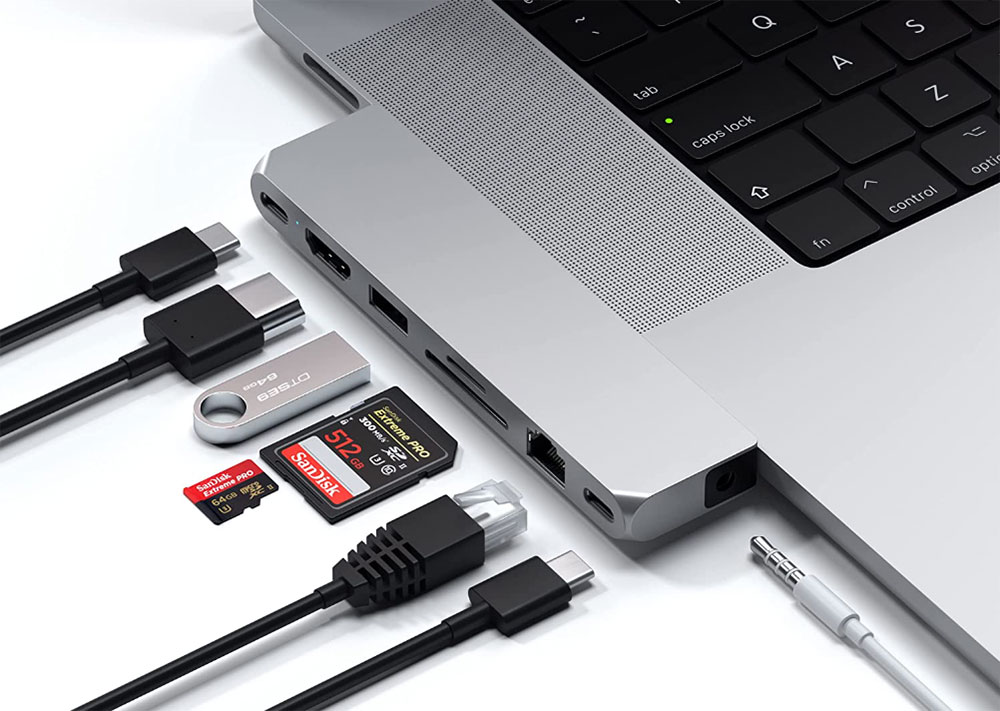
In general, an “adapter” works with a single port (such as USB-A or Ethernet) while a “hub” gives you multiple ports. If you require even more, then look for a “docking station” or “dock“. Docks usually come with their own power supply, while hubs require a separate USB-C charger if you need a power source. If you’re after a full desktop setup for your MacBook, look out for our recommendations for the best USB-C and Thunderbolt docking stations for MacBooks.
Apple sells its own range of USB-C adapters to HDMI, VGA and more, but they are overpriced and underpowered compared to the premium USB-C hubs and adapters we have reviewed here. We haven’t included the many much cheaper but lower-quality versions you can find online as we recommend only from trusted and tested makers.
Look for each hub’s video capability for connecting to external displays. Most support only one monitor, but some offer two—note that more than two usually requires an extra software install.
Passthrough power will likely also be of interest to MacBook users. 60W Power Delivery (PD) will work even for the 16-inch MacBook Pro (just), but more watts equals a faster charge.
Note that the ports on the MacBook Neo are USB-C and only one of them is properly data-ready at 10Gbps, with the other just for charging. Read more on how the MacBook Neo’s USB-C ports are different. As it has just one data port, a USB-C hub becomes a must for expanding the Neo’s potential—read our roundup of the best MacBook Neo accessories.
Below the list of our favorite USB hubs and adapters, we describe the types of ports you might require from a hub and what to look for in each.
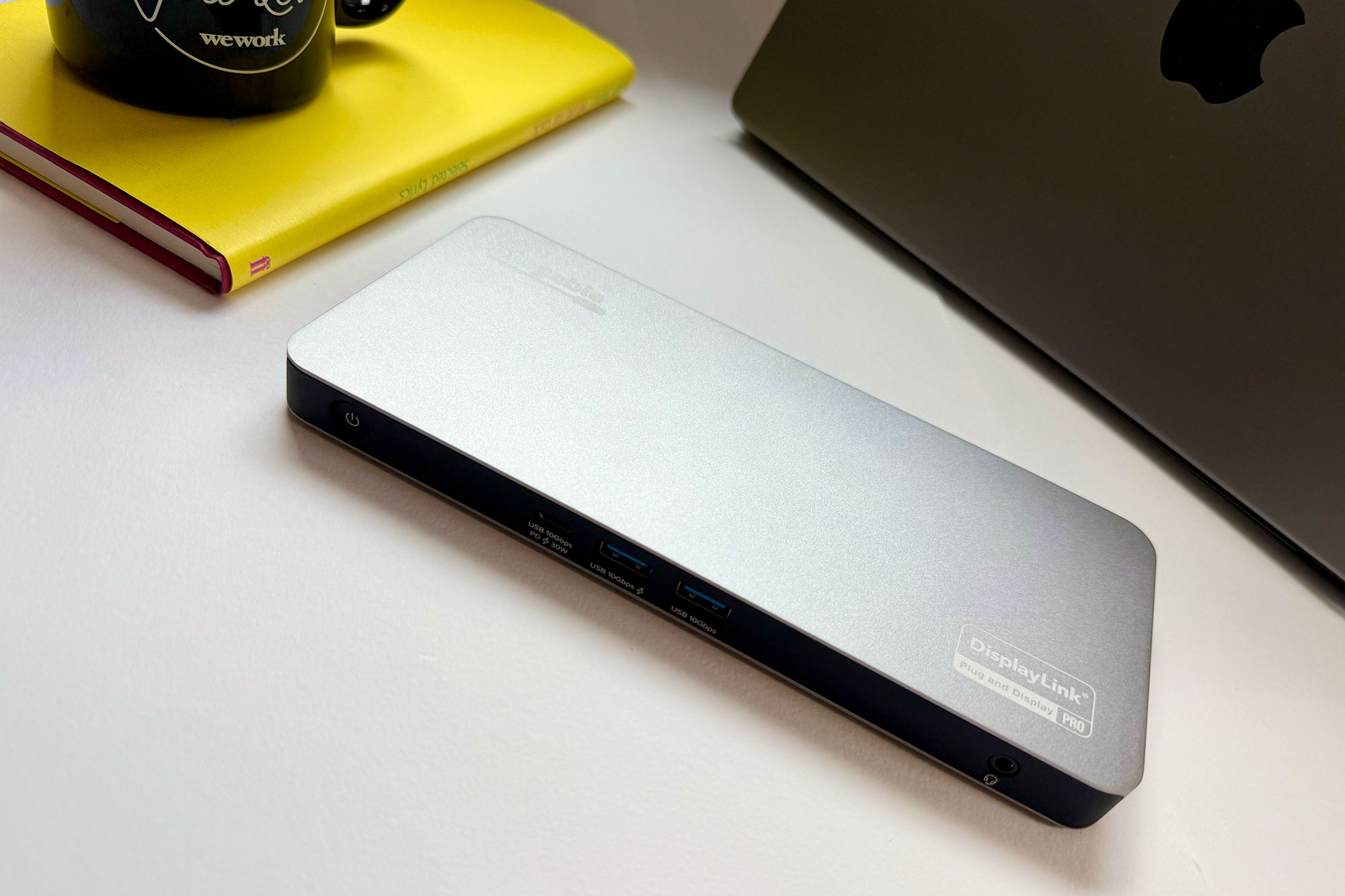
This 9-in-1 hub is bristling with top-end ports and—with an unrivaled 125W of laptop passthrough power—is a great match for larger laptops.
A seven-inch cable connects the hub to your MacBook at 10Gbps and a possible 125W passthrough charging when the hub is connected to a powerful enough USB-C charger—that’s the highest passthrough charging we’ve seen in a USB-C hub. Total power output from the hub to laptop and devices is 140W.
There’s one dedicated 10Gbps USB-C data port, HDMI 2.0 port with 4K 60Hz support, and both SD and MicroSD card readers at fast UHS-II media-transfer speeds. If you need to attach legacy devices there are two USB-A ports, also at 10Gbps. One of these can drive 7.5W of power to the connected device. There’s also a much slower 480Mbps USB 2.0 port that good for a memory stick or mouse/keyboard.
With its extra USB-A port and faster SD card readers, the 9-in-1 Plugable USB-C Hub beats our long-time USB-C hub champ, the Anker 555 8-in-1 USB-C Hub, reviewed below. If you prefer DisplayPort to HDMI the Anker 565 should be considered even with its slower card readers.
Plugable has recently released an even more capable version, the 10-port USBC-10IN1E, reviewed below. that is very similar to the 9-port hub but with 2.5Gb Ethernet and support for a single external display at up to 8K/30Hz, with the option of 4K/144Hz. Choose this model if you need the more pro-level ports, but it’s still a 10Gbps hub. Keep reading if you need a 40Gbps hub.
Price When Reviewed:
$249.95
Best Prices Today:
Retailer
Price
Check on Amazon
Price comparison from over 24,000 stores worldwide
Product
Price
Price comparison from Backmarket
9 Ports: 4x Thunderbolt 5, 2x USB-C, 3x USB-A
Monitors: Up to 4x 6K/60Hz (M5 Max); 2x 6K/60Hz (M4/M5, M1/M2/M3 Pro/Max)
Passthrough power: 90W
USB-C speed to Mac: 80Gbps
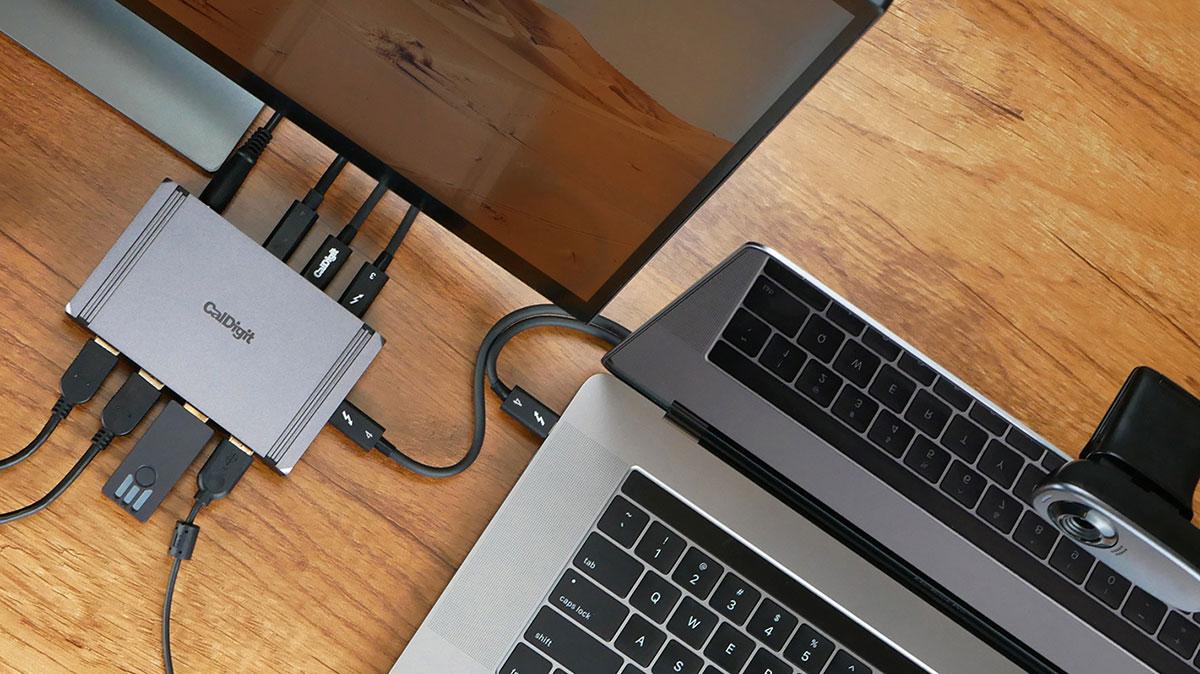
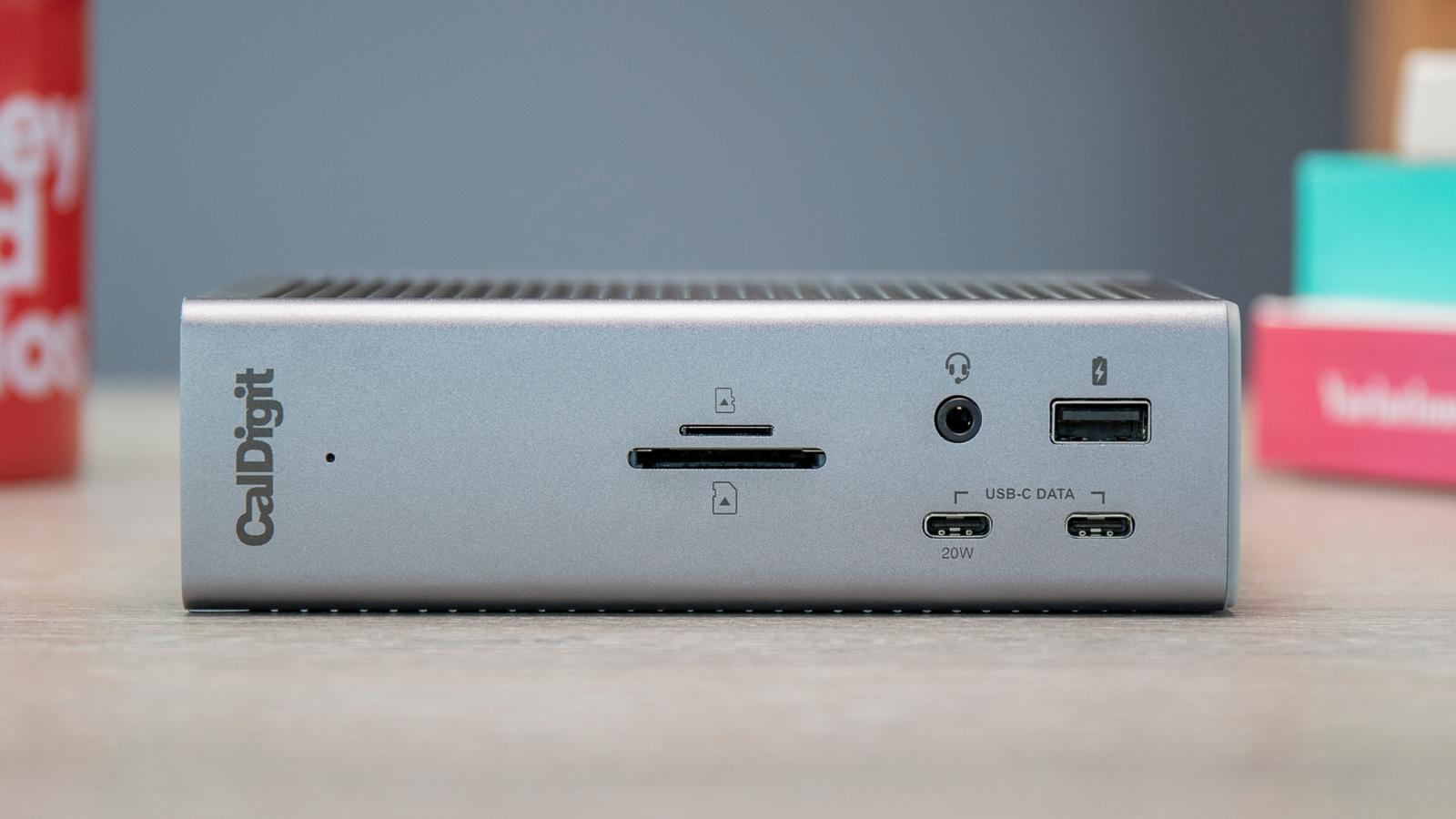
Thunderbolt is USB-C on steroids, and Thunderbolt 5 is the latest, fastest and most capable version. Only the most recent top-level Macs have Thunderbolt 5 but it’s backwards compatible all the way back to USB-C so even the MacBook Neo can use it although only at its own 10Gbps bandwidth. Thunderbolt 3 and 4 Macs will be pegged back to 40Gbps, but the CalDigit Element 5 Hub is easily the fastest hub we’ve tested.
Measuring just 4.5 x 2.75 x 1 inches (114 x 70 x 25mm) and weighing a mere 7oz (200g) this hub is dwarfed by the Thunderbolt docking stations but is still a match for them if you add a few inexpensive adapters such as an Ethernet adapter or card reader, for example.
It can connect up to dual 6K or 8K/60Hz extended displays on Macs with dual display support over its single Thunderbolt connection. On M5 Pro the Element 5 Hub can support up to three extended displays and on M5 Max it can support up to four extended displays.
More of a mini dock than a hub and priced much higher than the more standard USB-C hubs reviewed here, it’s the ultimate hub but may be overkill for your requirements.m
The Anker 555 USB-C 8-in-1 Hub is compact and powerful, offering greater specs than some of the other leading options on this list. It’s one of two similar USB-C hubs from the company, and we start with the best-value option.
The 555 offers two USB-C ports—one that supports 85W USB-C Power Delivery, while another supports data transfers up to 10Gbps. You also get speedy 10Gbps transfer rates through two additional USB-A ports, where many rivals max out at 5Gbps.
The Anker 555 is special as it offers an HDMI port that supports 4K 60Hz resolutions, where most are limited to 4K 30Hz. For 4K 60Hz resolution, your device must support DP 1.4. This includes MacBook Neo, MacBook Air (from 2020), and MacBook Pro (from 2018) and iPad Pro (from 2018).
Also included are SD and MicroSD card reader slots. These are rated at UHS-I (104MBps) so not the fastest. If you transfer a lot of data via SD cards, look for a hub with faster UHS-II (312MBps).
The Gigabit Ethernet port is great for those times when Wi-Fi just won’t do.
It’s also incredibly light at just under 4.5oz (130g) and compact so you can take it anywhere. At $49.99 / £79.99 it’s hard to deny this hub’s value for money. In our experience, it does get warm with use but Anker says this is normal.
Anker
The higher-end $69.99 / £89.99 Anker 565 USB-C Hub, shown above, is as fast at 10Gbps plus offers eleven ports instead of the 555’s mere eight, and is equally lightweight at 4.8oz (136g). The extra ports are one USB-A and an audio jack, which isn’t a remarkable boost—but it does include a top-end DisplayPort 1.4 video connection as well as HDMI so offers greater video flexibility. If the inclusion of a native DisplayPort is important to you, then the 565 is a better solution (read our full Anker 565 11-in-1 USB-C Hub review) than maybe even the Plugable 9-in-1 reviewed above.
Uniquely round and magnetic with a coiled USB-C cable, the Satechi OntheGo 7-in-1 calls itself a “Multiport Adapter” but it’s really a hub, boasting seven ports, alongside its integrated 10Gbps USB-C cable. None of the ports are at the very top-end pro level but they are capable enough for most users and with a 2.55-inch (6.5cm) diameter and weighing 2.4oz (68g) it is easily pocketable.
It will clamp to the back of an iPhone—iPhone 15 or later to take advantage of the USB-C—or any surface using the included magnetic 3M Adhesive Ring.
Ugreen 4-in-1 USB 3.0 Hub – Best budget hub for multiple USB-A ports
Pros
Inexpensive
Four 5Gbps USB-A ports
10W device charger
Two cable length options
Cons
Limited to USB-A ports
No passthrough charge to host
Price When Reviewed:
$15.99
Best Prices Today:
Retailer
Price
$9.98
View Deal
$14.99
View Deal
Price comparison from over 24,000 stores worldwide
Product
Price
Price comparison from Backmarket
5 Ports: 1x USB-C, 4x USB-A
USB-C speed to Mac: 5Gbps
If all you need from an adapter is the ability to connect a bunch of legacy USB-A devices to your MacBook, this simple adapter should do the trick.
The Ugreen USB-C 4-port hub is a slim and inexpensive adapter that allows you to add four full-size USB 3.0 ports that can handle data transfer at up to 5Gbps. It has recently been upgraded to feature a further USB-C port that can supply a 10W charge for connected devices, but not the host computer. While all four ports can be used simultaneously, a maximum of two hard drives can be connected at one time.
It looks the part with most modern MacBooks, and is an easy way to connect memory sticks, a printer or other older devices that don’t come with USB-C. It is available with either a short 0.5-foot or 2-foot integrated cable.
Anker USB-C to USB-A Adapter – Best simple USB-C to USB-A adapter
Pros
Simple USB-A adapter
Small
2-pack
Cons
Just the one port
Price When Reviewed:
$15.99
Best Prices Today:
Retailer
Price
$8.98
View Deal
Price comparison from over 24,000 stores worldwide
Product
Price
Price comparison from Backmarket
1 Port: 1x USB-C to USB-A
USB-C speed to Mac: 5Gbps
There’s a misconception that USB-C is an inconvenience for people with a bunch of devices still reliant on legacy USB-A, hence the existence of little adapters like this one from Anker. Products like this are there to help us bridge the gap.
This cute little adapter is simply to allow you to plug in one standard USB-A device or cable at a time, great for using a USB stick, for example. Just don’t misplace it—it’s tiny. If you do lose it, don’t worry as this is sold in a two-pack!
EZQuest USB 4 Dual Display 8-in-1 Hub (Pro Series) – Best native USB-C hub for dual Mac screens
Pros
Two 4K monitors at 60Hz
No extra software required
8x USB-C ports, inc 3x USB4
Cons
Passthrough power only 77W
Price When Reviewed:
$149.99
Best Prices Today:
Retailer
Price
$119.99
View Deal
$119.99
View Deal
EZQuest
$149.99
View Deal
Price comparison from over 24,000 stores worldwide
Product
Price
Price comparison from Backmarket
There are many USB-C hubs with more than one HDMI port but most are restricted to Mirrored Mode (where all external screens show the same image as on the MacBook) or in only partially Extended Mode (where the external displays show a different image to the MacBook but are the same themselves). That’s a Mac limitation only, not the fault of the hubs themselves, which work fine for Windows. Blame Apple.
The EZQuest 8-in-1 Hub is built on Intel’s JHL8140 USB4 chipset that makes a hub-based two-display setup a plug-and-play solution for Mac users. You can connect an 8K monitor at 30Hz or two 4K displays at 60Hz—with no need to install third-party software.
The Satechi Pro Hub Max Adapter, reviewed below, can also support two displays natively but uses two of the MacBook’s Thunderbolt ports to achieve this. The EZQuest is the only single USB-C connection to do this without DisplayLink.
One non-data USB-C port supplies up to 100W to the hub, which distributes it as 77W to the connected laptop and 23W shared between the ports. Other hubs reviewed here offer greater passthrough to your MacBook but 77W should be enough to keep even the MacBook Pro humming while you work.
Even using two of the USB4 ports for displays, the hub has five more 10Gbps data ports spare to connect other devices. That’s the same as you get from EZQuest’s Slim Gen 2 Hub Adapter 6-in-1 (5x 10Gbps USB-C and one PD), which is reviewed below. If you require just one 4K/60Hz display and a bunch of fast USB-C ports this $79 hub might be all you need, but if two displays is in your dreams, go for the 8-in-1.
Base-level M1 and M2 Macs plus the MacBook Neo are sadly hampered by a single-screen limitation. The EZQuest 8-in-1 Hub can’t help these users, who will need to install special DisplayLink or InstantView drivers to support more than one external display; see the Plugable HDMI Adapters reviewed below.
Plugable USB-C Quad 4K HDMI Adapter – Best DisplayLink USB-C hub for up to 4 Mac screens
Pros
Four 4K monitors at 60Hz
100W passthrough charging
Works with even M1/M2 MacBooks
Cons
No other ports
Price When Reviewed:
$124.95
Best Prices Today:
Retailer
Price
$179.95
View Deal
$179.95
View Deal
$179.95
View Deal
$179.95
View Deal
Price comparison from over 24,000 stores worldwide
Product
Price
Price comparison from Backmarket
5 Ports: 4x HDMI, 1x USB-C passthrough charging
Monitors: Up to 4x 4K/60Hz using DisplayLink software
Passthrough power: 100W
USB-C speed to Mac: 5Gbps
Using DisplayLink software—a simple download—the Plugable USB-C Quad 4K HDMI Adapter (USBC-7400H) can support four 4K external displays, all showing a different image to the MacBook and each other—so full Extended Mode, and even on lowly M1/M2 Macs. It also features 100W passthrough USB-C charging. See below this list of hub recommendations for a graphic showing the differences between Mirrored and Extended Modes on the Mac.
Plugable
If you need only two external displays in full Extended Mode, the $89.95 / £109.95 Plugable USB-C Dual HDMI Adapter (USBC-6950M) shown above features two HDMI ports but no passthrough charging.
Satechi Pro Hub Slim Adapter – Best 40Gbps USB4 hub for Mac
Pros
USB4
40Gbps data transfer
7 ports inc 4K/60Hz display HDMI
Cons
Uses two MacBook ports
No device charging from USB-A and USB-C ports
UHS-I card readers
Price When Reviewed:
$79.99
Best Prices Today:
Retailer
Price
$79.99
View Deal
Satechi
$79.99
View Deal
Price comparison from over 24,000 stores worldwide
Product
Price
Price comparison from Backmarket
Monitors: 1x 6K/60Hz via USB4 and 1x 4K/60Hz via HDMI
Passthrough power: 100W
USB-C speed to Mac: 40Gbps
All of the portable USB-C hubs reviewed here are compatible with the Mac’s Thunderbolt 3, 4 and 5 ports, but most feature slower USB-C connections (5Gbps or 10Gbps) compared to Thunderbolt (40Gbps for TB3 and TB4, and 80Gbps with TB5).
The $79.99 Pro Hub Slim, available in either Silver, Space Gray or Midnight, requires a MacBook with two adjacent Thunderbolt ports on one side, but offers 40Gbps bandwidth via its USB4 port. You can connect a 6K/60Hz display using this port, plus a 4K/60Hz display using the HDMI port.
That same port allows for 96W of passthrough charging, and there’s a separate 10Gbps USB-C port plus two 10Gbps USB-A and UHS-I card readers.
Plugable 5-in-1 USB-C Hub – Best budget 40Gbps USB-C hub for Mac
Pros
40Gbps data transfer
6K display at 60Hz via USB-C
5 ports inc Ethernet
Affordable
Cons
Uses two MacBook ports
Price When Reviewed:
$32.95
Best Prices Today:
Retailer
Price
$29.95
View Deal
$29.95
View Deal
$32.95
View Deal
Price comparison from over 24,000 stores worldwide
Product
Price
Price comparison from Backmarket
While not certified as either USB4 or Thunderbolt 4, this compact and very portable 5-in-1 USB-C hub (AMS-5IN1E) offers 40Gbps data-transfer via its USB-C port, and is designed for the 14-inch and 16-inch MacBook Pros introduced after 2021, or MacBook Airs introduced after 2022. A smart cutout keeps access to those MacBooks’ MagSafe charger port.
The inclusion of the 40Gbps USB-C port is useful as the hub uses the two Thunderbolt or USB4 ports in its flush side connection to the MacBook. But, in return, it gives you two 5Gbps USB-A ports (4.5W charging) and Gigabit Ethernet. The audio jack port is also covered but replicated on the hub.
The 40Gbps USB-C port can be used to connect a display up to 6K at 60Hz, or offer passthrough charging at up to 100W.
This is the pro-level version of the 9-port Plugable USBC-9IN1E that we awarded Best Overall USB-C Hub to; see review above. It has the same 10Gbps data-transfer speed and impressive 125W passthrough MacBook charging, but with faster Ethernet (2.5GbE vs 1GbE) and support for either an 8K/30Hz or 4K/144Hz display.
Unless you need multiple external displays or 40Gbps bandwidth, this hub should offer everything you need for a pro setup in a portable form.
The 8K display support is great and the 144Hz 4K refresh rate option will please video professionals and gamers alike.
2.5Gb Ethernet will help future-proof your system, unless you are looking to 10GbE.
This USB-C hub has four USB-C ports but no USB-A. If you no longer have need for old-time USB-A by buying this hub you won’t be wasting money on a port you don’t require. If you have USB-A peripherals, such as an older memory stick, then you should look for a hub with a Type-A USB port.
Three of the USB-C ports offer fast 10Gbps data transfer, and one at 5Gbps. A fifth USB-C port is for attaching a power source, most likely a USB-C wall charger. If the charger is rated at 100W, all that power can be distributed via the hub, including up to 85W PD to the host laptop or tablet. However, aside from the pass-through PD port, none of the USB ports can output power to connected devices.
The EZQuest USB-C Slim Gen 2 Hub Adapter 6-in-1, reviewed here lower down, has four 10Gbps USB-C ports, each with 7.5W device charging, plus two more for 4K/60Hz monitor support and 80W passthrough charging, but it lacks the Ethernet and card reader.
And the SD card reader is also top-notch at 312MBps, compared to some that are UHS-I at 104MBps.
Despite the 8K in its name, the HDMI 2.1 port can support only as high a resolution as an external 4K display at 60Hz refresh rate, as well as display options of 2K/144Hz and 1080p/240Hz. Apple display limitations mean that its potential 8K/30Hz display support is limited to Windows machines.
It’s at the high end for price but you get high-end, premium and future-proof ports for your money.
It is available in Apple MacBook-matching Space Gray, Silver, and Midnight colors.
Price When Reviewed:
$39.95
Best Prices Today:
Retailer
Price
$25.46
View Deal
$29.95
View Deal
$39.95
View Deal
$44.99
View Deal
$49.39
View Deal
Price comparison from over 24,000 stores worldwide
View more prices
Product
Price
Price comparison from Backmarket
1 Port: 5Gb Ethernet USB-C speed to Mac: 5Gbps
For even faster speeds when connected to a supporting network, this one-function adapter adds an inexpensive route to 5Gbps Ethernet. It’s simple yet effective if you need more ports, you’ll pay more for such fast network speeds.
It’s backwards compatible with 1Gb and 2.5Gb networks, so is more future proof than a 2.5Gb adapter if you are always after the fastest data transfers.
The cable is short at 4.7 inches (12cm) but you shouldn’t need any longer for a network adapter.
If you want fast Ethernet but more ports, check out some of the Satechi hubs also reviewed here. Plugable also offers a USB-C to 2.5GbE Adapter, listed lower down this list.
EZQuest USB-C Slim Gen 2 Hub Adapter 6-in-1 – Best hub for most 10Gbps USB-C ports
Pros
Six USB-C ports
4x 10Gbps
4K at 60Hz
80W passthrough
Price When Reviewed:
$79.99
Best Prices Today:
Retailer
Price
$69.99
View Deal
$69.99
View Deal
Price comparison from over 24,000 stores worldwide
Product
Price
Price comparison from Backmarket
6 Ports: 6x USB-C
Monitors: 1x 4K/60Hz via USB-C
Passthrough power: 80W
USB-C speed to Mac: 10Gbps
This USB-C hub loves USB-C so much that it boasts only that type of port, of which there are six—seven if you count the connector that links to the laptop.
Four of these are rated at 10Gbps for data transfer, which is about as fast as you can get before you have to switch up to 40Gbps Thunderbolt as 20GBps USB-C hubs are rare.
Another can link up to an external display up to 4K in resolution and at a action-screen-friendly 60Hz refresh rate. You can either connect direct to a USB-C monitor, or use a USB-C to either DisplayPort or HDMI adapter.
The sixth USB-C port can handle 100W of PD 3.0 power input, 80W of which is reserved for the MacBook if it needs that much. Each of the 10Gbps ports can deliver 7.5W, up to a maximum 15W across all four at the same time.
Satechi 4-In-1 USB-C Hub With 2.5 Gigabit Ethernet
Pros
3x USB-C ports (10Gbps)
2.5G Ethernet
Cons
No passthrough charging
Price When Reviewed:
$44.99
Best Prices Today:
Retailer
Price
Check on Amazon
Price comparison from over 24,000 stores worldwide
Product
Price
Price comparison from Backmarket
4 Ports: 2.5Gb Ethernet, 3x USB-C
USB-C speed to Mac: 10Gbps
There are hubs with more ports but this 4-in-1 USB-C hub offers three fast 10Gbps USB-C ports and very fast 2.5Gb Ethernet.
The Satechi USB-C Multiport Adapter 8K With Ethernet V3, reviewed above, boasts more functionality but at twice the price and with standard 1Gb Ethernet. The Satechi 4-port USB-C Hub, reviewed below, offers an extra USB-C port but none at 10Gbps, and no 2.5Gb Ethernet.
This hub could be in your sweet spot if you need a bunch of fast USB ports and faster Ethernet. There’s no passthrough charging, so you’ll need a spare Thunderbolt port on your MacBook for power.
Plugable 6-port or 10-port USB-C Chargers – Best hubs for multiple USB-C charging ports
Pros
6x or 10x 100W USB-C ports
Priority charging
Cons
No USB-A (if you need it)
Maximum 100W total power
Price When Reviewed:
$79.95
Best Prices Today:
Retailer
Price
$67.96
View Deal
$79.95
View Deal
$79.95
View Deal
$79.95
View Deal
$79.95
View Deal
Price comparison from over 24,000 stores worldwide
View more prices
Product
Price
Price comparison from Backmarket
6 or 10 Ports: 6x or 10x USB-C charging ports
Passthrough power: 100W
USB-C speed to Mac: n/a
This multi-port hub is not for data transfer but is the best for charging multiple USB-C devices up to 100W utilizing clever priority-charging technology that distributes power across all connected devices—prioritized in the order you choose from left to right. As devices reach full charge, the now greater available power is reallocated down the line.
The $79.99 Plugable PS-6CC and $119.99 Plugable PS-10CC can neatly and efficiently charge up to 6 or 10 hungry devices at the same time and at an optimum power distribution without you having to resort to multiple chargers and a desk full of indistinguishable snaking cables.
Satechi 4-Port USB-C Hub with PD – Best budget hub for multiple USB-C ports
Pros
4x USB-C ports
10Gbps
Compact
Cons
Passthrough power only 75W
Price When Reviewed:
$39.99
Best Prices Today:
Retailer
Price
$39.99
View Deal
Satechi
$39.99
View Deal
$39.99
View Deal
Price comparison from over 24,000 stores worldwide
Product
Price
Price comparison from Backmarket
4 Ports: 4x USB-C
Passthrough power: 75W
USB-C speed to Mac: 10Gbps
Sick of hubs that still think USB-A is a thing? If what you want is more USB-C ports, the Satechi 4-Port USB-C Hub With Power Delivery has plenty for you. Each port is USB-C 3.2 Gen 2 so 10Gbps, which has recently been upgraded from 5Gbps. Also upgraded is the PD Power Delivery via the USB-C ports for passthrough charging.
You can save a few bucks by buying the 5Gbps non-PD version but this new model is superior and well worth the few extra dollars.
Startech.com 7-Port USB-C Hub – Best hub for multiple USB-A and -C ports
Pros
7 fast USB ports
65W power supply included
Cons
Only 2x USB-C ports
No passthrough charging to laptop
Price When Reviewed:
$124.99
Best Prices Today:
Retailer
Price
$122.14
View Deal
Startech.com
$124.99
View Deal
$129.52
View Deal
Price comparison from over 24,000 stores worldwide
Product
Price
Price comparison from Backmarket
7 Ports: 2x USB-C, 5x USB-A
USB-C speed to Mac: 10Gbps
If it’s just USB ports you need to add, then you find more than enough on Startech.com’s 7-Port USB-C Hub, although we’d have preferred more USB-C ports, which here are outnumbered by legacy USB-A.
There are five USB-A ports, all rated at a speedy 10Gbps, with one offering 12W of device-charging power. One of the two 10Gbps USB-C ports can also charge connected devices at 12W. The other USB ports each offer a small charge of 4.5W.
Even 12W is not powerful enough to fast charge an iPhone but it’s enough to keep most connected devices powered up.
The hub is self-powered via its 65W power supply.
Hyperdrive Dual 4K HDMI 10-in-1 USB-C Hub – Best dual-4K InstantView hub for M1/M2/M3 Macs
Pros
10 ports
100W PD
4K 60Hz display via HDMI
Supports two displays on M1/M2/M3/Neo MacBook
Cons
UHS-I card readers
Price When Reviewed:
$199.99
Best Prices Today:
Retailer
Price
$149
View Deal
$159.99
View Deal
Hyper
$199.99
View Deal
Price comparison from over 24,000 stores worldwide
Product
Price
Price comparison from Backmarket
Monitors: 1x 4K/60Hz and 1x 4K/30Hz using DisplayLink software
Passthrough power: 100W
USB-C speed to Mac: 5Gbps
This hub has enough different ports to call itself a docking station. It has two HDMI ports, two USB-C ports (one PD and one 5Gbps), SD/microSD/SD readers (UHS-I), two 5Gbps USB-A ports, a 3.5mm audio combo jack for headphones, and Gigabit Ethernet.
It doesn’t have its own power supply but offers passthrough PD charging at a more than healthy 100W.
It’s a great set of ports, but that’s not it’s biggest plus for users of Apple’s plain M1/M2/M3/Neo-based MacBooks, which don’t support more than one external display. The plain M3 MacBooks can connect two displays but only if the MacBook’s lid remains closed. The smarter M4/M5 and M1/M2/M3/M4/M5 Pro and Max chips do support multiple displays.
If that is a problem for you there is a hardware solution in the Hyperdrive Dual 4K HDMI 10-in-1 USB-C Hub, which lets non-Pro/Max Macs connect two external displays. There is some light software installation involved for M1/M2/M3 users, and you need to allow InstantView access to your Privacy settings in System Preferences. There are alternative solutions for adding two or more monitors to an M1, M2, M3 MacBook.
One HDMI port allows for 4K at 60Hz, and the other 4K at 30Hz. If you want two or more 4K screens at 60Hz and are willing to do without the extra USB ports and so on, look at the Plugable Quad and Dual 4K HMDI adapters reviewed earlier in this article. These are cheaper and offer superior display specs.
Plugable USB-C to 2.5Gb Ethernet Adapter – Best simple, budget adapter for 2.5GbE
Pros
2.5G Ethernet
100W passthrough
Price When Reviewed:
£29.95
Best Prices Today:
Retailer
Price
$29.95
View Deal
$29.95
View Deal
$34.77
View Deal
$44.99
View Deal
Price comparison from over 24,000 stores worldwide
Product
Price
Price comparison from Backmarket
1 Port: 1x USB-C, 2.5Gb Ethernet
Passthrough power: 100W
USB-C speed to Mac: 5Gbps
If all you need is a USB-C adapter that will add super-fast Ethernet to your computer, the Plugable USB-C to 2.5Gb Ethernet Adapter offers 2.5x network speeds compared to standard Gigabit Ethernet on supporting networks. A side USB-C port offers 100W passthrough charging to the laptop.
Plugable USB-C to HDMI Multiport Adapter – Budget alternative to Apple AV Multiport Adapter
Pros
Inexpensive AV adapter
4K display via HDMI
Passthrough PD
Cons
4K display at 30Hz
Price When Reviewed:
$29.95
Best Prices Today:
Retailer
Price
$39.95
View Deal
$39.95
View Deal
$39.95
View Deal
$39.95
View Deal
Price comparison from over 24,000 stores worldwide
Product
Price
Price comparison from Backmarket
3 Ports: 1x USB-C, 1x USB-A, 1x HDMI
Monitors: 1x 4K/30Hz avia HDMI
Passthrough power: 100W
USB-C speed to Mac: 5Gbps
Apple got a lot of flack when moving to USB-C because it meant that many of its users had to buy one or more adapters to replicate the ports they were used to, and needed.
It wasn’t so much that we needed adapters, but more to do with the price Apple was charging for its simple USB-C hubs and adapters.
Plugable has a much cheaper alternative, at about a third of the price. And it looks pretty identical.
Aside from the price, the one drawback shared with the Apple version is that the HDMI connection can connect a 4K external display at 30Hz rather than the full 60Hz, which may put off gamers. But otherwise, this is a great alternative at a fraction of the price, and can charge at 60W.
Satechi Stand & Hub Mac Mini M4 – Best USB-C hub for M4 Mac mini
Pros
SSD enclosure option
Three USB-A ports and SD card slot at the front
Housing for NVMe SSD
Eases access to the mini’s power button
Cons
No device charging
Price When Reviewed:
$99.99
Best Prices Today:
Retailer
Price
Check on Amazon
Price comparison from over 24,000 stores worldwide
Product
Price
Price comparison from Backmarket
4 Ports: 3x USB-A, SD Card Reader
USB-C speed to Mac: 10Gbps
We tend to think of hubs for laptops, such as Apple’s MacBooks, which lack more than one or two USB-C ports and so require a dock to add further devices. The Mac Mini and Mac Studio, you’d think, have an army of ports in comparison to Apple’s laptops.
Apple’s latest M4 Mac mini does at least add a couple of USB-C ports and an audio jack at the front—sadly lacking for its earlier M1 and M2 Mac mini models, see below—but it doesn’t have any legacy USB-A ports or card readers.
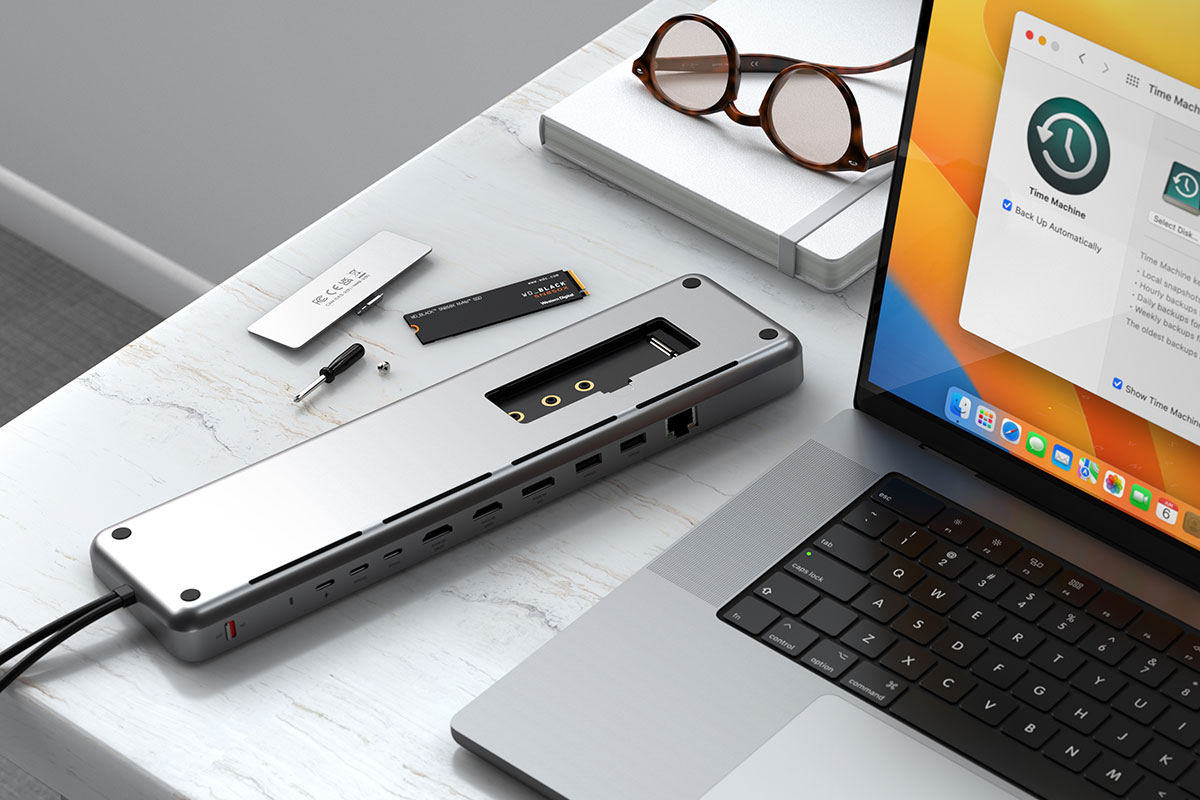
The Satechi Stand & Hub for the M4 Mac mini adds three USB-A ports—two at 10Gbps and one at 480Mbps—at the front, plus an SD card reader. Inside the Hub is an enclosure that enables you to add an NVMe SSD at up to 4TB NVMe storage—so adding more hidden storage at prices much cheaper than offered by Apple at purchase.
It fits neatly under the mini and, in our tests, didn’t suffer the same Wi-Fi problems as its M1/M2 sibling, although it has three fewer ports.
Before Apple miniaturized the Mac mini even further in 2024, the 2018-2023 Mac mini models boasted two Thunderbolt 3 / USB4 (fast USB-C) ports, two old-school USB-A ports, HDMI 2.0, Gigabit Ethernet, and 3.5mm headphone jack. That sounds like a lot, but Apple accessory specialist Satechi believes the Mini needs maxing.
Satechi’s Type-C Aluminum Stand & Hub for Mac Mini expands these capabilities with seven ports: including a USB-C data port, three USB-A ports, micro/SD card readers, and another 3.5mm headphone jack port. (Note that you can’t charge devices connected to the USB ports, as they are there for syncing and data transfer only.)
The crucial point is that these points are front-facing, and not tucked around the back with the unwieldy and unsightly power supply. It also lifts the Mini off the desk, and its built-in air vents help regulate temperature and encourage airflow.
There is a superior model, the 10Gbps Satechi Stand & Hub For Mac Mini / Studio With NVMe SSD Enclosure, which includes an integrated slot where you can insert an SSD card to add affordable fast storage, accessible when connected to your Mac mini or Mac Studio. Read our Satechi Stand & Hub With SSD Enclosure review.
Both of the Satechi M1/M2 Mac mini Stand Hubs, however, can have a negative impact on the mini’s Wi-Fi signal strength, so it’s recommended to use the wired Ethernet option instead.
HyperDrive 6-in-1 USB-C Hub for 24in iMac – Best hub for iMac
Pros
6 ports
USB-C (10Gbps)
2x USB-A (10Gbps, 7.5W)
4K 60Hz display via HDMI
Color matches your iMac
Cons
UHS-I card reader
24in iMac only
Price When Reviewed:
$79.99
Best Prices Today:
Retailer
Price
$33.97
View Deal
$34.15
View Deal
Hyper
$79.99
View Deal
Price comparison from over 24,000 stores worldwide
Product
Price
Price comparison from Backmarket
You might not think a desktop Mac needs a hub, but the 24in iMac is quite lacking, having either just two Thunderbolt ports on the entry-level model or two Thunderbolt and two USB-C at the top-end. These ports are also all hidden away at the back, which can mean snaking cables all over your desk.
Five of the ports on this hub that clamps to the underside of the iMac are front-facing ports for easy access to memory cards, USB storage, or storage cards. There are two USB-C ports and one USB-A port (all rated at a speedy 10GBps). The USB-A port can charge a phone at 7.5W.
The UHS-I (104MBps) SD and microSD card readers aren’t the fastest but should suffice. Such memory cards are an affordable way of adding portable storage, and will also delight camera users.
At the rear of the hub is an HDMI port that can support an external 4K display at 60Hz.
Hyper also sells a 5-in-1 iMac USB Hub with two USB-C (5Gbps) and three USB-A (5Gbps and one that charges at 7.5W).
Quite brilliantly, the hubs can color-match with your 24in iMac, with 7 iMac color faceplates included.
Plugable USB-C 6-In-1 Mounted Hub for 24in iMac – USB-C hub for iMac
Pros
6 ports
USB-C (10Gbps)
1x USB-A (10Gbps, 4.5W)
2x USB-A (480Mbps)
Cons
UHS-I card reader
24in iMac only
Price When Reviewed:
$63.95
Best Prices Today:
Retailer
Price
Check
Price comparison from over 24,000 stores worldwide
Product
Price
Price comparison from Backmarket
While not as colorful as the HyperDrive 6-in-1 USB-C Hub, this USB-C hub for the 24-inch iMac offers a set of basic ports slung under the iMac screen at a slightly lower price.
It brings four USB ports within easy arm’s reach, so you don’t need to fiddle around at the back of the computer.
It lacks the HyperDrive’s HDMI port but gains an extra USB-A port, although at a slow 480Mbps and with little charging power.
SanDisk Extreme Pro SD Card USB-C Reader – Best USB-C SD Card adapter
Pros
Simple UHS-II SD card reader
Inexpensive
Cons
Requires adapter for microSD cards
Price When Reviewed:
$37.90
Best Prices Today:
Retailer
Price
Check
Price comparison from over 24,000 stores worldwide
Product
Price
Price comparison from Backmarket
1 Port: SD Card Reader
USB-C speed to Mac: 5Gbps
If you’re a digital professional or just a photography enthusiast, chances are you might be slightly peeved that the new MacBook Pro you held out for doesn’t have an SD card slot.
SanDisk is here to save the day. This neat SD card reader is USB-C compatible and will allow Thunderbolt 3 speed transfers of all your high-resolution photos and videos.
SD cards are also a very inexpensive way to add portable storage to your laptop, from 32GB up to 1TB.
Cable Matters USB-C to VGA Adapter – Best USB-C to VGA Adapter
Pros
VGA and HDMI ports
Cons
4K display at 30Hz
Price When Reviewed:
$20.99
Best Prices Today:
Retailer
Price
$16.19
View Deal
$27.75
View Deal
Price comparison from over 24,000 stores worldwide
Product
Price
Price comparison from Backmarket
2 Ports: HDMI, VGA
Monitors: 1x 4K/30Hz via HDMI and 1x HD/60Hz via VGA
USB-C speed to Mac: 10Gbps
This simple adapter makes a USB-C port into a VGA port for older displays and projectors, and also can handle two external displays.
VGA was once the most popular video connector but is seen less these days, being overtaken by DVI, HDMI, DisplayPort and direct USB-C.
It supports HD at 60Hz resolutions via VGA, and 4K at 30Hz through its HDMI port. It isn’t compatible with supporting two displays on an M1/M2/Neo MacBook.
Cable Matters USB-C to DVI Adapter – Best USB-C to DVI Adapter
Pros
DVI port
Cons
HD display only
Price When Reviewed:
$19.99
Best Prices Today:
Retailer
Price
$42.22
View Deal
Price comparison from over 24,000 stores worldwide
Product
Price
Price comparison from Backmarket
1 Port: DVI
Monitors: 1x HD/60Hz via DVI
USB-C speed to Mac: 5Gbps
If you need to connect to a DVI (Digital Visual Interface) display or projector, this adapter does the trick.
It can support resolutions up to 1,920-x-1,080 at 60Hz.
Apple Thunderbolt 3 (USB-C) to Thunderbolt 2 Adapter
Pros
Thunderbolt 2 adapter
Price When Reviewed:
$49
Best Prices Today:
Retailer
Price
$44.99
View Deal
$49
View Deal
$53.99
View Deal
Price comparison from over 24,000 stores worldwide
Product
Price
Price comparison from Backmarket
1 Port: Thunderbolt 2
USB-C speed to Mac: 20Gbps
This adapter is designed to help owners of really quite old Macs smoothly transition to using USB-C. You may well have devices such as hard drives and external displays that use Thunderbolt 2 connections. This little gadget lets you keep using them with your MacBook or new MacBook Pro.
It also allows new Thunderbolt 3, 4 and 5 devices to connect to a Mac with Thunderbolt 2 ports–but to take advantage of it this way round Apple advises you need to be running macOS Sierra or above.
Which extra ports do you need in a hub
Many MacBook users connect their laptop to one or more external displays for greater screen space. You can connect to monitors using USB-C (via adapters to non-USB-C monitors) or better a dedicated video port, such as HDMI or DisplayPort. Check the hub specs to see which displays they support: some are limited to HD displays, others support 4K (also known as UHD) displays. The refresh rate is also important. 4K at 30Hz is fine for most productivity and browsing tasks, but watching video or playing games demands higher refresh rates of at least 60Hz.
You may need some legacy non-reversible USB-A ports, and most adapters and hubs have at least one for your non-USB-C memory sticks and drives. Look for at least USB 3.0, which has a speedy bandwidth of 5Gbps compared to the lamentably sluggish USB 2.0’s 480Mbps.
To fast-charge an iPhone, you need a minimum of 18W and it has to be USB-C, so look for extra USB-C slots with charging power, which are more capable than USB-A.
Other ports to look for in a hub include Ethernet for faster wired Internet access (without the flakiness of Wi-Fi). You can choose from standard Gigabit Ethernet (1000Mbps) or 2.5Gb and even 5Gb and 10Gb Ethernet (2500-10000Mbps), although the faster Ethernet requires the whole network to support that speed.
An SD or microSD card reader is perfect for adding inexpensive portable storage to your system. Card readers come at different speeds: UHS-I at 104MBps, and UHS-II at 312MBps; although some are slower at 60MBps.
Look for hubs that offer passthrough charging, so you can charge your laptop even though you are using up one of the laptop’s USB-C ports for the hub itself. Most don’t ship with a charger, so you’ll need to add your own, and remember that it needs to be a 100W charger to give 85W and above charging if offered by the hub. Lower wattage chargers are fine but will limit the hub’s charging potential. Couple your hub with one of the best Mac USB-C chargers. See how much power your MacBook needs in our advice below the list of recommended hubs and adapters.
You can also buy USB-C adapters for the many older display standards out there, such as VGA and DVI. We’ve picked the best for you below.
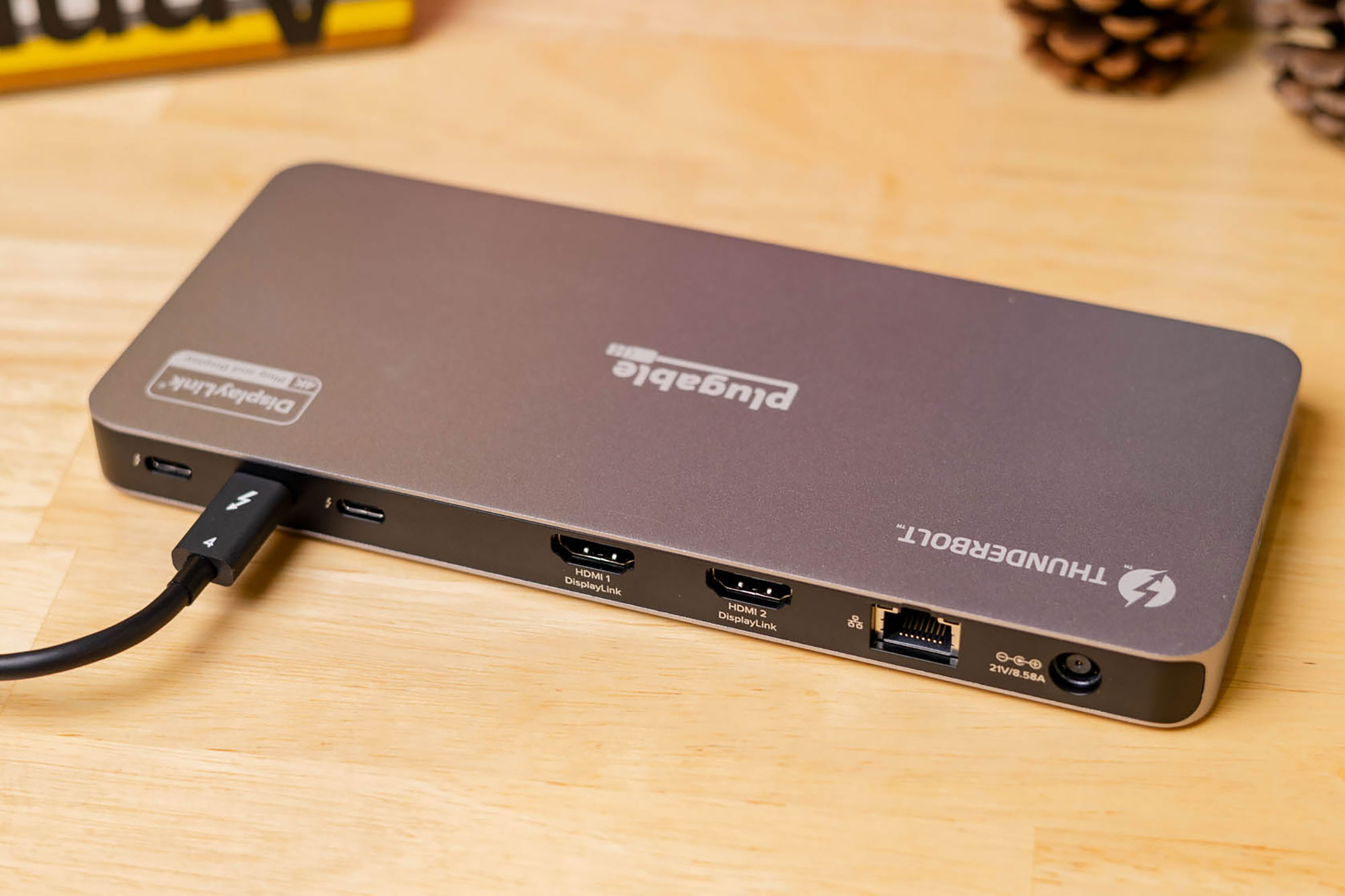
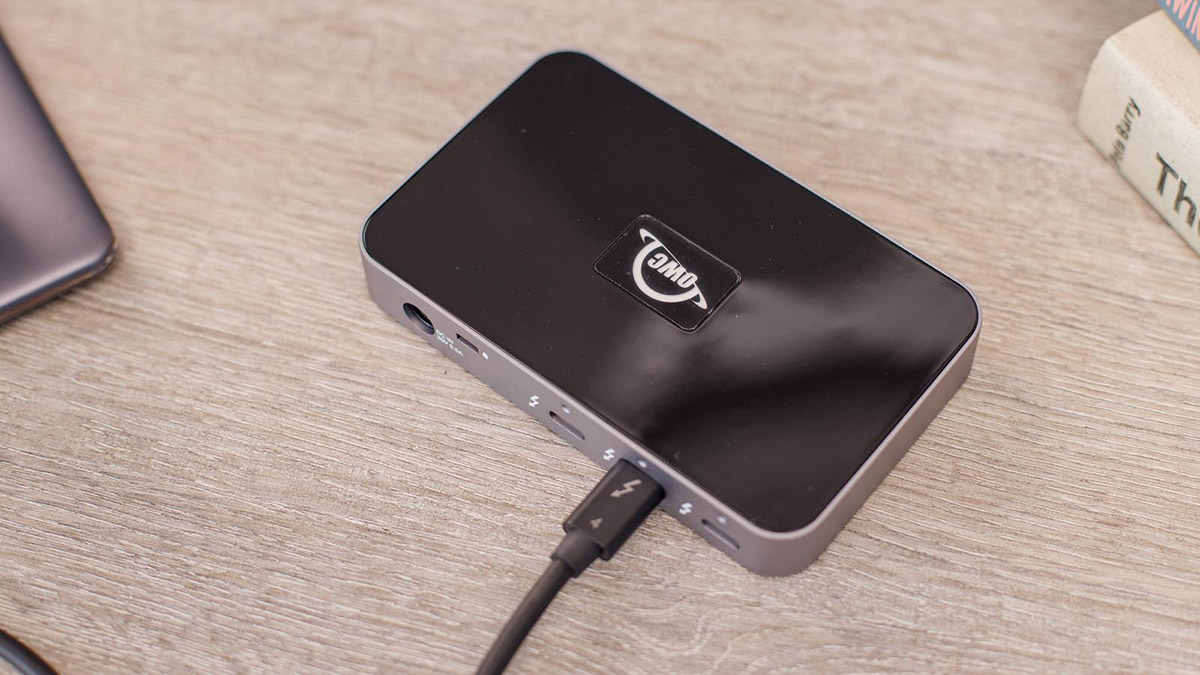
Many hubs and docks aren’t compatible with Apple’s SuperDrive CD/DVD drive. We’ve found few dock makers that offers compatibility with the SuperDrive, the Caldigit Thunderbolt Element Hub and OWC Thunderbolt Dock being two that do.
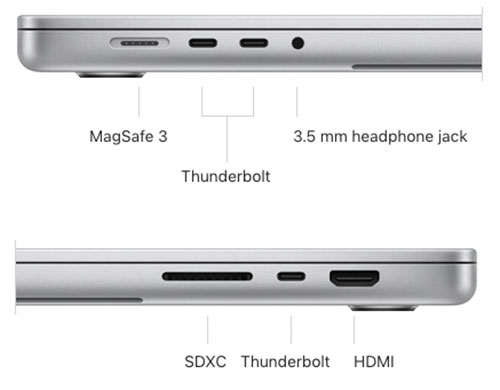
Which ports does each Mac have?
Here are the onboard ports on all of Apple’s current and recent Macs:
MacBook Neo: 2x USB-C (one for 10Gbps data and one for charging), 3.5mm headphone jack
Mac mini M4: 3x Thunderbolt 4, 2x USB-C (10Gbps), HDMI, Gigabit Ethernet, 3.5mm headphone jack
Mac mini M4 Pro: 3x Thunderbolt 5, 2x USB-C (10Gbps), HDMI, Gigabit Ethernet, 3.5mm headphone jack
Mac Studio M4 Pro: 4x Thunderbolt 5, 2x USB-C (10Gbps), 2x USB-A (5Gbps), HDMI, 10Gb Ethernet, SDXC Card Reader (312MBps), 3.5mm headphone jack
Mac Studio M3 Ultra: 6x Thunderbolt 5, 2x USB-A (5Gbps), HDMI, 10Gb Ethernet, SDXC Card Reader (312MBps), 3.5mm headphone jack
Mirrored or Extended Modes for Mac displays
When you attach more than one external display to a Mac you can choose between various setups. Most hubs with more than one video port—usually HDMI—can mirror your MacBook’s screen, but most can at best handle showing a different screen to the Mac but not different to each other when attempting Extended Mode.
For full extended Mode, where each of the screens shows a different image and you treat each as an extension to your workspace—moving your cursor and windows easily between the displays—you will likely need a hub or dock that supports free third-party DisplayLink software, which is easy to download and install. Included above are reviews of the Plugable Dual and Quad HDMI adapters, both of which work with DisplayLink. DisplayLink enables multiple screens even with plain M1 and M2 MacBooks that are technically limited to just one external display.
If you need even more ports than you’ll find on a hub, check our reviews of the best DisplayLink docks.
Baseus
How much power does each MacBook require for smooth running
Check the Power Delivery (PD) charging power each hub or adapter offers connected laptops or iPads.
The MacBook Neo charges at 20W.
The 13in MacBook Air charges at 30W.
The 13in and 14in MacBook Pro and 15in MacBook Air charge at 67W.
The higher-end 14in and 16in MacBook Pro require at least 96W. The 16-inch MacBook Pro prefers 140W.
You can certainly use a charger at lower power, but remember that it will power up slower than when using a higher-wattage charger, and if too low your laptop might run out of juice altogether when maxed out on power-hungry apps and devices.
Most of the products tested here work with non-Apple USB-C laptops too, but you can read Tech Advisor’s more general roundup of the best USB-C hubs.
Also, read our roundups of recommended USB accessories:
PDFs are basically unavoidable at this point — contracts, invoices, forms, resumes, reports, receipts, you name it. What’s less unavoidable is paying a monthly fee every time you need to edit one. PDF Reader Pro cuts out the subscription cycle with a lifetime license that gives you the tools to edit, convert, annotate, organize, and sign PDFs in one place for $39.99 (MSRP $79.99).
PDF Reader Pro can edit text and images directly in a document, insert or replace content, and use bookmarks, search, and night mode to make long reading sessions easier. Markup tools let you highlight, strike out, underline, and comment right on the page.
The app also lets you rearrange pages, merge or split files, rotate, crop, or delete pages, and batch add watermarks, headers, and footers. A batch compressor and encryptor help shrink and protect groups of files at once, and password protection keeps sensitive documents locked down.
For more advanced work, there are tools to create fillable forms with text fields, buttons, radio buttons, and combo boxes. OCR support lets you extract text and turn scanned pages into editable, searchable PDFs, which cuts down on manual typing. You can fill and sign forms, use redaction to permanently block sensitive text, and apply a digital signature that verifies identity and intent.
Whether you’re planning to buy a new Mac or you got one as a gift, your current Mac doesn’t need to end up in a closet. So what do you do with it? If you aren’t planning to give it to a lucky friend or family member, you can trade or sell it to help pay for that new Mac. Here’s how to get every last bit of value out of your old Mac.
Your Mac’s physical condition plays a key role in what you can get in return during a trade-in sale. If you have a Mac that you plan to keep for a while but know that you’re going to eventually trade or sell it when you upgrade, do what you can to take good care of it.
Desktop Macs like the Mac mini and iMac are easy to maintain since they won’t move from their location very much, if at all. Wipe off the dust that accumulates over time. Dust build-up can make your Mac work harder to keep itself cool, so regular dusting also makes sure your Mac runs efficiently. If you have an iMac, make sure your display remains pristine by cleaning your screen with a soft cloth every few weeks. Screen protectors are also available, but they require a great deal of patience and a good amount of skill to put on properly.
Laptop Macs are more prone to damage since they’re meant to be brought with you to work remotely. Use a good quality laptop bag, and always keep in mind that you’re using a pricey investment–we’ve all seen plenty of people at our local coffee shop handle their laptops carelessly. Don’t be that person. Speaking of coffee shops, try to keep beverages and food away from your MacBook in case a spill happens.
Be careful with how you use it. For example, if you’re connecting a USB device, try not to blindly plug it into a port. Feeling around the Mac’s port with a connector can scratch up the case, leaving an unsightly look of wear that can leave a bad impression on someone evaluating your computer.
Keep the original box (you don’t need the shipping box) and documentation. If you have the original cables and adapters, save those, too. People sometimes upgrade to faster chargers or longer cables, so keep the originals with the box. If you don’t have these items, that’s okay, you’ll still be able to trade or sell your Mac. But you’ll probably get more with them, especially if you sell it privately.
Wipe your data from the Mac: The steps
Save your data
When you’re ready to trade or sell your old Mac, make sure you back up the data that’s on it. If you haven’t backed up your Mac previously, we recommend getting an external storage device.
The easiest way to back up is Apple’s built-in Time Machine. Using Time Machine is ideal because you can use it to perform a data restore on your new Mac, which then pulls over all of your old settings, files, and apps, so your new Mac will be configured just like your old one. You can also use a third-party backup service or cloud storage like iCloud or Dropbox to save important files, such as your Documents folder, photos, and media files. You’ll be able to restore those files to your new Mac, but any apps will need to be downloaded from the App Store or the developer’s website. You’ll also need to redo your settings on your new Mac.
Deauthorize your Mac from your Apple ID
This is an important step. Apple tracks what devices you use, and if you don’t sign out, the new owner of your old Mac may not be able to set it up. To sign out, use your iPhone, iPad, or another Mac and go to your Apple ID account at appleid.apple.com, then log in with your username and password. Go to the Devices section of the webpage, where you’ll see a list of devices associated with your Apple ID. Click on the Mac you want to deauthorize, and a pop-up appears. Click the Remove from account button. A confirmation dialog will appear, and you’ll need to confirm that you want to perform this action.
Once that’s done, on the old Mac, make sure it is logged out of iCloud by checking System Preferences/System Settings. You’ll also want to make sure it is logged out of Messages, which you can check in the Messages app.
Foundry
Reset the NVRAM on Intel Macs
Intel Macs use NVRAM to quickly access certain settings. To reset the NVRAM, turn off your Mac. Then hold down the Option, Command, P, and R keys on the keyboard and power on the Mac. Keep holding down those keys as your Mac boots and then boots again. If you hear the boot sound a second time or you see the Apple logo appear, disappear, and then reappear, you can let go of the keys. This isn’t necessary on M-series Macs.
Erase the storage device and reinstall macOS
Make sure your data is saved and you’re connected to Wi-Fi before you proceed with erasing the storage and reinstalling macOS using macOS Recovery. Here’s how to start the process:
On an Intel Mac, hold down the Command+R keys while turning on the computer.
On an M-series Macs, press and hold down the power button while turning it on.
The macOS Recovery menu will appear. You can then use Disk Utility to wipe your Mac’s drive. (Apple has detailed instructions on how to do this for Intel and M-series Macs.) When Disk Utility is finished, quit the app, and then click on Reinstall macOS in the Recovery menu to install the operating system.
The macOS Recovery menu.
Apple
Sell your Mac
Okay, now that your old Mac is ready to go, you need to decide where you’re going to sell it. There are several third-party sites that you can go to, though you may not get as much as you could from selling directly to someone through eBay, Facebook Marketplace, or Craigslist. But selling to a reseller can be ideal if you want to avoid the hassle of dealing with other people. Here are some of the more popular buyback sites and what they offer.
Gazelle buys (and sells) MacBooks only–its website does not appear to allow you to sell them a desktop Mac. After letting them know the condition of your item, they provide a quote that’s good for 30 days and covers shipping. After receiving your Mac, they’ll examine it and may make you a new offer if the Mac doesn’t match the initial evaluation. If you turn down the new offer, you can get your Mac back, but you have to pay for shipping. They pay you with a check, through PayPal, or an Amazon gift card.
Swappa
Swappa is a marketplace where you sell directly to other people. To make sure transactions are secure, Swappa verifies listings, handles PayPal-only payments, and organizes shipping. The fees Swappa charges are included in the posted prices. If you’re hesitant about posting on eBay or Craigslist, Swappa is a good alternative.
Trade in your Mac
You may not get as much as you could by selling your Mac to a person or third-party service, but trade-ins are almost hassle-free and convenient. Trade-ins are also often available when a Mac isn’t in sellable but working condition. You usually get compensated with a gift card, store credit, or credit toward your purchase.
Apple
The trade-in process with Apple is quick and easy. Apple asks a few questions about your machine’s condition (you need to provide the serial number), and then the offer can be applied to a new purchase. Apple will contact you if it needs to revise its offer after inspecting your Mac.
Your trade-in value can be used toward the purchase of a new Mac on Apple.com.
Apple
Amazon
Amazon has a Trade-In program, but as of this writing, it does not seem to be open to Macs of any kind. You can submit iPads, iPhones, or other non-Apple devices, and they pay you with an Amazon gift card. It takes a while to process your trade-in, and you can get more at other sites, but if you shop at Amazon frequently, it’s an attractive service.
Best Buy
Best Buy has a trade-in program, but you’ll need to find your exact model before you can start the process. You get a Best Buy gift card.
Walmart
Walmart has a program in partnership with CExchange, but it’s only for Mac laptops. You get a Walmart eGift card.
Apple’s expanded use of AI in iOS and iPadOS 27 will include writing tools that can check your grammar, custom shortcut creation using natural language, and AI-generated wallpapers, according to a report from Mark Gurman at Bloomberg.
The tools are part of an expanded use of AI throughout iOS, iPadOS, and macOS, including an all-new conversational Siri powered by an entirely new language model.
Apple wants to make Writing Tools, now two years old, more discoverable. There may be a “Write with Siri” button at the top of the keyboard, and a “Help Me Write” option if you invoke Siri while the cursor is in a text field. Among the new features will be a grammar checker, similar in function to Grammarly, that will display original and suggested text in a translucent menu that slides up from the bottom of the screen.
For some time now, Apple has been working on AI-powered Shortcut creation, and it is apparently ready to be included in the OS. Instead of creating scripts in the Shortcuts app to make your own shortcut, you’ll be able to use natural language to describe what you want your shortcut to do.
Finally, the report says we can expect a new option in the wallpaper picker that allows users to generate one using the Image Playground app, which is also expected to get a major overhaul with improved image generation capabilities. Google has promoted a similar feature in its Pixel phones since 2023.
For more on what we expect Apple to announce at WWDC, check out our iOS 27 guide.
Apple just sent out its media invitations to the WWDC 26 keynote, which takes place at 10 a.m. Pacific Time on June 8. The media will gather at Apple Park to watch the same video that Apple streams on Apple TV, the Apple website, and YouTube, with introductions by Apple execs like Tim Cook and incoming CEO John Ternus.
In addition to the invitations to the media, Apple has published the schedule of events for WWDC. It begins, as always, with the keynote presentation followed by the Platforms State of the Union, with additional developer sessions and group labs and such following all week long. Developers can find the schedule for those on the developer site, but don’t look for details on unannounced features there just yet. Apple fills in the schedule for those later.
The invitation features the Swift logo glowing brightly on a dark background. It’s not unusual for Apple to feature Swift at a developer event, and there are always big updates for Swift users at WWDC, but this placement is especially prominent. Apple may have big things in store for Swift this year.
Apple events are usually accompanied by a tagline, usually some play on words that gives a clue about an expected new feature to be announced. “Coming Bright Up” is the tagline this time, and our best guess about its meaning is the same as when the WWDC 26 date and logo were first announced with brightly glowing text: Siri is expected to get a major overhaul with a new interface to match, and a key part of that interface will be a glowing dynamic island when Siri is in use.
The brightly glowing interface convention may be used for other Apple Intelligence features as well—iOS 27 is expected to get improved AI for visual intelligence, writing tools, photo editing, and more.
Apple announced a new promotion this week that seems too good to be true: Sign up for a new Apple Card and get a pair of AirPods Pro 3 for free. That sounds great (no pun intended), but take a closer look at the fine print, and it’s not nearly as generous as it seems.
To start, notice that you don’t actually get AirPods Pro 3 free. You have to buy them, and then you eventually get reimbursed by Apple. It says as much right in the big banner at the top of the Apple Card signup page.
For a limited time, earn back the cost of AirPods Pro 3, up to $250 total Bonus Daily Cash. Get a new Apple Card and buy AirPods Pro 3 at Apple by June 15. Starting July 1, each month you make 10+ purchases you’ll earn $25 Bonus Daily Cash, through April 30, 2027.*
Apple
Oh, what’s that? An asterisk? Let’s just scroll down to the fine print and find out what that asterisk is all about…
Obviously, this is a promotion to get new applicants, so it doesn’t apply to anyone who already has an Apple Card. If you’re new to Apple Card, you have to apply for a new Apple Card, be approved, and then use that Apple Card to buy AirPods Pro 3 directly from Apple by June 15. You will then earn $250 in “bonus Daily Cash” equal to the cost of your AirPods Pro 3, minus sales tax and any other fees (you’re on the hook for that). Also, the AirPods need to be new, so you can’t buy a refurbished set, or different AirPods, or buy in bulk.
You can, however, use the various purchase options tied to Apple Card, including paying in installments, and a trade-in offer won’t affect your eligibility.
Daily Cash is one of Apple’s signature features, where the cashback you earn is deposited into a virtual Apple Cash card or the Apple Card’s high-yield savings account each day as your purchases clear. Most Apple Pay purchases give you 2-3 percent cash back.
So the cost of the AirPods Pro 3 you purchase will be reimbursed to you as a one-time Daily Cash bonus? No problem, you’ll just pay them off right away and avoid the interest, right? Sorry, it’s paid to you at the rate of $25 per month over 10 months, from July 1, 2026, through April 30, 2027.
What’s more, you have to use your Apple Card to make at least 10 purchases each month (of at least $0.01). If you use the Apple Card Family feature to add family members to your account with other family members, their purchases will not count toward the 10 you need to make. You’ll also need to watch out for multiple purchases from a single vendor that get bundled into a single purchase. The App Store does this: make several in-app purchases within one or two days, and your card will usually be billed only once. Those bundle purchases only count as a single transaction for this.
The $25 of bonus daily cash is earned and deposited in your account after your 10th purchase each month. The fine print does not say what happens if you make fewer than 10 purchases in a month, but it would appear that you simply don’t get your $25 that month, but you can resume getting the $25 bonus in future months by making 10 or more purchases. You’ll just run out of time to get your full $250 back before the promotion ends.
In short, you don’t actually get a free pair of AirPods Pro 3. You have to buy them first, and then you need to make a lot of purchases with your new Apple Card every month for almost a year to get paid back the purchase price.
As is always the case with credit cards, nothing is actually free; the bank will extract the value of whatever you think you’re getting for free one way or the other.
Apple Card is a perfectly reasonable cashback credit card with no fees, especially if you buy a lot of Apple stuff. If you were going to get an Apple Card anyway and you know you are going to use it about three times a week for the next year, and you can pay off those AirPods Pro 3 before you start racking up monthly interest, then there’s no reason not to take advantage of this offer. But the stipulations and conditions on this promotion should probably not convince anyone to get Apple Card that wasn’t already going to do it anyway.
Sure, there are new AirTags available, but the older model is just as reliable for tracking stuff. So why pay $99 for a four-pack when you can get a pack of 1st-gen AirTags for $57? But wait, today only returning Woot customers can use the SAVETWENTY coupon code at checkout to get an extra 20 percent off the pricea nd bring them down to less than $46. Even better, new customers can get 30 percent off until the end of today for a final price of $39.90, a ridiculous price that we might not ever see again.
AirTags are such useful tools to have at your disposal, allowing you to keep track of keys, wallets, luggage, pets, and so on. Just pop open the Find My app, and you’ll immediately know where to find your things. Picture this — it’s early morning, you overslept, you’re juggling your laptop bag, phone, jacket, trying to get your shoes on, and you cannot find your keys. Instead of wasting even more time, you can open the app and make the AirTag ring so you can find them in a blink.
If you lose them out of Bluetooth range, the AirTags can ping off other iOS devices, so you always know where your luggage is. Whatever way you’re going to use these tiny little things, they’ll be useful to have. So hurry up and get some AirTags at a price so low we’ll probably never see it again.
Apple’s newest iPad Air has only been on shelves for about two months, but you can already save a bundle on one: Instead of shelling out $599 for the 11-inch model with 128GB of storage, it can be yours today for $520 at Amazon, a savings of $79 and the best price we’ve seen for this tablet.
This is an excellent tablet, packing plenty of speed and processing power. Equipped with an M4 chip and 12GB of RAM, this 11-inch tablet can tackle everything you want to do. From streaming content to gaming to using photo editing apps, you can use this app for everything and anything you want. It’s even a great tool to use when participating in online meetings because that 12MP front camera with Center Stage will keep the focus on you. Oh, and the Liquid Retina display will look gorgeous in any lighting situation, delivering vibrant colors and great contrast.
The tablet is ready for all the Apple Intelligence upgrades coming this fall and will handle any tasks you need to get done. Plus, you can add an Apple Pencil or Magic Keyboard to boost your productivity even further.
Don’t miss out on the chance to save $80 on an impressively fast tablet that’s at its best discount yet.
With Apple’s long-awaited Siri revamp set to finally launch as part of iOS 27 this summer, a new report has revealed one of the main issues which has caused the delay, and how the company will spin this into a competitive advantage.
In the latest edition of his Power On newsletter, Bloomberg reporter Mark Gurman claims that Apple’s focus on user privacy has held back its ability to develop industry-leading AI tech. He cites the company’s self-imposed “more restrictive approach to collecting, analyzing, and using customer information to train models and improve features” as a major factor in its failure to catch up with rivals.
“Rather than broadly tapping into real user data, it often relies on techniques such as synthetic data generation,” Gurman explains. “Apple argues that consumers shouldn’t need to give up their personal data to get top-notch AI features. [But] in practice, this hasn’t always worked out.”
The result, as well as a slower development cycle, has been an Apple AI platform whose features are shallower and less functional than those of rival companies such as OpenAI, Google, and Anthropic. The company has attempted to solve both problems by patching AI tech made by other companies into its products, principally Google Gemini and ChatGPT, which comes with its own issues. Namely, can other companies be trusted to safeguard user data as carefully as Apple?
Apple doesn’t prioritise privacy out of the goodness of its heart. It understands many of its users distrust the way their data is harvested and sold by software companies, and the way their activity online is tracked and used for personalised advertising. Apple identified an underserved demographic (privacy-conscious users) and created a unique selling point for itself. Working with companies that don’t have the same philosophy risks tarnishing Apple’s pro-privacy reputation.
According to Gurman, the revamped Siri (which we already understand will exist as a standalone app for the first time) will attempt to maintain its privacy credentials by offering a unique feature: it will automatically delete the history of interactions with the user, much as Messages can be set to delete messages after 30 days or a year. Some other AI chatbots allow the user to delete chat history or temporarily work in an untracked incognito mode, but Apple will reportedly make this the default.
“Apple’s position is that such protections should be built into the system itself,” he explains, “rather than treated as an optional setting users have to manually enable.”
Like the company’s other pro-privacy policies, this could come at a price. Chatbots use chat histories as a source of context about the user and a shortcut to quicker and more knowledgeable responses to queries. Siri may therefore struggle to keep up with rivals, even in its revamped iOS 27 form–but as Gurman notes, it will be able to point to the system’s superior privacy options as both excuse and compensation for any shortfalls in performance.
The revamped version of Siri is expected to be announced as part of iOS 27 at WWDC this coming June. For all the latest news and rumors, bookmark our regularly updated iOS 27 superguide.
Apple holds what has traditionally been referred to as its “Back to School” promotion every year – although it is now referred to by Apple as the “College Student Offer” or “Higher Education Offer” to avoid confusion, because it is only open to students in higher education, along with qualifying educational staff and teachers, rather than school-age children.
As part of the promotion, eligible students can qualify for an incentive when purchasing qualifying Apple products, which are already discounted through Apple’s Education Store. In recent years, these incentives have included free AirPods, a free Apple Pencil and other accessories.
Apple’s “Back to School” deal runs in various regions around the world during the summer break for universities and colleges. The promotion typically ends around a month after the first university semester or term begins in each country, so it will be starting in North America very soon.
Region2026 Start date2026 End Date2026 DealNorth AmericaMid-June (TBC) Mid-September (TBC)Expected: Free/discounted AirPods, Apple Pencil, Keyboards and MiceU.K. & Europe Mid-July (TBC)Mid-October (TBC)Expected: Free/discounted AirPods, Apple Pencil, Keyboards and MiceAustralia January 7, 2026March 11, 2026Confirmed: Free/discounted AirPods, Apple Pencil, Keyboards and Mice
Read on to find out everything you need to know about Apple’s Higher Education promotion this year, including when it is expected to begin in your region, what products and incentives may be included, who qualifies, and how to take advantage of the offer.
Apple’s “Back to school” deal: At a glance
What is Apple’s “Back to School” deal? The 2026 deal is expected to be free AirPods, Apple Pencil, and other accessories with purchases of qualifying Macs and iPads.
When is Apples “Back to School” deal? It is expected to run during June to September in North America, July to October in the U.K. and Europe.
Is this the only student saving from Apple? No, Apple offers a discount on Macs and iPads all year round to qualifying students.
Who qualifies? Verified students in higher education institutions – and their parents.
Who can get Apple’s “Back to School” give-away?
Current and newly accepted higher education students – and their parents
Apple
If you are enrolled at a higher education institution (post-K12 education, such as a university or college), or are the parent of a student who is enrolled, you qualify for Apple’s year-round education pricing as well as the “Back to School” promotion while it is running.
You will need to verify your eligibility before you can access the offer. Prior to May 2026, verifying student status in some countries – including the U.S. – only required an .edu email address and the name of a higher education institution. Apple has since tightened its verification requirements.
As a result, shoppers now need to verify their student status through UNiDAYS (as was already the case in the U.K.). Students are typically required to provide their name, date of birth, and school email address, then search for their institution and wait for their student status to be confirmed.
Apple’s education pricing is not available to parents buying for school-age children, but it is available to parents who are homeschooling their children.
When does Apple’s “Back to School” deal start?
U.S. & Canada: From mid June – end September 2026.
In North America, the “Back to School” deal is expected to run from mid-June through the end of September. Apple has not yet confirmed the official dates, but last year the promotion ran from June 17 to September 30 in the U.S. and Canada, so a mid-June launch is likely again this year.
Because the academic summer break begins and ends later in Europe, the promotion is expected to launch in the U.K. and across Europe in mid-July. In 2025, for example, the offer began on July 10 and ended on October 21.
The deal ran from January 7 to early March 11 this year in the Southern Hemisphere. Similar timings are expected in 2027.
What is Apple’s “Back to School” deal this year?
Free AirPods/Apple Pencil/keyboard/mouse were offered with qualifying purchases in the Australian promotion earlier in 2026.
The same giveaway is expected to launch later in 2026 in North America, the U.K., and Europe.
Foundry
During the Australian promotion, which ran from January 7 to March 11, 2026, Apple offered free or discounted accessories – including AirPods, AirPods Pro, Apple Pencil models, and Apple Keyboard, Mouse, or Trackpad products – with the purchase of qualifying Macs and iPads.
The following products were offered for free or discounted, earlier in 2026:
AirPods 4
AirPods Pro 3
Magic Mouse
Magic Trackpad
Magic Keyboard
Apple Pencil Pro
Magic Keyboard (for iPad Air/iPad Pro)
Apple also offered similar giveaways during its 2025 promotion, and, previously, Apple also included a discount for the AirPods Max.
However, this has not always been the company’s approach. From 2022 to 2024 in the U.S., U.K., and some other regions, Apple instead offered gift cards worth up to $150/£130, depending on the products purchased during the promotional period. While Apple could return to that format, it is not currently expected to do so.
As of May 2026, Apple has yet to officially confirm this year’s promotion in North America or Europe, but the company is widely expected to continue offering AirPods and the other accessories listed above as part of the deal.
Can students qualify for other savings at Apple?
Yes. Apple’s “Back to School” promotion is not the only education-related discount the company offers. Macs and iPads sold through Apple’s Education Store are discounted year-round, so qualifying students and educational institutions can save up to $100/£100 of a Mac or iPad at any time of the year.
The summertime Back to School promotion is offered in addition to these ongoing education discounts. We explain everything you need to know about qualifying for Apple’s education pricing – including how much you can save and how to shop through the Apple Education Store – in our Guide to shopping in the Apple Education Store.
In order to get Apple’s “Back to School” Deal you need to purchase a qualifying Mac or iPad from your local Apple Education Store during the promotional period.
You will need to verify your student status via UNiDAYS, as explained above.
Visit the Apple Education Store for your region using the links below:
Logging in from your university network may help simplify the verification process.
When you purchase a qualifying Mac or iPad, you will then be able to claim the promotional freebie or discounted accessory.
You can choose which of the giveaway product you want to receive when you make your order. In some cases the freebee comes with an additional cost, we include details of how much more you may need to pay in the tables below.
Which products qualify for Apple’s “Back to School” deal this year?
Apple’s Back To School deal in 2025.
Apple
Apple has yet to confirm which products will qualify for the the 2026 promotion in North America, the U.K. and Europe.
However, during the Australian promotion earlier in 2026, the following products qualified:
MacBook Air
MacBook Pro
iMac
iPad Pro
iPad Air
Will Apple include the MacBook Neo in the 2026 “Back to School” promotion?
Since the Australian promotion ended, Apple has launched the MacBook Neo, a new laptop aimed specifically at students.
As for whether Apple will offer free AirPods or other accessories with purchases of the MacBook Neo, we think that is unlikely.
While the new MacBook is clearly targeted at students, we do not expect Apple to include it in the promotion because of its already relatively low starting price.
Will Apple include the Mac mini in the 2026 “Back to School” promotion?
Apple has previously allowed the purchase of a Mac mini to qualify for the promotion, but not in 2025 or, so far, in 2026.
In recent times, the Mac mini has surged in popularity, especially among AI developers looking for a relatively inexpensive Apple Silicon machine capable of handling local AI workloads. This popularity, combined with ongoing global component shortages, has left Mac mini supply constrained as of May 2026, so we do not expect Apple to include it in the “Back to School” promotion.
Apple could also launch an updated Mac mini in the coming months, but even if it does, we still think it is unlikely to be included in the student deal.
Will Apple include the iPad A16 in the 2026 “Back to School” promotion?
Apple has previously allowed entry-level iPads to qualify for its Back to School promotion, but that was not the case in 2025 and, so far, it has not been the case in 2026 either.
With a new entry-level iPad expected later in 2026 – and the current iPad A16 lacking support for Apple Intelligence — our recommendation would be to choose an iPad Air instead.
Will Apple include the iPad mini in the 2026 “Back to School” promotion?
Apple has included the iPad mini in some Back to School promotions in the past. A new iPad mini is expected to launch in 2026 and that may affect Apple’s decision to include it in the deal.
Will Apple include the iPhone in the 2026 “Back to School” promotion?
Apple has never included the iPhone, Apple Watch, or any products other than selected Macs and iPads as qualifying purchases for its “Back to School” promotion.
The additional savings available through Apple’s “Back to School” promotion depend on both the product purchased and the promotional accessory being offered.
In previous promotions, students could save up to $199 by choosing a free Magic Keyboard, up to $179 by selecting AirPods 4 with Active Noise Cancellation, or up to $129 by choosing an Apple Pencil Pro.
If you select one of the more expensive accessories offered as part of the promotion, you typically need to pay the difference above the promotional discount amount. For example, in 2025, choosing AirPods Pro 3 required an additional payment of $70.
Below, you can see the kinds of savings Apple has offered in previous years. Once Apple confirms the 2026 promotion details for North America, the U.K., and Europe, we will update these tables accordingly
U.S. “Back to School” giveaway details: 2025
In summer 2025, U.S. students making the following purchases could either get free Mice, TrackPad, Keyboard, Apple Pencil, or AirPods 4, or get a discount on the price of the AirPods Pro 2 and Magic Keyboard cases for iPad. The terms and conditions of the deal are here: U.S.
BuyGetSavingAdditional spendMacBook Air or MacBook Pro AirPods 4 with ANC$179
AirPods Pro 2 $179$70 Magic Mouse $79 or $99
Magic TrackPad$129 or $149
Magic Keyboard $179 or $199 iMacAirPods 4$179
AirPods Pro 2 $179$70iPad Air or iPad ProApple Pencil Pro $119
AirPods 4$129
AirPods 4 with ANC$129$50 AirPods Pro 2 $129$120 Magic Keyboard for 11-inch iPad Air$119$130 Magic Keyboard for 13-inch iPad Air$119$180 Magic Keyboard for 11-inch iPad Pro$119$160 Magic Keyboard for 13-inch iPad Pro$119$210If you want AirPods Pro you have to pay a little more, but you are still getting $179 off.
U.K. “Back to School” giveaway details: 2025
U.K. students making the following purchases could either get free Mice, TrackPad, Keyboard, Apple Pencil, or AirPods 4, or get a discount on the price of the AirPods Pro 2 and Magic Keyboard cases for iPad. The terms and conditions of the deal are here: U.K.
BuyGetSavingAdditional spendMacBook Air or MacBook Pro AirPods 4 with ANC£179
AirPods Pro 2 £179£100 Magic Mouse £79 or £99
Magic TrackPad£29 or £149
Magic Keyboard $179 or $199 iMacAirPods 4£179
AirPods Pro 2 £179£100iPad Air or iPad ProApple Pencil Pro £119
AirPods 4£129
AirPods 4 with ANC£129£50 AirPods Pro 2 £129£100 Magic Keyboard for 11-inch iPad Air£119£130 Magic Keyboard for 13-inch iPad Air£119£180 Magic Keyboard for 11-inch iPad Pro£119£160 Magic Keyboard for 13-inch iPad Pro£119£210If you want AirPods Pro you have to pay a little more, but you are still getting £179 off.
Australian “Back to School” giveaway details: 2026
In summer 2026, Australian students making the following purchases can either get free Mice, TrackPad, Keyboard, Apple Pencil, or AirPods 4, or get a discount on the education price of the AirPods Pro 3 and Magic Keyboard cases for iPad. The terms and conditions of the Australian deal are here.
BuyGetSavingAdditional spendMacBook Air or MacBook Pro AirPods 4 with ANCA$299
AirPods Pro 3A$299A$130 Magic Mouse A$119 or A$149 Magic TrackPadA$179 or A$209
Magic Keyboard A$249 or A$279 iMacAirPods 4 (with ANC)A$299
AirPods Pro 3 A$299A$130iPad Air or iPad ProApple Pencil Pro $199
AirPods 4A$219
AirPods 4 with ANCA$219A$80 AirPods Pro 3A$219A$210 Magic Keyboard for 11-inch iPad AirA$199A$220 Magic Keyboard for 13-inch iPad AirA$199A$270 Magic Keyboard for 11-inch iPad ProA$199A$270 Magic Keyboard for 13-inch iPad ProA$199A$350If you want AirPods Pro you have to pay a little more, but you are still getting A$130 off.
Europe “Back to School” giveaway details: 2025
European students making the same purchases as those above could either get free Mice, TrackPad, Keyboard, Apple Pencil, or AirPods 4, or get a discount on the price of the AirPods Pro 2 and Magic Keyboard cases for iPad.
French details here. German details here. Spanish details here. Italian details here. Netherlands details here.
India “Back to School” giveaway details: 2025
The 2025 deal in India the Back to University was the same as in the U.S.: AirPods or Apple Pencil discounts.
Brazil and South Korea “Back to School” giveaway details: 2025
In Brazil and South Korea Apple gave away AirPods with Mac purchases and Apple Pencil with iPad purchases from January to March 13, 2024. The deal was the same in 2025.
Other ways to save money on a Mac or iPad
Even with the arrival or the MacBook Neo, a MacBook Air is still a good choice for students.
Foundry
If you don’t qualify for an education discount have a look at these round-ups of the best deals on a new Mac and iPad:
Apple, for all its stagecraft and marketing savvy, often seems to get the best PR when it’s not in the spotlight. Attention brings criticism, and the afterglow of an Apple event, tech columnists and TikTok trolls alike line up to dunk on the iPhone Air’s plateau, say, or the Mac Pro’s wheels. But watch the vibe change when another company takes its turn on the stage.
The critics and memers gave the MacBook Neo a comparatively easy ride when it turned up at the start of March. But last week, a week in which Apple made no announcements about the product and implemented no special marketing efforts, was perhaps its best yet, thanks to Google and Microsoft’s clumsy efforts to take it down. We’re not owned, they both insisted, while slowly shrinking and turning into a corncob.
Google started things off by unveiling the Googlebook, a Gemini-pushing device which my colleague on PC World astutely calls the world’s first anti-personal computer. The software philosophy behind the Googlebook is AI-first, but its design and hardware approach are clearly Neo-second: an obvious attempt to recapture the lightning which Apple bottled so successfully a couple of months ago.
We don’t yet know any tech specs, and Google promises something “premium” to sit above the Chromebook. But such terms are relative, and we should remember that Chromebooks can be had for less than $200. Given the new device’s role as an AI delivery system and Android emulator, it seems unlikely that Acer, Dell, and the rest will cram it with top-tier componentry. Expect something sleek, lightweight, but affordable; $599 has a nice ring to it.
While Google was flattering Apple with imitation, Microsoft was performatively insisting that the MacBook Neo isn’t a big deal at all. Hilariously, the company went to the trouble of commissioning a super-serious and definitely unbiased whitepaper on the subject. It turns out that we were all sadly mistaken, and the Neo isn’t an excellent budget laptop after all. Much better, our researchers explain, to plump for (checks notes) laptops which are way more expensive, made of plastic, stuffed with bloatware, or all of the above.
I could spend a whole column talking about the silliness of the whitepaper–indeed, I strongly recommend that you read Roman Loyola’s polite demolition of its claims–but the real problem is not so much that the study is wrong. It’s that Microsoft thought commissioning and publishing the study would help. If you have to commission whitepapers to tell people not to buy your rival’s laptops, you’ve already lost. And paying researchers to prove something isn’t a big deal, rather shows that you think it is.
But perhaps all this foolishness shouldn’t have come as a surprise. The MacBook Neo has done a good job of selling itself to budget laptop buyers, but it’s done a far better job of getting under the skin of rival tech companies. Right from the start, comparisons showed that the machine was performing better at a role traditionally filled by Windows machines, and PC makers have been panicking ever since.
The funniest part is that the industry can’t decide whether the Neo is good, and therefore worth copying, or bad, and therefore not a threat. Sometimes you’ll find a PC maker unable to decide between these two mutually exclusive positions. Shortly after the Neo launch, Asus CEO S.Y. Hsu admitted it was “a shock to the entire industry” and that the whole PC ecosystem had been talking about how to compete with it. But a few sentences later, he was insisting that, actually, the Neo is just a content consumption device that won’t have much of an impact. You can’t have it both ways, I’m afraid.
Ultimately, the response of PC makers (and PC operating system makers) to the launch of the MacBook Neo reflects a difference in philosophy at the most fundamental level. Apple’s rivals find it fascinating. They don’t quite understand how it works or how it has achieved what it has, which is why no other company has been able to replicate the Apple formula. But they can’t stop watching. And again and again, they find themselves unable to resist the temptation of making Apple the subject of their own marketing.
Apple, on the other hand, spends its time focusing on itself. It’s aware of other companies and their products, and of course, like all tech companies, it uses the developments and innovations of others to spur on its own work. It acquires other companies and hires their staff. But it views rival products as a starting point: something to surpass, not to imitate. And that’s why the company makes products that are worth imitating, and which customers want to buy without the influence of silly whitepapers.
Foundry
Welcome to our weekly Apple Breakfast column, which includes all the Apple news you missed last week in a handy bite-sized roundup. We call it Apple Breakfast because we think it goes great with a Monday morning cup of coffee or tea, but it’s cool if you want to give it a read during lunch or dinner hours too.
Trending: Top stories
Good news: Google didn’t copy Liquid Glass. Bad news: It did something even worse.
And with that, we’re done for this week’s Apple Breakfast. If you’d like to get regular roundups, sign up for our newsletters, including our new email from The Macalope–an irreverent, humorous take on the latest news and rumors from a half-man, half-mythical Mac beast. You can also follow us on Facebook, Threads, Bluesky, or X for discussion of breaking Apple news stories. See you next Monday, and stay Appley.
There’s a point where “good enough” free productivity apps start becoming annoying. Formatting breaks. Excel files possessed. PowerPoint presentations suddenly look different on someone else’s computer.
This Microsoft Office Home & Business 2019 for Mac deal can help restore order to your digital life. It’s on sale for a one-time $29.97 payment (reg. $229), which gets you lifetime access to Word, Excel, PowerPoint, Outlook, OneNote, and Teams Classic on one Mac device.
Instead of adding another subscription to the monthly pile, you pay once and keep using the apps you already know. No recurring fees. No “your subscription has expired” jump scare six months from now.
This version was redesigned specifically for Mac users, too, with Retina display optimization, full-screen support, and smoother macOS integration. So it still feels modern despite being Office 2019.
It’s also ideal for people who regularly work with Microsoft file formats for school, remote work, business, freelancing, or side projects. Because while free alternatives exist, they don’t usually work as well as the real deal.
TL;DR: This Grade A+ refurb HP EliteBook 840 G8 gives you a business-class laptop with 16GB RAM, a 512GB SSD, Wi-Fi 6, and Windows 11 Pro for just $359.99 (reg. $899.98).
This Premium Grade A refurbished EliteBook is $359.99 (reg. $899.98), and it’s one of those purchases that feel less like bargain hunting and more like knowing a shopping hack.
The 14-inch Full HD display looks sharp, and the backlit keyboard plus 15.75-hour battery life make this a genuinely good remote-work or travel laptop. It also includes Windows 11 Pro, Wi-Fi 6, Bluetooth 5.0, USB-C connectivity, and Intel Iris Xe graphics.
A Grade A+ refurbished rating means near-mint condition, and is the highest quality of refurbished electronics.
For people who care more about performance-per-dollar than chasing the newest shiny thing, this is a smart pickup.
Down from $448.99, you can now get lifetime access to Windows 11 Pro and Microsoft Office for $135.
Last year, Microsoft ended support for Windows 10 and raised the price for Microsoft 365 to $99.99 per year. If you want a smart way to secure your computer and get out of constant subscription fees, right now, you can get Microsoft Office 2024 and Windows 11 Pro for life on sale for $134.97.
This bundle gives you two lifetime licenses, one for Microsoft Office and one for Windows 11 Pro. The Office license works for Mac or PC and includes
Word
Excel
PowerPoint
Outlook
OneNote
These are recently updated versions of the same core apps you get from Microsoft 365, complete with the new AI integrations for data analysis and content creation. PowerPoint even has new ways to record presentations.
Windows 11 Pro does a lot more than reintroduce security updates to your machine. You’ll also get access to a refined interface with snap layout, along with new security tools like BitLocker device encryption, Hyper-V, and TPM 2.0.
Both of these licenses last for life without any recurring costs, so while they may be more expensive than a single month of Microsoft 365, they cost a lot less than you’d end up paying in the long run.
This compact 10Gbps 8-port hub boasts USB4 for unmatched dual-display support with no extra software installation required.
Price When Reviewed
This value will show the geolocated pricing text for product undefined
Best Pricing Today
Price When Reviewed
$149.99
Best Prices Today: EZQuest USB 4 Dual Display 8-in-1 Hub (Pro Series)
Retailer
Price
$119.99
View Deal
EZQuest
$149.99
View Deal
Price comparison from over 24,000 stores worldwide
Product
Price
Price comparison from Backmarket
This lightweight, compact hub bristles with USB-C ports and uses the latest Intel tech to offer dual-display support without the need for DisplayLink or any other third-party software install.
The alternative for users seeking dual-display support on Mac without software dependency is usually a Thunderbolt dock, which cost over twice the price of this portable hub.
No-nonsense USB-C
To properly expand your pro Mac system you need ports—a lot of ports, and there simply aren’t enough of them on any Mac.
The Mac Studio has 12 top-end ports, the Mac mini 8, and MacBook Pro 6. At the other end of the Mac scale, the MacBook Neo has just two and one of them is for charging only.
You can add more ports by connecting your Mac to a hub or docking station. A hub usually has just one or two types of port (usually USB), while a dock should be packed with all sorts—the iVanky FusionDock Ultra has 26 ports including USB, Thunderbolt, card readers, 10Gb Ethernet, audio and video ports.
USB-C is such a strong connection because it can handle just about everything, if its ports are up to scratch. Too many hubs look like they have a lot to offer but fall down on weak charging power output and slow data transfer.
The EZQuest USB 4 Dual Display 8-in-1 Hub (Pro Series) cares not a jot for card readers, networking or audio ports. Instead, it has nearly every edge covered in Type-C connectors. These can be used to connect up to two 4K monitors or multiple devices and adapters—so can easily (at a cost) be turned into fast Ethernet or portable storage connections as you wish.
Simon Jary
Specs in full
10Gbps USB-C to host (77W to laptop)
4x USB-C (10Gbps, 7.5W)
1x USB-C (100W passthrough)
3x USB4 (10Gbps, 15W)
Seven Type-C ports offer a lot of expansion to a MacBook with just two or three Thunderbolt ports. The MacBook Neo has just the one operational USB-C port for data—connect the EZQuest 8-in-1 Hub, and your system is immediately and massively upgraded.
The MacBook Air has two Thunderbolt 4 ports, and the MacBook Pro three Thunderbolt 4 or 5, depending on the model.
On the desktop side: the iMac has two or four Thunderbolt ports, the Mac mini has two USB-C and three Thunderbolt, and the Mac Studio has six USB-C/Thunderbolt available.
Six sounds a lot but Studio users are professionals who are likely to demand further expansion possibilities.
Simon Jary
USB4 beats USB-C for display support
These use the same Type-C connector but have different abilities.
USB4 is more functional and can support bandwidths of up to 40Gbps, but is also found at 10Gbps and 20Gbps. The implementation here is limited to 10Gbps, which is the same speed as the connection between the hub and the computer. There would be little point having 40Gbps ports if the data is then throttled between the hub and the host.
When designing this product, EZQuest prioritized dual-display performance and 8K single-display capability over full 40Gbps data throughput, with the goal to deliver pro display functionality at a competitive price point.
The benefit of USB4 in this hub is its ability to pass video data from the computer to one or two displays connected to the hub. Many variants of USB-C don’t support video streams.
Each of the three USB4 ports can handle up to an 8K display at a 30Hz refresh rate, although only one at a time. A more likely scenario is for the hub to be linked to 4K screens at 60Hz. Many hubs include an HDMI port for this purpose, but EZQuest’s solution is USB4 that supports a DisplayLink connection but using a Type-C cable.
We’ve tested the best USB-C hubs, and the EZQuest 8-in-1 Pro Hub is the only non-40Gbps unit to support two displays without needing an extra software installation.
If your model of Mac supports it, this hub can connect two 4K/60Hz displays using two of the three USB4 ports. Only the MacBook Neo and MacBooks based on the older base M1 and M2 chips are limited to one display—to get around that limitation you do need to use a special DisplayLink dock.
Using the hub, direct connections are possible using USB-C but monitors without that connection will require USB-C to HDMI or DisplayPort adapters. Make sure you connect using a video-capable USB-C cable: we’ve rounded up the best USB-C cables for you to choose from.
Simon Jary
Power outputs
There are six USB-C ports, with one being the upstream connection to the computer and one linking with a charger to passthrough power to the laptop and devices.
The hub can take in 100W of power and then offers up to 77W for the connected MacBook and 23W to be shared among the devices plugged into the hub’s ports. Each of the four downstream USB-C ports has the potential to output 7.5W of power, and each of the three USB4 ports support 15W, but the maximum port output is a shared 23W.
External SSD drives, for example, require only a minimal 1W when idle but high-performance NVMe drives might demand up to 11W during heavy read/write. 23W therefore should be ample to keep a couple of SSDs operating at full pelt.
77W to the laptop is light compared to some other hubs, such as Plugable’s 10-in-1 USB-C Hub (USBC-10IN1E) that supports 140W in and 125W to the connected laptop. That hub is, however, more limited to device charging with their USB-C ports pegged back at 7.5W compared the EZQuest hub’s 15W USB4 ports. It’s also a one-display solution via HDMI.
77W is enough to keep any MacBook charged unless it’s running at full processing capacity. More power means faster charging.
23W is not enough to charge a second MacBook and 15W is not at the level to fast-charge an iPhone or iPad. For such charging requirements, we recommend you use a direct USB-C charger. If connecting the hub to a MacBook we recommend a 100W charger, although an Air or Neo would be fine with 65W or even 45W at a push.
That said, an iPhone or iPad will certainly charge at 15W, just mot as quickly as it would with more power coming in.
Simon Jary
Design
A docking station with its own power supply can be cumbersome. The EZQuest 8-in-1 Hub is much more portable, although you’ll need to bring your own wall charger.
It is a little smaller than a standard USB-C hub, measuring 5.5 x 1.7 x 0.4 inches (140 x 43 x 11mm). At 2.36 oz (67g) it’s incredibly light.
The ports are clearly labelled, which is a help when they are all exactly the same shape!
The hub comes with a chunky 20-inch (50cm) detachable USB4 cable.
Hub rivals
An alternative would be the $75 Plugable 10-in-1 USB-C Hub (USBC-10IN1E) that puts 10 pro ports on a longer hub body with built-in cable, including more powerful 125W passthrough charging. This is more of a hub/dock mix with specialist ports, including a fast 2.5Gb Ethernet port, dedicated HDMI port and card readers.
The EZQuest Hub’s USB4 ports are more capable in terms of video, with the support for dual monitors, lacking from the Plugable’s single HDMI port—although that hub can reach a 144Hz refresh rate if the connected Mac has at least an M3, Pro or Max chip.
While the 8-in-1 Hub lacks card readers and Ethernet, you can add adapters to the ports that will enable this, although these will of course cost you extra.
You can buy Thunderbolt hubs that support software-free dual-display support—for example the CalDigit Thunderbolt 5 Element Hub, but at $249 it costs an extra $100 on the EZQuest. Drop to Thunderbolt 4, and the $179 CalDigit Thunderbolt 4 Element Hub is closer in price and boasts three downstream TB4 ports and four USB-A. Its 60W power to the laptop is even less than the EZQuest hub, though, and we think four USB-A is overkill these days in the world of USB-C.
The EZQuest USB 4 Dual Display 8-in-1 Hub (Pro Series) is priced at $149.99. That looks pricey for a hub but remember it offers a single 8K or driverless dual 4K monitor support that is lacking at anything near this price and portability.
If you want the very top-end of the port business you must go full-in with a docking station, but these are rarely portable and often costs hundreds.
Should you buy the EZQuest USB 4 Dual Display 8-in-1 Hub (Pro Series)?
With eight 10Gbps USB-C ports offering software-free dual-display video and passthrough charging, this super-portable hub is focused on connection flexibility rather than being a half-dock that decides for you what it thinks is the best solution.
TL;DR: The BlockChance™ Bitcoin Ticket Miner is a compact, silent solo-mining device with a touchscreen display, Wi-Fi support, and 1,000 KH/s hashing power for $59.99 with free shipping.
There’s something undeniably funny—and also kind of amazing—about the idea that a tiny gadget sitting on your desk could technically mine an entire Bitcoin block. But that’s the idea behind the BlockChance™ Bitcoin Ticket Miner.
Right now, it’s available for $59.99 (reg. $149.99) with free shipping, giving Bitcoin fans, hobbyists, tinkerers, and crypto-curious people a way to participate in solo-mining.
Instead of mining tiny fractions of Bitcoin through massive mining pools, BlockChance works more like a probability game. It continuously submits solo-mining “tickets” for a chance to land a full Bitcoin block reward.
If one of your goals is to feel a little more on top of everything — your work, your personal projects, your side hustles — Microsoft Project 2021 Professional is a tool that will definitely make a huge difference.
And because this lifetime license is only $14.97 (MSRP $249.99), it’s an easy upgrade for anyone looking to be more productive without investing in something complicated or expensive.
One of the standout features is its ability to generate clean, visual timelines. If you’ve ever struggled to explain a project’s scope in an email, this alone is worth the download.
Built-in reporting tools also help you spot bottlenecks, compare scenarios, and adjust your workload before things get overwhelming. You can even sync with Project Online or Project Server if your workplace uses them.
Wired CarPlay works fine until you’re juggling a phone, a charger, and a cable every time you get in the car. This compact adapter plugs into your car’s USB port and converts your factory wired CarPlay into a fully wireless setup, and it’s on sale for $34.99 right now (reg. $59.99).
Setup is a one-time thing. Pair once via Bluetooth, and the adapter auto-reconnects in under three seconds every time you start the car. No app required, no reconfiguring, nothing. Navigation, music, calls, voice assistants, and all your factory controls, including the touchscreen, steering wheel buttons, rotary knobs, and voice commands, work exactly as they did before.
The dual-band setup runs on both 2.4GHz and 5GHz Wi-Fi, which keeps the connection stable and fast rather than dropping out on longer drives. At just 1.2 inches across with a flush-fit profile, it sits smaller than most adapters and doesn’t stick out awkwardly from the dash. Built-in overheat, surge, and short-circuit protection mean it handles real driving conditions without issues.
The Mini Wireless CarPlay Adapter works with iPhone 6 or later and more than 1,000 vehicle models, and you can pick one up now for only $35.
Mini Wireless CarPlay/Android Auto AdapterSee Deal
If you ever go to a local supermarket or convenience store to buy an Apple gift card, you may think twice after reading a new report from New Hampshire Public Radio. The state of New Hampshire in the U.S. appears to be the center of a global criminal operation that involves stolen Apple gift cards, huge quantities of Apple hardware bought with those cards, and sales of the gear to gray-market importers who then sell the devices overseas.
The N.H. operation started with the theft of Apple gift cards in retail outlets. The cards were carefully opened so the PIN and other vital statistics could be recorded, but otherwise looked unused. Then the cards are repackaged and placed back in the stores. When the card was activated with a balance, the organization was notified, took the money from the card, and then used it to buy Apple products, such as iPhones and MacBooks.
The Apple products were bought in New Hampshire because the state doesn’t charge sales tax, which allowed the organization to make the most of the stolen money. The products were then shipped to a warehouse in New Hampshire, where the devices were repackaged and sold to gray-market importers in China, Dubai, or South America, who then turned around and sold the devices to individuals or other outlets.
According to the report, police in New Hampshire partnered with the U.S. Department of Homeland Security to crack down on the operation that was run by Chinese nationals and involved hundreds of millions of dollars. In one bust, a New Hampshire warehouse housed 4,000 iPhones, estimated to be valued at $8 to $9 million. Nearly 20 people have been charged, with charges including wire fraud, stealing gift cards, and receiving stolen property. The report also states that Apple fully cooperated in the investigation, though it did not comment on NHPR’s article.
NHPR’s report is compelling, explaining in detail how the scam works, the process of laundering the purchases, some of the problems that have arisen in court, and how one person was murdered during a robbery of the warehouse. I encourage you to give it a read.
How to protect yourself from gift card scams
In 2024, the Federal Trade Commission reported that losses from gift and prepaid card scams totaled over $212 million, and the number of scams continues to rise. The FTC has a website that explains how gift card scams work, the common types of scams, and what to do if you think you’ve been scammed.
Apple
There are also several things you can do to protect yourself. It’s convenient to buy a gift card from a retail store, but if you can avoid it, you minimize your risk. Many stores allow you to buy gift cards online, which requires you to send an email address for the recipient, and the store sends a redemption code that the recipient can use when making a purchase. Don’t buy from online auctions, since the cards could be stolen. Buy directly when you can–Apple sells gift cards online.
But sometimes you can’t avoid buying a gift card from a store. If you need to, there are a few things you can do to minimize your risk. The FTC recommends the following:
Stick to stores you know and trust. Avoid buying from online auction sites because the gift cards may be fake or stolen.
Inspect the gift card before you buy it. Make sure the protective stickers are on the card and that it doesn’t look like someone tampered with them. Also check that the PIN number on the back isn’t showing. Pick a different gift card if you spot a problem and show the tampered card to a cashier or manager.
Always keep a copy of the gift card and store receipt. Take a picture of the gift card and store receipt with your phone. The number on the gift card and store receipt will help you file a report with the gift card company if you lose the gift card or if you need to report fraud.
If you’re in the market for a laptop upgrade, you’ll want to get as much RAM and storage as you can without destroying your budget. Today’s deal does just that, bringing the price of an M5 MacBook Pro with 32GB of RAM and 1TB of storage to just $1,799 at Amazon, a massive $300 savings.
This $300 discount is the best we’ve seen for this particular MacBook configuration. And what more could you ask for? This laptop features the powerful M5 chip boosted by 32GB of unified memory on board. This combo will breeze through any of the tasks you have to complete, whether you’re merely sending emails, coding, or editing complex videos. This MacBook also offers maximum connectivity with Thunderbolt 5 ports, an HDMI port, an SDXC card slot, as well as reliable MagSafe 3 charging, along with a headphone jack.
When it comes to storage space, you’ll have plenty of room for all those files you need to keep because this configuration also includes a 1TB SSD that offers both quick transfer times and boot times. With a 14.2-inch Liquid Retina XDR display, you’ll love streaming content in your downtime, while also taking advantage of fantastic color accuracy when editing images and brilliant HDR for videos.
Don’t miss out on this impressive discount for one of Apple’s best laptop configurations and get the M5 MacBook Pro for $1,799.
With WWDC less than a month away, Apple has officially released iOS 26.5 to all iPhone users, and while it isn’t a major update, it introduces many long-awaited tweaks and improvements, as well as new options for customizing the look of your iPhone or iPad.
One of the most notable additions in iOS 26.5 is support for end-to-end encrypted RCS messaging in the Messages app. While it’s still technically labeled as a beta feature and limited to supported carriers, it’s the first step toward iPhone users being able to chat securely with their Android friends.
Apple had previously tested encrypted RCS during the iOS 26.4 beta cycle, but the feature didn’t make it into the general release. Now, it’s officially rolling out to users.
iOS 26.5 brings encryption to RCS messages for the first time.
Foundry
RCS already brings iMessage-like improvements such as better media quality, typing indicators, and read receipts when messaging Android users. With end-to-end encryption, Apple is closing one of the biggest privacy gaps between iPhone and cross-platform conversations.
That said, availability will vary depending on carrier support, so not everyone will see it right away. However, all three major carriers (Verizon, AT&T, and T-Mobile) are already beta-testing it, so it shouldn’t be long. You can enable encrypted RCS messages by going to Settings > Apps > Messages > RCS Messaging.
Pride Luminance wallpaper
As part of its annual Pride collection, Apple is introducing a new “Pride Luminance” wallpaper in iOS 26.5. There’s nothing new about that—Apple has released a new wallpaper to celebrate Pride Month for years—but this year’s design takes it to a new level.
Pride Luminance isn’t just a static background. The wallpaper dynamically refracts colors as you move or unlock your iPhone, creating a subtle animated effect.
Apple’s Pride Luminance wallpaper is as customizable as it is gorgeous.
Foundry
More interestingly, it’s highly customizable. Users can create their own version of the wallpaper by choosing from up to 12 different colors, making it one of the most flexible system wallpapers Apple has ever made.
Not only that, but Apple Watch users will also find a new Pride Luminance watch face in watchOS 26.5 that perfectly matches the new wallpaper.
Apple Maps gets Suggested Places (and ads)
iOS 26.5 paves the way for ads in Apple’s Maps app.
Foundry
iOS 26.5 also introduces a new “Suggested Places” feature in Apple Maps. This section shows recommendations based on what’s trending nearby, along with your recent searches. On the surface, it’s a discovery feature designed to help users find new restaurants, shops, and points of interest.
But it also marks something more significant: the introduction of ads in Apple Maps.
Businesses can now pay to have their locations promoted in search results, meaning some of the suggestions you see may be sponsored. According to the company, privacy remains a top priority. Ads won’t be linked to users, and advertisers won’t be able to target specific groups of users, Apple promises.
Apple hasn’t made a big deal about this in its release notes, but it represents a notable shift for the platform.
Easier accessory pairing via USB-C
Pairing your Magic accessories with an iPhone or iPad is a little easier in iOS 26.5.
Foundry
Another small but very practical improvement is a new way to pair Apple accessories such as the Magic Mouse and Magic Keyboard.
With iOS 26.5, you can simply connect these devices to your iPhone or iPad using a USB-C cable, and they’ll automatically pair. After that, you can disconnect the cable, and they continue working wirelessly over Bluetooth.
It’s a simple change, but one that removes friction, especially for users who rely on these accessories with multiple devices.
Improvements for switching from iPhone to Android
Following the introduction of a new tool that makes it easier to transfer data from an iPhone to an Android device with iOS 26.3, Apple is now giving users a little more choice.
With iOS 26.5, the iPhone-to-Android transfer process now lets users choose which message attachments they want to keep for more control over what gets moved, instead of forcing a full transfer of all media.
EU-exclusive features continue to expand
As expected, iOS 26.5 includes additional region-specific changes for the European Union.
With this update, users can mirror not only notifications but also Live Activities to non-Apple devices. iOS 26.5 also extends the same AirPods quick-pairing experience to third-party accessories.
Unfortunately, since this is a requirement under EU law, these features aren’t available to iPhone users in the rest of the world.
App marketplaces are coming to Brazil
Users in Brazil will soon be able to access third-party app marketplaces.
Foundry
Following similar changes in the EU and Japan, iOS 26.5 lays the groundwork for alternative app marketplaces in Brazil.
While the feature isn’t live for users yet, the update includes the necessary system support for third-party app distribution outside the App Store. That means iPhone users in Brazil will soon be able to download apps from alternative app stores, another international change driven by local regulatory changes.
Update your iPhone right now
In addition to these features, iOS 26.5 also includes bug fixes, performance improvements, and security updates. That’s why it’s always important to keep your devices updated with the latest software.
That said, this is likely the last iOS 26 update ahead of WWDC 2026, where Apple is expected to give a sneak peek at what’s coming in iOS 27.
You can install iOS 26.5 by going to Settings > General > Software Update. The update is available for iPhone 11 and later.
The Era 100 SL provides a good alternative to Apple’s HomePod at a competitive price. The compact speaker packs a powerful punch, with a clear, detailed sound, and its AirPlay support ensures that it works well with Apple devices, as well as AirPlay speakers from other manufacturers.
Price When Reviewed
This value will show the geolocated pricing text for product undefined
Best Pricing Today
Price When Reviewed
$189
Best Prices Today: Sonos Era 100 SL
Retailer
Price
$189
View Deal
Price comparison from over 24,000 stores worldwide
Product
Price
Price comparison from Backmarket
The Sonos Era 100 SL is a compact wireless smart speaker designed to deliver premium sound quality at a more affordable price point. Built as a simplified version of the original Era 100, it removes voice assistant and microphone features while retaining the same powerful audio performance, sleek design, and wireless connectivity options.
The lower price tag of the Era 100 SL is intended to attract new users who may not have owned any Sonos speakers before. However, it can also be used in conjunction with other Sonos products, such as its soundbars and subwoofers, providing an affordable upgrade path for Sonos fans who may want to expand their existing multi-room or home cinema set-up.
One of the biggest drawbacks of the Sonos Era 100 SL is that its USB-C port cannot be used for direct audio input from devices like laptops, phones, or tablets, meaning users who want a wired connection must purchase a separate Sonos adaptor – an inconvenience that mainly affects people who prefer wired audio setups or want to connect non-wireless devices easily.
What’s different in the Era 100 SL vs Era 100
The original Sonos Era 100 was launched a couple of years ago, with a £249/$249 price tag that pitched it right up against Apple’s HomePod. The Era 100 is still available, but Sonos has just launched a new model called the Era 100 SL that aims to provide a “more accessible” – i.e. cheaper – option at just $189/£169.
As the name suggests, the Era 100 SL is very similar to the earlier Era 100 (which remains on sale, now at a reduced price of $219.00/£199). Available in black or white, the two speakers are virtually identical, with the Era 100 SL standing 183mm high, 120mm wide and 131mm deep. The Era 100 SL is fractionally lighter, though, as it omits the microphone and voice control features of the Era 100, which reduces the weight of the speaker by a few grams to 1.95kg.
The Era 100 SL also has the same internal set-up as its predecessor, with a pair of tweeters handling the higher frequencies, while a single woofer looks after the mid-range and bass. Each of the drivers has its own amplifier, although Sonos doesn’t provide specific details for the amplifier output.
FeatureOriginal Era 100Era 100 SLPrice$249 / £249 at launch, now reduced to $219 / £199$189 / £169 Voice Assistant / MicrophonesYesNoWeightSlightly heavier1.95kgTarget AudiencePremium smart speaker buyersBudget-conscious buyers / Apple users
What features does the Era 100 SL offer?
Sonos Era 100 SL Port.
Like all Sonos speakers, the Era 100 SL is primarily designed for wireless audio, supporting Bluetooth and dual-band wi-fi on the 2.4GHz and 5GHz bands. And, as always, it supports AirPlay 2 for Apple devices, allowing it to work alongside Apple’s HomePods and other AirPlay speakers as part of a multi-room audio system. The Era 100 SL doesn’t support Dolby Atmos or spatial audio, but it is possible to pair two Era 100 SL speakers together to create a stereo system, or use them with a soundbar as part of a surround-sound system for your TV.
Wired connections are more limited, though. There is a USB-C port on the back of the speaker, but this can’t be used to provide a wired connection from a USB-C port on your Mac or mobile devices. If you want to use a wired connection then you’ll have to buy a separate adaptor from Sonos, which costs $19.00/£19.00 for a basic adaptor with a 3.5mm audio connector, or $39.00 for a ‘combo’ adaptor that includes both a 3.5mm connector and an Ethernet interface for a wired network (although the 3.5mm and Ethernet cables are not included).Our only other complaint is that the power connector is recessed into the base of the speaker, which means that you have to use the special ‘angled power cable’ provided by Sonos and can’t simply use a standard power cable if you misplace the Sonos cable.
How does it sound?
Unsurprisingly, the Era 100 SL sounds very similar to its predecessor, providing very good sound quality for such a compact speaker. Despite the compact design, it works a treat with the atmospheric electronics of Madonna’s Frozen, creating a relaxed, spacious soundstage for the song’s ambient sounds. There’s a smooth tone to the opening strings, and the Era 100 SL picks out all the little details in the track, such as the jangling percussion and the gentle electronic chimes.
It’s got some muscle too, allowing the drums to crack like a whip as they kick us into the chorus, and the bass drum anchors the sound, while Madonna’s multi-tracked vocal floats gently above it all. That power really comes in handy for the raucous rock/dance mash-up of Sturgill Simpson’s Sing Along, and I’m worried about upsetting the neighbours even with the speaker cruising along at just 60% of maximum volume.
There’s a big, echoing sound to the fuzzy guitar riffs, while the electronic keyboards fizz along with infectious energy and, again, there’s a weighty sound from the bass drum that holds the whole song together. Admittedly, the bass drop at the end of the song could be a little firmer, but bass output is always a weakness with compact speakers such as this, and the Era 100 SL provides good sound quality for a speaker in this price range.
Should you buy the Sonos Era 100 SL?
If you simply want a Bluetooth speaker for use with mobile devices, then there are certainly cheaper options available that can match the sound quality of the Era 100 SL. But, for Apple users, it’s the AirPlay support that stands out, allowing the Era 100 SL to quickly and easily work with all your Apple devices and apps, as well as working with other AirPlay speakers as part of a multi-room audio system.
Using rechargeable batteries makes a lot of sense. We are happy to do this with our high-tech gadgets—laptop, phone, wireless keyboard and so on—but a lot of other consumer electronics rely on old-school alkaline cylindrical batteries, usually AA or AAA.
Items such as LED flashlights, blood pressure monitors, wireless gaming controllers and children’s toys typically eat through standard batteries.
When your standard batteries are done you should be taking them to be properly recycled to prevent their toxic chemicals from leaking into landfills and water sources.
It makes better environmental and financial sense to buy rechargeable batteries that you can refill when they run out rather than having to dispose of them and go out to buy some more. Those batteries are mostly of the Nickel-Metal Hydride (NiMH) variety that allows for recharging unlike cheapo alkaline. The problem is that they require a special dock for charging.
USB-C BATTERIES
Swap your old batteries for these USB-C rechargeables
BUY HERE
(function () {
document.querySelector("#sticky-promo-block a").addEventListener("click", function(e) {
const debug = document.location.host.search(/lndo.site|go-vip.net/) !== -1;
const text = this.closest("#sticky-promo-block").querySelector("p.promo-title").textContent;
const data = {
event: "stickyConversionUnitClick",
eventCategory: "Sticky Conversion",
eventAction: "Click",
eventLabel: text
};
if(debug)console.log("Sticky Conversion CLick - pushing to dataLayer: ", data);
dataLayer.push(data);
return true;
});
})();
On the left, my old-school battery recharging dock. On the right, batteries that simply recharge via USB-C.
Simon Jary
For a long time, I’ve owned an Energizer battery charger, a dedicated dock that you insert the compatible rechargeable batteries into when they need refilling. This isn’t difficult but the bulky dock needs a decent amount of space to be stored, and it’s usually hidden behind a bunch of other everyday utilities.
These older NiMH rechargeable batteries quickly lose their charge while sitting in a drawer. Superior Lithium-Ion batteries have a lower self-discharge and hold a strong and consistent voltage while in use.
I have now taken my box of NiMH rechargeable batteries to be recycled as I’ve started using high-performance Lithium-Ion batteries that can be recharged via USB-C—so there’s no need for a bulky charging dock. Each battery has a built-in USB-C port and a smart LED battery-life indicator that lets you know when the power is topped up and ready to go.
The brand of eco-friendly rechargeable battery I use is Statik, which sells USB-C rechargeable Lithium-Ion AA and AAA batteries in packs of 4 ($25.99), 8 ($42.99), or 12 ($55.99) at its online store.
Depending on your USB power source, AAA batteries should fully charge in under one hour, and AA batteries in under two hours.
Statik
Statik includes a 4-to-1 charging splitter cable so you can plug up to four batteries directly into a standard USB wall adapter, power bank or even laptop—just like charging your phone. Note that you need to use a USB-A to USB-C cable rather than USB-C to USB-C due to technical details I won’t bore you with here.
Each Statik AA High-Density Lithium-Ion battery has a capacity of 2,800mWh, with the smaller AAA at a lower 850mAh. They should be good for over 1,200 charging cycles, saving you and the planet thousands of disposables.
One of the best ways to charge your Apple gadgets at home and on the road is, hands-down, this Anker Prime 3-in-1 charging station. Even better, you can get it for 30 percent off today, bringing the price down to its lowest yet — $105.
This fold-up charger features three parts. First, there’s the larger magnetic pad where you can place your phone. It’s angled just right to allow you to still check out your notifications or scroll social media while it’s charging. Then, there’s the dedicated Apple Watch charger that allows you to “hang” the watch on it. And just beneath it, you’ll find the AirPods charger pad.
Built for speed, this Anker device uses advanced Qi2.2 technology, which means it can deliver up to 25W of wireless charging, quickly recharging an iPhone 17 Pro from 0 to 50 percent battery in under half an hour. The charging station comes with a 45W USB-C charger and a 5ft cable, so you’ll be able to plug this in wherever you go. And the best part is that the whole device folds on itself, so it’s uber easy to pack and carry with you on vacation, for instance.
Don’t miss out on the chance to get this compact 3-in-1 Anker Prime charging station while it’s still on sale for $105.
The MacBook Neo has certainly created a lot of attention for Apple and the Mac. But if you’re on the outside (a.k.a. a dedicated Windows PC user) looking in, you probably shrugged it all off as the usual Apple hype.
But Microsoft seems to be convinced that the hype is real, because it recently “commissioned” a report by Signal65 to convince everyone that Windows PCs are the better value. Presented as a serious whitepaper, “Windows 11 PCs Compared to MacBook Neo” takes the MacBook Neo and compares it to four different Windows laptops, and explains the “total value each system brings to the table.”
Two of the laptops in Sigal65’s report, the Lenovo Yoga 7i and the HP OmniBook X Flip, are priced at $1,199 and $949, respectively. “The Yoga 7i occupies a category the MacBook Neo does not compete in,” says the report, which also concludes that the Yoga’s and OmniBook’s actual market is the same as the MacBook Air. It’s not clear why they’re even in the study, so let’s move on.
The other two PC laptops are the HP OmniBook 5 and the Lenovo IdeaPad Slim 3x, $599 and $449, respectively, according to the study (though we couldn’t find the IdeaPad for that price). Both laptops are 16-inch models, and the large form factors play a role in their ability to outperform the 13-inch MacBook Neo. For example, the report touts the battery advantage these PC laptops have over the Neo, but the report fails to mention that the OmniBook 5’s 60 watt-hour battery and the IdeaPad Slim’s 52 watt-hour battery are much larger than the Neo’s 36.5-watt-hour battery. If anything, it’s a relief that those bigger batteries offer longer life.
The MacBook Neo’s all aluminum case is actually a turn-off for many PC users.
Foundry
Of course, Signal65’s benchmarks show the PC laptops outperforming the MacBook Neo in most of its tests. And it also points out how they offer better specs: more ports, more storage, and more robust external display support. Advantage to the PCs in these aspects. As for the contention that the 16GB of RAM in these PCs is better than the Neo’s 8GB, PCWorld rightfully points out that “extra memory may not give as much of a performance boost as you’d hope in Windows 11.”
When it comes to the display, our sister site, PCWorld, said the IdeaPad Slim 3X’s display “is the weakest part of the experience,” and that “in real life, it feels not just unusually dim, but also dull.” As for the LED display on the OmniBook 5, PCWorld reported that “the contrast ratio is limited and darker scenes in movies and games can look washed out. Brightness is mediocre; it’s enough in many situations, but a sunlit window can begin to overwhelm the display. Outdoor use is largely out of the question.” So, bigger isn’t necessarily better.
And there’s one major aspect that the report doesn’t cover at all, and that’s the build quality of these laptops. The OmniBook 5 case is completely made of plastic, while the IdeaPad Slim 3X offers a combination of aluminum and plastic. (PC users love plastic, apparently.) Meanwhile, the MacBook Neo offers an all-aluminum case in four fun colors and a top-notch display that looks as good or better than displays in more expensive laptops.
Would you be willing to sacrifice a little bit of processing speed for a display that’s a pleasure to use and construction that’s equally beautiful and durable? Apple understands that a lot of people would. Microsoft, meanwhile, wants you to read a whole paper on why it doesn’t matter.
The ‘platform advantage’
Then there’s the “platform advantage” offered by Copilot+ and Windows 11. Which, I guess, is because Windows is the dominant operating system in business. Windows certainly has an advantage with “bloatware, ads, and other grossness” (those are the words of PCWorld). In their review of the IdeaPad Slim 3X, PCWorld found that the laptop’s “software is a bit obnoxious out of the box, as it tends to be on consumer Lenovo laptops. For example, McAfee antivirus pops up and encourages you to buy a subscription.” That’s a “platform advantage” I can live without.
If you’re concerned about Apple’s absence in the AI space, just look at the criticism of Microsoft Copilot. Apple has time to catch up.
Microsoft
As for Copilot, PCWorld recently called it “the new Internet Explorer,” which isn’t a compliment, in case you’re too young to remember Internet Explorer. Another PCWorld article opines that “Copilot just seems like a garbage buffet of artificial stupidity, licensing issues, and design decisions that don’t put users first.” Yikes. I mean, what do you expect from something Microsoft says is intended solely for “entertainment purposes”?
The report also describes the “value” that Microsoft offers to college students, which includes a free year of Microsoft 365 Premium. That sounds like a good deal, until you realize that Apple includes its own iWork apps on every Mac for free. Also, many colleges and universities already offer free access to Office 365, regardless of whether you’re using Windows or a Mac. Plus, there’s Google Workspace, Libre Office, or some other online office suite. Overall, the value of Office 365 isn’t really a benefit.
The laptops also include free year-long access to Xbox Game Pass Ultimate, but after that, you need to pay $23 per month to keep it. Students can also get a free Xbox Design Lab Wireless Controller. OK, I’ll admit Apple can’t compete with PC’s dominance in games, and PCs have an advantage here. But try gaming on one of these laptops, I’ll wait.
But let’s not be too harsh on Microsoft; after all, as PCWorld puts it, “The $600 MacBook Neo is Microsoft’s nightmare,” and it needed to do something to respond to the MacBook Neo hype. But if you need to publish a dubious whitepaper to convince people that your laptops aren’t terrible, well, you might have a bigger problem.
Good news, everyone: Google hasn’t copied Apple’s Liquid Glass interface design after all, despite hinting at this in promotional materials. All the Android users who pushed back so vehemently will doubtless be pleased, although it’s debatable whether the thing it actually announced is much better. Instead of copying Apple’s surface aesthetic, Google has copied its unhealthy obsession with system-wide AI.
This year, the company has revealed, Android will transition “from an operating system into an intelligence system.” Its Gemini AI tech will be integrated at all levels: automating tasks across apps, offering autofill suggestions, converting natural speech to more polished text, and acting as a gatekeeper for web browsing. Whenever you turn on an Android device with the new OS, you’ll be confronted by a pushy AI assistant offering to do everything for you.
Google calls this setup Gemini Intelligence, which feels a bit on the nose. I’m not sure why it didn’t go the whole hog and call it Gapple Gintelligence. But a lack of originality is par for the course from Apple’s rivals. Google is just being unoriginal in an unexpected way.
Gemini Intelligence is coming to Android phones later this year.
Google
To be clear, I wouldn’t for a second accuse Google of copying Apple’s AI technology. Apple came late to the AI party and still hasn’t caught up, whether because of wise patience or just a frustrating lack of R&D success. Right now, Gemini is objectively better than Apple Intelligence. What Google is copying–and where it’s making a strategic error, in my view–is Apple’s structural and presentational approach to AI. Which is to say, shoving it down users’ throats at every opportunity.
Some users, I suspect, will find this approach alienating: Most people simply do not love AI as universally and uncritically as C-suite tech executives. As things stand, the (admittedly significant) proportion of Android users who are fascinated by AI can seek out the relevant apps and services and play with them to their hearts’ content, but the skeptics are left in peace. Integrating Gemini at the system level forces it upon everyone’s attention and feels like a company pushing its own agenda rather than helping users with theirs. Speaking as an iPhone and HomePod owner, I can certainly confirm that an overeager AI assistant is deeply off-putting.
Get ready for AI all over your Android devices.
Credit: Google
Considering the matter from a societal rather than individual perspective, broad AI integration is worrying because, as a colleague neatly phrased it, this reduces the intentionality of using the technology. Instead of hitting a roadblock, struggling for a moment to get past it, deciding to use AI, and then doing so, we are rushed from the first to the last stage. It reduces the friction in the process, and in this case friction is good because it encourages the user to consider whether AI is the right tool and whether they could accomplish the task themselves. Not to mention priming them to watch out for hallucinations (which may be particularly important with Gemini Intelligence’s unproven agents).
This isn’t exactly a startling insight, but it’s entirely absent from Google’s (and Apple’s) pronouncements on the topic, so here we go: AI is kind of bad for us. It diminishes critical thinking, spreads misinformation, puts people out of work, creates revenge porn, harms the environment, fills social media and art sites with boring slop, and pushes up the price of tech hardware. I’m not going to say we all should stop using AI, because that genie is out of the bottle. But at the very least, we should use it thoughtfully, with respect for what it costs and awareness of its limitations. Not just because that’s the first option on our phone screens.
So no, I’m not impressed by Gemini Intelligence. But at least Android won’t have those horrible transparency effects. Chin up, everyone.
The Mac mini appeals to both budget-conscious consumers and creative professionals. More recently, it has also become a highly popular platform for AI development and local model execution, thanks to its unique combination of high-bandwidth unified memory, impressive power efficiency, and compact form factor – perfect for scalable stacks of computing power.
Its recent surge in popularity has been driven largely by the exceptional performance-to-price ratio of Apple silicon. Unfortunately, growing demand from AI developers, combined with ongoing component shortages, has led to extremely limited Mac mini availability, with wait times in some cases stretching into months. As a result, finding one in stock at a reasonable price can be difficult – although we have found Mac mini models available to buy in the U.K.
There is another reason why those looking to purchase a Mac mini should consider waiting: Apple is widely expected to refresh the Mac mini with M5 series chips in the near future. If you can afford to wait, that would be our recommendation.
However, if you need a Mac mini sooner and manage to find one available, we can help you decide whether it’s worth buying, what a fair price would be, and whether you’d still be better off waiting for the next generation.
Buy now if:
You need a desktop Mac immediately
Retail discounts are strong
You want best-value Apple desktop
Wait if:
New Apple Silicon generation is expected soon
You want longer lifespan from your purchase
Bottom line:
The M4 Mac mini is still an excellent purchase, but the expected M5 refresh makes waiting sensible if urgency is low.
Should you buy nowNoExpected next update Fall 2026Reason to waitM5 chipBest reason to buy nowPrice may increase for future generations
Apple Mac mini (M4, 512GB/16GB RAM)
Price When Reviewed:
$799
Best Prices Today:
$799 at Apple United States |
$799 at B&H
Apple Mac mini (M4 Pro, 2024)
Read our review
Price When Reviewed:
$1,399
Best Prices Today:
$1399 at Apple |
$1399 at Apple United States |
$1399 at B&H
Is now a good time to buy a Mac mini?
IDG
Whether now is a good time to buy a Mac mini depends largely on how urgently you need one. The current M4 and M4 Pro Mac mini (reviewed here) are excellent machines with outstanding performance, efficiency, and value for money, but they are becoming increasingly difficult to find in stock. At the same time, expectations are growing that Apple is preparing to refresh the lineup with M5 and M5 Pro models.
Apple last updated the Mac mini in October 2024, introducing the M4 generation alongside the desktop’s first major redesign in 14 years, reducing the chassis to an ultra-compact 5-by-5-inch form factor. Historically, Apple has refreshed the Mac mini on an approximately two-year cycle, which puts the current lineup close to the expected window for an update.
Rumors initially suggested the next Mac mini could arrive in the first half of 2026, potentially at Apple’s Worldwide Developers Conference (WWDC) in June. However, severe shortages affecting the current M4 models may complicate Apple’s timeline. As mentioned above, demand from AI developers and memory supply constraints have created unusually long wait times for some configurations. As a result, the M5 Mac mini may not arrive until later in 2026 – and some reports now suggest it could even slip into 2027.
If you can find an M4 Mac mini at a reasonable price and need a machine immediately, it is still an easy recommendation. However, if you can afford to wait, it may be worth holding off to see what Apple announces next.
When is the next Mac mini expected?
The next Mac mini is widely expected to launch sometime in 2026. Earlier rumors suggested Apple was targeting the first half of the year, with WWDC in June seen as the most likely announcement window.
Several factors support the idea that a refresh is approaching. As mentioned, M4 Mac mini inventory has become increasingly limited, with some higher-end configurations facing shipping delays of several weeks. Historically, declining inventory levels at Apple and third-party retailers have preceded a hardware refresh as existing stock is cleared ahead of a new release.
That said, the same factors driving those shortages may also delay the next-generation Mac mini launch. The strong AI-related demand and memory supply issues have put unusual pressure on Mac mini availability, particularly for higher-memory models favored by AI developers. Because of this, while an M5 Mac mini still appears likely for 2026, there is growing speculation that Apple’s schedule could slip into late 2026 or even 2027.
How much should I pay for Mac mini?
The Mac mini is occasionally discounted by third-party retailers. If you can find one on sale – particularly higher-memory configurations or remaining 256GB M4 models – it may still be a worthwhile purchase even with an M5 refresh on the horizon.
In the U.S. Amazon has previously dropped the price of the $599 Mac mini to $469 (in July 2025), while the $799 model has previously dropped to $669 (November 2025).
We have also seen Amazon U.K. drop the price of the Mac mini from £799 to £689.99 (in October 2025). While the £599 model had seen a price drop to £499 in November 2025.
However, at the moment there is little to no stock in the U.S. and, where stock is available, delivery times are long.
We can’t find a Mac mini available in the U.S. Amazon only has old refurbished models in stock currently.
In the U.K. we have seen the £799 Mac mini on Amazon U.K. and KRCS. Amazon even has it available for next-day delivery. So if you are U.K. based and need to buy one we recommend doing so before stock runs out. Due to the shortages the price is not being discounted by Amazon. KRCS has a discount but the wait is weeks.
Excellent value: The Mac mini remains one of the most versatile and cost-effective ways to enter the macOS ecosystem. Although Apple removed the previous entry-level configuration – raising the starting price from $599 to $799 – the Mac mini still delivers excellent performance per dollar. That balance of price, power, and efficiency is one of the main reasons for the desktop’s growing popularity. It also offers access to professional-grade performance for significantly less cash than a similarly specced MacBook Pro.
Long software support window: Even if Apple introduces an M5 Mac mini in the near future, the current M4 generation is still expected to receive many years of macOS updates and security support. Buyers should still get a long usable lifespan out of today’s models.
Compact desktop footprint: The Mac mini’s ultra-compact 5-inch square design makes it one of the most space-efficient desktop computers available. It fits easily under monitors, in small offices, or in minimalist workstation setups. Its compact form factor also makes it particularly attractive for server racks, home labs, and multi-machine deployments.
Retail discounts and refurbished deals: Despite already offering strong value at full price, the Mac mini is occasionally discounted by third-party retailers. If you can find a Mac mini deal – particularly higher-memory configurations or remaining 256GB M4 models – it may still be a worthwhile purchase even with an M5 refresh on the horizon. The Apple Refurbished Store can offer even better value, assuming stock is available. In the past, we have seen the M4 Mac mini discounted by around $100/£100, while M4 Pro models have dropped by approximately $200/£210. If deals like these reappear, they are likely worth considering.
What are the biggest reasons not to buy Mac mini?
One big reason not to buy one: you can’t.
Foundry
Upcoming M5 models: The strongest reason to wait is the expected arrival of Mac mini models powered by Apple’s M5 and M5 Pro chips. While the current M4 generation is already extremely popular for local AI workloads and development, the M5 is expected to deliver further gains in AI performance, efficiency, and memory handling, as it has with the MacBook Pro.
Supply shortages: Availability remains a major issue. Buyers may face wait times of three to four weeks for entry-level models, while higher-spec configurations can take considerably longer – in some cases up to 10 weeks to ship. Limited stock also makes it harder to find discounts or preferred configurations.
What should you avoid when buying a Mac mini?
Intel: Avoid Intel-powered Mac mini models – when shopping for a refurbished Mac mini, prioritize models with Apple Silicon (M-series chips).
Low RAM: We advise avoiding 8GB RAM models if possible, as newer generations now start with 16GB as the base standard.
Check status: Additionally, ensure the device is not classified as “Vintage” or “Obsolete,” as Apple typically stops providing parts for repairs after seven to ten years.
Is Mac mini right for you?
Is the Mac mini the best choice for you? There are a number of trade-offs to consider.
FeatureConsiderationPortabilityNot portable; requires separate monitor, keyboard, and mouse.ConnectivityLacks USB-A ports; may require adapters for older accessories. The M4 Pro Mac mini features three Thunderbolt 5 ports, while the standard M4 model uses Thunderbolt 4. UpgradabilityRAM and storage are soldered and cannot be upgraded after purchase.
Mac mini prices
ChipSSDRAMStarting price Best ForMac mini M4256GB16GBWas: $599/£599DiscontinuedMac mini M4512GB, 1TB, 2TB16GB, 24GBFrom: $799/£799Students, photographers, designers, creators, home office workersMac mini M4 Pro512GB, 1TB, 2TB, 4TB, 8TB24GB, 48GB, From: $1,399/£1,399Best for developers and power users
Mac mini vs Mac Studio: which should you buy?
The Mac Studio is an even more powerful option.
Thomas Bergbold
The choice between the Mac mini and the Mac Studio largely comes down to whether you prioritize value or maximum performance.
The Mac mini offers some of the best value in Apple’s desktop lineup. Even the standard M4 model delivers impressive performance for everyday computing, creative work, software development, and local AI tasks, while the M4 Pro configuration provides power for more demanding workloads.
The Mac Studio is designed for users who need workstation-class performance. Following the discontinuation of the Mac Pro, it is now effectively Apple’s most powerful desktop. Starting at $1,999/£1,999 for the M4 Max configuration, the Mac Studio also represents the most affordable way to get a Max-series Apple Silicon chip. It is well suited to professional video production, large AI models, 3D rendering, and other heavily multi-threaded or GPU-intensive workflows.
For most users, the Mac mini is a better value purchase. However, if your workloads demand high performance, more memory and a more powerful GPU, the Mac Studio is the better choice.
Mac mini vs MacBook Neo: which is better value?
Thomas Armbrüster
Before the introduction of the MacBook Neo, the Mac mini was Apple’s least expensive Mac. That is no longer the case – particularly now Apple has removed the entry-level $599/£599 Mac mini configuration from the lineup.
The MacBook Neo is now Apple’s most affordable Mac, starting at $599/£599. It is designed as an entry-level Mac and is powered by the A18 Pro chip originally used for the iPhone 16 Pro. The focus is on portability, battery life, and affordability rather than performance.
The Mac mini, by contrast, remains Apple’s best-value desktop Mac for users who already own a monitor, keyboard, and mouse. Thanks to its M4 and M4 Pro chips, active cooling system, and greater performance, it is better suited to demanding workloads such as coding, creative applications, multitasking, and local AI development.
Should you buy a refurbished Mac mini?
Buying a refurbished Mac mini is a practical and cost-effective way to acquire a high-quality computer at a significantly lower price point than a brand-new model. While it offers substantial savings, the decision depends on your budget, performance needs, and where you choose to shop.
Savings typically range from 15% to 30% off the original retail price.
Benefits of buying refurbished include:
Rigorous Testing: Official refurbished units undergo full functional testing, thorough cleaning, and inspection to meet the same standards as new products.
Warranty and Support: Apple includes a one-year limited warranty, 90 days of technical support, and eligibility for AppleCare.
Like-New Condition: Devices are visually indistinguishable from new models and come repackaged in a new box with all original accessories
However, there are drawbacks:
While refurbished models are reliable, there are several factors to consider before purchasing:
Limited Availability: Stock depends on returns and trade-ins, meaning you may not find the exact configuration, RAM, or storage you want.
The Intel Trap: Many third-party marketplaces sell older Intel-based Mac minis. These lack the performance of Apple Silicon (M1, M2, M3, M4) and will lose software support much sooner.
Inconsistent Standards: While Apple has strict testing, third-party sellers may have varying refurbishment standards and shorter warranties
Where to buy a refurbished Mac mini
The best place to shop for refurbished Macs is Apple’s Certified Refurbished Store where earlier in 2026 we saw the M4 Mac mini discounted by around $90/£90, while the M4 Pro model has also seen price cuts. However, Apple currently has no refurbished Mac mini in stock.
On the other hand, we would avoid buying refurbished from Amazon. As of May 2026, Amazon U.S. has only 2020 refurbished Mac mini on sale which we don’t recommend buying. We’ve also seen used listings for the discontinued 256GB model, but due to scarcity these are even higher than the original price.
Formatting an SD card on a Mac can feel like permanent data loss—but in many cases, your files are still recoverable. Whether you accidentally formatted the card during a camera setup, encountered a file system error that forced a format, or simply erased the card to reuse it, understanding your recovery options is critical.
This 2026 guide draws on EaseUS’s years of hands-on Mac SD card recovery experience and testing across all modern macOS versions.
Method 1. Recover data from a formatted SD card on a Mac with software
Best for: Most users, highest recovery success rate
Difficulty: Easy
Success rate: High when data is not overwritten
Specialized data recovery tools are the gold standard for recovering data from formatted SD cards on Mac. EaseUS Data Recovery Wizard for Mac can help you find lost data from the SD cards with a single click.
It can bypass the missing file system index and scan the card sector by sector to identify and rebuild lost files, such as photos, videos, and documents. Unlike macOS built-in tools, it specializes in external storage such as SD cards and supports all common formats, including ExFAT, FAT32, the default for SD cards used with cameras and mobile devices.
Step 1. Select the SD Card
Open the EaseUS Data Recovery Wizard. Select “SD Card” and click “Search for lost data” after selecting the original location of your lost data.
EaseUS
Step 2. Choose scanned files
After the scan, click “Type” and expand the folder you want. Click on the file type you lost.
EaseUS
Step 3. Preview and recover data from a formatted SD card
Double-click to preview your lost data, select the appropriate version, and click “Recover” to save it to a different secure location on your Mac.
EaseUS
Method 2. Restore from a Backup (Time Machine / Cloud)
Best for: Users with active backups
Difficulty: Very easy (built-in Mac tools)
Success rate: High if the backup is complete and up-to-date
Time Machine is Mac’s built-in backup tool that automatically saves copies of files from connected drives, including SD cards, if you enabled backups for them. To restore data from Time Machine on Mac:
Step 1. Connect your Time Machine backup drive to your Mac.
Step 2. Open the folder where your SD card files were stored.
Step 3. Launch Time Machine from the menu bar by clicking the clock icon or via Spotlight.
Step 4. Use the timeline on the right side of the screen to navigate to a backup date prior to when you formatted the SD card.
Step 5. Select the files or entire folder you want to restore, then click “Restore.” The files will be saved back to their original location.
EaseUS
Finder on Mac has a built-in search feature that lets you find files in any folder on your Mac. It is helpful when you want to retrieve vanishing desktop files orshow hidden files on a Mac.
Step 1. Open the Finder and click the Search icon in the upper right corner.
Step 2. Enter the name of the file. The finder will begin searching automatically.
Step 3. If you do not know the name of the missing Excel file, you can instruct Finder to display all Excel files stored on your Mac by typing “.xls” or “.”xlsx” and picking the Microsoft Excel Workbook under Kinds.
Method 3. Use macOS Terminal
Best for: Advanced users with technical experience
Difficulty: High
Success rate: Low–moderate
Mac’s Terminal includes tools like diskutil and dd that can attempt basic recovery, but they are not designed for formatted SD cards and have critical drawbacks.
Unlike professional software, they offer no file preview, no selective recovery, and a high risk of overwriting data if you enter commands incorrectly.
Step 1. Open Terminal (Applications > Utilities > Terminal).
Step 2. Type diskutil list to identify your SD card (look for its size, e.g., “64GB”) and note its identifier (e.g., /dev/disk2).
Step 3. Use diskutil repairDisk /dev/disk2 to repair minor file system errors (this may restore visibility to some files).
For raw recovery, use tools like PhotoRec (open-source, run via Terminal) to scan the card.
Why can formatted SD card data still be recovered
Many Mac users assume formatting erases all data instantly, but that’s not how modern storage works. When you format an SD card on your Mac, the system performs a “quick format” by default, which is designed for speed rather than secure erasure.
Instead, it only removes the file system index. Think of this as tearing out the table of contents from a book – the pages are still there, but you can’t find them without the index. However, it leaves the underlying data fully intact until new files are written over the old sectors.
This is why recovery remains possible. First, you stopped using the SD card immediately after formatting. Every time you take a photo, save a file, or even transfer data to the card, you risk overwriting existing data. Second, no new files were written to the card post-format.
Even a small new file can overwrite critical sectors of a large video or RAW photo. Third, the format was a “quick format” rather than a secure erase. macOS offers a “secure format” option in Disk Utility that overwrites data multiple times, making recovery nearly impossible, but most users perform quick formats by accident.
Recover data from a formatted SD card FAQs
1.
Can I recover files after formatting an SD card on a Mac for free?
Yes, but with limitations. Free tools like PhotoRec can recover small amounts of data, but they lack a graphical interface and preview features. Some paid tools like EaseUS offer 2GB of free recovery, which is enough for photos and small documents.
2.
How long does SD card recovery take?
Quick scan: 2–5 minutes (scans only file tables; not useful for formatted cards).
Deep scan: 30 minutes to 4 hours (depends on card size – 128GB cards take 1–2 hours, 256GB+ take longer).
Recovery time: 10-30 minutes (depends on number and size of files).
3.
Is formatted SD card recovery safe?
Yes, if you use read-only recovery tools and avoid writing new data to the card. Professional software only reads the card’s sectors; it never modifies or deletes data. The only risk comes from user error.
Final Thoughts
Recovering data from a formatted SD card on a Mac is not only possible. It’s often successful if handled correctly. The key takeaways are simple: stop using the card immediately, prioritize professional recovery software for the highest success rate, and always back up your data to avoid future loss.
With WWDC just weeks away, the rumors about macOS 27 are starting to fly. On June 8, Apple will officially reveal the follow-up to macOS 27 Tahoe, followed by a months-long beta cycle, and the official release of the new operating system in the fall.
As for what to expect, since the development is all in-house at Apple, leaks aren’t as prevalent as hardware, so a lot of the features are seen for the first time at the WWDC keynote. However, we’ve heard about big changes to how Siri is implemented, along with tweaks to the Liquid Glass UI that was released with macOS Tahoe.
We can also draw some conclusions based on Apple’s hardware plans. For example, Apple is rumored to release its first touchscreen MacBook Pro during the macOS 27 cycle, so it’s possible that macOS 27 could bring major interface changes related to the new machine. Leading up to WWDC, stay tuned to this page as we track all the latest macOS 27 rumors.
What’s coming in macOS 27: At a Glance
Liquid Glass UI refinements
Touchscreen features
New Apple Intelligence features
New chatbot-style Siri based on Gemini technology
M-series Mac support only
Security updates and bug fixes
macOS 27 release date: When will macOS 27 be available?
First developer beta: June 8, 2026
First public beta: July 2026
Final version: September 2026
Apple will debut macOS 27 at WWDC26. Apple’s Keynote presentation will be on June 8, 2026, and it will highlight the key features. Apple also holds a “Platforms State of the Union” session that goes into greater detail on the features and how they are implemented, but the session is for developers, so it’s quite technical.
Apple will release a developer beta at WWDC, followed by a public beta in July. The beta cycle includes several iterations as Apple refines the software. Here’s how you can participate in the beta program.
Apple is usually ready to release the official version of macOS in the fall. In recent years, Apple has released macOS at the same time as iOS. The iOS release has been happening during the second week of September, so Monday, September 14, is our guess as to when macOS 27 becomes available to everyone.
However, Apple has occasionally released macOS at a different time than iOS, delaying it for a few weeks. Here is a history of release dates for macOS:
macOS 26 Tahoe: September 15, 2025
macOS 15 Sequoia: September 16, 2024
macOS 14 Sonoma: September 26, 2023
macOS 13 Ventura: October 25, 2022
macOS 12 Monterey: October 25, 2021
macOS 11 Big Sur: November 19, 2020
macOS 10.15 Catalina: October 7, 2019
macOS 10.14 Mojave: September 24, 2018
macOS 10.13 High Sierra: September 25, 2017
macOS 10.12 Sierra: September 20, 2016
macOS 27 compatibility: Which Macs will get macOS 27?
macOS 27 ends support for Intel Macs
With the release of macOS 26 Tahoe last year, Apple announced that it would be the last version that supports Macs with Intel processors. That means when macOS 27 is released, you’ll need a Mac with an M1 processor or later to install it.
The MacBook Neo and other Macs in Apple’s current lineup will all be compatible with macOS 27.
Foundry
OnlyM-series Macs will be able to run macOS 27. The list of supported Macs is expected to look like this:
MacBook Neo (A18 Pro/2026 and later)
MacBook Air (M1/2020 and later)
MacBook Pro (M1/2020 and later)
iMac (M1/2021 and later)
Mac mini (M1/2020 and later)
Mac Studio (M1/2022 and later)
Mac Pro (M2/2023 and later)
Users should also take note that macOS 27 will be released about six years after the first M1 Macs were released in November 2020. Apple’s macOS support cycle usually runs about seven years; after that, Apple starts the deprecation process that eventually leads to the end of support for the device. Apple has not stated if macOS 27 will be the last or next-to-last version of macOS that M1 Macs can support, but it’s possible that the first Apple silicon Macs could get cut off next year.
macOS 27 performance: Stability improvements
Main focus on stability
macOS and the rest of the OS 26 releases last year introduced some of the biggest changes that Apple has made to its operating systems in recent history. Since it was such a big release, it follows that the xOS 27 releases this June won’t include a ton of feature changes.
According to Bloomberg’s Mark Gurman, Apple “is focused on improving the software’s quality and underlying performance… Engineering teams are now combing through Apple’s operating systems, hunting for bloat to cut, bugs to eliminate, and any opportunity to meaningfully boost performance and overall quality.”
In this case, Apple seems to be taking a cue from its release of Mac OS X Snow Leopard in 2009, which focused on stability and performance following 2007’s Mac OS X Leopard.
macOS 27 Apple Intelligence: Will Siri finally get an upgrade?
Siri app
Chatbot upgrades
Google Gemini foundational model
The main spotlight at WWDC26 is expected to revolve around upgrades to Siri. Along with the original Apple Intelligence-based features we haven’t gotten yet, namely contextual awareness and app intents, reports have said that Apple plans a further “AI reboot” of Siri, which includes a new interface, a chatbot, a standalone app, and the technical implementation of Google Gemini as the foundational model. Details are somewhat light, but expect a major overhaul of Apple’s digital assistant. Learn more about the new Siri features.
However, the reports we’ve read about the new Siri almost always reference it as part of iOS 27, as Siri is primarily marketed as an iPhone feature. That doesn’t mean it won’t be a major component of macOS 27—it certainly will be—but the reports here reference iOS 27 rather than macOS 27.
Siri will undergo an “AI reboot.”
Foundry
It’s in Apple’s best interest–given that Siri is already delayed–to update Siri on macOS 27 with the same features as iOS 27. That hasn’t always happened—for example, in 2019, Apple finally updated Siri in Mac OS 10.15 so that it can set alarms and timers, something Siri on iPhone has done from its start in 2011—but in recent years, Siri has received feature parity across iPhones, iPads, and Macs.
Along with the new Siri, reports claim that iOS 27 will have a lot of new Apple Intelligence features, and while many of those features are iPhone specific, there are several that are likely to make their way into macOS 27. Some Apple Intelligence features that could be in macOS 27 include:
macOS 27 UI: Liquid Glass tweaks and touchscreen elements
Liquid Glass refinements
Touchscreen MacBook Pro preparation
Dynamic Island
With macOS 26, Apple introduced a major revamp of the macOS interface, based on Liquid Glass. It’s not going anywhere, but Apple will use macOS 27 to make refinements. Gurman reported that macOS 27 will address “transparency quirks” and other design issues. The changes will “make Liquid Glass look the way Apple’s design team intended it to from the start,” according to the report.
Dynamic Island on the Mac will more closely mirror that on the iPhone.
Foundry
Additionally, Apple is expected to release a touchscreen MacBook Pro sometime during the macOS 27 cycle, which will include UI elements for touch. Gurman said in a report that macOS 27 will offer a “refreshed, dynamic user interface that can shift between being optimized for touch or point-and-click input.” A new menu will appear with touch controls when the user touches the screen, and menu items will expand to make touching them easier. Gurman also said that these new laptops will have a Dynamic Island similar to the one on the iPhone. It will not have Face ID, however.
It’s unclear whether macOS 27 will feature visible interface changes to accommodate the new touchscreen MacBook or if the interface will contain hidden elements that adjust for touch input.
macOS 27 name: Which California landmark will macOS 27 get?
With macOS, Apple gives it a name that refers to an association in California. It’s a tradition that started in 2013 with OS X 10.9 Mavericks (referring to the surf break in the Half Moon Bay area). Here is a list of the names since then:
10.9 Mavericks
10.10 Yosemite
10.11 El Capitan
macOS 10.12 Sierra
macOS 10.13 High Sierra
macOS 10.14 Mojave
macOS 10.15 Catalina
macOS 11 Big Sur
macOS 12 Monterey
macOS 13 Ventura
macOS 14 Sonoma
macOS 15 Sequoia
macOS 26 Tahoe
Three years ago, a list of names that Apple had trademarked was posted to X. Here is that list of (then) trademarked named that have not yet been used:
Condor
Diablo
Farallon
Grizzly
Mammoth
Miramar
Pacific
Redwood
Redtail
Rincon
Shasta
Skyline
Tiburon
It’s not clear if the trademark has expired on any of these names. However, it’s worth noting that the name “Big Sur” had expired before Apple decided to use it for macOS 11.
Even dedicated Apple fans usually end up needing a Windows PC at some point in life. Maybe it’s the office laptop. Maybe there’s one desktop at home handling spreadsheets, schoolwork, taxes, 3D printing projects, or all the random software that somehow still only exists on Windows.
Right now, Microsoft Windows 11 Pro is available for just $9.97 (reg. $199) through May 18, which is an upgrade that can immediately improve daily use.
The biggest difference is how much cleaner and smoother everything feels. Snap Layouts make multitasking less chaotic, virtual desktops help organize work and personal projects.
Then there’s Copilot, Microsoft’s built-in AI assistant. It can summarize webpages, answer questions, help brainstorm ideas, generate writing prompts, and even assist with coding tasks directly inside Windows.
And because this is the Pro version, you also get access to professional-grade features like Hyper-V virtualization and Azure AD support.
Try It Now
(function () {
document.querySelector("#sticky-promo-block a").addEventListener("click", function(e) {
const debug = document.location.host.search(/lndo.site|go-vip.net/) !== -1;
const text = this.closest("#sticky-promo-block").querySelector("p.promo-title").textContent;
const data = {
event: "stickyConversionUnitClick",
eventCategory: "Sticky Conversion",
eventAction: "Click",
eventLabel: text
};
if(debug)console.log("Sticky Conversion CLick - pushing to dataLayer: ", data);
dataLayer.push(data);
return true;
});
})();
On paper, face swapping is no longer a technical challenge. The underlying AI has matured quickly, and results have improved across the board. But for Mac users, the experience of actually using these tools hasn’t always kept pace.
Yet Mac users have historically faced a familiar problem: many AI-powered tools either prioritize Windows ecosystems or rely heavily on cloud workflows that compromise speed, privacy, or quality. That’s where newer platforms like VidMage aim to shift the balance, offering a more optimized experience for Mac users seeking reliable, high-quality face-swap solutions.
But how does a tool like this actually fit into the broader landscape of AI media editing? And, more importantly, does it meet the expectations of Mac users accustomed to refined, performance-conscious software?
Let’s break it down.
The Growing Demand for Face Swap on Mac
Search interest in “face swap for Mac” has grown steadily over the past two years, driven by three observable shifts in content creation:
The dominance of short-form video platforms (TikTok, Instagram Reels, YouTube Shorts)
Wider accessibility of AI‑generated content tools
A creator economy that increasingly values speed and differentiation
However, for macOS users, most face‑swap solutions come with friction:
Open‑source tools often require manual setup—Python environments, dependency management, and GPU configuration.
Browser‑based services struggle with large video files and impose upload limits.
Professional editing suites like Final Cut Pro and Premiere Pro lack built‑in AI face‑swap features.
The result is a clear gap between what users want—fast, clean, realistic face swaps—and what existing tools actually deliver on Mac. VidMage positions itself directly within that gap.
A Mac‑First Approach to AI Face Swapping
VidMage
Where many AI tools treat macOS as an afterthought, VidMage adopts a workflow clearly optimized for Mac users. It runs natively on Apple Silicon (M1 or later) and processes all files locally—no internet connection required, no file size limits, and no uploads to external servers. The tool supports batch processing for multiple files, 4K export resolution, and automatic face detection and enhancement.
Core capabilities:
Face swap in videos, photos, and GIFs
Local processing (files never leave the device)
No file size or upload restrictions
Batch processing for multiple files
4K export support
Automatic face detection and enhancement
Instead of requiring command‑line input, GPU tuning, or third‑party libraries, VidMage streamlines the process into a four‑step pipeline:
Step 1: Import source media. Open the VidMage Mac app and import the video, photo, or GIF to be edited. The tool supports all common media formats and, because processing happens locally, imposes no file size caps.
VidMage
Step 2: Add the target face image. Upload a clear, well‑lit photo of the face to swap in (JPG or PNG recommended). For best results, the source face image should have good lighting and a fully visible face.
VidMage
Step 3. Choose the facial feature mask to swap only the lips, mouth, or nose.
Step 4. Export with minimal manual adjustment
This workflow mirrors what Mac users expect from tools like iMovie or Pixelmator: focused, efficient, and visually guided. The software does not require a native Apple Silicon build to feel at home on macOS—though performance benefits are noticeable on M‑series chips.
Evaluating Output Quality: Alignment, Lighting, and Motion
Face‑swap tools typically fall into two camps:
Quick but low‑quality: obvious artifacts, poor edge blending, and inconsistent lighting.
High‑quality but technically demanding: requiring model training, manual keyframing, or GPU clusters.
VidMage attempts to bridge that divide by prioritizing output realism without demanding technical expertise. In practice, that translates into three areas:
Facial Alignment Precision
The AI model emphasizes consistent facial structure mapping, reducing common issues such as misaligned eyes, warped proportions, or unnatural expressions.
Lighting & Skin Tone Adaptation
Mismatched lighting is one of the quickest giveaways in face‑swap content. VidMage’s processing adjusts tone and exposure to better match the target scene—particularly noticeable in video outputs where lighting changes across frames.
Motion Consistency in Video
For video swaps, frame‑to‑frame temporal consistency is critical. Many tools break down here, producing flicker or distortion. VidMage reduces these artifacts, delivering smoother results suitable for social media and light professional use.
The outcome is not Hollywood‑grade VFX, but it is a clear step above novelty filters.
Conclusion
That’s the complete how‑to for face swap on macOS using VidMage. No terminal, no cloud uploads, no file size anxiety. Just a local Mac app, a few clicks, and a swapped face that never leaves your drive.
The key takeaways are simple: use well‑lit, front‑facing source footage for best results; keep low‑light or fast‑motion clips under 15 seconds per render; and remember that the free tier caps at roughly 20‑30 seconds of video daily. If you need longer clips, batch processing, or 4K export, the paid plan removes those limits.
For Mac users who value privacy over convenience‑at‑any‑cost, this workflow offers a rare combination: local processing without the usual open‑source setup headaches. Now go test it with your own footage—you’ll see exactly where it shines and where a quick lighting fix makes all the difference.
Apple released macOS 26.5 earlier this week, and it’s mostly filled with security updates, to go along with Maps’ Suggested Places and RCS end-to-end encryption. However, Apple added a new option for desktop Mac owners who think it’s too difficult to reach their Mac’s power button.
In the Energy section of System Settings for the Mac mini, iMac, and Mac Studio, there’s a new option labeled “Start up when power is connected.” According to an Apple support document, “Your Mac will now automatically turn on whenever you connect it to power, such as when plugging it into a power outlet or restoring power using an external power switch.”
Foundry
This new option is meant to address complaints about the Mac mini’s power button, which is located under the computer. You have to lift the computer slightly to access the button, which is awkward and a problem when the Mac mini is placed in a chassis or mounted in a specific way, as is somewhat common with the Mac mini due to its small size.
This option also allows users to use switches and other assistive accessories to control the power. Unsupported Macs will see the old option to “Start up automatically after a power failure.”
To install the macOS 26.5 update, go to System Settings > General > Software Update. The Mac will need to restart, and the installation takes several minutes.
With memory and storage shortages impacting everyone, it’s rare to see any type of deals on portable SSDs these days. Well, we’ve got one today: This 2TB Lexar SL500 model is on sale for a record-low at B&H Photo, shaving off $190 off the $400 price tag when you click the on-page coupon.
The Lexar SL500 is tiny enough to fit into your palm and light enough that you won’t hate carrying it with you; in fact, you might just forget you have it with you. With a USB-C 3.2 interface, this portable SSD can hit read speeds of up to 2,000 MB/s and write speeds of up to 1,800 MB/s. That means that if you connect it to your phone, you can use it to record 4K vids at 60fps without filling up precious storage space.
Getting an extra 2TB for your laptop, phone, or tablet is absolutely fantastic, especially if you’ve got a 256GB MacBook Air or Neo. Having a place to store all those pics and vids will also save you on those monthly iCloud fees. Lexar’s DataShield 256-bit AES encryption will protect your data from snooping eyes, while the IP53 dust and water rating will keep the device safe from the elements (and your clumsiness when spilling water on your desk).
Our friends at PCWorld gave this drive 4.5 stars when they reviewed it, praising its performance, profile, and 5-year warranty. In a world where storage deals are so rare they make the news, it’s time to take advantage of this $190 discount and get 2TB of extra storage space for $210.
Getting a brand new iPhone is absolutely fantastic, but budgets are tight these days. So, if you don’t care that someone tried out the phone before you did, a Renewed Premium iPhone 16e is only going to cost you $484 at Amazon right now, more than $200 off its original $699 retail price.
This refurbished phone was marked as “Premium,” which means there are no visible scratches or dents from 12 inches away, the battery has at least 90 percent health, and it comes with all its accessories. Amazon even offers a 30-day return policy and a 12-month warranty. The phone is also fully unlocked, so you won’t have to worry about connecting it to any specific network.
The iPhone 16e isn’t Apple’s newest phone, but it’s still a stellar budget-friendly phone with a 6.1-inch XDR OLED display, 1,200 nits of peak brightness, and an excellent battery. The A16 chip under the hood means this phone is perfectly ready for any Apple Intelligence tasks and then some. Plus, it’s also super fast to launch apps, swap between them, and generally do your bidding, and you’ll get support for years and years to come.
When we reviewed this phone last year, we praised its performance and battery life, as well as its Apple Intelligence support, but balked a bit at the price, which is why we love this deal so much. So, if you’ve been searching for a decently-priced iPhone, this near-perfect renewed 16e for $484 is a fantastic pick.
The MacBook Neo was a brilliant idea, and Apple deserves every bit of success that followed. But that doesn’t mean you can apply the same formula to other products without thinking it through properly, and I fear that all this talk of an iPhone Neo misses the point.
What made the MacBook Neo so appealing to customers? It was an excellent laptop at a great price, with a fun and unique look and a finely balanced set of specs. It compromised in the areas where compromise was acceptable (the trackpad, multi-core performance), and excelled in the ones where it wasn’t (look and feel, the screen, everyday performance). This all sounds simple, but it’s not.
For a start, context matters. Think of the Mac range before the Neo came along. The cheapest Mac overall was a $599 Mac mini, not including a monitor or keyboard. As for the cheapest Mac laptop, this had been $999, and went up to $1,099 the day before the Neo’s launch. Very few pundits thought $599 was a realistic price for Apple to aim for (my guess was between $699 and $799), and those negative expectations made the product look like an absolute bargain when it was announced.
Then let’s consider how Apple achieved that low price. One key element was using A18 Pro chips that were made for the iPhone 16 Pro but ended up in an unused bin due to defective GPU cores. Those binned processors were very little use to Apple, so they’re essentially free parts: it was a clever economy, the tech equivalent of flushing the toilet with water you’ve already used to wash your hands. But what happens if everyone loves your new plumbing system and starts to flush more often than they wash? You’ve got yourself a problem.
Rather oddly, for a product designed to appeal to a wide audience, the MacBook Neo isn’t really scalable: the more successful it becomes, the less sense it makes from an economic perspective. Binned chips aren’t something you choose to make; they’re an accidental byproduct of other processes. If demand explodes and you have to fill the shortfall with non-binned chips (potentially disabling a single core via software for consistency), costs go up. And that’s aside from other component costs rising at the same time, thanks to the memory crisis, another thing for which we can thank the AI bubble.
What would happen if Apple applied the Neo formula to the smartphone space? Let’s imagine, as 9to5Mac does in its plea to John Ternus, that next fall’s iPhone 18e is rebranded as or accompanied by an iPhone Neo. What would that product look like?
It would, of course, be cheap. Not “cheap” like the $599 17e, which 9to5Mac calls “exactly in line with what you’d expect from Apple.” This would sit below that tier, let’s say around $399… a number which may ring some bells, because it’s the original price of the first iPhone SE. Apple has done this before.
To be fair, this wouldn’t be a remake of the SE, which was all about cramming up-to-date components into an old chassis. The Neo formula stresses the importance of an attractive design and looks to make sacrifices in other areas. So our iPhone Neo would look like a modern iPhone but feature older parts: maybe an A17 processor, an LCD screen, a 12MP camera, and similar outdated specs.
Would that be popular? Perhaps, and perhaps not. For one thing, we’d need to bear in mind that the context is different. Mac buyers were pleasantly surprised by the Neo’s price tag, which was unprecedented; whereas a $399 iPhone is, well, precedented. In fact, iPhones could be had for only slightly more than that (a mere $429) as recently as February last year. Nobody is going to be blown away by the idea of a $399 iPhone, particularly after the success of the MBN and the articles demanding a similarly budget-friendly iPhone.
A breath of fresh air: The indigo MacBook Neo.
Foundry
On the looks front, too, the context is different. The blush, citrus, and indigo color finishes of the MBN arrived as a breath of fresh air, an antidote to the aesthetic conservatism of the rest of the MacBook range. Apple identified an unoccupied niche and occupied it. But we’ve had colorful iPhones before. Sure, the Pro models display a sad and inexplicable lack of fun, but the iPhone 17 comes in sage and lavender, and the iPhone 16 in teal and pink. Color-starved Mac users needed a Neo model in a way that similarly inclined iPhone users do not.
But most fundamentally, I doubt Apple’s ability to deliver an externally attractive $399 iPhone in the current market without making serious compromises on the inside. We don’t officially know why the company discontinued the iPhone SE line last year, but the profit margin at that price was almost certainly a factor. Components are now more expensive in general, and using a binned processor would only help to a limited extent. Apple already uses them in the Neo, iPad mini, iPhone 17e, and other products, and budget smartphones generally sell in higher numbers than laptops, so we would quickly reach a point where the “free” chips start to run out, and the savings are lost.
Do I think customers like the idea of a $399 iPhone Neo? Of course. But do I think they would like the actual iPhone Apple would make at that price, reflecting component costs and the need to make a profit? No. Steve Jobs famously said that innovation is saying no to 1,000 things: turning down good ideas and focusing on the right ideas. The iPhone Neo is a lovely idea, but someone needs to say no.
On some Apple products, including the M4 iMac, MacBook Pro, and iPad Pro, a feature called nano-texture glass is available. This is something that was first introduced on Apple’s Pro Display XDR, before coming to other Apple products beginning with the long-discontinued 27-inch iMac. So, what is it, and should you spend hundreds more to have it adorn your screen?
What is nano-texture glass?
Glare is often a problem in brightly lit offices and homes, which can render the large, glossy displays little more than hugely elaborate mirrors. One option it to choose a display with a coating to give it a matte finish, but that is not without disadvantages.
Apple’s solution to the problem is nano-texture glass, which drastically reduces glare while avoiding the frostiness and washed-out colors that are often the compromise made when opting for a matte finish.
It’s all thanks to some clever design and a meticulous process that results in displays that can happily cope with bright light sources. The nano-texture glass surface is etched in such a way as to scatter the light that falls on it so that the image quality isn’t affected and the user experiences no glare and reflections.
How does nano-texture glass work?
One of the main causes of glare is light from lamps, windows, and other sources reflecting back at you due to the smooth surfaces of modern displays. Matte finishes combat this by having some kind of coating on the display that diffuses or breaks down the light due to its more angular surface. Sadly, this works both ways, so the light emanating from the display itself is also altered, resulting in the murkier results that usually accompany the technique.
Apple has taken things to the next level by foregoing a coating and instead physically altering the surface itself through tiny (nano) etchings. The pattern of the etchings means that light rays hitting the display are reflected off at a range of angles, eradicating most of the glare in the process.
The very clever part is that this somehow doesn’t seem to have much of an effect on the onscreen display. Of course, making all those microscopic etches in the glass is a precision job, which is why it costs more. For example, to get nano-texture glass on the iMac, you’ll need to get a higher-end model and pay an additional $200, while the cost for the M5 MacBook Pro is $150 and the M5 iPad Pro is $100 more than the standard glass (though it’s only available with 1TB or 2TB of storage). Add nano-texture glass to your Apple Studio Display and you’ll be paying an extra $300!
Apple
How can I clean nano-texture glass?
One of the quirks of Apple’s new Nano-texture glass display is that the company insists it should only be cleaned using a specific Apple cloth. One is included with every display, but we’re not entirely sure what magic ingredients make it such a special piece of fabric. in a scratch test performed by YourTube channel JerryRigEverything, scratches appeared with little effort on the nano-texture glass and began to file down “like a cheese grater on cheese” with less pressure than regular glass. He also found that regular cloths and paper towels performed well when cleaning the glass.
However, if you’ve just forked out a couple hundred bucks for a high-end display technology, it’s probably a good idea to follow Apple’s instructions and spend a little extra on a high-quality cloth.
How durable is nano-texture glass?
Nano-texture glass is as durable as standard glass. Since it doesn’t have a coating, there shouldn’t be any noticeable wear from regular use, however as noted by JerryRigEverything’s testing above, it does scratch easier than normal glass. His testing found that some objects that left no markings on regular glass created permanent marks on the nano-texture glass.
Which Apple devices have nano-texture glass options?
iPad Pro
The nano-texture glass is available with the 1TB and 2TB iPad Pro models, for an additional $100/£100 on the usual price.
The nano-texture glass is available with all MacBook Pro models, for an additional $150/£150 on the usual price. For some reason, adding nano glass is not an option when buying a MacBook Pro from Amazon.
The main reason for adding on the costly nano-texture glass feature is if you are struggling with glare—for example, if you use your iMac or Studio Display in a room with bright overhead lights or work outside on your iPad Pro. You will lose some contrast at certain angles, but if you’re consistently struggling to see your screen in bright light, or need to be absolutely confident that colors appear accurately, it will definitely be worth the money.
iPad Pro users will be interested in ano-texture glass as it offers a better tactile feel for artists and note-takers that leads to a superior writing and drawing experience by providing a subtle texture that mimics paper better than slippery glass.
Fingerprints and oil smudges on matte displays are also less noticeable compared to glossy displays.
Google isn’t shy about experimenting with wacky concepts. The company is well known for releasing and killing dozens of products each year, with its virtual graveyard now housing more than 300 of them. Its latest public beta test arrived this week: an AI-powered Chromebook dubbed the Googlebook.
Googlebooks, not to be confused with Google Books, Alphabet’s ebook storefront, are a new line of premium laptops with Gemini Intelligence at their core. Launching this fall, the devices will offer five distinct features in what Google hopes will set a new standard in desktop computing. The whole concept appears to be a response to the threat Apple’s MacBook Neo poses, updating the Chromebook brand with modern architecture and features.
A closer look at Google’s announcement and marketing materials, however, reveals how the new brand suffers from an identity crisis. The Googlebook seems to be missing a clear direction or purpose, and it risks further increasing the decades-old device fragmentation that plagues Android. With Chromebooks, customers knew what they were getting, but with the Googlebook, that’s not really the case.
Rather than keeping users from jumping to Apple, Google seems to be making the decision to buy a MacBook Neo easier than ever.
Sticky software situation
Like the Chromebook, the Googlebook’s key selling point is its software. The laptop will run an upgraded variant of ChromeOS, featuring native AI integrations. The marquee feature, according to Google, is Magic Pointer, which triggers Gemini to answer questions and perform tasks. So, if you circle a date in an email, for example, you’ll be able to directly add a relevant event in the Calendar app. You could also mouse over multiple images and have Gemini generate a mashup, or hover over a series of numbers to instantly create a chart.
Google’s new Magic Pointer is a fancy version of what Mac users can already do.
Google
It’s all very slick, but Magic Pointer isn’t really an original concept. macOS has long allowed users to instantly create Calendar events by selecting dates detected in text and images. And Apple Intelligence already allows you to inquire about on-screen elements using the native ChatGPT integration (and soon, new Siri). As for fusing images using AI, most desktop users don’t need a tool like this on a daily basis, and the ones who do could easily upload the desired images to ChatGPT or Gemini and prompt them to make the needed adjustments.
Beyond AI, the Googlebook’s OS is essentially an AI-upgraded version of ChromeOS. As such, it suffers from the same main restrictions found in Chromebooks, which include the limited library of professional desktop tools, while alienating users who need a stripped-down, lightweight UI. It’s not the comprehensive desktop operating system you get with a MacBook Neo.
It’s also worth noting that the Googlebook will require an active internet connection for the AI features to work. This suggests that the Magic Pointer could’ve easily been implemented in existing Chromebook models through a basic OS update. The new brand seemingly doesn’t bundle any meaningful hardware upgrades that warrant the exclusivity. It’s almost like Google is desperately searching for new ways to force the AI buzzword onto its products.
AI-designed widgets
The second Googlebook highlight is support for creating custom widgets using AI. For instance, you could ask Gemini to build a widget for your upcoming vacation, which would compile personal data, including relevant reservations, photos, a countdown timer, and so on.
The MacBook Neo already supports desktop widgets, allowing users to add small data bites from their favorite apps. And users can create custom widgets that incorporate different elements using third-party apps. While macOS widgets may not be as intuitive or personalized as asking an AI chatbot, they work effectively. Plus, how often does one change their desktop layout and create or add new widgets?
You’ll be able to access your Android apps on your Googlebooks—just like iPhone users can do with MacBook Neo.
Google
Limited phone mirroring
Speaking of software, Googlebooks also support nearby Android phones. MacBook Neo users are probably familiar with iPhone Mirroring, Apple’s version of the feature. With an iPhone nearby, you can easily access a live view of your notifications, Live Activities, apps, and widgets—right on your Mac’s screen.
Based on Google’s demo, Googlebook’s implementation of phone mirroring appears to be more restricted. While notification forwarding is supported, users seemingly can’t launch and interact with a virtual view of their phone. Instead, it limits you to opening apps installed on it. It’s more like app mirroring than phone mirroring, and it gives users less control over the actions they can perform on their smartphones using their laptops.
Wireless file access
Wireless file access is another Googlebook perk. The feature allows you to instantly browse your Android phone’s local files from your laptop. While handy, Apple already offers convenient file syncing and sharing, as well as an array of Continuity tools on iOS and macOS.
Many Apple users store all of their iPhone files on iCloud, which, by default, makes them and any tweaks they make available on their Macs at all times (and vice versa). For larger local files, AirDrop is a solid tool that utilizes Bluetooth and Wi-Fi Direct for swift data transfer. You can also copy and paste text and images between iOS and macOS, or drag and drop files between an iPad and a Mac. By opting for a MacBook Neo, you’re not really missing out on much here.
Google is embracing wireless file sharing with Googlebooks.
Google
Premium branding
The Googlebook’s final highlight is its premium build, which probably means they’ll cost more than the standard Chromebook. Even if they look and feel as good as a MacBook Neo, it’s doubtful Googlebooks will be able to undercut Apple’s laptop on price.
That’s Google’s main advantage over the Neo. Many customers tolerate Chromebooks’ limitations because of their affordability. Giving Googlebooks a premium quality while maintaining the constrained operating system doesn’t justify the increased costs.
And given that the MacBook Neo can already do everything a Googlebook can at a mere $599 (or $499 for students), it seems more likely that Google will be pushing people toward the Neo, not away from it.
While the higher-end MacBooks with M1/M2/M3/M4/M5 Pro and Max chips support multiple external displays, Apple’s lower-end range of MacBooks that use a standard M1 and M2 processor cannot natively connect more than one external monitor, and to do so the M3 has to have its lid closed. The MacBook Neo is also limited to just one external monitor.
This is a massive limitation for these entry-level Macs: M1 MacBook, M2 MacBook and MacBook Neo. Apple’s M3 MacBook Air models do support two external monitors but only if the MacBook has its lid closed in what is known as Clamshell Mode. The M3 MacBook Pro supports a similar feature if at least the macOS Sonoma 14.6 update is installed. We explain how to run dual external displays on an M3 MacBook in a separate article.
Who will these Mac external monitor tips help?
• If your Mac has a plain (non-Pro or non-Max) M1 or M2 chip, or is the MacBook Neo, it is limited to using just one external monitor unless you follow our tips and workaround here.
• If your Mac has a plain (non-Pro or non-Max) M3 chip, it can only use two external monitors if its own lid is closed (so not showing its own screen) unless you follow our tips and workaround here.
• If your Mac has an M4, M5, M4 Pro, M4 Max chip, it is limited to using two external monitors – add up to five using the workarounds.
• If your Mac has an M5 Pro chip, it is limited to using three external monitors – add up to five using the workarounds.
• If your Mac has an M5 Max chip, it is limited to using four external monitors – add up to five using the workarounds.
The solutions below, however, allow for more than two external displays on plain M1, M2 Macs and MacBook Neo plus M3 Macs with their lids open if you want it. The base M4/M5 MacBook Air and M4/M5 MacBook Pro models do natively support two displays with the lid open but if you want three or more displays for these MacBooks, then keep reading.
In each case, there’s a software download and a docking station, hub or adapter required.
Later, we list our tested and recommended software and hardware solutions for adding more than one display to the plain M1, M2 and M3 Macs, plus MacBook Neo. You can jump straight to our list of the best DisplayLink docks if you know all about it. If not, read on a while.
The simplest solution is to get a USB graphics-enabled docking station or hub, sometimes called a DisplayLink Dock—and we’ve reviewed the best ones later in this article. USB graphics is a software-based technology (DisplayLink or InstantView) that compresses the video signals from the computer to the monitor, enabling you to connect multiple external displays to your M1/M2/M3 or Neo MacBook.
While the M1, M2 and Neo MacBooks natively support just one monitor, the desktop M1 Mac Mini and M2 Mac Mini do natively support up to two external monitors—one via the HDMI port and a second via USB-C. The M4 Mac mini supports up to three displays—two displays with up to 6K resolution at 60Hz over Thunderbolt and one display with up to 5K resolution at 60Hz over Thunderbolt or 4K resolution at 60Hz over HDMI.
Workaround: Install DisplayLink software drivers
You can use a combination of display technologies to get around the M1/M2/M3/Neo MacBooks’ single-monitor limitation. DisplayLink is the most common software solution that you pair with a compatible dock, and SiliconMotion’s InstantView is another. Note that the docks need to state DisplayLink or InstantView compatibility—you can’t just install DisplayLink drivers and hope they work with regular docks and hubs. Here, we’ll refer to them all as DisplayLink docks for brevity.
DisplayLink enable adapters or docks to output video over USB ports that would otherwise support only data connections, bypassing limitations on the number of screens a Mac can support natively (for example, the single-display limitation on base M1, M2, M3, and Neo Macs). Many multi-display docks use a combination of native USB-C Alternate Mode (native “Alt Mode” video output) and DisplayLink technology. This combination serves as a workaround to the M1/M2/M3/Neo platform supporting only a single external display via USB-C.
Note that DisplayLink requires a third-party driver to be installed on the Mac. In general, setup is straightforward. Some of the docks we review below offer the DisplayLink software when you first connect the dock to your Mac. The DisplayLink macOS app or DisplayLink Manager app are ways of enabling DisplayLink technology on macOS. The app is available as a standalone installer rather than through the mac App Store. There are download versions for macOS 26 Tahoe and earlier.
The initial InstantView setup is easier than DisplayLink with the hubs from Hyper and Satechi—but it suffers the same challenge that Apple’s software updates could disable it, which will entail installing a newer version and allowing the necessary security & privacy settings for screen recording, just as with DisplayLink. You can download the latest version of InstantView software here. The latest version supports macOS 26 Tahoe, 15 Sequoia, 14 Sonoma, 13 Ventura and 12 Monterey.
Neither software solution is complicated and both worked well in our tests as you can read below. There are some disadvantages to using DisplayLink and InstantView, which we explain in detail in the FAQ section below the dock chart, but none that should bother most users.
This docking station supports three external displays via DisplayLink, while still allowing the MacBook to show its independent screen.
1. First, download the latest Mac DisplayLink driver. As stated above, some docks, do this for you but it’s always best to use the latest version.
DisplayLink Manager Graphics Connectivity App v. 15.1 is compatible with macOS Sonoma 14, Sequoia 15 and Tahoe 26. For macOS Ventura 13, you need version 15; and for Monterey 12, it’s version 1.11; for Big Sur 11, look for version 1.9, and v1.5 for Catalina 10.15. It can be managed via the DisplayLink icon in the Apple Menu bar.
Here’s the one fiddly part: you need to enable “Screen Recording” to allow the DisplayLink Manager app to capture pixels and send them to your USB peripheral.
This can be found in System Preferences under Privacy in Security & Privacy; navigate to Screen Recording in the list on the left, then tick the Screen Recording permission for DisplayLink Manager after unlocking the padlock using your admin password. You may need to quit and restart DisplayLink Manager afterward. Don’t worry, DisplayLink isn’t recording your screen—this just lets it do its magic enabling multiple screens.
Installation is straightforward; take a look at the instructions here. Older versions did not support laptops’ closed-display/Clamshell Mode, but 1.8.1 and later do support Clamshell Mode if the MacBook is running macOS 11 or later.
There’s an option in DisplayLink manager to “launch at startup”, or you can drag the DisplayLink Manager to your Login Items in Users & Groups.
2. Then connect the MacBook to a DIsplayLink docking station—the dock must support DisplayLink, as all the reviewed products listed below do.
3. For the first screen you can connect via the dock’s DisplayPort, HDMI or USB-C/Thunderbolt port, and this will be handled natively by the M1/M2 MacBook. If you need to, you can use a USB-C to HDMI or DisplayPort adapter.
The HDMI or DisplayPort output uses Alternate Mode (Alt Mode), and as it is basically a pipeline directly to the system’s native GPU, it will behave just like if you hooked up a USB-C to HDMI dongle to your laptop. This requires no user driver installation.
The second and third displays will rely on the DisplayLink software. DisplayLink uses an installed driver and the system CPU and GPU to convert graphics data on the system into data packets. That data is then sent over the cable as data packets and converted back to video information and output to the monitors via the DisplayLink chip in the docking station.
Which dock is best?
A docking station connects to your MacBook via Thunderbolt or USB-C. It then offers multiple ports that your laptop now has access to. These can include new display ports, such as HDMI, as well as Ethernet for wired Internet access, USB-C/Thunderbolt/USB-A ports at varying speeds, audio plugs, and card readers. A simpler hub or adapter has fewer ports but may have all the video or USB ports required.
The main thing to remember here is that the dock, hub or adapter needs to support either DisplayLink or InstantView for the extra multi-screen magic to work. Non-DisplayLink docking stations are great if your MacBook can handle the number of screens you desire but you need more ports and functionality.
Docking station and hub manufacturers are now actively marketing their products as solutions to the M1/M2/M3/Neo external display limitation—docks have to support DisplayLink to work with the software. All the docks and hubs reviewed below require either the DisplayLink download or another similar software solution, such as InstantView, but no further hardware adapter except for the dock or hub itself. And of course, these hubs offer the usual multi-port benefits as well as the external monitor solution.
The best multiscreen hubs and adapters for Neo, M1, M2, M3, M4 and M5 MacBooks
Below we have gathered the best dedicated hubs and docks for multiscreen M1/M2/M3/M4/M5/Neo. Note that most of these listed (and tested) below use USB-C rather than Thunderbolt, so don’t benefit from the MacBook’s potential pro-level 40-80Gbps data bandwidth but are usually cheaper. If you require bandwidth higher than 10Gbps, go for a DisplayLink-supporting Thunderbolt dock. The MacBook Neo has USB-C rather than Thunderbolt so is limited to 10Gbps anyway but can use the Thunderbolt docks, too if you like as USB-C and Thunderbolt are compatible..
We have tested DisplayLink docks that can support up to five external displays and some that max out at two, which we expect will be plenty enough screen space for most people. You can use a five-screen DisplayLink dock even if you need only two monitors, and use the spare ports for other purposes.
Plugable 5 Display USB-C Dock (UD-7400PD) – five 4K displays at 60Hz
Pros
Let’s begin with the DisplayLink dock that supports the most external displays: the Plugable UD-7400PD allows even M1 MacBook and Neo users to run up to five 4K displays at a 60Hz refresh rate. This is made possible by use of the latest Synaptics’ DisplayLink DL-7400 chipset. No other dock can match it. Although five displays is probably overkill for most users, financial and data analysts can’t have enough screens and will love it. You don’t have to add five displays, of course, but this dock is the one that will let you do so. It even offers something to the mighty M5 Max MacBook that can natively support four external displays; with the Plugable UD-7400PD it can move to five.
There are two HDMI ports (one HDMI 2.1 for 8K and one 2.0) plus three downstream USB-C ports to connect either those displays or other devices. There are two fast 10Gbps USB-A ports, speedy 2.5Gb Ethernet and an audio jack, but no SD card reader. At the front of the dock, one of the USB-C ports can output power to a connected device at 30W, which is perfect if you want to fast-charge an iPhone or even an iPad.
If you need faster bandwidth, the Satechi Thunderbolt 4 Docking Station with DisplayLink (reviewed below) boasts 40Gbps data transfer and supports four displays for the M3 MacBook Air (while shut in Clamshell Mode), but with it the M1 and M2 MacBooks are limited to three (one at 6K and two at 4K).
IT managers will appreciate Plugable’s DockTag technology that works with the UD-7400PD, a web-based solution designed for hot-desking and real-time IT asset management in mixed-platform offices.
While plain M1/M2/Neo MacBooks are limited to three external displays using this dock when DisplayLink software is installed, M3/M4/M5 and M1/M2/M3/M4 Pro/Max MacBooks can connect to four 4K at 60Hz. Other docks reviewed here also allow M1 and M2 Macs to connect to three displays, but what we really like about the Kensington SD5900T is its fast 40Gbps Thunderbolt 4 bandwidth rather than the usual 10Gbps USB-C docks. At present, there are no 80Gps Thunderbolt 5 DisplayLink docks. Note that the Neo uses 10Gbps USB-C rather than Thunderbolt, so is limited to that speed, although it will still work with Thunderbolt docks.
Two other docks—the Satechi Thunderbolt 4 Docking Station with DisplayLink and Plugable TBT-6950PD, both reviewed below—also offer Thunderbolt 4, but the Kensington SD5900T offers more flexibility on video ports, as well as boasting a few more than the other two.
That Thunderbolt port connection also allows one of the three screens to be at 6K resolution (60Hz) while the other two via HDMI or DisplayLink will be 4K at 60Hz. Macs with a Pro or Max M-series chip can run two 4K/60Hz and two 6K/60Hz. Kensington sacrifices one of the potential Thunderbolt ports for an extra DisplayPort, while the Satechi and Plugable docks go with three downstream TB4 plus two HDMI. It does, however, offer an extra 10GBps/15W USB-C port at the front.
Its network port is 2.5Gb Ethernet compared to the 1Gb Ethernet on the Satechi and Plugable. It’s backwards compatible with Gigabit Ethernet so will work fine with standard wired networks.
If connecting to multiple monitors with the greatest flexibility is your principal goal, then the Kensington SD5900T is a great DisplayLink solution. If you want an extra 40Gbps Thunderbolt port, look to the Satechi and Plugable docks.
The benefit of the Satechi Thunderbolt 4 Docking Station with DisplayLink is right there in its name: it’s a full 40Gbps Thunderbolt 4 dock rather than USB-C. That Thunderbolt port connection also allows one of the three screens to be at 6K resolution (60Hz) while the other two via HDMI will be 4K at 60Hz.
There are two HDMI 2.0 ports plus a generous three downstream Thunderbolt 4 ports (as well as one upstream TB4 to the laptop). It doesn’t host any extra USB-C ports but the three Thunderbolt 4 ports (40Gbps data transfer, 15W power output) are backwards compatible with USB-C. There are two fast 10Gbps USB-A ports, too, plus a UHS-II SD card reader, Gigabit Ethernet and an audio jack.
Like the similar Plugable TBT-6950PD dock, reviewed below, it offers one more Thunderbolt 4 port than the Kensington SD5900T reviewed above, but lacks a few of its other ports.
U.K. customers can buy direct from Satechi (with a small shipping fee) but will need to purchase a local power cable.
Satechi also sells a 12-port USB-C-based Triple 4K Display Docking Station that supports three 4K displays at 60Hz using DisplayLink. It is priced the same as the Satechi Thunderbolt DisplayLink Dock. Normally we’d always pick a Thunderbolt dock over USB-C but this one hosts a mix of DisplayPort and HDMI ports that offers a more flexible monitor choice than the Thunderbolt dock’s two HDMI and three TB4 ports. If you prefer DisplayPort for your monitor connection you should consider this USB-C dock although a simple USB-C to DisplayPort adapter will work the same magic on the TB dock—or choose the Kensington SD5900T that gives up one of its Thunderbolt ports for an extra DisplayPort.
This dock is almost identical to the Satechi Thunderbolt 4 DisplayLink dock reviewed above. M1/M2/Neo Mac owners can connect up to three external displays, and M3 and M1/M2/M3/M4/M5 Pro and M1/M2/M3/M4 Max users can attach up to four monitors. The M5 Max doesn’t need help to support four external monitors.
The Thunderbolt port means one of the three screens can be at 6K resolution (60Hz) while the other two via HDMI will be 4K at 60Hz.
The USB ports are at least 10Gbps and the SD card reader is also fast at 312MBps.
The Plugable version has a few advantages over the Satechi: a slightly longer (1m vs 0.8m) Thunderbolt cable, Kensington lock slot and two-year warranty (vs 1 year from Satechi). For more video-port flexibility but one fewer Thunderbolt port, look at the Kensington SD5900T dock reviewed above.
While the Satechi and Plugable Thunderbolt DisplayLink docks support four displays for the M3 MacBook Air (while shut in Clamshell Mode), the M1 and M2 MacBooks are limited to three (one at 6K and two at 4K) using those docks. The Wavlink’s newer DL7400 chipset allows for even the M1 and M2 Macs to connect to four displays at impressive refresh rates: 1x 4K at 120Hz and 3x 4K at 60Hz.
As such, if you desire four displays to be hooked up to your Neo, M1 or M2 MacBook, the Wavlink dock is the better choice. There are three versions. the WL-UG75PD1-DH2 has two DisplayPort and two HDMI ports, while the WL-UG75PD1-4D2 has four DisplayPort and WL-UG75PD1-4H2 has four HDMI. Plugable’s use of the same chipset on its UD-7400PD dock, reviewed above, supports up to five displays but uses USB-C rather than dedicated video ports, which might mean buying adapter cables to link to non-USB-C displays.
The Wavlink DL7400 might lack the Satechi and Plugable docks’ faster Thunderbolt connection but it beats them on network speeds with a 2.5Gb Ethernet port—2.5 times faster if your network matches this (it’s backwards compatible with 1GbE).
The USB ports are at least 10Gbps and the SD and microSD card readers are also speedily rated at 312MBps.
Also from Wavlink this simple, portable and affordable adapter doesn’t give you loads of extra USB ports, Ethernet or card readers like a hub or docking station would, but it offers four powerful video ports: two DisplayPort 1.4 and two HDMI 2.0.
Once you’ve installed the DisplayLink drivers, this means a Neo/M1/M2/M3 MacBook can run two extended displays at up to 5K at 60Hz using a combination of these video ports. You’d need to use both DisplayPort 1.4 ports for the maximum 5K resolution—the HDMI 2.0 ports max out at 4096-x-2160 at 60Hz.
Note that 5K is generally 5120×2880 pixels, which is a 16:9 aspect ratio. This Wavlink dock offers 5120×1440 that has the same 5120-pixel horizontal width, but it is a 32:9 “super ultrawide” aspect ratio known as 5K Ultrawide/Dual QHD (DQHD) or “5K2K”.
There’s no passthrough charging so you’ll need to use another of the MacBook’s Thunderbolt ports to keep the laptop powered up in use.
Plugable USB-C Dual HDMI Adapter – two 4K displays at 60Hz
Pros
Another simple one-function affordable adapter, the Plugable USB-C Dual HDMI Adapter (USBC-6950M), pictured below left, uses DisplayLink to enable dual 4K 60Hz displays for M1, M2 and Neo MacBooks with two HDMI ports. Like the Wavlink Dual 4K DisplayPort & HDMI Adapter it’s no dock but it does the multi-screen M1/M2/Neo job you require without fuss.
Plugable
There’s a slightly pricier (but still cheaper than a dock) version, the Plugable Dual 4K DisplayPort & HDMI Adapter (USBC-7400H4) pictured above right, that supports four external 4K displays at 60Hz and features 90W passthrough charging to the laptop.
Anker Prime Triple Display 14-in-1 Docking Station – two 4K displays at 60Hz plus one 8K/60Hz
Pros
Supports three displays: two 4K 60Hz and one 8K 60Hz
Anker calls on DisplayLink for this good-looking docking station to support up to three external 4K displays at an impressive 60Hz refresh rate—indeed the two HDMI ports support 4K at 60Hz, and the DisplayPort capable of 8K at 60Hz.
It includes a bunch of impressive non-display ports. It can fast-charge even the top-end 16-inch MacBook at a full 140W PD 3.1, and boasts three 100W USB-C ports at the front alongside an impressively informative smart display.
However, it’s let down somewhat by its weak overall maximum 160W power—enough for many docks but disappointing on a dock with 440W of possible power from its USB-C ports. A power supply of at least 240W would have been more useful.
This dock’s SD and MicroSD are also not the fastest at 104MBps rather than 312Mbps, as seen on some other docks. Its 2.5Gb Ethernet will be welcomed by users on a fast network, and provides future proofing for the rest of us.
This Alogic DisplayLink docking station supports up to three external 4K displays at an impressive 60Hz refresh rate and has an array of useful non-display ports. It can power the connected laptop at 100W and has a decent 135W external power supply so doesn’t require an extra USB-C charger.
The DisplayLink download link is clearly shown in the user manual, and instructions make sense—although you need a magnifying glass to read them!
The DX3 has three DisplayPort 1.4 ports but no HDMI, so you’ll need to add an adapter between dock and display if you prefer HDMI. As you’ll need to buy video cables anyway, this doesn’t matter as prices for straight cable and adapter cable are close enough.
This dock has two card readers: SD and MicroSD, both at top 312MBps UHS-II—allowing you to add inexpensive portable storage to your laptop setup.
It also has Gigabit Ethernet, four USB-A (one with 7.5W charging) and two 10Gbps USB-C (one 100W PD upstream to the laptop, and one 7.5W smaller device charging).
Reviewed below is Alogic’s DX2, which supports two 4K displays at 60Hz and lacks some of the other ports found on the DX3. if you just need two external monitors for your M1/M2/M3/Neo MacBook this may be a cheaper option.
Alogic DX2 Dual 4K Display Universal Docking Station – two 4K displays at 60Hz
Pros
While we prefer Alogic’s DX3, reviewed above, that supports up to three 4K displays and offers more ports and faster charging for not much more cost, the DX2 is fine if all you require is two top-end monitors connected to your mid-sized M1/M2/Neo MacBook.
It features two DisplayPort 1.4 ports, one 10Gbps USB-C with 7.5W charging, three 5Gbps USB-A ports (one with 7.5W), a 3.5mm audio jack and Gigabit Ethernet.
Plugable USB-C Dual 4K Display Docking Station (UD-6950PDH) – two 4K displays at 60Hz
Pros
If you don’t require full 40Gbps Thunderbolt, Plugable’s redesigned USB-C–based UD-6950PDH docking station plus free-to-download DisplayLink software can connect two extra 4K/60Hz displays to M1, M2, M3 and Neo Macs. While plain M3 MacBooks can already connect to two external displays, this DisplayLink dock allows plain M3 MacBooks to remain open with the two additional displays attached (otherwise the M3 laptop’s lid has to be closed). M4, M5 and M4 Pro MacBooks can already run two screens natively but using a dock saves the laptop’s built-in ports.
It features an impressive 13 ports including Gigabit Ethernet, SD and MicroSD card readers and five spare USB ports.
You won’t get data transfer any faster than 5Gbps so if you crave the full 40Gbps Thunderbolt bandwidth you should instead consider the more powerful Plugable Thunderbolt 4 Docking Station with DisplayLink, reviewed above.
You can use both of the dock’s HDMI ports or both DisplayPort or a mix of each, depending on your monitor requirements. Two video ports will always be left empty, but the flexibility is welcome.
No availability outside of North America has yet been announced.
The Hyperdrive Dual 4K HDMI 10-in-1 USB-C Hub doesn’t use DisplayLink and instead uses SiliconMotion’s InstantView.
Hyper says that it works “without having to download cumbersome drivers” but there is some software installation involved, and you need to allow InstantView access to your Privacy settings in System Preferences. You connect the hub or adapter to your M1/M2/Neo MacBook and find the HyperDisplay app that appears in a Finder folder sidebar. Double-click the macOS InstantView icon and follow the System Preferences instructions. Once this has been completed your MacBook will automatically recognize the adapter from then on.
It’s an easier solution than DisplayLink but with the same ability to allow M1, M2, M3 and Neo Macs to connect to multiple external displays.
This compact hub still includes 10 ports, including the all-important 2x HDMI. The first display at 60Hz is added via HDMI and DP Alt-mode and the second at 4K 30Hz through HDMI and InstantView.
Also included are Gigabit Ethernet, MicroSD card reader (UHS-I), 3.5mm audio jack, 2x 5Gbps USB-A, and one 5Gbps USB-C. A further USB-C PD port allows you to charge the connected laptop at up to 100W—handy as the hub itself uses up one of your laptop’s Thunderbolt ports.
Hyperdrive Dual 4K HDMI Adapter – one 4K display at 60Hz, one 4K display at 30Hz
Pros
This double-function hub is designed to provide two HDMI display ports for a MacBook M1/M2/M3/Neo, plus passthrough charging for the laptop. It doesn’t offer a bunch of other ports like its big brother, the Hyperdrive Dual 4K HDMI 10-in-1 USB-C Hub reviewed above. As a result, it is cheaper and is one of the most cost-effective solutions for adding multiple monitors to the limited plain M1/M2/M3 Macs.
Like the 10-in-1 reviewed above, it uses SiliconMotion’s InstantView rather than DisplayLink software to get past the limitation.
The first display at 60Hz is added via HDMI and DP Alt-mode and the second at 4K 30Hz through HDMI and InstantView.
If you require more ports, such as Gigabit Ethernet, card readers and USB ports, consider the Hyperdrive 10-in-1 or one of the other hubs or docks reviewed here..
Ugreen Revodok Pro 209 9-in-1 4K HDMI Docking Station – two 4K displays at 60Hz
Pros
If you don’t need three external screens, we like this USB-C dock—the Revodok Pro 209 9-in-1 4K HDMI Universal Docking Station—for its two HDMI and two DisplayPorts, which you can choose between when adding two displays to your M1, M2, M3 or Neo MacBook. This should suit most monitors, unless you prefer direct USB-C displays.
Its spare USB ports (2x USB-A and 1x USB-C) are fast (10Gbps) for data transfer, and another USB-C port can be plugged into a USB-C charger (not included, which is common with the docks reviewed here) and supply up to 100W of charging power to the connected laptop.
There’s also a Gigabit Ethernet port for fast, stable wired Internet access.
You need to install DisplayLink on your Mac—instructions above—and Ugreen has made this easy by adding the download files to your Mac when you first connect the dock.
With third-party DisplayLink drivers, this dock will support up to three displays on a Mac. You can connect one 4K at 60Hz display (3840×2160 pixels) via either the DisplayPort or one of the HDMI ports. The other two displays via HDMI, however, are at a lesser HD (1920×1080) resolution, both at 60Hz.
There is a link to the DisplayLink download printed in the user manual, although the type in the manual is the smallest we’ve ever seen!
The specs aren’t quite as impressive as the Satechi Triple 4K Display Docking Station, with 5Gbps a maximum data-transfer rate, although charging wattage for USB-A (3.0) is up to 7.5W each and USB-C is up to 12W, which beats the Satechi.
However, it does boast both SD and MicroSD card readers for affordable portable storage options, although UHS-I rather than super-fast UHS-II. And, crucially, it’s cheaper, although you will need to add your own USB-C 100W PD charger, unlike the Satechi Triple 4K Dock.
Satechi USB-C Multimedia M1 Adapter – one 4K display at 60Hz, one 4K display at 30Hz
Pros
The Satechi USB-C Multimedia M1 Adapter uses InstantView rather than DisplayLink but the installation process is practically the same when you follow the manual.
It includes 2x HDMI ports: one of which can support a 4K display at 60Hz and the other at 30Hz.
It’s more than a mere display adapter, though, as it also boasts USB-C PD passthrough charging at up to 85W, one 5Gbps USB-C port, and two 5Gbps USB-A ports.
Although named after the M1 processor, it will also work with similarly limited M2 and M3 MacBooks, plus the MacBook Neo.
Alogic Dual 4K Universal Compact Docking Station – two 4K displays at 60Hz
Pros
The Alogic Dual 4K Universal Compact Docking Station comes in two models—the CH2, which features two HDMI 2.0 ports; and the CD2, with two DisplayPort ports—so you can choose which best suits the external displays you already own.
Two external screens are probably enough for most people. If you require three, see the other hubs and docks reviewed here. Both screens can be up to 4K at 60Hz. Basic instructions are given on installing the DisplayLink software for M1, M2, M3 and Neo Macs.
This neat, compact dock doesn’t feature as many ports as others mentioned here but what it has are top-rated: both the USB-A and USB-C ports support 10Gbps data transfer. There is also a Gigabit Ethernet port and a UHS-II SD card reader.
A passthrough USB-C port—you need to add a suitably powerful charger—can handle 100W, although 22W is required by the dock so leaving 78W for laptop and device charging. The dock must be connected to the laptop to allow device charging.
EZQuest Ultimate Plus USB-C Multimedia Hub – one 4K display at 60Hz, one 4K at 30Hz, one HD
Pros
The EZQuest Ultimate Plus USB-C Multimedia Hub has two HDMI ports and a VGA port, and supports one 4K at 60Hz and one 4K at 30Hz via HDMI and 1080p HD via VGA. If you want three 4K displays, look instead at the Ugreen Triple Display Dock.
It also features 5Gbps USB-A ports, Gigabit Ethernet and card readers.
Like the Ugreen dock, it requires a USB-C charger for power and can pass through up to 85W to the connected MacBook, but connects via slower 5Gbps USB-C.
StarTech.com USB-C Hybrid Triple Monitor Docking Station – DisplayLink dock with video options
Pros
This triple-monitor DisplayLink-based docking station is positively bristling with ports: 15 in total.
Most interesting to us here are the six video ports: 3x DisplayPort 1.4 and 3x HDMI 2.0. This doesn’t mean you can connect six displays but it does should give you flexible options for the type of connection that fit your displays. However, in testing we had no success linking via DisplayPort, which makes the extra options rather worthless. As such, we prefer the other docks and hubs reviewed above.
You need to download the DisplayLink drivers for your M1/M2/M3/Neo Mac. StarTech.com has a link and a video, or just follow our guide above.
As well as the half-dozen video ports are six USB ports: 2x USB-C (one at 10Gbps and one 5Gbps), plus 4x USB-A (one 10Gbps and three 5Gbps). The 5Gbps USB-C port can charge a connected device at 18W, enough to fast-charge an iPhone. One of the 5Gbps USB-A ports can charge at 7.5W.
Rounding off the many ports are Gigabit Ethernet and a 3.5mm Audio In-Out.
There’s no card reader to add portable storage but you could connect an adapter to one of the USB ports.
Baseus Nomos NU1 Spacemate Air – two 2.5K displays at 60Hz
Pros
In some ways this “dock” is more of a high-powered portable hub. It connects to the laptop via its built-in braided USB-C 2.6ft cable that can carry data at 10Gbps and power at 90W to the MacBook when connected to a wall charger.
Most desk-bound docks are weighed down by an external power brick, but the Baseus Spacemate is nimbler and can even draw enough power from the laptop to operate with power coming in.
When connecting two monitors via the Spacemate the resolution is limited to QHD (2560×1440 pixels) that is also called 2.5K to distinguish it from 4K (3840×2160) which most dual-screen DisplayLink docks offer.
There are six USB ports: four USB-A but just two 10Gbps USB-C ports and none that can output any real power to the connected devices.
M5 Pro MacBook: Maximum three external displays. Four or more using our workarounds.
M5 Max MacBook: Maximum four external displays. Five using DisplayLink on certain docks.
Foundry
However, there are ways around these plain M1/M2/M3 and Neo limitations, allowing you to run two or more external displays off your MacBook, which we will outline here. In each case, there’s a software download and a docking station, hub or adapter required.
What you need to know about DisplayLink and InstantView
FAQ
1.
Does DisplayLink and InstantView block Netflix or other streaming content?
DisplayLink and InstantView are great at adding multiple monitors to M1, M2, M3 and Neo Macs, but there is a catch.
Some protected content in Netflix, AppleTV, Amazon Prime, Disney+ or YouTube TV and other streaming applications may not play. The video remains black while audio keeps playing.
This is all down to how the macOS interfaces the DisplayLink driver used to access graphics content. As soon as one DisplayLink-enabled screen is connected, protected content becomes unavailable on all screens.
This is down to the streaming platforms using High-bandwidth Digital Content Protection (HDCP), which is Intel-developed digital copy protection (Digital Rights Management or DRM) that prevents copying of digital audio and video content as it travels across connections.
Because macOS requires DisplayLink and InstantView to enable Screen Recording, HDCP moves in because it thinks you are actually trying to record the content rather than just display it on screen.
2.
How to enable streaming content when using DisplayLink or InstantView
To get round HDCP stopping your DisplayLink or InstantView setup showing Netflix, Amazon Prime and other streaming services, you may need to disconnect all the DisplayLink or InstantView screens, or switch to a browser other than Safari or Chrome (for example Opera or Firefox).
You can disable hardware acceleration in your browser to access the protected content.
On Google Chrome, go to Google Chrome settings, and click on “Advanced” and then select “System”. Here you can disable “Use hardware acceleration when available”.
Select “Relaunch” to activate the new setting.
If that doesn’t solve the black issue, disconnect the docking station, and try using the laptop’s build-in display or the direct video ports of the laptop.
Uninstalling the software is the ultimate solution.
3.
Does DisplayLink/InstantView impact display performance?
DisplayLink may introduce noticeable latency in some situations or on certain monitors, so high-end studios and professionals should look to a native solution that doesn’t require third-party software.
Native video provides smoother, full-resolution lag-free video with higher refresh rates (4K at 240Hz), which makes it ideal for video editing and gaming. DisplayLink’s max is 60Hz—fine for most of us but nowhere near enough for video pros and gamers.
As well as leaning on the CPU more, DisplayLink can introduce noticeable lag with rapidly changing content such as fast-moving video or gaming. It also suffers from restrictions to DRM (Digital Rights Management) protected content as used by streamers such as Netflix and Apple TV that DisplayLink can, as noted above.
TL;DR: The iScanner App turns your iPhone, iPad, or Android device into a powerful all-in-one PDF scanner for a one-time $24.97 payment (MSRP $199.90).
It takes a special kind of person to figure out how to scan a document using three random apps, a Notes workaround, and pure determination. But no one should have to.
Right now, the iScanner App Lifetime Subscription is available for a one-time $24.97 (reg. $199.90), and it feels like one of those life-altering productivity purchases that you wish you’d done sooner.
iScanner turns your phone into a surprisingly legit portable document station. You can scan receipts, contracts, IDs, handwritten notes, books, forms, business paperwork, and more.
The app automatically detects document borders, straightens pages, removes shadows and weird lighting, and converts files into PDFs, JPGs, DOCs, XLS files, PowerPoints, and more.
It also includes OCR text recognition in 20+ languages, which means scanned documents become searchable and editable instead of trapped forever as blurry photo files.
And because this is more than a basic scanner app, you also get built-in editing tools, e-signatures, watermarking, password protection, and more directly from your phone.
There’s even a math-solving mode and automatic object-counting feature, which feels slightly unnecessary until the exact moment you need it.
I’m realizing apples marketing problem in real time at home when it comes to AirPods. My wife’s coworker is convinced that the AirPods 4 are better than the AirPods Pro 3 because of the numbering scheme. She said her coworker wanted the language translation of the AirPods 4 which I had to scratch my head for a second because they are available on the AirPods Pro 3.
Reese M. via email
The executives running Apple have a fiduciary obligation to grow revenue and profit. If Apple could double in size over the next five years without shipping a single new product, that’s the choice they’d be obligated to make. The same logic applies to the pricing decisions you (rightly) call outrageous on memory and storage upgrades — if that pricing maximizes profit, they’re legally obligated to charge it. It’s worth keeping that frame in mind when grading them on “new products” or “fair pricing.”
John F. via email
My friend, who is 27, informed me a lot of people in his generation are tired of paying for streaming services like Spotify or Apple Music. They want to own their music and not rent their albums. I own at three 40GB iPods and a 4GB Nano. He encouraged me to hang on to them because they are worth a lot, assuming they are still working. Have any of you heard of this iPod revival? Younger people want to disconnect from the internet to enjoy their music and enjoy the feeling of owning the music not tied to a streaming service.
This value will show the geolocated pricing text for product undefined
Best Pricing Today
SSD’s are expensive.
What are the 8Big Pro5’s features?
To be honest, I miss the old silver drawers and huge blue power button of older LaCie drives. Neil Poulon still does a lot of LaCie’s styling but there was no claim for that as regards the 8Big Pro5. It’s good-looking to be sure, and there is a blue button (much smaller) — it’s just not the conversation starter the old Bigs were.
How much does the 8Big Pro5 cost?
As configured with 32TB (eight 4TB HDDs), the 8Big Pro5 costs a rather hefty $5,979, or six grand in the vernacular. With 64TB, it’s $7249, with 128TB – $8969, and with 192TB – $11,269. There’s also a 256TB version listed, but it wasn’t for sale yet and no price was provided.
To be frank, the 32TB price is a bit disappointing, especially as eight 4TB Barracuda drives are only $1200. {Check when you have the box what the drives inside are} Far faster 8TB NVMe SSDs run around $1300 at the moment, so a much faster four-disk, 32TB NVMe array would be a couple hundred dollars less once you factor in an enclosure.
Note that there are external 8TB USB SSDs available for only $900 at the moment. You could combine these with software RAID for an ad hoc array, though it’s a bit of a kludge.
After you get into the larger capacities, however, the fiscal math starts to work heavily in the 8Big Pro5’s favor. Multiply the $5400 SSD price for 64TB and 128TB and your talking about thousands of dollars more for the next three tiers.
I do wish the unit was available unpopulated for those that have a surplus of HDDs sitting around, or want to use cheaper drives.
How fast is the 8Big Pro5?
How fast the 8Big Pro5 is depends on the RAID mode you run it in. At it’s absolute fastest with all eight drives striped in RAID 0, it’s around 2.8GBps. We’ve seen Thunderbolt 5 SSDs nearly touch 7GBps so it’s apparent you’re still dealing with hard drives.
Should I buy the 8Big Pro5?
In my humble opinion, the 8Big Pro5 — which admittedly is a very classy piece of storage kit — only makes financial sense at 64TB and greater capacity. The greater the capacity, the more sense it makes. At 32TB you can go cheaper and far faster. Still, kudos to Seagate for a tk.
Maybe I’ve been looking at dull chargers for too long, but this robot-shaped charger is my new bestie. And you can get one too. Not only is this Ugreen Uno charger the absolutely cutest thing out there, but it can be yours for $19 right now, the best price we’ve seen since early January.
Just think how cute this thing will look while it charges your gadgets. There’s a USB-C port on the very top of the charger, so that’s where you can plug in your cable. The robot looks like it’s wearing headphones, so the port is right in the “band.” The charger prongs are hidden in the robot’s little boots, which you’ll have to take off when you want to plug it in. Those tiny magnetic shoes will protect the plugs when you’re traveling around, while the LCD screen will display a little face that will let you know whether your device hsa finished charging.
The Ugreen Uno charger delivers 30W of charging, so it’s more than enough to handle your iPhone, AirPods, or your Apple Watch, and even a MacBook Neo in a pinch. So get one of these uber cute Ugreen Uno chargers for $19 while it’s still on sale. There are other color options available, too, if you’d rather not get it in black.
Apple is still wrapping up development of iOS 26, but is already hard at work on the next major iPhone operating system release: iOS 27.
With an unveiling coming in early June at WWDC, we’ve already heard a few rumors about what the next OS will have in store for our iPhones when it is released in September 2026.
iOS 27 could be one of Apple’s most important iPhone updates. The leaks and rumors suggest that Apple will be focused on performance and stability improvements, rather than new features. Siri is said to be getting a huge overhaul, with a new chatbot-like interface. Apple is also expanding its Apple Intelligence features, according to reports. The Camera app is also said to be getting new customization abilities.
Plans change of course, and you shouldn’t consider anything to be set in stone until Apple makes a formal announcement. Here’s what we think we know so far.
What’s coming in iOS 27: At a Glance
Performance and stability improvements
New Apple Intelligence features
New chatbot-style Siri based on Gemini technology
Camera app customization with new Advanced mode and widgets
Read on for more detail about these changes and what else to expect.
iOS 27 release date: When will iOS 27 be released?
First developer beta: June 8, 2026
First public beta: July 2026
Final version: September 2026
Apple is expected to unveil iOS 27 during its WWDC keynote on June 8, 2026, where it will showcase the update’s headline features. As usual, the software will then go through several months of testing before its full public release in the fall.
Apple typically launches new versions of iOS in September, often around the second week – making Monday, September 14 a likely release date based on past patterns.
If you want to try iOS 27 early, Apple will make beta versions available shortly after the keynote. The first developer beta is set to arrive on June 8, followed by a public beta in early July.
While installing a beta lets you test new features ahead of release, its worth noting that pre-release software can be unstable. Bugs, performance issues, and app incompatibility are common, as Apple uses the beta period to identify and fix problems before the final version launches.
iOS 27 compatibility: Which iPhones will get iOS 27?
iPhone 11 may not be supported by iOS 27.
Roman Loyola/IDG
May drop support for iPhone 11, 11 Pro & Max, and iPhone SE 2020
Leaker ‘Instant (Momentary) Digital’, who has a decent track record for leaking credible information, has indicated via a Weibo post that the iPhone 11, iPhone 11 Pro and 11 Pro Max (launched in 2019) and the iPhone SE 2 (launched in 2020) will not be able to run iOS 27. As we explain in our guide to how long Apple supports iPhones, Apple does tend to drop devices from new OS releases after about seven years, so their omission isn’t really surprising.
Plus, with iPhone 11 Pro and 11 Max having been relegated to the Vintage iPhone list by Apple, it is inevitable that they will not be supported by iOS 27.
That leaves us with a compatibility list that looks like this:
The iPhone 15 and older will not be able to take advantage of any Apple Intelligence features, as is currently the case.
iOS 27 performance: Stability improvements
Bloomberg’s Mark Gurman reports that Apple intends to treat iOS 27 similarly to Mac OS X Snow Leopard, prioritising performance and stability over a long list of new features.
Mac OS X Snow Leopard (10.6) followed the more feature-heavy Leopard (10.5) update, and focused on refining the system – removing unnecessary complexity, fixing bugs, and improving overall efficiency. While it didn’t introduce as many headline features, it became a popular version of macOS thanks to its speed and reliability.
If iOS 27 is going to follow a similar path as Snow Leopard, users can expect some new features, but a greater emphasis on optimisation, performance, and stability, with effort spent on cleaning up the code and improving performance.
Siri in iOS 27: How Siri will improve in iOS 27?
Apple
Chatbot Siri
Partnering with Google Gemini
Apple appears to have abandoned plans to deliver its long-promised Siri overhaul as part of iOS 26, and is instead reportedly targeting a bigger Siri overhaul for iOS 27.
According to reports, Siri will evolve into a full-fledged AI chatbot with a redesigned interface that more closely resembles ChatGPT or a messaging app. Users will reportedly be able to interact with Siri through a new Ask interface, reference previous conversations, and continue ongoing chats. Siri is also expected to integrate much more deeply with Apple’s own apps and services.
The revamped assistant is said to be built on a new foundation model reportedly based on Google’s Gemini technology, with Apple adding its own enhancements, privacy protections, and safeguards on top.
Siri could also appear as a standalone app.
Apple is also expected to significantly expand Siri’s smart home capabilities. Rumored features include AI-powered vision recognition that would allow devices to identify users and understand what they are doing while maintaining privacy protections. These kinds of capabilities are expected to play a major role in future Apple products such as smart home cameras and smart glasses.
The Siri interface itself may also see a dramatic redesign. Reports suggest Siri’s activation animation will center around the Dynamic Island. Invoking Siri with the side button or wake phrase would trigger a large pill-shaped animation around the Dynamic Island, while swiping down from the top center of the display could open a new Search or Ask interface with both text and voice input options.
When Siri returns results, users may be able to swipe down to expand responses into a persistent chat interface similar to iMessage. Apple is also rumored to be developing a standalone Siri app where users can revisit, search through, and continue previous conversations.
While the focus of iOS 27 may be on performance, efficiency, and reliability rather than new features, there is reportedly one major exception: Apple Intelligence will get major updates.
We don’t have much information about what specific AI advancements Apple is working on or how it will be used throughout the OS and Apple’s apps, yet. But Gurman reports iOS 27 will be heavy on new AI features.
In April 2026, some back-end code relating to Visual Intelligence suggested Apple is working on Apple Intelligence features like reading nutrition lables, adding phone numbers and addresses to contacts, adding physical tickets and passes to Wallet, and auto-generating names for tab groups in Safari.
You’ll reportedly be able to fully customize the Camera app interface in iOS 27. According to a report from Mark Gurman of Bloomberg, users will be able to switch to a new Advanced mode or build their own layout using customizable widgets. These widgets will be organized into categories such as Basic, Manual, and Settings, allowing users to tailor the camera interface to their preferences.
Potential widgets could include controls for depth of field, timers, photo styles, and exposure adjustments. The Camera app is also rumored to gain a new Siri mode – similar to existing modes like Slo-mo or Panorama – that would provide quick access to Visual Intelligence features.
Other new features coming in iOS 27
Satellite connectivity: It might be possible to use a Satellite connection to navigate Apple Maps and send photos via Messages. This could be made possible by Apple’s next-generation modem technology coming to future iPhones.
AI Vision Recognition: iOS 27 is expected to introduce AI vision features that allow devices to recognize users and their activities while maintaining privacy, which will be critical for upcoming smart home products.
Personalized Intelligence: Siri is expected to use on-device data from mail, messages, and web history to build a private profile, allowing it to provide answers specific to the user.
Wallet Enhancements: A new “Create a Pass” feature is tipped for the Wallet app.
iOS 27 interface changes: Folding phone specific features
We’ve heard of the imminent release of a folding iPhone for more than five years now, but it looks it could actually happen in 2026. The iPhone Fold, or iPhone Ultra, as some are calling it, is expected to be an ultra-premium device with a sky-high price tag—some rumors say as much as $2,400.
Naturally, an iPhone that has a 5.5-inch screen on the outside but then opens to reveal a 7.8-inch display on the inside is going to need some specific iOS changes to make use of it. Not only will the operating system itself need an overhaul to deal with this screen-switching and new aspect ratios, but all of Apple’s built-in apps will need to take advantage of the iPhone Fold’s unique geometry.
We haven’t gotten any rumors about how iOS 27 will adapt to the folding phone, and Apple is unlikely to unveil any new features until the phone arrives in September, but we’ll be looking for clues at WWDC.
Every so often, when I can’t find my regular charger, I dig through my tech drawer and pull out a cable that’s been there forever, and then act surprised when it takes forever to charge my phone. These days, it’s easier than ever to rectify this problem if you recycle all those old cables and just buy some new ones. This two-pack of 100W Ugreen USB-C cables is only going to cost you $9 right now, a 30 percent discount.
These Ugreen cables are capable of handling 100W charging, which means you can even use them with your MacBook, with an equally powerful charger. Oh, and the cables will also help you quickly transfer files between devices, as they support 480Mbps transfer. These cables are only 3.3 feet long, so they’re better suited for charging things at your desk or nightstand. They are super sturdy, too, thanks to being covered in the braided nylon. Therefore, when you pack them up and throw them in your laptop bag, they won’t suffer damage.
And the best part? People love them. These cables have nearly 31,000 reviews with a near-perfect 4.8-star rating. So go grab a couple of these fast Ugreen USB-C cables for $9 before this deal runs out.
The Apple Watch is by far the most popular smartwatch on the planet. It offers a wide range of health sensors, integration with other Apple products, and advanced features that replicate a basic iPhone. Today, users can rely on the cellular-enabled model to independently call and text others, stream music, record workouts, view notes, and much more. While the technology packed in this tiny form factor is undoubtedly impressive, it can feel overwhelming.
Fitness trackers are a solid smartwatch replacement for users interested in collecting health data and nothing else. Google just launched the Fitbit Air, featuring stress-free battery life, support for various data types, and an alluring $99.99 price tag. Products like Whoop and Oura have been growing in popularity. Meanwhile, Apple’s cheapest alternative is the Apple Watch SE, which requires daily charging and starts at $249. A screen-less “Apple Watch Neo” would complement the company’s lineup, compete directly against Fitbit and Whoop, and act as a gateway to the higher-end smartwatches.
Always-off display
Every few years, the Apple Watch’s display just a little bit bigger, adapting to the increasing complexity of watchOS and its on-screen elements. It’s time to think differently and offer a completely screen-less model for users opposed to the regular evolution.
The always-on display technology has become standard on Apple’s flagship iPhones, letting users easily glance at the date, time, notifications, and widgets. For many of us, that’s sufficient to stay up to date throughout the day. And given that your iPhone and Mac can show all that information as well, there’s little need to have them duplicated on our wrists.
No screen means smaller, lighter, more comfortable, and longer battery life.
Google
That’s not to say that Apple should completely eliminate the watch’s display. Many users appreciate the Apple Watch’s advanced utility, including the constant notification buzzing. But a simpler, standalone screen-less variant would cater to customers suffering from screen fatigue.
Charging forward
Users typically need to charge their Apple Watches daily—a recurring stressor that the Mindfulness app does little to alleviate. It’s particularly problematic for those tracking their sleep, who can’t just charge their watches overnight. Instead, they have to dedicate time during the day to ensure that the watch is sufficiently charged before bed.
Without a screen, you can charge a Whoop while you wear it. And only once a week!
Foundry
In contrast, the new Fitbit Air and Whoop last for a full week, eliminating a daily task from your routine. And if by any chance you forget about charging it once a week, a 5-minute top-up can provide power for a full day of use—making it effortless to avoid tracking interruptions.
Monitor-less monitoring
One would assume that the Apple Watch—considering its bulk—would collect more health and fitness data types. While, yes, there are certain smartwatch exclusives, such as the ECG sensor, Google’s Fitbit Air supports most of the relevant metrics users need.
Google
These include activity tracking, exercise modes, daily readiness score, cardio load, active zone minutes, calorie burn, goals, heart rate (including irregularities), stress management, skin temperature, sleep insights, and the (long) list goes on… Despite its sleek design, the Fitbit Air is a comprehensive fitness tracker that monitors more values than you’d expect.
Wrist rest
Another smartwatch annoyance is the above-mentioned bulk. Many users find it awkward to sleep while wearing their Apple Watches but are pushed to do so for overnight data collection. Plus, you’ve got to stay aware of your wrist’s movements throughout the day to avoid smashing its display against a rough surface. In general, the Apple Watch requires more care and is less durable, comfortable, and practical than wristbands like Fitbit. Fitness trackers are liberating in comparison.
Smaller, lighter, thinner fitness trackers are easier to wear while you sleep.
Google
A new Neo
One could argue that uninterested users can turn off most of the Apple Watch’s smart features to preserve battery, minimize distractions, and treat it as a basic fitness tracker. That doesn’t address its price tag, which starts at $249 for the SE model or $399 for the regular one. Given that the Fitbit Air costs just $100 and works with iOS, Google could attract budget-conscious iPhone users who can’t justify buying an Apple Watch SE.
An “Apple Watch Neo” that drops the display wouldn’t cannibalize standard Watch sales, as it’ll miss out on a ton of handy perks that power users depend on. Some of the watchOS features it would miss out on include music playback via AirPods, Maps, iMessage, and of course notification mirroring. A basic Neo fitness tracker would attract those currently seeking third-party options and potentially convert them to flagship Apple Watch users when they’re ready to unlock the wearable’s full potential.
Regardless of its exact specs and price, there’s no denying that a dedicated fitness tracker is missing from Apple’s product line. This is particularly surprising, as Apple has long been invested in personal health and continues to expand upon its established foundation. With its main rivals, Google and Samsung, offering simpler form factors through wristbands and smart rings, Apple is ignoring a significant, untapped market. A heart rate sensor in AirPods Pro 3 is not a sufficient substitute.
WWDC is many Apple enthusiasts’ favorite event of the year. During the opening keynote, the iPhone maker unveils the upcoming major versions of its operating systems. It then releases the first beta builds to enrolled testers, giving them an early look at what’s to come. These updates tend to pack dozens of changes, including user interface tweaks, fresh features, bug fixes, and other improvements.
Following last year’s substantial Liquid Glass redesign, iOS 27 is believed to focus on implementing AI tools and optimizing performance and reliability. The forthcoming update seemingly won’t introduce a ton of noteworthy features (beyond AI). While geeks may find the boring nature of iOS 27 underwhelming, I think it’s exactly the kind of update that Apple’s platforms currently need.
AI for the rest of the OS
As we’ve established, most of iOS 27’s new user-facing features will likely revolve around AI. Many users assume that the Apple Intelligence upgrade will be limited to a smarter Siri and some other gimmicks they’ll rarely use. In reality, iOS 27’s AI boost is shaping up to be much more than just that.
For starters, the Photos app could finally be getting some new AI tools, apart from the existing Clean Up feature. The rumored Enhance, Extend, and Reframe features could allow users to apply suitable color edits, stretch an image beyond the frame, and change its perspective. These are much-needed additions that mobile photographers will especially appreciate.
Foundry
Other handy introductions could include a Grammarly-like keyboard that helps you pick the right words, tailored analyses in the Health app, and an AI-powered Calendar overhaul. These are all apps that we use every day, and the meaningful AI additions are bound to make them even more useful.
It goes without saying that Siri is finally getting some love with iOS 27, too. The assistant is rumored to get a dedicated app with support for complex conversations, world knowledge, multitasking, third-party model extensions, and more. Apple’s virtual assistant will also be able to pull up personal data stored on your iPhone, understand on-screen elements, execute in-app actions, build Shortcuts using natural language, and more.
Even if you don’t currently rely on Siri to perform basic tasks, you’ll likely appreciate the advanced capabilities it’s gaining with the next big release. If successful, it will likely transform how users interact with their iPhones over the coming years.
Malleable Glass
iOS 26 brought the most dramatic iPhone interface change since iOS 7, featuring the futuristic Liquid Glass design language. The new look heavily relies on fluidity and translucency, and it can be perceived in menus, buttons, toggles, navigation bars, and other interface elements across apps and the system itself. Naturally, many users absolutely hate how it looks and functions due to text legibility concerns and how drastic of a change it is.
During iOS 26.0’s initial beta cycle, Apple listened to testers’ feedback and repeatedly tweaked the intensity of Liquid Glass. With iOS 26.1, it even gave users control over Liquid Glass by letting them set the look to Clear or Tinted. iOS 26.2 then added a dedicated slider that lets you precisely adjust the Liquid Glassiness of the Lock Screen clock.
Foundry
Given that Liquid Glass is still relatively fresh, iOS 27 will almost certainly include tweaks that improve its functionality and aesthetic. It’s also rumored that, similar to the existing Lock Screen clock, the operating system will offer a slider that controls the intensity of Liquid Glass universally. This would make the design more flexible and allow users to opt for whichever system-wide appearance they prefer.
Actually snappier
Beyond the AI goods and potential Liquid Glass tweaks, iOS 27 is rumored to be a Mac OS X Snow Leopard sort of update. For those unfamiliar, Snow Leopard launched in 2009 to optimize the performance of Macintosh computers and improve their stability through bug fixes and code clean-up. This would get rid of outdated and unnecessary iOS code in the background, boosting the operating system’s speed and possibly extending the battery life. It may not be as exciting as visible changes, but it’s certainly necessary to maintain the iPhone’s long-term reliability.
Foundry
A few more things
Taking the above-mentioned leaks and rumors into consideration, iOS 27 already appears to be a somewhat feature-packed update—despite its “Snow Leopard” nature. Still, Apple will surely include a slew of other smaller quality-of-life updates that actually make a difference to our everyday digital lives.
For example, the Wallet app will reportedly allow users to create and store custom passes without depending on third-party apps. These minor, albeit handy, introductions often don’t leak in advance, so we can expect to see several of them during WWDC and once we get our hands on the first iOS 27 beta build next month.
Foundry
The iPhone’s time to properly embrace AI and run more smoothly has come, and that’s what iOS 27 could be all about.
A lot of Mac users don’t remember a time before Mac OS X (or macOS, or OS X, depending on the era), but before OS X arrived on the scene, the Mac ran on an entirely different operating system, the classic Mac OS, which was with us from the Mac’s launch in 1984 through the funeral Steve Jobs held for Mac OS 9 in 2002.
The original Mac OS evolved a lot across those 18 years. And perhaps its single most important update, System 7, arrived 35 years ago this month, in May of 1991.
It seems like a footnote now, but so much of what we take for granted on the Mac today was introduced in System 7. Take it from someone who was there–I wanted System 7 so badly, I downloaded a load of floppy disk images across my college computer network so I could install it. And I wasn’t disappointed by what I got. System 7 really did show the way to the future of the Mac.
Seven-year itch
As amazing as the original Mac operating system was, it was largely conceived of in the early 1980s and designed for extremely limited hardware. Even seven years after the first Mac shipped, it had only evolved in some limited ways. By the early 1990s, support for color displays had arrived, though the Mac was hardly what you’d call a colorful interface. Multitasking of a sort arrived, thanks to software called Switcher and later MultiFinder, but it was a severely constrained add-on.
Macs at the time had very little memory, which limited what they could do.
Foundry
And then came System 7.
Let’s start with multitasking. Early Macs had so little memory that it was a miracle they could run one program (plus the Finder), let alone more than one at a time. Some clever hacks let you run more than one app on some Macs with a lot of memory, but it wasn’t until System 7 that the Mac embraced the concept that you could run as many apps as would fit in your Mac’s RAM.
Apple added an Application menu to the menu bar, which indicated the currently open app, the forerunner of the modern macOS menu item that does the same thing. System 7 also introduced virtual memory, which allowed the system to use some disk space to save out memory and also dynamically allocate memory to the programs that really needed it.
I can’t underscore how much of a productivity boost this was. Before multitasking, copying data between multiple apps really was often an exercise of copying, saving, quitting, opening the next app, and pasting. If that seems archaic, let me assure you that you’re also imagining every step of that process happening at least ten times faster than it actually did.
System 7 was the first Mac operating system that supported multitasking. It had an application menu in the upper right corner of the Finder for switching apps.
Foundry
With more programs running, there were also more problems. Now you didn’t need to worry about a bug in one program, but in any of the programs you were running. Fortunately, System 7 also introduced the Force Quit command, activated by pressing Command-Option-Shift-Escape. (Today, we use the more modern Command-Option-Escape.) However, since the Mac wouldn’t get true memory protection until OS X arrived, Apple strongly encouraged you to immediately close all apps and reboot your Mac if you ever had to force quit an app.
Find it in Finder, finally
One of the jokes of the early Mac era was that the one thing the Finder app couldn’t do was find anything. While Spotlight was years away, System 7 did introduce a proper Find command, which let you search for files on your hard drive by name. This was an enormous productivity boost at the time, and charted a course that would eventually lead to Spotlight itself.
To this day, Finder windows in list view display folders with an indicator to the left that, when clicked, rotates and exposes the contents of that folder. That’s another System 7 innovation. We also still have the ability, introduced in System 7, to create an alias of a file in a different location.
In previous versions of Mac OS, copying a file was entirely modal. You had to sit and watch as the files were copied. In System 7, you could switch to other apps and continue to work while the copy concluded. macOS Tahoe introduced the ability to tag individual files with custom colors–or should I say reintroduced, since that feature was also part of System 7.
System 7’s Balloon Help could be both helpful and annoying.
Foundry
A trash can that sits there, full of stuff that you can fish out if need be, until you finally choose to empty it? System 7. And how about the ability to share some or all of your hard drive over the network, to other Macs? The fundamental concept of file sharing was also introduced in System 7, bringing an end to a bunch of very weird hacks that let Macs send files to one another over local networks.
AppleScript feels close to retirement these days, and actually didn’t premiere in System 7.0–it arrived a little later, in 7.1.1. But the infrastructure that works to this day to let apps communicate with one another, Apple Events, was introduced in System 7.
Basically, every Mac app has a Help menu at the very end of the menu bar; that was a System 7 innovation, along with a concept called Balloon Help, which was basically floating “tool tips” that could be turned off at a system level.
Finally, here’s a simple bit of Mac body language that so many of us have internalized, but just wasn’t there until 1991: If you drag a file on top of an app icon, that file opens in that app. Yep, something that simple wasn’t a part of the original Mac OS–it was a System 7 innovation.
What we left behind
It’s not all groundbreaking features, of course. A bunch of System 7 stuff died on the vine or gave way to very different ways of approaching computer interfaces in the years to come.
In the early days, the Apple menu was a place for a very specific, regimented set of menu items. Today, it’s similarly locked down. But in the System 7 era, the Apple Menu was literally just the contents of a folder, located inside the System Folder, called Apple Menu Items. You could put pretty much anything in there, and it would be easily accessible from the Apple Menu.
Similarly, the Mac’s original Control Panel was an app full of little tiles that let you do things like adjust the volume. Today’s System Settings app (and its OS X predecessor, System Preferences) is similarly a single app that offers every setting in a series of sub-sections. System 7 went the other way, exploding that original Control Panel into a folder that was full of individual Control Panel items that opened more or less like apps.
System 7 also introduced Extensions, which were the next generation of “INITs,” or software patches that loaded when you booted your Mac and modified the system in some way. I remember being really excited about Extensions, but they added enormous instability to the system. One of the first Extensions was Extensions Manager, which let you choose which Extensions to load in order to help troubleshoot which ones might be crashing your Mac. Eventually, an extremely popular program called Conflict Catcher would help users do the same.
In System 7, the Apple Menu was a folder, and you could customize it by placing items in the folder.
Foundry
Suffice it to say that Apple doesn’t put up with that level of hacking of the system anymore. And for good reason.
End of an era
System 7 was really amazing (web emulators are available for you to try System 7), but it was also a symptom of a growing disease that would plague 1990s Apple. The project was created by a software group nicknamed the Blue Meanies, a reference to the Beatles’ “Yellow Submarine.” They got that name because when Apple engineers were figuring out what features to build for the future of Mac OS, they wrote down more achievable jobs on blue index cards, and long-term goals on pink and red index cards.
The team in charge of implementing the near-term features on the blue cards became the Blue Meanies, and System 7 was the result. The long-term stuff was so far out there that ultimately, the Pink group got spun out of Apple into a next-gen operating system company called Taligent, a joint venture with IBM. It never shipped.
The Yellow stuff included some vital stuff, like protected memory and pre-emptive multitasking, that would eventually become a part of a project called Copland, which was destined to be Mac OS 8 up until the moment when it failed to ship and was literally broken up into parts, some of which shipped, most of which didn’t. The failure of Copland led, eventually, to Apple’s purchase of NeXT, and the arrival of both Steve Jobs and the future Mac OS X at Apple.
So yes, Classic Mac OS was showing its age. But System 7 helped breathe life into it, long enough for it to get to the point where it was worth replacing with something new. 35 years later, it’s clear that Mac users still owe a lot to the Blue Meanies.
Many Mac users want to turn their MacBook into a desktop-style workstation, using an external display, keyboard, and mouse with the lid closed – a setup often called clamshell mode.
Running a MacBook this way can make sense for several reasons, from supporting multiple external monitors on certain Apple-silicon models to freeing up desk space and improving ergonomics. Others may want their Mac to keep working with the lid closed while it downloads files, runs backups, plays music, or so you can keep your AI agents running.
The problem is that macOS is designed to put a MacBook to sleep as soon as you close the lid. Apple does support clamshell mode (or closed-display mode), which lets you use a MacBook like a desktop by connecting an external display, keyboard, and mouse while the lid is closed. However, this setup comes with strict requirements: clamshell mode won’t work without an external monitor, and it can introduce performance or thermal trade-offs. If those limitations don’t suit your needs, there are alternative approaches – including third-party apps and system settings – that can keep a Mac awake with the lid closed. Just ensure that if your Mac is running in clamshell mode you do not put it inside a bag or enclosed space as it is likely to get hot.
Why would you want to use a MacBook with the lid closed?
Using a MacBook with the lid closed.
Petter Ahrnstedt
There are several functional and technical reasons why you might choose to operate your MacBook with the lid closed.
Multi-Monitor Support: One common reason to use clamshell mode is to maximise external display support. For example, on some earlier base-model Apple Silicon MacBooks, including the M3 MacBook Air and certain 14-inch M3 MacBook Pro models, dual external display support is only available when the built-in display is closed. When running macOS Sonoma 14.6 or later, these systems can support up to two external displays – but only in clamshell mode because the internal display is disabled, freeing hardware resources to power a second external monitor.
Desk Organization and Ergonomics: Using a MacBook in clamshell mode allows you to move it out of the way to free up physical desk space, perhaps tucking the laptop into a vertical stand or a docking station, significantly reducing its footprint on your desk. This is particularly useful if you prefer using a full-sized mechanical keyboard and a dedicated mouse rather than the built-in laptop peripherals.
Uninterrupted Background Tasks: You may want to close the lid while the Mac is busy with long-running tasks, such as downloading large software updates, syncing a Time Machine backup, or playing music during a DJ set, or keeping AI agents running.
Normally, closing the lid puts the Mac to sleep, but specific settings or third-party apps like Amphetamine can keep the system active for these tasks.
Apple doesn’t officially support disabling sleep when the lid is closed without an external monitor and power source by default, but there are workarounds.
MacBooks are designed to enter a sleep state when the lid is closed primarily to manage power consumption and protect the hardware. This automatic transition helps preserve battery life and prevents the device from overheating while stored in a confined space like a backpack.
The reasons for this behavior include:
Power Management: Closing the lid triggers a standby mode that significantly reduces power usage. For instance, newer memory standards like LPCAMM2 can reduce standby power usage by up to 80% compared to older modules.
Hardware Protection: If a MacBook remains active while closed in a bag, it can overheat and become really hot because it is still processing tasks without adequate ventilation.
Automatic Updates: While asleep, macOS may occasionally wake the system to install updates or sync data, though this can sometimes lead to the device becoming unexpectedly warm if it doesn’t return to sleep properly.
What do I need to use a MacBook with the lid closed: Clamshell Mode
You’ll need an external monitor (or two), a mouse and keyboard to use a MacBook with the lid closed.
Foundry
To operate your MacBook with the lid closed, you must have specific external hardware connected and meet the following requirements:
Power Source: Apple’s recommended setup for using a MacBook in closed-display (clamshell) mode is to connect an external display, a power adapter, and an external keyboard and mouse or trackpad. While some newer MacBook models — particularly Apple Silicon systems — may continue to operate with the lid closed while running on battery power, this behaviour can vary depending on the Mac model, macOS version, and connected peripherals. For the most reliable and fully supported clamshell-mode experience, Apple recommends keeping the MacBook connected to power.
External Display: The Mac must be connected to an external monitor.
External Peripherals: You must have an external keyboard and mouse (wired or Bluetooth) to wake and control the computer.
Up-to-date software: Using a MacBook with the lid closed is a lot simpler than it used to be if you are using a newer Mac and a newer version of the Mac operating system. In fact, if you are experiencing issues using your Mac with the lid closed then it is likely that you could address this by updating your Mac to a recent version of macOS, assuming your Mac supports it (see our macOS compatibility checker). Newer versions of macOS have made this process much smoother, resolving many of the bugs that plagued older Intel-based MacBooks.
How to use a MacBook with the lid closed
Follow these steps to use your laptop as a desktop computer by connecting it to external peripherals while the built-in display is shut.
Connect a keyboard, monitor and mouse to your MacBook. If you are using a Bluetooth mouse and keyboard, make sure that Bluetooth is enabled and that the peripherals are paired with the Mac.
Turn on the laptop.
Wait for your macOS desktop to appear on the external monitor.
After your Mac notebook’s Desktop appears on the external display, close the computer’s lid.
Your external monitor may flash off for a moment, but it will then show your Desktop (if this doesn’t automatically happen you may need to wake your Mac by pressing a key on the external keyboard or moving the mouse).
You may find that your MacBook needs to be plugged in via the power adapter for the screen to appear on the external monitor, but ours didn’t.
But even with these settings, if you aren’t attached to an external monitor closing the lid will cause the Mac to sleep.
What if you don’t want to plug in an external display? Read on…
How to stop a MacBook from sleeping when the lid is closed
Suppose you don’t want your MacBook to sleep when you close the lid? Maybe it is busy downloading something and you don’t want it to stop, but you need to carry it somewhere. Or maybe you’ve left it downloading an update overnight or syncing your Time Machine backup, and you’d prefer not to see the backlit keyboard. In another scenario you might want to play music from the MacBook without having to have the lid open – something likely to appeal to a few DJs.
The problem is that your Mac will go to sleep when you close the lid if it’s not plugged in and connected to an external display.
To stop a MacBook from sleeping when the lid is closed – specifically when it is running on battery power and not connected to an external monitor – you generally need to use third-party software or advanced system commands. By default, macOS is designed to enter sleep mode in this state to preserve battery life and prevent overheating.
Option 1: Use a Third-Party App like Amphetamine
The most reliable way to achieve this is through free utilities designed to override macOS sleep settings.
As noted in our round up of the best free Mac apps, Amphetamine will keep your Mac awake. Featuring a menu bar-based interface, the app lets you temporarily override your Mac’s sleep schedule (even when your MacBook’s lid is closed) and even adds a few useful features like activating only when connected to specific Wi-Fi networks and keeping only certain drives awake.
We recommend: Amphetamine
Price When Reviewed:
Free
Best Prices Today:
Free at Mac App Store
To configure Amphetamine for this specific scenario, follow these steps:
Download and open Amphetamine (it’s on the Mac App Store).
Click the pill-shaped icon in your menu bar
Select Quick Settings.
In the Session Defaults section, uncheck the box for “Allow system sleep when display is closed”.
Start a new session using ” “Indefinitely” or “While File is Downloading” or “While App is Running”) to keep the Mac awake after closing the lid.
Your Mac may need to be plugged in while the download continues.
Alternatively, Caffeinated is a paid app available on the Mac App Store here for $3.99/£4.49, this app also overrides the Energy Saver settings to keep your Mac awake, preventing your Mac from going to sleep.
Option 2: Use a dongle
You can use a dummy display plug that tricks your MacBook into thinking it’s connected to an external display, thus putting your MacBook in clamshell mode and keeping it running.
If you prefer not to install third-party software, you can use the Terminal to disable sleep mode entirely.
Open Terminal.
Enter the following command: sudo pmset -a disablesleep 1
That should stop your Mac sleeping.
Please note that using this command will prevent the Mac from sleeping in all scenarios until you reverse it by entering: sudo pmset -a disablesleep 0
Option 4: Older macOS versions only
In macOS Monterey and older it was possible to stop the Mac sleeping with the lid shut. Unfortunately, later versions of macOS are designed to enter sleep mode in this state to preserve battery life and prevent overheating.
Open System Preferences.
Go to Battery (or Energy Saver).
Select “Prevent your Mac from automatically sleeping when the display is off.”
How to play music with your Mac’s lid closed
You can use the free Amphetamine app (mentioned above) to keep your Mac awake while the display is closed, here’s how:
Once installed on a Mac you will find a pill-shaped icon in the menu bar at the top of the screen. You can choose from options such as Start New Session While File is Downloading or While App is Running.
If you want to keep Music (or what app you are using) running with the lid closed, first, you need to have that app open. Then follow these steps:
Click on the Amphetamine icon in the menu bar.
Click on Quick Settings.
In the Session Defaults section, deselect “Allow system sleep when display is closed.”
Go back to the main menu and select While App is Running and pick Music or the app you are using. If your app is not open, it will not appear in the list. Only apps that are running appear.
You will now be able to shut your Mac’s lid and continue listening to Music.
Foundry
How to continue a download with a MacBook lid closed
Foundry
By default, macOS puts your MacBook to sleep when you close the lid. In sleep mode, most apps stop running, which means regular downloads in Safari, Chrome, Steam, or other apps will usually pause.
To keep downloads running with the lid closed, you need to prevent your Mac from fully sleeping.
Your best option is to use a third-party app, like Amphetamine. Follow the steps in the section above and start a session by selecting While File is Downloading or While App is Running (selecting your browser or download manager).
Another option is to enable “Wake for network access” in your macOS settings. However, while this feature allows your Mac to wake from sleep for certain background network activities, such as iCloud syncing, Time Machine backups, software updates, and remote access, it won’t maintain downloads in browsers of third-party apps once the Mac is sleeping.
In macOS Ventura and later
Open System Settings.
Go to Battery.
Click on Options.
Choose “Wake for network access”. If you want to take your Mac with you then select “Always”, rather than “Only on Power Adapter”.
Ensure your Mac can Wake for Network Access.
Foundry
With “Wake for network access” enabled the following may continue (but that isn’t guaranteed):
macOS updates
iCloud files and photos sync
Time Machine network backups
some Apple background services
With a utility such as Amphetamine preventing sleep the following downloads can continue:
One related problem you might come across if you are using your Mac with the lid closed is that when it comes to turning your Mac on it would seem that you have to open the lid to press the power switch… Luckily there is a workaround for that scenario that you might find useful.
If your setup means your MacBook is attached to a display you will be able to use it without having the display open – but what about when you need to turn it on? At that point, you will need to open the lid to press the Power button right? Not necessarily.
It’s easy to wake your MacBook from sleep without opening the lid. Just click or move the mouse or tap on the keyboard. But what if you want to start the Mac up without opening the lid to reveal the power button?
Can it be done? It can! (Sort of)
macOS Ventura and later
In older versions of macOS it was possible to set your Mac to switch on and off at certain times of the day. Unfortunately, this is no longer as simple to set up.
To schedule your Mac to turn on or off in macOS Ventura or later you need to use Terminal. Follow these steps:
Open Terminal.
enter one of the following pmset commands: pmset -g sched (See the current schedule). sudo pmset repeat wake M 8:00:00 (Schedule your Mac to wake at 8:00 a.m. every Monday.) sudo pmset repeat cancel (Cancel the current schedule.)
There is a setting in Monterey and older that lets you set your Mac to switch on at a particular time.
Open System Preferences.
Click Battery (or Energy Saver in older versions).
Click Schedule.
Now click beside Start Up or Wake and choose the days and times you want your Mac to start up. Note that the Mac will only turn on when it is plugged into power–you could just leave the Mac unplugged, and then when you want it to start up, simply plug it in.
Foundry
FAQ
1.
Can a MacBook run with the lid closed without an external monitor?
By default, a MacBook is designed to enter sleep mode as soon as the lid is closed to preserve battery life and prevent overheating. Apple does support a closed-display mode (aka clamshell mode), but with hardware requirements that typically include an external monitor. However, there is third-party software, such as Amphetamine, that will allow you to override the default sleep schedule, keeping the system active even when the lid is shut and no external display is present.
2.
Is it safe to stop a MacBook sleeping with the lid closed?
Yes, you can prevent your MacBook from sleeping with the lid closed, but whether it’s safe depends on how you do it and what you’re doing. The primary risk is overheating, as closing the lid can trap heat. However, there are safe, Apple-supported ways to use your MacBook with the lid closed, as well as workarounds that carry some risks.
3.
Why does my external monitor turn off when I close my MacBook?
Your MacBook’s external monitor turns off when you close the lid because macOS is designed to put the laptop to sleep by default as soon as the lid is shut. This is a power-saving feature.
4.
Can I use clamshell mode on battery power instead of plugging in the charger?
In some cases, yes. Certain newer MacBook models – particularly Apple Silicon models – may continue to operate in clamshell mode while running on battery power. However, Apple’s recommended and officially supported setup for closed-display includes connecting the MacBook to a power adapter.
Behaviour on battery power can vary depending on the Mac model, macOS version, and connected peripherals, so using external power is the most reliable configuration for clamshell mode.
5.
What’s the difference between sleep mode, clamshell mode, and preventing sleep on a MacBook?
The primary difference between these modes lies in how the MacBook manages its power, display, and background tasks when the lid is closed.
Sleep Mode: Sleep mode is the default state for a MacBook when the lid is closed. In this state, the system pauses most operations to conserve battery life.
Clamshell Mode: This mode allows you to use your MacBook as a desktop workstation while the lid is closed. This mode is officially supported by Apple but requires specific external hardware to function, including an external display, a power source, and external peripherals like a keyboard and mouse.
Preventing Sleep: In some cases you might want to keep a MacBook fully active even when the lid is closed, without necessarily meeting the strict hardware requirements of clamshell mode. Since macOS doesn’t support this you need a third-party app, or you could plug in a dongle that makes your Mac think you have a display plugged in.
The star, of course, was the MacBook Neo, which made a huge splash with its combination of affordability, performance, and quality that can’t be found in a PC laptop. It created hype that lasted several weeks, and for Mac enthusiasts like me, it was nice to revel in the idea that 42 years after it debuted, the Mac is still able to change conventional thinking. All the excitement raised expectations even higher for Mac releases for the rest of 2026.
But it was too good to last. Widespread industry supply constraints finally caught up with Apple, and now it looks like the Mac parade we thought was going to happen this year isn’t going to happen.
The AI effect
AI is “the thing” now in technology, and it’s so overwhelming that it’s at the root of the supply chain shortages. Chip components are being swallowed up by manufacturers for AI infrastructure. The demand is so high that suppliers can’t keep up, and chips of all kinds that should be destined for consumer products are suddenly very difficult and expensive to get.
Macs that are currently in Apple’s lineup are already affected. Apple is resorting to narrowing down the options customers once had when shopping for Macs. The entry-level $599 Mac mini is no longer available, replaced by the $799 model with 512GB, double the storage of the previous $599 model. Both the Mac mini and Mac Studio no longer have their highest RAM configurations (32GB, 128GB, respectively) available. If you order a MacBook Neo from Apple, you still have to wait a week or so, though stock for some color options on Amazon and other third-party retailers has improved to overnight delivery (for now).
The situation looks like it’s going to worsen before it improves. During Apple’s Q2 2026 earnings announcement, CEO Tim Cook said that for the upcoming June quarter, “The majority of our supply constraints will be on several Mac models, given the continued high levels of demand that we’re seeing, and we have less flexibility in the supply chain than we normally would.” Cook also cautioned that stock issues with the Mac mini and the Mac Studio “may take several months to reach supply-demand balance.” That implies that an M5 model isn’t coming anytime soon, and the same could happen to the iMac, as well.
The Mac mini has become so popular with AI enthusiasts that it’s basically sold out.
Foundry
Changing the schedule
More importantly the current crop of Macs, supply chain shortages appear to be seriously impacting Apple’s 2026 Mac roadmap. We thought that Apple would end 2026 with a bang by releasing its first touchscreen MacBook Pro, but Apple may very likely be forced to delay the new laptops until 2027.
The Mac Studio, which was expected to get an M5 upgrade during WWDC, is probably going to be pushed back to October, and it could be pushed back even further. Rumor has it that the M5 Ultra was going to make its debut in the Mac Studio, but this chip requires a ton of RAM. If it’s going to take Apple “several months” for its current Mac Studio supply to catch up, it doesn’t seem likely that it’ll be capable of creating enough supply for a brand-new M5 Max or M5 Ultra Mac Studio.
Updates to the Mac mini and iMac were also expected this year, but we haven’t heard any reports about their time on the schedule. While those Macs don’t need as much RAM as the Mac Studio, it doesn’t seem likely that their release is still on for 2026. Apple could limit the configurations so that those Macs are released this year; the iMac seems to have the best chance of actually being released, since it is usually sold in lower RAM configurations, and iMac unit sales aren’t as high as other Macs.
Out of Apple’s control
If it’s any consolation, the cause of any Mac delays isn’t Apple’s fault or the result of some unexplained decision, like when the company decided not to update the Mac mini from 2014 to 2018. While Apple is doing its best to address the issue, there’s only so much it can do.
These new Macs are going to be released eventually. It’s just that 2026 won’t have the Mac parade we were looking forward to.
TL;DR:Track your wallet, bag, or essentials with the MagTag Ultra Slim Tracker Card that works with Apple Find My for $23.99 (MSRP $59.99). It slips into your gear and helps you locate lost items fast from your iPhone.
You know the feeling — your wallet or bag is right where it should be…until it isn’t. For something you use every day, it only takes one distracted moment to turn “I know where that is” into retracing steps and second-guessing every stop you made along the way.
Apple designed the AirTag to fix this problem, but it doesn’t fit everywhere you need it to. The MagTag actually does. Slipping right into your wallet, passport card, or lanyard holder, this $23.99 credit card–sized tracker removes the headache from managing your valuables at home and while traveling (MSRP $59.99).
It’s different from most other trackers because it still works with Apple’s Find My app, showing up right alongside your other Apple devices and using the same global network for real-time tracking.
That’s especially useful when traveling. If you leave something behind, you’ll get an instant alert on your iPhone. And if it’s nearby but out of sight, you can trigger a loud beep to track it down quickly—no digging through bags in a panic.
Also, unlike many trackers, it’s rechargeable (lasting up to five months per charge) and works with standard Qi wireless chargers, so there’s no need to keep buying batteries.
WWDC is just a few weeks away, and we’re starting to get more details about the iOS 27 features Apple plans to show off. The latest comes from Bloomberg’s Mark Gurman, who spells out some big design changes coming to the Camera app and Siri.
The new Camera app sounds like it will make iPhone photo enthusiasts very happy. Apple is leaning in to the idea that users know what they want, and will allow you to fully customize the interface. The current default setup will still exist, but you will be able to switch to an “advanced” mode, or choose your own options from an array of widgets. The widgets are split into categories like “basic,” “manual,” and “settings,” and will allow you to build the camera interface of your dreams.
The widgets include things like depth-of-field adjustment, timers, photo styles, exposure controls, and so on. There are new grid and leveling options, too. As previously reported, the Camera app will add a new Siri mode, similar to how it has modes for slo-mo or panoramic today, which will operate as a quick way to access Visual Intelligence.
Speaking of Siri, it has been widely reported that Apple will change the way we access Siri, and the visual representation while it is in action. Siri will become a full-fledged chatbot made for back-and-forth conversations similar to AI agents like Gemini or ChatGPT.
Siri’s activation animation is centered around the Dynamic Island now. When you invoke Siri with the side button or wake word, a “large, roughly pill-shaped Siri animation” appears around the Dynamic Island at the top of your iPhone. You’ll also be able to swipe down from the top center of your iPhone display, which will extend the Dynamic Island into a “Search or Ask” Siri interface. There will be a microphone icon to enter voice mode, too.
Whenever Siri gives you a result, you’ll be able to swipe down on the transparent result to enter a chat interface that looks similar to iMessage. You’ll be able to access this chat interface, and look at, search, or continue your past chats, via a dedicated Siri app as well.
Gurman’s report mentions a few other interface changes coming in iOS 27 as well. There’s a new Safari start page with four tabs (favorites, bookmarks, a reading list of saved articles, and browsing history), slight changes to the Weather app, and a completely new interface for the Image Playground app, along with some system-wide tweaks like a new keyboard animation.
If you’ve decided to fully immerse yourself in AI development, then you’ve probably noticed how resource-demanding it is. Like, your Mac can never sleep because you need to keep your AI agents running. So, what do you do if you’re using a MacBook and you need to move from one spot to another? You can do what I do and walk around with an open MacBook. (I’m not even doing AI development, I just don’t want to wait the 1.5 seconds it takes to wake a sleeping Mac.)
Or you can do what developer Will DePue suggests on X, and you can use a dummy display plug that tricks your MacBook into thinking it’s connected to an external display, thus putting your MacBook in clamshell mode and keeping it running. DePue points out that you can find these plugs for both USB-C and HDMI at online retailers. In addition to NewEgg and Adafruit, you can find a four-pack of UGreen HDMI dummy adapters on Amazon for nine bucks.
Tired of holding your laptop half open to keep your agents running?
Introducing AgentPlug: A USB-C dummy plug that keeps your Mac in clamshell mode by pretending to be an external display!
Wait, what was that? Who’s laughing? Hold on, before you ridicule DePue for suggesting what you will say is a dumb investment, I was just about to cover it. You see, you don’t need a dongle to stop your MacBook from sleeping. You can use the Terminal and a caffeinate line command. Or you can use a software utility like Amphentamine, which is free.
But as DePue points out, when you want to allow your MacBook to sleep, all you need to do is remove the dongle, which is quicker than going back into Terminal to end the caffeinate session, or going into a software utility to change a setting. That’s a big enough difference for DePue and probably lots of other people to make the investment. Some people think the convenience is worth $5 to $10.
If you want a laptop that will serve you for years to come without worrying about upgrades, then the M5 MacBook Pro is just what you’re looking for. And today it’s a downright steal: B&H is selling this one for $1,499 right now, a massive $300 savings and the best price we’ve seen.
The MacBook Pro is the best laptop for professionals — it has a super long battery life, a fantastic display, and enough power to tackle any type of job. All of this was perfectly obvious when we reviewed the M5 MacBook Pro and gave the laptop a near-perfect 4.5-star score and our Editors’ Choice award. The laptop features everything you want from Apple’s high-end lineup: a gorgeous 14-inch Liquid Retina XDR display with a crisp 3024×1964 resolution, vibrant colors, and smooth visuals, no matter what you’re working on. The M5 chip is aided by 24GB of unified memory, turning this laptop into a true rocket. You’ll also get 512GB of storage space, a little low for a Pro model, but more than enough for years of work.
The all-day battery life is out of this world, however, so we’re sure you’ll love being able to leave home without worrying about packing a charger or whether or not you’ll have access to a plug.
So get the upgrade you deserve by snagging one of these M5 MacBook Pro laptops for $1,499 while B&H still has it on sale.
Choosing the right iPad for school isn’t just about specs, it’s about what you’ll actually use it for. If you want a balance of power and portability for classwork and media, the 11-inch iPad Air is an excellent all-rounder. If you prefer something more compact and great for reading and quick notes, the iPad mini fits the bill. And if price matters most, the standard iPad (A16) delivers solid performance without breaking the bank.
Preparing for student life can be exciting and stressful. To make things easier, it’s good to know that you’ve got the right tech to help you with note taking, writing essays, and so you can kick back with Netflix and games when the work is done. The iPad has evolved in recent years to something that can now act as a laptop replacement for many students, with accessories like the Magic Keyboard and Apple Pencil making it one of the most versatile devices you can buy.
Choosing the best iPad can be tricky though. Apple currently offers a wide range of models with different prices and features, including the M4 iPad Air that arrived in March 2026, the M5 iPad Pro introduced in October 2025, the iPad A16 that arrived in March 2025, and the iPad mini A17 Pro that arrived in October 2024.
Can students get discounts on iPads?
The good news is that, yes, students can get money off an iPad when buying from Apple’s education store in their country. Apple offers money off new iPad purchases to students in higher education all year round.
The best time for students to buy a new iPad from Apple is during the summer months because Apple gives qualifying students a free gift such as a pair of AirPods or an Apple Pencil with the purchase of certain iPads and Macs. So, if you’re a student about to start higher education, take advantage of the company’s “Back To School” event which runs during the summer months (between June and September in the U.S. and Canada, from July to October in the U.K and Europe and from January to March in Australia, New Zealand and other southern hemisphere locations). Read our guide to Apple’s Back To School offer.
In the U.K. it has always been necessary to verify your student status via UNiDAYS. In May 2026, Apple implemented UNiDAYS verification requirements for educational discounts across the US, Australia, Hong Kong, Turkey, Canada, and Chile. Prior to this update it was only necessary to provide the name of your educational institution and an .edu email address to qualify for the discount. Apple’s checks are now more stringent. We explain how to verify your student status and get educational pricing in How to get an Apple student discount.
To qualify for a discount you need to meet Apple’s conditions. You either need to be a student in higher education, or a teacher at a teaching institution. The only way to get a discount for a child still at school is to be home educating them or to be a teacher yourself.
If you can’t get a student discount that doesn’t mean you won’t be able to get money off a new iPad though. Below we recommend the best iPads for students, and you will find links to the best prices at resellers where you are, some of which may be bigger discounts than those offered by Apple. Also read our round-up of the best iPad deals.
How much can students save on an iPad?
Students can save as much as $100 in the U.S., £100 in the U.K., $170 in Australia, and $150 in Canada if they buy from the Apple education store.
You may find more money off at a third party reseller, see the best prices in the sections below.
ProductU.S.U.K.AustraliaCanadaiPad (A16) MSRP$349£329$599$499iPad (A16) Student Price$329£309$559$469iPad mini (A17 Pro) MSRP$499£499$799$679iPad mini (A17 Pro) Student Price $449 £449$719$609iPad Air (11-inch, M4) MSRP$599£599$999$799iPad Air (11-inch, M4) Student Price$549£549$919$729iPad Air (13-inch, M4) MSRP$799£799$1,349$1,099iPad Air (13-inch, M4) Student Price$749£749$1,259$1,029iPad Pro (11-inch, M5) MSRP$999£999$1,699$1,399iPad Pro (11-inch, M5) Student Price$899£899$1,529$1,249iPad Pro (13-inch, M5) MSRP$1,299£1,299$2,199$1,799iPad Pro (13-inch, M5) Student Price$1,199£1,199$2,029$1,649Apple’s discounted price for students compared to the usual price.
Best iPad for students
We recommend the 11-inch iPad Air for students because we think it offers a good size screen, supports Apple’s AI Apple Intelligence features and is therefore better future proofed than the standard iPad. Read on to find out whether the iPad Air will be best for you or if another iPad might suit you better.
iPad Air M4: Best iPad for most students
Pros
Laptop-level performance
Lightweight portable design
Apple Pencil support
Cons
Expensive accessories if required
No OLED display
Limited iPadOS multitasking
Price When Reviewed:
$599
Best Prices Today:
Retailer
Price
$556.50
View Deal
$556.5
View Deal
$599
View Deal
$599
View Deal
$599
View Deal
$599.99
View Deal
Price comparison from over 24,000 stores worldwide
View more prices
Product
Price
Price comparison from Backmarket
Why is the iPad Air a good choice for students?
The iPad Air is widely considered the sweet spot in Apple’s tablet lineup for students, offering an excellent balance of performance, portability, and price. It delivers many of the premium features found in the iPad Pro without the significantly higher cost, making it a versatile option for note-taking, research, creative work, and everyday study tasks.
Note: Having introduced the M4 iPad Air in March 2026, Apple is not expected to update the iPad Air again until late 2027.
Advantages for Students
Laptop-Level Performance: Powered by Apple’s M-series chips, the iPad Air delivers performance comparable to modern MacBooks. It handles demanding tasks with ease, including multitasking, streaming, gaming, web browsing, and productivity apps.
Versatile Study Tools: Support for the Apple Pencil Pro and Magic Keyboard makes the iPad Air ideal for handwritten notes, sketching diagrams, annotating PDFs, and writing essays. With the right accessories, it can comfortably replace a laptop for many students.
Apple Intelligence Support: Unlike the standard iPad, M-series iPad Air models support Apple Intelligence, Apple’s AI-powered suite of tools for writing assistance, summarisation, and research.
Portable Yet Spacious: At just 6.1mm thin and weighing around 460g, the iPad Air is easy to carry between lectures and study sessions. It is available in both 11-inch and 13-inch sizes for students who want either maximum portability or additional screen space for multitasking.
Disadvantages for Students
Accessories Increase the Cost: The iPad Air is expensive once essential accessories like the Magic Keyboard and Apple Pencil are added.
60Hz Display: The LCD display lacks the smoother 120Hz ProMotion technology available on the iPad Pro and some competing tablets.
Missing Premium Features: The iPad Air uses Touch ID instead of Face ID and does not include the OLED display or quad-speaker setup found on higher-end Pro models.
iPadOS Limitations: While powerful, iPadOS still cannot fully replace macOS for every workflow. Advanced multitasking, file management, and professional desktop applications remain more limited compared to a traditional laptop.
How much can students save on the iPad Air?
Higher education students can usually save around $50/£50 through Apple’s Education Store, with occasional promotions that include gift cards or discounted accessories during Back to School periods.
iPad (A16, 2025): Best budget iPad for students
Pros
Affordable student pricing
Excellent battery life
Strong everyday performance
Cons
No AI features
Basic display quality
Limited Pencil support
Price When Reviewed:
$349
Best Prices Today:
Retailer
Price
$319.99
View Deal
$326.5
View Deal
$329
View Deal
$349
View Deal
$349
View Deal
$349.99
View Deal
$364.98
View Deal
Price comparison from over 24,000 stores worldwide
View more prices
Product
Price
Price comparison from Backmarket
Why is the iPad A16 a good choice for students?
The iPad A16 is Apple’s most affordable modern iPad and offers excellent value for students who primarily need a device for note-taking, essay writing, research, streaming, and online learning.
Note: Apple is expected to update the iPad A16 in 2026. While the update could arrive in the next few months, it’s more likely to arrive in the October timeframe. If you want to be able to take advantage of Apple Intelligence features we recommend waiting for that update.
Advantages for Students
Strong Everyday Performance: Powered by the A16 Bionic chip, the iPad A16 comfortably handles word processing, note-taking apps, coding, and multitasking. The upgraded 6GB of RAM also improves longevity for future software updates.
More Storage For Less: With this generation, Apple doubled the base storage to 128GB from 64GB, giving students more room for textbooks, downloaded lectures, and apps without increasing the starting price. 64GB was never enough, so it’s excellent news that Apple changed this.
Reliable Battery Life: With over 10 hours of real-world battery life, the iPad A16 can comfortably last through a full day of lectures and studying.
Affordable Entry Point: Starting at $349/£329 – and often discounted further – the iPad A16 is the most accessible way into Apple’s ecosystem. Students can save even more through Apple’s education pricing.
Disadvantages for Students
No Apple Intelligence Support: The iPad A16 is currently the only iPad in Apple’s lineup that does not support Apple Intelligence.
Limited Accessory Support: It does not support the Apple Pencil Pro or second-generation Apple Pencil. Students must use either the first-generation Apple Pencil or the Apple Pencil (USB-C), which lacks pressure sensitivity.
Basic Display Technology: The non-laminated display has a visible air gap between the glass and screen and lacks an anti-reflective coating, making it less ideal in bright environments.
Slow USB-C Speeds: Although it uses USB-C, transfer speeds are limited to USB 2.0, making file transfers significantly slower than on the iPad Air or Pro.
How much can students save on the iPad (A16)?
Higher education students can usually save around $20/£20 through Apple’s Education Store, with annual promotions that include gift cards or discounted accessories during Back to School periods.
iPad mini (A17 Pro, 2024): Best small tablet for students
Pros
Extremely portable size
Great handwritten notes
Powerful compact performance
Cons
Small multitasking screen
Keyboard support limited
Expensive
Price When Reviewed:
$499 (128GB); $599 (256GB); $799 (512GB)
Best Prices Today:
Retailer
Price
$475.1
View Deal
$489
View Deal
$499
View Deal
$499
View Deal
$499
View Deal
$499
View Deal
$499.99
View Deal
Price comparison from over 24,000 stores worldwide
View more prices
Product
Price
Price comparison from Backmarket
Why is the iPad mini a good choice for students?
The iPad mini is designed for students who prioritise portability above all else. Compact, lightweight, and powerful, it works particularly well as a digital notebook, e-reader, or travel companion.
Note: Apple is expected to update the iPad mini in 2026. While the update could arrive in the next few months, it’s more likely to arrive in the October timeframe.
Advantages for Students
Ultra-Portable Design: Weighing just 293g, the iPad mini easily fits into small bags or large jacket pockets, making it ideal for commuting students.
Excellent for Note-Taking and Reading: The 8.3-inch display feels natural for handwritten notes, reading textbooks, annotating PDFs, and using the Apple Pencil Pro.
Impressive Performance: Despite its compact size, the A17 Pro chip delivers strong performance and supports Apple Intelligence features for writing and productivity assistance.
Useful Academic Features: The 12MP Ultra Wide front camera with Center Stage improves video calls, while built-in document scanning makes it easy to digitise notes and coursework.
Disadvantages for Students
Small Display for Multitasking: The compact screen can feel cramped when multitasking, working on spreadsheets, or viewing complex documents.
Less Suitable as a Laptop Replacement: The iPad mini lacks support for Apple’s Magic Keyboard and Smart Connector accessories, making long-form writing less convenient, although you can use any Bluetooth keyboard with it.
Higher Price Than the Standard iPad: Although portable, the iPad mini costs significantly more than the entry-level iPad, and many students may find the iPad Air offers better overall value.
60Hz Refresh Rate: Like the iPad Air, the iPad mini lacks the smoother 120Hz ProMotion display found on the iPad Pro.
How much can students save on the iPad mini?
Higher education students can usually save around $50/£50 through Apple’s Education Store, with promotions that include gift cards or discounted accessories taking place during Back to School periods.
11-inch iPad Pro (2025): Best iPad for student power users
Pros
Exceptional creative performance
Stunning OLED display
Premium build quality
Cons
Very expensive overall
iPadOS software limitations
Can overheat heavily
Price When Reviewed:
$999
Best Prices Today:
Retailer
Price
$899
View Deal
$939
View Deal
$999
View Deal
$999
View Deal
$999
View Deal
$999.99
View Deal
Price comparison from over 24,000 stores worldwide
View more prices
Product
Price
Price comparison from Backmarket
Why is the iPad Pro a good choice for students?
The iPad Pro is designed for students who need maximum performance for demanding creative or technical workloads. It combines desktop-class power with a premium display, advanced accessories, and exceptional portability.
Note: Apple is not expected to update the iPad Pro until 2027.
Advantages for Students
Powerful Desktop-Class Performance: Powered by Apple’s latest M-series chips, the iPad Pro excels in demanding applications like Photoshop, Final Cut Pro, Logic Pro, and 3D design software.
Premium OLED Display: The Ultra Retina XDR OLED display delivers exceptional brightness, contrast, and colour accuracy, making it ideal for creative students working in photography, video editing, or design.
Advanced Apple Pencil Experience: The Apple Pencil Pro offers industry-leading precision for drawing, note-taking, and annotations that traditional laptops cannot replicate.
Highly Portable: The iPad Pro is thinner and lighter than many laptops, making it easy to carry throughout the day while still providing powerful performance.
5G Connectivity and Face ID: Optional 5G support allows students to stay connected without relying on Wi-Fi, while Face ID offers fast and convenient authentication.
Disadvantages for Students
Very Expensive: The cost rises quickly once accessories are added. A fully equipped iPad Pro with the Magic Keyboard and Apple Pencil Pro can cost well over £2,000/$2,000.
iPadOS Limitations: Despite improvements, iPadOS remains less flexible than macOS for professional workflows, advanced file management, and specialised desktop software.
Thermal and Battery Constraints: The ultra-thin design can lead to overheating during intensive tasks like video editing, and battery life may not match a MacBook Air under heavy workloads.
Less Stable Than a Laptop: Using the iPad Pro on a lap can feel awkward compared to a traditional laptop, and the lack of a headphone jack may inconvenience some users.
How much can students save on the 11-inch iPad Pro?
Higher education students can usually save around $100/£100 through Apple’s Education Store, with occasional promotions that include gift cards or discounted accessories during Back to School periods.
There are several factors to consider when choosing the best iPad as a student. For students primarily using their iPad for note-taking, reading, and everyday study tasks, a lightweight and portable device may be the most important feature. However, students looking for a laptop replacement for creative work, multitasking, or long essay writing sessions may benefit from a more powerful model.
The table below highlights the best iPad for different student needs, helping you find the right balance of performance, portability, and value.
Student NeedBest iPadBest iPadNote-takingiPad Air M4Excellent Apple Pencil support, lightweight design, and enough power for multitasking and study apps.Essay WritingiPad Air M4Works well with the Magic Keyboard and offers laptop-level performance for research and writing.Art & DesigniPad ProOLED display, Apple Pencil Pro support, and powerful performance for creative apps.Budget OptioniPad A16Affordable price, strong everyday performance, and great battery life for core student tasks.PortabilityiPad mini A17 ProUltra-compact and lightweight, ideal for commuting, reading, and quick note-taking.Laptop ReplacementiPad ProPowerful enough for demanding workloads with advanced multitasking and premium accessories.Use cases for selecting the best iPad.
iPad vs iPad Air for students
For students deciding between the iPad Air and the standard iPad, the choice depends on whether you prioritize future-proofing and performance or budget-friendly basics. As of May 2026, the iPad Air is generally considered the superior choice for most students due to its support for advanced AI features and more powerful processors.
The standard iPad (A16) remains a strong contender for students on a strict budget, the main drawback as of May 2026 is it’s lack of support for Apple Intelligence features.
Should students buy an iPad or a laptop?
Choosing between an iPad and a laptop depends largely on your specific course requirements, multitasking needs, and preference for portability versus software flexibility. While the iPad has evolved into a versatile device that can act as a laptop replacement for many, the MacBook remains the stronger option for complex multitasking and full desktop software.
Reasons to choose an iPad
The iPad is a strong option for students who prioritize portability, handwritten notes, and a touch-first experience. It is particularly useful for students who need to record lectures and take quick notes.
Portability and Versatility: iPads are significantly lighter than even the thinnest laptops, making them easier to carry between lectures and libraries.
Note-Taking and Creativity: With an Apple Pencil, the tablet becomes a digital art studio or a powerful tool for handwritten notes.
Battery Life: Most models offer around 10 hours of battery life, which is typically enough to last through a full day of classes.
Reasons to choose a laptop
For students with more demanding workflows, a MacBook or Windows laptop is generally the better long-term choice due to its full desktop operating system and broader software support.
Multitasking and Software: Laptops offer superior window management and the ability to run specialized desktop applications that may not be available on iPadOS.
Writing and Research: If you are likely to be typing long essays, the built-in keyboard and larger screen of a laptop are often preferred.
Value for Money: With the introduction of the MacBook Neo in March 2026, the price gap has narrowed. Starting at $499 for students, it competes directly with mid-range iPads.
Take a look at our guide to the best Macs for students to find the best MacBook for your needs, either as well as, or instead of an iPad.
Benefits of Apple Intelligence for students
Apple Intelligence provides a suite of generative AI tools designed to enhance productivity and creativity for students using compatible iPads. These features are natively integrated into iPadOS, allowing students to access them across various apps without needing separate subscriptions.
Apple Intelligence assists students primarily through writing assistance, organization, and creative tools:
Writing Tools: Students can use these features to proofread essays, uncover typos, and adjust the tone of their writing to be more professional or concise. Just don’t use it to write your whole dissertation.
Summarization: The AI can provide summaries of long emails and web pages, helping students quickly digest research materials.
Creative Assistance: Tools like Image Wand and other image generation features allow students to create custom illustrations or emojis for presentations and documents.
iWork Integration: For students using Pages, Numbers, or Keynote, Apple Intelligence can auto-fill tables, generate images for documents, and even create entire slide presentations based on text prompts.
Hardware requirements and compatibility
A critical factor for students is that Apple Intelligence is not available on all iPad models. It requires significant processing power and memory (at least 8GB of unified memory).
Apple Intelligence is restricted to iPads powered by M1 chips or newer, which includes the iPad Air and iPad Pro lines. The iPad mini with A17 Pro chip is also able to support Apple Intelligence.
The standard iPad (updated in March 2025 with the A16 Bionic chip) does not support Apple Intelligence. While the A16 chip is capable of running educational apps and games, it lacks the requirements for Apple’s AI suite.
Usage limits and educational context
Students should be aware that some advanced AI features within the Apple Creator Studio (which includes iWork apps) have monthly usage limits, such as a cap on the number of images or presentations that can be generated.
Additionally, some educational institutions may prefer students not to have access to AI text tools to ensure academic integrity, which is one reason the budget-friendly A16 iPad remains a popular choice for schools.
Beyond AI, students can also benefit from other iPadOS features like Math Notes in the Calculator app, which allows them to scribble formulas with an Apple Pencil and see them solved in real-time.
FAQ
1.
Do iPads run the apps I need?
It is very likely that you can run the apps you need. iPads support Microsoft apps such as Word, Excel and PowerPoint, or for an alternative you can also use Google apps like Google Docs and Sheets. Google Classroom is also supported.
Other common apps used by students, including Notion, OneNote, Evernote, Wolfram Alpha and Khan Academy are supported. And you’ll be able to video conference using Zoom, Teams and other options. That’s in addition to the Apple apps such as Pages and Numbers.
The App Store is heaving with great apps designed specifically for the iPad. Many of those apps will be ideal for students: note-taking apps, apps for converting handwriting to text, apps for recording lectures, timetable management, and of course video calling via Zoom, Teams, FaceTIme and others (so you can stay in touch with mum and dad).
2.
How well does an iPad handle multitasking?
In the past, one of the disadvantages of iPads was that it wasn’t easy to work with multiple apps at the same time in the same way as you do on a computer. Apple introduced Split View as a way to run two apps side by side, and this is a feature offered by most new iPads. You can also have a third app that floats in a window.
The iPad Air and iPad Pro go a step further with Stage Manager, which brings desktop style multitasking to those iPads. There are still some limitations though, for example, some apps don’t run in the background when you aren’t using them.
3.
What iPad screen size is best for students?
The best screen size depends on a number of factors. If you are looking for the ultimate in portability then the iPad mini may be the best option, but a larger screen will be better suited to reading and multitasking.
Your budget will also have an impact on this decision. A 13-inch iPad Air costs more than an 11-inch iPad Air, and much more than a standard iPad.
4.
Is battery life long enough for a school day?
Typically you can expect around ten hours of battery life, which should be enough to get you through a day of lectures.
Note that your battery will last longer if you keep the screen dim and don’t multitask or use draining apps.
5.
Will the iPad sync with my computer?
If your computer is a Mac and you use iCloud it really couldn’t be easier. You can automatically sync your work if you use certain apps, and share files via iCloud Drive. There are some useful features that come from linking up a Mac, iPad and iPhone including Universal Clipboard, so you can copy on one device and paste on another, AirDrop for easy file transfers and you can even use an iPad as a second display for your Mac.
If you don’t use iCloud you can still sync by plugging your iPad into your Mac with the USB C cable. If you are a PC user you can still sync in the same way.
6.
How much storage does a student iPad need?
For most students, 128GB is the standard starting point for an iPad, though your specific needs will depend on whether you plan to store large files locally or rely on cloud services.
Students who want to download movies, store a large collection of games, or work on media-heavy projects without constant file management will require 256GB or more.
As of early 2025, Apple updated its lineup to remove the 64GB entry-level models, which were previously criticized for being insufficient for modern academic use.
There are ways to expand or manage iPad storage. iPads with USB-C ports allow you to add storage drives or memory sticks, while using an iCloud family plan (such as the 2TB tier) can significantly reduce the need for high on-device storage.
If you are likely to be typing long essays you might prefer a laptop, but you can always get a iPad keyboard and essentially turn your iPad into a laptop. See the Best iPad Keyboards we’ve tested or use any Bluetooth keyboard.
There’s a newer model on shelves, but we still love the M3 iPad, which is basically identical to the M3 model aside from the chip. It comes as no surprise that we absolutely loved it when in our testing, giving it a 4-star rating and our Editors’ Choice award in our review, praising its outstanding performance, great display, and solid battery life. In short, it’s just the right size, speed, and features for just about anyone.
There’s nothing you won’t be able to use this iPad Air for because that M3 chip is more than capable of handling games, streaming apps, creative tools, and more. There’s 256GB of storage space available for all your apps, which should be more than enough, and 10 hours of battery life will easily get you through a day. The best part? This tablet has both Wi-Fi 6E and 5G connectivity, so you’ll be able to use it anywhere you go without needing to run a hotspot off your phone (with a separate wireless charge, usually around $10 a month).
We never know just how long clearance deals will be around, so it’s always best to just snag a great deal like this when you see it. For $599, definitely won’t regret it—but you might if you miss out.
Almost 15 years after his death, Apple’s late founder has been selected to appear on a commemorative coin celebrating American innovation and the state of California.
In 2026, as part of the nation’s Semiquincentennial, the US Mint has announced four additions to its American Innovation $1 coin program. These represent the states of Iowa, Wisconsin, California, and Minnesota. Steve Jobs, unsurprisingly, is on the California coin.
The tails side of the California coin depicts a young Steve Jobs sitting in front of what the blurb describes as “a quintessentially northern California landscape of oak-covered rolling hills” and enjoying a quiet moment of reflection. The cross-legged pose is spot-on, as is the turtleneck/jeans/sneakers combo, but based on the publicity pictures, the likeness isn’t perfect. He looks a tiny bit like Princess Diana. The choice of denomination also has a pleasing aptness to it, since for many years, Jobs’ salary at Apple was a nominal $1 a year. (He joked that 50¢ was for showing up, and the other 50¢ was a performance-related bonus.)
There are four phrases inscribed around the picture: California, United States of America, Steve Jobs, and “Make something wonderful.” The latter is a snippet from a 2007 video in which Jobs discusses ways to be as a person. “One of the ways that people express their appreciation to the rest of humanity,” he says, “is to make something wonderful.” It’s a pretty good and very concise distillation of Jobs’ philosophy and best qualities.
The coins can be purchased directly from the U.S. Mint, and, perhaps appropriately for a product with an Apple connection, cost slightly more than you might expect. The cheapest way to get one is a roll of 25 coins for $61 ($2.44 per coin), or you can get 100 for $154.50 ($1.55 per coin). The U.S. Mint ships to most countries for an additional $17.90 shipping fee plus a $2.95 handling fee per item.
For completeness, this year’s other coins celebrate mobile refrigeration (Minnesota), agronomist Norman Borlaug (Iowa), and Cray supercomputers (Wisconsin).
The American Innovation program was announced in 2018 and will eventually include a $1 coin for every state, plus coins for the District of Columbia and each U.S. territory. Previous subjects include naval engineer Raye Montague (Arkansas), agricultural scientist George Washington Carver (Missouri), and the first human lung transplant (Mississippi). In 2027, the Mint will release coins representing Kansas, Nevada, Oregon, and West Virginia.
Apple has unveiled its 2026 Pride Collection, and as always, it includes a new Apple Watch band and matching wallpaper. To round out the theme, arriving alongside the Pride Edition Sport Loop and matching watch face, iOS 26.5 also introduces a new Pride-themed wallpaper for iPhone and iPad.
Unlike previous iterations of the Pride Wallpaper, this year’s version is highly customizable, so you can make it look exactly the way you want.
Apple’s 2026 Pride Luminance wallpaper
Apple’s new Pride Luminance wallpaper features colorful moving shapes that shift as you interact with your device. Apple says the design was inspired by “the vibrancy, spirit, and individuality of LGBTQ+ communities,” but its colorful, animated style will appeal to a wide array of users. The wallpaper also changes dynamically when users move, lock, or unlock their iPhone.
Like many of Apple’s newer wallpapers, this one was clearly designed with iOS 26’s Liquid Glass interface in mind. The translucent layers and vibrant colors blend nicely with the updated interface introduced last year.
By default, the wallpaper comes with 11 different color presets, all inspired by the flags of the LGBTQ+ community. However, you can also create your own color combination.
Be sure to update your iPhone or iPad first
First of all, make sure your device is updated with the latest software, because the Pride Luminance wallpaper comes with iOS 26.5. To do this, follow the steps below:
Open the Settings app.
Go to the General menu.
Tap Software Update.
If your iPhone or iPad is running the latest software, you’ll see a message saying “iOS is up to date.” If not, you’ll be prompted to install iOS 26.5 (or the latest version available). You must update your device before continuing.
How to enable the new Pride wallpaper in iOS 26.5
Foundry
Once your iPhone or iPad is updated to iOS 26.5, here’s how to find the new wallpaper:
Open the Settings app.
Tap Wallpaper.
Choose Add New Wallpaper.
Scroll down to the Pride section.
Select the new Pride Luminance wallpaper.
Then, you can choose your favorite style. Swipe left or right to see all the available presets. And if you want to customize it with your own color options, swipe until you find “Custom” at the bottom of the list.
Foundry
After that, tap the “Edit” icon that looks like a pencil to choose the colors you want. You can select up to 12 different colors.
Once you’re done customizing it, swipe down to close the color picker. Then tap “Add” and “Set as Wallpaper Pair” to make it your current wallpaper.
Foundry
Add it to your Apple Watch too
If you also have an Apple Watch, you can use the new Pride Luminance watch face to match your iPhone’s wallpaper. Here’s how to do it:
Open the Watch app on your iPhone.
Go to the Face Gallery tab.
Tap New Watch Faces or scroll until you find Pride Collection.
Choose your favorite style.
Customize it, then tap “Add to Watch”.
Once you’ve done that, you’ll find Pride Luminance among your favorite watch faces. Make sure to update your Apple Watch to watchOS 26.5 first.
Foundry
Apple has made a lot of wallpapers and watch faces over the years, but Pride Luminance is easily one of the most fun and customizable ones yet. Between the animated effects, vibrant colors, and support for fully custom palettes, it’s a nice way to give your iPhone, iPad, or Apple Watch a fresh new look with iOS 26.5.
And even if you’re not interested in the yearly Pride Collection itself, the new wallpaper is worth checking out just because of how well it shows off Apple’s Liquid Glass design language.
Despite what you might think, given the volume of words the Macalope has spilled over the issue, he is extremely tired of talking about AI. He’s honestly pretty tired of talking about a lot of tech topics that pervade our current doomscape.
So this week, let’s take a week off. Instead of talking about AI or the worrysome intersecting of tech and politics or the sad collection of billionaires that dominate technology, let’s talk about something fun.
That is… fun.
Apple is not a completely joyless company, but it’s also not a stretch to point out that it’s not really as much fun as it has been in the past. By and large, Apple runs like a well-oiled machine. Events like the WWDC keynote and product introductions are heavily scripted and filmed in advance. The company’s quarterly results have even become a non-event, thanks to everything being a subscription. Software is a subscription, services are a subscription, even buying hardware can easily be done with interest-free loans that make Apple’s revenue as smooth as the sides of Timothée Chalamet’s face, which seem as yet unable to grow facial hair, forcing him to sport some sort of reverse mutton chop.
Don’t get the Macalope wrong, it is no bad thing to have a company that is stable, dependable, wildly profitable, and still churns out products you genuinely want to buy. This is pretty much the aspirational state for any company. Whining that Apple isn’t as fun as it used to be is some real old-man-yelling-at-an-iCloud energy.
What is the Macalope even talking about when he says “fun”? Remember the iPod nano? It seemed like every year Apple would show up on stage, out of breath and hold up some weird little device and say, “Here’s the new iPod nano. Honestly, even we don’t know what’s going on with this one.” One year the iPod shuffle was a wild shot that failed, but they took the shot. The “Rip, Mix, Burn” campaign was ostensibly predicated on you owning the music, but c’mon. We knew better.
Can you imagine the Apple of today flirting with illegality like that? (Sure, it currently allows apps that let you create non-consensual porn on App Store, but it doesn’t exactly advertise that or really want anyone to talk about it.)
Yes, it’s easy to exaggerate how much fun Apple used to be in hindsight, and some of it was just the nature of having unscripted events. When interns were scurrying around backstage trying to figure out why the slideshow was stuck, Steve Jobs would just tell a story about his criminal activity in the ‘70s. That was fun! But you don’t have to have unscripted events to have fun.
Apple also lets you do less with your devices these days. iPhones and iPads have proliferated and are more restricted than Macs. Meanwhile, Macs are less repairable and upgradeable than they used to be. There are reasons for that, some good, some bad, but it also just kind of sucks.
Apple devices also often used to come in real colors. Sure, every now and again Apple will allow a blue or a red or an orange to land on an iPhone as if by clerical mistake and the iMacs aren’t bad, but there’s no denying that the company has deliberately toned things down color-wise.
Of course, there are some exceptions to the drabification of Apple. The Little Finder guy is very fun. The MacBook Neo, priced to move and coming in at least a couple of colors that actually register to the human eye as not silver or black is also fun.
If you’d like to receive regular news and updates to your inbox, sign up for our newsletters, including The Macalope and Apple Breakfast, David Price’s weekly, bite-sized roundup of all the latest Apple news and rumors.
Foundry
But some of the company’s attempts at fun–Image Playground and last year’s “Crush” ad–have landed like lead balloons. The Macalope isn’t sure who’s making lead balloons or why, but they aren’t getting any more air than they ever did.
While there are many very good reasons not to (investors particularly love stability), the Macalope hopes Apple under John Ternus takes a few more risks product-wise.
Actual colors, for example, would be an easy win here. Yeah, it’s not like Tim Cook picked the colors for the iPhone every year, but he also didn’t say “Is this the best we can do? Gray, dark gray, black, and what’s the other one? ‘Shimmer’? It looks like gray.” If this rumor is true, the last iPhone fully developed under his tenure won’t break the pattern.
A foldable iPhone is certainly a change of pace, but it’s not exactly like it’s a new concept. For the past number of years, the iPhone’s trajectory can be described as “bigger with better cameras”. That’s pretty much it. Sure, it works, it’s just not that much fun.
Ultimately, the Macalope would like to see Apple be a little less stodgy and a little more willing to experiment, even if it means failing from time to time. Is that too much to ask?
WWDC (Worldwide Developers Conference) is Apple’s week-long annual developer event, where the company sets the agenda for the next twelve months with a preview of the changes coming to its various operating systems in the fall. While WWDC is primarily a technical conference for developers – for whom it is the most important date on Apple’s calendar – it is also a major consumer-facing showcase.
This year, WWDC will be an important opportunity for Apple to prove its competence in AI following its failure to deliver on the Siri and Apple Intelligence promises it made two years ago. In the meantime, competitors have already shipped mature assistants and on-device AI workflows. After years of delays, a new Siri with chatbot capabilities and more competitive performance is expected to be a major part of Apple’s 2027 software roadmap. Apple is also expected to introduce additional AI features and improve existing ones, potentially leveraging its multi-year partnership with Google and Gemini technology as a foundation for future Apple Intelligence capabilities.
The event begins with a keynote, during which Apple reveals the new features coming to the iPhone, iPad, Mac and more later in the year. This year, the WWDC keynote will take place on Monday, June 8, 2026, starting at 10am PT. During the presentation, Apple is expected to unveil major updates to its operating systems, including iOS, macOS, iPadOS, watchOS, tvOS and visionOS. Among the anticipated announcements are a significant overhaul of Siri, expanded use of AI across the system, and the potential launch of new Mac hardware.
Following the keynote, developers will be able to install the first developer betas and begin the summer-long process of updating their apps and building new features ahead of the public release in the fall. A public beta will likely follow in July, giving users the chance to try out the upcoming features early. Learn about participating in Apple’s beta software program so you can test the new software as soon as the beta arrives. Eventually, the new software will be available for everyone to download in the fall (usually September for iOS/iPadOS/watchOS and either September or October for macOS. In this guide, we cover everything expected at WWDC 2026, along with details on how to watch the keynote wherever you are. If you want a first look at the features coming to Apple’s software – and insight into the company’s future direction – read on.
What to expect from WWDC 2026 at a glance
Apple’s WWDC keynote will begin at 10am PT on Monday, June 8, 2026.
The event will likely be streamed live on Apple’s website.
Expected announcements include iOS 27 and macOS 27 with a focus on stability, new AI-related features, major Siri updates, and potential Mac hardware updates.
WWDC 2026 Date: When is WWDC?
WWDC (Apple’s Worldwide Developers Conference) runs from June 8 to June 12, 2026
The WWDC Keynote starts at 10am PT on Monday June 8
Apple has announced the dates for WWDC 2026. As we predicted, the WWDC event will run from June 8 to 12. The keynote is likely to take place on Monday June 8.
WWDC 2026 keynote time: What time does WWDC start?
The keynote will start at the usual time of 10am in California. If you are wondering what time will the WWDC keynote start where you are, use this as a quick reference:
Singapore and China: 1 a.m. the next day (SGT/CST)
Japan: 2 a.m. the next day (JST)
Australia: 1 a.m. the next day (AWST), 2:30 a.m. the next day (ACST), 3 a.m. the next day (AEST)
New Zealand: 5 a.m. the next day (NZST)
How to watch WWDC 2026
You can watch the WWDC keynote live on your screen.
Foundry
Apple will livestream the WWDC 2026 keynote across multiple platforms, including its website, YouTube, the Apple TV app and the Apple Developer app. This means you’ll be able to watch the presentation on iPhone, iPad, Mac, Apple TV and even a Windows PC.
If you miss the event, the keynote will be available to watch on demand shortly after it ends.
Ahead of the event, we will embed Apple’s YouTube livestream at the top of this article so you can watch it easily. We will also be running a live blog, bringing you real-time updates along with our analysis and commentary.
Where to watch
Apple.com: Watch the keynote live on Apple’s website.
Apple TV App: Available on Apple TV, smart TVs, iPhone, iPad and Mac.
Other platforms: You can watch via recent versions of Chrome or Firefox (supporting MSE, H.264 and AAC) by visiting Apple’s website.
Apple Developer App and Website: Developers can watch the keynote as well as the Platforms State of the Union and all WWDC sessions that take place after the keynote.
Biggest WWDC rumors: At a glance
OS updates: The next generation of operating systems, including iOS 27 and macOS 27, are expected to focus on stability and battery life rather than redesigns.
Siri 2.0/Chatbot Evolution: Siri is expected to finally evolve into a full-fledged chatbot with on-screen awareness and personal context understanding.
Google Gemini Integration: Google’s Gemini models and cloud technology will help power future Apple Intelligence features.
Mac mini and Mac Studio updates: These two Macs, beloved of developers, are overdue an update.
What will Apple announce at WWDC 2026?
WWDC is primarily a software-focused event, and the main emphasis in 2026 will be the unveiling of Apple’s next-generation operating systems, including iOS 27, macOS 27, iPadOS 27, watchOS 27, visionOS 27 and other operating system updates. These updates are likely to reflect Apple’s reinvigorated push into AI.
While the conference centres on software, Apple has occasionally used WWDC to introduce new hardware. In 2026, the company could announce updated versions of the Mac mini and Mac Studio, although global RAM shortages could mean the wait extends beyond WWDC.
This year’s event is expected to be dominated by Apple’s push into artificial intelligence. In particular, attention will be on further developments in Apple Intelligence and a major overhaul of Siri.
Here’s what we expect Apple to reveal at this year’s event, from software and hardware to the possibility of entirely new products.
Siri & Apple Intelligence overhaul: Revamped and redesigned Siri
One of the central themes of WWDC 2026 is expected to be the completion of Apple’s Apple Intelligence roadmap, alongside a fundamental shift in Siri’s underlying architecture toward modern large language models (LLMs). The aim is to give Siri a much stronger understanding of natural language, broader world knowledge and more useful, context-aware responses – while maintaining Apple’s emphasis on user privacy.
Many of these features were originally planned for 2024 and 2025, but have since been pushed back into 2026. Following news earlier in 2026 of a multi-year collaboration between Apple and Google, Apple is now expected to use Google’s Gemini technology as a foundation for its next-generation AI systems, including the long-promised significantly upgraded Siri.
However, rather than relying directly on Google’s infrastructure, Apple is likely to deploy a customised version of these models, running either on-device or via its Private Cloud Compute system, in order to maintain its strict privacy standards.
The updated Siri is expected to be a cornerstone of Apple’s announcements. The next-generation assistant will likely feature a more conversational interface, deeper contextual awareness and significantly improved reliability, positioning it as a far more capable and integral part of the Apple ecosystem. Apple really needs to prove Siri’s AI capabilities at WWDC 2026.
Anticipated Siri capabilities include:
Chat-bot like capabilities: Rumors indicate a “modernized, conversational version of Siri”.
Updated interface: A totally new Siri interface is expected, which may include a dedicated Ask button.
On-Screen Awareness: The ability for Siri to understand and act upon what is currently visible on a user’s screen.
Personal Context: Siri will build a private, on-device “knowledge graph” using a user’s mail, messages, and history to provide personalized answers.
In-App Actions: Siri will have the ability to take actions across different apps in an expansion of “App Intents”.
Smart HomeIntegration: Apple is reportedly planning a major smart home strategy for 2026, where the new Siri will serve as a primary interface for new devices like smart displays and cameras.
Beyond Siri, Apple’s partnership with Google is expected to underpin its broader AI platform, Apple Intelligence. This could translate into smarter on-device features, deeper integration of AI across apps, and new developer APIs that allow third-party software to tap into Apple’s AI capabilities.
WWDC software updates: What’s coming to Apple’s operating systems?
Apple
iOS 27
The centerpiece of iOS 27 is expected to be the conversational version of Siri. Other new features include:
Folding iPhone: The introduction of software features specifically designed for Apple’s first folding iPhone. The software is expected to prioritize features tailored to the folding display, potentially drawing inspiration from iPadOS to ensure a seamless transition between the external cover and the larger internal screen.
AI powered features: Apple is likely to unveil more advanced generative AI capabilities. These may extend across its Pro apps, as well as system-wide tools in iOS 27 and beyond.
Health app: Apple promised an overhaul of the Health app for iOS 26. Instead smaller updates and improvments were rolled out. iOS 27 will surely deliver on Apple’s promise.
Performance & Stability: Reports indicate that instead of a massive overhaul, iOS 27 will focus heavily on bug fixes and system stability.
macOS
macOS 27 is expected to bring deep AI integration as well as performance improvements.
Performance & Stability: As with iOS 27, Apple is thought to be focused on speed and stability improvements for macOS 27.
AI & Siri integration: Siri/Apple Intelligence upgrades will impact macOS 27.
Interface unification: Apple may continue to unify its design language across platforms.
Dynamic Island: One of the new interface elements could be Dynamic Island-style functionality on Mac with a Notch.
No more Intel support: When Apple announced macOS 26 it said it would be the last macOS to support Intel. WWDC will mark the end of Intel Macs.
Touchscreen hints: With rumors that Apple will be launching a touchscreen MacBook later in 2026 or early 2027, we could see more touchscreen oriented features coming to macOS.
watchOS 27
Those Siri developments will no doubt feature heavily in the Apple Watch operating system. In addition we expect:
Health app overhaul: The Apple Watch is likely to benefit from Apple’s promised overhaul of the Health app, including a redesigned interface, a health coach, and more insights.
Readiness score: AI powered “readiness” score based on sleep quality, heart rate and other factors, similar to the Body Battery feature offered by Garmin.
iPadOS 27
Many of the iOS 27 updates—especially those related to Siri and AI—are expected to carry over to iPadOS 27. However, Apple is likely to introduce features that take advantage of the iPad’s larger display, while also focusing on creative and professional users. Expected improvements include:
Multitasking improvements: Further moves toward desktop-style workflows, with more flexible multi-app usage and better support for pro applications.
Better background processing: The ability to render projects and export video in the background, allowing users to continue working without interruption.
File management changes: Enhancements to the Files app, including better project organisation and improved support for external drives.
macOS inspired touch-screen features: With the arrival of the MacBook Neo, the iPad may not appear as compelling as a laptop replacement, but it will continue to appeal as a touch-first pro device. It also gives Apple an opportunity to refine touch interfaces that could reportedly make their way to the rumored Touchscreen MacBook in late 2026 or early 2027.
tvOS 27, HomePodOS 27, visionOS 27 and other platforms
Updates across Apple’s home and spatial computing platforms are also expected. These are also likely to be impacted by the Siri and AI enhancements coming in fall 2026.
New Apple TV hardware: The next Apple TV is said to have been delayed to accommodate the upcoming Siri improvements.
AI powered recommendations: The Apple TV app already shows which service content is available on, but it could become even more powerful with personalised, AI-driven recommendations.
HomeHubsoftware: Apple TV or HomePod devices could further evolve as the centre of the smart home, acting as a more capable and intelligent home hub.
Developer Tools and APIs
For developers, Apple typically introduces new versions of Xcode and updated Swift frameworks.
Updated APIs: APIs are likely to be updated to allow third-party apps to integrate more deeply with Apple’s identity and payment systems.
Metal Updates: Metal, a key technology for Mac game developers, enabling features like MetalFX Frame Interpolation, will likely see further expansion at WWDC.
Intel no longer manufactures the primary processors for Apple’s current product lineup, as Apple completed its transition to in-house “Apple silicon” back in 2023. Macs that feature Intel processors will not be able to run macOS 27 (there were only a few that could run macOS 26).
While Apple will no longer support Macs with Intel chips with the next version of macOS, there are reports that Apple and Intel have reached an agreement to work together, with Intel manufacturing some Apple-designed chips as a foundry partner.
WWDC hardware updates: Will Apple launch new hardware?
The 15-inch MacBook Air was introduced at WWDC 2023.
Apple
WWDC tends to be a software-focused event, so new hardware is never guaranteed. In addition, Apple has already completed a major spring launch cycle in March 2026, which included the MacBook Neo, iPhone 17e, M4 iPad Air, and M5 Pro/Max MacBook Pro models. However, there are still several hardware products that are rumored or expected to appear at the June 2026 event.
Expected Mac Updates
Based on current release cycles and expert analysis, several Mac models are due for an M5-series upgrade, however, global RAM shortages could impact on Apple’s ability to release these updates in June, so the launches could be pushed back to later in 2026.
Mac Studio: The professional desktop is expected to gain the M5 Max and M5 Ultra chip by June 2026.
Mac mini: The compact desktop is expected to benefit from a M5 and M5 Pro update.
iMac: The consumer-focused all-in-one is a candidate for an M5 chip refresh during the WWDC timeframe.
Other rumored products
Smart Glasses and Wearables: Reports from late 2025 suggested Apple might provide a “first glimpse of its smart glasses” soon. Given the developer focus of WWDC, a preview of the software platform for these glasses or a new AI-powered pendant is possible.
Home Automation: Apple is reportedly developing a new home hub and a doorbell camera featuring Face ID, which could be integrated into the broader HomeKit discussions at the conference.
HomePod/HomeHub: There are lots of rumors about different products, from a HomePod with a display to a screen with a robot arm.
Q&A
What is WWDC?
WWDC stands for the Worldwide Developers Conference and is dedicated to the third-party software and hardware developers that create apps and accessories for Apple’s platforms: iPhone, iPad, Mac, Apple TV, Apple Watch, HomePod and Vision Pro.
At the event Apple previews the software that will be coming to iPhones, Macs, iPads, Apple Watches, and so on, later in the year. A beta program starts after the event so that developers can start testing the new software, find out ways to use new features, and make sure it works with their apps.
Sometimes Apple launches new hardware at WWDC, but the key focus is always software.
What happens at WWDC?
The event typically begins with a high-profile keynote presentation that provides a “sneak peek” at the next versions of Apple’s software. Beyond the announcements, it is a week-long conference designed for the global developer community to learn about new technologies and APIs.
What time does WWDC start in the U.K.?
Apple’s 10am start in California translates to 6pm in the U.K.
How long is the WWDC keynote?
The WWDC Keynote is usually a long one because Apple has so much to cover. Recent examples include:
1 hour, 45 minutes in 2025
1 hour, 50 minutes in 2024
2 hours in 2023
We expect that 2026’s WWDC keynote will be a long one, especially with the major AI related announcements expected.
What happened at WWDC 2025
Watch the WWDC event as it happens here.
This event was particularly significant due to a massive visual overhaul and a change in how Apple names its software. It included:
The “Liquid Glass” Redesign: Apple introduced a new design language called Liquid Glass, which brought translucent, reflective, and glossy elements across all platforms . This aesthetic features curved “squircles,” glass-like layers that react to content beneath them, and a fully transparent menu bar in macOS.
Unified Version Numbering: Starting with the 2025 event, Apple synchronized the version numbers of all its operating systems to reflect the upcoming year. Consequently, the successors to iOS 18 and macOS 15 were named iOS 26 and macOS 26 Tahoe.
Apple Intelligence and Siri: While Apple continued to integrate AI features—such as AI-powered battery management and smarter Reminders—the long-awaited “New Siri” revamp faced further delays. Reports following the event indicated that the more conversational, context-aware version of Siri might not arrive until late 2026 or 2027.
Key Software Features included:
macOS 26 Tahoe: Introduced a significant overhaul to Spotlight, new mobile apps for the Mac (like Journal), and “Live Translation” for real-time communication in FaceTime and Messages.
iPadOS 26: Added “Mac-like” multitasking, allowing apps like Final Cut Pro to continue intensive processes in the background, and replaced the circular cursor with a desktop-style arrow . watchOS 26: Opened the Apple Watch Control Center to third-party widgets for the first time, allowing apps like Spotify or Strava to offer one-tap toggles
Who should watch WWDC
Apple’s Worldwide Developers Conference (WWDC) is a cornerstone event for anyone deeply embedded in the Apple ecosystem, ranging from professional software creators to casual device owners. While the week-long program is technically dense, the opening keynote is designed for a global audience.
WWDC is considered the second-biggest event on Apple’s calendar, surpassed only by the fall iPhone launch. It’s the event to watch if you want to get insight into Apple’s long-term strategic vision. If you own an iPhone, iPad, Mac, Apple Watch, or Apple TV, the WWDC keynote is highly relevant because it give you a sneak peek at the new software coming to your devices later in the year.
How to attend WWDC
Apple
WWDC is primarily a digital event with all registered Apple developers able to get online access to session videos, slides, and sample code throughout the week.
There is usually an in-person event at Apple Park though. If you want to attend WWDC and the keynote in person you have to enter a lottery and apply for a ticket to attend the keynote alongside other developers. There is a lot of competition for those tickets, which are randomly selected from those who apply and aren’t transferable. The good news is that tickets are free, at least.
To be in with a chance of attending, it is necessary to enter the lottery, for which you have to apply through Apple’s website. Eligibility is generally restricted to the following groups:
Current members of the Apple Developer Program or Apple Developer Enterprise Program.
Apple Entrepreneur Camp alumni.
Swift Student Challenge winners (who are often included in a separate selection process, with notifications typically sent in May).
The lottery for tickets allocated for 2025 started at the end of March and those interested had to apply by the beginning of April. The lucky applicants were notified of their success in getting a ticket at the beginning of April.
Apple invites developers to participate in a series of classes, workshops, and sessions to learn about the system-wide changes coming to the major software platforms in the coming year so they can update their apps. Some lucky developers even get to watch the event live in person.
Apple usually confirms the date for WWDC around the end of March when it allows developers to enter a lottery and apply for a ticket to attend the keynote. Those who qualify have until the beginning of April to apply for tickets. We explain how current Apple Developer Program members, Apple Developer Enterprise Program members and Swift Student Challenge winners are able to apply for free tickets below.
How much does WWDC cost to attend
The format of WWDC has shifted significantly in recent years. While it was once a paid event costing $1,599 with tickets that sold out instantly, the modern conference is primarily an online experience.
Even without a lottery win, all registered developers receive online access to session videos, sample code, and workshops throughout the week
When was WWDC last held
In recent years Apple has held WWDC in early June.
WWDC 2026: June 8-12
WWDC 2025: June 9-13
WWDC 2024: June 10-14
WWDC 2023: June 5-9
WWDC 2022: June 6-10
WWDC 2021: June 7-11
WWDC 2020: June 22-26
WWDC 2019: June 3-7
WWDC 2018: June 4-8
Apple has held a WWDC event every year since 1983. Over the past couple of decades WWDC has generally been held in June, with only one exception.
Apple always has at least a few security updates in its iOS point releases. While the number of security fixes in each release varies, it used to be uncommon to see more than 20 vulnerabilities addressed.
The last few iOS releases have seen a surge in security updates, and the new iOS 26.5 update is no exception. In fact, with a whopping 52 listed security vulnerabilities fixed (including a single WebKit patch that addresses nine CVE entries) it stands out even among the more recent iOS updates.
While many of the vulnerabilities sound like they could be quite serious, Apple has not noted that any of them have been deployed and used in the wild yet. Other OS versions, from macOS to tvOS and watchOS, feature dozens of fixes in the 26.5 release as well.
If you’re not yet on iOS 26, there are still some updates for you that address many of the same serious vulnerabilities. Those still on iOS/iPadOS 18 will find an 18.7.9 update waiting for them. If you have an older device and are on iOS or iPadOS 16, you’ll see version 16.7.16. There’s even a 15.8.8 update for devices going all the way back to the iPhone 6s; it’s eleven years old and still getting critical security updates.
You can read more about the specific vulnerabilities addressed in these updates on the Apple Security Releases page. Among the notable security updates:
Networking
Impact: An attacker may be able to track users through their IP address
Description: This issue was addressed through improved state management.
CVE-2026-28906: Ilya Sc. Jowell A.
Screenshots
Impact: An attacker with physical access may be able to use Visual Intelligence to access sensitive user data during iPhone Mirroring
Description: A privacy issue was addressed by removing the vulnerable code.
CVE-2026-28963: Jorge Welch
Status Bar
Impact: An app may be able to capture a user’s screen
Description: An issue with app access to camera metadata was addressed with improved logic.
CVE-2026-28957: Adriatik Raci
Wi-Fi
Impact: An attacker in a privileged network position may be able to perform denial-of-service attack using crafted Wi-Fi packets
Description: A use after free issue was addressed with improved memory management.
CVE-2026-28994: Alex Radocea
iOS 26.5 is more than just security fixes; it adds a handful of new features, such as RCS encryption (beta) and suggested places in Maps. We have another article explaining all the changes in iOS 26.5.
Listen, I don’t know how your memory is these days, but I’m way past the point where I can learn any new keyboard shortcuts. If I didn’t learn it 15ish years ago, there’s no extra room for it now. Therefore, this super useful Mac OS shortcuts sticker can be super useful to slap on your MacBook Air or Pro, and it’s only going to cost you $6 each, $7 for two, $8 for five, or you can get a 10-pack to give out to friends always in need of tech support for only $9.99.
This particular model fits best on MacBook Pro and Air models. If you have the MacBook Neo, the space on either side of the trackpad is a bit smaller, so you’ll need this other model.
This awesome shortcut sticker takes you from basics like what to press to quit an app or minimize all windows, how to take a screenshot, lock the screen, or force quit unruly apps. The list even tells you what to press to get to the boot menu at startup. The Synerlock Mac OS shortcuts list is super useful for first-time users and power users alike because, even if you know all those combos, sometimes your brain simply freezes. It’s not just for newbies, either. Our most seasoned Mac editors discovered a couple on this list that even they didn’t know off the top of their heads.
Still don’t think you need it? Just scroll through some of the thousands of 5-star reviews for a little convincing. With more than 15,000 reviews and a 4.6-star rating, it just might be the Mac accessory you didn’t know you needed.
TL;DR: Get Microsoft Office Home & Business 2021 for Mac for $44.97 (MSRP $219) and pay once for lifetime access to essential productivity apps. No subscriptions, no renewals — just a permanent Office setup for your Mac through May 18.
If you’re over juggling subscription fees and constant renewal reminders, this one-time deal on Microsoft Office 2021 for Mac makes it easy to simplify your setup. For a limited time through May 18, you can get a lifetime license to the classic Office apps for just $44.97 (MSRP $219), with no recurring payments or extra strings attached.
MS Office apps included on your Mac:
Word
Excel
PowerPoint
Outlook
Teams (basic)
OneNote (free version)
That’s basically everything you need to handle work projects, personal tasks, or school assignments like a pro. It’s perfect for students, families, or small business owners who want a dependable, full-featured productivity suite without ongoing costs.
Once you purchase, you’ll get instant delivery of your redemption code via email, along with instructions to activate it. The license connects to your Microsoft Account (not your device), and it works on one Mac for the lifetime of the product. It also comes with updates and free customer service.
Just make sure you redeem the code within 7 days of purchase, and note that this version is not compatible with virtual machines like Parallels Pro.
TL;DR: This MacBook Pro with 16GB RAM is only $400 (reg. $1,580).
MacBook prices are startlingly high right now, but smart shoppers may know that refurbished prices are still very reasonable. This refurbished MacBook Pro is in near-mint condition with a grade “A” rating, but it’s still only $399.99 (reg. $1,580).
This model runs on a quad-core Intel Core i5 processor with a 2GHz base speed and Turbo Boost up to 3.8GHz. It has 16GB of RAM, so multitasking stays smooth across browsers, documents, and creative apps. The 512GB SSD supports fast boot times and quick file access.
The 13.3-inch Retina display has a 2560×1600 resolution. Text looks sharp, and images stay detailed. True Tone adjusts the display based on ambient lighting to reduce eye strain during long sessions. The Magic Keyboard provides consistent key travel and a stable typing feel. The Touch Bar changes based on the active app and gives quick access to controls. Touch ID supports secure sign-in and purchases.
There are four Thunderbolt 3 ports for charging, external displays, and high-speed data transfer. Battery life is rated up to 10 hours, but that can vary with usage.
Shop smart and get a MacBook Pro on sale for $399.99.
Apple MacBook Pro (2020) 13″ i5 2GHz Touchbar 16GB RAM 512GB SSD Space Gray (Refurbished)See Deal
Portable power banks that charge your phone are popular, but wireless battery packs using Apple’s magnetic MagSafe technology offer a simpler and smarter cable-free solution for iPhone 12, 13, 14, 15, 16, 17 and Air users.
Phone batteries are prone to run dry just when you’re heading away from a power source, so having a portable charging source is one of today’s necessities. Annoyingly, most power banks require you to carry around a cable, too. Wireless power banks do away with cables but come with their own major limitation—the inefficiency of wireless charging means you need a high-capacity power bank to fully charge a drained iPhone.
MagSafe is a technology that’s compatible with all iPhone 12, 13, 14, 15, 16, 17 and Air models, from the mini to the Pro Max, but strangely missing from the 16e model. It allows accessories to clamp magnetically to the back of the iPhone, making the charging connection more efficient. For more information read our Complete guide to Apple MagSafe: What is MagSafe?
Read on or go straight to the best magnetic power banks we have tested, listed by power, portability and functionality:
You should consider size when it comes to a power bank: physical size and battery capacity. The higher the battery capacity, the more recharging power you’ll get from the power bank—but you’ll also be carrying around a larger, heavier item. Lighter, slimmer power banks are easier to pocket even when clamped to your phone. Larger power banks might not fit in your trouser pocket and can slide off easier when pocketed even if clamped magnetically.
10K power banks (with a 10000mAh battery capacity) can charge a phone close to two times over, while 5K (5000mAh) battery packs usually stretch between 60-75%, which is often enough to get you to the next wall-socket powering opportunity. If you are relying on the power bank for long-haul travel or a camping trip, a 10K battery or higher will suit you better. Belkin even offers a mid-range 8K power bank.
Milliamp hours (mAh) is quite a blunt measurement of battery capacity. It’s great for quickly differentiating between power bank sizes but we also list the capacity in the more accurate watt hours (Wh).
Wireless power bank charging speed
Wireless charging speeds vary from 7.5W (MagSafe Compatible) to 15W (certified MagSafe and Qi2), all the way to the very fastest wireless charging at 25W (Qi2.2). While it’s not as efficient as using a cable to charge a phone, magnetic wireless charging is a step closer to doing away with cables altogether. Qi2 25W brings wireless charging close to wired speed but only iPhones 16 and later support that speed, and some power banks include a built-in USB-C cable for even faster charging up to 45W. The iPhone Air can manage 20W max on even a 25W charger. See Which wireless tech is best for your iPhone?.
We have listed the speeds at which each portable power bank can be charged itself (Input charger) and charge the iPhone (Output charger). The higher the wattage, the faster the charging should be.
Best high-capacity 10K MagSafe power banks
A 10000mAh (10K) battery is the sweet spot for both power and portability. 5000mAh (5K) power banks reviewed further down are slimmer, lighter and easier to pocket, but generally offer a maximum of 70-80% recharge potential versus a 10K power bank that should be able to recharge an iPhone at least one and a half times over.
EcoFlow RAPID Magnetic Power Bank 10K – Best wireless battery pack for charging options
Pros
Large battery capacity
Built-in USB-C cable
15W wireless or 30W wired charging
Super-fast 65W input
Kickstand
Cons
A little larger than its rivals
Price When Reviewed:
$89.99
Best Prices Today:
Retailer
Price
EcoFlow
$89.99
View Deal
Price comparison from over 24,000 stores worldwide
Product
Price
Price comparison from Backmarket
The EcoFlow RAPID 10K is our overall winner as it is a champion in terms of both recharging capacity and speed at which it can be recharged itself. It has a large capacity, refilling a iPhone 16 Pro twice over in our tests—equalling the best we’d seen before. We run the iPhone’s battery down, recharge using the power bank, and keep doing this until the power bank is empty.
What makes this power bank special—although not unique—is its short built-in 65W USB-C cable that can be used for fast-charging an iPhone 15, 16 or 17 or refilling the power bank itself. The cable fits neatly away when not in use at the bottom of the power bank.
Wirelessly it will work with any MagSafe iPhone (12/13/14/15/16/17) at 15W. iPhone 15/16/17 users can connect via the integrated USB-C cable or a separate longer cable via the side USB-C port if required, for faster 30W charging. Owners of earlier iPhones can use a USB-C to Lightning cable instead for fast 20W wired charging from the power bank’s port. Note that the iPhone 16e does not work with magnetic wireless charging.
For faster wireless charging, consider the new generation of Qi2 25W power banks such as the Kuxiu S3, Baseus PicoGo and Ugreen MagFlow reviewed below. That said, the 25W power banks we have tested didn’t match the EcoFlow or Anker on battery capacity in our tests.
No 10K magnetic wireless power bank can match the EcoFlow on input speed—that is the rate at which it is recharged itself. Its 65W is much faster than the average 30W input speed.
While winning on charging performance and capacity, the EcoFlow Rapid is reasonably chunky compared to the Anker MagGo Slim and Benks ArmorGo, and notably bulkier than smaller-capacity 5K power banks. It’s still pocketable but the slightly larger size is the compromise for the other benefits. If you want a slimmer battery pack, look for a smaller 5000mAh option—we’ve tested the best slim power banks further on. It has a handy pull-out kickstand at the back.
This power bank is clearly built for the iPhone 15/16/17 families—with its neat integrated USB-C cable—but it works as well as any other wireless power bank tested here with the other MagSafe iPhones, and that built-in cable can be used to charge the power bank itself.
Dimensions: 4.2 x 2.8 x 0.9 inches (107 x 71 x 22mm)
Colors: Black
The Kuxiu S3 is the first semi-solid-state 25W magnetic wireless power bank to enter the Macworld Lab. A semi-solid state (SSS) power bank is more energy-dense than a traditional liquid electrolyte power bank because its semi-solid electrolyte is less prone to leakage and thermal runaway. SSS is therefore more durable, safer and offers more charge cycles so will last longer.
Indeed, not only does it tick those boxes but its also boasts three other top-end features: a built-in USB-C cable, integrated kickstand, and super-clear digital battery display.
Only the iPhones 16 and 17 support the very fastest wireless tech Qi2 25W, and only the iPhone 15 and later have a USB-C charging port. Older iPhones (from 12 on) can use a 25W charger such as the S3 but are pegged back at 15W—still faster than the 7.5W found on cheaper power banks.
Switch to wired charging via the integrated USB-C cable and you’ll achieve up to 35W so even faster.
The S3 has a 10000mAh (10K) battery capacity and managed to recharge that same iPhone to 177%—so up to 100% then another 77% when it came to a second recharging task. That’s not the top score we’ve had in our 10K power bank tests: the champ so far is the EcoFlow RAPID 10K, which scored 190%, with the Anker MagGo Slim scoring 188%—both are reviewed here. But 177% is above average and handsomely beat the 25W Ugreen MagFlow 10K (144%).
The same company offers two other 25W magnetic power banks: the similar S4 reviewed below, and the K1 Ultra (reviewed in our multi-device section below) that has a neat slide-out panel that can charge your Apple Watch or AirPods at the same time as the iPhone.
Dimensions: 4.1 x 2.7 x 0.53 inches (104 x 69 x 13.7mm)
Colors: Black, Cosmic Orange
Like its S3 sibling, the Kuxiu S4 is a first semi-solid-state 25W magnetic wireless power bank with all the safety and durability benefits gained from that technology.
While it lacks the S3’s super-useful and powerful built-in 35W USB-C cable, it measures up in terms of slim profile. At just 13.7mm thin, it’s the slimmest 10K power bank we’ve tested. The S3 and most 10K power banks look chunky in comparison. If you want thinner, you need to switch down to a 5K capacity power bank.
Its integrated kickstand is not quite as robust as that found on the S3 but it does the job well enough, and its digital battery display carries even more charging information.
You’ll need to bring your own cable to switch to wired charging for 30W output. The S4 recharged our test iPhone to 182%, so a little higher than the S3 but close enough for the difference to be down to environmental factors such as temperature.
Anker MagGo Power Bank (10K, Slim) – Slim 10K MagSafe battery pack
Pros
High battery capacity
Super slim and lightweight
15W wireless or 30W wired
Color choice
Price When Reviewed:
$79.99
Best Prices Today:
Retailer
Price
$63.99
View Deal
Anker
$79.99
View Deal
$79.99
View Deal
Price comparison from over 24,000 stores worldwide
Product
Price
Price comparison from Backmarket
Capacity: 38.7Wh (10000mAh)
Input charger: USB-C (30W)
Output charger: Wireless (15W Qi2), USB-C (30W)
Macworld Recharge Test Score: 188%
Weight: 7.05oz (200g)
Dimensions: 4.1 x 2.8 x 0.58 inches (104 x 71 x 14.7mm)
Colors: Black, White, Pink, Teal
At just 14.7mm thick, the 10000mAh Anker MagGo Slim power bank rivals even some of the 5000mAh battery packs in terms of slimness. Only the 13.7mm Kuxiu S4 is thinner. It’s also lighter than any other 10K magnetic wireless power bank that we have tested, and scores highly on recharging power. Built-in USB-C cables are nice but I admit that the svelte Anker Slim is the magnetic power bank in my backpack every day.
It uses fast Qi2 magnetic tech, so can wirelessly charge at an impressive 15W. If you have a spare cable with you, it can charge at twice that speed via its USB-C port. This makes it as fast a wireless charger as the EcoFlow RAPID reviewed above but slower than the bulkier Kuxiu S3 or S4. The EcoFlow charger is more convenient with its built-in USB-C cable, but owners of iPhones 12/13/14 might appreciate the ability to add a Lightning cable to the USB-C port and charge that way.
In our tests it performed among the best of the 10K magnetic power banks we have put through their paces: recharging an iPhone 15 Pro to 188% (over the course of two iPhone charges from one power bank charge).
It’s available in up to four colors depending on your country and where you buy it, including pink and teal versions.
There’s an even slimmer 5K Anker Nano model, reviewed below.
Dimensions: 4.1 x 2.6 x 0.63 inches (102 x 67 x 16mm)
Colors: Black
This 25W wireless power bank lived up to its claims of wirelessly charging an iPhone 16 Pro from 0% to 50% in 36 minutes—12 to 15 minutes faster than a 15W power bank. That might not sound a lot but when you’re in a rush to charge your phone, every minute counts. 25W wireless charging is limited to the iPhone 16 and 17 families, running at least iOS 26; older iPhones will charge at 15W using this power bank.
Most 10K wireless power banks are around 22mm deep, so the 16mm-thin Baseus PicoGo Magnetic 10K Power Bank (AM52) is one of the slimmest we’ve tested. The Kuxiu S4 reviewed above is even slimmer at just under 14mm but the AM52 is certainly thinner than most.
The AM52 is an output blazer is more ways than one. It is certified Qi 2.2 so charges wirelessly at 25W, as fast as the Ugreen MagFlow reviewed below, and like the MagFlow also boasts an option with a built-in USB-C cable. And if you choose wired charging, you can access output at 45W—the fastest of any magnetic wireless power bank reviewed here. If you use the wireless charging pad, the handy integrated USB-C cable and the spare USB-C port to simultaneously charge three devices—say your iPhone, Apple Watch and AirPods—total output is restricted to 15W.
When recharging an iPhone, it refilled our test 16 Pro more than one and a half times, scoring 182% in the Macworld Recharge Score—going that bit further than the Ugreen MagFlow that scored 144%. Other 10K power banks have performed a little better: we recorded scores of 190% with the 15W EcoFlow Rapid 10K and 7.5W Anker Zolo 10K, although both lag behind the Baseus in terms of charging speed.
The Baseus PicoGo AM52 costs $69.99 / £59.99 for the model with no integrated cable and $79.99 / £69.99 for the AM52 with cable built in. We think that extra ten bucks is worth it for the convenience of the built-in cable. The ‘cableless’ AM52 does in fact ship with a separate 300mm USB-C to USB-C cable but it’s not integrated into the power bank itself.
The same company also sells the25W Baseus PicoGo AM61 10K Power Bank that is very similar but not quite as slim, and the Baseus Nomos Magnetic 10K Power Bank that, like the PicoGo, has an integrated 45W USB-C cable but slower 15W Qi2 wireless charging. Its recharge score of 166% is close to that of the 25W PicoGo. As it is priced similarly to the 25W PicoGo, the newer model makes more sense.
Dimensions: 4.4 x 2.8 x 0.8 inches (111 x 70 x 21mm)
Colors: Blue
The Ugreen MagFlow was the first Qi2 25W wireless power bank that we tested, and it completed a 50% recharge in just over 30 minutes—so matching the 25W Baseus PicoGo reviewed above. It’s faster at being recharged itself, with a 30W input beating the PicoGo’s 20W input.
Total output when using all three charging points—magnetic wireless, USB-C cable and USB-C port—is limited to 12.5W.
While, with the Baseus PicoGo 25W, it’s the equal fastest power bank at charging the iPhone, it paled a little in actual recharge performance, refilling an iPhone 16 Pro’s battery once fully and then 44% on second recharge. That 144% recharge score is under the PicoGo’s 167% and not as great as the 190% seen with the 15W EcoFlow wireless power bank also reviewed above. The power bank itself can be recharged at 30W, which is faster than the PicoGo power bank but not at the 65W level of the EcoFlow RAPID.
These points aside, the Ugreen 25W MagFlow Power Bank is a super-speedy wireless charger for those in the biggest hurry for power.
Around the same size as the Ugreen MagFlow power bank, reviewed above, the Anker MagGo Power Bank (10K) didn’t quite match that battery pack in terms of recharging but was still impressive—around the same as the Baseus Nomos.
It is certified for the Qi2 standard and so supports 15W wireless charging. This works with all MagSafe-supporting devices: from the iPhone 12 to 17. (Note that the iPhone 16e doesn’t officially support magnetic charging.)
The EcoFlow RAPID has a slightly more powerful cabled charging spec (30W vs Anker’s 27W) but the difference is negligible. We like the integrated USB-C cable included with those power banks, but any decent USB-C charging cable can be used with the MagGo to fast wire-charge an iPhone.
Aside from fast wireless charging, the Anker boasts an easy-to-read digital display that shows you exactly how much charge is left in the battery pack. Seeing the actual percentage is much more useful than the traditional four LED lights seen on most power banks. It also features a solid pull-out stand at the back.
Dimensions: 4.3 x 2.8 x 0.78 inches (110 x 71 x 20mm)
Colors: Black
The Sharge Icemag 3 has a cool name and is certainly one of the coolest-looking magnetic power banks we’ve seen. It even has a little RGB light show going on. They don’t mean much but they do look pretty.
At 25W it’s super fast for iPhone 16 and 17, and it maintains power output throughout by having built-in active cooling. Note. though. that this fan is quite noisy in oepration but it should mean more reliable faster charging. Older iPhones will charge at a more sedate 15W.
In our tests it performed well—not the very best but a respectable 177% score.
It has a built-in USB-C cable and a kickstand so ticks all the right boxes in terms of functionality.
This power bank stands out with its Aramid Fibre weave—a high strength material that is more resistant to heat, cuts and abrasion than other cases and is often used in protective clothing and aerospace parts.
The rose gold color also looks rather nice. Benks doesn’t call it that (or anything) but that’s how it looks with a pleasing weave pattern.
It’s Qi2 so capable of 15W charging—no longer the fastest but what was until recently the cutting edge of wireless power. It scored a decent 165% in the Macworld recharging tests so will give you over 1.5 charges before it, too, needs filling up—which, by the way, it takes its time doing as the 15W input power is less than on other power banks.
Benks also offers an equally tough and super-slim 5K Aramid Fiber model, although it is only MagSafe Compatible so a slower charging experience at 7.5W. The 10K model is Qi2 so faster 15W charging power.
Statik SmartCharge Pro – Multi-iPhone magnetic travel 15K battery pack
Pros
High battery capacity
Integrated U.S. plug prongs
U.K., E.U, AU/NZ adapters
Built-in USB-C cables
2x USB ports
Watch fast-charge
Cons
Too bulky for a pocket
Not great on simultaneous charging
Price When Reviewed:
$99.99
Best Prices Today:
Retailer
Price
Statik
$99.99
View Deal
Price comparison from over 24,000 stores worldwide
Product
Price
Price comparison from Backmarket
Dimensions: 4.3 x 3.5 x 1.3 inches (110 x 90 x 33mm)
Colors: Black, Orange
Much bigger and meaner than the power banks reviewed above, the Statik SmartCharge Pro can charge through its USB-C and USB-A ports, an iPhone or Apple Watch wirelessly through a magnetic charging pad, and one through the built-in USB-C cable. As a portable power bank you might carry in a bag on your travels, but not in your pocket—it’s one to rest on a table rather than in actual transit.
In our tests, it demonstrated its 15K battery capacity—charging an iPhone 16 Pro nearly two and a half times over. It even recharged a flat 14-inch MacBook Pro to 54%.
Certified Qi2, the iPhone wireless charging pad is rated at 15W. There is an integrated 60W USB-C output cable, as well as a 60W USB-C port and 18W USB-A. It’s not so great at charging multiple devices at the same time—when using all the ports simultaneously they share a maximum 15W output. If you want to get the 60W charging use either the USB-C port or cable and have nothing else hooked up to the power bank.
It features built-in U.S. plug prongs so can be connected straight into a power socket rather than requiring a separate USB-C charger. You can quickly charge the power bank plugged into a wall AC socket, but during recharging the output is reduced to 20W on the port and cable until the battery is at 100% when the charging returns to 60W. If you need a higher-wattage standalone USB-C wall charger, check our reviews of the best USB-C chargers.
The U.S. plugs are fine for users based in North America, but not for international users, so there are U.K., E.U, and AU/NZ plug adapters included making it work in those countries and as a travel companion.
Statik has a non-Pro version, the 10K SmartCharge Gen 2, which features two integrated 15W USB-C cables, plus 20W USB-C and 22.5W USB-A ports. In our tests, it was very close in battery charging power to the top scorers—charging an iPhone 16 Pro nearly twice over. This version isn’t available in the Pro’s bright orange color.
The first version of SmartCharge Gen 1 has one USB-C for iPhone 15/16/17 and a Lightning cable for older iPhones. if that suits you better, Amazon still has stock at the time of writing.
Dominik Tomaszewski / Foundry
Another plug-in-the-wall power bank option is theInfinacore P3 Pro, pictured above, which costs $129 / £102, and can charge four devices at the same time, including an iPhone at 15W Qi2. It lacks the integrated USB-C cable found on the Statik power bank but as it plugs directly into a wall power socket you won’t need to carry a cable to recharge the power bank itself. Like the Statik battery pack, it comes with U.K., E.U, and AU/NZ travel adapter plug heads. As well as the Qi2 charging pad, there are two USB-C ports and one USB-A. The P3 Pro also boasts an excellent display, showing charging speed, battery status, temperature, and charge time remaining.
While a wireless charging pad saves you the bother of carrying a cable around to charge your phone from a power bank, you still need a wall charger to hand to recharge the power bank itself… but not with the PhoneSuit Journey Mag, which features foldable North American plug prongs so you can plug the battery pack straight into a power socket. While plugged in, the power bank can charge the attached iPhone wirelessly at the same time as recharging the battery pack.
Two further USB ports are also handy. The USB-C port can charge at 20W, so much faster than the 7.5W MagSafe-compatible wireless charging pad—but you will need a USB-C cable in this instance: USB-C to Lightning for iPhones older than the iPhone 15, and USB-C to USB-C for the 15, 16 and 17. The USB-A port can charge another device at up to 18W.
The 10000mAh battery capacity allowed us to charge a faded iPhone to 100% and then again another 50%, which is about average for this size battery.
Best small portable magnetic power banks
If you carry your power bank around with all day, in your bag or pocket, a slimmer, lighter magnetic/MagSafe power bank will suit you better than a larger, heavier 10K battery pack. They are also easier to pocket when clamped to your phone.
The Anker MagGo 10K Slim Power Bank, reviewed above, is just 0.58 inches thick and weighs only 200g but these 5K magnetic power banks will take up even less space in your bag or desk drawer, and are easier to pocket with iPhone attached.
Simon Jary
EcoFlow RAPID Magnetic Power Bank 5K – Best overall 5K magnetic battery pack
Pros
Slimmer than 10K
Built-in USB-C cable
Built-in stand
15W wireless or 30W wired
Cons
Slightly larger than other 5K power banks
Price When Reviewed:
$69.99
Best Prices Today:
Retailer
Price
EcoFlow
$69.99
View Deal
Price comparison from over 24,000 stores worldwide
Product
Price
Price comparison from Backmarket
Capacity: 19.35Wh (5000mAh)
Input charger: USB-C (30W)
Output charger: Wireless (15W) & USB-C (30W)
Macworld Recharge Test Score: 70%
Weight: 6.4oz (180g)
Dimensions: 4.3 x 2.8 x 0.6 inch (108 x 70 x 14mm)
Colors: Gray/silver
5K battery packs are slim enough to clamp to your iPhone and still slip into your pocket. While 10000mAh power banks boast larger re-charging capacity, if you want a slightly smaller and lighter battery pack with a stand, we recommend you choose between this EcoFlow RAPID 5K power bank—the smaller sibling of our recommended best 10K magnetic power bank—and either the Belkin BoostCharge Pro Power Bank 5K + Stand or Ugreen 5000mAh Magnetic Wireless Power Bank, both reviewed below.
All three have a 5000mAh battery but the Belkin won in our head-to-head recharging tests, recharging a faded iPhone 16 Pro by 79% compared to the 5K EcoFlow Rapid (70%) and Ugreen (68%). For the biggest recharge, Belkin wins.
Where the 5K EcoFlow Rapid gets the overall nod—especially for owners of the iPhone 15, 16 and 17—is its built-in USB-C cable. No other 5000mAh wireless power bank we have tested has the handy integrated cable. Several of our favorite 10K battery packs have built-in cables but this is the first 5K power bank to boast one. Even if you have an earlier Lightning iPhone, the integrated cable can be used to top up the power bank itself.
It features 15W Qi2 wireless charging when clamped to the back of an iPhone, and can be charged with a cable at a top 30W speed.
BMX SolidSafe Air 5K Solid-State Qi2 – Slimmest magnetic power bank
Pros
Slimmest magnetic power bank
Battery power best in test
Semi Solid State tech
Price When Reviewed:
$59.99
Best Prices Today:
Retailer
Price
$59.99
View Deal
$59.99
View Deal
BMX
$59.99
View Deal
Price comparison from over 24,000 stores worldwide
Product
Price
Price comparison from Backmarket
Dimensions: 4.1 x 2.8 x 0.27 inch (103 x 70 x 6.8mm)
Colors: Titanium Gold, Titanium Black, and Titanium Silver
This semi-solid-state battery promises to be more sustainable and safe than conventional Lithium-ion rivals. At 6.8mm, it’s the slimmest magnetic power bank we’ve tested, and it performed the best of any 5K power bank too.
Solid-state electrolytes are replacing flammable liquid electrolytes with more stable, efficient materials that allow for smaller, more compact, and safer battery designs. Semi-solid-state cells reduce flammable liquid to a fraction of that found in standard lithium-ion batteries.
It’s not all about size—these batteries are safer and should last significantly longer with a greater number of cycles before the battery degrades.
In our battery recharge test the BMX SolidSafe Air 5K achieved an impressive score of 89%, among the highest of all the magnetic wireless power banks we have had in the Macworld Labs.
The SolidSafe Air features the usual four LED battery indicator lights. If you want a display with more detail, its plain (non-Air) BMX SolidSafe sibling (available in Black, Blue, Silver or Orange) boasts a great digital screen that is much more informative. That model also has a short USB-C cable attached: it’s not built in but is tied to the power bank on a tough thread.
This Belkin BoostCharge Pro Power Bank 5K + Stand was a winner in our recharging tests, recharging a faded iPhone 16 Pro by 79% compared to 70% by the 5K EcoFlow RAPID 5K and 68% for the Ugreen 5000mAh Magnetic Wireless Power Bank. Only the Statik State 5K Power Bank (88%) beat it and Kuxiu S2 Solid-State power bank matched it.
The Belkin’s kickstand is easy to use and feels robust, and the battery pack itself is marginally smaller than the Ugreen. The $49.99 Torras MagStall Power Bank is a little slimmer but wider and boasts a stand/finger-grip, although recharges to a slightly lesser extent.
It features 15W Qi2 wireless charging when clamped to the back of an iPhone, and can be charged with a cable at 12W, which is not as speedy as some power banks that have 20W or even 30W USB-C ports.
Check here first: While Belkin and Amazon offer a choice of Black or White, and the Apple Store now has an exclusive set of new colors, including a brighter Pink, Deep Purple with a red stand and a fetching Teal with a yellow stand.
Statik State 5K Power Bank – High recharge score
Pros
Impressive in battery tests
Semi Solid State tech
Cons
Not 15W wireless
Price When Reviewed:
$59.99
Best Prices Today:
Retailer
Price
$59.99
View Deal
Statik
$59.99
View Deal
Price comparison from over 24,000 stores worldwide
Product
Price
Price comparison from Backmarket
Capacity: 19.25Wh (5000mAh)
Input charger: USB-C (18W)
Output charger: Wireless (7.5W) & USB-C (20W)
Macworld Recharge Test Score: 88%
Weight: 5oz (131g)
Dimensions: 4.1 x 2.8 x 0.45 inches (104 x 70 x 11.5mm)
Colors: Black
This is a Semi Solid State (SSS) power bank so offers greater durability and capacity plus all-important safety on the more traditional liquid electrolyte batteries. It’s likely that SSS power banks represent the next stage in charging technology not just for travellers but all of us on the move.
The Statik State 5K Power Bank may not be the smallest power bank we’ve tested but it’s pretty tiny all the same, and it is the overall winner in our 5K magnetic power bank recharging tests, scoring an unmatched 88%.
Its only real downside is the slow wireless charging at just 7.5W compared to the superior 15W and 25W power banks reviewed here. If you aren’t after the fastest recharging times, this is a solid choice and gets very close to offering a full battery recharge.
Anker Nano 5K MagGo Slim Power Bank – Super slim 5K wireless power bank
Pros
Very compact and lightweight
Impressive in battery tests
15W wireless or 20W wired
Price When Reviewed:
$59.99
Best Prices Today:
Retailer
Price
$45.99
View Deal
$54.99
View Deal
Anker
$59.99
View Deal
Price comparison from over 24,000 stores worldwide
Product
Price
Price comparison from Backmarket
Capacity: 19.35Wh (5000mAh)
Input charger: USB-C (20W)
Output charger: Wireless (15W) & USB-C (20W)
Macworld Recharge Test Score: 77%
Weight: 4.3oz (122g)
Dimensions: 4 x 2.8 x 0.34 inches (102 x 71 x 8.6mm)
Colors: Gray, Black, and White
Most people carry their power bank around with them, and there’s none better in a small bag or pocket than the super skinny Anker Nano MagGo 5K Slim, the a super-slim magnetic power bank. Only the BMX SolidSafe Air 5K is thinner (at 6.8mm). It’s the little sibling of the 10K Slim reviewed above.
The Anker Slim performed excellently in our recharge tests, boosting an iPhone 16 Pro from 0% to 77%. Charging speeds were impacted by the heat, which is caused by the smart temperature control that slows things down when they get hot.
You’ll find plenty of super-cheap power banks online, but the best-priced magnetic power bank that we have tested from a trusted manufacturer is the Ugreen 5000mAh Magnetic Wireless Power Bank. For safety’s sake, we recommend you avoid the cheapest deals for products from providers you can trust—and we’ve done that testing for you, so can recommend this power bank as trustworthy but still very affordable.
It might lack a built-in stand as seen on other similar smaller-capacity power banks, but the Ugreen can recharge your fading iPhone to about two-thirds full battery capacity, and is super slim and lightweight. It is also blessed with the ability to charge at 15W via a separate cable (supplied), although the 7.5W wireless charging is not as fast as others tested here.
Twelve South PowerCapsule 5k mAh – Slim 5K wireless power bank that feels great
Pros
Very slim and lightweight
Impressive in battery tests
15W wireless or 20W wired
Cactus leather feel
Price When Reviewed:
$49.99
Best Prices Today:
Retailer
Price
Twelve South
$49.99
View Deal
Price comparison from over 24,000 stores worldwide
Product
Price
Price comparison from Backmarket
At just 0.36 inches thick the Twelve South 5K PowerCapsule is one of the slimmest magnetic power banks we’ve tested. Only the BMX SolidSafe Air 5K Solid-State Qi2 (0.27 inches) and Anker Nano 5K MagGo Slim Power Bank (0.34) are thinner; both are reviewed above.
The semi-solid-state BMX scored a very high 89% in our recharging tests, and the PowerCapsule was also impressive at 80%.
We also like the Twelve South PowerCapsule for its sandy Dune color and the fact that it feels great to touch, being crafted in sustainable cactus leather.
Simon Jary
There’s a 10K PowerCapsule measuring the same dimensions except for height, which at 0.61 inches (15.5mm) makes it one of the thinnest 10K power banks but not as slim as the 5K; you can see the physical difference above with the 10K PowerCapsule at the top. It scored a decent 165% in our recharging tests.
UAG SRGE Slim 5K Power Bank with Stand – Impressive test score for a 5K
Pros
Impressive in battery tests
Built-in stand
Cons
Not 15W wireless
Price When Reviewed:
$69.95
Best Prices Today:
Retailer
Price
UAG
$69.95
View Deal
$69.95
View Deal
Price comparison from over 24,000 stores worldwide
Product
Price
Price comparison from Backmarket
We tested the Titanium version of the UAG SRGE Slim 5K Power Bank with Stand. Not only does it look very smart—as all UAG products tend to—but it impressed in our recharging tests, getting an iPhone 16 Pro from 0% to 85%. Only the semi-solid-state Statik State 5K Power Bank performed better (88%), and that lacks the stand on this UAG power bank and is rated at just 7.5W.
This power bank is rated at 10W wireless, which is faster than 7.5W but noticeably slower than the 15W and 25W power banks also reviewed here. As long as you’re not in an awful hurry, the recharge capacity makes up for the speed.
UAG
UAG has some versions in camo and floral patterns, but without the stand.
Baseus PicoGo Ultra-Slim 5K – Sweet spot for size and recharge
Pros
Slim and small
Color choices
Cons
Not 15W wireless
Price When Reviewed:
$35.99
Best Prices Today:
Retailer
Price
$24.99
View Deal
$29.99
View Deal
Price comparison from over 24,000 stores worldwide
Product
Price
Price comparison from Backmarket
Colors: Space Grey, Nebula Pink, Natural Titanium, Cosmic Black
There’s an interesting battle for the crown of smallest, slimmest and lightest magnetic battery pack between three of the power banks reviewed and tested here
The Baseus PicoGo 5K is a tiny bit shorter and less wide than the Vonmählen Evergreen Mag but almost exactly the same slim depth and is 13g lighter. It is precisely the same weight (111g) as the Infinacore M3. We think it’s the sweet spot between the three, and is available from Amazon for less than $23.
Recharging our iPhone 16 Pro to 71%, it performed much better in our battery tests than the smallest power bank (Infinacore: 56%) and very slightly better than the slimmest (Vonmählen: 70%), although that will charge faster at 15W compared to the PicoGo’s 7.5W.
There is a larger capacity 10K Baseus PicoGo (4 x 2.7 x 0.6 inches; 6.2oz) that is about the same credit-card length and width but noticeably thicker in depth than the 5K, as you’d expect from a much more powerful battery pack. The 10K version is faster charging at 15W Qi2, and performed well in our tests with a score of 142%.
Kuxiu S2 Qi2 5000mAh – World's first solid-state 15W power bank
Pros
Impressive battery capacity
15W wireless or 20W wired
Semi Solid State tech
Higher charge cycle than others
Cons
Heavier than some
Price When Reviewed:
$69.99
Best Prices Today:
Retailer
Price
$45.99
View Deal
Kuxiu
$53
View Deal
Price comparison from over 24,000 stores worldwide
Product
Price
Price comparison from Backmarket
Capacity: 19Wh (5000mAh)
Input charger: USB-C (18W)
Output charger: Wireless (15W) & USB-C (20W)
Macworld Recharge Test Score: 79%
Weight: 6.1oz (174g)
Dimensions: 3.3 x 2.4 x 0.4 inch (84 x 60 x 11mm)
Colors: Stainless Black, Natural Titanium
Solid-state batteries (SSB) are a new technology that promise to be more powerful, sustainable and safe than conventional Lithium-ion rivals by using a solid rather than liquid electrolyte. The Kuxiu S2 is actually “semi solid-state” but it’s still the first SSB power bank that we’ve tested. We have since tested the Statik State 5K Power Bank, which performed even better (88%) in our recharge challenge but is slower (7.5W) at wireless racharging.
One of the benefits of semi or solid-state batteries is that you should get as much as twice as many charges from the power bank before it starts to degrade: 1,000 vs a normal power bank’s 500. It should also be more robust and safer to carry and store.
The Kuxiu S2 performed very well in our charging tests, matching the Belkin BoostCharge at 79%. With Qi2 it wirelessly charges at 15W.
It’s not the smallest we’ve tested but also not the largest, although it does tip the scales more than the tinier power banks reviewed here.
Vonmählen Evergreen Mag 5000mAh Power Bank – Super-slim magnetic power bank
Pros
One of the slimmest tested
15W wireless or 20W wired
Cons
Premium price
Not available in the U.S.
Best Prices Today:
Retailer
Price
Vonmahlen
€69.99
View Deal
Price comparison from over 24,000 stores worldwide
Product
Price
Price comparison from Backmarket
Capacity: 19.25Wh (5000mAh) Input charger: USB-C (20W) Output charger: Wireless (15W) & USB-C (20W) Macworld Recharge Test Score: 70% Weight: 4.4oz (124g) Dimensions: 4 x 2.4 x 0.35 inch (102 x 70 x 9mm) Colors: Black, White
Longer and wider than the smallest power bank we have tested, the well-named Infinacore M3 Mini reviewed below, the Vonmählen Evergreen Mag 5000mAh Power Bank however is a slimmer 5K power bank. If you want to shave 2mm off the width of the power bank clamped iPhone sliding in and out of your pocket, then this is a great option—although the BMX SolidSafe Air 5K (68mm) and Anker Nano MagGo 5K Slim (8.5mm) are thinner.
It is also faster than the M3 Mini and Phonesuit Elite Mag Slim at wirelessly charging as it supports Qi2, and in our tests it recharged an iPhone 16 Pro from 0% to 70% before requiring a power-up itself, which easily beats the Infinacore and just shades the PhoneSuit.
Knowing how much charge is left in your power bank could mean the difference between leaving the house confident that your battery pack is full of juice and finding out too late that it needs a recharge itself.
The Elite Mag Slim from PhoneSuit has a large digital display showing off the exact remaining charge that is more accessible than the usual four LED dots found on most power banks.
This battery pack is also notable for its slimness, which is equal to the Vonmählen Evergreen Mag, reviewed above. The Vonmählen power bank narrowly beat it in our tests but certainly not significantly so, but it does charge faster wirelessly (15W vs 7.5W) than the PhoneSuit.
The PhoneSuit Elite Mag Slim Pro is a 10K version, with a recharge score of 149%, and the same bright easy-to-read display for just $10 more but deeper (0.5in vs 0.35in).
Infinacore M3 Mini Wireless 5K Power Bank – Smallest, lightest magnetic power bank
Pros
Smallest, lightest we tested
Cons
Not 15W wireless
Lower recharge than rivals
Price When Reviewed:
$49.99
Best Prices Today:
Retailer
Price
Infinacore
$49.99
View Deal
Price comparison from over 24,000 stores worldwide
Product
Price
Price comparison from Backmarket
Capacity: 19.25Wh (5000mAh)
Input charger: USB-C (20W)
Output charger: Wireless (7.5W) & USB-C (20W)
Macworld Recharge Test Score: 56%
Weight: 3.9oz (111g)
Dimensions: 3.3 x 2.4 x 0.4 inch (84 x 60 x 11mm)
Colors: Stainless Black, Pearl Silver
If you want a magnetic power bank that’s super small, the Infinacore M3 Mini Wireless Power Bank is a slimmer, shorter and narrower and 25% lighter than most battery packs tested here. The PhoneSuit Elite Mag Slim and Baseus PicoGo power banks, also reviewed here, are equally light. You’ll hardly notice any of them in your pocket or bag.
The compromise is in recharging performance—in our tests the M3 Mini resurrected a faded iPhone 16 Pro by 56%, which might be enough for several hours service but is notably weaker than the other battery packs tested here.
If you want the security of a power bank in your handbag or backpack, then this takes up little space and weighs next to nothing, while offering just enough juice to perk up your fading iPhone.
Best multi-device charging MagSafe power banks
if you own AirPods and an Apple Watch as well as an iPhone, look for MagSafe power banks that charge multiple Apple devices at the same time. As power banks these should still be portable, but often convert into charging stands when in use. Most are two large to slip in your pocket with the phone attached but they are useful for when you are away from base and need to power up all your favorite Apple kit.
Kuxiu K1 Ultra 25W 3-in-1 MagSafe 10K Power Bank – Best Watch-charging iPhone power bank
Pros
Charges iPhone plus Watch or AirPods
Large battery capacity
25W wireless or 30W wired charging
Fast charges Apple Watch
Kickstand
Cons
Chunky
Price When Reviewed:
$99.99
Best Prices Today:
Retailer
Price
$76.49
View Deal
Kuxiu
$79.99
View Deal
Price comparison from over 24,000 stores worldwide
Product
Price
Price comparison from Backmarket
Dimensions: 4.1 x 2.7 x 0.9 inches (105 x 69 x 22mm)
Colors: Black, Cosmic Orange
The Kuxiu K1 Ultra bills itself as a 3-in-1, and certainly can charge iPhone, AirPods and Apple Watch but not all wirelessly at the same time. Let’s not knock it, though, as this is a super Qi2.2 iPhone magnetic power bank that can wirelessly charge your iPhone at the very fastest speed.
The other multi-device magnetic power banks reviewed below are limited to 7.5W wireless iPhone charging. That will take around 90 minutes to charge an iPhone to 50%, where this power bank’s 25W wireless output reduces that charging time to a mere 30 minutes. Noe that only the iPhone 16 and 17 benefit from 25W wireless charging; older iPhones will charge at 15W using this power bank.
The back section of the K1 Ultra cleverly clicks round like a rotated Rubik’s Cube to show off its Qi module that can charge Watch or AirPods at 5W. There’s also a spare USB-C port to enable a third device to be charged if you have a cable handy. A handy kickstand is also available.
There’s a lovely Cosmic Orange model, which is available via Amazon or direct. Otherwise, you can choose the Black model.
If 15W is all you need—0-50% charging in around 45 minutes—Kuxiu offers the K1 Pro for a lower price, although we’d recommend you consider spending the extra so you’re ready for your next iPhone upgrade.
If you don’t need a portable power bank, check out the best MagSafe chargers that we have tested. Also check out our tests of the best iPhone chargers for wired charging solutions, and of course to refill your iPhone power bank.
How we tested
MagSafe charger testing was conducted using an iPhone 13 Pro, iPhone 15 Pro and 16 Pro, subscribed to a 5G network and WiFi, with screen off and all default settings.
Our test is a simple battery recharge shootout. We let our test-unit iPhone Pro (3095mAh battery capacity) drain to just 10% and then set the Battery Pack to work recharging the phone. We then assigned the charger a score of whatever percentage it managed to charge the iPhone to and subtract the 10%; we test each model at least twice.
It’s not a real-world test of day-to-day use where you’ll likely be using your phone for various tasks (of varying battery usage) and in different environmental conditions and network configurations. But it does give us a common score format that we can use to compare different battery-pack models.
Why is magnetic wireless better?
The MagSafe connection to Apple’s iPhone is precise enough to make wireless charging more efficient as around 20% of non-magnetic power loss is from poor placement of a phone and the wireless charging pad. Standard Qi wireless charging can lose as much as 50% of the portable battery’s power, but MagSafe and Qi2 wireless charging loses ‘just’ 30%. Hot out of the gadget laboratory, the new Qi 2.2 (also known as Qi2 25W) brings even faster 25W wireless charging for the iPhone 16 and 17. 15% will be plenty fast enough for most of us but who doesn’t want the fastest possible charging when your iPhone’s battery icon is in the red?
Why comparing Watt Hours is better than Milliamp Hours
Phone batteries are generally rated in Milliamp Hours (mAh) but this is a measure of electrical charge, while a Watt Hour is equal to one watt of energy consumed for one hour of time.
When comparing battery capacities and how much a power pack will boost a phone’s internal battery, energy is more important than electrical charge.
And mAh ignores a battery voltage, which determines the wattage (power) of a battery.
If the mAh is the same, the higher the voltage, the greater the actual stored power.
For example, Apple’s MagSafe Battery Pack is rated at just 1460mAh but it has a higher voltage potential (7.62V) than the iPhone (3.81V) or other battery packs, meaning that it can provide more power to an iPhone than its mAh suggests; in fact, it is actually 2920mAh.
To go into further depth about this read our feature iPhone battery capacities compared that also lists all iPhones battery life in mAh and Wh.
Anatomy of a magnetic power bank
TORRAS
A lot more than a battery goes into the making of a magnetic power bank.
Of course, the battery is the most important component, but the wireless charging coils and magnetic connection are vital for efficient and therefore fast and powerful charging. The transmitter coil transfers power by electromagnetic induction.
The magnets need to be set up to exactly connect the transmitting coils—here on the power bank— to the receiving coils, in this case inside the iPhone.
The example shown above is the Torras MagStall Wireless Power Bank, reviewed in our chart. You can see the various parts, including that power bank’s rotating stand/handle.
Which magnetic wireless tech is right for each iPhone?
iPhone 7 and earlier: Don’t support wireless charging.
iPhone 8 – iPhone X/XS/XR: Support wireless charging. iPhone 8 and later can charge wirelessly at 7.5W but on a less efficient non-magnetic Qi pad.
iPhone 11 and earlier: Don’t support MagSafe. iPhone 8 and later can charge wirelessly but on a less efficient non-magnetic Qi pad.
iPhone 12 – iPhone 15: Support MagSafe and Qi2. Can wirelessly charge at 7.5W with “MagSafe-Compatible” power banks and chargers, and at 15W with certified MagSafe or Qi2 power banks and chargers.
iPhone 16 – iPhone 17: Support MagSafe, Qi2 and Qi2.2. Can wirelessly charge at 7.5W with “MagSafe-Compatible” power banks and chargers, at 15W with certified MagSafe or Qi2 power banks and chargers, and at 25W with Qi2.2-certified power banks and chargers.
What about non-wireless power banks?
Wireless charging—especially magnetic wireless charging—is super convenient and does away with the need to carry around messy cables to connect your device to the battery pack.
But wired charging is nearly always faster and not much of an inconvenience if you are not out and about. Over on our sister site Tech Advisor I have reviewed the best power banks that includes standard non-wireless battery packs that might be a decent solution as well as the power banks reviewed above.
Do magnetic power banks work when the iPhone is in a case?
Yes, most quality iPhone cases are compatible with MagSafe having their own magnet ring to ensure a close connection between the power bank’s magnetic charging coils and the iPhone’s own. You can find exactly which are supported in our roundups of the best iPhone 17 cases, best iPhone 16 cases and best iPhone 15 cases.
The latest version of the iPhone operating system is iOS 26.5 and everyone with a compatible iPhone can install it now. Read on to find out what’s new, what is still to come, and everything else you need to know about the latest iPhone update.
If you are yet to install iOS 26 (which arrived in September 2025), there is a lot to get excited about: not only did iOS 26 bring the biggest design change we’ve seen since 2013 (when iOS 7 dropped the skeuomorphic design in favor of flat icons) it also puts thephone back in iPhone, with several call enhancements–from Voice Mail Summaries and Hold Assist to Live Translations–that will make it feel almost like you have a personal receptionist at your service.
Digital security is top of mind for most of us these days–or should be. A focus for Apple is on-device spam filtering. iPhone will be able to screen calls before connecting you, while Messages will also filter out all types of scams and spam.
There are dozens of tweaks and improvements throughout iOS 26. Efforts have been made to clean up and simplify menus, including in the Camera app and brand-new Games app, while Visual Intelligence, Genmoji and Image Playground that were all introduced in iOS 18 have new functionality that makes them simpler to use and smarter than ever. Small but significant, one of our favorite tweaks is quite simply the ability to copy just part of a text message rather than the whole thing.
In this article, we will cover everything you need to know about iOS 26–how to download it, which iPhones are supported, what major changes have been made, the latest version, what’s coming in the next update, and more. Read on to see what’s in store for iPhone (11 and later) users.
Apple has switched its iOS naming convention to match its primary release year. This means the new version of iOS is iOS 26, despite its September 15, 2025 release date.
The latest version is iOS 26.5 which arrived on May 11, 2026 to fix unspecified bugs and security vulnerabilities. It offered no major new features.
All iPhones released since 2019 are able to install iOS 26, including iPhone 11, iPhone SE (2nd gen) and later.
iOS 26 puts the ‘Phone‘ back in iPhone, with Voice Mail summaries, Call Screening, Hold Assist, and Live Translations.
Foundry
iOS 26.6 release date and what’s coming?
Typically the x.6 release for Apple’s operating systems comes a couple months after the x.5 release, and contains only bug fixes and security updates. Prior to the x.6 release, Apple introduces the next major operating system update at WWDC, and the development of new features is targeted at that. Occasionally, the remaining point releases add support for upcoming accessories, too.
Apple will be already working on iOS 27, which it will be demoing at WWDC in June. Following the keynote on Monday June 8 it is likely that the developer beta of iOS 27 will be available for testing.
Latest version: What’s new in iOS 26.5
Apple released iOS 26.5 on May 11. It adds the beta of RCS encrypted messaging as well as suggested places and advertisements in Maps. It also features Apple’s yearly collection of Pride wallpapers.
On April 22, Apple released iOS 26.4.2 addressing unspecified bugs and security vulnerabilities.
What was new in iOS 26.4.1
Apple released iOS 26.4.1 on April 11 to address an iCloud syncing bug and enable Stolen Device Protection by default on devices that had not done so following the iOS 26.4 update.
What was new in iOS 26.4
iOS 26.4 arrived on March 24 and includes the following:
Apple Music and Podcasts: When users are viewing an album or playlist, the background will follow the color of the artwork instead of solid white.
AI Playlists: A new “Playlist Playground” feature will allow Apple Music subscribers to generate or edit playlists using text prompts or by selecting a group of songs.
Concert Discovery: Apple Music will notify users about upcoming concerts and tour dates for their favorite artists near their location.
Video Podcasts: The Podcasts app is adopting HTTP Live Streaming (HLS) technology, which Apple states will allow users to “switch seamlessly between watching and listening to shows.”
Stolen Device Protection: This security layer, which requires biometric authentication for sensitive changes, is enabled by default starting with this version.
Freeform “Creator Studio”: The whiteboarding app is to get a significant update with new features, a refreshed app icon, and support for tables.
Health and Vitals: Blood oxygen data will be reintegrated into the “Vitals” overview, and the Sleep graph will include a line showing average bedtimes.
Smart Reminders: A new “Urgent” smart folder will automatically organize any tasks marked as urgent.
New emoji: At least nine new emoji introduced with Unicode 17.0 could be coming in this update including a Bigfoot, Ballet Dancers, and an Orca.
What was new in iOS 26.3.1
Bug fixes: Apple hasn’t confirmed what these bug fixes are, but they seem to focus on stability and system improvements.
Stability improvements: Fixes for system glitches, more responsive apps and better multitasking.
System improvements: Reports that the update has reduced system storage usage, sped up performance and improved resource management.
Compatibility iPhone 17e, iPad Air, MacBook Neo and Studio Display 2026 and Studio Display XDR.
What was new in iOS 26.3
On February 11, Apple released iOS 26.3. The release notes only mentions bug fixes and security updates, but there’s a new Android-to-iOS switching experience, and some EU mandated changes as well.
Here’s what is new:
Easier switching between Android and iPhone: iOS 26.3 brings support for easier iOS/Android switching. You can read more about that here. (EU mandated change)
Notification forwarding for third-party devices: Apple will allow for notifications to be forwarded to third-party devices, such as non-Apple smartwatches. (EU mandated change)
New Wallpaper section: Weather will get a dedicated section in the wallpaper gallery, it’s currently bundled with Astronomy. There will be three Weather wallpaper options that include things like live weather conditions.
Limit precise location for carriers: This will allow you to disable precise location finding for your carrier. It requires a supporting carrier (EE or BT in the U.K., Boost Mobile in the U.S.). It has no impact on location for apps or the OS and only applies to carrier location tracking and changes it from precise (exact street address) to coarse (neighborhood).
What was new in iOS 26.2
The iOS 26.2 update arrived on December 12 and included:
Tweak to Apple Music including offline lyrics.
Automatic chapters in Podcasts.
Improved filtering and navigation in Games.
A slider to tweak the clock transparency on the lock screen.
Section links at the top of the Today tab in Apple News.
Support for Tables in the Freeform app.
This is the second significant update to iOS 26, with several more expected. So far, they have focused on polish and quality-of-life improvements, but we expect a big Siri overhaul and maybe some other features in iOS 26.4.
What was new in iOS 26.1
Released on November 3, 2025, iOS 26.1 was the first major update to the iOS 26 operating system, introducing several interface refinements and quality-of-life upgrades. While the initial release of iOS 26 introduced the “Liquid Glass” design language, version 26.1 focused on giving users more control over this aesthetic and restoring features that had been removed or altered.
Liquid Glass: The most significant change in iOS 26.1 was the addition of a toggle to adjust the controversial Liquid Glass interface. The new “Tinted” mode provides higher opacity and better contrast, addressing complaints from users who found the default transparency difficult to read.
Digital ID: Enabled the ability to add a U.S. passport to the Apple Wallet for use at TSA checkpoints in approximately 250 airports.
Lock Screen Camera: Added a toggle in Settings > Camera to disable the swipe-to-open camera gesture, preventing accidental battery drain .
Apple Music: Introduced a new swipe gesture on the MiniPlayer to skip tracks and added AutoMix support over AirPlay .
Apple Intelligence: Expanded language support to include Traditional Chinese, Danish, Dutch, Norwegian, Swedish, Portuguese, Vietnamese, and Turkish .
Security: Revamped “Rapid Security Responses” into “Security Improvements,” allowing the system to automatically install patches without a full OS update .
Audio & Fitness: Improved FaceTime audio quality in low-bandwidth conditions and added manual workout logging directly in the Fitness app
What’s still to come in iOS 26?
Apple has delivered on pretty much all its promises for iOS 26 made at WWDC, but there are a few more things that could arrive over the next few months.
Apple Intelligence enhancements for Siri.
An potential overhaul of the health app.
What was new in iOS 26 – At a Glance
Here are just some of the new features you will find in iOS 26:
Liquid Glass graphical user interface: A new translucent effect that mimics glass, with elements reflecting background content, and resizing to fit around onscreen items. Apple says Liquid Glass will blur the lines between hardware and software, and feel more like interactions in the physical world, with elements dynamically reacting to your touch.
Updated Phone app: New to this core iPhone app are Apple Intelligence-generated Voice Mail text summaries, Call Screening for spam calls, Hold Assist for connecting you only when you are #1 in the queue, and Live Translations for real-time audible translations in English, French, German, Portuguese, and Spanish (also available for FaceTime with translated live captions, Messages with auto-translated texts, and Apple Music with lyrics converted to your native language).
Apple Intelligence updates: Spanning Visual Intelligence, which now supports screenshots, and lets you ask ChatGPT for more information about the information and products shown in the picture, Genmoji, in which you can edit existing emoji, combine emojis and Stickers, and even change emoji expressions, and Image Playground, with support for ChatGPT styles and prompts.
Camera app overhaul: As with many iOS apps, the currently cramped Camera interface is getting simplified, with many of the less frequently used shooting modes and options tucked away. Plus, you can now add 3D effects to photos.
New Games app: A Home tab puts games Apple thinks you’ll like at your fingertips; a Library tab shows all games you’ve ever downloaded; and a Play Together tab shows you what your friends are playing, compare scores, and even challenge them. iOS 26 brings a standard set of touch controls for buttons, thumbsticks, dpads, throttles, and touchpads, too.
Some of the more overlooked new features in iOS 26 that are set to make a big difference include the ability to (finally!) create your own ringtone, an intelligent Adaptive Power mode that makes performance adjustments based on how you actually use your phone, and the ability to use AirPods as a high-definition microphone when shooting video.
iOS 26 design and interface changes
New Liquid Glass design language.
General decluttering and simplifying of the interface and app menus.
Apple
The biggest change in iOS 26 is a visual one: a bold new redesign known as Liquid Glass.
What is Liquid Glass?
The new design features a graphical user interface that Apple is calling Liquid Glass, which creates a translucent effect that mimics the qualities of glass.
The new Liquid Glass design language represents the biggest change to iOS since iOS 7 was introduced in 2013. Back then, Apple dropped the skeuomorphic design in favor of flat symbolic icons. This time everything is more curved, less flat, with translucent elements reflecting or refracting the content in the background, and resizing to fit around what is onscreen. The Liquid Glass elements will also change color to reflect the content beneath as you scroll, and it will be possible to see blurred and refracted elements of the background through the top layer.
Apple says that it will feel more like interacting with the physical world, with elements dynamically reacting to your touch. The company also says the changes “blur the lines between hardware and software”.
This new Liquid Glass design extends to all Apple products and apps. You’ll see the translucent effects on the Dock, widgets, and icons. Panes, windows, buttons and menus will be presented as translucent layers with specular highlights.
Initial feedback to the new Liquid Glass design was negative with some beta testers complaining that content wasn’t visible due to the overlaying of menus over background images, later versions of the beta dialed this back to make the menus more visible.
Apple says iOS 26 will also see design changes that simplify app interfaces to make the controls more visible. Apple is making it easier to find the tools you usually use, without the clutter of all the other features you don’t need.
Apple has adapted the interface to focus more on what is on the screen rather than cover things with tools and menu bars. Menus will shrink as you scroll to reveal the content below. Apple is also removing some of the clutter from menus to simplify things and emphasize the more frequently-used options. For example, rather than occupying a rectangular bar at the bottom of the screen, groups of controls will appear on floating elements that pop out additional controls, change as you move between views, and are tucked away when you scroll.
These changes to the menus are designed to make it easier to access the features you use most often, and discover others. Apple is trying to make iOS and its apps more intuitive.
A good example of how these design changes will be applied is the Lock Screen, which will be more adaptive. The image you choose as your wallpaper will be scaled to fit the height and width of the Lock Screen and positioned to fill the available space around elements like the time. Additionally, the wallpaper image will slide up as notifications come in.
Apple Intelligence in iOS 26
New Siri AI features not expected until later in 2026.
Improvements still expected for Visual Intelligence, Genmoji, and Image Playground at release.
Apple has been having trouble with some of its AI efforts, especially the Siri features that were touted at WWDC 2024. Apple had promised that iOS 18.4 would bring a major update to Siri, where it would be better at natural conversations with the user, using personal context, awareness of what is onscreen, and the ability to perform in-app actions.
Apple has since confirmed that these Siri-related features have been pushed back until 2026, which means they should come as an update to iOS 26, perhaps in March, but we could be waiting even longer.
Apple still has a number of impressive Apple Intelligence powered features in iOS 26, though. In fact, some of the new features coming to Spotlight on the Mac look like some of the features promised for Siri.
Some of these new Apple Intelligence features will make a big impact in apps, especially the Phone app, which we will discuss below. Another beneficiary of Apple Intelligence is Visual Intelligence, which was introduced in iOS 18 and gains a very useful ability in iOS 26.
Visual Intelligence
Visual Intelligence in iOS 26.
IDG
In iOS 18 you can use Visual Intelligence by holding up the iPhone to view something you are curious about, triggering Visual Intelligence (via the Camera Control button if you have one, or via the Control Centre if not) and viewing information about what you were pointing the camera at. It could identify a building, or offer to add the date from a poster to your calendar, for example. That’s all very well when you are out and about, but what about when you are just browsing the web and want to know where something someone is wearing is from or where a video is being filmed?
In iOS 26 it will be possible to take a screenshot and look up information about that image and products in it using Visual Intelligence. You can also ask ChatGPT for information about the screenshot.
Genmoji
Apple
Also benefitting from Apple Intelligence is Genmoji, another feature that arrived with iOS 18. Genmoji lets you create custom emoji using AI. To create a Genmoji you type a description in the Describe an Emoji field and tap on Create New Emoji. You can use photos of people you know as a basis and refine the emoji until it represents what you are looking for. The emoji will then be available in your emoji keyboard to use.
In iOS 26 the Genmoji interface gets a redesign. Users will be able to mix two emoji together, or alter an existing emoji to create something new, or even combine an emoji and a Sticker (which can be created from a photo). Users will be able to further customize emoji inside Image Playground, changing expressions.
Image Playground
Image Playground, which is Apple’s app for making AI-generated images, arrived in iOS 18 and gets an update in iOS 26. In iOS 26 it will be possible to use ChatGPT with new styles and prompts, such as an oil painting as well as those provided by Apple to create images in Image Playground.
Overhauled Phone app in iOS 26
Foundry
Call Screening answers the call, finds out why they are calling, and lets you know before you decide whether or not to take the call.
Hold Assist stops you needing to sit in a queue to be connected with an agent.
Voice Mail text summaries quickly surface the most important details of missed calls.
With each iteration of iOS the set of apps Apple provides grows and evolves, and many of the changes coming to the apps on the iPhone are shared by those same apps on Apple’s other devices. iOS 26 is no different.
This time, some of the changes are going to be quite transformative to how you use the phone – and by which we mean the telephone aspect of your iPhone.
The phone app might not be the one we use the most, but as Apple says, it is fundamental to the iPhone. With iOS 26 the phone app is getting a big update that essentially turns it into a PA and a spam filtering tool.
Apple is tapping into Apple Intelligence to bring new Voice Mail summaries to surface the most important information, but even more exciting, it is aiming to eliminate unwanted calls with a new Call Screening option that can answer the call in the background, ask the caller to explain their reason for calling, and then provide a text summary of those details to you before you decide whether or not to take the call. Of course, this may make it harder to ignore calls from people you ought to actually speak to, but it will be a good way to siphon off spam and hoax calls from unknown numbers.
That’s not all. Another new feature is Hold Assist, which will automatically detect hold music and mute the call until it is connected to an agent. As a result, you can get things done without having to keep your phone speaker playing irritating hold music until someone answers. When an agent becomes free they will be informed that you are there and your phone will ring alerting you to the connection and you can take the call. It’s going to be like having your own receptionist.
Another change in the Phone app should make it impossible to accidentally tap on contact in the Recents list and call them. Currently, if you tap on a name in your Recents list it will automatically call that person. A new setting will allow you to turn off “Tap Recents to Call”.
Live Translations in iOS 26
Real-time voice translations in English, French, German, Portuguese, and Spanish.
Translated Live Captions in FaceTime video calls.
Automated translations in Messages.
Lyrics in your language in Apple Music.
Coming to the Phone app, but also present as a feature in Messages and FaceTime, is Live Translations. This will help you communicate with someone who speaks another language.
With this feature you will be able to have a conversation with some who speaks a different language to you. If you are familiar with the Hitchhiker’s Guide to the Galaxy this is almost at the level of having a Babel Fish.
If you are speaking to someone via the phone app, the iPhone will translate what is being said, with a spoken voice translating what has been said into your language. The recipient will also hear translations in their own language. Apparently, they don’t need to have an iPhone. The main restriction right now is that Live Translation for Phone is available only for one-on-one calls in English, French, German, Portuguese, and Spanish.
As we said above, it’s not only the Phone app that will get the Live Translation features. FaceTime and Messages will as well. And Translation is also finding its way into the Music app.
FaceTime translations
When speaking to someone via FaceTime you will see real-time captions in your own language. Live Captions aren’t entirely new to FaceTime, you can already turn on that functionality in Accessibility > Live Captions – although this only works if your language is set to English U.S.
As well as the new Live Translation feature, FaceTime also gets changes to the interface designed to surface the controls you need while keeping the caller visible. For example, controls float to the bottom right and recede when you don’t need them.
The FaceTime call list also gets a new look, with video messages autoplaying as you scroll.
Messages translations
Apple
If you are using Messages to communicate with someone who speaks a different language what you type is translated into their language and vice versa.
As with the phone, Messages is getting a screening tool to combat spam. On-device spam detection will give you “total control over who appears in your conversation list,” according to Apple.
It is already possible to filter out spam by using the Unknown Senders list in Messages, but in iOS 26 Messages will have a greater ability to screen for spam, and it will make sure you still receive verification codes and other critical or time-sensitive messages.
Also in Messages you will be able to add a background image to Group Chats, and a new option to create a poll will be available. Messages will even suggest a poll if a situation calls for one. Anyone can add options to the poll.
Those who have access to Apple Cash (still U.S. only) can also access this from group chats.
Apple
A small but brilliant update coming to Messages is the ability to copy parts of a text, rather than the whole thing. This is one of those incomprehensible failures of Messages on iPhone right now: the only option is to copy the entire message, paste it, and then edit out what you don’t want. When using Messages on the Mac you can just copy the part of the Message you need. It’s a long overdue feature for iPhone Messages.
Apple Music lyric translations
Apple
In Apple Music you will be able to follow the lyrics alongside the translation into your own language. For some languages you will even see a pronunciation guide.
Also coming to the Music app is a new auto-mix option that uses AI to fade between songs and match beats like a DJ would, animated Apple Music artwork option for the Lock Screen, and interface changes that should make it faster and easier to get to the music you are into. For example, you can pin your favourite album or playlist to the top of your library.
Overhauled Camera & Photos apps in iOS 26
Redesigned Camera app hides away less common shooting modes to declutter the interface.
Quick access to more common settings.
Add 3D effects to photos.
In iOS 26, Apple has redesigned the camera app, hiding most of the lesser-used camera shooting modes and options to simplify the increasingly cramped layout and giving users quick access to settings.
In the Photos app there is the ability to add 3D effects to photos.
We have a separate article covering how to use the iOS 26 Camera app, including where to find camera modes and features, how to change capture settings and how to use AirPods as a remote.
New Games app in iOS 26
Find games that are perfect for you.
Quickly discover all your previously played games.
Challenge friends to battle.
More consistent touch controls across games.
Apple
Apple is finally tidying up the gaming experience on the iPhone with a brand-new Games app.
Apple says it is creating a new destination to help its gamers get more out of their games. The Games app offers various tabs to make finding the games you are playing or have played easier. The Home tab reveals what’s most relevant to you. The Library tab shows all the games you have ever downloaded.
There is also a Play Together tab where you can see what your friends are playing, play games with them, compare scores, and invite them to play games. You can challenge them to beat your highest score in single player games. Turning single-player games into fun competitions with friends, with scores in real time. This will be Apple’s second attempt to get users to connect socially: remember iTunes Ping? (Apple would probably rather you forgot).
Another change to gaming on iPhone (and iPad) is a new consistency to how touch controls are applied in games. Developers working on an iPhone or iPad game that requires more advanced controls have always had to design their own touch controls, and this can be inconsistent. In iOS 26, Apple will provide its own touch controls for buttons, thumbsticks, dpads, throttles, and touchpads.
More app changes in iOS 26
Apple Wallet
Like Apple Cash, many of the new Apple Wallet features are U.S. only, such as the ability to add Drivers Licenses to Apple Wallet.
Apple says there will be more ways to pay with Apple Pay in iOS 26, for example you can redeem points or choose to pay in instalments. That feature is currently available in nine states. From the fall Apple says it will be possible to add a U.S. passport, but only for use for flights inside the U.S.
There will be a new API for developers to take advantage of, enabling them to provide customers with more information within the Wallet app, such as details of the services included with the fare and upgrade options that can be accessed from within the Wallet app.
You can also track Apple Pay orders, with Apple Intelligence finding the order details and tracking information and keeping them together for you.
Passwords
The Passwords app, introduced in iOS 18, gets an update. You can check changes that you’ve made to accounts logged in the Passwords app, view previous passwords that were used for these accounts, and see when they were altered.
Passkeys
In addition, Apple has introduced improvements to iOS 26 that will make using passkeys easier. Passkeys is an authentication method that replaces traditional passwords with security keys and biometrics. Many apps and websites already provide support for passkeys and, with the iOS 26 update, it will be possible for iPhone and iPad apps to enable users to create a passkey with just a tap. Passkeys can be authenticated with Face ID or Touch ID, and credentials will be synchronized between your Apple devices via iCloud.
Autofill
It will also be possible to pre-fill personal data, such as name and email, so you no longer have to waste time filling in long sign-up forms. Even better, iOS 26 will be able to autofill verification codes from Gmail and WhatsApp. Verification code autofill may also work in Google Chrome; currently verification codes work only with Apple’s Safari browser.
Apple Maps
Apple
The Maps app gets an update, now using Apple Intelligence to understand your regular commutes and learn your favorites. With this information it will be able to warn you if you should take a different route due to heavy traffic.
Another change to Maps is that it can log (on your device, with encryption) Visited Places, which will make it easier to find and recall places you have been to in the past. It’s easy to delete this history, too.
Reminders
In iOS 26, Reminders will suggest things such as tasks and grocery items, plus follow-ups based on your emails or other text on your iPhone, Mac, and more.
Notes
Notes will gain Markdown support.
Weather
Satellite-based reporting.
Clock
You will finally be able to set a snooze duration of between one and 15 minutes, rather than being stuck with set eight-minute snoozes!
You will also gain the ability to set alarms from inside other apps. For example, you could set an alarm from within a recipe app without you needing to open the Clock.
Other new features in iOS 26
There are lots of other changes coming to iOS, many of which will improve the overall user experience.
AirPods: Pause Media When Falling Asleep
Existing AirPods should get some new features due to the iOS 26 update. These include a new feature that will enable AirPods to pause when they sense the wearer has fallen asleep. Code in the iOS 26 beta indicates that this feature is tied to iOS 26, rather than the AirPods line specifically – it may even work on Apple’s Beats headphones.
In addition, it will be possible to easily switch between different audio input devices – so you could switch from AirPods as dedicated microphones to another device, for example.
Running tasks in the background
iOS 26 will have a new API for running tasks in the background. So, you won’t have to keep an app open when they’re doing something important, such as uploading files or exporting a video. Users can switch to other apps without interrupting the previous task.
Adaptive Power Mode
This feature aims to extend battery life by adjusting performance based on usage patterns. Where Low Power Mode throttles your iPhone’s performance and kills certain background activities to save energy, Adaptive Power Mode makes smaller adjustments to your iPhone’s performance based on how you use it. As a result the impact should be subtler, and potentially something users could keep on at all times.
iOS 26 will introduce a feature dubbed Battery Intelligence. This presents the estimated charging duration to reach 80% (then 100%) when connected to a charger – so you know how long you will need to change your iPhone before you can leave the house.
A new adaptive low power mode has been spotted in the iOS 26 developer beta. This doesn’t replace the regular low power mode (that’s still around) but instead uses machine learning to make adjustments that could help eke out a little more juice from your battery.
In addition, the Lock Screen will now display estimated charging times to hit 80 percent and 100 percent battery power.
Support for Qi2 25W wireless charging
Since fall 2024, Apple’s MagSafe Charger has supported up to 25W wireless iPhone charging on the iPhone 16 family. Third-party chargers—previously limited to a 15W maximum—will be able to match that speed with the release of the new Qi2 25W, which the iPhone 16 and later will support from iOS 26.
RCS Universal Profile 3.0 and other Android ‘friendly’ features
Support for RCS Universal Profile 3.0 may come in an update to iOS 26. RCS 3.0 will encrypt iPhone-to-Android messages, and offer other features to make communicating between iPhones and Android phones more seamless. Currently, Android users can edit a message within 15 minutes of it being sent – this works in iOS 18.5 and the iOS 26 developer beta but the iPhone displays the edited message as a new one with an asterisk rather than replacing the message with the edited message.
iPhone users are able to edit messages sent to other iPhones, but they are not yet able to edit RCS messages sent to an Android phone. RCS 3.0 should also make this available to iPhone users.
There also be simplified eSIM transfer from Android.
iOS 26 release date
First seen at WWDC on June 9, 2025
Available to download on September 15, 2025
The release usually happens around the following times where most of our readers live. But note that Apple’s servers are likely to be overloaded so an early download may take a long time! If you wait a day or so the download will be faster – and Apple may have addressed any early bugs.
U.S.: at 10 am (PST/PDT), 11 am (MST/MDT), noon (CST/CDT), 1 pm (EST/EDT)
Canada: as above, and 2 pm (AST/ADT)
U.K.: at 6 pm (GMT/BST)
Europe: at 7pm (CET/CEST), 8 pm (EET/EEST)
India: at 10.30 pm (IST)
Australia: Next day at 1 am (AWST/AWDT), 2.30 am (ACST/ACDT), 3 am (AEST/AEDT)
We have a separate article that details how to join Apple’s beta software program. Beta development of iOS 26 will continue even after the iOS update arrives with the public, with even more new features being developed.
Anyone using the beta is encouraged to file bug reports using the included Apple’s Feedback Assistant app so that the company can address them. If you want to learn more about the beta read: What’s in the latest iOS beta and how to get it.
iOS 26 supported devices
iOS 26 is a free software update for iPhone 11 and later.
The iPhone XR, XS, and XS Max will miss out on iOS 26.
Apple has confirmed the following iPhones will be able to get iOS 26:
iPhone 16e (2025)
iPhone 16/16 Plus/16 Pro/16 Pro Max (2024)
iPhone 15/15 Plus/15 Pro/15 Pro Max (2023)
iPhone 14/14 Plus/14 Pro/14 Pro Max (2022)
iPhone SE (3rd gen) (2022)
iPhone 13/13 mini/13 Pro/13 Pro Max (2021)
iPhone 12/12 mini/12 Pro/12 Pro Max (2020)
iPhone SE (2nd gen) (2020)
iPhone 11/11 Pro/11 Pro Max (2019)
When Apple updates the operating system for its devices it often means that certain models are not compatible with the update. The iPhone XR, XS, and XS Max, which were supported by iOS 18 and launched in 2018, will miss out on iOS 26.
This doesn’t mean that those 2018 iPhones are unsupported by Apple. Apple will continue to issue security-related software updates to iOS 18 for a few more years. Read about how long iPhones are supported to find out which iPhones are no longer supported with security updates.
Nor does this mean that all the supported iPhones get all the new features. As was the case in 2024, only certain iPhones can support Apple Intelligence powered features. That’s the iPhone 15 Pro and Pro Max and the whole of the iPhone 16 range. This means that if your phone isn’t one of those mentioned you miss out on features such as the Visual Intelligence and Genmoji updates, as well as the Phone app ability to manage your unwanted calls.
After the release of iOS 18 in 2024, Apple decided to change its iPhone operating system naming convention to match the year in which it is available. What we were expecting to be called iOS 19 was confirmed to be iOS 26 at Apple’s WWDC in June 2025.
2.
Why is it called iOS 26 and not iOS 25?
Despite iOS 26 being released on September 15, 2025, the majority of its lifetime will be during in 2026.
If you want to downgrade from iOS 26 betabefore the full version of iOS 26 is released you will need to wipe your iPhone and manually install iOS 18. If you want to downgrade from iOS 26 beta after the full version of iOS 26 is released, you can turn off Beta Updates in Settings and update your iPhone. If you are looking to downgrade from the final version iOS 26 to an older version of iOS, however, you’re probably going to be out of luck. Within days of iOS 26’s release you may be able to downgrade to iOS 18 if a signed version of the software is still available; beyond this, and for older versions of iOS, your best bet is to buy an old iPhone.
6.
How do I update to iOS 26?
You can update a compatible iPhone by going to Settings > General > Software Update, then following the prompts. Macworld recommends backing up your iPhone before a software update. You will also need to ensure sufficient space is available on your device, and that you have plenty of battery power and are connected to a stable Wi-Fi connection.
7.
How much will iOS 26 cost?
iOS 26 is a free update for iPhone users.
8.
Which iPhones support iOS 26?
All iPhones released since 2019 will support iOS 26. That means iPhone 11, iPhone SE (2nd gen), and all iPhones that followed, will be able to upgrade to iOS 26.
9.
What is new in iOS 26?
The biggest change in iOS 26 is a visual one, with a new Liquid Glass design language producing a translucent effect that Apple says blurs the lines between hardware and software. Also new in iOS 26 are spam-filtering features such as Call Screening and a message screening feature – just one of several upgrades to the core phone functionality, which also gets text summaries for Voice Mail, Hold Assist, and Live Translation. There’s a brand-new Games app, and Apple has done a lot of work to tidy and declutter the interface in apps such as the Camera. But this is just the start, with countless smaller tweaks and improvements to the iPhone operating system.
Like its counterparts on the other Apple devices, in September 2025 macOS got a brand new look along with a new name: macOS 26. Because Apple is aligning the names of all the operating systems this year, the new version of macOS is called macOS 26 rather than macOS 16. It also takes the name Tahoe, inspired by the lake, beaches, and the ski resorts of that area of California.
Along with a big redesign, macOS 26 brings new Continuity features to bring your iPad, iPhone, and Mac even closer together, a brand new Phone app, and more. Spotlight also gets its biggest ever update with the ability to action things like sending emails directly from Spotlight.
Those with compatible Macs have been able to install macOS Tahoe since it was released on September 15, 2025. If you haven’t yet, read on to find out how to do so, whether you can, and whether you should.
macOS Tahoe might have launched, but Apple is continuing development with new features being added every couple of months–the latest update being macOS 26.5. You can get a first look at the new upcoming features via Apple’s developer and public betas, which are available to download if you join the beta program (we explain how to do so below).
You will find all the things you need to know about macOS Tahoe and all its new features below, including which Macs are compatible with macOS 26 and the new features you can expect, including what’s been added since the September launch, and what’s coming in the next update. Stay tuned to this superguide for everything you need to know about macOS 26 Tahoe.
macOS 26 Tahoe: Summary
The new version of macOS, called macOS 26 Tahoe, was released on September 15 2025.
The latest version–macOS 26.5–arrived on May 11, 2026.
macOS 26 Tahoe is still being developed and you can access new features before they are launched via the Developer and Public Betas.
Tahoe runs on Macs released since 2019. macOS 26 Tahoe runs on all M-series Macs, but it runs on a small number of Intel-powered models. Apple has confirmed that macOS Tahoe will be the last macOS version to support Intel-powered Macs; from macOS 27 Intel Macs will not be supported.
With its new Liquid Glass interface, macOS 26 has its biggest design change since 2013.
New features in macOS Tahoe include more options for personalization, improvements to Spotlight and Shortcuts app, and the introduction of a Phone app on the Mac and all the associated features.
What is the latest version of macOS 26 Tahoe?
Latest version of macOS is macOS Tahoe 26.5 which arrived on May 11, 2026
Apple released the first version of macOS 26 Tahoe on September 15, 2025. The release coincided with the iOS 26 update. Since then the following updates to Tahoe have been issued by Apple:
macOS Tahoe 26.5 has now been released so Apple will start work on the next beta of macOS 26. Version 6.
On June 8, Apple will hold its WWDC event at which the company will reveal news about what’s coming in macOS 27 later in 2026. The macOS 26.6 update is unlikely to arrive before the WWDC Keynote.
With Apple already working on the next update to macOS, we are less likely to see new features for macOS 26. Future updates to macOS 26 are more likely to relate to bug fixes and security updates, unless Apple needs to release new features for compatibility with upcoming new products.
Apple runs a developer beta as well as a public beta so that upcoming new features can be tested. Both betas are free, though the developer beta requires a free registration as a developer. Apple issues updates to the betas fairly regularly. The public beta updates tend to come a day or two after the updated developer beta. If you are interested in trying out the beta, you can join Apple’s beta program. For help installing the macOS beta, see our guide to installing the macOS beta.
New features that have arrived in macOS 26 Tahoe since launch
Development continues even after the official macOS update is released, as Apple seeks to introduce new features that missed the initial introduction date.
Below you can see all the new macOS features that have arrived with each iteration of macOS 26 since it’s initial launch in September 2025.
New features in macOS 26.5
With macOS 26.5, Apple included several features that are also in iOS 26.5 and iPadOS 26.5:
Maps now has Suggested Places and ads
Power control setting in Energy for Mac mini, Mac Studio, and iMac enables you to power off or restart your Mac using assistive accessories like switches
RCS end-to-en encryption
Pride Luminance wallpaper that dynamically refracts a spectrum of colors, is available for download
bug fixes and security enhancement
New features in macOS 26.4.1
macOS 26.4 is specific to the M5 MacBook Air and the M5 Pro and M5 Max MacBook Pros released in March 2026.
It fixes an issue that can occur when using content filter extensions and connecting to a Wi-Fi network on those machines.
New features in macOS 26.4
Battery management feature: A manual battery charge limit for MacBooks. This is a feature previously exclusive to iPhones that allows users to cap their battery charge at 80 percent, 100 percent, or any five-percent increment in between to reduce long-term wear and tear.
Terminal warning: A new Terminal paste warning alerts users who paste in suspicious commands that scammers encourage pasting text into Terminal.
Apple Music “Playlist Playground”: A new feature that uses Apple Intelligence to generate or edit playlists based on text prompts or a selection of songs.
Writing Tools and Summaries: Continued integration of system-wide AI tools for proofreading and summarizing text.
Apple Podcasts update: A new video podcast experience that utilizes HTTP Live Streaming (HLS) to allow users to switch seamlessly between watching and listening to shows.
Apple Musicupdate: The interface for albums and playlists has been updated so that the background color dynamically matches the album artwork.
Freeform: The whiteboarding app has received a “Creator Studio” update, which includes new features and a refreshed app icon.
Advanced Fingerprinting Protection: macOS 26.4 includes critical security patches and expands on privacy features like Advanced Fingerprinting Protection.
Stolen Device Protection: This a feature, first seen on iPhone, is expected to be enabled by default starting with this release.
Eight new emoji: Ballet Dancer, Distorted Face, Fight Cloud, Hairy Creature (Bigfoot), Landslide, Orca, Treasure Chest, and Trombone
Rosetta 2 warnings: Support for the transition layer for Intel-based apps will end with macOS 27.
New features in macOS 26.3.1
External Display Support: macOS 26.3.1 adds support for the 2026 models of the Studio Display and Studio Display XDR.
If you’re planning on investing in a Studio Display, you’ll need to install this update, according to the release notes. It also includes security patches and bug fixes.
Apple
New features in macOS 26.3
This update continues the refinement of the major features introduced with the initial launch of macOS 26 Tahoe. In iOS 26.3 there were a number of EU-mandated changes. It is also optimized for the M5 Pro and M5 Max chips, which are due to launch. Read our iOS 26 guide for more information.
New features in macOS 26.2
macOS Tahoe 26.2, released in late 2025, introduced several specialized updates focusing on video conferencing enhancements, AI development tools, and hardware-specific performance boosts. While it was not considered a massive overhaul, it brought a few “genius” utility features that improved the daily user experience, particularly for those working in remote or low-light environments.
Edge Light: The most prominent consumer-facing feature in macOS 26.2 is Edge Light, a virtual ring light designed to improve webcam image quality. It places a bright white border around the display to mimic a selfie ring light, significantly improving visibility in dark rooms. It uses the Neural Engine to detect the user’s face for appropriate light adjustment and can even detect the cursor to hide the light when it might interfere with navigation. Users can adjust the intensity of the light and choose between warmer or cooler color temperatures. It requires an M-series Mac, but on M4 Macs and later, the feature can be set to enable automatically when low light is detected .
AI and Developer Enhancements: For developers and power users, macOS 26.2 introduced significant updates to machine learning frameworks and hardware clustering. Developers using the open-source MLX framework can now leverage the Neural Accelerator in the M5 chip. The update enhanced the ability to create AI clusters using the Mac Studio’s Thunderbolt 5 connectivity.
Security Updates: Critical patches for vulnerabilities, aligning with security fixes found in iPadOS 26.2.
Interface Polish: Continued refinement of the “Liquid Glass” UI, which introduced more translucency and visionOS-style effects across the system.
Performance: General “under-the-hood” changes to improve system stability and responsiveness .
New features in macOS 26.1
The macOS 26.1 update includes fixes for problems with games controllers and some other issues. There are a lot more changes coming to iPhones with iOS 26.1.
New features in macOS 26.1 include:
Liquid Glass: Ability to tone down Liquid Glass effect. Choose between clear and tinted look for increased opacity.
AutoMix support for Apple Music over AirPlay.
FaceTime audio improvements over low-bandwidth.
Regional Communication Safety and Web content filters for adult websites.
Icons: Changes to the Macintosh HD icon.
New TV app icon with Apple TV+ rebranded to Apple TV.
A new Results from Clipboard setting for Spotlight, where the user can turn on/off Spotlight’s ability to search and display clipboard items. Users can also set an expiration time for the clipboard and clear the Clipboard history. (Settings > Spotlight > Results from Clipboard.)
macOS Tahoe 26.1 has a new Spotlight setting for Clipboard management.
Foundry
macOS 26 Tahoe problems & fixes
YouTube / Apple
Some M3 Ultra Mac Studio users have reported that they are unable to install macOS Tahoe. It seems the problematic Mac Studios already had Sequoia 15.7 installed, and during the attempted installation, Tahoe would look for a driver, and when it failed to find it, it resulted in a failed installation.
The macOS 26.0.1 update addresses the initial bugs, including the Mac Studio installation bug.
macOS 26 Tahoe supported devices: Which Macs get macOS Tahoe
Requires M-series chip or Intel-based Mac computers with a T2 Security Chip
Apple Intelligence features require M1 or later
No Intel support from macOS 27 onwards
When Apple updates the operating system for its devices, it sometimes means that certain models are no longer supported. The good news is that Macs that ran macOS Sonoma will be able to run the new macOS. Apple states that the base requirement includes Macs with M-series chips and Intel-based Mac computers with a T2 security chip.
Here are Macs with Apple Silicon that will be able to run macOS Tahoe:
MacBook Air (M1/2020 and later)
MacBook Pro (M1/2020 and later)
iMac (M1/2021 and later)
Mac mini (M1/2020 and later)
Mac Studio (M1/2022 and later)
Mac Pro (M2/2023 and later)
There are four Intel-powered Macs able to run macOS Tahoe. These models won’t support Apple Intelligence features:
MacBook Pro (16‑inch, Intel/2019)
MacBook Pro (13‑inch, Intel/2020, Four Thunderbolt 3 ports)
iMac (Intel/mid 2020)
Mac Pro (Intel/2019)
Apple confirmed that this is the last version of macOS that will run on Intel Macs.
What were the biggest changes in macOS 26 Tahoe
macOS 26 Tahoe represents one of the most significant overhauls to Apple’s desktop operating system in over a decade. The update is characterized by a dramatic visual redesign, the introduction of core mobile apps to the Mac, and a complete rethinking of system-wide tools like Spotlight.
We’ll run through each new feature in detail below, including the Liquid Glass redesign, Spotlight overhaul, new apps, new iPhone features that are coming to the Mac and more…
macOS 26 Tahoe design: Liquid Glass and other interface changes
Apple
At WWDC in June, Apple showed off some enticing new features for macOS that will be coming later in 2025. A number of new features and interface enhancements were promised, but one of the biggest changes is coming to all of Apple’s products: a new design based on a graphical user interface that Apple is calling Liquid Glass.
Apple showed off the brand new look for macOS in the WWDC keynote. As with Apple’s other operating systems, macOS Tahoe uses Apple’s new Liquid Glass effect to create reflective, glossy elements around the interface. The Liquid Glass elements will change color to reflect the content beneath as you scroll and will dynamically react. Buttons appear more curved and less flat.
You’ll see the effect in the Dock, sidebars, toolbars, and elsewhere. The menu bar is fully transparent, and you can adjust the transparency of icons in the Dock, for example. If you don’t like the new transparent look or if it affects how well you can see items, there is a way to reduce it, and in some instances, turn it in off altogether. Read: How to reduce transparency in macOS Tahoe.
This is the first time in years that Apple has made significant changes to the visual style of macOS, and it certainly makes the OS appear more modern.
Apple says the design overhaul will elevate the key elements of macOS and enhance the macOS experience. The cleaner design is intended to help the user to focus on their content rather than other distractions, while elements like the translucent menu bar will make the screen feel larger.
Users will be able to choose to add third-party apps to the menu bar and even drag widgets and buttons from the Control Centre into the menu bar, thanks to a customizable layout, similar to iOS 18. Users will also be able to add controls for their favorite apps to the Control Centre. We have a guide to how to use Control Centre in macOS Tahoe where you can read about how to add controls, remove the ones you don’t want, and arrange them in a way that makes sense for you.
Apple is taking advantage of the Liquid Glass introduction to bring some new icon designs to the Mac as well to help give macOS a fresh look. Some of the icons look drastically different, for others the changes are more subtle. The ‘hard drive’ icon will now be replaced with one that looks more like an SSD, for example.
The new icons tend to take the form of ‘squircles’. The changes may make some third party icons less recognisable. Take a look at: 21 of the new macOS Tahoe icons with new designs for the Finder, Automator, Calendar and Contacts icons among others. You can change the icons if you want, read: How to change the icon of a macOS storage device.
The new Finder icon.
Apple
macOS will also gain a feature that arrived on the iPhone and iPad with iOS 18: tinted and dark app icons.
Users will be able to personalize their Mac in other ways, too, such as changing the color of folders and adding emoji or symbols to help them identify folders. Users can also pick personalised wallpapers and choose theme colors. If you want to change your folder color read: How to change folder color and add icons in Tahoe.
New dynamic screensavers will be included. One, based on the default macOS Tahoe wallpaper, depicts the landscapes of South Lake Tahoe in a stylized artistic manner, is available in both light and dark versions. See how it looks in Tahoe’s gorgeous new screen saver.
There are up to 15 other new screensavers with images of Tahoe at various time of the day, Himalayas, Goa, The Ganges and more.
macOS Tahoe Spotlight overhaul
Apple
Spotlight has always been much more than a search tool built into macOS, helping users find anything on their Macs, make calculations and conversions, and more. In macOS Tahoe, Spotlight will be able to do even more.
Spotlight’s design and functionality have been completely rethought for macOS 26, with changes that will help Mac users get things done faster.
Rather than being a single bar, on the right-hand side of the new Spotlight search box, you will find icons for things like apps, files, Shortcuts, Actions, and clipboard. Select one of these buttons, and Spotlight’s box expands to house relevant items in an easy-to-browse view. When you search for something, you’ll see relevant filters under your search terms – click one to quickly apply it.
Not only will Spotlight be the easiest way to find anything on your Mac, but in macOS 26, Spotlight will be contextually aware so it can make suggestions based on what you are doing. Search results will be listed based on their relevance to you, and it will be possible to use new filtering options for more specific search results.
Spotlight will also have the ability to perform actions that normally require you to be inside an app. For example, you will be able to create a calendar event, begin an audio recording, or play a podcast from within Spotlight. It will even let you fill out parameters for actions, such as typing out an email message and filling in the recipient and subject. You can essentially compose an email from inside Spotlight, without opening your email app.
This will be simplified further with Quick Keys, with which you will be able to type a short string of letters to launch an action, such as typing “sm” to start sending a message to a friend. An App Intents API will make it possible for third-party developers to add Spotlight shortcuts for their applications.
One of the most exciting new arrivals in Spotlight is Clipboard History, something we have wanted for years. Instead of being limited to pasting the last copied item, you will be able to view previous text and photos you’ve copied and re-insert them as needed. Why did it take Apple so long to offer this?
Apple
Tied to the new Spotlight is the new Apps app, which replaces Launchpad, which has been a feature of Macs for more than a decade and provides users with a Home page like view of all their apps. Instead Spotlight will be the means of finding apps. This will take some adjustment, especially if you were a Launchpad user. Learn more about Apps replacing Launchpad, and if you want to get Launchpad back we have a tutorial to show you how.
macOS 26 Tahoe: New and updated apps
There are also lots of updates coming to Apple apps that are included with iPads, iPhones, and Macs. Many of the changes are shared across all the new apps, but there are a number of Mac-specific updates coming.
Phone app
A Phone app on the Mac is the latest Continuity feature to come to macOS. Continuity is Apple’s name for the features that work seamlessly between Macs, iPad and iPhones, these include Handoff (which enables you to start a task on one device and switch to another to finish it), Universal Clipboard (which allows you to copy something on one device and paste it on another), and Universal Control (where you can use one mouse and keyboard to interface with more than one Mac), among other features.
With the new Phone app, users will be able to receive their calls and voicemail on the Mac. The Phone app is getting some new features of its own, including Call Screening, which is designed to help you avoid spam calls, and Hold Assist, which means you will never have to listen to hold music again.
With Call Screening, before a call is put through, an unknown caller will have to share their name and reason for calling, and you will then be provided with that information. With Hold Assist, when you join a queue to wait for a call operator and the hold music starts, you can choose to be called back.
YouTube / Apple
Live Activities
Another feature that demonstrates the interoperability between the iPhone and Mac is Live Activities.
In iOS 18, you can see a live update on your Lock Screen relating to things like a takeaway order. Live Activities show the process of a food delivery driver, for example. Now, that functionality is coming to the Mac.
It will be powered by the iPhone Mirroring function, and will take the form of an iPhone-style widget that you will see on the screen of your Mac.
Games app
The Games app is another one that is available across all three main operating system updates: iOS, iPadOS, and macOS. As with the iOS Games app, the Games app on the Mac will bring together all the games you have on your Mac (bought from the App Store, Apple Arcade and elsewhere), as well as your friends list, achievements, and leaderboards. Tabs will make it easy to find the games you and your friends are playing.
A new Game Overlay will make it easy to adjust settings for a particular game. You’ll also be able to chat with friends and ask them to play.
There is also a new Low Power Mode coming, which gamers will be able to turn on to maximise battery life when playing games.
And in related news, Metal 4 is coming, which will enable next-gen features for Mac game developers, such as MetalFX Frame Interpolation and MetalFX De-noising.
Apple
Shortcuts
Apple
The Shortcuts app is getting an overhaul in macOS Tahoe.
Shortcuts is a tool for automating tasks and repetitive actions. For those with more specific needs, there is also Automator on the Mac, but Shortcuts is simple to use and available on iPhone and iPad as well.
In Tahoe, Shortcuts will be able to run workflows based on factors like time of day, or in response to an email from a specific person arriving. This functionality was previously limited to the iPhone and iPad versions.
There are new intelligent actions available that can be used to create Smart Shortcuts. Apple Intelligence and ChatGPT can be used to enhance these Shortcuts. Apple says that “Users will see dedicated actions for features like summarizing text with Writing Tools or creating images with Image Playground.”
Live Translation
One of the most useful new features announced at WWDC is Live Translation. With Live Translation, you can text a friend who speaks a different language and have the translations appear in real time, or get instant translations during a phone call or FaceTime conference. Everyone gets their own translator.
You’ll be able to take advantage of Live Translation in the Phone app, Messages, and FaceTime on your Mac.
Apple
Journal
The Journal app, which arrived on iOS in 2023, is coming to the Mac (and iPad).
Reminders is getting some help from Apple Intelligence. Reminders will scan a website, note, email or other content, then decide the most relevant action items for you based on its findings. You’ll be able to use Apple Intelligence to automatically categorize your reminders into sections, making them easier to find
There are also changes coming to Safari, Messages, Photos, FaceTime, and Notes.
The 26.4 updates brought with them a number of improvements across the various operating systems and Apple’s included apps. But they didn’t bring the expected, long overdue improvements to Siri: A new foundation model, on-screen awareness, personal context, and actions across apps. And we’re not getting those in iOS 26.5 either. Instead, this is a relatively minor release.
Updated May 11, 2026: Apple has released iOS and iPadOS 26.5, along with watchOS, tvOS, visionOS, and others for all users with compatible devices.
This update brings ads and suggestions to Apple Maps, along with a beta of end-to-end encryption in RCS messages.
This update includes the following enhancements:
End-to-end encrypted RCS messaging (beta) in Messages is available with supported carriers and will roll out over time. For more information visit: https://support.apple.com/109526
Pride Luminance wallpaper that dynamically refracts a spectrum of colors, is available for download
Suggested Places in Maps displays recommendations based on what’s trending nearby and your recent searches
iOS 26.5: How to install
Your iPhone will eventually prompt you to install iOS 26.4, but that can take a while, even if you have “Automatic Updates” turned on. To get it now, follow these steps:
Open Settings.
Tap General.
Tap Software Update.
Make sure you have the intended version of iOS selected if necessary, and follow the on-screen instructions.
Find out everything you need to know about iOS 26 in our iOS 26 superguide.
With WWDC less than a month away, Apple has officially released iOS 26.5 to all iPhone users, and while it isn’t a major update, it introduces many long-awaited tweaks and improvements, as well as new options for customizing the look of your iPhone or iPad.
One of the most notable additions in iOS 26.5 is support for end-to-end encrypted RCS messaging in the Messages app. While it’s still technically labeled as a beta feature and limited to supported carriers, it’s the first step toward iPhone users being able to chat securely with their Android friends.
Apple had previously tested encrypted RCS during the iOS 26.4 beta cycle, but the feature didn’t make it into the general release. Now, it’s officially rolling out to users.
iOS 26.5 brings encryption to RCS messages for the first time.
Foundry
RCS already brings iMessage-like improvements such as better media quality, typing indicators, and read receipts when messaging Android users. With end-to-end encryption, Apple is closing one of the biggest privacy gaps between iPhone and cross-platform conversations.
That said, availability will vary depending on carrier support, so not everyone will see it right away. However, all three major carriers (Verizon, AT&T, and T-Mobile) are already beta-testing it, so it shouldn’t be long. You can enable encrypted RCS messages by going to Settings > Apps > Messages > RCS Messaging.
Pride Luminance wallpaper
As part of its annual Pride collection, Apple is introducing a new “Pride Luminance” wallpaper in iOS 26.5. There’s nothing new about that—Apple has released a new wallpaper to celebrate Pride Month for years—but this year’s design takes it to a new level.
Pride Luminance isn’t just a static background. The wallpaper dynamically refracts colors as you move or unlock your iPhone, creating a subtle animated effect.
Apple’s Pride Luminance wallpaper is as customizable as it is gorgeous.
Foundry
More interestingly, it’s highly customizable. Users can create their own version of the wallpaper by choosing from up to 12 different colors, making it one of the most flexible system wallpapers Apple has ever made.
Not only that, but Apple Watch users will also find a new Pride Luminance watch face in watchOS 26.5 that perfectly matches the new wallpaper.
Apple Maps gets Suggested Places (and ads)
iOS 26.5 paves the way for ads in Apple’s Maps app.
Foundry
iOS 26.5 also introduces a new “Suggested Places” feature in Apple Maps. This section shows recommendations based on what’s trending nearby, along with your recent searches. On the surface, it’s a discovery feature designed to help users find new restaurants, shops, and points of interest.
But it also marks something more significant: the introduction of ads in Apple Maps.
Businesses can now pay to have their locations promoted in search results, meaning some of the suggestions you see may be sponsored. According to the company, privacy remains a top priority. Ads won’t be linked to users, and advertisers won’t be able to target specific groups of users, Apple promises.
Apple hasn’t made a big deal about this in its release notes, but it represents a notable shift for the platform.
Easier accessory pairing via USB-C
Pairing your Magic accessories with an iPhone or iPad is a little easier in iOS 26.5.
Foundry
Another small but very practical improvement is a new way to pair Apple accessories such as the Magic Mouse and Magic Keyboard.
With iOS 26.5, you can simply connect these devices to your iPhone or iPad using a USB-C cable, and they’ll automatically pair. After that, you can disconnect the cable, and they continue working wirelessly over Bluetooth.
It’s a simple change, but one that removes friction, especially for users who rely on these accessories with multiple devices.
Improvements for switching from iPhone to Android
Following the introduction of a new tool that makes it easier to transfer data from an iPhone to an Android device with iOS 26.3, Apple is now giving users a little more choice.
With iOS 26.5, the iPhone-to-Android transfer process now lets users choose which message attachments they want to keep for more control over what gets moved, instead of forcing a full transfer of all media.
EU-exclusive features continue to expand
As expected, iOS 26.5 includes additional region-specific changes for the European Union.
With this update, users can mirror not only notifications but also Live Activities to non-Apple devices. iOS 26.5 also extends the same AirPods quick-pairing experience to third-party accessories.
Unfortunately, since this is a requirement under EU law, these features aren’t available to iPhone users in the rest of the world.
App marketplaces are coming to Brazil
Users in Brazil will soon be able to access third-party app marketplaces.
Foundry
Following similar changes in the EU and Japan, iOS 26.5 lays the groundwork for alternative app marketplaces in Brazil.
While the feature isn’t live for users yet, the update includes the necessary system support for third-party app distribution outside the App Store. That means iPhone users in Brazil will soon be able to download apps from alternative app stores, another international change driven by local regulatory changes.
Update your iPhone right now
In addition to these features, iOS 26.5 also includes bug fixes, performance improvements, and security updates. That’s why it’s always important to keep your devices updated with the latest software.
That said, this is likely the last iOS 26 update ahead of WWDC 2026, where Apple is expected to give a sneak peek at what’s coming in iOS 27.
You can install iOS 26.5 by going to Settings > General > Software Update. The update is available for iPhone 11 and later.
The rumored arrival of fingerprint recognition on the Apple Watch may have to wait, if a new report from a prolific leaker is accurate. In fact the leaker’s latest public comment strongly hints that it might never happen at all.
In a post to Weibo on Monday, the leaker known as Instant Digital poured scorn on the theory that Touch ID will feature on the new Apple Watch models coming later this year: “The current rumors about adding biometric authentication to Apple Watch and other wearable devices are completely false,” they write (via Google Translate). “Apple’s current strategy is still to have users unlock their devices via their phones.”
For full disclosure, those “current rumors” actually originated here on Macworld. Last August our eagle-eyed expert Felipe Esposito found that Apple developer code for what was evidently the 2026 Apple Watch models mentioned “AppleMesa,” an internal codename for Touch ID. That term does not appear in the code for any current or previous Apple Watches, and strongly suggested that Apple was looking into the possibility of adding fingerprint recognition to what is now its next generation of smartwatches.
Instant Digital doesn’t dispute the presence of the telltale references in the code, but does offer a rationale for why Touch ID isn’t happening. The issue is that Apple doesn’t want to accept the compromises that the fingerprint sensor would require (whether it’s under the display or concealed in the Digital Crown), and would rather devote its resources to increasing the capacity of the battery and adding more advanced health sensors.
“Integrating fingerprint sensors would only increase costs for now and directly reduce battery space, which is extremely uneconomical from a product planning perspective,” the leaker writes.
Putting the two factors together, it seems plausible that Apple has explored the idea of Touch ID on the watch but has concluded that it doesn’t make sense. It certainly wouldn’t be the first time such a thing happened; Steve Jobs famously said that “Innovation is saying no to 1,000 things.” Of the other products referenced or hinted at in the code we looked at last August, only the new Studio Display has actually launched. There’s still no sign of either the 5G MacBook Pro or the M4 Ultra chip, while the Mac Pro, which the M4 Ultra was expected to appear in, has been discontinued.
That doesn’t mean the products weren’t in development when we found those clues, nor does it mean they won’t appear in the future (with the exception of the Mac Pro). It just means Apple sometimes changes its mind, or delays or cancels projects which seemed promising at an early stage of development.
So fingerprint recognition may have been pushed back to the 2027 Apple Watch refresh, or it may not be practical for it to happen at all. But it is also possible that Instant Digital is mistaken. The account posts a lot of leaks to social media but doesn’t have much of a track record to speak of, and doesn’t provide a source for this latest claim.
Apple’s design can only be summarized as slick and chic and effortlessly elegant, and that’s exactly how fans feel about the Magic Mouse, too. If you want to complete your desktop aesthetic, now’s the time to grab one since it’s 20, bringing the price down to $64, the best we’ve seen.
This wireless mouse will glide nicely across your desk and will feel fantastic in your hand. Apple’s advanced multi-touch surface makes it possible to easily perform gestures to swipe between pages or scroll through endless documents. Its low-profile design takes some getting used to, but once you do, you’ll love how it feels moving effortlessly across your desk.
The battery on this thing will last you for a month or more, depending on how much time you actually spend in front of your device using it. When you run out of battery, you just turn this thing on its side and plug in the USB-C charging cable. Yes, we hate that too, so maybe just plug this in overnight every now and then. On the other hand, the mouse automatically pairs with your Mac, so you won’t need to jump through hoops to get it connected.
Grab Apple’s Magic Mouse for $64 before Amazon’s deal runs out, and this reverts to its full price.
If your Mac is warning that you are running out of storage, you need room for a macOS update, or your Mac simply seems to be slowing down, you may have looked at the large chunk of storage labelled System Data and wondered if you can safely delete it to save space on your Mac.
Low storage can cause all kinds of problems on a Mac – you might see warnings that your startup disk is almost full, struggle to install macOS updates, notice performance slowdowns, or in extreme cases even have trouble starting up your Mac. Maintaining at least 10% of your total storage as free space is generally recommended to ensure your Mac continues to run smoothly.
So what exactly is System Data, why can it grow so large, and is it safe to remove anything from it? The answer is yes — at least some of it. Just beware that deleting some files from System Data could seriously damage your installation of macOS, so we recommend that you backup your Mac before deleting anything, just in case!
EaseUS Partition Master for Mac offers you with an easy way to check and manage disk space on Mac. You don’t need extra efforts to get the most of the disk space by checking hard drives, creating new partitions, allocating volumes and converting disk/partition format to read-write ExFAT. What’s more, it allows NTFS read/write so that you will use your Mac like daily operations under Windows. Now 25% OFF by using code: MACWORLD25.
System Data on Mac is a broad storage category that serves as a catch-all for various files that do not fit into standard classifications like Applications, Documents, or Photos.
While the specific contents vary for every user, System Data typically includes the following types of files:
Caches and Logs: System and application caches designed to help your Mac run more smoothly.
Temporary Files: Data created during daily use that is often intended to be deleted automatically by the OS.
Backups: Local Time Machine snapshots and iOS backups.
Plug-ins and Extensions: Support files for various applications.
Disk Images: Downloaded .dmg files used for upgrading apps or macOS.
App Leftovers: Bits of data that remain on the drive even after the main application has been deleted.
System Data, System, macOS and Other
Apple has changed how this storage category is labeled in different versions of macOS.
In macOS Big Sur (macOS 11) and earlier, much of this storage was grouped under a category called “Other.” In macOS Catalina (macOS 10.15) and the subsequent Big Sur, there was also a separate category labeled “System,” which included core macOS files and other system-related data.
Starting with macOS Monterey (macOS 12), Apple reorganized these categories, replacing much of the System/Other terminology with “System Data,” while also introducing a separate “macOS” category for the operating system itself.
In newer versions of macOS, including Sequoia and Tahoe, the category continues to appear as “System Data” alongside the separate “macOS” category.
Older versions of macOS labeled certain types of storage as System or Other.
Why is System Data so large?
System Data was over 100GB. Is that a record?
Foundry
System Data is intended to be managed automatically by macOS, but it can occasionally balloon to an unexpected size, sometimes taking up more than 100GB of storage. This is particularly problematic on Macs with smaller 256GB SSDs, where System Data can unexpectedly consume nearly half of the available space.
This happened to us when macOS started temporarily storing update-related files inside System Data as well as reindexing iCloud and Spotlight files while preparing to install an update to macOS. That was when we concluded that a 256GB SSD is too small for a Mac.
So, how does System Data get so large? System Data serves as a catch-all category for files that do not fit into standard classifications like Apps, Photos, or Media, System Data can is become a significant consumer of storage. The primary reason this category grows is the accumulation of temporary files and background processes.
Key factors that drive the growth of System Data include:
Streaming Caches: One of the biggest culprits is streaming high-quality music and video. While downloaded media is indexed separately, streamed content creates large caches to ensure smooth playback, which are categorized as System Data.
Browser and App Caches: Safari and other browsers store website data to speed up loading times. Over time, these caches can grow to several gigabytes.
Messaging Data: If you frequently send and receive high-resolution images or videos via apps like Messages, the cached attachments can significantly inflate system storage.
System Maintenance: Files such as Time Machine snapshots, iOS backups stored on a computer, and macOS update installers often reside in this category.
The impact of local AI models on System Data
A new and increasingly common cause of large System Data storage is the rise of local artificial intelligence features. Modern operating systems, browsers, and apps now download sizeable AI models so they can perform tasks directly on your device rather than relying entirely on cloud processing.
These local AI models can have a significant impact on macOS storage because the model files themselves are often several gigabytes in size.
Features such as Apple Intelligence, offline transcription tools, coding assistants, and image-generation apps may all store large language models, caches, and other AI assets locally on your Mac. Many of these files are saved in hidden Library folders, caches, containers, or developer directories, so they don’t appear in obvious categories like Applications or Documents. Instead, they can dramatically increase the amount of storage attributed to System Data.
AI workloads can also create large temporary files, caches, and logs while models are running, further increasing storage usage over time.
Is it safe to delete System Data on a Mac?
Beware: Deleting is permanent.
Foundry
Apple does not provide a simple Delete button for System Data because the category contains many files required for macOS to function properly. If it were possible to remove everything included in System Data, it could seriously damage your installation of macOS.
However, some files classed as System Data are non-essential and can be safely removed to free up space. These may include certain caches, logs, temporary files, old backups, and unused application support files.
That said, you should proceed carefully and only delete files if you are confident you understand what they are. Removing the wrong files can lead to application errors, system instability, or, in extreme cases, prevent your Mac from starting up properly.
In particular, you should avoid deleting:
Operating System Files: Core macOS files required for the system to run.
System Caches: These help macOS and apps run efficiently, and deleting the wrong cache files can cause problems.
Hidden System Files: Apple hides many critical files specifically to prevent accidental damage.
What System Data files can I safely delete?
If you need to free up storage space on your Mac, there are several types of System Data files that are generally safe to remove.
Old Time Machine Snapshots: Local Time Machine snapshots can sometimes consume large amounts of storage space. These are temporary backups stored on your Mac and can usually be safely deleted if you already have backups saved elsewhere.
iPhone and iPad backups: Old iOS and iPadOS backups stored on your Mac can take up many gigabytes. If you no longer need them, they can be safely removed.
Application caches: While you should avoid deleting core system caches, clearing caches created by individual apps is usually safe. Keep in mind that many apps will simply recreate these files over time.
Disk image files (.dmg): Downloaded installer files for apps you have already installed are often left behind in the Downloads folder and can safely be deleted once they are no longer needed.
Temporary files and logs: Some temporary files and log files generated by apps and macOS can be removed, especially if they are old or unusually large. However, proceed with caution, as some of these files are necessary for system performance and stability.
Unused AI model files: Modern versions of macOS and some third-party apps may download large AI models for on-device features. macOS does not currently provide a simple way to manually delete individual Apple Intelligence model files, so the most effective way to remove some of these assets is to disable Apple Intelligence entirely.
We’ll explain how to manually remove files from each of these categories below. We’ll also recommend some apps that can help you with this.
Best apps to delete System Data on a Mac
If you don’t feel confident deleting these files manually, you may prefer to use a dedicated cleanup tool to reduce the risk of accidentally damaging macOS or deleting important system files.
There are several specialized cleaning utilities specifically designed to identify and remove System Data files including large caches, logs, and temporary files that are often difficult to locate manually. They can can safely automate the process of removing hidden system junk and reclaiming gigabytes of drive space. Take a look at our guide to the best Mac cleaner software and optimisation utilities for our recommendations, which include:
If you feel confident deleting files manually rather than paying for a dedicated cleanup tool, here’s what you need to do to reduce the size of System Data on your Mac.
Before you begin, there are a few things you should do:
Empty the Trash: Large deleted files may still count toward your System Data storage until the Trash is emptied.
Restart your Mac: This can clear temporary caches and other system files that macOS no longer needs.
Back up your Mac: It’s recommended to back up your Mac before deleting anything categorized as System Data. Some files in this category are essential to macOS, and deleting the wrong files can cause instability, data loss, or even prevent your Mac from booting properly.
1.
Look for other data to delete first
Before you attack System Data check to see what else you can delete.
Foundry
Before you start deleting System Data files, check whether there’s anything else you can safely remove first.
macOS includes built-in storage management tools that can help you identify large files and unnecessary clutter. In macOS Ventura and later, go to System Settings > General > Storage to see a breakdown of how your storage is being used.
This view shows how much space is being used by System Data and macOS, Apple doesn’t provide a simple way to directly remove those files from here, however, you may be able to reduce the size of System Data with
Apple provides quick links to categories including Documents, Mail, Messages, Photos, and Applications. By clicking the “i” icon next to each category, you can review and remove files that may be taking up unnecessary space.
For example, the Documents section highlights Large Files you may no longer need, while Messages provides quick access to images, videos, and attachments cluttering up the Messages app.
You’ll also see recommendations to help optimize storage, such as enabling iCloud Photos or automatically emptying the Trash.
If you would rather avoid deleting files altogether, another option is to move data to external storage or cloud services instead.
2.
Remove Time Machine Snapshots
EaseUS
If you use Apple’s Time Machine to back up your Mac, it may also create local snapshots on your Mac. These snapshots allow you to recover recently deleted files or restore earlier versions of documents even when your Time Machine drive is not connected. This is a useful feature until those snapshots start to take up a significant amount of storage space.
Local snapshots created by Time Machine can consume considerable disk space. macOS should automatically delete these snapshots when space is needed; however, if you want to remove them manually, you can do so using Terminal commands.
To see all local snapshots, open Terminal and enter:
tmutil listlocalsnapshots /
Note the date of any you want to delete and then paste in:
Replace the date above with the snapshot date relevant to your case.
If you would prefer to remove multiple snapshots at once, you can enter the following command, which asks macOS to free approximately 10GB of snapshot storage:
sudo tmutil thinlocalsnapshots / 10000000000 4
To stop further Time Machine snapshots from being created, disconnect the backup disk and go to: System Settings > General > Time Machine and turn off Back Up Automatically.
3.
Delete old iOS backups
Find iOS backups in Manage Backups.
Foundry
If you back up your iPhone or iPad to a computer rather than to iCloud, those backup files can quickly take up a significant amount of storage space.
Deleting old iOS backups is an effective way to reclaim storage space.
If you’re using macOS Catalina or later, follow these steps:
Connect your iPhone or iPad to your Mac.
Open Finder.
Select your device from the sidebar.
Under the General tab, click Manage Backups.
Select any outdated backups and click Delete Backup.
Before macOS Catalina, iOS backups were managed through the now-discontinued iTunes app.
4.
Clear Caches
Delete Caches from the Finder.
Foundry
Clearing caches on a Mac can help free up storage space and sometimes improve performance. In most cases, it is safe to delete cache files because they are recreated automatically when needed.
You can manually clear different types of caches through Finder.
Important: You can delete the contents of cache folders, but do not delete the cache folders themselves.
Delete User Caches: These are files created by your applications. To access them, open Finder > press Command+Shift+G > type ~/Library/Caches/. You can generally delete the contents of these folders safely, especially for apps you no longer use. Applications will rebuild caches automatically when needed.
Delete System Caches: These are used by macOS itself. To access them open Finder > press Command+Shift+G > and type /Library/Caches/ (without the ~) in the Go to Folder box. Use extra caution when deleting files here. Removing the wrong files is unlikely to permanently damage macOS, but it can cause temporary instability or require apps/system services to rebuild data.
DeleteBrowser Caches: Safari, Firefox, and other browsers store cached website data that can sometimes cause slow loading or display issues. You can clear data directly within their settings to speed up sluggish web browsing. See our article on Deleting Browser Caches for details.
Restart: Restarting your Mac or quitting apps that have been running for a long time can automatically clear some temporary cache files and recover system resources.
Typically, when you install software on a Mac using a disk image, the .dmg file remains in your Downloads folder (or wherever it was originally saved).
Even after you drag the application into your Applications folder, the .dmg file remains on your Mac until you delete it manually.
The mounted disk image itself – the volume that appears on your Desktop or in Finder – is usually ejected automatically when you restart, log out, or manually eject it. However, the original .dmg file still remains on disk.
These files can contribute to the storage categorized as System Data or Documents until they are deleted.
To locate these files:
Open Finder
Use the search bar and search for files ending in .dmg or .pkg
These files can usually be safely deleted after installation if you no longer need them for reinstalling software later.
With WWDC on the horizon—Apple’s annual software extravaganza begins on June 8, less than a month from now—thoughts are turning to the OS updates owners of Apple products can expect this year. And there’s one big question: What will happen to Liquid Glass?
As part of the 26 updates unveiled at last year’s WWDC, Apple brought in a new unified interface design across all of its operating systems called Liquid Glass. This proved divisive. Many users thought that the new look, which uses transparency effects to make the interface look like shimmery glass, was gorgeous and futuristic. Others felt that it drew attention to itself, worsened legibility, and reflected a broken design process.
Apple responded to the legibility complaints by giving iOS 26 a toggle to tone down the transparency effects, but has shown little inclination to backtrack in a broader sense on the aesthetic change of direction. Which should come as little surprise to long-term followers of the company: iOS 7 was highly controversial back in 2013, but was retained despite widespread complaints and ended up influencing an entire generation of mobile interfaces.
A new report reiterates the consensus view that Liquid Glass isn’t going anywhere, at least for the next year of software updates, but it does offer a glimmer of hope for any Mac owners who are sick of the Tahoe look. Apple is going to “refine” the interface for macOS 27.
In the latest edition of his Power On newsletter, Bloomberg reporter Mark Gurman says Apple is working on a “slight redesign” for macOS 27. Or, at any rate, that employees regard it as a slight redesign. It’s possible users will feel differently.
The redesign will address the shadows and “transparency quirks,” Gurman writes, as part of a “cleanup and refinement effort.” This echoes the company’s approach with iOS 8 more than a decade ago, when the radical changes in iOS 7 were polished and refined to make them more palatable to users, without losing the underlying design principles.
The interesting part of Gurman’s claim is that macOS 27 won’t reflect a change in direction on even a small scale. Rather, he reports, this year’s update will bring the Mac closer to the original vision the designers had last year but weren’t able to achieve.
“[This year’s] changes to macOS are meant to make Liquid Glass look the way Apple’s design team intended it to from the start,” he writes. “Last year’s operating systems didn’t necessarily suffer from design problems, I’m told, but rather a not-completely-baked implementation from Apple’s software engineering team.”
In the longer term, Gurman says, Apple hopes that Liquid Glass will become more palatable as Mac hardware evolves. In particular the OLED screen on the upcoming touchscreen MacBook Pro will suit the interface style better than the screens of current LCD-based Macs.
For all the latest news and rumors about this year’s software updates, bookmark our regularly updated WWDC 2026 superguide.
Plug your MacBook in and out of a multi-port laptop docking station to swiftly add multiple devices and external displays with just one cable connection to your laptop. We tested the top contenders to find the best Thunderbolt and USB-C docks available to owners of the MacBook Air and MacBook Pro. MacBook Neo users can use any of these docks but are limited to a 10Gbps bandwidth and some display limitations.
Thunderbolt, USB4 or USB-C
The connectors all look the same (technically known as a “Type-C connector”), but there are significant differences, particularly on speed that will determine both data-transfer rate and higher external display refresh rates.
USB-C: 5Gbps or 10Gbps
USB4: 20Gbps or 40Gbps
Thunderbolt 3 and 4: 40Gbps
Thunderbolt 5: 80Gbps / 120Gbps
Our list Which ports does my MacBook have will show you how many USB-C or more likely one of Thunderbolt 3, 4 or 5 that you have.
While a Thunderbolt 4 (TB4) dock will be enough for most casual users, if you can stretch the budget go for a TB5 dock as it will remain current for years, saving you money in the long term, and is backwards compatible with earlier versions and all the way back to USB-C. High-end professionals should always aim for Thunderbolt 5.
The dock needs one (“upstream“) Thunderbolt or USB-C port for connecting to and charging your laptop (although all recent MacBooks can also power via the MagSafe 3 port), and at least another (“downstream“) to attach further devices (hard drives, external display, and others).
If you use your laptop as your principal computer, attaching at least one larger display to create a hybrid desktop/laptop setup, with a keyboard and mouse, will boost your productivity. You can turn that 13in MacBook’s cramped screen real-estate into an iconic iMac-sized 27in or even larger screen by adding an extra display—or connect two or even four large monitors to extend your screen across your whole desk. Take a look at our recommended best monitors and displays for Mac and also the best portable monitors for Mac.
You’ll get two or more Extended mode screens (where the screen extends beyond what you can see on the laptop screen) using a Thunderbolt connection (or DisplayPort/HDMI). Natively over mere USB-C, Macs can connect to only one external display in Extended mode, as opposed to Mirrored mode (which replicates exactly what you get on the laptop screen) but DisplayLink is third-party software that allows some docks to extend to up to four screens on even the most basic Mac. DisplayLink-supporting docks are also the only way that non-Pro/Max M1 and M2 MacBooks can connect more than one external display.
With three TB4 or TB5 and an HDMI port, a MacBook with a Max chip could connect to up to four external displays without the need for a dock, although such a power user would likely require extra Thunderbolt and other ports for more devices to make up for using all the laptop ports for multiple monitors. See below our list of recommended docking stations for more detail on the external display options with each recent MacBook.
All docks come with a bunch of USB ports: some old-school USB-A and newer, more capable USB-C. MacBook Pros also have an SD card reader. Although this card reader is rated as UHS-II (312MBps), Apple has pegged it back at 250MBps, so for the fastest speeds (and a microSD slot if you need one), a dock will likely be a better choice for memory-card use if it is rated at UHS-II rather than UHS-I (104MBps).
MacBooks also lack wired Internet access via an Ethernet port, so if you want to escape flaky Wi-Fi, buy a dock with at least Gigabit Ethernet, although you could add a Thunderbolt-to-Ethernet adapter instead if you have a spare TB port. Some later docks include faster 2.5Gb, 5Gb or even 10Gb Ethernet but you’ll need a supporting router or other device to get the benefits, although these faster Ethernet ports are backwards compatible with Gigabit so will future-proof your purchase.
Dock or hub?
If you need just a few extra ports, a USB-C hub or Thunderbolt hub might be your best choice—see our roundup of the best USB-C and Thunderbolt hubs for Mac. However, if you require a bunch of fast ports including Gigabit (or faster) Ethernet and multiple video ports plus more powerful charging capability, then look for a full dock that fulfils your needs. We’ve reviewed the best hubs alongside the docks.
Most docks can charge the connected MacBook, so look for the right Power Delivery (PD) rating that suits your laptop. You can’t over-power a MacBook so the simplest advice is to aim as high as you can. 70W will be more than enough to fast-charge a MacBook Air but go for 85W or more (PD 3.0) for a MacBook Pro, and 140W (PD 3.1) for the top-end 16-inch Pro.
Here we list the Thunderbolt and USB-C docks that we have reviewed and tested. Read the descriptions for details on all the features and functions offered by each docking station.
We start with the latest Thunderbolt 5 docks as they offer the most but docks with TB4 might well be all you need and often (not always) come in cheaper. The benefit of buying a Thunderbolt 5 dock now—even if your Mac doesn’t have it—is that it’s backwards compatible and future proofs you for your next Mac purchase.
You can save money by choosing a Thunderbolt 4 or even USB-C docking station, the best of which are also reviewed in this chart.
CalDigit TS5 Plus – Ultimate compact Thunderbolt 5 dock for Macs
Pros
Thunderbolt 5
20 top-end ports
10Gb Ethernet
Iconic case
330W Power Delivery
140W PD 3.1 laptop charging
Cons
Premium price
Price When Reviewed:
$499.99
Best Prices Today:
Retailer
Price
$499.99
View Deal
Caldigit
$499.99
View Deal
Price comparison from over 24,000 stores worldwide
Product
Price
Price comparison from Backmarket
Type: 80Gbps Thunderbolt 5 Dock
Ports: 20
Power: 140W PD 3.1; 330W max
External displays: Up to 2x 8K at 60Hz or 1x 8K at 60Hz; 3x/4x displays using M5 Pro/Max
If you desire the ultimate in MacBook docking stations, the CalDigit TS5 Plus has just about everything you need—indeed probably more than you need. Alongside super-fast Thunderbolt 5 you get an incredible number of top-end ports including 10Gb Ethernet and an incredible 330W power supply. Only iVanky’s FusionDock Ultra and Max 2, both reviewed below, have more ports.
Somehow CalDigit has included an incredible clearly labelled 20 ports into the compact dock—all of which can be used simultaneously—including ten 10Gbps USB ports (five USB-C and five USB-A), the fastest Ethernet available, top-rated card readers and audio ports front and back. There are three 80Gbps Thunderbolt 5 ports: one upstream to connect to your computer and two downstream for speedy data-transfer devices.
CalDigit has sacrificed a possible third downstream TB5 port for a dedicated DisplayPort in the knowledge that most dock users run at least one external display and so the extra TB5 port would be used for a monitor connection anyway. Depending on the display capabilities of your MacBook, the maximum resolution is 8K at a 60Hz refresh rate, with a possible refresh rate of 240Hz for 4K or 500Hz for 1080p HD.
Advances in the top-end M5 processors mean that a MacBook Pro with an M5 Pro or M5 Max chip can now respectively attach three or four external displays from the TS5 Plus. Standard M5, M4 Pro and M4 Max and lower are still restricted to two external displays.
The TS5 Plus is the first dock with dual 10Gbps USB controllers, one controller for the front ports and one for the ports at the back of the dock for increased USB bandwidth. Each of the USB ports offers 7.5W of power except the front-facing 36W USB-C port. The two downstream Thunderbolt 5 ports also offer 36W. As it has the highest power supply of any dock tested here (330W), all can output at a maximum at the same time—something that’s not possible with most other docks.
One upstream Thunderbolt 5 port (80Gbps, 140W)
Two downstream Thunderbolt 5 ports (80Gbps, 36W)
Five USB-A ports (10Gbps, 7.5W)
Four USB-C ports (10Gbps, 7.5W)
One USB-C port (10Gbps, 36W)
One DisplayPort 2.1
Ethernet (10Gb)
UHS-II SD card reader (312MBps)
UHS-II microSD card reader (312MBps)
3.5mm combo audio jack (front)
Two 3.5mm In/Out audio jacks (back)
330W power supply
Who should buy the CalDigit TS5 Plus?
The iVanky FusionDock Ultra has more ports (26!) and can directly handle more displays, but at $499 in the US (£469 in the UK) the CalDigit TS5 Plus is significantly cheaper although notably more expensive than the Sonnet Echo 13 ($369), OWC ($329) and Plugable Thunderbolt 5 ($299) docks. Power users who want the very premium end will pay top dollar for the best, and top-end Mac professionals must chose between the TS5 Plus and the Ultra. If you can cope with a little less, consider the 15-port CalDigit TS5 reviewed below.
iVanky FusionDock Ultra – Ultimate mega-port Thunderbolt 5 dock for Macs
Pros
6x Thunderbolt 5
26 top-end ports
10Gb Ethernet
240W Power Delivery
140W PD 3.1 laptop charging
Cons
Premium price
Price When Reviewed:
$649.99
Best Prices Today:
Retailer
Price
$649.98
View Deal
iVanky
$649.99
View Deal
Price comparison from over 24,000 stores worldwide
Product
Price
Price comparison from Backmarket
Type: 80Gbps Thunderbolt 5 Dock
Ports: 26
Power: 140W PD 3.1; 240W max
External displays: Up to 4x 6K at 60Hz or 1x 8K at 60Hz; 3x/4x displays using M5 Pro/Max
While the CalDigit TS5 Plus has just about everything you need, the iVanky FusionDock Ultra probably does have everything and a whole bunch more. It boasts a frankly ridiculous 26 ports, including six Thunderbolt 5 thanks to its dual-chip architecture. This dock is for high-end Mac professionals who need maximum connectivity, especially those running multiple high-resolution displays, fast storage and 10Gb networking all at once.
The advantage this dock has over other Thunderbolt 5 docks is its dual Thunderbolt 5 chips, making it effectively two docks in one case. Using two upstream Thunderbolt connections also provides significantly more bandwidth, avoiding the bottlenecks that often occur with single-port docks. The downside is that you must use two of your Mac’s Thunderbolt ports to use the FusionDock Ultra. If only one cable is connected, some ports on the dock will not function.
The Ultra can natively deliver up to four external displays—a feat that usually takes a docking station that requires third-party DisplayLink compression software to be installed on the Mac. While TB5 docks can run four displays when connected to a top-end M5 Max MacBook, the fourth display must be daisy-chained off the third as other docks have only three downstream Thunderbolt 5 ports. The iVanky Ultra has four downstream Thunderbolt 5 ports, plus dedicated DisplayPort and HDMI ports, so can handle all four displays without needing to link the last to one of the other monitors.
Not including the backwards-compatible Thunderbolt ports, the FusionDock Ultra carries a mind-boggling 12 plainer USB ports: all at 10Gbps.
As you’d expect, a Thunderbolt 5 docking station such as the FusionDock Ultra comes at a premium price point: $749/£749. The CalDigit TS5 Plus costs $499 so is significantly cheaper but lacks the dual-chip architecture that allows for the abundance of ports—not to dismiss the TS5 Plus’s 20 ports.
Two upstream Thunderbolt 5 ports (80Gbps, 140W)
Four downstream Thunderbolt 5 ports (80Gbps, 15W)
One USB-C port (10Gbps, 45W)
Seven USB-C ports (10Gbps, 7.5W)
Four USB-A ports (10Gbps)
One DisplayPort (2.1)
One HDMI (2.0)
Ethernet (10Gb)
UHS-II SD card reader (312MBps)
UHS-II microSD card reader (312MBps)
One 3.5mm combo audio In/Out jack (front)
One 3.5mm Audio Out audio jack (back)
One 3.5mm Audio In audio jack (back)
One optical audio (back)
240W power supply
Who should buy the iVanky FusionDock Ultra?
With an unmatched number of top-end ports and dual-chip architecture, the iVanky FusionDock Ultra is a very serious contender to take the ultimate Mac dock crown. If 16 USB ports is a lot more than you think you need, the Ultra may be overkill, and at that premium price it will certainly make you double-count how many ports and high-resolution displays you really need.
The Kensington EQ Pro for MacBook is potentially a better but than the Ugreen Maxidok 17, reviewed below, if you find it at a better price point. It features the same SSD slot and has two extra ports, although check if you need them all. Like the Ugreen there are a lot of audio ports, and the CompactFlash Card reader is a niche throwback for pro photographers. Kensington includes one more USB-A port but one fewer USB-C.
The internal SSD slot allows you to add up to 8TB of storage, which prove economical compared to Apple’s at-purchase storage pricing and (as with the Ugreen Maxidok) is more user-upgradeable than with the Sonnet Echo 13 Thunderbolt 5 dock, reviewed below.
Like the Sonnet dock there is no dedicated video port, giving you the flexibility of three downstream Thunderbolt 5 ports. You can attach up to three external displays, although only Macs with an M5 Max chip can connect two 8K displays at 60Hz.
2.5GbE Gigabit Ethernet is included, as we’ve come to expect from high-end docking stations these days.
There are a couple of Mac-specific hot functions keys on the top of the dock that prove useful but aren’t deal breakers when choosing between this dock and the Ugreen.
One upstream Thunderbolt 5 port (80Gbps, 140W)
Three downstream Thunderbolt 5 ports (80Gbps, 15W)
One USB-C port (10Gbps, 30W)
One USB-C port (10Gbps, 7.5W)
Four USB-A ports (10Gbps, 4.5W)
Ethernet (2.5Gb)
NVMe M.2 SSD slot (up to 8TB)
UHS-II SD card reader (312MBps)
UHS-II microSD card reader (312MBps)
CompactFlash card reader
One 3.5mm combo audio In/Out jack (front)
One 3.5mm audio In jack (back)
One 3.5mm audio Out jack (back)
One TOSLINK optical audio (back)
180W power supply
Who should buy the Kensington EQ Pro dock?
Choosing between this dock and the Ugreen Maxidok could come down to price and port choice. Kensington offers three downstream TB5 ports compared to Ugreen’s two plus DisplayPort for connecting screens. We like the Kensington TB-only route. Both offer flexible user-chargeable storage. This dock has CompactFlash that might appeal to photographers with such cards but both have the same-speed SD card readers.
The special feature of this Mac mini-sized Thunderbolt 5 docking station is not its three 80Gbps Thunderbolt 5 ports but the inclusion of an internal SSD slot that allows you to add up to 8TB of storage. The Sonnet Echo 13 Thunderbolt 5 dock, reviewed below, also offers internal storage but with that dock the SSD is built-in (and included in the price) and is not user-upgradeable. With the Maxidok you supply your own SSD, but fear not as installation is simple.
Like the CalDigit TS5 Plus reviewed above, Ugreen sacrifices one of the possible downstream Thunderbolt ports for a dedicated DisplayPort 2.1 video port. You can attach up to three external displays, although only Macs with an M5 Max chip can connect two 8K displays at 60Hz. Lesser Macs, and that’s most of them, are restricted to two 6K/60Hz displays.
If you have the right router, you can take advantage of super-fast wired Internet access with the Maxidok’s 2.5GbE Gigabit Ethernet—2.5x faster than standard Gigabit Ethernet—which it also works on standard networks.
One upstream Thunderbolt 5 port (80Gbps/120Gbps, 140W)
Two downstream Thunderbolt 5 ports (80Gbps, 15W)
Two USB-C ports (10Gbps, 60W)
One USB-C port (10Gbps, 7.5W)
Three USB-A ports (10Gbps, 7.5W)
One DisplayPort 2.1
Ethernet (2.5Gb)
SSD slot (M.2 NVme up to 8TB)
UHS-II SD card reader (312MBps)
UHS-II microSD card reader (312MBps)
3.5mm combo audio jack (front)
3.5mm In audio jack (back)
3.5mm Out audio jack (back)
240W power supply
Who should buy the Ugreen Maxidok 17-in-1 dock?
If you want to add flexible user-chargeable storage to your Thunderbolt Mac plus a considerable range of extra fast ports, the Maxidok 17 offers a lot. Owners of earlier Thunderbolt Macs can future-proof their setup as TB5 is backwards compatible. You should also consider the Kensington EQ Pro, reviewed above, that is a match on the SSD slot but has a slightly different port mix that might suit you better at the right price.
This Thunderbolt 5 docking station boasts four 80Gbps Thunderbolt 5 ports plus the bonus of integrated internal SSD storage of up to 4TB: choose from 1TB, 2TB or 4TB. Unlike with the 17-port Ugreen Maxidok reviewed above, the Sonnet Echo 13 has its SSD built-in and included in the price rather than user installed.
That internal SSD is installed at purchase and is not user upgradeable, so pushes the price to the high-end of all the docks reviewed here. However, it’s well worth it if you can afford to pay the extra. This internal SSD is super-fast, and in our tests nearly matched the native storage in the Mac itself! Having extra storage that’s so fast will save you money on your next MacBook purchase as Apple’s SSD options cost nearly as much as buying one of these docks by itself.
Sonnet offers port flexibility by not swapping one of the Thunderbolt 5 ports for a dedicated DisplayPort or HDMI video port, as found on the CalDigit TS5 Plus reviewed above. You can attach up to two external 6K displays using either direct Thunderbolt connections to supporting monitors or adding video adapters for DisplayPort or HDMI screens.
The Echo 13’s 2.5GbE Gigabit Ethernet works on standard networks but is ready for your next upgrade.
One upstream Thunderbolt 5 port (80Gbps, 140W)
Three downstream Thunderbolt 5 ports (80Gbps, 1x 60W, 2x 15W)
Two USB-A ports (10Gbps, 7.5W)
One USB-A port (5Gbps, 7.5W)
Internal M.2 NVMe SSD (1TB / 2TB / 4TB)
Ethernet (2.5Gb)
UHS-II SD card reader (312MBps)
UHS-II microSD card reader (312MBps)
3.5mm combo audio jack (front)
180W power supply
Who should buy the Sonnet Echo 13?
This is a top-end solution for owners of Thunderbolt 5 Macs who want to add a range of extra fast ports and super-charge their storage at no extra cost, but owners of Thunderbolt 3 or 4 Macs can future-proof their purchase (as TB5 is backwards compatible with TB4 and TB3) for the same result. Sonnet offers a similar Thunderbolt 4 docking station, the Sonnet Echo 20 Thunderbolt 4 SuperDock (see later in this list), which also offers an internal SSD, but this is optional, user-installed and not as super speedy, and so is more affordable.
Wavlink Thunderbolt 4 Triple Display Docking Station – Best budget Thunderbolt 4 dock
Pros
Thunderbolt 4
13 fast ports
2.5Gb Ethernet
Two HDMI 2.1
30W USB-C port
Affordable
Cons
Only two extended displays for Mac
Price When Reviewed:
$199.99
Best Prices Today:
Retailer
Price
$159.98
View Deal
Wavlink
$199
View Deal
Price comparison from over 24,000 stores worldwide
Product
Price
Price comparison from Backmarket
Type: 40Gbps Thunderbolt 4 Dock
Ports: 13
Power: 96W PD 3.0; 160W max
External displays: 2x 4K at 60Hz
Not all Macs are yet blessed with Thunderbolt 5. The latest version is backwards compatible both ways so you can buy a Thunderbolt 5 dock for Thunderbolt 3 or 4 Macs or buy a Thunderbolt 4 dock for a Thunderbolt 5 Mac, which might save you some money if 40Gbps is way fast enough for your needs.
The Wavlink Thunderbolt 4 Triple Display Docking station is a bit of a misnomer for Mac users as it can handle only two external 4K displays in Extended Mode on Macs at 60Hz. The third display would just mirror one of the others. That’s a Mac limitation, not one by Wavlink.
That aside, the dock is a well-priced and loaded Thunderbolt 4 dock. It sacrifices two of the potential three downstream TB4 ports in favor of two HDMI 2.1 ports. Use one of these for one external display and the downstream TB4 port for the other. The spare HDMI port would host the mirrored display, or a third extended display on Windows PCs.
The USB ports are fast, as are the two card readers and the backwards-compatible 2.5Gb Ethernet. Thunderbolt 4 allows for 40Gbps data transfer to the laptop.
Power delivery to the laptop is 96W, enough for the 16-inch MacBook Pro. There’s a handy 30W USB-C charging port at the front, which also supports 10Gbps data transfer.
One upstream Thunderbolt 4 port (40Gbps, 96W)
One downstream Thunderbolt 4 port (40Gbps, 15W)
Two HDMI 2.1 video ports (4K at 60Hz)
One USB-C port (10Gbps, 30W)
Two USB-A ports (10Gbps, 4.5W)
Two USB-A ports (5Gbps, 4.5W)
2.5Gb Ethernet
UHS-II SD Card reader (312MBps)
UHS-II MicroSD Card reader (312MBps)
3.5mm audio jack
160W power supply
Who should buy the Wavlink Triple Display Dock?
If you want a generous set of extra ports and to connect a couple of 4K displays, this affordable yet able Thunderbolt 4 dock is a great solution even for budget-conscious TB5 Mac users.
Kensington EQ Thunderbolt 5 Dock – Best-value Thunderbolt 5 dock
Pros
Thunderbolt 5
11 ports
2.5Gb Ethernet
Fast card readers
140W PD 3.1 laptop charging
Cons
No extra USB-C ports
Upstream TB5 port at the front
Price When Reviewed:
$299.99
Best Prices Today:
Retailer
Price
$239.99
View Deal
$239.99
View Deal
Kensington
$299.99
View Deal
$299.99
View Deal
Price comparison from over 24,000 stores worldwide
Product
Price
Price comparison from Backmarket
Type: 80Gbps Thunderbolt 5 Dock
Ports: 11
Power: 140W PD 3.1; 180W max
External displays: 2x 6K at 60Hz; 3x displays using M5 Pro
If you don’t need 20-26 extra ports as offered by the premium-priced Thunderbolt 5 docking stations, the Kensington SD5000T5 represents great value by keeping the number of ports to what might be the sweet spot for many users.
The dock packs four 80Gbps Thunderbolt 5 ports, 2.5Gb Ethernet, fast card readers and a few USB ports. What sets this dock apart from other affordable TB5 docks is its front-mounted downstream TB5 port that can output 60W of power to connected devices—enough to recharge a second MacBook while your principal MacBook has access to up to 140W. The max 180W power supply means you’ll have to share nicely.
We would have preferred all the TB5 ports to be at the back, but Kensington has put two at the front, including the upstream port. It’s not a big deal, but we think keeping Thunderbolt at the rear of a dock reduces cable clutter.
One upstream Thunderbolt 5 port (80Gbps, 140W)
Two downstream Thunderbolt 5 ports (80Gbps, 15W)
One downstream Thunderbolt 5 port (80Gbps, 60W)
One USB-A port (10Gbps, 7.5W)
Two USB-A ports (10Gbps, 4.5W)
Ethernet (2.5Gb)
UHS-II SD card reader (312MBps)
UHS-II microSD card reader (312MBps)
One 3.5mm combo audio In/Out jack (front)
180W power supply
Who should buy the Kensington EQ Thunderbolt 5 Docking Station?
Other TB5 docks might crow about their many ports or other lust-worthy benefits but if you need a dock to connect a couple of high-res screens and take advantage of Thunderbolt 5’s mega bandwidth plus new network speeds, the Kensington SD5000T5 quite likely has you covered for the basics and more.
Plugable Thunderbolt 5 Docking Station – Great-value, neat Thunderbolt 5 dock
Pros
Thunderbolt 5
11 ports
2.5Gb Ethernet
Fast card readers
140W PD 3.1 laptop charging
Cons
No extra USB-C ports
North America only
Price When Reviewed:
$299.95
Best Prices Today:
Retailer
Price
$299.95
View Deal
$299.95
View Deal
$299.95
View Deal
$419.99
View Deal
Price comparison from over 24,000 stores worldwide
Product
Price
Price comparison from Backmarket
Type: 80Gbps Thunderbolt 5 Dock
Ports: 11
Power: 140W PD 3.1; 180W max
External displays: 2x 6K at 60Hz; 3x displays using M5 Pro
Another great-value Thunderbolt 5 dock is Plugable’s TBT-UDT3. It has all the basics you need at top speed and an attractive price point.
It lacks the Kensington SD5000T5’s 60W port but we prefer the more compact Plugable’s neater port layout.
The three Thunderbolt 5 ports offer you flexibility between adding multiple displays or other data-intensive devices. You can attach up to two external 6K displays using one or two of the Thunderbolt ports to USB-C monitors or adding video adapters for DisplayPort or HDMI screens.
One upstream Thunderbolt 5 port (80Gbps, 140W)
Three downstream Thunderbolt 5 ports (80Gbps, 15W)
Two USB-A ports (10Gbps, 4.5W)
One USB-A port (5Gbps, 7.5W)
Ethernet (2.5Gb)
UHS-II SD card reader (312MBps)
UHS-II microSD card reader (312MBps)
3.5mm combo audio jack (front)
180W power supply
Who should buy the Plugable Thunderbolt 5 Docking Station?
Other TB5 docks might crow about their many ports or other lust-worthy benefits but if you need a dock to connect a couple of high-res screens and take advantage of Thunderbolt 5’s mega bandwidth plus new network speeds, the Plugable TBT-UDT3 quite likely has you covered for the basics and more.
iVanky FusionDock Max 2 – Natively supports three displays
Pros
Thunderbolt 5
23 top-end ports
Up to three native displays
2.5Gb Ethernet
240W Power Delivery
140W PD 3.1 laptop charging
Cons
Premium price
Uses two Thunderbolt ports
Price When Reviewed:
$449.99
Best Prices Today:
Retailer
Price
$399.96
View Deal
iVanky
$449.99
View Deal
Price comparison from over 24,000 stores worldwide
Product
Price
Price comparison from Backmarket
Type: 80Gbps Thunderbolt 5 Dock
Ports: 23
Power: 140W PD 3.1; 240W max
External displays: Up to 2x 6K at 60Hz plus 1x 4K at 60Hz
The iVanky FusionDock Max 2 can natively support three external displays even with MacBooks using chips lesser powered than the top-end M5 Pro or M5 Max. Native means without third-party software, such as DisplayLink—native video provides smoother, full-resolution lag-free video with higher refresh rates (4K at 240Hz), which makes it ideal for video editing and gaming.
While the $749 FusionDock Ultra, reviewed above, has dual Thunderbolt 5 chips, the $449 FusionDock Max 2 combines a Thunderbolt 5 controller with an additional DP-Alt chip. You
Actively cooled, the 23-port iVanky FusionDock Max 2 is built for long editing sessions and heavy workflows, and beats even the 20-port CalDigit TS5 Plus for number of ports. It could be argued that 12 USB ports is overkill, but they are there if you need them. It also has one more downstream Thunderbolt 5 port than the TS5 Plus but no dedicated DisplayPort.
The TS5 Plus is more powerful in terms of wattage and network speed but it can’t natively support three displays out of the box for professionals with M4 Max Macs demanding bandwidth and multiple-monitor support. The compromise is that you have to use two of the Mac’s Thunderbolt port to connect to the Max 2, which somewhat defeats the elegance of having a single cable connected to your Mac to connect all your devices but it’s necessary for those three native displays.
One upstream Thunderbolt 5 port (80Gbps, 140W)
Three downstream Thunderbolt 5 ports (80Gbps, 15W)
One USB-C port (10Gbps, 30W)
Four USB-C ports (10Gbps, 7.5W)
One USB-A port (10Gbps, 7.5W)
Three USB-A ports (5Gbps, 7.5W)
Three USB-A ports (480Mbps, 2.5W)
One HDMI 2.0
Ethernet (2.5Gb)
UHS-II SD card reader (312MBps)
UHS-II microSD card reader (312MBps)
One 3.5mm combo audio In/Out jack (front)
One 3.5mm Audio Out audio jack (back)
One optical audio
240W power supply
Who should buy the iVanky FusionDock Max 2?
If you need the most displays at the highest refresh rates the Fusion Dock Max 2 is an easy winner with its native support for three when matched with the top-end Macs. For three displays, you’ll need a Mac with at least a Max M-series processor: so M1/M2/M3/M4 Max. Even Pro M-series Macs are limited to dual 4K/60Hz support. The only other dock to offer native three-display support for M4 Max Macs is the FusionDock Ultra, which is quite a jump in price.
CalDigit TS5 Thunderbolt 5 Dock – The ultimate-lite Thunderbolt 5 dock
Pros
Thunderbolt 5
15 ports
2.5Gb Ethernet
Iconic case
240W Power Delivery
140W PD 3.1 laptop charging
Price When Reviewed:
$399.99
Best Prices Today:
Retailer
Price
$399.95
View Deal
$399.95
View Deal
CalDigit
$399.99
View Deal
Price comparison from over 24,000 stores worldwide
Product
Price
Price comparison from Backmarket
Type: 80Gbps Thunderbolt 5 Dock
Ports: 15
Power: 140W PD 3.1; 240W max
External displays: Up to 2x 8K at 60Hz or 1x 8K at 60Hz; 3x/4x displays using M5 Pro/Max
The CalDigit TS5 Plus is the ultimate Mac docking station but as we mentioned in its review at the top of this chart, it probably hosts more than you need and is priced accordingly.
Its maker CalDigit therefore also offers a less armed and notably more affordable TS5 model without the Plus at the end of the title. Instead of 20 ports this more compact dock has 15, which is still a lot. It has half as many 10Gbps USB ports but its three USB-C and two USB-A should be enough for most Mac mortals. Its 2.5Gb Ethernet is not as fast as the TS5 Plus’s 10GbE but is still 2.5 times as fast as mere Gigabit Ethernet.
Yet it has the same two top-rated card readers and three audio ports. Indeed it has one more downstream Thunderbolt 5 port than the TS5 Plus that ditched one for a dedicated DisplayPort. The plain TS5’s TB5 ports are rated at the standard 15W of power output compared to the TS5 Plus’s 36W Thunderbolt ports, but it does have a 20W USB-C port at the front for fast iPhone and iPad charging.
One upstream Thunderbolt 5 port (80Gbps, 140W)
Three downstream Thunderbolt 5 ports (80Gbps, 15W)
One USB-C port (10Gbps, 20W)
Two USB-C ports (10Gbps, 7.5W)
One USB-A port (10Gbps, 7.5W)
One USB-A port (480MBps, 7.5W)
Ethernet (2.5Gb)
UHS-II SD card reader (312MBps)
UHS-II microSD card reader (312MBps)
3.5mm combo audio jack (front)
Two 3.5mm In/Out audio jacks (back)
240W power supply
Who should buy the CalDigit TS5?
If the $499 TS5 Plus is too over the top for your docking station needs and frankly a little expensive as a result, the cut-down but still impressive $399 CalDigit TS5 could be the more affordable choice that offers everything you need. The Plugable Thunderbolt 5 Dock, reviewed above, knocks off a few more ports and can push a little less power to your devices but is another $100 cheaper if you need to cut further.
CalDigit Thunderbolt 5 Element 5 Hub – Best Thunderbolt 5 hub / mini-dock
Pros
4x Thunderbolt 5
2x 10Gbps USB-C
3x 10Gbps USB-A
180W total power
Compact
Price When Reviewed:
$249.95
Best Prices Today:
Retailer
Price
CalDigit
$249.95
View Deal
Price comparison from over 24,000 stores worldwide
Product
Price
Price comparison from Backmarket
Type: 80Gbps Thunderbolt 5 Hub
Ports: 9
Power to laptop: 90W PD 3.0; 180W max
External displays: 2x 6K at 60Hz; 2x 4K at 240Hz; 3x/4x displays using M5 Pro/Max
The CalDigit Thunderbolt 5 Element 5 Hub isn’t a full dock because it doesn’t feature anything other than Thunderbolt and USB ports—no Ethernet, SD card reader or audio port.
But it boasts so many top-end Thunderbolt and USB ports that you can customize it to your every desire. It has one more than its Thunderbolt 4 predecessor, the 8-port Element 4 Hub, reviewed below, and more than the OWC Thunderbolt 5 Hub, also reviewed below, although is priced higher as a result.
There are four TB5 ports (one upstream to your computer placed handily on the side, and three downstream to other devices), two fast 10Gbps USB-C and three 10Gbps USB-A ports.
You can use two of the three downstream TB5 ports to connect directly to USB-C- or Thunderbolt-equipped monitors or HDMI or DisplayPort screens using inexpensive adapters. It can connect to dual 6K/60Hz or dual 4K/240Hz extended displays on Macs. MacBooks boasting the latest top-end M5 Pro and M5 Max chips can respectively support up to three or four monitors.
That still leaves you a spare TB5 port and the five USB ports to add further devices, such as an adapter for Gigabit Ethernet and/or SD card reader, SSDs, memory sticks and so on as your requirements demand, so there is no port wastage.
Its 90W laptop charger is powerful enough for most MacBook charging needs (the OWC Hub boasts a 140W PD), and beats the Element 4’s rather underpowered 60W PD. Its 180W power supply is also generous for what calls itself just a hub.
It’s small enough to be portable, and its external power supply is also pretty dinky.
One upstream Thunderbolt 5 port (80Gbps/120Gbps, 90W)
Three downstream Thunderbolt 5 ports (80Gbps, 15W)
Two USB-C ports (10Gbps, 7.5W)
Three USB-A ports (10Gbps, 7.5W)
180W power supply
Who should buy the CalDigit Element 5 Hub?
This is the most compact Thunderbolt 5 port replicator. As a hub it doesn’t offer the variety of port types you find on a dock but it has nine TB/USB that can (with the right adapters) handle anything you need.
Another great-value Thunderbolt 5 docking sttaion option is from Wavlink. It boasts the essential and more: four 80Gbps Thunderbolt 5 ports, 2.5Gb Ethernet, fast card readers and a few USB ports.
Like the other budget Thunderbolt 5 docks reviewed here, there’s no dedicated video port as Wavlink lets you chose how you want to use the three downstream TB5 ports rather than sacrifice one for a DisplayPort or HDMI.
There are four USB ports but all are legacy Type A and no USB-C, so you use the Thunderbolt ports for Type C connections. Two of the TB5 ports are at the front, and teo at the back. We’re not fans of placing the upstream port (which connects to the laptop) at the front as we think it’s messy but the other TB5 port facing you is desirable as it features 30W power out—easily enough to fast-charge an iPhone or iPad.
One upstream Thunderbolt 5 port (80Gbps, 140W)
Two downstream Thunderbolt 5 ports (80Gbps, 15W)
One downstream Thunderbolt 5 port (80Gbps, 30W)
Four USB-A ports (10Gbps)
Ethernet (2.5Gb)
UHS-II SD Card reader (312MBps)
UHS-II MicroSD Card reader (312MBps)
3.5mm audio jack
230W power supply
Who should buy the Wavlink Thunderbolt 5 Dock?
The Wavlink Thunderbolt 5 Dock has a generous collection of ports including four Thunderbolt ports, fast Ethernet and speedy card readers—all at a reasonable price point. The Plugable Thunderbolt 5 Docking Station and OWC Thunderbolt 5 Dock, also reviewed here, are priced similarly. Both offer one fewer USB-A port, which probably won’t bother you too much, but do have the upstream port at the back. The Wavlink’s useful 30W front TB5 port is absent from the other two budget TB5 docks.
OWC Thunderbolt 5 Dock – Great-value Thunderbolt 5 dock
Pros
Thunderbolt 5
11 ports
2.5Gb Ethernet
Fast card readers
140W PD 3.1 laptop charging
Cons
No extra USB-C ports
Price When Reviewed:
$329.99
Best Prices Today:
Retailer
Price
$279.99
View Deal
$279.99
View Deal
OWC
$329.99
View Deal
Price comparison from over 24,000 stores worldwide
Product
Price
Price comparison from Backmarket
Type: 80Gbps Thunderbolt 5 Dock
Ports: 11
Power: 140W PD 3.1; 180W max
External displays: Up to 2x 6K at 60Hz
While the CalDigit TS5 Plus boasts 20 ports and super power output and the Sonnet Echo 13 includes an integrated SSD, this Thunderbolt 5 dock offers the basics any modern TB5 docking station should carry: four 80Gbps Thunderbolt 5 ports, 2.5Gb Ethernet, fast card readers and a few USB ports.
There’s no dedicated video port as OWC gives you the flexibility to chose how you want to use the three downstream TB5 ports rather than sacrifice one for a DisplayPort or HDMI.
There are three USB ports but all are legacy Type A, leaving the Thunderbolt ports to be your Type C options. Thunderbolt is a very able type of USB-C but rated at just 15W for power output it’s not capable of being used to fast charge an iPhone, which Apple states requires at least 18W. Other docks include at least a 20W USB-C port for that purpose.
One upstream Thunderbolt 5 port (80Gbps, 140W)
Three downstream Thunderbolt 5 ports (80Gbps, 15W)
Two USB-A ports (10Gbps, 7.5W)
One USB-A port (5Gbps, 7.5W)
Ethernet (2.5Gb)
UHS-II SD card reader (312MBps)
UHS-II microSD card reader (312MBps)
3.5mm combo audio jack (front)
180W power supply
Who should buy the OWC Thunderbolt 5 Dock?
Other than the lack of fast-charging USB-C port, the OWC Thunderbolt 5 Dock has a useful set of ports including four Thunderbolt ports and fast Ethernet. At a reasonable price it may offer just what you need without throwing in extras you don’t require.
Price When Reviewed:
$189.99
Best Prices Today:
Retailer
Price
$178.99
View Deal
$178.99
View Deal
$178.99
View Deal
$178.99
View Deal
OWC
$189.99
View Deal
Price comparison from over 24,000 stores worldwide
View more prices
Product
Price
Price comparison from Backmarket
Type: 80Gbps Thunderbolt 5 Hub
Ports: 5
Power to laptop: 140W PD 3.0; 180W max
External displays: Up to 2x 6K at 60Hz
The OWC Thunderbolt 5 Hub cuts out most of the extra ports you’d expect from a full docking station, leaving just one USB-A port alongside the four Thunderbolt 45 ports.
If you don’t require wired network access via Ethernet, portable storage through SD card readers, an audio connection or a bunch of extra USB ports, a hub can cut costs while still offering all the super-fast Thunderbolt 5 ports you can squeeze into one device.
CalDigit’s Element 5 Hub, reviewed above, is closer to a full dock than this hub as it offers a generous five spare USB ports alongside the TB5, but it costs more as a result. The OWC Hub is a purer, more simple hub that is focused on Thunderbolt only—plus that one port for your memory stick or other legacy device. Such simplicity doesn’t make this hub dumb. You can customize the Thunderbolt ports with specialized adapters if you need one of the Ethernet or SD options that it lacks natively.
There are four TB5 ports: the upstream port that connects to your computer is at the back alongside two downstream ports, and one downstream port is placed at the front for easy access. You can use the two downstream TB5 ports at the back to connect directly to USB-C- or Thunderbolt-equipped monitors or HDMI or DisplayPort screens using inexpensive adapters. It can connect to dual 6K/60Hz or dual 4K/240Hz extended displays on Macs.
With its impressive 140W power delivery to the laptop, it can fast-charge even Apple’s top-end 16-inch MacBook Pro. That beats the CalDigit Hub’s 90W, which will charge the Pro but not as fast as the OWC Hub.
It is significantly less deep than the full OC Thunderbolt 5 Dock but for some reason just as long and wide, where we might have expected a more compact form.
One upstream Thunderbolt 5 port (80Gbps, 140W)
Three downstream Thunderbolt 5 ports (80Gbps, 15W)
One USB-A port (10Gbps, 7.5W)
180W power supply
Who should buy the OWC Thunderbolt 5 Hub?
This is the most affordable entry point for Thunderbolt 5 users and people planning ahead (it’s backwards compatible). Aside from a spare USB-A port it is entirely focuseed on giving your access to three downstream Thunderbolt 5 ports at the best price.
Anker Prime 14-in-1 Thunderbolt 5 Docking Station – Stylish Thunderbolt 5 dock
Pros
14 top-end ports, including three Thunderbolt 5
2.5Gb Ethernet
140W Power Delivery
Stylish looks complement Mac mini and Studio
Cons
Slow card readers
Price When Reviewed:
$399.99
Best Prices Today:
Retailer
Price
$339.99
View Deal
$399.99
View Deal
Anker
$399.99
View Deal
$399.99
View Deal
Price comparison from over 24,000 stores worldwide
Product
Price
Price comparison from Backmarket
Type: 80Gbps Thunderbolt 5 Dock
Ports: 14
Power: 140W PD 3.1; 232W max
External displays: Up to 2x 6K at 60Hz
Apple has always been fond of a square and stylish desktop designs, from the original Macintosh through the G4 Cube and all the way to the latest M4 Mac mini. Yet, accessories such as docking stations that are meant to sit next to these Macs are usually either tall and thin or long and slim. The Anker Prime 14-in-1 Thunderbolt 5 Docking Station looks rather like the latest Mac mini and Mac Studio with the same aluminum finish and port arrangements. It measures 4.6 x 4.6 x 3.0 inches; the M4 Mac mini, 5 x 5 x 2 inches.
While the M4 mini uses Thunderbolt 5, this compact dock is aimed more at the latest TB5-packing MacBooks, which lack as many ports and will link to the dock’s array via a single TB5 cable connection.
Anker could have included three downstream Thunderbolt 5 ports but has chosen to offer a choice of dedicated video ports, either top-end HDMI 2.1 or DisplayPort 2.1. These are helpful if your monitors require one of these connections rather than a direct USB-C or Thunderbolt monitor connection. Dropping the potential third downstream TB5 port for dedicated video ports is convenient for some users—those with HDMI or DisplayPort monitors—but less flexible for those with USB-C or Thunderbolt monitors.
Other docks include faster UHS-II card readers that support speeds of 312MBps, so Anker has cut a corner here in comparison. That said, the card readers work well for users who just want to add inexpensive storage to their setup.
One upstream Thunderbolt 5 port (80Gbps, 140W)
Two downstream Thunderbolt 5 ports (80Gbps, 15W)
One HDMI 2.1 port
One DisplayPort 2.1 port
Three USB-A ports (10Gbps, 1x 7.5W, 2x 4.5W)
Two USB-C ports (10Gbps, share 45W)
Ethernet (2.5Gb)
SD card reader (UHS-I, 104MBps)
microSD card reader (UHS-I, 104MBps)
3.5mm combo audio jack (front)
232W power supply
Who should buy the Anker Prime 14-in-1 Thunderbolt 5 Dock?
The Anker Prime 14-in-1 TB5 Docking Station is a powerful dock that’s built for the new class of Thunderbolt 5 Macs and will add Apple-like grace and style to your desk space. It has a wide range of well-placed fast ports. Price is at the high-end but if its looks appeal you can rest assured that the quality is high.
Satechi Dual Dock Stand – Best USB-C dock for Macs
Pros
9 ports
Built-in SSD enclosure
100W PD laptop charging
Zero-footprint docking station
Cons
USB-C not Thunderbolt
USB ports can’t charge devices
No card reader
Requires USB-C charger
Price When Reviewed:
$169.95
Best Prices Today:
Retailer
Price
Check on Amazon
Price comparison from over 24,000 stores worldwide
Product
Price
Price comparison from Backmarket
Type: 10Gbps USB-C Dock
Ports: 19
Power: 100W PD 3.0; 150W max
External displays: 2x 4K at 60Hz or 1x 6K at 60Hz
Another dock with an SSD enclosure is the Satechi Dual Dock Stand that doubles up as an open-MacBook stand that raises the keyboard to a more comfortable angle.
Unlike the Thunderbolt Sonnet Echo 13 or Echo 20, this is a USB-C dock with a 10Gbps rather than 40Gbps or 80Gbps bandwidth, but it’s significantly cheaper as a result, and is a very reasonably priced for a dual 4K 60Hz USB-C docking station. With one DisplayPort 1.4 and two HDMI 2.0 ports, you can connect up to two 4K displays in Extended mode at a decent 60Hz refresh rate. The Echo 20 has just one video port. Although that port is the superior HDMI 2.1, you have to add a second external screen via one of the Thunderbolt ports, which will require an adapter with that dock.
The SSD enclosure is the star of the show. Placed on the underside of the dock, this is easily accessed and supports both NVMe and SATA SSDs. You need to buy the SSD separately. Amazon is selling NVME SSDs for around $55 (1TB), $80 (2TB) or $300 (4TB).
One USB-C port is for passthrough PD power at up to 75W to the laptop, which is enough for all but the 16-inch MacBook Pro at full pelt. Even that model will charge fine—just slower than smaller MacBooks. Note that you will need to connect your own USB-C charger to the dock: check out our recommended MacBook chargers.
Dual-USB-C upstream connector to laptop (10Gbps, 75W PD 3.0)
Passthrough power USB-C port
Two USB-C (one at 10Gbps, one at 5Gbps)
Two USB-A (one at 10Gbps, one at 5Gbps)
One DisplayPort 1.4
Two HDMI 2.1 ports
Gigabit Ethernet
Who should buy the Satechi Dual Dock Stand?
If you use your MacBook’s own keyboard and desire up to two quality external displays, plus need to increase your base storage with fast SSD drives, the Satechi Dual Dock Stand is a neat, zero-footprint docking station that matches your MacBook for style and adds nine useful ports. It’s not as speedy as the Thunderbolt docks we have tested but this is an affordable and discreet dock that still offers a lot of ports and dual-display functionality.
Sonnet Echo 20 Thunderbolt 4 SuperDock – Thunderbolt 4 dock with SSD options
Pros
Thunderbolt 4
19 ports
Built-in speedy SSD enclosure
100W PD laptop charging
2.5Gb Ethernet
Cons
TB5 option available
Price When Reviewed:
$329.99
Best Prices Today:
Retailer
Price
$299.99
View Deal
$299.99
View Deal
$299.99
View Deal
Sonnet
$329.99
View Deal
Price comparison from over 24,000 stores worldwide
Product
Price
Price comparison from Backmarket
Type: 40Gbps Thunderbolt 4 Dock
Ports: 19
Power: 100W PD 3.0; 150W max
External displays: 2x 4K at 60Hz or 1x 6K at 60Hz
Boasting an impressive 19 top-rated ports, Thunderbolt 4 certified and with an optional internal SSD storage feature, the Sonnet Echo 20 Thunderbolt SuperDock offers remarkable value for money. It might not offer the very fastest Thunderbolt 5 hosted by its Echo 13 sibling, but it’s cheaper and in some ways more flexible.
It has the most ports and equals the fastest ports seen in the market. Its nearest competitor is the excellent CalDigit TS4, reviewed below. Sonnet clearly targeted the TS4 and the specs are remarkably similar—but the cheaper Echo 20 has a useful SSD enclosure that means you can add up to 8TB of internal storage via the dock. If you don’t need this feature and prefer DisplayPort to HDMI, or you need the most powerful ports on offer, the TS4 is still a great contender, although it costs a fair amount more.
The Satechi Dual Dock Stand, reviewed below, is an even cheaper non-Thunderbolt option if the idea of an integrated SSD enclosure is appealing.
Even if your MacBook is Thunderbolt 3, as a Thunderbolt 4 dock the Echo 20 is backwards compatible and will work with your next laptop when it’s time to upgrade. Even if your Mac does boast Thunderbolt 5, this good-value dock will work with it, just at Thunderbolt 4 speeds.
While you can use Thunderbolt ports to add external displays, Sonnet has swapped one of the downstream TB4 ports for a dedicated HDMI port. You can add up to two 4K displays at 60Hz or a single 6K screen at 60Hz. Unless your second display can connect directly with its USB-C port, you’ll need a USB-C-to-DisplayPort or HDMI adapter cable to connect to one of the downstream TB4 ports.
One Thunderbolt 4 upstream port (40Gbps, 100W PD)
Two Thunderbolt 4 downstream ports (40Gbps, 15W)
Up to two external displays (4K at 60Hz)
HDMI 2.1 port
Four USB-C ports (10Gbps, 7.5W)
Four USB-A ports (10Gbps, 7.5W)
SD Card Reader (SD 4.0 UHS-II, 312MBps)
2.5GbE Gigabit Ethernet port
3.5mm Combo Audio In/Out port (front)
Two (right and left channels) line out RCA jacks (back)
3.5mm microphone jack (back)
150W power supply
Who should buy the Sonnet Echo 20?
The newer Sonnet Echo 13, reviewed above, might have Thunderbolt 5 and a much faster internal SSD, but the Echo 20 has more ports—albeit TB4 rather than TB5—and more flexible, user-installed options for adding extra storage.
Kensington SD5700T Thunderbolt 4 Docking Station – Great choice for 2x 4K displays
Pros
Thunderbolt 4
11 fast ports
90W PD laptop charging
180W power supply
Power button
Cons
4.5W USB-A ports
Price When Reviewed:
$269.99
Best Prices Today:
Retailer
Price
Check on Amazon
Price comparison from over 24,000 stores worldwide
Product
Price
Price comparison from Backmarket
Type: 40Gbps Thunderbolt 4 Dock
Ports: 11
Power: 90W PD 3.0; 180W max
External displays: 2x 4K at 60Hz or 1x 6K at 30Hz
If you don’t need the 80Gbps data-transfer rates of Thunderbolt 5, the Kensington SD5700T Thunderbolt 4 Docking Station has everything a dock should have: four TB4 ports, three fast USB-A and a slow one (that at least boasts 7.5W charging power compared to the faster USB-A 3.2 Gen 2 port’s 4.5W), Gigabit Ethernet, SD Card reader, and 3.5mm audio jack.
It can supply two external 4K displays at 60Hz or one 6K monitor but at 30Hz rather than 60Hz like the CalDigit TS4, so single-screen gamers should probably look elsewhere.
At 180W, the power supply is higher than most docks tested here but not as great as found on the CalDigit TS4 or TS5 Plus. It’s essential if you are powering multiple devices connected to the dock. And the On/Off power button (rare on docks) means you can give the laptop battery’s rest when you’re away.
There are useful lights telling you when the dock is powered and when it’s connected.
Check out the latest live prices above as this dock is often on sale for less than the listed price and can represent great value for money.
• One upstream Thunderbolt 4 port (40Gbps, 90W PD) • Three Thunderbolt 4 downstream ports (40Gbps, 15W) • Three USB-A ports (10Gbps, 4.5W) • One USB-A port (480Mbps, 7.5W) • Gigabit Ethernet • SD Card reader (UHS-II, 312MBps) • 3.5mm audio jack • 180W power supply
Who should buy the Kensington SD5700T?
Other docks have more ports, but this affordable Thunderbolt 4 docking station has enough for most people and is a smart choice. A variant model, the Kensington SD5780T dock (available in the US only), drops one of the three downstream Thunderbolt 4 ports in favor of an HDMI 2.1 but costs an extra $50.
If the price difference isn’t great, consider the Kensington SD5000T5 reviewed above for the latest connection standard, 140W PD and bonus 60W port.
CalDigit Thunderbolt 4 and USB4 Element Hub – Best Thunderbolt 4 hub / mini-dock
Pros
4x Thunderbolt 4
4x 10Gbps USB-A
150W total power
Compact
Cons
60W power maybe light for larger laptops
TB5 option available
Price When Reviewed:
$179.99
Best Prices Today:
Retailer
Price
CalDigit
$179.95
View Deal
Price comparison from over 24,000 stores worldwide
Product
Price
Price comparison from Backmarket
Type: 40Gbps Thunderbolt 4 Hub
Ports: 8
Power to laptop: 60W PD 3.0; 150W max
External displays: 2x 6K at 60Hz
Like its newer sibling, the Element 5 Hub reviewed above, the CalDigit Thunderbolt 4 and USB4 Element Hub might not be labelled a docking station as its Thunderbolt and USB ports only, but with the right adapters it can easily be used as a mini dock—connecting monitors and other useful devices.
There are four TB4 ports and four fast 10Gbps USB-A ports. The newer Element 5 has one extra USB port, with two USB-C and three USB-A.
With video adapters, it can handle an impressive two 6K displays at 60Hz.
As a hub rather than a dock, its 60W laptop charger is a little underpowered for larger laptops, but the overall 150W power supply will help with all the hub’s ports. Owners of the larger MacBook Pro models will probably still reply on the laptop’s own charger via MagSafe.
It’s the same size as the Element 5, and so is small enough to be portable, but its chunkier external power supply will weigh down your travel bag.
• One upstream Thunderbolt 4 port (40Gbps, 60W PD) • Three downstream Thunderbolt 4 ports (40Gbps, 15W) • Four USB-A ports (10Gbps, 7.5W) • 150W power supply
Who should buy the CalDigit Element Hub?
More affordable but a little less powerful than the Thunderbolt 5-toting Element 5 Hub reviewed above, this mini dock has eight fast ports and can handle dual 6K displays. Its the value pick of the two CalDigit Thunderbolt mini docks and should offer all the USB ports you need in a tidy package.
Kensington EQ Thunderbolt 4 Quad 4K Dock – Best Thunderbolt 4 DisplayLink dock for four 4K displays
Pros
Thunderbolt 4
16 fast ports
Supports DisplayLink
Up to four 4K at 60Hz displays
6K at 60Hz display
Cons
Requires software installation
Weak 149W power supply
Price When Reviewed:
$299.99
Best Prices Today:
Retailer
Price
$260.99
View Deal
$260.99
View Deal
Kensington
$299.99
View Deal
$299.99
View Deal
$300.99
View Deal
Price comparison from over 24,000 stores worldwide
View more prices
Product
Price
Price comparison from Backmarket
Type: 40Gbps Thunderbolt 4 Dock
Ports: 16
Power: 96W PD 3.0; 149W max
External displays: 4x 4K at 60Hz
We rate three Thunderbolt 4 docks for people who require three or four monitors plus the high bandwidth of Thunderbolt. Using DisplayLink software, these docks enable M1/M2/M3/M4 Pro MacBook Pro and M3 MacBook Air users to connect up to four 4K displays, and even plain M1/M2/M3/Neo MacBooks will support three external displays.
The Satechi Thunderbolt 4 Multi-Display Docking Station and Plugable TBT-6950PD, both reviewed below, are great options but the Kensington SD5900T EQ offers greater flexibility of video ports, with three DisplayPort, two HDMI and two Thunderbolt ports toto choose from. You get to choose between DP and HDMI in each of the two video port banks and then get to use either the third DP and/or one of the front/rear downstream TB4 ports.
With this DisplayPort dock, the MacBook Neo and Macs with the base M1/M2/M3/M4/M5 chips can support three displays: two 4K/60Hz via the DP/HDMI ports and a third up to 6K/60Hz via either the third DP or TB4. Macs with a Pro or Max M-series chip get the option of a fourth display, with two 4K/60Hz via DP/HDMI plus up to two 6K/60Hz using the other ports. You can also connect four displays to Macs with the base M3 chipset, but you must keep the laptop lid closed for this to work.
The only thing that lets this dock down is its weak 149W power supply. The Staechi and Plugable rivals both have 180W power supplies.
One upstream Thunderbolt 4 port (40Gbps, 96W)
Two downstream Thunderbolt 4 ports (40Gbps, 15W)
Two HDMI ports
Three DisplayPort
One USB-C port (10Gbps, 4.5W) on front
One USB-A port (10Gbps, 4.5W) on front
Two USB-A ports (5Gbps, 4.5W) on rear
2.5Gb Ethernet
SD Card reader (UHS-II, 312MBps)
MicroSD Card reader (UHS-II, 312MBps)
3.5mm audio jack on front
149W power supply
Who should buy the Kensington SD5900T EQ Thunderbolt 4 DisplayLink Dock?
This DisplayLink dock is close to perfect for non-Max M-series users who want a lot of monitors. Even Max owners can use this dock to give them four displays and leave their MacBook’s built-in ports free for other devices, as well as save money on the pricier iVanky alternative.
Satechi Thunderbolt 4 Multi-Display Docking Station – Thunderbolt 4 DisplayLink dock for four 4K displays
Pros
Thunderbolt 4
11 fast ports
Supports DisplayLink
Up to four 4K at 60Hz displays
6K at 60Hz display
180W power supply
Cons
Requires software installation
Price When Reviewed:
$299.99
Best Prices Today:
Retailer
Price
$299.99
View Deal
$299.99
View Deal
Satechi
$299.99
View Deal
Price comparison from over 24,000 stores worldwide
Product
Price
Price comparison from Backmarket
Type: 40Gbps Thunderbolt 4 Dock
Ports: 11
Power: 96W PD 3.0; 180W max
External displays: 4x 4K at 60Hz
This affordable Thunderbolt 4 docking station also uses DisplayLink to give the gift of three or four monitors to non-Max M-series Mac users.
Like the Plugable TBT-6950PD it offers three downstream speedy 40Gbps Thunderbolt 4 ports and two HDMI 2.0 ports—all of which can connect to an external display, although four is the maximum. Freely downloadable DisplayLink software is required to make the HDMI ports work.
It lacks spare USB-C ports but the three TB4 ports are backwards compatible, and can each offer 15W power output (although only two at one time). The two USB-A ports are fast but offer little device charging power.
The SD card reader is fast, and will accept MicroSD cards with an adapter.
The Kensington SD5900T, reviewed above, offers more video port flexibility but has a weaker 149W power supply.
One upstream Thunderbolt 4 port (40Gbps, 96W)
Three downstream Thunderbolt 4 ports (40Gbps, 15W)
Two HDMI 2.0 video ports
Two USB-A ports (10Gbps, 4.5W)
Gigabit Ethernet
UHS-II SD card reader (312MBps)
3.5mm combo Audio jack (front)
180W power supply
Who should buy the Satechi Thunderbolt 4 Multi-Display Docking Station?
If you want handfuls of USB ports and 2.5Gb Ethernet, there are other docks in your future, but this DisplayLink dock is a great choice for non-Max M-series users who want a lot of monitors. Even Max owners can use this dock to give them four displays and leave their MacBook’s built-in ports free for other devices, as well as save money on the pricier iVanky alternative.
Another alternative is the DisplayLink-supporting WavLink USB-C DisplayLink (DL7400) Docking Station. For the same price you get more ports, including a choice of DisplayPort or HDMI, plus faster (2.5Gb) Ethernet and a microSD card reader as well as a standard SD reader. The downside compared to the Satechi DisplayLink dock is that it’s a USB-C rather than Thunderbolt dock so has a lesser 10Gbps bandwidth compared to the Satechi’s 40Gbps.
Plugable 5-Display USB-C Dock (UD-7400PD) – Best DisplayLink dock for five 4K displays
Pros
11 fast ports
Supports DisplayLink
Up to five 4K at 60Hz displays
3x 8K at 60Hz displays
2.5Gb Ethernet
140W PD 3.1 laptop charging
180W power supply
Cons
Requires software installation
No card reader
North America only
Price When Reviewed:
$279.95
Best Prices Today:
Retailer
Price
$293.95
View Deal
$293.95
View Deal
$296.99
View Deal
$296.99
View Deal
Price comparison from over 24,000 stores worldwide
Product
Price
Price comparison from Backmarket
Type: 10Gbps USB-C Dock
Ports: 11
Power: 140W PD 3.1; 180W max
External displays: 5x 4K at 60Hz
Even the mighty dual-Thunderbolt-chip iVanky Fusion Dock Max, reviewed below, can handle only four external displays, and that is for Pro MacBooks only. With a simple DisplayLink installation, the Plugable UD-7400PD offers five 4K 60Hz monitors on even the M1/M2/Neo MacBooks.
Two HDMI ports and three DisplayLink-supporting USB-C ports are here for the displays. Even if you don’t need five screens as well as your MacBook’s own, this dock then offers up the USB-C ports for other duties. These can also output at a powerful 15W, enough to charge—but not fast-charge—an iPhone and support storage unpowered devices.
It’s ready for speedy 2.5GbE networks, and is backwards compatible with standard Gigabit Ethernet.
There’s no SD card reader but if you really need one you can buy an inexpensive adapter for affordable portable storage options,
One upstream USB-C port (10Gbps, 140W)
One USB-C port (10Gbps, 30W)
Three USB-C ports (10Gbps, 15W)
One USB-A port (10Gbps, 7.5W)
One USB-A port (10Gbps, 4.5W)
One HDMI 2.1 video port
One HDMI 2.0a video port
Ethernet (2.5Gb)
3.5mm combo Audio jack (front)
180W power supply
Who should buy the Plugable UD-7400PD Dock?
This DisplayLink dock is unmatched in its support for five external displays for even the lowliest Mac. It’s not Thunderbolt so hardcore Mac professionals might look to the Satechi Thunderbolt DisplayLink Dock, reviewed above, for full 40Gbps bandwidth and DisplayLink support. But this dock’s 10Gbps connection will likely be fast enough for most users, although they may need a larger desk to fit all those extra monitors.
Price When Reviewed:
From $389.99
Best Prices Today:
Retailer
Price
$389.99
View Deal
Razer
$389.99
View Deal
Price comparison from over 24,000 stores worldwide
Product
Price
Price comparison from Backmarket
Type: 80Gbps Thunderbolt 5 Dock
Ports: 11
Power: 140W PD 3.1; 250W max
External displays: Up to 2x 6K at 60Hz
You probably know Razer as a brand catering to PC gamers, but in recent years, the company has branched out with more understated fare aimed towards pros and creatives. That’s the case with the Razer Thunderbolt 5 Dock, and while it still retains some elements of the gamer aesthetic, it looks surprisingly at home on a Mac lover’s desk. Buy the black Chroma version for gamer-friendly customizable RGB lighting. We reviewed the Mercury model, which is a similar shade of silver to Apple’s desktop Mac range.
Every port (bar the SD card slot, which is on the right-hand side) is located on the back of the dock, giving a seamless appearance on your desk when viewed from the front. There’s not even a power indicator light. If you’re looking for something that will blend in with your existing Apple kit, Razer’s dock fits the bill. The drawback of this unobtrusive look is that you’ve got to fiddle around behind the dock every time you want to add or remove a connection.
Razer’s device has an extra party trick: a built-in M.2 SSD slot capable of handling drives up to 8TB in size. You’ll find this on the underside of the dock: lift away a hatch and you’ll see a 2280 M.2 SSD connector that’s capable of blazing PCIe Gen 4×4 speeds. That’s a great boost to Macs, where upgrading storage post-purchase is notoriously difficult (or impossible). It means there’s no need for a clunky external storage drive taking up even more space on your desk, as you can get the expansion you need integrated into the dock itself.
The inclusion of just Gigabit Ethernet is a little disappointing, as it’s not uncommon to see Thunderbolt docks pack in an ethernet jack with speeds of up to 2.5Gbps or even 10Gbps. While not everyone has access to 2.5Gb Ethernet or faster, including a port of that speed helps to add a degree of future-proofing.
One upstream Thunderbolt 5 port (80Gbps, 140W)
Three downstream Thunderbolt 5 ports (80Gbps, 15W)
One USB-C port (10Gbps)
Two USB-A port (10Gbps)
Ethernet (1Gb)
Internal M.2 NVMe SSD (unfilled)
UHS-II SD card reader (312MBps)
3.5mm combo audio jack (front)
250W power supply
Who should buy the Razer Thunderbolt 5 Dock?
The Razer Thunderbolt 5 Dock is a great option for a range of Mac users, but gamers will love the lit Chroma version. Users who are after the fastest Ethernet connections or want a dock with front-facing ports should consider other TB5 docks reviewed here.
iVanky FusionDock Max 1 – Best Thunderbolt 4 dock for four 6K displays
Pros
Two Thunderbolt 4 chips
21 ports
Up to four 6K displays at 60Hz
2.5 Gigabit Ethernet
Cons
Premium price
Requires Max processor for four displays
Price When Reviewed:
$339.99
Best Prices Today:
Retailer
Price
iVanky
$339.99
View Deal
Price comparison from over 24,000 stores worldwide
Product
Price
Price comparison from Backmarket
Type: 40Gbps Thunderbolt 4 Dock
Ports: 21
Power: 96W PD 3.0; 180W max
External displays: 4x 6K at 60Hz
Packing more ports (a whopping 21 in total) than any equivalent docking station we’ve tested (although the CalDigit TS5 Plus comes close), the iVanky FusionDock Max 1’s dual Thunderbolt 4 chips mark it apart from the competition with not just more but faster connections. No other dock can match it for number of Thunderbolt ports and its ability to host multiple monitors.
Packing two Thunderbolt chips gives the FusionDock Max 1 the ability to double up on video-capable ports.
Connected to a MacBook Pro with an M1 Max, M2 Max or M3 Max processor it can handle up to four 6K displays at 60Hz using both its Thunderbolt 4 chipsets. It costs more than any other docking station but it’s a unique dual-Thunderbolt 4 system that answers the dreams of multi-screen Mac professionals. It doesn’t work with Intel Macs or even any Windows computer.
This is a dock built for the top-end MacBook Pro Max. Macs with Pro rather than Max processors can connect to two 4K displays at 60Hz. While that would lose the display benefit this is still is good choice as you could have up to four 40Gbps downstream Thunderbolt 4 ports at your disposal.
Its other ports are plenty and top-end, too. We’re not sure who needs six USB-A ports these days, but they are there and all are rated at 10Gbps. We would have preferred more USB-C than USB-A, but one of the Type C ports included boasts 30W device charging power.
On top of all that you get 2.5Gb Ethernet and two fast UHS-II SD card readers.
Two upstream Thunderbolt 4 ports (40Gbps, 96W)
Four downstream Thunderbolt 4 ports (40Gbps, 15W)
Two HDMI 2.0 video ports
Six USB-A ports (10Gbps, 7.5W)
Two USB-C ports (10Gbps, one at 30W, one at 7.5W)
2.5 Gigabit Ethernet
UHS-II SD card reader (312MBps)
UHS-II MicroSD card reader (312MBps)
3.5mm combo Audio jack (front)
3.5mm Audio out jack (back)
Optical Audio
180W power supply
Who should buy the iVanky FusionDock Max 1?
This super dock has more fast ports and can connect the most high-end displays than any other, including four downstream Thunderbolt ports… if you can afford it.
CalDigit TS4 – Most powerful Thunderbolt 4 dock
Pros
Thunderbolt 4
18 ports
98W PD laptop charging
2.5Gb Ethernet
230W power supply
Price When Reviewed:
$379.99
Best Prices Today:
Retailer
Price
$329.95
View Deal
$379.99
View Deal
CalDigit
$379.99
View Deal
$459.99
View Deal
Price comparison from over 24,000 stores worldwide
Product
Price
Price comparison from Backmarket
Type: 40Gbps Thunderbolt 4 Dock
Ports: 18
Power: 98W PD 3.0; 230W max
External displays: 2x 4K at 60Hz or 1x 6K at 60Hz
With 18 top-rated ports and Thunderbolt 4 certified, it’s difficult to look past the CalDigit Thunderbolt Station 4, aka TS4—unless you desire the even more impressive TS5 or TS5 Plus, both reviewed above.
It compares well to the Sonnet Echo 20 with just one fewer port—the Echo 20’s integrated SSD enclosure. For port speeds the TS4 matches the Echo 20, and it boasts the highest power supply that we’ve seen on any dock that we’ve tested—a whopping 230W to be spread among the ports, including a front-mounted 20W USB-C that can fast-charge an iPhone and 98W laptop PD charging.
We also love this dock’s flexible vertical or horizontal format, which is a feature of all the iconic CalDigit Thunderbolt docks.
As with the Echo 20, while you can use Thunderbolt ports to add external displays. CalDigit swaps one of the downstream TB4 ports for a dedicated video port—in this case, DisplayPort. You’ll need an adapter if your monitor requires HDMI. You can add up to two 4K displays at 60Hz or a single 6K screen at 60Hz.
The TS4 also matches the Echo 20 with super-fast 2.5GbE Gigabit Ethernet–2.5x faster than standard Gigabit Ethernet.
One Thunderbolt 4 upstream port (40Gbps, 98W PD)
Two Thunderbolt 4 downstream ports (40Gbps, 15W)
Up to two external displays (4K at 60Hz)
DisplayPort 1.4 port
Five USB-A ports (10Gbps, 7.5W)
One USB-C port (10Gbps, 20W)
Two USB-C ports (10Gbps, 7.5W)
SD Card Reader (SD 4.0 UHS-II, 312MBps)
microSD Card Reader (SD 4.0 UHS-II, 312MBps)
2.5GbE Gigabit Ethernet port
3.5mm Combo Audio In/Out port at front
3.5mm Audio In & Out ports at back
230W power supply
(You can still buy the original CalDigit TS3 Plus but we think it’s time to move on to at least Thunderbolt 4 or 5.)
Who should buy the CalDigit TS4?
Each of the 18 ports is super speedy, and the TS4’s 230W power supply is beaten only by its new sibling, the 330W CalDigit TS5 Plus.
Note that the model sold on the Apple Store is called the CalDigit Thunderbolt 4 Pro Dock. It is an Apple Store exclusive product and has a Silver color rather than the TS4’s Space Gray. Aside from its own own specific firmware, it has the same specs and is often priced more affordably.
Plugable Thunderbolt 4 Docking Station for 4K Quad Monitors
Pros
Thunderbolt 4
11 fast ports
Up to four 4K at 60Hz displays
6K at 60Hz display
180W power supply
Cons
Requires software installation
North America only
Price When Reviewed:
$299.95
Best Prices Today:
Retailer
Price
$279.95
View Deal
$279.95
View Deal
$319.99
View Deal
$319.99
View Deal
Price comparison from over 24,000 stores worldwide
Product
Price
Price comparison from Backmarket
Type: 40Gbps Thunderbolt 4 Dock
Ports: 11
Power: 96W PD 3.0; 180W max
External displays: 4x 4K at 60Hz
This Thunderbolt 4 docking station is virtually identical to the Satechi Thunderbolt 4 dock reviewed above. Like that dock, it’s built for people who require three or four monitors and uses DisplayLink software to get past Apple’s multi-monitor limitations.
It has three TB4 ports and two fast USB-A ports, plus an SD card reader and Gigabit Ethernet.
There are some advantages that this Plugable TBT-6950PD dock offers over the Satechi: it comes with a 1m rather than 0.8m Thunderbolt 4 cable, features a Kensington lock slot, and boasts a two-year rather than one-year warranty.
One upstream Thunderbolt 4 port (40Gbps, 96W)
Three downstream Thunderbolt 4 ports (40Gbps, 15W)
Two HDMI 2.0 video ports
Two USB-A ports (10Gbps, 4.5W)
Gigabit Ethernet
UHS-II SD card reader (312MBps)
3.5mm combo Audio jack (front)
180W power supply
Who should buy the Plugable TBT-6950PD Docking Station?
Like the Satechi four-display dock reviewed above, this DisplayLink dock is for MacBook users who yearn for a wall of screens on their desk.
Satechi Pro Hub Max Adapter – Best portable 40Gbps dock
Pros
USB4
40Gbps data transfer
Portable
7 ports inc 4K 60Hz display HDMI, Ethernet
Cons
No device charging from USB-A and USB-C ports
Requires a USB-C charger
Price When Reviewed:
$99.99
Best Prices Today:
Retailer
Price
Satechi
$69.99
View Deal
Price comparison from over 24,000 stores worldwide
Product
Price
Price comparison from Backmarket
Type: 40Gbps USB4 Hub
Ports: 7
Power: 96W PD 3.0
External displays: 6K at 60Hz
The majority of portable USB-C hubs are compatible with the Mac’s Thunderbolt ports, but most feature slower USB-C connections (5Gbps or 10Gbps) compared to Thunderbolt (40-80Gbps).
The Satechi Pro Hub Max, available in either Silver or Space Gray, features USB4 ports that are both compatible with Thunderbolt and can reach the same 40Gbps maximum throughput.
Connecting directly to two of the MacBook’s Thunderbolt ports, it boasts a bunch of ports that should be enough for most of us. The hub receives 40Gbps from each of the Thunderbolt ports on the Mac (so a total of 80Gbps). 40Gbps is used for the USB4 pass-through port, while the second Thunderbolt port distributes 40Gbps of bandwidth to the rest of the ports on the hub.
The USB4 port supports up to 96W charging—easily fine for a 14-inch MacBook Pro and punchy enough to keep a 16-inch Pro going and charged pretty quickly. This same USB4 port can be used to connect to an external display—up to 6K at 60Hz display output, transferring data at 40Gbps. The HDMI 2.0 port can also be used to connect a 4K 60Hz display, so you can achieve a dual 4K monitor setup on any Pro or Max MacBook.
Also onboard are a 5Gbps USB-A port and a 5Gbps USB-C port—although neither can charge connected devices. There are both SD and MicroSD card readers (UHS-I), a Gigabit Ethernet port, and 3.5mm combo audio jack port.
One USB4 port (40Gbps, 96W PD)
One HDMI port
One USB-C (5Gbps) port
One USB-A (5Gbps) port
SD Card Reader (UHS-I, 104MBps)
microSD 4.0 Card Reader (UHS-I, 104MBps)
Gigabit Ethernet port
Hybrid 3.5mm audio port
Who should buy the Satechi Pro Hub Max Adapter?
The Pro Hub Max calls itself just an adapter but this super-portable gizmo is as functional as most desktop-based docks, although it can handle just one external display.
In the same family, Satechi also offers the Pro Hub Mini (the same as the Max but without the HDMI port) and the Pro Hub Slim (which swaps the Ethernet port for an extra USB-A port, and boasts 10GBps USB-A and USB-C ports compared to the Mac and Mini’s 5Gbps). If you don’t need wired Internet access, the Pro Hub Slim edges out the Pro Hub Max. If you don’t need more than one external screen or you want to save the USB4 for passthrough charging only, consider the Pro Hub Mini or the Plugable 5-in-1 USB-C Hub reviewed below.
Note that all three requires a MacBook with two adjacent Thunderbolt ports on one side, so some older MacBook Air models might not be compatible.
A single Thunderbolt to Mac connection is available with the CalDigit Thunderbolt 3 mini Dock that offers full Thunderbolt 40Gbps bandwidth and dual-4K HDMI display support at 60Hz in a lightweight portable form. It connects to the laptop via an integrated TB3 cable, and features two HDMI ports, plus Gigabit Ethernet and two USB-A: one at 5Gbps (4.5W); one at the much slower 480Mbps (2.5W). Its downside is a lack of power supply (which it draws from the host laptop), so you’ll need to power your laptop via another port, and the USB ports certainly aren’t for fast-charging purposes. No power supply means it’s super portable but a passthrough power port would have been preferred.
OWC Thunderbolt Hub – Best budget Thunderbolt 4 hub
Pros
4x Thunderbolt 4 ports
One fast USB-A port
Cons
60W power maybe light for larger laptops
Price When Reviewed:
$128.99
Best Prices Today:
Retailer
Price
$128.99
View Deal
OWC
$128.99
View Deal
Price comparison from over 24,000 stores worldwide
Product
Price
Price comparison from Backmarket
Type: 40Gbps Thunderbolt 4 Hub
Ports: 5
Power to laptop: 60W PD 3.0; 110W max
External displays: 2x 6K at 60Hz
Also a hub rather than a full dock, the OWC Thunderbolt Hub doesn’t match the CalDigit Thunderbolt 4 or even the TB4 Element Hub on its number of old-school USB-A ports, but it is cheaper and offers the same four Thunderbolt 4 ports—one upstream to your computer placed at the front, and three downstream to other devices at the back.
You can use two of the three downstream TB4 ports to connect directly to USB-C-equipped monitors or HDMI or DisplayPort screens using inexpensive adapters. It supports dual 6K displays at 60Hz.
As with the its rival hub, its 60W laptop charger is underpowered for larger laptops.
• One upstream Thunderbolt 4 port (40Gbps, 60W PD) • Three downstream Thunderbolt 4 ports (40Gbps, 15W) • One USB-A port (10Gbps, 7.5W) • 110W power supply
Who should buy the OWC Thunderbolt Hub?
If you want a bunch of fast Thunderbolt 4 ports and not much else, the OWC Thunderbolt Hub is a cute, affordable solution.
Anker 675 USB-C 12-in-1 Docking Station and Monitor Stand – Best dock and monitor stand combo
Pros
Stylish Stand / 11-port Hub
Raises monitor height
5x 10Gbps USB ports
Wireless phone charging
HDMI 4K at 60Hz
180W total power
Cons
USB-C not Thunderbolt
Price When Reviewed:
$249.99
Best Prices Today:
Retailer
Price
$249.99
View Deal
Anker
$249.99
View Deal
Price comparison from over 24,000 stores worldwide
Product
Price
Price comparison from Backmarket
Type: 10Gbps USB-C Dock
Ports: 11
Power: 100W PD 3.0; 180W max
External displays: 4K at 60Hz
Why not make your MacBook even more powerful and improve your workspace and posture at the same time?
This is an able USB-C dock and good-looking monitor stand that you can place your external display on top of and desk-based gear underneath in a boost to create an ergonomic and decluttered workplace.
Your MacBook will probably best sit nearby in a closed laptop stand—see our roundup of the best MacBook stands—and connect via USB-C to the dock/stand.
The roster of ports is impressive, with four fast (10Gbps) downstream USB ports on the side (two of which can share 45W of device charging power), plus storage card readers and audio jack, as well as the upstream 100W PD USB-C port positioned underneath.
Also on the cable-management underside are the HDMI and Gigabit Ethernet ports as well as a low-powered USB-A port (most likely for a wired keyboard or mouse) and the meaty 180W power supply port.
On the top there’s a (non-magnetic) Qi wireless charger that you can rest your iPhone or AirPods case on for 7.5W charging.
One USB-C upstream port (10Gbps, 100W PD)
Two USB-C ports (10Gbps, shared 45W)
One external display (4K at 60Hz)
HDMI 2.0 port
Three USB-A ports (10Gbps, one at 7.5W)
Qi wireless charging pad (10W max, 7.5W iPhone)
Gigabit Ethernet port
SD Card Reader (SD UHS-I, 104MBps)
microSD Card Reader (SD UHS-I, 104MBps)
3.5mm Combo Audio In/Out port
180W power supply
Who should buy the Anker 675 Dock and Monitor Stand?
If you need to create a more ergonomic and tidy workspace this dual-function monitor stand and USB-C dock offers a lot, although not at the very fastest speeds you will find on the Thunderbolt docks.
Price When Reviewed:
$199.99
Best Prices Today:
Retailer
Price
Hyper
$199.99
View Deal
Price comparison from over 24,000 stores worldwide
Product
Price
Price comparison from Backmarket
Type: 40Gbps Thunderbolt 3 Dock
Ports: 14
Power: 85W PD 3.0; 180W max
External displays: 2x 4K at 60Hz
This Titan Ridge (Thunderbolt and USB-C) docking station is bristling with 14 high-performance ports. Its compact form is neat (just like the CalDigit TS4 and TS3 Plus), and it can lie either upright or horizontal depending on your needs and preference.
There are six USB-A ports in total: four USB-A ports at 5Gbps and a further two at 10Gbps, plus one fast-charging QC 3.0 USB-A port. While the Quick Charge port’s 36W is impressive, iPhone fast-charging requires a USB-C port rather than USB-A as found here. That said, it’s still going to charge a device faster than the 4.5W or 7.5W ports found on many other docks.
On top of this is one 10Gbps USB-C port that you’ll need if you want to supplement the DisplayPort for a second external display. You’ll also get more professional-level digital audio ports, as well as the analogue 3.5mm headphone/mic jack at the front.
One Thunderbolt 3 upstream port (40Gbps, 85W PD)
One Thunderbolt 3 downstream port (40Gbps, 15W)
One DisplayPort 1.4 ports (4K at 60Hz)
Three USB-A ports (5Gbps, 4.5W)
Two USB-A ports (10Gbps, 4.5W)
One USB-A port (QC 3.0, 36W)
One USB-C port (10Gbps, 7.5W)
Gigabit Ethernet port
Front-facing 3.5mm Analogue Audio In & Out port
One Digital Optical Toslink Audio (S/PDIF) port
One Digital Coaxial Audio (S/PDIF) port
180W power supply
Who should buy the HyperDrive GEN2 14-Port Dock?
This is another older dock (Thunderbolt 3) that still offers a fast route to adding multiple devices and up to two 4K screens. Its price has dropped recently so check the prices listed above and you might find a bargain.
Ugreen Revodok Max 213 Thunderbolt 13-in-1 Docking Station
Pros
Thunderbolt 4
13 top-end ports
2.5Gb Ethernet
Dedicated DisplayPort 1.4 port
90W PD on 180W power supply
Cons
Only one USB-C port
Expensive
Price When Reviewed:
$299.99
Best Prices Today:
Retailer
Price
Ugreen
$299.99
View Deal
Price comparison from over 24,000 stores worldwide
Product
Price
Price comparison from Backmarket
Type: 40Gbps Thunderbolt 4 Dock
Ports: 13
Power: 90W PD 3.0; 180W max
External displays: 2x 4K at 60Hz
This solid, good-looking dock is aimed against the mighty CalDigit TS4, with a bunch of fast ports and the same vertical or horizontal design—and sadly the same high price.
It’s a little bigger than the TS4, reviewed above, but has fewer USB ports. Both support two 4K displays at 60Hz, but the TS4 can handle a single 6K display, while the Revodok Max is limited to 4K even with just one display connected.
One Thunderbolt 4 upstream port (40Gbps, 90W PD)
Two Thunderbolt 4 downstream ports (40Gbps, 15W)
Up to two external displays (4K at 60Hz)
DisplayPort 1.4 port
Two USB-A ports (10Gbps, 7.5W)
Two USB-A ports (5Gbps, 7.5W)
One USB-C port (10Gbps, 20W)
2.5GbE Gigabit Ethernet port
SD Card Reader (SD 4.0 UHS-II, 312MBps)
microSD Card Reader (SD 4.0 UHS-II, 312MBps)
3.5mm Combo Audio In/Out port at front
180W power supply
Who should buy the Revodok Max 213?
The CalDigit TS4, reviewed above, definitely wins on ports and specs, so we’d call the Revodok over-priced. If Ugreen dropped the price this would be a compelling alternative, as it offers just about everything most users need in a robust and pleasant design.
Of Apple’s recent laptop ranges, the M1/M2/M3 MacBook Air and 14-inch M3 MacBook Pro feature two ports that Apple specified as “Thunderbolt / USB 4” ports, while more recent the 13in and 15in M4/M5 MacBook Air models feature two Thunderbolt 4 ports. The 14in and 16in M1/M2/M3 Pro, plain M4/M5 MacBook Pro, and M1/M2/M3 Max MacBook Pro models come with three Thunderbolt 4 (TB4) ports. Ignore Apple’s dual designation of non-4 Thunderbolt and USB4—it just means that the ports don’t certify as pure Thunderbolt 4, and that shouldn’t worry most users except for the number of external displays each supports.
Apple’s latest M4/M5 Pro and M4/M5 Max MacBook Pro models feature three of the latest Thunderbolt 5 ports, which are backwards compatible with TB4, TB3 and USB-C. They promise 80Gbps data transfer and 120Gbps video rates. Until the technology finds its way into more devices and the Thunderbolt 5 dock market matures, you are still going to do very well with a 40Gbps Thunderbolt 4 dock, but Thunderbolt 5 docks are fast becoming the norm for new releases.
Thunderbolt 5 frees the latest top-end M5 Pro and M5 Max MacBooks from the two-display limitation forced on them by the macOS’s lack of MST (Multi Stream Transport) support. The M5 Pro now supports up to three external displays over a single Thunderbolt connection and the M5 Max up to four. To reach four external displays most docks reviewed here would need to daisy-chain the fourth display off one of the others.
The latest MacBook Pro models boast three Thunderbolt 5 ports.
Apple
MacBook built-in ports listed
MacBook Neo: Two USB-C ports, plus headphone jack. One USB-C port is charging only; the other supports video and data up to 10Gbps as well as charging.
13-inch and 15-inch M1/M2/M3 MacBook Air: Two Thunderbolt/USB4 ports and one MagSafe 3 charging port, plus headphone jack
13-inch and 15-inch M4 MacBook Air: Two Thunderbolt 4 ports and one MagSafe 3 charging port, plus headphone jack
13-inch M1/M2 MacBook Pro: Two Thunderbolt/USB4 ports and one MagSafe 3 charging port, plus headphone jack
14-inch M3 MacBook Pro: Two Thunderbolt/USB4 ports, one HDMI port, one SDXC card slot, plus headphone jack
14-inch M1/M2/M3 Pro, M1/M2/M3 Max and plain M4/M5 MacBook Pro:Three Thunderbolt 4 (USB-C) ports, one HDMI port, one SDXC card slot, plus headphone jack
14-inch M4/M5 Pro or M4/M5 Max MacBook Pro:Three Thunderbolt 5 (USB-C) ports, one HDMI port, one SDXC card slot, plus headphone jack
16-inch M1/M2/M3 Pro or M1/M2/M3 Max MacBook Pro:Three Thunderbolt 4 (USB-C) ports, one HDMI port, one SDXC card slot, plus headphone jack
16-inch M4/M5 Pro or M4/M5 Max MacBook Pro:Three Thunderbolt 5 (USB-C) ports, one HDMI port, one SDXC card slot, plus headphone jack
How many external displays can each MacBook support without a dock?
Neo: One external display with up to 4K resolution at 60Hz. Use a DisplayLink dock for more than one monitor on the MacBook Neo.
M1/M2: One external display with up to 6K resolution at 60Hz. Use a DisplayLink dock for more than one monitor on these MacBooks.
M3: Supports up to two external displays over a single Thunderbolt port, one with up to 6K resolution at 60Hz and one at 5K/60Hz when the MacBook lid is closed.
M4: Supports up to two external displays over a single Thunderbolt port, one with up to 6K resolution at 60Hz and one at 5K/60Hz.
M5: Supports up to two external displays over a single Thunderbolt port, one with up to 6K resolution at 60Hz and one at 6K/60Hz.
M1/M2/M3/M4 Pro: Up to two external displays with up to 6K resolution at 60Hz over Thunderbolt, or one external display with up to 6K resolution at 60Hz over Thunderbolt and one external display with up to 4K resolution at 144Hz over HDMI. Or one external display supported at 8K resolution at 60Hz or one external display at 4K resolution at 240Hz over HDMI.
M1/M2/M3/M4 Max: Up to four external displays: Up to three external displays with 6K resolution at 60Hz over Thunderbolt and one external display with up to 4K resolution at 144Hz over HDMI. Up to three external displays: Up to two external displays with 6K resolution at 60Hz over Thunderbolt and one external display with up to 8K resolution at 60Hz or one external display with 4K resolution at 240Hz over HDMI.
M5 Pro: Supports up to three external displays over a single Thunderbolt port. Up to three displays up to a native resolution of 6K (6144 x 3456) at 60Hz or 4K (3840 x 2160) at 144Hz over Thunderbolt or HDMI. Or one external display supported at 8K (7680 x 4320) at 60Hz, 5K (5120 x 2880) at 120Hz, or 4K (3840 x 2160) at 240Hz, plus a second display up to a native resolution of 5K (5120 x 2880) at 120Hz or 4K (3840 x 2160) at 200Hz over Thunderbolt or HDMI.
M5 Max: Supports up to four external displays over a single Thunderbolt port. Up to four displays up to a native resolution of 6K (6144 x 3456) at 60Hz or 4K (3840 x 2160) at 144Hz over Thunderbolt or HDMI. Two displays up to a native resolution of 8K (7680 x 4320) at 60Hz, 5K (5120 x 2880) at 120Hz, or 4K (3840 x 2160) at 240Hz over Thunderbolt or HDMI.
Mac docking stations and external displays
Baseus
While Apple’s MacBooks featuring the company’s own M-series Silicon chips are super speedy compared to the models sporting Intel processors, models with plain (non-Pro or -Max) M1 and M2 chips come with an incredible limitation: they don’t support more than one external display in Extended Mode even via their Thunderbolt ports. Plain M3 MacBooks can support two displays but only with their lids closed. The MacBook Neo uses a different A18 Pro chip and has the same single-monitor limitation as the plain M1 and M2.
This limitation means that when using any docking station, M1/M2 and Neo MacBook users cannot extend their desktop over two or more displays, and will be limited to either dual Mirrored displays or one external display—although adding third-party DisplayLink or InstantView software to the Mac and connecting to a dedicated USB-C dock will allow you to add more than one external monitor to an M1, M2 or M3 MacBook. Follow that link for our roundup of the best USB-C DisplayLink docks, and we’ve included our favorite in our roundup above.
In the example above, standard M1/M2/Neo Macs would require DisplayLink to achieve Extended Mode 2. M1/M2/M3/M4 Pro/Max and standard M3/M4/M5 onwards can natively work in that mode without DisplayLink but would require it for three or more extended screens. M5 Pro supports three screens, and M5 Max supports four, without requiring DisplayLink.
Above, we’ve listed the native external display options for each MacBook. Thunderbolt 5 docks should support up to four 6K displays if you own an M5 Max-chip MacBook Pro.
While some docking stations promise support for 8K displays, Macs are limited to 6K support via the dock. Macs with an M2/M3/M4 Pro or Max chip can support an 8K display at 60Hz but only when it is connected via the Mac’s own HDMI port and not any port on the dock.
Dock, hub or dongle: Whole lotta ports
You need one (“upstream“) Thunderbolt or USB-C port for connecting to and charging your laptop (although the 14/16in MacBooks can also power via the MagSafe port), and likely at least another (“downstream“) to attach further devices (hard drives, external display, and others).
There are many inexpensive USB-C dongles/hubs that let you add more devices to a MacBook (see our roundup of the best USB-C adapters for Macs) or a Thunderbolt hub offering a few extra ports might be all your need, but for maximum flexibility check out a docking station that takes care of all your extra port requirements, and allows you to simply attach it to your laptop with just one cable when you get to the office or come home.
Docks aren’t just for MacBooks. Mac mini (2018 and later) and iMac (2017 and later) owners may also consider expanding their ports with a Thunderbolt docking station.
The inclusion of an SD or microSD card reader isn’t just for camera buffs. It’s a convenient and affordable way to add storage to your laptop setup. We found a 512GB Samsung Evo microSD card on Amazon for around $100 in the US and under £100 in the UK. That’s a very cheap way of adding half a terabyte of portable storage. For more details read up on our best microSD cards.
Some of the docks reviewed above include an integrated SSD enclosure that lets you add up to 8TB of fast storage to your connected MacBook.
Charging the laptop
The M1/M2/M3/M4 MacBook Air requires a Power Delivery (PD) charger with at least 30W power, but you can fast-charge an M2 and later Air with a charger rated at over 70W. You’ll need 67W for the 13-inch MacBook Pro and 70W for the 14-inch MBP (with 8-, 10-, 11-or 12-core CPU), 96W for 14-inch MBP (with 12- or 14-core CPU), and 96W (preferably 140W) for the 16-inch MBP. The older 15in MacBook Pro requires a 87W PD charger.
If you own a larger MacBook Pro, buy a dock with a PD (Power Delivery) potential of at least 85W if you can. USB PD 3.0 maxes at 100W, while USB PD 3.1 can support up to 240W of power. The 16-inch MacBook Pro requires 140W to fast-charge, so owners of that laptop should look for a PD 3.1 charger.
Here we concentrate on Thunderbolt docks, but also include cheaper USB-C docks—which Thunderbolt MacBooks can use, but at the cost of reduced bandwidth and display limitations. We’ve also included our favorite Thunderbolt hubs for smaller and cheaper alternatives. For more non-Thunderbolt USB-C-only docks check out Tech Advisor’s roundup of the best USB-C docking stations for laptops. Tech Advisor also reviews all the available Thunderbolt 4 docks.
Now think about a stand to go alongside the dock
These MacBook docking stations look and work great with a laptop stand, and we’ve also tested some MacBook-friendly stands that lack all the extra ports but keep your MacBook/Air/Pro upright and out of the way: further saving valuable desk space, reducing clutter, keeping your laptop cool, and saving it from spills.
With iOS 26, Apple introduced one of the most significant changes to its operating system interface, arguably the most radical since iOS 7. However, this change has also led to many users experiencing annoying bugs and performance issues.
Not only that, but Apple still hasn’t delivered on many of the Apple Intelligence features it promised two years ago at WWDC 2024. That’s why, when Apple unveils iOS 27 at WWDC in June, my only wish is that it focuses on fixing iOS instead of changing it even more.
iOS 26 has been a troubled release
Every time Apple releases a new version of iOS, some bugs are to be expected. That’s why Apple is always releasing updates to refine its software. No platform is immune to bugs, especially when it has just undergone major changes.
But if you ask many iPhone, iPad, or Mac users, they’ll likely tell you that iOS 26 was one of the most buggy releases of recent times. It’s not hard to find reports online about broken features, interface glitches, or slow performance (especially on older devices).
Since September, Apple has released 10 software updates for iOS 26, including major updates and smaller security and bug fixes. We’ve gotten three in just the last month, with iOS 26.4 adding new features, followed by minor updates iOS 26.4.1 and iOS 26.4.2 that focused on bugs and security updates. Still, iOS 26 doesn’t feel as polished as iOS 18 did.
For me, one of the most annoying things about iOS 26 has been how hot my iPhone 17 Pro Max with the new vapor cooling chamber gets even when running basic apps like Messages. As a result, the battery has also been draining very quickly.
There are also a few minor but very unpleasant bugs, such as icons disappearing or showing up in a different style than the one I chose (like a light icon when dark mode is on), Face ID taking longer to authenticate, and extremely sluggish animations when Low Power Mode is enabled.
I could also mention how unreliable the virtual keyboard has become, even with all the fixes in iOS 26.4, and how the Liquid Glass interface has made some text unreadable.
Liquid Glass has made some text all but unreadable with certain backgrounds.
Foundry
Liquid Glass might be to blame
The problems all seem to come down to Liquid Glass. Apple’s new shiny interface demands a lot of hardware resources, especially graphics resources, since we see translucency and distortion happening in real time.
When Craig Federighi introduced Liquid Glass at WWDC 2025, he made sure to mention how the chips inside Apple devices have evolved in terms of performance in recent years, enabling the company to run a more demanding and complex interface. And that’s true, but it seems that Apple didn’t take the time to fine-tune the performance of this interface on devices that rely heavily on battery power.
To test just how resource-intensive the Liquid Glass interface is, I used my MacBook Pro with an M4 Pro chip since it’s easier to measure GPU and power usage on macOS than it is on iOS. Here, my Mac usually runs at around 3W when idle. It’s pretty impressive. Apple Silicon chips really shine here. And even when I’m doing simple things like scrolling through a webpage in Safari or opening a Finder window, power consumption rarely exceeds 5W.
But this is where things start to get interesting. When I open the Messages app in a chat with an animated background, power consumption spikes to 10W. At the same time, GPU usage, which typically ranges from 0% to 5% when idle, reaches 40 percent when the Mac is rendering animations in the Messages app.
Animated Messages backgrounds are neat, but impact performance and battery life.
Foundry
Since not everyone uses animated backgrounds in their chats, I ran another test with something that most people use: Control Center and Notification Center. And I set my widgets and icons to the “Clear” option. Here, the results were even more shocking.
When I opened both Control Center and Notification Center on my Mac, it recorded a peak power consumption of 15W, with GPU usage reaching up to 40 percent to render the animations.
I ran the same test with transparency turned off, and this time the peak power consumption was only 8W, with no more than 20 percent GPU usage.
For comparison, I also measured power consumption and GPU usage while running the popular game Asphalt 8 on my MacBook. To my surprise, the game (which is 3D rendered) averaged 15W of power consumption with peaks of 26 percent GPU usage.
In other words, doing something as simple as opening the Notification Center on your device can use just as many hardware resources as playing a 3D game, thanks to Liquid Glass. When you do this multiple times throughout the day, you make the GPU work harder, resulting in more heat and faster battery drain.
Broken promises
In addition to the bugs and performance issues, it’s impossible not to mention all of Apple’s broken promises in recent times. When the company announced Apple Intelligence at WWDC in 2024, it promised a brand-new version of Siri that would be capable of controlling the entire device.
All that transparency comes at a cost.
Foundry
Almost two years later, the new Siri still isn’t here. All we got was a new animation for the old version of the assistant.
Apple also promised that it would integrate Apple Intelligence throughout the entire system. But in reality, we’ve only seen a few features, such as Genmoji, Writing Tools, and notification summaries.
While competitors are making rapid strides with AI features, Apple is still struggling to deliver the basics. Features that already exist in iOS, such as “Clean Up” in the Photos app, don’t work as well as alternatives available in third-party apps.
The focus should be on fixing things
At this point, Apple doesn’t need to come up with ambitious ideas for its operating systems. It needs to fix what’s broken.
iOS 26 shows what happens when big ideas ship without enough time to mature. Liquid Glass may represent the future of Apple’s interface design, and Apple Intelligence may still become something truly meaningful. But right now, both feel incomplete. The problem isn’t a lack of innovation. It’s that the experience doesn’t feel as reliable as the hardware it runs on.
Liquid Glass is pretty, but all that transparency causes more harm than good.
Foundry
Apple is currently undergoing a major transition, with Tim Cook stepping down as CEO and John Ternus taking over the role. If there’s one thing he can do to get off on the right foot, it’s to deliver on what was promised years ago and show that Apple remains committed to creating not only great hardware but also excellent software.
I don’t need my iPhone to do more this year. I just need it to do the basics well again. And if Apple gets that right, WWDC might not be the most exciting keynote, but it could end up being one of the most important.
If you’re looking for thoughtful discussion of the latest tech news, it might be wise to avoid Twitter, aka X, aka Elon Musk’s Idiot Circus. The algorithm rewards engagement, which in turn incentivises controversy, disinformation, and unthinking knee-jerk hot takes. So when Google tweeted a promo for the upcoming Android 17 update last week, it was inevitable that the most visible comments would contain more rage than reason.
Which isn’t to say they’re necessarily wrong.
A decent number of Android fans were outraged by the hint, offered in an accompanying promotional video, that Google is about to pivot to a new but simultaneously familiar aesthetic. “Please don’t tell me Android is going to have a Liquid Glass look,” pleaded by far the most polite of this group. “Stay original, Android,” said another, summing up the majority view. And it’s probably fair to say that the shimmery, glowing, translucent new appearance shown off by The Bot had more than a touch of the WWDC 2025 about it.
Android ecosystem president Sameer Samat quickly denied that Google is copying Apple and insisted that Liquid Glass on Android is “Not happening! Y’all are wild.” Maybe this is true. The glowy, somewhat glassy look has only been seen in one (non-UI) video, and it’s easy to jump to the wrong conclusions when you haven’t yet got all the facts. Particularly if you’re on Twitter.
But it’s also true that copying can be both nebulous and easy to deny. One’s judgment of how visually similar one UI is to another, for example, is completely subjective. Google may in due course announce its new Fluid Crystal design language and insist that it isn’t the same as Liquid Glass because the toggles are different or there’s a slightly different transparency effect on the home screen. It’s not a pyramid scheme, true believers will insist, it’s a reverse funnel system.
In any case, you’ll have to forgive us for raising an eyebrow and wondering if Google’s designers have been getting their inspiration from Apple Park, because this sort of thing happens constantly.
Only a couple of months ago, Apple launched the MacBook Neo to instant acclaim, and what do you know, a bunch of PC builders suddenly decided to take their lines in a new direction. The iPhone Ultra won’t even launch for another four months, and Huawei and Samsung are already pivoting to the strange wide form factor it’s expected to use.
Samsung’s Galaxy Buds and Galaxy Watch Ultra are astonishingly shameless rip-offs of the AirPods and Apple Watch Ultra, respectively, and while the company denies that the Galaxy S25 Edge was based on early leaks of the iPhone Air, the similarities are striking. And as for Honor’s Power 2, which even comes in a color almost identical to Cosmic Orange… well, the word is probably “blatant. At this point, Apple must feel like it can’t release an internal memo without someone from a rival company making one of their own with a worse interface.
Some will say that imitation goes both ways, and that Apple has practised its fair share of plagiarism over the years. This charge isn’t entirely unfair, although Apple’s borrowings usually take the form of smaller software features rather than whole-cloth interfaces. In the hardware sphere, the company prefers to regard rival projects not as exemplars but as flawed prototypes it can learn from and then vastly improve. This is a practice that goes right back to the foundational but not yet commercially viable GUI ideas it learned from Xerox in the late 1970s and then polished for use in the Mac. (Apple paid for that visit with lucrative stock options, by the way. There’s a right way to go about copying someone else’s ideas.) Neither the iPod nor the Vision Pro was technically the first of its kind, but each took its respective product concept and raised it to the next level.
No, Apple definitely gets copied more than it copies. And in some ways, it’s good for the tech market that it does. Apple has grown so powerful that it can serve as a useful lightning rod for other companies: it drops the optical drive, it removes the headphone jack, it takes the charger out of the box, it cops all the flak, and then everyone else can do the same thing three months later with a fraction of the negative publicity. Where Apple leads, the industry follows… in everything except privacy and data harvesting, unfortunately.
So no, I’m not terribly inclined to give Google the benefit of the doubt when it comes to Glassdroid. Maybe Android 17 will look like iOS 26, and maybe it won’t, but Apple’s designers have been copied so many times in the past that despair and irritation are natural responses to a promotional video that was either weirdly clueless or deliberately provocative. In fact, I think I’ll go and complain about the situation on Twitter.
Foundry
Welcome to our weekly Apple Breakfast column, which includes all the Apple news you missed last week in a handy bite-sized roundup. We call it Apple Breakfast because we think it goes great with a Monday morning cup of coffee or tea, but it’s cool if you want to give it a read during lunch or dinner hours too.
Remember those Siri commercials promoting features that never shipped? Thanks to them, if you bought an iPhone last year, you may have a $95 check coming.
Podcast of the week
In the latest episode of the Macworld Podcast, we discuss everything that’s new with the iMac. What are the latest rumors, when can we expect to see an update, and what would we like to see Apple do with its iconic all-in-one. We also discuss the current Mac mini shortage.
And with that, we’re done for this week’s Apple Breakfast. If you’d like to get regular roundups, sign up for our newsletters, including our new email from The Macalope–an irreverent, humorous take on the latest news and rumors from a half-man, half-mythical Mac beast. You can also follow us on Facebook, Threads, Bluesky, or X for discussion of breaking Apple news stories. See you next Monday, and stay Appley.
The internet isn’t just full of content anymore — it’s full of interruptions. Pop-ups, autoplay videos, sketchy banners, and tracking scripts all compete for your attention before you even get to what you actually came for.
The AdGuard Family Plan clears the noise so your browsing finally feels clear again, and right now it’s available for $15.97 (MSRP $169.99) through May 17 for lifetime access on 9 devices.
Eliminate ads, trackers, and malware with one tool
Stops trackers and protects your browsing data from being collected
Filters malware and phishing sites before they load
Adds parental controls for safer browsing at home
It works across desktop and mobile, supports up to 9 devices, and keeps running in the background without you thinking about it.
If ads and pop-ups are cluttering your internet experience, this is the reset button. Get lifetime AdGuard Family Plan access for $15.97 (MSRP $169.99) until May 17 at 11:59pm Pacific.
AdGuard Family Plan: Lifetime SubscriptionSee Deal
Before you even start the setup on your new iPhone 17—be it an iPhone 17, 17e or Air, 17 Pro or 17 Pro Max— you should consider what type of case you need to protect it in. However good Apple’s new Ceramic Shield 2 shell is, it won’t be up to protecting your phone if dropped or scraped. A case just makes sense—and can look fantastic, too. Some are even ultra glamorous.
Cases come in more shapes and sizes and with more functionality than you’d believe. Hit these links to jump straight to our recommendations, reviews and tests to find the perfect case for your iPhone 17, 17e, 17 Pro and 17 Pro Max and Air. Or read on for more case advice before reaching the product charts. Cases for the most recent iPhone 17e have started to appear (keep reading) and we’ll add more here when they arrive.
You may have heard that Apple’s new-generation Ceramic Shield 2 front cover promises 3x better scratch resistance, and for the Pro and Pro Max models Ceramic Shield also protects the back of iPhone, delivering 4x better resistance to cracks than the back glass on previous models. Does that mean that you no longer need a case? A case will keep your iPhone looking at it’s best, which will be a benefit when and if you come to sell it. Also, note that neither the plain iPhone 17 nor Air feature the same level of back protection.
Do I need an iPhone case for iPhone Air?
The iPhone Air is so thin it seems a shame to bulk it up in a protective case. It’s also tough at resisting bending but it is still just as vulnerable to drops and everyday dings. Most cases reviewed here have a variant for the iPhone Air but there are especially thin cases such as the super-slim Thinborne iPhone 17 Case and Pitaka Ultra-Slim Case, or consider the Nomad Magnetic Leather Back that misses the sides altogether and protects just the back.
Why you need an iPhone case
The primary function of a phone case is to protect your high-cost but fragile device from physical damage—caused by accidental impacts such as shocks from drops and scrapes that can leave your phone with a cracked screen, scratches, dents, a shattered back or internal harm. In fact, research shows that within 10 weeks of purchase, half of all new phone users will drop their handset. D’oh!
Just being pulled from your pocket many times a day causes gradual wear that adds to the unseen damage from UV exposure and other environmental factors. Environmental protection safeguards against water and dust damage that can degrade or destroy your precious phone. Putting your iPhone into a case doesn’t make it indestructible, but it will reduce the risk of everyday or unexpected damage that might otherwise save a costly repair or full replacement.
Which type of iPhone case to choose
As nice as Apple makes its phones look there are only a handful of colors, so a case also offers aesthetic personalization through design (there are thousands to choose from) and customized style. Love the Cosmic Orange iPhone Pro but want to save money with the basic iPhone 17 model? Why not just buy a bold orange case for the 17, such as the Beats iPhone 17 Rugged Case in Sierra Orange?
Choosing the right case material (be that silicone, leather, Graphene or Kevlar) is also key—depending on whether you are after better grip, more robust protection or luxurious leather.
Cases can also add functionality, with handy features such as stands for hands-free viewing or wallet holders for carrying cards and cash. If you ever wirelessly charge your phone, make sure the case is MagSafe compatible—most are these days.
Best clear iPhone cases for iPhone 17, 17e, Air, 17 Pro and 17 Pro Max
If covering up Apple’s iPhone offends your inner Jony Ive, look for a clear, transparent case that keeps the iPhone’s looks as wonderful as they were straight out of the box. Why pick out a Sky Blue iPhone Air or Cosmic Orange iPhone 17 Pro Max, only to cover it up in a black plastic case or something with badly drawn flowers on it? With a Clear case, you get decent protection without ruining the look of the phone—although Apple has rather mucked this up with its own version; see review below.
If you want a plain black case or flowery pattern instead of Apple’s small palette of colors, we have plenty for you to choose from further down this feature.
Apple iPhone 17 Clear Case with MagSafe – Simple but flawed clear iPhone 17 case
Pros
Made by Apple
Shows off iPhone 17’s color
Cons
Basic protection
Ugly on Pro / Pro Max
Open bottom section
Expensive
Price When Reviewed:
$49
Best Prices Today:
Retailer
Price
$49
View Deal
Price comparison from over 24,000 stores worldwide
Product
Price
Price comparison from Backmarket
This simple, rigid iPhone 17 protective case from Apple is thin and light. By design, clear cases shouldn’t disguise the color of your iPhone that you chose when you purchased it.
The Apple Clear Case is made from a blend of optically clear polycarbonate and other flexible materials, with a scratch-resistant coating on both the inside and outside. While it’s more protective than silicone cases and features a robust-looking 2mm camera lip, you can find tougher cases, which we have reviewed below.
While the Clear Case for the basic iPhone 17 is as you’d expect, Apple has somewhat ruined the idea of a “clear” case for its Pro and Pro Mac versions of the iPhone 17, which feature a slab of white plastic at the back under the camera area. It’s white whatever color of iPhone 17 Pro or Max that you own.
This is because Apple added its second-generation Ceramic Shield glass as a separate panel on the back of the Pro models—it’s on only the front of all the 17 family. To keep the back design visually balanced, the Apple logo was repositioned slightly lower. The white slab on Apple’s clear case is related to this adjustment and the alignment of the MagSafe magnets. Customers are already complaining that Apple should have created cases with a block in the color of the phone. If your iPhone 17 Pro or Pro Max is orange or deep blue that slab of white is, well I’ll say it, ugly.
The bottom of the Clear Case is nearly fully open, which reduces the level protection.
For the iPhone Air Apple has another not really clear solution: the iPhone Air Bumper. This protects the edges of the phone and matches the Air’s color but leaves the back exposed. With a raised bezel it will also stop the screen touching the surface when laid flat. You can choose the bumper color to match your iPhone Air or select another color if you are feeling adventurous.
Apple also sells the iPhone Air Case with MagSafe in Frost or Shadow, with a 0.9mm back panel that’s reinforced with a polycarbonate frame. The inside is lightly frosted, while the exterior is finished to a high gloss.
At 29g it’s super light, and while the rigid case adds a little bulk, it’s worth a little compromise for that layer of protection. All materials and coatings are optimized to prevent yellowing over time.
There are also cheaper clear cases, which we have also tested for you. But the Apple badge is a sure sign of quality, as you’d expect.
ESR Classic Hybrid Magnetic Case – Best budget clear iPhone 17 case
Pros
Shows off iPhone’s color
Affordable
Stash Stand option
Price When Reviewed:
From $18.99
Best Prices Today:
Retailer
Price
Check on Amazon
Price comparison from over 24,000 stores worldwide
Product
Price
Price comparison from Backmarket
MagSafe compatible: Yes
Weight: 42g (with Stash Stand)
Raised edge: 1.2mm
Camera edge: 0.8mm to 2mm
Button covers: Plastic
Colors: Clear, plus frosted pink, blue, black and green
If you want see-through protection for your new iPhone 17 ESR’s Classic Hybrid Case—with 1.5mm back—features shock-absorbing Air Guard corners that can protect from drops up to 11ft. ESR claims its clear plastic resists yellowing for longer than cheaper cases.
ESR also makes a version of the clear Classic Hybrid Case that features a handy built-in kickstand for stable viewing. The $25.99 ESR Classic Hybrid Magnetic Case with Stash Stand hides its pull-out stand in the zinc alloy camera guard. It supports 15-85° viewing angles in both portrait and landscape orientations. With its 2mm camera edge it’s more protective than the basic model.
Unlike Apple’s ugly Pro and Pro Max clear cases, ESR’s design ensures that the Apple logo remains fully visible without obstruction, while still providing strong magnetic performance. That means you can see Apple’s original iPhone color through the clear case, and the bottom section has cutouts where necessary compared to the fully open section on the Apple Clear Case.
Totallee Scarf Case for iPhone 17 – Slimmest, lightest hard clear iPhone 17 case
Pros
Slimmest clear case
Lightest case
Pro model colors show through
Cons
Basic protection
MagSafe costs more
Price When Reviewed:
$39
Best Prices Today:
Retailer
Price
$35
View Deal
Totallee
$39
View Deal
Price comparison from over 24,000 stores worldwide
Product
Price
Price comparison from Backmarket
Made of polypropylene, a hard yet flexible plastic, the Totallee Scarf is the slimmest (0.5mm) iPhone 17 case available and—by a long way—the lightest. Even at this weight, there are button covers, and a cutout for the Camera Control. The lip around the camera and at the front are smaller than on other cases but the emphasis is on thinness rather than chunky protection. It offers protection from bumps, scratches, dirt, and minor drops (3 feet).
There is a clear version and a similar Frosted Clear model, plus a bunch of other frosted colors to choose from, but only Clear, Frosted and Black options for the MagSafe-compatible versions. Note that you have to pay a little more ($4) for the MagSafe-compatible versions, which we think is worth it but for a pure clear look the non-MagSafe version is the way to go.
The Totallee Spy case isn’t as thin but is still pretty marginal at 1mm thick, and has been tested with a 6-foot drop so you may thank yourself next time your new phone slips from your grasp. It is available only in only a Clear version for iPhone 17, iPhone Air, iPhone 17 Pro and iPhone 17 Pro.
As with the ESR clear case reviewed above the Totallee clear cases don’t obstruct the phone’s true color like the ugly Apple case. This is achieved in the same way by having a small break in the magnet ring—without loss of functionality—so that Apple’s lower logo on the Pro models isn’t obscured.
Casetify clear Impact and Bounce Cases for iPhone 17 – Most customizable clear iPhone 17 case
Pros
Shows off iPhone’s true color
Protection level options
Built-in kickstand option
Cons
Not entirely transparent
Best Prices Today:
Retailer
Price
Check
Price comparison from over 24,000 stores worldwide
Product
Price
Price comparison from Backmarket
Offering a selection of protection levels, Casetify’s Impact and Bounce cases are available for all models of the iPhone 17 family. It is solidly built and feels robust, offering a minimum of 6.6ft (2m) drop protection up to 32.8ft (10m) if you choose the Ultra Bounce Case with its standout corner bumpers.
The case edges aren’t clear because they feature extra-protective EcoShock or TesseLock designs. On one side there are sockets to easily attach phone charms. The more protection, sadly the less of the original phone can be seen even in a clear case, but most of the shock absorption on the Bounce case family protrudes from the corners.
For a little extra outlay, the Impact Case can be ordered with an integrated stand, otherwise cleverly hidden in the camera ring in a similar design to the ESR Stash Stand reviewed above.
Belkin SheerForce iPhone 17 Clear & Grip Cases – Affordable quality hard clear iPhone 17 case
Pros
Shows off iPhone’s color
Affordable
Grippy side color options
Price When Reviewed:
$29.99
Best Prices Today:
Retailer
Price
$20.68
View Deal
Belkin
$29.99
View Deal
$29.99
View Deal
Price comparison from over 24,000 stores worldwide
Product
Price
Price comparison from Backmarket
MagSafe compatible: Yes
Weight: 36g
Raised edge: 1.6mm
Camera edge: 0.5mm
Button covers: Plastic
Colors: Clear or Grip in Black, Pink, Pistachio Green, Navy, Lavender
Belkin is a trustworthy name for Apple accessories and its iPhone cases carry on this tradition. There’s nothing flashy about the SheerForce Clear Case aside from its action-packed name, and clear cases really shouldn’t be flashy. It doesn’t add a big white block under the MagSafe logo but still shows off the Apple logo—as such it’s superior to Apple’s own-brand clear case, reviewed above. The Clear Case has a claimed 13ft (4m) drop protection, and side grooves for added grip.
You can add a sheen of color with the translucent SheerForce Grip Case—oddly there were more colors on offer in the U.K. than U.S.—as well as textured sides to make it, as the name suggests, a little more grippy than its clear sibling. Being not as hard as the Clear Case, the Grip Case offers a lower 6.6ft (2m) drop defense.
Rokform Crystal Case iPhone 17 – Most protective clear iPhone 17 case
Pros
Shows off iPhone’s color (a little)
Robust protection
Magnetic case
Bike/Car mount system
Cons
Not entirely transparent
MagSafe compatibility not 100%
Heavy
Price When Reviewed:
$69.99
Best Prices Today:
Retailer
Price
$69.99
View Deal
Rokform
$69.99
View Deal
Price comparison from over 24,000 stores worldwide
Product
Price
Price comparison from Backmarket
Rokform is one of the most trusted market leaders in iPhone protection.
For those who want to see and show off at least some of their iPhone’s original coloring, but still gain maximum protection, Rokform offers its Crystal Case for the iPhone 17 family. This is more solid looking than even the Casetify Ultra Bounce reviewed above.
As you’d expect, that protection comes at the price of some bulk and heft. The case is not fully clear because its dual-construction black sides, textured-grip edges and corners are made from a military-grade polycarbonate and TPU (thermoplastic polyurethane) combination to absorb shocks from drops and falls of up to 6 feet.
Magnetic itself you can securely clamp it onto any magnetic surface.
At present, the Rokform cases are too thick to work with all MagSafe chargers—it didn’t work with all the chargers we tested it with—so you will likely need to remove your phone from the case to charge it wirelessly.
The case also features the Rokform’s famous twist-lock and magnetic mounting system for bike, motorcycle and car mounts. If you’re going biking with iPhone on your handlebars, a super-protective case is a must.
Rokform does ship internationally, but you’ll need to check the fees depending on your region, and remember that customs charges also vary by country.
Best stylish iPhone cases for iPhone 17, Air, 17 Pro and 17 Pro Max
While some will prefer a clear case to keep their iPhone’s natural color, others are more gregarious and want a splash of difference, from plain new colors, through pretty, cool or sometimes hideous patterns, to fully customizable designs. We’ve counted hundreds of designs on offer, so there must be something here for you and your iPhone 17.
Apple iPhone 17 Silicone Case with MagSafe – Popular, Apple-branded colorful case range
Pros
Made by Apple
Vibrant color range
Cons
Not as protective as others
Not for iPhone Air
Expensive
Price When Reviewed:
$49
Best Prices Today:
Retailer
Price
$49
View Deal
Price comparison from over 24,000 stores worldwide
Product
Price
Price comparison from Backmarket
MagSafe compatible: Yes
Weight: 30g
Button covers: Silicone
Colors: Neon Yellow, Orange, Purple Fog, Midnight, Black, Terra Cotta, Light Moss, Anchor Blue
The smooth Apple Silicone case is a classic, popular protective iPhone covering—available in the widest range of colors with eight to choose from depending on which model you are buying for. There’s enough choice here to satisfy most people, but if you prefer to see the color of the iPhone itself, look to a clear case; see above.
It is as protective as you need for everyday calamities except big falls—if you want ultra protection, look to our best protective cases reviewed further down. If you are prone to letting your phone slip out of your hand, look for cases made from TPU, Kevlar or Graphene.
It is made with a soft-touch, almost silky 45% recycled silicone material. Inside, the lining is soft microfiber to protect the iPhone itself from scratches.
Aside from the colors and the attention to detail, people flock to this Apple case apart because it’s made by Apple and has the famous logo on the back. You can’t go wrong buying an Apple-made case, but you can find more options elsewhere.
Casetify iPhone 17 Case – Best custom iPhone 17 cases
Pros
Many customization options
Protection levels
Cons
Expensive
Price When Reviewed:
From $55
Best Prices Today:
Retailer
Price
Casetify
$55
View Deal
Price comparison from over 24,000 stores worldwide
Product
Price
Price comparison from Backmarket
With nearly 5,000 designs to choose from, the Casetify range gives you almost too many choices—and some of the designs are pretty out there. Each to their own! To add some fun you need a non-clear case, and if you want to impose your own personality then look for customization options.
The most customizable range of iPhone 17 cases we’ve seen are from Casetify, where you can mix and match colors, patterns, prints, artists, and personalization options, as well as several levels of protection. There’s a smaller selection of the company’s case designs on Amazon.
Prices vary and rise depending on the protection levels, but for most you get a wide range of design options, including character-led designs such as Disney, Smurfs, SpongeBob and Peanuts.
You can add a name or short word, plus add hearts and stars, fonts, and text colors if you desire. Some cases feature a pull-out stand, which is otherwise hidden in the camera ring.
Casetify also offers a range of protection levels: Impact (8.2ft drop protection, 4x MIL-STD-810G or 6.6ft and 3x with a ring stand), Bounce (21.3ft drop protection, 6x MIL-STD-810G), Ultra Bounce (Bounce corners, 32.8 ft. drop protection, 10x MIL-STD-810G) and, for the 17 Pro and Pro Max, Ultra (Ultra Bounce corners, 32.8 ft. drop protection, 10x MIL-STD-810G, 6-layered rugged protection).
The raised bezel to protect the screen can be either 1.4mm or 1.6mm, and the protective camera ring from 2mm to 3.8mm. The Impact Ring case features the tallest camera-protecting lip at 3.6mm, the biggest we’ve seen in our tests.
A new customizable Glaze case offers an inner printing method, where designs are printed underneath a protective inner layer, preventing them from fading and losing quality over time.
Casely iPhone 17 Classic and Bold Cases – Best iPhone 17 case for colorful protection
Pros
Optional protection levels
Design options
Cons
Low camera edge
Price When Reviewed:
From $25
Best Prices Today:
Retailer
Price
Casely
$25
View Deal
Price comparison from over 24,000 stores worldwide
Product
Price
Price comparison from Backmarket
While not as customizable as the Casetify iPhone 17 cases, the range of Casely design options is almost overwhelming, including designs based on works by Impressionists Van Gogh and Monet.
Aside from the 240+ designs, you can choose between the Classic and Bold case models for each type of iPhone 17. The Classic Collection is lighter and more flexible with a glossy finish, while the Bold Collection is more protective and comes with a matte finish.
The Bold models have ribbed sides, which adds real grip, making it less likely that you’ll drop your iPhone in the first place—but if you do there’s impressive 8-foot drop protection and a 3mm raised screen lip (only 1.3mm on the Classic), the highest we’ve tested. The camera edge could be a little higher, but we are big fans nonetheless.
Casely adds small shipping fees if bought direct—these are calculated at final checkout. Uniquely Casely offers club membership where subscribers receive a new phone case every month, with exclusive members-only styles released each month. Users choose a style or Casely can send a surprise case.
Nomad Modern & Rugged Cases for iPhone 17 – Slick and cool
Pros
Cool colors
Matte finish
Protection levels
Cons
Not for basic iPhone 17
Price When Reviewed:
$49
Best Prices Today:
Retailer
Price
Nomad
$49
View Deal
Price comparison from over 24,000 stores worldwide
Product
Price
Price comparison from Backmarket
MagSafe compatible: Yes
Weight: 36g (Modern); 47g (Rugged)
Raised edge: 1mm (Modern), 1.85mm Rugged)
Camera edge: 0.5mm
Button covers: Metal
Colors: Volt, Lunar Gray, Vulcan Black, Ultra Orange, Black
Nomad has a range of cooly colored cases for the iPhone 17, although none for the plain 17 model. The slim, minimalist Modern Case features a satin-smooth matte backplate, grippy bumpers and metal buttons. It claims 8ft drop protection with a shock-absorbing TPU bumper.
As you’d expect from its name, the equally matte Rugged Case is more robust with 15ft drop protection, as its polycarbonate frame boasts fortified corner bumpers. Its bumpers are grooved bumpers for a better grip. There’s also a leather version of the Rugged Case; see the Nomad leather case reviews further down this roundup.
dbrand Grip Case for iPhone 17 – Best grippy iPhone 17 case for cool designs
Pros
Many cool design options
Tactile grippy sides
Price When Reviewed:
FRom $55.90
Best Prices Today:
Retailer
Price
dbrand
$55.90
View Deal
Price comparison from over 24,000 stores worldwide
Product
Price
Price comparison from Backmarket
We love the 2mm-thin dbrand Grip Case for several reasons. First, as the name suggests, it is supremely grippy but still slides from a pocket with ease. The sides feature gripped stripes on a textured frame and further ridged, easy-to-locate buttons. This should mean you are less likely to drop your iPhone unless you or someone else is really trying to make it happen.
Second, the screen has a tapered edge, allowing for easy edge-swipes along the center of the display with just a 0.4mm raised lip but a much more protective 1.5mm lip on the top and bottom. The camera lenses are protected with a 0.5mm lip but also features a “hooded” design around the entire camera housing, tapering both the rubberized rim and the rigid frame of the case to protect the cameras. This symmetrical design ensures that the camera protrusions don’t rock back-and-forth while sitting flat on a table surface.
dbrand also offers a thinner 0.25mm textured and scratch-proof $24.95 Skin Case for the Pro iPhones in a similar wide range of techy and weird designs, from Area 51, X-Ray, Toxic Waste and Solar Flare among many others.
Rhinoshield iPhone 17 Cases – Best customizable iPhone buttons
Pros
Thousands of design options
Tactile grippy sides
Price When Reviewed:
From $24.99
Best Prices Today:
Retailer
Price
$22.95
View Deal
Price comparison from over 24,000 stores worldwide
Product
Price
Price comparison from Backmarket
If you want to customize your own case Rhinoshield offers a “Design Your Own” service where you upload your own photos, add text, choose fonts and colors, etc.
It also has a range of fun choices from its Design Studio, including a roster of hip Japanese and Far Eastern characters as well as major movie and TV franchises (Harry Potter, Jurassic Park, Batman, Smurfs, Lord of the Rings), and a special collection of women designers.
Almost uniquely, it lets you customize elements of its SolidX and Mod NX cases, swapping out button colors. In the first example pictured above I went for the Neon Orange buttons ($1) and Graphite bumper. Using the Design Your Own option you can add stickers and photos plus a whole lot more. SolidX with reinforced corners and stronger drop protection
Following up on behalf of our client RHINOSHIELD with a new update that may be useful for any iPhone 17 coverage you are working on. Since launch, RHINOSHIELD’s engineering team has been monitoring how legacy cases are performing on the new hardware. Early tests are already showing higher failure rates due to Apple’s internal redesign, specifically the repositioned battery tray, expanded vapor chamber cooling system, and the shifted logic board.
This is the challenge RHINOSHIELD designed the new AirX case to solve. AirX redirects impact away from the rigid battery tray, reduces torsional stress around the logic board area, and supports the updated thermal system. The case has performed significantly better in early drop and stress tests compared with cases that were simply adapted from prior models.
AirX with its cushioned Air Isolation Chamber and Compression Skeleton; and Mod NX system with an interchangeable backplate design that you can switch to match your mood.
Torras Ostand Q3 Silicone and Air Cases for iPhone 17
Pros
360-degree rotatable ring stand
Grippy frame
Price When Reviewed:
$45.99
Best Prices Today:
Retailer
Price
$39.95
View Deal
Torras
$45.99
View Deal
Price comparison from over 24,000 stores worldwide
Product
Price
Price comparison from Backmarket
MagSafe compatible: Yes
Weight: 46g
Raised edge: 1.5mm
Camera edge: 0.33mm
Button covers: Plastic
Colors: Shadow Black, Glacier Sprint, Deep Blue, Cosmic Orange, Desert Gold, Baby Blue, Pearl White, Blush Pink
Always one for a confusingly named but quality iPhone case, Torras has maybe outdone itself by naming one of its iPhone 17 cases the Q3 Air, especially as it is available for only the iPhone 17 Pro and 17 Pro Max and not the actual iPhone Air. It features shock-absorbing Air-Max airbag technology that’s good for drops of up to 12 feet, Dot-Matrix anti-slip buttons and a secure grip.
Made with 55% Recycled Silicone, the Torras Q3 Silicone Case offers the same 360 degree rotating Spin stand, and boasts a luxurious velvety interior. While it is smooth enough to slip in and out of a pocket with ease, the textured grip feels secure.
Decoded Silicone Case – Best-looking iPhone 17 silicone cases
Pros
Wide vibrant color range
Two silicone styles
Smooth feel
Cons
Low Screen and camera edge
Price When Reviewed:
From $48
Best Prices Today:
Retailer
Price
Decoded
$48
View Deal
Price comparison from over 24,000 stores worldwide
Product
Price
Price comparison from Backmarket
The Apple Silicone cases include some vibrant colors, but for the widest range and some delightful flourishes we prefer the Decoded range of Silicone cases. There’s a range of vibrant and cool colors, including True Navy, Retro Blue, Future Dusk, Rosette, Soft Taupe, Yuma Yellow, Phantom Black, and Lavender.
Unlike on most back cases there is a metal camera ring that fully encloses the iPhone’s camera array and gives complete edge protection without blocking image. The cases boast metal buttons and a lovely silky soft touch that will have you stroking the case like the seats of a new car.
Drop resistance up to 1.2 meters is claimed, although we’d have preferred a little more screen and camera edge height.
Native Union (Re)Classic and Active Cases – Elegant iPhone 17 animal-free leather cases
Pros
Color options
Matte finish
Protective feel
Price When Reviewed:
$49.99
Best Prices Today:
Retailer
Price
$49.99
View Deal
Native Union
$49.99
View Deal
Price comparison from over 24,000 stores worldwide
Product
Price
Price comparison from Backmarket
MagSafe compatible: Yes
Weight: From 37g
Raised edge: 1.5mm (Classic); 1mm (Active)
Camera edge: 0.6mm (Classic); 0.8mm (Active)
Button covers: Metal
Colors: Black, Apricot Crush, Sandstone, Slate Green, Tan, Navy
Available for the whole iPhone 17 lineup, including the slim iPhone Air, Native Union has two colored and one clear case in eco-friendly materials.
The textured (Re)Classic Case for iPhone 17 is the most elegant of the range with contrasting smooth and cross-grained plant-based leather in Tan, Navy, Black and Slate Green colors. It features drop protection of up to 6 feet (1.8m).
The Active Case for iPhone 17 has a more durable and rugged recycled iPhone case with 10ft (3m) drop protection. It is offered in cool Sandstone and softer Apricot Crush colors, as well as Black and Slate Green.
Zagg Milan & Sedona iPhone 17 cases – Find your style and protection
Pros
Design options
Price When Reviewed:
From $49.99
Best Prices Today:
Retailer
Price
$49.99
View Deal
$49.99
View Deal
Zagg
$49.99
View Deal
Price comparison from over 24,000 stores worldwide
Product
Price
Price comparison from Backmarket
There’s an interesting choice of colors and patterns in the Milan Snap range of iPhone 17 cases from Zagg. There are sparkly iridescent, glitter and pretty flower designs. The slim, lightweight profile ensures a comfortable fit in your pocket or hand, while up to 93% post-consumer recycled materials underscores a commitment to sustainability
Zagg’s Sedona range has impact-absorbing corner bumpers and an integrated kickstand.
Both are strengthened with Graphene, a flexible material that boasts of being 200x stronger than steel, and claim 13-foot (4m) drop protection
Mous Limitless Case for iPhone 17 – Wide range of material designs
Pros
High protection level
Design options
Cons
Low screen and camera edge
Price When Reviewed:
$74.99
Best Prices Today:
Retailer
Price
$74.99
View Deal
Mous
$74.99
View Deal
Price comparison from over 24,000 stores worldwide
Product
Price
Price comparison from Backmarket
MagSafe compatible: Yes
Weight: 42-46g
Raised edge: 0.5mm
Camera edge: 0.5mm
Button covers: Plastic
Colors: Walnut, Bamboo, Speckled Fabric, Black Leather, Chilli, Aramid Fiber, Silver Pearl, Marine, Mulberry, Sage, and Stone
The Limitless is a range of iPhone 17 cases that excellently mimics various materials, such as wood, pearl and leather on to its polycarbonate and TPE shell plus TPU sides and shock-absorbing bumpers. If you’re into your phone case looking a little different, we think this adds a certain gravity to the iPhone’s looks.
Protection level is high without making the case too bulky and the reinforced AiroShock impact-absorbing corner bumps are reasonably subtle. It has rippled grip ribs and side eyelets for wrist straps and phone slings.
There is also a range of Mous mounts for bikes, cars and motorbikes that work with the company’s Interlock Case.
The screen and camera edge height is a little lower than on most cases.
Burga iPhone 17 Cases – Wide and colorful range of patterns
Pros
Colorful design options
Optional protection levels
Price When Reviewed:
From $54.95
Best Prices Today:
Retailer
Price
Burga
$54.95
View Deal
Price comparison from over 24,000 stores worldwide
Product
Price
Price comparison from Backmarket
There are over 500 bright and bold design and case-protection options to choose from Burga’s eclectic iPhone 17 family collection. It’s certainly not all pink and leopard skin but this is the place to come for some great girly selections. You can also pick up many stripped, tartan, marble and even sardine patterns.
We like that after choosing your style you then have the option to choose from two different protections levels: Elite and Tough. The Elite Case features an impact-absorbing CloudGuard technology plus dot-pattern grip for more confident handling, and a choice of Gold or Gunmetal case accents, plus a mirrored option. Burga claims that its anti-fade printing keeps designs vibrant day after day. The slimmer Tough Case has a dual-layer build with. a silicone interior and+ hard shell exterior.
Spigen Classic LS MagFit for iPhone 17 Pro – Vintage 1984 Mac looks
Pros
Looks just like the original Apple Mac
Mac keyboard-inspired buttons
Lanyard slot
Cons
iPhone 17 Pro and Pro Max only
Price When Reviewed:
$59.99
Best Prices Today:
Retailer
Price
$39.99
View Deal
Spigen
$59.99
View Deal
Price comparison from over 24,000 stores worldwide
Product
Price
Price comparison from Backmarket
Apple fans of a certain age are likely to swoon at the sight of this retro-look iPhone 17 Pro case, kitted out like 1984’s original Macintosh 128K. In the past, we’ve seen Spigen iPhone cases that mimic the iMac (in Bondi Blue, Graphite, Ruby and Tangerine) but this is the company’s best gimmick yet.
The side buttons are styled after the vintage Mac’s keyboard keys, with “Hello” engraved on the power button—just as the Mac used to introduce itself. Even the Spigen logo has been redesigned and inspired by the classic Apple logo.
It has caught up with newer Apple technologies, being compatible with MagSafe and with a touch-sensitive capacitive T cover for the Camera Control.
Spigen is also offering a matching phone strap that fits in with the vintage Mac theme.
Beats iPhone 17 Case with MagSafe and Kickstand – Best iPhone 17 case with lanyard kickstand
Pros
Made by Apple (sort of)
Color options
Cons
Expensive
Price When Reviewed:
$59
Best Prices Today:
Retailer
Price
$53
View Deal
Beats
$59
View Deal
$59.99
View Deal
Price comparison from over 24,000 stores worldwide
Product
Price
Price comparison from Backmarket
Much nicer than the rather lame Beats case line-up for the previous iPhone 16 family, there’s some real imagination pout into the Beats iPhone 17 range of polycarbonate cases. One model boasts a removable lanyard loop that doubles up as a stand for hands-free viewing in landscape mode. Just open the adapter at the end of the lanyard loop and attach it to a magnetic point on the edge of the case.
For $14 less you can get the same case but without the multi-purpose lanyard. This is the only version of the Beats case made for the iPhone Air.
Arc Pulse – Minimalist metal protectors
Pros
Leaves most of the iPhone bare
Lightweight
Super stylish
Cons
Leaves most of the iPhone bare
Won’t work with MagSafe power banks
Price When Reviewed:
From $69.99
Best Prices Today:
Retailer
Price
Arc
$69.99
View Deal
Price comparison from over 24,000 stores worldwide
Product
Price
Price comparison from Backmarket
MagSafe compatible: Maybe
Weight: 15-18g
Button covers: None
Colors: Black, Silver, Graphite, Rose Bronze, Gold, Onxy Black
This is not a case in the normal definition but the stylish metal shells offer protection where it matters most, leaving the rest of your iPhone as naked as Apple intended. They look like futuristic Gaudi-esque jewelry made from molten metal.
The Arc Pulse is a two-part design, with a top section protecting the corners, camera lens and screen, and a bottom section covering the corners. Both are made from aluminum with an anti-scratch coating—or aerospace-grade 5 titanium coated with our Onyx Black Tungsten Carbide if you have deep pockets. The uncovered phone parts are protected from falls by the shells stopping the phone itself from touching the surface it is dropped on. Arc describes it as like a bikini for your phone.
They fit, adhesive-free, by simply—although firmly—sliding on. You need to apply some force at this stage but it feels robust and won’t slip off, even when repeatedly dragged from your pocket. Arc says it will protect from drops of up to 10 feet. As an iPhone case nerd it did feel strange leaving so much of the phone exposed but I still felt secure that a drop would be covered by the chunky metal shells.
One drawback is that you will most likely have to remove the lower part to clamp on a magnetic power bank, leaving the bottom the phone exposed while charging.
OtterBox Sole & Symmetry Cases – Grippy and hippy iPhone 17 cases
Pros
Super grippy sides
Price When Reviewed:
$69.99
Best Prices Today:
Retailer
Price
OtterBox
$69.99
View Deal
Price comparison from over 24,000 stores worldwide
Product
Price
Price comparison from Backmarket
OtterBox is a well-known accessory maker, particularly in its protective phone cases. It has a wide ranges of iPhone 17 case models, and has introduced a new one for the iPhone 17 family.
The Sole Case is about the grip, with a high-ridge tread around the case edge that should mean fewer drops. The removable lanyard loop is another reason the Sole means the new iPhone should stay with you. Even if the iPhone does slip from your grasp OtterBox claims its 5x military-grade protection should come into play. The color choices might not be to your preference but that grip should make up for it.
The Symmetry Cactus Leather Case is made from an ethical leather substitute by Desserto, crafted from organic nopal cactus that are sustainably grown and harvested sustainably without the need for irrigation. Inside the case there’s a soft felt backing. There are plain color cases and also more fancy versions with stitched thread embroidery.
Wave Case for iPhone 17 – Best Sustainable iPhone 17 Eco Case
Pros
Biodegradable and plastic-free
Color options
Cons
MagSafe models cost extra
Price When Reviewed:
From $35
Best Prices Today:
Retailer
Price
Wave
$35
View Deal
Price comparison from over 24,000 stores worldwide
Product
Price
Price comparison from Backmarket
MagSafe compatible: Yes (where stated)
Weight: 40g
Raised edge: 2mm
Camera edge: 2mm
Button covers: Recycled materials
Colors: Black, Yellow, Turquoise, Pink, Khaki, Red, Blue, White
With the Wave range of biodegradable iPhone cases, you can protect your phone and the planet, reducing your plastic consumption. The plant-based phone cases are made from two commonly used biodegradable polymers. Known for its rigid and transparent properties PLA (Polylactic Acid) is derived from renewable resources such as wheat straw. PBAT (Polybutylene Adipate Terephthalate) is a biodegradable copolyester that offers flexibility and durability. Together they make an eco-friendly material that works well for phone protection.
Despite being plastic-free the smooth but grippy Wave cases have “been “military grade” (MIL-STD 810) drop protection, shock-absorbing corners and feature a generous protective 2mm lip around the screen and camera—one of the tallest we have seen.
Not all sustainable products are boring—the Wave cases come in a wide range of bright colors and printed designs. The case material adds a natural fleck to the design. You can also add a recycled glass screen protector.
The standard and Etched case designs aren’t MagSafe compatible but will charge wirelessly. However, you can pay a little more for an integrated magnet that makes the case MagSafe compatible, which we would recommend.
Tech21 Evo iPhone 17 cases – From Clear to Glow In The Dark eco cases
Pros
Biodegradable
Color options
Cons
No Camera Control cover
Price When Reviewed:
From $39.99
Best Prices Today:
Retailer
Price
$9.41
View Deal
$29.99
View Deal
Tech21
$39.99
View Deal
Price comparison from over 24,000 stores worldwide
Product
Price
Price comparison from Backmarket
Tech21 has a range of Evo cases for the iPhone 17 family, including the iPhone Air.
Most protective is the EvoPro that offers 32.8ft (10m) impact protection and a textured grip. The EvoCheck has 16ft (4.9m) drop protection and interchangeable buttons so you can mod the look at the sides. EvoCrystal is even more fun with the same level of protection but a glow-in-the-dark MagSafe ring in green, gold, silver and iridescent. If you want to stick with what Apple gave you, there’s the EvoClear with 12ft (3.6m) impact protection. None offera cover for Apple’s Camera Control if that matters to you.
All are made with the addition of what Tech21 calls “Bio-Spice” designed to boost microbial activity in oxygen-free environments that helps to break down the plastic casing, although it’s not certified as compostable.
Best protective iPhone cases for iPhone 17, Air, 17 Pro and 17 Pro Max
A case isn’t there just to make your iPhone look pretty. The best cases offer reasonable protection while adding as little bulk as possible by using the latest, strongest materials.
Kevlar is the material used to make bulletproof vests—it’s also known as Aramid Fiber. Graphene is even stronger. Zagg claims the graphene used in its Denali Snap case is “harder than a diamond, yet more elastic than rubber, and up to 200x stronger than steel”. That suggests a fall onto the pavement—or indeed off a cliff—might not be fatal for your phone.
Some protective iPhone cases go full out and don’t care about their bulk as long as they protect your iPhone from the biggest disasters that can befall it. We’ve tested protective iPhone 17 cases from the thin to the very thick.
UAG iPhone 17 Cases – Best Protective iPhone 17 Case
Pros
Super protection level
Kickstand option (Plasma)
Color options
Price When Reviewed:
From $44.95 to $99.95
Best Prices Today:
Retailer
Price
$44.95
View Deal
UAG
$44.95
View Deal
$59.95
View Deal
$59.95
View Deal
Price comparison from over 24,000 stores worldwide
Product
Price
Price comparison from Backmarket
MagSafe compatible: Yes
Weight: 47g
Button covers: Plastic
Colors: Black, Titanium, Crimson, Mallard, Green, Ash, Cloud Blue, Midnight Camo and more
UAG cases look formidable, like military vehicles lined up to cross deserts and battlefields without getting a single dent when the artillary starts raining down. There’s huge range to choose from: we counted 16 different types but here are our favorites.
The Monarch Pro ($84.95) and Monarch Pro Kevlar ($99.95) are UAG’s flagship and most popular protective cases with the Kevlar model. They boast sculpted corners for reinforced drop protection (25 feet) and textured edges for enhanced grip. This is the phone case that Judge Dredd might carry in his holster. The 2-piece PC/TPU co-mold Trooper ($64.95) is the most durable case in the USG lineup—an Ultra protective case with a covered charging port providing a protective defense against the elements plus 30-foot drop protection.
The thinner-profile Civilian ($64.95) has a special-edition orange version for 17 Pro and 17 Pro Max owners. A HyperCush impact protection system offers 20-foot drop protection, and there’s an anti-slip traction grip to stop you dropping it in the first place. UAG’s Pathfinder cases ($59.95) has the widest choice of colours and an ultra-light PC impact frame that still offers 18-foot drop defence. If you want to show some pride in the flag there are some patriotic Stars and Stripes versions to chhose.
The lighter weight Plasma XTE ($74.95) with integrated ring kickstand has a wide range of colour choices, and still distresses with 20-foot drop protection. The solid Metropolis ($69.95) is a crowd pleaser with Kevlar and color options, plus 18-foot drop defensive features.
UAG’s thinnest protective iPhone 17 case is the sleek and lightweight Fibr Armr Case ($99.95), made with Kevlar 30-foot drop protection fiber in either Graphite/Bronze or Orange/Charcoal, which offers 15-foot drop protection
There’s also a clear case, the $54.95 Pylo, that has a decent grip plus air-soft cushioned corners that give it 16-foot drop protection that still beats most other cases. If the 16 Pro version proves true for the 17, it will offer reliable anti-yellowing protection. You can choose the edge colours and there’s also a version with a purple and pink glow.
Zagg Rainier Snap Case for iPhone 17 – Super protective iPhone 17 Case
Pros
Super protection level
Kickstand option
Color options
Price When Reviewed:
$69.99
Best Prices Today:
Retailer
Price
$60.07
View Deal
$69.99
View Deal
Zagg
$69.99
View Deal
Price comparison from over 24,000 stores worldwide
Product
Price
Price comparison from Backmarket
MagSafe compatible: Yes
Weight: 47g
Button covers: Plastic
Colors: Black, Black Cherry Pink, Sandstone Beige, Cobalt Horizon Blue, Sea Kelp Green, Smoke Black
Named after an active volcano near Seattle and boasting a claimed 22-foot (6.7m) drop protection (the highest we’ve seen), the dual-material Zagg Rainier Snap is an ultra-protective iPhone 17 case that, surprisingly, is not as bulky as a boulder.
This is down to its Graphene-infused back plate and shock-absorbing corner bumpers. Graphene is the strongest material known to man—supposedly up to 200x stronger than steel, which might be useful if you do drop this phone case into a volcano. The case’s border features TPU.
Its rugged, textured finish adds a good grip, and when it’s not in your hand there’s an integrated metal kickstand that works in both landscape and portrait modes. The Rainier is constructed with up to 80% post-consumer recycled materials.
Rokform Rugged Case – Most protective iPhone 17 Case with mounts and magnets
Pros
Super protection level
Magnetic case
Bike/Car mount system
Cons
Chunkier than others
Not 100% MagSafe compatible
Price When Reviewed:
$69.99
Best Prices Today:
Retailer
Price
$69.99
View Deal
Rokform
$69.99
View Deal
Price comparison from over 24,000 stores worldwide
Product
Price
Price comparison from Backmarket
There’s nothing colorful about this super-shielding iPhone case. If you want your iPhone case to shout “Protection!”, market leader Rokform’s aptly named Rugged Case looks the business and is built like a tank but still looks sleek.
Rokform claims the case can withstand drops of up to 6 feet (1.8m) due to its construction from a combination of high-impact polycarbonate and rugged TPU for impact resistance and cushioning.
Like its clear-ish Crystal Case reviewed in our clear case section higher up, the Rugged Case features MAGMAX magnets that mean you can very securely clamp your encased iPhone onto any metal surface, plus Rokform’s RokLock twist-lock mounting system for twist-lock bike mounts, motorcycle mounts and car and golf-cart mounts.
The impact-resistant polycarbonate protective shell features reinforced corners and extra camera protection that makes it a little chunkier than standard cases but reassuringly so, and not ridiculous. It is more rigid than the Zagg Ranier Snap case, reviewed above, which also features a slightly more raised lip around the camera.
In its current form it is sadly not 100% compatible with MagSafe wireless charging, with the exception of Rokform’s own power banks and accessories.
The Rugged Case comes in black only, while the Crystal Case will show off the iPhone’s true body color.
Benks ArmorPro Protective Case – Best Slim Protective iPhone 17 Case
Pros
Nice woven kevlar design
Extremely protective but slim
Lightweight
Metal buttons on the ArmorPro
Cons
Buttons less protected on the ArmorAir
Price When Reviewed:
From $39.99
Best Prices Today:
Retailer
Price
$37.99
View Deal
Benks
$39.99
View Deal
Price comparison from over 24,000 stores worldwide
Product
Price
Price comparison from Backmarket
The Benks ArmorPro offers great protection via its “3X military standard aerospace-grade 600D DuPont Kevlar fiber”—the same material that’s used in body armor and bulletproof vests, so it should be up to the job of protecting your phone when you drop it onto the pavement. It’s a woven fiber, giving it a slightly textured grippy feel, to keep the iPhone from falling out of your hand in the first place. With some cases that sometimes leads to a struggle to pull it quickly from a pocket but we didn’t find this to be a problem with the Benks Kevlar cases.
The metal frame on the back gives raised protection around the camera lenses—one of the best we’ve seen. The buttons on the sides are nicely solid in the TPU frame that offers superior shock resistance.
Benks also sells a lighter ArmorAir model that has exposed buttons and no TPU frame. The ArmorPro can withstand a 6-foot drop; the ArmorAir just 4ft. It is one of the lightest iPhone 17 cases we have tested, at just 20g. Even the ArmorPro weighs just 32g.
Add a touch of personality with the Aurora version that features stripes of color meant to resemble the etherial northern lights. An all-new AmorGrid version is based on the Chinese traditional Jiaoluo weaving technique.
All are MagSafe compatible, and priced around the same—although there are slight price differences with the back pattern options.
ESR iPhone 17 Cyber Tough Case with Stash Stand – Best budget protective iPhone 17 case
Pros
High protection level
Built-in kickstand
Color options
Cons
Slightly chunkier than others
Price When Reviewed:
$28.99
Best Prices Today:
Retailer
Price
$26.99
View Deal
ESR
£28.99
View Deal
Price comparison from over 24,000 stores worldwide
Product
Price
Price comparison from Backmarket
MagSafe compatible: Yes
Weight: 72g (with Stash Stand)
Raised edge: 2.4mm
Camera edge: 1.7mm
Button covers: Plastic
Colors: Black, Navy Blue, Olive Green, Space Gray, Rosy Pink, Orange
Along with the clear ESR cases reviewed above, the company sells a more protective Cyber Tough Case with Stash Stand for iPhone 17. Air, 17 Pro and 17 Pro Max.
It looks the part, quite solid and slab-like but more flexible on the sides than the Rokform Rugged Case, see below. The integrated metal kickstand pulls out from the camera ring.
It is constructed with a three-layer design (TPU soft shell, TPE hard shell, and shock-absorbing Poron lining) that ESR claims can withstand drops from as high as 23 feet. The 2.4mm raised edge is one of the highest we’ve tested.
Unlike most macho protective cases, it’s available in a range of colors depending on the model of iPhone 17, including one in a fetching pink.
Thinborne iPhone 17 Case – Thinnest protective iPhone 17 case
Pros
Ultra-thin but protective
Lightweight
Minimalist
Screen protector
Cons
No screen bezel
Button cutouts
U.S. only
Price When Reviewed:
$69.69
Best Prices Today:
Retailer
Price
$69.69
View Deal
Thinborne
$69.99
View Deal
Price comparison from over 24,000 stores worldwide
Product
Price
Price comparison from Backmarket
iPhone Air users in particular won’t want to add a big bulky case to their ultra-thin phone. Otherwise they’d just buy sone of the other iPhone 17 models. Thinborne makes cases so thin that even Air owners will think again and consider protecting their slim phone.
At only 0.04 inches thin and weighing under 18g, the 600D Aramid Fiber iPhone Air minimalist case offers scratch protection without spoiling the Air experience.
Fully MagSafe compatible, the case features a textured finish for an enhanced grip, which adds anti-slip protection. To maintain the case-less feel, there are button cutouts rather than protective covers and there’s no lip on the front to protect the screen—instead there’s a screen protector included with each case, although there’s no easy-application tray as you’d get with a separate premium screen protector. Oxidized black aluminum is used for the raised lip around the camera lenses.
iPhone 17 Pro and Pro Max owners can also enjoy the benefits of a super-thin 0.04-inch case. Thinborne’s cases for these phones weigh a little more at 22g but are otherwise very similar.
Aulumu Slim Shockproof Case for iPhone 17 Pro – Cooling temperature-sensitive case
Pros
Cooling technology
Temperature sensor
Metal buttons
Price When Reviewed:
$59.98
Best Prices Today:
Retailer
Price
Check on Amazon
Price comparison from over 24,000 stores worldwide
Product
Price
Price comparison from Backmarket
The sleek and good-looking A17 Slim Shockproof Case (from $59.98) is available for the iPhone 17 Pro and 17 Pro Max, featuring what Aulumu calls “CoolHyper Superconductive Cooling Technology” that integrates a silicone cooling pad and aluminum plate to reduce device temperature “by up to 46%”.
Unique among the iPhone cases reviewed here is a color-changing smart sensor that monitors the iPhone’s CPU temperature and in real-time visually alerts users as the heat increases: red for 25° and yellow for 45°. Heat can be the enemy of the phone’s battery so this could prove to be a secondary level of iPhone protection. Around the flash and Lidar Scanner the rear camera section is part covered for further defense.
There are also Vegan Leather CoolHyper cases for iPhone 17 Pro and Max with the same cooling tech and temperature sensor as the Shockproof Case. Also available on Amazon.
Aulumu also sells the A17 Frosted Case (available in translucent gray or white from $39.98), which is constructed from 100% TPU with a dual-sided IMD process that includes patterns that remain intact without fading. Most notable are futuristic glow-in-the-dark accents that softly illuminate at night. Also available on Amazon.
Beats iPhone 17 Rugged Case – transform Apple's limited color choices
Pros
Made by Apple (sort of)
High protection level
Color options
Cons
Expensive
Price When Reviewed:
$79
Best Prices Today:
Retailer
Price
$34.99
View Deal
$71
View Deal
$79
View Deal
$79
View Deal
$79.99
View Deal
Price comparison from over 24,000 stores worldwide
View more prices
Product
Price
Price comparison from Backmarket
MagSafe compatible: Yes
Weight: 40g
Button covers: Plastic
Colors: Sierra Orange, Rocky Blue, Alpine Gray, Everest Black
Beats has come up trumps with its cases for the iPhone 17, 17 Pro and 17 Pro Max, although it’s less bothered by the Air.
This extra-durable case guards against drops and scratches with a rugged polymer backing boosted by impact-absorbing sidewalls and corners and an enclosed bottom. There’s extra grip via its textured matte exterior that Beats claims reduces signs of scratches, smudges and fingerprints.
But what we really like about the Beats Rugged Case is that it gives you the opportunity to spurn Apple’s limited color choices. If you love the iPhone 17 Pro’s Cosmic Orange but can afford only the plain iPhone 17, then the Sierra Orange Beats Rugged Case transforms the cheaper iPhone into something resembling the pricey Pro. Want a black 17 Pro Max, just slip on the Everest Black Beats Rugged Case. Even the insides are rather dashing.
That said, Beats being from the Apple stable means you pay a premium for its wares, too.
Smartish Gripzilla case for iPhone 17 – Grippy iPhone 17 case
Pros
Grippy sides and finger grips
High protection level
Personalization options
Price When Reviewed:
$39.99
Best Prices Today:
Retailer
Price
$29.99
View Deal
Smartish
$39.99
View Deal
$39.99
View Deal
$39.99
View Deal
Price comparison from over 24,000 stores worldwide
Product
Price
Price comparison from Backmarket
MagSafe compatible: Yes
Weight: 40g (Gripmunk); 54g (Gripzilla)
Raised edge: 1.5mm
Camera edge: 1mm
Button covers: Plastic
Colors: Black Tie Affair, Clearly Black, Moving Mountains, Walnut Woods
While most cases protect from drops and falls, none is as grippy as the Smartish Gripzilla iPhone case that features special finger grooves along the textured sides that make it less likely for you to drop the phone from your hand in the first place. If you drop it, Smartish claims its air-pocket corners can withstand a drop from 6 feet, which should account for most non-giant-related accidents.
Slightly less grippy but still grippier than most cases, the Smartish Gripmunk case has the same textured sides for a firmer hold than you’ll get with a glossy case. It also has more color and pattern options.
OtterBox Defender Pro for iPhone 17 – Multi-part case
Pros
Grippable rubber edges
Three-piece design
Super protection level
Cons
Tricky to remove
Price When Reviewed:
$79.99
Best Prices Today:
Retailer
Price
OtterBox
$79.99
View Deal
Price comparison from over 24,000 stores worldwide
Product
Price
Price comparison from Backmarket
MagSafe compatible: Yes
Weight: 50g (Pro XT); 63g (Pro)
Button covers: Plastic
Action button: Covered
Camera Control: Cutout
Colors: Black, Blue Sentiment, Purple Mystery, Camo, Green Intrigue, Dusk Reverie
This OtterBox Defender Pro cases for the whole iPhone 17 family is constructed (by you) from either two or three protective pieces. OtterBox claims it has been tested to 7x military-grade protection levels. The slimmer two-part Defender Pro XT case remains reasonably thin but lacks the grippier sides of the three-part non-XT model. Its back is clear, although some versions have a pattern on top.
Both feature shock-absorbing corners that don’t stick out too much like on some ultra-protective cases. The final third layer provides grippy sides and back to help prevent phone drops in the first place.
One feature lacking from most cases is a protective port cover to stop fluff and other debris entering the USB-C opening. I’ve had to make a couple of trips to the Apple Store to remove dust and dirt that I couldn’t find myself, so appreciate this feature.
Both models can be bought with a free holster that clips to belts or bags and can double as a kickstand.
Slimmer still and still a two-part build with grippy sides, the OtterBox Commuter boasts 3x military-grade protection, and is an easier slide in and out of your pocket.
Pitaka Summa & Cairn Cases for iPhone 17 Pro – Slim Protective iPhone 17 Cases
Pros
Woven aramid fiber design
Smooth texture
High protection level
Strong metal camera and button protection
Cons
iPhone 17 Pro and Pro Max only
Price When Reviewed:
From $59.99
Best Prices Today:
Retailer
Price
Pitaka
$59.99
View Deal
Price comparison from over 24,000 stores worldwide
Product
Price
Price comparison from Backmarket
Pitaka has a range of cases for the iPhone 17 family, but in terms of protection we prefer the 2mm-thick Cairn and Summa Cases (from $59.99) that meet military-grade drop test standards. Unlike many of the cases reviewed here it boasts metal side buttons.
As with the other Pitaka cases, it is constructed from robust aerospace-grade aramid fiber (aromatic polyamide) blended with shockproof TPU sides. This tough material resists scratches, abrasions and exposure to chemicals. An added benefit is that this weave gives the case textured patterns that stand out from the crowd. Inside it is lined with soft Nappa leather to provide cushioning for the back of the phone.
The Summa case also boasts an extra Orca Resin layer.
It is also slim and lightweight unlike chunkier protective cases and slides in and out of a pocket with ease. At present, the Cairn and Summa cases are available for the iPhone 17 Pro and 17 Pro Max only. Owners of the iPhone 17 and iPhone Air can buy the 0.88mm-thin Ultra-Slim Case (17 / Air) that is also made from Aramid fiber, which barely feels like it’s there.
To distinguish: the Ultra-Slim offers basic scratch resistance, Cairn has military grade drop protection, and Summa has full body shock absorption as well as the military-grade protection.
Speck offers a range of cases for the iPhone 17 family, including the Presidio2 Grip with anti-slip texturing, the Presidio Lux with glittery color options, and clear options. There are various options, with and without grippy sides or a special ClickLock system that promises enhanced MagSafe locking.
Drop protection is up to 13 feet (4m) with shock-absorbing corner cushions. The iPhone’s Camera Control is a cutout rather than a capacitive cover as found on most cases reviewed here.
Despite its protection levels and no-slip grippiness, alongside the dark blue and black options there’s space for the Presidio Lux in Ibis Pink and Magic Purple colors.
Supcase for iPhone 17 Pro cases – Rugged iPhone 17 case
Pros
Grippable sides
Tough looks
Optional screen protector
Cons
Chunkier than others
Price When Reviewed:
$35.99
Best Prices Today:
Retailer
Price
$28.99
View Deal
$28.99
View Deal
Price comparison from over 24,000 stores worldwide
Product
Price
Price comparison from Backmarket
The Unicorn Beetle cases from Supcase look the part with military-style looks, textured sides and a thick 1.64mm backplate. Drop protection of 15-20 feet (4.5-6m) is promised, with the company even claiming a real-life case of a user’s life saved when the case absorbed the impact of a stray bullet, although we’d still wear a protective vest in those situations.
There are various shiny colors depending on your model of iPhone, and two types of case: UB Grip and UB Grip Pro, with the Pro case offering the higher drop protection plus an included screen protector. Each features a pull-down kickstand.
Best leather and alternatives iPhone cases for iPhone 17, Air, 17 Pro and 17 Pro Max
Apple made a deliberate move away from leather with its accessories at the launch of the iPhone 15 and has stuck to its vegan ways ever since. Apple’s alternative was a micro twill called FineWoven that unfortunately customers were quick to complain about as it easily picked up stains from just about anything it come into contact with. While it was not available for the iPhone 16 it is back for the 17, and we presume the old weaknesses have been fixed.
If you want a leather alternative we recommend the vegan leather MOFT MOVAS case, reviewed below.
But if you are happier with the real animal skin thing, there are some great leather cases to choose from, as you’ll find by reading on.
Nomad Leather Cases for iPhone 17 – Best Horween leather iPhone 17 cases
Pros
Stylish
Horween and Modern/Traditional options
Cons
Options differ by phone model
Price When Reviewed:
From $55
Best Prices Today:
Retailer
Price
Nomad
$55
View Deal
$65
View Deal
Price comparison from over 24,000 stores worldwide
Product
Price
Price comparison from Backmarket
MagSafe compatible: Yes
Weight: 35g
Raised edge: 1mm
Camera edge: 0.5mm
Button covers: Metal
Colors: Rustic Brown, Black, English Tan, Burgundy Chromexcel, Olde Dublin
You can choose between Nomad’s Modern Leather and Traditional Leather cases, each of which is available in either Standard or Horween leather. The Modern Leather Case is more robust, featuring a 360-deegree TPU bumper that protects against drops up to 8 feet. The Traditional Case offers a more sophisticated look and luxurious feel.
Nomad sources its leather from two tanneries: Chicago’s preeminent Horween Leather Company and Danish tannery Ecco for its standard Leather cases. Horween is a vegetable-tanned, aniline dyed leather, which means that it’s as untreated and natural a finish as you can get. The leather builds character and patina over time, as the surface shows natural wear from use (scratches, knocks, and other impacts) but also allows the leather to accept and erase wear with its natural waxes. Nomad’s Modern leather shows wear at a slower rate.
A Rugged Leather Case with thicker TPU bumpers has 15-foot impact absorption. At the other end of the scale, the ultra-thin Horween Magnetic Leather Back keeps your iPhone Air, 17 Pro or 17 Pro Max sleek by attaching to just the back of the phone via microsuction patches and an integrated magnet array.
The company also makes a range of leather wallet cases, reviewed below.
Mujjo Full Leather Wallet Case for iPhone 17 Pro – Best leather iPhone 17 case with wallet card holder
Pros
Stylish
Wallet option for 17 Pro and Max
Cons
Cards prevent wireless charging
Price When Reviewed:
From $59
Best Prices Today:
Retailer
Price
$49
View Deal
Mujjo
$59
View Deal
Price comparison from over 24,000 stores worldwide
Product
Price
Price comparison from Backmarket
MagSafe compatible: Yes (without cards)
Weight: 35g
Raised edge: 1mm
Button covers: Metal
Colors: Black, Tan, Monaco Blue, Basalt, Bronze Red
Premium designer Mujjo, from the luxury bag maker Troubadour, has been making some of our favorite leather Apple accessories for many years. In a fine-grain Danish calfskin the Full Leather Case is available in five colors for each model of the iPhone 17 family.
Owners of the iPhone 17 and iPhone 17 Pro Max get an extra option, the Full Leather Wallet Case that can hold two or three bank, ID or travel cards. You’ll need to remove the cards to wirelessly charge the iPhone within. This version is available in only Black and Tan.
Eager to win some green points, the company points out that sustainable “DriTan water-free leather tanning” is involved—this uses the moisture already present in the hides. The buttons, camera bump, soft microfiber lining, and polycarbonate inner shell are made from recycled plastic. All the cases feature machined-metal buttons, 1mm raised bezel and a metal rear camera bump for superior protection.
MOFT Snap Phone Case MOVAS – Best vegan leather iPhone 17 case
Pros
Smooth texture
Vegan leather
Lanyard option
Color options
Cons
Boldest colors for Pro and Max only
Price When Reviewed:
$49.99
Best Prices Today:
Retailer
Price
$49.99
View Deal
MOFT
$49.99
View Deal
Price comparison from over 24,000 stores worldwide
Product
Price
Price comparison from Backmarket
If you desire something from a more monochromatic palette, the minimalist MOFT Snap Case MOVAS for iPhone 17 offers a range of cool, muted color options, plus some real splashes of color for the iPhone 17 Pro and 17 Pro Max.
The lightweight Snap Case is made from MOFT’s own MOVAS-P, a four-layer soft-touch vegan leather that the company claims is non-fading and fingerprint, scratch and stain resistant.
The side buttons are metal for better responsiveness and durability, with a capacitive Camera Control cover. The raised front edge is 1.3mm, offering excellent screen protection, and the camera cutout is elevated by 1mm.
There is a special version that is compatible with a Phone Lanyard in four colors for hands-free use, priced separately at $29.99.
Apple iPhone 17 TechWoven Case – it's back!
Pros
Tactile leather alternative
Cons
17 Pro and Max only
Slight worry after iPhone 15 stain-gate
Price When Reviewed:
$59
Best Prices Today:
Retailer
Price
$49.99
View Deal
$59
View Deal
$59.99
View Deal
Price comparison from over 24,000 stores worldwide
Product
Price
Price comparison from Backmarket
After a disastrous stain-complaint launch with the iPhone 15 Apple is back with an iPhone 17 TechWoven Case after retiring its own designed fabric for the iPhone 16.
The tactile material is made from 100% recycled polyester—multicolored yarns are woven on a jacquard loom. The edges of the case are coated with lightly textured TPU for added grip. The keys are made of elegant anodized aluminum.
In his review of the iPhone 17 Pro Max, Macworld’s Roman Loyola noted that USB-C cables with wider plug casings won’t plug in with the TechWoven Case on as the case gets in the way. Apple’s USB-C cable (included with the phone) has a narrower plug that fits fine.
Woolnut Leather Cases for iPhone 17
Pros
Stylish
Metal buttons
Price When Reviewed:
$59
Best Prices Today:
Retailer
Price
Woolnut
$59
View Deal
Price comparison from over 24,000 stores worldwide
Product
Price
Price comparison from Backmarket
We’ve long been fans of the simple, minimalist but luxury accessories from Swedish firm Woolnut. You’ll find them in our roundups of the best laptop sleeves and in previous collections of the best iPhone cases.
Woolnut hasn’t moved far with its Leather Case for iPhone 17, which looks much like the same for all the other iPhones since the 12. And why stray from a classic case?
The full-grain leather cover the slim polycarbonate and TPU frame is from Scandinavia, of course, and the interior features soft microfiber. The buttons are made from aluminum, not plastic as used on most cases. One new feature: a capacitive button for the Camera Control.
Grams(28) Leather Cases for iPhone 17 Pro
Pros
Stylish
Debossed initials option
Price When Reviewed:
$69
Best Prices Today:
Retailer
Price
Grams(28)
$69
View Deal
Price comparison from over 24,000 stores worldwide
Product
Price
Price comparison from Backmarket
Grams(28) is a high-end luxury brand specializing in aesthetic but functional accessories made from high-quality leather sourced from Italy. It has Pebbled and Snowflake models of case for the iPhone 17 Pro and iPhone 17 Pro Max only. Non-Pro iPhone owners look elsewhere.
The Pebbled Leather Case has that classic textured leather grain pattern, made from Italian Pebbled Bovine Leather in Black, Navy and Dark Green.
The Snowflake Leather Case is made from Italian Vegetable Tanned Snowflake Leather—also known as pueblo leather—with a glossier rugged surface coming through after 90 days usage. It’s available in Black, Jeans and Tabacco colors.
Each of these iPhone 17 cases are MagSafe compatible and feature a robust 360-degree TPE bumper and 1mm raised ridge above the screen and camera lenses—with 5-foot drop protection.
Uniquely, the company can personalize the case with a hand-debossing service that stamps your initials deeply into the leather’s surface.
Bellroy Leather iPhone 17 Cases
Pros
Color range
Leather and leather-free options
Price When Reviewed:
From $59
Best Prices Today:
Retailer
Price
Bellroy
$59
View Deal
Price comparison from over 24,000 stores worldwide
Product
Price
Price comparison from Backmarket
MagSafe compatible: Yes
Weight: 32g
Raised edge: 1mm
Camera edge: 0.6mm
Button covers: Metal
Colors: Black, Nightsky, Khaki and Rust (leather); Black, Lilac Haze, Butterscotch and Tahini (non-leather).
Available in both premium leather and leather alternative , this iPhone 17 case features anodized aluminum buttons. We are as much fans of the color options as we are the Moft Snap MOVAS case.
The leather alternative material INNOVERA is meant to not just feel like leather, but even smell like it too. It is made with plant protein and post-consumer recycled nylon.
Best iPhone 17 cases with wallet
There are several great choices for iPhone 17 cases that feature built-in wallets. Scan the reviews above for some examples, such as:
Some include wallets that attach to the case magnetically and other have the wallet built in. Note that built-in wallets usually affect wireless charging, especially with cards inside. You’d need to remove the Smartish Wallet Slayer case to use wireless charging, for example, but not the Decoded Detachable cases reviewed below.
Decoded iPhone 17 Detachable Wallet Case – Best wraparound wallet case
Pros
360 protective cover
Physical wallet
Still MagSafe compatible even with cards
Leather or Silicone options
Price When Reviewed:
$60
Best Prices Today:
Retailer
Price
Decoded
$60
View Deal
Price comparison from over 24,000 stores worldwide
Product
Price
Price comparison from Backmarket
MagSafe compatible: Yes
Weight: 45g (Silicone); 120g (Leather)
Button covers: Metal
Colors: Chocolate Brown, Navy Shadow, Solid Clay, Black, Forever Blue, Phantom Black
Most wallet iPhone cases place the card slots at the back, which can hamper wireless MagSafe charging. The Decoded Leather Detachable Wallet Case and Textured Silicone Detachable Wallet are more flexible. It’s actually two cases in one as the standard case magnetically clamps onto a wraparound that features the wallet card slots behind the front panel.
The detachable wallet includes three card slots, plus storage for banknotes. The Silicone version can fold to create a handy stand but is available in just two colors compared top the full-grain Ecco leather case’s four.
This lightweight front part offers double protection for the screen aside from the raised edge found on the case. There’s further magnetic magic on the folding closure. The case promises 1.2m drop protection, and the button covers are metal for further robustness and precise control.
The whole package is surprisingly slim for a full wraparound wallet. You could place the bare phone straight onto the wraparound cover, but you’d lose the 360-degree protection should the phone be dropped.
Nomad Modern Leather Folio Case for iPhone 17 Pro – Horween plus protection
Pros
Horween leather
360 protective cover
Physical wallet
Cons
No plain iPhone 17 models
Price When Reviewed:
$109
Best Prices Today:
Retailer
Price
Nomad
$109
View Deal
Price comparison from over 24,000 stores worldwide
Product
Price
Price comparison from Backmarket
Horween leather inside and out, the Nomad Modern Leather Folio Case can hold three cards and a small number of banknotes or receipts. It encloses the iPhone—17 Pro and 17 Pro Max only—so all your valuables are protected within, and held in place with a magnetic clasp.
The buttons are metal in a polycarbonate frame with 360-degree grippy TPU bumper. With the wallet at the front, the back remains fully MagSafe compatible.
If you are less of a leather purist, there’s a standard leather version available for $75, down from $109 for the more premium Horween.
Price When Reviewed:
From $98
Best Prices Today:
Retailer
Price
Check on Amazon
Price comparison from over 24,000 stores worldwide
Product
Price
Price comparison from Backmarket
Claiming fans from Taylor Swift to Martha Stewart, accessory maker Bandolier’s iPhone cases are aimed very much at the women’s fashion market, and they look like no other with crossbody designs that match leather, gold, silver and chrome.
The Hailey is an ultra-stylish adjustable and detachable crossbody grain leather phone case with adjustable strap and expandable side-slot wallet to keep cash or cards. The Emma’s wallet is instead top-loading, and the Mila is a bi-fold.
If you love the Bandolier look but want to keep your wallet in your handbag, Bandolier does offer glamorous iPhone cases without the wallet, although most—such as the Rayna—allow you to accessorise later. Some feature an integrated D-ring on the strap for attaching accessories such as AirPods, keys, or the wallet itself.
Not just good-looking, the Bandolier cases offer 4-foot drop protection.
The Bullstrap full-grain leather cases are made from hides sourced from Europe and northern United States, and are lightly buffed and dyed, sprayed with oils and waxes, and then polished to achieve a two-tone color effect.
The Minimalist Portfolio Case features two card slots, and an open bottom section.
Bullstrap also offers a Minimalist leather case without the card slots, Contemporary with a closed bottom and cutouts, and Flex with a protective TPU rim along the edges.
Australian company Bellroy is perhaps more famous for its wallets than its phone cases, so it’s appropriate that we feature it here for its iPhone 17 cases that feature wallets, either built-in or attached magnetically.
The premium leather Bellroy Phone Case – 3 Cards has an integrated but hidden wallet that cleverly and magnetically unfolds to create a landscape phone kickstand. Inside the case there’s a spot for a spare SIM and pin.
You’ll need to remove the phone to wirelessly charge it.
Vena vCommute iPhone 17 Case – Best Protective iPhone 17 Case with wallet
Pros
Wallet feature
Stand
Tough
Price When Reviewed:
$49.99
Best Prices Today:
Retailer
Price
Vena
$49.99
View Deal
Price comparison from over 24,000 stores worldwide
Product
Price
Price comparison from Backmarket
What distinguishes the Vena vCommute from similar tough cases also reviewed here is its hidden 3-card wallet that doubles up as a stand. Vena claims it can withstand fairly vicious attacks with its 2x military-grade protection. You need to open the leather flap to enable wireless charging. Cards feel more secure here than sticking out of the back of the case or stored in a separate accessory that magnetically clamps to the back of the phone.
It is made with dual-layer polycarbonate and TPU with corner guards that Vena claims can survive drops from above 8 feet.
Ninja Labs Flex Pouch – Most stretchable wallet case
Pros
Stretchable mega wallet
Cons
Not MagSafe compatible
Price When Reviewed:
$78
Best Prices Today:
Retailer
Price
Ninja Labs
$78
View Deal
Price comparison from over 24,000 stores worldwide
Product
Price
Price comparison from Backmarket
The unique Flex Pouch from Ninja Labs is for people who want to store more than three credit cards in their iPhone case wallet. Super stretchable, the silicone pouch can firmly hold as many objects as some of us have in our backpack pockets! It can keep a robust grip on your ID cards, cash, AirPods, pens, lighter and lipstick and not blink or tear—it is not recommended to store your keys or any other sharp objects in the pouch. Stuffed full the Flex Pouch might just about fit in a coat pocket.
Even if you just want to store a few cards, we found the Flex Pouch a tight hold. It is slightly wider at the top and tighter on the bottom. Once emptied, it pings back to its original flat form. With an AirPods case inside, you can use the case as a landscape stand.
The case itself feels robust and is available in three colors. Each of these can then have either an opaque or similarly colored pouch on the back.
Shipping is free $50 within the U.S. and worldwide shipping costs are calculated per country.
Best iPhone 17 battery cases
An iPhone case with a wallet or stand is all very useful but sometimes not as urgent a need as a battery recharge. While battery cases for iPhones were once commonplace—even Apple made one—they are rarer today with the advent of magnetic power banks. Power banks are great but offer little-to-no drop protection like you’ll get from a case. The best mixture of the two is a battery case, and we’ve tested the latest from the iPhone battery case pioneer, Mophie. Also read: Best iPhone Battery Cases.
Mophie Juice Pack for iPhone 17 Pro
Pros
Integrated power bank
Slimmer than you’d expect
Cons
Bulkier than a normal case
Not available for plain iPhone 17
Price When Reviewed:
$99.95
Best Prices Today:
Retailer
Price
$79.99
View Deal
Zagg
$99.95
View Deal
Price comparison from over 24,000 stores worldwide
Product
Price
Price comparison from Backmarket
Mophie has long been the go-to for iPhone battery cases, and often it’s the only game in town except for a bunch online from companies we haven’t heard of and so are reluctant to trust with a potentially dangerous battery so close to our precious iPhone.
The battery inside the Juice Pack battery case (3000mAh for the 17 Pro and 3600mAh for 17 Pro Max) isn’t as capacious as those you’ll find in a power bank (5000mAh to 10000mAh) but it still recharged our empty iPhone 17 Pro to 55%—enough to get most of us to the next available charger and power socket. The smaller battery means the battery case is much slimmer than older iPhone battery packs used to be.
Drop protection is claimed at 6 feet. There are raised corners at the front to save the screen from impacts, and a little raised protection for the cameras at the back. The design is a two piece construction but it feels robust and won’t come apart while being pulled from your pocket.
A case will protect your iPhone from harm not only from drops but the constant to and fro from your pocket, rubbing it up this way and that. Sometimes a pocket isn’t the best place for tech, and you need something more substantial to hold it in—especially if your pockets are full or your outfit doesn’t have any! A secure pocket within a bag should make it harder for thieves to snatch your phone, especially in crowded areas, and keeps it further from rain should you be caught outside at the wrong time.
Some experts also warn against keeping a phone too close to your body due to the radio-frequency radiation that can cause heat build up that’s bad not just for your phone but those rather vital organs near your pockets—think about it for a second. Keeping it in a bag, rather than directly in a pocket, increases the distance between the phone and your body. We have reviewed and tested the best bags for Mac but there are smaller carriers for phones that should be considered.
Herschel Cloud Sling for iPhone
Pros
Slim phone sling
Space for accessories
Price When Reviewed:
$59.95
Best Prices Today:
Retailer
Price
$59.95
View Deal
Price comparison from over 24,000 stores worldwide
Product
Price
Price comparison from Backmarket
Weight: 150g
Colors: Black, Pink
The Herschel Cloud Sling for iPhone is an exclusive on the Apple Store. It’s a classic minimalist Herschel design made with a padded, lightweight fabric, protected with a zippered closure and adjustable strap.
Available in Pink or Black, there’s space for your AirPods case and charging cable, plus a padded slot for AirTag.
Alpaka Modular Phone Sling V2
Pros
Stylish phone sling or belt attachment
Keeps the phone away from your body
RFID-blocking front pocket
Cons
Not room for much else
Price When Reviewed:
$45
Best Prices Today:
Retailer
Price
Alpaka
$45
View Deal
Price comparison from over 24,000 stores worldwide
Product
Price
Price comparison from Backmarket
Weight: 150g
Colors: Black, Army Green, Dark Green, Blue
Fitting any iPhone, the Alpaka Modular Phone Sling V2 allows hands-free phone carrying, and can be worn either as a crossbody sling or a waist belt-loop attachment.
As with the Waterfield Hudson, reviewed below, a magnetic closure mechanism and buckle strap system allow for easy access while keeping the phone secure. At the front is an RFID-blocking front pocket for your cards and cash. And at the side there’s a pen slot.
Waterfield Hudson Leather Crossbody
Pros
Super-premium craftsmanship
Clever dual magnetic closure and buckle
Keeps the phone away from your body
Cons
Premium price
Price When Reviewed:
$329
Best Prices Today:
Retailer
Price
Waterfield
$329
View Deal
Price comparison from over 24,000 stores worldwide
Product
Price
Price comparison from Backmarket
Handcrafted from full-grain leather in San Francisco this refined super-premium crossbody bag from Waterfield features a dedicated iPhone 17 pocket, which you can access one-handed via the clever magnetic closure that eliminates the need for fumbling with zippers. An extra layer of protection, the self-finding magnetic Fidlock buckle secures the flap in place. There’s also a more open slip pocket at the back.
Designed for photographers who need to reach for their camera in a moment, this bag will just as well suit the style-conscious iPhone user who doesn’t want to stuff their device in their back pocket There’s plenty of space inside (3.5L) the 10-x-7-x-3-inch bag for more than just your phone, with another zipped pocket for your less-often required essentials. A smaller alternative is the Grams(28) Essential Pouch reviewed below.
The black leather model of the Hudson is the most dressy of this beautiful if pricey bag, with the Chocolate and Grizzly colorways a little more casual but still very smart. Of course it fits any iPhone, not just the 17.
You can buy only direct from Waterfield Designs. For international orders add $19 shipping plus applicable duties.
Grams(28) 131 Essential Pouch
Pros
Luxury look and feel
Mesh and zipped pockets
Sling strap included
Cons
Premium price
Price When Reviewed:
$199
Best Prices Today:
Retailer
Price
GRAMS28
$199
View Deal
Price comparison from over 24,000 stores worldwide
Product
Price
Price comparison from Backmarket
Weight: 170g
Colors: Black, Navy Blue, Dark Green
Another luxury product for your luxury iPhone—just as you don’t but a $10 case for your new $1,000 phone why buy the cheapest bag from the market stall to carry around all your possessions—but worth it for the joy of owning such a gorgeous and practical fine full-grain Italian leather crossbody.
There’s only 1L of capacity but you can fit a lot into this bag as well as your iPhone. On a recent trip to Valencia I carried my phone, guidebook and some case in mine, and it felt safe from pickpockets as long as I kept it at my front—and I didn’t have to keep patting my pockets to check they weren’t invaded.
Best iPhone 17 camera grips and cases
There are specialized camera grips for the iPhone that sometimes require a custom case. These can make using the iPhone more versatile as a camera and therefore faster to grab that perfect picture.
Telesin Master Grip for iPhone 17 Pro and Max – Case and custom camera grip
Pros
Superior camera grip
Custom keys
Pro photography app
Cons
Pro and Pro Max only
Price When Reviewed:
From $99.99
Best Prices Today:
Retailer
Price
$68.39
View Deal
Telesin
$99.99
View Deal
Price comparison from over 24,000 stores worldwide
Product
Price
Price comparison from Backmarket
The retro-inspired Master Grip, from camera-accessory maker Telesin, has been designed exclusively for the iPhone 17 Pro and 17 Pro Max, and features precision cooling, AI-powered filters and a built-in 3200mAh power bank and wireless charging support so your phone shouldn’t fade during even the longest photoshoot.
The one-handed ergonomic grip will be familiar to owners of traditional camera and is wrapped in soft but grippy sweat-resistant silicone-based synthetic, adding comfort and stability.
Its thermal dissipation system features a graphene heat sink and MagSafe cooling backplate that prevents overheating during extended 4K or HDR shooting sessions.
The Master Grip retains a two-stage shutter for half-press autofocus and full-press capture, with the tactile feel of a mechanical shutter that old-school and new photographers love. Within easy reach are shooting button and zoom rocker, plus wake button and mode dial. A customizable Fn button, via the AI-trained Telesin Reef Color app, enables quick access to functions such as filter switching, intensity adjustment, exposure control, white balance, shutter speed, and ISO — just like you’d find on a pro camera.
There are two bundles available for the iPhone 17 Pro and 17 Pro Max: Standard with iPhone case, wrist strap and charging cable, and Creator, which also includes a UV filter and magnetic fill light.
How to choose a case for your iPhone 17
Protection
The most common results of drops and knocks cause cracked and scratched screens, followed by chipped corners and sides. Even a basic phone case offers some protection against such everyday drops and knocks, and some are built to withstand more catastrophic accidents. Modern materials mean that protective cases are relatively slim and light. Clever design and tough-but-thin materials such as Kevlar and Graphene are key to the levels of robustness—but it remains the case that the bulkier the case, the more protection it will likely offer as long as it is also clever and made of the right stuff.
Let’s face it the iPhone is basically made front and back of glass—even if it is a new version of Ceramic Shield that Apple claims is three to four times tougher than any smartphone glass—and glass dropped on the floor usually ends in tears.
Look for raised edges (known as a bezel) around the screen that will protect it from drop cracks and scratches—it lands on these edges and not the fragile screen. Another point of obvious weakness is the camera lens area, and you should go for a case with a raised edge around that part, too, in case the phone lands that side down. Where we have the exact dimensions, we have included this information in our case reviews below.
Look for button covers—in metal or plastic. Some cases prefer cutouts but may offer less protection as a result. The Camera Control on the right side of all the iPhone 17 models is capacitive so it can’t be covered using standard materials in the same way as the other iPhone buttons can. Instead the best utilize a piece of sapphire crystal coupled with a conductive layer to communicate finger movements—including taps, slides and swipes—to the button below.
Style
If you want to keep the original Apple colors while still protecting the phone, choose a clear case. If you want to add more personality—if only to distinguish your iPhone from those of your family and friends—there are thousands of designs to choose from. Some are quite beautiful, some fine art, and some I wouldn’t want to be seen with in a dark room.
And iPhone 17 cases come in many forms: wallet cases, cases that support bike and car mounts, phone pouches, sleeves, slings and cases with belt-clips. Here we keep adding the best we can find as they come in for testing.
Fit
Ensure you choose the right case for your exact model so that it fits correctly over the buttons and camera lenses for uninterrupted use. Where possible we have linked to the buying pages for each model: iPhone 17e (6.1 inch), iPhone 17 (6.3 inch), Air (6.5 inch), iPhone 17 Pro (6.3 inch) and iPhone 17 Pro Max (6.9 inch).
Don’t think you can squeeze your new 17 model iPhone into a case for an older model. Sometimes a new iPhone is the same size as the previous model, but not the 17 unfortunately, which also has a whole new camera section at the top. Upgraders need a new case. That said, I have used an iPhone 17 Pro case on my iPhone 16 Pro. The buttons work but the flashlight is covered on some cases.
Magnetic wireless charging
Also make sure that the case is MagSafe compatible so that you can charge wirelessly with a MagSafe charger while your iPhone 17 stays in its case. So-called “clear” cases sadly require a huge white ring on their back to be compatible with MagSafe charging. Colored, patterned or leather cases hide their magnets better.
On the 17 Pro and 17 Pro Max Apple has placed its logo further down the back so the circle of magnets would cut through it. On its own clear case Apple tries to not spoil its logo or reduce the number of magnets and ends up with an ugly solution for the 17 Pro and Pro Max clear cases. Third-party clear case manufacturers have decided to remove a few magnets to allow the logo to show, and claim this doesn’t affect the magnetic fit.
Will the iPhone 16 Pro fit an iPhone 17 Pro case and vice versa?
If you still own an iPhone 16 Pro and fancy one of the iPhone 17 Pro cases reviewed here, you might be in luck. Our test iPhone 16 Pro fit most of the iPhone 17 Pro cases here, although some may cover the 16 Pro’s flashlight. It’s not the case the other way round as an iPhone 16 Pro case will cover the 17 Pro’s Flash and the LiDAR Scanner that uses lasers to measure distances and create a 3D map of the environment.
You can’t swap iPhone 16 and 17 cases on models other than the Pro due to size and cutout differences.
Update 12:25pm ET:The version of this laptop with 512GB of storage for $999 has sold out. We’ve replaced the link with a 256GB model for the same price.
Apple’s gorgeous 15-inch MacBook Air with an M4 chip just dropped to its best price of just under $1,000, which can only mean one thing — it’s time to finally get one! That $400 discount discount isn’t one you see every day, even for clearance items, so you shouldn’t waste any time if you want one.
This MacBook Air might be last year’s model, but there’s no reason to doubt its performance. That M4 chip under the hood is an absolute beast, and it’s got a good 16GB of unified memory. There’s no task this thing won’t be able to handle, from the most mundane to the most complicated. The 256SSD isn’t as big as we’d like, but it will still give you plenty of space for videos, photos, and apps as well.
The laptop features a 15.3-inch Liquid Retina Display that will deliver vibrant colors, great contrast, and just enough speed to ensure everything you watch looks smooth. The 12MP Center Stage Camera will ensure that whenever you join any online meetings or want to shoot some vids, you’re going to be the center of attention. We gave this laptop 5 stars in our review, and we’re sure you’ll love it just as much.
So stop wondering — you know you want the M4 MacBook Air for just under $1,000, so just add it to the cart and bring it home.
Does your workflow involve PDFs? You already know how quickly things can get stressful if you need to do anything with them—different tools for editing, signing, converting, and organizing.
The PDF Expert is built to fix that. It pulls all of those tasks into one clean, fast app—and right now it’s $79.99 for a lifetime subscription (reg. $139.99).
You can edit text directly in a PDF, swap images, add links, and make quick fixes without exporting anything. Annotation tools are just as easy—highlight, comment, stamp, and mark up documents without slowing down. If you’re dealing with forms, you can fill, sign, and send them in a few clicks.
Where it really earns its keep is in conversions and organization. You can turn PDFs into Word, Excel, or PowerPoint files (and back again), merge documents, split pages, or rearrange everything without jumping between apps.
OCR is included too, which means scanned documents become searchable and editable instead of locked images.
If your current setup involves multiple apps or workarounds, consolidating everything into one tool like this is a pretty straightforward upgrade.
TL;DR: Skip the office scanner—iScanner lets you scan, edit, sign, and organize documents from your phone for $39.99.
In reality, most office scanners are either collecting dust or taking up way too much space for how little they’re used.
The iScanner App is the modern replacement. Instead of relying on hardware, it turns your phone into a full document scanner, editor, and file manager—all for a one-time $39.99 (reg. $199.90).
Point your camera at a document, and it scans, detects edges, straightens the image, and cleans it up automatically. You can export files as PDFs, images, or even editable formats like Word and Excel.
But it goes beyond scanning. There’s built-in OCR that recognizes text in 20+ languages, so you can search or edit what you’ve scanned. You can also sign documents, fill forms, merge files, add annotations, or lock sensitive files with a PIN.
It even includes some extra tools—like QR scanning, object measuring, and simple counting features—that make it more than just a document app.
For everyday use—remote work, school, small business tasks—it’s faster, more flexible, and already in your pocket.
TL;DR:Clean up your iPhone in minutes with Cleaner Kit for iOS, an AI-powered tool that removes duplicates, compresses media, and organizes storage for a lifetime price of $29.99 (MSRP $104.97).
A packed iPhone has a way of slowing everything down at the worst possible moment — whether it’s trying to snap a photo or finding that one screenshot you swore you saved. Scrolling endlessly through duplicates, blurry shots, and forgotten videos is not exactly a vibe.
Cleaner Kit for iOS steps in as a smart cleanup tool that handles the heavy lifting for you, on sale for $29.99 for a limited time. Instead of manually sorting your camera roll, it uses AI to flag clutter and streamline your storage.
Everything runs directly on your device for privacy, and the interface is designed to keep things simple and fast, even if your storage situation is chaotic.
It’s built for iPhone users on iOS 15 or later who want a faster, cleaner setup without spending hours digging through files.
According to the Wall Street Journal, Apple and Intel have reached a preliminary deal to manufacture some of Apple’s chips. The WSJ and Bloomberg reported earlier this week that Apple had been in talks with both Intel and Samsung to diversify its suppliers for advanced chips, which currently rest almost entirely with TSMC.
Now, it would appear that there is a deal in place—at least in principle. Intel was a leading chip manufacturer for decades, but only for chips of its own design. More recently, Intel’s manufacturing prowess has fallen behind the state of the art, where TSMC is the go-to company to manufacture the most advanced chips in the world. Its bleeding-edge processes are used by Apple, AMD, Nvidia, and others.
Intel’s new CEO, Lip-Bu Tan, has promised to revitalize Intel’s chip foundry business until its manufacturing processes are no longer second-best, while opening up the company’s chip manufacturing to make other companies’ products. It’s not clear which chips would be first in line for Intel’s plants.
It’s not clear what chips Intel would manufacture for Apple, nor when production would begin. Intel’s most advanced new production process, called “18A” (for “18 angstrom”), is generally considered to be a competitor for TSMC’s most advanced 2nm process (18 angstroms is 1.8 nanometers). At the big Computex conference next month, Intel will be showing off its Nova Lake desktop processors, Panther Lake mobile/handheld chips, and Clearwater Forest server processors, all made on the 18A process.
If this process is as good as it appears to be, Apple could theoretically produce its latest M-series and A-series chips with Intel. However, chip designs are largely fab-specific, and it’s not trivial to simply take an existing design and have it made with another company’s exclusive foundry process. It seems more likely that Apple would start by manufacturing chips that are a little further behind the bleeding edge, such as S-series chips for Apple Watch or the company’s N or C series networking chips.
Apple has updated its surprisingly lax requirements for buying its products with an educational discount. Students and teachers will now need to verify their educational status using UNiDAYS in order to buy products from the Apple Education Store. The change applies to the United States as well as Australia, Hong Kong, Turkey, Canada, and Chile.
Before this change, all you really needed was the name of an affiliated institution to access the Apple Education Store and, at most, an .edu email address to qualify for the discount. In some regions, including the UK, Apple already requires UNiDAYS verification to get an educational discount.
Apple’s educational discounts vary by product, but generally range from $20-50 for less expensive items and $100 on more expensive items such as the MacBook Neo. Apple’s educational pricing applies to Macs, iPads, and certain related accessories, including, for the first time, Apple Watch models.
In addition, shoppers are limited to how many items they can purchase with an educational discount each year: one desktop Mac, one Mac mini, one Mac laptop, two iPads, and two accessories that have education pricing.
Education pricing is available for college students, all teachers and faculty for K-12 or higher education, parents buying on behalf of a higher-education student, or homeschool parents. Homeschool parents are still eligible after the change to UNiDAYS verification, but will need to provide additional documentation to verify their legitimacy. For more information about using the Education store read: How to get an Apple student discount at Apple’s Education Store and how much you can save.
Back in January 2022, Apple added the UNiDAYS requirement to the U.S. educational store, only to remove it a week later.
Gaming subscription services are all the rage now, but Apple Arcade isn’t a little different from the likes of PlayStation Plus, EA Play, or Xbox Game Pass. If you’ve got questions about it, we’ve got plenty of answers.
Apple Arcade is a gaming subscription service for iPhone, iPad, Mac, and AppleTV that features several hundred games. The games are a mix of genres and styles, and include original games you’ll only find on the service and others that can be found on the regular App Store or even other platforms. Apple Arcade isn’t a streaming service like Xbox Live Cloud Gaming or GeForce NOW. Games must be downloaded onto your device in order to be played.
What do I need to run it?
Apple Arcade was made available as part of iOS 13, iPad OS 13, tvOS 13, and macOS Catalina or later. Some of the more visually-intensive games may only run well on newer hardware, though, and some Mac games require macOS 11 (Big Sur).
How much does Apple Arcade cost?
Apple Arcade costs $6.99/£6.99 per month, and you’ll also get a one-month free trial or you can get three months free if you purchase a new iPhone, iPad, Apple TV or Mac. To claim your free trial click here.
You can get Apple Arcade for less than $6.99 a month if you subscribe for a year upfront. A year of Apple Arcade is $49.99/£49.99 (so $4.16 a month). If you’re currently on the $6.99 month-to-month plan and want to switch to the annual plan and save some money, you can do so on your iPhone or iPad. Open the App Store app, then tap your account icon in the upper right. Tap Subscriptions, then tap the entry for Apple Arcade. Here, you can switch to the annual plan.
Apple Arcade is also included in the Apple One subscription bundles, which range from $20 a month to $38 a month and include access to Apple Music and Apple TV and iCloud storage. There is also a month free trial of Apple One. To claim the trial, or sign up for Apple One, click here.
How do I sign up for Apple Arcade?
There isn’t an Apple Arcade app—it’s built into the App Store. On your iPhone, iPad, or Mac open the App Store and look for the Apple Arcade tab at the bottom of the screen (or in the left column on macOS). A sign-up screen with a Try It Free button will appear. After the trial you’ll be charged either the monthly or annual fee, depending on your selection. When subscribing, you’ll need to enter your Apple ID password or use Touch ID or Face ID to sign in, and you’ll have to confirm your subscription purchase a few times.
Once you’re done with the sign up, the Arcade section of the App Store shows what games are available to you. To access a game, tap on it in the App Store, then tap the Get button. When the game is done installing on your device, the Get button turns into a Play button, and you can tap it to launch the game. The game app icon will also appear on your device’s Home page.
On the Apple TV, there actually is an Arcade app. Open that to see the sign-up offer. You’ll also find an Arcade tab within the App Store.
Does my subscription include family sharing?
Yes. One $6.99 per month subscription can be shared between up to six people (including you).
How do I cancel Apple Arcade?
First off, keep in mind that if you cancel Apple Arcade (either before your free trial is up or after subscribing), you won’t be able to keep playing the games unless you re-subscribe. If you’re okay with that, you can use the same process you use to cancel any other subscription service. Here’s the easiest way to do it on the iPhone and iPad:
Open the App Store app and tap on your profile photo in the upper right.
In the screen that pops up, press Subscriptions near the top of the page.
You’ll then see a list of active subscriptions, and Apple Arcade should be listed there. Tap it.
You’ll either see Cancel Free Trial or Cancel Subscription toward the middle of the page that appears. Tap whatever option is available, then Confirm Cancellation.
And here’s how to cancel Apple Arcade on the Mac:
Open the App Store app and then press the icon with your profile photo in the lower left.
The Account window will appear, and you should then click View Information at the top of the window. Enter your password when/if prompted.
When your Account Information appears, scroll down to the Manage section and click the Manage link to the right of Subscriptions.
When the list of your active subscriptions appears, click Edit to the right of Apple Arcade.
Toward the middle of the page that appears, you’ll see a button that says either Cancel Free Trial or Cancel Subscription. Click it, then click Confirm Cancellation and Confirm.
Do Apple Arcade games have in-app purchases?
No. In Apple’s words, “since every game includes access to the full experience, including all game features, content, and future updates, no additional purchases will be required.” Even games that have in-app purchases on the App Store won’t have any in Apple Arcade.
Do Apple Arcade games have ads?
Also no. On a related note, Apple says Apple Arcade has no ad tracking.
Is Apple Arcade a game streaming service like GeForce NOW or Xbox Game Streaming?
No. All Apple Arcade are downloaded.
Are there demos for Apple Arcade games?
No, and they’re not really necessary. Like App Store apps, games download quickly and can easily be removed if you don’t want to keep it anymore.
Apple partly envisions Apple Arcade as a way of letting players try out games with more freedom than the App Store currently allows (which is basically none). In Apple’s words, “rather than pay upfront for each game, a subscription to Apple Arcade will give players the opportunity to try any game in the service without risk.”
The service has a free trial, though, as we’ve seen with other Apple subscription services.
Am I able to keep playing Apple Arcade games if I cancel my subscription?
No. As with most subscription services, you only have access while you’re a subscriber.
Can I use controllers with Apple Arcade games?
Yes. In additional to traditional MFi (Made for iOS) controllers, you can pair some specific Bluetooth controllers for either PlayStation or Xbox with either your iPhone, iPad, or Apple TV. Since many Apple Arcade games are playable on Mac and Apple TV (where controller support is more common), many games will support them. Some games, especially those that are also available in the broader App Store and only for iPhone or iPad, have no controller support.
Recently Apple relaxed the requirements for MFi controller certification, which may have grown out of the Apple Arcade negotiations.
How often are new games released?
Games are typically released on the first Friday of each month. There are some rare exceptions.
What games have been released so far?
There are over 200 games available for Apple Arcade, and the list grows all the time.
TitlePublisherRelease DateA Slight Change of Sawblades+Yong Kian Chin05/02/24Alba: A Wildlife Adventureustwo12/11/20Alto’s Odyssey: The Lost CityTeam Alto / Snowman07/16/21Alto’s Adventure—RemasteredTeam Alto / Snowman03/25/22Arkanoid vs Space Invaders+TAITO Corporation11/07/24Angry Birds BounceRovio09/03/25Angry Birds ReloadedRovio07/16/21Asphalt 8: Airborne+Gameloft08/27/21Badland PartyHypeHype Oy05/06/22Balatro+Playstack09/26/24Ballistic BaseballGameloft10/18/19Barbie Color Creations+StoryToys Limited12/05/24BEAST: Bio Exo Arena Suit TeamOh BiBi02/01/24Beyond a Steel SkyRevolution Software06/26/20Big Time SportsFrosty Pop Games09/19/19Blackjack by MobilityWare+MobilityWare01/05/24Bleak SwordDevolver Digital09/19/19Bloons TD Battles 2+Ninja Kiwi03/07/24Boggle: Arcade EditionZynga12/05/24Bold Moves+Red Games Co.06/09/23Bridge Constructor+Headup GmbH02/04/22Card of DarknessPendleton Ward09/19/19Castle CrumbleOrbital Knight02/03/23Castlevania: Grimoire of SoulsKonami09/17/21Charrua SoccerBatovi Games02/07/20Chess Universe+Tilting Point05/04/23Cityscapes: Sim BuilderPlaystack05/04/23Clue: The Classic Mystery Game+Marmalade Game Studio03/24/23Cooking Mama: Cuisine!Office Create Corp.06/17/22CornsweeperRobert Morrison01/05/24Cozy Caravan5 Lives Studios01/08/26Crayola AdventuresRed Games Co.03/07/24Crayola Create and Play+Red Games Co.10/29/21Crayola Scribble Scrubbie+Red Games Co.09/03/25Crazy Eights: Card Games+MobilityWare03/06/25CreaksAmanita Design07/10/20Cricket Through the AgesDevolver Digital09/19/19Crossword Jam+PlaySimple Games10/20/23Crossy Road+Hipster Whale10/08/21Crossy Road CastleHipster Whale02/28/20Cult of the LambDevolver12/04/25Cut the Rope 3SeptoLab UK10/13/23Cut the Rope RemasteredPaladin Studios04/02/21Cypher 007Tilting Point09/29/23Dandara: Trials of Fear+Raw Fury12/03/21Dead Cells+Playdigious12/02/22Dear ReaderLocal No. 1209/19/19Delicious — Miracle of Life+GameHouse11/24/23Dicey Dungeons+Distractionware05/02/24Disney Coloring World+StoryToys Entertainment05/04/23Disney Dreamlight ValleyGameloft12/05/23Disney Getaway Blast+Gameloft05/04/23Disney SpellStruckArtist Arcade05/04/23Doctor Who: An Unlikely HeistTilting Point04/07/23Dominoes: Classic Tile Game+MobilityWare10/02/25Doodle God UniverseJoyBits07/16/21Doodle Jump 2+Lima Sky02/06/25Doraemon Dorayaki Shop Story+Kairosoft Co.03/05/26Downwell+Devolver11/17/23Dredge+Black Salt Games04/02/26Drive Ahead! CarcadeDodreams Fairytale Company11/07/24Easy Come Easy GolfClaphanz02/04/21Episode XOXOEpisode Interactive01/06/23Everybody ShogiAltPlus08/07/25Fabulous – Wedding Disaster+GameHouse06/06/24FantasianMistwalker04/01/21Farming Simulator 20+Giants Software05/04/23FarmsideThe Label02/17/23Felicity’s DoorArea 3502/05/26FFIV: The After YearsSquare Enix12/09/24Final Fantasy+Square Enix01/10/25Final Fantasy IV (3D Remake)Square Enix12/09/24FinitySeabaa08/25/23Flow Free+Big Duck Games03/05/26Food Truck Pup+Game Start10/03/24Football Manager 2023 TouchSEGA11/08/22Frogger in Toy TownKonami09/19/19Furistas Cat Cafe+Runaway10/03/24Galaga Wars+Bandai Namco11/12/21Game Dev Story+Kairosoft Co., Ltd06/18/21Game RoomResolution Games01/20/24Garden Tails: Match and GrowPlaydots, Inc.09/16/22Gear.Club StradaleEden Games04/08/22Getting Over It+Bennett Foddy05/04/23Gibbon: Beyond the TreesBroken Rules02/25/22Gin Rummy Classic+MobilityWare10/07/22Goat Simulator+Coffee Stain Publishing05/13/22Good Pizza, Great Pizza+Tapblaze05/07/26Grand Mountain Adventure+Toppluva04/28/23GrindstoneCapybara Games09/19/19Hearts: Card Game+MobilityWare01/07/22Helix Jump+Voodoo06/05/25Hello Kitty Island AdventureSunblink07/28/23Hidden Folks+Adriaan de Jongh01/28/22Hill Climb Racing+Fingersoft05/04/23Horizon Chase 2Aquiris Game Studio09/09/22Hot LavaKlei Entertainment09/19/19Hot Wheels: Race Off+Hutch Games12/05/24Human: Fall Flat+505 Games03/31/23HYKE: Northern Light(s)Akatsuki Games04/02/26I Love Hue Too+Zut Games02/05/26INKS.+State of Play Games06/25/21Iron Marines+Ironhide Irl05/04/23It’s Literally Just MowingProtostar01/10/25Japanese Rural Life AdventureGame Start09/15/23JellyCar WorldsWalaber Entertainment12/09/22Jeopardy! DailyFrosty Pop09/04/25Jeopardy! World Tour+Uken10/06/23Jet DragonGrezzo Co.06/16/23Jetpack Joyride+Halfbrick Studios07/23/21Jetpack Joyride 2Halfbrick Studios08/19/22Jigsaw Puzzle by MobilityWare+MobilityWare06/10/22Junkworld TDIronhide09/22/23Katamari Damacy Rolling LIVEBandai Namco04/03/25Kingdom Rush 5: Alliance TD+Ironhide Irl09/03/25Kingdom Rush Frontiers TD+Ironhide Irl11/12/21Kingdom Rush Vengeance TD+Ironhide Irl07/29/22Kingdom Two Crowns+Raw Fury05/04/23Kingdoms: Merge & BuildCherrypick Games08/18/23Knotwords+Zach Gage11/03/23Legends of Kingdom RushIronhide Game Studio06/11/21LEGO BrawlsThe Lego Group09/19/19LEGO Builder’s JourneyThe Lego Group12/19/19LEGO DUPLO World+StoryToys07/07/23LEGO Friends Heartlake Rush+StoryToys05/01/25LEGO Hill Climb Adventures+Fingersoft06/05/25LEGO Star Wars BattlesTT Games09/24/21LEGO Star Wars: CastawaysGameloft11/19/21Leo’s Fortune+1337 & Senri LLC06/25/21Let’s Go Mightycat!Ponos corporation08/07/25Limbo+Playdead05/04/23Lost in Play+Snapbreak Games06/05/25LumenLykkegaard International02/05/21MasterChef: Let’s Cook!Tilting Point09/03/21MasterpiecedBorderLeap12/01/23Mini MotorwaysDinosaur Polo Club09/19/19Millionaire Trivia: TV Game+Uken06/30/23MonomalsPicomy11/01/19Monster Train+Good Shepherd Entertainment09/05/24Monument Valley+ustwo games02/02/21Monument Valley 2+ustwo games03/11/22Moonshot – A Journey HomeNoodlecake04/22/22My Bowling 3D+iWare Designs07/01/22My Dear Farm+HyperBeard Inc.02/06/25My Little Pony: Mane MergeGameloft12/16/22My Talking Angela 2+Outfit7 Limited09/08/23My Talking Tom+Outfit7 Limited08/12/22My Talking Tom Friends+Outfit7 Limited09/04/25My Town Home – Family Games+My Town Games05/04/23My Very Hungry CaterpillarStoryToys04/02/26MySimsElectronic Arts11/06/25MySims KingdomElectronic Arts11/06/25NARUTO: Ultimate Ninja Storm+Bandai Namco12/04/25NBA 2K24 Arcade Edition2K Sports10/24/23NBA 2K25 Arcade Edition2K Sports10/03/24NBA 2K26 Arcade Edition2K Sports10/16/25Nekograms+Hungry Sky08/10/23NFL Retro Bowl ’25New Star R&D09/04/24Nick Jr. Replay!Viacom05/07/26Oceanhorn 2: Knights of the Lost RealmCornfox & Bros.09/19/19Oceanhorn 3Cornfox & Bros.03/05/26Octodad: Dadliest Catch+Young Horses05/04/23Oddmar+Mobje Ltd.12/03/21Old Man’s JourneyBroken Rules11/18/22OutlandersPomelo Games09/19/19Outlanders 2Pomelo Games07/03/24Over the AlpsStave Studios09/19/19OverlandFinji09/19/19PAC-MAN Party RoyaleBANDAI NAMCO Entertainment10/18/19PAC-MAN 256+BANDAI NAMCO Entertainment12/05/24PatternedBorderLeap09/19/19Perchang WorldPerchang05/07/26PGA Tour Pro GolfHypGames02/06/25Piano Tiles 2+Koapps03/06/25Piffle+Hipster Whale10/02/25Play-Doh WorldScary Beasties08/07/25Pocket Card Jockey: Ride On!Game Freak01/20/23Pocket Love!+HyperBeard03/05/26Potion Punch 2+Monstronauts Inc.01/08/26PowerWash SimulatorFuturLab12/04/25PPKP+Shimada Toshiro05/04/23Pro Darts 2026+iWare Designs05/27/22Pro Snooker & Pool 2026+iWare Designs Ltd.04/15/22Prune+Joel McDonald04/29/22Puffies.Lykkegaard Europe04/03/25Punch Kick Duck+Shaun Coleman07/03/24Puyo Puyo Puzzle PopSega04/04/24Puzzle & Dragons StoryGungHo Online Entertainment12/05/23Rabbids MultiverseUbisoft06/06/24Reigns+Devolver Digital07/01/21Retro Bowl+New Star R&D06/23/23Retro Goal+New Star R&D06/23/23RetrocadeResolution Games02/05/26Return to Monkey Island+Devolver06/06/24Ridiculous Fishing EXVlambeer07/17/23Rodeo Stampede+Featherweight Games01/10/25RollerCoaster Tycoon Classic+Atari04/03/25Sago Mini Jinja’s GardenSago Mini01/08/26Sago Mini Trips+Sago Mini04/04/24Samba de Amigo: Party-To-GoSega08/29/23Sesame Street Mecha Builders+StoryToys04/03/25Sid Meier’s Civilization VII2K02/05/26Skate CitySnowman09/19/19Skate City: New YorkSnowman01/10/25Slay the Spire+Humble Bundle07/07/23Smash Hit+Mediocre10/03/24Snake.io+Kooapps05/04/23Sneaky SasquatchRAC709/19/19Solitaire StoriesRed Games Co.07/02/21SongPop PartyGameloft04/02/21Sonic Dash+Sega04/08/22Sonic Dream TeamSega12/05/23Sonic RacingSega09/19/19Sp!ngSMG Studio03/05/21SpaceInvaders InfinityGene EVOTAITO Corporation04/03/25Spades: Card Game+MobilityWare01/07/22Spider Solitaire: Card Game+MobilityWare10/07/22Spire BlastOrbital Knight sp.01/22/21Spongebob SquarePants: Patty PursuitNickelodeon05/28/20Spongebob: Patty Pursuit 2Viacom International12/04/25Squiggle DropNoodlecake01/27/23Star Trek: LegendsTilting Point LLC04/02/21Stardew Valley+ConcernedApe07/21/23Stitch.Lykkegaard Europe10/28/22Subway Surfers+Sybo Games12/04/25Subway Surfers TagSybo Games07/15/22Suika Game+Xgimi Limited09/03/25SUMI SUMI: Matching Puzzle+Imagineer Co.05/01/25Summer Pop!+Ocean Games05/02/24Summon QuestThe Label04/21/23Super Leap DayNitrome08/06/21Super Mega Mini PartyRed Games Co, LLC11/01/19Super Monsters Ate My Condo+PikPok04/04/24Super Stickman Golf 3+Noodlecake08/06/21Taiko no Tatsujin Pop Tap BeatBANDAI NAMCO Entertainment04/02/21Talking Tom Blast ParkOutfit7 Limited12/05/24Tamagotchi Adventure KingdomBandai Namco01/05/24Temple Run+Imangi Studios05/04/23Temple Run LegendsImangi Stuidios08/01/24Temple Run: Puzzle AdventureScopely, Inc.09/17/21Texas Hold’em Poker: Pokerist+KamaGames11/07/24The Battle of Polytopia+Midjiwan03/07/24The Game of Life 2+Marmalade Game Studio04/03/25The Last CampfireHello Games08/27/20The Oregon TrailGameloft04/02/21Thomas and Friends: Let’s Roll+StoryToys10/02/25Three Kingdoms HeroesKoei Tecmo Games01/10/25Time Locker+Sotaro Otsuka05/04/23tint.Lykkegaard International09/19/19Tiny Wings+Andreas Illiger10/15/21TMNT Splintered FateParamount Global05/04/23Trials of Mana+Square Enix01/10/25True Skate+True Axis01/08/26Toca Boca Jr. ClassicsSago Mini11/06/25Tomb of the Mask+Playgendary06/06/24Turmoil+Gamious12/05/23Ultimate 8 Ball Pool+HypGames05/07/26UNO: Arcade EditionMattel06/05/25Unpacking+Humble Bundle04/02/26Vampire Survivors+Poncle08/01/24Very Little Nightmares+Bandai Namco05/04/23Warped Kart RacersElectric Square05/20/22What the Car?Triband ApS05/04/23What the Clash?Triband ApS05/01/25What the Golf?Fig09/19/19Wheel of Fortune DailyFrosty Pop11/07/24Where Cards FallSnowman09/19/19Winding WorldsKO_OP05/15/20with My BuddyNeilo inc.05/01/25Words in ProgressGamious02/01/24Words of Wonders: Search+Fugo Bilisim05/01/25Worms Across WorldsTeam 1708/07/25WurdwebAran & Adriaan08/13/21Wylde FlowersStudio Drydock02/22/22Zen Koi Pro+LandShark Games07/03/24Zen Pinball PartyZEN Studios09/03/21Zookeeper WorldKiteretsu Inc.09/10/21
Anyone who has an iPhone can tell you that the Delete key is both one of the most common and one of the most annoying to use, with frustrating accuracy and inconsistent speed fluctuations. It shouldn’t be this way, and Eli Guerron agrees. As a designer (and one who once worked for Apple), Guerron took it upon himself to make the world a better backspace key, and he’s come up with a brilliant solution.
Guerron posted his concept on X, and it’s one I’d love to see become available in iOS. Guerron’s delete can work as usual by tapping, but it also has a speed controller that moves faster as you stretch the button. You can see how it works in the video he posted on X:
When I was at Apple, I loved working on micro interactions that you see all over the OS. Now that I’m not an apple I still like to solve for these little problems that really annoyed me. In this case, I designed a backspace button with a speed controller, so by just pressing it… pic.twitter.com/YVOlLMH0PN
This is a great example of how out-of-the-box thinking is needed for certain features, especially those in devices that are analogous to actual hardware, like a keyboard. Often, the software version is made to mirror the hardware, but in reality, the interaction is different. The software version should be designed more to take advantage of the medium.
I’d love to see this Delete key come to iOS, even as a third-party touchscreen keyboard. Now, if only there were an easier way to precisely place a cursor within a word–maybe that could be Guerron’s next challenge.

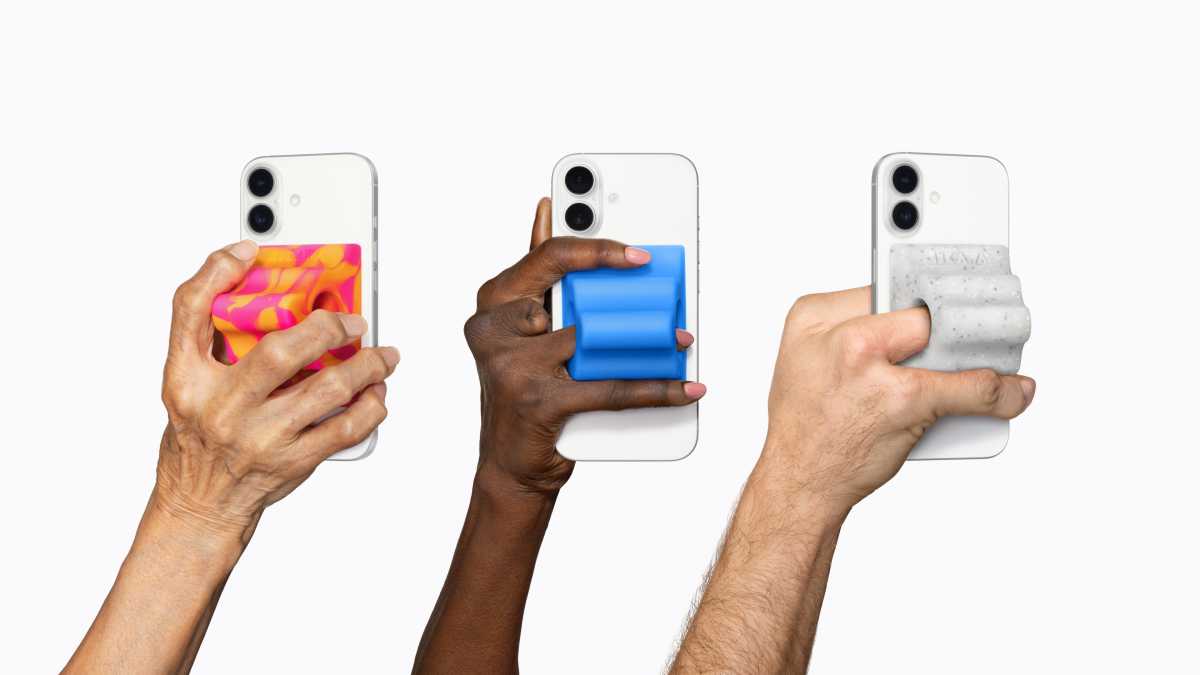


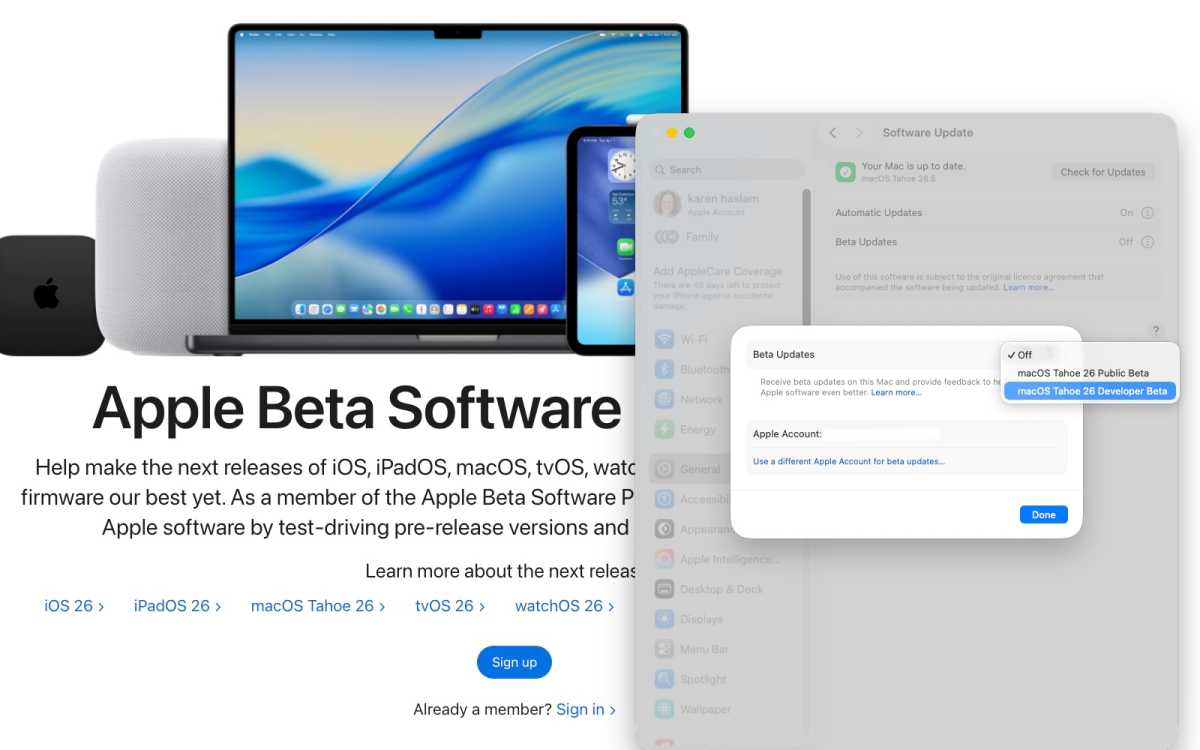
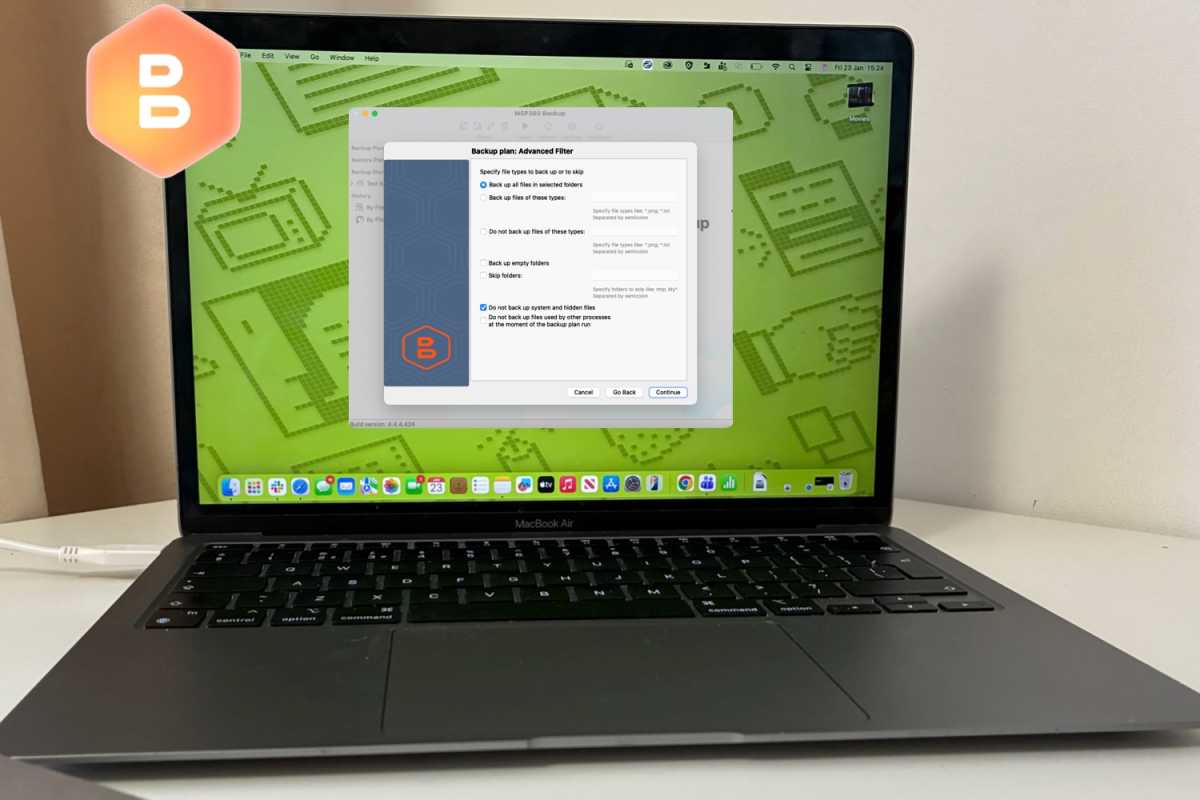
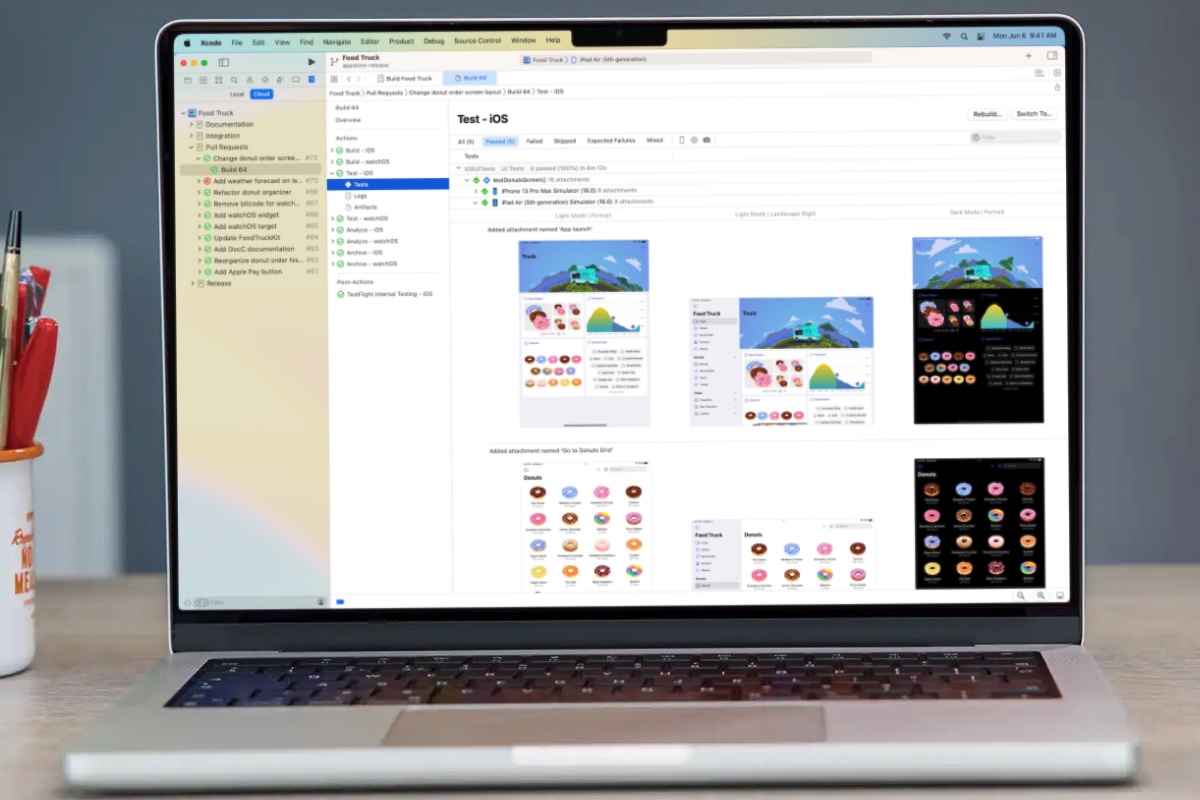
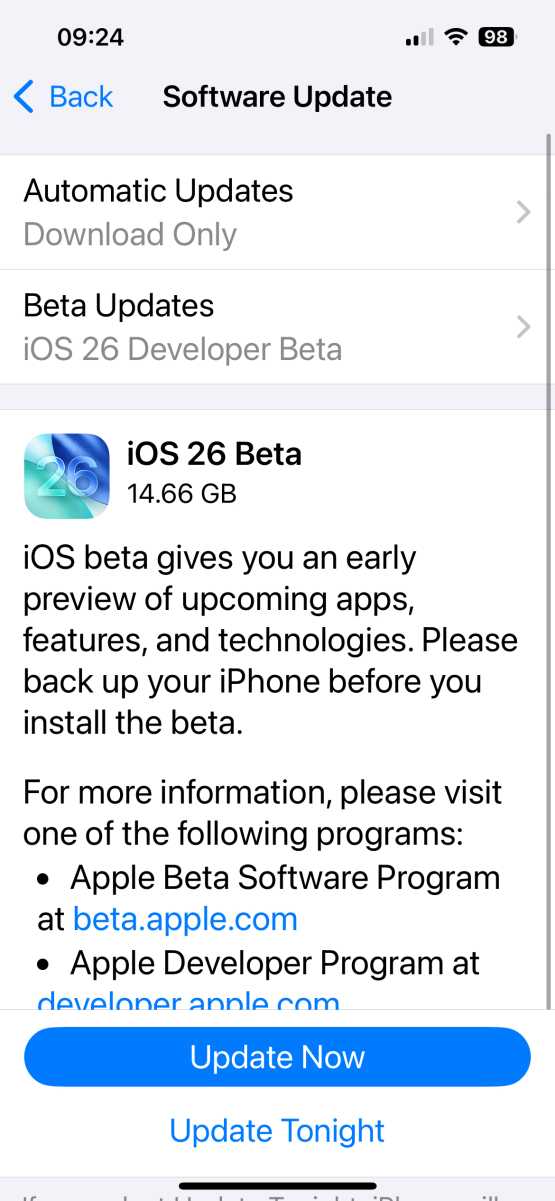


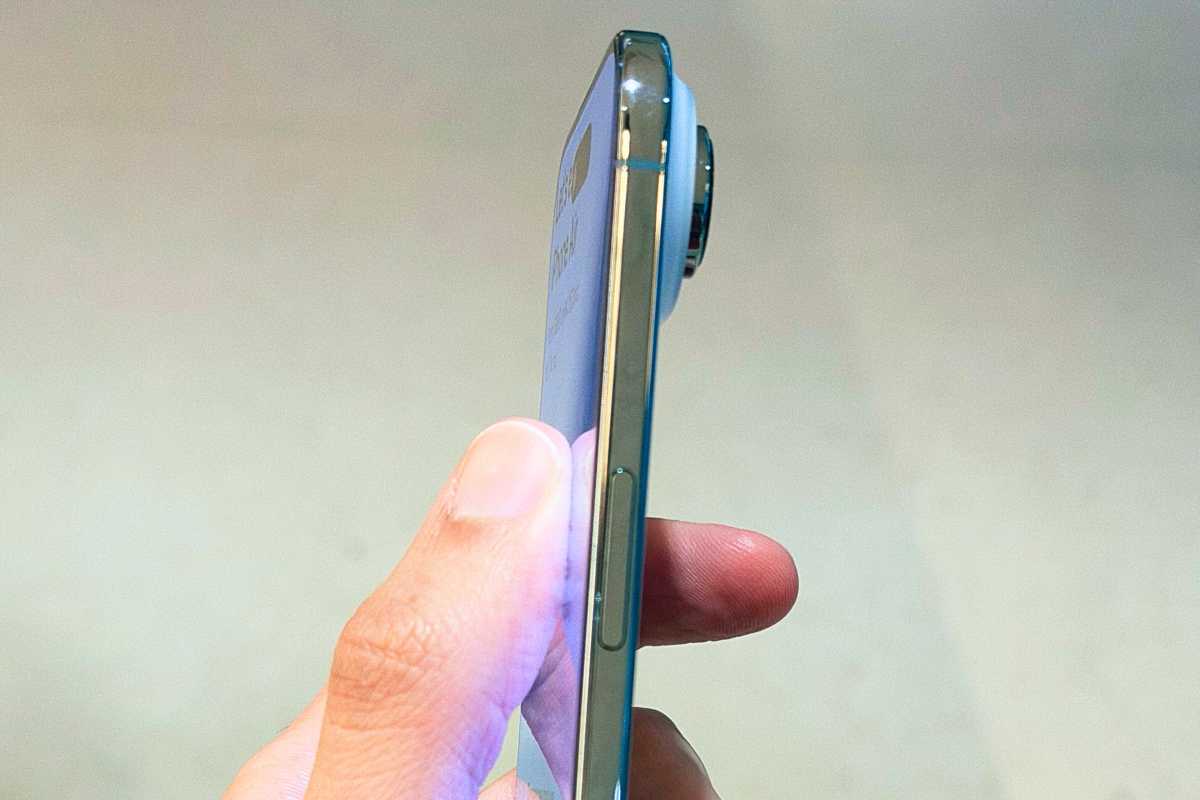
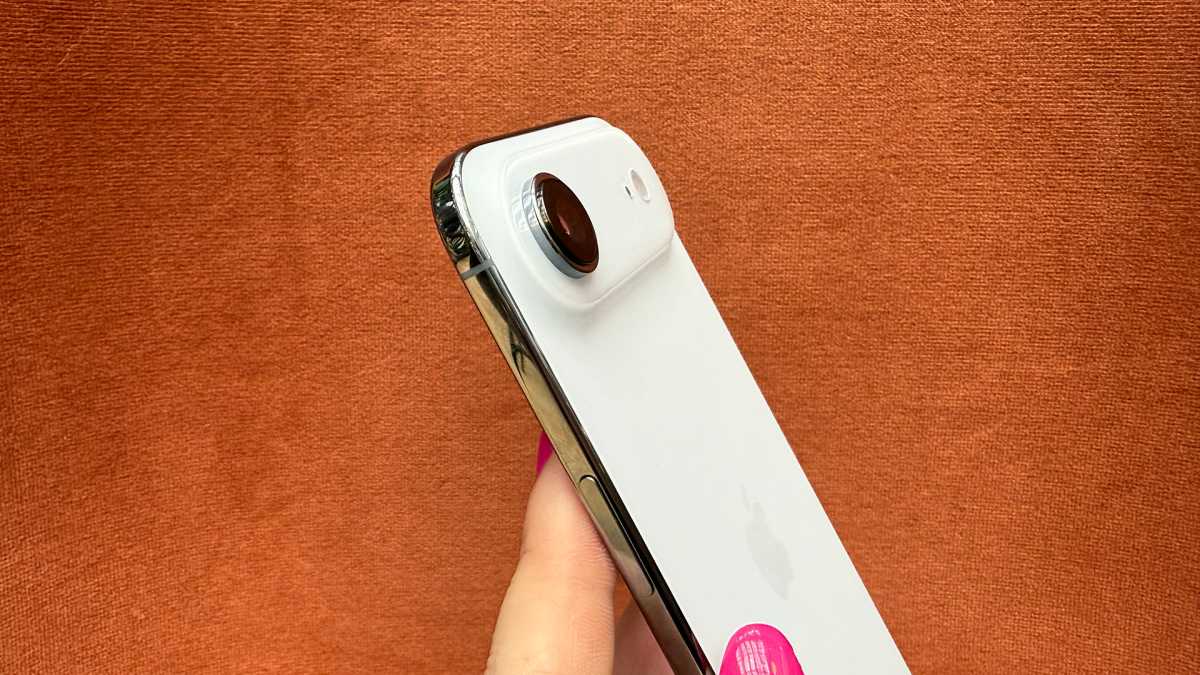
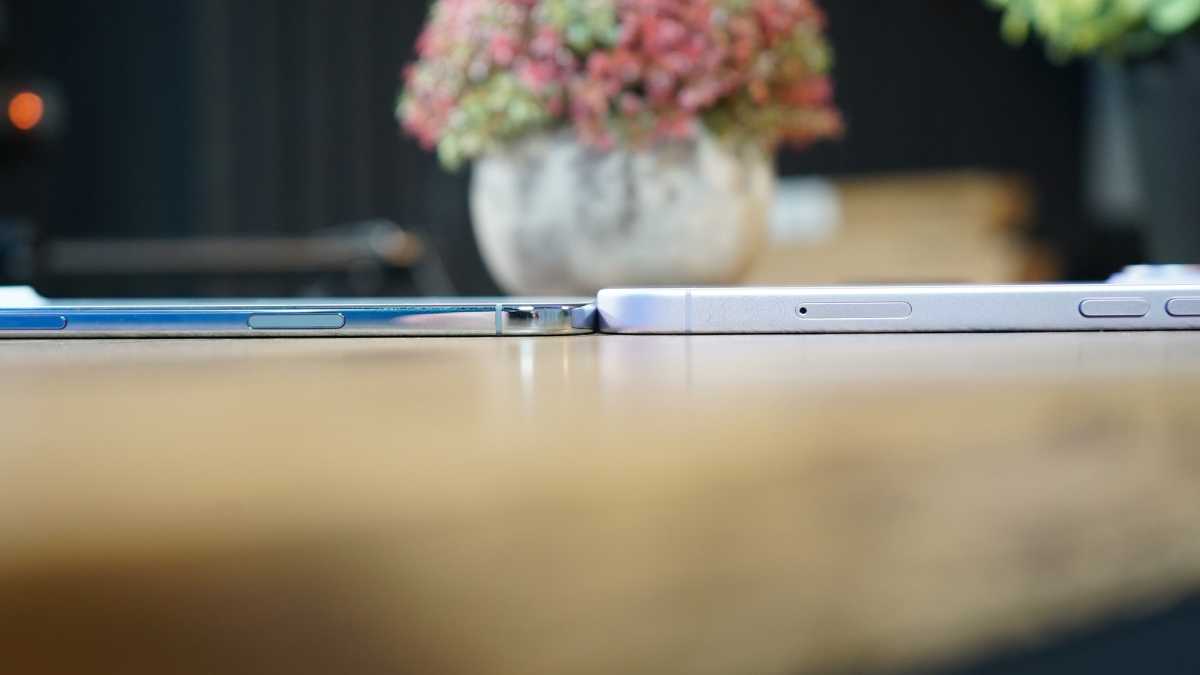
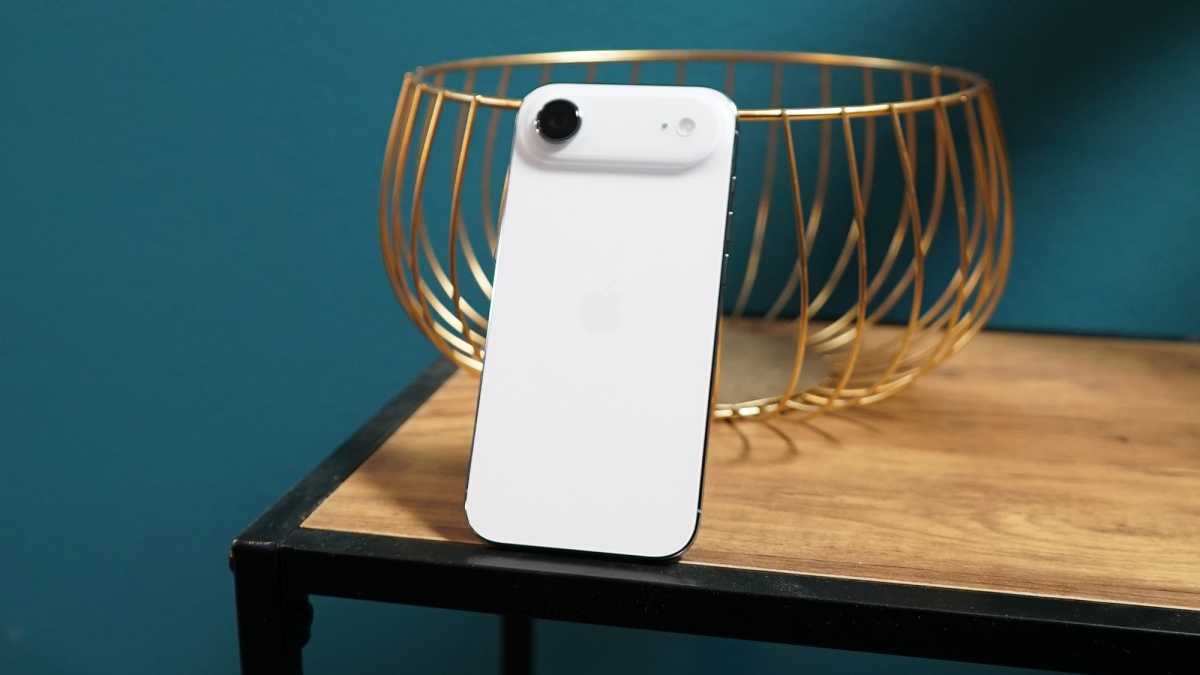


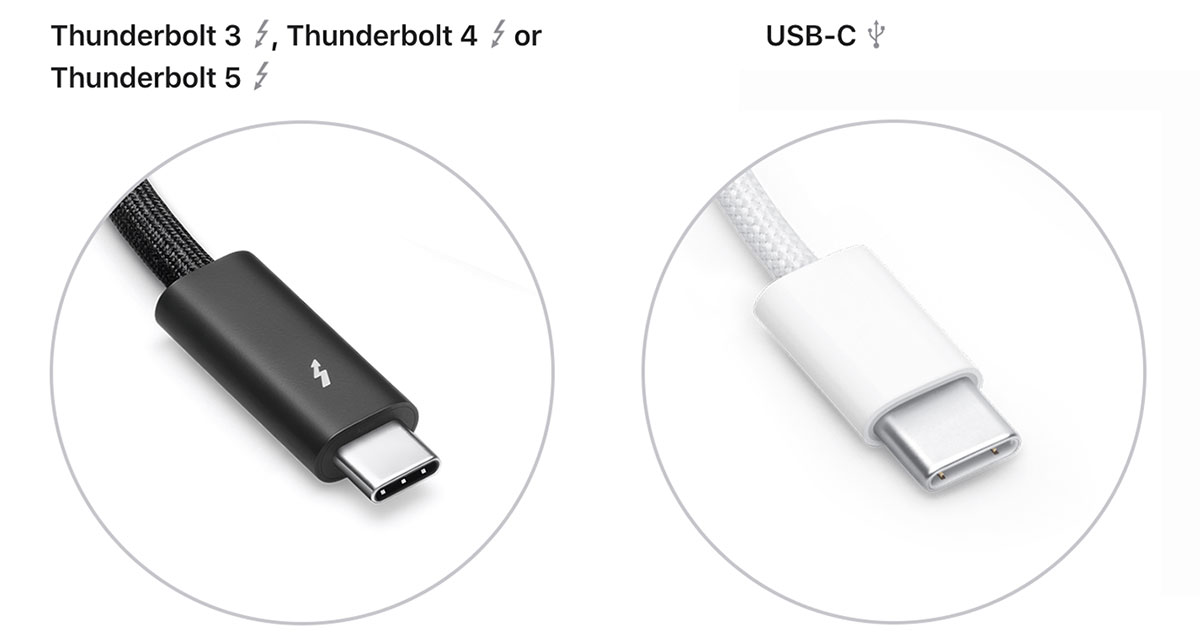
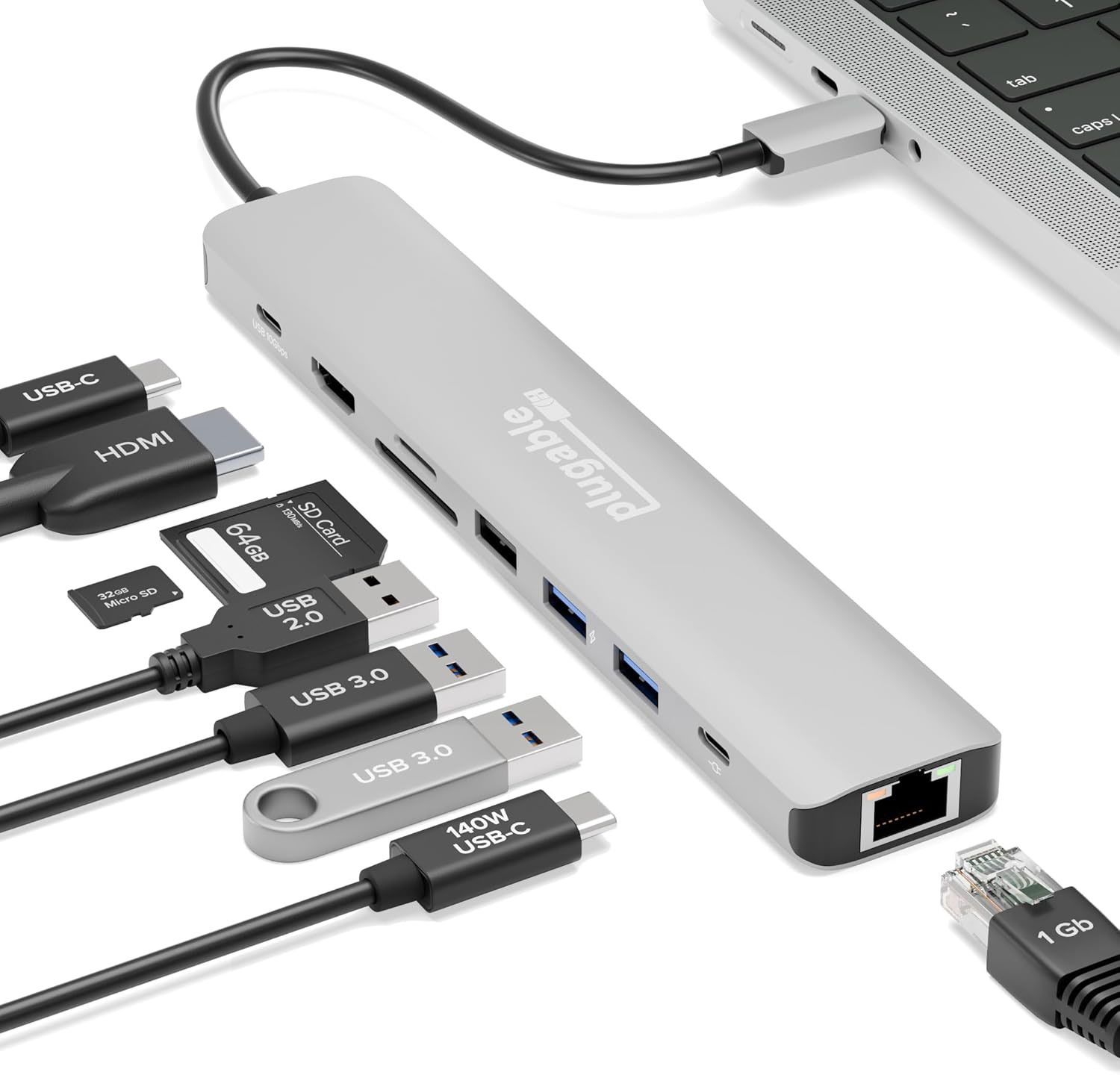
 $49.95
 $49.95
 $49.95
 $49.95
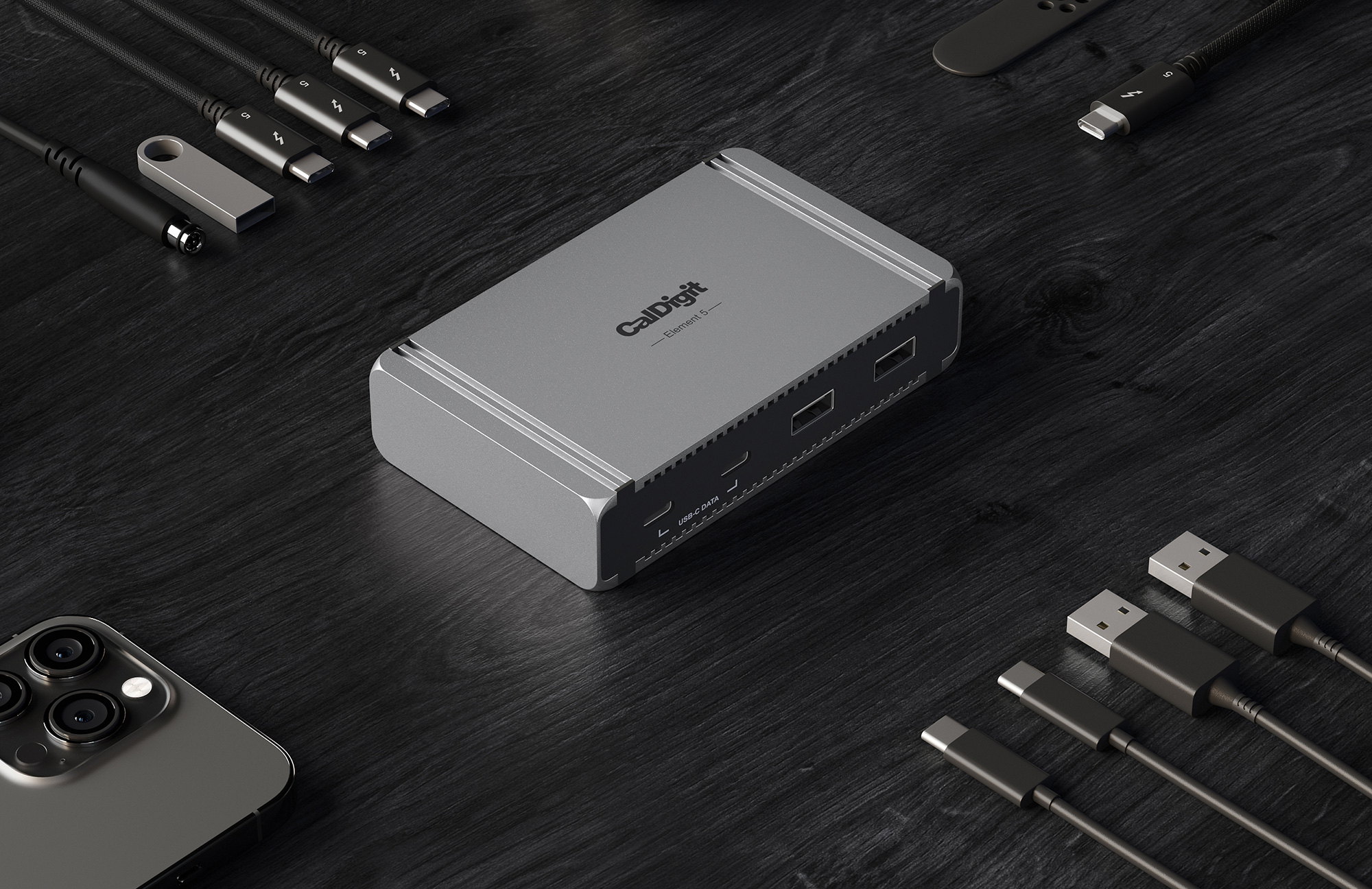
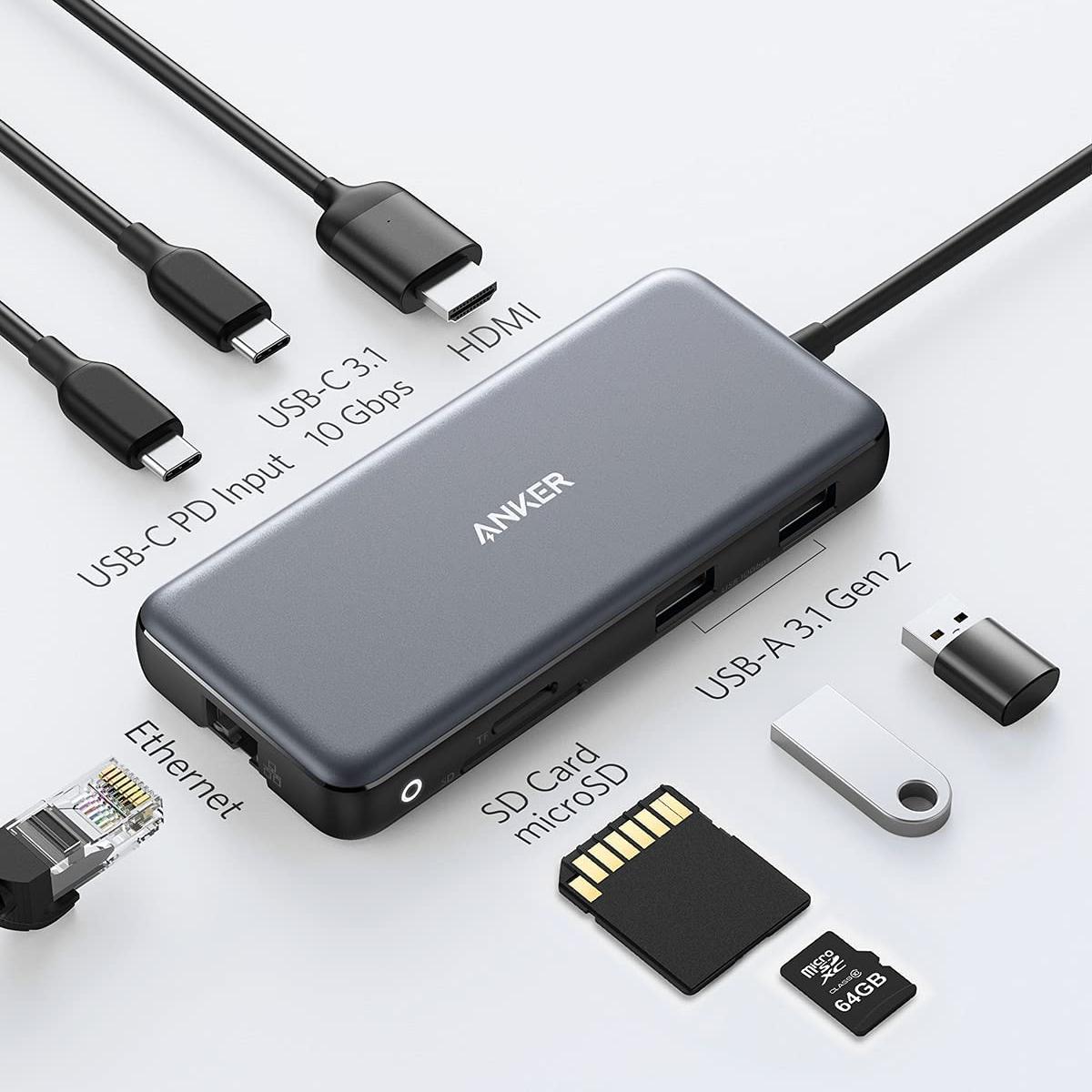
 $35.99
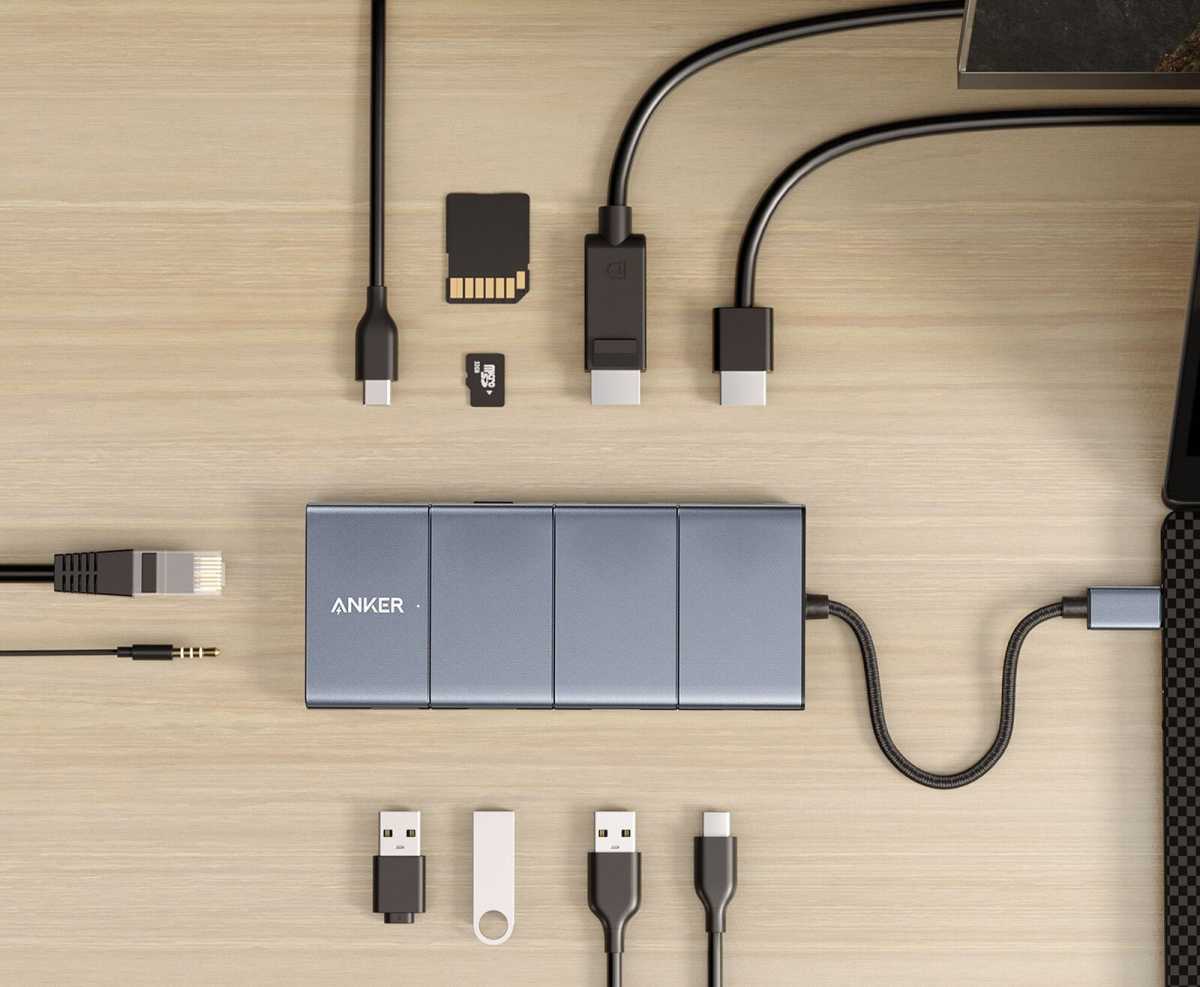
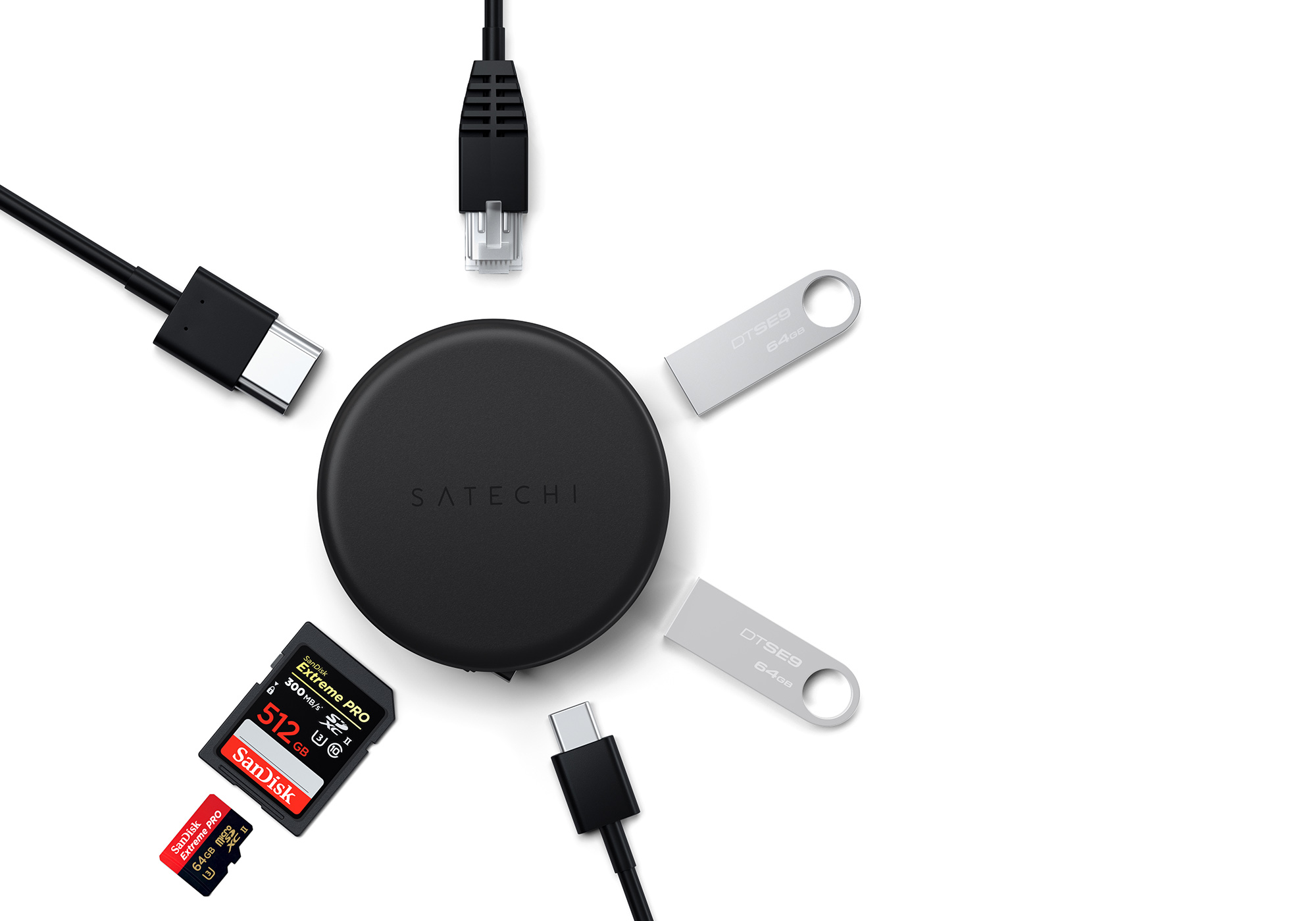
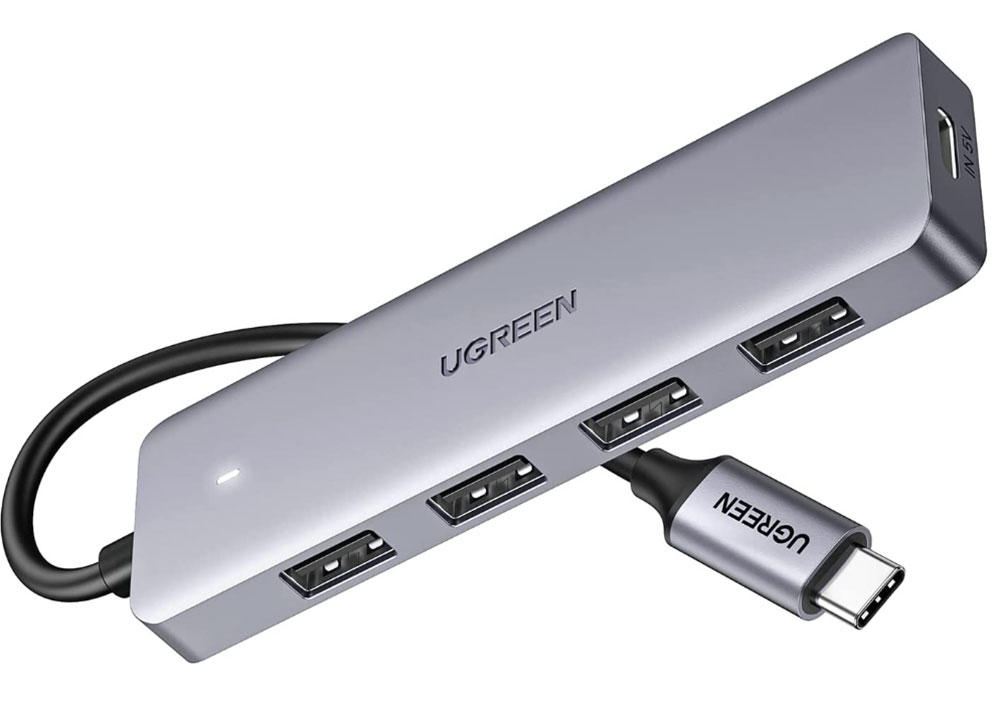
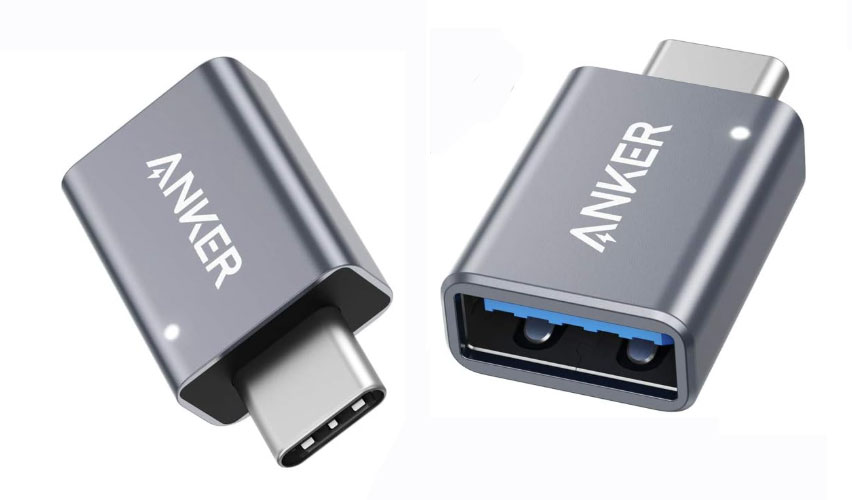
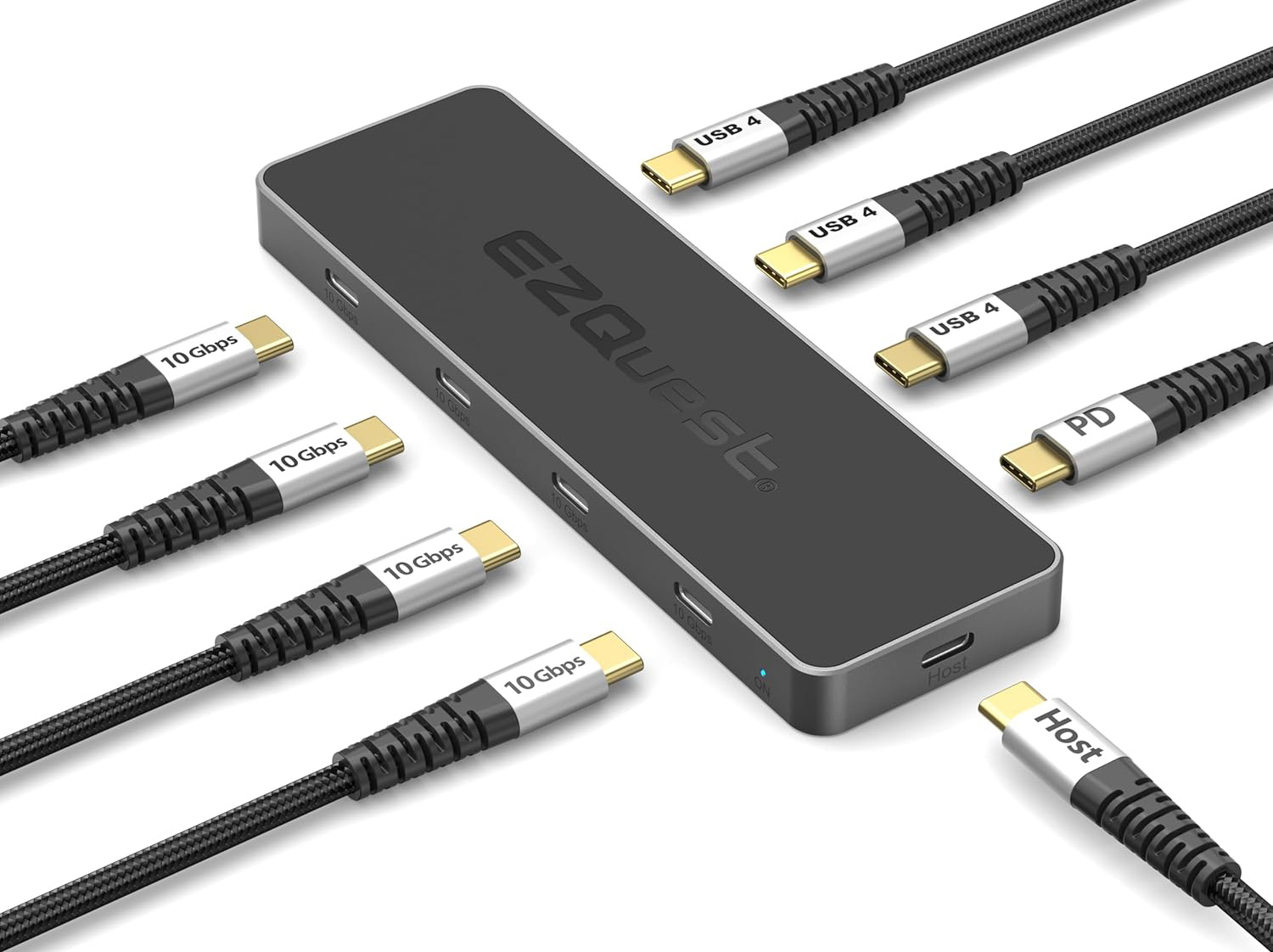
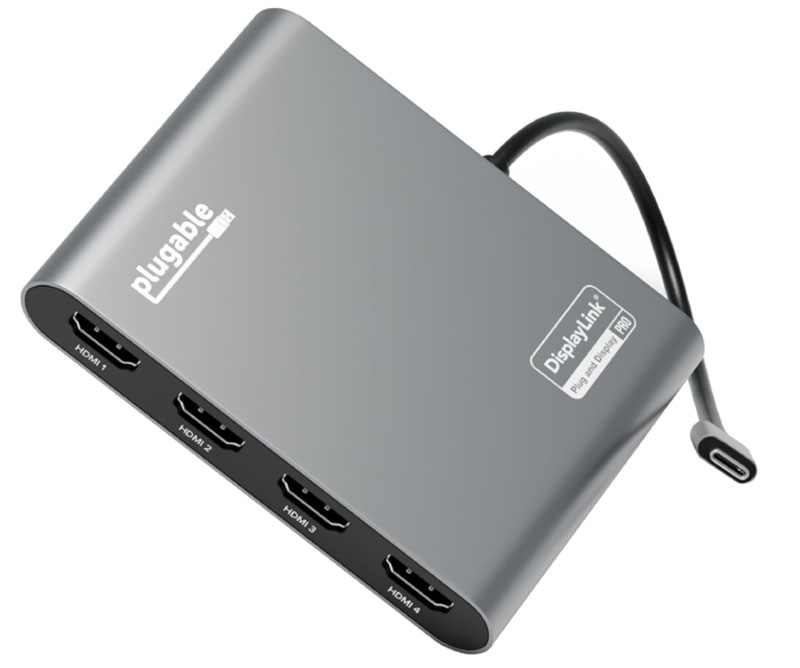
 $179.95
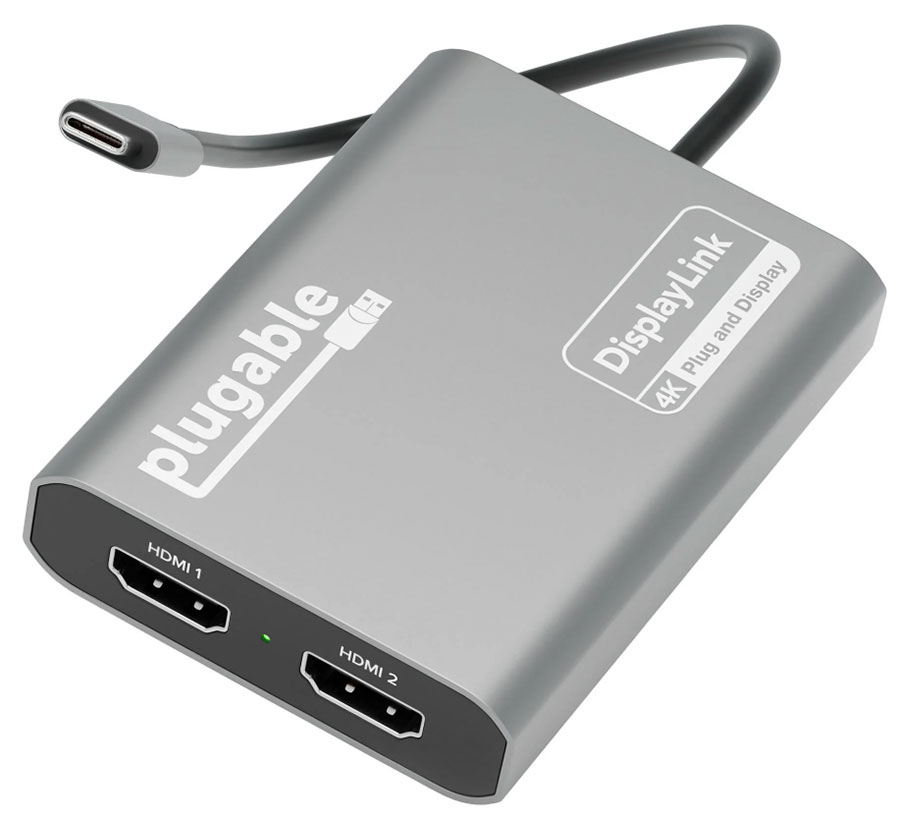
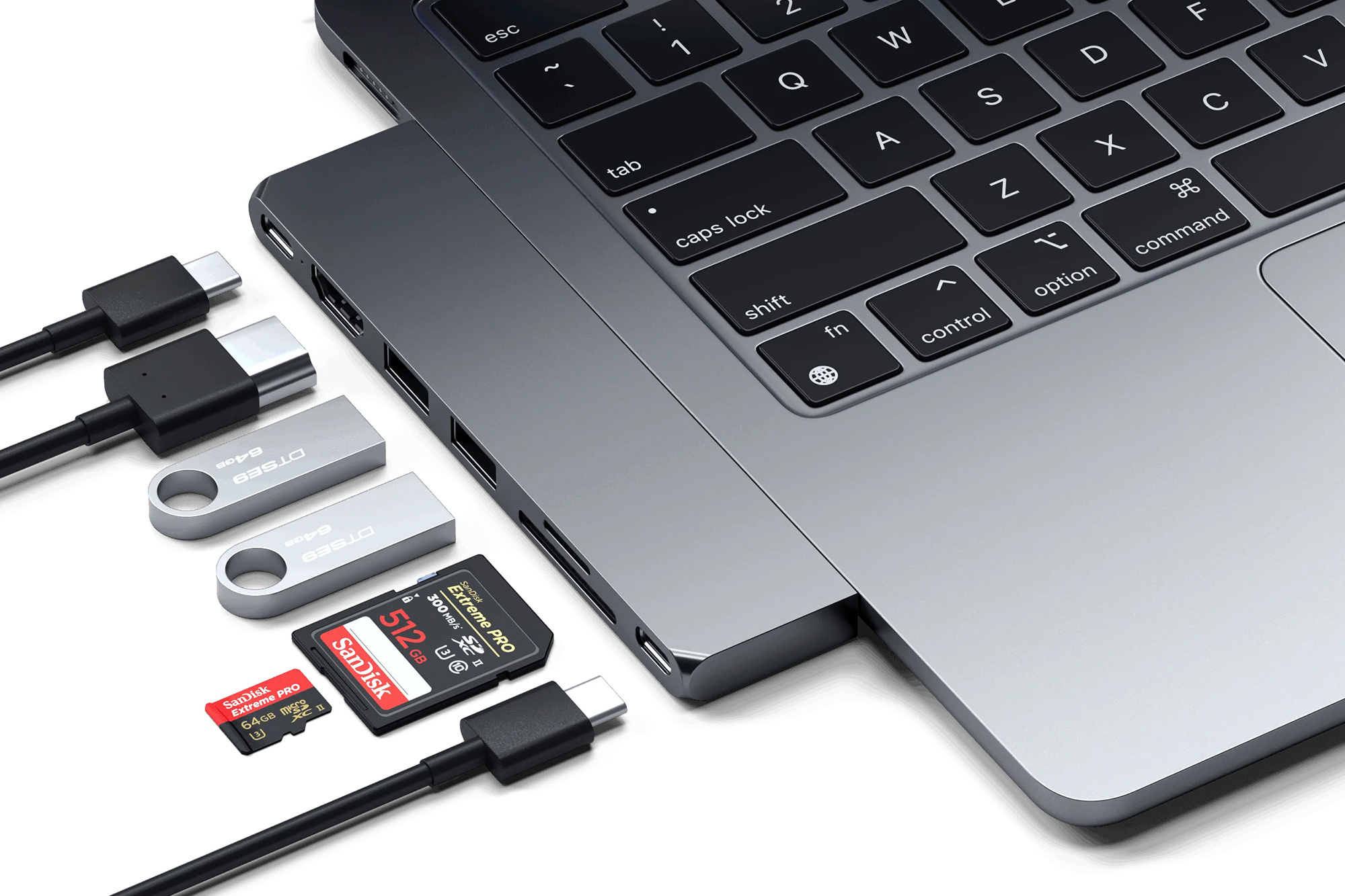
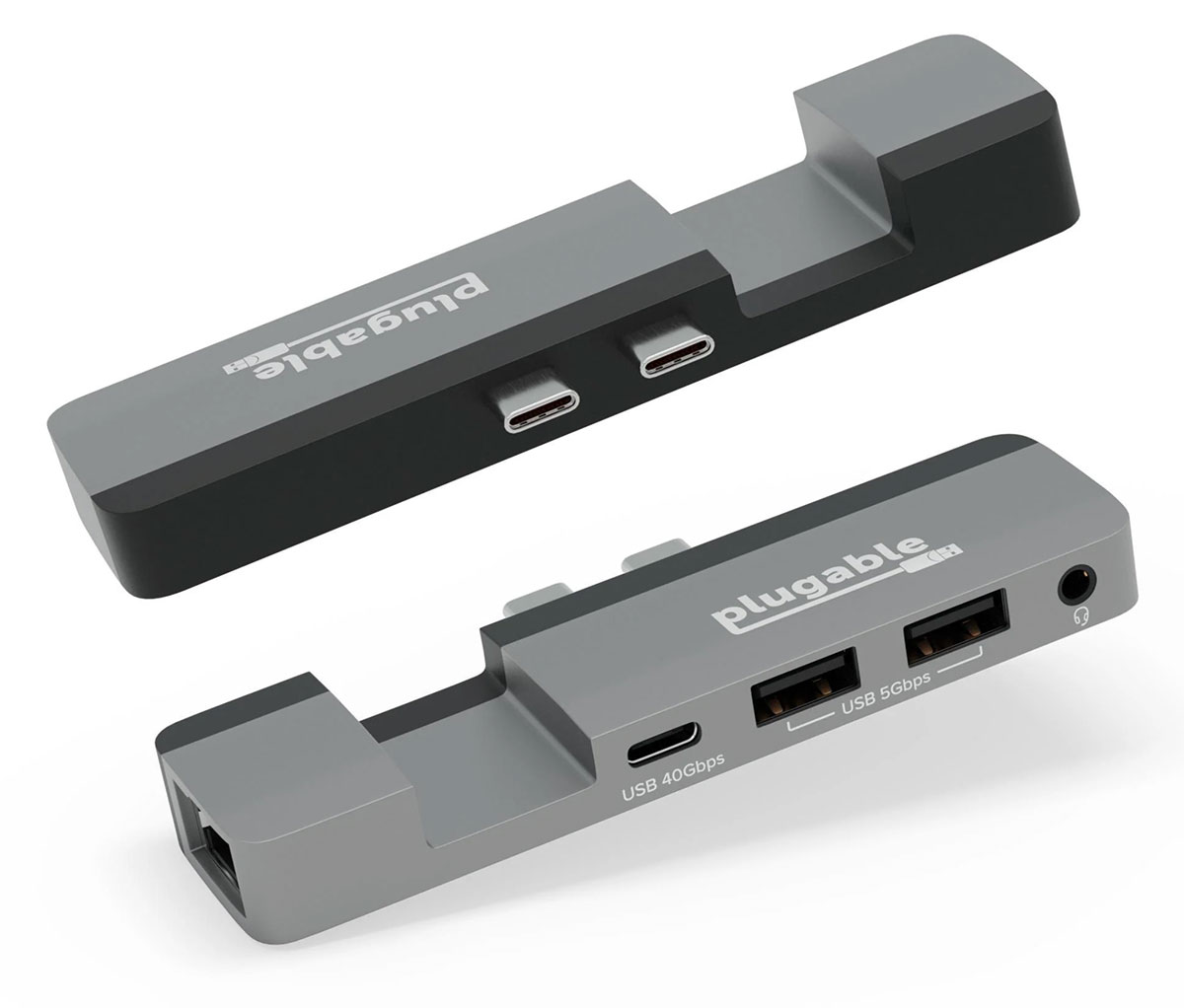
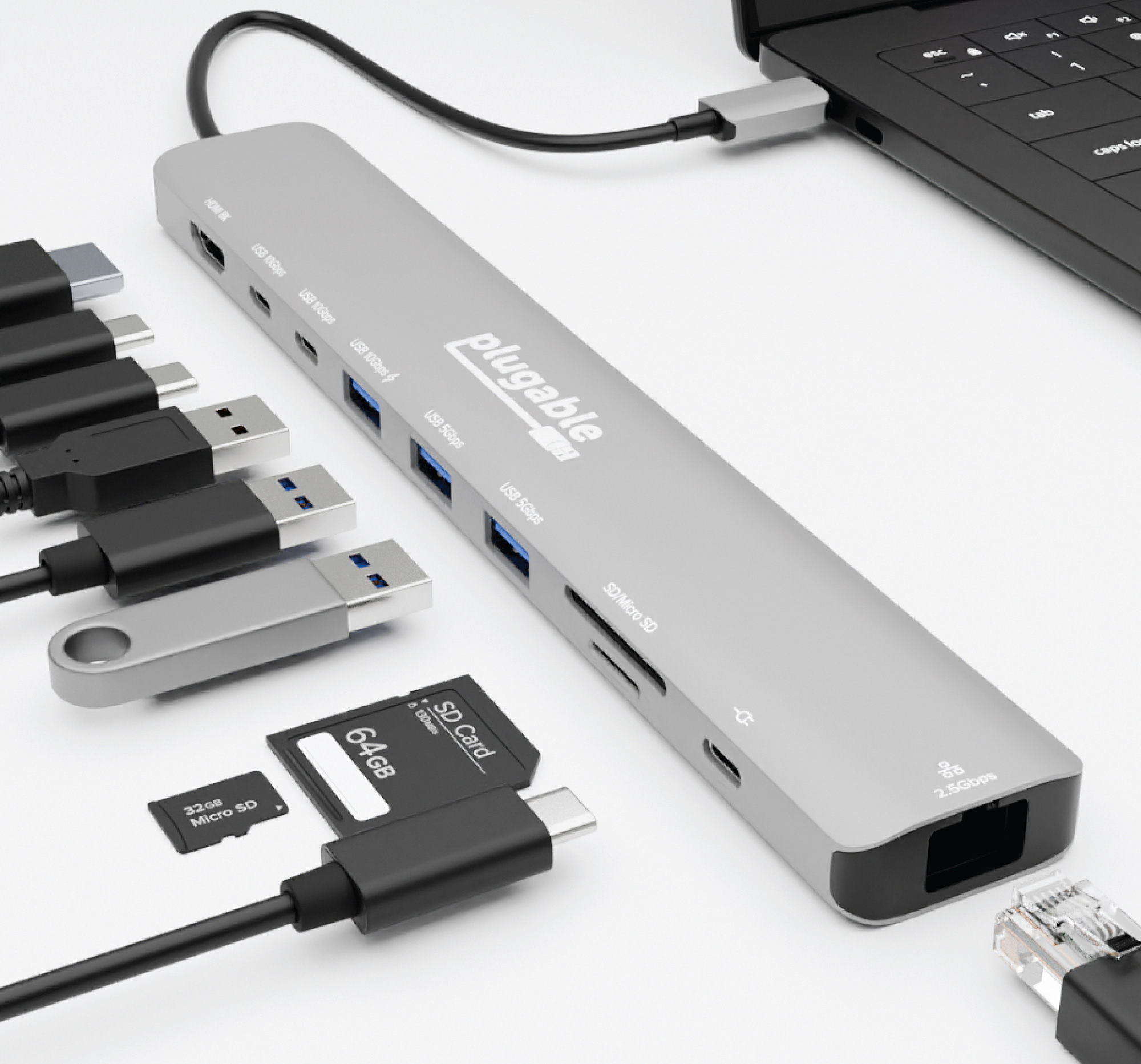
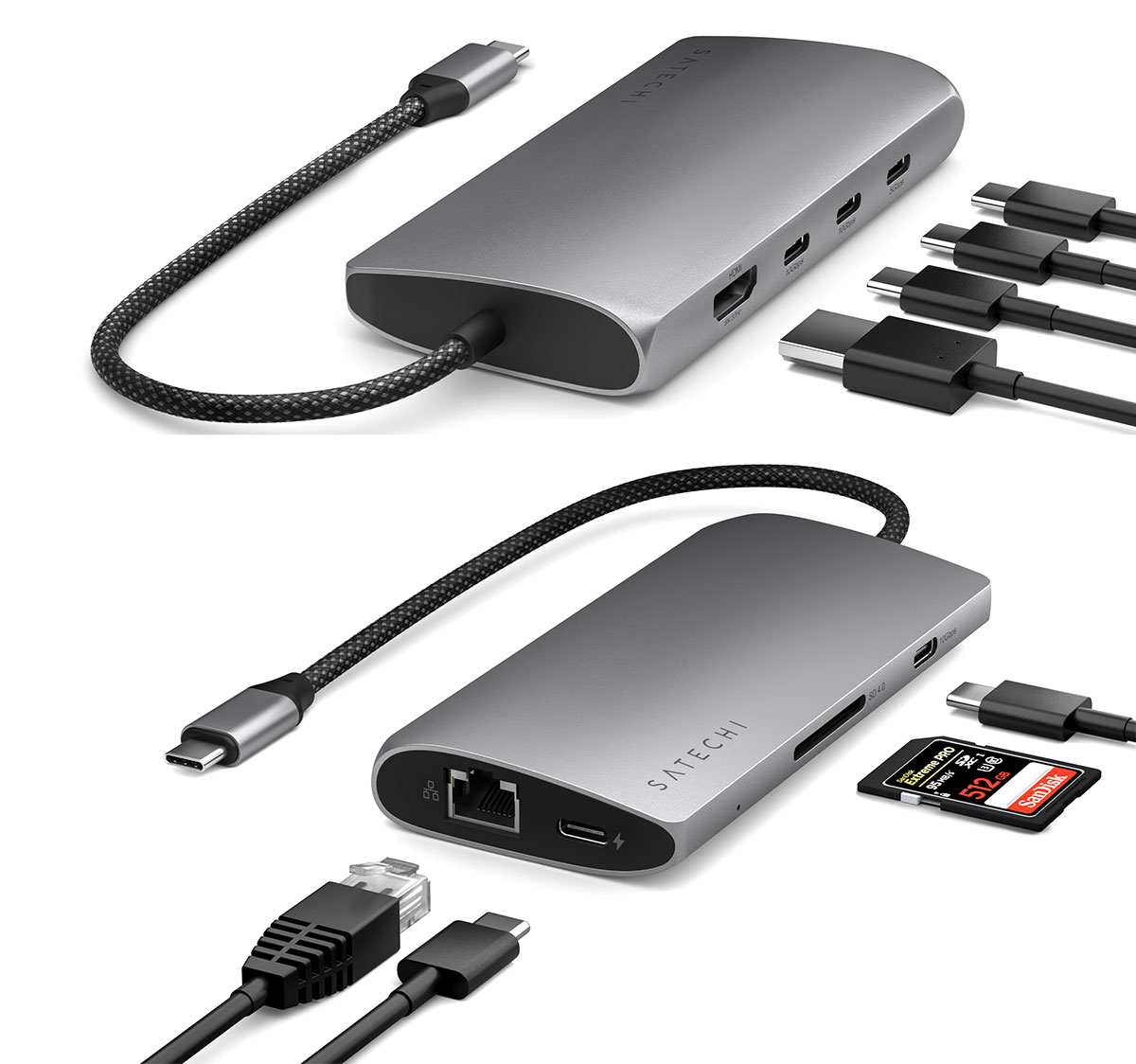

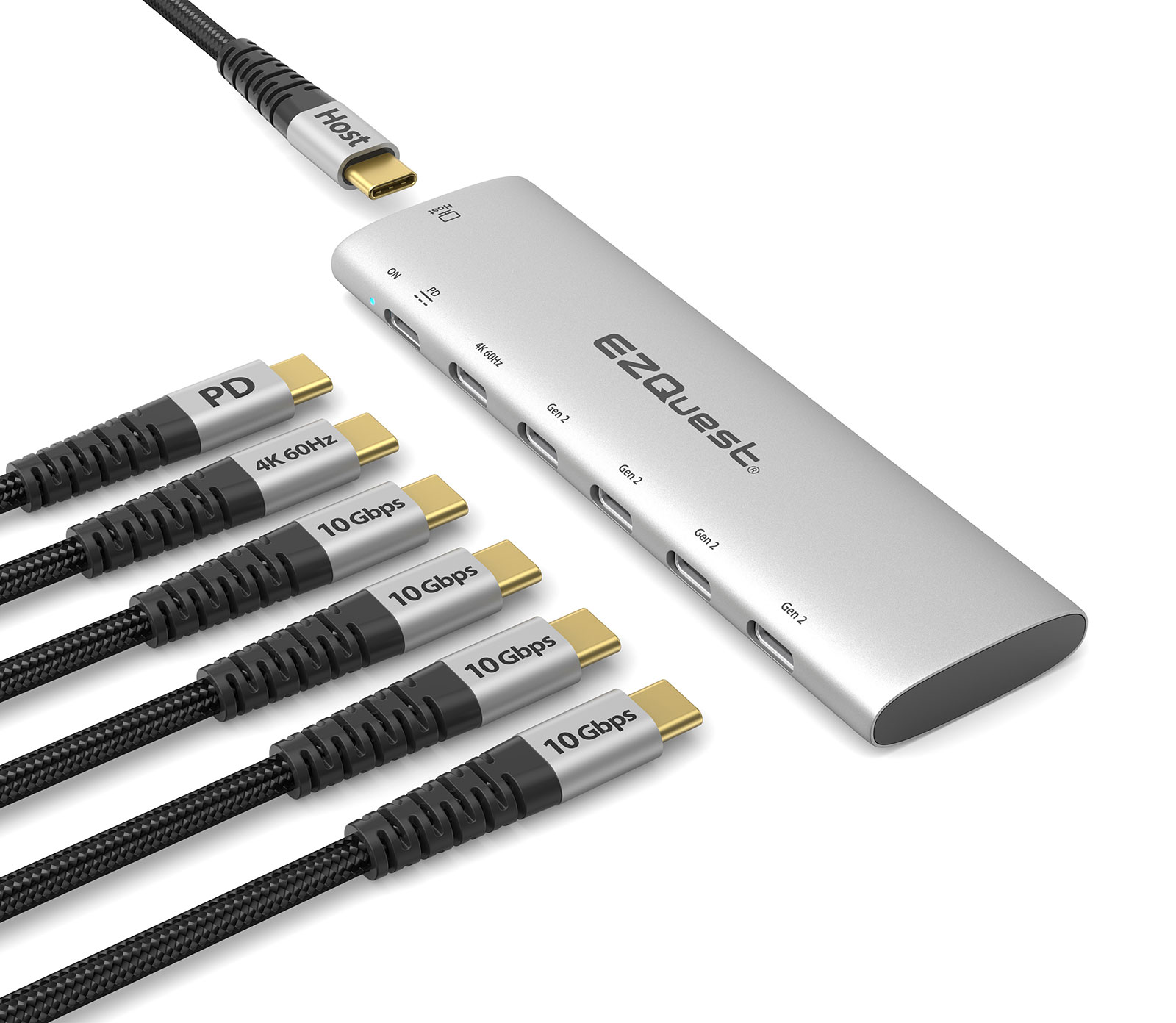
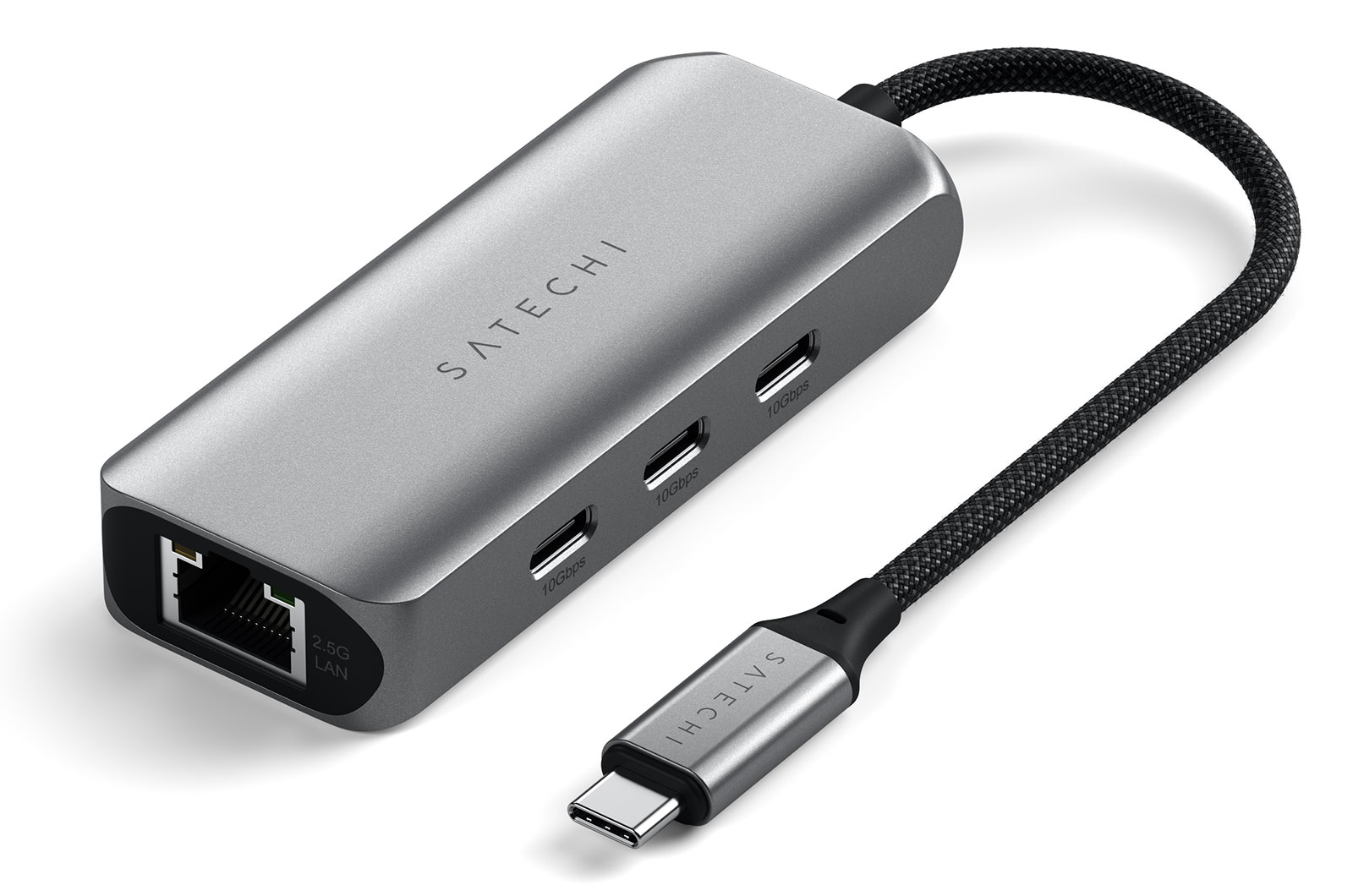
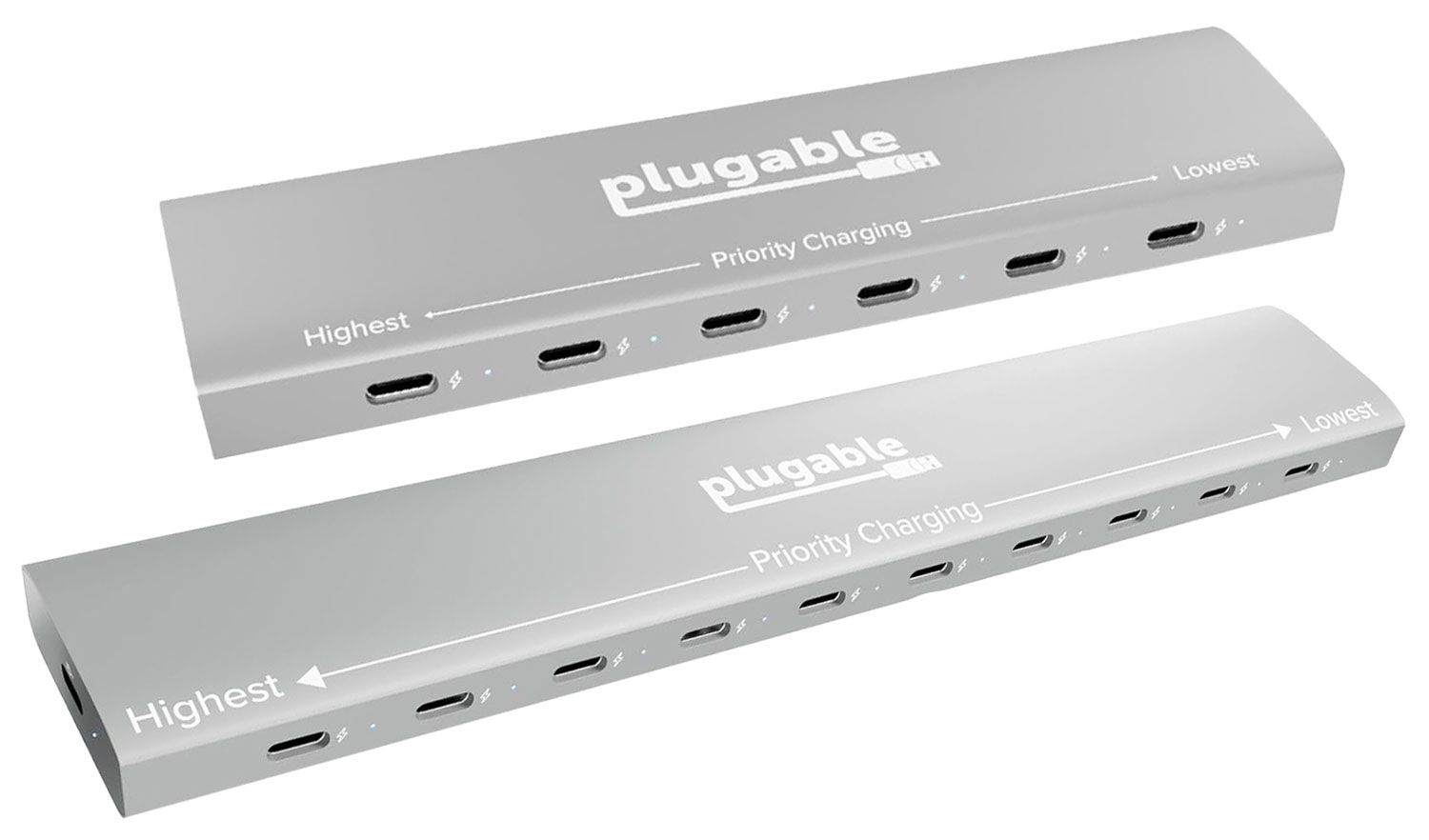
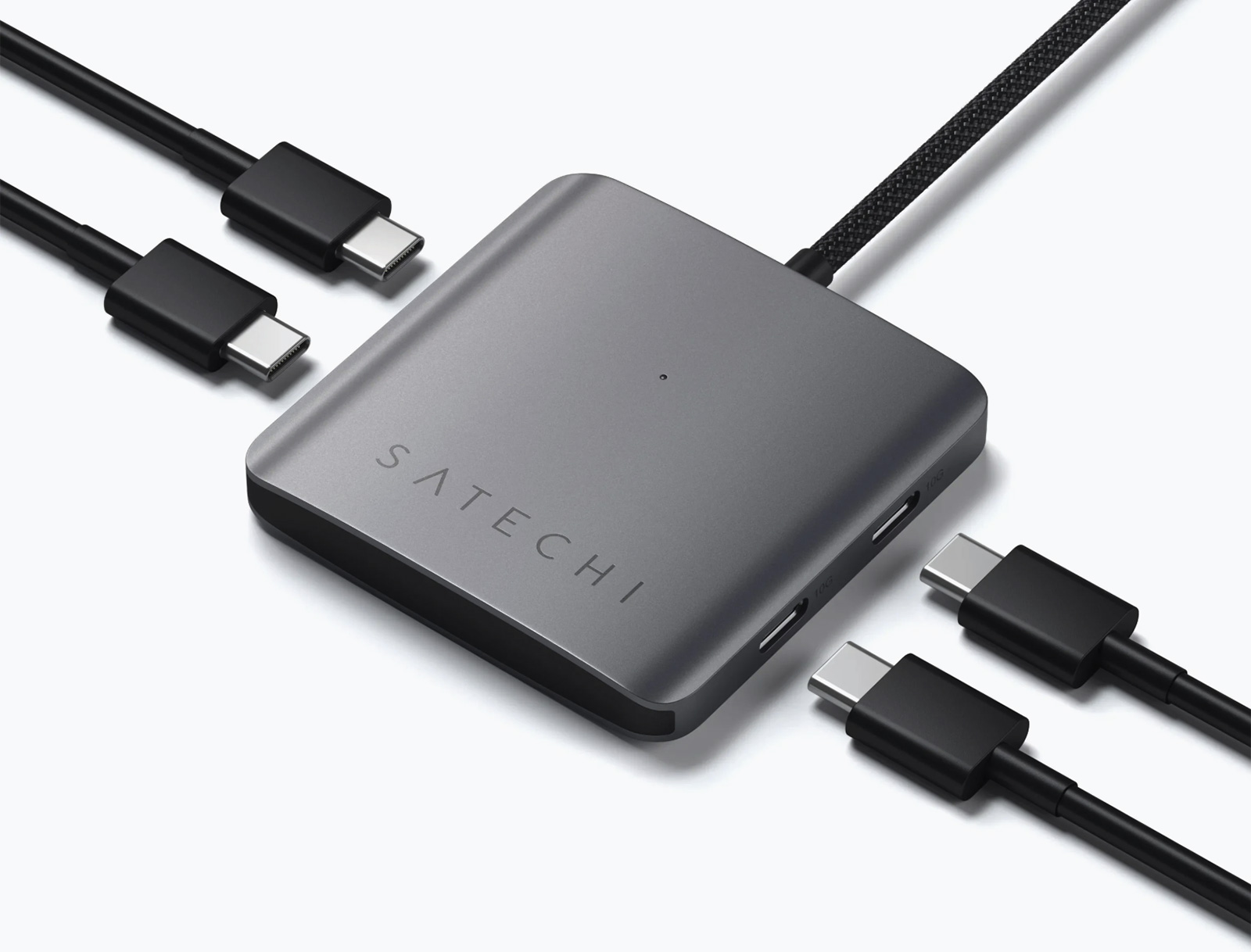
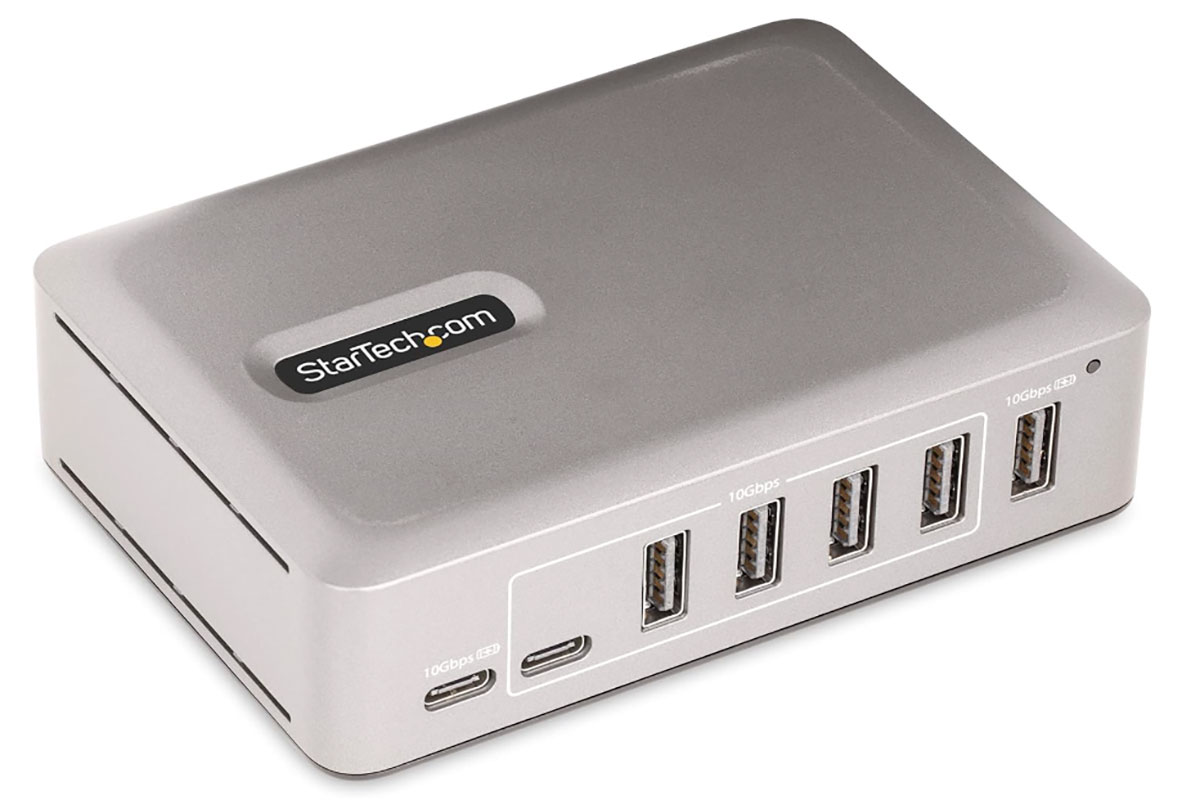
 $129.52
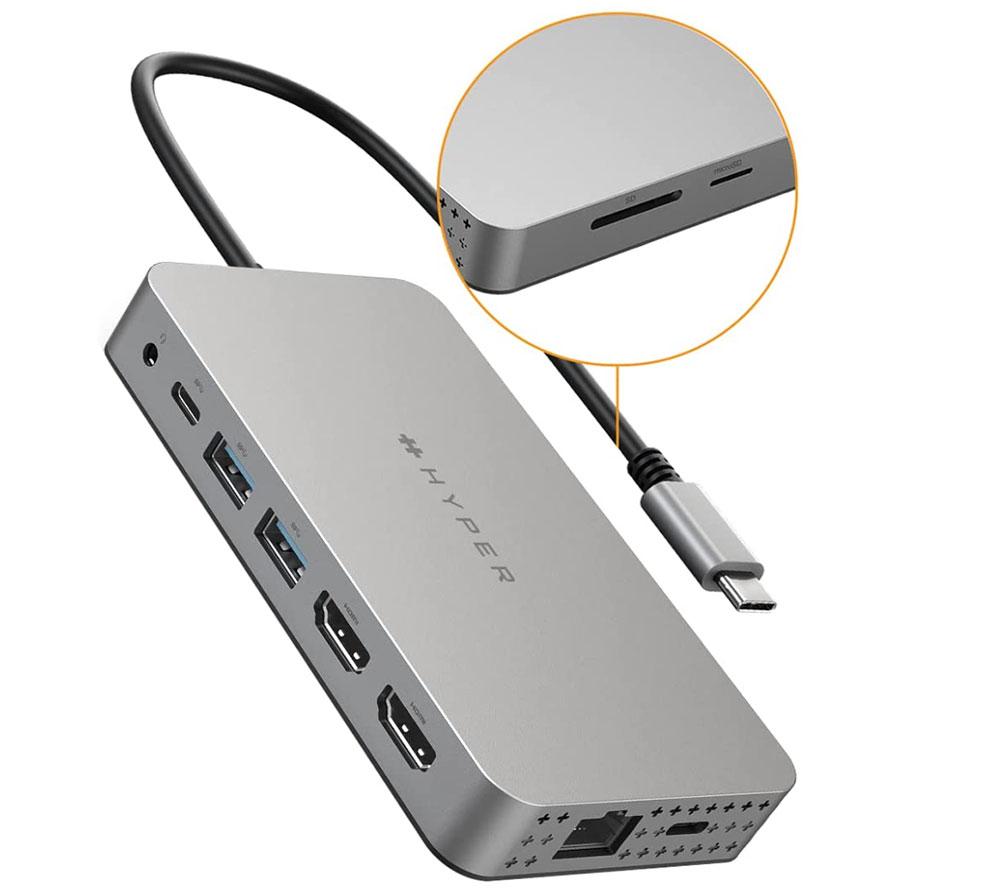
 $159.99
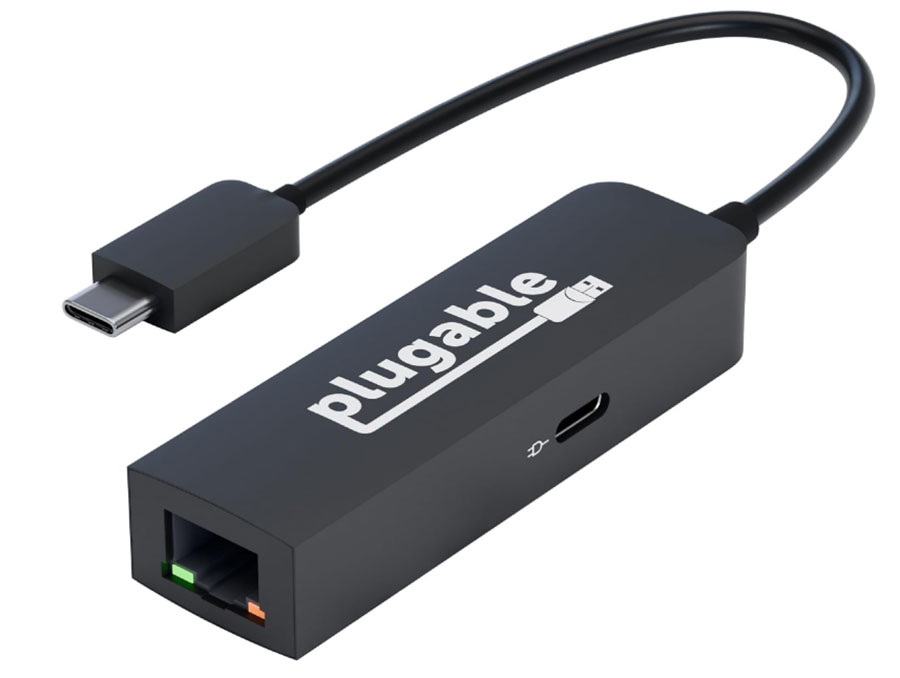
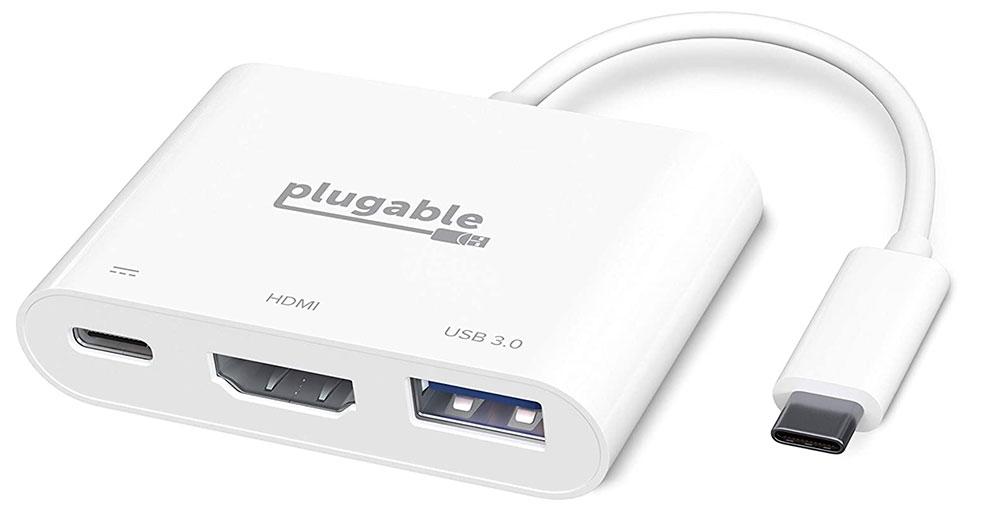
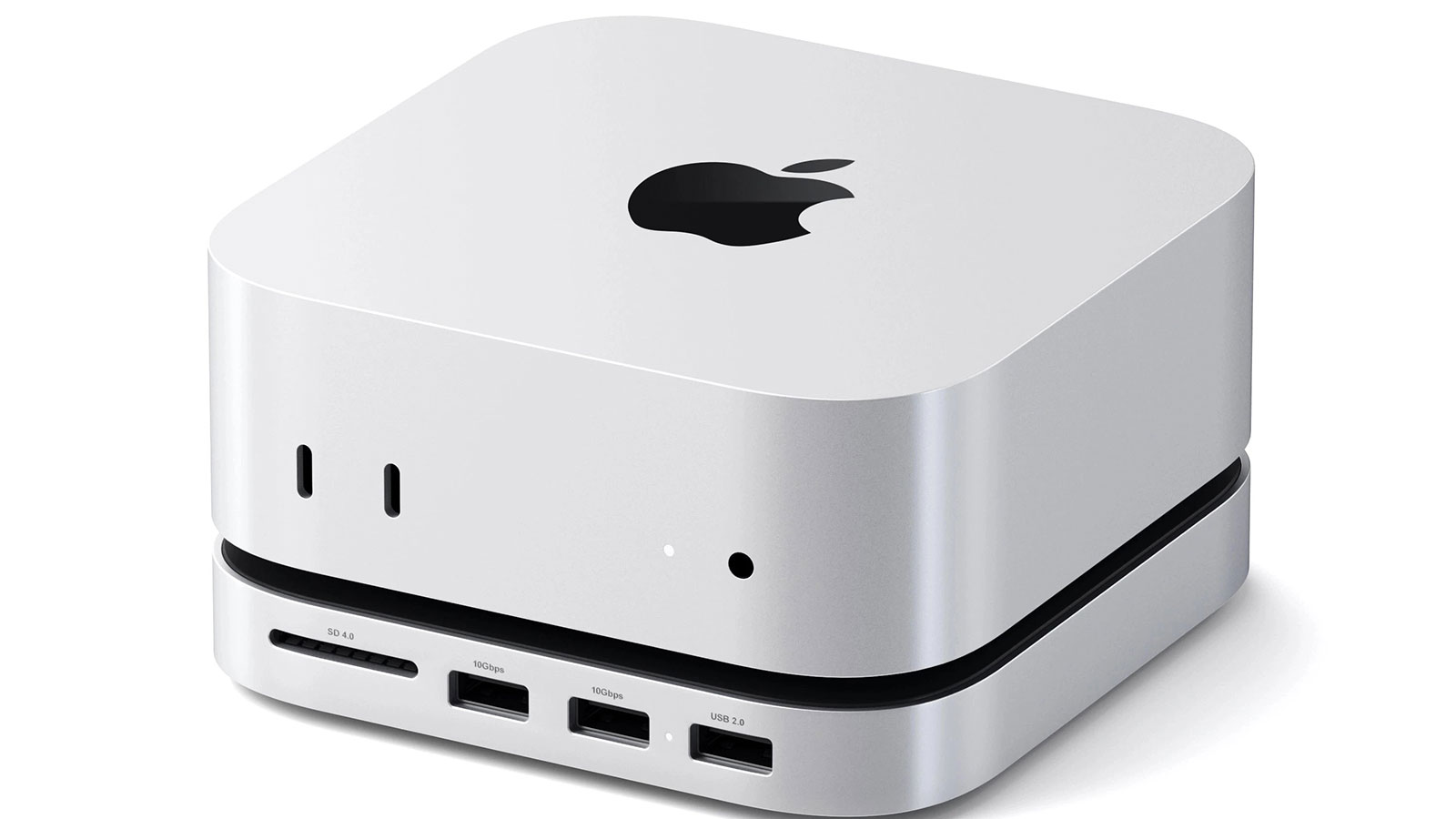
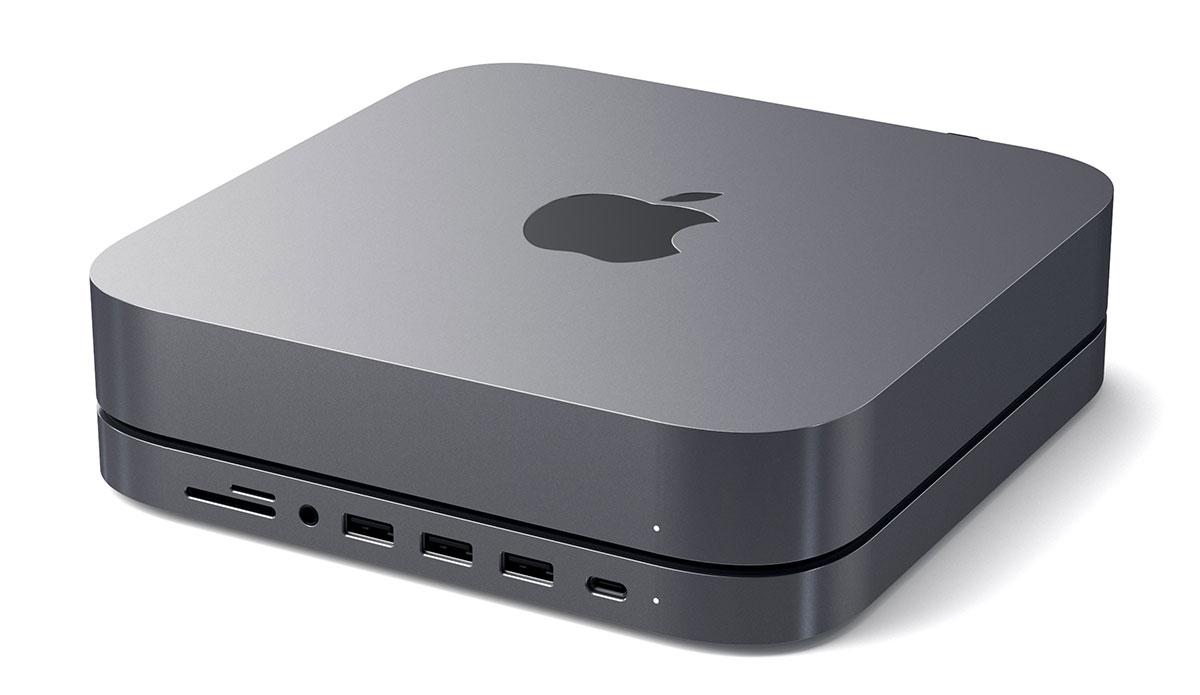
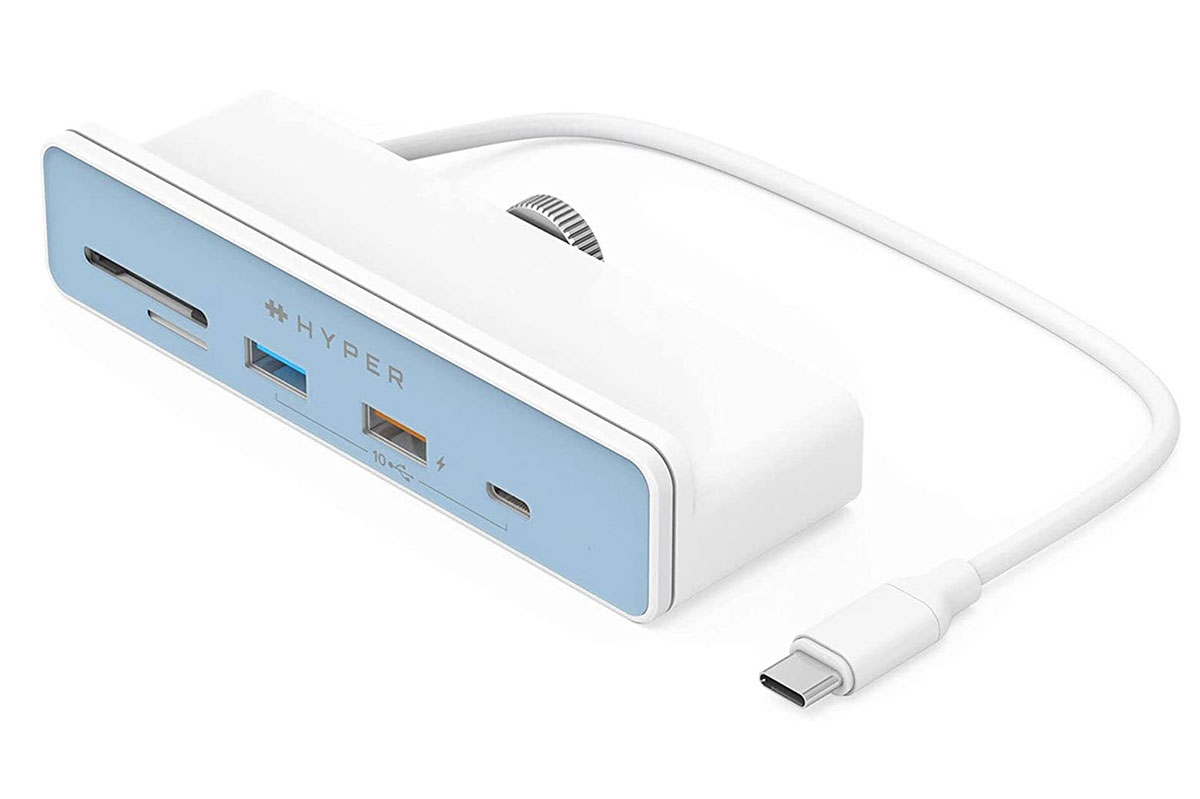
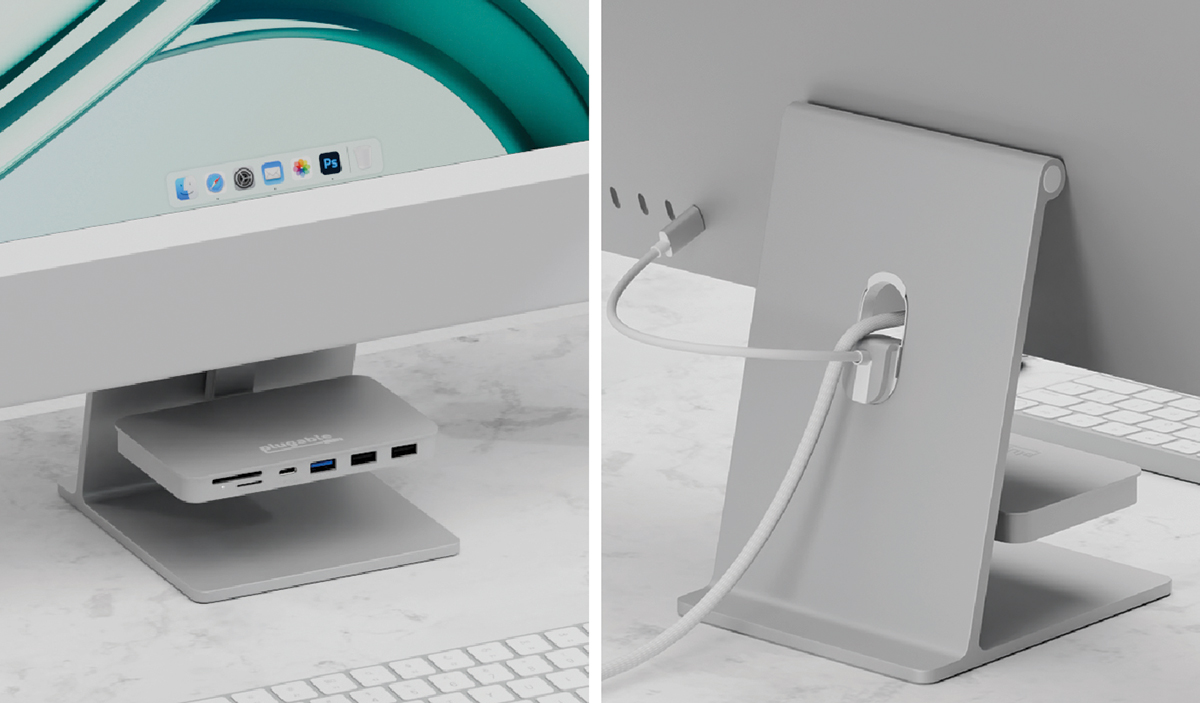
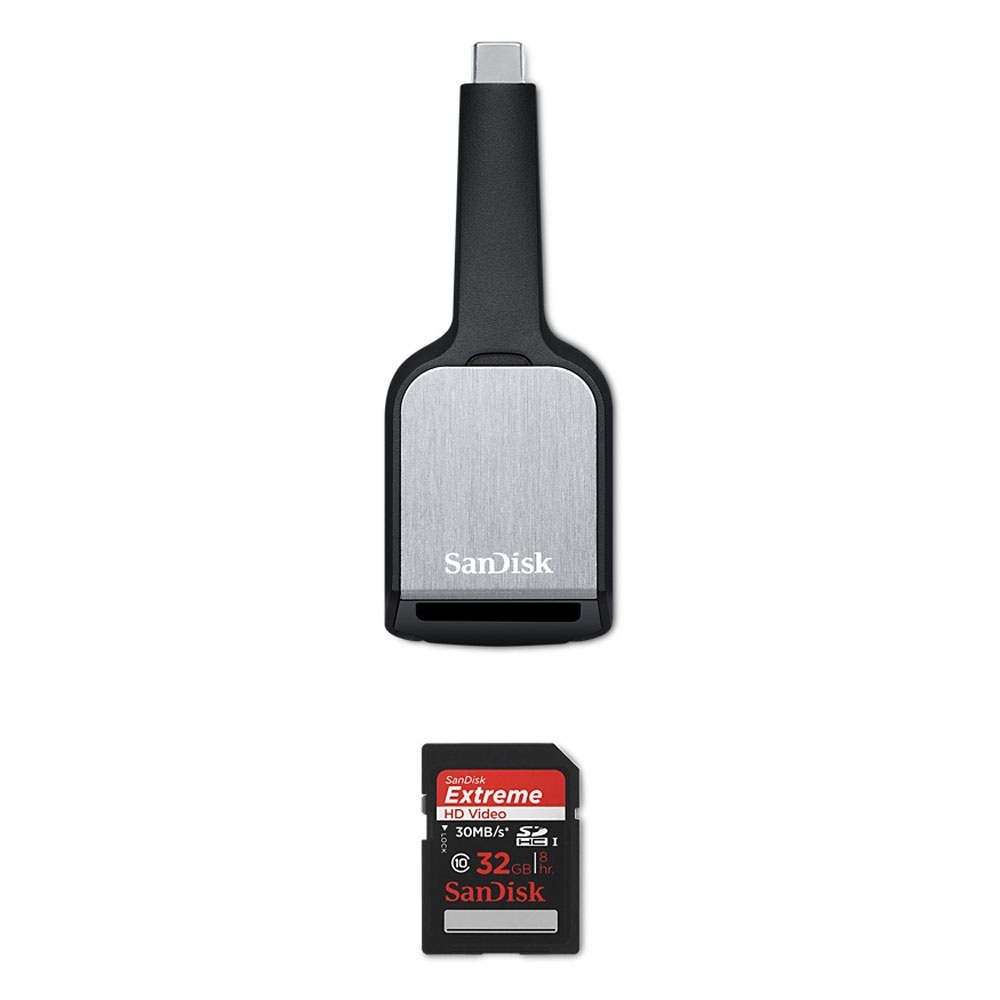
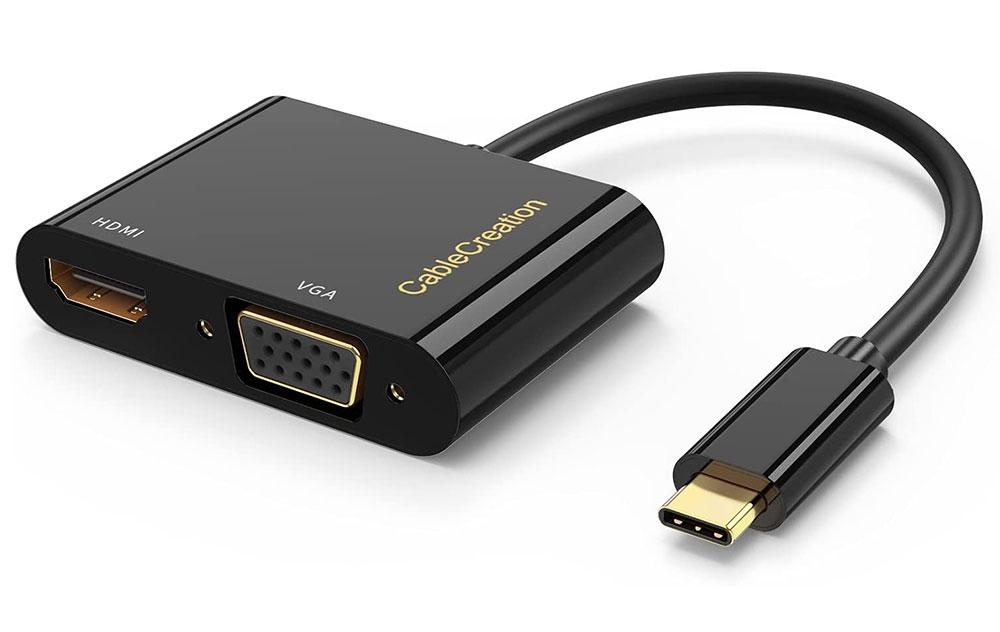
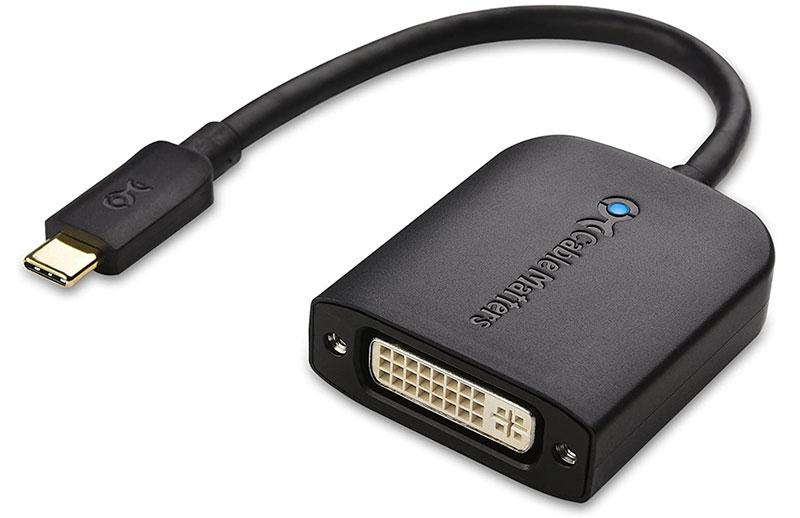
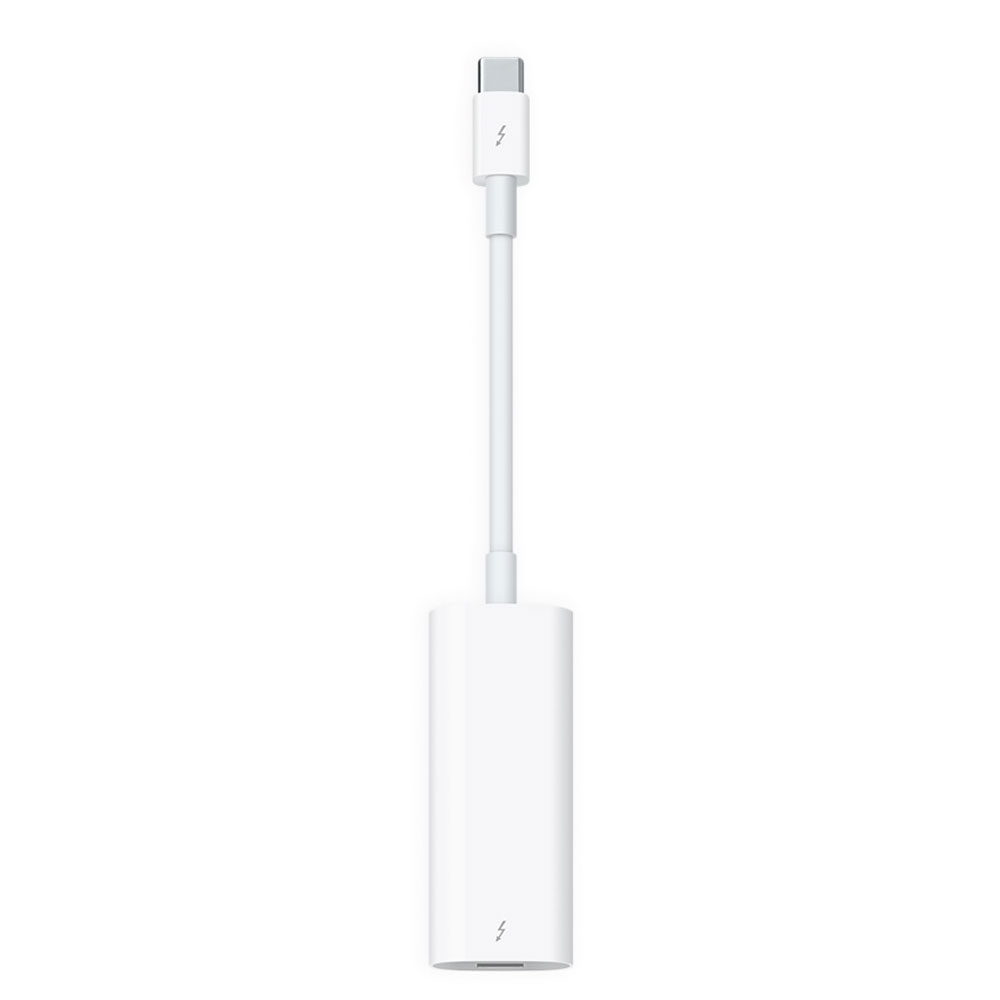
 $49
$49
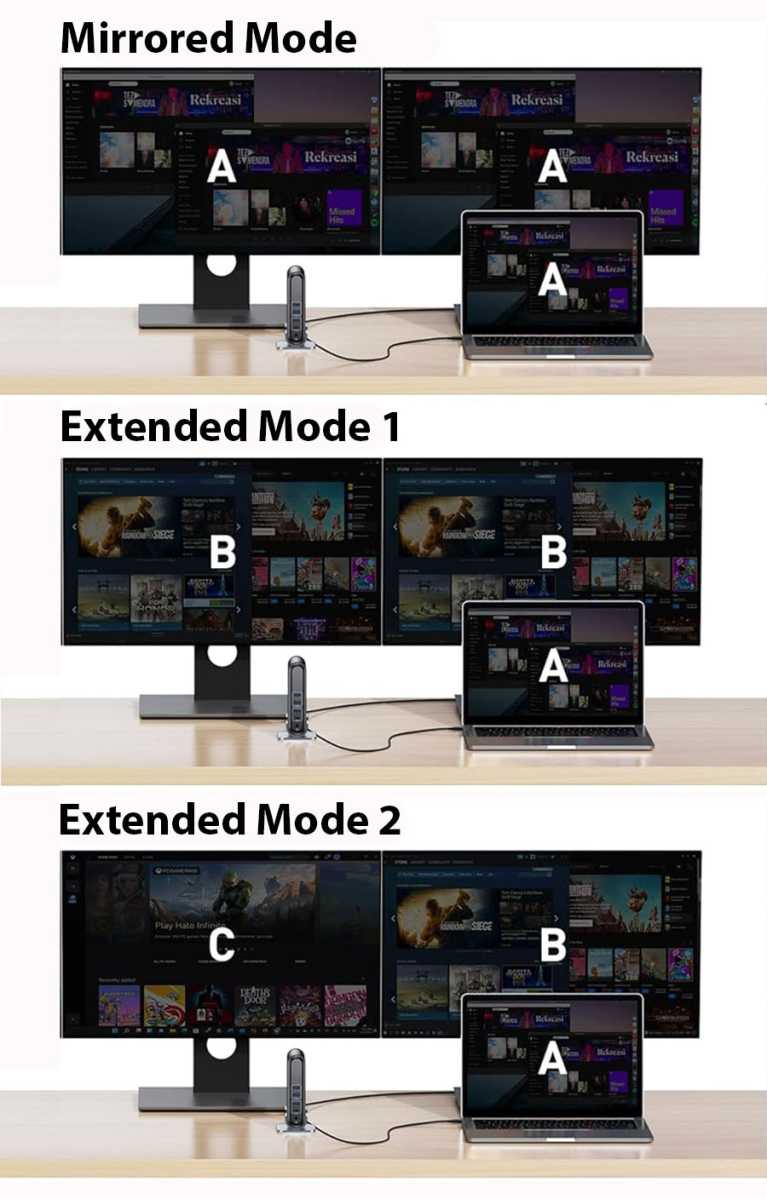



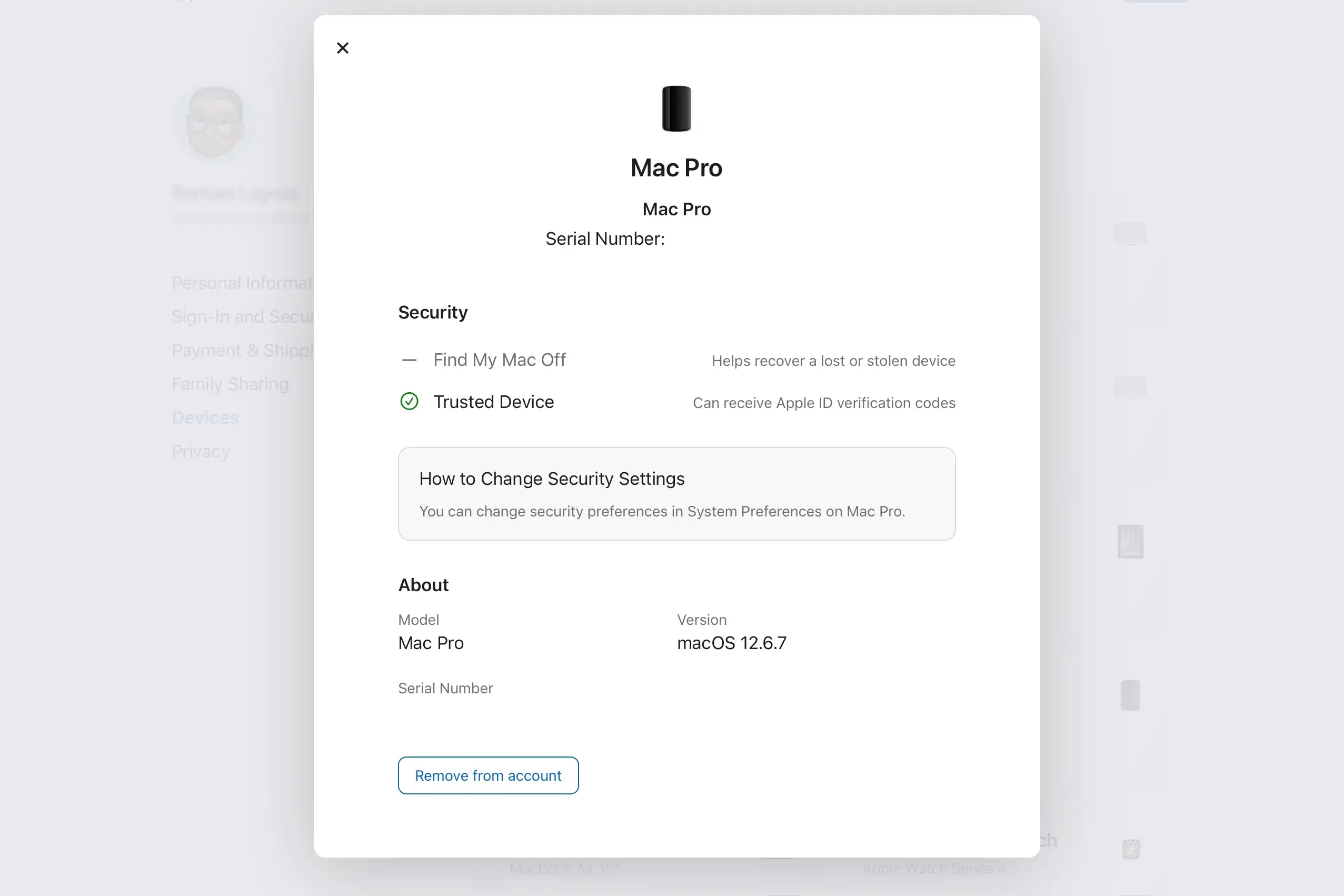
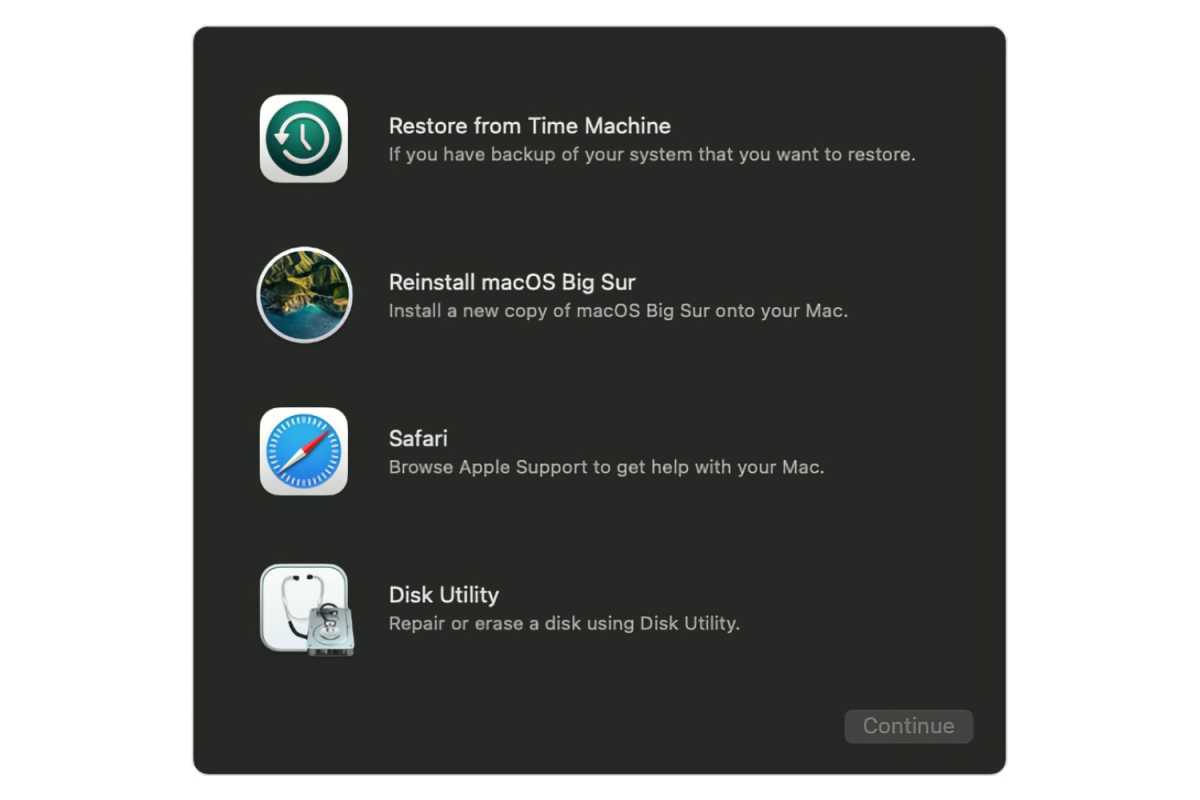







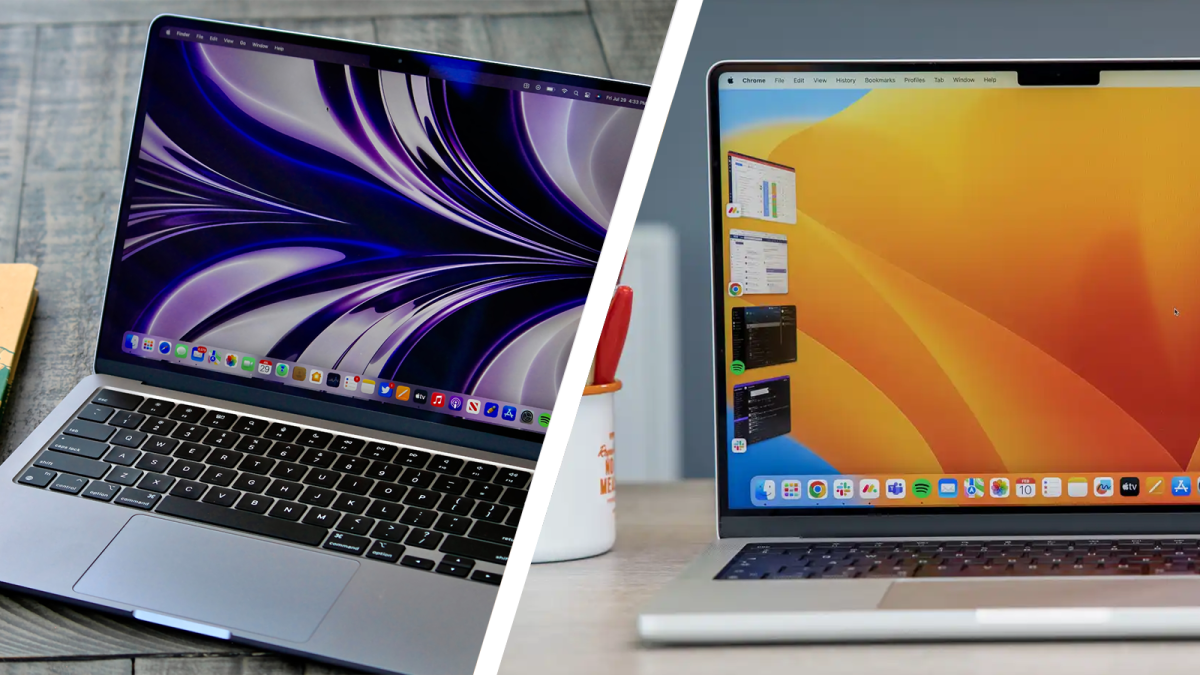





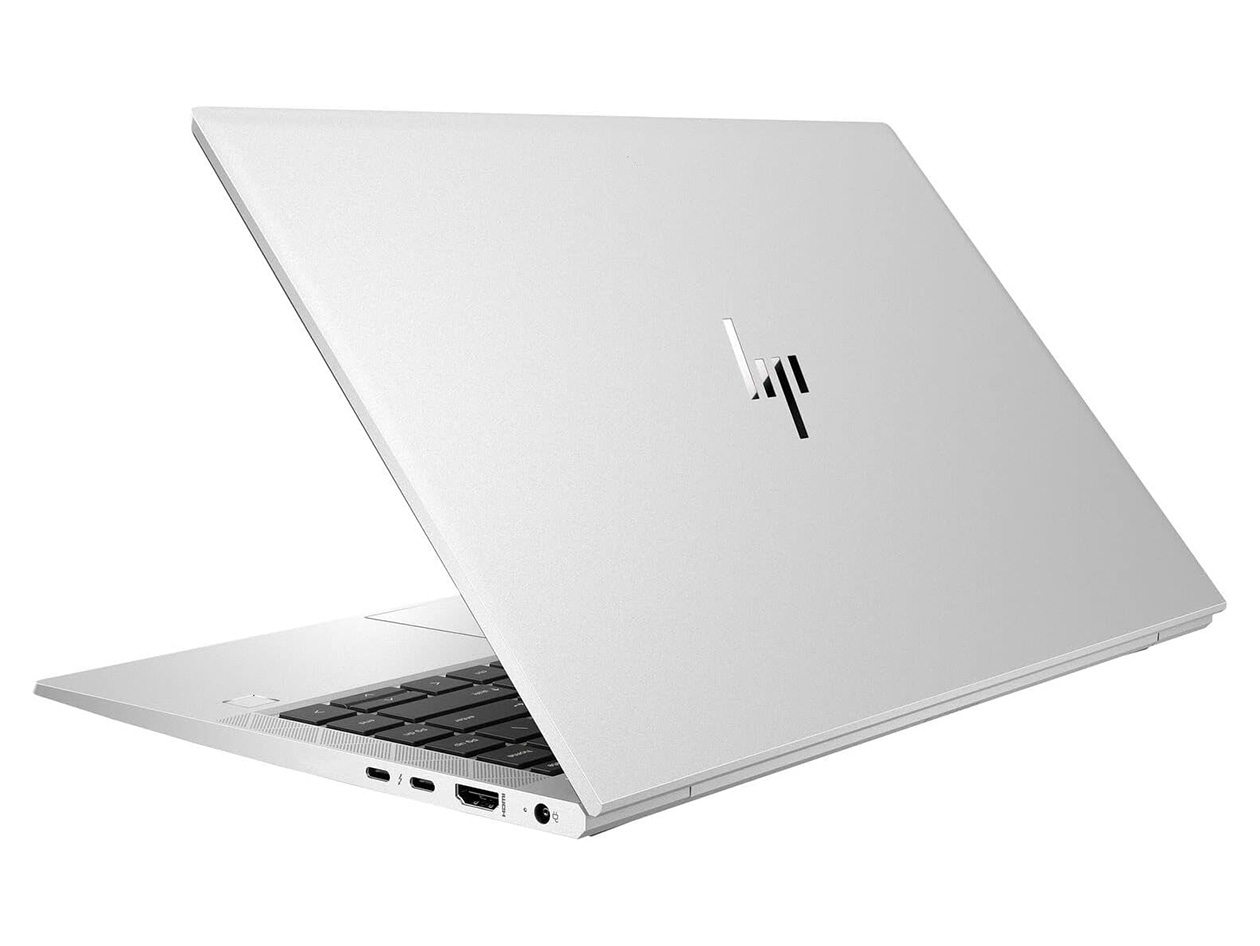



 At a glanceExpert's Rating
Pros
At a glanceExpert's Rating
Pros
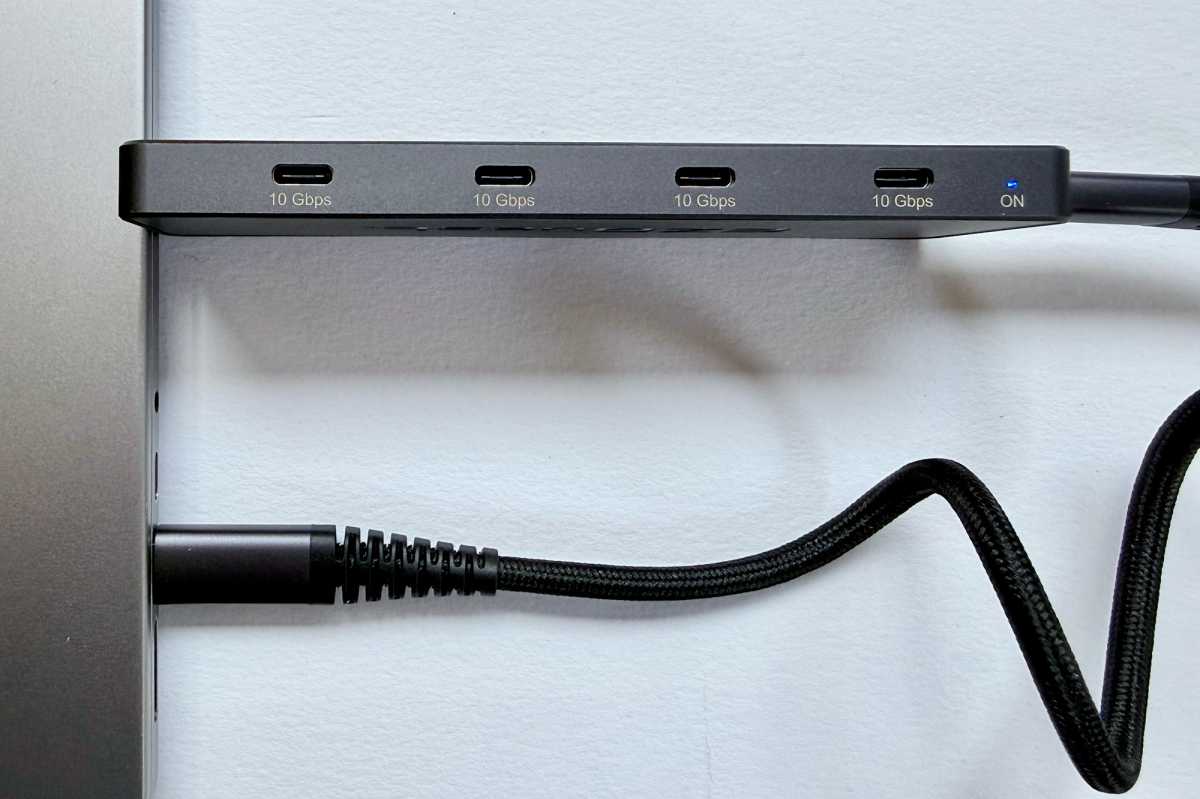
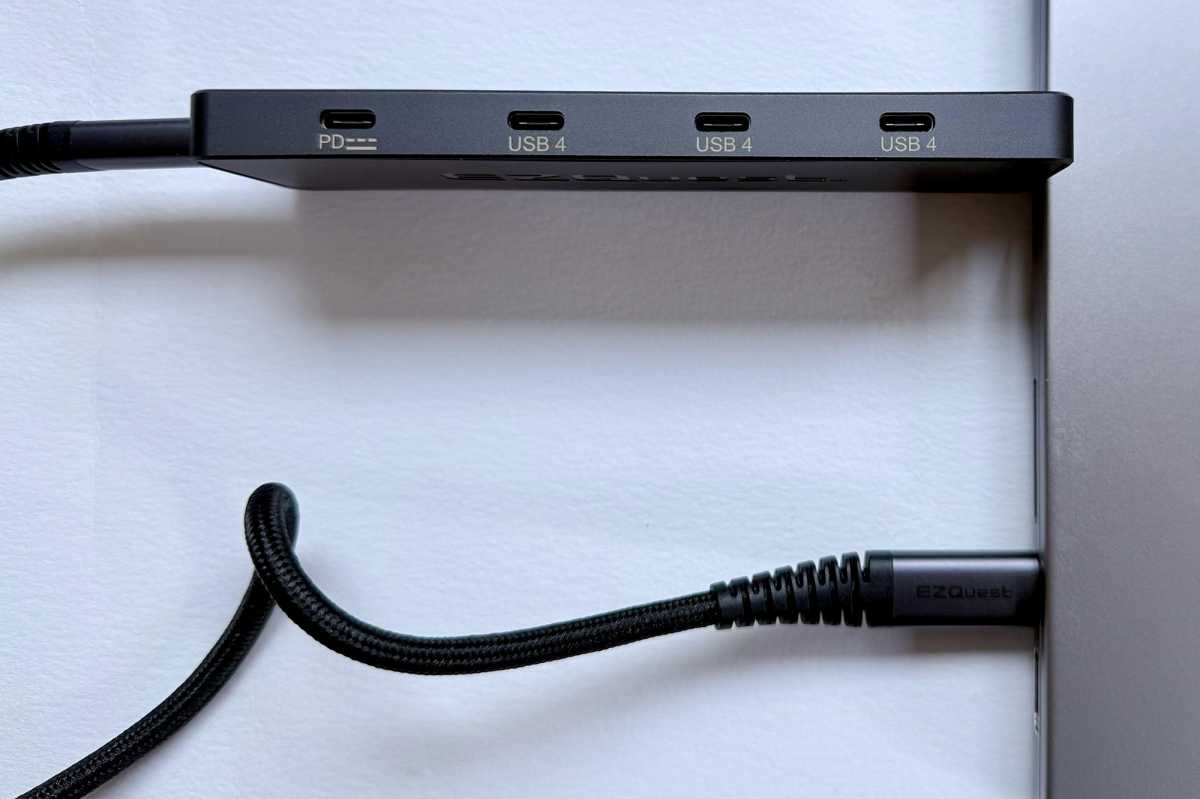
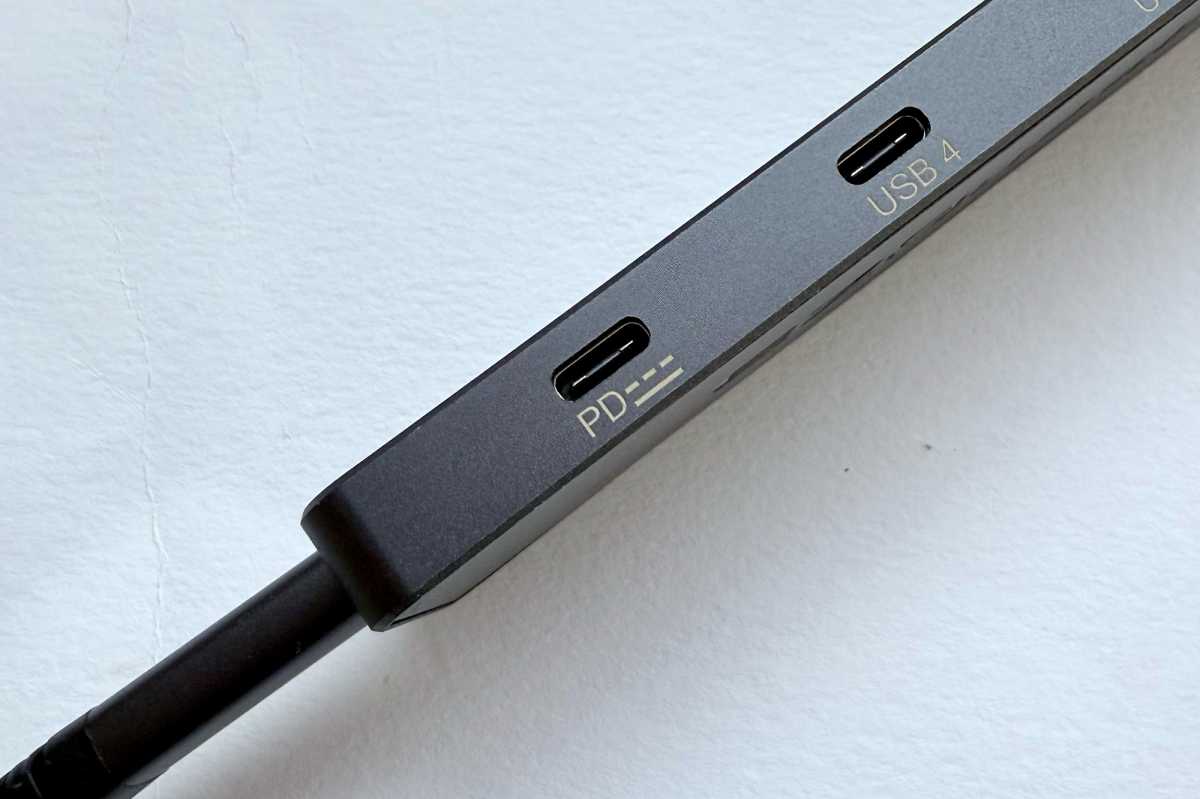
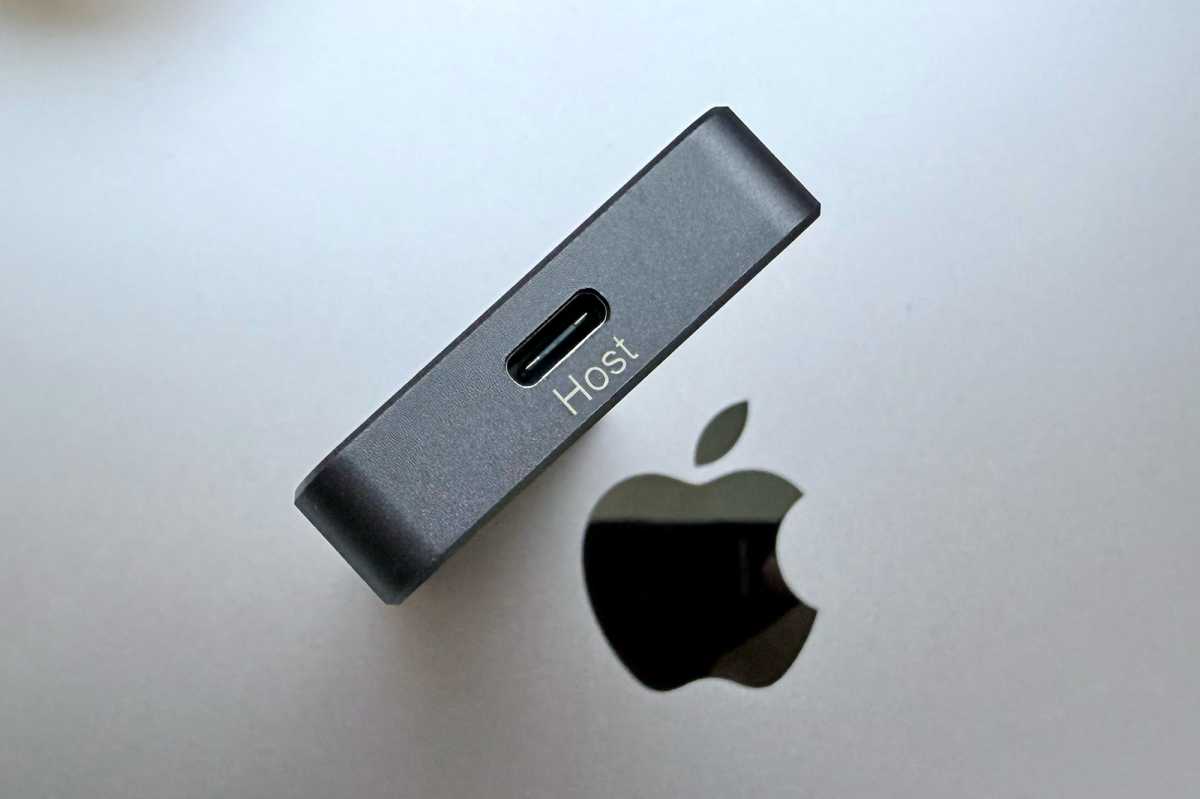

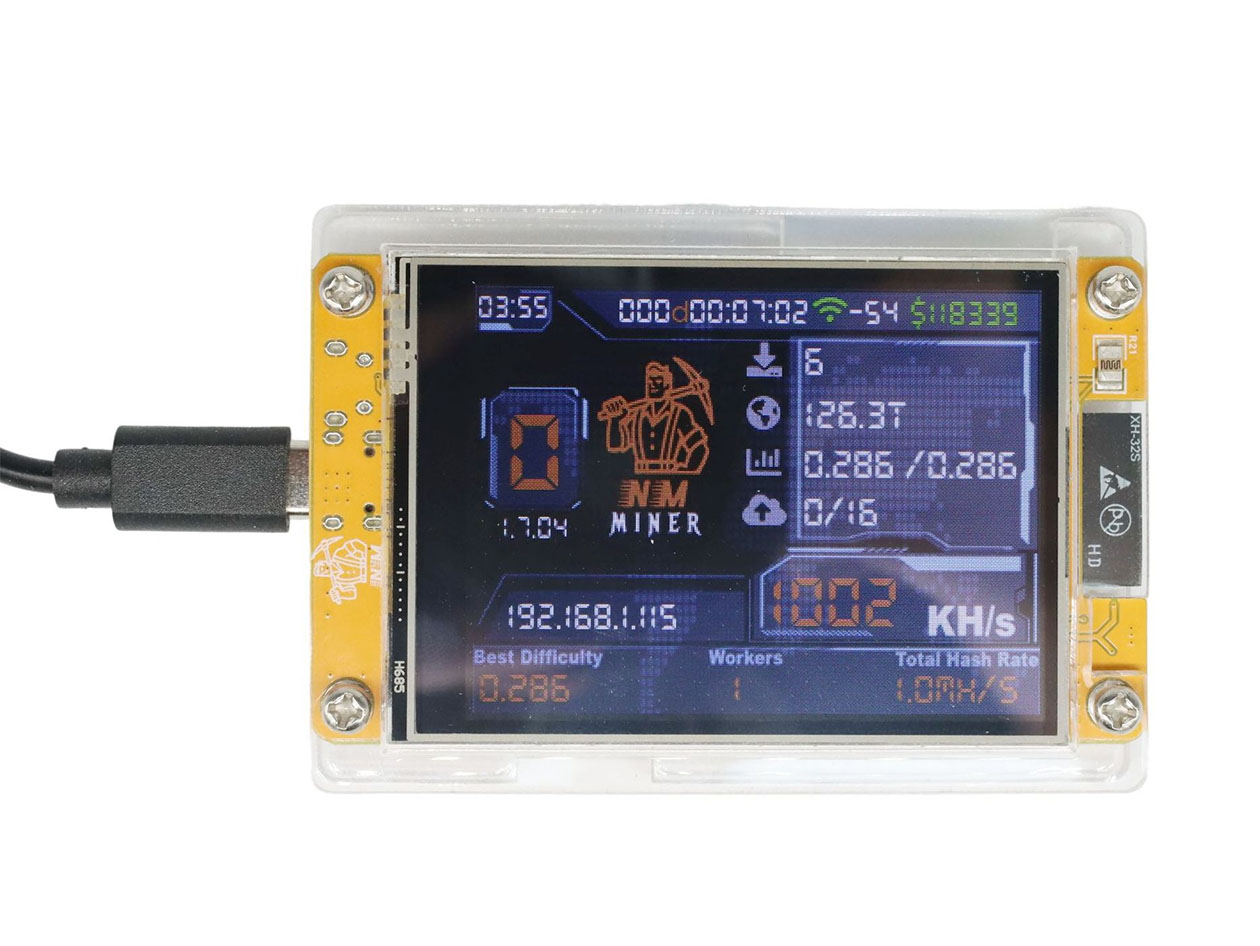







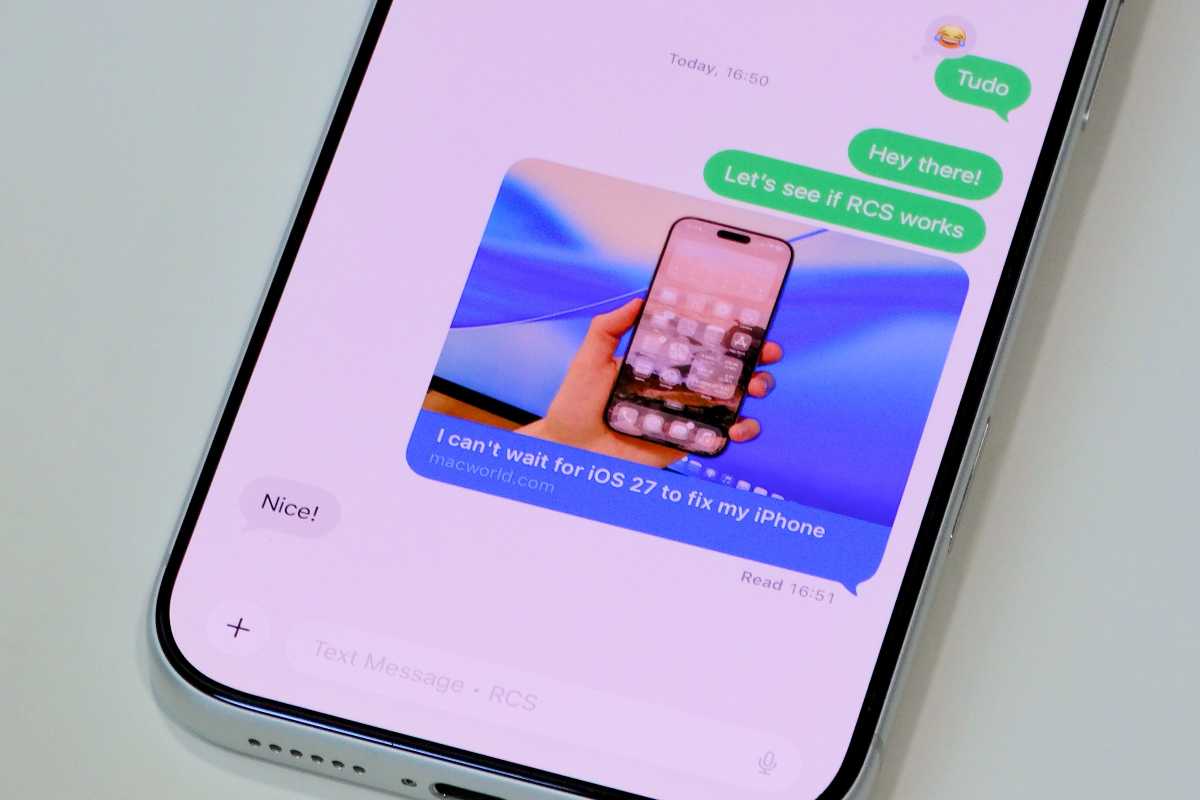
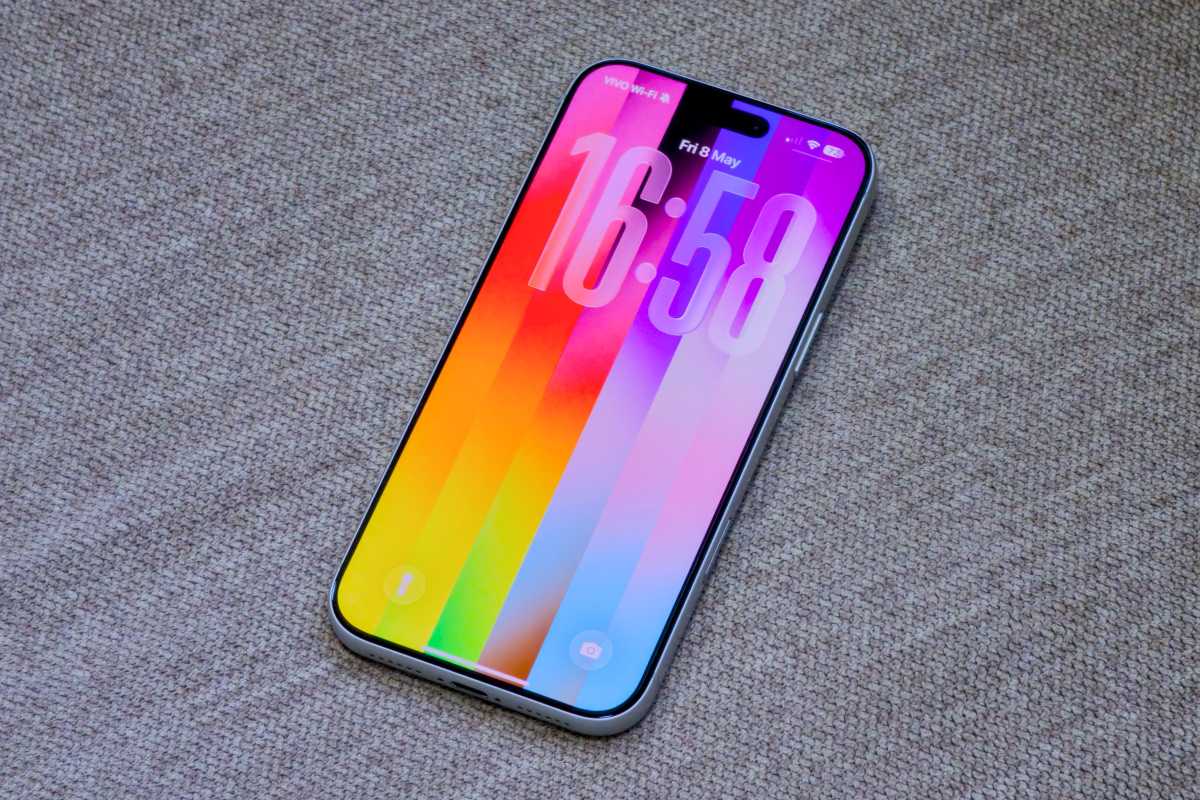

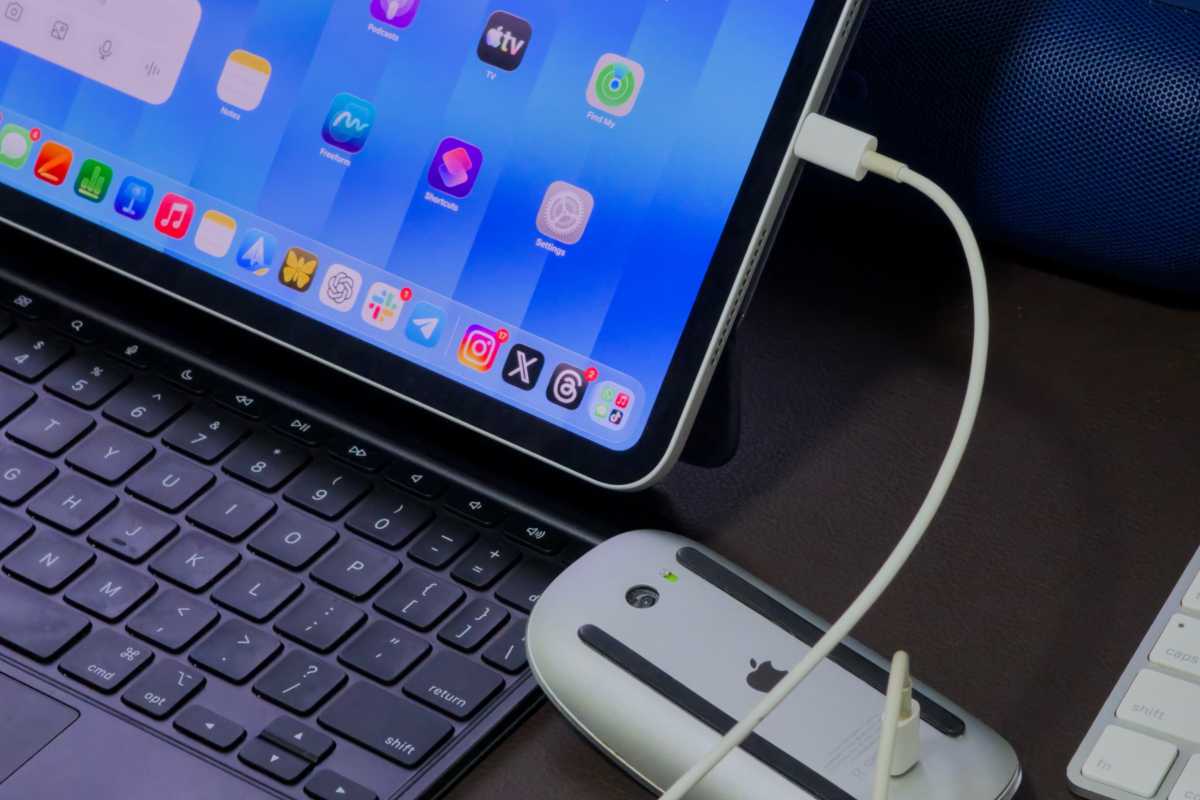
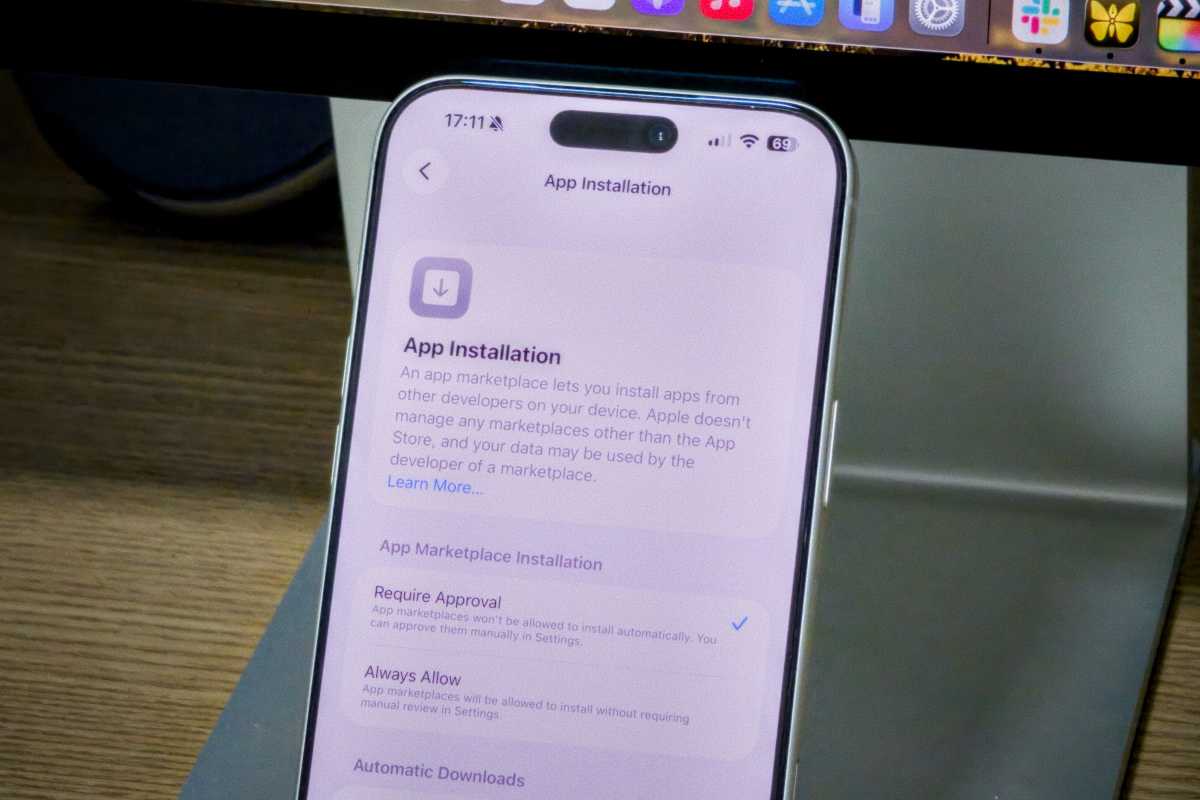

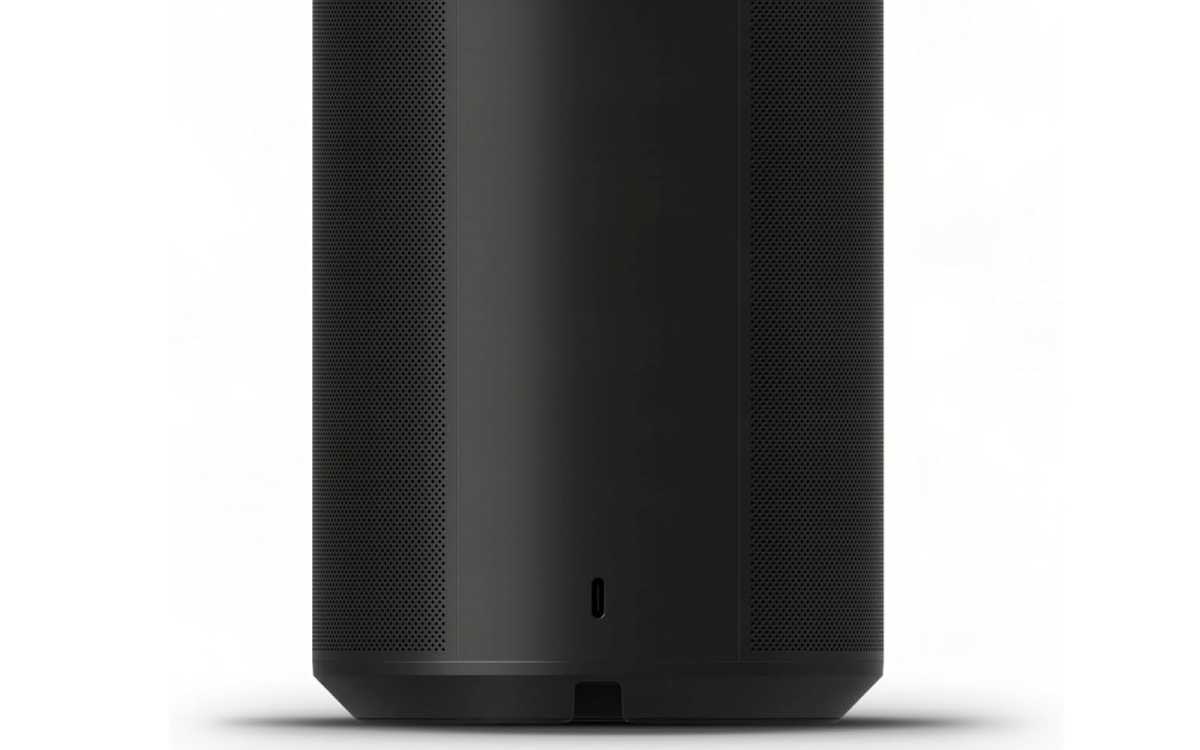

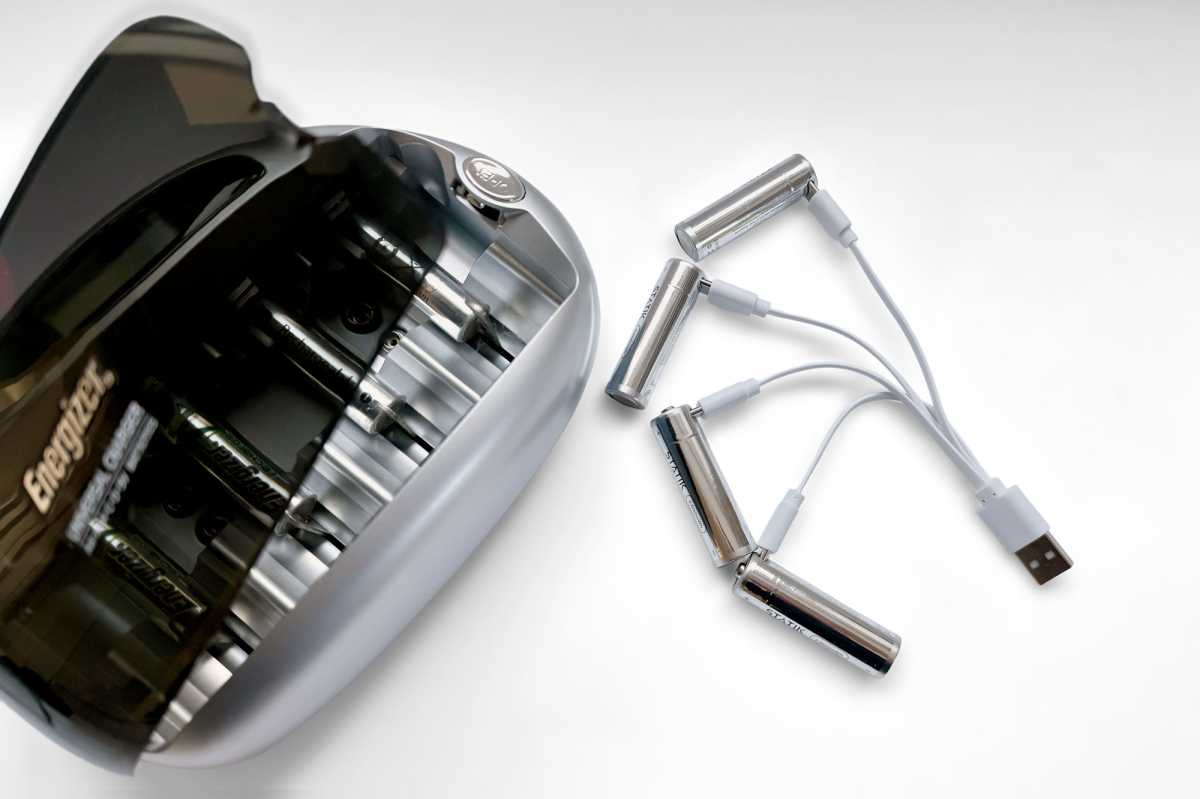
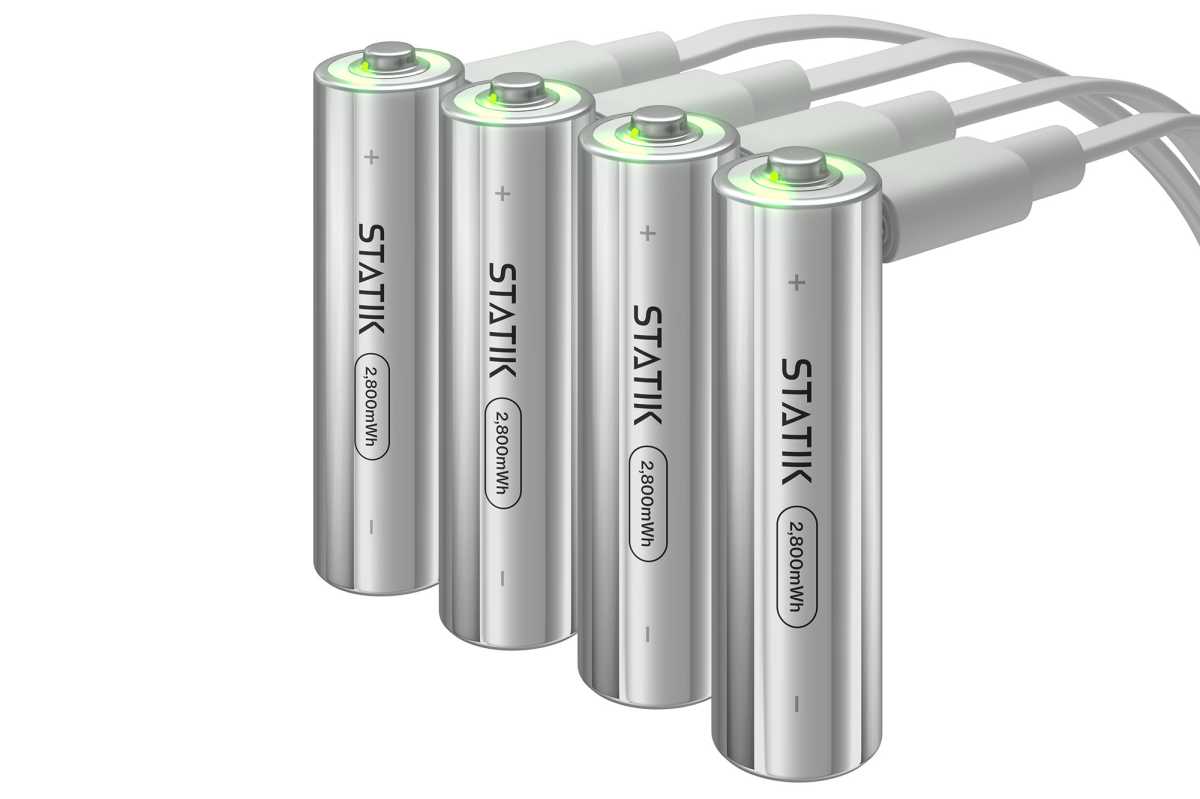


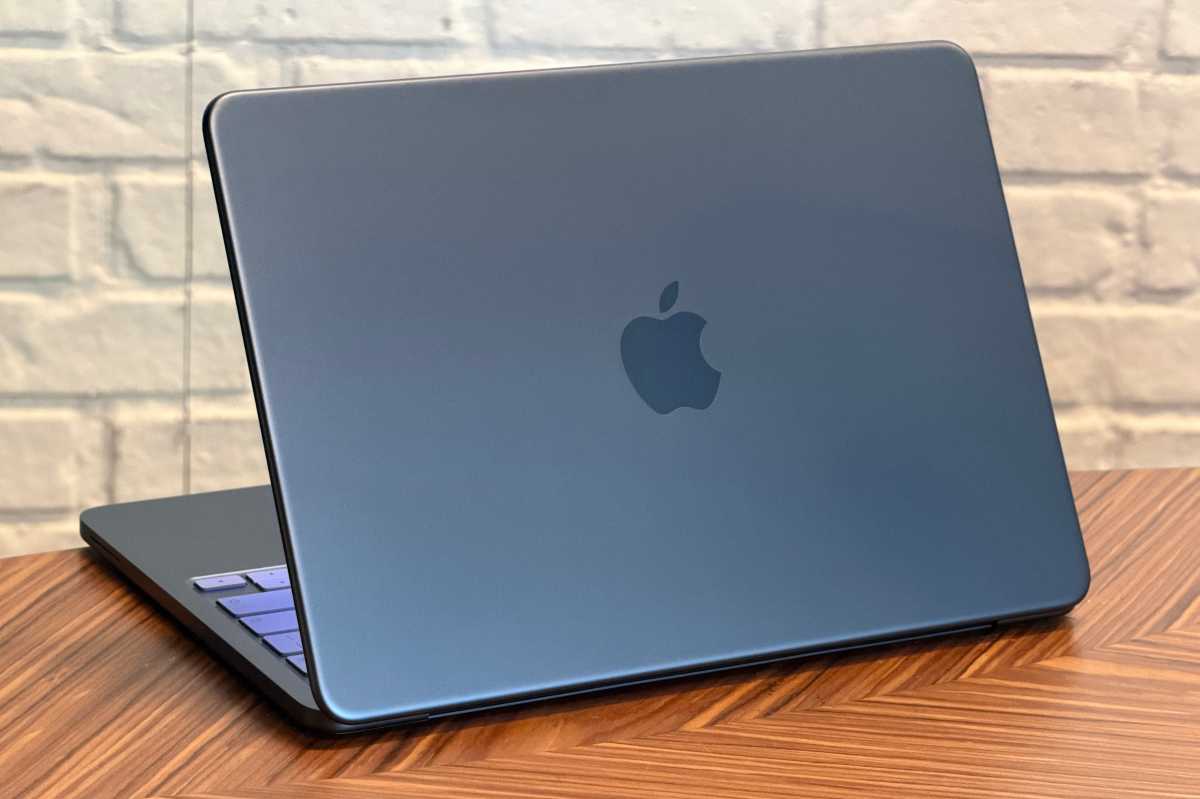
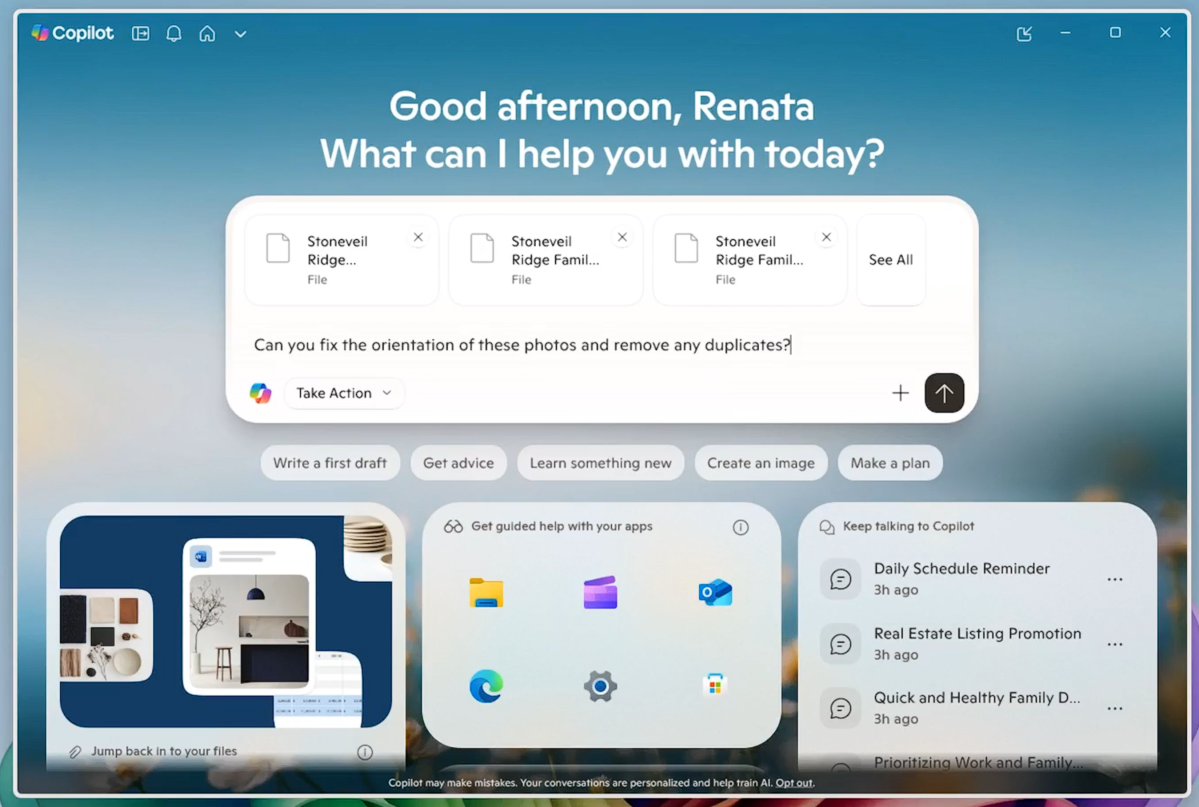



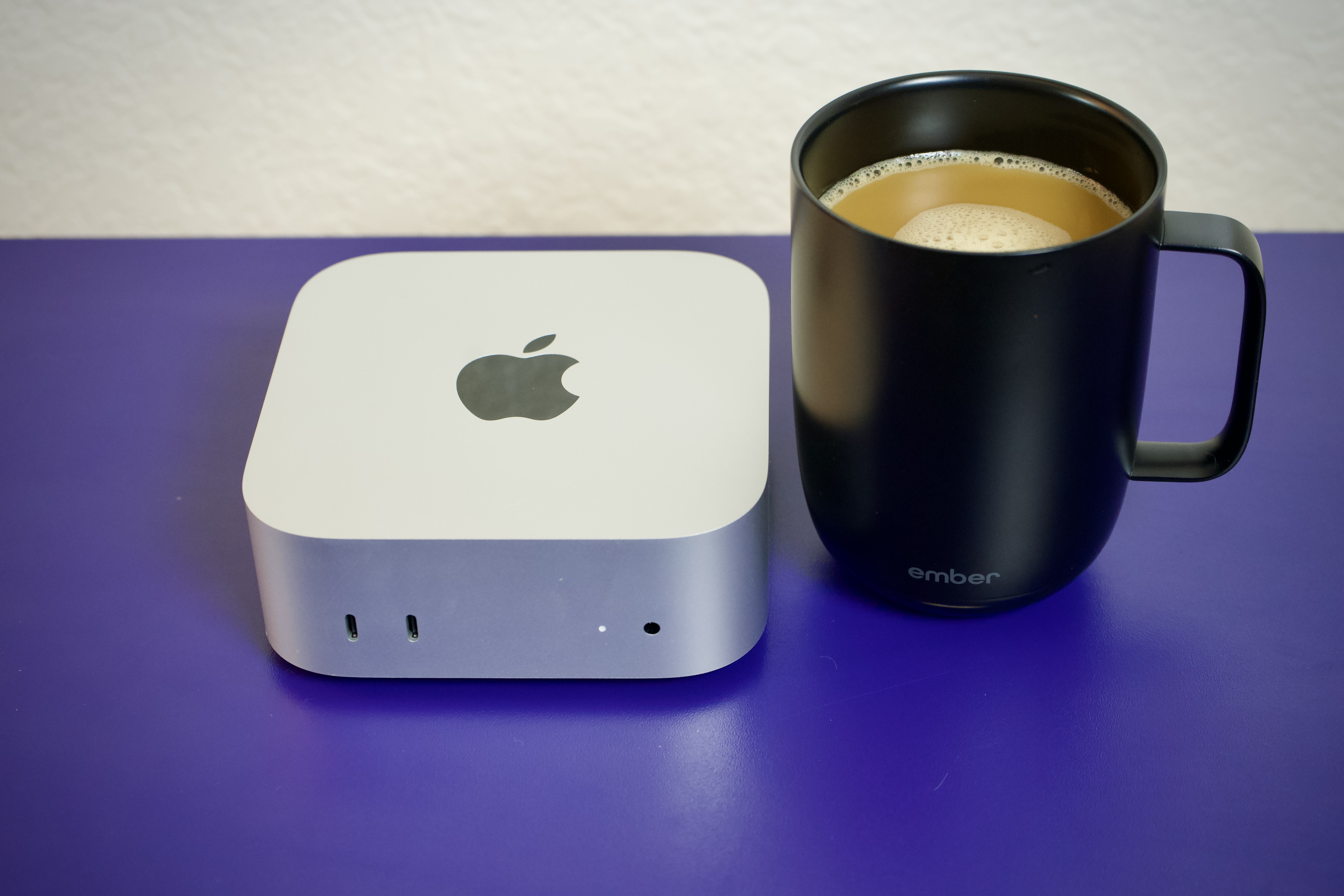
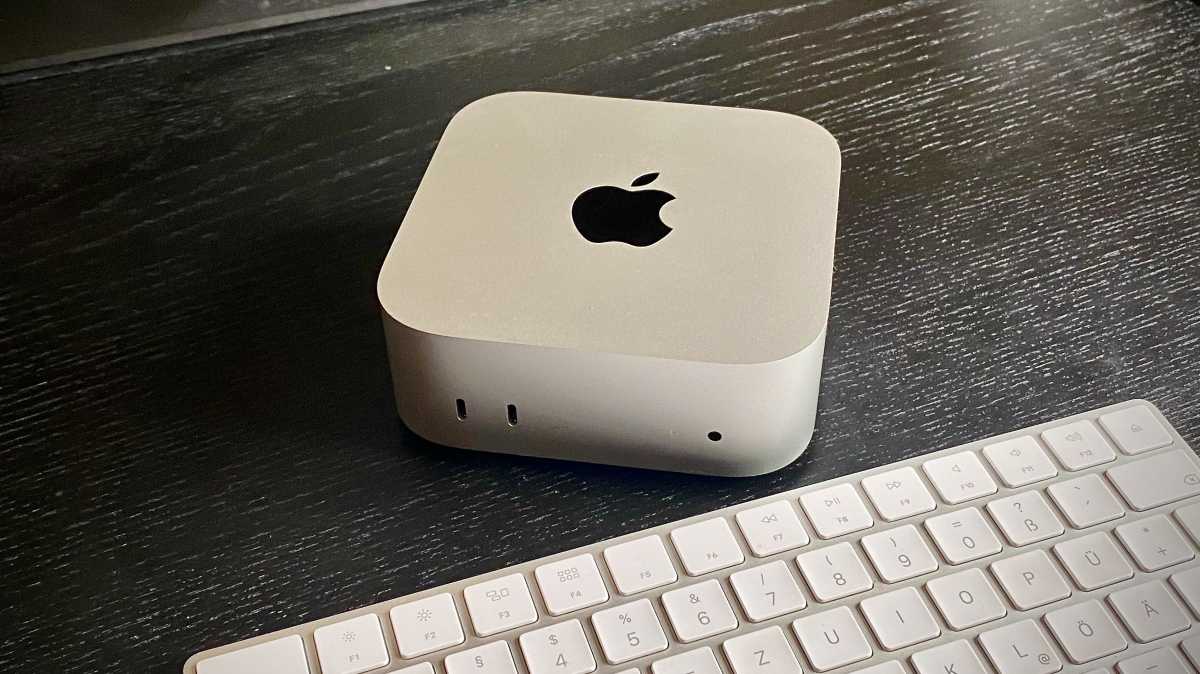
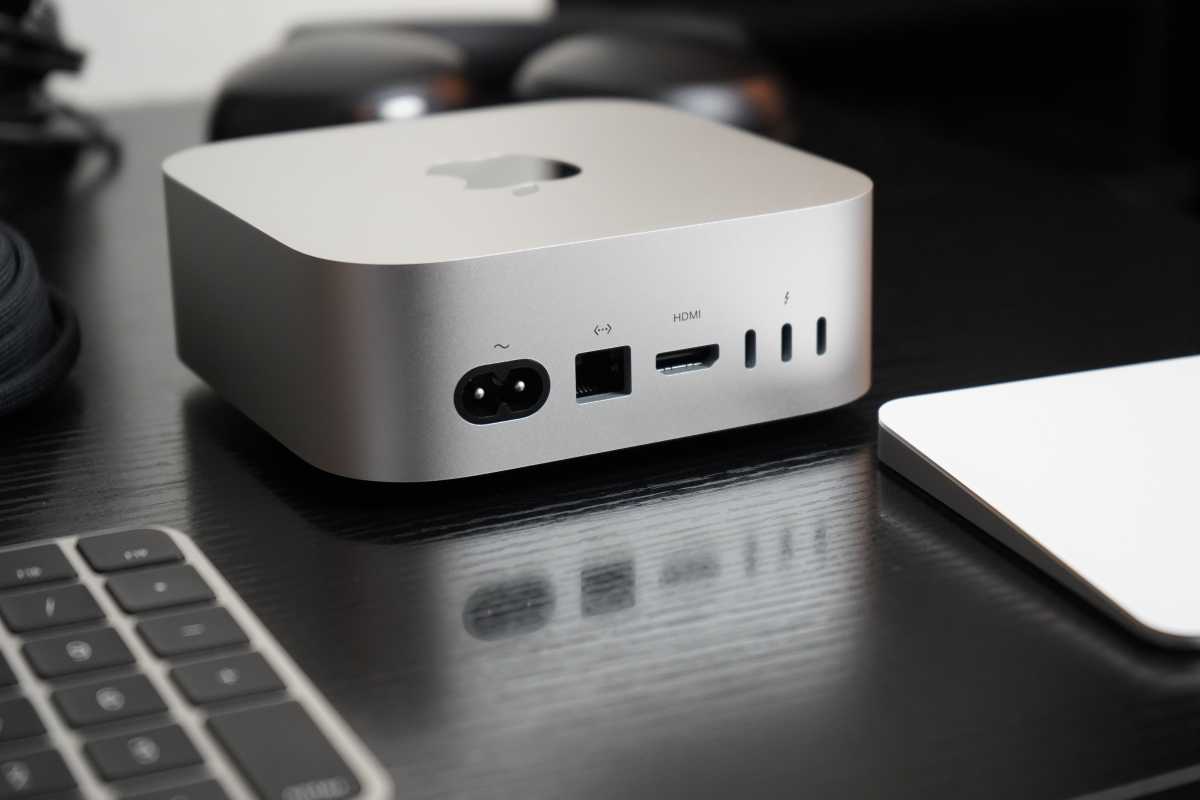
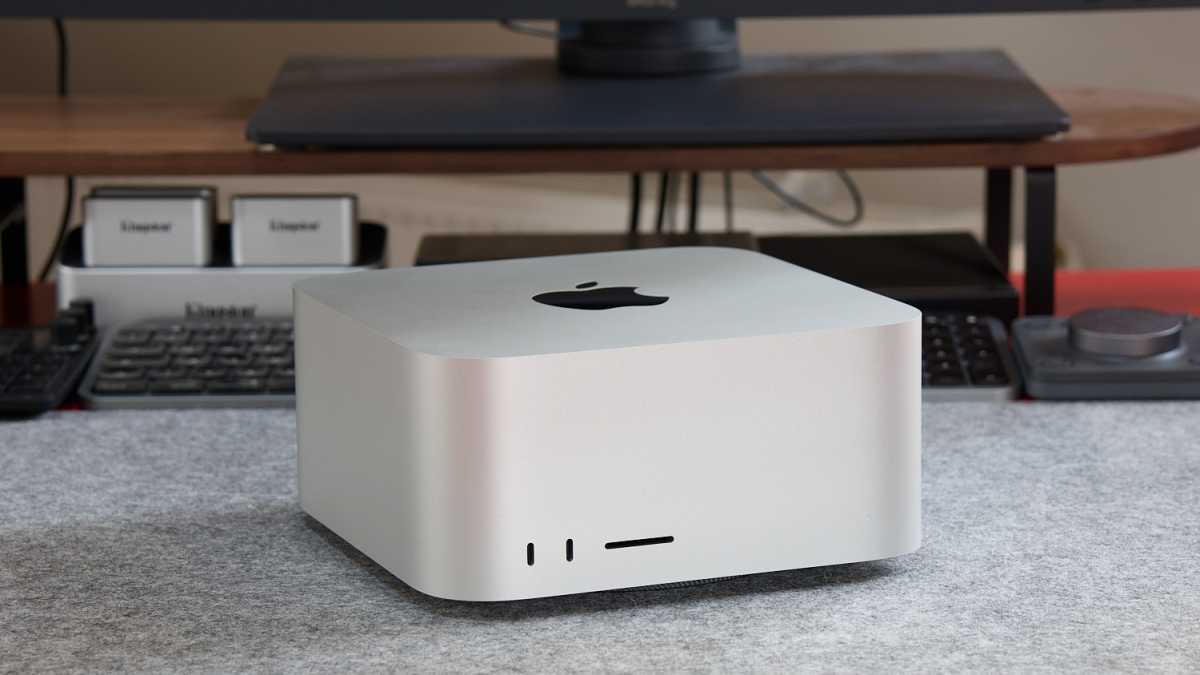
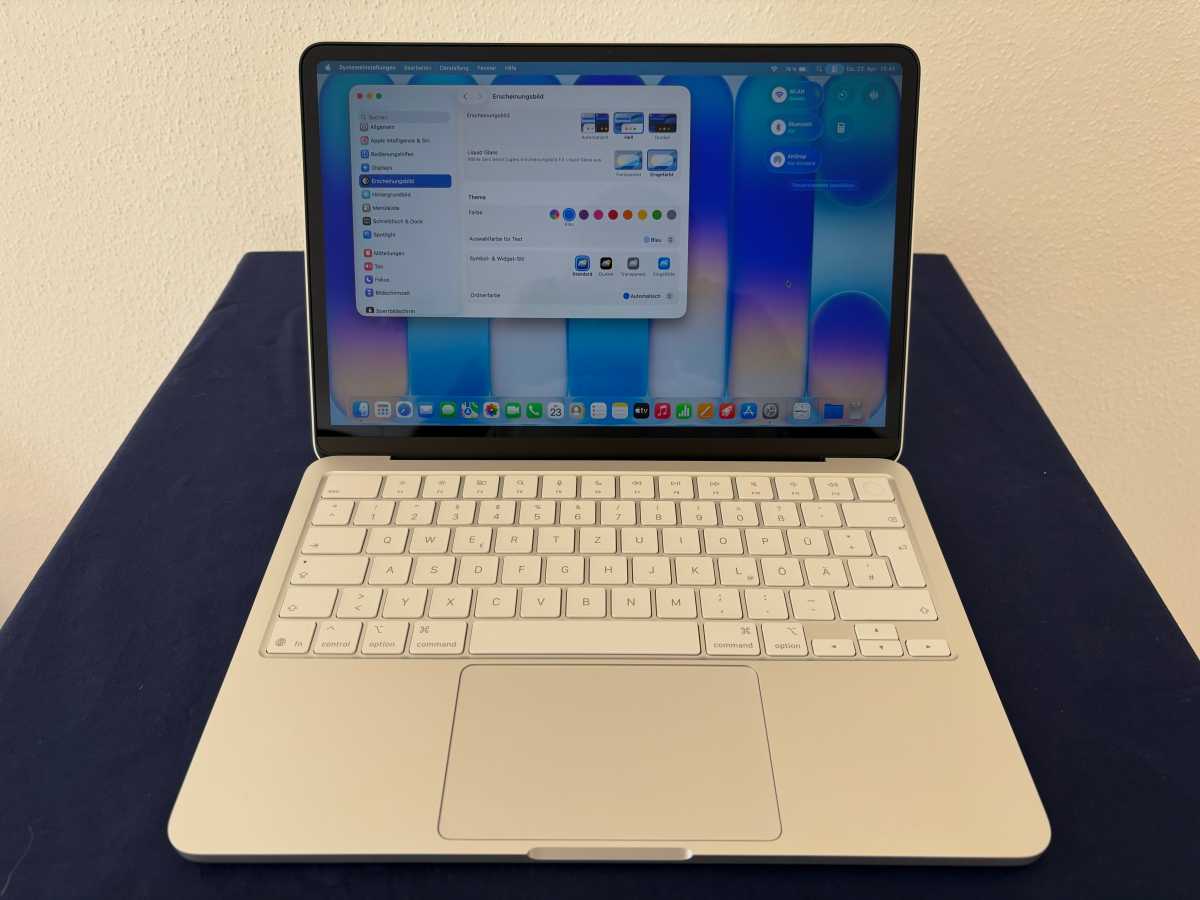

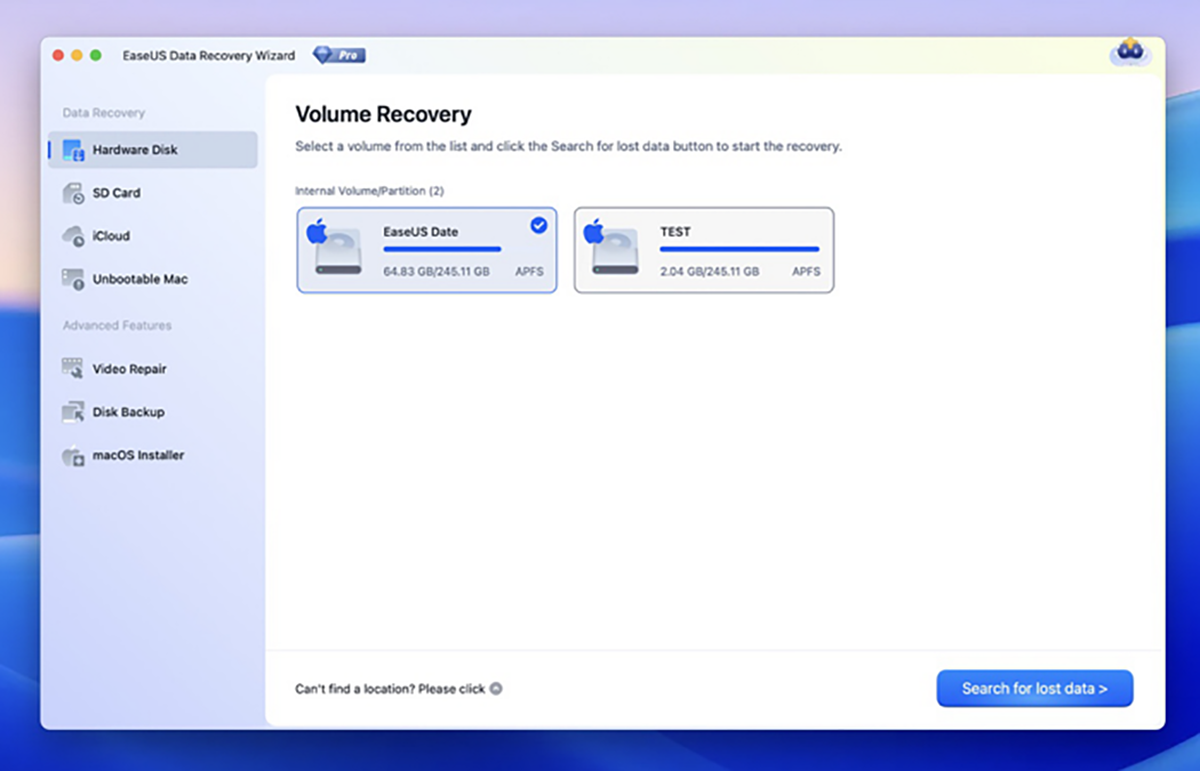

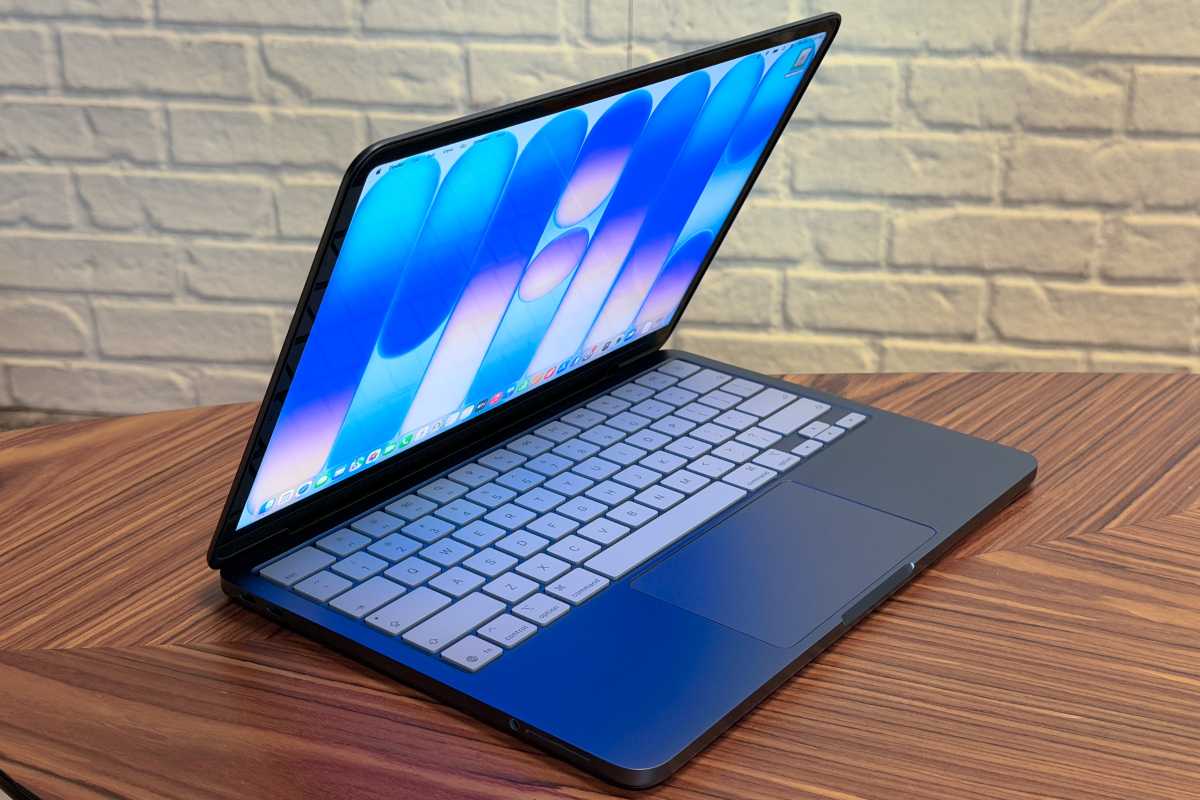





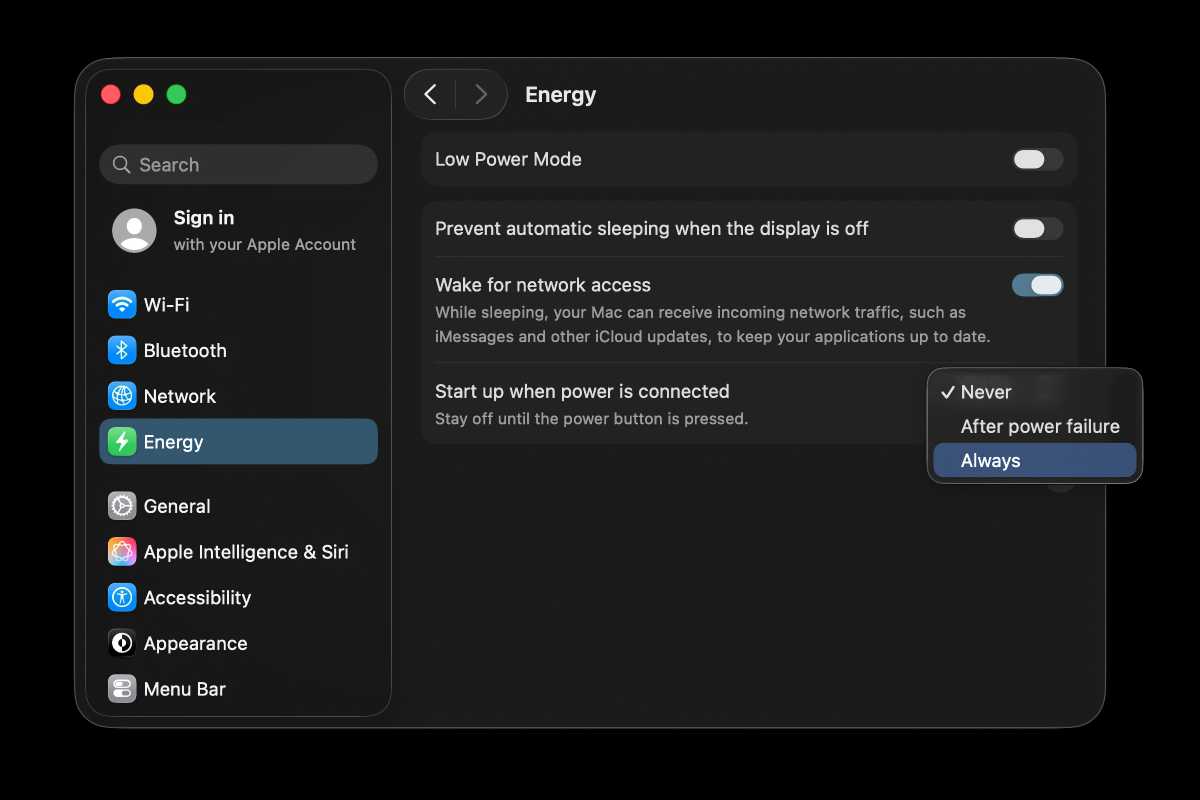


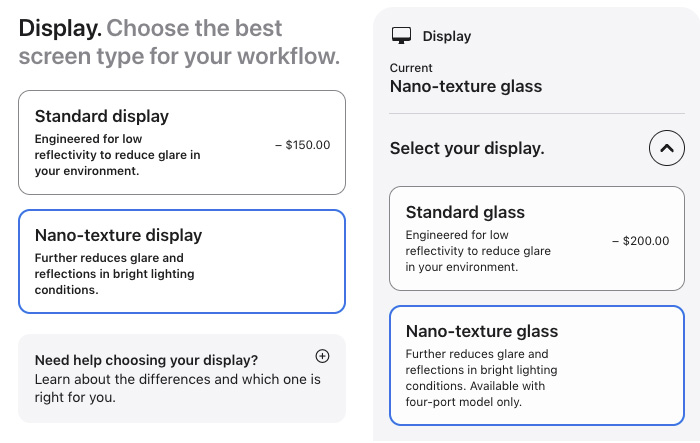


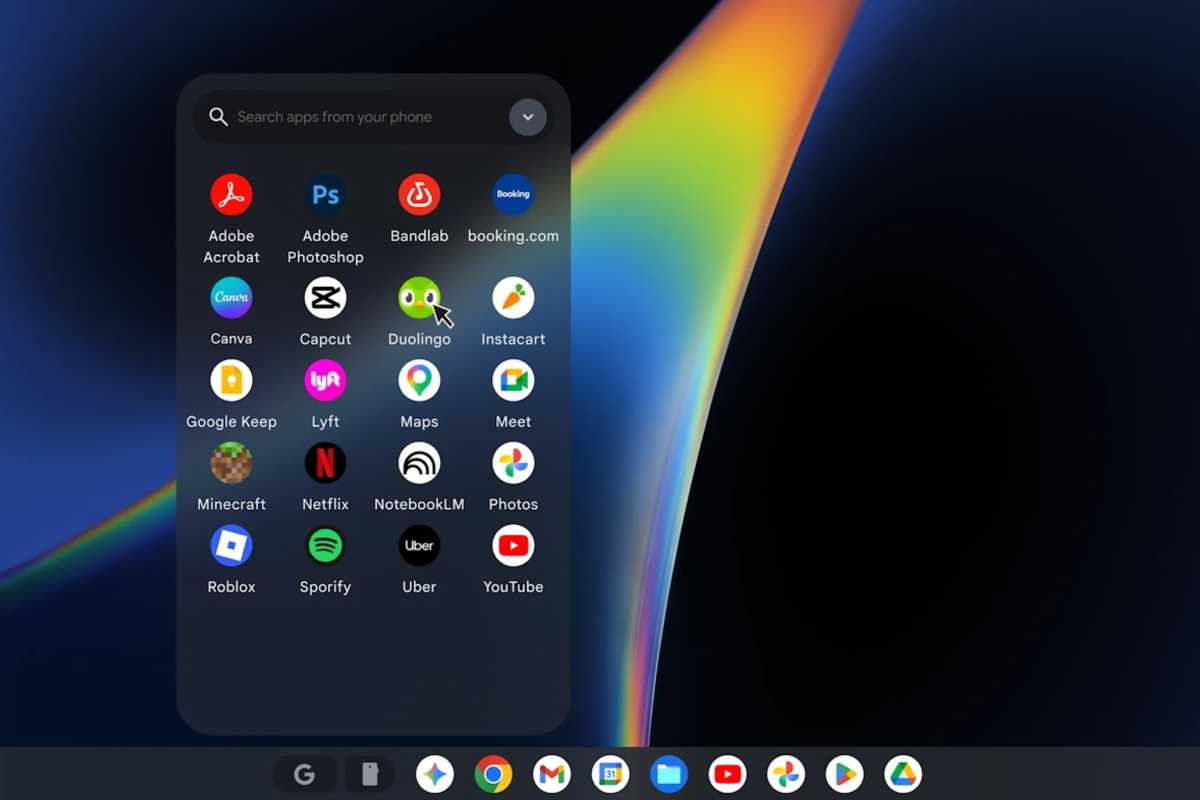
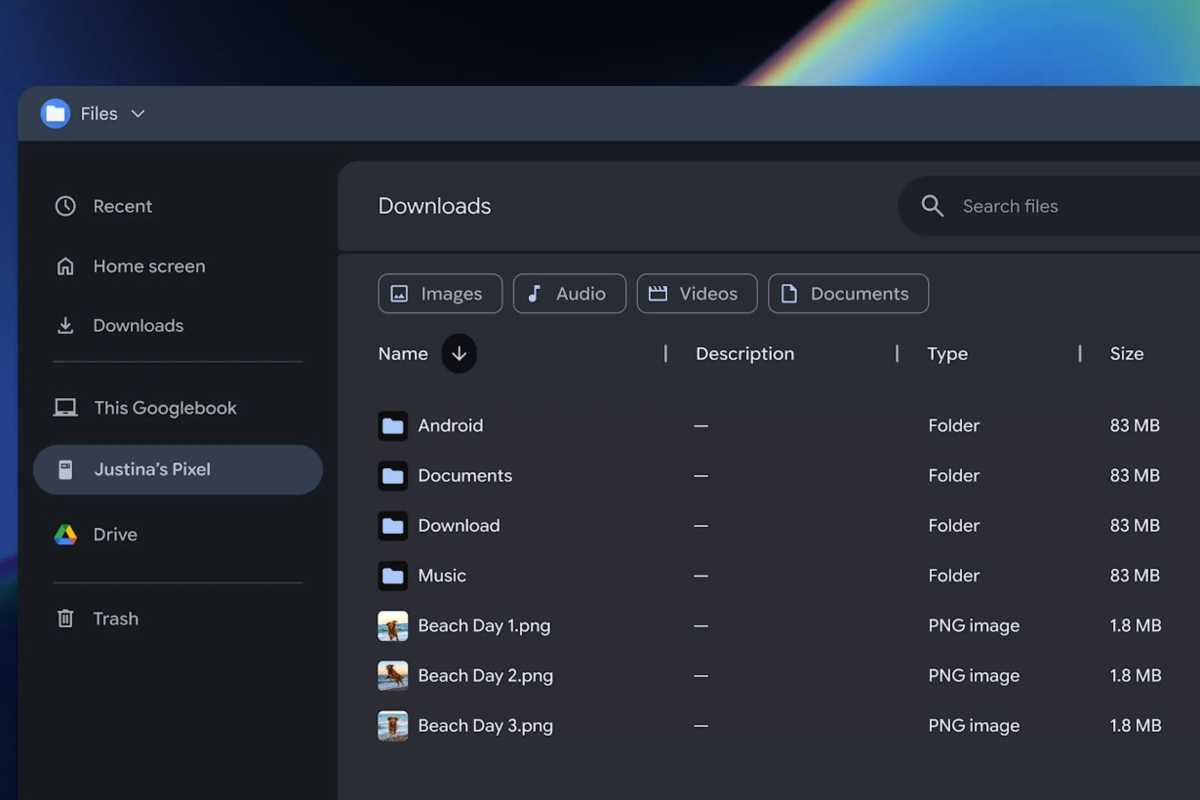


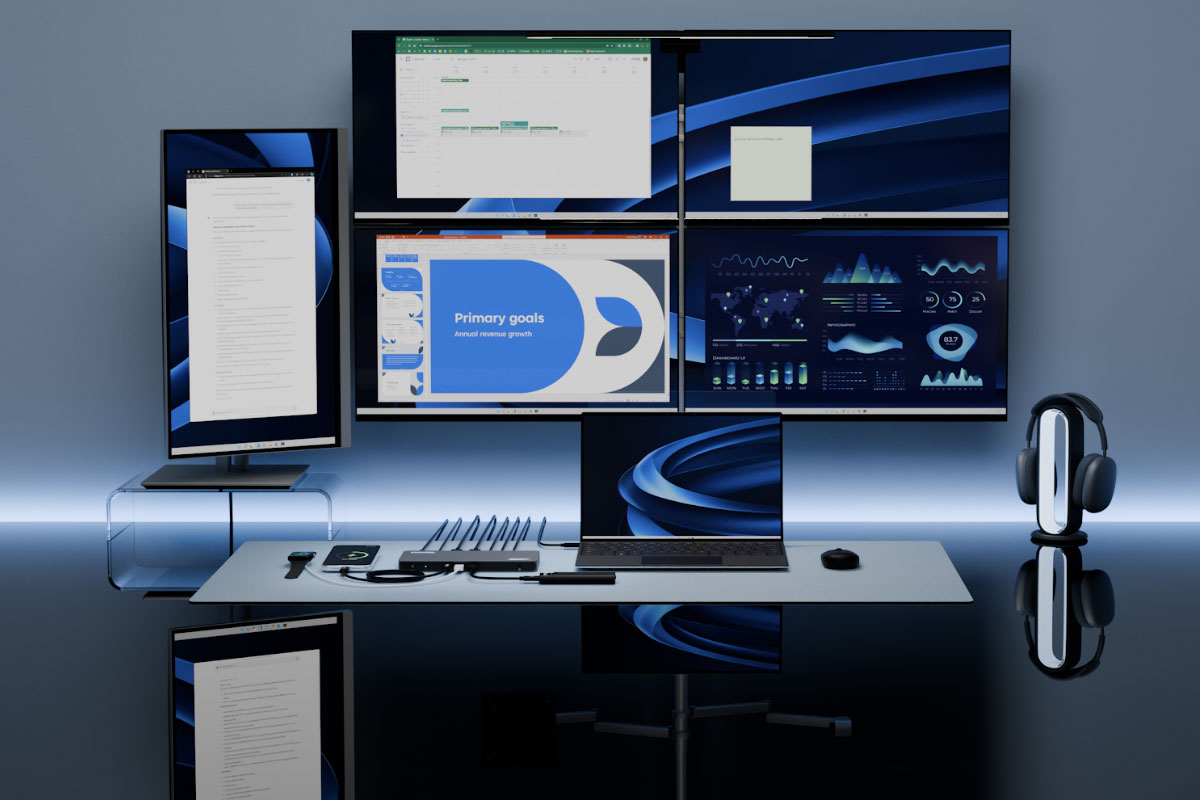

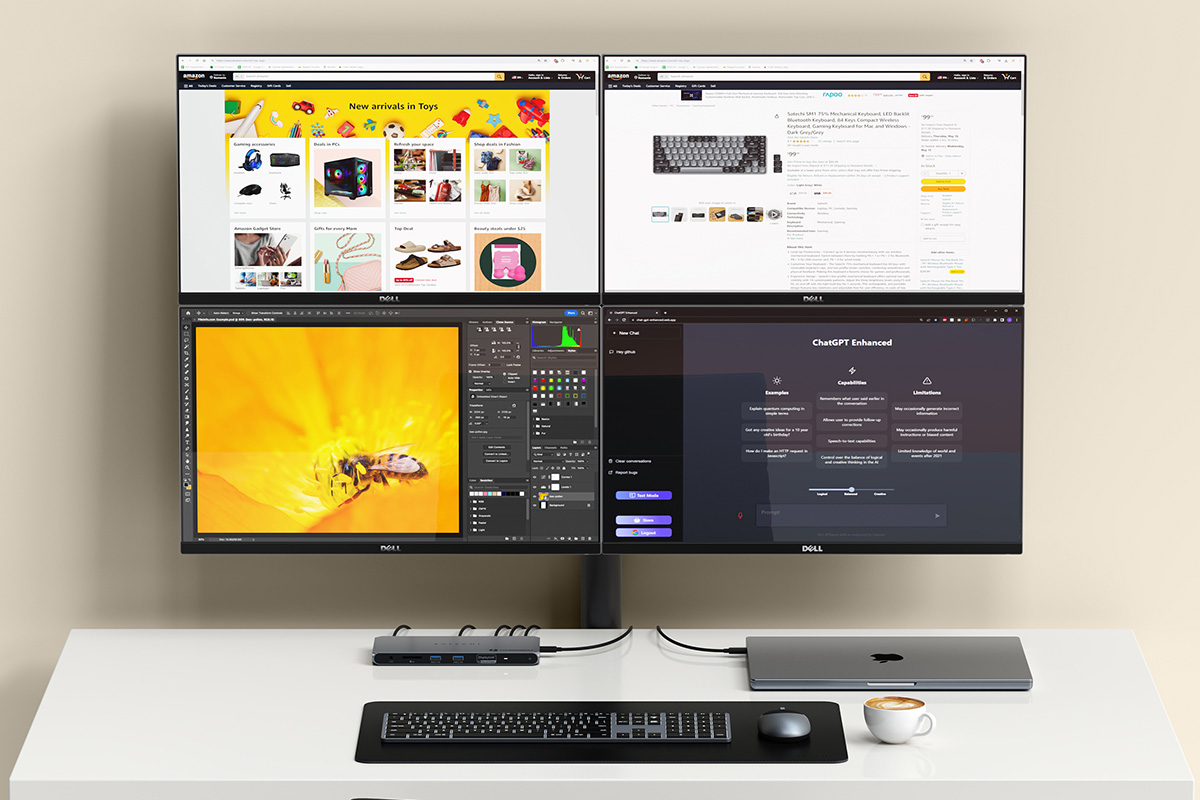

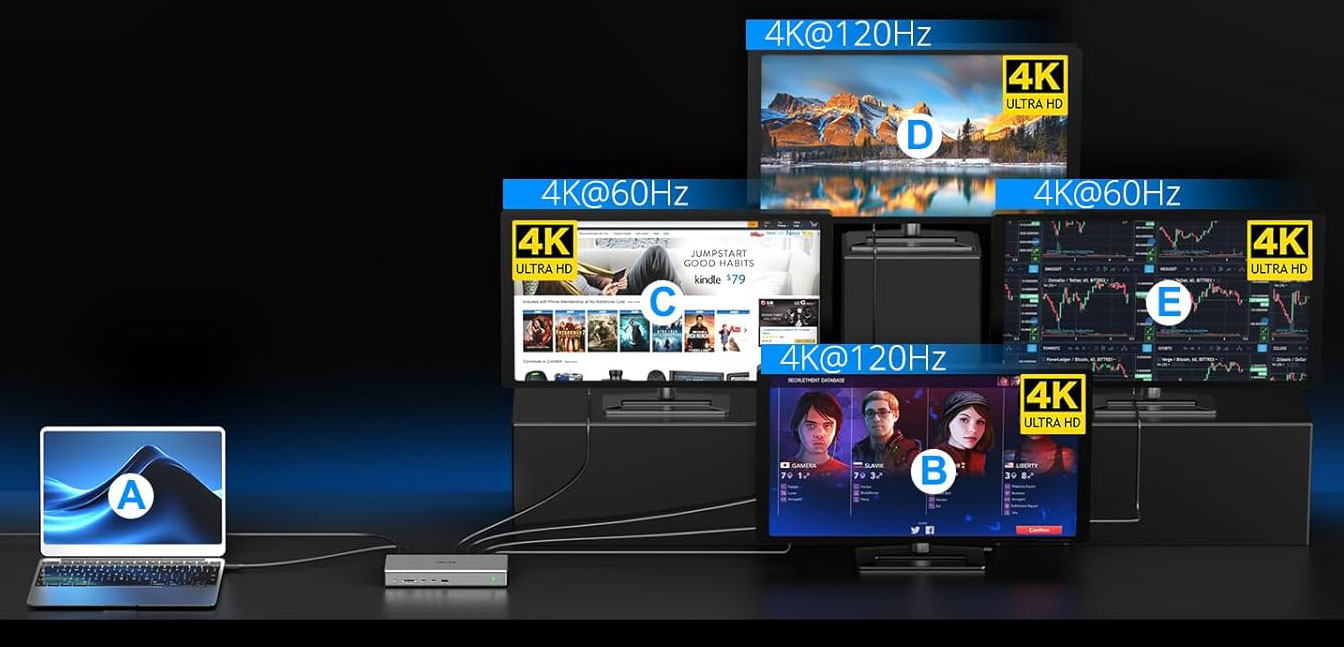
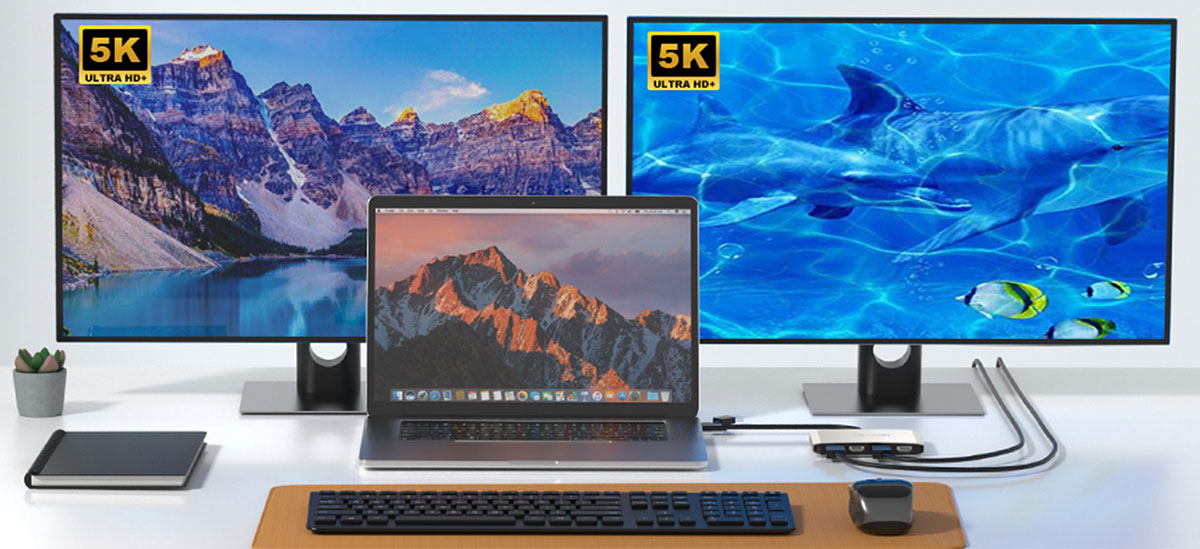
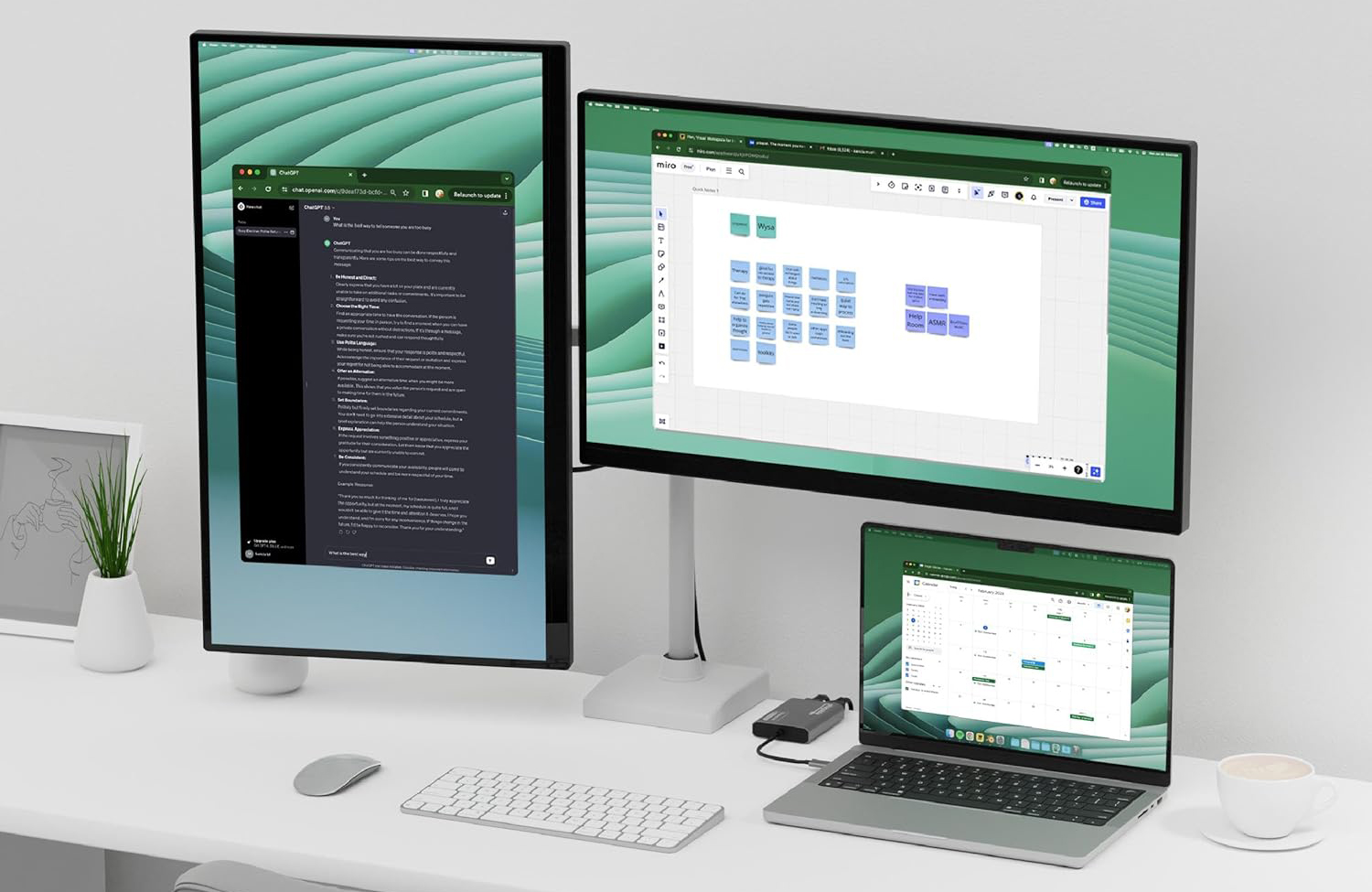
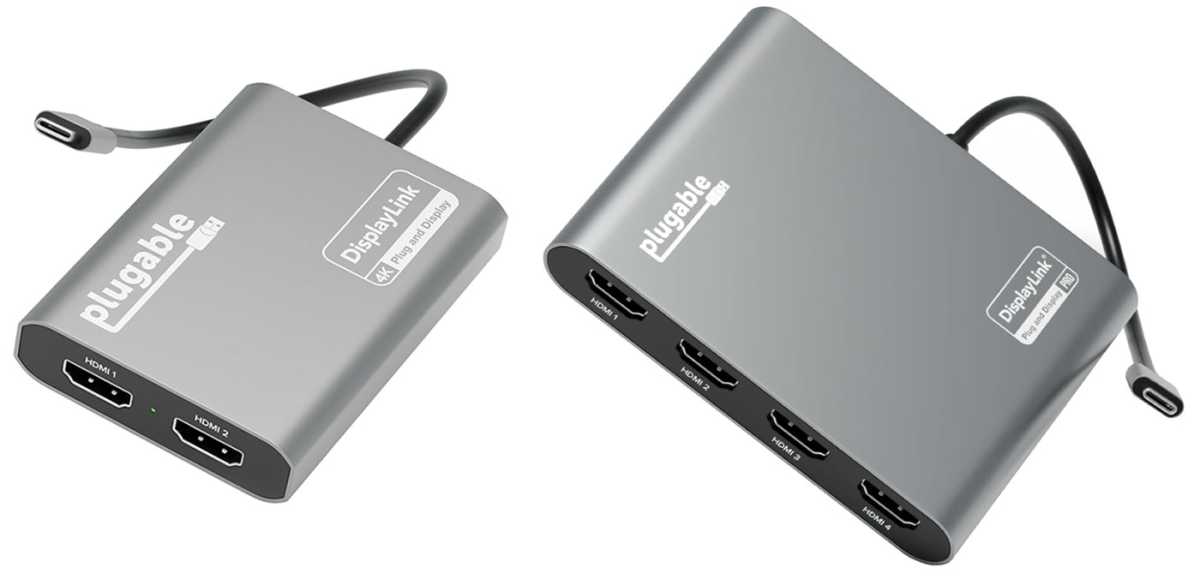
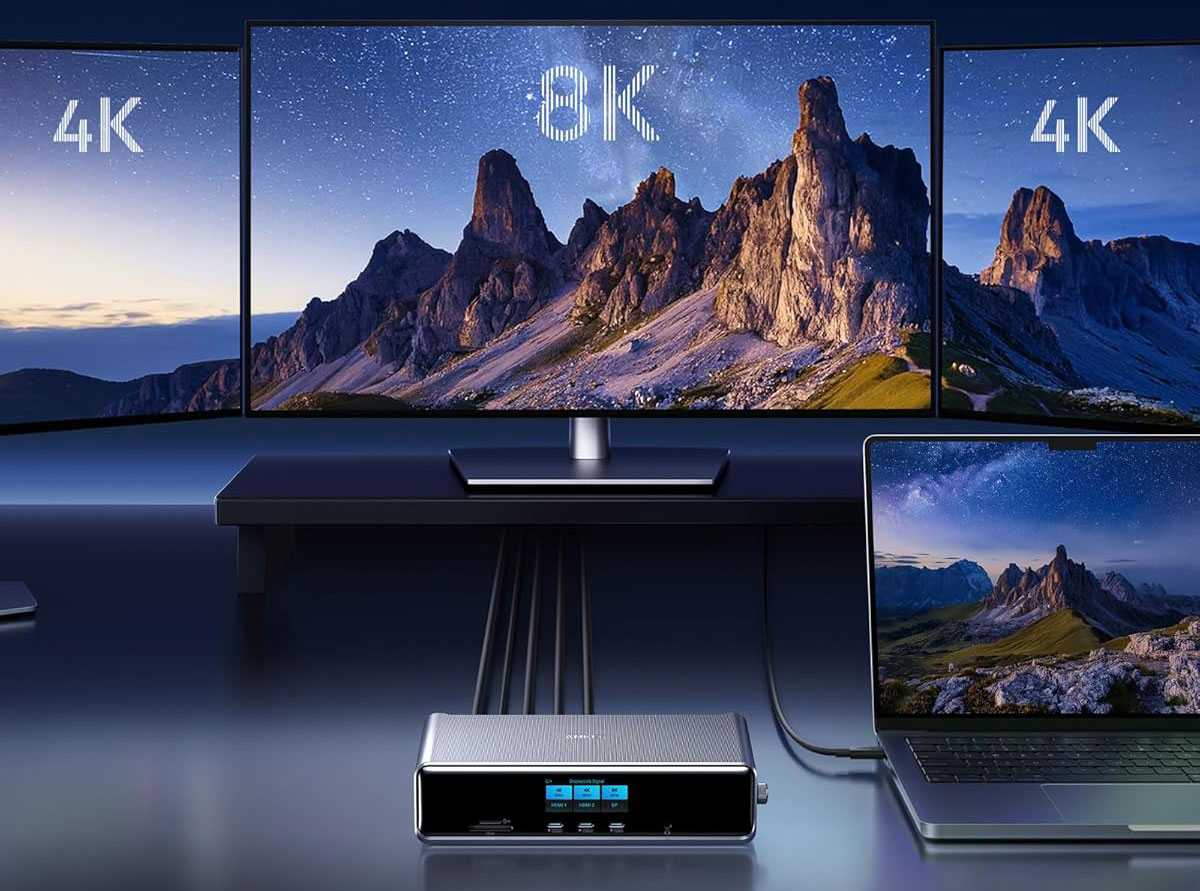

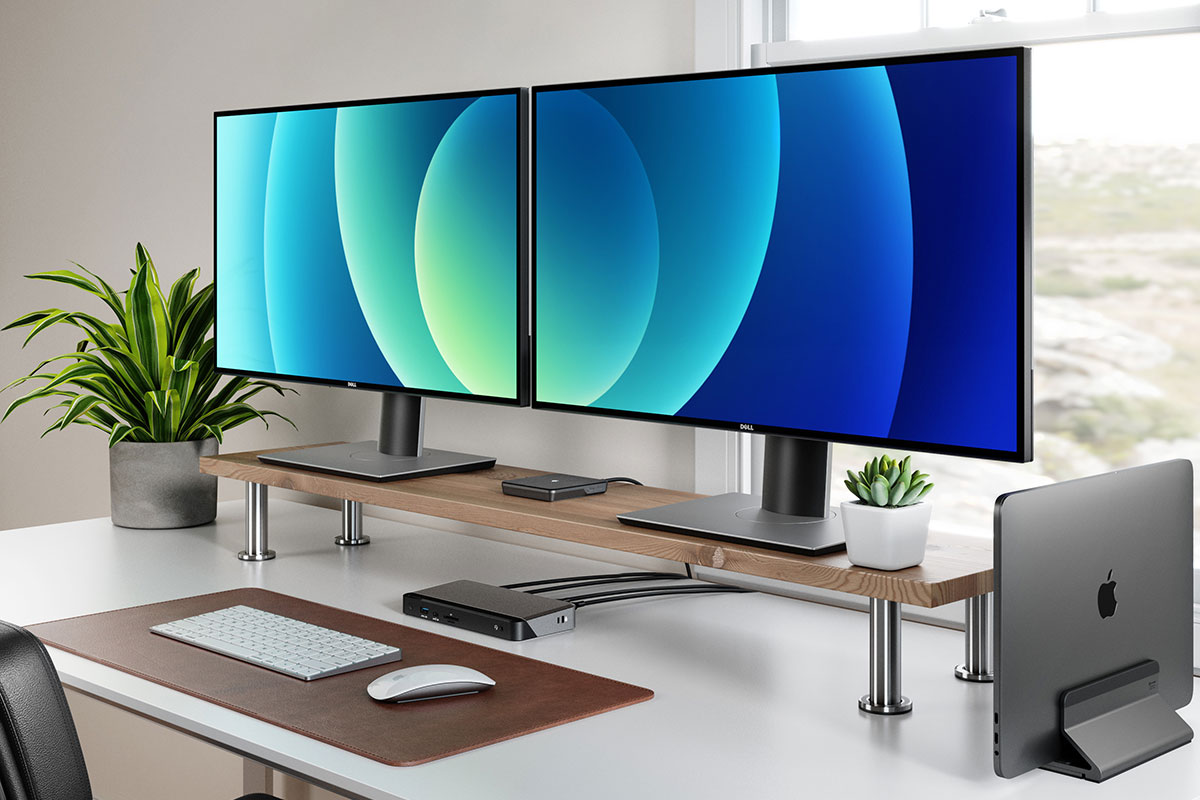

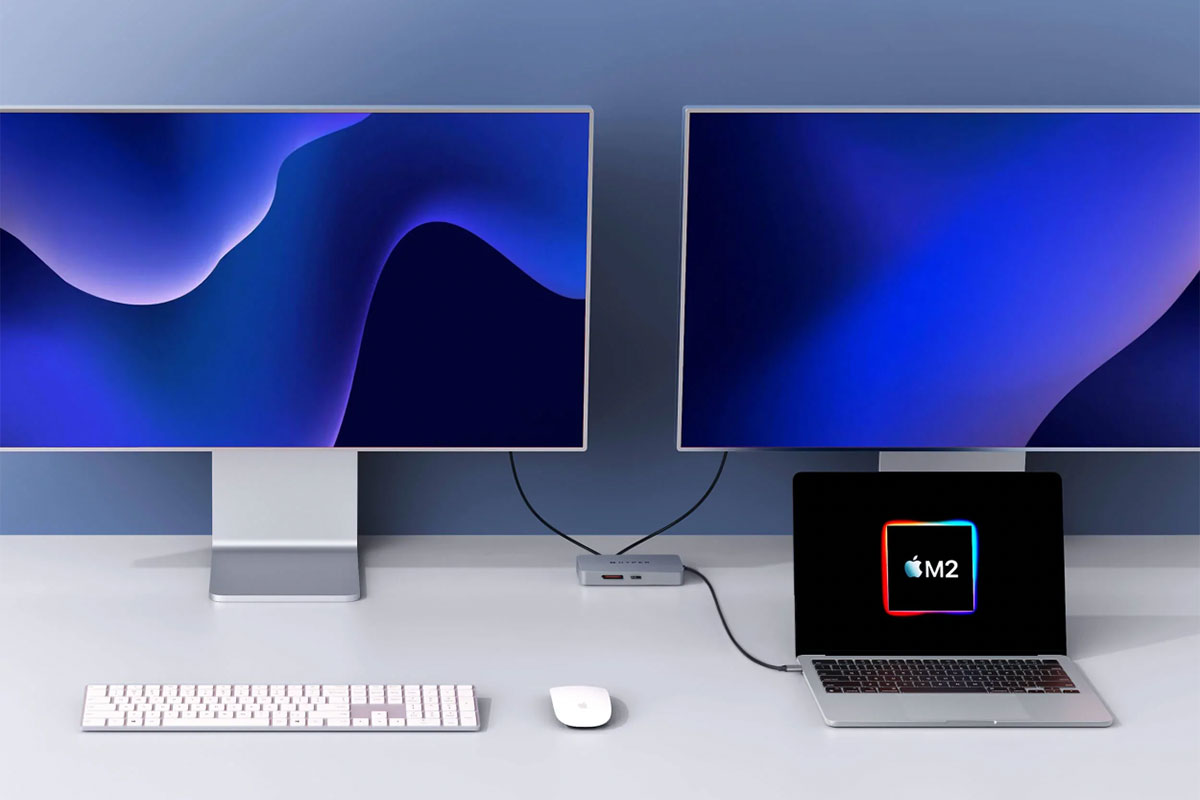
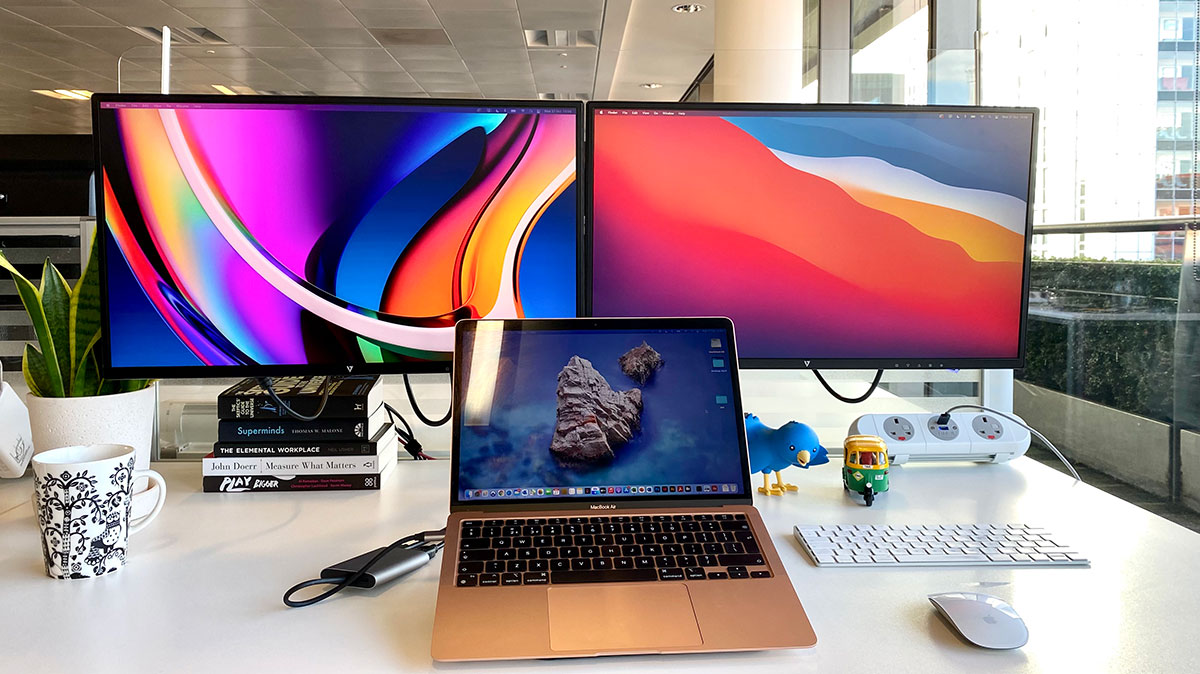
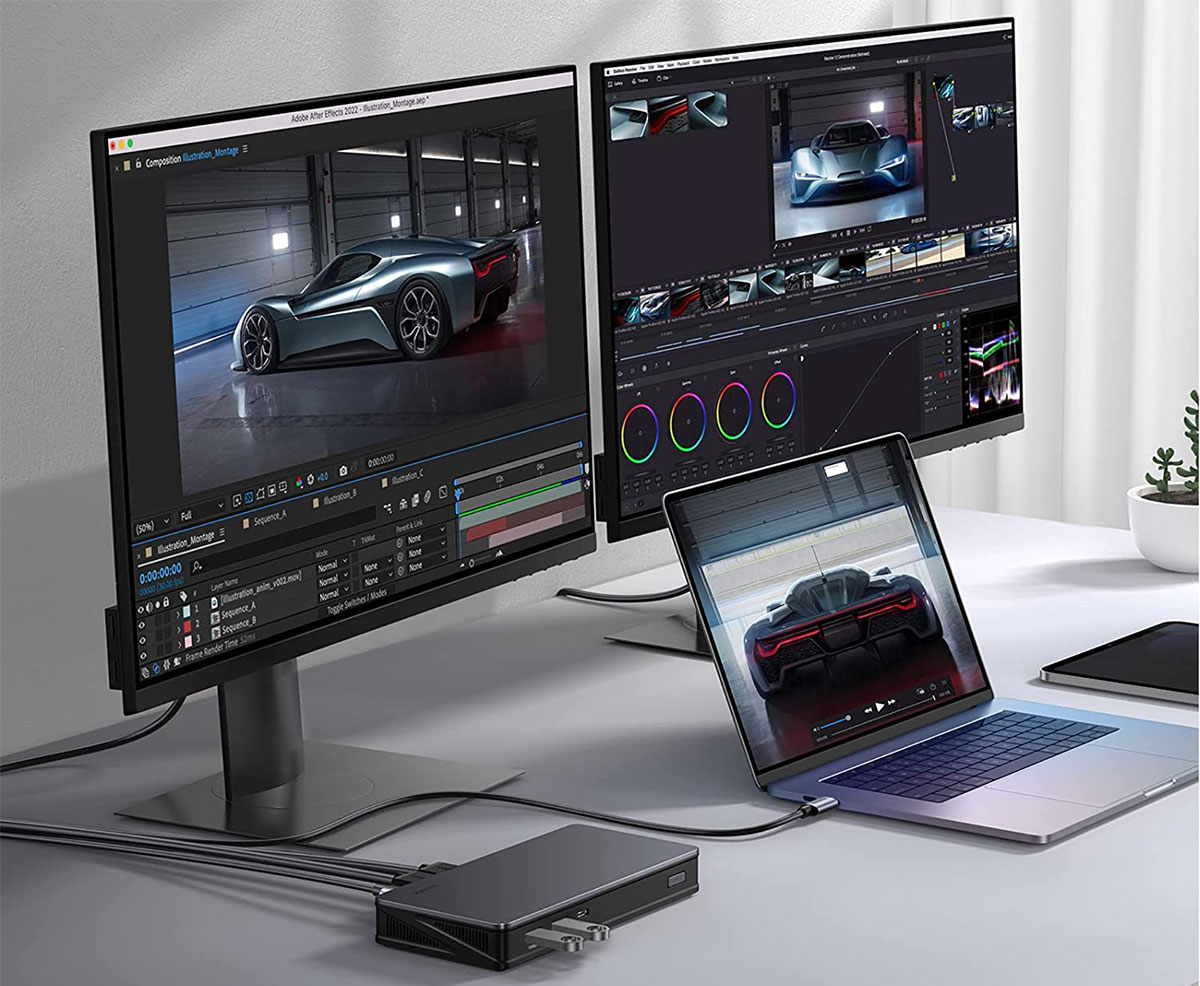

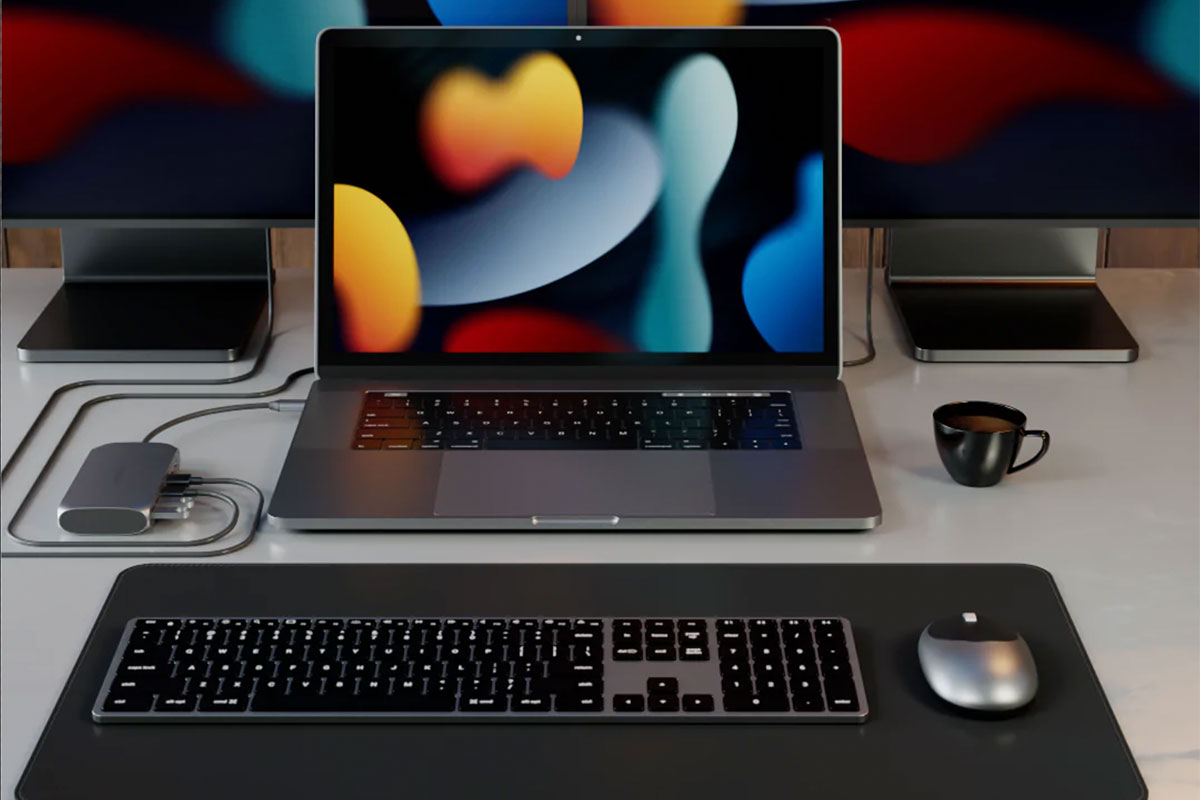
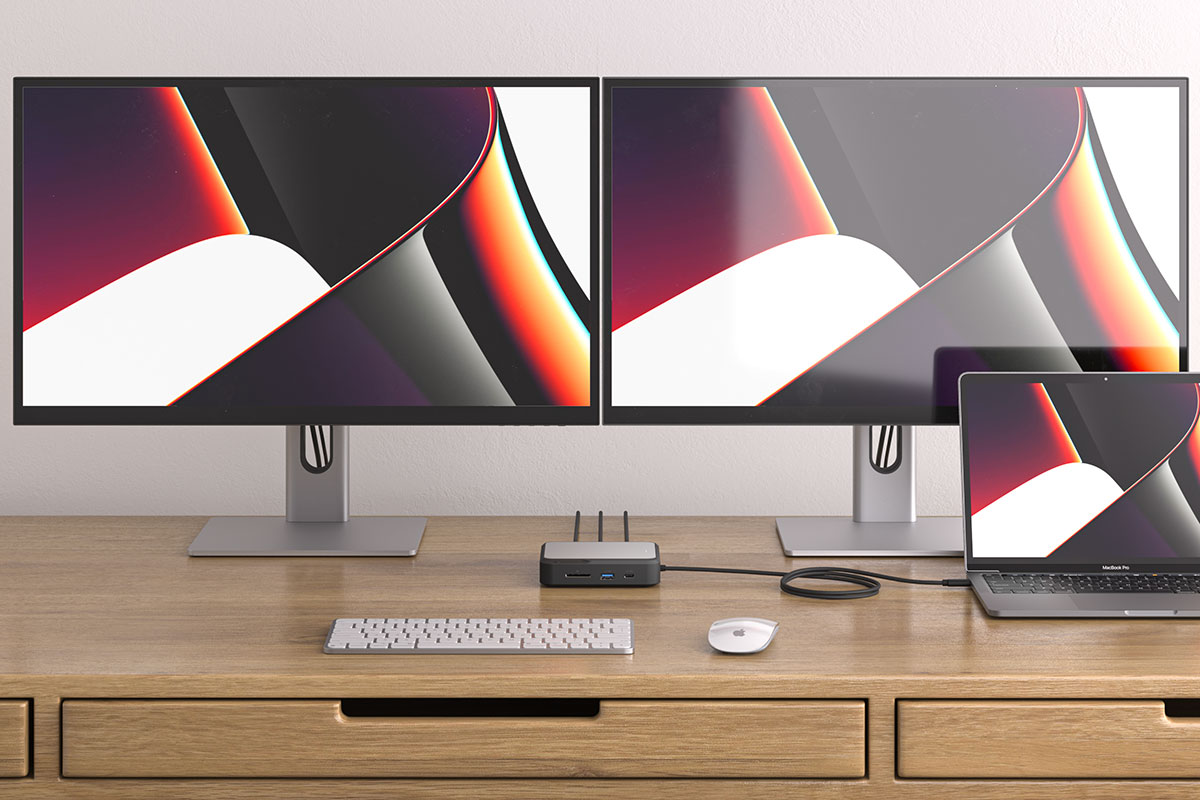
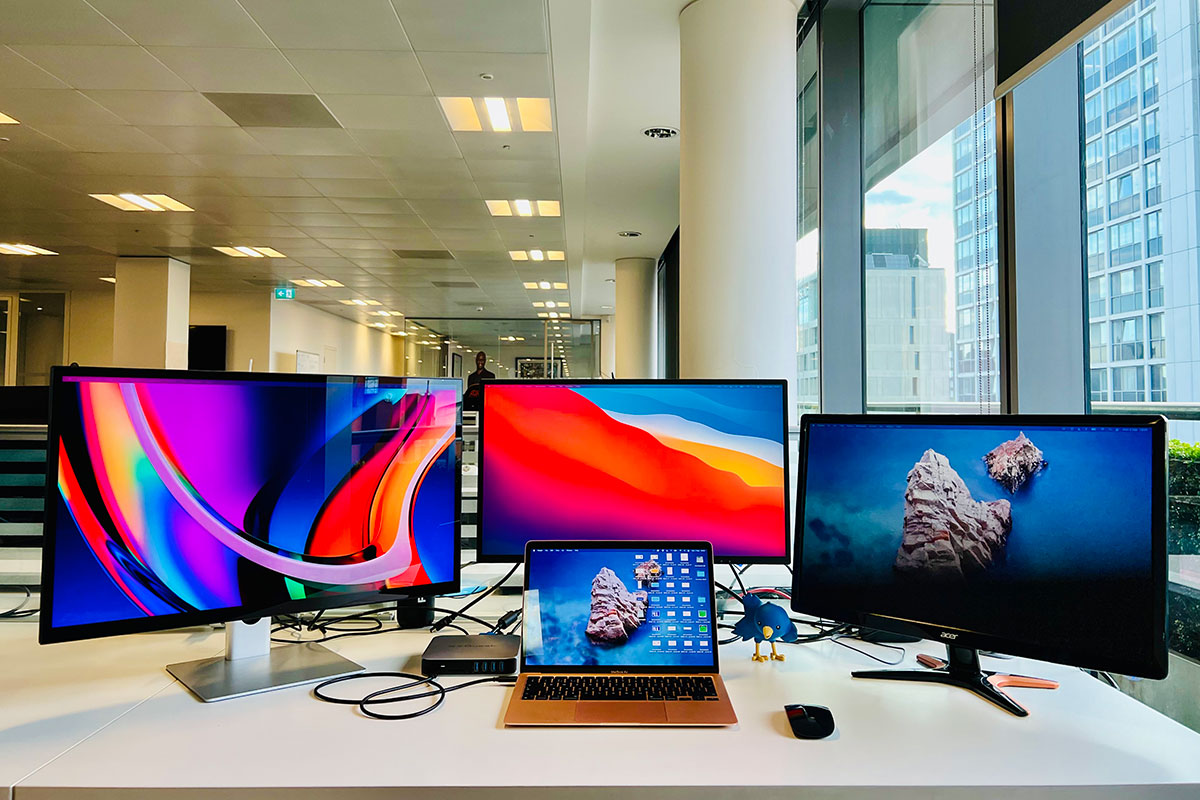
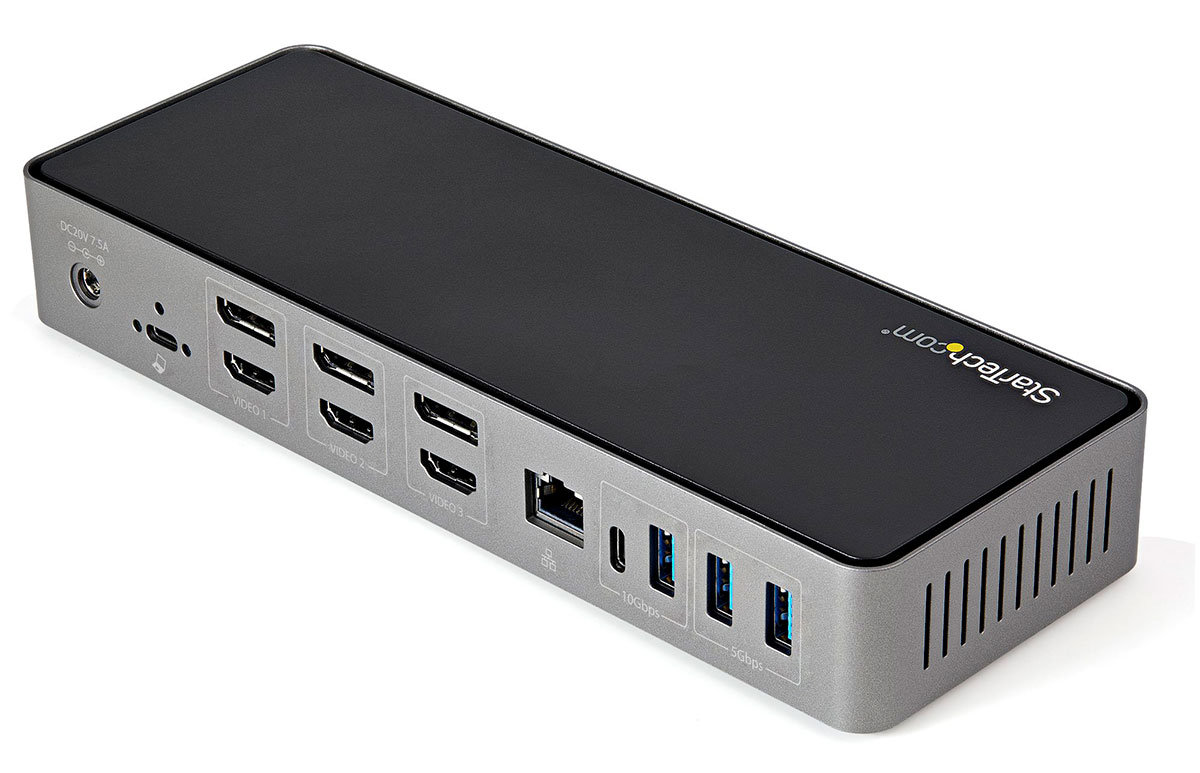
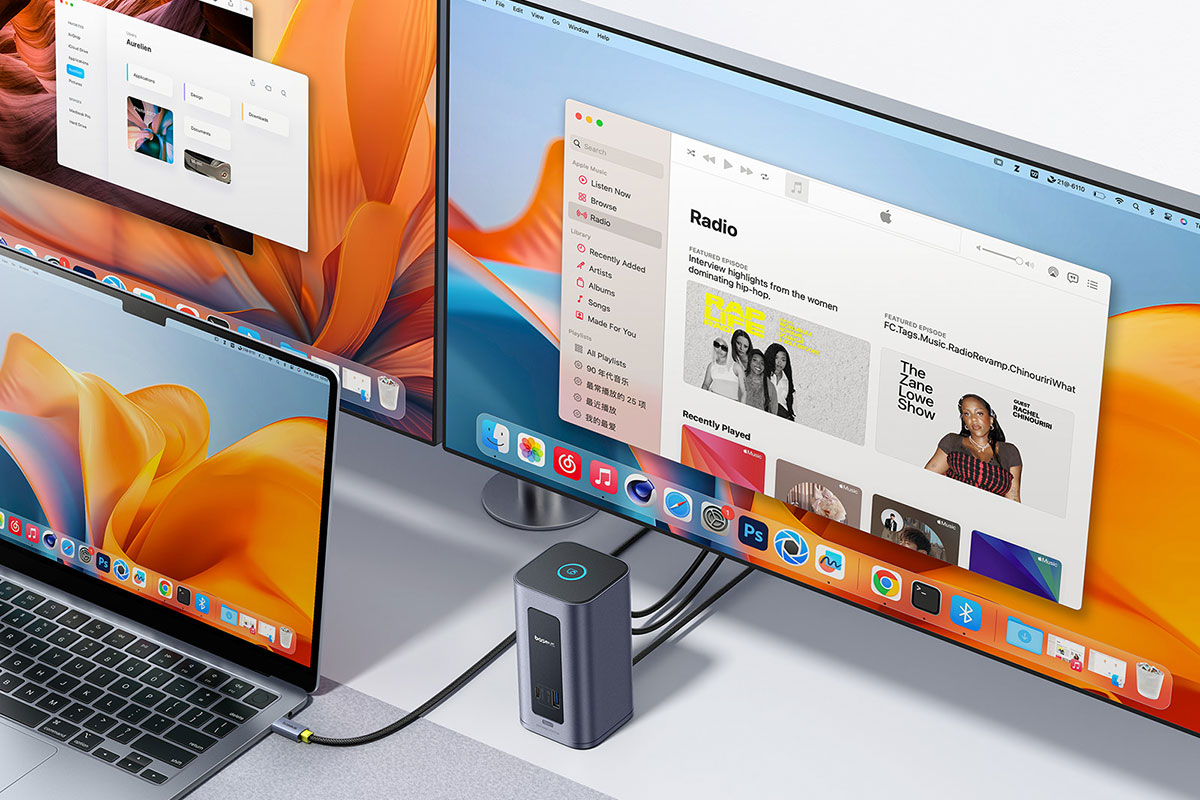
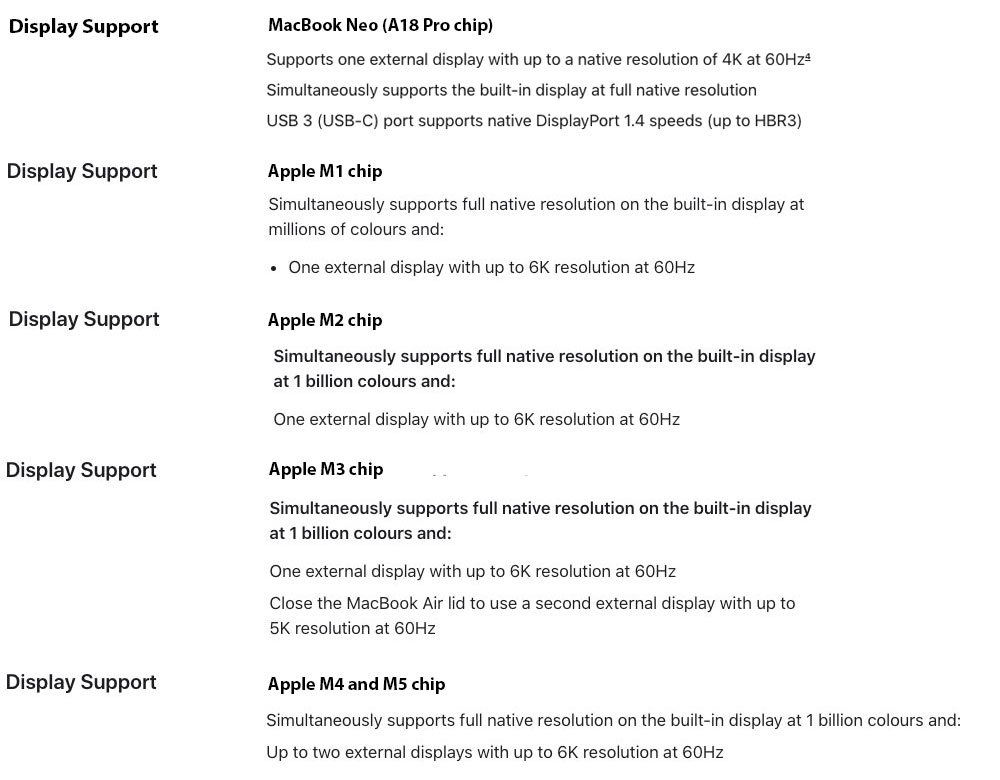

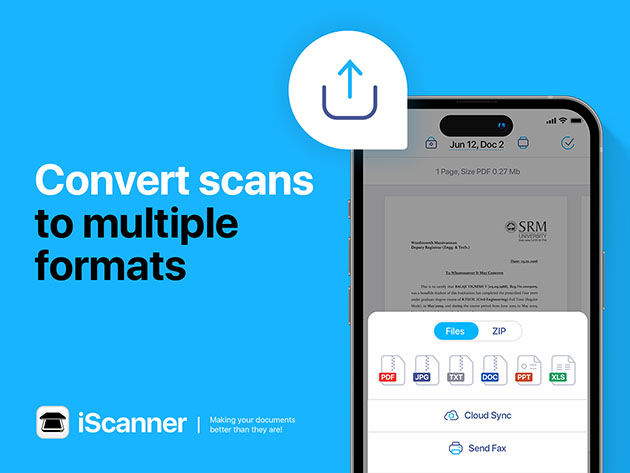










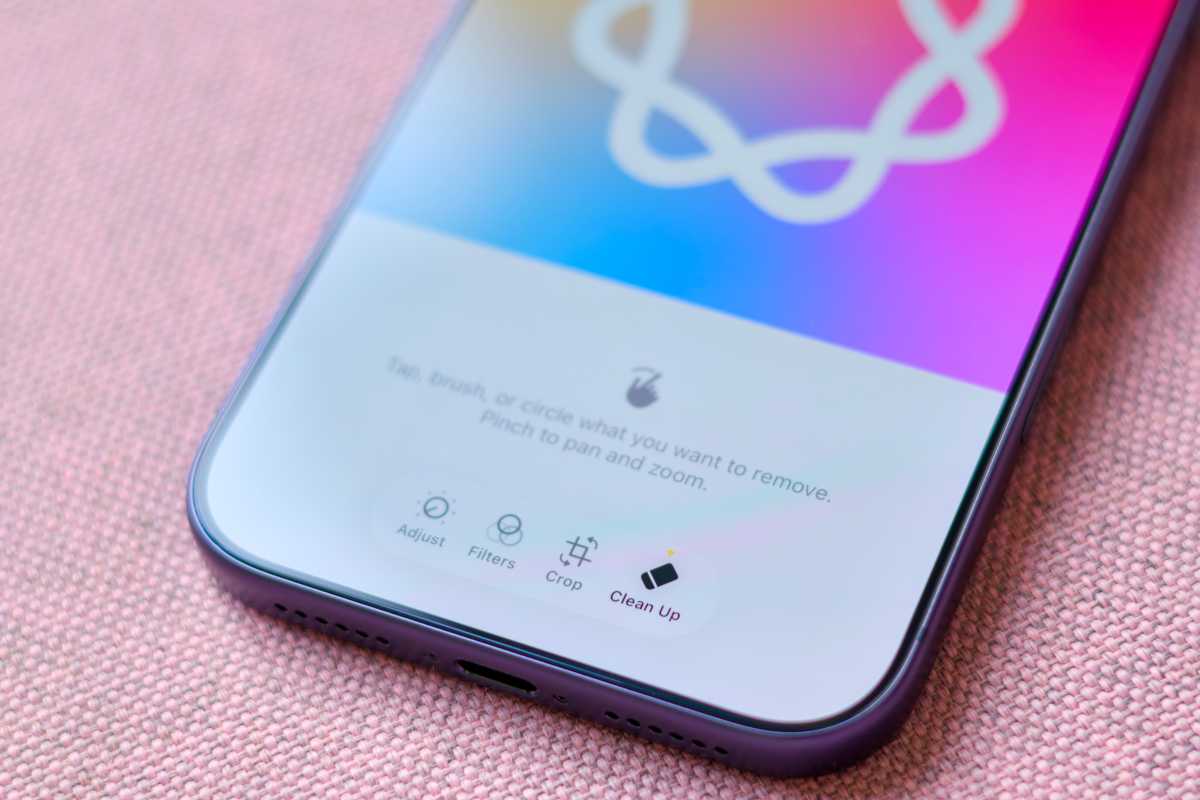
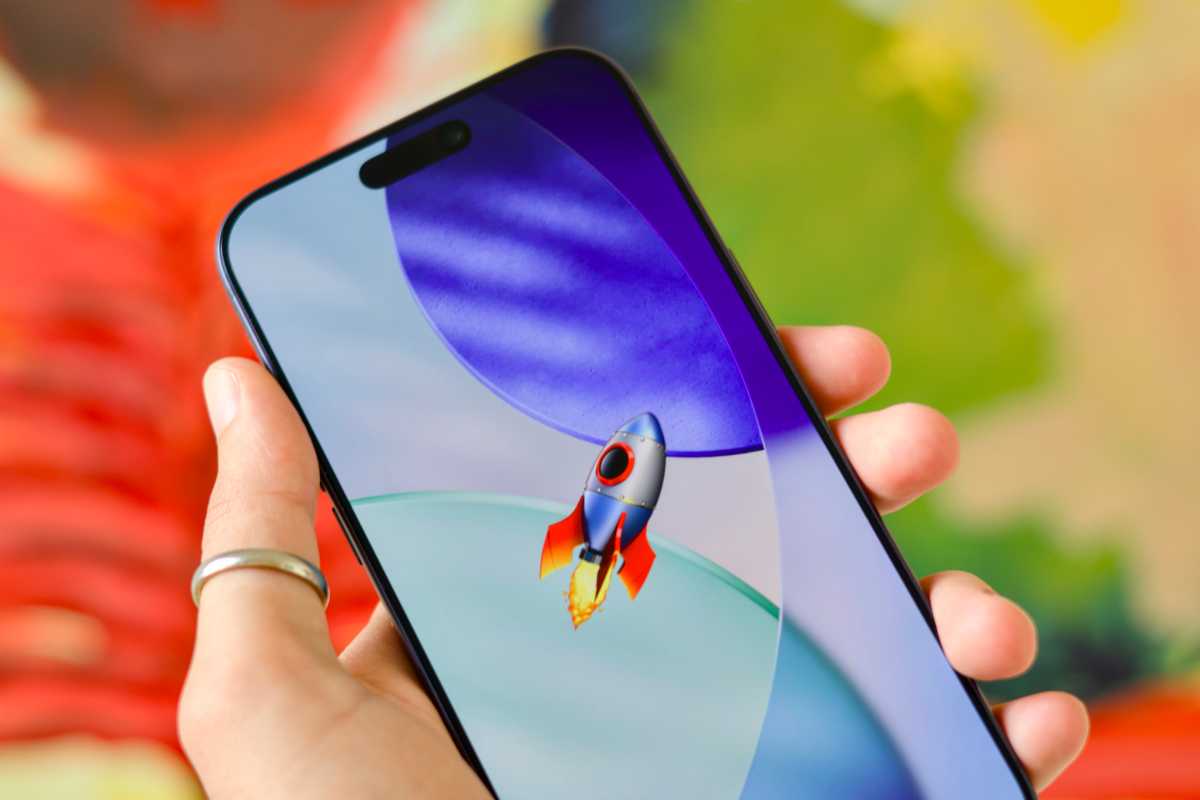


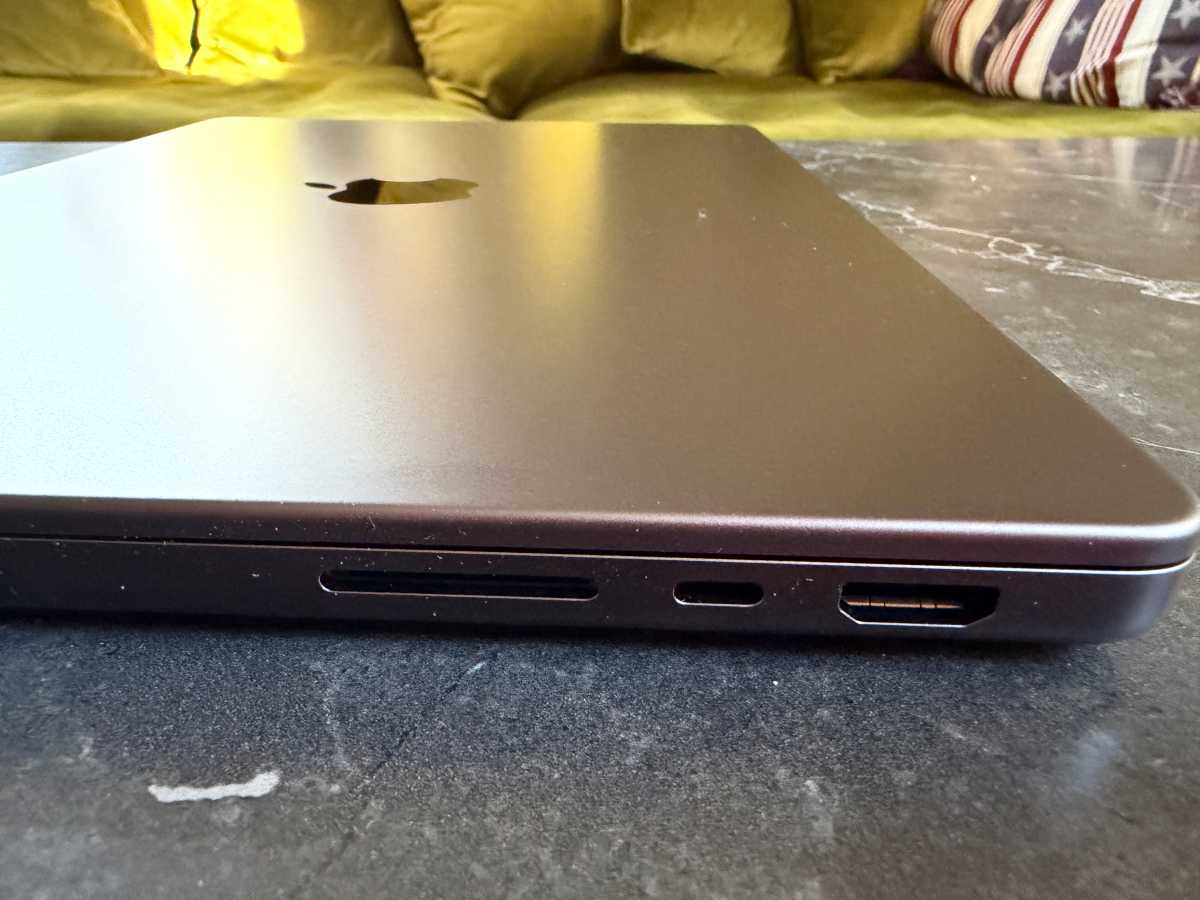

 Price When Reviewed:
Free
Best Prices Today:
Price When Reviewed:
Free
Best Prices Today:
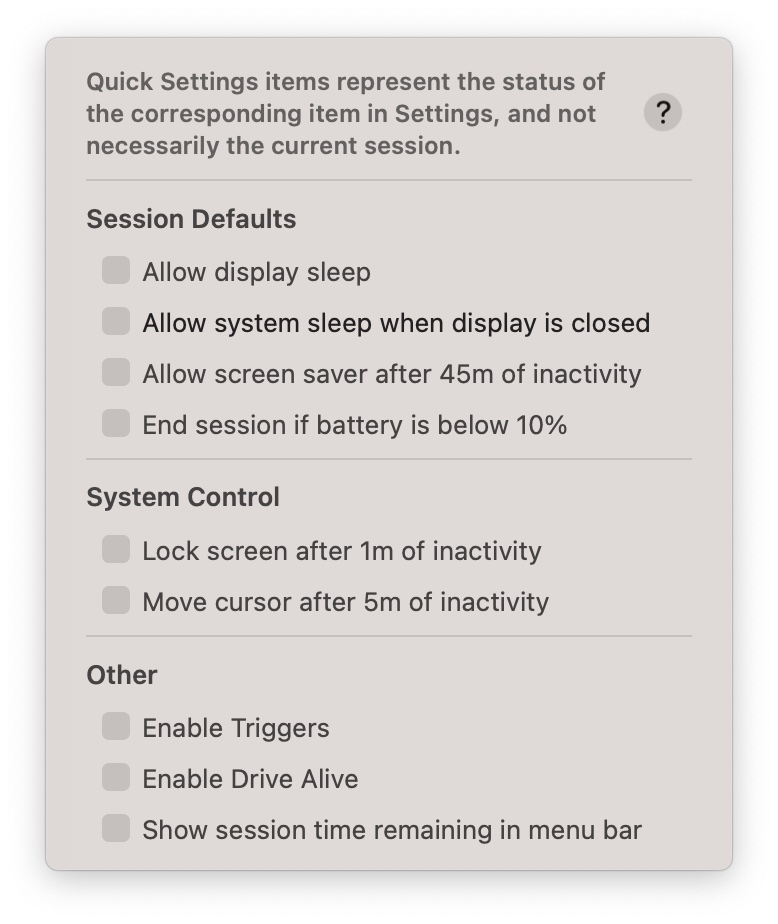
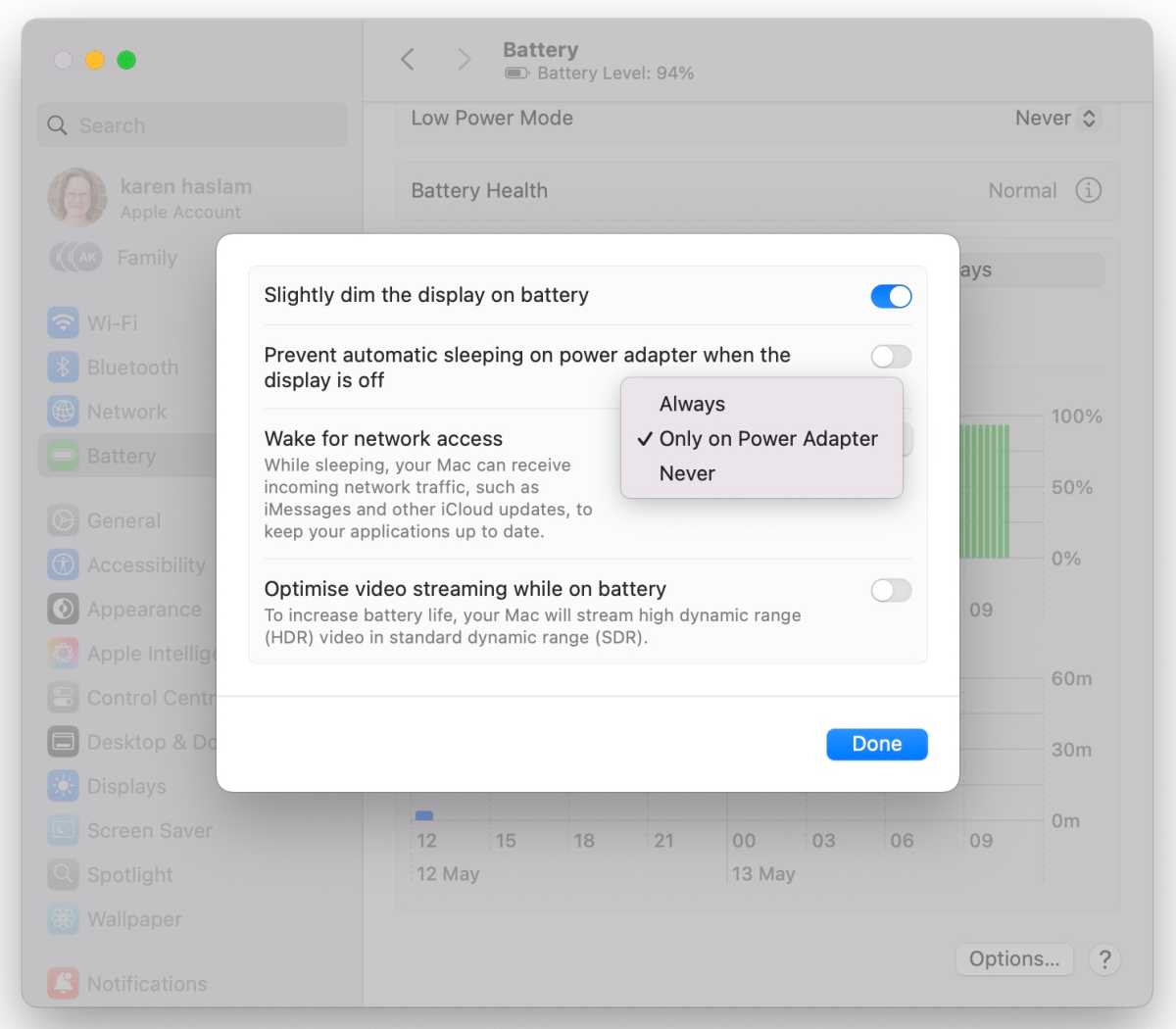
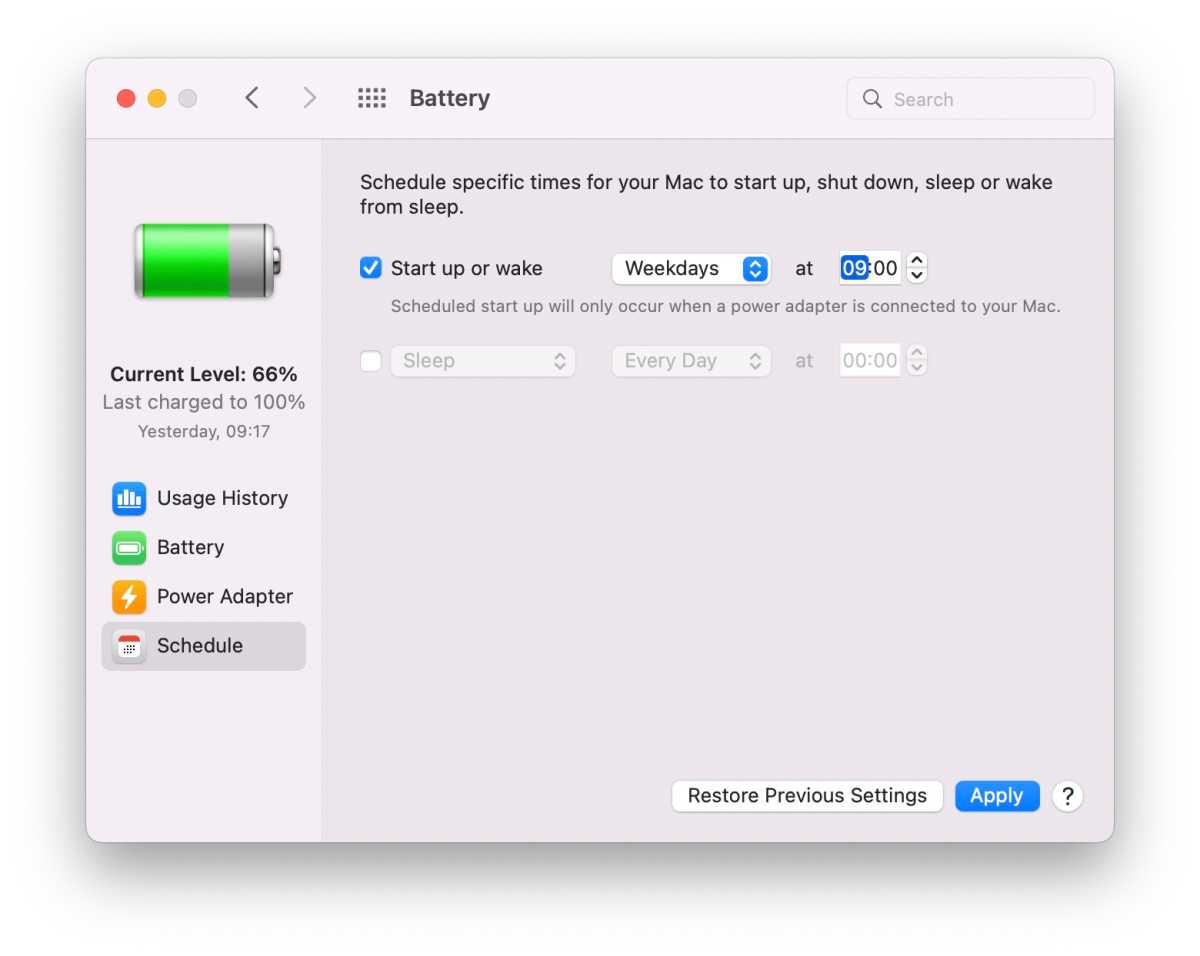





 $599
$599
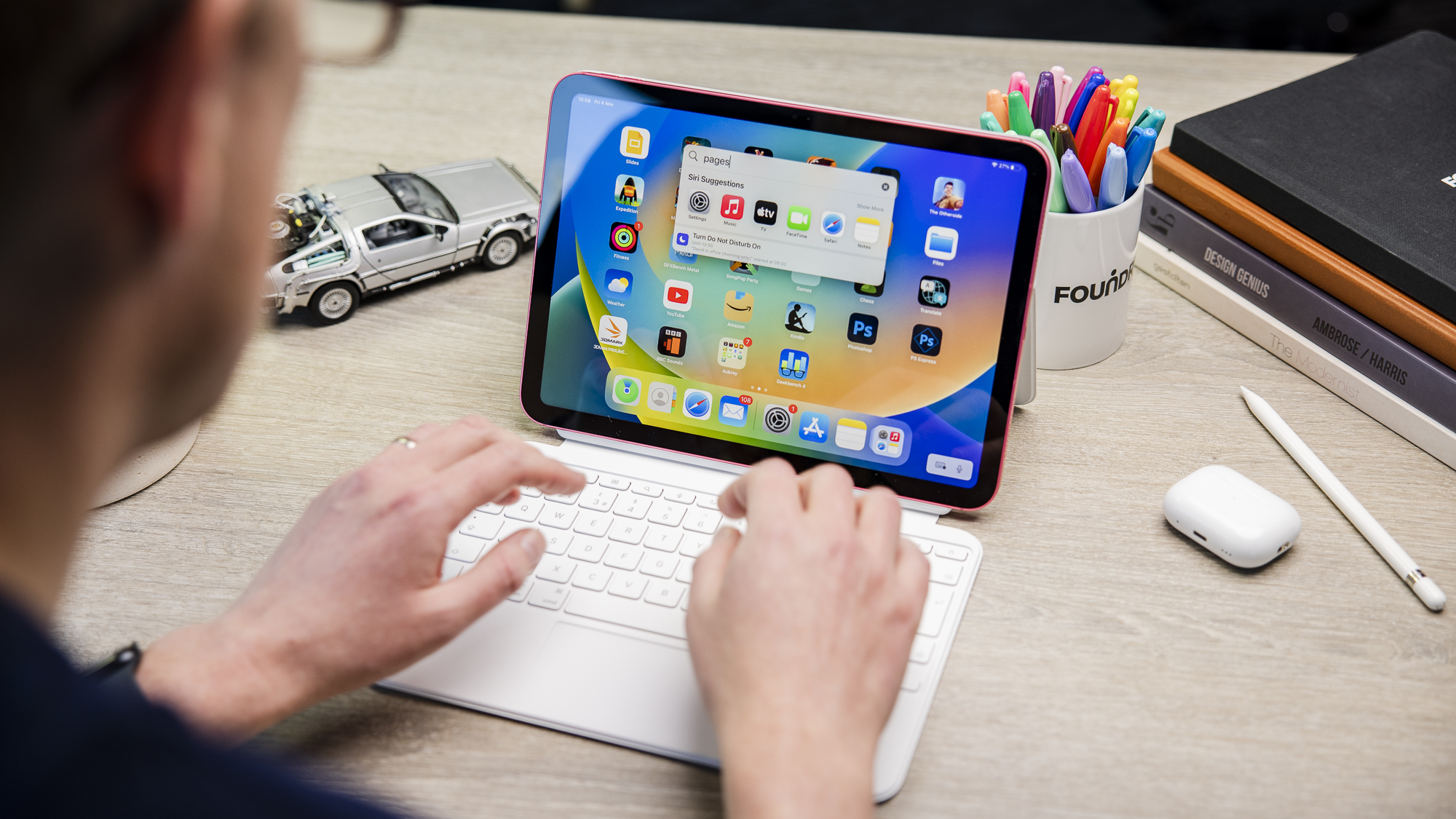

 $499
$499


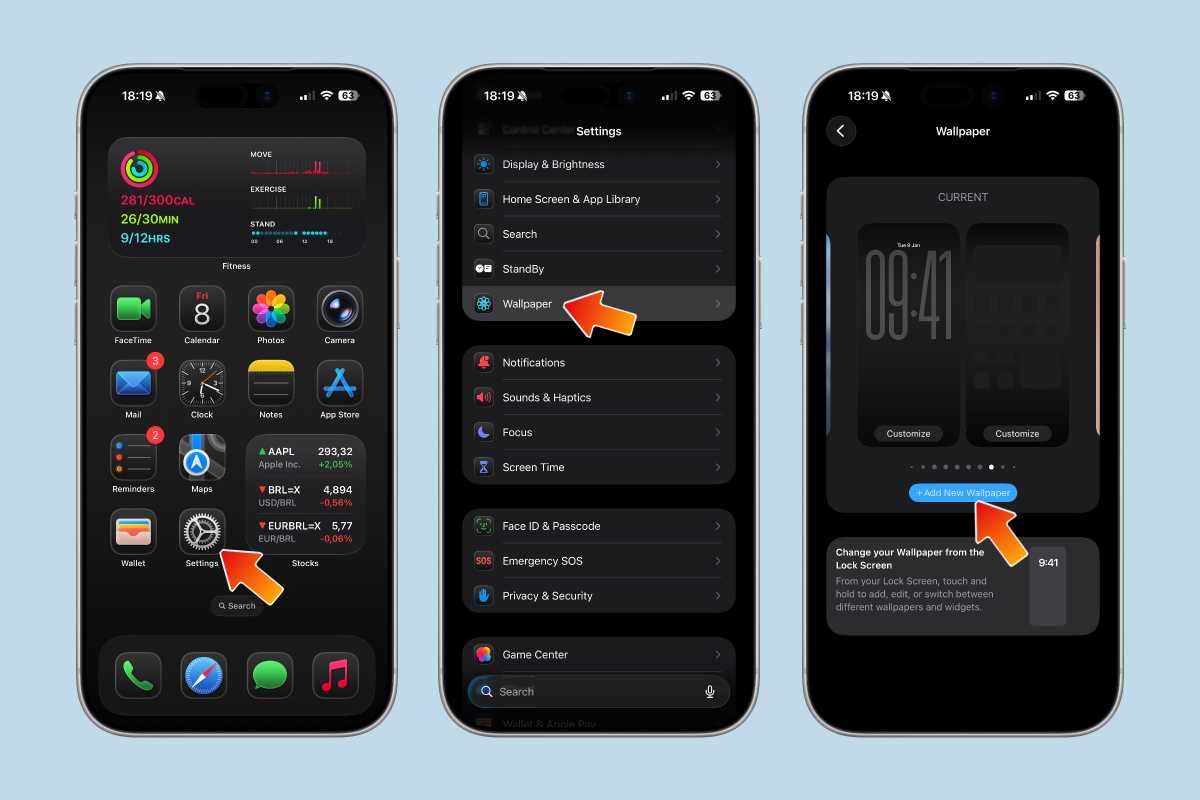
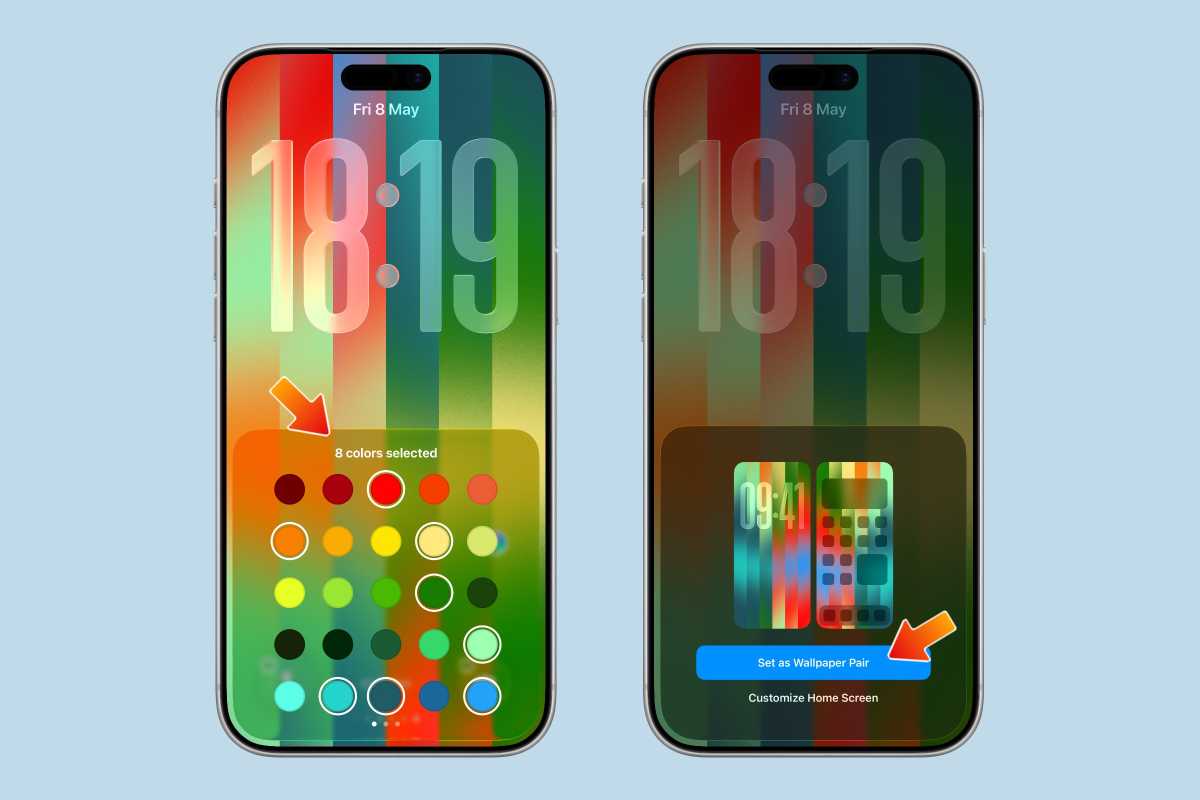
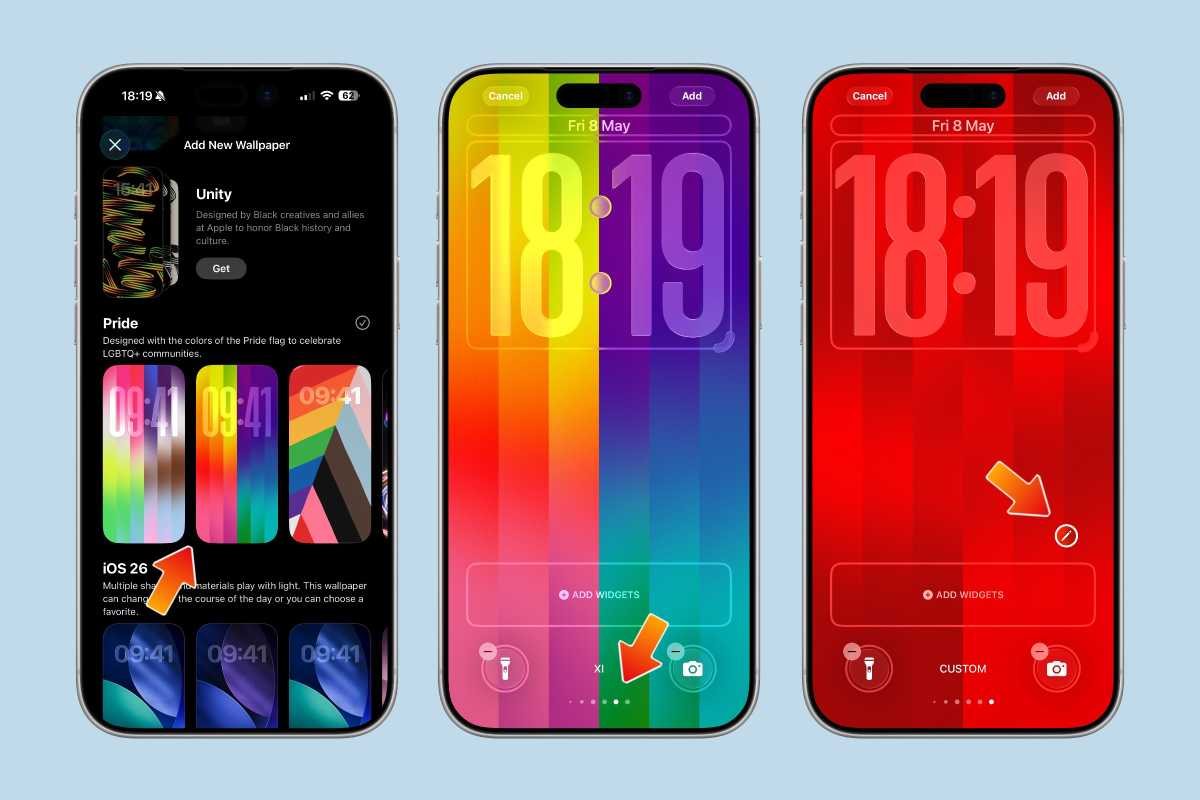
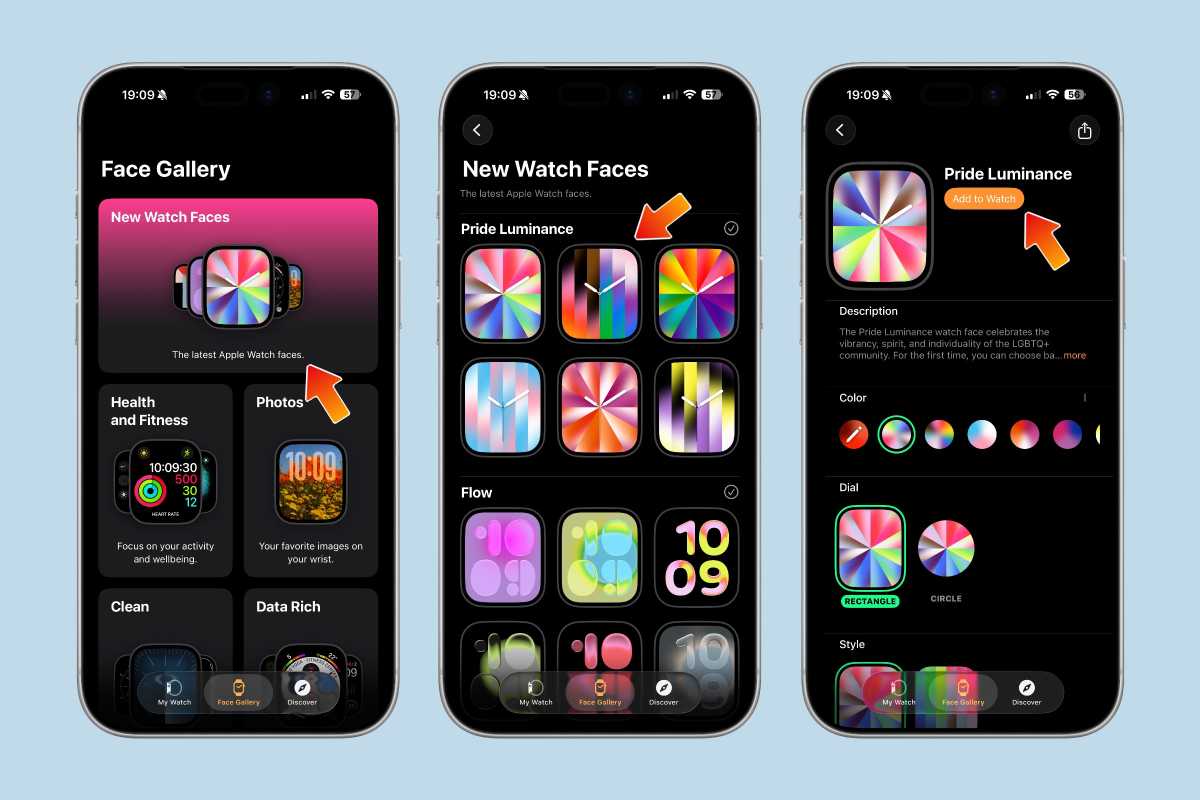


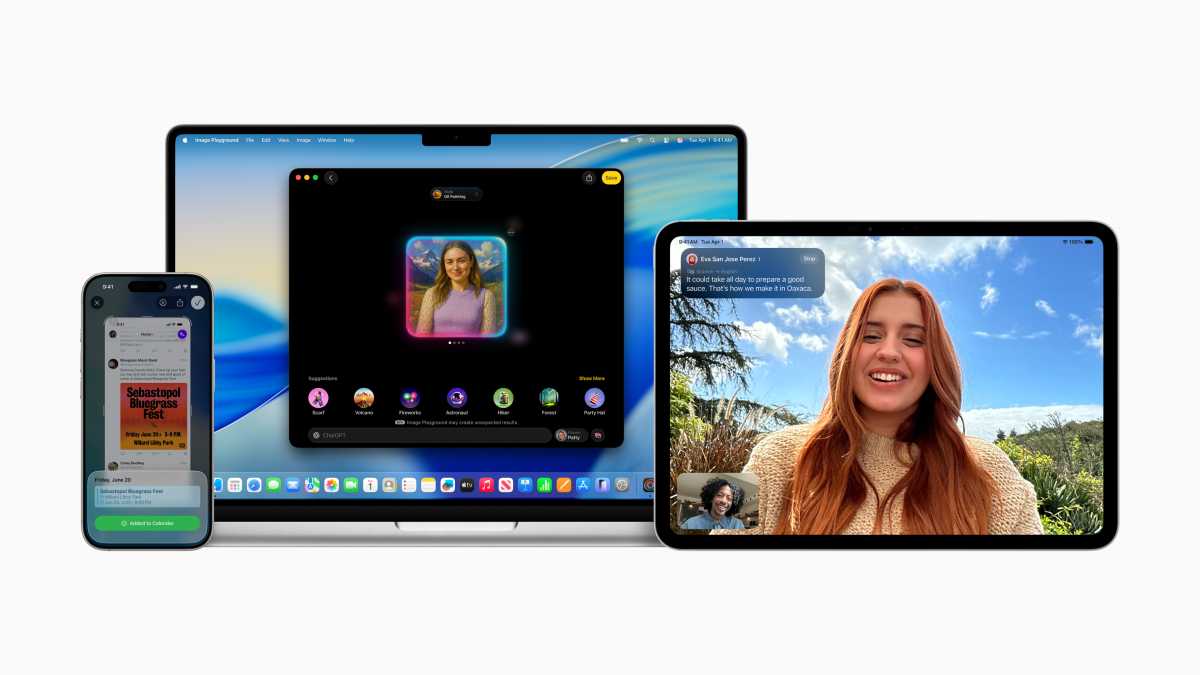
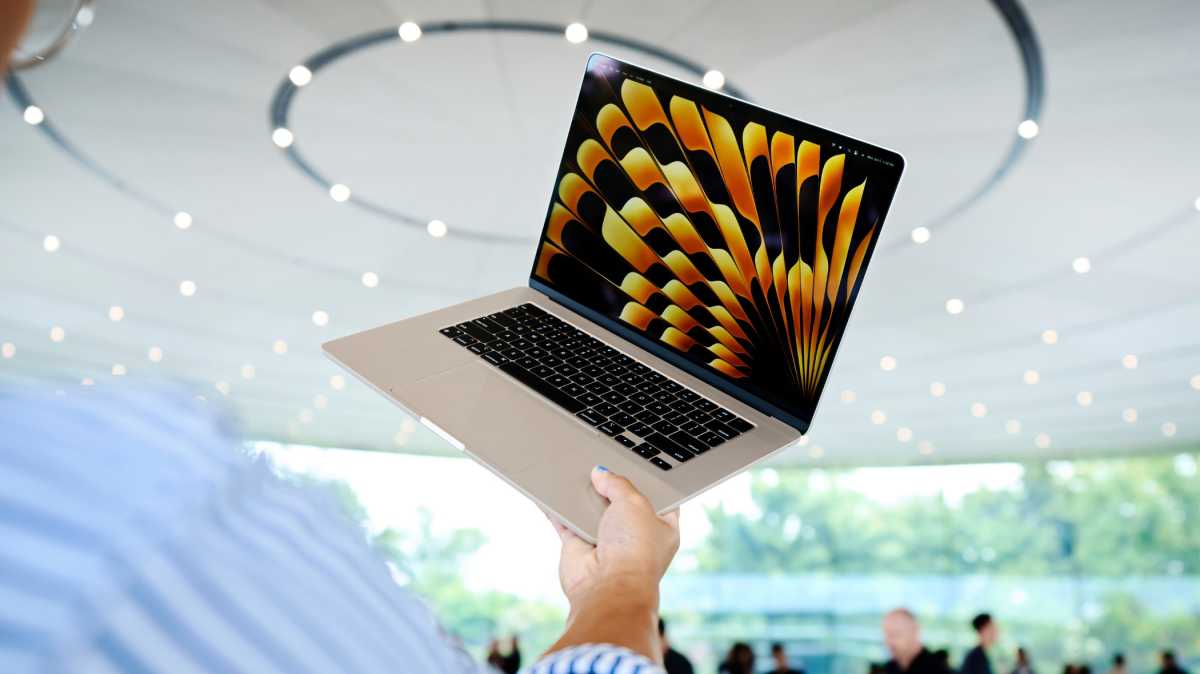





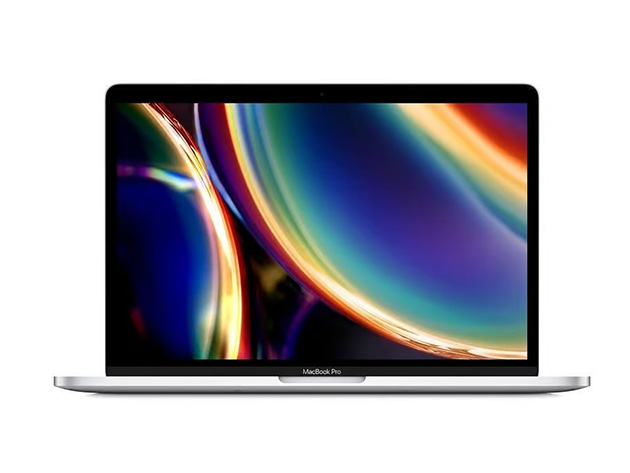

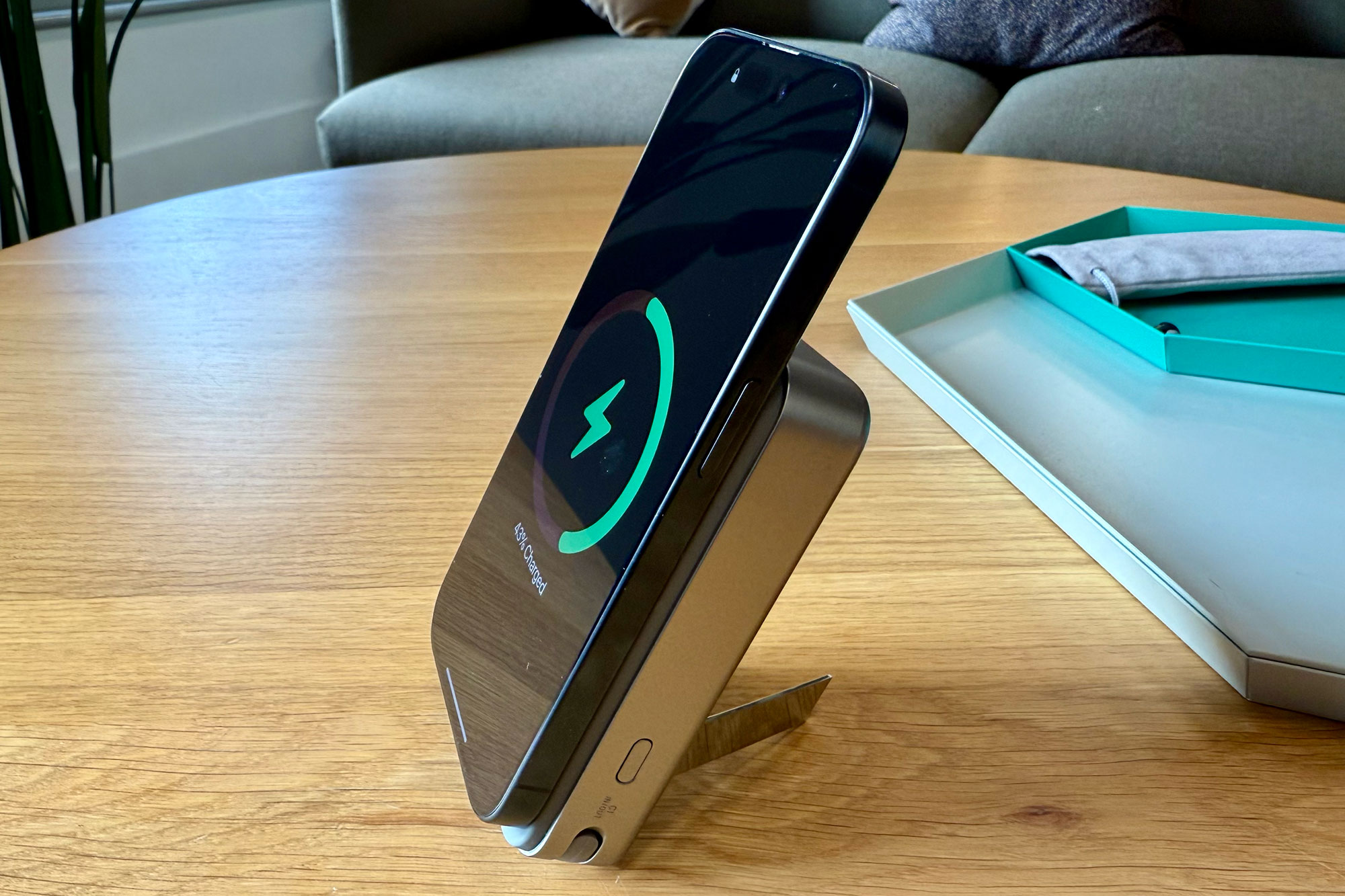
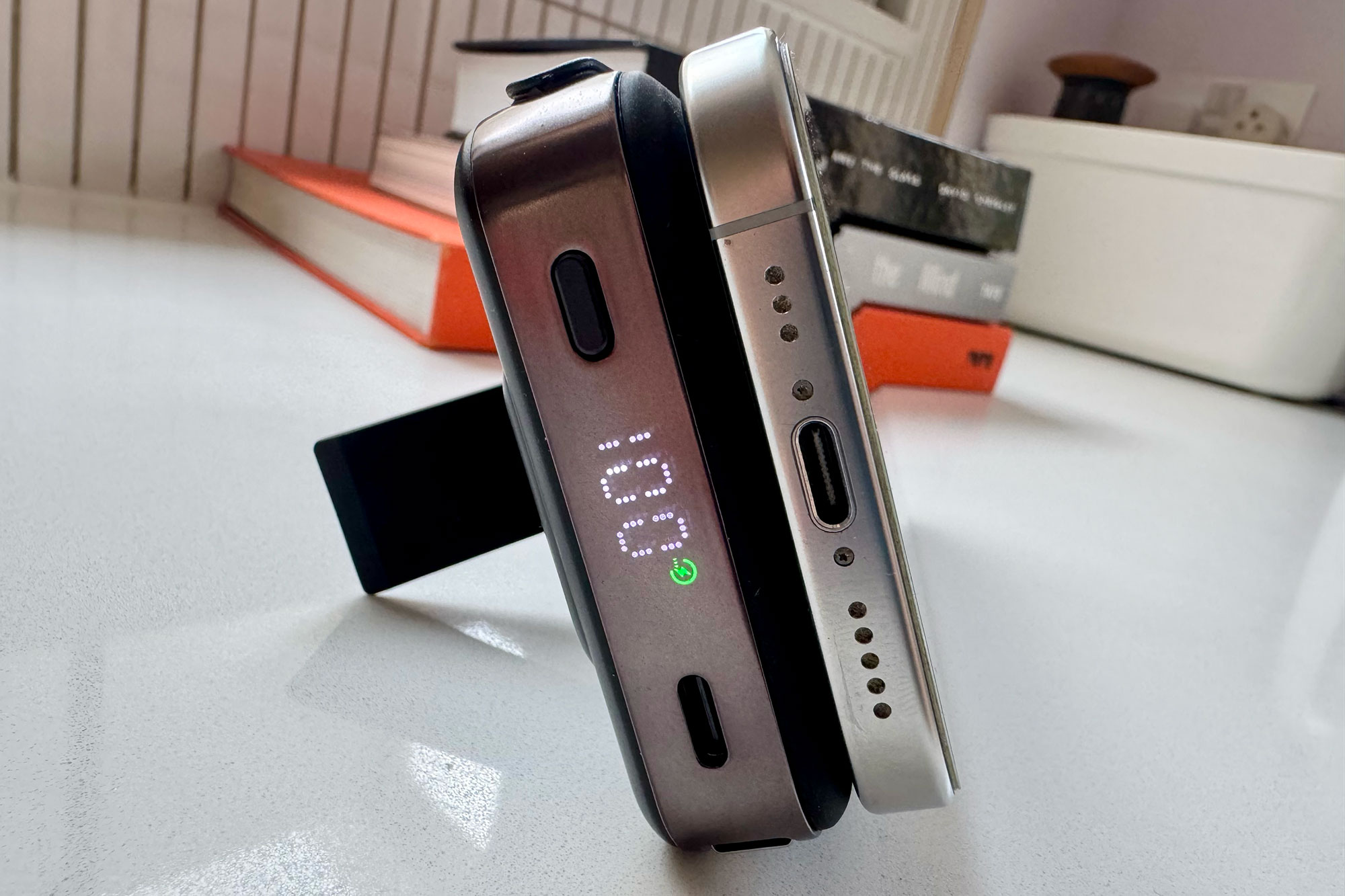
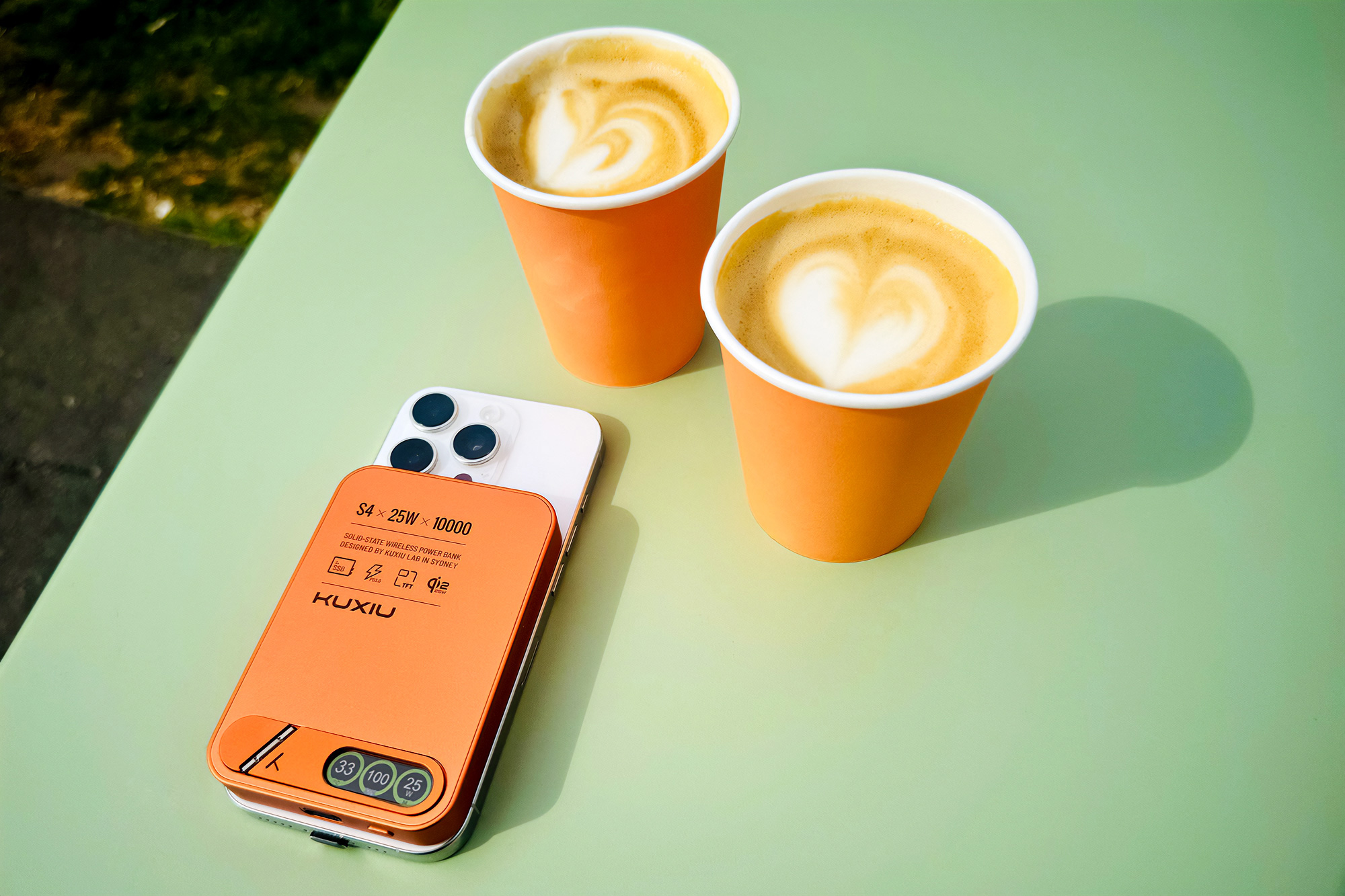
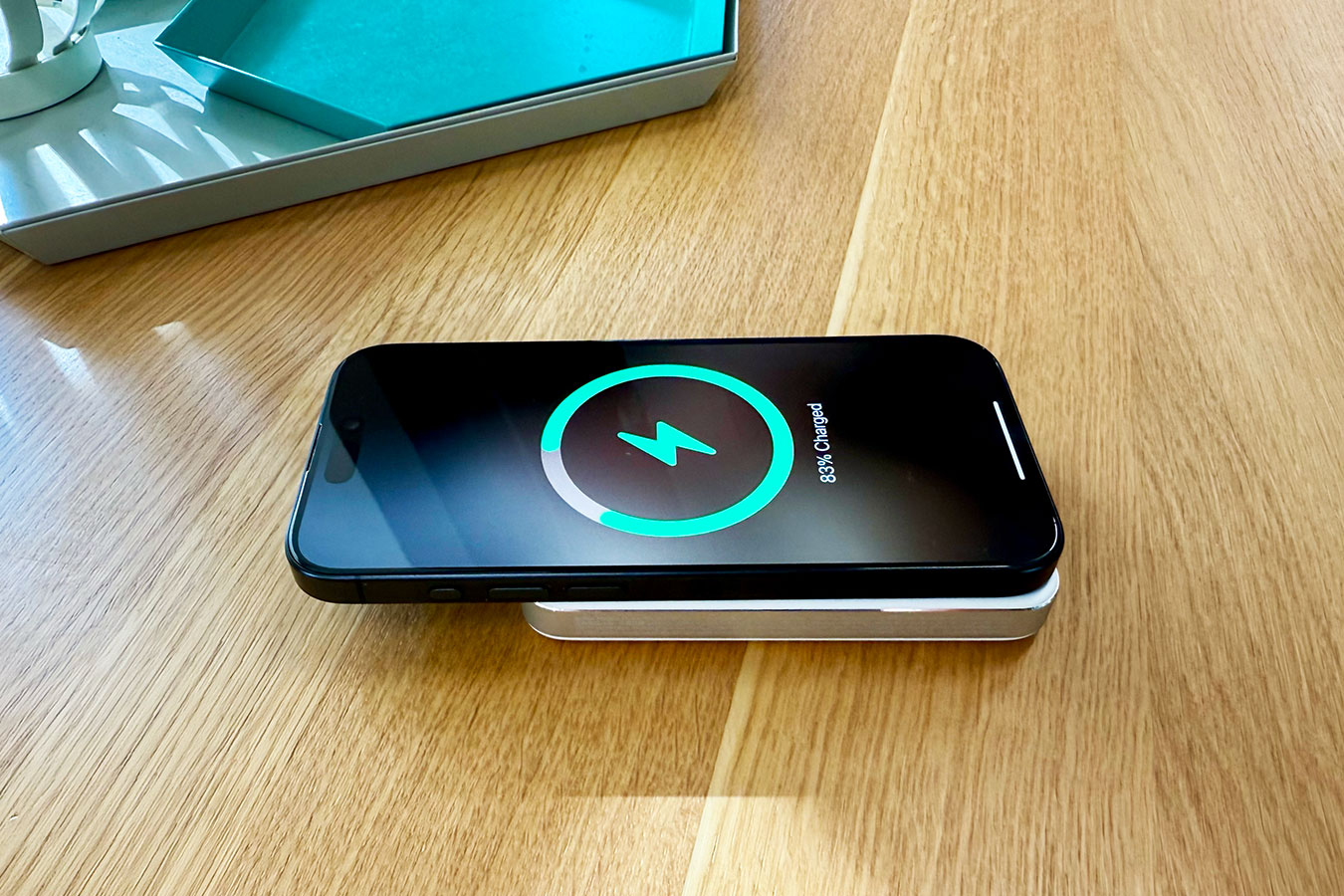
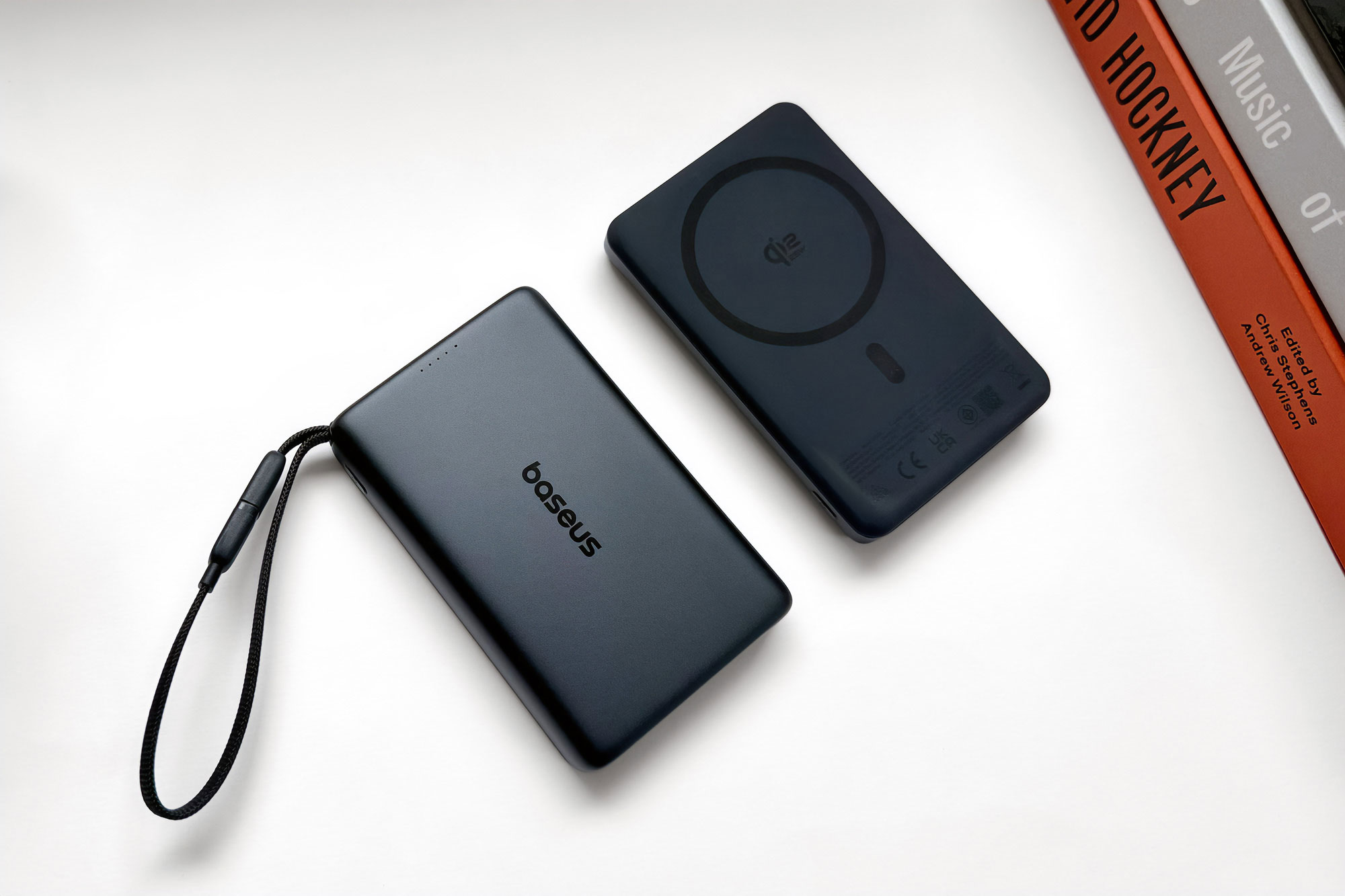
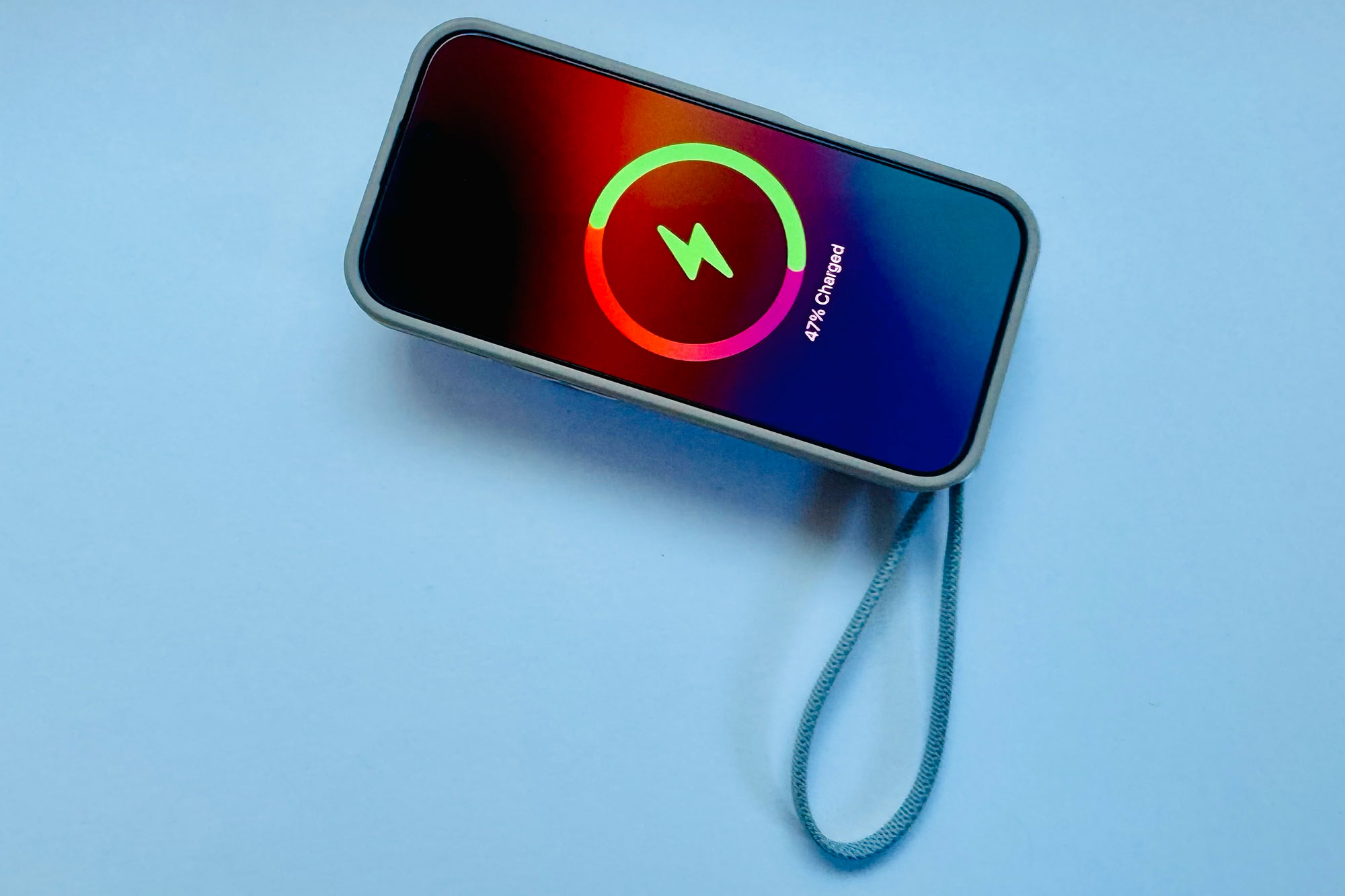
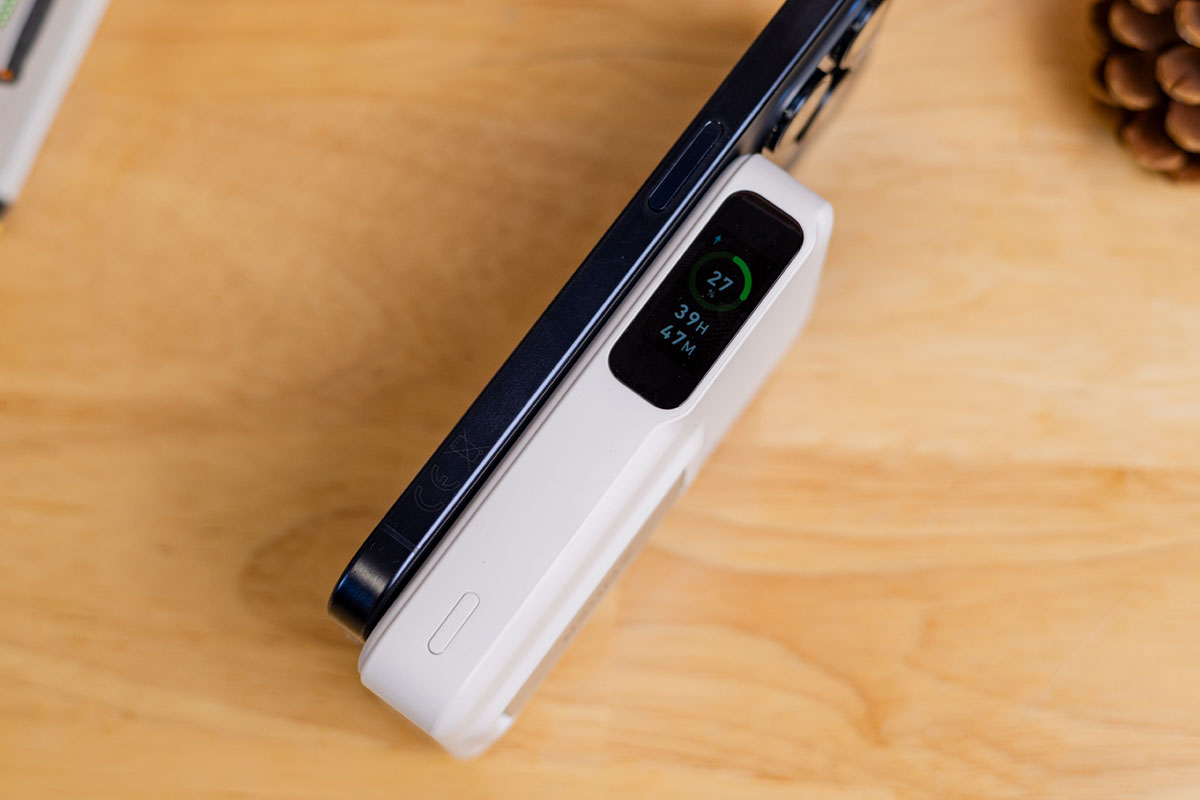
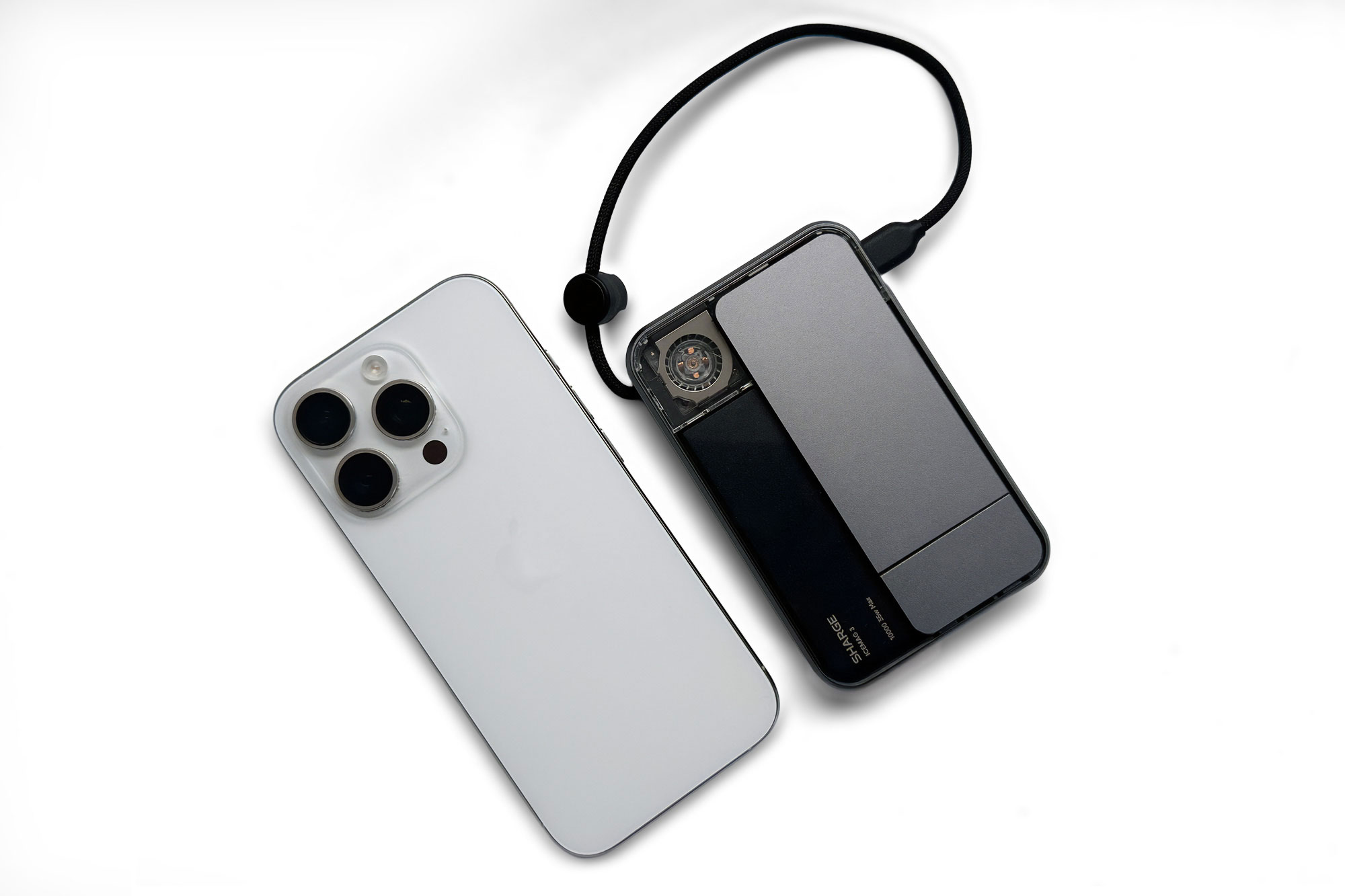
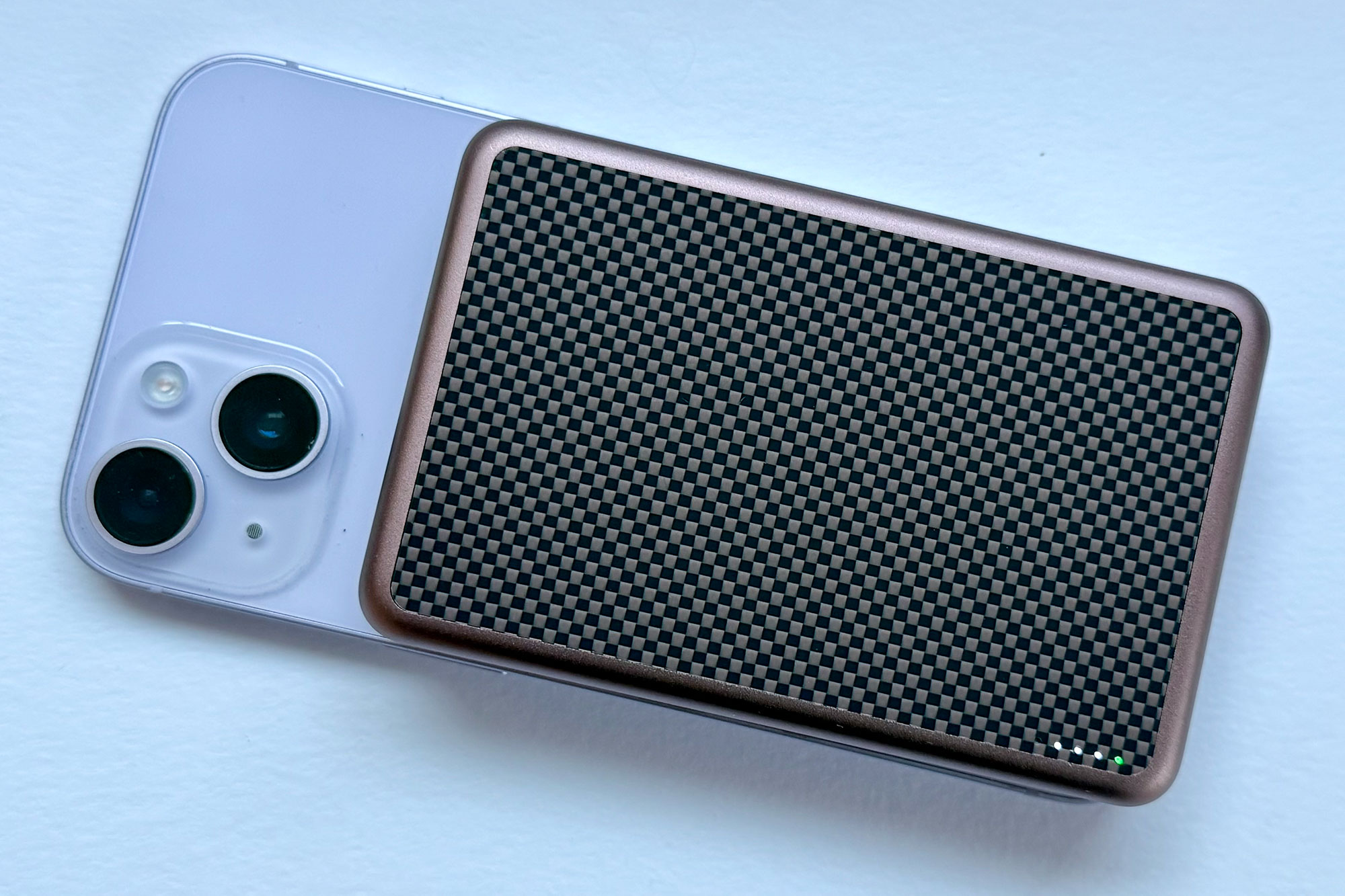

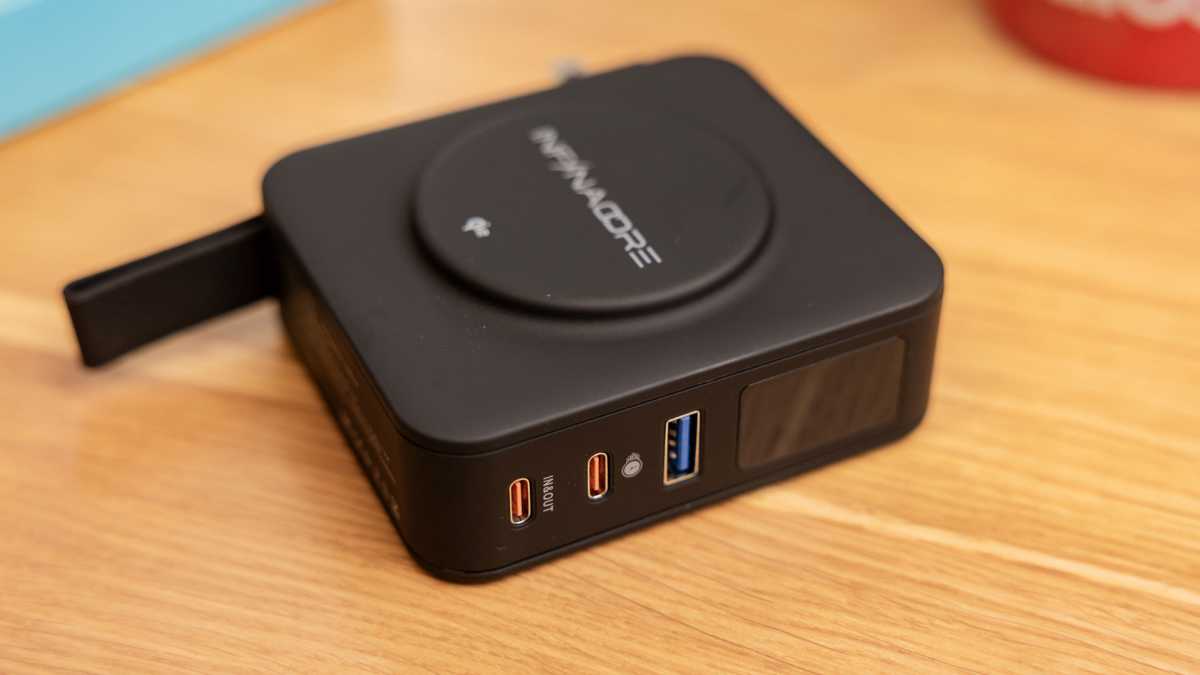
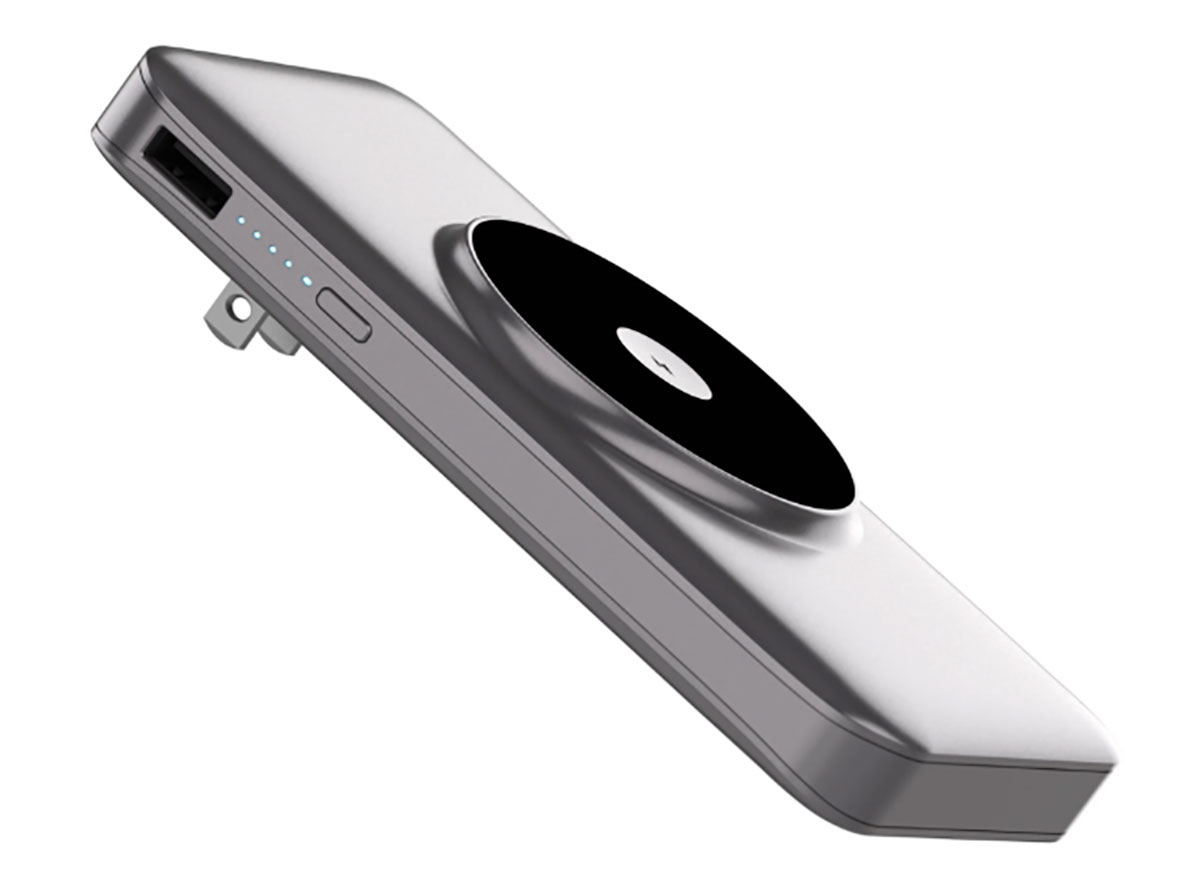
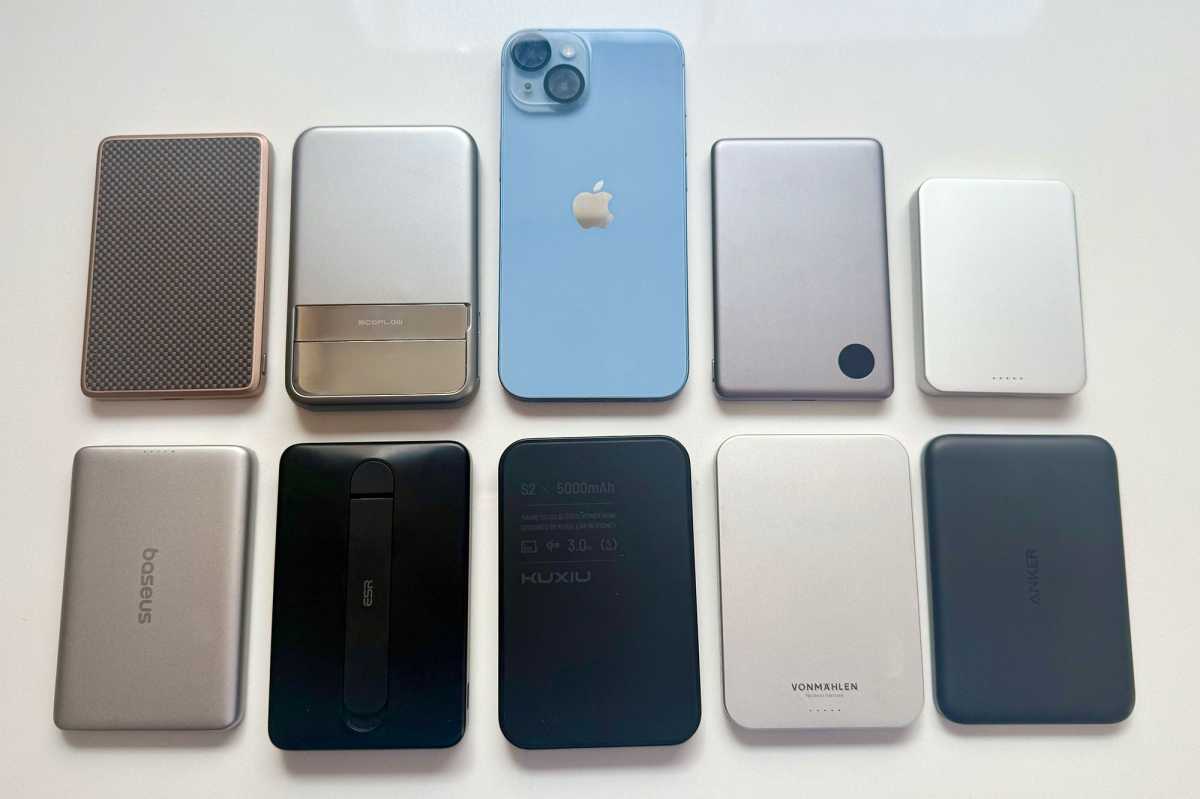
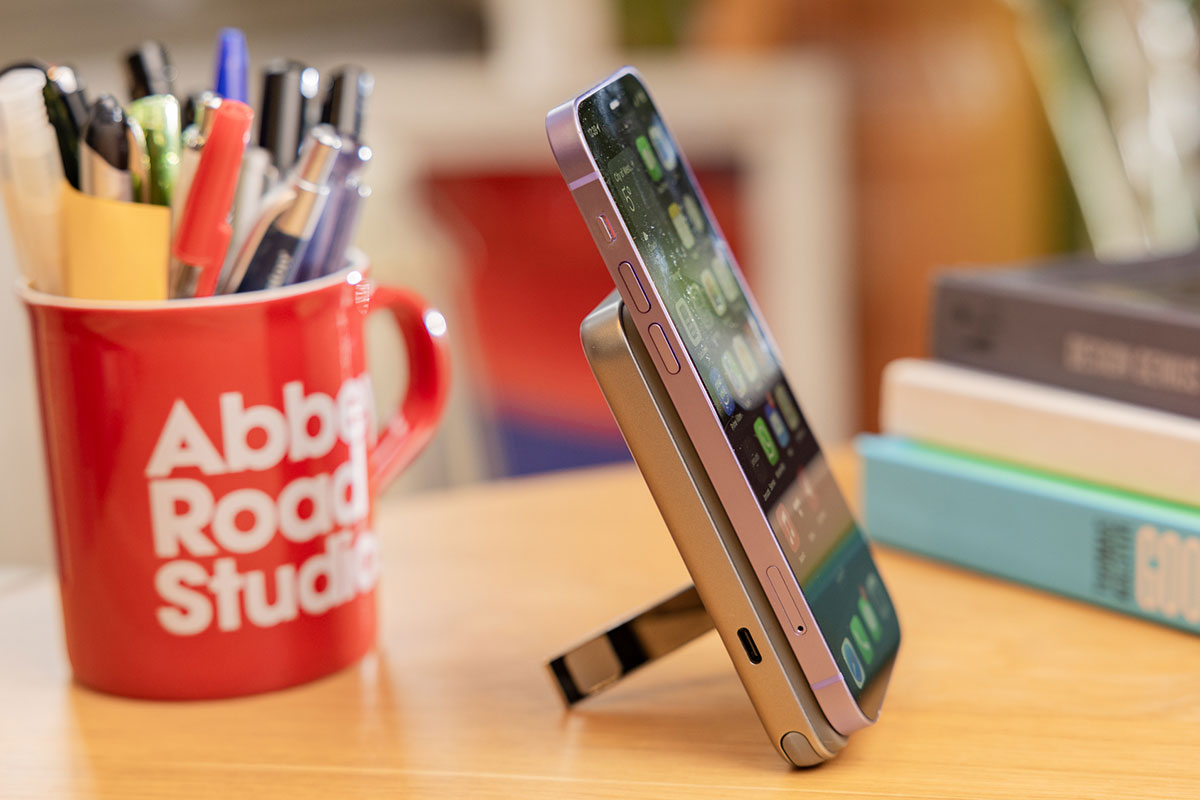
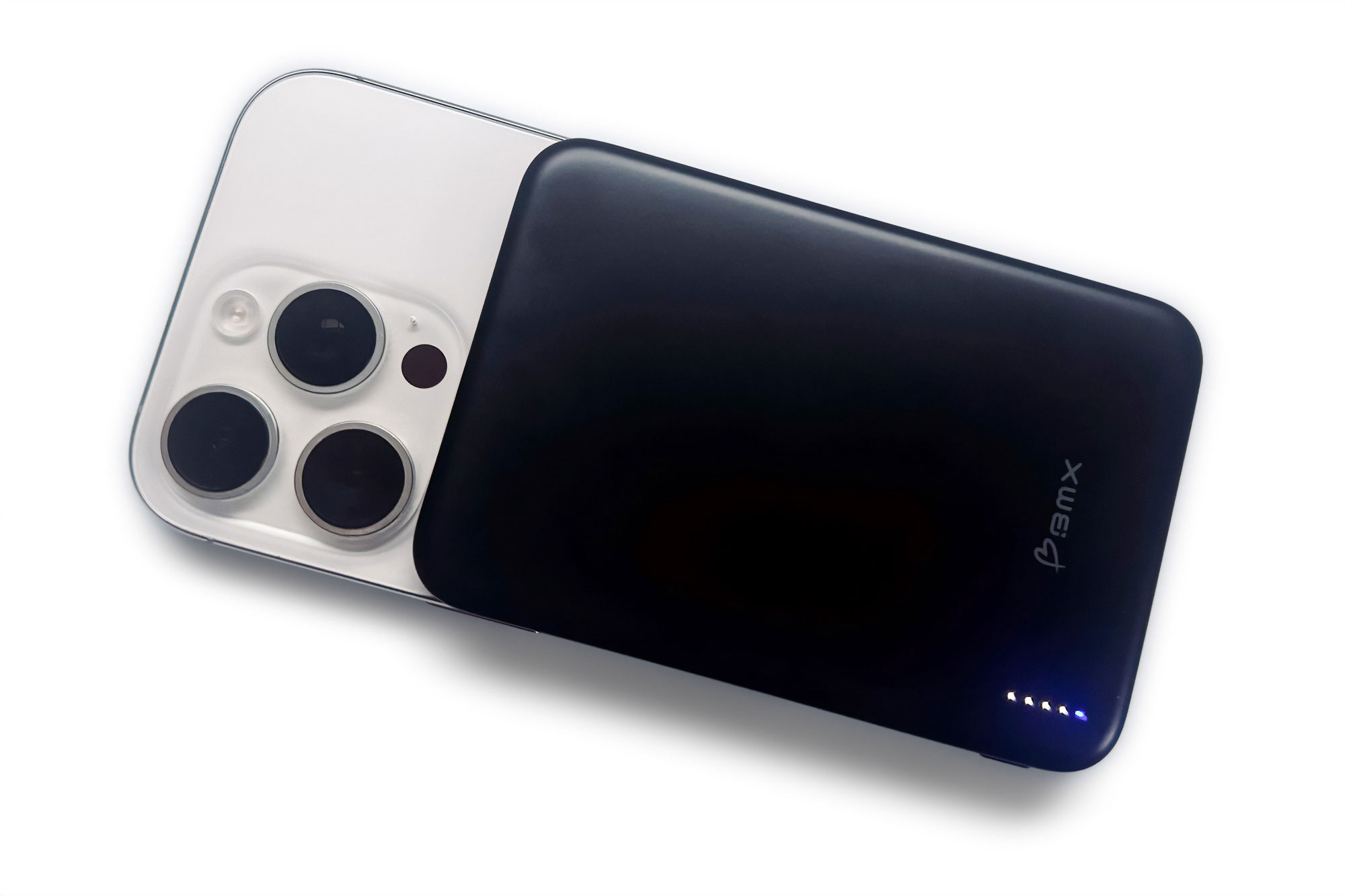
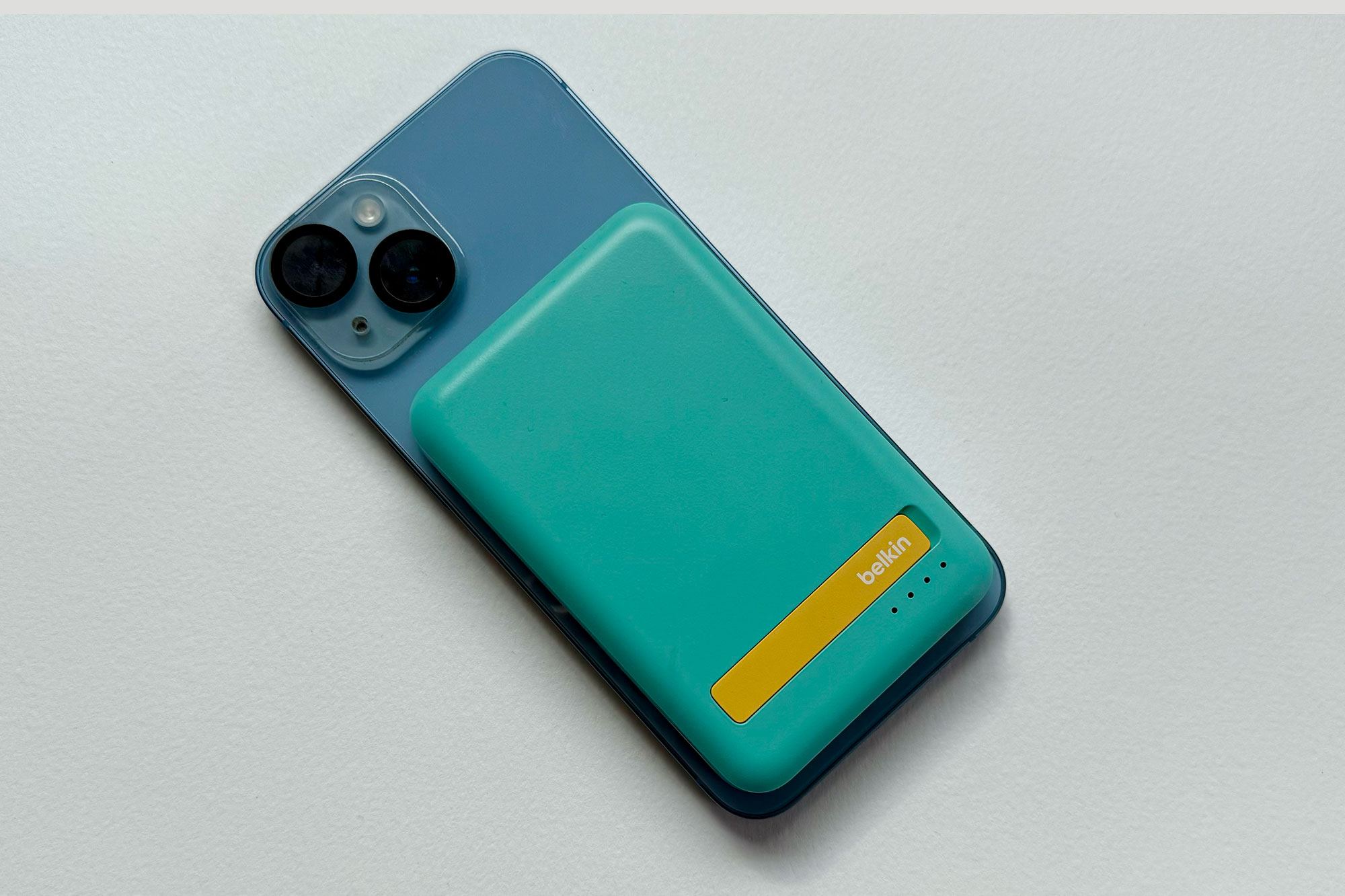

 $45.99
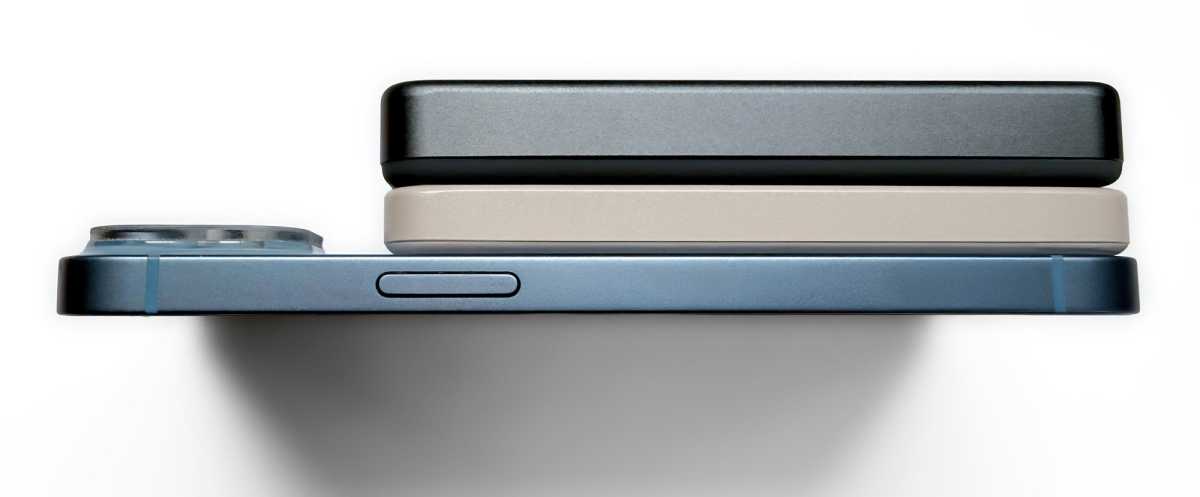
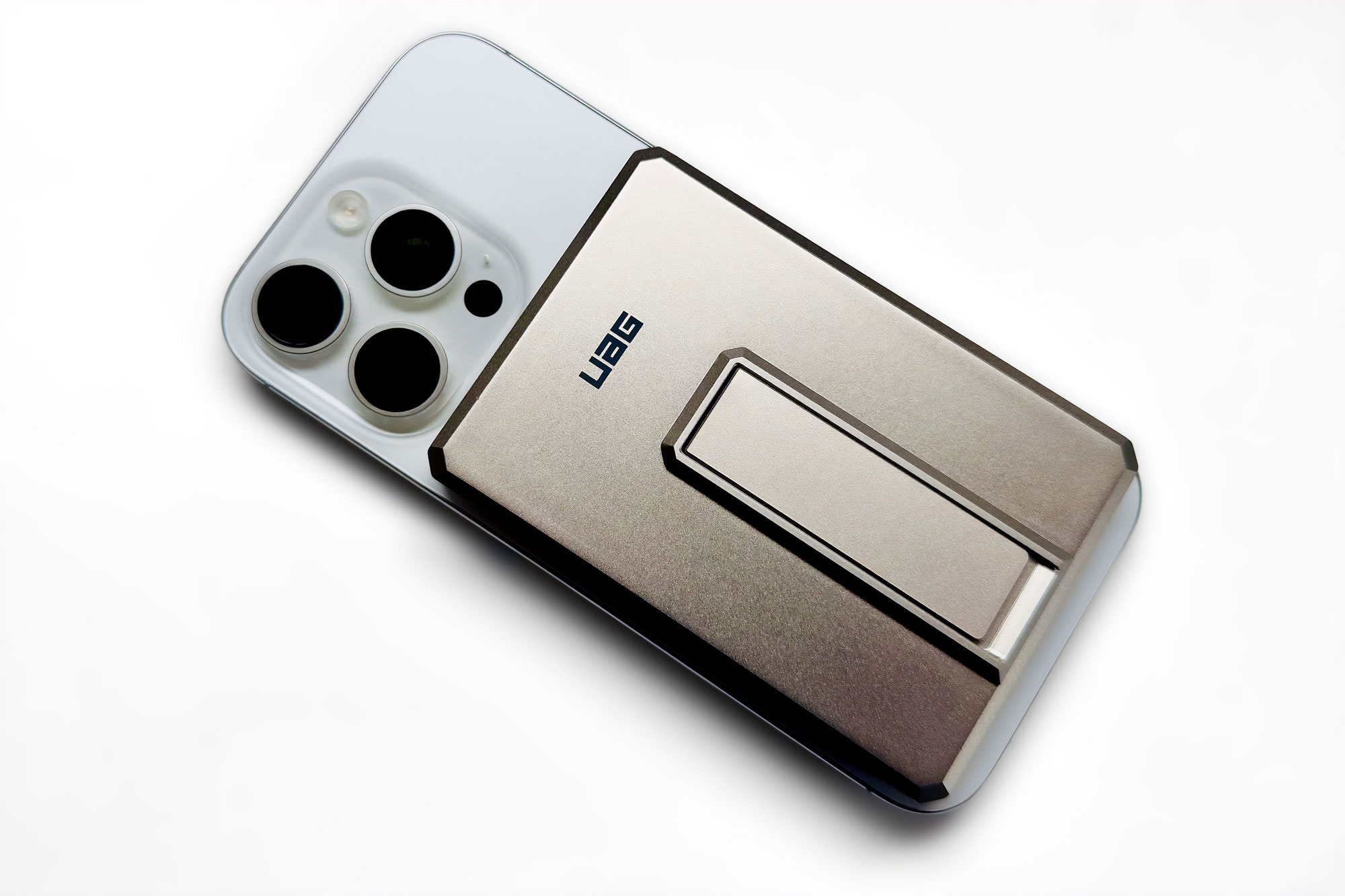

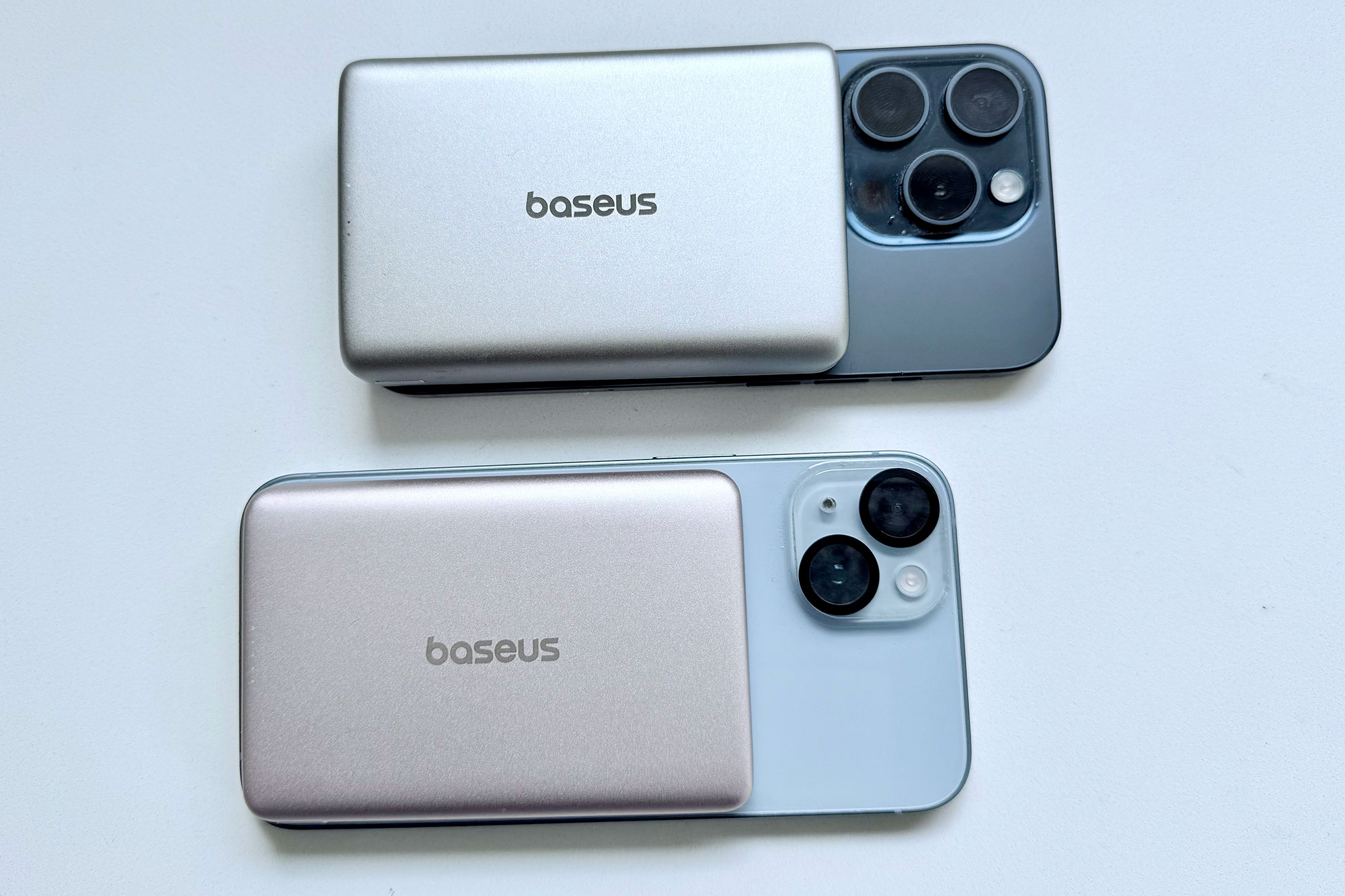


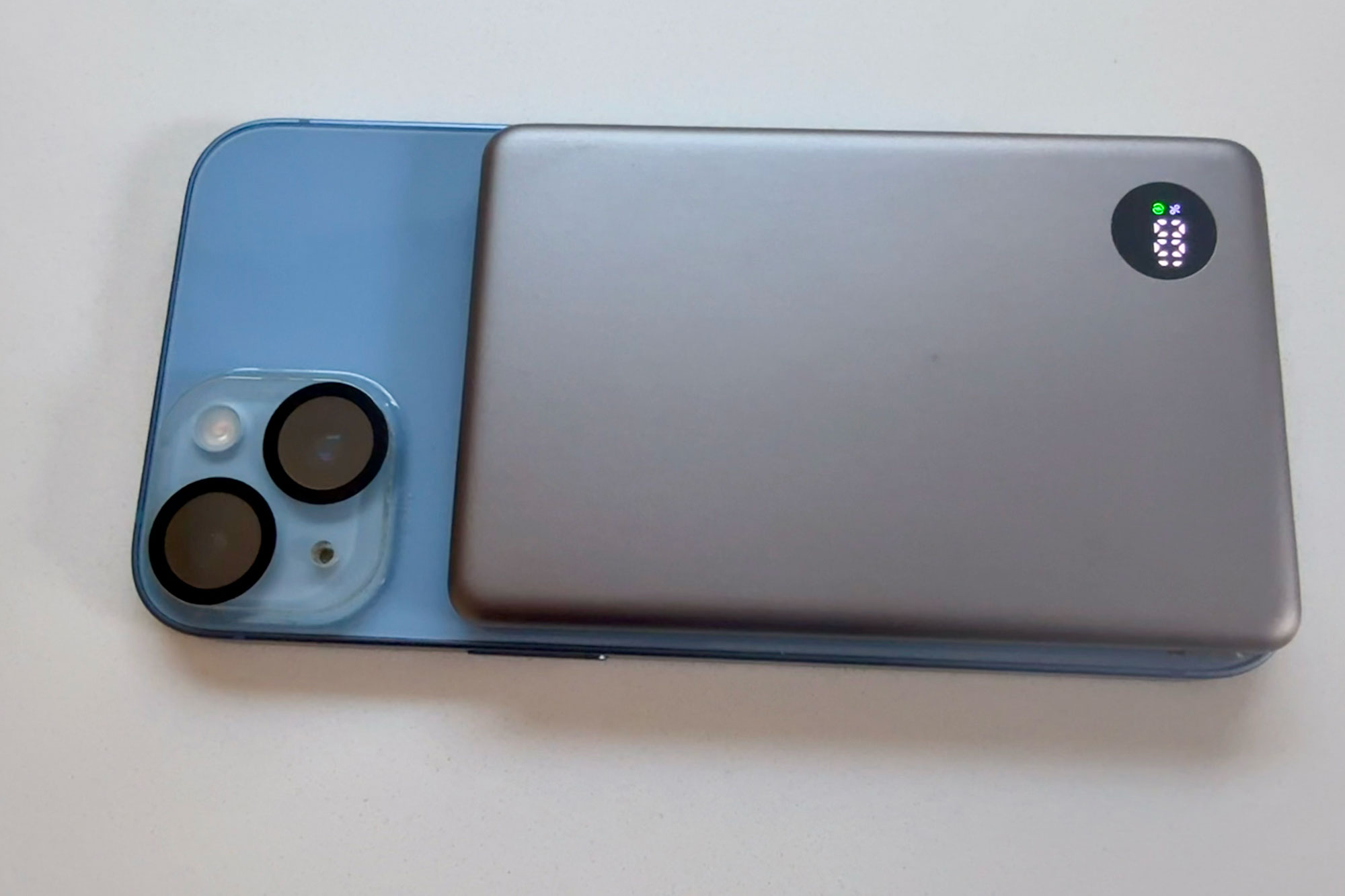

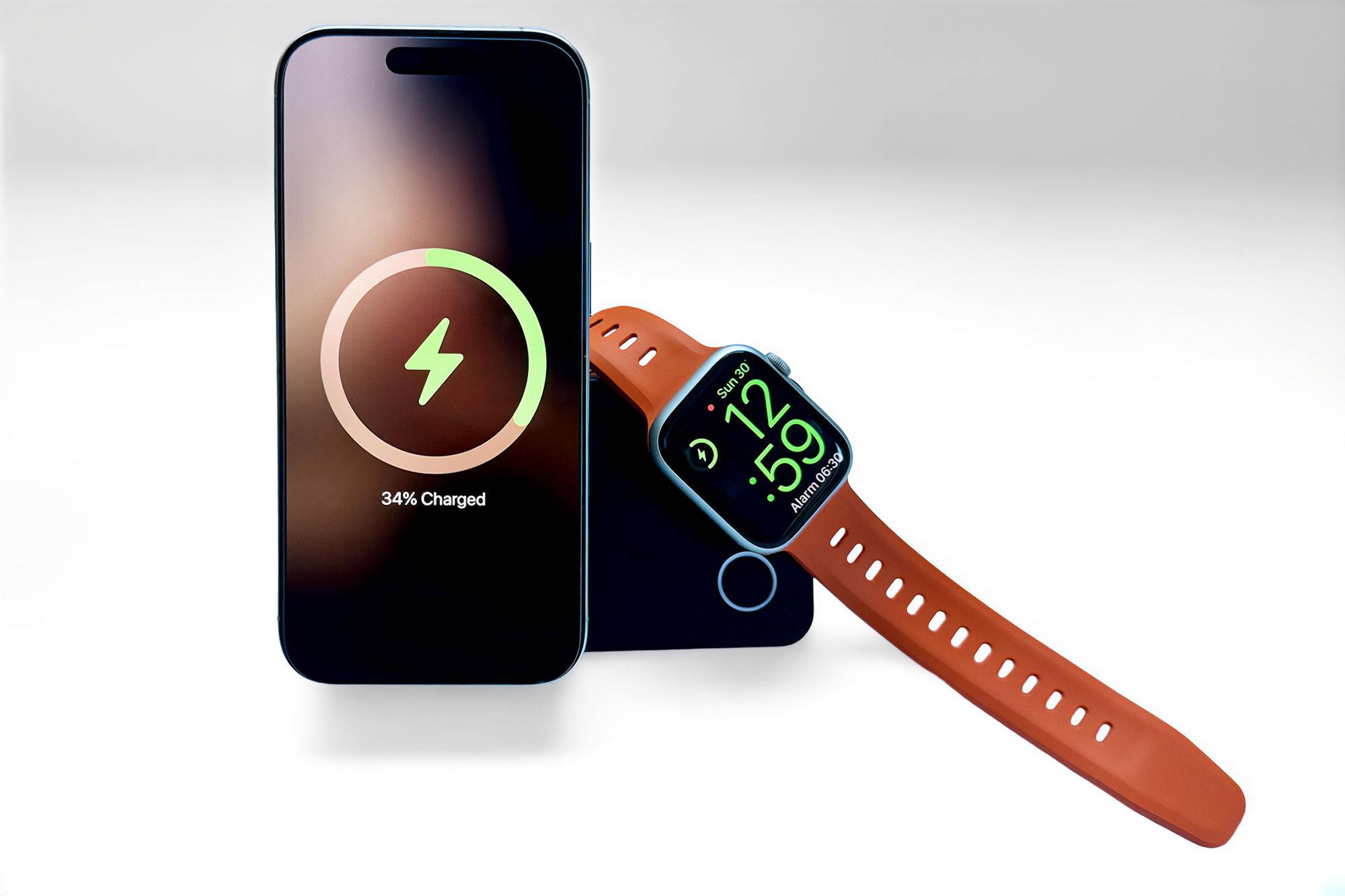

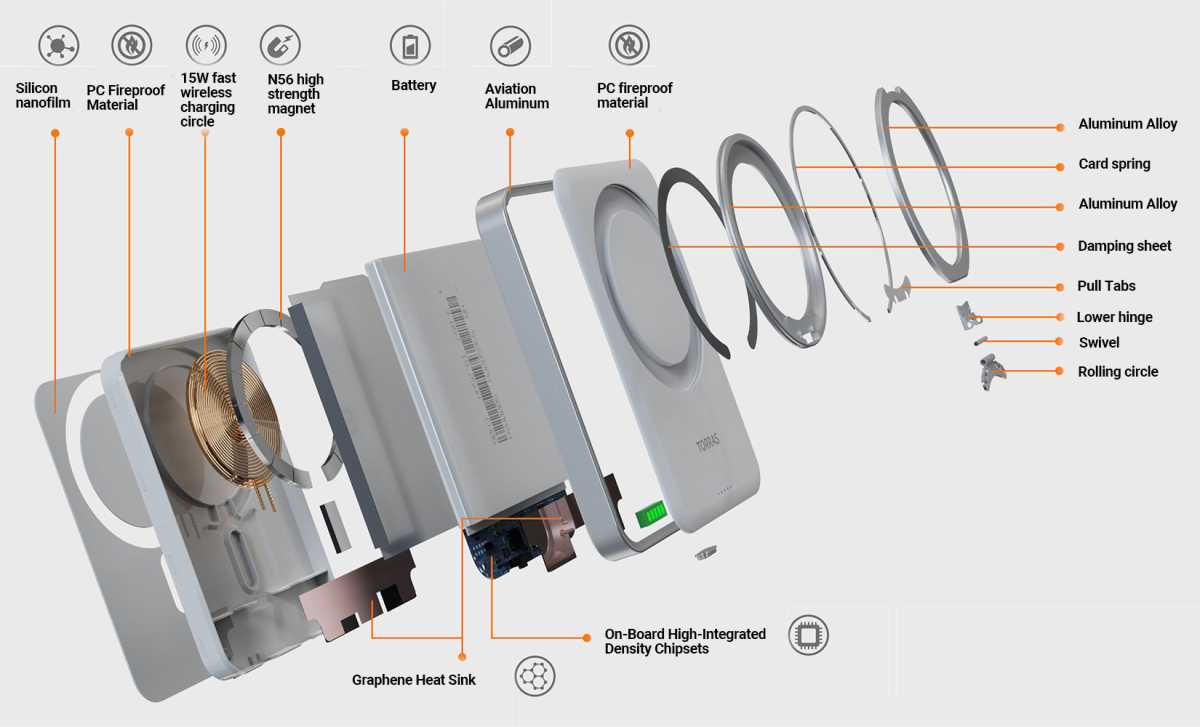

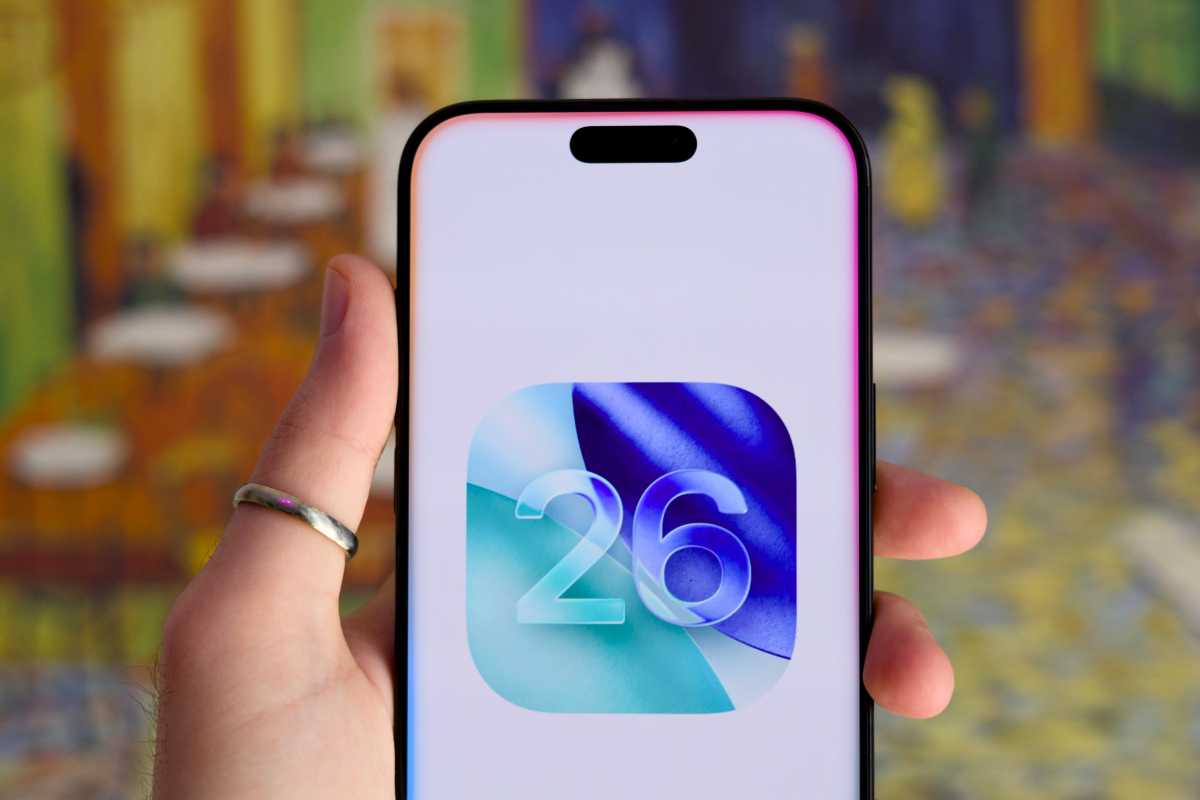
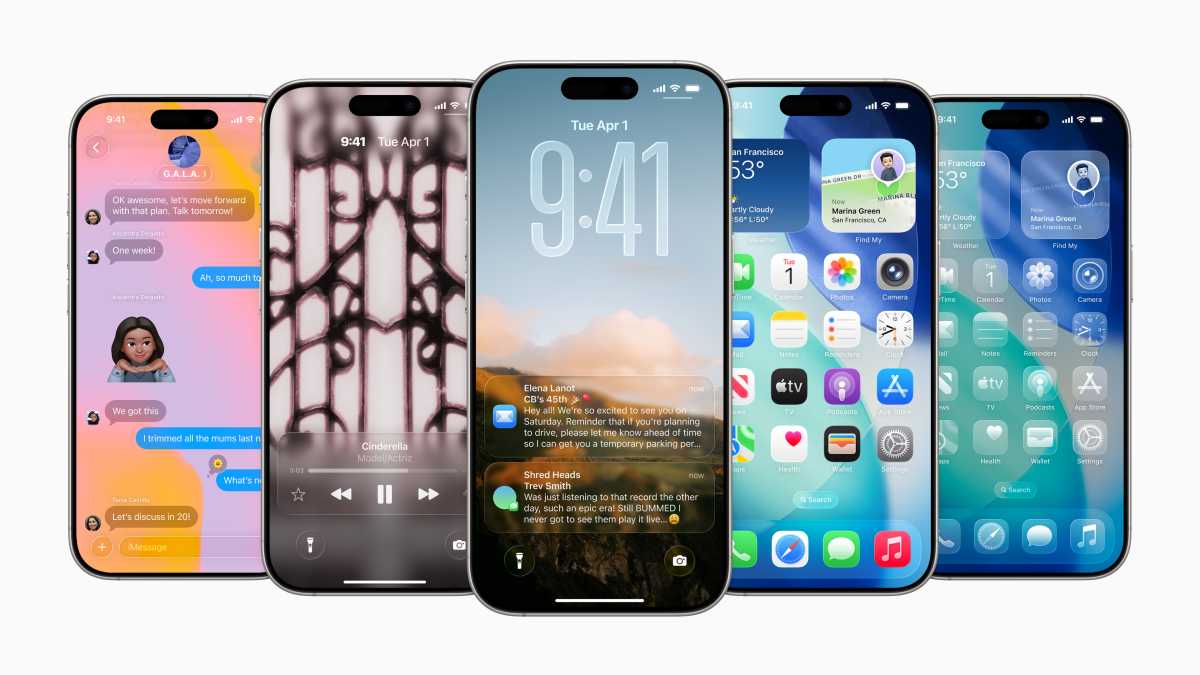

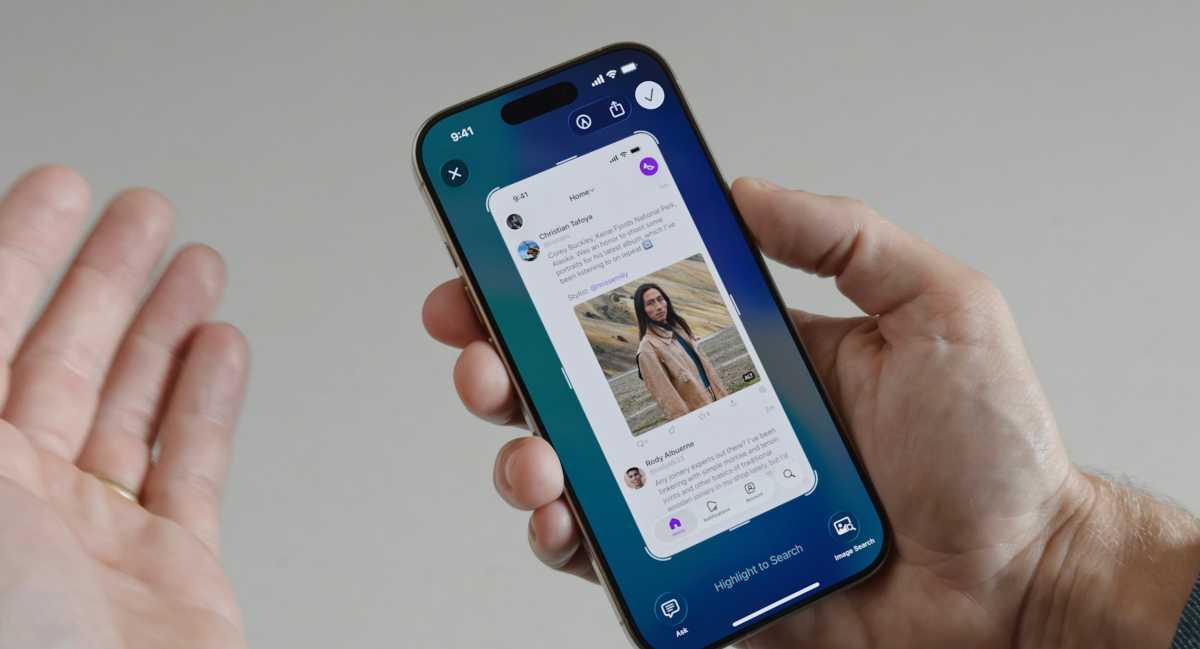



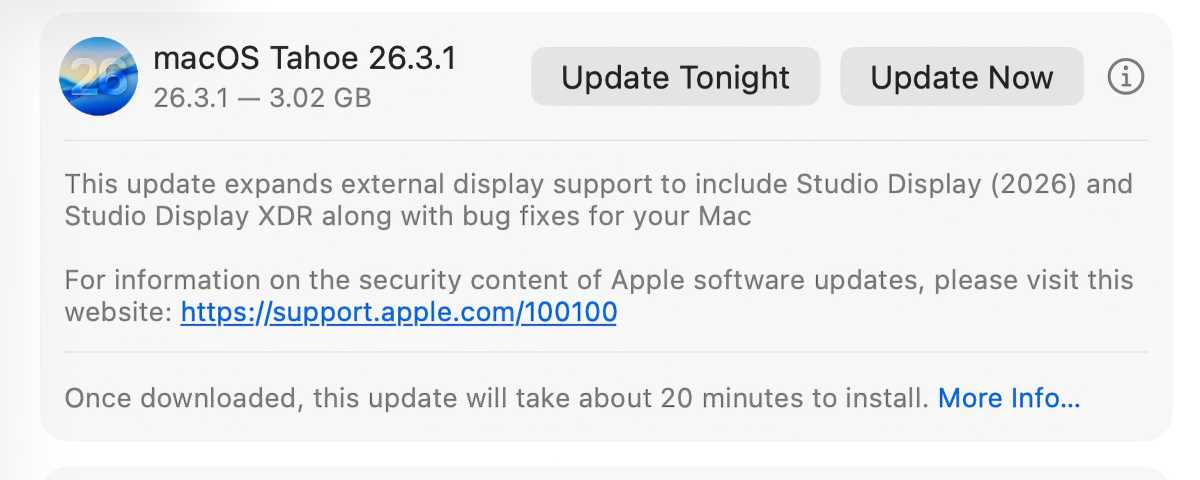

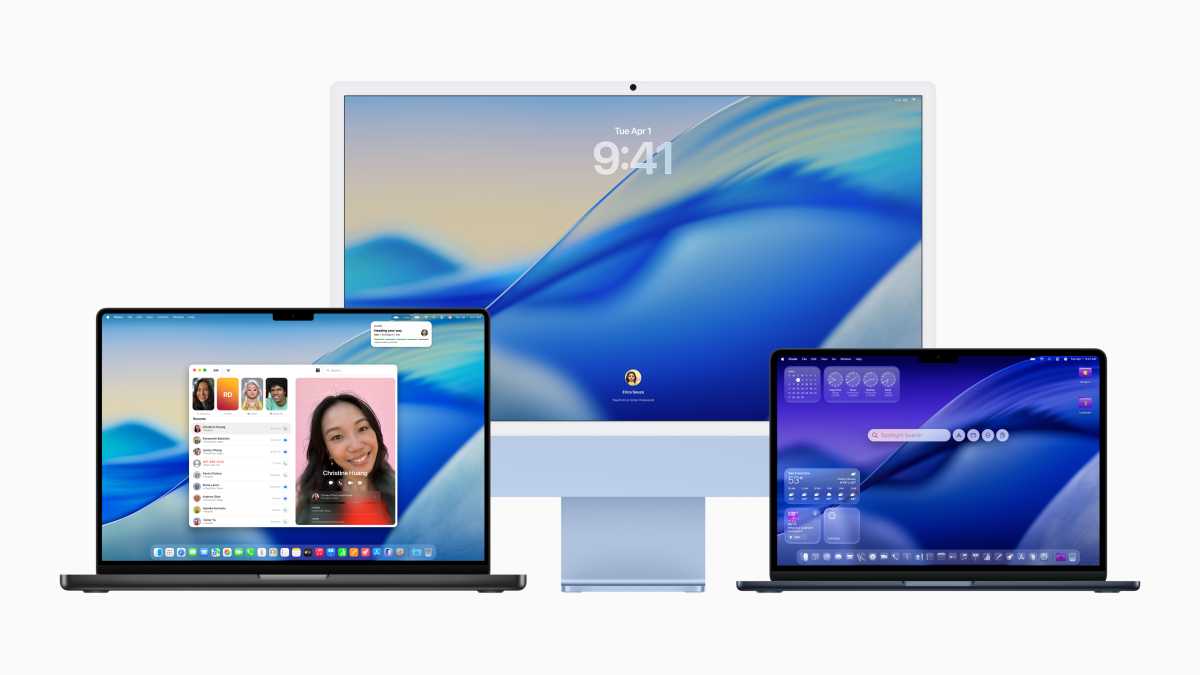
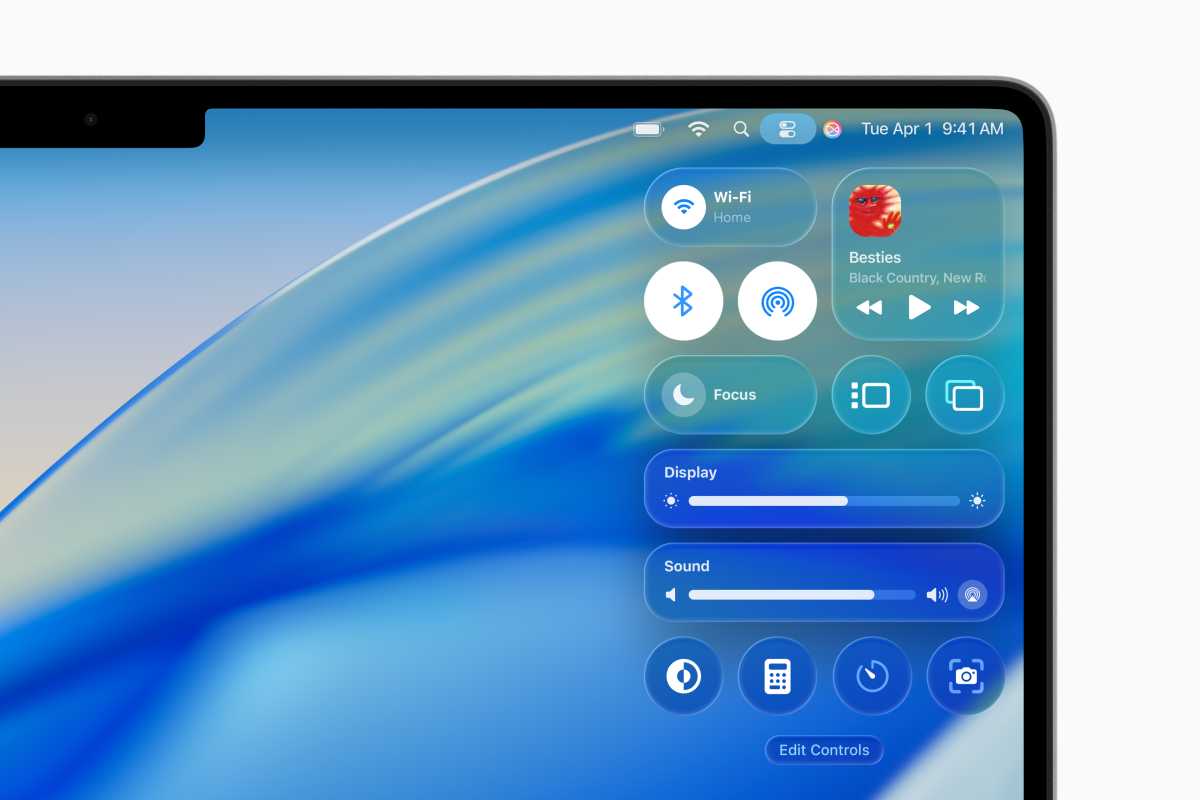

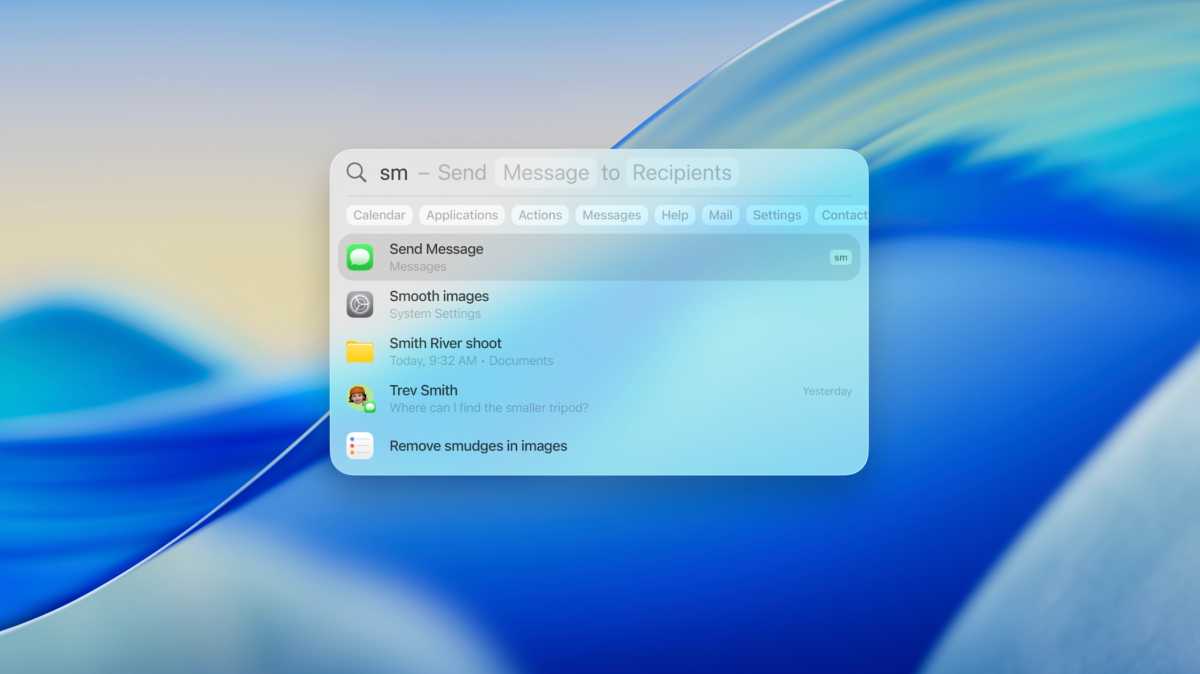
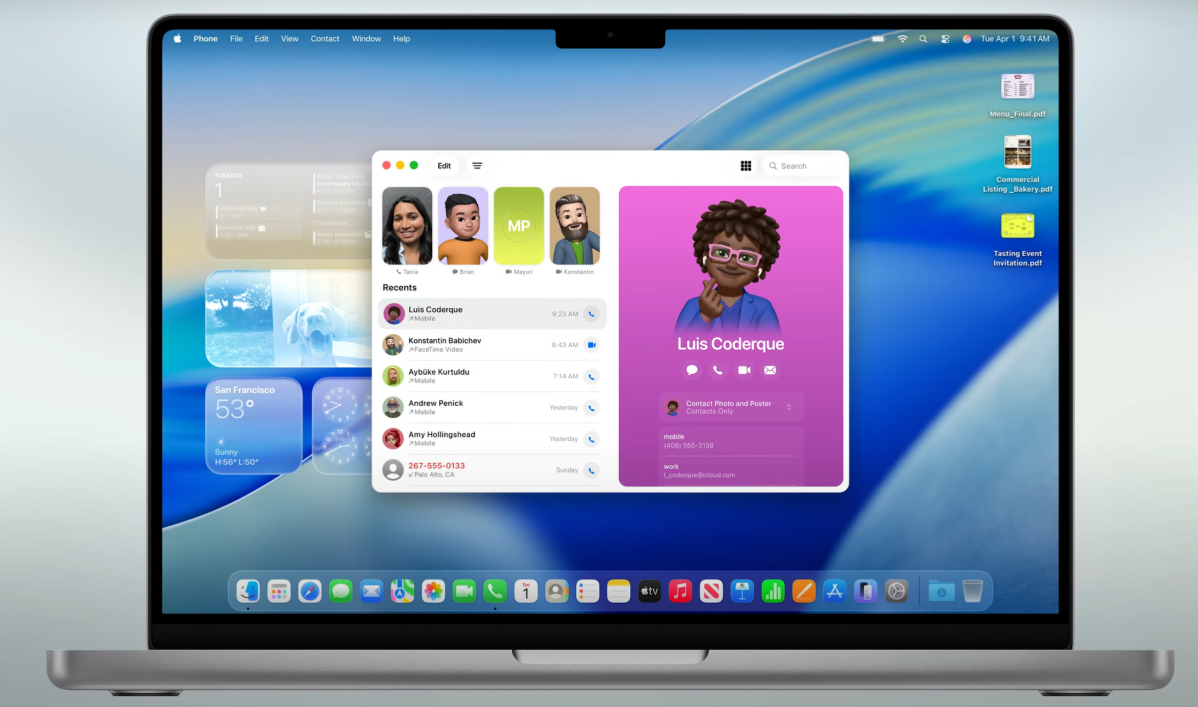

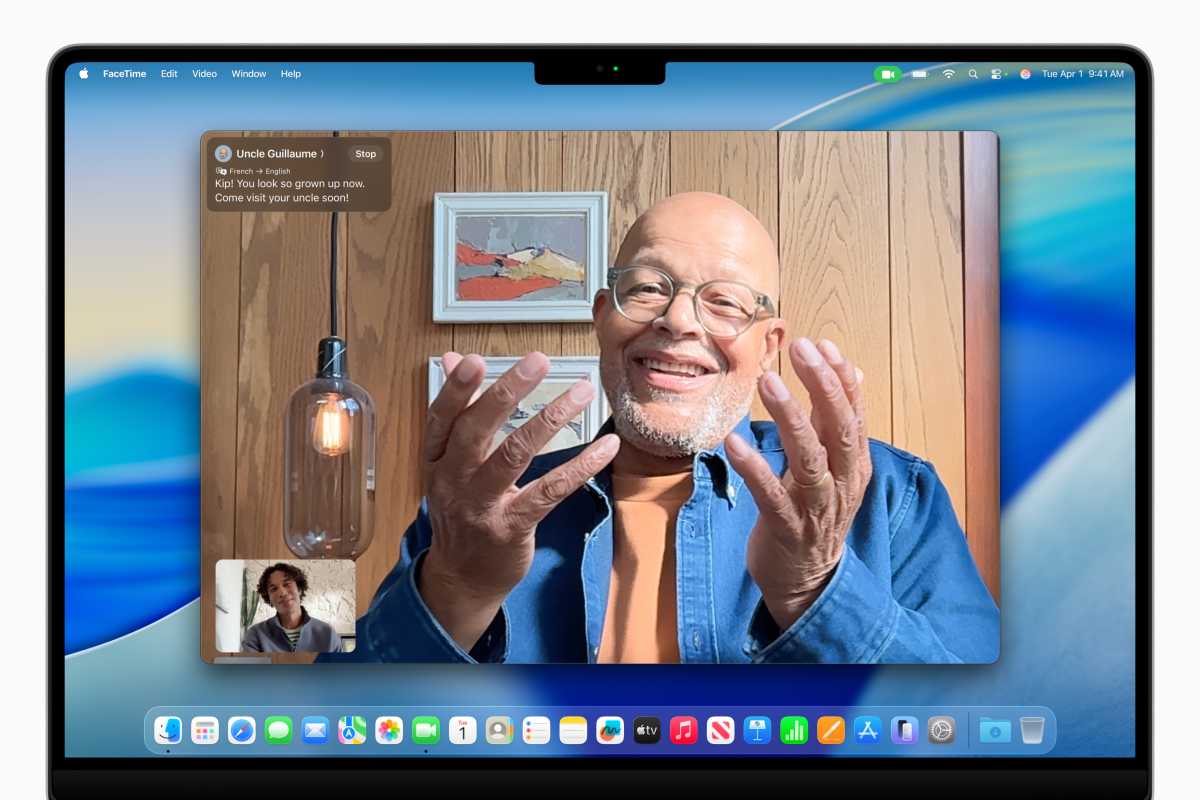



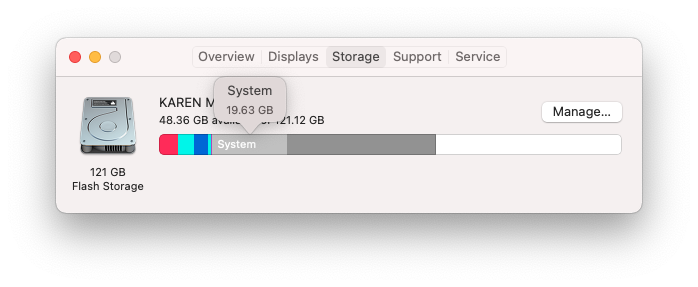
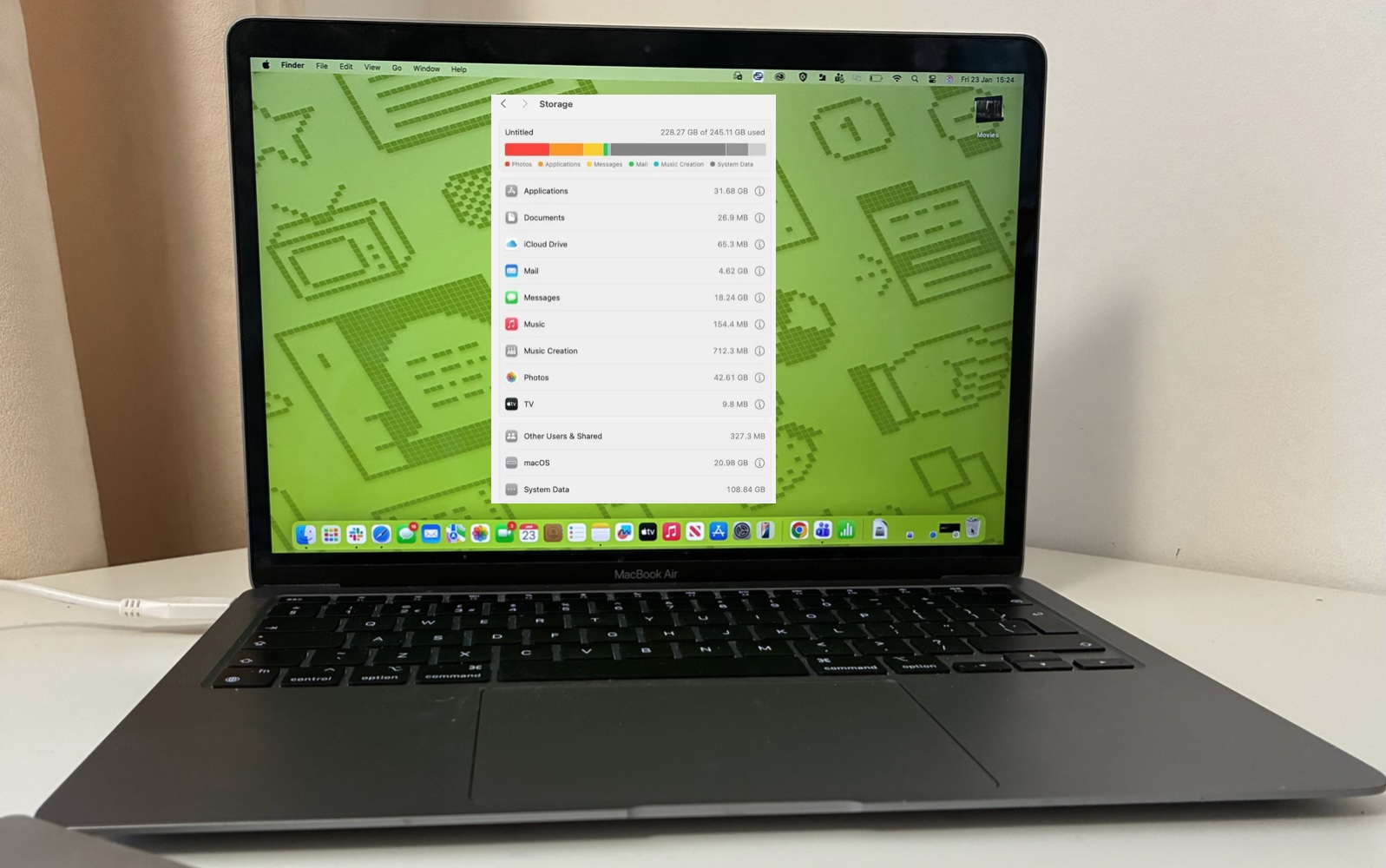

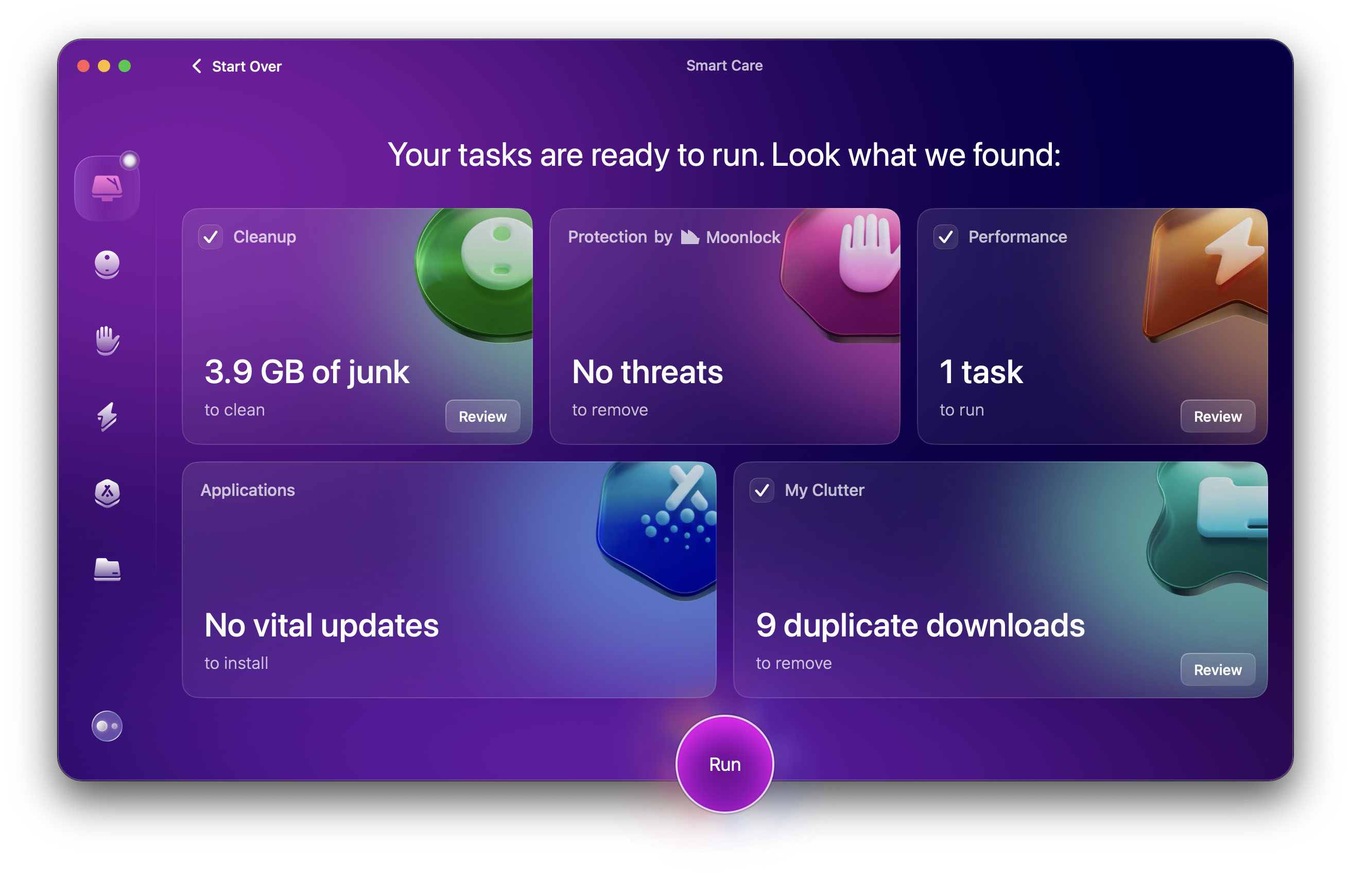 Price When Reviewed:
Basic (1 Mac): $9.95 per month; $47.50 per year; $119.95 one time fee. Plus (1 Mac): $15.95 per month; $71.40 annually; $195.95 one time fee
Best Prices Today:
Price When Reviewed:
Basic (1 Mac): $9.95 per month; $47.50 per year; $119.95 one time fee. Plus (1 Mac): $15.95 per month; $71.40 annually; $195.95 one time fee
Best Prices Today:
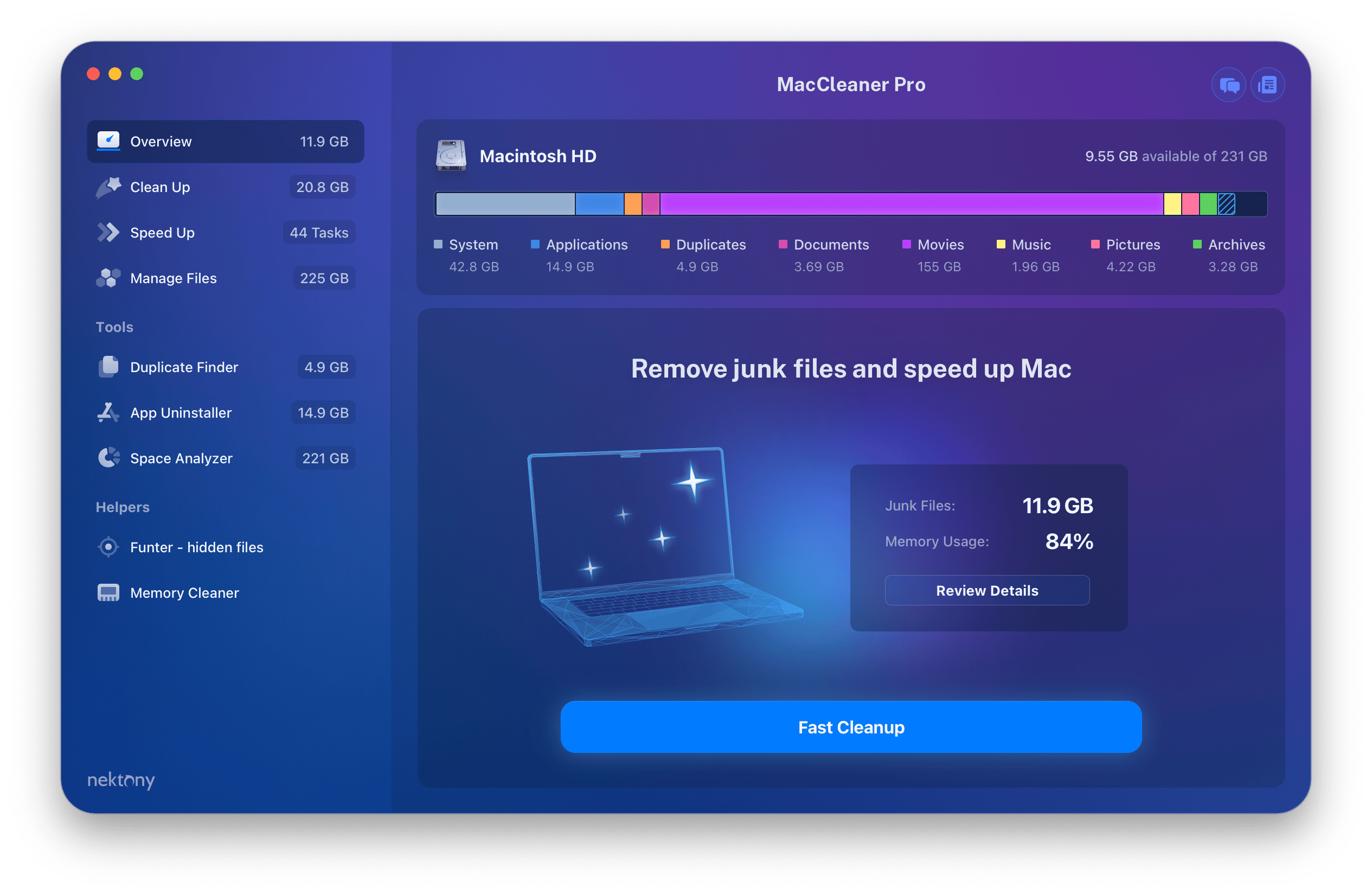 Price When Reviewed:
$29.95/a year for 1 Mac, or $74.95 for 1 Mac (one time purchase)
Best Prices Today:
Price When Reviewed:
$29.95/a year for 1 Mac, or $74.95 for 1 Mac (one time purchase)
Best Prices Today:
 Price When Reviewed:
$19.99 a year for 1 device (usually $24.99)
Best Prices Today:
Price When Reviewed:
$19.99 a year for 1 device (usually $24.99)
Best Prices Today:
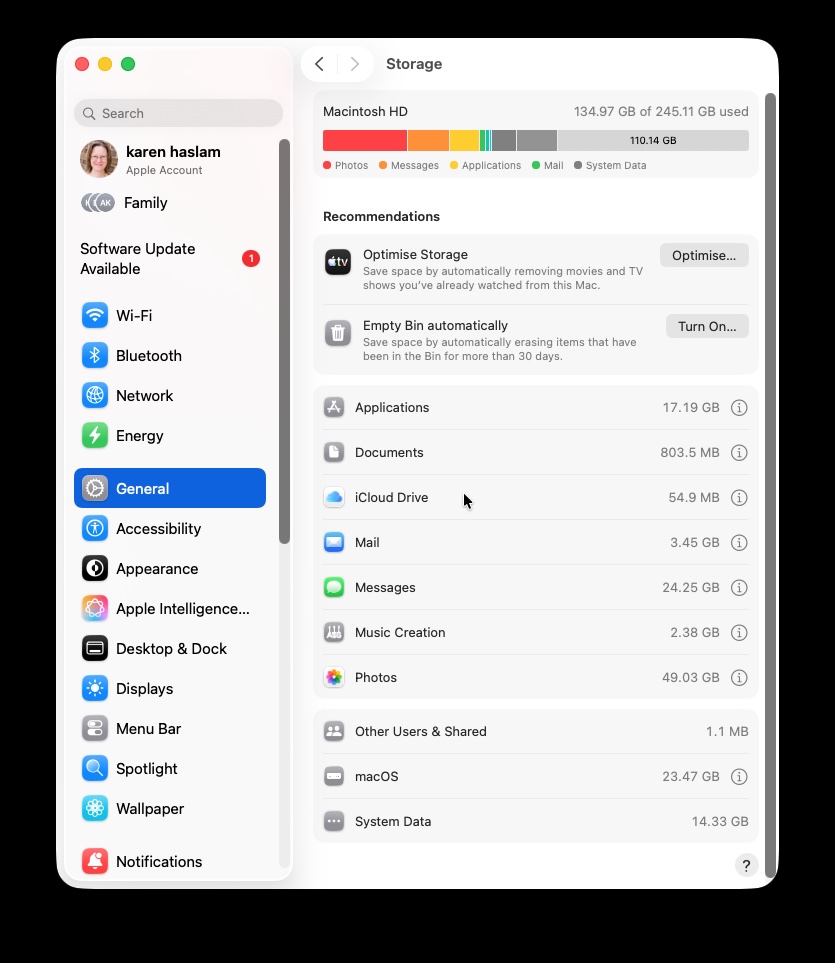
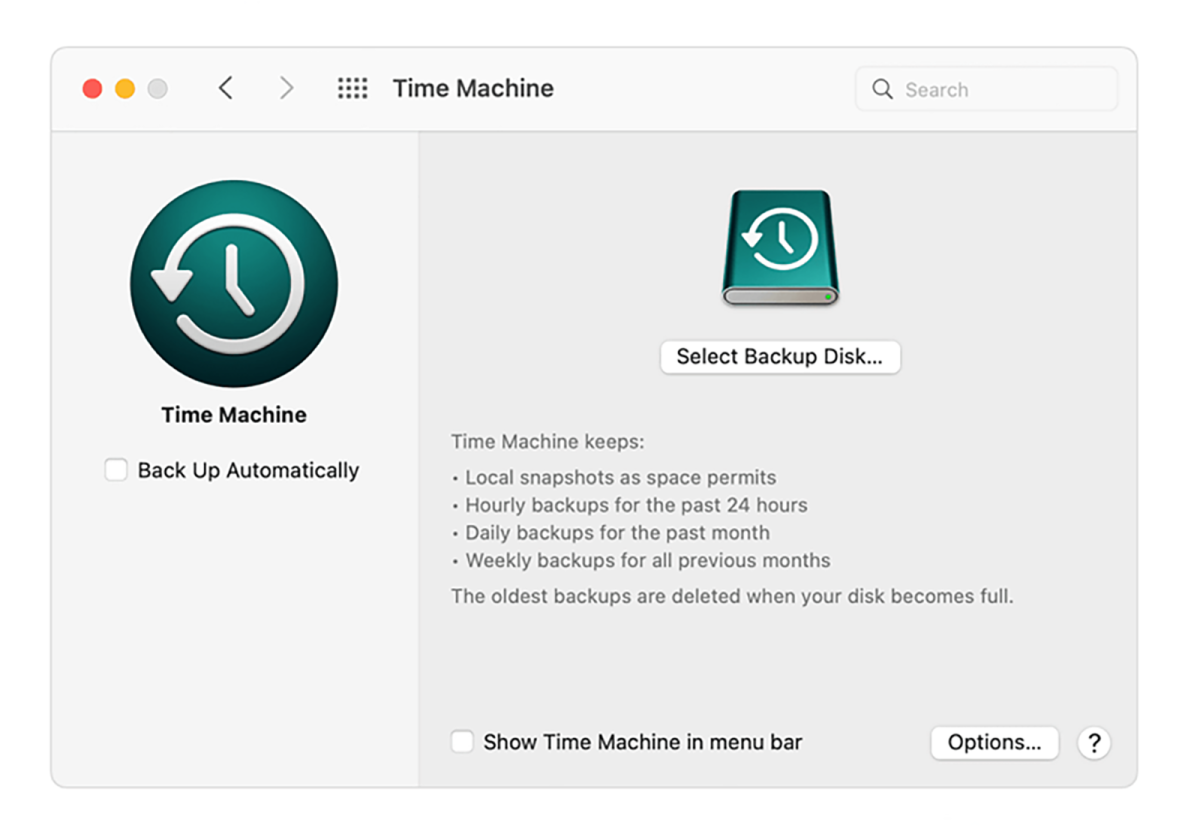
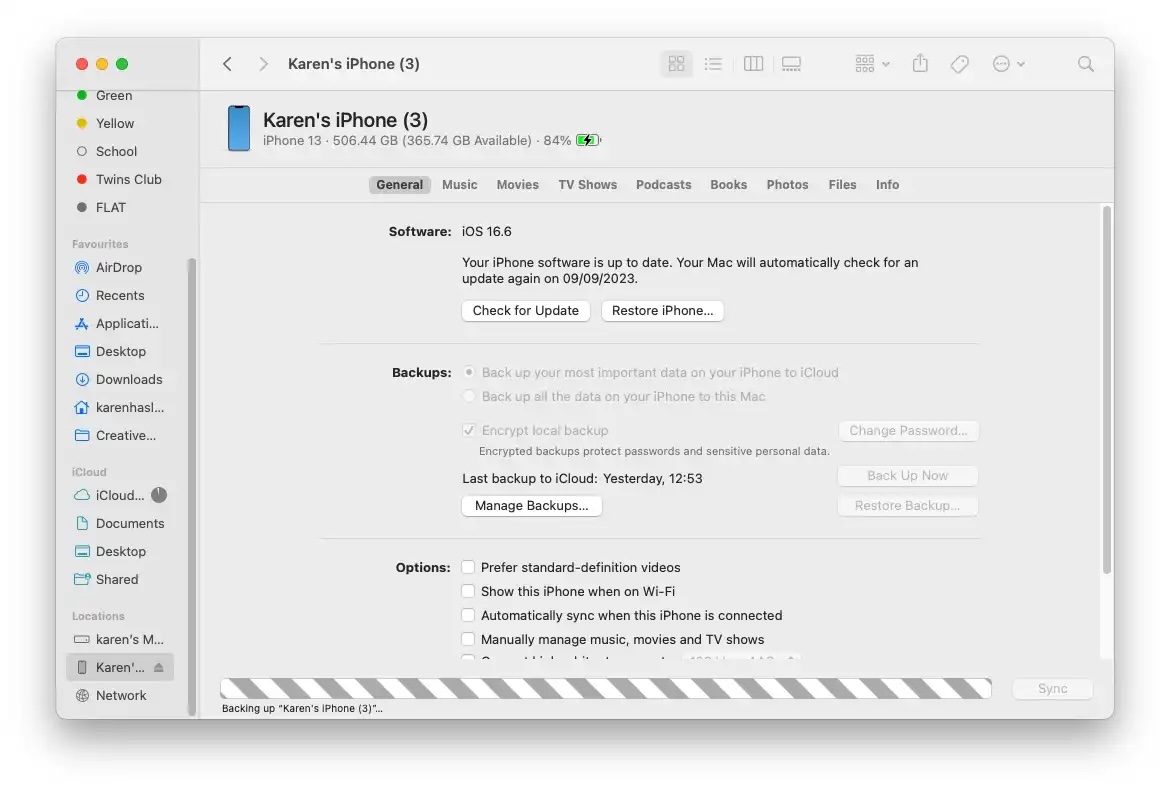
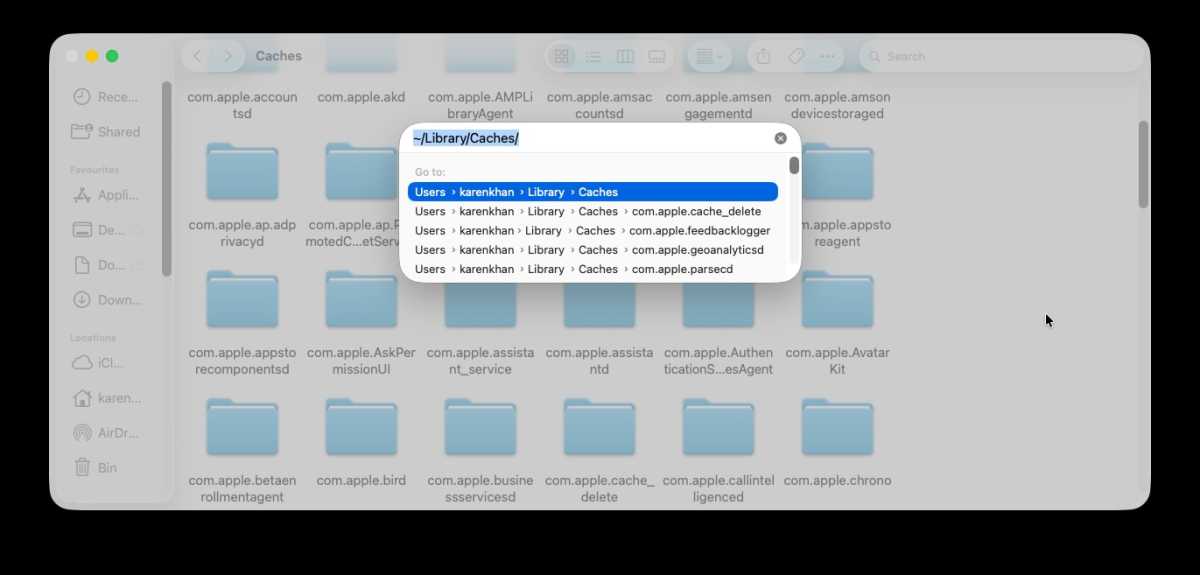


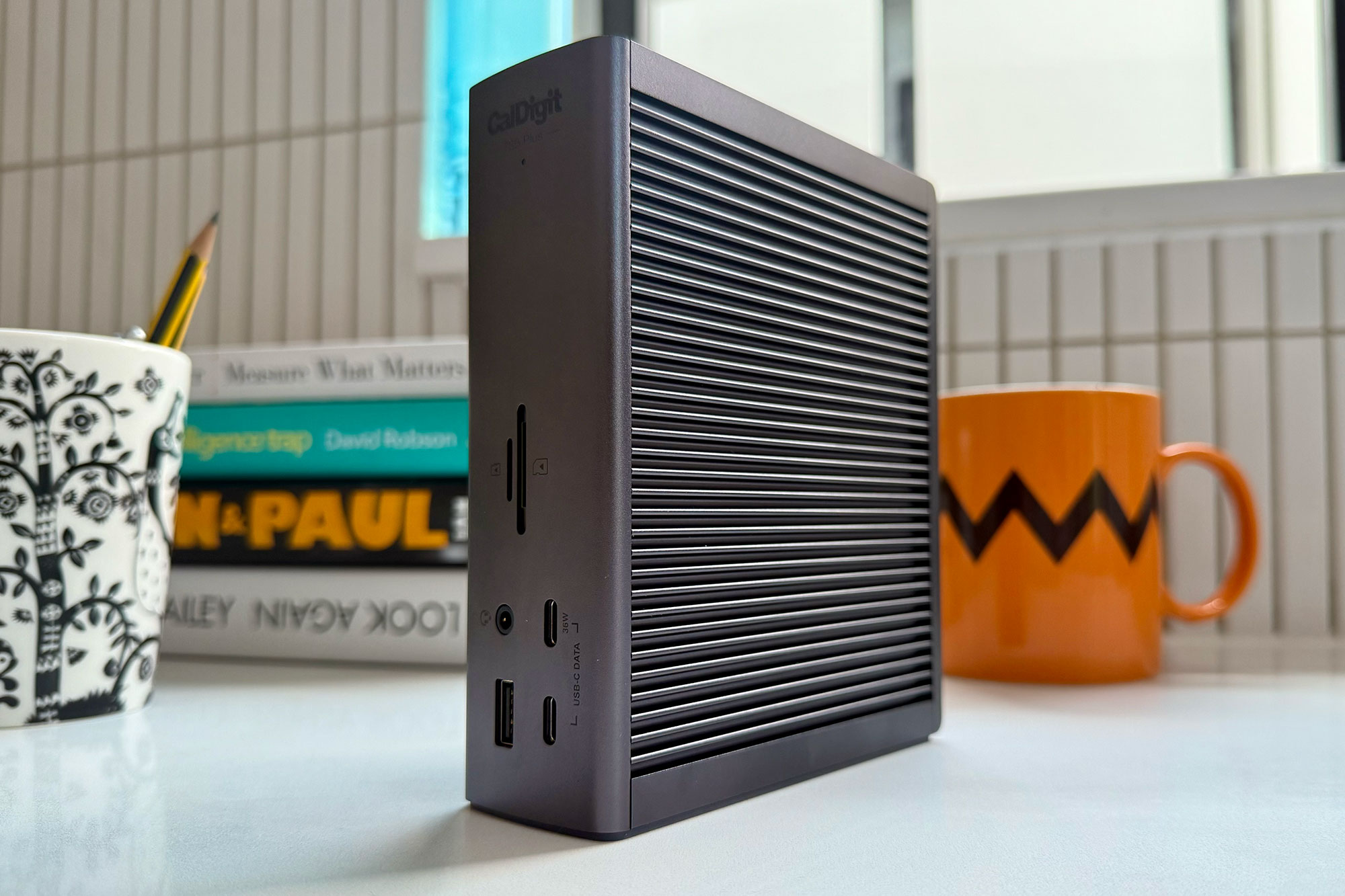
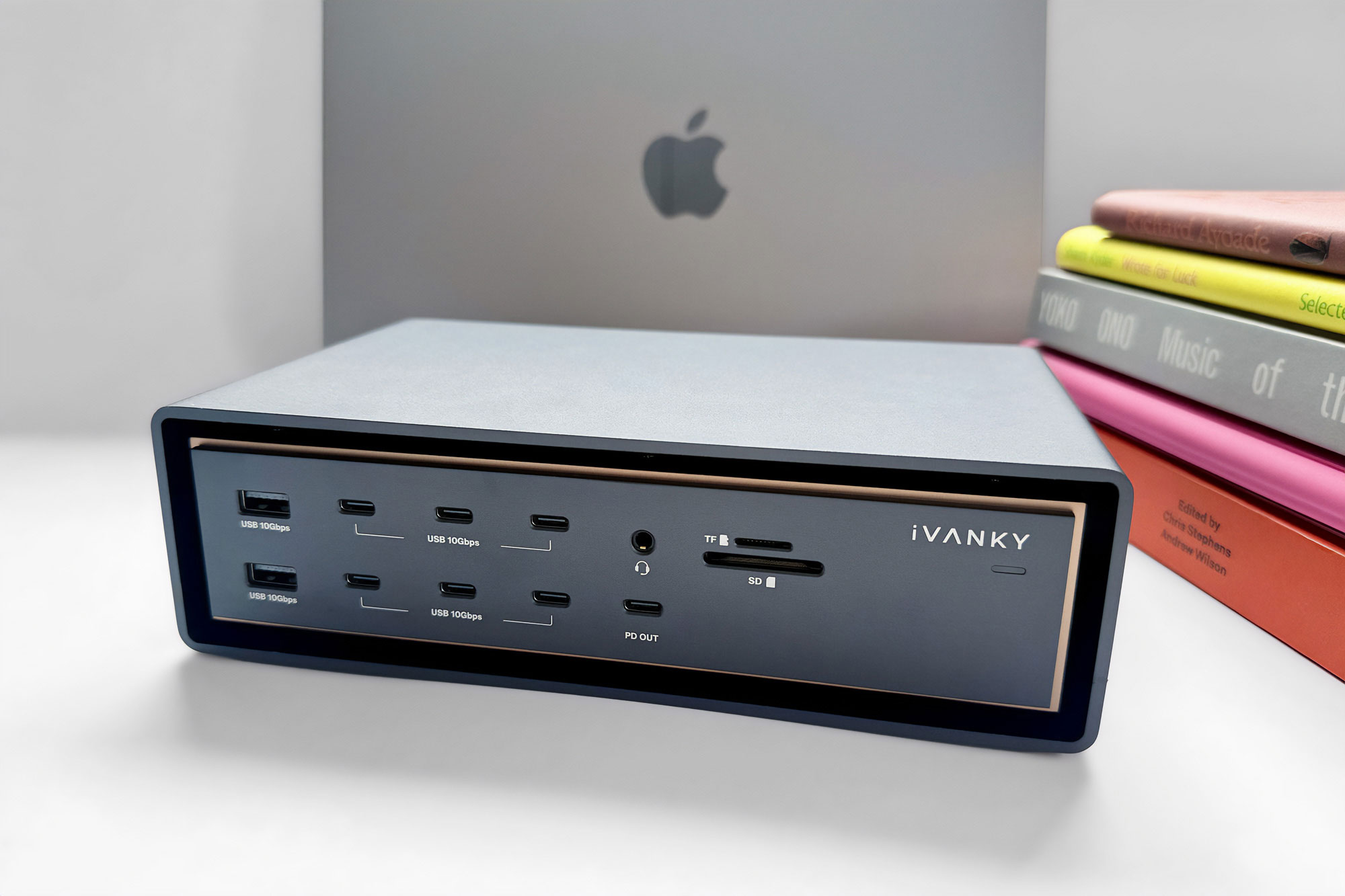
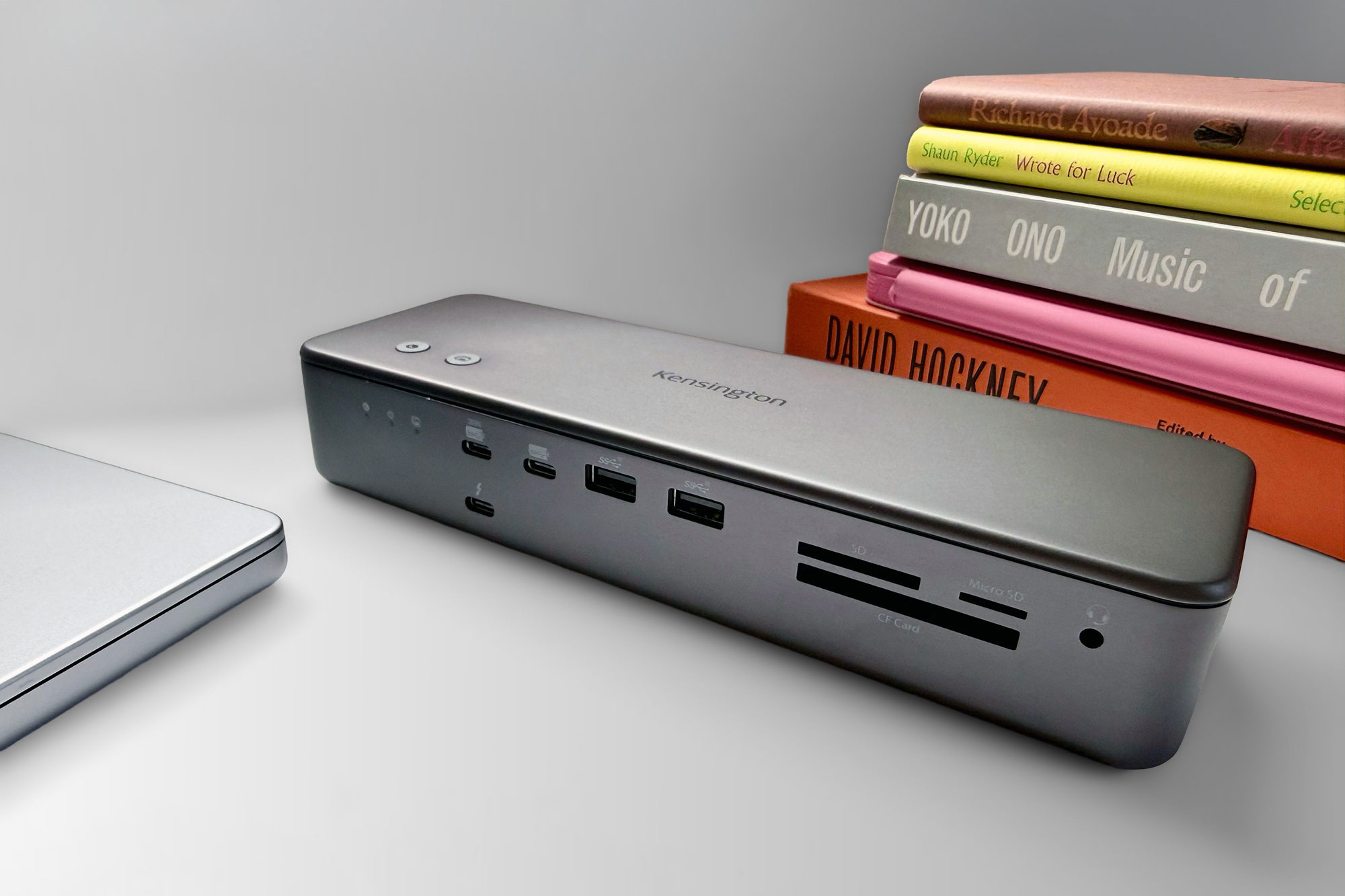
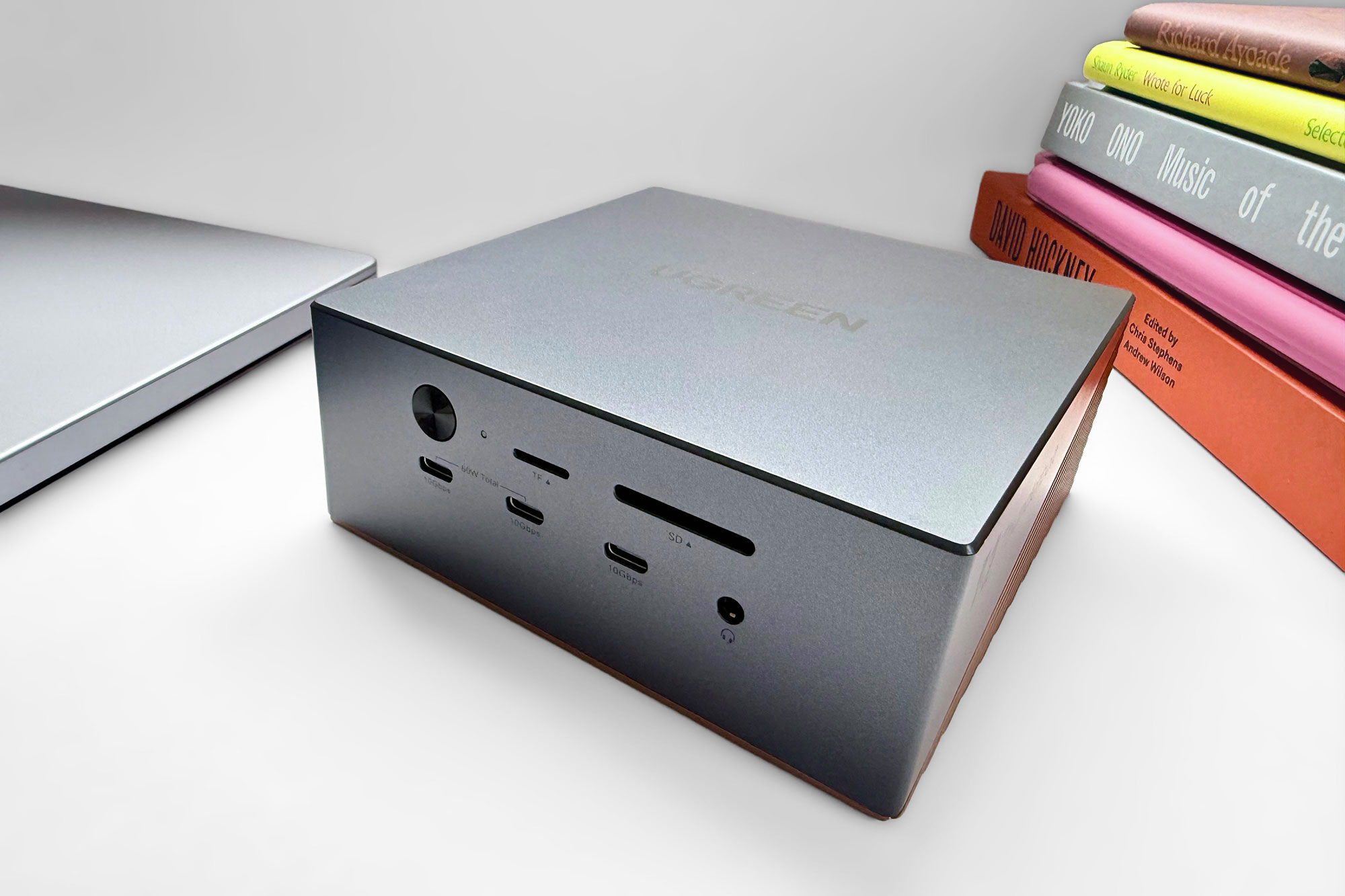
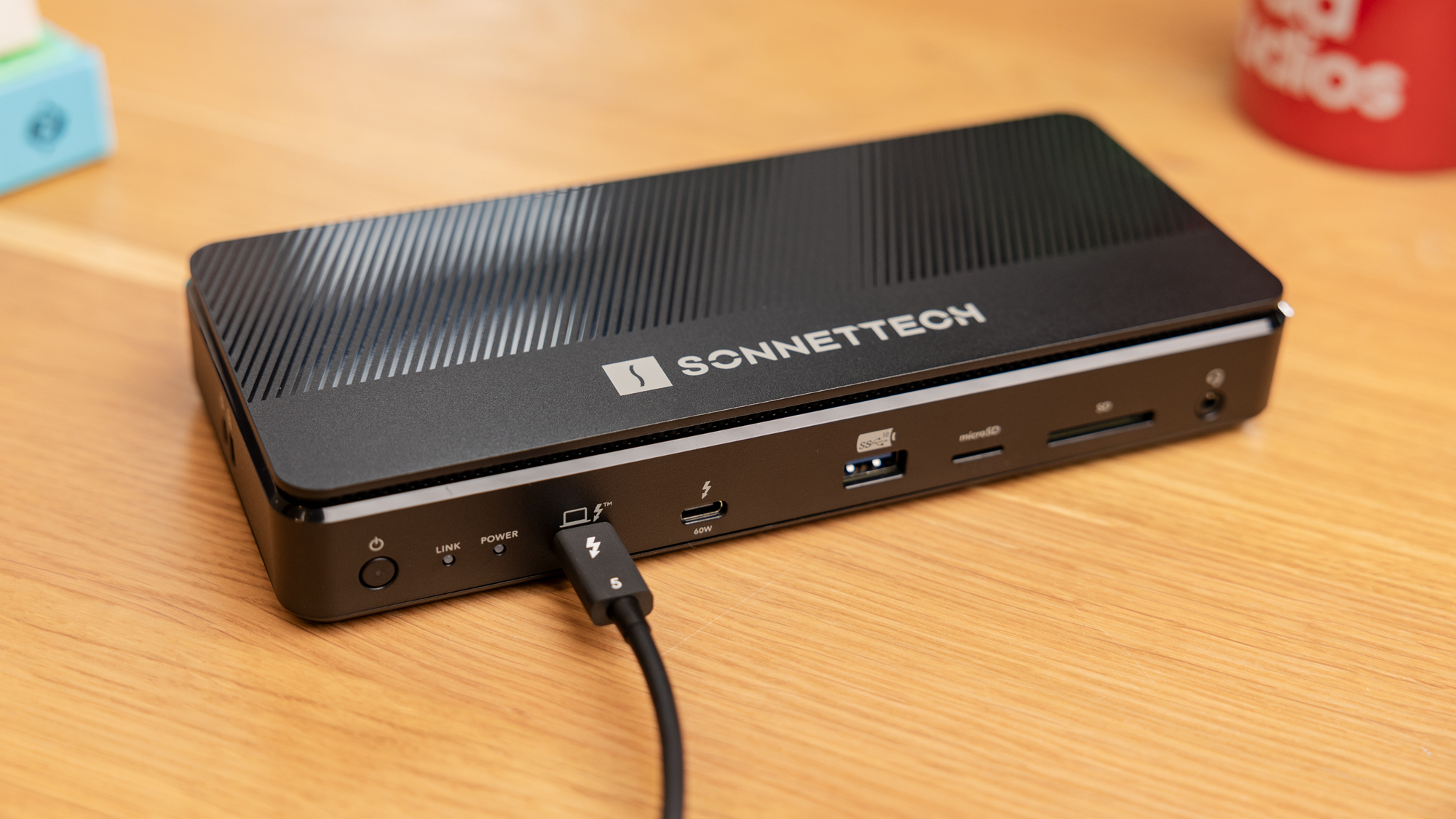
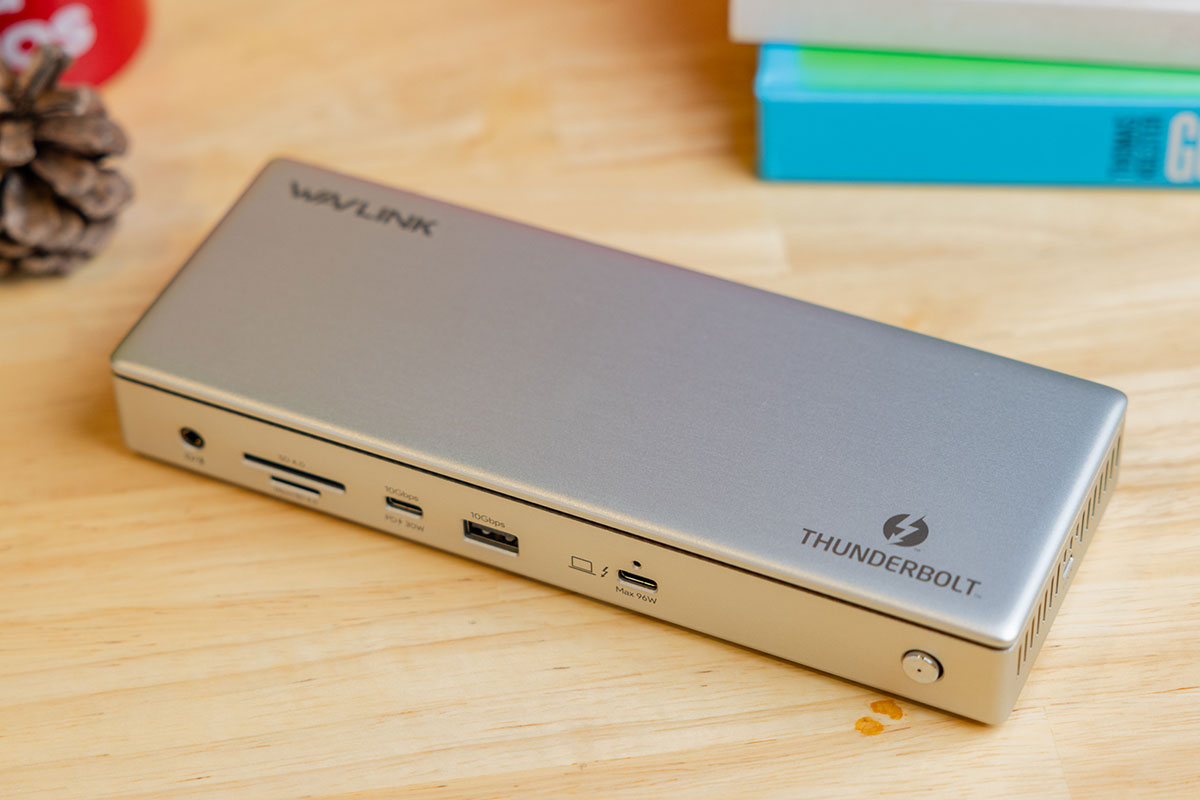
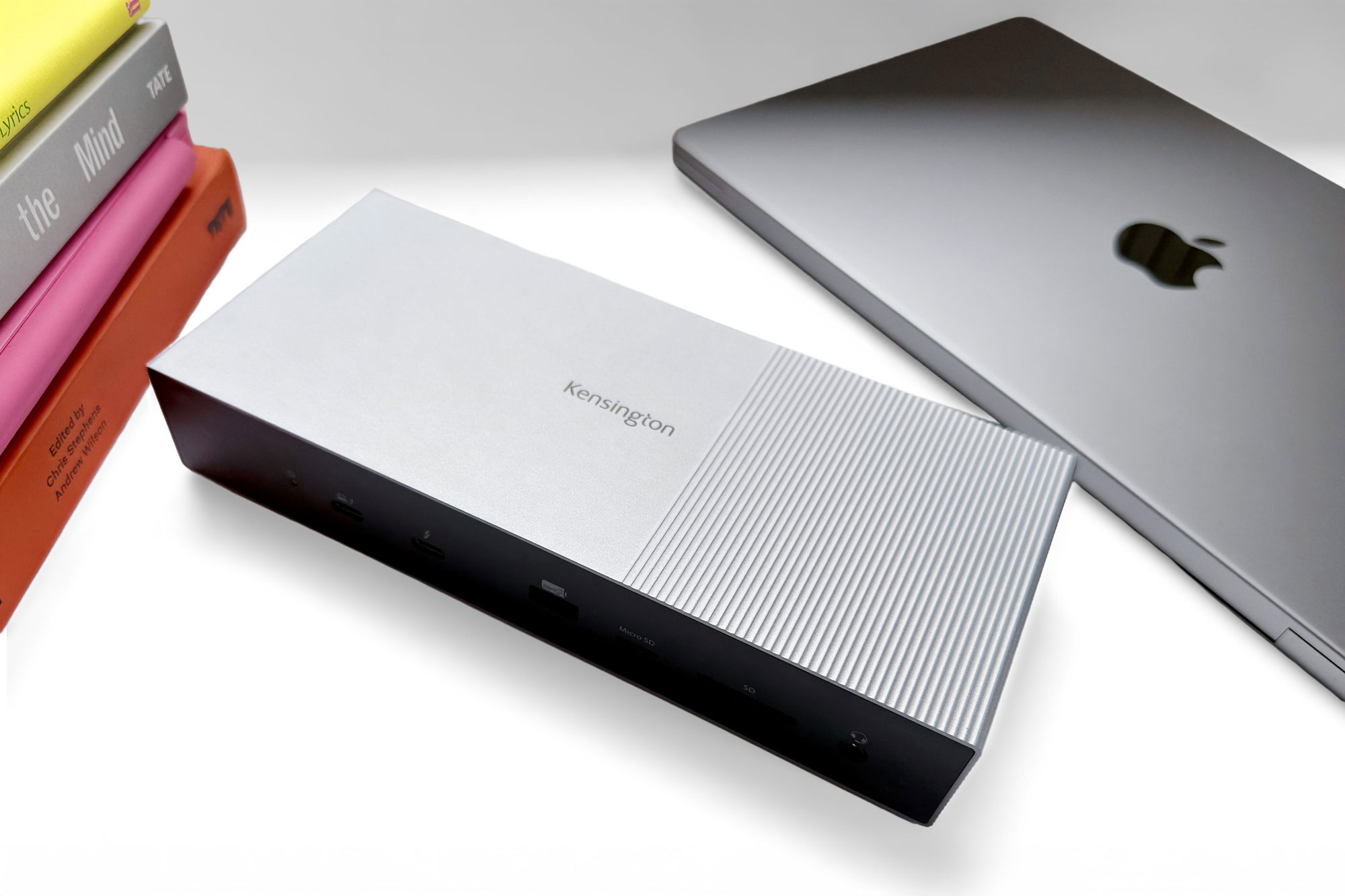
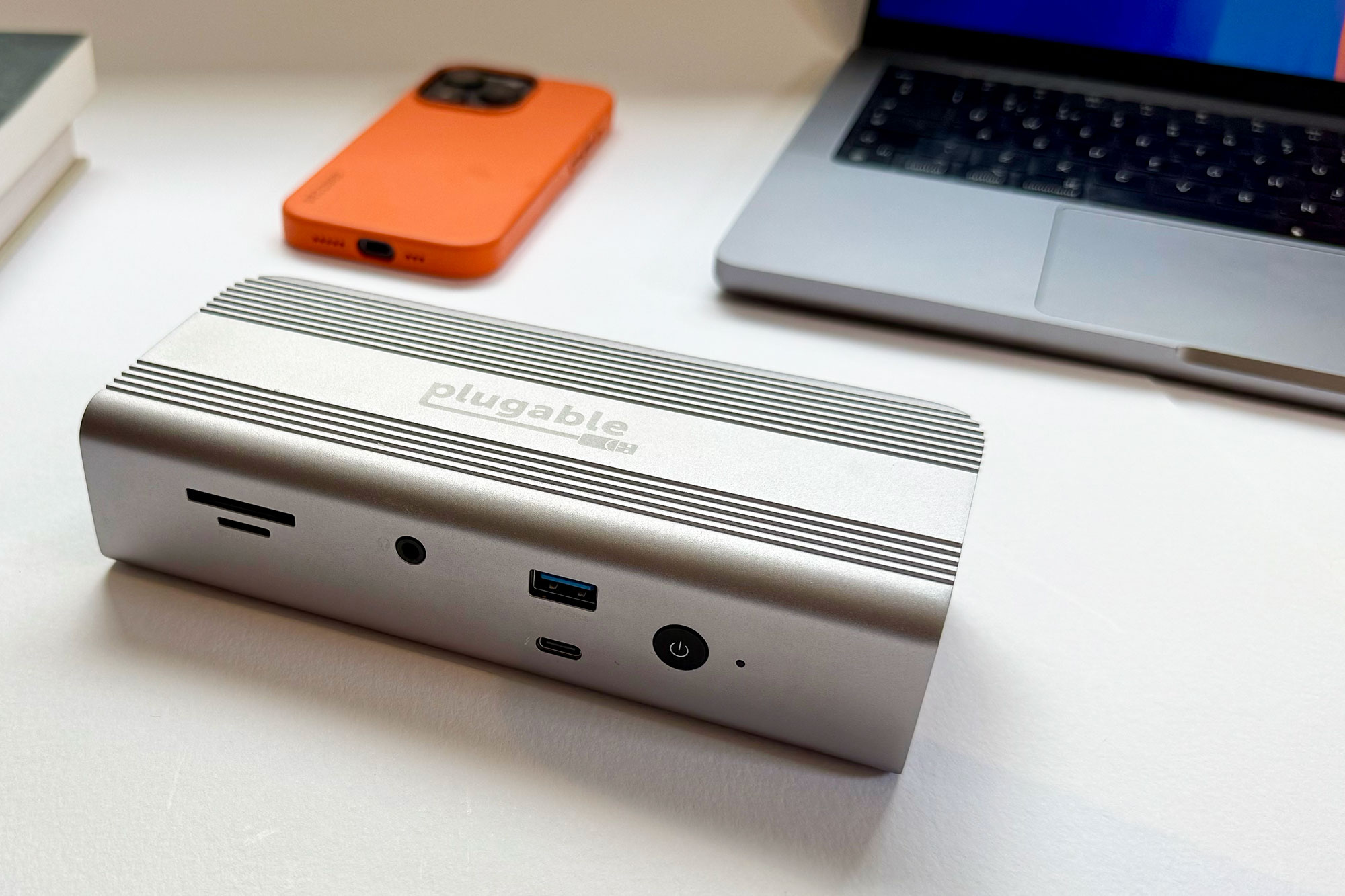
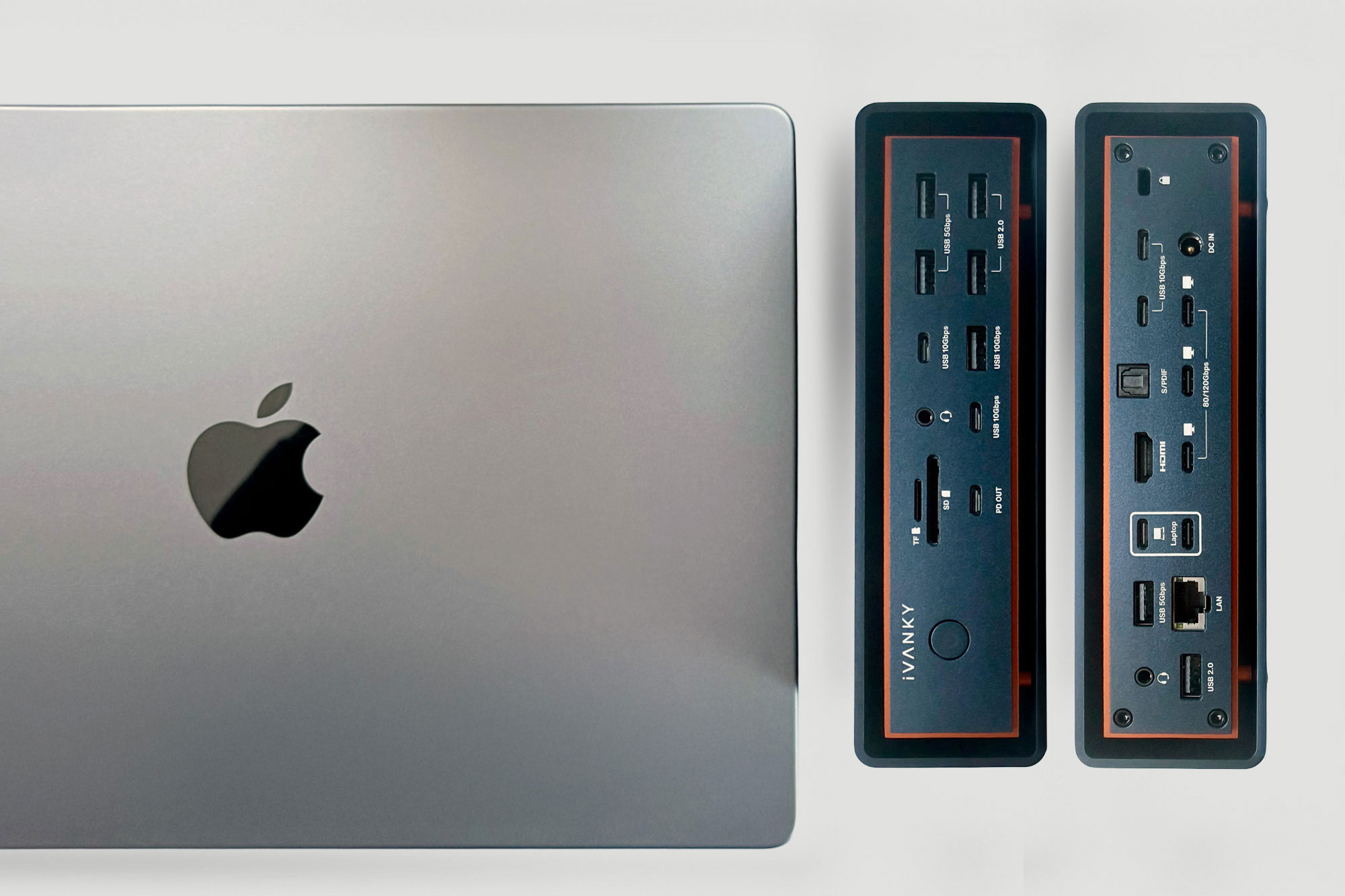
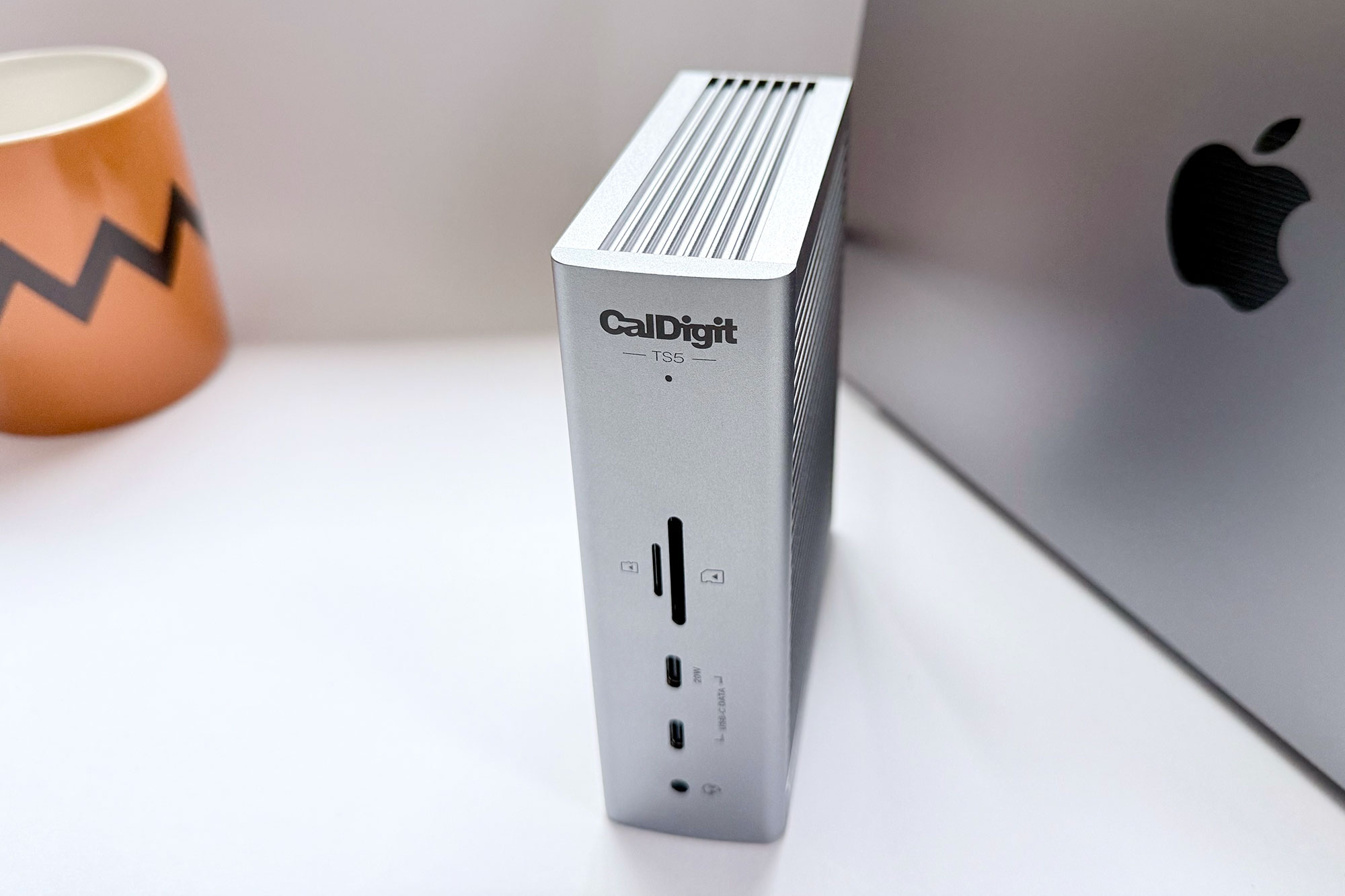
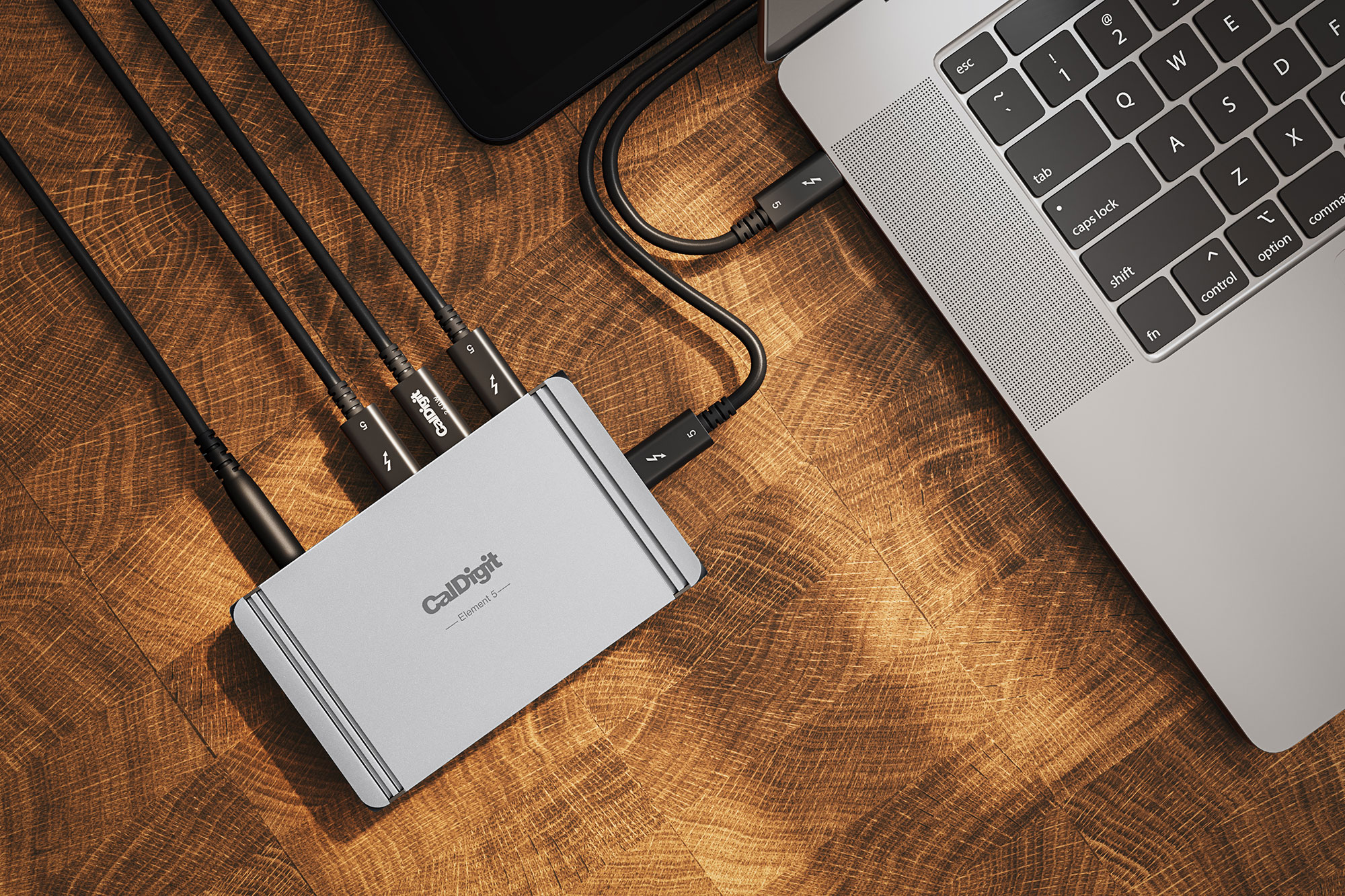
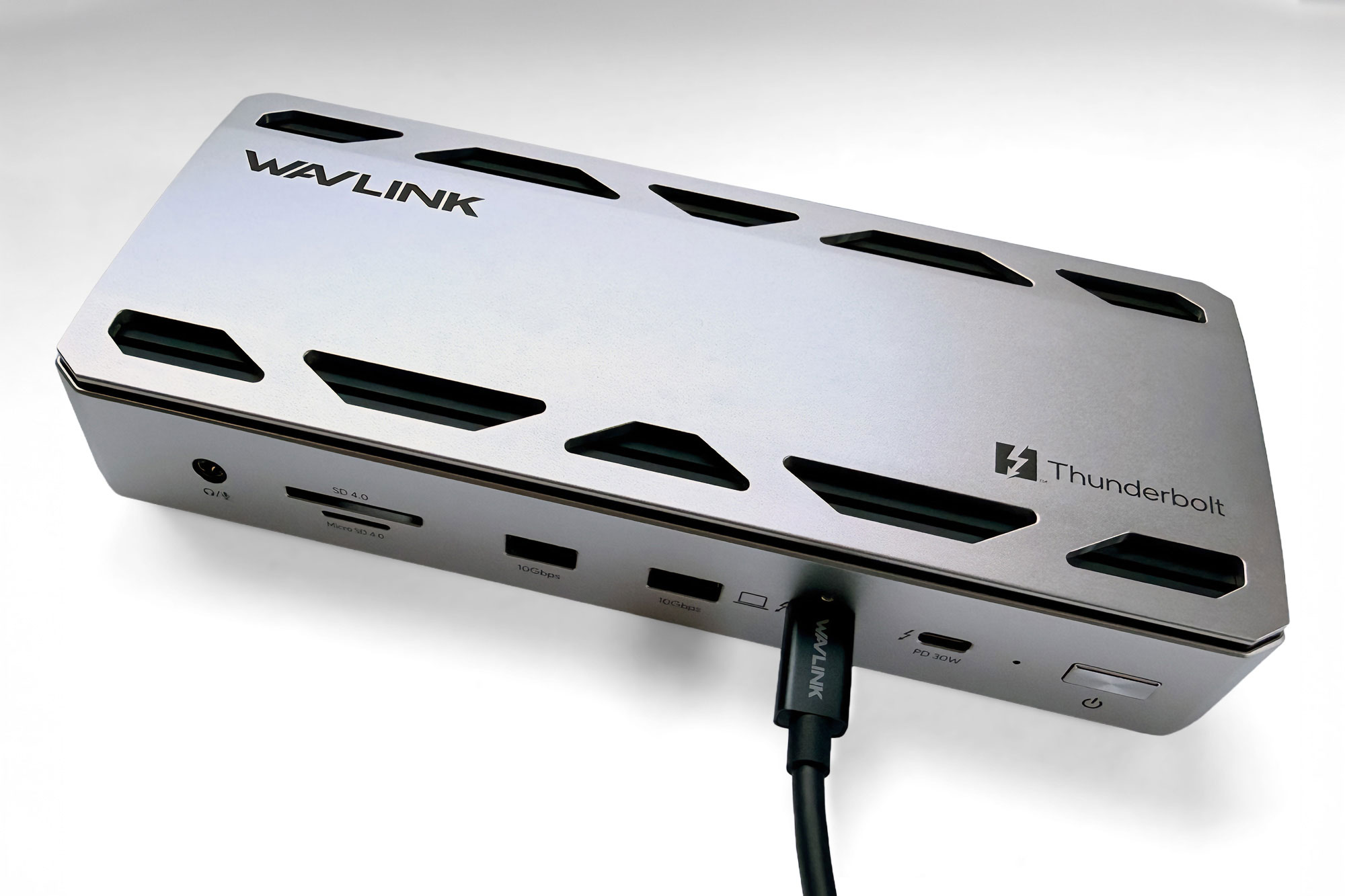
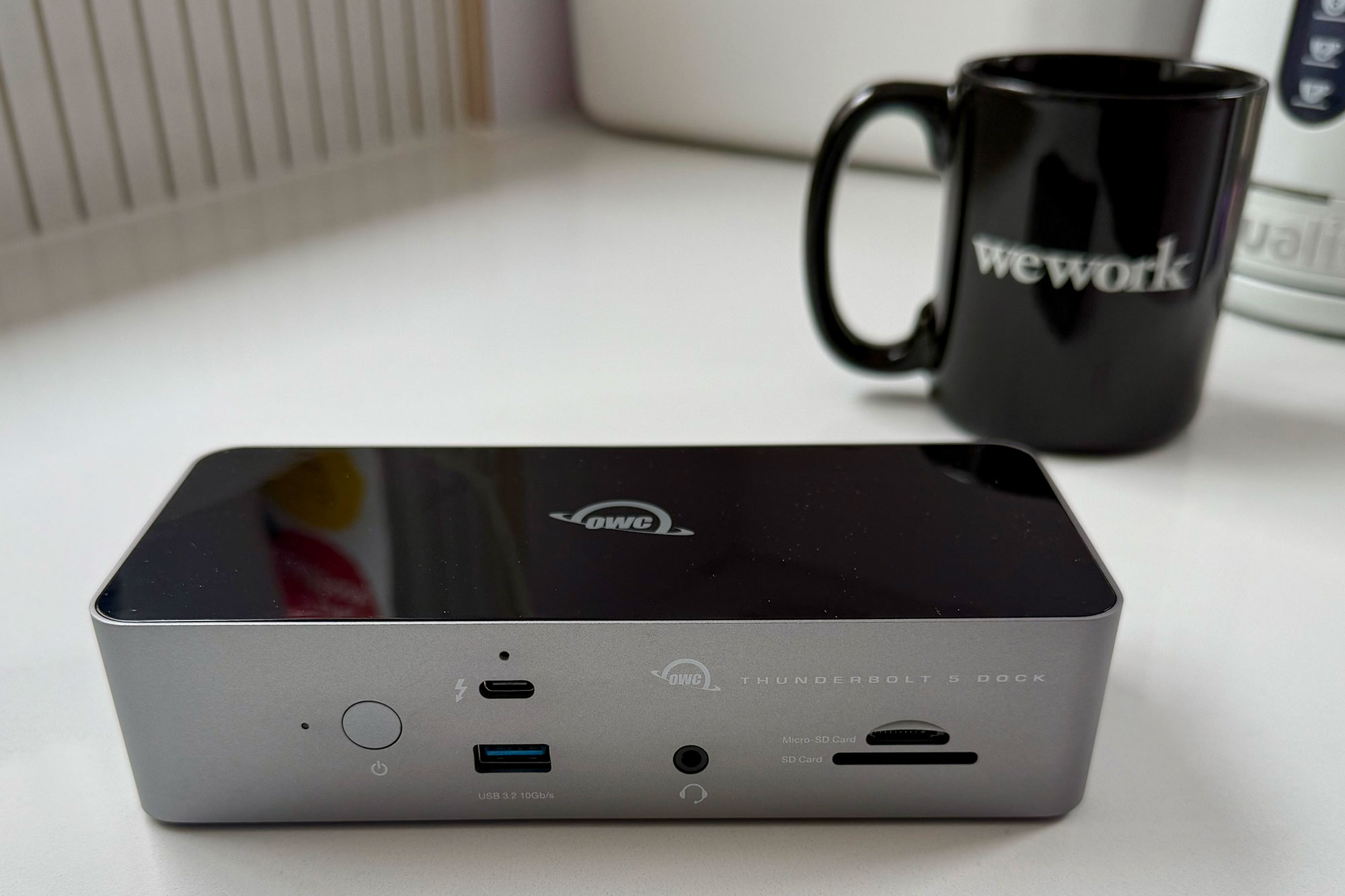
 $279.99